Account Settings
11. Account Settings
The Account Settings module is the central hub for configuring your entire Vivin workspace. All platform-wide rules — financial policies, user access, communication templates, integrations, and operational defaults — are defined here. The module is organized into eight tabs.
Changes made in Account Settings typically affect new records going forward. Existing bookings, contracts, and payment schedules are not retroactively altered when you update settings.
11.1. General Information
This tab configures your company's identity and core operational parameters.
General Information Section
| Field | Description |
|---|---|
| Company Name | Your business name as it appears in documents, emails, and the Tenant Portal. |
| Contact Email | The primary email address tenants and team members will see as the sender for system notifications. |
| Phone Number | Your company's contact number, included in outgoing communications where applicable. |
| Fiscal ID / VAT Number | Your company's tax identification number, used for invoice generation and legal documents. |
| Address | Your company's registered address, printed on contracts and invoices. |
Branding Section
These settings control how the platform appears to your team and to tenants in the Tenant Portal.
| Field | Description |
|---|---|
| Logo | Upload your company logo (PNG or JPG). It appears in the top navigation bar and in generated PDFs (contracts, invoices). |
| Brand Color | A hex color code that sets the primary accent color in the Tenant Portal and in email headers. Use your brand's primary color for a consistent, professional look. |
| Website URL | Your company's website. Displayed in tenant-facing communications and the Tenant Portal. |
Booking Cycle Section
These settings define your standard operational timing parameters. They are used as defaults across the platform and affect scheduling for automated tasks.
| Field | Description |
|---|---|
| Check-in Time | The default time of day when tenants are allowed to move in (e.g., 15:00). Used in check-in emails and operational planning. |
| Check-out Time | The default time of day by which tenants must vacate (e.g., 11:00). Used in check-out emails and operational planning. |
| Mid-term Preparation Days | The number of days needed to prepare a unit between a check-out and the next check-in for mid-term stays (typically 1 month or longer). For example, setting this to 3 means a unit cannot be booked starting fewer than 3 days after another booking ends. |
| Short-term Preparation Days | Same as above but for short-term stays (typically nightly or weekly bookings). This is usually 1 day. |
11.2. Users & Roles
This tab manages who can access your Vivin account and what they are permitted to do.
Team Members
Team members are the people in your organization who use Vivin. Each member has a role that determines their permissions.
To add a team member, click + Add Team Member and fill in:
- Name and Email — the member will receive an invitation to create their account
- Role — select from your available roles (see Role Permissions below)
Available roles typically include:
| Role | Typical Access Level |
|---|---|
| Super Admin | Full access to all modules and settings, including the ability to add/remove team members and change financial settings. |
| Admin | Full operational access to bookings, listings, finance, and operations. Cannot modify account-level settings. |
| Finance | Read and write access to the Finance module. Limited access to Bookings and Listings. |
| Operations | Access to Operations (tickets, cash flows) and limited Bookings access. |
| Read Only | Can view data across all modules but cannot create, edit, or delete any records. |
Owners
Property owners are the individuals or companies that own the properties you manage. Adding owners here allows you to:
- Associate properties with their correct owner
- Generate owner statements and payout records
- Display owner details on contracts
When adding an owner, fill in:
| Field | Description |
|---|---|
| Legal Name | The owner's full legal name as it should appear on documents. |
| The owner's email address for correspondence. | |
| Phone | Contact number. |
| Fiscal ID / NIF | The owner's tax identification number, required for invoicing and legal documents. |
| Address | The owner's registered address, used on contracts and payment statements. |
| IBAN | The owner's bank account for payout transfers. |
An owner record must exist before you can create a property assigned to that owner. If an owner is not in this list, the Owner dropdown in the property creation wizard will not show them.
Role Permissions
Click the Role Permissions button to open a full permissions matrix. This table shows, for every role, exactly which actions are allowed or blocked across each module. Common permission categories include:
- Listings: View, Create, Edit, Delete properties and units
- Bookings: View, Create, Edit, Cancel bookings
- Finance: View, Add, Edit payments and cash flows
- Operations: View, Create, Resolve tickets
- Settings: View and Edit account-level settings
Use this matrix to verify that each team member's role matches what they need access to — and nothing more.
11.3. Invoicing & Payments
This is one of the most critical settings tabs. The rules configured here govern how payments are calculated, when they are due, how late payments are penalized, and how invoices are generated.
Payment Deadlines
| Field | Description |
|---|---|
| Tenant Due Days | The default number of days a tenant has to pay after a charge is issued. For example, setting this to 5 means that a rent charge due on the 1st must be paid by the 6th. Properties can override this with their own due date in the Listings module. |
| Deposit Refund Deadline | The number of days after a booking ends by which the security deposit must be returned to the tenant. This is used for compliance tracking. |
Payment Delay Penalties
Configure automatic late payment fees applied when tenants miss a due date.
| Field | Description |
|---|---|
| Penalty Frequency | How often the penalty is applied once a payment is overdue (e.g., Once, Every Day, Every Week). |
| Penalty Type | Fixed — a flat amount added each period (e.g., €25 per day late). Percentage — a percentage of the overdue amount added each period (e.g., 1% of the unpaid balance per day). |
| Penalty Value | The amount or percentage to charge. |
Penalties are not automatically applied to a tenant's account — they must be manually triggered or are shown as suggestions based on the configured rules. The configuration here defines the terms, not automatic deductions.
First & Last Month Deposits
These settings define what happens to the first and last month's rent when used as deposits.
| Field | Description |
|---|---|
| First Month Deposit Rule | Whether the first month's rent collected at confirmation/check-in is treated as a deposit (refundable) or as prepaid rent (non-refundable). |
| Last Month Deposit Rule | Same concept applied to the last month's rent. Options typically include Full (retain the entire amount) or Partial (define what fraction is retained). |
Utilities
Specify which utility types can be billed to tenants as overages. Enabling a utility here allows the Utilities module to calculate and charge tenants when their consumption exceeds the "Bills Included" ceiling set on a property.
Available utility types:
- Electricity
- Water
- Gas
- Internet
Toggle each one on or off depending on which utilities you pass through to tenants.
Payments Priorities
When an incoming payment from a tenant is received and needs to be allocated across multiple outstanding charges, the system uses this priority list to determine the order.
Use the drag-and-drop interface to rank payment types. For example, you might configure:
- Security Deposit (highest priority — always covered first)
- First Month Rent
- Admin Fee
- Monthly Rent
- Cleaning Fee
- Other Charges
This order matters when a partial payment is received. If a tenant pays €800 against a €1,000 total owed (€500 rent + €300 deposit + €200 admin fee), the system applies the €800 starting from the top of this priority list.
Invoicing (VAT Rates)
Configure the tax rates applied to each type of invoice item. Different countries and contract types may require different VAT rates for different line items.
| Invoice Item | Field |
|---|---|
| Rent | VAT percentage applied to monthly rent invoices |
| Security Deposit | VAT percentage (often 0% as deposits are not revenue) |
| Cleaning Fee | VAT percentage for cleaning charges |
| Admin Fee | VAT percentage for administrative fees |
| Other Items | Default VAT rate for miscellaneous charges |
Set each rate to 0 if VAT does not apply to that item type in your jurisdiction.
11.4. Integrations
Connect Vivin to external platforms and services. Once connected, data flows automatically between Vivin and these services.
Booking Platforms
These integrations connect your units to external rental listing sites. When enabled, Vivin synchronizes availability calendars and (where supported) pricing.
| Platform | What It Does |
|---|---|
| Airbnb | Two-way calendar sync. Bookings made on Airbnb are imported into Vivin; bookings in Vivin block Airbnb dates. |
| Booking.com | Calendar sync and rate management. Requires configuration via a channel manager API key. |
| Uniplaces | Calendar sync and booking import for the student rental platform. |
| Spotahome | Calendar sync for medium-term furnished rentals. |
| HousingAnywhere | Calendar sync for international student and expat housing. |
| Inlife | Integration for the Inlife student accommodation platform. |
| Roomless | Calendar sync for the Roomless platform. |
| Vivin Booking Engine | Enables the Vivin-hosted direct booking page where tenants can book directly without a third-party platform. |
| iCal | Export a standard iCal feed URL for each unit. Any platform that accepts iCal feeds (Airbnb, VRBO, Tripadvisor, etc.) can subscribe to this to receive availability updates. |
For each platform integration, you typically configure:
- Integration Email or API Key — the credential that identifies your account on that platform
- Pricing Markup — an optional percentage to add to your base Vivin price when syncing rates to that platform (e.g., +15% to cover platform fees)
Enabling a platform integration here does not automatically list your units on that platform. You still need to create the listing on the external platform and link each unit in Vivin to its corresponding external listing ID.
Other Providers
| Provider | What It Does |
|---|---|
| Nuki | Connects Vivin to Nuki smart locks. Once connected, Vivin can generate temporary access codes for tenants and automatically include them in check-in emails. Requires your Nuki API key. |
| Invoice-xpress | Connects to the Invoice-xpress invoicing service for legally compliant invoice generation. Requires your Invoice-xpress API key and client ID. Once connected, Vivin generates and submits invoices automatically when payments are recorded. |
To add a provider, click + Add Provider, select the provider from the list, enter the required credentials, and save.
11.5. Email Templates
Configure the automated emails Vivin sends to tenants throughout the booking lifecycle. Every email can be customized with your own content.
Lifecycle Email Templates
These are the three main emails sent to tenants at specific points in their tenancy:
Onboarding Email Sent when a booking is confirmed (trigger configurable). This is the tenant's welcome email — include information about your company, the property rules, and what to expect before move-in.
- Subject: The email subject line
- Body: The main content of the email. You can use dynamic variables (e.g.,
{{TenantFirstName}},{{PropertyAddress}}) to personalize each email automatically. - Trigger: When this email is sent. Common triggers: "Immediately after booking creation," "After paid & contract signed," or a specific number of days before move-in.
Check-in Email Sent before the tenant's arrival. Include access codes, check-in instructions, local tips, and emergency contacts. Access codes configured in a property's Access Lockers tab are automatically appended to this email.
- Trigger: Typically set to "X days before check-in date" (e.g., 3 days before move-in).
Check-out Email Sent before the tenant's departure. Include check-out instructions, what to do with keys, the damage inspection process, and deposit refund timelines.
- Trigger: Typically set to "X days before check-out date" (e.g., 5 days before move-out).
Individual properties can add custom content that is appended to these default templates. See Section 4.4.7 for property-level email customization.
Communication Module (Automated Reminders)
Beyond the three lifecycle emails, you can configure a full series of automated reminder emails. These are rule-based: they trigger based on conditions you define.
Common use cases:
- Payment Due Reminder — send a reminder email 3 days before a payment is due
- Overdue Payment Notice — send a notification the day after a payment becomes overdue
- Check-in Reminder — send a reminder 7 days before move-in with final arrival details
- Contract Expiry Notice — send an alert 60 days before a contract ends
For each automated communication, you configure:
| Field | Description |
|---|---|
| Name | An internal label for this rule (not shown to tenants) |
| Trigger Event | The event that starts the countdown (e.g., "Payment Due Date," "Check-in Date," "Booking End Date") |
| Timing | How many days before or after the trigger event this email should be sent |
| Condition | Additional conditions that must be true (e.g., "Only if payment is still unpaid," "Only if contract is signed") |
| Subject and Body | The email content, with support for dynamic variables |
11.6. Contract Templates
Upload and manage the contract template used to generate rental agreements for your tenants.
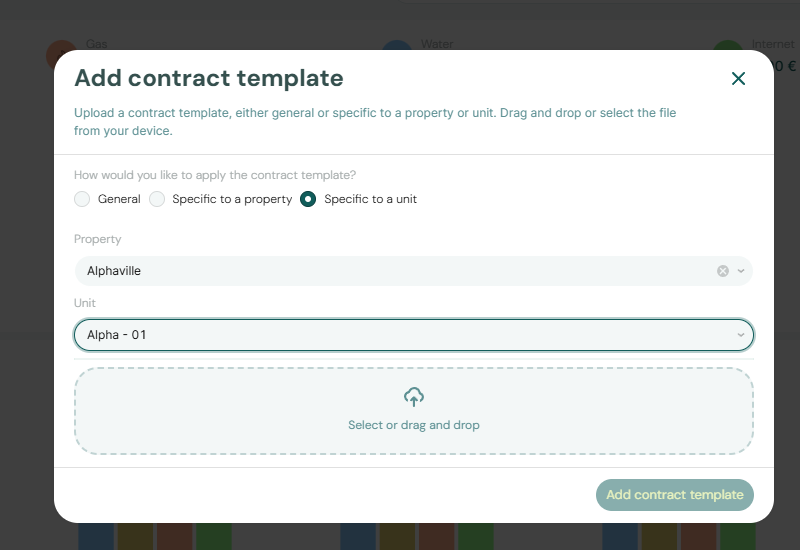
Uploading a Template
Vivin uses a Word document (.docx) as the contract template. When a contract is generated for a booking, Vivin replaces dynamic variables in the document with the actual booking data and produces a ready-to-sign PDF.
To upload a template:
- Prepare your contract in Microsoft Word or Google Docs (exported as
.docx) - Insert variable placeholders (see below) where booking-specific information should appear
- Click Upload Template and select your file
Using Dynamic Variables
Insert these placeholders into your .docx template anywhere you want booking-specific data to appear automatically. Vivin replaces them when generating the contract.
Tenant Variables
| Variable | Output |
|---|---|
{{TenantFirstName}} | Tenant's first name |
{{TenantLastName}} | Tenant's last name |
{{TenantFullName}} | Tenant's full name |
{{TenantEmail}} | Tenant's email address |
{{TenantPhone}} | Tenant's phone number |
{{TenantNationality}} | Tenant's country of nationality |
{{TenantFiscalId}} | Tenant's tax/fiscal ID number |
{{TenantPassportNumber}} | Tenant's passport or ID number |
{{TenantAddress}} | Tenant's home address |
Property & Unit Variables
| Variable | Output |
|---|---|
{{PropertyName}} | Property name |
{{PropertyAddress}} | Full property address |
{{UnitName}} | Unit name/number |
{{UnitType}} | Unit type (e.g., Room, Studio, Full House) |
Booking & Financial Variables
| Variable | Output |
|---|---|
{{StartDate}} | Contract start date |
{{EndDate}} | Contract end date |
{{MoveInDate}} | Tenant's physical move-in date |
{{MoveOutDate}} | Tenant's physical move-out date |
{{RentValue}} | Monthly rent amount |
{{SecurityDeposit}} | Security deposit amount |
{{AdminFee}} | Administrative fee amount |
{{CleaningFee}} | Cleaning fee amount |
{{PaymentFrequency}} | Payment frequency (Monthly, Fortnightly, Daily) |
{{ConfirmationPayments}} | Payments due at booking confirmation |
{{CheckinPayments}} | Payments due at check-in |
Owner Variables
| Variable | Output |
|---|---|
{{OwnerFullName}} | Property owner's legal name |
{{OwnerFiscalId}} | Owner's tax ID |
{{OwnerAddress}} | Owner's registered address |
Click "Check the list of available variables here" inside the settings tab for the complete and up-to-date list.
Unit-Specific Contract Templates
You can assign a different contract template to specific units if your portfolio requires different legal agreements for different property types. For example, you might use one template for traditional long-term rentals and another for accommodation-services contracts.
To assign a unit-specific template, click + Add Unit Template, select the unit, and upload the alternative .docx file. When a contract is generated for that unit, the unit-specific template will be used instead of the default.
11.7. Categories
Categories are the classification labels used throughout the platform to tag and organize records. Creating a well-structured category system before you start using Vivin operationally makes filtering, reporting, and delegation much more effective.
Property / Listings Categories
Tags that can be applied to properties and units. These appear in the Tags tab when editing a property or unit.
Purpose: Filter the Listings view, generate targeted reports, and quickly identify properties with specific characteristics.
Examples:
- Location-based:
Alameda,Baixa,City Center,Suburbs - Type-based:
Studio,Room,Full Apartment,Two Single Beds - Feature-based:
Pet Friendly,Furnished,Elevator,Parking - Tenant-type:
Student Housing,Professional,Short-term
Bookings Categories
Tags and categories that can be applied to bookings to classify the type of reservation or associated charges.
Purpose: Segment booking data for reporting, and provide context for custom charges added to a booking.
Examples:
Extra Tenant(booking has more tenants than the base capacity)Room Change(tenant moved from one unit to another)Renewal(existing tenant extended their stay)Corporate(booking made by a company rather than an individual)
Tickets Categories
Categories for maintenance and operational tasks. Every ticket must have a category, so creating a comprehensive list here is important before your team starts using the Operations module.
Purpose: Route tickets to the right team, generate workload reports by category, and standardize how tasks are described.
Examples:
Cleaning - Check-inCleaning - Check-outCleaning - Common AreasPlumbingElectricalAppliance RepairKey HandoverTenant RequestInspection
Others Items Categories
Categories for miscellaneous financial items — charges that don't fit neatly into the standard booking payment types (rent, deposit, admin fee).
Purpose: Classify one-off or non-standard charges added to a booking (via "Add Charge") and track operational cash flow expenses.
Examples:
DamagesGuest Fee(extra charge for an additional occupant)ParkingStoragePenalty FeeContractor InvoiceSupplies
11.8. Preferences
Fine-tune platform behavior to match your team's operational workflows.
Default Management
| Setting | Description |
|---|---|
| Default Booking Dashboard View | Choose whether the Bookings module opens on the List view or the Timeline view by default. Set this to whichever view your team uses most frequently. |
| Mandatory Booking Fields | Define which fields are required when creating a new booking. For example, you might make "Tenant Fiscal ID" mandatory to ensure complete legal records are always captured. Fields marked as mandatory will show a validation error if left empty during booking creation. |
Tickets Priorities
Set the default deadline (in days) for each priority level. When a ticket is created at a given priority, the system automatically sets the due date based on this configuration.
| Priority | Example Default Deadline |
|---|---|
| Critical | 1 day |
| High | 3 days |
| Medium | 7 days |
| Low | 14 days |
These are defaults only — individual tickets can always have their due date overridden manually.
Default Tenant Portal
Configure how the Tenant Portal behaves for tenants:
| Setting | Description |
|---|---|
| Allow Tenants to Edit Fiscal ID | When enabled, tenants can update their own fiscal/tax ID number in the Tenant Portal. Disable this if you need to control fiscal data entry (e.g., to prevent tenants from entering incorrect tax information that affects invoices). |
| Show Payment History | Whether tenants can see a full history of their past payments in the Portal. |
| Allow Online Payments | Master toggle for online payment functionality in the Tenant Portal. Note that individual properties also have their own "Property Payments Active" toggle — both must be enabled for a tenant to make an online payment. |