Getting Started
This page is the setup hub — complete Recommended Setup Sequence (steps 1–12 on Account Settings tabs per Recommended setup order, then steps 13–15 in Listings, Bookings, and Tenants) and Onboarding a New Property — Step 7 go-live verification before relying on module, workflow, and concept deep dives. Guided walkthrough of settings steps 4–12: Onboarding a New Property. When sign-in was restored mid-setup, see Lockout catch-up after password recovery. Section pairing: Getting Started — Section cross-reference.
This section covers the basic concepts and navigation patterns you need to know before working with any specific module.
Skim Understanding the Interface Layout for the management shell, then Core Concepts and Terminology for portfolio hierarchy and payments. Hub subsection map: Getting Started hub subsection index (onboarding sections + Related subsections). First-time admins should continue to Recommended Setup Sequence (core steps 1–15, then optional deep dives such as Distribution & channels, Tenant-facing portal, and Finance & Tenants); returning operators can jump to Bookmarkable routes or Related → Navigation & bookmarks (Deep Links, Create New menu, Account Settings routes, interface language). Platform overview and module map before setup: Introduction — Key Platform Capabilities Non-linear operator habits (Lockout catch-up, Pending manual receipt approval, Reject/revert mistaken receipts, Partly collected security deposit, Portfolio segmentation by tenant category) and lifecycle handoff hubs (Property setup to first arrival handoff, New inventory to first booking handoff, Confirmation to check-in handoff, Check-in to check-out handoff, Same-day turnover coordination, Check-out final utilities handoff, Occupancy KPI to block hygiene handoff) have matching Related subsections below. Full pairing matrix: Getting Started — Section cross-reference.
Accessing the Platform
After first login, continue with Understanding the Interface Layout (sidebar, bell, mobile shell). Team leads configuring a new account should follow Recommended Setup Sequence; bookmark daily routes from Bookmarkable routes. Full pairing matrix: Getting Started — Section cross-reference.
Navigate to platform.vivin.app and log in with your account credentials. Upon logging in, you will land on the Dashboard — your central hub for monitoring business performance at a glance.
The sign-in screen uses your email and password (no separate username field). Team members invited from Users activate their account from the invitation email before their first login.
If a management user cannot log in because they forgot their password, follow Resetting a Management User Password.
Lockout catch-up after password recovery
After Resetting a Management User Password — Step 3 restores sign-in, refresh external Landlord MCP Bearer JWTs (and Mcp-Session-Id if needed) before portfolio automation resumes — see Landlord MCP — How it connects. Catch up delayed operator work: Notification triage (Step 4 row-click — route payment overdue via Common Workflows — Payment alert to receivables triage and Upcoming alerts via Common Workflows — Confirmation alert triage; then Step 5; file Step 6 when row-click fails; notifications-row-navigation-flow.mp4), month-end Pending receipt mesh (Common Workflows — Pending manual receipt approval; Steps 6b across booking workflows — finance-transactions-pending-pill.png, bookings-detail-transactions-approve-payment-modal.png), receivables sign-off (Common Workflows — Finance debt receivables triage; finance-overview-income-chart-debt-aging.png, dashboard-kpi-total-debt-tooltip.png), portal gates on live bookings (Processing a New Booking — Step 6), deposit shortfalls (Common Workflows — Partly collected security deposit), older move-outs hidden by the default Finance → Deposits toolbar date range (Common Workflows — Deposit missing on Finance Deposits; finance-deposits-date-range-clear-flow.mp4), Common Workflows — Directory list load failures when /notifications or Bookings will not load (Retry before alert triage), and Portfolio KPI review — Step 7 when month-end reconciliation lagged during lockout. Hub parity: Common Workflows — Lockout catch-up after password recovery. Full mesh: Resetting a Management User Password section cross-reference.
| Symptom | Fix |
| -------------------------------------------------------- | ----------------------------------------------------------------------------------------------------------------------------------------------------------------------------------------------------------------------------------------------------------------------------------------------------- | ---------------------------------------------------------------------------------------------------------------------------------------------------------------------------------------------------------------------------- |
| Unread payment alerts | Notification triage — Step 4 |
| Pending receipts on Finance | Pending manual receipt approval |
| Pending manual in-payment alerts on /notifications | Notification row-click navigation → Pending manual receipt approval |
| Total Debt high after alert triage | Receipts still pending — Pending manual receipt approval then Finance debt receivables triage (finance-transactions-pending-pill.png, dashboard-kpi-total-debt-tooltip.png) |
| /notifications or Bookings list will not load | First-fetch directory failure | Directory list load failures — Retry before Notification triage — Step 4 |
| Deposit shortfall on booking Deposit | Partly collected security deposit |
| Older move-outs missing from Finance Deposits | Deposit missing on Finance Deposits — clear toolbar date range |
| External MCP 403 | Refresh JWT after Step 3 — Landlord MCP — How it connects |
| Setup wizard still blocked | Rerun Onboarding — Step 7 |
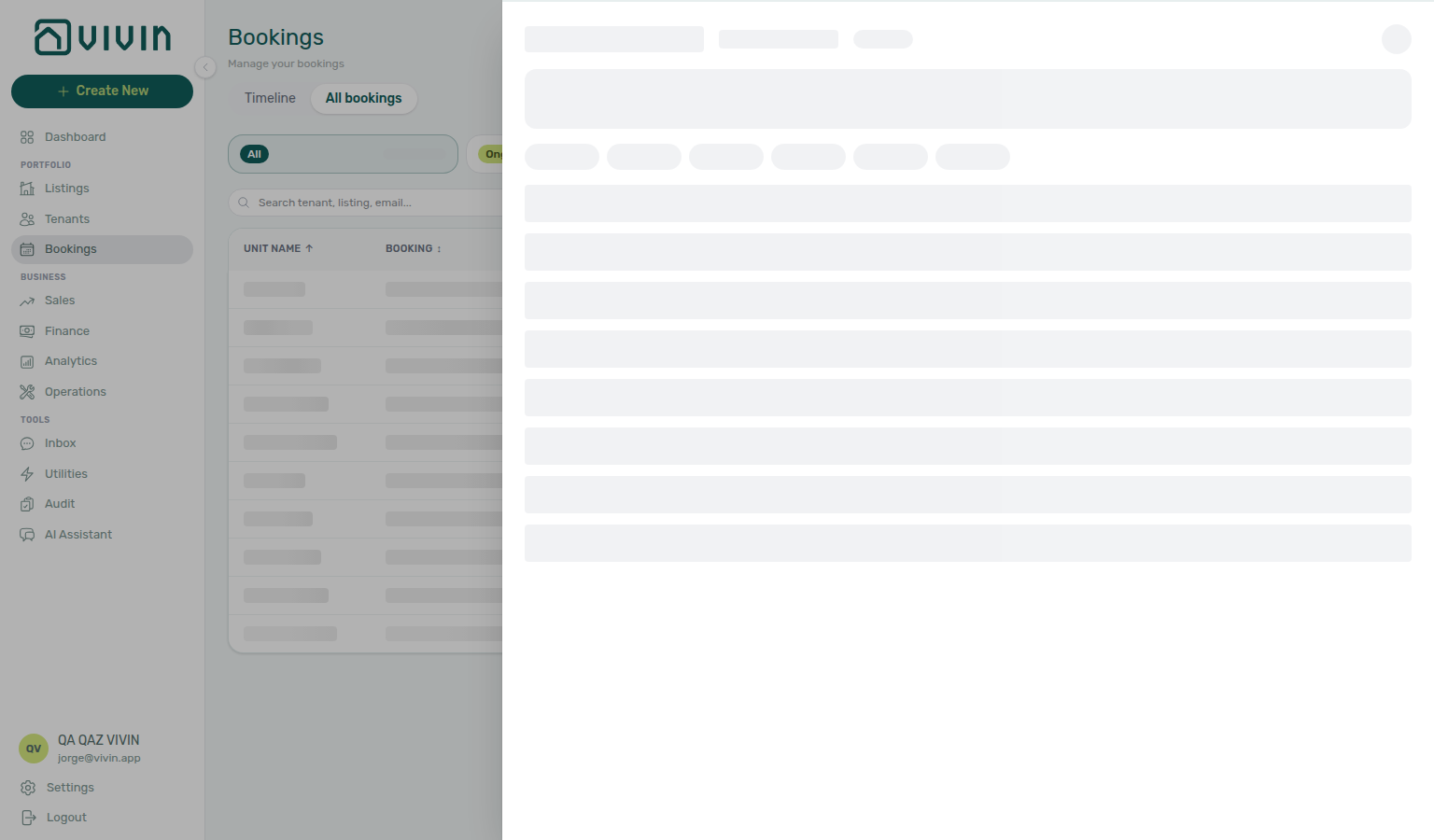
/notifications row-click → Finance → Transactions amber Pending chip → Approve payment (cancel) → Finance → Overview debt sign-off.Staying signed in and logging out
After a successful sign-in, Vivin keeps your management session active without asking you to re-enter your password on every screen change:
- Silent refresh — When your short-lived access token expires, the app automatically requests a new one using a secure httpOnly refresh cookie (you do not see a separate prompt). API calls that failed with an expired token are retried once with the new token.
- True session end — If refresh is no longer valid (for example you signed out elsewhere, an administrator revoked access, or the refresh cookie expired), the next protected action shows Your session expired. Please log in again. (wording follows your interface language) and returns you to the sign-in page.
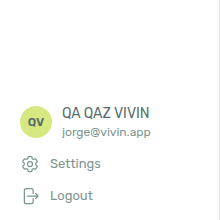
- Logout — Logout in the sidebar user section ends the session on the server (refresh token revoked) and clears local sign-in state so the next person on the same browser does not inherit your workspace.
Use Logout on shared computers. Closing the browser tab alone does not immediately sign you out — the refresh cookie can still allow a return visit until it expires or you log out explicitly.
On desktop, the sidebar user section at the bottom shows Account (Account Settings) and Logout — use Logout here to end the server session explicitly:
Sidebar user-section capture refreshed 2026-06-12 18:15 UTC (VIVIN_DOCS_BASE_URL=http://localhost:5173 VIVIN_DOCS_RECORD_API=$VITE_API_BASE_URL npx tsx tools/capture-getting-started-logout-sidebar.ts).
For help from the Vivin team, use Get Help & Support (email and the public status page). If your organisation has the Support permission, you can also open and track Vivin support tickets inside the management app — see Using in-app support.
If your team wires external AI clients or custom automation against VIVIN (outside the browser), start with Automation & AI — External AI clients (MCP), then the dedicated Landlord MCP (account-scoped) and Tenant MCP (booking-scoped) guides. Administrators configure API keys, tool permissions, and connector OAuth scope on Account Settings → AI / MCP (/settings/mcp) — Claude.ai and ChatGPT connectors use MCP OAuth on the Core API host instead of pasted keys. For direct HTTP integration, see the API Reference — operators use Management session authentication; partners use integration Bearer keys.
Understanding the Interface Layout
Pair shell navigation with The + Create New Menu shortcuts and Working with Tables behaviour in module directories. For entity names behind each sidebar group, read Core Concepts and Terminology; for stable URLs, see Bookmarkable routes. Full pairing matrix: Getting Started — Section cross-reference.
The Vivin interface has three main areas that remain consistent across all modules:
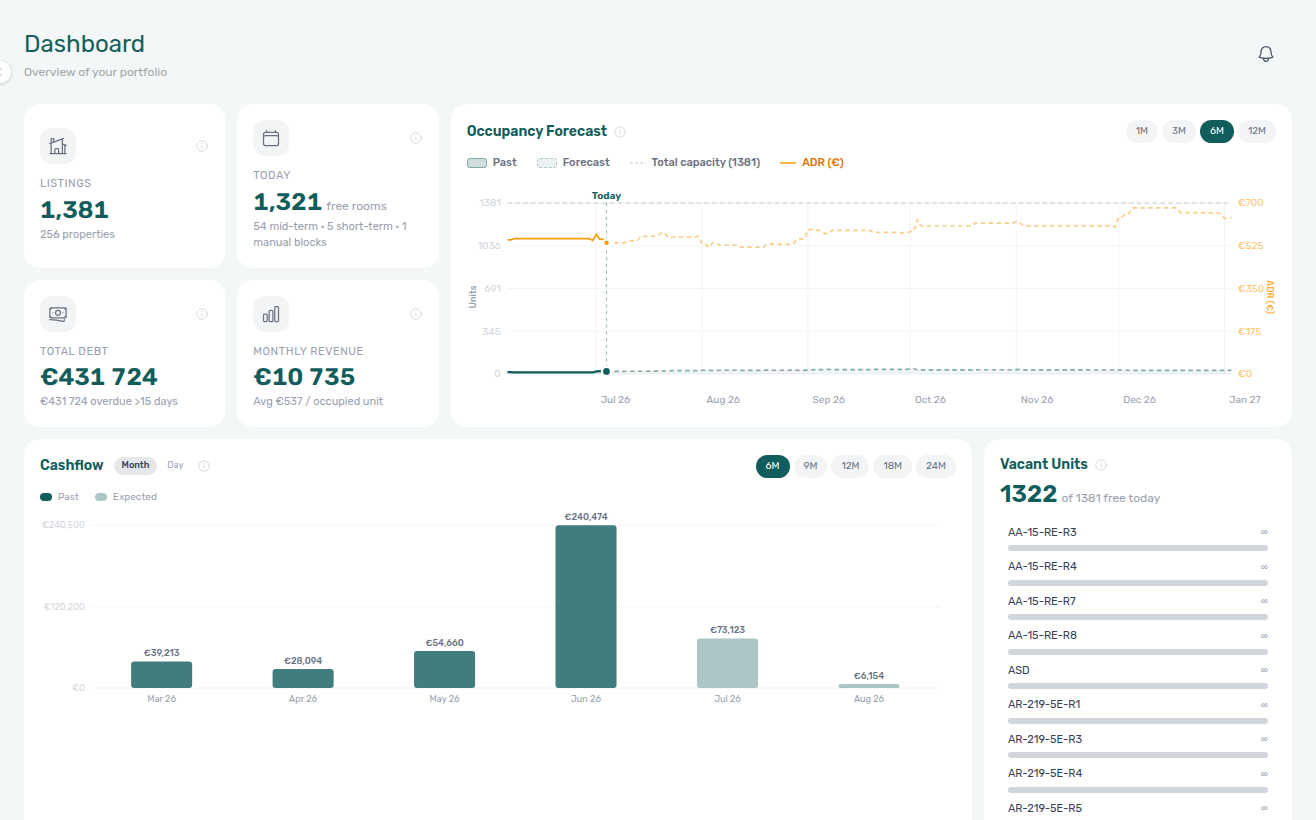
The four KPI cards in the top-left grid (Listings, Today, Total Debt, Monthly Revenue) are your daily health check before you open Finance or Analytics — see Glossary — Dashboard KPI cards and Dashboard > KPI cards for what each card measures.
Left Sidebar A vertical panel that is always visible, containing:
- Logo — links to the Dashboard
- Collapse control (desktop) — chevron on the sidebar edge collapses the rail to icons only so the main workspace gains width. Your choice is remembered in the browser (
vivin:sidebar-collapsed). When collapsed, + Create New stays available as an icon with a tooltip (see Create New Menu).
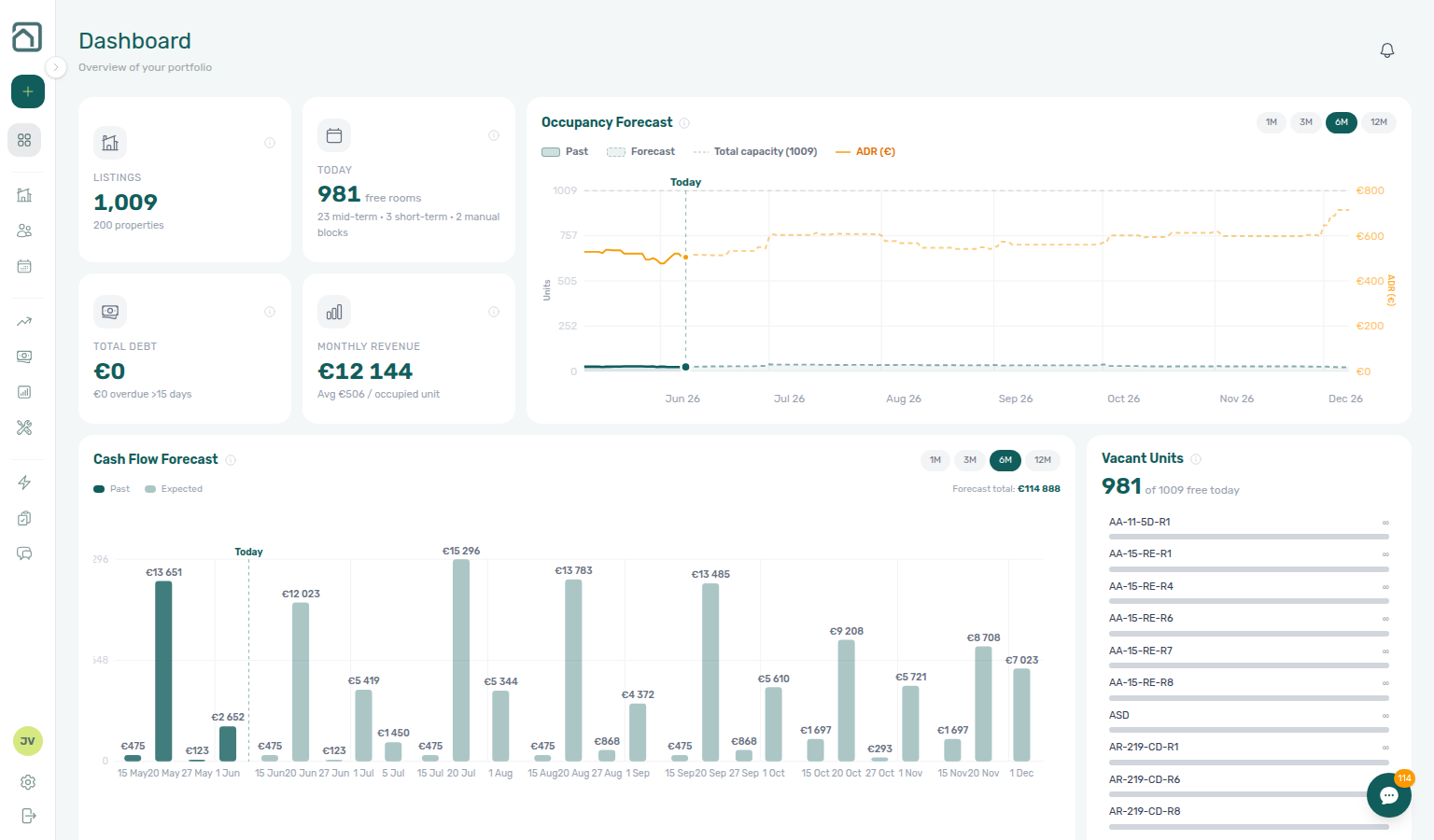
- + Create New button — opens a slide-out panel for creating properties, units, bookings, tickets, and more without navigating away from your current view (see Create New Menu for every category and permission rule)
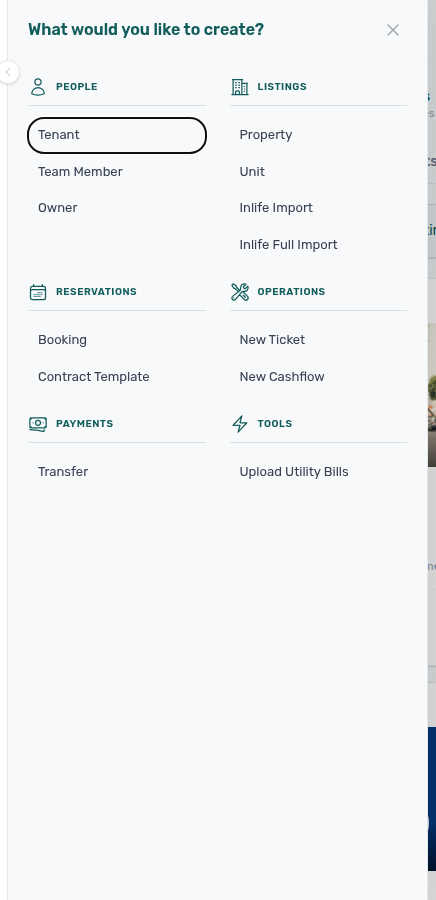
- Main Navigation — grouped into sections:
- Portfolio: Listings, Bookings, Tenants
- Business: Sales, Finance, Analytics (KPI workspace at
/analytics— after Finance in the sidebar; requires Analytics module permission), Operations - Tools: Inbox (portfolio-wide WhatsApp at
/inboxwhen tenant chatbot is enabled — desktop only; see Inbox module; per-booking threads: FAQ — WhatsApp and email per booking), Utilities, Audit (manual availability blocks; requires Listings permission — see Manual block hygiene), AI Chat (internal). Rich booking-engine property and unit content is edited from Listings via the Full integration pill in sidebars (who can open the details editor).
- User section (bottom) — Account (opens Account Settings), Logout
The Tenants entry opens /tenants and provides a dedicated tenant-management workspace (status pills, toolbar Search, grid vs table view). In table view, expand a row to see linked bookings inline before you open a profile sidebar — see Tenants — Table view and Glossary — Tenants table expand. Visibility follows your Tenants module permission (tenants.module), so some roles may see it disabled or unavailable.
For personal profile updates, use My Profile at /profile.
Interface language controls
Language is chosen from Account Settings → Personal Settings at /settings/personal (see Interface Language). On mobile, open the main menu (top-left) — the drawer exposes a compact language switch (current language code) next to Logout, using the same preference as Personal Settings:
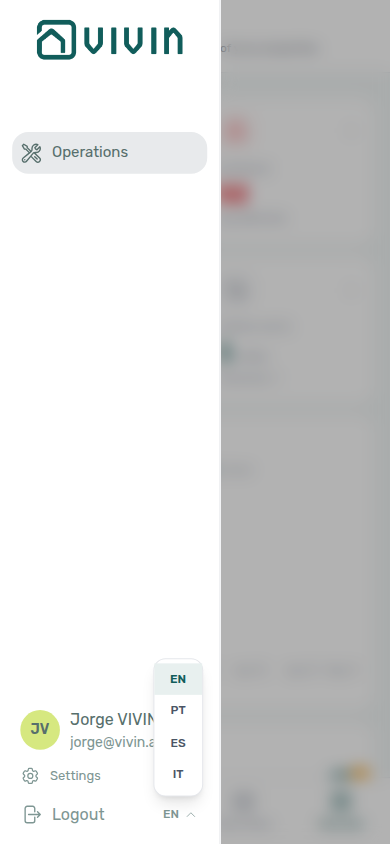
There is no language switcher under Account Settings → Preferences today.
See Interface Language for supported options and behaviour scope.
Notification access
On desktop Dashboard (/), a bell in the page header opens a Notifications slide-over. When the WhatsApp global inbox release is active (#1812), the panel splits into General and Inbox sub-tabs:
| Sub-tab | Contents |
|---|---|
| General | Payment, ticket, booking, and other platform alerts |
| Inbox | Inbound WhatsApp and email message pings (one row per conversation, coalesced) |
Each sub-tab has its own unread badge; Mark all as read clears only the active sub-tab. Inbox rows with a backend link jump straight to /inbox?contact=… or a booking Communication deep link. The list loads more rows as you scroll (skeleton placeholders while the next batch fetches); the bell does not include search or All / Unread / Read filters.
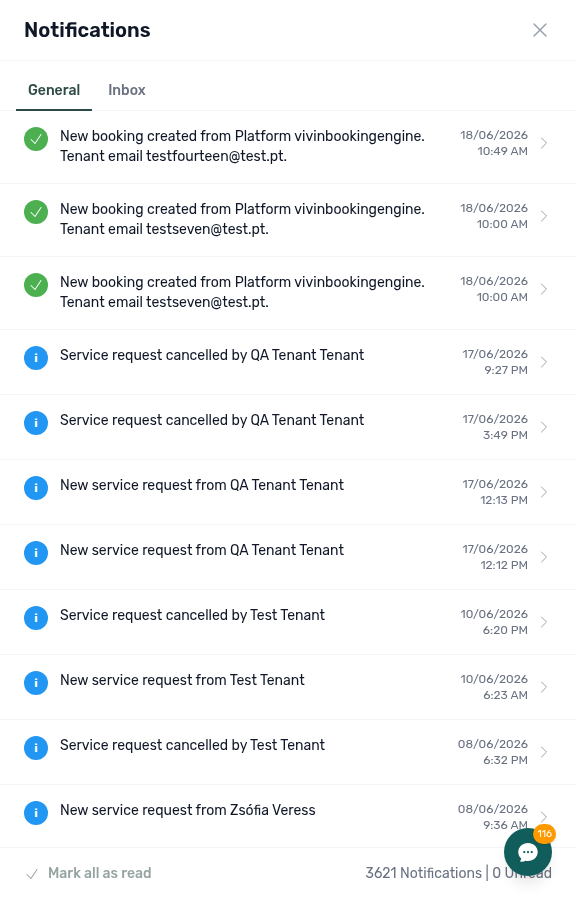
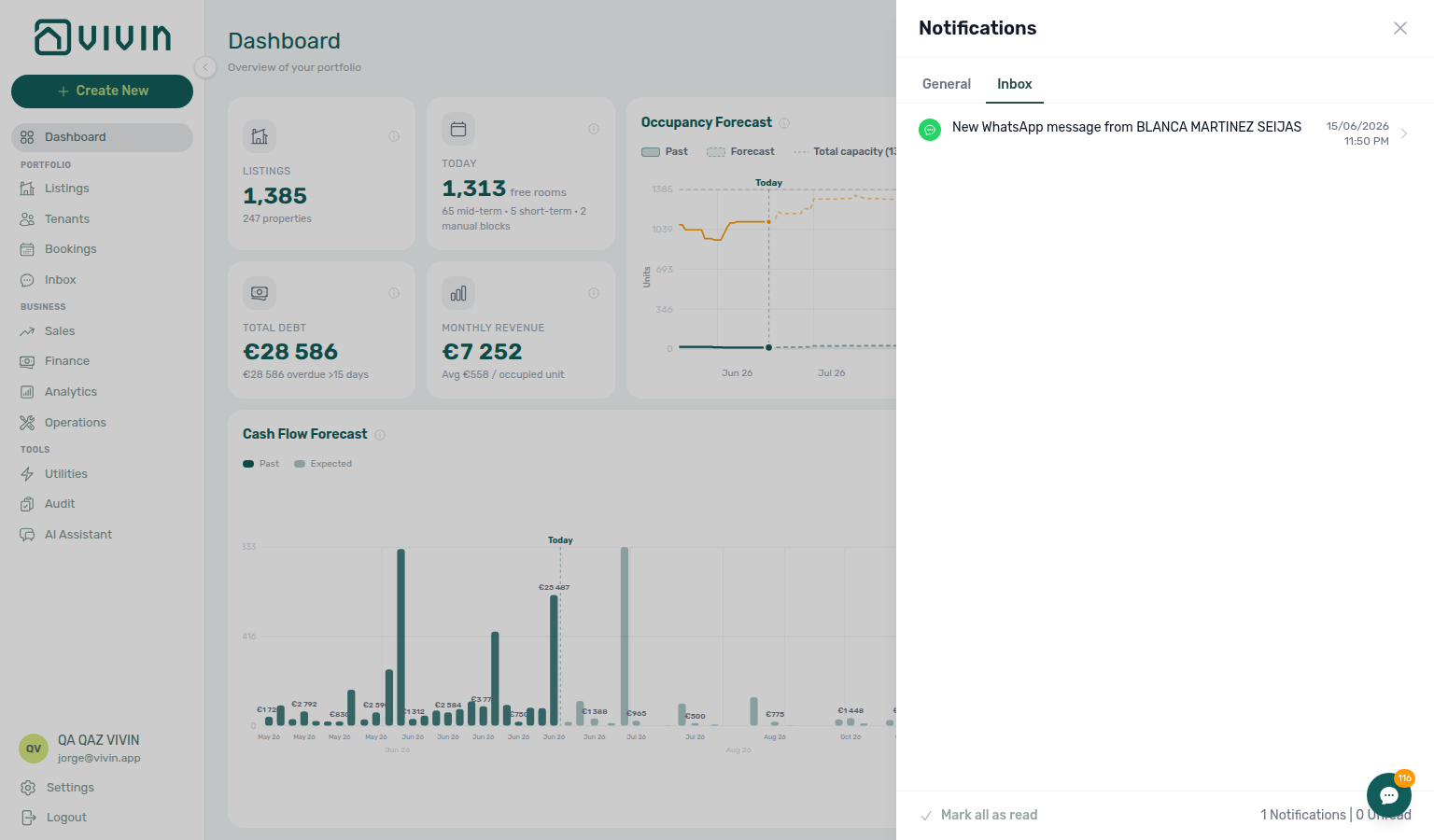
When the account tenant chatbot is not enabled, the Inbox sub-tab is greyed out — triage General only until Vivin enables messaging (Inbox — Chatbot gating). For portfolio-wide replies without opening each booking first, use Tools → Inbox at /inbox (Inbox module).
The bell is not shown on other modules’ headers in the current layout, and it is hidden on narrow (mobile) viewports. There is no dedicated Notifications item in the left sidebar.
For the full alert history (search, All / Unread / Read filters, mixed General + Inbox rows, and End of list), open the Notifications module at /notifications in your browser (bookmark or address bar). On that page, clicking a row marks unread items read and, when the event carries a target, opens the related booking, tenant, listing, or property — see FAQ — Notification row-click navigation and Glossary — Notification row navigation. For payment overdue rows, continue with Handling a Late Payment — Step 1 after the row-click lands on the booking. Step-by-step triage: Notification triage. See Deep Links — Notifications for the bookmarkable route.
Narrow viewports (below 768px)
Below the desktop breakpoint (768px wide), several layout affordances switch to a compact shell:
- Mobile menu drawer — Open the header menu (top-left) for navigation instead of the always-visible desktop sidebar.
- Dashboard bell — The header notifications bell on Dashboard is hidden on narrow layouts; use
/notificationsfor the full inbox. - Operations bottom tab bar — Inside Operations, a fixed bottom tab bar (when the browser is under 768px wide) switches between Overview, Tickets, Check-in & Check-out, and Cash Flows. A floating + button adds a ticket or cash-flow entry depending on the active tab. Schedule is not on that bar (desktop tab strip only for Vivin internal users) — bookmark
/operations/scheduleor use a wider screen when you need the timeline. - Language — The compact language control lives in the mobile menu drawer next to Logout (same preference as Personal Settings).
- Install app (PWA) — On phones and tablets (coarse pointer / touch layouts), Vivin may offer Install app so you can add the management UI to your home screen. A compact Install app card can appear at the bottom of the mobile menu drawer; the first visit may also show a full-screen prompt with Install and Maybe later (dismissed prompts can reappear after about 30 minutes). iOS Safari uses Share → Add to Home Screen when the native install event is not available. Install prompts are not shown on
/loginor/reset-password, and desktop browsers are not interrupted. After installation, the app opens in standalone mode without the browser chrome.
Mobile phones (operations-only shell)
Separate from viewport width: on an actual mobile phone (user-agent detection — iPhone, Android phone, etc.), users whose role includes the Operations module get an operations-only experience:
- Route guard — Opening Dashboard, Listings, Bookings, Finance, or other modules redirects to
/operations(exceptions:/settings/supportdeep links still open). - Sidebar — The mobile menu lists Operations only, not the full Portfolio / Business / Tools list.
iPads and other tablets keep the full module list even in portrait. Resizing a desktop browser narrow does not trigger the redirect — only real phone user agents do. Use a tablet or desktop browser when you need Listings, Bookings, Finance, or other modules on the go from a phone-class device.
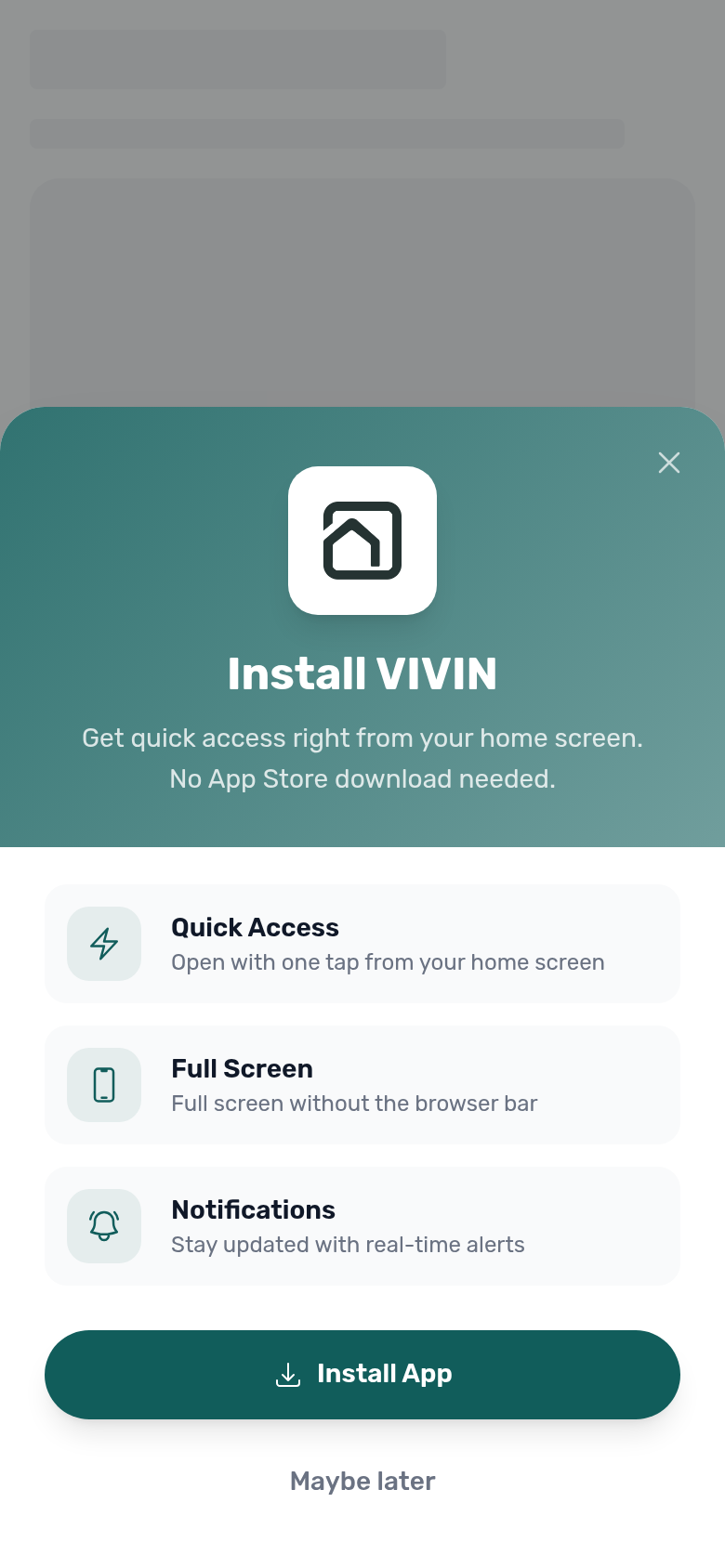
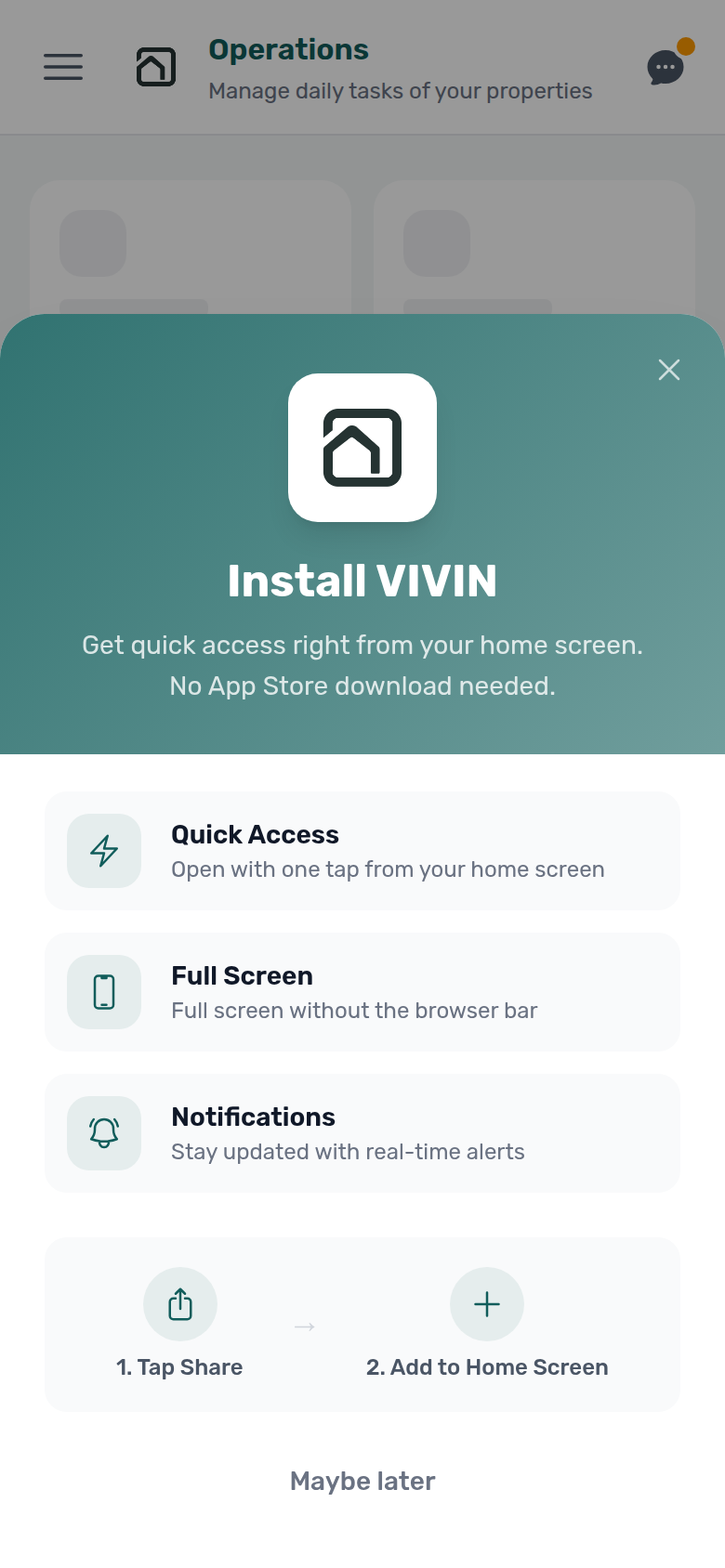
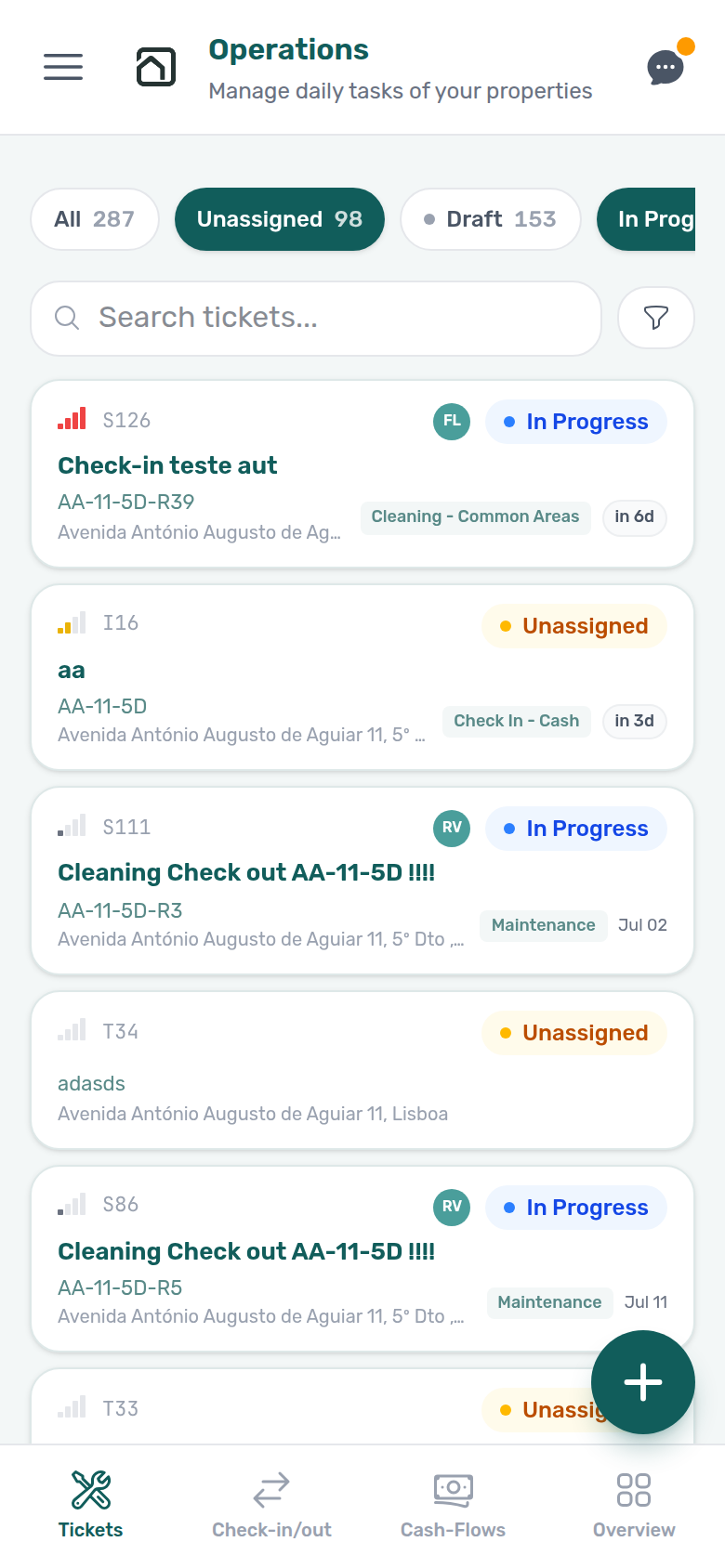
See Operations — Mobile and narrow layouts, Glossary — Operations-only phone shell, Deep Links — Operations, and FAQ — Why does my phone only show Operations?.
Several large directories (Listings, Bookings list view, Bookings Timeline listing-axis rows, Tenants, Notifications, Sales Pricing and Channels grids, Operations Tickets and Cash Flows, Utilities Connections and Allocations, and Timeline property rows) and Vivin support (Help & Support drawer and the full inbox at /settings/support) load additional rows as you scroll (skeleton placeholders or a small spinner while the next batch loads; End of list or Showing X of Y on full-page directories when finished — the drawer and Dashboard notifications bell omit that marker). On /notifications, the explicit End of list marker appears after the final server page — see Notifications — History loading and Notification triage — Step 5. Vacant Unit Preference on Preferences → Booking Defaults controls whether manual blocks count as free on Dashboard Today / Vacant Units and Sales Available now filters (#1427). Default excludes operator holds; Include manual blocks treats them as physical vacancy while OTA/iCal blocks still occupy the unit.
When a directory’s first fetch fails, Vivin shows an explicit Failed to load … card with Retry — not an empty table that looks like zero data. See FAQ — Directory list load failures and Glossary — Directory list load failures. See FAQ — Notifications & alerts (scroll-to-load behaviour), Using in-app support, Bookings — Loading more rows, Bookings — Timeline listing-axis loading, Operations — Tickets list loading, and Glossary — Infinite scroll (directory loading).
Some forms use the same chunked loading inside a dropdown when you pick a tenant, property, or similar record from a very large portfolio — see Glossary — Server-driven search picker.
Main Content Area (center) The active module's data, tables, forms, and visualizations. This area updates when you select a different module from the navigation menu.
Core Concepts and Terminology
Apply these terms while walking Recommended Setup Sequence; use Working with Tables when you open your first Listings or Bookings directory. For deeper models, continue to Concepts; for daily procedures, see Common Workflows. Full pairing matrix: Getting Started — Section cross-reference.
Before working with specific modules, it is important to understand the entities and terms used throughout Vivin.
The Portfolio Hierarchy
Vivin organizes your portfolio in a two-level hierarchy:
Property (building or complex)
  └── Unit (individual rentable space)
A Property represents a physical building or location (e.g., "Alpha Building," "Riverside Complex"). A Unit is an individual rentable space within that property (e.g., "Room 101," "Studio A," "Bed 3"). Every unit belongs to exactly one property.
In the Listings module, "Unit" and "Listing" are used interchangeably. A unit is always displayed within its parent property. See Managing Listings for full details.
Use Listings (Portfolio > Listings) for portfolio setup, property and unit editing, and hierarchy workflows. Inside Listings, switch between the Portfolio and Archived pills at the top when you need to review or restore archived properties (/listings/archived).
Older /properties bookmarks still work: they redirect into Listings. See Legacy /properties URLs (guide subsection index) for how each path resolves.
Bookings and Tenants
A Booking is a reservation linking a Tenant (the person renting) to a Unit for a specified period. Booking status is computed from dates and cancellation state:
Product Value (bookingStatus) | UI Label | Meaning |
|---|---|---|
upcoming | Upcoming | Start/check-in date is in the future |
current | Ongoing | Booking is active today |
ended | Ended | End/check-out date is in the past |
canceled | Canceled | Booking was canceled through the cancellation workflow |
For a detailed explanation of computed status behavior and transitions, see Booking Lifecycle.
In the Bookings module, use List for the full table (filters, export, canceled rows) or Timeline for a portfolio Gantt chart at /bookings/timeline — same search and property filters, with Day / Week / Month scales and an optional Only bookings toggle to show or hide calendar blocks on each unit row. Clear Only bookings to see manual and channel holds on the same Gantt; for portfolio-wide manual-block triage (filter, export, column sort), use Tools → Audit — see Bookings — Timeline listing-axis loading and Manual block hygiene.
For tenant-centric filtering, profile management, and debt-focused follow-up, see Tenants.
Dates: Contract vs. Occupancy
It is important to distinguish between two types of dates:
- Contract Date — when the rental agreement legally begins (used for payment scheduling)
- Occupancy Date (Move-in Date) — when the tenant physically enters the property
These dates may differ. For example, a contract might start on the 1st of the month, but the tenant physically moves in on the 5th.
Payments
Vivin uses a two-layer payment model:
- Scheduled Payments (Contract Values) — what the tenant is expected to pay and when (generated automatically when a booking is created)
- Incoming Payments (Transactions) — what the tenant has actually paid
A payment is marked as "received" only when an incoming payment is recorded and allocated to a scheduled charge. For a detailed explanation of how allocation works, see Payment Allocation.
Manual receipts may stay pending until Approve payments acts on Finance → Transactions or a booking Transactions tab. To remove a mistaken duplicate, use Reject payment (per row on the booking) or Reject selected (bulk-only on the Finance ledger). Revert payment rolls back a confirmed receipt. When Finance already invoiced the charge, confirmation modals warn that you may need credit notes in your accounting system — see Payment Allocation — Correcting mistaken receipts. Lowering rent on an already-invoiced month is blocked by the invoiced floor on Change monthly rent and Contract Values → Edit amount — see FAQ — Lower rent below invoiced.
Security deposits are tracked on Finance → Deposits (and each booking’s Deposit tab). Payment-driven lifecycle (Not Paid through Refunded, optional Disputed) is summarized on the depositStatus pill — see Glossary — Deposit lifecycle status. The Deposits toolbar date range defaults to about the last three months — rows appear when check-in, check-out, or Refund Due Date intersects that window, not when the booking was created. Clear or widen the range before triaging older move-outs, disputes, or export. Refund Due Date follows your account Deposit Refund Deadline in Settings → Payments. When a tenant contests deductions before refund, Enable deposit disputes lets operators Mark as Disputed so Refund stays frozen until Resolve Dispute — see Glossary — Deposit dispute. See Glossary — Finance Deposits date range and Managing a Check-out — Step 5.
Tickets
Tickets are actionable operational tasks: maintenance, cleaning, inspections, repairs, or tenant requests. Each ticket has:
- A priority (Low, Medium, High, Critical)
- A status (Unassigned, Open, In Progress, Completed, Cancelled, Duplicate)
- An assignee (the team member responsible)
- A category and due date
In product data and API payloads, the Completed status is stored as closed.
Tickets are managed in the Operations module. Categories are configured in Settings > Categories. Far-future Schedule date values surface as Draft (display status) in the list — use the Draft KPI card to review long-lead jobs without mixing them into today’s Unassigned queue. On a ticket sidebar, Cost allocation can link cash flows from the operational ledger so repair totals reconcile with contractor invoices. For same-day turnovers (check-out and check-in on one unit the same day), schedule cleaning and inspection tickets with a due date before the incoming arrival — see Managing a Check-in and FAQ — How do I handle same-day turnovers?.
Cash Flow
Cash Flow refers to operational financial transactions — expenses and income that are not part of a tenant's booking payment. For example: a contractor invoice for plumbing repairs, or income from a one-off service fee. Cash flows are tracked in the Operations module.
The + Create New Menu
The slide-out mirrors categories in Understanding the Interface Layout; permission rules and every row are documented in Create New Menu. During onboarding, use it while following Recommended Setup Sequence steps 13–15. Full pairing matrix: Getting Started — Section cross-reference.
The + Create New button in the left sidebar is your primary shortcut for adding new records. Clicking it opens a slide-out panel titled What would you like to create? with actions grouped into categories: People, Listings, Reservations, Operations, and Payments. If you sign in with a Vivin internal email (@vivin.app), an extra Tools category appears for shortcuts such as utility bill upload. After Booking or Transfer shortcuts, unpaid schedules can surface payment overdue alerts — row-click opens the booking for Handling a Late Payment — Step 1.
For a complete reference of all available actions, layout, and permissions, see Create New Menu. From medium-width layouts and up, you can use the sidebar button from any screen; on narrow mobile layouts, use each module’s own create actions instead.
Working with Tables
Table behaviour appears in every module — start with Core Concepts and Terminology (Bookings, Tenants, Tickets) then open the matching Modules page. Large directories also load more rows on scroll (see Understanding the Interface Layout). Full pairing matrix: Getting Started — Section cross-reference.
Data tables appear throughout the platform. They share consistent behavior:
- Click a row to open the detail view for that record
- Column headers can be clicked to sort the table
- Filter controls appear above the table and update results in real-time
- Search bars filter results as you type
- Tenant category filters — When your account defines segments under Tenant categories, narrow Bookings (Other filters → Tenant category) or Tenants (All categories toolbar dropdown) before export or month-end review; filters combine with search, status pills, and infinite scroll server-side
Bookmarkable routes
Bookmark routes after you know the shell from Understanding the Interface Layout; the complete URL table lives in Management Frontend Deep Links. Pair with Recommended Setup Sequence optional sections when you wire integrations or portal links. Full pairing matrix: Getting Started — Section cross-reference.
Most modules and tabs have stable URLs you can bookmark, paste into team chats, or open from notification deep links. The management shell keeps the same sidebar while the main workspace changes.
| Route | Use when |
|---|---|
/ | Return to post-login KPI snapshot |
/notifications | Full alert history with search and All / Unread / Read filters |
/analytics | Multi-month portfolio KPI charts (Business → Analytics) |
/audit/discounts | Cross-portfolio discounted contract values |
/bookings/timeline | Gantt-style reservation chart by unit |
/operations/tickets | Maintenance ticket queue and Draft KPI filter |
For the complete URL table (Finance tabs, booking sidebar deep links, settings routes, and mobile Operations behaviour), see Management Frontend Deep Links. Partner HTTP integration contracts live in the separate API Reference section.
Self-serve quick links while triaging
When a Dashboard bell row or /notifications alert needs follow-up before you deep-dive a module:
- Notification triage — Clear General / Inbox sub-tabs and
/notificationsafter busy booking or payment days - Handling a Late Payment — Step 1 — Identify overdue charges when a payment overdue alert brought you here
- Notifications — Payment overdue alerts — Operator Payments category rows and row-click navigation into the related booking
- Get Help & Support — Escalation paths when self-serve docs do not unblock you (see Support — Use docs quick links while waiting for the full list)
Recommended Setup Sequence
Complete Accessing the Platform (invites and session behaviour) before step 3 (Users). Keep Core Concepts and Terminology open for hierarchy and payment vocabulary; use The + Create New Menu for steps 13–15. Module names and integration entry points during setup: Introduction — Key Platform Capabilities. Step-to-tab map: Account Settings — Recommended setup order. Guided walkthrough: Onboarding a New Property. When behaviour does not match expectations during setup (permissions, integrations, Communication Rules), check FAQ & Troubleshooting (Navigation & shortcuts, Settings & tenant communications, Help & Vivin support) before escalating. Unfamiliar labels on screen: Glossary (hub: Glossary cluster cross-reference, Setup sequence vocabulary). When a tab save, wizard submit, or permission gate still blocks progress after self-serve docs, continue with Get Help & Support (email or in-app Settings / Listings module tickets — step-to-module pairing: Support — Setup sequence escalation; see Using in-app support). Full pairing matrix: Getting Started — Section cross-reference.
If you are setting up Vivin for the first time, follow this sequence to configure the platform before adding operational data:
- General Information — set your company name, logo, and contact details
- Preferences — set default check-in/out times and preparation-day buffers (account-wide)
- Users — add your team members and define role permissions (prevents greyed + Create New rows and surprise permission denied toasts later)
- Owners — register property owners before creating properties
- Payments — configure due date policies, penalties, deposit rules, and payment priorities
- Invoicing — configure VAT rates for invoice line items
- Utilities — enable utility types for tenant overage billing
- Contract — upload your standard contract template
- Categories — create categories for properties, tickets, and financial items
- Tenant categories — define tenant segments (portal modules, field visibility, default for integrations) before channel imports assign new tenants automatically
- Emails — customize automated emails sent to tenants
- Integrations — enable marketplaces and other providers (Airbnb, Booking.com, Nuki, Invoice-xpress, etc.) and enter account credentials or API keys where required. Turning on a platform here does not publish a new listing on that site by itself: after your properties exist, link each unit to its marketplace listing and iCal URLs from Listings → Channels so imports and calendar sync attach to the correct inventory.
- Listings — create and configure properties and units (older
/propertiesURLs redirect here; see Legacy/propertiesURLs) - Bookings — start creating or importing reservations
- Tenants — monitor tenant status, update profiles, and track booking-linked debt from a dedicated tenant workspace
Steps 1–12 map to Account Settings tabs in Account Settings — Recommended setup order; optional tabs (Services, ChatBot, Subscription, Personal Settings, Integration field capability) are listed there and in the optional subsections below.
For a guided walkthrough of steps 4–12 (owners through channel linking), see Onboarding a New Property.
After steps 13–15 go live, run Onboarding a New Property — Step 7 to confirm Listings, Multicalendar, and first-booking alerts look correct — then hub: Common Workflows — New inventory to first booking handoff for the first reservation, and Common Workflows — Property setup to first arrival handoff when the first guest is ~7 days out (workflows-operations-check-in-out-planning-view.png) — the workflow’s Steps 1–6 mirror settings steps 4–12 and the property wizard; Step 7 is the go-live verification pass once Bookings and Tenants modules have data. Pair unfamiliar on-screen labels during verification with Glossary — Visual quick reference and Glossary cluster cross-reference (First-time setup row). If a management lockout delayed setup, recover with Resetting a Management User Password first, then Lockout catch-up after password recovery before you rerun Step 7. When a settings tab, property wizard step, or integration credential save still fails after self-serve docs, open Get Help & Support or Using in-app support — choose module Settings or Listings on the ticket, cite the matching setup step number from this sequence, and pair with Support — Setup sequence escalation. For common permission, integration, and Communication Rules mismatches during setup, see FAQ — Navigation & shortcuts, FAQ — Settings & tenant communications, and FAQ — Integrations & Distribution.
External AI and automation (optional)
External AI pairs with Tenant-facing portal (Chatbot channels) and Partner HTTP & API Reference (management JWT vs partner Bearer keys). Vivin-internal operators: Communication, Sales & alerts (AI Chat). Full pairing matrix: Getting Started section cross-reference.
After core setup, teams that wire IDE assistants or custom bots should read Automation & AI for how in-product AI Chat, tenant ChatBot, and external HTTP servers differ:
- Landlord MCP — account-scoped portfolio tools (same catalogue as AI Chat write actions)
- Tenant MCP — booking-scoped portal, chatbot, and maintenance tools
- Management session authentication — operator JWT sign-in when you call Core API directly instead of MCP
- AI usage API — poll
GET /ai-usage/summaryfor internal LLM token cost (landlord_chat,utility_bill_extraction); no management UI screen yet — see FAQ — AI token usage (pair with Portfolio KPI review — Step 7)
Partner marketplace integrations use separate API Reference Bearer keys — do not confuse them with management JWTs or MCP session headers.
Tenant Services Marketplace (optional)
Services catalogue pairs with Tenant-facing portal (Preferences — Tenant Portal toggles) and Finance & Tenants when portal orders post to Payment plan. Setup step 10: Recommended Setup Sequence. Full pairing matrix: Getting Started section cross-reference.
After Tenant categories (setup step 10) and before your first channel imports, teams that sell add-ons through the portal should:
- Configure the catalogue under Account Settings → Services (cleaning, parking, gym, transfers, and other extras)
- Turn on Allow to see services in Preferences — Tenant Portal so tenants can browse cards in the portal
- Read Services Marketplace for approval queues, Payment plan charges, and Finance reconciliation when portal orders post
Tenant-facing portal (optional)
Portal gates pair with Tenant communication & lifecycle emails (lifecycle templates) and Tenant Services Marketplace (add-on cards). WhatsApp: Communication, Sales & alerts (Inbox). Full pairing matrix: Getting Started section cross-reference.
After Emails (setup step 11) and Tenant categories (step 10), read Tenant Portal before your first tenant moves in:
- Configure Preferences — Tenant Portal toggles (profile edits, tickets, utilities, services, contract-signing gates); troubleshoot blocked signing with FAQ — Tenant contract signing blocked (
settings-preferences-tenant-portal-contract-signing-required.png) - Include portal links in onboarding/check-in Communication Rules when tenants should self-serve payments or sign digitally
- Pair with Chatbot when tenants also message on WhatsApp — operators triage portfolio threads in Inbox or per-booking Communication
Distribution & channels (optional)
Channel linking pairs with Listings & Properties (Channels tab) and Partner HTTP & API Reference (partial vs full feeds). Go-live check: Onboarding a New Property — Step 7. Full pairing matrix: Getting Started section cross-reference.
After Integrations (setup step 12) credentials are saved, read Integrations & Distribution for how marketplace APIs, short-term iCal, and the white-label booking engine keep calendars aligned:
- Enable platforms under Account Settings → Integrations, then link each unit on Listings → Channels and monitor sync from Sales → Channel Manager
- Partial vs full partner JSON and iCal contracts live in the API Reference — start with Full listing feeds and iCal feeds
- Integration field capability — Read-only matrix of which marketplace fields Vivin can push or pull per platform
Tenant communication & lifecycle emails (optional)
Communication Rules pair with Tenant-facing portal (signing gates) and Reservation lifecycle & status filters (check-in triggers). Validate Tenant category audience on Bookings, Finance, and Tenants. Full pairing matrix: Getting Started section cross-reference.
After Emails (setup step 11), configure both sub-tabs before tenants receive automated mail:
- Communication Rules — Triggered reminders (payment due dates, debt thresholds, check-in nudges, Send now when permitted) with audience filters for properties, booking tags, tenant categories, and Nuki locks; validate scoped Tenant categories audience against Bookings, Finance, and Tenants before you enable high-volume rules
- Booking lifecycle emails — Account-wide onboarding, check-in, and check-out templates whose triggers evaluate on each booking; only portal digital signing satisfies After contract signed check-in triggers — paper upload on Contract Info requires Send Check-in email (FAQ — automatic check-in email, Tenant Portal — Digital contract signing, FAQ — Tenant contract signing blocked; arrival-week habit: Managing a Check-in)
- Change history and Changelog — Booking Changelog and Listings Change history log operator edits only (#2093); cross-portfolio manual blocks use Tools → Audit (Manual block hygiene)
- Cancel Booking vs Delete Booking — Cancel for real voids with settlement; Delete soft-archives mistaken/test rows (#1897 / #2076); building-level sunsetting uses Archive property (Portfolio retirement decisions)
- Directory list load failures — Retry / Try again on first-fetch directory errors; distinct from empty filter results
- Communication or Tickets load failure — Tab-scoped Refresh / Retry inside a booking sidebar (Common Workflows hub;
bookings-detail-communication-tab-whatsapp-thread.png) - Finance debt receivables triage — Dashboard Total Debt vs Finance Debt Aging / Income → In debt / Uncovered Debt
- Finance Income status drill-down — Income chart segment-click habit (Common Workflows hub;
finance-overview-income-status-in-debt-modal.png) - Cash flow forecast drill-down — Collections history vs Dashboard chart (Common Workflows hub;
finance-overview-cash-flow-all-payments-modal.png) (Common Workflows hub;finance-overview-income-chart-debt-aging.png) - WhatsApp per-booking messaging — Bookings → Communication vs Inbox / bell Inbox (Common Workflows hub;
inbox-module-triage-flow.mp4) - Manual receipt still pending — Finance → Transactions vs Bookings → Transactions vs
/notificationsalert triage (Common Workflows hub;finance-transactions-pending-pill.png,finance-transactions-pending-approve-flow.mp4) - Reject or revert an incoming payment — Reject vs Revert vs Delete payment vs Issue credit notes (Common Workflows hub;
bookings-detail-transactions-reject-modal-credit-note-banner.png,bookings-payment-row-actions-flow.mp4) - Partly collected security deposit — Deposit Partial paid lifecycle card vs rent Payment Plan lines (Common Workflows hub;
finance-deposits-lifecycle-partial-paid-card.png,finance-deposits-partial-collection-walkthrough.mp4) - Deposit missing on Finance Deposits — Clear the default ~3 months toolbar range before older move-out triage (Common Workflows hub;
finance-deposits-date-range-clear-flow.mp4) - Portfolio retirement decisions — Archive property (building) vs Cancel booking vs Delete Booking (Common Workflows hub;
listings-archived-populated-table.png,finance-transactions-type-summary-cards.png) - Bulk Hostkit invoicing — Month-end Issue allocation and Issue credit notes pacing; refresh Transactions before duplicate runs (Common Workflows hub; pair Reject/revert mistaken receipts;
finance-transactions-bulk-selection-bar.png) - Notification row-click navigation —
/notificationsrow-click vs Dashboard bell (Common Workflows hub;notifications-row-navigation-flow.mp4) - Manual receipt still pending — Amber Pending chip + Approve payments (Common Workflows hub;
finance-transactions-pending-pill.png) - Rent reduction after invoicing — Invoiced floor on Change monthly rent and Contract Values (Common Workflows hub;
bookings-rent-reduction-invoiced-floor-flow.mp4) - Directory list load failures — Retry / Try again on first-fetch errors (Common Workflows hub;
notifications-module-load-failure.png,analytics-kpi-load-failure.png) - Audit delivery with the toolbar Communication schedule calendar or Glossary — Communication schedule; pair with Chatbot and Inbox when tenants also use WhatsApp
Deposits & check-out settlement (optional)
Deposit policy pairs with Check-out vs cancellation (policy void vs normal departure), Check-out collections before refund (unpaid Payment Plan lines before Ready To Refund), Check-out ledger cleanup before refund (duplicate departure transfers before Ready To Refund), Payment allocation & invoiced floor (refund receipts), and Operations, tickets & cash flows (damage tickets). Workflows: Managing a Check-out · Cancelling a Booking. Full pairing matrix: Getting Started section cross-reference.
After Payments (setup step 5) and your first Bookings, read Managing a Check-out & Deposit Refund before the first move-out:
- Configure Deposit Refund Deadline so Refund Due Date on Finance → Deposits matches your policy
- Turn on Enable deposit disputes when tenants may contest deductions before refund — see Glossary — Deposit dispute and Glossary — Deposit lifecycle status (Disputed freeze)
- Clear the Deposits toolbar date range (defaults to ~3 months) before triaging older move-outs — see Glossary — Finance Deposits date range and FAQ — Deposit missing on Finance Deposits
- Pair with Operations when damage tickets and contractor invoices justify deposit retention
Payment allocation & invoiced floor (optional)
Two-layer payments pair with Finance & Tenants (Transactions approve/reject) and Deposits & check-out settlement (refund disputes). Workflow mesh: Common Workflows — Reject/revert mistaken receipts. Full pairing matrix: Getting Started section cross-reference.
After Invoicing & Payments (setup step 5) and your first confirmation receipt, read Payment Allocation before you approve, reject, or revert manual payments:
- Understand Layer 1 (scheduled charges on Payment plan) vs Layer 2 (received receipts on Transactions) before using Finance → Transactions or booking Transactions
- Watch credit note warnings when Reject or Revert touches charges Finance already invoiced through Hostkit or Invoice-xpress — then clear the Not issued credit note queue on Finance — Issuing credit notes (FAQ — Reject or revert; Common Workflows — Reject/revert mistaken receipts). Hostkit accounts: bulk Issue credit notes uses the same API pacing as Issue allocation — Common Workflows — Bulk Hostkit invoicing
- Respect the invoiced floor (rent) when lowering rent on exported months — relief may require credit notes in your accounting system (FAQ — lower rent below invoiced)
Reservation lifecycle & status filters (optional)
Computed statuses pair with Listings & Properties (unit occupancy) and Distribution & channels (imported rows). Cancellation: Cancelling a Booking. Full pairing matrix: Getting Started section cross-reference.
After Bookings (setup step 14), read Booking Lifecycle before you rely on list filters or Timeline for occupancy decisions:
- Statuses (Upcoming, Ongoing, Ended, Canceled) are computed from dates — you do not manually advance them
- Use Bookings → Timeline for Gantt-style unit occupancy; compare with Sales → Multicalendar for availability-only context
- Canceled requires the explicit cancellation workflow — distinct from a normal check-out to Ended
Utilities & Bills Included (optional)
Bills Included ceilings pair with Listings & Properties (property wizard Step 3) and Finance & Tenants (overage lines on Payment plan). Monthly workflow: Entering Monthly Utility Bills. Full pairing matrix: Getting Started section cross-reference.
After Listings property wizard (setup steps 4–6) and Settings > Utilities (setup step 5), read Entering Monthly Utility Bills before your first supplier billing cycle:
- Link utility account IDs in Listings Step 2 or Utilities → Connections so AI bill upload can match supplier invoices — SIMAR water uses Cód. Local (FAQ — SIMAR water bill property match)
- Set Bills Included ceilings in Listings Step 3 — amounts above the ceiling become tenant overage lines on Payment plan
- Enable chargeable utility types and Tenant Notification / Charge Time under Settings > Utilities before overages post to bookings
Operations, tickets & cash flows (optional)
Turnover queues pair with Reservation lifecycle & status filters (same-day turnover), Check-in to check-out handoff (mid-stay → departure week), and Deposits & check-out settlement (linked cash flows). Arrival/departure: Managing a Check-in · Managing a Check-out. Full pairing matrix: Getting Started section cross-reference.
After Bookings (setup step 14) and Categories (setup step 9), read Operations before your first turnover week:
- Create maintenance, cleaning, and inspection tickets with priorities, assignees, and Draft (display status) for far-future Schedule date jobs
- Track contractor spend in Cash Flows and link cash flows to a ticket so repair totals reconcile with deposit deductions
- Use Check-in & Check-out for arrival and departure queues; on mobile phones, Operations may be the only module available — see FAQ — Why does my phone only show Operations?
- Pair with Managing a Check-in and Managing a Check-out for same-day turnovers and deposit settlement — numbered habit: FAQ — Same-day turnovers
Listings & Properties (optional)
Property wizard pairs with Distribution & channels (Channels tab) and Utilities & Bills Included (wizard Steps 2–3). Legacy URLs: Properties workspace. Full pairing matrix: Getting Started section cross-reference.
After Integrations (setup step 12) and before your first booking:
- Create properties and units in Listings — use the property wizard (Steps 1–6), Channels tab for marketplace linking, and Archived when sunsetting inventory
- Bookmark older
/propertiesURLs — they redirect into Listings; see Properties workspace for the mapping table - Open the Full integration pill from Listings sidebars to edit rich marketplace payloads in Booking engine details before partner feeds poll updates
Finance & Tenants (optional)
Portfolio ledgers pair with Payment allocation & invoiced floor and Communication, Sales & alerts (payment overdue → Handling a Late Payment — Step 1). Segment filters: Bookings — Other filters. Full pairing matrix: Getting Started section cross-reference.
After Bookings (setup step 14) and Tenants (step 15):
- Open Finance for portfolio ledgers — Overview stacked Income chart (Paid / Scheduled / In debt with month drill-down — Glossary — Finance income status), Debt Aging, Contract Values, Transactions (requires Approve payments), Payouts, and Deposits with toolbar date-range defaults; when accounts define tenant categories, Other filters → Tenant → Tenant category narrows every Finance tab that honours Other filters — see Finance — Tenant category filter (same OR-combined server filter as Bookings — Other filters and Tenants — Tenant category filter)
- Use Tenants for tenant-centric search, With Debt segmentation, profile sidebars, Tenant Info → Category assignment, and table view expand for linked bookings without opening every profile
- Pair with Handling a Late Payment when arrears need Transactions approve/reject and Payment Allocation reject/revert credit note warnings
Communication, Sales & alerts (optional)
Alert triage pairs with Tenant communication & lifecycle emails and Dashboard & portfolio KPIs (bell vs /notifications). Month-end: Portfolio KPI review. Full pairing matrix: Getting Started section cross-reference.
After Chatbot and Emails (setup steps 11–12):
- Open Sales for portfolio Overview KPIs, Multicalendar availability, Pricing monthly rent grid, and Channels manager linking
- Triage inbound WhatsApp on Tools → Inbox or the Dashboard bell Inbox sub-tab; use Notifications at
/notificationsfor searchable alert history with All / Unread / Read filters - Follow Notification triage after busy booking or payment days; when a payment overdue alert row-click brought you here, continue with Handling a Late Payment — Step 1; Vivin-internal operators can use AI Chat for cross-booking portfolio questions (verify answers in Finance and Bookings)
Audit & Account Settings (optional)
Go-live tab review pairs with Recommended Setup Sequence steps 1–12 (Account Settings — Recommended setup order). Stale holds: Manual block hygiene. Full pairing matrix: Getting Started section cross-reference.
After Users and roles (setup step 2) and before high-volume bookings:
- Open Account Settings to verify Payments, Invoicing, Contract templates, Integrations, Emails, and Preferences before go-live — see Recommended setup order (steps 1–12) and Onboarding a New Property for the tab-by-tab checklist
- Grant Listings module permission in Users when operators need Tools → Audit for portfolio-wide Manual Blocks and Discounts review
- Pair with Manual block hygiene when Sales heatmaps or Vacant Units look suppressed by stale calendar holds
Partner HTTP & API Reference (optional)
Partner HTTP pairs with Distribution & channels and External AI and automation (management JWT vs MCP vs Bearer keys). Field matrix: Integration field capability. Full pairing matrix: Getting Started section cross-reference.
After Integrations (setup step 12) and the Distribution & channels section above, teams building partner feeds or custom HTTP automation should read the API Reference hub:
- Request integration Bearer credentials from
[email protected]— see API Reference — Before You Start - Understand partial vs full feeds before polling marketplace JSON (
GET …/listingsvsGET …/:landlordKey/listings/full) - Property managers automating outside the browser: Management session authentication (JWT + refresh cookie) or Landlord MCP — not partner Bearer keys
- Channel partners: Authentication, Listings & Availability, Creating Bookings, Webhooks & notifications
- Field coverage per marketplace: Integration field capability and Booking engine details before full-feed partners ingest payloads
Dashboard & portfolio KPIs (optional)
Same-day KPIs pair with Finance & Tenants (debt drill-down) and Communication, Sales & alerts (bell triage). Month-range charts: Analytics. Full pairing matrix: Getting Started section cross-reference.
After login you land on the Dashboard — use it for same-day portfolio checks before deep-diving other modules:
- Read Today, Total debt, Vacant Units, Occupancy Forecast, and Cash Flow Forecast for live-portfolio risk — Glossary — Dashboard KPI cards, Vacant Units (Dashboard), Occupancy Forecast (Dashboard), and Cash Flow Forecast (Dashboard); see FAQ — How is Analytics different from the Dashboard?
- Grant Analytics module permission in Users and roles when operators need month-range KPI charts on
/analytics - Pair with Portfolio KPI review at month-end when Dashboard cards disagree with Analytics charts or Finance drill-downs — when Occupancy or RevPAR dips without a rate change, continue hub Occupancy KPI to block hygiene handoff → Manual block hygiene (
analytics-kpi-occupancy-tab.png,audit-manual-blocks-workspace.png)
Optional setup deep dives
These optional subsections extend Recommended Setup Sequence after core steps 1–15. Each block opens with its own pairing tip and stable anchor — use Introduction — Setup sequence after go-live and Common Workflows — Setup sequence after go-live for workflow mapping. Full pairing matrix: Getting Started section cross-reference.
| Optional read | When to open it |
|---|---|
| External AI and automation | IDE assistants, Landlord MCP, Tenant MCP, or direct Core API automation after core setup |
| Tenant Services Marketplace | Portal add-on catalogue before channel imports (after setup step 10) |
| Tenant-facing portal | Self-service gates before the first move-in (steps 10–11) |
| Distribution & channels | Marketplace linking after Integrations (step 12) |
| Tenant communication & lifecycle emails | Communication Rules and lifecycle templates (step 11) |
| Deposits & check-out settlement | First move-out and Finance → Deposits policy |
| Payment allocation & invoiced floor | Approve / Reject / Revert receipts and invoiced floor |
| Reservation lifecycle & status filters | Bookings list filters and Timeline (step 14) |
| Utilities & Bills Included | Supplier billing and overage charges |
| Operations, tickets & cash flows | Turnover-week tickets and contractor ledger |
| Listings & Properties | Property wizard and Channels before first booking (step 13) |
| Finance & Tenants | Portfolio ledgers and tenant segmentation (steps 14–15) |
| Communication, Sales & alerts | Inbox, /notifications, and Sales after chatbot + emails |
| Audit & Account Settings | Go-live tab review and Manual Blocks permission |
| Partner HTTP & API Reference | Partner feeds and custom HTTP (after Distribution & channels) |
| Dashboard & portfolio KPIs | Post-login KPI snapshot and month-end Portfolio KPI review |
Getting Started section cross-reference
This table pairs onboarding sections with setup, modules, and escalation hubs. Start with Accessing the Platform if you are new; jump to Recommended Setup Sequence for first-time workspace configuration. Full hub map: the Finding your way tip at the top of this page.
Use this table when one onboarding topic naturally leads into another — each row links to the sections you should read before or after the primary topic.
| Section | Pair with these sections |
| --------------------------------------------------------------------------------------- | ---------------------------------------------------------------------------------------------------------------------------------------------------------------------------------------------------------------------------------------------------------------------------------------------------------------------------------------------------------------------------------------------------------------------------------------------------------------------------------------------------------------------------------------------------------------------------------------------------------------------------------------------------------------------------------------------------------------------------------------------------------------------------------------------------------------------------------------------------------------------------------------------------------------------------------------------------------------------------------------------------------------------------------------------------------------------------------------------------------------------------------------------------------------------------------------------------------------------------------------------------------------------------------------------------------------------------------------------------------------------------------------------------------------------------------------------------------------------------------------------------------------------------------------------------------------------------------------------------------------------------------------------------------------------------------------------------------------------------------------------------------------------------------------------------------------------------------------------------------------------------------------------------------------------------------------------------------------------------------------------------------------------------------------------------------------------------------------------------------------------------------------------------------------------------------------------------------------------------------------------------------------------------------------------------------------------------------------------------------------------------------------------------------------------------------------------------------------------------------------------------------------------------------------------------------------------------------------------------------------------------------------------------------------------------------------------------------------------------------------------------------------------------------------------------------------------------------------------------------------------------------------------------------------------------------------------------------------------------------------------------------------------------------------------------------------------------------------------------------------------------------------------------------------------------------------------------------------------------------------------------------------------------------------------------------------------------------------------------------------------------------------------------------------------------------------------------------------------------------------------------------------------------------------------------------------------------------------------------------------------------------------------------------------------------------------------------------------------------- | ------------------------------------------------------------------------------------------------------------------------------------------------------------------------------------------------------------------------------------------------------------------------------------------------------------------------------------------------------------------------------------------------------------------------------------------------------------------------------------------------------------------------------------------------------------------------------------------------------------------------------------------- |
| Getting Started hub subsection index | Introduction hub subsection index (platform overview), Concepts hub subsection index (underlying models), Modules hub subsection index (screen workspaces), Common Workflows hub subsection index (operational procedures), Account Settings hub subsection index (setup tabs), API hub subsection index (partner HTTP guides), FAQ subsection cross-reference (troubleshooting deep-dives), Support hub subsection index (escalation steps), Glossary deep-dive index (term definitions), Recommended Setup Sequence (steps 1–15), Optional setup deep dives (post-go-live concept reads) |
| Accessing the Platform | Understanding the Interface Layout (post-login shell), Lockout catch-up after password recovery (operational backlog mesh after Resetting a Management User Password — Step 3), Bookmarkable routes (return to /), Recommended Setup Sequence (first-time admins), Landlord MCP — How it connects (JWT refresh after password rotation) |
| Understanding the Interface Layout | The + Create New Menu (sidebar shortcuts), Core Concepts and Terminology (entity names), Bookmarkable routes (module URLs) |
| Core Concepts and Terminology | Recommended Setup Sequence (apply hierarchy during setup), Working with Tables (list and filter behaviour), Concepts (deeper models), Settings > Tenant categories (portal segments — setup step 10), Glossary — Tenant category |
| The + Create New Menu | Understanding the Interface Layout (sidebar placement), Recommended Setup Sequence (steps 13–15), Create New Menu (full action matrix), Notifications — Payment overdue alerts (after Booking / Transfer shortcuts) |
| Working with Tables | Core Concepts and Terminology (bookings, tenants, tickets), Modules (per-workspace tables), Bookings — Other filters / Tenants — Tenant category filter (portfolio segmentation), Understanding the Interface Layout (infinite scroll) |
| Bookmarkable routes | Understanding the Interface Layout (where routes open), Deep Links (complete URL table), Deep Links — Tenant categories (/settings/tenantCategories), Self-serve quick links while triaging (payment overdue alerts), Recommended Setup Sequence (optional integration, portal, and marketplace sections) |
| Recommended Setup Sequence | Introduction — Key Platform Capabilities (module map before steps 13–15), Introduction — Section cross-reference (documentation map), Modules — Setup sequence after go-live (module hub parity), Concepts — Setup sequence after go-live (concept hub parity), Glossary — Setup sequence after go-live (glossary hub parity), FAQ — Setup sequence after go-live (FAQ hub parity), Support — Setup sequence after go-live (support hub parity), API Reference — Setup sequence after go-live (API hub parity), Glossary (hub: Glossary cluster cross-reference, Setup sequence vocabulary), FAQ — Section cross-reference (troubleshooting hub), FAQ — Navigation & shortcuts (permissions during setup), FAQ — Settings & tenant communications (steps 10–12), FAQ — Help & Vivin support (setup tickets), Accessing the Platform (team invites), Core Concepts and Terminology (payments and deposits), Account Settings — Recommended setup order (steps 1–12 tab map), Account Settings — Tab cross-reference (go-live tab pairing), Get Help & Support (setup blocked after self-serve docs), Support — Setup sequence escalation (step-to-module ticket pairing), Using in-app support (in-app Settings / Listings module tickets), Support — Section cross-reference, Common Workflows (operational guides after setup), Common Workflows section cross-reference, Common Workflows — Setup sequence after go-live (which workflows follow each setup phase), Settings > Tenant categories (step 10 — default for integrations before step 12), Tenant Portal (optional portal section), Services Marketplace (optional add-on catalogue), Bookings — Other filters / Finance — Tenant category filter / Tenants — Tenant category filter (validate segments after step 14), Onboarding a New Property (guided steps 4–12), Onboarding a New Property — Step 7 (go-live verification after steps 13–15), Lockout catch-up after password recovery (when setup lagged during sign-in recovery), Optional setup deep dives (post–step-15 concept and workflow pairing) |
| Optional setup deep dives | External AI and automation · Tenant Services Marketplace · Tenant-facing portal · Distribution & channels · Tenant communication & lifecycle emails · Deposits & check-out settlement · Payment allocation & invoiced floor · Reservation lifecycle & status filters · Utilities & Bills Included · Operations, tickets & cash flows · Listings & Properties · Finance & Tenants · Communication, Sales & alerts · Audit & Account Settings · Partner HTTP & API Reference · Dashboard & portfolio KPIs; hub parity: Introduction — Setup sequence after go-live, Common Workflows — Setup sequence after go-live |
| Documentation map & escalation | Introduction — Section cross-reference, FAQ — Section cross-reference, Support — Section cross-reference, Common Workflows section cross-reference, Using in-app support |
| Navigation & bookmarks | Management Frontend Deep Links, Create New menu, Deep Links — Account Settings, Settings > Interface language, Resetting a Management User Password |
| Settings that shape platform behaviour | Account Settings — Tab cross-reference, Settings > Tenant categories, Settings > Integrations, Support — Settings that shape escalations |
| Deeper concept reads | Payment Allocation, Booking Lifecycle, Integrations & Distribution, Tenant Portal · Automation & AI |
| Deeper workflow reads | Onboarding a New Property, Processing a New Booking, Portfolio KPI review |
| Recommended operator workflows | Common Workflows — Workflow cross-reference, Onboarding a New Property, Portfolio KPI review, Notification triage |
| Lockout catch-up after password recovery | Sign-in restored after password reset; onboarding or month-end backlog during lockout | Common Workflows — Lockout catch-up after password recovery, Resetting a Management User Password, Notification triage |
| Lockout catch-up after password recovery | Sign-in restored after password reset; onboarding or month-end backlog during lockout | Common Workflows — Lockout catch-up after password recovery, Resetting a Management User Password, Notification triage |
| Walkthrough media | MP4 walkthroughs beside PNG screenshots | Common Workflows — Walkthrough media, Modules, Account Settings |
| Same-day turnover coordination | Shared-unit check-out + check-in on one calendar day during go-live turnover weeks | Common Workflows — Same-day turnover coordination, Managing a Check-in — Step 1, Managing a Check-out — Step 2, FAQ — Same-day turnovers (bookings-timeline-day-week-month-and-sidebar.mp4) |
| Check-out final utilities handoff | Final supplier bills + utility overage lines before Ready To Refund on first departure weeks after go-live | Common Workflows — Check-out final utilities handoff, Entering Monthly Utility Bills — Step 4, Managing a Check-out — Step 6, Utilities & Bills Included (utilities-allocations-review-flow.mp4) |
| Property setup to first arrival handoff | Go-live inventory → first arrival week (~7 days before move-in) after setup steps 13–15 | Common Workflows — Property setup to first arrival handoff, Onboarding a New Property — Step 7, Managing a Check-in — Step 1, FAQ — Property setup to first arrival handoff (workflows-operations-check-in-out-planning-view.png, workflows-onboarding-property-wizard.mp4) |
| New inventory to first booking handoff | Go-live property wizard → first Upcoming reservation on new inventory | Common Workflows — New inventory to first booking handoff, Onboarding a New Property — Step 7, Processing a New Booking — Step 1 / Step 6, FAQ — New inventory to first booking handoff (listings-module-overview.png, bookings-add-booking-modal.png) |
| Confirmation to check-in handoff | Upcoming portal gates + confirmation receipts before arrival-week planning (~7 days out) | Common Workflows — Confirmation to check-in handoff, Processing a New Booking — Step 6, Managing a Check-in — Step 1, Confirmation alert triage (bookings-detail-contract-method-of-payments.png, booking-lifecycle-status-tabs-flow.mp4) |
| Check-in to check-out handoff | Ongoing mid-stay → departure-week planning (~7 days before check-out) | Common Workflows — Check-in to check-out handoff, Managing a Check-in — Step 4, Managing a Check-out — Step 1, FAQ — Check-in to check-out handoff (operations-check-in-out-check-outs-next-7-days.png, bookings-timeline-view.png) |
| Occupancy KPI to block hygiene handoff | Analytics Occupancy / RevPAR dip without rate change after go-live — stale manual holds before pricing edits | Common Workflows — Occupancy KPI to block hygiene handoff, Portfolio KPI review — Step 3, Manual block hygiene — Step 1, Dashboard & portfolio KPIs (analytics-kpi-occupancy-tab.png, audit-manual-blocks-workspace.png) |
| Portfolio segmentation by tenant category | Review only corporate, short-stay, or unassigned tenants across reservations, receivables, and profiles | Common Workflows — Portfolio segmentation by tenant category, Settings > Tenant categories, Bookings — Other filters, Finance — Tenant category filter, Tenants — Tenant category filter, Glossary — Tenant category |
| Partly collected security deposit | Security deposit Partially paid — Paid above zero but below Amount; distinct from Partial Paid rent | Common Workflows — Partly collected security deposit, Finance — Deposits status summary cards, FAQ — Partly collected security deposit, Glossary — Deposit lifecycle status |
| Pending manual receipt approval | Common Workflows — Pending manual receipt approval, Finance — Pending manual payments, FAQ — Manual receipt still pending |
| Reject/revert mistaken receipts | Common Workflows — Reject/revert mistaken receipts, Payment Allocation — Correcting mistaken receipts, FAQ — Reject or revert an incoming payment, Rent reduction after invoicing, Pending manual receipt approval (bookings-detail-transactions-reject-modal-credit-note-banner.png, bookings-payment-row-actions-flow.mp4) |
| Modules where capabilities surface | Modules — Module cross-reference, Dashboard, Bookings, Finance, Support — Module documentation hubs |
| Key glossary terms | Glossary cluster cross-reference, Glossary — Setup sequence vocabulary, Payment Allocation — Correcting mistaken receipts |
Platform overview and documentation map: Introduction (hub: Key Platform Capabilities, Introduction — Section cross-reference). First-time setup hub: Recommended Setup Sequence (steps 1–12 tab map: Account Settings — Recommended setup order; workflow pairing: Common Workflows — Setup sequence after go-live). Definitions behind linked terms: Glossary (hub: Glossary cluster cross-reference, Setup sequence vocabulary, Setup sequence after go-live). Troubleshooting during setup: FAQ & Troubleshooting (hub: FAQ — Section cross-reference, Setup sequence after go-live). Escalation when self-serve docs do not unblock setup: Get Help & Support (hub: Support — Section cross-reference, Setup sequence after go-live, Setup sequence escalation).
Getting Started hub subsection index
This index pairs onboarding sections and Related hub subsections — use it when first-time setup spans shell navigation, Account Settings tabs, optional concept reads, or escalation hubs. Full pairing matrix: Getting Started section cross-reference.
Related
Related below is the documentation map when onboarding spans settings, modules, concepts, workflows, or escalation paths. Pair Recommended Setup Sequence with Account Settings — Recommended setup order; pair Getting Started — Section cross-reference with Introduction — Section cross-reference. Each Related subsection has a row in Getting Started section cross-reference above. Full hub map: the Finding your way tip at the top of this page.
Documentation map & escalation
Documentation-map bullets pair with Introduction — Section cross-reference and FAQ — Section cross-reference. Hub parity: Support — Section cross-reference, Common Workflows section cross-reference. Full pairing matrix: Getting Started section cross-reference.
- Introduction — Platform overview, module map (Key Platform Capabilities), and how documentation sections connect (Introduction — Section cross-reference); first-time setup tip on that page pairs with Recommended Setup Sequence below
- Common Workflows — Step-by-step guides for day-to-day operator tasks after setup (hub: Common Workflows section cross-reference, Setup sequence after go-live)
- Modules — Full reference for each workspace in the management app (see Recommended Setup Sequence steps 13–15 for first modules to open); hub parity: Setup sequence after go-live
- Concepts — Why bookings, payments, and integrations behave the way they do; hub parity: Setup sequence after go-live
- Account Settings — Workspace-wide configuration referenced in the setup sequence; Recommended setup order (steps 1–12 tab map) and Tab cross-reference (go-live pairing)
- API Reference — Partner HTTP contracts (distinct from management UI deep links; including partial vs full feeds)
- Glossary — Definitions for terms used across this site (hub: Glossary cluster cross-reference, Setup sequence vocabulary, Setup sequence after go-live; first-time setup tip on that page pairs with Recommended Setup Sequence above)
- FAQ & Troubleshooting — Quick answers when something does not match expectations during setup or daily operations (hub: FAQ — Section cross-reference, Setup sequence after go-live; first-time setup tip on that page pairs with Recommended Setup Sequence above)
- Get Help & Support — Escalation paths when you are blocked on a setup step or daily operations (hub: Support — Section cross-reference, Setup sequence after go-live, Setup sequence escalation; first-time setup tip on that page pairs with this sequence)
- Using in-app support — Vivin product tickets when Account Settings tabs, the property wizard, or module permissions remain blocked after self-serve docs
Navigation & bookmarks
Bookmark routes pair with Bookmarkable routes and Management Frontend Deep Links. Missing records: Create New menu. Full pairing matrix: Getting Started section cross-reference.
- Management Frontend Deep Links — Bookmarkable module routes, tab anchors,
/notificationsvs Dashboard bell, and booking-engine details query params once you know your daily workflow - Create New menu — Global + slide-out shortcuts into module modals once Listings and Bookings modules are live; payment overdue after Booking or Transfer → Handling a Late Payment — Step 1
- FAQ — Permission denied toast — Red You do not have permission to perform this action. toast when RBAC blocks a save; fix in Users → Role Permissions
- Deep Links — Account Settings —
/settings/*tab routes paired with the setup sequence configuration tabs - Interface language — Personal UI locale before you share deep links with multilingual operators
- Resetting a Management User Password — Sign-in recovery when invited teammates cannot access the platform during setup; after Step 3, continue with Lockout catch-up after password recovery
Session behaviour (silent refresh, Logout, session expiry) is documented in Accessing the Platform — Staying signed in and logging out.
Settings that shape platform behaviour
Account-wide defaults here pair with Account Settings — Tab cross-reference and Recommended Setup Sequence steps 1–12. Tenant segments: Settings > Tenant categories. Full pairing matrix: Getting Started section cross-reference.
- Settings > Preferences — In-app notifications — Account-wide alert categories configured during setup (Dashboard bell and
/notifications) - Settings > Users and roles — Team invites and module permissions before steps 13–15 (setup step 3)
- Settings > Invoicing & Payments — Due dates, deposit rules, and export providers that shape Finance and booking payment plans (setup step 5)
- Settings > Tenant categories — Portal segments and default for integrations before channel imports (setup step 10)
- Settings > Emails — Communication Rules and lifecycle templates (setup step 11)
- Settings > Integrations — Marketplace connections, invoicing providers, and calendar feeds (setup step 12)
- Settings > Services — Tenant portal add-ons catalogue configured during or after setup
- Settings > Integration field capability — Partner payload matrix to review during channel onboarding
Deeper concept reads
Concept reads pair with Concepts hub subsection index, Core Concepts and Terminology, and optional setup sections on Recommended Setup Sequence. Tenant-facing: Tenant Portal. External AI: Landlord MCP · Tenant MCP. Full pairing matrix: Getting Started section cross-reference.
- Automation & AI — In-product AI, chatbot channels, and external MCP clients after the setup sequence (section cross-reference; hub)
- Landlord MCP · Tenant MCP — External AI clients that wrap the same Core API as the management app (see External AI and automation above) (Landlord MCP section cross-reference, Tenant MCP section cross-reference; hub)
- Integrations & Distribution — Marketplace calendar sync, booking imports, and white-label engine (section cross-reference; hub)
- Tenant Portal — Booking-scoped tenant self-service after Preferences and Emails (section cross-reference; hub)
- FAQ — Tenant contract signing blocked — No PDF yet, mandatory Your Details gates, category locks, or Lease purpose; portal signing vs paper upload on Contract Info
- Services Marketplace — Optional tenant add-ons catalogue and portal purchase flow (section cross-reference; hub)
- Payment Allocation — Two-layer receipts, invoiced floor, and credit note reject/revert warnings (section cross-reference; hub)
- Booking Lifecycle — Computed status tabs, Timeline Gantt, and cancellation vs check-out (section cross-reference; hub)
Recommended operator workflows
Workflow bullets pair with Common Workflows — Workflow cross-reference and Common Workflows — Setup sequence after go-live. Month-end: Portfolio KPI review. Full pairing matrix: Getting Started section cross-reference.
- Onboarding a New Property — Apply the setup sequence above end-to-end before your first bookings; finish with Step 7 — Verify in Listings after setup steps 13–15 (section cross-reference; Deeper workflow reads; hub)
- Processing a New Booking — Booking lifecycle and payment allocation when setup step 14 goes live (section cross-reference; Deeper workflow reads; hub)
- Notification triage — Clear payment or booking alerts from the Dashboard bell or
/notifications(priority after lockout catch-up) (section cross-reference; Deeper workflow reads; hub) - Portfolio KPI review — Month-end pass after the setup sequence completes (section cross-reference; Deeper workflow reads; hub); hub Occupancy KPI to block hygiene handoff when Analytics → Occupancy dips may be stale holds
- Manual block hygiene — Audit pass when new inventory still shows unexpected holds on Sales or Timeline (section cross-reference; Deeper workflow reads; hub); upstream Portfolio KPI review — Step 3 (
audit-manual-blocks-filter-scroll.mp4) - Handling a Late Payment — Step 1 — Identify overdue charges when a payment overdue alert row-click brought you here (section cross-reference; Deeper workflow reads; hub)
- Handling a Late Payment — Full collections workflow once bookings and Finance modules are live (section cross-reference; Deeper workflow reads; hub)
- Managing a Check-in — Arrival-week workflow after Upcoming lifecycle status (section cross-reference; Deeper workflow reads; hub)
- Managing a Check-out & Deposit Refund — Departure-week workflow after the setup sequence (section cross-reference; Deeper workflow reads; hub)
- Entering Monthly Utility Bills — Monthly supplier billing paired with the Utilities module (section cross-reference; Deeper workflow reads; hub)
Walkthrough media
MP4 clips complement PNG screenshots on workflow and module guides — start at Common Workflows — Walkthrough media. Hub parity: Common Workflows — Walkthrough media. Full pairing matrix: Getting Started section cross-reference.
- Common Workflows — Walkthrough media — Canonical MP4 index for step-by-step operator guides
- Modules — Module pages with embedded clips (Analytics tab switching, Operations mobile shell, Finance drill-downs)
- Account Settings — Settings clips (ChatBot Save, Support new-ticket flow)
- Onboarding a New Property — Property wizard MP4 beside setup steps 4–12
- Booking lifecycle — Status filters and Timeline MP4 beside lifecycle concepts
Portfolio segmentation by tenant category
Segment filters pair with Finance debt receivables triage (segment-scoped collections), Working with Tables (portfolio segmentation), and setup step 10 Settings > Tenant categories. Hub parity: Common Workflows — Portfolio segmentation by tenant category. Full pairing matrix: Getting Started section cross-reference.
- Common Workflows — Portfolio segmentation by tenant category — Hub matrix when segment filters must align across reservations, receivables, and tenant profiles
- Settings > Tenant categories — Define segments during setup step 10 before channel imports
- Bookings — Other filters — Tenant category in portfolio Other filters
- Finance — Tenant category filter — Ledger segmentation (cache-built option list)
- Tenants — Tenant category filter — Directory toolbar dropdown
- Glossary — Tenant category — Definition, portfolio filter catalog, and Finance parity
- FAQ — Assign tenant category for direct booking — Add booking has no category field; assign on tenant profile before contract mail
- FAQ — Finance tenant category filter parity — Finance drawer lists cached segments only (
finance-other-filters-tenant-category.png) - Finance debt receivables triage — Segment-scoped Debt Aging / Top debtors hub mesh
- FAQ — Bulk Hostkit invoicing slow — Hostkit Issue allocation batches pace API calls; refresh Transactions before duplicate runs
- FAQ — Bulk Hostkit invoicing hub — Symptom table + per-guide mesh
- FAQ — Lower rent below invoiced — Mid-stay repricing cannot drop below months Finance already invoiced; use credit notes when accounting must reflect a reduction
- Onboarding a New Property — Portfolio segmentation by tenant category — Define segments and integration default before first reservation
- Processing a New Booking — Portfolio segmentation by tenant category — Assign Category on Tenant Info before contract mail (Step 2)
- Managing a Check-in — Portfolio segmentation by tenant category — Re-verify portal gates on arrival week
- Notification triage — Portfolio segmentation by tenant category — Scope alert follow-up when payments cluster on one segment
- Handling a Late Payment — Portfolio segmentation by tenant category — Segment-scoped arrears at Step 1 and Step 6
- Portfolio KPI review — Portfolio segmentation by tenant category — Month-end segment pass (Step 6)
- Managing a Check-out — Portfolio segmentation by tenant category — Departure-week In Debt clusters on one segment (Step 6)
- Cancelling a Booking — Portfolio segmentation by tenant category — Settlement backlog before Cancel booking (Step 2)
Payment alert to receivables triage
Alert-driven receivables triage pairs with Notification triage (Step 4 row-click → Step 5 after balance confirms), Finance debt receivables triage (Debt Aging / Top debtors when portfolio rank needed), Handling a Late Payment collections (Steps 1–6), Pending manual receipt approval (Pending before Debt Aging), Reject/revert mistaken receipts (Revert duplicates before collections), and Communication, Sales & alerts. Hub parity: Common Workflows — Payment alert to receivables triage (notifications-row-navigate-to-booking-detail.png, notifications-row-navigation-flow.mp4, finance-overview-debt-aging-walkthrough-flow.mp4). Full pairing matrix: Getting Started section cross-reference.
| Alert text | Notification step | Receivables surface |
|---|---|---|
| Payment overdue | Step 4 → Payment Plan | Debt Aging when portfolio-wide rank needed |
| Payment received / Pending manual in-payment | Step 4 → Approve | Pending manual receipt approval — not Debt Aging yet |
| Month-end Total Debt drift | Step 5 after approval | Portfolio KPI review — Step 7 (dashboard-kpi-total-debt-tooltip.png) |
| Top debtors still high after alert batch | Pending manual receipt approval or Reject/revert mistaken receipts | Finance debt receivables triage — finance-overview-debt-aging-expanded-bucket.png |
| Finance Income status drill-down | Income segment drill-down during setup month-end review | Common Workflows — Finance Income status drill-down, Finance debt receivables triage, FAQ — Finance Income status drill-down hub |
| Cash flow forecast drill-down | Collections history vs Dashboard chart during setup | Common Workflows — Cash flow forecast drill-down, Finance Income status drill-down, FAQ — Cash flow forecast drill-down hub |
- Common Workflows — Payment alert to receivables triage — Hub matrix (
notifications-row-navigate-to-booking-detail.png,notifications-row-navigation-flow.mp4,finance-overview-income-chart-debt-aging.png,finance-overview-debt-aging-walkthrough-flow.mp4) - Notification triage — Steps 4–5 on Payments alerts
- Finance debt receivables triage — Four-surface portfolio triage
- Handling a Late Payment — Step 1 — Collections follow-through
- Processing a New Booking — Payment alert to receivables triage — Upcoming vs Ongoing on Step 5 / Step 6
- Cancelling a Booking — Payment alert to receivables triage — Pre-cancel payment overdue on Step 2
- Managing a Check-in — Payment alert to receivables triage — Move-in alerts on Step 3
- Managing a Check-out — Payment alert to receivables triage — Departure-week alerts on Step 6
- Entering Monthly Utility Bills — Payment alert to receivables triage — Utility payment overdue on Step 4
- Handling a Late Payment — Payment alert to receivables triage — payment overdue on Step 1 after alert row-click
- Portfolio KPI review — Payment alert to receivables triage — Month-end alert batch on Step 7
- Notification triage — Payment alert to receivables triage — Payments row-click on Step 4
- Manual block hygiene — Payment alert to receivables triage — Stale alerts after Step 5 hold cleanup
- Onboarding a New Property — Payment alert to receivables triage — First Payment received on Step 7 go-live
- Using in-app support — Payment alert to receivables triage — Self-serve alert triage before filing tickets
- Resetting a Management User Password — Payment alert to receivables triage — Lockout-delayed payment overdue after Step 3
Finance debt receivables triage
Debt triage pairs with Payment alert to receivables triage (upstream Notification triage — Step 4 on Payments alerts), Handling a Late Payment collections (Steps 1–6 after triage surfaces), Reject/revert mistaken receipts (Revert approved duplicates before Top debtors collections), Pending manual receipt approval (amber Pending chip before Top debtors), Portfolio segmentation by tenant category (segment-scoped Top debtors), Finance & Tenants, and Communication, Sales & alerts. Hub parity: Common Workflows — Payment alert to receivables triage · Finance debt receivables triage. Full pairing matrix: Getting Started section cross-reference.
| Symptom | Fix |
| -------------------------------------------------- | ------------------------------------------------------------------------------------------------------------------- | --------------------------------------------------------------------------------------------------------------------------------------------- |
| Need ranked debtors with days overdue | Finance → Overview → Debt Aging — Top debtors or overdue bucket |
| Opened payment-line modal, not booking rows | Income → In debt is month-scoped — use Debt Aging for tenant · unit rows |
| Dashboard Total Debt not clickable | Headline only — open Finance → Overview for drill-down |
| Uncovered Debt close to Total Debt | Prioritize thin deposit coverage — FAQ — Uncovered Debt KPI |
| Top debtors skewed to one segment | Mixed default Finance views | Portfolio segmentation by tenant category — Finance → Other filters → Tenant category |
| Total Debt unchanged after recording transfer | Receipt still pending | Pending manual receipt approval — approve before Debt Aging (finance-transactions-pending-pill.png) |
| Top debtors still high after tenant paid twice | Duplicate approved on ledger | Reject/revert mistaken receipts — Revert then re-open Debt Aging |
- Common Workflows — Payment alert to receivables triage — Alert → receivables hub (
notifications-row-navigation-flow.mp4,finance-overview-debt-aging-walkthrough-flow.mp4) - Common Workflows — Finance debt receivables triage — Hub matrix (
finance-overview-income-chart-debt-aging.png,finance-overview-debt-aging-walkthrough-flow.mp4) - FAQ — Finance Income status drill-down hub — Symptom table for segment vs Debt Aging
- FAQ — Finance Income status drill-down — Income chart segments vs payment-line modal
- FAQ — Cash flow forecast drill-down hub — Symptom table for collections vs Income / Dashboard
- FAQ — Cash flow forecast drill-down — Month / Day bar-click habit
- FAQ — Bookings that owe money — Top debtors and overdue buckets
- FAQ — Dashboard Total Debt subtitle — Post-login card vs Finance KPI strip
- Pending manual receipt approval — Clear Pending before Top debtors month-end sign-off
- Handling a Late Payment collections — Triage surfaces → collections Steps 1–6
- Handling a Late Payment — Step 1 — Collections follow-through
- Portfolio segmentation by tenant category — Tenant category filter when arrears cluster on one segment (
finance-other-filters-tenant-category.png) - Processing a New Booking — Finance debt receivables triage — Unpaid confirmation on Step 5 / Step 6 before portfolio Top debtors
- Cancelling a Booking — Finance debt receivables triage — Pre-cancel arrears on Step 2 before void
- Managing a Check-in — Finance debt receivables triage — Move-in shortfall on Step 3 before key handover
- Managing a Check-out — Finance debt receivables triage — Departure arrears on Step 6 before deposit refund
- Entering Monthly Utility Bills — Finance debt receivables triage — Utility overage In Debt on Step 4
- Handling a Late Payment — Finance debt receivables triage — Debt Aging on Step 1 before collections outreach
- Portfolio KPI review — Finance debt receivables triage — Month-end Top debtors on Step 7
- Notification triage — Finance debt receivables triage — Alert-driven entry on Step 4
- Manual block hygiene — Finance debt receivables triage — Phantom debt on Step 5 after holds cleared
- Onboarding a New Property — Finance debt receivables triage — First Top debtors after go-live on Step 7
- Using in-app support — Finance debt receivables triage — Self-serve Total Debt triage before filing tickets
- Resetting a Management User Password — Finance debt receivables triage — Lockout-delayed receivables after Step 3
Finance Income status drill-down
During first Finance review after setup, Income chart segment-click opens month-scoped payment-line modals — pair with Finance debt receivables triage for booking-level Top debtors. Hub parity: Common Workflows — Finance Income status drill-down. Full pairing matrix: Getting Started — Section cross-reference.
- Common Workflows — Finance Income status drill-down — Hub matrix (
finance-overview-income-status-in-debt-modal.png,finance-overview-income-drill-down-flow.mp4) - Finance debt receivables triage — Debt Aging Top debtors when payment-line modal is not enough
- Finance module — Income status drill-down — Stacked Income chart canonical surface
- FAQ — Finance Income status drill-down hub — Symptom table for segment vs Debt Aging
- Portfolio KPI review — Finance Income status drill-down — Month-end Income reconciliation on Step 7
- Cash flow forecast drill-down — Collections history — distinct from status segments
- Finance & Tenants — First Finance → Overview visit after setup
- Dashboard & portfolio KPIs — Total Debt headline vs Income segments
Cash flow forecast drill-down
During first month-end review, Cash flow forecast lists confirmed collections — distinct from post-login Dashboard rent due chart and Income status segments. Hub parity: Common Workflows — Cash flow forecast drill-down. Full pairing matrix: Getting Started — Section cross-reference.
- Common Workflows — Cash flow forecast drill-down — Hub matrix (
finance-overview-cash-flow-all-payments-modal.png,finance-overview-cash-flow-day-view.png,finance-overview-cash-flow-drill-down-flow.mp4) - Finance Income status drill-down — Paid / Scheduled / In debt segments — not collections history
- Finance module — Income chart and cash flow forecast — Canonical Cash flow forecast chart surface
- FAQ — Cash flow forecast drill-down hub — Symptom table for collections vs Income / Dashboard
- Portfolio KPI review — Cash flow forecast drill-down — Month-end collections reconciliation on Step 7
- Finance debt receivables triage — Top debtors when collections modal is not enough
- Portfolio KPI review — Cash flow forecast drill-down — Month-end collections on Step 7
- Dashboard & portfolio KPIs — Rent due chart vs Finance collections
Property setup to first arrival handoff
After setup steps 13–15 and Onboarding a New Property — Step 7 go-live verification, pair Access Lockers / portal gates with Managing a Check-in — Step 1 when the first guest is ~7 days out. Hub parity: Common Workflows — Property setup to first arrival handoff. Full pairing matrix: Getting Started section cross-reference.
| Symptom | Setup / go-live check | Arrival-week workflow |
|---|---|---|
| Empty Check-ins Next 7 days on new property | Step 7 Listings / Multicalendar verify | Managing a Check-in — Step 1 |
| Portal Copy / Impersonate Tenant blocked | Tenant-facing portal + Settings > Tenant categories | Processing a New Booking — Step 6 |
| Smart-lock / locker fields missing | Listings — Access Lockers on property wizard | Managing a Check-in — Step 4 |
- Common Workflows — Property setup to first arrival handoff — Hub matrix (
listings-property-edit-access-lockers-tab.png,workflows-onboarding-property-wizard.mp4,workflows-operations-check-in-out-planning-view.png) - New inventory to first booking handoff — Upstream first Upcoming reservation on go-live inventory
- Confirmation to check-in handoff — Downstream Upcoming → arrival week
- Onboarding a New Property — Steps 1–7 guided setup
- FAQ — Property setup to first arrival handoff — Symptom table during first-time setup
New inventory to first booking handoff
First reservation on go-live inventory pairs with Onboarding a New Property — Step 7 (Listings / Multicalendar verify) and Processing a New Booking Steps 1–6 before Confirmation to check-in handoff. Hub parity: Common Workflows — New inventory to first booking handoff. Full pairing matrix: Getting Started section cross-reference.
| Symptom | First-booking workflow | Downstream handoff |
|---|---|---|
| Duplicate channel import on new unit | Processing a New Booking — Step 1 | Step 6 portal sanity |
| Empty Upcoming after go-live | Onboarding — Step 7 + + Create New booking | Confirmation alert triage on first Booking created alert |
| Booking created alert on new property | Confirmation alert triage | Confirmation to check-in handoff |
- Common Workflows — New inventory to first booking handoff — Hub matrix (
listings-module-overview.png,bookings-add-booking-modal.png,workflows-onboarding-property-wizard.mp4) - Property setup to first arrival handoff — Downstream first arrival week when guest is ~7 days out
- Processing a New Booking — Steps 1–6
- FAQ — New inventory to first booking handoff — Symptom table during first-time setup
Same-day turnover coordination
Shared-unit check-out and check-in on one calendar day require outgoing Managing a Check-out — Steps 1–2 before incoming Managing a Check-in — Step 4. Pair with Operations, tickets & cash flows (turnover ticket due date). Hub parity: Common Workflows — Same-day turnover coordination · Check-in to check-out handoff. Full pairing matrix: Getting Started section cross-reference.
| Symptom | Departure workflow | Arrival workflow |
|---|---|---|
| Same-day overlap on Timeline | Managing a Check-out — Step 2 turnover ticket | Managing a Check-in — Step 4 after outgoing Step 6 when utilities apply |
| Outgoing In Debt blocks incoming keys | Handling a Late Payment — Step 1 on departing stay | Defer incoming access until outgoing Step 6 |
- Common Workflows — Same-day turnover coordination — Hub matrix (
operations-add-ticket-modal.png,bookings-timeline-day-week-month-and-sidebar.mp4) - Check-in to check-out handoff — Mid-stay → departure week on non-turnover stays
- Check-out final utilities handoff — Final overages on turnover departure units
- FAQ — Same-day turnovers — Four-step operator habit
Occupancy KPI to block hygiene handoff
When Analytics → Occupancy or RevPAR dips without a rate change after go-live, pair Dashboard & portfolio KPIs with Manual block hygiene before editing Sales → Pricing. Hub parity: Common Workflows — Occupancy KPI to block hygiene handoff. Full pairing matrix: Getting Started section cross-reference.
| Symptom | KPI review | Hold cleanup |
|---|---|---|
| Dashboard Vacant Units vs Analytics Occupancy disagree | Portfolio KPI review — Step 3 | Manual block hygiene — Step 1 |
| Calendar edit blocked after hold removal | Audit & Account Settings | Manual block hygiene — Step 6 |
| Dip tracks one tenant category only | Portfolio segmentation by tenant category | Not a hold issue — review segment filters first |
- Common Workflows — Occupancy KPI to block hygiene handoff — Hub matrix (
analytics-kpi-occupancy-tab.png,audit-manual-blocks-workspace.png,audit-manual-blocks-filter-scroll.mp4) - Portfolio KPI review — Month-end pass after setup completes
- Manual block hygiene — Stale hold cleanup
- FAQ — Occupancy KPI to block hygiene handoff hub — Symptom table
Confirmation to check-in handoff
Reservation confirmation pairs with Managing a Check-in (arrival week after Processing a New Booking — Step 6; on new inventory also Property setup to first arrival handoff), Pending manual receipt approval (Step 5b confirmation / Step 3b move-in approval — finance-transactions-pending-pill.png), Partly collected security deposit, Payment alert to receivables triage (contrast Ongoing receivables vs Upcoming confirmation alerts), and Communication, Sales & alerts (payment overdue before key handover). Hub parity: Common Workflows — Confirmation alert triage · Confirmation to check-in handoff (notifications-row-navigation-flow.mp4, booking-lifecycle-status-tabs-flow.mp4). Full pairing matrix: Getting Started section cross-reference.
| Symptom | Confirmation workflow | Check-in workflow |
|---|---|---|
| Portal Copy blocked | Processing a New Booking — Step 6 | Managing a Check-in — Step 6 when category is correct |
| ~7 days to move-in | Step 6 portal sanity | Managing a Check-in — Step 1 |
| Unpaid move-in charges | Handling a Late Payment — Step 1 | Managing a Check-in — Step 3 before access |
| Payment received alert, receipt still Pending | Step 5b | Pending manual receipt approval — bookings-detail-transactions-approve-payment-modal.png |
| Booking created alert on new property | New inventory to first booking handoff | Step 6 portal sanity |
- Common Workflows — Confirmation alert triage — Alert → confirmation Steps 5b/6 (
notifications-row-navigate-to-booking-detail.png,notifications-row-navigation-flow.mp4,bookings-detail-transactions-approve-payment-modal.png) - Common Workflows — Confirmation to check-in handoff — Hub matrix (
bookings-detail-contract-method-of-payments.png,workflows-operations-check-in-out-planning-view.png,booking-lifecycle-status-tabs-flow.mp4) - Processing a New Booking — Steps 1–6
- Notification triage — Steps 4–5 on confirmation-week alerts
- Managing a Check-in — Arrival-week Steps 1–4
- FAQ — Processing a New Booking hub · FAQ — Managing a Check-in hub
Check-in to check-out handoff
Occupancy lifecycle pairs with Managing a Check-out (departure week after Managing a Check-in — Step 4), Partly collected security deposit (deposit shortfall vs rent Partial Paid), Deposits & check-out settlement (refund readiness), and FAQ — Same-day turnovers. Hub parity: Common Workflows — Same-day turnover coordination · Check-in to check-out handoff. Full pairing matrix: Getting Started section cross-reference.
| Symptom | Check-in workflow | Check-out workflow |
|---|---|---|
| Guest Ongoing, ~7 days to departure | Keys already handed — Step 4 done | Managing a Check-out — Step 1 |
| Same-day turnover on unit | Incoming Managing a Check-in | Managing a Check-out — Step 2 before incoming access |
| Deposit not fully collected | Partly collected security deposit | Managing a Check-out — Step 5 blocked |
| Unpaid rent/fee before refund | Handling a Late Payment — Step 1 | Managing a Check-out — Step 6 — hub: Check-out collections before refund |
| Final utility charges before refund | Entering Monthly Utility Bills — Step 4 | Managing a Check-out — Step 6 — hub: Check-out final utilities |
| Duplicate departure transfer on ledger | Reject/revert mistaken receipts — Revert duplicate | Managing a Check-out — Step 6 — hub: Check-out ledger cleanup |
- Common Workflows — Same-day turnover coordination — Shared-unit one-day handover (
bookings-timeline-day-week-month-and-sidebar.mp4) - Common Workflows — Check-in to check-out handoff — Hub matrix
- Notification triage — Check-in to check-out handoff — payment overdue on Ongoing stay row-click on Step 4
- Onboarding a New Property — Check-in to check-out handoff — First Ongoing stay departure planning after Step 7 go-live
- Cancelling a Booking — Check-in to check-out handoff — Freed unit lifecycle after Step 5 (not voided-stay check-out mesh)
- Manual block hygiene — Check-in to check-out handoff — Ongoing past departure day after Step 5 hold cleanup
- Using in-app support — Check-in to check-out handoff — Self-serve mid-stay → departure-week triage before New Support Ticket modal
- Resetting a Management User Password — Check-in to check-out handoff — Lockout-delayed departure-week planning after Step 3
- Processing a New Booking — Check-in to check-out handoff — Ongoing stay departure planning after Step 6
- Managing a Check-in — Check-in to check-out handoff — Step 4 keys handed over → Managing a Check-out — Step 1
- Managing a Check-out — Check-in to check-out handoff — Canonical departure-week entry on Step 1
- Handling a Late Payment — Check-in to check-out handoff — payment overdue on Ongoing stay ~7 days from departure on Step 1
- Entering Monthly Utility Bills — Check-in to check-out handoff — Missing departure-week bills on Step 5
- Portfolio KPI review — Check-in to check-out handoff — Month-end Ongoing entering departure week on Step 7
- Managing a Check-in — Arrival-week Steps 1–4
- Managing a Check-out — Departure-week Steps 1–2 on turnover day
- Managing a Check-out — Departure-week Steps 1–7
- FAQ — Managing a Check-in hub · FAQ — Managing a Check-out hub
Check-out collections before refund
Departure-week rent and fee collections pair with Common Workflows — Check-out collections before refund (Managing a Check-out — Step 6 → Handling a Late Payment — Steps 1–4 before Step 5; workflows-check-out-coordination-flow.mp4), Managing a Check-out, Handling a Late Payment, Deposits & check-out settlement (refund readiness), and Finance & Tenants (Contract Values In Debt). Full pairing matrix: Getting Started section cross-reference.
| Symptom | Collections workflow | Check-out workflow |
|---|---|---|
| Payment Plan row still Overdue | Handling a Late Payment — Step 1 | Not Step 5 until Step 6 |
| Tenant paid, balance unchanged | Step 4b | Step 6b |
| Shortfall is deposit, not rent | Partly collected security deposit | Collect deposit — not rent collections |
| Ready To Refund greyed by rent arrears | Handling a Late Payment — Step 1 on Payment Plan | Managing a Check-out — Step 6 — hub: Check-out collections before refund (bookings-detail-payment-plan-tab-schedule.png) |
| Duplicate departure transfer on ledger | Reject/revert mistaken receipts — Revert | Not collections — hub: Check-out ledger cleanup before refund |
- Common Workflows — Check-out collections before refund — Hub matrix (
workflows-check-out-coordination-flow.mp4,bookings-detail-payment-plan-tab-schedule.png,finance-contract-values-in-debt-filter.png,bookings-detail-deposit-tab-ready-to-refund-toggle.png) - Notification triage — Check-out collections before refund — Departure-week payment overdue row-click on Step 4
- Onboarding a New Property — Check-out collections before refund — First departure-week rent arrears after Step 7 go-live
- Cancelling a Booking — Check-out collections before refund — Rent arrears on Payment Plan during Step 2 (not utility overage mesh)
- Manual block hygiene — Check-out collections before refund — Phantom rent In Debt after Step 5 hold cleanup
- Using in-app support — Check-out collections before refund — Self-serve Ready To Refund triage before New Support Ticket modal
- Resetting a Management User Password — Check-out collections before refund — Lockout-delayed departure collections backlog after Step 3
- Processing a New Booking — Check-out collections before refund — Mid-stay rent arrears on first Ongoing import after Step 6
- Managing a Check-in — Check-out collections before refund — Rent In Debt after Step 4 key handover
- Managing a Check-out — Check-out collections before refund — Canonical Step 6 settlement before Step 5
- Handling a Late Payment — Check-out collections before refund — Collections Step 1 when Ready To Refund is blocked
- Entering Monthly Utility Bills — Check-out collections before refund — Rent line on Payment Plan mistaken for utility overage on Step 4
- Portfolio KPI review — Check-out collections before refund — Month-end departure arrears sign-off on Step 7
- Handling a Late Payment — Collections Steps 1–6
- Managing a Check-out — Departure-week Steps 1–7
- FAQ — Managing a Check-out hub · FAQ — Handling a Late Payment hub
Check-out vs cancellation
End-of-stay routing pairs with Managing a Check-out (completed stay → Ended), Cancelling a Booking (policy void → Canceled), Cancel Booking vs Delete Booking (mistaken rows), and Deposits & check-out settlement (refund readiness). Hub parity: Common Workflows — Check-out vs cancellation. Full pairing matrix: Getting Started section cross-reference.
| Situation | Workflow | Status filter |
|---|---|---|
| Guest completes scheduled stay | Managing a Check-out | Ended |
| Tenant or operator voids under policy | Cancelling a Booking | Canceled |
| Mistaken Add booking duplicate | Delete Booking | Soft-archived |
| Mid-stay cancel with deposit overlap | Cancelling a Booking — Step 3 | Not Step 5 alone — hub: Check-out vs cancellation |
| Ended status fails but stay was voided | Cancelling a Booking — Step 6 | Not Step 7 — row is Canceled |
| Deposit refund after policy void | Cancelling a Booking — Step 3 | Managing a Check-out — Step 5 for normal departure |
- Common Workflows — Check-out vs cancellation — Hub matrix (
workflows-cancel-booking-refund-modal-flow.mp4,bookings-cancel-booking-modal-refund-types.png,bookings-list-canceled-tab.png,bookings-detail-deposit-tab-ready-to-refund-toggle.png) - FAQ — Cancelling a Booking hub · FAQ — Managing a Check-out hub
Cancellation collections before void
Pre-cancel collections pair with Cancelling a Booking (Step 2 before Step 4), Handling a Late Payment (Steps 1–4; finance-contract-values-in-debt-filter.png, bookings-detail-transactions-approve-payment-modal.png), Check-out vs cancellation (policy void vs normal departure), and Finance & Tenants (Contract Values In Debt). Hub parity: Common Workflows — Cancellation collections before void. Full pairing matrix: Getting Started section cross-reference.
| Symptom | Collections workflow | Cancellation step |
|---|---|---|
| Payment Plan row still Overdue | Handling a Late Payment — Step 1 | Not Step 4 until Step 2 |
| Tenant paid, balance unchanged | Step 4b | Step 2a |
| Collections failed after outreach | Step 6 | Step 4 refund types |
- Common Workflows — Cancellation collections before void — Hub matrix (
finance-contract-values-in-debt-filter.png,bookings-detail-transactions-approve-payment-modal.png,bookings-cancel-booking-modal-refund-types.png,workflows-cancel-booking-refund-modal-flow.mp4) - Notification triage — Cancellation collections before void — Pre-cancel payment overdue row-click on Step 4
- Onboarding a New Property — Cancellation collections before void — Pre-cancel rent arrears on first go-live booking after Step 7
- Cancelling a Booking — Cancellation collections before void — Canonical Step 2 settlement before Step 4
- Manual block hygiene — Cancellation collections before void — Phantom rent In Debt after Step 5 hold cleanup mistaken for cancel
- Using in-app support — Cancellation collections before void — Self-serve In Debt triage before New Support Ticket modal
- Resetting a Management User Password — Cancellation collections before void — Lockout-delayed pre-cancel collections backlog after Step 3
- Processing a New Booking — Cancellation collections before void — Pre-cancel rent arrears on Upcoming import after Step 6
- Managing a Check-in — Cancellation collections before void — Tenant backs out before arrival — move-in arrears on Step 3 / Step 4
- Managing a Check-out — Cancellation collections before void — Policy void mid-stay contrast — not departure-week Step 6 collections
- Handling a Late Payment — Cancellation collections before void — Canonical Steps 1–4 before Cancelling a Booking — Step 4
- Entering Monthly Utility Bills — Cancellation collections before void — Utility overage on Canceled stay — not rent pre-cancel mesh on Step 4
- Portfolio KPI review — Cancellation collections before void — Month-end pre-cancel arrears sign-off on Step 7
- Handling a Late Payment — Collections Steps 1–6
- Cancelling a Booking — Cancellation Steps 1–6b
- FAQ — Cancelling a Booking hub · FAQ — Handling a Late Payment hub
Check-out ledger cleanup before refund
Departure-week duplicate transfers pair with Managing a Check-out (Step 6 / Step 6b before Step 5), Reject/revert mistaken receipts, Deposits & check-out settlement (refund readiness), and Payment allocation & invoiced floor (Reject / Revert on Transactions). Hub parity: Common Workflows — Check-out ledger cleanup before refund. Full pairing matrix: Getting Started section cross-reference.
| Symptom | Ledger cleanup | Check-out step |
|---|---|---|
| Two identical final transfers | Reject pending duplicate or Revert approved duplicate | Step 6 before Step 5 |
| Est. Refund wrong after tenant paid | Revert duplicate on booking Transactions | Step 5 |
| Invoiced charge — red / blue modal | Issue credit notes on Finance ledger | Re-check Deposit tab |
- Common Workflows — Check-out ledger cleanup before refund — Hub matrix (
bookings-detail-transactions-revert-modal-info-banner.png,finance-transactions-bulk-reject-selected-bar.png) - Notification triage — Check-out ledger cleanup before refund — Duplicate Pending manual in-payment alert row-click on Step 4
- Onboarding a New Property — Check-out ledger cleanup before refund — Duplicate departure transfer on first go-live booking after Step 7
- Cancelling a Booking — Check-out ledger cleanup before refund — Duplicate settlement transfer during Step 2 (tenant paid once)
- Manual block hygiene — Check-out ledger cleanup before refund — Phantom duplicate In Debt after Step 5 hold cleanup
- Using in-app support — Check-out ledger cleanup before refund — Self-serve duplicate-transfer triage before New Support Ticket modal
- Resetting a Management User Password — Check-out ledger cleanup before refund — Lockout-delayed duplicate discovery after Step 3
- Processing a New Booking — Check-out ledger cleanup before refund — Duplicate confirmation transfer during Step 5b / Step 6b
- Managing a Check-in — Check-out ledger cleanup before refund — Duplicate move-in payment after Step 4 shows phantom In Debt
- Managing a Check-out — Check-out ledger cleanup before refund — Canonical Step 6 / Step 6b duplicate cleanup before Step 5
- Handling a Late Payment — Check-out ledger cleanup before refund — Tenant paid once — Revert duplicate, not Step 3 collections
- Entering Monthly Utility Bills — Check-out ledger cleanup before refund — Duplicate overage transfer on Step 4 mistaken for unpaid utility
- Portfolio KPI review — Check-out ledger cleanup before refund — Month-end duplicate cleanup sign-off on Step 7
- FAQ — Reject/revert mistaken receipts hub
- Managing a Check-out — Departure-week Steps 1–7
Check-out final utilities handoff
Departure-week utility settlement pairs with Managing a Check-out (Step 6 before Step 5; Step 7 when End of Booking charge time defers posting), Entering Monthly Utility Bills (Steps 2–4 final overages), Utility overage collections (mid-stay and month-end overage arrears), Utilities & Bills Included (setup prerequisites), and Deposits & check-out settlement (refund readiness). Hub parity: Common Workflows — Check-out final utilities handoff. Full pairing matrix: Getting Started section cross-reference.
| Symptom | Utility bills workflow | Check-out workflow |
|---|---|---|
| Final bill not entered | Step 2 | Step 6 blocked |
| Overage unpaid on Payment Plan | Step 4 | Handling a Late Payment — Step 1 |
| Overage receipt Pending | Step 4b | Step 6b |
| End of Booking — line not on Payment Plan yet | Step 3 | Step 7 then Step 6 |
| Rent + utility both block Ready To Refund | Utility overage collections | Check-out collections before refund |
- Common Workflows — Check-out final utilities handoff — Hub matrix (
utilities-allocations-review-flow.mp4) - Notification triage — Check-out final utilities handoff — Departure-week utility payment overdue row-click on Step 4
- Onboarding a New Property — Check-out final utilities handoff — Charge Time / Connections before first departure final overages on Step 7
- Cancelling a Booking — Check-out final utilities handoff — Utility overage on Canceled stay during Step 2 (not departure mesh)
- Manual block hygiene — Check-out final utilities handoff — Missing departure-week bills after Step 5 hold cleanup
- Using in-app support — Check-out final utilities handoff — Self-serve final overage triage before New Support Ticket modal
- Resetting a Management User Password — Check-out final utilities handoff — Lockout-delayed departure-week utility backlog after Step 3
- Processing a New Booking — Check-out final utilities handoff — Ongoing stay before first departure final overages on Step 6
- Managing a Check-in — Check-out final utilities handoff — Same-day turnover: outgoing Step 6 before Step 4
- Managing a Check-out — Check-out final utilities handoff — Canonical departure-week settlement on Step 6
- Handling a Late Payment — Check-out final utilities handoff — Departure-week overage Overdue on Step 1 after bill posting
- Entering Monthly Utility Bills — Check-out final utilities handoff — Canonical Step 4 / Step 4b posting mesh
- Portfolio KPI review — Check-out final utilities handoff — Month-end Missing + departure utility sign-off on Step 7
- Entering Monthly Utility Bills — Monthly supplier billing
- Managing a Check-out — Departure-week Steps 1–7
- FAQ — Entering Monthly Utility Bills hub · FAQ — Managing a Check-out hub
Utility overage collections
Utility overage collections pair with Entering Monthly Utility Bills (Step 4 / Step 4b posting), Handling a Late Payment (Steps 1–4; utilities-allocations-row-breakdown-expanded.png, finance-contract-values-in-debt-filter.png), Check-out final utilities handoff (departure-week subset), and Utilities & Bills Included (setup prerequisites). Hub parity: Common Workflows — Utility overage collections (utilities-allocations-review-flow.mp4). Full pairing matrix: Getting Started section cross-reference.
| Symptom | Utility bills step | Collections step |
|---|---|---|
| Overage Overdue on Payment Plan | Step 4 | Handling a Late Payment — Step 1 → Step 3 |
| Tenant paid, balance unchanged | Step 4b | Step 4b |
| End of Booking — line not posted yet | Glossary — End-of-Booking cost split | Managing a Check-out — Step 7 |
| In Debt includes utility-type line on portfolio | Step 4 spot-check | Handling a Late Payment — Step 1 — filter Property on Contract Values (finance-contract-values-in-debt-filter.png) |
| Segment-wide overage arrears at month-end | Step 5 (Missing gaps) | Portfolio KPI review — Step 7 after Steps 1–4 |
- Common Workflows — Utility overage collections — Hub matrix (
utilities-allocations-row-breakdown-expanded.png,bookings-detail-transactions-approve-payment-modal.png,finance-contract-values-in-debt-filter.png,utilities-allocations-review-flow.mp4) - Notification triage — Utility overage collections — payment overdue row-click after monthly bill cycle on Step 4
- Onboarding a New Property — Utility overage collections — First supplier bill cycle on Step 7
- Cancelling a Booking — Utility overage collections — Overage on Canceled stay during Step 2 settlement
- Manual block hygiene — Utility overage collections — Phantom utility In Debt after Step 5 hold cleanup
- Using in-app support — Utility overage collections — Self-serve overage triage before New Support Ticket modal
- Resetting a Management User Password — Utility overage collections — Lockout-delayed overage backlog after Step 3
- Processing a New Booking — Utility overage collections — First Ongoing stay before first bill cycle on Step 6
- Managing a Check-in — Utility overage collections — Move-in month overage Pending on Step 6b
- Managing a Check-out — Utility overage collections — Departure-week final overages on Step 6
- Handling a Late Payment — Utility overage collections — Collections follow-through on Step 1 after bill posting
- Entering Monthly Utility Bills — Utility overage collections — Canonical posting mesh on Step 4 / Step 4b
- Portfolio KPI review — Utility overage collections — Month-end segment overage arrears on Step 7
- Entering Monthly Utility Bills — Steps 2–4b
- Handling a Late Payment — Collections Steps 1–6b
- FAQ — Entering Monthly Utility Bills hub · FAQ — Handling a Late Payment hub
Handling a Late Payment collections
Collections pairs with Payment alert to receivables triage (Notification triage — Step 4 → Debt Aging), Finance debt receivables triage (Debt Aging before tenant outreach), Communication, Sales & alerts (payment overdue alert row-click), Pending manual receipt approval (Step 4b approval), and Reject/revert mistaken receipts (ledger cleanup before Step 3). Hub parity: Common Workflows — Handling a Late Payment collections hub. Full pairing matrix: Getting Started section cross-reference.
| Symptom | Triage surface | Collections step |
|---|---|---|
| Payment overdue alert | Row-click on /notifications | Handling a Late Payment — Step 1 |
| Ranked debtors needed | Finance → Overview → Debt Aging | Step 1 after booking open |
| Balance unchanged after transfer | Pending manual receipt approval | Step 4b |
- Common Workflows — Handling a Late Payment collections hub — Hub matrix
- Handling a Late Payment — Full workflow
- Notification triage — Upstream alert triage
WhatsApp per-booking messaging
Tenant messaging pairs with Notification row-click navigation (message alerts on /notifications), Tenant communication & lifecycle emails, and Communication, Sales & alerts. Hub parity: Common Workflows — WhatsApp per-booking messaging. Full pairing matrix: Getting Started section cross-reference.
| Symptom | Fix |
|---|---|
Bell ping New WhatsApp message from … | Bell Inbox sub-tab or Tools → Inbox |
| Need Payment Plan while replying | Bookings → Communication for that reservation |
| Unlock your communication history | Enable chatbot — ChatBot settings |
| Could not load messages on Communication | Header Refresh — Booking sidebar tab load failures |
New WhatsApp message from … on /notifications | Notification row-click navigation — bell Inbox or row link |
| Row-click opened booking, need thread | Open Communication tab — same UAZAPI state as Inbox |
- Common Workflows — WhatsApp per-booking messaging — Hub matrix (
bookings-detail-communication-tab-whatsapp-thread.png,inbox-module-triage-flow.mp4) - FAQ — WhatsApp and email per booking — Surface comparison table
- Inbox module — Portfolio-wide triage
- Bookings — Communication tab — Per-booking composer and Bot reasoning
- Notification triage — Step 2 — Message pings on bell Inbox
- Notification row-click navigation — Message alerts on
/notifications(notifications-module-row-click-target.png) - Notification triage — WhatsApp per-booking messaging — Message pings on Step 2 bell Inbox
- Handling a Late Payment — WhatsApp per-booking messaging — Collections outreach on Step 3
- Managing a Check-in — WhatsApp per-booking messaging — Arrival-week threads before Step 4
- Managing a Check-out — WhatsApp per-booking messaging — Departure settlement on Step 6
- Processing a New Booking — WhatsApp per-booking messaging — Confirmation follow-up on Step 6
- Cancelling a Booking — WhatsApp per-booking messaging — Void outreach before Step 4
- Entering Monthly Utility Bills — WhatsApp per-booking messaging — Overage bill questions on Step 4
- Portfolio KPI review — WhatsApp per-booking messaging — Month-end message backlog on Step 7
- Manual block hygiene — WhatsApp per-booking messaging — Blocked-date questions on Step 3
- Onboarding a New Property — WhatsApp per-booking messaging — First tenant threads on Step 7 go-live
- Using in-app support — WhatsApp per-booking messaging — Self-serve Inbox / Communication before filing tickets
- Resetting a Management User Password — WhatsApp per-booking messaging — Lockout-delayed bell Inbox after Step 3
Pending manual receipt approval
Receipt approval pairs with Finance debt receivables triage (Total Debt / In debt until Approve), Reject/revert mistaken receipts (Reject duplicate while pending), Payment allocation & invoiced floor, and FAQ — Manual receipt still pending. Hub parity: Common Workflows — Pending manual receipt approval. Full pairing matrix: Getting Started section cross-reference.
| Symptom | Fix |
| ------------------------------------------------------- | -------------------------------------------------------------------------------------------------------------- | ----------------------------------------------------------------------------------------- |
| Total Debt unchanged after recording transfer | Approve payment on Finance → Transactions or booking Transactions |
| Manual Payments KPI non-zero, queue unclear | KPI is monthly total including pending — triage amber Pending chip on Transactions |
| Pending manual in-payment alert on /notifications | Row-click → Approve — expected until ledger approval |
| Month-end KPIs lag after password lockout | Clear Pending mesh — Lockout catch-up after password recovery |
| Two identical transfers in Pending queue | Duplicate before approval | Reject selected — Reject/revert mistaken receipts |
| Total Debt high after cleanup attempt | Duplicate already approved | Revert payment — not approval queue alone |
| Question | Legitimate receipt | Duplicate / mistake |
|---|---|---|
| Row still pending | Approve payment | Reject payment / Reject selected |
| Row already approved | N/A | Revert payment |
| Invoiced charge reversed | Issue credit notes (N) after Reject / Revert | Same — Reject/revert mistaken receipts |
- Common Workflows — Pending manual receipt approval — Hub matrix when recorded bank transfers still show pending and KPIs or
/notificationslag until Approve payments (finance-transactions-pending-pill.png,bookings-detail-transactions-approve-payment-modal.png,finance-transactions-pending-approve-flow.mp4) - Common Workflows — Reject/revert mistaken receipts — Reject duplicate while pending; Revert after mistaken Approve (
finance-transactions-bulk-reject-selected-bar.png,bookings-payment-row-actions-flow.mp4) - Common Workflows — Notification row-click navigation — Row-click from
/notificationsinto booking Transactions (notifications-row-navigation-flow.mp4) - FAQ — Pending manual in-payment on
/notifications— Why Pending manual in-payment alert rows persist until ledger approval - Common Workflows — Finance debt receivables triage — Total Debt / In debt until pending receipts clear
- FAQ — Uncovered Debt KPI — Finance Total Debt minus deposit offsets; pair with Debt Aging and In debt drill-down
- FAQ — Dashboard Total Debt subtitle — Post-login Total Debt card headline vs >15 days subtitle; ongoing bookings only
- FAQ — Analytics (KPI workspace) — Portfolio KPIs vs Sales/Listings/Dashboard; load-failure Try again
- Finance — Pending manual payments — Amber Pending chip on Finance → Transactions
- Payment Allocation — Two-layer model and month-end approval habit
- FAQ — Manual receipt still pending — Why Total Debt may not update until approval
- FAQ — Reject or revert an incoming payment — Reject while pending vs Revert after Approve
- Common Workflows — Reject/revert mistaken receipts — Hub matrix when duplicate sits in Pending queue (
finance-transactions-bulk-reject-selected-bar.png) - Processing a New Booking — Pending manual receipt approval — Confirmation receipts on Step 5b / Step 6b
- Handling a Late Payment — Pending manual receipt approval — Collections receipts on Step 4b / Step 6b
- Cancelling a Booking — Pending manual receipt approval — Settlement receipts on Step 2a / Step 6b
- Managing a Check-in — Pending manual receipt approval — Move-in receipts on Step 3b / Step 6b
- Portfolio KPI review — Pending manual receipt approval — Month-end Pending mesh on Step 7
- Managing a Check-out — Pending manual receipt approval — Departure receipts on Step 6b
- Entering Monthly Utility Bills — Pending manual receipt approval — Overage receipts on Step 4b
- Notification triage — Pending manual receipt approval — Pending manual in-payment alert triage on Step 4
- Manual block hygiene — Pending manual receipt approval — Pending mesh during Step 5
- Onboarding a New Property — Pending manual receipt approval — First confirmation receipts on Processing a New Booking — Step 5b
- Using in-app support — Pending manual receipt approval — Approve payments permission defects on support tickets
- Resetting a Management User Password — Pending manual receipt approval — Lockout catch-up after Step 3
Rent reduction after invoicing
Invoiced-floor blocks pair with Bulk Hostkit invoicing (Issue credit notes after external rent relief — same Hostkit pacing as Issue allocation; finance-transactions-bulk-selection-bar.png), Month-end invoicing (fixed date) (set fixed Invoice date before first bulk export), Payment allocation & invoiced floor, and month-end Portfolio KPI review. Hub parity: Common Workflows — Rent reduction after invoicing. Full pairing matrix: Getting Started section cross-reference.
| Symptom | Fix | | ---------------------------------------------------- | ---------------------------------------------------------------------------------------------------------------------------------------- | ------------------------------------------------------------------------------ | | Change monthly rent clamps exported months | Blue Already invoiced months banner — issue credit notes for true reductions | | Contract Values → Edit amount Save disabled | Net would drop below invoiced+draft totals on that line | | Hostkit Not issued credit note after rent relief | External credit note registered in Vivin | Issue credit notes (N) — Bulk Hostkit invoicing |
- Common Workflows — Rent reduction after invoicing — Hub matrix (
bookings-detail-change-monthly-rent-modal.png,bookings-detail-contract-values-invoiced-floor-edit-amount.png,bookings-rent-reduction-invoiced-floor-flow.mp4) - FAQ — Lower rent below invoiced — Modal walkthrough + MP4
- Common Workflows — Bulk Hostkit invoicing — Issue credit notes Hostkit pacing after external rent relief (
finance-transactions-bulk-selection-bar.png) - Common Workflows — Reject/revert mistaken receipts — Credit note follow-up when rent cannot drop below exported months
- Cancelling a Booking — Rent reduction after invoicing — Settlement repricing during cancel
- Processing a New Booking — Rent reduction after invoicing — Confirmation month already invoiced on Step 3
- Handling a Late Payment — Rent reduction after invoicing — Collections goodwill after Step 4
- Portfolio KPI review — Rent reduction after invoicing — Month-end repricing sign-off on Step 7
- Onboarding a New Property — Rent reduction after invoicing — First month-end on new inventory
- Managing a Check-in — Rent reduction after invoicing — Pre-move-in goodwill
- Managing a Check-out — Rent reduction after invoicing — Departure-week goodwill
- Notification triage — Rent reduction after invoicing — Row-click to invoiced booking before month-end repricing on Step 4
- Entering Monthly Utility Bills — Rent reduction after invoicing — Rent + overage month already exported on Step 5
- Manual block hygiene — Rent reduction after invoicing — Repricing after hold cleanup on Step 5
- Using in-app support — Rent reduction after invoicing — Self-serve Change monthly rent before filing tickets
- Resetting a Management User Password — Rent reduction after invoicing — Lockout-delayed month-end repricing after Step 3
- Payment Allocation — Two-layer model before month-end repricing
Directory list load failures
Directory load failures pair with Communication, Sales & alerts and shell navigation after setup. Hub parity: Common Workflows — Directory list load failures · Glossary — Directory list load failures hub. Full pairing matrix: Getting Started section cross-reference.
| Symptom | Fix |
|---|---|
| Failed to load … + Retry | First-fetch failure — not an empty portfolio |
| Empty table, no error banner | Normal zero-row filter result |
| One booking tab fails | Tab-scoped Refresh / Retry — Booking sidebar tab load failures |
- Common Workflows — Directory list load failures — Hub matrix (
notifications-module-load-failure.png,dashboard-partial-data-load-failure.png,analytics-kpi-load-failure.png) - FAQ — Directory list load failures — Module surface list
- Glossary — Directory list load failures — Whole-module vs tab-scoped recovery
- FAQ — Directory list load failures hub / Booking sidebar tab load failures hub — Paired FAQ hub mesh
- Manual block hygiene — Directory list load failures — Audit → Manual Blocks Retry on Step 1 before row scan
- Cancelling a Booking — Directory list load failures — Whole-module Bookings Retry before Step 4 — not tab Refresh
- Managing a Check-out — Directory list load failures — Bookings / Operations list Retry on Step 1
- Onboarding a New Property — Directory list load failures — Listings portfolio Retry on Step 7 — not empty new account
- Processing a New Booking — Directory list load failures — Bookings list Retry on Step 1 before duplicate triage
- Entering Monthly Utility Bills — Directory list load failures — Utilities tab Retry on Step 2 before bill entry
- Handling a Late Payment — Directory list load failures — Finance / Bookings / Tenants list Retry on Step 1
- Managing a Check-in — Directory list load failures — Operations → Check-in & Check-out Retry on Step 1
- Notification triage — Directory list load failures — /notifications Try again on Step 2 before row-click
- Resetting a Management User Password — Directory list load failures — List Retry after Step 3 lockout catch-up
- Using in-app support — Directory list load failures — /settings/support Retry before Support inbox (full page)
- Portfolio KPI review — Directory list load failures — Analytics / Dashboard / Finance Retry on Step 7 month-end sign-off
Booking sidebar tab load failures
Per-tab load failures pair with Communication, Sales & alerts and Tenant communication & lifecycle emails. Hub parity: Common Workflows — Booking sidebar tab load failures. Full pairing matrix: Getting Started section cross-reference.
| Symptom | Fix |
|---|---|
| Could not load messages on Communication | Refresh in the booking sidebar header |
| Could not load tickets on Tickets | Retry on the red banner inside the tab |
| Payment Plan still works | Keep working — only the failed tab needs retry |
| Whole Bookings list fails | Whole-module Retry — Directory list load failures |
- Common Workflows — Booking sidebar tab load failures — Hub matrix (
bookings-detail-communication-tab-whatsapp-thread.png,bookings-detail-tickets-tab.png) - FAQ — Communication or Tickets load failure — Symptom table per tab
- Glossary — Booking detail sidebar tab load failures — Error copy and recovery controls
- Common Workflows — Directory list load failures — Whole-module decision table when the Bookings list card fails
- Manual block hygiene — Booking sidebar tab load failures — Communication Refresh when hold cleanup opens a booking on Step 3
- Cancelling a Booking — Booking sidebar tab load failures — Payment Plan may work when Communication fails on Step 2
- Managing a Check-out — Booking sidebar tab load failures — Tenant outreach Refresh on Step 6
- Onboarding a New Property — Booking sidebar tab load failures — First booking Tickets Retry on Step 7 go-live verify
- Processing a New Booking — Booking sidebar tab load failures — Contract follow-up Communication Refresh on Step 4
- Handling a Late Payment — Booking sidebar tab load failures — Communication Refresh on Step 3 collections outreach
- Managing a Check-in — Booking sidebar tab load failures — Arrival-week Communication Refresh before Step 4 key handover
- Entering Monthly Utility Bills — Booking sidebar tab load failures — Bill dispute thread Refresh on Step 4
- Notification triage — Booking sidebar tab load failures — Tab-scoped recovery after Step 4 row-click
- Resetting a Management User Password — Booking sidebar tab load failures — Lockout catch-up tab Refresh after Step 3
- Using in-app support — Booking sidebar tab load failures — File Bookings module ticket when tab Refresh does not recover
Confirmation alert triage
Upcoming Booking created / Payment received alerts pair with Communication, Sales & alerts and Confirmation to check-in handoff. Hub parity: Common Workflows — Confirmation alert triage. Full pairing matrix: Getting Started section cross-reference.
- Common Workflows — Confirmation alert triage — Hub matrix (
notifications-row-navigate-to-booking-detail.png,bookings-detail-transactions-approve-payment-modal.png,notifications-row-navigation-flow.mp4) - FAQ — Confirmation alert triage hub — Upcoming confirmation alert symptom table
- FAQ — Processing a New Booking hub — Confirmation-week symptom table
- Notification triage — Step 4 — Row-click before bulk-clear
- Payment alert to receivables triage — Contrast Upcoming vs Ongoing alert paths
- Manual block hygiene — Confirmation alert triage — Stale Upcoming alerts after Step 5 hold cleanup
- Cancelling a Booking — Confirmation alert triage — Upcoming payment overdue on Step 2 before void
- Managing a Check-out — Confirmation alert triage — Contrast stale Upcoming rows with departure-week Ongoing alerts on Step 6
- Onboarding a New Property — Confirmation alert triage — First Booking created / Payment received on Step 7
- Processing a New Booking — Confirmation alert triage — Step 5b / Step 6 after alert row-click (
notifications-row-navigation-flow.mp4) - Handling a Late Payment — Confirmation alert triage — Upcoming payment overdue vs Ongoing on Step 1
- Managing a Check-in — Confirmation alert triage — Stale Upcoming rows before Step 4 key handover
- Entering Monthly Utility Bills — Confirmation alert triage — Month-end Step 6b confirmation Pending mesh
- Notification triage — Confirmation alert triage — Canonical Step 4 / Step 5 path
- Portfolio KPI review — Confirmation alert triage — Lingering confirmation alerts before Step 7 sign-off
- Resetting a Management User Password — Confirmation alert triage — Lockout-delayed Upcoming backlog after Step 3
- Using in-app support — Confirmation alert triage — File Notifications module ticket when triage blocked
Month-end invoicing (fixed date)
Fixed document-date batches pair with Bulk Hostkit invoicing (same bulk toolbar) and month-end Portfolio KPI review. Hub parity: Common Workflows — Month-end invoicing (fixed date). Full pairing matrix: Getting Started section cross-reference.
| Symptom | Fix |
|---|---|
| Wrong document date on issued invoices | Turn Use today as invoice date back on — Invoicing — Default invoice date |
| No amber banner on Transactions | Save fixed date with toggle off, reload ledger |
| Bulk Pending for minutes | Hostkit pacing — Bulk Hostkit invoicing |
- Common Workflows — Month-end invoicing (fixed date) — Hub matrix (
settings-invoicing-invoice-date-toggle.png,finance-transactions-fixed-invoice-date-banner.png) - Finance — Month-end invoicing with a fixed date — Operator steps
- Common Workflows — Bulk Hostkit invoicing — Issue allocation after fixed date is set
- Onboarding a New Property — Month-end invoicing (fixed date) — First month-end after setup step 15
- Portfolio KPI review — Month-end invoicing (fixed date) — Ongoing month-end sign-off
- Processing a New Booking — Month-end invoicing (fixed date) — First-month bulk export after confirmation (Step 6b)
- Handling a Late Payment — Month-end invoicing (fixed date) — Collections batch during Step 6b
- Managing a Check-in — Month-end invoicing (fixed date) — Move-in Pending mesh during Step 6b
- Notification triage — Month-end invoicing (fixed date) — Alert cleanup before bulk Issue allocation (Step 5)
- Managing a Check-out — Month-end invoicing (fixed date) — Departure-week Pending mesh during Step 6b
- Entering Monthly Utility Bills — Month-end invoicing (fixed date) — Finish Missing data + overage Pending before bulk export (Step 5 / Step 4b)
- Manual block hygiene — Month-end invoicing (fixed date) — Clear stale holds before Issue allocation unmasks receivables (Step 5)
Bulk Hostkit invoicing
Bulk Hostkit pacing pairs with Month-end invoicing (fixed date) (fixed Invoice date before bulk export — finance-transactions-bulk-toolbar-fixed-invoice-date-banner.png), Rent reduction after invoicing (invoiced floor → external credit notes → Issue credit notes — bookings-rent-reduction-invoiced-floor-flow.mp4), Reject/revert mistaken receipts (Issue credit notes after invoiced Reject / Revert), Finance & Tenants, and month-end reconciliation after setup step 15. Hub parity: Common Workflows — Bulk Hostkit invoicing. Full pairing matrix: Getting Started section cross-reference.
| Symptom | Fix | | -------------------------------------------------- | ------------------------------------------------------------------------------------------------------------------------ | ----------------------------------------------------------------- | | Rows stay Pending / Failed for minutes | Leave batch running; refresh Transactions before re-issuing | | Persistent Failed after refresh | Confirm Listing keys + Hostkit invoice series | | Wrong invoice document date | Check Month-end invoicing (fixed date) — toggle Use today back on after batch | | Change monthly rent clamped on exported months | Invoiced floor — not Hostkit slowness | Rent reduction after invoicing |
- Common Workflows — Month-end invoicing (fixed date) — Fixed Invoice date before bulk export (
finance-transactions-bulk-toolbar-fixed-invoice-date-banner.png) - Common Workflows — Bulk Hostkit invoicing — Hub matrix (
finance-transactions-bulk-selection-bar.png,settings-invoicing-hostkit-series.png) - FAQ — Bulk Hostkit invoicing slow — HTTP 429 pacing explanation
- Notification triage — Bulk Hostkit invoicing — Alert cleanup before bulk Issue allocation (Step 5)
- Entering Monthly Utility Bills — Bulk Hostkit invoicing — Finish Missing data + overage Pending before bulk export (Step 5)
- Manual block hygiene — Bulk Hostkit invoicing — Clear stale holds before Issue allocation unmasks receivables (Step 5)
- Using in-app support — Bulk Hostkit invoicing — Self-serve Hostkit pacing before filing tickets
- Resetting a Management User Password — Bulk Hostkit invoicing — Lockout-delayed month-end Issue allocation after Step 3
- Managing a Check-in — Bulk Hostkit invoicing — Move-in Pending mesh before bulk Issue allocation (Step 6b)
- Managing a Check-out — Bulk Hostkit invoicing — Departure-week Pending mesh before bulk export (Step 6b)
- Onboarding a New Property — Bulk Hostkit invoicing — First month-end Issue allocation after go-live
- Cancelling a Booking — Bulk Hostkit invoicing — Settlement Issue allocation / Issue credit notes on Step 6b
- Processing a New Booking — Bulk Hostkit invoicing — First-month Issue allocation after confirmation month-end mesh (Step 6b)
- Handling a Late Payment — Bulk Hostkit invoicing — Collections month-end Issue allocation after lingering Pending (Step 6b)
- Portfolio KPI review — Bulk Hostkit invoicing — Month-end sign-off Issue allocation on Step 7
- Finance — Invoice automation — Bulk Issue allocation / Invoice selected
- Common Workflows — Rent reduction after invoicing — Invoiced floor after month-end export (
bookings-rent-reduction-invoiced-floor-flow.mp4) - FAQ — Lower rent below invoiced — When Issue allocation is not the fix
Notification row-click navigation
Row-click navigation pairs with WhatsApp per-booking messaging (New WhatsApp message from … alerts), Communication, Sales & alerts, and alert triage after setup. Hub parity: Common Workflows — Notification row-click navigation. Full pairing matrix: Getting Started section cross-reference.
| Surface | Row click |
|---|---|
/notifications | Opens booking, tenant, listing, or property (first match on target fields) |
| Dashboard bell — General | Stays in-panel unless link is set |
| Mobile | Bookmark /notifications — bell is hidden |
| Symptom | Fix |
|---|---|
| Pending manual in-payment alert persists | Row-click → Transactions → Approve — Pending manual receipt approval |
| Payment overdue opened booking | Continue Handling a Late Payment — Step 1 |
| Bell General row stayed in-panel | Use /notifications for row-click triage |
New WhatsApp message from … alert | Bell Inbox sub-tab or Tools → Inbox — WhatsApp per-booking messaging |
| Row-click opened booking, thread missing | Open Communication tab — bookingId target without link |
- Common Workflows — Notification row-click navigation — Hub matrix (
notifications-module-row-click-target.png,notifications-row-navigation-flow.mp4) - Common Workflows — Pending manual receipt approval — Alert-driven approval on booking Transactions (
notifications-row-navigate-to-booking-detail.png) - FAQ — Notification row-click navigation — Target field order
- FAQ — Pending manual in-payment on
/notifications— Alert persists until ledger approval - Notification triage — Step-by-step alert cleanup
- Processing a New Booking — Notification row-click navigation — Booking created / Payment received on Step 6
- Cancelling a Booking — Notification row-click navigation — Pre-cancel payment overdue on Step 2
- Managing a Check-in — Notification row-click navigation — Move-in alerts on Step 3
- Managing a Check-out — Notification row-click navigation — Departure-week alerts on Step 6
- Entering Monthly Utility Bills — Notification row-click navigation — Utility payment overdue on Step 4
- Handling a Late Payment — Notification row-click navigation — payment overdue on Step 1 after alert row-click
- Portfolio KPI review — Notification row-click navigation — Month-end alert batch on Step 7
- Notification triage — Notification row-click navigation — Payments row-click on Step 4
- Manual block hygiene — Notification row-click navigation — Stale alerts after Step 5 hold cleanup
- Onboarding a New Property — Notification row-click navigation — First Payment received on Step 7 go-live
- Using in-app support — Notification row-click navigation — Self-serve alert triage before filing tickets
- Resetting a Management User Password — Notification row-click navigation — Lockout-delayed payment overdue after Step 3
Portfolio retirement decisions
Portfolio retirement pairs with Cancel Booking vs Delete Booking (reservation void vs soft-archive), Listings & Properties, and reservation lifecycle workflows after setup step 15. Hub parity: Common Workflows — Portfolio retirement decisions. Full pairing matrix: Getting Started section cross-reference.
| Situation | Surface | Outcome |
|---|---|---|
| Sunset a whole building | Listings → Portfolio → Archive | Property moves to Archived tab; bookings and finance history stay |
| Void a real stay | Bookings → Cancel booking | Canceled filter; full Finance → Transactions history |
| Remove mistaken/test row | Bookings → Delete Booking | Drops from default lists; Manual Transactions hidden (#1897) |
- Common Workflows — Portfolio retirement decisions — Hub matrix (
listings-archived-populated-table.png,listings-archived-unarchive-sidebar.png,bookings-cancel-booking-modal-refund-types.png) - FAQ — Portfolio retirement decisions — Symptom table and three-way scope comparison
- FAQ — Archive a property — Unarchive from Listings → Archived
- FAQ — Cancel Booking vs Delete Booking — Reservation void vs soft-archive (
workflows-cancel-booking-refund-modal-flow.mp4) - Common Workflows — Cancel Booking vs Delete Booking — Hub matrix when refund dialog vs soft-archive is unclear
- Manual block hygiene — Portfolio retirement decisions — Clear holds on Step 5 then Archive property — not per-reservation Delete
- Cancelling a Booking — Portfolio retirement decisions — Cancel booking on Step 4 for real voids — not Delete Booking
- Managing a Check-out — Portfolio retirement decisions — Finish Step 7 before building Archive
- Onboarding a New Property — Portfolio retirement decisions — Unarchive mistaken go-live Archive after Step 7
- Processing a New Booking — Portfolio retirement decisions — Delete Booking on duplicate Step 1 imports — not building Archive
- Entering Monthly Utility Bills — Portfolio retirement decisions — Finish Step 5 utility close before building Archive
- Handling a Late Payment — Portfolio retirement decisions — Cancel booking on Step 6 — not Delete Booking
- Managing a Check-in — Portfolio retirement decisions — Upcoming arrivals on Step 1 block mistaken Archive
- Notification triage — Portfolio retirement decisions — Row-click Step 4 before Cancel vs Delete vs Archive
- Resetting a Management User Password — Portfolio retirement decisions — Lockout-delayed retirement catch-up after Step 3
- Using in-app support — Portfolio retirement decisions — File Listings / Bookings tickets when Archive or Delete guards fail
| Symptom | Likely wrong control | Fix |
|---|---|---|
| Need refund dialog and settlement history | Delete Booking | Cancel booking — Cancelling a Booking |
| Manual receipts vanished after cleanup | Delete Booking on reconciled stay | Expected #1897 — use Cancel — Manual payments after Delete Booking |
| Building should leave pickers | Delete Booking on every reservation | Archive property — Archive a property |
| Delete Booking blocked on OTA import | Pending provider platform in-payment | Reject first (#2076) — Delete Booking on integration reservation |
| Month-end totals short after cleanup | Soft-archived rows with manual receipts | Portfolio KPI review — Step 7 |
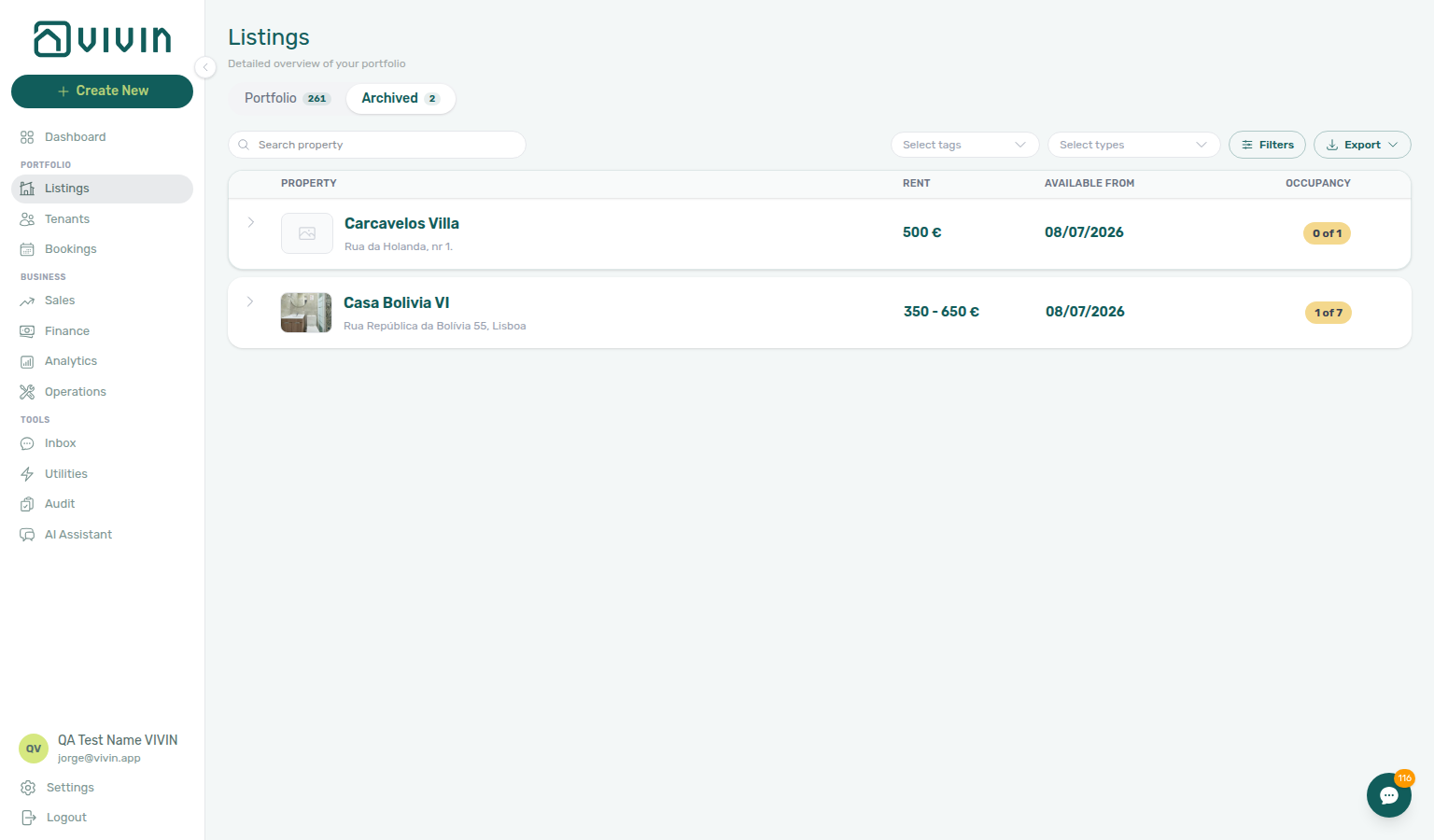
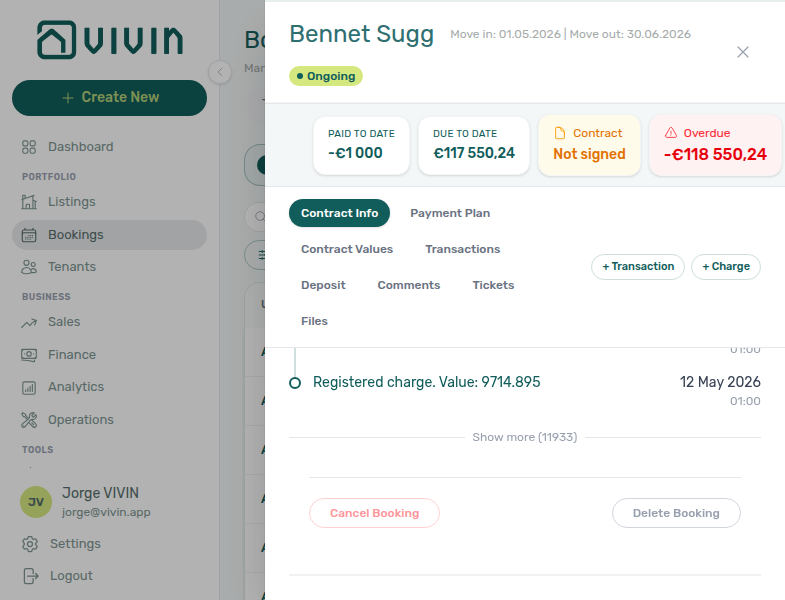 alt="Bookings list — Other filters drawer with Tenant category multi-select and one segment active" />
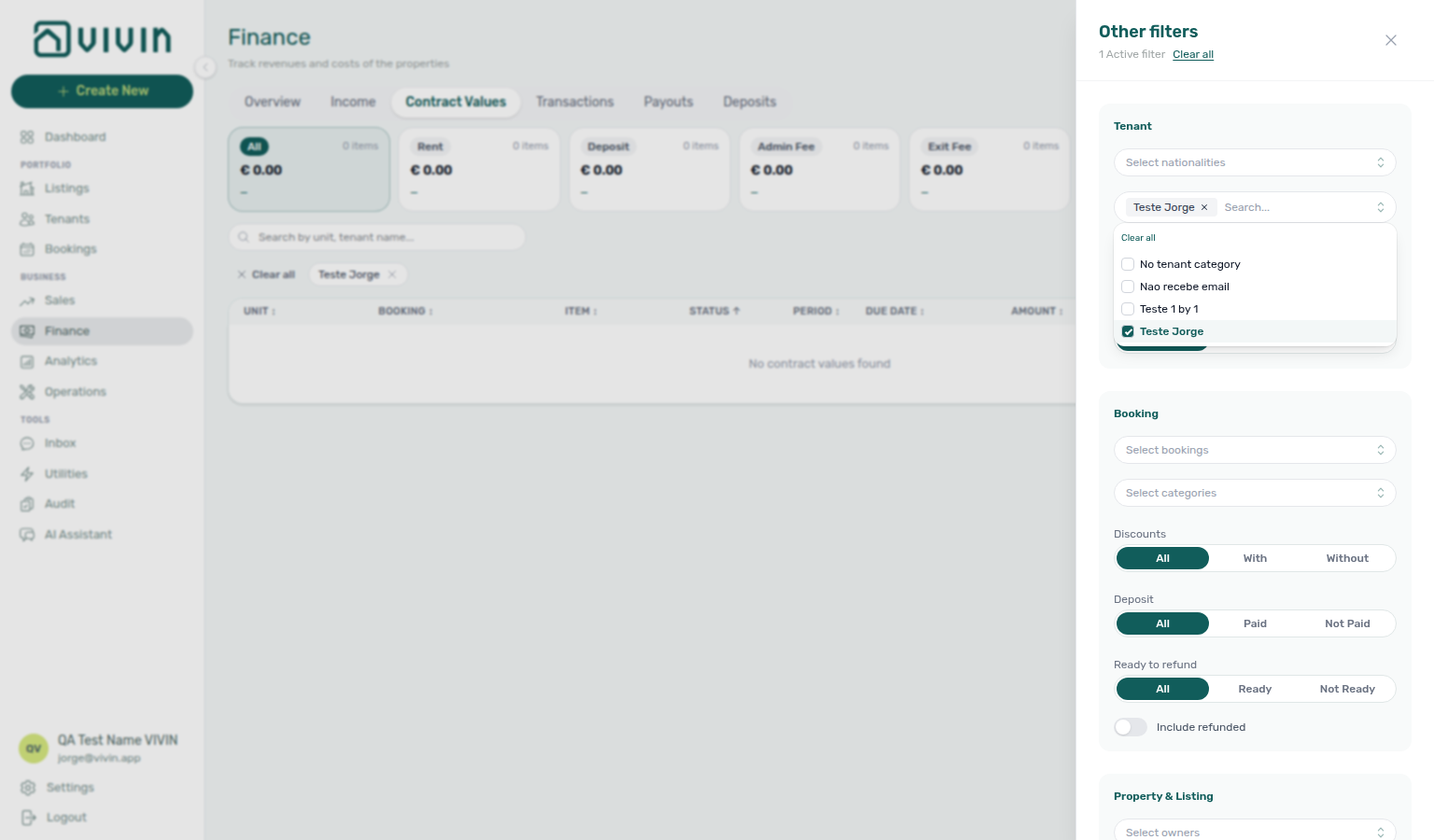
Wrong tenant on a booking
Wrong-profile reassignment pairs with Cancel Booking vs Delete Booking (duplicate row → Delete, not Change tenant). Hub parity: Common Workflows — Wrong tenant on a booking. Full pairing matrix: Getting Started section cross-reference.
| Question | Use | Not this |
|---|---|---|
| Wrong person on valid upcoming stay | Change tenant on Contract Info | Delete Booking — reservation stays live |
| Duplicate import or training row | Delete Booking | Change tenant — remove the row |
| Real stay voided under policy | Cancel booking | Change tenant — use refund dialog |
- Common Workflows — Wrong tenant on a booking — Hub matrix (
bookings-detail-change-tenant-control.png,bookings-detail-change-tenant-flow.mp4) - FAQ — Wrong tenant on a booking — Eligibility guards
- Bookings — Change tenant — Module reference
- Manual block hygiene — Wrong tenant on a booking — Change tenant vs Delete during Step 5 reconciliation
- Cancelling a Booking — Wrong tenant on a booking — Change tenant before Step 4 when profile link is wrong
- Managing a Check-out — Wrong tenant on a booking — Change tenant disabled after check-in — catch on Step 1
- Onboarding a New Property — Wrong tenant on a booking — First channel imports after Step 7
- Processing a New Booking — Wrong tenant on a booking — Change tenant on Step 6 — duplicate row → Delete on Step 1
- Handling a Late Payment — Wrong tenant on a booking — Change tenant on Step 1 before collections escalation
- Managing a Check-in — Wrong tenant on a booking — Change tenant on Step 5 before key handover
- Portfolio KPI review — Wrong tenant on a booking — Change tenant vs Delete on Step 7 reconciliation
- Entering Monthly Utility Bills — Wrong tenant on a booking — Wrong guest on overage booking on Step 4
- Notification triage — Wrong tenant on a booking — Change tenant after Step 4 row-click
- Resetting a Management User Password — Wrong tenant on a booking — Lockout catch-up wrong-profile fixes on Step 3
- Using in-app support — Wrong tenant on a booking — File Bookings tickets when Change tenant is greyed out
Cancel Booking vs Delete Booking
Reservation void vs cleanup pairs with Wrong tenant on a booking (Change tenant when profile link is wrong), Portfolio retirement decisions (building Archive is a third scope). Hub parity: Common Workflows — Cancel Booking vs Delete Booking. Full pairing matrix: Getting Started section cross-reference.
| Question | Use | Finance → Transactions |
|---|---|---|
| Real stay voided under policy | Cancel booking | All payment types stay visible |
| Duplicate import or training row | Delete Booking | Manual Transactions hidden (#1897) |
| Whole building leaves pickers | Archive property — Portfolio retirement decisions | All booking history stays |
- Common Workflows — Wrong tenant on a booking — Change tenant vs Delete when profile link is wrong (
bookings-detail-change-tenant-modal.png) - Common Workflows — Cancel Booking vs Delete Booking — Hub matrix (
bookings-list-canceled-tab.png,finance-transactions-type-summary-cards.png,workflows-cancel-booking-refund-modal-flow.mp4) - FAQ — Cancel Booking vs Delete Booking — Decision table
- FAQ — Manual payments after Delete Booking — Ledger visibility after soft-archive (#1897)
- Manual block hygiene — Cancel Booking vs Delete Booking — Ledger gaps after Delete on Step 5 (#1897)
- Cancelling a Booking — Cancel Booking vs Delete Booking — Cancel booking on Step 4 — not soft-archive Delete
- Managing a Check-out — Cancel Booking vs Delete Booking — Ended stays need ledger history — not Delete Booking on Step 7
- Onboarding a New Property — Cancel Booking vs Delete Booking — Delete Booking on test imports after Step 7
- Processing a New Booking — Cancel Booking vs Delete Booking — Delete on duplicate Step 1 — Cancel for real voids
- Portfolio KPI review — Cancel Booking vs Delete Booking — Month-end sign-off ledger gaps on Step 7
- Handling a Late Payment — Cancel Booking vs Delete Booking — Cancel booking on Step 6 — not Delete when ledger history matters
- Managing a Check-in — Cancel Booking vs Delete Booking — Delete Booking on test Upcoming rows before Step 4 — not building Archive
- Entering Monthly Utility Bills — Cancel Booking vs Delete Booking — Month-end overage gaps after Delete on Step 5 (#1897)
- Notification triage — Cancel Booking vs Delete Booking — Cancel vs Delete vs Archive after Step 4 row-click
- Resetting a Management User Password — Cancel Booking vs Delete Booking — Lockout catch-up Delete vs Cancel on Step 3
- Using in-app support — Cancel Booking vs Delete Booking — Bookings tickets when Delete Booking guard blocks (#2076)
Deposit missing on Finance Deposits
Missing deposit rows pair with Finance & Tenants and check-out workflows after setup step 15. Hub parity: Common Workflows — Deposit missing on Finance Deposits. Full pairing matrix: Getting Started section cross-reference.
| Situation | Surface | Outcome |
|---|---|---|
| Older move-out missing from Finance | Finance → Deposits toolbar date range | Clear or widen before Search — rows key off check-in, check-out, or Refund Due Date |
| Dispute row chips missing | Same toolbar filter | Clear range before Mark disputed / Resolve dispute triage |
| Booking Deposit tab shows data | Per-booking sidebar | Confirms deposit exists — widen Finance range next |
- Common Workflows — Deposit missing on Finance Deposits — Hub matrix (
finance-deposits-date-range-toolbar-default.png,finance-deposits-date-range-clear-flow.mp4) - FAQ — Deposit missing on Finance Deposits — Symptom table (
finance-deposits-date-range-toolbar-cleared.png) - Glossary — Finance Deposits date range — Intersection rule
- Managing a Check-out — Deposit missing on Finance Deposits — Clear toolbar range before Step 5 refund triage
- Cancelling a Booking — Deposit missing on Finance Deposits — Widen range before Step 3 dispute freeze
- Portfolio KPI review — Deposit missing on Finance Deposits — Month-end sign-off at Step 7
- Resetting a Management User Password — Deposit missing on Finance Deposits — Lockout-delayed older move-out catch-up
- Processing a New Booking — Deposit missing on Finance Deposits — Clear Finance toolbar range when confirmation Deposit tab shows data but portfolio row is missing
- Handling a Late Payment — Deposit missing on Finance Deposits — Widen range before deposit shortfall vs rent Partial Paid triage on Step 1
- Managing a Check-in — Deposit missing on Finance Deposits — Clear range before move-in deposit triage on Step 3
- Notification triage — Deposit missing on Finance Deposits — Row-click deposit alerts on Step 4 when Finance row is filtered out
- Onboarding a New Property — Deposit missing on Finance Deposits — Clear toolbar range on first check-out deposit triage after Step 7
- Entering Monthly Utility Bills — Deposit missing on Finance Deposits — Widen range before departure deposit release on Step 5
- Manual block hygiene — Deposit missing on Finance Deposits — Clear range on Step 5 when debt KPIs stay high after holds cleared
- Using in-app support — Deposit missing on Finance Deposits — Self-serve date-range triage before Finance module tickets
- Managing a Check-in — Same-day turnover coordination — Check-ins / Timeline overlap on Step 1 before Step 4
- Managing a Check-out — Same-day turnover coordination — Turnover ticket due date on Step 2 before incoming arrival
- Processing a New Booking — Same-day turnover coordination — Timeline overlap on shared units during Step 1
- Onboarding a New Property — Same-day turnover coordination — Multicalendar / Timeline turnover planning on Step 7
- Cancelling a Booking — Same-day turnover coordination — Incoming Upcoming import on freed unit after Step 5
- Entering Monthly Utility Bills — Same-day turnover coordination — Departure-week final overages on turnover units during Step 4
- Manual block hygiene — Same-day turnover coordination — Timeline overlap after Step 4 hold cleanup
- Notification triage — Same-day turnover coordination — Arrival/access alerts on turnover week via Step 4
- Portfolio KPI review — Same-day turnover coordination — Multicalendar turnover gaps on Step 7 sign-off
- Resetting a Management User Password — Same-day turnover coordination — Lockout-delayed turnover ticket catch-up after Step 3
- Using in-app support — Same-day turnover coordination — Turnover coordination blocked — New Support Ticket modal
- Handling a Late Payment — Same-day turnover coordination — Outgoing In Debt vs incoming move-in on Step 1
- Portfolio KPI review — Occupancy KPI to block hygiene handoff — Occupancy Ranking dip on Step 3 before rate cuts
- Manual block hygiene — Occupancy KPI to block hygiene handoff — Audit pass when Step 5 KPIs stay suppressed after holds cleared
- Processing a New Booking — Occupancy KPI to block hygiene handoff — Timeline overlap from stale holds on Step 1
- Onboarding a New Property — Occupancy KPI to block hygiene handoff — Unexpected Multicalendar holds on Step 7 go-live pass
- Managing a Check-in — Occupancy KPI to block hygiene handoff — Timeline overlap from stale holds on Step 1
- Managing a Check-out — Occupancy KPI to block hygiene handoff — Calendar bars persist after Step 7
- Cancelling a Booking — Occupancy KPI to block hygiene handoff — Availability not restored on Step 5
- Entering Monthly Utility Bills — Occupancy KPI to block hygiene handoff — Dashboard vs Analytics vacancy mismatch on Step 5
- Notification triage — Occupancy KPI to block hygiene handoff — Vacant Units vs Analytics on Step 1
- Resetting a Management User Password — Occupancy KPI to block hygiene handoff — Lockout-delayed KPI review after Step 3
- Using in-app support — Occupancy KPI to block hygiene handoff — Calendar edit blocked after block hygiene — New Support Ticket modal
- Handling a Late Payment — Occupancy KPI to block hygiene handoff — Vacant Units vs Multicalendar holds on Step 1
Partly collected security deposit
Deposit shortfalls pair with Payment allocation & invoiced floor and first-reservation workflows after setup step 15. Hub parity: Common Workflows — Partly collected security deposit. Full pairing matrix: Getting Started section cross-reference.
| Situation | Surface | Outcome |
|---|---|---|
| Portfolio deposit shortfalls | Finance → Deposits — Partial paid lifecycle card | Rows where Paid > 0 but < Amount |
| Same filter from Bookings | Other filters → Deposit status → Partial paid | Lifecycle slice without opening Finance first |
| Per-booking shortfall | Booking Deposit tab — Initial Deposit | Amber Partially paid + remaining helper |
| Rent schedule only partly paid | Payment Plan rent lines | Not the security deposit — see Handling a Late Payment — Step 1 |
- Common Workflows — Partly collected security deposit — Hub matrix (
finance-deposits-lifecycle-partial-paid-card.png,finance-deposits-partial-collection-walkthrough.mp4) - FAQ — Partly collected security deposit — Decision table and Deposit tab badge (
bookings-detail-deposit-tab-partial-badge.png) - Finance — Deposit lifecycle status cards — Partial paid card for portfolio triage (#2091)
- Bookings — Deposit tab — Per-booking Partially paid badge and remaining helper
- FAQ — Fixed rent on variable unit — Variable listing can still show a fixed booking Monthly rent when every contract month shares one € amount
- FAQ — Lower rent below invoiced — Change monthly rent / Edit amount guards after Finance exports rent; use credit notes for true reductions
- Glossary — Deposit lifecycle status —
depositStatuspill vocabulary - Finance — Deposit lifecycle status cards — Deposit lifecycle status row on Finance → Deposits; click Partial paid for collection shortfalls (#2091)
- Finance — Deposit status filter — Other filters → Deposit status multi-select on Bookings and Finance (#2090)
- Operations — Tickets toolbar search — Paste the full sequential ticket ID (for example
S259,T27) in toolbar Search (#2074) - FAQ — Find a ticket by its ID — Paste the full sequential ticket ID (for example
S259,T27) in Operations → Tickets toolbar Search (#2074) - FAQ — Skip automatic check-in/out tickets for one booking — Turn off Use unit contract rents and other contract details on Add booking to reveal CI/CO ticket checkboxes (#1140)
- FAQ — Manual payments after Delete Booking — Delete Booking hides Manual Transactions rows on Finance → Transactions; System Transactions (vIBAN, credit card) stay visible (#1897; screenshot walkthrough)
- Glossary — Directory list load failures — First-fetch directory failures show Retry / Try again; distinct from filter-empty states and booking-sidebar tab errors
- Glossary — Vacant Unit Preference — Include manual blocks counts operator holds as free on Dashboard / Sales vacancy surfaces (#1427)
- FAQ — Communication or Tickets load failure — Tab-scoped Refresh (Communication) or Retry (Tickets); other booking sidebar tabs stay usable
- Processing a New Booking — Step 5 — First confirmation payment after go-live
- Processing a New Booking — Partly collected security deposit — Confirmation deposit shortfall after Step 5
- Managing a Check-in — Partly collected security deposit — Chase remaining before key handover
- Handling a Late Payment — Partly collected security deposit — Deposit vs rent Partial Paid distinction
- Cancelling a Booking — Partly collected security deposit — Settlement math on shortfall deposits
- Portfolio KPI review — Partly collected security deposit — Month-end deposit sign-off (Step 7)
- Managing a Check-out — Partly collected security deposit — Deposit tab shortfall at Step 3 blocks Step 5
- Entering Monthly Utility Bills — Partly collected security deposit — Partial paid card during month-end utility sign-off
- Notification triage — Partly collected security deposit — Open Deposit tab on Step 4, not rent Payment Plan
- Onboarding a New Property — Partly collected security deposit — First confirmation shortfall after Step 7 go-live
- Manual block hygiene — Partly collected security deposit — Partial paid card when debt KPIs stay high after holds cleared (Step 5)
- Resetting a Management User Password — Partly collected security deposit — Lockout-delayed deposit triage after Step 3
- Using in-app support — Partly collected security deposit — File Finance module tickets when partial filter or badge behaviour is wrong
Reject/revert mistaken receipts
Receipt cleanup pairs with Finance debt receivables triage (re-check Top debtors after Revert — collections vs ledger cleanup), Pending manual receipt approval (amber Pending chip — approve legitimate rows before Revert), Payment allocation & invoiced floor, and FAQ — Reject or revert an incoming payment. Hub parity: Common Workflows — Reject/revert mistaken receipts. Full pairing matrix: Getting Started section cross-reference.
| Situation | Action | Surface |
|---|---|---|
| Duplicate never approved | Reject payment / Reject selected | Booking Transactions or Finance → Transactions bulk bar |
| Duplicate already approved | Revert payment | Booking Transactions or Finance row menu |
| Invoiced charge reversed in Vivin | Issue credit notes | Finance → Transactions — Not issued credit note filter |
| Rent cut blocked below exported month | Invoiced floor | Rent reduction after invoicing — external credit notes |
| Symptom | Likely cause | Fix |
|---|---|---|
| Delete payment disabled | vIBAN / provider platform or invoiced row | Revert or Issue credit notes after invoiced reject/revert |
| Red / blue modal on Reject / Revert | Finance already invoiced the charge | Not issued credit note filter on Finance → Transactions |
| Total Debt unchanged after cleanup | Duplicate still pending or credit note queue open | Pending manual receipt approval + Finance — Issuing credit notes |
- Common Workflows — Reject/revert mistaken receipts — Hub matrix (
bookings-detail-transactions-reject-modal-credit-note-banner.png,bookings-detail-transactions-revert-modal-info-banner.png,finance-transactions-bulk-reject-selected-bar.png,bookings-payment-row-actions-flow.mp4) - FAQ — Reject or revert an incoming payment — Full decision table and modal walkthrough
- Payment Allocation — Correcting mistaken receipts — Two-layer model, modal copy, and credit note accounting follow-up
- Finance — Issuing credit notes (integrated invoicing) — Not issued credit note filter and Issue credit notes after reject/revert on invoiced charges
- Finance — Row actions on in-payment rows — Bulk Reject selected on Finance → Transactions (
finance-transactions-bulk-reject-selected-bar.png) - Bookings — Row actions on in-payment rows — Per-row Reject payment and Revert payment on booking Transactions
- Common Workflows — Rent reduction after invoicing — Credit note follow-up when rent cannot drop below exported months
- Common Workflows — Pending manual receipt approval — Clear amber Pending chip before month-end Revert (
finance-transactions-pending-pill.png) - FAQ — Manual receipt still pending — Approve legitimate rows before Revert on approved duplicates
- Processing a New Booking — Reject/revert mistaken receipts — Duplicate confirmation on Step 5b
- Handling a Late Payment — Reject/revert mistaken receipts — Collections duplicate on Step 4b
- Cancelling a Booking — Reject/revert mistaken receipts — Settlement duplicate on Step 2a
- Managing a Check-in — Reject/revert mistaken receipts — Move-in duplicate on Step 3b
- Portfolio KPI review — Reject/revert mistaken receipts — Month-end Revert during Step 7
- Managing a Check-out — Reject/revert mistaken receipts — Departure duplicate on Step 6b
- Entering Monthly Utility Bills — Reject/revert mistaken receipts — Overage duplicate on Step 4b
- Notification triage — Reject/revert mistaken receipts — Duplicate alert triage on Step 4
- Manual block hygiene — Reject/revert mistaken receipts — Repricing duplicate during Step 5
- Onboarding a New Property — Reject/revert mistaken receipts — First confirmation duplicate on Processing a New Booking — Step 5b
- Using in-app support — Reject/revert mistaken receipts — Credit-note disputes on support tickets
- Resetting a Management User Password — Reject/revert mistaken receipts — Lockout catch-up after Step 3
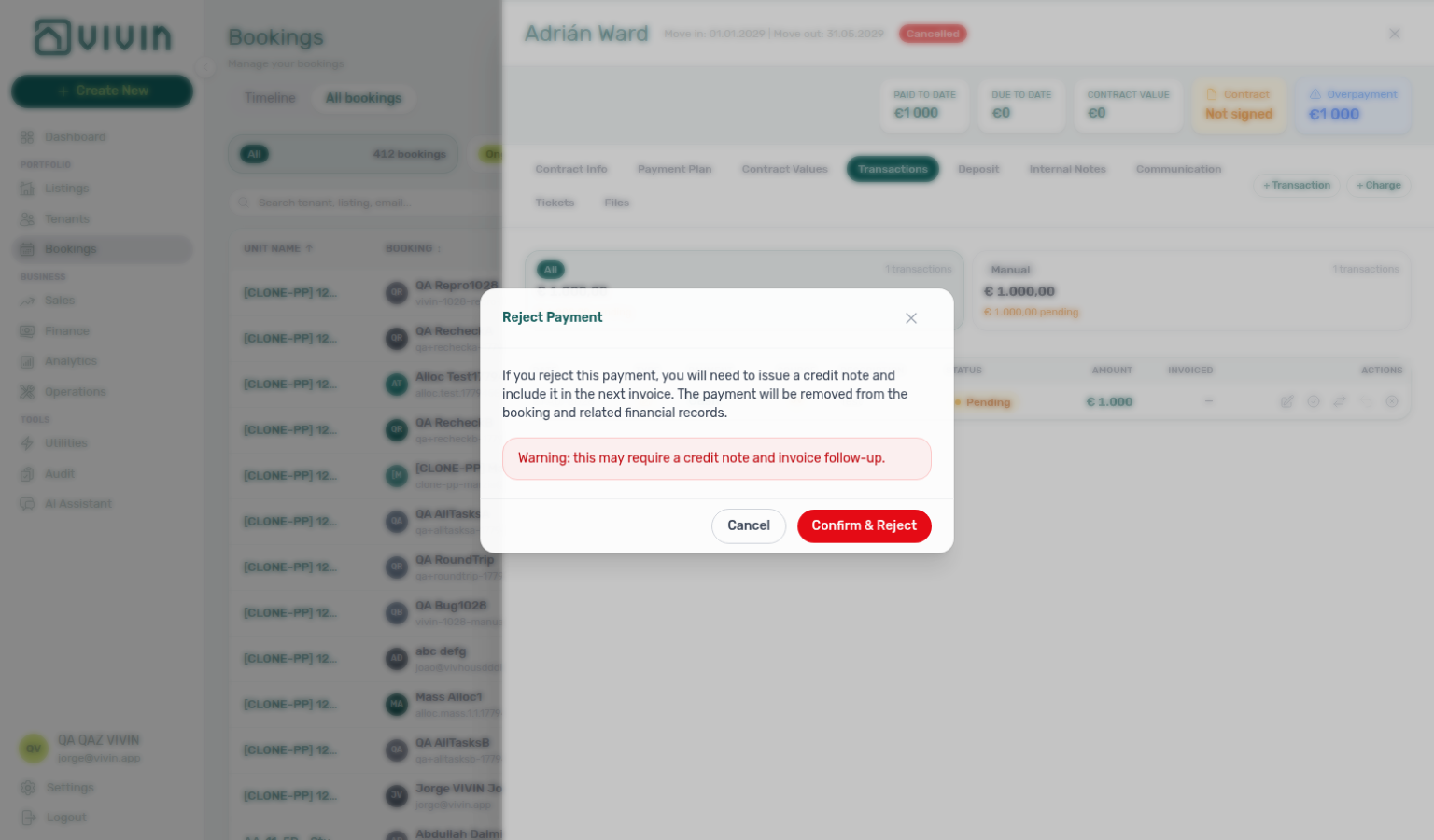
Deeper workflow reads
Workflow reads pair with Common Workflows hub subsection index and Recommended Setup Sequence. Meta-hubs reciprocate: Account Settings — Deeper workflow reads, Concepts — Deeper workflow reads, Introduction — Deeper workflow reads. Full pairing matrix: Getting Started section cross-reference.
- Onboarding a New Property — Apply the setup sequence end-to-end; finish with Step 7 — Verify in Listings after setup steps 13–15 (section cross-reference; Deeper API reads; hub)
- Processing a New Booking — Booking lifecycle and payment allocation when setup step 14 goes live (section cross-reference; Deeper API reads; hub)
- Resetting a Management User Password — Recover sign-in before resuming setup; pair with Lockout catch-up after password recovery (section cross-reference; Deeper API reads; hub)
- Notification triage — Clear payment or booking alerts after go-live (section cross-reference; Deeper API reads; hub)
- Portfolio KPI review — Month-end pass after the setup sequence completes (section cross-reference; Deeper API reads; hub)
- Using in-app support — Vivin product tickets when a setup step still blocks progress (section cross-reference; Deeper API reads; hub)
Modules where capabilities surface
Module rows pair with Recommended Setup Sequence steps 13–15 and Modules — Module cross-reference. Permission-gated modules: FAQ — Navigation & shortcuts. Full pairing matrix: Getting Started section cross-reference.
- Dashboard — Post-login KPI snapshot and bell notification triage (default landing view) (guide subsection index; section cross-reference; Deeper workflow reads; hub)
- Analytics — Month-range portfolio KPI charts when your role includes Analytics module permission (setup step 16 optional) (guide subsection index; section cross-reference; Deeper workflow reads; hub)
- Listings — Property wizard, Channels tab, and Bills Included ceilings (setup step 13) (guide subsection index; section cross-reference; Deeper workflow reads; hub)
- Properties workspace — Legacy
/propertiesURL redirects into Listings when old bookmarks land mid-setup (guide subsection index; section cross-reference; Deeper workflow reads; hub) - Booking engine details — Rich marketplace payload via the Full integration pill (setup step 12 optional) (guide subsection index; section cross-reference; Deeper workflow reads; hub)
- Bookings — Reservation lifecycle, Payment plan, Deposit, and Communication tabs (setup step 14) (guide subsection index; section cross-reference; Deeper workflow reads; hub)
- Tenants — Tenant directory, profile sidebars, With Debt segmentation, and table expand (setup step 15) (guide subsection index; section cross-reference; Deeper workflow reads; hub)
- Sales — Portfolio availability, monthly rent editing, and channel manager connections (guide subsection index; section cross-reference; Deeper workflow reads; hub)
- Finance — Ledgers, payment approval, invoiced-floor guards, and Deposits (guide subsection index; section cross-reference; Deeper workflow reads; hub)
- Operations — Tickets, cash flows, check-in/out queues, and linked cash flows (guide subsection index; section cross-reference; Deeper workflow reads; hub)
- Utilities — Bills Included ceiling model, Connections, and AI bill upload (guide subsection index; section cross-reference; Deeper workflow reads; hub)
- Inbox — Portfolio WhatsApp triage when chatbot rules escalate to operators (guide subsection index; section cross-reference; Deeper workflow reads; hub)
- Notifications — Full
/notificationshistory with search and row-click navigation; Payment overdue alerts when scheduled charges are overdue (guide subsection index; section cross-reference; Deeper workflow reads; hub) - Audit — Manual Blocks and Discounts during month-end reconciliation (guide subsection index; section cross-reference; Deeper workflow reads; hub)
- AI Chat — Vivin-internal AI Assistant for portfolio Q&A after setup (internal accounts) (guide subsection index; section cross-reference; Deeper workflow reads; hub)
Key glossary terms
Glossary rows pair with Glossary cluster cross-reference and Core Concepts and Terminology. Receipt disputes: Common Workflows — Reject/revert mistaken receipts. Full pairing matrix: Getting Started section cross-reference.
- Glossary — End-of-Booking cost split — Charge Time → End of Booking splits daily overage across every occupied unit; still-staying roommates stay in the denominator (#2111)
- Operations — Property-level ticket search — Property-name matches share the top relevance tier with unit hits; building-scoped rows float first under an active Property filter (#2089)
- Glossary — Change history — Operator-initiated edits on Listings setup and Bookings Changelog; create-time defaults excluded (#2093)
- FAQ — Booking Changelog scope — Operator-initiated edits only; create-time defaults excluded (#2093)
- Glossary — Archived booking ledger visibility — Delete Booking hides manual/provider_platform rows on Finance → Transactions; vIBAN and credit card stay visible (#1897)
- Bookings — Provider platform payment — Non-rejected provider platform in-payment blocks Delete Booking until Reject or assign (#2076)
- FAQ — Delete Booking on integration reservation — Clear pending provider platform in-payment with Reject or assign before soft-archive (#2076)
- Listings — Property edit sidebar pills — Setup / Full integration / Photos pills on property and unit edit sidebars; replaced the old Go to details shortcut (#2082)
- Glossary — Finance tenant category cache refresh — Recategorizing a tenant on Tenants → Tenant Info force-refreshes Finance caches so Contract Values, Overview, and Deposits filters match within seconds (#2088)
- FAQ — Finance tenant category filter parity — Finance Other filters drawer lists segments on cached bookings only; mirror Bookings / Tenants when a segment is missing
- FAQ — Assign tenant category for direct booking — Add booking has no category field; assign on Tenants → Tenant Info or + Create New → Tenant before contract mail
- Glossary — SIMAR water contract ID — SIMAR (Loures e Odivelas) water bills use Cód. Local in Connections — not Nº de Contador; leading zeros stripped (#2110)
- FAQ — SIMAR water bill property match — Cód. Local in Connections — not Nº de Contador; strip leading zeros (#2110)
- Glossary — Per-booking maintenance ticket opt-out — Add booking checkboxes skip automatic CI/CO tickets for one reservation only; property rule unchanged (#1140)
- FAQ — Cancel Booking vs Delete Booking — Cancel for real stays with settlement; Delete soft-archives mistaken/test rows (#1897 / #2076)
- Glossary — Archived property — Archive retires a building to Listings → Archived without deleting bookings; distinct from Delete Booking (reservation soft-archive) — Listings — Archived properties
- FAQ — Portfolio retirement decisions — Archive property (building) vs Cancel booking vs Delete Booking (reservation soft-archive) — three-way decision table
- FAQ — Archive a property — Edit property sidebar danger zone Archive / Unarchive on Listings
- Invoiced floor (rent) — Rent edits on live bookings after Finance export
- FAQ — Bulk Hostkit invoicing slow — Vivin paces Hostkit API calls and retries HTTP 429 during bulk Issue allocation / Invoice selected; refresh Transactions before re-issuing
- Glossary — Fixed invoice date — Account-wide Invoice date before bulk Issue allocation / Invoice selected; amber banner on Finance → Transactions until you turn Use today as invoice date back on
- FAQ — Month-end invoicing (fixed date) hub — Symptom table + toggle reset after batch
- Credit note (payment reject/revert) — Finance Transactions reject/revert accounting follow-up; concept walkthrough: Payment Allocation — Correcting mistaken receipts; workflow hub: Common Workflows — Reject/revert mistaken receipts
- Deposit dispute — Finance → Deposits and booking Deposit tab freeze before refund
- Draft ticket (display status) — Operations far-future prep jobs
- Ticket — linked cash flows — Operations cost allocation to contractor ledger rows
- Notification row navigation —
/notificationsrow-click into Bookings, Tenants, or Listings - FAQ — Notification row-click navigation — On
/notifications, row click marks unread then openslink,bookingId,tenantId,listingId, orpropertyId(first match); Dashboard bell General rows stay in-panel unlesslinkis set - Finance Deposits date range — Toolbar default window on Finance → Deposits during setup triage
- FAQ — Deposit missing on Finance Deposits — Default ~3 months date range; clear or widen before triaging older move-outs or dispute row actions
- Communication schedule — Emails toolbar calendar for lifecycle outreach referenced across booking and portal setup
- Same-day turnover — Shared-unit arrival/departure overlap across Operations check-in/out queues during onboarding
- FAQ — Archive a property — Edit property sidebar Archive / Unarchive on Listings; building-level — not Delete Booking or Cancel booking
- Infinite scroll (directory loading) — Scroll-to-load behaviour in large module directories described above
- FAQ — WhatsApp and email per booking — Bookings → Communication tab when tenant chatbot is enabled; Inbox for portfolio-wide triage
- FAQ — Pending manual in-payment on /notifications — Alert persists until Approve payments clears Finance or booking Transactions
- FAQ — Dashboard Total Debt subtitle — Post-login Total Debt card headline vs >15 days subtitle; ongoing bookings only
- FAQ — Finance Income status drill-down — Overview Income chart (Paid / Scheduled / In debt); In debt opens payment lines; Debt Aging / Top debtors for booking-level receivables (screenshot walkthrough)
- FAQ — Bookings that owe money — Top debtors and overdue buckets; Total Debt KPI is not a table
- FAQ — Bookings that owe money — Top debtors and overdue buckets on Finance → Overview; Total Debt KPI is not a table
- FAQ — Fixed rent on variable unit — Variable listing + equal rent every contract month → booking stores fixed headline Monthly rent; payment plan unchanged