Managing Bookings
Complete setup step 13 Listings before step 14 — create or import reservations here after Getting Started — Recommended Setup Sequence steps 1–12. First reservation workflow: Processing a New Booking. After step 15 Tenants, run Onboarding a New Property — Step 7. Lifecycle vocabulary: Booking Lifecycle.
Start with Understanding the Bookings List and Filtering and Searching Bookings (Tenant categories stays open for segment scoping; Other filters for nationality, contract, deposit, and Currently in house), then open The Timeline View or drill into The Booking Detail View. New reservations: Creating a New Booking. Guide subsection map: Bookings guide subsection index (list, sidebar, and lifecycle sections + Related subsections). Habit-specific shortcuts live under Related below.
The Bookings module is your operational command center for managing all tenant reservations.
Open the Bookings module directly at platform.vivin.app/bookings (list view) or platform.vivin.app/bookings/timeline (timeline view). See Deep Links for all management frontend routes.
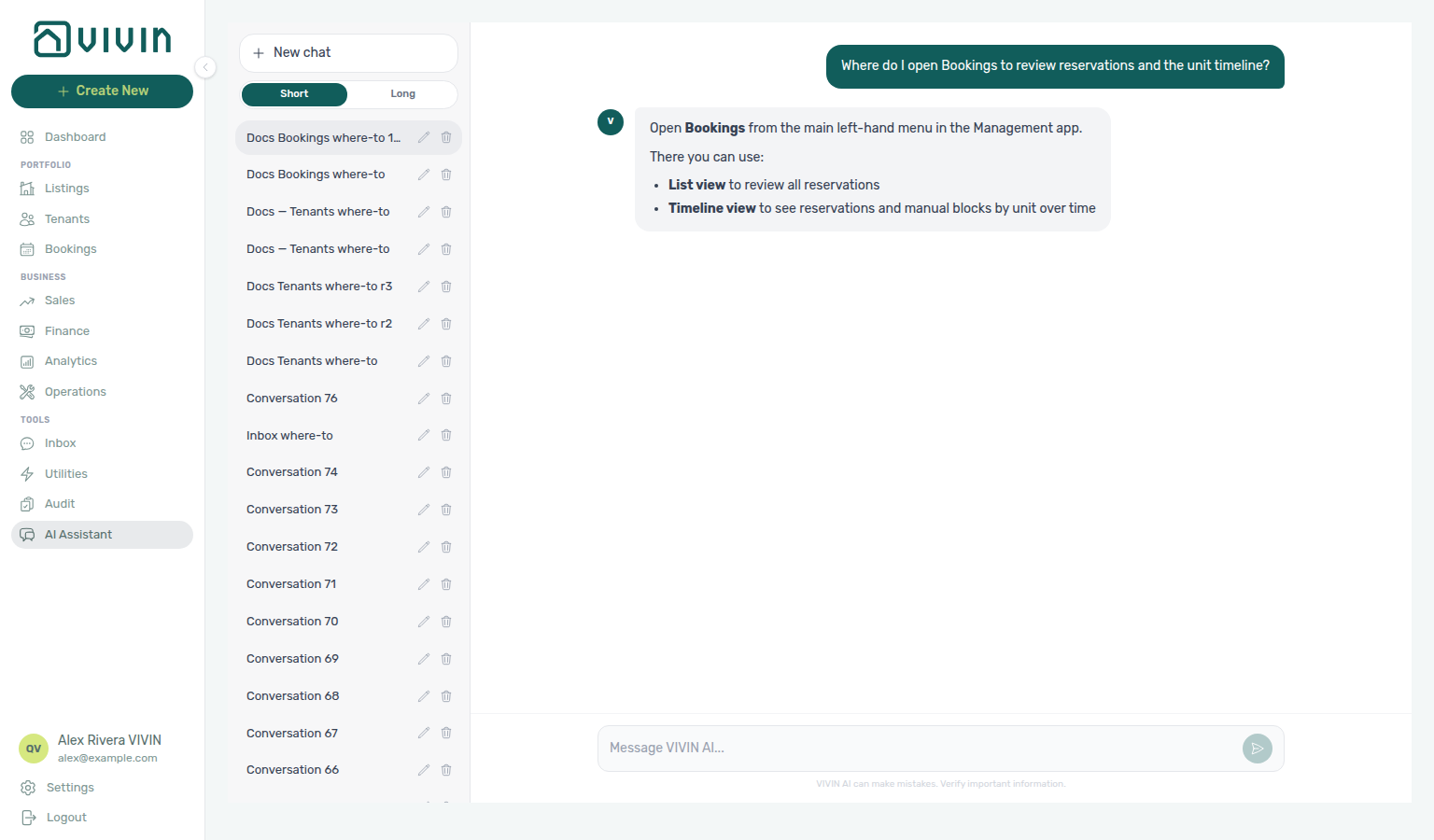
Not sure which Portfolio item holds reservations and the unit timeline? Ask AI Chat “Where do I open Bookings to review reservations and the unit timeline?” — then open Portfolio → Bookings (ai-chat-product-context-bookings-reply.png, ai-chat-product-context-bookings-flow.mp4). The assistant may say left menu without naming Portfolio. Use List for row triage and Timeline for stays by unit; person-first work stays on Tenants; monthly rents stay on Sales.
Need the reservation-first workspace — list triage and unit timeline (not the person directory on Tenants, and not commercial grids on Sales)? Ask AI Chat “Where do I open Bookings to review reservations and the unit timeline?” — then open Portfolio → Bookings (ai-chat-product-context-bookings-reply.png, ai-chat-product-context-bookings-flow.mp4). The assistant typically says Bookings in the left menu (may omit the Portfolio group name). Canonical routes: /bookings (list) and /bookings/timeline.
Enrich tenant context in Tenants; settle charges in Finance; coordinate arrivals in Operations; check overlap on Timeline or Sales → Multicalendar. Tenant Communication threads are distinct from landlord AI Chat — landlord_chat token spend is on AI usage API (GET /ai-usage/summary), not tenant WhatsApp. When a payment overdue alert row-clicks here, continue with Handling a Late Payment — Step 1 — landing-zone pairing: Notification row-click navigation, Payment alert to receivables triage, Confirmation alert triage.
This is where you view, create, and manage every booking — from initial enquiry and booking confirmation, to check-in, stay, and check-out. It handles the full booking lifecycle with automatic tenant record creation, contract generation with digital signatures, and multi-channel booking import.
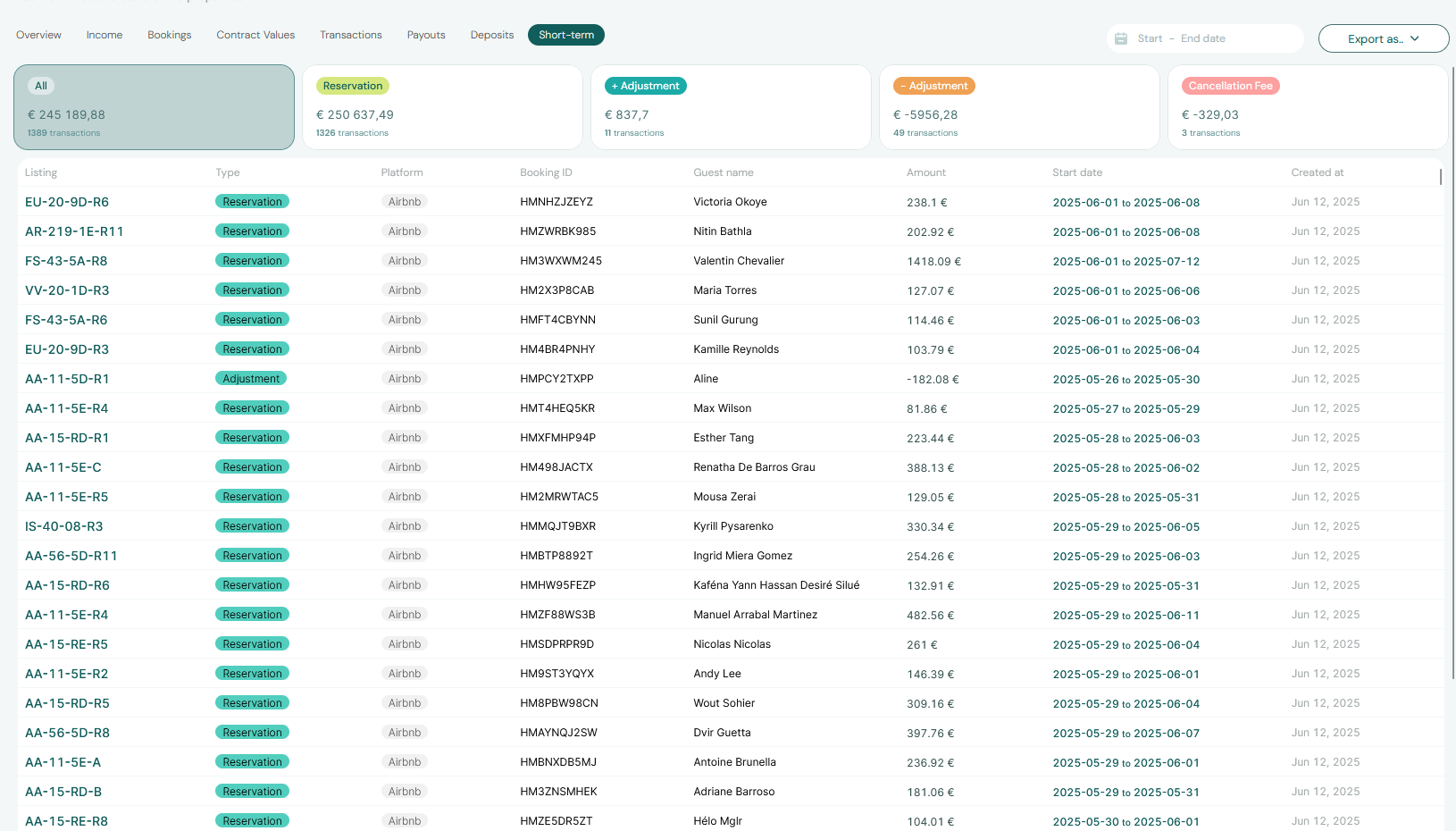
Understanding the Bookings List
The list pairs with Tenants module and Booking Lifecycle — row-click from payment overdue alerts continues with Handling a Late Payment — Step 1.
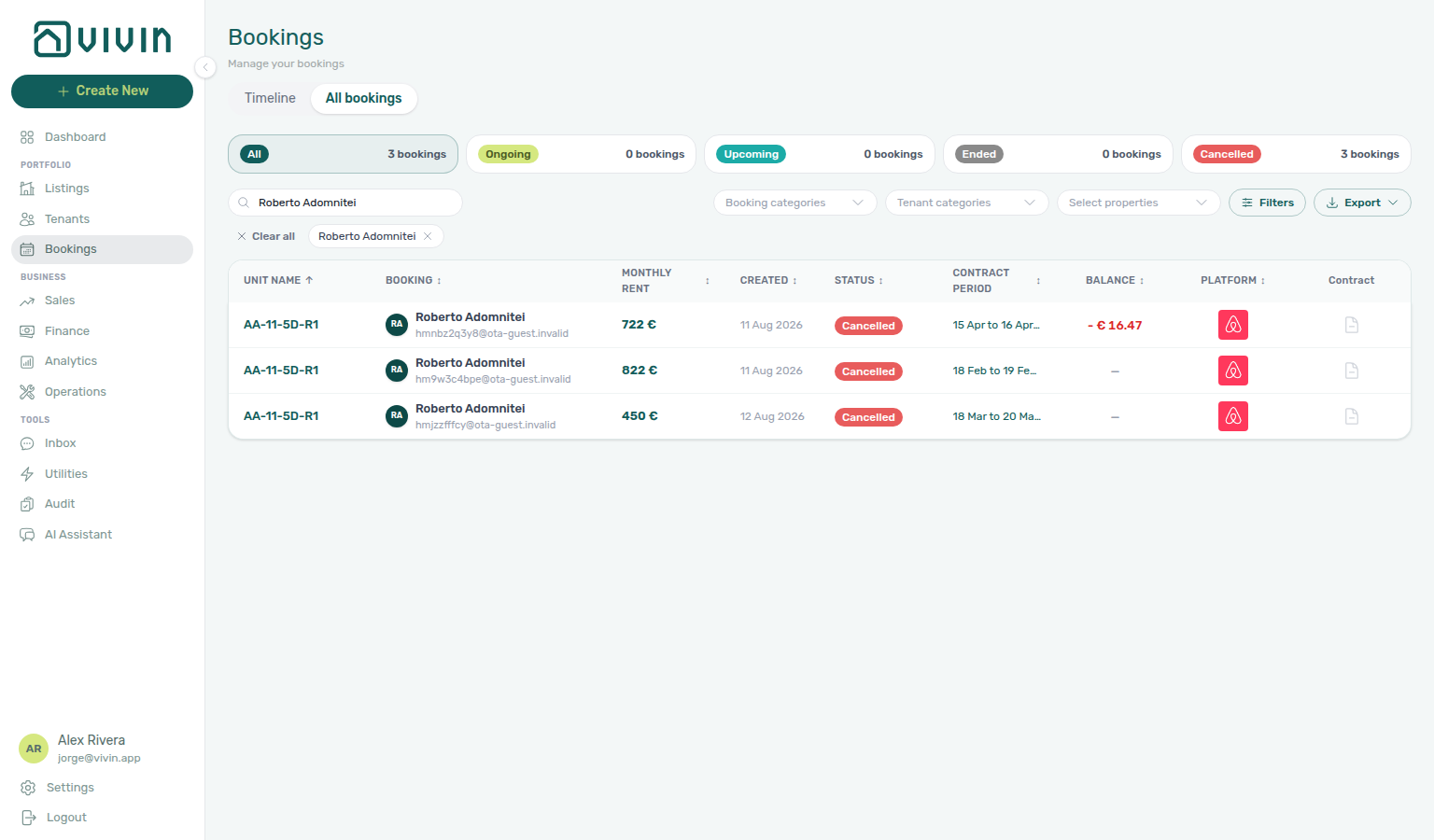
The Bookings module opens on a filterable table view. Each row represents one booking and shows:
- Tenant Name and contact information
- Property and Unit assigned to the booking
- Status (Upcoming, Ongoing, Ended, Canceled)
- Contract Start and End Dates
- Rent Value
- Platform (where the booking originated)
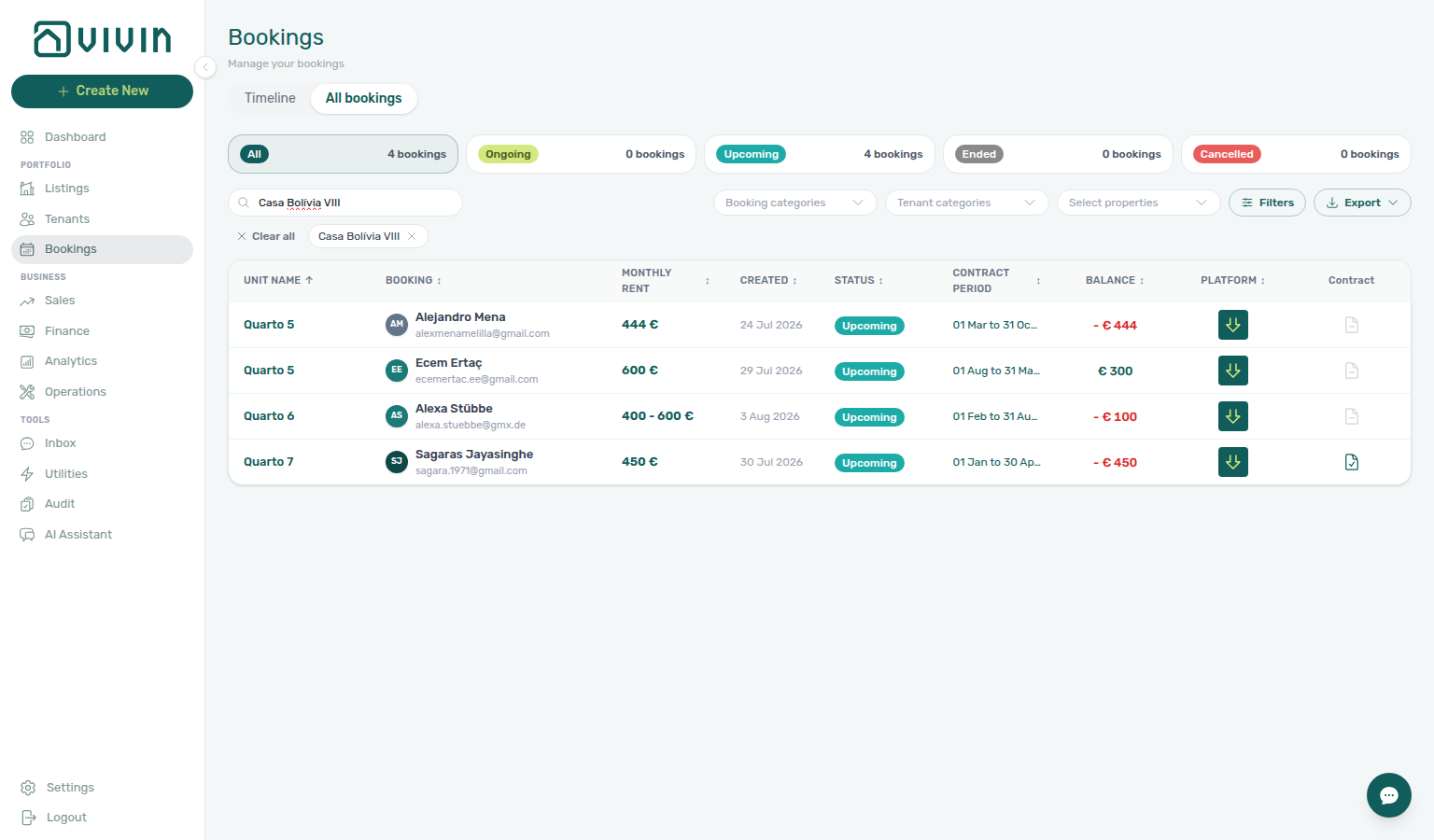
- Contract column — teal check when a signed agreement is on file, grey document when it is not, grey dash when there is nothing to sign (see Contract column)
- Outstanding Balance (if the tenant has unpaid charges) — the same unpaid lines that can trigger payment overdue rows on
/notifications(row-click opens this sidebar; see Handling a Late Payment — Step 1)
Clicking any row opens the Booking Detail sidebar, where you can access all tabs for that booking.
Contract column
The Contract column sits to the right of Platform. It tells you, without opening the sidebar, whether a signed agreement is on file:
| Icon | Meaning | Hover tooltip |
|---|---|---|
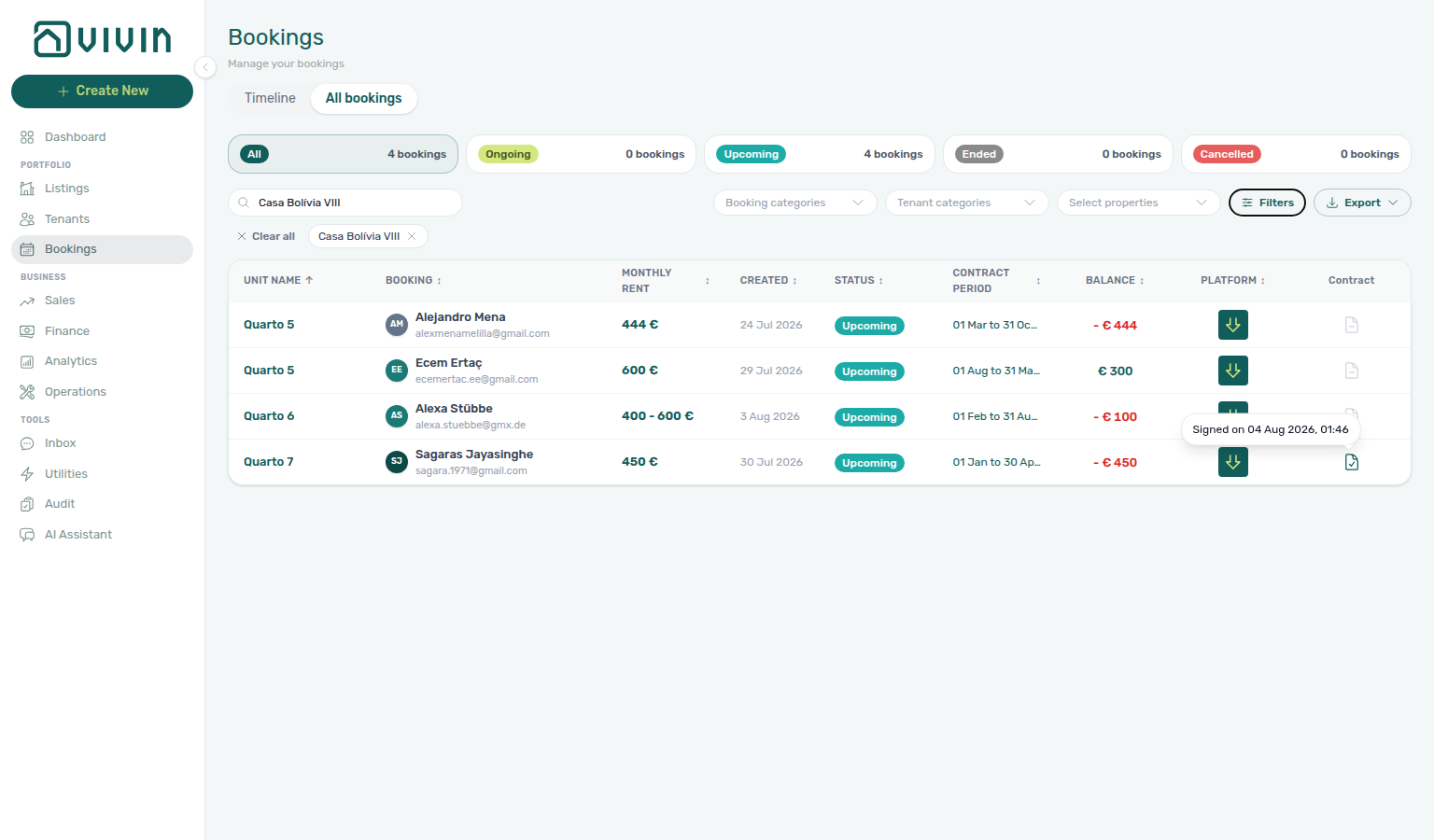
| Teal document with a check | Signed agreement on file | Signed on date and time |
| Grey document | No signed agreement yet | Contract not signed |
| Grey dash | Nothing to sign in Vivin | Not applicable |
The grey dash appears when the tenant's tenant category has Tenant Portal Access turned off, or the Contract portal module turned off. That tenant never gets a contract to sign in Vivin, so the stay does not count as unsigned. A signed agreement on file always shows the teal check, and a tenant with no category keeps the grey document.
Narrow the list with Other filters → Contract status (Signed, Not Signed or N/A) when you are chasing paperwork for a house. After you Upload Signed Contract on Contract Info, this icon updates on the list you already loaded — see Contract mark stays on the list.
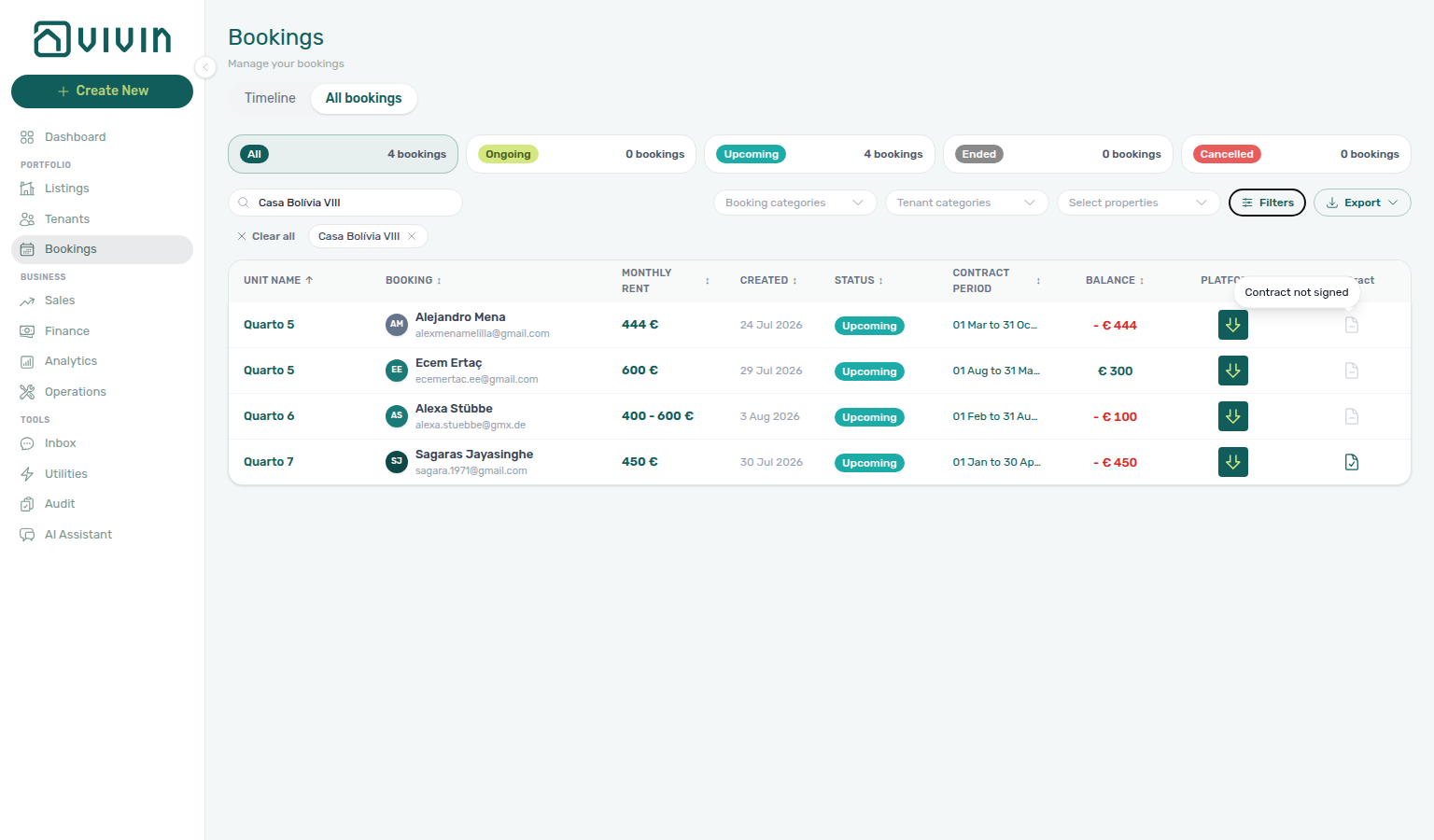
Contract mark stays on the list
When a stay becomes signed — Upload Signed Contract on Contract Info, or the tenant signs in the Tenant Portal — Vivin writes the teal check into the All bookings rows you already have on screen. Scroll stays put. You do not jump back to the first page of the portfolio.
Work a house such as Casa Bolívia VIII: search, stay on All, open the signed stay (Sagaras Jayasinghe / Quarto 7), then close the sidebar. The same four rows are still in view, with the teal check on Quarto 7 and grey documents on the unsigned stays.
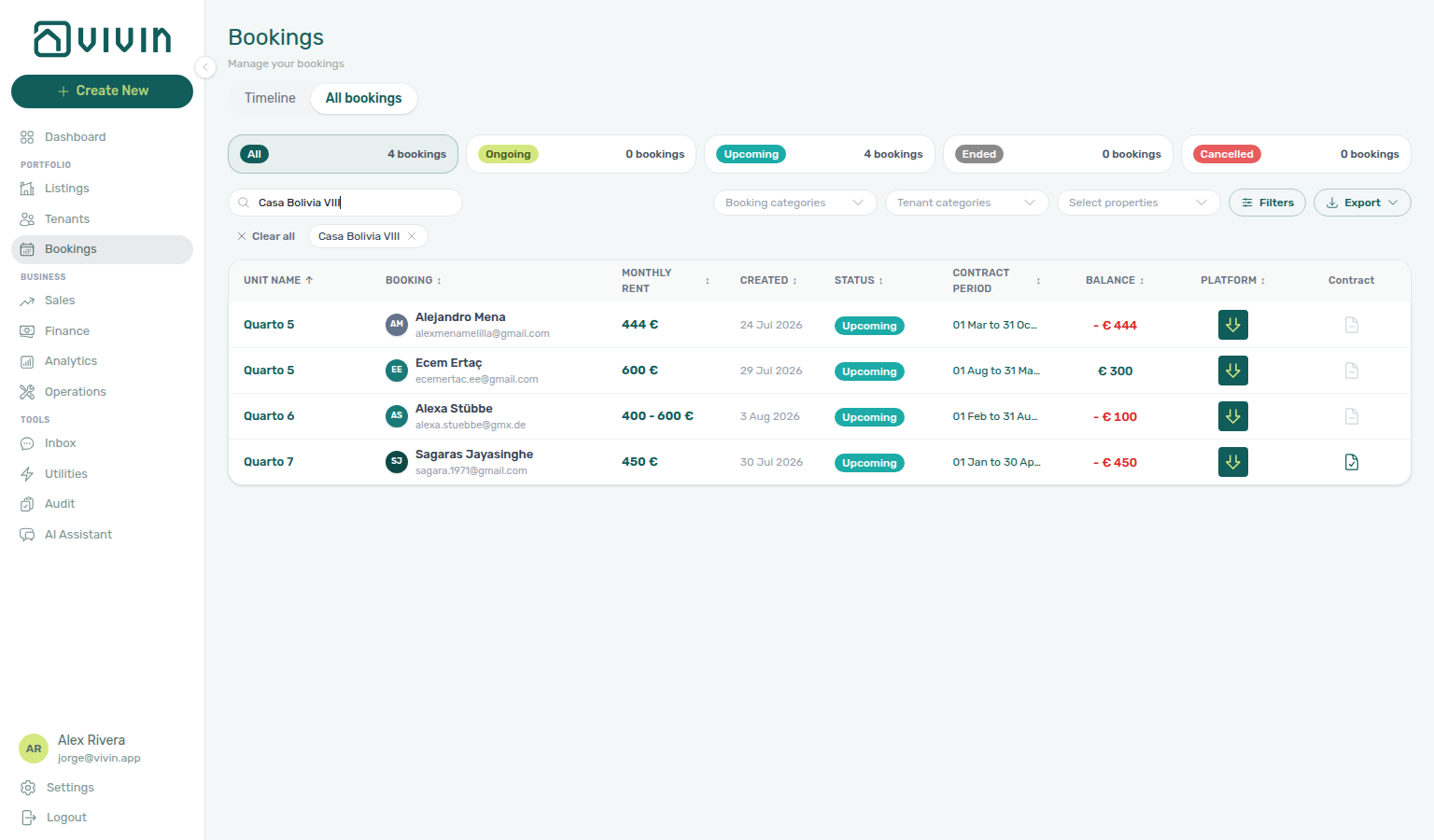
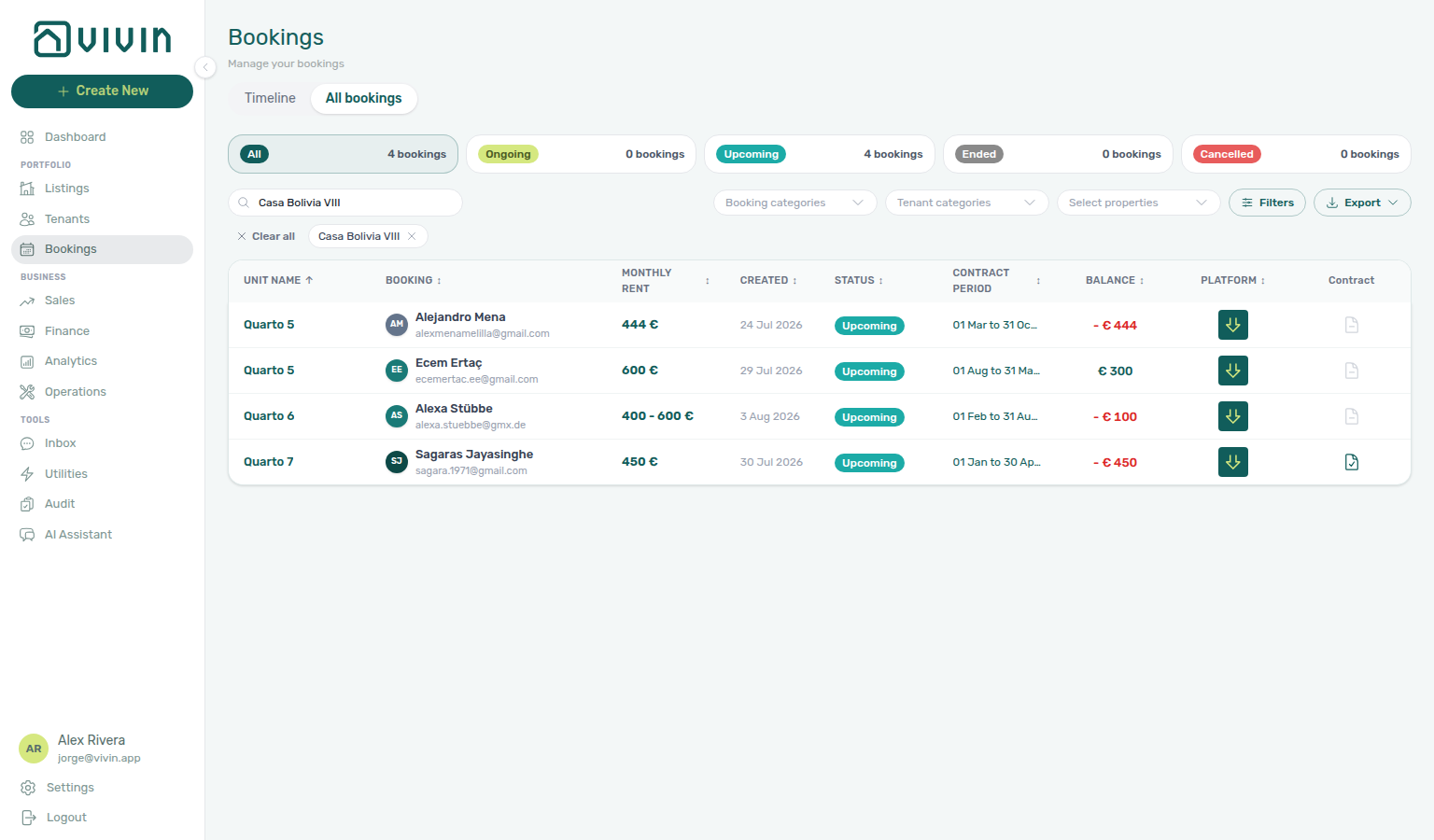
Regenerate on Contract Info clears the mark the same way (teal check back to the grey document) without jumping the list.
If Filters → Contract status is Signed, Not Signed or N/A, Vivin reloads that filtered list instead of patching a single row — the stay may need to leave (or join) the slice, and the status-card counts have to match. Clear Contract status (or set it to All) when you want the in-place update.
The same signed mark updates on Tenants without jumping that directory: expand the person and read CT (tooltip Signed on with the date).
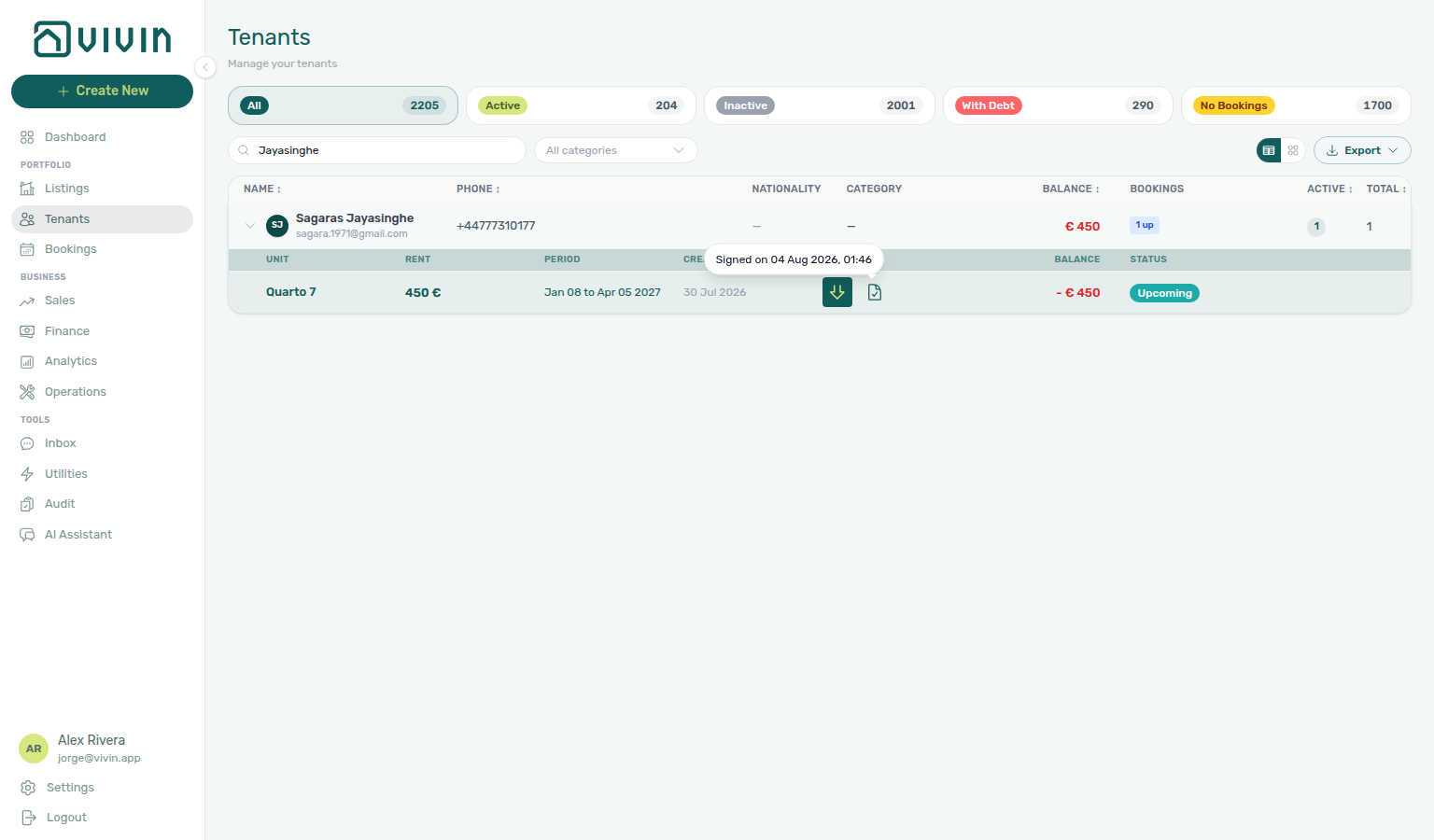
Loading more rows (list view)
The table does not download your entire account in one request. Vivin loads the filtered portfolio in chunks from GET /bookings/portfolio:
| Phase | Behaviour |
|---|---|
| First paint | Up to 20 rows for the active filters, search, status card, platform cards, Sort By, and Other filters. |
| Scroll | When you scroll near the bottom of the main workspace, the next chunk (5 rows) loads automatically. A short skeleton strip may appear while the request is in flight. |
| Done | Loading stops when every row that matches the server-side filter has been fetched. There is no End of list footer on this table (unlike Listings, Tenants, or Notifications). |
If this list needs a refresh — Use Retry on the list view when rows look incomplete. This is distinct from filters that match zero bookings. See FAQ — Directory list refresh and Glossary — Directory list refresh.
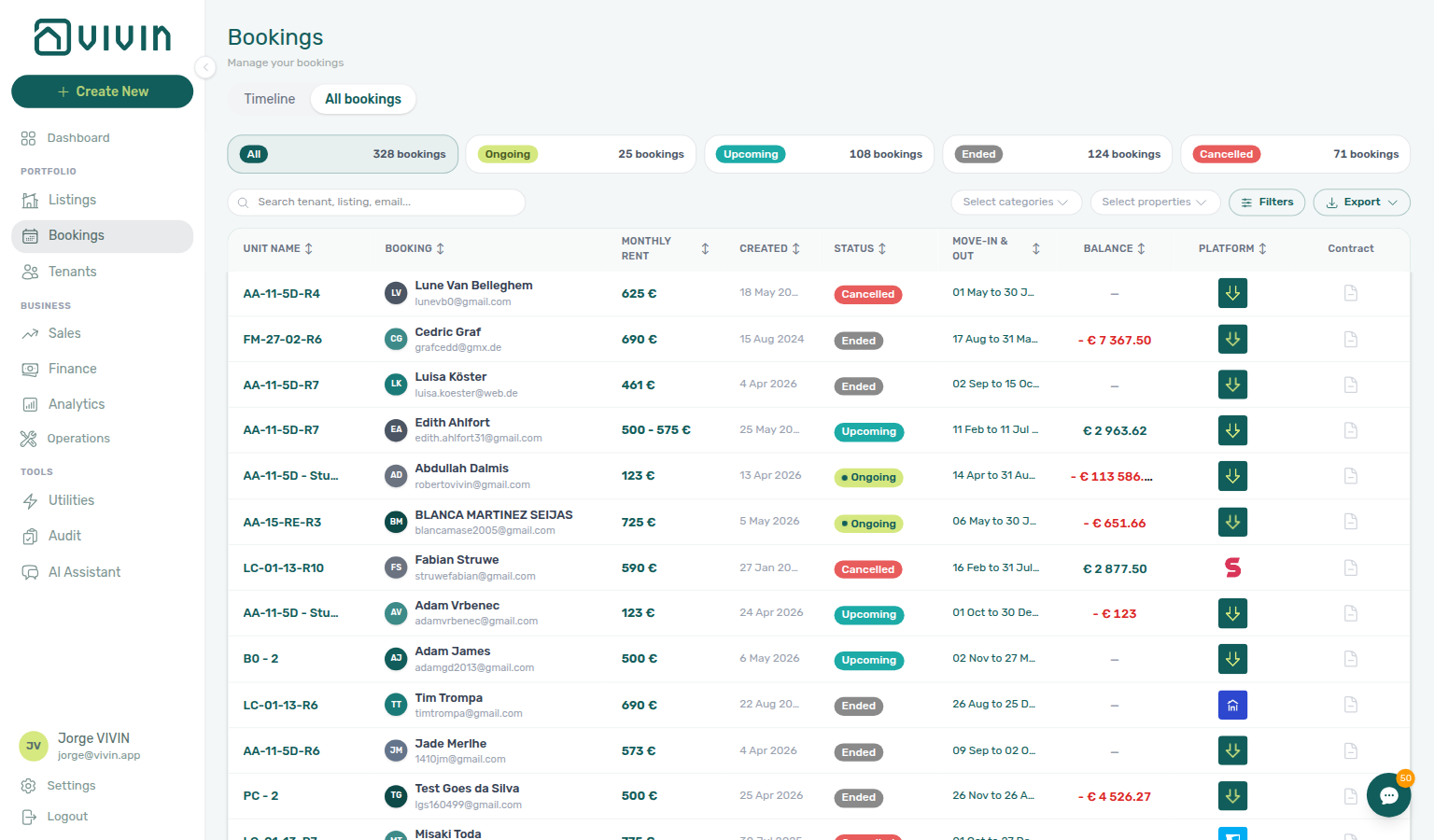
Status card counts (All, Ongoing, Upcoming, and so on) come from portfolio metadata for your current filter set — they reflect the full matching population, not only the rows already visible in the table.
The Timeline view uses a separate, listing-based loading model — see Loading listing rows (timeline view) and Timeline refresh below.
Filtering and Searching Bookings
Toolbar Tenant categories stays open while you add a second segment — pairs with Finance — Tenant category filter and Tenants — All categories stays open — Portfolio KPI review — Step 6.
The module includes a comprehensive set of filters to help you locate specific reservations quickly.
Search Bar
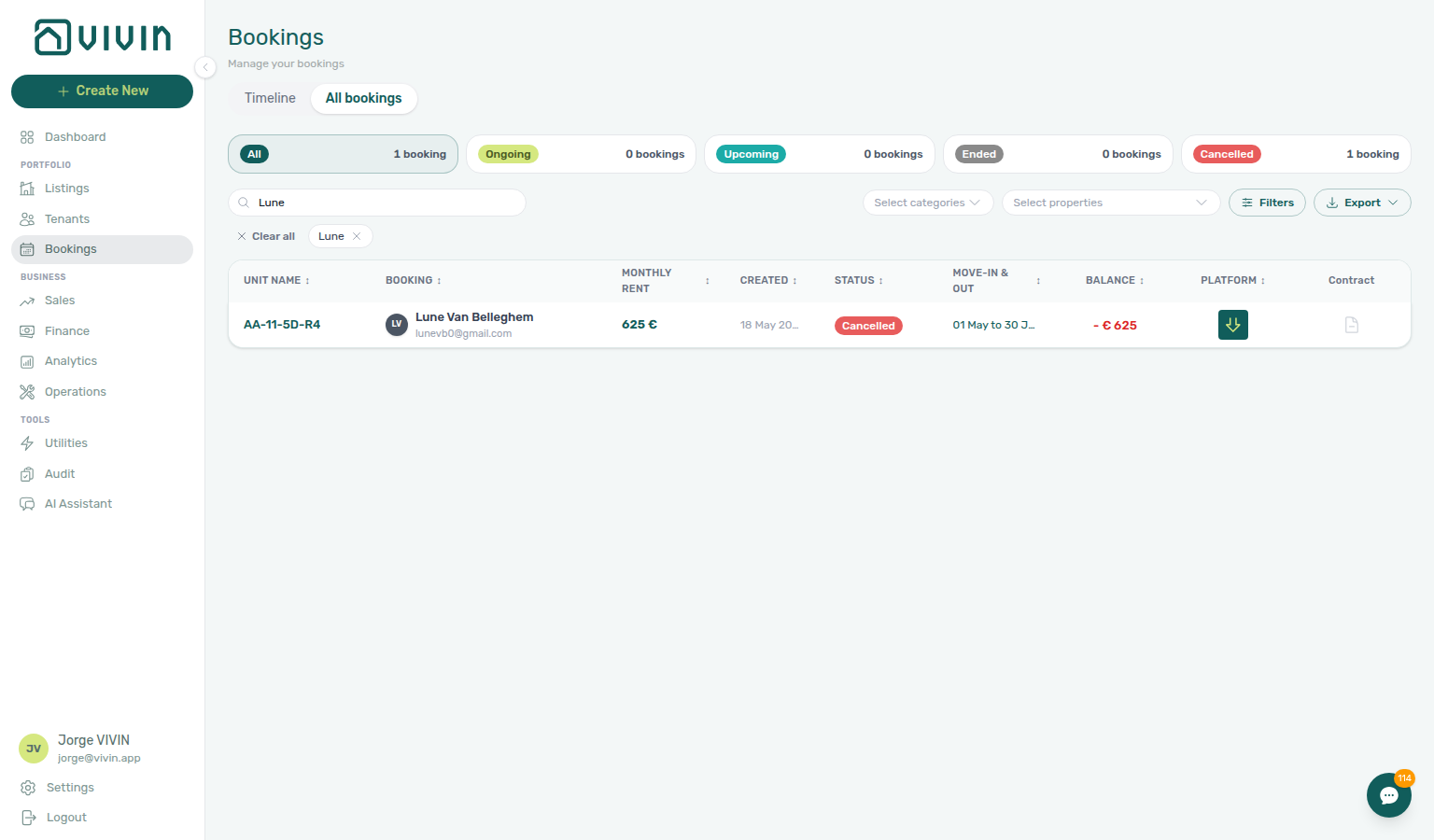
The Search bar filters the portfolio server-side (accent-insensitive substring match after you pause typing). The API evaluates these fields together — a row appears when any column matches:
| Field | What is matched |
|---|---|
| Tenant name | First name, last name, and concatenated full name (for example Tim Trompa matches across both columns) |
| Tenant email / phone | Contact fields from the tenant profile |
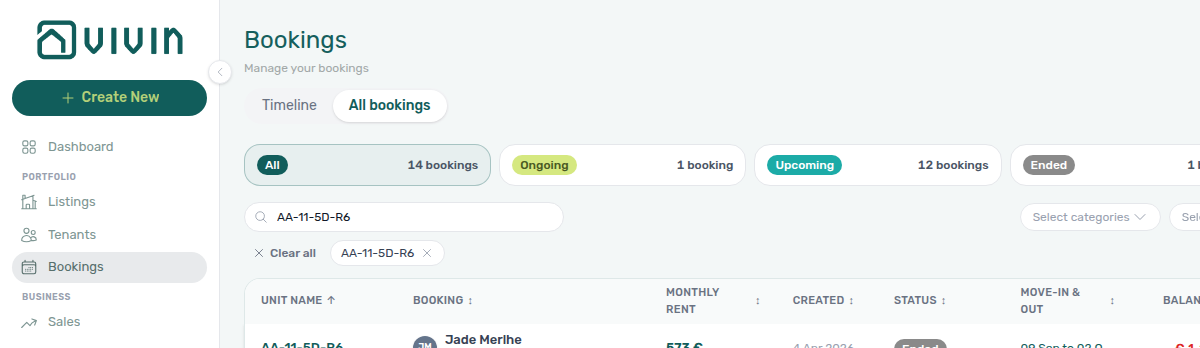
| Unit internal name | Listing label (for example AA-11-5D-R2) |
| Property internal name / address | Building label and street when the booking is tied to a listing |
| Source platform | Integration label (Direct, Airbnb, Uniplaces, and similar) |
| Tenant IBAN | IBAN on the tenant profile or denormalised on the booking |
| Internal Notes text | Concatenated text from booking Internal Notes comments |
Booking UUIDs, sequential display ids, and individual Payment plan line labels are not in this haystack. Use status cards, Other filters, or a direct /bookings/list/:id link when you already know the reservation id.
Single-character queries are ignored (the server treats them as “no search”) so accidental one-letter input does not scan the whole portfolio. Use at least two characters for meaningful narrowing.
When a search term matches multiple fields on the same booking, Vivin ranks results so unit internal name matches appear first, then tenant name or email, then rows that matched only on other columns (property, platform, IBAN, internal notes, and similar). The list order therefore surfaces the reservation you meant when you paste a room code ahead of unrelated tenant-name hits.
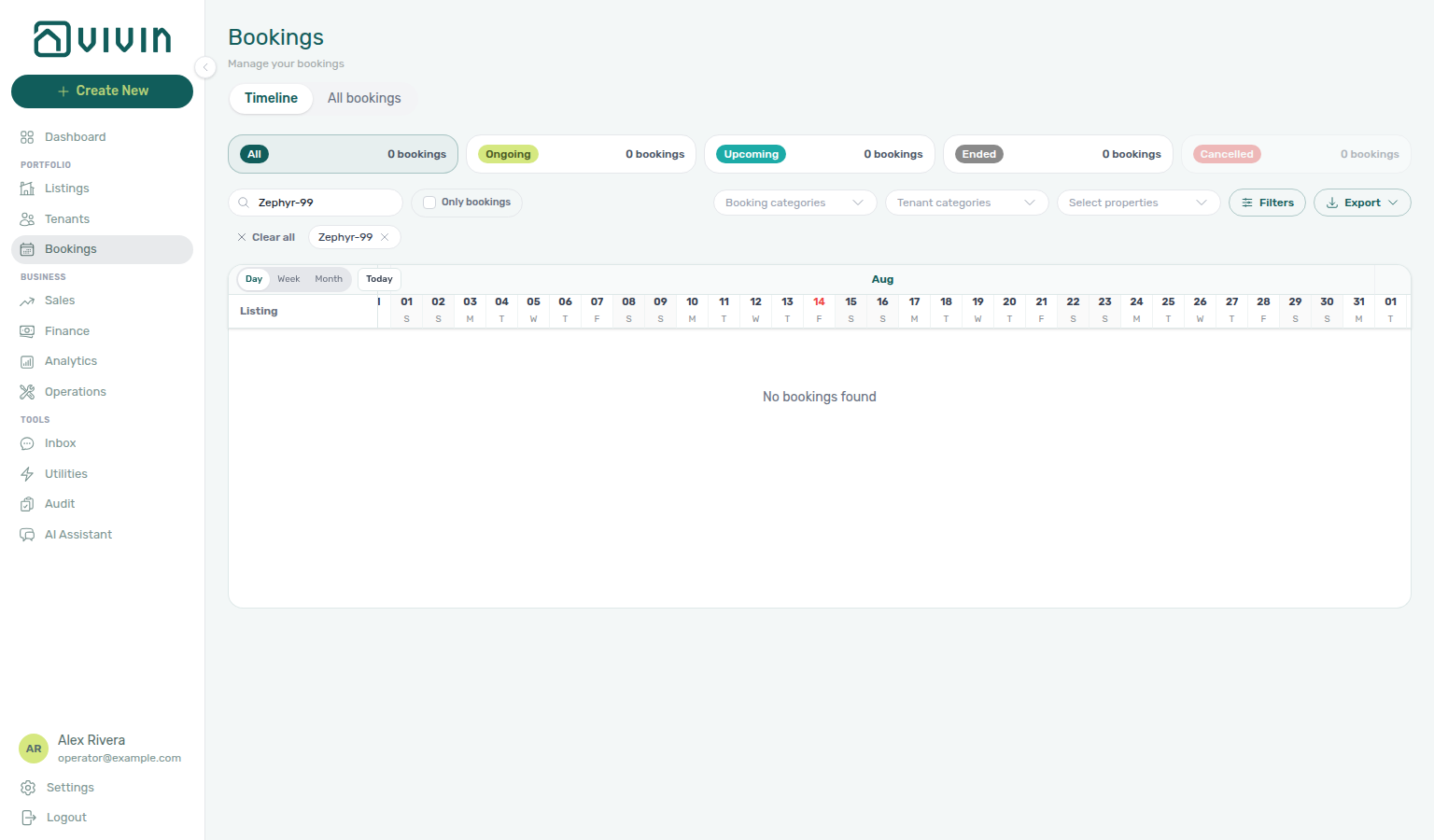
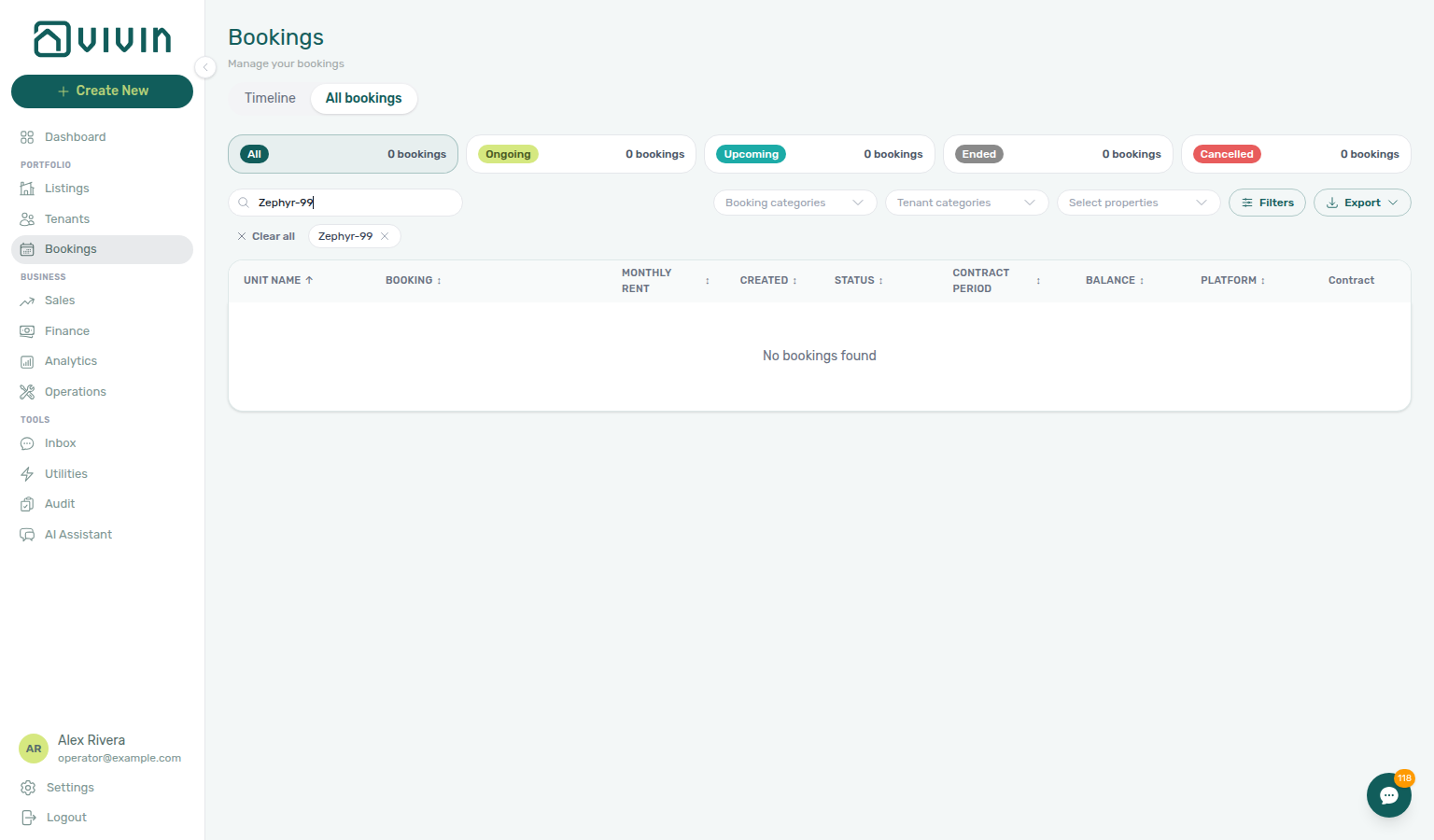
When the term matches nothing, All bookings shows No bookings found in the table (status cards read 0 bookings). On Timeline, the date header stays and the Listing column clears — leftover bars from the previous query do not remain. That empty chart is a successful search, not a load problem: use Clear all or the search chip to restore units. Same toolbar Search on Sales → Multicalendar clears the listing axis the same way. See Search with no matches.
Bookmarkable search (?q=)
The toolbar Search field hydrates from ?q= when you open Bookings with a query in the URL — for example platform.vivin.app/bookings?q=smith. Use this for bookmarks, hand-offs, or links from external tools.
| Entry point | Behaviour |
|---|---|
| Direct link / bookmark | Open /bookings?q=… — the toolbar Search is pre-filled on load; browser back and forward keep the term in sync |
| Toolbar Search on Bookings | Filters the list in place; the URL is not updated as you type (unlike Tenants, which syncs q after a short debounce) |
Status Filter Cards
Click any status card to instantly filter the list:
| UI Label | Product Value (bookingStatus) | Description |
|---|---|---|
| All | n/a | Every booking regardless of status |
| Upcoming | upcoming | Reservations that have not yet started |
| Ongoing | current | Active reservations with tenants currently in residence |
| Ended | ended | Completed reservations |
| Canceled | canceled | Reservations terminated before completion |
The status cards use the same pill styling as row badges (teal All, green Ongoing, aqua Upcoming, grey Ended, red Canceled). Counts on each card reflect your other filters (search, property, platform, and Other filters) but not the status card you are selecting. Ongoing follows stay dates. When your account records arrivals, Currently in house is a separate Other filters slice (and teal In house badge) for stays with arrival stamped and departure not yet recorded.
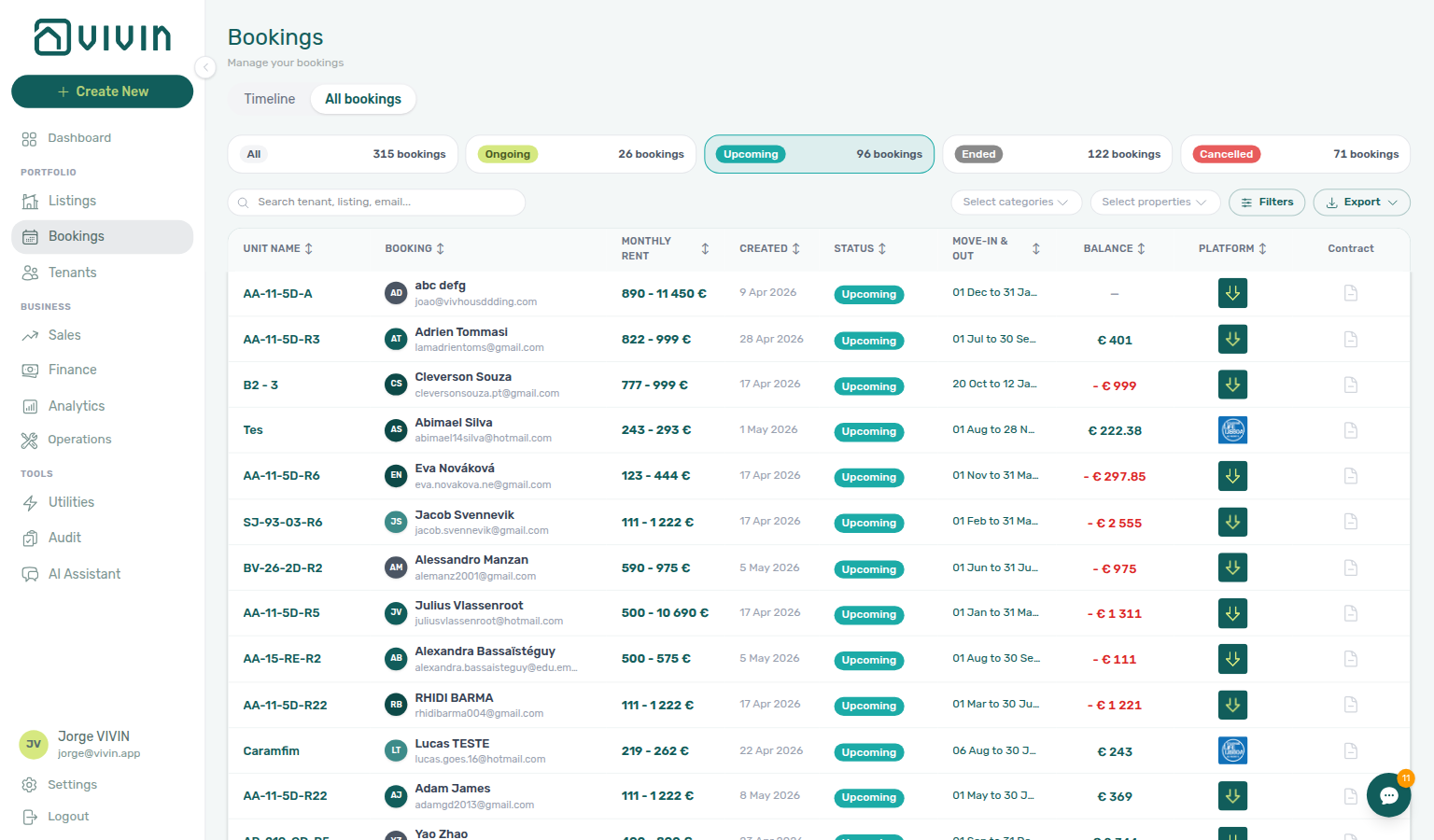
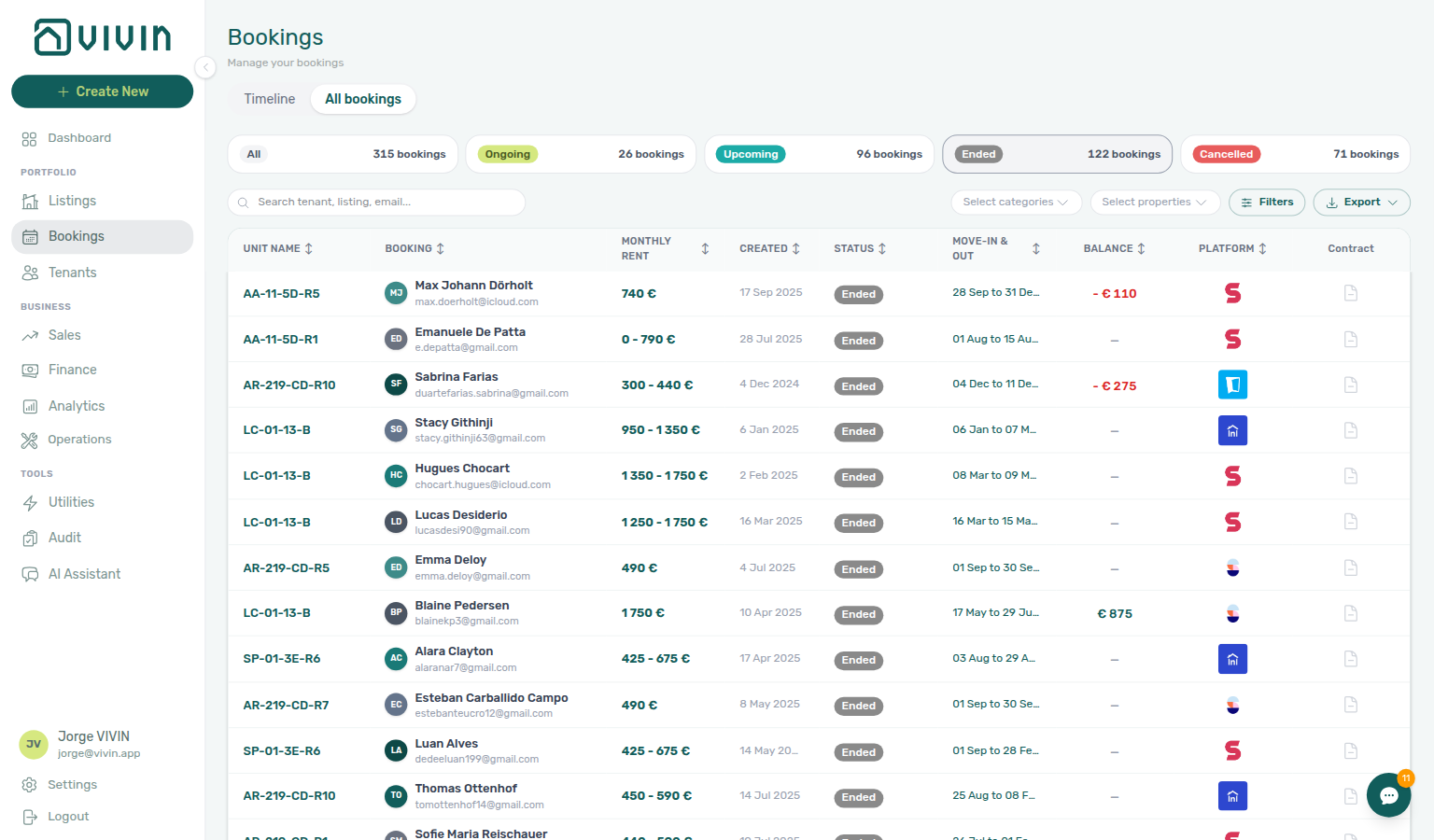
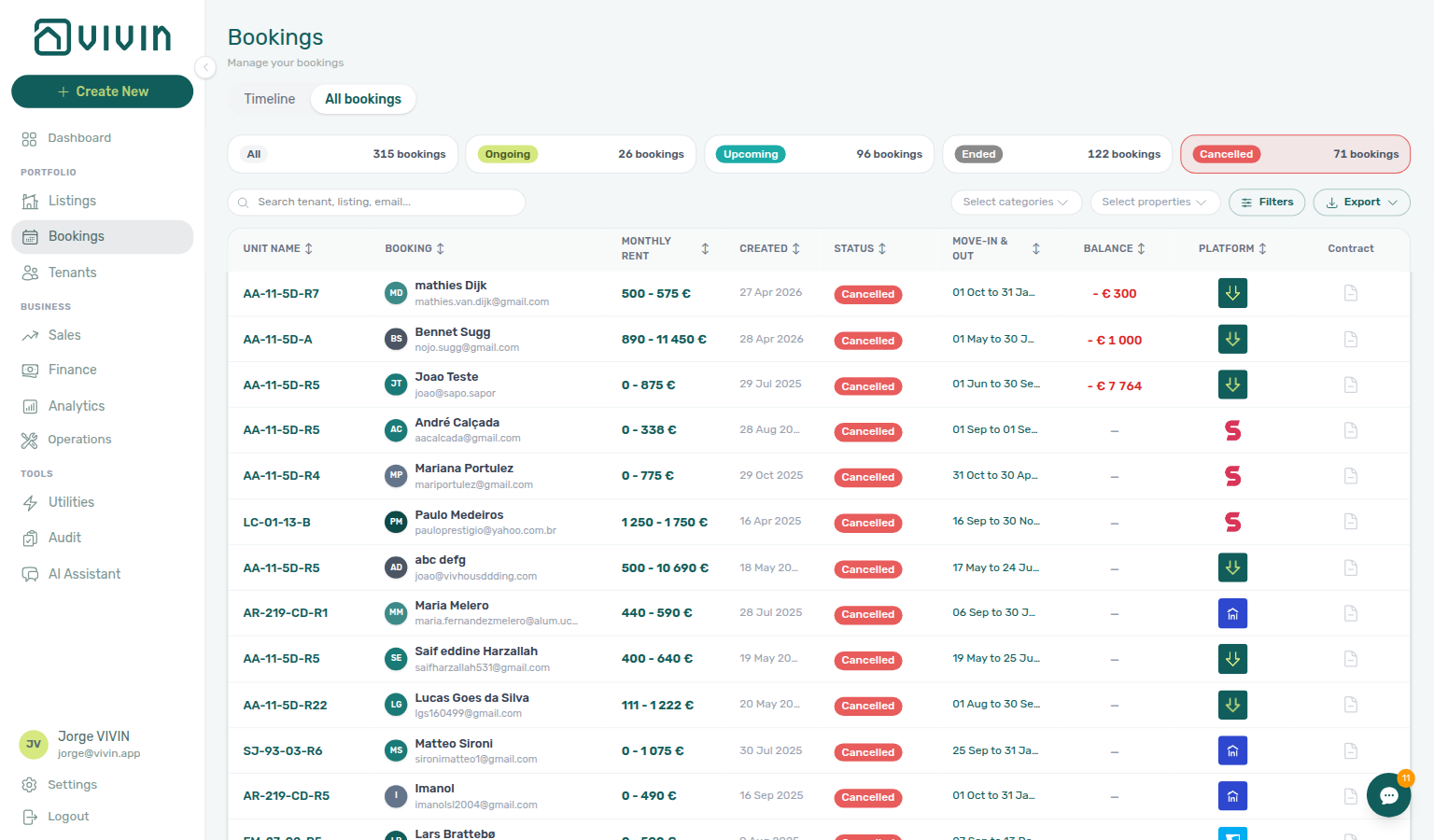
For how computed lifecycle values map to these labels, see Booking Lifecycle.
Platform Filter Cards
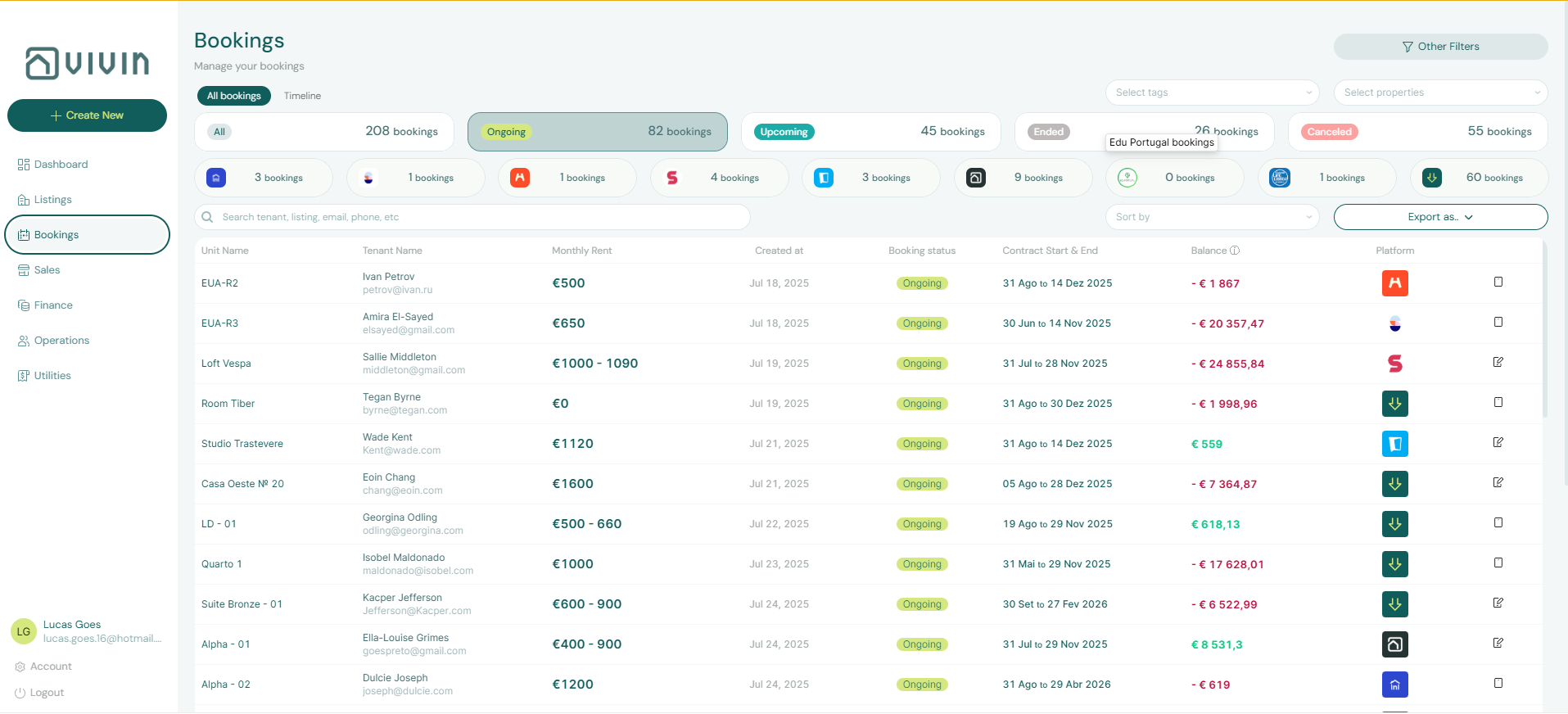
Platform cards and Other filters → Source platform filter by the OTA or marketplace the guest booked on (for example Direct, Airbnb, Booking.com, Uniplaces, Inlife, Idealista, Coliving, Edu Portugal, Erasmus Life Lisboa). Only platforms you have connected in Settings > Integrations appear as filter options. Stays that arrive through the channel manager show and filter as Airbnb or Booking.com — there is no separate channel-manager chip. See Platform badge and filters follow the real OTA. Edu Portugal can appear in Bookings and Finance filters even when it has no column on Sales > Channels.
Property and category filters
Toolbar filters for property, booking tags, and tenant categories sit on one row next to Search, Filters, and Export. Selected values appear as removable chips under the toolbar (with Clear all).
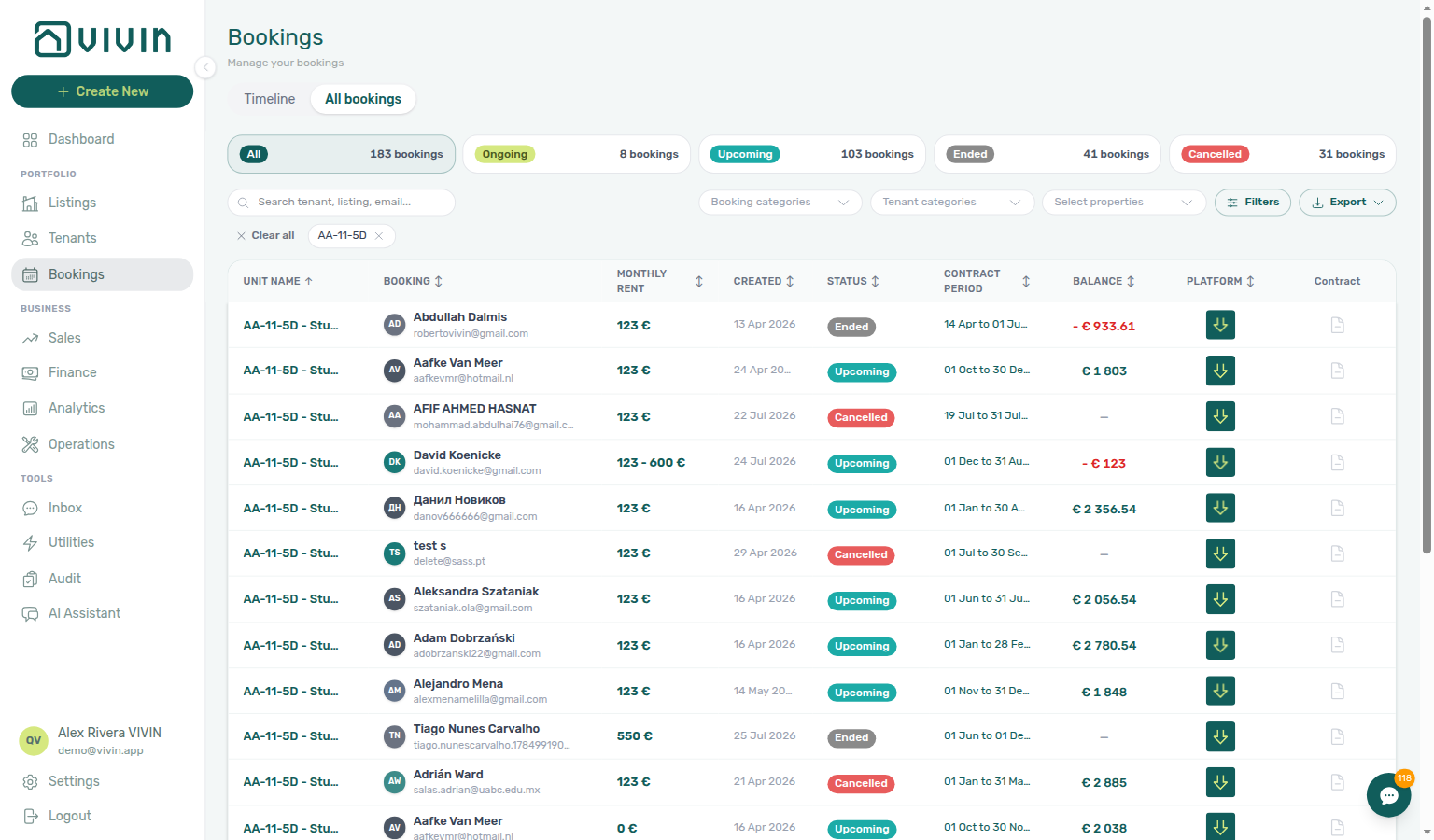
- Select properties — multi-select toolbar control (desktop). Options come from the portfolio filter metadata returned with
GET /bookings/portfolio(distinct property internal names for your account), not the pagedGET /properties/searchpicker used on Finance → Other filters → Property, Operations → Other filters, Utilities → Select properties, and Sales → Pricing. Open the menu to tick one or more buildings from the full metadata list. When that list is long, the open control becomes a type-to-filter field (names still come from the account catalog — you are not searching the server the way Finance or Operations do). The menu stays open while you add selections, including on All bookings while the table refetches and on Timeline while the Gantt redraws; dismiss it when finished. Selected properties appear as removable chips under the toolbar (same chip row as category filters). Leave the control empty to include every property. Changing property scope resets infinite scroll from the first chunk and updates status-card counts for the narrowed set.
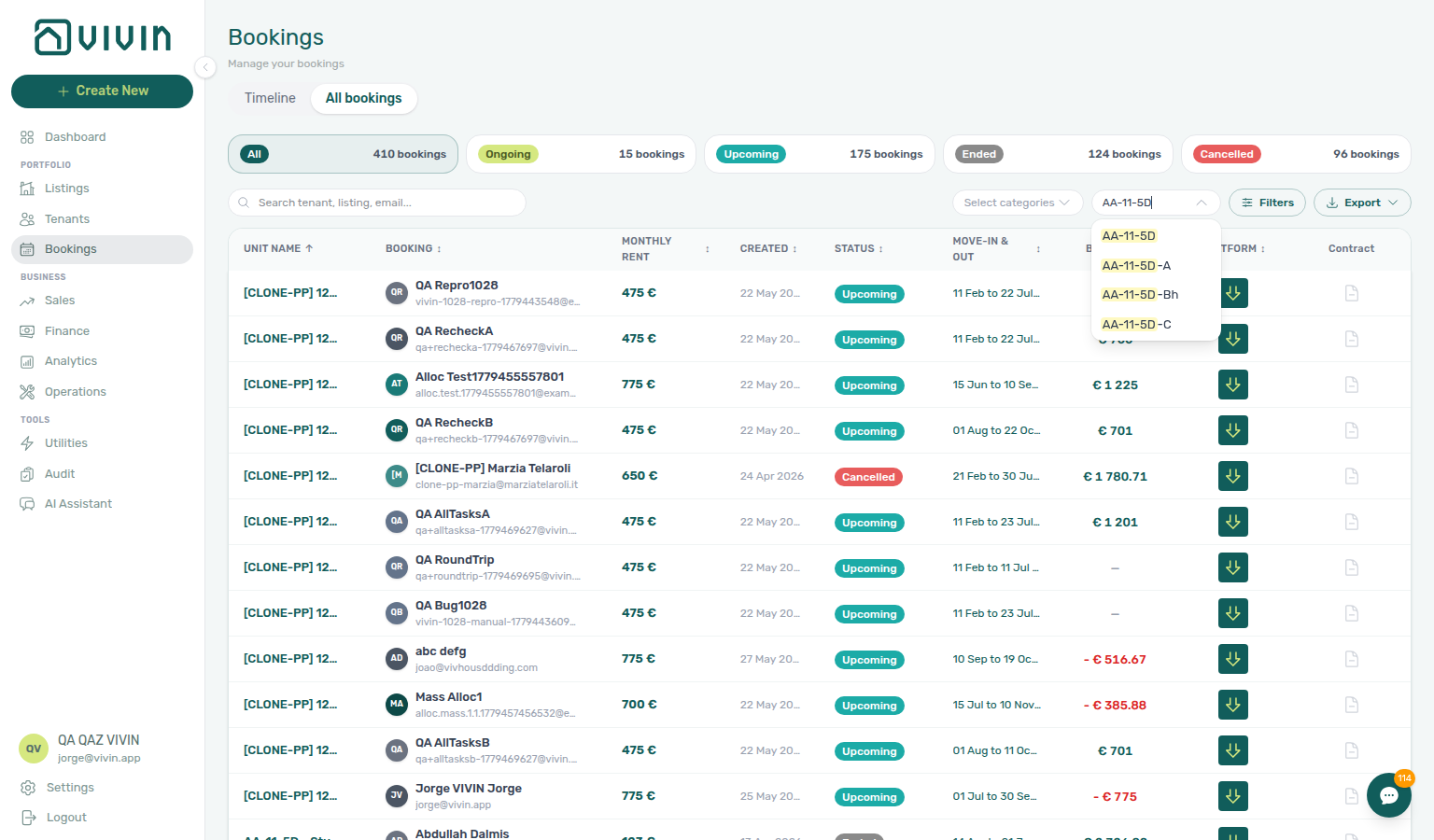
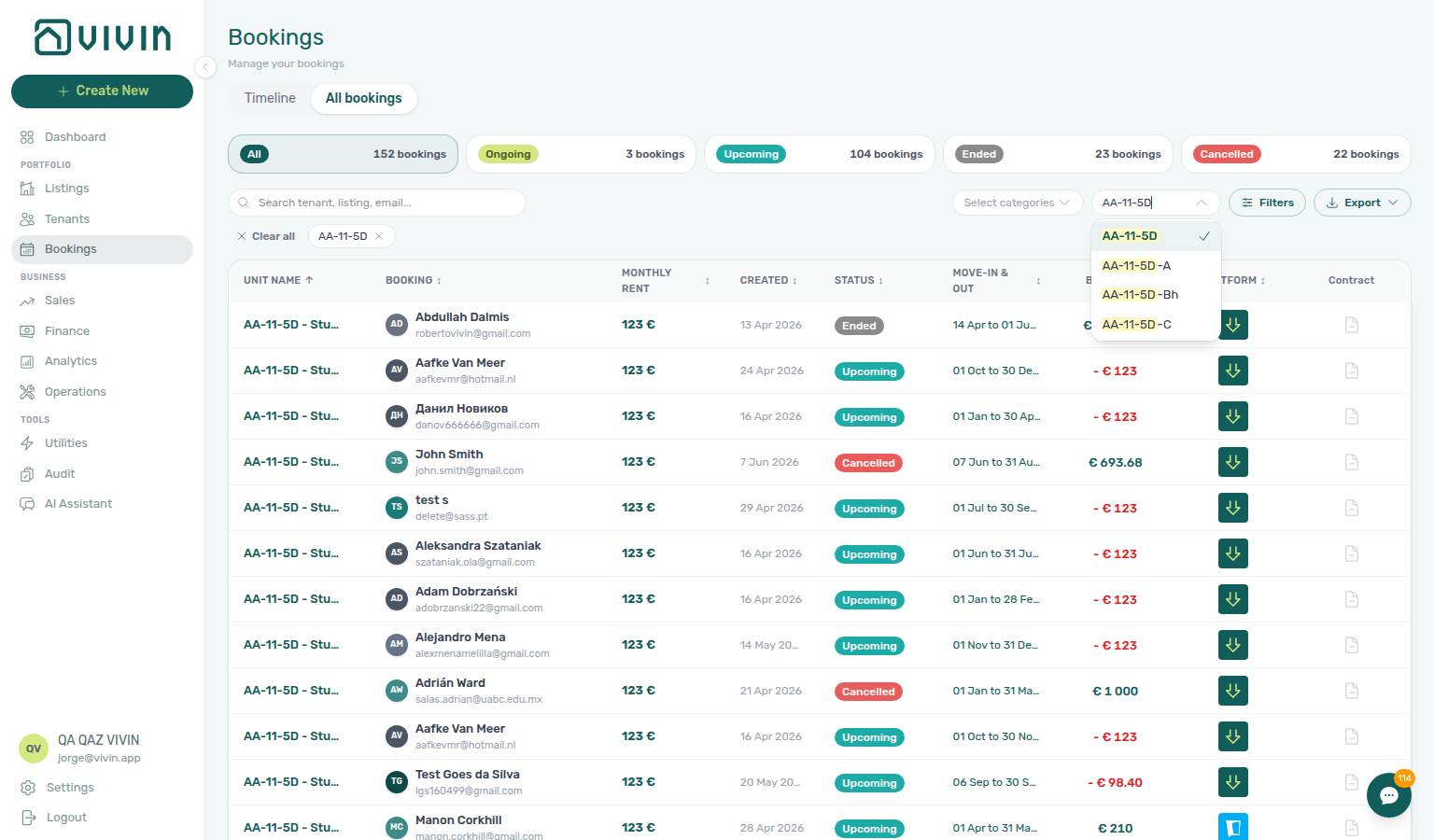
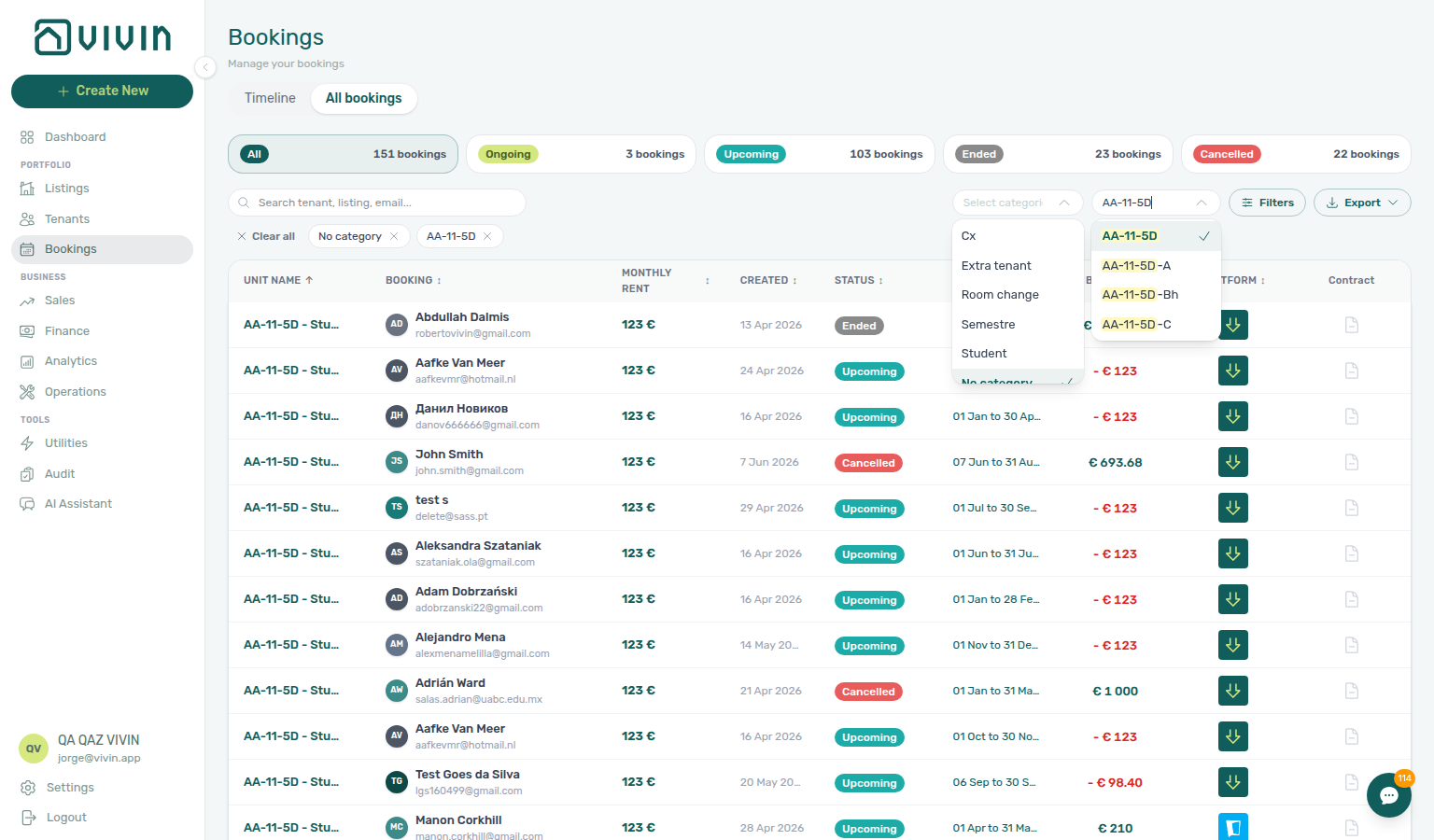
- Booking categories dropdown — filter by booking tags configured under Settings > Categories > Bookings. The English placeholder is Booking categories. The menu lists every tag in your account plus a synthetic No booking category row at the bottom. Tick more than one choice; the list shows stays that match any of them. The menu stays open after each tick — see Booking categories stays open. Use Select all when you want every visible row in one click, then untick the tags you want to hide.
| Selection | What appears in the list |
|---|---|
| One or more named tags | Bookings whose bookingTags include at least one of the selected labels (OR within the tag subset). |
| No booking category only | Bookings with no booking tags assigned (empty tag list). |
| Named tags + No booking category | Bookings that match any selected tag or have no tags (useful when cleaning up segmentation before you standardize labels). |
No booking category is resolved server-side: the portfolio query sends selected tag codes in tags and, when No booking category is checked, a noCategory flag that is OR-combined with those tags — so uncategorized rows are not dropped when you mix named tags with the empty case. The same rule applies to infinite scroll and Export (the download reflects the full filtered population, not only rows already loaded in the table).
Active booking-tag choices show as removable chips under the toolbar. Combine them with status cards, platform cards, property, Tenant categories, search, and Other filters as needed.
When you filter by a named tag (for example Student), the chip shows the label from this catalog and the list narrows to bookings whose bookingTags include at least one selected tag (OR logic). Scoping Select properties to a clean building (for example AA-11-5D) keeps table rows publication-ready in docs captures.
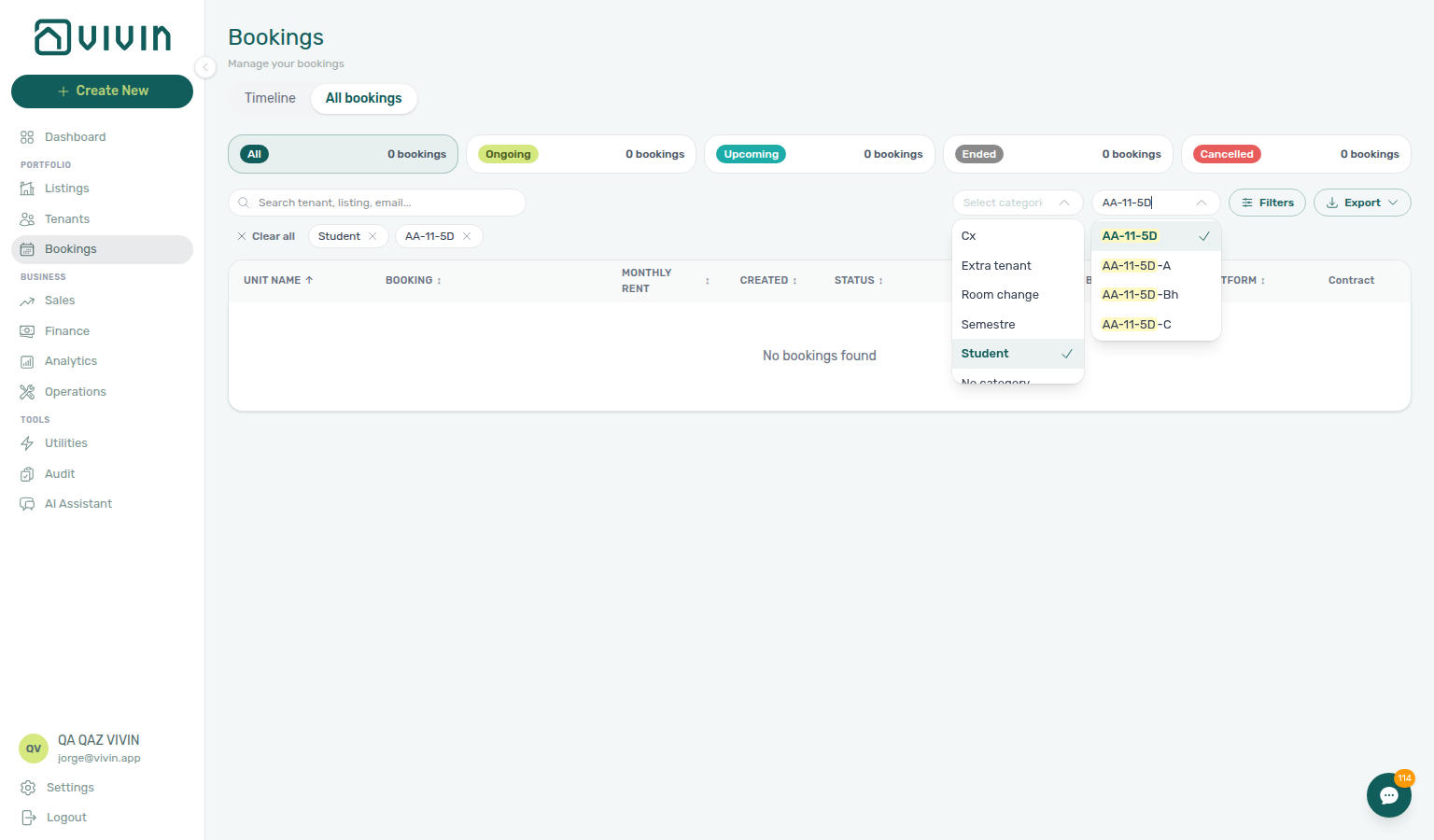
Booking categories stays open while you pick
Open Booking categories, then tick a tag. A chip appears under the toolbar; the menu stays open so you can tick a second tag. You do not need to open Booking categories again.
Tick Student, then No booking category (or another named tag from Settings > Categories > Bookings). Both stay checked in the open list. The table shows bookings that match any of those choices — Student stays or stays with no booking tag — not only bookings that have both. Dismiss the menu when the chips look right — same stay-open habit as Select properties.
The same menu sits on Timeline. Each tick also refetches the listing axis.
Finance → Other filters → Booking → Select categories is a different control in the drawer. Its empty-case label is No category (not No booking category). Tick boxes there also stay open while you add a second tag.
Emails → Communication Rules → Booking tags is a different audience picker: named tags only, English placeholder All tags, and Include only / Exclude modes — it does not list No booking category.
Tenant categories beside this control is a different catalog (tenant segments, not booking tags) — see Tenant categories (toolbar).
Tenant categories (toolbar)
Tenant categories sits beside Booking categories on the list (and Timeline) toolbar — it is not in the Other filters drawer. The control appears only when Preferences → Enable tenant categories is On for the account.
Use it to filter by tenant categories assigned on the tenant profile (Tenant Info on Tenants). The menu lists every segment in your account plus No tenant category for bookings whose tenant has no category on file. You can combine named categories with No tenant category (OR logic): the server sends tenantCategoryIds plus a noTenantCategory flag when needed, so pagination and Export include every row that matches any selected segment or has no category — not only the pages you have scrolled through.
| Selection | What appears in the list |
|---|---|
| One or more named segments | Bookings whose tenant profile carries at least one of the selected categories. |
| No tenant category only | Bookings whose tenant has no category on file. |
| Named segments + No tenant category | Bookings that match any selected segment or have no category (OR-combined). |
The menu stays open after each tick — see Tenant categories stays open. Use Select all when you want every visible segment (and No tenant category) in one click. The English placeholder is Tenant categories (not All categories); the empty-case row is No tenant category (not No category).
Emails → Communication Rules → Tenant categories is a different audience picker: named segments only, English placeholder Select tenant categories…, and Include only / Exclude modes — it does not list No tenant category.
Selected segments appear as removable chips under the toolbar (same chip row as property and booking tags). Pair with Select properties when you need a building-scoped segment review — for example AA-11-5D during month-end KPI checks.
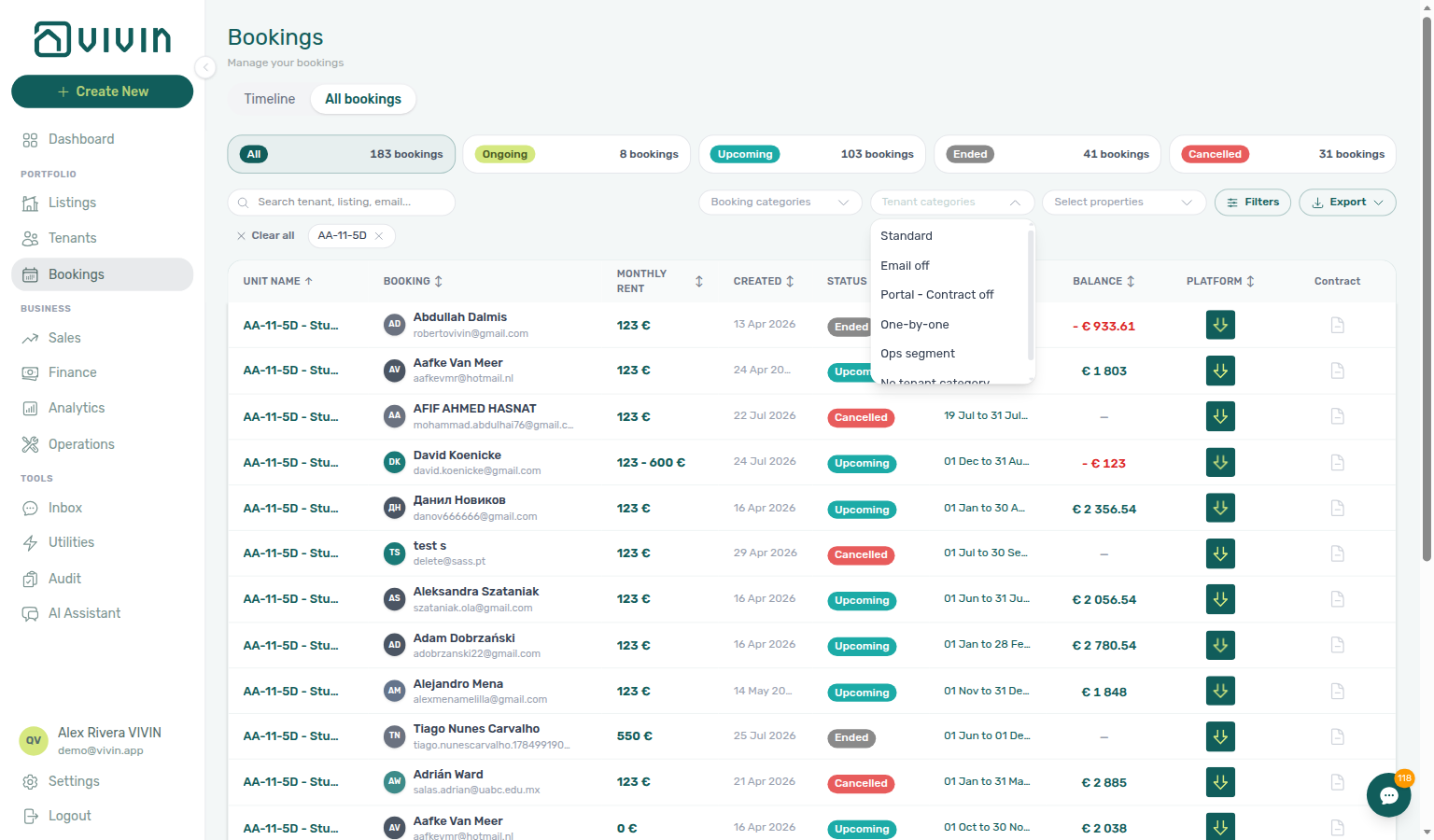
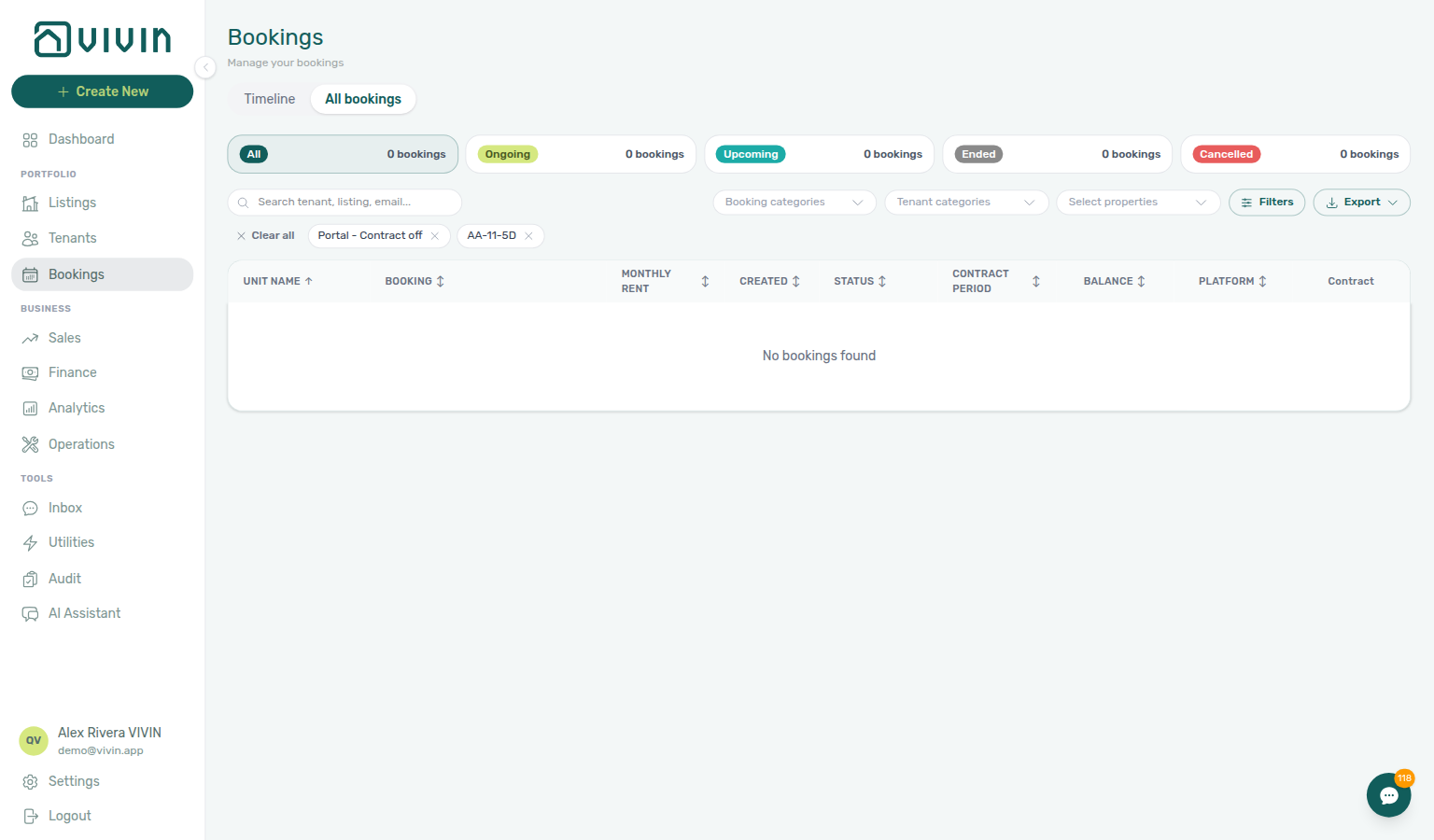
Finance still filters tenant category from Other filters (Finance — Tenant category filter); Tenants keeps its own toolbar control (Tenants — Tenant category filter).
Tenant categories stays open while you pick
Open Tenant categories, then tick a named segment. A chip appears under the toolbar; the menu stays open so you can tick a second segment. You do not need to open Tenant categories again.
Tick a named segment from Settings > Tenant categories (for example Corporate), then No tenant category. Both stay checked in the open list. The table shows bookings that match any of those choices — the named segment or stays whose tenant has no category — not only bookings that have both. Dismiss the menu when the chips look right — click the Bookings heading, or anywhere outside the list. Same stay-open habit as Booking categories and Tenants — All categories.
The same menu sits on Timeline. Each tick also refetches the listing axis.
Tenants → All categories is a different directory filter. Its English placeholder is All categories and the empty-case row is No category.
Emails → Communication Rules → Tenant categories is a different audience picker: named segments only, English placeholder Select tenant categories…, and Include only / Exclude modes — it does not list No tenant category.
Finance → Other filters → Tenant → Tenant category is a drawer control (empty-case label No tenant category). Tick boxes there stay visible because the drawer stays open — not the same toolbar dropdown.
Booking categories beside this control is a different catalog (reservation tags, not tenant segments) — see Booking categories stays open.
Select all on category filters
On Bookings → List and Timeline, open Booking categories or Tenant categories. The top of the open menu shows Select all, Clear all, and a count — for example 6 of 22, then All 22 selected.
Use Select all when you want every visible row in one click — named tags or segments and the empty-case row (No booking category or No tenant category). Select all hides once every visible row is ticked. Clear all appears whenever anything is selected and empties the filter.
All except one: click Select all, then untick the tag or segment you want to hide. The list shows stays that match any remaining choice, including untagged stays when the empty-case row stays ticked.
If you type in the menu search first, Select all only ticks rows that match the search. Earlier ticks stay selected, so you can search again and Select all another cluster.
The open menu still lists every tag or segment in your account while the table updates — it does not shrink to the current filter.
The same Select all / Clear all strip appears in Finance → Other filters on Booking → Select categories and Tenant → Tenant category. When every option is ticked, those Finance controls read All categories or All tenant categories.
Tenants → All categories stays open while you tick; it does not include Select all. Tick rows one by one there, or run the same segment review from Tenant categories on Bookings. Emails → Communication Rules audience pickers also do not include Select all.
Sort By
The table’s default order is Unit Name ascending — the same default Vivin applies whenever the list loads without an explicit sort (including after reload or when an older client omits the sort parameter). Click the Unit Name column header to reverse; click again to return to ascending. Unit names use natural numeric sort (AA-11-5D-R3 before AA-11-5D-R22, not alphabetic R22 before R3).
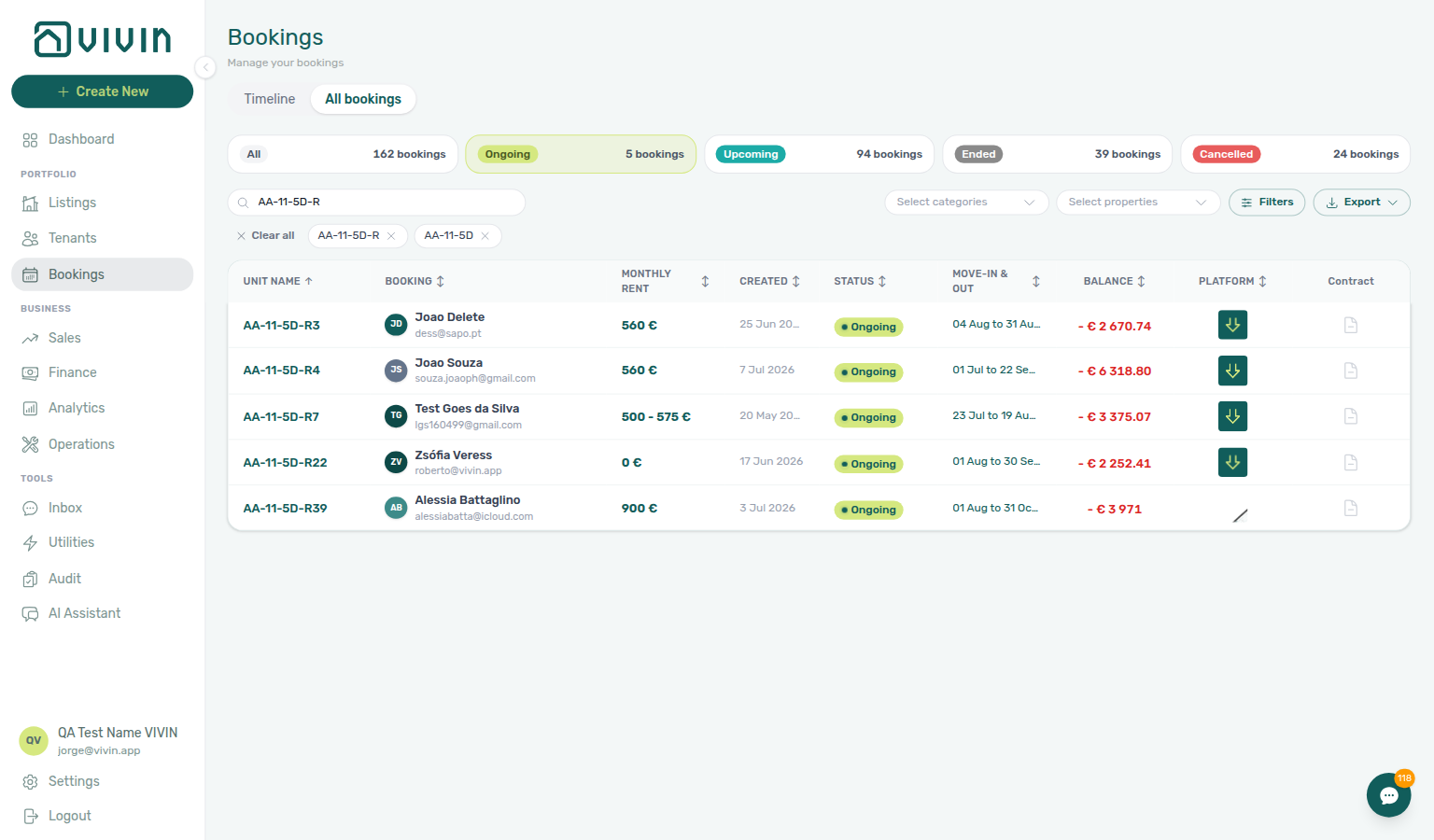
AA-11-5D-R, click Unit Name to sort descending (R39 → R3), then click again to restore ascending (R3 → R39) with natural numeric order.The Sort By dropdown offers additional server-backed sorts:
- Debt (highest to lowest) — useful for collections follow-up
- Creation Date
- Move-in Date
- Contract Start Date
- Move-out Date
When several stays share the same sort value — a house where everyone starts on 1 June, or many Direct stays — Vivin does not scramble those rows. Unit Name (always 1 → 4 / A → Z, with the same natural numeric sort) breaks the tie, even if you reversed the date column. Click Contract Period (or Move-In & Out when your account shows check-in/out dates instead of contract dates) once for Start ↑ and again for Start ↓: BP-Quarto 1, 2, 3, and 4 at Casa Beatriz - Porto stay in that room order (Ana Ribeiro, Diogo Fernandes, Sofia Marques, Tiago Almeida). The same unit-name tie-break applies to Status, Platform, and Created when those values match.
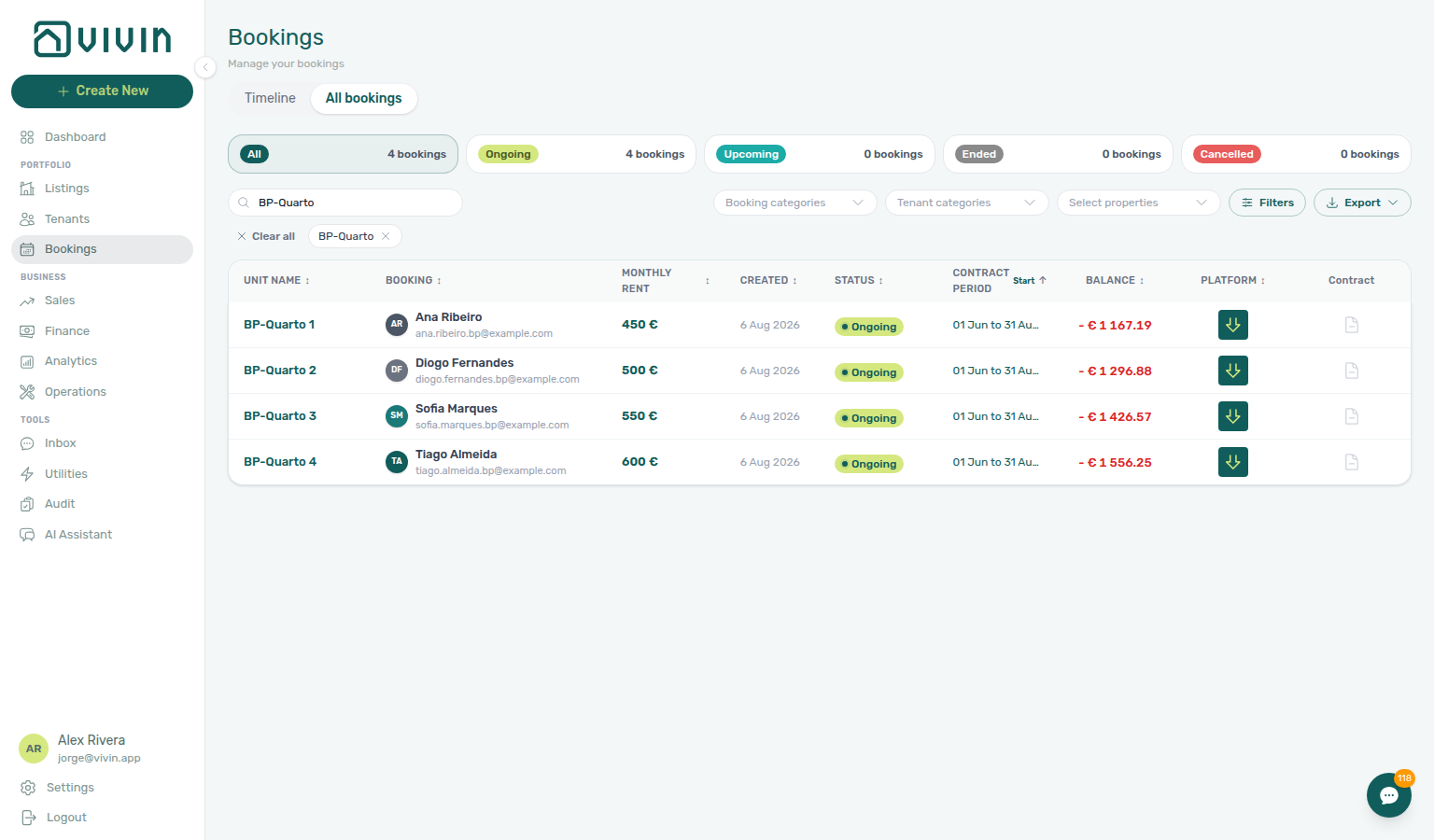
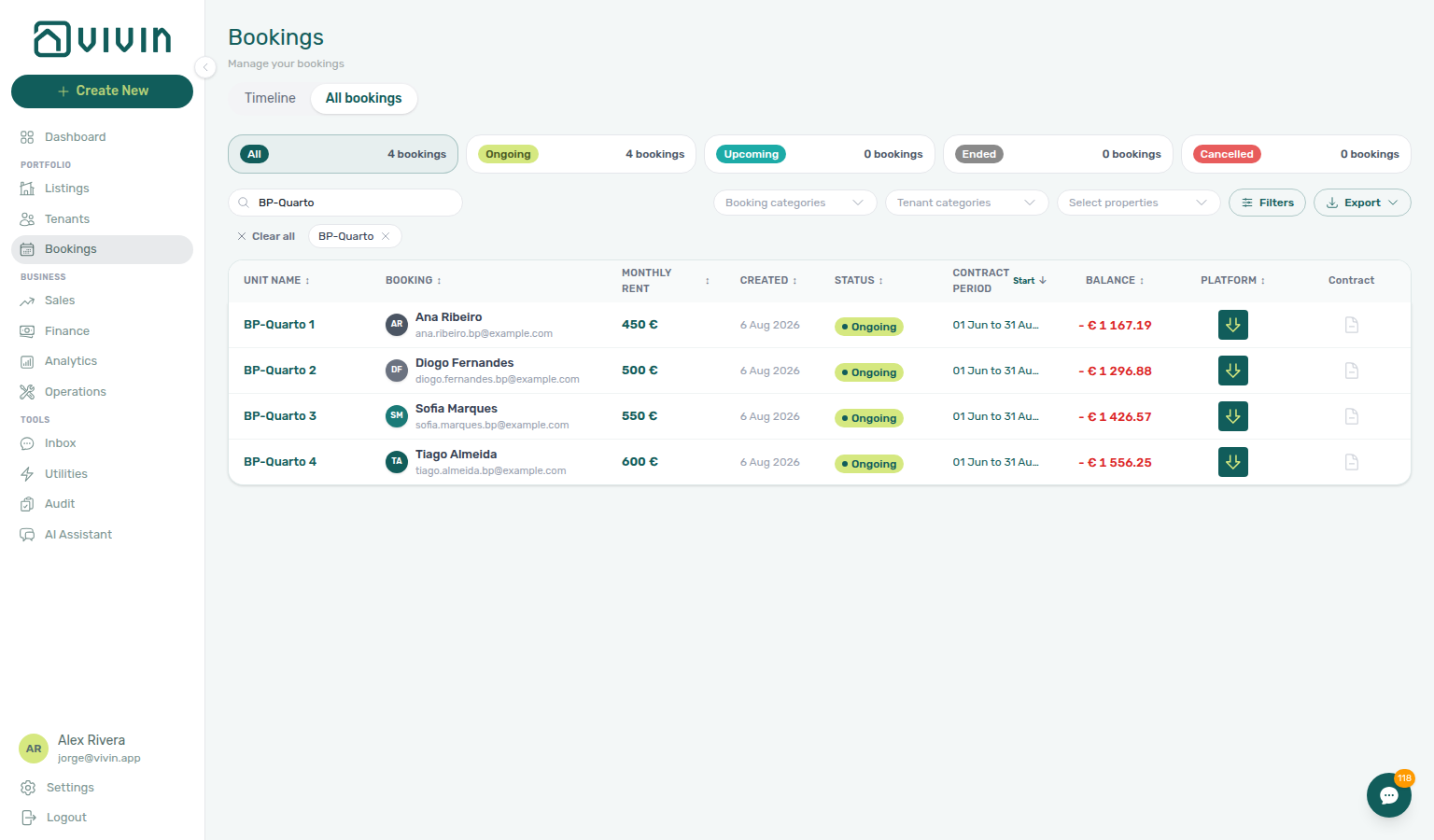
BP-Quarto, click Contract Period for Start ↑, then click again for Start ↓ — BP-Quarto 1 → 4 stay in unit order.Changing the active sort (dropdown or a column header such as Created) also refreshes the portfolio filter catalog returned with GET /bookings/portfolio — see Select owners when the owner list looks empty on a fresh load.
Other filters
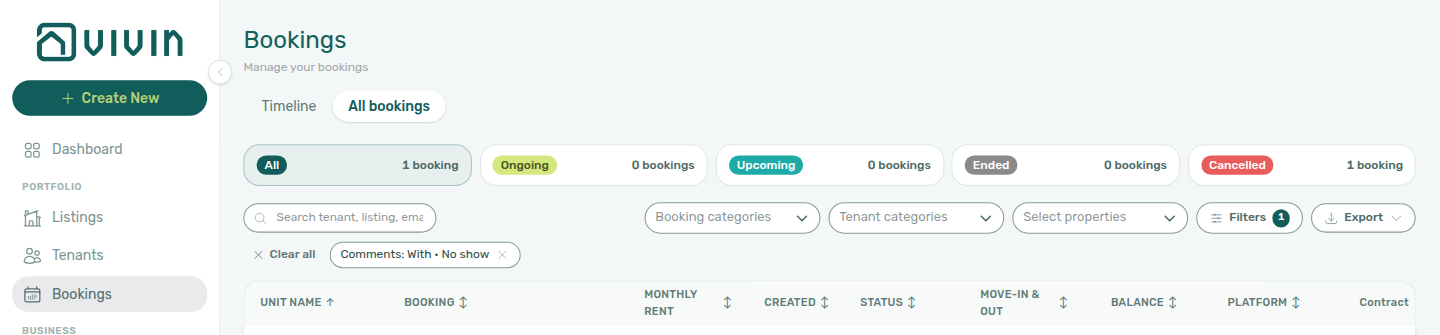
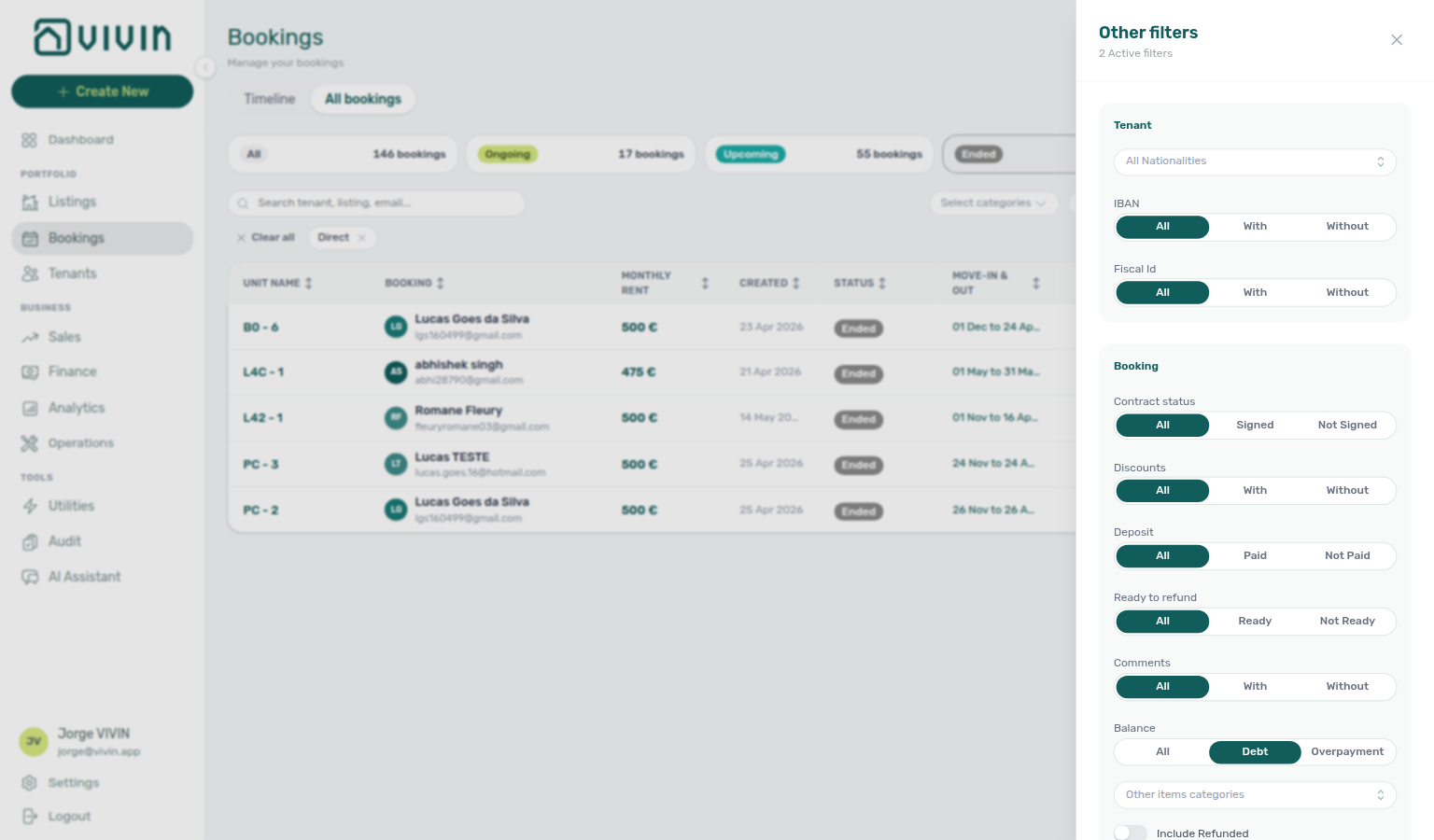
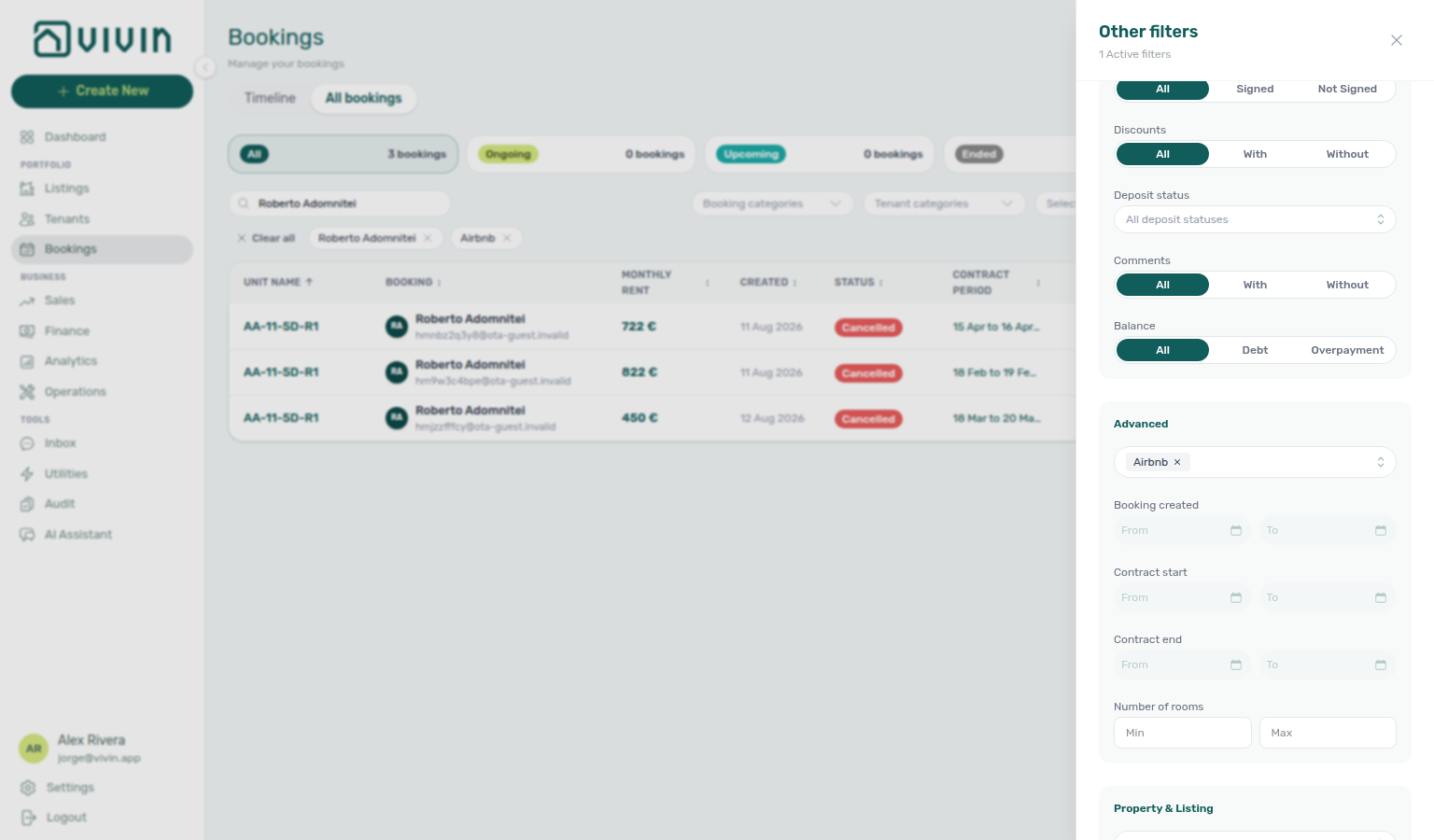
Click Filters in the toolbar to open the Other filters side drawer. The header shows how many drawer filters are active (for example Balance: Debt and Source platform: Direct in the capture below). Choices apply to the current list immediately and combine with status cards, platform cards, property, and search. Advanced criteria such as Source platform, plus Comments and Currently in house when set, also appear as removable pills above the table; other drawer-only choices (for example Balance) update the list and the drawer badge count but do not add separate pills. Use Clear all on the toolbar to reset pill-backed filters without reopening the drawer.
The drawer is grouped into four sections:
Tenant
- Nationality — multi-select tenant nationalities (flag labels). The list includes No Nationality for bookings whose tenant profile has no ISO country code on file. You can combine No Nationality with specific countries (OR logic): the server sends
nationalitiesplus anoNationalityflag when needed, so pagination and Export include every row that matches any selected country or has a blank nationality field — not only the pages you have scrolled through.
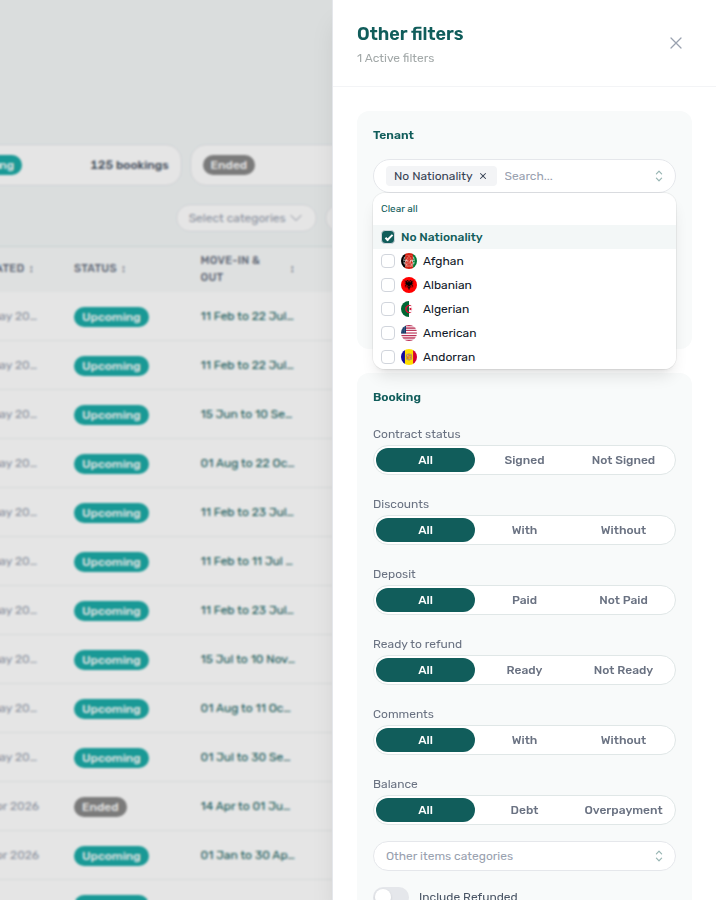
- IBAN — All, With, or Without a tenant bank IBAN on file (the personal portal IBAN, not the booking virtual IBAN)
- Fiscal Id — All, With, or Without a fiscal / tax ID on file. Same personal tax ID tenants enter as Fiscal number on the Tenant Portal.
Tenant categories is a toolbar control next to Booking categories — it is no longer listed under Other filters → Tenant. See Tenant categories (toolbar). The drawer Tenant section keeps Nationality, IBAN, and Fiscal Id only.
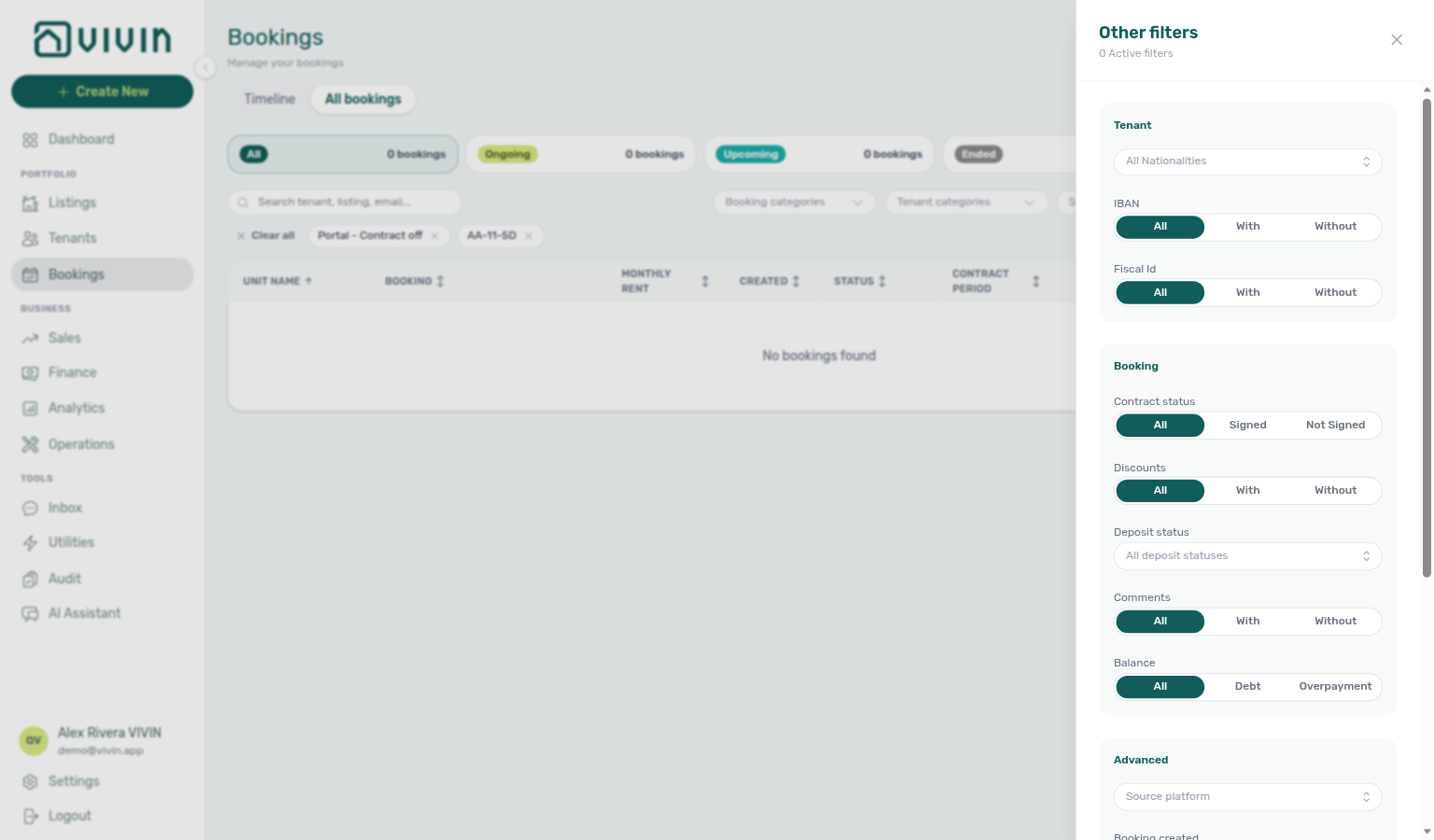
Booking
- Contract status — All, Signed, Not Signed, or N/A. Signed keeps stays with a teal Contract check; Not Signed keeps stays that still need an agreement (grey document); N/A keeps stays with nothing to sign in Vivin (grey dash — the tenant's category has Tenant Portal Access or the Contract portal module turned off). Each stay falls in exactly one of the three. Status-card counts follow the same slice. The Filters button shows a 1 badge while this (or another drawer-only) choice is active — close the drawer to scan the Contract column on the table. See Contract column and FAQ — Find bookings that still need a signed contract.
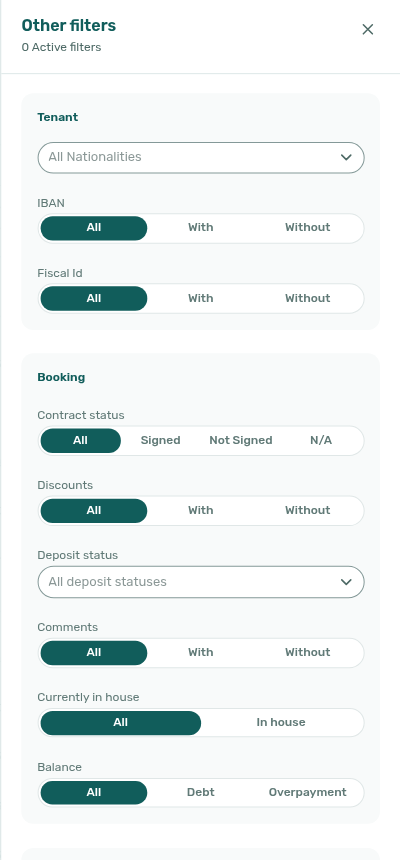
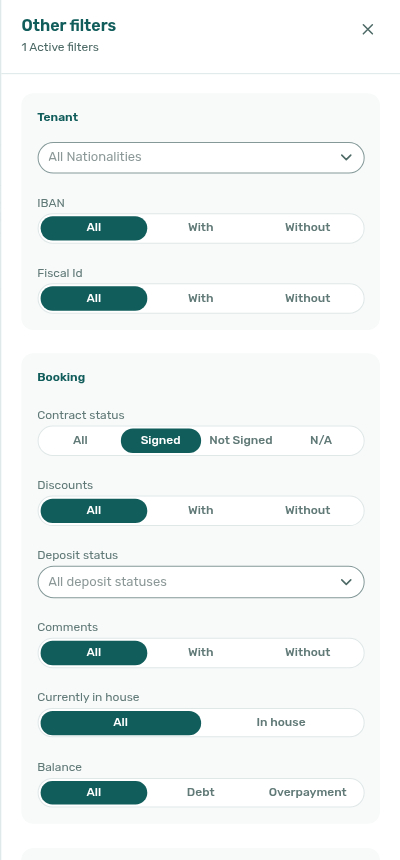
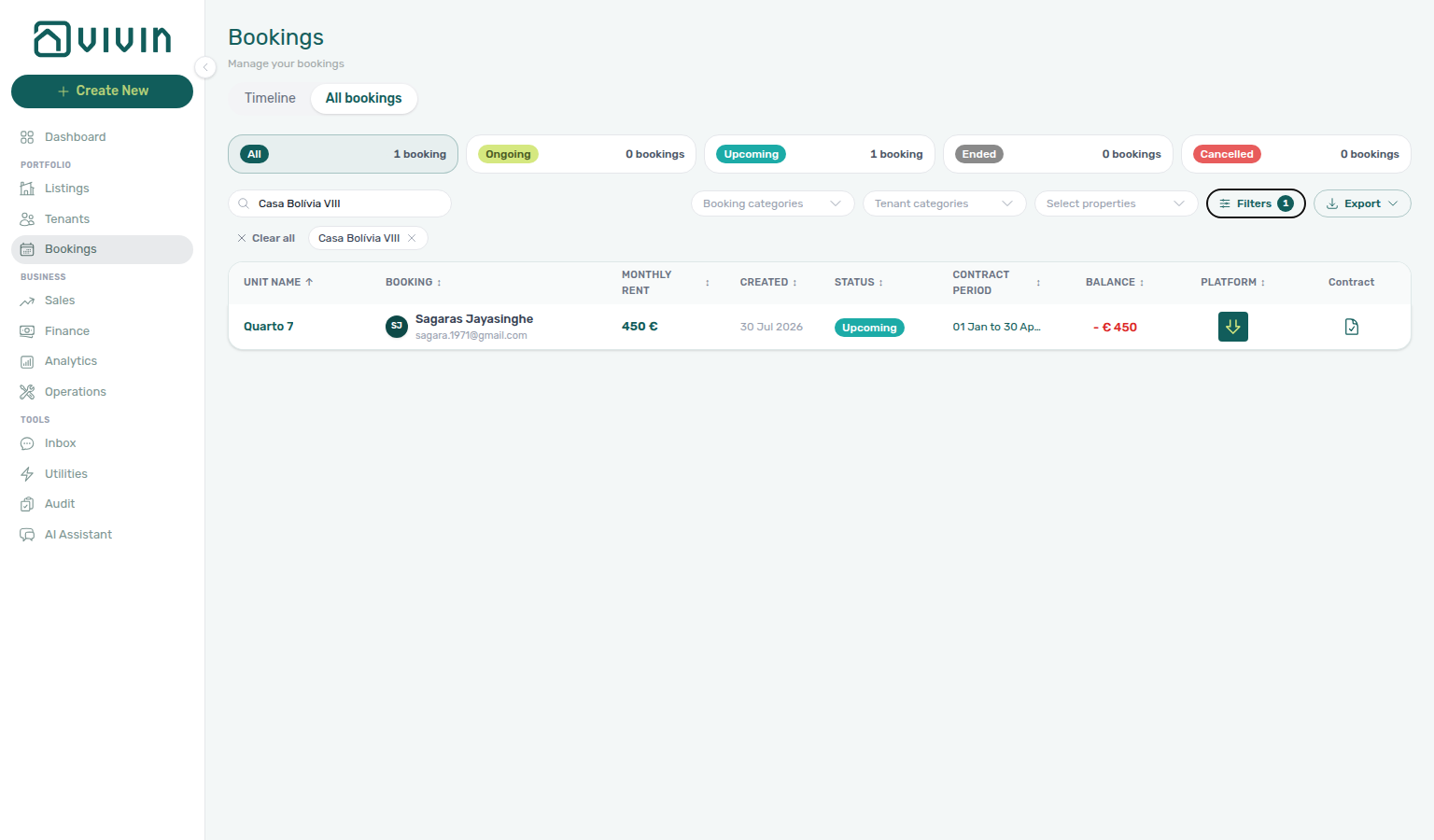
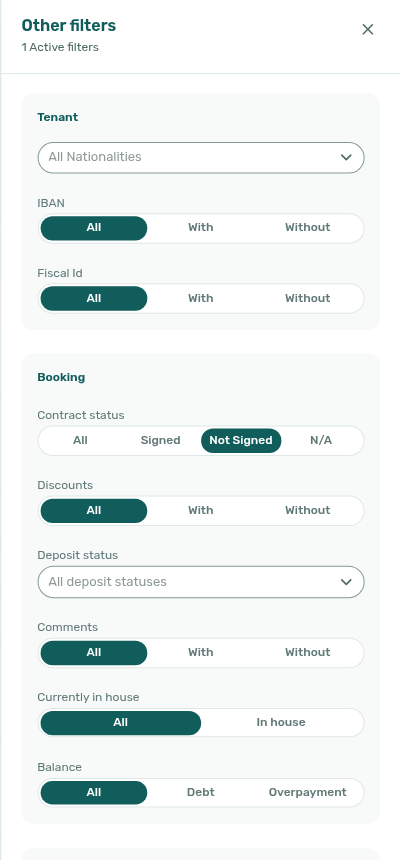
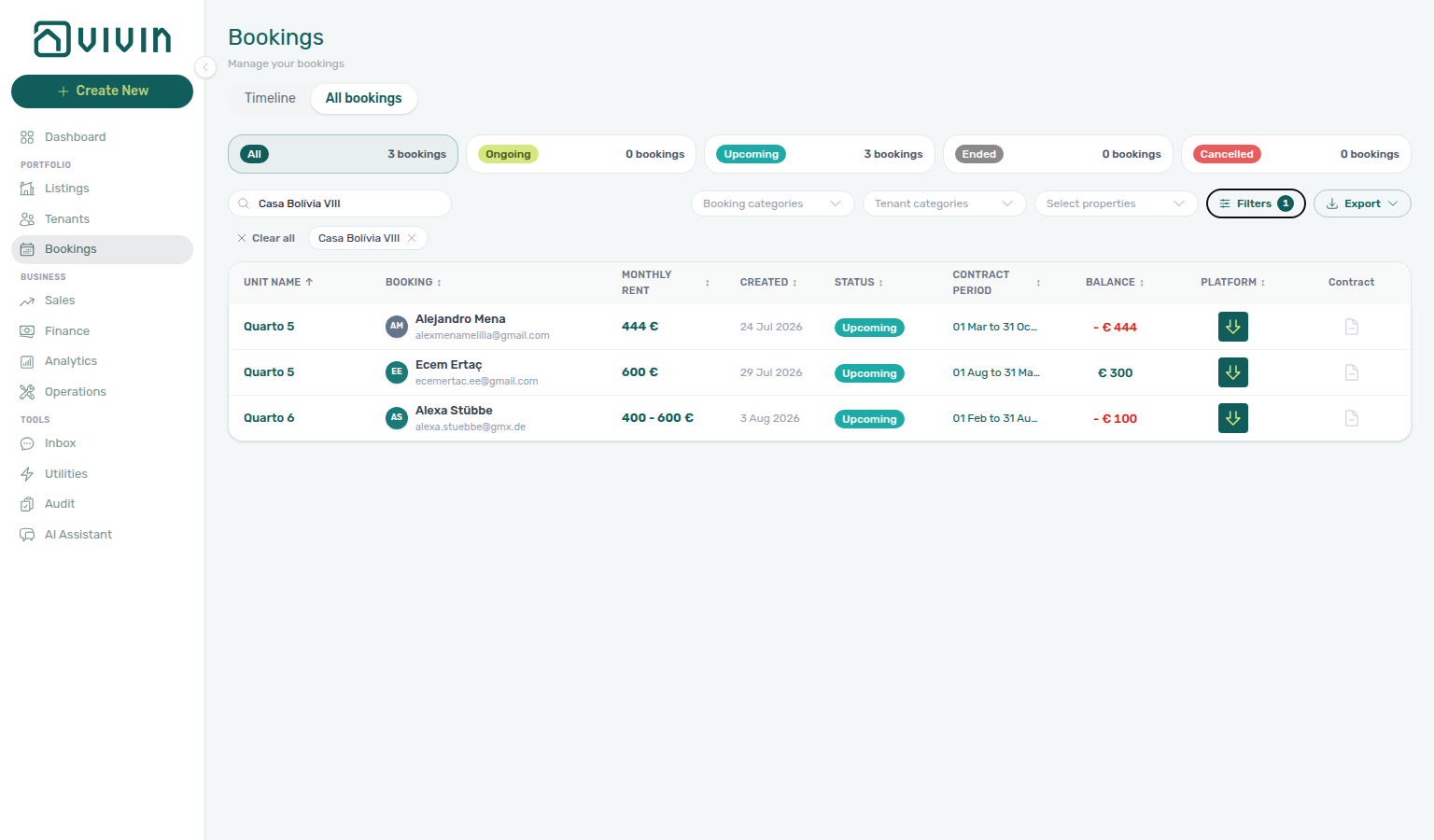
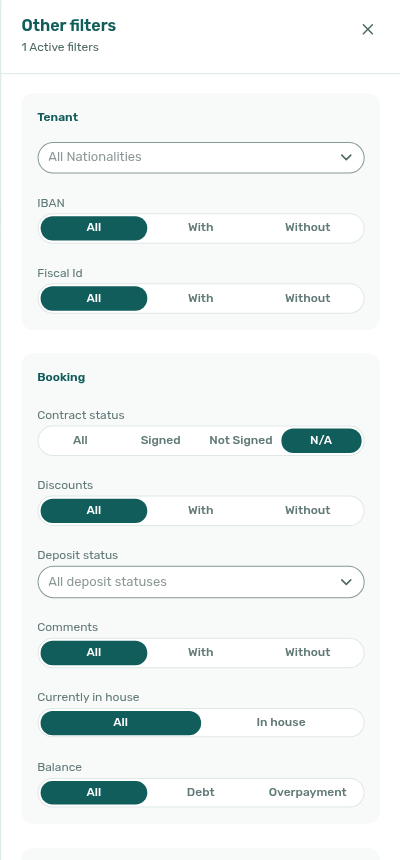
- Discounts — All, With, or Without discounts on the booking
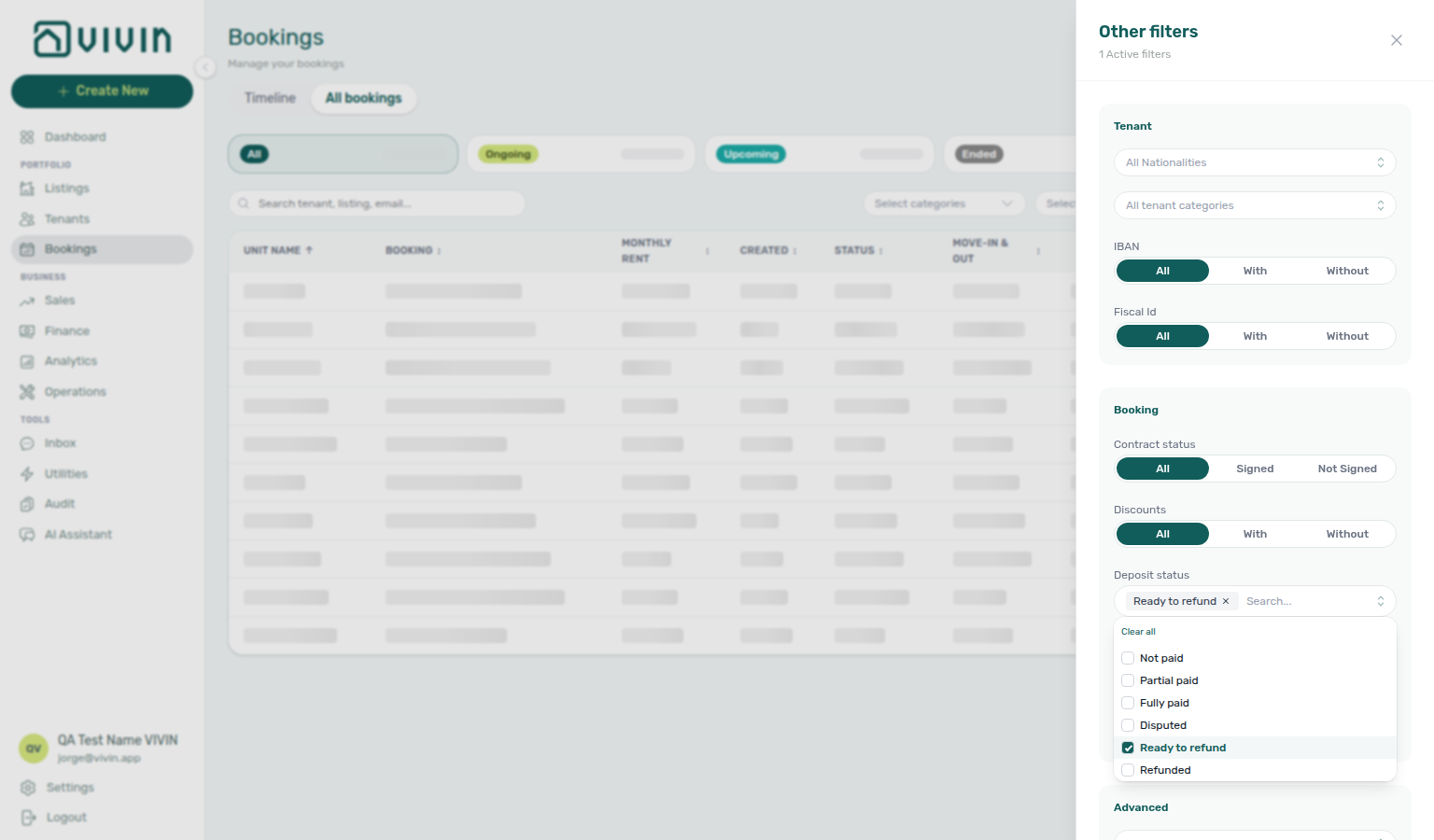
- Deposit status — multi-select operational lifecycle values (Not paid, Partial paid, Fully paid, Disputed, Ready to refund, Refunded); empty = all statuses. Filters by
depositStatus(any-of within your selection) — same enum as the lifecycle pill on the Deposit tab and Finance → Deposits rows. After you change that pill on the Deposit tab, this slice already matches — see Deposit status filter updates while you work. See Glossary — Deposit lifecycle status, Finance — Deposit status filter, and FAQ — Partly collected security deposit (deposit shortfall triage).
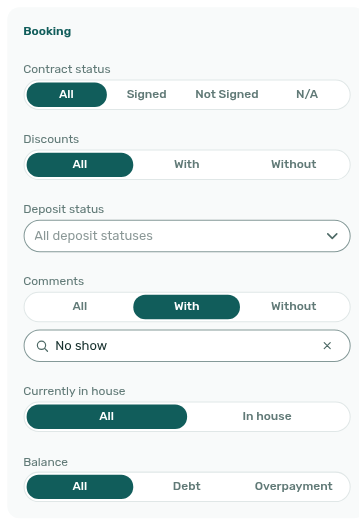
- Comments — All, With, or Without internal comments on the booking. When you choose With, a Search in comments… field appears under the control — see Search in comments.
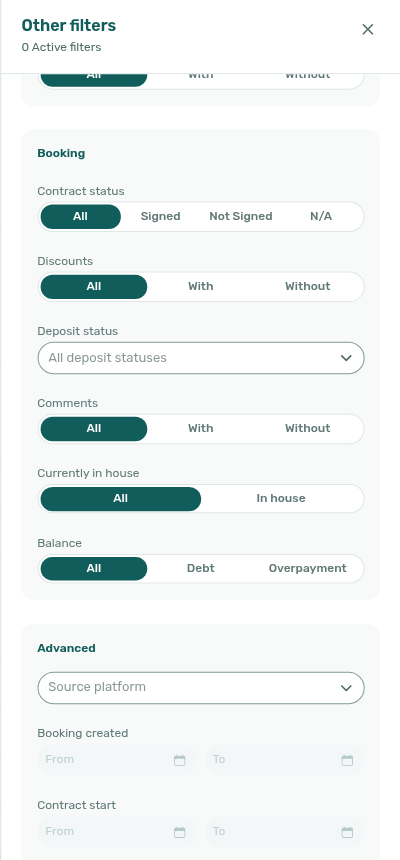
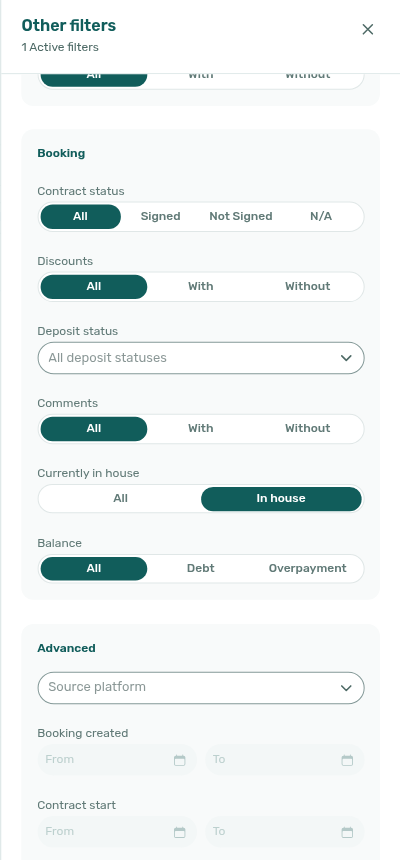
- Currently in house — All or In house. Appears only when your account has the check-in / check-out process on and Record arrival and departure on (Account Settings → System → Global Settings for the process switch; Settings → Check-in / Check-out for arrival recording). In house keeps stays where staff have recorded arrival and have not recorded departure (and the booking is not canceled). That is the physical stamp, not the calendar Ongoing status card — a stay can be Ongoing before anyone records arrival. When the filter is available, list and grid cards (and the booking sidebar) show a teal In house badge instead of the usual status pill for those stamped stays. See Currently in house.
- Balance — All, Debt, or Overpayment (outstanding balance direction)
Currently in house
Use Other filters → Currently in house → In house when you need everyone who has already arrived and not yet departed — for example today’s on-site guests, or handovers waiting on a recorded departure.
| Behaviour | Detail |
|---|---|
| When it appears | Only while Enable check-in / check-out process and Record arrival and departure are both On. Otherwise the control is hidden. |
| Who matches In house | Arrival recorded, departure not recorded, booking not canceled. |
| Vs Ongoing | Ongoing follows contract/occupancy dates. In house follows the arrival/departure stamps your team records. |
| Badge | Teal In house replaces the status pill on list/grid cards and the booking sidebar while the stay matches. |
| Chips and badge | A removable Currently in house chip appears under the toolbar; the Filters button shows a count badge. |
| Bookmark | /bookings?inhouse=1 pre-selects In house. |
| Combines with | Status cards, platform cards, property / category chips, toolbar Search, and every other Other filters choice. |

See FAQ — How do I find guests who are currently in house? and Glossary — Currently in house.
Search in comments
Use Other filters → Comments → With, then type in Search in comments… when you need stays whose Internal Notes text matches specific words — for example a no-show note or a discount explanation — without also matching tenant names, emails, or unit labels in the toolbar Search.
| Behaviour | Detail |
|---|---|
| When it appears | Only while Comments is With. All and Without hide the field and clear any typed term. |
| Matching | Case- and accent-insensitive. Every word you type must appear somewhere in the booking’s internal comments (same word-gate style as toolbar Search). |
| Scope | Comments only — a word that appears only on the tenant profile or unit name does not match. |
| Combines with | Toolbar Search (?q=), status cards, platform cards, property / category chips, and every other Other filters choice. |
| Bookmark | /bookings?comments=with&commentsQ=… pre-fills With and the search field (for example commentsQ=No%20show). |
| Chips and badge | A removable Comments: With · … chip appears under the toolbar; the Filters badge counts the active drawer filter. |
Toolbar Search still scans Internal Notes together with tenant, unit, property, platform, and IBAN fields (Search Bar). Prefer Search in comments when those other columns would pull in unrelated stays.
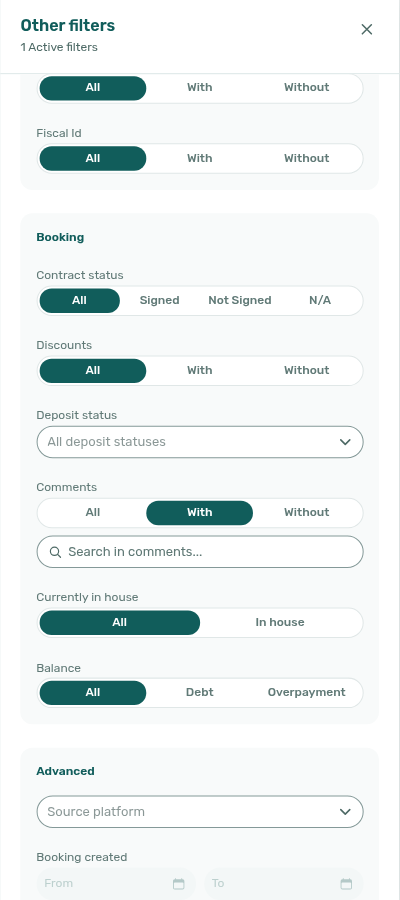
- Other items categories — multi-select of Others Items Categories used on extra charges for matching bookings (shown only when your account has at least one category configured)
Advanced
- Source platform — multi-select booking channel (same OTA names as platform cards and Finance Select platforms; channel-manager stays are Airbnb or Booking.com, not a separate row — Platform badge and filters follow the real OTA; see Glossary — Source platform)
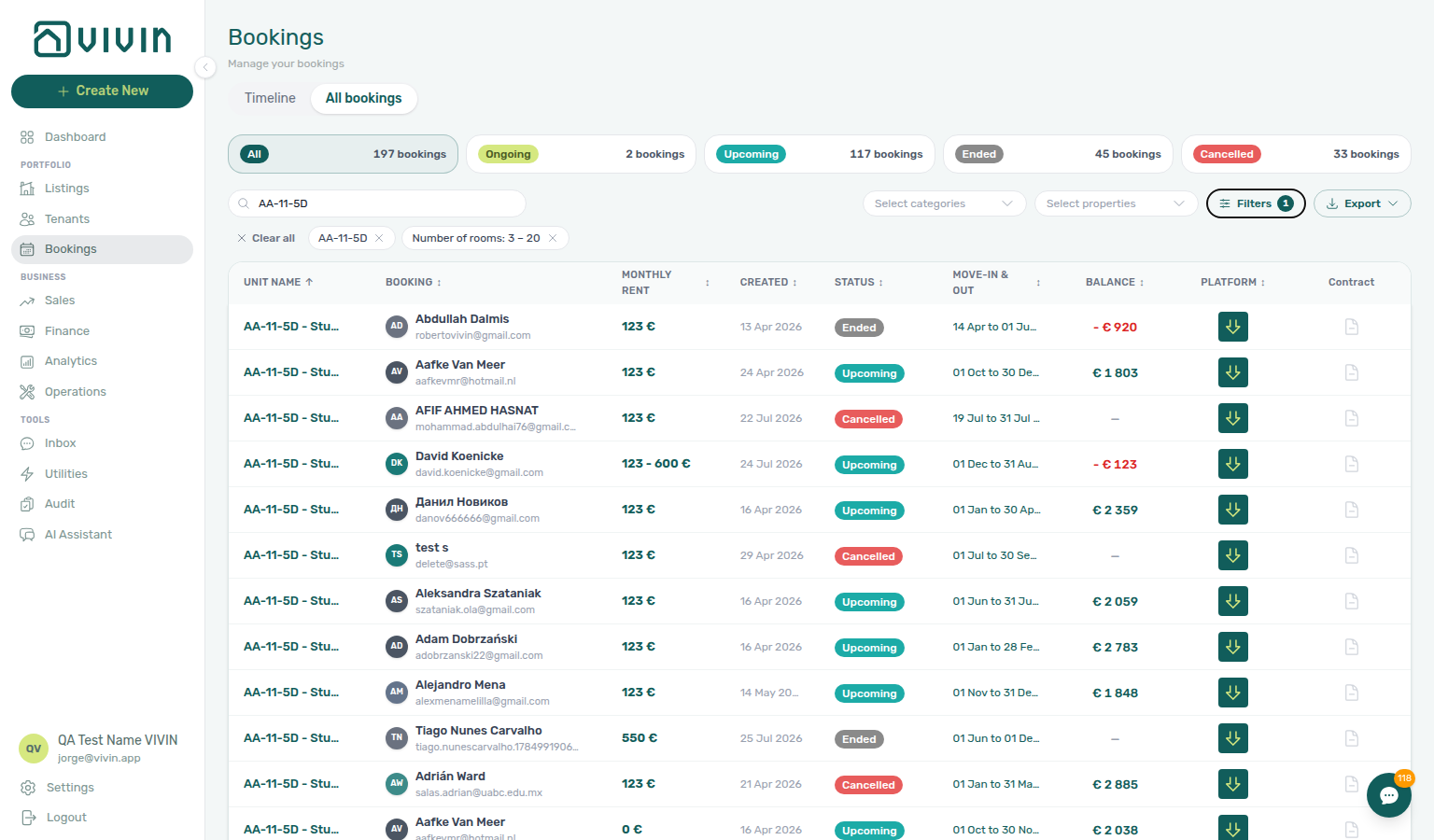
- Number of rooms — optional min / max integer fields on how many units (listings) are registered under each property. When set, a removable toolbar pill shows the range (for example
3 – 20). Vivin rejects min greater than max with an inline validation message (Min rooms must be less than or equal to max.). The filter is sent toGET /bookings/portfolioasminRooms/maxRoomsand applies to infinite scroll and Export — useful for triaging coliving buildings vs single-unit properties. The same min / max meaning appears as a toolbar popover on Sales → Multicalendar / Pricing.
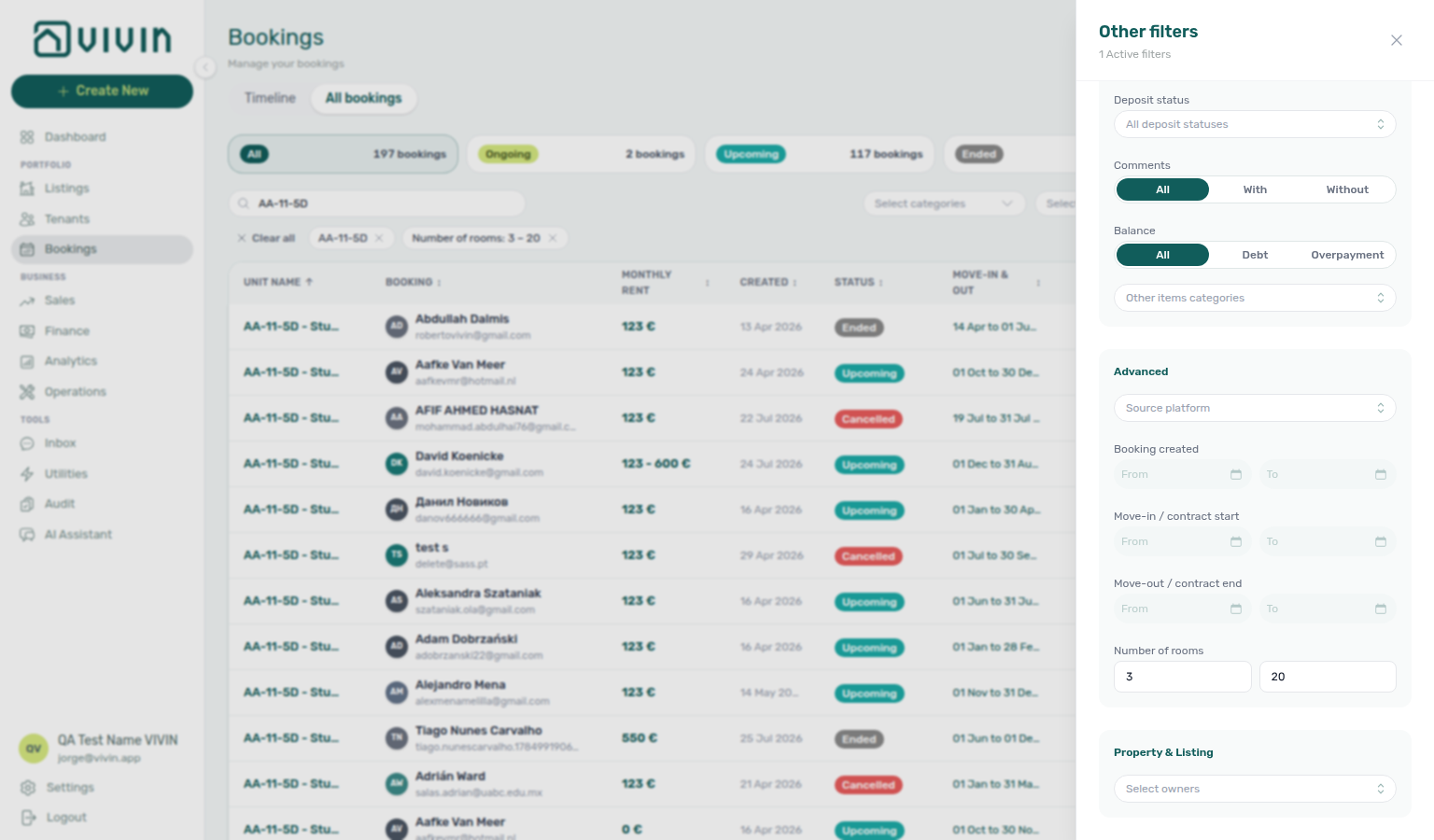
- Booking created — From / To on the booking creation date
- Move-in / contract start (or Contract start when the account uses contract dates) — date range on move-in or contract start
- Move-out / contract end (or Contract end when the account uses contract dates) — date range on move-out or contract end
Each From / To field opens a calendar-only date picker (no free-typed dates in this dense drawer). The calendar is portalled to the page so the drawer’s scroll container cannot clip it, and it flips above the field when there is not enough room below — so the full month grid stays inside the browser viewport even on the lowest Advanced rows. The same portalled placement applies to other filter drawers that use this control (for example Operations → Other filters From / To).
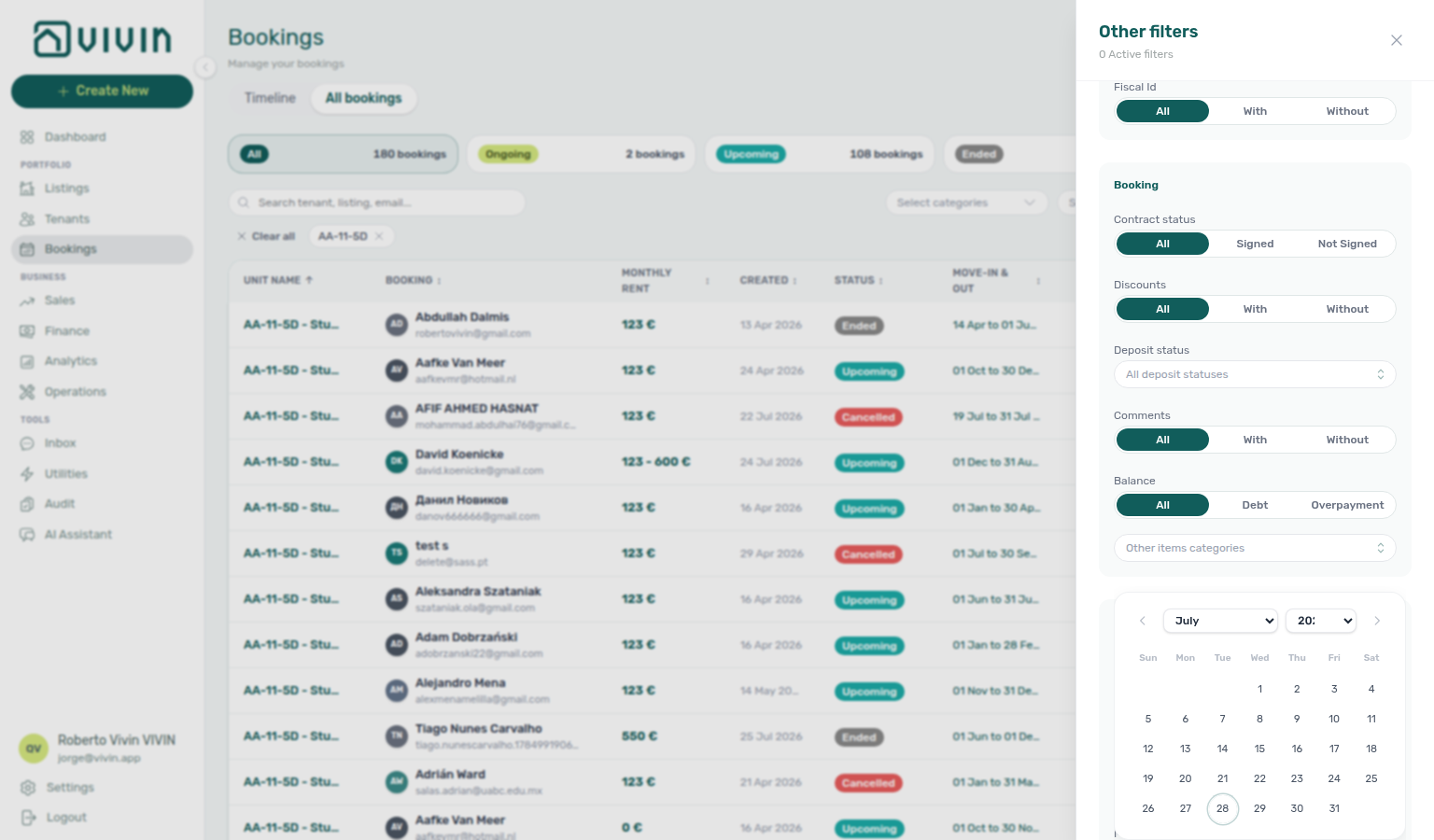
Property & Listing
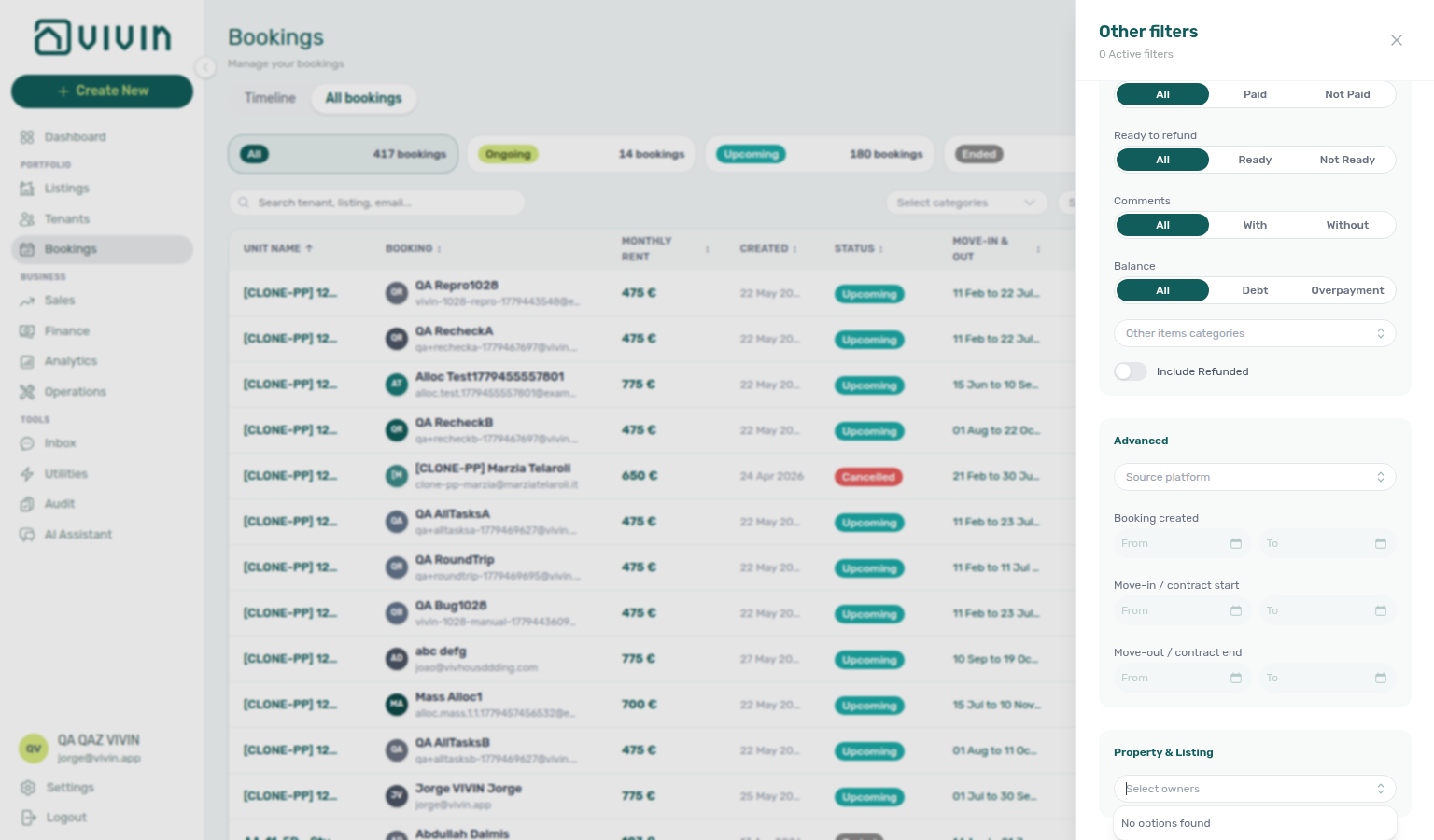
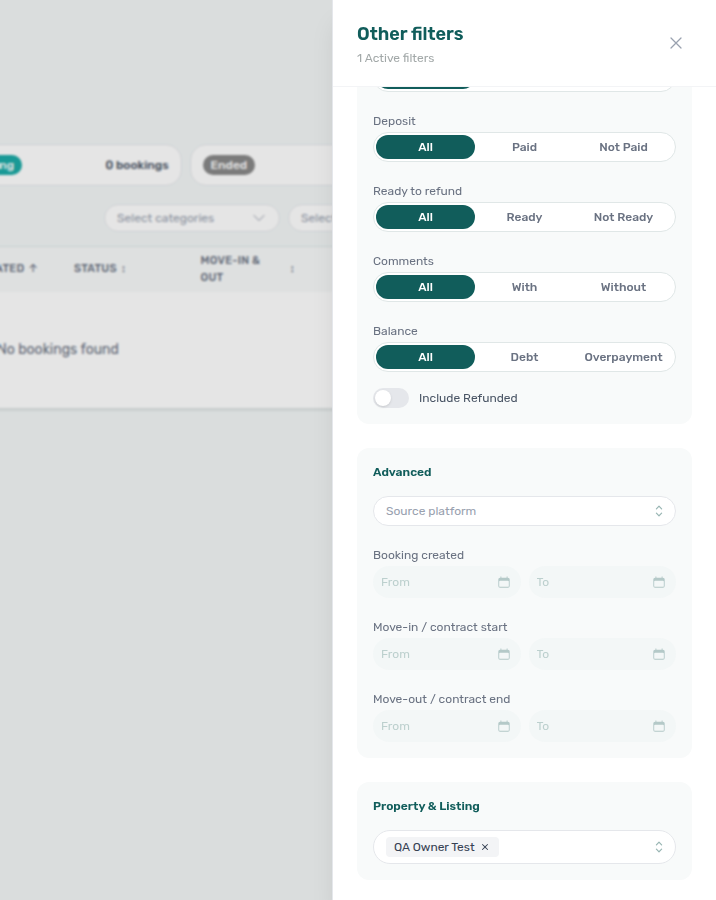
- Select owners — multi-select property owners (from the portfolio filter catalog in
meta.filterOptions.owners) to limit bookings to listings tied to those owners. The catalog is account-wide — it is not recomputed from only the rows already loaded in the table. Owner names match registered property owners. Combine with toolbar Select properties or drawer date ranges as needed. Finance uses the same owner vocabulary but narrows the Property picker server-side when owners are selected first — see Finance → Other filters → Select owners.
On the default Unit Name sort, Select owners can show No options found even when Settings → Owners lists owners on your account. The portfolio response on that sort path does not always populate meta.filterOptions.owners (the dedicated catalog at GET /bookings/portfolio/filter-options still returns the full owner list). Workaround: click the Created column header once, or pick Creation Date from Sort By, then reopen Other filters — the owner multi-select should list every registered owner. You can switch back to Unit Name after selecting owners; the filter stays applied.
Deposit status filter updates while you work
When Other filters → Deposit status is set, changing the lifecycle on the booking Deposit tab already updates All bookings. You do not re-open Filters or reload the page.
Typical path: filter Fully paid, open a stay, turn on Ready To Refund, then close the sidebar. That row leaves the Fully paid list. Switch Deposit status to Ready to refund when you want the operations-ready queue.
The same list update applies after Mark as Disputed, Resolve Dispute, Mark refunded, Revert refund, or Transfer on that tab.
This is the Bookings list. Finance → Deposits is a separate queue — after Mark refunded (or a dispute / transfer / revert) that tab already matches too; see Finance Deposits updates from this tab. Ready To Refund is the operations hand-off for this Bookings filter; it does not record the bank return.
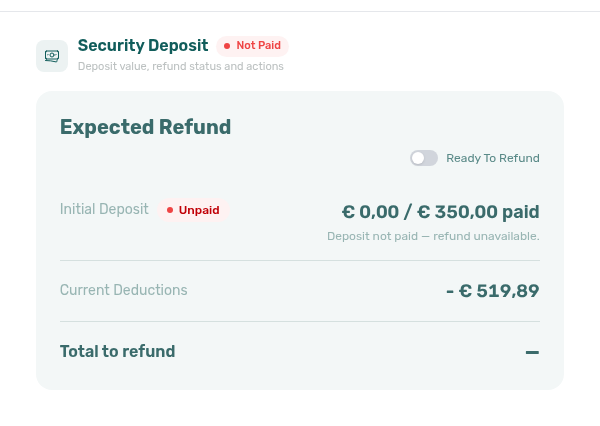
See FAQ — Does Ready To Refund leave the booking on Fully paid? and Managing a Check-out — Step 5.
Exporting the list (CSV or Excel)
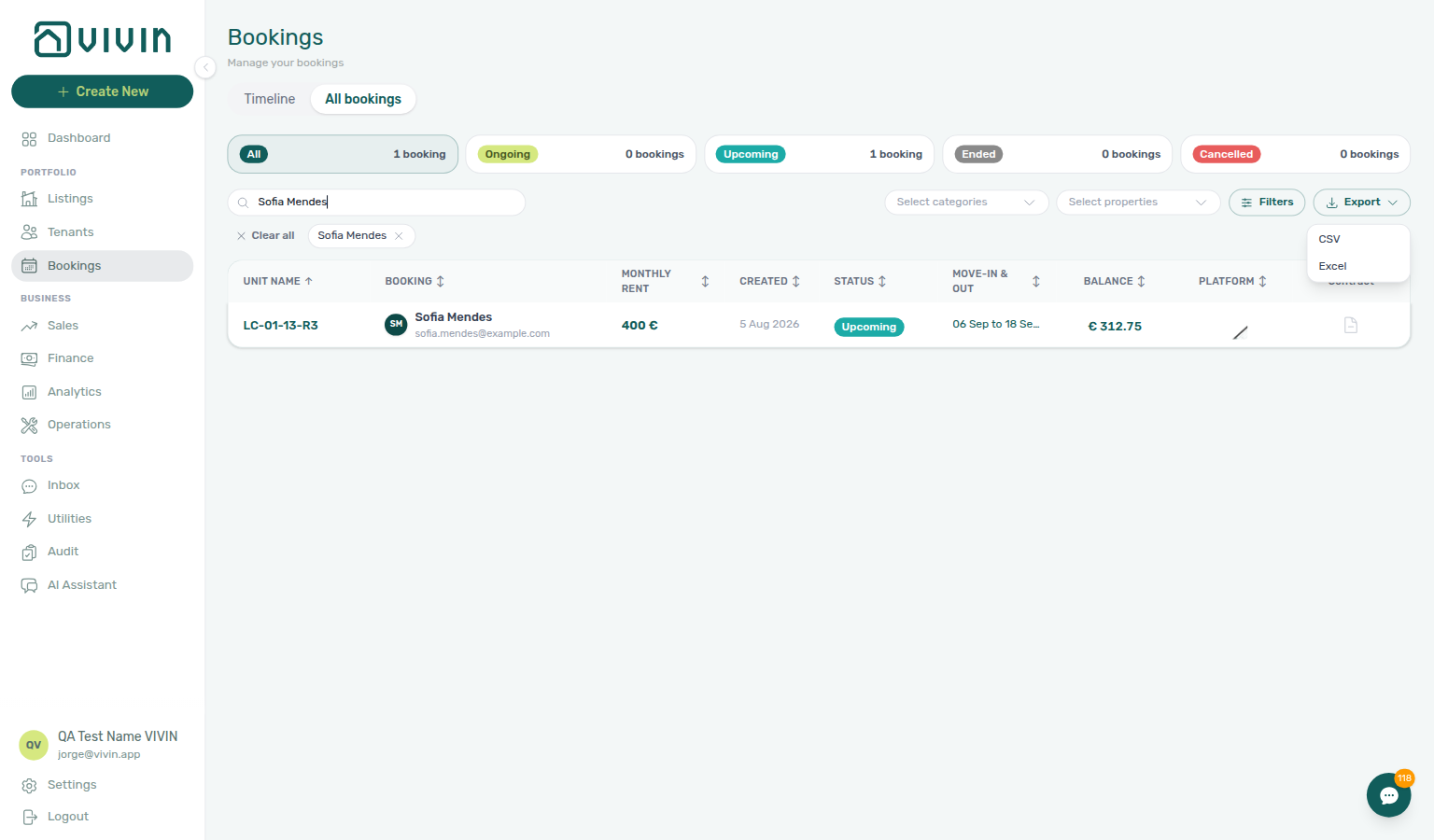
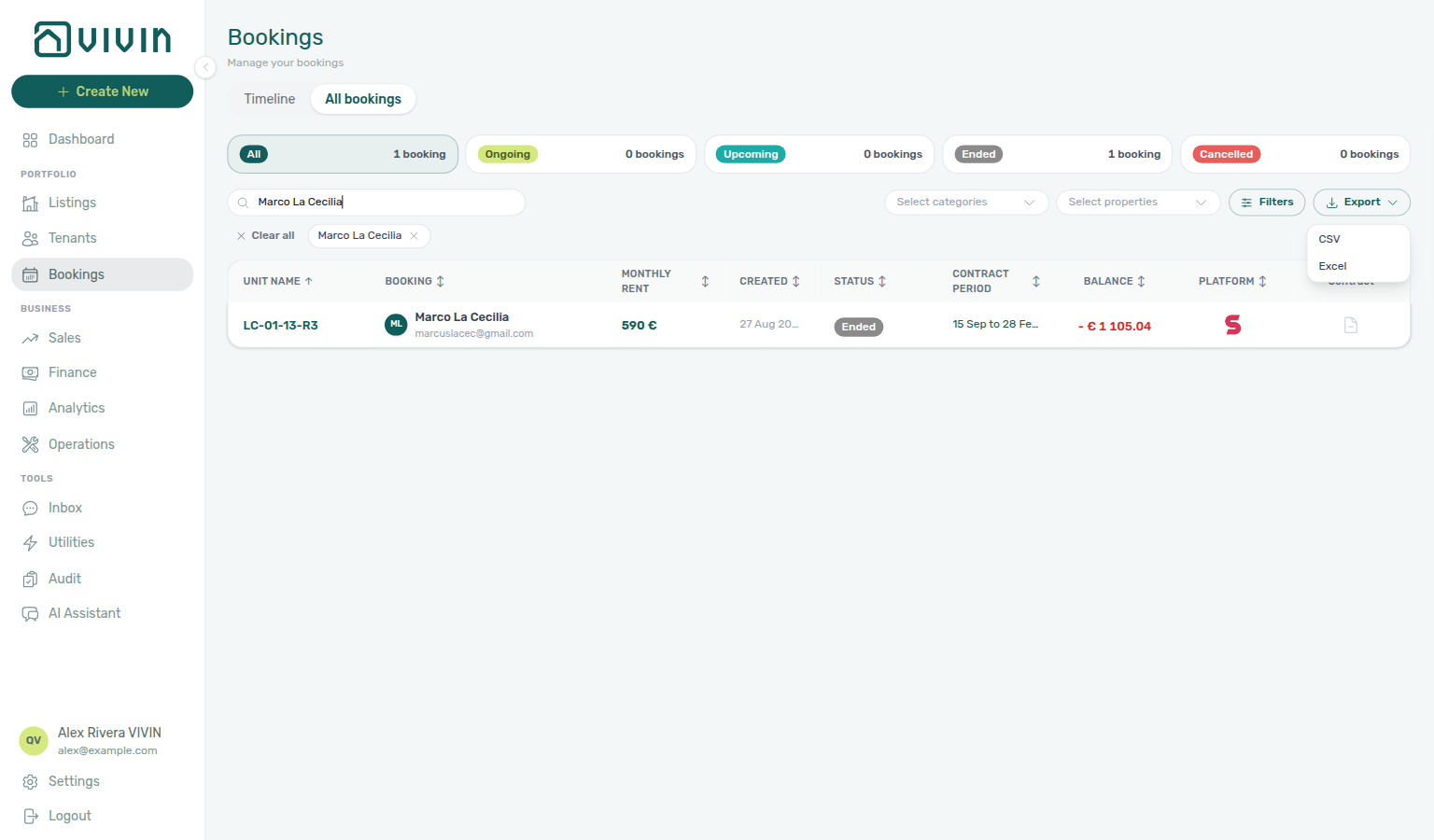
On the list view (not Timeline), the toolbar includes an Export control next to Filters. Open it to download every booking that matches your current filters (search, status cards, platform cards, Other filters, and Sort By) — Vivin fetches the full filtered portfolio for the export even when the table has only loaded the first chunks. Narrow filters first when you need a smaller spreadsheet; you do not need to scroll the list to the end before exporting.
| Format | File name pattern | Notes |
|---|---|---|
| CSV | vivin-bookings-YYYY-MM-DD.csv | UTF-8 with BOM for Excel compatibility |
| Excel | vivin-bookings-YYYY-MM-DD.xlsx | Single Bookings worksheet |
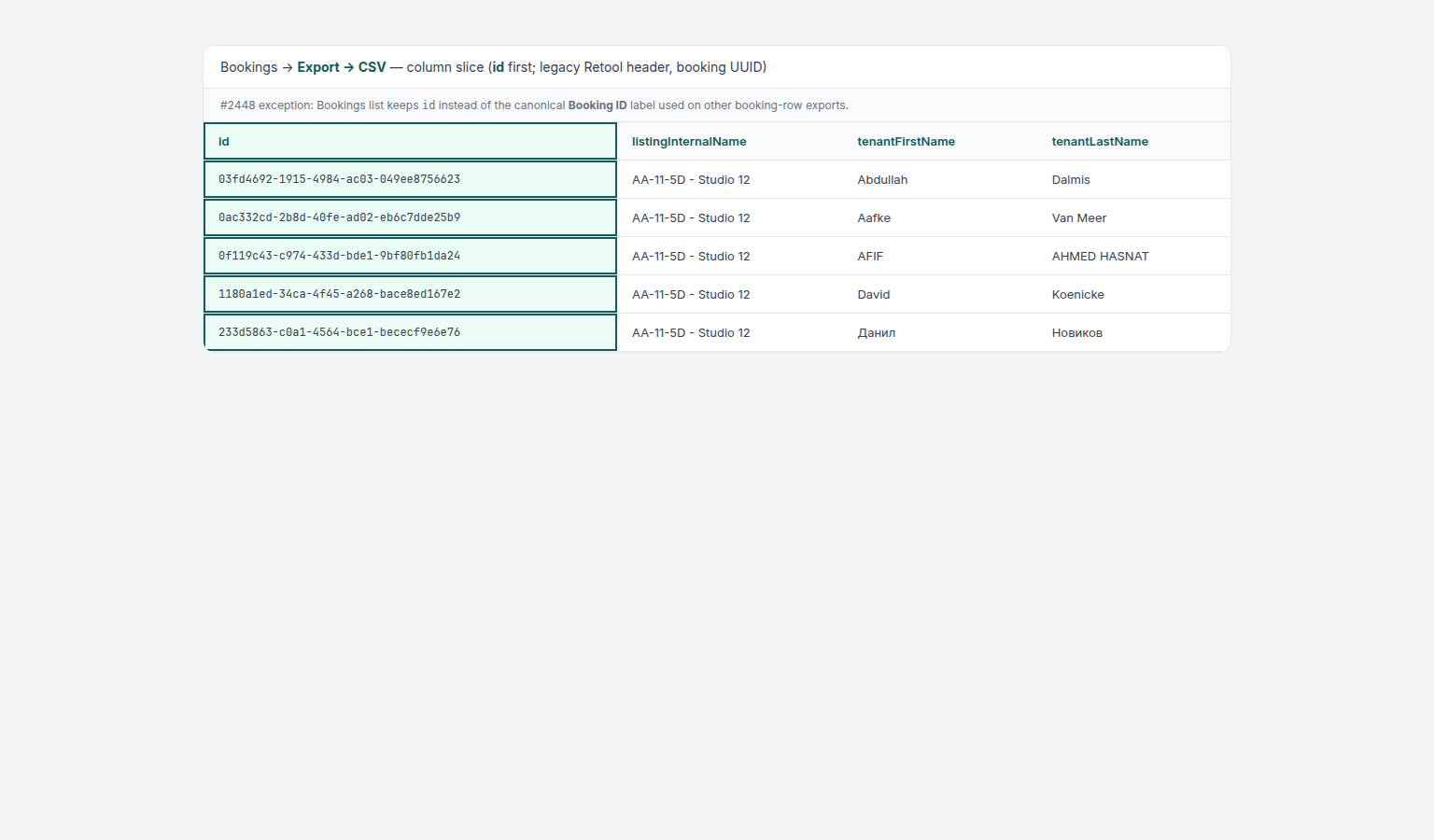
Columns mirror the wide management export used for operational reporting (tenant and listing identifiers, contract and move dates, balances, deposit and fee fields, integration source, tags, comments, and JSON-stringified nested objects such as tenant and listing where the row carries rich data). The flat tenantCategory column carries the tenant segment name from Tenant Info (empty when the tenant has no category) — pair with toolbar Tenant categories before export when you need a segment-scoped spreadsheet. Use Export after you set toolbar filters, Other filters, or search so finance and collections teams receive the same subset they reviewed in the UI.
The first column is id — the Vivin booking UUID. Other booking-row exports use the canonical Booking ID header for the same value; only the Bookings list export keeps the shorter id label. The value is the same UUID you deep-link with (/bookings/list/<bookingId>). Pair with FAQ — Which exports include a Booking ID column?.
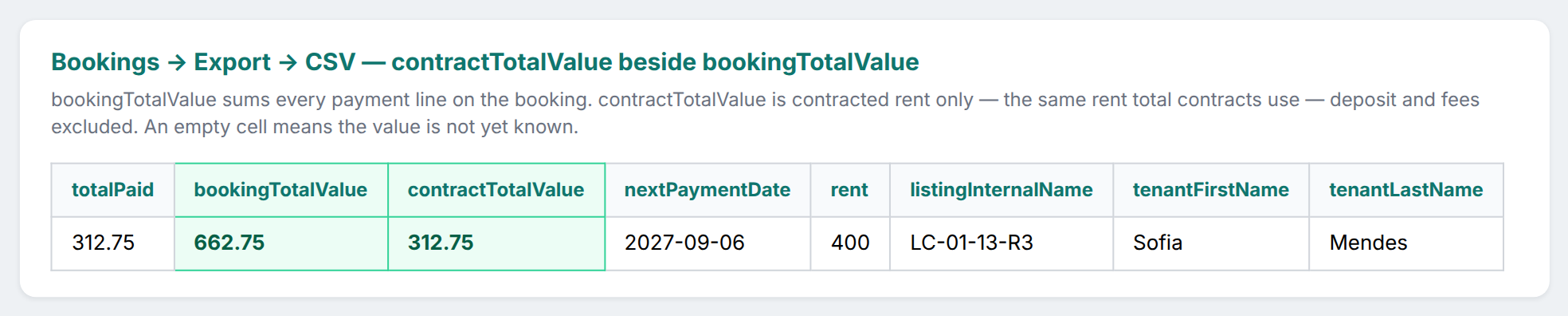
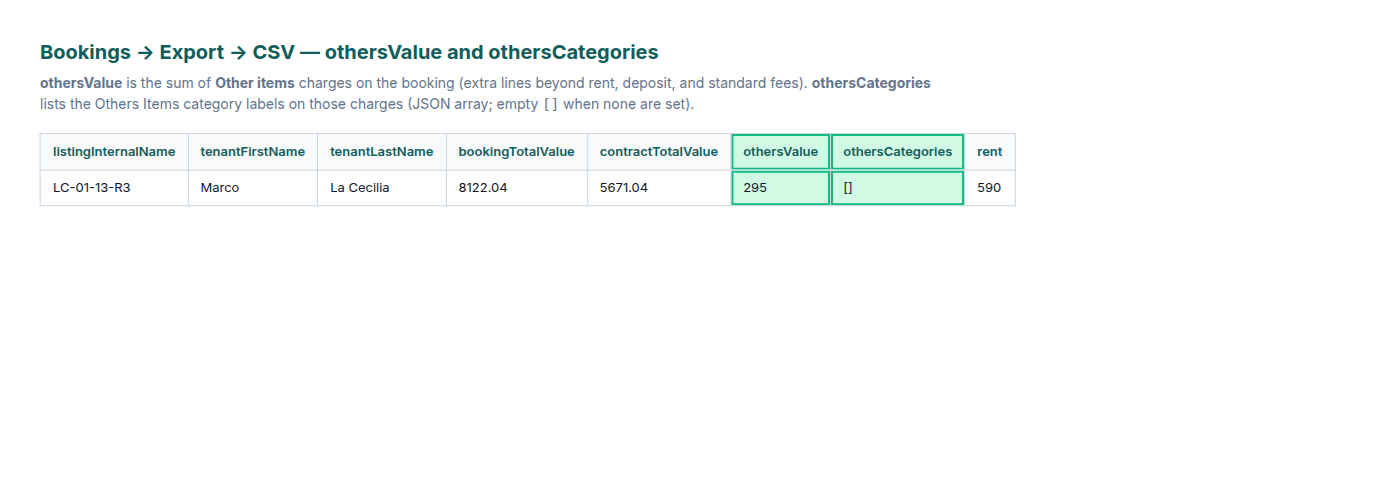
Two neighbouring value columns answer different questions — do not treat them as interchangeable:
| Column | What it measures | Typical use |
|---|---|---|
bookingTotalValue | Sum of every payment line on the booking (rent, deposit, fees, and other charges — net of discounts on those lines). | Portfolio totals that should match the full charge schedule, not rent alone. |
contractTotalValue | Contracted rent only across the whole stay (proration, first/last-month splits, and dual-pricing rent included; deposit and fees excluded). Empty when not yet known. | Owner rent reporting and joining to the contract {ContractTotalValue} token — see Contract templates — What the contract total means. |
othersValue | Sum of Other items (extra) charges on the booking — lines beyond rent, deposit, and the standard fee fields. Empty when there are no Other items. | Reconcile custom charges with Others Items Categories and Finance Others filters. |
othersCategories | JSON array of Others Items category labels used on those extra charges. Empty array ([]) when no categories are set. | Segment exports by charge category after you filter Other items categories in Other filters. |
Large portfolios can take longer to assemble. If the export does not download (network issue, timeout, or server error while building the full filtered file), Vivin shows a red inline alert under the toolbar with a clear localized operator message — narrow filters and try Export again, or retry when connectivity improves. Other directory modules use a toast for the same class of failure (also localized — not a raw timeout string). See Glossary — Export and download issues.
Export is available only on the table list view. Switch back from Timeline when you need a spreadsheet download.
The Timeline View
Timeline pairs with Sales — Multicalendar and Audit — Manual Blocks — reconcile suppressed nights with Manual block hygiene.
Click Timeline in the view toggle (upper right) to switch from the table list to a Gantt-style chart at /bookings/timeline. Each row is a unit (listing); coloured bars show bookings across time. The same search, property, Booking categories, Tenant categories, and Other filters toolbar as the list view still apply — the listing axis and bars refetch when you change tags, tenant segments, or property scope. Booking categories stays open while you add a second tag — see Booking categories stays open. Tenant categories stays open while you add a second segment — see Tenant categories stays open. To download CSV/Excel, switch to All bookings — Timeline keeps the same property chips so you can export that narrowed set from the list.
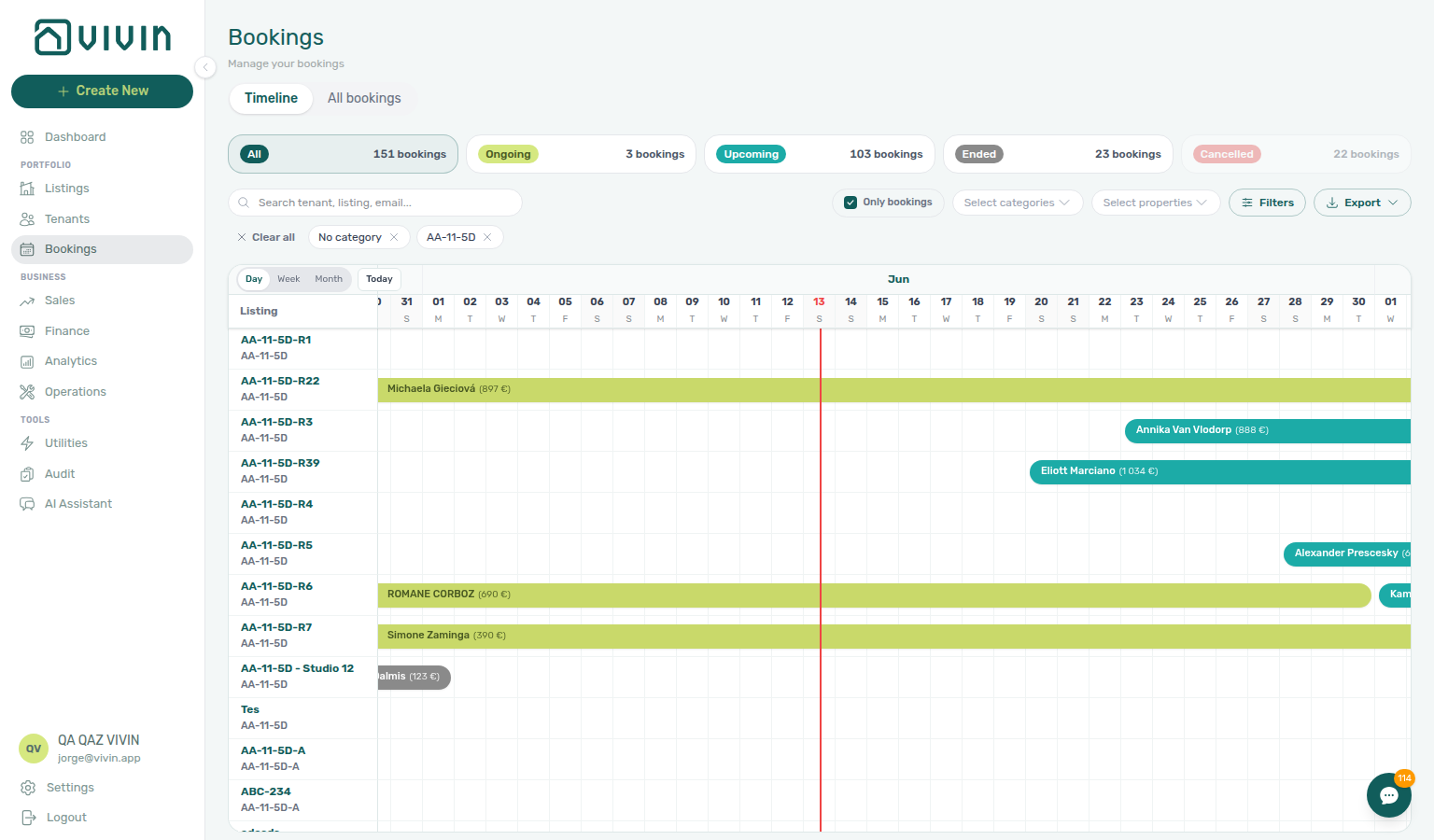
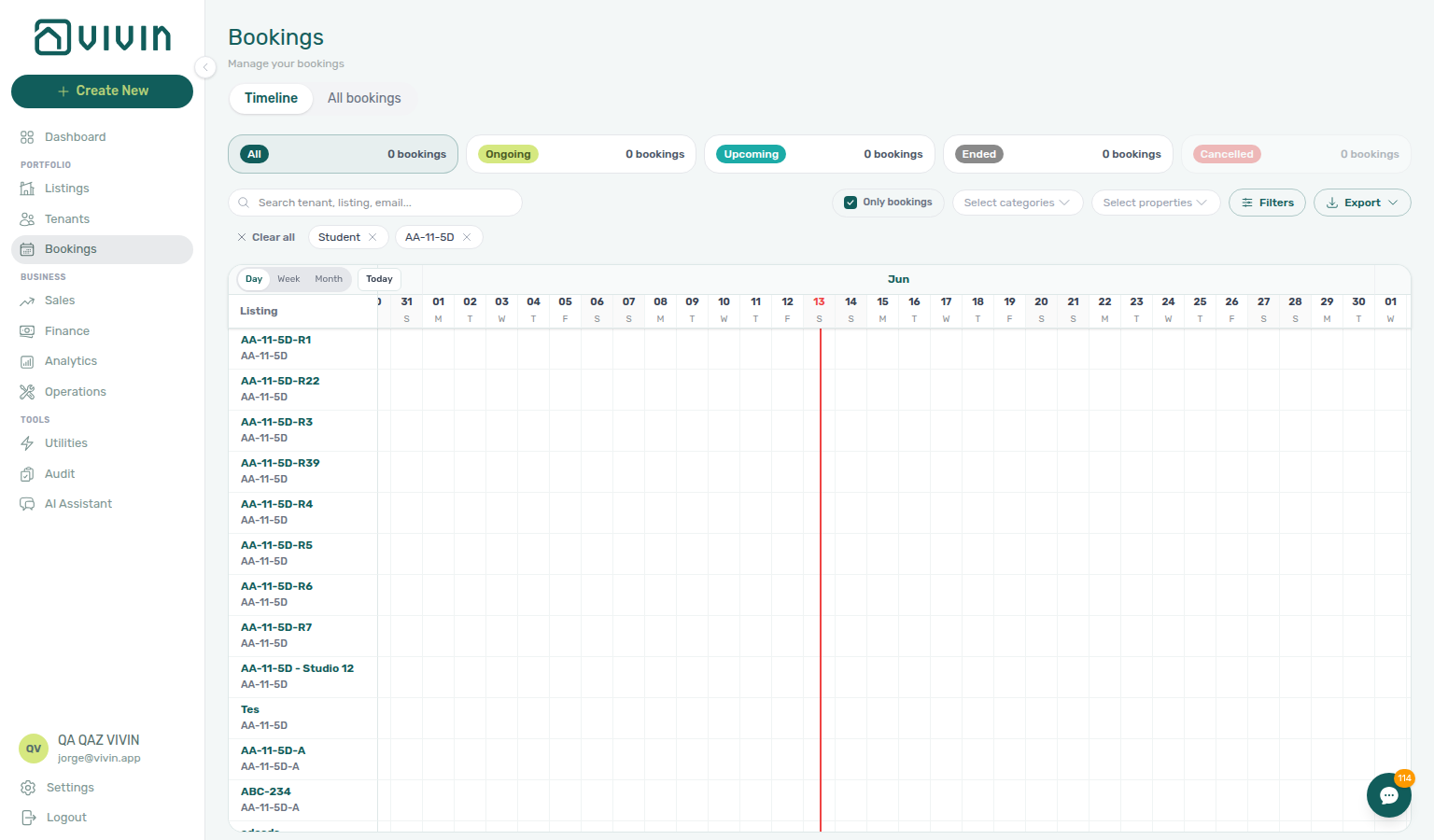
The chart’s horizontal range covers roughly six months in the past through eighteen months ahead (bookings and blocks outside that window are not drawn on the axis).
Loading listing rows (timeline view)
Timeline does not download every listing and booking in one request. Vivin loads in two coordinated steps:
- Listing axis (rows) — which units appear as rows for your current filters and date window.
- With Only bookings on: listings that have at least one non-cancelled booking overlapping the window (cancelled stays never draw as bars, so they are excluded from this booked axis).
- With Only bookings off (default): every in-scope listing, including vacant units with no reservation bars (
includeVacanton the server) — so the first view shows blocks and vacant units without clearing the pill.
- Booking bars — reservation spans for the listing ids already on the axis (fetched in server-sized chunks by
listingIds, not by re-sending property-name gates — so bars stay aligned when you change Select properties or when a property was renamed).
| Phase | Behaviour |
|---|---|
| First paint | Up to 50 listing rows for the active filters, search, status card (except Canceled — see below), platform cards, Sort By, and Other filters. |
| Initial wait | A full-chart skeleton (shimmer unit labels and placeholder bars) stays visible until both the first listing page and its booking bars have settled — avoids empty lanes while bars load. |
| Listing axis only | When booking bars for the first page have already painted but the listing column is still fetching the next server page, you may see shimmer rows on the left axis while real bars remain on the chart — distinct from the full-chart skeleton above. |
| Scroll down | When you scroll the timeline body near the bottom, the next chunk of listing rows loads automatically. A small spinner may appear at the bottom while the next page is in flight. |
| Done | Loading stops when every listing that matches the server-side filter for the window has been fetched. There is no End of list footer (same pattern as the list view). |
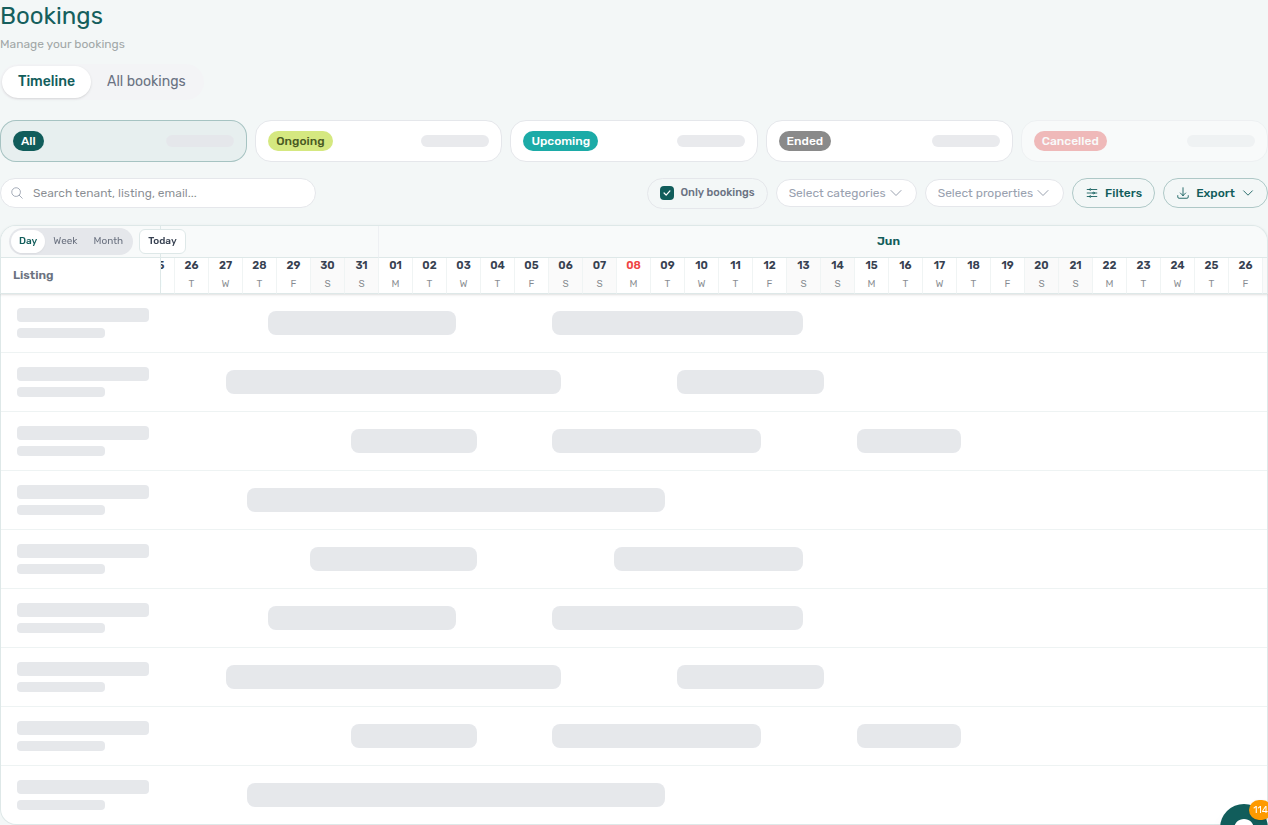
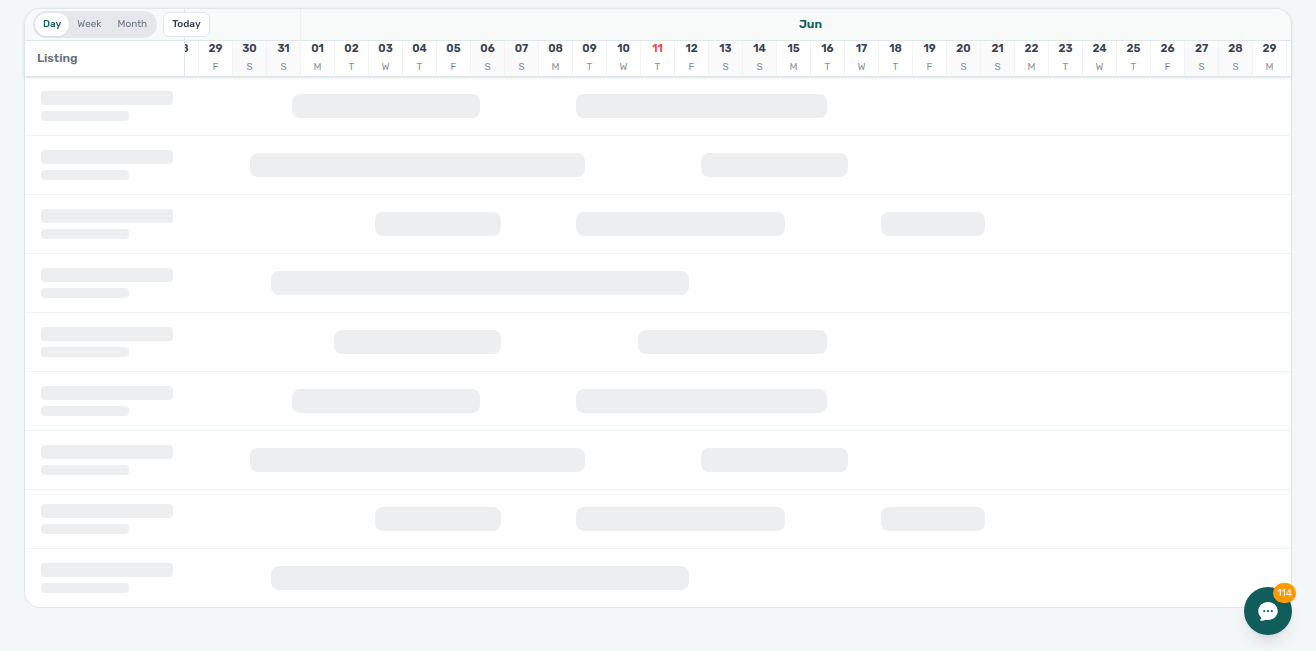

Timeline refresh
If the Timeline axis or bars look incomplete, use Retry on the panel (or reload the page). The list view uses a separate portfolio load.
Retry on Timeline is distinct from the list-view Retry and from filters that match zero bookings. See Glossary — Directory list refresh and Search with no matches.
After you save in the booking sidebar, the matching All bookings row and Timeline bar update in place — you do not need to reload. If the edit changes status (for example Upcoming to Ongoing), the status-card counts refresh so they stay aligned with the list. Create Booking, Delete Booking, and Cancel booking update the stay bars the same way when the unit is already on the chart — see Stay bars update after create or delete. When Only bookings is on (or Search / a booking filter hides vacant rooms), Timeline also re-reads the unit list so a newly booked room can join the chart — see Unit list updates after create or delete.
Stay bars update after create or delete
When Only bookings is off (the default), vacant rooms stay on the chart so a new stay can land on a row you already see. When Only bookings is on, the unit must join the list first — Unit list updates after create or delete. Distinct from Search with no matches (Retry does not restore a search that found nothing).
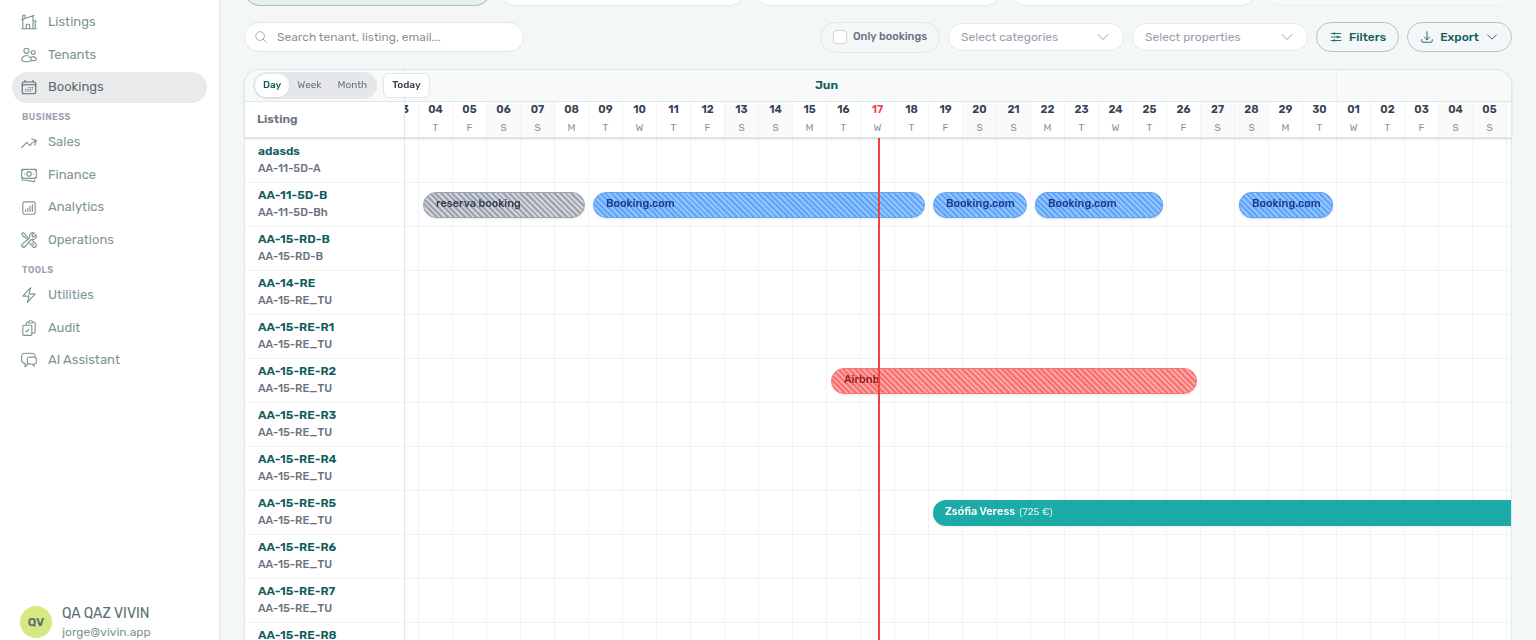
All bookings listed a new reservation immediately. Timeline draws that stay bar without a page reload when the unit row is already on the chart.
Typical path:
- Open Bookings → Timeline with Only bookings off so vacant rooms stay visible.
- Keep the unit in view (scroll the listing axis, or leave Search empty).
- Use + Create New → Booking and Create Booking (or Create N bookings for a multi-unit set).
- The stay bar appears on that unit. The month you scrolled to stays put — the chart does not jump back to today.
Delete Booking (soft-archive) and Cancel booking (canceled stays are never drawn) remove the bar the same way. You can keep working down the Gantt.
See FAQ — Do I need to reload Timeline after Create Booking? and Creating a New Booking.
Unit list updates after create or delete
This is the left-hand unit list, not the coloured stay bar. Bars still need a row to draw on — Stay bars update after create or delete. Retry is only when Timeline could not load (that path starts from the first page of units).
When Only bookings is on, Timeline lists only units that already have a stay in the visible window. Creating a booking on a room that was vacant used to leave that room off the list until you reloaded. Timeline now re-reads the unit list in place after Create Booking, Delete Booking, or Cancel booking:
- A newly booked unit joins the list, then the stay bar can draw.
- A unit whose last stay in the window you deleted or cancelled leaves the list.
- The month you scrolled to stays put. The list does not jump back to the first 50 rows.
The same in-place list refresh runs when Search or a booking-attribute filter (status, tags, tenant category, and similar) is hiding vacant rooms — those views also build the list from bookings.
If you are on All bookings when you create or delete, switching back to Timeline already rebuilds the unit list.
Typical path:
- Open Bookings → Timeline with Only bookings on.
- Keep the month you care about in view.
- Create Booking for a room that had no stay in that window.
- That unit row appears and the stay bar draws on it. You do not reload.
See FAQ — Do I need to reload Timeline after Create Booking? and Glossary — Timeline unit list.
Search with no matches
Toolbar Search is the same control on Timeline and All bookings. After you pause typing (at least two characters), Timeline replaces the listing axis for the new query so units and bars from the previous search do not linger.
When nothing matches:
- Status cards show 0 bookings
- The Listing column is empty
- The date header (Day / Week / Month) stays, so you can tell you are still on Timeline
- The chart shows No bookings found — the same wording as the All bookings table
Widen the term, or click Clear all / the search chip, to bring units back. Retry on the chart is only for when Timeline could not load — not for a search that simply found no stays.
Day, Week, and Month scales
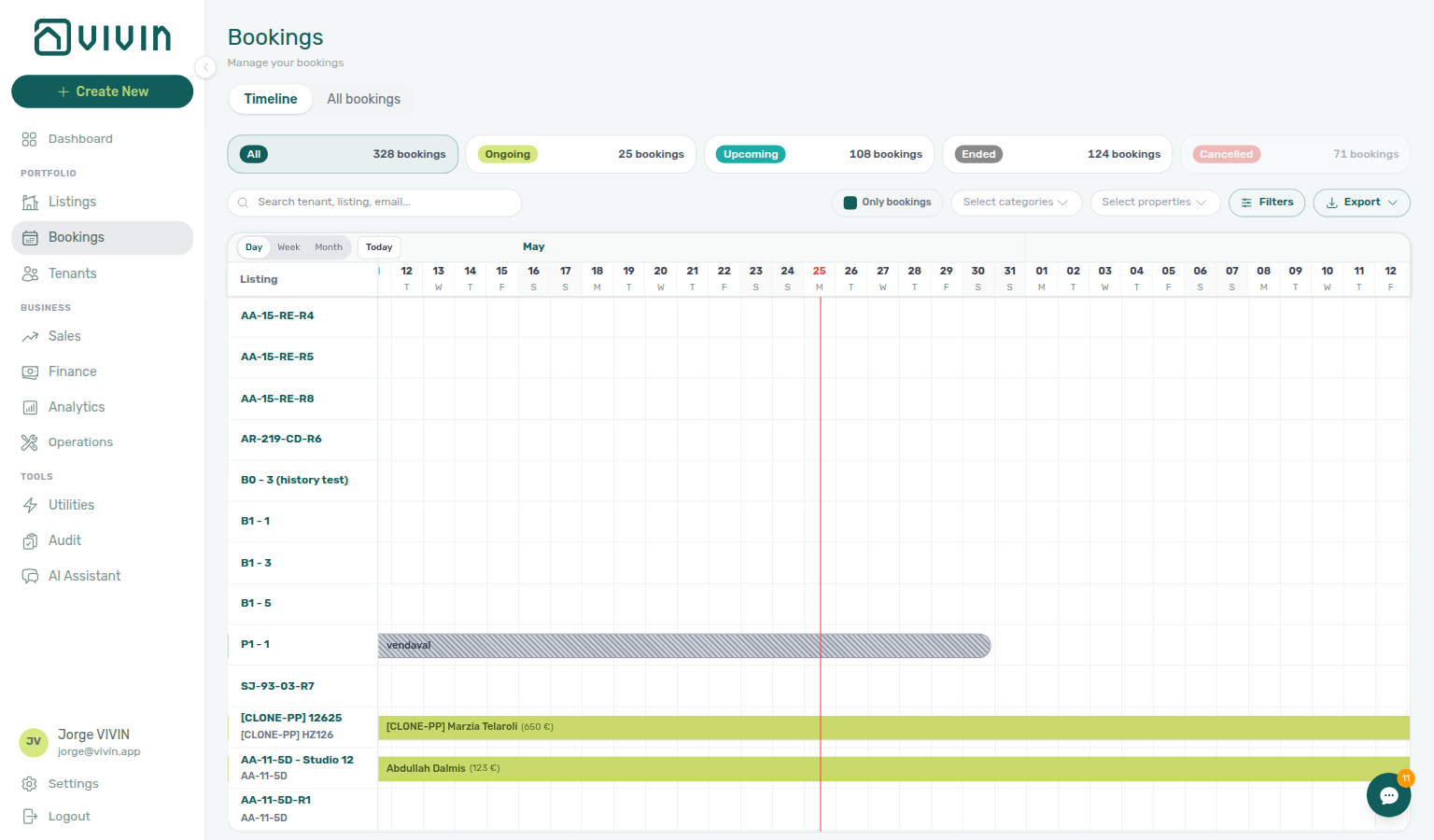
Above the date axis, use Day, Week, or Month to change how time is bucketed:
| Control | What you see |
|---|---|
| Day | One column per calendar day (default); best for turnover planning in the next few weeks. |
| Week | One column per ISO week; useful for medium-range occupancy. |
| Month | One column per calendar month; best for long-range portfolio scans. |
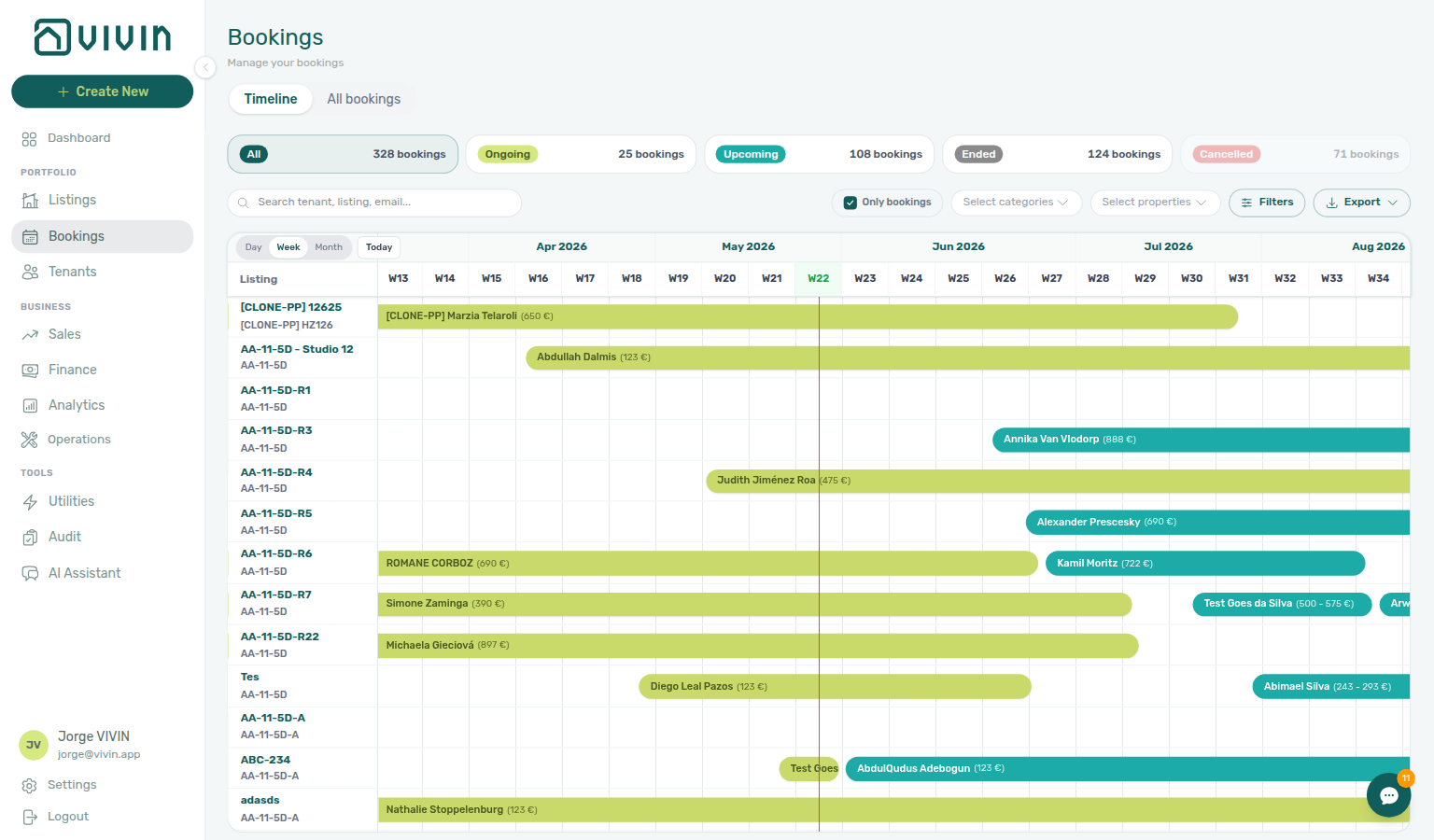
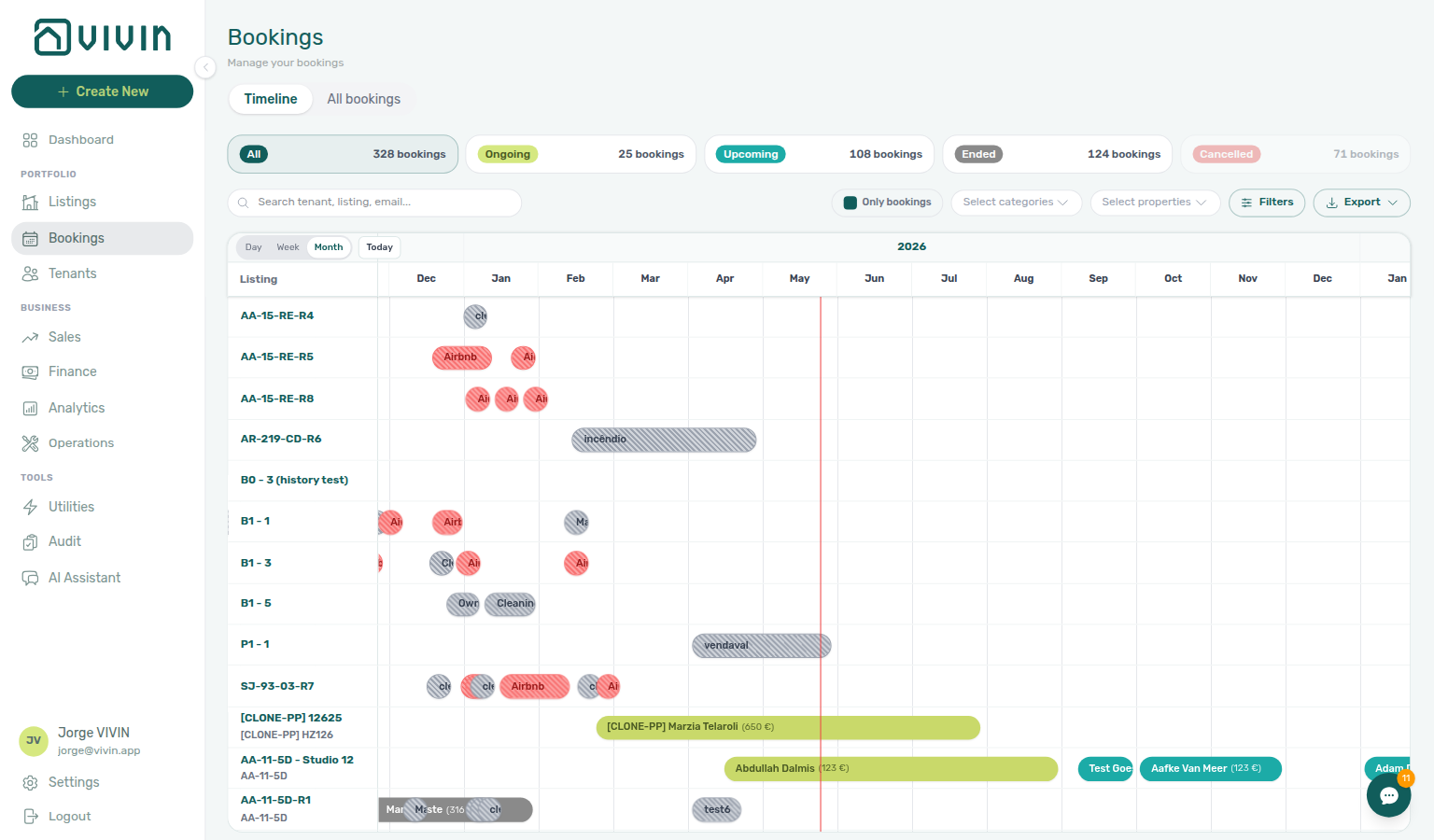
A vertical today marker separates past from future on each scale. Scroll the chart body horizontally; the date header stays aligned with the grid.
Bookings vs manual and channel blocks
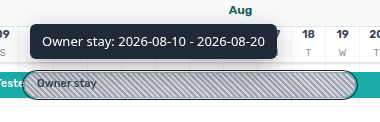
Only bookings (toolbar toggle, timeline-only) defaults off: the first Timeline view already loads unavailability blocks (manual blocks, Airbnb/Booking.com calendar holds, and similar) alongside stay bars — styled separately (for example dashed Airbnb block / Booking.com block / Owner stay labels). Turn Only bookings on when you want reservation bars only. For a portfolio-wide table of operator manual holds (filter, export, column sort), use Tools → Audit or the Manual block hygiene workflow — Timeline is for visual context on one Gantt, not bulk triage.
Hover a block bar to read its label and date range. The tooltip end date is the day the unit is free again (checkout convention) — matching booking bars on this chart and the unit Calendar in Listings — not the last blocked night alone. Bar geometry still covers blocked nights only. Sales Multicalendar uses the same free-again tip: Sales → Multicalendar (sales-multicalendar-block-free-again-tooltip.png).
The Canceled status card is disabled on Timeline because canceled reservations are never drawn on the chart — the booked listing axis also excludes them, so a unit whose only stays in the window are cancelled does not appear as an empty row in Only bookings mode. Use the list view or remove other filters and open the booking from search when you need a canceled record.
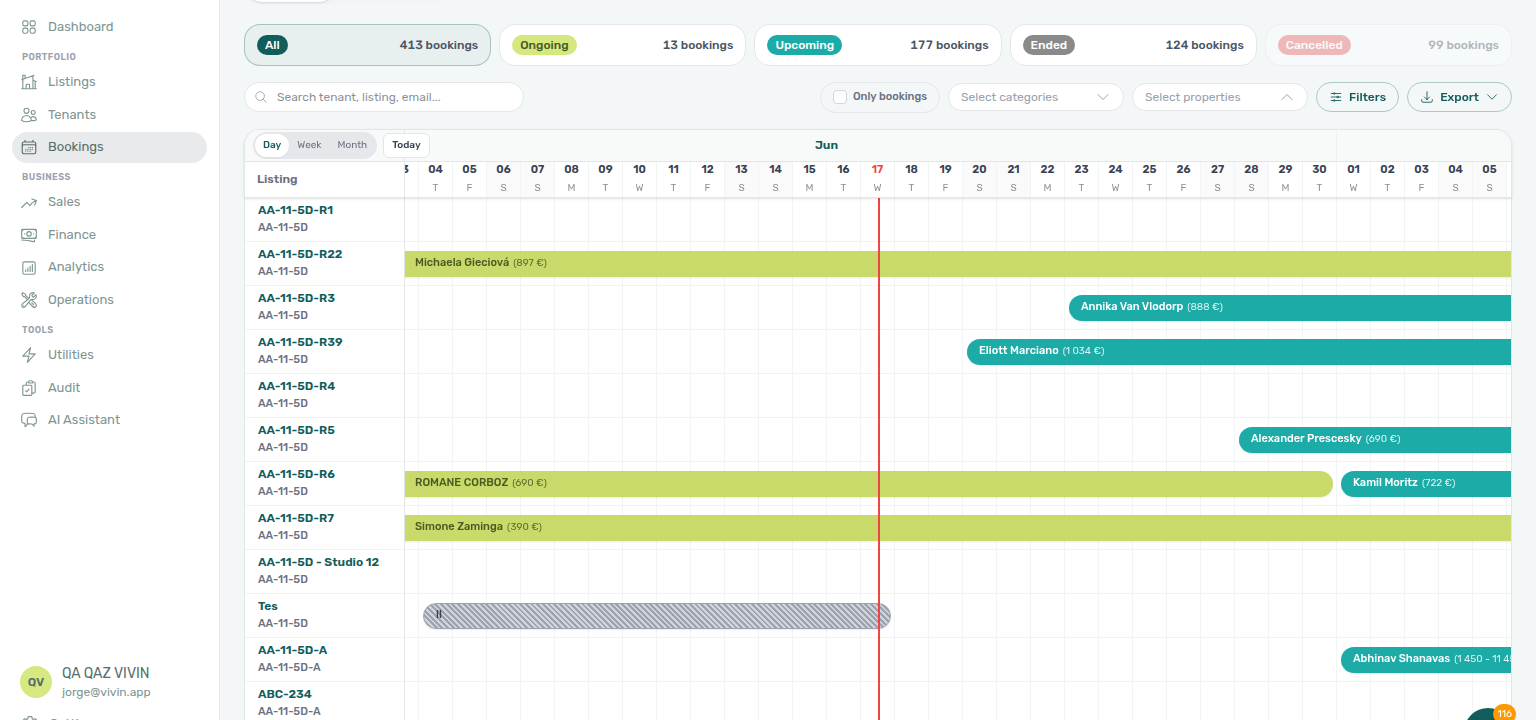
Select properties on Timeline uses the same name-based chips as the list view and constrains the listing axis server-side. Changing property scope refetches rows and bars together (the chart no longer freezes on the skeleton when you narrow properties mid-load). With Only bookings off, the property dropdown widens to every visible (non-archived) property so you can scope to buildings whose units are entirely vacant — switching to the Timeline tab alone does not change dropdown options; only clearing Only bookings does.
Select properties stays open while you pick
The same Select properties control sits on All bookings and Timeline. On Timeline, each tick also refetches the listing axis — see Property filter and vacant units.
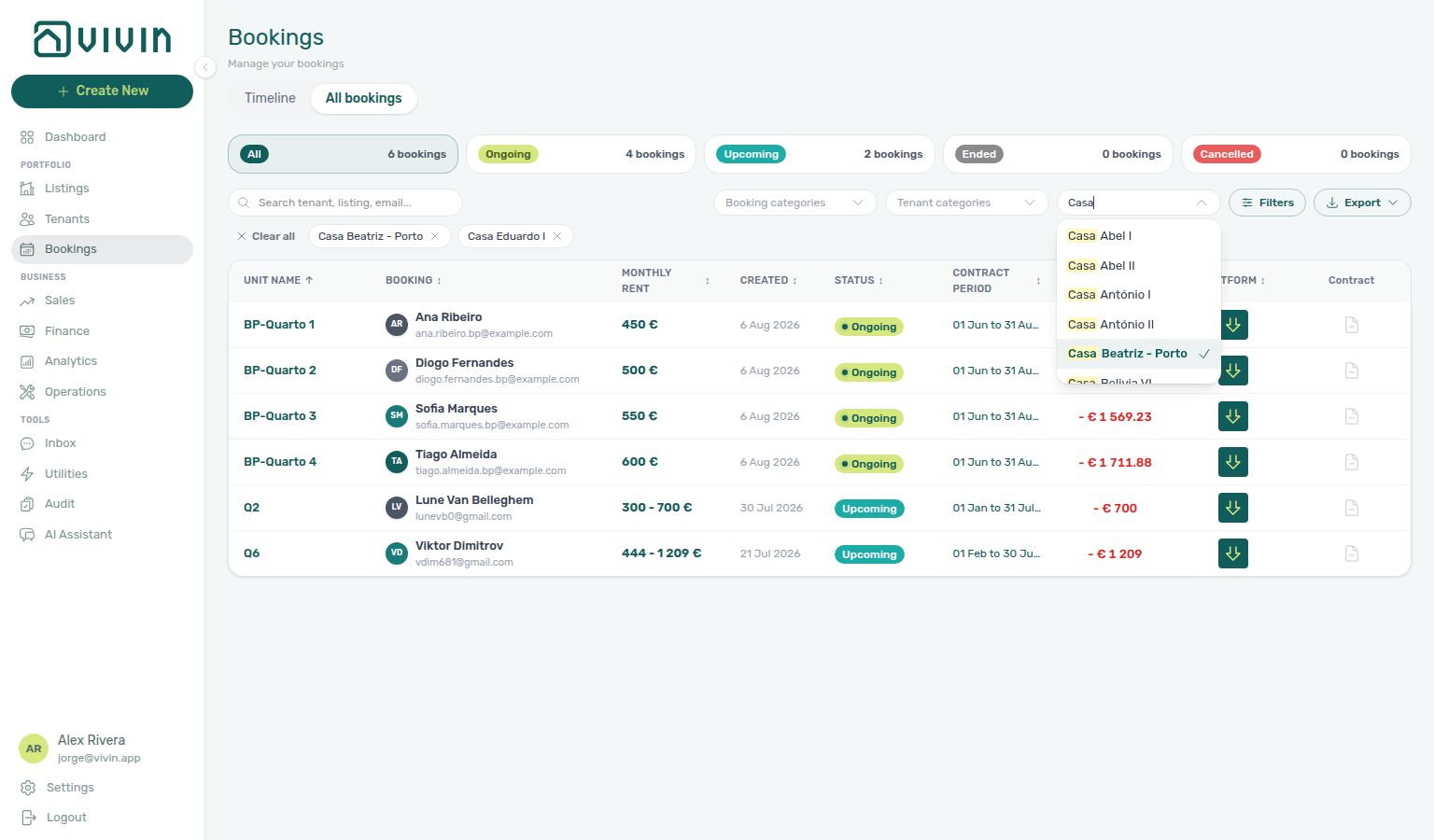
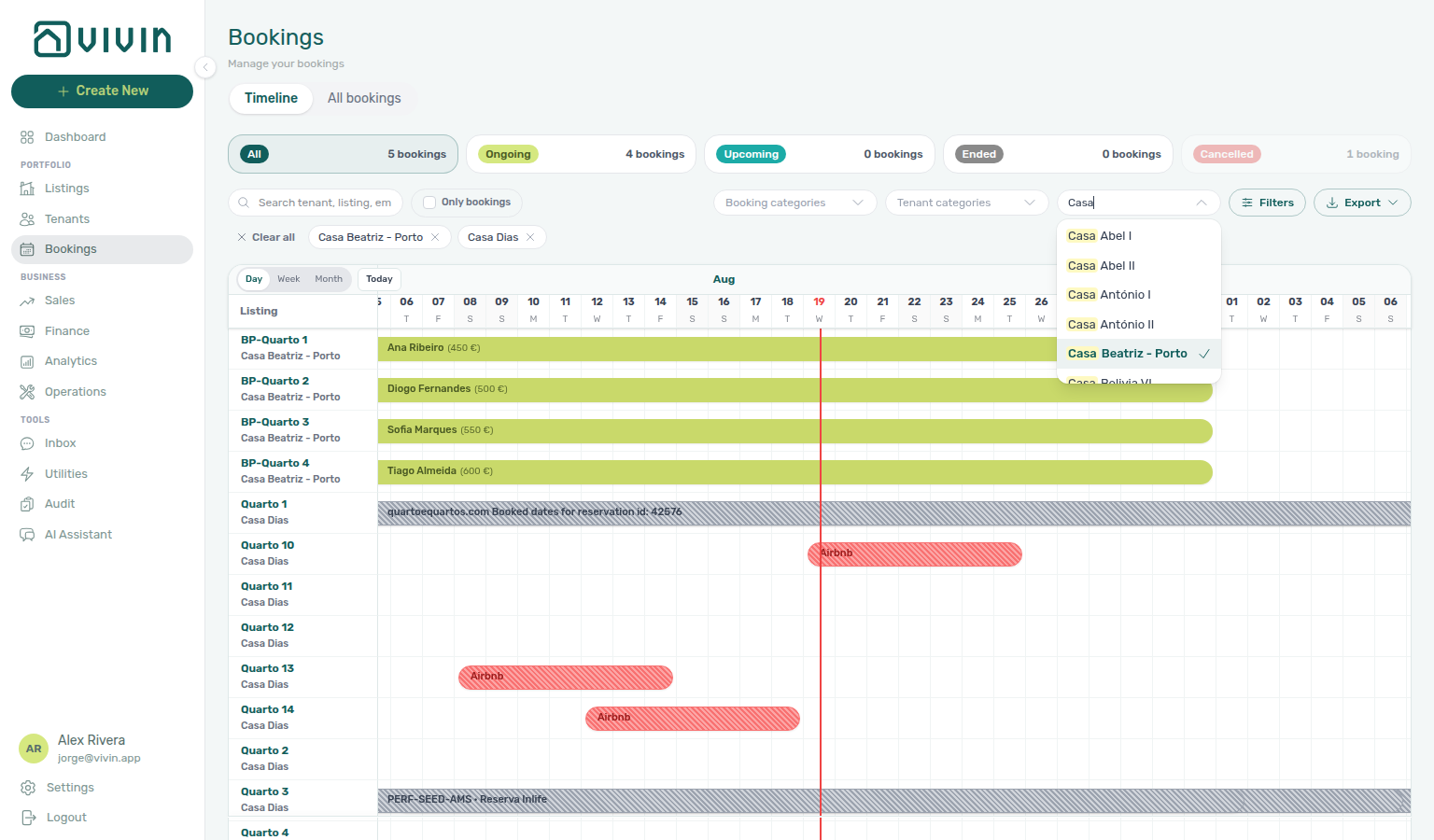
Open Select properties, type a fragment of the building name (for example Casa), and tick the first house. The table or Gantt redraws to that property; the menu stays open and keeps what you typed.
Tick a second house without closing the menu. Chips under the toolbar show both buildings. Dismiss the menu when the list or axis looks right — click outside it, or click the control again.
You do not need to reopen Select properties or retype the filter between picks. That matters on All bookings (the table refetches after each tick) and on Timeline (the chart recentres after each change).
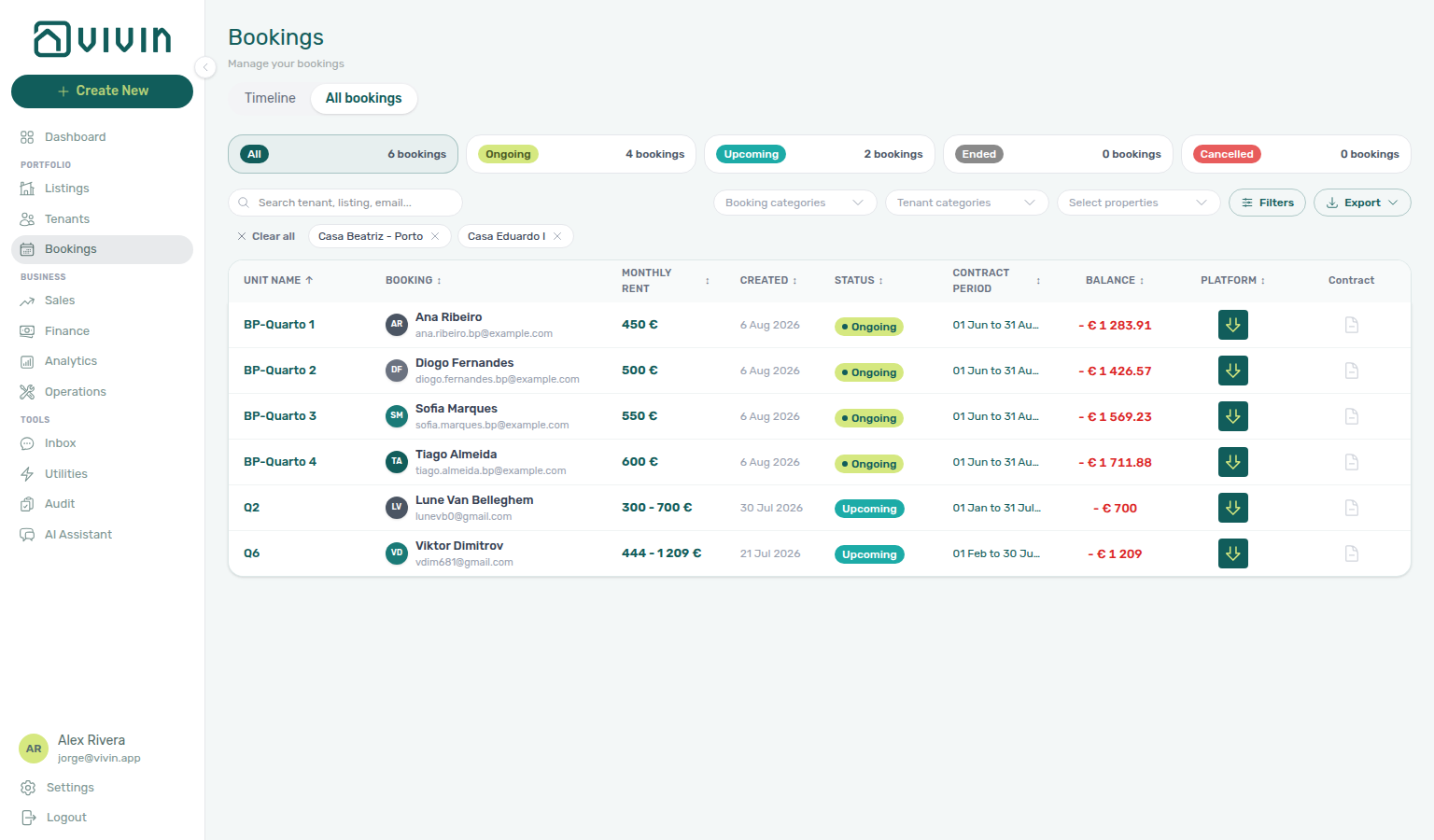
All bookings — type Casa, tick Casa Beatriz - Porto, then tick Casa Eduardo I. The menu stays open while the table updates; chips under the toolbar show both houses.
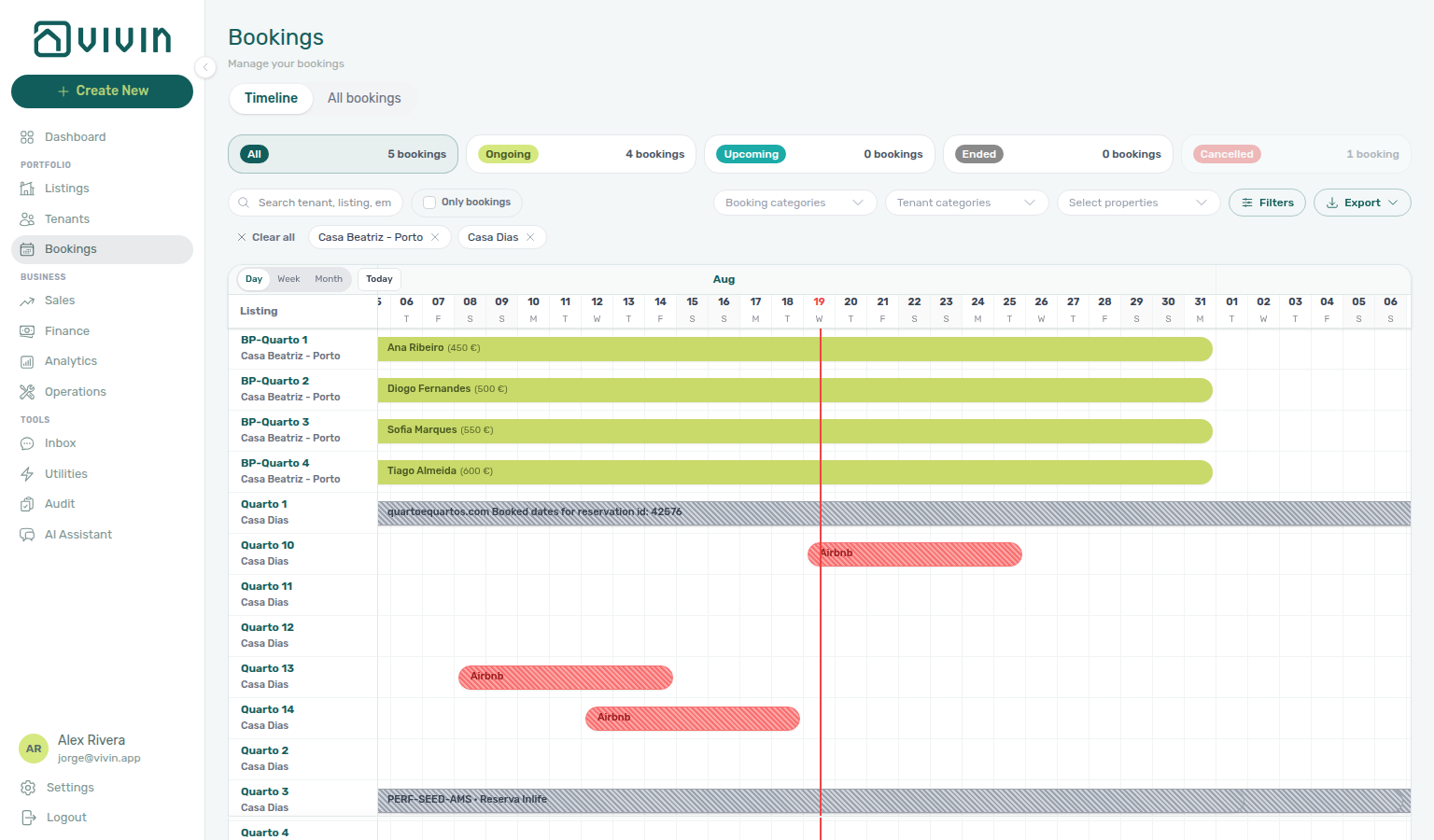
Timeline — type Casa, tick Casa Beatriz - Porto, then tick Casa Dias. The menu stays open while the Gantt refreshes.
Open a booking from the chart
Click an ongoing or upcoming booking bar (green or teal styling) to open the same Booking detail sidebar as on the list. The URL updates to /bookings/timeline/<bookingId> so you can bookmark or share that timeline context.
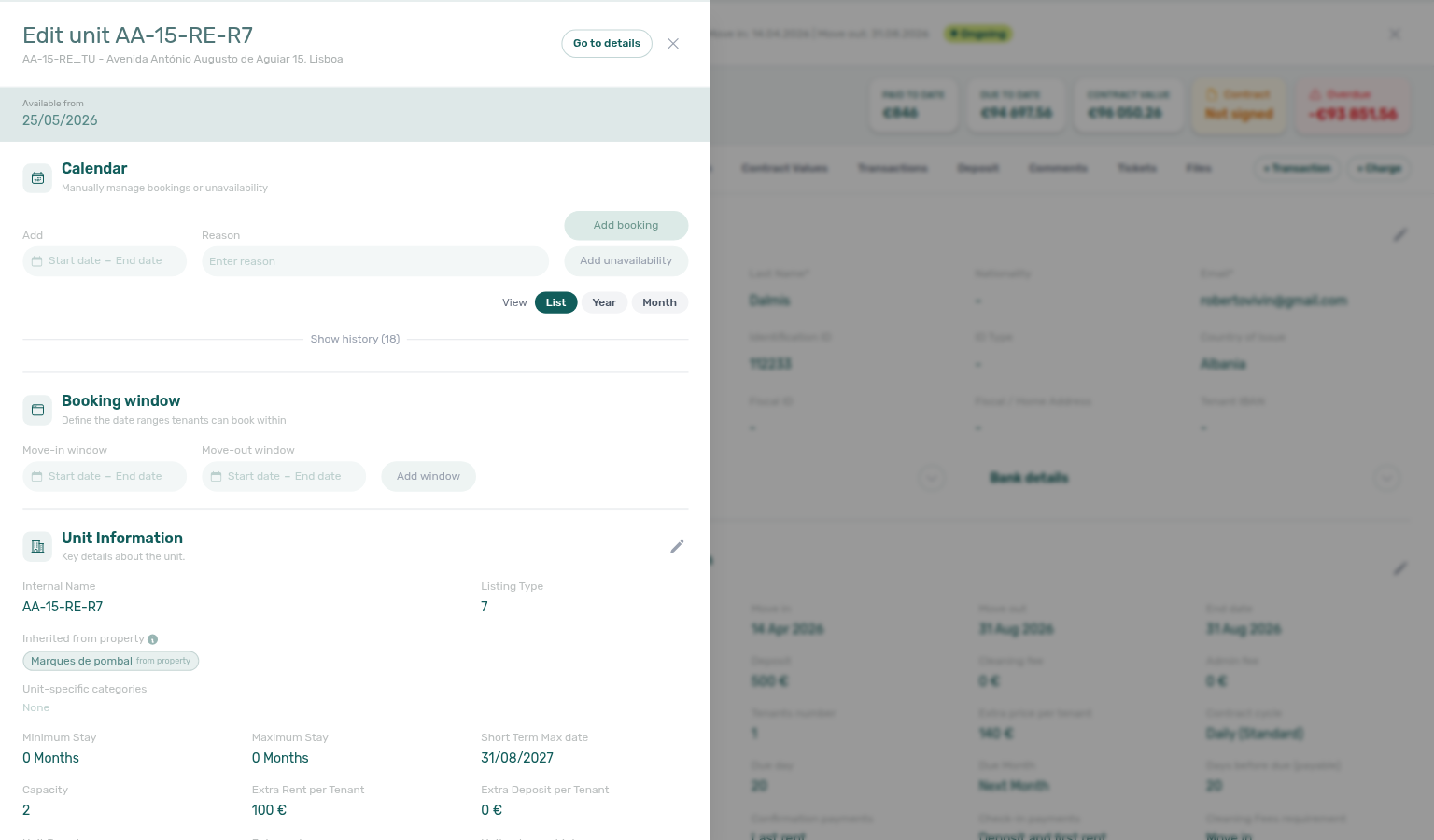
Click a unit label on the left to open that listing in the Listings unit sidebar when your role allows.
This view is ideal for:
- Identifying gaps between bookings that could be filled
- Visualizing occupancy across your portfolio at a glance
- Planning turnovers by seeing back-to-back bookings side by side — especially same-day turnovers (departure and arrival on one calendar day); step-by-step: Managing a Check-in, Managing a Check-out, FAQ — How do I handle same-day turnovers?
- Spotting calendar blocks when Only bookings is off and channel/manual holds explain “missing” availability
The Booking Detail View
Sidebar tabs pair with Finance module, Payment Allocation, and Inbox — Communication tab — contract signing via Tenant Portal.
Clicking any booking row opens a sidebar showing all information about that booking. After you save, the All bookings row and Timeline bar for this reservation update in place (status-card counts refresh when status changes) — see Timeline refresh. After Create Booking, Delete Booking, or Cancel booking, stay bars update the same way when the unit is already on the chart — see Stay bars update after create or delete. When Only bookings is on, the unit list updates in place as well — see Unit list updates after create or delete.
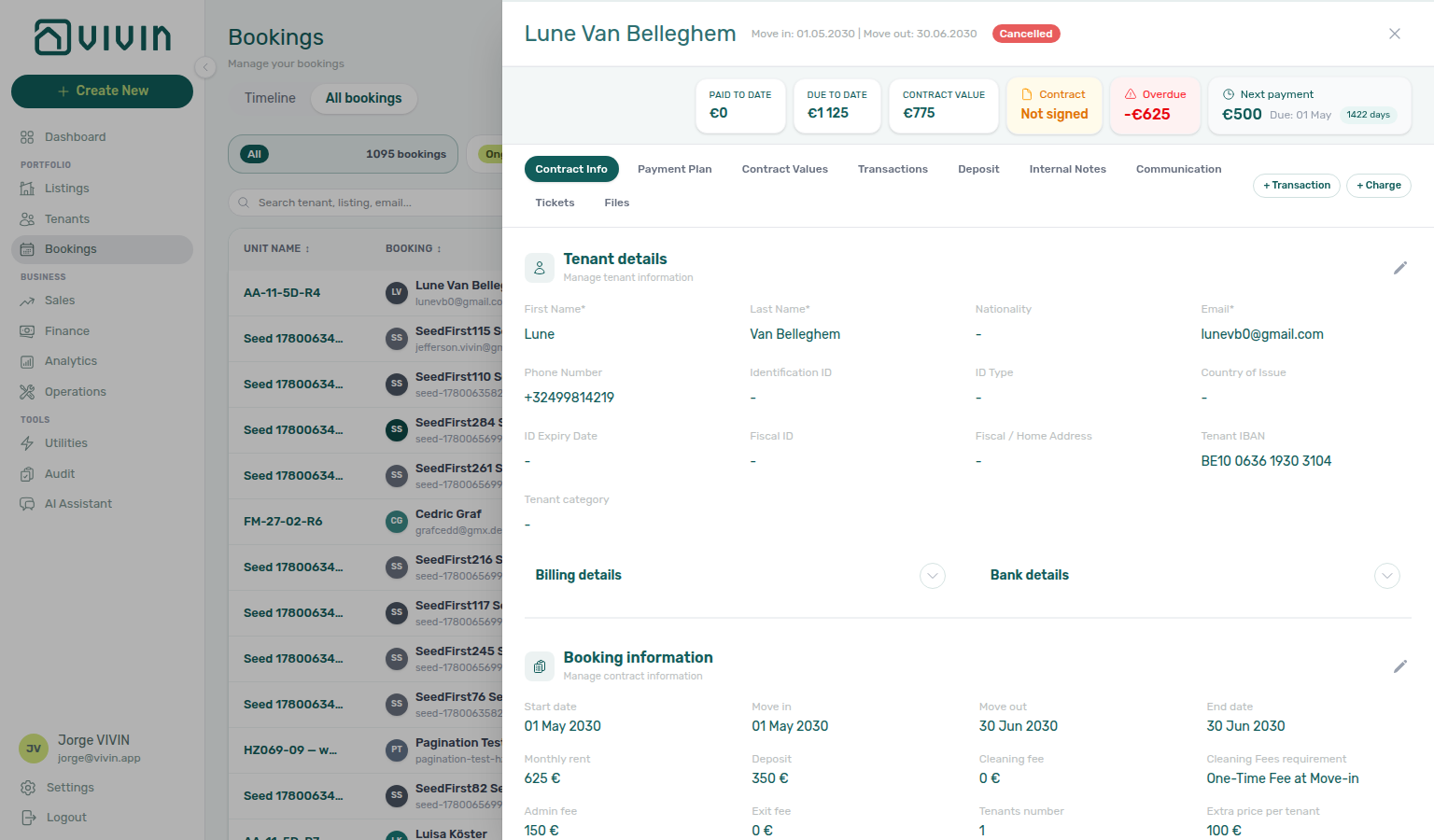
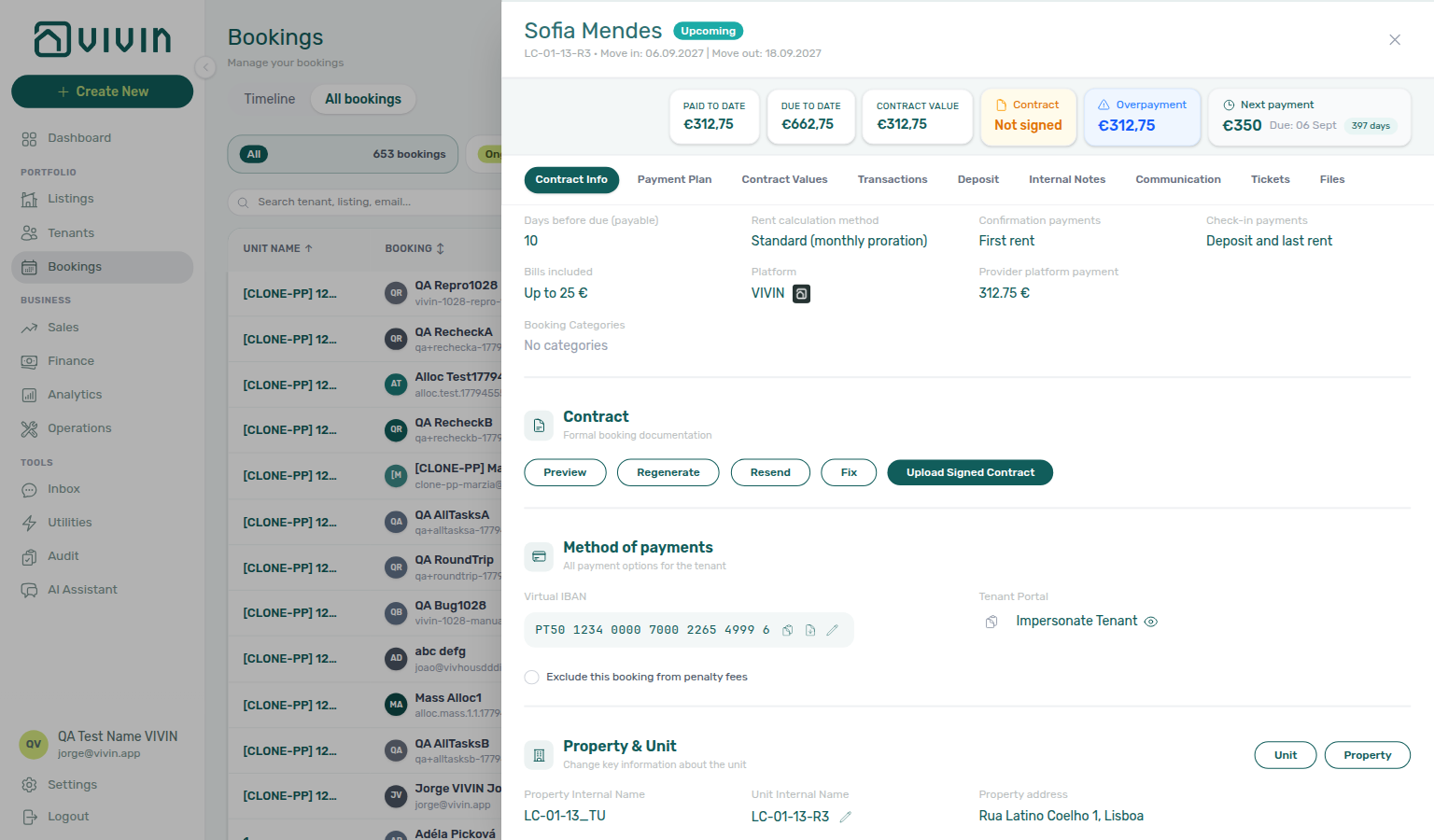
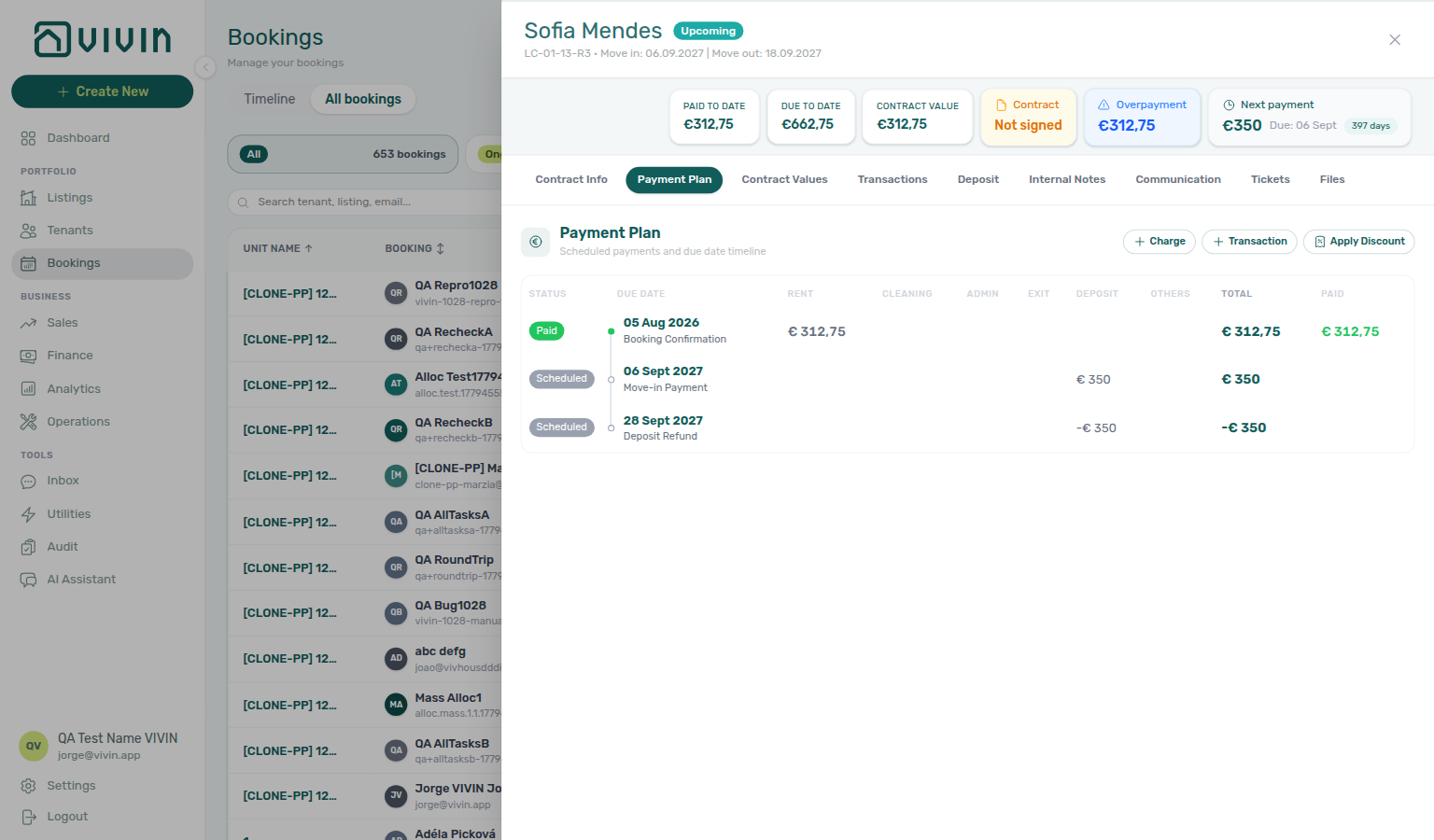
Booking insights bar
Below the tenant name header, a collapsible insights strip summarizes financial health without opening Payment plan or Transactions. It is expanded by default; click the strip to collapse or expand it.
| Card / badge | Meaning |
|---|---|
| Paid to Date | Allocated payments recorded against scheduled charges to date |
| Due to Date | Scheduled charges that should have been collected by today |
| Contract Value | Total contract value excluding deposit (tooltip on hover) |
| Return of value | Shown when return-of-value adjustments exist — same total as the negative Return of Value rows on Transactions |
| Contract — Not signed | Amber badge when the rental agreement is not signed yet |
| Overdue / Overpayment | Red or blue badge with the current financial balance when under- or over-paid |
| Next payment | Upcoming scheduled charge amount and due date (with days remaining or overdue) |
Use the insights bar for a quick collections check; confirm amounts and allocation in Contract Values or Transactions before operational action. Opening a row from Finance → Contract Values or Finance → Transactions can land on the matching tab with that payment or transaction row highlighted (see Finance — Cross-navigation from ledger rows).
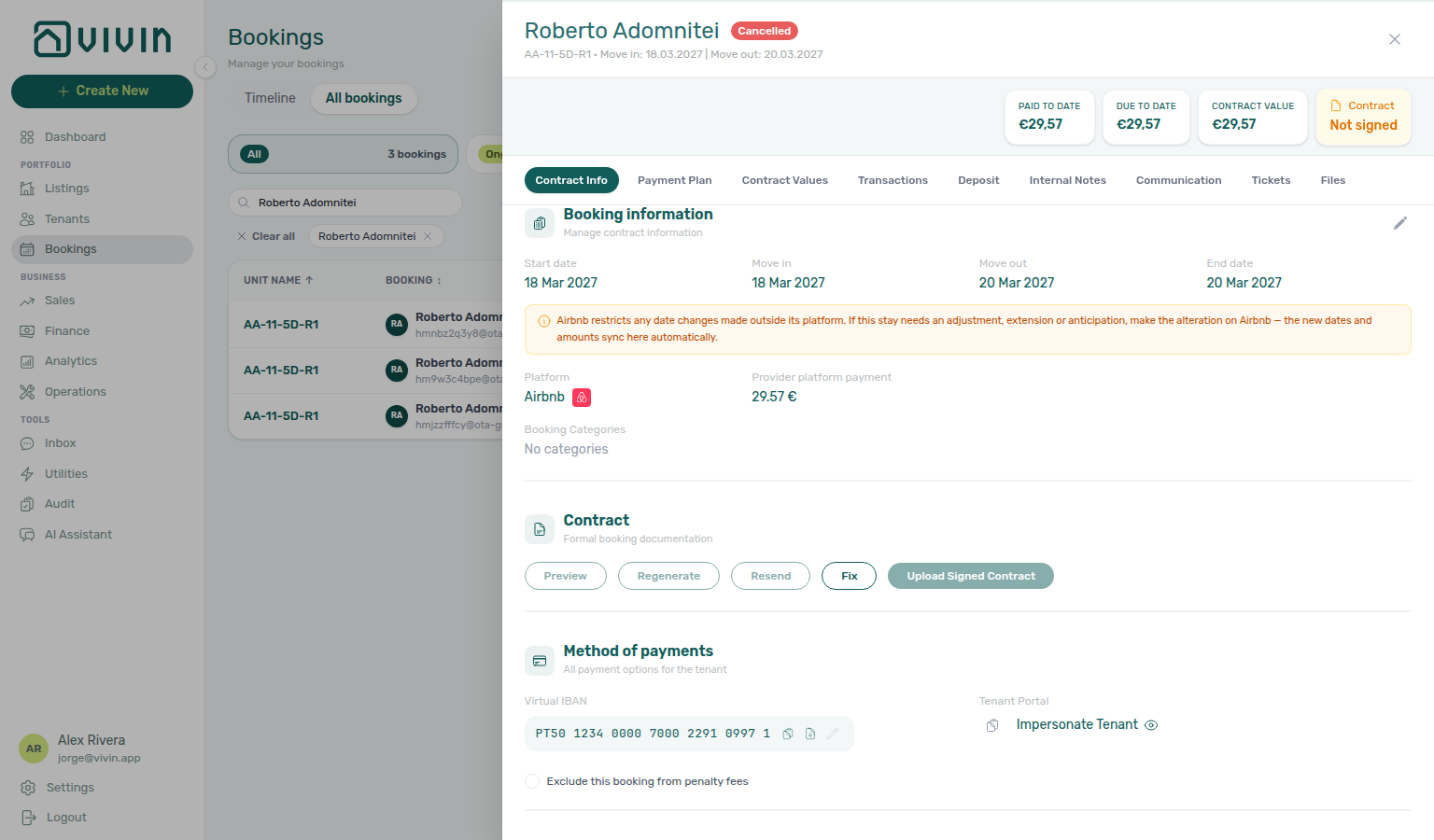
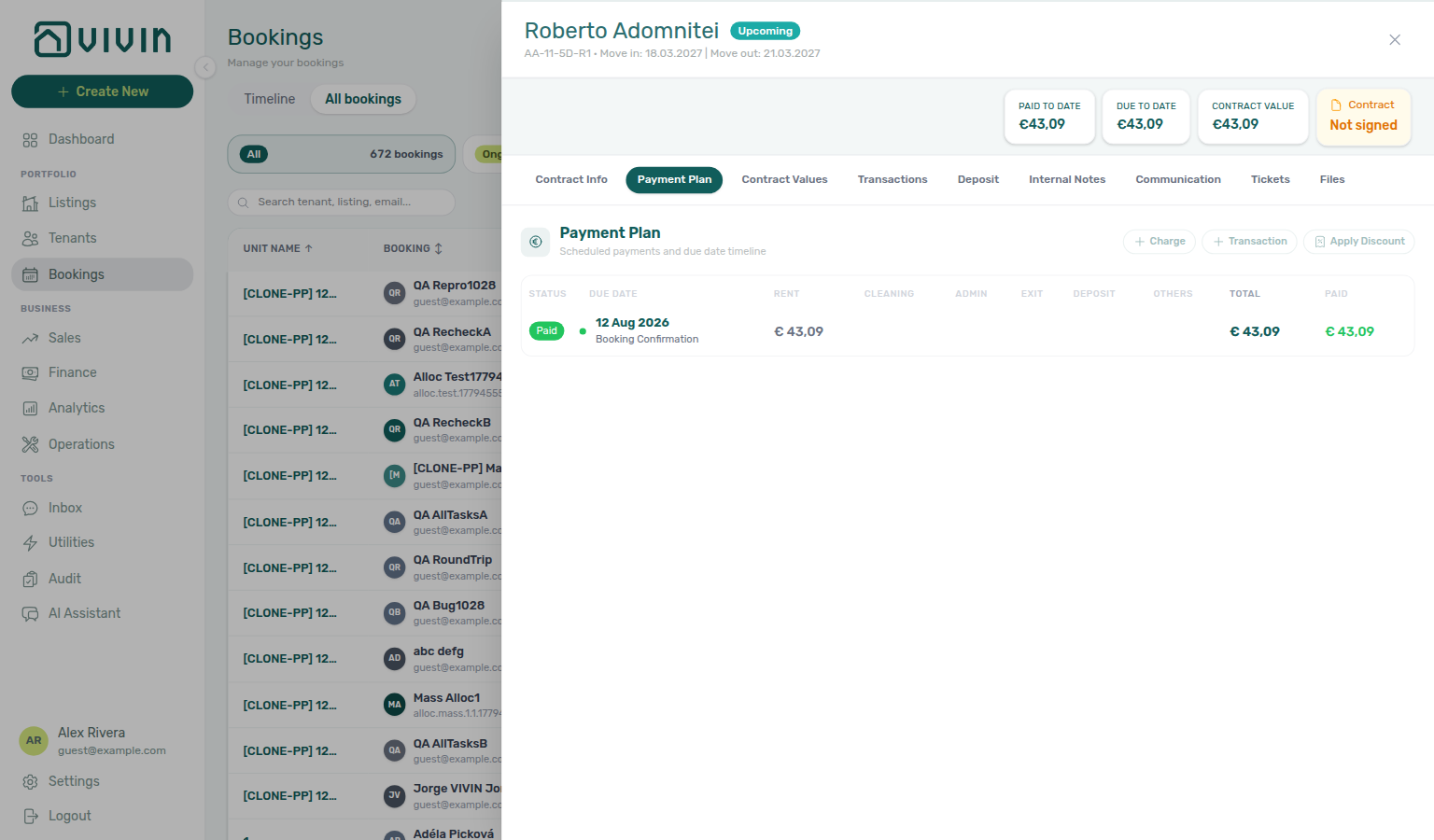
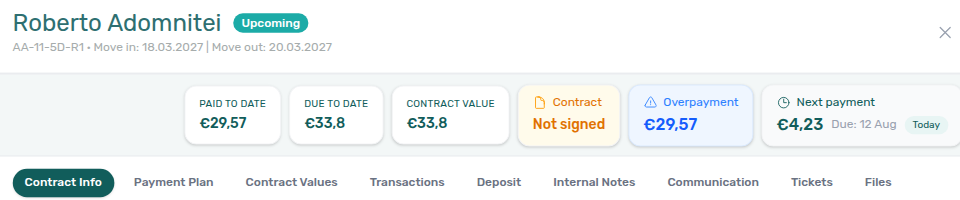
On a channel-manager (Airbnb) booking, Paid to Date, Due to Date, and Contract Value usually match the Provider platform payment (the OTA payout) as soon as the stay imports — a fast way to confirm the payout-matched plan without opening Payment Plan.

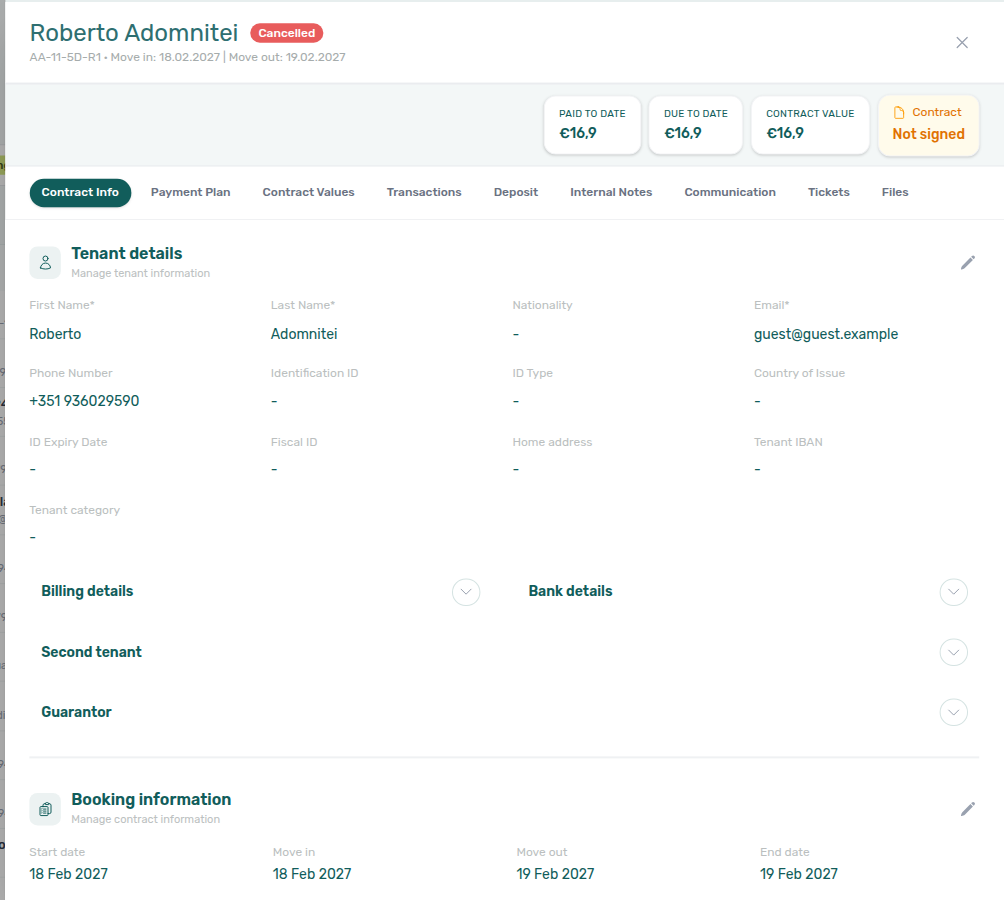
The detail view is organized into tabs along the top of the sidebar (left to right):
| Tab | Purpose |
|---|---|
| Contract Info | Tenant, dates, rent, platform, contract upload, virtual IBAN |
| Payment Plan | Scheduled charges and due dates |
| Contract Values | How each charge amount was calculated |
| Transactions | Payments received and allocation |
| Deposit | Security deposit status, refund, and transfer |
| Internal Notes | Internal team thread with @mention notifications; edit your own notes in place (sidebar label; docs anchor: comments-tab) |
| Communication | WhatsApp and email history with the tenant; reply on WhatsApp from the tab when chatbot is enabled |
| Tickets | Operations tickets linked to this booking (requires Operations module permission) |
| Files | Documents stored on the booking |
Contract Info tab
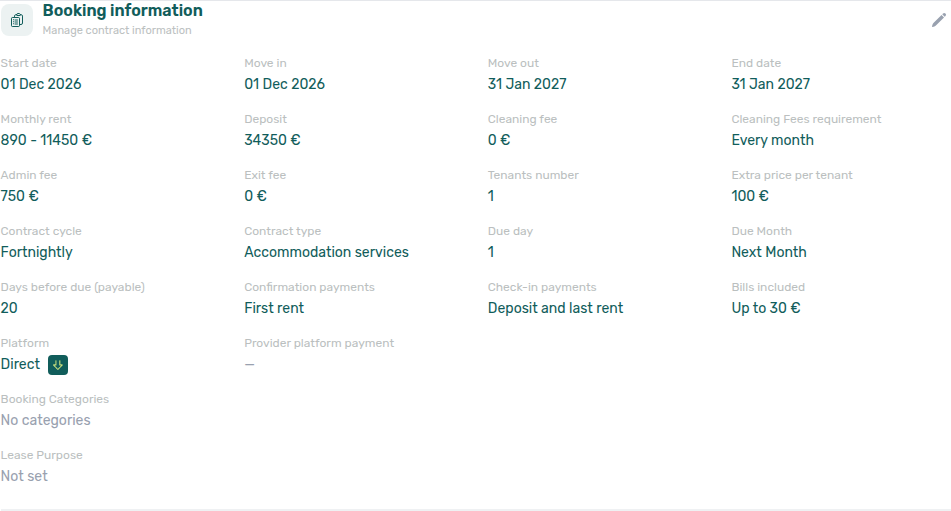
The first tab (Contract Info) displays the booking's core information:
- Tenant details (name, email, phone, nationality)
- Change tenant (reassign to another existing tenant — see below)
- Property and unit assignment
- Contract and occupancy dates
- Rent value and payment frequency
- Booking status and platform source
- Confirmation payments and Check-in payments (per-booking overrides — see below)
- Cleaning Fees requirement (Every Month vs one-time — see below)
- Deposit Refund Limit — days after the refund anchor for returning the security deposit; blank inherits the account Deposit Refund Deadline (see Deposit Refund Limit)
- Admin fee, Cleaning fee, and Exit fee euro amounts when those fees are enabled for the account (see Booking-level fee amounts)
- Bills included — monthly utility ceiling copied from the property at create time; operators can override on an existing booking (see Bills included ceiling)
- Booking categories — multi-select chips from Settings > Categories (empty after a marketplace import — see Booking tags)
- Lease purpose — optional classification when the account enables it (see Lease purpose)
- Second tenant — optional co-occupant identity accordion when Preferences → Second tenant is On (see below)
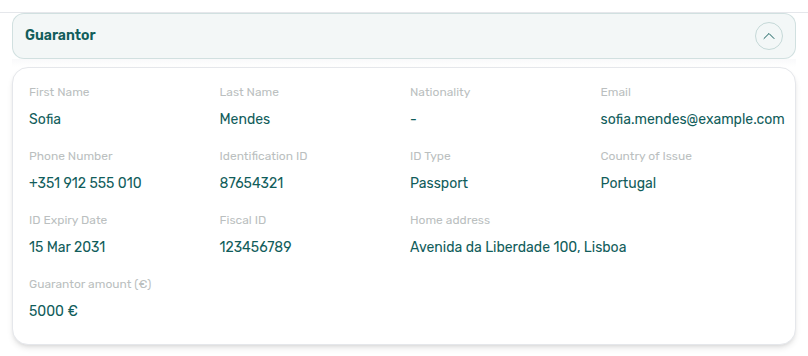
- Guarantor — optional guarantor identity accordion when Preferences → Guarantor is On (see below)
Second tenant
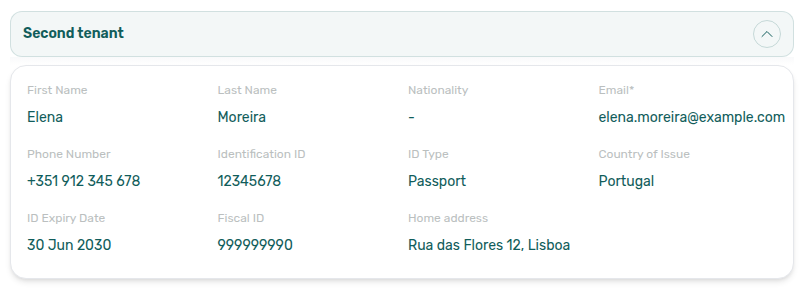
When Settings → Preferences → Booking Defaults → Second tenant is On, bookings whose Tenants number is at least 2 show a collapsible Second tenant box on Contract Info, below Billing details and Bank details. The gate is the booking’s tenant count (numberOfExtraTenants >= 1), not listing capacity — a one-person stay never shows the section. It records identity only (name, contact, ID document, fiscal ID/address) — billing, IBAN, and tenant category stay on the main tenant. Marketplace POST /bookings cannot send those identity fields — imported stays land empty until you fill this accordion — Creating Bookings — Second tenant. Contract tokens: Second tenant variables. FAQ: How do I record a second tenant on a booking?.
Guarantor
When Settings → Preferences → Booking Defaults → Guarantor is On, every booking shows a collapsible Guarantor box on Contract Info (near Billing / Bank details / Second tenant). The gate is the account preference alone — tenant count and unit capacity do not apply, so a single-tenant stay can still record someone who backs the rent. It records identity (name, contact, ID document, fiscal ID/address) plus an optional Guarantor amount (€), the sum the guarantor commits to cover — billing, IBAN, and tenant category stay on the main tenant. Leave the amount empty and contracts render it blank rather than 0. Independent of Second tenant: you can enable either or both. Contract tokens: Guarantor variables ({GuarantorAmount}, {%GuarantorSignature}). FAQ: How do I record a guarantor on a booking?. Marketplace POST /bookings cannot send those identity fields or Guarantor amount (€) — imported stays land empty until you fill this accordion — Creating Bookings — Guarantor.
Changing contract dates and rent
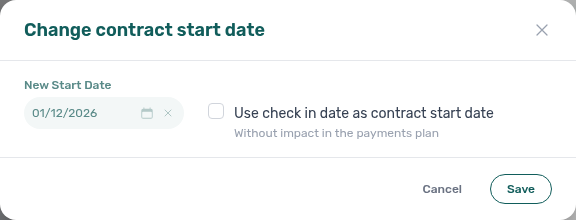
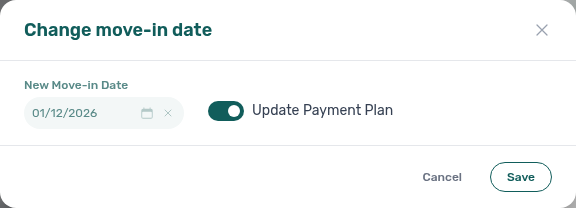
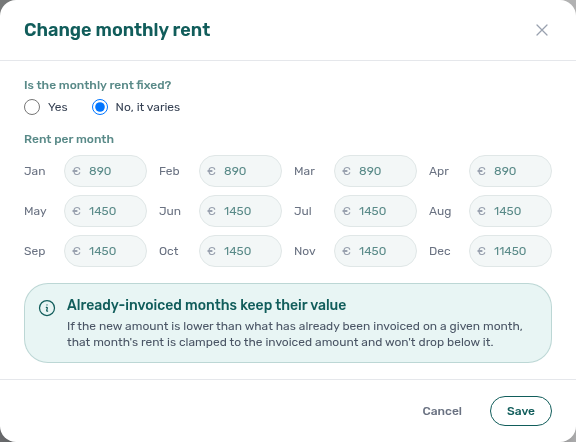
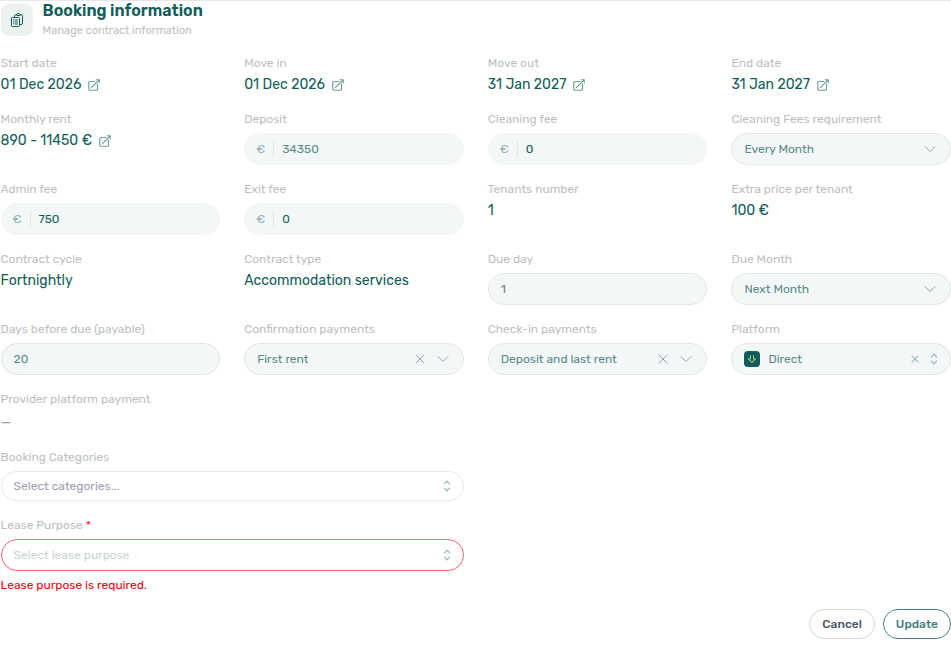
Start date, Move in, Move out, End date, and Monthly rent on Contract Info → Booking information open dedicated modals when you are in edit mode (pencil on the section header). Inline fields on the card are read-only until you enter edit mode; date and rent rows use the pencil-on-row pattern to launch the modal for that value.
| Field | Modal title (English UI) | Typical use |
|---|---|---|
| Start date | Change contract start date | Shift the contractual span; optional Use check in date as contract start date mirrors move-in without regenerating the payment plan. |
| Move in | Change move-in date | Operational check-in; Update Payment Plan toggle (defaults from account preferences) controls whether scheduled rent lines are regenerated. |
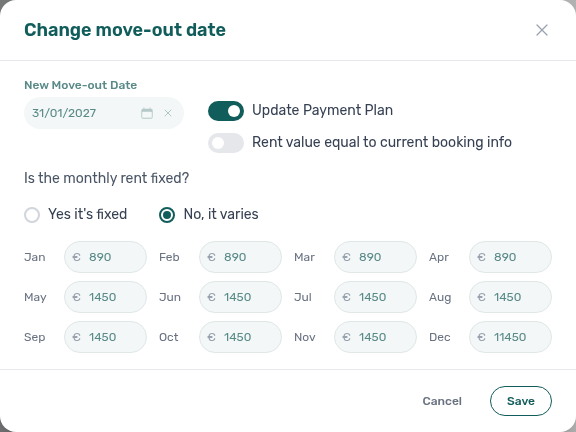
| Move out | Change move-out date | Early or extended departure; supports Update Payment Plan and, when the plan updates, optional Rent value equal to current booking info or per-month rent entry (fixed vs varies). |
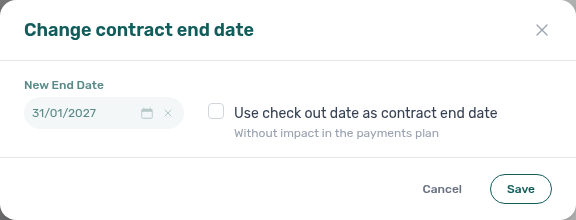
| End date | Change contract end date | Contractual end; optional Use check out date as contract end date mirrors move-out without impact in the payments plan. |
| Monthly rent | Change monthly rent | Set fixed monthly rent or varies with a Jan–Dec grid; saves independently of the main Update on the card. |
Marketplace POST /bookings cannot send Use check in date as contract start date or Use check out date as contract end date — imported stays land with both boxes off until you tick them here — Creating Bookings — Use check in date as contract start date. See Use check in date as contract start date.
For the same percentage raise across a portfolio from a chosen month, use Account Settings → Payments → Rent adjustment (permission Bulk Rent Increase) instead of opening Change monthly rent on every stay. On Step 2, Select properties and Select categories stay open while you add a second building or booking tag. The teal tenant name opens booking details on top of the preview. That tool only raises instalments — lowering exported rent still follows the invoiced-floor rules below.
Already-invoiced months (rent floor) — The Change monthly rent modal includes an info banner: when you enter a new amount below what Finance has already invoiced for a given month, Vivin clamps that month's rent line to the invoiced total instead of saving a lower value or rejecting the whole change. On a single line, Contract Values → Edit amount is different: lowering a fully invoiced line issues a credit note for the difference (then issue it from Finance → Transactions). A partly invoiced line still blocks Save. See Edit amount, Glossary — Invoiced floor (rent), and FAQ — Lower rent below invoiced.
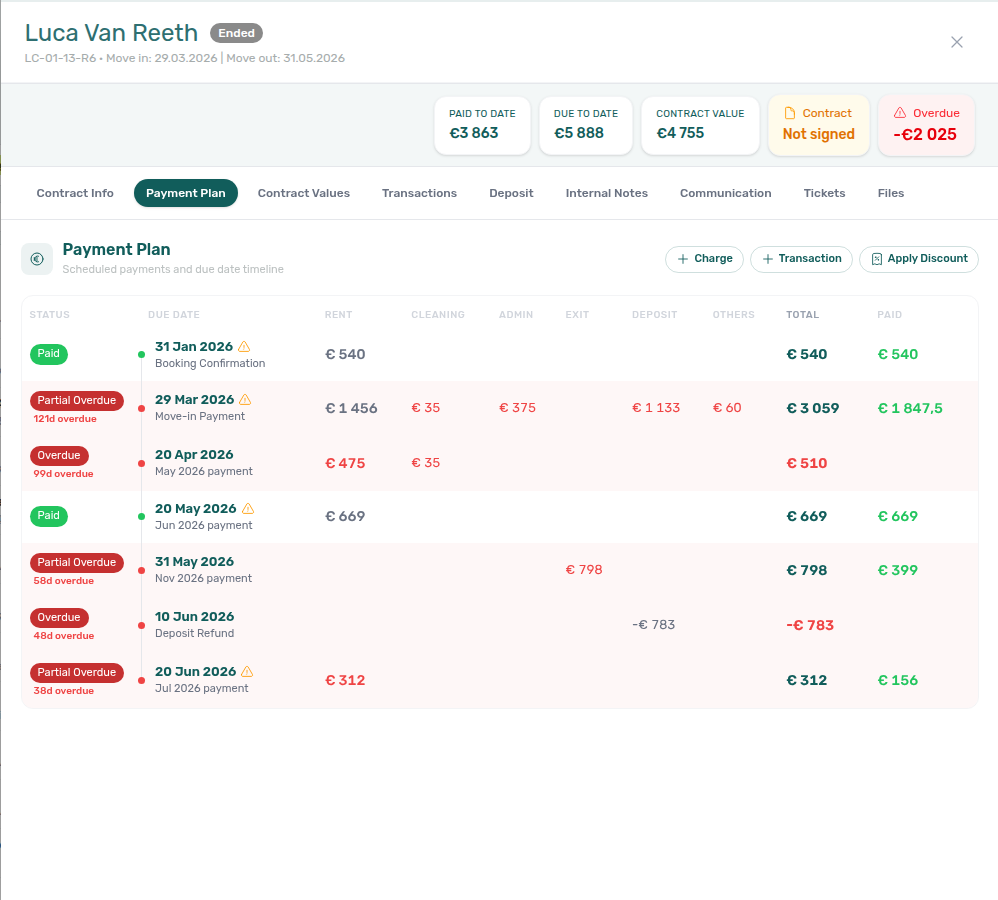
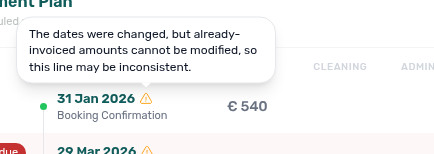
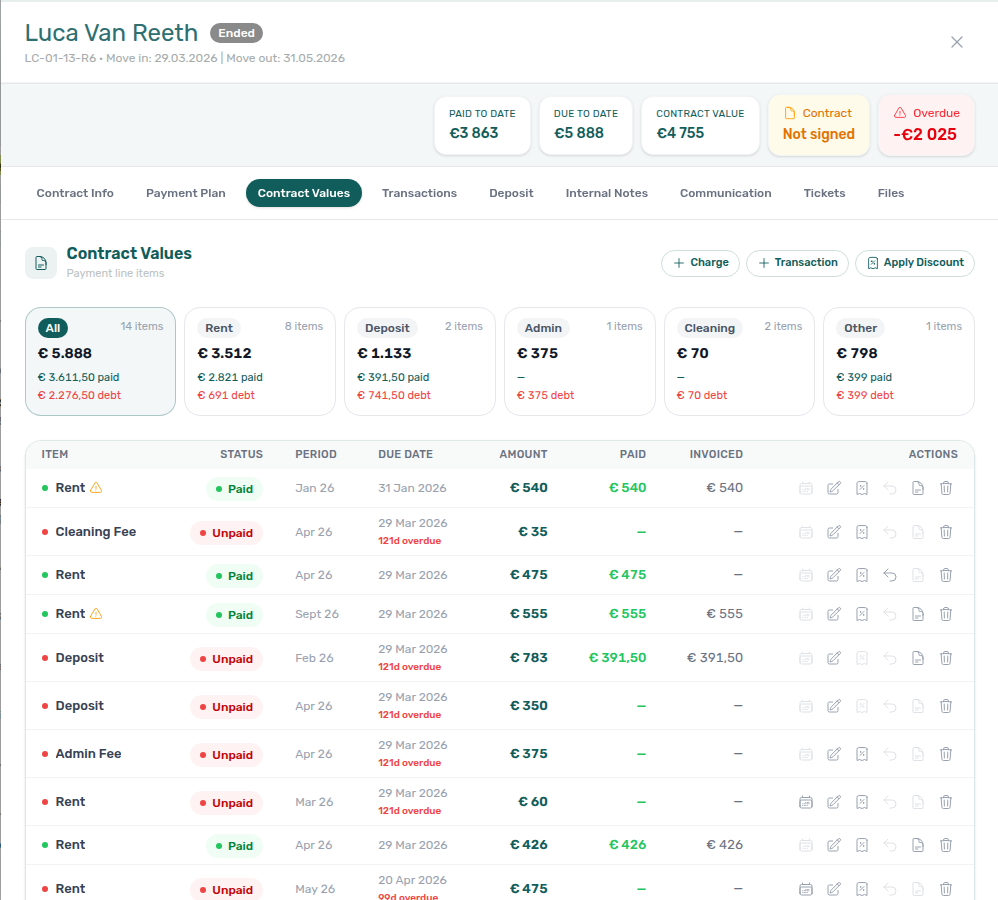
Contract-date change warnings — After you shorten the contract span (for example move-in anticipation or an earlier move-out) with Update Payment Plan enabled, Vivin cannot rewrite already-invoiced charge lines. Any invoiced month that now falls outside the updated contract range stays on the ledger but may no longer match the new dates. On Contract Values and Payment plan, those stranded lines show an amber warning icon — hover for: The dates were changed, but already-invoiced amounts cannot be modified, so this line may be inconsistent. Reconcile with Finance (credit notes, manual adjustments, or support) before you treat the schedule as authoritative; the warning is informational, not a block on other row actions.
Fixed rent on a variable unit
A unit can be configured as variable on Listings > Rent Value while an individual booking still stores fixed monthly rent. At create time (and when you inherit listing values on Add booking), Vivin inspects every contract month between Start date and End date — the same month boundaries used for rent generation. When each of those months has a configured rent in the unit's seasonal grid and every value is equal, the reservation is stored with isRentFixed = true and a single headline Monthly rent, even though the listing remains variable for future stays.
| What you see | Meaning |
|---|---|
| Contract Info → Monthly rent | One € headline; Change monthly rent opens with fixed selected. |
| Payment plan rent lines | Amounts match the common monthly value — unchanged from the per-month grid that would have applied. |
| Bookings list rent column / sort | Uses the fixed headline when isRentFixed is true. |
| Timeline bar label | May still show a seasonal breakdown when the booking is stored as variable; fixed bookings use the headline rent. |
If any contract month is missing from the unit's rentsPerMonth grid or the values differ, the booking stays variable with per-month rows. Operators can still switch fixed ↔ varies later via Change monthly rent.
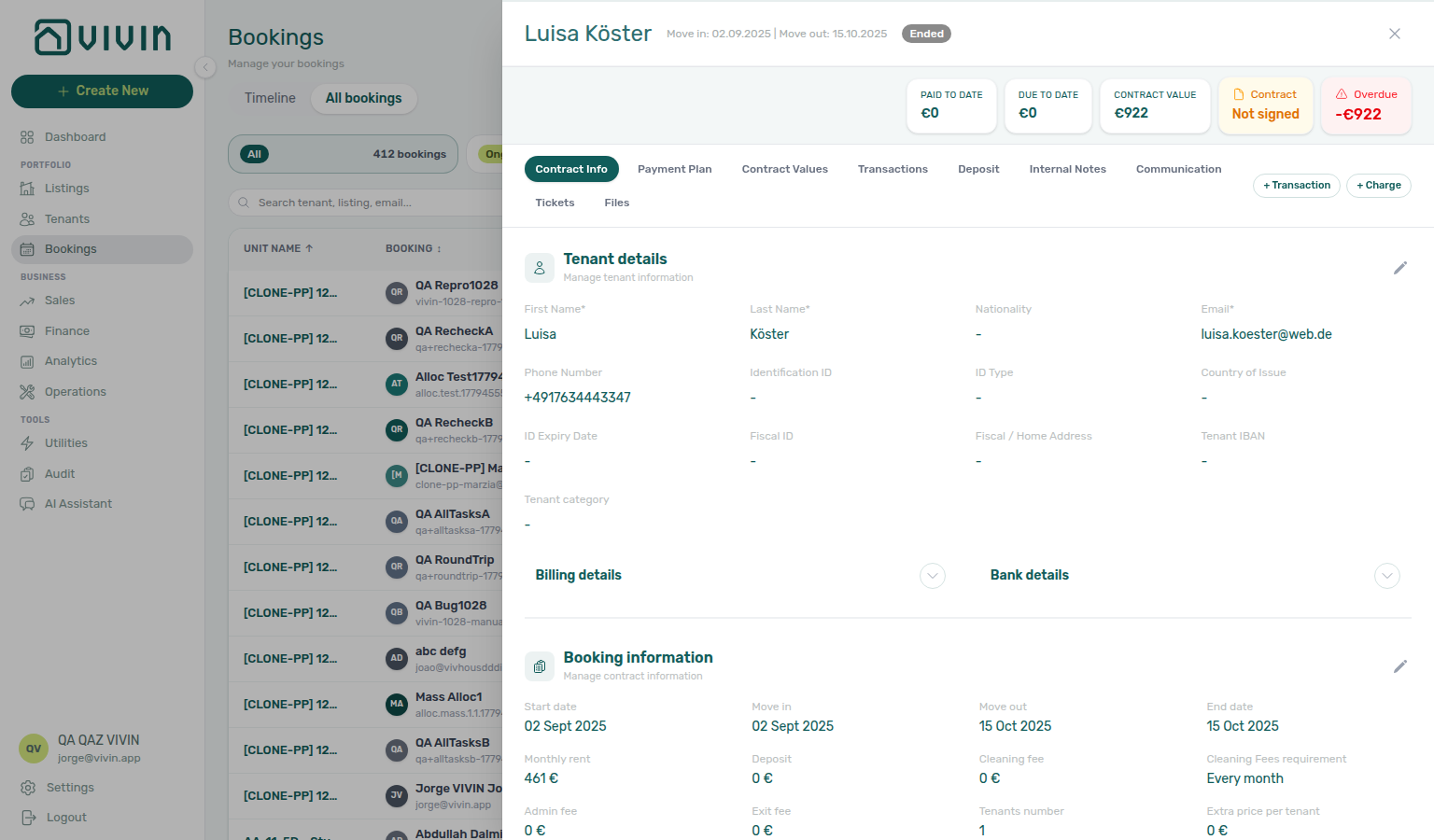
Legacy reservations created before this inference shipped were backfilled to the same rule when their stored per-month rows already shared one constant value — payment history and invoiced lines were not regenerated. Operators can still switch fixed ↔ variable later via Change monthly rent — invoiced-floor rules apply per FAQ — Lower rent below invoiced. See Glossary — Fixed Rent, Listings — Rent Value tab, Processing a New Booking — Step 3, and FAQ — Fixed rent on variable unit.
Contract cycle guards — For Monthly or Fortnightly contract cycles, Start date and End date modals validate day-of-month rules (for example monthly contracts require day 1 for start and the last day of the month for end). Pick a valid calendar date or use the operational-date checkbox when you only need alignment with check-in / check-out.
Integration bookings — When the booking came from a marketplace (Platform is set), date modals show an informational banner naming the integration. Calendar sync and partner rules still apply after you save; confirm outbound availability separately when you shorten stays.
Channel-manager (Airbnb) bookings
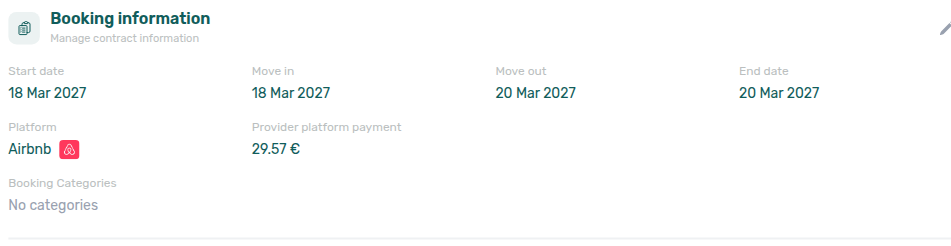
Reservations that arrive through the Channex channel manager (guests who booked on Airbnb or another connected OTA) use a dates-only Contract Info → Booking information card. Vivin mirrors the OTA stay — it does not recreate a mid-term rent schedule — and most edit controls stay locked so the two systems cannot disagree (see Edit lockdown on Airbnb bookings).
| What you see | Meaning |
|---|---|
| Start / Move in / Move out / End date | Stay window from Airbnb — read-only in Vivin. Change dates on Airbnb; they sync back here automatically when the channel revision applies. |
| Platform | Shows the OTA the guest booked on (for example the Airbnb logo and name), not the channel-manager label — also read-only. |
| Provider platform payment | The amount already handled on the OTA side — for reconciliation, not a mid-term rent schedule. |
| Booking categories | Optional tags — the one Booking information field you can still edit on these stays. |
Mid-term contract fields (Monthly rent, deposit, admin/cleaning/exit fees, bills included, due-day cycles, and related edit modals) stay hidden on this card because the guest already paid the OTA — Vivin does not recreate those mid-term charges on import. Header summary chips may still show paid / due totals from provider-platform lines; use Payment Plan and Transactions to read the payout-matched money movement, not to add mid-term charges.
An amber note under the stay dates explains the Airbnb rule: date changes made outside Airbnb are not allowed — adjust, extend, or shorten the stay on Airbnb and the new dates and amounts sync here.
Filter or search the list to find these stays — the PLATFORM column shows the same OTA badge (Airbnb or Booking.com) as Contract Info. Tick that OTA under Other filters → Source platform; you will not see a channel-manager name there. See Platform badge and filters follow the real OTA.
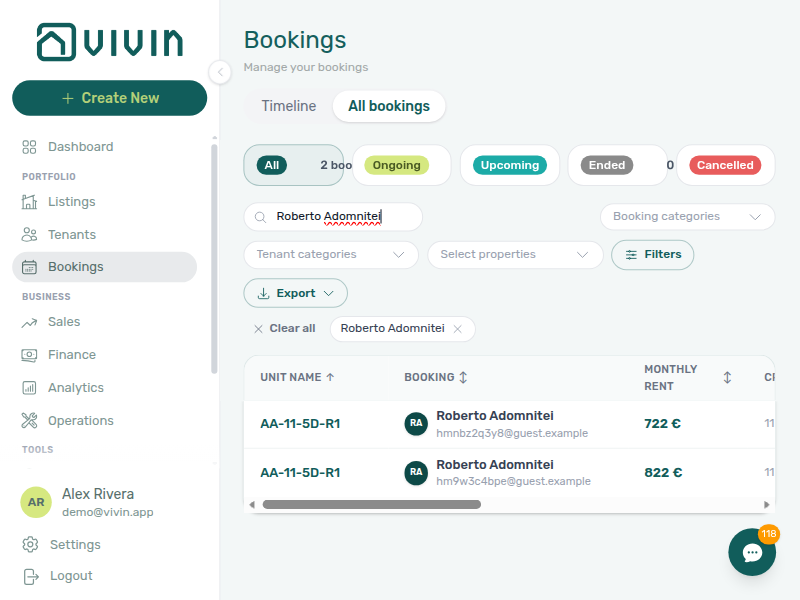
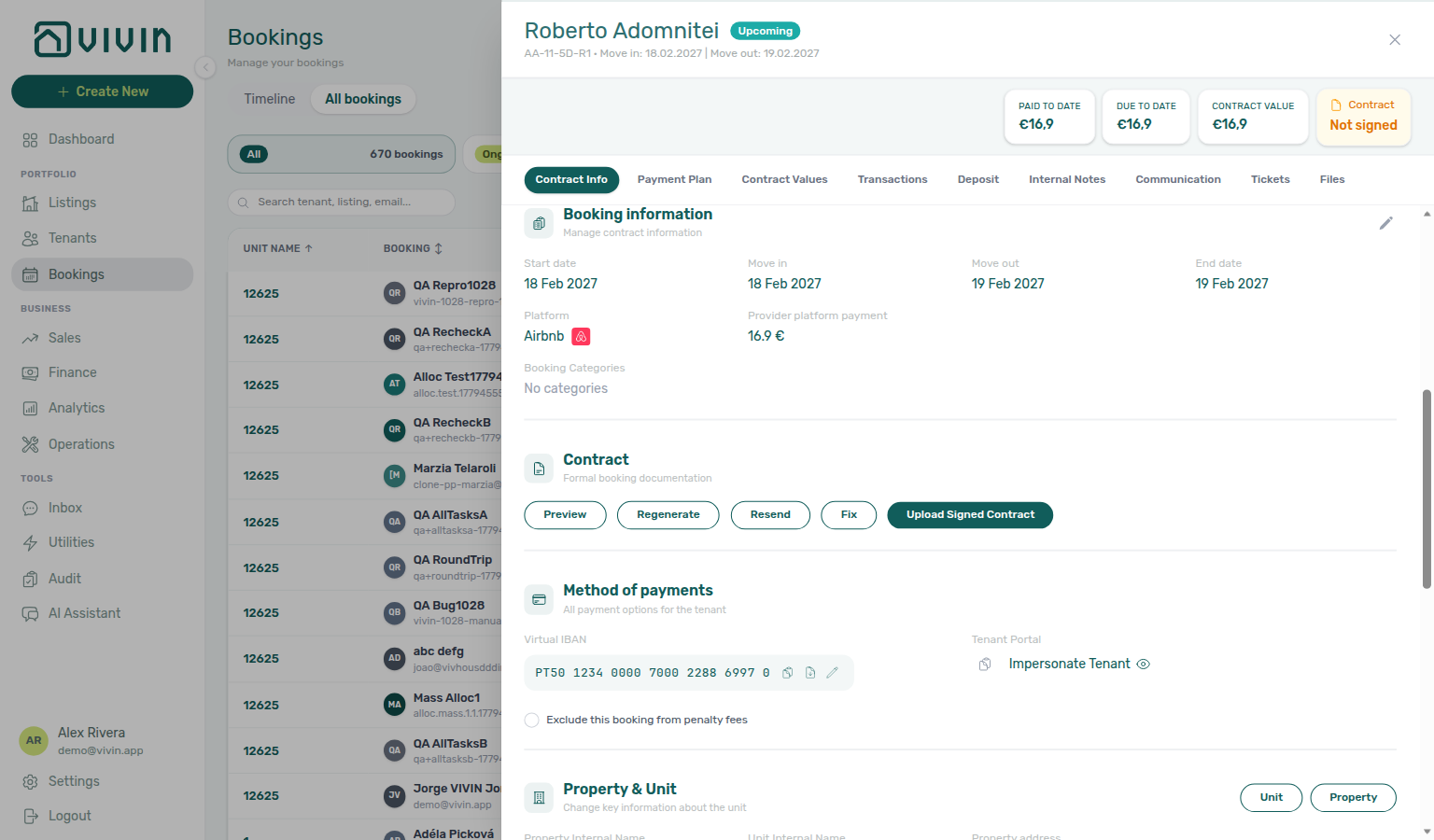
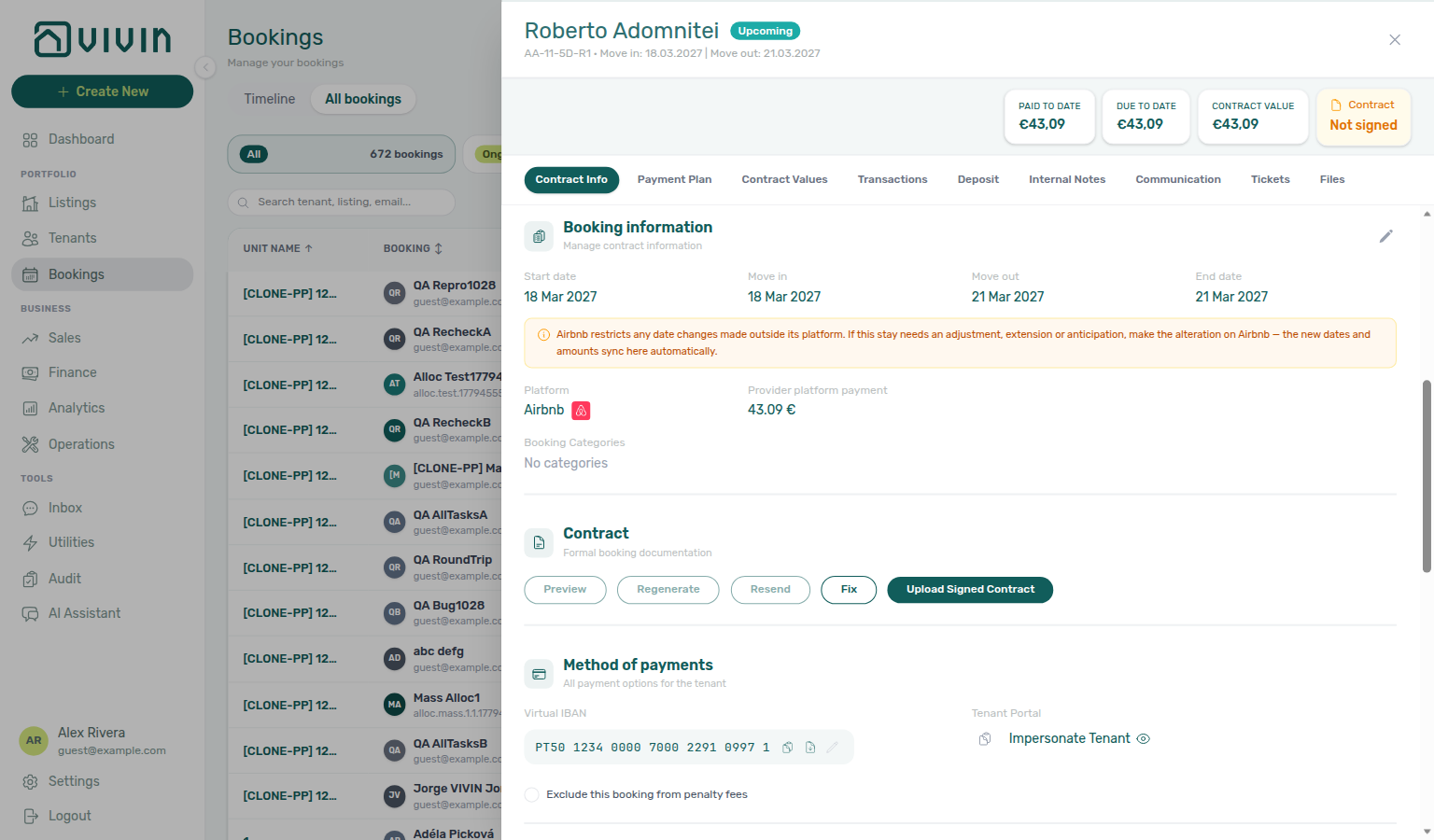
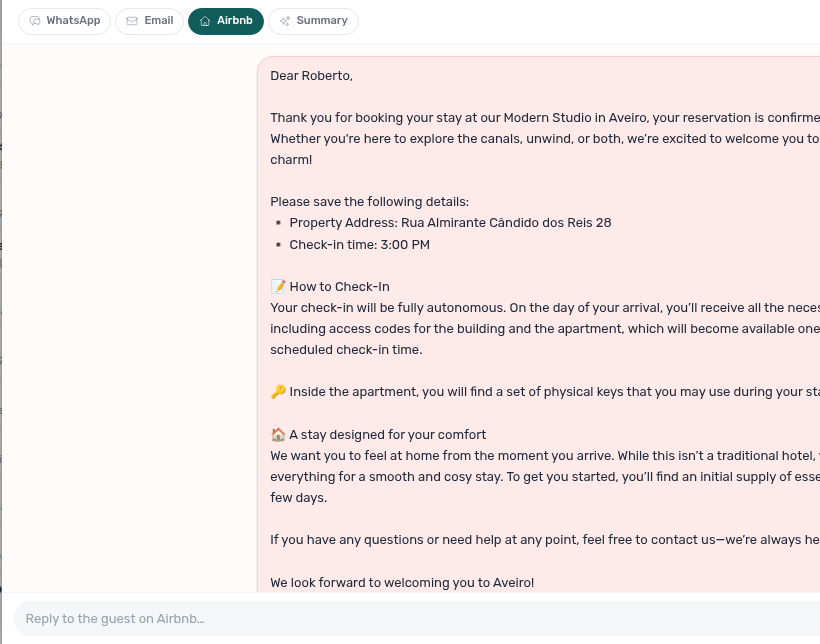
See FAQ — Why does an Airbnb booking hide rent and deposit on Contract Info?, FAQ — Why do channel-manager bookings show Airbnb or Booking.com?, FAQ — Why can’t I edit an Airbnb booking in Vivin?, FAQ — Why does a Booking.com stay show one rent line due at check-in?, and Glossary — Channel-manager (Airbnb) booking. For the OTA host↔guest thread on the same stay, open Communication and the pill named after that OTA — Airbnb guest chat.
Platform badge and filters follow the real OTA
Channel-manager imports are labelled with the OTA the guest used, not with the channel-manager product name.
| Surface | What you see |
|---|---|
| Bookings list PLATFORM column | Airbnb or Booking.com logo — the same identity as Contract Info → Platform. |
| Other filters → Source platform | Tick Airbnb or Booking.com. There is no channel-manager row. Stays that predate an OTA name on the reservation count as Airbnb. |
| Finance → Transactions → Select platforms | The same OTA list (plus Long-stay (LS) when you reconcile rows without a booking). Tick Booking.com to include channel-manager Booking.com money movement. |
| Communication | Extra chat pill named Airbnb or Booking.com. Airbnb host bubbles use a soft pink canvas; Booking.com host bubbles use a blue canvas. The composer reads Reply to the guest on Airbnb… or Reply to the guest on Booking.com…. Lockdown tooltips name that OTA too (for example This can't be edited on Booking.com bookings.). |
Use Airbnb when you are triaging channel-manager Airbnb stays; use Booking.com when the guest booked on Booking.com. You do not need a second filter for the channel manager.


Pair with FAQ — Why do channel-manager bookings show Airbnb or Booking.com? and Finance — Select platforms.
Edit lockdown on Airbnb bookings
Channel-manager (Airbnb) stays are read-only mirrors of the OTA reservation. Editing them in Vivin cannot reach Airbnb (the platform does not allow outside reservation changes) and would only make the two systems disagree — for example freeing a night in Vivin while the guest still holds it on Airbnb. Locked controls show the short tooltip This can't be edited on Airbnb bookings. (date-related actions use a longer Airbnb/sync explanation).
| Surface | What stays locked | What you can still do |
|---|---|---|
| Tenant details | Pencil / change-tenant | Read guest fields; use Communication → Airbnb to reply |
| Booking information | Stay dates, Platform, mid-term fields (already hidden) | Edit Booking categories only |
| Contract | Preview / Regenerate / Resend / Upload Signed Contract | Read the Contract section; mid-term paper upload is not used on OTA stays |
| Method of payments | Switch-vIBAN pencil; Exclude this booking from penalty fees | Copy IBAN; Impersonate Tenant when permitted |
| Check-in & Check-out | Pencil, onboarding / portal-access / check-in emails, Cancel Booking, Delete Booking | Read times and changelog |
| Payment Plan / Contract Values / Transactions | + Charge, + Transaction, Apply Discount (tooltip: charges are locked — the Airbnb payout registers automatically) | Read the payout-matched schedule and ledger rows. Booking.com stays keep + Transaction enabled — one rent line due at check-in. |
Airbnb guests already completed their stay agreement on the OTA — Vivin does not need a separate signed PDF on these rows. Upload Signed Contract stays greyed out with the same tooltip as the other Contract actions (This can't be edited on Airbnb bookings.).
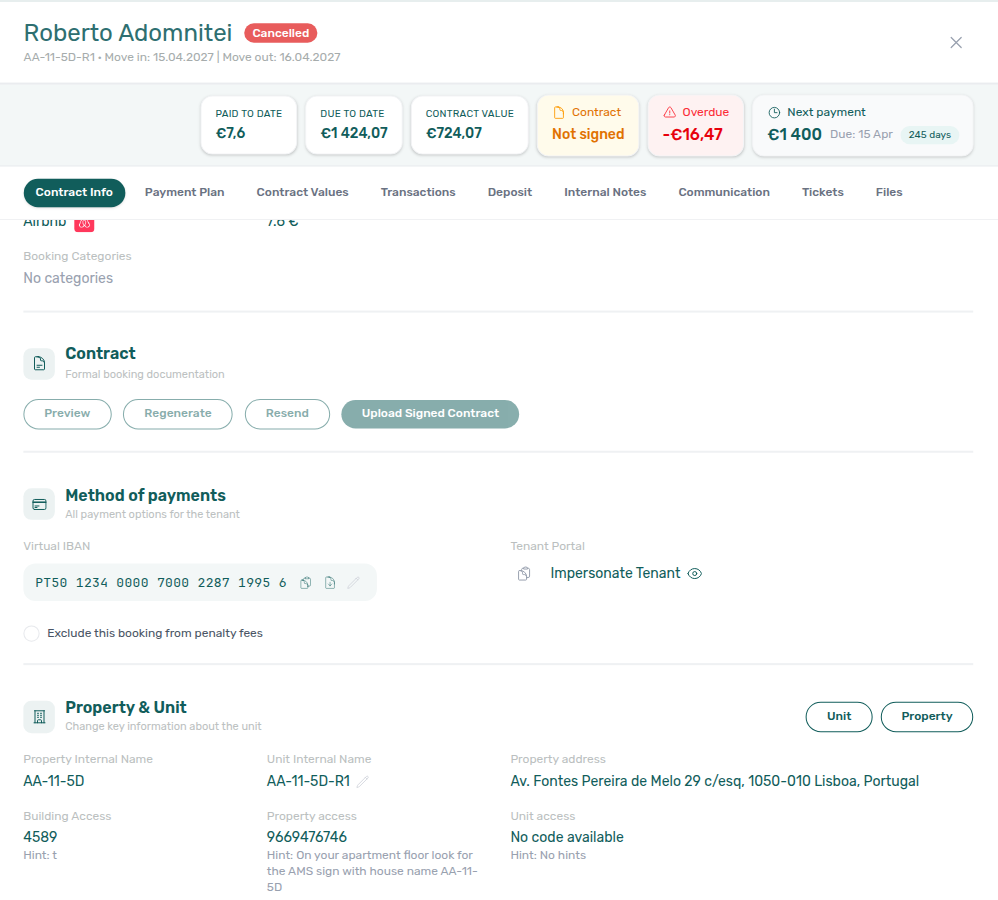
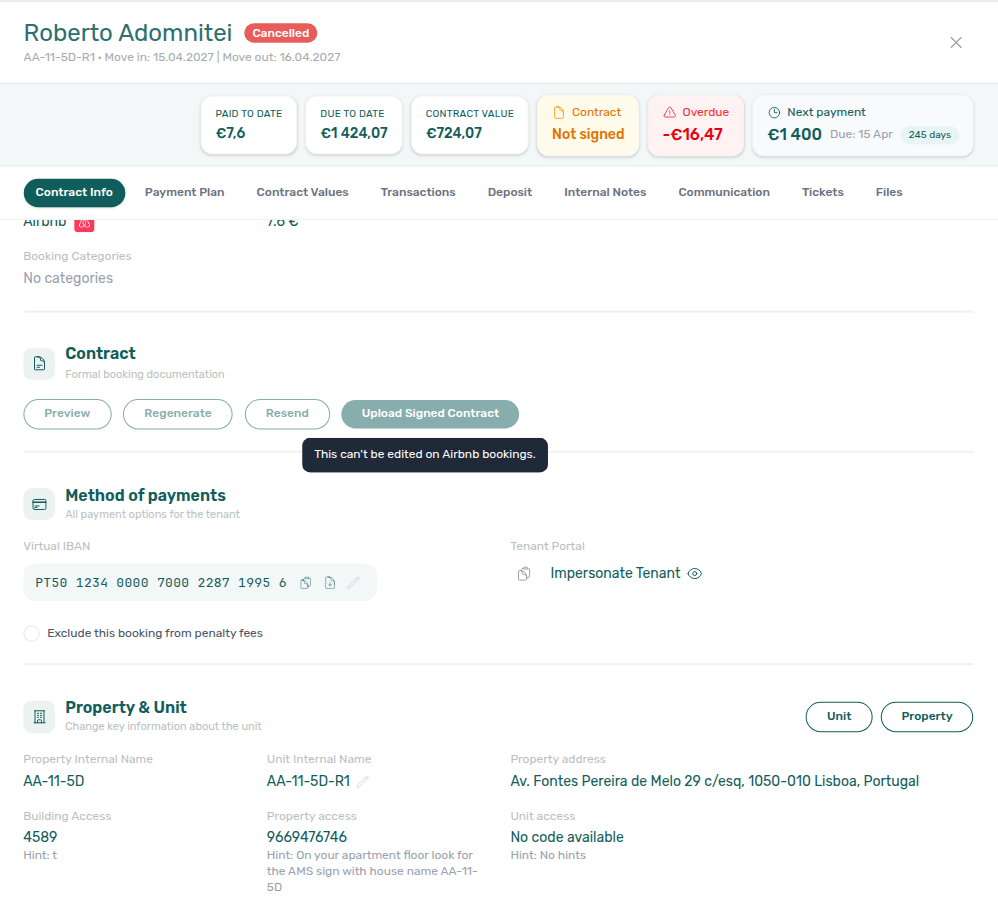
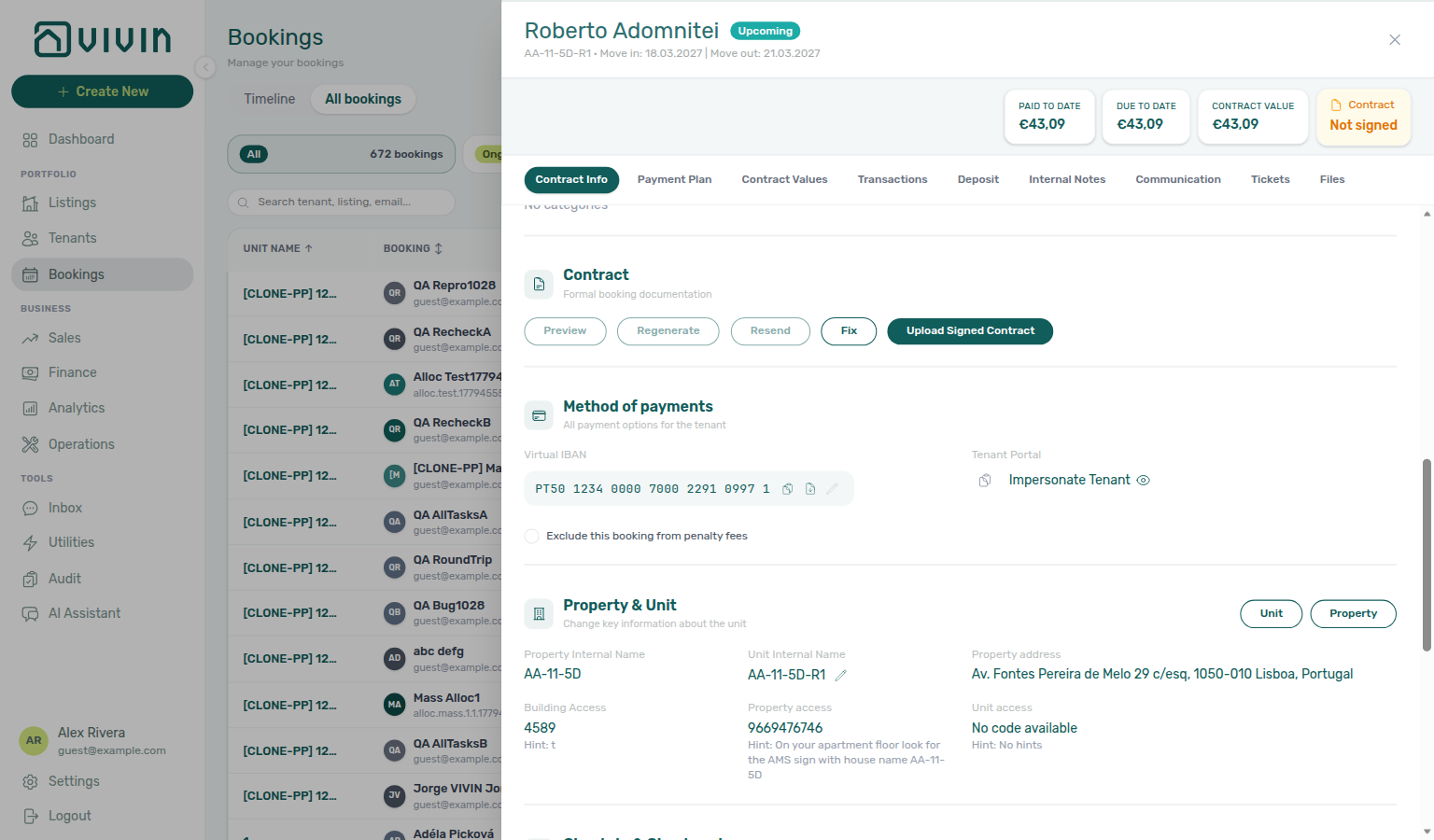
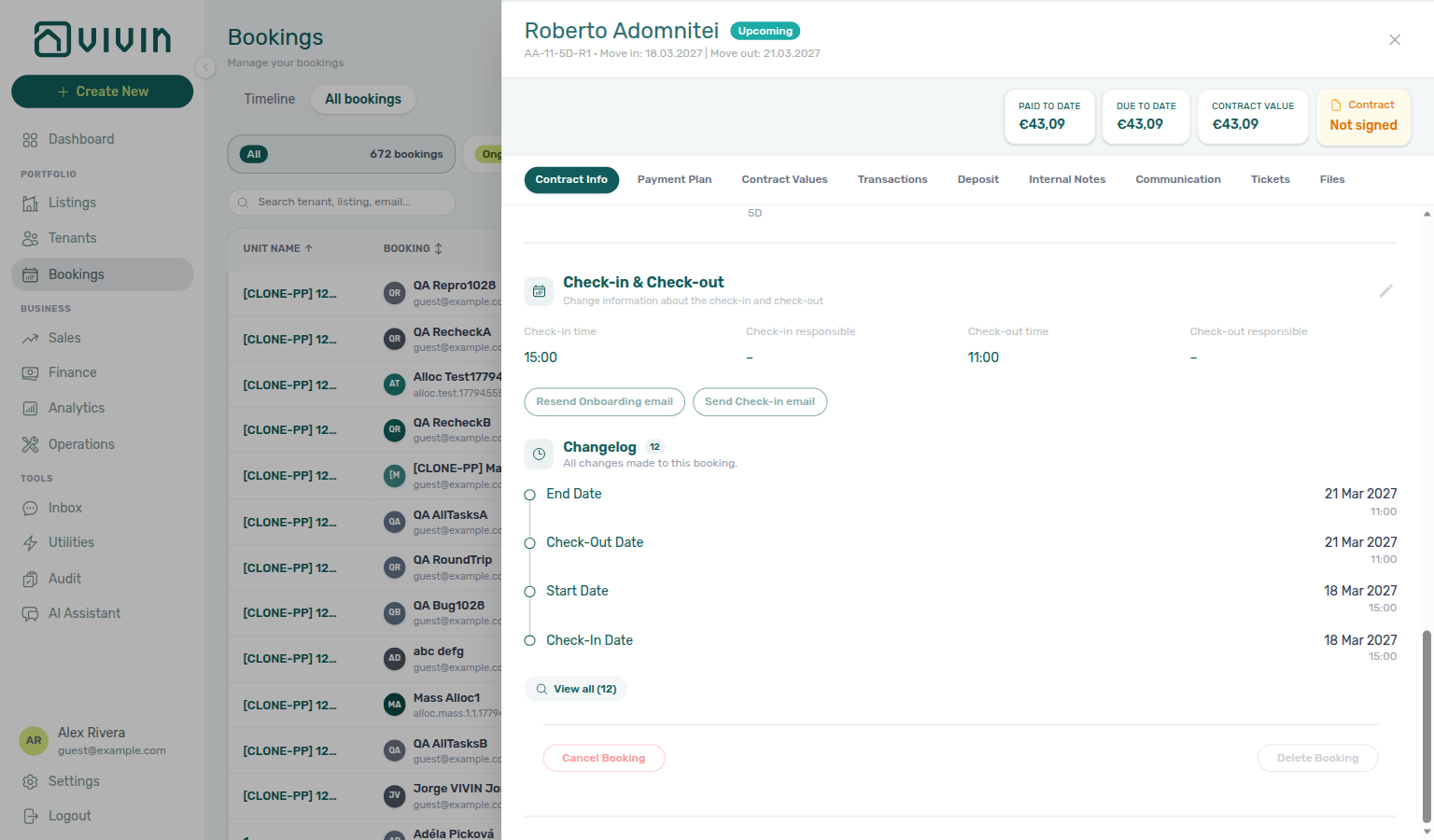
Need a date change, cancel, or payout correction? Make it on Airbnb. When Channex sends the revision, Vivin applies it automatically when safe — When Airbnb changes dates or the payout.
Payment plan matches the Airbnb payout
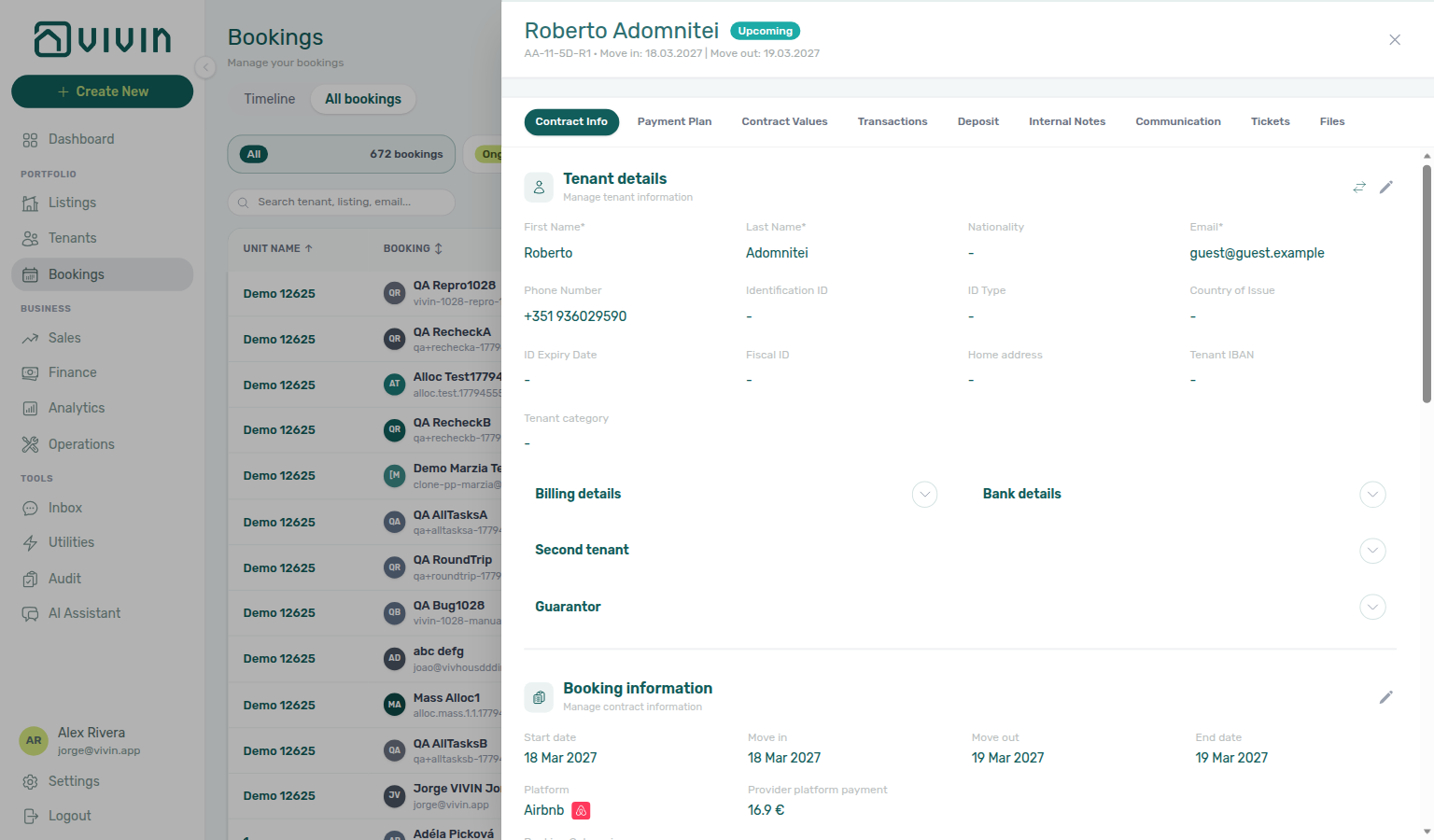
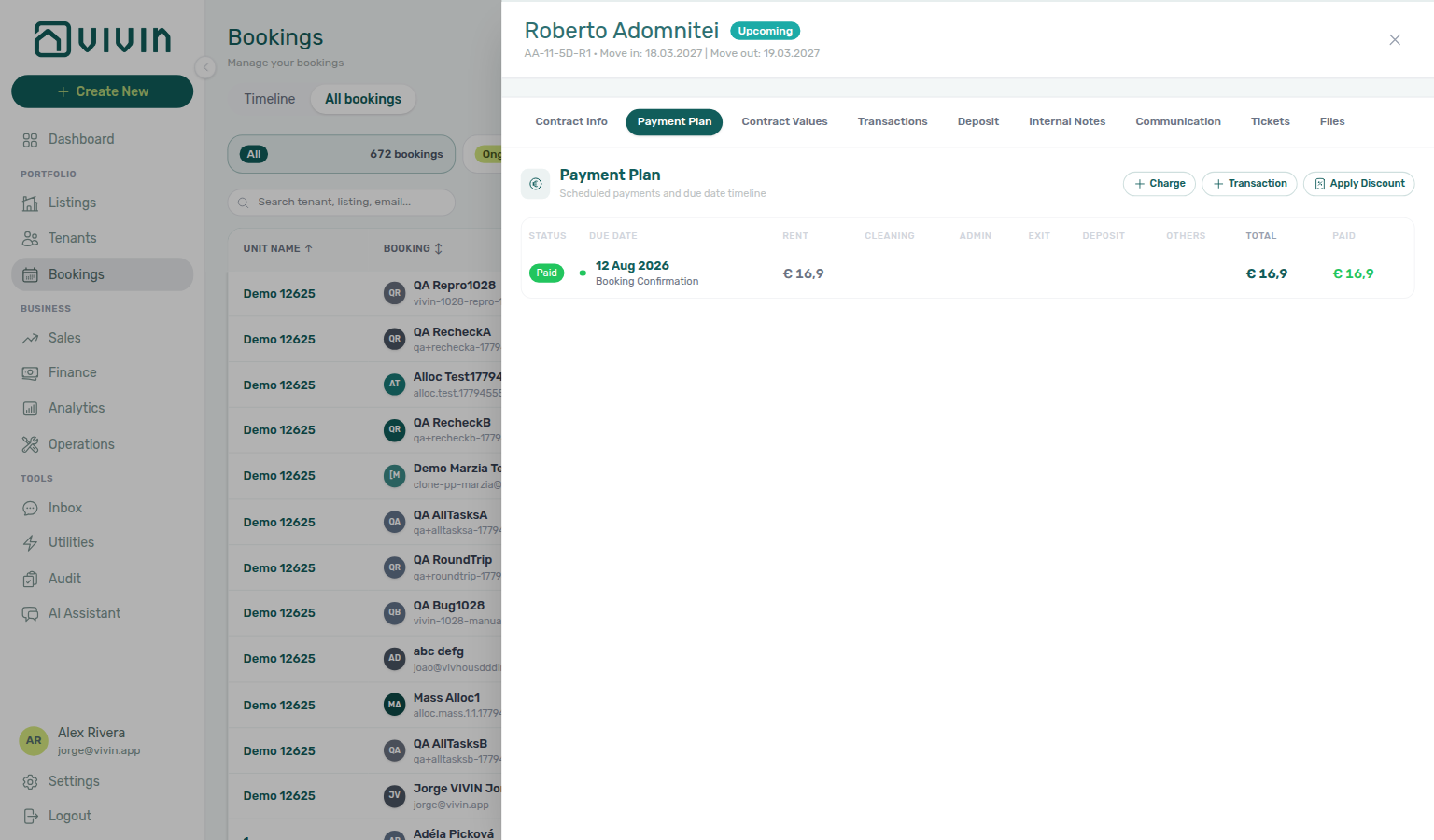
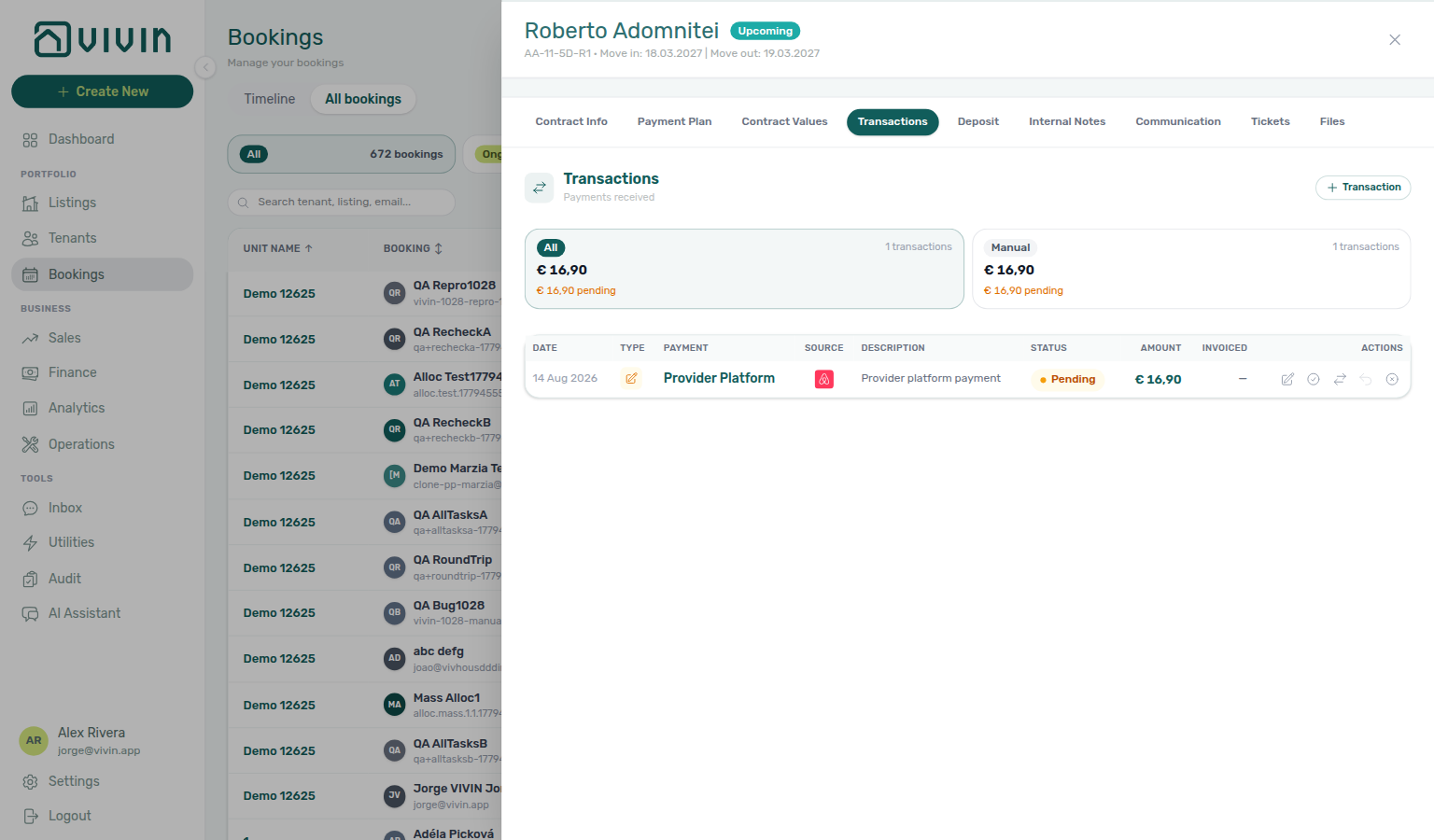
On import, Vivin builds the Payment Plan so Paid to Date, Due to Date, and Contract Value all equal the Provider platform payment (the Airbnb / OTA payout for the stay) — not a mid-term monthly rent schedule. A matching Provider Platform in-payment lands on Transactions and is allocated to that rent line immediately, so a fresh channel stay usually opens as Paid with no extra collections work.
| Where to look | What you should see |
|---|---|
| Insights bar (booking header) | Paid to Date, Due to Date, and Contract Value all equal the same payout. |
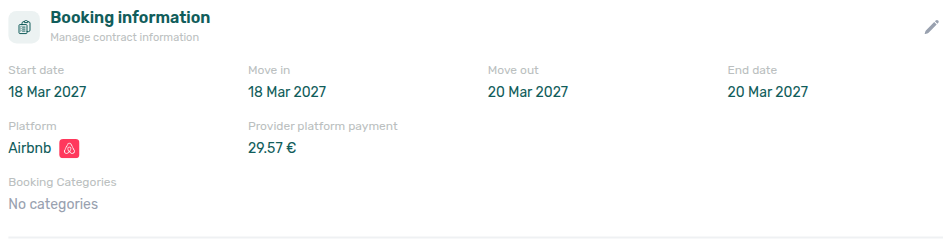
| Contract Info → Booking information | Provider platform payment = the OTA payout (for example 16.9 €). |
| Payment Plan | One (or few) rent lines whose Total and Paid sum to that same payout. |
| Transactions | A Provider Platform row sourced from Airbnb for the same amount. |
Booking.com stays: one rent line due at check-in
On a channel-manager Booking.com stay, the property collects the guest’s money (card, at check-in, or a Booking.com bank transfer). Vivin does not register an Airbnb-style payout automatically, so Paid to Date stays €0 until you record what you collected.
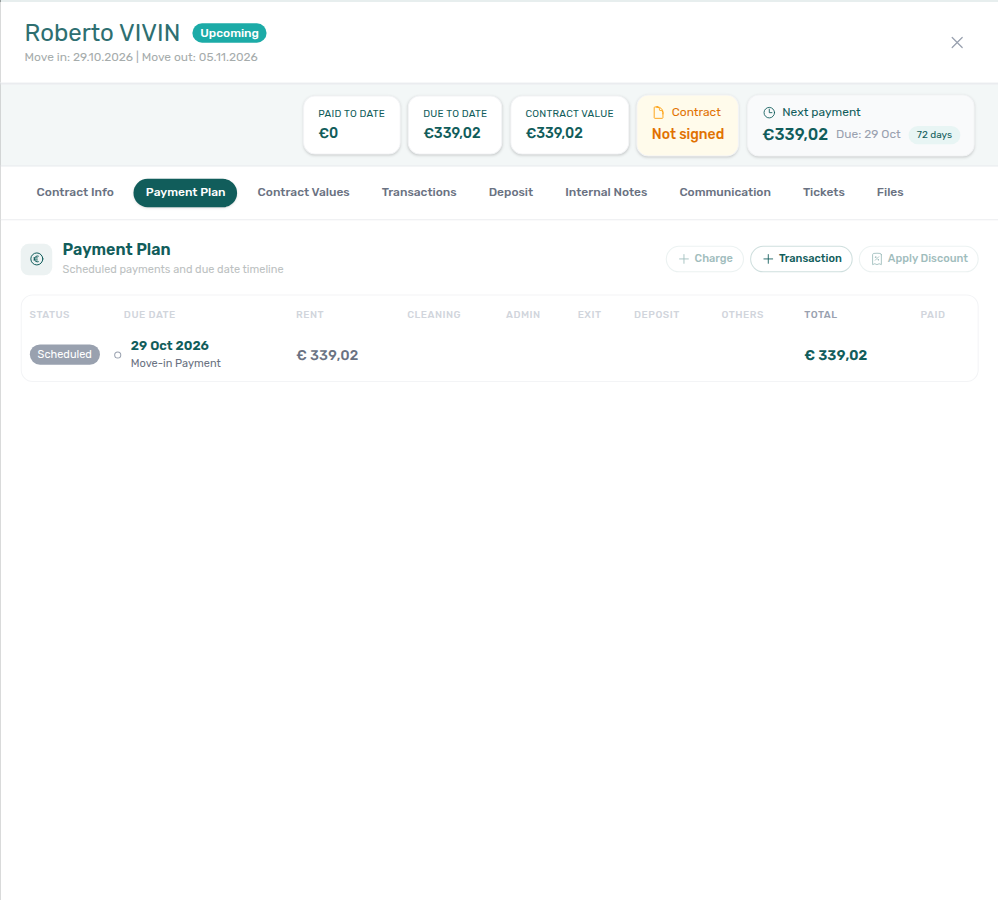
Payment Plan shows one rent line for the whole stay, due on check-in (Move-in Payment) — even when the stay crosses a calendar month. A stay that spans October and November still bills once, due on the move-in date. Example: 29 Oct → 5 Nov bills €339,02 as a single Move-in Payment due 29 Oct.
| Where to look | What you should see |
|---|---|
| Insights bar | Contract Value equals the Booking.com amount. Paid to Date is €0 until you record a collection. Next payment is due on check-in. |
| Payment Plan | One Scheduled rent line labelled Move-in Payment, total matching Contract Value. + Charge and Apply Discount stay locked. + Transaction stays enabled. |
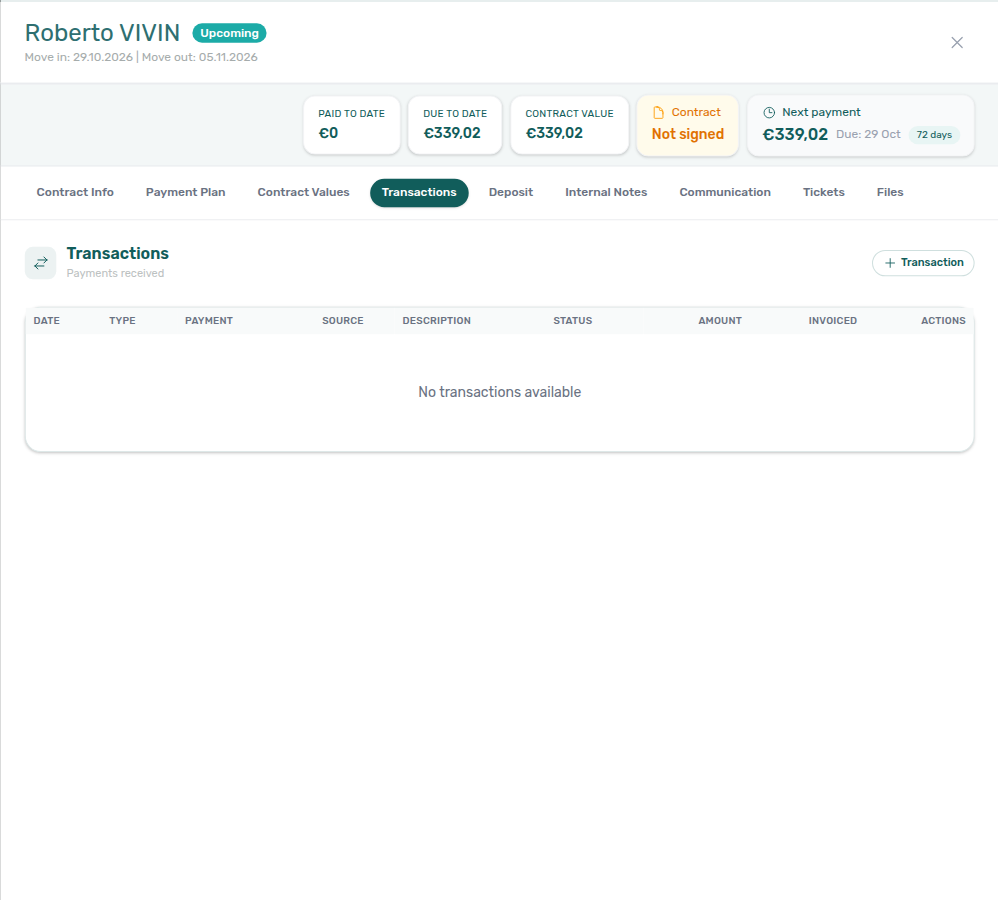
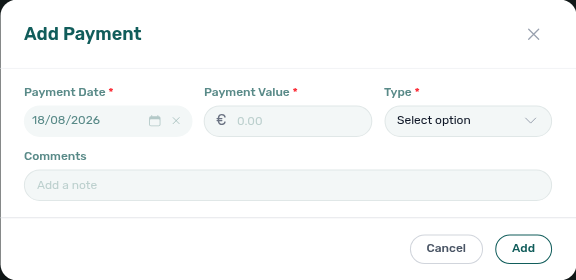
| Transactions | No automatic Provider Platform in-payment. Use + Transaction to open Add Payment and record what you collected (your role must allow adding payments). |
Locked charge/discount controls use this tooltip: Charges and discounts are locked for Booking.com bookings — the amounts follow Booking.com. Record here the payments you collect from the guest.
See FAQ — Why does a Booking.com stay show one rent line due at check-in? and Edit lockdown on Airbnb bookings (Airbnb still locks + Transaction because that payout registers automatically).
When Airbnb changes dates or the payout
When the guest later changes dates or the OTA payout on Airbnb, Channex sends a modified revision. Vivin acknowledges that revision and applies the new stay dates and host payout to the Vivin booking when the change is safe to take automatically:
- Contract Info → Booking information updates the stay dates and Provider platform payment to match the channel.
- The Payment Plan regenerates and the received Provider Platform in-payment follows the new payout.
- Contract Info → Changelog (open View all) records a line such as OTA modification applied automatically from the channel… with the before/after dates and payout.
After an automatic update, open the booking and confirm Paid to Date on the insights bar still lines up with the new Provider platform payment, then skim Payment Plan / Transactions for any remainder you still need to collect or adjust.
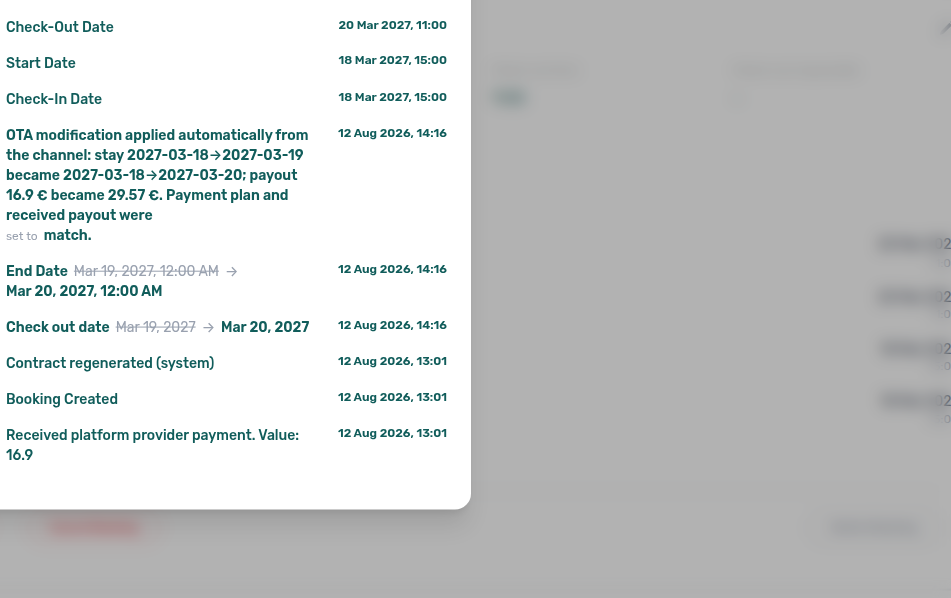
When Vivin cannot apply the change automatically (for example a date collision on the unit, or invoiced payment-plan rows that block regeneration), Changelog instead shows a review warning. You cannot fix stay dates with Change contract start/end date on these bookings — those controls stay locked (Edit lockdown). Instead:
- Confirm the current Contract Info dates and Provider platform payment against Airbnb.
- Clear the blocker on the Vivin side when you can (for example resolve an overlapping block, or finish invoiced payment-plan work that prevents regeneration).
- Make any further date or payout correction on Airbnb so Channex can send a fresh revision.
- Re-open the booking and confirm Changelog records an automatic apply (or ask Vivin support if the warning persists after the channel is correct).
Commission-only Airbnb updates that do not change stay dates or the host payout usually need no Vivin action.
FAQ: Why does an Airbnb booking show Paid equal to the payout?, What happens when an Airbnb guest changes dates or the payout?, Why can’t I edit an Airbnb booking in Vivin?.
Booking Engine short stays (daily, under one month) — When a reservation comes from the Vivin Booking Engine with a Daily contract day type, a stay shorter than one month, and a positive Provider platform payment amount supplied by the engine, Vivin bills that quoted stay total on the payment plan instead of re-deriving rent from the unit’s monthly rate × nights. If the stay crosses a calendar month boundary, Vivin splits the same total across those months by billable days (the last month absorbs rounding). Changing contract dates (or editing Monthly rent) drops that preservation — Vivin regenerates rent with normal daily proration from then on. Longer Booking Engine stays and non–Booking Engine platforms keep the usual rent rules. See FAQ — Booking Engine short-stay rent and Provider platform payment.
Payment plan and Finance — Turning Update Payment Plan on for move-in or move-out changes regenerates rent and related scheduled lines. If regeneration conflicts with invoiced allocations, the API returns an error — resolve Finance records first (same pattern as fee amount edits). After a successful change, open Payment plan and check Contract Info → Timeline for logged date and rent events.
Provider platform payment
When the reservation was created through a partner with a platform-handled first payment, Booking information may show Provider platform payment (read-only in both view and edit mode). Marketplace POST /bookings records platformProviderPaymentValue as that amount — Creating Bookings — Platform commission. The amount is for reconciliation against the partner statement; it does not replace Payment plan or Finance Transactions for allocations in Vivin (except Vivin Booking Engine daily stays shorter than one month — see Booking Engine short stays). Tenants see the same channel as a platform name and logo (for example Roomless or Airbnb) on portal Payments → Transaction History. Direct stays show —. Empty shows Not set. + Create New → Booking can type First payment value (€) when Platform is a channel (not Direct). While a non-rejected provider platform in-payment row still exists on the booking, Delete Booking is blocked — Reject the payment on Transactions (or clear it via Assign to other booking when allowed) before you remove the reservation. See Delete Booking and Finance — Delete payment on the ledger.

Use check in date as contract start date
On Change contract start date, tick Use check in date as contract start date when the contract (PDF, displayed Start date, related finance dates) should follow operational check-in instead of the billing-period start. On Change contract end date, tick Use check out date as contract end date for operational check-out. The helper text is Without impact in the payments plan — ticking the box fills the date field from check-in or check-out and does not regenerate rent lines.
Marketplace POST /bookings cannot send these flags — imported stays land with both boxes off until you tick them here — Creating Bookings — Use check in date as contract start date. + Create New → Booking has no create-time control. Property Rental payment frequency still sets stored Start date / End date at create (for example a Monthly contract starts on the 1st). Airbnb channel-manager stays keep Change contract start/end date locked — Edit lockdown on Airbnb bookings.
Booking-level fee amounts
When Account Settings > Fees has Admin fee, Cleaning fee, or Exit fee turned on, new bookings copy the property defaults from Listings — Contract Information. On an existing booking, operators can override each € amount on Contract Info → Booking information without changing property defaults for future reservations. Listing JSON and partner POST /bookings omit the exit fee — Vivin still copies the property amount onto imported stays — Listings & Availability — Exit fee. Marketplace POST /bookings also cannot send depositValue — listing JSON copies onto the hold — Creating Bookings — Deposit. Marketplace POST /bookings also cannot send adminFeeValue — Vivin resolves the property fixed amount or stay-duration tier — Creating Bookings — Admin fee. Marketplace POST /bookings also cannot send billsIncludedMaxValue — Vivin copies the property Bills Included ceiling — Creating Bookings — Bills included.
| Field | Visibility | Edit behaviour |
|---|---|---|
| Cleaning fee | Shown when the fee is on in Account Settings or this booking already stores a non-zero cleaning fee. | Enter edit mode (pencil on Booking information). Change the € input; use Cleaning Fees requirement on the same card for monthly vs one-time scheduling (see below). |
| Admin fee | Same rule — account toggle or non-zero value on the booking. | Edit the € amount in edit mode. Tiered property defaults from Per stay duration are resolved at booking create; this field is the stored amount for this reservation. |
| Exit fee | Same rule — account toggle or non-zero value on the booking. | Edit the € amount in edit mode. |
Each amount is a € input beside Deposit in edit mode. Changed fields highlight with an orange border until you Update. Labels follow your custom fee names when configured.
| Action | Payment plan behaviour |
|---|---|
| Raise a fee | Vivin syncs the matching scheduled line(s) to the new amount and may redistribute incoming payments across outstanding charges. |
| Lower a fee | Surplus non-invoiced allocation is freed and reapplied per your payment priority order. |
| Set a fee to €0 | Removes that fee from the payment plan for this booking (disables the charge without changing property defaults). |
Guards — Values must be ≥ 0. Canceled bookings cannot be updated. If a fee line is already invoiced, lowering the amount below what was invoiced fails — resolve Finance records first (same pattern as cleaning fees requirement edits).
After you Update, open Payment plan and confirm admin, cleaning, and exit lines match the new amounts. Check Contract Info → Timeline for logged fee-value changes. Changing property defaults in Listings does not retroactively change existing bookings (see Listings business rules).
Bills included ceiling
Each booking stores the Bills included ceiling (maximum monthly utility cost absorbed into rent) copied from the property wizard Step 3 at create time. Vivin uses this value with Utilities overage math — when a supplier bill exceeds the ceiling, tenants pay the difference on their payment plan. This booking-level euro cap is not the same as unit All bills included (No cap), which shows as Covered on Allocations (Extra to charge € 0,00) instead of a pending overage.
| View | What you see |
|---|---|
| Read-only | Up to €… when a positive ceiling is stored; Not set when the value is 0 or empty (same as clearing the field). |
| Edit mode | On Contract Info → Booking information, click the pencil to reveal a € number input for Bills included (beside platform and categories). Change the ceiling for this reservation only, then Update — or Cancel to discard. You can also set it at Add booking (when the property has bills included) or on the property wizard. Marketplace POST /bookings cannot send a different ceiling — Creating Bookings — Bills included. The API accepts billsIncludedMaxValue on PUT /bookings/:id. |
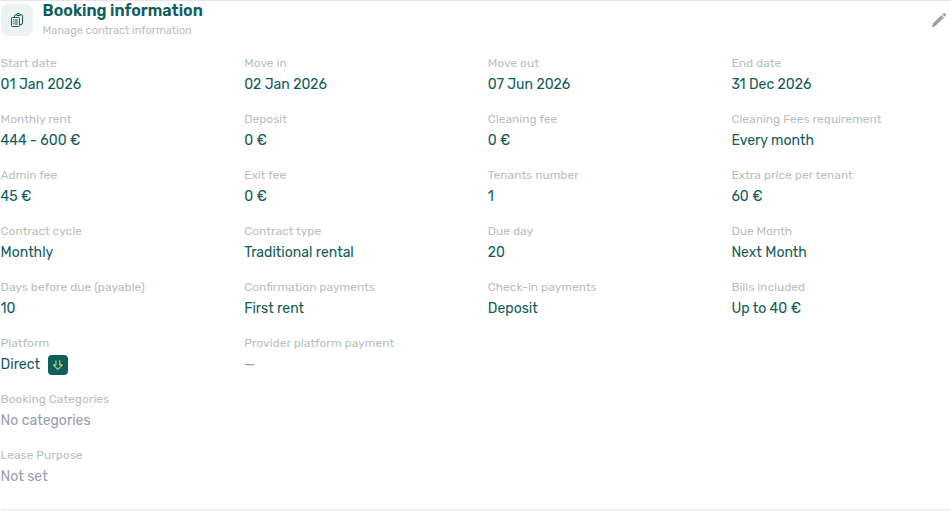
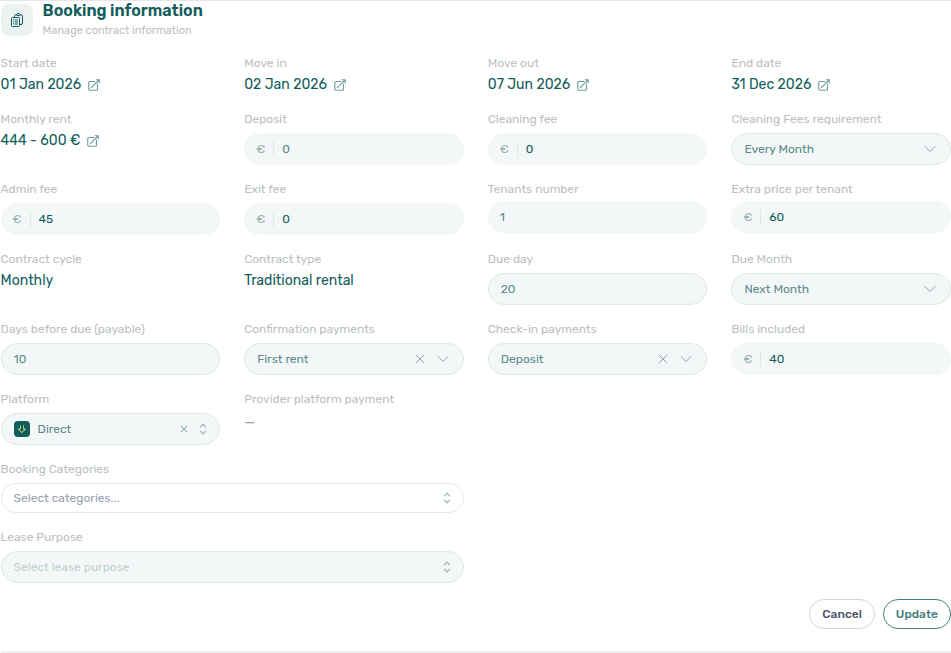
Payment plan behaviour — Updating Bills included on an existing booking is inert for the payment plan: Vivin saves the new ceiling on the reservation record but does not regenerate scheduled lines or recalculate past utility overages. Use it when the contractual ceiling for this tenant differs from the property default without changing Listings for future bookings.
| Action | Payment plan / Utilities |
|---|---|
| Set or raise € | Stored on the booking only; future overage runs use the new ceiling. |
| Clear to €0 | Persists as 0 and displays Not set; overage math treats the booking as unlimited unless property-level ceilings still apply elsewhere. |
| Lower € | Same inert save — does not claw back overages already posted from a prior higher ceiling. |
Guards — Values must be ≥ 0. Canceled bookings cannot be updated. Negative amounts are rejected at save time.
Changing property defaults in Listings does not retroactively change existing bookings — override per reservation here when needed.
Cleaning fees requirement
Each booking stores the cleaning fee mode copied from the property at creation. Marketplace POST /bookings cannot send a different amount or frequency — Creating Bookings — Cleaning fee. On Contract Info, enter edit mode to change Cleaning Fees requirement for this reservation only:
| Option | Payment plan |
|---|---|
| Every Month | Monthly cleaning fee lines across the contract span (default when the field is empty / null). |
| One-Time Fee at Booking Confirmation | Single cleaning fee line at confirmation. |
| One-Time Fee at Move-in | Single cleaning fee line in the move-in month. |
The value is read-only until you click edit on the Booking information section (pencil icon in the section header). After you Update, open Payment plan and confirm cleaning fee rows match the new mode. If regeneration cannot remove surplus monthly rows because a cleaning allocation is already invoiced, the API returns an error — adjust Finance records first or keep the prior mode.
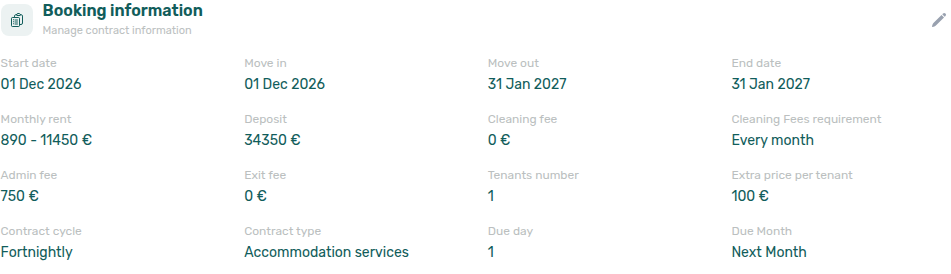
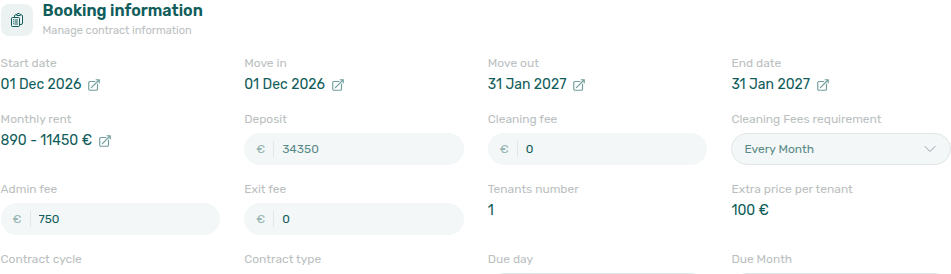
Days before due (payable)
Days before due (payable) on Contract Info → Booking information is how many days before a charge’s due date Vivin marks the line as payable for this reservation. New bookings copy the account Days before due date from Payments. Marketplace POST /bookings cannot send a different window — Creating Bookings — Days before due. + Create New → Booking also cannot pick it at create. There is no property-level Days before due date.
On an existing stay, click the pencil on Booking information and change Days before due (payable). Update saves the value on this reservation only — it does not rebuild the payment plan, and it does not change account Payments for future bookings. 0 means the line is not marked payable early. Canceled bookings cannot be updated.
This is not Due day / Due Month (the calendar day for the rent schedule). It is not Deposit Refund Limit (days after checkout to return the hold).
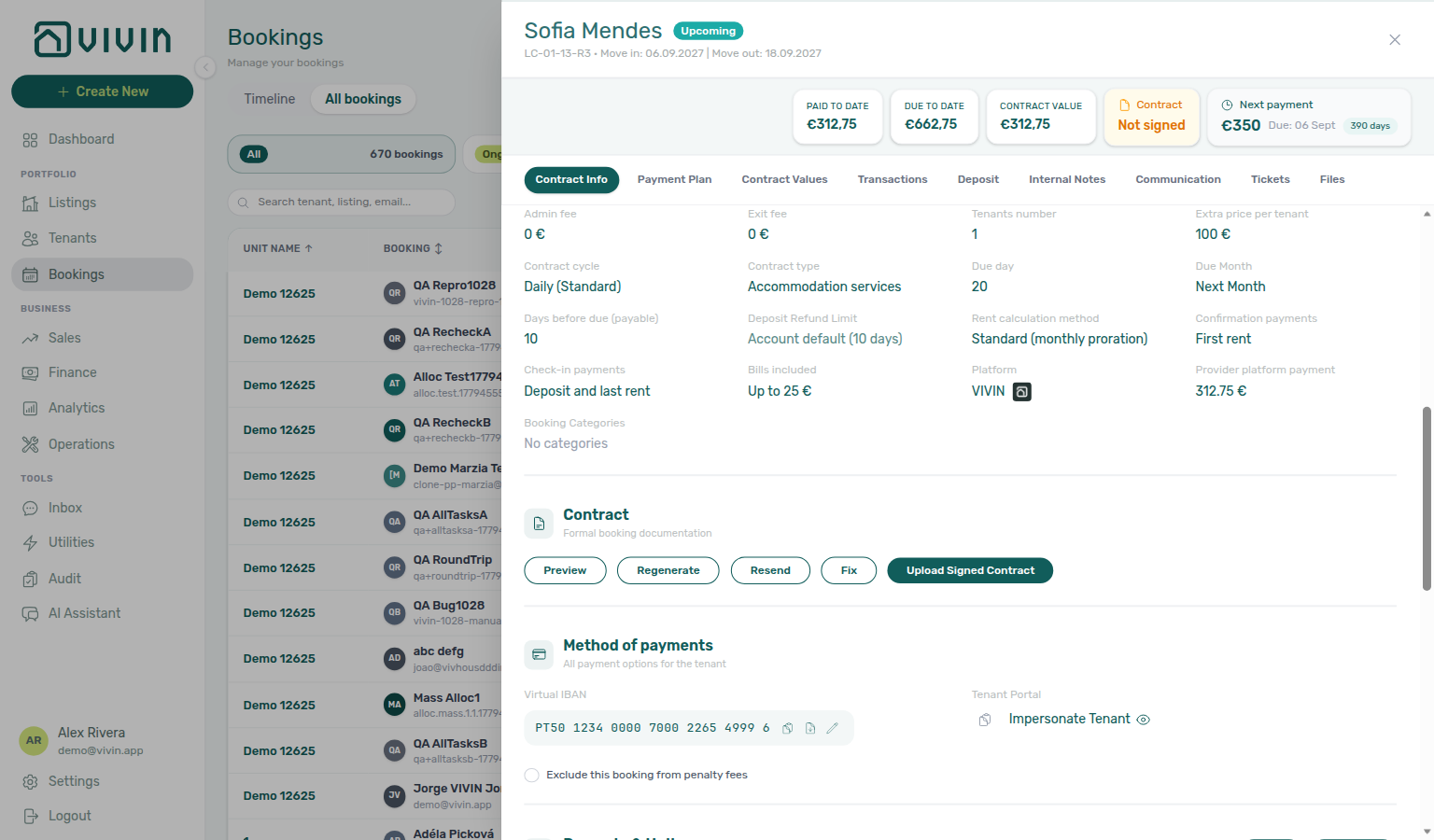
Deposit Refund Limit
Deposit Refund Limit on Contract Info → Booking information is the number of days after the booking’s refund anchor by which your team should return the security deposit for this reservation. The account-wide default lives on Settings → Billing → Payments → Deposit Refund Deadline (English UI label on Payments). Vivin uses the effective term when deriving Refund Due Date on Finance → Deposits and when bounding due dates for post-checkout Add Charge rows on the booking. Marketplace POST /bookings cannot send a different term — imported stays inherit the account setting until you override it here — Creating Bookings — Deposit Refund Limit. + Create New → Booking also cannot pick it at create. There is no property-level Deposit Refund Limit. Changing Payments still moves every booking that shows Account default.
| Read-only display | Meaning |
|---|---|
| Account default (N days) | No booking override — inherits the Payments Deposit Refund Deadline (N is the account value). |
| Account default (no day count) | Same inherit state when the account setting is not a usable number. |
| N days (or 1 day) | This booking has an explicit override of N days. |
Edit mode — click the pencil on Booking information, then use the Deposit Refund Limit number field:
| What you enter | Result on save |
|---|---|
| Leave blank | Clears any override and returns to the account Deposit Refund Deadline. |
| 0 | A real override meaning the refund is due on the anchor date itself (not blank). |
| 1–3650 | Override of that many days for this booking only. |
The hint under the field says Leave blank to use the account setting. Blank and 0 are not interchangeable — blank inherits; 0 is an intentional same-day ceiling. After Update, check Contract Info → Timeline for a Deposit return term (days) log line when the value changed. Canceled bookings cannot be updated.
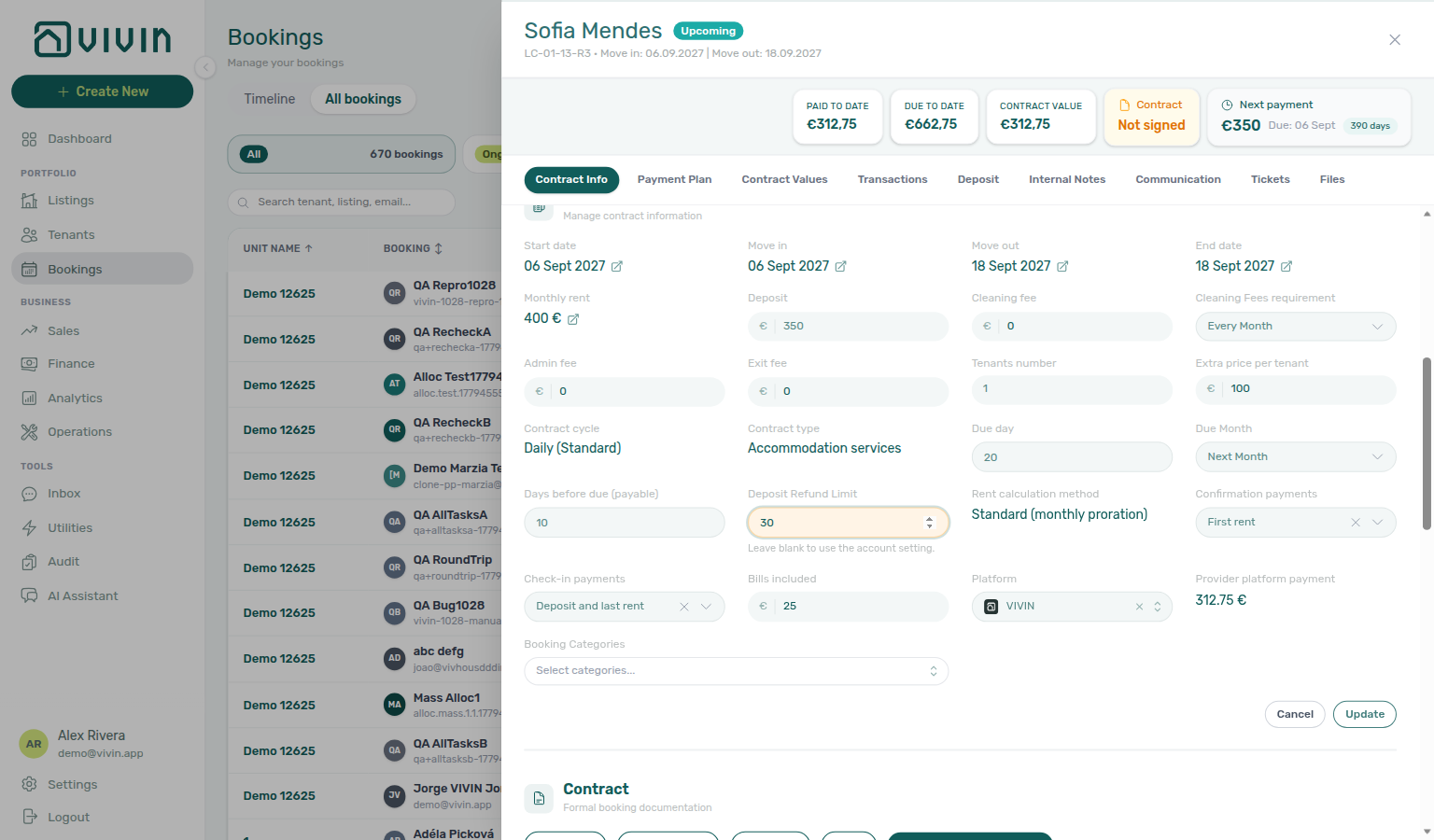
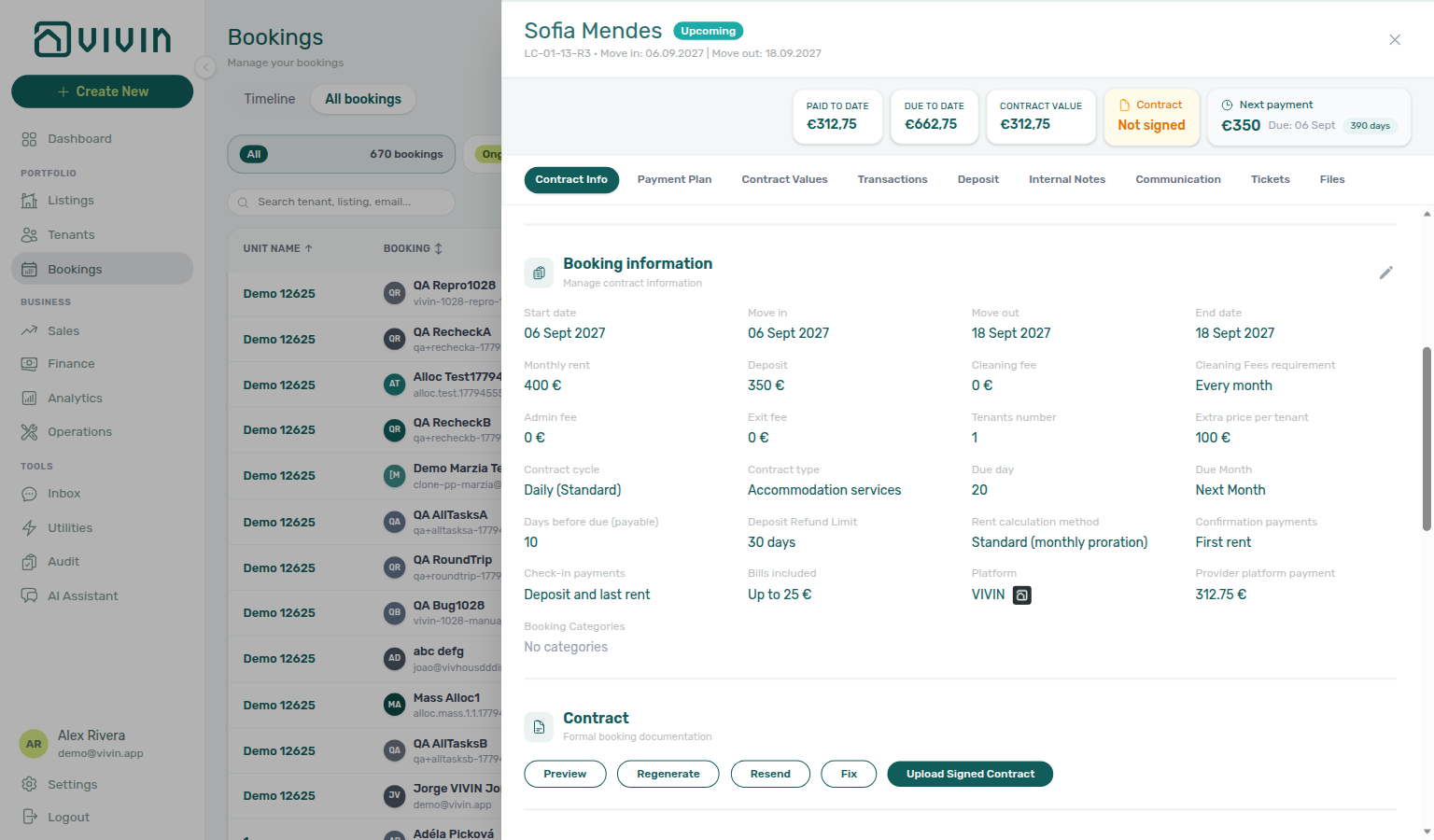
See also FAQ — Per-booking deposit refund limit and Glossary — Deposit Refund Limit.
Confirmation payments and check-in payments
New bookings copy Confirmation payments and Check-in payments from the property’s Listings — Contract Information defaults at create time. Marketplace POST /bookings cannot send a different split — Creating Bookings — Confirmation payments. New bookings also copy Due day and Due Month from that same card (or from account Tenant Due Day / Tenant Due Month) — Creating Bookings — Due date. New bookings also copy Check-in time and Check-out time from account Booking Defaults — Creating Bookings — Check-in times. New bookings also copy Days before due (payable) from account Payments — When to show payment as due — Creating Bookings — Days before due. Marketplace POST /bookings does not set Check-in responsible or Check-out responsible — those stay empty until you assign a teammate — Creating Bookings — Check-in responsible. Marketplace POST /bookings does not set Lease purpose — imported stays show No lease purpose until you or the tenant select a chip — Creating Bookings — Lease purpose. Marketplace POST /bookings does not set Deposit Refund Limit — imported stays inherit the account Payments term until you override it — Creating Bookings — Deposit Refund Limit. On an existing reservation, operators can override Confirmation payments, Check-in payments, Due day, Due Month, Days before due (payable), Check-in / Check-out times, Check-in / Check-out responsible, Lease purpose, and Deposit Refund Limit on Contract Info without changing property or account defaults for future bookings.
| Field | When charges are due (payment plan) |
|---|---|
| Confirmation payments | Lines flagged for booking confirmation — due on min(booking created, check-in date) so late-created reservations do not post confirmation charges after move-in. |
| Check-in payments | Lines flagged for move-in — due on the booking’s check-in date (deposit, first rent, last rent, and combinations). |
Read-only view shows the human-readable requirement (for example Deposit and first rent). When a value was never set on the booking, the UI may display property/account defaults — First rent for confirmation and Deposit and last rent for check-in are common fallbacks in the English UI.
Edit mode — click the pencil on Booking information, then use the two dropdowns:
| Option (English UI) | Typical meaning |
|---|---|
| Deposit | Security deposit only |
| First rent | First scheduled rent line |
| Last rent | Last scheduled rent line |
| Deposit and first rent | Deposit + first rent together |
| Deposit and last rent | Deposit + last rent together |
No double-charging — the product disables overlapping options across the two dropdowns. If Confirmation payments includes Deposit, Check-in payments cannot also require Deposit (same rule for First rent and Last rent). This mirrors the property wizard rule documented in Listings — Confirmation Payments.
Clear (×) — each dropdown has a clear control in edit mode. Clearing sends null for that requirement on this booking only, which can shift due dates when you Update.
Payment plan impact — saving a change calls the API to recompute due dates on requirement-flagged lines (persistDueDates). When the change moves first rent or last rent between confirmation and move-in buckets, Vivin may regenerate split rent lines on the payment plan. After Update:
- Open Payment plan and confirm deposit / rent due dates and requirement badges match the new split.
- Check Contract Info → Timeline for Move-in requirements or Booking confirmation requirements log lines.
Guards — Canceled bookings cannot be updated. If regeneration conflicts with invoiced allocations, resolve Finance records first (same pattern as cleaning fees requirement). Change unit stays disabled while confirmation payments are still outstanding on the booking.
See also Processing a new booking for the create-time flow and Payment allocation concepts for how confirmation vs move-in flags affect collections.
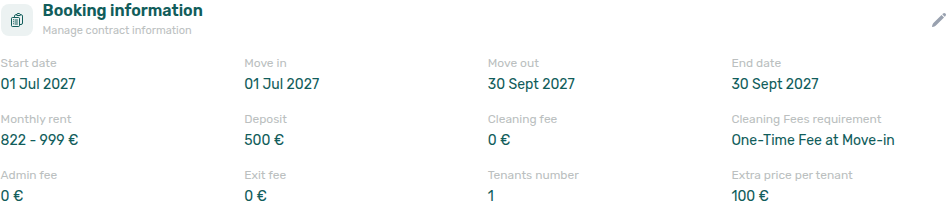
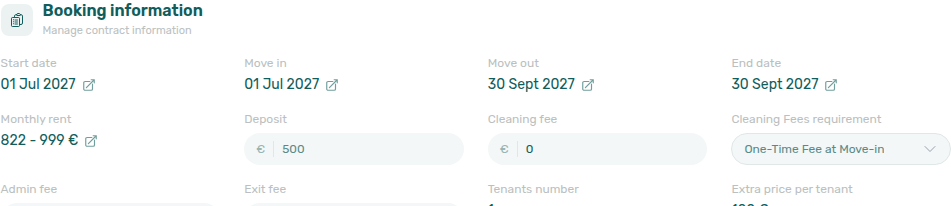
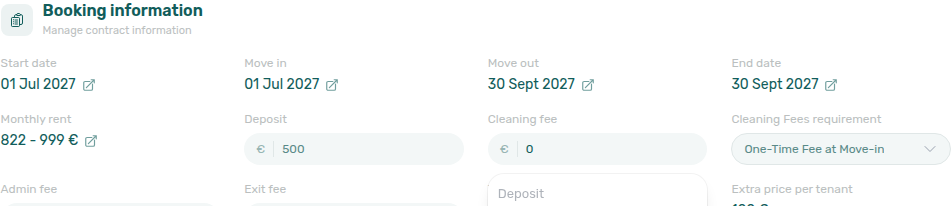
Dual pricing (local rent cap)
When the account has dual pricing enabled, the unit had a Local Rent Cap at booking create, and an Others category was configured, the booking stores useDualPricingRentSplit. On Contract Info → Booking information, you see Local Rent Cap (read-only until you enter edit mode on supported bookings). Partner listing JSON does not publish the cap — catalogues show the full advertised rent — Listings & Availability — Local rent cap.
| Surface | What to expect |
|---|---|
| Contract Info | Local Rent Cap in euros when the booking uses the split. |
| Payment plan / Contract Values | Each contract month shows a Rent line capped at the local rent cap plus a matching Others line for rent − cap (same category as Account Settings). |
| Allocation | Incoming payments can satisfy Rent and Others separately per your payment priority order. |
Editing the cap on an existing booking (dual-pricing bookings only): open Contract Info edit mode, change Local Rent Cap, and save. The value must stay above zero and below the booking’s rent. Vivin regenerates scheduled Rent and Others lines and logs the change on the booking Timeline. Canceled bookings cannot be updated. If regeneration conflicts with invoiced allocations, resolve Finance records first — same pattern as cleaning fees requirement edits.
Dual pricing is frozen at booking create — turning dual pricing off in Account Settings later does not remove the split from bookings that already have it.
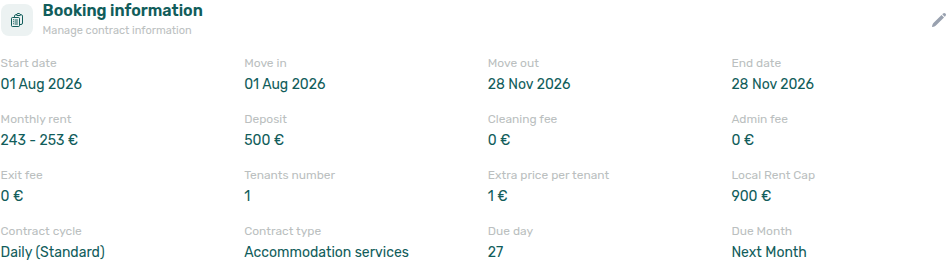
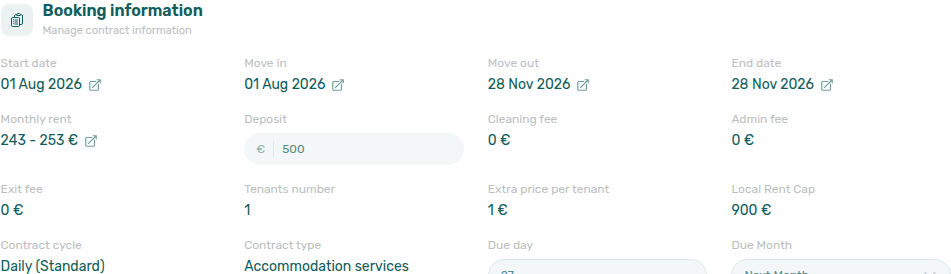
Booking tags
Booking categories on Contract Info → Booking information are optional chips from Settings → Categories → Bookings. Marketplace POST /bookings cannot send these labels — imported stays show No categories until you pick chips — Creating Bookings — Booking tags.
| Surface | Behaviour |
|---|---|
| Contract Info → Booking information | Read-only chips when tags are stored; No categories when empty (the usual state after a marketplace import). |
| Contract Info edit mode | Multi-select from the account’s configured chip list. Save with Update. |
| Add booking | Same multi-select when the account has chips — or leave blank. |
| Bookings list / Timeline | Untagged marketplace stays match Booking categories → No booking category. Named tags filter stays that already carry a label. |
| Communication Rules | Include only named tags will not match an untagged marketplace stay — tag the reservation first, or leave Booking tags on No filter. |
This card is not a default copied onto new stays. Listing Select tags (property and unit labels) is a different catalog. Tenant category is a different catalog (portal segments — allowlisted channels can assign a default). Lease purpose is a different field (why the tenant is renting).
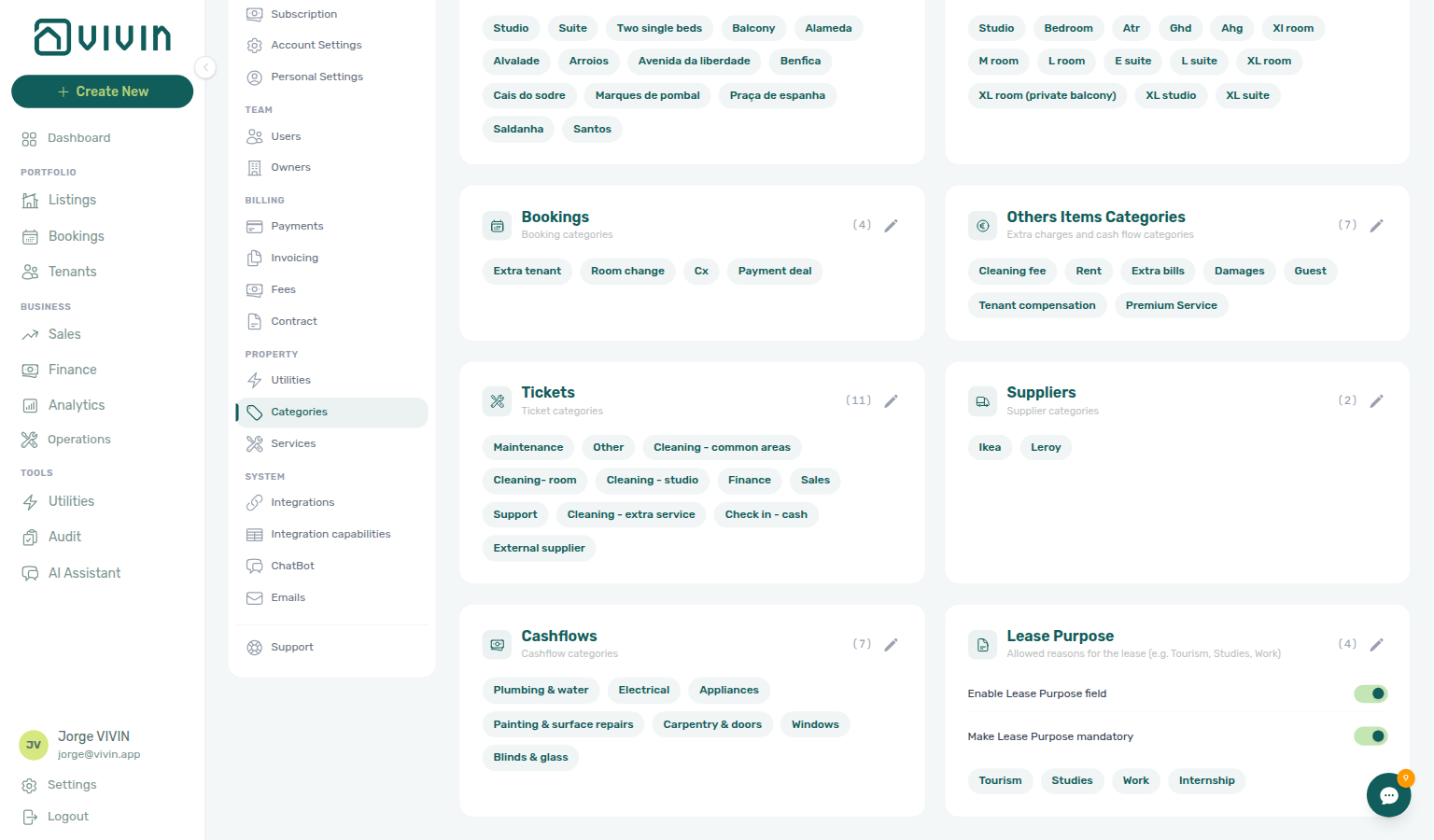
Lease purpose
When Settings > Categories > Lease purpose has Enable Lease Purpose field turned on, operators can record why the tenant is renting (for example Tourism, Studies, or Work). Marketplace POST /bookings cannot send this label — imported stays show No lease purpose until you or the tenant select a chip — Creating Bookings — Lease purpose.
| Surface | Behaviour |
|---|---|
| Contract Info → Booking information | Read-only Lease purpose under Booking categories when a value is stored; No lease purpose when empty (the usual state after a marketplace import). |
| Contract Info edit mode | Searchable dropdown limited to the account’s configured chip list. When Make Lease Purpose mandatory is on, Update is blocked until a value is selected. |
| Add booking | Same dropdown on the tenant / platform step when the field is enabled (required asterisk when mandatory). |
| Tenant portal signing | When the field is enabled, the tenant picks an allowed value on Sign contract → Your Details (Select lease purpose). When Make Lease Purpose mandatory is on, Next stays blocked until a value is selected — see Tenant Portal — Lease Purpose. Pair with Portal settings — Mandatory for contract signing (settings-sidebar-tenant-portal-portal-settings.png) for other Your Details gates. Operator troubleshooting: FAQ — Tenant contract signing blocked. |
Values must match one of the allowed chips from Categories; free-text outside the list is rejected on save. Turning the field off in Settings hides the control on new edits but does not erase values already stored on bookings.
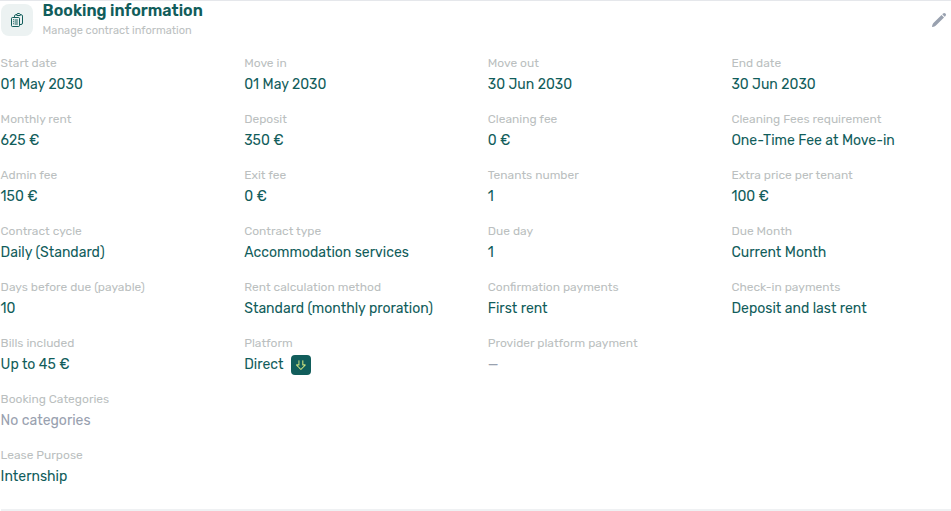
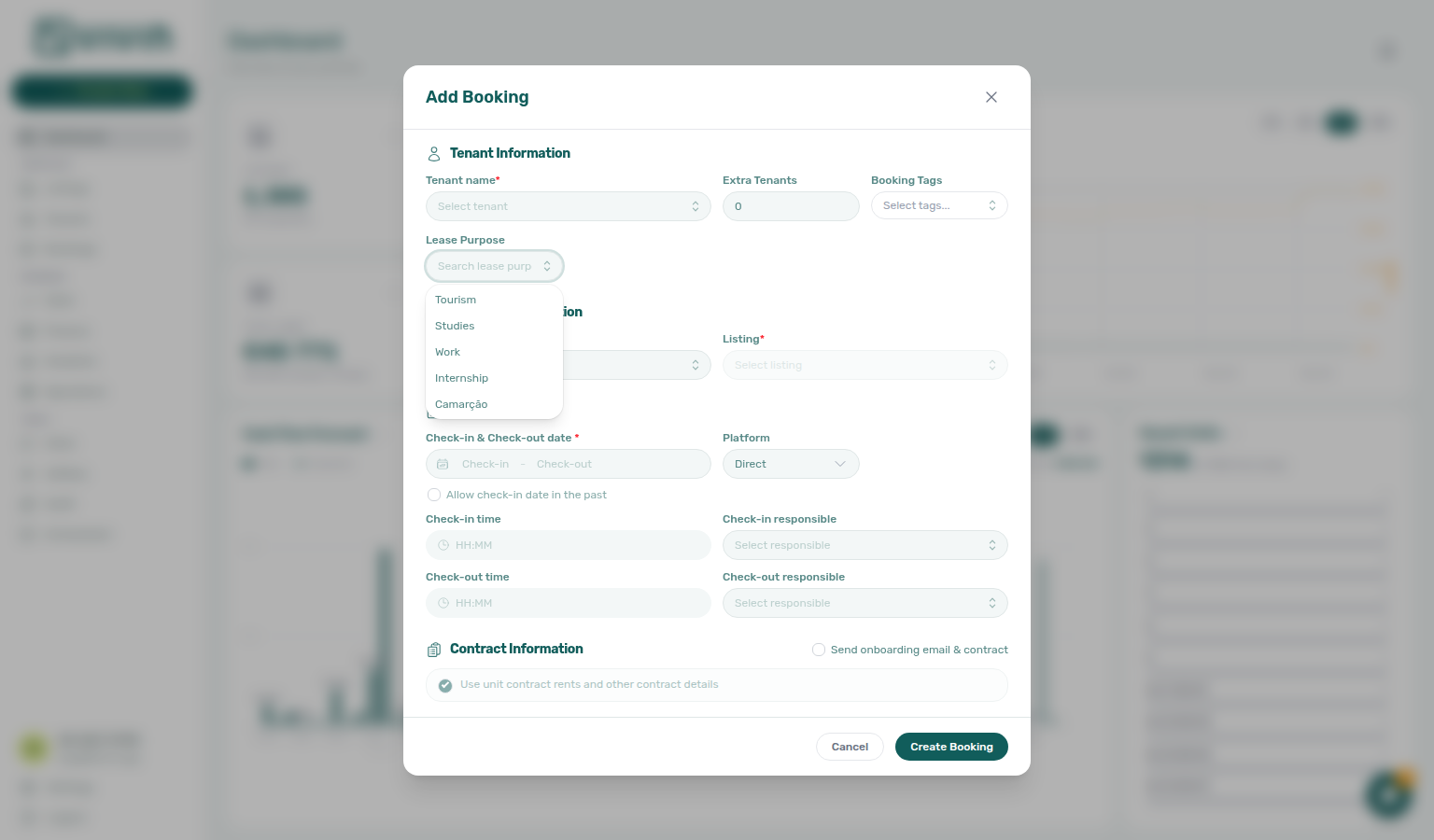
Change tenant (reassign booking)
When a reservation was created under the wrong existing tenant profile (duplicate fiscal ID or email in the account, or a data-entry mistake before check-in), use Change tenant on the Contract Info tab instead of editing tenant master data in place.
Who can use it
- Requires
bookings.edit_items(same permission as editing booking line items). - The control appears only while the booking is Upcoming in the list filters sense (the product status card Upcoming).
When it is available
| Condition | Result |
|---|---|
| Booking is cancelled | Control disabled — cannot change tenant. |
| Check-in date is today or in the past | Disabled — cannot change tenant on or after check-in. |
A signed contract is on file (contractPath / upload on Contract Info) | Disabled — cannot change tenant once the contract is signed. |
| Any allocation on the booking is paid and invoiced (or otherwise protected) | Reassign booking is rejected with an error when you confirm. |
Confirmation payments may still be outstanding; reassignment is allowed before the structural blocks above apply.
What it does (and does not do)
- Updates the booking’s primary
tenantIdand the denormalized tenant snapshot on the booking (name, email, fiscal ID shown in the sidebar). - Clears an unsigned generated contract file so the regeneration job can rebuild the PDF for the new tenant — it does not regenerate the contract inline.
- Does not rebuild the Payment Plan, move historical Transactions, or rewrite invoiced allocations; past payments and issued invoices stay tied to the original tenant for audit and legal continuity (the modal states this explicitly).
Steps
- Open the booking from Bookings → List (or a deep link such as
/bookings/list/:bookingId). - On Contract Info, in the Tenant card header, click the swap icon (Change tenant).
- In the modal, review Current tenant, search New tenant by name, email, or NIF, then click Reassign booking.
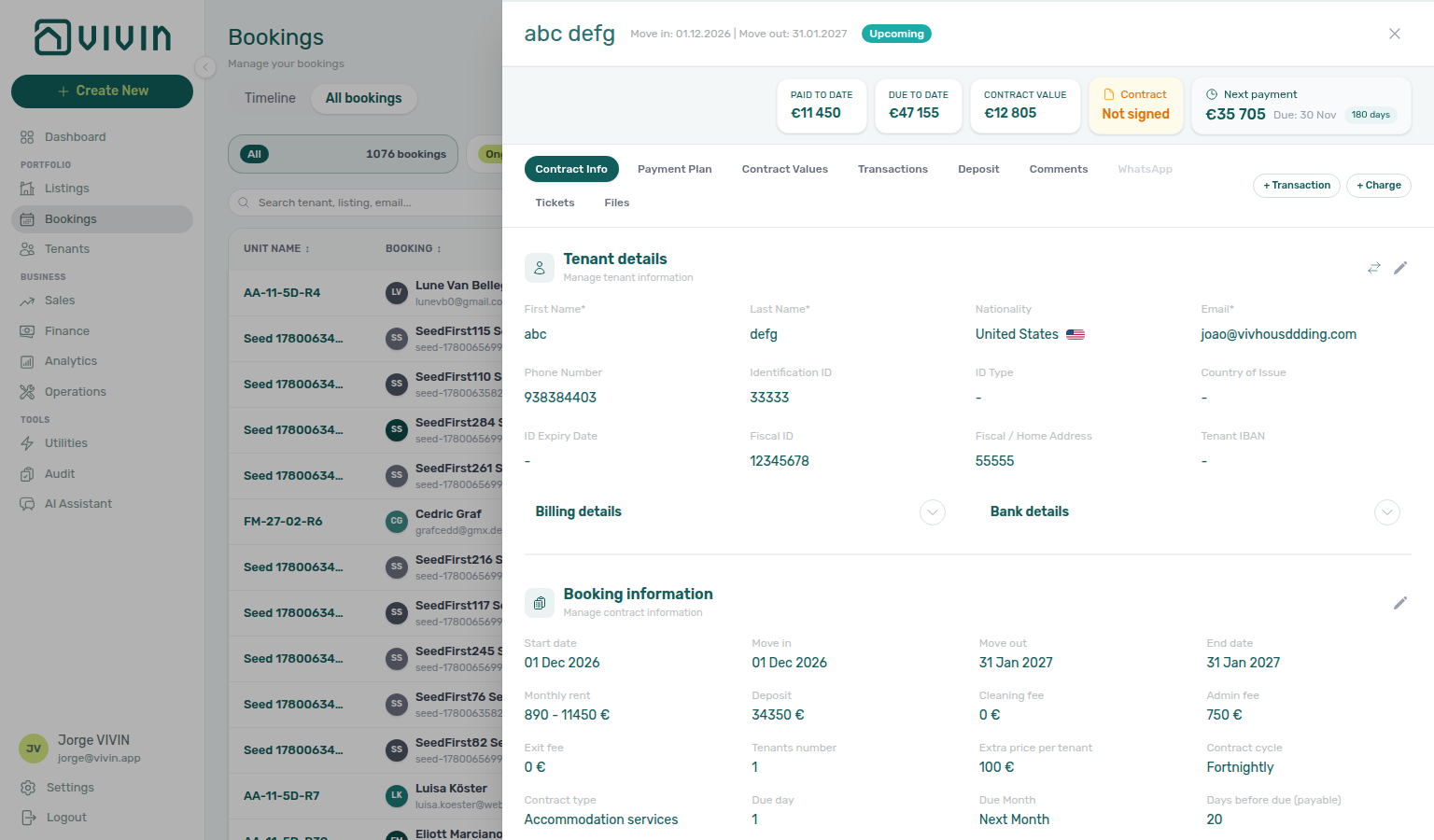
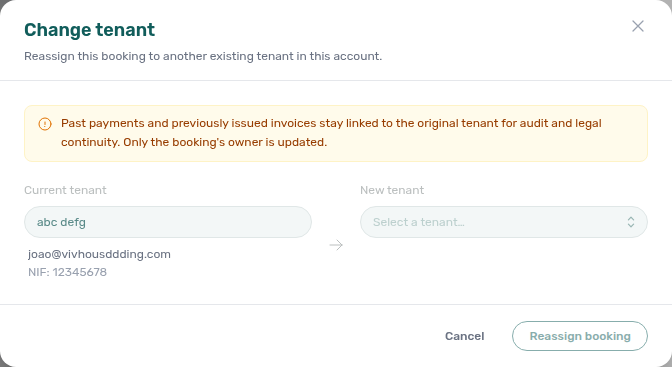
The pencil on the same card edits contact fields for the current tenant on this booking. Change tenant points the whole booking at a different tenant record already in your account — use it when the wrong person was linked, not when you only need to fix a typo on the right profile.
Change unit (before check-in)
When a confirmed booking should move to a different unit in the same account before the tenant checks in (for example a maintenance issue on the original room), use Change unit on Contract Info instead of cancelling and re-creating the reservation.
Where it lives
- Contract Info → Property & Unit section, on the Unit internal name row — a small pencil beside the current unit opens Change unit when the booking is eligible.
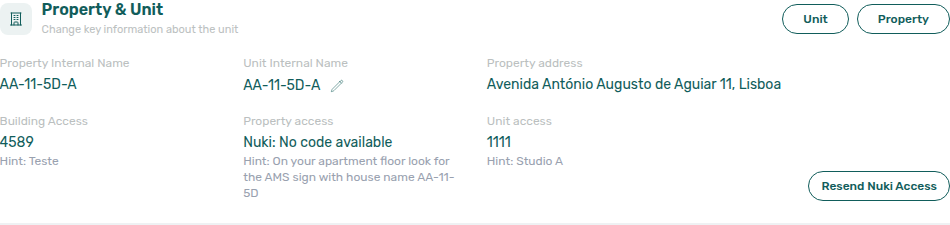
When it is available
| Condition | Result |
|---|---|
| Booking is cancelled | Disabled — cannot change unit. |
| Booking is not confirmed (confirmation payments still outstanding) | Disabled — complete confirmation first. |
| Check-in date is today or in the past | Disabled — cannot change unit on or after check-in. |
| Target unit is the same as the current unit | No-op — the API skips side effects. |
| Target unit is deleted, its property is archived, unavailable for the date range, or has an overlapping confirmed booking | Move booking is rejected with a specific error. |
What the move does (V1)
| Area | Behaviour |
|---|---|
| Booking row | Updates listingId (and related property snapshot) to the new unit. |
| Calendar | Removes the block on the old unit and adds a Booked block on the new unit. |
| Nuki access | Regenerates door codes for the new unit when Nuki is configured (cross-property moves show stronger copy in the modal). |
| Emails | Re-sends check-in and onboarding emails for the new unit; refreshes scheduled reminders. Check-in email is skipped when Nuki regeneration fails — resolve access, then Resend Check-in email manually. The onboarding resend omits the contract PDF when the booking has no contractPath yet (even if Contract in onboarding email is on account-wide) so the message still delivers without a broken attachment. |
| Automatic CI/CO tickets | Re-points active automatic check-in/out tickets to the new unit (and property) in the same save — Operations staff are not left on the old room. Closed, cancelled, and duplicate tickets stay put. Common-area automatic tickets keep listingId null and only refresh the property snapshot. See FAQ — Change unit tickets. |
| Contract | Not regenerated — existing contractPath / signed contract files stay as-is. If a signed contract exists, the modal warns that the PDF may still reference the original unit. |
| Payment plan | Unchanged — rent, deposit, fees, and scheduled lines still reflect the original commercial terms until you edit them separately. |
After you pick a new unit, the modal lists verb-led effects (door codes, emails to the tenant, reminder refresh, calendar block move) and a teal Contract and payment plan unchanged callout — both stay tied to the original unit until you edit them separately. A separate amber alert appears when the booking already has a signed contract on file.
Steps
- Open the booking from Bookings → List (or a deep link such as
/bookings/list/:bookingId). - On Contract Info, in the Property section, click the pencil beside Unit internal name.
- In Change unit, review the current unit, pick a new unit from the searchable list (loaded from the lightweight account-wide listing options API — see Glossary — Listing options (management API)), and read the When you move this booking summary (door codes, emails, reminders, calendar) plus the Contract and payment plan unchanged note.
- Click Move booking. Partial failures (for example Nuki or email) surface as toasts — the unit change still commits; use Resend Onboarding email, Send portal access, or Resend Check-in email on the same tab when needed.
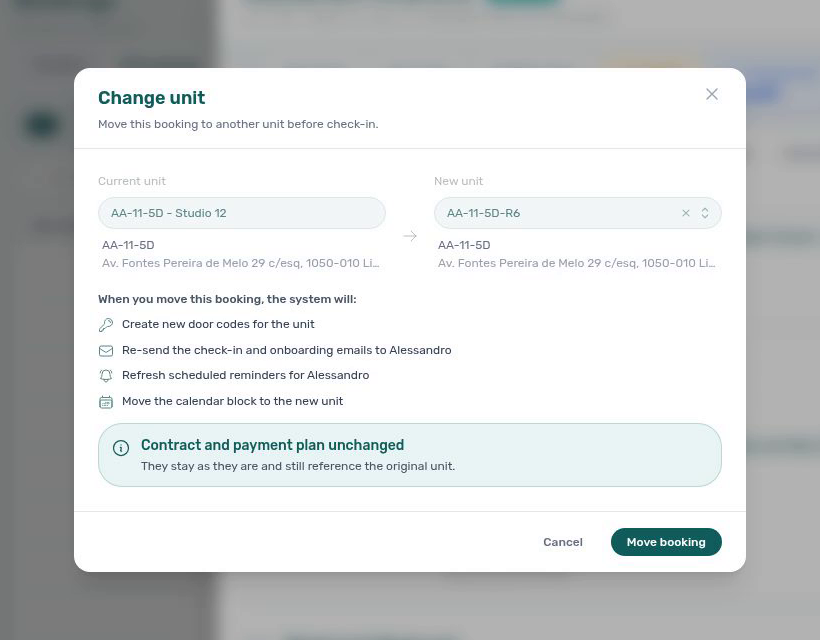
The modal’s on-screen effects list covers door codes, emails, reminders, and the calendar block. Automatic check-in/out tickets still re-point to the new unit in the same save even though that bullet is not listed in the modal — confirm on Operations → Tickets (property / unit column) or the booking Tickets tab after a real move. See FAQ — Change unit tickets.
Operational unit moves do not rebuild the payment schedule. After relocating a booking, open Payment Plan and Finance if rent or deposit should follow the new unit’s defaults — the same double-billing caution applies when manually editing dates on two overlapping bookings (see Room changes under Early departures).
Contract management also lives on this tab:
Automatic contract generation
When a booking is confirmed (from any channel), Vivin can automatically generate a digital rental contract:
- Smart data insertion — tenant name, unit details, dates, pricing, and custom clauses are populated automatically from the booking data.
- Digital signature — signature requests are sent via email, and tenants can sign from any device.
- Multiple contract types — support for traditional rental agreements, accommodation services contracts, and custom templates.
- All contracts stored and searchable — access contracts by tenant, property, or date range at any time.
Manual contract management
You can also manage contracts manually:
- Upload a signed contract PDF by clicking Upload Signed Contract on the Contract Info tab — the Add Signed Contract modal accepts drag-and-drop or file picker (PDF, DOC, DOCX)
- Download the generated contract to send to the tenant
- Preview the contract with all booking variables filled in
- Regenerate rebuilds the PDF from the current booking and template
- Resend (on this Contract card) sends the onboarding email with the contract attached, even when Contract in onboarding email is off for the account. The tenant’s category can still block the attachment when the Contract portal module is off. If this booking has no generated contract yet, use Preview / Regenerate first — or use Resend Onboarding email on the Check-in & Check-out card, which still delivers the welcome message without a PDF.

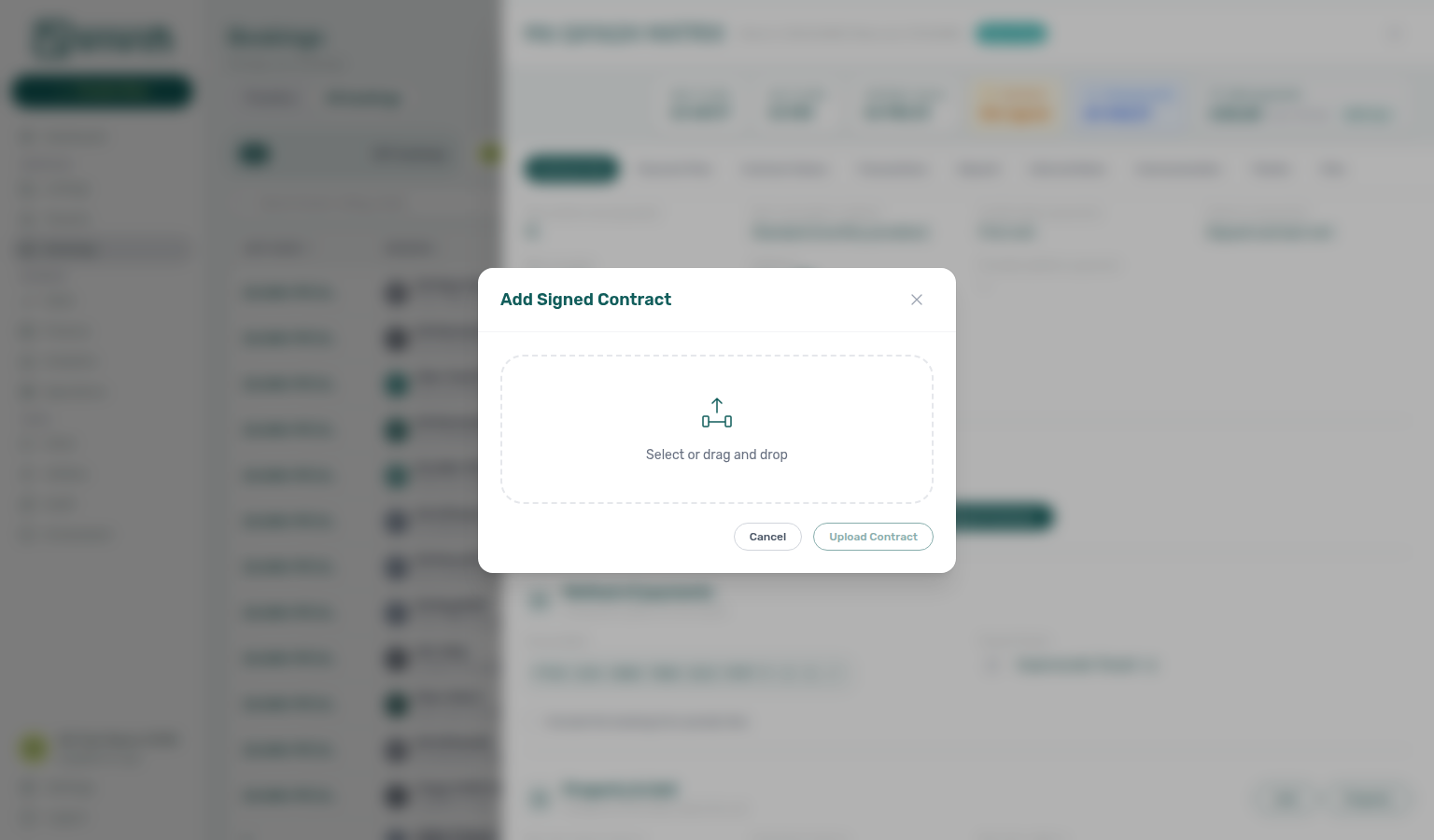
Uploading a file on the Contract Info tab marks the booking as contract signed. The Contract column on All bookings switches to a teal check and the hover tooltip shows Signed on with that timestamp — the list you already scrolled stays in place (it does not jump to the first page). Regenerate clears that mark the same way. If Contract status is Signed, Not Signed or N/A, that filtered list reloads so rows can leave or join the slice. See Contract mark stays on the list.
Virtual IBAN (bank transfers)
When virtual IBAN collection is enabled for the booking, the Contract Info tab shows the tenant's dedicated transfer reference under Method of payments:
- Copy — copy the full virtual IBAN to the clipboard for sharing with the tenant or your bank workflow.
- Download proof — download a PDF proof of the virtual IBAN (for records or tenant instructions).
- Switch IBAN (pencil) — open Edit Booking Virtual IBAN to swap this booking’s virtual IBAN with another reservation for the same tenant (for example after a banking or integration change, or when a rebook should inherit the prior reference).
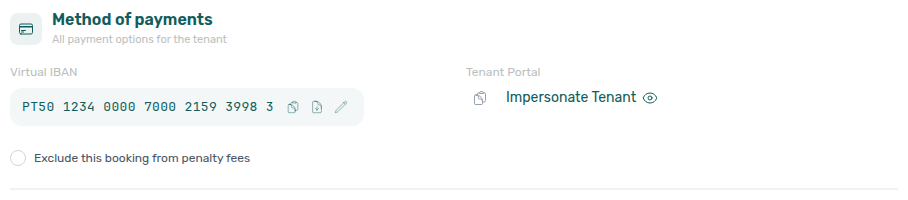
Switch IBAN steps
- On Contract Info → Method of payments, click the pencil (Switch IBAN) beside the Virtual IBAN.
- Read the modal copy — Vivin switches the IBAN with the booking you pick; it does not generate a brand-new IBAN by itself.
- Open Select a booking. Only other reservations for the same tenant appear. When the tenant has several stays (including the same unit), each row shows property — unit · contract dates · status so you can tell them apart — the same identity pattern as Transfer Refund Balance. The collapsed trigger repeats the dates after you select.
- Click Update IBAN only when you intend to swap. Close or cancel to leave the current IBAN unchanged.
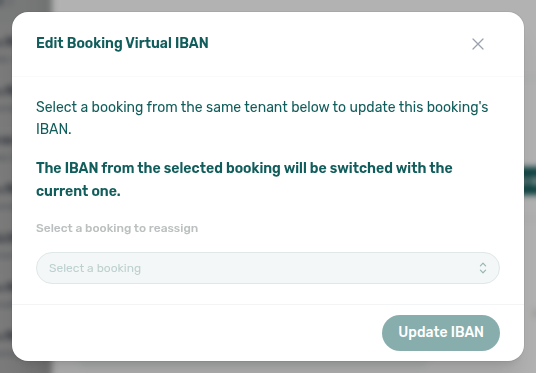
Tenants use this virtual IBAN for incoming rent transfers; it is not the same as their personal bank account IBAN used for deposit refunds. See Finance > Automated Rent Collection and Tenant Portal > Online Payments.
Tenant Portal link (same card)
In the same Method of payments block, Tenant Portal gives operators quick access to the booking-scoped portal URL:
- Copy (clipboard icon) — copies the direct portal link (includes booking
idand accesscodewhen configured) so you can paste it into chat, SMS, or a manual email. - Impersonate Tenant — opens that URL in a new browser tab so you can preview what the tenant sees on the portal home (payments, contract, and self-service areas your account allows).
The link is disabled with a short error toast when the booking has no portal URL yet (for example very early in creation before credentials are provisioned).
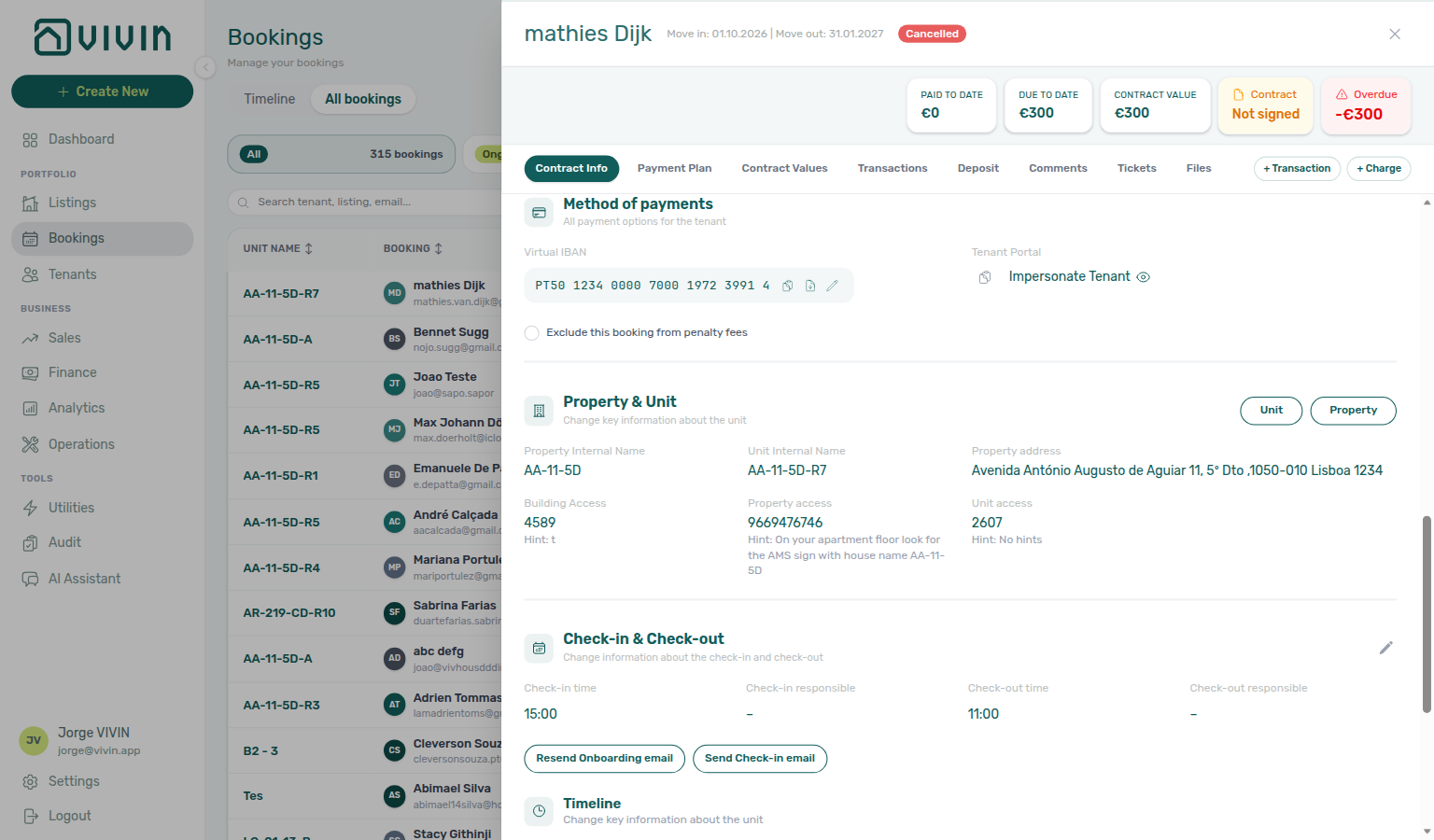
Exclude this booking from penalty fees
On the same Method of payments card, Exclude this booking from penalty fees is an optional checkbox. Leave it off (the default) so account Payment Delay Penalties still apply to this stay. Tick it when this reservation should skip those penalty rules and Penalty Fee scheduled emails.
Marketplace POST /bookings cannot send this flag — imported stays land with the box off until you tick it here — Creating Bookings — Exclude from penalty fees. + Create New → Booking has no create-time control. Airbnb channel-manager stays keep the box locked — Edit lockdown on Airbnb bookings. Operators can still add a one-off extra charge on Payment Plan — Handling a Late Payment — Step 5.
Check-in & Check-out emails
Lower on Contract Info, the Check-in & Check-out card holds operational timing (check-in/out times and responsible team members) and separate email actions for this booking. Marketplace imports copy account Check-in time / Check-out time — Creating Bookings — Check-in times. Marketplace imports do not set Check-in responsible or Check-out responsible — those stay empty (–) until you assign a teammate — Check-in responsible. Marketplace imports do send the onboarding welcome email at create (operators cannot skip it on the channel) — Send onboarding email & contract. Operators can still edit times and teammates on this card for that reservation only. Send Check-in email / Resend Check-in email is offered only when Settings > Emails — Booking lifecycle emails has a check-in trigger other than No trigger. Each control tracks its own last-sent time — sending one does not change the others.
| Control | What the tenant receives | When the label says Resend |
|---|---|---|
| Send Onboarding email / Resend Onboarding email | The welcome template from Settings > Emails — Onboarding. The contract PDF is attached only when Contract in onboarding email is on, the tenant’s category still allows the Contract portal module, and a contract file already exists. If there is no contract file yet, the email still sends without the PDF. | After the first successful onboarding send. Hover for Last sent. |
| Send portal access / Resend portal access | Only the tenant portal login message — the link the tenant uses to open the portal. It does not send the onboarding template or attach the contract. Use this when the tenant needs the portal link again without another copy of the welcome email. | After the first successful portal-access send. Hover for Last sent. |
| Send Check-in email / Resend Check-in email | The check-in template (arrival instructions; access codes when Nuki is configured). Shown only when the account check-in trigger is not No trigger. | After the first successful check-in send. Hover for Last sent. |
Send Onboarding email needs the edit booking items permission (bookings.edit_items). Send portal access is available to anyone who can open this tab. Send Check-in email is available to anyone who can open this tab when the account check-in trigger is not No trigger. To force the contract PDF onto the onboarding email regardless of the Preferences toggle, use Resend on the Contract card instead.
When the check-in trigger is No trigger, this card keeps Onboarding and portal access and omits the check-in button. Pick a real trigger on Booking lifecycle emails first — see Emails — Check-in trigger (settings-emails-lifecycle-check-in-trigger.png, settings-emails-check-in-trigger-gates-button-flow.mp4).
Lifecycle triggers on Settings > Emails — Booking lifecycle emails evaluate automatically when move-in payments post or when the tenant completes digital contract signing in the Tenant Portal (signedContractPath) — not when you upload a signed PDF here. Use Send Check-in email / Resend Check-in email after manual contract upload, or when Nuki code generation blocked an earlier automatic send — the button is on this card when your check-in trigger is not No trigger. When After contract signed never fires, pair FAQ — automatic check-in email with FAQ — Tenant contract signing blocked (bookings-detail-contract-check-in-out-emails.png).
Use these buttons when a tenant did not receive automated mail, needs the portal link without another onboarding send, or you need to refresh arrival instructions after a change. For the full check-in workflow (access codes, tickets, payment plan), see Managing a Check-in. Contrast: FAQ — Onboarding vs portal access vs Contract Resend.

Check-in responsible and Check-out responsible
Check-in responsible and Check-out responsible name the teammates who own arrival and departure handover for this reservation. Marketplace POST /bookings cannot send these names — Creating Bookings — Check-in responsible. There is no account-level default on Booking Defaults and no property-level default. + Create New → Booking can pick both at create. After import, use the pencil on this card. Until you assign someone, Operations → Filters → Assigned responsible → Without lists those marketplace stays as unassigned. Toolbar Responsible only lists names already on a handover.
Timeline (booking change log)
Inside the same Check-in & Check-out card, the Changelog section (subtitle: All changes made to this booking.) combines milestone dates (contract start, check-in, check-out, end) with logged field changes from entityChangeLogEntries — for example rent, dates, or status updates. Each event shows when it happened and by which team member when recorded. The timeline lists operator-initiated edits and workflow milestones — not every default or normalized value Vivin stores when the reservation is first created. When more than four events exist, use View all (N) (magnifying-glass control with the total event count) to open the full changelog in a modal. The modal lists every event in reverse chronological order and includes a Search changes… field so you can filter by field name, author, or date text without leaving the booking sidebar.
Automatic cancellations tied to move-in debt may appear with localized copy (for example a move-in debt explanation) instead of the raw system log prefix Automatically canceled:.
Use this timeline when you need to see who changed contract dates or operational fields without opening Finance or Tools → Audit. The list shows operator-initiated edits only — not every default Vivin stores at create time; see FAQ — Booking Changelog scope. This is booking-scoped audit data — not the same block as Change history on Listings property/unit setup (building and unit field edits — listings-property-edit-change-history.png) or Tools → Audit (cross-portfolio manual blocks and discounts). Month-end block triage: Manual block hygiene.
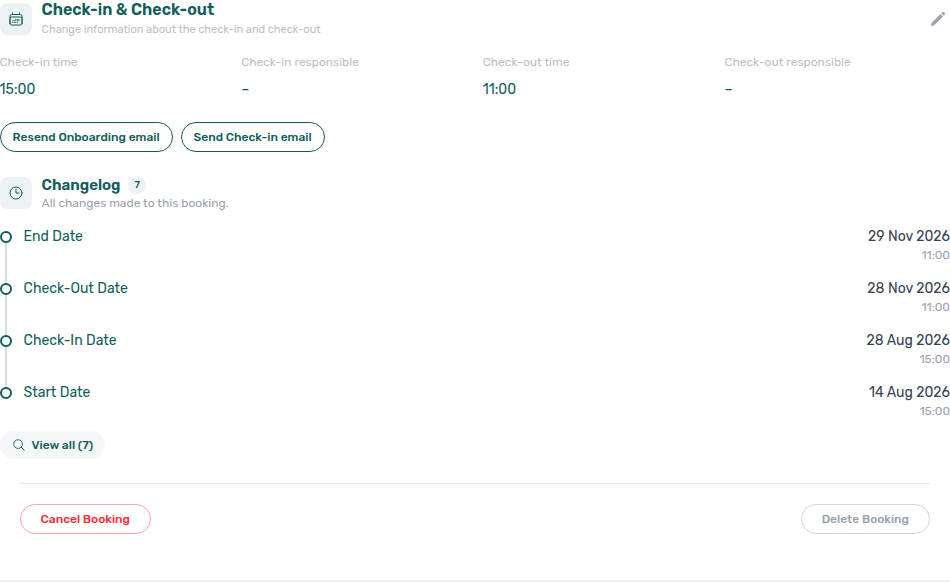
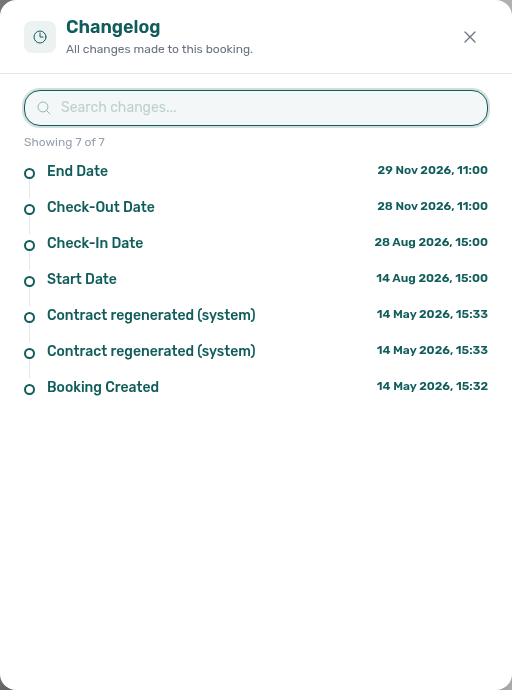
Delete Booking (soft archive)
At the bottom of the Check-in & Check-out card, Cancel Booking and Delete Booking are separate actions:
| Control | What it does |
|---|---|
| Cancel Booking | Ends the stay through the normal cancellation flow (refund options, payment-plan cleanup, calendar release). Disabled when canCancel is false (for example already canceled or business rules block cancel). See Cancellations and Refunds. |
| Delete Booking | Soft-archives the reservation (archive API) — removes it from default Bookings lists and releases calendar unavailability while keeping payment and audit history for Finance. Confirm in the dialog; on success the sidebar closes. Timeline drops the stay bar without a reload when that unit is already on the chart — see Stay bars update after create or delete. With Only bookings on, a unit whose last stay in the window you deleted also leaves the unit list — see Unit list updates after create or delete. |
Delete Booking guards (API returns an error toast when blocked):
| Guard | Resolution |
|---|---|
| Any allocation is invoiced, manual, or draft | Resolve or revert invoice state in Finance first (same rule as cancel-with-settlement). |
| A provider platform in-payment is still present (not rejected) | Reject the row on booking Transactions or Finance → Transactions, or assign it to another booking when invoicing rules allow — then retry Delete Booking. See Provider platform payment above. |
| A credit card or Virtual IBAN system in-payment is still present (not rejected) | Reject the row on booking Transactions or Finance → Transactions, or assign it to another booking when allowed — then retry Delete Booking. Error toast: "The booking cannot be deleted while there is a VIVIN credit card or Virtual IBAN payment still present, please reject or reassign the payment." |
| vIBAN / provider platform rows on the ledger | Delete payment stays disabled on Finance for these rails; use Reject (when pending) or Revert instead — see Finance — Delete payment on the ledger. |
Use Delete Booking only for mistaken or test reservations that should leave the active pipeline — not as a substitute for Cancel Booking when a real stay ended or money must be settled. Cancel booking on the same card runs policy settlement and keeps the reservation in Canceled filters with full ledger history — see FAQ — Cancel Booking vs Delete Booking (bookings-cancel-booking-modal-refund-types.png, bookings-list-canceled-tab.png, workflows-cancel-booking-refund-modal-flow.mp4). Canceled bookings remain visible in list filters; archived bookings drop from default views — Finance → Transactions keeps only System Transactions (vIBAN, credit card) for those reservations; Manual Transactions (transfer, cash, provider platform) are hidden. Delete Booking is reservation-level — distinct from Archive property (building-level on Listings → Archived). See FAQ — Manual payments after Delete Booking when ledger rows disappear after soft-archive (finance-transactions-type-summary-cards.png), FAQ — Delete Booking on integration reservation when a provider platform in-payment blocks the action, FAQ — Delete Booking on VIVIN system payment when credit card or Virtual IBAN in-payments block, FAQ — Portfolio retirement decisions for the three-way scope table, Glossary — Archived property, Finance — Archived bookings on the ledger, and Cancelling a Booking for real voids.
Payment Plan tab
The Payment Plan tab shows the complete schedule of all expected payments for the booking lifecycle.
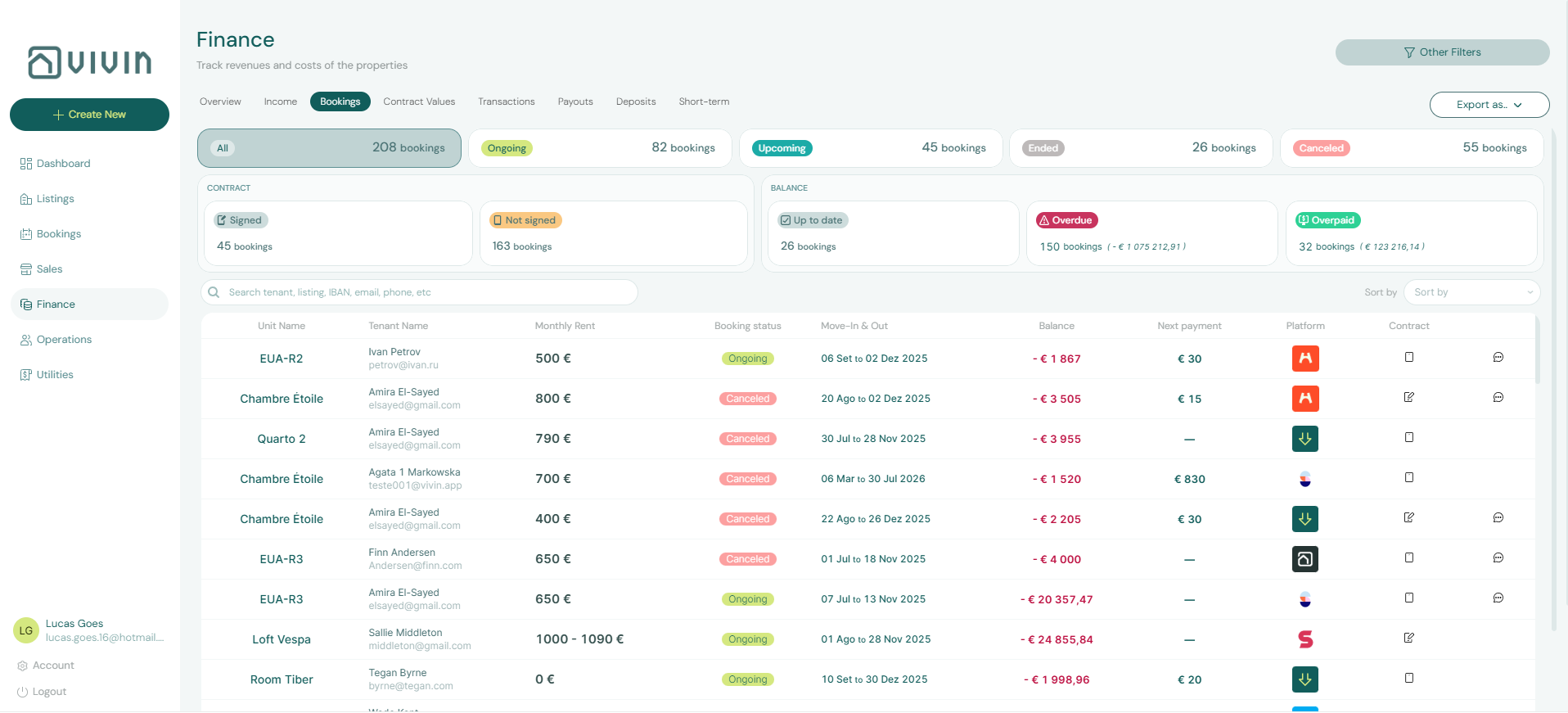
Each row in the payment schedule represents one charge:
- Type (Rent, Security Deposit, Admin Fee, Cleaning Fee, tenant Services purchased through the Tenant Services Marketplace, etc.)
- Due Date
- Amount
- Status (Pending, Paid, Overdue)
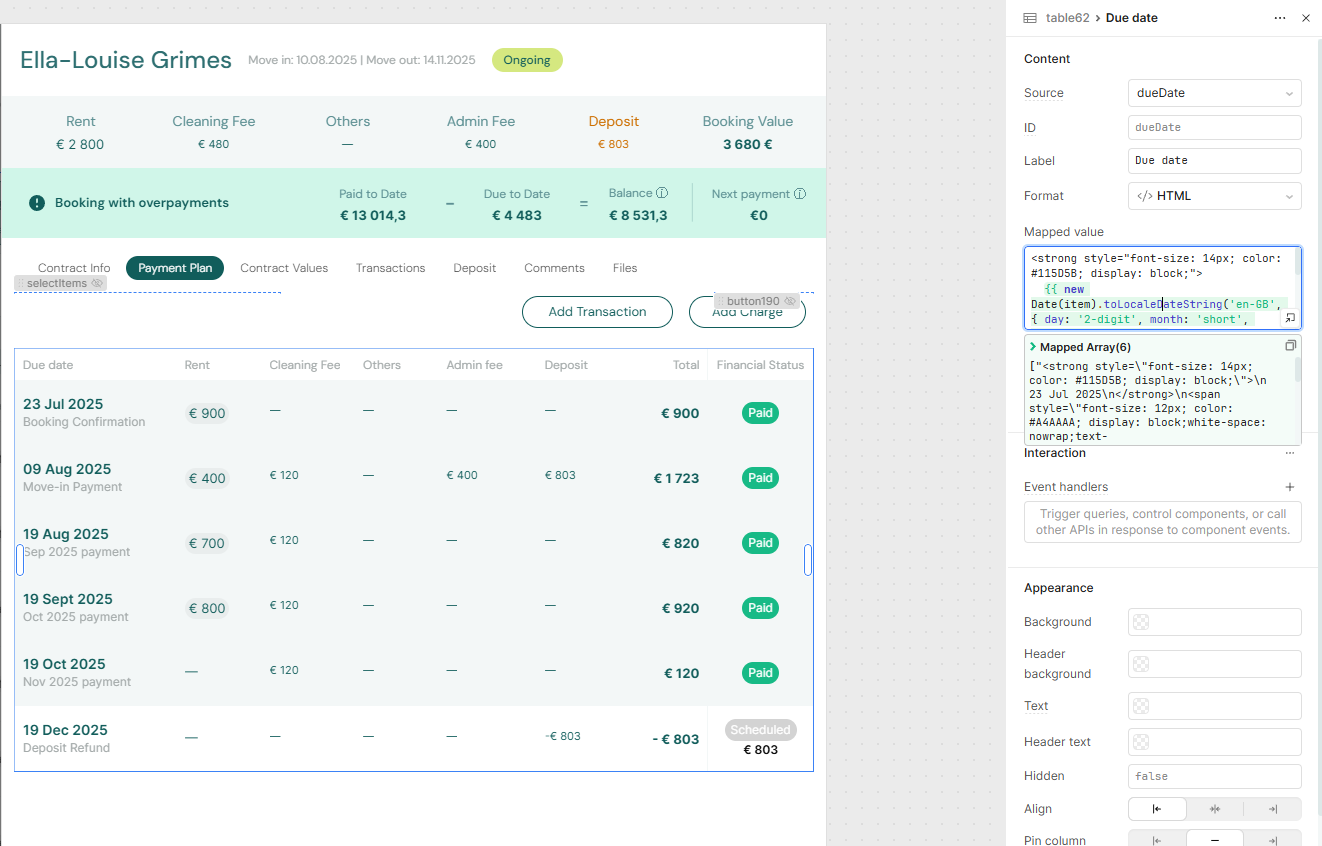
A Due Date Communication Rule schedules one reminder per unpaid payment line on this plan — not one email per booking. Two unpaid charges on the same due date share one send (this table also groups by due date). Fully paid lines drop out of the queue.
Schedule table columns and fee visibility
The main grid is one row per due date (not one row per charge type). Columns follow your account fee naming when customized:
| Column | Always shown? | Meaning |
|---|---|---|
| Status | Yes | Due-date pill (Scheduled, Paid, Overdue, Partial Paid, Partial Overdue) plus optional day context (for example days overdue). |
| Due date | Yes | Calendar due date for the grouped charges; optional subtitle when the API supplies a description. |
| Rent | Yes | Rent due on that date. |
| Cleaning fee | Conditional | Shown when Cleaning fee is enabled in Settings or this booking already has a non-zero cleaning amount on at least one due date — so disabling the account toggle does not hide columns on legacy bookings that still carry cleaning lines. |
| Admin fee | Conditional | Same rule as cleaning, using Admin fee settings and existing admin amounts on the booking. |
| Exit fee | Conditional | Same rule as cleaning, using Exit fee settings and existing exit amounts on the booking. |
| Deposit | Yes | Security deposit (and related deposit rows) due on that date. There is no hide toggle for this column. |
| Others | Yes | Marketplace Extra Services, penalties, and other non-rent/fee/deposit lines rolled into the due date. |
| Total | Yes | Sum of the visible amount columns for that row (see below). |
| Paid | Yes | Allocated incoming payments applied to charges due on that date. |
How Total is computed — Total adds Rent, each visible fee column, Deposit, and Others for that due date. When a fee column is hidden because the account toggle is off and the booking has no amounts for that fee, its value is excluded from Total so the number matches the columns you see. Deposit is always included even when fee columns are hidden, so deposit-only due dates still show a Total that aligns with Paid and outstanding balance.
Fee visibility is controlled under Settings → Invoicing & payments → Fees. To inspect individual charge lines (discounts, services, impairments), use Contract Values or click a row to open the breakdown panel below.
When a contract-date change left an invoiced line outside the updated span, the matching due-date row may show the amber contract-date change warning icon (same copy as on Contract Values — see Contract-date change warnings under Contract Info; screenshots bookings-detail-payment-plan-contract-date-warning.png and bookings-detail-payment-plan-contract-date-warning-tooltip.png).
Due-date breakdown panel
Click any row in the schedule table to open a slide-over breakdown for that due date. On desktop, the panel docks on the right (~400px wide) with a dimmed backdrop; on narrow viewports it expands full width so the schedule and breakdown are not squeezed side by side. Close with the × control or by clicking the backdrop.
The panel shows the due date in the header, an overall status pill (for example Paid or Overdue), a Total due figure with a progress bar when payments have started, and a Breakdown list grouped by charge category:
| Section in breakdown | What it includes |
|---|---|
| Rent | Monthly and prorated rent lines due on that date |
| Cleaning fee | Cleaning charges tied to the due date |
| Admin fee | One-time admin charges |
| Exit fee | Departure / exit charges when applicable |
| Deposit | Security deposit rows (including refund lines when present) |
| Extra Services | Purchases from the Tenant Services Marketplace — lines with category: services or a linked marketplace service id on the scheduled charge |
| Other Fees | Penalties, ad-hoc fees, and any non-standard charge types that are not marketplace services |
Extra Services and Other Fees are separate sections so you can reconcile tenant marketplace purchases without mixing them with penalties or one-off operator charges. Nested lines under each section still show discount, impairment loss, and return of value adjustments when present (see Discounts and payment adjustments on Contract Values).
Deposit refund lines on the schedule
When you record a deposit refund on the Deposit tab, Vivin adds matching deposit refund rows to the payment schedule (not only the ledger on Transactions). The same click also posts the fiscal reversal (credit note and/or return of value) on the deposit collection line:
| UI signal | Meaning |
|---|---|
| Green Refunded status | The refund is processed — not Overdue / Pending, even when the due date is in the past and other charges share the same day. |
| Due date subtitle Deposit Refund | Cash return to the tenant — not a monthly rent label such as Oct 2025 payment. |
| Deposit column with a leading − | Outgoing refund amount; nets against deposit collection on that due date. |
| Others (or fees) on the same due date | Charges settled from the deposit stay on the row as Fully paid; they do not inflate Total a second time (the refund line is already net of that settlement). |
| Teal −€… credit note / −€… return of value | Fiscal reversal of the deposit collection on that due date (invoiced → credit note; not invoiced → return of value). Expand the row for Refund of security deposit. |
| Total for the row | Sums the visible amount columns with refunds netted — other charges on the same due date reduce the deposit net instead of inflating Total incorrectly. |
| Breakdown → Deposit / Other Fees | Same minus-prefixed deposit line plus any co-located fees when you expand the row; the panel status pill stays Refunded. |
Refunded status when fees share the due date
After Mark refunded, open Payment Plan and find the Deposit Refund due-date row:
- Confirm the status chip reads Refunded (green) — Vivin does not treat a completed deposit return as overdue money owed.
- Read Deposit (minus-prefixed net cash back) and any Others / fee columns that were settled from the deposit on the same day.
- Check Total equals the net deposit return — co-located paid fees appear in their columns and in Paid, but they are not added again on top of the refund.
- Click the row to open the due-date Breakdown panel: header status Refunded, Total due matches the schedule Total, and fee lines show Fully paid.
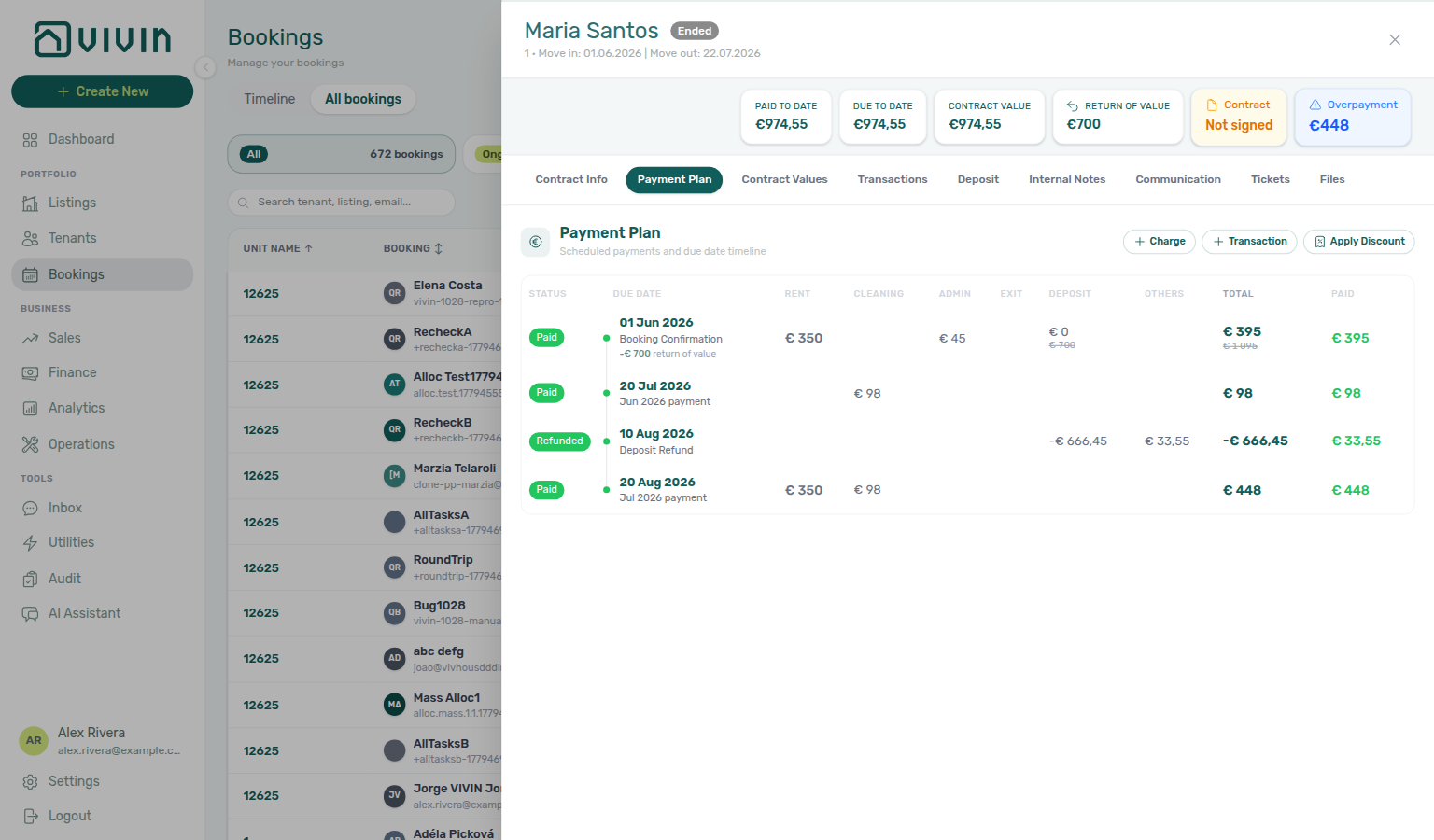
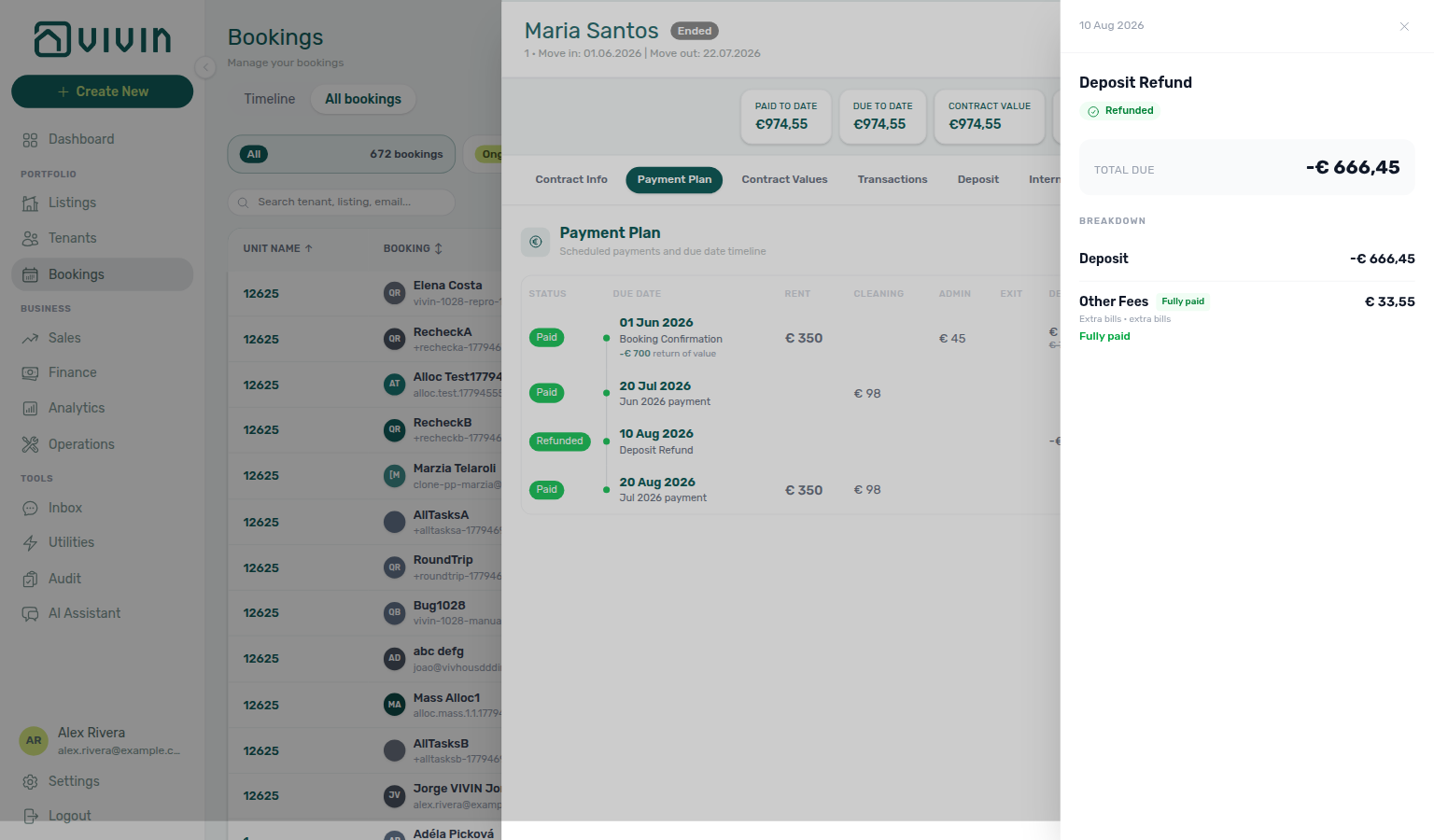
Use this schedule view together with the Deposit tab payout breakdown and Finance → Transactions Deposit Refund card when reconciling check-out refunds against bank out-payments. Issue pending deposit credit notes from Finance — Issuing credit notes.
The payment schedule is automatically generated when a booking is created, based on the property's contract settings (payment frequency, confirmation payments, check-in payments). Changes to the property settings after booking creation do not affect existing payment schedules.
Contract Values tab
The Contract Values tab is the line-item ledger for one booking: every scheduled charge (rent, deposit, admin fee, cleaning fee, tenant Services, and other types) with status, due date, amount after discounts, paid, and invoiced totals. Use it when you need to adjust a charge, apply or remove discounts, or reconcile what the tenant owes before you open Payment plan (schedule view) or Transactions (money received).
Category summary and filters
At the top, category cards roll up the booking by charge type (labels follow your account’s fee naming when customized):
| Card | Typical types |
|---|---|
| All | Every line on the booking |
| Rent | Monthly and prorated rent lines |
| Deposit | Security deposit and related deposit rows |
| Admin fee | One-time admin charges |
| Cleaning fee | Monthly or one-time cleaning lines (see Cleaning Fees requirement on Contract Info) |
| Other | Penalties, services, and non-standard types |
Each card shows the net total for that category and clickable sub-lines:
- Paid — lines with allocation (money applied)
- Debt — overdue or unpaid balance (red)
- Scheduled — future charges not yet due
- Partial lines — lines with some payment but remaining balance
Click a category pill to filter the table; click paid, debt, scheduled, or partial on a card to combine category + status filters. Click again to clear.
Line table
| Column | Meaning |
|---|---|
| Item | Charge label (respects custom fee names). Discount and return of value counts appear as small badges when present. |
| Status | Paid, Partial, Debt (overdue unpaid), or Scheduled (future). |
| Period | Contract month for recurring rent/cleaning rows when applicable. |
| Due date | When the charge is due; overdue lines show Xd overdue under the date. |
| Amount | Net amount after discounts. When a discount reduced the line, Original €… may show for audit. |
| Paid | Allocated incoming payment total on this line. |
| Invoiced | Draft + issued invoice totals tied to the line. |
| Actions | Row tools (see below), gated by permissions. |
Rows sort by due date (earliest first). Deep links from Finance, notifications, or the internal VIVIN Auditor can highlight a specific payment id in the table — open /bookings/list/<bookingId>?tab=payment-plan&paymentId=<paymentUuid> (see Deep Links — Bookings. Lines flagged after a contract-date change show the amber warning icon described under Changing contract dates and rent on Contract Info (bookings-detail-contract-values-contract-date-warning.png).
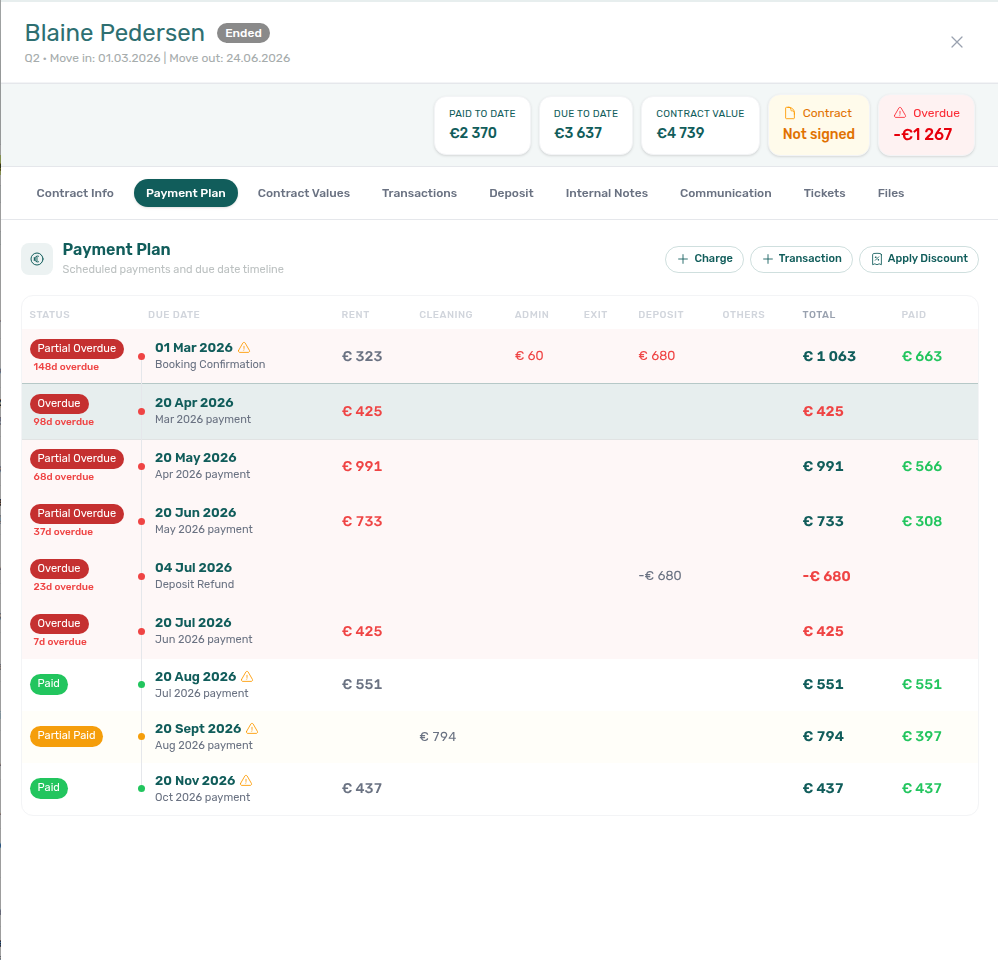
Pending utility allocations
When a utility overage is waiting for your review, it appears as an extra Pending row on this table — approve or reject it without leaving the booking. The same queue still lives on Utilities → Allocations when you need bulk Approve selected.
Pending rows are not scheduled charges yet. They do not change category totals, Paid / Debt / Scheduled counts, Payment Plan, or the booking balance until you Approve. After approval, the charge lands under Other as Extra bills value from July of 2026 (month and year of the bill).
Where they show
- All and Other (the category the approved charge will join). The Other card shows an amber N pending approval note whenever any row is waiting.
- Hidden when you click Rent, Deposit, a fee card, or a status drill-down (Paid, Debt, Scheduled, Partial) — those views answer money questions an unapproved estimate is not part of. Click All to bring them back.
The portfolio table on Finance → Contract Values does not list these pending rows. Open the booking (or the tenant sidebar) to act on them.
What a row looks like
| Column | Meaning |
|---|---|
| Item | Extra bills value from July of 2026 (example). Hover for Consumed, Included in rent, and To approve (or a short “calculated from utility bills” line when there is no allowance). |
| Status | Pending |
| Period | Billing month (short form, same as other Period cells) |
| Amount | The overage to approve |
| Actions | Approve allocation (one click) and Reject allocation (asks you to confirm) |
Approve allocation posts the tenant charge and refreshes Contract Values, Payment Plan, and the booking balance. Reject allocation removes the row from this table after you confirm — you can still find it under Utilities → Allocations. Undo a mistaken approval from Allocations → Approved, not from this tab.
You need Approve payments (the same grant as Allocations). Approve stays disabled when the security deposit is already refunded — hover for the explanation, then Reject or record a manual charge if money is still owed. See Utilities — Deposit already refunded.
On Tenants → Contract Values, pending rows from every linked stay appear together, with the same Booking label as the charge lines. The All bookings filter narrows both.
See FAQ — Can I approve a utility overage from the booking? and Glossary — Pending utility allocations.
Row actions (permissions)
| Action | Permission | Notes |
|---|---|---|
| Edit amount | bookings.edit_items | One entry: set what the line should be. Vivin routes a plain amount change, Keep as credit vs Return to tenant, or a credit note — see Edit amount. Deposit lines stay disabled. |
| Edit due date | bookings.change_payment_due_date | Moves the due date when the line is scheduled or in debt and the due date is not system-managed (see below). Check reporting month impact. |
| Discount | bookings.add_discounts | Per-line discount — fixed € or % of net, with a reason. Remove existing discounts from the same modal. |
| Credit note | bookings.add_credit_note | Count badge on the line opens Manage credit notes (history, issue later from Finance). Creating a new credit note happens from Edit amount when the freed cash is already invoiced. |
| Delete line | bookings.edit_items | Removes a scheduled payment when allowed (confirmation modal; invoiced lines may be blocked). |
| Return of value | bookings.add_return_of_value | Count badge on the line opens Manage return of value (history). Creating a new return happens from Edit amount → Return to tenant when the freed cash was paid and never invoiced. |
| Approve allocation / Reject allocation | Approve payments (finance.approve_payments) | On pending utility rows only — not on scheduled charge lines. Same grant as Utilities → Allocations. |
Booking-scoped discount (toolbar on the booking header when your role has bookings.add_discounts): apply a percentage or fixed total discount across the whole booking or contract values only, with a required reason. The API distributes the discount across eligible lines; paid and heavily invoiced lines may limit what can be applied.
System-managed due dates
Some scheduled lines keep a due date computed by Vivin — the calendar action is disabled and the tooltip explains that manual edits are not allowed:
| Line type | Why the due date is locked |
|---|---|
| Move-in / check-in requirement | Tied to the booking’s move-in payment rules (moveInRequirement). |
| Booking confirmation requirement | Tied to confirmation-payment timing (bookingConfirmationRequirement). |
| Split rent | Parent or child lines from a rent split (parentPaymentId / splittedFromPaymentId) — changing one side would break the split schedule. |
For all other scheduled or in debt lines, operators with bookings.change_payment_due_date can open Edit Payment Due Date from the row calendar action or row menu. The same modal and permission apply on Finance → Contract Values at portfolio scope.
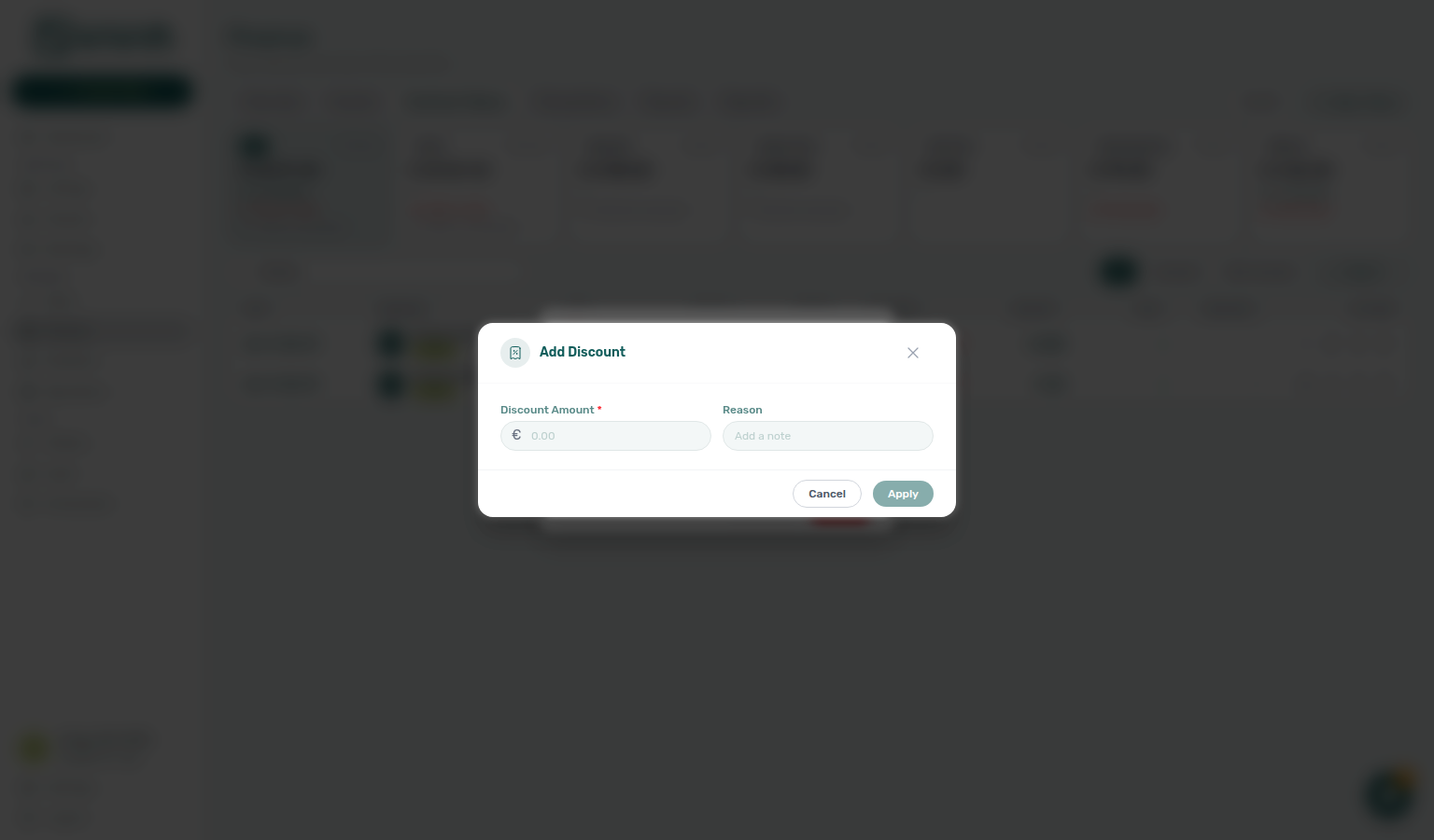

Lines with issued or draft invoices may block deletes or aggressive discounts. Resolve or revert invoice state in Finance first when the product returns an error.
Edit amount routes the reversal
On the booking Contract Values tab, the pencil Edit amount is the one place you set what a charge line should be. Type the new amount — Paid, Invoiced, and New net update as you type, and This action will have the following effects: lists what Save will do, in order. When New net is above Paid, that list includes Leave outstanding so you do not subtract the tiles yourself.
| When New net is at or above Paid… | What Save does |
|---|---|
| New net is above what is already paid | Sets the line to the new amount, and the effects list includes Leave €X outstanding on this line (X is New net minus Paid). |
| New net equals Paid | Sets the line to the new amount (no outstanding line). |
| When you lower the line below what is already paid… | What Save does |
|---|---|
| Cash is paid and not invoiced | Choose Keep as credit (lower the line and re-apply the freed cash to the next dues) or Return to tenant (record a return of value and leave the line amount unchanged). Neither choice pays the tenant — transfer separately. |
| Cash is fully invoiced (or marked manual) | Issues a credit note for the freed amount, frees that cash, and re-applies it to the next dues. Register the document later from Finance → Transactions. No cash moves. |
| Line is partly invoiced (invoiced cash mixed with the rest) | Save stays blocked — one edit cannot split across a credit note and a return. |
Deposit lines keep Edit amount disabled — deposit returns go through Mark refunded.
The Finance → Contract Values portfolio table still blocks editing paid or invoiced lines there. Use Open booking to reach this editor.
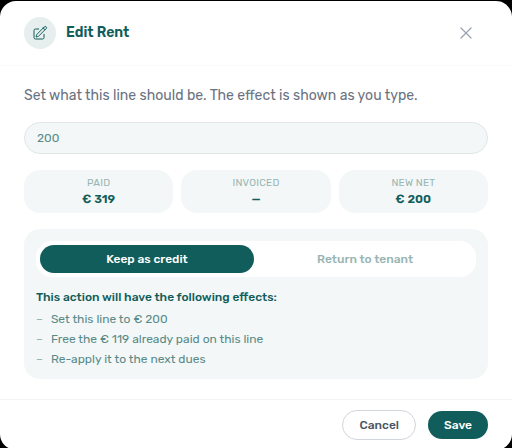
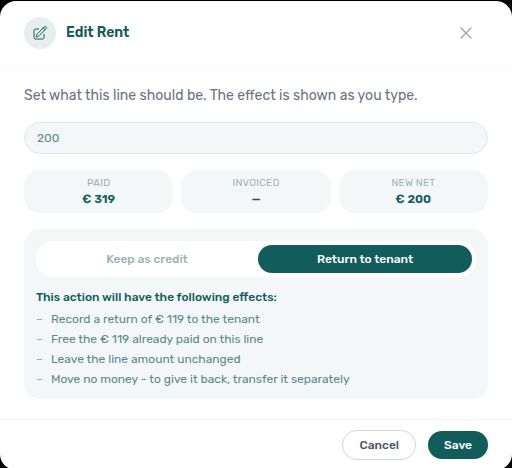
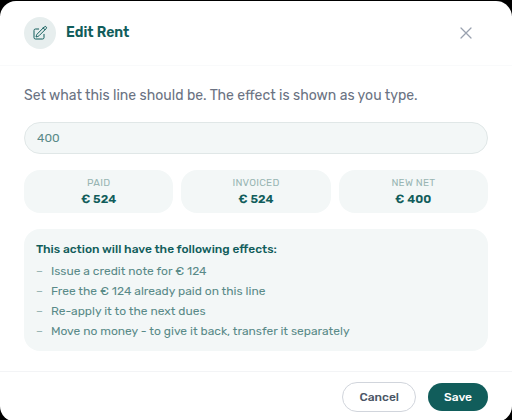
Return of value corrects paid, not-invoiced cash on a Contract Values line without deleting the underlying payment. Choose it from Edit amount → Return to tenant (bookings.add_return_of_value — Admin and Finance by default). Use only when your organization’s policy allows it; verify Payment plan and the negative Return of Value row on Transactions afterward. For money already on a provider document, Edit amount issues a credit note instead.
See also Payment Allocation for how scheduled lines relate to incoming payments, and Finance → Contract Values for the portfolio-wide list — including invoice filter pills that find nested return of value and credit note rows (finance-contract-values-invoice-filter-pills-flow.mp4).
Leave outstanding on Edit amount
The outstanding line pairs with Edit amount (the same modal’s Paid, Invoiced, and New net tiles). Symptom: FAQ — What does Leave outstanding on this line mean?. Term: Glossary — Leave outstanding (Edit amount).
When New net is higher than Paid, This action will have the following effects: includes Leave €X outstanding on this line. X is New net minus Paid — you do not subtract the three tiles yourself. That line is a standing balance the booking will keep after Save, not a cash movement and not a credit note.
Set this line to … still names the amount you typed. Leave outstanding appears only when that amount is above what is already paid. When New net equals Paid, only the set-amount line appears.
Use Cancel if you were only checking the figure. Save writes the new line amount; collect the remainder through Payment Plan or Transactions as usual.
The Finance → Contract Values portfolio table does not run this editor — use Open booking. Distinct from Keep as credit / Return to tenant (those appear when you lower a paid line) and from the invoiced floor (that path is about lowering exported rent).
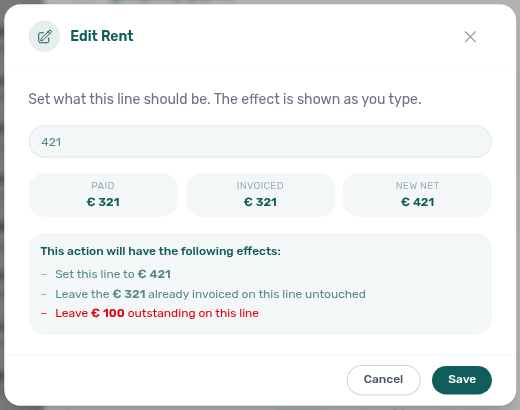
See FAQ — What does Leave outstanding on this line mean? and Glossary — Leave outstanding (Edit amount).
Manage return of value on Contract Values
When a Contract Values line already has a return of value, operators with bookings.add_return_of_value see a count badge on the item (return-arrow). Click it to open Manage return of value for history and fiscal follow-up. Create a new return from Edit amount → Return to tenant — deposit lines stay on Mark refunded.

When the modal opens — Vivin opens Manage return of value when the line still has something useful to show:
- Mixed or draft lines — at least one allocation is still returnable, or a draft invoice is present. Draft parents stay visible but disabled with Draft invoice — issue it on the provider, then use a credit note, so operators learn why that cash is not selectable yet.
- Fully invoiced lines — every positive allocation is already invoiced or manual. The row action stays disabled with tooltip All cash on this line is on an invoice. Use a credit note instead. — Vivin does not open an empty dialog when Credit note sits beside the button.

Inside Manage return of value:
- Review any existing returns on the line (amount + reason; Remove when your role allows).
- Under Add return of value, pick the cash allocation to reverse. Vivin lists every positive allocation on the line:
- Not invoiced — available to return — selectable; amount capped by remaining cash on that parent plus line headroom.
- Invoiced… — use a credit note / Draft invoice — issue it on the provider, then use a credit note — visible but disabled. Protected statuses are
invoiced,manual, anddraft(a draft document still exists and later promotes to invoiced). - Already fully returned — no remaining headroom on that parent.
- Enter an Amount (see Available: €…) and optional Reason, then Apply. Vivin creates a return-of-value adjustment plus a paired negative allocation in Finance. Open Transactions on the same booking — you should see one negative Return of Value row dated the day you recorded it (for example Returned on Cleaning Fee).
On a line that only has protected parents and still opens (because a draft remains), the select can show No allocation available with the helper that return of value applies only to money that is not on an invoice — issue the draft, then use Credit note.
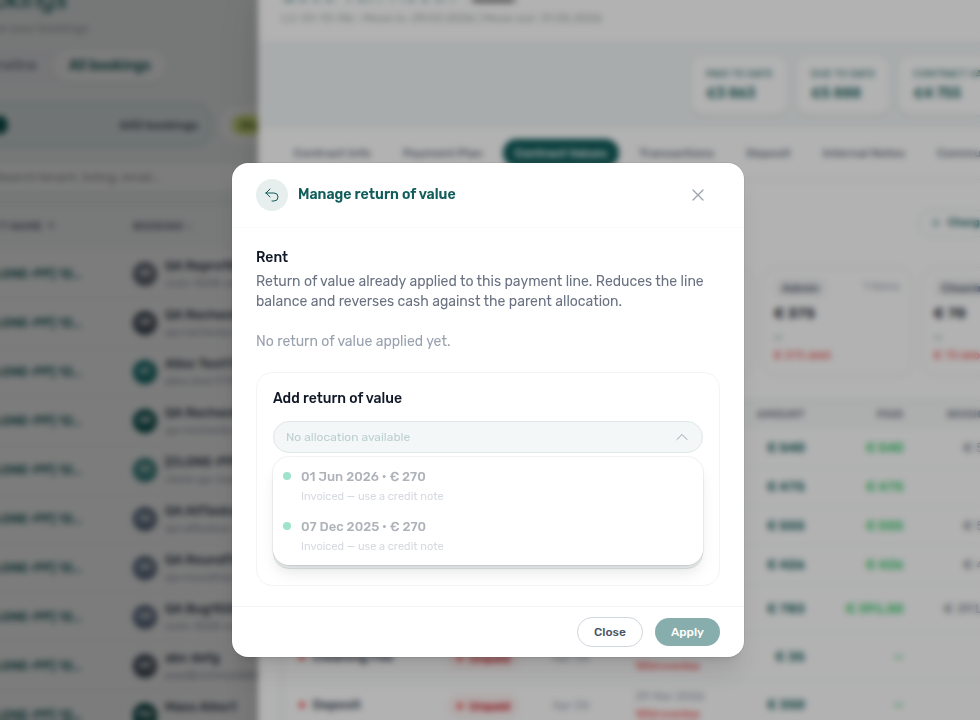
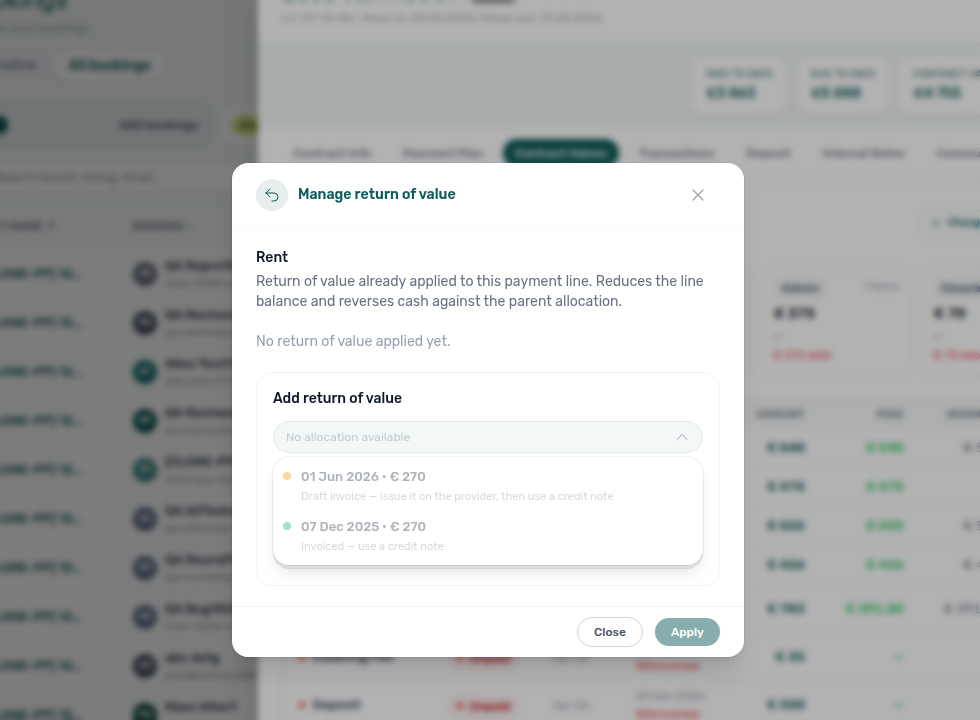
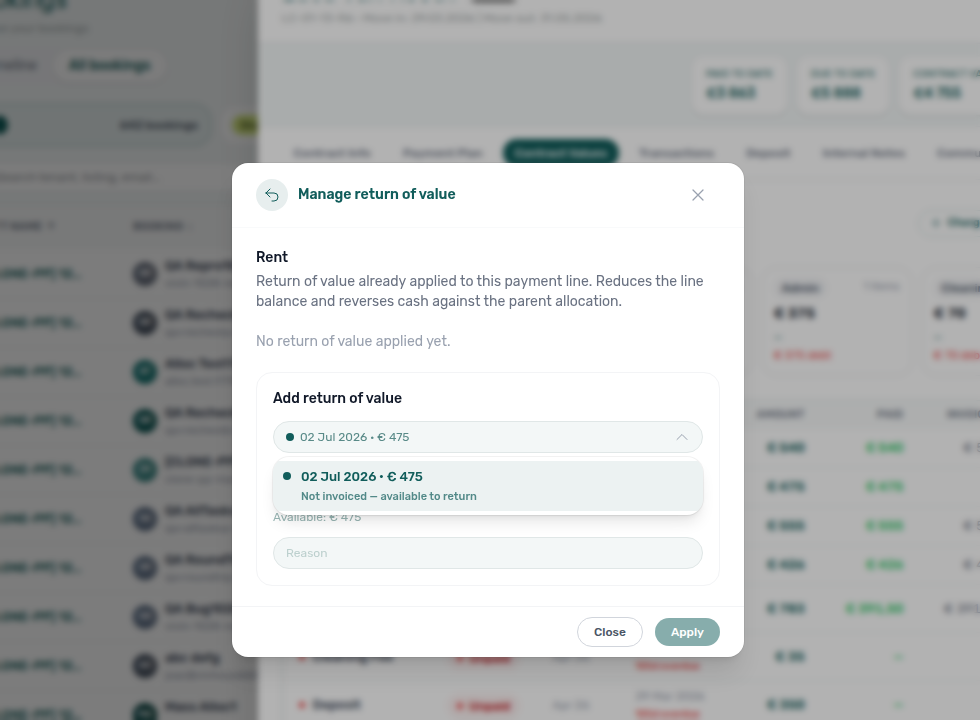
Manage credit notes on Contract Values
When a Contract Values line already has a credit note, operators with bookings.add_credit_note see a count badge on the item. Click it to open Manage credit notes (status Pending / Invoiced / Manual). Create a new credit note from Edit amount when you lower a fully invoiced line.

Credit note opens Manage credit notes:
- Review any existing credit notes on the line (status Pending / Invoiced / Manual — lifecycle is issued from Finance, not from this modal).
- Under Add credit note, pick the invoiced allocation to reverse, enter an Amount (capped by remaining headroom — Available: €…), and an optional Reason.
- Confirm Apply. Vivin creates a pending credit-note reversal; Finance then filters Not issued credit note and uses Issue credit notes (N) or transaction-detail Issue credit note to provider — see Finance — Issuing credit notes.
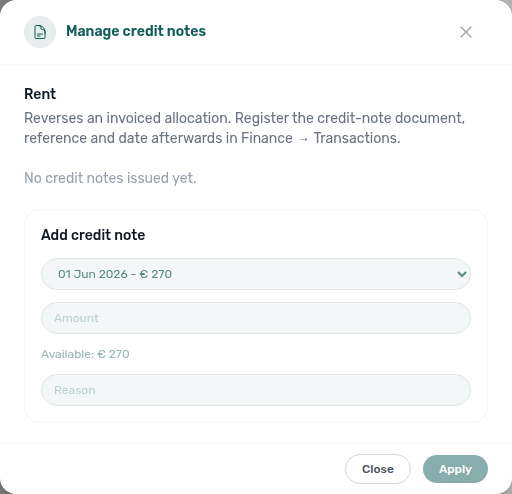
finance-issue-credit-notes-flow.mp4).Credit note reverses invoiced money. Return of value reverses paid, not-invoiced allocations only — protected parents stay disabled in Manage return of value. Discounts are blocked on a line that already has a credit note or return of value. See Manage return of value.
Discounts and payment adjustments
Contract Values is where operators change what the tenant owes on each scheduled line. Adjustments reduce the line’s net amount (what allocations compare against) without rewriting the original amount column used for audit. Glossary: Discount (booking), Credit note (payment reject/revert), Return of value, Impairment loss.
| Adjustment | Where you add it | Permission / notes |
|---|---|---|
| Line discount | Row action Discounts (percent icon) on a non-deposit line | bookings.add_discounts — fixed € or % on that line only; optional Reason; deposits cannot be discounted |
| Booking-scoped discount | Pill Apply booking discount in the tab toolbar (next to + Transaction) | Same permission — percentage or fixed total across the whole booking or selected scope; requires a reason |
| Credit note | Edit amount on a fully invoiced line, or the count badge for history | bookings.add_credit_note — reverses invoiced cash; issue from Finance → Transactions afterward (Manage credit notes) |
| Return of value | Edit amount → Return to tenant on paid, not-invoiced cash, or the count badge for history | bookings.add_return_of_value — credits not-invoiced cash only; fully invoiced / manual cash uses a credit note instead (Edit amount) |
| Impairment loss | Applied in product data / integrations (not a separate row button in this tab) | Shows on Payment plan and in transaction Type when recorded |
Existing adjustments on a line appear in the Discounts modal list (with Delete when your role allows). Apply Discount / Apply booking discount persist only after you confirm.
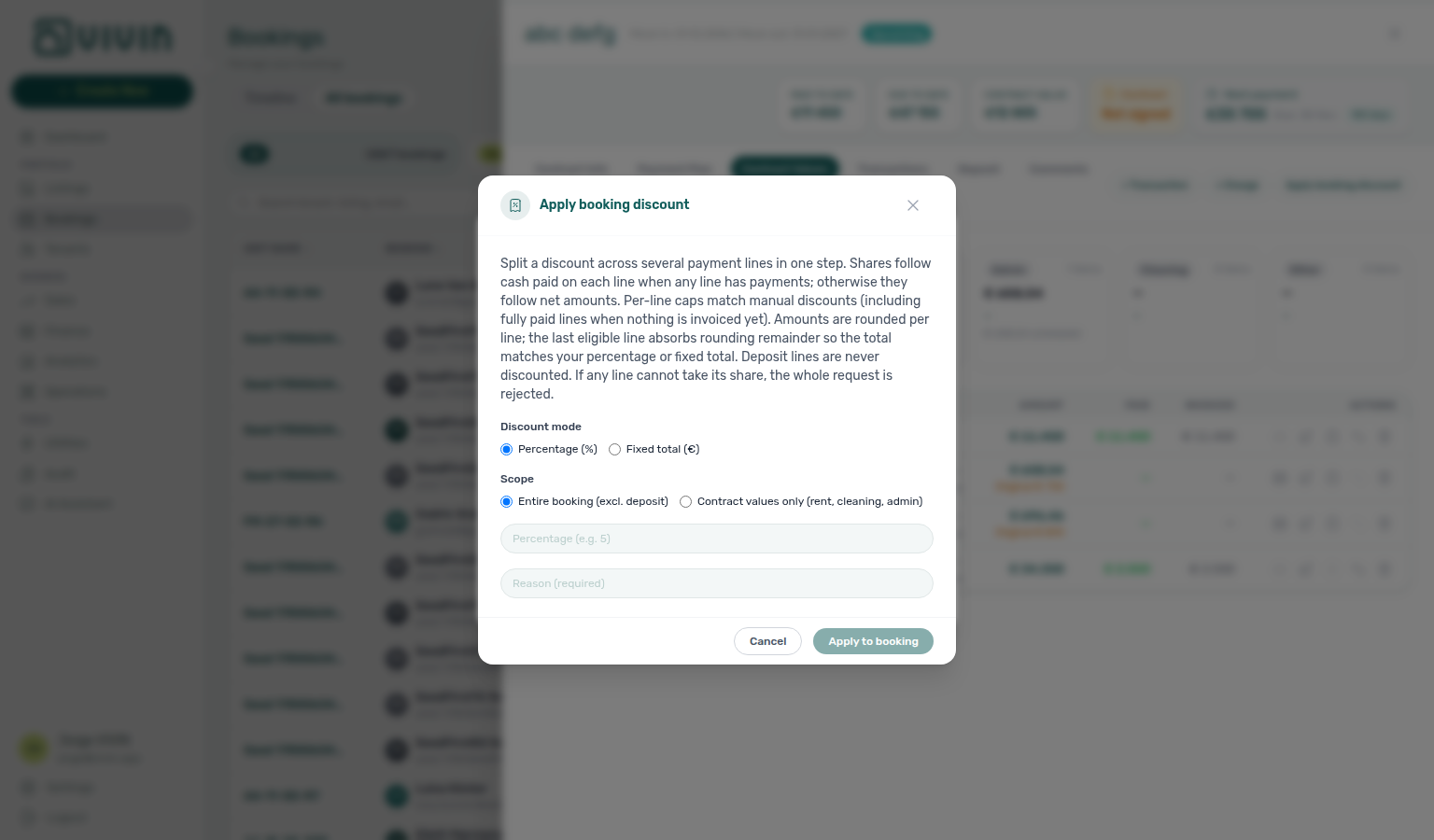
Row Discounts (percent icon) opens Manage Discounts for a single scheduled line — fixed € or %, optional Reason, and any existing line-level adjustments:
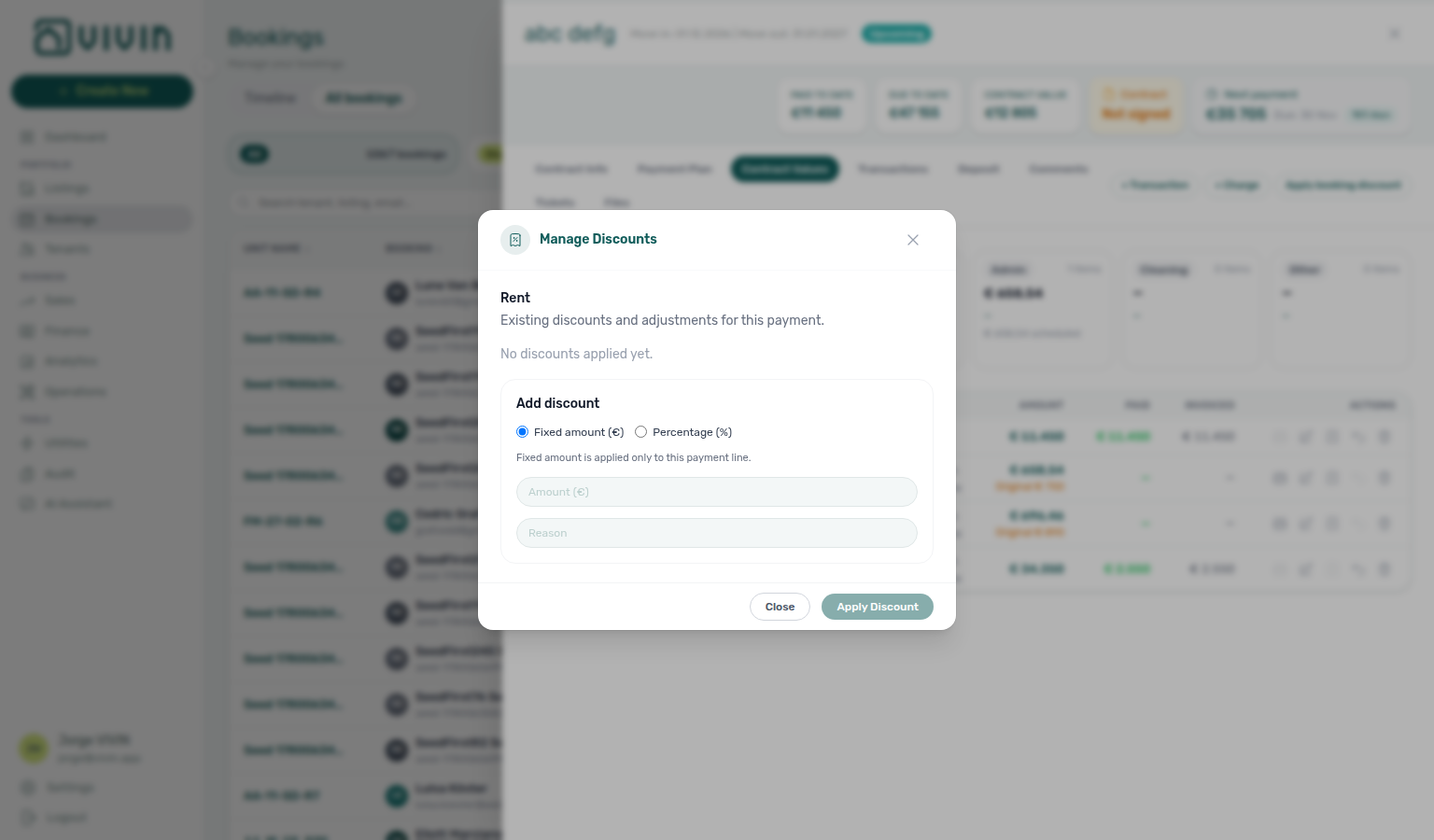
On Payment plan, click a due-date row to open the breakdown panel. Nested lines under each charge show discount, impairment loss, and return of value adjustments (amount and reason) so you can reconcile net due dates with Contract Values:
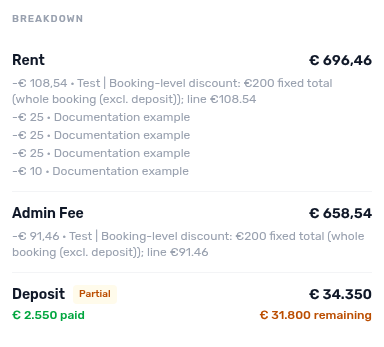
On the Tenant Portal Payments → Payment Timeline, a Paid card whose Total is below the original scheduled amount shows that original struck through — Discounted installment.
For allocation rules and floor/invoicing limits, see Payment allocation. For a portfolio-wide table of every discounted contract value (KPI cards, export, row drill-down), use Audit — Discounts tab (/audit/discounts).
Transactions tab
The Transactions tab shows incoming payments received from the tenant — what has actually been paid, as opposed to what is scheduled — plus return of value rows so money handed back is visible next to money received.
To record a manual in-payment while you are on this tab, click + Transaction in the tab strip (next to the sidebar pills) — the same + Transaction control also appears on Payment Plan / Contract Values. That opens the Add Payment modal — the modal title uses Add Payment even though the tab action is labeled + Transaction. Your role must allow recording payments; otherwise the control stays disabled. Airbnb channel-manager stays keep + Transaction locked (the payout registers automatically). Booking.com channel-manager stays keep it enabled so you can record what you collect — one rent line due at check-in. Fill Payment Date, Payment Value, Type, and optional Description (visible to the tenant) (or the internal-description label when portal descriptions are hidden), then Add or Cancel.
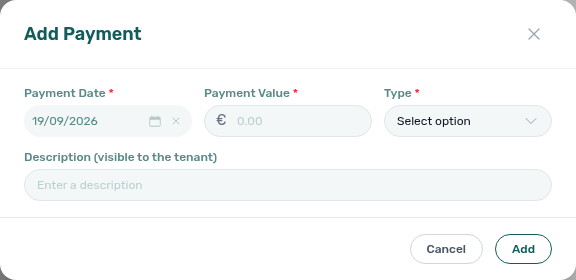
Card (recorded manually)
Desk and POS card receipts pair with Finance — Type summary cards and FAQ — Card (recorded manually). Term: Glossary — Card (recorded manually).
When a tenant pays at a desk terminal, POS, or any card machine that is not VIVIN Tenant Portal checkout, open + Transaction and set Type to Credit Card — that is the desk/POS option on this modal (the habit this guide calls Card (recorded manually)).
On this modal, Type is only:
| Type (English UI) | Use it for |
|---|---|
| Transfer | Bank transfer you record yourself |
| Cash | Cash handed over at the desk |
| Credit Card | A card tap on your terminal — not VIVIN's card rail |
Vivin does not offer Credit card (VIVIN) here. That label is the automated Tenant Portal card rail under System Transactions. A desk tap recorded on that rail would look like money VIVIN collected, and it would enter card payouts.
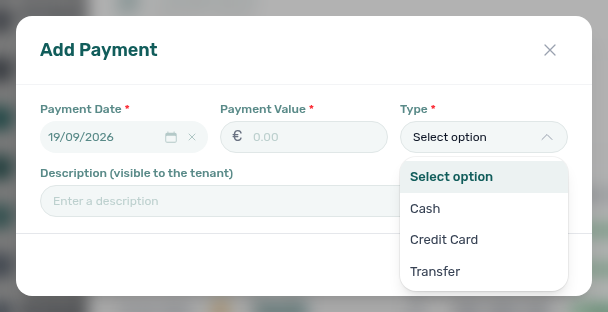

That Credit Card Type choice is a Manual receipt, same bucket as Transfer and Cash:
- Booking Transactions groups it under Manual (amber), not System.
- The type column may read Manual Card.
- Finance → Transactions lists it as Card (manual) under Manual Transactions.
- After Delete Booking, it hides with other manual rows. Automated Credit card (VIVIN) rows stay visible.
The row stays pending until someone with Approve payments confirms it — same habit as a typed bank transfer. While it is still pending, the pencil Edit payment amount can correct the €. After the row is confirmed on the ledger, tenants see Manual Card (plain text, no logo) on Payments → Transaction History — distinct from portal Credit Card checkout rows.
Do not Add a payment just to preview the Type list — open Type, read the three options, then Cancel.
See FAQ — When should I use Card (recorded manually)?, Glossary — Card (recorded manually), and Tenant Portal — Manual Card type label.
Each transaction entry shows:
- Payment date (when the money was received, or when a return was recorded)
- Amount received (negative on a return)
- Payment method
- Which scheduled payment(s) it was applied to (allocation)
- Notes (if any)
The toolbar groups rows into All, System (vIBAN, card, platform payouts), and Manual (operator-recorded transfers). Return of Value rows sit in All and Manual (they are not a system rail) and subtract from those card totals. Use the Type column to spot Adjustment rows (discount-driven or automatic ledger entries) and Return of Value rows (cash handed back on a charge line). Pending system automatic adjustment in-payments show Approve and Reject actions until you confirm how the amount should apply — rejecting leaves the booking balance unchanged for that entry. After the row is on the ledger, tenants see Automatic Adjustment (plain text, no logo) on Payments → Transaction History. After you Mark refunded an overpayment, tenants see Overpayment Return (plain text, no logo) on the same table — distinct from the Deposit Refund timeline card. After Cancel booking → With refund, tenants see Cancelation With Refund on that table.
Return of value rows on Transactions
When you record a return of value on Contract Values — or Vivin posts one from Mark refunded on paid, not-invoiced deposit cash — the booking Transactions tab lists one negative row per return.
The row is not a receipt you typed on this tab. It is the same adjustment you already made on the charge line, shown here so All and Manual match what the tenant actually paid. Without it, those cards would still add up to the original in-payments.
| Column | What you see |
|---|---|
| Type | Return of Value |
| Description | Returned on Cleaning Fee, Returned on Rent, and similar — the charge the money came off, with a readable name |
| Date | The day you recorded the return — not the original charge due date |
| Amount | Negative, for example -€ 5 |
| Status | Confirmed |
A €575 transfer plus a €75 return makes the All and Manual cards read € 500. The row does not appear under System.
Do not Approve, Reject, Revert, Edit amount, or Assign to other booking on this row — those actions stay off because there is no in-payment behind it. Change or remove the return from Manage return of value on Contract Values. Do not add a return from + Transaction; create it from Edit amount → Return to tenant when the cash was paid and never invoiced.
Credit notes do not appear as these rows — they stay nested on Contract Values and issue from Finance → Transactions.
Finance → Transactions is the portfolio ledger of receipts and does not list return-of-value rows. For a portfolio list of charge lines that have a nested return, use Finance → Contract Values — Return of Value. The insights bar Return of value card (when the booking has at least one return) is the same total as these rows.
See FAQ — Why does Transactions show a negative Return of Value row? and Glossary — Return of value.
Row actions on in-payment rows
Each in-payment row exposes trailing icon actions. Return of Value rows keep every action off — see Return of value rows. For receipts, availability depends on payment status, type, allocation invoice state, and role permissions (finance.approve_payments for approve / reject / revert / Edit payment amount; finance.assign_payments_to_other_bookings for reassignment — see Users and roles > Role Permissions).
| Action | When enabled | What it does |
|---|---|---|
| Edit payment amount (pencil) | Status is pending, your role includes Approve payments, and the type is a manual in-payment (not vIBAN or card) | Corrects the received € before you Approve. Tooltip Edit amount. Booking sidebar opens Edit Payment Amount. See Edit payment amount. |
| Approve payment (check) | Status is pending or processing | Confirms the in-payment and applies allocations per the payment plan. |
| Reject payment (×) | Same pending states | Removes the payment from the booking and related financial records. The confirmation modal includes a red banner: Warning: this may require a credit note and invoice follow-up. Body copy reminds you to issue a credit note and include it in the next invoice when accounting already recorded the charge. |
| Revert payment (↩) | Status is confirmed or rejected | Rolls the payment back so allocations and booking balances update. The confirmation modal shows a blue info banner: Info: this may require invoice or credit note updates afterwards. |
| Assign to other booking (↔) | No allocation on the row is invoiced | Moves the whole in-payment to another booking in the same Vivin account — the target may belong to a different tenant. See Assign a payment to another booking. |
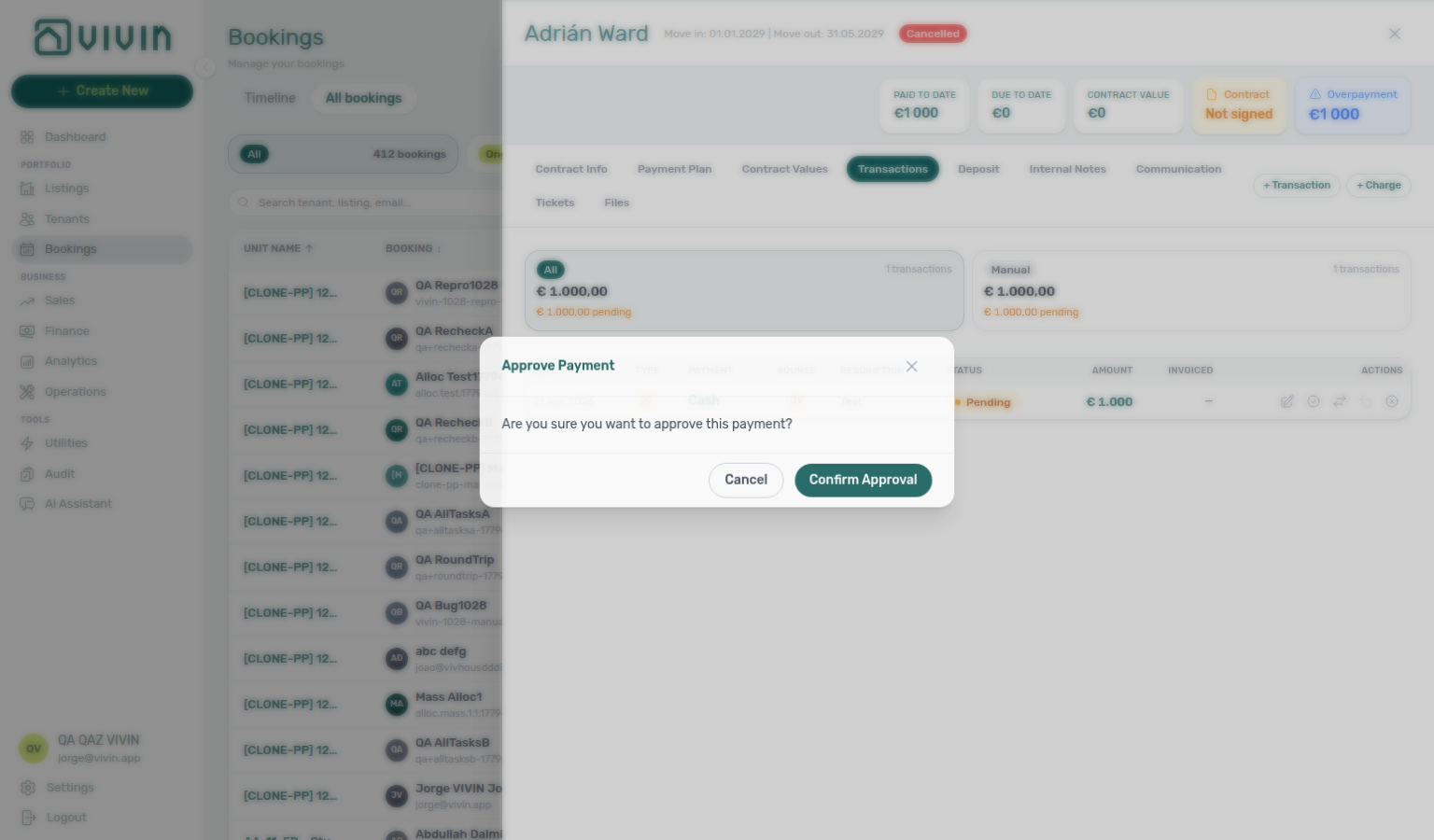
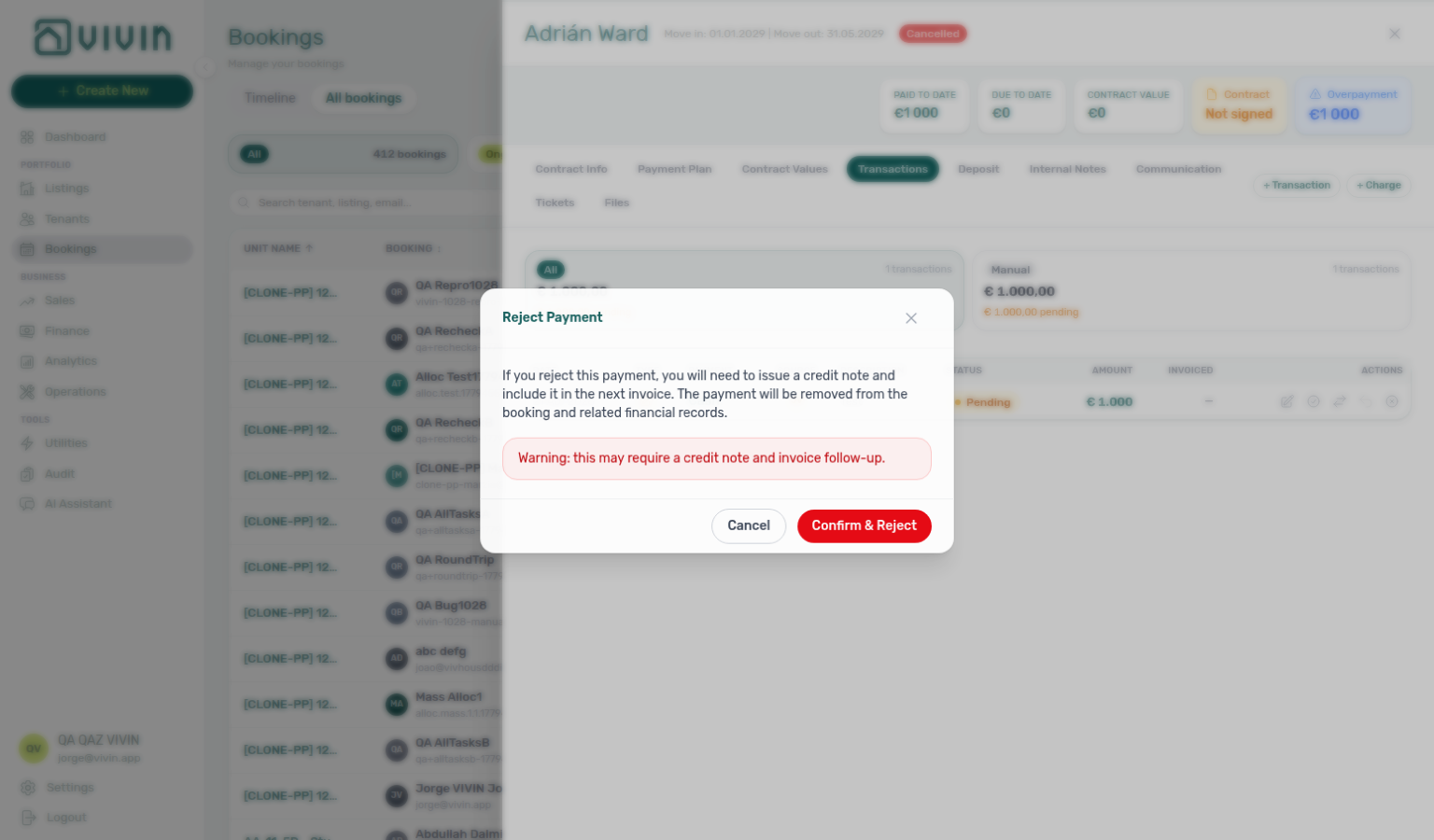
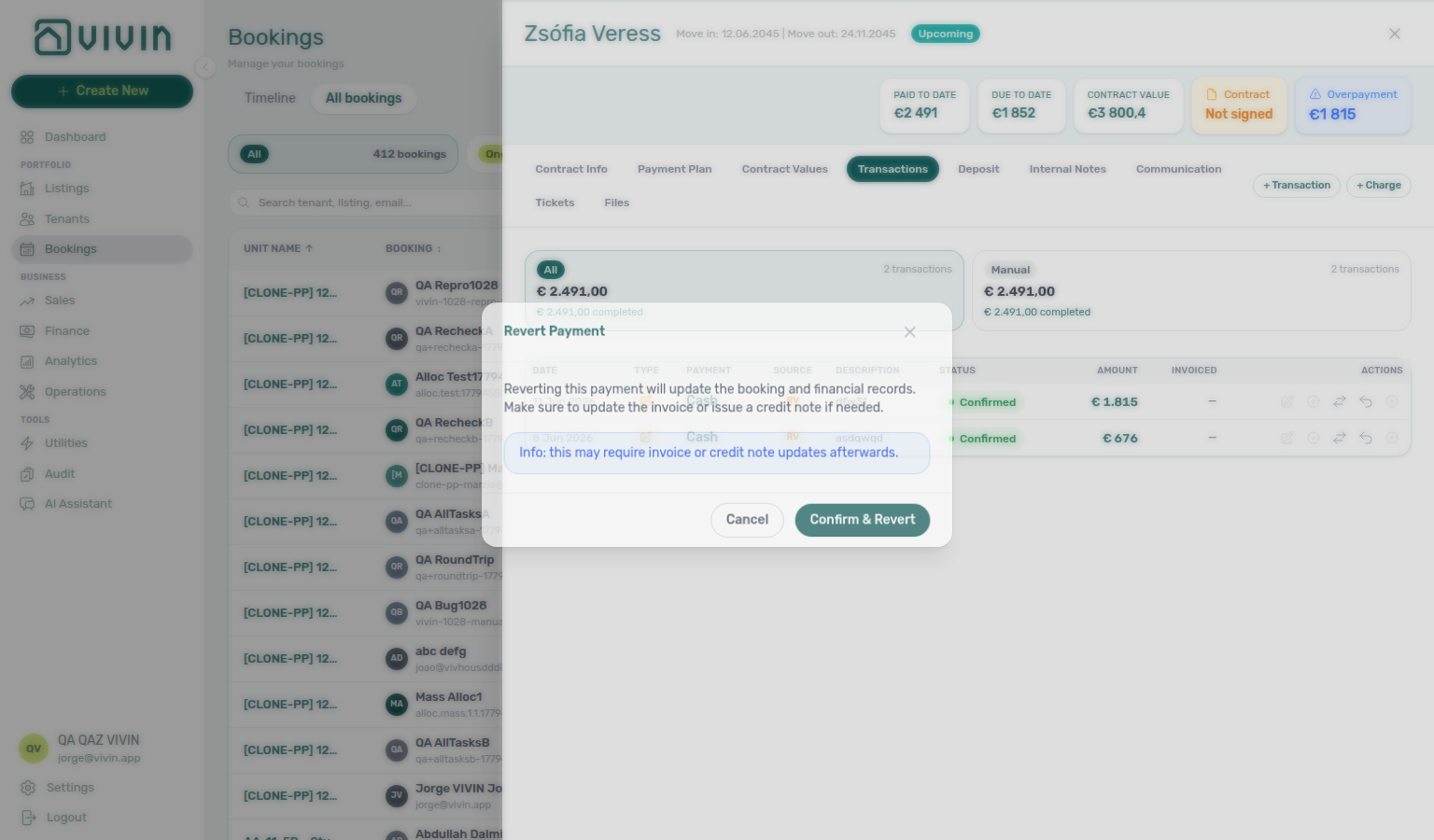
Edit payment amount
When a pending manual receipt has the wrong € — a typo, or the bank transfer differs from what you typed — use the pencil Edit amount on the row. Fix the figure, then Approve payment. Do not Approve the wrong amount first.
On booking Transactions, the pencil opens Edit Payment Amount with the line Update the amount received for this transaction. Type the amount, then Save or Cancel. Negative amounts are rejected. The tenant sidebar Transactions tab uses the same pencil; that modal title is Edit amount.
This is not Contract Values → Edit amount, which changes a scheduled charge line (rent, fee, or similar) — not the receipt.
| Use Edit payment amount when… | Use something else when… |
|---|---|
| The receipt is real and still pending, but the € is wrong | Duplicate or wrong booking — Reject payment while still pending (Reject or revert) |
| You have Approve payments and the type is a bank transfer / cash / Card (recorded manually) | vIBAN or Credit card (VIVIN) — those amounts stay locked to the payment rail |
| You need to correct the figure before allocations apply | The row is already approved — Revert payment, then record or approve the correct receipt |
The new amount cannot sit below what Finance has already invoiced on that receipt. On Finance → Transactions the same pencil edits the Amount cell inline (Enter or click away to save; Escape to cancel).

Delete payment is not available on the booking sidebar — use Finance → Transactions when you need to remove an eligible manual in-payment from the ledger (see Finance > Transactions — Delete payment).
If a tenant pays more than the scheduled amount, the system records the overpayment and carries it as a credit for future charges:
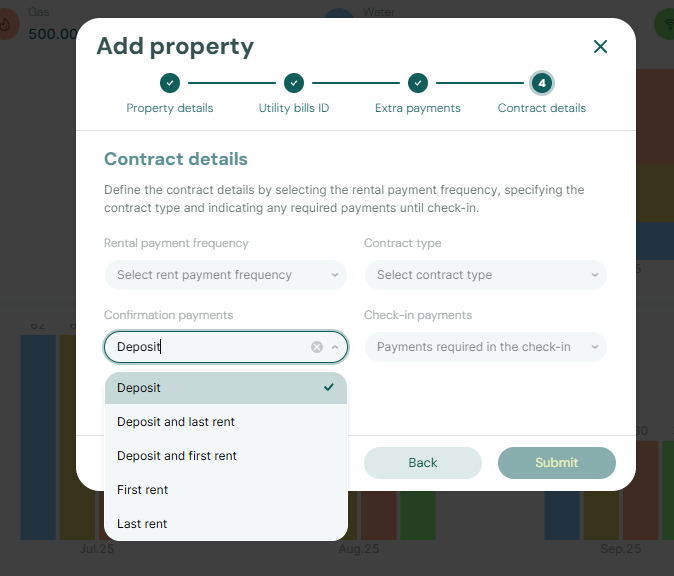
Assign a payment to another booking
When a bank transfer or manual in-payment was matched to the wrong booking, operators with Assign payments to other bookings (finance.assign_payments_to_other_bookings) can move it without re-entering the amount.
The target booking does not have to belong to the same tenant — any booking in the same Vivin account is a valid destination. This covers the everyday case where a tenant pays for a family member: the bank transfer lands on the payer's booking, and the receipt has to move to the relative's booking, which sits under a different tenant profile.
On each eligible in-payment row, use the Assign to other booking control (arrows icon) in the row actions. The control is disabled when any allocation on that payment is already invoiced, or when your role lacks the permission. The whole in-payment moves — partial reassignment (splitting one receipt across two bookings) is not supported.
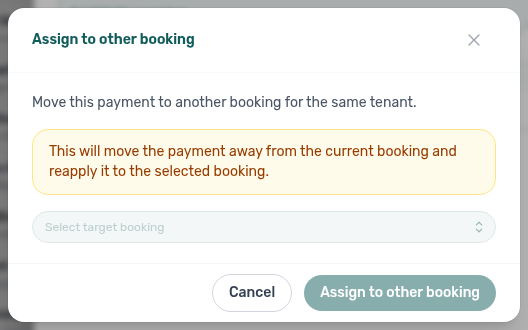
The modal explains that the payment leaves the current booking and is reapplied to the target booking. Pick the destination from Select target booking — each option shows the tenant name over property — unit · contract dates · status (and booking code when present) so you can tell similar reservations apart — then confirm Assign to other booking. Archived bookings are not offered as targets. After success, refresh Payment Plan on both bookings if allocations look stale.
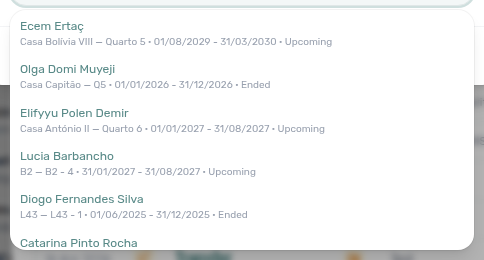
Because the target can belong to a different tenant, the move shifts the receipt onto another tenant's ledger. Confirm the booking code and property / unit in the picker before you assign.
The same action is available on Finance → Transactions for ledger-wide triage — see Finance > Transactions (finance-transactions-assign-picker-identity.png, finance-assign-picker-identity-flow.mp4).
Deposit tab
The Deposit tab tracks the security deposit for this booking: how much was collected, how outstanding charges affect the return, refund status, and operator actions (Mark refunded, Transfer, Revert refund). Refund actions require the bookings.refund permission.
The card header shows Expected Refund Pending before a refund is recorded and Refund Completed afterward. Portfolio-wide triage uses the same deposit lifecycle on Finance > Deposits — Balance, Est. Refund, and status summary cards there align with the figures on this tab. After you confirm an action here, that Finance queue updates on its own — see Finance Deposits updates from this tab.
Before refund (planning card)
| Row (English UI) | Meaning |
|---|---|
| Initial Deposit | Contract deposit with € collected / € configured and an optional collection badge (see below). |
| Current Adjustments | Shown when the booking payment-plan balance is positive (tenant has overpaid relative to amounts due to date). Adds to the refundable total. |
| Current Deductions | Shown when the balance is negative (tenant still owes on scheduled charges). Reduces what can be returned from the deposit. |
| Total to refund | max(0, effective deposit collected + booking balance) — the cash payout Vivin estimates before you click Mark refunded. Uses payment-plan balance (total paid − total due to date), not overdue-only debt, so payable-but-not-yet-overdue lines are included consistently with the Payment Plan tab. |
| Cash back to tenant | Replaces Total to refund when outstanding charges exceed the collected deposit: the amber helper explains how much is still owed after the deposit is fully offset and that €0 will be paid out. |
Effective deposit collected is capped at the configured deposit amount and at what was actually allocated to deposit lines — refund math never assumes a full deposit when only part was paid.
Initial Deposit badges (when deposit > 0 and not yet refunded):
| Badge (English UI) | Meaning |
|---|---|
| Paid (green) | Collected deposit equals or exceeds the configured amount. |
| Partially paid (amber) | Some deposit was collected but Paid < Amount; a remaining helper shows the shortfall. |
| Unpaid (red) | No deposit payment allocated yet. The Deposit not paid — refund unavailable helper appears only when there is also no payment-plan overpayment to return. |
Ready To Refund — Toggle in the card header (pre-refund only; hidden while the deposit is Disputed) marks the booking as operationally ready for finance to process the bank transfer. It does not move money by itself. When Require "Ready to Refund" step is On at account level, this toggle is part of the required hand-off before Mark refunded — finance and the Bookings list can filter Other filters → Deposit status → Ready to refund. After you flip it, All bookings already leaves Fully paid (and joins Ready to refund when that filter is on) — see Deposit status filter updates while you work. See Finance — Deposit status filter.
Deposit lifecycle pill — When the account tracks payment-driven lifecycle, a small badge beside Security Deposit summarizes collection state: Not Paid, Partial Paid, Fully Paid, Ready to Refund, Disputed, or Refunded. Bookings with no configured deposit show No deposit instead (not a Deposit status filter value on Finance → Deposits). The pill is display-only; use the actions below for refunds and disputes. See Glossary — Deposit lifecycle status for how each state maps to refund and dispute actions.
Deposit disputes — When Enable deposit disputes is On and your role includes bookings.dispute, a Fully Paid (pre-refund) deposit can be flagged while you investigate damage claims or tenant pushback:
- Click Mark as Disputed (outline control beside Mark refunded). The card title becomes Refund Disputed, the lifecycle pill shows Disputed, and an amber warning explains that Mark refunded is blocked.
- Ready To Refund hides until the dispute is cleared.
- When the case is settled, click Resolve Dispute. Vivin returns the deposit to the normal pre-refund flow (Fully Paid or Ready to Refund, depending on account settings and the per-booking toggle).
Mark refunded stays disabled with tooltip Resolve the dispute before refunding. while Disputed. The same Mark disputed / Resolve dispute actions appear on Finance → Deposits row chips when the booking is in the active date range — clear or widen the Deposits toolbar filter when the move-out is older than the default three-month window.
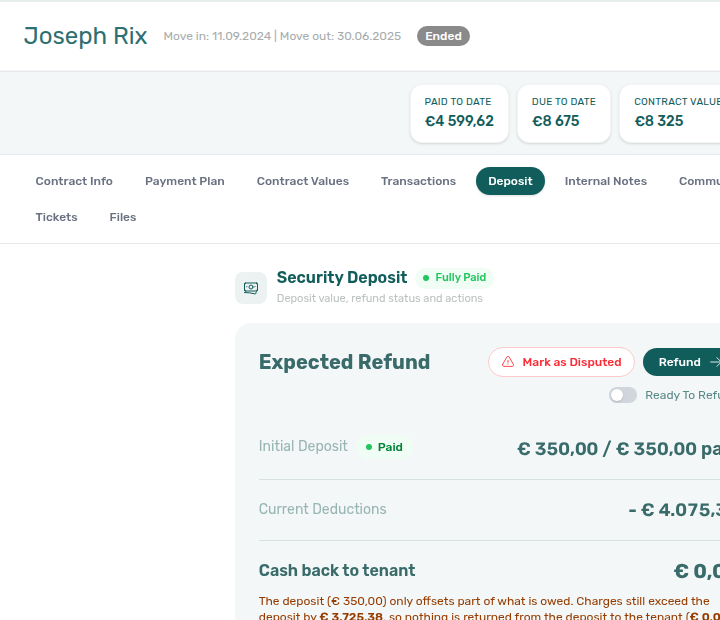
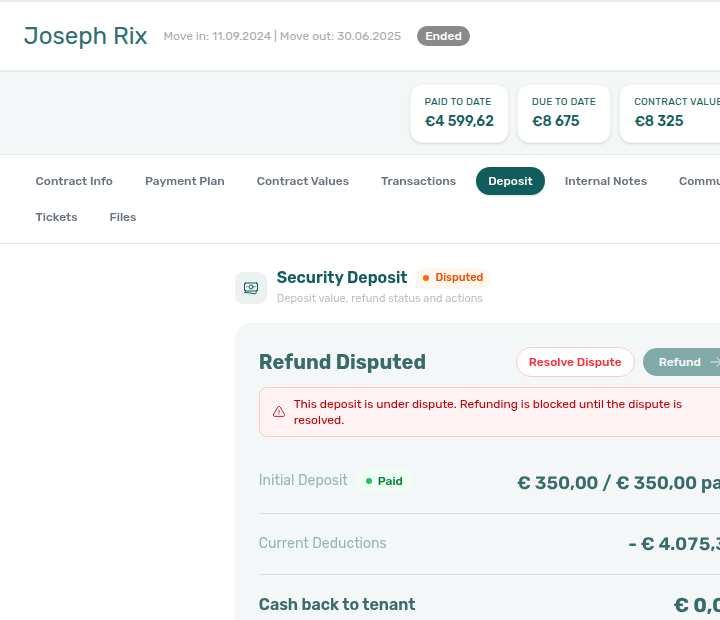
Mark refunded — Records that you completed the bank return outside Vivin. The teal button always reads Mark refunded (it no longer shows a live Refund €… amount on the label — use Total to refund on the card for the cash estimate). The confirmation modal asks Mark this security deposit as refunded? and shows an info callout: This does not actually send any money to the tenant. Vivin updates the ledger and deposit status only; the actual bank transfer still happens outside the platform (see Managing a Check-out).
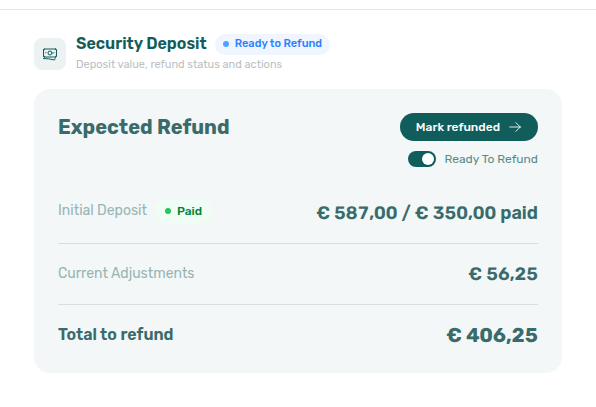
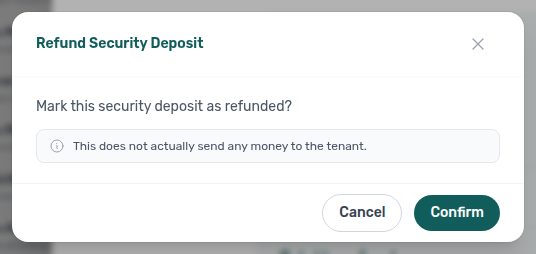
Finance Deposits updates from this tab
When you finish a refund or dispute action on this tab, Finance → Deposits already shows the new state. You do not reload the tab or change its filters.
That applies after you confirm:
| Action on this tab | What Finance → Deposits does |
|---|---|
| Mark refunded | The row leaves Ready to refund (and matching Timeline cards). Refunded counts go up. |
| Revert refund | The row returns to the pre-refund queue (for example Ready to refund). |
| Mark as Disputed / Resolve Dispute | The row moves between Fully paid and Disputed. |
| Transfer | The source row follows the refunded-and-transferred state; finance no longer queues it as an open return. |
If Finance → Deposits is already open, close the booking sidebar (or switch back to the tab): the table and the Deposit lifecycle status cards match what you just confirmed. Distinct from the date range — an older move-out can still sit outside the default three-month window until you clear or widen it.
See FAQ — Does Mark refunded on the booking leave the row on Finance Deposits? and Managing a Check-out — Step 5.
Refund an overpayment when there is no deposit
Mark refunded is not limited to collected security deposits. When the payment-plan balance is a tenant overpayment (the Current Adjustments row), Vivin also offers the button so you can record the bank return of that surplus:
| Booking state | What you see on Deposit | What Mark refunded returns |
|---|---|---|
No deposit configured (Initial Deposit shows —, pill No deposit) | Current Adjustments equals Total to refund | The overpayment only (ledger type overpayment return) |
| Deposit Unpaid, plus a payment-plan overpayment | Red Unpaid on Initial Deposit; the refund unavailable helper is hidden; Total to refund is the overpayment (unpaid deposit is not added) | The overpayment only — collection of the configured deposit is unchanged |
| Deposit Paid, plus overpayment | Usual collected-deposit card plus Current Adjustments | Deposit cash and overpayment, as before |
Total to refund follows the payment-plan balance (PAID TO DATE minus DUE TO DATE), not the blue Overpayment chip on the insights bar. Those two figures can differ when some paid lines are not yet due — trust Current Adjustments / Total to refund for the bank amount.
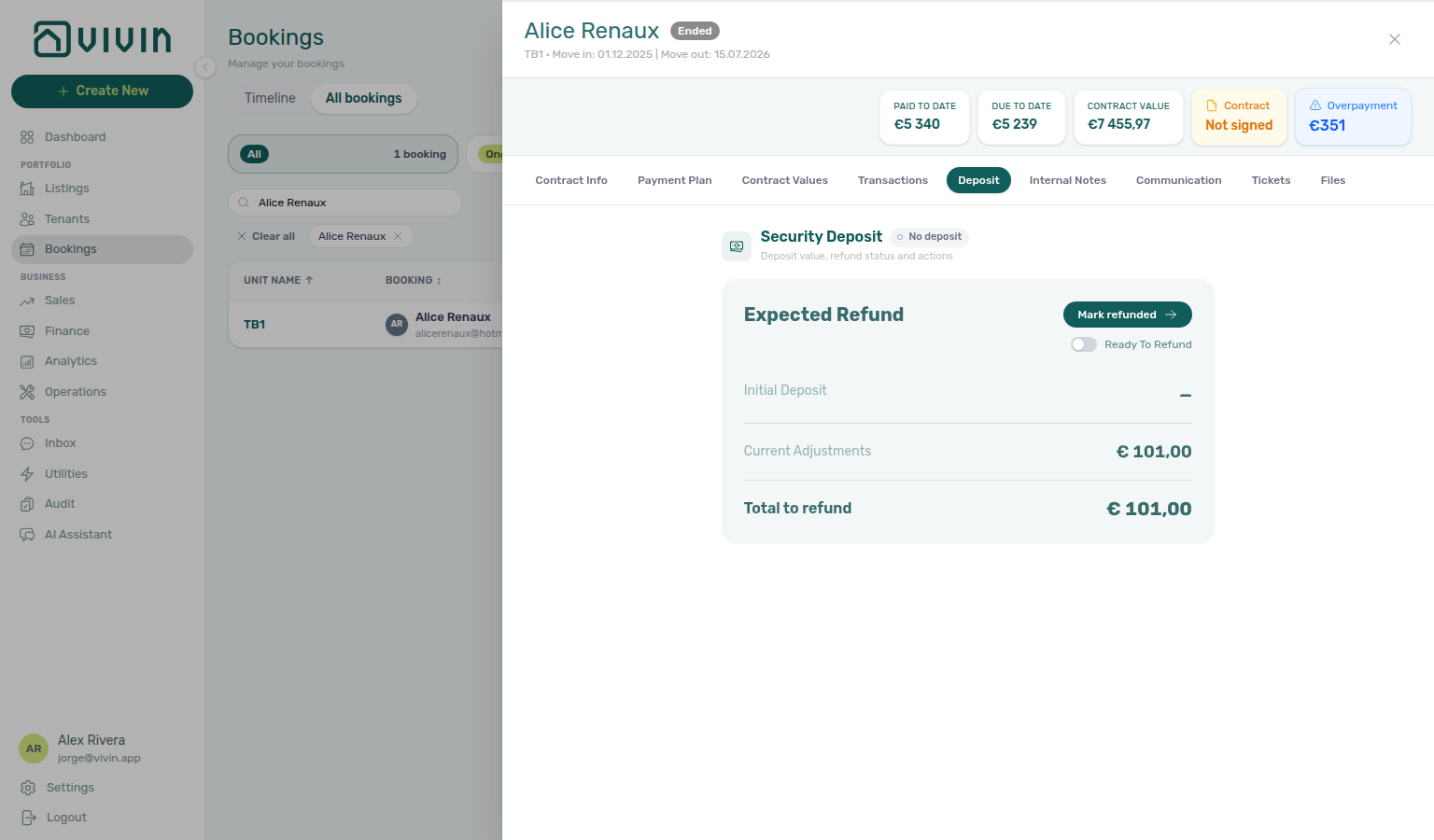
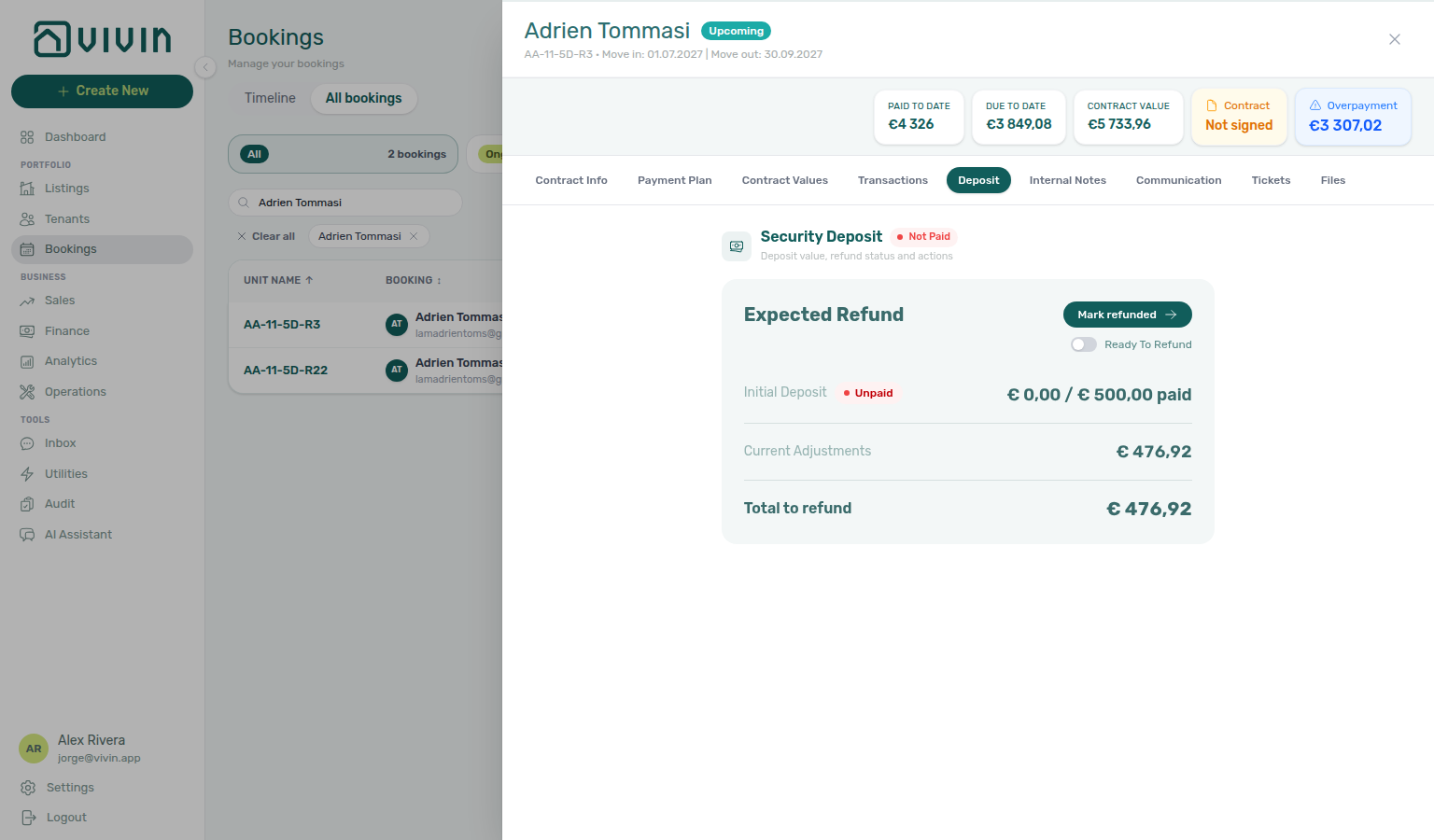
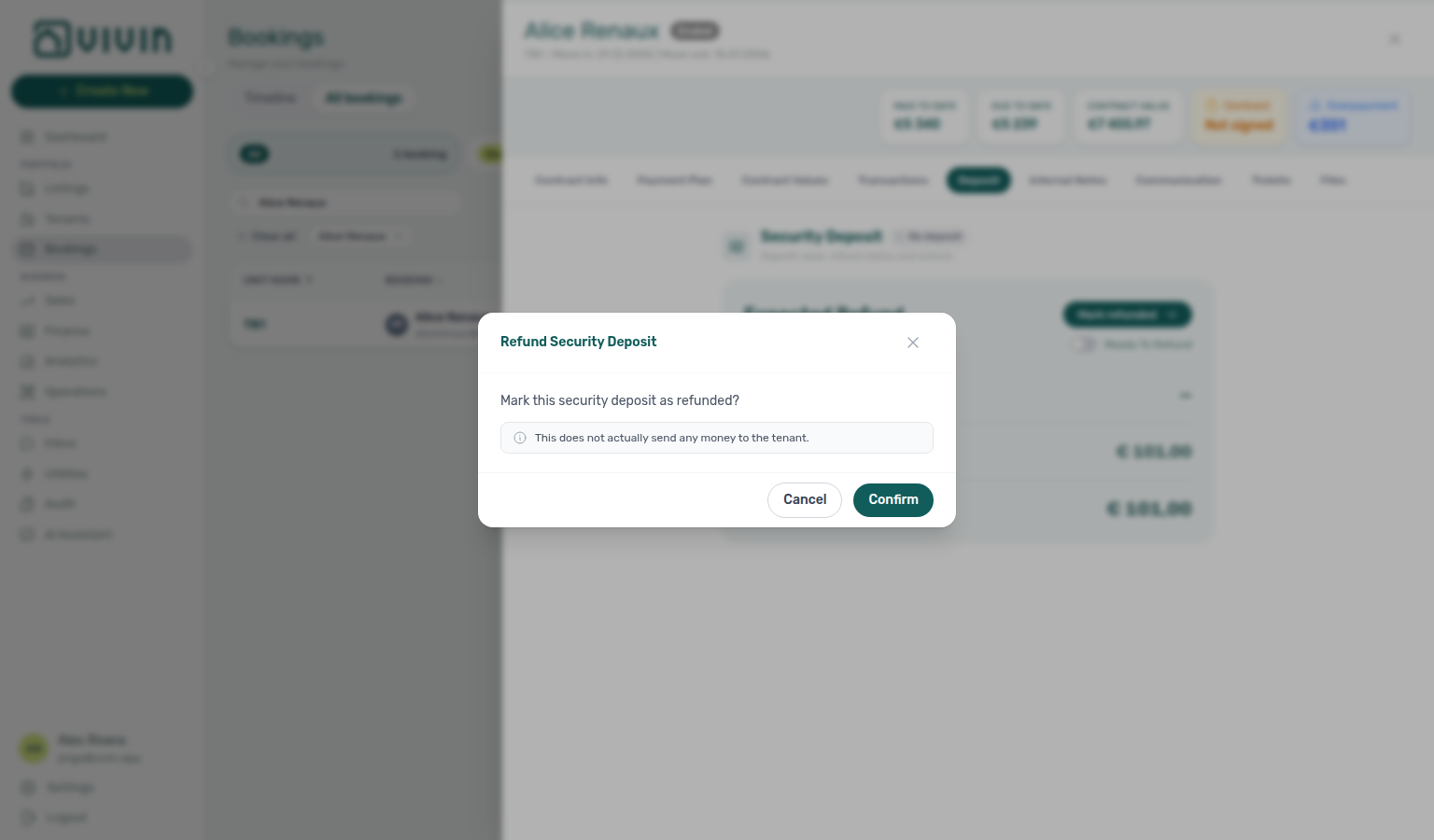
After you confirm on a no-deposit booking, the Refund Completed card lists From overpayment balance (and omits From security deposit, which would invent a hold that never existed). Booking history records Tenant overpayment refunded instead of Security deposit refunded. Finance → Deposits does not list bookings with no configured deposit — stay on this tab (or Other filters → Balance → Overpayment on the Bookings list) to find them.
The same Mark refunded permission and no-money-sent confirm apply as for a collected deposit — see Managing a Check-out — Step 5 and FAQ — Refund overpayment with no deposit. Tenants then see Overpayment Return on Payments → Transaction History.
Fiscal reversal when you Mark refunded
Mark refunded still posts a cash ledger line (and may apply the deposit to outstanding charges). For a collected deposit, that cash line is Deposit Refund; for a no-deposit overpayment it is an overpayment return and there is no deposit collection to reverse fiscally. Alongside a collected-deposit refund, Vivin also reverses the deposit fiscally so invoicing stays consistent with the money you return:
| Deposit cash that was… | What Vivin creates on the deposit line | What finance does next |
|---|---|---|
| Invoiced, manual, or on a draft document | A credit note (pending) with reason Refund of security deposit | Filter Finance → Transactions → Not issued credit note and Issue credit notes (or Set manual when accounting issues the nota de crédito outside Vivin) |
| Paid but not invoiced | A return of value adjustment with the same refund reason | No provider document — the return of value already corrects the paid, not-invoiced allocation |
| Mixed (part invoiced, part not) | Both — a credit note for the invoiced slice and a return of value for the not-invoiced slice | Issue only the pending credit-note slice from Finance |
Installment or multi-allocation deposits follow the same rule per cash allocation. After refund, open Payment plan: due-date rows show a teal −€… credit note and/or −€… return of value subtitle on the deposit column, plus the usual Deposit Refund out-payment row. On Contract Values, the deposit line keeps a credit-note / return-of-value badge and shows the original amount struck through once the line is fully reversed.
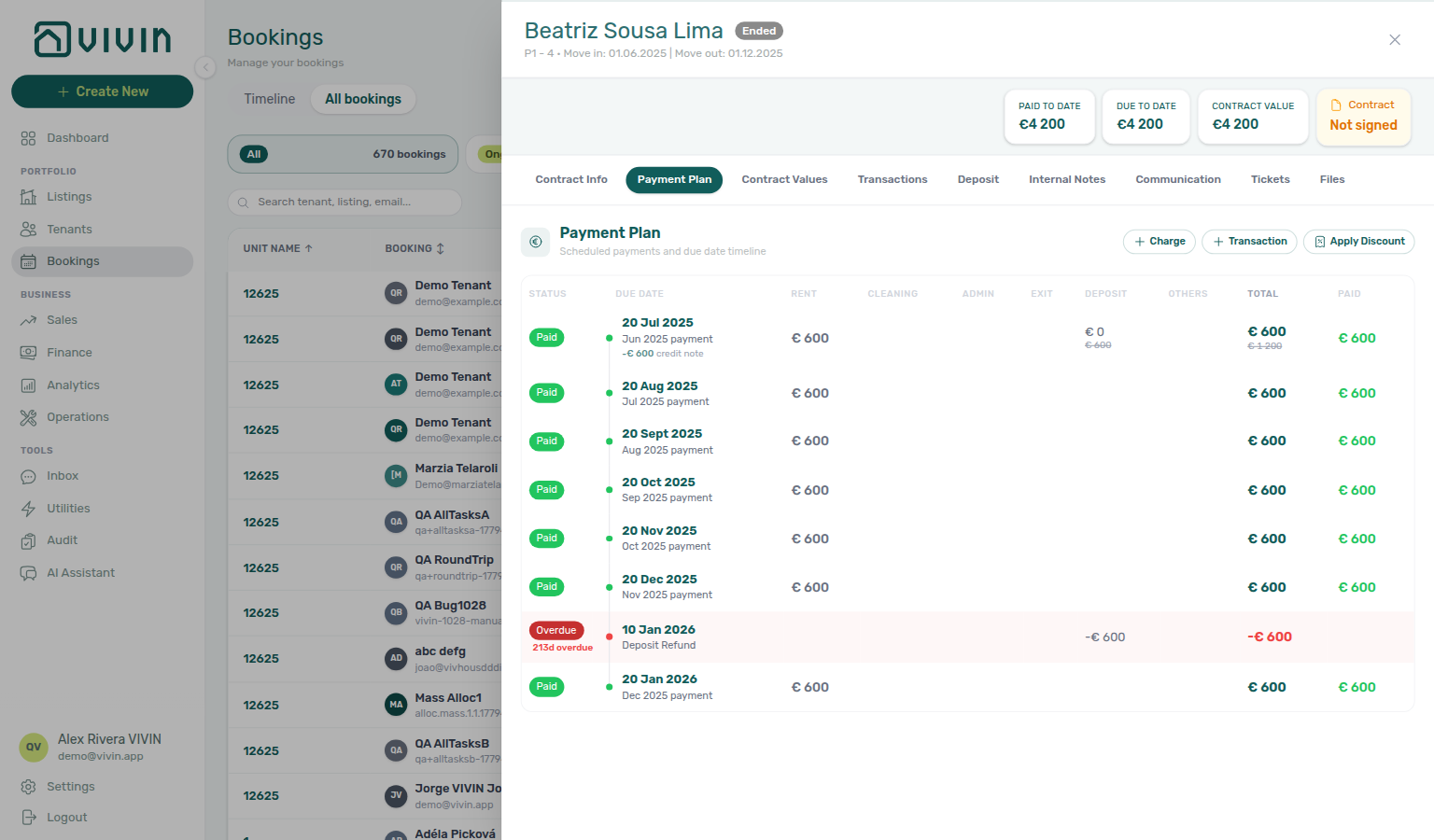
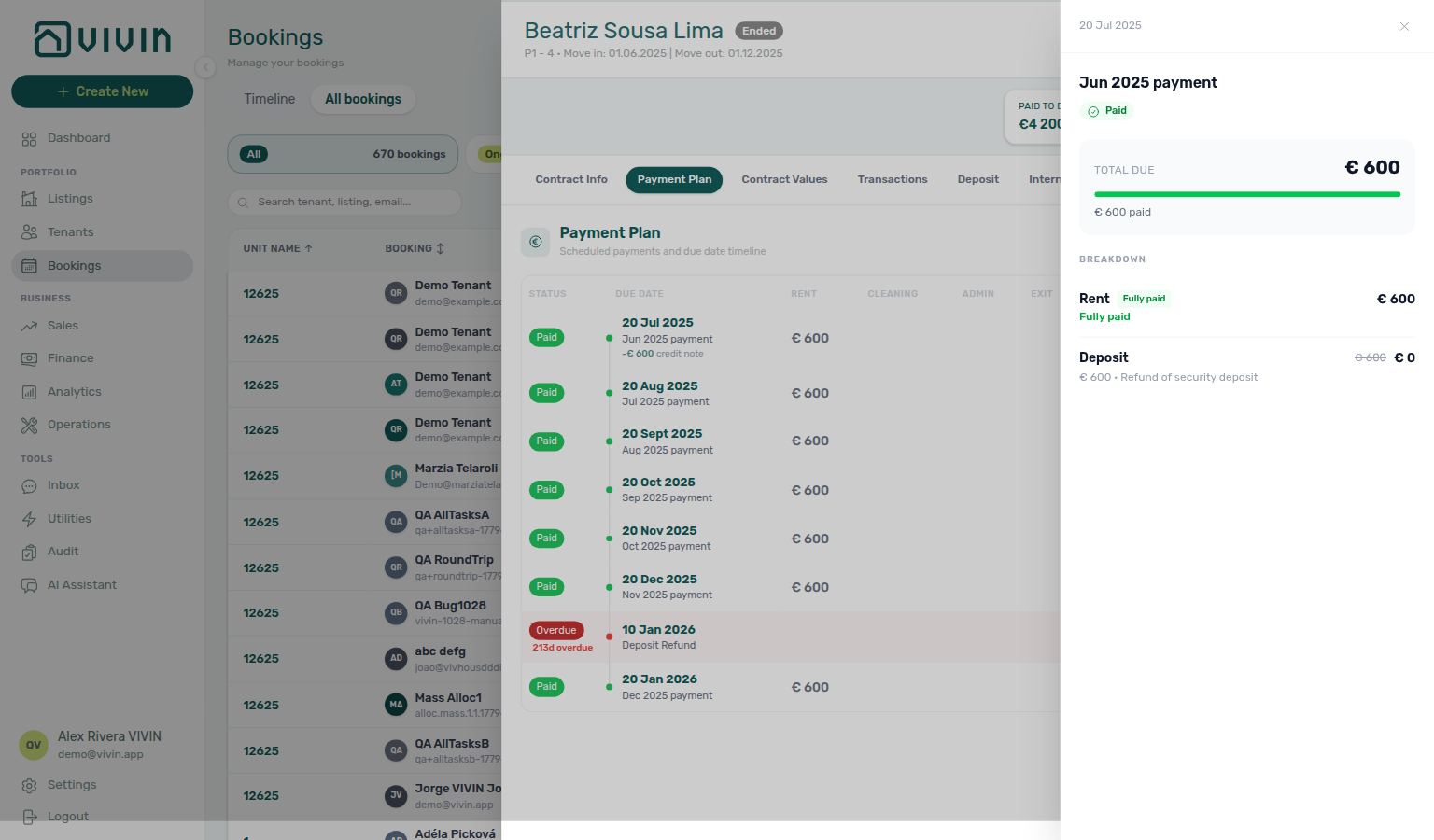
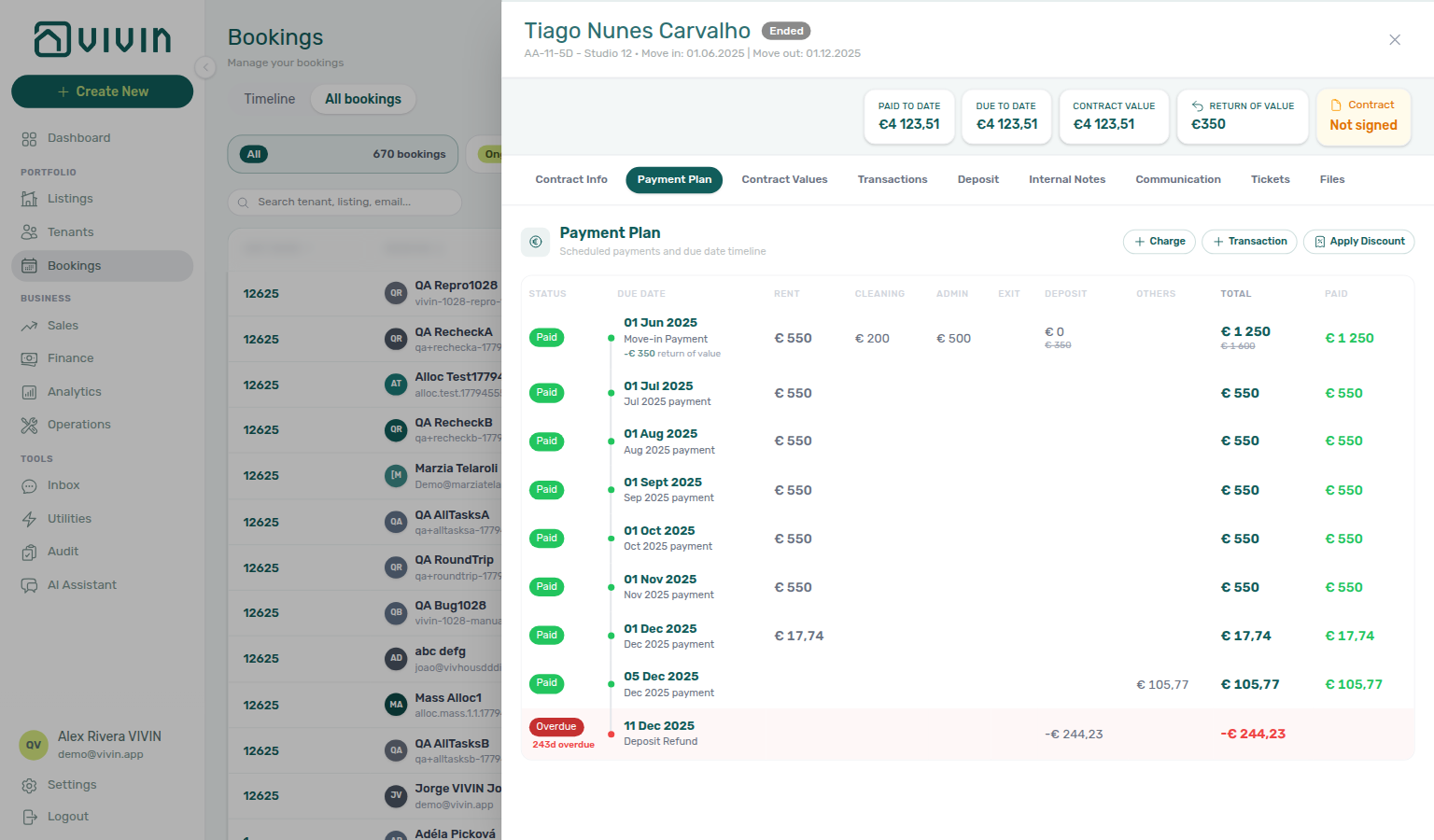
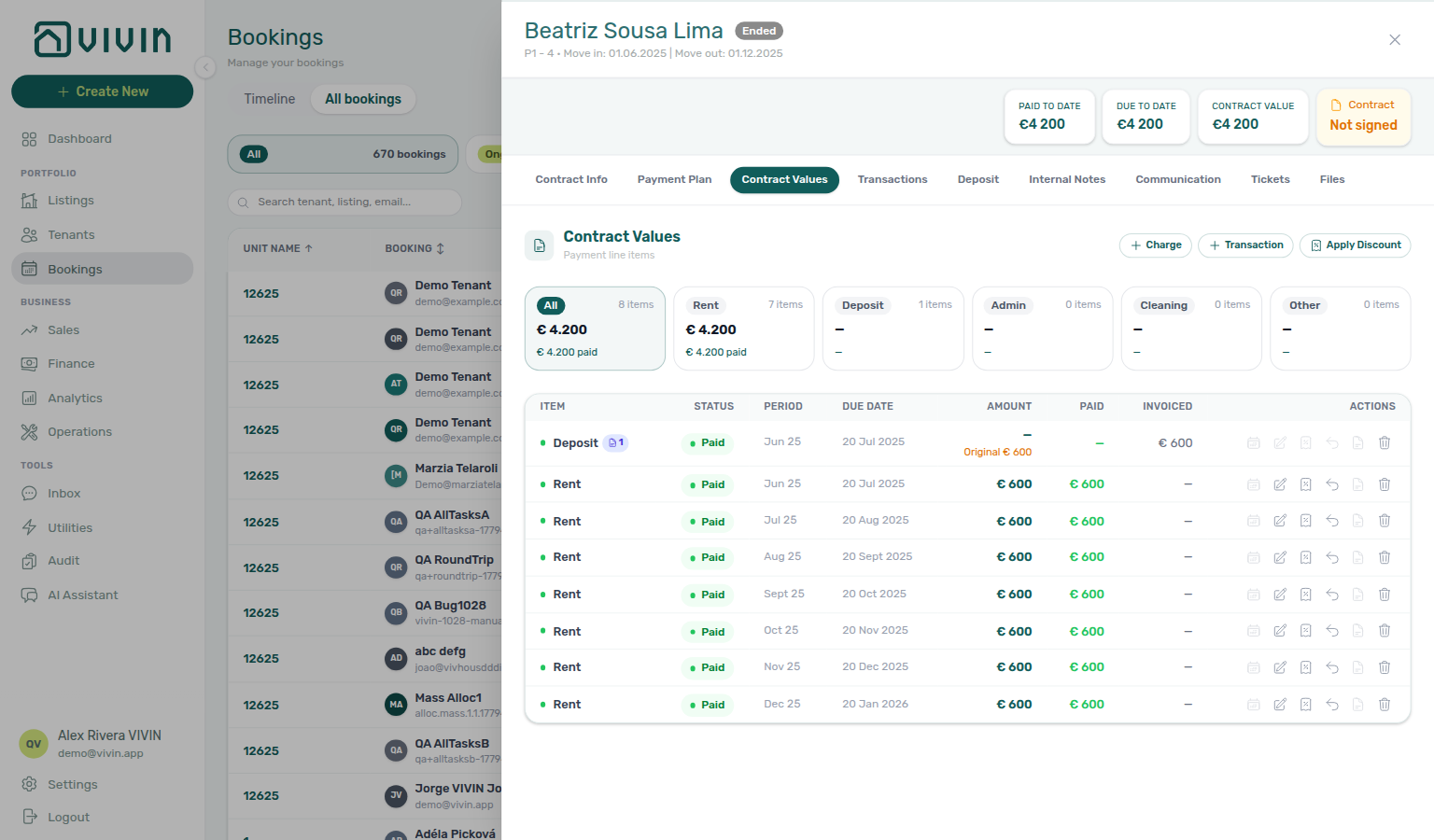
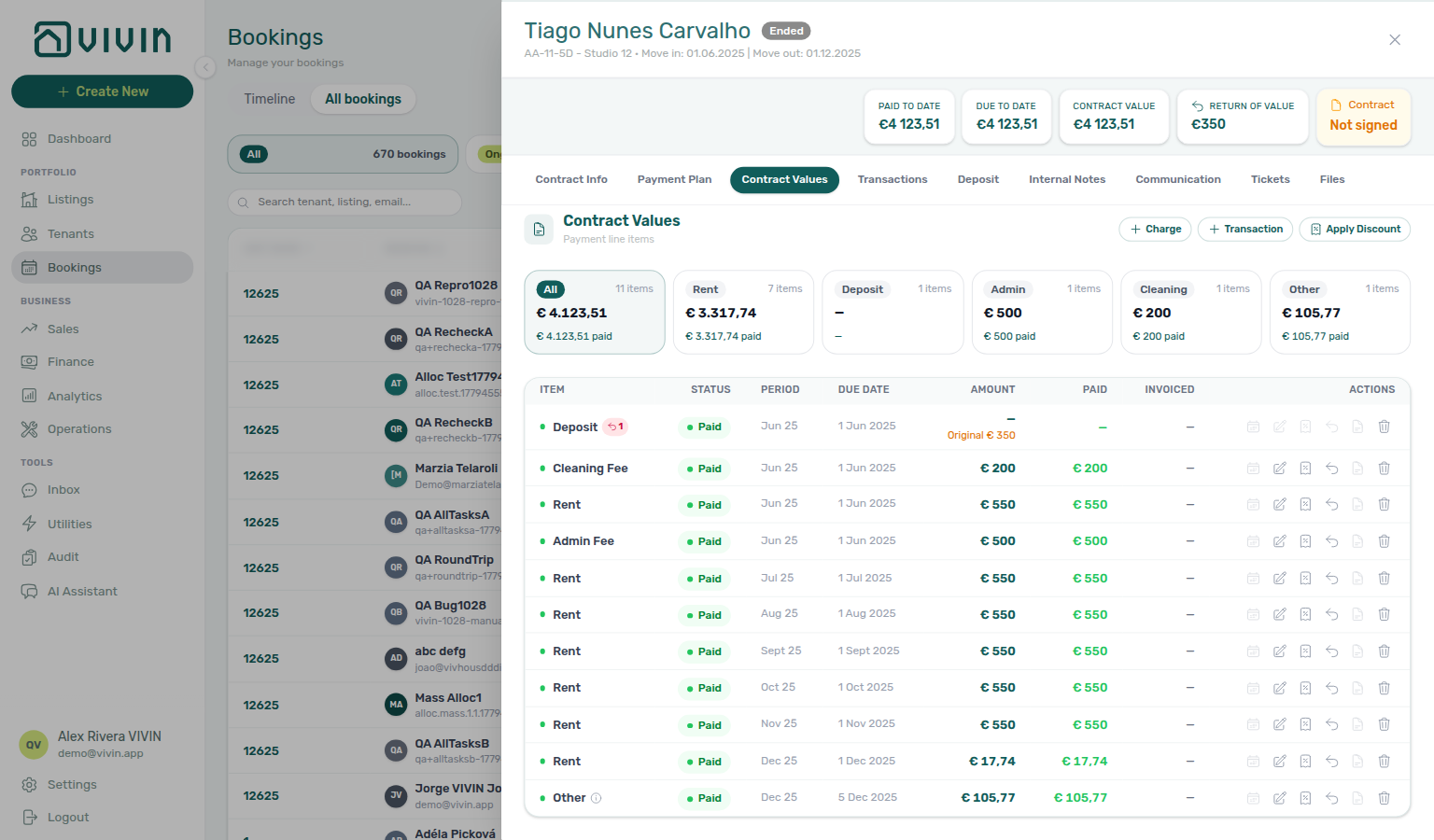
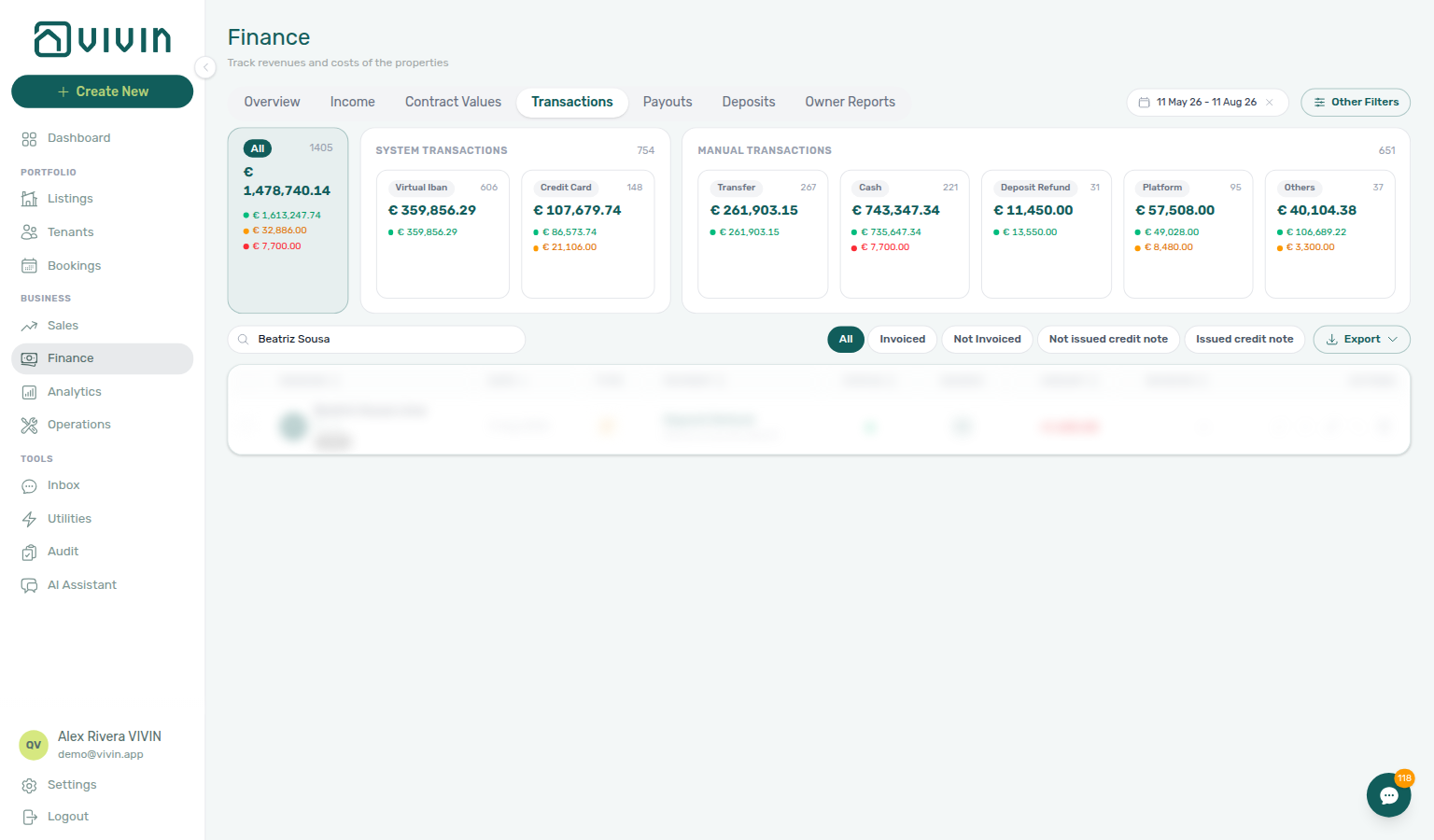
When the deposit slice was invoiced (or manual / on a draft), Finance also queues the pending credit note on the parent deposit in-payment — filter Not issued credit note to find that receipt, then open it to issue (or Set manual). The outbound Deposit Refund row above is the cash return; the credit-note work stays on the original collection.
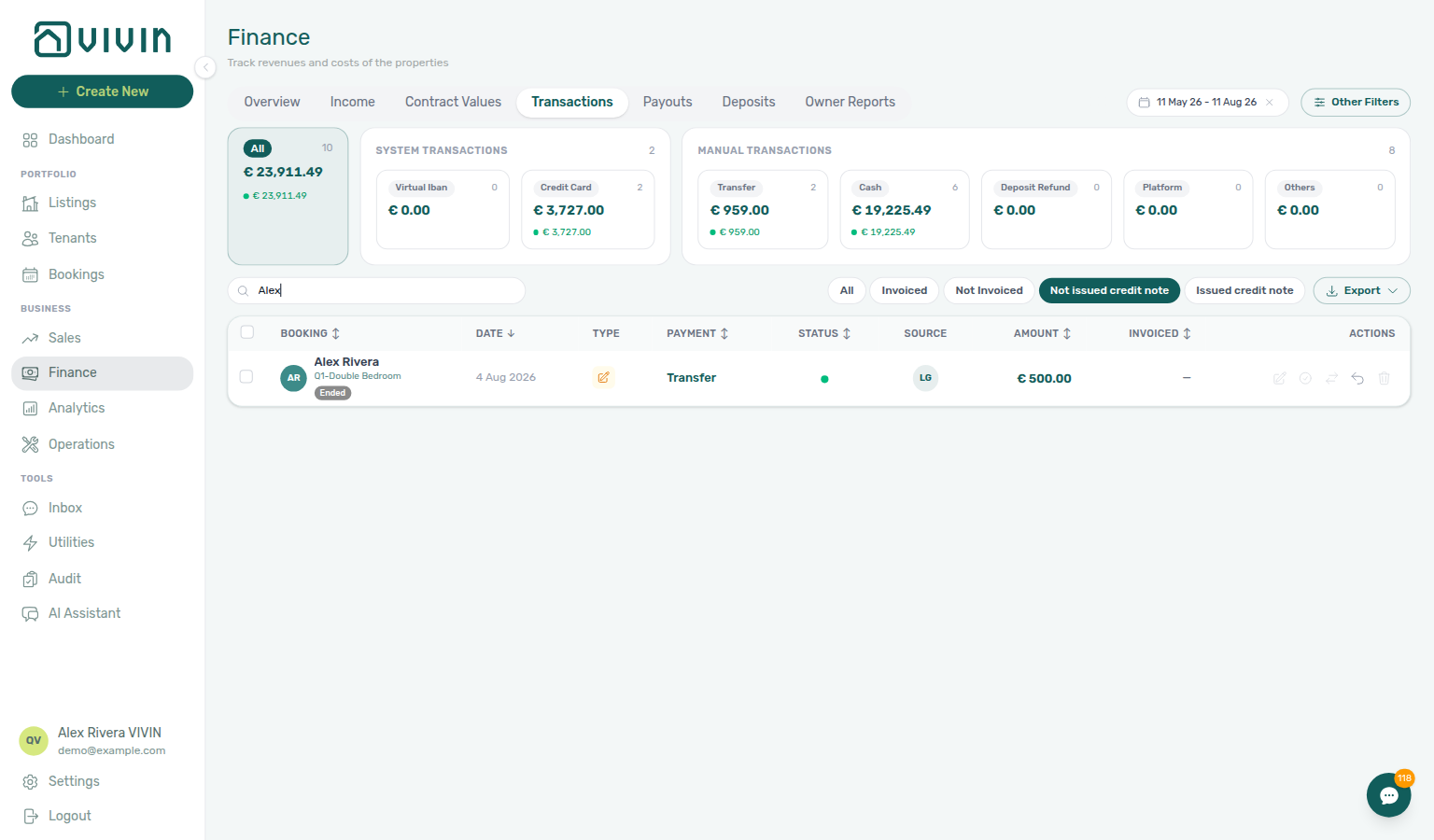
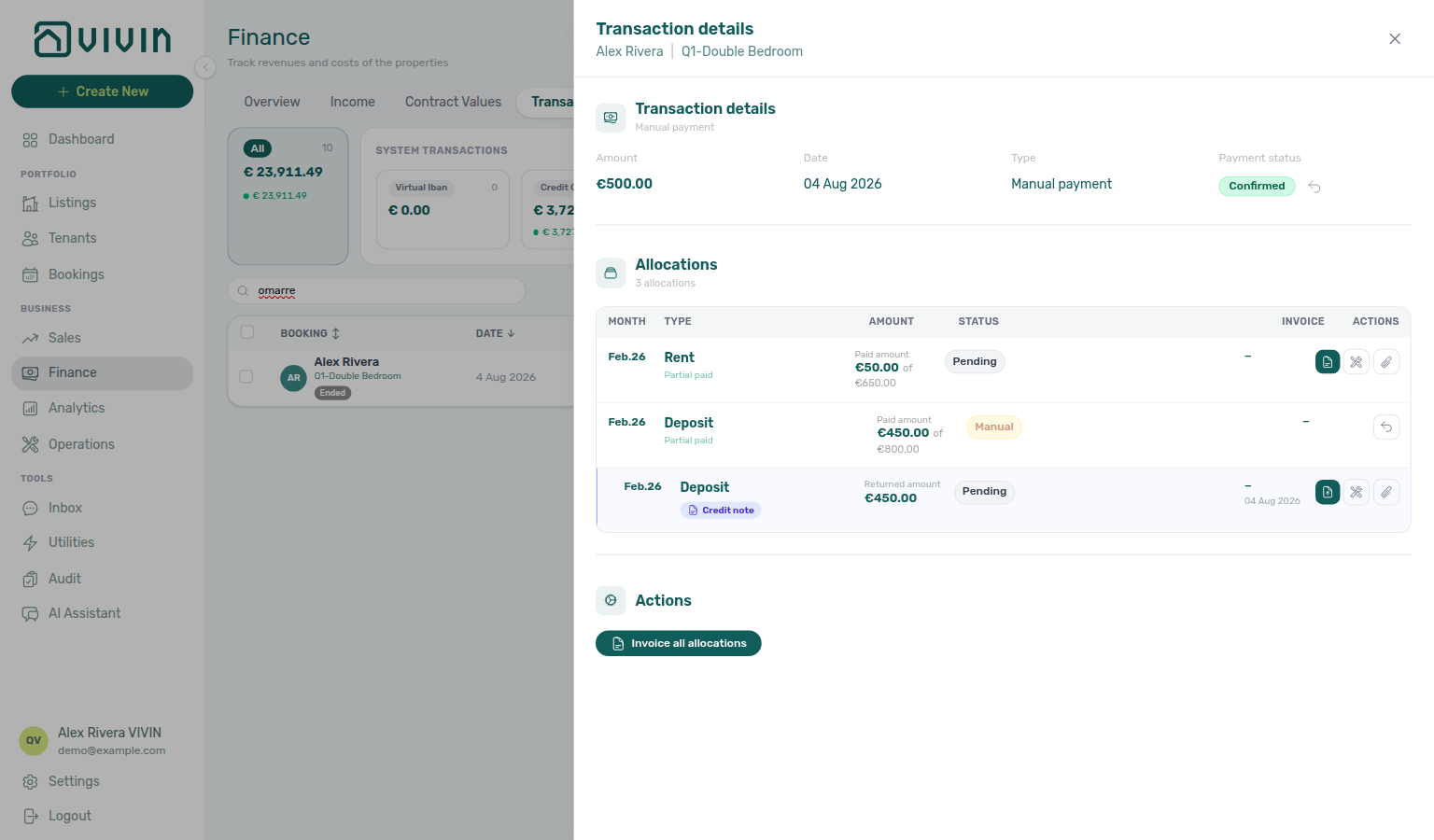
On Contract Values, Edit amount stays disabled on the deposit line — deposit returns go through Mark refunded, not a line edit. Use Edit amount on rent and fee lines as usual; see Edit amount.
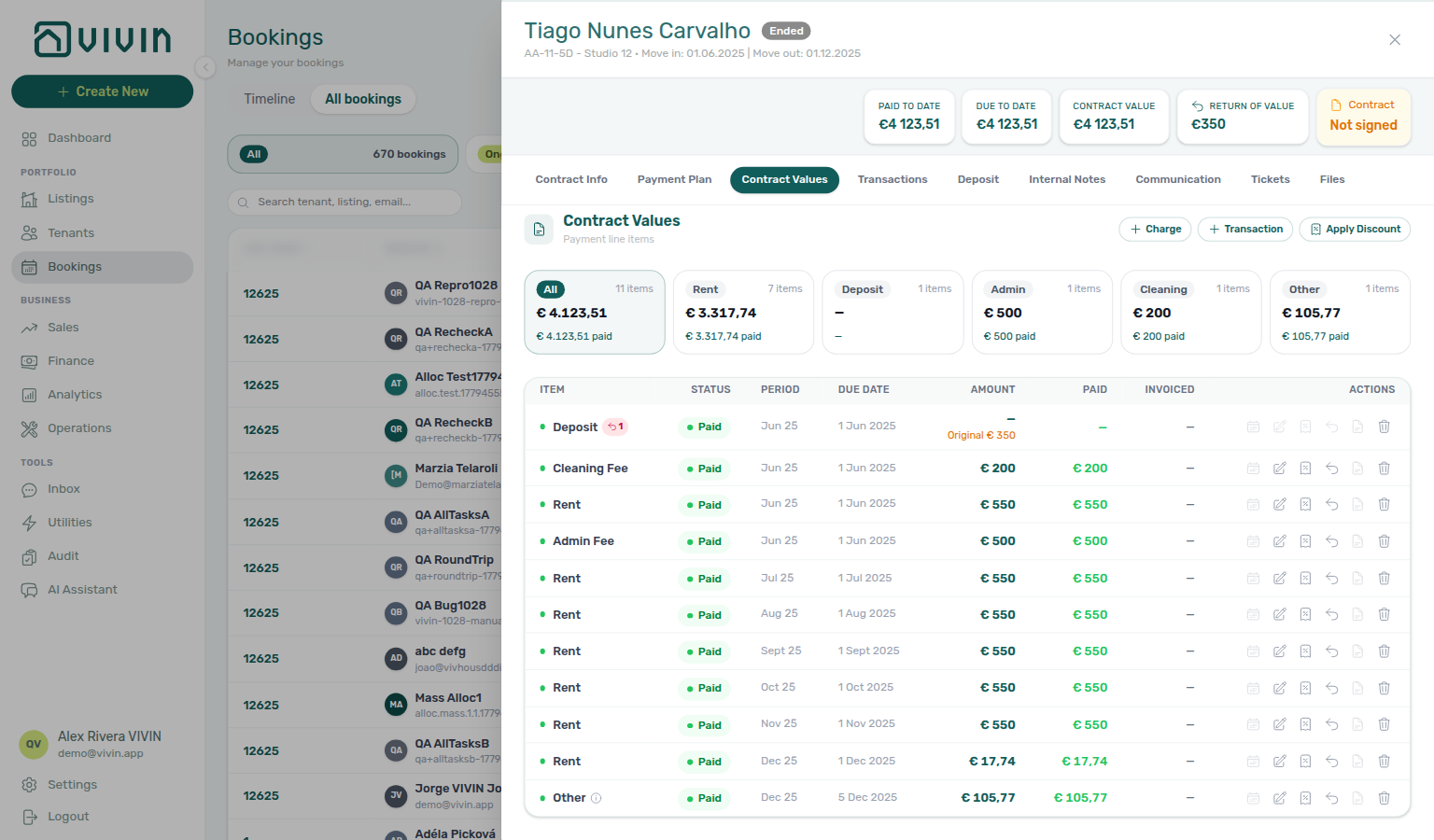
When your invoicing provider is Hostkit and the deposit sits on an invoice that cannot be reversed on its own (shared with other charges, or only partly paid), Vivin blocks the whole refund before writing anything and asks you to reverse that invoice in Hostkit first, then run Mark refunded again. InvoiceXpress allows partial credit notes on the deposit slice.
After refund (ledger card)
When Refund Completed is shown, the planning rows are replaced by a payout breakdown from recorded transactions:
| Line (English UI) | Meaning |
|---|---|
| From security deposit | Cash returned from deposit-related ledger lines. Hidden when the booking had no configured deposit and none was paid out. |
| From overpayment balance | Additional cash when overpayment returns were part of the payout — the only payout row on a no-deposit refund. |
| Total refunded | Sum of bank payouts to the tenant. |
When the deposit was applied to charges with no bank transfer, the post-refund card shows From security deposit / Total refunded as €0, a short line that the deposit was closed out with no payment to the tenant, and an amber No bank transfer callout. The callout states how much of the security deposit offset outstanding charges and that the tenant received €0 cash (or, when charges still exceed the deposit, how much shortfall remains on the booking balance).
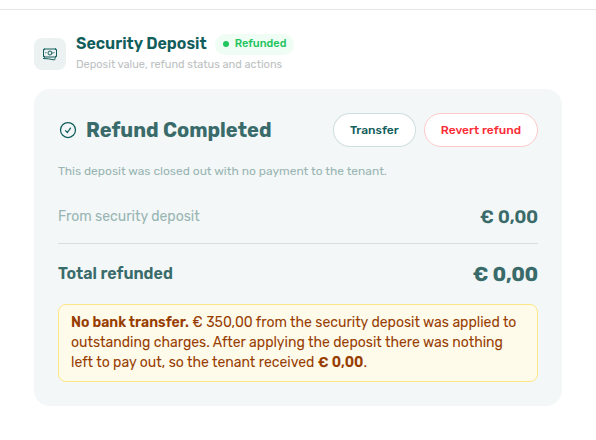
Transfer refund balance — After Refund Completed, use Transfer to move refundable credit to another booking for the same tenant (for example when the tenant rebooks and you want the prior deposit applied to the new stay):
- Click Transfer in the card header (requires bookings.refund).
- In Transfer Refund Balance, read the amber warning — the action creates a credit payment on the destination booking and the source refund becomes non-reversible.
- Pick the target reservation from Select a target booking (only other bookings for the same tenant appear). When the tenant has several stays in the same unit, each row shows property — unit · contract dates · status so you can tell them apart — the collapsed trigger repeats the dates after you select.
- Click Confirm Transfer.
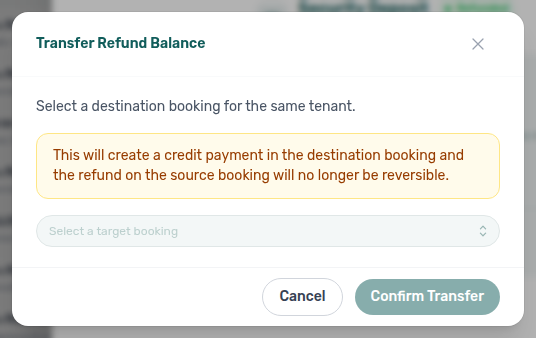
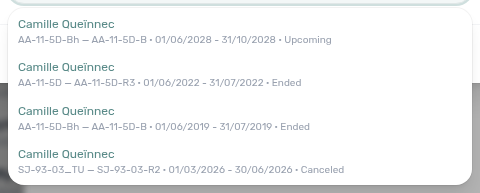
Revert refund — Reverts the refund record when your process allows and no transfer was logged (requires bookings.refund). The outline Revert refund control sits beside Transfer while the card shows Refund Completed. The confirmation modal asks Revert this deposit refund? and shows an info callout: This does not actually move any money. — Vivin only clears the refunded status, removes the cash Deposit Refund line, and deletes any still-Pending deposit credit notes / return-of-value adjustments created for the refund; bank movements still happen outside the platform. Once a deposit credit note has been issued to your invoicing provider, Revert refund is blocked — keep the refund final and correct accounting outside Vivin if needed. After a successful Transfer, an amber banner explains that Transfer and Revert refund are disabled because the balance already moved.
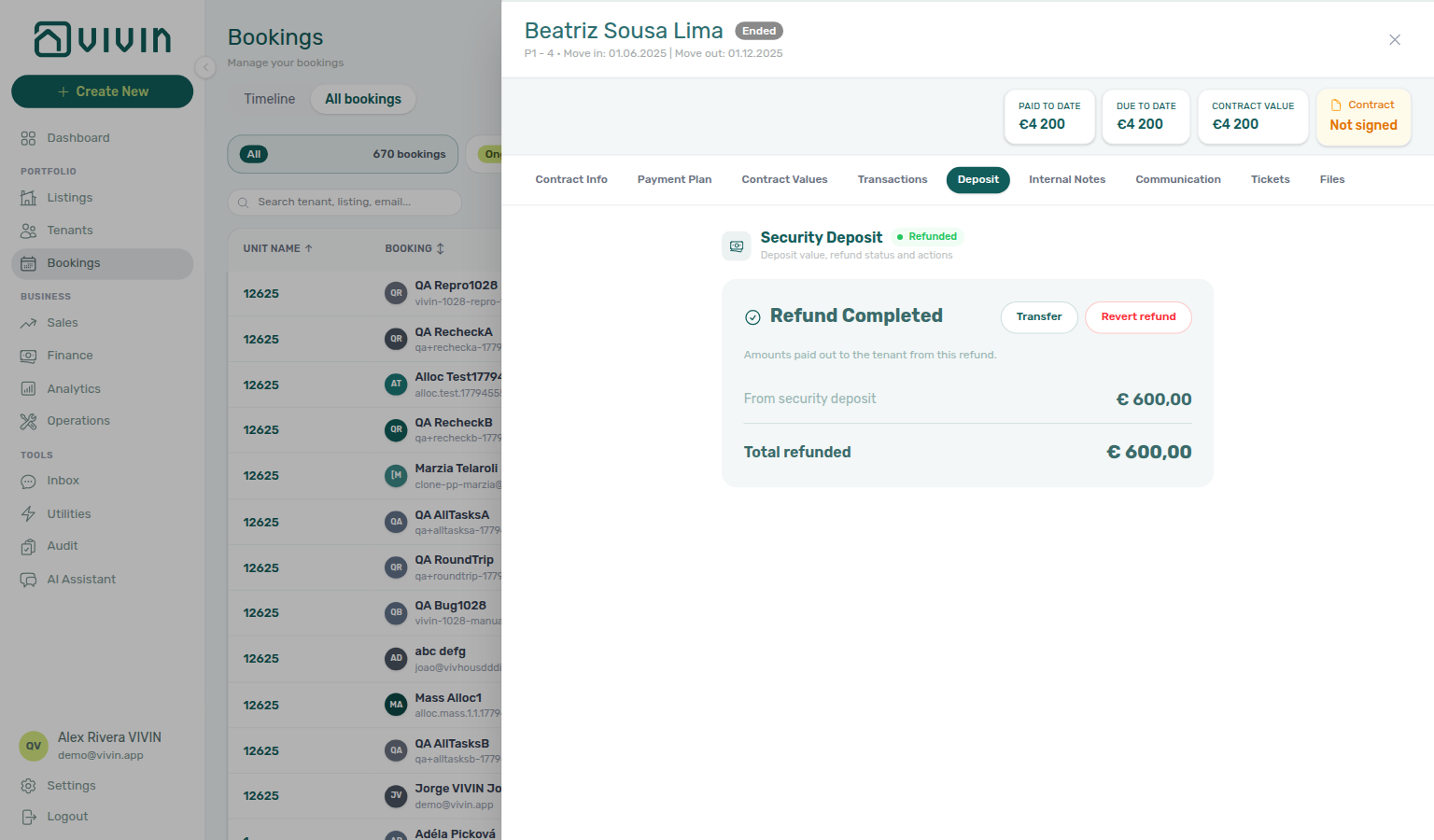
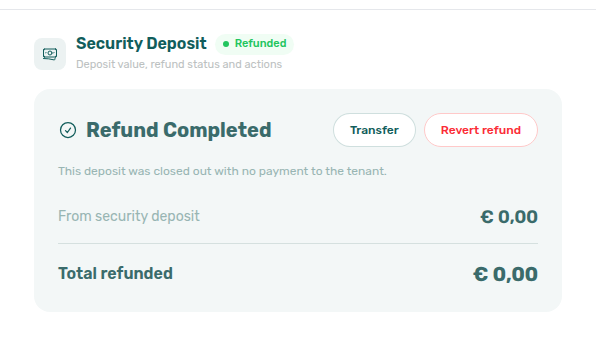
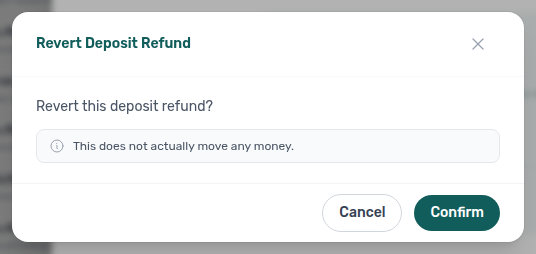
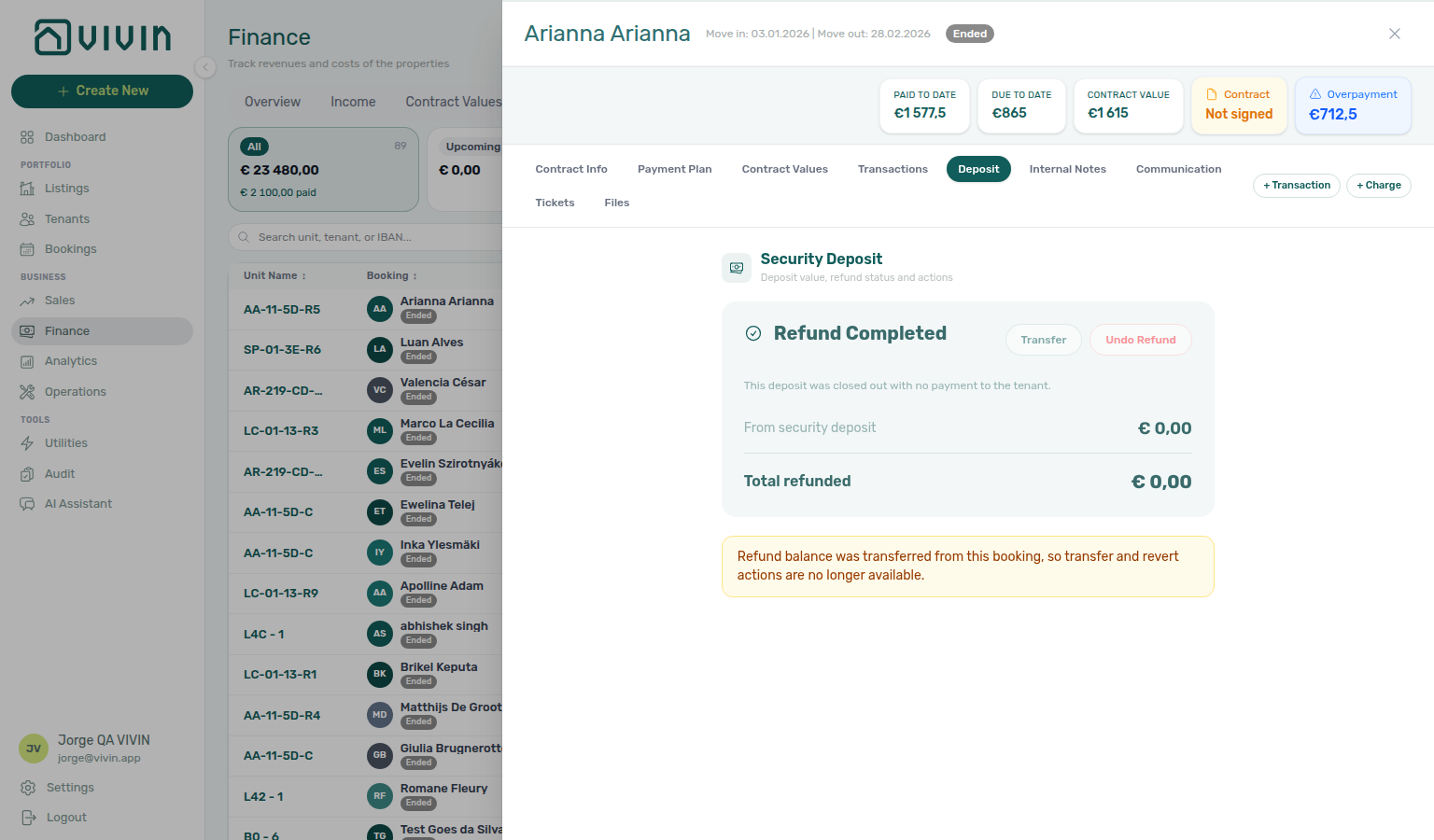
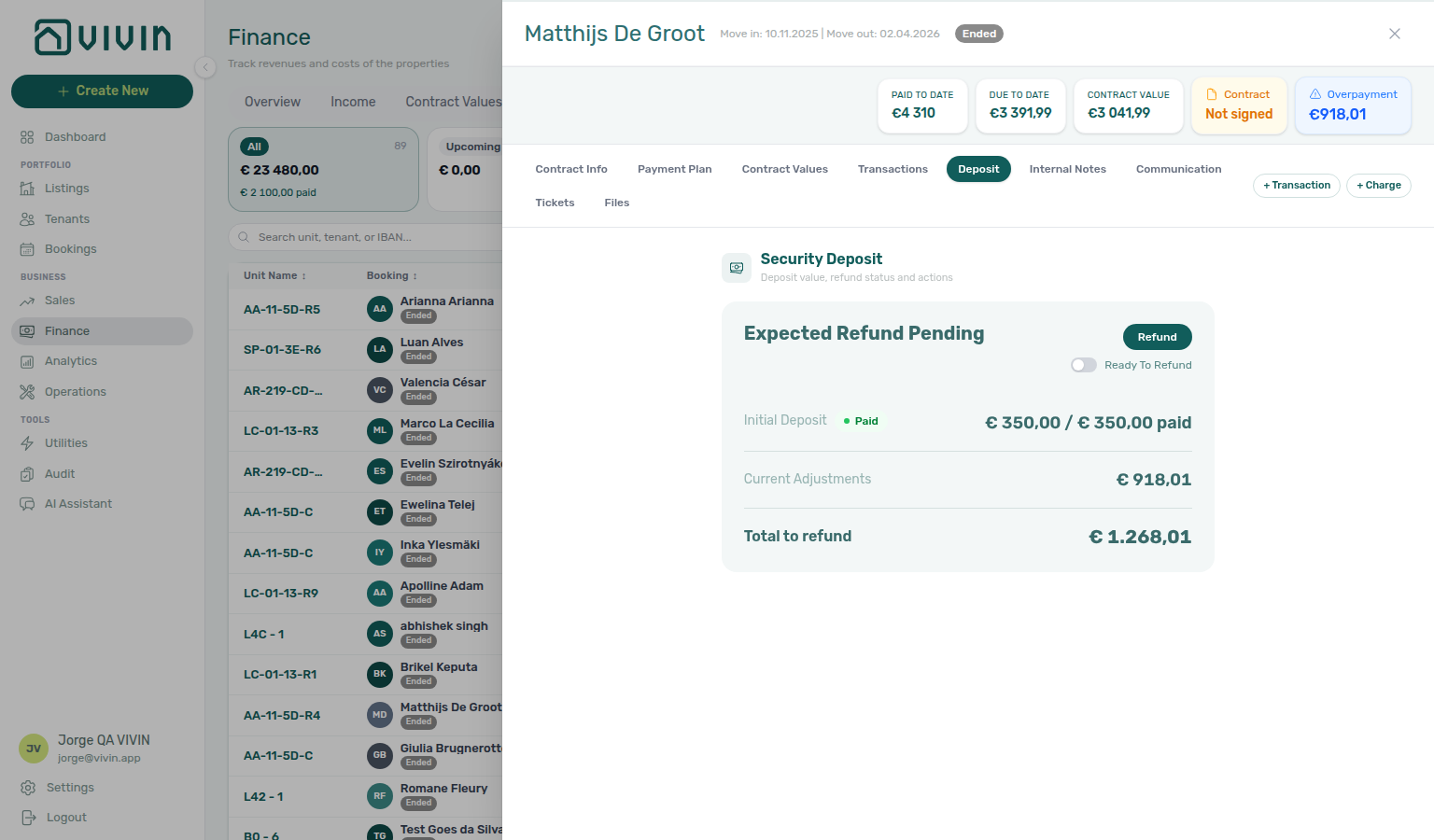
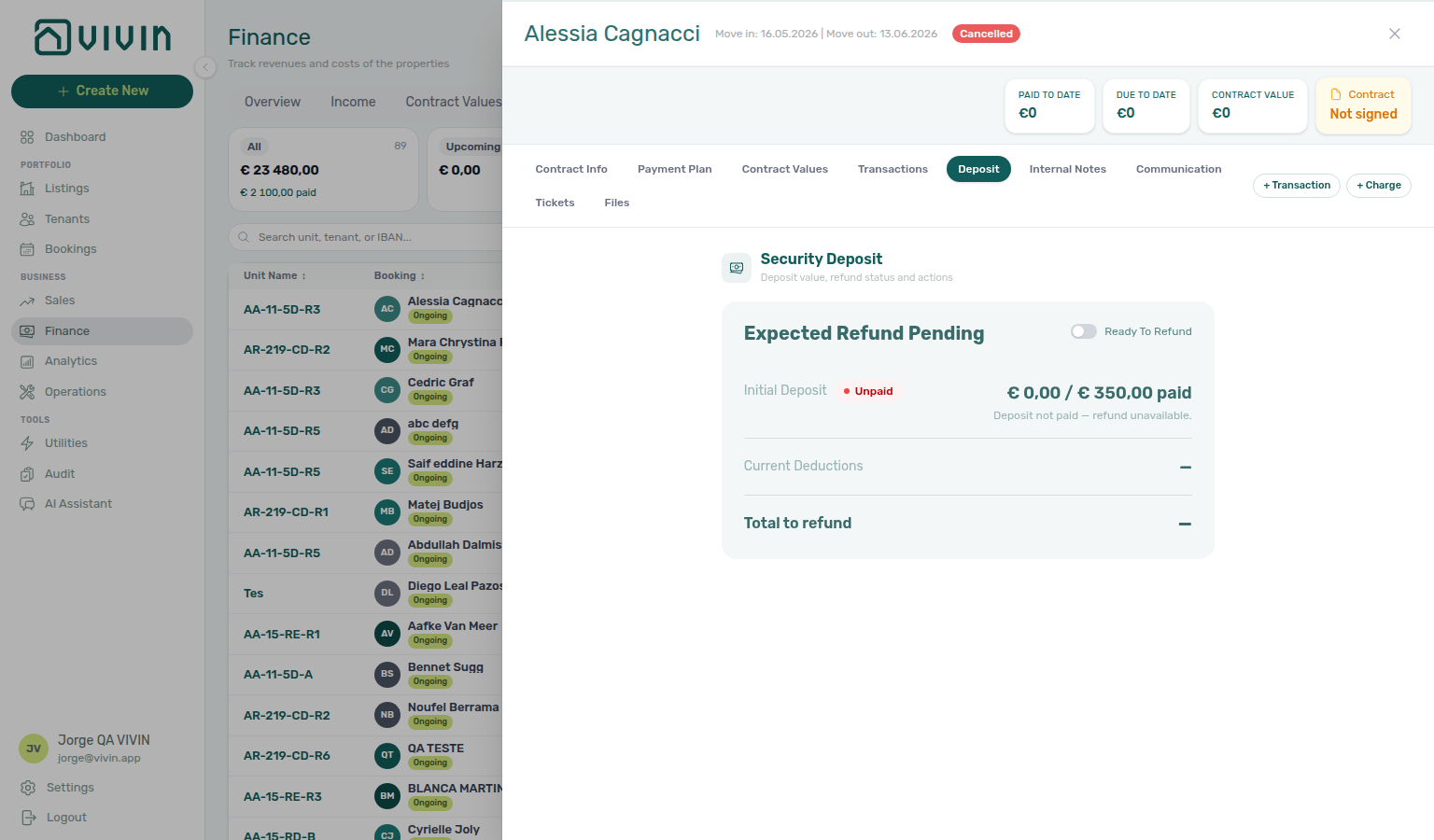

Internal Notes tab
The product labels this tab Internal Notes (formerly Comments). It is an internal chat-style thread on the booking (not visible to tenants). Messages appear in bubbles grouped by day (date separators in the centre of the thread). Your posts align to the right with a mint bubble labelled You; teammates’ messages align left with a coloured initial avatar and display name. Each bubble shows a time stamp on the same row as the text.
- Compose — type in the bottom message field and send with Enter or the send control (Shift+Enter for a new line when the composer supports it).
@mention— type@followed by a colleague’s handle (for example@JaneDoe, built from first and last name without spaces). While you type, an autocomplete list filters property managers on your account; pick a row to insert the handle. Mentioned teammates receive an email when the comment is saved. Handles are normalized the same way on the server (diacritics stripped, lowercase) and are capped at 64 characters — use autocomplete rather than typing long free-form handles.- Highlighted mentions —
@handlesin saved messages render as highlighted tokens in the thread (the product avoids treating email addresses as mentions). - Edit — hover your bubble to reveal a pencil; click it to change the text in place instead of deleting and retyping. See Edit your own notes in place.
- Delete — hover a bubble to reveal a trash control; confirm in the dialog to remove that comment permanently (your own messages or teammates’ messages, depending on your role’s delete rights on the booking).
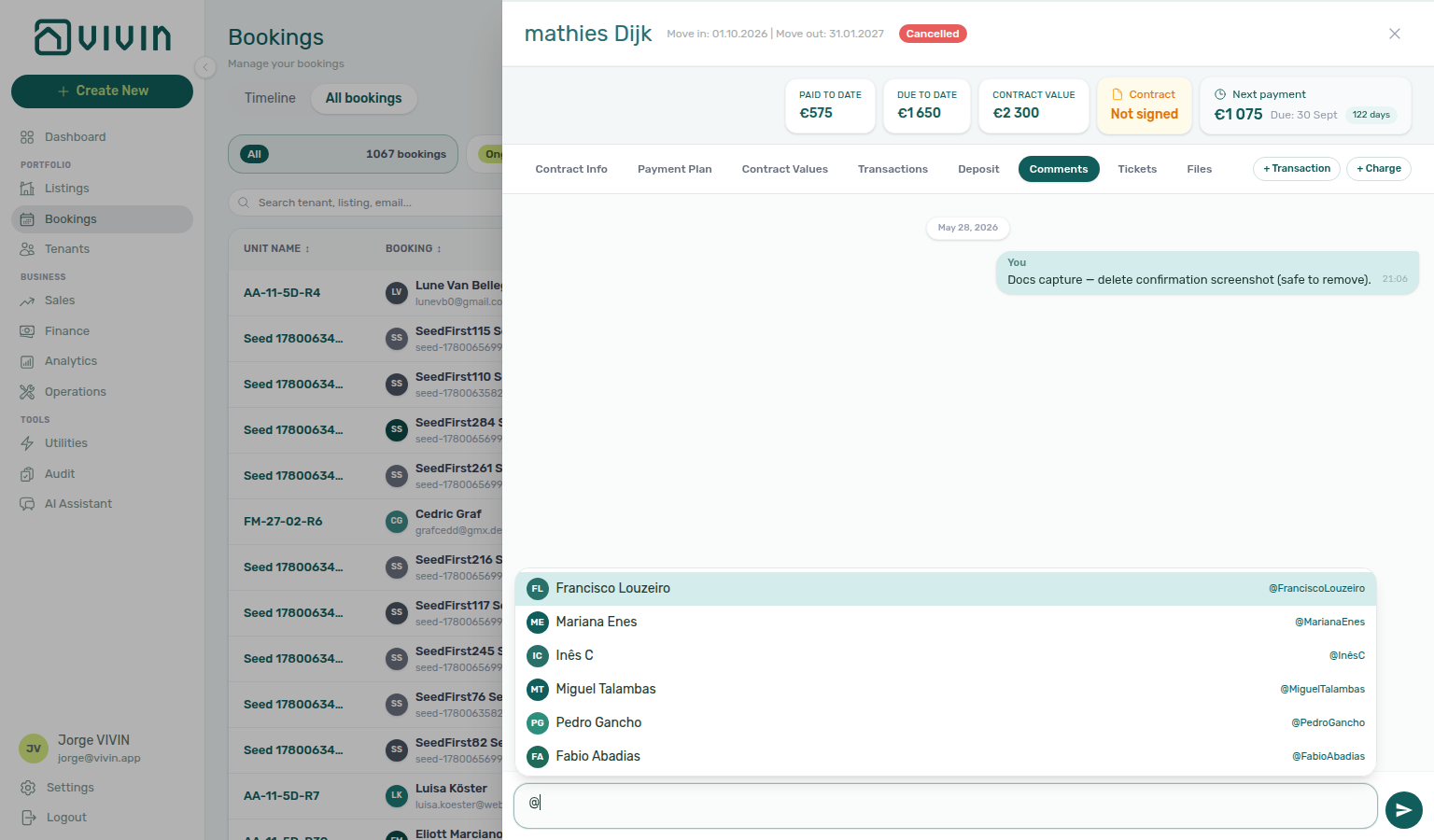
@ to open teammate autocomplete, pick a handle, finish the message, and send (internal thread only — not visible to tenants).Edit your own notes in place
Correct a note you already sent without deleting it. Hover a bubble labelled You — a pencil appears to the left of the bubble, next to trash. Click the pencil to open an inline textarea with Cancel and Save.
| Control | What it does |
|---|---|
| Pencil | Opens the editor on your persisted notes only. Teammate bubbles have no pencil. |
| Save or Enter | Writes the new text. Unchanged or empty text just closes the editor. |
| Shift+Enter | Inserts a new line in the editor. |
| Cancel or Esc | Leaves the original note as it was. |
| Trash | Still deletes the note after you confirm — including a teammate’s note when your role allows. |
After a successful save, the bubble shows an italic edited marker next to the original time. The day grouping does not change.
You cannot rewrite a teammate’s words under their name. Use trash when the thread should not keep that message and your role allows delete.
If you add a new @mention when you save the edit, that teammate gets an email (the time in the email is when you saved the edit). Teammates already mentioned on the original note are not emailed again. The teammate picker list stays on the composer at the bottom of the tab; in the inline editor, type the @handle yourself.
A note that has not finished sending yet cannot be edited until it appears as a persisted bubble.
See FAQ — How do I correct an internal note without deleting it? and Glossary — Edit internal notes.
Booking sidebar tab refresh
Each tab in booking detail loads on its own. When Communication or Tickets needs a refresh, you can keep working in Contract Info, Payment Plan, Deposit, and other tabs.
| Tab | What to do |
|---|---|
| Communication | Refresh in the booking sidebar header |
| Tickets | Retry on the banner inside the tab |
If the tab still looks incomplete after that control, close the booking and open it again from the list. Whole-module Bookings list refresh is Directory list refresh.
See FAQ — Communication or Tickets won't open and Glossary — Booking detail sidebar tab refresh.
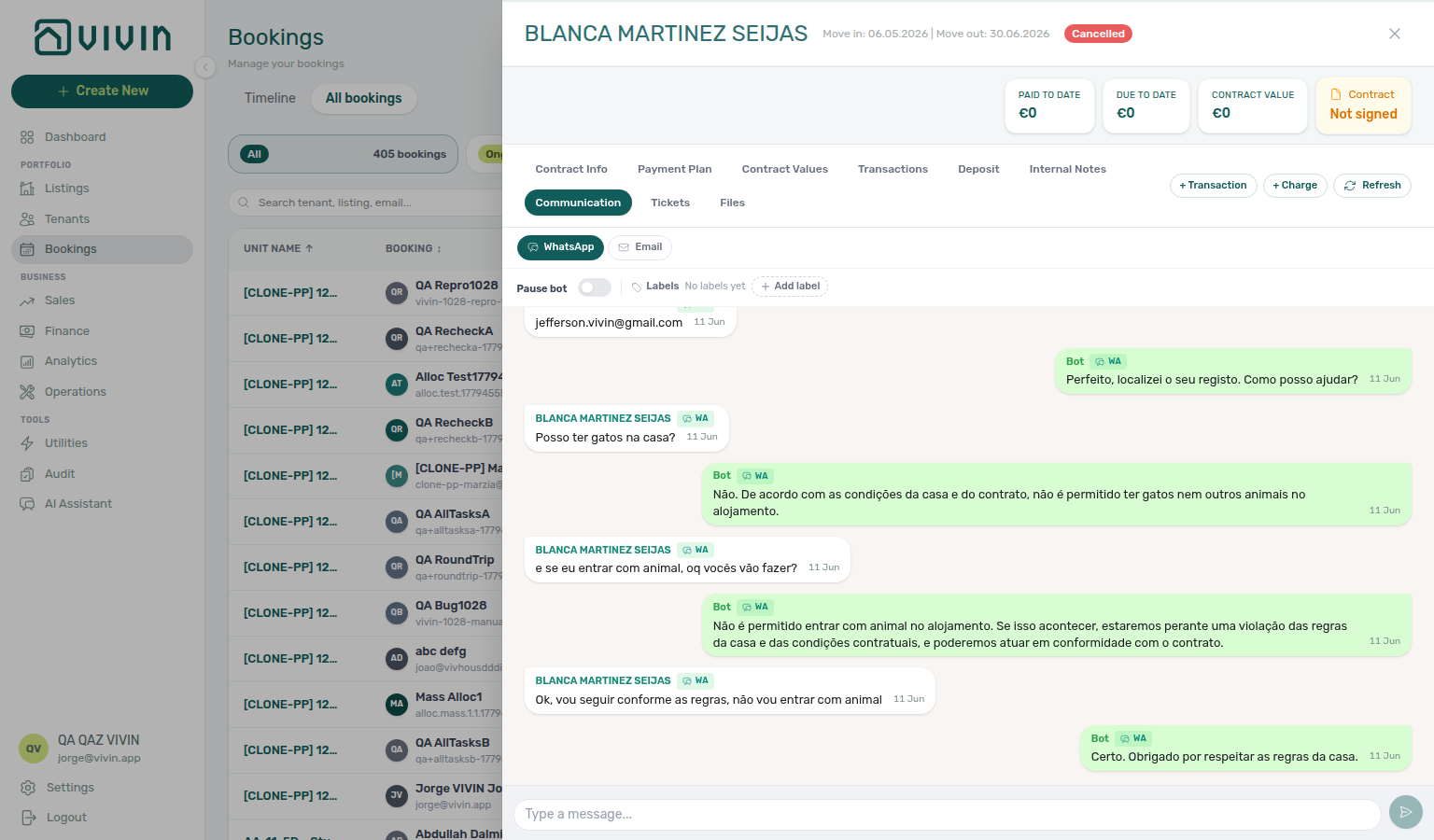
Communication tab
The Communication tab shows WhatsApp and email exchanged with the booking’s tenant on your configured support channels (the same automation backend as the tenant chatbot), plus an AI Summary report of that history. On channel-manager stays it also adds a pill named Airbnb or Booking.com (the OTA the guest booked on) that mirrors the host↔guest thread and lets you reply from Vivin — see Airbnb guest chat and Platform badge and filters follow the real OTA. On the WhatsApp filter you can read the thread, apply conversation labels, Pause bot (when configured), and send outbound messages from the management UI. Email remains read-only in the tab — reply from your mail client; Vivin ingests events and shows them here for context on this reservation. Summary replaces the timeline with a persisted Communication report (or an empty Generate summary prompt). Quick orientation: FAQ — WhatsApp and email per booking (bookings-detail-communication-tab-whatsapp-thread.png, bookings-detail-communication-tab-summary-report.png); OTA chat: FAQ — Airbnb guest chat (bookings-detail-communication-tab-ota-real-ota.png, bookings-detail-communication-tab-airbnb-thread.png, bookings-communication-airbnb-reply-flow.mp4); portfolio-wide triage: Inbox module (inbox-module-overview.png); hub matrix: Common Workflows — WhatsApp per-booking messaging.
Under the hood, Vivin merges WhatsApp and email events for the booking into one chronological timeline (oldest → newest) for whichever channel filter is active. When data first loads, the feed scrolls to the latest message so you land on recent traffic. While email events are still fetching and nothing is on screen yet, skeleton rows appear instead of an empty state. The Summary panel does not use that timeline — it loads the last stored AI report (free GET) or prompts you to generate one. The Airbnb / Booking.com panel loads its own live OTA thread (separate from WhatsApp/email history).
Channel filters
At the top of the tab, WhatsApp, Email, optional Airbnb or Booking.com, and Summary pills switch the panel (one at a time — there is no combined “all channels” timeline view):
| Filter | Layout |
|---|---|
| Chat-style bubbles on a muted background. Day separators (Today, Yesterday, or a formatted date) appear between message groups. Each bubble shows a small WA badge beside the sender label. | |
| Gmail-style inbox rows (sender, subject, snippet, time, paperclip when attachments exist). Click a row to expand To / Cc / Bcc, the message body (plain text or a sandboxed HTML iframe), and an Attachments (N) section when non-inline files were ingested with the message. Expanding a row scrolls it into view. | |
| Airbnb / Booking.com | Shown only on channel-manager bookings. Pill label matches the OTA: Airbnb (soft pink canvas, Reply to the guest on Airbnb…) or Booking.com (blue host bubbles, Reply to the guest on Booking.com…). Independent of the tenant chatbot flag. See Airbnb guest chat and Platform badge and filters follow the real OTA. |
| Summary | AI Communication report for this booking’s WhatsApp + email history (sparkles pill). Empty state until the first paid generate; afterwards shows the stored report with Copy / Regenerate. See AI conversation summary. |
On first load, the product picks WhatsApp or Email with the more stored messages (WhatsApp wins ties) — it does not open on Summary or the OTA pill by default. Outbound email rows may show a Sent badge in the expanded header.
Airbnb guest chat
When the stay arrived through the channel manager, Communication adds a pill named after the OTA the guest booked on — Airbnb or Booking.com. Open it to mirror the live host↔guest conversation and reply without leaving Vivin. See Platform badge and filters follow the real OTA.
| Control / state | Behaviour |
|---|---|
| When the pill appears | Only on channel-manager bookings. The label is Airbnb or Booking.com. Mid-term Direct / marketplace stays keep WhatsApp / Email / Summary only. |
| Chatbot independence | The OTA panel loads even when the tenant chatbot is off — it does not use WhatsApp pairing or the unlock empty state. |
| Guest / Host bubbles | Guest messages align left (white). Host messages align right — soft pink on Airbnb, blue on Booking.com. Each bubble shows Guest or Host plus the sent time; attachment counts appear when the OTA message includes files. |
| Composer | Reply to the guest on Airbnb… or Reply to the guest on Booking.com… when a thread is available. Enter sends; Shift+Enter inserts a new line. Sent replies appear as Host bubbles on the right after refresh. |
| Empty thread | No Airbnb guest messages yet for this reservation. (Booking.com stays use the same sentence with Booking.com.) The composer stays available once the thread exists. |
| Messages app missing | Copy asks you to install the Messages application on your channel-manager Applications page so Vivin can mirror and send on the thread. |
Pair with Channel-manager (Airbnb) bookings for the dates-only Contract Info card on the same stay, and Settings → Integrations — Channex for channel-manager enablement.
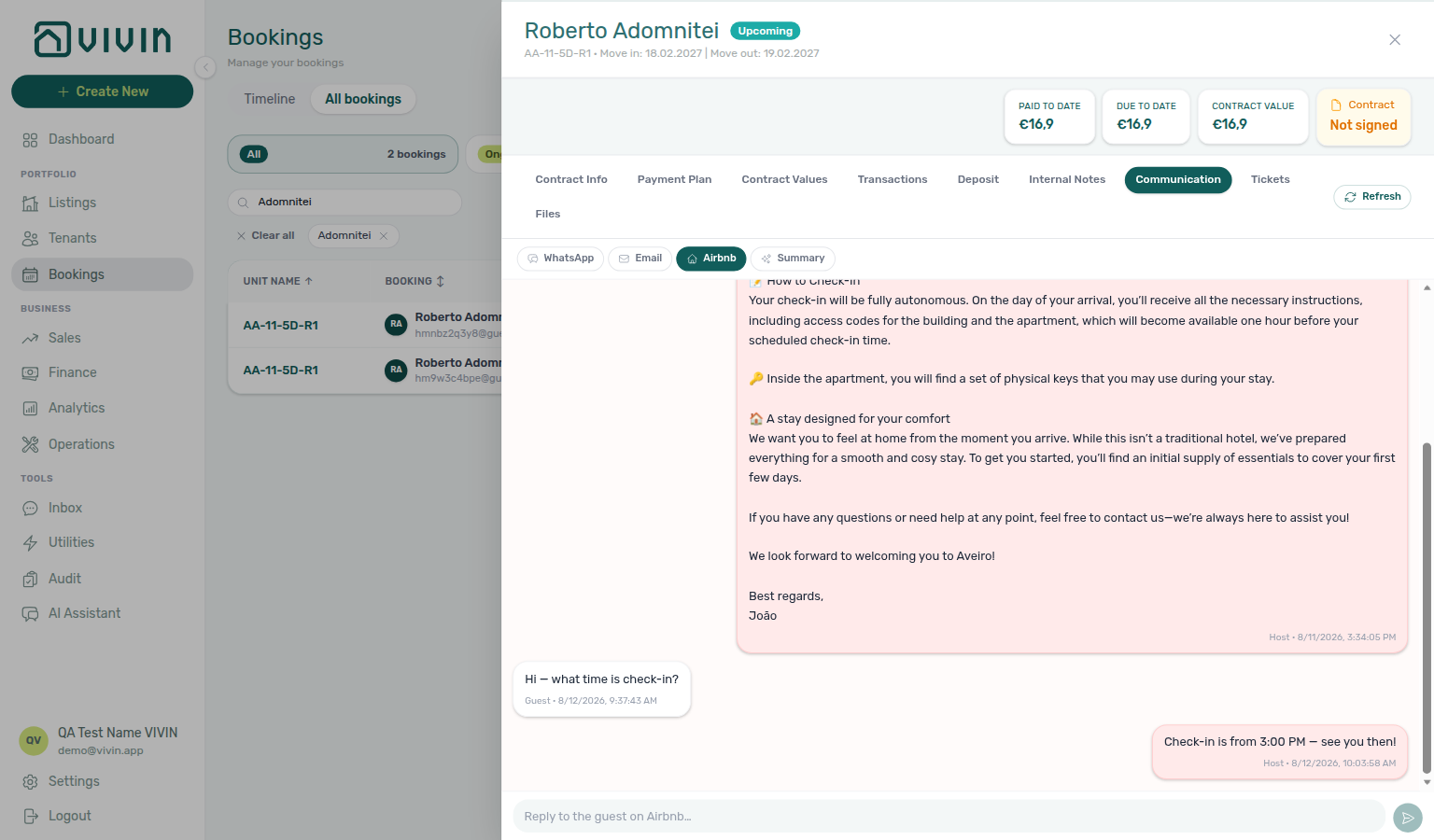
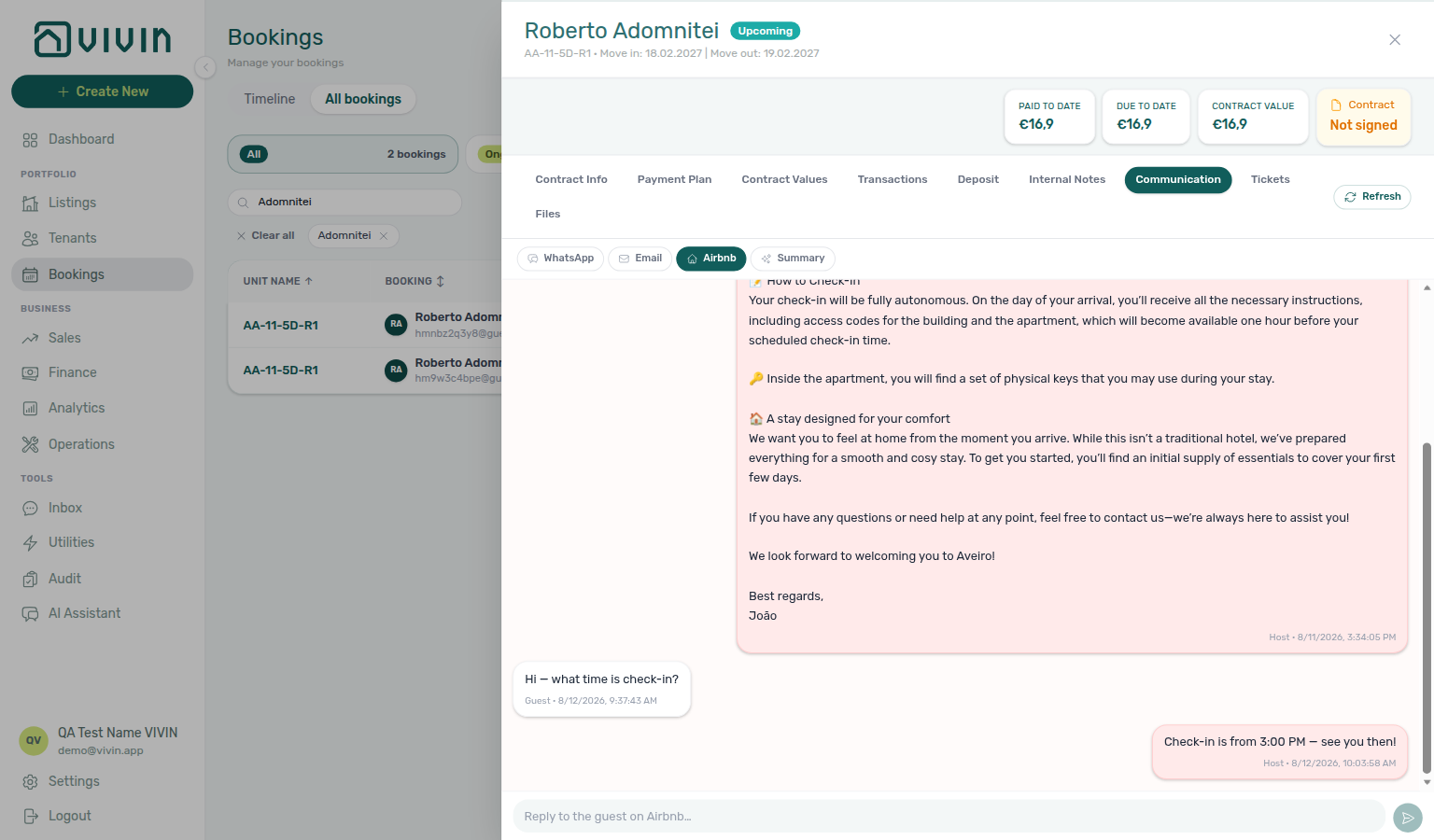
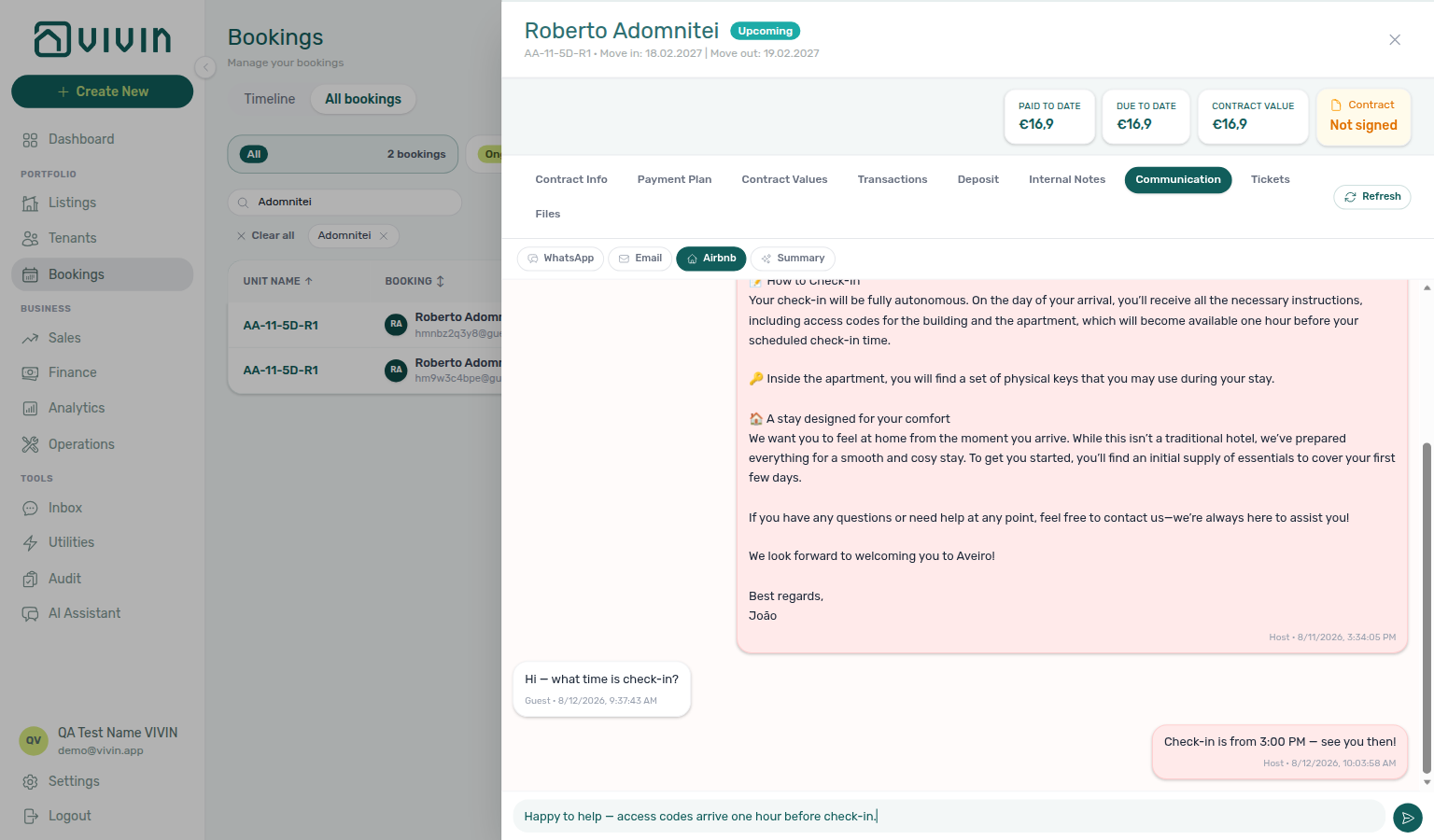
AI conversation summary
Use Summary when you need a fast narrative of the tenant conversation — overview, key topics, and pending items — without scrolling the full WhatsApp/email timelines.
| Control / state | Behaviour |
|---|---|
| Empty state | Sparkles icon, AI conversation summary title, short copy that each run consumes AI tokens, and Generate summary. |
| Generate / Regenerate | Opens the AI conversation summary modal: choose Sonnet 4.6 or Opus 4.8, read the free estimate (message/email counts + token/cost range), then confirm. Generate is disabled when there is nothing to summarize. Each run replaces the previous stored report for this booking. |
| Communication report | Card with source counts (N WhatsApp · M emails), tokens used, Generated timestamp, sectioned bullets (overview / key topics / pending), plus Copy (clipboard) and Regenerate. |
| Tenant visibility | Internal only — tenants never see the report (modal copy spells this out). |
| Metering | Every generate is recorded in ai_usage under booking_communication_summary — see AI usage API and FAQ — AI token usage. Reopening the tab loads the last report without a new LLM call. |
The chatbot must be enabled on the account (isTenantChatBotEnabled) for history to load; when it is off, channel pills (including Summary) still show but the unlock empty state replaces the panel.
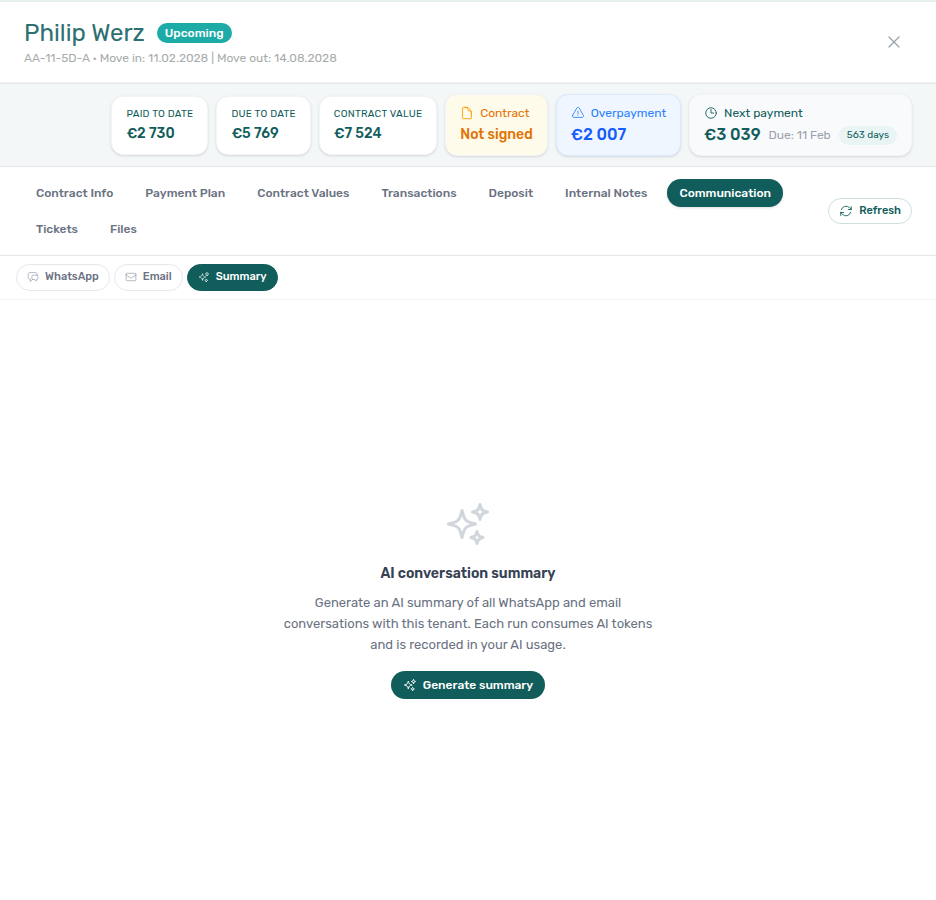
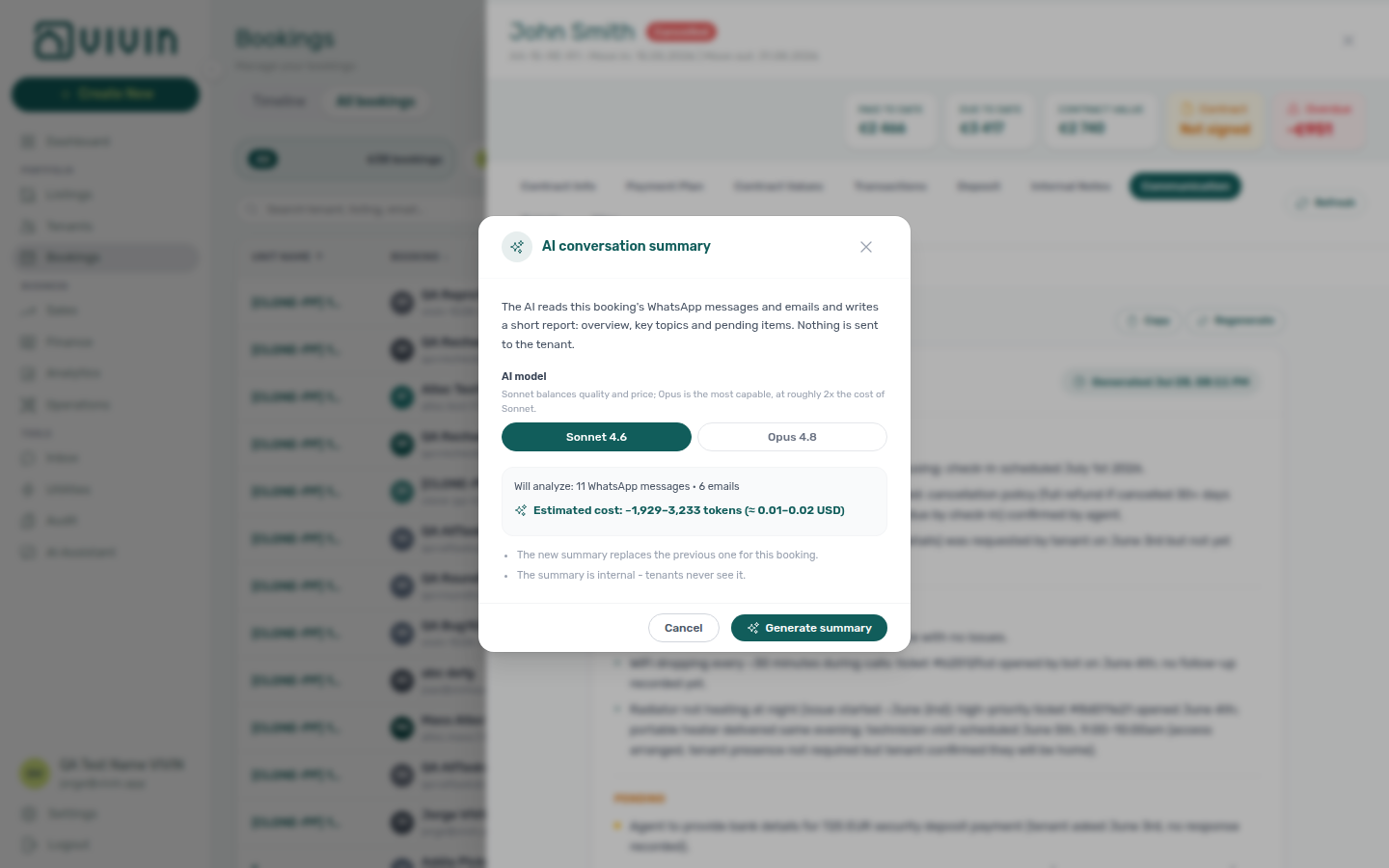
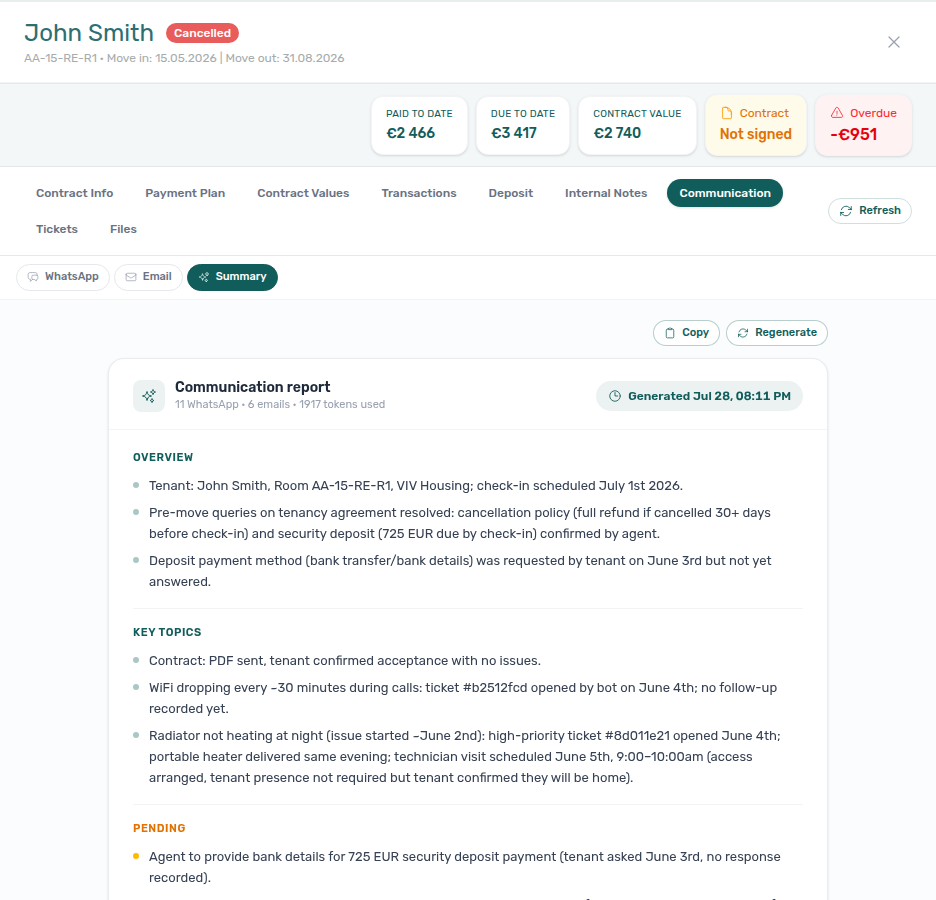
Per-channel empty state
Emptiness is evaluated per active filter, not across both channels combined. If WhatsApp has stored messages but Email has none, switching to Email shows No messages yet (channel pills and the Labels row on WhatsApp still behave independently). The same applies when only email traffic exists and you open WhatsApp. This avoids a blank panel when one channel has history and the other does not.
Email attachments
When Vivin ingests an email with downloadable files, the collapsed inbox row shows a paperclip beside the timestamp. Expand the row to see an Attachments (N) block below the body (inline parts embedded in HTML — for example signature logos referenced as cid: — are hidden from this list).
| Control | Behaviour |
|---|---|
| Attachment chip | Shows filename and file size (for example 4.3 KB). Click a chip when preview data is available. |
| Preview modal | Opens for images and PDFs with the filename, size, and a Download attachment action in the header. Other file types show copy that preview is unavailable — use Download attachment to save the file. |
| Chip without preview | When content was not stored with the event, the chip is read-only (filename and size still visible). |
Attachments are read-only on this tab — download for your records; replying with files still happens from your email client.
WhatsApp labels
On the WhatsApp filter, a Labels row sits below the channel pills. Labels are the same tags configured on your connected WhatsApp business line. Use them to classify the conversation for your team — for example Urgent, Payment, or Maintenance.
| Control | Behaviour |
|---|---|
| Applied chip | Coloured pill with the label name. Click × on a chip to remove the label from this booking’s conversation. |
| No labels yet | Shown when nothing is applied; history and composer still work. |
| Add label | Dashed + Add label opens a popover listing labels not yet applied. Pick one to attach it; the list reconciles with the server after a short delay. |
Labels apply to the WhatsApp conversation for this booking’s tenant phone number, not to individual messages or to email.
Pause bot toggle
When your Vivin account has a pause label configured on the WhatsApp business line (set by the Vivin team in internal admin as chatBotPauseLabelId), the Labels row on the WhatsApp filter includes a Pause bot switch to the left of the Labels heading. Turning it on applies that pause label to the conversation so automated bot replies stop for this booking until you turn it off or remove the label. The toggle only appears when the pause label is configured for the account; it does not replace manual Add label chips for other tags.
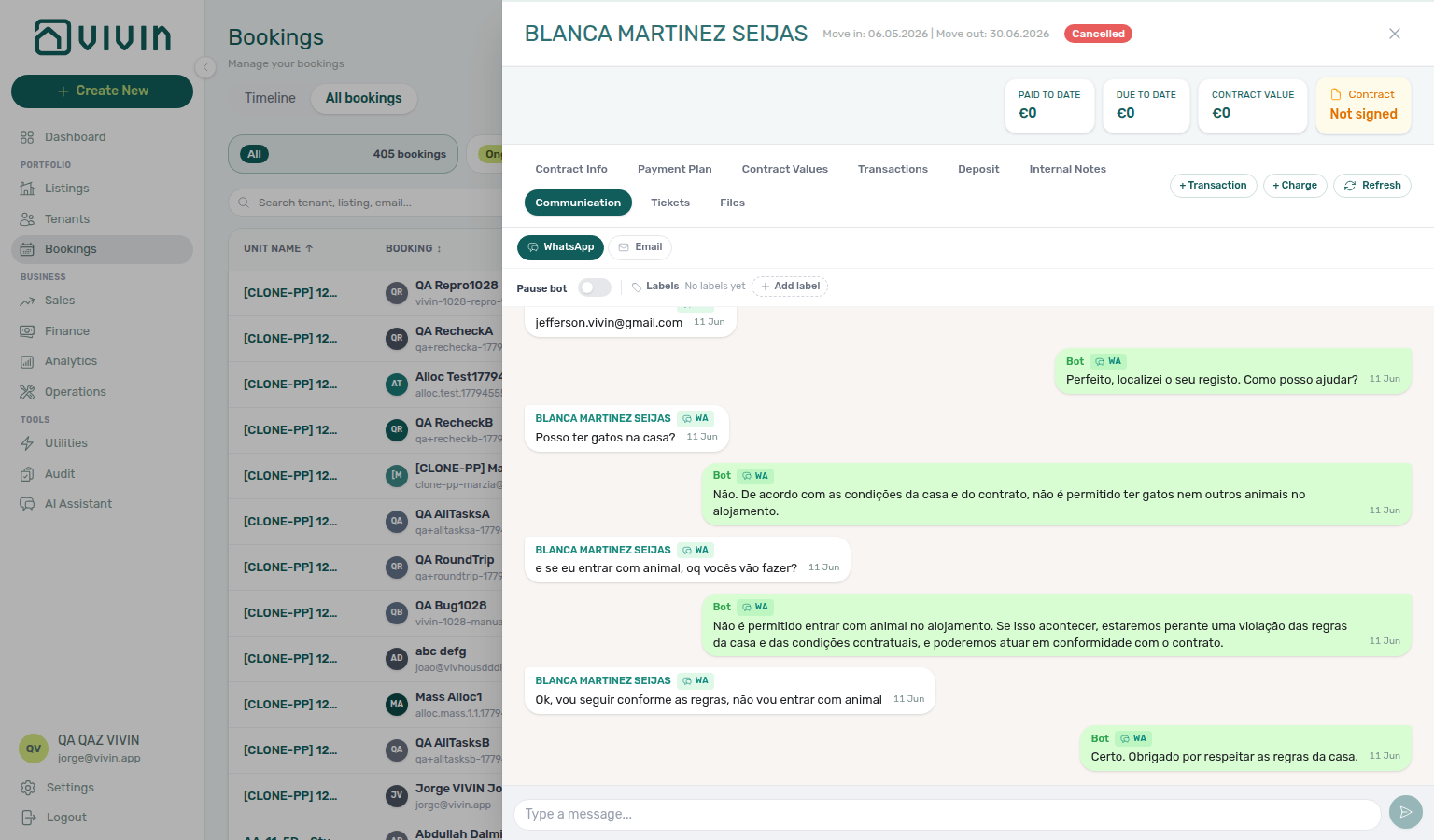
Ticket markers in the WhatsApp thread
On the WhatsApp filter only, maintenance tickets linked to this booking can appear as inline timeline markers between chat bubbles — a centred pill such as Ticket #T45 — Radiator not working - room cold at night. Vivin inserts a marker only when the ticket’s created time falls strictly between the first and last WhatsApp message already on screen (not before the opening message or after the latest one). Markers are chronological with the rest of the thread; they do not appear on the Email filter.
Use markers to see when a tenant escalated into a formal ticket during an active chat. Open the full ticket from the booking’s separate Tickets tab or from Operations > Tickets.
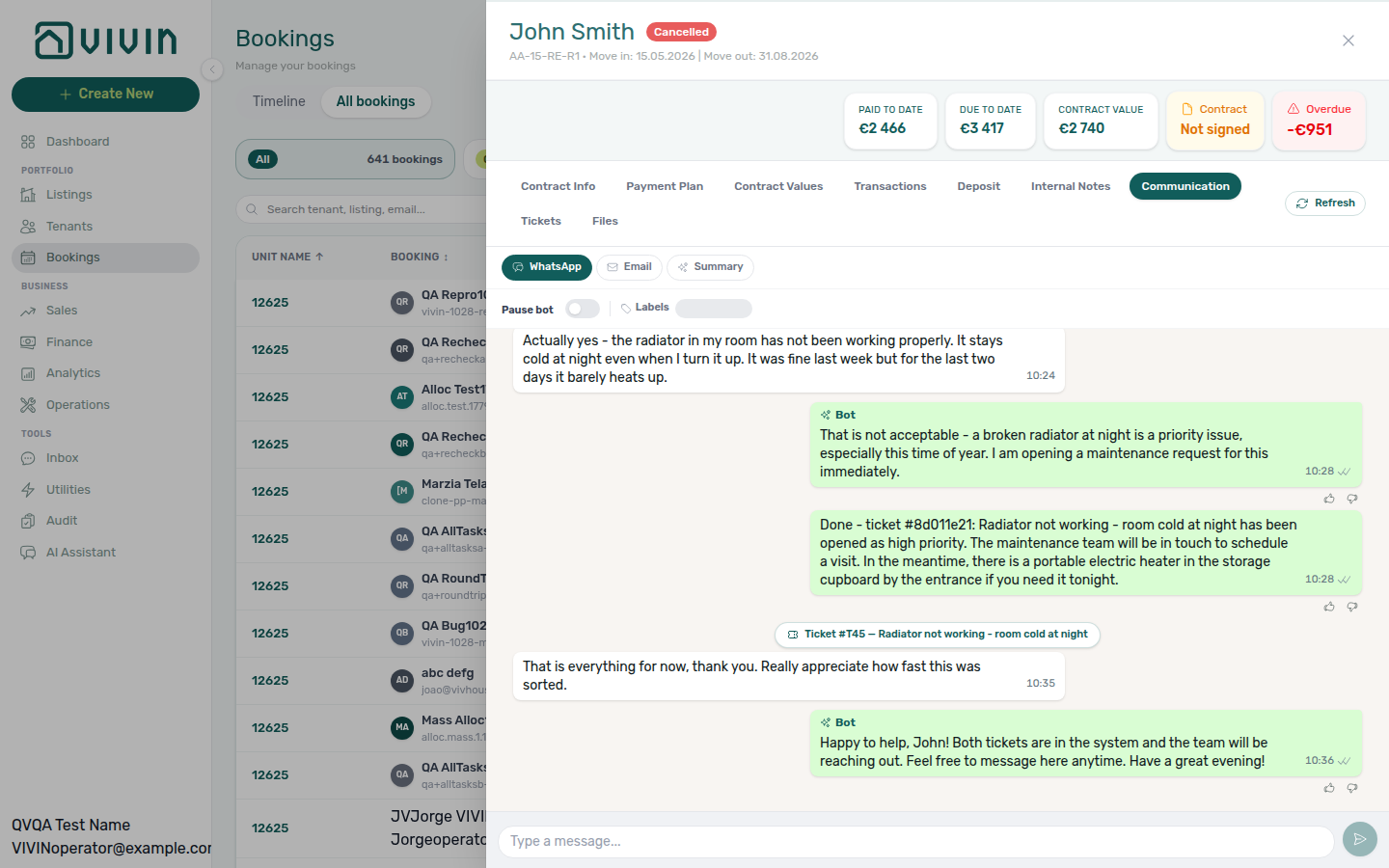
New messages while the tab is open
Inbound WhatsApp and email arrive through integrations (there is no live websocket push). While Communication stays open, the tab polls in the background about every 15 seconds and compares message counts to what is already rendered.
| Signal | Behaviour |
|---|---|
| Floating pill | When either channel has unread traffic, a sticky pill appears above the bottom of the thread (for example 3 new messages). Click it to refetch both channels, clear the counter, and scroll smoothly to the newest item. |
| Sidebar Refresh | The header Refresh control (visible while Communication is active) forces an immediate reload without waiting for the next poll — use after you send from the composer or when the pill does not appear. |
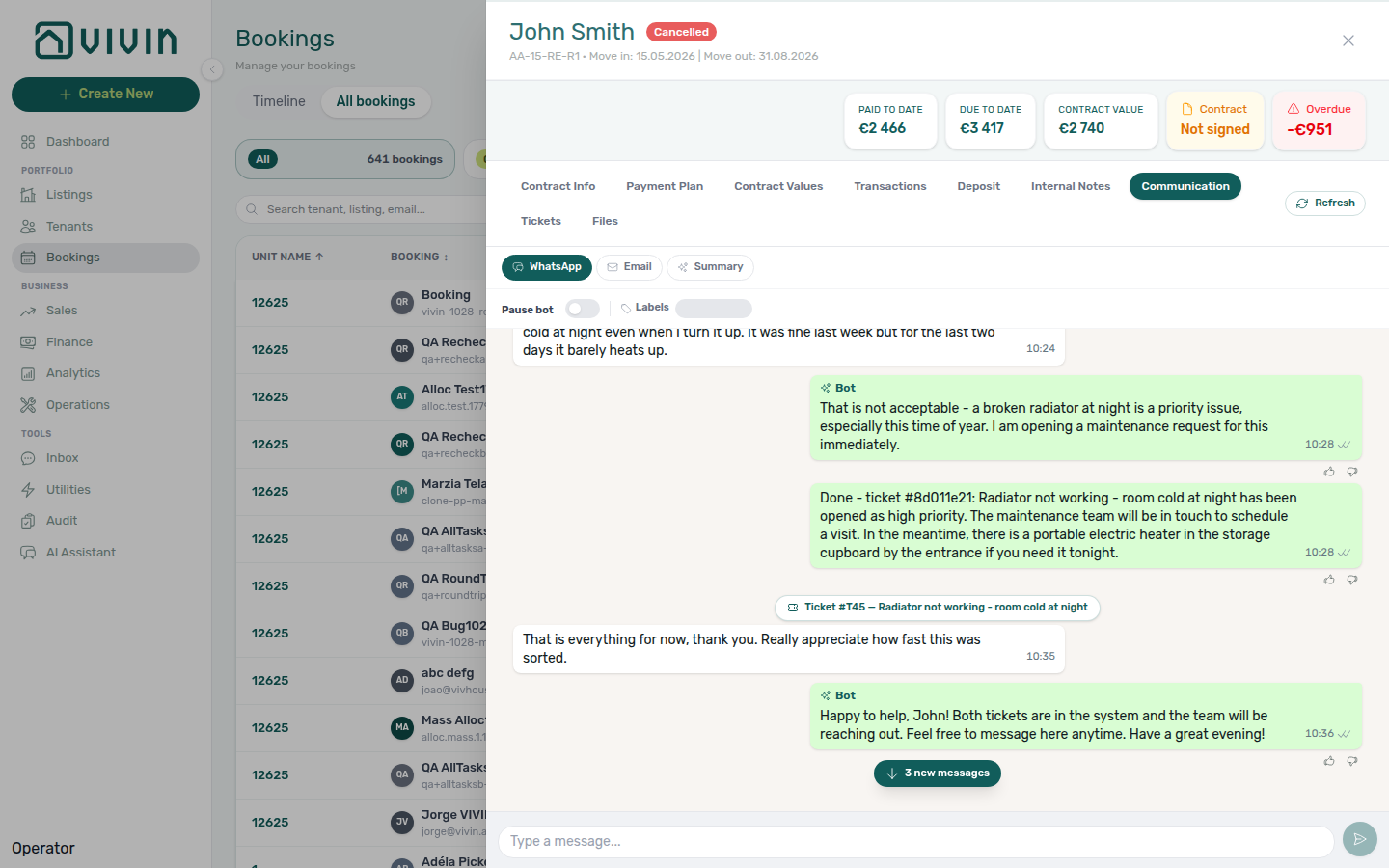
WhatsApp composer
When the WhatsApp filter is active, the tenant chatbot integration is enabled, and Vivin has wired outbound WhatsApp for your account (tenant WhatsApp connection Connected on Bot Status), a message composer appears at the bottom of the tab (muted grey bar with a text field and Send button).
| Control / shortcut | Behaviour |
|---|---|
| Type a message… | Multi-line text field. Enter sends; Shift+Enter inserts a new line. |
| Send | Paper-plane button; disabled while the field is empty or a send is in progress. Outbound messages appear as You bubbles on the right. |
| Send failure | Could not send the message. Please retry. — your draft stays in the field so you can retry. |
Sent messages go through your business WhatsApp number (same channel as bot and human replies). Use Refresh in the sidebar header if a just-sent message does not appear immediately. If failures persist, open Account Settings → ChatBot → Bot Status and confirm the tenant WhatsApp connection is Connected — scan a new QR when Disconnected (Status Bot pairing).
Bot reasoning (audit)
When the tenant chatbot is enabled on your account and Vivin stored reasoning text with an automated Bot reply, the bubble shows a compact Reasoning control under the message body. Click it to expand the internal explanation Vivin used before sending (italic text in parentheses). Only Bot messages include this toggle; tenant and operator bubbles do not. Use it to audit automated answers without opening server logs.
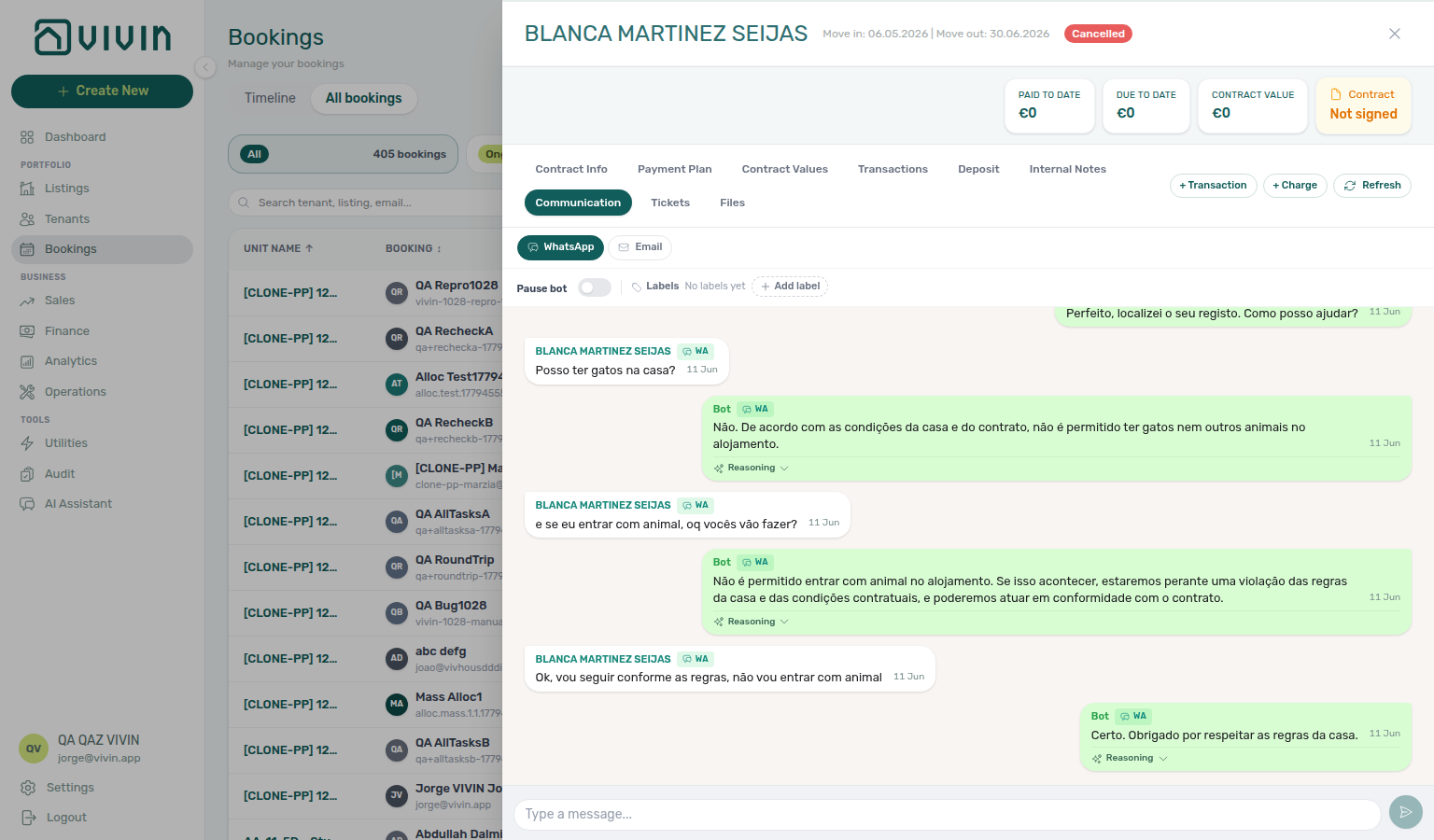
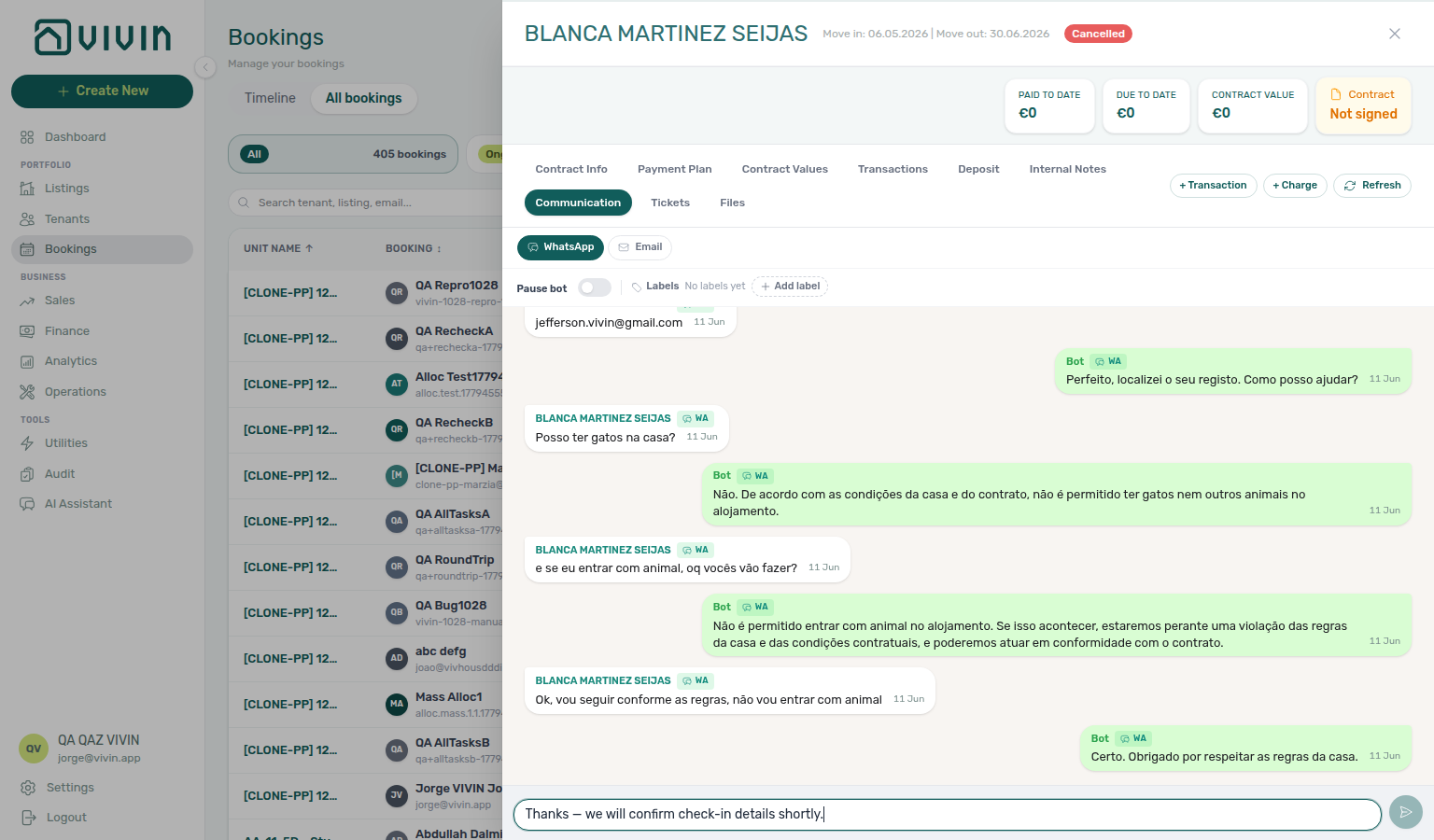
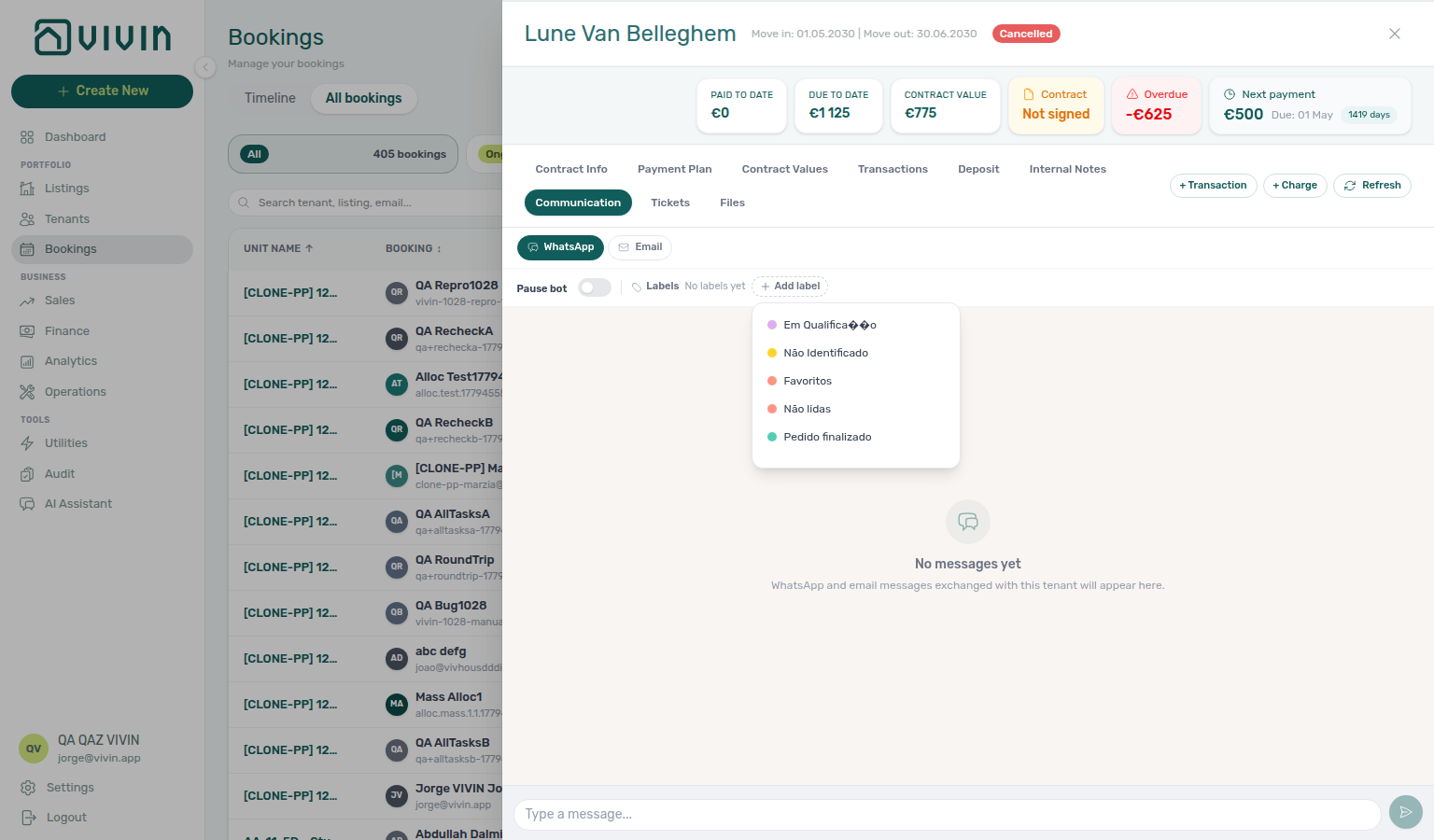
When the tab is available
| State | What you see |
|---|---|
Chatbot enabled on the account (isTenantChatBotEnabled) | Tab loads WhatsApp and email events for the booking. When Vivin has ingested traffic, threads appear under WhatsApp or Email; when nothing is stored yet, you see No messages yet (channel pills and the Labels row still show). With outbound WhatsApp configured, the composer appears at the bottom. |
| Chatbot on, WhatsApp send not provisioned | History and Labels still load on WhatsApp, but the composer area shows WhatsApp replies aren't available yet — contact Vivin to connect your business line for replies from management (distinct from chatbot-off unlock below). |
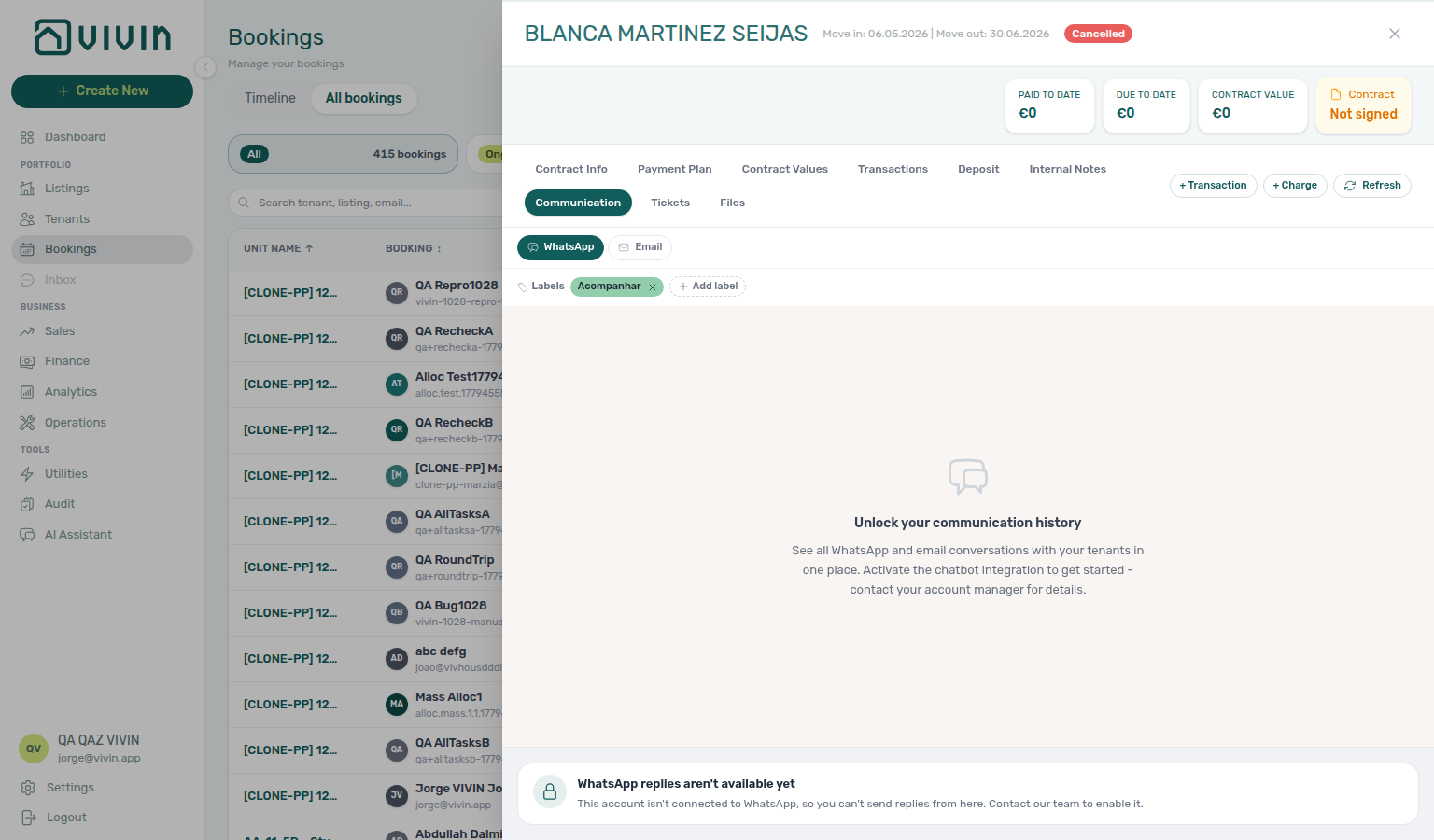
| Chatbot disabled | Tab is still clickable; the panel shows Unlock your communication history with copy to contact your account manager — channel filters remain visible but history does not load. | | No phone or email on the tenant profile | With chatbot on, matching cannot run — you still see No messages yet until contact fields exist on the tenant profile linked to the booking. | | Refresh | Use Refresh in the sidebar header toolbar to reload messages. See Sidebar tab refresh. | WhatsApp bubbles
- Tenant messages align left (white bubble) with the tenant’s name from the booking.
- Outbound messages align right: Bot (mint bubble) when the tenant chatbot sent the reply (
wasSentByApi), or You (blue bubble) when a human replied from your business WhatsApp number — including messages sent from the tab composer or from the WhatsApp Business app. - When the agent’s display name is stored on the message, You may show that name instead of the generic label.
| Bubble position | Label in the UI | Meaning |
|---|---|---|
| Left | Tenant name | Inbound message from the tenant’s WhatsApp line |
| Right | Bot | Outbound reply sent by the tenant chatbot (wasSentByApi) |
| Right | You (or name) | Outbound reply sent by a human from your business number |
Use Refresh in the booking sidebar header toolbar (visible while Communication is active) to re-fetch both WhatsApp and email after new traffic.
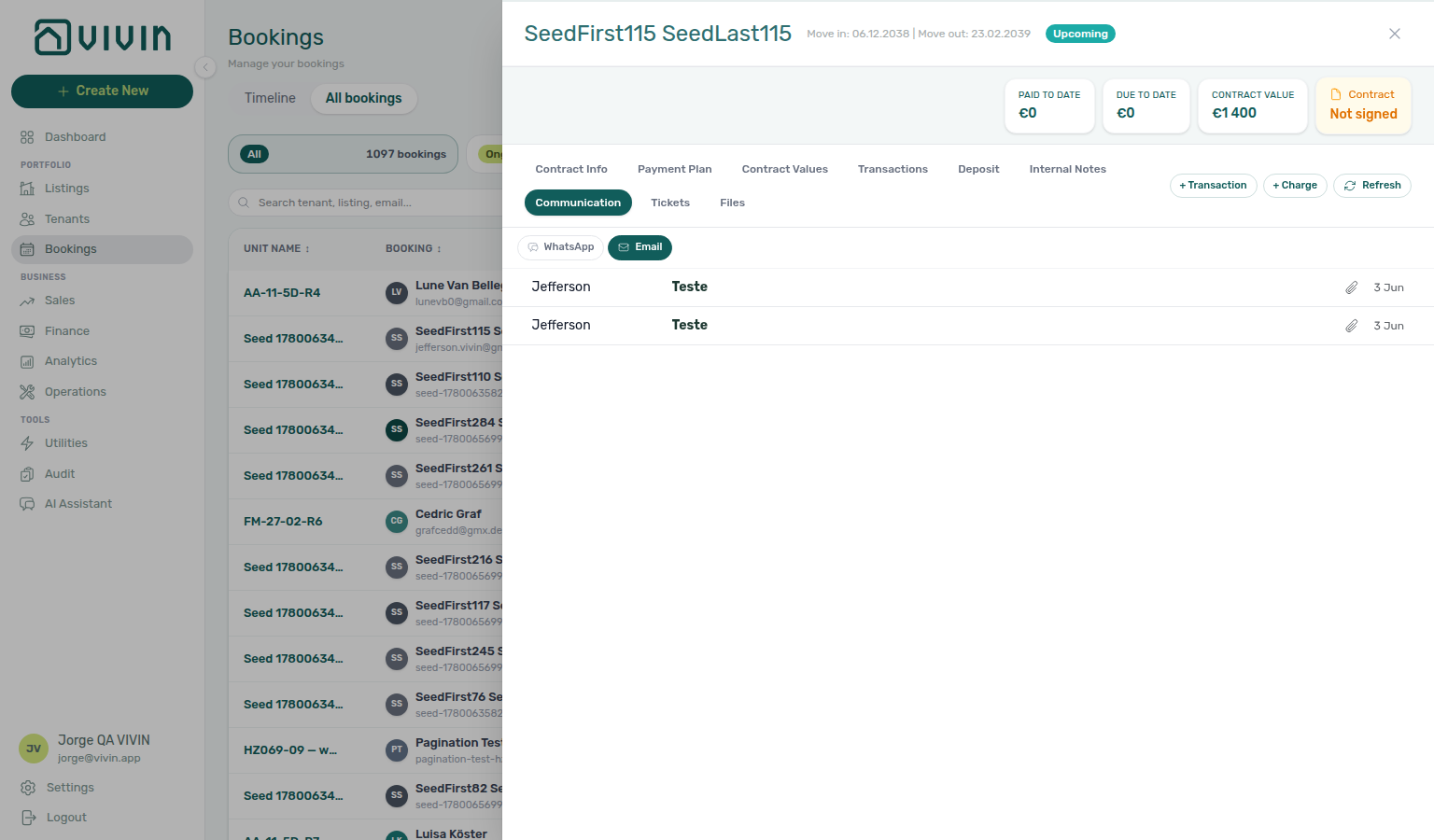
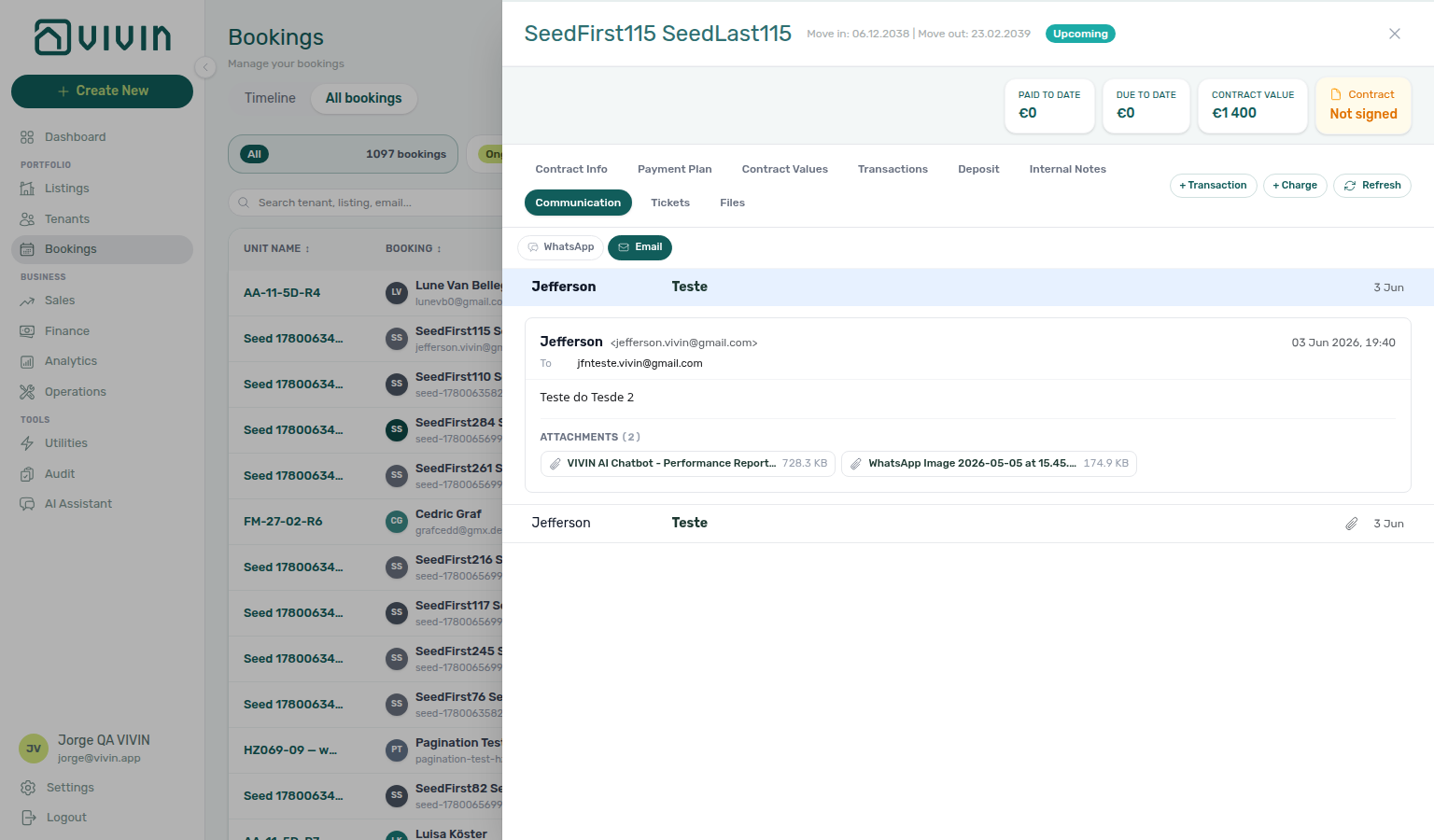
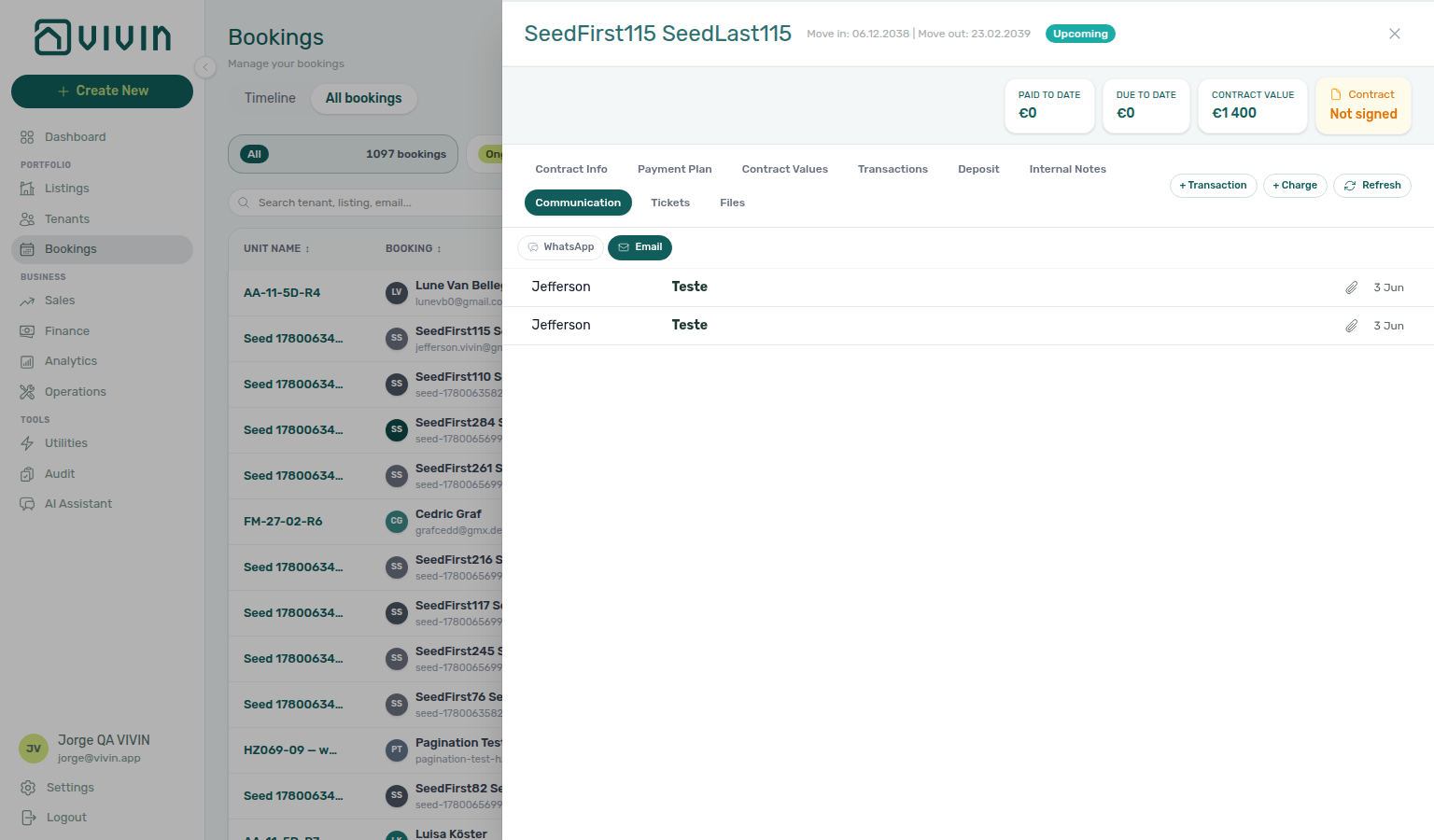
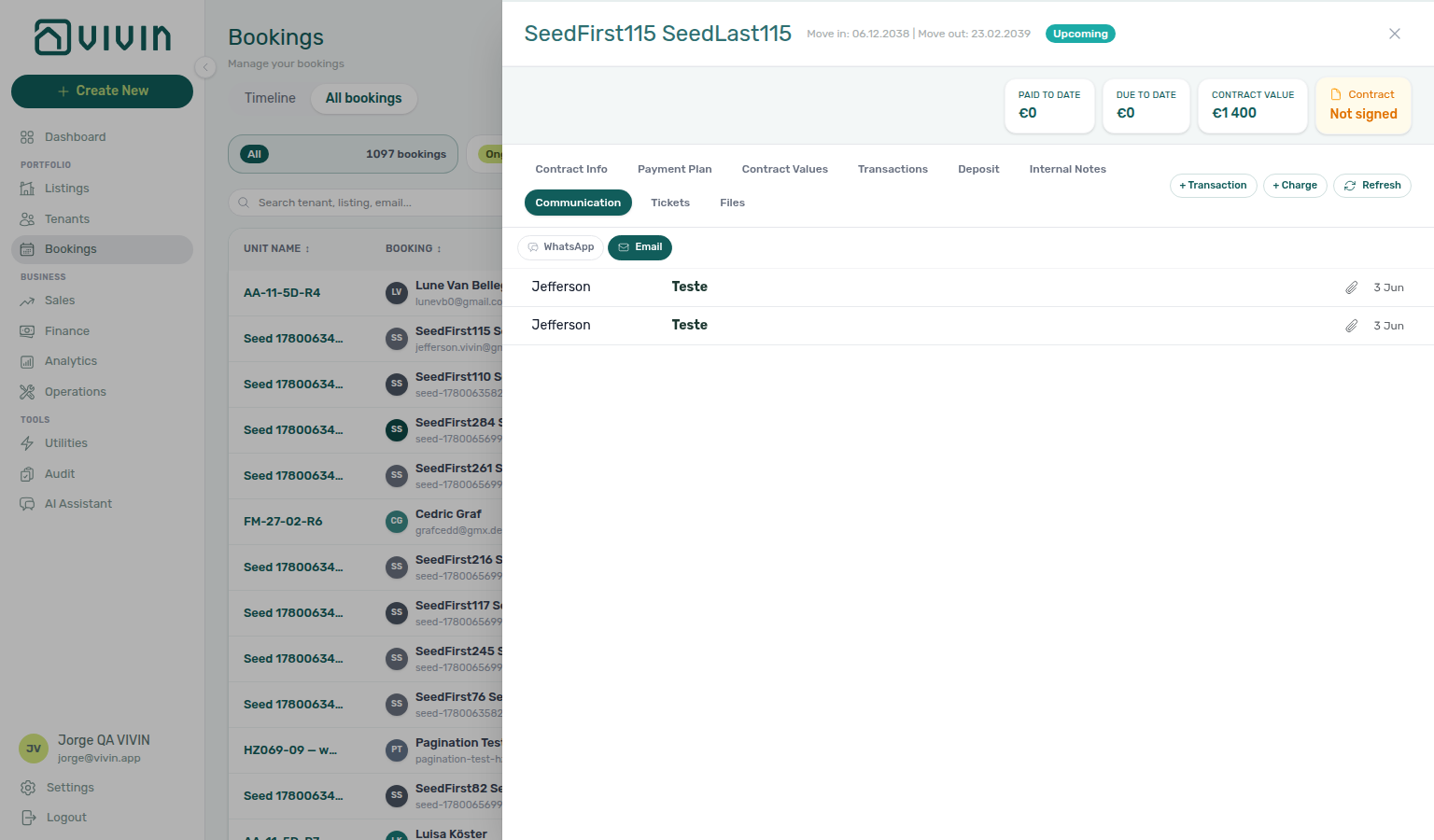
When the chatbot is enabled but the tenant profile has no email or phone, or no stored events match the booking, the tab still loads channel filters and shows No messages yet:
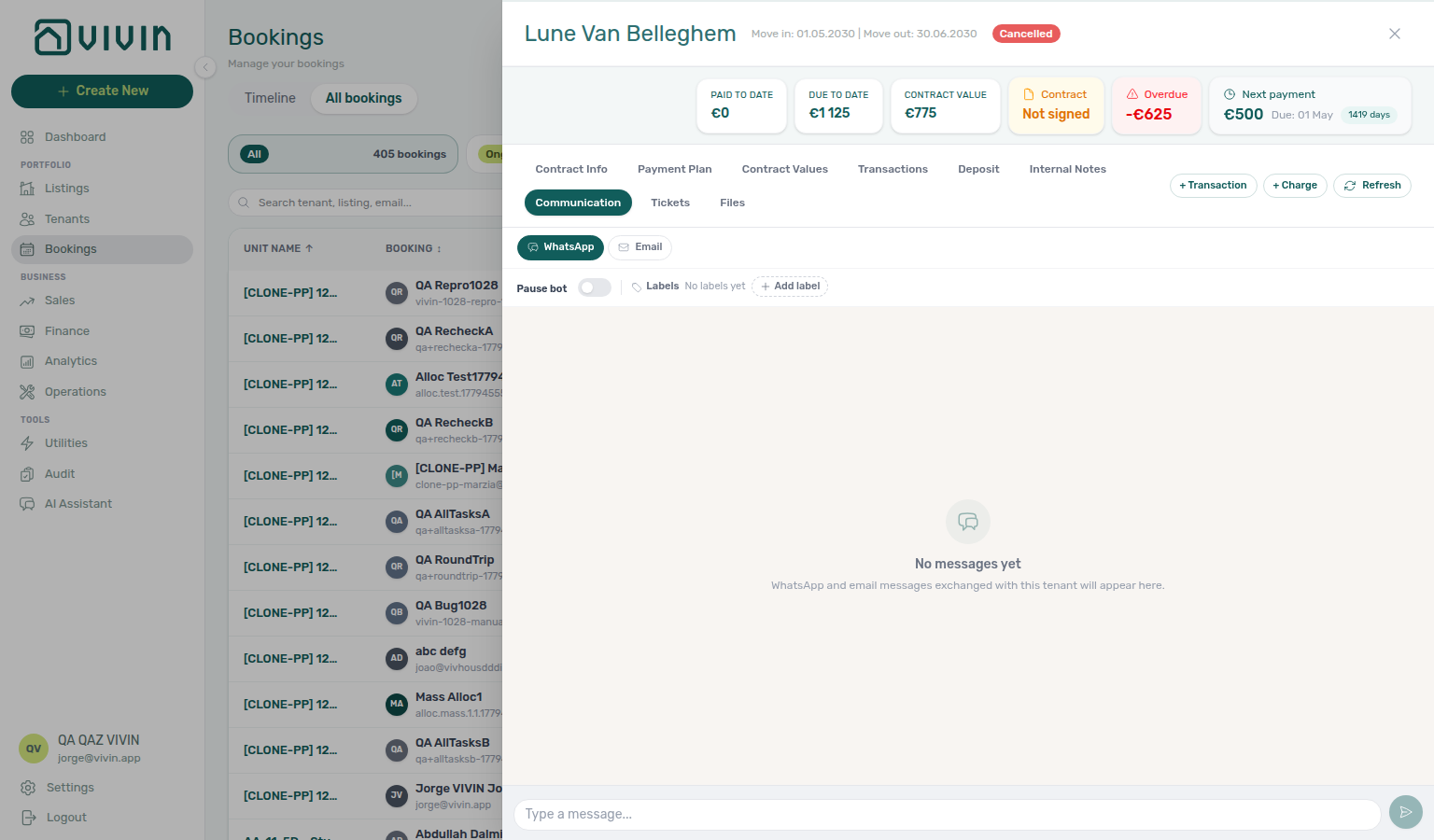
When isTenantChatBotEnabled is false, the tab stays clickable but history does not load — channel pills and (on WhatsApp) the Labels row remain visible while the panel shows Unlock your communication history:
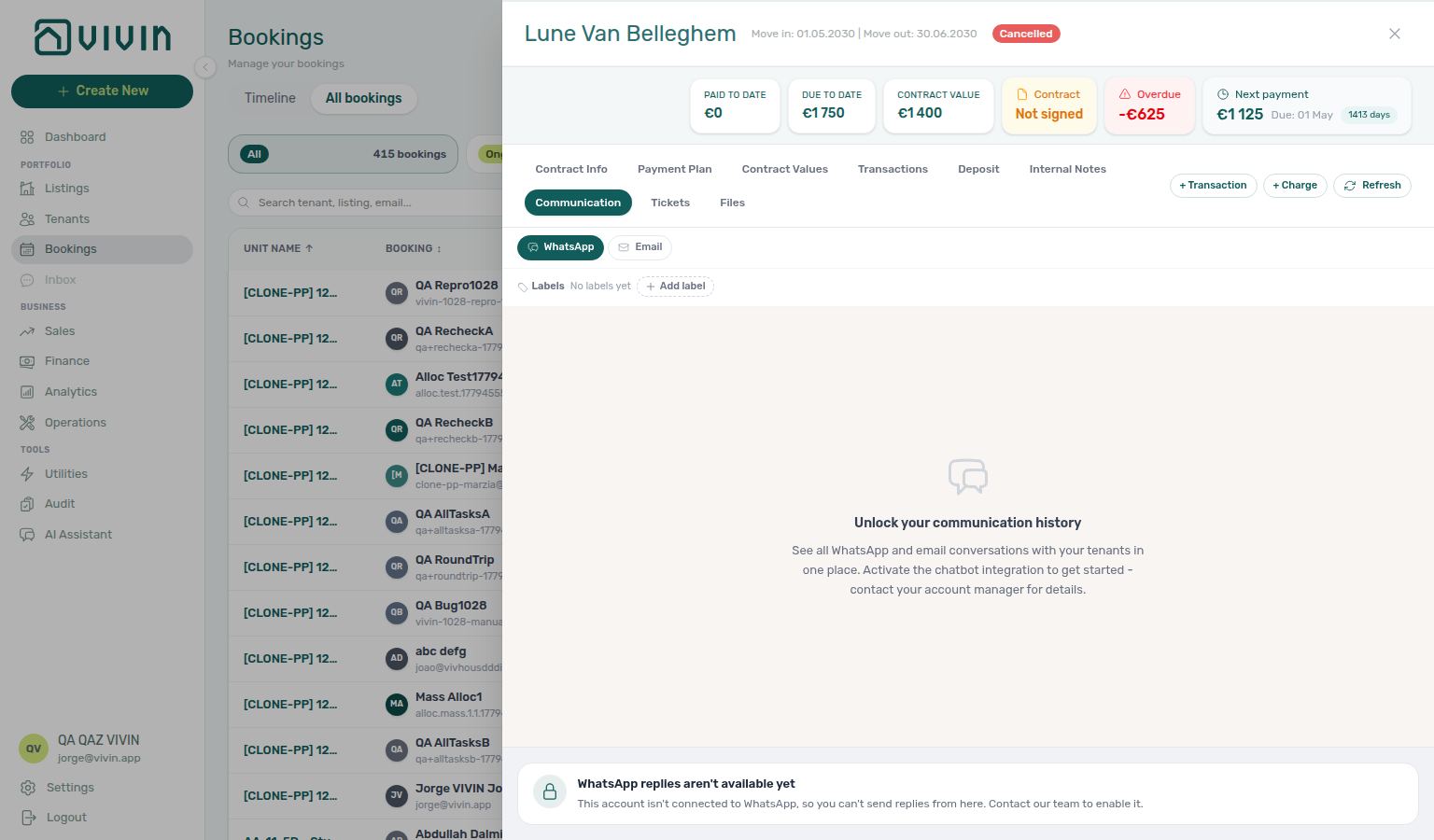
Comments (Internal Notes) is an internal team thread on the booking. Communication is tenant-facing channel history. Persona and IF/THEN rules for the bot are edited under Account Settings → ChatBot (persona / IF/THEN subtab); WhatsApp line pairing (Connected / Disconnected, QR scan) lives on the same screen under Status Bot — not on this booking tab. Enabling the integration itself is an account-level flag (Vivin provisions tenant chatbot on the workspace).
Tickets tab
When your role includes the Operations module (operations.module), a Tickets tab appears on the booking sidebar. It is a read-only table of maintenance and operations tickets scoped to this reservation — tenant portal requests, chatbot escalations, team-created tickets, automatic check-in/out jobs, and recurring maintenance rules. Closed and cancelled tickets stay visible so you can audit history without leaving the booking.
The tab subtitle in English reads: Tickets linked to this booking (tenant app, chatbot, team, check-in/out, etc.).
Users without Operations access do not see this tab; triage still happens from Operations > Tickets.
| Column (English UI) | Content |
|---|---|
| Ticket | Sequential ticket id (for example T27) or a short internal id fallback. |
| Title | Ticket subject line. |
| Status | Workflow status with underscores shown as spaces (for example unassigned → Unassigned). |
| Source | How the ticket was opened — see source labels below. |
| Category | Maintenance category when set (underscores shown as spaces). |
| Created | Ticket creation date. |
Source labels (English UI):
| Source value | Label in UI |
|---|---|
tenant | Tenant |
tenant_portal | Tenant portal |
chatbot | Chatbot |
pm | Team |
automatic_check_in_out | Check-in / Check-out |
automatic_recurring | Recurring |
Navigation — Table rows are not clickable. Use Open Operations — Tickets in the tab header (also shown on the empty state) to jump to the full Operations workspace for assignment, notes, resolution, and Cost allocation (link operational cash flows to the ticket). Far-future Schedule date values may show Draft (display status) in Operations even when this read-only table lists the underlying workflow status. The Communication tab can show a ticket marker on the WhatsApp timeline when a linked ticket was created between the first and last messages in view.
If tickets need a refresh — Use Retry on the tab if the ticket list does not appear. Your other booking tabs stay available.
Empty state — When no ticket exists yet for this booking, the tab shows No tickets yet, the helper line When the tenant or your team opens a ticket for this booking, it will appear here., and the same Open Operations — Tickets header link as the populated table.
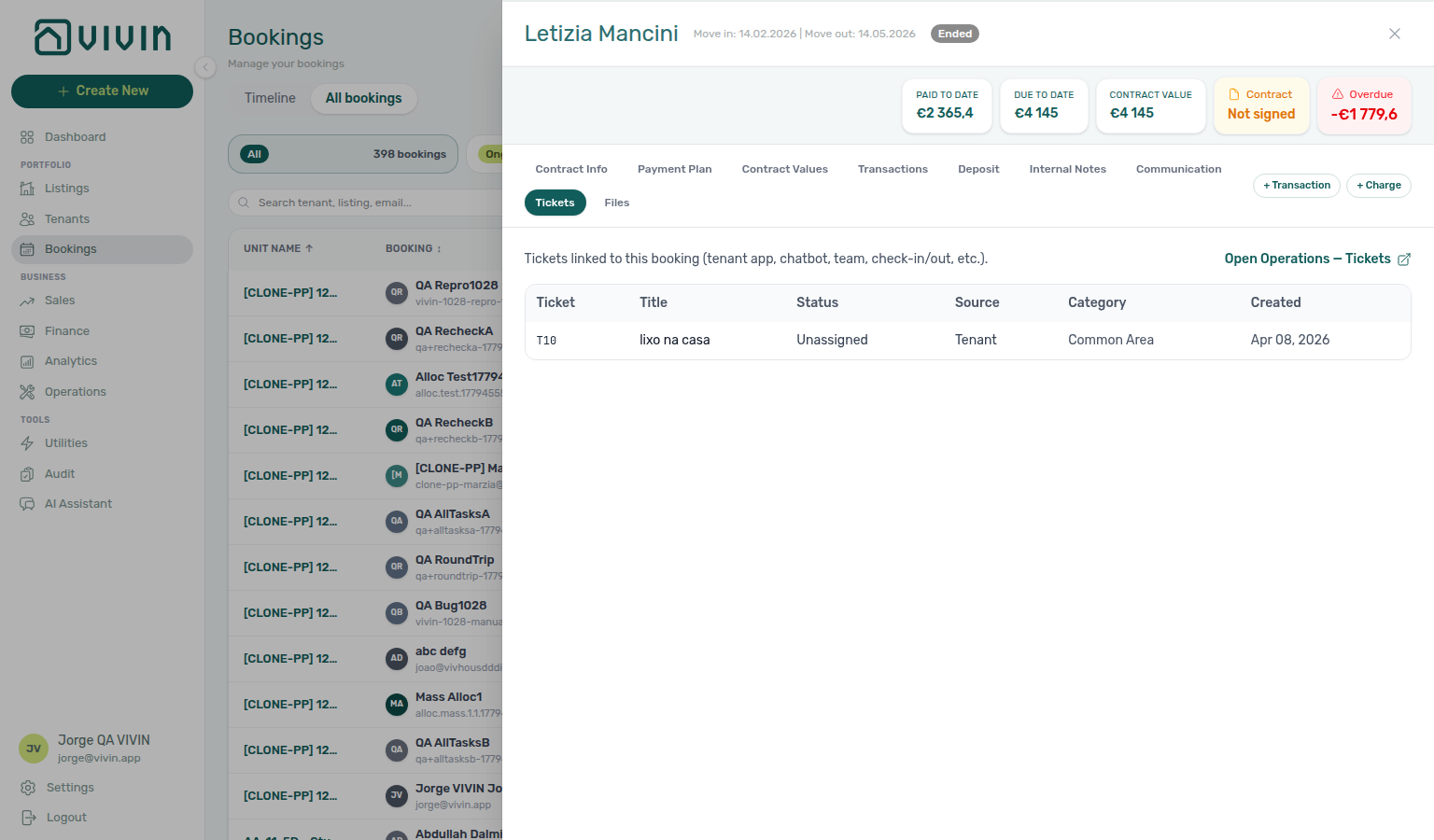
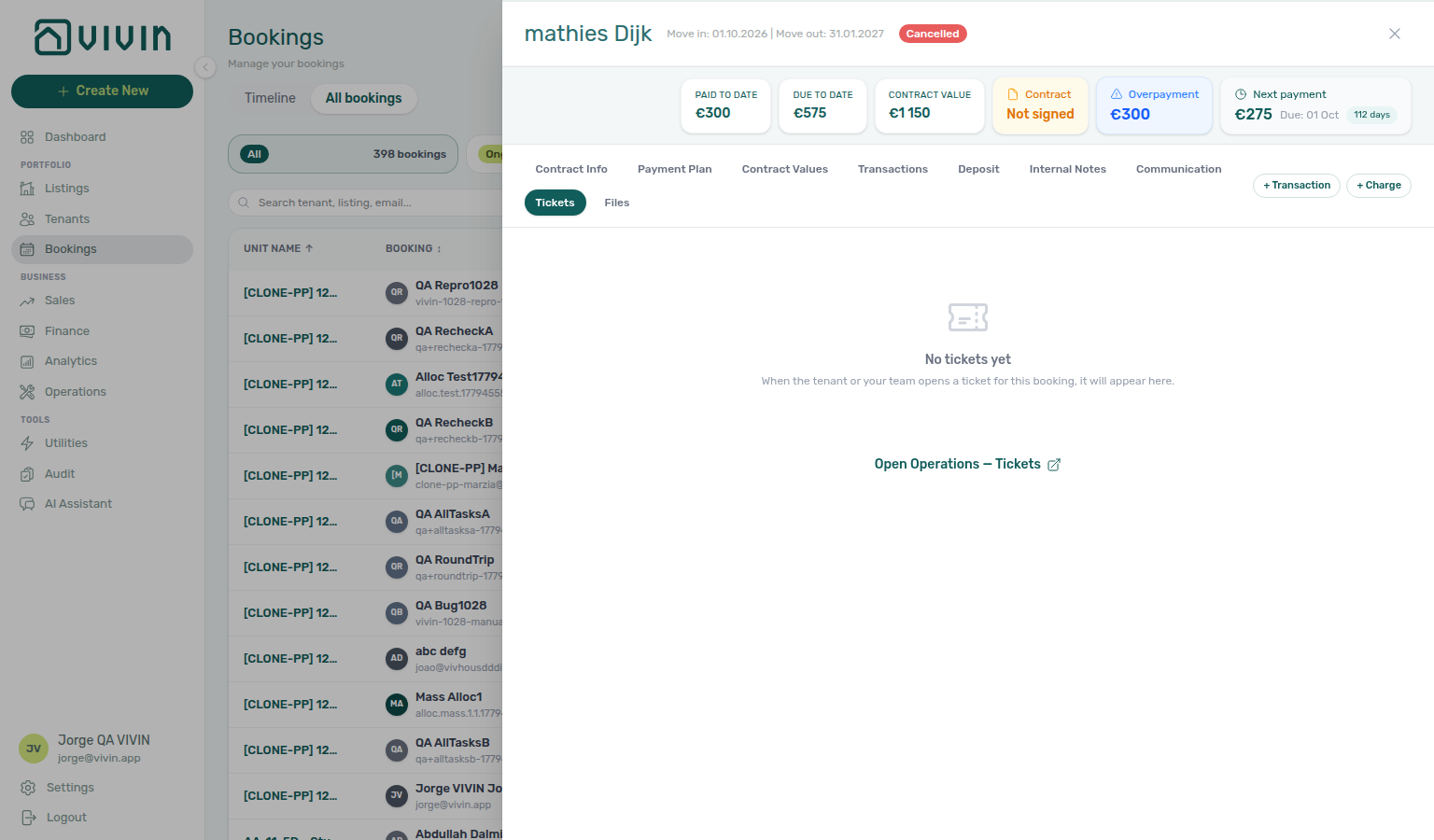
Files tab
Files is a per-booking document workspace (grid layout, not a simple attachment list). Use it for IDs, signed contracts, receipts, and other PDFs or images that should stay with the booking for audit and handoffs.
- Upload — click Upload (multi-file picker) or drag files onto the tab. While uploads run, an Uploading… spinner appears in the header. New files sort newest first in the grid.
- Empty state — when no documents exist yet, the tab shows a circle icon and No files uploaded yet with the same drag-and-drop hint as the header Upload control.
- Drag overlay — dragging files over the tab shows a dashed Drop files here to upload banner until you release or leave the drop zone.
- Grid — each tile shows a type badge (PDF, IMG, XLS, DOC, or FILE), filename, and a row menu (Preview, Download, Delete when your role includes
bookings.delete_files). Image tiles show a thumbnail; PDF tiles embed a small preview in the card. - Open / preview — clicking a PDF or image tile (or Preview in the row menu) opens an in-tab overlay with the filename, Download, and Close. Excel, Word, and other types open in a new browser tab instead of the overlay.
- Delete — Delete in the row menu opens a confirmation dialog naming the file; confirm to remove it permanently from the booking.
- Contract tags — when multiple contract PDFs exist, the newest non-superseded contract upload shows a Current badge and older signed contracts an Old badge (tooltips explain which file tenants and exports treat as active).
- Hostkit invoices (read-only) — when Hostkit is your active invoicing provider and chargeable allocations have been invoiced, Vivin synthesises PDF tiles in the grid (filename pattern
Invoice_<ref>.pdf, for exampleInvoice_2025/42.pdffor Hostkit{series}/{id}) so operators can open the Hostkit document from the booking without hunting Finance. These tiles are not uploads: clicking opens the Hostkit permalink in a new browser tab (Hostkit’s public link refuses in-app iframe preview), the row menu keeps Download and omits Preview / Delete, and the tiles disappear if you upload a real invoice-receipt file for the same booking. Tenants see the same tiles on Tenant Portal — Documents (new tab, Download). See Finance — Hostkit invoice links.
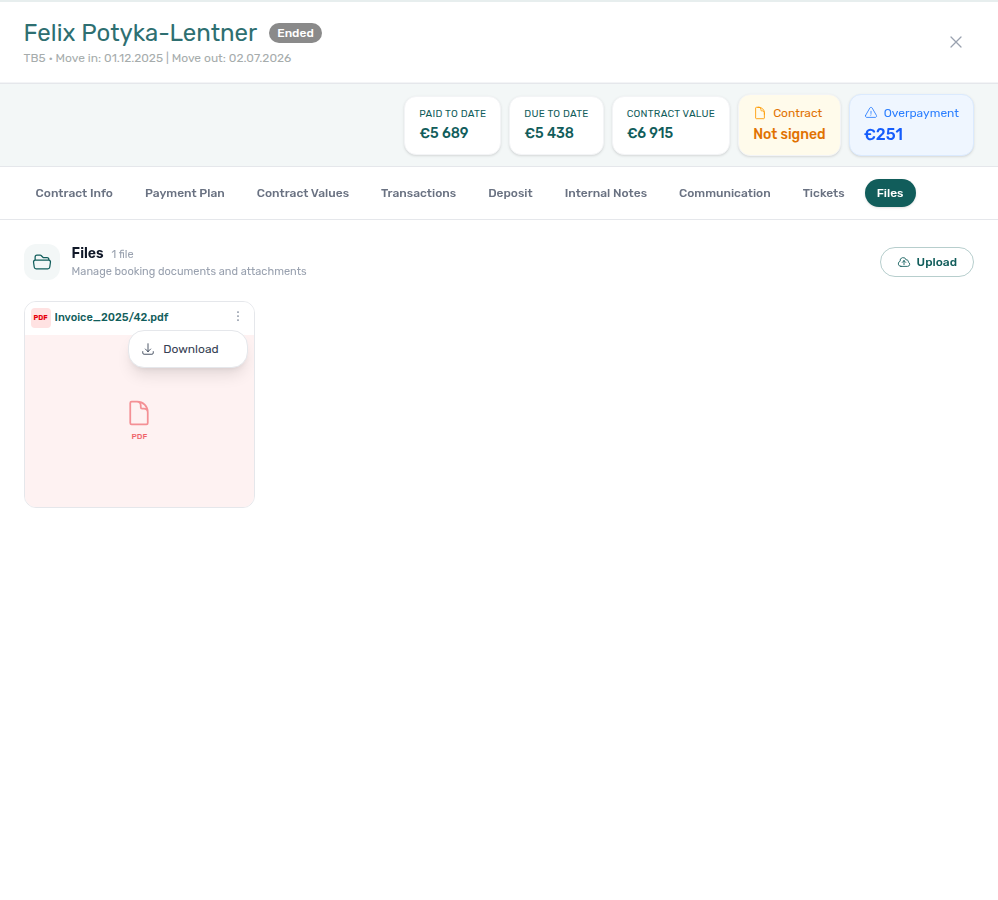
Uploading on Contract Info can still mark the booking as contract-signed; general attachments added here do not change that status unless you use the contract upload flow on Contract Info.
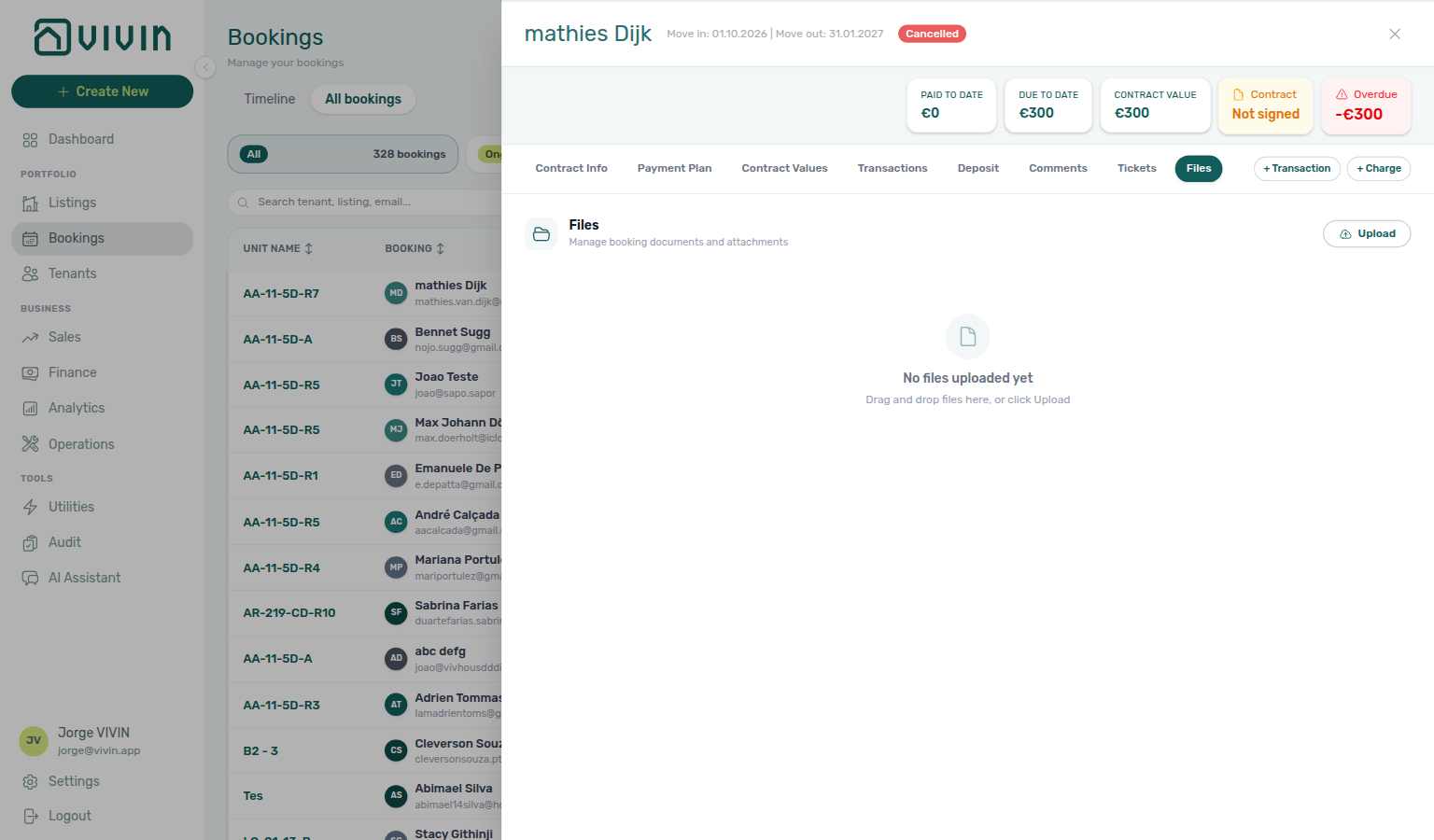
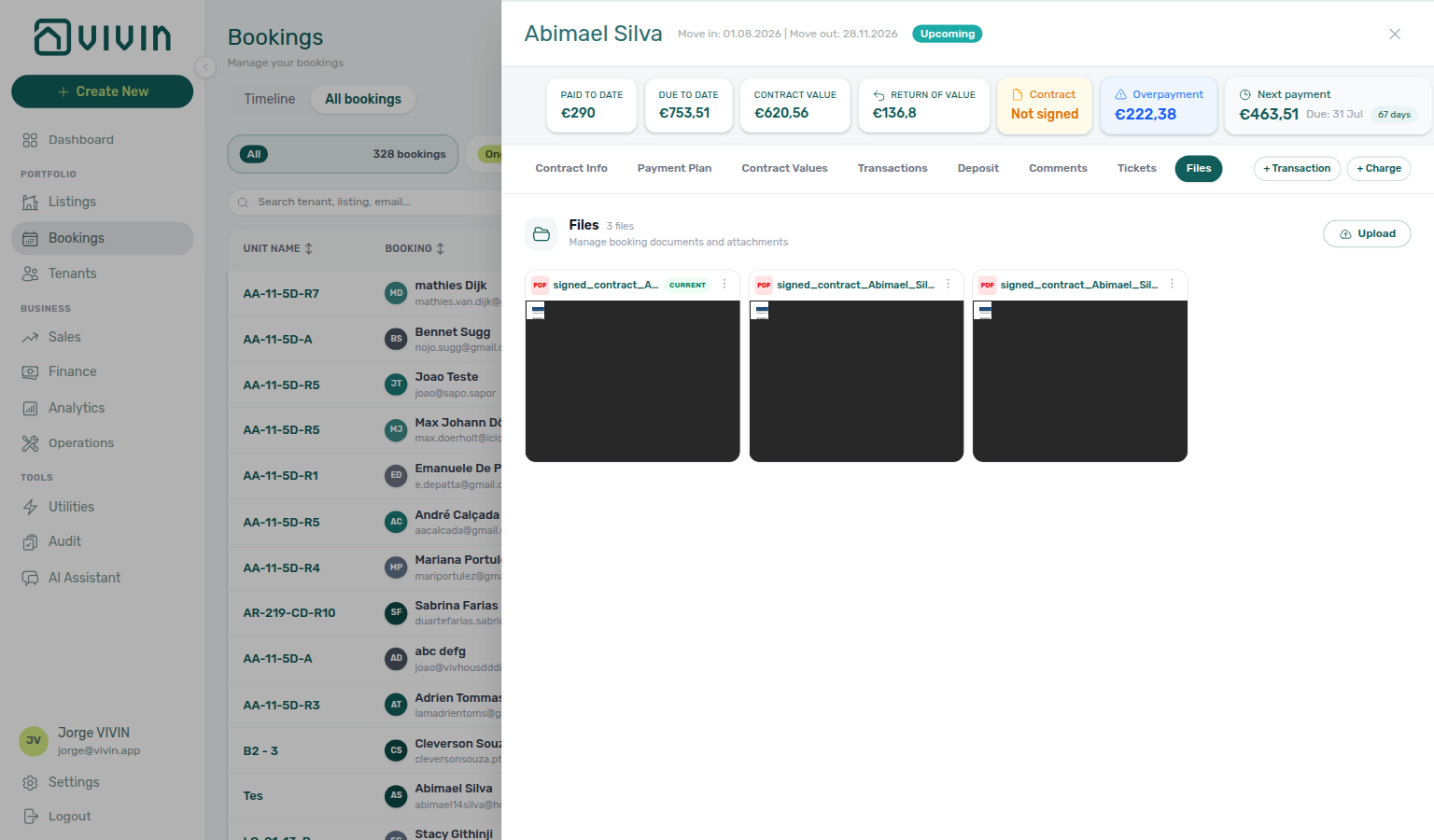
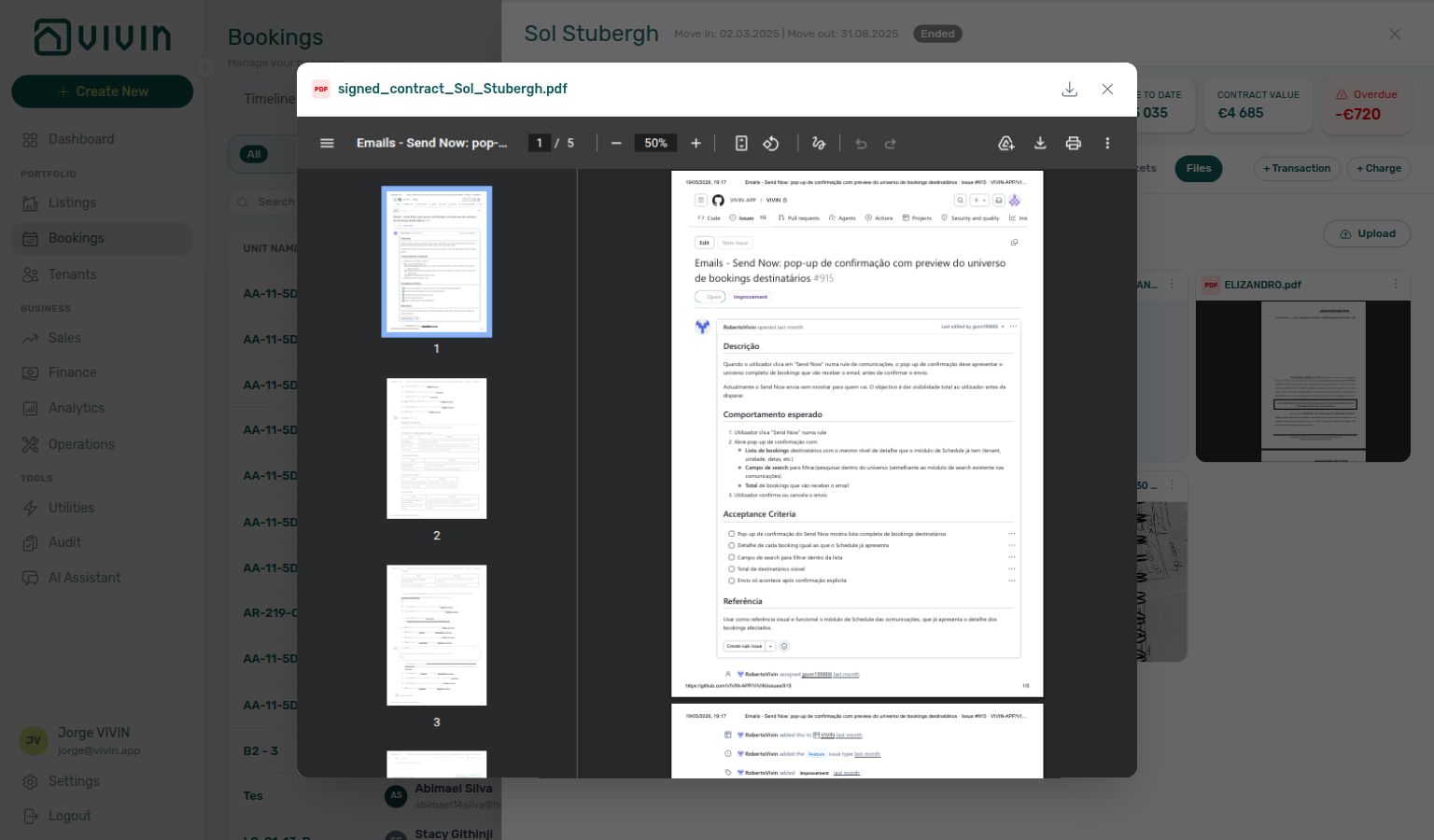
Tenant Management
The Bookings module centralises all tenant information and interactions:
- Centralised tenant profiles — contact details, documents, booking history, and payment records all accessible from the booking detail view.
- Team notes — internal booking threads with
@mentionemail alerts; edit your own notes in place (see Internal Notes tab / Edit your own notes in place). - Communication — when the account tenant chatbot is enabled, the Communication tab shows WhatsApp (with labels and composer) and read-only email with the tenant; on channel-manager stays it also mirrors Airbnb or Booking.com guest chat with a host reply composer (see Communication tab / Airbnb guest chat / Platform badge and filters follow the real OTA). Configure bot behaviour under ChatBot settings.
- Other tenant channels — SMS rules, communication templates, and portal flows are documented under Automation & AI and Tenant Portal.
- Document storage — store ID copies, contracts, receipts, and other documents per tenant.
- Automatic record creation — tenant records are created automatically from booking data, whether the booking comes from a marketplace, the white label booking engine, or manual entry. No duplicate data entry needed.
For a tenant-first workspace (cross-booking tenant segmentation, debt filtering, profile updates, and history across bookings), use Tenants.
Creating a New Booking
Manual bookings pair with Processing a New Booking and Create New menu — Booking — assign tenant category per FAQ — Assign tenant category for direct booking.
To create a booking manually (for direct reservations not coming from an external platform), click + Create New in the left sidebar and select Booking. This wizard enforces unit Capacity, Minimum / Maximum Stay Period, and listing available from. Marketplace imports honour listing JSON instead — Creating Bookings — Honour listing. Occupied nights still reject on both paths. Marketplace POST /bookings does not set rent — advertised listing JSON amounts become the payment plan — Creating Bookings — Rent. That POST also does not set Extra Charge or Extra Deposit euros — unit rates copy from occupant headcount — Creating Bookings — Extra Charge. That POST also does not set Second tenant identity — occupant headcount can open the accordion; identity stays empty until you fill Contract Info — Creating Bookings — Second tenant. That POST also does not set Guarantor identity or amount — the accordion can appear when Preferences Guarantor is On; identity and Guarantor amount (€) stay empty until you fill Contract Info — Creating Bookings — Guarantor. That POST does record platform commission as Provider platform payment — it does not change tenant rent (except Vivin Booking Engine Daily stays shorter than one month) — Creating Bookings — Platform commission. That POST also does not set cleaning fee — the property amount and Frequency copy onto the payment plan — Creating Bookings — Cleaning fee. That POST also does not set deposit — listing JSON depositValue copies onto the hold and Extra Deposit is added from occupant headcount — Creating Bookings — Deposit. That POST also does not set admin fee — Vivin resolves the property fixed amount or stay-duration tier — Creating Bookings — Admin fee. That POST also does not set bills included — the property Bills Included ceiling copies onto the stay — Creating Bookings — Bills included. That POST also does not set contract type — the property Rental payment frequency and Contract type copy onto the stay — Creating Bookings — Contract type. That POST also does not set confirmation or check-in payments — the property Confirmation payments and Check-in payments copy onto the stay — Creating Bookings — Confirmation payments. That POST also does not set due day or due month — the property Due date and Due Month copy onto the stay (or account Tenant Due Day / Tenant Due Month when the property has no override) — Creating Bookings — Due date. That POST also does not set check-in or check-out times — account Check-in time and Check-out time copy onto the stay — Creating Bookings — Check-in times. That POST also does not set days before due — account Days before due date copies onto the stay — Creating Bookings — Days before due. That POST also does not set check-in or check-out responsible — Check-in responsible and Check-out responsible stay empty until you assign a teammate — Creating Bookings — Check-in responsible. That POST also does not set lease purpose — Lease purpose stays empty until you or the tenant select a chip — Creating Bookings — Lease purpose. That POST also does not set Deposit Refund Limit — imported stays inherit the account Payments term until you override it on Contract Info — Creating Bookings — Deposit Refund Limit. That POST also does not set booking tags — Booking categories stay empty until you pick chips — Creating Bookings — Booking tags. That POST also does not set check-in/out maintenance tickets — automatic tickets follow the property Maintenances tab — Creating Bookings — Maintenance tickets. That POST also does not set Ignore unit preparation days — occupied nights including the Mid-term Prep / Short-term Prep buffer still reject — Creating Bookings — Ignore unit preparation days. That POST also does not set Allow check-in date in the past — honour listing JSON availableFrom on the channel — Creating Bookings — Allow check-in date in the past. That POST also does not set Exclude this booking from penalty fees — imported stays land with the box off until you tick it on Contract Info — Creating Bookings — Exclude from penalty fees. That POST also does not set Use check in date as contract start date — imported stays land with the box off until you tick it on Change contract start date — Creating Bookings — Use check in date as contract start date. That POST also always sends the onboarding email and generates the contract — you cannot skip Send onboarding email & contract on the channel — Creating Bookings — Send onboarding. That POST also always uses Use unit contract rents and other contract details — you cannot type custom rent, fees, or contract details on the channel — Creating Bookings — Use unit contract rents. That POST also does not set tenant category — allowlisted channels assign Default for integration-created tenants when the person is new or uncategorized — Creating Bookings — Tenant category.
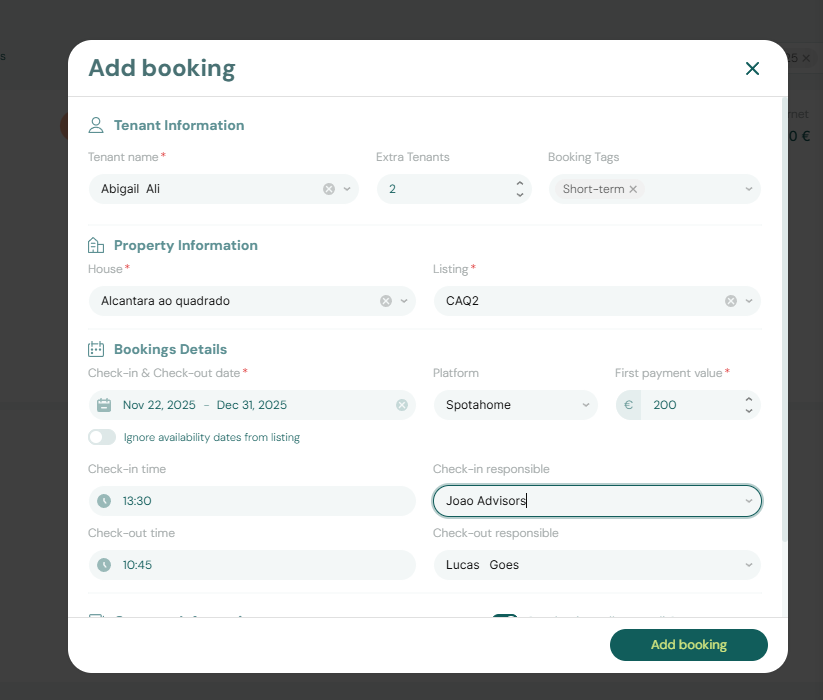
The Tenant field uses a server-driven picker: opening the list prefetches a small batch, search hits the server with a short debounce, and scrolling near the bottom of the dropdown loads more tenants — useful on large accounts without loading the full directory into the browser at once.
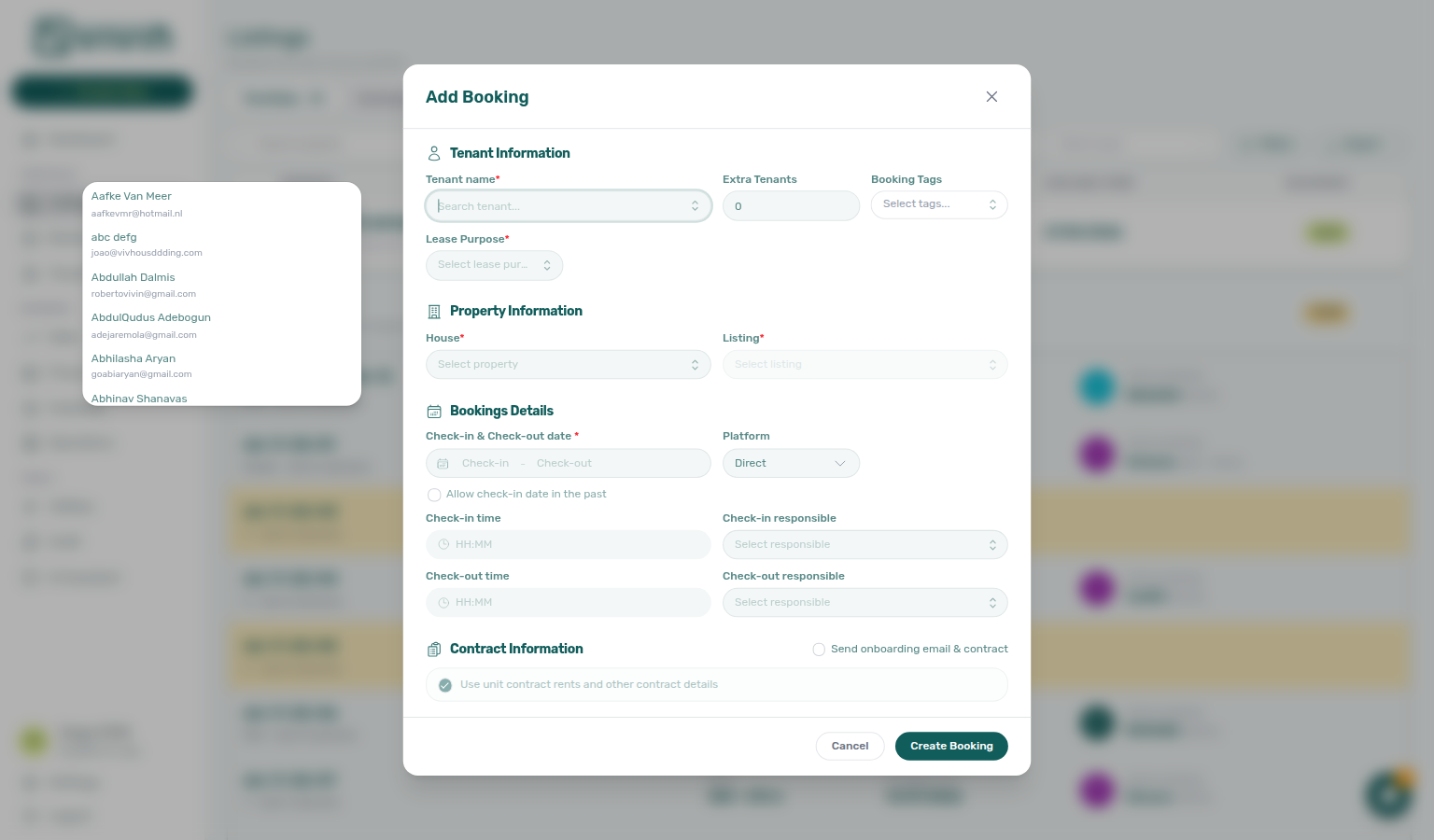
The booking creation form captures:
- Tenant — pick an existing tenant with the Tenant name server-driven search picker: open the control, type to search names and emails on the server, and scroll the menu for more matches. Contact details come from the tenant profile you select (create or update tenants first in Tenants when someone is not in the list yet). Tenant category is assigned on Tenant Info, not in this wizard — see Processing a New Booking — Step 2 and FAQ — Assign tenant category for direct booking.
- Property and Unit — choose House first, then Unit. Both fields use the same server-driven search picker pattern: a small first page when you open the menu, debounced server search as you type, and infinite scroll for more rows. When you type a search term, internalName matches rank above address-only or tag-only hits (exact → prefix → substring → other fields) before pagination — see Glossary — Picker search ranking. The Unit menu is scoped to the selected property — changing property after you picked a unit clears the unit and reloads the listing list for the new building so a room from another property cannot stay selected by mistake. To create several bookings in one house for the same tenant and dates, use Book several units at once instead of repeating this wizard per room.
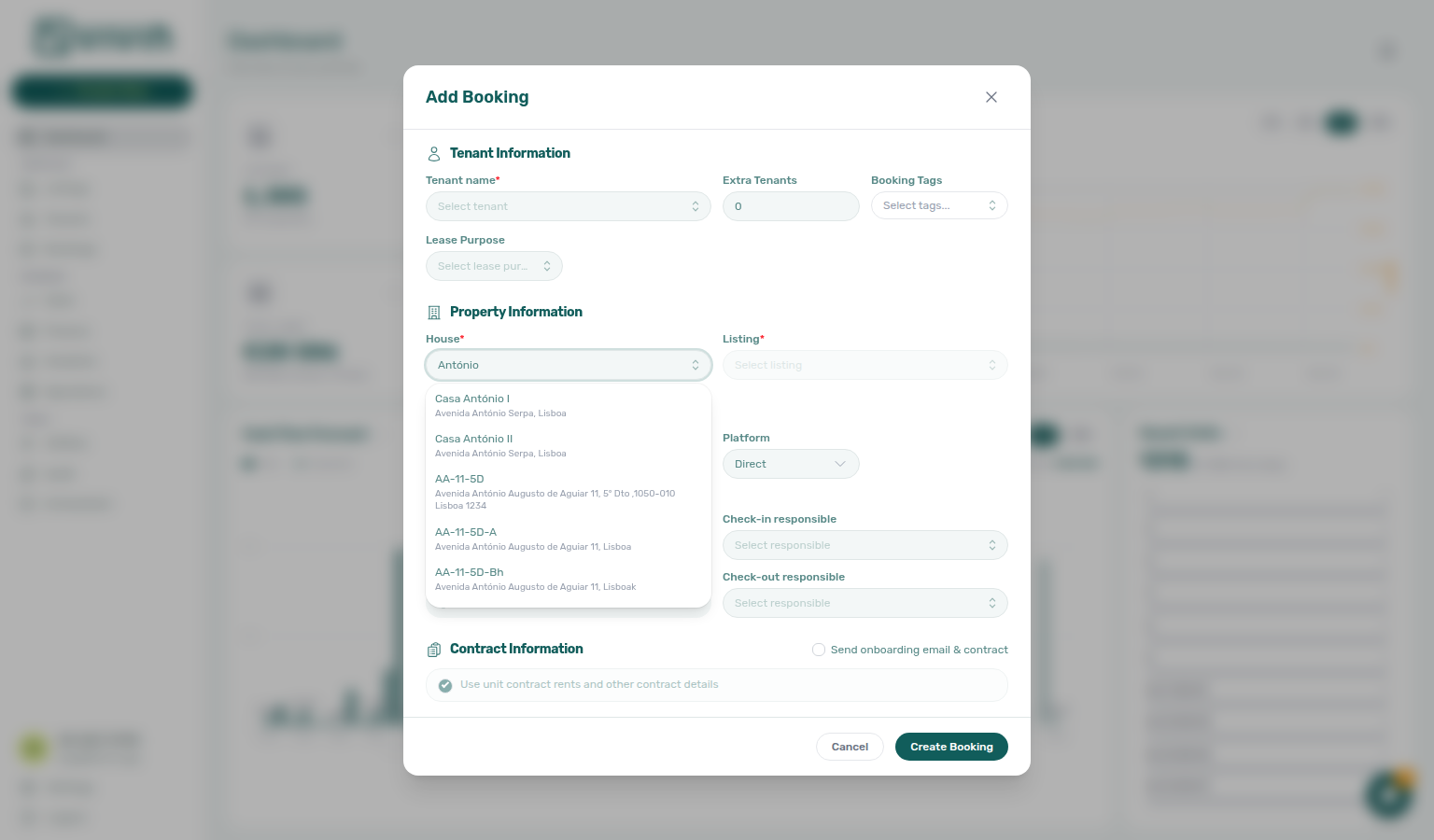
- Dates — Check-in & Check-out date (required operational range) plus contract start / end when your account shows those fields. On a single unit, the calendar treats check-in and check-out differently for availability: a night occupied by another stay is blocked as a check-in, but that stay’s arrival day stays selectable as your check-out so you can book a same-day turnover (departing guest leaves the morning the next guest arrives). Real overlaps (your check-out after their check-in, or your check-in before their check-out) stay blocked. Nights after checkout that belong to Mid-term Prep / Short-term Prep stay grey unless you tick Ignore unit preparation days. Tick Allow check-in date in the past when a manual stay should start before the listing’s Available from month. When Book several units at once is on, occupancy greying is off — see Date calendar stays clear. Clock Check-in time / Check-out time sit below the date range — leave blank to use Preferences — Booking Defaults, or pick a time for this reservation. Marketplace
POST /bookingscannot send those times — Creating Bookings — Check-in times. Check-in responsible / Check-out responsible sit beside those times — pick a teammate, or leave blank. MarketplacePOST /bookingscannot send those names — Creating Bookings — Check-in responsible. - Platform — select "Direct" for direct bookings, or the relevant external platform. When Platform is a channel (not Direct), First payment value (€) records the same amount as marketplace
platformProviderPaymentValue— Provider platform payment. Booking categories — optional multi-select tags when configured under Categories. Marketplace imports cannot send this field — Creating Bookings — Booking tags. - Lease purpose — optional or required searchable dropdown when Lease purpose is enabled on the account. Marketplace imports cannot send this field — Creating Bookings — Lease purpose.
- Deposit Refund Limit is not on this wizard. New stays inherit Payments — Deposit Refund Limit until you override it on Contract Info. Marketplace imports inherit the same way — Creating Bookings — Deposit Refund Limit.
- Send onboarding email & contract — optional; defaults off. Tick it when this direct reservation should generate the contract and send the welcome email at create. Marketplace imports always send — Creating Bookings — Send onboarding. See Send onboarding email & contract.
- Use unit contract rents and other contract details — defaults on. Leave it on to copy the unit. Turn it off to type custom rent, fees, and contract details for this direct stay. Marketplace imports always copy — Creating Bookings — Use unit contract rents. See Use unit contract rents.
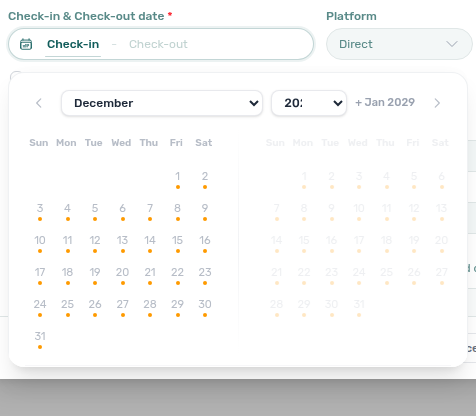
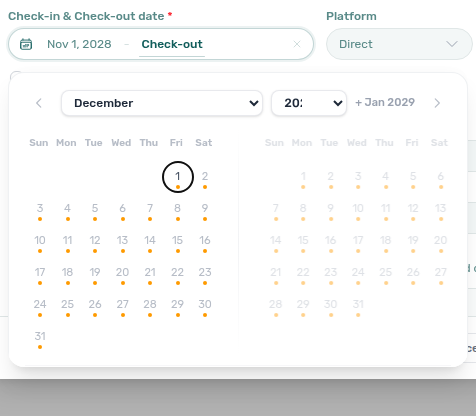
Ignore unit preparation days
After a stay, Vivin keeps the unit closed for your Mid-term Prep or Short-term Prep window so cleaning can finish. On + Create New → Booking for one unit, those extra nights are grey on the date calendar — even though the previous guest already left.
Tick Ignore unit preparation days when this new reservation should start in that buffer (the nights after the previous checkout, before the prep window ends). Default is off. Use it only when your team can turn the unit around in that shorter window.
| Situation | What the checkbox does |
|---|---|
| Previous guest still occupying the unit | Nothing — occupied nights stay blocked. |
| Nights after their checkout (prep buffer) | Become selectable for check-in. Calendar dots still mark the buffer so you can see why the unit was closed. |
| Manual, owner, maintenance, or channel blocks | Stay blocked. The checkbox only affects a previous booking’s prep window. |
| Same-day turnover (your checkout = their check-in) | Not needed — see Dates and FAQ — Same-day turnovers. |
After Create Booking, Vivin shortens the previous stay’s unit block to end at checkout, so leftover prep nights are no longer held for that previous reservation.
The neighbouring control Allow check-in date in the past is different: it lets the stay start before the listing’s available-from month. It does not open a previous stay’s prep buffer.
When Book several units at once is on, the calendar does not grey occupancy. The same checkbox still applies on create for every selected room — tick it only if you intend those rooms to start in a previous stay’s buffer.
Marketplace imports are not this checkbox — partner stays follow the channel dates and honour listing unavailabilities including prep nights. Marketplace POST /bookings cannot send this skip — Creating Bookings — Ignore unit preparation days. The control appears only on Add booking, not when you later change dates on Contract Info.
See FAQ — Why are the days after checkout grey on Add Booking? and Glossary — Ignore unit preparation days.
Allow check-in date in the past
On + Create New → Booking, Allow check-in date in the past sits next to Ignore unit preparation days. Tick it when a manual reservation should start before the unit’s Available from month. Default is off.
| Situation | What the checkbox does |
|---|---|
| Check-in before listing Available from | Create is allowed for this reservation. |
| Occupied nights, prep buffer, or manual/channel holds | Still reject on create. Use Ignore unit preparation days for a previous stay’s prep tail. |
| Same-day turnover (your checkout = their check-in) | Not needed — see Dates and FAQ — Same-day turnovers. |
The control appears only on Add booking, not when you later change dates on Contract Info.
Marketplace imports are not this checkbox — partner stays honour listing JSON availableFrom. Marketplace POST /bookings cannot send this skip — Creating Bookings — Allow check-in date in the past.
See FAQ — Marketplace booking Allow check-in date in the past and Glossary — Allow check-in date in the past.
Send onboarding email & contract
On + Create New → Booking for one unit, Send onboarding email & contract sits on the Contract step next to Use unit contract rents and other contract details. Default is off. Leave it off to create the reservation without generating the contract or sending the welcome email; send later from Contract Info when the occupant is ready. Tick it only when this direct stay should generate the contract and send the Onboarding email at create.
| Situation | What the checkbox does |
|---|---|
| Left off (default) | No automatic contract file and no welcome email at create. Use Send Onboarding email or Contract-card Resend later. |
| Ticked | Generates the contract when a template exists, then queues the welcome email. Account Onboarding No trigger still skips the email. |
| Book several units at once | Stays off and cannot be turned on. Create the set first, then send from each reservation. |
Marketplace POST /bookings cannot skip this send — imported stays always generate the contract (when a template exists) and queue the welcome email — Creating Bookings — Send onboarding. Contract in onboarding email and the tenant’s category still control whether the PDF attaches.
See FAQ — Marketplace booking onboarding email and Glossary — Send onboarding email & contract.
Use unit contract rents and other contract details
On + Create New → Booking for one unit, Use unit contract rents and other contract details sits on the Contract step next to Send onboarding email & contract. Default is on. Leave it on so this reservation copies the unit’s monthly rent, deposit, Extra Charge / Extra Deposit, Confirmation payments, Check-in payments, and the property fees already on that listing.
Turn it off when this direct stay should use custom contract details: Fixed rent (€) (including a rent-free €0 stay), fees, Contract day type / Contract type, payment requirements, Extra Charge / Extra Deposit, and (when the property has auto-create) Create check-in ticket / Create check-out ticket. See Empty fixed rent reads as €0.
| Situation | What the checkbox does |
|---|---|
| Left on (default) | Copies today’s unit and property contract values. Custom rent, fee, and contract-type fields stay hidden. |
| Turned off | Shows Custom contract details so you can type amounts and pick contract options for this reservation only. Later bookings on the unit still copy unless you turn the box off again. |
| No unit selected yet | The checkbox stays dimmed until you pick a Unit. |
Marketplace POST /bookings cannot turn this off — imported stays always copy unit and property contract values — Creating Bookings — Use unit contract rents. After import, change euro amounts on Contract Info for that reservation.
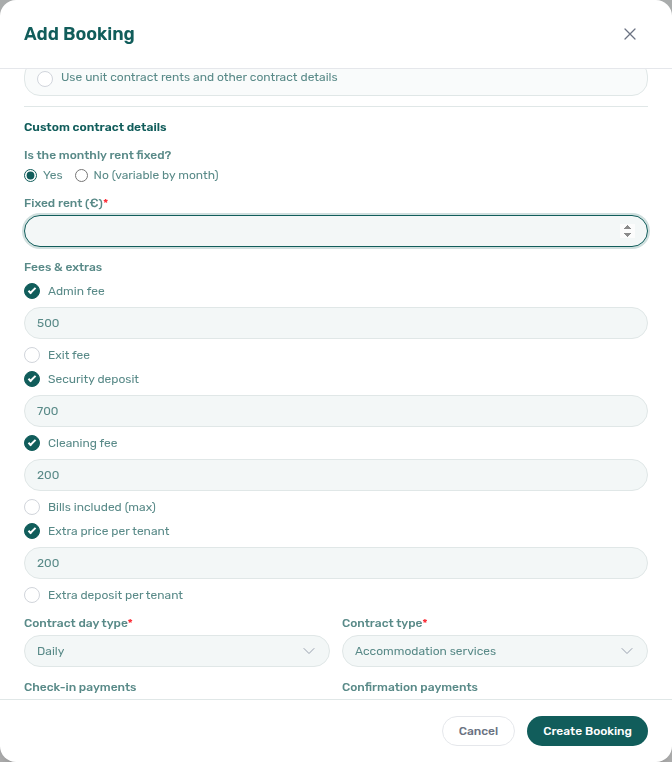
See FAQ — Marketplace booking unit contract rents and Glossary — Use unit contract rents.
Extra price per tenant and Extra deposit per tenant
On + Create New → Booking for one unit, turn Use unit contract rents and other contract details off to show Fees & extras. Tick Extra price per tenant or Extra deposit per tenant and type a custom euro amount for this reservation only. Leave Use unit contract rents on (default) so this reservation copies the unit Extra Charge / Extra Deposit from occupant headcount.
Marketplace POST /bookings cannot send those euro rates — imported stays copy the unit rates using occupant headcount — Creating Bookings — Extra Charge. After import, change Extra Charge on Contract Info for that reservation. Occupant headcount does not fill Second tenant identity — Creating Bookings — Second tenant. Occupant headcount does not fill Guarantor identity or amount — Creating Bookings — Guarantor. Marketplace POST /bookings does record platform commission as Provider platform payment — Creating Bookings — Platform commission.
This is not Adding Extra Charges (one-off Payment Plan lines after the stay exists).
See FAQ — Marketplace booking Extra Charge and Glossary — Extra Charge not on partner POST.
Book several units at once
When one tenant should occupy several rooms in the same house for the same dates, turn on Book several units at once. Vivin creates a separate booking for each selected unit, all with the same tenant, dates, and details.
The toggle stays available only when that tenant’s tenant category has Multiple concurrent bookings enabled. Assign the category on Tenant Info first — this wizard has no category field (FAQ — Assign tenant category for a direct booking). When the category does not allow concurrent stays, the control stays dimmed with the hint that it is available only for tenants whose category has Multiple concurrent bookings enabled.
- Pick the tenant, then the House.
- Turn on Book several units at once. The Unit field becomes Units.
- Open Units, search if needed, and tick the rooms (or Select all units). You can book at most 30 units in one run — deselect one to add another, or finish this set and start a second Add booking.
- Set Check-in & Check-out and the rest of the form as usual. Those values apply to every booking in the set. The date calendar stays clear (no grey nights) — after Create N bookings, Vivin names any room that cannot take those dates. See Date calendar stays clear.
- Confirm with Create N bookings (the label follows how many units you selected). While Vivin works, the button shows Creating… X of Y.
Send onboarding email & contract stays off for a multi-unit set and cannot be turned on here — see Send onboarding email & contract. Create the bookings first, then send onboarding or the contract from each reservation when the occupant is ready.
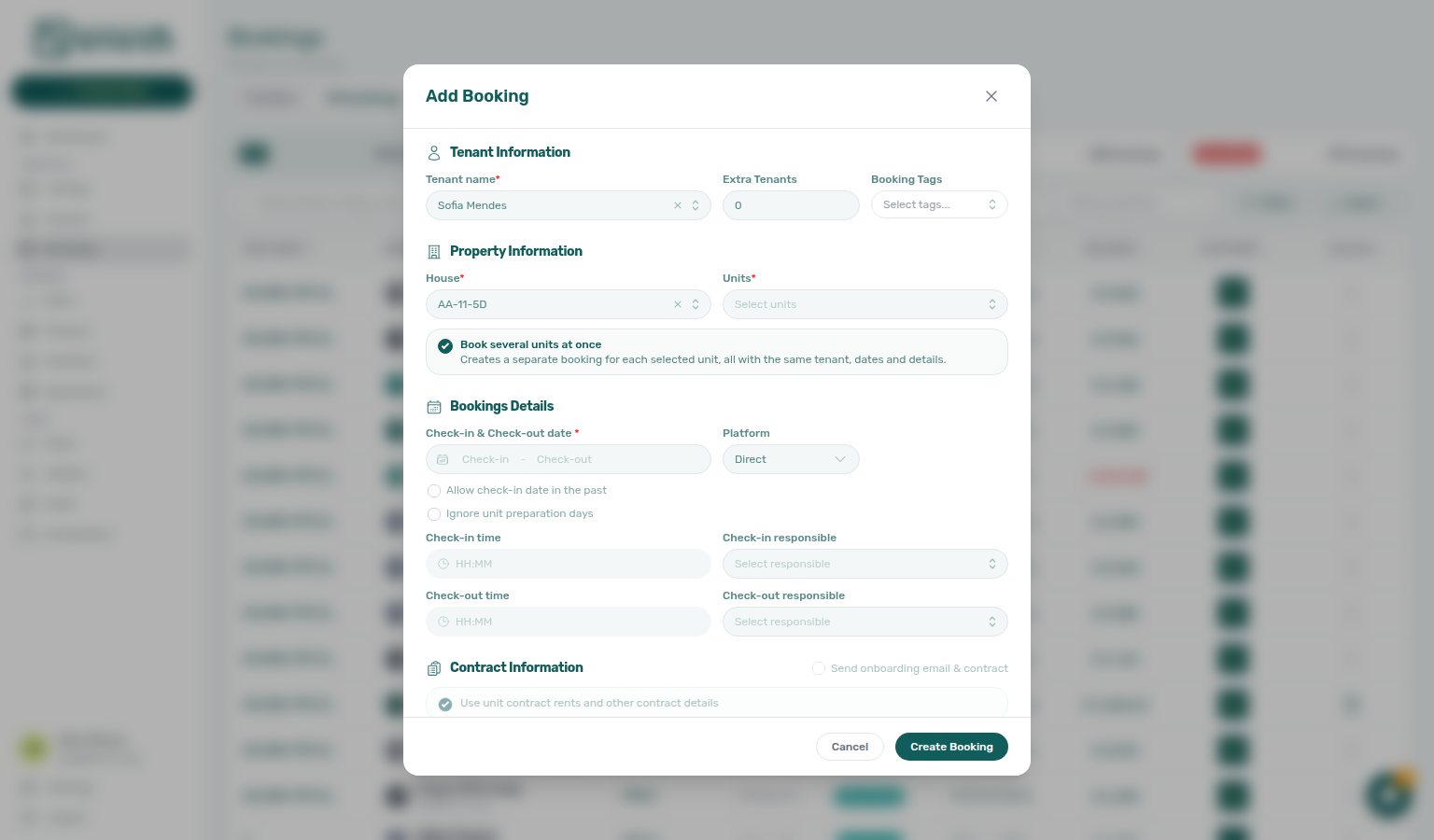
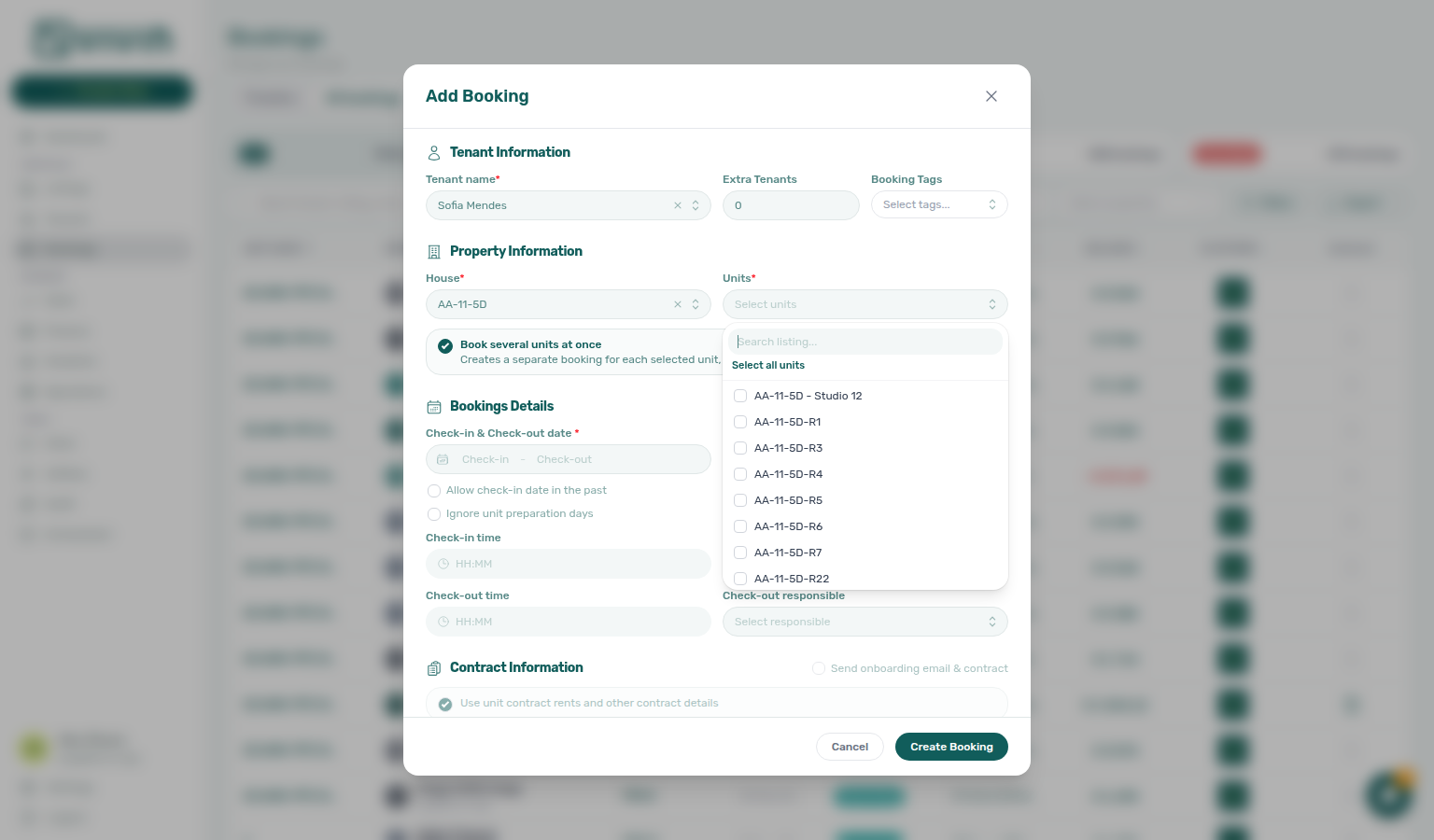
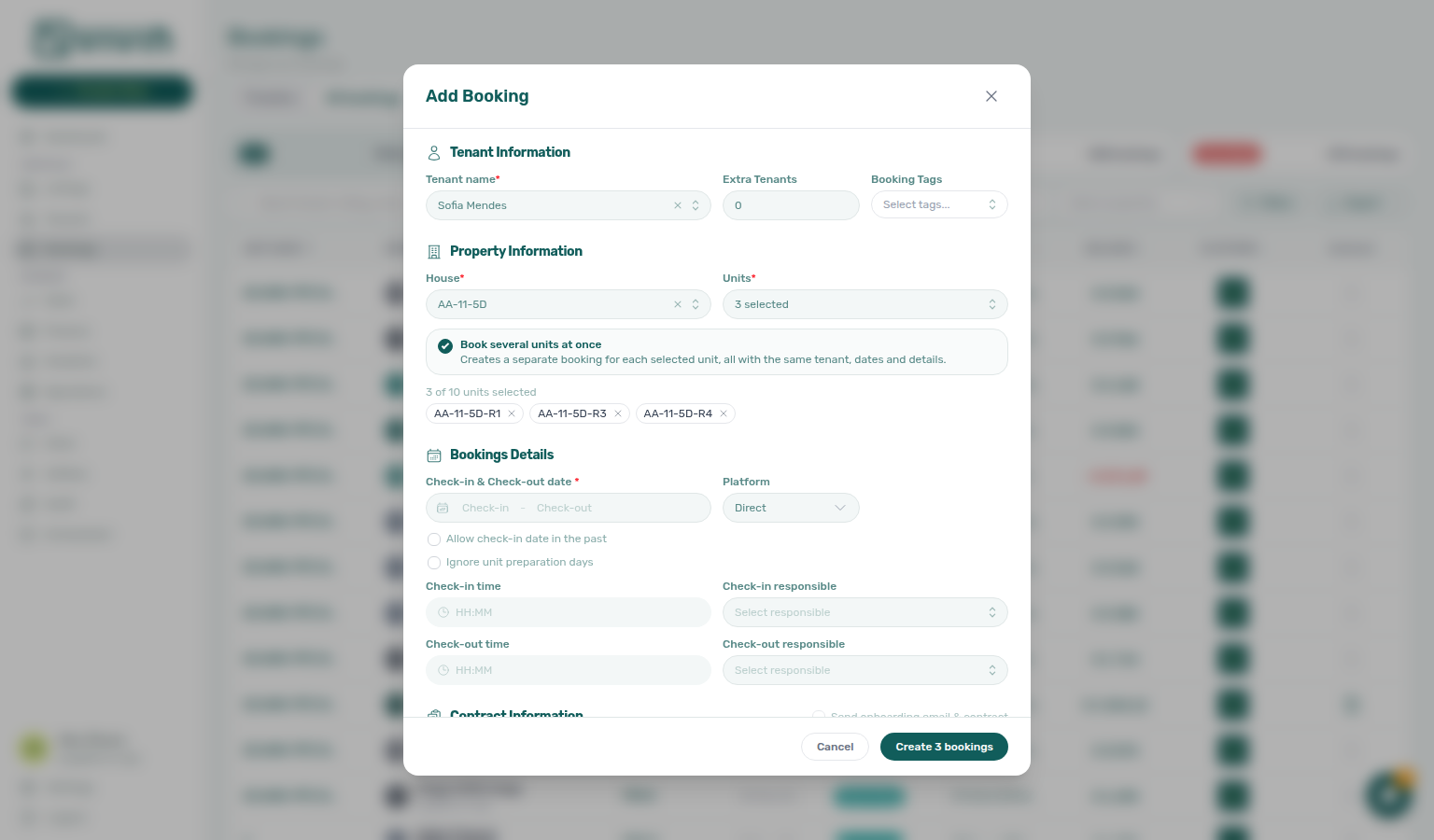
Date calendar stays clear for several units
When Book several units at once is on, the Check-in & Check-out calendar does not grey occupied days or show occupancy dots. Shading a union of many rooms would block a day without saying which room is busy. Occupancy greying and same-day-turnover adjacency stay on the single-unit calendar — see Dates above.
Typical path:
- Turn on Book several units at once, pick the rooms, and set dates as usual. Every day in the range stays selectable.
- Click Create N bookings. Vivin checks every selected room before it writes anything.
- If a room cannot take those dates, Vivin creates none of the set. A list names each room, the clash, and the occupied window (for example occupied 1 Nov → 1 Dec). The heading reads N selected units cannot be booked. Nothing was created.
- Click Remove these units from the selection to drop the clashes, or change dates and create the remaining rooms.
When some bookings are already created and others cannot (for example another operator took a room while you were working), the created rows stay on the list. The rooms that did not save remain selected so a second submit creates only those.
For occupancy on one room, turn Book several units at once off, or use Timeline / Sales → Multicalendar. If Create takes longer than expected, open Bookings for that house before you submit the same set again so you do not double-book.
See FAQ — Why doesn’t the Add Booking calendar grey occupied days for several units? and Glossary — Book several units at once.
After selecting the unit and dates, the rent details step shows the financial configuration:
When the property uses Per stay duration admin fees (Listings > Admin fee), the Admin fee amount on this step may stay blank — Vivin resolves the tier from the booking’s stay length when you create the reservation. Enter a manual € amount only when you intend to override that default.
When the unit uses variable seasonal pricing but every contract month in the selected Start date–End date span shares the same configured € amount, Vivin stores the new booking as fixed rent at reservation level. The Add booking form still reflects unit defaults; after Create booking, open Contract Info to confirm the collapsed headline. See Fixed rent on a variable unit.
Empty fixed rent reads as €0
Turn off Use unit contract rents and other contract details when this reservation should not copy the unit’s rent. Fixed rent (€) can then be left blank: Vivin reads that as €0 (a rent-free stay). Click away or tab out of the field and it settles to a visible 0 so you can confirm before you save. You can still type €0 yourself. Negative amounts are rejected. Marketplace imports cannot do this — they always copy unit contract rents — Creating Bookings — Use unit contract rents.
Use this for staff accommodation, promotional stays, or placeholder contracts where charges live only in fees. The same blank-as-zero read applies on + Create New → Unit for Monthly Rent Value. On an existing stay, Change monthly rent on Contract Info also accepts €0.
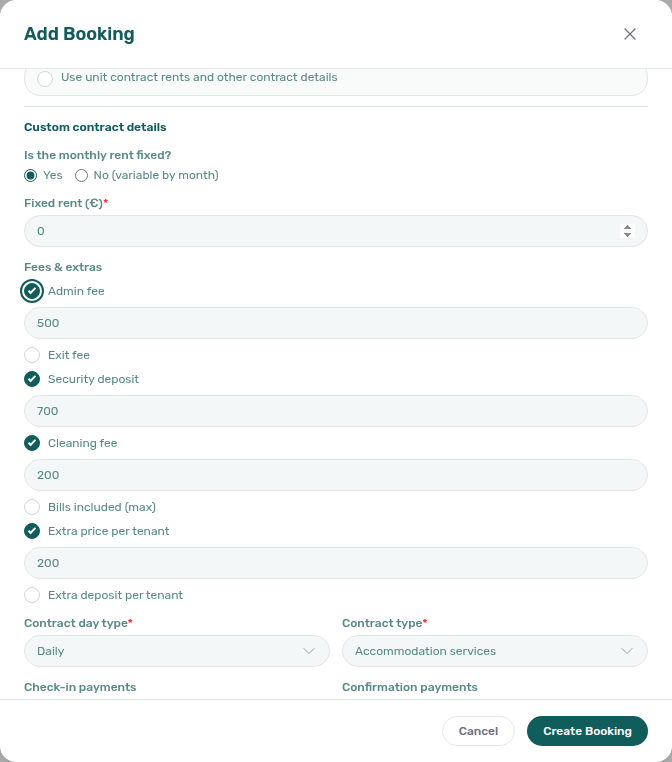
A blank Fixed rent (€) on Add booking is enough for a rent-free reservation — you do not have to type 0 first. See Empty fixed rent reads as €0.
When the selected property has automatic check-in or check-out maintenance tickets configured on Listings — Maintenances tab, and you turn off Use unit contract rents and other contract details on the rent step, Vivin shows Maintenance tickets with Create check-in ticket and/or Create check-out ticket (only the event types enabled on the property). Both default checked — same as the property. Uncheck to skip automatic ticket creation for this reservation only; later bookings on the property still follow the property rule unless you opt out again. If neither auto-create is configured on the property, the subsection stays hidden. Marketplace POST /bookings cannot send this skip — imported stays follow the property Maintenances tab — Creating Bookings — Maintenance tickets. Troubleshooting: FAQ — Skip automatic check-in/out tickets for one booking.

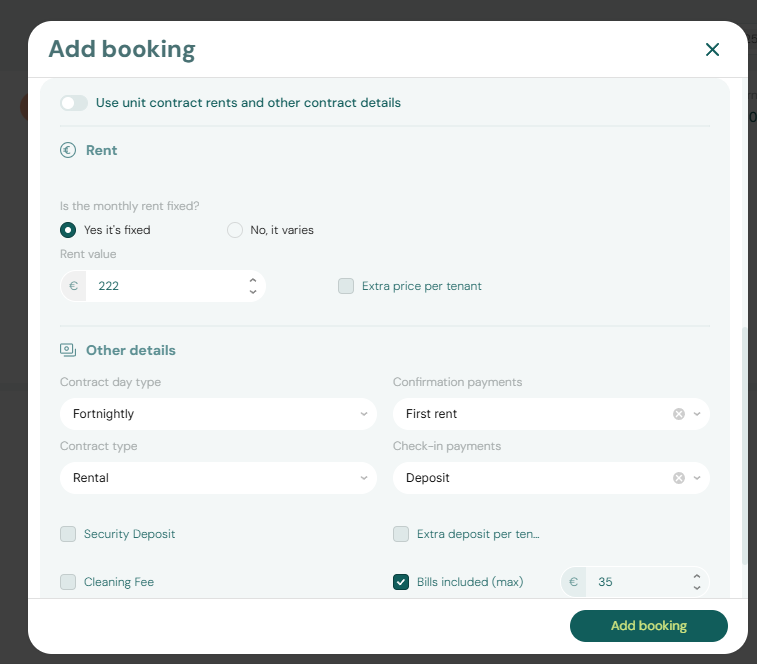
The system previews the full payment structure before you confirm:
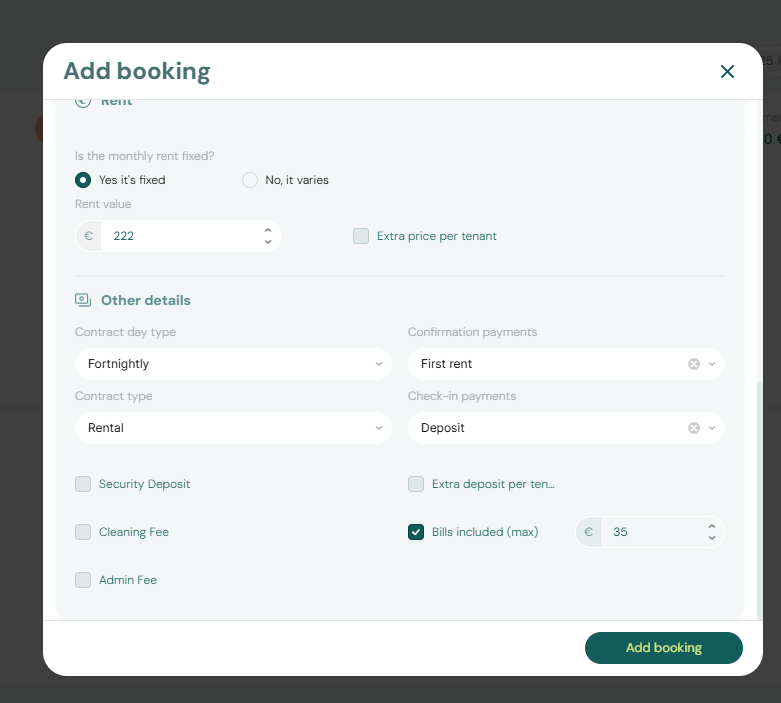
Click Create Booking (or Create N bookings for a multi-unit set) to save. The payment schedule is automatically generated based on the property's contract settings. If Timeline is open with Only bookings off and that unit already on the chart, the stay bar appears without a reload — see Stay bars update after create or delete. If Only bookings is on (or Search is hiding vacant rooms), Timeline also adds the unit row in place — see Unit list updates after create or delete.
If you select a single unit that already has an active booking for the same date range, the calendar greys the overlap and Vivin blocks create. Overlapping bookings on the same unit are not permitted. Adjacent stays that share only the turnover calendar day (your check-out = their check-in) are allowed — see Dates above and FAQ — Same-day turnovers. Nights after checkout that are preparation days stay grey unless you tick Ignore unit preparation days. For Book several units at once, the calendar stays clear; Vivin names clashing rooms after Create N bookings and creates none of the set until you drop those rooms or change dates — see Date calendar stays clear.
Adding Extra Charges to a Booking
To add a one-off charge to an existing booking (for example, a damage fee, a room change surcharge, or a guest fee), open the booking detail → Payment Plan or Contract Values, then click + Charge in the tab toolbar. Your role needs bookings.add_charges; otherwise the control stays disabled.
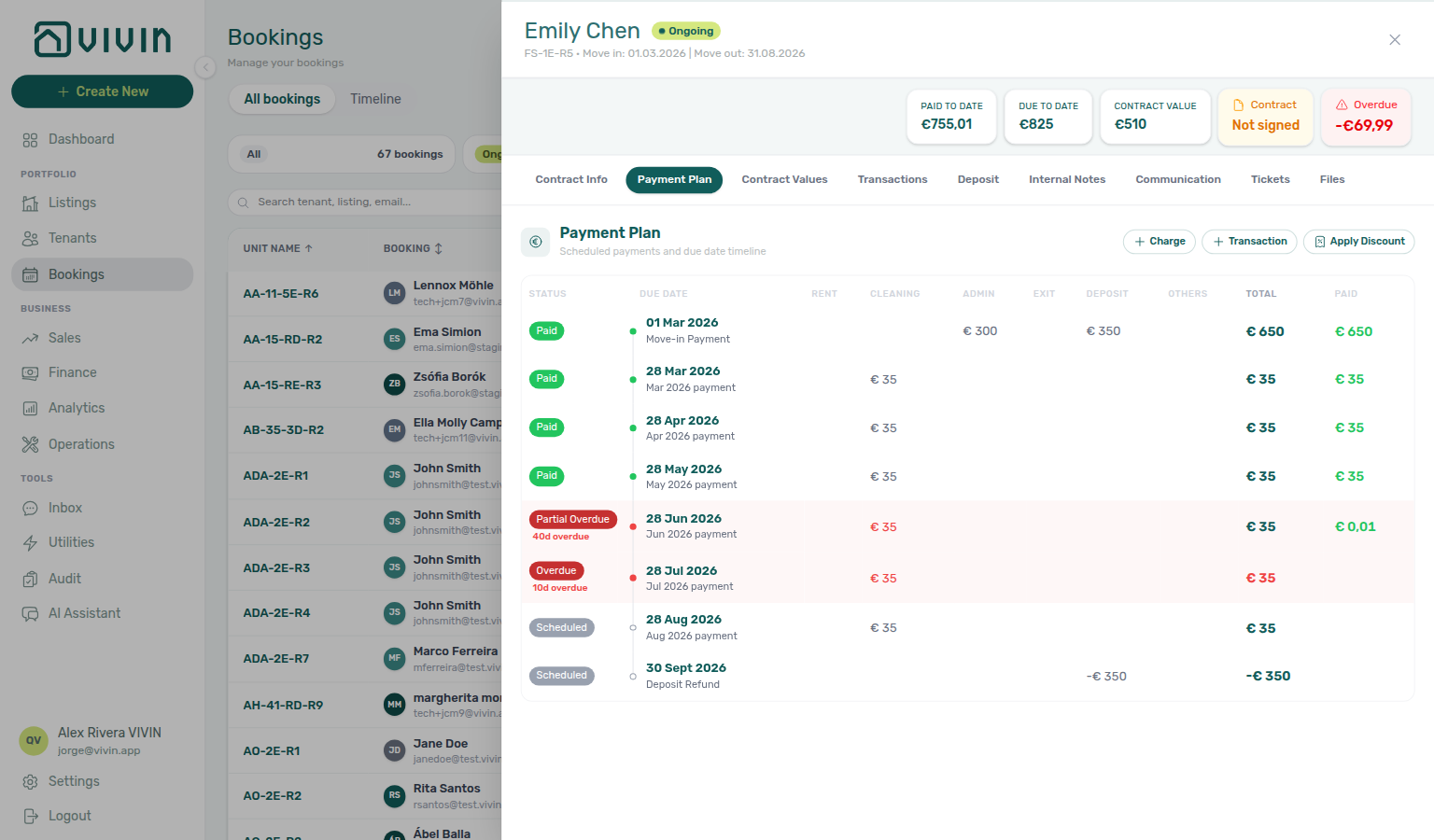
The modal title is Add Charge:
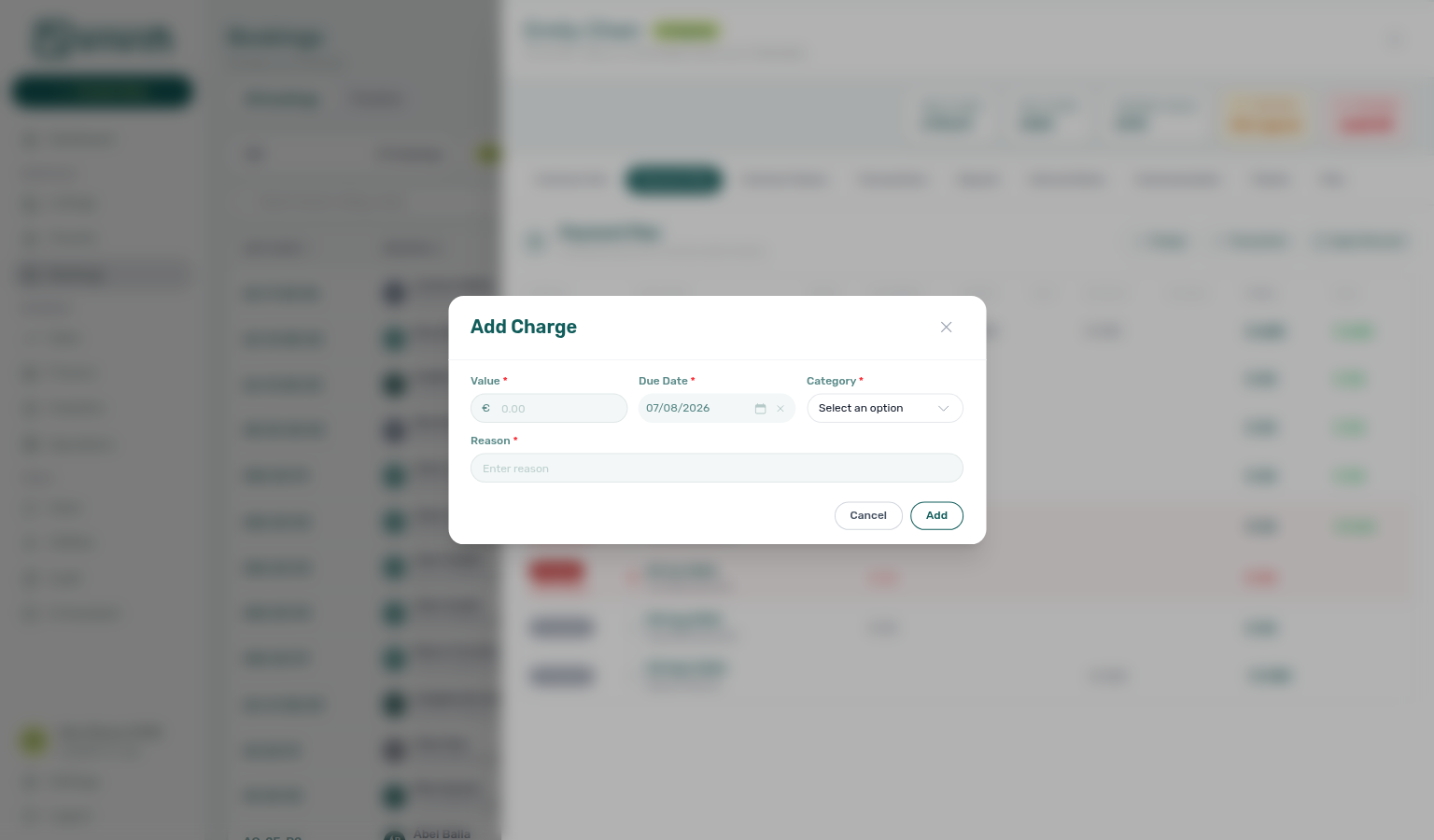
| Field | Required? | Notes |
|---|---|---|
| Value | Always | Amount in € |
| Due Date | Always | Must fall within the booking’s allowed charge window (from creation through the effective Deposit Refund Limit — booking override when set, otherwise the account Deposit Refund Deadline) |
| Category | When Require charge category is On | Labels from Others Items Categories |
| Reason | When Require charge description is On | Free-text note (placeholder Enter reason). Preferences still label the toggle “description”; the modal field is Reason |
Confirm with Add (or Cancel to discard). The new line appears on Payment Plan and Contract Values alongside the rest of the schedule. To record money received instead of a new charge, use + Transaction (modal title Add Payment) — Payment Date, Payment Value, Type, and optional Comments (placeholder Add a note).
Cancellations and Refunds
Cancel flows pair with Cancelling a Booking and Payment Allocation for refund allocation.
When a booking is canceled, Vivin automatically handles the payment schedule cleanup based on the refund type. English choices on Cancel booking step 1 are Full refund, No refund, and Partial refund. Three amount cells under those choices — Paid, Deposit, and Refund — show the money on the reservation today; see Paid, Deposit, and Refund on Cancel booking.
Full Refund
All remaining payment items are removed from the payment schedule. Any payments already received are marked for refund. The unit becomes immediately available for new bookings. Tenants then see Cancelation With Refund (plain text, no logo) on Payments → Transaction History.
No Refund
Only unpaid future items are removed from the payment schedule. Already-paid items are retained. The unit becomes available for new bookings from the cancellation date forward.
Partial Refund
Partial refunds require manual processing — the system does not automatically calculate partial amounts because the split depends on your specific cancellation terms and negotiation with the tenant. On Cancel booking step 1, Partial refund starts Refund at € 0 until you set return amounts on the payment lines in the cancel flow. You will typically need to:
- Adjust the payment schedule manually
- Record the partial refund amount
- Document the agreed terms
Tenants then see Cancelation With Partial Refund (plain text, no logo) on Payments → Transaction History.
For the full step-by-step cancellation workflow, see Cancelling a Booking.
Paid, Deposit, and Refund on Cancel booking
The three amounts pair with Cancellations and Refunds and Cancelling a Booking — Paid, Deposit, and Refund. Symptom: FAQ — What do Paid, Deposit, and Refund mean on Cancel booking?. Term: Glossary — Cancel booking Paid / Deposit / Refund.
On Contract Info → Cancel booking step 1, Paid is the total already paid, Deposit is the deposit already collected, and Refund is the amount this choice would return (Full refund is the cancel-path return — often Paid minus deposit kept for the deposit flow; No refund is € 0; Partial refund starts at € 0 until payment-line amounts are set). Use Cancel if you were only checking the figures; Next continues the multi-step flow.
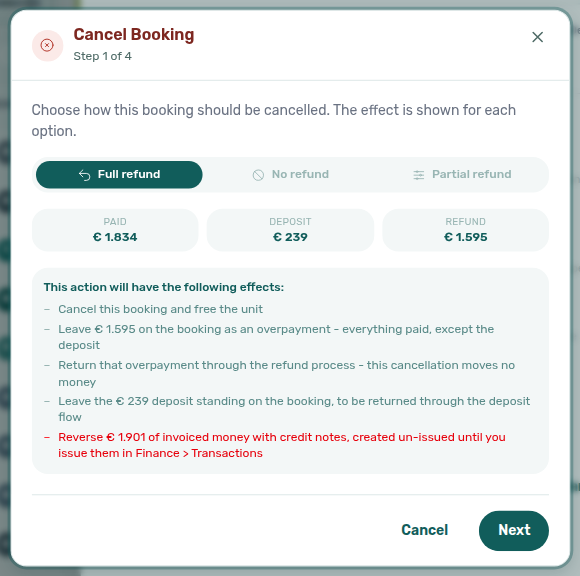
See Cancelling a Booking — Paid, Deposit, and Refund and FAQ — What do Paid, Deposit, and Refund mean on Cancel booking?.
Cancel booking wizard steps 2–4
Steps 2–4 pair with Paid, Deposit, and Refund and Cancelling a Booking — Cancel booking wizard steps 2–4. Symptom: FAQ — What happens after Next on Cancel booking?. Term: Glossary — Cancel booking wizard steps 2–4.
After Next on step 1, review Settle the deposit before cancelling (step 2), Payment lines this cancellation acts on (step 3), then Confirm the cancellation (step 4). Nothing is written until Confirm Cancellation. Use Close to leave without cancelling. On Partial refund, step 2 may be skipped when the deposit needs no decision.
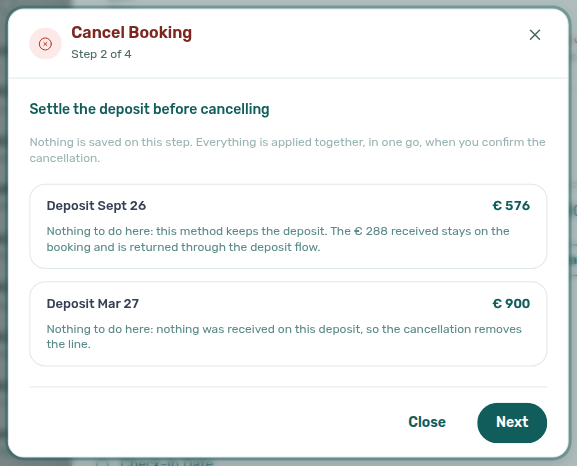
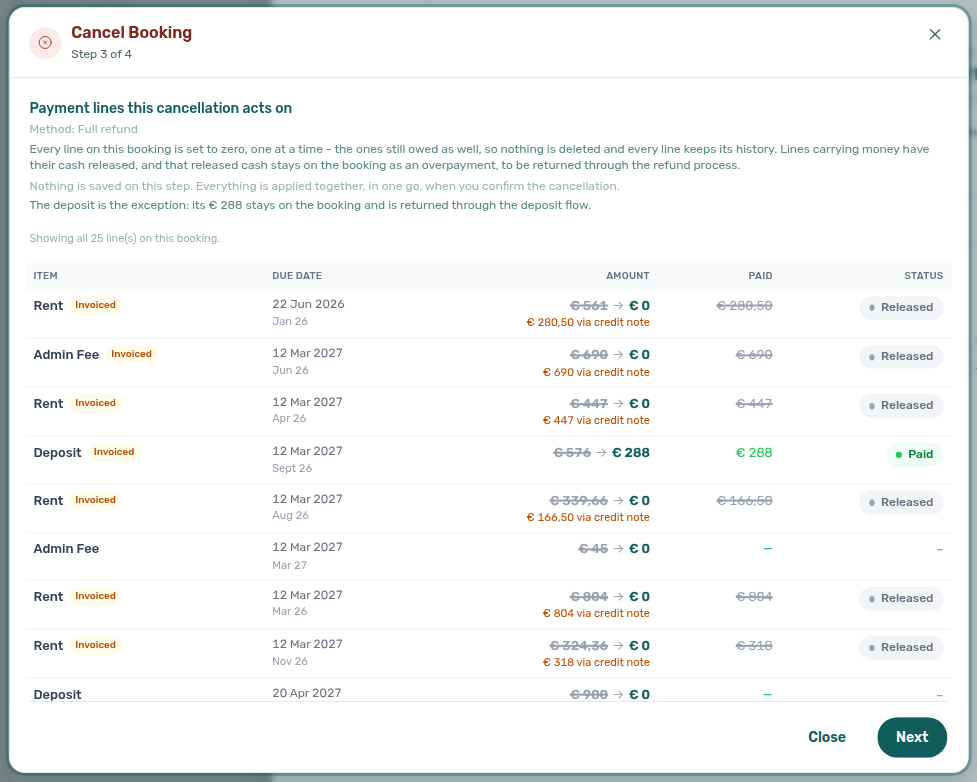
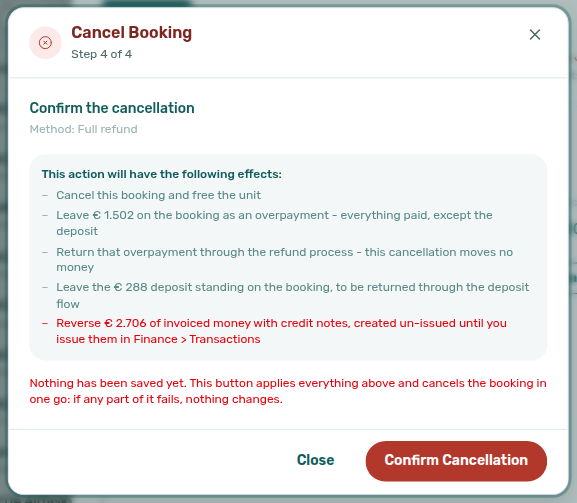
See Cancelling a Booking — Cancel booking wizard steps 2–4 and FAQ — What happens after Next on Cancel booking?.
Early Departures
When a tenant leaves before their contract end date, adjust dates from Contract Info so the payment plan and reporting match reality.
Change move-out date (physical departure)
Use this when the tenant actually leaves earlier than planned:
- Open the booking → Contract Info → Booking information → click the pencil to enter edit mode.
- On Move out, click Change move-out date.
- Pick the New Move-out Date and leave Update Payment Plan enabled (default) so Vivin recalculates the schedule and drops future unpaid charges after the new departure.
- For move-outs that shorten the stay, review optional rent controls in the modal (keep current rent vs adjust monthly amounts) before you confirm.
Change contract end date (legal boundary only)
Use End date → Change contract end date when you need to move the contract boundary without necessarily changing operational check-in/out — for example aligning the legal end to a signed amendment while move-out stays unchanged. The modal can mirror check-out to contract end when your account uses that pattern.
Move out drives operational departure and payment-plan span for most early-leave cases. End date is the contract boundary on the booking record; Finance and partner exports may treat them differently when check-in/out and contract dates diverge. When in doubt, update move-out for an early physical leave and confirm the Payment Plan tab afterward.
Room changes: If a tenant is moving from one unit to another within your portfolio, be careful when adjusting dates. Overlapping charges between the old and new unit can result in double billing. Always verify the payment schedules on both bookings after making changes.
Invoiced items: Charges that have already been invoiced through the accounting integration (e.g., Invoice-xpress) cannot be automatically removed from the payment schedule. These must be handled as credit notes or manual adjustments in your accounting system.
Key Business Rules for Bookings
-
Payment schedules are fixed at creation. Charges and due dates are generated at the time of booking creation based on the property settings in effect at that moment. Changing property settings afterward does not affect existing bookings.
-
Contract signed status is set by file upload or portal signature. Uploading a PDF on Contract Info (or a tenant completing digital signing) marks the stay signed. The Contract column on All bookings shows a teal check and Signed on on hover — the list updates without a full page reload.
-
Platform filter options reflect your integrations. Only platforms enabled in Settings > Integrations appear as filter options in the bookings list.
-
Overpayments are tracked as credits. If a tenant pays more than a scheduled charge, the excess is recorded and automatically applied to the next charge.
-
Overlapping bookings are blocked. You cannot create a booking for a unit that is already occupied during the requested dates.
-
Bookings automatically generate tenant portal access. Once a booking is created, the tenant can access the Tenant Portal through an emailed access-link flow (default) or a direct URL containing booking credentials (
id, and usuallycode) to view their payment schedule and make payments (if the property's payment settings allow it). -
Cancellation automatically cleans up the payment schedule. Full refund removes all items; no refund removes only unpaid future items. Partial refunds require manual handling.
-
Invoiced items cannot be auto-removed. Once a charge has been invoiced through the accounting integration, it remains in the system and must be handled via credit notes.
Bookings guide subsection index
| Subsection | When to open it | Pair with |
|---|---|---|
| Understanding the Bookings List | Portfolio table, infinite scroll, refresh | Contract column (bookings-list-contract-column-mixed.png, bookings-list-contract-signed-tooltip.png, bookings-list-contract-not-signed-tooltip.png), Contract mark stays on the list (bookings-list-contract-mark-keeps-scroll-before.png, bookings-list-contract-mark-keeps-scroll.png, tenants-table-ct-signed-check.png, bookings-list-contract-mark-keeps-scroll-flow.mp4), Tenants module, Booking Lifecycle, Notifications — Payment overdue alerts |
| Booking categories stays open while you pick | Booking categories stays open while you add another booking tag or No booking category | Property and category filters, FAQ — Does picking a second booking category close the menu?, Settings > Categories — Bookings |
| Tenant categories stays open while you pick | Tenant categories stays open while you add another named segment or No tenant category | Tenant categories (toolbar), FAQ — Does picking a second tenant category close the Bookings menu?, Tenants — All categories stays open, Emails — Tenant categories stays open |
| Select all on category filters | Select all / Clear all on Booking categories and Tenant categories (and Finance Other filters) | Booking categories stays open, Tenant categories stays open, FAQ — How do I show every category except one?, Finance — Tenant category filter |
| Filtering and Searching Bookings | Status cards, search, toolbar categories, Other filters | Search in comments (bookings-other-filters-comments-with-search.png, bookings-other-filters-comments-search-filled.png, bookings-list-comments-search-chip.png, bookings-comments-search-flow.mp4), Deposit status filter updates while you work, Booking categories stays open, Tenant categories stays open, Select properties stays open (bookings-list-select-properties-stays-open.png, bookings-list-select-properties-two-buildings.png, bookings-list-select-properties-stays-open-flow.mp4), Contract status (bookings-list-other-filters-contract-status-all.png, bookings-list-other-filters-contract-status-signed.png, bookings-list-contract-status-signed.png, bookings-list-other-filters-contract-status-not-signed.png, bookings-list-contract-status-not-signed.png, bookings-list-other-filters-contract-status-not-applicable.png, bookings-list-contract-status-filter-flow.mp4), Sort By (bookings-list-contract-period-sort-unit-name-tiebreak.png, bookings-list-contract-period-sort-unit-name-tiebreak-reversed.png, bookings-list-contract-period-sort-unit-name-tiebreak-flow.mp4), Tenant categories (toolbar), Finance guide subsection index, Tenants — Tenant category filter, Portfolio KPI review — Step 6 |
| Search in comments | Comments → With plus Search in comments… (comments-only word search) | FAQ — How do I search bookings by words in Internal Notes?, Glossary — Comments search (Bookings), Internal Notes tab, Search Bar (bookings-other-filters-comments-with-search.png, bookings-other-filters-comments-search-filled.png, bookings-list-comments-search-chip.png, bookings-comments-search-flow.mp4) |
| The Timeline View | Gantt-style overlap and blocks | Stay bars update after create or delete (bookings-timeline-vacant-unit-rows.png, bookings-timeline-view.png), Unit list updates after create or delete, Booking categories stays open, Tenant categories stays open, Select properties stays open (bookings-timeline-select-properties-stays-open.png, bookings-timeline-select-properties-two-buildings.png, bookings-timeline-select-properties-stays-open-flow.mp4), Search with no matches (bookings-timeline-search-empty.png, bookings-timeline-search-empty-flow.mp4, bookings-list-search-empty.png), Sales — Multicalendar, Audit — Manual Blocks, Manual block hygiene |
| Stay bars update after create or delete | New stay bar without reload when the unit is already on the chart | FAQ — Do I need to reload Timeline after Create Booking? (bookings-timeline-vacant-unit-rows.png, bookings-timeline-view.png), Unit list updates after create or delete, Creating a New Booking, Delete Booking (soft archive) |
| Unit list updates after create or delete | Newly booked rooms join the left-hand list in place when Only bookings is on | FAQ — Do I need to reload Timeline after Create Booking? (bookings-timeline-view.png, bookings-timeline-vacant-unit-rows.png), Stay bars update after create or delete, Glossary — Timeline unit list, Creating a New Booking, Delete Booking (soft archive) |
| The Booking Detail View | Sidebar tabs for one reservation | Platform badge and filters follow the real OTA (bookings-list-ota-real-ota-airbnb-search.png, bookings-other-filters-source-platform-real-ota.png, bookings-list-airbnb-filter-channel-manager.png, bookings-detail-ota-real-ota-contract-info.png, bookings-detail-communication-tab-ota-real-ota.png, finance-transactions-select-platforms-real-ota.png, bookings-ota-real-ota-identity-flow.mp4), Channel-manager (Airbnb) bookings, Edit lockdown on Airbnb bookings, Payment plan matches the Airbnb payout, Booking.com stays: one rent line due at check-in (bookings-detail-ota-bookingcom-payment-plan-one-rent-line.png, bookings-detail-ota-bookingcom-transactions-record-payment.png, bookings-detail-ota-bookingcom-add-payment-modal.png, bookings-ota-bookingcom-collect-at-check-in-flow.mp4), When Airbnb changes dates or the payout, Finance module, Payment Allocation, Inbox — Communication tab (bookings-detail-ota-insights-bar-payout-matched-crop.png, bookings-detail-ota-contract-info-dates-only.png, bookings-detail-ota-airbnb-lockdown-dates-note.png, bookings-detail-ota-airbnb-lockdown-check-in-out.png, bookings-detail-ota-airbnb-lockdown-upload-signed-locked.png, bookings-detail-ota-airbnb-lockdown-upload-signed-tooltip.png, bookings-ota-airbnb-upload-signed-lock-flow.mp4, bookings-detail-ota-airbnb-lockdown-payment-plan.png, bookings-detail-ota-payment-plan-payout-matched.png, bookings-ota-insights-bar-payout-matched-flow.mp4, bookings-ota-payout-matched-plan-flow.mp4, bookings-ota-airbnb-edit-lockdown-flow.mp4, bookings-detail-ota-alteration-contract-info.png, bookings-ota-reservation-alteration-flow.mp4) |
| Contract Info tab | Dates, rent, contract signing, onboarding / portal-access / check-in emails, delete vs cancel | Contract mark stays on the list (bookings-list-contract-mark-keeps-scroll.png, tenants-table-ct-signed-check.png, bookings-list-contract-mark-keeps-scroll-flow.mp4), Check-in & Check-out emails (bookings-detail-contract-check-in-out-emails.png, bookings-detail-contract-section-resend.png, bookings-contract-onboarding-portal-access-flow.mp4), Second tenant, Use check in date as contract start date, Exclude this booking from penalty fees, Check-in responsible, Deposit Refund Limit, Settings > Contract, Tenant Portal — Contract signing, Delete Booking (soft archive) |
| Payment Plan tab | Scheduled charges and overages | Due Date Communication Rule (one reminder per unpaid line), Deposit refund lines / Refunded status (bookings-detail-payment-plan-deposit-refund-refunded-status.png, bookings-payment-plan-deposit-refund-refunded-flow.mp4), Finance — Contract Values tab, Utilities — tenant overages, Manage return of value |
| Contract Values tab | Line-item ledger, discounts, reversals | Pending utility allocations, Edit amount routes the reversal (bookings-detail-contract-values-edit-amount-keep-as-credit.png, bookings-detail-contract-values-edit-amount-return-to-tenant.png, bookings-detail-contract-values-edit-amount-credit-note.png, bookings-detail-contract-values-edit-amount-flow.mp4), Leave outstanding on Edit amount (bookings-detail-contract-values-edit-amount-leave-outstanding.png, bookings-detail-contract-values-edit-amount-leave-outstanding-flow.mp4), Manage return of value, Return of value rows on Transactions, Manage credit notes, Finance — Contract Values tab |
| Leave outstanding on Edit amount | Leave €X outstanding on this line when New net is above Paid | FAQ — What does Leave outstanding on this line mean?, Glossary — Leave outstanding (Edit amount), Edit amount routes the reversal (bookings-detail-contract-values-edit-amount-leave-outstanding.png, bookings-detail-contract-values-edit-amount-leave-outstanding-flow.mp4) |
| Pending utility allocations | Approve or reject a utility overage on the booking Contract Values table | FAQ — Can I approve a utility overage from the booking?, Utilities — Allocations tab, Tenants — Consolidated finance tabs, Entering Monthly Utility Bills — Step 4 |
| Transactions tab | Per-booking receipts and return-of-value rows | Card (recorded manually), Return of value rows on Transactions, Edit payment amount (pencil on a pending manual in-payment), Finance — Transactions tab, Glossary — Return of value, Glossary — Credit note (payment reject/revert) |
| Card (recorded manually) | Desk / POS card tap recorded from + Transaction — not the VIVIN card rail | FAQ — When should I use Card (recorded manually)?, Finance — Type summary cards, Glossary — Card (recorded manually) |
| Return of value rows on Transactions | Negative Return of Value row next to receipts so All / Manual match paid cash | FAQ — Why does Transactions show a negative Return of Value row?, Manage return of value, Finance — Contract Values invoice pills |
| Deposit tab | Hold amount, dispute, and overpayment return with no deposit | Deposit status filter updates while you work, Finance Deposits updates from this tab, Refund an overpayment when there is no deposit (bookings-detail-deposit-tab-overpayment-no-deposit.png, bookings-deposit-overpayment-no-deposit-flow.mp4), Finance — Deposits tab, Managing a Check-out |
| Internal Notes tab | Internal team thread on the booking | Edit your own notes in place, FAQ — How do I correct an internal note without deleting it?, Glossary — Edit internal notes, Settings > User profile (bookings-detail-comments-tab.png, bookings-detail-comments-mention-flow.mp4) |
| Edit your own notes in place | Pencil on your bubbles; italic edited marker | FAQ — How do I correct an internal note without deleting it?, Glossary — Edit internal notes, Internal Notes tab |
| Communication tab | Email, WhatsApp, and OTA guest chat | Platform badge and filters follow the real OTA, Airbnb guest chat (bookings-detail-communication-tab-ota-real-ota.png), Inbox module, Settings > Emails |
| Tickets tab | Maintenance linked to booking | Operations — Tickets tab, Tenant Portal |
| Tenant Management | Profile linkage from booking | Tenants module, Settings > Tenant categories |
| Creating a New Booking | Manual reservation entry | Ignore unit preparation days, Allow check-in date in the past, Send onboarding email & contract, Use unit contract rents, Extra price per tenant, Stay bars update after create or delete, Unit list updates after create or delete, Processing a New Booking, Create New menu — Booking, Creating Bookings — Honour listing |
| Ignore unit preparation days | Start a stay in the previous booking’s prep buffer | FAQ — Why are the days after checkout grey on Add Booking?, Creating Bookings — Ignore unit preparation days, Preferences — Booking Defaults (times and preparation), FAQ — Same-day turnovers |
| Allow check-in date in the past | Start a manual stay before listing Available from | Creating Bookings — Allow check-in date in the past, FAQ — Marketplace booking Allow check-in date in the past, Listings — Availability Date |
| Send onboarding email & contract | Skip or send the welcome email at create | Creating Bookings — Send onboarding, FAQ — Marketplace booking onboarding email, Check-in & Check-out emails |
| Use unit contract rents | Copy unit contract values or type custom details | Creating Bookings — Use unit contract rents, FAQ — Marketplace booking unit contract rents, Empty fixed rent reads as €0 |
| Extra price per tenant | Custom Extra Charge / Extra Deposit euros on Add Booking | Creating Bookings — Extra Charge, FAQ — Marketplace booking Extra Charge, Listings — Extra Charge per Tenant |
| Second tenant | Co-occupant identity on Contract Info | Creating Bookings — Second tenant, FAQ — Marketplace booking Second tenant, Preferences — Second tenant |
| Guarantor | Rent-backer identity and amount on Contract Info | Creating Bookings — Guarantor, FAQ — Marketplace booking Guarantor, Preferences — Guarantor |
| Provider platform payment | Channel commission on Contract Info | Creating Bookings — Platform commission, FAQ — Marketplace platform commission, Delete Booking (soft archive) |
| Use check in date as contract start date | Show operational check-in / check-out on the contract | Creating Bookings — Use check in date as contract start date, FAQ — Marketplace booking Use check in date as contract start date, Changing contract dates and rent |
| Exclude this booking from penalty fees | Skip account penalty rules for one reservation | Creating Bookings — Exclude from penalty fees, FAQ — Marketplace booking penalty exclusion, Payments — Payment Delay Penalties |
| Book several units at once | One tenant, several rooms in the same house | Date calendar stays clear, Settings > Tenant categories, FAQ — Book several units at once |
| Date calendar stays clear for several units | No grey nights on the multi-unit date calendar; named clashes after Create | FAQ — Why doesn’t the Add Booking calendar grey occupied days for several units?, Creating a New Booking (single-unit occupancy greying) |
| Empty fixed rent reads as €0 | Rent-free stay when Fixed rent (€) is left blank | FAQ — Rent-free booking, Listings — Rent and availability (bookings-add-booking-empty-fixed-rent.png, bookings-add-booking-empty-fixed-rent-flow.mp4) |
| Cancellations and Refunds | Cancel flow and allocation | Paid, Deposit, and Refund on Cancel booking, Cancelling a Booking, Payment Allocation |
| Paid, Deposit, and Refund on Cancel booking | Paid / Deposit / Refund cells on the cancel dialog | FAQ — What do Paid, Deposit, and Refund mean on Cancel booking?, Glossary — Cancel booking Paid / Deposit / Refund, Cancelling a Booking — Paid, Deposit, and Refund |
| Delete Booking (soft archive) | Remove mistaken stays; provider-platform guard | FAQ — Delete Booking fails on integration reservation, Finance — Delete payment on the ledger, Provider platform payment |
| Early Departures | Shortened stay and deposit | Managing a Check-out, Bookings — Contract Info tab |
| Deeper workflow reads | Step-by-step procedures in this module | Common Workflows hub subsection index, Processing a New Booking |
| Lockout catch-up after password recovery | Sign-in restored; module backlog accumulated | Common Workflows — Lockout catch-up, Getting Started — Lockout catch-up, Resetting a Management User Password — Step 3 |
| Pending manual receipt approval | Recorded bank transfers still pending until Approve payments | Common Workflows — Pending manual receipt approval, Finance — Pending manual payments, FAQ — Manual receipt still pending |
| Notification row-click navigation | /notifications row-click opens booking detail sidebar | Common Workflows — Notification row-click navigation, Notifications module — Notification row-click navigation, FAQ — Notification row-click navigation (notifications-row-navigate-to-booking-detail.png, notifications-row-navigation-flow.mp4) |
| Payment alert to receivables triage | Ongoing/Ended payment overdue on opened booking | Common Workflows — Payment alert to receivables triage, Handling a Late Payment — Step 1, Payment Plan tab, Transactions tab (notifications-row-navigate-to-booking-detail.png) |
| Confirmation alert triage | Upcoming Booking created / Payment received row-click | Common Workflows — Confirmation alert triage, Processing a New Booking — Step 5b, Transactions tab (notifications-row-navigation-flow.mp4) |
| Reject/revert mistaken receipts | Duplicate or wrong-booking receipts after Approve | Common Workflows — Reject/revert mistaken receipts, Payment Allocation — Correcting mistaken receipts, Glossary — Credit note (payment reject/revert) |
| Wrong tenant on a booking | Change tenant vs Delete when profile link is wrong | Common Workflows — Wrong tenant on a booking, Change tenant (reassign booking), FAQ — Wrong tenant on a booking (bookings-detail-change-tenant-control.png, bookings-detail-change-tenant-flow.mp4) |
| Portfolio retirement decisions | Delete Booking vs Archive property vs Cancel booking scope | Common Workflows — Portfolio retirement decisions, Delete Booking (soft archive), FAQ — Portfolio retirement decisions (bookings-cancel-booking-modal-refund-types.png, listings-archived-populated-table.png) |
| Portfolio segmentation by tenant category | Review one tenant segment across modules | Common Workflows — Portfolio segmentation, Settings > Tenant categories, Finance — Tenant category filter, Tenants — Tenant category filter |
| Finance debt receivables triage | After alert row-click, review Payment Plan / Contract Values before portfolio Top debtors | Common Workflows — Finance debt receivables triage, Finance — Finance debt receivables triage, FAQ — Finance debt receivables triage hub, Payment Plan tab, Contract Values tab (finance-overview-debt-aging-expanded-bucket.png, finance-overview-debt-aging-walkthrough-flow.mp4) |
| Finance Income status drill-down | After alert row-click, confirm Payment Plan / Contract Values before Income → In debt payment lines | Common Workflows — Finance Income status drill-down, Finance — Income status drill-down, FAQ — Finance Income status drill-down hub, Payment Plan tab, Contract Values tab (finance-overview-income-status-in-debt-modal.png, finance-overview-income-drill-down-flow.mp4) |
| Cash flow forecast drill-down | After alert row-click, Approve on Transactions before Cash flow forecast month bars update | Common Workflows — Cash flow forecast drill-down, Finance Income status drill-down, Finance — Income chart and cash flow forecast, FAQ — Cash flow forecast drill-down hub, Transactions tab, Payment Plan tab (finance-overview-cash-flow-all-payments-modal.png, finance-overview-cash-flow-day-view.png, finance-overview-cash-flow-drill-down-flow.mp4) |
| Bookings section cross-reference | Per-section pairing matrix | Module cross-reference, Finance guide subsection index |
Bookings section cross-reference
Use the sections above for this module. Related pages are linked from Related below when present, or from Modules.
Related
Related below links this module to settings, concepts, workflows, and escalation paths.
Documentation map & escalation
- Modules hub — Hub pairing matrix across operator workspaces
- Using in-app support — Escalate contract, deposit, or communication issues to Vivin support with booking context
- Glossary — Term definitions used across booking lifecycle workflows
Upstream & downstream workflows
- Processing a New Booking — Step-by-step booking creation workflow
- Managing a Check-in — Coordinate tenant arrivals
- Managing a Check-out & Deposit Refund — Departure-week workflow for Deposit tab actions documented on this page
- Managing a Check-out — Handle departures and deposits
- Cancelling a Booking — Process cancellations
- Manual block hygiene (workflow) — Clear stale holds when occupancy or Vacant Units looks suppressed
- Portfolio KPI review — Reconcile booking counts with Dashboard, Sales, and Finance
- Entering Monthly Utility Bills — Monthly supplier bills that drive overage charges against the stored ceiling
- Notifications — Payment overdue alerts — Operator Payments category rows that row-click into booking Payment Plan or Contract Values
- Handling a Late Payment — Step 1 — Collections follow-up after a payment overdue alert lands on this module
Deeper workflow reads
See Upstream & downstream workflows above for the same guides.
Settings that shape Bookings
- Settings > Contract — Configure contract templates
- Settings > Preferences — Booking Defaults (times and preparation) — Mid-term Prep / Short-term Prep buffers; Ignore unit preparation days on Add booking can start a stay in that window. Marketplace
POST /bookingscannot send that skip — Creating Bookings — Ignore unit preparation days - Listings — Availability Date — Unit Available from; Allow check-in date in the past on Add booking can start a stay before that month. Marketplace
POST /bookingscannot send that skip — Creating Bookings — Allow check-in date in the past - Settings > Payments — Payment Delay Penalties — Account late-payment rules; Exclude this booking from penalty fees on Contract Info skips them for one stay. Marketplace
POST /bookingscannot send that flag — Creating Bookings — Exclude from penalty fees - Bookings — Use check in date as contract start date — Contract Info overlay so the contract follows operational check-in / check-out. Marketplace
POST /bookingscannot send those flags — Creating Bookings — Use check in date as contract start date - Bookings — Send onboarding email & contract — Add Booking can skip the welcome email; marketplace
POST /bookingsalways sends — Creating Bookings — Send onboarding - Bookings — Use unit contract rents — Add Booking can turn the box off; marketplace
POST /bookingsalways copies unit contract values — Creating Bookings — Use unit contract rents - Bookings — Extra price per tenant — Add Booking can type custom Extra Charge / Extra Deposit euros when Use unit contract rents is off; marketplace
POST /bookingscopies unit rates from occupant headcount — Creating Bookings — Extra Charge - Bookings — Second tenant — Contract Info co-occupant identity after marketplace import; Add Booking cannot fill it at create; marketplace
POST /bookingscannot send it — Creating Bookings — Second tenant - Bookings — Guarantor — Contract Info rent-backer identity and Guarantor amount (€) after marketplace import; Add Booking cannot fill it at create; marketplace
POST /bookingscannot send it — Creating Bookings — Guarantor - Bookings — Provider platform payment — Contract Info read-only channel commission after marketplace import; Add Booking First payment value (€) when Platform is a channel; marketplace
POST /bookingsrecordsplatformProviderPaymentValue— Creating Bookings — Platform commission - Settings > Preferences — Second tenant — Account toggle that shows the accordion when Tenants number is at least 2
- Settings > Preferences — Guarantor — Account toggle that shows the accordion on every booking (not gated on occupant count)
- Settings > Preferences — In-app notifications — Account-wide booking, payment, and communication alert categories
- Settings > Integrations — Channex — Channel-manager imports without a Sales > Channels column
- Settings > Tenant categories — Segment portal modules and Category on Contract Info / tenant profiles for each reservation; toolbar Tenant categories stays open while you add a second segment
- Settings > Emails — Resend Check-in email, lifecycle triggers, and Communication tab vs Communication Rules
Deeper concept reads
- Booking Lifecycle — Computed status tabs, Timeline Gantt, list filters, and transition rules
- Payment Allocation — Two-layer receipts, invoiced-floor rent edits, and reject/revert warnings on booking Transactions
- Integrations & Distribution — How bookings are imported from external channels
- Automation & AI — Automated booking-to-contract pipeline
- Services Marketplace — Ancillary tenant charges that appear on the Payment plan tab
- Tenant MCP — External AI access to booking-scoped maintenance and portal links
- Landlord MCP — Account-scoped portfolio tools from external clients
Operator modules (pairing surfaces)
- Tenants Module — Tenant-first workspace for profiles, activity, and debt visibility
- Finance Module — Track payments and financial status
- Sales Module — Multicalendar/Pricing availability vs Bookings Timeline (reservation Gantt)
- Audit Module — Portfolio-wide manual blocks table (complements Timeline with Only bookings off)
- Audit — Discounts tab — Cross-portfolio discounted Contract Values with export and sidebar drill-down
- Listings Module — Manage properties and units
- Inbox module — Portfolio WhatsApp threads linked from the Communication tab
- Dashboard Module — Live debt and free-room KPIs for ongoing stays
- Analytics Module — Portfolio revenue/occupancy trends over a month range
- Utilities module — How supplier bills exceed Bills included and post to Payment plan
Operator habit hubs
Day-to-day operator habits (lockout catch-up, pending receipts, payment triage, handoffs, and related playbooks) live on the Common Workflows habit hub.
Deep-link anchors for habit hubs
Lockout catch-up after password recovery
Pending manual receipt approval
Notification row-click navigation
Payment alert to receivables triage
Finance debt receivables triage
Finance Income status drill-down
Cash flow forecast drill-down
Confirmation alert triage
New inventory to first booking handoff
Property setup to first arrival handoff
Confirmation to check-in handoff
Check-in to check-out handoff
Check-out final utilities handoff
WhatsApp per-booking messaging
Bot reasoning (audit)
ChatBot settings
Reject/revert mistaken receipts
Check-out ledger cleanup before refund
Utility overage collections
Cancellation collections before void
Check-out collections before refund
Handling a Late Payment collections
Check-out vs cancellation
Bulk Hostkit invoicing
Rent reduction after invoicing
Deposit missing on Finance Deposits
Same-day turnover coordination
Occupancy KPI to block hygiene handoff
Partly collected security deposit
Month-end invoicing (fixed date)
Wrong tenant on a booking
Cancel Booking vs Delete Booking
Provider platform Delete Booking guard
Archived booking ledger visibility
Portfolio retirement decisions
Portfolio segmentation by tenant category
Directory list refresh
When a list needs a refresh instead of showing rows, use Retry or reload the page. Zero rows after a successful load means your filters matched nothing — widen filters or clear search. On Timeline, that empty result clears the listing column while the date header stays (No bookings found) — not the same as Retry on the chart. See Search with no matches.
See FAQ — Directory list refresh and Glossary — Directory list refresh.
Key glossary terms
- Invoiced floor (rent) — Change monthly rent and Contract Values Edit amount rules
- Discount (booking) — Line vs booking-scoped reductions and Other filters → Discounts
- Discounted installment (tenant portal) — Portal Payment Timeline Paid card with the original amount struck through under Total
- Booking detail sidebar tab refresh — Communication Refresh and Tickets Retry when one sidebar tab fails
- Glossary — Directory list refresh — First-fetch directory failures show Retry; distinct from filter-empty states and booking-sidebar tab errors
- Glossary — Vacant Unit Preference — Include manual blocks counts operator holds as free on Dashboard / Sales vacancy surfaces
- Deposit dispute — Freeze deposit refunds on Deposit tab during contested retention
- Glossary — Full term list
API & companion guides
- API Reference — Creating Bookings — Partner
POST …/bookingsimports that appear with platform badges - API Reference — Webhooks & Notifications — Partner HTTP
booking.*events that precede rows and alerts in this module - API Reference — Booking Lifecycle & Validations — Integration validation pipeline before imported stays reach List and Timeline
Module documentation hubs
- Bookings module — Full reservation lifecycle with sidebar tabs and Timeline Gantt (this page)
- Utilities module — Bills Included ceiling model, Connections, AI bill upload, and tenant overage charges on payment plans (hub)
- Operations module — Maintenance tickets, cash flows, check-in/out coordination, Draft ticket queues, and linked cash flows (hub)
- Dashboard module — Post-login Today, Total debt, Vacant Units, and forecast KPI snapshot with bell notification triage (hub)
- Analytics module — Month-range portfolio KPI charts (Overview, Revenue, Occupancy, ADR, RevPAR, Maintenance) with rankings and heatmaps (hub)
- Listings module — Property wizard, Channels tab, Archived inventory, and unit management (hub)
- Properties workspace — Legacy
/propertiesURL redirects into Listings (hub) - Booking engine details — Rich marketplace payload editor via the Full integration pill (hub)
- Finance module — Portfolio ledgers (Overview, Income, Contract Values, Transactions, Payouts, Deposits) with payment approval and deposit settlement (hub)
- Tenants module — Tenant directory, profile sidebars, With Debt segmentation, and table expand for linked bookings (hub)
- Sales module — Portfolio availability, monthly rent editing, and channel manager connections (hub)
- Inbox module — Portfolio-wide WhatsApp workspace with Dashboard bell Inbox sub-tab deep links (hub)
- Notifications module — Full
/notificationshistory with search, filters, and row-click navigation (hub) - AI Chat module — AI Assistant using Landlord MCP tools for portfolio Q&A (hub)
- Audit module — Portfolio-wide Manual Blocks and Discounts contract-value review (hub)
- Account Settings — Workspace-wide financial policies, templates, integrations, and operational defaults (hub)
- API Reference hub — Partner HTTP contracts, Swagger onboarding, and partial vs full feeds (hub)