Managing Bookings
The Bookings module is your operational command center for managing all tenant reservations.
Open the Bookings module directly at hub.vivin.app/bookings (list view) or hub.vivin.app/bookings/timeline (timeline view). See Deep Links for all management frontend routes.
This is where you view, create, and manage every booking — from initial enquiry and booking confirmation, to check-in, stay, and check-out. It handles the full booking lifecycle with automatic tenant record creation, contract generation with digital signatures, and multi-channel booking import.
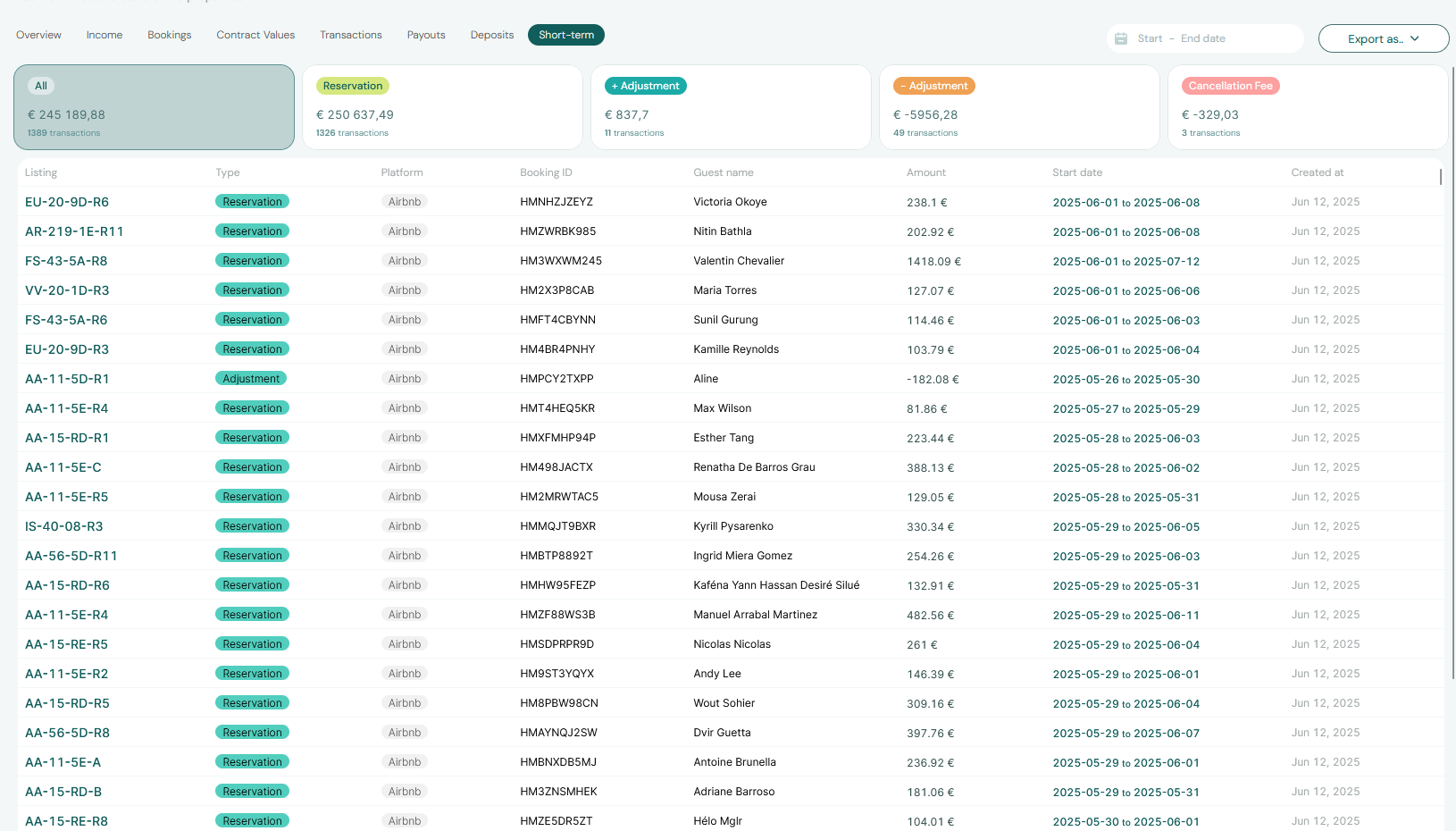
Understanding the Bookings List
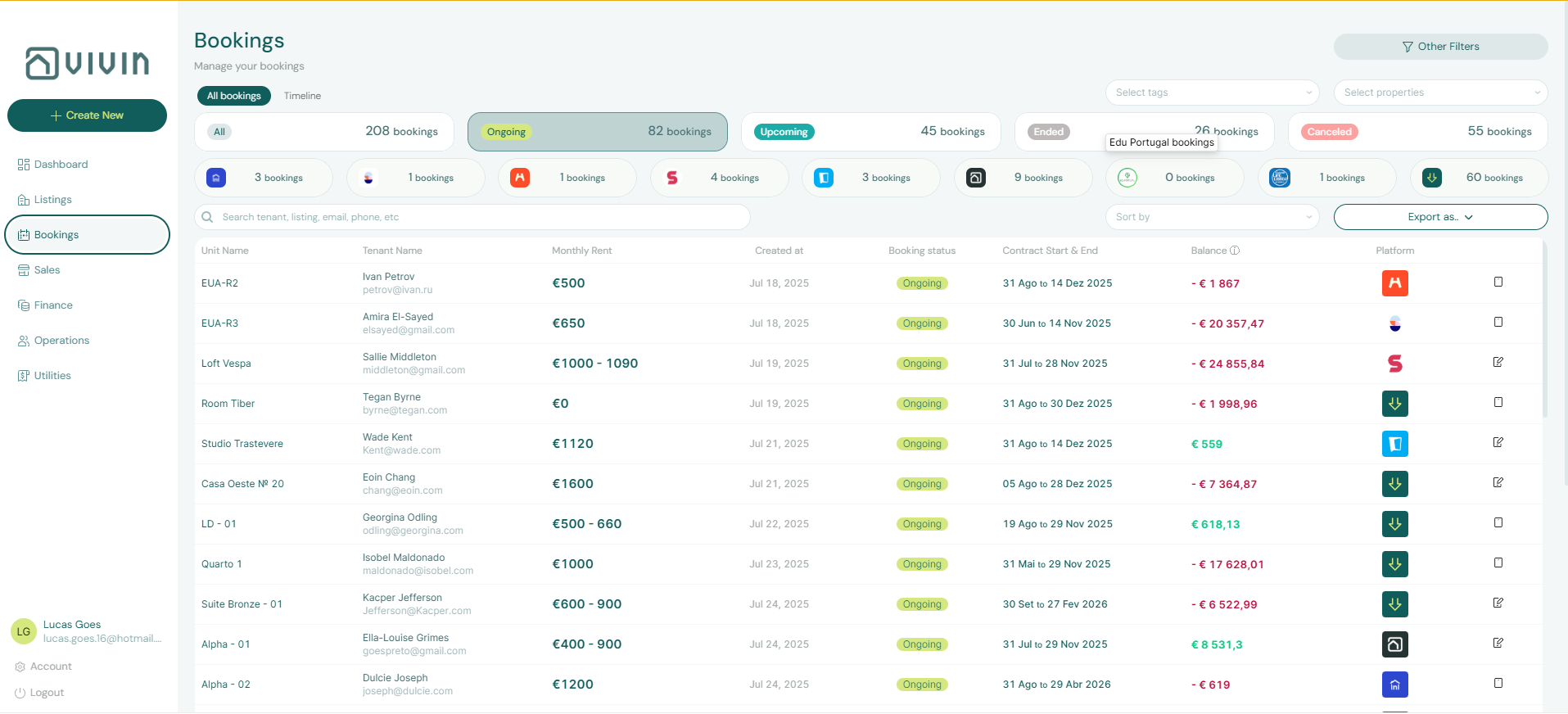
The Bookings module opens on a filterable table view. Each row represents one booking and shows:
- Tenant Name and contact information
- Property and Unit assigned to the booking
- Status (Upcoming, Ongoing, Ended, Canceled)
- Contract Start and End Dates
- Rent Value
- Platform (where the booking originated)
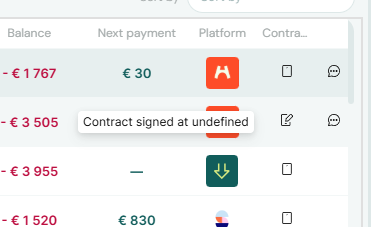
- Contract Signed indicator (hovering shows the exact date the contract was signed)
- Outstanding Balance (if the tenant has unpaid charges)
Clicking any row opens the Booking Detail sidebar, where you can access all tabs for that booking.
Filtering and Searching Bookings
The module includes a comprehensive set of filters to help you locate specific reservations quickly.
Search Bar
The Search bar at the top of the page searches across tenant name, booking ID, property name, email address, and phone number. The list updates in real-time as you type.
Status Filter Cards
Click any status card to instantly filter the list:
| UI Label | Product Value (bookingStatus) | Description |
|---|---|---|
| All | n/a | Every booking regardless of status |
| Upcoming | upcoming | Reservations that have not yet started |
| Ongoing | current | Active reservations with tenants currently in residence |
| Ended | ended | Completed reservations |
| Canceled | canceled | Reservations terminated before completion |
Platform Filter Cards
Platform cards filter by booking source (e.g., Direct, Airbnb, Booking.com, Uniplaces, Idealista). Only platforms you have connected in Settings > Integrations appear as filter options.
Property and Tags Filters
- Property dropdown: restrict the list to bookings for a single property
- Booking Tags dropdown: filter by custom tags added during booking creation
Sort By
Use the Sort By dropdown to reorder the list:
- Debt (highest to lowest) — useful for collections follow-up
- Creation Date
- Move-in Date
- Contract Start Date
- Move-out Date
Advanced Filters
Click Other Filters to open additional options:
- Nationality — filter by tenant nationality
- Date Range — filter by a specific date window
- Tags — filter by booking tags
The Timeline View
Click the Timeline button in the upper right to switch from the list view to a visual Gantt chart. Each row represents a unit, and colored bars show when each unit is occupied.
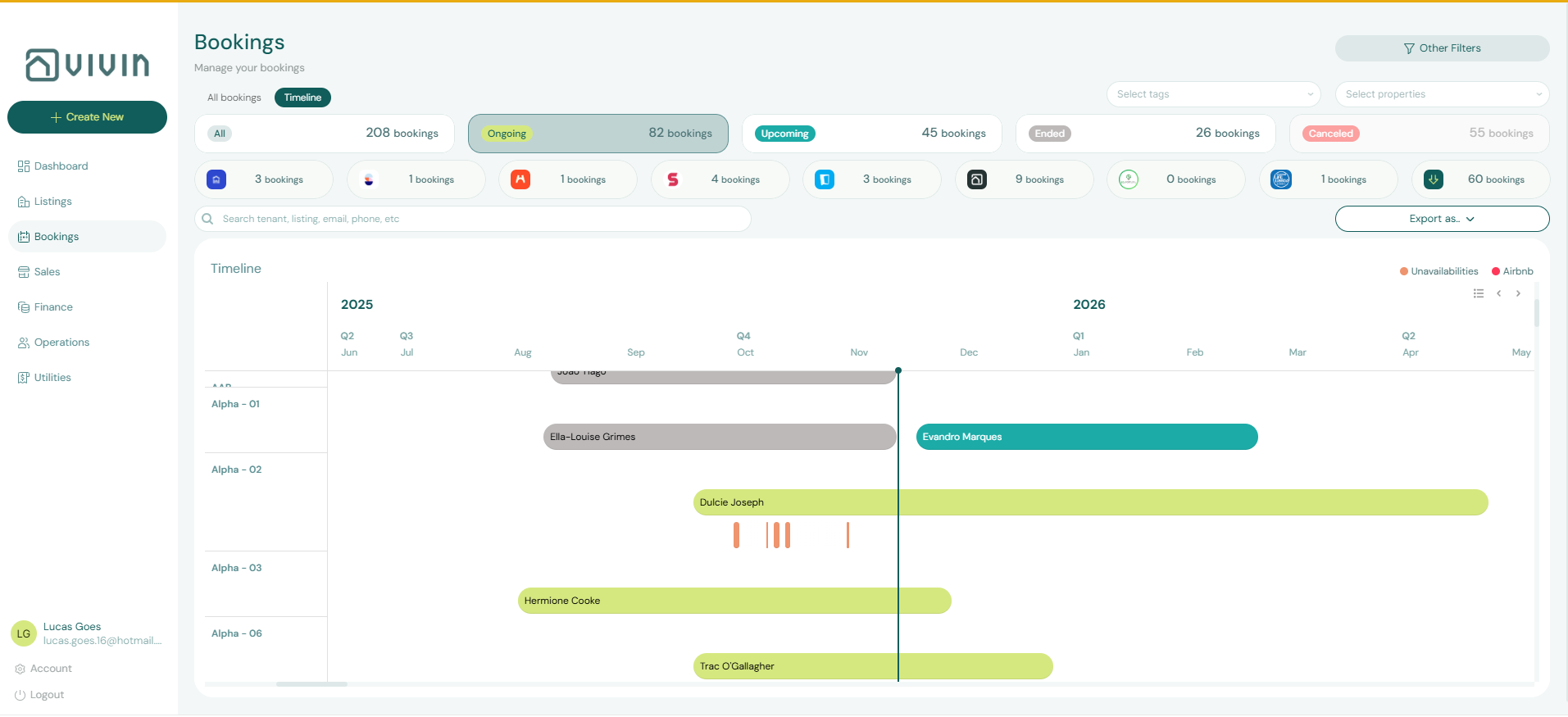
This view is ideal for:
- Identifying gaps between bookings that could be filled
- Visualizing occupancy across your portfolio at a glance
- Planning turnovers by seeing back-to-back bookings side by side
Click any bar in the timeline to open the Booking Detail sidebar for that reservation.
The Booking Detail View
Clicking any booking row opens a sidebar showing all information about that booking. The detail view is organized into several tabs.
Overview Tab
The overview displays the booking's core information:
- Tenant details (name, email, phone, nationality)
- Property and unit assignment
- Contract and occupancy dates
- Rent value and payment frequency
- Booking status and platform source
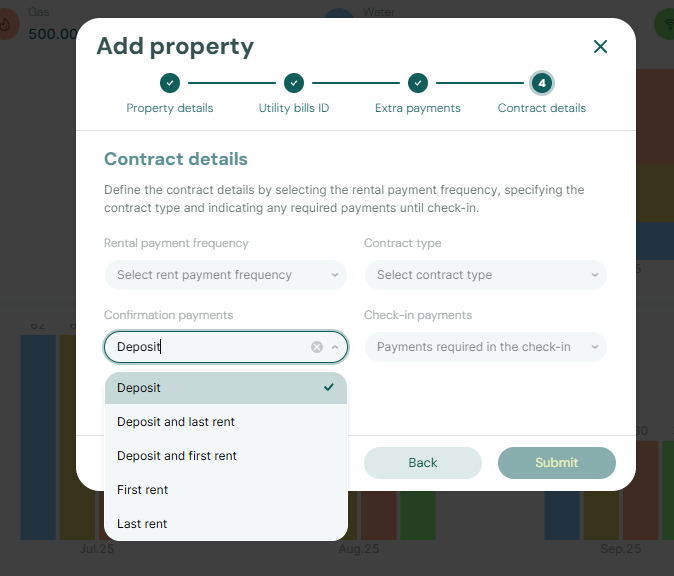
- Confirmation and check-in payment configuration
Payment Plan Tab
The Payment Plan tab shows the complete schedule of all expected payments for the booking lifecycle.
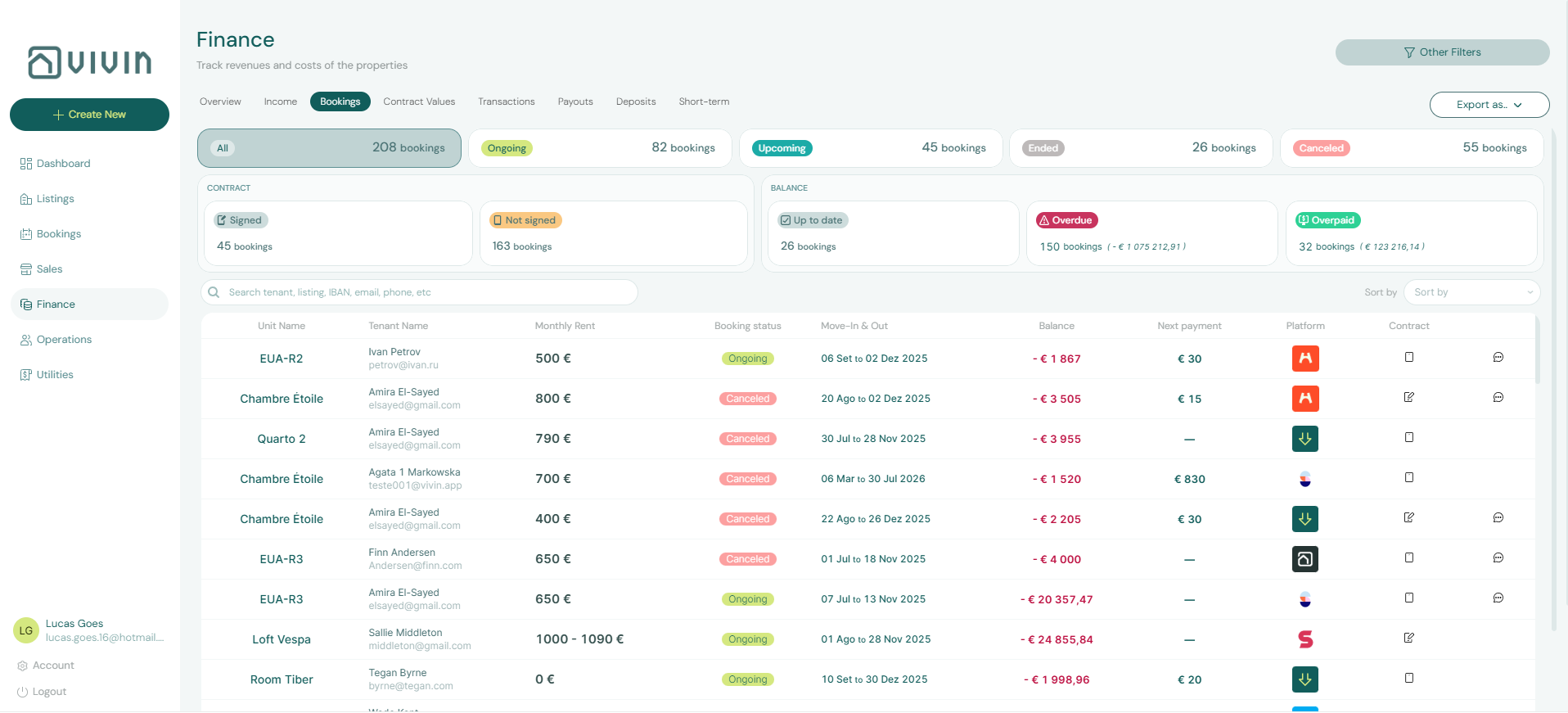
Each row in the payment schedule represents one charge:
- Type (Rent, Security Deposit, Admin Fee, Cleaning Fee, etc.)
- Due Date
- Amount
- Status (Pending, Paid, Overdue)
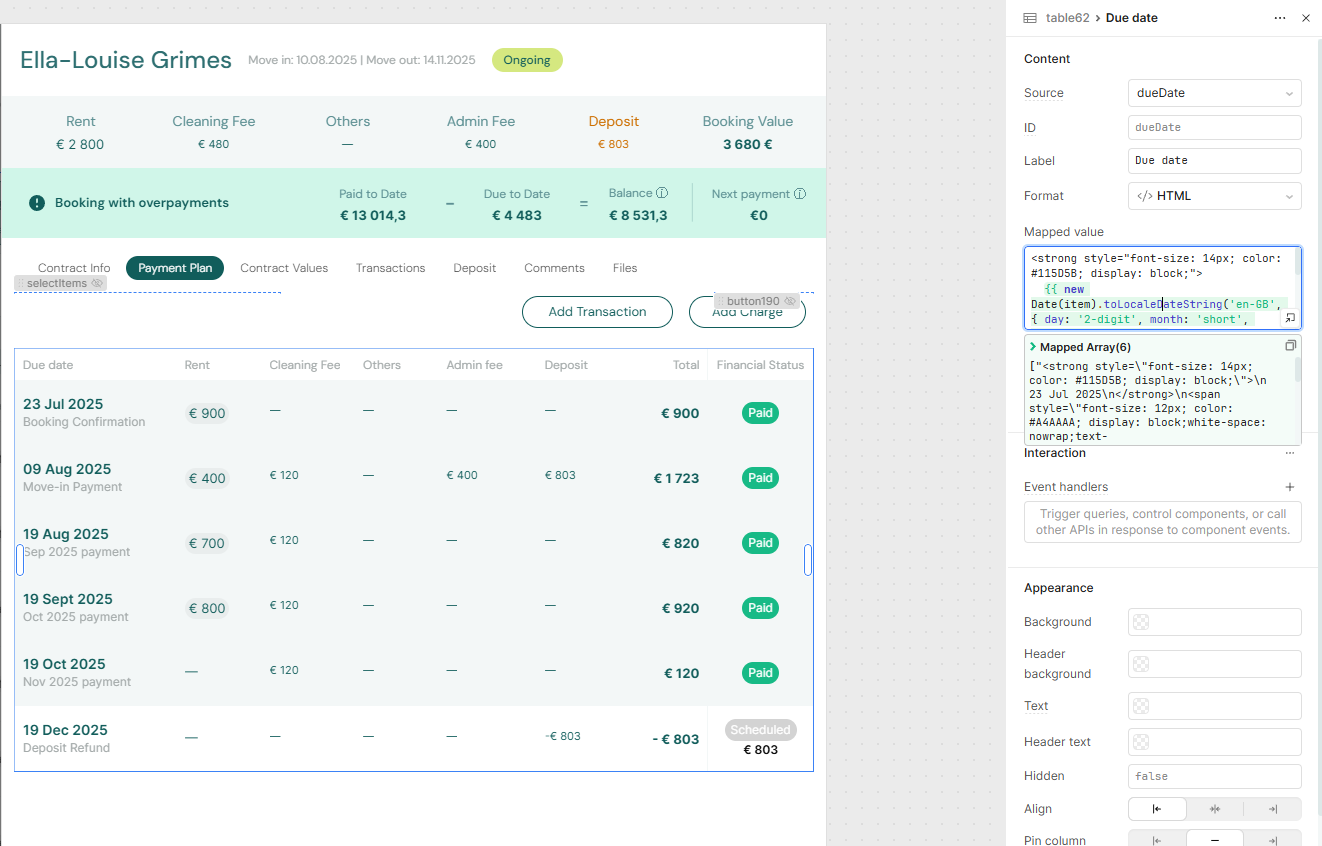
The payment schedule is automatically generated when a booking is created, based on the property's contract settings (payment frequency, confirmation payments, check-in payments). Changes to the property settings after booking creation do not affect existing payment schedules.
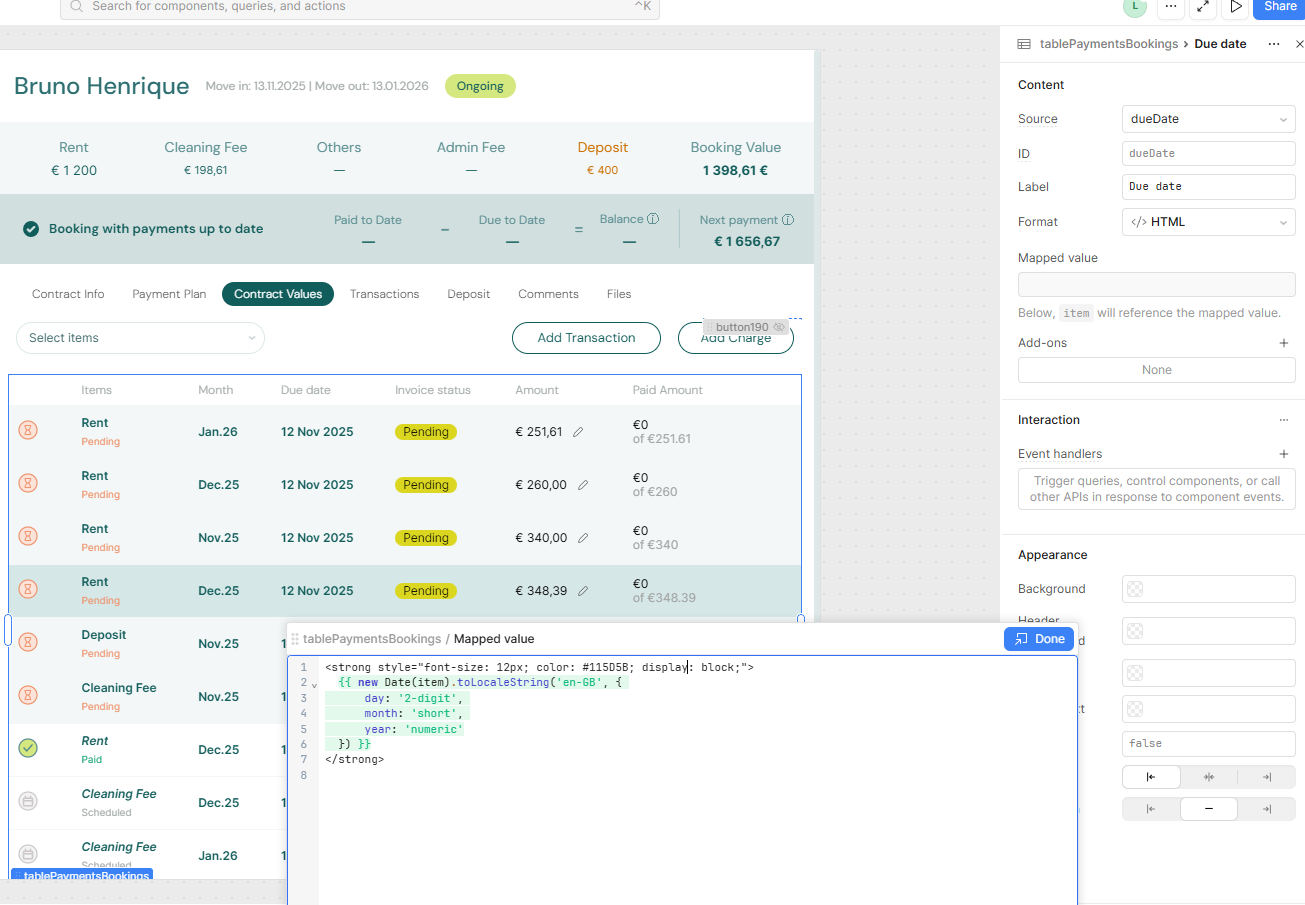
You can also view the Contract Values breakdown, which shows how each charge was calculated:
Transactions Tab
The Transactions tab shows all incoming payments received from the tenant — what has actually been paid, as opposed to what is scheduled.
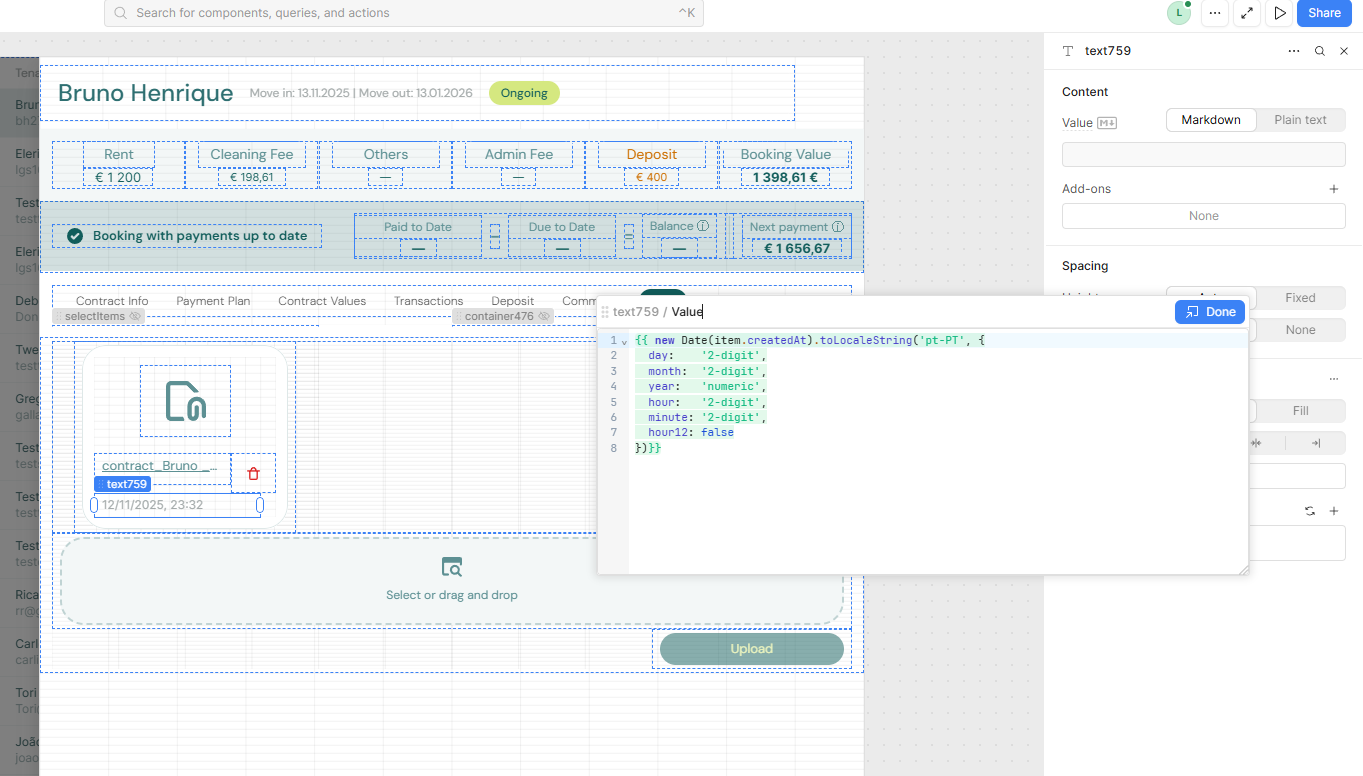
Each transaction entry shows:
- Payment date (when the money was received)
- Amount received
- Payment method
- Which scheduled payment(s) it was applied to (allocation)
- Notes (if any)
If a tenant pays more than the scheduled amount, the system records the overpayment and carries it as a credit for future charges:
Contract Tab
The Contract tab is where you manage the tenant's rental agreement.
Automatic Contract Generation
When a booking is confirmed (from any channel), Vivin can automatically generate a digital rental contract:
- Smart data insertion — tenant name, unit details, dates, pricing, and custom clauses are populated automatically from the booking data.
- Digital signature — signature requests are sent via email, and tenants can sign from any device.
- Multiple contract types — support for traditional rental agreements, accommodation services contracts, and custom templates.
- All contracts stored and searchable — access contracts by tenant, property, or date range at any time.
Manual Contract Management
You can also manage contracts manually:
- Upload a signed contract PDF by clicking Upload Contract File
- Download the generated contract to send to the tenant
- Preview the contract with all booking variables filled in
Uploading a file to the Contract tab marks the booking as "contract signed." The timestamp of the upload is recorded and displayed in the bookings list as a tooltip.
Tenant Management
The Bookings module centralises all tenant information and interactions:
- Centralised tenant profiles — contact details, documents, booking history, and payment records all accessible from the booking detail view.
- Communication log — track every interaction with each tenant in one place.
- Document storage — store ID copies, contracts, receipts, and other documents per tenant.
- Automatic record creation — tenant records are created automatically from booking data, whether the booking comes from a marketplace, the white label booking engine, or manual entry. No duplicate data entry needed.
For a tenant-first workspace (cross-booking tenant segmentation, debt filtering, profile updates, and history across bookings), use Tenants.
Creating a New Booking
To create a booking manually (for direct reservations not coming from an external platform), click + Create New in the header and select Booking.
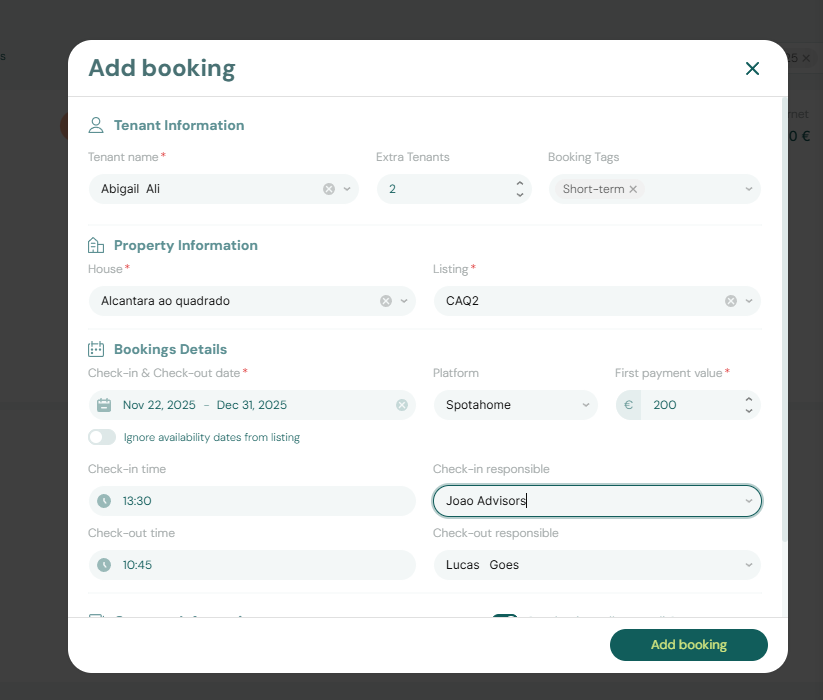
The booking creation form captures:
- Property and Unit — select the property, then the available unit
- Tenant Information — name, email, phone, and nationality
- Dates — contract start date, move-in date, and expected end date
- Platform — select "Direct" for direct bookings, or the relevant external platform
After selecting the unit and dates, the rent details step shows the financial configuration:
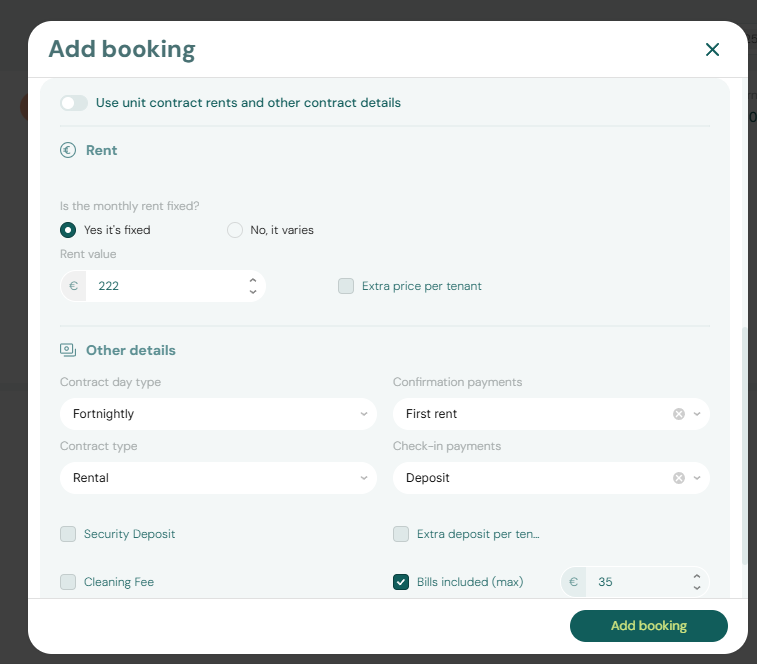
The system previews the full payment structure before you confirm:
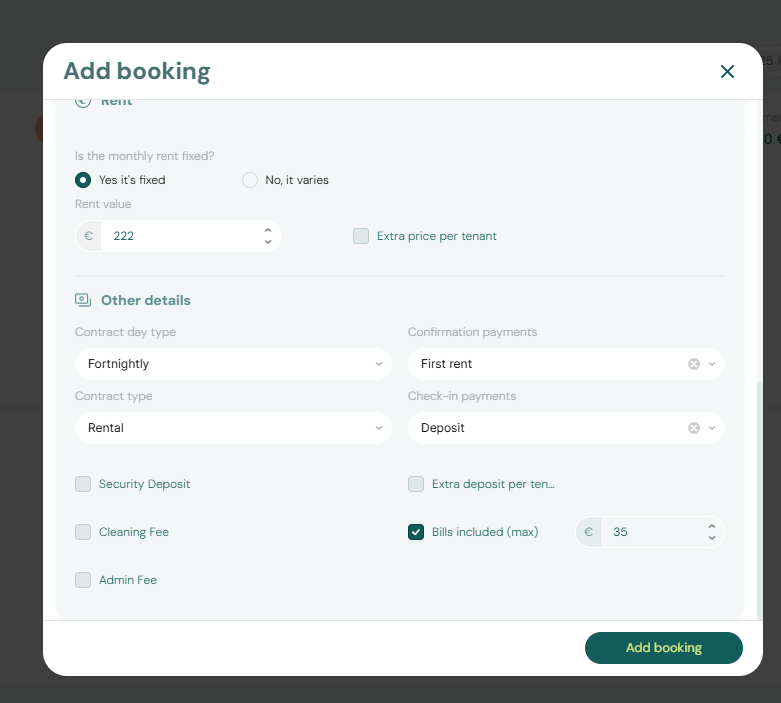
Click Submit to create the booking. The payment schedule is automatically generated based on the property's contract settings.
If you select a unit that already has an active booking for the same date range, the system will warn you about the overlap. Overlapping bookings on the same unit are not permitted.
Adding Extra Charges to a Booking
To add a one-off charge to an existing booking (for example, a damage fee, a room change surcharge, or a guest fee), open the booking detail and click Add Charge.
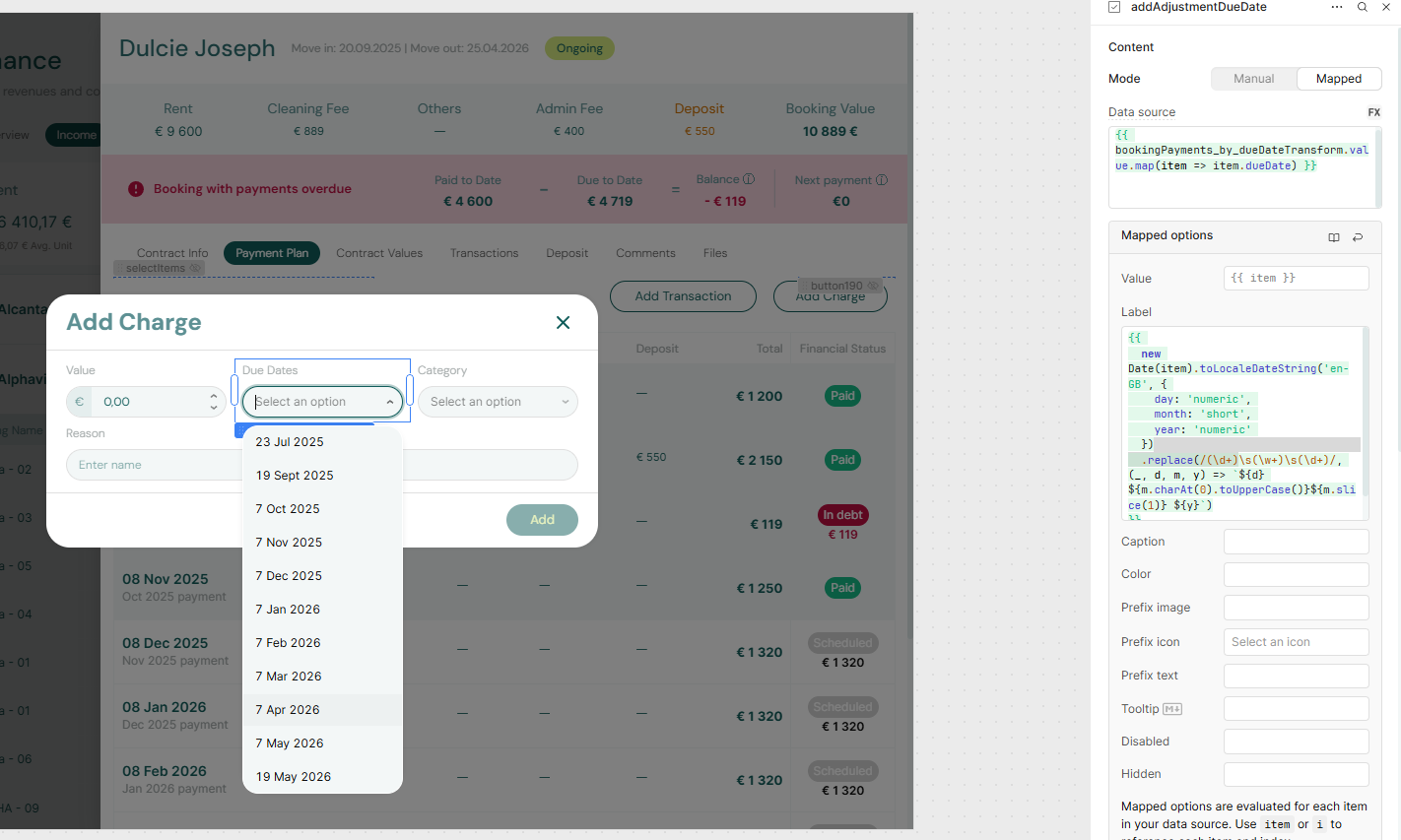
Specify:
- Charge type (linked to Categories in Settings)
- Amount
- Due date — when this charge must be paid
- Description — an optional note explaining the charge
The new charge appears in the Payment Plan tab and is tracked alongside all other scheduled payments.
Cancellations and Refunds
When a booking is canceled, Vivin automatically handles the payment schedule cleanup based on the refund type:
Full Refund
All remaining payment items are removed from the payment schedule. Any payments already received are marked for refund. The unit becomes immediately available for new bookings.
No Refund
Only unpaid future items are removed from the payment schedule. Already-paid items are retained. The unit becomes available for new bookings from the cancellation date forward.
Partial Refund
Partial refunds require manual processing — the system does not automatically calculate partial amounts because the split depends on your specific cancellation terms and negotiation with the tenant. You will need to:
- Adjust the payment schedule manually
- Record the partial refund amount
- Document the agreed terms
For the full step-by-step cancellation workflow, see Cancelling a Booking.
Early Departures
When a tenant leaves before their contract end date, the process involves:
- Update the end date on the booking to reflect the actual departure date.
- Update the payment plan — use the "update span on plan" action to recalculate charges based on the new end date. Future unpaid charges beyond the new end date are removed.
Room changes: If a tenant is moving from one unit to another within your portfolio, be careful when adjusting dates. Overlapping charges between the old and new unit can result in double billing. Always verify the payment schedules on both bookings after making changes.
Invoiced items: Charges that have already been invoiced through the accounting integration (e.g., Invoice-xpress) cannot be automatically removed from the payment schedule. These must be handled as credit notes or manual adjustments in your accounting system.
Key Business Rules for Bookings
-
Payment schedules are fixed at creation. Charges and due dates are generated at the time of booking creation based on the property settings in effect at that moment. Changing property settings afterward does not affect existing bookings.
-
Contract signed status is set by file upload. Uploading any PDF to the Contract tab marks the booking as "contract signed" and records the timestamp.
-
Platform filter options reflect your integrations. Only platforms enabled in Settings > Integrations appear as filter options in the bookings list.
-
Overpayments are tracked as credits. If a tenant pays more than a scheduled charge, the excess is recorded and automatically applied to the next charge.
-
Overlapping bookings are blocked. You cannot create a booking for a unit that is already occupied during the requested dates.
-
Bookings automatically generate tenant portal access. Once a booking is created, the tenant can access the Tenant Portal through an emailed access-link flow (default) or a direct URL containing booking credentials (
id, and usuallycode) to view their payment schedule and make payments (if the property's payment settings allow it). -
Cancellation automatically cleans up the payment schedule. Full refund removes all items; no refund removes only unpaid future items. Partial refunds require manual handling.
-
Invoiced items cannot be auto-removed. Once a charge has been invoiced through the accounting integration, it remains in the system and must be handled via credit notes.
Related
- Tenants Module — Tenant-first workspace for profiles, activity, and debt visibility
- Booking Lifecycle — How bookings progress through statuses
- Payment Allocation — How the two-layer payment model works
- Integrations & Distribution — How bookings are imported from external channels
- Automation & AI — Automated booking-to-contract pipeline
- Processing a New Booking — Step-by-step booking creation workflow
- Managing a Check-in — Coordinate tenant arrivals
- Managing a Check-out — Handle departures and deposits
- Cancelling a Booking — Process cancellations
- Finance Module — Track payments and financial status
- Listings Module — Manage properties and units
- Settings > Contract — Configure contract templates