Dashboard
3. Dashboard
The Dashboard is the first screen you see upon logging in. It provides a comprehensive snapshot of your entire operation — summarizing your most important metrics from properties and bookings to daily operational tasks like check-ins and maintenance tickets.
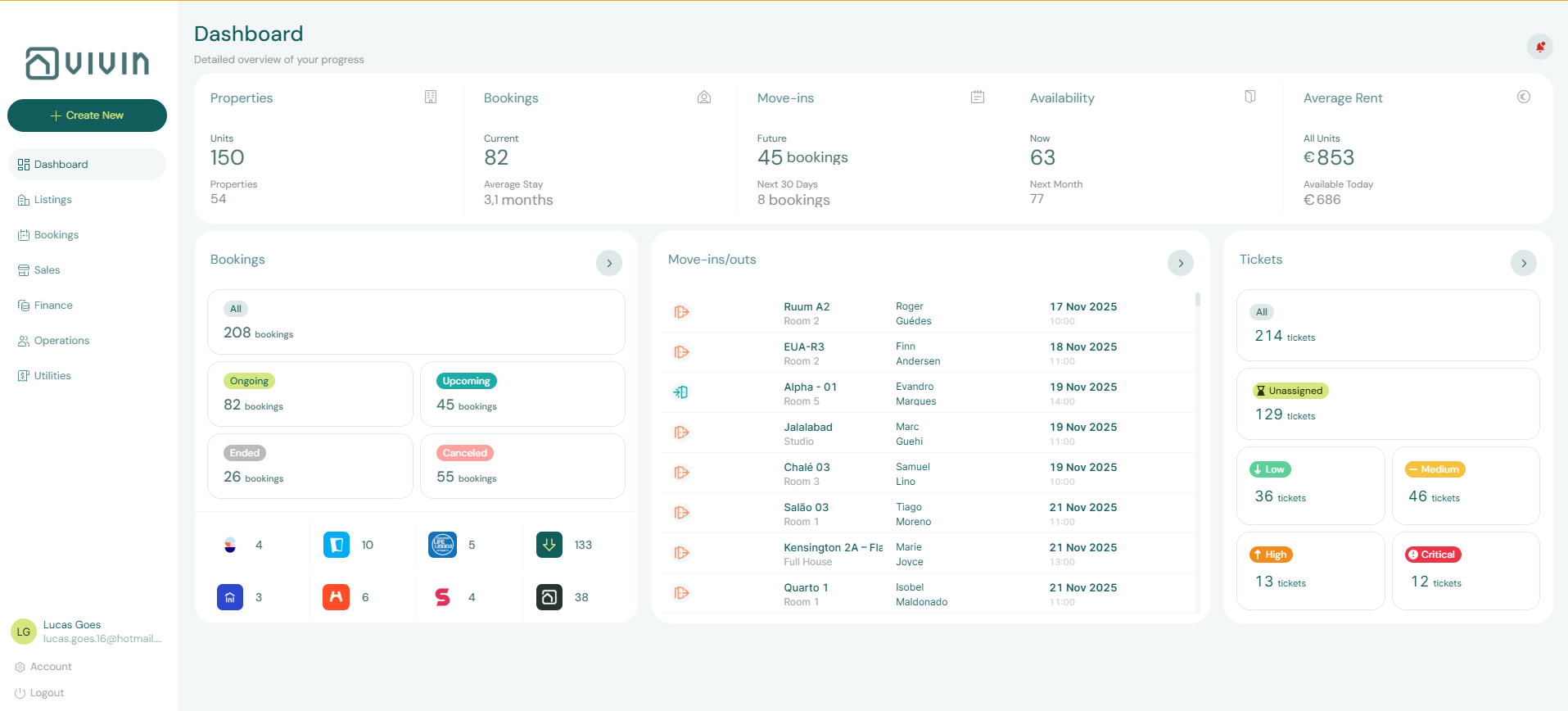
The Dashboard is organized into three main areas: the Key Metrics row at the top, the Bookings Overview section in the middle, and the Task Panels (Move-ins/outs and Tickets) at the bottom.
3.1. Key Performance Indicators (KPIs)
At the top of the Dashboard, a row of KPI cards displays real-time metrics about your business. These provide at-a-glance insights into your portfolio's health.
Properties Shows the total number of properties you manage and the total number of rentable units across all properties. For example, "54 Properties / 150 Units" gives you an immediate sense of your portfolio size.
Bookings Displays the number of currently active bookings (labeled "Current") and the average length of stay across all bookings (labeled "Average Stay"). This helps you understand occupancy patterns and typical tenant duration.
Move-ins Indicates how many future check-ins are scheduled. It shows the total upcoming move-ins and highlights how many are occurring within the next 30 days, helping you plan for arrivals.
Availability Shows how many units are currently available for booking ("Now") and how many will be available next month ("Next Month"). Use this to forecast occupancy and identify gaps in your booking calendar.
Average Rent Calculates the mean rental price across your portfolio. It shows two values: the average rent across all units (including occupied ones) and the average rent for units that are currently available. This helps you understand pricing trends and market positioning.
3.2. Bookings Overview
Below the KPI cards, the Bookings section provides a detailed breakdown of all reservations. This section has two filtering dimensions: Status and Platform.
Status Filter
A series of tabs allows you to view bookings by their current state:
| Status | Description |
|---|---|
| All | Every booking regardless of status |
| Upcoming | Reservations that have not yet started |
| Ongoing | Active reservations with tenants currently occupying units |
| Ended | Completed reservations |
| Cancelled | Reservations terminated before completion |
Platform Filter
Shows the origin of your bookings — which channel or platform each reservation came from. This section is dynamic: only platforms you have activated in Settings > Integrations will appear. For example, if you have connected Airbnb, Booking.com, and Uniplaces, you will see tabs for each of these platforms.
To add or remove platforms from this filter, navigate to Settings > Integrations and manage your connected channels there.
3.3. Move-ins and Move-outs Panel
This panel displays a chronological list of upcoming tenant movements, helping your operations and cleaning teams prepare for arrivals and departures. Each entry shows:
- Tenant name
- Property and unit details
- Scheduled check-in or check-out date
The panel is sorted chronologically with the nearest events first, so you can quickly identify which properties require preparation in the coming days.
3.4. Tickets Overview
The Tickets panel provides a summary of open maintenance and operational tasks. Tickets are categorized by priority (Low, Medium, High, Critical) and status (Open, In Progress, Resolved).
The most important tab in this section is Unassigned, which shows tickets that have been created but not yet assigned to a team member. These require immediate attention from a manager to ensure they are delegated appropriately.
Unassigned tickets represent the highest priority for operational oversight. Managers should review this tab daily to ensure all issues are being addressed promptly.