Finance
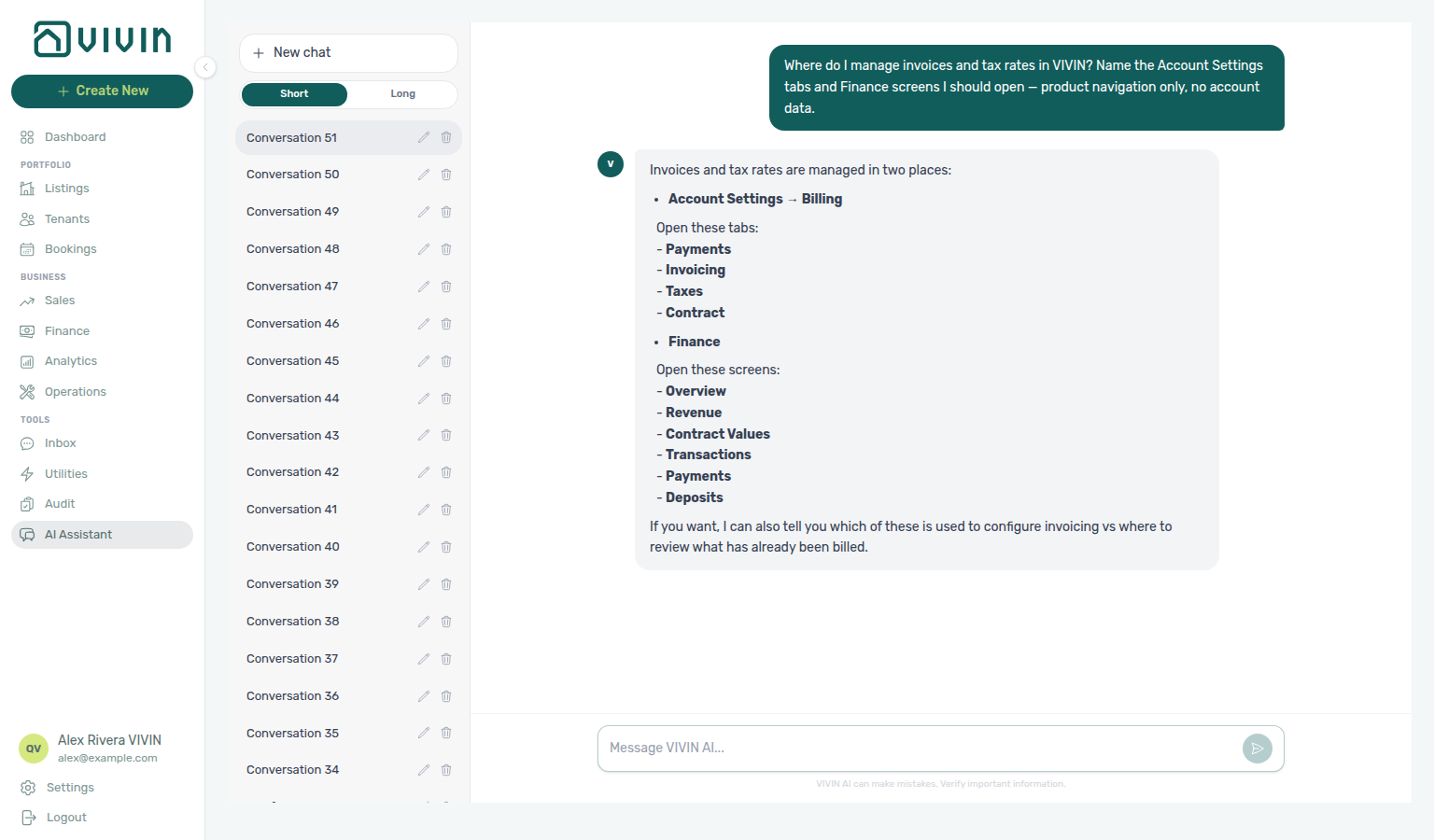
Ask AI Chat “Where do I manage invoices and tax rates in VIVIN? Name the Account Settings tabs and Finance screens I should open — product navigation only, no account data.” — then open Business → Finance for ledgers (ai-chat-product-context-finance-reply.png, ai-chat-product-context-finance-flow.mp4). The assistant typically points at Account Settings → Billing for configuration (Payments, Invoicing, Fees, Contract) and Finance for review (Overview, Transactions, and related tabs). Same grounding external MCP clients get from get-vivin-context-finance. Configure Tax Codes on Invoicing; fee toggles on Fees; issued documents here on Transactions.
Configure Invoicing & Payments (setup steps 5–6) and Listings / Bookings (steps 13–14) before you approve receipts or export invoices here. Payment vocabulary: Payment Allocation. After go-live: Handling a Late Payment and Managing a Check-out & Deposit Refund.
Open Access, tabs, and toolbar first, then triage Overview Tab KPIs and debt before Contract Values Tab or Transactions Tab. Deposit returns: Deposits Tab. Monthly owner settlements: Owner Reports Tab. Segment filters: Tenant category filter. In-list debt slices: Filter the debt list by category. Two-bar filter toolbar: Filter toolbar stays two bars. Drill-down queues: Booking sidebar stays on the drill-down. Guide subsection map: Finance guide subsection index (tab sections + Related subsections). Habit-specific shortcuts live under Related below.
The Finance module is your central hub for all financial tracking. It consolidates income, expenses, deposits, and payment activity across every booking and property — giving you a complete picture of your portfolio's financial health. With automated rent collection, invoice generation, and payment allocation, the Finance module eliminates manual work and reduces errors to near zero.
Open the Finance module at platform.vivin.app/finance. Tab routes include /finance/income, /finance/contractValues, /finance/transactions, /finance/payouts, /finance/deposits, and /finance/ownerReports. See Deep Links for all routes.
Unknown Finance tab slugs (for example /finance/bookings) redirect to /finance (Overview) so the URL matches the tab on screen. Open a transaction from the ledger with /finance/transactions/<transactionId>; if that id is missing from the loaded result set, you see Transaction not found. and return to /finance/transactions. Details: Deep Links — Invalid, legacy, and mistyped URLs.
Drill down from booking rows in Bookings; segment debtors in Tenants With Debt; tie operational costs in Operations Cash Flows. When payment overdue alerts row-click into a booking, reconcile balances here on Contract Values — see Handling a Late Payment — Step 1. Month-end utility spend from Utilities — Bills AI Invoice Reader is visible on AI usage API (utility_bill_extraction on GET /ai-usage/summary) — pair with Entering Monthly Utility Bills — Step 2.
Access, tabs, and toolbar
Tab visibility pairs with Settings > Users and roles — Approve payments; bookmark routes in Deep Links — Finance.
Which Finance tabs appear
Anyone with access to the Finance module can use Overview, Income, and Contract Values — portfolio summaries, scheduled charges, and income reporting.
The Transactions, Payouts, and Deposits tabs require the Approve payments permission (finance.approve_payments). Without it, those tabs are not shown in the Finance toolbar, and deep links such as /finance/transactions show a standard permission message instead of the ledger. In the default role matrix, Super Admin includes this permission; other roles receive it only when an account admin enables it in Settings > Users > Role Permissions.
Owner Reports is a separate account opt-in. Turn on Enable Owner Reports under Settings → Preferences → Owner Reports (off by default). Until that switch is on, the tab stays hidden and /finance/ownerReports opens Overview instead. After you enable it, anyone with Finance access can preview a settlement; Generate report and Delete report still require Approve payments.
Month range vs date range
- Month picker (one or more months in the toolbar): applies to Overview, Income, Contract Values, and Owner Reports. On Owner Reports, the settlement is always a single calendar month — the toolbar narrows to that month (no multi-month range).
- Date range (from–to picker): applies to Transactions, Payouts, and Deposits.
A small refresh indicator may appear next to the active control while the current tab is loading data.
Large tables and infinite scroll
Contract Values, Transactions, Payouts, and Deposits load ledger rows from the server in chunks instead of downloading the entire account on first paint. This matches the infinite scroll (directory loading) pattern used on Bookings, Listings, and other large tables. On Transactions, every Other filters combination stays server-paginated — the tab no longer falls back to loading the whole account when deposit, invoice, platform, category, or related drawer filters are active. Deposits is the same story: filter, sort, paginate, and status-card aggregates all run in SQL over the deposit resume (one row per booking), so the tab never downloads a whole-account resume cache — including when Other filters, Timeline cards, or lifecycle cards are active.
| Phase | Behaviour |
|---|---|
| First paint | Up to 20 rows for the active tab, date range (or month picker on Contract Values), Other filters, search, and status pills. |
| Scroll | When you scroll near the bottom of the table, the next chunk (5 rows) loads automatically. Compact skeleton rows may appear under the last visible row while the request is in flight. |
| Done | Loading stops when every row that matches the server-side filter has been fetched. There is no End of list footer on these Finance tables (unlike Notifications or Listings). |
Export on Finance table tabs downloads the full filtered set — each tab walks every matching server page before building CSV/Excel, so you do not need to scroll the infinite-scroll buffer to the end first. The on-screen table can still show only the first chunk while the file includes every row that matches the active month picker / date range, Other filters, search, and status pills.
| Tab | What Export includes |
|---|---|
| Transactions | Full filtered ledger (unchanged). |
| Contract Values | Full filtered scheduled-charge set. |
| Payouts | Full filtered payout set. |
| Deposits | Full filtered deposit set. |
| Income | Aggregated per-month / property / unit / booking rows for the toolbar months + Other filters — see Income Tab — Export. |
If a download fails mid-walk (network error), Vivin shows an error toast and writes no partial file — a truncated spreadsheet would look complete while missing rows. Changing the month picker, date range, Other filters, or search clears the on-screen buffer and starts the table again from the first chunk; Export always re-fetches from the server for the filters active at click time.
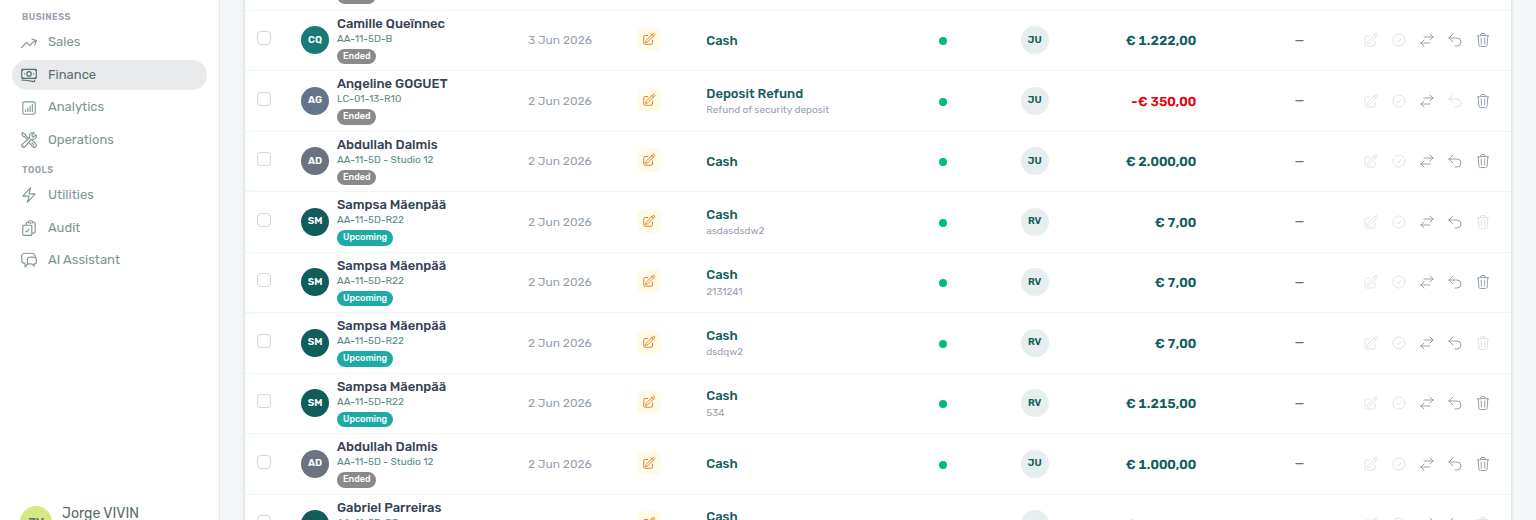
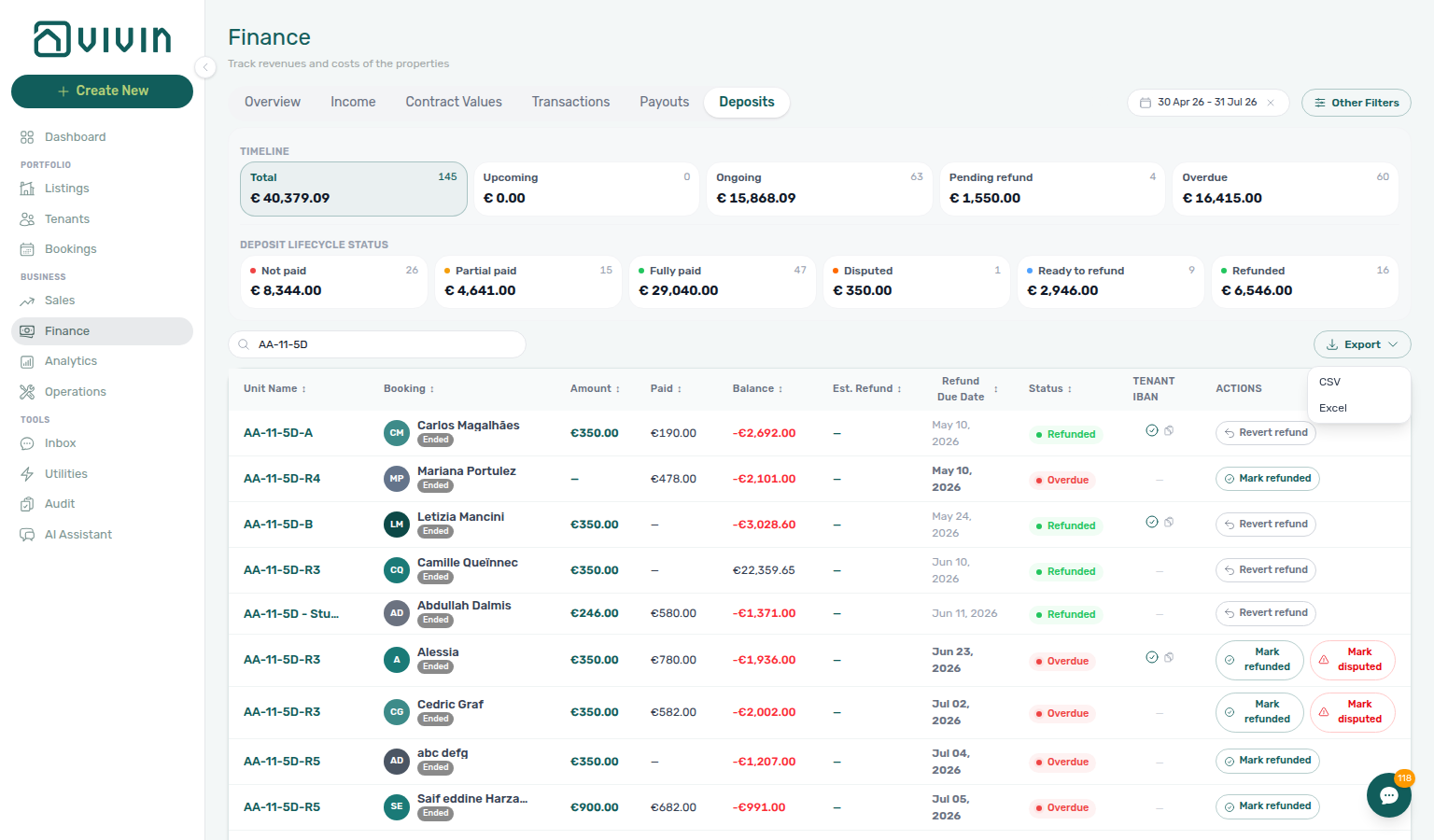
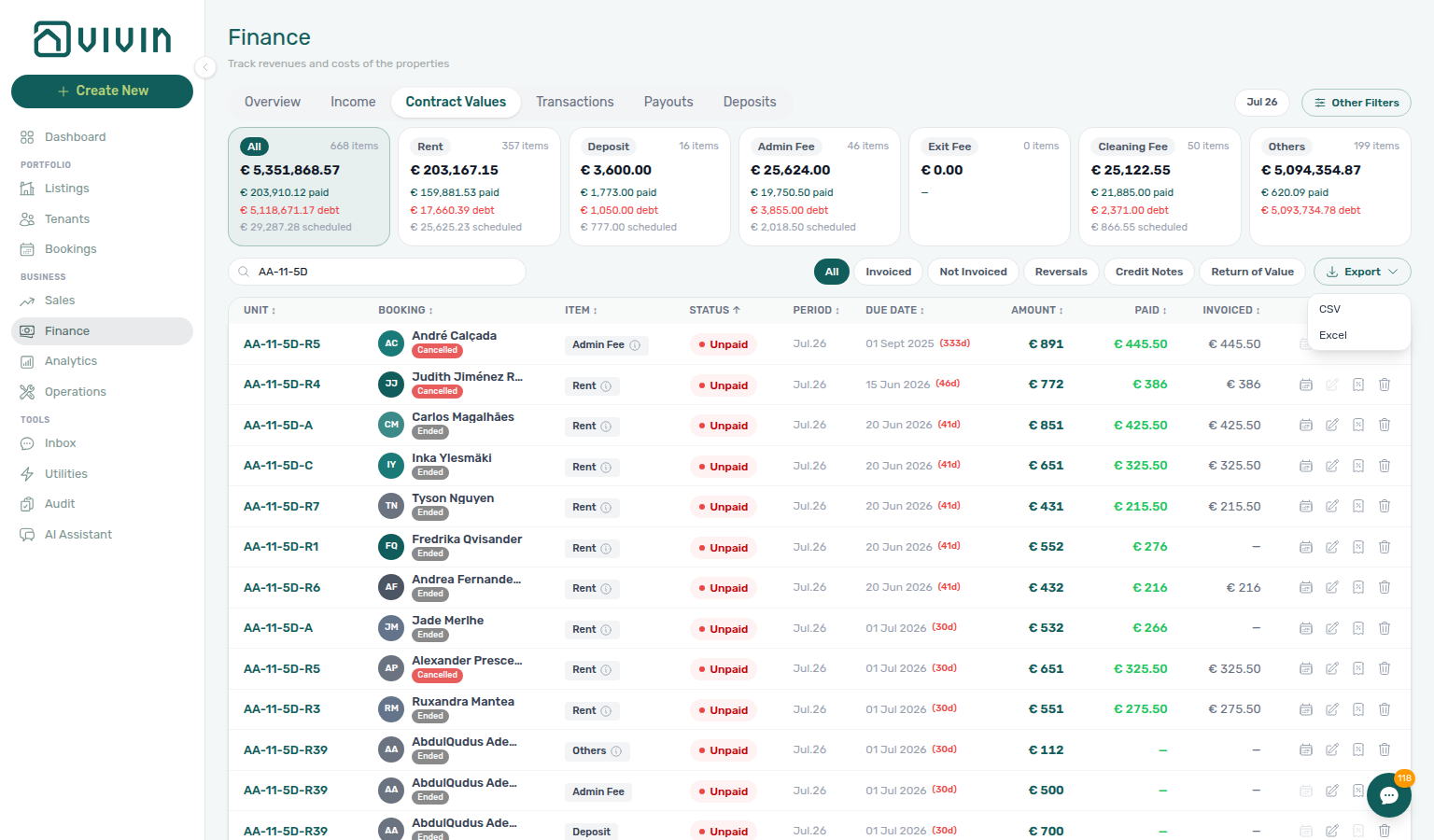
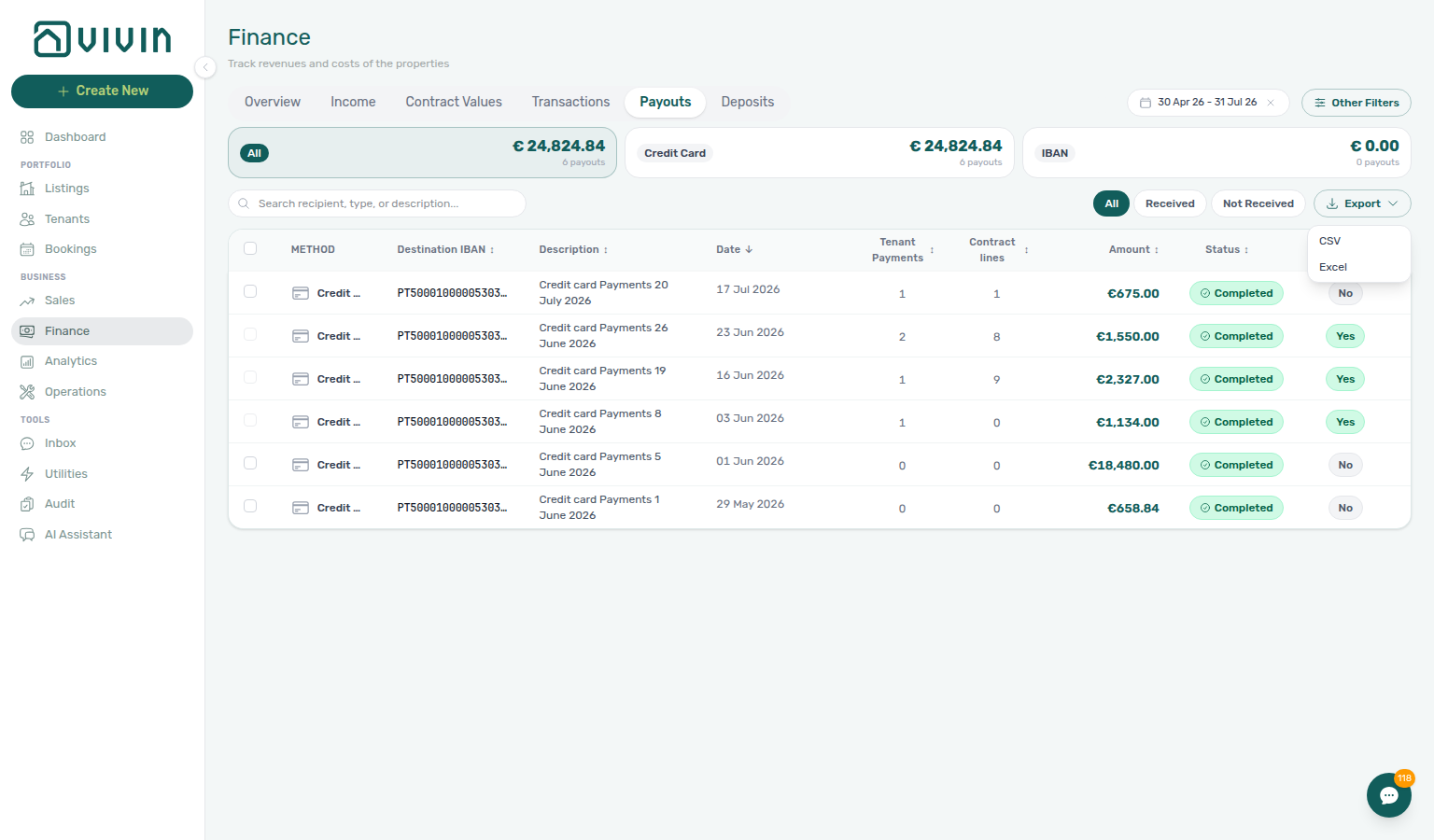
If this list needs a refresh — Unlike Bookings / Tenants, these Finance ledger tabs do not yet offer a dedicated Retry card on a first-page miss. The table may settle to No … found (and summary cards may still show non-zero totals). See Directory list refresh.
Overview uses server aggregation for KPI cards (no table Export). Income aggregates property roll-ups and has its own Export beside Income by property — it does not use this table-style infinite scroll pattern.
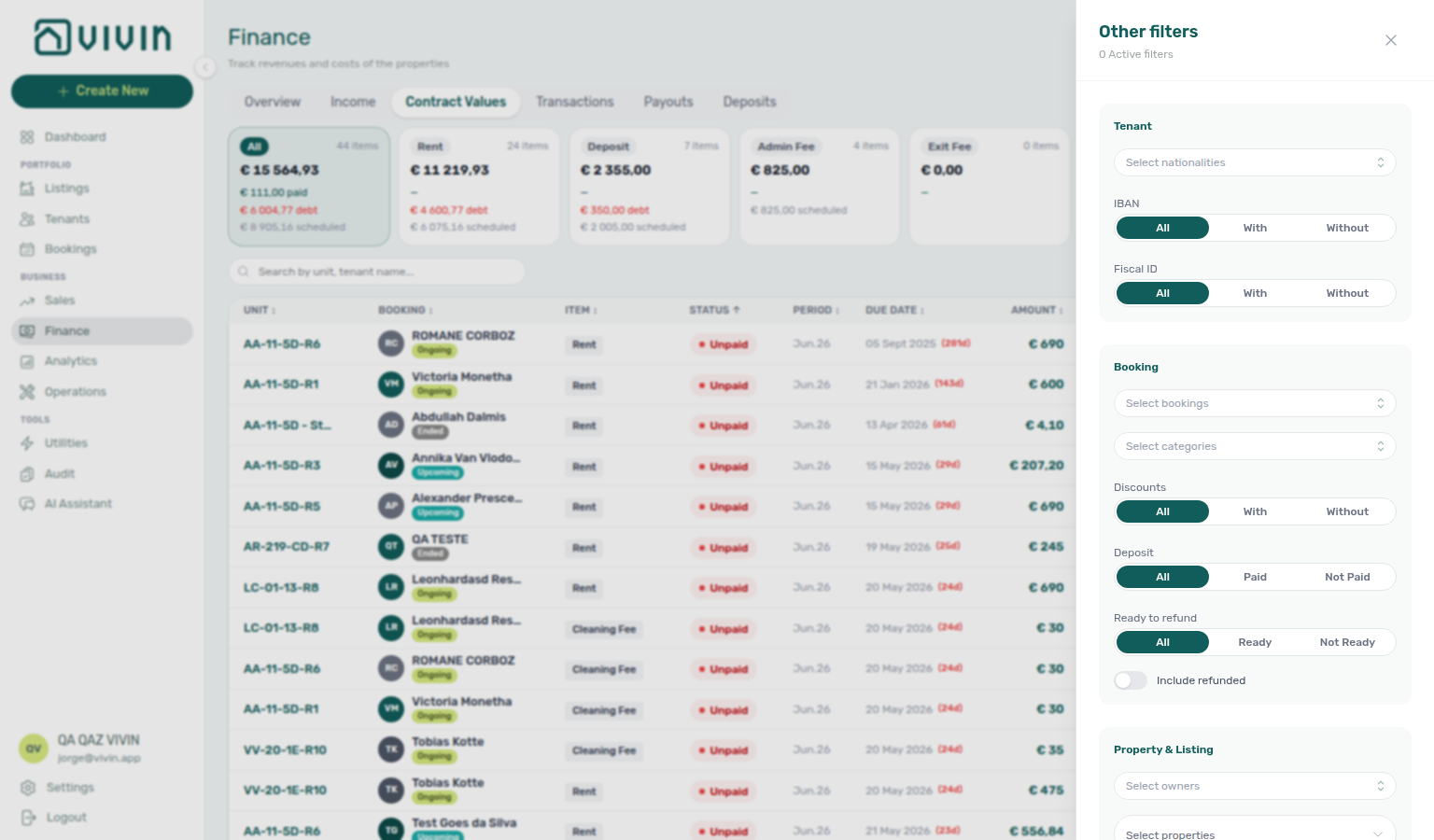
Other filters
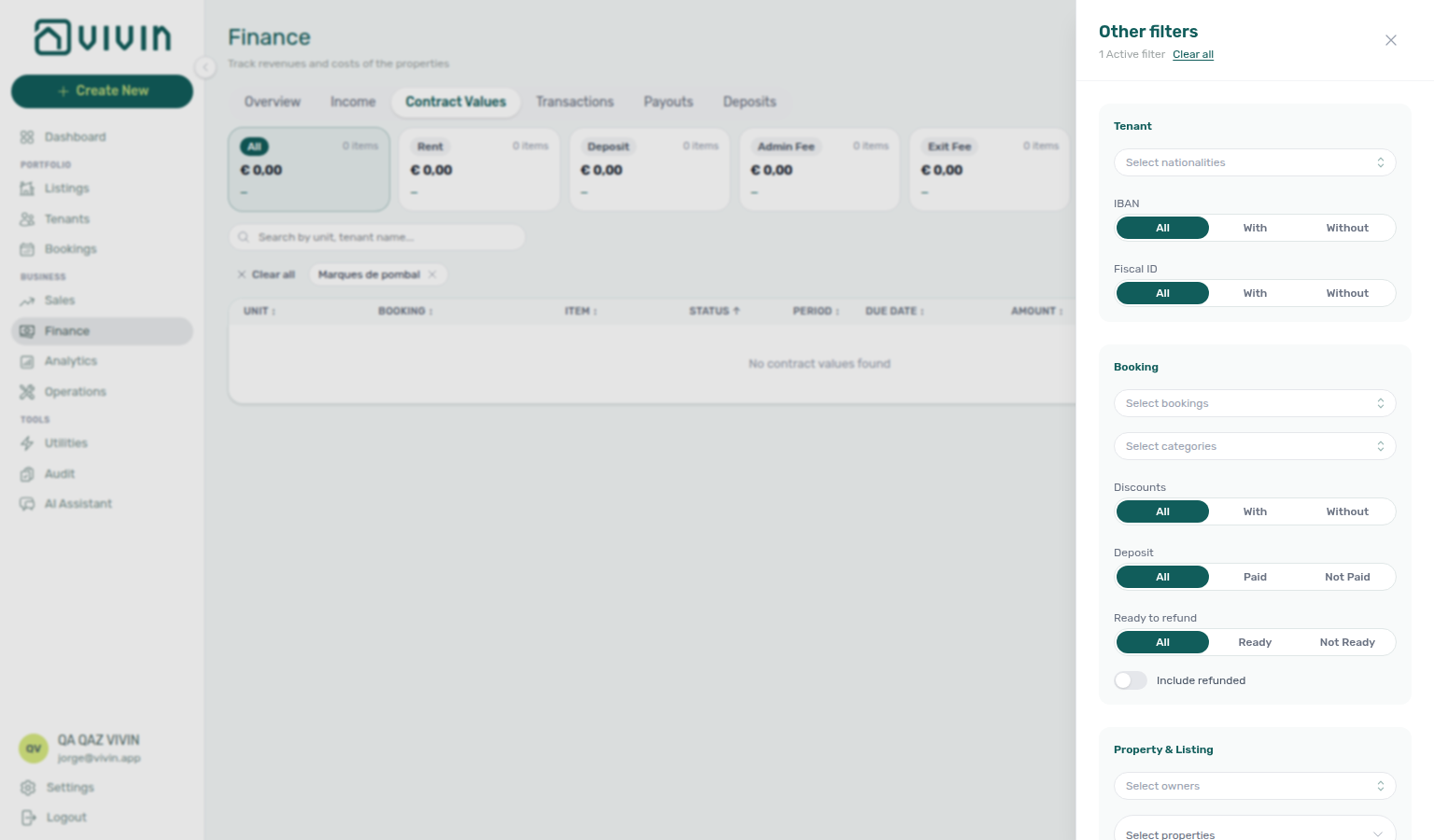
The Other filters button in the Finance toolbar opens a sidebar (the same pattern as Bookings and Listings). Use it to narrow by property, booking, owner, categories, IBAN or fiscal filters, payment plan, deposit status, invoice status, and more. On Contract Values and Transactions, active filters appear as removable pills above the table, with Clear all to reset without reopening the sidebar.
The drawer reuses the word categories in three places — each maps to a different field:
| Section in drawer | Control placeholder | What it filters |
|---|---|---|
| Booking | Select categories | Booking tags — same labels as Settings > Categories > Bookings and the Bookings list Booking categories menu (stays open) |
| Property & Listing | Select categories (second) | Listing tags on units (listingTags / listing tags) |
| Finance | Select "others" categories | Miscellaneous charge categories for non-standard payment lines (Settings Others Items Categories) |
The rest of this subsection focuses on tenant segments under Tenant → Tenant category and booking tags under Booking → Select categories.
Tenant category filter
Under Tenant → Tenant category, Finance narrows every tab that honours Other filters — Overview, Income, Contract Values, Transactions, Deposits, and Payouts — to rows whose linked booking’s tenant profile carries the selected tenant categories segment(s). The control mirrors Bookings — Tenant categories and Tenants — Tenant category filter: same OR-combined server filter, including No tenant category for bookings whose tenant has no segment on file. Use Select all at the top of the menu when you want every visible segment (and No tenant category) in one click, then untick the segments you want to hide. Emails → Communication Rules → Tenant categories is a different audience picker (named segments only; no No tenant category row).
| Selection | What appears |
|---|---|
| One or more named segments | Rows for bookings whose tenant profile is assigned at least one of the selected categories. |
| No tenant category only | Rows for bookings whose tenant has no category assigned. |
| Named segments + No tenant category | Rows that match any selected segment or have no category — useful when reconciling mixed onboarding before you standardize assignments. |
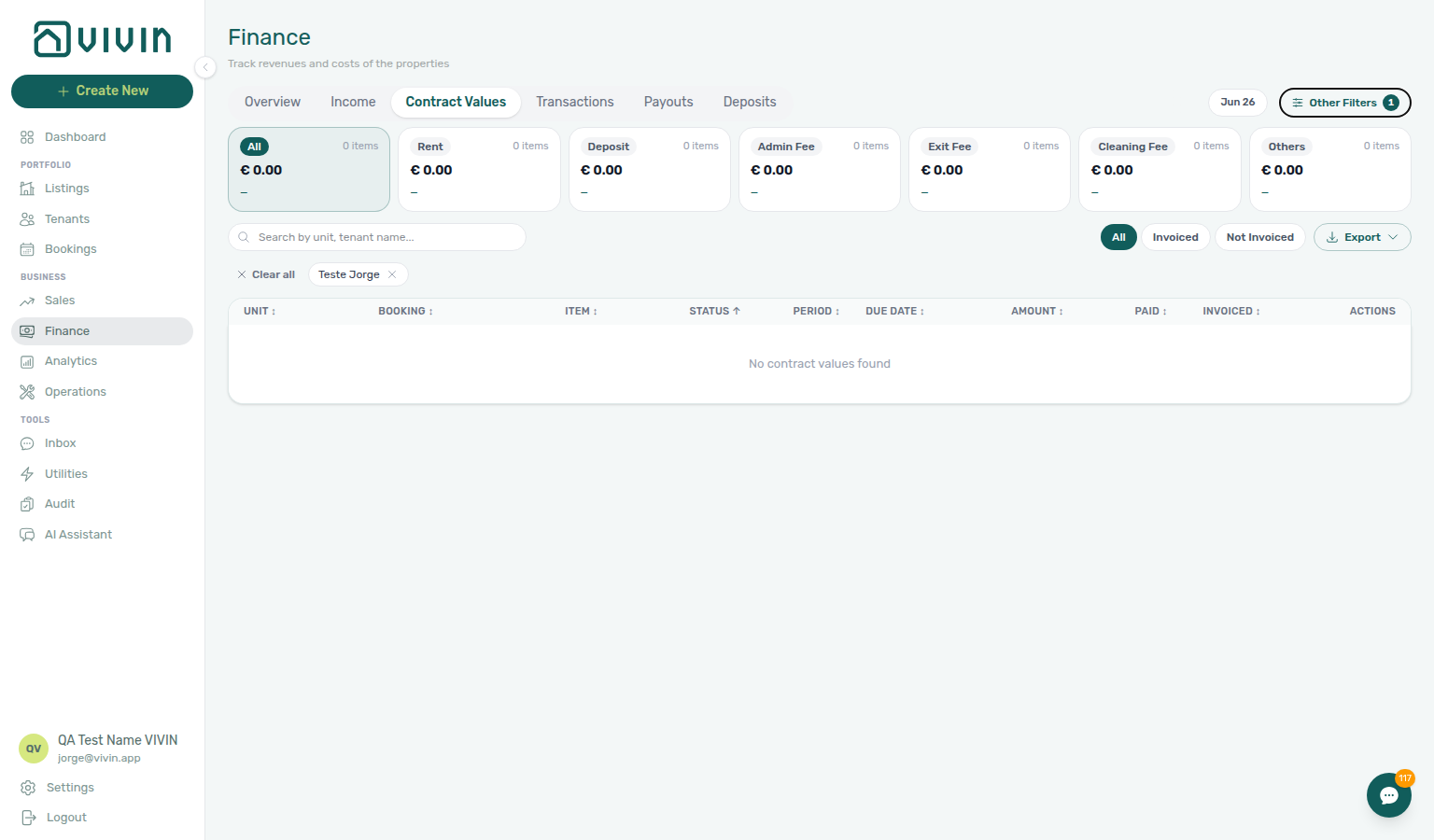
No tenant category is resolved server-side: the client sends real category ids in tenantCategoryIds and, when No tenant category is checked, a separate noTenantCategory flag that is OR-combined with those ids (the UI sentinel is never sent as a category id). Active choices show as removable pills above the table on Contract Values and Transactions; combine them with the month picker or date range, property, owner, booking tags, and the other drawer sections. Export honouring those filters downloads the full filtered population on Transactions, Contract Values, Payouts, Deposits, and Income (loaded-vs-full rule).
Finance Other filters vocabularies load from lightweight catalog endpoints — not from a whole-account bookings cache preload:
| Drawer control | Catalog source |
|---|---|
| Tenant → Tenant category | Full account list from GET /tenant-categories (every segment defined under Settings → Tenant categories) |
| Booking → Select categories | Tag vocabulary from GET /bookings/tags |
| Booking → Select bookings | Paged async picker (GET /bookings/search) — not a full GET /bookings/cache download |
| Property & Listing → Select categories | Listing tags from GET /listings/tags |
Bookings — Other filters still uses the portfolio filter catalog (GET /bookings/portfolio/filter-options) for some controls — Finance drawer parity for tenant category and booking tags now matches the account-wide definitions above.
Saving a new Category on Tenants → Tenant Info back-syncs booking.tenantCategoryId immediately. Contract Values, Income, Transactions, Deposits, and Payouts read the live month-scoped payments path — reload the tab and Tenant category filter results match right away. Overview still uses a computed cache (~10-minute cron / read miss), so cards and drill-downs can lag up to about ten minutes. The drawer option list already lists every segment from GET /tenant-categories — this is about which rows match, not which segments appear in the menu. See Glossary — Finance tenant category cache refresh and FAQ — Finance tenant category filter parity.
During month-end review when Analytics Ranking or Occupancy suggests one segment underperforms, scope Select properties to the building in question, then add Tenant category before you change rates account-wide — same habit as Portfolio KPI review — Step 6. Cross-check profile counts on Tenants before you adjust portal modules or communication rules for the whole account.
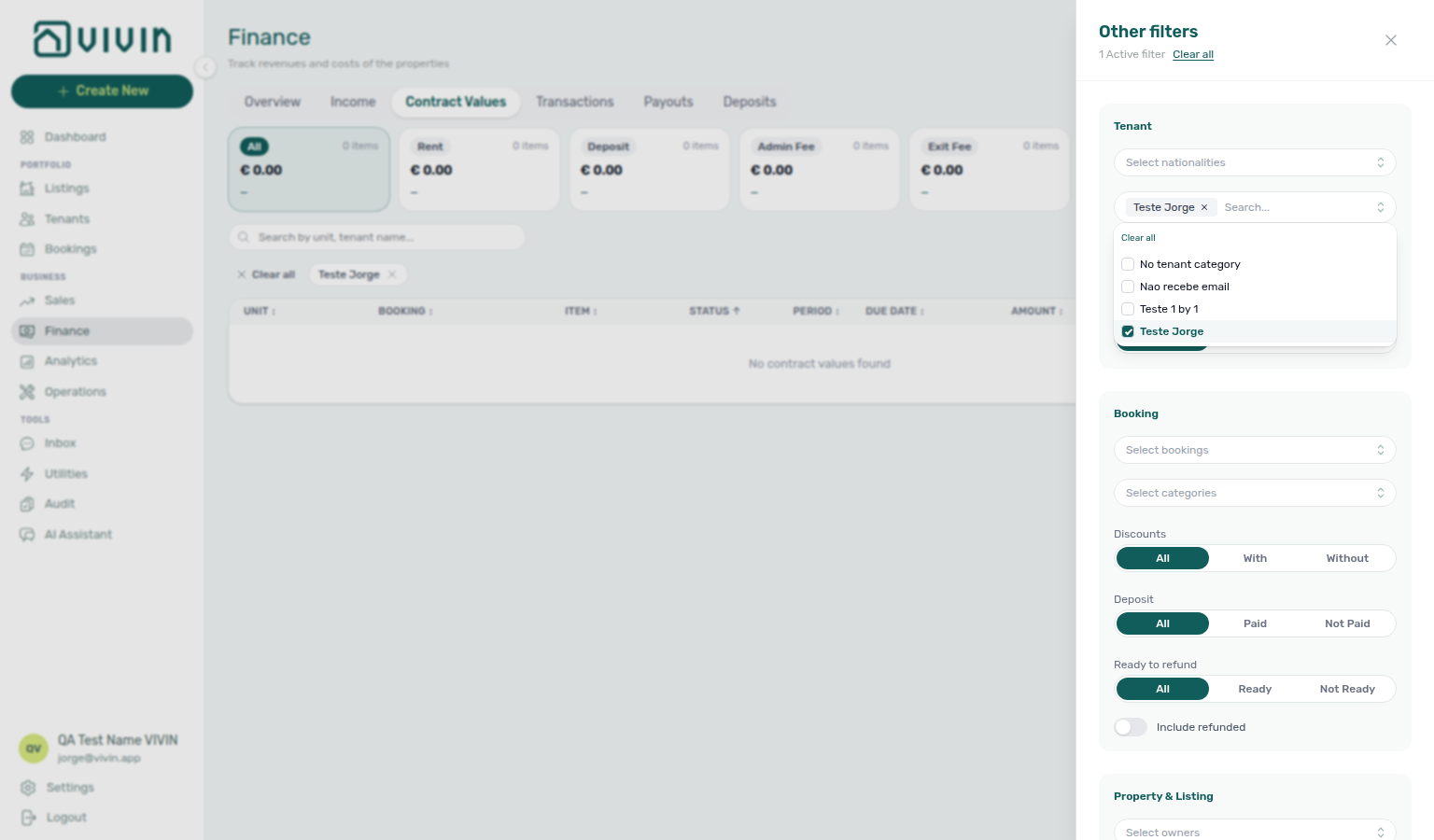
Named segments also appear as removable toolbar pills after you close the drawer:
Overview drill-downs honour Tenant category
On Finance → Overview, Tenant category narrows the KPI cards and every list you open from them — Debt Aging buckets, Income / Cash flow chart segments, System / Manual Payments, and Overdue Deposits. The modal footer total matches the filtered card or bar you clicked, so a segment-scoped Overview stays consistent when you drill in.
- Open Finance → Overview.
- Open Other filters → Tenant → Select tenant categories, pick one or more segments (or No tenant category), then close the drawer — the toolbar shows an active-filter count.
- Confirm KPI cards and Debt Aging reflect the narrower portfolio.
- Click a non-zero Debt Aging bucket (or another Overview drill-down) — the modal lists only bookings in the selected segment(s).
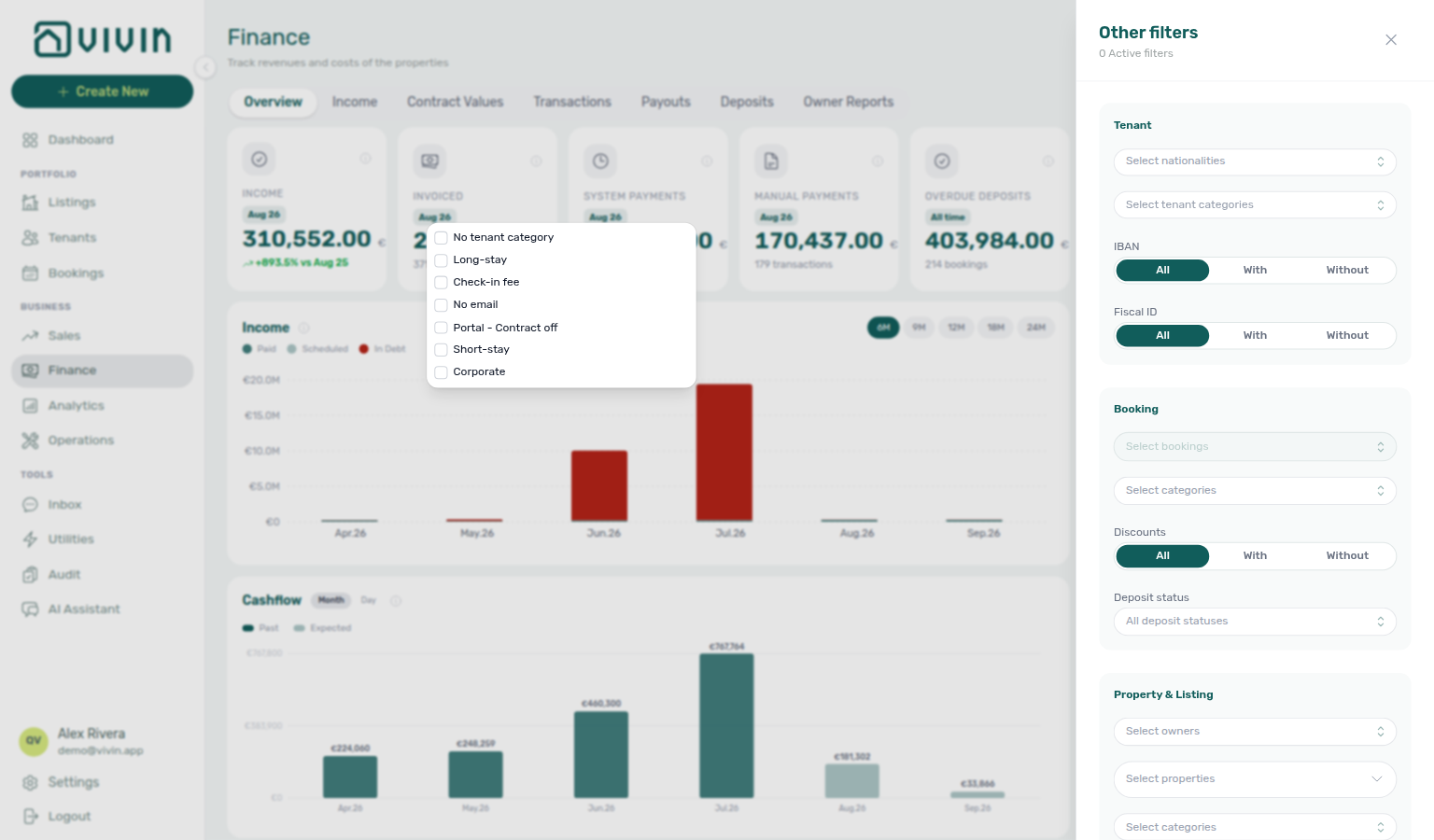
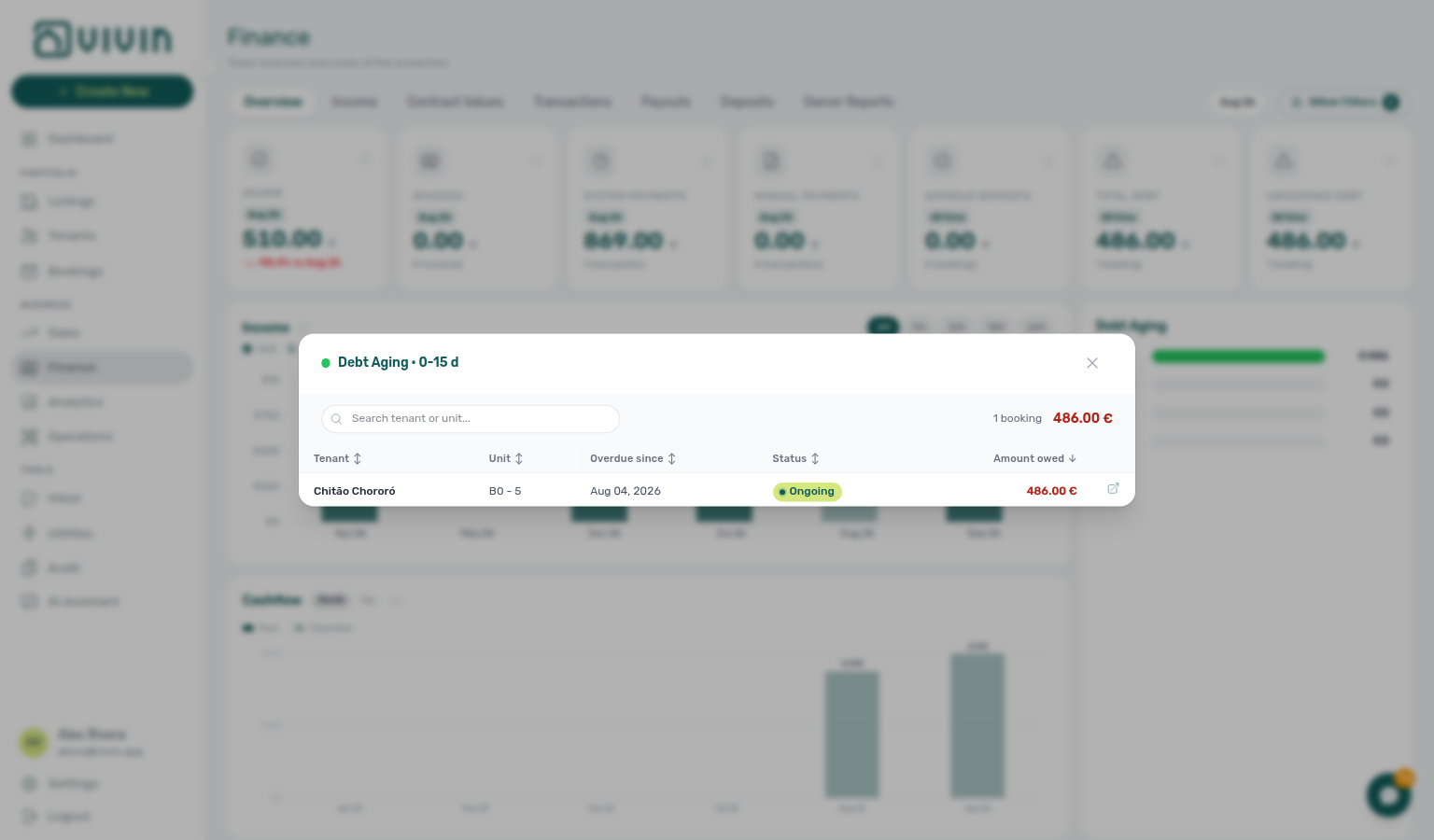
Pair with Debt Aging panel for band behaviour and Portfolio KPI review — Step 6 when month-end triage starts from Analytics. To slice the open Total Debt list without changing Overview KPIs, use Booking category and Tenant category inside that list — those pickers do not re-run the cards.
Booking tags
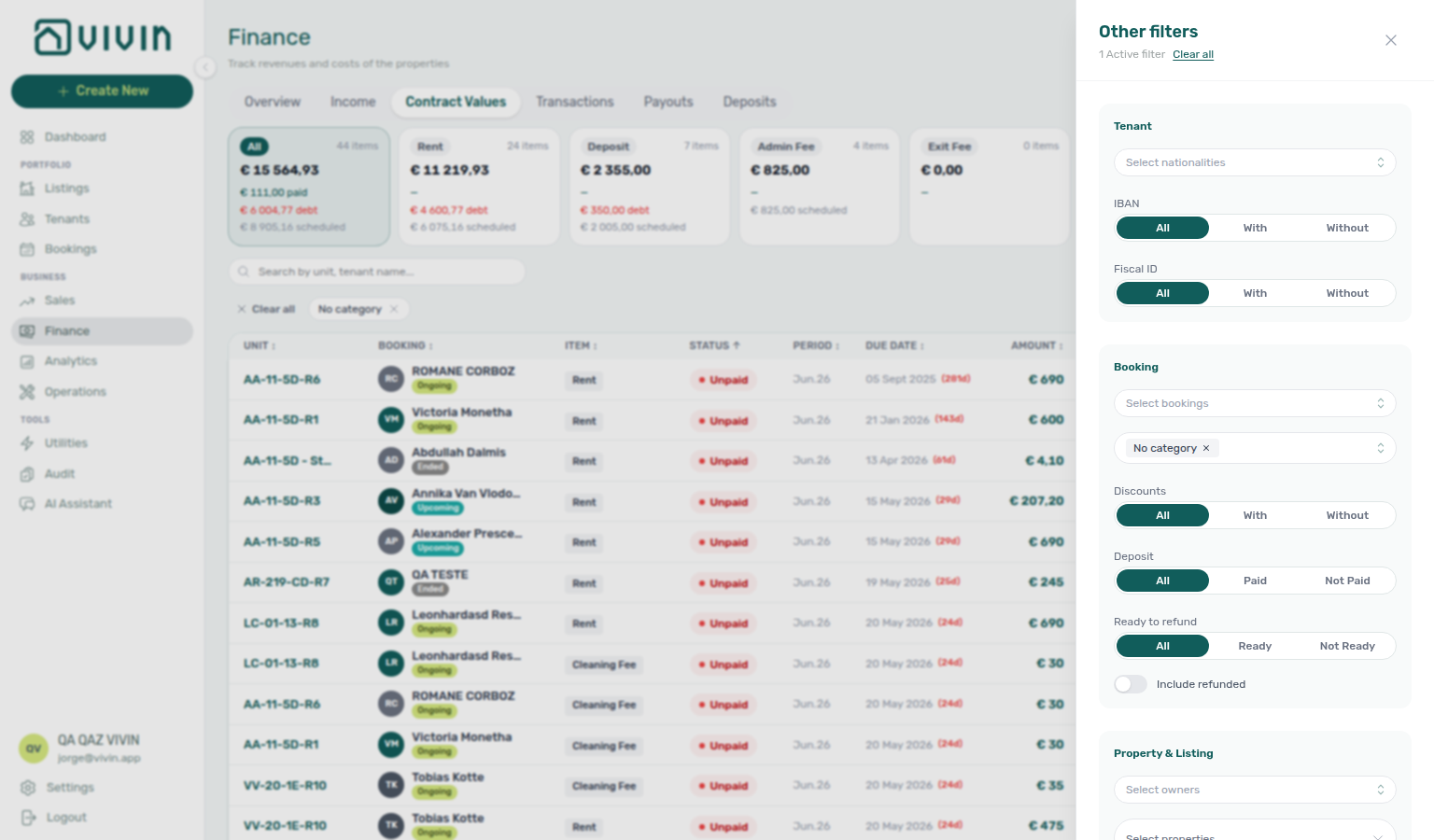
Under Booking → Select categories, Finance filters ledger and roll-up rows by the same booking tags configured under Settings > Categories > Bookings. Options come from the account tag vocabulary (GET /bookings/tags) — not from listing tags or payment-type categories. Marketplace imports land with an empty tag list until an operator picks chips on Contract Info — Creating Bookings — Booking tags.
The menu lists every tag in use plus a synthetic No category row at the bottom (parity with the Bookings list). Tick boxes stay open while you add a second tag. Use Select all at the top of the menu when you want every visible tag (and No category) in one click, then untick the tags you want to hide. On Bookings, the matching toolbar control is labelled Booking categories and the empty-case row is No booking category — see Bookings — Booking categories stays open.
| Selection | What appears |
|---|---|
| One or more named tags | Rows whose linked booking has at least one of the selected tags (OR within the tag subset). |
| No category only | Rows for bookings with no booking tags assigned (empty bookingTags list). |
| Named tags + No category | Rows that match any selected tag or have no tags — useful when reconciling mixed segmentation before you standardize labels. |
No category is resolved server-side: the client sends real tag codes in categories and, when No category is checked, a separate noCategory flag that is OR-combined with those tags (the UI sentinel is never sent as a tag string). The same filter rule applies across Finance tabs that honour Other filters — Overview, Income, Contract Values, Transactions, Deposits, and Payouts. Export follows the loaded-vs-full rule: Transactions, Contract Values, Payouts, Deposits, and Income each assemble the full filtered population. On Payouts, booking tags resolve through grouped tenant in-payments (bookingInPayments[].booking.bookingTags); the All, Credit Card, and IBAN summary cards at the top of the tab use the same drawer filters as the table.
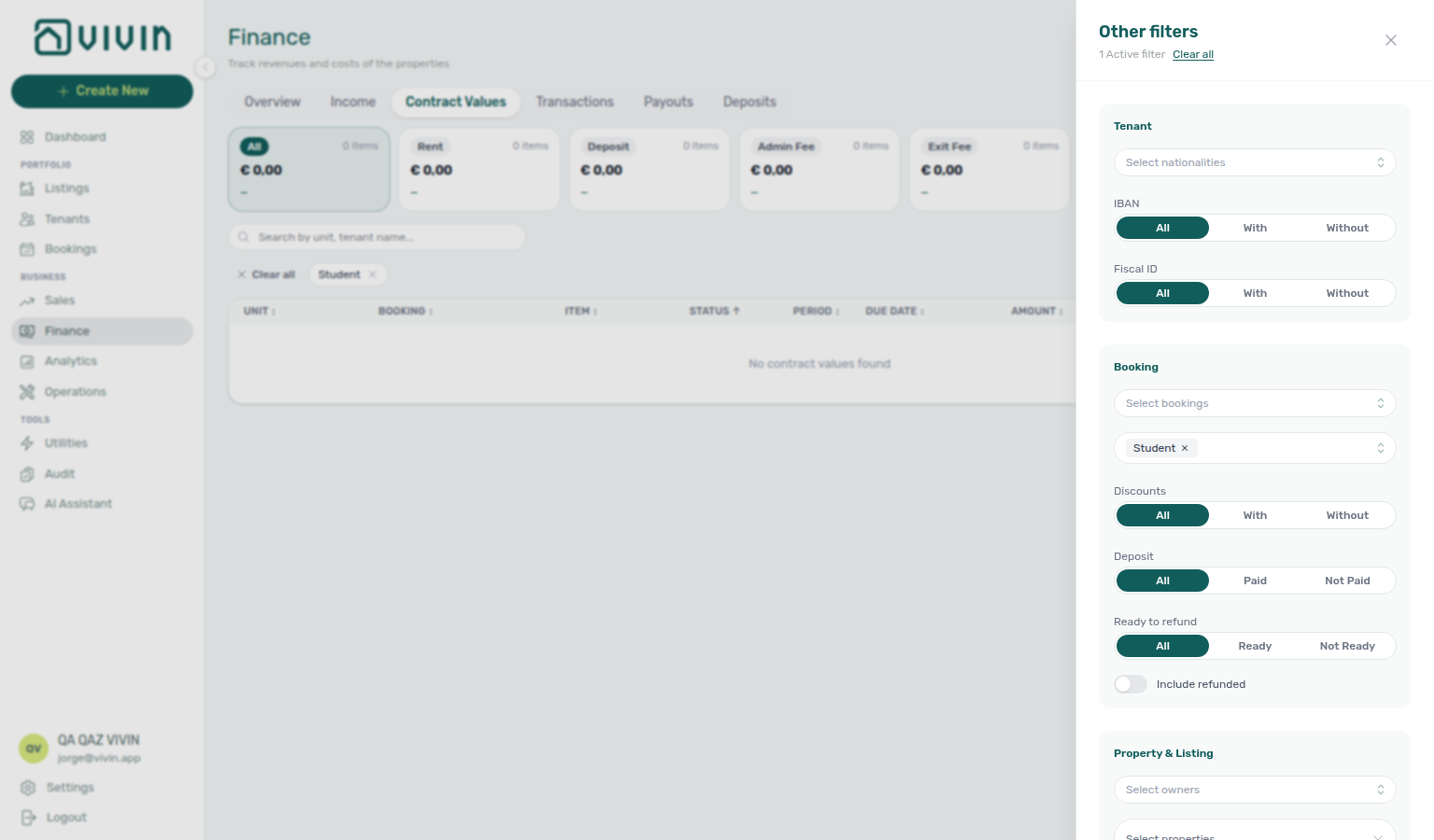
Active choices show as removable pills above the table (the pill label reads No category for the uncategorized slice). Combine them with month or date range, property, booking, owner, and the other drawer sections as needed.
Named tags use the same drawer control; active choices appear as removable pills above the table (example Student):
Property & Listing filters
The Property & Listing section sits below the Booking block in the same drawer. Use it when you need portfolio slices that are not tied to a single booking id:
| Control | What it does |
|---|---|
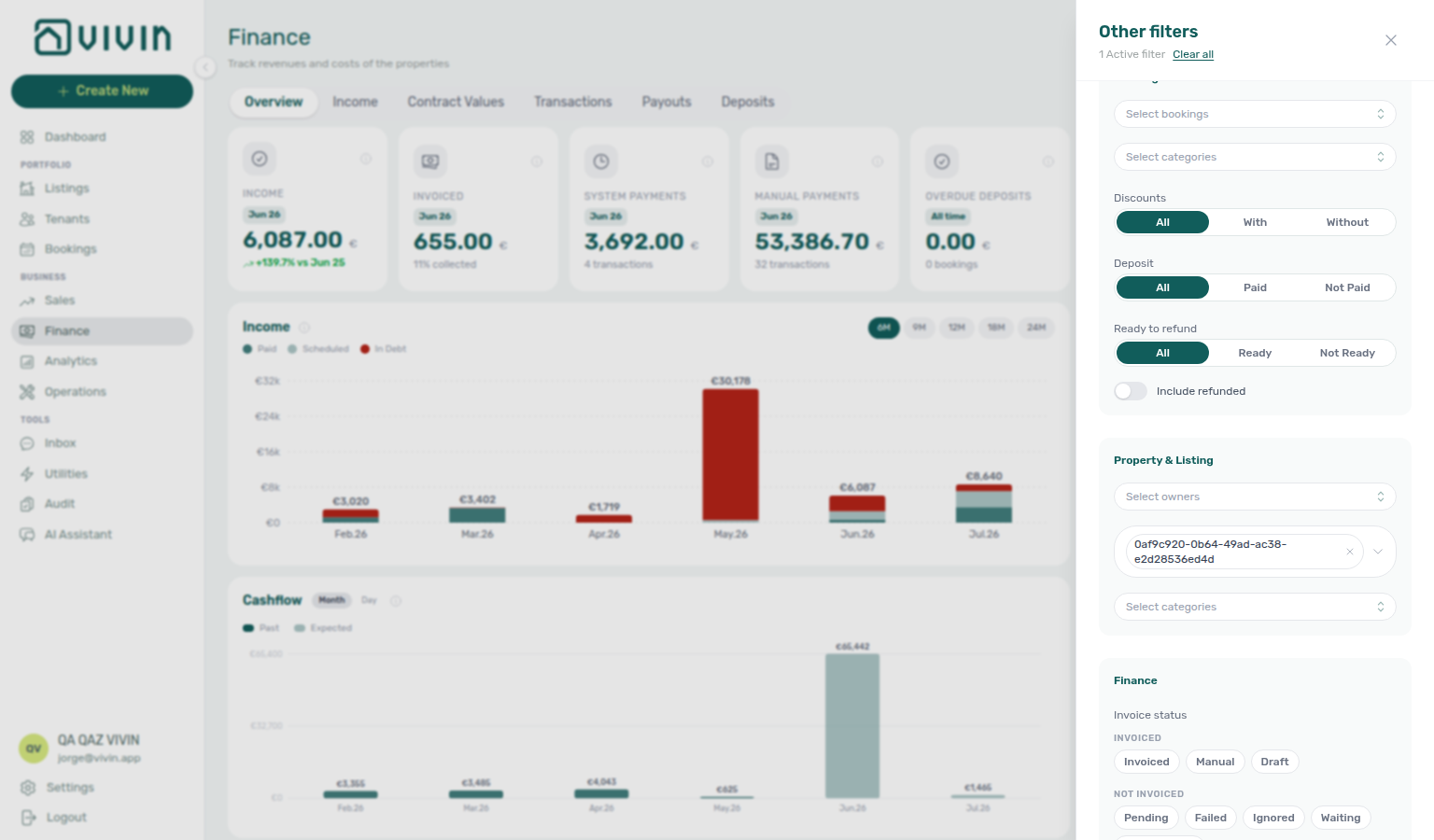
| Select owners | Multi-select from registered property owners (same owner registry as Bookings → Select owners; Finance loads options from the account-wide portfolio filter catalog). Choosing one or more owners narrows the Property picker below — the server only returns buildings linked to those owners. You cannot widen beyond an owner selection from the property menu alone; clear owners to search the full account again. |
| Property | Multi-select buildings with the same server-driven search picker pattern as Sales → Pricing: opening the menu prefetches about 10 rows, typing runs debounced server search, and scrolling near the bottom loads the next page. Selected properties render as chips on the control. With an active query, internalName matches rank above address-only hits before pagination — see Glossary — Picker search ranking. Current builds (June 2026 performance pass) query the paged property search endpoint instead of downloading every property when the drawer opens — important on large portfolios. |
| Select categories | Multi-select listing tags on units (listingTags). Options are the distinct tag strings already in use across live listings (sorted), not a dump of every listing row. Configure the vocabulary under Settings > Categories. |
After you pick one or more listing tags, removable toolbar pills above the table mirror the selection (same pattern as booking tags and property chips):
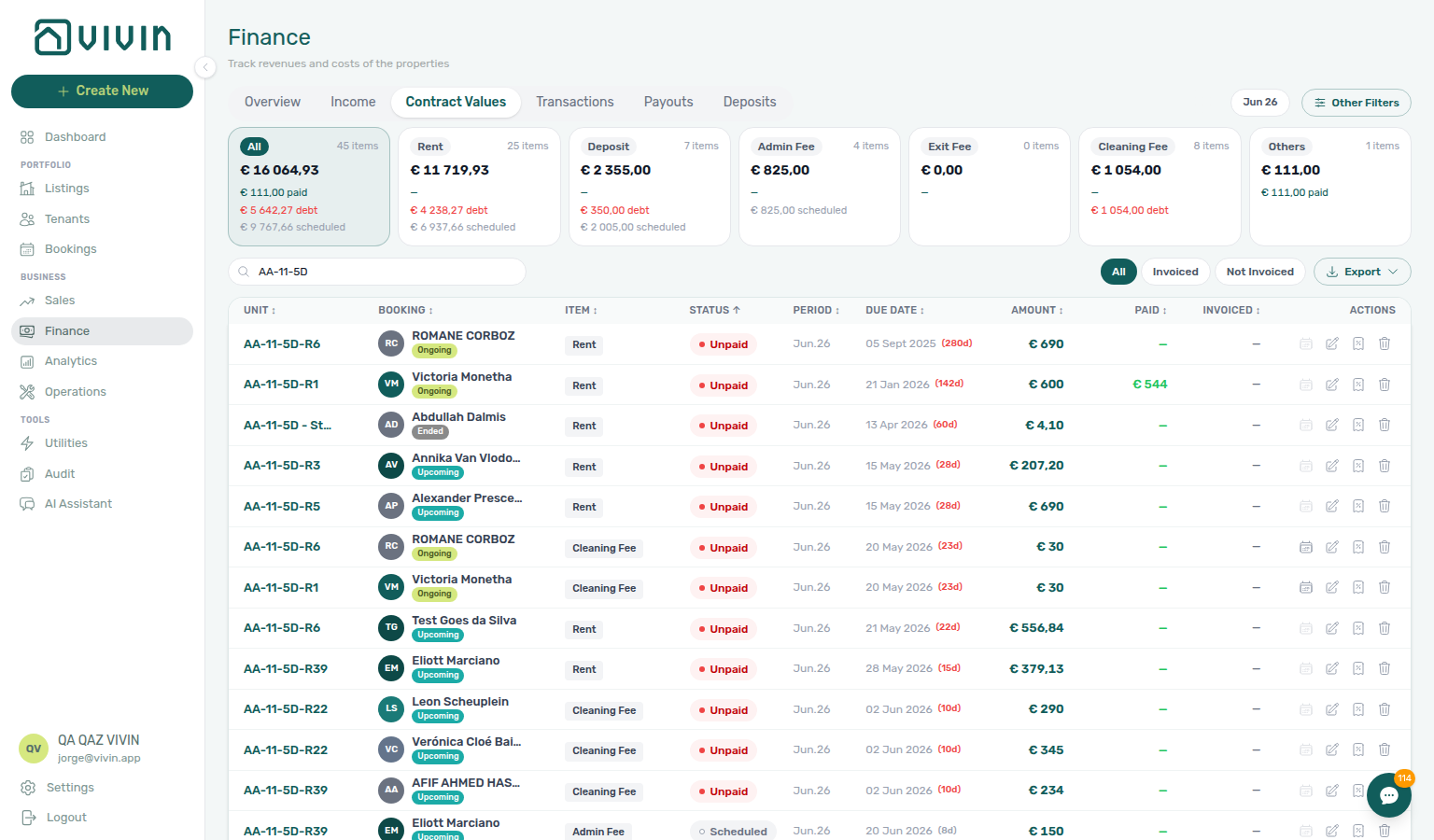
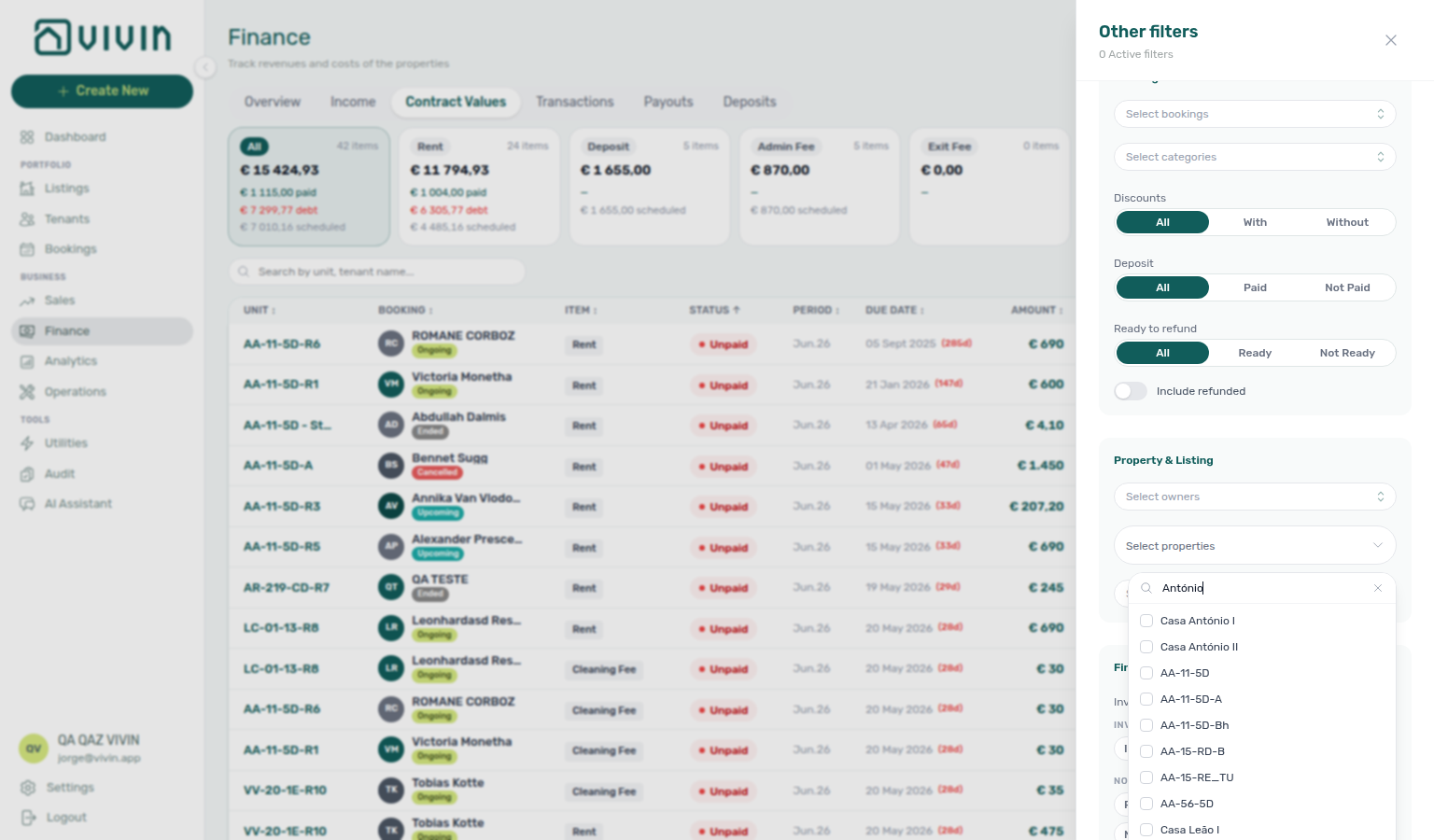
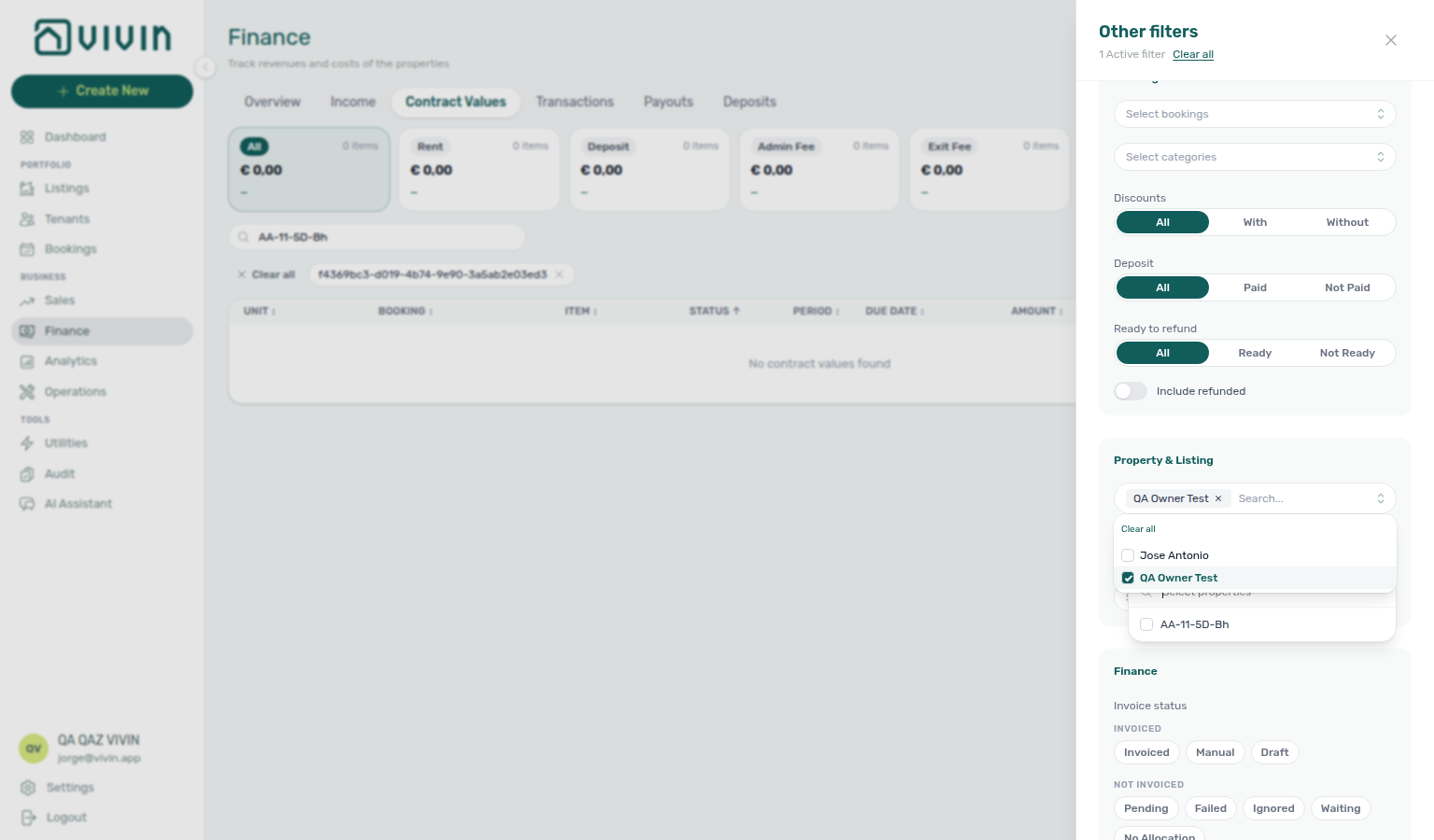
Pick owners first when you reconcile one landlord’s slice, then open Property — the menu respects the owner filter server-side. Clearing an owner chip widens the property search again. Property chips stay labelled even when the typed search scrolls those rows off the visible page.
Deposit status filter
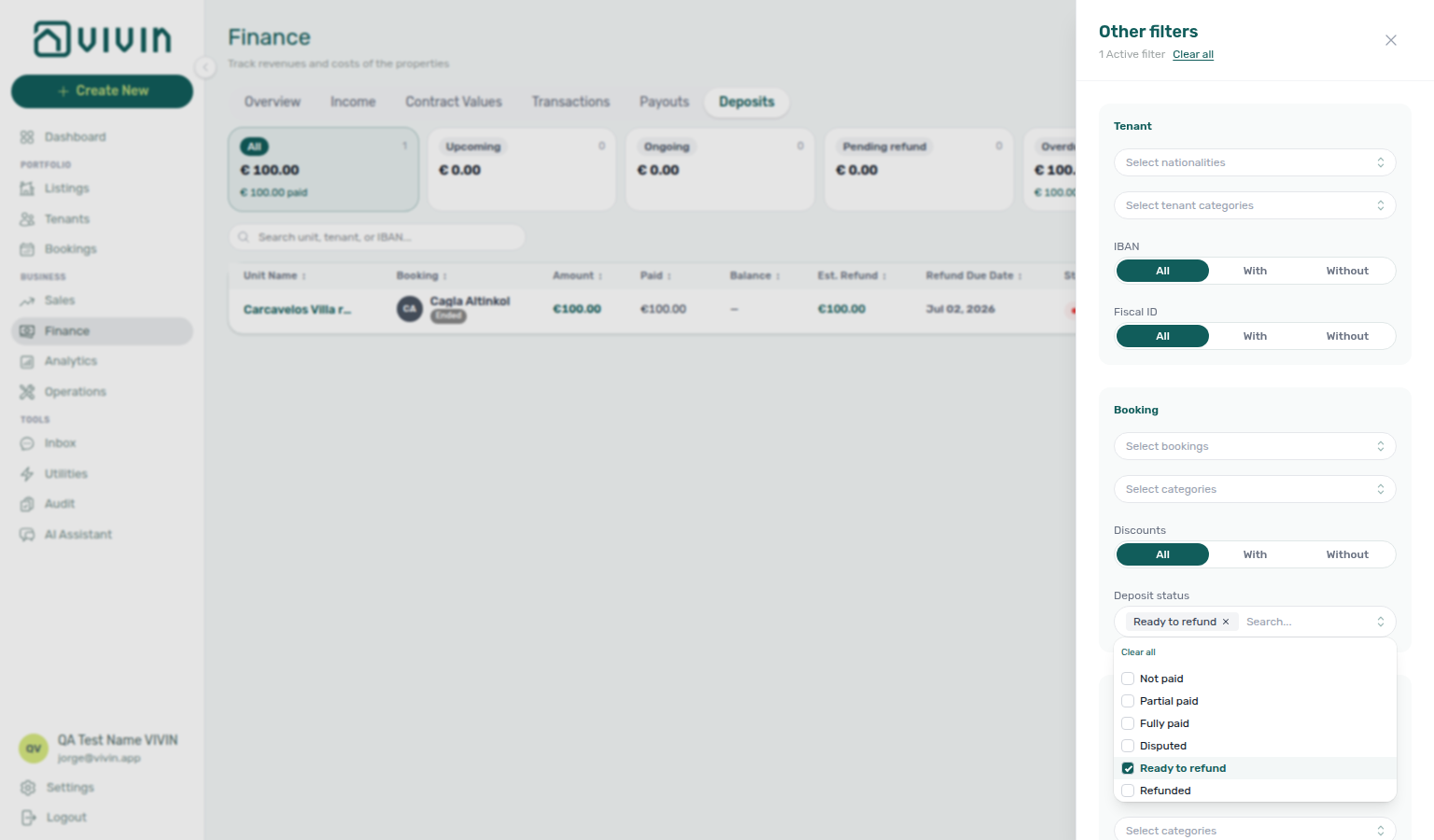
The Booking section of the Finance drawer mirrors the Bookings list Other filters drawer for Discounts and Deposit status (same API fields, server-side on every Finance tab that honours Other filters). Lifecycle vocabulary (Not paid, Partial paid, Fully paid, Ready to refund, Disputed, Refunded) is defined in Glossary — Deposit lifecycle status.
| Control | Options | What it filters |
|---|---|---|
| Discounts | All, With, Without | Bookings whose scheduled charges include at least one line-level or booking-scoped discount (paymentsPlan). |
| Deposit status | Multi-select: Not paid, Partial paid, Fully paid, Disputed, Ready to refund, Refunded (empty = all statuses) | Operational depositStatus on the linked booking (depositStatuses) — any-of match within your selection. Aligns list slices with the lifecycle pill on the booking Deposit tab and Finance → Deposits rows. |
Use Deposit status → Ready to refund together with the Deposits tab Pending refund / Overdue status cards when finance is processing bank returns after check-out — operators flip Ready To Refund on each booking once inspection and deductions are settled; finance then filters the portfolio queue without relying on ad-hoc notes. On Bookings, that same Fully paid slice already drops the row when the toggle goes on. Omit Refunded from the selection when you only want open refund queues.
On the Transactions tab only, the drawer adds a Transactions section at the top with Select platforms — a multi-select of booking source platforms. The product lists Uniplaces, Inlife, RoomLess (Spacest), Housing Anywhere, Spotahome, Airbnb, Booking.com, Vivin booking engine, Direct, Edu Portugal, Erasmus Life Lisboa, and Long-stay (LS) when enabled or applicable. Channel-manager stays filter as Airbnb or Booking.com — there is no separate channel-manager row. Standalone finance rows without a booking count as LS. Use it with the date range when reconciling one channel’s bank inflows. Other Finance tabs do not show this block. See Bookings — Platform badge and filters follow the real OTA.
The module is organized into several tabs, each focused on a specific financial area.
Transactions, Payouts, and Deposits are shown only to users who have payment-approval permission for Finance. If those tabs are missing for your account, ask an administrator to grant the appropriate role or permission.
Overview Tab
Overview KPIs pair with Dashboard — KPI cards and Analytics — Revenue tab; triage debt with Handling a Late Payment and Notifications — Payment overdue alerts. AI Chat, WhatsApp Genius, and Landlord MCP get-finance-overview / get-revenue-summary read these same Finance figures — see Landlord MCP — Finance-sourced portfolio metrics. For a repeating email or WhatsApp of this month’s invoiced and pending invoicing (plus income, cash collected, debt, and overdue deposits), schedule Genius → Finance overview (settings-genius-scheduled-reports-finance-overview-modal.png, settings-genius-scheduled-reports-finance-overview-flow.mp4, ai-chat-scheduled-reports-finance-overview-reply.png, ai-chat-scheduled-reports-finance-overview-flow.mp4).
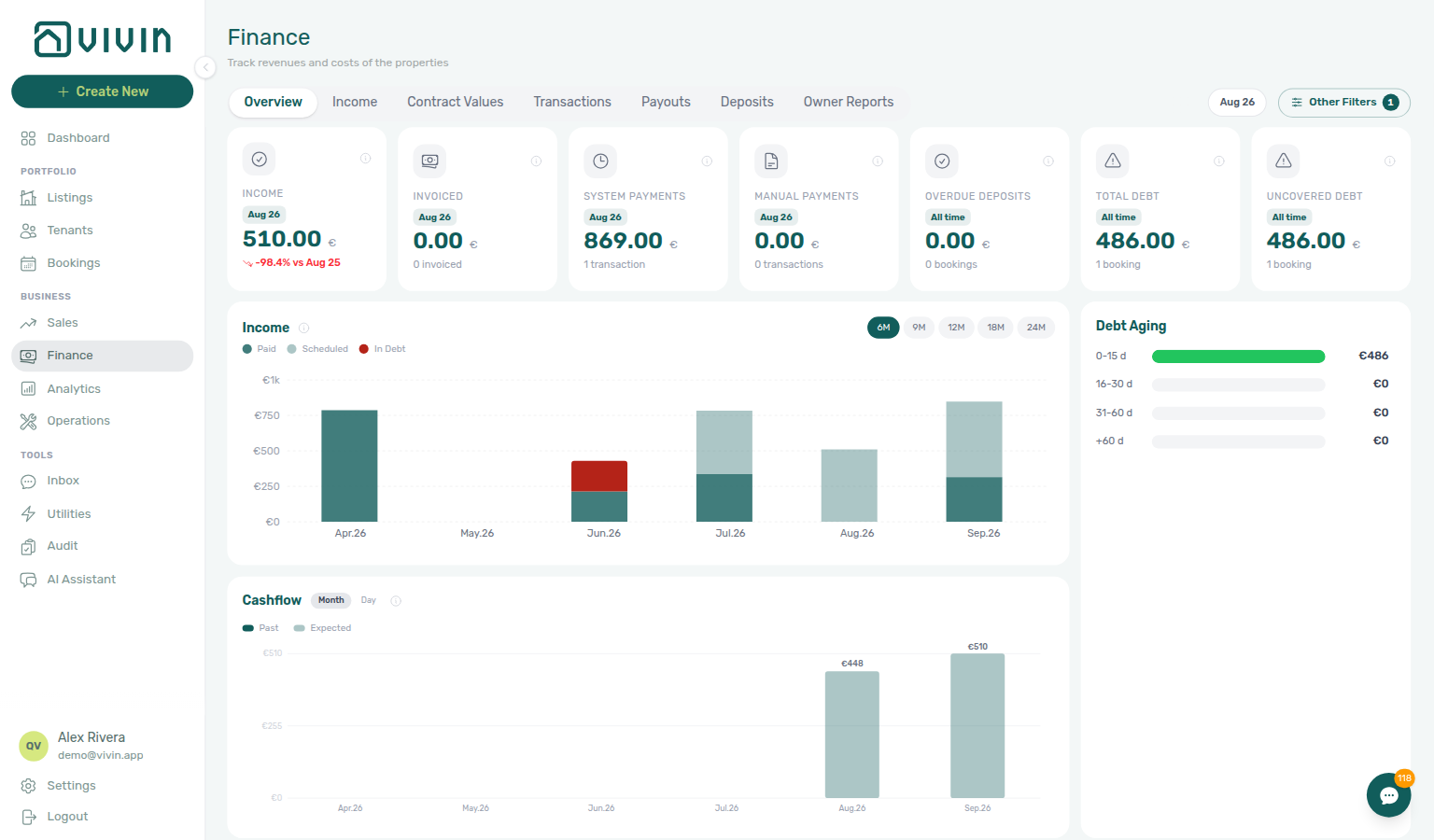
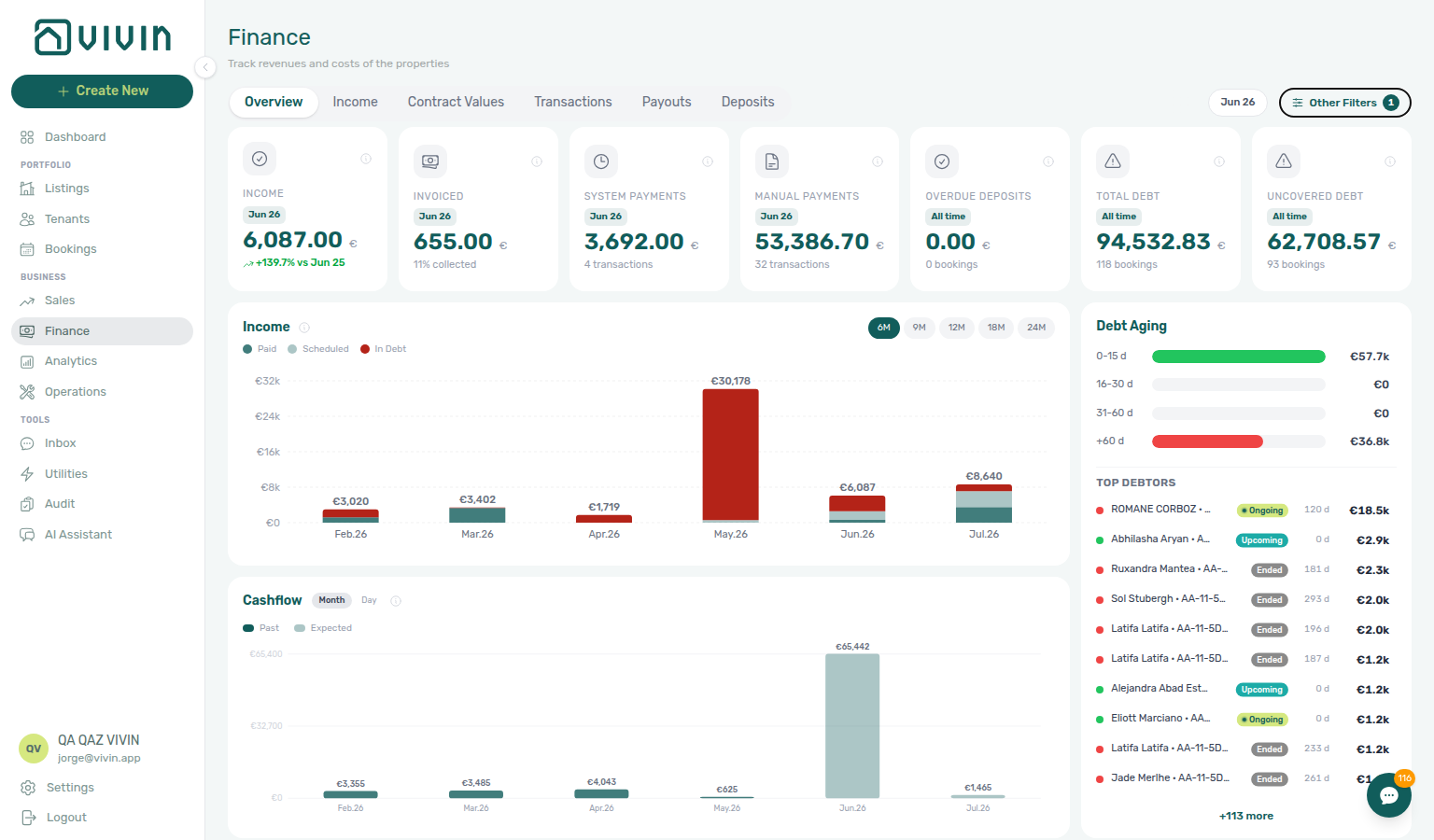
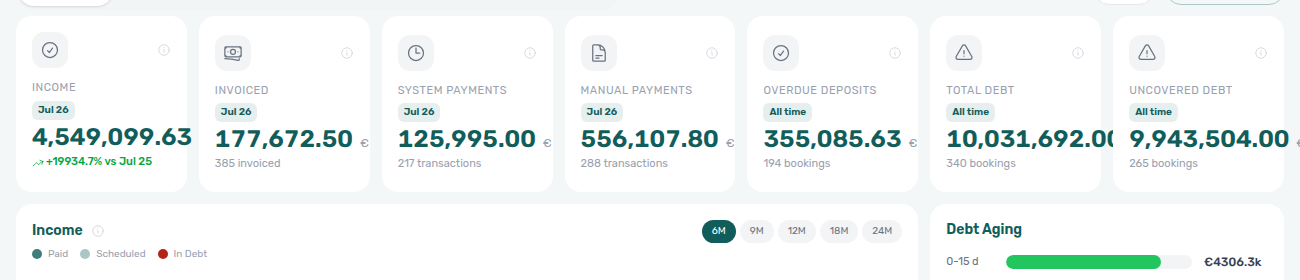
The Overview tab is a portfolio financial dashboard: KPI cards for the month you pick in the toolbar, stacked Income and Cash flow forecast charts, and a Debt Aging panel for receivables triage. Use the month picker and Other filters in the Finance toolbar to narrow by property, owner, booking tags, and related dimensions.
Overview KPIs, charts, and aging load from a lightweight server aggregation (one request for the always-visible strip). Drill-down lists load only when you open a modal — System / Manual Payments rows, realized cash-flow lines, and Income chart payment lines (Paid / Scheduled / In debt) gather matching rows on demand so the list foots to the figure you clicked. A normal visit does not download a whole-account payment-line cache.
After you record, edit, approve, reject, or revert a payment, debt and income aggregates typically reflect the change within seconds on your next visit or when the toolbar refresh indicator finishes — you do not need to wait for a scheduled cron. Large accounts coalesce bulk refreshes so one portfolio sweep does not trigger a storm of per-booking recomputes. Pending manual receipts still exclude their amounts from debt totals until Approve payments confirms them — see Pending manual payments.
KPI strip (seven cards)
The top row shows seven compact KPI cards. Cards tagged with the selected month in the title follow the month picker; cards tagged All time ignore it and reflect current portfolio balances. Cards with a non-zero count are clickable and open a scoped drill-down modal.
| Card | Scope | What it shows |
|---|---|---|
| Income | Selected month | Total income expected for the period — Paid, Scheduled, and In debt payment lines combined. Year-over-year comparison may appear when prior-year data exists. |
| Invoiced | Selected month | Amount collected in the period (paid lines). Subtitle shows % collected against scheduled + debt for the same month. |
| System Payments | Selected month | Total of automated in-payments in the window (virtual IBAN, credit card, and other non-manual rails), excluding rejected rows — net of deposit refunds and reversals. Click to open the System/Manual drill-down. Together with Manual Payments this is cash collected. Distinct from the cash-flow chart Past bar, which is gross (refunds excluded) — Cash in: net vs gross. |
| Manual Payments | Selected month | Total of manually recorded in-payments in the window (transfer, cash, deposit refund, platform, etc.), excluding rejected rows — includes pending manual receipts still awaiting approval, and is net of refunds. Click to open the System/Manual drill-down. This is not the approval queue — see Pending manual payments. |
| Overdue Deposits | All time | Security deposits past their refund due date (per-deposit display caps apply when values look corrupted). Click a non-zero card to open the Overdue Deposits drill-down. |
| Total Debt | All time | Sum of tenant underpayment across bookings. Amounts far above rent or contract value are capped for display when they look like bad data. Click a non-zero card to open the Total Debt / Uncovered Debt drill-down. Dashboard Total Debt uses the same balance rule but only for ongoing bookings — hover its info icon for the >15 days overdue subtitle on live stays. See Glossary — Dashboard KPI cards and Handling a Late Payment — Step 1. |
| Uncovered Debt | All time | Portion of Total Debt not covered by held security deposits — highlights receivables where deposit offsets are insufficient. Click a non-zero card to open the same debt drill-down scoped to uncovered rows. See Glossary — Uncovered Debt and FAQ — Uncovered Debt KPI. |
Overdue Deposits drill-down
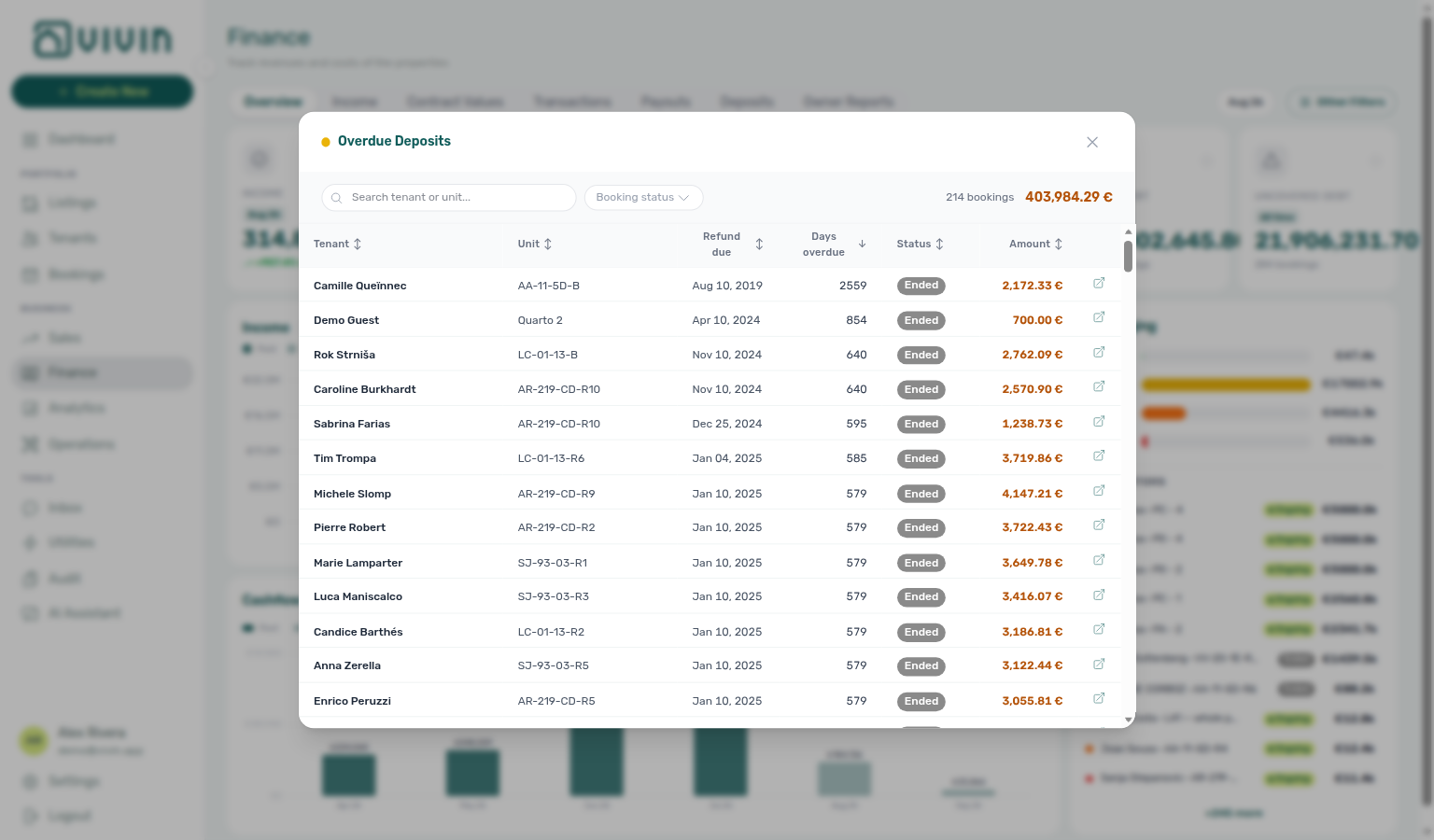
The KPI lists deposits that are past Refund Due Date and not yet marked refunded. Day-to-day refund work still happens on Deposits Tab (Timeline Overdue, lifecycle Ready to refund) and each booking’s Deposit tab — see Managing a Check-out — Step 5.
Click Overdue Deposits on the KPI strip (when the count is non-zero) to open a sortable table of overdue deposit rows for the same Other filters as Overview — all time, not the month picker. Rows load only when you open the modal from the same filtered SQL the card aggregates, so the footer total foots to the figure you clicked and a normal Overview visit does not download the overdue list up front.
| Column | What it shows |
|---|---|
| Tenant | Guest / tenant name on the booking (searchable). |
| Unit | Listing / unit label (searchable). |
| Refund due | Target refund date that already passed. |
| Days overdue | Calendar days past Refund Due Date (default sort: most overdue first). |
| Status | Booking lifecycle chip (Ended, Cancelled, and so on). |
| Amount | Overdue deposit amount included in the KPI. |
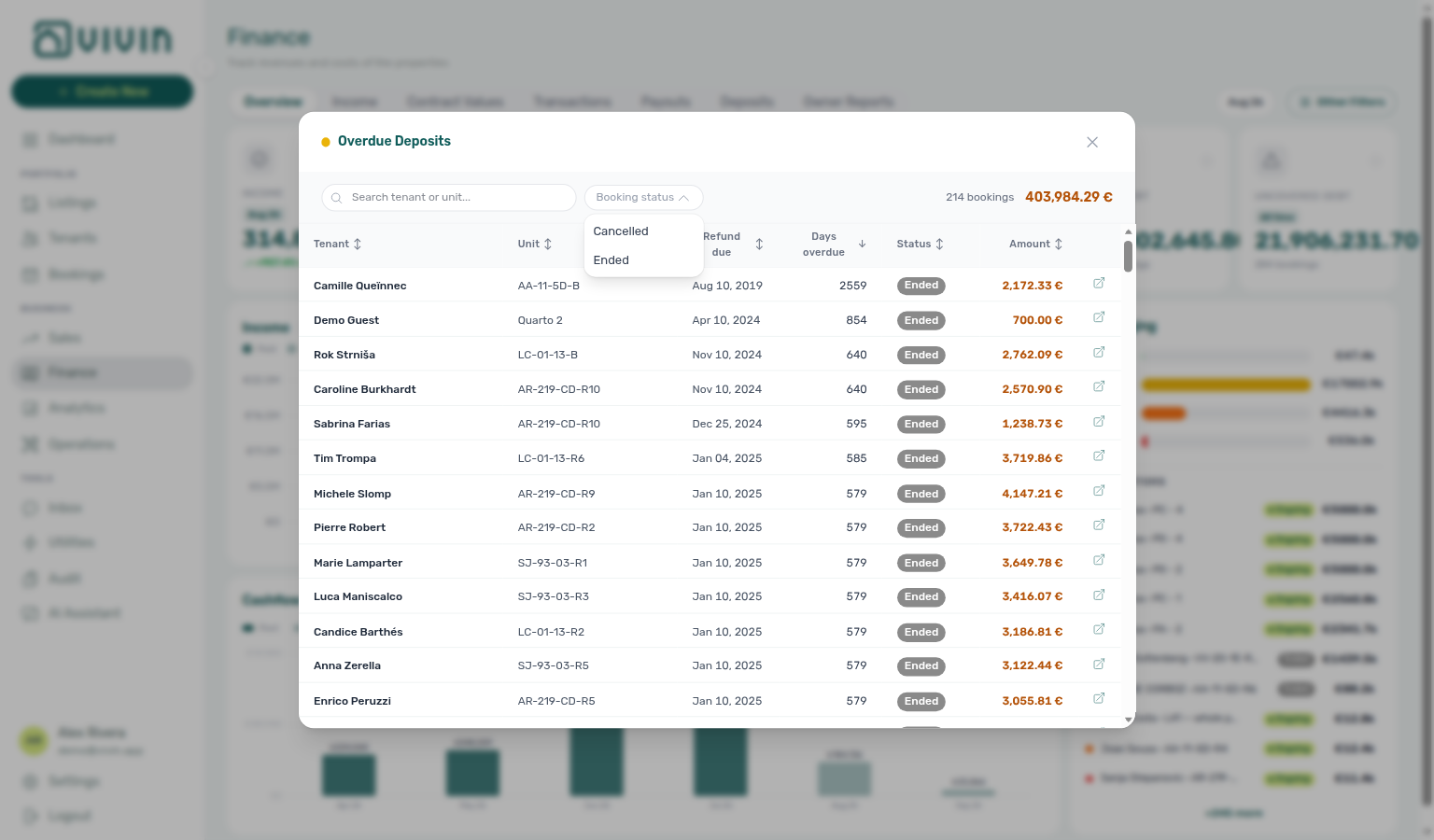
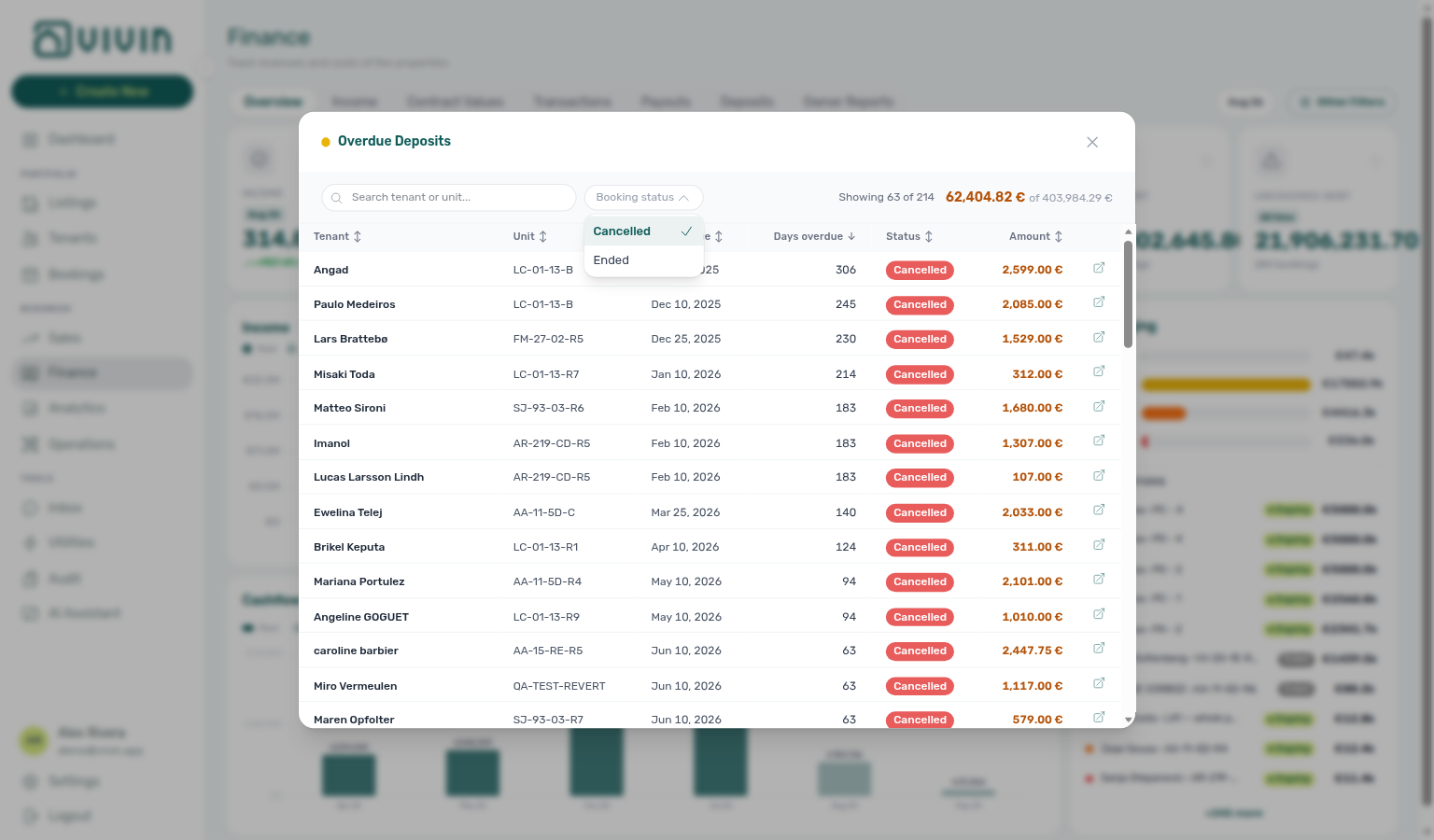
Use the modal search to narrow by tenant or unit without changing Overview filters. Use Booking status (multi-select) beside search to isolate lifecycle slices — for example only Cancelled stays, or only Ended move-outs — when the Status column alone would force you to scan the whole queue. Options come from the statuses present in the open list (dead options are not shown). While a status filter (or search) is active, the header shows Showing N of M and the filtered € total beside of the card total so you can still reconcile against the KPI. The control is hidden when every row shares a single status. Click a row to open that booking on top of this list — search and Booking status stay as you left them; close the sidebar to return to the same queue (Booking sidebar stays on the drill-down). Empty count cards are not clickable.
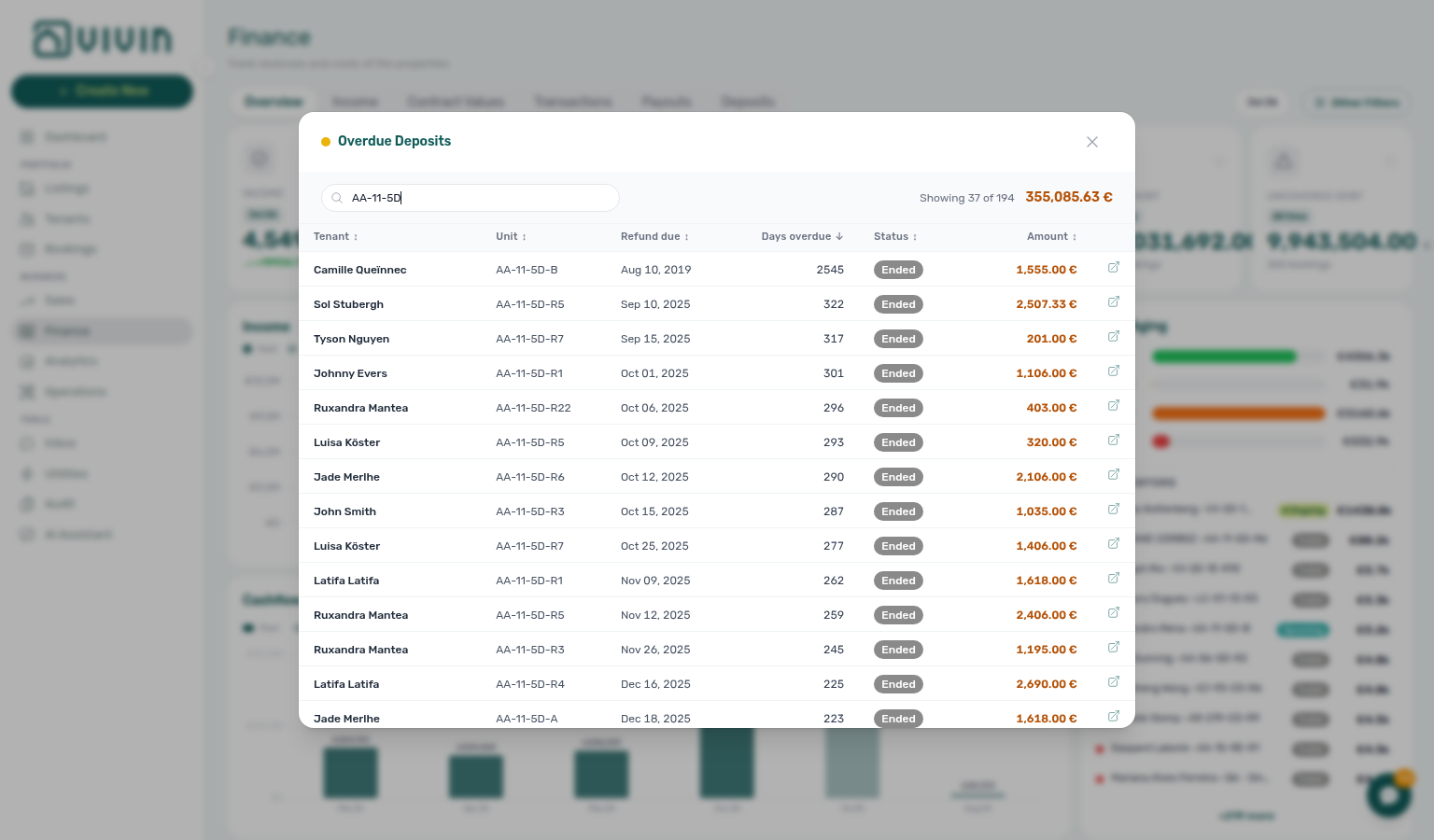
Total Debt and Uncovered Debt drill-down
Click Total Debt or Uncovered Debt on the KPI strip (when the amount is non-zero) to open a sortable booking-level debt table for the same Other filters as Overview — all time, not the month picker. Debt Aging buckets open the same modal shape scoped to that age band.
| Column | What it shows |
|---|---|
| Tenant | Guest / tenant name (searchable). |
| Unit | Listing / unit label (searchable). |
| Overdue since | Oldest unpaid overdue due date on the booking (or band). |
| Status | Booking lifecycle chip (Ongoing, Ended, and so on). |
| Amount owed | Underpayment included in the KPI (or uncovered portion). |
Booking status beside search is a multi-select of the lifecycle values present in the list — use it when collections work differs by stay stage (for example only Ended arrears, or only Ongoing live stays). The menu stays open while you add a second lifecycle. While narrowed, Showing N of M and the filtered € total sit on the grey summary bar beside of the unfiltered card total — search and the pickers stay on the white bar above (Filter toolbar stays two bars). Options vanish from the menu when no remaining row has that status (so a stale selection clears itself if rows refresh). The dropdown hides when only one status appears in the list. The same white bar also has Booking category and Tenant category so you can slice tags or tenant segments without closing the list.
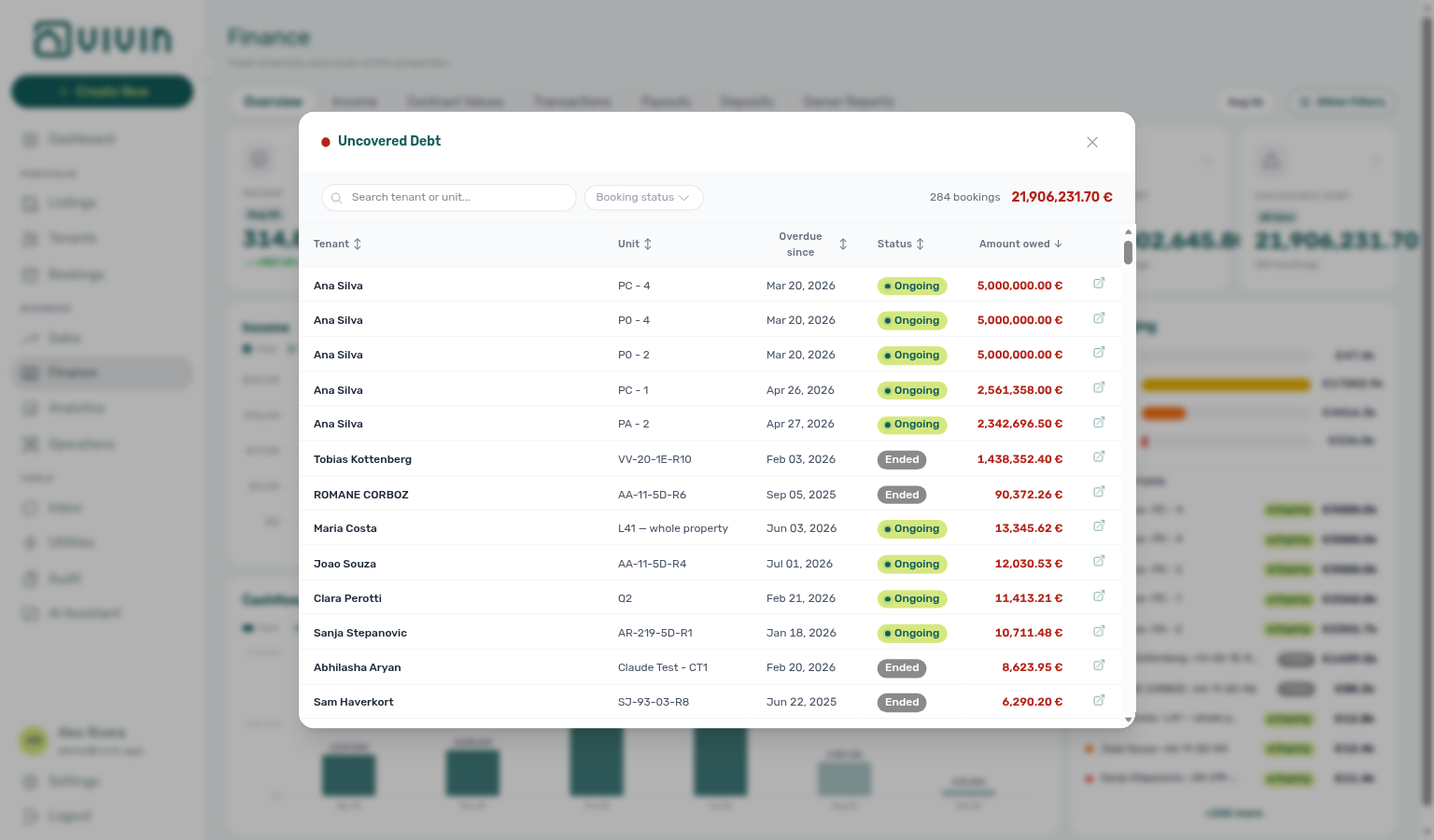
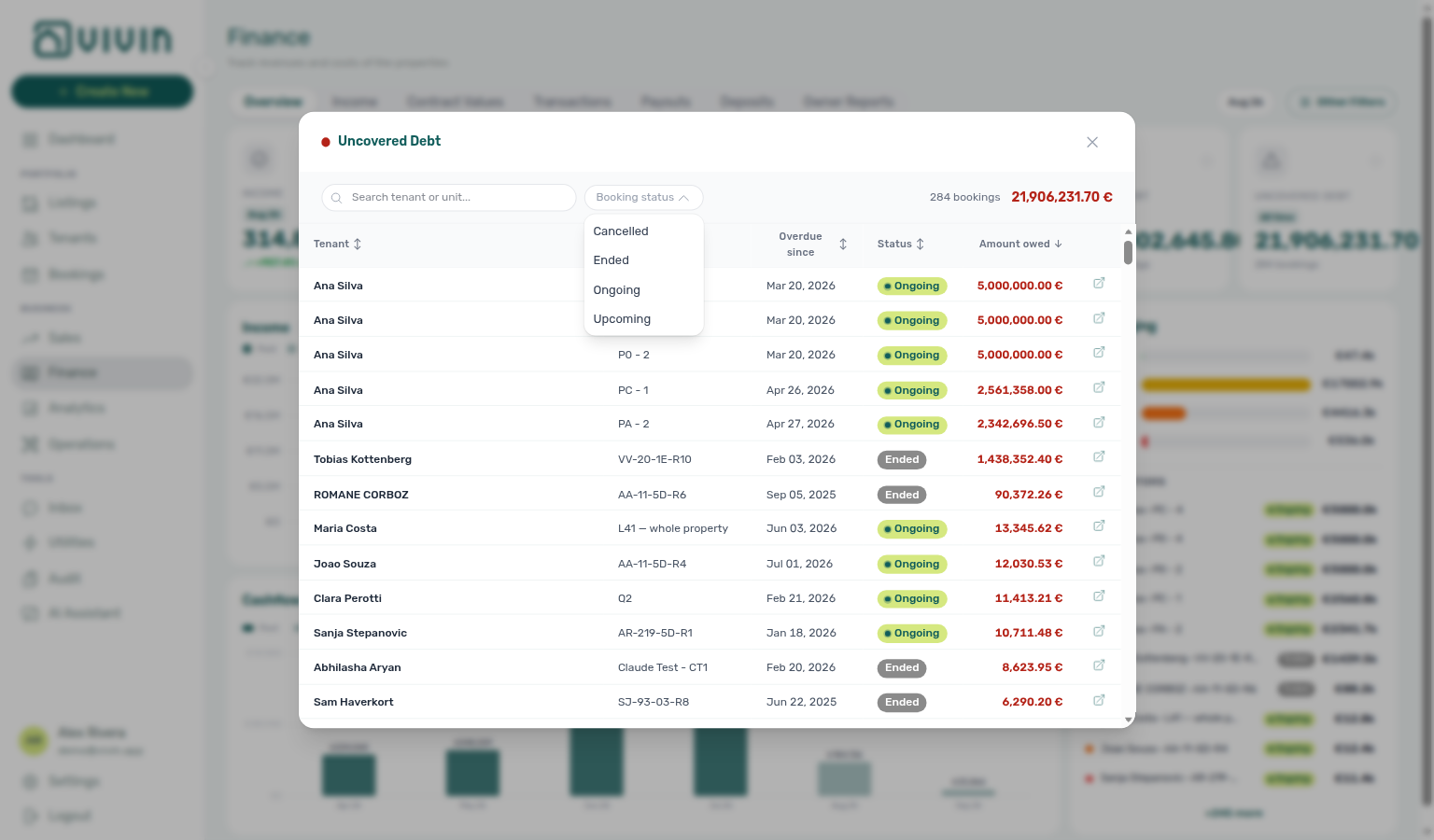
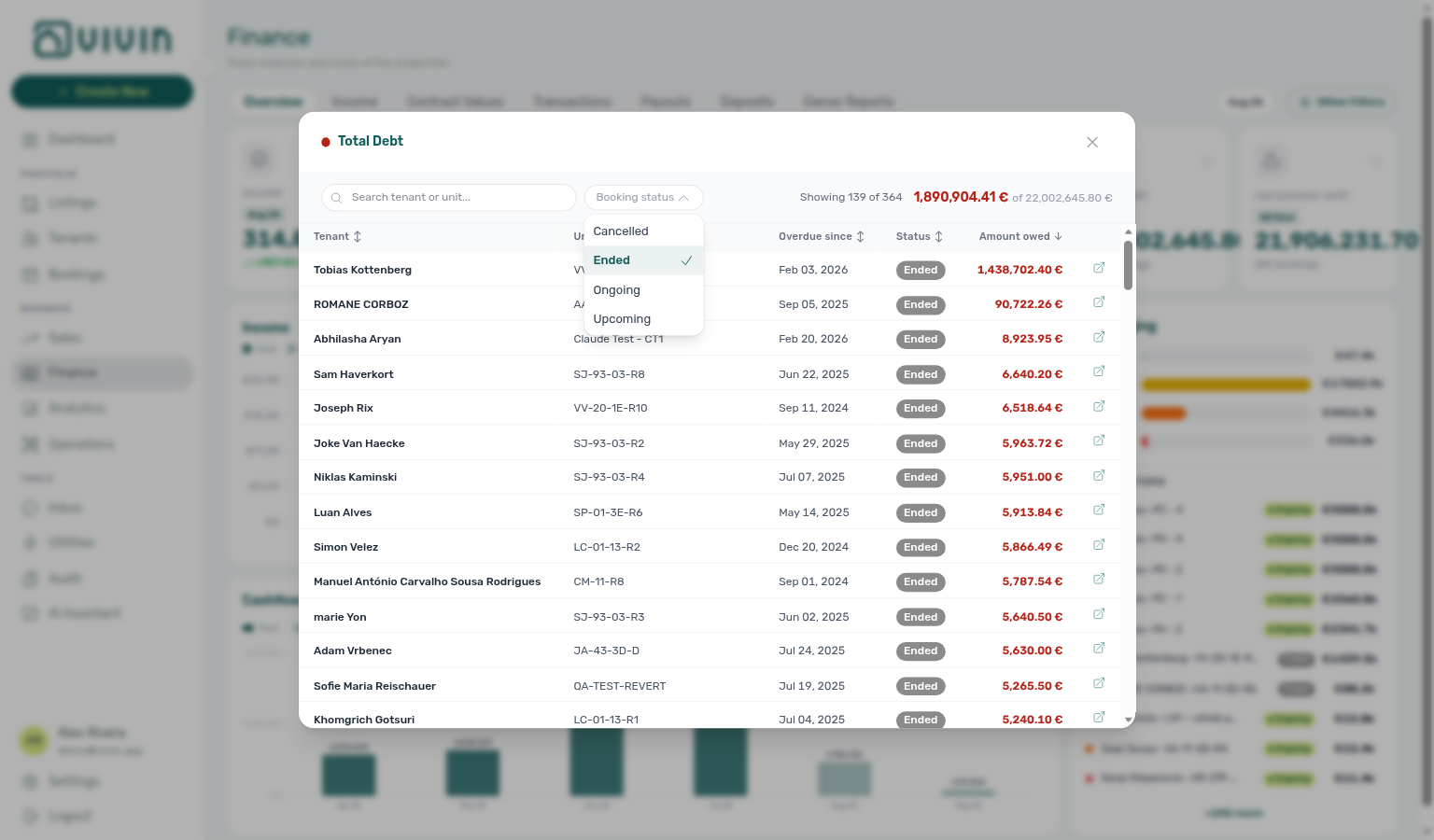
Filter the debt list by category
On Total Debt, Uncovered Debt, or a Debt Aging bucket list, Booking category and Tenant category sit beside search and Booking status. They narrow the open list — they do not re-run Overview or change the KPI cards. Use Other filters when the whole Overview (cards and every drill-down) should follow a segment.
Typical path:
- Open Finance → Overview and click Total Debt (or Uncovered Debt, or a Debt Aging bucket).
- Open Booking category. Tick a named booking tag, then No category if you also want untagged stays. The menu stays open while you add another choice.
- Open Tenant category. Tick a named segment, then No tenant category if you also want unassigned tenants. The menu stays open the same way.
- Read Showing N of M and the filtered € total on the grey summary bar. Removable chips appear there; the pickers on the white bar keep their placeholders — see Filter toolbar stays two bars.
- Clear all resets search, Booking status, and both category pickers. Close the list when you are done — do not change the booking.
Each picker is any-of: a stay matches if it has at least one selected tag or segment (or the empty-case row you ticked). Search, Booking status, Booking category, and Tenant category combine — a row must pass every active control.
Options come from the rows already in this list, not the account-wide catalogues in Other filters. A control hides when the open list has only one choice. Tenant category also hides when tenant categories are off for the account. Empty-name segments appear as Unnamed category.
This habit is not on Overdue Deposits, System Payments, Manual Payments, or Income / Cash flow lists.
See FAQ — Can I filter Total Debt by category without closing the list? and Booking sidebar stays on the drill-down.
Filter toolbar stays two bars
On Total Debt, Uncovered Debt, or a Debt Aging bucket list, search and the pickers never share a row with the € total. That keeps a long filter set from clipping the card total, and it keeps an open menu on its trigger when the list shortens.
| Bar | What stays here |
|---|---|
| White (top) | Search tenant or unit…, Booking status, Booking category, and Tenant category. Each picker keeps its placeholder — the open menu does not close after a tick. |
| Grey summary (below) | Showing N of M (or the unfiltered count), Clear all, removable chips, and the filtered € total beside of the card total. |
A chip appears for the search text, each Booking status, each Booking category, and each Tenant category. Click a chip × to drop that one filter. Clear all resets every control on both bars.
When a filter leaves only a few rows, the table still keeps a comfortable height so the list does not jump. An open Booking status or category menu therefore stays lined up with its trigger — you can tick a second choice without hunting for a floating list.
This two-bar split is not on Overdue Deposits, System Payments, Manual Payments, or Income / Cash flow lists. Those lists still put search and the € total on one bar.
See FAQ — Where do I see which Total Debt filters are on? and Filter the debt list by category.
Booking sidebar stays on the drill-down
Click a row in an Overview drill-down list and the booking opens on top of that list. The list stays open with your search, Booking status, Booking category, Tenant category, and sort still applied. Close the sidebar (not the drill-down) to return to the same queue and open the next row.
This is the habit on:
- Total Debt, Uncovered Debt, and Debt Aging bucket lists
- Overdue Deposits
- System Payments and Manual Payments
- Income status lists and Cash flow All payments
Rows are clickable only when your role can open booking detail. Top debtors on the Overview panel is not a modal — that ranked list still opens the booking beside the page. Distinct from Rent adjustment Step 2, where the teal tenant name (not the whole row) opens the sidebar on top of the preview.
Pair with Debt Aging when you need age bands rather than lifecycle stage, with Filter the debt list by category when the slice is a booking tag or tenant segment inside the open list, with Filter toolbar stays two bars when chips or the € total look missing from the picker row, and with Tenant category on Overview drill-downs when Other filters should change the KPI cards too.
System and Manual Payments drill-down
Card totals pair with Transactions — Type summary cards and soft-archive visibility in Archived bookings on the ledger. Approval work still belongs on Transactions, not this modal — Pending manual payments.
Click System Payments or Manual Payments on the KPI strip to open a transaction list for the same month picker and Other filters as the card:
- Open Finance → Overview.
- Click System Payments (green dot) or Manual Payments (amber/yellow dot) when the card shows a non-zero count.
- Review tenant, unit, type, date, status, and amount. Use the modal search to narrow by tenant, unit, or type — the header total € stays the unfiltered card total so the list always foots to the KPI.
- Click the open-booking control on a row to open that reservation on top of this list — search stays applied; close the sidebar to return to the same queue (Booking sidebar stays on the drill-down).
- Close the drill-down and continue on Transactions when you need Pending approval, bulk actions, or export.
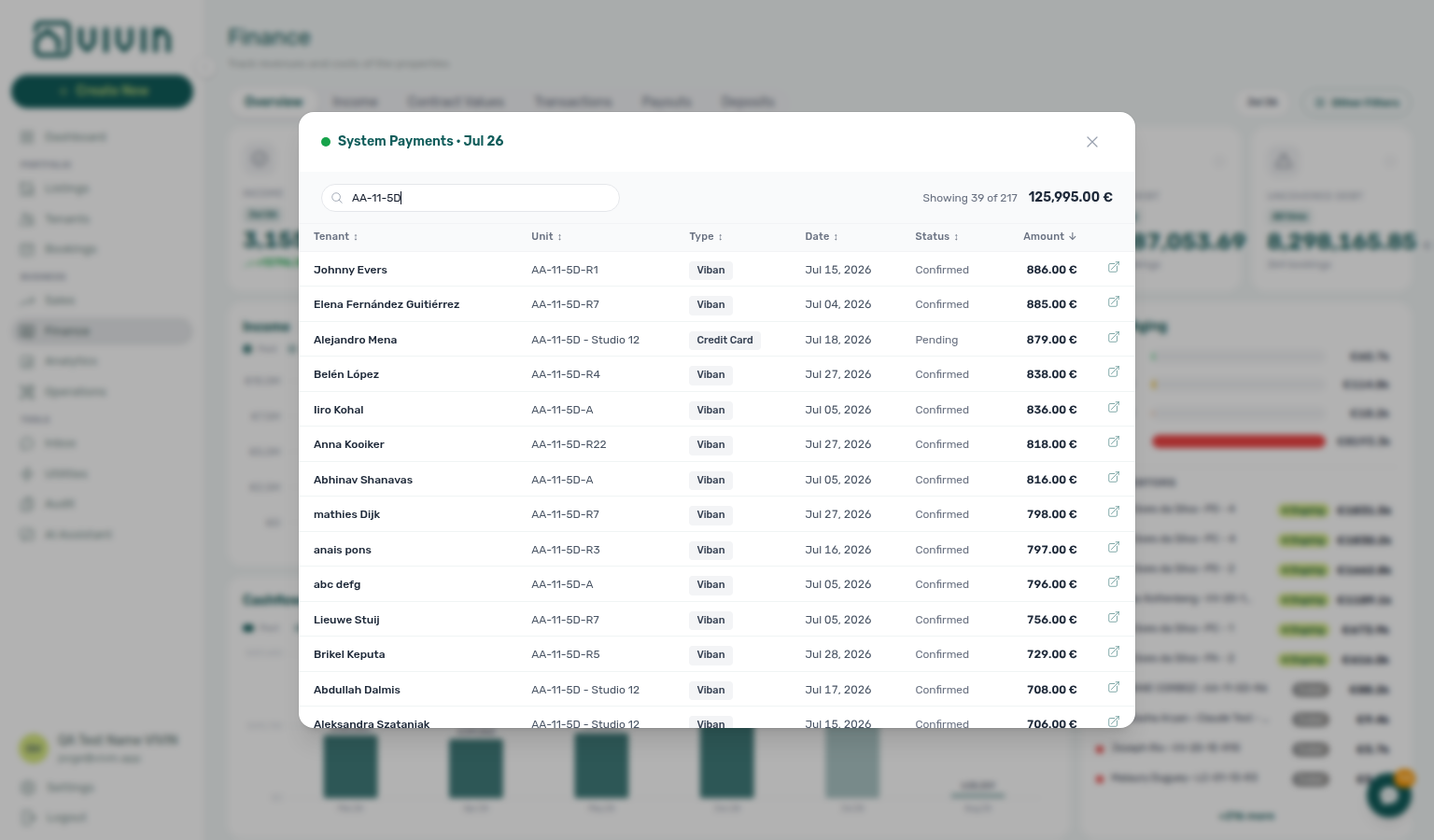
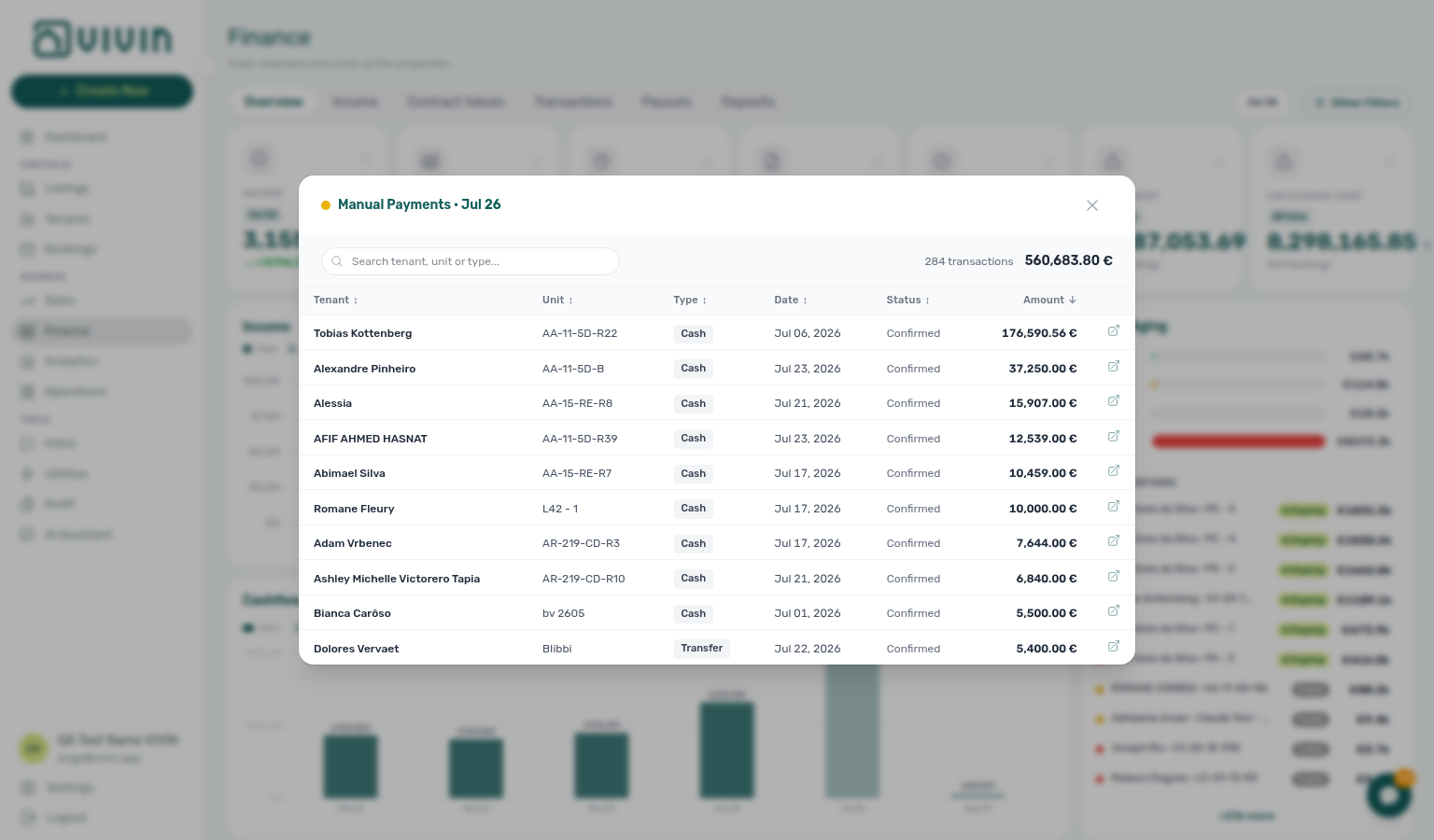
The SQL-backed Manual Payments card applies the same soft-archive gate as Finance → Transactions: after Delete Booking, manual / provider-platform rows for that reservation drop out of the card and its drill-down, while vIBAN / credit card System rows stay. Card and modal stay consistent because both read the same filtered base.
Pending manual payments
The Manual Payments KPI totals every non-rejected manual in-payment in the selected month — including pending rows — so a high number does not by itself mean the approval queue is clear. Clicking the card opens the month drill-down of all manual rails; it does not isolate pending-only rows. When operators record receipts that need confirmation, triage from Transactions (amber Pending chip), not the Overview modal alone. Illustrated behaviour: Glossary — Pending manual in-payment (Finance). Older Overview layouts showed a Pending Payments card for the approval queue only; today’s KPI is the monthly manual total.
- Open Finance → Transactions (
/finance/transactions). - Widen the date range if the receipt was recorded outside the default window (use Clear date range selection when older pending rows are hidden).
- Click the amber Pending chip on the All type-summary card (or use the Pending status filter) to isolate manual rows — see Notification triage — Step 4, FAQ — Pending manual in-payment on
/notifications, FAQ — Manual receipt still pending, Payment Allocation — Pending manual approval (month-end habit), Processing a New Booking — Step 5b, Handling a Late Payment — Step 4b, Managing a Check-in — Step 3b, Entering Monthly Utility Bills — Step 4b, Cancelling a Booking — Step 2a, and Portfolio KPI review — Step 7 for the same habit after payment alerts, move-in receipts, utility overages, settlement receipts, or month-end reconciliation.

- Approve each row with the per-row icon, or tick multiple rows and use Approve selected / Reject selected from the floating bulk bar. On the ledger, Reject is bulk-only (no per-row reject icon) — the same Reject Payment modal as booking Transactions applies. See Row actions on in-payment rows and Payment Allocation — Correcting mistaken receipts for reject/revert semantics; overage and settlement variants: Entering Monthly Utility Bills — Step 4b, Cancelling a Booking — Step 2a.
- After approval, booking balances, Contract Values, Total Debt, and Debt Aging refresh; clear related payment notifications when the balance is correct.
Until a manual in-payment is approved, it does not reduce In debt scheduled lines or Total Debt the way a confirmed receipt would. Record the payment when the bank deposit arrives, then approve (or reject mistaken duplicates) before closing a collections case.
Income chart and cash flow forecast
Illustrated cash timing chart (the same hybrid past/forecast series as the Dashboard Cash Flow Forecast): Glossary — Cash flow forecast (Finance Overview).
Below the KPI strip, the left column (about five sevenths of the width on desktop) stacks two charts that share the same range selector (6M, 9M, 12M, 18M, 24M). They answer different questions and are grouped on different dates — that is deliberate, and the section below explains when they will not match.
Income (stacked bar chart) — Scheduled income per month, split into Paid (dark teal), Scheduled (light teal), and In debt (red). Each bar shows a € total above the stack. Hover a column for a tooltip with per-status amounts; click a segment or a tooltip row to open the payment-line drill-down for that month and status. A partly collected charge is split across those segments. Large Y-axis values abbreviate as €Nk, €NM, or €NB; tooltips and modals keep full precision. Illustrated Income status behaviour (distinct from the Cash flow forecast chart below): Glossary — Finance income status.
Cash flow forecast (chart title may read Cashflow) — Hybrid, split at today (the legend reads Past / Expected):
- Past days show gross cash collected by the day the money arrived — deposit refunds and reversals are not subtracted from the bar. The System Payments and Manual Payments cards (and cash collected) are net: refunds subtract. When those two disagree, both are correct — they answer different questions. Ask AI Chat “How much came in in June 2026?” to hear both bases named.
- Today and future days show the rent still expected, i.e. the uncollected part of each charge (
amount − already paid), grouped by its due date.
A charge that was paid early therefore appears once, as collected cash on the day it was actually received — it is not counted again on its future due date. That is why a future month whose charges are already settled correctly reads € 0.
AI Chat and WhatsApp Genius use this same series when you ask “how much will I receive between two dates?” — see FAQ — Expected receipts between two dates. For “how much came in in June?”, they should name net System + Manual Payments as well as this gross Past bar — Cash in: net vs gross. Toggle Day when you want to check the assistant’s window against the chart.
Toggle Month vs Day on the chart header. Click a month or day bar to open a drill-down listing exactly the lines that make up that bar (same modal shell as the Income chart, status filter set to All payments), so the modal total always equals the bar you clicked. Vivin only loads the Past (realized) half for bars entirely before today, and only the Expected (forecast) half for bars entirely in the future — a window that includes today loads both — so the modal stays fast and still foots to the bar.
They are grouped on different dates, on purpose:
- Income groups by the month the charge refers to (its reference month) — an accrual view, matching the Income KPI card, the donut breakdown and the year-on-year comparison. December's rent is December income even when the tenant prepaid it in September.
- Cash flow groups by the date the money moves — collection date in the past, due date in the future.
The two dates genuinely differ on some charges. When a booking's move-in requirements include the last rent, that rent becomes payable at check-in while still belonging to the last month of the stay. Such a line shows under its stay month on Income, and under the check-in month on Cash flow. In the Income drill-down the row shows both its due date and a Ref. line with the month it belongs to, so an out-of-month due date reads as intentional rather than misfiled. Finance → Contract Values shows the same split as Period vs Due date, and the CSV/Excel export now includes that period as year and month next to dueDate — Item month in the export.
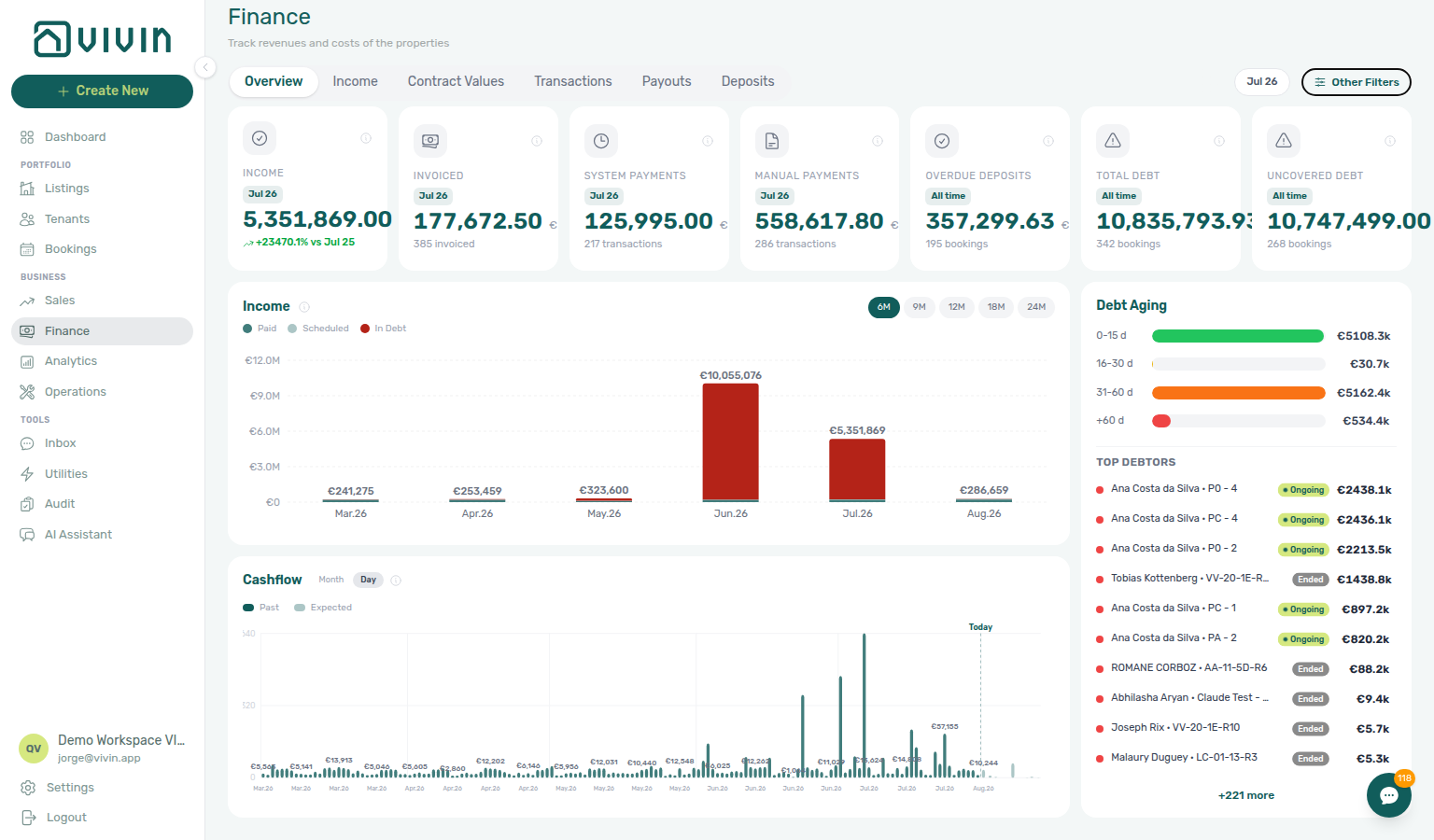
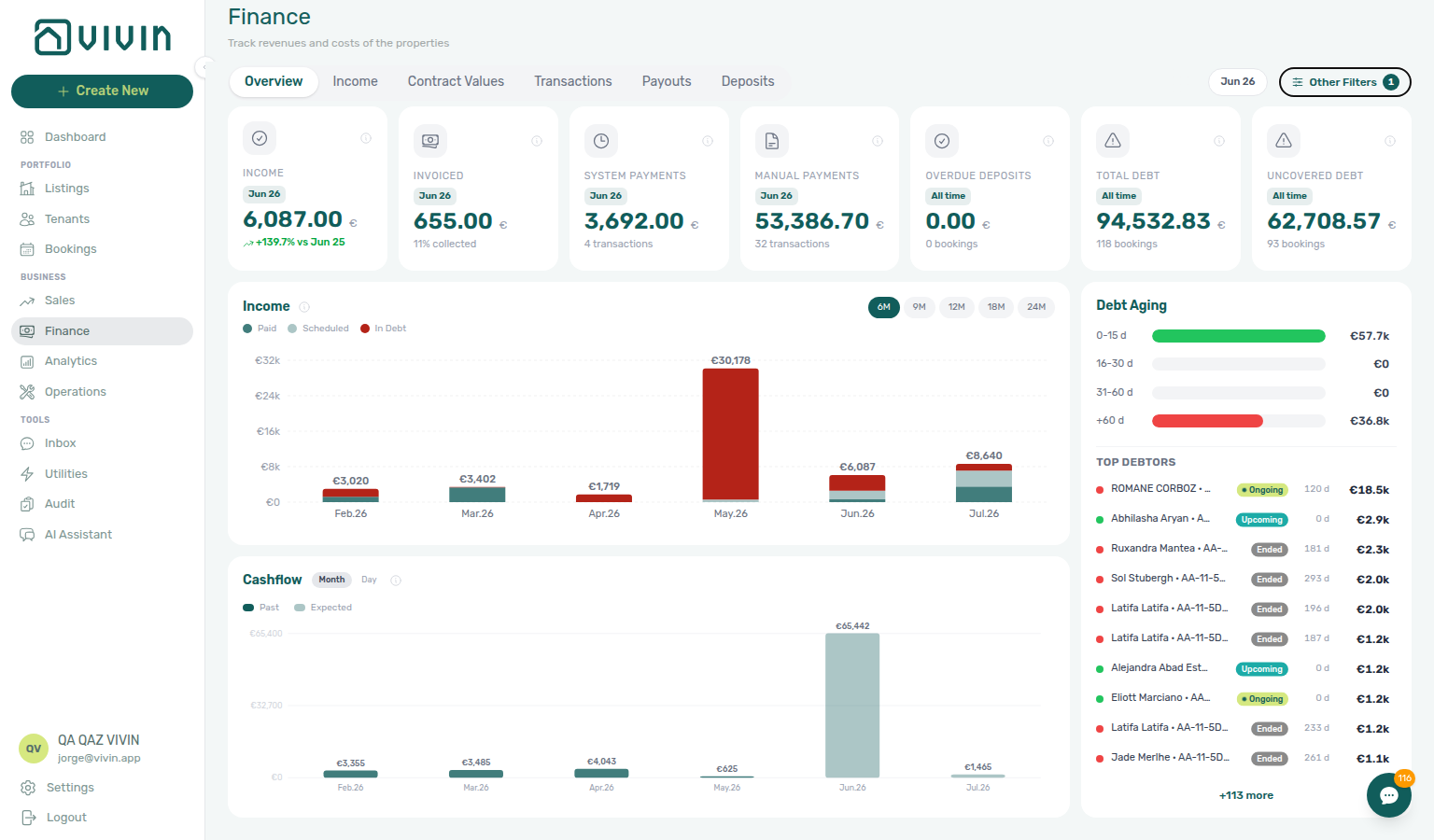
Debt Aging is the age-banded receivables surface — expand overdue buckets or pick Top debtors to open a booking (FAQ — Bookings that owe money). Click Total Debt or Uncovered Debt for the full booking list with Booking status and Booking category / Tenant category when you need lifecycle or segment slices rather than age bands.
Income chart + Debt Aging PNGs and the In debt drill-down modal re-verified 2026-06-20 07:06 UTC (same script — property filter AA-11-5D, bar-segment click on Income chart, month bar on Cash flow forecast).
Debt Aging panel
The right column shows Debt Aging — receivables triage aligned with the Total Debt and Uncovered Debt KPIs:
| Element | Behaviour |
|---|---|
| Aging buckets | Horizontal bars for 0–15 d, 16–30 d, 31–60 d, and +60 d overdue. Each overdue charge is aged by its own due date, so one booking can appear in several bands at once — an old arrear in +60 d and a recent one in 0–15 d — and every band shows only the amount owed at that age (not the booking’s full debt). Click a bucket with debt to open a Debt Aging drill-down modal: tenant · unit rows for that band, with Overdue since (the oldest unpaid due date in the band) and the band amount. Click a row in that list to open the booking on top of the band list (Booking sidebar stays on the drill-down). The number on a bucket counts distinct bookings with debt in that band, so it is intentionally not additive across bands. When Tenant category (or other Other filters) is active, the bucket amounts and the modal list use the same filter — see that subsection for the segment walkthrough. See FAQ — Same booking in more than one Debt Aging band. |
| Top debtors | Ranked list of bookings in debt with lifecycle badge and amount. Each debtor's coloured dot reflects the age of its oldest unpaid overdue charge. Click a row to open the booking in the Finance context sidebar. When more than five debtors exist, +N more expands the list. |
| Empty state | When no bookings owe-al, the panel shows No outstanding debts. |
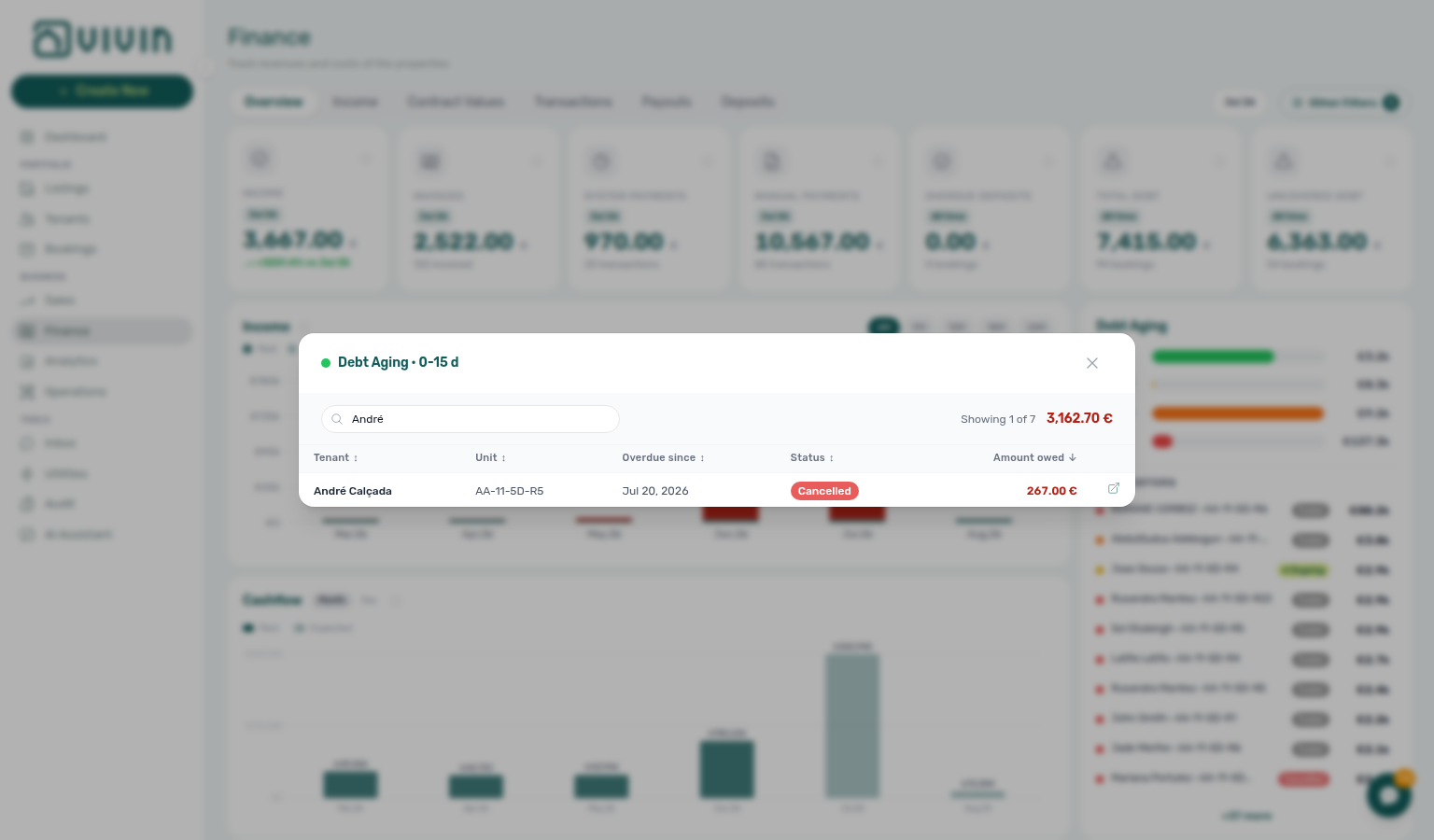
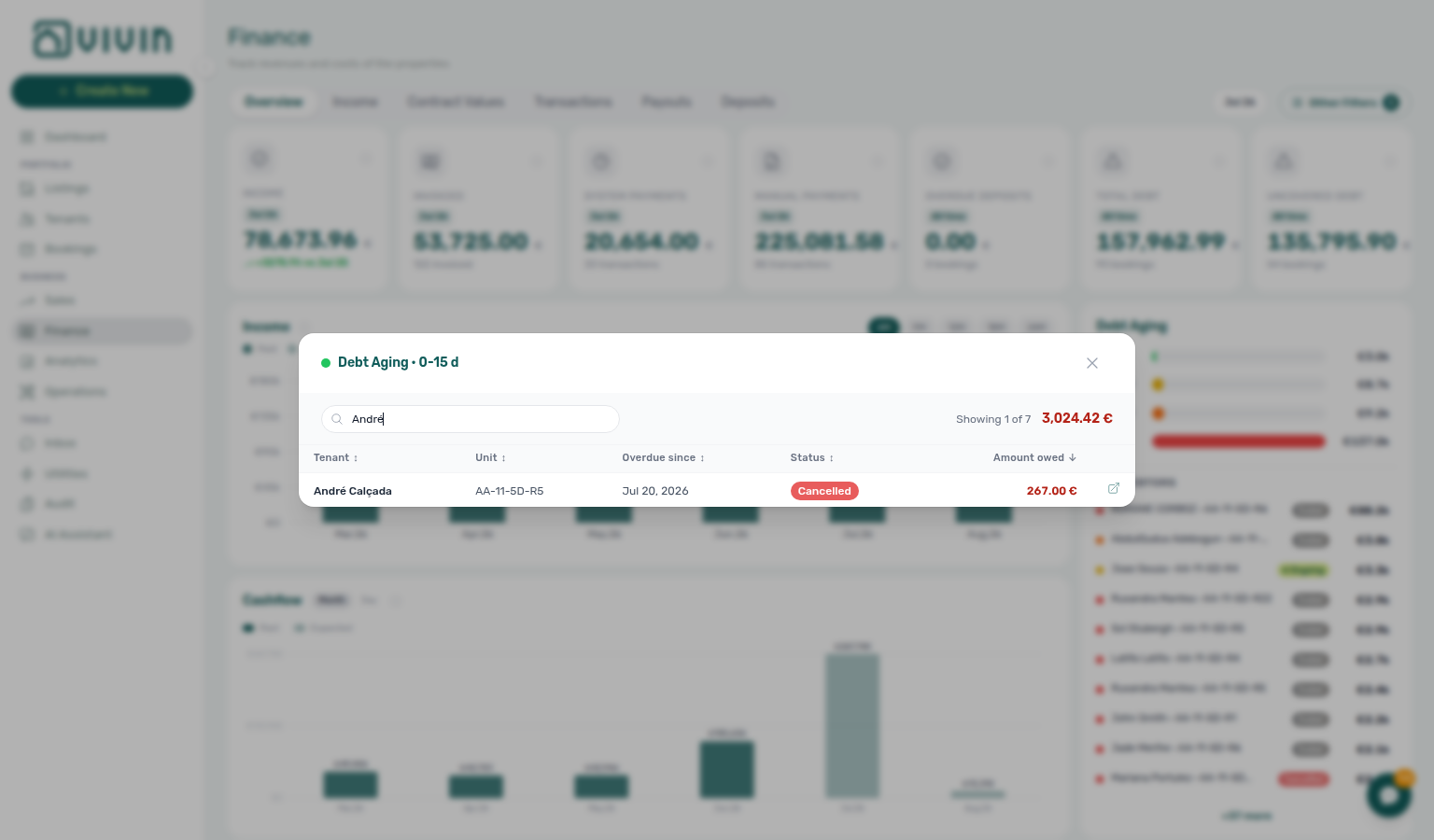
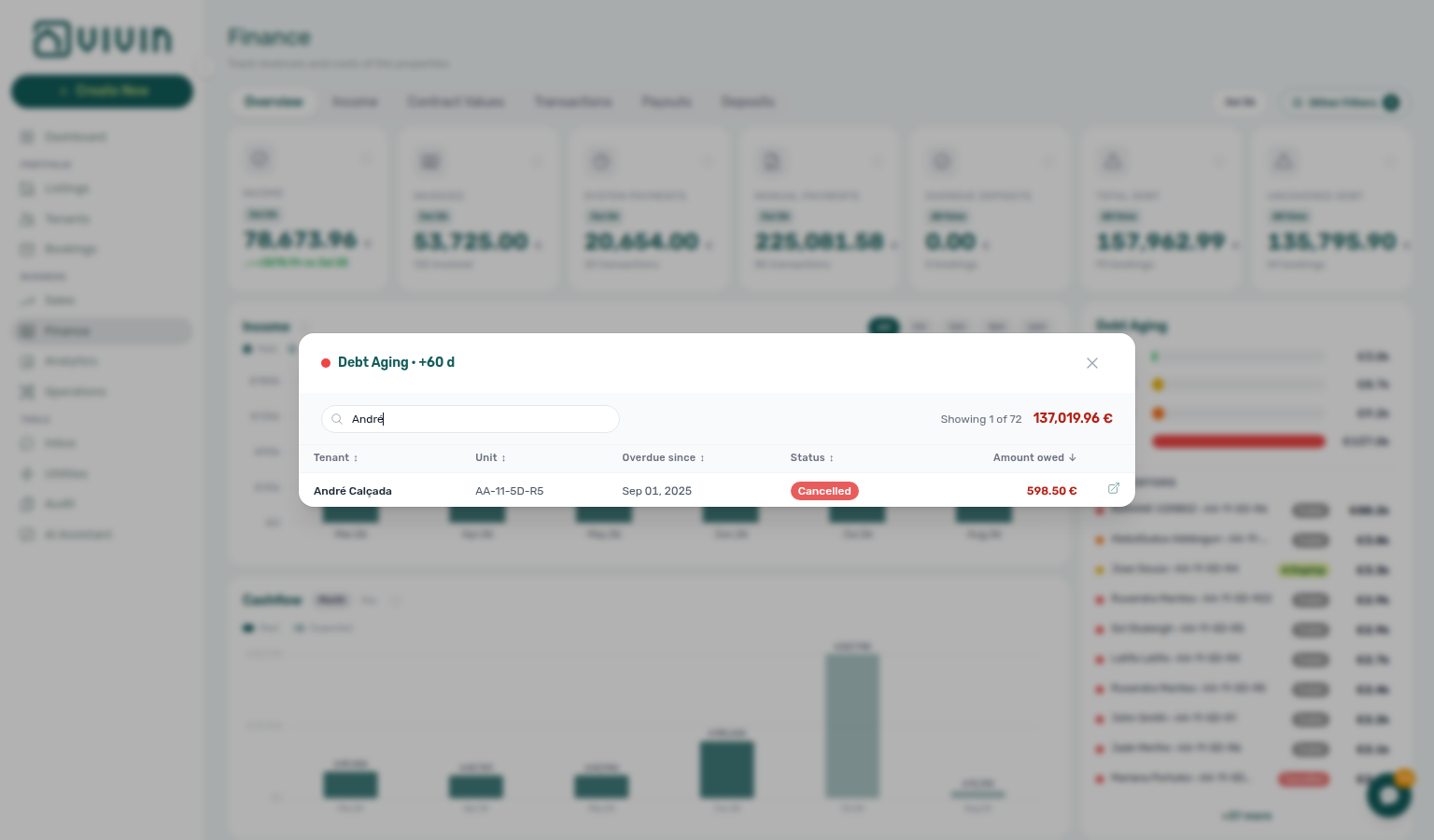
Use Debt Aging (or the In debt segment on the Income chart) for age-banded receivables context, or open Total Debt / Uncovered Debt when you need the full booking list with Booking status. After a payment alert on /notifications, row-click navigation often lands here via Notification triage — Step 4 — see Common Workflows — Finance debt receivables triage, Glossary — Finance Debt Aging, FAQ — Bookings that owe money, FAQ — Uncovered Debt KPI, and FAQ — Finance Income status drill-down (finance-overview-debt-aging-expanded-bucket.png, finance-overview-debt-aging-walkthrough-flow.mp4, finance-overview-debt-booking-status-ended.png).
Income status drill-down
Click a coloured segment on the Income chart, a row in its hover tooltip, or a Cash flow forecast bar to open a modal scoped to that month (and day when you clicked a daily bar). Pick Paid, Scheduled, In debt, or All payments depending on what you clicked.
The modal header shows the status colour, the month label, a count of lines, and the total € for that slice. Columns include Tenant, Unit, Type, Due date, Amount, and Paid; booking lifecycle chips (Ongoing, Ended, Cancelled) appear under tenant names when available. Use search to filter tenant or unit names inside the modal. Click a row (when your role allows) to open that booking on top of this list — search stays applied; close the sidebar to return to the same queue (Booking sidebar stays on the drill-down). A partly collected charge can appear in two of these lists — see Partial payments across Paid, Scheduled, and In debt.
Partial payments across Paid, Scheduled, and In debt
A charge that is only partly collected is not listed once under a single status. Vivin splits it across the Income segments so each bar’s total matches the lines you open.
| Segment you click | What Amount shows on that line | When the line appears here |
|---|---|---|
| Paid | The euros already collected | Whenever that charge has a collected part |
| Scheduled | The euros still expected, not yet due | The remaining part is still in the future |
| In debt | The euros still owed and overdue | The remaining part’s due date has passed |
The Paid column on the row still shows the full collected figure for the charge. The header total € sums only the Amount column — that is the same figure as the coloured segment you clicked.
Example: a € 1.000 rent line with € 300 collected lists under Paid for € 300 and under Scheduled for € 700 (or under In debt for that remainder once the due date has passed). The same tenant · unit · type in both lists is expected. A fully settled charge appears only under Paid.
Cash flow forecast does not split this way: collected cash appears once on the day it arrived.
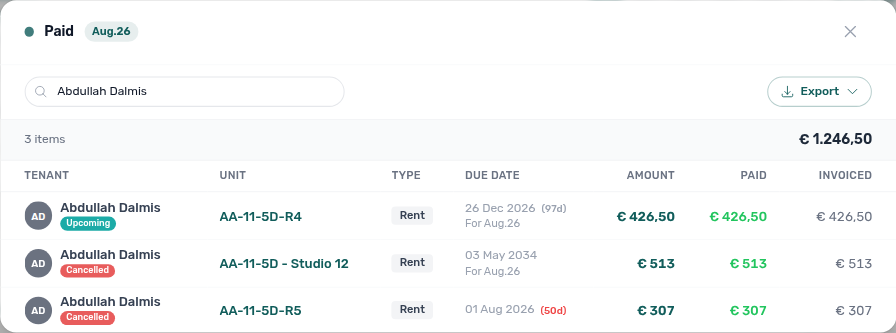
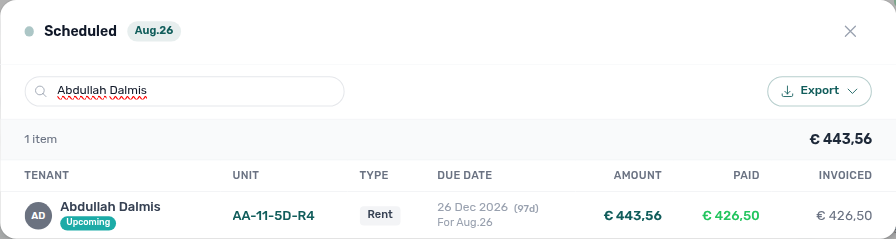
See FAQ — Why does the same tenant appear under both Paid and Scheduled on Income? and Glossary — Income partial split.
On-demand loading
Payment lines for Paid, Scheduled, and In debt load only when you open the modal — the same on-demand habit as System / Manual Payments and Cash flow forecast All payments. Vivin walks matching rows in bounded server pages behind the scenes and shows Loading items… until every line for that month (and day, when you clicked a daily bar) is ready. This is not directory-style infinite scroll: you do not scroll to fetch the next chunk; the full month-scoped list appears together so the header count and € total stay honest.
Day narrowing for a Cash flow day bar (and any day-scoped Income click) is applied before pages are returned, so a short page never undercounts the modal total.
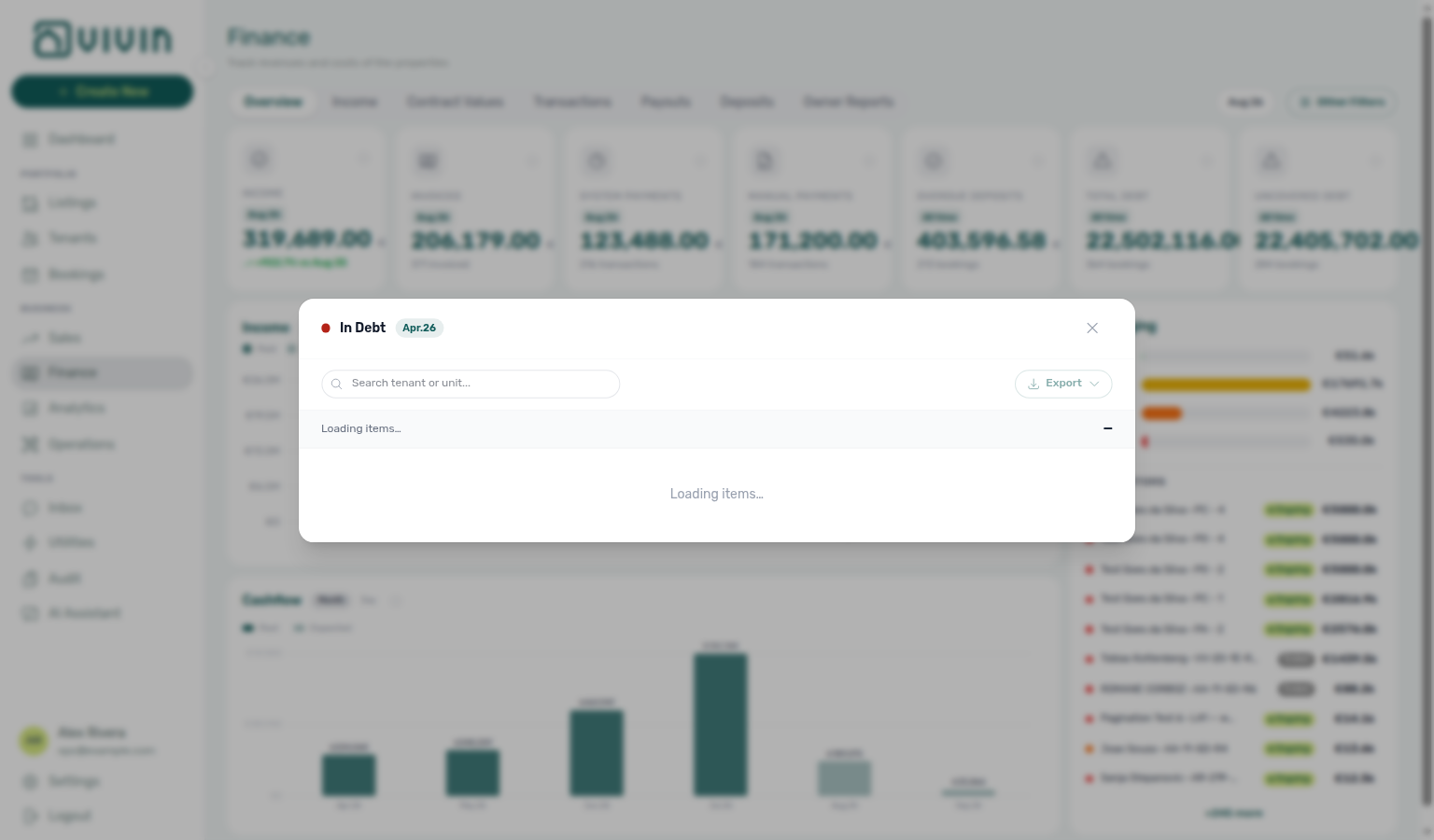
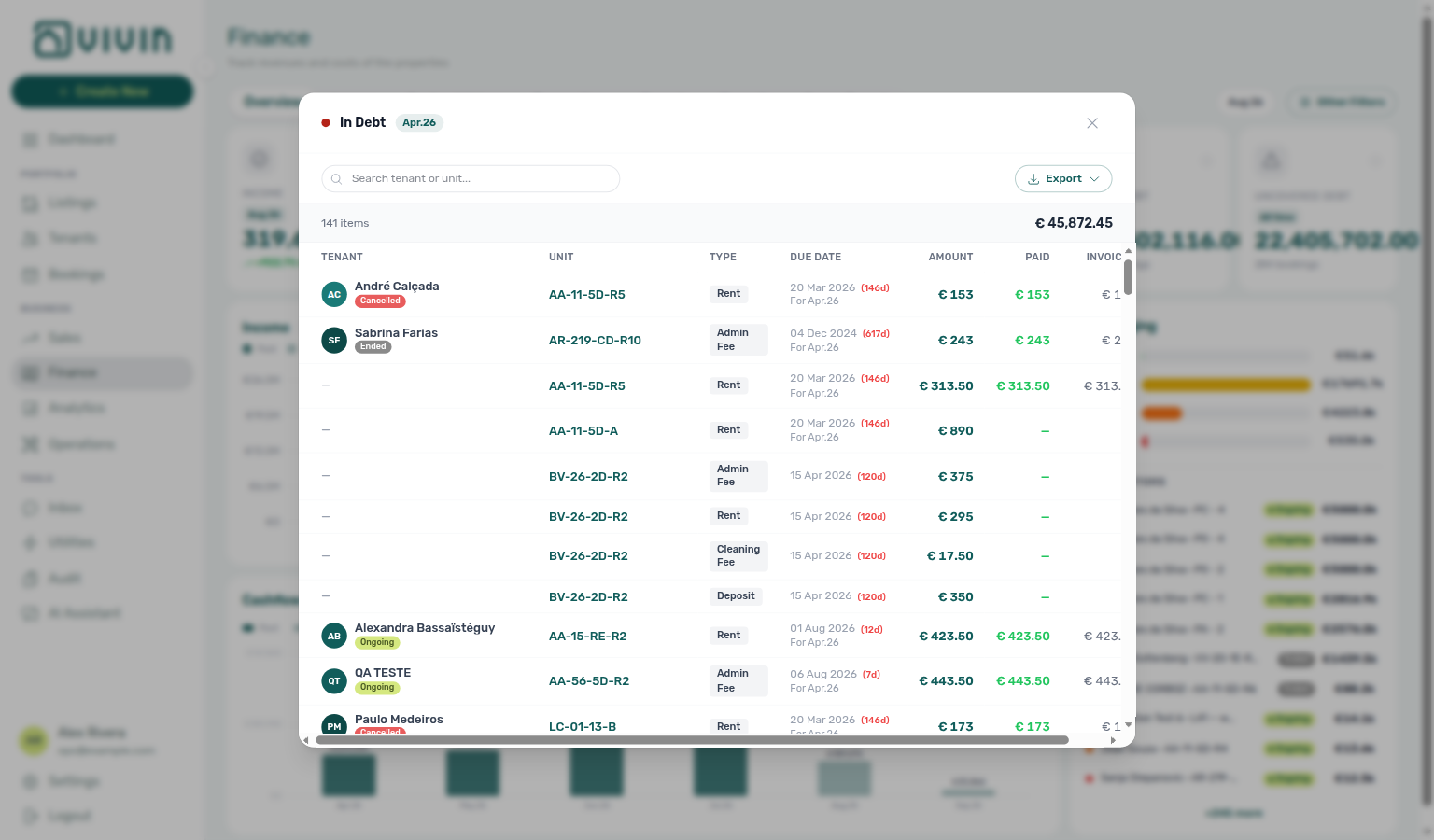
Export from the modal
After the list finishes loading, use Export in the modal toolbar for CSV or Excel. The download includes the lines currently visible under the modal search filter (filenames follow vivin-income-<status>-YYYY-MM-DD). Export stays disabled while Loading items… is on screen or when the slice has no rows.
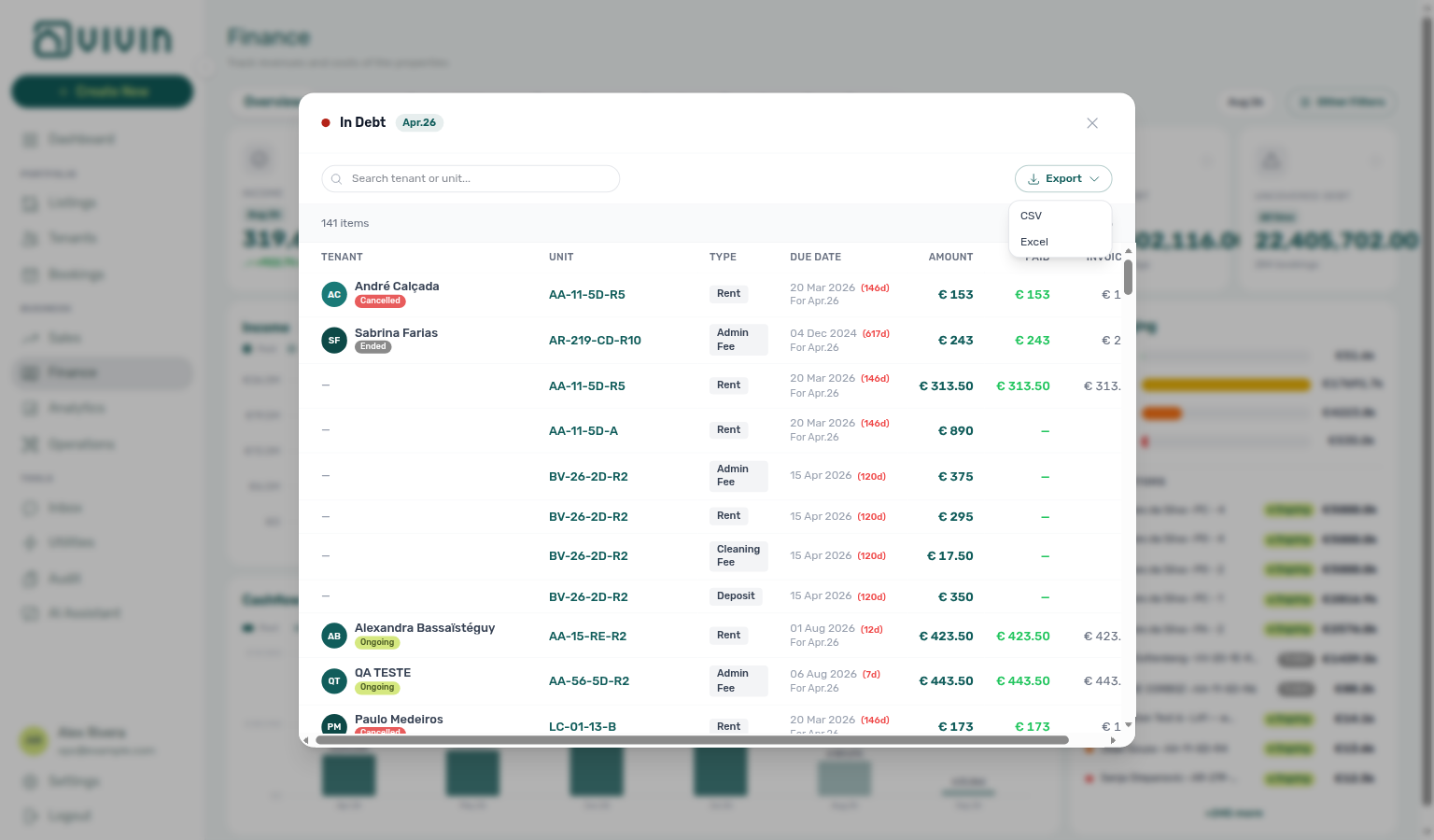
Payment-line drill-down is month- and status-scoped — for booking-level receivables, use Debt Aging instead (FAQ — Finance Income status drill-down — illustrated Income chart + In debt modal, FAQ — Bookings that owe money — Top debtors panel).
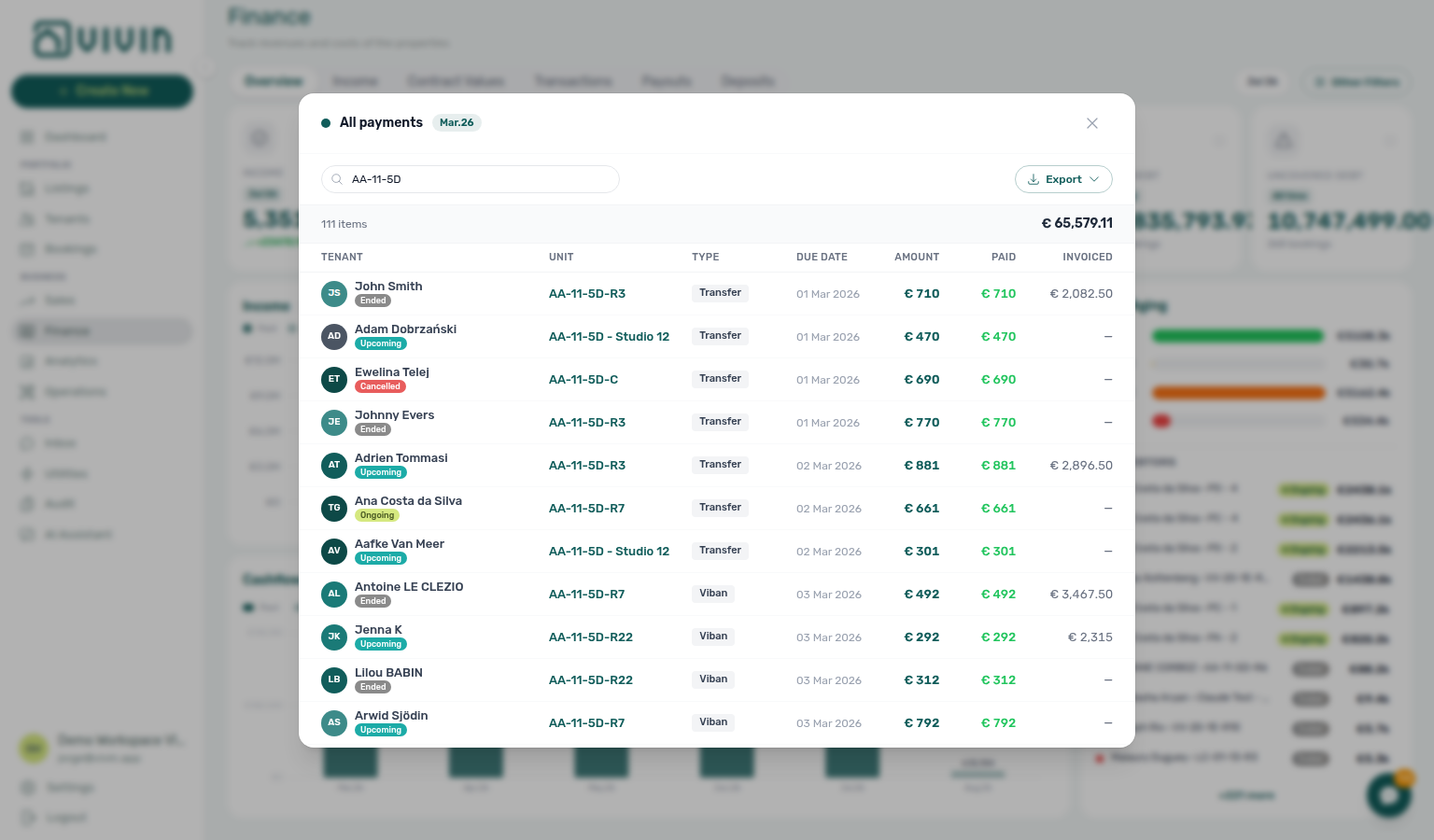
Use Overview as your daily health check: scan Income vs Invoiced for the month, watch Uncovered Debt, then open In debt lines or Debt Aging top debtors before calling tenants or opening Transactions.
Income Tab
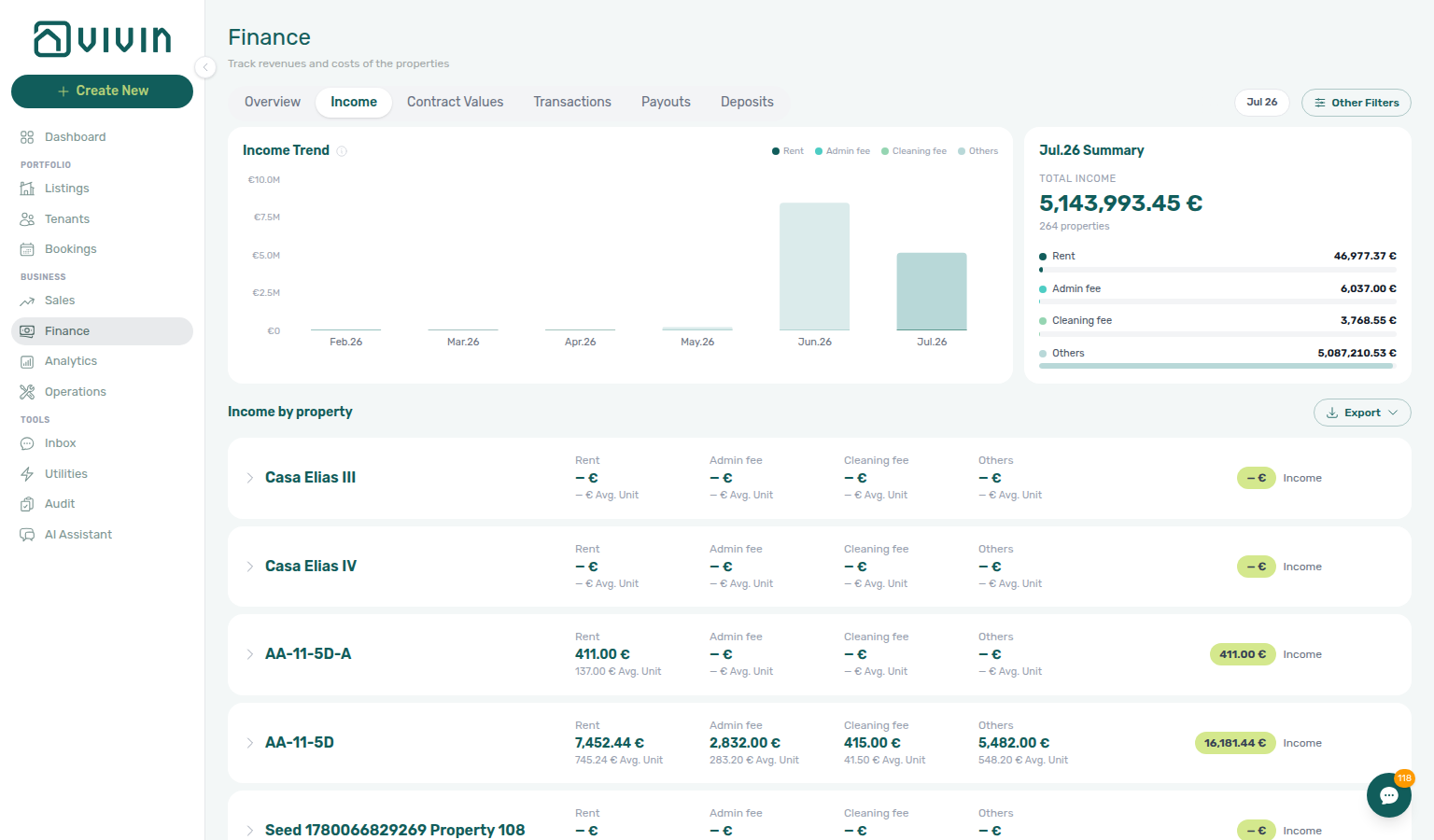
The Income tab (/finance/income) is the portfolio revenue drill-down for the month (or months) you pick in the Finance toolbar. It complements Overview (high-level health) and Contract Values (scheduled charges) by showing what was actually received, split by payment category and rolled up by property and unit.
Export
Use Export beside the Income by property heading to download CSV or Excel (.xls) for the active toolbar months and Other filters. Filenames are vivin-income-YYYY-MM-DD.csv or vivin-income-YYYY-MM-DD.xls. The control stays disabled while the property list is loading or empty.
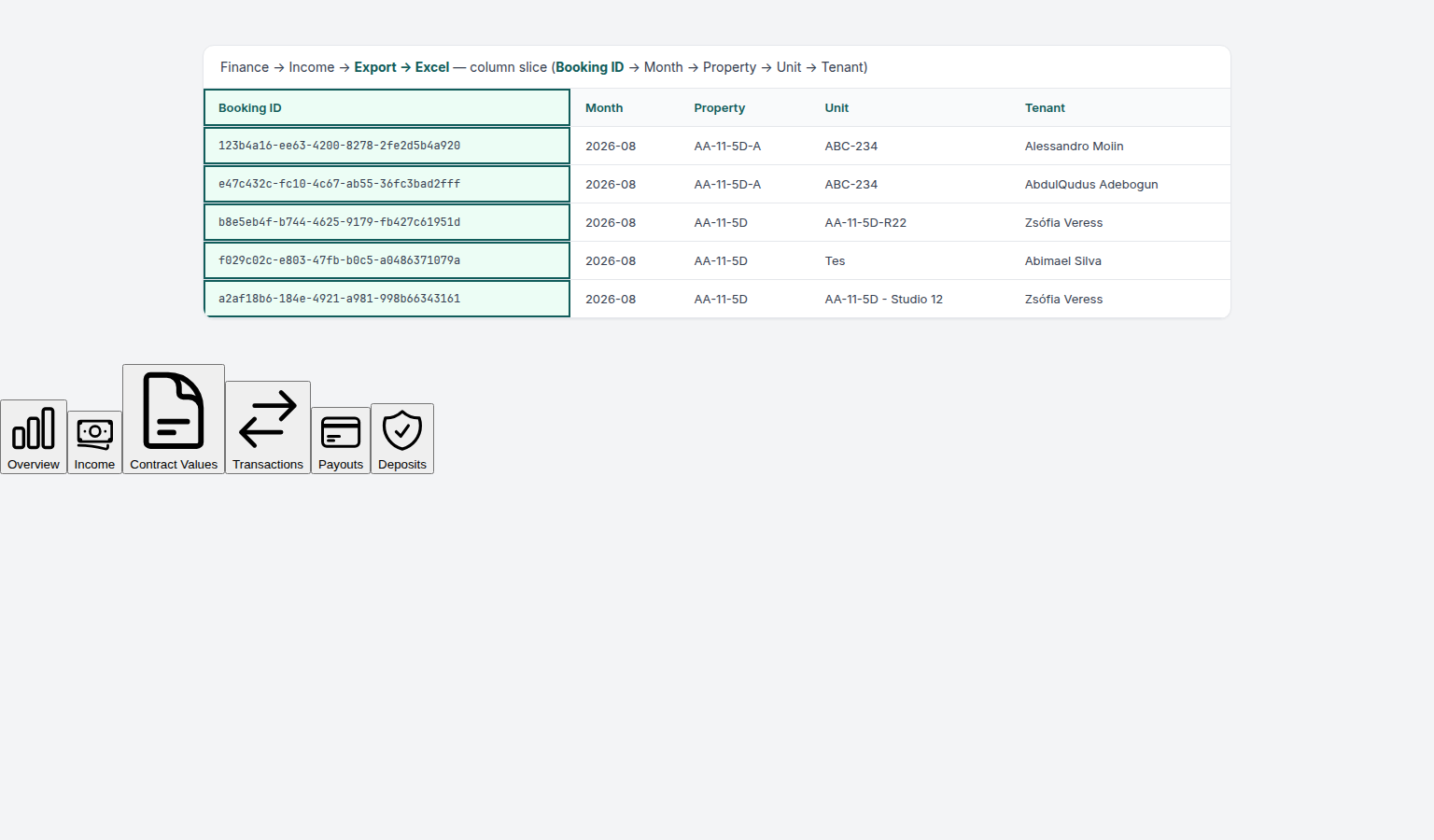
The on-screen list aggregates the selected window into property cards (month is not a column in the UI). The download therefore fetches a per-month breakdown and writes one row per (month, property, unit, booking) — the grain accounting teams need for monthly income reports — rather than one row per property card.
| Column | Contents |
|---|---|
| Booking ID | Vivin booking UUID (first column; blank when a unit line has no booking) |
| Month | Calendar month for that amount (YYYY-MM) |
| Property | Property internal name |
| Unit | Listing / unit name |
| Tenant | Tenant display name when linked |
| Rent | Rent collected in that month |
| Admin fee | Admin-fee income |
| Cleaning fee | Cleaning-fee income |
| Others | Other income categories in the roll-up |
| Income | Row total |
This is not the same file as Overview Income-chart drill-down Export, which downloads payment lines for a single chart segment. Use the Income-tab export for the aggregated property/unit map; use Overview drill-down when you need line-level collections.
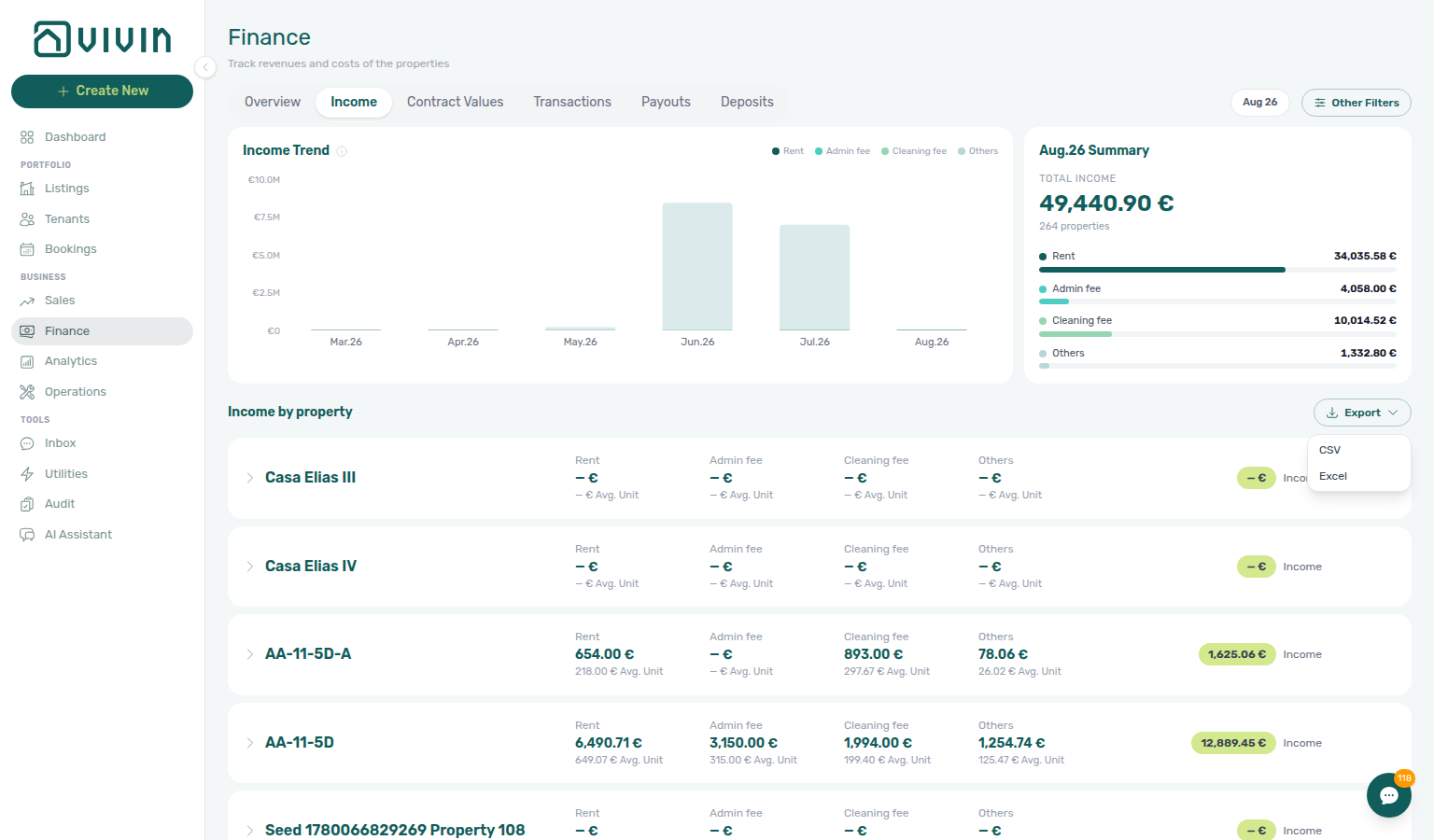
Toolbar and filters
- Month picker — Shared with Overview and Contract Values. The selected month drives the summary card on the right and highlights that month in the six-month trend chart (other months render at reduced opacity).
- Other filters — Opens the same Finance drawer used on Overview and Contract Values (tenant, booking, property & listing, owner, and related dimensions). It does not include the Select platforms block that appears only on Transactions — use Transactions when you need to isolate channel-sourced payments. Active filters also scope the Export file.
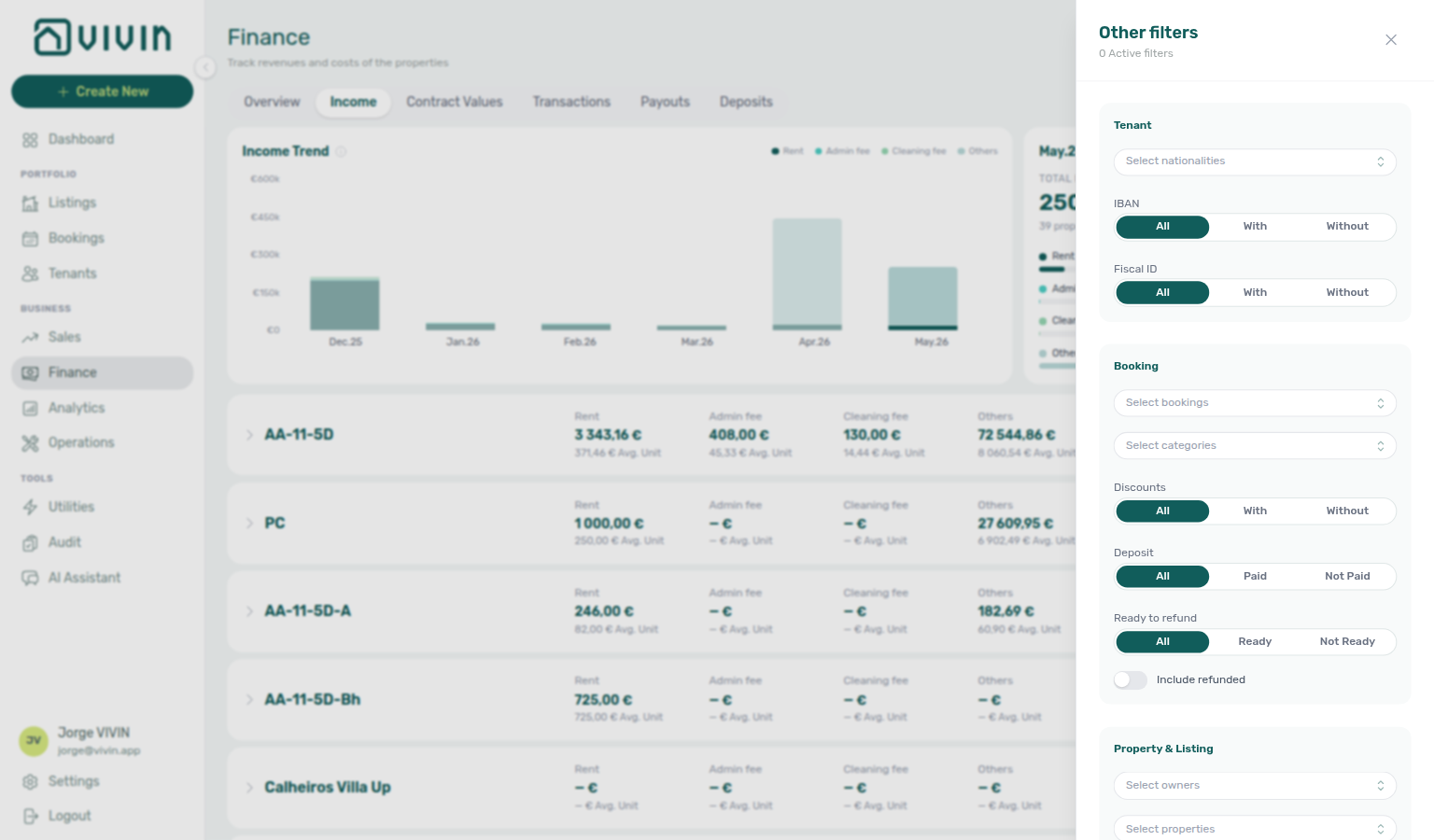
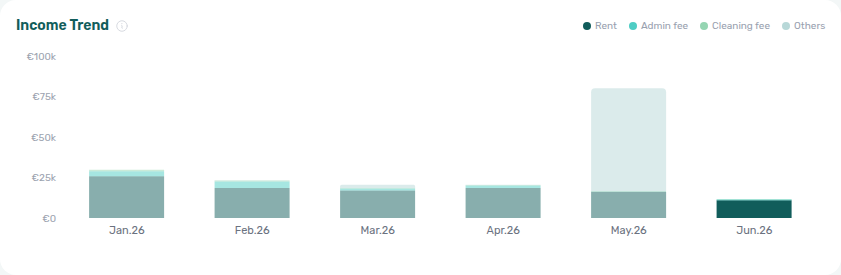
Monthly income trend (stacked chart)
The top-left card shows a six-month stacked bar chart whose window ends at the toolbar month (six calendar months inclusive, not a rolling “last six months from today”):
| Stack segment | Colour role | Meaning in the product |
|---|---|---|
| Rent | Primary teal | Collected rent for the month |
| Admin fee | Aqua | Admin-fee income |
| Cleaning fee | Light green | Cleaning-fee income |
| Others | Pale teal | Other received payment types in the income roll-up |
Hover a bar for a dark-teal tooltip with per-category amounts and a total for that month. An information icon beside the chart title explains how the trend window is computed. A compact legend on the right of the chart header matches the stack colours.
Visual emphasis — bars for months other than the toolbar selection render at 50% opacity so the selected month stands out at full strength. Large Y-axis ticks abbreviate as €Nk or €NM; tooltips and the summary card keep full precision.
Data loading — the trend chart, summary card, and Income by property list load from a single server request per month-picker or Other filters change (no infinite scroll on this tab). While the first fetch runs, skeleton placeholders appear in the chart and summary card; when no collections exist in the window, the chart shows an empty-state message instead of a blank frame.
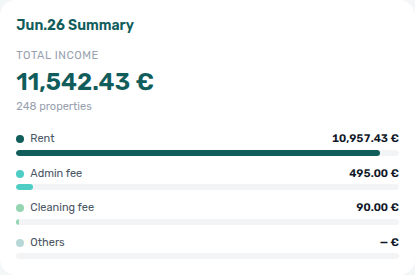
Summary card (selected month)
Beside the chart, the summary card titles itself with the selected month (for example June 2026 Summary) and shows:
- Total income — Grand total received across all properties in scope for that month (large headline under a TOTAL INCOME label)
- Property count — How many properties contributed rows below (for example 3 properties)
- Category breakdown — Rent, admin fee, cleaning fee, and others with € amounts and thin progress bars proportional to the month total (legend colours match the trend chart)
Use this card for a quick “how much landed this month?” answer before you expand individual properties.
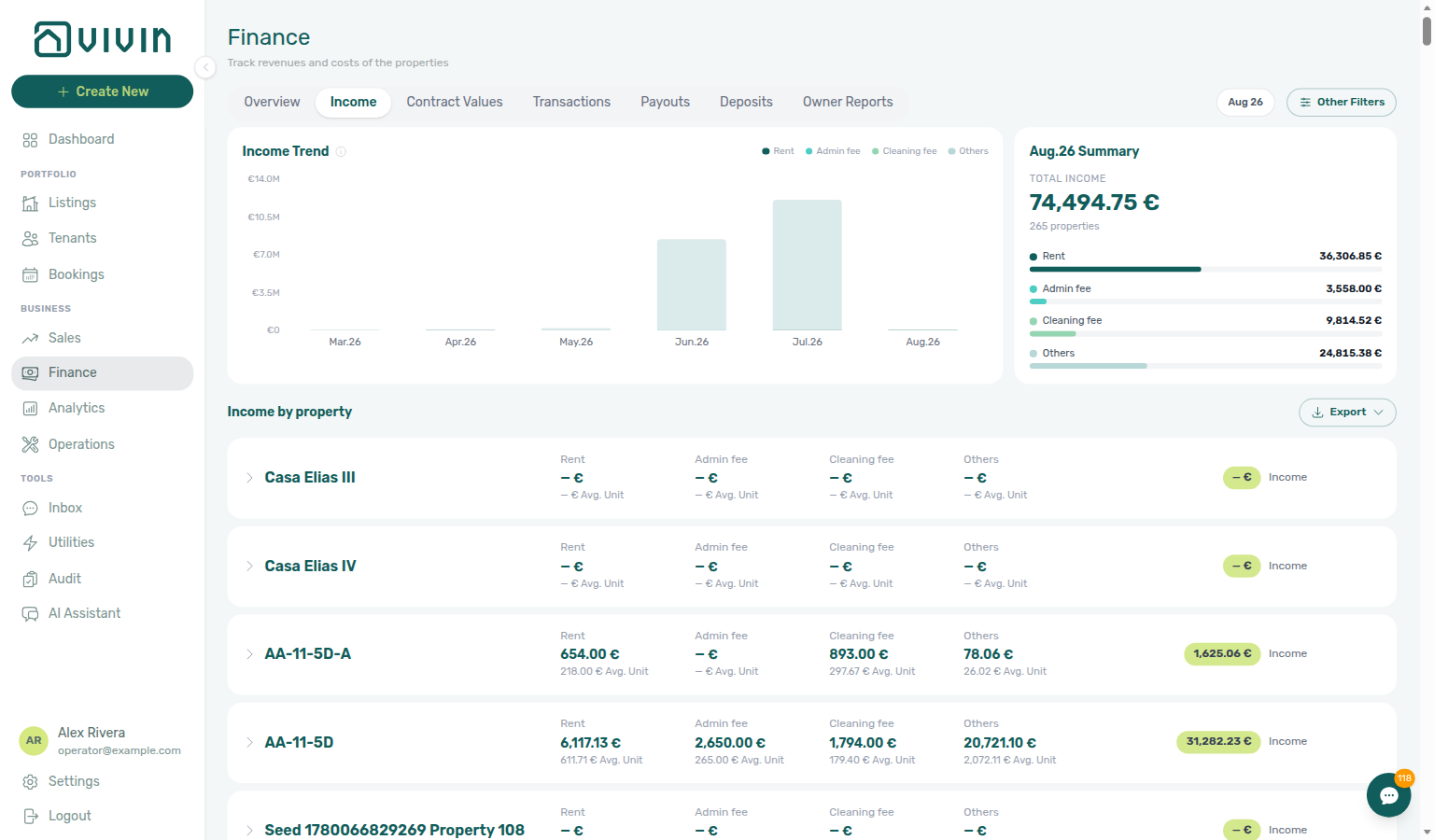
Income by property (expandable rows)
Below the chart row, Income by property lists one card per property in the filtered set. Each collapsed row shows:
- Property name and address line
- Rent, Admin fee, Cleaning fee, and Others totals for the month, each with a per-unit average beneath the total
- A highlighted Income badge with the property’s all-in total for the month
Click a row (or its chevron) to expand and reveal unit-level lines: each listing’s rent, fees, and income for the same month. Expand multiple properties at once; collapse with a second click. Expanded property headers use a light mint tint; unit rows sit on a pale grey panel beneath. When a unit row has a linked tenant, the right column shows a coloured initial avatar and tenant name with the unit’s income in parentheses.
Expanded state persistence — if you change filters but the same properties remain in the result set, rows you already expanded stay open (Vivin preserves expansion by property id).
Empty state — when Other filters or the month picker match zero properties, the list is replaced by a centred No income for this period message (distinct from the chart’s empty trend).
AI / Genius ranking: Ask AI Chat or WhatsApp Genius “which property earns the most this month?” or “highest income per unit?” — assistants use get-income-by-property (same Finance Income source; server incomePerUnit) under the Analytics tool domain. Reconcile the ranking against this list (and Export when you need the full month file). See Landlord MCP — Finance-sourced portfolio metrics (finance-income-by-property-reconcile.png, ai-chat-income-by-property-flow.mp4, settings-ai-mcp-analytics-income-by-property.png).
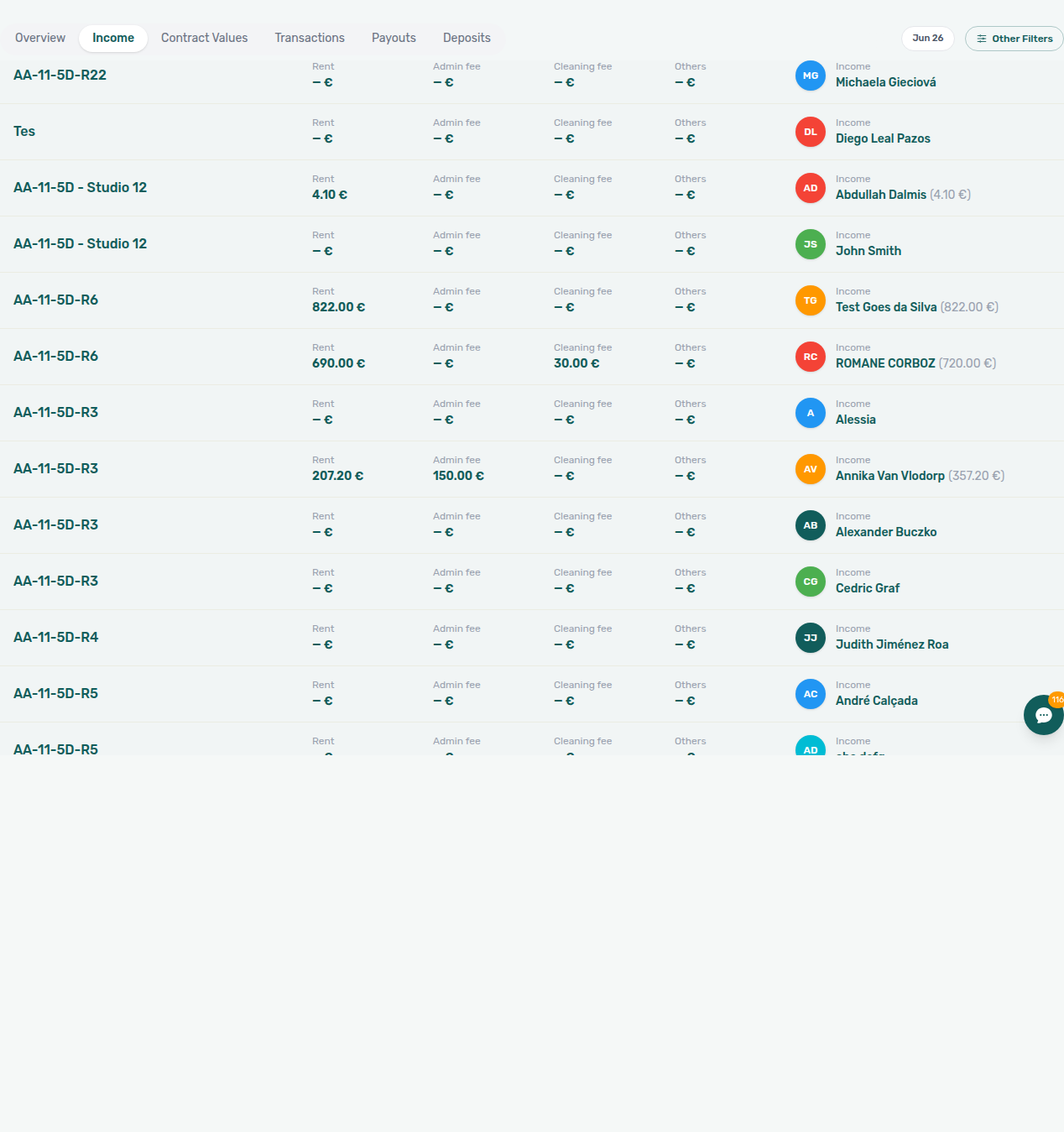
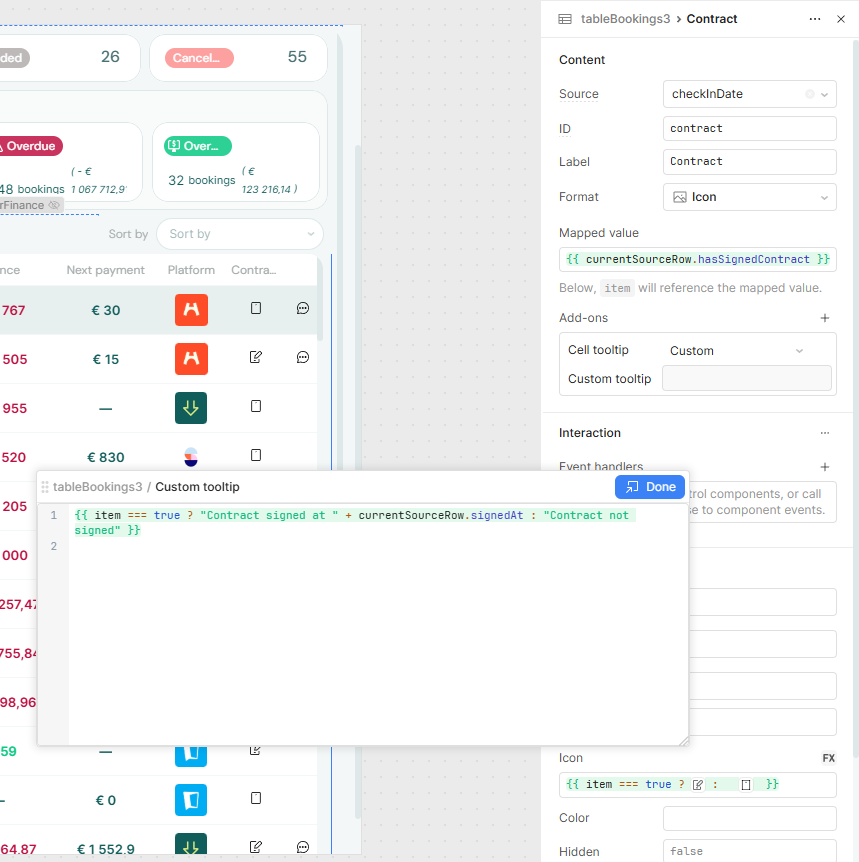
Use this tab to:
- Verify that monthly rent is being collected for all active bookings
- Compare properties and units within one month before owner reporting
- Export the aggregated month / property / unit map as CSV or Excel for accounting
- Spot a weak month in the six-month trend, then expand the property rows that drove the dip
- Identify months with lower-than-expected income (change the toolbar month picker and watch the summary card + chart highlight move together)
Contract Values Tab
Scheduled charges pair with Bookings — Contract Values tab — rent edits below the invoiced floor happen on the booking sidebar, not here.
The Contract Values tab shows a summary of all scheduled charges across all bookings — the "expected" side of your financial picture. This is the complete list of what tenants are contractually obligated to pay. Pending utility overages are not on this portfolio table — open the booking (or tenant) Contract Values tab to approve them.
Each row has Period (the month the charge is for, for example Sep.26) beside Due date (when it is payable). Those two months often differ — a September rent can be due in July. CSV and Excel now export that period as year and month next to dueDate — see Item month in the export.
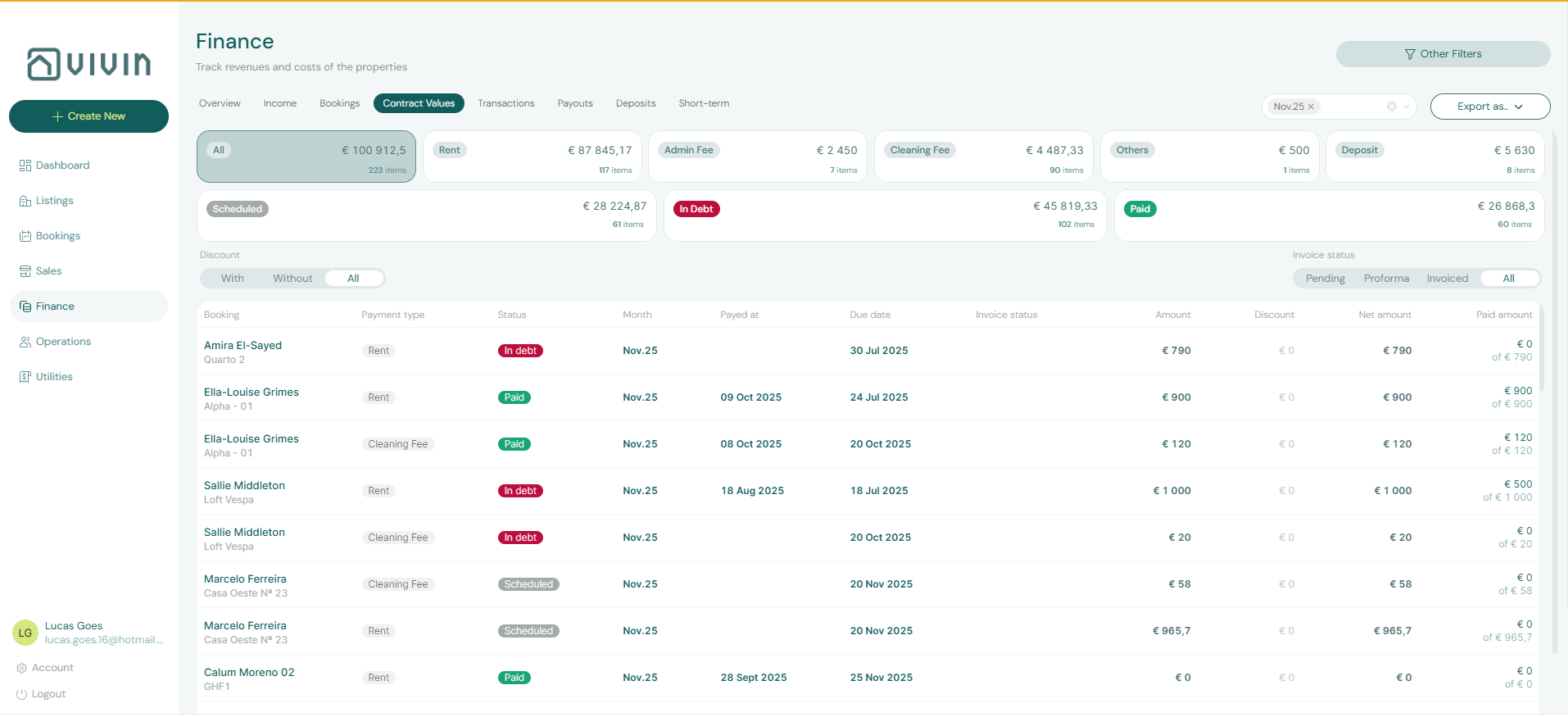
Each payment-type summary card (Rent, Admin fee, Deposit, and so on) breaks the portfolio into clickable status chips:
| Chip colour | Meaning | Click behaviour |
|---|---|---|
Green (paid) | Fully collected for that type in the selected month range | Filters the table to paid lines for that payment type |
Red (debt) | Past-due or unpaid scheduled charges | Filters to in debt lines — use this for late-payment triage |
Grey (scheduled) | Future or not-yet-due charges | Filters to scheduled lines |
Amber (partial) | Partially allocated payments | Filters to partially paid lines |
Click the same chip again to clear that status filter. Combine chips with the month picker, Other filters, Search, and the invoice filter pills beside Export to narrow a receivables list before export or before opening individual bookings.
Ask AI Chat “How much unpaid security deposit money is on the Contract Values deposit card for August 2026? Split in debt versus still scheduled.” — the assistant should quote this Deposit card’s in debt plus still scheduled amounts for that month (ai-chat-unpaid-deposits-reply.png, ai-chat-unpaid-deposits-flow.mp4). For rent, ask “How much unpaid rent money is on the Contract Values rent card for August 2026? Split in debt versus still scheduled.” (ai-chat-unpaid-rents-reply.png, ai-chat-unpaid-rents-flow.mp4). For admin fees, ask “How much unpaid admin fee money is on the Contract Values admin fee card for August 2026? Split in debt versus still scheduled.” (ai-chat-unpaid-admin-fees-reply.png, ai-chat-unpaid-admin-fees-flow.mp4). For cleaning fees, ask “How much unpaid cleaning fee money is on the Contract Values cleaning fee card for August 2026? Split in debt versus still scheduled.” (ai-chat-unpaid-cleaning-fees-reply.png, ai-chat-unpaid-cleaning-fees-flow.mp4). For others, ask “How much unpaid others money is on the Contract Values others card for August 2026? Split in debt versus still scheduled.” (ai-chat-unpaid-others-reply.png, ai-chat-unpaid-others-flow.mp4). For exit fees, ask “How much unpaid exit fee money is on the Contract Values exit fee card for October 2026? Split in debt versus still scheduled.” (ai-chat-unpaid-exit-fees-reply.png, ai-chat-unpaid-exit-fees-flow.mp4). For overdue rent that is not yet invoiced, ask “How many August 2026 rent lines on Contract Values are already in debt and not yet invoiced? Quote the filtered row count and the total scheduled amount. Do not list tenant names or unit codes.” (ai-chat-unpaid-rent-lines-reply.png, ai-chat-unpaid-rent-lines-flow.mp4) — that list uses the Not Invoiced pill on top of the Rent card and in debt chip, so it is smaller than the Rent card’s full in debt total. For overdue rent that is already invoiced, ask “How many August 2026 rent lines on Contract Values are already in debt and already invoiced? Quote the filtered row count and the total scheduled amount. Do not list tenant names or unit codes.” (ai-chat-invoiced-rent-lines-reply.png, ai-chat-invoiced-rent-lines-flow.mp4) — that list uses the Invoiced pill; trust the row count and reconcile the euro total with Export. For rent that is still scheduled (not yet due), ask “How many August 2026 rent lines on Contract Values are still scheduled (not yet due)? Quote the filtered row count and the total scheduled amount. Do not list tenant names or unit codes.” (ai-chat-scheduled-rent-lines-reply.png, ai-chat-scheduled-rent-lines-flow.mp4) — that list uses the Rent card and the grey scheduled chip, not the unpaid-rent in debt + still scheduled money split; trust the row count and reconcile the euro total with Export. For rent that is partially paid, ask “How many October 2026 rent lines on Contract Values are partially paid? Quote the filtered row count and the total scheduled amount. Do not list tenant names or unit codes.” (ai-chat-partially-paid-rent-lines-reply.png, ai-chat-partially-paid-rent-lines-flow.mp4) — that list uses the Rent card and the amber partial chip, not the unpaid-rent in debt + still scheduled money split and not the window-wide partially paid mix; trust the row count and reconcile the euro total with Export. For rent that is paid (fully paid, not partial), ask “How many July 2026 rent lines on Contract Values are paid (fully paid, not partial)? Quote the filtered row count and the total scheduled amount. Do not list tenant names or unit codes.” (ai-chat-paid-rent-lines-reply.png, ai-chat-paid-rent-lines-flow.mp4) — that list uses the Rent card and the green Paid badge, not the unpaid-rent in debt + still scheduled money split, not the Rent card’s € paid chip (a money figure), and not the window-wide paid mix; name the month (some months have more paid rent lines than the current rent month); trust the row count and reconcile the euro total with Export. For overdue admin fees that are not yet invoiced, ask “How many August 2026 admin fee lines on Contract Values are already in debt and not yet invoiced? Quote the filtered row count and the total scheduled amount. Do not list tenant names or unit codes.” (ai-chat-unpaid-admin-fee-lines-reply.png, ai-chat-unpaid-admin-fee-lines-flow.mp4) — that list uses the Admin fee card, the in debt chip, and Not Invoiced; trust the row count and reconcile the euro total with Export. For overdue admin fees that are already invoiced, ask “How many July 2026 admin fee lines on Contract Values are already in debt and already invoiced? Quote the filtered row count and the total scheduled amount. Do not list tenant names or unit codes.” (ai-chat-invoiced-admin-fee-lines-reply.png, ai-chat-invoiced-admin-fee-lines-flow.mp4) — that list uses the Admin fee card, the in debt chip, and Invoiced, so it is smaller than the Admin fee card’s full in debt total; name the month (some months have invoiced overdue admin fees while the current rent month does not); trust the row count and reconcile the euro total with Export. For admin fees that are still scheduled (not yet due), ask “How many August 2026 admin fee lines on Contract Values are still scheduled (not yet due)? Quote the filtered row count and the total scheduled amount. Do not list tenant names or unit codes.” (ai-chat-scheduled-admin-fee-lines-reply.png, ai-chat-scheduled-admin-fee-lines-flow.mp4) — that list uses the Admin fee card and the grey scheduled chip, not the unpaid-admin-fee in debt + still scheduled money split and not the still-scheduled rent list; trust the row count and reconcile the euro total with Export. For admin fees that are partially paid, ask “How many July 2026 admin fee lines on Contract Values are partially paid? Quote the filtered row count and the total scheduled amount. Do not list tenant names or unit codes.” (ai-chat-partially-paid-admin-fee-lines-reply.png, ai-chat-partially-paid-admin-fee-lines-flow.mp4) — that list uses the Admin fee card and the amber partial chip, not the unpaid-admin-fee in debt + still scheduled money split, not the grey scheduled chip, and not the window-wide partially paid mix; name the month (some months have partial admin fees while the current rent month does not); trust the row count and reconcile the euro total with Export. For admin fees that are paid (fully paid, not partial), ask “How many June 2026 admin fee lines on Contract Values are paid (fully paid, not partial)? Quote the filtered row count and the total scheduled amount. Do not list tenant names or unit codes.” (ai-chat-paid-admin-fee-lines-reply.png, ai-chat-paid-admin-fee-lines-flow.mp4) — that list uses the Admin fee card and the green Paid badge, not the unpaid-admin-fee in debt + still scheduled money split, not the Admin fee card’s € paid chip (a money figure), and not the window-wide paid mix; name the month (some months have paid admin fees while the current rent month does not); trust the row count and reconcile the euro total with Export. For overdue cleaning fees that are not yet invoiced, ask “How many August 2026 cleaning fee lines on Contract Values are already in debt and not yet invoiced? Quote the filtered row count and the total scheduled amount. Do not list tenant names or unit codes.” (ai-chat-unpaid-cleaning-fee-lines-reply.png, ai-chat-unpaid-cleaning-fee-lines-flow.mp4) — that list uses the Cleaning fee card, the in debt chip, and Not Invoiced, so it is smaller than the Cleaning fee card’s full in debt total; trust the row count and reconcile the euro total with Export. For overdue cleaning fees that are already invoiced, ask “How many August 2026 cleaning fee lines on Contract Values are already in debt and already invoiced? Quote the filtered row count and the total scheduled amount. Do not list tenant names or unit codes.” (ai-chat-invoiced-cleaning-fee-lines-reply.png, ai-chat-invoiced-cleaning-fee-lines-flow.mp4) — that list uses the Invoiced pill; trust the row count and reconcile the euro total with Export. For cleaning fees that are still scheduled (not yet due), ask “How many August 2026 cleaning fee lines on Contract Values are still scheduled (not yet due)? Quote the filtered row count and the total scheduled amount. Do not list tenant names or unit codes.” (ai-chat-scheduled-cleaning-fee-lines-reply.png, ai-chat-scheduled-cleaning-fee-lines-flow.mp4) — that list uses the Cleaning fee card and the grey scheduled chip, not the unpaid-cleaning-fee in debt + still scheduled money split and not the still-scheduled rent, admin fee, or deposit lists; trust the row count and reconcile the euro total with Export. For cleaning fees that are paid (fully paid, not partial), ask “How many July 2026 cleaning fee lines on Contract Values are paid (fully paid, not partial)? Quote the filtered row count and the total scheduled amount. Do not list tenant names or unit codes.” (ai-chat-paid-cleaning-fee-lines-reply.png, ai-chat-paid-cleaning-fee-lines-flow.mp4) — that list uses the Cleaning fee card and the green Paid badge, not the unpaid-cleaning-fee in debt + still scheduled money split, not the Cleaning fee card’s € paid chip (a money figure), and not the window-wide paid mix; name the month (some months have paid cleaning fees while the current rent month does not); trust the row count and reconcile the euro total with Export. For overdue others that are not yet invoiced, ask “How many August 2026 others lines on Contract Values are already in debt and not yet invoiced? Quote the filtered row count and the total scheduled amount. Do not list tenant names or unit codes.” (ai-chat-unpaid-others-lines-reply.png, ai-chat-unpaid-others-lines-flow.mp4) — that list uses the Others card, the in debt chip, and Not Invoiced; if no overdue others are invoiced yet, the count can match the Others card’s in debt chip — still apply Not Invoiced; trust the row count and reconcile the euro total with Export. For others that are paid (fully paid, not partial), ask “How many July 2026 others lines on Contract Values are paid (fully paid, not partial)? Quote the filtered row count and the total scheduled amount. Do not list tenant names or unit codes.” (ai-chat-paid-others-lines-reply.png, ai-chat-paid-others-lines-flow.mp4) — that list uses the Others card and the green Paid badge, not the unpaid-others in debt + still scheduled money split, not the Others card’s € paid chip (a money figure), and not the window-wide paid mix; name the month (some months have paid others while the current rent month does not); trust the row count and reconcile the euro total with Export. For overdue deposits that are not yet invoiced, ask “How many August 2026 deposit lines on Contract Values are already in debt and not yet invoiced? Quote the filtered row count and the total scheduled amount. Do not list tenant names or unit codes.” (ai-chat-unpaid-deposit-lines-reply.png, ai-chat-unpaid-deposit-lines-flow.mp4) — that list uses the Deposit card, the in debt chip, and Not Invoiced, so it is smaller than the Deposit card’s full in debt total; trust the row count and reconcile the euro total with Export. For overdue deposits that are already invoiced, ask “How many August 2026 deposit lines on Contract Values are already in debt and already invoiced? Quote the filtered row count and the total scheduled amount. Do not list tenant names or unit codes.” (ai-chat-invoiced-deposit-lines-reply.png, ai-chat-invoiced-deposit-lines-flow.mp4) — that list uses the Deposit card, the in debt chip, and Invoiced, so it is smaller than the Deposit card’s full in debt total; trust the row count and reconcile the euro total with Export. For deposits that are still scheduled (not yet due), ask “How many August 2026 deposit lines on Contract Values are still scheduled (not yet due)? Quote the filtered row count and the total scheduled amount. Do not list tenant names or unit codes.” (ai-chat-scheduled-deposit-lines-reply.png, ai-chat-scheduled-deposit-lines-flow.mp4) — that list uses the Deposit card and the grey scheduled chip, not the unpaid-deposits in debt + still scheduled money split and not the still-scheduled rent, admin fee, or cleaning fee lists; trust the row count and reconcile the euro total with Export. For deposits that are partially paid, ask “How many October 2026 deposit lines on Contract Values are partially paid? Quote the filtered row count and the total scheduled amount. Do not list tenant names or unit codes.” (ai-chat-partially-paid-deposit-lines-reply.png, ai-chat-partially-paid-deposit-lines-flow.mp4) — that list uses the Deposit card and the amber partial chip, not the unpaid-deposits in debt + still scheduled money split, not the grey scheduled chip, and not the window-wide partially paid mix; name the month (some months have partial deposits while the current rent month does not); trust the row count and reconcile the euro total with Export. For deposits that are paid (fully paid, not partial), ask “How many July 2026 deposit lines on Contract Values are paid (fully paid, not partial)? Quote the filtered row count and the total scheduled amount. Do not list tenant names or unit codes.” (ai-chat-paid-deposit-lines-reply.png, ai-chat-paid-deposit-lines-flow.mp4) — that list uses the Deposit card and the green Paid badge, not the unpaid-deposits in debt + still scheduled money split, not the Deposit card’s € paid chip (a money figure), and not the window-wide paid mix; name the month (some months have paid deposits while the current rent month does not); trust the row count and reconcile the euro total with Export. For exit fees that are partially paid, ask “How many October 2026 exit fee lines on Contract Values are partially paid? Quote the filtered row count and the total scheduled amount. Do not list tenant names or unit codes.” (ai-chat-partially-paid-exit-fee-lines-reply.png, ai-chat-partially-paid-exit-fee-lines-flow.mp4) — that list uses the Exit fee card and the amber partial chip, not the unpaid-exit-fee in debt + still scheduled money split, not the grey scheduled chip, and not the window-wide partially paid mix; name a check-out month (some months have partial exit fees while the current rent month does not); trust the row count and reconcile the euro total with Export. For exit fees that are paid (fully paid, not partial), ask “How many October 2026 exit fee lines on Contract Values are paid (fully paid, not partial)? Quote the filtered row count and the total scheduled amount. Do not list tenant names or unit codes.” (ai-chat-paid-exit-fee-lines-reply.png, ai-chat-paid-exit-fee-lines-flow.mp4) — that list uses the Exit fee card and the green Paid badge, not the unpaid-exit-fee in debt + still scheduled money split, not the Exit fee card’s € paid chip (a money figure), and not the window-wide paid mix; name a check-out month (some months have paid exit fees while the current rent month does not); trust the row count and reconcile the euro total with Export. For overdue exit fees that are already invoiced, ask “How many October 2026 exit fee lines on Contract Values are already in debt and already invoiced? Quote the filtered row count and the total scheduled amount. Do not list tenant names or unit codes.” (ai-chat-invoiced-exit-fee-lines-reply.png, ai-chat-invoiced-exit-fee-lines-flow.mp4) — that list uses the Exit fee card, the in debt chip, and Invoiced; if no overdue exit fees are still Not Invoiced, the count can match the Exit fee card’s in debt chip — still apply Invoiced; trust the row count and reconcile the euro total with Export. See FAQ — Unpaid deposits on Contract Values, FAQ — Unpaid rent on Contract Values, FAQ — Unpaid admin fees on Contract Values, FAQ — Unpaid cleaning fees on Contract Values, FAQ — Unpaid others on Contract Values, FAQ — Unpaid exit fees on Contract Values, FAQ — In-debt rent lines not yet invoiced, FAQ — In-debt rent lines already invoiced, FAQ — Still-scheduled rent lines, FAQ — Partially-paid rent lines, FAQ — Paid rent lines, FAQ — In-debt admin fee lines not yet invoiced, and FAQ — In-debt admin fee lines already invoiced, and FAQ — Still-scheduled admin fee lines, and FAQ — Partially-paid admin fee lines, and FAQ — Paid admin fee lines, and FAQ — In-debt cleaning fee lines not yet invoiced, and FAQ — In-debt cleaning fee lines already invoiced, and FAQ — Still-scheduled cleaning fee lines, and FAQ — Paid cleaning fee lines, and FAQ — In-debt others lines not yet invoiced, and FAQ — Paid others lines, and FAQ — In-debt deposit lines not yet invoiced, and FAQ — In-debt deposit lines already invoiced, and FAQ — Still-scheduled deposit lines, and FAQ — Partially-paid deposit lines, and FAQ — Paid deposit lines, and FAQ — In-debt exit fee lines already invoiced, and FAQ — Partially-paid exit fee lines, and FAQ — Paid exit fee lines.
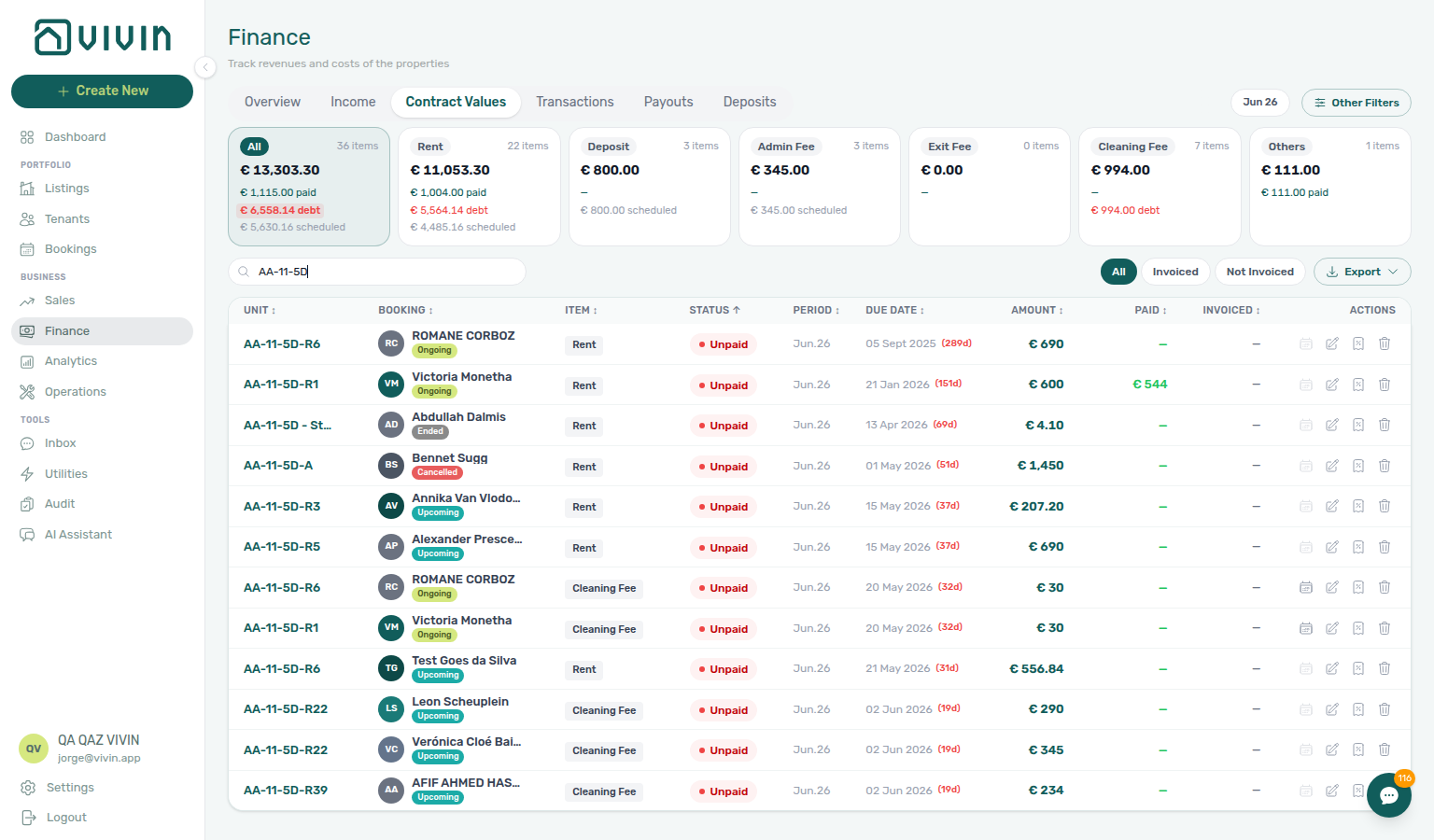
Invoice filter pills
Beside Search and Export, the invoice pills narrow the table by how each scheduled line is invoiced or reversed. They stack with the month picker, a payment-type card, and a status chip.
| Pill | What the table shows |
|---|---|
| All | Every line that matches the month, type, and status filters |
| Invoiced | Lines that already have an invoice (or a manual invoice mark) |
| Not Invoiced | Lines with no invoice yet |
| Reversals | Lines that have at least one nested credit note or return of value |
| Credit Notes | The credit-note subset of Reversals |
| Return of Value | The cash-return subset of Reversals — money that was never on an invoice |
Nested rows sit under the parent charge: a Return of value chip with Reverses Rent (or the matching charge name) and a minus amount, or a Credit note chip with its issue status (Pending, Invoiced, or Manual). Create those adjustments from the booking Contract Values row actions; this Finance tab is how you find them across the portfolio. The same return also appears as a negative Return of Value row on the booking Transactions tab (not on this Finance Transactions ledger). Issue pending credit notes from Transactions — Not issued credit note.
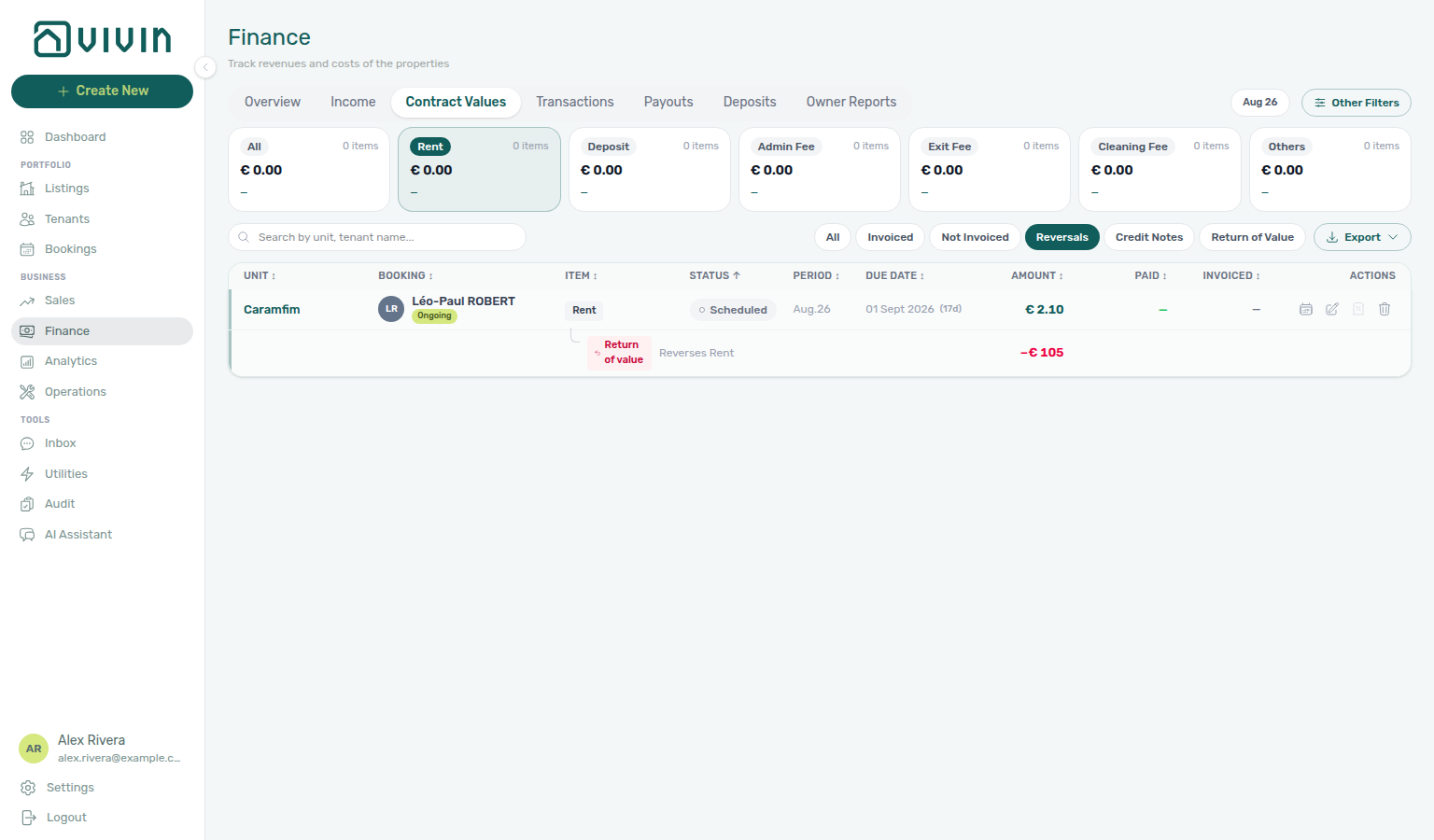
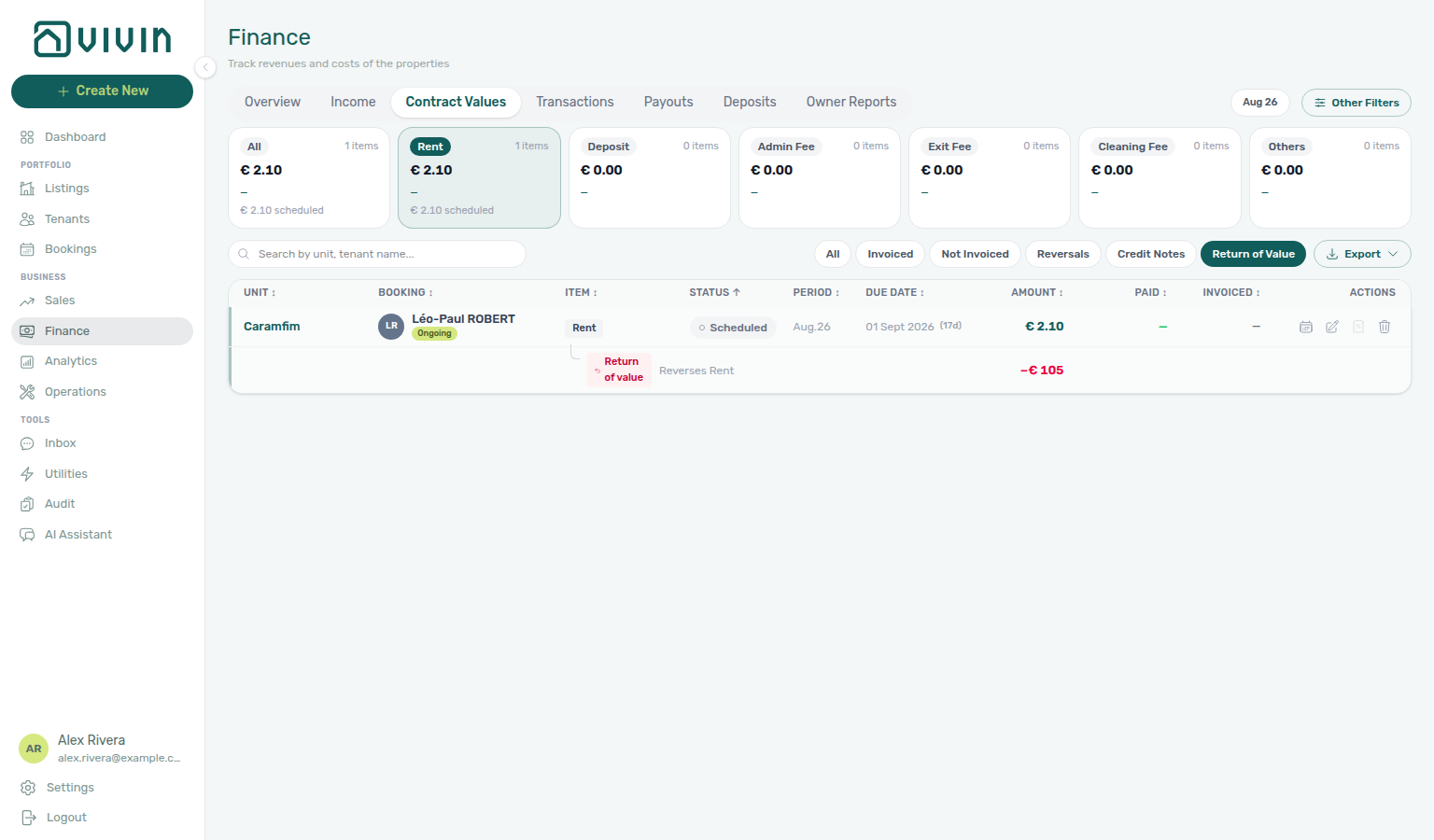
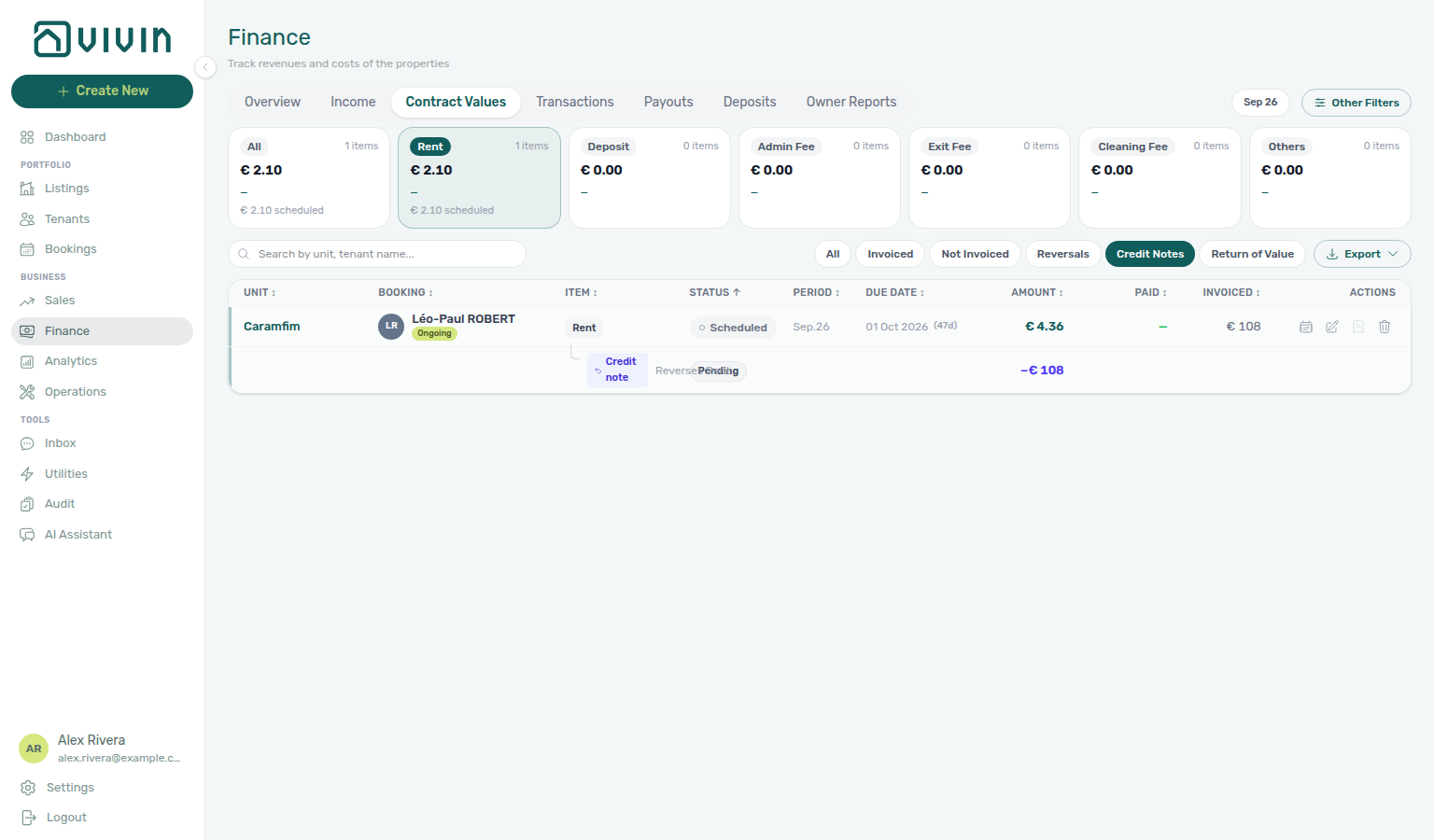
Ask AI Chat “How many August 2026 rent lines on Contract Values have a return of value? Quote the filtered row count. Do not list tenant names or unit codes.” — the assistant should quote this Return of Value pill (ai-chat-return-of-value-lines-reply.png, ai-chat-return-of-value-lines-flow.mp4). For the credit-note subset, ask “How many September 2026 rent lines on Contract Values have a credit note? Quote the filtered row count. Do not list tenant names or unit codes.” (ai-chat-credit-note-lines-reply.png, ai-chat-credit-note-lines-flow.mp4) — name the month, because some months have credit notes while the current rent month does not. Reversals is the union of both nested kinds.
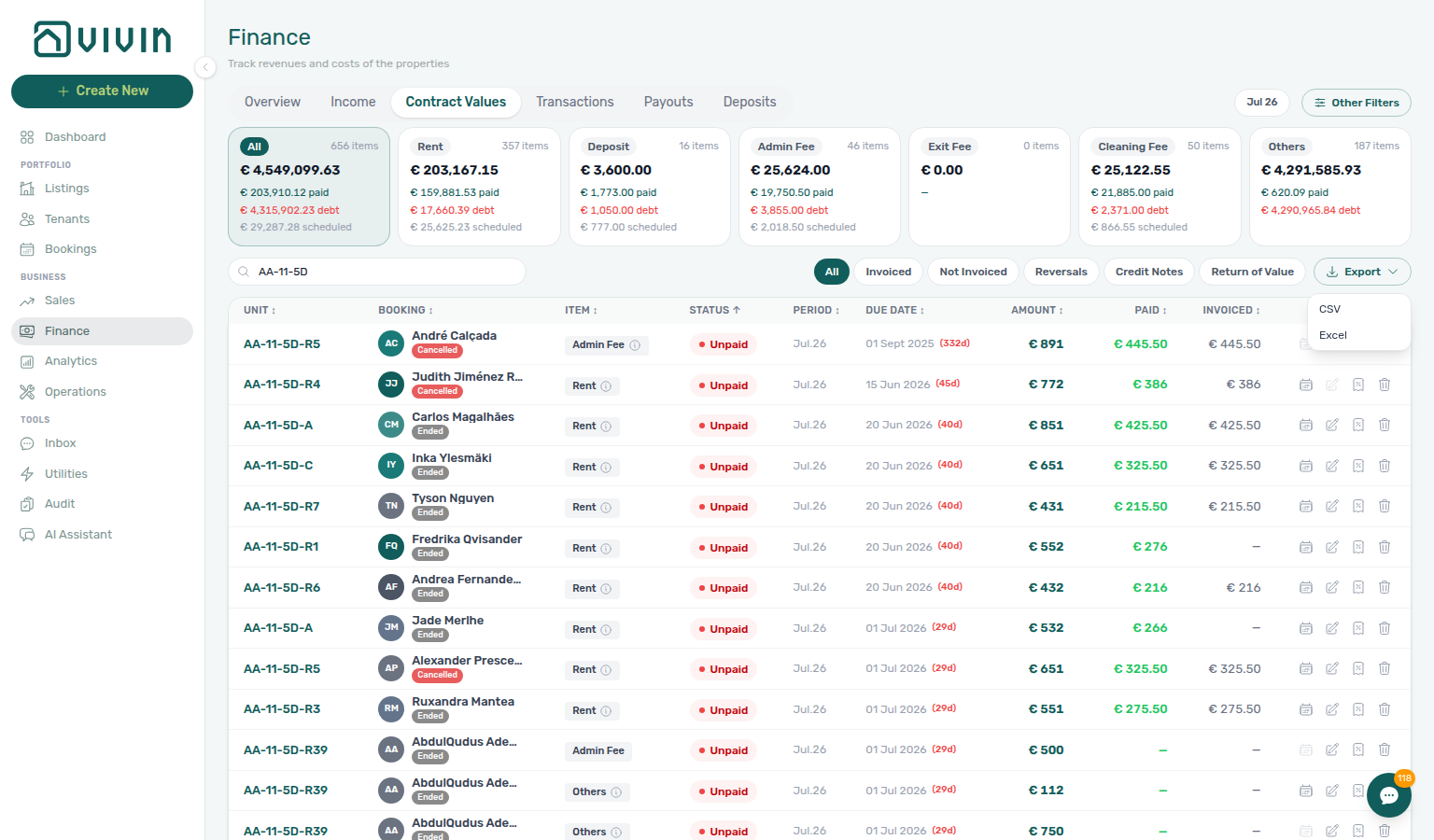
Use Export on the Contract Values toolbar to download the table as CSV or Excel (.xls). Filenames are vivin-contract-values-YYYY-MM-DD.csv or vivin-contract-values-YYYY-MM-DD.xls. The file includes the full filtered set — Vivin walks every matching server page before building the download, so you do not need to scroll the infinite-scroll table first. Filters still decide which rows match: month picker, Other filters, search, type/status chips, and invoice pills. If nothing matches, the export action does not produce a file. If the multi-page fetch fails, an error toast appears and no partial file is written.
The first column is Booking ID (Vivin booking UUID) so each scheduled-charge row can be reconciled back to the reservation without matching on tenant name and dates alone. See Booking ID in exports. After category, the file includes year and month (the item period) immediately before dueDate — Item month in the export.
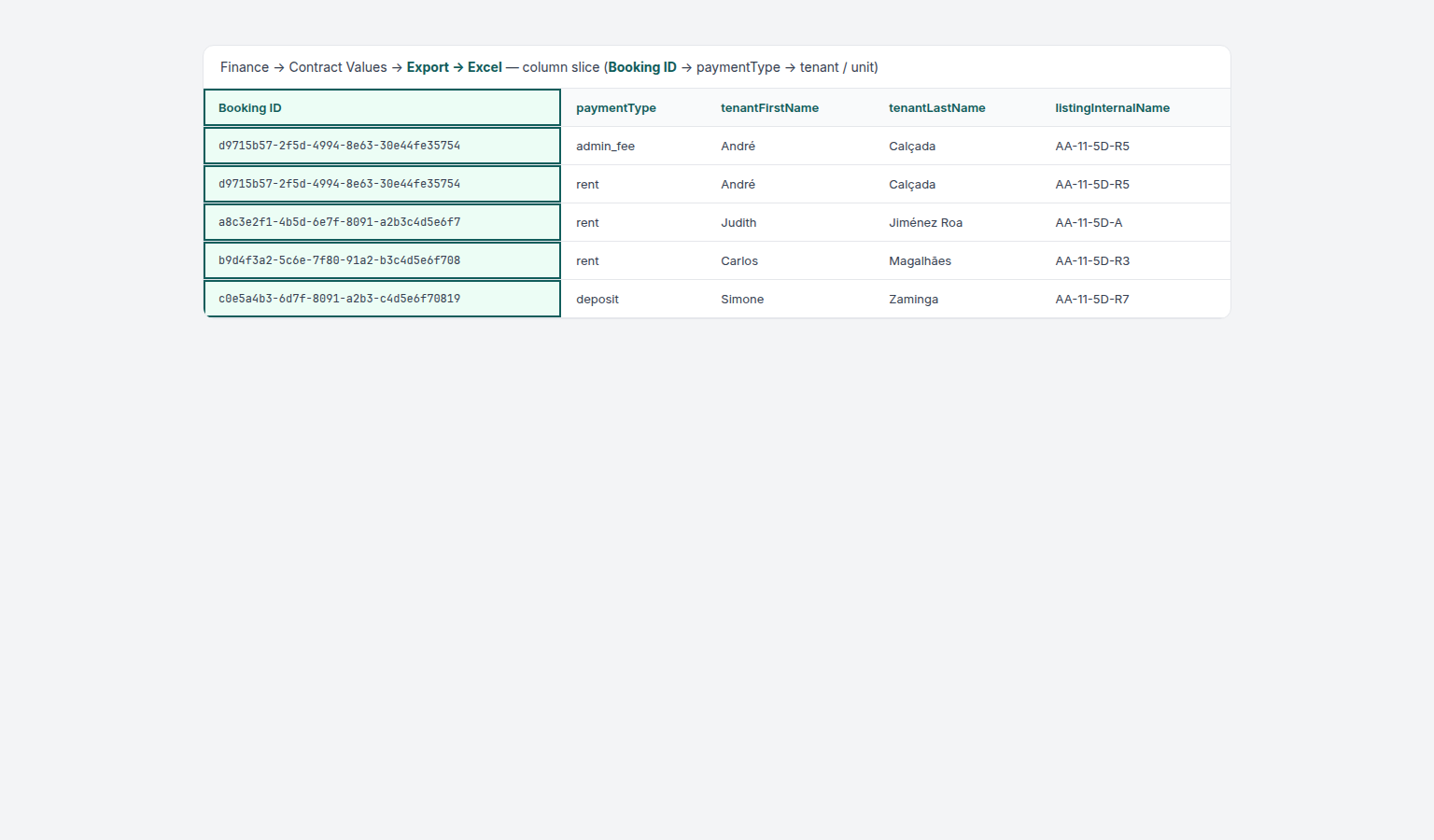
Item month in the export
On-screen Period vs Due date is the same split as Income vs cash flow. Spreadsheet identity: Booking ID in exports. Operator question: FAQ — Contract Values export item month.
CSV and Excel both carry year and month next to dueDate. Those columns are the charge’s own period — the same values as the table Period column — not the month of the due date.
Do not infer the item month from dueDate. A September rent can be due in July when last-month rent is collected at check-in, or when a charge is prepaid. On those rows, filing the export by due date puts the rent in the wrong accounting month.
| On screen | In the file | Meaning |
|---|---|---|
| Period (for example Sep.26) | year (2026) and month (9) | The month the charge is for (Income / accrual) |
| Due date | dueDate | When the charge is payable (cash timing) |
| Paid date | payedAt | When cash actually landed, if collected |
month is 1–12, not the pretty Sep.26 label. Booking ID stays first. CSV and Excel share the same column list.
Use this tab alongside the Transactions tab to identify discrepancies: if a charge appears in Contract Values but has no matching transaction, the payment has not been received.
Editing due dates
Each row includes a Due date column and a trailing calendar action (permission: bookings.change_payment_due_date). Edit Payment Due Date opens a modal to pick a new date when the line is scheduled or in debt.
System-managed due dates — Vivin locks the calendar control (disabled icon + explanatory tooltip) when the due date is computed automatically:
| Line type | Why manual edits are blocked |
|---|---|
| Move-in / check-in requirement | Due date follows move-in payment rules. |
| Booking confirmation requirement | Due date follows confirmation-payment timing. |
| Split rent | Parent or child lines from a rent split — editing one side would break the paired schedule. |
The API rejects manual due-date changes on these lines even if an older client attempted the request. For editable lines, confirm the reporting month impact before saving — the same modal exists on the booking Contract Values tab.

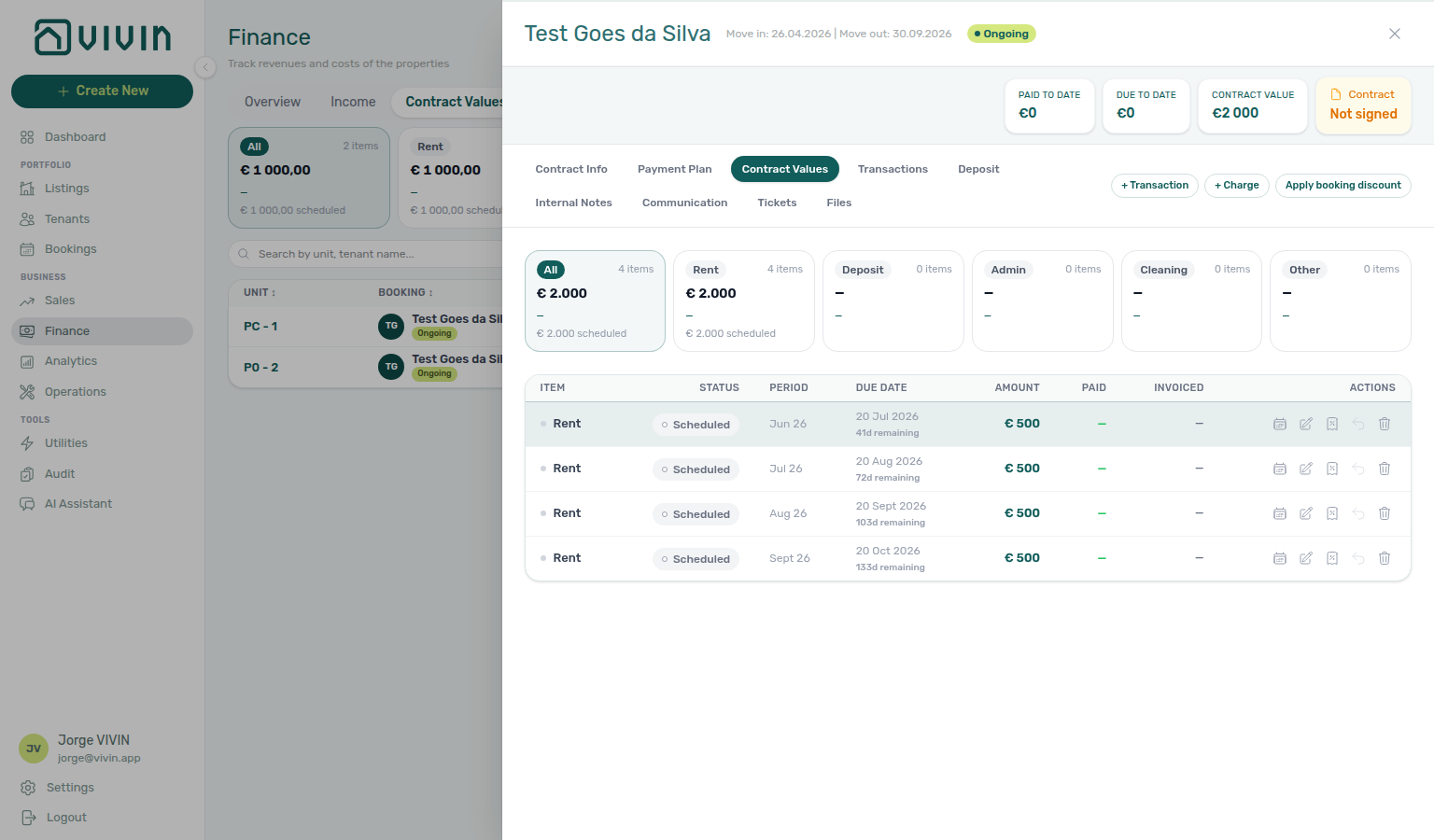
Cross-navigation from Finance to bookings
When your role includes Bookings sidebar access, opening a booking from Finance keeps context on the correct payment line:
| You start on | Row action | Booking sidebar opens on | Highlight |
|---|---|---|---|
| Contract Values | Open booking (row or row action) | Contract Values tab | The scheduled charge row you clicked is ring-highlighted and scrolled into view |
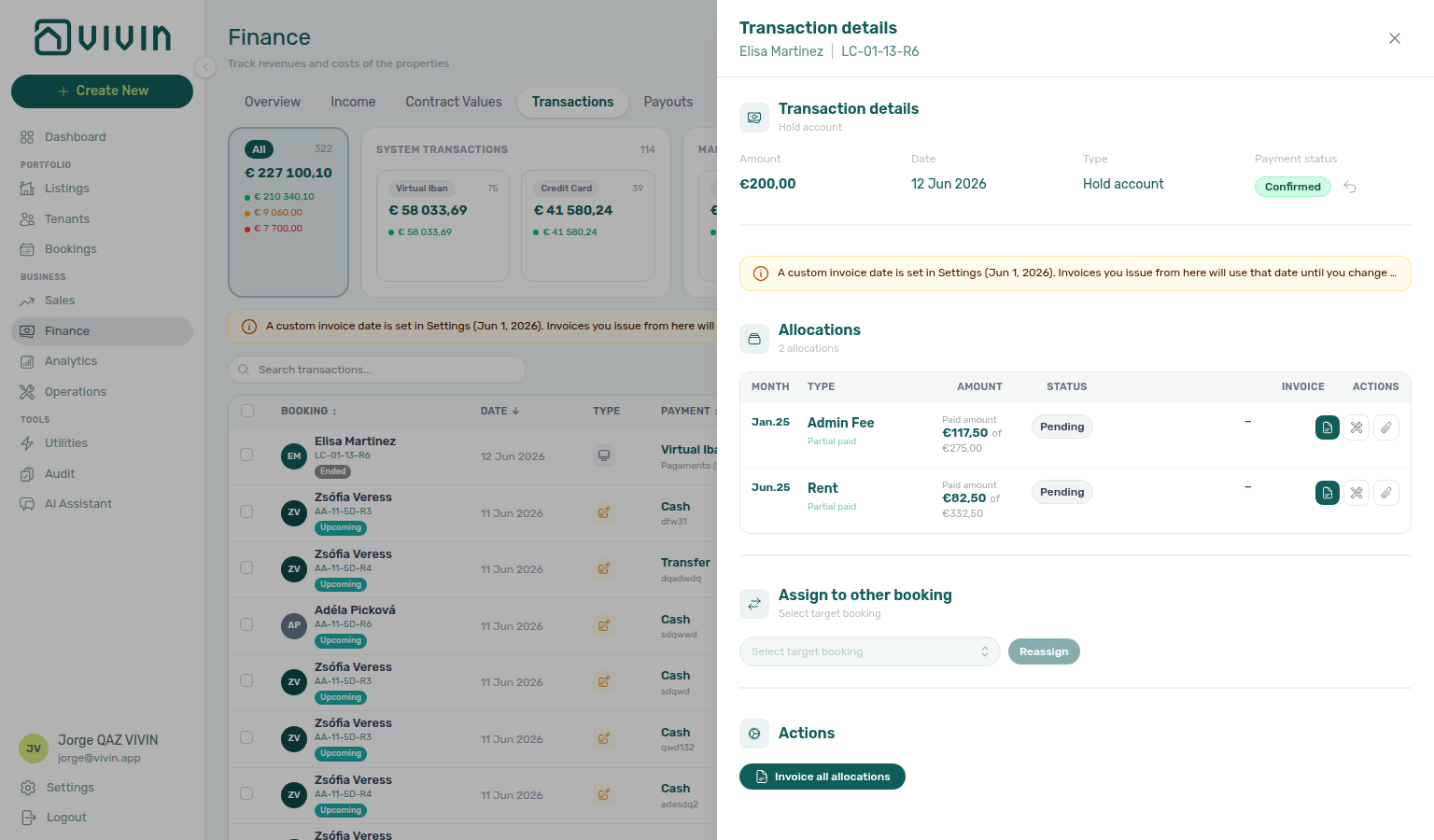
| Transactions | Open booking | Transactions tab | The ledger row you clicked is ring-highlighted and scrolled into view |
The highlight uses a teal ring on the matching table row so you can reconcile Finance figures with the booking workspace without hunting the line manually. Closing the booking sidebar clears the highlight.
Invoiced floor and rent edits
When a rent line is already invoiced, Change monthly rent still clamps exported months (blue info banner). On the booking Contract Values tab, Edit amount issues a credit note when you lower a fully invoiced line — Save stays blocked only on a partly invoiced mix. When you raise New net above Paid, the same editor lists Leave outstanding (a standing remainder — not a credit note). The Finance → Contract Values table still blocks editing paid or invoiced rows; use Open booking for the editor. Illustrated modals: FAQ — Lower rent below invoiced; hub: Common Workflows — Rent reduction after invoicing (bookings-detail-change-monthly-rent-modal.png, bookings-detail-contract-values-edit-amount-credit-note.png). Per-guide mesh: Cancelling a Booking — Rent reduction after invoicing, Onboarding a New Property — Rent reduction after invoicing, Managing a Check-in — Rent reduction after invoicing, Managing a Check-out — Rent reduction after invoicing, Notification triage — Rent reduction after invoicing, Entering Monthly Utility Bills — Rent reduction after invoicing, Manual block hygiene — Rent reduction after invoicing, Using in-app support — Rent reduction after invoicing, Resetting a Management User Password — Rent reduction after invoicing. See Bookings — Edit amount, Changing contract dates and rent, Contract Values tab, and Glossary — Invoiced floor (rent).
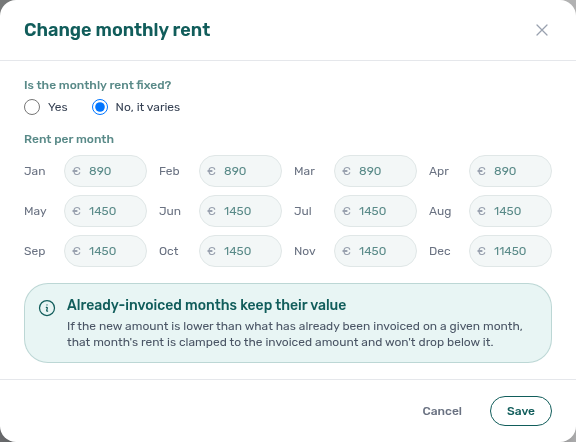
Transactions Tab
Receipts pair with Payment Allocation and Bookings — Transactions tab — a return of value on a booking shows as a negative row there, not on this Finance ledger (Return of value rows); correct a typed-wrong € on a pending manual row with Edit payment amount; reject/revert mistaken receipts per FAQ — Reject or revert an incoming payment.
The Transactions tab is a detailed ledger of every individual payment received. It shows each payment event individually for reconciliation.
When Account Settings → Invoicing has Use today as invoice date turned off and a fixed Invoice date saved, an amber role="status" banner appears directly above the Transactions search bar and invoice filter pills (before you select rows). It reminds you that invoices issued from Finance will use that date until you change it under Invoicing (VAT rates & Hostkit series) (see the toggle and date picker screenshot there). The banner copy references the saved date (for example “A custom invoice date is set in Settings (1 Jun 2026)…”).

| Where you see it | Layout | When it appears |
|---|---|---|
| Finance → Transactions tab | Full-width inline strip above search and invoice filter pills | Fixed date is saved and the tab has finished loading (not the initial skeleton) |
| Finance → Transactions — bulk toolbar | Compact toolbar chip in the floating action row (beside Invoice selected, Issue allocation, and related controls) | Fixed date is saved and you have selected ledger rows with at least one pending or failed allocation ready to invoice |
| Transaction detail sidebar | Full-width inline strip above the Allocations section | Fixed date is saved and the open payment has one or more allocation rows |
The toolbar layout uses smaller type and a max-width cap so the reminder fits beside Issue allocation and Invoice selected without wrapping the whole ledger. The inline layouts use the full content width above search or above Allocations.

Month-end invoicing with a fixed date
Use this when every Fatura or Invoice-xpress document in a batch should share one posting date (for example the last calendar day of the month):
- Open Account Settings → Invoicing, turn Use today as invoice date off, set Invoice date, and Save.
- Open Finance → Transactions. Confirm the amber inline banner above search references your saved date (see screenshot above).
- Narrow the ledger with the date range control, invoice status pills, or Search so only payments you plan to invoice remain visible.
- Select one or more rows. The floating toolbar appears when at least one selected payment has allocations in Pending or Failed invoicing state — that is when the compact toolbar banner copy also appears beside bulk Issue allocation / Invoice selected (see bulk-toolbar screenshot above).
- Run your bulk invoicing actions, then spot-check rows in transaction detail (click a row): the same reminder sits above Allocations when the payment still has allocation lines (see detail screenshot above).
- When the batch is complete, return to Invoicing and turn Use today as invoice date back on if day-of-issue dating should apply again.
Month-end fixed-date batches pair with Common Workflows — Month-end invoicing (fixed date), Bulk Hostkit invoicing (amber toolbar beside Issue allocation — finance-transactions-bulk-toolbar-fixed-invoice-date-banner.png), Portfolio KPI review — Month-end invoicing (fixed date), Onboarding a New Property — Month-end invoicing (fixed date), Cancelling a Booking — Month-end invoicing (fixed date), Processing a New Booking — Month-end invoicing (fixed date), Handling a Late Payment — Month-end invoicing (fixed date), Managing a Check-in — Month-end invoicing (fixed date), Notification triage — Month-end invoicing (fixed date), Managing a Check-out — Month-end invoicing (fixed date), Entering Monthly Utility Bills — Month-end invoicing (fixed date), and Manual block hygiene — Month-end invoicing (fixed date).
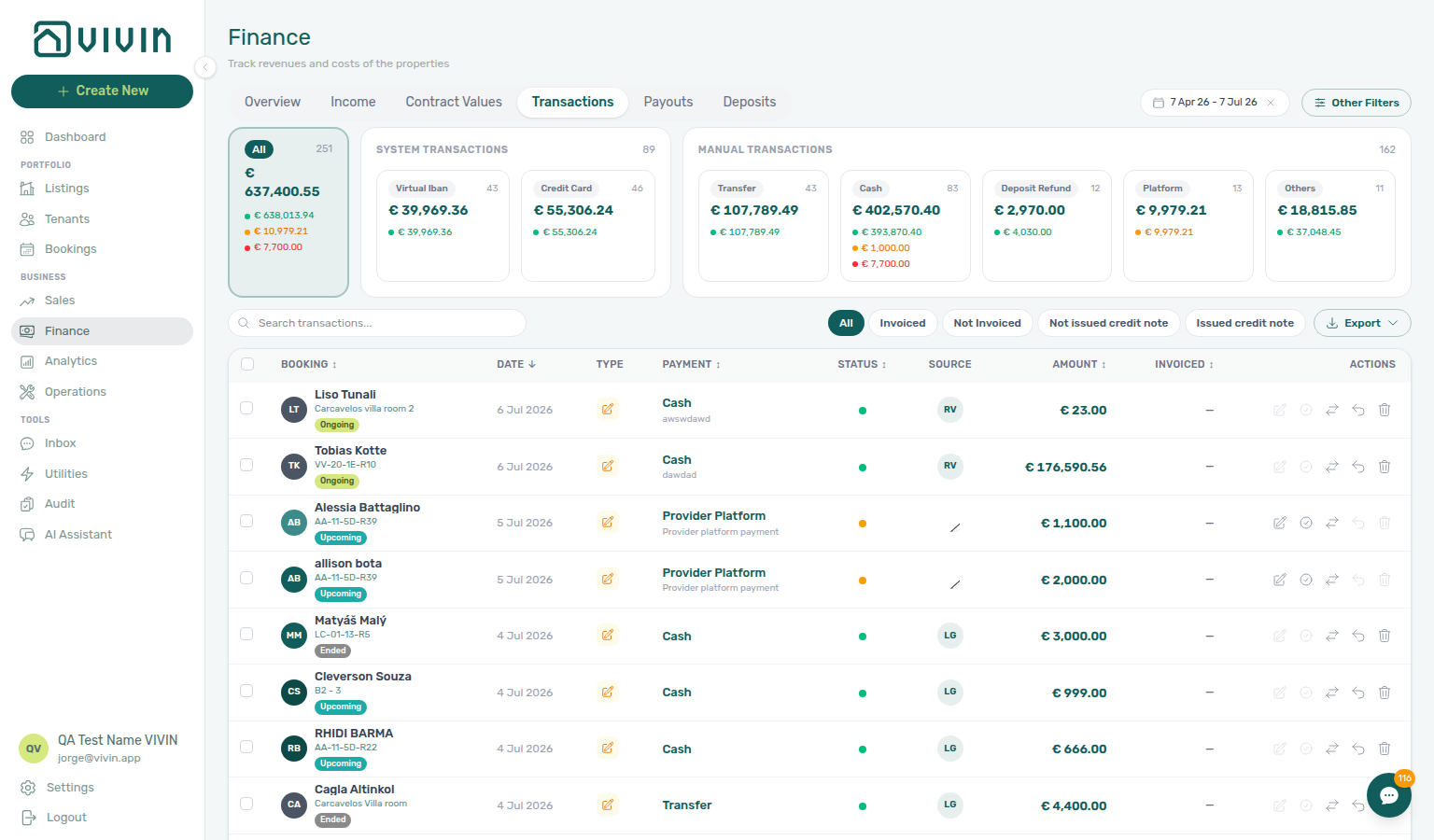
Type summary cards (System vs Manual)
Above the search bar and invoice-status pills, a card row summarizes every in-payment in the active date range (and any Other filters / search you applied). Use it to scope the ledger before you scroll or export.
| Card group | Sub-cards | What it includes |
|---|---|---|
| All | (single tile) | Every payment type in the filtered set, with optional Confirmed (green), Pending (amber), and Rejected (red) sub-totals you can click to filter status. |
| System Transactions | Virtual Iban, Credit Card | Automated tenant pay-in rails (vIBAN transfers, Tenant Portal card captures). |
| Manual Transactions | Transfer, Cash, Deposit Refund, Platform, Card (manual), Others | Operator-recorded or integration-labelled payments — including security-deposit refunds posted from a booking’s Deposit tab, and desk/POS card taps recorded as Card (recorded manually). |
Click a group header (System Transactions or Manual Transactions) to limit the table to that bucket. Click an individual sub-card (for example Deposit Refund) to filter by payment type; click again to clear. Each sub-card shows a count, total amount, and the same status breakdown chips as All.
During check-out and deposit settlement, use Deposit Refund to isolate outbound deposit returns without mixing them with rent vIBAN inflows. The booking Payment plan tab shows the matching scheduled Deposit Refund line with a minus-prefixed deposit amount on the same due date.

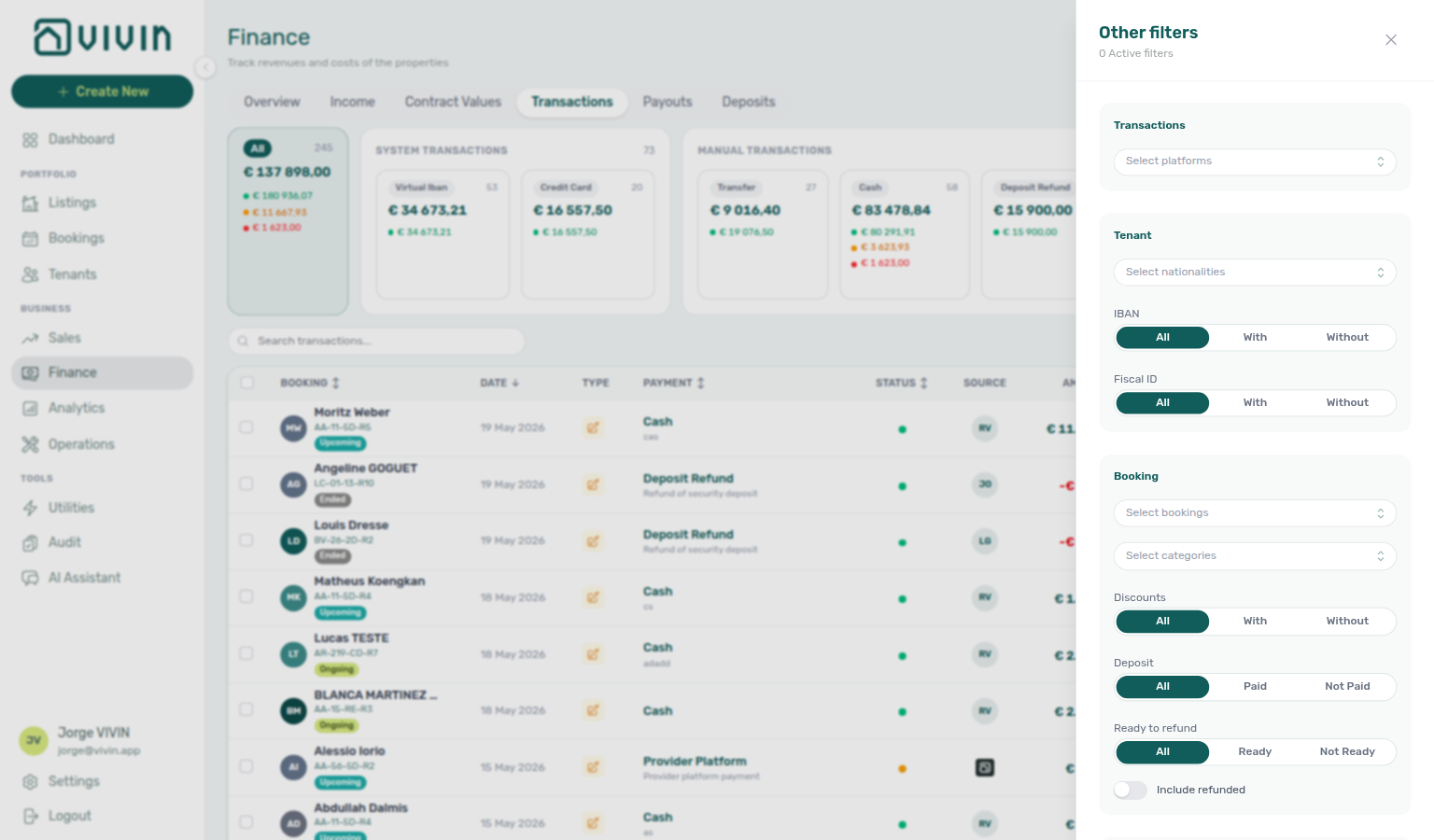

Archived bookings on the ledger
When you Delete Booking (soft-archive), the reservation disappears from default Bookings lists but some payment rows may remain on Finance → Transactions:
| Visibility on archived booking | Payment types |
|---|---|
| Still shown | vIBAN and credit card — automated money-movement rails Vivin preserves for bank/card reconciliation |
| Hidden | Manual operator entries — transfer, cash, deposit refund, provider platform (partner-recorded payments that appear as Provider platform payment / Manual payment in detail), Card (recorded manually) (Card (manual) on this ledger), and other non-automated types |
Canceled bookings that are not archived keep every transaction type visible. Ledger rows with no booking link (platform-level movements) are never hidden by this gate. The type summary cards above the ledger separate System Transactions (Virtual Iban, Credit Card) from Manual Transactions (Transfer, Cash, Deposit Refund, Platform, Card (manual)) — the same buckets affected by archived-booking visibility. When manual rows seem to vanish after Delete Booking, see FAQ — Manual payments after Delete Booking (finance-transactions-type-summary-cards.png). When you are unsure whether to Cancel or Delete, use the FAQ — Cancel Booking vs Delete Booking decision table. Before you archive an integration booking, clear any pending provider platform in-payment — see Bookings — Provider platform payment.
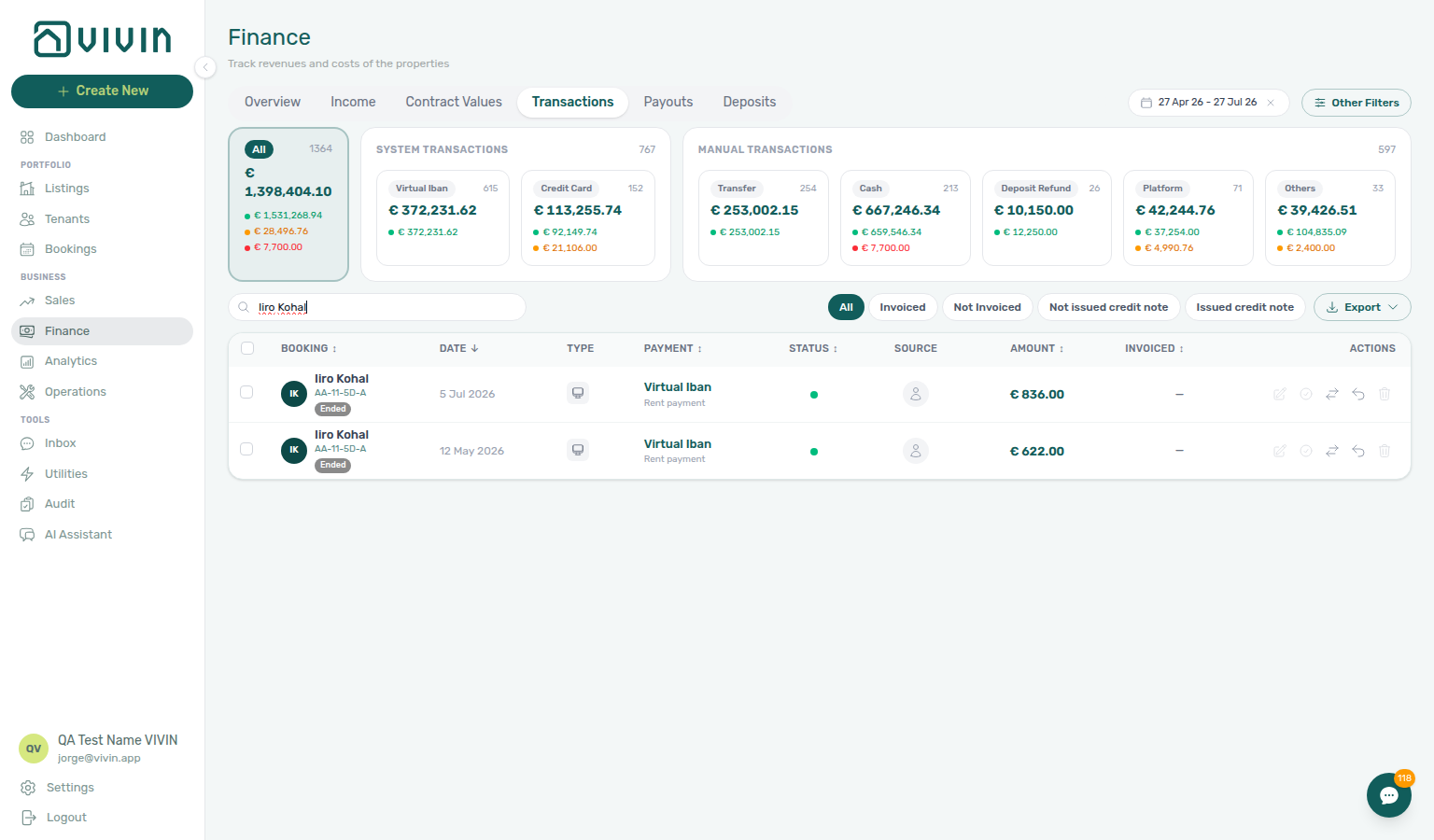
Each ledger row shows:
- Booking — tenant name, unit, and booking status pill
- Date
- Type
- Payment — Rent, Deposit, Deposit Refund, Virtual Iban, Transfer, Platform, etc.
- Status
- Source
- Amount
- Invoiced — payment-level invoicing state
Click a row to open transaction detail. The Allocations section lists which scheduled charge each portion of the payment was applied to (month, charge type, paid amount, invoicing status, and per-allocation actions).
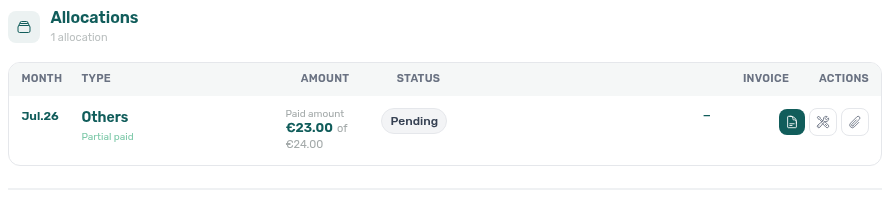
Export
Use Export on the Transactions toolbar to download the full filtered ledger — the tab walks every server page for the active date range, Other filters, Select platforms pills, and search, so you do not need to scroll the infinite-scroll table first (same full-set pattern as Contract Values, Payouts, Deposits, and Income).
Open Export, then choose CSV or Excel (.xls). Downloads use dated filenames: vivin-transactions-YYYY-MM-DD.csv or vivin-transactions-YYYY-MM-DD.xls. If nothing matches the current filters, the export action does not produce a file.
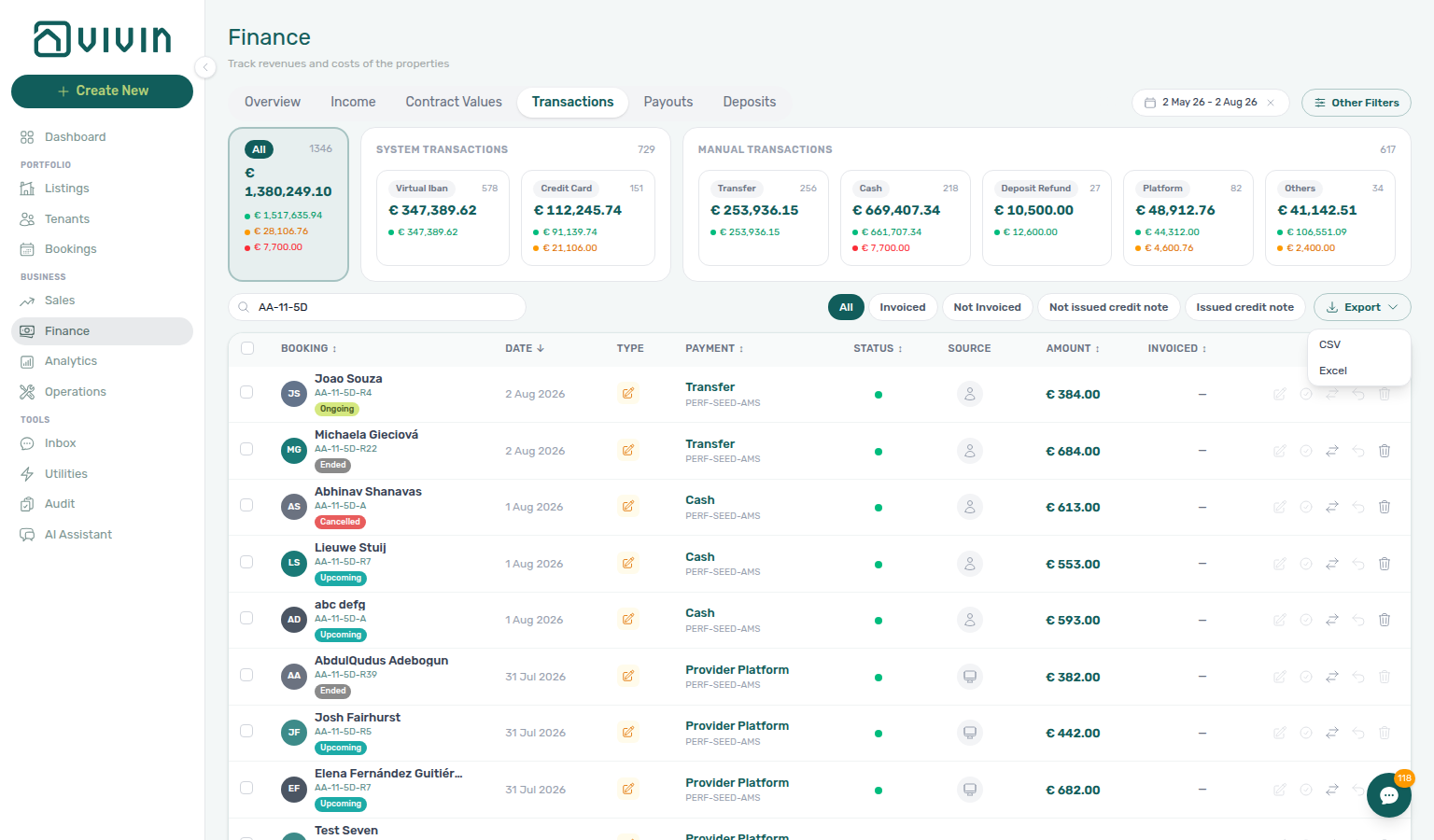
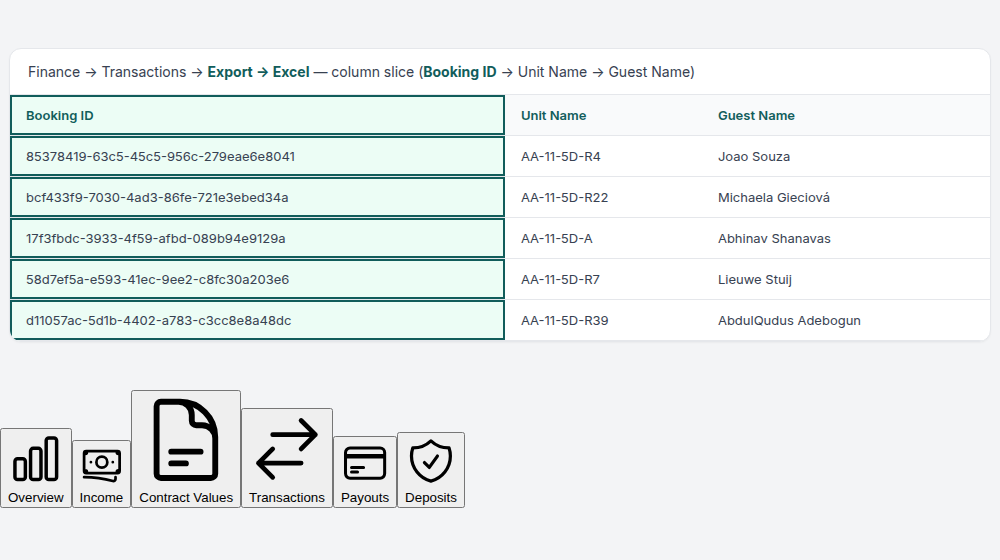
Export columns — Each downloaded row represents one payment allocation (payments with multiple allocations repeat the payment-level fields on several lines; payments with no allocations export a single row with blank allocation columns). Besides booking dates, payment type, status, and allocation amounts, the file now includes portfolio and invoicing identity fields operators asked for in accounting exports:
| Column | What it contains |
|---|---|
| Booking ID | Vivin booking UUID |
| Unit Name | Listing internal name for the reservation |
| Guest Name | Tenant display name on the booking |
| Guest Email | Tenant email |
| Billing Name | Invoice billing name (company name when Use company billing is on) |
| Fiscal ID | Tenant fiscal identifier used on invoices |
| Billing Fiscal ID | Company billing fiscal id when company billing is enabled |
| Use Company Billing | Yes / No — same flag as Tenant Portal — Use company billing |
| Home Address | Tenant home address when set |
| Billing Address, Billing City, Billing Postal Code, Billing Country | Company billing address fields when company billing is enabled |
| Date, Type, Payment Type, Description | Ledger row metadata |
| Start Date, End Date, Check-in Date, Check-out Date | Booking window context |
| Status, Total Transfer Amount | Payment status and received amount |
| Year, Month, Allocation Payment Type, Item Net Amount, Invoice Status, Invoice Reference, Paid Allocation Amount | Per-allocation slice when the payment is split across scheduled charges |
Invoice Reference in the export
Invoice Reference sits immediately after Invoice Status (and before Paid Allocation Amount) in both CSV and Excel. The value is the provider document number already shown per allocation in the transaction detail sidebar (for example a Sage ST2026969, Hostkit {series}/{id}, an Invoice-xpress document id such as #263420692, or a NetSuite document id) — the same invoiceExternalId the ledger returns for that allocation.
| Situation | Invoice Reference cell |
|---|---|
| Allocation invoiced through Vivin with a provider document on file | Provider number (matches the #… label in transaction detail) |
| Marked manual / invoiced outside Vivin with no document id | Empty |
| Credit-note allocation that reuses the same external id field | Credit-note reference when Vivin stored one |
| Payment with no allocations | Empty (blank allocation columns on the single export row) |
Open any in-payment on Finance → Transactions to confirm the same #… value beside each allocation’s invoice status before you export:
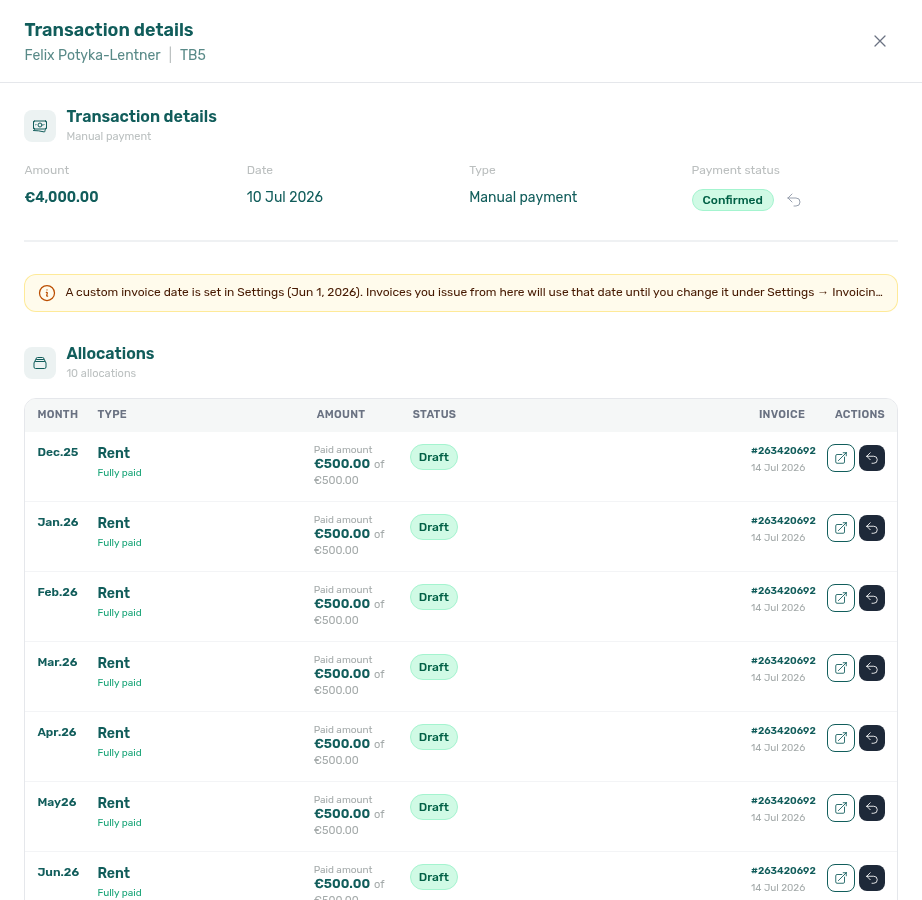
Use it to reconcile the download against issued invoices without opening every transaction detail row. CSV and Excel share one column list, so the header order stays identical across formats.
Booking ID in exports
Booking-scoped Finance downloads now carry a consistent Booking ID column (Vivin booking UUID) so exported rows can be joined back to the reservation without matching on tenant name and dates alone.
| Export surface | Header | Position / notes |
|---|---|---|
| Finance → Deposits | Booking ID | First column (before UnitName / Tenant) |
| Finance → Contract Values | Booking ID | First column. year / month (item period) sit next to dueDate — Item month in the export |
| Finance → Income | Booking ID | First column on the aggregated income export |
| Finance → Transactions | Booking ID | First column (before Unit Name / Guest Name) |
| Finance → Payouts (in-payment rows) | Booking ID | Same value as before; header standardised from raw bookingId (after bookingInPaymentDate) |
| Finance → Overview Income drill-down | Booking ID | Already present on the payment-line export |
The same canonical header lands on other booking-row exports outside Finance — Audit → Discounts, Operations → Check-in & Check-out, Tenants → Bookings CSV, and Settings → Communications → Communication schedule. Listings → Portfolio listings CSV uses Current Booking ID beside the active-booking start/end/rent group (the row is a unit, not a booking). The Bookings list export keeps the shorter id column for the same booking UUID — see Bookings — Exporting the list (bookings-list-export-id-columns.png, bookings-list-export-id-column-flow.mp4).
Empty cells are intentional: credit-note lines or rows with no active booking leave Booking ID blank rather than inventing a value.
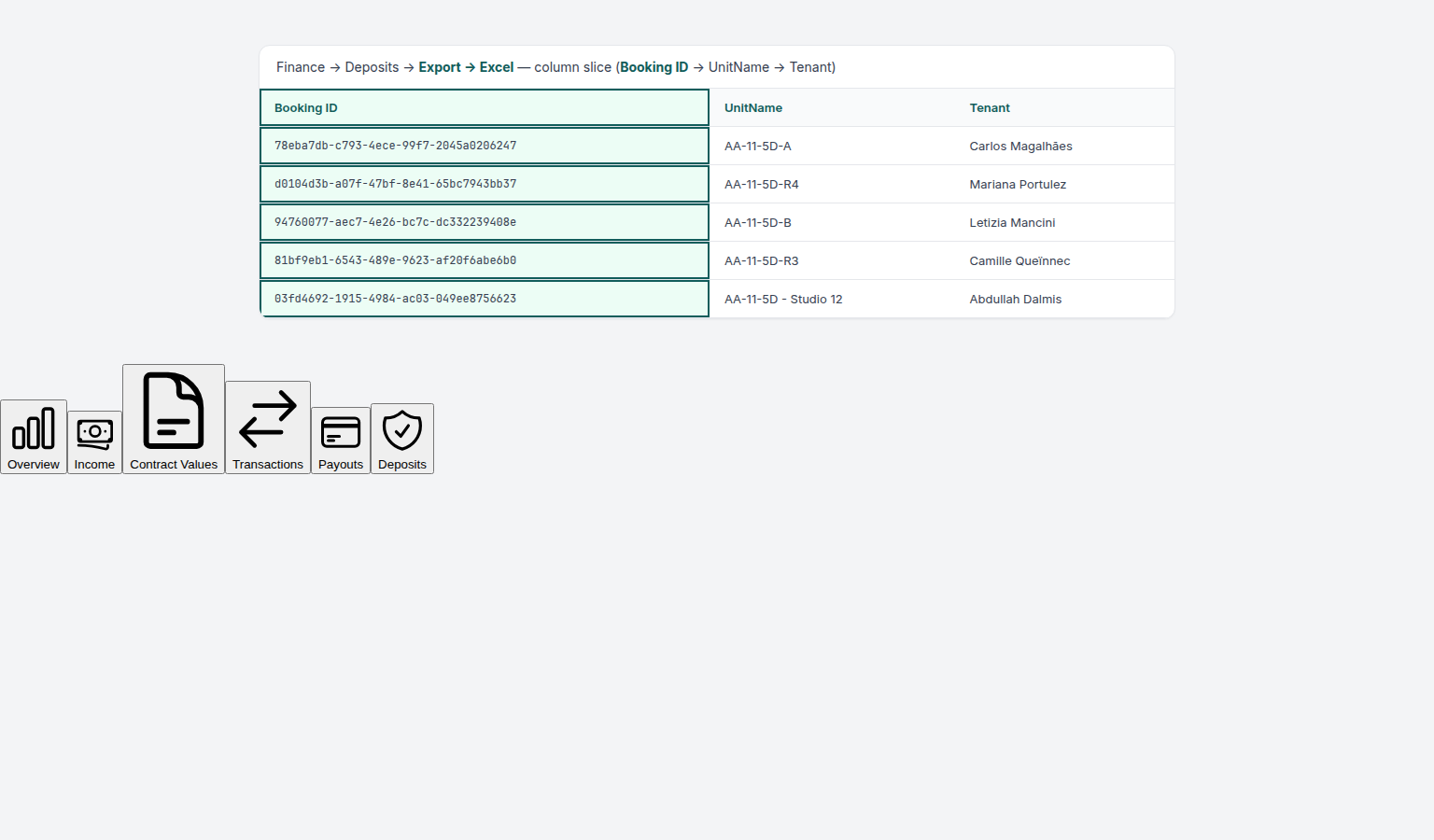
Cross-module teaching frames for the same first-column pattern:
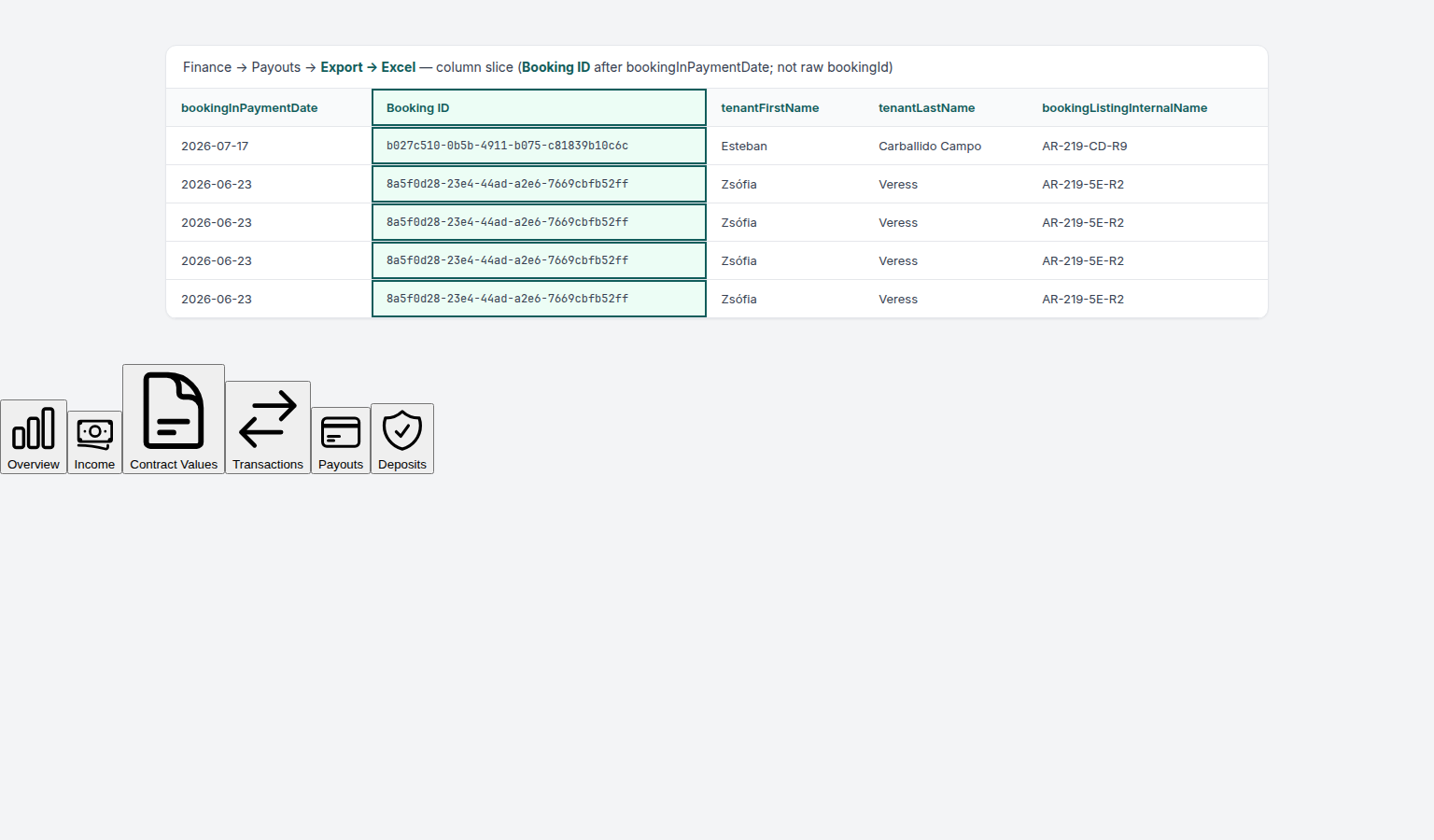
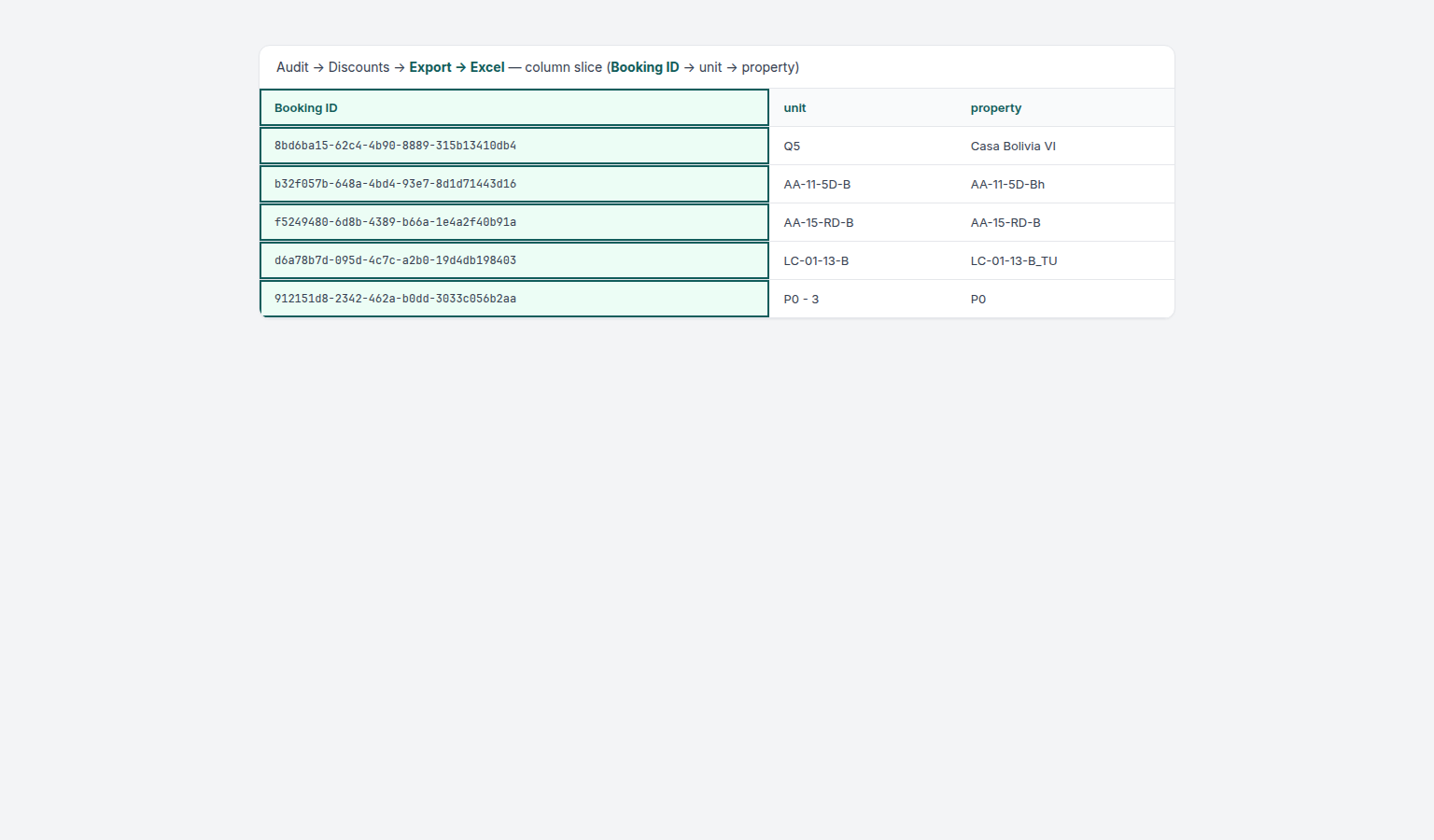
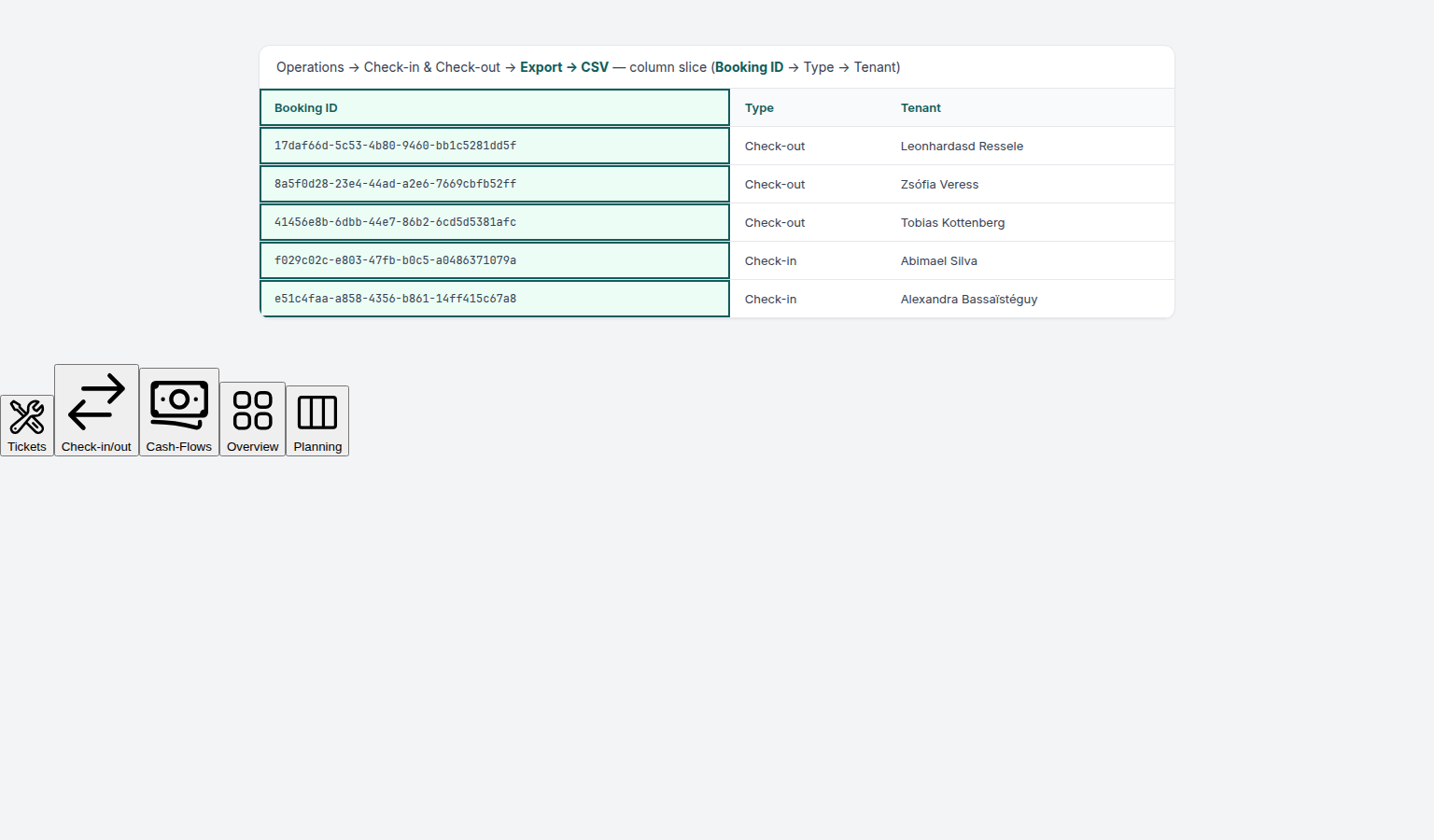
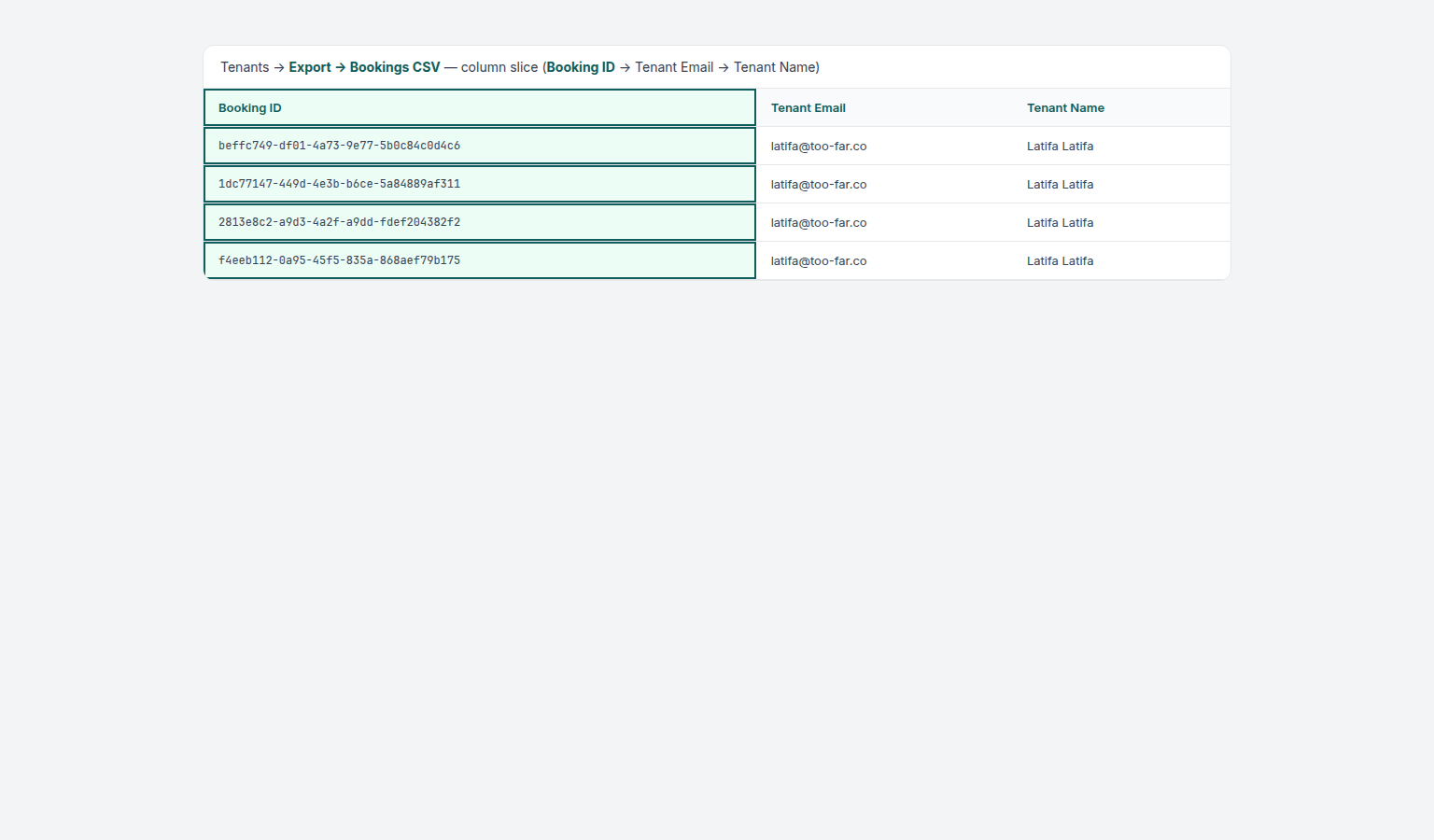
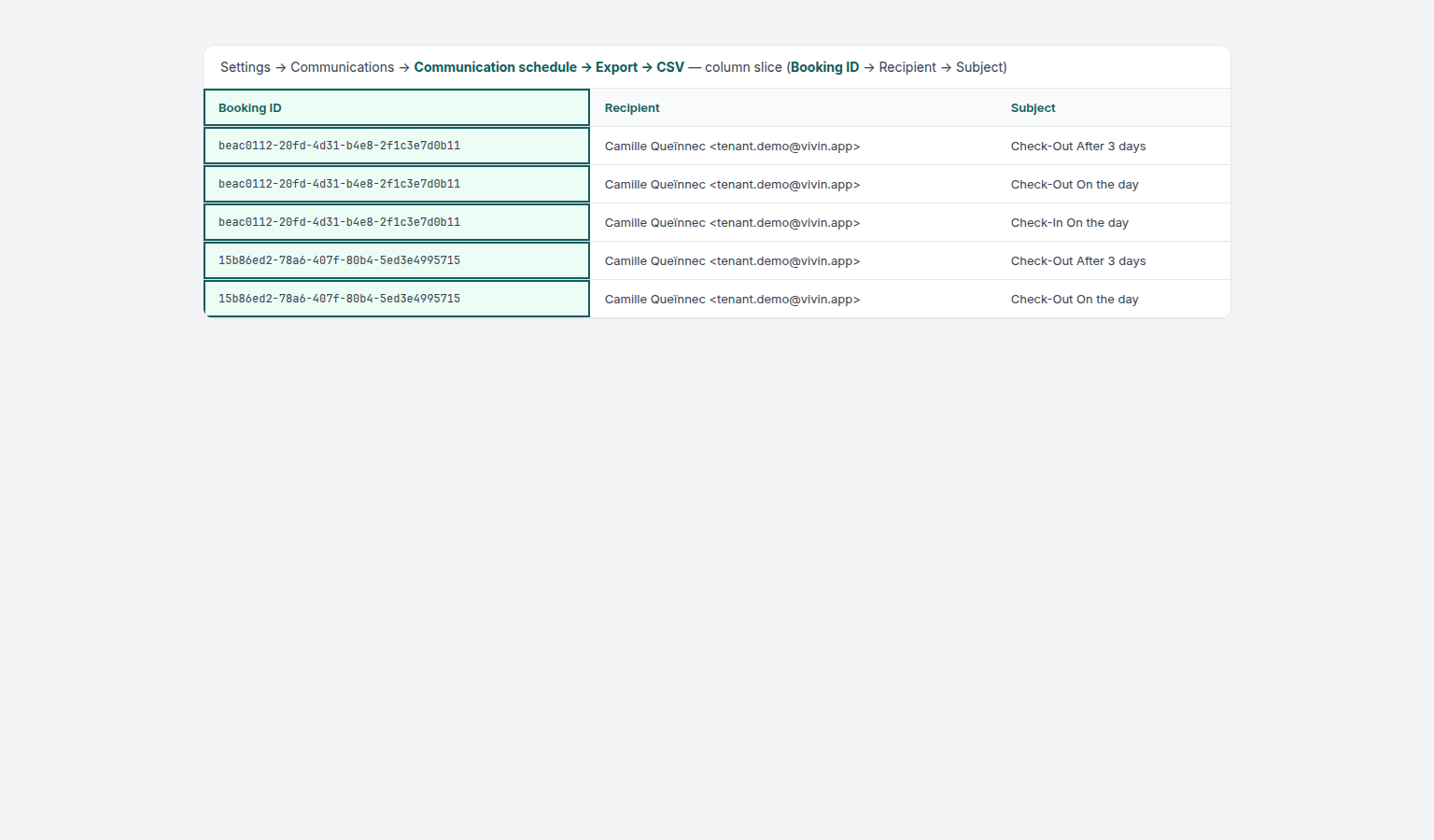
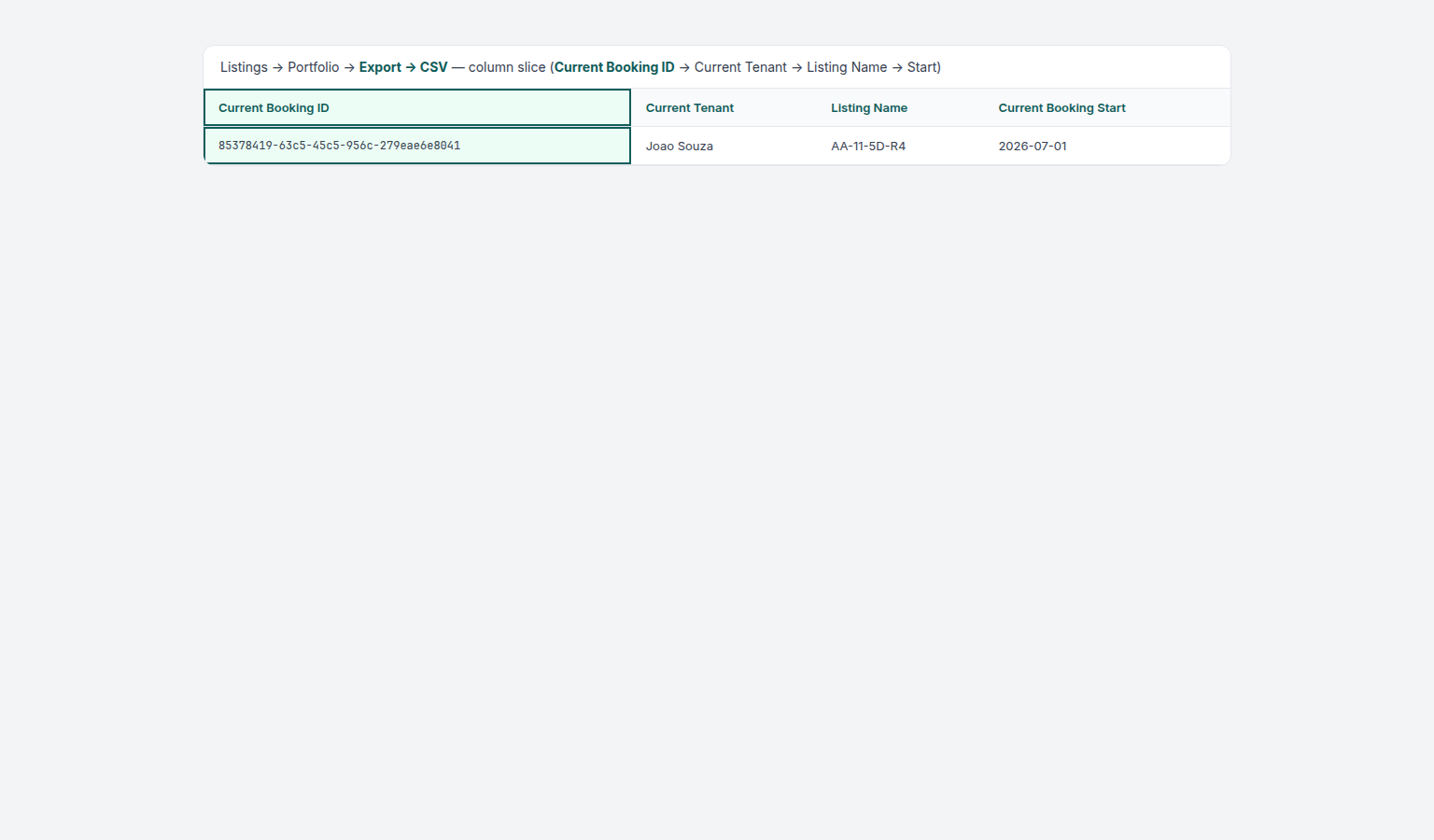
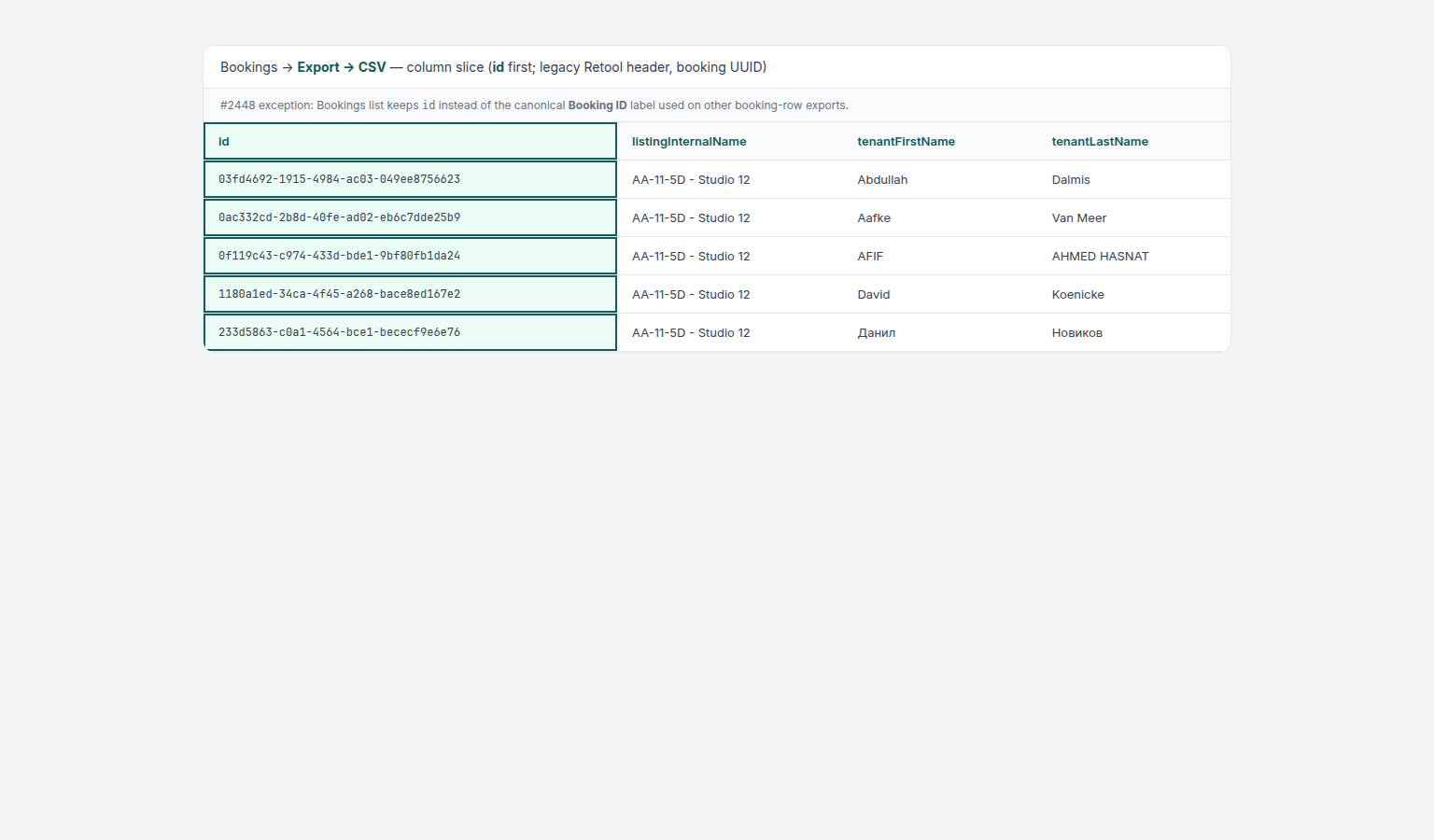
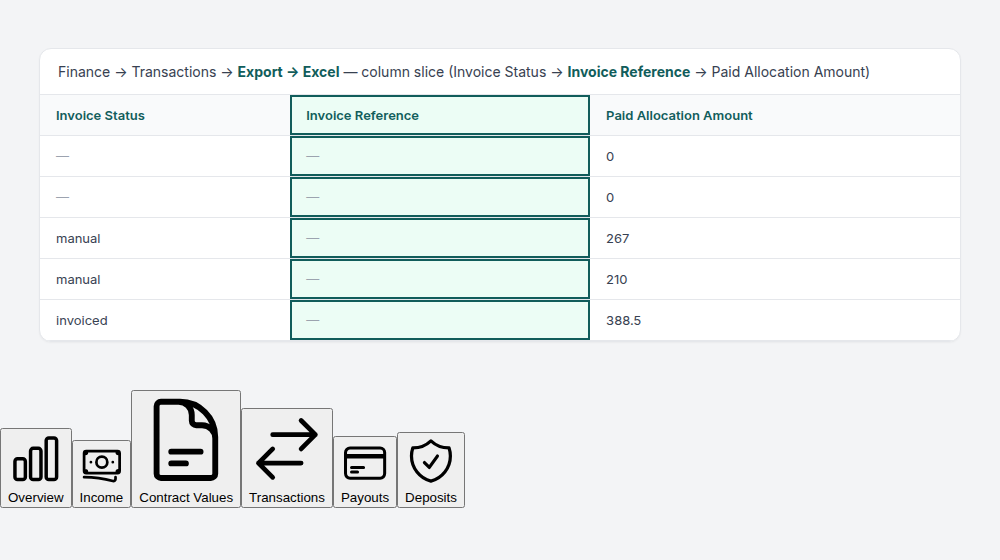
This tab is useful for reconciliation — cross-checking received payments against your bank records and feeding accounting tools without re-joining tenant profile data manually.
Row actions on in-payment rows
Each in-payment row in the ledger table exposes trailing icon actions (same confirmation modals as the booking Transactions tab). Permissions: finance.approve_payments for approve / reject / revert / Edit payment amount; bookings.delete_others for delete; finance.assign_payments_to_other_bookings for reassignment — configure them under Users and roles > Role Permissions.
| Action | When enabled | What it does |
|---|---|---|
| Edit payment amount (pencil) | Status pending, Approve payments, and the type is a manual in-payment (not vIBAN or card) | Corrects the received € before Approve. On this ledger the Amount cell becomes an inline editor — see Edit payment amount. |
| Approve payment | Status pending or processing | Confirms the in-payment and applies allocations. |
| Reject payment | Same pending states | Removes the payment from the booking and ledger. Confirmation includes a red banner: Warning: this may require a credit note and invoice follow-up. |
| Revert payment | Status confirmed or rejected | Rolls allocations and balances back; blue info banner: Info: this may require invoice or credit note updates afterwards. |
| Assign to other booking | No allocation is invoiced | Same move as on the booking sidebar — see Assign a payment to another booking. |
On the ledger, Revert and Delete use per-row icon actions. Reject for pending manual in-payments is available from the bulk Reject selected control when you tick row checkboxes (there is no per-row reject icon on Finance). Approve selected and Reject selected share the same confirmation modals as the per-row actions on booking Transactions — the bulk bar appears above the table when at least one row is checked:

The Approve Payment and Reject Payment confirmation modals match booking Transactions — screenshots from the booking sidebar below:
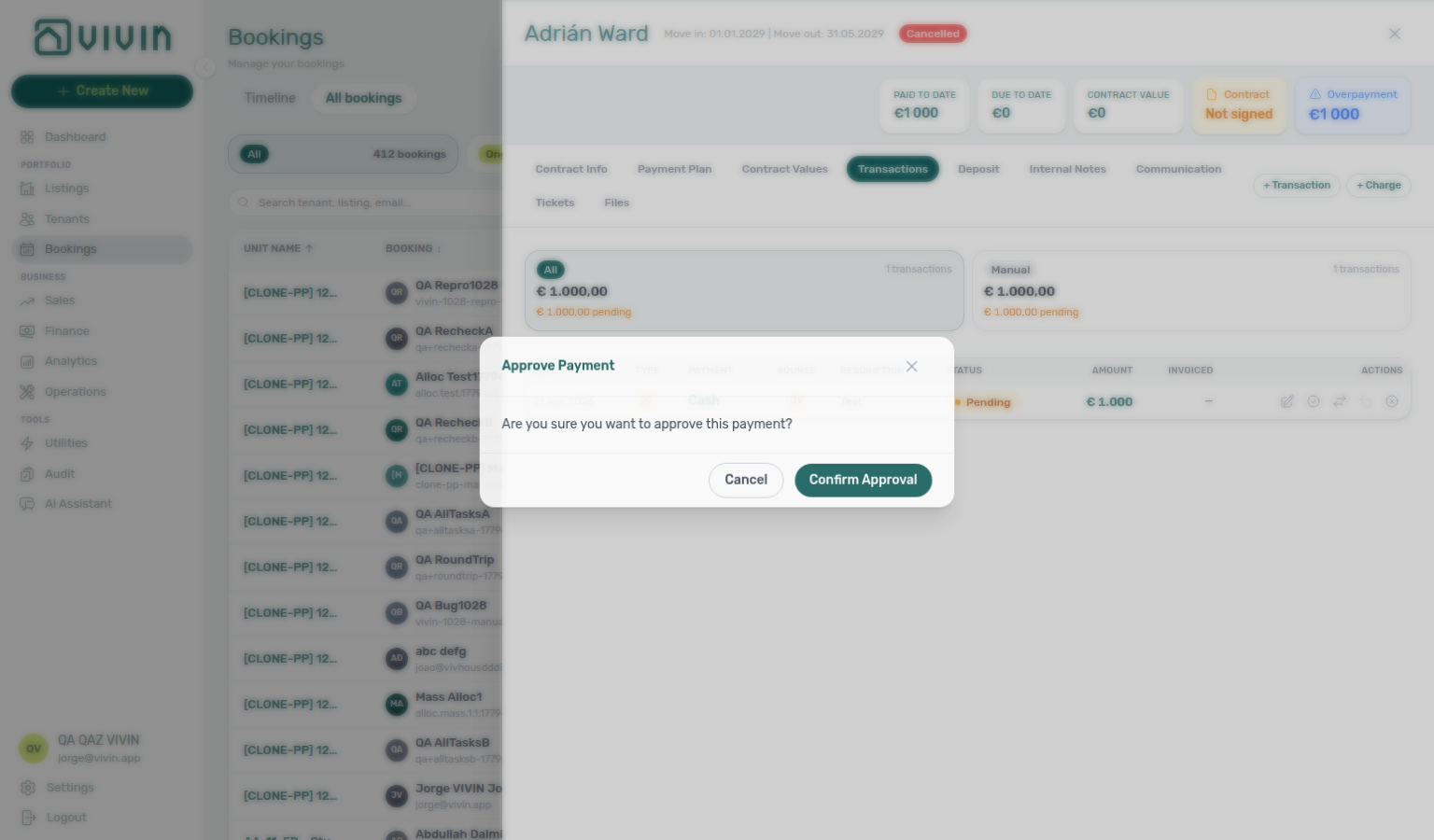
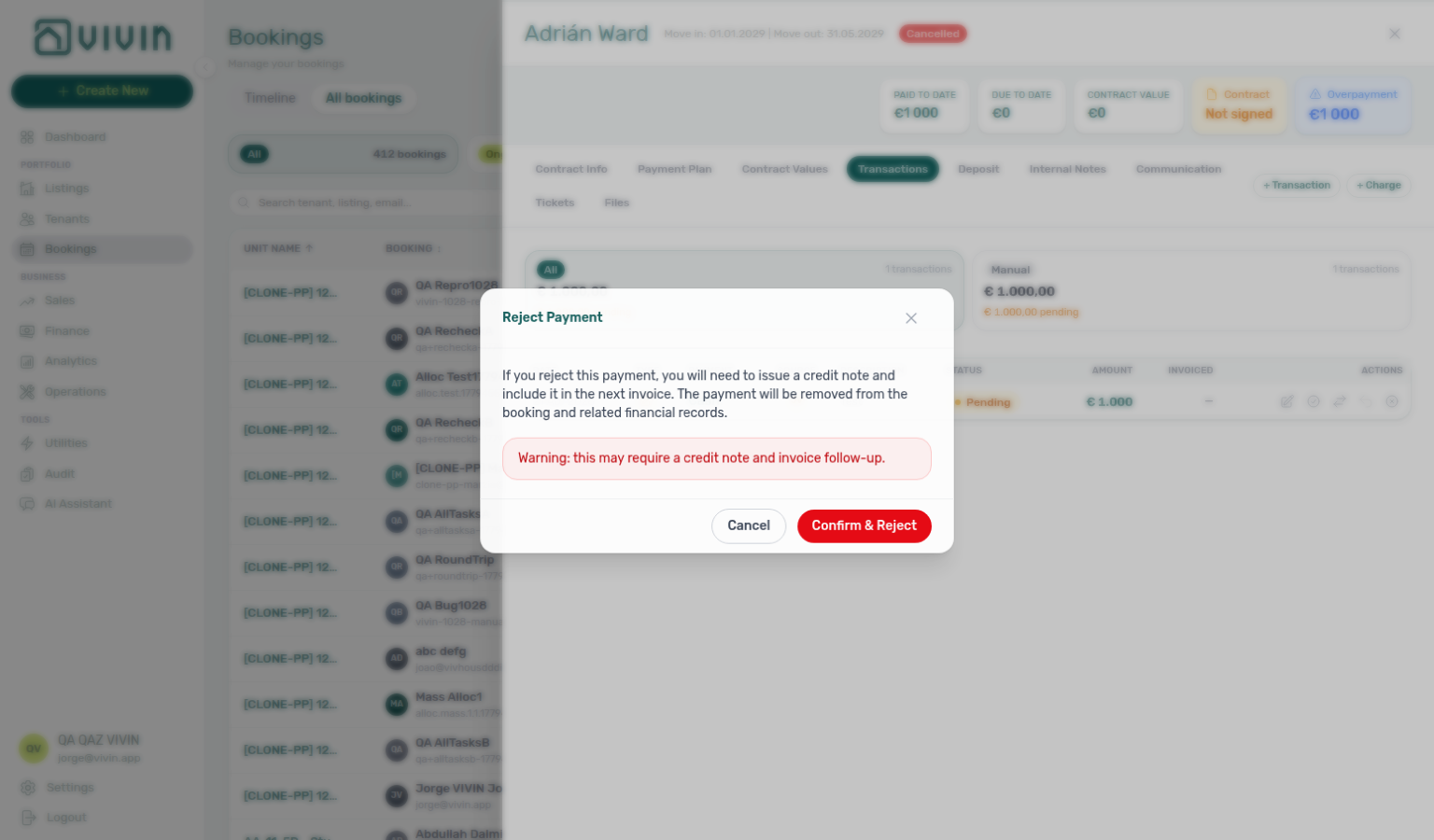
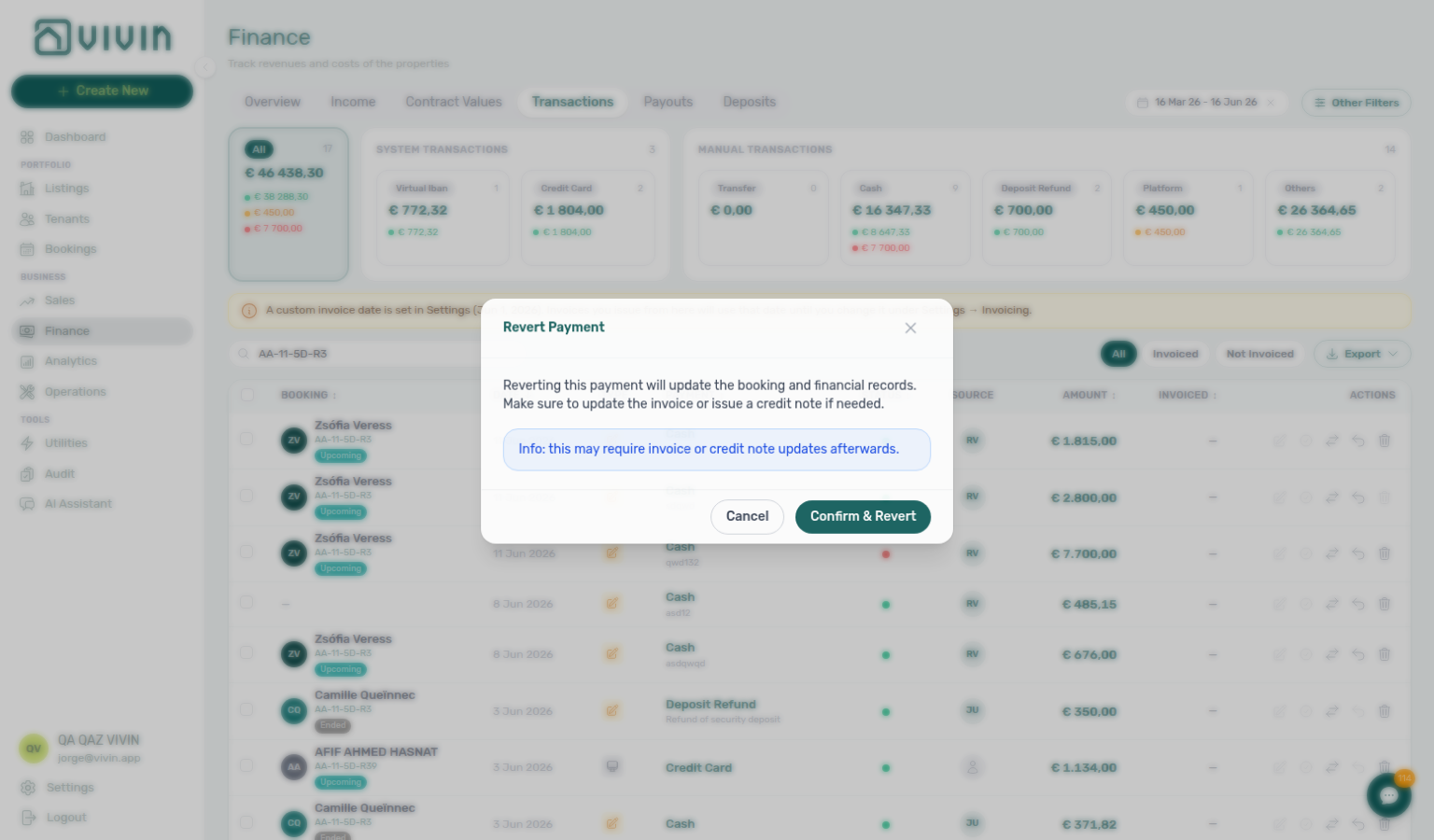
Edit payment amount
When a pending manual in-payment has the wrong €, click the pencil Edit amount. The Amount cell becomes an inline editor: type the figure, then Enter or click away to save; Escape to cancel. Negative amounts are discarded. This is the same correction as booking Edit payment amount (that surface uses the Edit Payment Amount modal instead of an inline cell).
Do not use this pencil for vIBAN or card rails, or after Approve — Revert payment if the receipt is already confirmed. Duplicate or wrong-booking rows still need Reject selected while pending. Distinct from Contract Values → Edit amount, which changes a scheduled charge line.
Delete payment on the ledger
Delete payment (trash icon) removes an in-payment entirely when Vivin allows it. The confirmation modal warns that the action cannot be undone.
Delete stays disabled when:
- The payment type is vIBAN or provider platform (system-matched rails Vivin must preserve on the ledger).
- Any allocation has invoice status invoiced, manual, or draft — resolve Finance / accounting records first.
A rejected provider-platform in-payment no longer blocks Delete Booking on the reservation — the guard only applies while a non-rejected row remains. See Bookings — Delete Booking (soft archive).
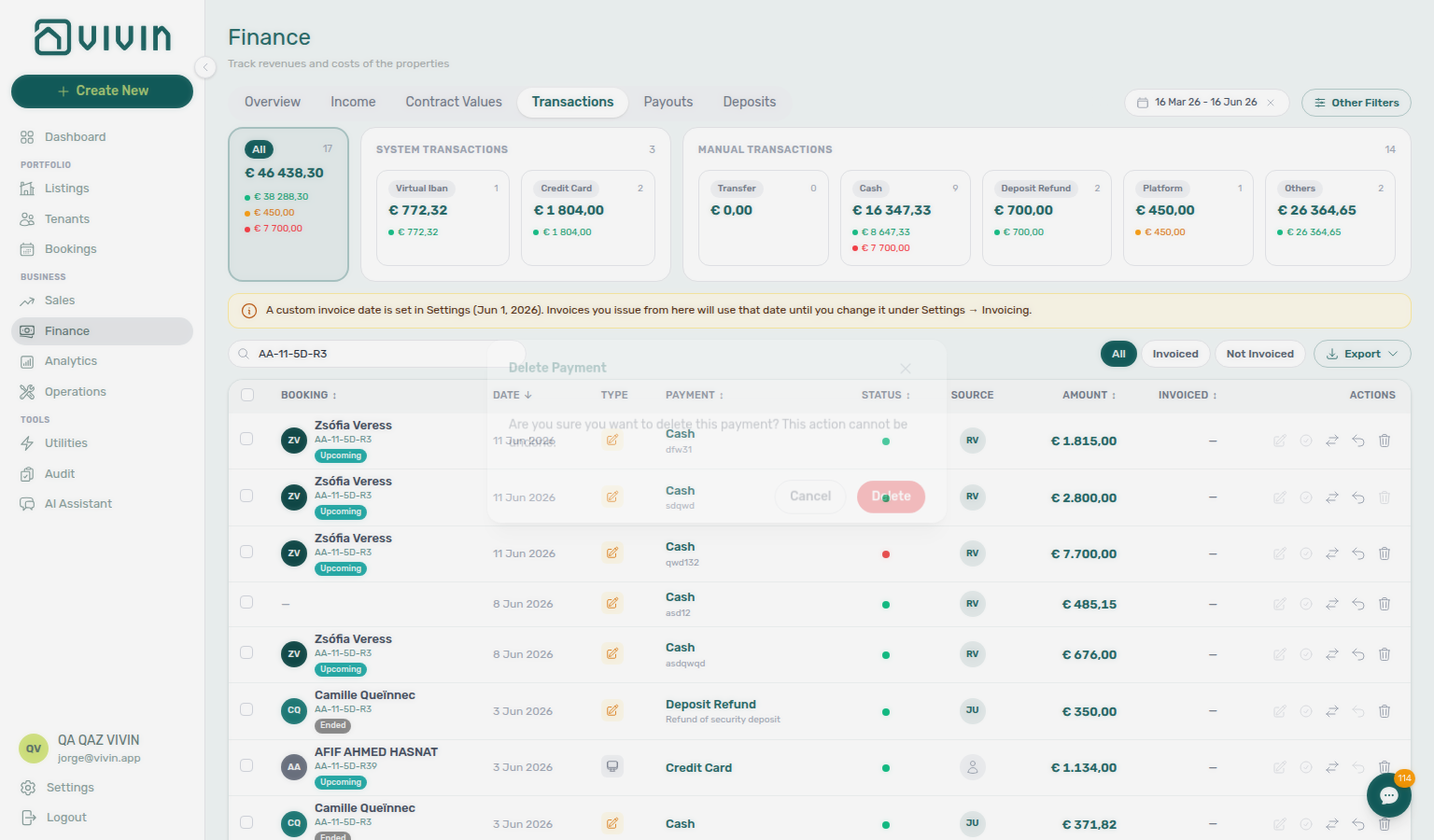
Booking-side Transactions does not expose delete; triage mistaken manual entries from this ledger tab when your role includes bookings.delete_others.
Assign a payment to another booking
Users with Assign payments to other bookings (finance.assign_payments_to_other_bookings) can move an in-payment from one booking to another when the money landed on the wrong reservation.
The target booking can belong to a different tenant. The one hard boundary is the Vivin account: source and target must both sit in the account you are signed in to, and that isolation is enforced server-side. The common driver is a tenant paying for a family member — the bank transfer is matched to the payer's booking, and the receipt has to move to the relative's booking under a different tenant profile.
On each eligible row, use Assign to other booking (arrows icon) in the trailing action group. The control is disabled when the payment has an allocation already marked invoiced, or when your role lacks the permission (configure it in Users and roles > Role Permissions, Finance group). Archived bookings are not offered as targets.
Reassignment transfers the entire in-payment. Vivin does not split one receipt across two bookings, so there is no partial reassignment.
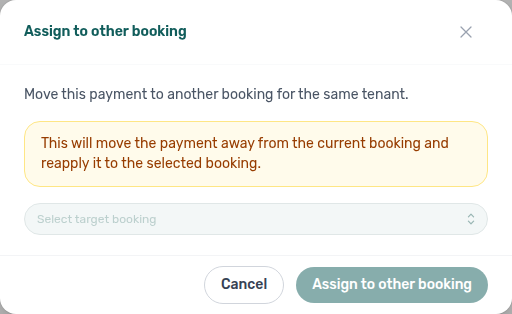
The modal warns that the payment is removed from the current booking and reapplied to the selection. Choose Select target booking, then Assign to other booking. Each option shows the tenant name over property — unit · contract dates (plus booking code when present) so same-unit or same-tenant stays stay distinguishable — check them before confirming, since a cross-tenant move puts the receipt on someone else's ledger.
Transaction detail sidebar — Click any ledger row to open the right-hand transaction detail drawer. When the payment is linked to a booking, scroll to Assign to other booking: pick the target from the searchable dropdown, then Reassign (same permission, account-isolation, and invoicing rules as the row action).

You can run the same move from a booking’s Transactions tab — see Bookings > Transactions (bookings-detail-transactions-assign-picker-identity.png).
Financial Reconciliation
Reconciliation is the process of aligning bank or channel payouts with the payment rows and allocations Vivin already recorded. The Transactions tab is your ledger — use the date range, Other filters, Select platforms, and Export together when comparing against a bank statement or OTA payout file.
Bulk actions on the Transactions ledger
Users with Approve payments can select multiple rows with the checkboxes (or the header checkbox for every row on the current filtered page). A floating N selected bar appears above the table with bulk actions:
- Approve selected / Reject selected — confirm or reject pending manual payments in one step. Reject selected opens the same Reject Payment modal (red credit-note warning) as booking Transactions; use it when several mistaken manual entries need clearing without opening each booking sidebar.
- Invoice selected — move eligible allocations toward invoicing where your account uses integrated invoicing.
- Issue allocation — issue invoice lines for pending or failed allocations on the selected rows (button counts reflect how many allocations qualify).
- Set manual — mark qualifying allocations as manually handled without issuing through the integration.
- Revert invoice — undo draft or issued invoice state on eligible allocations when you need to correct a batch mistake.
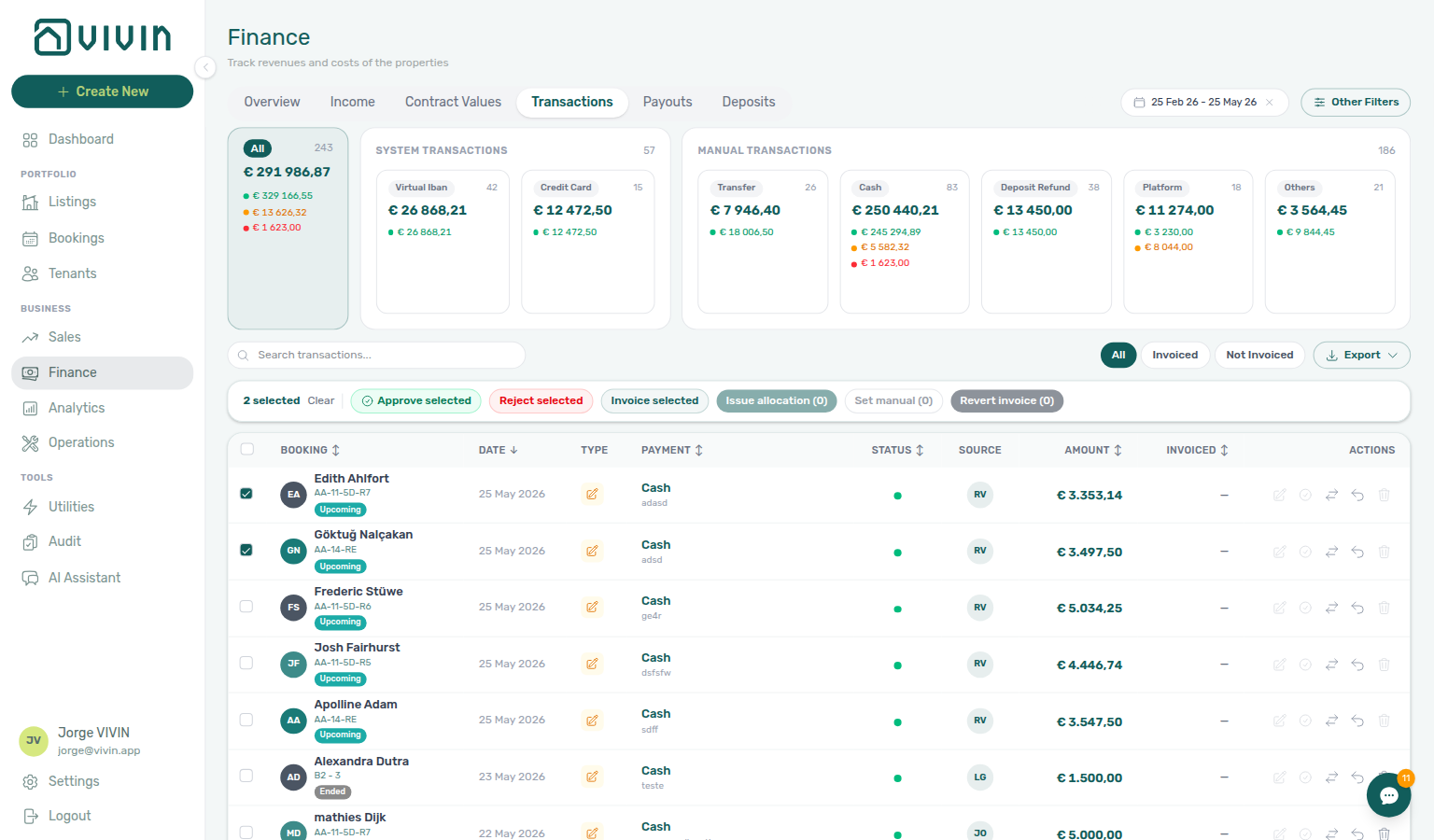
Filter with Select platforms and the date range before multi-select when you reconcile one channel's payout. Open a single row to review allocation mapping, overpayments, and Paid At when a payment appears in the wrong reporting month.
Issuing credit notes (integrated invoicing)
When you reject or revert an in-payment that was already invoiced through Hostkit or Invoice-xpress, Vivin rolls back allocations in-product and creates credit-note reversal rows on the affected allocations. Those reversals stay not issued until finance pushes them to your invoicing provider or marks them handled externally.
The same Not issued credit note queue also fills when operators Mark refunded on a booking whose security deposit had been invoiced (or marked manual / still on a draft). Vivin creates a pending credit note for each invoiced deposit allocation (reason Refund of security deposit) without auto-issuing it — finance still issues from this tab. Not-invoiced deposit cash reverses as return of value instead and does not appear here.
After Mark refunded, the pending credit note is attached to the original deposit receipt (the Transfer / Cash / vIBAN in-payment that collected the security deposit) — not to the outbound Deposit Refund ledger row. Filter Not issued credit note, search the tenant, and open that parent row: the allocations list shows a Deposit line tagged Credit note with Returned amount still Pending until you issue it (or Set manual). Pair with Bookings — Fiscal reversal when you Mark refunded.
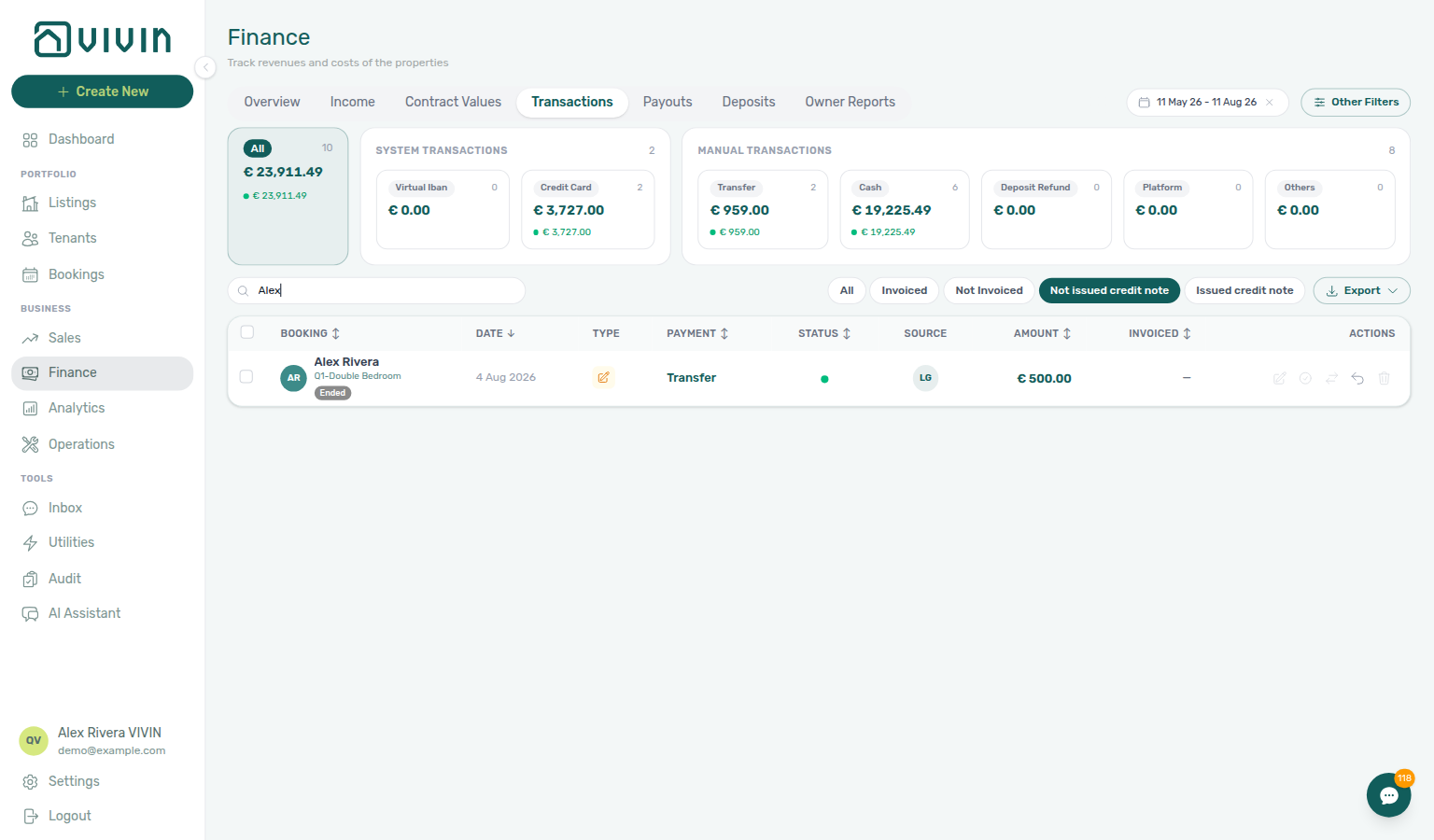
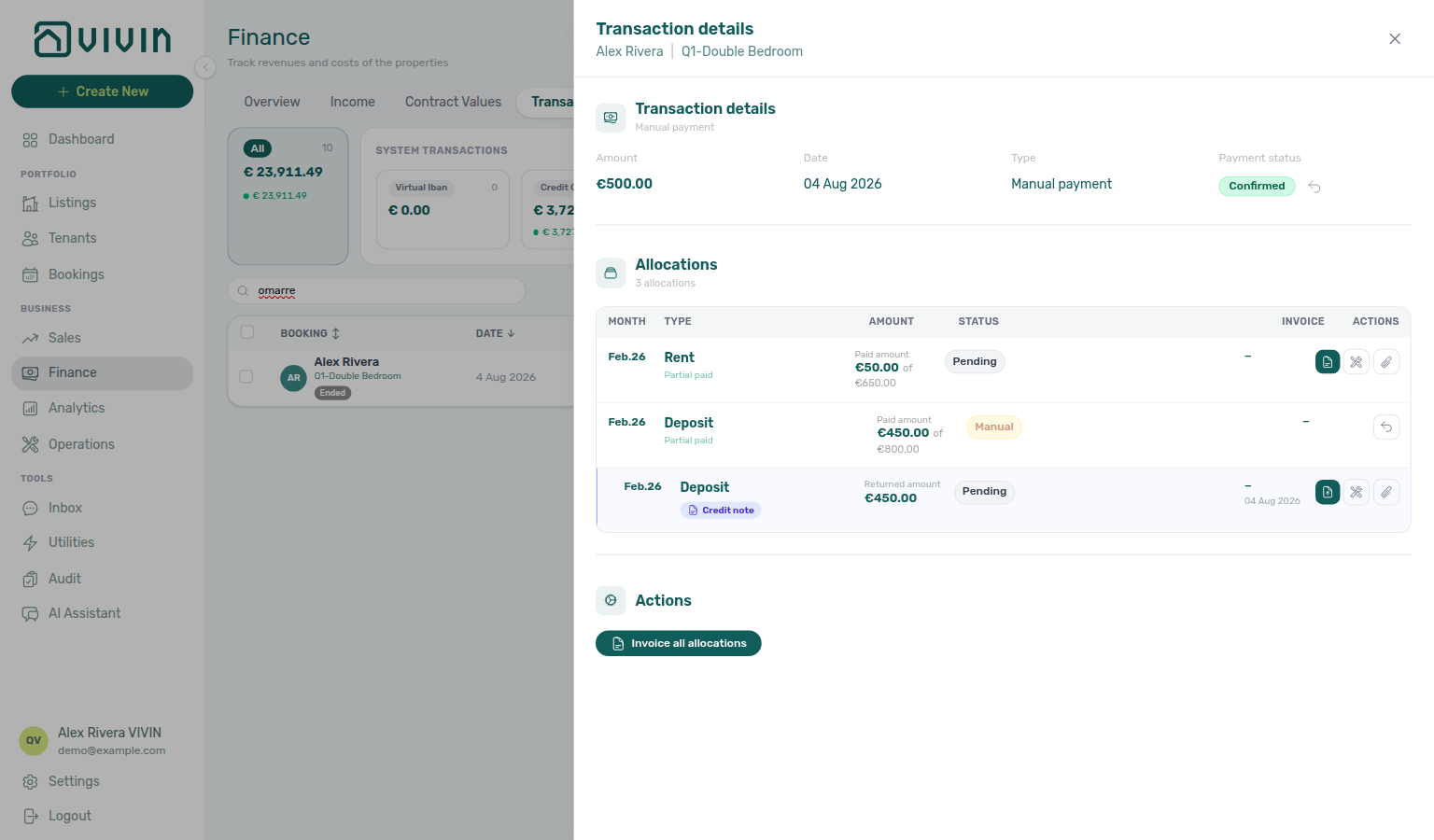
On Finance → Transactions, use the invoice filter pills beside Export:
| Pill | What it shows |
|---|---|
| All | Every ledger row in the current date range and filters |
| Invoiced | Rows with at least one invoiced positive allocation |
| Not Invoiced | Rows with allocations still pending invoice issuance |
| Not issued credit note | Rows with a credit-note reversal that has not been sent to the provider yet |
| Issued credit note | Rows where the credit note was issued or manually registered |

Bulk issue — Tick rows that include pending credit-note reversals. The floating selection bar shows Issue credit notes (N) when at least one selected row has an eligible not-issued reversal. Confirm to queue issuance through your integration (same dedicated path as per-allocation actions — credit-note reversals are excluded from Invoice selected / Issue allocation sweeps for positive invoices).

Transaction detail — Click a ledger row to open the right-hand drawer. On each credit-note reversal allocation that is still pending, use Issue credit note to provider (teal document-upload icon; tooltip label) to push the document to Hostkit, Invoice-xpress or NetSuite, Set manual (wrench) when accounting handles the nota de crédito outside Vivin, or attach a PDF reference when you registered the document manually (paperclip control). Issued credit notes expose their document for download the same way positive invoices do, except NetSuite credit memos, which you open in NetSuite.
Hostkit and NetSuite credit a whole invoice. Their credit note always reverses every line of the original invoice, so Vivin issues one only when it reverses that invoice's single charge in full. When the invoice also carries other charges (for example two months of rent billed together), or the credit is for part of the charge, Issue credit note to provider stops and names the other charges: issue the credit in Hostkit or NetSuite directly, then use Set manual. If Vivin says the provider did not confirm a credit note, check the provider before issuing it again — it may already exist, and the tax authority must not receive it twice.

The red Reject and blue Revert modals warn that accounting follow-up may be required — that follow-up is this Not issued credit note queue, not a separate spreadsheet. Hub matrix: Common Workflows — Reject/revert mistaken receipts. Modal screenshots and a booking Transactions walkthrough: FAQ — Reject or revert an incoming payment (bookings-detail-transactions-reject-modal-credit-note-banner.png, bookings-detail-transactions-revert-modal-info-banner.png, finance-transactions-bulk-reject-selected-bar.png, bookings-payment-row-actions-flow.mp4). Pair with Payment Allocation — Correcting mistaken receipts, Common Workflows — Pending manual receipt approval (duplicate still pending → Reject), Portfolio KPI review — Step 7 (month-end duplicate cleanup), and Glossary — Credit note (payment reject/revert). To create a credit-note reversal on an invoiced Contract Values line (before this queue fills), use Bookings → Contract Values → Credit note — see Bookings — Manage credit notes.
Platform Reconciliation
Different rental platforms have different commission structures and VAT rules. When reconciling platform payouts:
- Each platform deducts its own commission before paying you, so the received amount may differ from the booking value in Vivin.
- Vivin tracks the gross booking value (what the tenant pays) and the net amount received separately.
- Open Other filters on the Transactions tab and use Select platforms (top Transactions section) to isolate payments from one or more channels; active choices appear as pills above the table.
Ensure the Paid At date is set correctly when recording payments. An incorrectly set date causes the payment to appear in the wrong period in financial reports. If you notice a payment is showing up in the wrong month, this is the field to check in the Transactions tab.
Payouts Tab
The Payouts tab tracks outgoing payments from your company to property owners and, where configured, tenants. Use it to review scheduled transfers, confirm what landed in the bank, and export payout batches for accounting.
Account-wide approval and payout destination rules are configured under Account Settings → Payments → Out Payments (Approval type and Payout type): Skip approval lets the scheduler auto-approve new batches; Approval required leaves them in To approve until an operator with Approve payments permission acts. Payout type chooses Account (company IBAN) vs Owners (per-owner IBAN batches).
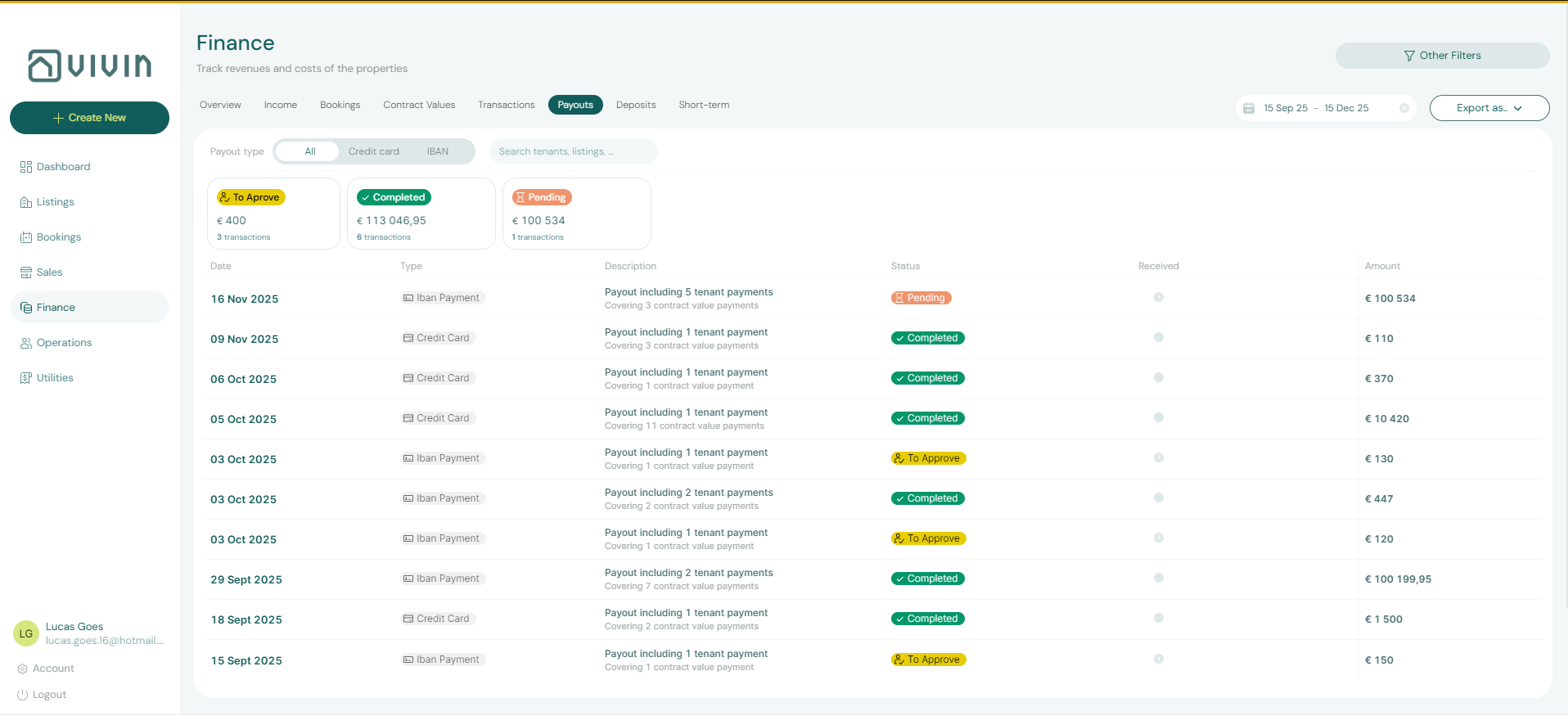
Use Export on the Payouts toolbar to pick CSV or Excel (vivin-payouts-YYYY-MM-DD.csv / .xls). The download includes the full filtered set — Vivin walks every matching server page first, so you do not need to scroll the infinite-scroll table. The date range and Other filters decide which rows match. If the fetch fails, an error toast appears and no partial file is written.
Payout export rows that expand tenant in-payments use the canonical Booking ID header (not the raw bookingId key) so the column matches Transactions, Deposits, and Contract Values. Unlike those surfaces, Booking ID is not the first column here — it sits immediately after bookingInPaymentDate, before tenantFirstName / tenantLastName. See Booking ID in exports.
The three summary cards above the table (All, Credit Card, IBAN) count and total payouts over the active date range and honour every Other filters drawer choice that the payouts API supports — including Booking → Select categories (booking tags), Tenant → Tenant category, property, owner, and IBAN/fiscal filters. Toolbar Search scopes the table only; the cards do not change when you type in search.
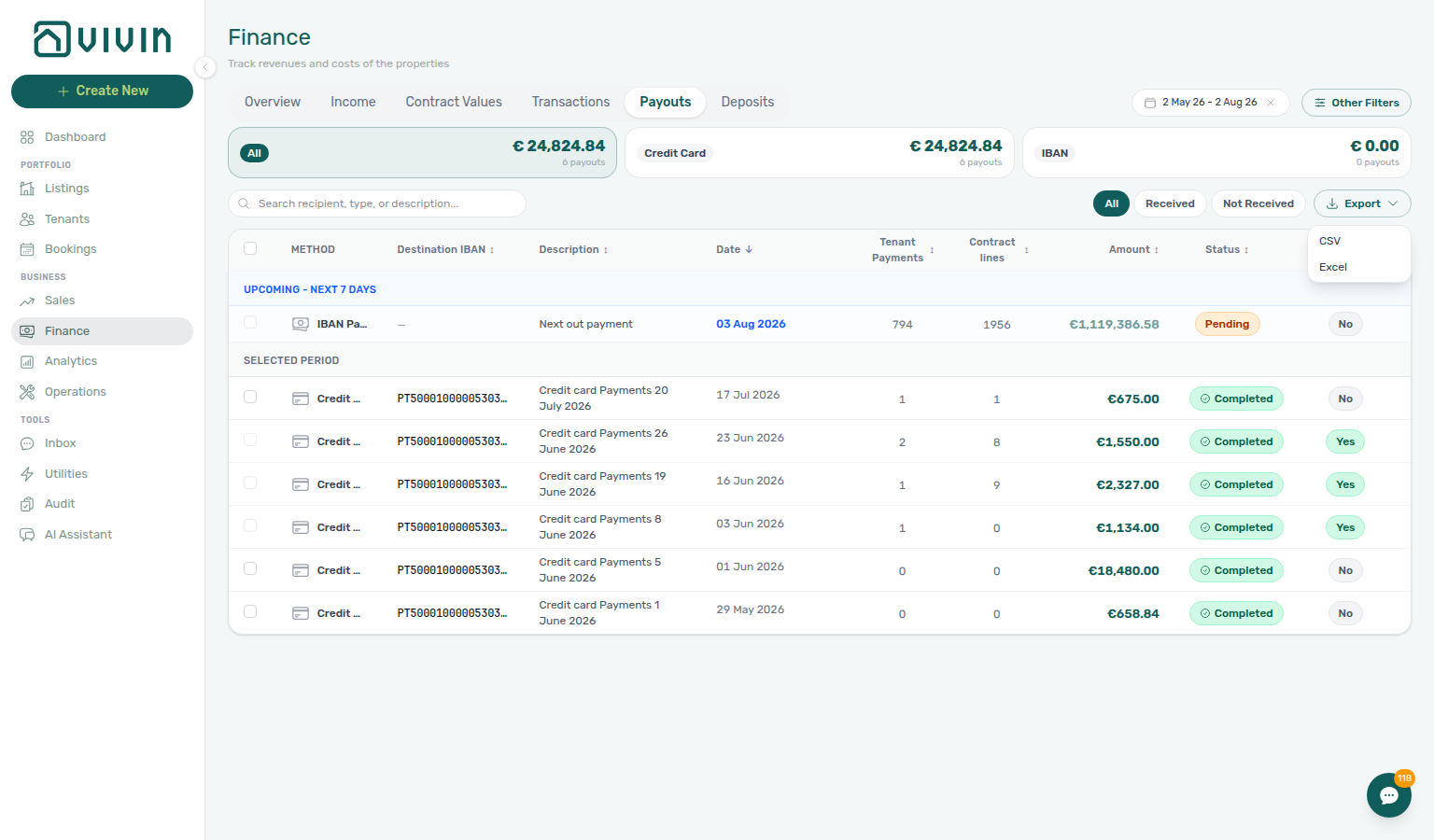
bookingId key).Table columns
Each row is one payout (or a schedule summary row for upcoming windows — see selection rules below). Sortable columns include:
| Column | What it shows |
|---|---|
| Method | IBAN Payment or Credit Card icon for the payout rail. |
| Destination IBAN | Bank account the payout is sent to (owner IBAN, company IBAN, or tenant refund account). Credit card payouts and rows with missing banking details show —; open the Payout details sidebar for recipient name, Owner / Tenant subtype, and Set recipient when banking is incomplete. Sorting orders by IBAN string. |
| Description | Operator-facing note for the batch (for example how many tenant payments are grouped). |
| Date | Scheduled or recorded payout date. |
| Tenant Payments | Count of incoming tenant payments rolled into this payout. |
| Contract lines | Count of rent or fee allocations tied to scheduled contract charges in this payout. Zero usually means payments are not allocated against those charges (for example direct tenant transfers). Hover the column header for the full definition; hover a 0 cell for a short “no contract charge allocations” hint. |
| Amount | Payout total in EUR. |
| Status | Workflow badge — To approve, Pending, or Completed. |
| Received | Whether the transfer is recorded as received in Vivin (Yes / No). |
Use the toolbar Search box to filter by description, payout type, destination IBAN, or tenant name on any booking grouped into the payout (server-side match on grouped in-payments).
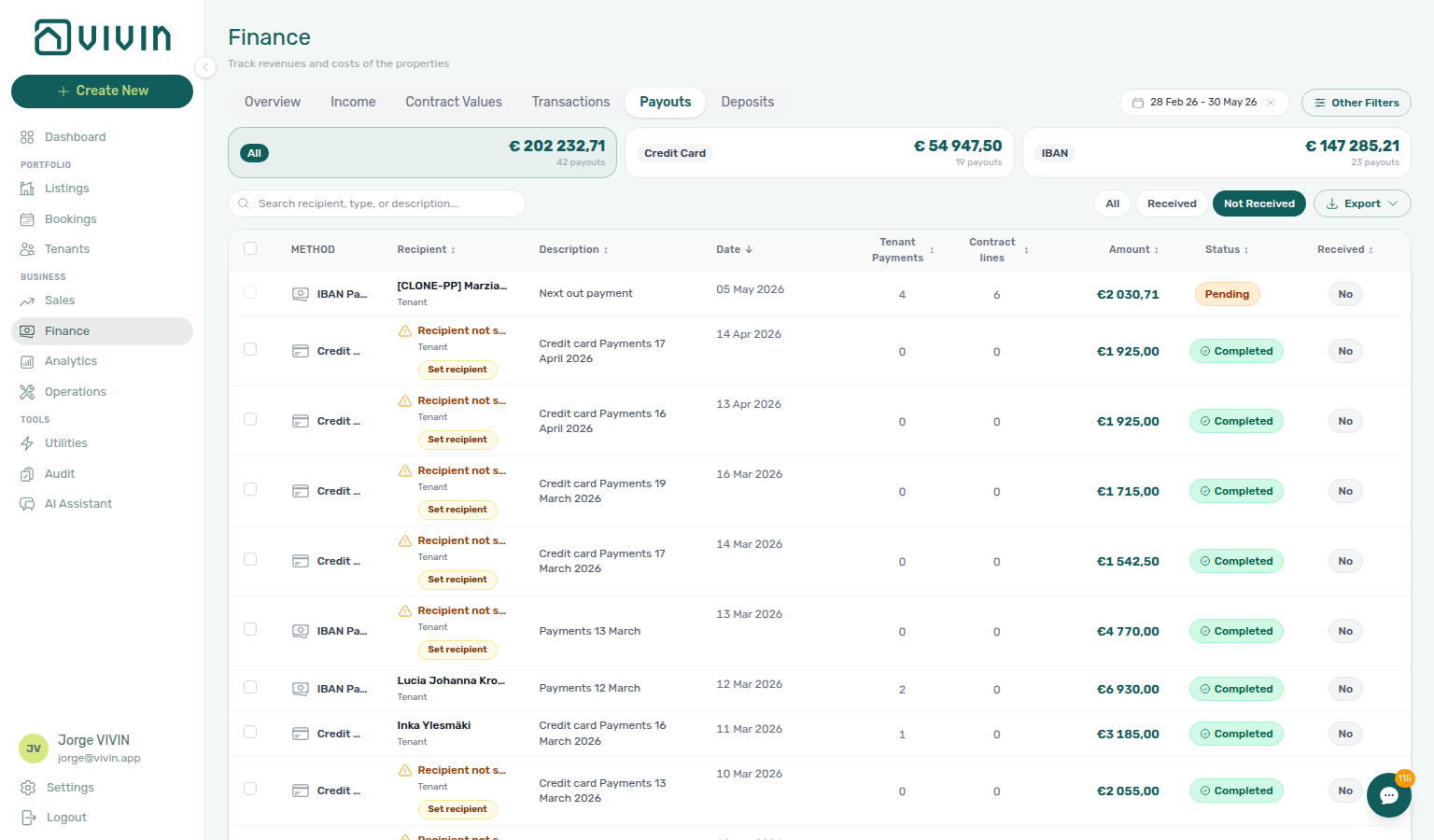
Confirm received (bulk)
When bank transfers have cleared, mark payouts as received without opening each row:
- Select one or more eligible rows with the left checkboxes. The header checkbox selects every eligible payout in the current view (the Upcoming — Next 7 days block plus the filtered table below). When only some eligible rows are checked, the header control shows an indeterminate state (dash) instead of a full check.
- A floating bar shows
N selected · Total €…(count and summed Amount for the selection) with Clear selection and Confirm received. While work is in progress, the bar also showsConfirming X of Y…and both actions are disabled.
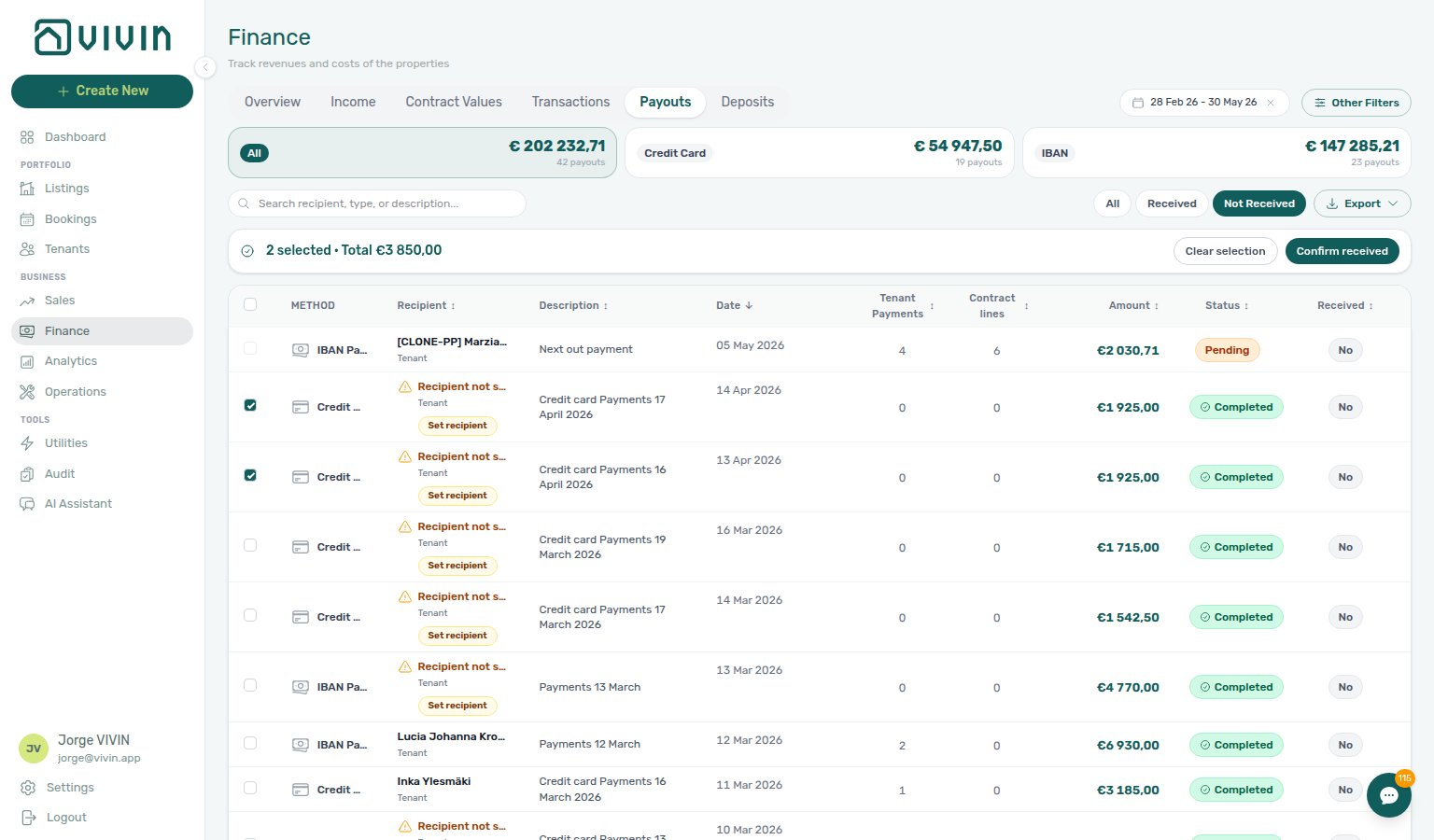
- Confirm received opens a dialog that restates how many payouts you are about to mark and the total € for that batch. Confirm to run the updates, or cancel to return without changes.
Outcomes
| Result | What you see |
|---|---|
| All succeed | Success toast (for example “3 payouts confirmed as received.”); selection clears and the table refetches. |
| Some fail | Error-style toast with confirmed and failed counts (for example “2 confirmed, 1 failed.”). Rows that failed stay selected so you can fix the issue and retry; succeeded rows drop out of the selection. |
| All fail | Error toast (“Failed to confirm payouts as received.”); your selection is kept. |
If another user already marked a payout received while you had it selected, the product treats that as success for that row (the end state matches Confirm received) and continues with the rest of the batch.
When no payout in the current date range and filters is eligible, checkboxes stay disabled and bulk confirm is unavailable — widen the range or clear filters, or use the row sidebar Mark received for a single payout.
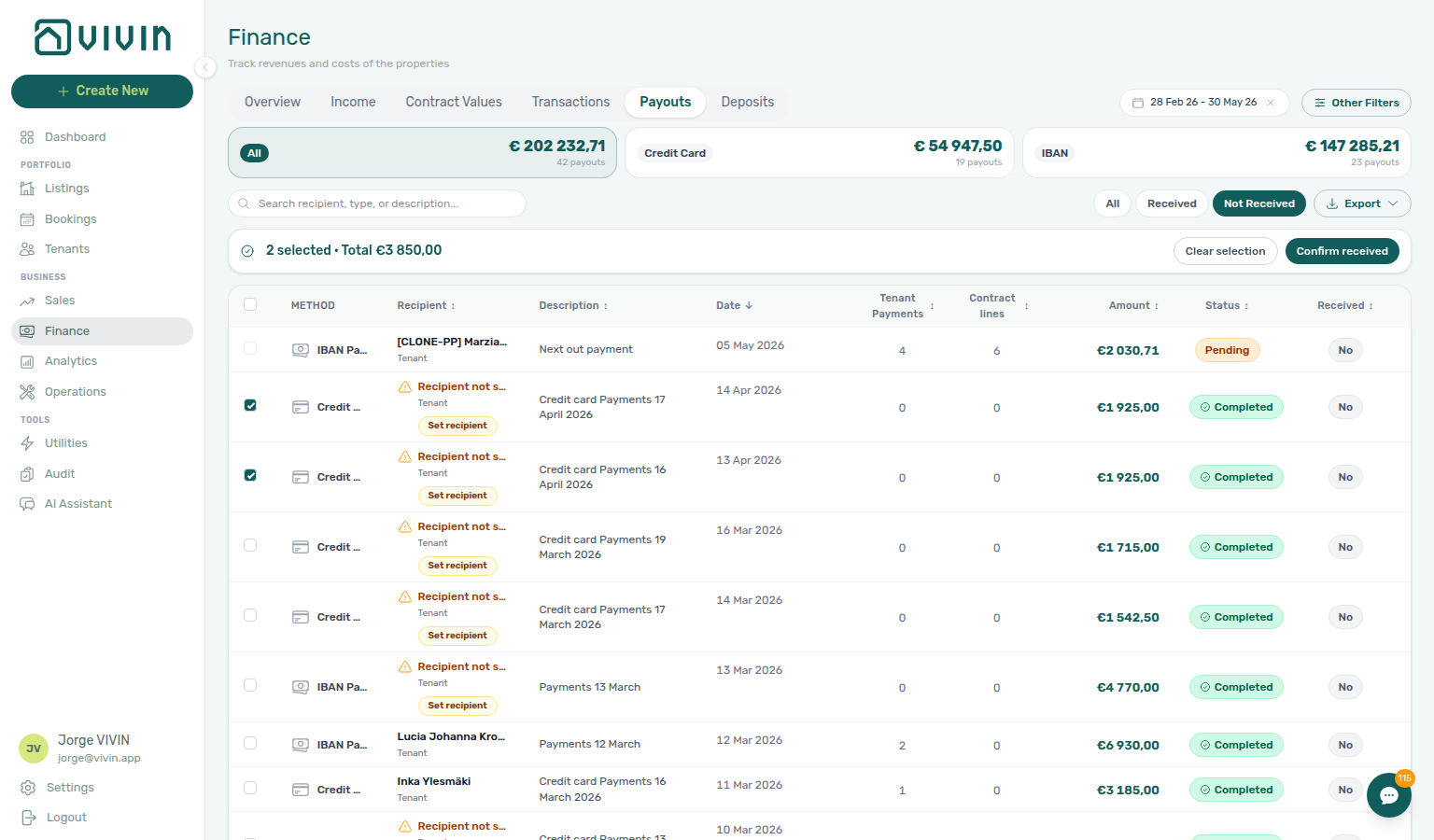
Upcoming — Next 7 days rows appear in a highlighted block at the top when payouts fall in the next week. Click any data row (outside the checkbox) to open the Payout details sidebar: recipient name, Destination IBAN, status, Received, and an In payment breakdown table of grouped tenant payments. When the table shows — in the IBAN column, use the sidebar to confirm payee identity and fix missing banking via Set recipient (Settings > Owners or the booking sidebar).
Selection rules
| Row type | Checkbox |
|---|---|
| Stored payout not yet Received (real payout id) | Selectable — use bulk Confirm received or the sidebar Mark received control. |
| Already Received | Disabled — tooltip Already received. |
| Schedule summary row (non-UUID id) | Disabled — tooltip Schedule summary rows cannot be selected. |
After a refetch, any selected id that is no longer eligible (for example it flipped to Received) is removed from the selection automatically.
Bulk confirm requires Approve payments permission (finance.approve_payments), same as viewing this tab.
Payout processing (background)
Vivin calculates owner shares from configured revenue-split rules and management-fee deductions. Scheduled jobs create outgoing payout batches from finalized tenant vIBAN in-payments; whether new batches need a manual approve step or are auto-approved is configured under Account Settings → Payments → Out Payments (Approval type and Payout Type).
Operators still reconcile against bank statements using Export, Contract lines, and the In payment breakdown in the detail sidebar before marking payouts received.
Deposits Tab
Deposit rows pair with Bookings — Deposit tab and Managing a Check-out — widen the date range before searching older move-outs (Glossary — Finance Deposits date range).
The Deposits tab tracks security deposits across bookings in the selected date range (same range control as Transactions and Payouts). Use it to see who still owes the deposit, what is ready to refund, and what is already closed out. Table pages and the Deposits overview status-card aggregates are computed server-side in SQL — the same infinite-scroll chunking as Transactions (first 20 rows, then 5 per scroll), with no whole-account resume download when filters or cards change.
The default window is roughly the last three months through today. A deposit row stays visible when any of these dates fall inside that window: check-in / contract start, check-out / contract end, or Refund Due Date (derived from your account’s refund-limit setting). Move-out refunds for older ended bookings often sit outside the default slice — click Clear date range selection on the toolbar (or widen from / to) before you search for a tenant or expect Mark disputed / Resolve dispute row chips to appear. Hub matrix: Common Workflows — Deposit missing on Finance Deposits. Step-by-step: FAQ — Deposit missing on Finance Deposits (finance-deposits-date-range-toolbar-default.png, finance-deposits-date-range-toolbar-cleared.png, finance-deposits-date-range-clear-flow.mp4). See Glossary — Finance Deposits date range for the intersection rule.


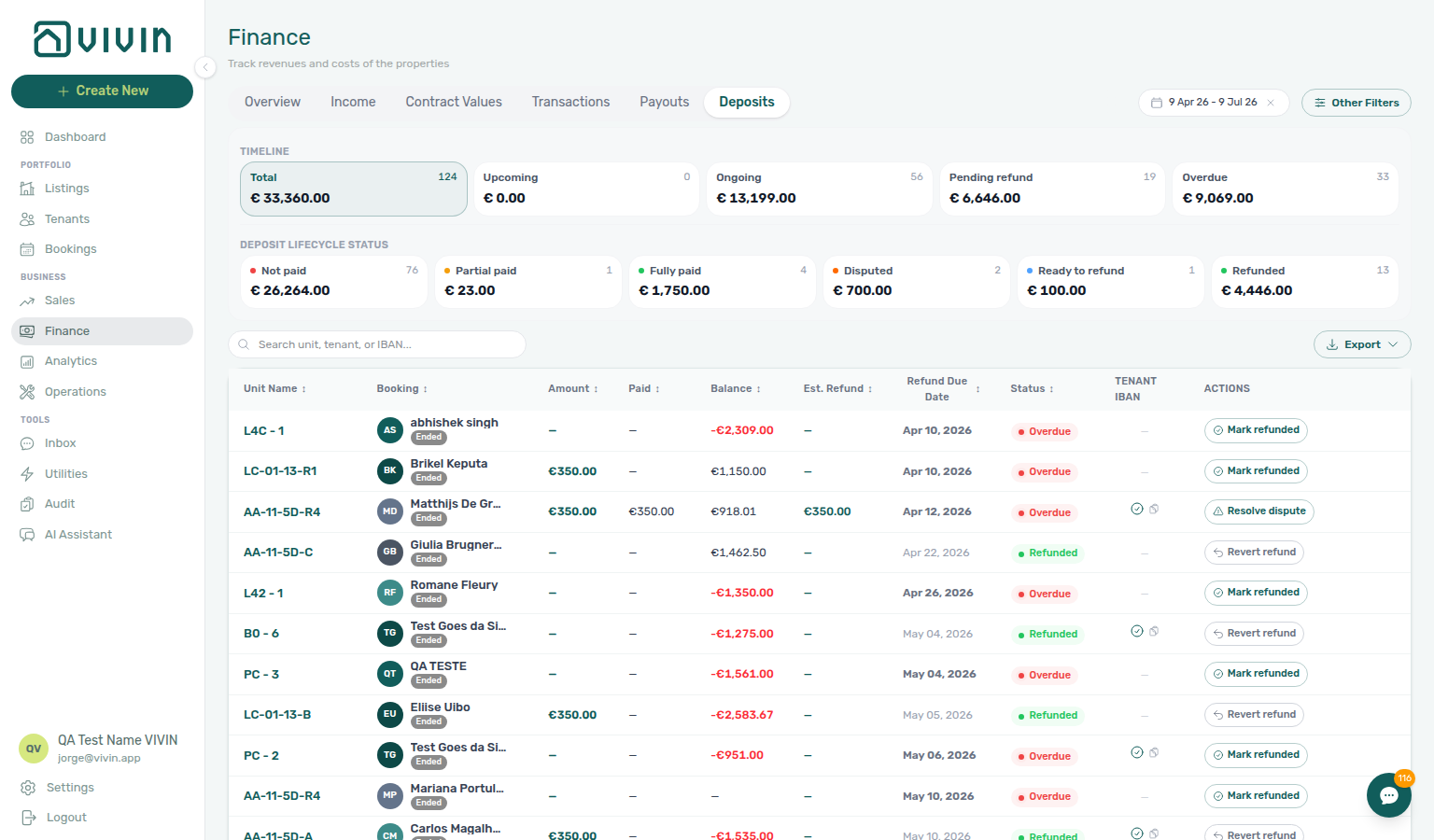
Table columns
Each row is one deposit record. Sortable columns include:
| Column | What it shows |
|---|---|
| Unit Name | Listing or unit the booking belongs to (click to open the listing sidebar). |
| Booking | Tenant name plus a small booking lifecycle chip — Ongoing, Upcoming, Ended, or Canceled — so you can tell move-out refund work from mid-stay context at a glance. |
| Amount | Security deposit amount on the contract. |
| Paid | Amount already collected toward the deposit. |
| Balance | Current booking financial balance (negative values mean the tenant still owes money on the booking, which affects how much can be returned). |
| Est. Refund | Estimated refund amount derived from the deposit and booking balance. |
| Refund Due Date | Target date for processing the return (when applicable) — derived from the booking’s effective Deposit Refund Limit (account Deposit Refund Deadline unless the booking overrides it). Marketplace imports inherit that account term until Contract Info overrides it — Creating Bookings — Deposit Refund Limit. |
| Status | Deposit workflow status (see below). |
| Tenant IBAN | Whether the tenant has supplied bank details needed for a refund. |
| Actions | Mark refunded or Revert refund when your process allows (permission-gated). |
Click a row (outside the unit link) to open the booking sidebar for full context.
Deposits overview panel
Above the table, a bordered Deposits overview panel groups two filter dimensions. Both respect the active date range and Other filters (except lifecycle card counts, which stay stable while you toggle lifecycle cards — only the table narrows).
Timeline row
The Timeline row answers when refund work is due relative to booking dates:
| Card | What it shows when selected |
|---|---|
| Total | Every deposit in the current slice (default). |
| Upcoming | Deposits tied to bookings that have not started yet. |
| Ongoing | Deposits held during active stays. |
| Pending refund | Deposits ready for refund processing (pending / legacy toRefund). |
| Overdue | Deposits past Refund Due Date that still need action. |
Each card shows a row count (top-right) and the total deposit amount (€) for that queue. Click a card to filter the table; click the same card again to return to Total. Refunded rows are no longer a Timeline card — use the Deposit lifecycle status row below.
Deposit lifecycle status cards
The Deposit lifecycle status row answers where each deposit sits in the payment/refund lifecycle (depositStatus on the booking — see Glossary — Deposit lifecycle status). Click Partial paid to narrow collection shortfalls portfolio-wide — hub matrix: Common Workflows — Partly collected security deposit; step-by-step: FAQ — Partly collected security deposit (finance-deposits-lifecycle-partial-paid-card.png, finance-deposits-partial-collection-walkthrough.mp4). All six cards always render; counts are scoped to the selected Timeline bucket (for example “of Overdue deposits, how many are Ready to refund?”).
| Card | What it filters when selected |
|---|---|
| Not paid | No deposit allocation recorded yet. |
| Partial paid | Some deposit collected but below Amount — portfolio triage for confirmation shortfalls. |
| Fully paid | Deposit collected in full; pre-refund. |
| Disputed | Deposit dispute freeze — refund actions blocked. |
| Ready to refund | Operations marked Ready To Refund — finance can queue the bank return. |
| Refunded | Outbound deposit return recorded in Vivin. |
Click a lifecycle card to toggle it into the table filter (multi-select supported). Click an active card again to remove it. Lifecycle cards pair with Other filters → Deposit status on Bookings and Finance — same option set, different surface.


Loading more rows (Deposits table)
The Deposits table loads from the server in chunks (first batch, then 5 rows per scroll) like Transactions and Payouts. Scroll near the bottom of the workspace to fetch the next batch; skeleton rows may appear at the bottom while a request is in flight. Changing date range, a Timeline card, a Deposit lifecycle status card, Search, or Other filters resets the list from the first batch. Overview card counts and € totals always reflect the full filtered population for their dimension, not only rows already on screen.
Status badges (what each label means)
Row Status values map to the date-driven deposit queue (DepositStatus in the API). Timeline cards (Upcoming, Ongoing, Pending refund, Overdue) are subsets of these badges — they do not add separate backend states. Deposit lifecycle status cards filter on operational depositStatus instead (see Deposit lifecycle status cards).
| Badge (English UI) | Typical meaning |
|---|---|
| Received | Deposit has been collected (received). |
| Upcoming | Booking has not started yet; refund work is usually still in the future (upcoming). |
| Ongoing | Active booking; deposit is held during the stay (ongoing). |
| Pending refund | Refund is expected — matches quick-filter chip Pending refund (pending or legacy toRefund; both render the same badge text). |
| To Refund | Same queue as Pending refund on older rows (toRefund). |
| Overdue | Past Refund Due Date — prioritize for compliance (overdue). |
| Refunded | Recorded as returned in Vivin after your bank transfer (refunded). |
| Not Refunded | Deposit retained (damages, unpaid balance, or policy) — not returned to the tenant (notRefunded). |
Row-level lifecycle pills (Fully Paid, Ready to Refund, Disputed, and similar) mirror the booking Deposit tab when payment-driven lifecycle is enabled.
Deposit disputes (portfolio actions)
When Enable deposit disputes is On, users with bookings.dispute see extra row chips on deposits whose lifecycle is Fully Paid:
| Row chip (English UI) | When it appears | Effect |
|---|---|---|
| Mark disputed | Collected deposit is Fully Paid, not yet refunded | Freezes Mark refunded until the dispute is resolved |
| Resolve dispute | Row lifecycle is Disputed | Clears the dispute and restores the normal refund queue |
Use disputes for portfolio triage the same way as Mark as Disputed on the booking Deposit tab — for example when a tenant challenges deductions before you initiate the bank transfer. Document the reason in Internal Notes or a linked maintenance ticket so finance knows when to Resolve dispute and proceed.


Use the badge on the row as the source of truth when a label does not appear in the table above.
Search, export, and filters
- Search — filter by unit, tenant name, or IBAN substring.
- Export — open Export on the toolbar and choose CSV or Excel (
.xls) to download the full filtered set (vivin-deposits-YYYY-MM-DD.csv/.xls). The date range, Timeline cards, Deposit lifecycle status cards, search, and Other filters decide which rows match; Vivin walks every remaining server page before building the file — same full-set pattern as Contract Values, Payouts, and Transactions. If the multi-page fetch fails, an error toast appears and no partial file is written. The control uses the same split-button UI as Transactions.
Booking ID is the first column in both CSV and Excel — the Vivin booking UUID for that deposit row — followed by UnitName, Tenant, amounts, refund dates, and Status. Use it to join the download to Bookings, Transactions, or an external ledger without matching on tenant name alone. Credit-note or missing-booking edge rows leave the cell empty rather than inventing an id. Cross-module map: Booking ID in exports.
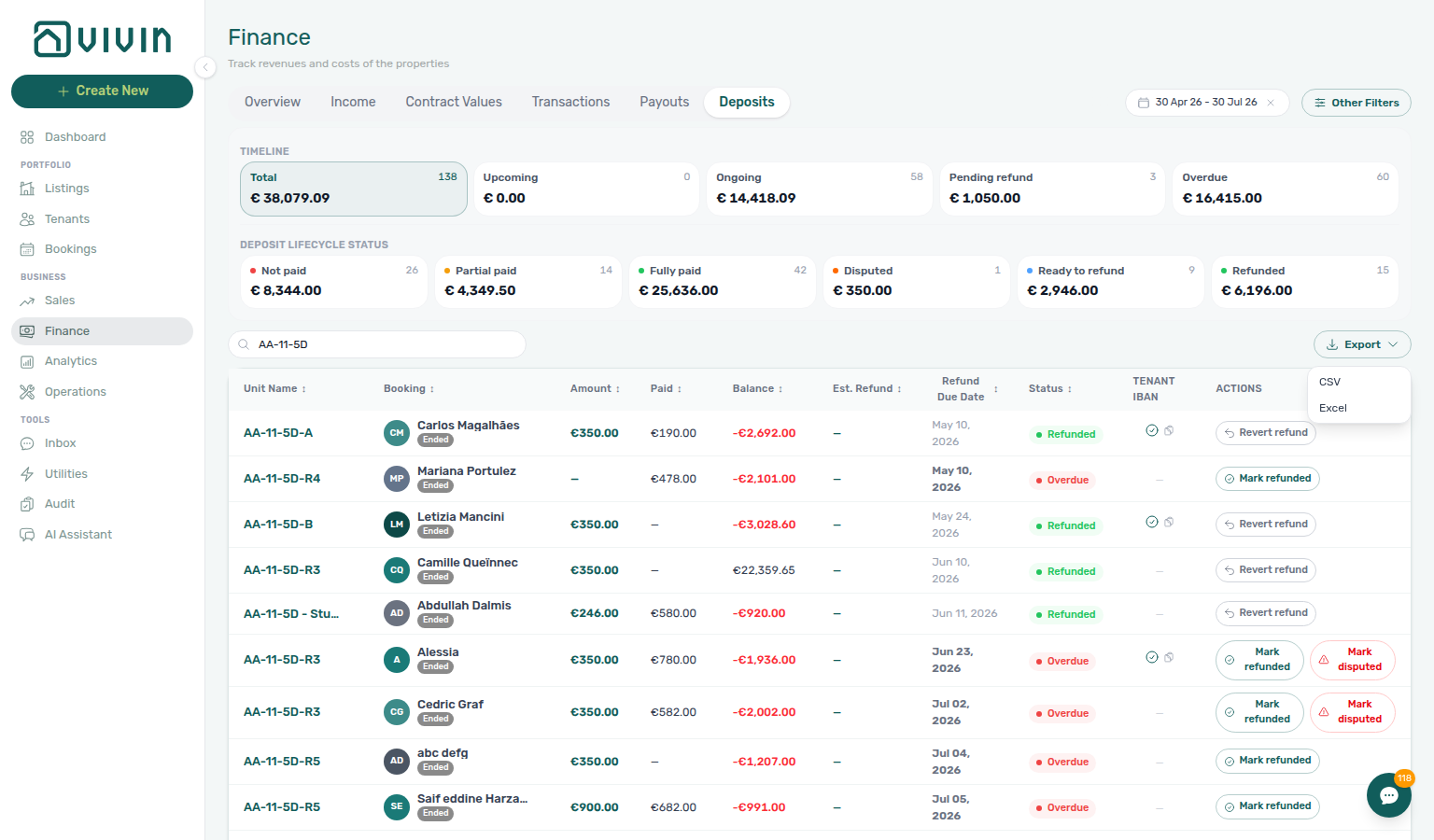
- Use Other filters (Finance drawer) together with Deposits when you need the same cross-cutting filters as on Overview and Income (properties, bookings, nationalities, and other finance dimensions your workspace exposes).
Deposit Return Workflow
When a tenant moves out, use this tab to:
- Confirm Balance and Est. Refund against the booking’s final charges.
- Ensure Tenant IBAN is present before you initiate an external bank transfer.
- Use Mark refunded when the return is complete in the bank (or Revert refund if you recorded it too early).
Mark refunded on this tab is a compact row chip — the label is always Mark refunded (it never shows a live Refund €… amount; read Est. Refund on the row for the cash estimate). Unlike the booking Deposit tab, Finance → Deposits does not open a confirm modal: the click records the refund status immediately. Complete the bank transfer outside Vivin before you click. Prefer the booking Deposit confirm modal (with the This does not actually send any money to the tenant callout) when you want an explicit review step first.
The two surfaces stay in step. After you confirm Mark refunded, Revert refund, Mark as Disputed, Resolve Dispute, or Transfer on the booking Deposit tab, this list and the Deposit lifecycle status cards already show the new state — a Ready to refund row leaves that queue without a reload. See Bookings — Finance Deposits updates from this tab.
Filter Deposit lifecycle status → Ready to refund (and optionally Timeline → Pending refund / Overdue) plus search by tenant or unit to build the finance queue.
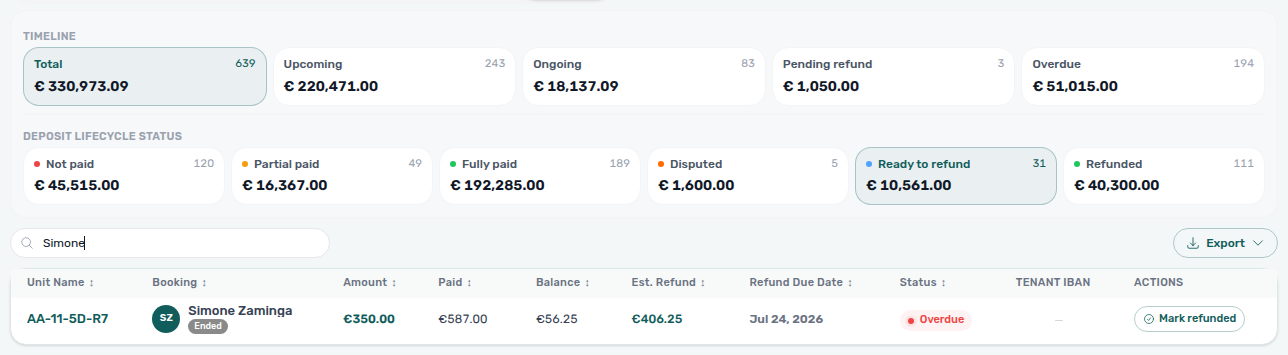
Revert refund — When a row is already Refunded, the Actions chip switches to Revert refund (same bookings.refund permission). Like Mark refunded, Finance applies the change immediately with no confirm modal — unlike the booking Deposit tab, which opens Revert this deposit refund? with the This does not actually move any money callout. Clear or widen the toolbar date range when older move-outs fall outside the default window, then use Deposit lifecycle status → Refunded (or search the tenant) to find the row. Prefer the booking Deposit confirm modal when you want an explicit review step; use this portfolio chip for fast queue corrections after a mistaken Mark refunded.
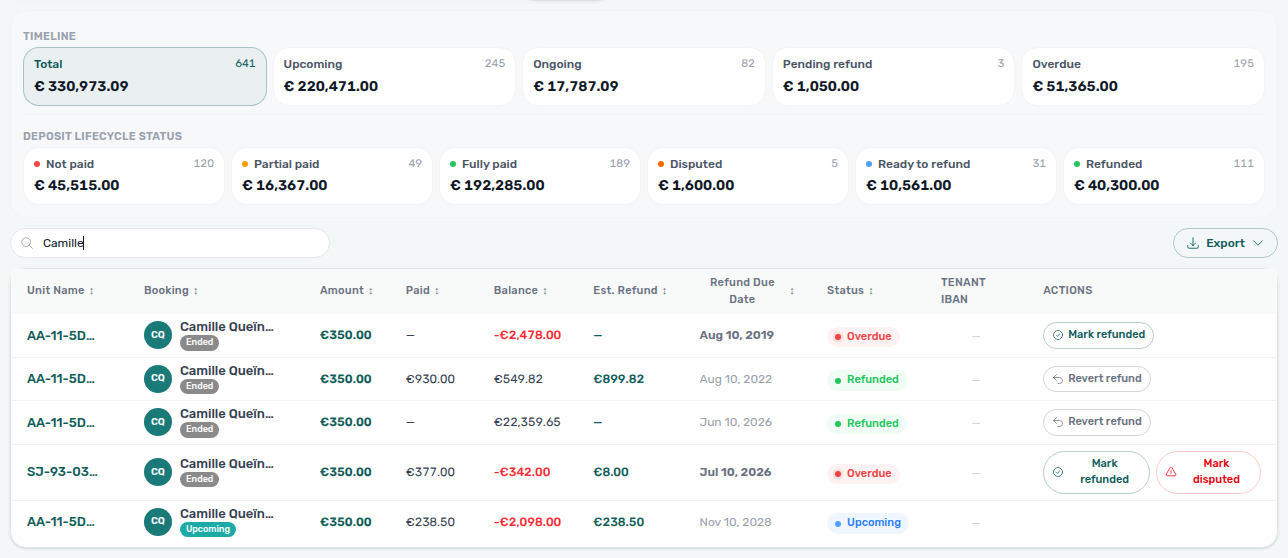
The Finance module records the decision on deposit deductions and returns, but the actual bank transfer to the tenant is handled outside the platform. Vivin tracks what was decided, not the bank transfer itself. Ensure tenants have provided their IBAN before initiating a return.
Owner Reports Tab
First enable the feature under Settings → Preferences → Owner Reports (off by default). Register landlords under Settings → Owners and set fee rules on Owner report configuration. Outbound bank batches still live on Payouts — Owner Reports is the monthly settlement document (income, fees, VAT, extras), not the transfer rail.
Owner Reports builds a monthly settlement for one property owner: collected income for that month, management fees, VAT, optional hand-added income or expenses, and a balance in favour of the owner. Open it at platform.vivin.app/finance/ownerReports after the Preferences master switch is on.
Anyone with Finance access can open the tab and preview lines once the account opt-in is enabled. Ask AI Chat for the same live totals for one owner and month — the assistant does not run Generate report. Generate report and Delete report require Approve payments (finance.approve_payments) — the same permission that unlocks Transactions, Payouts, and Deposits.
How to open a settlement
- Confirm Enable Owner Reports is On in Settings → Preferences.
- Open Finance → Owner Reports (or bookmark
/finance/ownerReports). - Pick the settlement month in the toolbar month picker. Owner Reports always uses a single month (the first month if you arrive from a multi-month Finance view).
- Choose the Owner from the dropdown. The header shows fiscal ID, IBAN when present, and the document label (Owner Report: Month Year #sequence).
- Review the preview, adjust lines if needed, then Generate report.
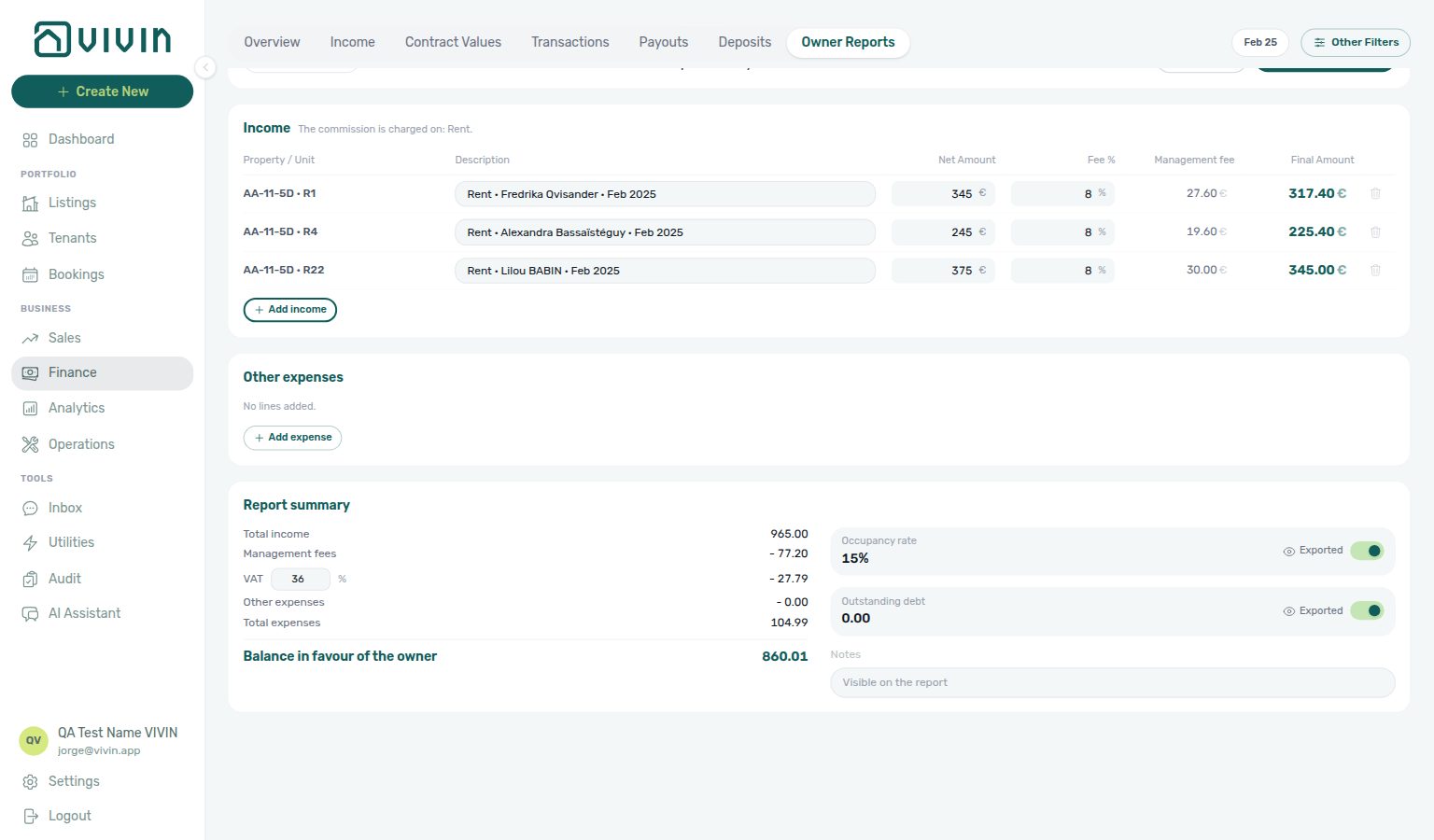

If no owners exist yet, the tab asks you to add one under Settings → Owners.
Income table
The Income section is one editable table: each collected charge for the month on that owner’s units.
| Column | What it shows |
|---|---|
| Property / Unit | Where the money was collected. |
| Description | Editable concept (for example rent with tenant and month). |
| Net Amount | Collected amount for the line (editable before you generate). |
| Fee % | Management fee percentage on that line (editable). |
| Management fee | Fee amount computed from net × fee % (read-only). |
| Final Amount | Net minus management fee (read-only). |
A short note under the title lists which payment types count toward the commission base (for example Rent). Use + Add income when you need a hand-added income line tied to a property/unit; use the trash icon to drop a preview line you should not settle.
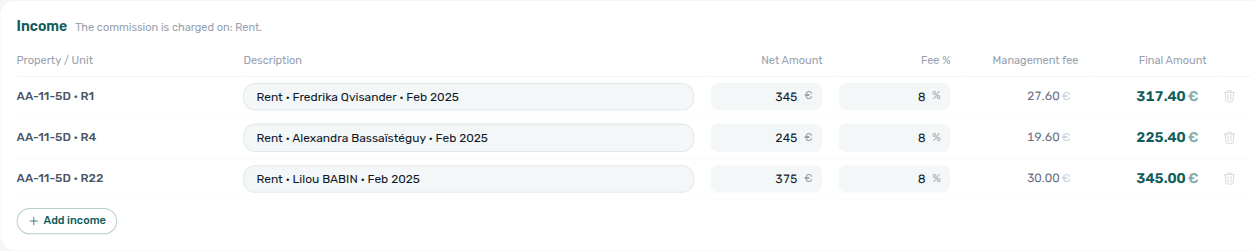
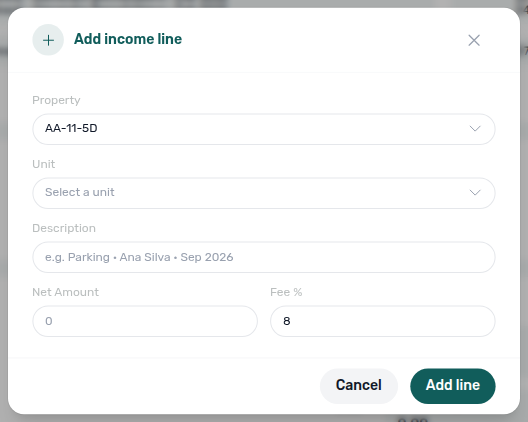
Other expenses and report summary
Other expenses lets you add named deduction lines (repairs, one-off costs) before you generate. Blank unnamed €0 rows are ignored — give every manual line a name.
Report summary rolls up:
- Total income, Total management fee (+ VAT) as one deduction (fee and VAT are not split, and there is no editable VAT % on this card), Expenses when you added any, Total expenses
- Balance in favour of the owner
- Context figures Occupancy rate and Outstanding debt, each with an On report / Hidden on report eye toggle so you can include or omit them on the outgoing document
- Optional Notes printed on the generated report
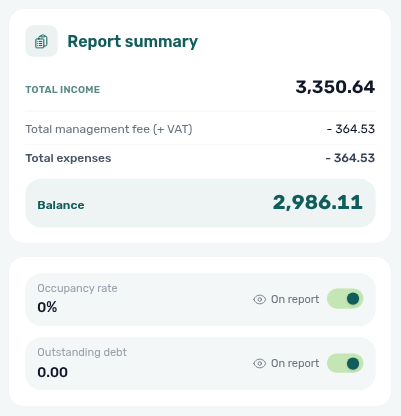

Generate, complementary reports, and history
Generate report saves the settlement for that owner and month. Amounts claimed by a generated report leave the preview; when everything for the month is settled, the workspace shows that collections are settled and points you to the history table below.
If you generate again after more cash arrives in the same month, Vivin marks the next document Complementary — it only carries amounts not settled yet.
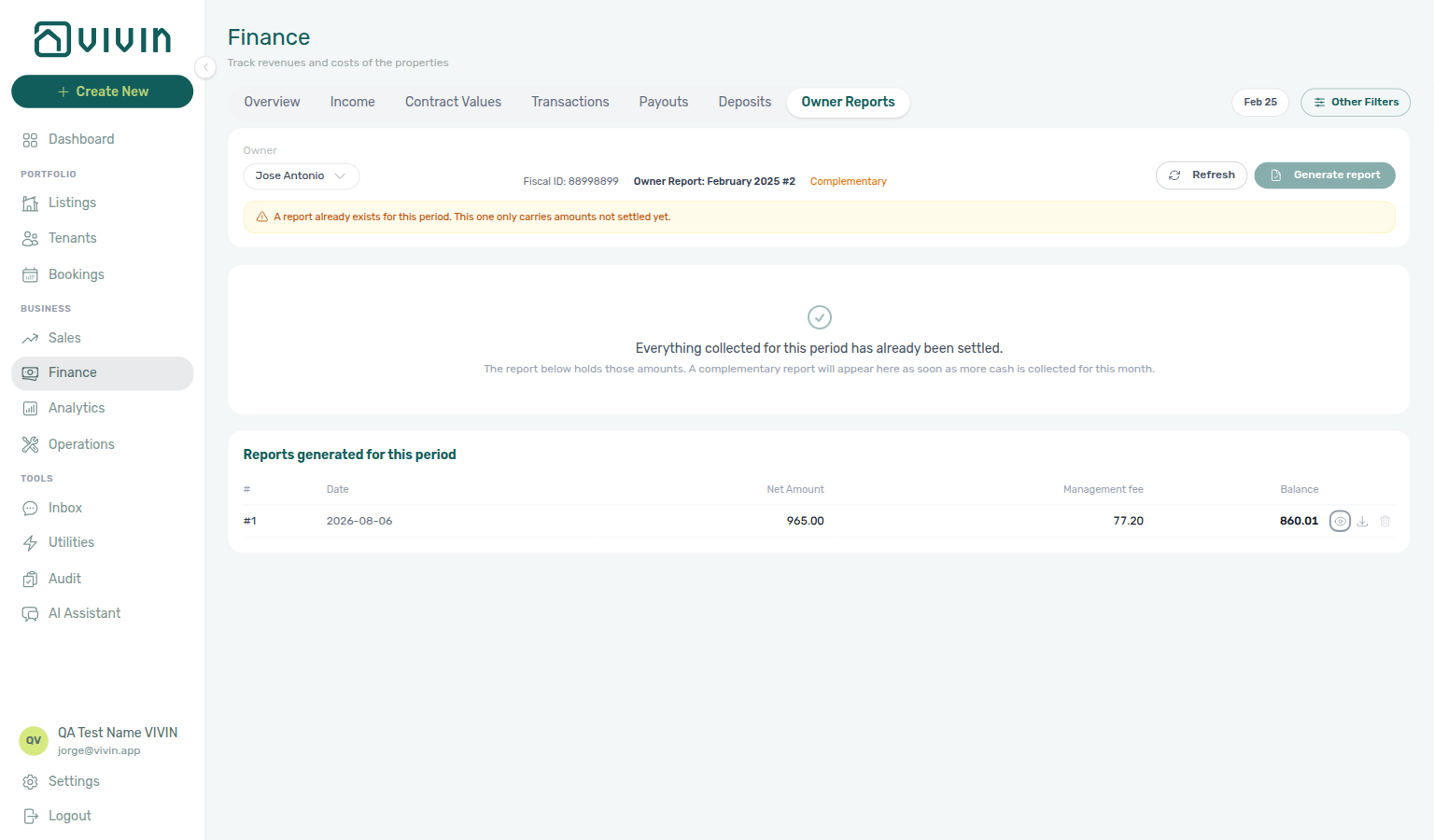
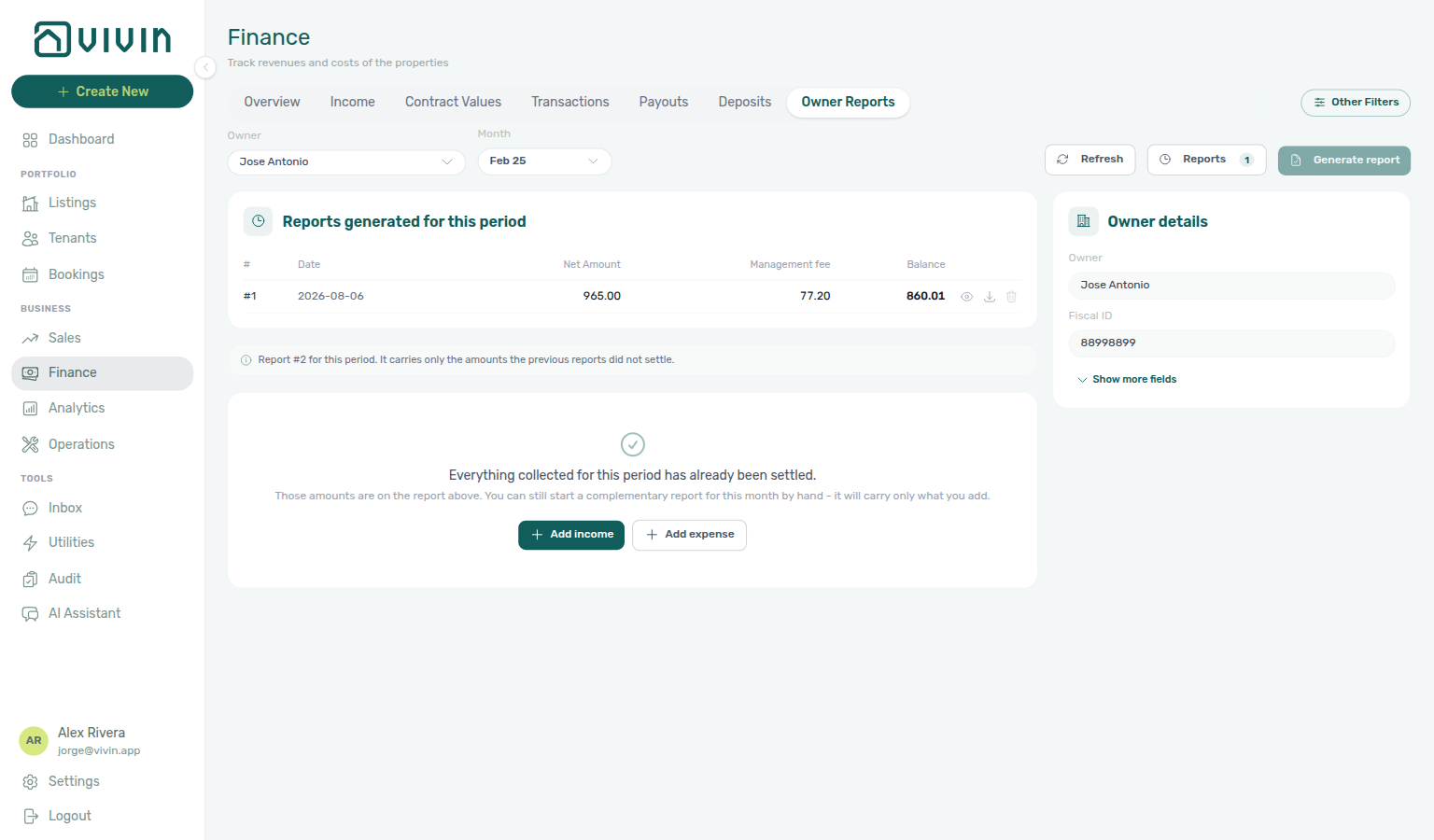
| History action (period table or Reports modal) | What it does |
|---|---|
| View report | Opens the branded settlement (letterhead, income, summary). From the detail modal you can still Print / PDF, Download Excel, or Download CSV. |
| Download report | Downloads the settlement PDF (built-in or custom template). |
| Invoice the management fee | Issues your management fee through the account invoicing provider — see Invoice the management fee. |
| Download invoice | After a fee invoice exists, the same control downloads that provider document. |
| Delete report | Removes the settlement so those amounts can be included in a later report (Approve payments required). Cannot be undone. Disabled once the management fee is invoiced. |
Open Reports (badge shows how many settlements exist for the selected owner) for the full history across periods — including the Invoice column.
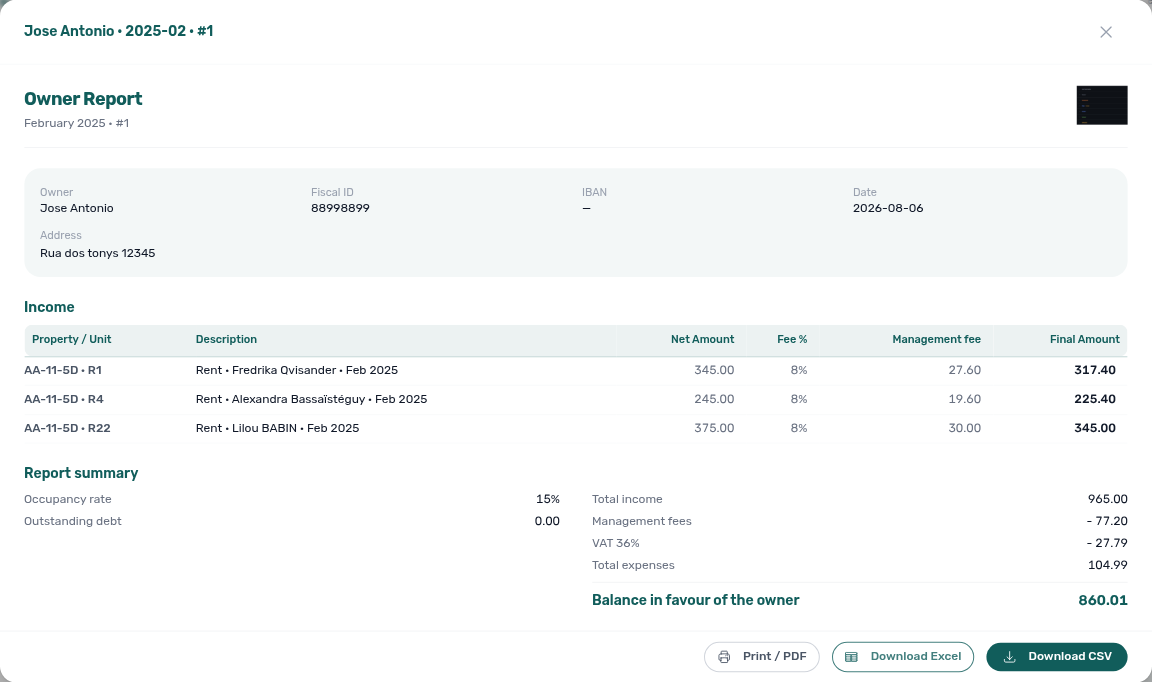
Invoice the management fee
After a settlement is generated, finance can bill the owner for the management fee on that report through your connected invoicing provider (the same stack used on Transactions).
- Open Finance → Owner Reports, pick the Owner (and month if you are reviewing the period table).
- Click Reports to open Generated reports — every settlement for that owner lists Period, #, amounts, and Invoice.
- On a row whose Invoice cell is still — and whose Management fee is greater than zero, use Invoice the management fee (receipt icon; needs Approve payments).
- When the provider accepts the document, the Invoice column shows the invoice number (or Issued). The same control becomes Download invoice so you can retrieve the PDF from the provider.
- Delete report stays unavailable on invoiced settlements — reverse the fee with a credit note on the invoice instead of deleting the settlement.
Rows with €0 management fee show a disabled invoice control (This settlement carries no management fee to invoice.). Billing the fee does not replace Payouts — you still transfer the owner balance separately.
To bill the fee from this screen, use one VAT percentage on every charged item in Settings → Owners. If items use different VAT rates, file the fee at your invoicing provider instead, or net it off the owner transfer on Payouts.
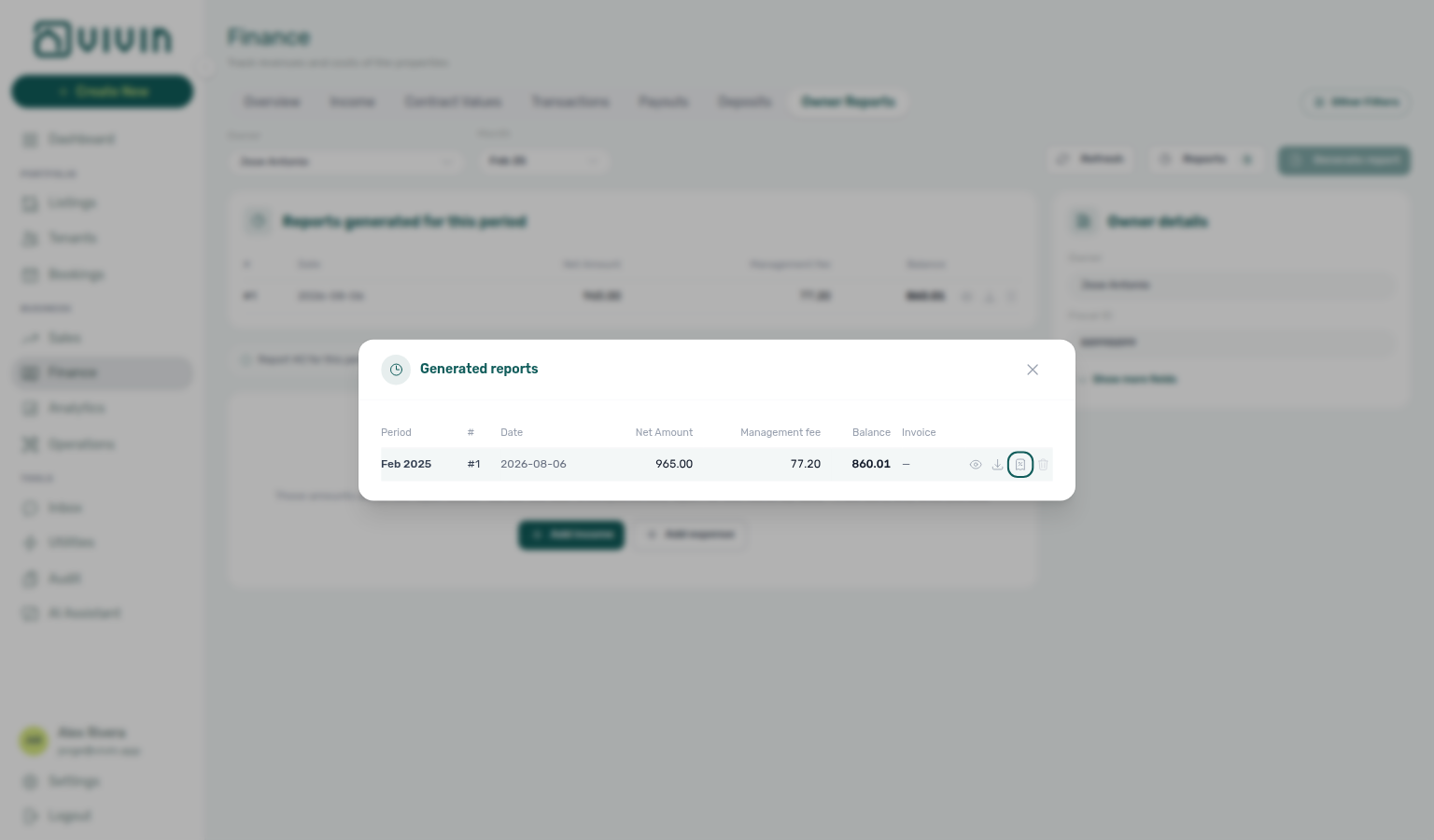
Settlement letterhead and Word layout come from Settings → Owners — Owner report document (built-in branded PDF by default, or your uploaded .docx).
Settlements only appear for landlords registered under Settings → Owners. Keep legal name, fiscal ID, and IBAN accurate so the printed report and later Payouts batches stay aligned.
Automated Rent Collection
Vivin provides multiple automated payment channels to streamline rent collection:
Virtual IBANs
Each tenant receives a unique virtual IBAN for bank transfers:
- Zero commissions — no fees on bank transfer payments.
- Automatic matching — payments received on a tenant's virtual IBAN are automatically matched to their booking.
- Unique per tenant — eliminates the need to manually identify which tenant sent which transfer.
Credit Card Payments
Tenants can optionally pay by credit card through the Tenant Portal:
- Commission charged to tenant — the processing fee is passed to the tenant, not the operator.
- No cost for operators — credit card payments do not reduce your revenue.
- Instant processing — payments are recorded and allocated immediately.
Those captures appear under System Transactions → Credit Card. A card tap on your desk terminal is different — record it from the booking as Card (recorded manually) so it stays under Manual Transactions and out of VIVIN card payouts. See FAQ — When should I use Card (recorded manually)?.
The same portal Payments tab includes Payment details (tap a Payment Timeline card), same-month installment titles when two regular cards share a calendar month, TODAY far-due date when the next installment is 60+ days away, Overdue days past due when a timeline card is already late, Pending installment when a timeline card is in its due window, Paid installment when a timeline card is fully settled, Discounted installment when Total is below the original scheduled amount (original struck through), Scheduled Due in N days when a future card shows a grey clock Due in N days, Upcoming when that Scheduled due date is today or already past (grey clock Upcoming), TODAY compact tick at the end when no installment is still ahead, platform payment labels (Roomless, Airbnb, and other channel names with logos) on Transaction History, and Export CSV on Transaction History (transaction-history-YYYY-MM-DD.csv). That file is the tenant’s booking ledger — not the operator CSV on Finance → Transactions. The Receipt column on the same table is grey until you attach Invoice / receipt files on Bookings → Files; issued invoices also appear on portal Documents. When history is not empty, tenants also see the Virtual IBAN processing notice (up to 3 business days) under the table. On Make payment, expanding Bank Transfer can open Payment Due Soon when a charge is due soon. The left chevron next to Make payment leaves checkout without paying.
Automated Reminders
The system automatically sends payment communications:
- Upcoming payment notifications — email and push notifications before a payment is due.
- Overdue payment reminders — automated escalation when a payment is past due.
- Configurable timing — set how many days before/after the due date reminders are sent.
Invoice Automation
Vivin automates invoice generation across your entire billing workflow:
- Automated generation — invoices are created automatically for rent, utilities, cleaning, repairs, and other services.
- Customisable templates — brand your invoices with your company logo, colours, and formatting.
- Tenant receipt email (optional) — after a final invoice is issued, Vivin can email the PDF to the tenant and/or a copy to the account email when enabled under Preferences → Final invoice receipt emails. Issuance and Files/transaction links work even when both toggles are off.
- Accounting integration — integrates with invoicing providers such as Invoice-xpress or Hostkit (configure under Settings > Integrations). Connecting one of those providers is what turns invoicing on — there is no separate billing switch. Hostkit issues Fatura-Recibo documents per listing API key; Finance Transactions can link to the Hostkit invoice URL when the allocation is invoiced. Bulk Hostkit runs pace API calls and retry rate limits automatically — large Issue allocation / Invoice selected batches may take several minutes (FAQ — Why is bulk Hostkit invoicing slow?).
Tenant invoice receipt email
Final invoice issuance from Transactions (row Issue allocation, bulk Invoice selected, or provider sync) persists the PDF on the booking and updates allocation Invoiced state. Whether the tenant (or your account inbox) also receives an automatic email is controlled account-wide on Preferences → Notifications & Emails → Final invoices (receipts):
| Preference toggle | Effect after issue |
|---|---|
| Send invoice receipt email to tenant | Branded email to the booking tenant with the invoice PDF attached (requires tenant email on file). |
| Send invoice receipt copy to account | Copy to the workspace account email only, or CC on the tenant message when both toggles are on. |
Proforma documents follow the parallel Proforma invoices toggles on the same card. Operators still open issued PDFs from transaction detail, Bookings → Files, or provider see invoice links regardless of email settings.
When Issue allocation or Invoice selected leaves rows Pending for several minutes, Vivin is usually pacing Hostkit per listing key — leave the batch running, then refresh Transactions before clicking Issue allocation again on the same rows (FAQ — Bulk Hostkit invoicing slow; hub: Common Workflows — Bulk Hostkit invoicing). If rows stay incomplete: confirm Listing keys and Hostkit invoice series (finance-transactions-bulk-selection-bar.png, settings-invoicing-hostkit-series.png).
When Send invoice receipt email to tenant (or the account-copy toggle) is on but the tenant reports no email, open Bookings → Files or Transactions first — if the PDF is already there, invoicing succeeded and only delivery failed. Confirm the booking tenant email, account toggles on Preferences → Final invoice receipt emails, and the recipient’s spam folder. Vivin does not undo Invoiced state when outbound mail fails; avoid duplicate Issue allocation runs unless finance intentionally needs a new document.
Hostkit invoice links (Transactions & booking files)
When Hostkit is your active invoicing provider and a chargeable allocation has been invoiced, Vivin can surface a Hostkit invoice link in three places:
| Surface | What you see |
|---|---|
| Finance → Transactions | Transaction detail for an invoiced allocation may include an external link to the Hostkit document (open in a new tab). |
| Bookings → booking detail → Files | Invoiced allocations appear as synthesised PDF tiles (Invoice_<ref>.pdf) merged into the file grid — click opens the Hostkit permalink in a new tab; row menu keeps Download and omits Preview / Delete (not persisted uploads). See Bookings — Files tab. |
| Tenant Portal → Documents | The same Invoice_<ref>.pdf tiles, with Download. Tap opens Hostkit in a new tab (no in-portal preview). See Tenant Portal — Hostkit invoices. |
Opening a Hostkit invoice from transaction detail
- Open Finance → Transactions and click a payment row to open the transaction detail sidebar.
- Scroll to the allocation rows for that payment. Each row shows an invoice status (for example Pending, Draft, or Invoiced).
- When the status is Draft or Invoiced, the trailing action group includes an external-link control with tooltip see invoice (English UI). Click it to open the stored Hostkit document URL in a new browser tab.
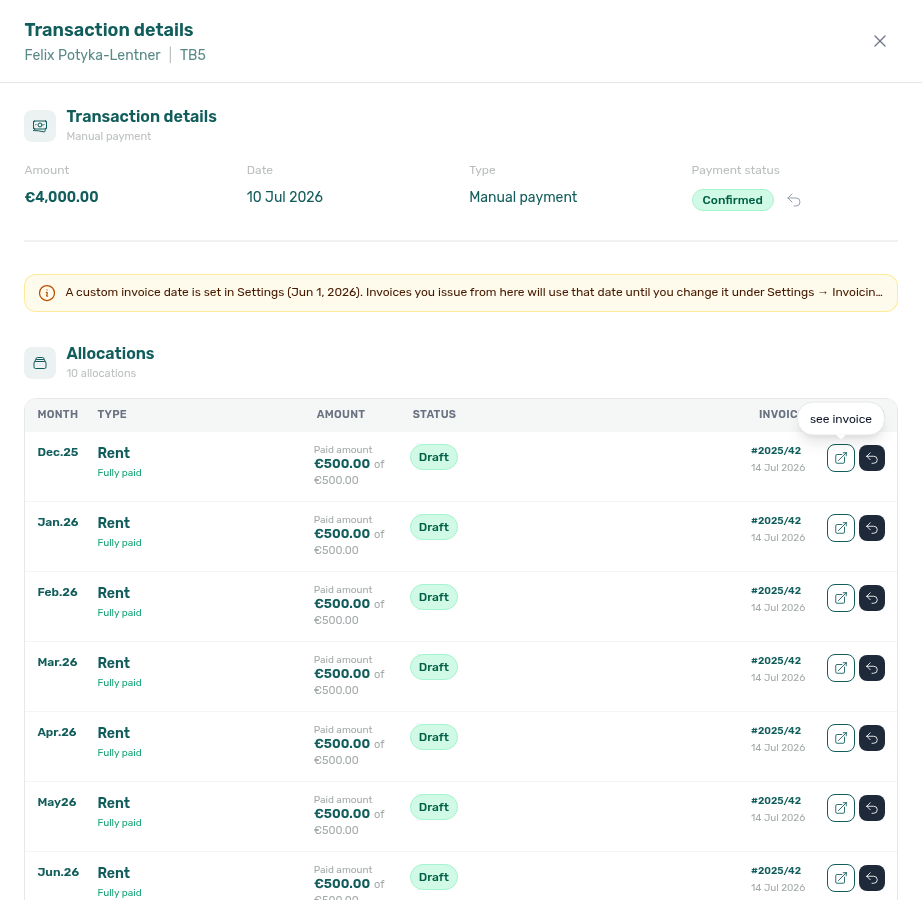
- The see invoice control stays disabled until Vivin has a stored
invoiceDocumentUrlfor that allocation — hover shows No stored invoice link yet for this allocation (e.g. refresh after invoicing). Close and reopen the sidebar, or use Refresh on the ledger, after batch Issue allocation / Invoice selected actions finish. - To undo a mistaken issue, use Revert invoice on the same allocation row (dark icon beside see invoice) before re-issuing. This is separate from ledger bulk Revert invoice — both operate on allocation invoice state.
The same see invoice pattern applies when Invoice-xpress is your invoicing provider; only the destination URL differs (Invoice-xpress document permalink instead of a Hostkit hostk.it link). Invoice-xpress does not synthesise Hostkit-style Files PDF tiles — open the document from Transactions see invoice.
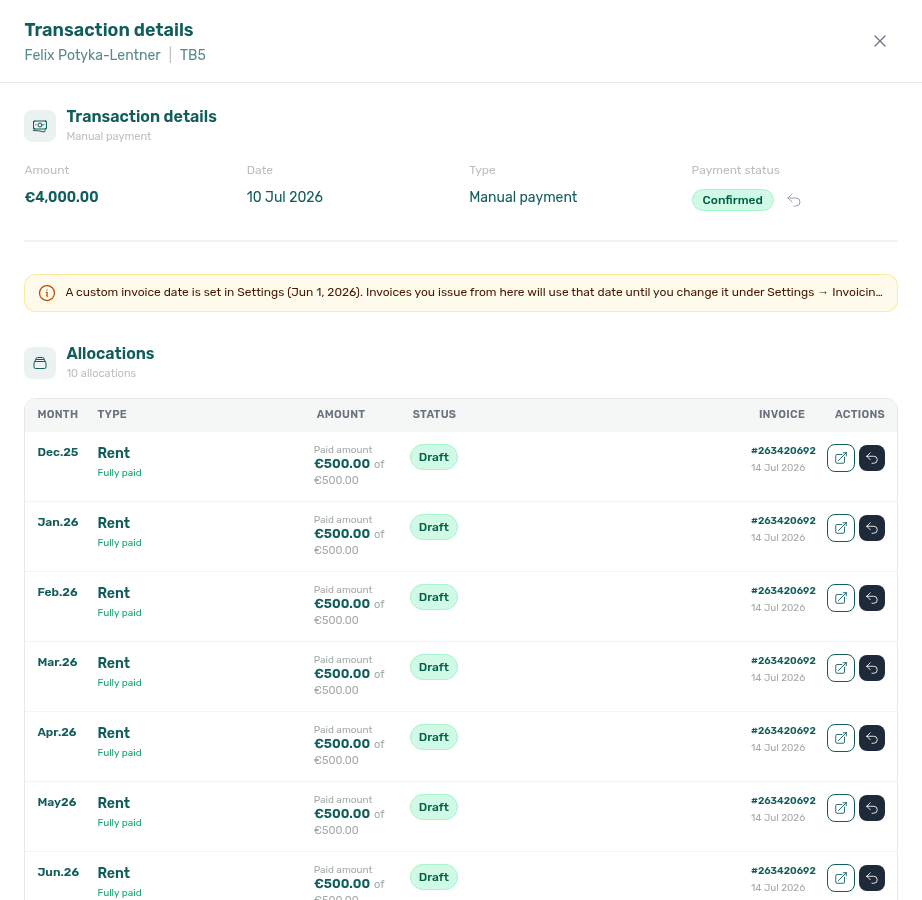
If the link opens but the PDF is still generating in Hostkit, wait a short interval and retry, or open the URL in a desktop browser — server-side PDF fetch can lag Hostkit’s UI. If no link appears, confirm the listing’s Listing keys entry and a non-empty Hostkit invoice series are configured (Integrations — Hostkit, Invoicing — Hostkit series) and that the allocation is eligible for invoicing. Vivin blocks Issue allocation when the series field is blank — you will see Hostkit invoice series is not configured rather than a silent Hostkit default-series document.
If Hostkit shows the right invoice but Vivin attached the wrong PDF (or see invoice opened an unexpected document), verify Hostkit invoice series matches the FR series you issue from in Hostkit. Hostkit sequence numbers repeat across series; Vivin resolves documents by {series}/{id} and downloads PDFs from Hostkit’s permalink for that pair — a series mismatch in Settings can block links or point at the wrong row until the series field is corrected for new issues.
Set up Hostkit keys and series before you expect links on Transactions — see the full checklist in Settings > Integrations — Hostkit (invoicing).
Configure your invoice templates and VAT rates in Settings > Invoicing before generating your first invoices to ensure consistent formatting and compliance.
Financial Dashboards & Reporting
The Finance module provides comprehensive dashboards for financial oversight:
Revenue Tracking
- Paid vs. unpaid — real-time visibility into collected versus outstanding revenue.
- By property — compare revenue across properties to identify top performers.
- By unit — drill down to individual unit profitability.
- By time period — track revenue trends over custom date ranges.
Outstanding Debt Overview
- Ageing analysis — see how long payments have been overdue, segmented by 30/60/90+ days.
- Priority list — surface the largest outstanding amounts for immediate follow-up.
- Trend tracking — monitor whether total outstanding debt is increasing or decreasing.
Cash Flow Statements
- Account-level summaries — overall cash flow across your entire portfolio.
- Property-level detail — income and expenses broken down by property.
- Exportable reports — generate reports for accounting, tax purposes, and stakeholder sharing.
Adding Payments
To manually record a payment received from a tenant, use + Transaction on the booking (Payment Plan, Contract Values, or Transactions) or Add Payment in Finance. Those are two different forms. See Bookings > Transactions tab for the booking-sidebar entry point.
Desk or POS card tap: open the booking → + Transaction → set Type to Card (recorded manually). That list is only Transfer, Cash, and Card (recorded manually).
Finance Add Payment is a different form (it still lists Credit card (VIVIN) for the Tenant Portal rail). Do not type a desk tap as Credit card (VIVIN) — that label is automated portal card capture, not your terminal.
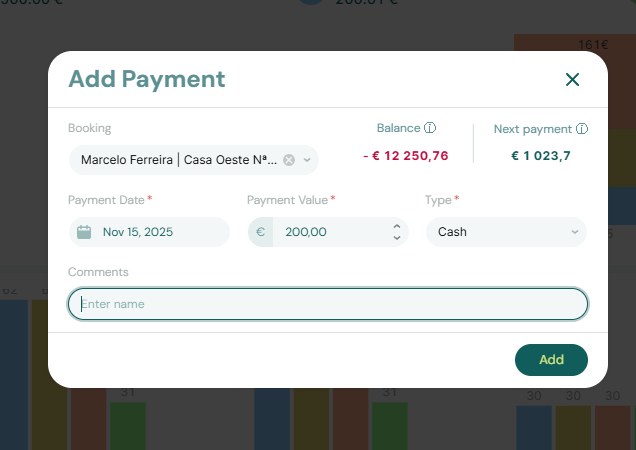
In Finance Add Payment, specify:
- Booking — which booking this payment is for
- Amount received
- Payment date
- Payment method
- Notes (optional)
The system automatically allocates the payment to the oldest outstanding scheduled charge. You can adjust the allocation if needed.
Key Business Rules for Finance
-
Payments are allocated automatically. When a payment is recorded, the system applies it to the oldest outstanding charge first. Overpayments become credits toward future charges.
-
Virtual IBANs enable zero-commission collection. Each tenant's unique IBAN ensures payments are automatically matched without manual reconciliation.
-
Credit card fees are tenant-side. When tenants pay by card, the processing commission is charged to them — operators pay nothing.
-
Deposit status is tracked, not transferred. The Finance module records deduction and return decisions, but the actual bank transfer to the tenant is handled externally.
-
Contract values are fixed at booking creation. Scheduled charges reflect the terms in place when the booking was created. Property setting changes do not retroactively alter existing schedules.
-
A scheduled charge is only "Paid" once allocated. A charge in the Contract Values tab remains outstanding until a matching incoming payment has been recorded and allocated to it.
-
Invoices are generated automatically. Once configured, the system handles invoice creation and delivery without manual intervention.
Finance guide subsection index
Finance section cross-reference
Use the sections above for this module. Related pages are linked from Related below when present, or from Modules.
Related
Related below links this module to settings, concepts, workflows, and escalation paths.
Documentation map & escalation
- Modules hub — Hub pairing matrix across operator workspaces
- Introduction — Platform overview when Finance exports disagree with partner booking imports
- Glossary — Term definitions used across finance and booking workflows
- FAQ — Lower rent below invoiced — Why edits happen on the booking sidebar, not Finance Contract Values
Upstream & downstream workflows
- Handling a Late Payment — Workflow for overdue payments
- Managing a Check-out & Deposit Refund — End-to-end departure-week settlement that uses this Deposits tab
- Managing a Check-out — Deposit refund queue and Contract Values In Debt / Deposit status during departure week
- Cancelling a Booking — Refund types and deposit handling during void workflows
- Entering Monthly Utility Bills — Utility overage receipts that land on Transactions and Contract Values
- Portfolio KPI review — Month-end walkthrough when Debt Aging, Income drill-downs, or Transactions pending rows disagree with Analytics
- Owner Reports — Monthly owner settlement document before or beside Payouts batches
- Notification triage — Clear payment alerts after settlement; row-click opens the booking Transactions tab for approve/reject
- Notifications — Payment overdue alerts — Operator Payments category rows that row-click into booking Contract Values or Payment Plan
Deeper workflow reads
See Upstream & downstream workflows above for the same guides.
Settings that shape Finance
- Settings > Contract — Template variables and upload flow before generated invoices reference booking contracts
- Settings > Payments — Configure payment rules and priorities
- Settings > Invoicing — Configure VAT for invoiced line items
- Settings > Integrations — Hostkit (invoicing) — Per-listing API keys and listing-keys modal behaviour
- Settings > Utilities — Configure utility overage billing options
- Settings > Tenant categories — Segment VIVIN payments and portal modules tenants use when settling Transactions online
- Settings > Preferences — In-app notifications — Account-wide Payments alert masters before Transactions triage from
/notifications - Settings > Interface Language — Your in-app notifications — Per-user payment opt-outs during collections follow-up
- Settings > Emails — Communication Rules — Payment reminders, Communication schedule audit, and lifecycle templates tied to Finance alerts
Deeper concept reads
- Payment Allocation — Two-layer receipts, invoiced-floor rent edits, and reject/revert warnings for Transactions and Contract Values
- Booking Lifecycle — Computed Upcoming → Ongoing → Ended / Canceled status model, list filters, and Timeline
- Tenant Portal — Where tenants make online payments, open Payment details from the payment timeline, tell same-month installments apart on Payment Timeline, read the TODAY far-due date when the next installment is 60+ days away, read Overdue days past due on a late Payment Timeline card, read Pending installment on a due-window Payment Timeline card, read Paid installment on a settled Payment Timeline card, read Discounted installment when Total is below the original scheduled amount, read Scheduled Due in N days on a future Payment Timeline card, read Upcoming when that Scheduled due date is today or already past, read the TODAY compact tick at the end when no installment is still ahead, read platform payment labels on Transaction History, download Export CSV from Transaction History, open the Receipt column, read the Virtual IBAN processing notice, see Payment Due Soon on Make payment, and leave Make payment with the back chevron
- FAQ — Tenant contract signing blocked — No PDF yet, mandatory Your Details gates, category locks, or Lease purpose; portal signing vs paper upload on Contract Info
- Services Marketplace — Portal service charges on Contract Values and Transactions after tenants confirm Request Service
- Integrations & Distribution — Hostkit and Invoice-xpress invoicing providers enabled under Account Settings → Integrations
- Landlord MCP — External automation that queries Transactions, Deposits, and Contract Values with the same JWT permissions as this module; portfolio cards via
get-finance-overview/get-revenue-summary; live owner settlements viaget-owner-report-preview(Owner settlement preview; Finance-sourced portfolio metrics; section cross-reference; hub)
Operator modules (pairing surfaces)
- Bookings Module — View payment plans and transactions per booking
- Bookings > Discounts and payment adjustments — Line-level and booking-scoped reductions on Contract Values
- Audit Module — Manual blocks that can suppress occupancy signals you reconcile against Overview KPIs
- Audit — Discounts tab — Cross-portfolio discounted Contract Values with the same amounts and export as Finance filters
- Utilities module — Supplier bills that create pending overage allocations before they reach Transactions
- Inbox module — WhatsApp context when payment alerts need tenant thread review before approve/reject
- Analytics — Overview tab — Portfolio revenue and occupancy trends over a month range (complements Overview KPI cards here)
- AI Chat — Internal assistant for portfolio summaries that should be verified against Transactions and Deposits; owner settlement preview for one landlord’s monthly totals
Operator habit hubs
Day-to-day operator habits (lockout catch-up, pending receipts, payment triage, handoffs, and related playbooks) live on the Common Workflows habit hub.
Deep-link anchors for habit hubs
Lockout catch-up after password recovery
Notification row-click navigation
Payment alert to receivables triage
Confirmation alert triage
New inventory to first booking handoff
Property setup to first arrival handoff
Confirmation to check-in handoff
Check-in to check-out handoff
Check-out final utilities handoff
Same-day turnover coordination
WhatsApp per-booking messaging
Bot reasoning (audit)
ChatBot settings
Finance debt receivables triage
Finance Income status drill-down
Cash flow forecast drill-down
Pending manual receipt approval
Reject/revert mistaken receipts
Check-out ledger cleanup before refund
Utility overage collections
Cancellation collections before void
Check-out collections before refund
Handling a Late Payment collections
Check-out vs cancellation
Month-end invoicing (fixed date)
Bulk Hostkit invoicing
Rent reduction after invoicing
Deposit missing on Finance Deposits
Occupancy KPI to block hygiene handoff
Partly collected security deposit
Wrong tenant on a booking
Cancel Booking vs Delete Booking
Provider platform Delete Booking guard
Archived booking ledger visibility
Portfolio retirement decisions
Portfolio segmentation by tenant category
Directory list refresh
When a list needs a refresh instead of showing rows, use Retry or reload the page. Zero rows after a successful load means your filters matched nothing — widen filters or clear search.
See FAQ — Directory list refresh and Glossary — Directory list refresh.
Key glossary terms
- Glossary — Cash flow forecast (Finance Overview) — Collections history chart vs Dashboard rent-due forecast
- Invoiced floor (rent) — Rent clamps when Finance has already invoiced a month
- Discount (booking) — Portfolio Discounts filter and Contract Values adjustments
- Deposit dispute — Deposits tab and booking Deposit workflows when retention is contested
- Glossary — End-of-Booking cost split — Charge Time → End of Booking splits daily overage across every occupied unit; still-staying roommates stay in the denominator
- Glossary — Change history — Operator-initiated edits on Listings setup and Bookings Changelog; create-time defaults excluded
- Glossary — Full term list
API & companion guides
- API Reference — Creating Bookings — Partner
POST …/bookingsimports whose payment schedules land on Contract Values and Transactions - API Reference — Webhooks & Notifications — Partner HTTP callbacks when imports change booking or payment state
- API Reference — Management session — Operator JWT routes for scripted Transactions, Deposits, and Contract Values reconciliation
Module documentation hubs
- Finance module — Portfolio ledgers (Overview, Income, Contract Values, Transactions, Payouts, Deposits) with payment approval and deposit settlement (this page)
- Utilities module — Bills Included ceiling model, Connections, AI bill upload, and tenant overage charges on payment plans (hub)
- Operations module — Maintenance tickets, cash flows, check-in/out coordination, Draft ticket queues, and linked cash flows (hub)
- Dashboard module — Post-login Today, Total debt, Vacant Units, and forecast KPI snapshot with bell notification triage (hub)
- Analytics module — Month-range portfolio KPI charts (Overview, Revenue, Occupancy, ADR, RevPAR, Maintenance) with rankings and heatmaps (hub)
- Listings module — Property wizard, Channels tab, Archived inventory, and unit management (hub)
- Properties workspace — Legacy
/propertiesURL redirects into Listings (hub) - Booking engine details — Rich marketplace payload editor via the Full integration pill (hub)
- Tenants module — Tenant directory, profile sidebars, With Debt segmentation, and table expand for linked bookings (hub)
- Sales module — Portfolio availability, monthly rent editing, and channel manager connections (hub)
- Inbox module — Portfolio-wide WhatsApp workspace with Dashboard bell Inbox sub-tab deep links (hub)
- Notifications module — Full
/notificationshistory with search, filters, and row-click navigation (hub) - AI Chat module — AI Assistant using Landlord MCP tools for portfolio Q&A (hub)
- Audit module — Portfolio-wide Manual Blocks and Discounts contract-value review (hub)
- Account Settings — Workspace-wide financial policies, templates, integrations, and operational defaults (hub)
- API Reference hub — Partner HTTP contracts, Swagger onboarding, and partial vs full feeds (hub)