Operations
After Bookings (setup step 14) and Categories (setup step 9), use Tickets and check-in/out queues before your first turnover week — see Getting Started — Operations, tickets & cash flows (optional). Arrival workflow: Managing a Check-in. Complete Getting Started — Recommended Setup Sequence steps 1–12 first.
Start with Overview tab for portfolio scope, then Tickets Tab for maintenance work and Check-in & Check-out Tab for arrivals/departures. Expense rows: Cash Flows Tab. Dispatch board: Planning tab (permission Planning (schedule board)). Vivin internal timeline: Schedule tab (Vivin internal). Guide subsection map: Operations guide subsection index (tab sections + Related subsections). Habit-specific shortcuts live under Related below.
The Operations module centralizes day-to-day operational coordination across your properties.
Open the Operations module at platform.vivin.app/operations. Tab routes include /operations/tickets, /operations/check-in-out, /operations/cash-flows, /operations/planning (Planning — when your role includes Planning (schedule board)), and /operations/schedule (Schedule is shown only to Vivin internal accounts; other roles keep normal module permissions). See Deep Links for all routes.
Unknown Operations tab slugs redirect to /operations (Overview). Legacy bookmarks using check-in or check-out alone are rewritten to /operations/check-in-out when your role includes that tab. See Deep Links — Invalid, legacy, and mistyped URLs.
Open booking context from Bookings; settle tenant balances in Finance; verify keys and access in Listings. Paste the full sequential ticket ID (for example S259) in toolbar Search — see Tickets toolbar search. Portfolio lookups via AI Chat share the landlord tool catalogue — poll AI usage API (landlord_chat) when assistant volume spikes during turnover week. During turnover week, clear payment overdue alerts on arrivals or departures with Handling a Late Payment — Step 1 before key handover — scope unpaid move-ins by Bookings — Tenant categories or Tenants — Tenant category filter when portal rules differ by segment (Settings > Tenant categories). Owner-linked logins already see only their buildings on Tickets and Cash Flows (owner-scope-operations-tickets.png, owner-scope-ops-utilities-flow.mp4).
Directory refresh
If Tickets or Cash Flows needs a refresh, use Retry on that tab (or reload the page). Other Operations tabs stay usable.
When Tickets or Cash Flows needs a refresh, use Retry on that tab — or reload the page. Zero rows after a successful load means your filters matched nothing. See Glossary — Directory list refresh and FAQ — Directory list refresh.
Mobile and narrow layouts
Operations uses two mobile patterns — do not confuse them:
| Pattern | When it applies | What changes |
|---|---|---|
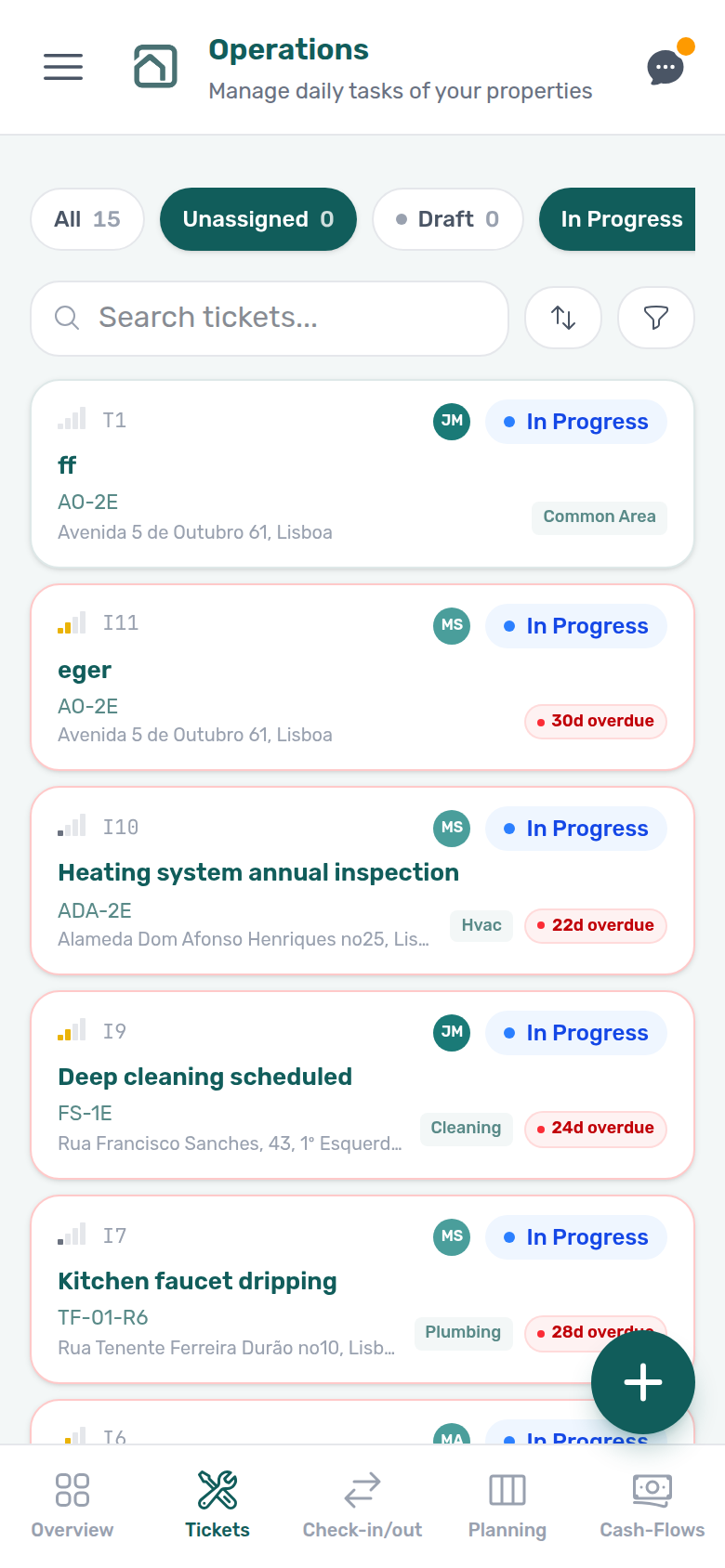
| Narrow viewport | Browser width below 768px (any device) | Operations shows a fixed bottom tab bar instead of the desktop pill strip; floating + for quick ticket or cash-flow entry. Other modules keep their normal narrow-layout drawer (unless the phone-only rule below also applies). |
| Phone-only shell | Actual mobile phone user agent (iPhone, Android phone, etc.) and Operations module permission | Route guard sends non-Operations URLs to /operations; the mobile menu lists Operations only. iPads/tablets and desktop browsers snapped narrow are not locked this way. |
Phone-only operations shell
When both conditions above match, field staff get a reduced shell focused on operational work:
| Behaviour | Detail |
|---|---|
| Route guard | Navigating to Dashboard, Listings, Bookings, or other modules redirects to /operations. Exceptions: /settings/support and /settings/support/:ticketId still open for Support deep links. |
| Sidebar | The mobile menu lists Operations (not the full desktop nav). Account and Logout remain at the bottom; a compact language control sits beside Logout. |
Bottom tab bar (narrow viewport)
On viewports below 768px, inside Operations:
| Control | Detail |
|---|---|
| Tab switching | Bottom tab bar for Overview, Tickets, Check-in & Check-out, Planning (when permitted), and Cash Flows. |
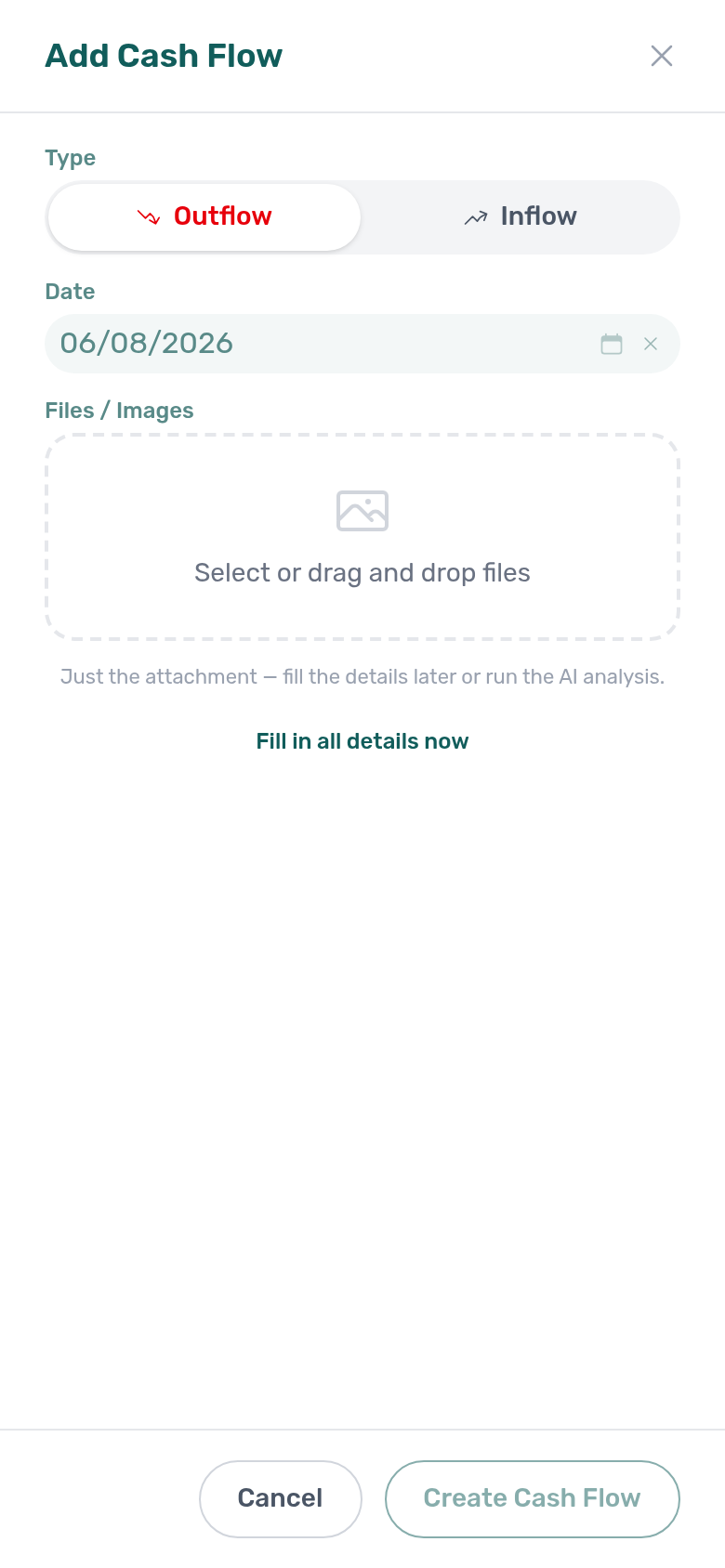
| Quick add | Floating + on Tickets opens New ticket; on Cash Flows it opens Add cash flow. On Cash Flows, the modal may start in attachment-only mode when Preferences → Cash flows → Mobile quick add is On. |
| Schedule | Not on the bottom bar — use desktop width or bookmark /operations/schedule (Vivin internal only). |
| Planning (phone) | On the bottom bar when your role includes Planning (schedule board) — pick a person, then review that day’s timed list. Full drag-and-drop dispatch stays desktop-first — see Planning tab. |
Roles without Operations permission keep the standard mobile drawer (subject to each module’s own access rules) and are not locked to /operations. Troubleshooting when field staff expected Bookings or Finance on a phone: FAQ — Phone shows Operations only and Glossary — Operations-only phone shell.
On mobile layouts where the full drawer is available, you may also see Install app at the bottom of the menu (home-screen PWA shortcut). That is separate from the Operations-only redirect — it does not unlock desktop modules on a phone. See Getting Started (narrow viewports) for install prompts, dismiss timing, and routes where prompts are suppressed (/login, /reset-password).
It brings together maintenance tickets, check-in/check-out planning, and operational cash flows so your team can manage work from one place. Those tickets are your organisation’s operational tasks on the portfolio — not Vivin support tickets to the Vivin product team (those live under Account Settings when your role has the Support permission). The Help & Support drawer Status menu stays open while you add a second workflow state — that filter is not the Tickets status picker on this module.
Overview tab
Overview KPI cards pair with Dashboard and Analytics — Maintenance tab; segment weak metrics with Finance — Tenant category filter — Portfolio KPI review — Step 5.
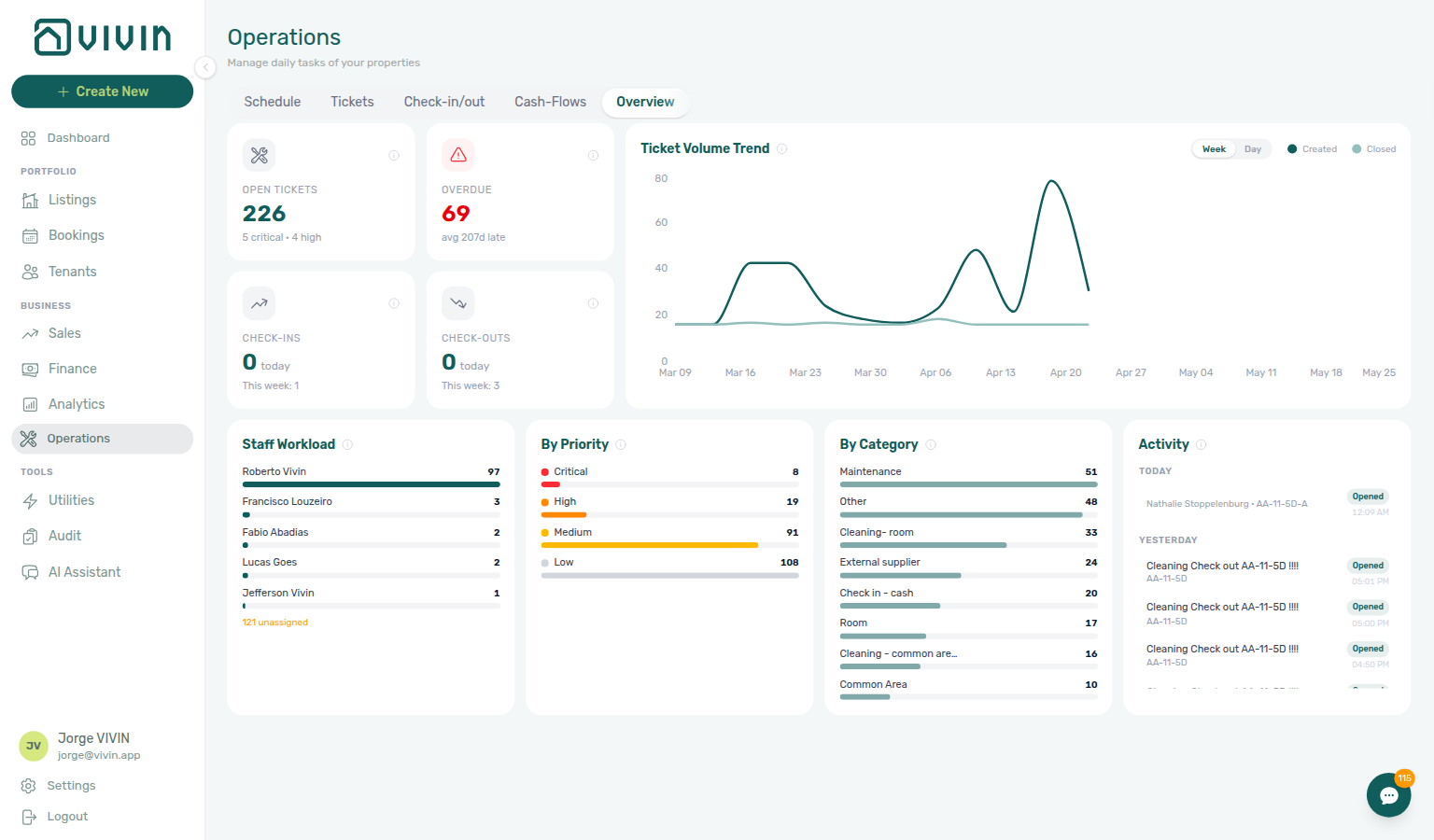
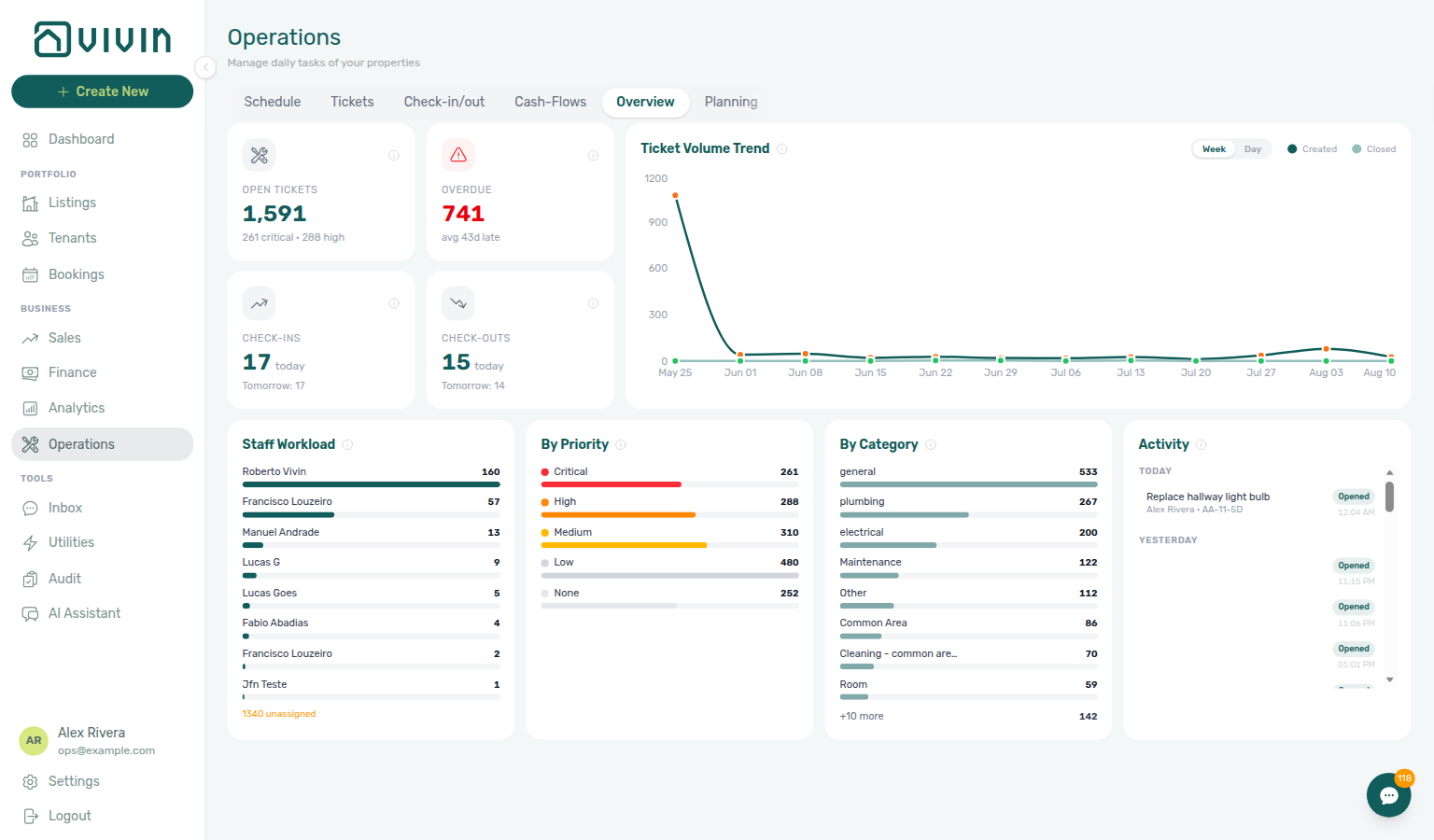
The default /operations view is an operational dashboard for maintenance and turnover planning. It combines ticket health, arrival/departure counts, and workload breakdowns in one scrollable page.
KPI cards (top row)
Four compact cards sit in a 2×2 grid on the left (same visual pattern as the Dashboard KPI row). Each card is clickable and jumps to the relevant tab with a sensible preset:
| Card | Headline | Subtitle (typical) | Opens |
|---|---|---|---|
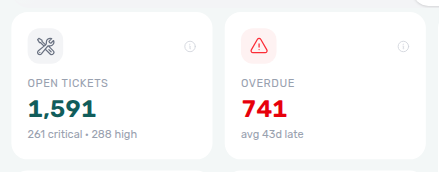
| Open Tickets | Count of non-closed tickets | Critical/high split, or unassigned count | Tickets tab (clears the shared Overdue filter so you see the full open queue) |
| Overdue | Open tickets past their SLA due date | Average days late among those tickets, or “No overdue tickets” | Tickets tab with the shared Overdue filter on — see Overdue KPI card |
| Check-ins | Arrivals today | Tomorrow’s count, or This week total when tomorrow is zero | Check-in & Check-out tab (check-in view, today filter) |
| Check-outs | Departures today | Same subtitle pattern as check-ins | Check-in & Check-out tab (check-out view, today filter) |
Hover each card’s info icon for the in-app definition. Open Tickets and Overdue are derived from the ticket list loaded for the Overview (open = not Completed or Cancelled). Check-ins and Check-outs use a server-side operations stats payload (bookings plus short-term iCal-style stays where applicable); canceled bookings are not counted in those arrival/departure buckets.
Overdue KPI card
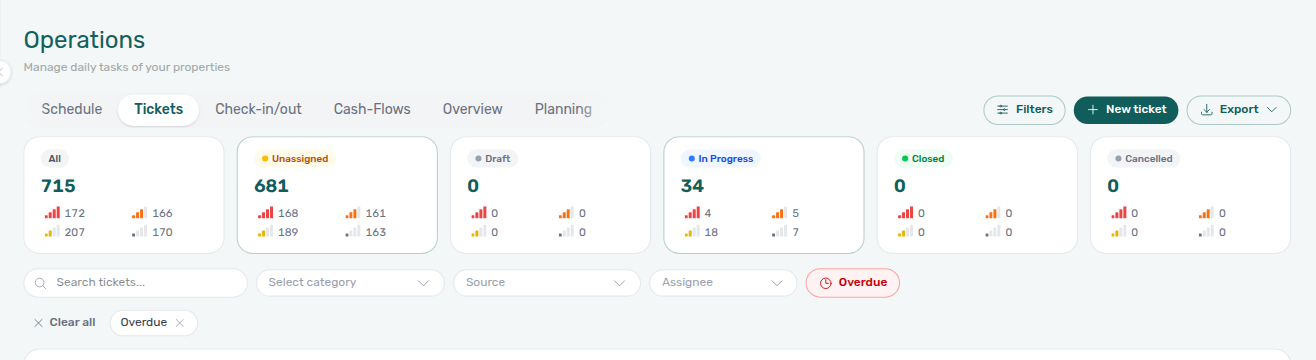
Click Overdue on Overview when you want the late maintenance queue without hunting for the toolbar toggle first. Vivin opens Tickets and turns on the same Operations-level Overdue filter used by the toolbar toggle and Other filters → Overdue only — one value drives the status cards, the Overdue chip, and the table.
What counts as overdue
Overdue is one definition everywhere on Operations: the Overview card (count and average days late), the Tickets Overdue filter, the status-card recount while that filter is on, and the late badge on a row.
A ticket is overdue only when all of these are true:
- It is still open (not Closed or Cancelled).
- It has a priority (Critical, High, Medium, or Low) — not None.
- That priority has SLA hours filled in on Settings → Preferences → Ticket Priorities (a blank hours field means “no SLA”).
- Now is later than schedule date (or opened/created date when there is no schedule) plus those SLA hours.
Tickets with no priority, or a priority whose SLA hours are empty, are never overdue. They do not raise the Overview card, they do not appear in the Tickets overdue queue, and they do not pull average days late upward. Set a priority (and keep SLA hours on that tier) when you want the clock to start.
You do not type a custom due date on the ticket. Change Schedule, priority, or the account SLA hours to move the deadline. See Managing Ticket Priority and Glossary — Overdue ticket (SLA).
| From Overview… | What happens on Tickets |
|---|---|
| Overdue card | Overdue turns on. Status cards recount the overdue slice (Draft / Closed / Cancelled at 0). Toolbar shows Overdue + Clear all. |
| Open Tickets | Overdue clears (if it was on). Status cards return to the full open queue for your other filters. |
Use Clear all or the toolbar Overdue toggle to leave the late queue without returning to Overview. Details of how cards recount: Overdue filter and status cards.
Check-in and check-out headline numbers are served from the same precomputed cache pattern as Dashboard and Sales overview stats (refreshed on a short staggered schedule and invalidated after relevant mutations). They are meant to match the Check-in & Check-out tab for the same account; if you just changed a booking, allow a moment or refresh before comparing card totals to a filtered export.
Ticket volume trend
To the right of the KPI grid, Ticket Volume Trend plots created vs closed tickets over time. Toggle Week (last 12 weeks) or Day (last 30 days). When closed exceeds created in a period, your backlog is shrinking for that window. Ask AI Chat (or WhatsApp Genius) for the same closed vs received ratio as a percentage over a named trailing window — for example last 60 days (ai-chat-maintenance-closure-rate-reply.png, ai-chat-maintenance-closure-rate-flow.mp4), last 45 days (ai-chat-maintenance-closure-rate-45-day-reply.png, ai-chat-maintenance-closure-rate-45-day-flow.mp4), last 50 days (ai-chat-maintenance-closure-rate-50-day-reply.png, ai-chat-maintenance-closure-rate-50-day-flow.mp4), or last 90 days (ai-chat-maintenance-closure-rate-90-day-reply.png, ai-chat-maintenance-closure-rate-90-day-flow.mp4). Enable Analytics on AI / MCP. That rate is not the Tickets Closed card (all-time completed) and not Staff Workload (open tickets now).
Lower panels
Below the first row, Overview continues with:
- Staff Workload — open tickets per assignee (plus an Unassigned line)
- By Priority and By Category — distribution of open work
- Activity — a scrollable recent ticket timeline (see below)
Activity panel
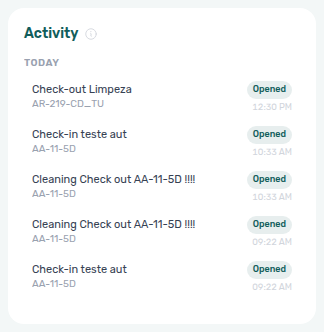
The Activity card in the lower row is a read-only feed of the latest maintenance-ticket events across the portfolio (respecting the same property scope as the rest of the Overview until you change Other filters). Hover the panel’s info icon for the in-app definition.
Each row shows the ticket title, property (internal name when available), an optional actor line (who opened, assigned, or commented), and a relative time. Events are drawn from each ticket’s timeline when the API returns it; otherwise the product falls back to created / closed timestamps only.
| Event kind (product data) | What you typically see in the list |
|---|---|
| Created | Ticket opened (with opener when known) |
| Closed | Ticket completed or cancelled |
| Status changed | Workflow move (for example Unassigned → In progress) |
| Assigned | Assignee added or changed |
| Comment | New message on the ticket thread |
| File added | Attachment uploaded on the ticket |
The feed keeps up to 30 events, newest first, grouped under Today, Yesterday, or a calendar date. The list scrolls inside the card (about 240px tall on desktop) so long histories do not stretch the page. When nothing matches the current filters, the panel shows No recent activity — widen property scope or create ticket activity on the Tickets tab, then return to Overview.
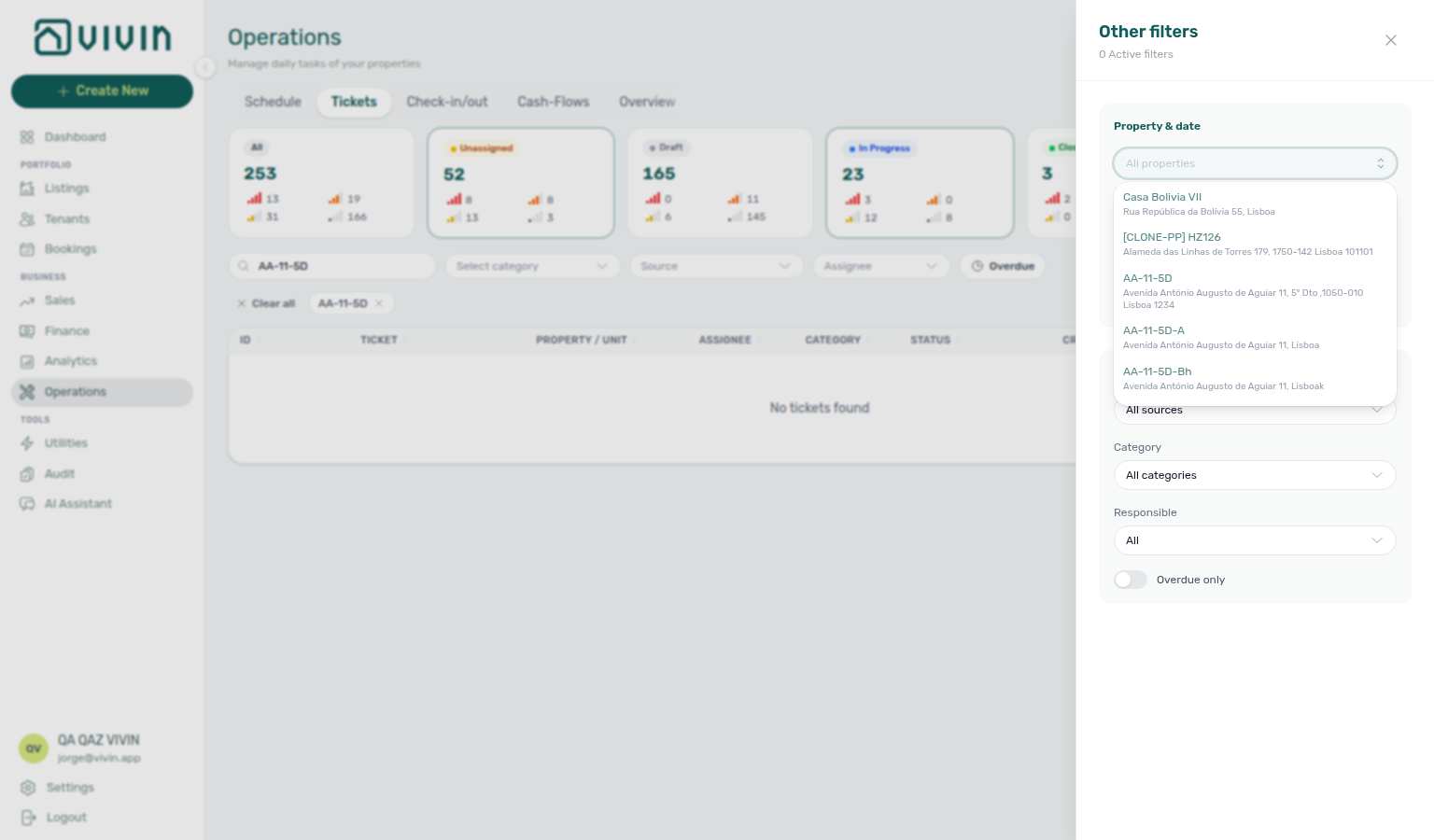
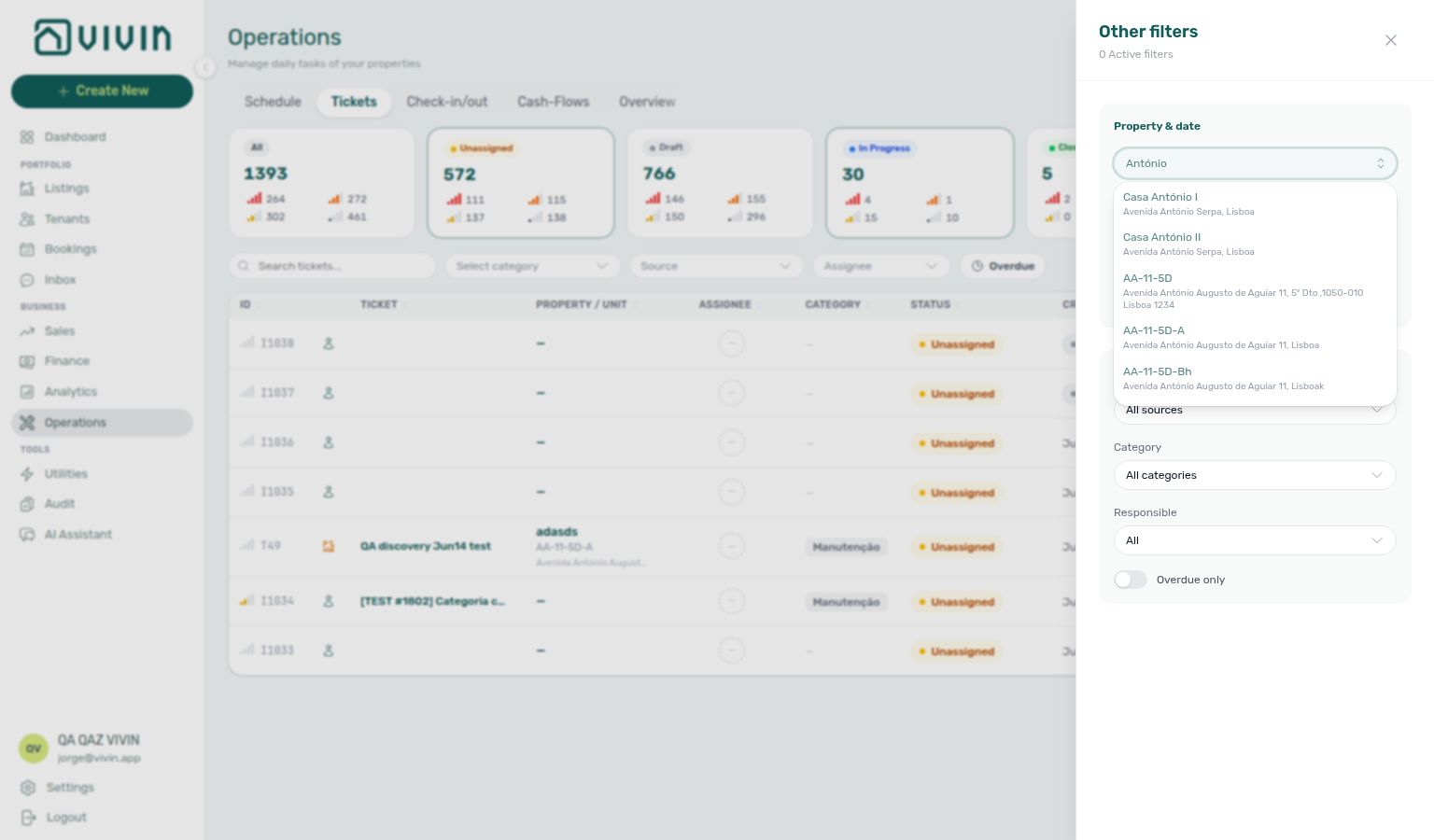
Use Filters in the Operations tab bar to open the shared Other filters drawer. Property is a multi-select built on the server-driven search picker: open the control, type to search buildings on the server (debounced), and scroll the menu for more matches in chunks — the same paged pattern as Finance → Other filters → Property and Utilities → Select properties. With an active query, internalName matches rank above address-only hits before pagination — see Glossary — Picker search ranking. Add one building at a time; the menu stays open until you dismiss it. The placeholder shows All properties or a count such as 2 properties. Selected buildings appear as removable chips inside the drawer (desktop) and on tab toolbars on mobile (for example the Tickets filter row). Property scope applies across Overview, Schedule (Vivin internal), Planning (when permitted), Tickets, Check-in & Check-out, and Cash Flows until you clear selections — optional From / To dates in the same drawer further narrow Overview, Schedule, and Cash Flows. Those date fields use the same portalled calendar as Bookings → Other filters → Advanced dates so the month grid stays inside the viewport when the field sits near the bottom of the drawer. Export and deep ticket work still happen on the Tickets and Check-in & Check-out tabs.
Operators with Operations access (and without Listings) can still load the Property picker here — shared property/unit search APIs are gated by their own allowlists, not by the full Listings module. See Users — Role Permissions.
Listing categories filter
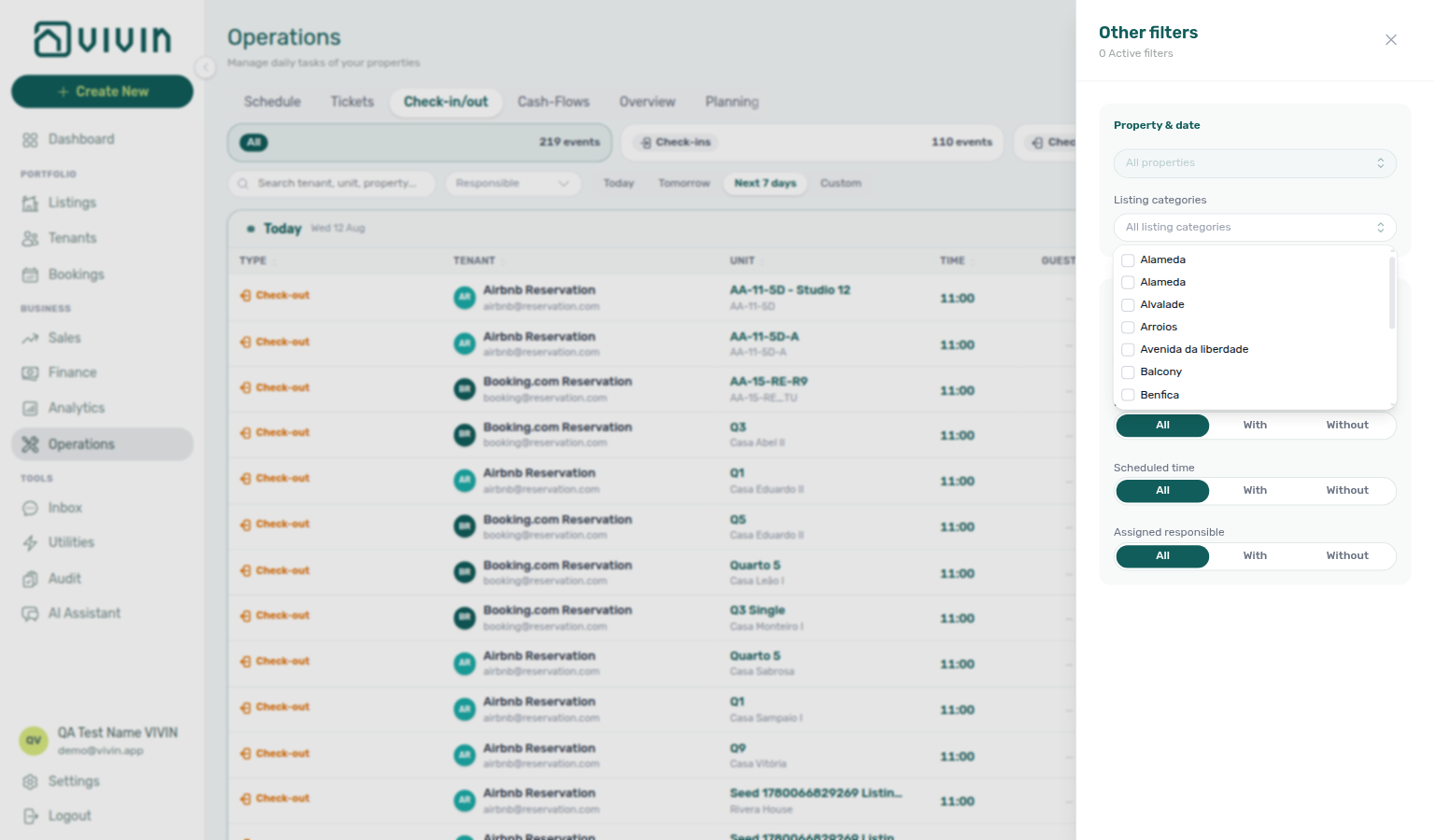
Under Property & date, Listing categories (when your account has listing tags) narrows every Operations tab that uses the shared drawer — Overview, Schedule, Planning, Tickets, Check-in & Check-out, and Cash Flows — to units (and their buildings) that carry the selected tags. Property tags are mirrored onto each unit’s listing tags, so one multi-select replaces picking buildings one by one when teams split work by neighbourhood, amenity, or cleaning zone.
| Behaviour | Detail |
|---|---|
| Vocabulary | Chips from your account’s listing-tag catalog (Settings → Categories); the control is hidden when the account has no tags. |
| Combine with Property | Selected tags and selected buildings both apply — use tags for a team slice, then add Property only when you need a tighter building list. |
| Tickets / Schedule | Tag filter is applied on the server with the rest of the ticket query. |
| Check-in & Check-out / Planning | Tag filter narrows the loaded event / board slice in the browser (same as Stay type and related toggles). |
| Clear | Remove individual chips, or use Clear all filters at the bottom of the drawer. |
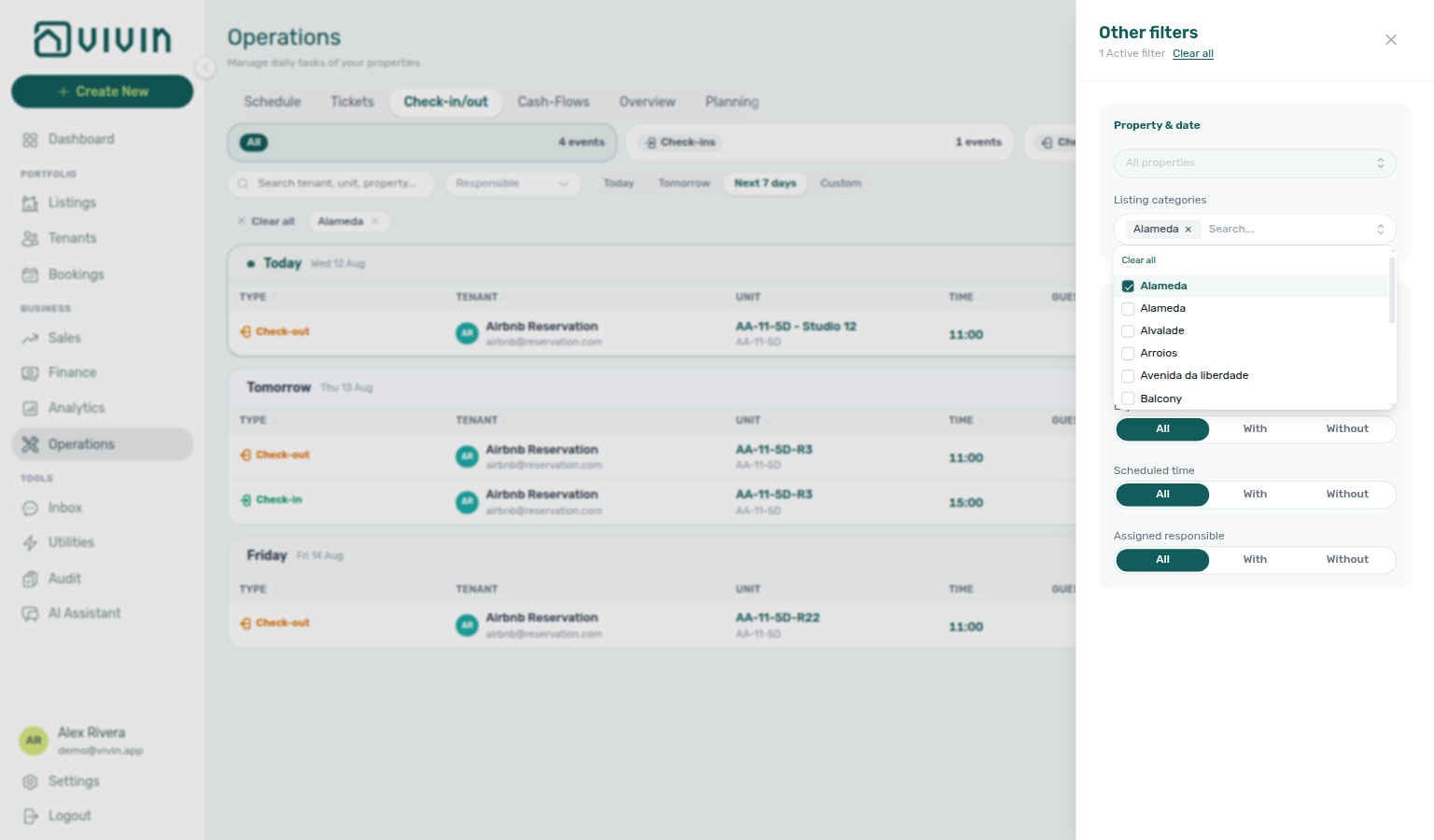
Seed tags under Settings → Categories and apply them on Listings — Tags before turnover week. Same listing-tag vocabulary as Finance → Other filters → Select categories and Sales.
Schedule tab (Vivin internal)
Schedule pairs with Listings — Maintenances tab for property-level maintenance context and Deep Links — Operations for Vivin-internal bookmark routes.
The Schedule tab (/operations/schedule) is available only when you are signed in with a Vivin internal operator account. Customer property managers and other tenant accounts do not see this tab; opening the URL directly is redirected back to the Operations overview.
It is a desktop-first timeline: maintenance tickets are grouped by property on the vertical axis, and each ticket is drawn as a horizontal bar across calendar days. The horizontal range starts from the ticket’s Schedule date when set, otherwise Scheduled at or Created at, and runs through the due date (or due at) when the ticket is still open, or through Closed at when it is completed or cancelled. Overdue tickets use a stronger warning tint; closed or cancelled tickets render in a muted grey. A coloured dot on each bar reflects priority (Critical, High, Medium, Low). Click a bar to open the same ticket detail sidebar used on the Tickets tab.
Toolbar
- Today — scrolls the grid so the current date is centred when possible.
- Day / Week — switches column width on the horizontal axis (pill control in the grid header, beside Today):
| Mode | Column width | Best for |
|---|---|---|
| Week | ~34px per day (default) | Scanning several months of ticket bars across many properties at once |
| Day | ~80px per day | Aligning due dates, schedule dates, and Today when bars overlap on the week zoom |
The grid covers roughly six months in the past through eighteen months ahead so you can plan seasonal work and long lead times. Use Filters in the Operations tab bar (same property scope as other tabs) to limit the chart to specific buildings when portfolios are large.
Property column
Each building keeps a sticky PROPERTY label on the left while you scroll the timeline:
| Line | What it shows |
|---|---|
| Name | The property’s internal name (for example Casa Bolívia VIII). |
| Address | Street and city, truncated with an ellipsis when the column is narrow. |
| Ticket count | How many tickets sit on that row in the current window (for example 5 tickets). |
All three lines stay fully readable in that sticky column. Today centres the current date; if the next scheduled jobs sit months ahead, the row can look empty around today while the label still identifies the building. Scroll forward (or use Day zoom) until the bars appear.
The Schedule tab is listed in the desktop tab strip for Vivin internal users. On narrow viewports, the bottom navigation used for Operations does not include Schedule — use a tablet or desktop width, or bookmark /operations/schedule, when you need this view in the field. See Mobile and narrow layouts for the full operations-only phone experience.
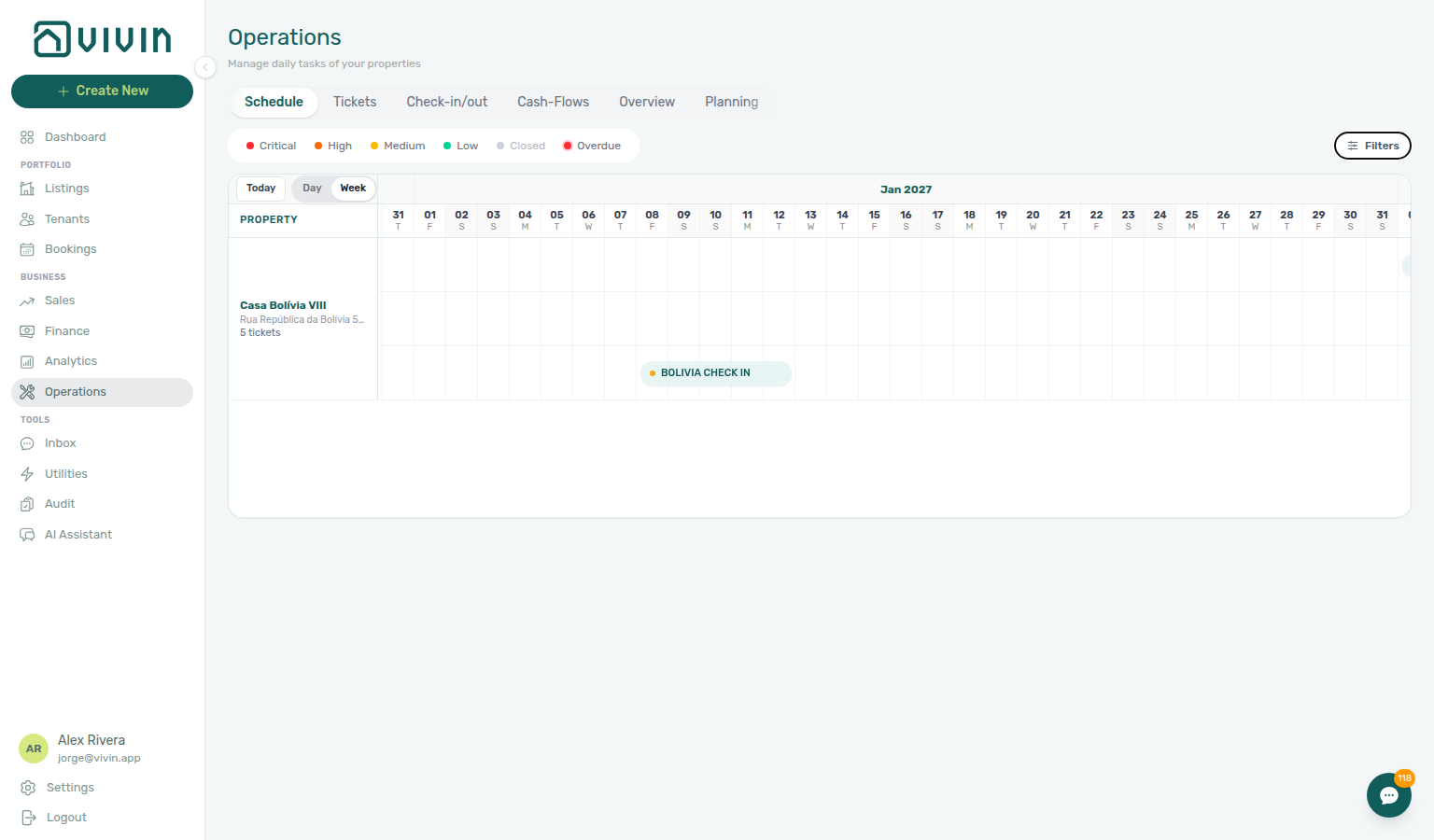
The capture above uses Week mode after Filters → Property for Casa Bolívia VIII: the sticky label shows the name, Rua República da Bolívia…, and 5 tickets, with a BOLIVIA CHECK IN bar in January 2027. Each bar is coloured by priority (see the legend). Use Today to centre the current date, then scroll or switch to Day when you need wider columns.
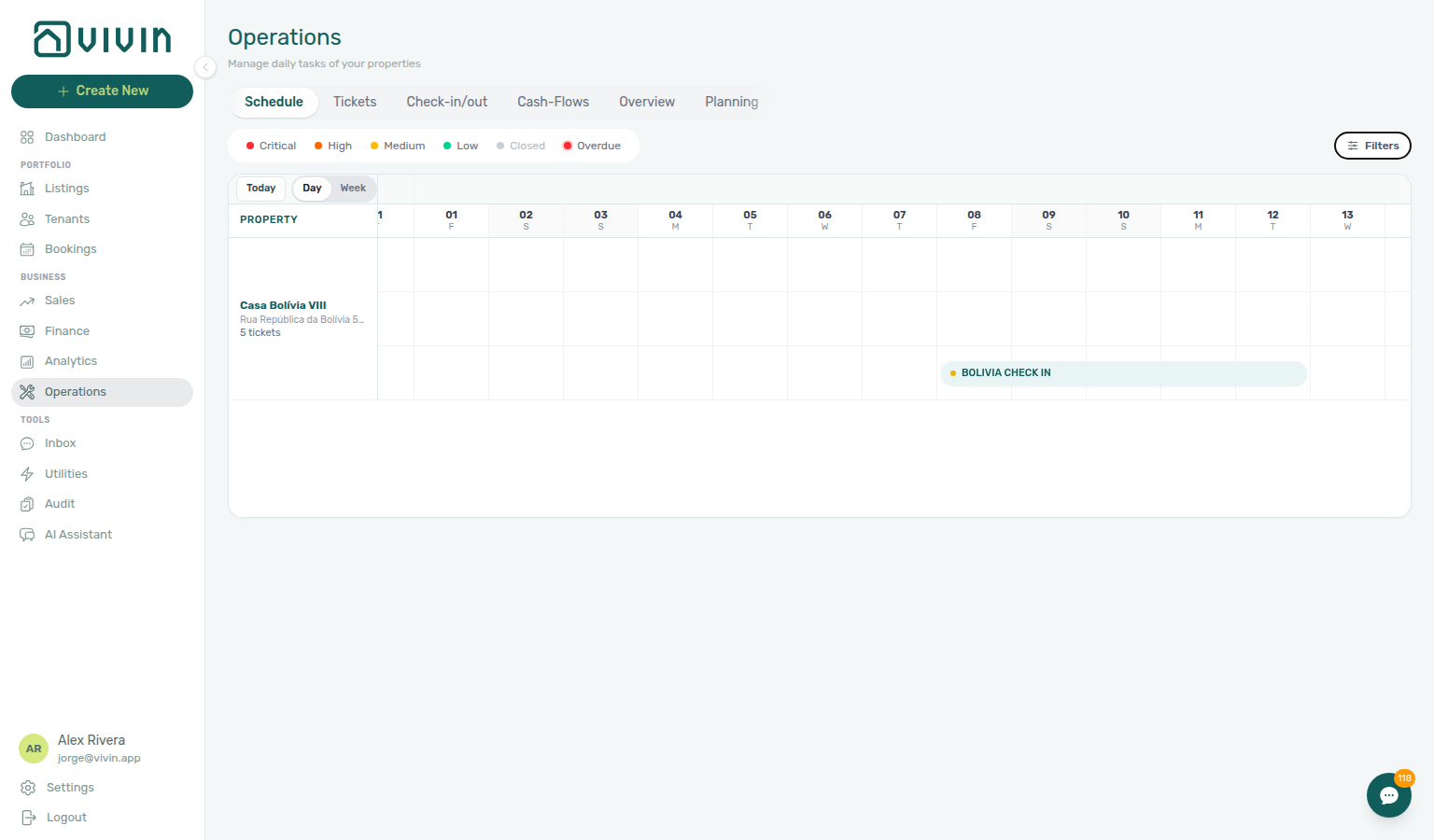
Day mode (~80px per column) stretches the same check-in across more of the row so schedule and due dates are easier to align. The PROPERTY label stays on the left at the same height — you can still read the name, address, and ticket count while the calendar is zoomed.
Planning tab
Planning pairs with Tickets (create and edit the same maintenance rows), Users — Role permissions (Planning (schedule board)), and Deep Links — Operations (/operations/planning). Contrast the Vivin-internal Schedule property timeline — Planning is a people × day dispatch board, not a multi-month property chart.
The Planning tab (/operations/planning) is a day dispatch board for maintenance work: columns are active team members, cards are tickets, and you drag work onto a person and time slot (or onto that person’s Tasks strip for a day plan without a clock time). It is off by default for every role — an administrator must enable Planning (schedule board) (operations.planning) under Users → Role permissions before the tab appears. Without that permission, the tab is omitted and /operations/planning redirects to the Operations overview.
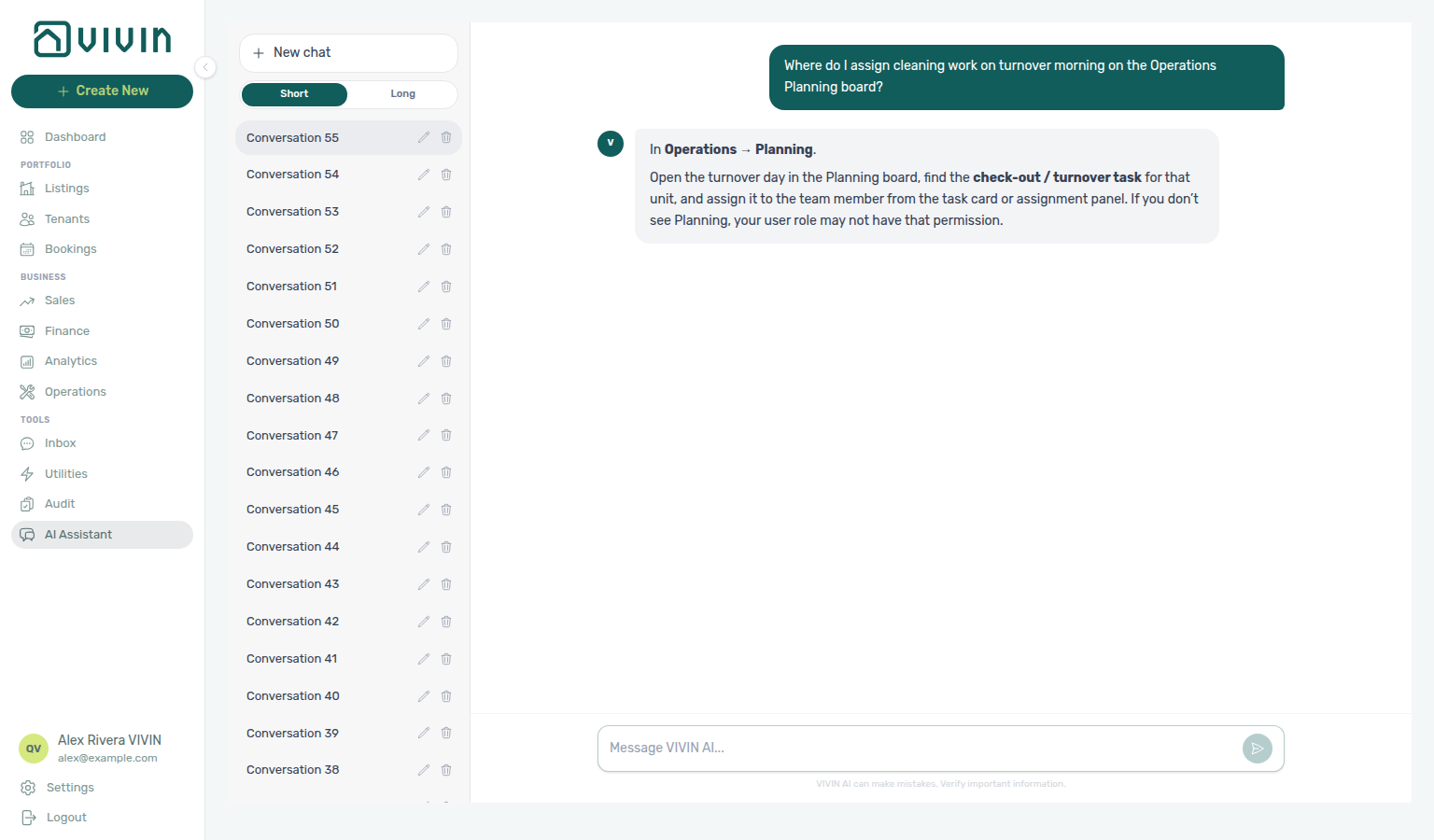
Operators can ask AI Chat “Where do I assign cleaning work on turnover morning on the Operations Planning board?” — expect Operations → Planning, then open this tab (ai-chat-product-context-operations-planning-reply.png, ai-chat-product-context-operations-planning-flow.mp4). See FAQ — Genius / AI Chat product context.
Need the day dispatch board — people columns and drag-to-assign (not the multi-month property Schedule, and not the Tickets queue alone)? Ask AI Chat “Where do I assign cleaning work on turnover morning on the Operations Planning board?” — then open Operations → Planning (ai-chat-product-context-operations-planning-reply.png, ai-chat-product-context-operations-planning-flow.mp4). The assistant typically says Operations → Planning. Canonical route: /operations/planning (requires Planning (schedule board) permission).
Planning is distinct from Schedule:
| Planning | Schedule (Vivin internal) | |
|---|---|---|
| Who sees it | Roles granted Planning (schedule board) | Vivin internal operators only |
| Layout | People columns × one selected day | Property rows × multi-month timeline |
| Primary action | Drag to assign / time-block / replan | Scan ticket bars by building |
Desktop board
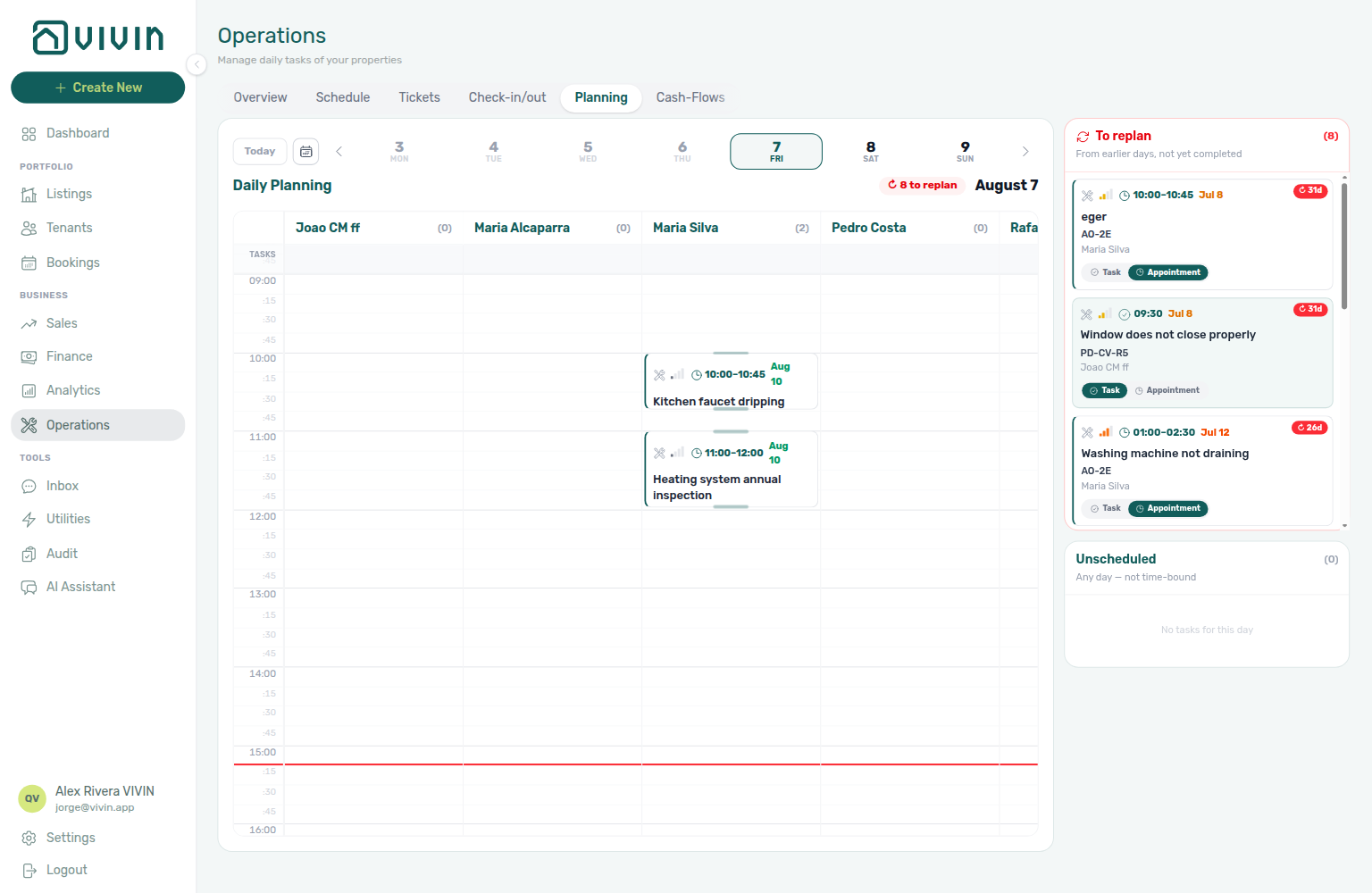
On desktop you get:
| Area | What it does |
|---|---|
| Week strip + Today / date picker | Choose the day you are dispatching. Re-opening the tab always lands on today. |
| Daily Planning grid | One column per active property manager. Drop a card on a time row to create a timed Appointment, or on the column’s Tasks strip for an hourless day Task. |
| To replan | Assigned tickets from earlier days that are still open — drag them onto today’s board to catch up. |
| Unscheduled | Open tickets with no responsible — the pool you drag onto a person to plan. |
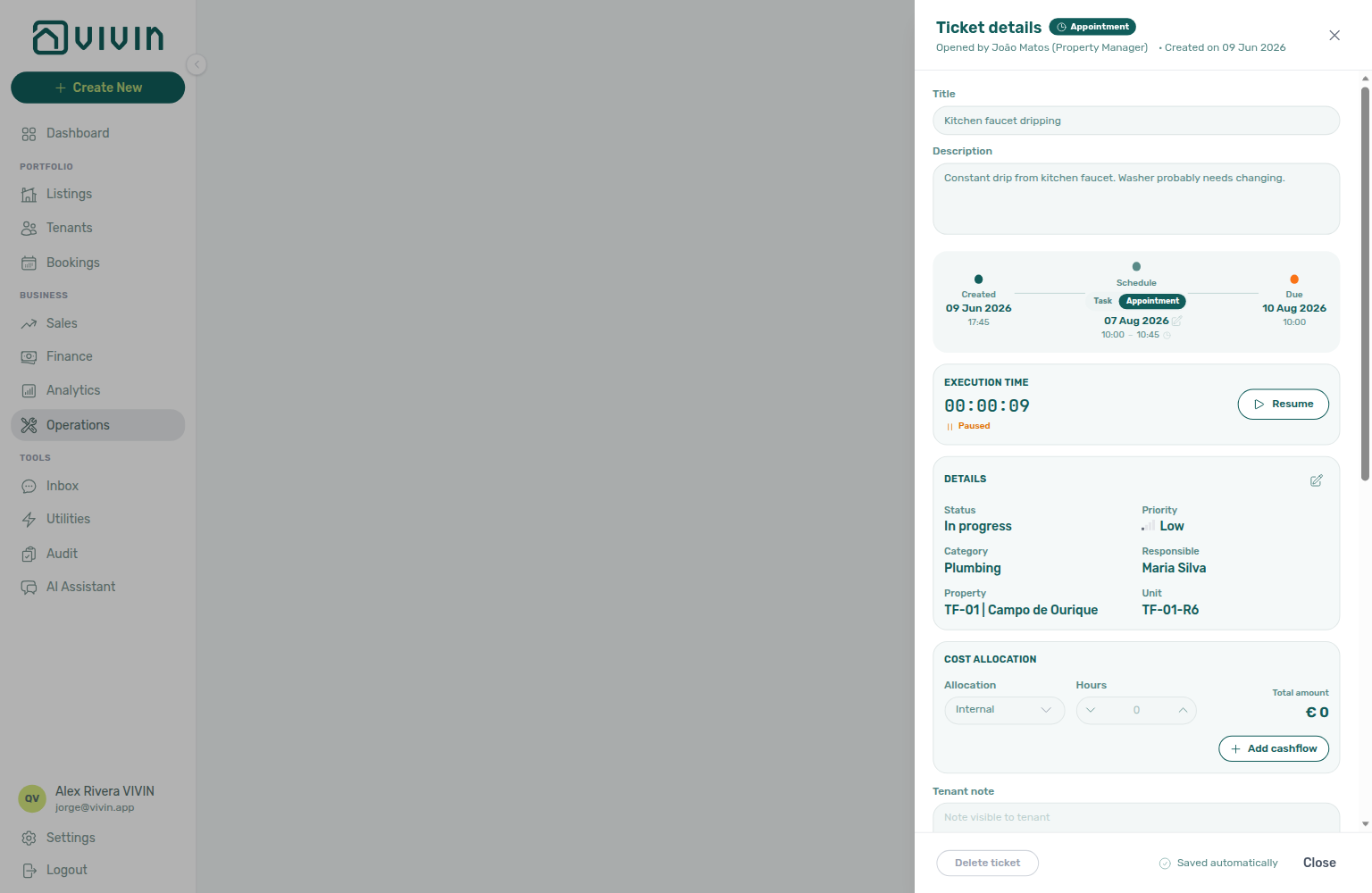
Cards show priority colour, property/unit context, and Task vs Appointment. Click a card to open the same Ticket details sidebar used on Tickets (edit status, schedule, assignee, cost allocation). Completed tickets stay visible but are not drag-resizable; cancel and done work leave the backlog.
Property scope from the shared Operations Filters drawer still applies — narrow the board when the portfolio is large.
Phone and narrow layouts
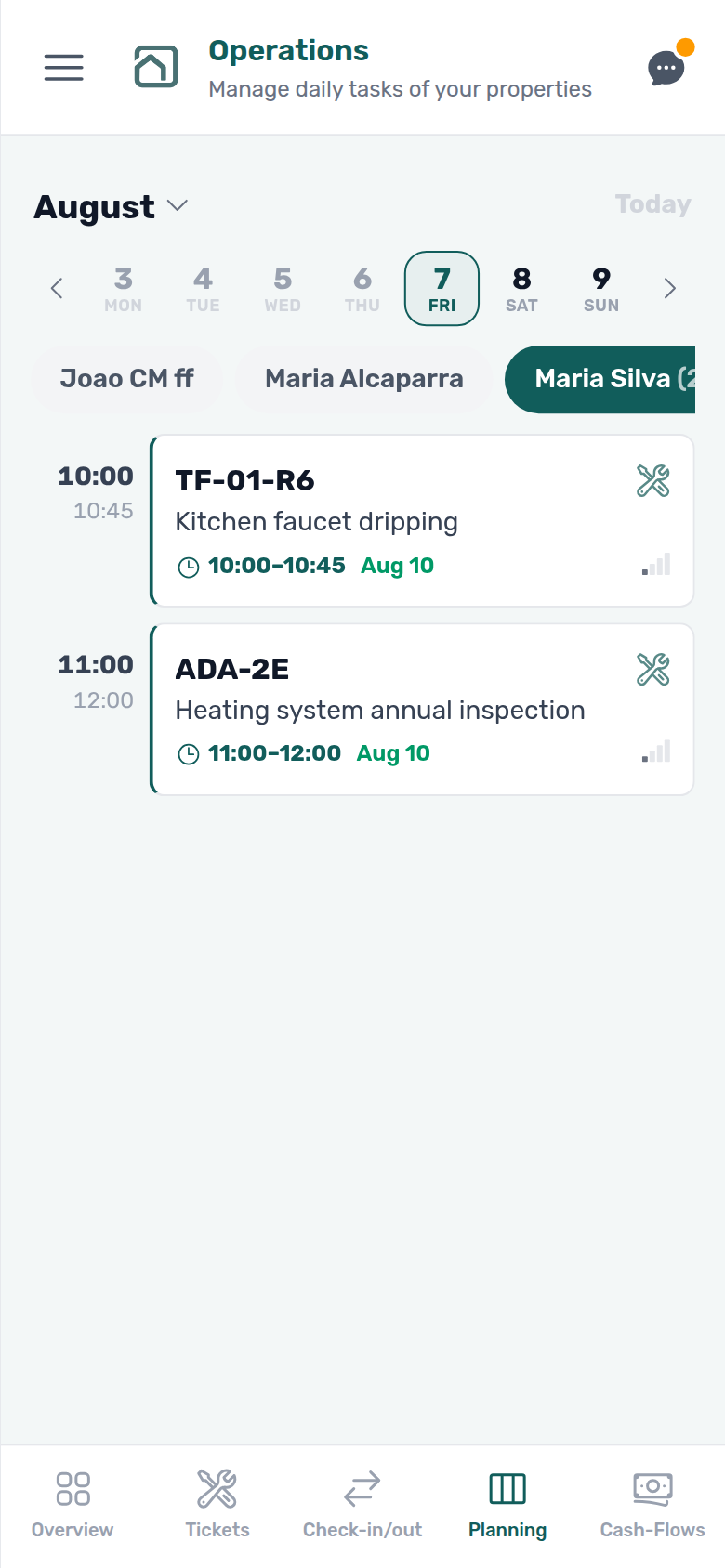
On phones, Planning joins the Operations bottom tab bar when permitted. The mobile layout is a single-person day list (person pills + timed cards) — use it to review someone’s load in the field. Drag-and-drop dispatch stays on desktop width.
Personal Settings → Tab order lists Operations tabs you can reorder. Planning only appears in that card for some internal accounts today; grant Planning (schedule board) on the role matrix to show the tab on Operations itself. Prefer the Operations tab strip (or /operations/planning) over Tab order until your workspace shows a clear Planning label in the reorder list.
Tickets Tab
Tickets pairs with Bookings — Tickets tab for booking-linked work and Settings > Categories — Tickets for taxonomy — toolbar Category filter, Source stays open, and Assignee stays open; column layout is yours on Personal Settings — Operations ticket columns — see Customize your ticket columns; see Glossary — Draft ticket (display status).
The Tickets tab is a full maintenance management system. You can create, assign, and track tasks for any operational need: cleaning, repairs, inspections, tenant requests, and more.
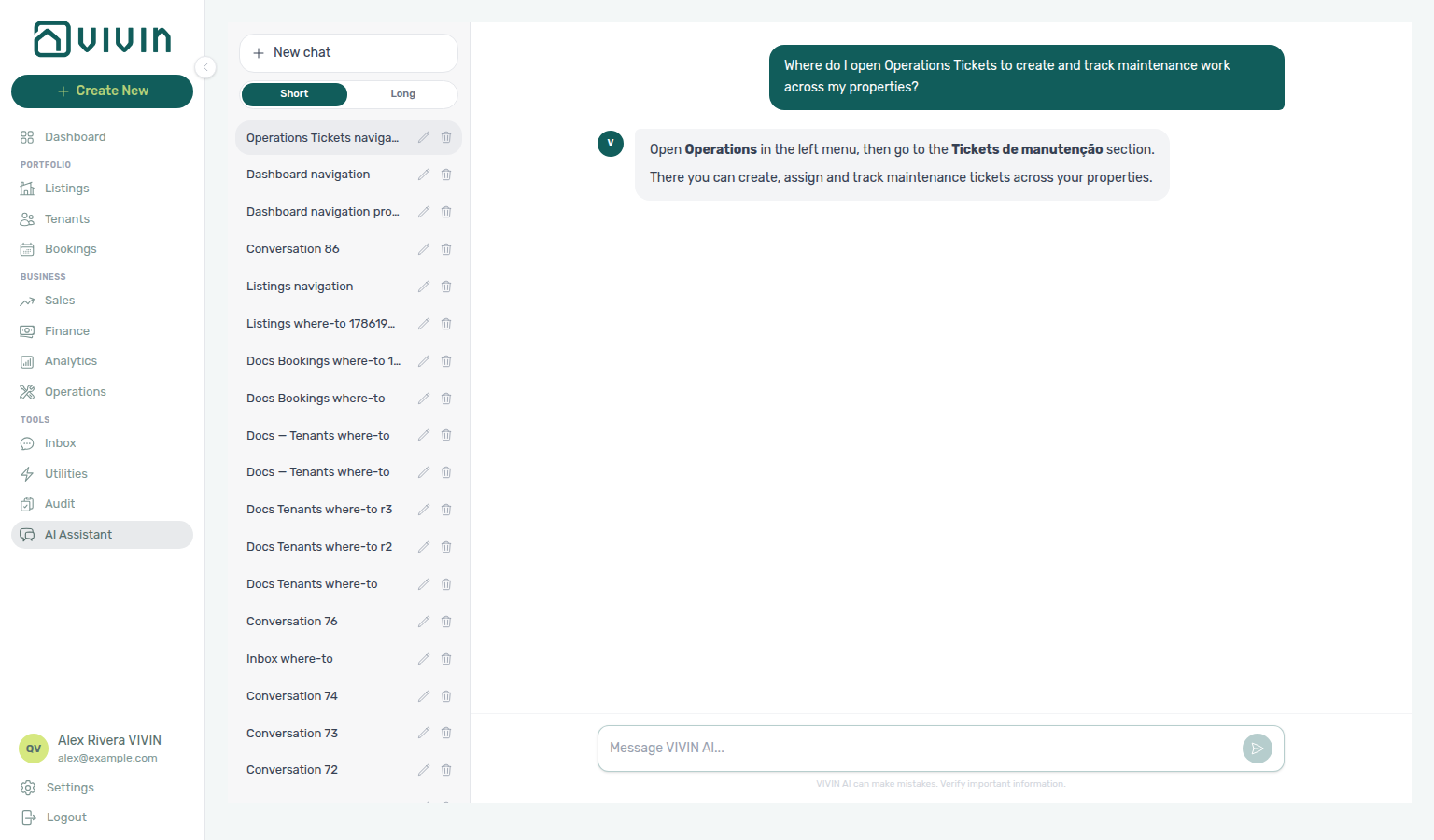
Not sure which Operations tab holds the maintenance queue? Ask AI Chat “Where do I open Operations Tickets to create and track maintenance work across my properties?” — then open Operations → Tickets (ai-chat-product-context-operations-tickets-reply.png, ai-chat-product-context-operations-tickets-flow.mp4). The assistant may say left menu and may use the Portuguese product term Tickets de manutenção; the English tab label is Tickets. Same-day person × time dispatch stays on Planning.
Need the maintenance queue — create, assign, and track work across properties (not same-day person × time dispatch on Planning)? Ask AI Chat “Where do I open Operations Tickets to create and track maintenance work across my properties?” — then open Operations → Tickets (ai-chat-product-context-operations-tickets-reply.png, ai-chat-product-context-operations-tickets-flow.mp4). The assistant may say left menu and may use Tickets de manutenção; the English tab label is Tickets. Canonical route: /operations/tickets.
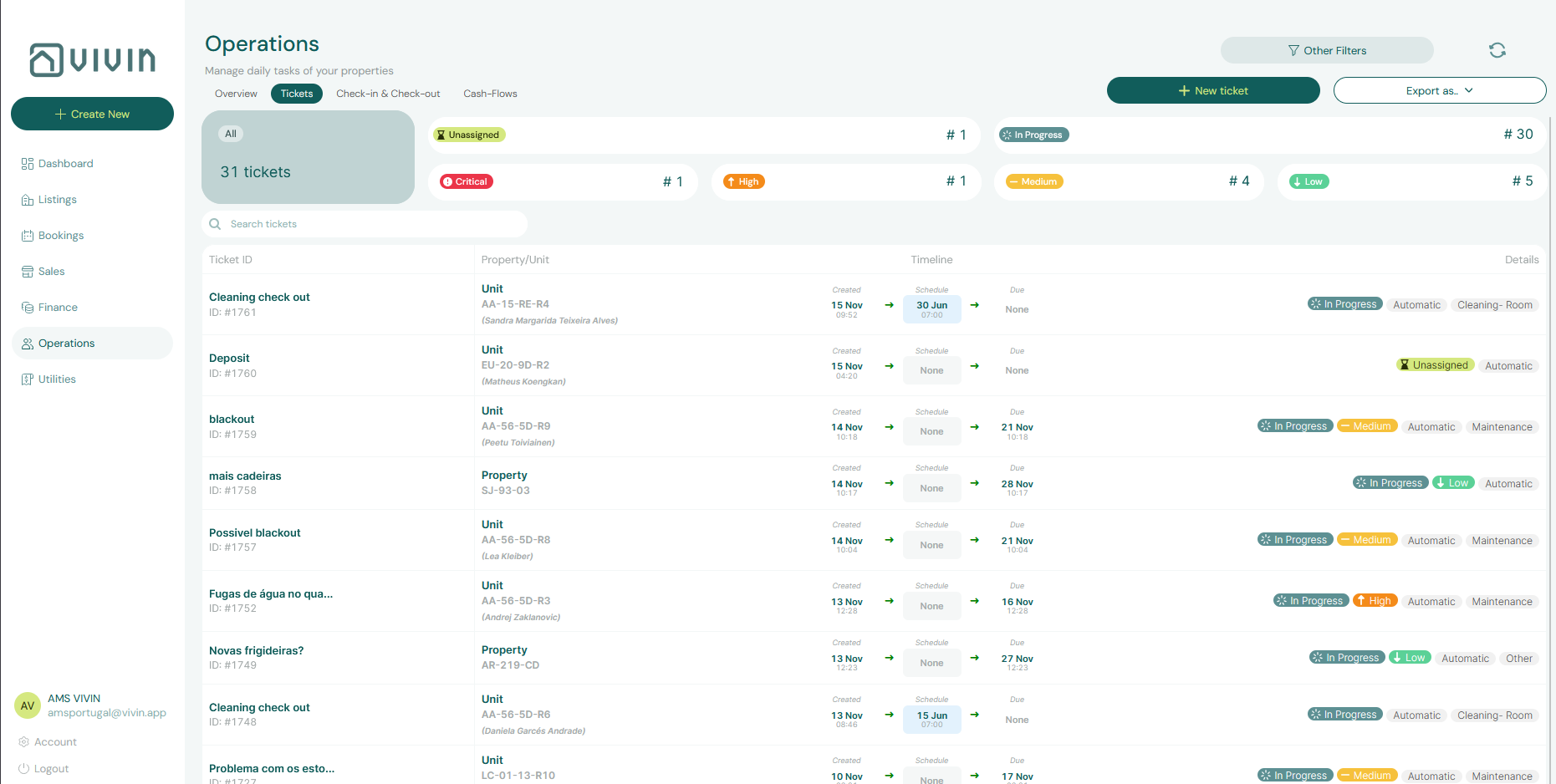
Understanding the Ticket List
Each ticket in the list shows:
- Title and description of the task
- Property and unit it relates to
- Priority (Critical, High, Medium, Low, or None when unset)
- Category (e.g., Cleaning - Check-in, Plumbing, Electrical)
- Assigned team member
- Status — Unassigned, In Progress, Closed, or Cancelled on the list (plus Draft as a display label — see below). There is no Open status. The sidebar menu uses Completed for the same finished-work value the list labels Closed.
- Due date and optional Schedule date (when the work is planned to start). When the ticket also has a clock time, the Schedule column shows that hour next to the date — see Schedule hour on the list
Which of those fields appear as table columns, and in which order, is your layout — teammates can keep a different view of the same queue. See Customize your ticket columns.
Customize your ticket columns
Column layout is a per-user preference on Personal Settings (/settings/personal). It does not change ticket data, filters, or anyone else’s table. Tab order on that same screen is a different card — Module tab order.
Each operator chooses which columns appear on Operations → Tickets and in which order. Open Account Settings → Personal Settings, then the Operations ticket columns card.
| Column (English header) | Default | Notes |
|---|---|---|
| ID | On | Always visible — you cannot turn it off |
| Ticket | On | Title (and description snippet). Hide it when you want more room for property and dates |
| Property / Unit | On | |
| Assignee | On | |
| Category | On | |
| Status | On | Always visible — you cannot turn it off |
| Created | On | |
| Schedule | On | Date, plus hour when one is set — Schedule hour on the list |
| Due | On | |
| Internal note | Off | Long free text from ticket resolution. Turn it on to read, sort, or scan notes in the list; filter With / Without works even when this column stays hidden |
A small source icon stays after the first column. It is not in this list — you cannot hide or drag it.
ID and Status rows show Always visible and their switches stay off-limits. Drag the grip to reorder. Hidden columns sit at the bottom of the list. Click Save to apply. Reset to default restores the shipped layout immediately (including hiding Internal note again) — you do not need Save after reset.
Two people on the same account can keep different columns. If a new column ships later and you already saved a custom list, turn that column on or use Reset to default so it can appear.
See FAQ — How do I choose which columns I see on Operations Tickets? and Glossary — Operations ticket columns.
Ticket status (no Open)
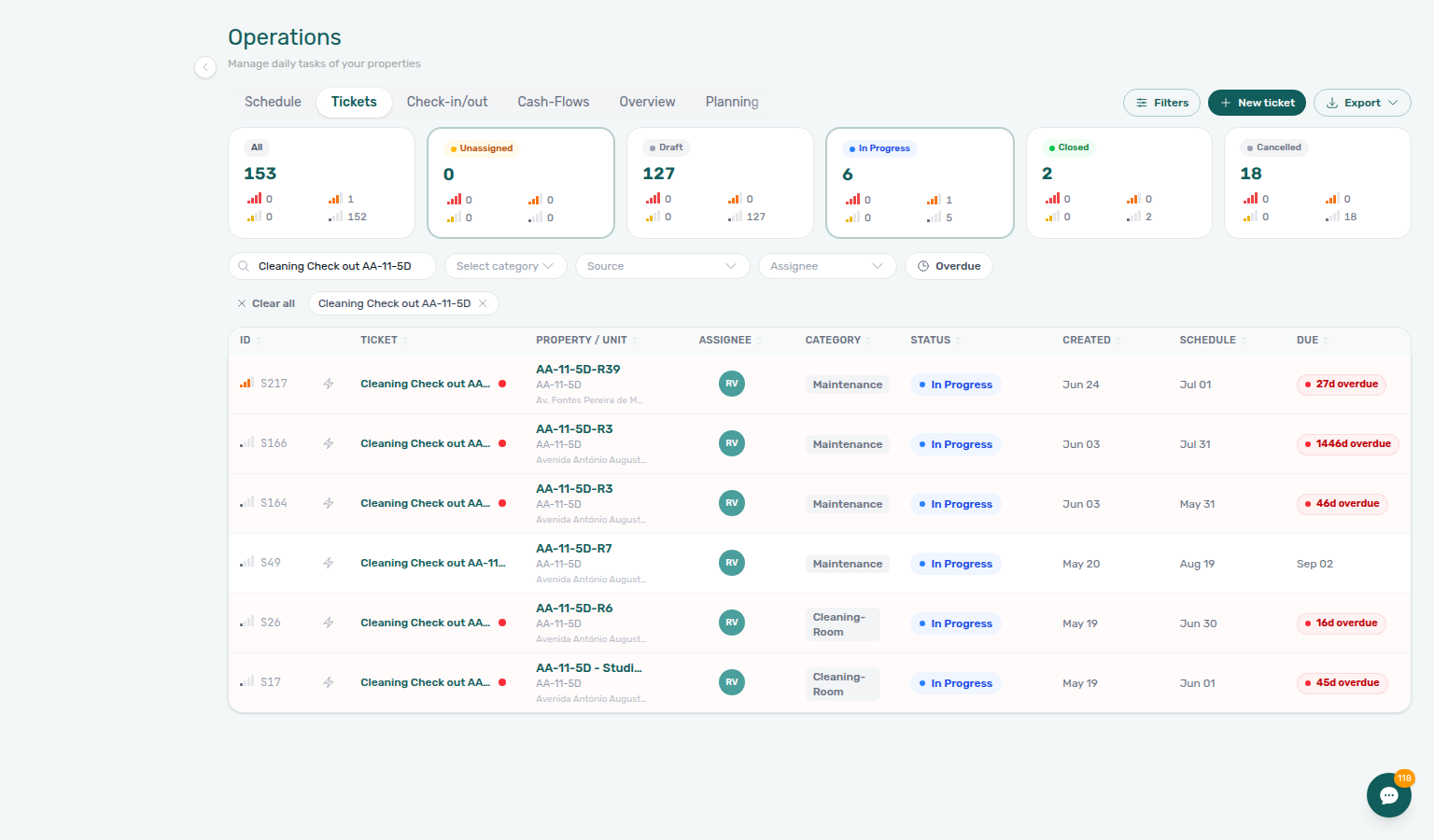
Tickets do not use an Open workflow value. On Operations → Tickets, the status strip is All, Unassigned, Draft, In Progress, Closed, and Cancelled.
To change status, open a row → Ticket details → Edit details (pencil) → Status. The menu has four choices — Unassigned, In progress, Completed, and Cancelled. Draft is not in that menu (it is a display label for far-future Schedule date). Duplicate can appear on a row for a merged report; it is not a menu choice.
| What you see | Where | What it means |
|---|---|---|
| Unassigned | List, KPI card, sidebar menu | No responsible person yet. Tenants see Received for the same ticket. |
| In Progress / In progress | List and KPI card use In Progress; the sidebar menu says In progress | Assigned work inside the 30-day window |
| Closed / Completed | KPI card and list badge say Closed; the sidebar menu says Completed | Work finished |
| Cancelled | List, KPI card, sidebar menu | Will not be done |
| Draft | List badge and KPI card only | Far-future schedule — not a menu value |
| All | KPI card only | Every matching ticket, including Closed, Cancelled, and any Duplicate rows |
Close the sidebar without saving when you are only checking the menu — status edits persist with the ticket (Saved automatically / Close).
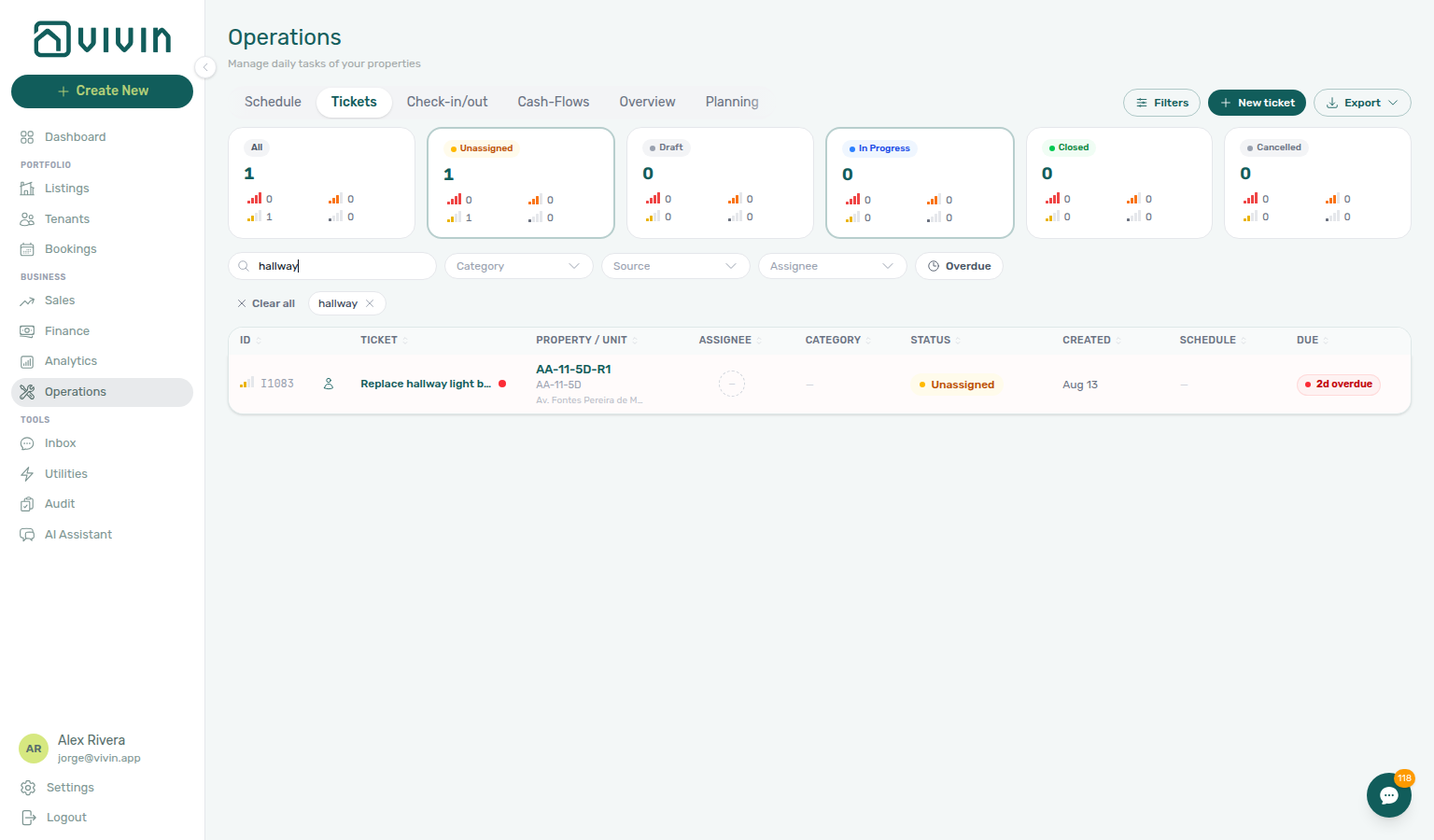
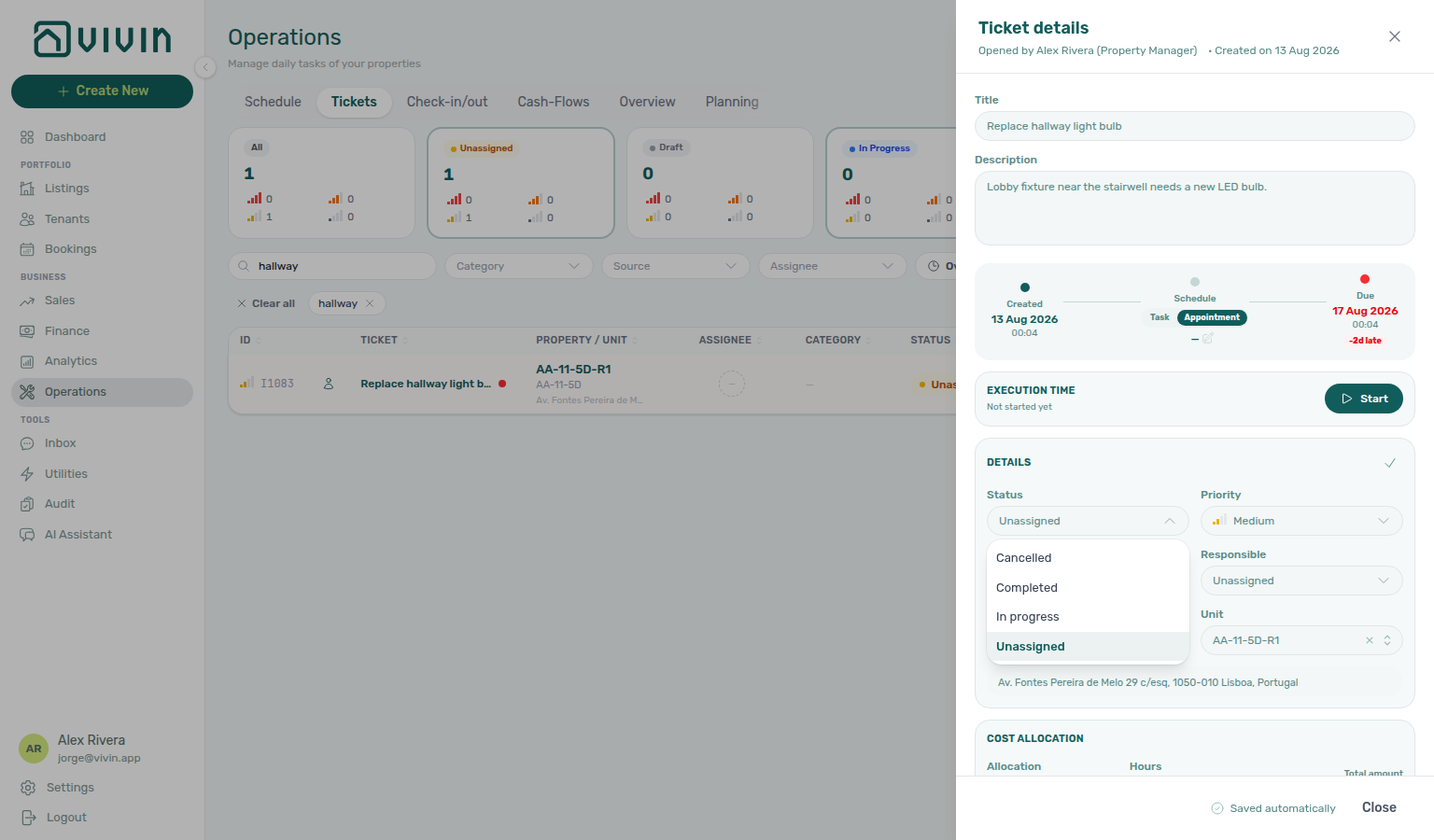
Draft status (far-future schedule dates)
The Tickets tab can show a Draft badge on rows that are still Unassigned or In progress in the database but have a Schedule date more than 30 days in the future. This is a display-only label so long-lead work (for example seasonal deep cleans or move-in prep booked months ahead) does not look like an open operational queue item before it is actionable.
| What you see | What it means |
|---|---|
| Draft badge on the row | Schedule date is 30+ days ahead; hover the badge for Scheduled 30+ days ahead — shown as Draft. Will become active as the date approaches. |
| Draft summary card / status pill | Count of tickets in that far-future bucket; card title explains they are not yet actionable |
| Underlying status in the sidebar | Still the saved workflow value (Unassigned or In progress) until you change it — Draft is not a separate API status you assign manually |
| Status filters and KPI cards | The Draft, Unassigned, In progress, and related summary pills filter and count tickets by this display status, not the raw database value alone — a ticket saved as Unassigned with a schedule date 30+ days ahead appears only under Draft, not Unassigned, until the date moves inside the window |
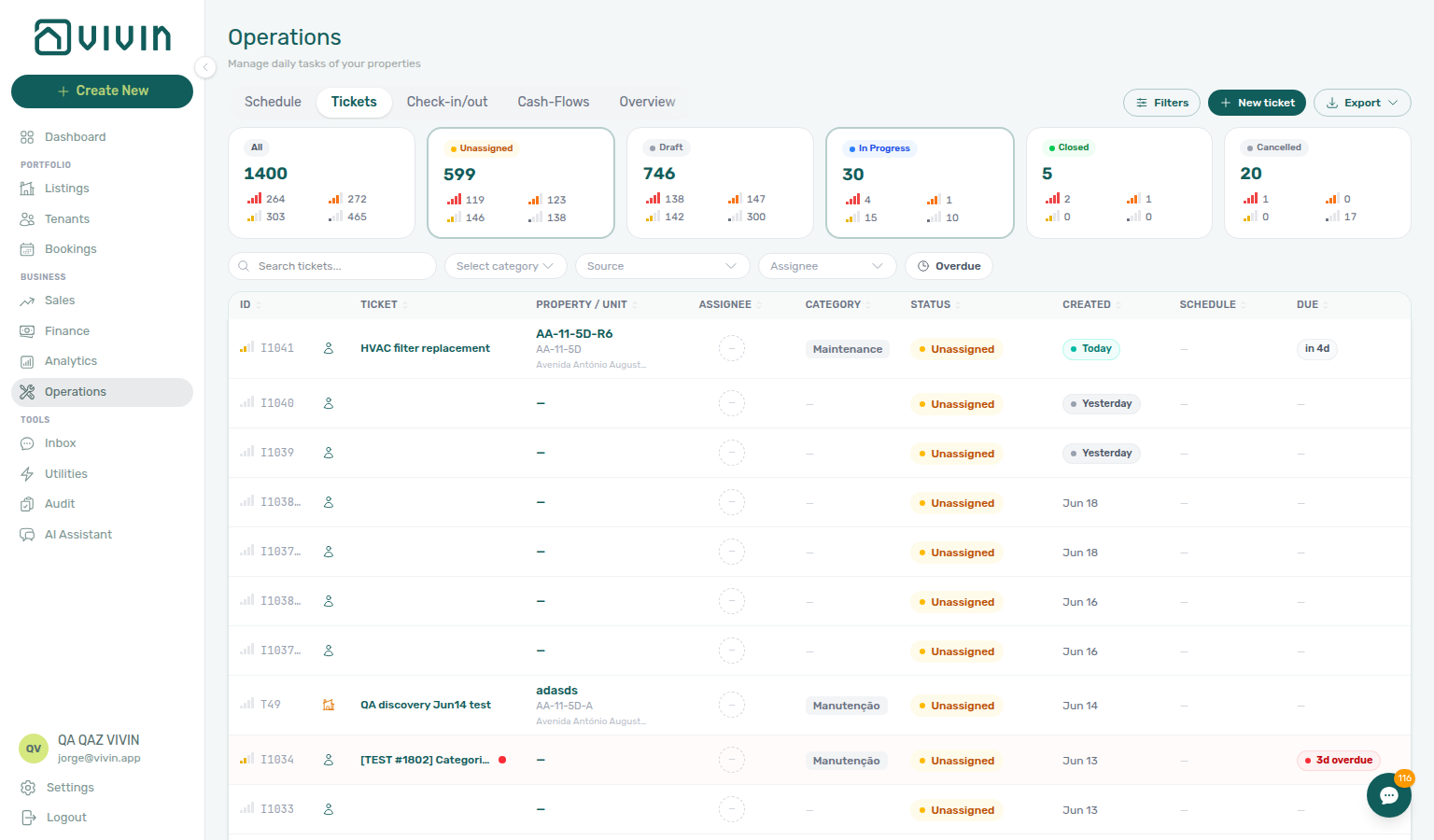
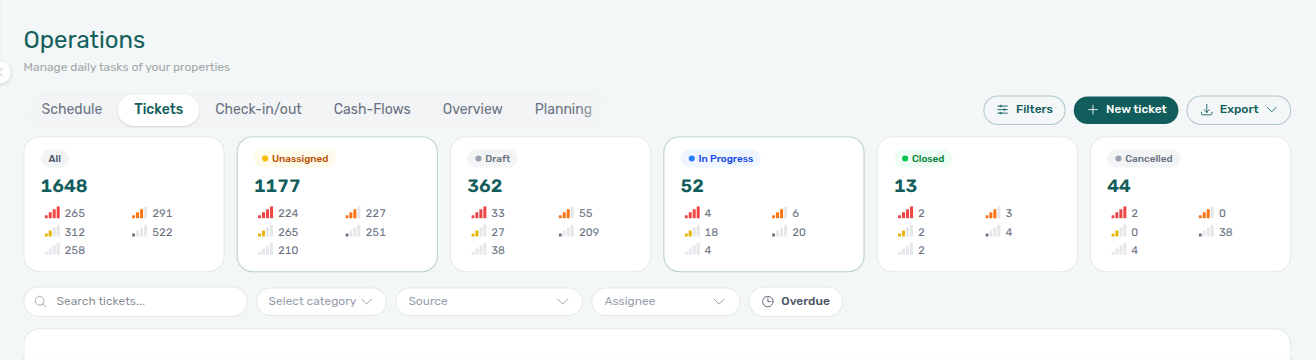
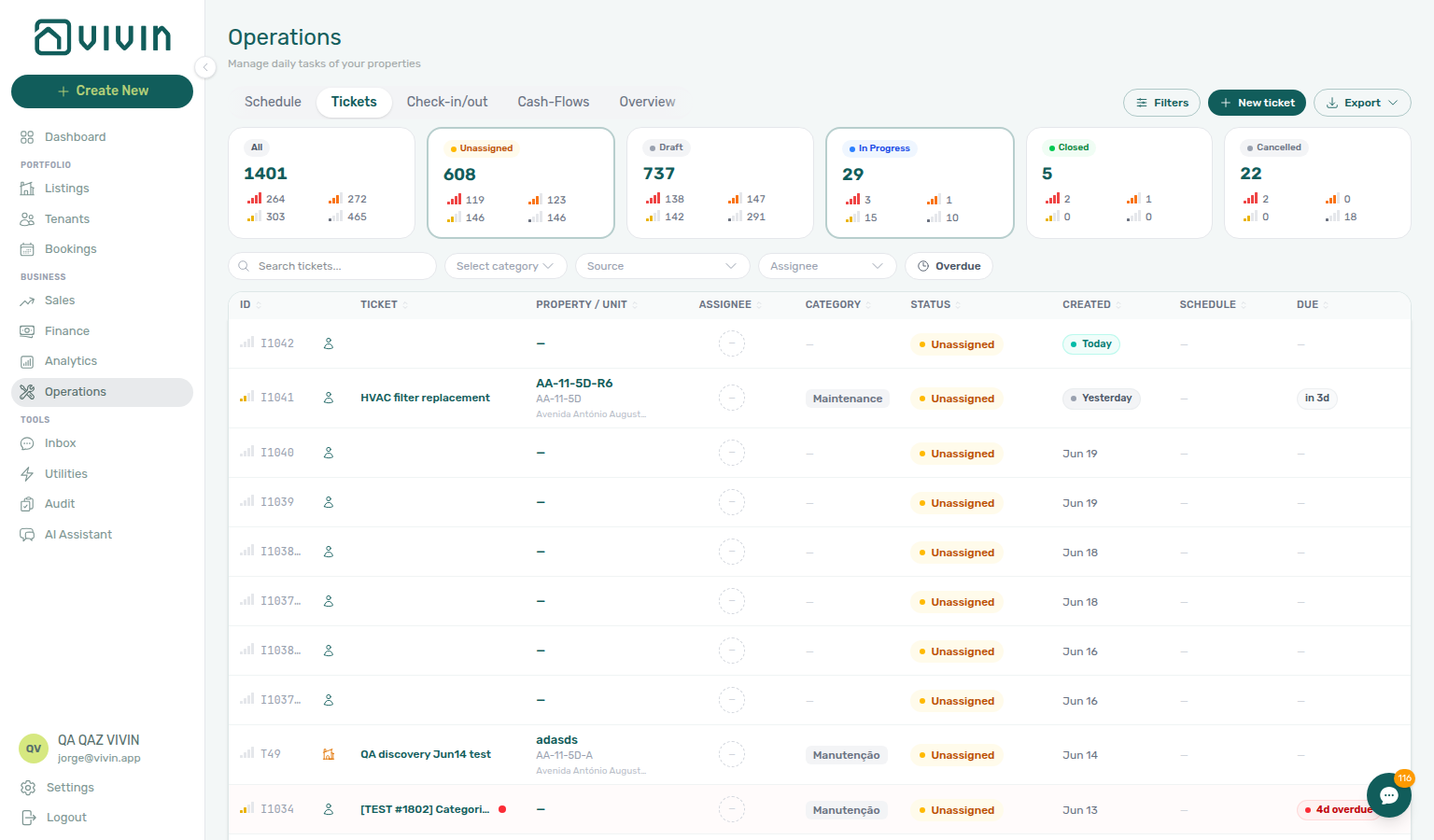
The capture shows the Draft KPI card (count of tickets with a Schedule date 30+ days ahead) in the same status strip as All, Unassigned, and In progress. Click the card to filter the table to that bucket; individual rows still show a Draft badge in the Status column when the schedule date qualifies, even though the saved workflow status remains Unassigned or In progress.
As the schedule date moves inside the 30-day window, the row returns to showing the real status (Unassigned, In progress, and so on). Use Schedule date when creating or editing a ticket if you want this behaviour; tickets without a schedule date are never shown as Draft.
You can filter the ticket list from the main toolbar (property, status, Source, Assignee, priority, Category, and search) to focus on what matters most to your team right now — include the Draft status pill when you want to review only far-future scheduled work. Source, Category, and Assignee stay open while you add another value — see Category stays open, Source stays open, and Assignee stays open. Status pills and the KPI strip share one display-status rule on the server (long-scheduled Unassigned / In progress rows bucket as Draft), so the row count on a pill always matches the tickets you see after the list reloads — you do not need a second client-side filter to reconcile badges with the table.
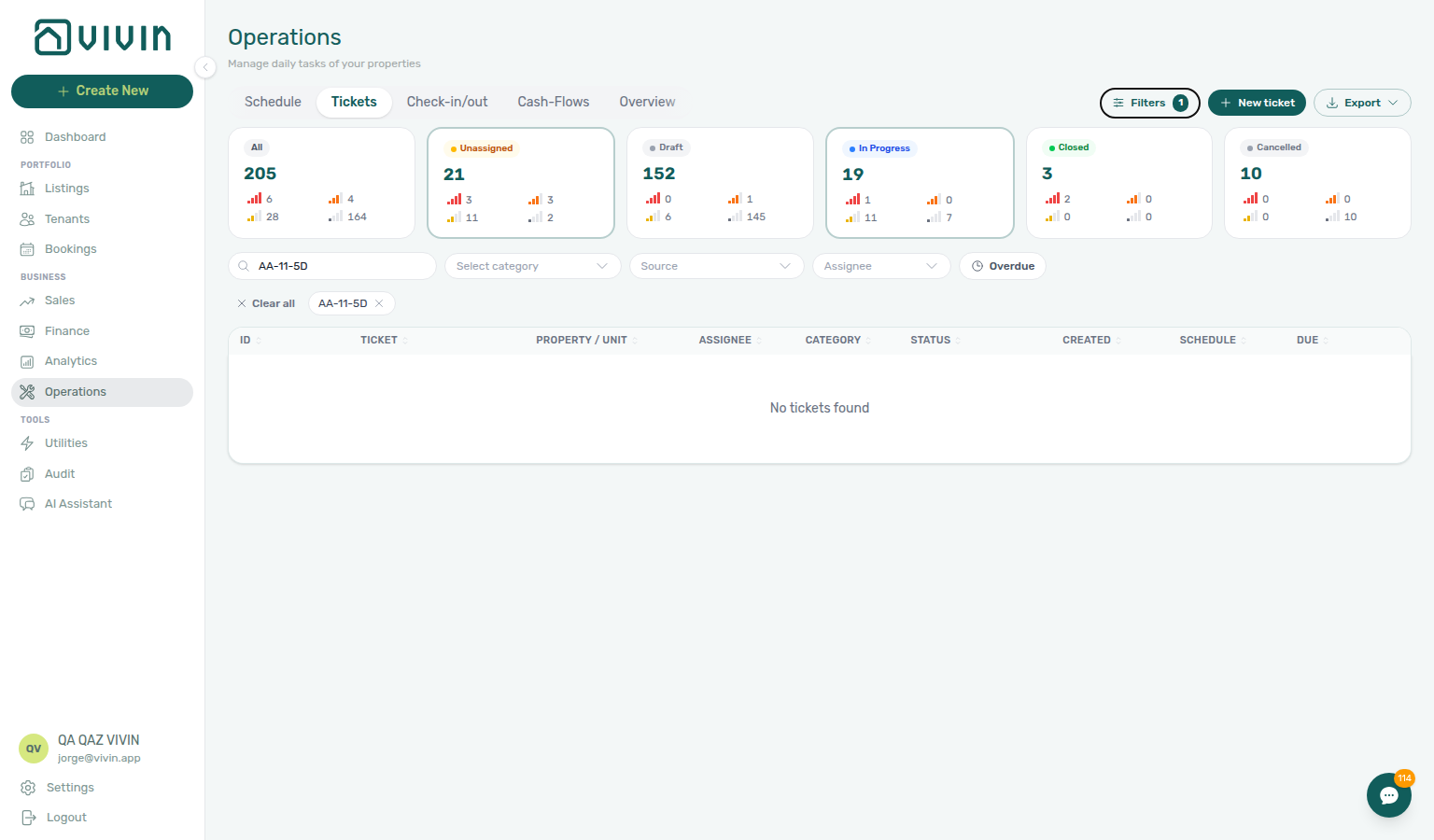
Tickets toolbar search
The debounced Search box on Operations → Tickets is sent to GET /maintenance/page (same filter set as Export and the status summary cards). Matches are case-insensitive substrings on:
| Field | Examples |
|---|---|
| Ticket ID | Sequential id shown on the row (for example S259, T27) — added in |
| Title | Subject line you typed when creating the ticket |
| Description | Body text in the ticket sidebar |
| Category | Maintenance category value (for example cleaning_check_in) |
| Property internal name | Building label on the ticket row |
| Unit internal name | Listing label on the ticket row (for example AA-11-5D-R2) |
| Listing room number | Room number stored on the ticket’s listing snapshot |
When several fields match, unit / room hits and property internal name hits share the top relevance tier — paste a unit code to surface room-scoped work first, or paste the building code when the task applies to shared space. Matches on title, description, or category alone rank below those unit/property hits. Property-level tickets (for example common area categories with no unit on the row) still match Property internal name and are no longer buried after every unit ticket on the first page. With an active Property filter chip and the default column sort, building-scoped rows (listingId null) float to the top of that property’s slice; choosing an explicit column sort (for example Title) orders purely by that column instead. On the row, property-level work shows the building internal name only in the location column (no -R / room suffix); unit-scoped tickets show a listing code such as AA-11-5D-R39 before the property name. Paste the full ticket ID (prefix + number, for example S259) when support or email references #S259 — partial numeric-only queries can match unrelated rows.
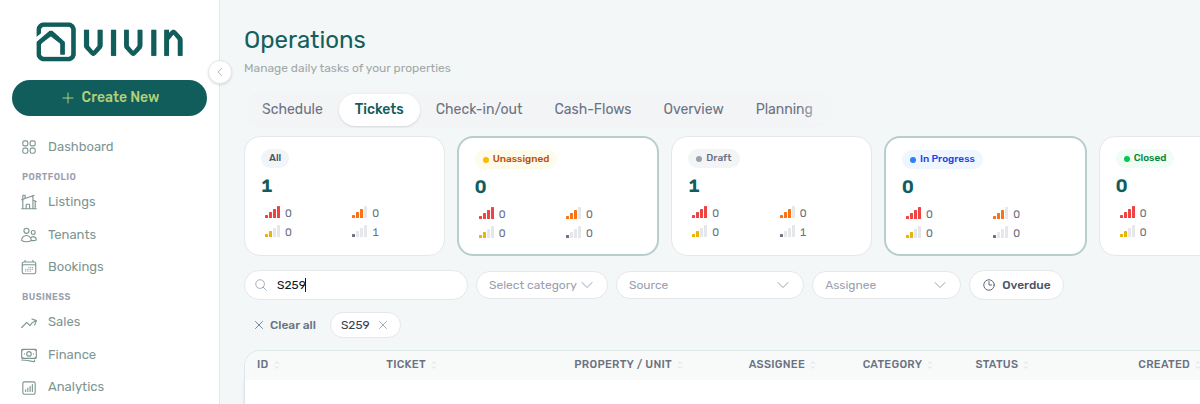
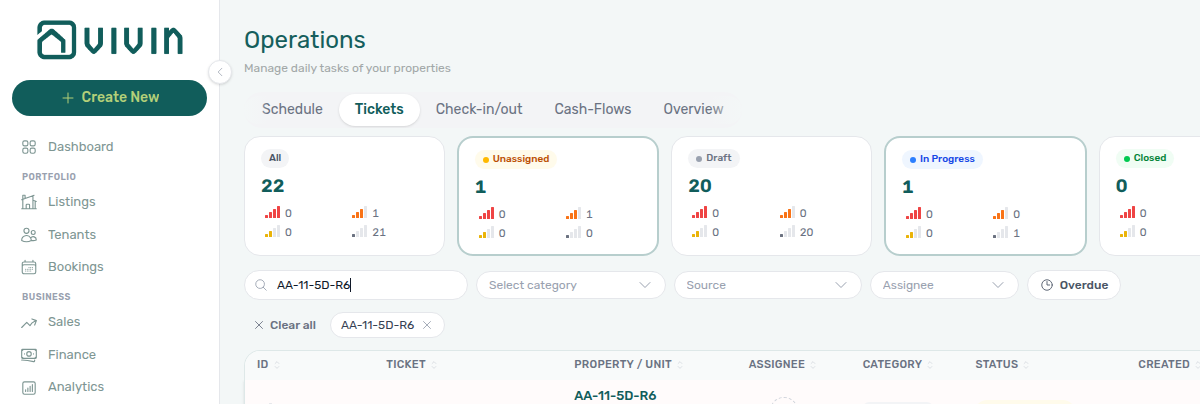
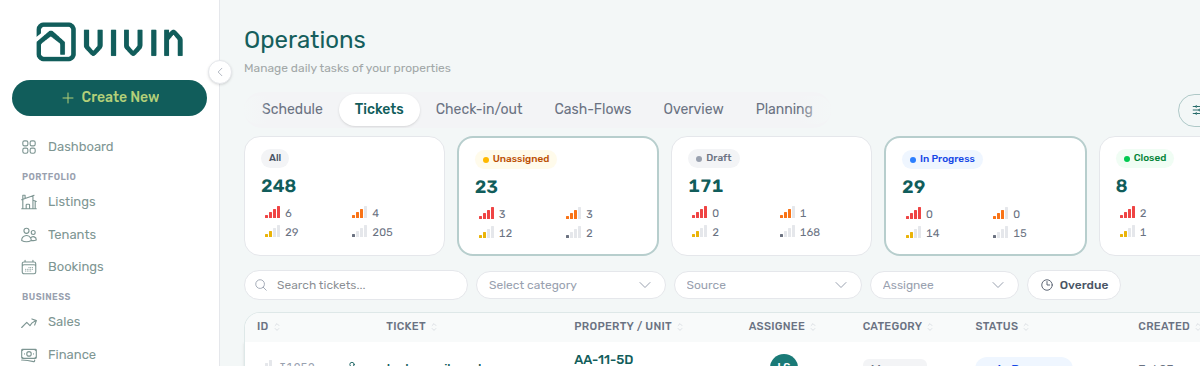
Tenant note and Resolution description are not in the server search index — narrow with Property filters, paste the ticket ID, or scan title / description instead.
Tickets toolbar category filter
The Category control on the Tickets toolbar lists every ticket type from Settings → Categories → Tickets — the same catalog as Other filters → Category. It is not limited to types that appear on the first page of the table. Scroll the menu to reach labels further down the catalog.
When the catalog is longer than a handful of types, Category becomes a searchable menu: type part of a label (for example clean) and matching letters highlight in the list.
| Behaviour | Detail |
|---|---|
| Open Category | Multi-select. Options come from your Settings catalog, plus any label still stored on a loaded ticket (for example a type you renamed in Settings). |
| Search | With many types, a search field overlays the Category control. Matches highlight in the list. Clear the query to see the full catalog again. Typing stays in that field after each tick — you do not have to click back in. |
| After you pick | A chip appears under the toolbar (with Clear all). Status cards and the table recount to that type. The menu stays open with a check on the type you picked, so you can add another type without opening Category again. |
| Clear | Remove the chip, or Clear all. |



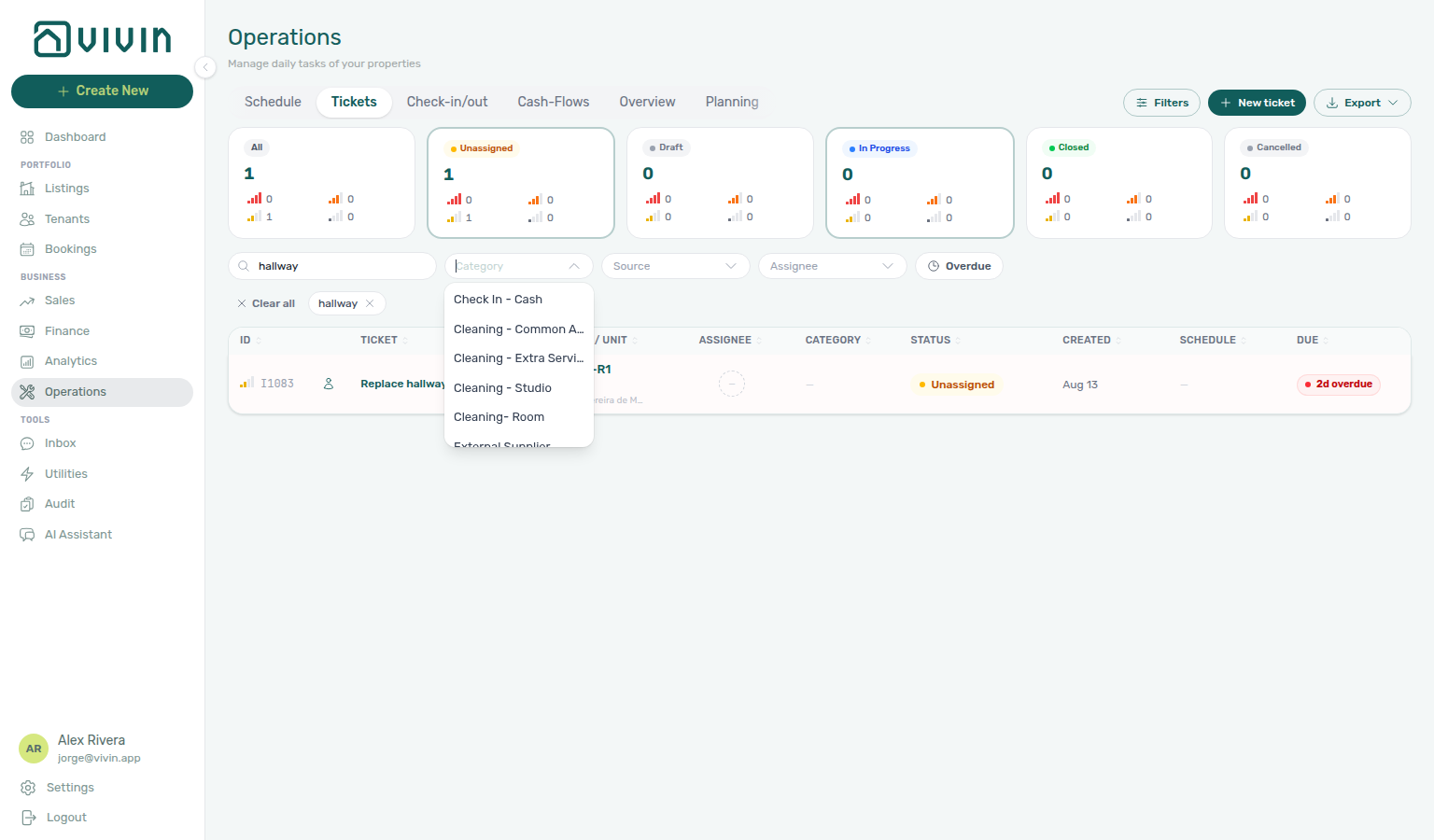
Category stays open while you pick
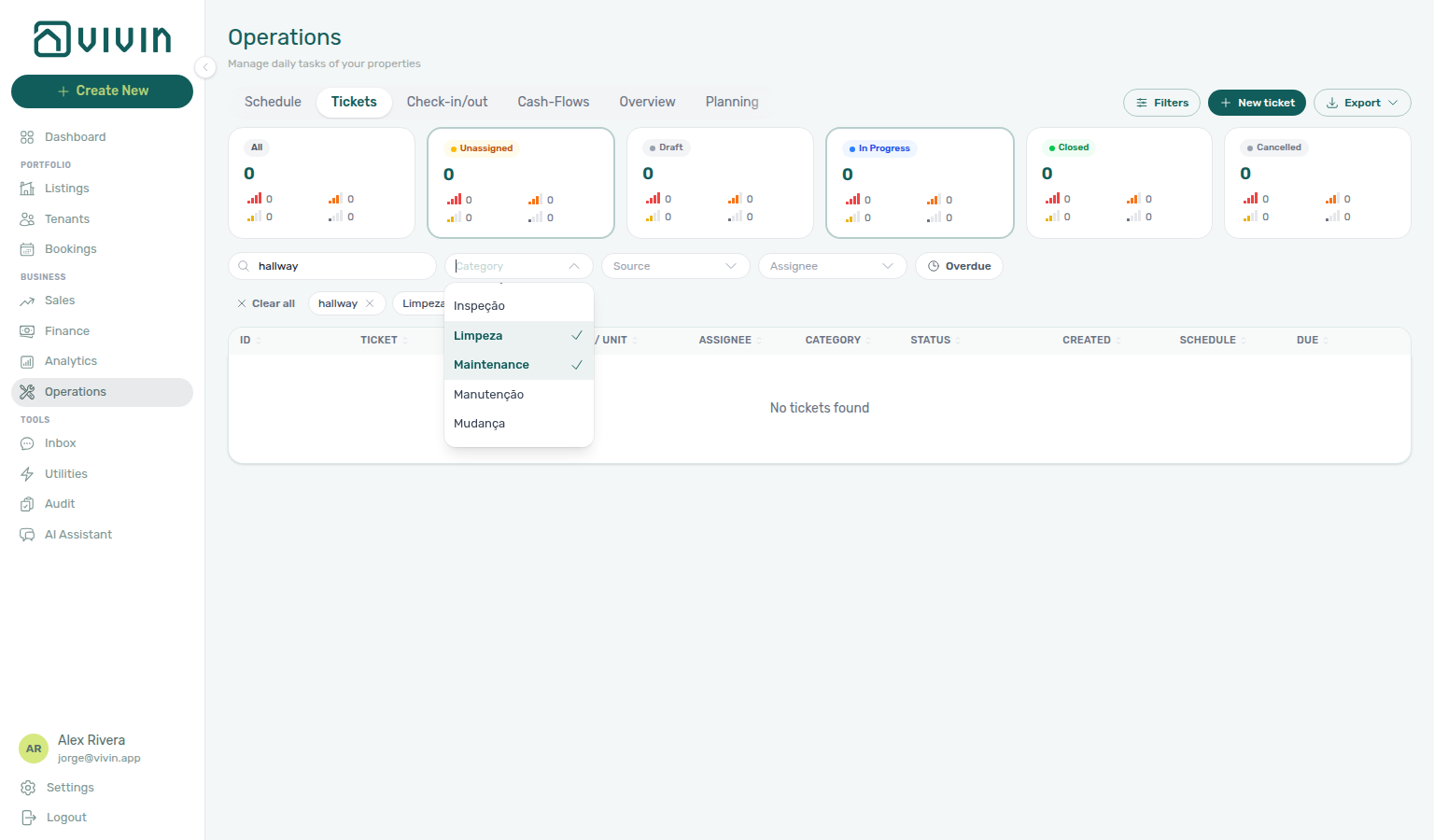
Open Category, then tick a type. The queue recounts and a chip appears under the toolbar; the menu stays open so you can tick a second type. You do not need to open Category again.
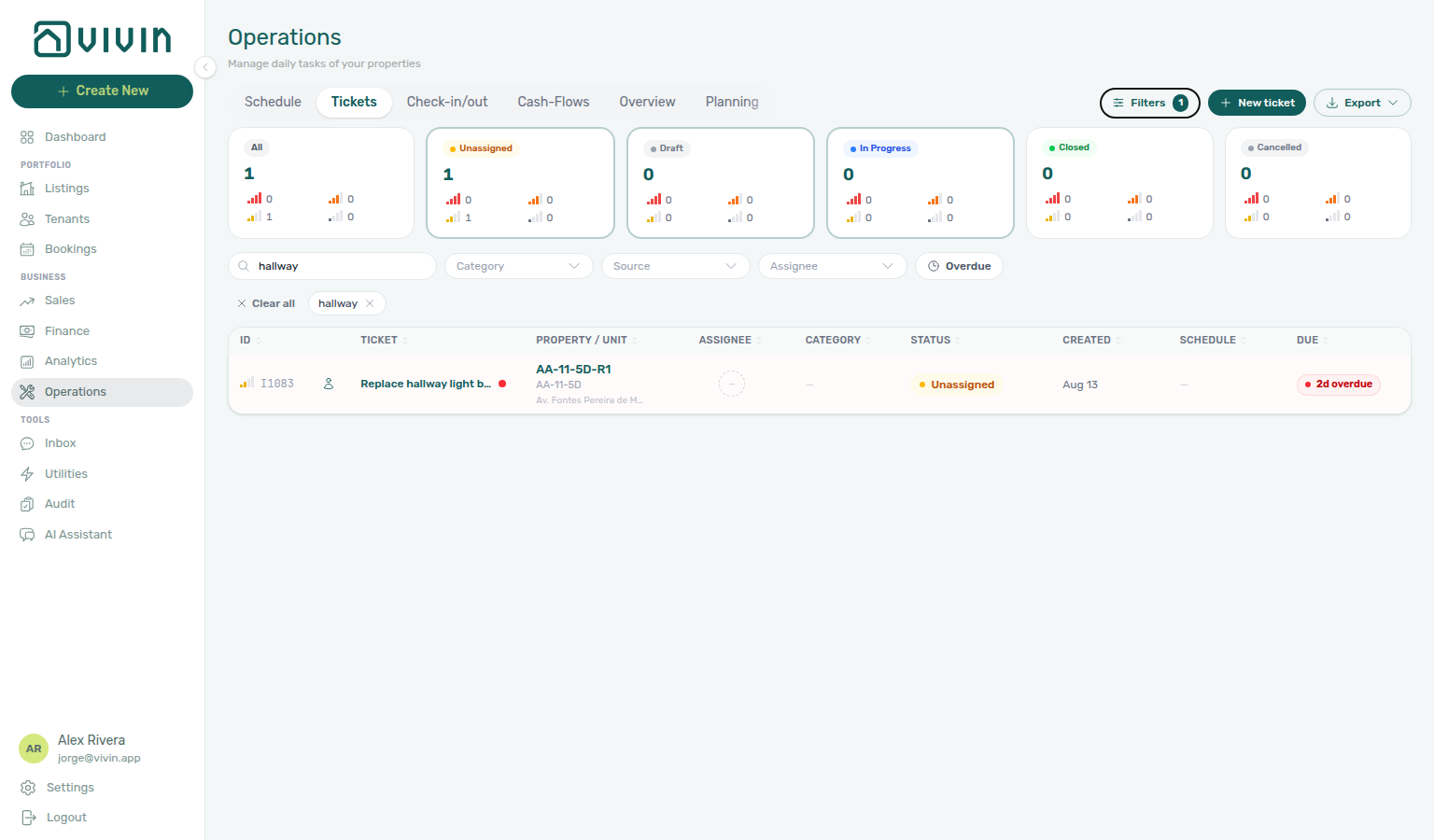
Search the queue first when you want a known row in view (for example hallway), then open Category. Tick Limpeza, then Maintenance. Both stay checked in the open list. Dismiss the menu when the chips look right — same stay-open habit as Source and Bookings — Select properties.
Source stays open while you pick
Open Source on the Tickets toolbar, then tick a channel. A chip appears under the toolbar; the menu stays open so you can tick a second channel. You do not need to open Source again.
| Channel | What you get |
|---|---|
| Tenant portal | Tickets tenants opened in the portal |
| Chatbot | Tickets opened from the chatbot |
| Tenant (all channels) | The generic tenant source — not a shortcut that also includes portal and chatbot |
| Internal Team | Tickets your staff created |
| Automatic - Check-in/out | Automatic check-in and check-out prep tickets |
| Automatic - Recurring | Automatic recurring tickets |
Tick Tenant portal, then Chatbot, when you want inbound tenant reports from both surfaces. Add Tenant (all channels) in the same open list if you also want the generic tenant source. For turnover prep, tick Automatic - Check-in/out, then Internal Team, so auto rows and staff-created work stay in one view. Dismiss the menu when the chips look right — same stay-open habit as Category and Assignee.
Assignee stays open while you pick
Open Assignee on the Tickets toolbar, then tick a teammate. A chip appears under the toolbar; the menu stays open so you can tick a second teammate. You do not need to open Assignee again.
The menu lists people you can assign maintenance work to (the name as it appears on tickets). Tick the first name, then a second name. Both stay checked in the open list. The queue shows tickets assigned to any of the people you picked. Dismiss the menu when the chips look right — same stay-open habit as Source and Category.
Ticking names here only filters the list. It does not change who is assigned on a ticket — open the ticket sidebar to change the assignee.
Filters → Responsible is a different control: one person at a time. Use toolbar Assignee when two teammates should stay in one view.
Unassigned tickets stay on the Unassigned status card. They are not an option in this menu.
Check-in & Check-out Responsible is a different control on a different tab (names already on a handover). Audit → Created by is a different control on Manual Blocks (who created a hold). If your role only shows tickets assigned to you, the queue stays scoped to you.
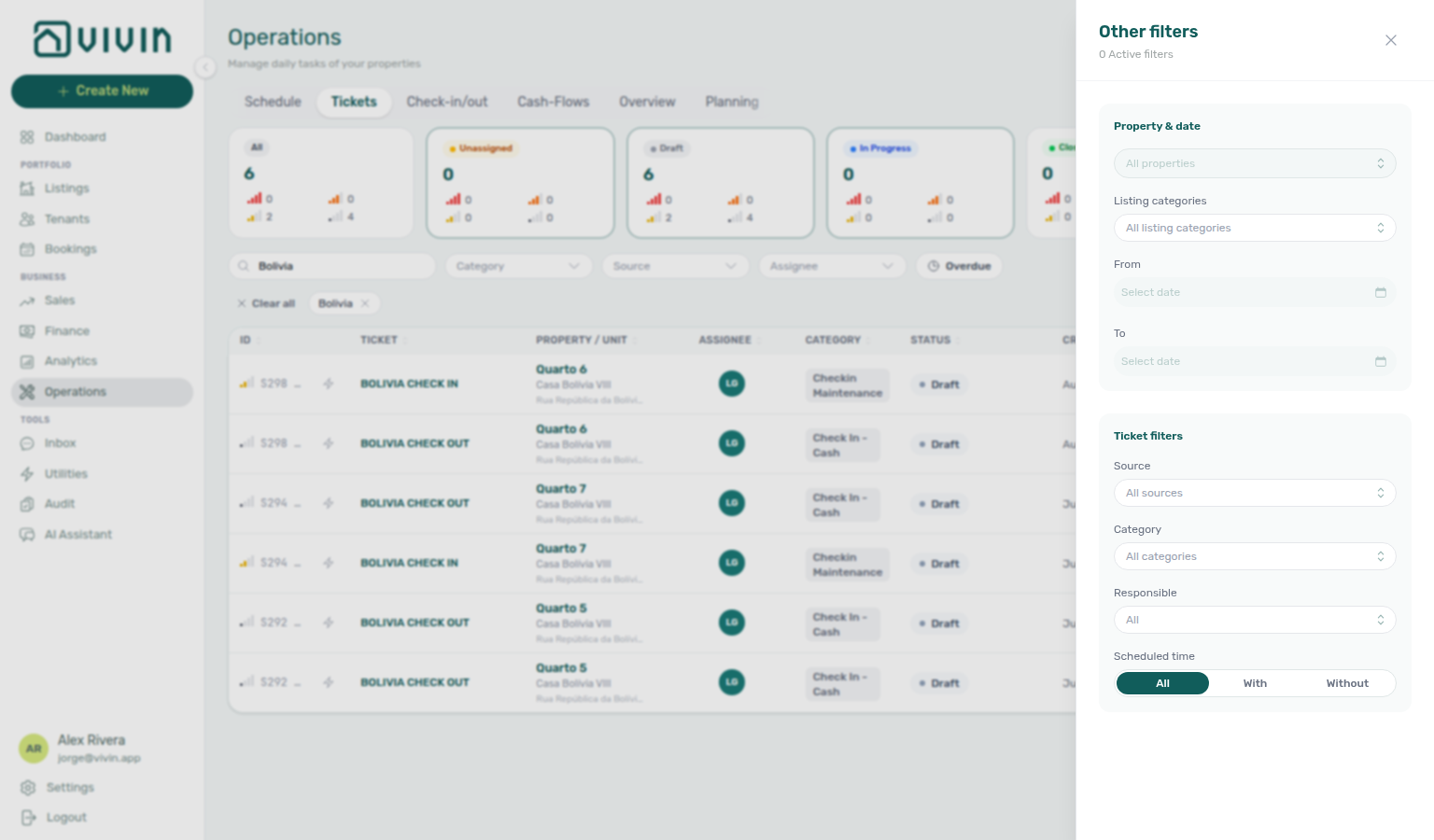
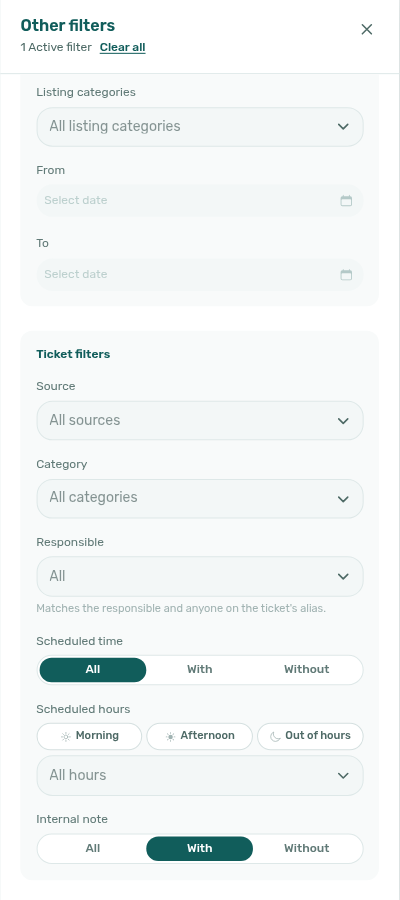
Open Filters in the Operations tab bar to use the Other filters drawer for finer control on the Tickets tab (property and listing-category scope is shared with other Operations tabs — see Overview and Listing categories filter):
- Property (multi-select) — add buildings one at a time; clear individual selections from the dropdown or use Clear all filters at the bottom of the drawer. The property list uses natural numeric sort on internal names (for example Room 2 before Room 10). Selected buildings appear as removable chips inside the Other filters drawer (desktop) and on the Tickets toolbar (mobile).
- Listing categories — multi-select listing tags under Property & date when you want a team or neighbourhood slice without picking every building.
- Optional created date range (From / To) in the Property & date block
- Source, Category, and Responsible — multi-select in this drawer, matching the Tickets toolbar lists. Leave a control empty for all. Drawer Source labels match the toolbar channels (Tenant (all channels), Tenant portal, Chatbot, Internal Team, plus automatic check-in/out and recurring). Category uses the same Settings catalog as the toolbar Category filter. When the account has no category catalog, Category is a single text box. Toolbar Source, Category, and Assignee menus still stay open while you add another value
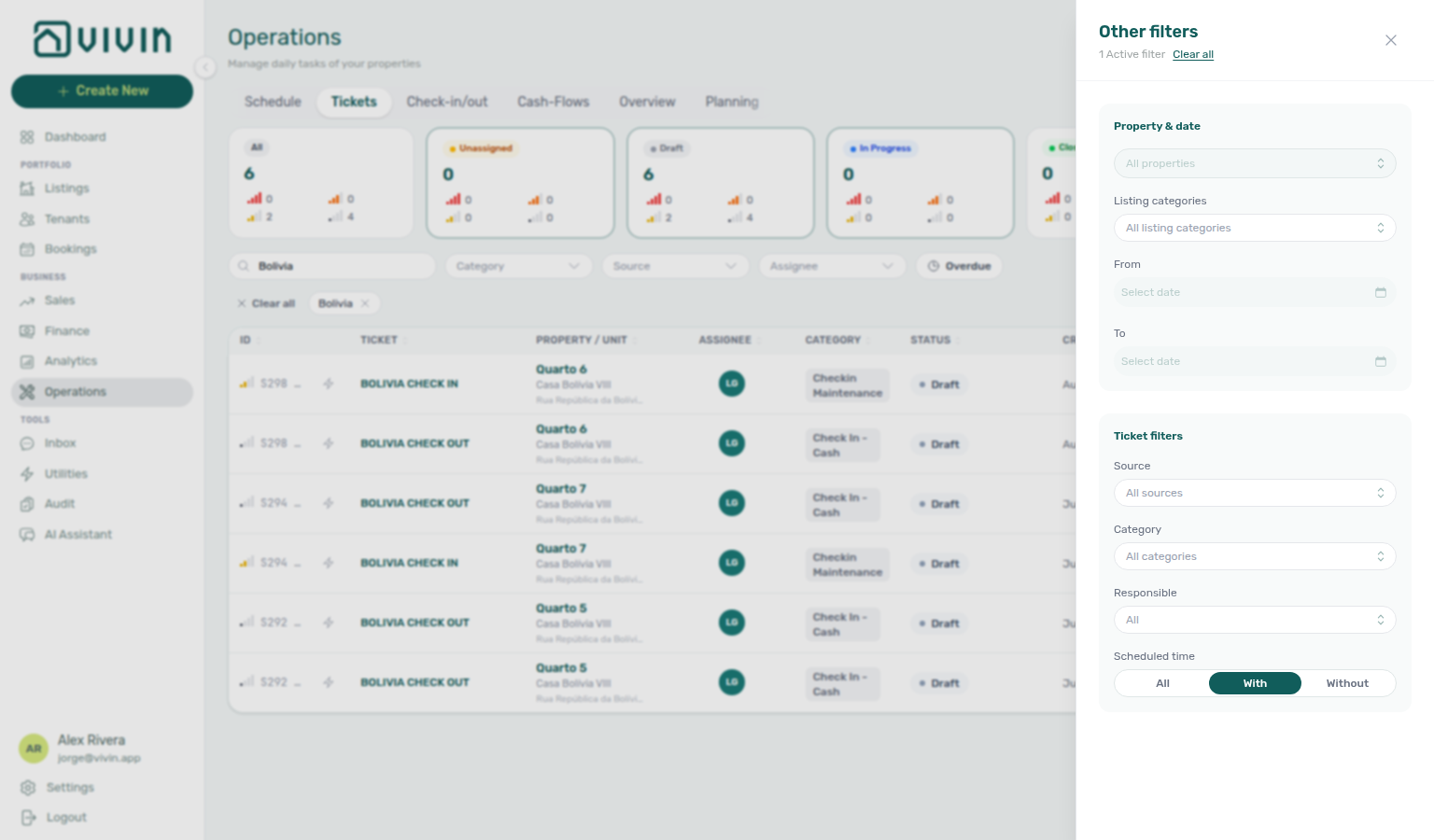
- Scheduled time — All, With, or Without a clock time on the ticket (same vocabulary as Check-in & Check-out — Scheduled time). See Schedule hour on the list
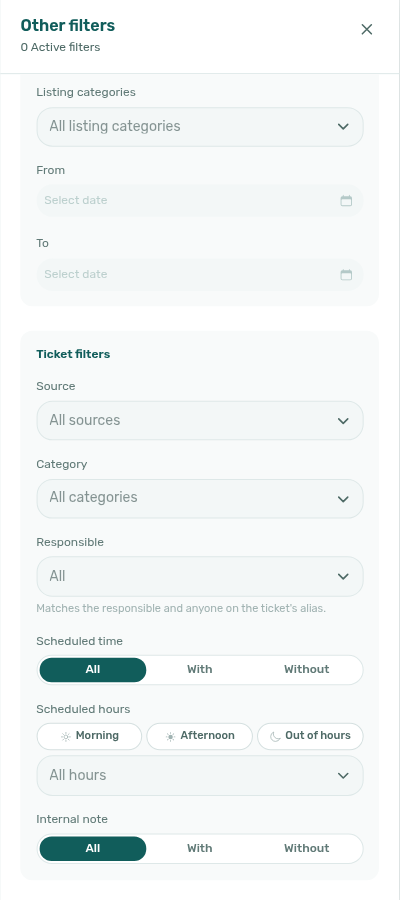
- Internal note — All, With, or Without resolution text on the ticket (same All / With / Without pattern as Scheduled time). See Internal note filter and sort
- Overdue only — show tickets whose due date is before today (same control as the toolbar Overdue toggle — see Overdue filter and status cards)
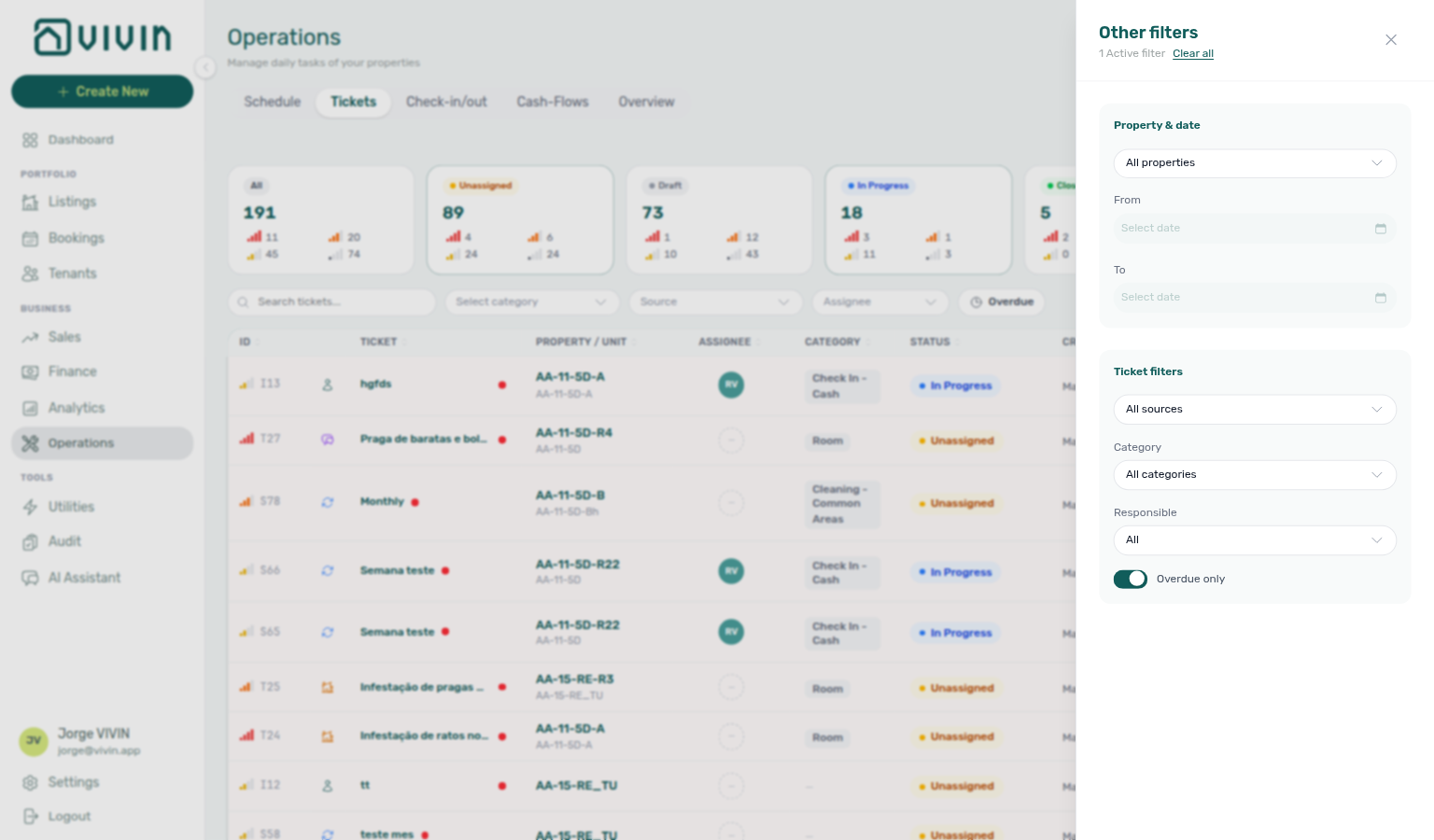
The capture shows the drawer title Other filters, the Property & date block, and the Ticket filters section including Overdue only (with the toolbar Overdue chip active on the list behind the drawer).
Schedule hour on the list
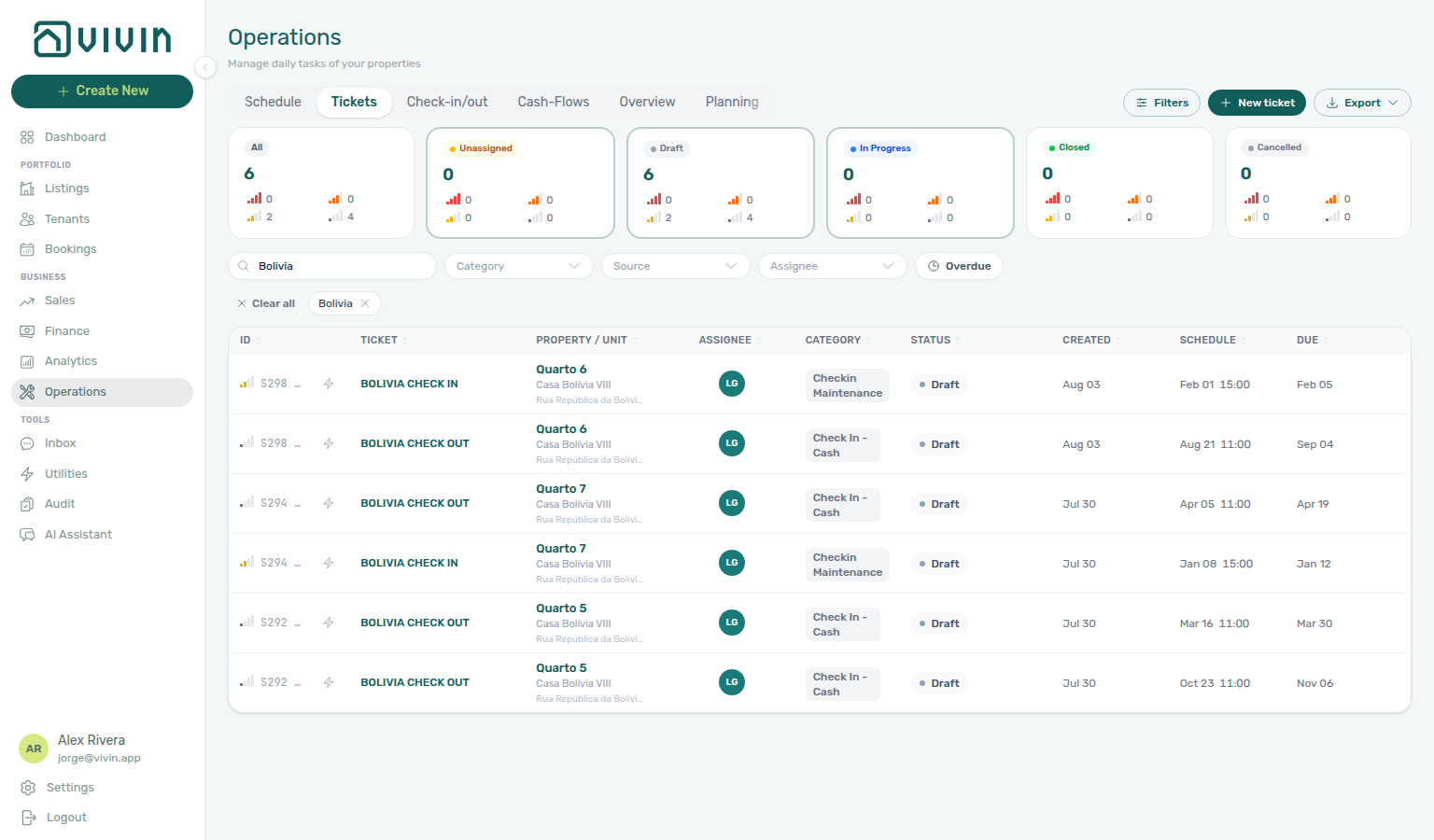
The Schedule column shows the planned start date. When the ticket also has a clock time, that hour appears next to the date (for example Feb 01 15:00). The list and Planning use the same rule: a day task with no hour stays date-only — it is not treated as having a scheduled time.
The Tickets table defaults to Unassigned and In Progress. Long-lead jobs (a Schedule date more than 30 days ahead) sit under Draft. Click the Draft card when you want those rows in view — check-in and check-out prep with a clock time still shows that hour.
Search a building first when you want a known house in the list (for example Bolivia for Casa Bolívia VIII). Open Draft, then read the Schedule column.
Other filters → Scheduled time narrows the queue the same way as Check-in & Check-out:
| Choice | What you see |
|---|---|
| All | Every matching ticket, with or without a clock time |
| With | Only tickets whose Schedule column shows an hour |
| Without | Tickets with no clock time — unscheduled rows (a dash in Schedule) and day tasks without an hour |
With and Without are a complete split: a ticket appears in one or the other, never both. Status cards recount with the list. Combine Scheduled time with drawer Source, Category, or Responsible (multi-select), or use the toolbar menus when those filters are already open.
Internal note filter and sort
Turn the Internal note column on under Personal Settings → Operations ticket columns when you want to read or sort notes in the table. The Other filters → Internal note control works even when that column stays hidden.
The ticket Internal note is the resolution text your team saves while closing or updating work — it is not visible to tenants, and it is not the booking Internal Notes chat thread.
Other filters → Internal note (under Ticket filters, below Scheduled hours) narrows the queue the same way as Scheduled time:
| Choice | What you see |
|---|---|
| All | Every matching ticket, with or without a note |
| With | Only tickets that have a non-blank Internal note |
| Without | Tickets with no note (empty or whitespace-only counts as no note) |
With and Without are a complete split: a ticket appears in one or the other, never both. Status cards and the toolbar Filters badge recount with the list. Clear all in the drawer (or clearing the filter) returns to All.
When the Internal note column is visible, click its header to sort A→Z, then Z→A, then clear the sort — same cycle as other sortable columns. Blank notes sort last in both directions. If you turned on Show Notes instead of Ticket, the header still sorts the same note field under the Notes label.


See FAQ — How do I find tickets that have an internal note? and Glossary — Internal note filter (Operations Tickets).
Overdue filter and status cards
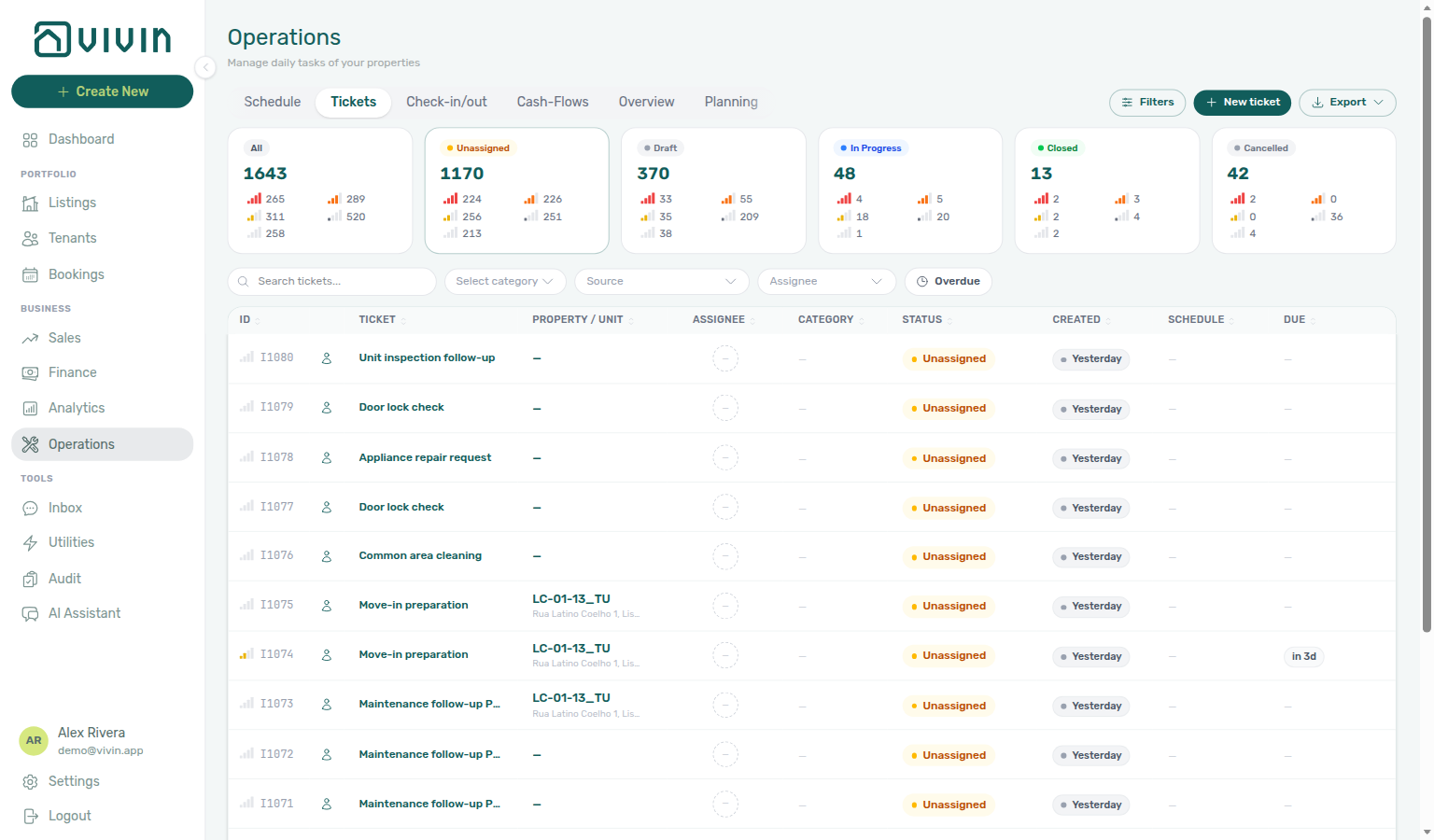
Use the toolbar Overdue toggle (or Other filters → Overdue only) when you want the late queue only. The same Operations-level value turns on when you click the Overview Overdue KPI card — there is one overdue control for the module, not a separate Overview preset. Vivin applies that filter server-side to both the ticket table and the status summary cards (All, Unassigned, Draft, In progress, Closed, Cancelled), so a non-zero card always opens rows that match the active overdue slice. The rows in that slice are the same tickets the Overview card counts: open work past the SLA due date, not unprioritized tickets whose schedule date is already in the past.
| When Overdue is… | What you should see |
|---|---|
| Off | Cards count the full filtered set (property, category, assignee, and so on) — including Draft, Closed, and Cancelled when those exist. |
| On | Cards recount only overdue tickets. Draft, Closed, and Cancelled drop to 0 (overdue work is open SLA work). All equals the sum of the open overdue buckets you still see (typically Unassigned + In progress). The toolbar shows an Overdue chip and Clear all. |
Click a card whose count is greater than zero while Overdue is on — the table below stays in the overdue slice and shows that status. If a card reads 0, there is nothing to open for that combination.
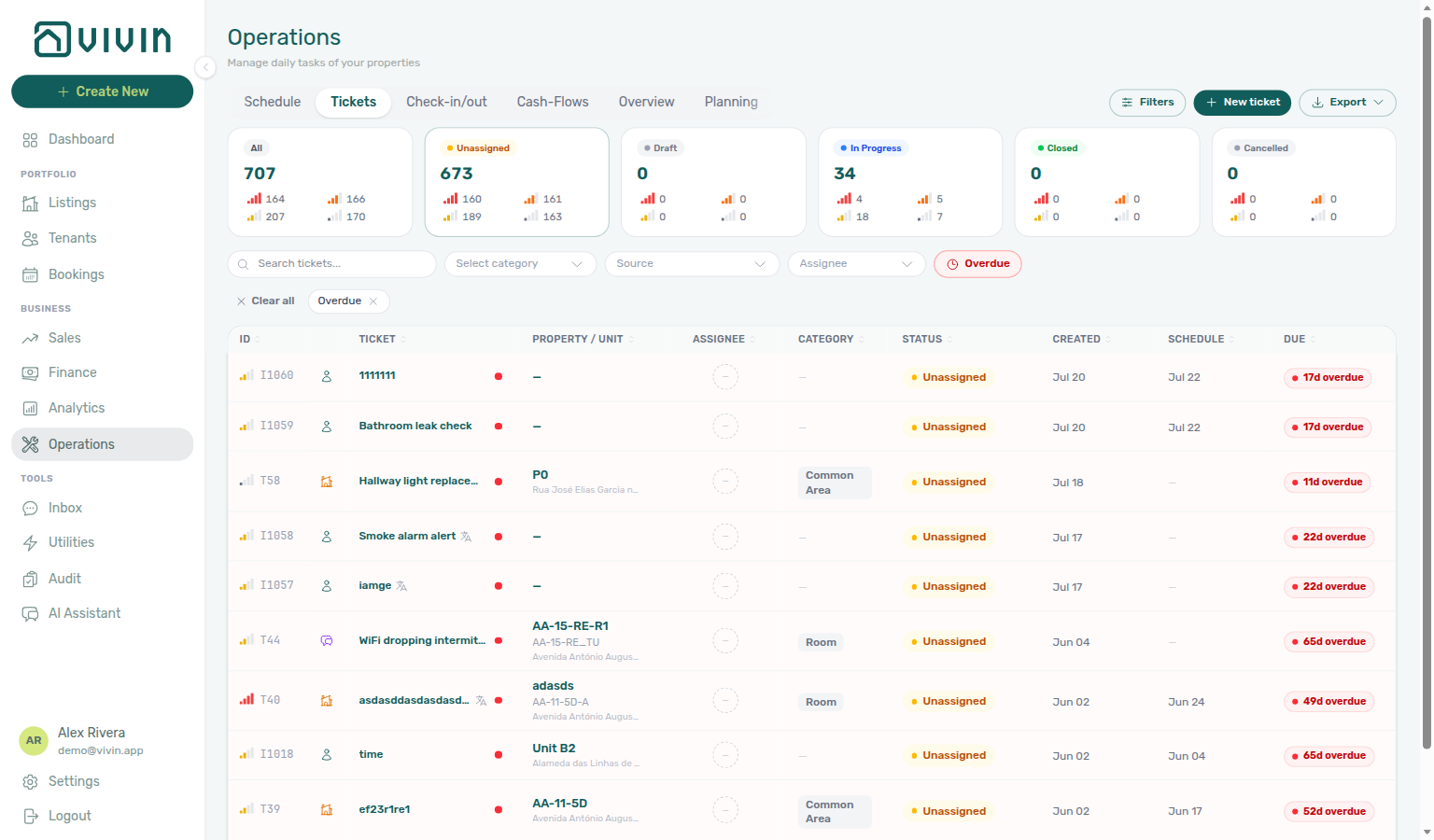
Pair with Status-card priority chips (including None) when you also narrow by priority inside a status card, and with Overview → Overdue KPI card when you jumped here from Overview (operations-overview-overdue-opens-tickets.png, operations-overview-overdue-card-flow.mp4). Ask AI Chat (or WhatsApp Genius) for the same whole-account status totals when you want a count without scanning the table — turn Overdue off first so the cards match Genius All. Enable Maintenance on AI / MCP (ai-chat-ticket-status-counts-reply.png, ai-chat-ticket-status-counts-flow.mp4).
Status-card priority chips (including None)
Each status summary card (All, Unassigned, Draft, In progress, Closed, Cancelled) shows a compact priority grid under its total: Critical, High, Medium, and Low, plus None when that status bucket includes tickets with no priority set. The chip counts on a card always add up to the card total — so you can reconcile the headline number with the priority mix without opening every row. Ask AI Chat (or WhatsApp Genius) for the same All-card chips when you want the mix without scanning the table (ai-chat-ticket-priority-counts-reply.png, ai-chat-ticket-priority-counts-flow.mp4). Ask for the Unassigned card chips when you want only tickets with no assignee (ai-chat-ticket-unassigned-priority-counts-reply.png, ai-chat-ticket-unassigned-priority-counts-flow.mp4). Ask for the Draft card chips when you want far-future scheduled work (ai-chat-ticket-draft-priority-counts-reply.png, ai-chat-ticket-draft-priority-counts-flow.mp4). Ask for the In progress card chips when you want only currently assigned active work (ai-chat-ticket-in-progress-priority-counts-reply.png, ai-chat-ticket-in-progress-priority-counts-flow.mp4). Ask for the Closed card chips when you want all-time completed tickets (ai-chat-ticket-closed-priority-counts-reply.png, ai-chat-ticket-closed-priority-counts-flow.mp4). Ask for the Cancelled card chips when you want all-time cancelled tickets (ai-chat-ticket-cancelled-priority-counts-reply.png, ai-chat-ticket-cancelled-priority-counts-flow.mp4).
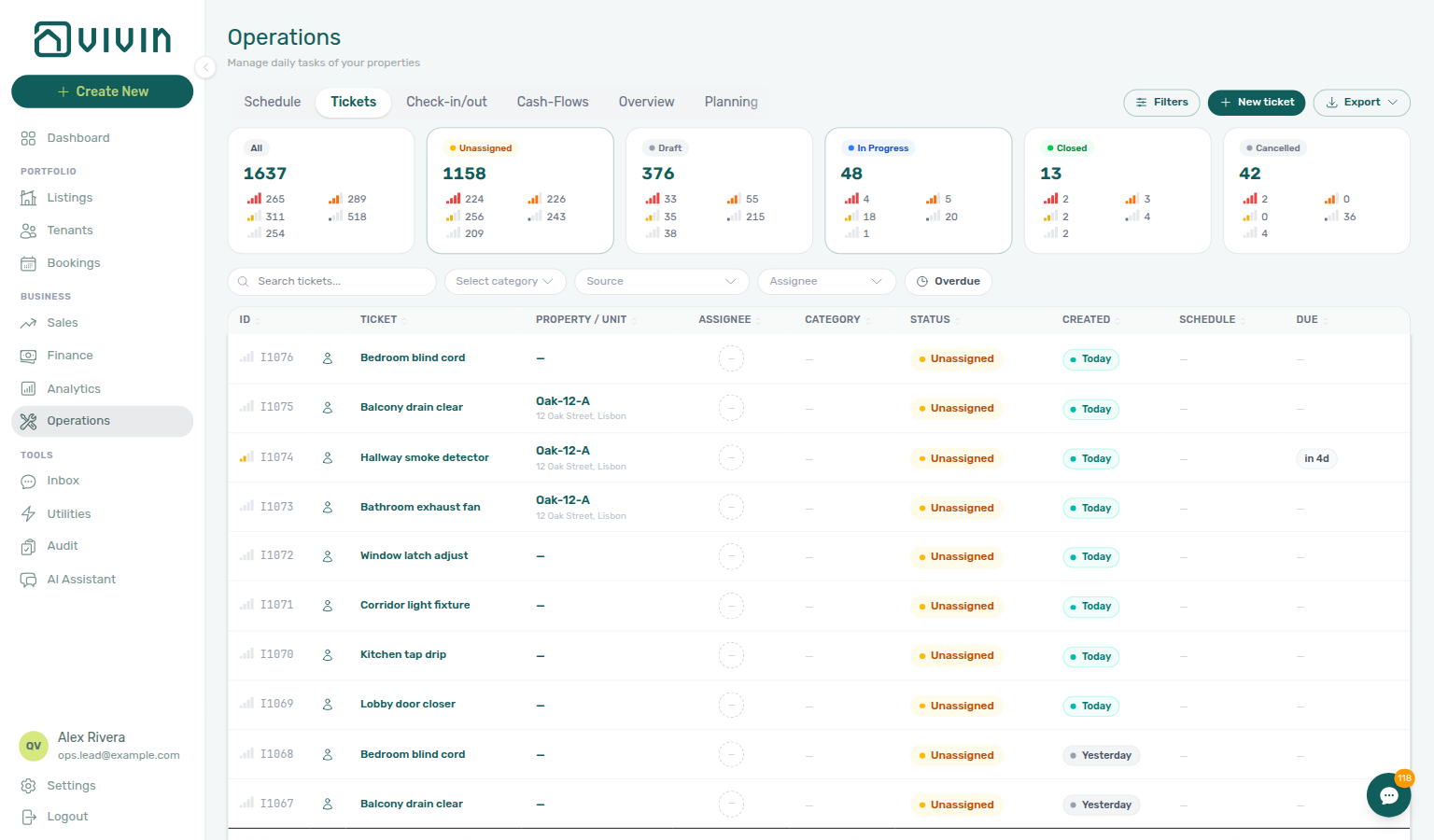
Click a priority chip to filter the table to that priority inside the current status card (and other active filters). Choosing None lists only tickets whose priority is unset; the toolbar shows a None filter chip and Clear priority so you can leave the filter without resetting the whole status card.
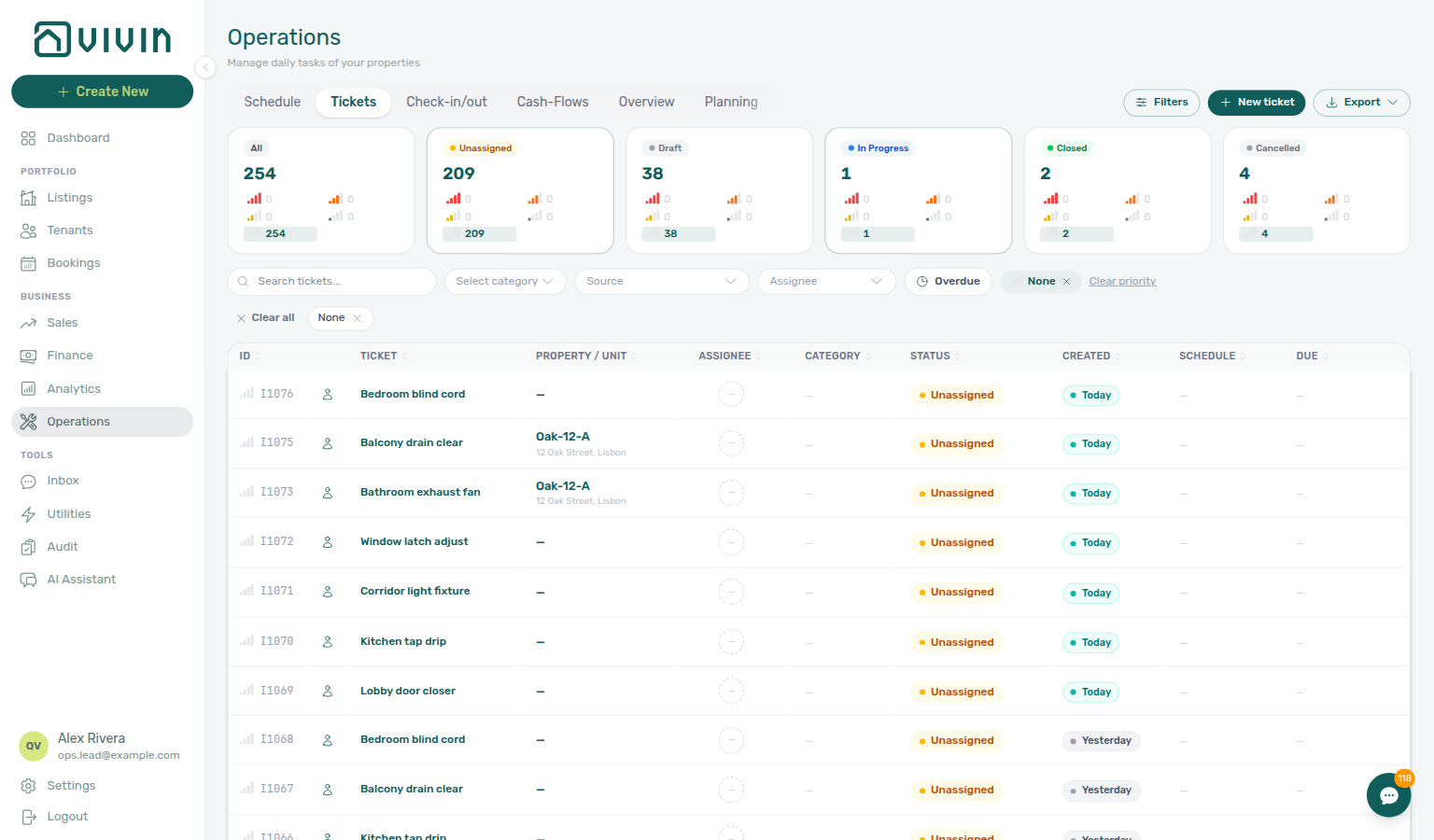
Use None when you are clearing backlog that never received a priority (for example imported or auto-created rows) before you assign Critical–Low from the ticket details sidebar or Settings → Ticket priority triage rules. Priority icons on the chips match the same bar icon used in the ID column and on Planning cards.
Due dates in the list use human-friendly labels where it helps — for example Today, Tomorrow, Yesterday, or an overdue count — so the queue is easy to scan without reading raw dates.
Tickets list loading (infinite scroll)
The ticket table is server-paged like Listings and Bookings: the first request loads about 10 rows, and scrolling near the bottom fetches the next batch (about 5 rows per request). A small loading line appears under the table while the next page is in flight.
| Behaviour | Detail |
|---|---|
| Filters and search | Toolbar pills, Other filters, and debounced Search are sent to the server on every change — the list resets from the first batch when you adjust them. |
| Sort | Column sort (for example Due, Created) is also server-side; changing sort reloads from the top. |
| Status summary cards | The All, Unassigned, Draft, In progress, and related KPI pills at the top use server-side counts for the current filter set — including the toolbar Overdue toggle — so card totals match the table even when you have not scrolled through every loaded page yet. See Overdue filter and status cards. |
| Export | CSV / Excel downloads the full filtered ticket set from the server — not only the rows already scrolled into the on-screen list (see the export note below). |
If this list needs a refresh — Use Retry on the directory refresh card, or reload the page. See Glossary — Directory list refresh.
Users without See all maintenances still see only tickets assigned to them; the same infinite-scroll rules apply to that scoped list.
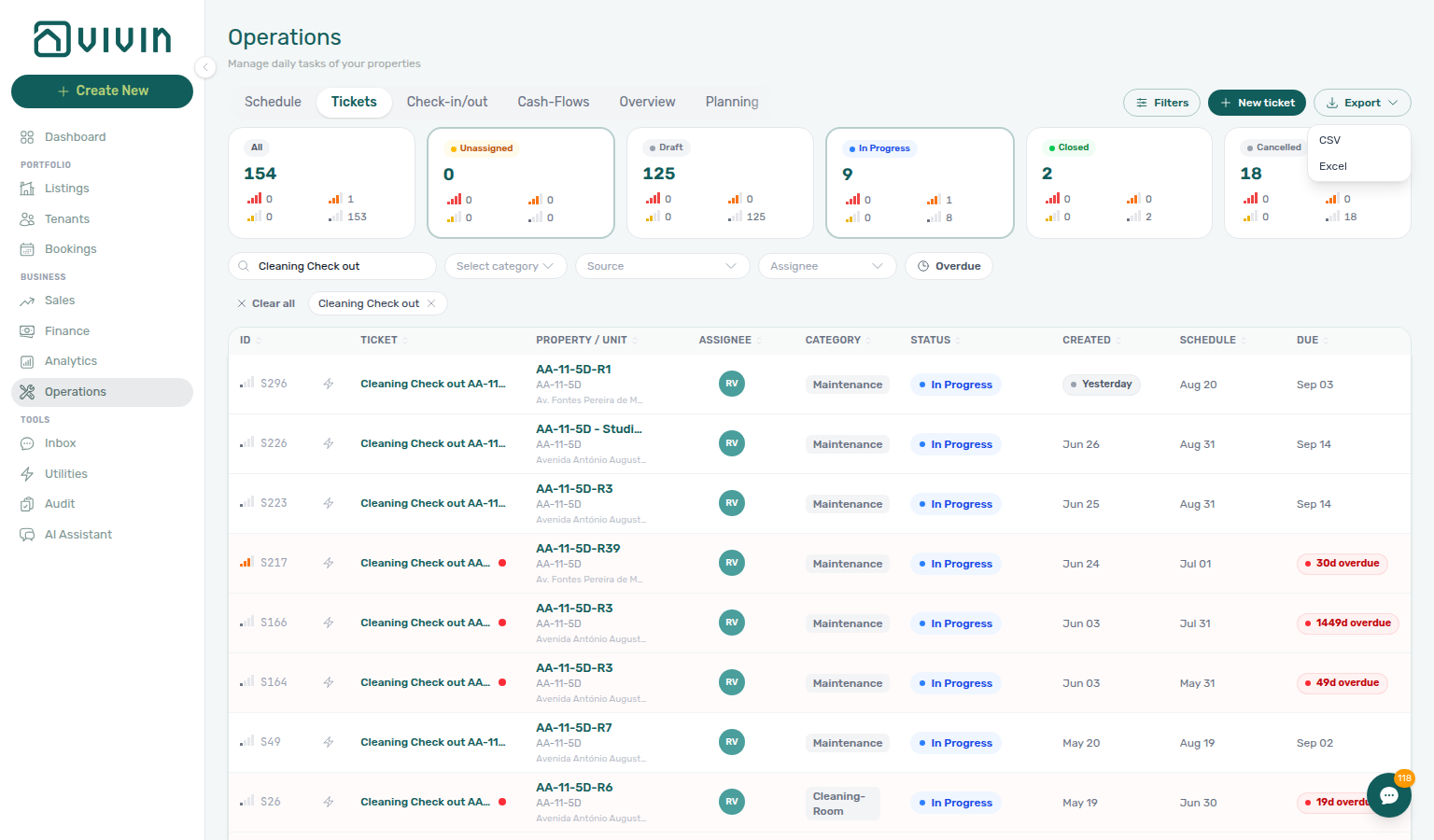
Use Export on the Tickets toolbar to download whatever matches your current filters, search, and sort — not only the tickets visible in the first on-screen page.
Open Export, then choose CSV or Excel (.xlsx). Vivin loads the full filtered ticket set from the server when you start the download (including closed and cancelled tickets that match the filter), then builds the file once that data is ready. On large accounts you may see a brief Exporting… state on the button while the export fetch runs; the on-screen list itself stays paginated for everyday browsing. Downloads use a dated filename: vivin-tickets-YYYY-MM-DD.csv or vivin-tickets-YYYY-MM-DD.xlsx. If nothing matches the current filters, the app shows a no data warning instead of an empty file.
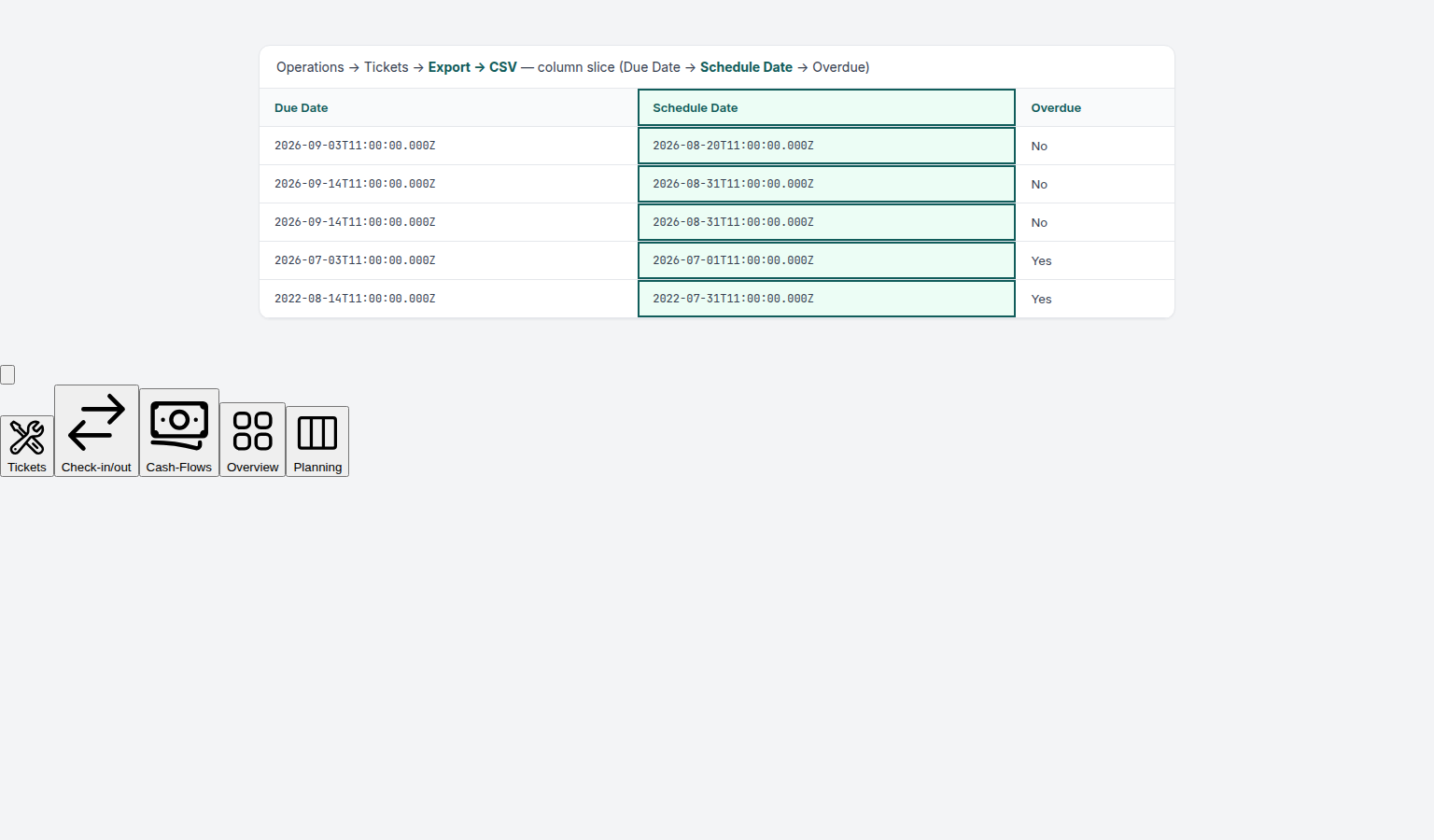
Each row includes the main ticket fields (for example ID, title, description, status, priority, property, unit, category, assignee, due date, schedule date, tenant note, resolution description, overdue yes/no, created, and closed timestamps — with column labels following your interface language.
The Schedule Date column uses the localized header from Tickets → Export (English Schedule Date) — not a raw field or i18n key. It sits between Due Date and Overdue and carries the ticket’s scheduleStart value (blank when the ticket has no schedule). Far-future schedule values still drive the Draft display status on the list; the export always writes the underlying timestamp when one exists.
Creating a Ticket
Click + New ticket (toolbar) or New ticket to open the ticket creation modal.
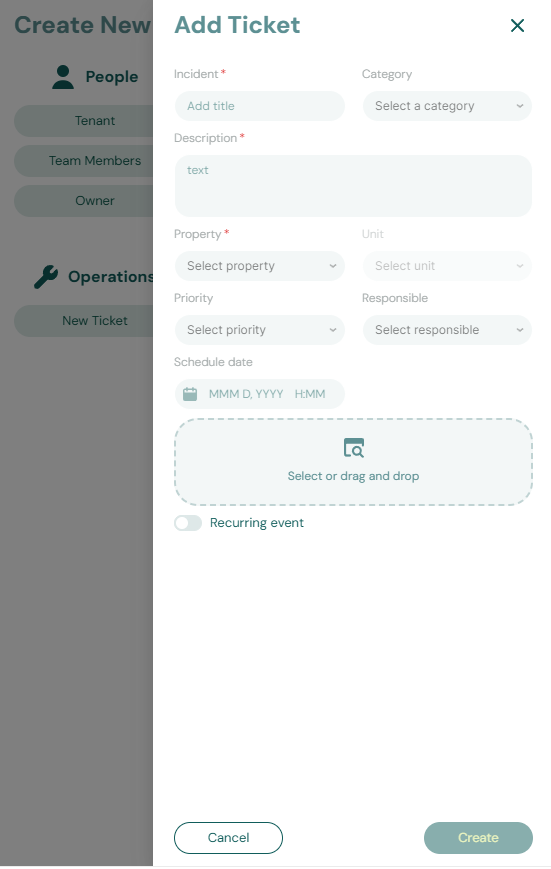
Fill in the following fields:
- Title — a short, descriptive name for the task (required, max 255 characters). Leaving it blank and clicking Create ticket shows Title is required under the field and does not create a row. The API also rejects empty titles on
POST /maintenance, and both create and update reject titles longer than 255 characters. - Property and Unit — where the task needs to be done. Both pickers are server-paged: open Property to search and scroll for buildings (large portfolios load in batches instead of one dropdown dump). After you choose a property, Unit lists only that property’s listings with the same search-and-scroll pattern. Common area ticket categories hide Unit because the task applies to shared space, not a single listing. You do not need the Listings module permission to fill these pickers when creating or filtering tickets — Operations (and other module) roles on the shared picker allowlist can search properties and units without opening Listings.
- Category — the type of task (configured in Settings > Categories > Tickets). Ticket category options load from a dedicated maintenance-settings route so Operations roles can populate Category without Account Settings access.
- Priority — Critical, High, Medium, Low, or leave unset (None on status-card chips and filters until you choose a level)
- Assigned To / Responsible — the team member responsible
- Schedule Date / Schedule Time — when the task should run (optional)
- Description — detailed instructions or notes for the assignee (required in the modal)
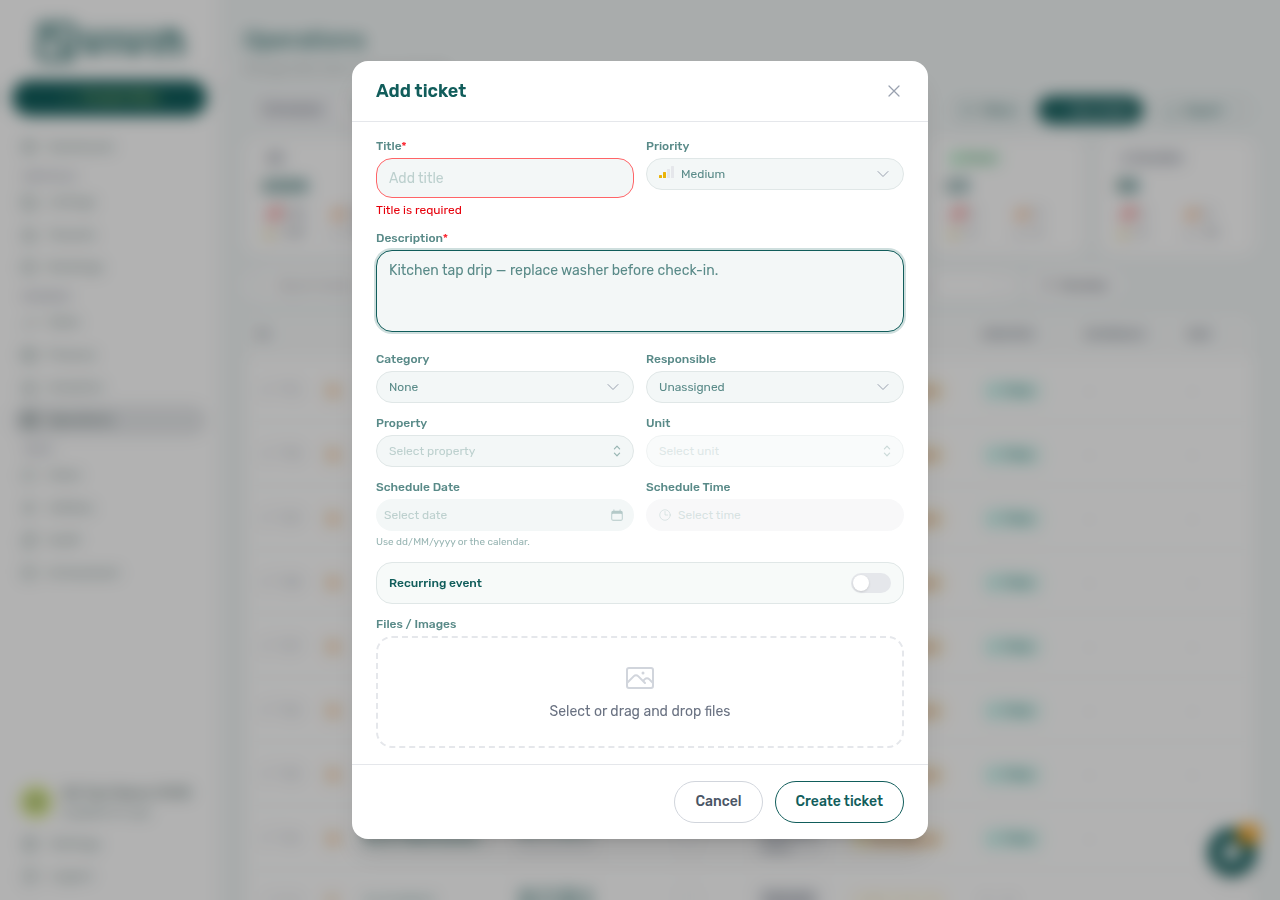
Click Create ticket to save. The assigned team member will receive a notification when a responsible user is set.
Assignment email See ticket
When you set (or clear) a Responsible user on a maintenance ticket, Vivin can email that person about the assignment (and related unassigned-ticket alerts). Those messages include a See ticket button that opens /operations/tickets?ticket=<ticketId> — the Tickets tab with this ticket’s Ticket details sidebar already open. After the sidebar loads, the query param drops from the address bar so you stay on /operations/tickets.
Use the button from your mailbox when a colleague assigns work mid-shift — you land on the same sidebar you would open by clicking the row in the table. Bookmark or paste the same URL pattern when handing off a specific ticket in chat. This path is for Operations maintenance tickets only; Vivin product-support assignment emails use a different See ticket link into the Help & Support surface.
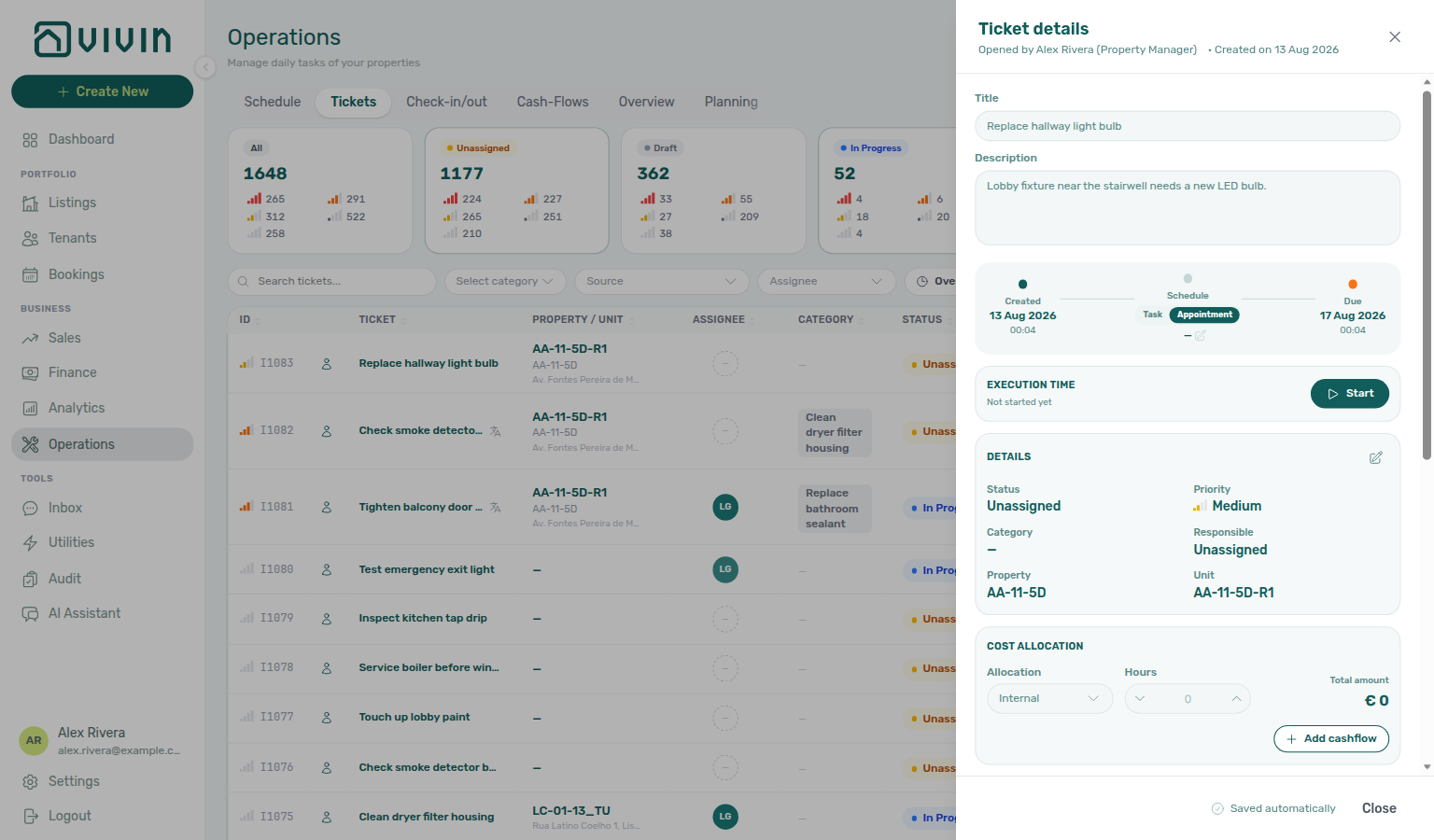
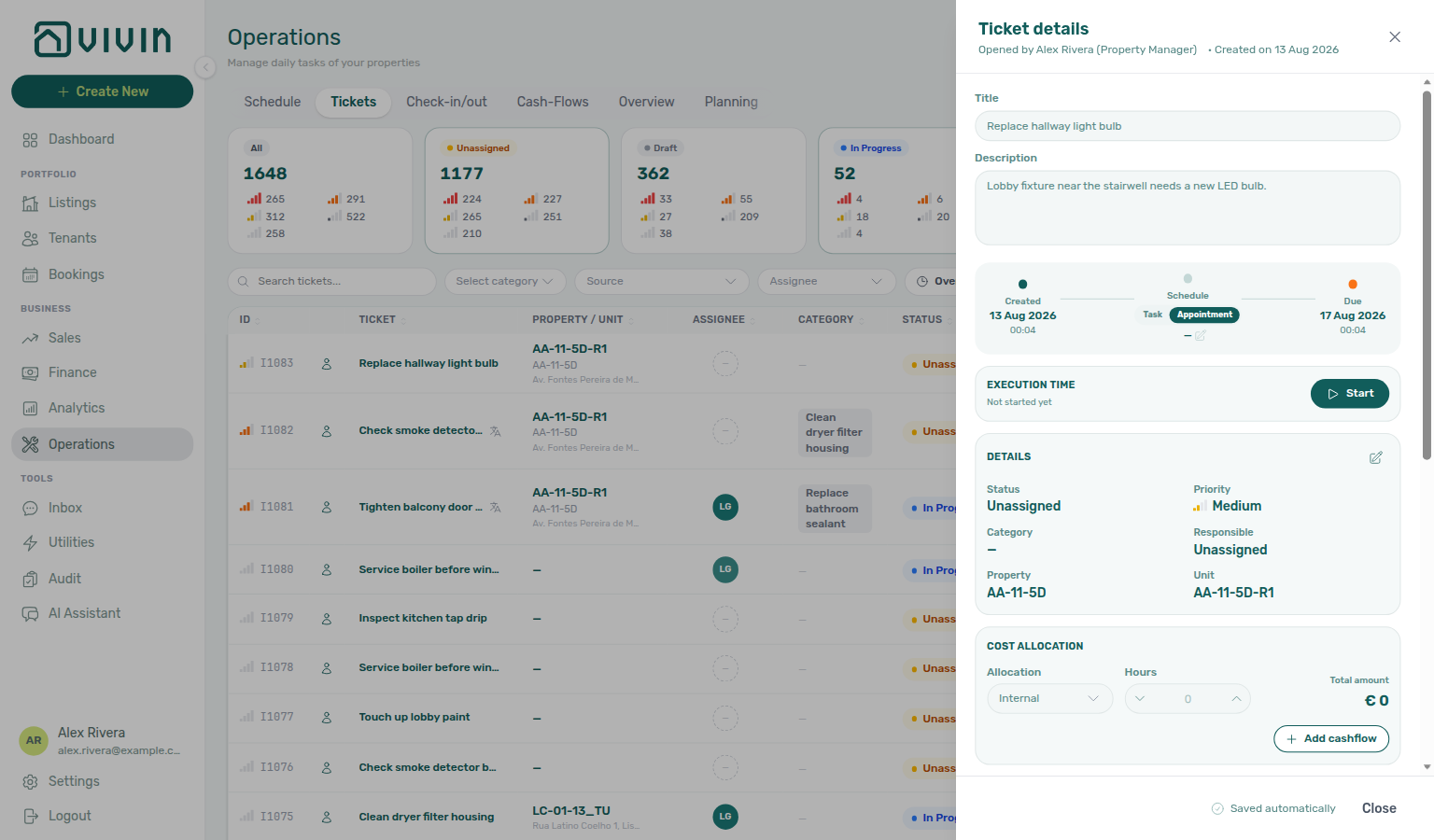
Route reference: Deep Links — Ticket email deep link. FAQ: See ticket from a maintenance email.
Automatic check-in/out tickets and unit moves
Automatic check-in/out tickets (source automatic check-in/out) carry a PROPERTY / UNIT value on the Tickets list so Operations can dispatch to the right room. When you Change unit on a booking before check-in, Vivin re-points active automatic tickets to the new unit in the same save. Search or filter by property / title (for example a cleaning check-out label) and confirm the unit column after a move.
Ticket details sidebar
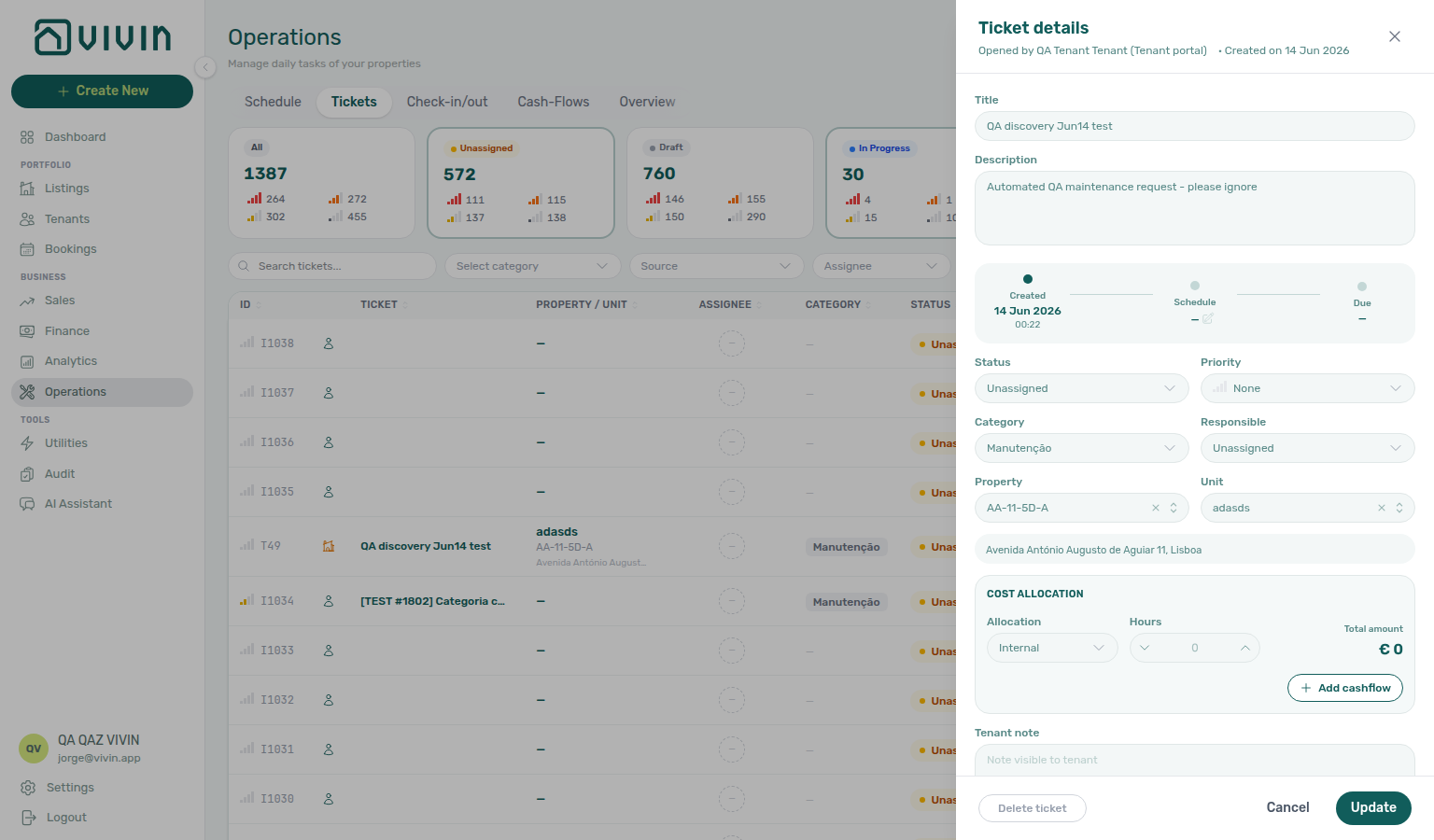
Click any row in the Tickets table (or a bar on the Schedule timeline) to open the Ticket details panel on the right. This is where operators edit the live ticket — distinct from Vivin support tickets under Account Settings.
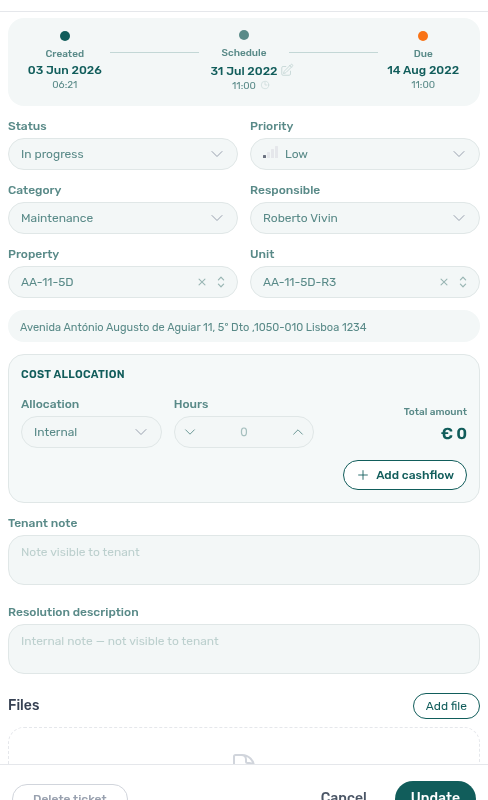
The sidebar typically includes:
- Header — title, source (tenant portal, chatbot, property manager, automatic check-in/out, and similar), and created / closed timestamps
- Inline fields — status, priority, category, assignee, property and unit, due date, schedule date, and description
- Cost allocation — split repair or service cost across Owner, Tenant, and Internal buckets, link operational cash flows, and review totals before you save (see Linking cash flows to a ticket below)
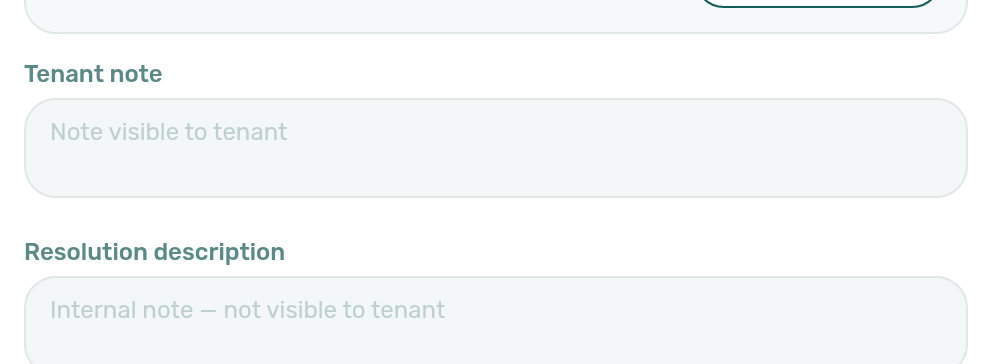
- Tenant note — optional free-text note visible to the tenant when the ticket originated from or is shared with the tenant portal (placeholder: Note visible to tenant). Use it for instructions or status the tenant should read on the portal.
- Resolution description — optional internal-only note for how the issue was resolved (placeholder: Internal note — not visible to tenant). Record vendor names, root cause, or handover context for your team without exposing it on the tenant-facing side. Not included in the Tickets toolbar search index.
Tenant note is the only free-text field on the ticket that tenants may see when the ticket is shared with the portal. Resolution description never appears on the tenant side — use it for internal handover, vendor references, or root-cause notes your team needs after close.
- Files — attach photos or documents; use Add file for evidence
- Timeline — chronological audit trail for this ticket (newest first). Each row is a plain-language line from the ticket’s change log (for example Ticket created by …, status or priority updates, assignee changes, and comment-related events) with a locale-formatted timestamp. The Tickets list API omits these entries for performance — open the ticket sidebar (or refresh after an edit) so the detail request loads
entityChangeLogEntries. When nothing is logged yet, the panel shows No activity recorded yet.
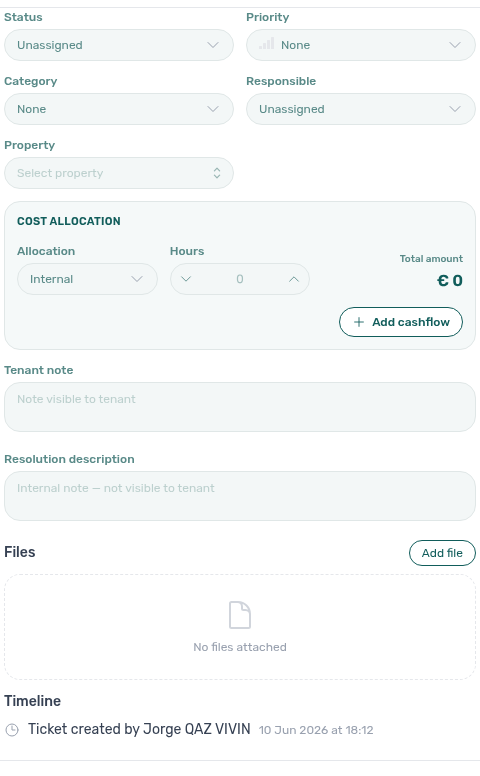
The capture shows a ticket with multiple logged events (creation, status or assignee updates, and related workflow lines). Scroll the sidebar to Timeline after opening a row — it sits below Files and above the sticky Update control. When a ticket has no change-log rows yet, the panel shows No activity recorded yet. instead of an empty list.
Linking cash flows to a ticket
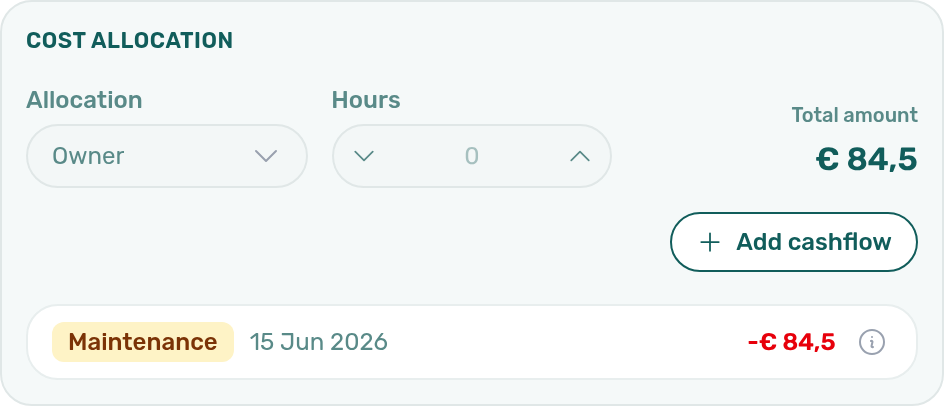
The Cost allocation panel in the ticket sidebar connects maintenance work to the Cash Flows ledger:
| Control | Purpose |
|---|---|
| Allocation | Dropdown — classify who bears the cost (Owner, Tenant, Internal, and other values configured for your account). |
| Hours | Optional labour hours (stepper + free-text field) for time-based jobs. |
| Total amount | € headline on the right — when one or more cash flows are linked, this is the signed net of those rows (inflows add, outflows subtract). When nothing is linked yet, the figure follows the ticket’s stored total. |
| + Add cash flow | Opens Add cash flow with this ticket pre-selected (maintenanceRequestId filled). Save the new expense from the modal; it appears in the linked list and on the Cash Flows tab. |
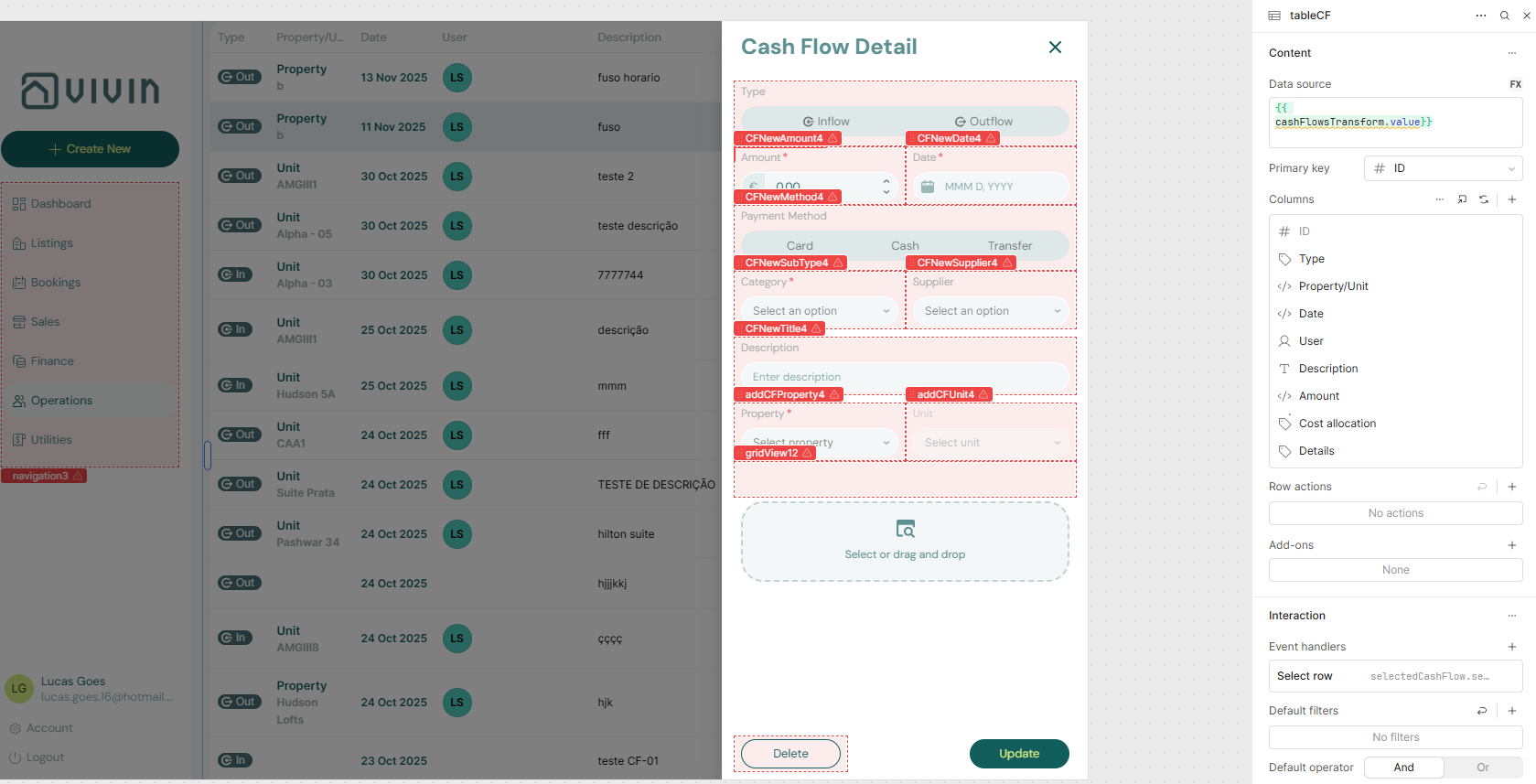
| Linked rows | Each linked entry shows category (amber chip), date, and amount (green for inflow, red for outflow). Click a row (or press Enter / Space when focused) to open the same Cash flow detail sidebar used on the Cash Flows tab — preview attachments, edit fields, or review payment method without leaving the ticket. |
| Info icon on a row | Hover or focus the i control for a tooltip with type, payment method, supplier, description, and attachment count. |
Linked cash flows persist on the ticket record. The Tickets list API may omit full cashflows arrays for performance — opening the ticket sidebar (or refreshing after you add a link) loads the complete set from GET /maintenance/:id.
Use the sticky Update control at the bottom to persist edits. Closing the panel returns you to the list without leaving the Operations module.
Managing Ticket Priority
Priority levels have configurable default SLA deadlines set in Settings → Preferences → Ticket Priorities. For example, Critical tickets might have a 1-day deadline while Low tickets might have 7 days. Vivin adds those hours to the ticket’s Schedule date (or opened/created date) to compute the due date used by Overdue. There is no separate due-date field on the ticket — change Schedule, priority, or the account SLA hours. Tickets with no priority yet appear under the None chip on status-card priority grids until you set Critical–Low in the sidebar; until then they stay out of the overdue count.
Keyword → priority rules, Exception Rules, and optional AI suggestions from past tickets live on Settings → Ticket priority (/settings/ticketPriority) — used when the tenant chatbot triages new maintenance tickets. How matching, exceptions, and the life-safety floor combine: How priority is decided. Confirmed AI runs meter as ticket_priority_analysis on the AI usage API.
Cost Tracking
Each ticket supports cost tracking from report to resolution:
- Record the cost of repairs or services directly on the ticket.
- Attach photo evidence and notes for full context.
- Track the workflow status from initial report through to completion.
- View cost history per property or vendor for budget planning.
Tickets without an assignee appear in the Unassigned tab on the Dashboard. Managers should review unassigned tickets daily and delegate them promptly.
Automatic Ticket Creation
You can configure the system to automatically create tickets when check-ins or check-outs occur for a property. This is set up in the Maintenances Tab of the Property edit view (see Maintenances Tab).
For example, you might configure an automatic "Pre-arrival Cleaning" ticket to be created 2 days before every check-in, assigned to your cleaning team with High priority.
On Add booking, operators can skip automatic CI/CO tickets for one reservation without changing the property rule — turn off Use unit contract rents and other contract details on the rent step, then uncheck Create check-in ticket and/or Create check-out ticket. Marketplace POST /bookings cannot send this skip — imported stays follow the property rule — Creating Bookings — Maintenance tickets. See Glossary — Per-booking maintenance ticket opt-out and Bookings — Creating a New Booking.
Check-in & Check-out Tab
Turnover rows pair with Managing a Check-in / Managing a Check-out; clear payment overdue before key handover — scope by Bookings — Tenant categories or Tenants — Tenant category filter.
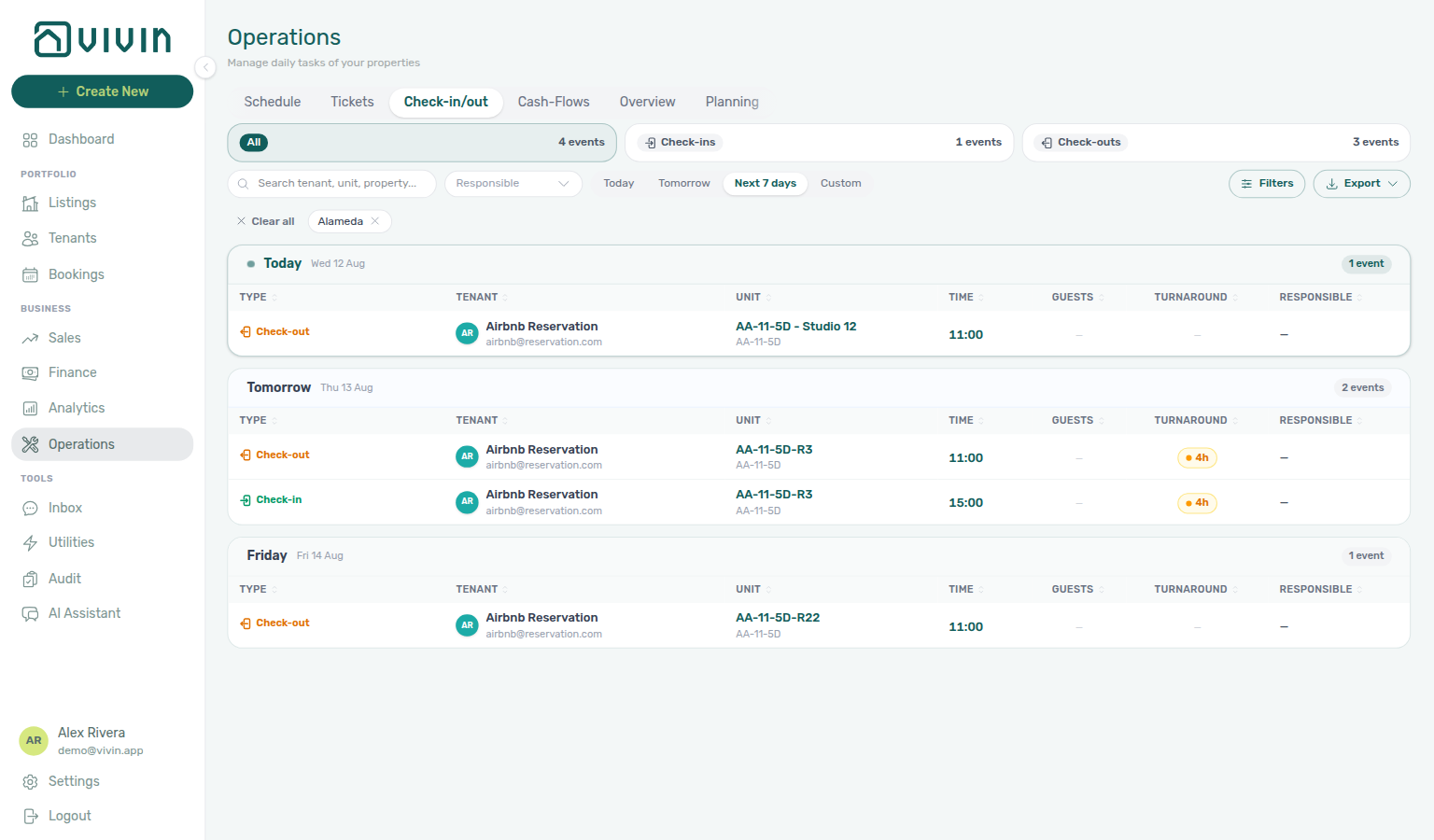
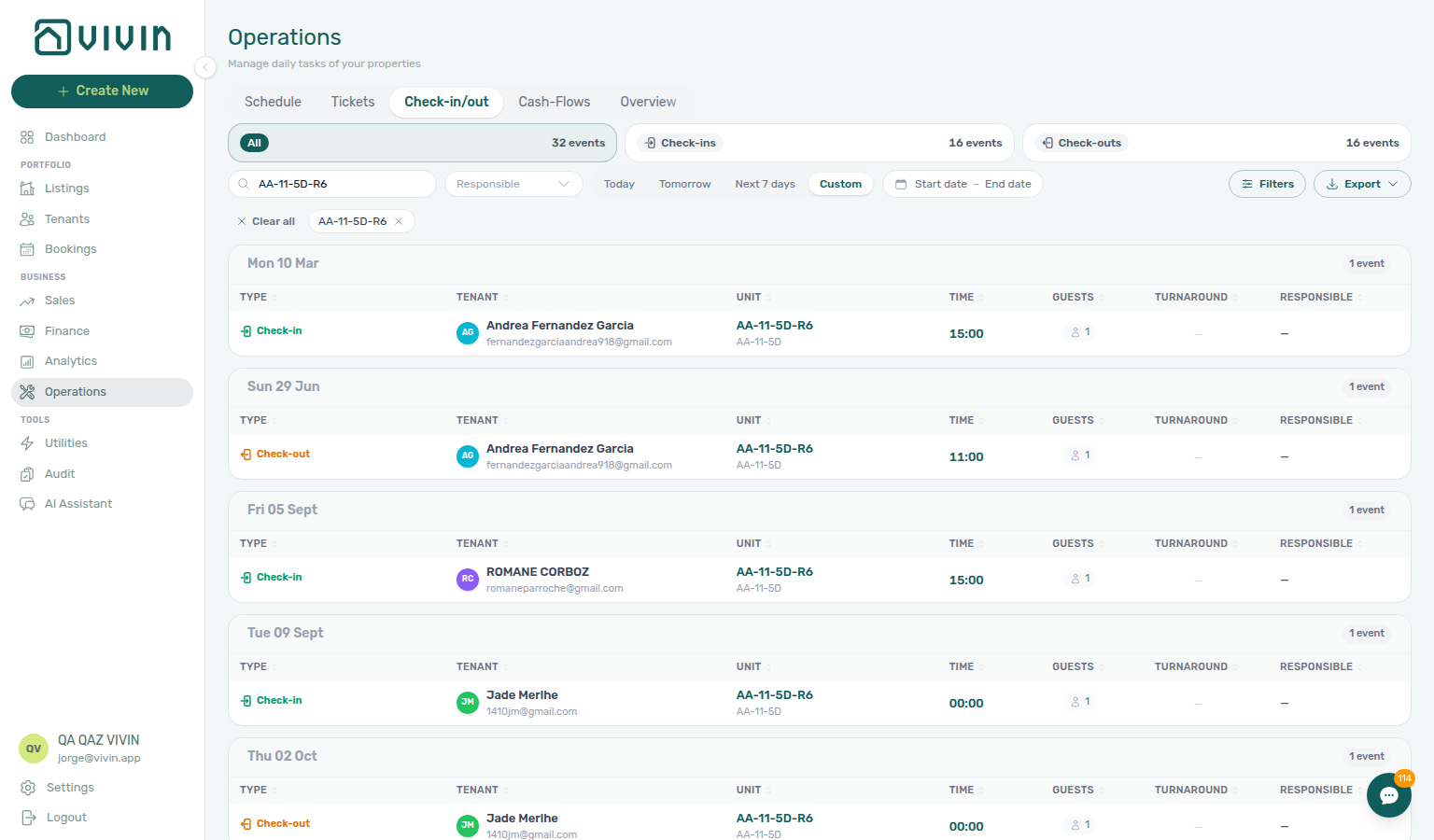
The Check-in & Check-out tab provides a chronological list of tenant arrivals and departures across your portfolio, grouped by event date. Use the Check-ins / Check-outs pills at the top of the list to show only arrivals or only departures (counts on each pill reflect your current search, responsible filter, and date quick filter). Each row shows tenant, property/unit, scheduled date and time, responsible assignee, guest count, turnaround gap (when a same-unit check-out precedes a check-in), and whether a check-in/out email was sent.
Before you hand over keys or release a deposit, confirm unpaid move-in or departure-week charges are not still open — payment overdue rows on /notifications row-click into the related booking; continue with Handling a Late Payment — Step 1 or open Bookings → Payment Plan from the row. When the blocker is a security deposit shortfall (Partial Paid on depositStatus), also triage on Finance → Deposits — see Glossary — Deposit lifecycle status.
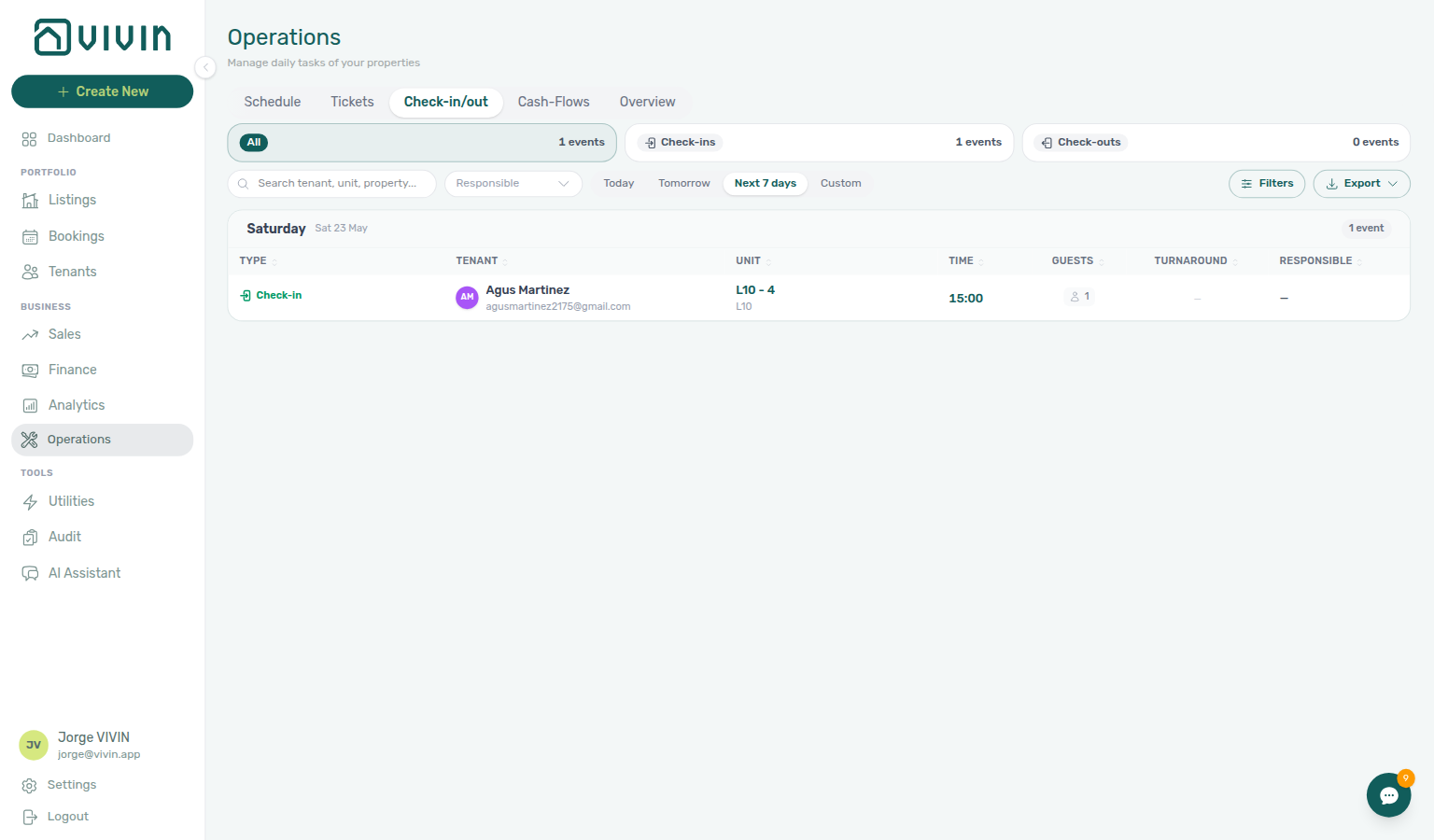
Check-ins only — weekly arrival planning with Next 7 days (same framing as Managing a Check-in):
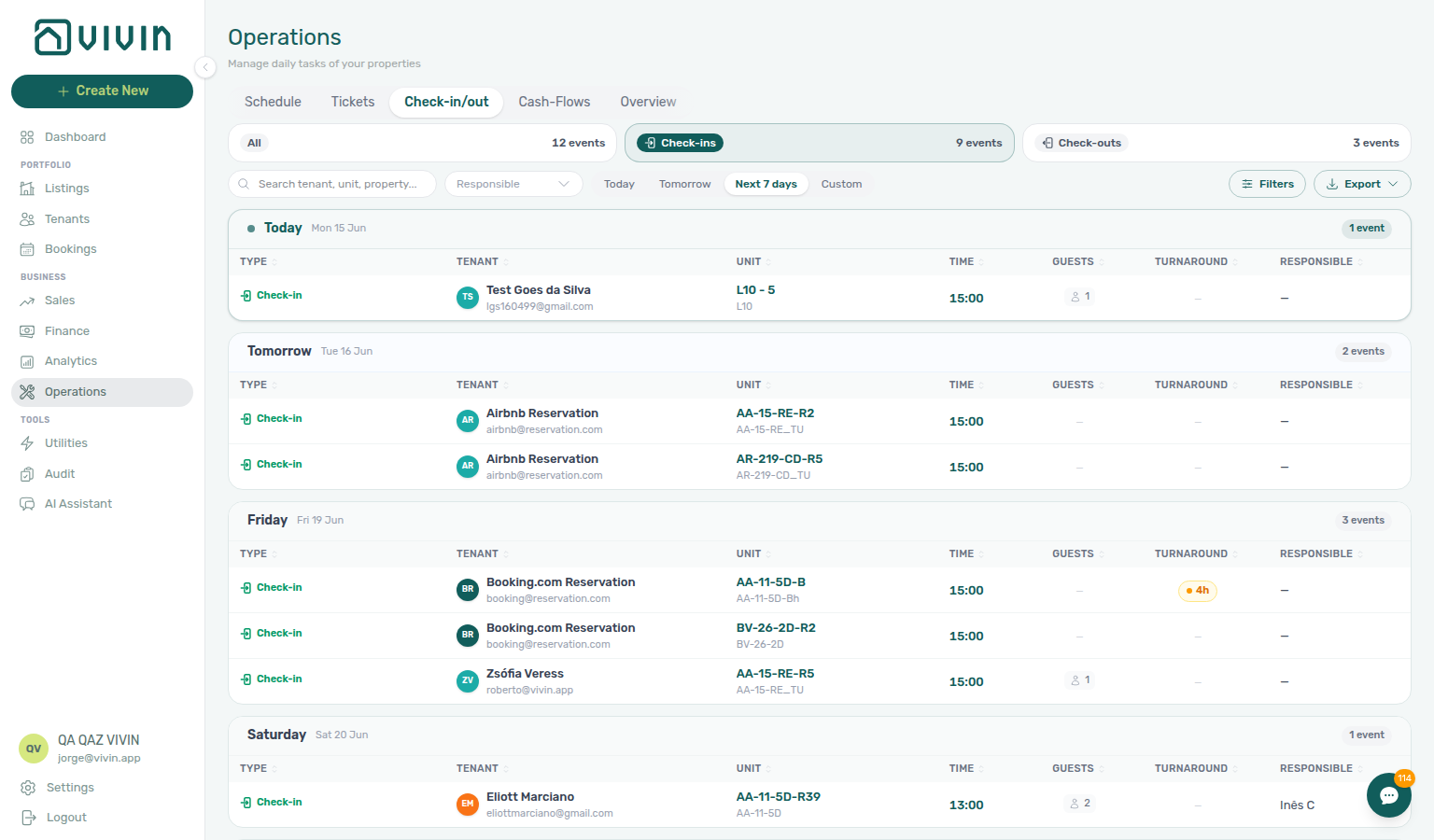
If Check-ins + Next 7 days shows no rows, widen the horizon with Custom (for example the next 14 or 30 days) or switch to Check-outs to review departures in the same window.
The alias workflows-operations-check-in-out-planning-view.png is kept for workflow pages that reference the same framing.
Check-outs only — departure planning with Check-outs + Next 7 days (same toolbar as check-ins; rows show move-out dates and turnaround context). Use this pill when you are running the Managing a Check-out workflow instead of mixing arrivals and departures in one list.
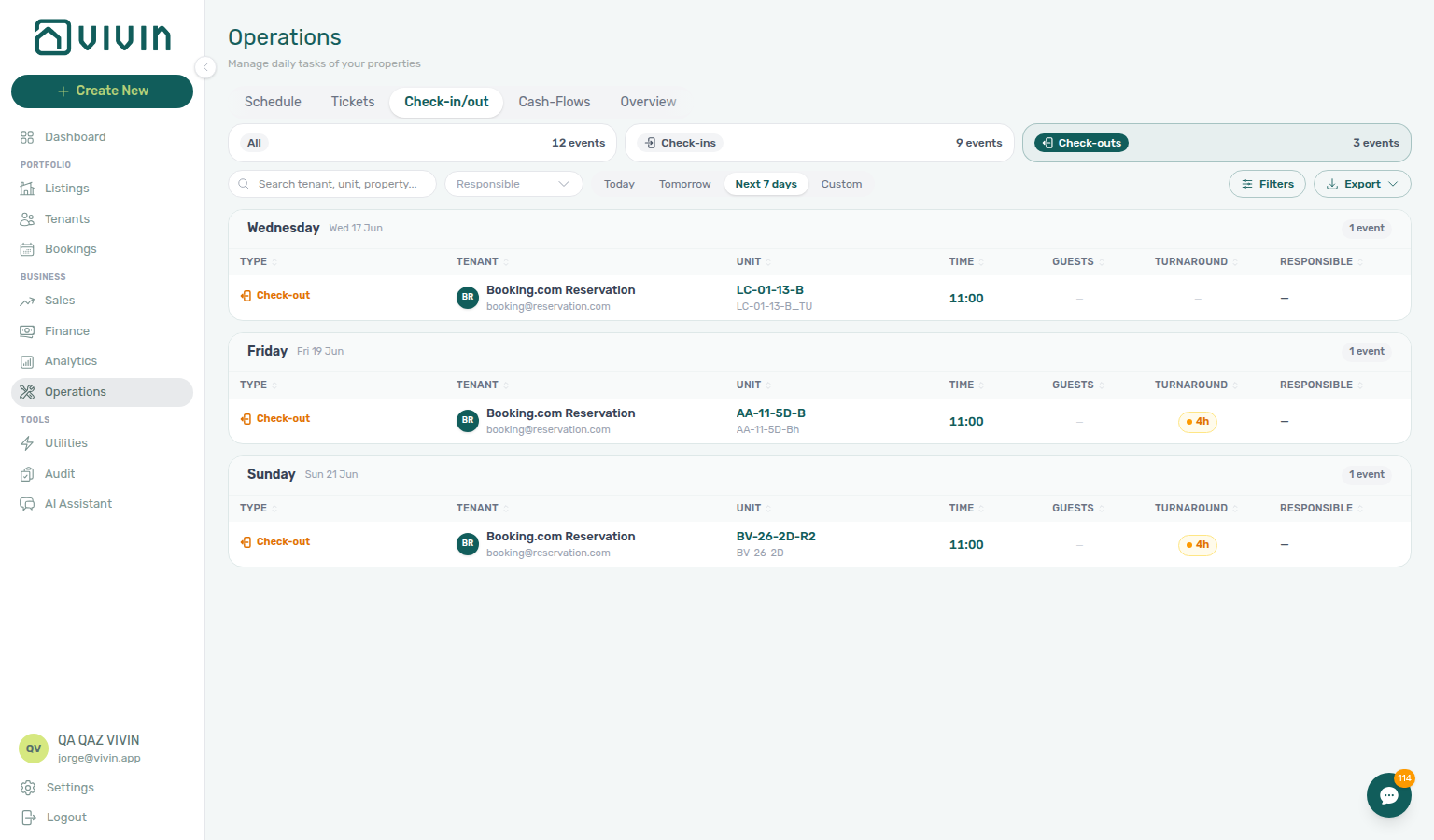
If Check-outs + Next 7 days shows no rows, your portfolio may simply have no departures in that window — widen the horizon with Custom (for example the next 14 or 30 days) or switch back to Check-ins to compare same-day turnovers on shared units. Short-term iCal imports can surface as pseudo Booking.com Reservation (or similar) departure rows even when no mid-term booking check-out exists in the window — see Glossary — Short-term iCal pseudo check-in/out. Export still downloads whatever slice your filters match.
For each event, you can see:
- Tenant name and email
- Property and unit (listing)
- Event type (Check-in or Check-out)
- Scheduled date and time (when recorded on the booking)
- Responsible assignee for the handover
- Turnaround — hours between a prior check-out and the next check-in on the same unit (when applicable)
- Platform — short-term channel when relevant
This view is the primary coordination tool for your operations team. Use it to:
- Plan cleaning schedules — identify which units need preparation before an arrival
- Coordinate key handovers — ensure someone is available to meet each tenant
- Spot back-to-back bookings — units with a check-out and a check-in on the same day require same-day turnover coordination (cleaning, keys, deposit timing on departure); see FAQ — How do I handle same-day turnovers?
Toolbar
| Control | Purpose |
|---|---|
| Search | Matches tenant name, unit (listing) name, tenant email, or property internal name (client-side on the loaded slice; debounced). See Check-in & Check-out toolbar search. |
| Responsible | Multi-select teammates already named on a handover. The menu stays open after each tick — see Responsible stays open. |
| Today / Tomorrow / Next 7 days / Custom | Limits which event dates appear in the list; Custom opens a from–to range picker. |
| Filters | Opens the Other filters drawer (Property, Listing categories, and check-in/out-specific toggles below). |
| Export | Downloads the currently filtered rows as CSV or Excel. |
Responsible stays open while you pick
Open Responsible on the Check-in & Check-out toolbar, then tick a teammate. A chip appears under the toolbar; the menu stays open so you can tick a second teammate. You do not need to open Responsible again.
The menu lists names that already appear on a handover in this tab (arrivals and departures) — not every user under Settings. Tick the first name, then a second name. Both stay checked in the open list. The Check-ins / Check-outs pill counts update with the chips. Dismiss the menu when the chips look right — same stay-open habit as Tickets — Source and Tickets — Assignee.
Tickets toolbar Assignee is a different control: it filters maintenance work by who can be assigned, not handover names on this tab.
Filters → Assigned responsible is a different control: All, With, or Without answers whether a handover has any assignee. Use Without for unassigned rows — marketplace POST /bookings leaves Check-in responsible and Check-out responsible empty until you assign a teammate on Contract Info (Creating Bookings — Check-in responsible). Named Responsible chips never match those rows.
Other filters (Check-in & Check-out)
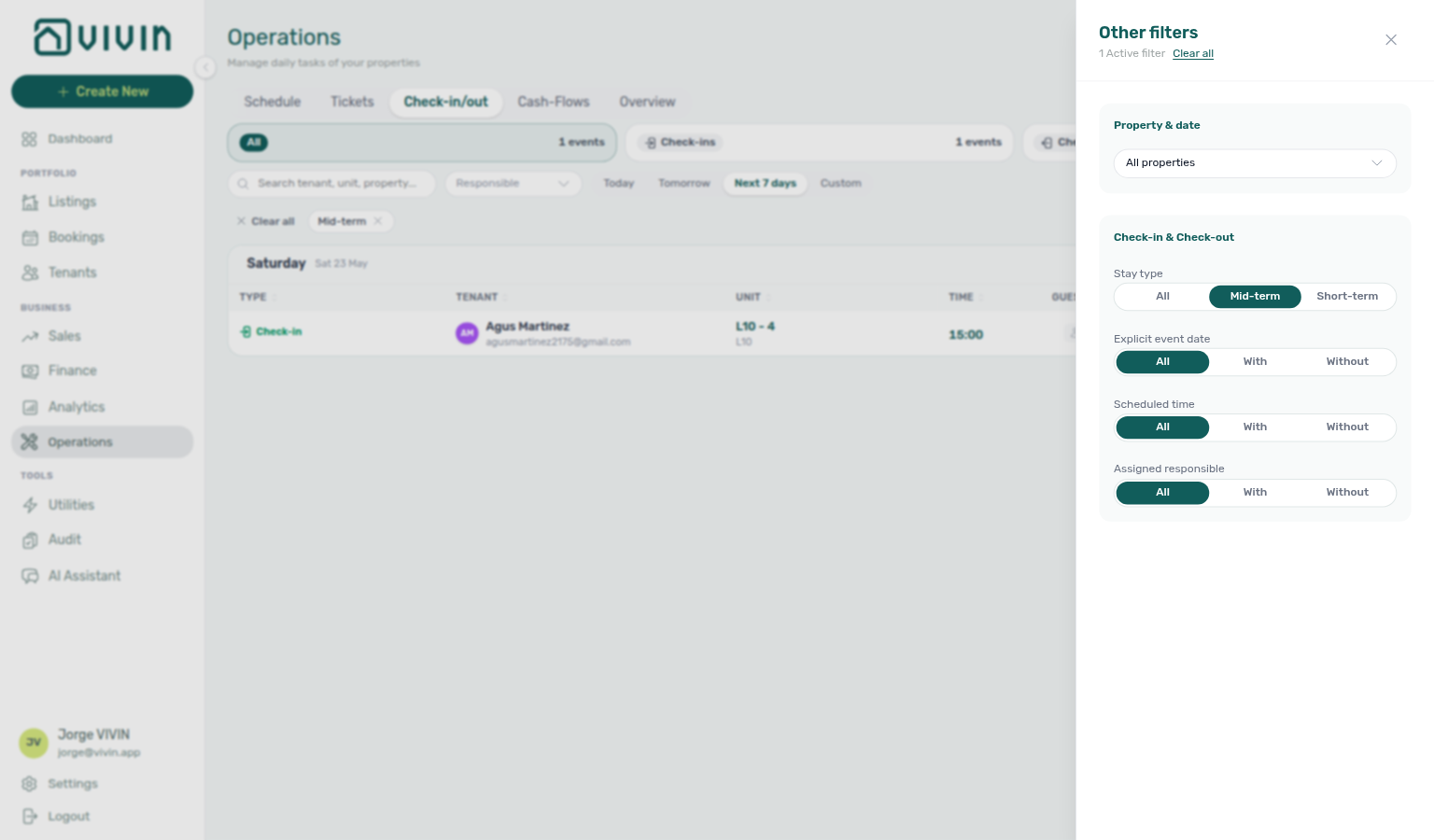
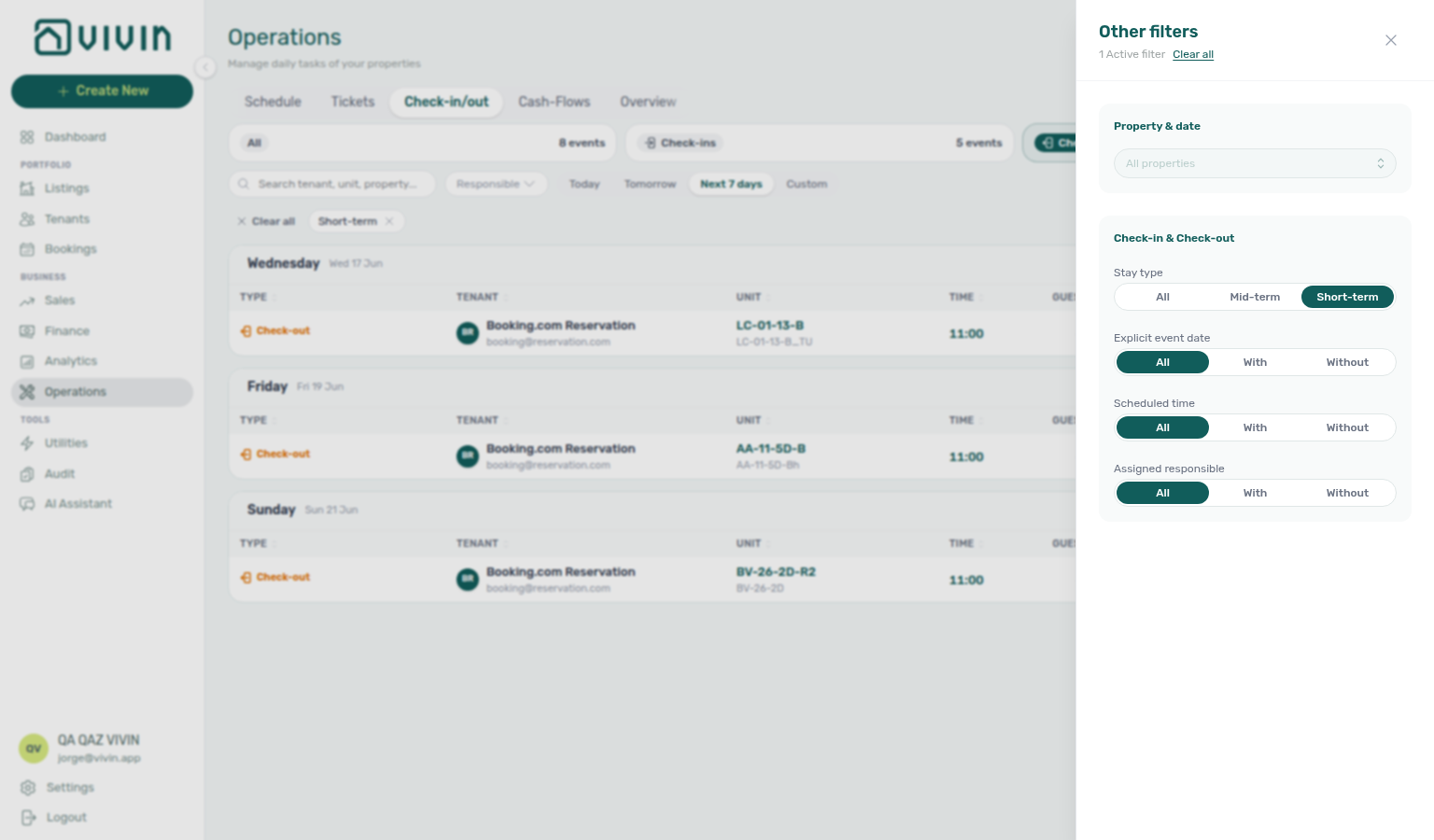
Open Filters in the tab toolbar. The drawer title is Other filters. Property and Listing categories use the same shared Property & date controls as other Operations tabs (see Listing categories filter). Besides that portfolio scope, the Check-in & Check-out section includes:
| Filter | Options | Use when |
|---|---|---|
| Stay type | All, Mid-term, Short-term | Focus on long-stay vs iCal/short-stay bookings. |
| Explicit event date | All, With, Without | Find bookings that have (or lack) a stored check-in/out date on the reservation. |
| Scheduled time | All, With, Without | Find events with (or without) a scheduled time of day. |
| Assigned responsible | All, With, Without | Whether a handover has any assignee. Marketplace imports land as Without until Contract Info names a teammate. For which teammates, use toolbar Responsible instead. |
Active drawer choices combine with search, responsible chips, and the date quick filter. Use Listing categories when cleaning teams own neighbourhood or amenity tags instead of rebuilding the Property multi-select every morning. Use Clear all filters at the bottom of the drawer to reset drawer-only fields.
Export
Use Export on the Check-in & Check-out toolbar when you need a spreadsheet of the same slice you are reviewing (view toggle, search, responsible filter, date quick filter, and Other filters all apply before download).
Open Export, then choose CSV or Excel (.xlsx). Filenames are operations-check-in-out-YYYY-MM-DD.csv or operations-check-in-out-YYYY-MM-DD.xlsx. If nothing matches the current filters, the app shows a no data warning instead of an empty file.
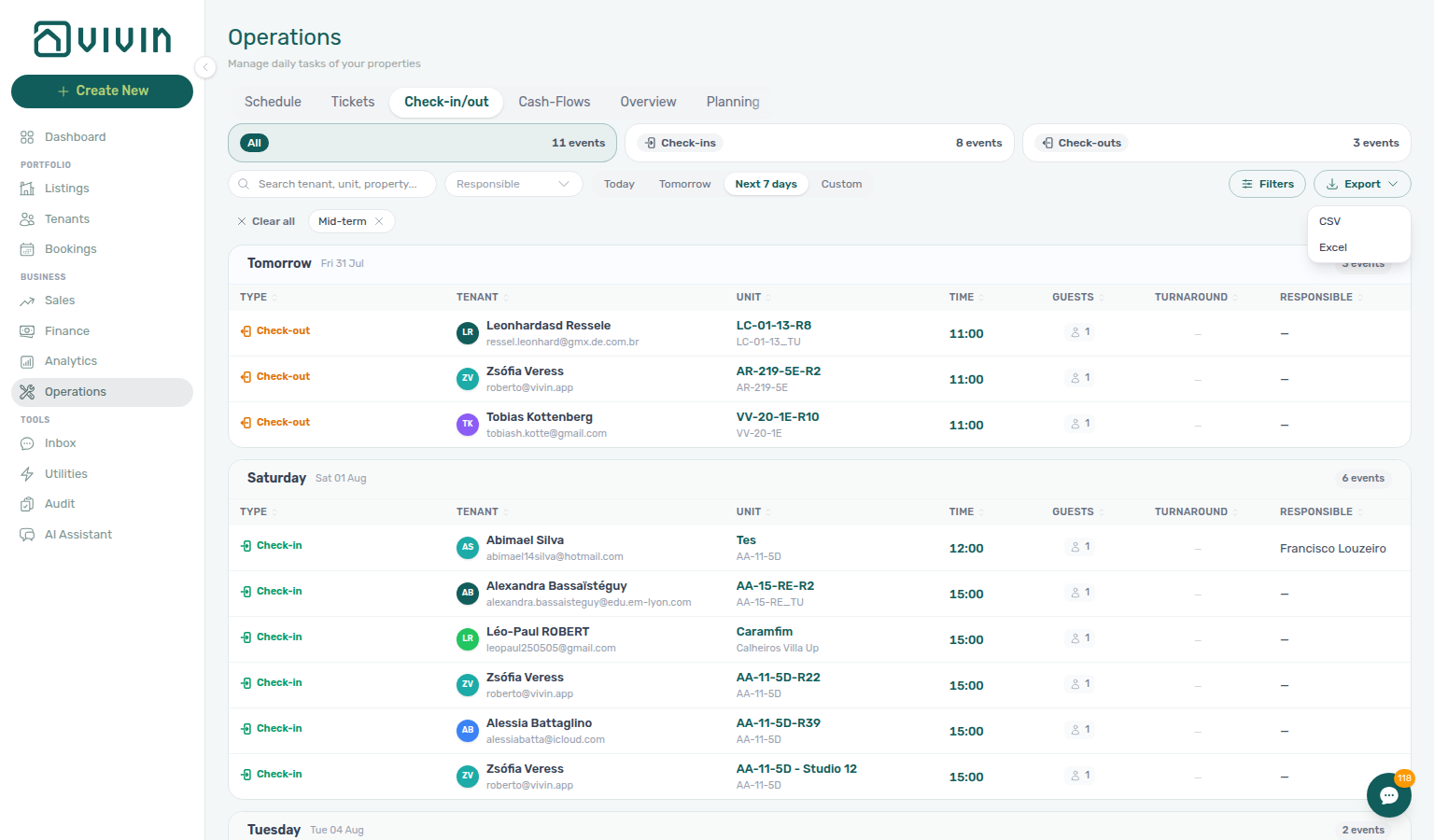
Typical export columns include Booking ID (first — Vivin booking UUID;, Type, Tenant, Tenant Email, Listing, Date, Time, Responsible, Guest Count, Turnaround, Email Sent, and Platform. Short-term iCal pseudo rows can leave Booking ID blank — filter Other filters → Stay type → Mid-term when you need UUID-backed handovers for offline join keys.
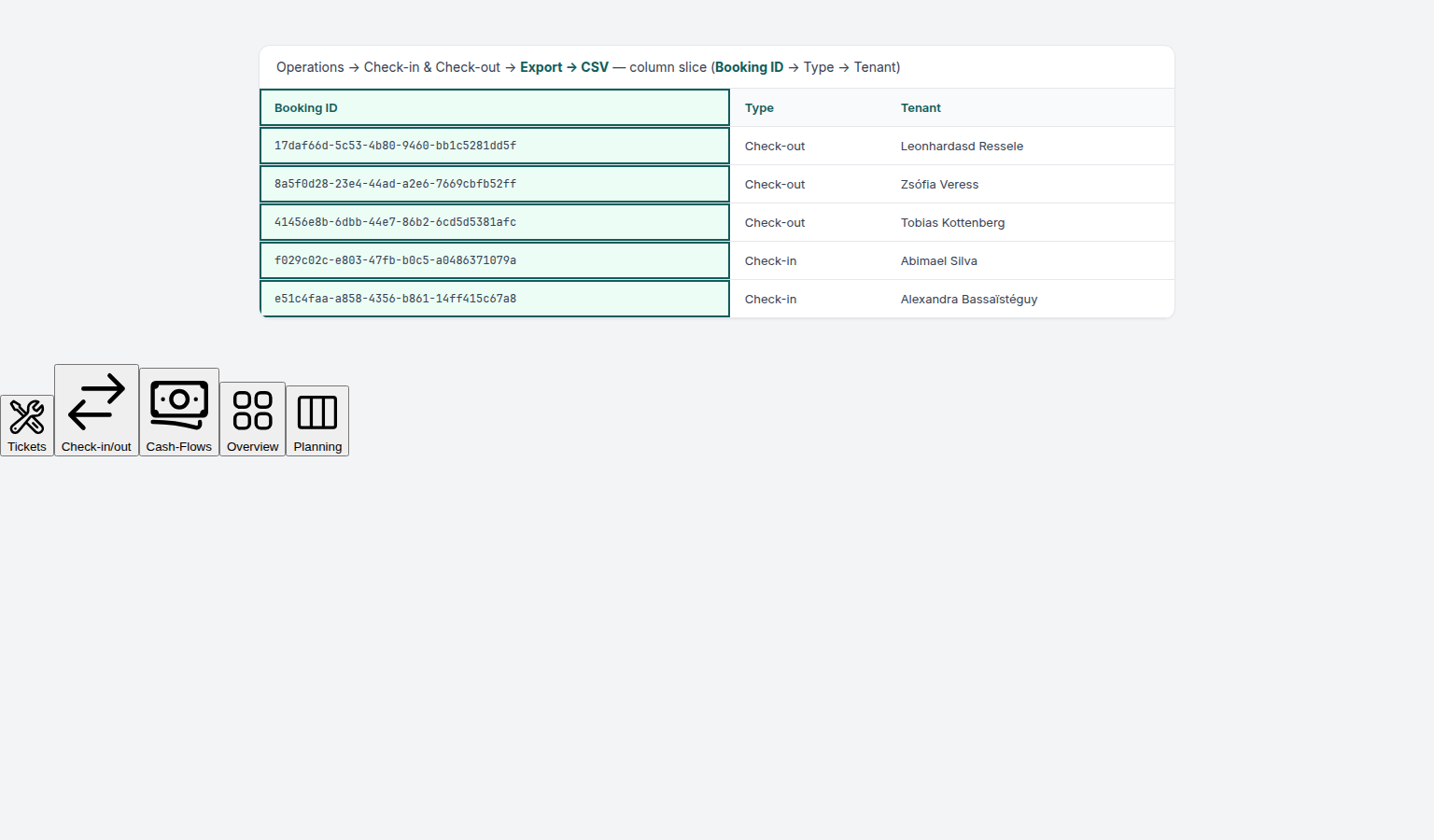
Review this tab at the start of each week: set Next 7 days (or Custom for your planning window), scan Turnaround for same-day turnovers, then Export for offline handoff to cleaning or front-desk partners.
Check-in & Check-out toolbar search
The debounced Search box filters the currently loaded check-in and check-out rows (after your date quick filter and Other filters). Matches are case-insensitive substrings on:
| Field | Examples |
|---|---|
| Tenant name | Display name on the handover row |
| Tenant email | Contact email on the booking |
| Unit / listing name | Internal listing label (for example AA-11-5D-R2) |
| Property internal name | Building label when the property name matches |
When several fields match, unit / listing name hits are ranked above tenant name or email, and tenant hits above property-only matches — paste a unit code to surface the right handover first within each date group. See Glossary — Directory search ranking.
Cash Flows Tab
Operational expenses here are not tenant receipts — reconcile tenant payments in Finance; categorize lines with Settings > Categories — Cash flows. Ask AI Chat (or WhatsApp Genius) for total outflow and average cost per unit over a named month (ai-chat-operational-cost-summary-reply.png, ai-chat-operational-cost-summary-flow.mp4), for June 2026 as another named settled month (ai-chat-operational-cost-summary-june-reply.png, ai-chat-operational-cost-summary-june-flow.mp4), for April 2026 as a third named settled month (ai-chat-operational-cost-summary-april-reply.png, ai-chat-operational-cost-summary-april-flow.mp4), for the category split (ai-chat-operational-cost-by-category-reply.png, ai-chat-operational-cost-by-category-flow.mp4), for the June 2026 category split (ai-chat-operational-cost-by-category-june-reply.png, ai-chat-operational-cost-by-category-june-flow.mp4), or for remaining totals after excluding a category by its exact Cash Flows name (ai-chat-operational-cost-exclude-category-reply.png, ai-chat-operational-cost-exclude-category-flow.mp4), including excluding Maintenance as a different exact name (ai-chat-operational-cost-exclude-maintenance-reply.png, ai-chat-operational-cost-exclude-maintenance-flow.mp4), and excluding Manutenção in June when that month’s Cash Flows name is Portuguese (ai-chat-operational-cost-exclude-manutencao-june-reply.png, ai-chat-operational-cost-exclude-manutencao-june-flow.mp4), and excluding uncategorized in June when you want remaining totals after dropping that other exact Cash Flows name (ai-chat-operational-cost-exclude-uncategorized-june-reply.png, ai-chat-operational-cost-exclude-uncategorized-june-flow.mp4), and excluding maintenance in April when you want remaining totals after dropping that month’s exact Cash Flows name (ai-chat-operational-cost-exclude-maintenance-april-reply.png, ai-chat-operational-cost-exclude-maintenance-april-flow.mp4), and excluding maintenance and uncategorized in April when you want remaining totals after dropping both exact names (ai-chat-operational-cost-exclude-maintenance-uncategorized-april-reply.png, ai-chat-operational-cost-exclude-maintenance-uncategorized-april-flow.mp4), and for 1–15 April 2026 as a custom half-month window (ai-chat-operational-cost-summary-april-first-half-reply.png, ai-chat-operational-cost-summary-april-first-half-flow.mp4), and for 16–30 April 2026 as the other custom half-month window (ai-chat-operational-cost-summary-april-second-half-reply.png, ai-chat-operational-cost-summary-april-second-half-flow.mp4), and for February 2026 as a fourth named settled month (ai-chat-operational-cost-summary-february-reply.png, ai-chat-operational-cost-summary-february-flow.mp4), and for 1–14 February 2026 as a custom February half-month window (ai-chat-operational-cost-summary-february-first-half-reply.png, ai-chat-operational-cost-summary-february-first-half-flow.mp4), and for 15–28 February 2026 as the other custom February half-month window (ai-chat-operational-cost-summary-february-second-half-reply.png, ai-chat-operational-cost-summary-february-second-half-flow.mp4), and for January 2026 as a fifth named settled month (ai-chat-operational-cost-summary-january-reply.png, ai-chat-operational-cost-summary-january-flow.mp4), and for March 2026 as a sixth named settled month (ai-chat-operational-cost-summary-march-reply.png, ai-chat-operational-cost-summary-march-flow.mp4), and for May 2026 as a seventh named settled month (ai-chat-operational-cost-summary-may-reply.png, ai-chat-operational-cost-summary-may-flow.mp4). Enable Analytics on AI / MCP. That summary is not Finance income and not the Dashboard cash-flow forecast.
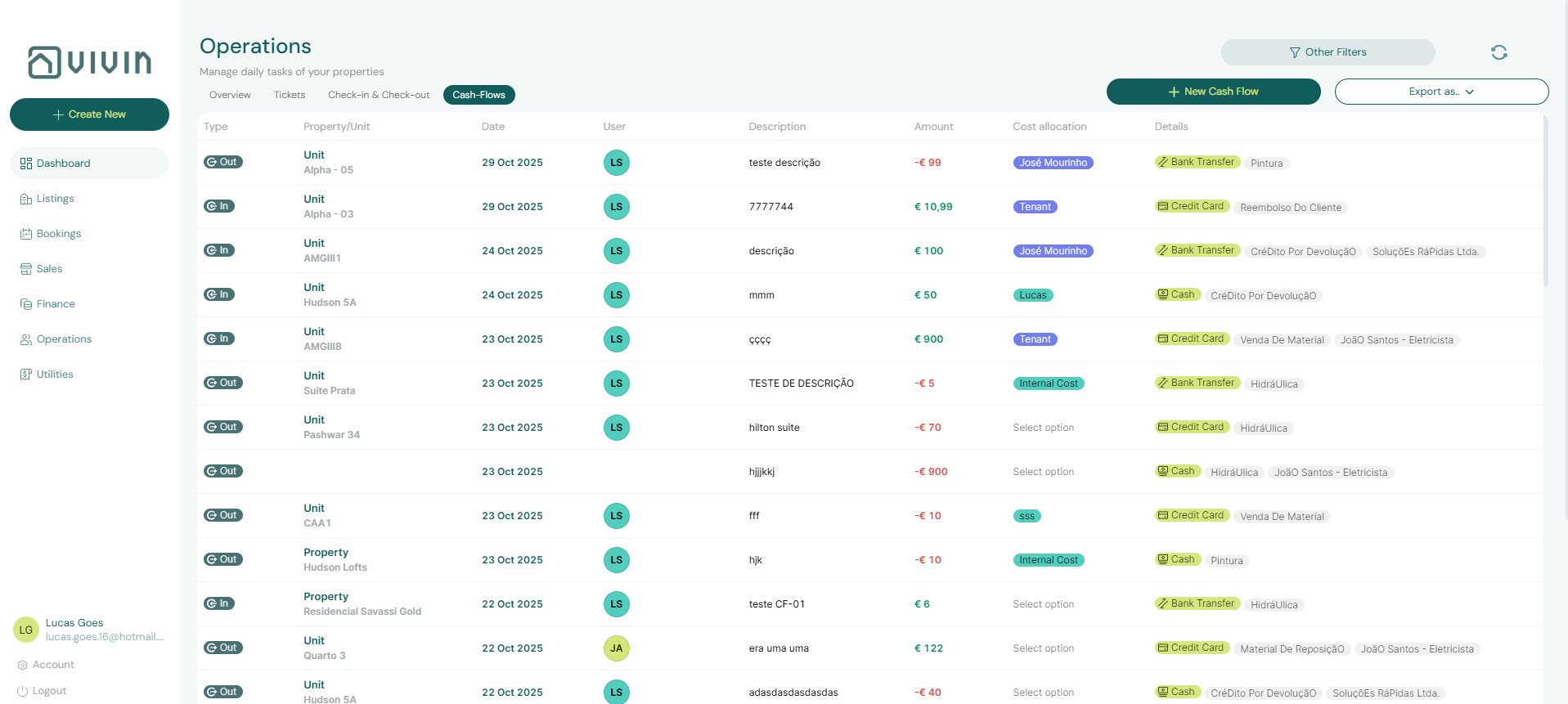
The Cash Flows tab (also called Operational Cash Flows) tracks day-to-day operational expenses that are not tied to a specific booking — for example, supplies purchases, contractor invoices, building repairs, or administrative costs.
Cash Flows date quick filters
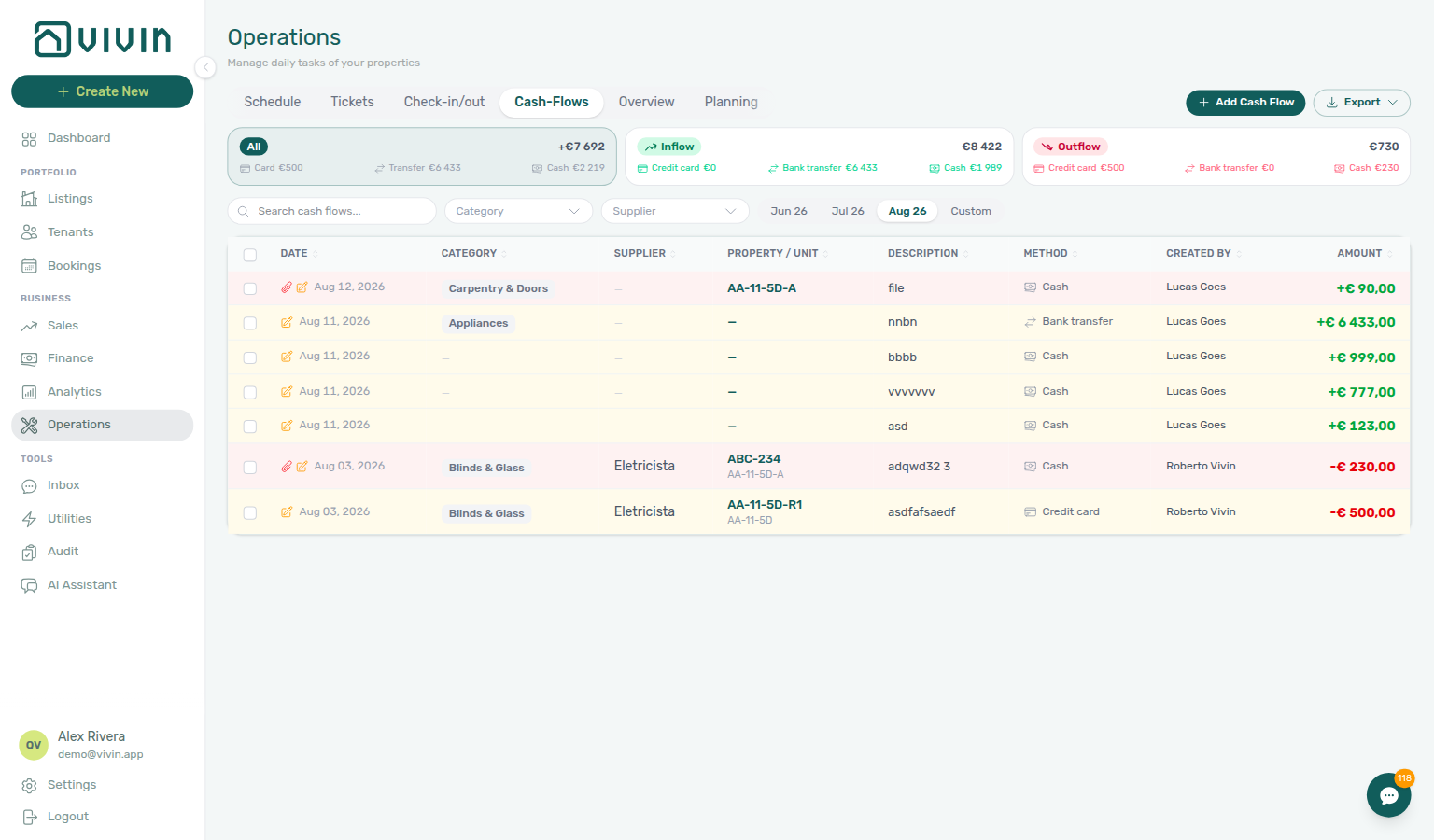
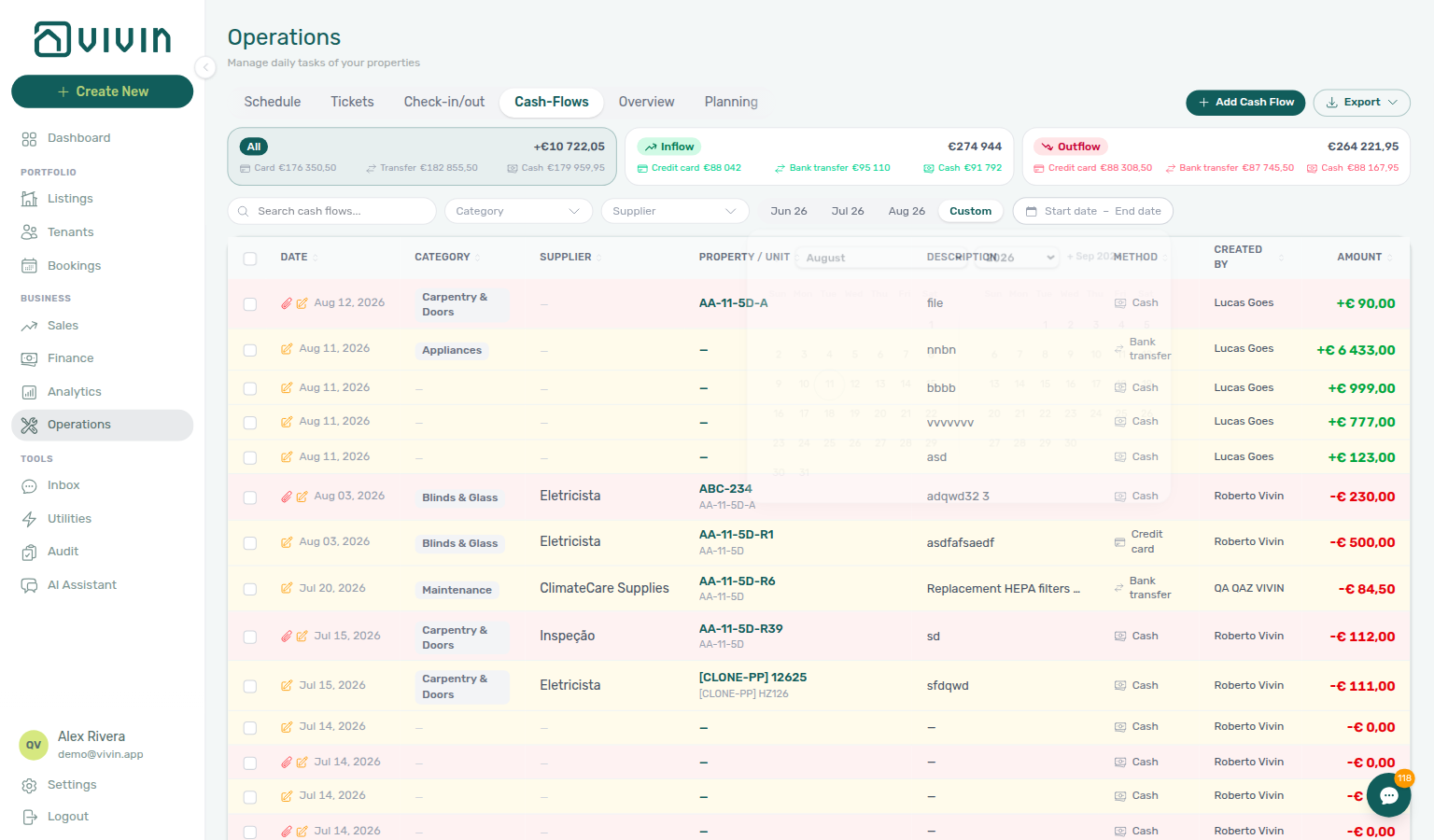
The Cash Flows toolbar includes month chips plus Custom, next to Search, Category, and Supplier. The same chips appear on narrow viewports under the summary cards.
| Control | What it does |
|---|---|
| Month chips (for example Jun 26, Jul 26, Aug 26) | Limit the list and summary cards to that calendar month. Labels use the signed-in locale (short month + two-digit year). |
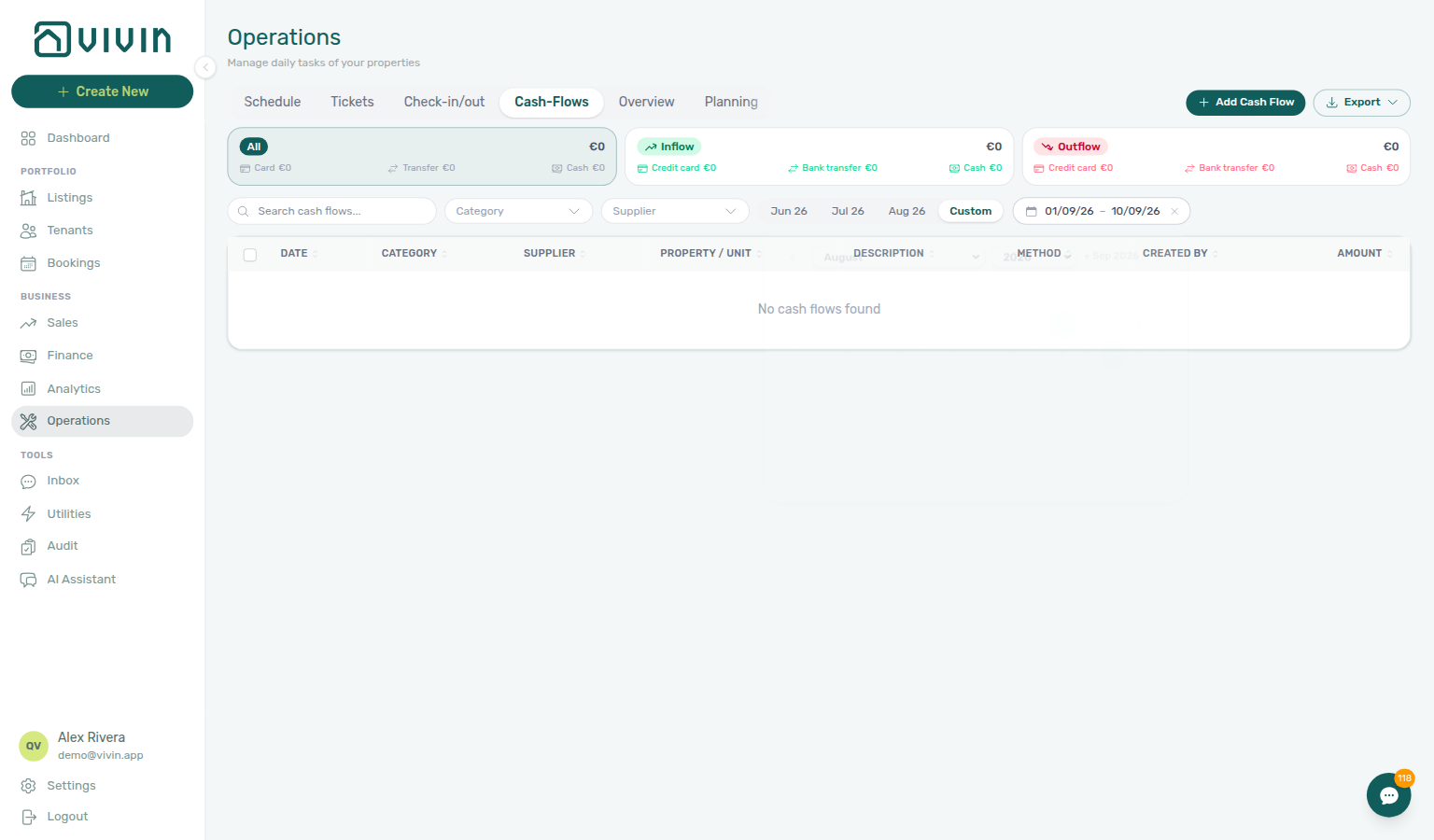
| Custom | Opens a from–to range picker. The first time you choose Custom (or switch into it from a month chip), the range starts empty (Start date – End date) so you can click a start day, then an end day, without the previous month filling both fields. |
| Clear on the range trigger | On desktop, when a custom range is set, use the Clear control on the date trigger to wipe the from–to values and pick again. Re-clicking Custom while it is already selected only re-opens the picker — it does not discard a range you just chose. |
Active Other filters (shared Operations drawer) still combine with this date window. Export downloads the same filtered slice.
Cash Flows list loading (infinite scroll)
The cash-flow ledger uses the same chunked pattern as the Tickets tab: about 20 rows load first, then about 5 more per scroll near the bottom of the table. A loading line appears under the list while the next batch fetches. Changing search, Other filters, or sort reloads from the first batch.
If this list needs a refresh — Use Retry on the directory refresh card, or reload the page. See Glossary — Directory list refresh.
Export on this tab downloads the full filtered cash-flow set from the server — not only the rows already scrolled into the on-screen list (same habit as Tickets → Export).
Each cash flow entry shows:
- Title and description of the expense
- Amount
- Date
- Property it relates to
- Cost allocation category — how the expense is classified for reporting
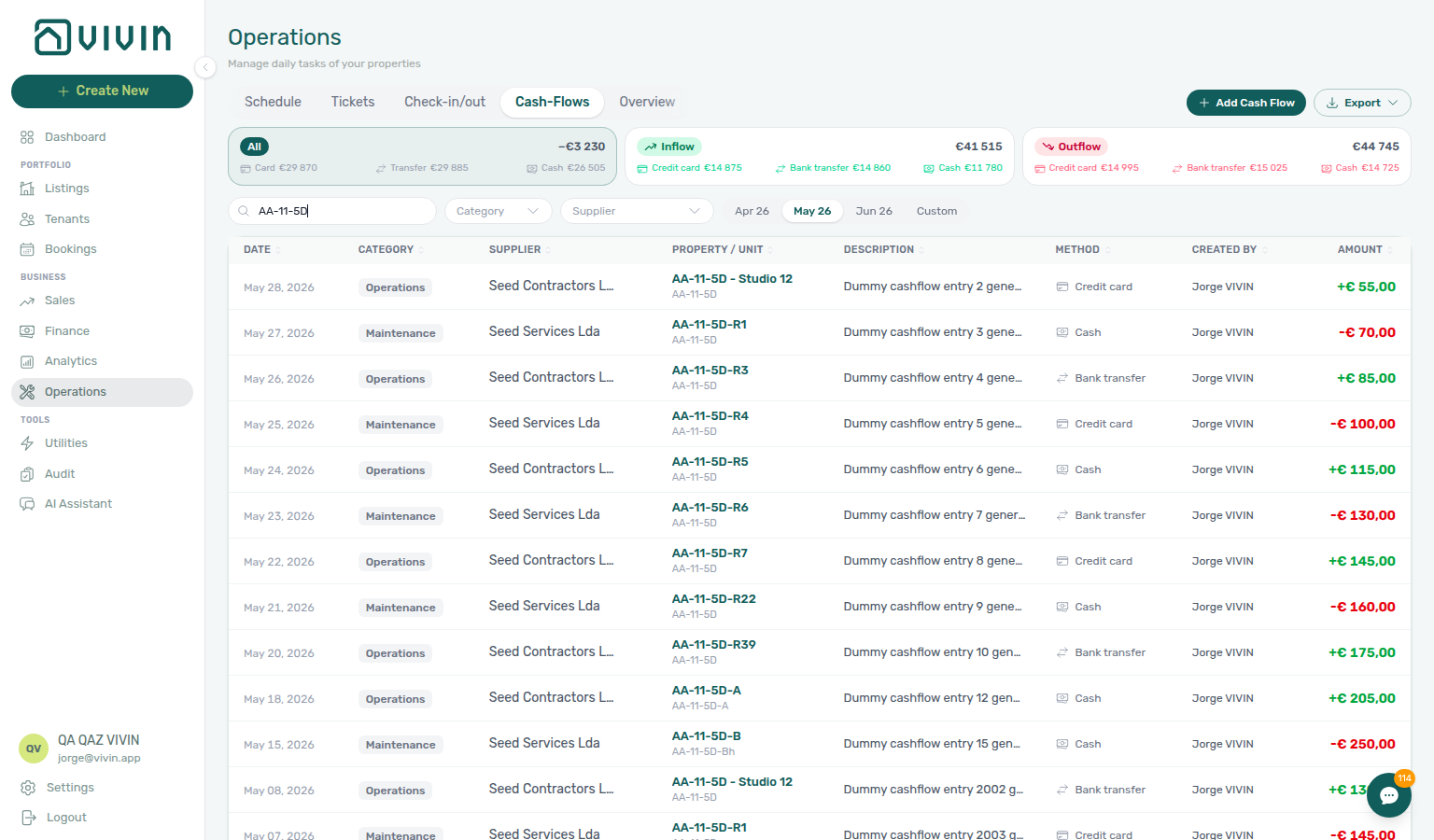
Cash Flows toolbar search
The debounced Search box is sent to GET /cashflow/page (same filter set as the infinite list and Export). Matches are case-insensitive substrings on:
| Field | Examples |
|---|---|
| Unit / listing name | Internal listing label stored on the cash flow (for example AA-11-5D-R2) |
| Title | Short label you typed when creating the entry |
| Description | Longer notes in the cash flow sidebar |
| Property internal name | Building label on the row |
When several fields match, unit / listing name hits are ranked above title, description, or property-only matches — paste a unit code to surface expenses tied to that room first. See Glossary — Directory search ranking.
Comprehensive Cash Flow Dashboards
The Cash Flows tab provides detailed financial visibility:
- Per property, unit, or portfolio — track every euro in and out in real time.
- Detailed cost allocation — assign operational expenses (maintenance, cleaning, supplies, contractor fees) to specific properties, units, or tenants.
- Supplier and contractor cost history — track spending per vendor over time for better negotiation leverage.
- Exportable reports — generate cash flow statements and cost reports for owners, investors, and accountants.
Use Export on the Cash Flows toolbar the same way as on tickets: pick CSV or Excel (.xlsx). Vivin loads the full filtered cash-flow set from the server when you start the download (matching your current filters, search, and sort), then builds the file — you do not need to scroll the infinite list first. On large accounts you may see a brief wait while the export fetch runs; the on-screen list stays paginated for everyday browsing. Filenames are cashflows-YYYY-MM-DD.csv or cashflows-YYYY-MM-DD.xlsx. If nothing matches the current filters, you get a no data warning instead of a file.
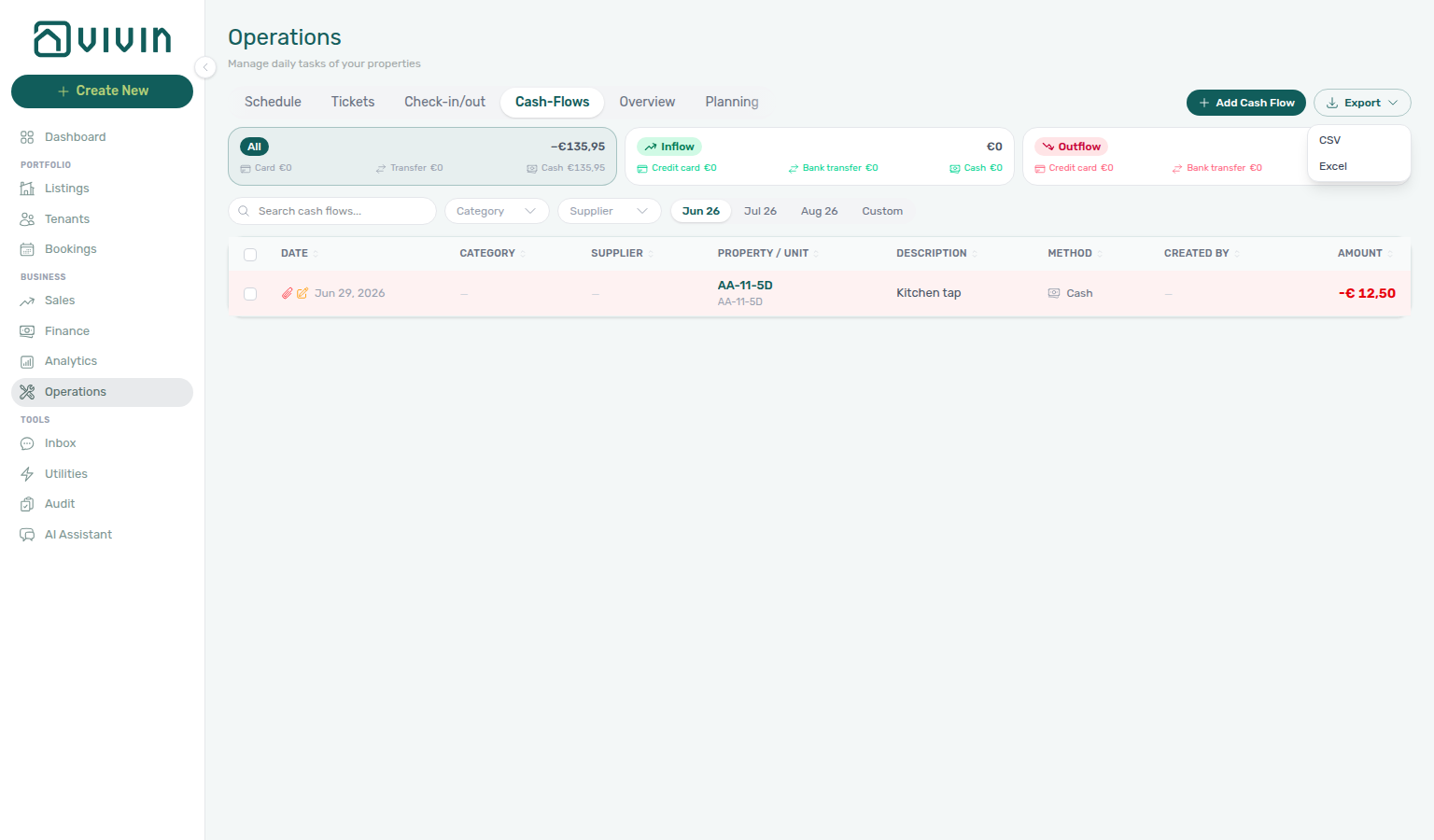
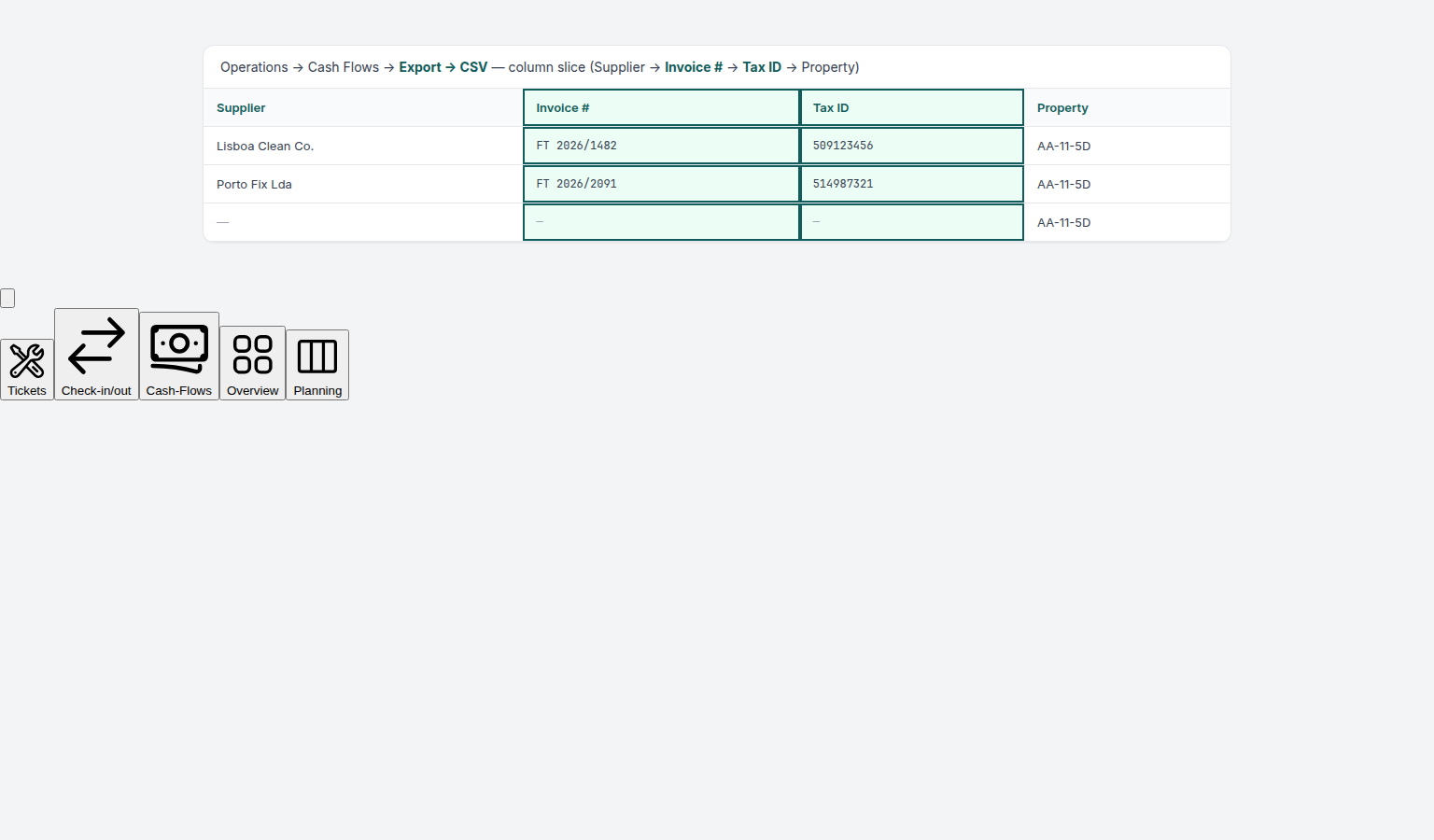
Spreadsheet columns are, in order: Date, Description, Category, Supplier, Invoice #, Tax ID, Property, Created by, Method, Type, and Amount. Outflows appear as negative amounts. Invoice # and Tax ID mirror the supplier invoice fields on the cash-flow detail (blank when the entry has no invoice metadata) so accounting exports can join supplier invoices without re-opening each row.
Cost Allocation
When you create or edit a cash flow entry, you can assign it to a cost allocation category:
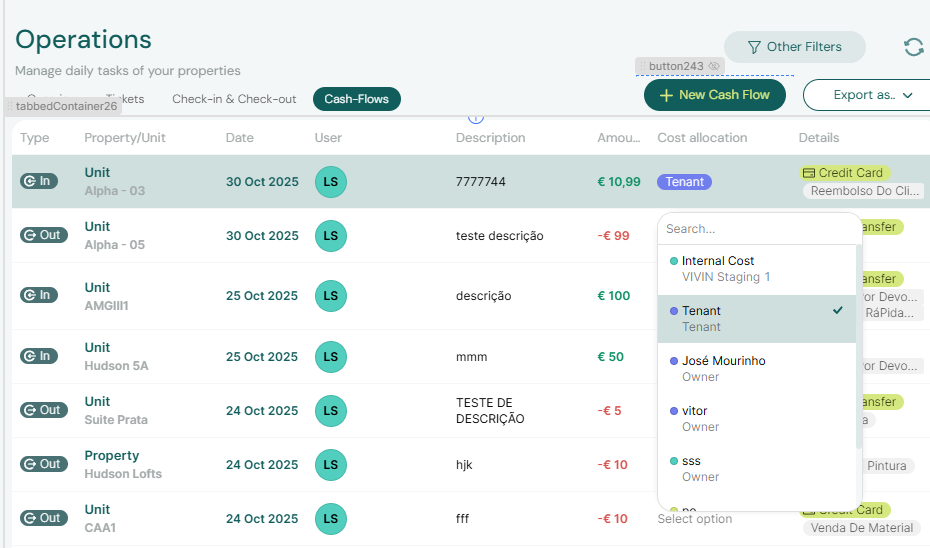
Cost allocation allows you to categorize operational expenses for reporting purposes. For example, you might create categories like "Cleaning Supplies," "Plumbing Repairs," "Administrative," or "Insurance." This makes it possible to generate reports showing where your operational budget is being spent.
Cost allocation categories are configured in Settings > Categories > Others Items Categories. Create your category structure before adding cash flow entries so that all expenses are consistently classified.
Adding a Cash Flow Entry
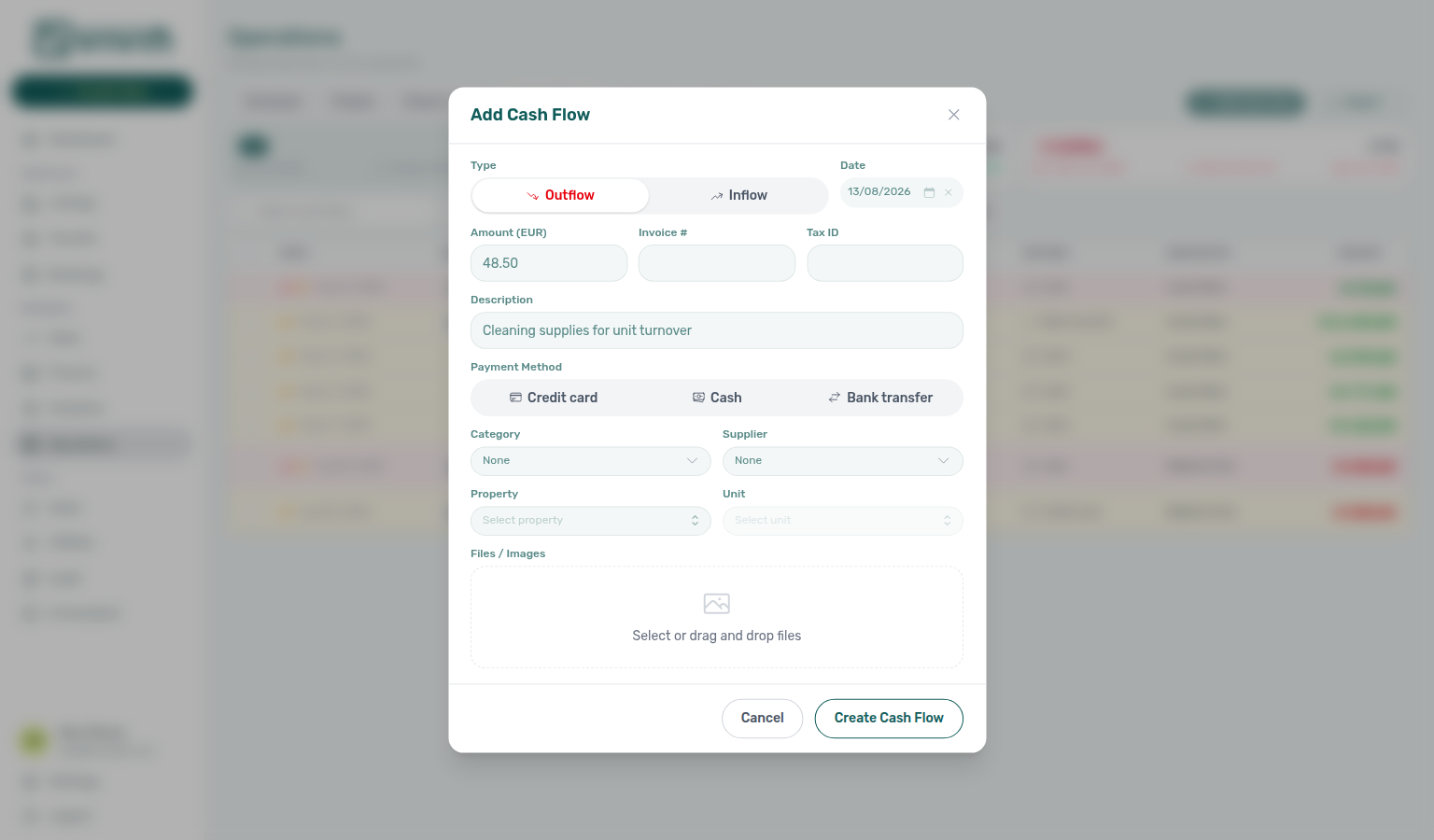
To record an operational expense, click Add Cash Flow (desktop toolbar) or the floating + on a narrow viewport, then fill in:
- Type — outflow or inflow
- Amount
- Date of the expense
- Property — which property this expense belongs to
- Category / Supplier — when your account uses those lists
- Description — any additional context
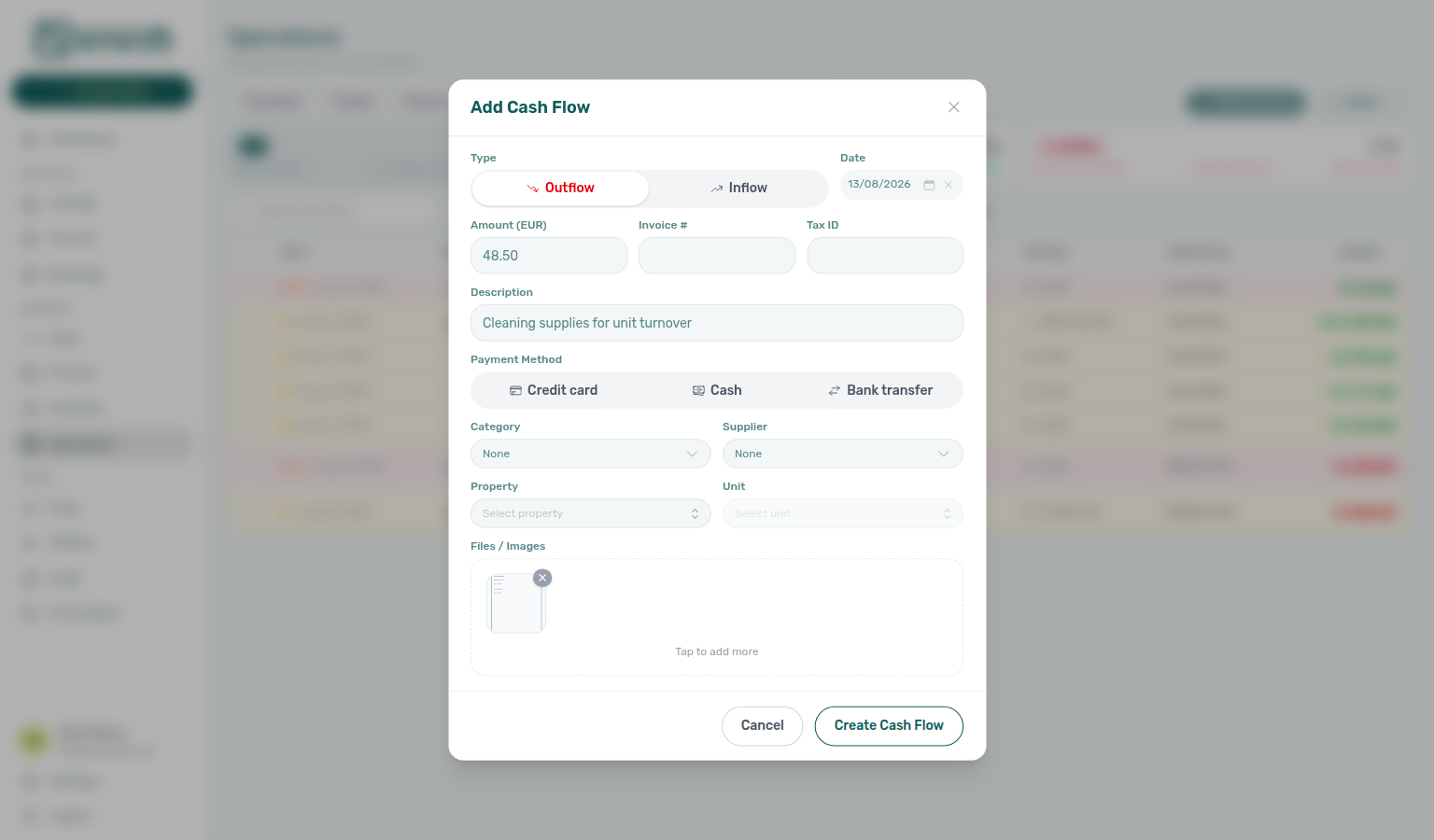
- Files / Images — attach receipts or invoices before you save (see Multi-file attach on Add Cash Flow)
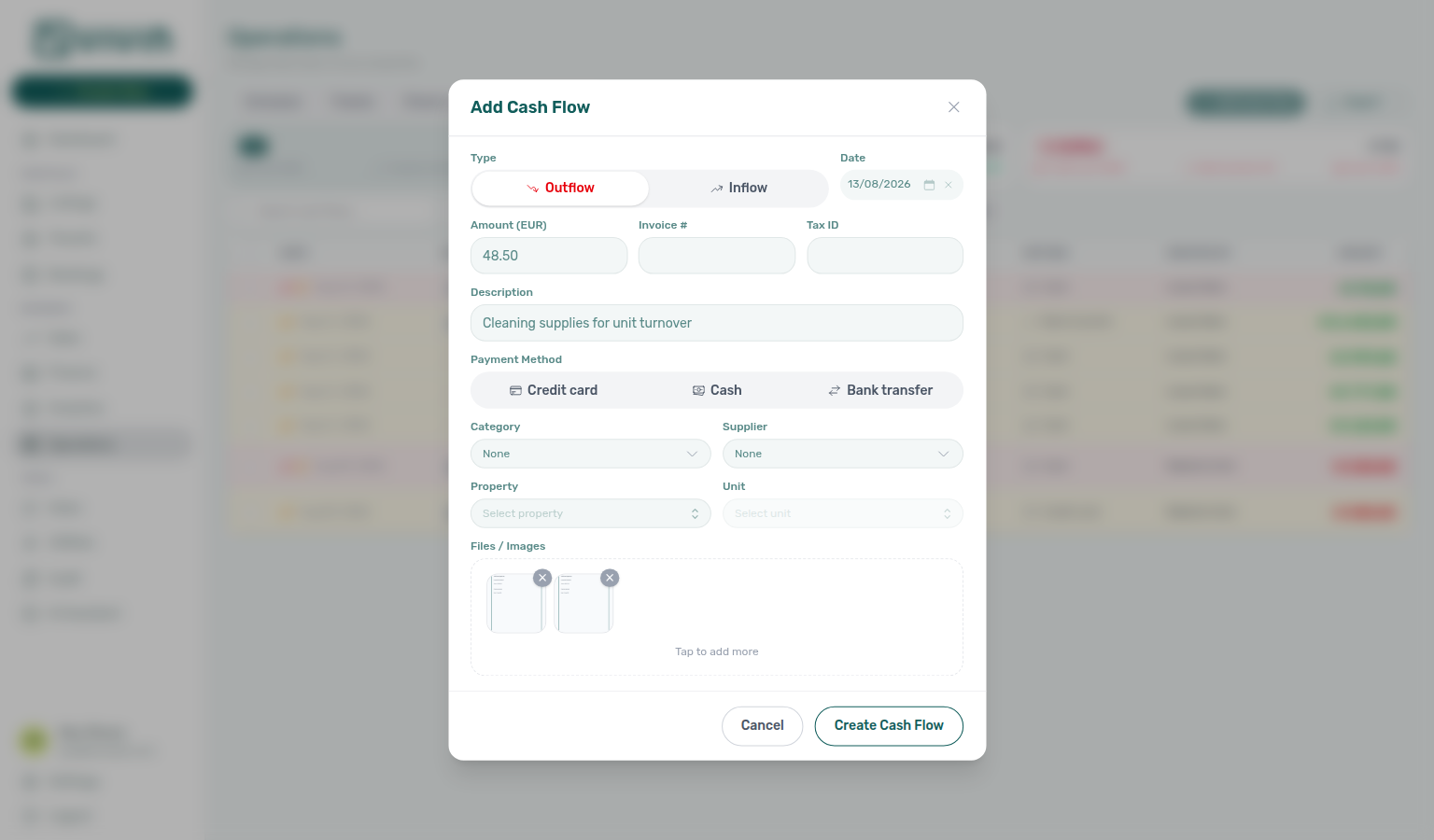
On desktop, the Add Cash Flow modal includes the Files / Images dropzone in the same form as the amount and property fields — you do not need to save first to attach a receipt.
On narrow viewports, the modal can open in attachment-only (quick add) mode when Account Settings → Preferences → Cash flows has Mobile quick add (attachment only) by default On. Capture the receipt first, then use Fill in all details now (or edit the row later / run AI Invoice Analysis).
Multi-file attach on Add Cash Flow
Multi-file attach pairs with Adding a Cash Flow Entry, Attaching Documents to a Cash Flow, and AI Invoice Analysis after the row is saved.
Use Files / Images on Add Cash Flow when a supplier invoice spans more than one photo or you want the receipt and a signed quote on the same ledger line.
| Action | What happens |
|---|---|
| Click the dashed dropzone | Opens the file picker (images, PDFs, and other invoice formats your device can choose). |
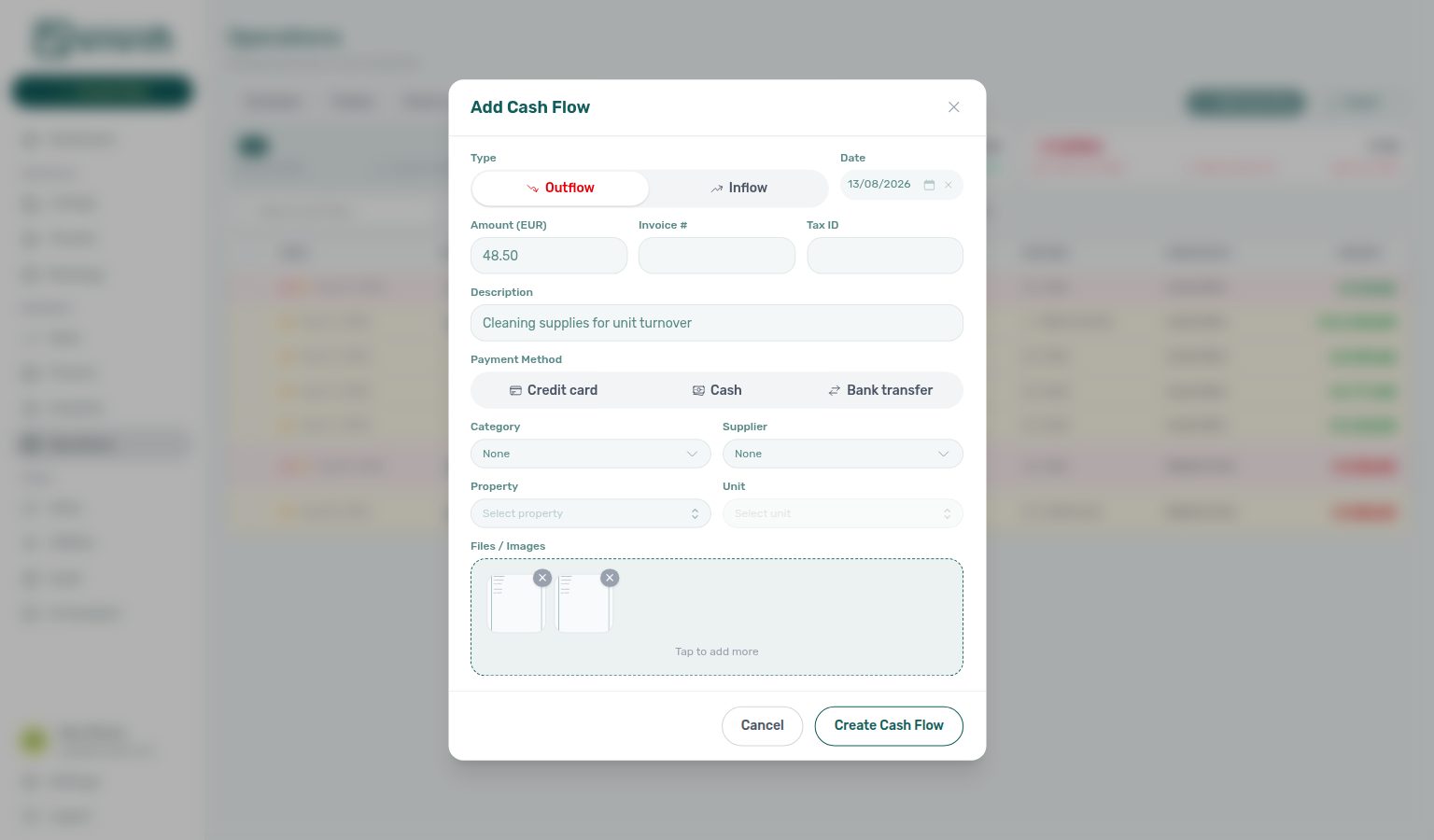
| Drag and drop onto the dropzone | Adds the file(s) without opening the picker — the border highlights while you hold a file over the zone. |
| After the first attachment | Thumbnails appear with a remove (×) control; Tap to add more stays under the row so you can click the zone again for a second file. |
| × on a thumbnail | Removes that file only — it does not reopen the picker. |
| Cancel / close the modal | Clears any files you attached in this draft so the next Add Cash Flow opens empty. |
You can attach several files before Create Cash Flow. Common patterns: invoice photo + bank transfer confirmation, or a phone HEIC plus a PDF from email. Vivin does not require a narrow file-type filter in the picker — if your phone or scanner exports an unusual invoice format, try attaching it here the same way you would on the cash-flow detail sidebar.
Attaching Documents to a Cash Flow
Every cash flow entry supports file attachments — use this to keep receipts, contractor invoices, and supplier quotes directly alongside the expense record.
- While creating — use Files / Images on Add Cash Flow (desktop multi-file dropzone above, or mobile quick-add).
- After saving — open a cash flow row to the Cash Flow Details sidebar and use Add file under Files:
Having receipts attached directly to each cash flow entry makes audits, owner reports, and expense reconciliation significantly easier — everything is in one place.
AI Invoice Analysis (Cash Flows)
When a cash flow has an image or PDF attachment, use AI Analysis on the Files row to extract supplier, invoice #, tax ID, date, and amount from the document and apply them to the cash-flow fields.
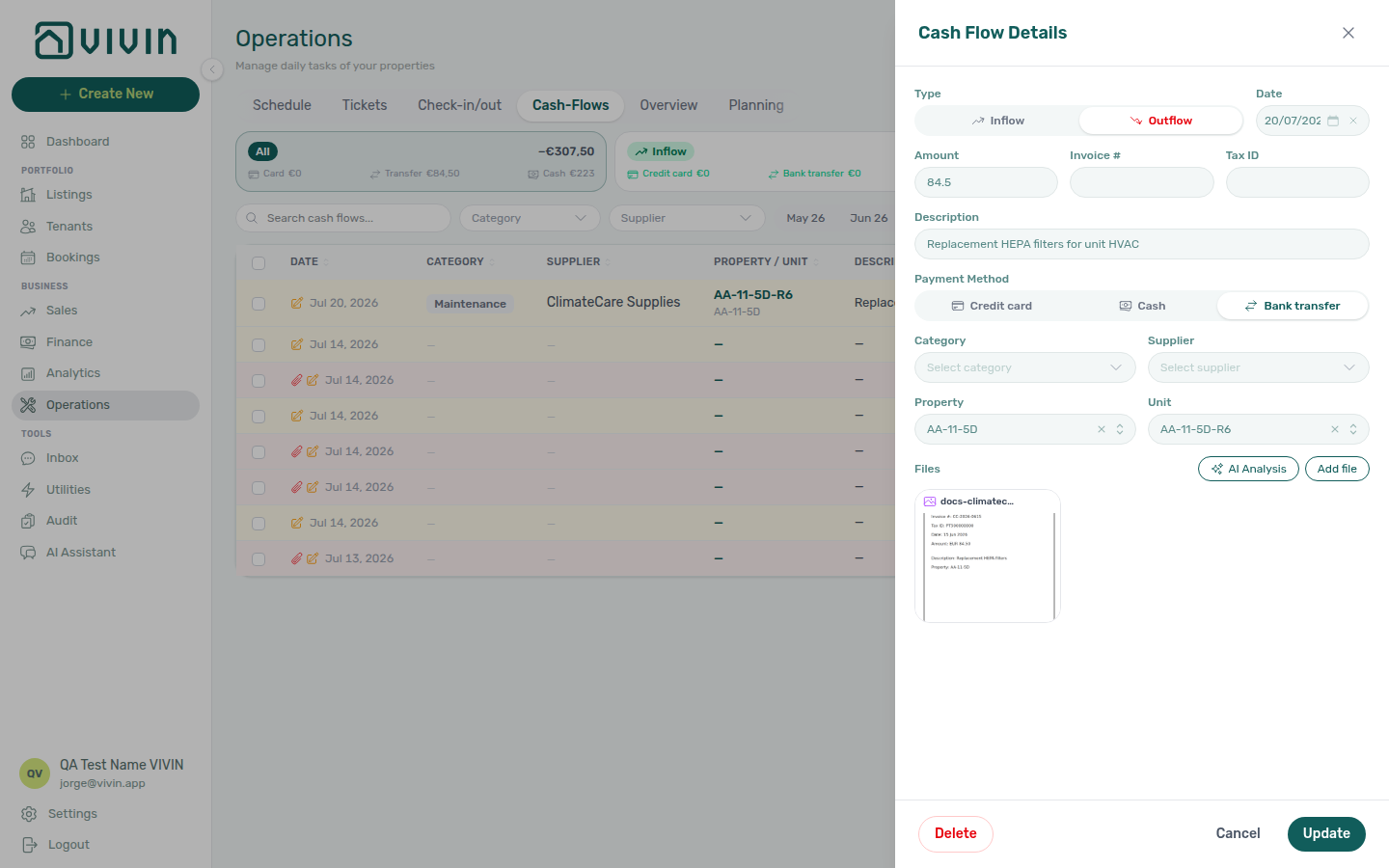
- Open Operations → Cash Flows and select a row that has an invoice photo or PDF.
- Click AI Analysis.
- Choose Sonnet 4.6 or Opus 4.8, read the attachment count and token / USD estimate, then Analyze & apply — or Cancel.
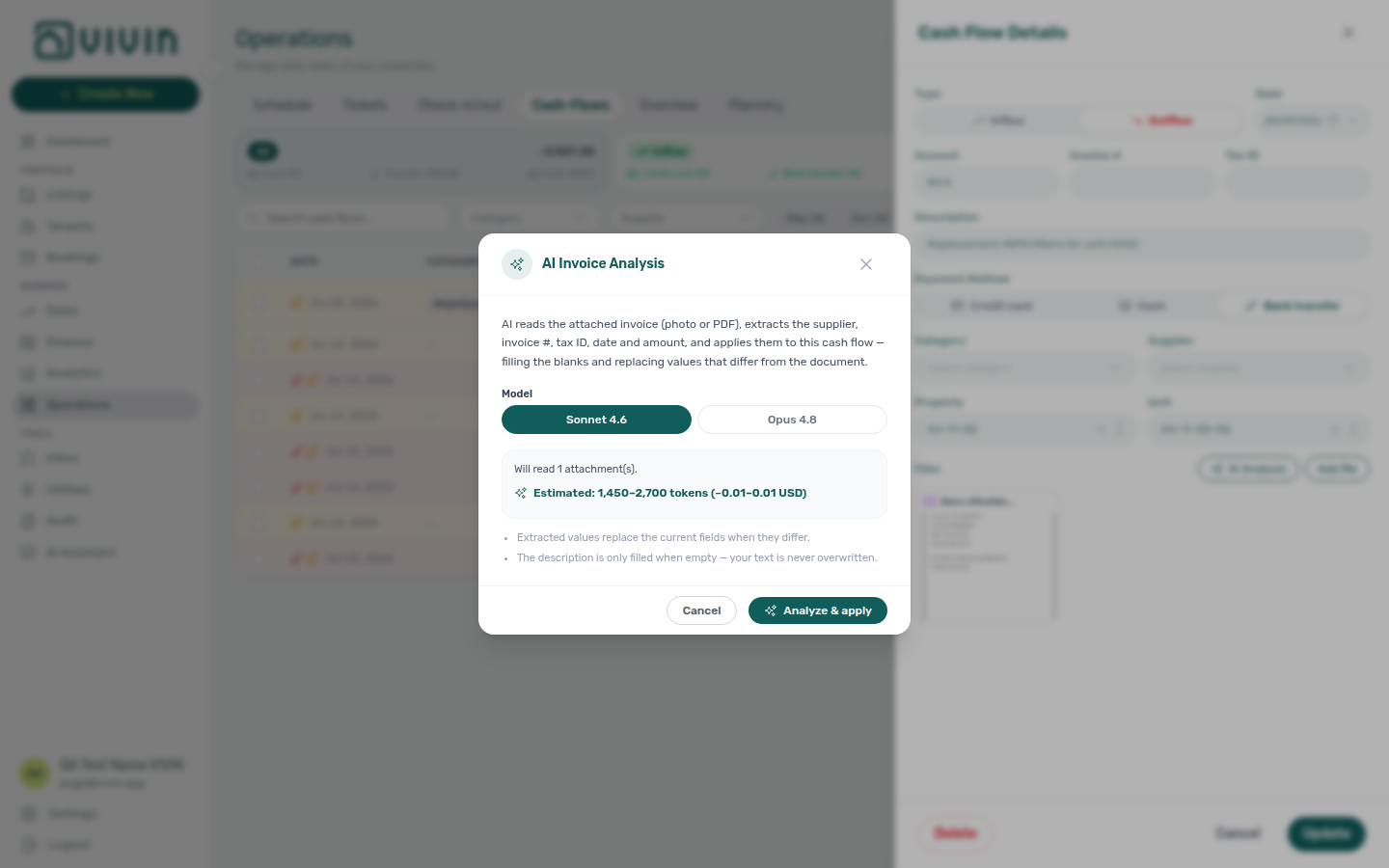
Extracted values replace blank or differing fields. The description is filled only when empty — existing operator text is never overwritten. Bulk selection on the Cash Flows table can run the same analysis across multiple rows (first batch per run); confirm estimates before you start.
Each confirmed analysis records cashflow_invoice_analysis in ai_usage (internal USD). Poll GET /ai-usage/summary?feature=cashflow_invoice_analysis. Distinct from Utilities — AI Invoice Reader (utility_bill_extraction), which extracts property utility bills — not operational cash-flow attachments.
Key Business Rules for Operations
-
Unassigned tickets need immediate attention. Tickets without an assignee are visible on the Dashboard's Unassigned tab. Managers should delegate these daily to ensure nothing falls through the cracks.
-
Ticket categories must be configured first. Before creating tickets, set up your category taxonomy in Settings > Categories > Tickets Categories. This ensures consistent classification across your team.
-
Automatic tickets reduce manual work. Use the property Maintenances tab to configure recurring check-in and check-out tickets. This eliminates the need to manually create preparation tasks for every turnover.
-
Cash flows are separate from booking payments. The Cash Flows tab tracks operational expenses, not tenant payments. Tenant payments are tracked in the Finance module.
-
Cost allocation categories drive expense reporting. Consistently applying cost allocation categories to cash flow entries enables accurate property-level expense reporting and owner statements.
-
Supplier cost history aids negotiation. Track spending per vendor over time to build leverage for contract renegotiations and identify cost-saving opportunities.
Operations guide subsection index
Operations section cross-reference
Use the sections above for this module. Related pages are linked from Related below when present, or from Modules.
Related
Related below links this module to settings, concepts, workflows, and escalation paths.
Documentation map & escalation
- Modules hub — Hub pairing matrix across operator workspaces
- Using in-app support — Vivin product tickets distinct from internal Operations maintenance tickets; drawer Status stays open while you add a second workflow state
- Glossary — Term definitions used across turnover and ticket workflows
- FAQ & Troubleshooting — When Operations tabs fail to load or mobile redirect surprises field staff
- Get Help & Support — Escalate when ticket or cash-flow permissions block access
Upstream & downstream workflows
- Create New menu — New Ticket — Open the ticket wizard from any screen
- Management Frontend Deep Links — Bookmark
/operations/ticketsand Draft KPI filter state - Manual block hygiene — Audit manual blocks distinct from maintenance tickets but often reviewed during turnover prep
- Managing a Check-in — Coordinate tenant arrivals (Step 2 uses Planning when granted)
- Managing a Check-out — Handle departures and turnovers (Step 2 dispatches cleaning on Planning)
- Common Workflows — Same-day turnover coordination — Pair Check-in & Check-out lists with the Planning day board
- Notifications — Payment overdue alerts — Operator Payments category rows during turnover week before key handover or deposit release
- Handling a Late Payment — Step 1 — Collections follow-up when Check-in & Check-out planning surfaces unpaid move-in or departure-week charges
- Cancelling a Booking — Close or cancel prep tickets when a reservation is voided (Step 6 in cancellation workflow)
- Entering Monthly Utility Bills — Damage or meter tickets that sometimes follow landlord bill ingestion
- Portfolio KPI review — Reconcile Maintenance heatmaps with ticket spend and linked cash flows during month-end review
Deeper workflow reads
See Upstream & downstream workflows above for the same guides.
Navigation & bookmarks
Bookmark routes pair with Management Frontend Deep Links and Create New menu.
- Management Frontend Deep Links — Operations — Tab routes including
/operations/schedule(Vivin internal)
Settings that shape Operations
- Settings > Categories — Configure ticket and cash flow categories
- Settings > Tenant categories — Portal modules and move-in rules by segment during check-in/out prep
- Settings > Preferences — Set default ticket SLA hours by priority (Overview Overdue uses those hours)
- Settings > Preferences — In-app notifications — Account-wide Service requests and booking alert masters during turnover triage
- Settings > Emails — Turnover reminder Communication Rules distinct from internal maintenance tickets
Deeper concept reads
- Tenant Portal — Tenant-submitted maintenance requests; portal Received is Unassigned here
- FAQ — Tenant contract signing blocked — No PDF yet, mandatory Your Details gates, category locks, or Lease purpose; portal signing vs paper upload on Contract Info
- Payment Allocation — Two-layer receipts, invoiced-floor rent edits, and credit note reject/revert warnings
- Booking Lifecycle — Computed Upcoming → Ongoing → Ended / Canceled status model, list filters, and Timeline
- Integrations & Distribution — Short-term iCal imports surface as channel-labelled pseudo check-in/out rows on Check-in & Check-out
- Services Marketplace — Fulfilment or damage tickets when portal Request Service orders need operator follow-up
- Landlord MCP — External automation for ticket and cash-flow writes gated by
operations.module - Tenant MCP — Booking-scoped maintenance tools that create or escalate tickets from tenant channels
Operator modules (pairing surfaces)
- Bookings — Tickets tab — Read-only ticket list on the booking sidebar; Open Operations — Tickets header link
- Personal Settings — Operations ticket columns — Per-user Tickets table columns (hide, reorder, Reset to default)
- Listings — Maintenances tab — Configure automatic ticket creation
- Finance — Deposits tab — Deposit disputes and refunds coordinated with check-out tickets
- Finance — Transactions tab — Ledger rows linked through ticket linked cash flows
- Audit — Discounts tab — Cross-portfolio discount lines when damage tickets coincide with goodwill reductions on Contract Values
- Analytics — Maintenance tab — Portfolio ticket-count trends when Operations volume spikes during KPI review
- Sales — Overview tab — Occupancy heatmap after turnover tickets release holds
- Inbox module — Portfolio WhatsApp triage when turnover tickets need tenant message context
Operator habit hubs
Day-to-day operator habits (lockout catch-up, pending receipts, payment triage, handoffs, and related playbooks) live on the Common Workflows habit hub.
Deep-link anchors for habit hubs
Lockout catch-up after password recovery
Pending manual receipt approval
Reject/revert mistaken receipts
Check-out ledger cleanup before refund
Utility overage collections
Cancellation collections before void
Check-out collections before refund
Handling a Late Payment collections
Check-out vs cancellation
Deposit missing on Finance Deposits
Notification row-click navigation
Payment alert to receivables triage
Finance debt receivables triage
Finance Income status drill-down
Cash flow forecast drill-down
Confirmation alert triage
New inventory to first booking handoff
Property setup to first arrival handoff
Confirmation to check-in handoff
Check-in to check-out handoff
Check-out final utilities handoff
WhatsApp per-booking messaging
Bot reasoning (audit)
ChatBot settings
Rent reduction after invoicing
Same-day turnover coordination
Occupancy KPI to block hygiene handoff
Partly collected security deposit
Month-end invoicing (fixed date)
Bulk Hostkit invoicing
Portfolio segmentation by tenant category
Directory list refresh
When a list needs a refresh instead of showing rows, use Retry or reload the page. Zero rows after a successful load means your filters matched nothing — widen filters or clear search.
See FAQ — Directory list refresh and Glossary — Directory list refresh.
Key glossary terms
- Deposit dispute — Freeze deposit refunds when damage tickets precede contested retention
- Glossary — End-of-Booking cost split — Charge Time → End of Booking splits daily overage across every occupied unit; still-staying roommates stay in the denominator
- Glossary — Change history — Operator-initiated edits on Listings setup and Bookings Changelog; create-time defaults excluded
- Glossary — Archived booking ledger visibility — Delete Booking hides manual/provider_platform rows on Finance → Transactions; vIBAN and credit card stay visible
- Glossary — Finance tenant category cache refresh — Recategorizing a tenant updates
booking.tenantCategoryIdimmediately; ledger tabs reflect it on reload, while Overview can lag up to ~10 minutes - Glossary — SIMAR water contract ID — SIMAR (Loures e Odivelas) water bills use Cód. Local in Connections — not Nº de Contador; leading zeros stripped
- Glossary — Full term list
API & companion guides
- API Reference — Creating Bookings — Partner imports that spawn check-in/out prep tickets after background validation succeeds
- API Reference — Booking Lifecycle & Validations — Integration queue states before imported stays appear on Check-in & Check-out
Module documentation hubs
- Operations module — Hub for maintenance tickets, cash flows, check-in/out coordination, Draft ticket queues, and linked cash flows (this page)
- Bookings module — Full reservation lifecycle with sidebar Tickets and Communication tabs (hub)
- Finance module — Portfolio ledgers with payment approval and deposit settlement (hub)
- Listings module — Property wizard, Maintenances tab, and unit management (hub)
- Dashboard module — Post-login Today, Total debt, Vacant Units, and forecast KPI snapshot (hub)
- Analytics module — Month-range portfolio KPI charts with Maintenance tab (hub)
- Utilities module — Bills Included ceiling model, Connections, and tenant overage charges (hub)
- Sales module — Portfolio availability, monthly rent editing, and channel manager connections (hub)
- Inbox module — Portfolio-wide WhatsApp workspace (hub)
- Notifications module — Full
/notificationshistory with row-click navigation (hub) - AI Chat module — AI Assistant for portfolio Q&A (hub)
- Audit module — Portfolio-wide Manual Blocks and Discounts contract-value review (hub)
- Properties workspace — Legacy
/propertiesURL redirects into Listings (hub) - Booking engine details — Rich marketplace payload editor via the Full integration pill (hub)
- Tenants module — Tenant directory, profile sidebars, and With Debt segmentation (hub)
- Account Settings — Workspace-wide financial policies, templates, integrations, and operational defaults (hub)
- API Reference hub — Partner HTTP contracts and partial vs full feeds (hub)