Managing Listings (Properties & Units)
Finish Getting Started — Recommended Setup Sequence steps 1–12 on Account Settings (map: Recommended setup order) before step 13 — create and configure properties and units here. Guided settings steps 4–12: Onboarding a New Property. After steps 14–15 go live, run Onboarding a New Property — Step 7. Legacy /properties bookmarks redirect here — see Legacy /properties URLs. Lockout catch-up: Getting Started.
Skim Understanding the Listings Structure, then use Portfolio toolbar before Creating a New Property or Creating a New Unit. Link channels on Channels Tab; review Archived properties separately. Guide subsection map: Listings guide subsection index (portfolio, unit, and channel sections + Related subsections). Habit-specific shortcuts live under Related below.
The Listings module is your property portfolio inventory. This is where you view, create, edit, and manage all properties and their individual units from a single workspace. Understanding how to work with this module is essential, as properties and units form the foundation for all bookings, financial tracking, and operations. With real-time occupancy tracking, multi-property support, and role-based team access, you have complete control over your entire portfolio.
/properties links?Legacy URLs under /properties redirect into Listings. See Legacy /properties URLs for the exact redirect table.
Open the Listings module at platform.vivin.app/listings. See Deep Links for all management frontend routes, including property and unit sidebar URLs.
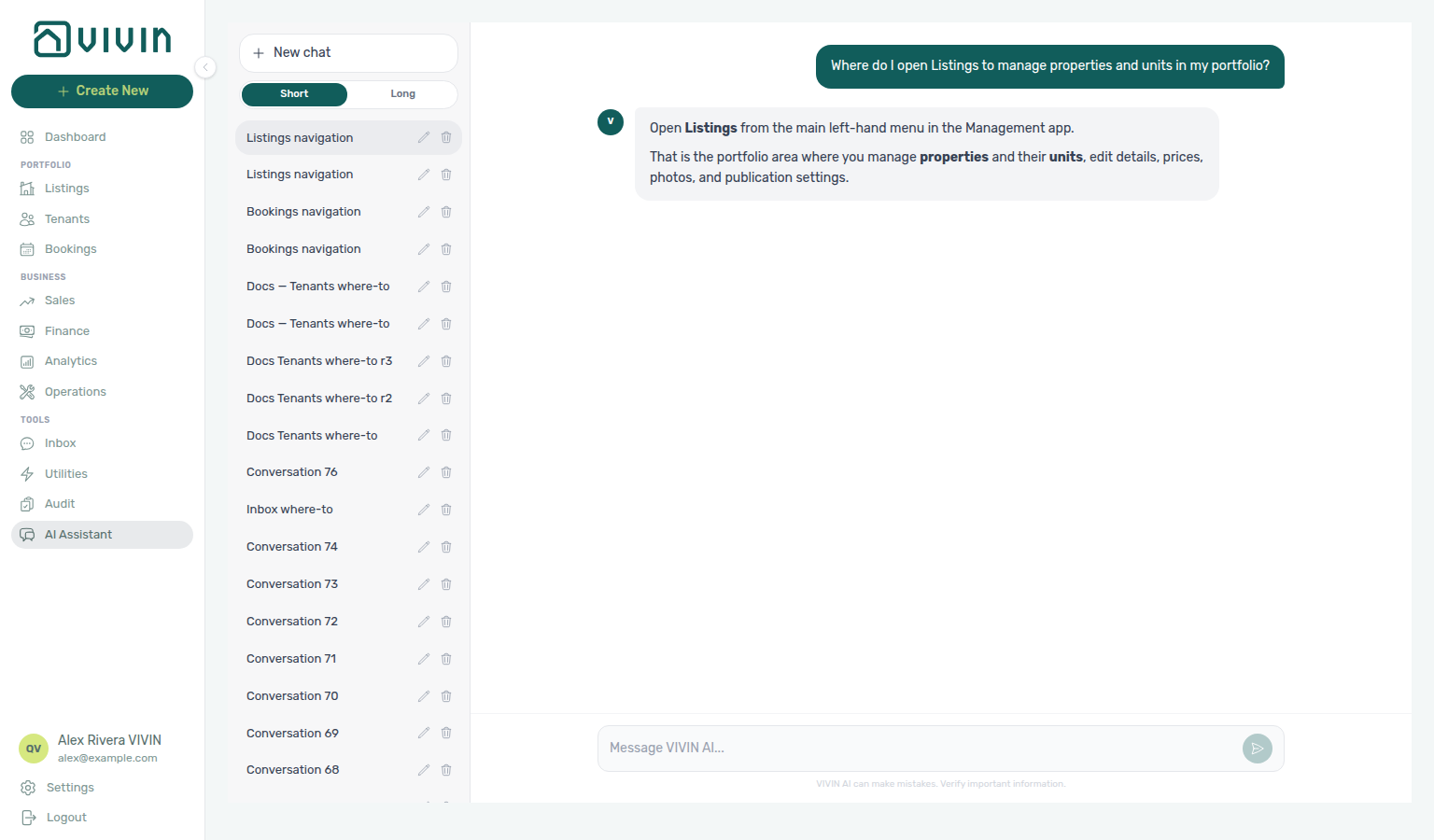
Not sure which Portfolio item holds properties and units? Ask AI Chat “Where do I open Listings to manage properties and units in my portfolio?” — then open Portfolio → Listings (ai-chat-product-context-listings-reply.png, ai-chat-product-context-listings-flow.mp4). The assistant may say left menu without naming Portfolio. Reservation work stays on Bookings; monthly rents stay on Sales.
Need the properties-and-units workspace (not reservation triage on Bookings, and not monthly rents on Sales)? Ask AI Chat “Where do I open Listings to manage properties and units in my portfolio?” — then open Portfolio → Listings (ai-chat-product-context-listings-reply.png, ai-chat-product-context-listings-flow.mp4). The assistant typically says Listings in the left menu (may omit the Portfolio group name). Canonical route: /listings.
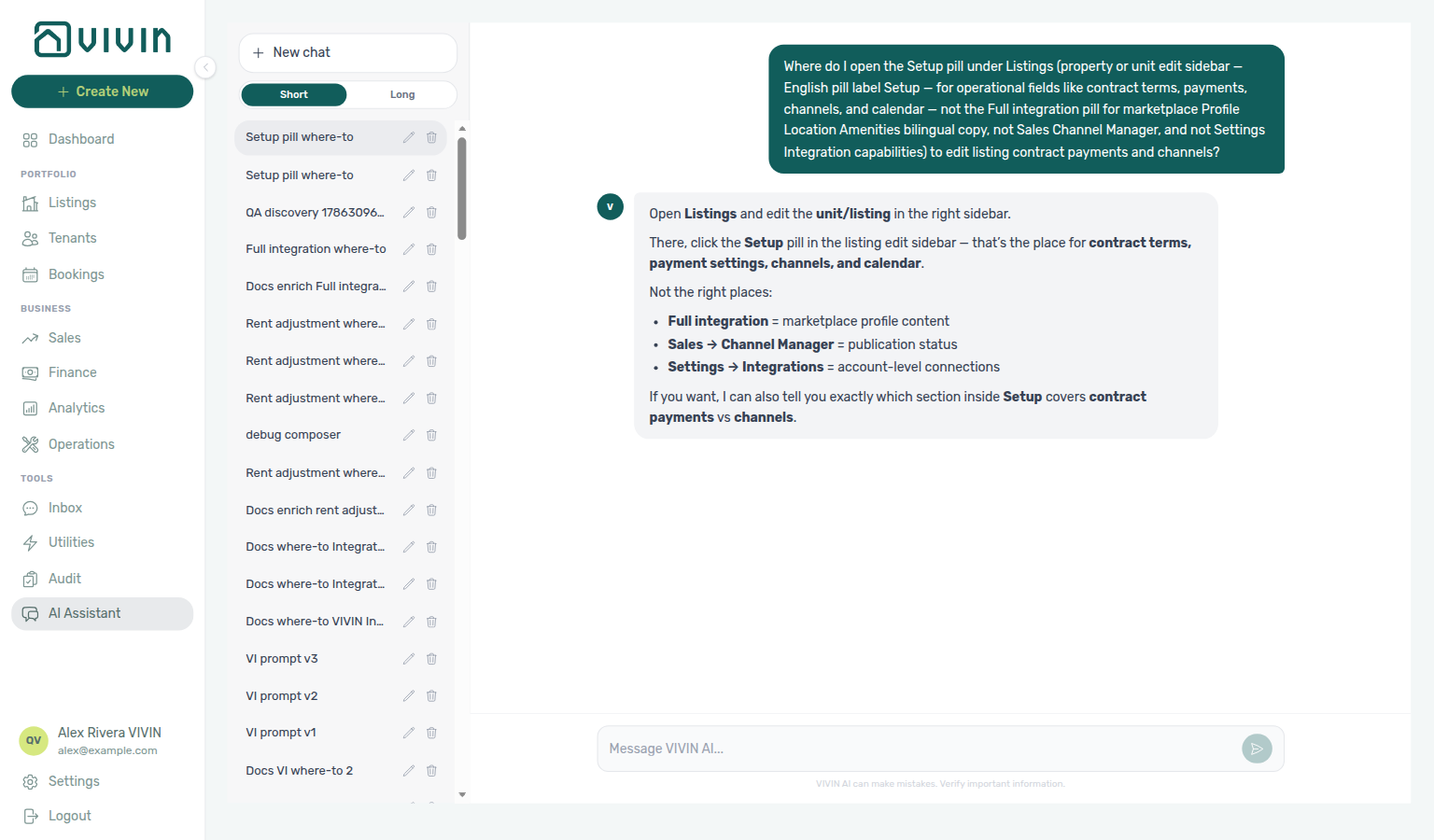
Need contract terms, payments, channels, or the unit calendar? Ask “Where do I open the Setup pill under Listings (property or unit edit sidebar — English pill label Setup — for operational fields like contract terms, payments, channels, and calendar — not the Full integration pill for marketplace Profile Location Amenities bilingual copy, not Sales Channel Manager, and not Settings Integration capabilities) to edit listing contract payments and channels?” — then open a unit (or property) sidebar and choose Setup (ai-chat-product-context-setup-reply.png, ai-chat-product-context-setup-flow.mp4). The assistant typically says Listings → edit the unit/listing → Setup pill.
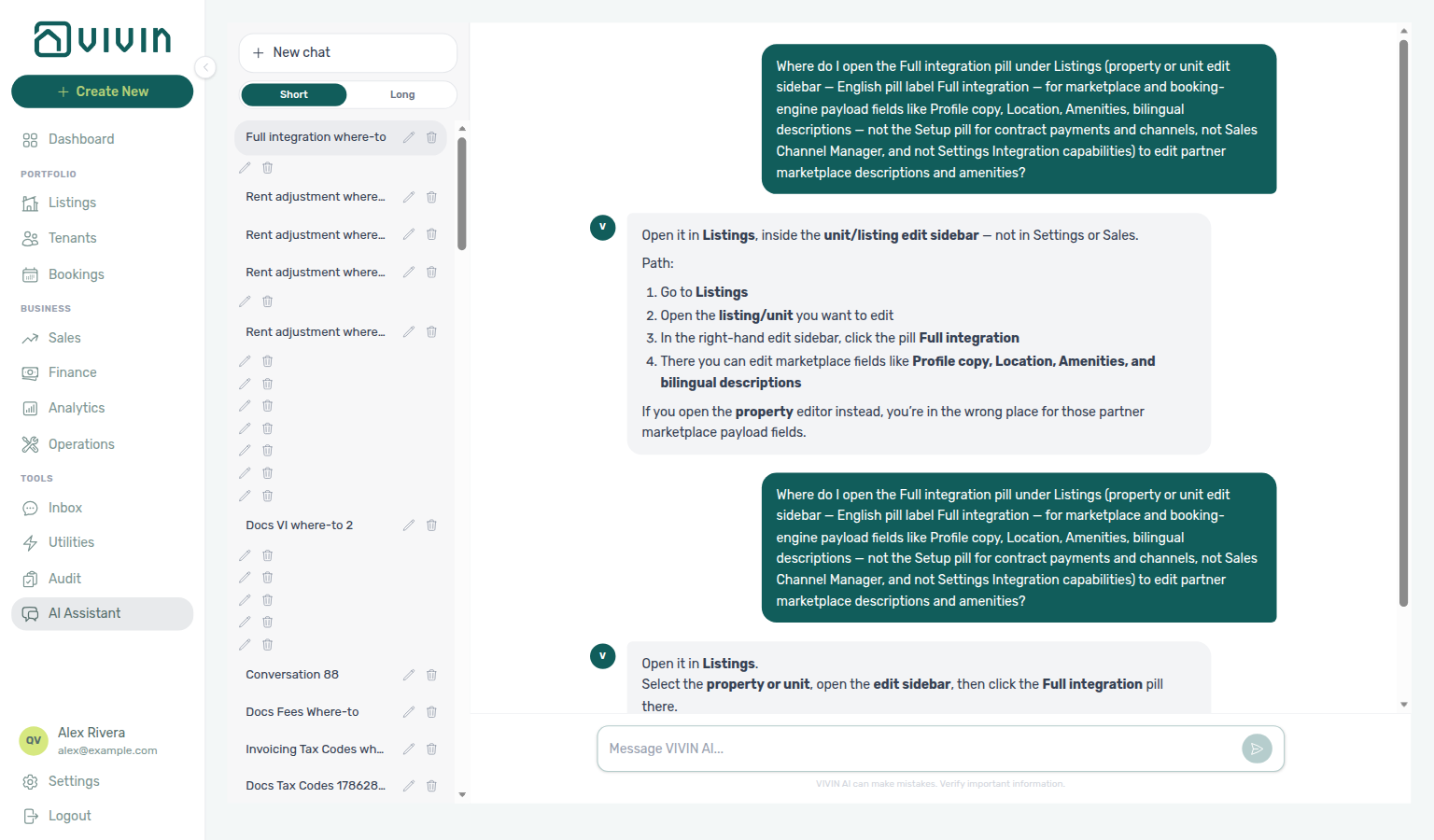
Need marketplace copy, amenities, or bilingual partner fields? Ask “Where do I open the Full integration pill under Listings … to edit partner marketplace descriptions and amenities?” — then open a unit (or property) sidebar and choose Full integration (ai-chat-product-context-full-integration-reply.png, ai-chat-product-context-full-integration-flow.mp4). Guide: Property & listing details (booking engine).
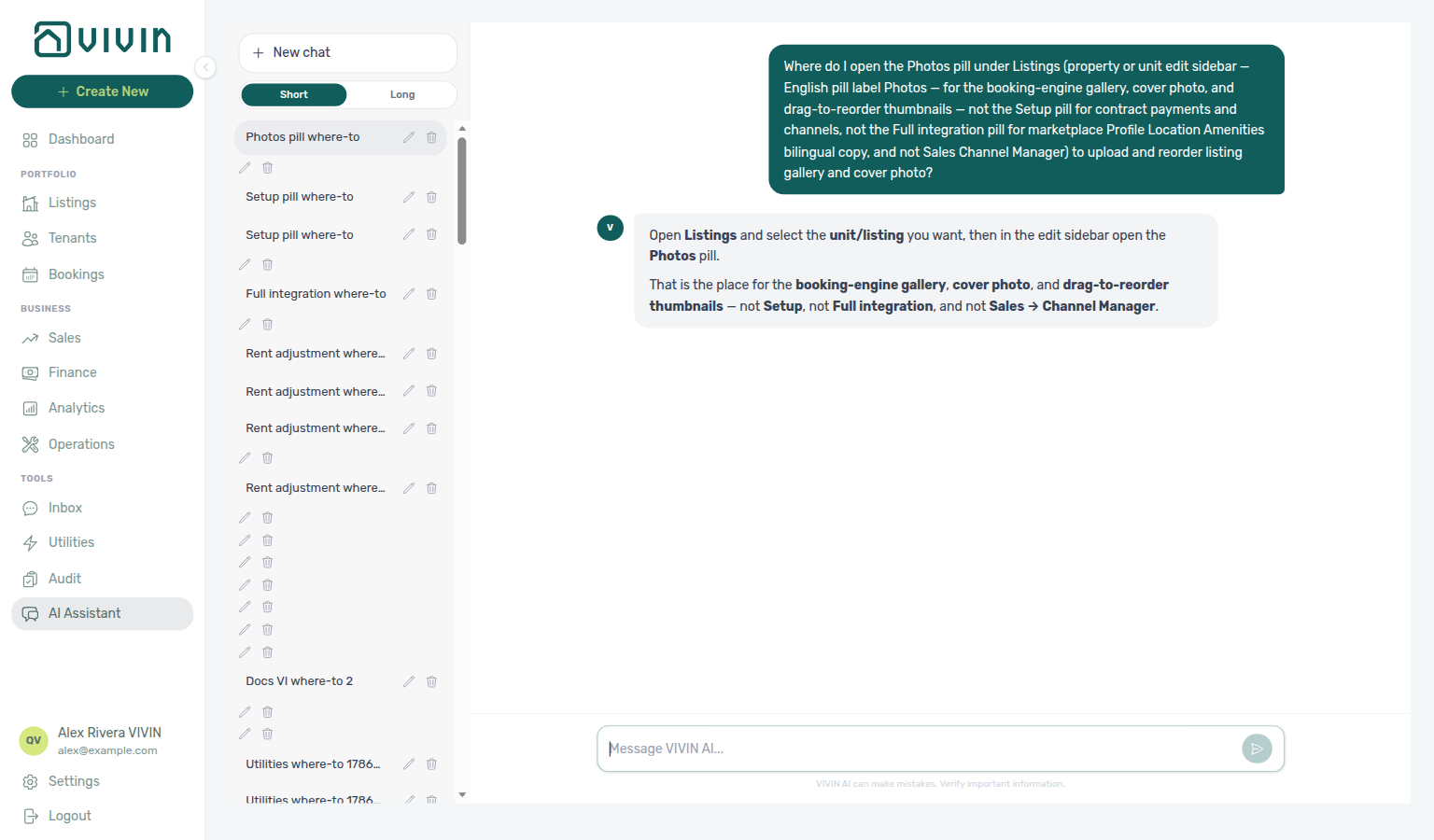
Need the booking-engine gallery, cover photo, or drag-to-reorder thumbnails? Ask “Where do I open the Photos pill under Listings (property or unit edit sidebar — English pill label Photos — for the booking-engine gallery, cover photo, and drag-to-reorder thumbnails — not the Setup pill for contract payments and channels, not the Full integration pill for marketplace Profile Location Amenities bilingual copy, and not Sales Channel Manager) to upload and reorder listing gallery and cover photo?” — then open a unit (or property) sidebar and choose Photos (ai-chat-product-context-photos-reply.png, ai-chat-product-context-photos-flow.mp4). The assistant typically says Listings → edit the unit/listing → Photos pill.
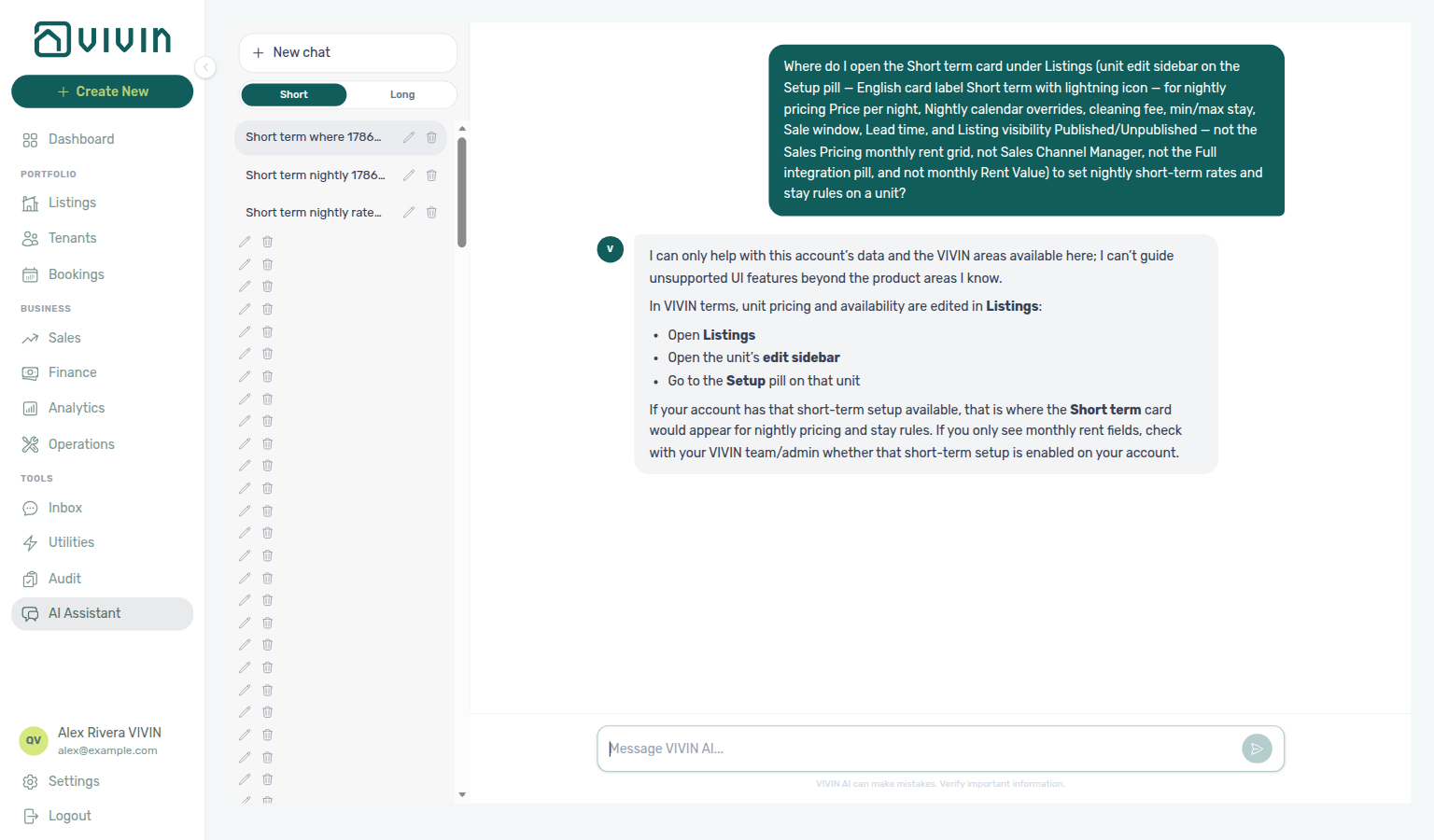
Need nightly short-term rates or stay rules for channel managers? Ask “Where do I open the Short term card under Listings (unit edit sidebar on the Setup pill — English card label Short term with lightning icon — for nightly pricing Price per night, Nightly calendar overrides, cleaning fees, min/max stay, Sale window, and Lead time — not the Sales Pricing monthly rent grid, not Sales Channel Manager, not the Full integration pill, and not monthly Rent Value) to set nightly short-term rates and stay rules on a unit?” — then open a unit sidebar on Setup and scroll to Short term (ai-chat-product-context-short-term-reply.png, ai-chat-product-context-short-term-flow.mp4). The assistant typically says Listings → unit edit sidebar → Setup → Short term. Guide: Short term (nightly pricing).
Link units on Sales → Channels before channel import; pair Bookings for reservations and Utilities → Connections for Bills Included ceilings. New direct bookings inherit the property’s default tenant category — cross-check segment counts on Tenants — Tenant category filter before you change portal modules account-wide. When Property Payments Active is enabled, unpaid portal charges can surface payment overdue rows — continue with Handling a Late Payment — Step 1. Poll AI usage API (utility_bill_extraction) when Utilities → Bills AI upload volume spikes after new properties go live — there is no in-app ledger screen yet
If /listings/property/:propertyId/... points to a property that does not exist or is outside your account, the app shows Property not found. and returns you to /listings. The same toast-and-return pattern applies to unit sidebar bookmarks (/listings/unit/:listingId, /listings/units/:listingId, and /listings/property/:propertyId/unit/:listingId) with Unit not found. Full-page /listings/:listingId shows an in-page Listing not found message with Back to listings instead of a toast. See Deep Links — Broken entity deep links.
Understanding the Listings Structure
Portfolio hierarchy pairs with Onboarding a New Property and the legacy Properties workspace redirect.
Vivin organizes your portfolio in a hierarchical structure: Properties contain Units. A property represents a physical building or location (for example, "Central Apartment Building" or "Riverside Complex"), while units represent the individual rentable spaces within that property (for example, "Unit 101" or "Studio A").
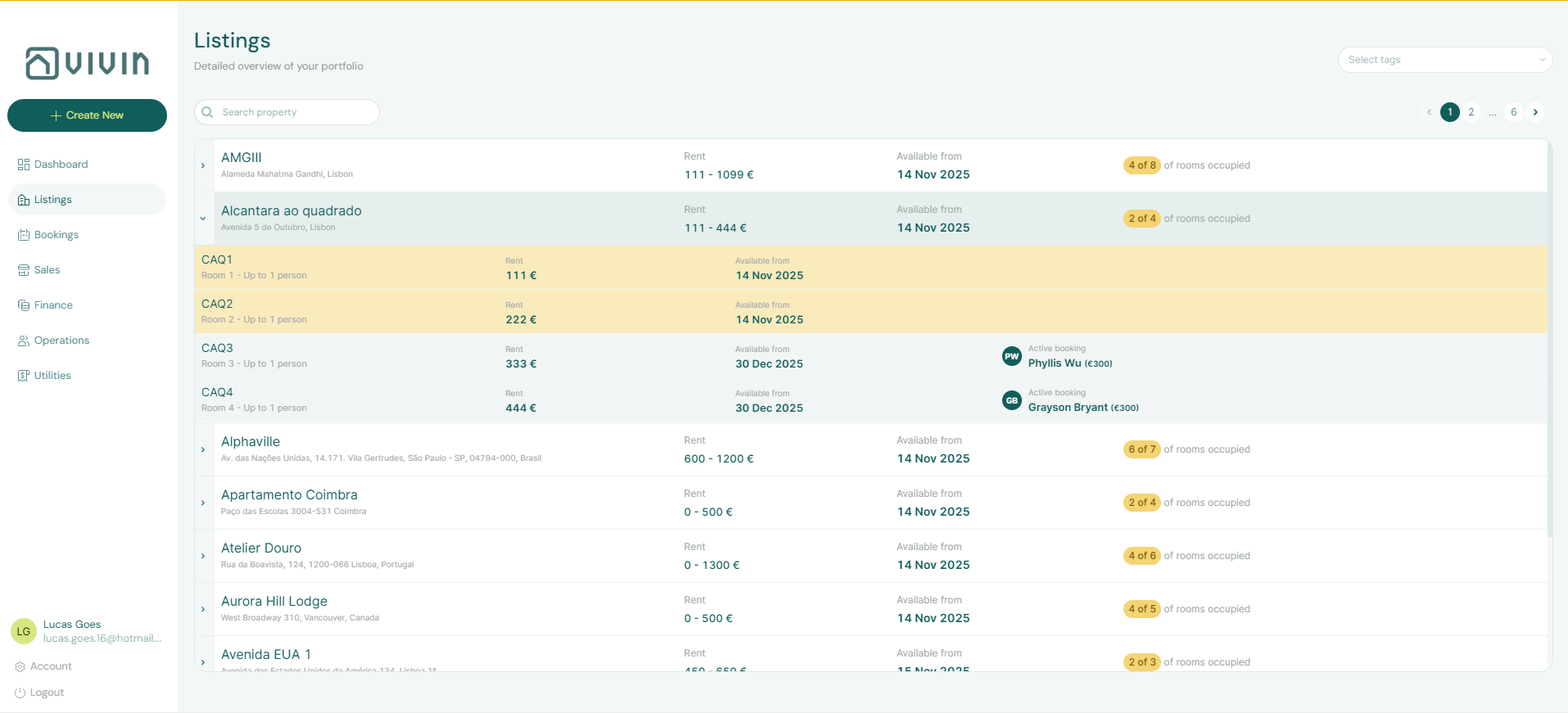
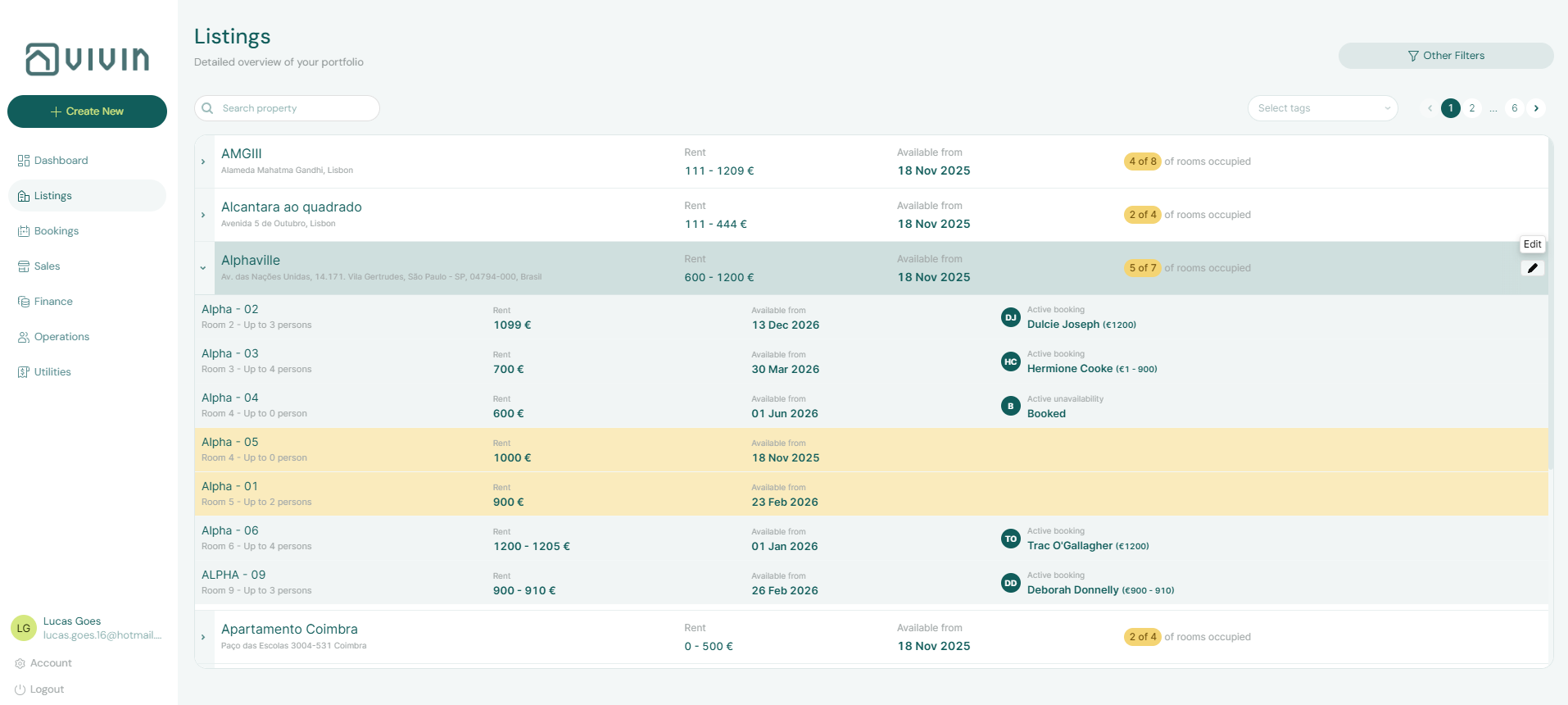
When you open the Listings module, you will see a table displaying all your properties. Each row represents one property and shows key information including:
- Cover photo — When the property has at least one Full integration photo, the row shows a small thumbnail of the main (cover) image; hover ~2 seconds for a larger preview. Rows without photos keep a muted placeholder so the table stays aligned.
- Property Name
- Full Address
- Rent Range (minimum and maximum rent across all units)
- Available from (earliest date a unit in that property becomes bookable)
- Occupancy — badge showing
X of Yunits occupied today (active Vivin booking or manual/short-term block covering today) - Expand Arrow (click to reveal units)
- Edit Icon (pencil icon to edit the property)
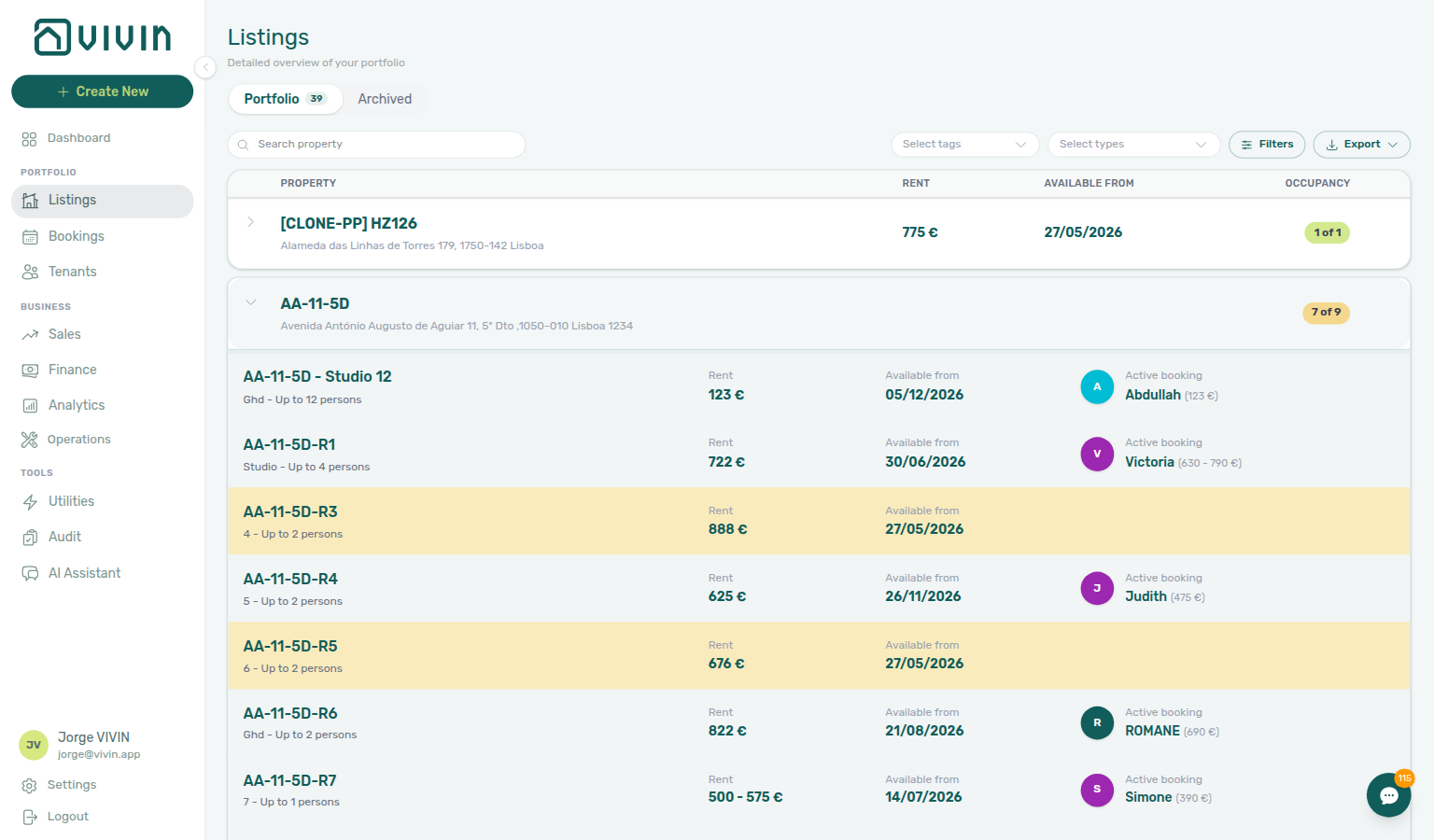
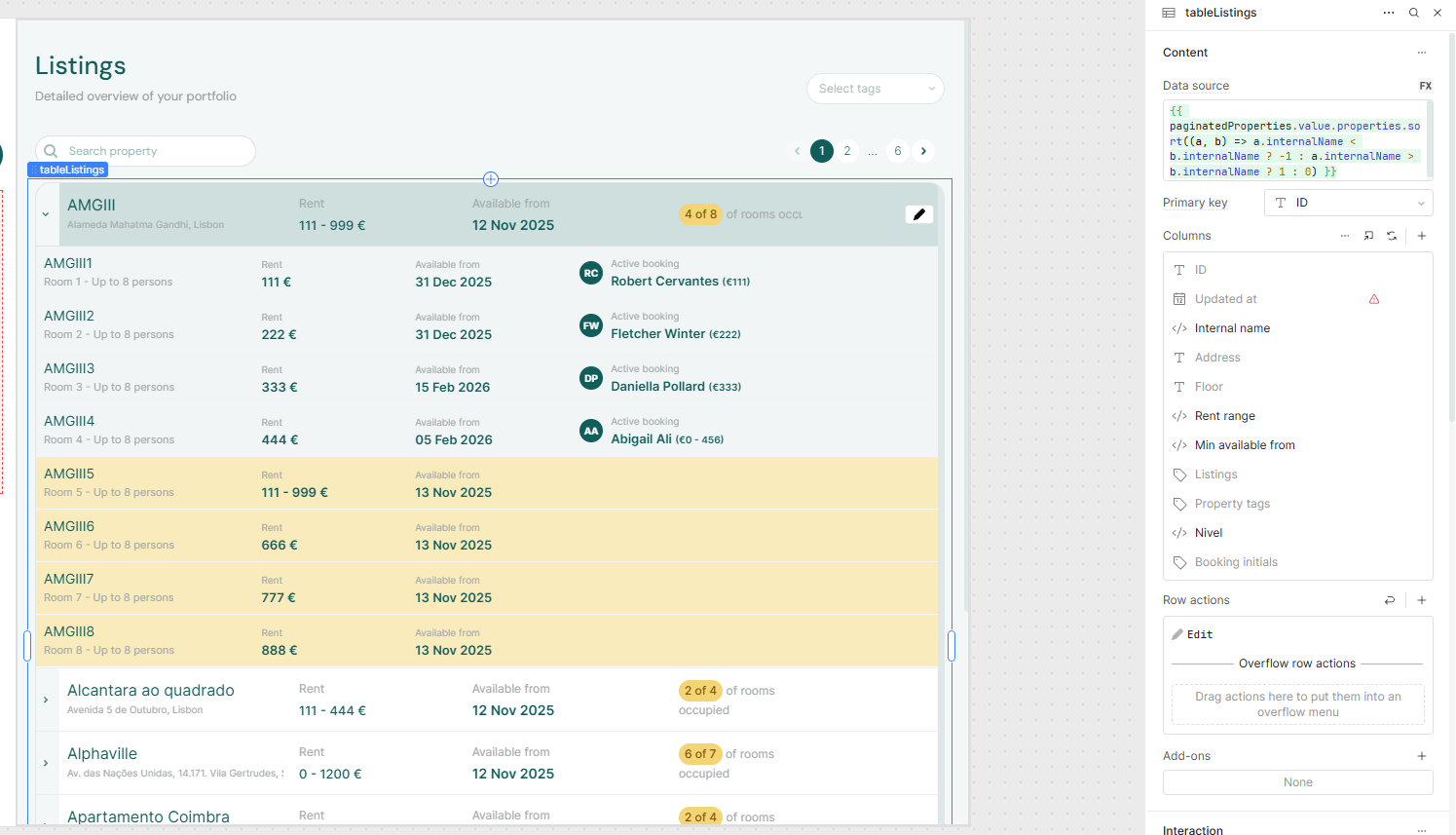
To view the units within a property, click the arrow icon on the left side of the property row. The row will expand to show all units belonging to that property. Each unit displays its internal name, type, rent, Available from, and — when occupied today — either an Active booking chip (tenant + rent; opens the booking sidebar) or an Active unavailability chip (manual block or short-term hold reason).
Reading occupancy in the portfolio table
Property-level badge (X of Y)
| Badge colour | Meaning |
|---|---|
Green (occupied === total) | Every unit in the property is occupied or blocked today |
Yellow (occupied < total) | At least one unit is free today — use this to spot partial vacancy at a glance |
Grey (total === 0) | Property has no units yet |
Occupied counts include both active Vivin bookings and unavailabilities (manual blocks, short-term iCal holds, and similar) that cover today’s calendar date — the same rule used in Sales Overview “free room” logic.
Expanded unit rows
| Row background | Occupancy column |
|---|---|
Mint (#f1f5f5) | Unit is occupied today — Active booking (click tenant chip → booking sidebar) or Active unavailability (reason text; edit the block from the unit Calendar) |
Yellow (#faebbd) | Unit is vacant today — no active booking and no block covering today |
Deep links hidden by filters
If you open /listings/property/:propertyId/edit or search for a property but toolbar filters or search hide that row, the portfolio shows No properties found with a Clear filters control. Click it to reset search, tags, type, and capacity filters so the deep-linked property appears. See also Deep Links — Listings.
Unit order within an expanded property
When a property row is expanded, units are sorted by internal name using natural numeric order (for example Room 2 before Room 10, or AA-11-5D-R2 before AA-11-5D-R10). The sort key is the unit internal name only — not the display room number label shown in the row.
Portfolio table loading (infinite scroll)
On Portfolio and Archived, the property table is server-paged and loads in chunks as you scroll — there is no separate Load more button.
Each batch is served by GET /properties/portfolio with the same search, tag, type, capacity, and archived flags you set in the toolbar. Distinct portfolio filter catalog values (tags, types, capacities) load once per session from GET /properties/portfolio/filter-options so scrolling pages does not re-download the full account.
- First load — The app requests an initial batch of property rows (enough to fill a typical desktop viewport).
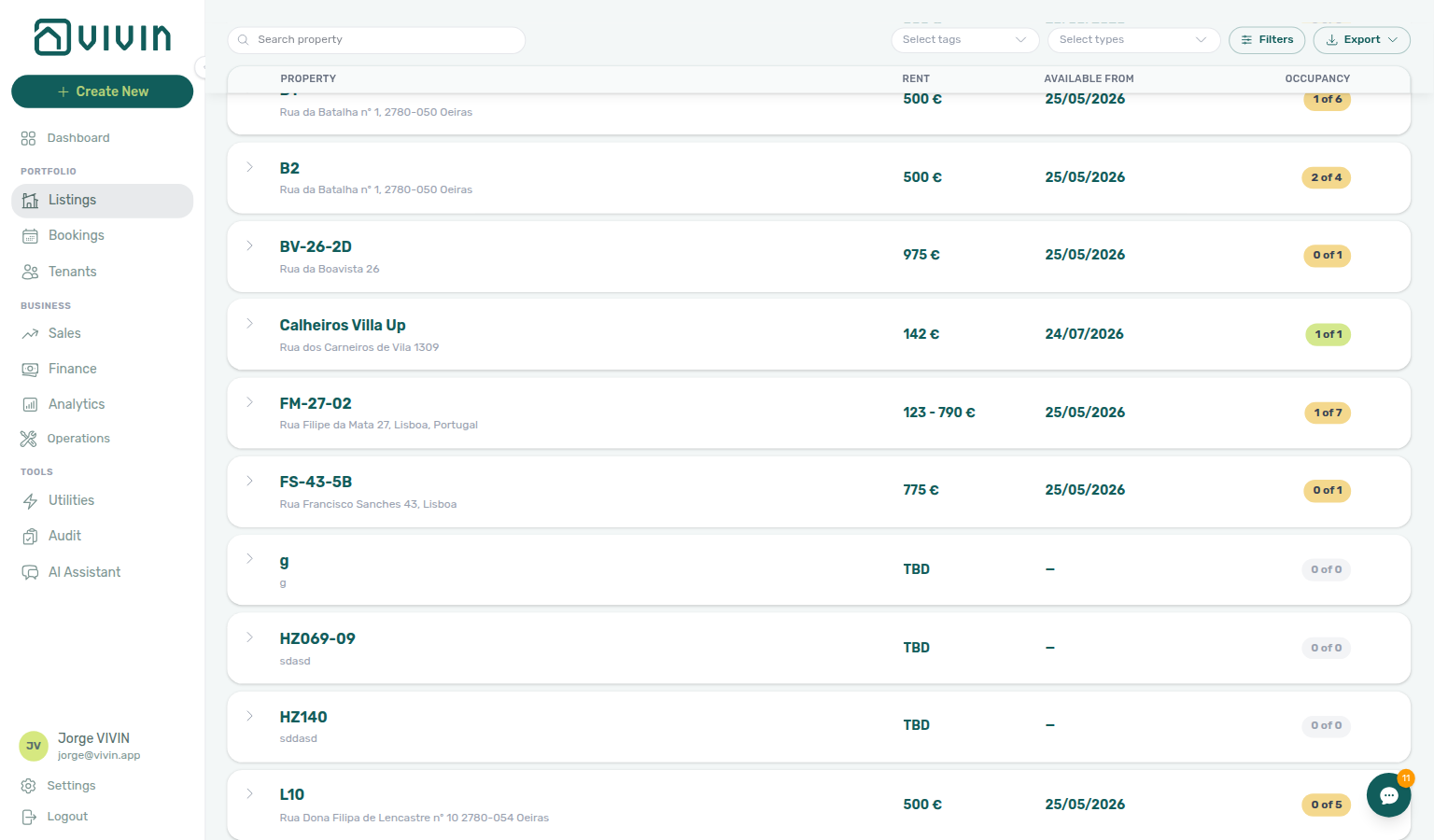
- Scroll for more — When you scroll near the bottom of the main content area, the next batch loads automatically. While the request runs, you see skeleton rows at the bottom of the table.
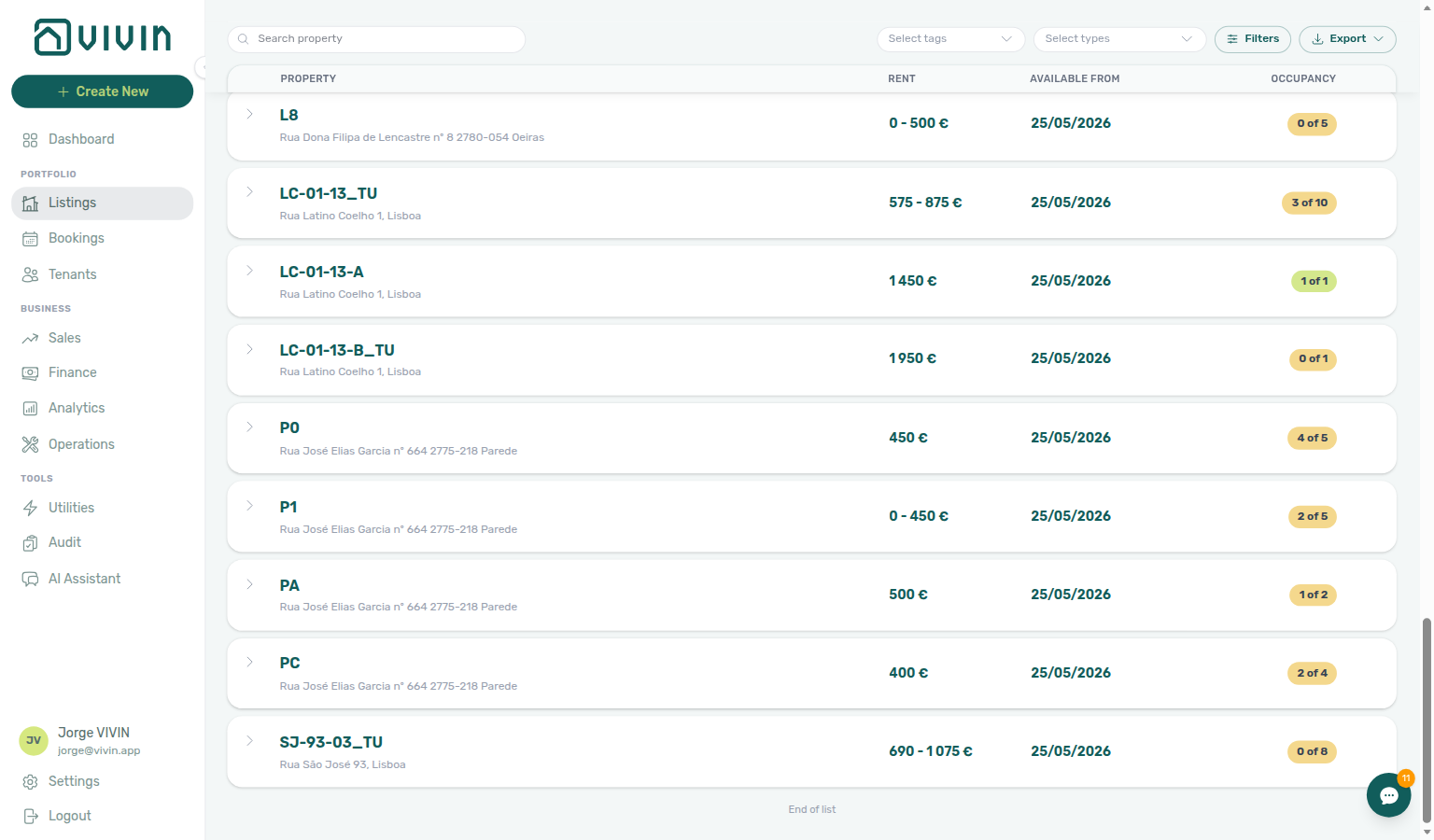
- End of list — After every property in the current filter set is loaded, a subtle End of list line appears below the table.
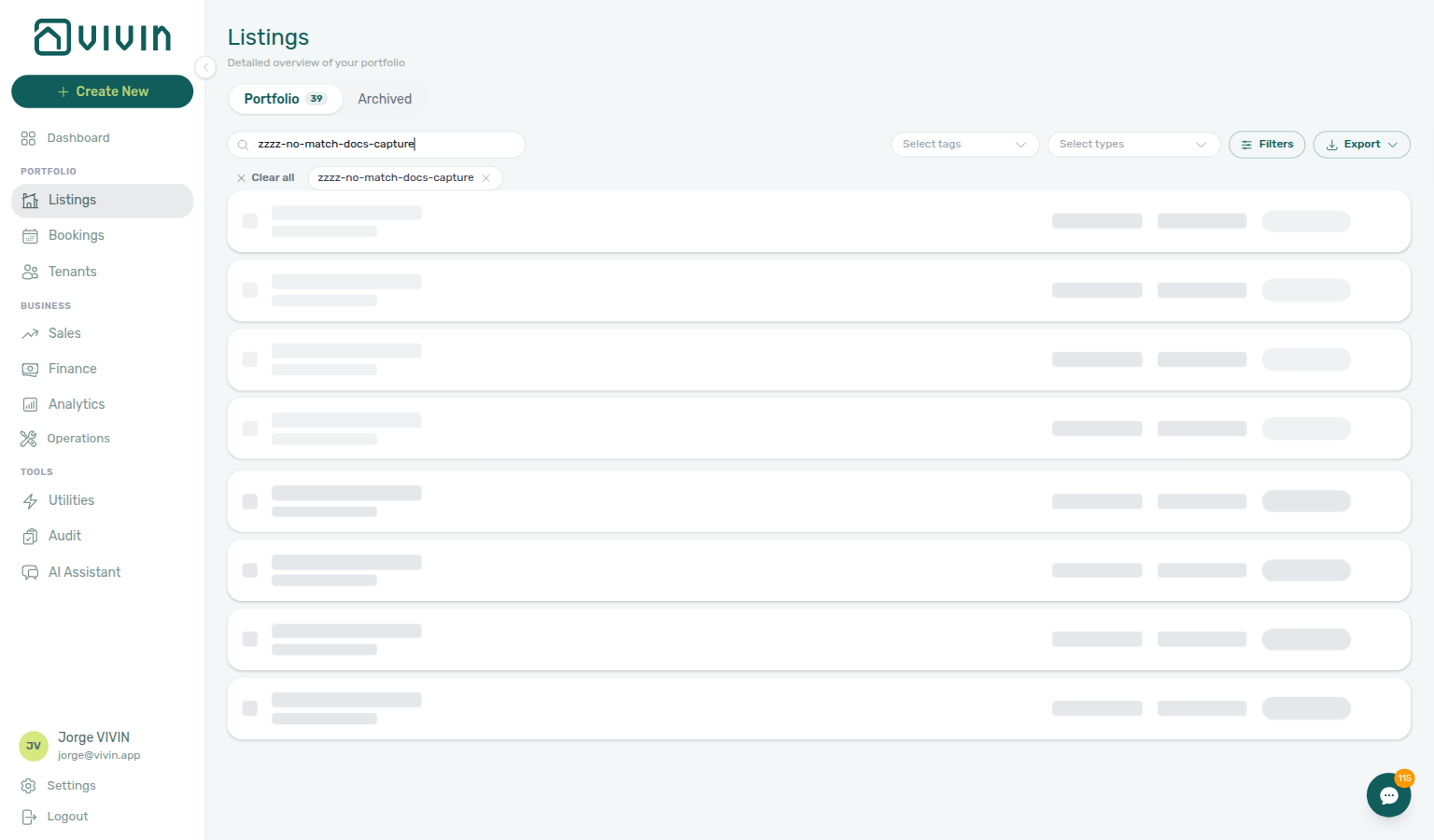
- Search and filter refetch — Changing search, tags, type, capacity, or switching between Portfolio and Archived starts a new server request from the first batch. Portfolio search debounces for about one second after you stop typing before the server query runs — until then, or while the refetch is in flight, the table shows skeleton placeholders instead of a misleading No properties found empty state. The active search chip and toolbar filters stay visible so you know which criteria are in flight. Each search or filter change also scrolls the portfolio table back to the top so the first batch of matching rows is always in view (you are not left mid-scroll on an old slice from the previous criteria).
- Save does not reset the list — Update on a property or unit sidebar patches that row in place. You stay on the buildings you already scrolled to — see Save keeps your place in the list.
Large portfolios stay responsive because only part of the list is in memory at once; expand a property row only after its parent row is visible in the loaded slice.
If this list needs a refresh — Use Retry on Portfolio or Archived when the list is empty and you expect properties (both tabs share the same pattern). Toolbar tabs stay visible so you can switch to Tags & types. This is distinct from search or filter criteria that genuinely match zero properties. See Glossary — Directory list refresh.
While a search or filter refetch is loading and no rows match yet, skeleton cards fill the main table area:
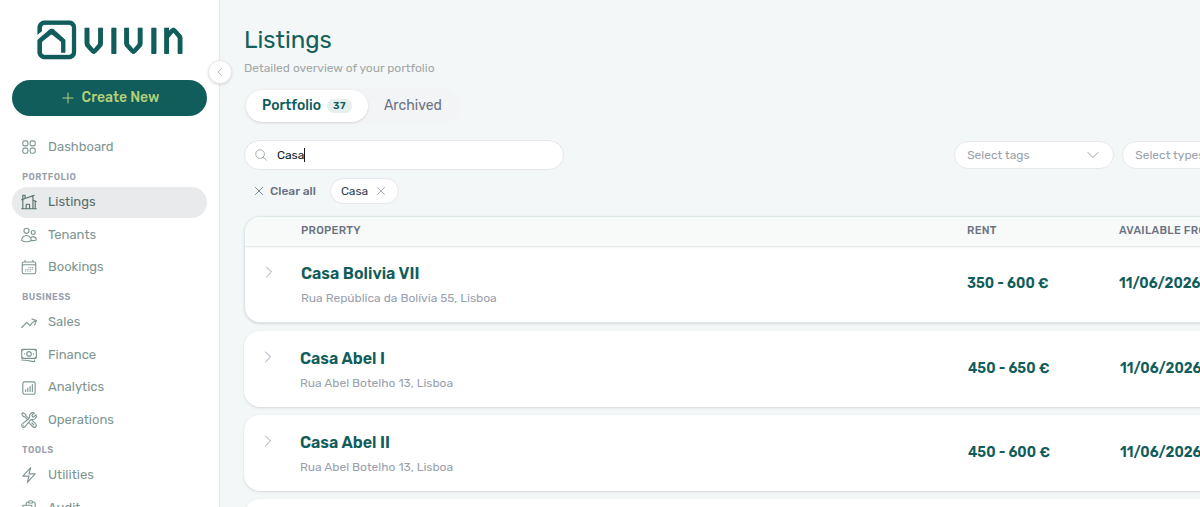
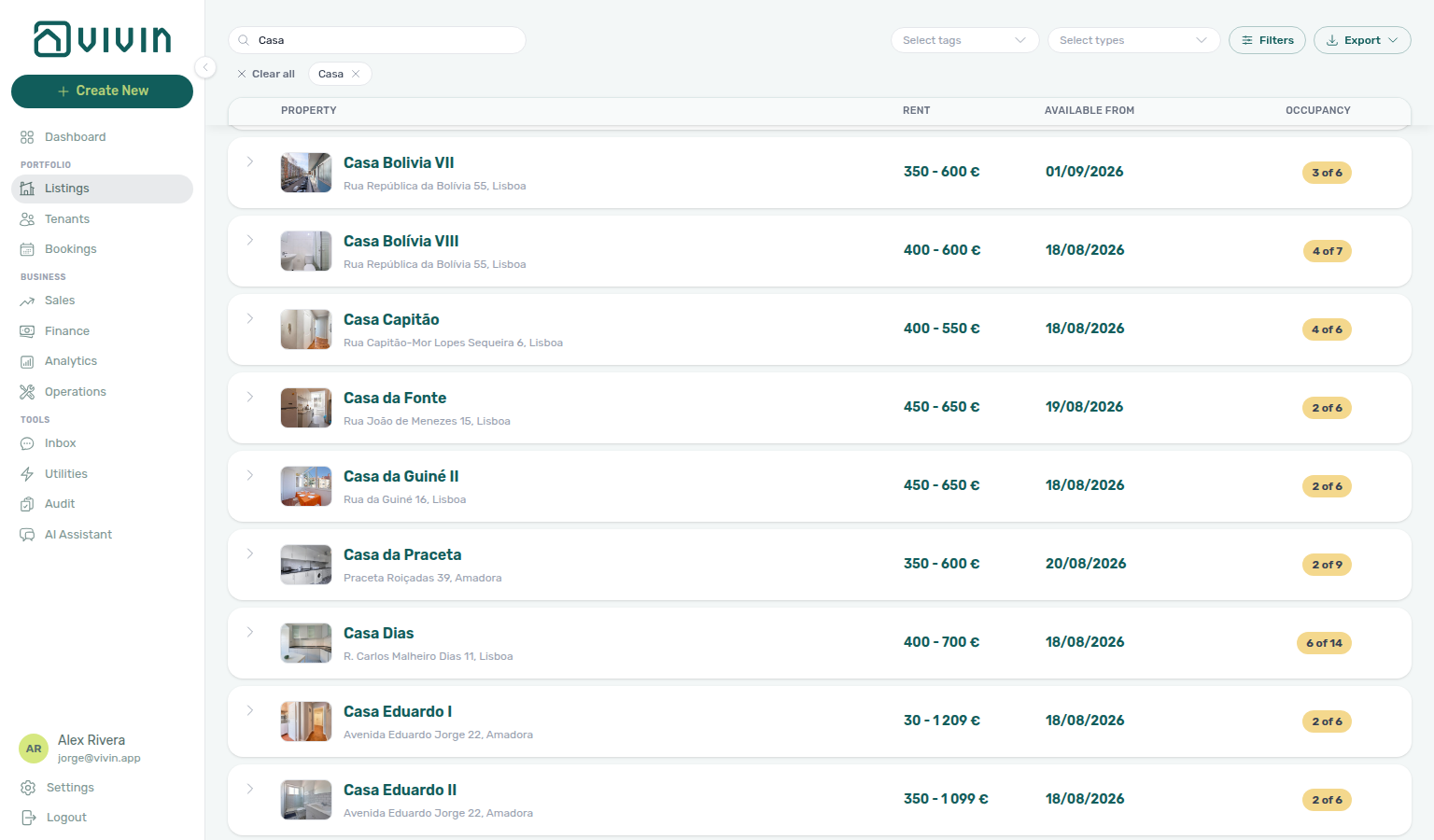
After the debounce finishes and the server returns matches, the active search chip stays under the toolbar (with Clear all and any tag/type chips) while property cards show the filtered portfolio:
While the next scroll page is loading, placeholder skeleton rows appear at the bottom of the table (same card shape as property rows):
When every row for the current filters is loaded, the End of list line appears under the table:
Save keeps your place in the list
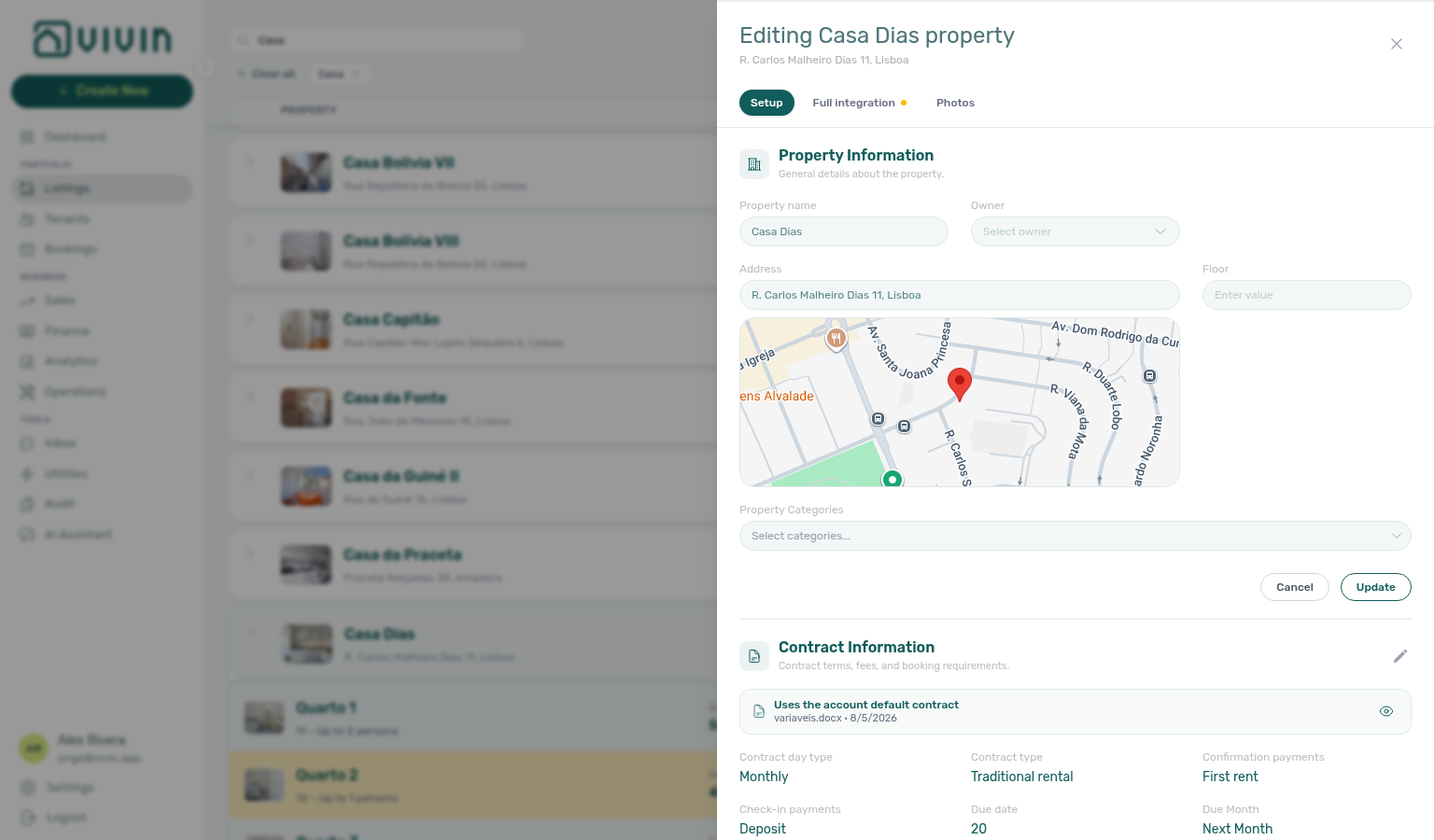
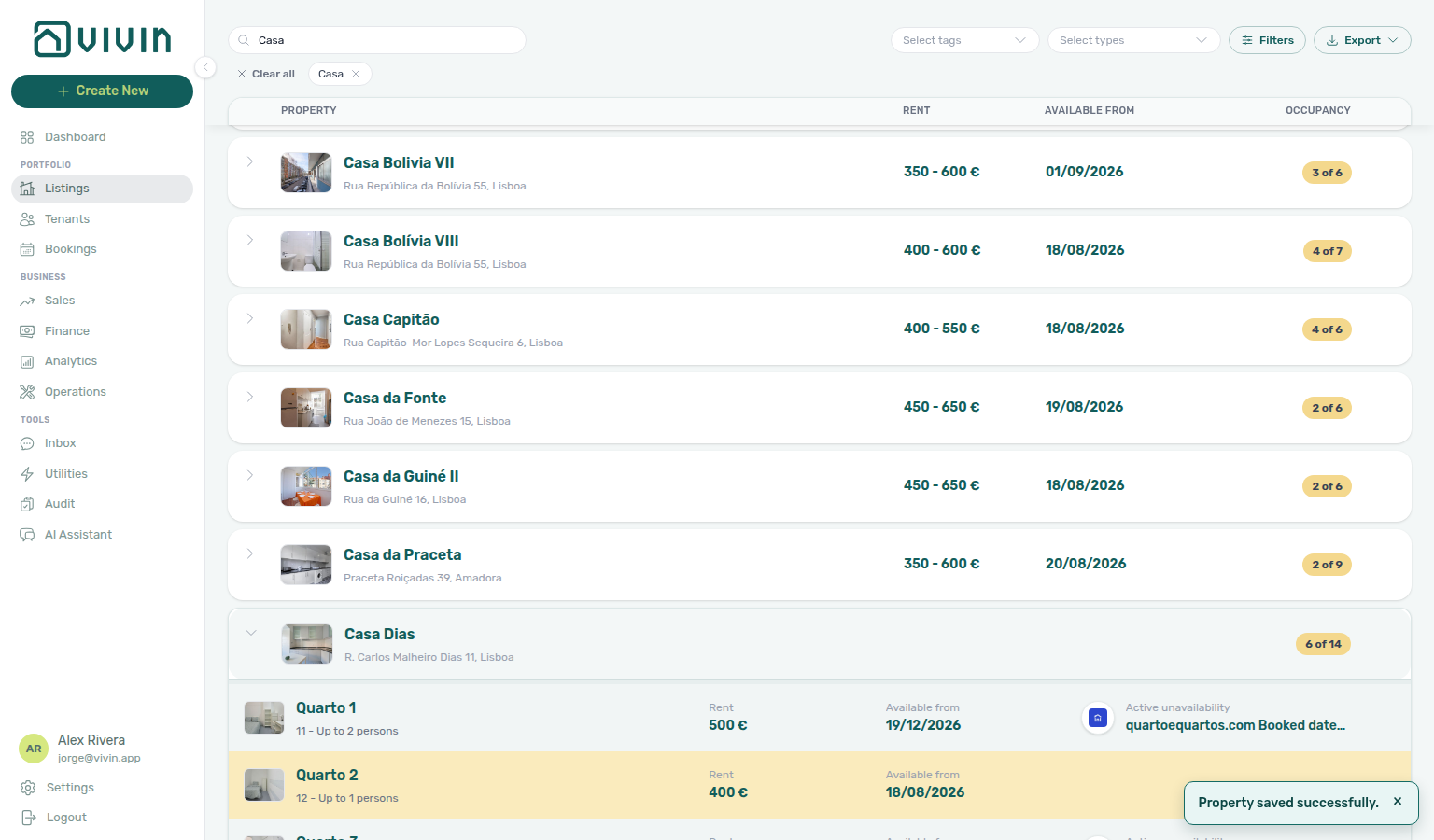
When you Update a property or a unit from the edit sidebar, Vivin writes that row back into the portfolio you already loaded. The table does not jump to the first page.
Work down a long Portfolio (or a search such as Casa): scroll until the building you need is in view, open it, change Property Information (or any other Setup section), Update, then close the sidebar. Casa Dias stays where you left it — you are not sent back to Casa Abel I. The same in-place patch applies when you Update a unit.
Archive and Delete still reload from the top because those actions remove the row. Changing search, tags, type, capacity, or Portfolio / Archived still scrolls to the first matching batch — that is a new query, not a save.
Clicking on an active unit row opens a Booking Sidebar on the right side of the screen, showing the current tenant's booking details, payment status, and key dates — all without leaving the Listings module:
Portfolio toolbar: search, filters, and export
The Portfolio and Archived tabs share one toolbar above the property table:
| Control | Purpose |
|---|---|
| Search | Free-text filter on property internal name and address, plus unit internal name and room number label. Results debounce (~1 s) and refetch from the server — see Portfolio table loading. |
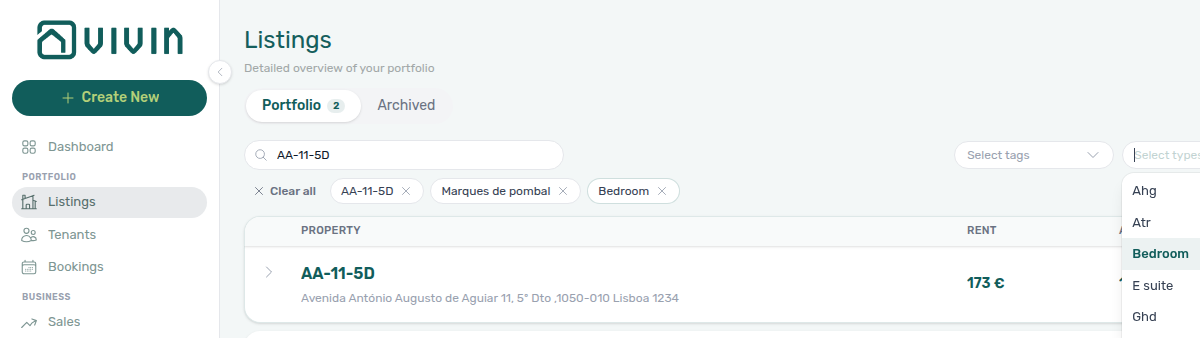
| Select tags (desktop) | Inline multi-select for listing categories (neighbourhood, amenities). Tick more than one tag; the portfolio shows buildings that match any of the tags you picked. The menu stays open after each tick — see Select tags stays open. Selected values also appear as removable chips under the toolbar with Clear all. |
| Select types (desktop) | Inline multi-select for listing type labels. The menu stays open after each tick so you can add another type — see Select types stays open. |
| Filters | Opens the Other filters drawer — same tag/type pickers plus Capacity (All, Single, Double). The drawer header shows how many filters are active. |
| Export | Server-side download of the current tab + search + tag/type/capacity scope (not only rows loaded in the viewport). |

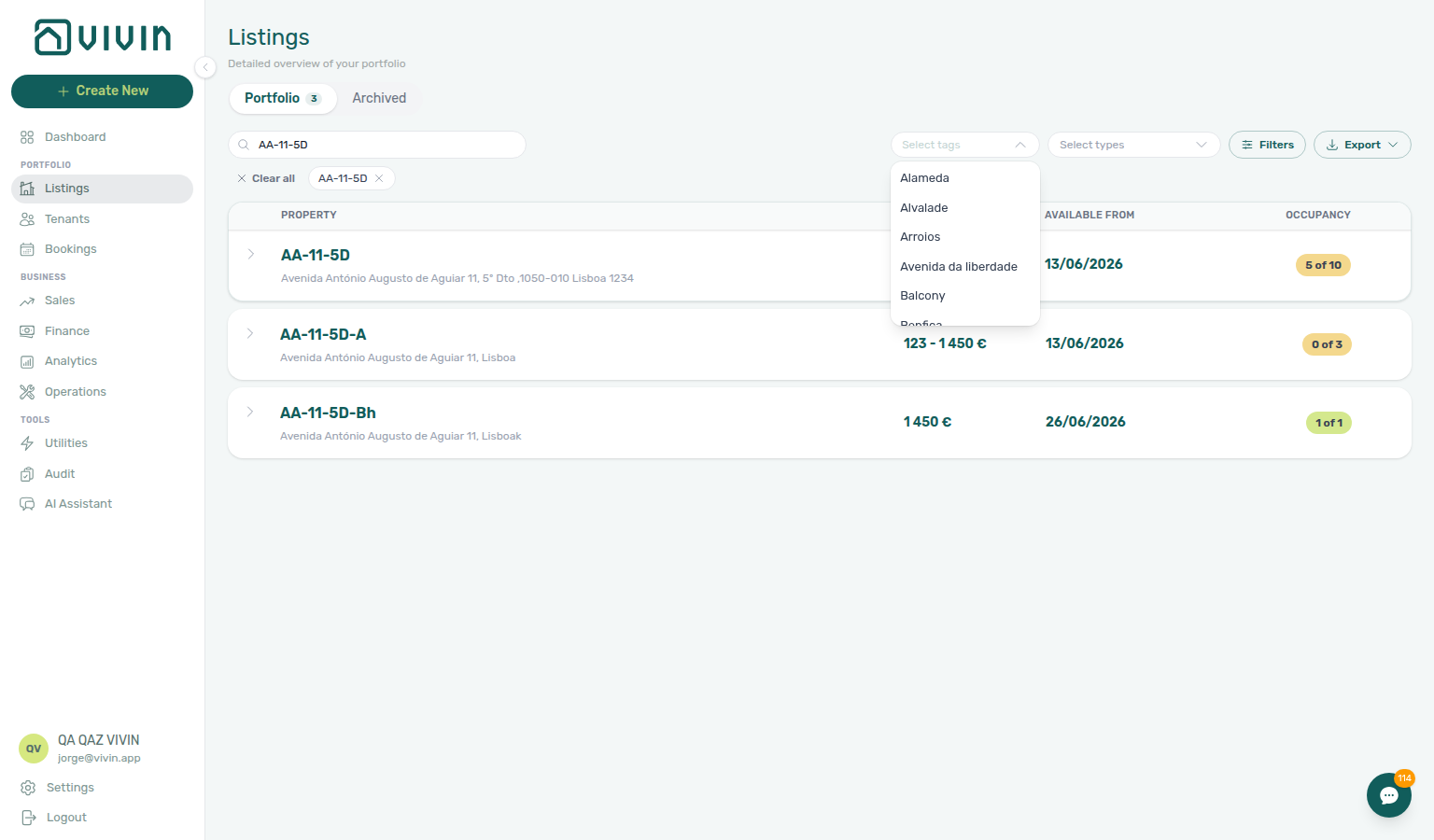
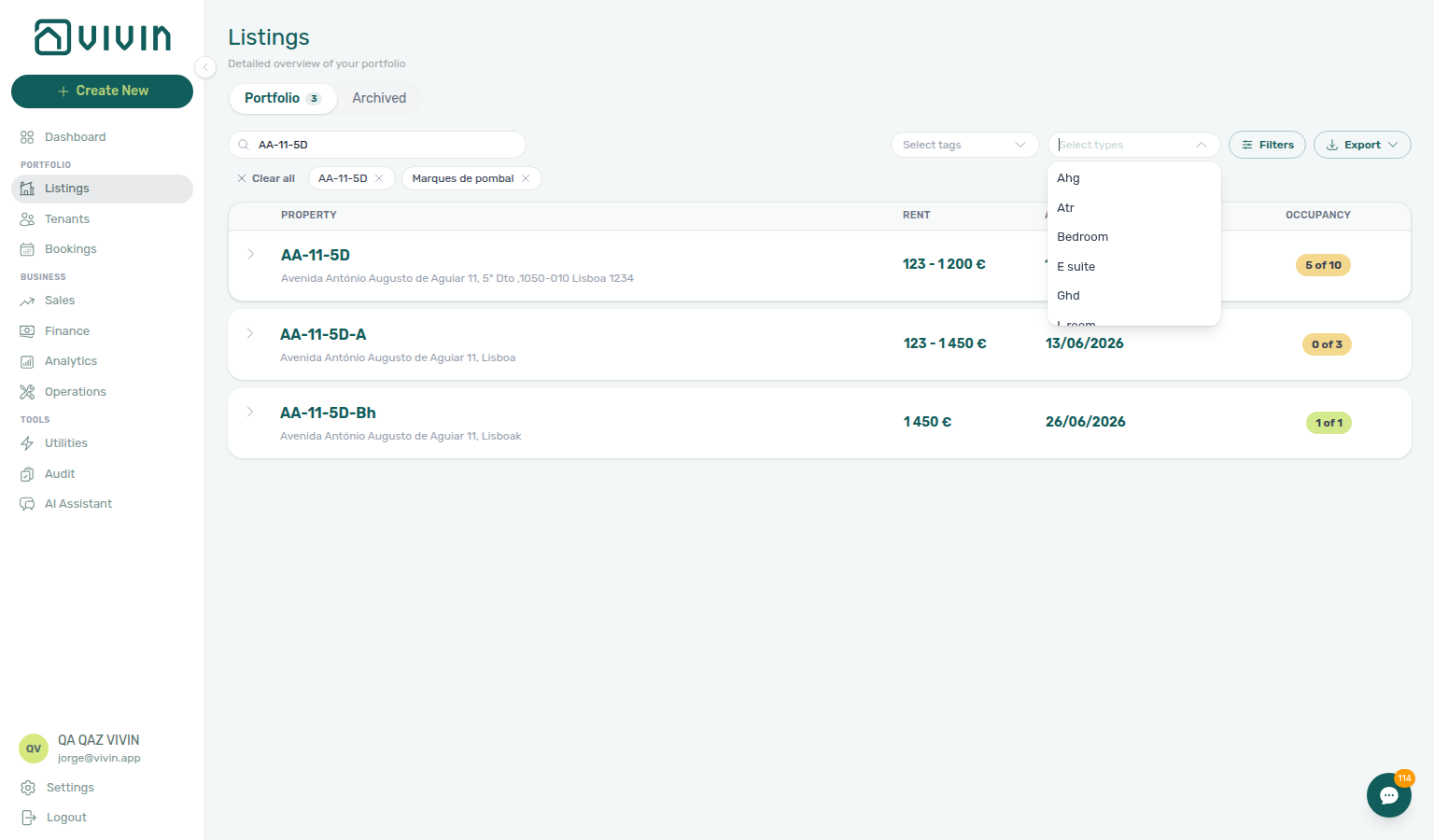
After you pick tags and types, removable chips appear under the toolbar (with Clear all) while the table refetches:
Select tags stays open while you pick
Open Select tags, then tick a neighbourhood or amenity. The portfolio recounts and a chip appears under the toolbar; the menu stays open so you can tick a second tag. You do not need to open Select tags again.
Tick Alameda, then Saldanha (or another pair from Settings > Categories > Listing Categories). Both stay checked in the open list. The table shows properties that have any of those tags — not only buildings tagged with both. Dismiss the menu when the chips look right — same stay-open habit as Select types and Bookings — Select properties.
Other filters uses the same tag list under Select categories and also stays open. Sales → Multicalendar and Pricing have their own Select tags control — pick one tag, then open that menu again for a second neighbourhood.
Select types stays open while you pick
Open Select types, then tick a type. The portfolio recounts and a chip appears under the toolbar; the menu stays open so you can tick a second type. You do not need to open Select types again.
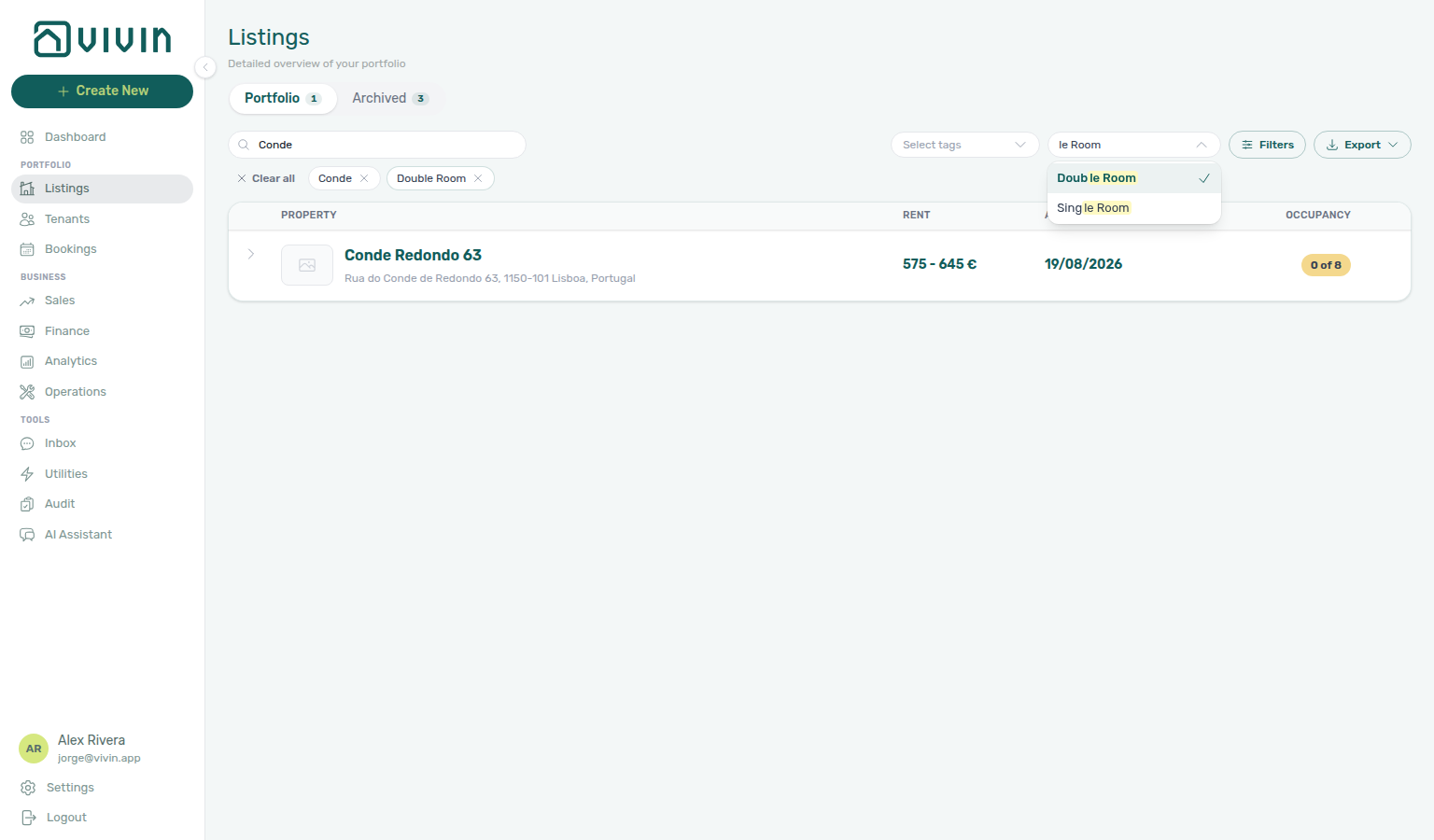
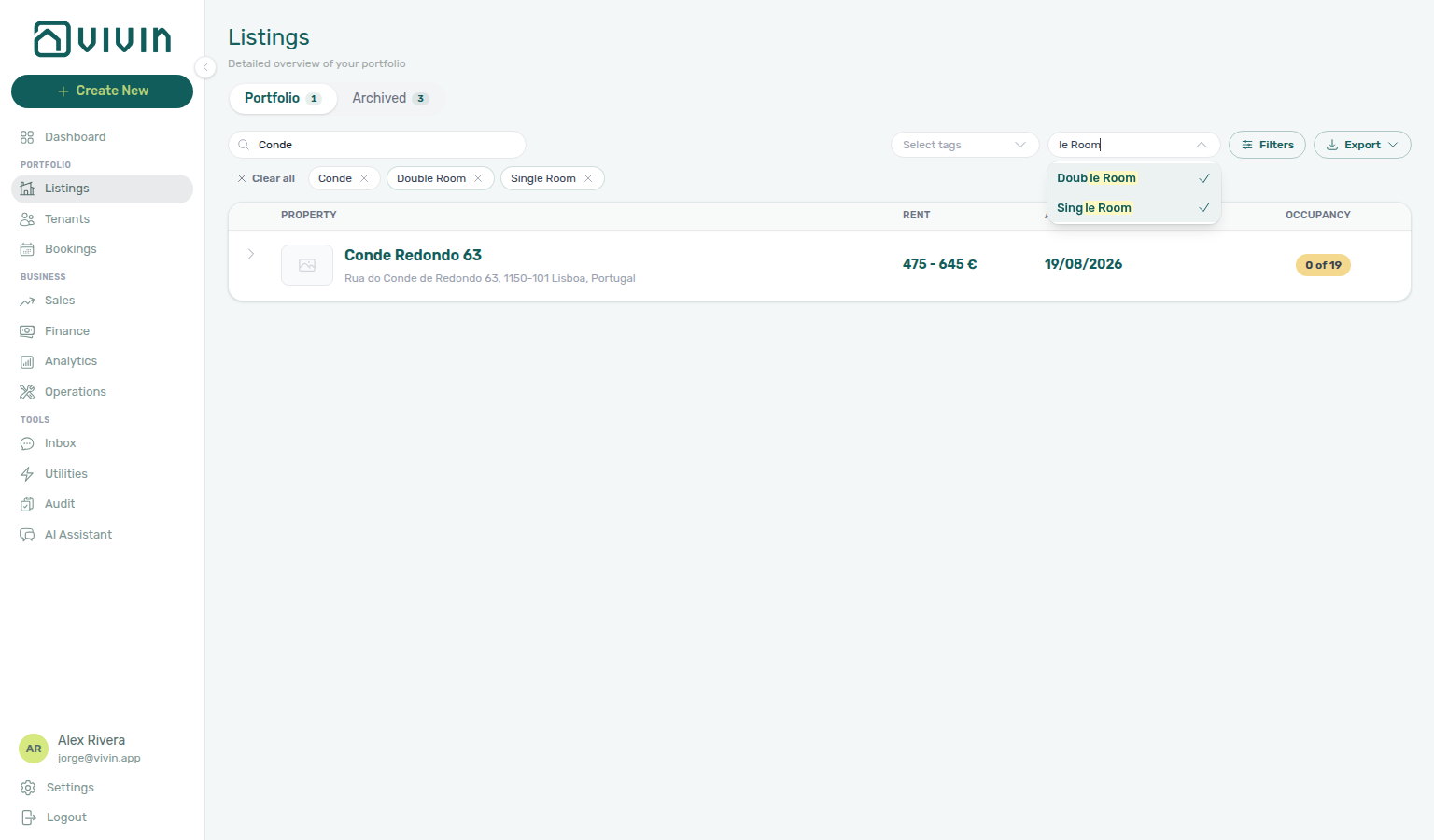
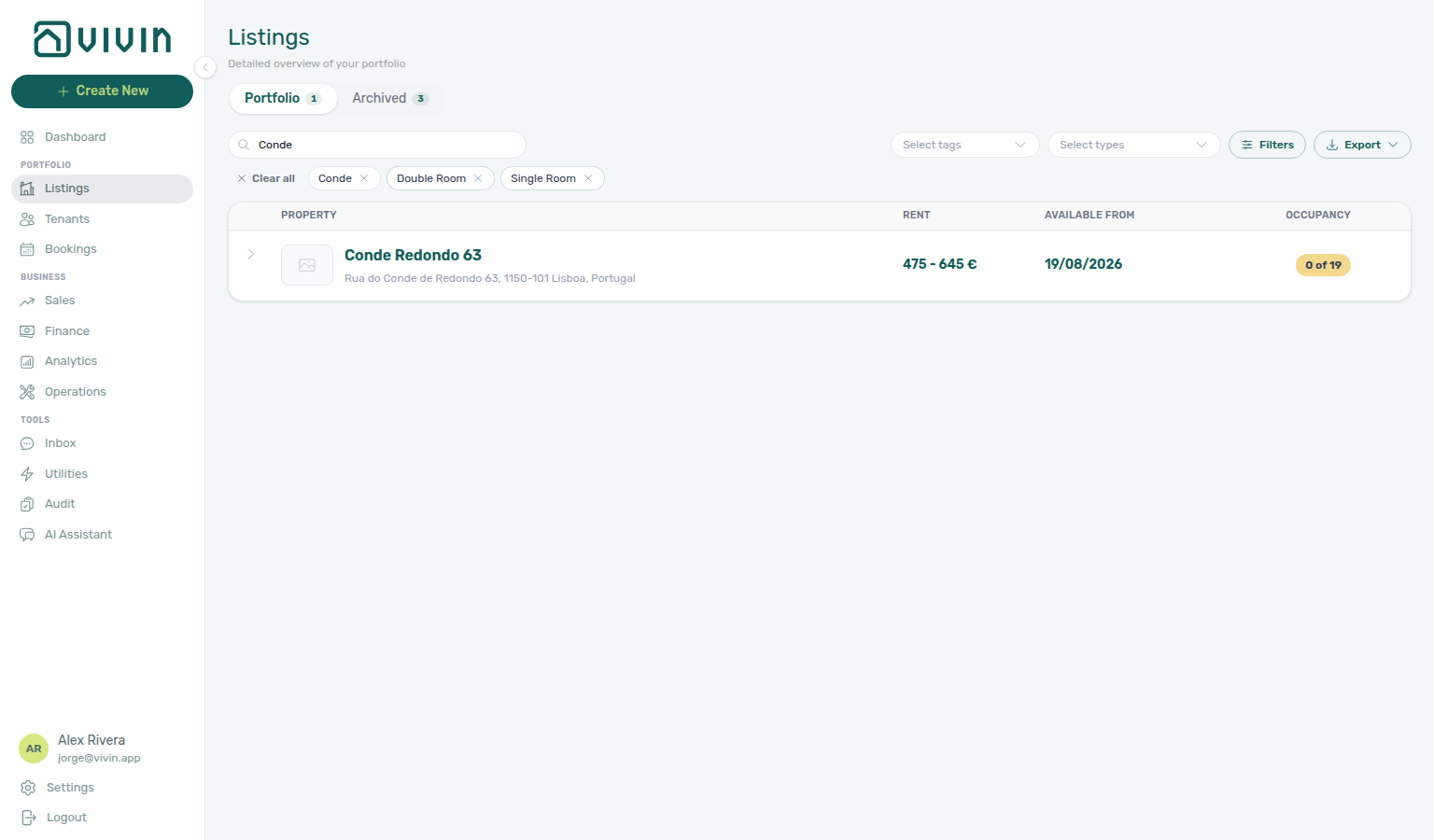
Search the portfolio first when you want a known building in view (for example Conde), then open Select types. When the catalog is long, type part of the label. Tick Double Room, then Single Room. Both stay checked in the open list. Dismiss the menu when the chips look right — same stay-open habit as Select tags, Bookings — Select properties, and Operations — Category.
Other filters uses the same type menu.
With no search term, properties sort A–Z by internal name. When Search is active, the server narrows to properties (or units within a property) that match the term; the table still orders properties A–Z by internal name — unlike Bookings and Operations Tickets, which rank unit-name hits above tenant-name or address-only matches.
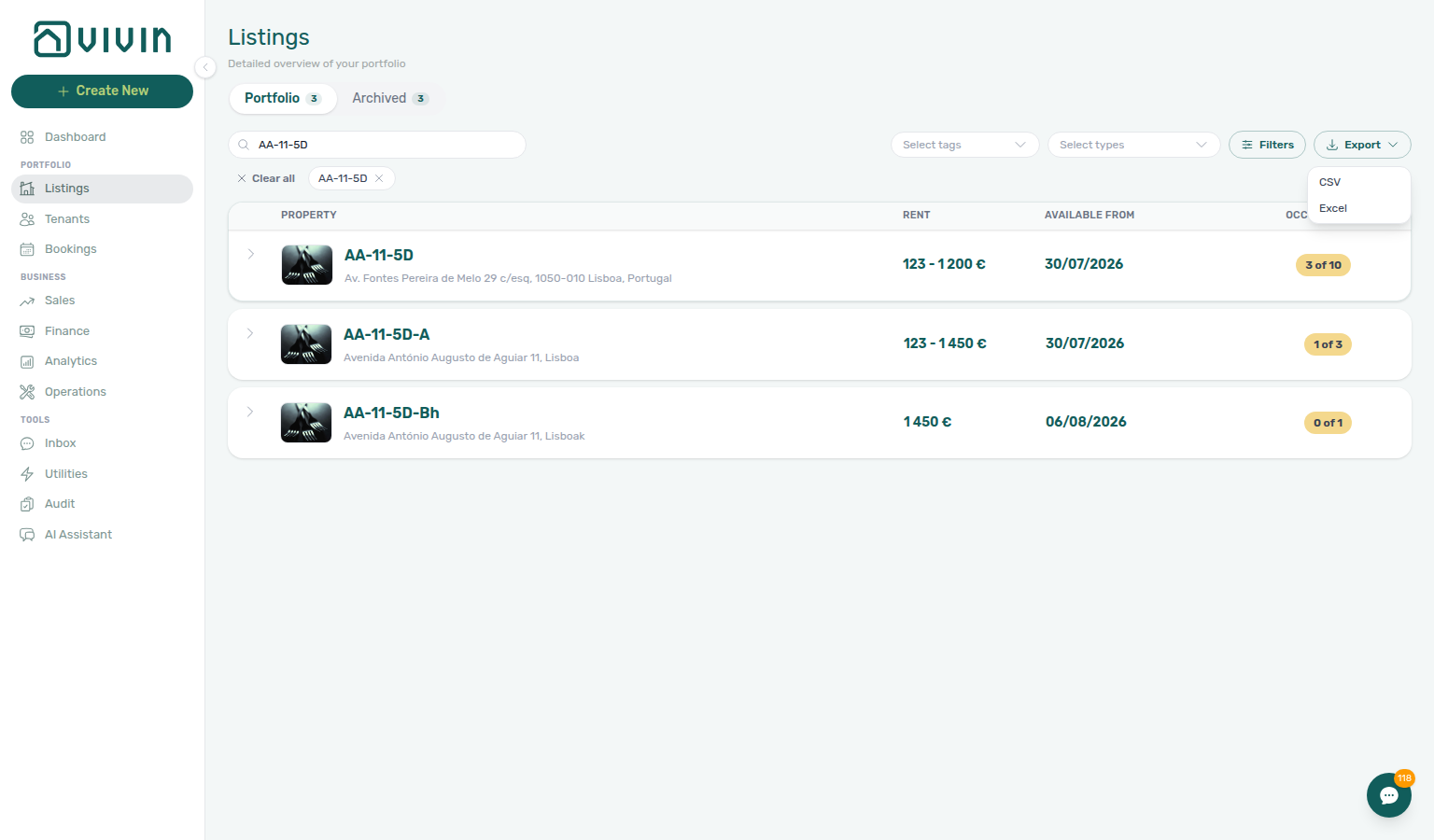
Export formats
- CSV — one file with a listings sheet (one row per unit in scope). When a unit has an active booking, the row includes Current Booking ID beside Current Booking Start / End / Rent — the row is still a unit, so the id belongs to that active-booking group rather than being a generic booking-row key.
- Excel — two CSV downloads (properties then listings) that Excel imports natively; property rows group units under each building.
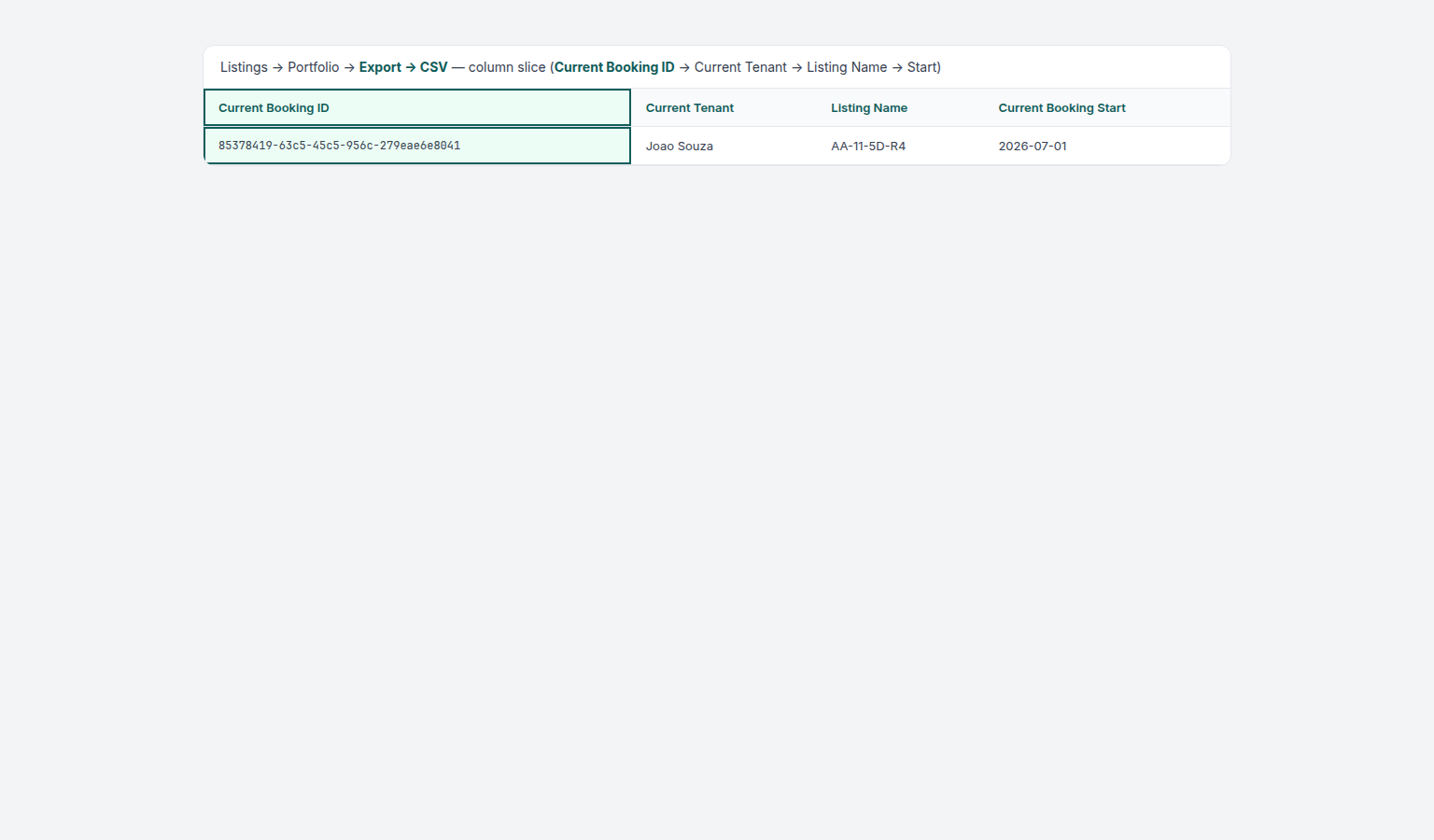
While a download runs, the Export menu shows a spinner (Exporting…). Large portfolios stay responsive because the API streams the file instead of loading every row into the browser.
If Export does not download a file, check your filters and use Export again. See Glossary — Export and download issues.
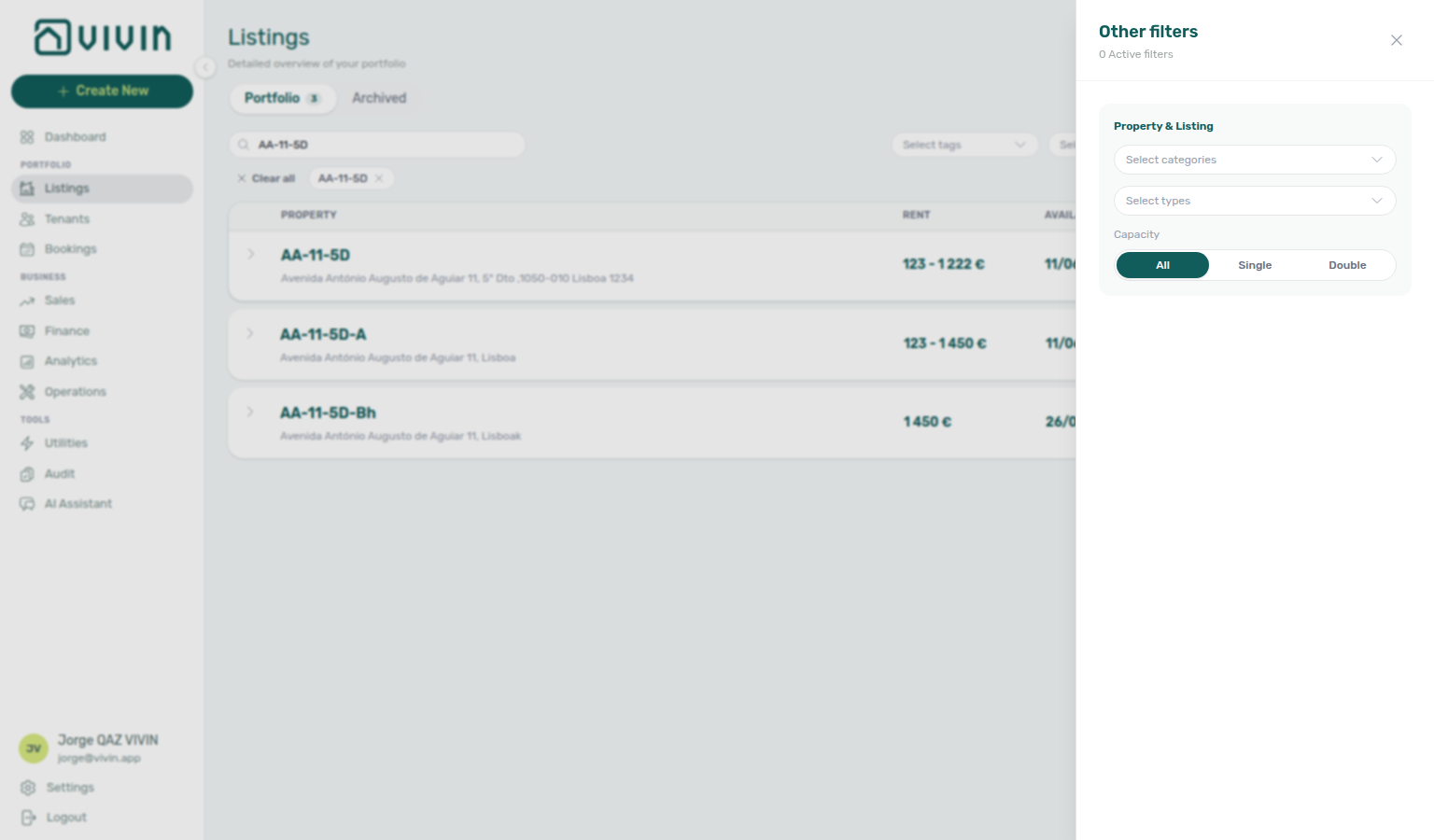
For channel rows with a VIVIN iCal column and platform connection status across the whole portfolio, use Sales > Channels — both surfaces read the same integration toggles. Use Listings → Export when you need a property/unit inventory CSV for audits, onboarding spreadsheets, or offline review.
Full-page unit detail (/listings/:listingId)
Some bookmarks and integrations open a full-page unit detail at /listings/:listingId (replace :listingId with the unit UUID). This is a read-focused summary — not the multi-tab unit edit sidebar opened from an expanded property row or /listings/unit/:listingId.
| Area | What you see |
|---|---|
| Header | Unit internal name, parent property label, back arrow (browser history), and Edit / Delete actions. |
| Stat cards | Monthly rent, capacity, availability badge (Available vs Occupied), and type (room, studio, etc.). |
| Current tenant | When a current booking exists — tenant name, email, and stay dates. |
| Bookings | Up to five reservations with platform icon, dates, status badge, and links to /bookings/list/:id. |
| Contract | Effective contract template summary for the unit (inherits property defaults unless the unit has its own contract). |
| Platform integrations | Connected marketplace platforms for this row, or an empty state when none are linked. |
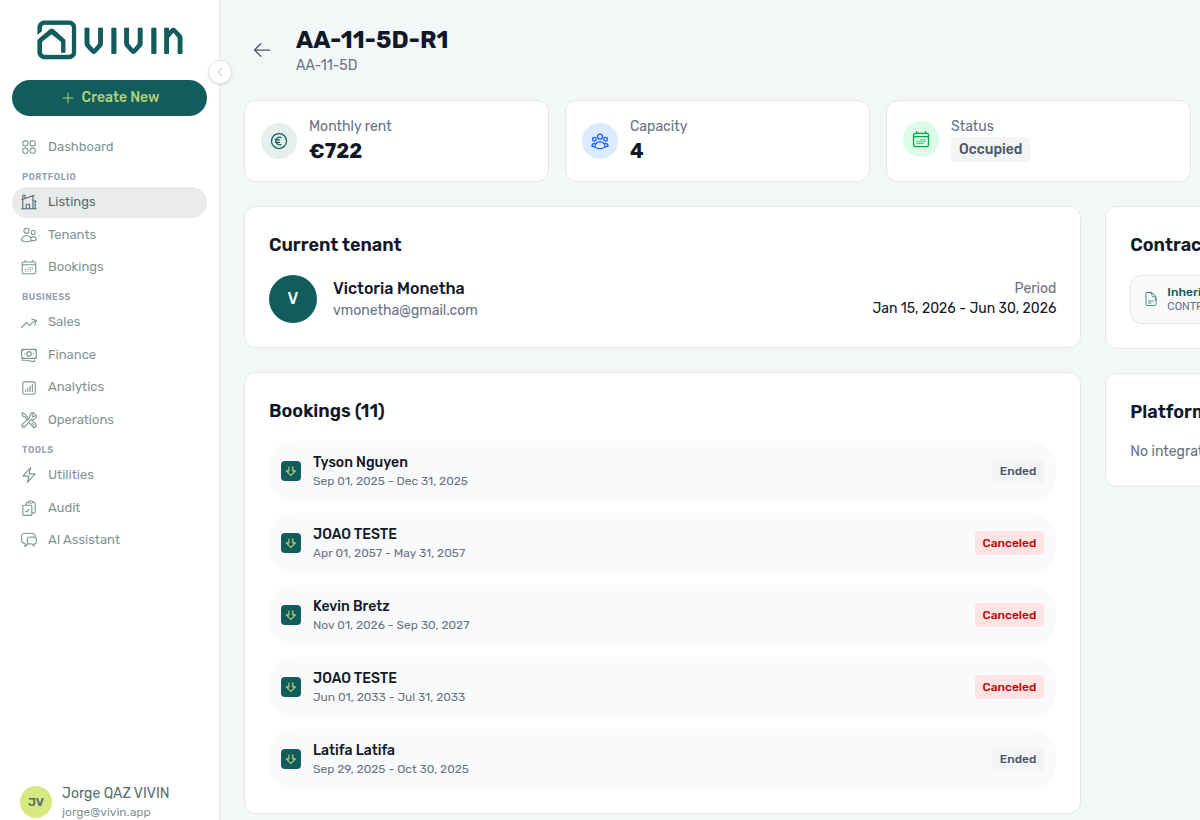
Use the unit edit sidebar (Deep Links — Listings) when you need Calendar, Channels, Rent, Access, or other setup tabs. Use the full-page detail when you want a compact overview or you received a direct /listings/<uuid> link.
If the unit id is missing or deleted, the full-page route shows Listing not found with Back to listings — see Deep Links — Broken entity deep links. Unit sidebar deep links use the Unit not found. toast and return to the portfolio instead.
Creating a New Property
The four-step wizard pairs with Settings > Owners and Create New menu — Property — wire utilities in Step 6 before first Utilities bill.
Creating a new property is one of the most important workflows in Vivin. The system guides you through a four-step wizard that captures all essential information and business rules.
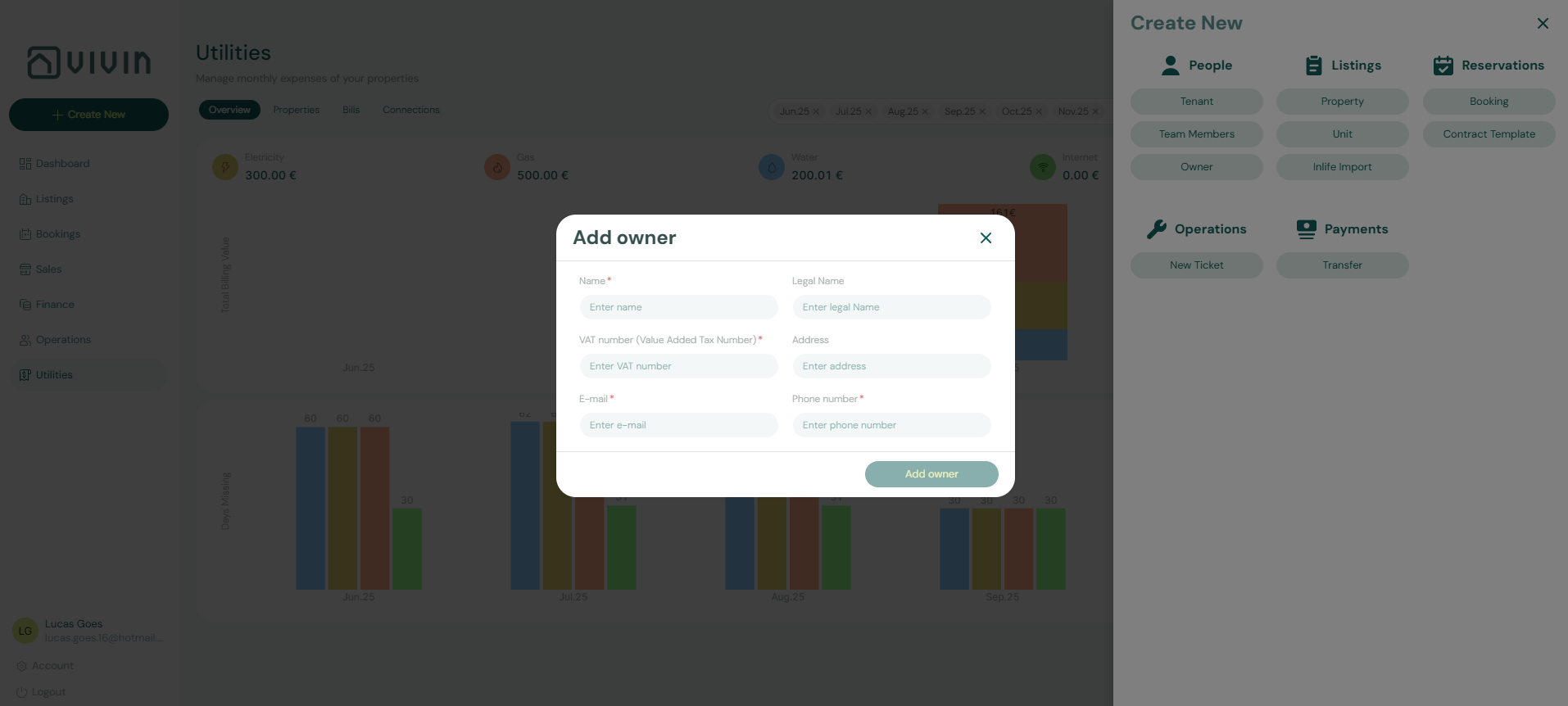
To begin, click the + Create New button in the left sidebar and select Property from the Listings group.
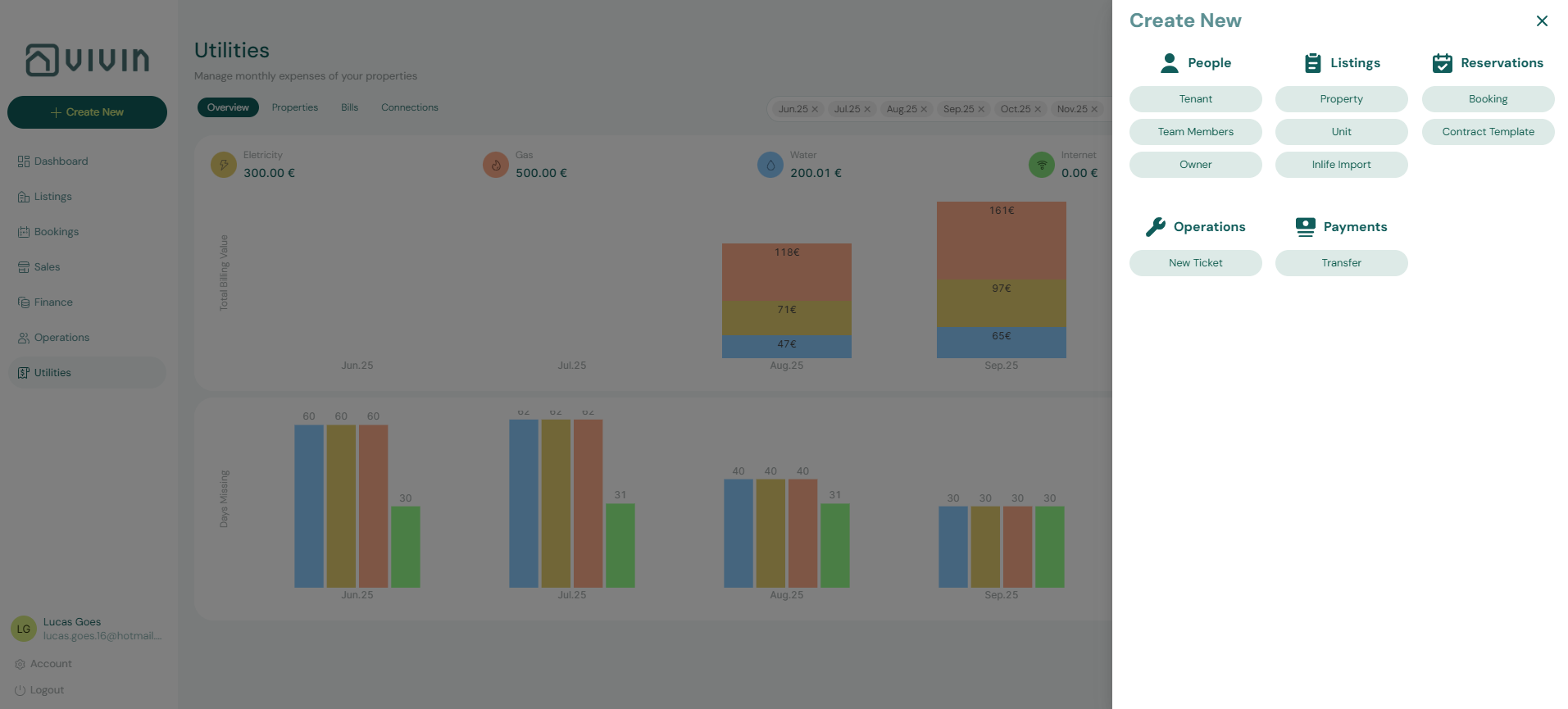
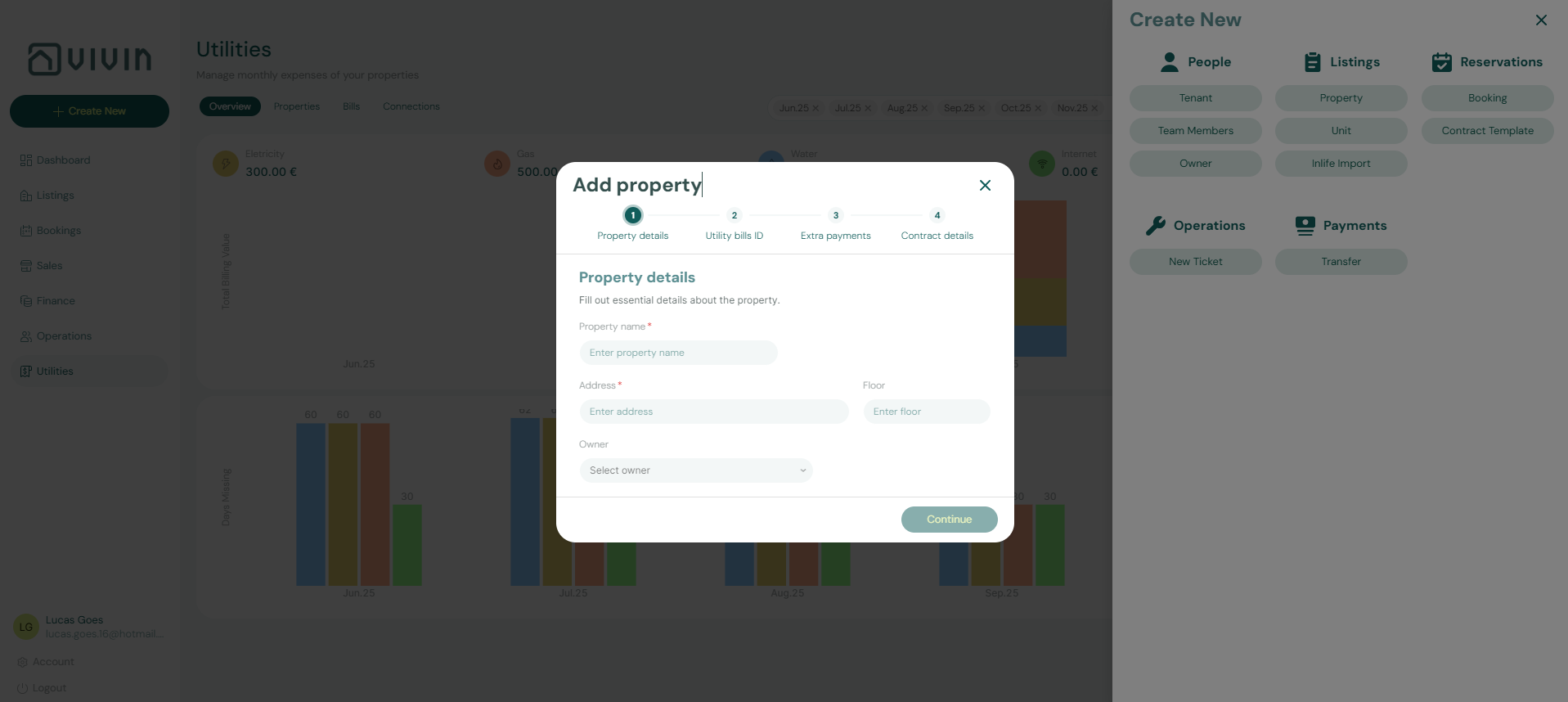
Step 1: Property Details
The first step captures basic identification information for the property.
- Property Name (required): The public or internal name you will use to identify this property (for example, "Central Apartment Building"). The same name appears as Property on the tenant portal Home Lease information card.
- Address (required): The complete street address. Tenants see this address (plus Floor when set) on portal Home Lease information and on the greeting pin next to Hello, First name!.
- Floor (optional): Which floor the property is located on (useful for multi-story buildings). On the portal the floor is appended after the street —
3becomes, Floor 3; a value that already includes “floor” is kept as written. The same wording appears on the Home pin and on Lease information. - Owner (optional, recommended): Associate the property with a property owner who has been previously registered in the system.
The Owner dropdown will only display owners who have already been added through Settings > Owners. If the owner you need is not in the list, you must navigate to that section and create the owner record first.
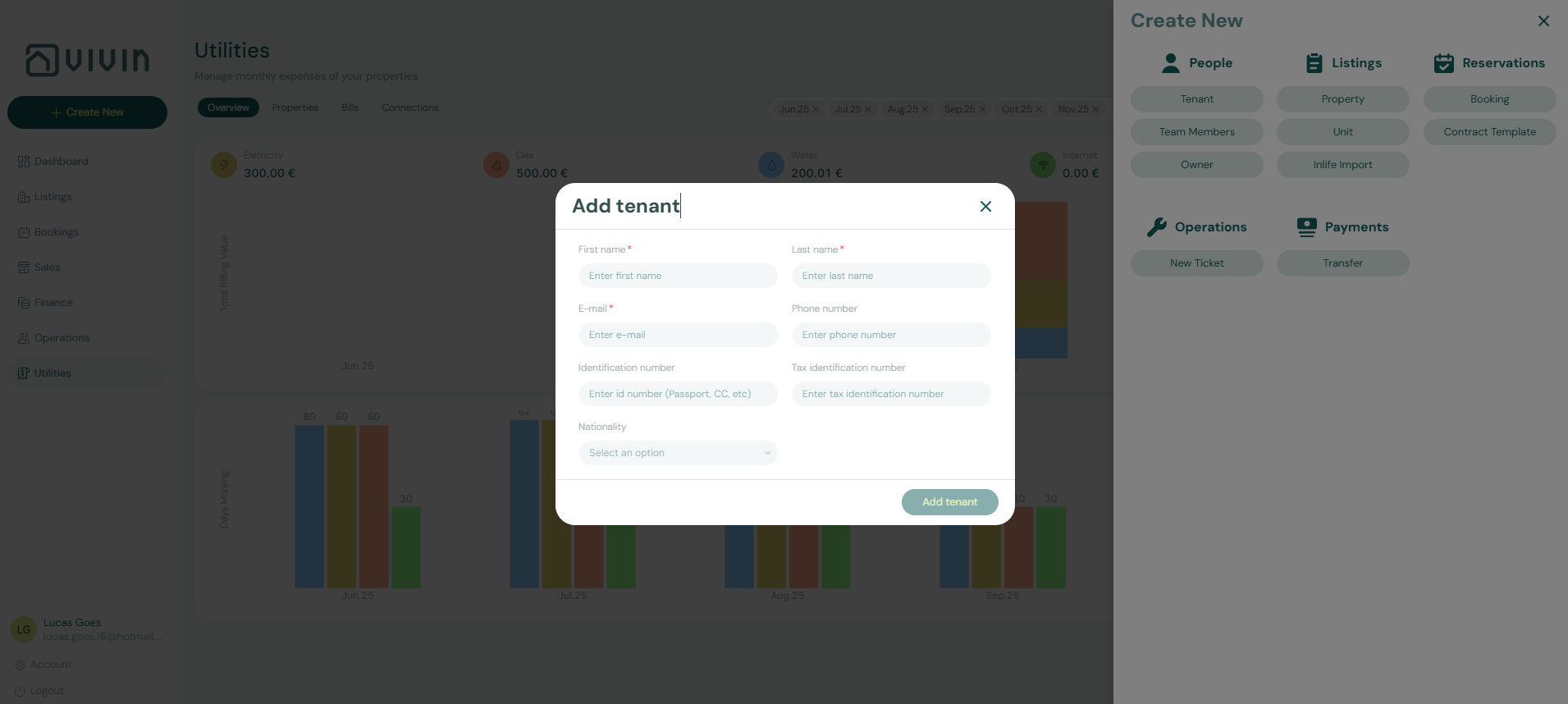
Click Continue to proceed to the next step.
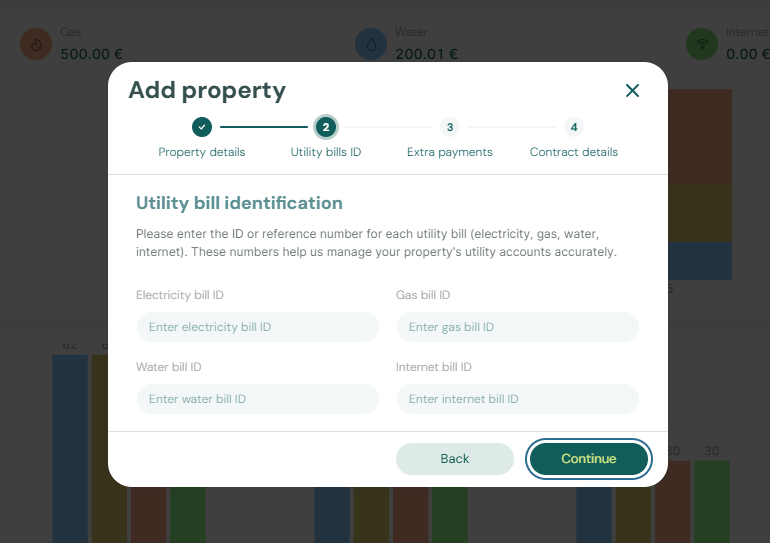
Step 2: Utility Bills ID
In this step, you enter the account identifiers for utility services associated with the property:
- Electricity Bill ID
- Gas Bill ID
- Water Bill ID
- Internet Bill ID
These identifiers are used by the Utilities module to automatically import and process bills for these accounts. By linking utility accounts to properties during setup, you enable automated expense tracking and tenant billing for utility overages.
For SIMAR (Loures e Odivelas) water, enter Cód. Local / Código de Local from the supplier statement — not Nº de Contador — and strip leading zeros (for example 0181474 → 181474). See Glossary — SIMAR water contract ID and FAQ — SIMAR water bill property match.
Click Continue to proceed.
Step 3: Extra Payments
This step defines additional fees and deposits that will be charged beyond the base rent. The configuration here establishes default values that can be applied to bookings for this property.
Security Deposit: Choose between two types:
- Fixed: A set monetary amount (for example, €500)
- Variable: Calculated based on the rent amount (Half Rent, 1 Rent, or 2 Rents)
Listing JSON publishes that amount as depositValue. For a Variable deposit on a variable-rent unit, Vivin uses the highest month in the rent grid (the same headline as listing rent), not January and not Extra Deposit per Tenant. Extra Deposit is added only when a booking is created. Marketplace POST /bookings cannot send a different hold — Vivin copies this computed amount onto the imported stay — Creating Bookings — Deposit. See Listings & Availability — Computed deposit.
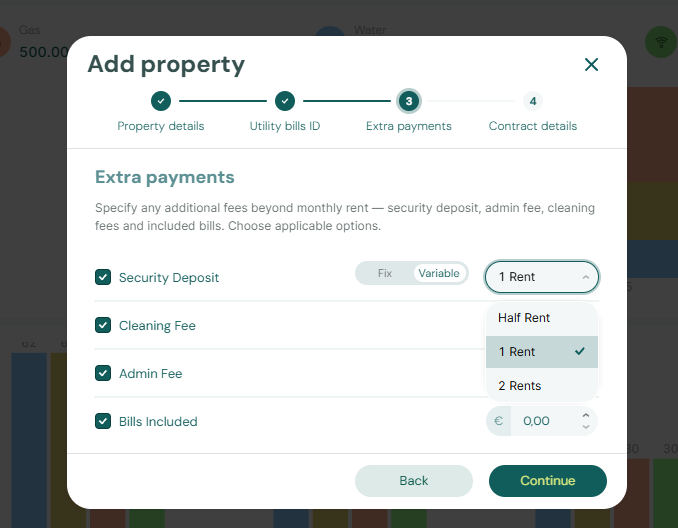
Cleaning Fee: A fixed amount charged for cleaning services. Note that you can later configure when this fee is charged (see Payments Tab).
Admin Fee: When Admin fee is enabled under Account Settings > Fees, enter a default amount here. The wizard stores a fixed value; after the property is created you can switch to Per stay duration tiers in Contract Information (see Admin fee — fixed or by stay duration below). Marketplace POST /bookings cannot send a different amount — Vivin resolves this property fee onto the imported stay — Creating Bookings — Admin fee.
Exit Fee: When Exit fee is enabled under Account Settings > Fees, enter a default amount here. New bookings copy that amount as a one-time charge due on check-out. Listing JSON and partner POST /bookings do not include this fee — Listings & Availability — Exit fee.
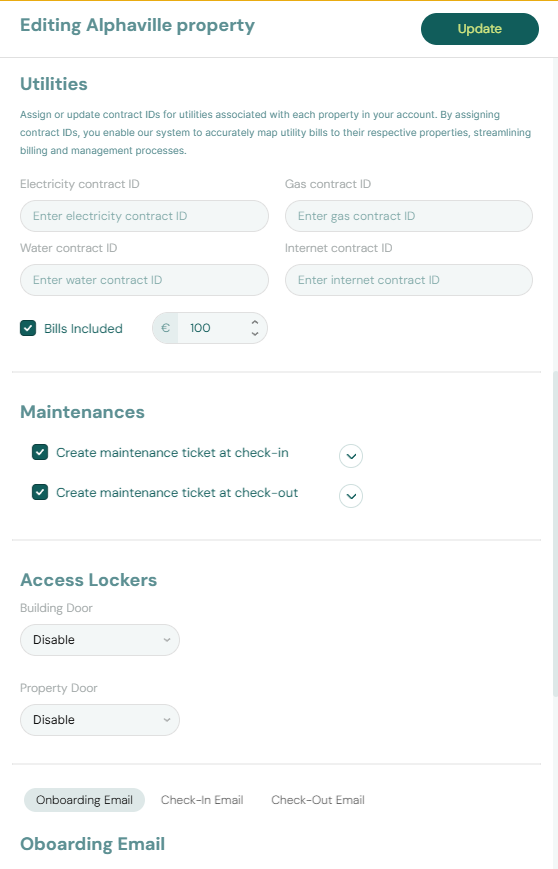
Bills Included: This field represents the ceiling (maximum amount) of utilities that is included in the tenant's rent. It applies to units in this property unless a unit turns on All bills included (no cap) on Rent pricing. Marketplace POST /bookings cannot send a different ceiling — Vivin copies this property amount onto the imported stay — Creating Bookings — Bills included.
If you set the Bills Included amount to €50 for electricity, and the actual monthly electricity bill is €70, the system will automatically charge the tenant the €20 overage. If the bill is only €40, the tenant pays nothing extra. To include all utilities on one unit with no euro cap, use All bills included on that unit instead of raising this property ceiling for every room.
Click Continue to proceed to the final step.
Step 4: Contract Details
This is the most critical step, as it defines how and when rent will be charged. The settings here directly impact your cash flow and tenant payment schedules.
Rental Payment Frequency: Determines how rent is calculated and billed.
- Monthly: Charges the full month's rent regardless of the check-in or check-out date.
- Fortnightly: Divides the month into two periods (days 1-15 and days 16-end of month).
- Daily: Calculates rent proportionally based on the number of days occupied.
Marketplace POST /bookings cannot send a different frequency — Vivin copies this property setting onto the imported stay — Creating Bookings — Contract type.
Contract Type: Used for reporting and legal classification purposes (Traditional rental, Accommodation services, or Others). Marketplace POST /bookings cannot send a different classification — it copies this property value. Partial listing JSON also omits both fields.
Confirmation Payments: Defines what the tenant must pay at the moment they book the unit to confirm their reservation (e.g., Deposit, First Rent, Last Rent, Deposit and First Rent). Marketplace POST /bookings cannot send a different split — Vivin copies this property setting onto the imported stay — Creating Bookings — Confirmation payments.
Check-in Payments: Defines what the tenant must pay on the day they physically move into the property. Marketplace POST /bookings copies this property setting too. Partial listing JSON omits both fields.
The system enforces a strict rule to prevent double-charging. If you select Deposit in Confirmation Payments, you cannot select Deposit again in Check-in Payments. The same rule applies to First Rent and Last Rent.
Finalizing the Property
You can use the Back button at any time to review and modify previous steps. Once all four steps are complete and you are satisfied with the configuration, click Submit to create the property in the system.
Creating a New Unit
Units are the individual rentable spaces within a property. To create a unit, click + Create New and select Unit from the Listings group. The system will guide you through a two-step wizard.
A unit cannot exist without being associated with a property. You must create the property first before adding units to it.
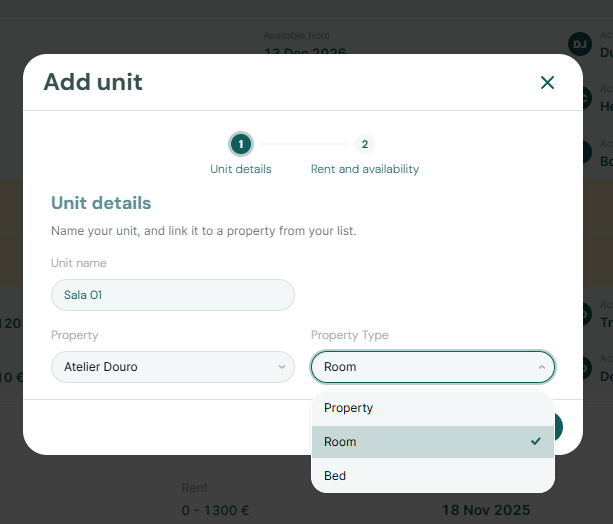
Step 1: Unit Details
The first step captures the basic identification information for the unit.
- Unit Name (required): The identifier for this unit (e.g., "Sala 01", "Room 2", "Studio A")
- Property (required): Select the parent property from the dropdown
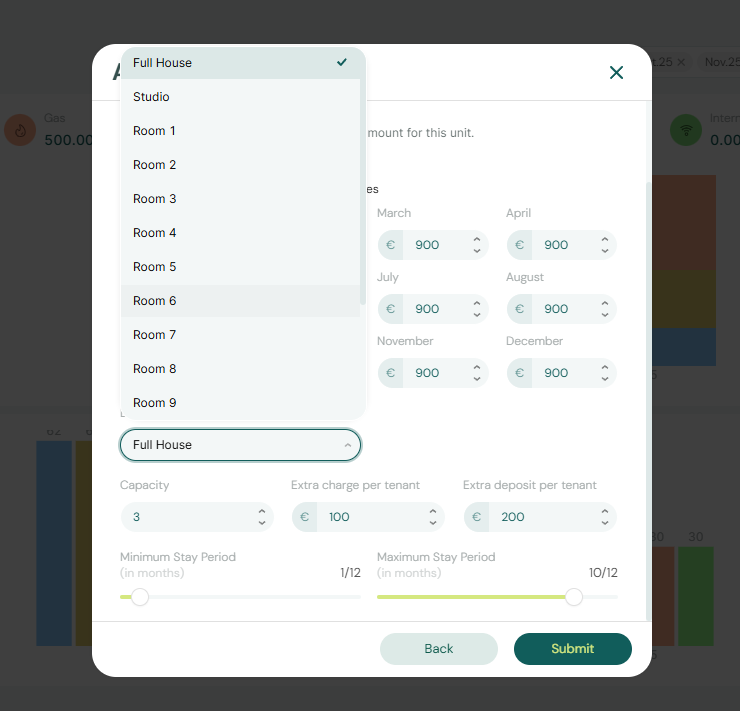
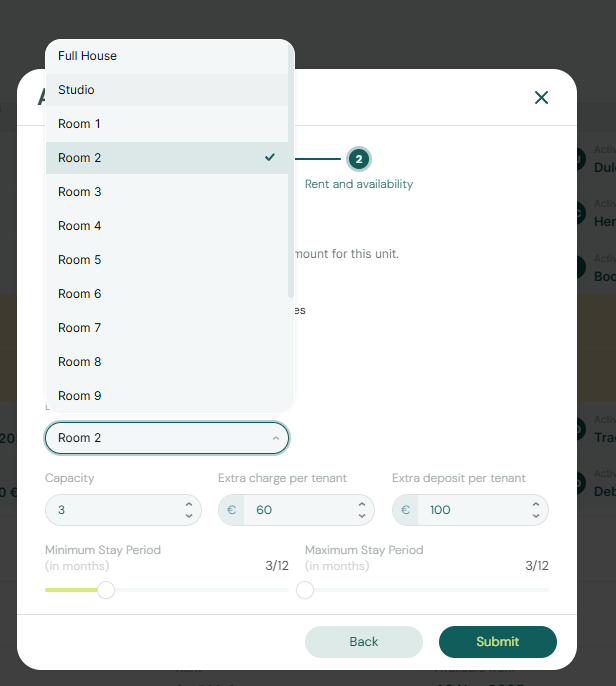
- Property Type (required): Select the unit type from the dropdown. Available options include:
- Full House
- Studio
- Room 1, Room 2, Room 3, etc. (numbered rooms)
- Bed (for shared accommodations)
Click Continue to proceed to the next step.
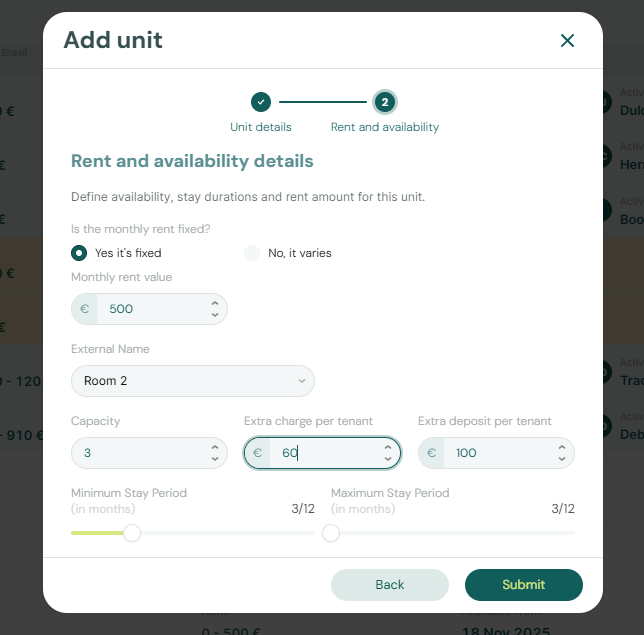
Step 2: Rent and Availability Details
The second step defines the financial and operational parameters for the unit.
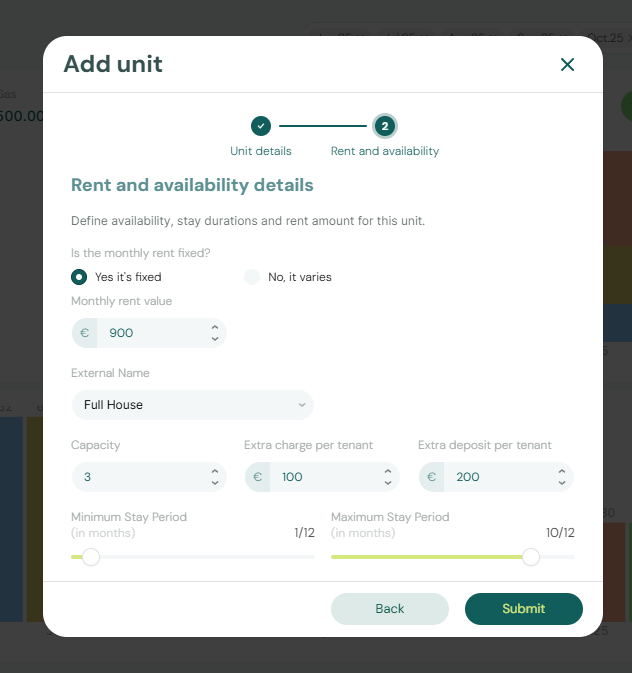
Is the monthly rent fixed?
- Yes, it's fixed: The rent amount remains constant for all bookings
- No, it varies: The rent can change based on season, demand, or other factors (you can configure variable pricing later in the unit's edit view)
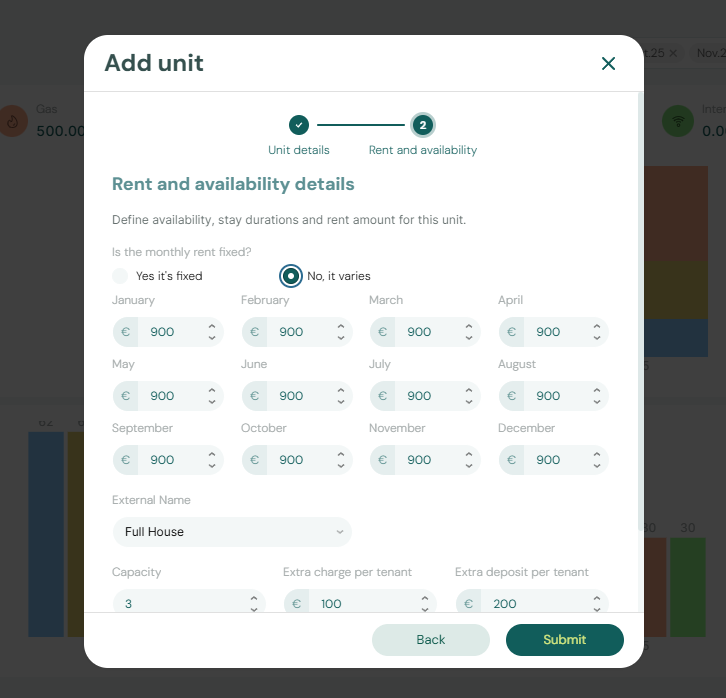
Monthly Rent Value: Enter the base monthly rent amount (e.g., €500). A cleared field stores €0, the same blank-as-zero read as Fixed rent (€) on Add booking.
External Name: This is the name that will be displayed on external platforms like Airbnb or Booking.com (e.g., "Room 2").
Capacity: The maximum number of tenants allowed in this unit (e.g., 3). Listing JSON uses this as capacity. When it is 1, partner pulls publish Extra Charge as 0 — Extra Charge per Tenant. Add Booking enforces this count; marketplace POST /bookings honours listing JSON instead — Creating Bookings — Honour listing.
Extra Charge per Tenant: Monthly amount added for each occupant beyond the first (e.g., €60). On + Create New → Unit this field is on step 2 even when Capacity starts at 1. After you save, the unit Setup sidebar shows Extra Charge only when Capacity is greater than 1.
Extra Deposit per Tenant: Amount added to the security deposit for each occupant beyond the first (e.g., €100). Same visibility as Extra Charge on the edit sidebar. Extra Deposit is not on listing JSON — listing depositValue is the property computed deposit only (Computed deposit). Marketplace POST /bookings cannot send Extra Deposit either — it is added from occupant headcount — Creating Bookings — Extra Charge.
All bills included: Tick No cap when this unit’s rent already covers utilities in full — Vivin records a Covered allocation (nothing to charge) for bookings here. Leave it off to keep the property Bills Included euro ceiling. See All bills included.
Minimum Stay Period (in months): The shortest booking this unit allows (0–12). 0 means no minimum. For example, 3 means tenants cannot book for less than 3 months.
Maximum Stay Period (in months): The longest booking this unit allows (0–12). 0 means no maximum. 12 means twelve months — it is not unlimited. See Maximum stay 0 means no limit.
Finalizing the Unit
You can use the Back button to review and modify the previous step. Once both steps are complete, click Submit to create the unit in the system.
Importing from Inlife
When you are migrating inventory from Inlife, enable the Inlife platform under Account Settings → Integrations first. Import actions live in the + Create New slide-out under Listings — they queue a server-side pull from the landlord’s Inlife account instead of walking the property or unit wizards row by row.
| Action | Who sees it | What transfers | Typical next step |
|---|---|---|---|
| Inlife Import | Roles with create permission when Inlife is enabled | Properties, units, and core listing linkage | Review rows in Portfolio, then wire Channels and booking-engine fields as needed |
| Inlife Full Import | Vivin internal operators only (@vivin.app email) | Everything in Inlife Import plus booking-engine-style details and photos | Review Property & listing details (booking engine) tabs, then enable full listing feeds on Housing Anywhere, Spotahome, Uniplaces, or Inlife |
Standard import (all accounts)
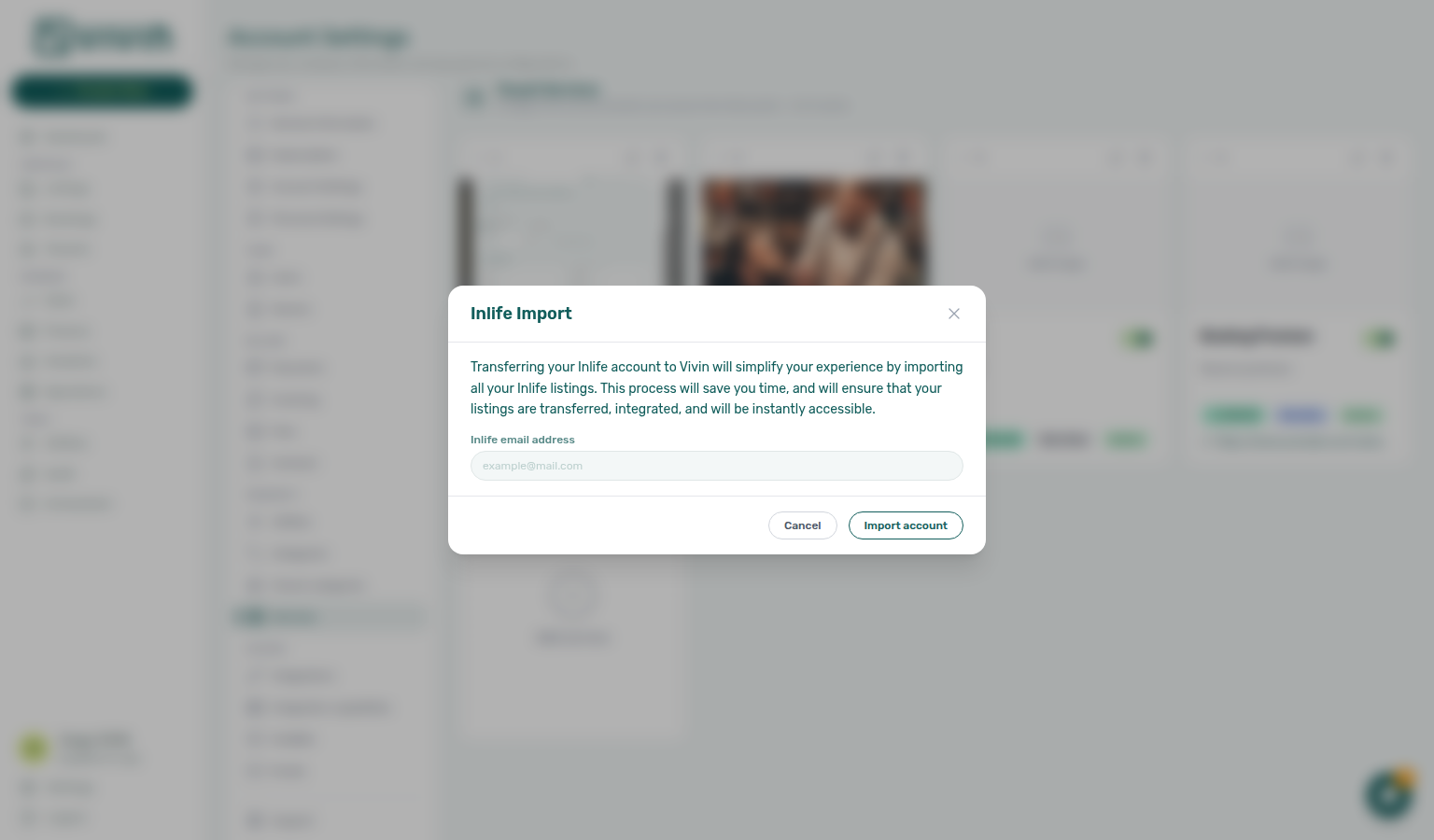
- Click + Create New → Listings → Inlife Import.
- Enter the landlord Inlife email address for the account you want to pull from.
- Click Import account and wait for success — the modal closes when the API accepts the job.
- Open Listings after a few minutes and confirm properties and units appeared; map any remaining partner IDs on each unit’s Channels tab.
Full import (Vivin internal)
Inlife Full Import uses the same email dialog but also copies rich content (amenities, location, rules, photos) so listings are closer to publish-ready on partner full feeds. Large portfolios can run for several minutes — if the browser times out while photos upload, the job often continues on the server; avoid starting a duplicate import immediately.

After either import path, open the Full integration pill on the property or unit sidebar to fill gaps before turning on outbound full integrations. Step-by-step UI for both dialogs is also documented under Create New Menu — Inlife Import and Inlife Full Import.
When you poll the outbound Inlife full listing feed (GET /inlife-integration/:landlordKey/listings/full), room move-in fields (availableFrom, firstAvailability) arrive as epoch milliseconds. Unavailability rows use start / end as calendar days — end is the last blocked night, not check-out (Full listing feeds — Last blocked night). The catalogue listing key is the stored propertyId_roomId split into listing id and room.id — Inlife id and room.id.
The same full feed omits a listing whose property City (then Region) is not an Inlife-supported city, and omits listings with no usable rent — Recognised cities. After import, open Full integration → Location & geography and confirm City is a recognised name (for example Lisbon or Lisboa) before you compare catalogue counts to the Listings portfolio.
Editing Properties
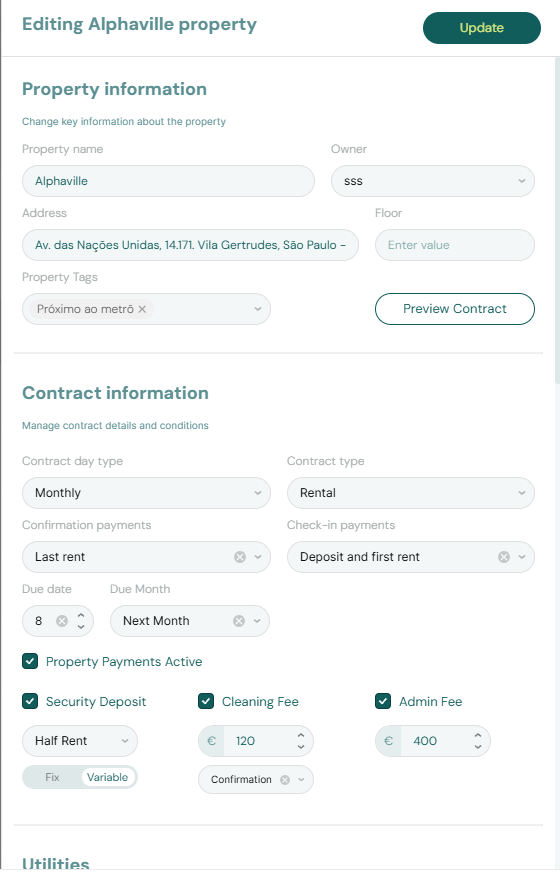
To edit an existing property, navigate to the Listings module and click the pencil icon next to the property you wish to modify. The property edit sidebar opens with a pill navigation row. Update on any Setup section keeps your place in the portfolio list — see Save keeps your place in the list.
| Pill | What it contains |
|---|---|
| Setup | Operational fields in this guide — general info, tags, contract, payments, access, WiFi, Cleaning (common-area weekdays), change history, and archive controls |
| Full integration | Marketing copy, location, amenities, partner platforms, and Full integration readiness checks for outbound full feeds and the booking engine — not on partial GET /listings — see Property & listing details (booking engine) |
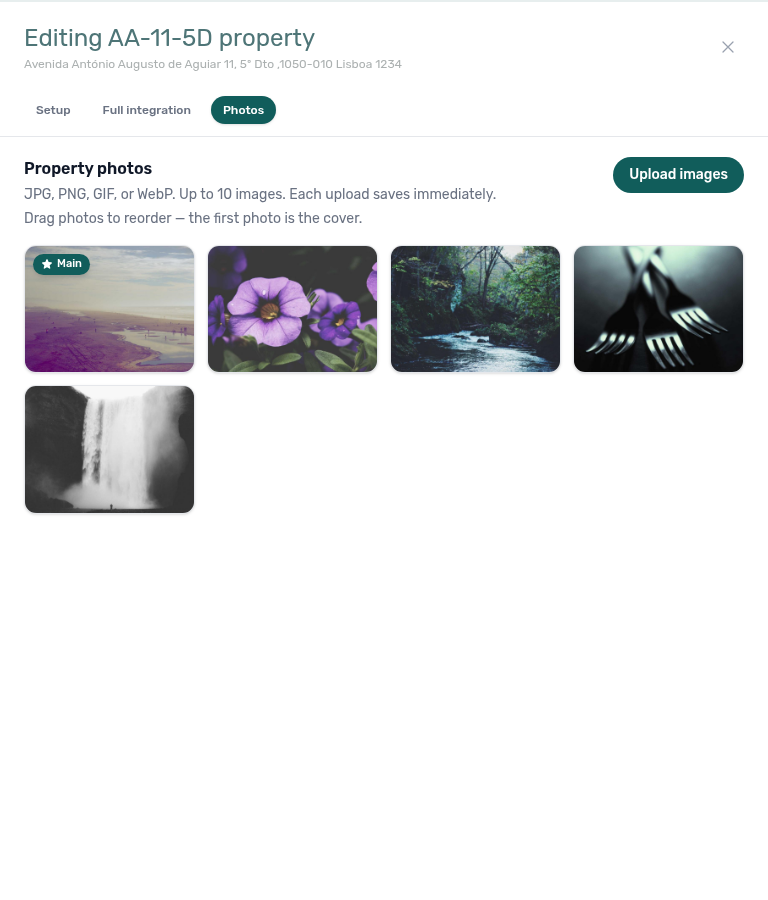
| Photos | Property-level gallery for the booking engine and full partner catalogues; drag to reorder — the first photo is the cover (also used as the portfolio thumbnail). Omitted from partial GET /listings |
An amber dot on Full integration means required partner fields are still missing; open that pill and complete the readiness checklist before enabling full feeds.
Bookmark or hand off a link that opens Full integration directly: append ?propertyDetails=1 to the property edit URL — Deep Links — booking engine query params.
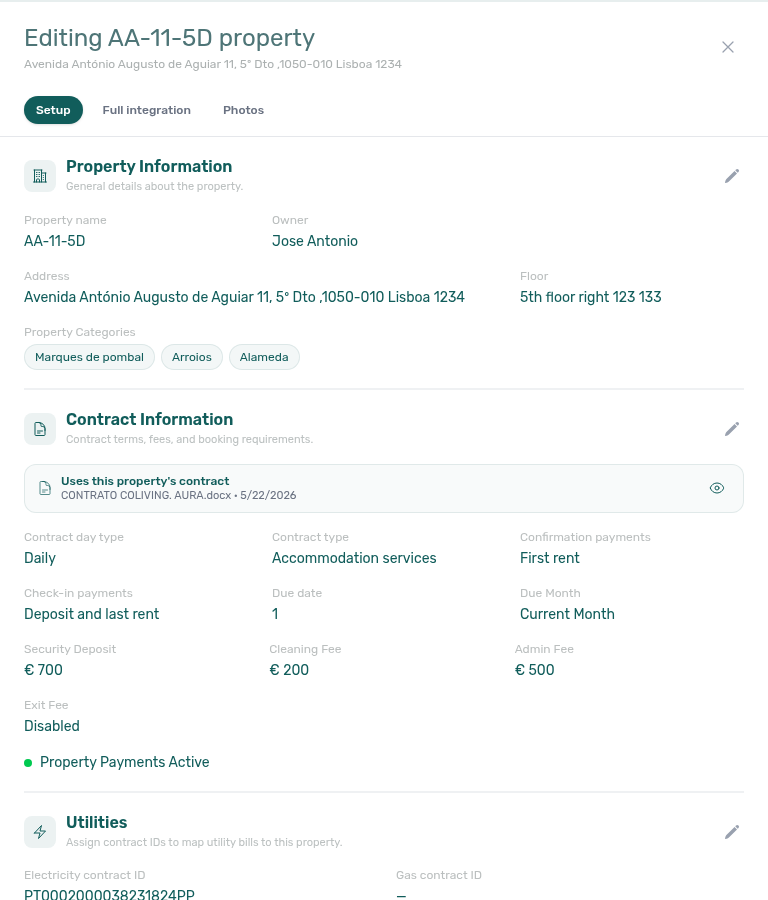
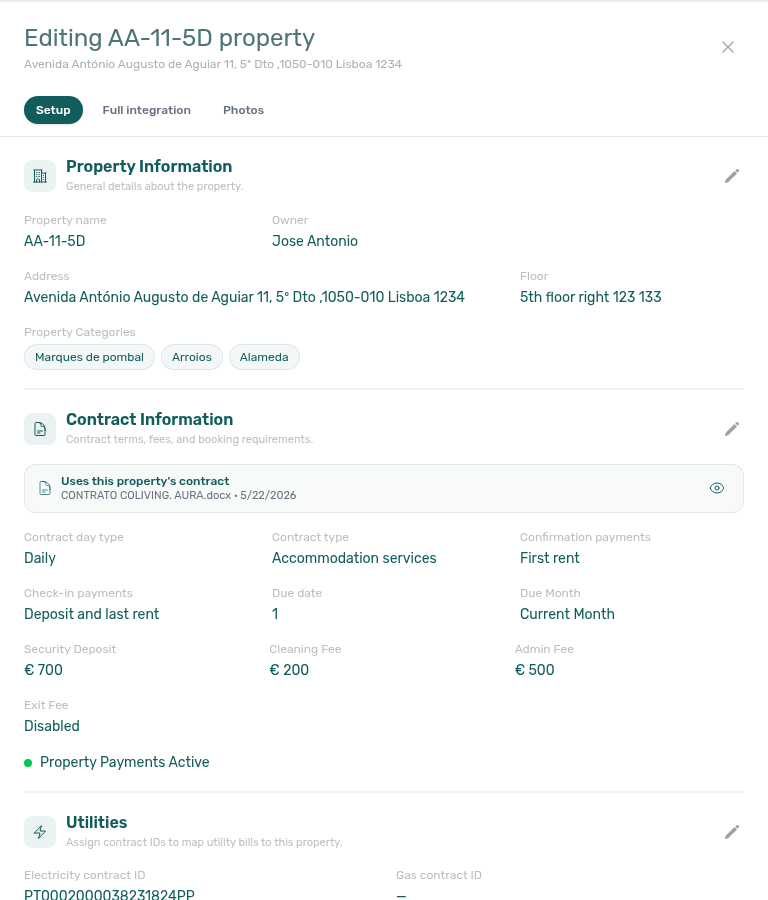
General Information Tab
On the Setup pill, the General Information section lets you update basic identification:
- Property Name
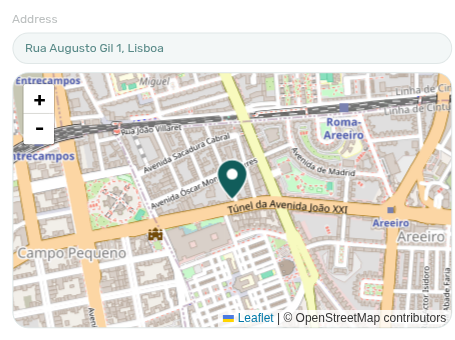
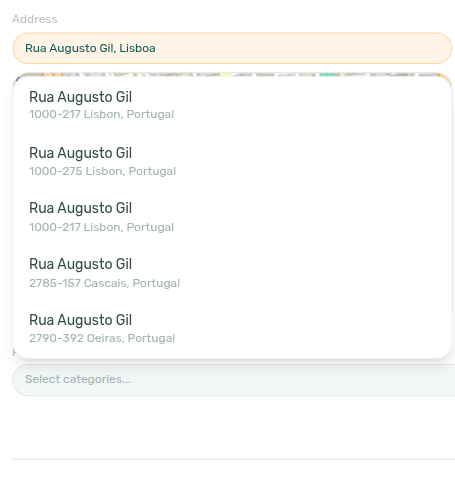
- Address — autocomplete: start typing, then pick a suggestion to fill the structured street, postal and city fields. Below the field, the Exact Location map lets you drag the pin when the building entrance is offset from the geocoded point. If none of the suggestions match, type the address freely — it saves either way.
- Floor
- Owner
Any changes made here will apply to future bookings but will not retroactively affect existing reservations.
Exact Location (map pin)
Editing Property Information shows an interactive map under Address. Start typing to open address suggestions, then pick one to fill the structured street, postal and city fields and drop the pin. Vivin also seeds the pin from saved latitude/longitude when you reopen the property. Drag the marker when the entrance sits off the geocoded street point, then Update — the coordinates persist with the structured address for partner feeds and booking-engine location. Moving the pin also refreshes the written address to match its new spot, keeping any detail it cannot resolve there. Cancel discards an unsaved drag.
Photos pill
On the Photos pill, upload JPG/PNG/GIF/WebP images (up to 10). Each upload saves immediately. Drag thumbnails to reorder — the first photo is labelled Main and drives the portfolio cover thumbnail on the property row.
Calendar and marketplace JSON pulls (GET /listings) do not include this gallery. Partners that publish photos poll the full listing feed. See Listings & Availability — Catalogue fields.
Not sure which pill holds the gallery? Ask AI Chat “Where do I open the Photos pill under Listings … to upload and reorder listing gallery and cover photo?” (ai-chat-product-context-photos-reply.png, ai-chat-product-context-photos-flow.mp4) — the assistant typically says Listings → unit edit sidebar → Photos.
Tags Tab
Tags are labels that help you organize and categorize your properties. When you add tags to a property, they automatically propagate to all units within that property.
To add a tag, click + Add Tag and select from your existing tags or create a new one. To manage your tag library, see Categories. Finance Select categories loads tag options from live listings via GET /listings/tags — see that note for how the API differs from this settings catalog.
Tags assigned here (and on units under Tags Tab) feed Select tags on the Portfolio toolbar (Select tags stays open), Select tags on Sales → Multicalendar / Pricing, and Select categories under Property & Listing in Finance → Other filters. Listing Types from the same settings page drive Select types here and Select listing types on Sales.
Use Case Example: You might create tags like "Pet Friendly," "Furnished," "City Center," or "Student Housing" to make filtering and reporting easier.
Contract Tab
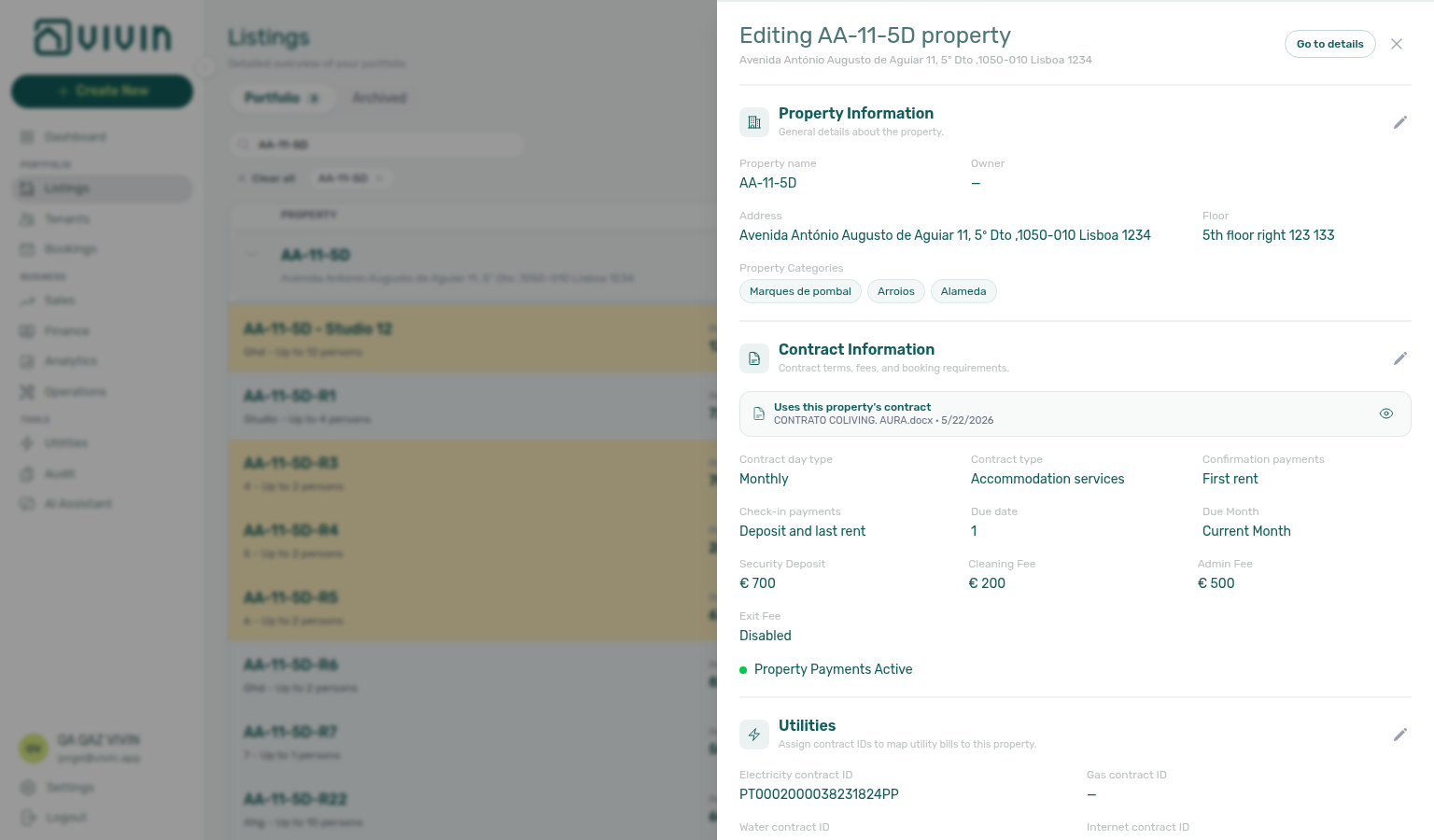
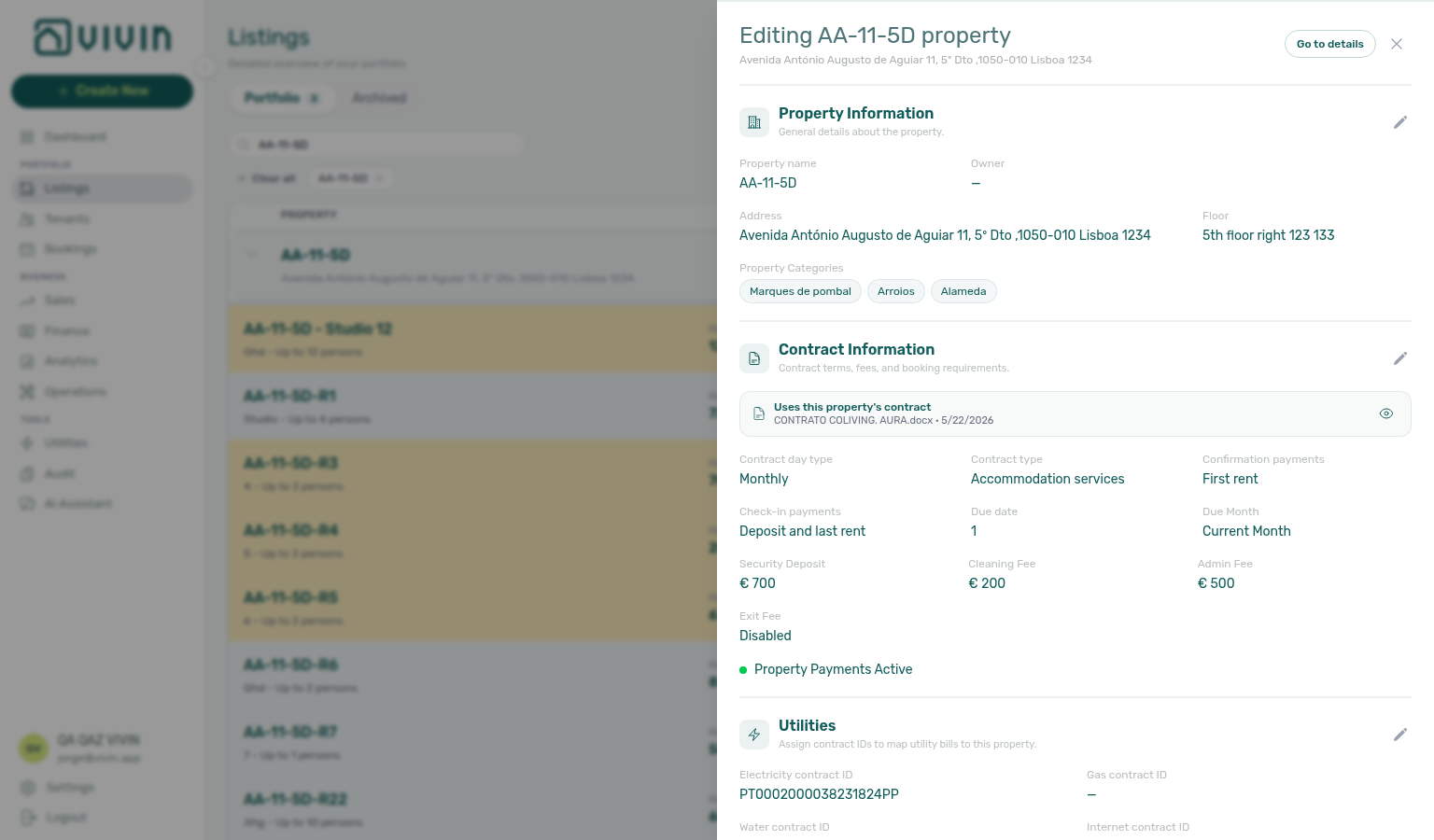
The property Contract tab shows which .docx template resolves for new bookings on this building and lets you preview it without leaving Listings.
At the top, the effective contract card mirrors the backend fallback chain (unit → property → account) used when Vivin generates tenant PDFs:
| Resolved source (English UI) | Meaning |
|---|---|
| Uses this property's contract | A property-scoped template uploaded under Settings > Contract templates applies to units here unless a unit has its own file. |
| Uses the account default contract | No property override — bookings inherit the account template (subtitle shows the filename and upload date when known). |
| No contract template resolved | No .docx is available at any level — upload under Settings before expecting generated contracts. |
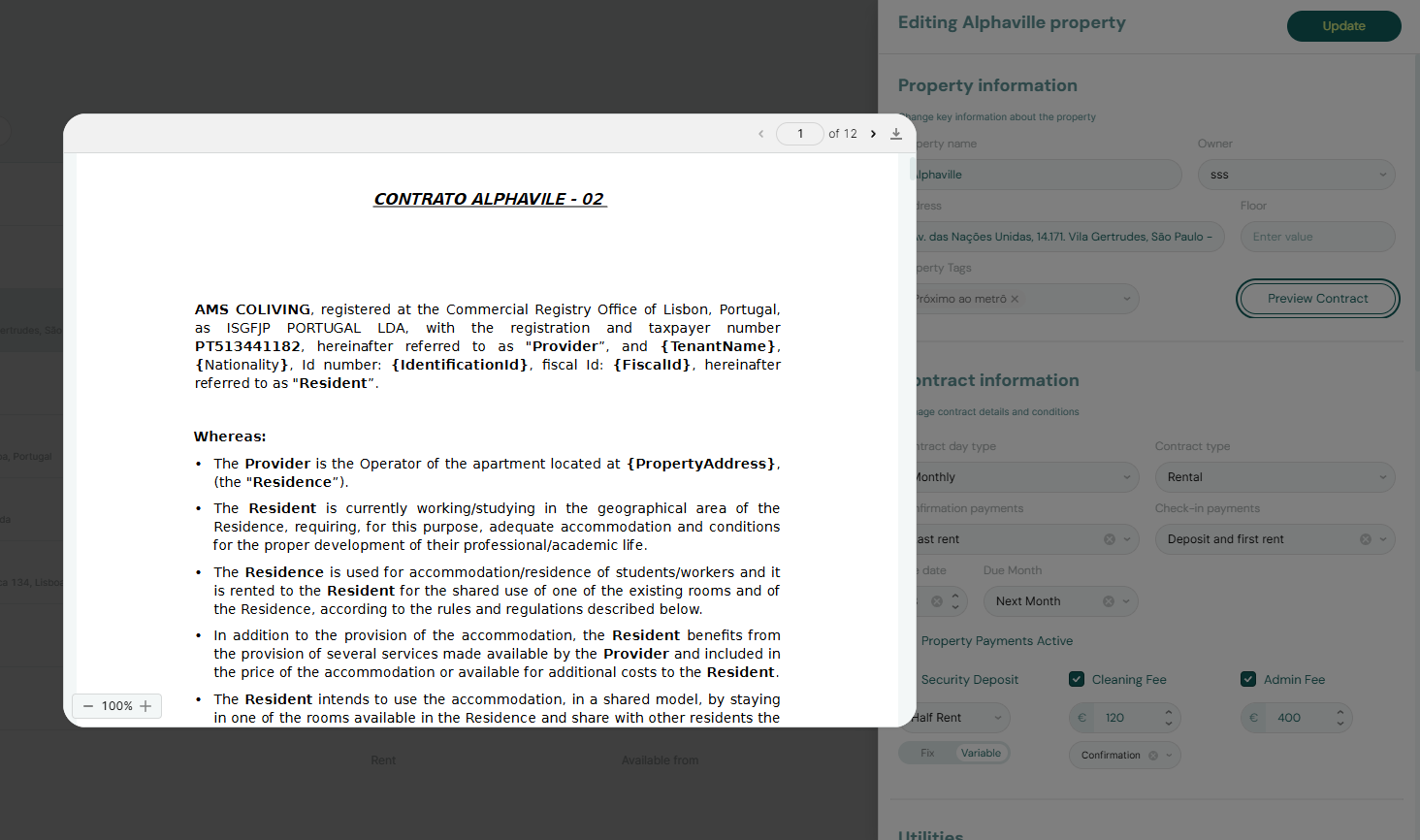
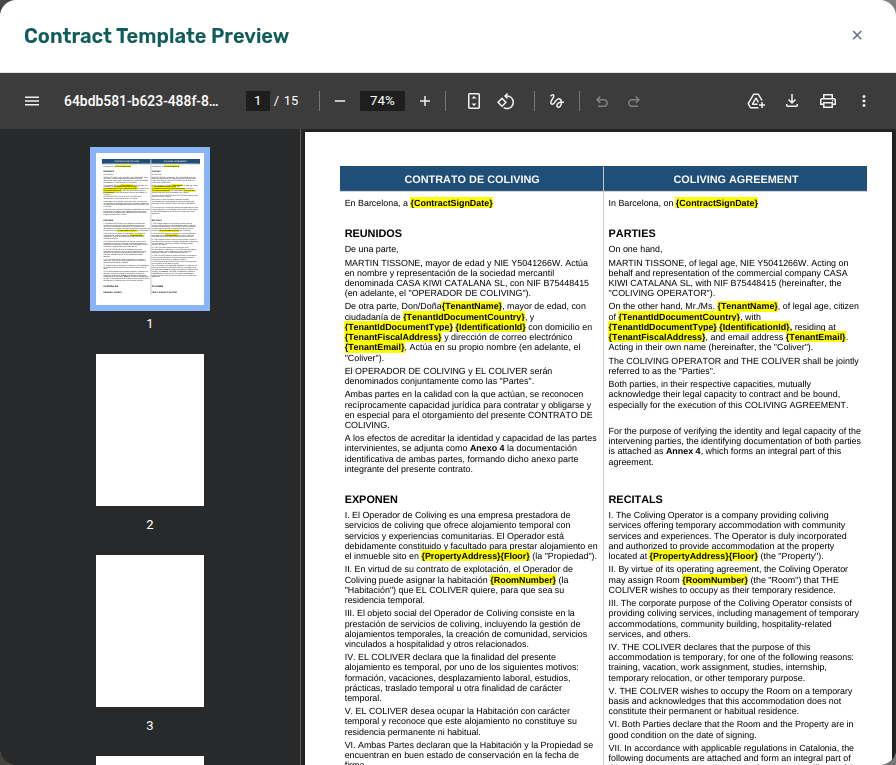
The card shows the filename, optional upload date, and an eye control that opens an in-app PDF preview modal (sample variables filled). Use preview to catch font re-flow before tenants see a PDF — prefer Calibri / Arial / Cambria / Times New Roman in the .docx (Contract — Fonts and PDF fidelity). Upload or replace templates from Settings > Contract templates — this tab is read-focused for resolution and preview.

Click the eye control to open the in-app PDF preview modal (sample variables filled):
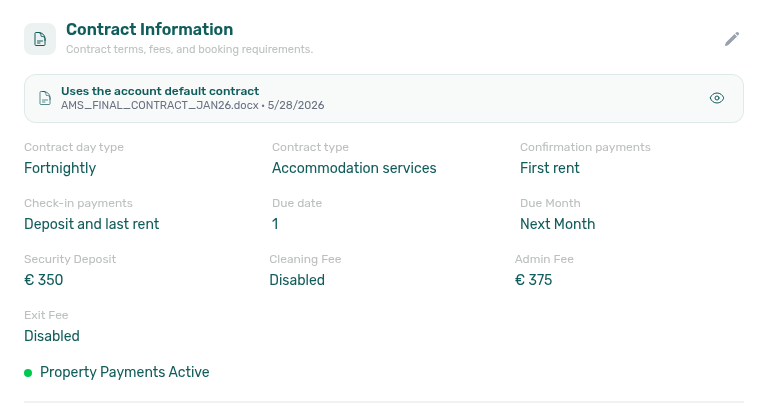
Scroll below the card for Contract Information (payment terms, confirmation/check-in requirements, fee defaults, and related fields). This guide groups those payment fields under Payments Tab because they define booking payment behaviour. Contract day type and Contract type here are the source for marketplace imports — Creating Bookings — Contract type.
Payments Tab
This is one of the most important tabs, as it controls payment behavior for all bookings in this property.
In the property sidebar, these fields live in the Contract Information section (scroll below the contract preview). This guide groups them under Payments Tab because they define confirmation/check-in requirements, due dates, cleaning fee timing, and tenant portal payments.
Confirmation Payments & Check-in Payments: You can modify or completely remove the default payment requirements. For example, you can uncheck "Confirmation Payments" entirely if you want tenants to pay everything at check-in. Marketplace POST /bookings copies these property defaults — Creating Bookings — Confirmation payments. Due date and Due Month on the same card also copy — Creating Bookings — Due date.
Due Date / Due Month: Set a property Due date (calendar day, for example 5) and Due Month (Previous Month, Current Month, or Next Month). If you Clear Due date, new bookings use Tenant Due Day / Tenant Due Month from Payments. Marketplace POST /bookings cannot send a different day — Vivin copies these property values (or the account defaults) onto the imported stay — Creating Bookings — Due date. + Create New → Booking also cannot pick them at create. After a stay exists, Contract Info can override Due day / Due Month for that reservation only.
Days before due date is not on the property. It lives on Payments — When to show payment as due. Marketplace POST /bookings copies that account value — Creating Bookings — Days before due. + Create New → Booking cannot pick it at create. After a stay exists, Contract Info — Days before due can override the copied value for that reservation only.
Check-in responsible and Check-out responsible are not on the property. Marketplace POST /bookings cannot send a teammate — the fields stay empty until you assign them on Contract Info — Check-in & Check-out — Creating Bookings — Check-in responsible. + Create New → Booking can pick both at create. There is no account-level default on Booking Defaults.
Lease purpose is not on the property. Marketplace POST /bookings cannot send a label — imported stays show No lease purpose until you or the tenant select a chip on Contract Info — Lease purpose — Creating Bookings — Lease purpose. + Create New → Booking can pick it at create when the field is enabled. Settings → Categories → Lease purpose is a catalog of allowed chips, not a default copied onto new stays.
Deposit Refund Limit is not on the property. It lives on Payments — Payment deadlines. Marketplace POST /bookings cannot send a different term — imported stays inherit the account setting until you override it on Contract Info — Deposit Refund Limit — Creating Bookings — Deposit Refund Limit. + Create New → Booking cannot pick it at create. Changing Payments still moves every booking that has no override.
Booking categories are not on the property. Marketplace POST /bookings cannot send a label — imported stays show No categories until you pick chips on Contract Info — Booking tags — Creating Bookings — Booking tags. + Create New → Booking can pick them at create when the account has chips. Settings → Categories → Bookings is a catalog of allowed chips, not a default copied onto new stays. Listing Select tags is a different catalog.
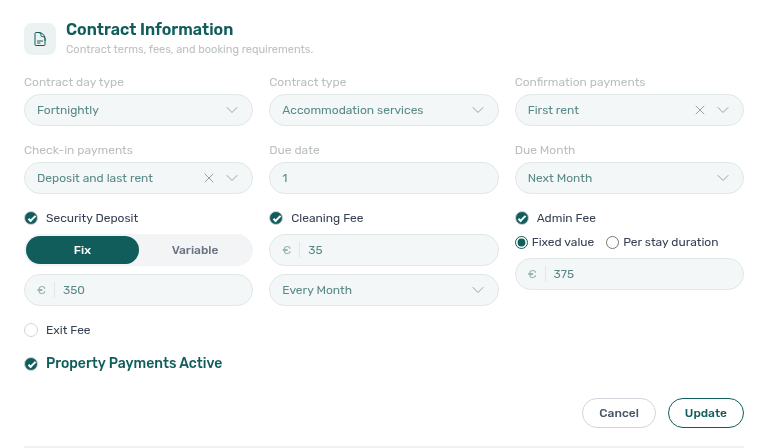
Cleaning fee frequency: The Cleaning fee column in Contract Information appears only when Cleaning fee is on under Account Settings > Fees (account-wide fee visibility). On the property, check Cleaning fee to reveal the € amount and Frequency dropdown; when the checkbox is off, frequency is not editable for that property.
When the cleaning fee is enabled for the property, use Frequency next to the amount to choose when that fee appears on the payment plan:
| UI label | Payment plan behaviour |
|---|---|
| Every Month (default) | One cleaning fee line per contract month (first/last months prorated like rent when applicable). |
| One-Time Fee at Booking Confirmation | A single cleaning fee line due at confirmation (uses booking creation date when it precedes move-in, otherwise move-in). |
| One-Time Fee at Move-in | A single cleaning fee line due in the move-in month. |
Selecting Every Month again clears a one-time mode (the product stores this as the default recurring setting).
Listing JSON publishes the euro amount as cleaningFeeValue. It does not include this frequency — partners reading GET /listings cannot tell Every Month from one-time. Marketplace POST /bookings does not set the amount either — Vivin copies this property amount onto the imported stay — Creating Bookings — Cleaning fee. See Listings & Availability — Cleaning fee.
Exit fee: The Exit fee checkbox in Contract Information appears only when Exit fee is on under Account Settings > Fees. Check Exit fee to reveal the € amount. New bookings copy that amount as a one-time line due on check-out (it does not block check-in). Listing JSON does not publish it, and partners cannot send it on POST /bookings — Listings & Availability — Exit fee. Override the euro amount on an existing stay under Bookings — Booking-level fee amounts.
When you create a property, the cleaning fee frequency defaults to Every Month and cannot be changed during creation. Edit the property after creation in Contract Information to switch to a one-time mode.
When payment schedules are regenerated for a booking, Vivin reconciles cleaning fee rows to match the active mode — extra monthly lines are removed when you switch to one-time, and missing months are added when you switch back to Every Month. Rows that are already invoiced block destructive reconciliation; resolve those in Finance (and issue credit notes in your accounting system when needed) before changing mode on affected bookings — the same invoiced floor boundary applies to rent edits on those bookings.
Admin fee — fixed or by stay duration
The Admin fee row in Contract Information appears only when Admin fee is on under Account Settings > Fees. Check Admin fee on the property, then choose how the amount is determined for new payment plans on this property:
| Mode (UI label) | Behaviour |
|---|---|
| Fixed value | One € amount applies to every booking on this property (same field as the property wizard). |
| Per stay duration | A tier table maps total stay length in days to an admin fee. The first tier always starts at 0 days; each additional tier must use a From day strictly greater than the previous tier. Stays at or above the last tier’s From day use that tier’s value until you add another row. |
Use Add tier to add rows; remove any tier except the first with the trash control. The (i) tooltip beside Tiers summarizes the open-ended last tier. Save on the property sidebar is blocked while tier validation errors are shown (for example duplicate or non-increasing From day values). Listing JSON publishes adminFeeMode and adminFeeTiers so marketplaces can advertise the same fee. Marketplace POST /bookings does not set the amount — Vivin resolves the matching tier from stay length at create — Creating Bookings — Admin fee.

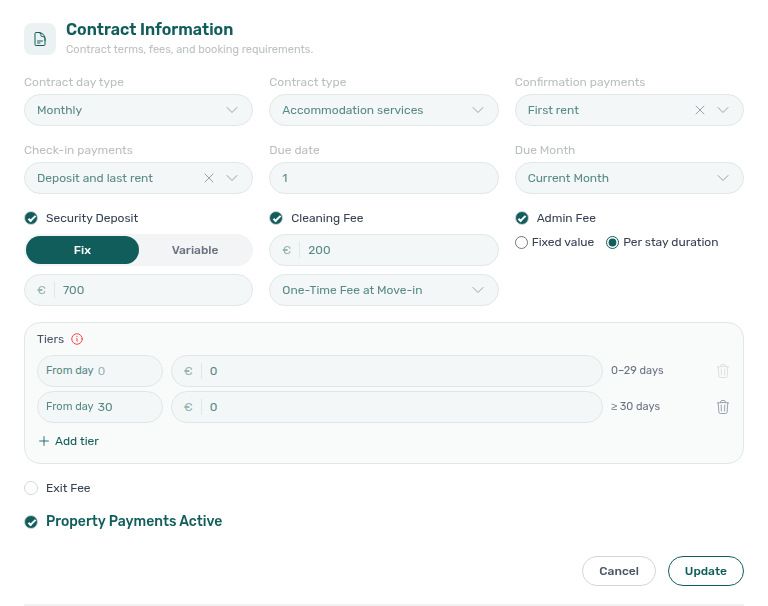

Property Payments Active: This is a critical toggle. When enabled, tenants can make payments through the Tenant Portal. When disabled, all payment functionality is blocked for tenants in this property — portal Home also hides the balance card.
If you disable "Property Payments Active," tenants will not be able to pay rent, deposits, or any other charges through the platform. Use this setting carefully, typically only when you are handling payments through an external system.
Maintenances Tab
This tab allows you to automate ticket creation for check-ins and check-outs.
You can configure the system to automatically create a maintenance ticket whenever a booking in this property has a check-in or check-out. For each event type, you can define:
- Responsible Team Member: Who should be assigned to the ticket
- Priority: Low, Medium, High, or Critical
- Category: The type of task (e.g., "Cleaning - Check-in," "Inspection - Check-out")
- Description: A default message that will appear in the ticket
Use Case Example: You might configure an automatic "Cleaning" ticket to be created 1 day before every check-in, assigned to your cleaning team, with High priority.
On individual reservations, operators can opt out per booking when creating a manual stay: on Add booking, after you turn off Use unit contract rents and other contract details, Create check-in ticket and Create check-out ticket checkboxes appear when the property has that auto-create enabled. Each defaults on (same as the property). Unchecking skips automatic ticket creation for that booking only; the property rule stays unchanged for future reservations. When you keep Use unit contract rents and other contract details checked, Vivin follows today's property defaults with no per-booking override row. Marketplace POST /bookings cannot send a skip — imported stays copy these toggles onto the reservation — Creating Bookings — Maintenance tickets. See FAQ — Skip automatic check-in/out tickets for one booking.
Access Lockers Tab
This tab manages access codes and smart lock integrations for the property.
You can define access codes for two levels:
- Building Access: The code to enter the building itself
- Property Access: The code to enter the specific property or apartment
For each level, you can choose between:
- Manual Code: A static code that you enter manually (e.g., "1234#")
- Nuki Integration: If you have connected Nuki smart locks in Integrations, you can link a Nuki device here. The system will automatically generate and send temporary access codes to tenants.
Entrance Hint: You can also add a text hint to help tenants find the entrance (e.g., "Use the side door on the left"). On portal Home, tenants Show code (eye) and Copy code (green check) for each filled level — see Tenant Portal — Show code and Copy code. Internal code / Internal hint never appear there.
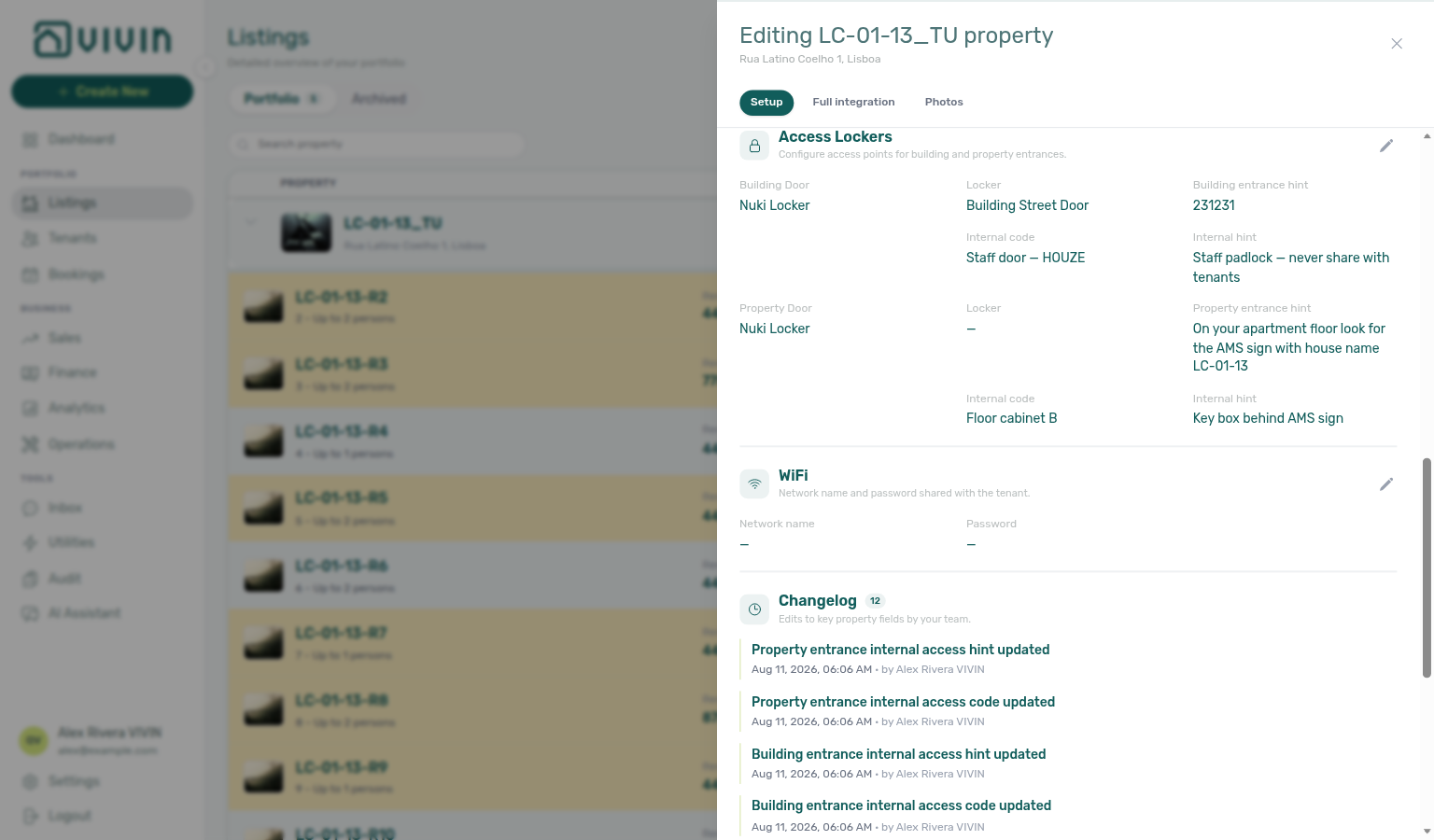
Internal code (staff only)
Under each door, Internal code and Internal hint store a second, staff-only access point — for example a building padlock or floor key box your team uses but tenants must never see.
| Field | Purpose |
|---|---|
| Internal code | Manual value your team uses (name it clearly, for example Staff door — HOUZE) |
| Internal hint | Short note for operators (for example where the key lives) |
These fields are manual only (not Nuki-generated), editable any time, and available at building, property, and unit levels. Vivin never shows them in the Tenant Portal and never includes them in tenant emails or check-in messages.
The tenant-facing access codes and entrance hints you configure here are included in the check-in email and can appear in the Tenant Portal. Internal code / Internal hint stay inside the management app only.
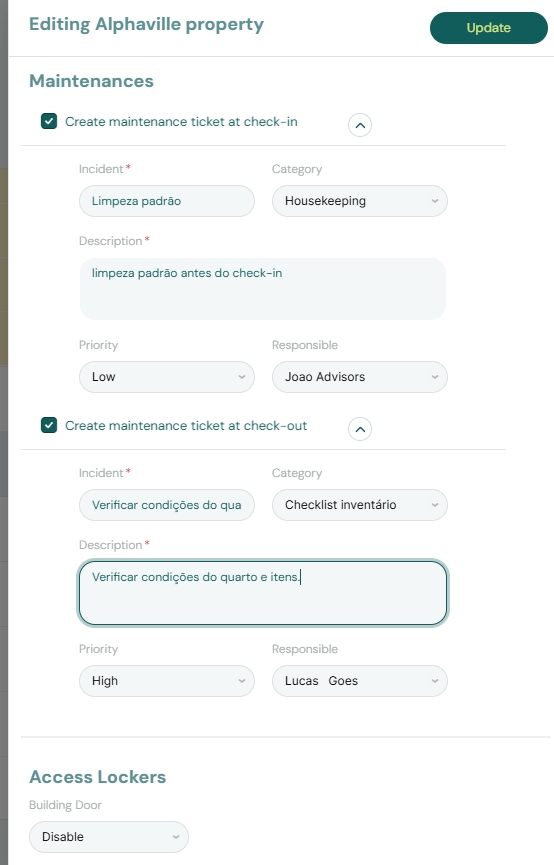
WiFi
Near Access Lockers in the property edit sidebar, the WiFi section stores the network name (SSID) and password for this building. Operators with edit access can update both fields inline; in read mode the password is masked with show/hide and copy controls so you can share credentials with tenants without retyping. Leave either field empty only when WiFi is not provided for that property.
After Vivin has sent the booking’s check-in email, the same values appear on portal Home as a WiFi card (masked password with Show / Copy). There is no Portal settings toggle for that card — hide it by clearing these fields. Check-in mail does not insert the password automatically (unlike Access Lockers codes). Values are scoped to the property — configure unit-specific access separately under unit Access Lockers when locks differ per room. Marketplace POST /bookings cannot send WiFi; partner listing JSON never includes the password.

Cleaning (common areas)
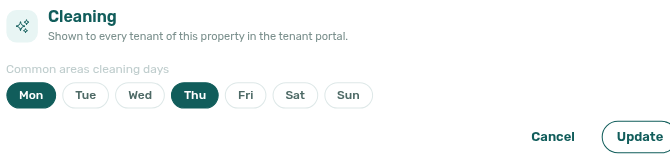
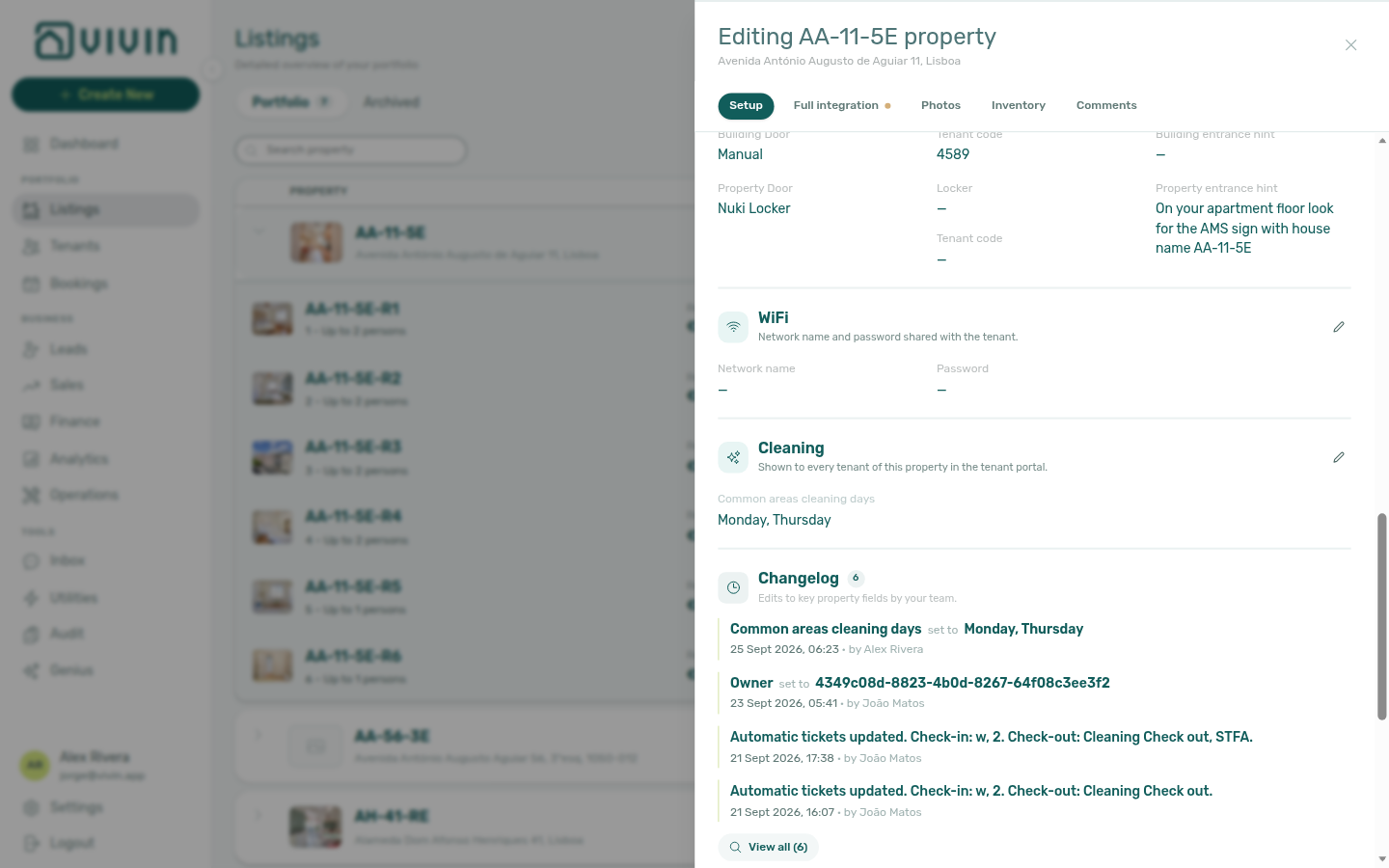
Near WiFi on the property Setup sidebar, the Cleaning section stores Common areas cleaning days — which weekdays housekeepers service shared spaces in this building. Operators with edit access click the pencil (Edit Cleaning), tick weekday chips (Mon–Sun), then Update. Cancel discards an unsaved picker. Clear every day to hide common-area lines on the portal.
These days appear on portal Home as the Cleaning card (Common areas row) for every booking in the building — they are not gated by the check-in email (unlike WiFi and Entry codes). There is no Portal settings toggle. Unit-specific room days live on the unit Room cleaning days field. Distinct from the monetary Cleaning fee on Contract Information and from Short term dual cleaning fees (Airbnb nightly stays).
Change history on the same sidebar logs day-name updates (for example Common areas cleaning days set to Monday, Thursday). Marketplace POST /bookings cannot send cleaning days; partner listing JSON does not publish them.

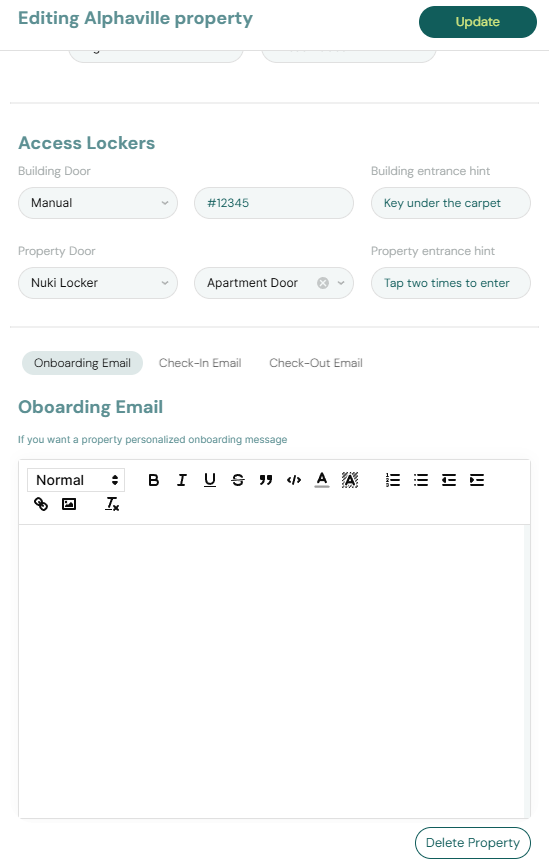
Email Customization Tab
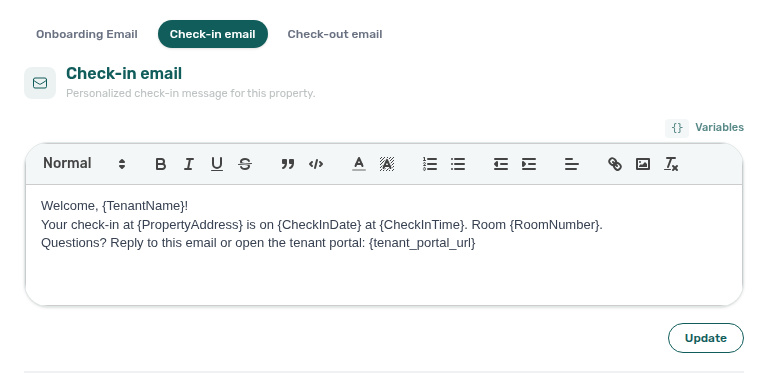
Near the bottom of the property edit sidebar (below Change history), three pills let you personalize the automated emails Vivin sends for this building only:
| Pill | When it sends |
|---|---|
| Onboarding Email | After the booking is confirmed |
| Check-in email | Before the tenant’s arrival (per account check-in trigger) |
| Check-out email | Before the tenant’s departure |
Each body is appended to the account default on Settings → Emails → Booking lifecycle emails. Use it for building-specific instructions (parking, Wi-Fi handoff, locker location) without changing every other property’s template.
Dynamic variables on property email bodies
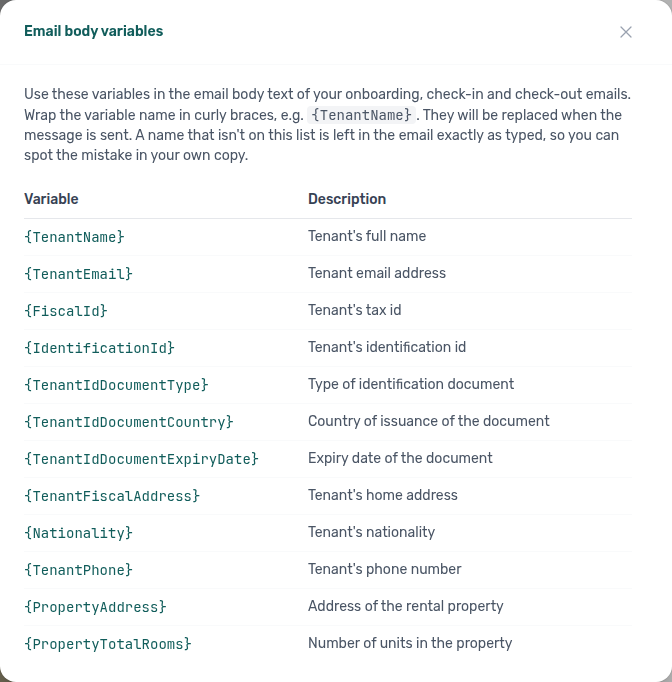
Property-level bodies use the same single-brace catalogue as account lifecycle emails and Communication Rules. Above each rich-text editor, click Variables to open the Email body variables modal:
- Tokens such as
{TenantName},{PropertyAddress},{CheckInDate}, and{tenant_portal_url}are substituted when the message is sent. - The modal is body-only (subjects stay fixed per template). A name that is not on the list is left verbatim in the sent email so you can spot typos.
- Rules-only tokens (for example
{notification_title}) do not appear on this surface.
Account defaults and the full token table: Emails — Dynamic variables for emails. FAQ: Can I use Variables on a property’s Email Customization?. Glossary: Email body variables.
Change history
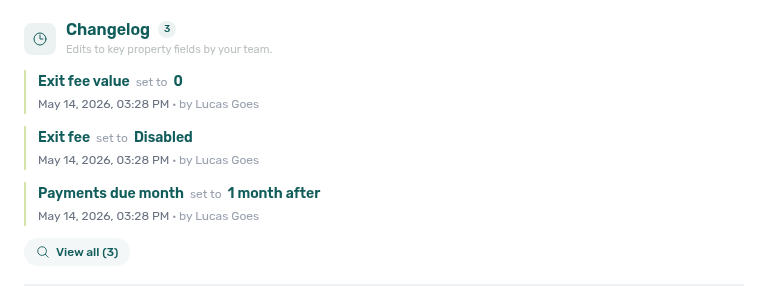
Near the bottom of the property edit sidebar, Change history records recent edits to key property fields by your team. On the property path, scroll the right-hand panel past operational sections such as Access Lockers, WiFi, and Cleaning — the block sits above the Onboarding / Check-in / Check-out email customization tabs (clock icon in the section header).
| UI element | Meaning |
|---|---|
| Title | Change history |
| Subtitle (property) | Edits to key property fields by your team. |
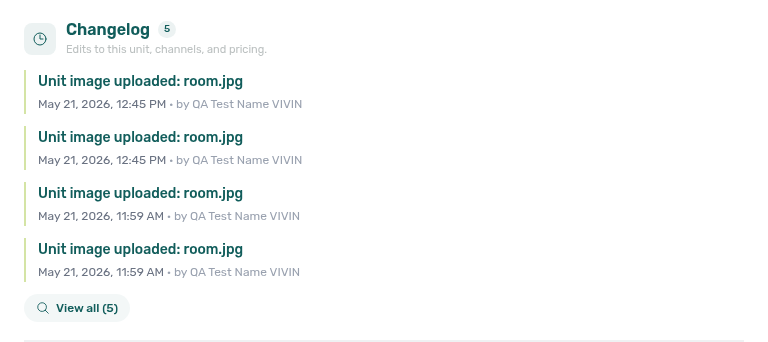
| Subtitle (unit) | Edits to this unit, channels, and pricing. |
| Each row | Plain-language description of what changed (for example contract timing, rent settings, access configuration, or admin fee tiers — tier updates may show a compact before/after breakdown in the line) |
| Timestamp | When the save occurred (locale-formatted date and time) |
| by … | Operator display name when Vivin can resolve the editor’s email to a user on the account |
Use it when you need accountability for contract, payment, or access changes without leaving Listings. The section is always visible: when nothing has been logged yet, it shows No changes recorded yet.
Change history appears on the normal Listings property and unit setup sidebars. Edits made in the Vivin-internal Property Details / Listing Details layer (Booking engine details) are not listed here — use that editor’s Save workflow and partner exports for marketplace payload changes.
Per-booking milestone dates and field changes live under Bookings → booking detail → Contract Info → Check-in & Check-out → Changelog, not in this sidebar block. Both surfaces list operator-initiated edits only — see FAQ — Booking Changelog scope (three-way table: booking Changelog vs Listings Change history vs Tools → Audit). See Bookings — Timeline (booking change log) (bookings-detail-contract-info-timeline.png) and Glossary — Change history.
The unit edit sidebar includes the same Change history block for listing-scoped field changes. Scroll the unit panel below Contract and channel sections until you see the same clock-icon header.
Editing Units
To edit an existing unit, expand the property in the Listings module and click the pencil icon next to the unit you wish to modify. Update on the unit sidebar also keeps the scrolled portfolio — see Save keeps your place in the list.
The unit edit sidebar uses the same three pills as properties:
| Pill | What it contains |
|---|---|
| Setup | Unit general info, tags, access lockers, rent, contract, Booking window, channels, calendar, and change history (sections below) |
| Full integration | Unit marketing copy, room fixtures, partner platforms, and per-platform Integration listings (Included in feed / Excluded from feed) — published on full feeds, not partial GET /listings — see Property & listing details (booking engine) |
| Photos | Unit gallery; drag to reorder — first image is the cover. Omitted from partial GET /listings — Catalogue fields |
Append ?listingDetails=1 to a unit edit URL to land on Full integration — Deep Links — booking engine query params.
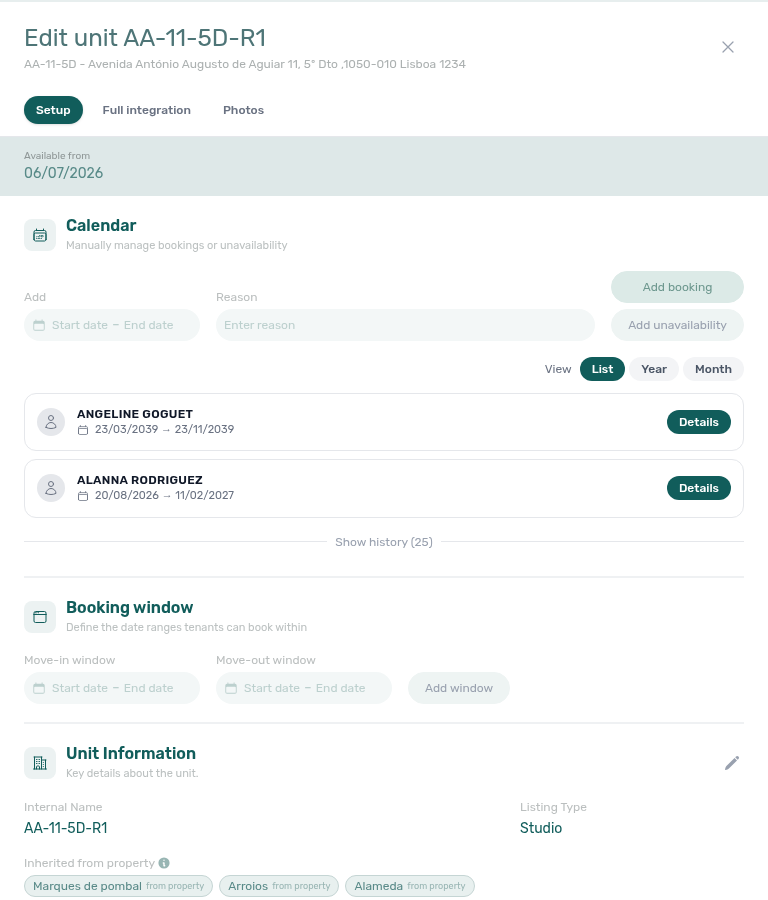
General Information Tab
Update the unit's basic details:
- Unit Number — the identifier for this unit
- Unit Type — the type of rental space (Room, Studio, Full House, Bed, etc.)
- Monthly Rent — can be set as Fixed or Variable
- Availability Date — the earliest date this unit can be booked from
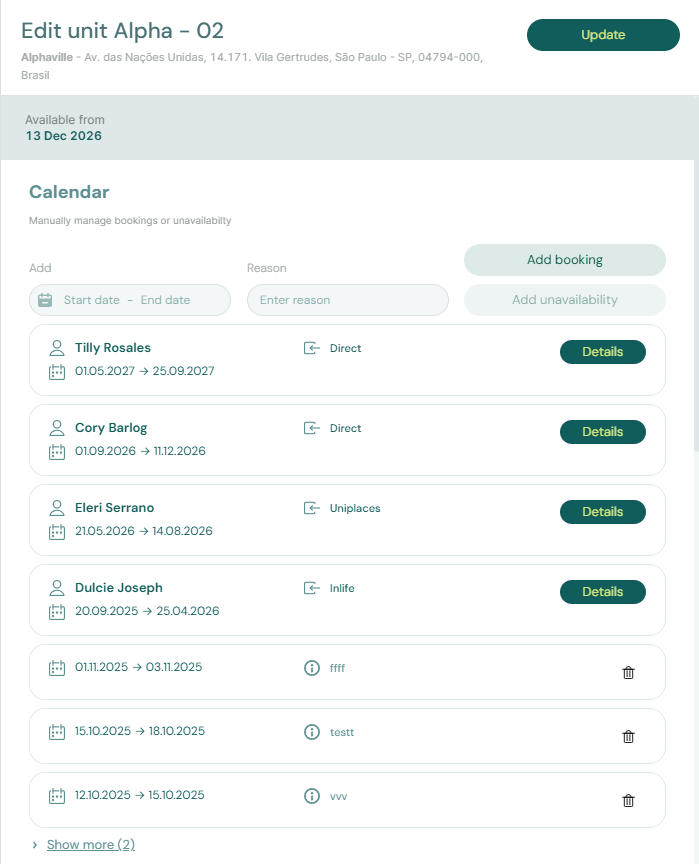
The Availability Date field controls when the unit first appears as bookable. Set this to the date the unit will be ready to receive tenants. Marketplace POST /bookings cannot send a skip for this date — Creating Bookings — Allow check-in date in the past. + Create New → Booking can tick Allow check-in date in the past for one manual stay.
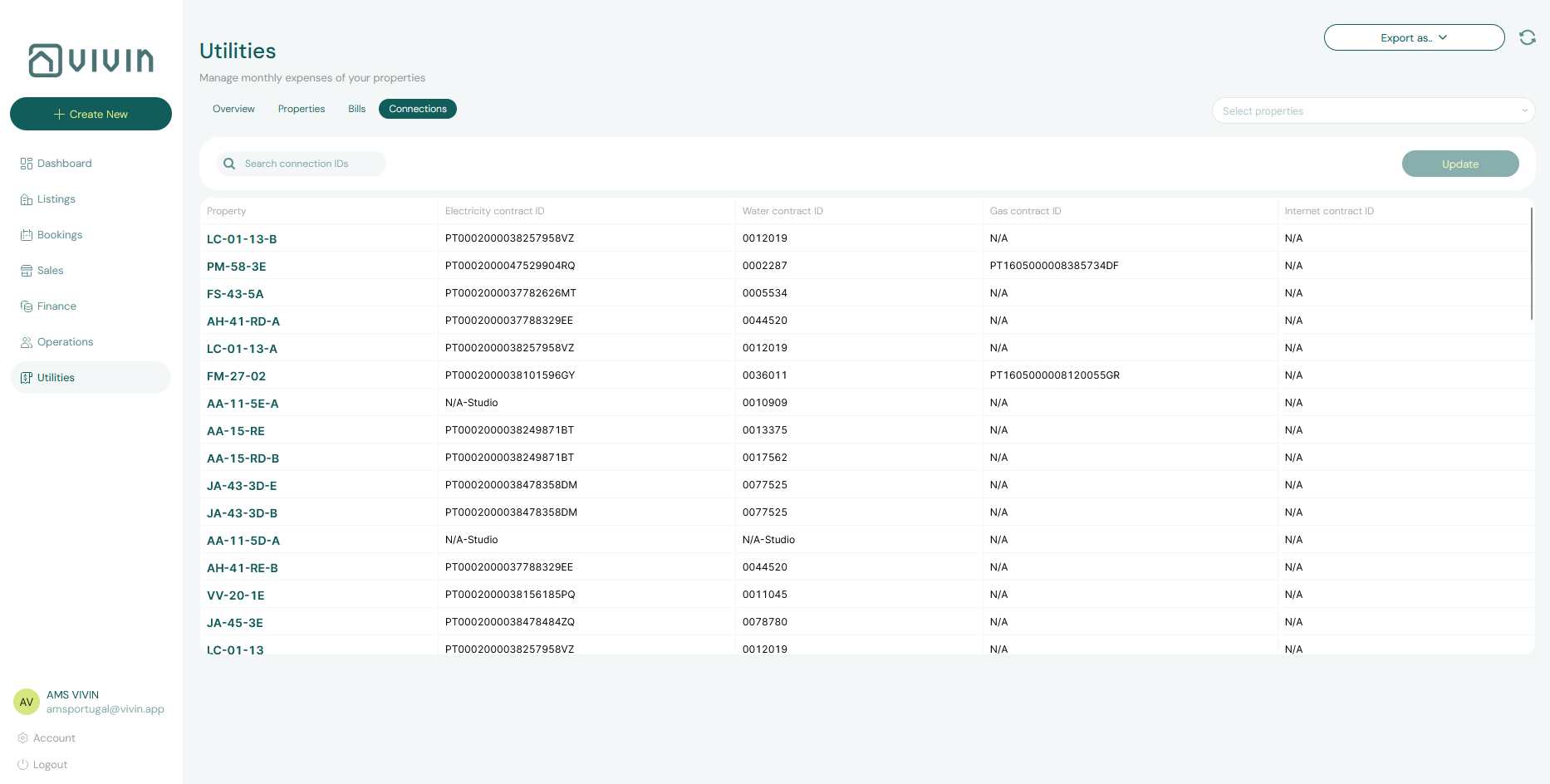
Extra Charge per Tenant
Extra Charge per Tenant and Extra Deposit per Tenant sit on unit Setup. They are the extra monthly rent and extra deposit for each occupant beyond the first. Both fields appear only when Capacity is greater than 1. When Capacity is 1, the sidebar hides them and listing JSON publishes extraPricePerTenant: 0 even if a leftover amount is stored. Raise Capacity to 2 or more to show Extra Charge again and to advertise it on partner pulls. Markup on Settings → Integrations does not raise Extra Charge — listing JSON extraPricePerTenant stays the stored amount (Platform markup). Extra Deposit is never on listing JSON — depositValue is the property computed deposit (Computed deposit). Marketplace POST /bookings copies Extra Charge from listing extraPricePerTenant and Extra Deposit from occupant headcount — it cannot send custom Extra Charge or Extra Deposit euros — Creating Bookings — Extra Charge. Marketplace POST /bookings also copies listing depositValue and adds Extra Deposit from occupant headcount — Creating Bookings — Deposit. See Listings & Availability — Extra price per tenant.
Maximum stay 0 means no limit
Minimum Stay Period and Maximum Stay Period on + Create New → Unit step 2 and on unit Setup are stay length in months (0–12).
- 0 on Maximum Stay means no maximum — a stay can run longer than a year.
- 12 means twelve months, not unlimited.
- 0 on Minimum Stay means no minimum.
New units copy Min/Max Stay Defaults when you have saved them. If those defaults were never set, new units start at 1 month minimum and 2 months maximum. Saving the Preferences card does not change existing units until you use Apply to all active listings.
If Maximum Stay is 0 and you raise Minimum Stay, the sidebar also raises Maximum Stay to match. Set Maximum Stay back to 0 if you still want no maximum.
These monthly bounds are not the Short term card’s nightly Min stay / Max stay.
Partner listing JSON publishes the stored months. maxStayPeriod: 0 means no cap, not a zero-length stay — Listings & Availability — Maximum stay. Add Booking uses these monthly bounds. Marketplace imports honour listing JSON — Creating Bookings — Honour listing. Occupied nights still reject on both paths.
Tags Tab
Add or remove tags for this specific unit. Unit tags are independent of property tags, allowing you to create more granular categorization (e.g., "Corner Unit," "Balcony," "Renovated 2024").
Room cleaning days
On the unit Setup sidebar (Unit Information), Room cleaning days lists which weekdays housekeepers service this unit’s room. Edit with Edit Unit Information, tick weekday chips (Mon–Sun), then save — or Cancel to discard. A short hint reminds you the schedule is shown to this unit’s tenant in the tenant portal.
Portal Home shows the value on the Cleaning card (Your room row) when at least one day is set. Property common areas days are separate and apply to every unit in the building. Clear every day to hide the room row (the card still appears when common-area days remain). Distinct from the monetary Cleaning fee and from Short term dual cleaning fees.


Access Lockers Tab
Similar to the property-level access codes, you can define a unit-specific access code here. This is useful when each unit has its own lock or smart lock device.
On the unit Setup sidebar, tenant-facing Unit Door Access / Enter code / Unit entrance hint sit with Internal code and Internal hint (staff-only — same rules as property Internal code). Use the internal pair for a spare key or ops pad that must never reach the tenant portal or check-in email. Room cleaning days sit on the same Unit Information block above these access fields.
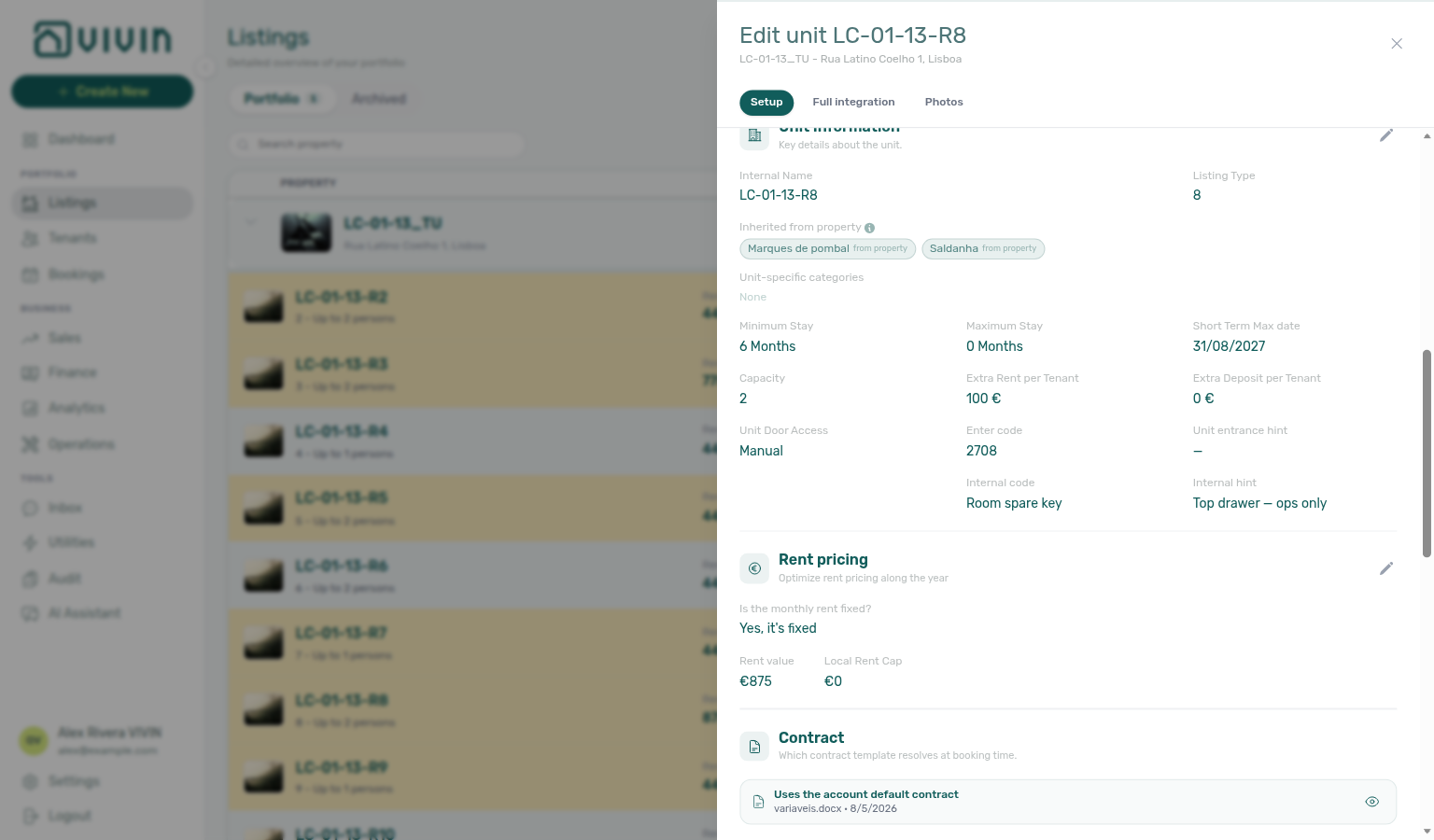
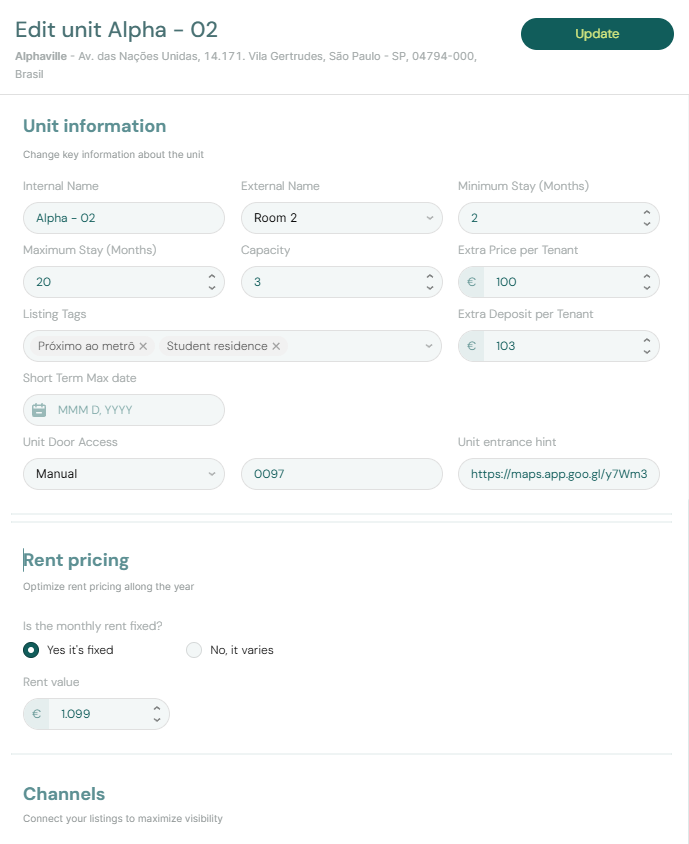
Rent Value Tab
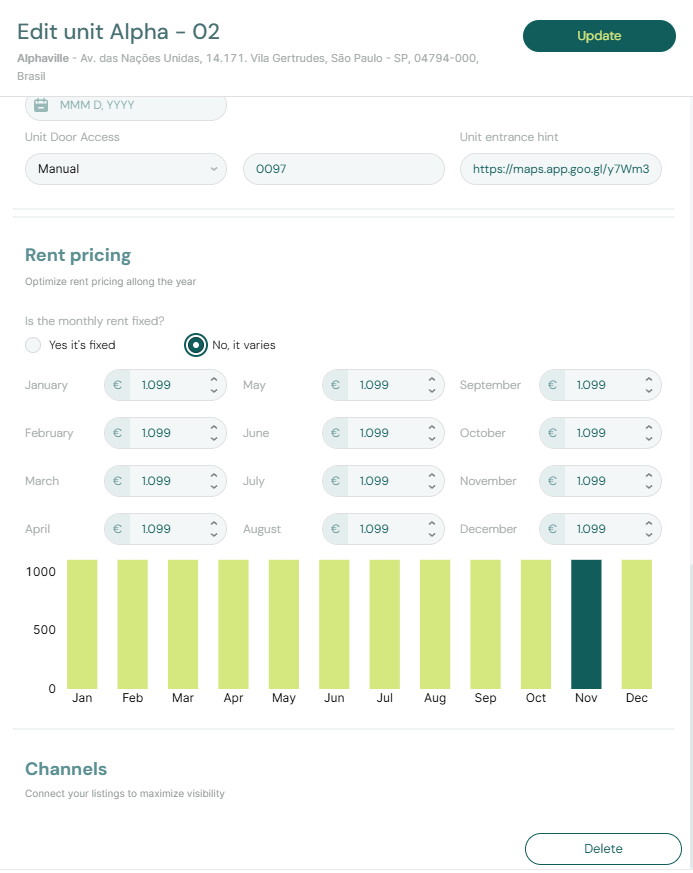
This tab allows you to configure whether the rent is fixed or variable.
- Fixed Rent: The rent amount remains constant for all bookings.
- Variable Rent: The rent can change based on season, demand, or other factors. You can define different rent amounts for different date ranges.
At booking level, Vivin may still store fixed monthly rent when this unit is variable but every contract month in the reservation span shares the same configured € amount — the listing stays variable for future stays. See Bookings — Fixed rent on a variable unit and FAQ — Fixed rent on variable unit.
Partner listing JSON does not publish a leftover “base” amount for variable units. Top-level rent is the highest month in the grid; booking sites should bill each stay month from rentsPerMonth. A Variable security deposit uses that same highest month. See Listings & Availability — Variable rent headline and Computed deposit.
A €0 monthly rent — including a cleared field, which stores €0 — keeps the unit in Vivin but omits it from partner listing JSON. On a variable grid, every month must be greater than 0; one empty month drops the whole unit from the pull. See Listings & Availability — Usable rent required and FAQ — Listing JSON omits a unit with €0 rent.
Local rent cap
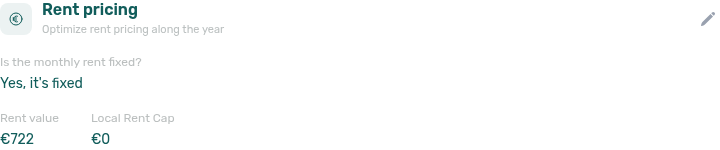
When Dual pricing / local rent cap is enabled on the account, the unit sidebar shows Local Rent Cap beside the rent amount (fixed or variable grid). This is the legal rent portion Vivin uses when splitting each monthly Rent line on new bookings; the remainder is scheduled as Others using the category configured in Account Settings. Partner listing JSON does not include the cap — catalogues show the full advertised rent — Listings & Availability — Local rent cap.
| Rule | Detail |
|---|---|
| Visibility | Appears when dual pricing is enabled on the account, or when the unit already has a cap saved. |
| Create unit | + Create New → Unit requires Local Rent Cap ≥ €0.01 when dual pricing is on. |
| Valid range | Must be greater than zero and less than the unit’s monthly rent (or the rent for that month when variable). |
| Existing bookings | Changing the cap on the unit does not alter bookings already created; caps are copied at booking create. |
Set the cap in the unit Rent section of the edit sidebar (same area as Monthly Rent / variable month grid). Operators with dual-pricing bookings can adjust the frozen cap on the booking — see Bookings — Dual pricing.
All bills included
All bills included sits on the same Rent pricing card as monthly rent (and Local Rent Cap when dual pricing is on). When it is Yes, utilities for this unit are fully included in rent: there is no monthly euro cap. Utilities → Allocations records a Covered row with Extra to charge € 0,00 for bookings here — never a pending overage. That is how you tell “fully included” from a month nobody billed.
This switch is independent of the property Bills Included ceiling. Other rooms in the house keep that cap. The unit still counts toward how many occupied rooms share a supplier bill, so roommates’ shares stay the same — this room simply does not receive a tenant charge.
| Surface | What you see |
|---|---|
| Unit sidebar (view) | All bills included Yes or No under rent. |
| Unit sidebar (edit) | Tick No cap next to All bills included, then Update. Cancel discards an unsaved tick. |
| + Create New → Unit | The same No cap checkbox on step 2 (Rent and availability). |
Unlike rent and fee edits — which apply to new bookings only — Vivin reads All bills included when it next proposes allocations. Turning it on records Covered rows (nothing to charge) for stays on that unit, including current bookings. Turning it off lets the property ceiling apply again on the next allocation run.
Connected listing channels advertise the unit as bills included with no monthly cap (billsIncluded: true, billsIncludedMaxValue: null) — Listings & Availability — All bills included. Marketplace POST /bookings cannot send that null cap — Creating Bookings — Bills included.
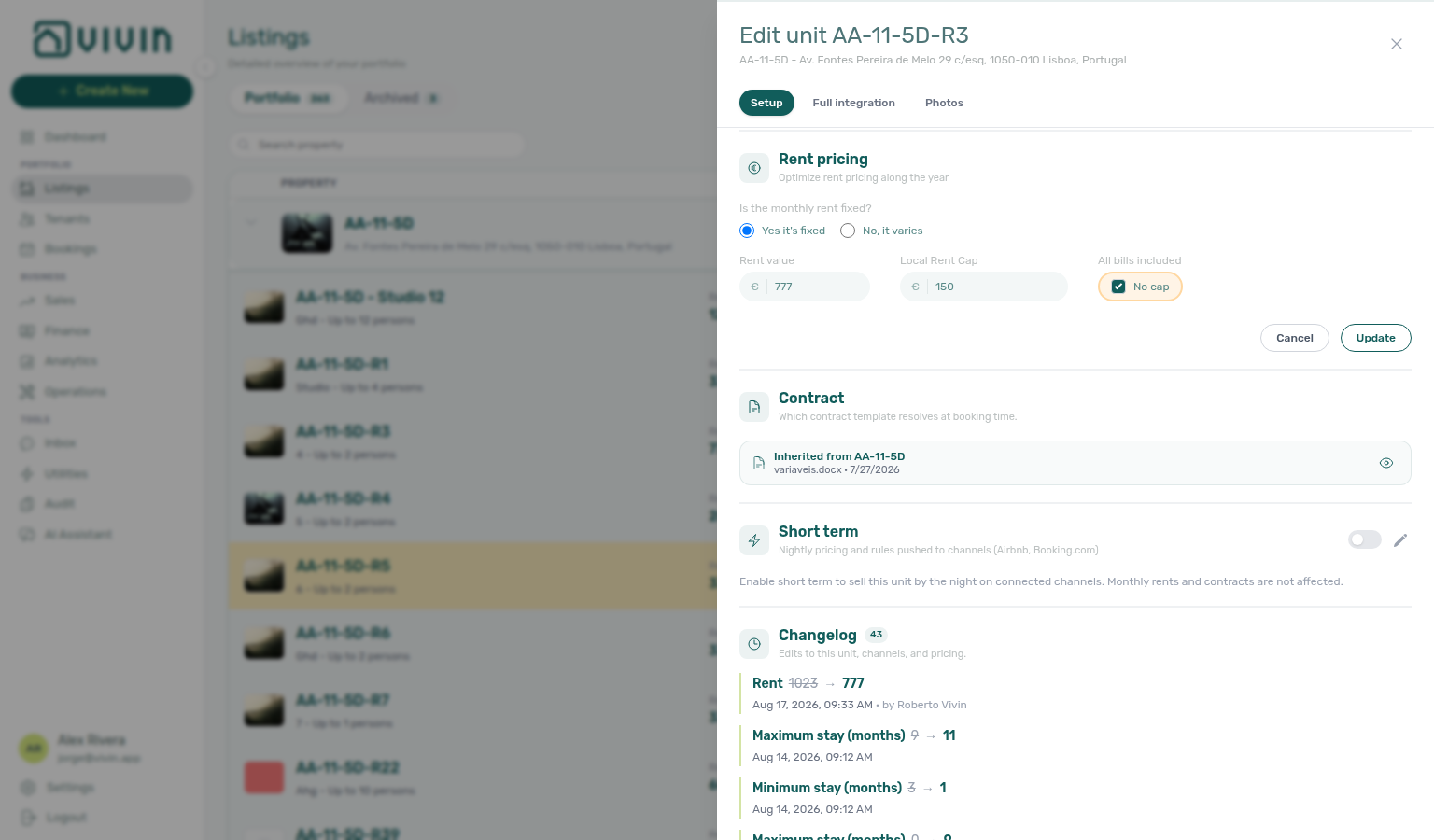
See FAQ — Include all bills on a unit, Glossary — All bills included, Listings & Availability — All bills included, and Utilities — How tenant overage charges are created.
Short term (nightly pricing)
Short term nightly rates push to channel managers (Channex → Airbnb and related OTAs). Monthly Rent Value and mid/long-term contracts stay unchanged when you enable this section.
Not sure which card holds nightly rates? Ask AI Chat “Where do I open the Short term card under Listings (unit edit sidebar on the Setup pill — English card label Short term with lightning icon — for nightly pricing Price per night, Nightly calendar overrides, cleaning fees, min/max stay, Sale window, and Lead time — not the Sales Pricing monthly rent grid, not Sales Channel Manager, not the Full integration pill, and not monthly Rent Value) to set nightly short-term rates and stay rules on a unit?” (ai-chat-product-context-short-term-reply.png, ai-chat-product-context-short-term-flow.mp4) — the assistant typically says Listings → unit edit sidebar → Setup → Short term.
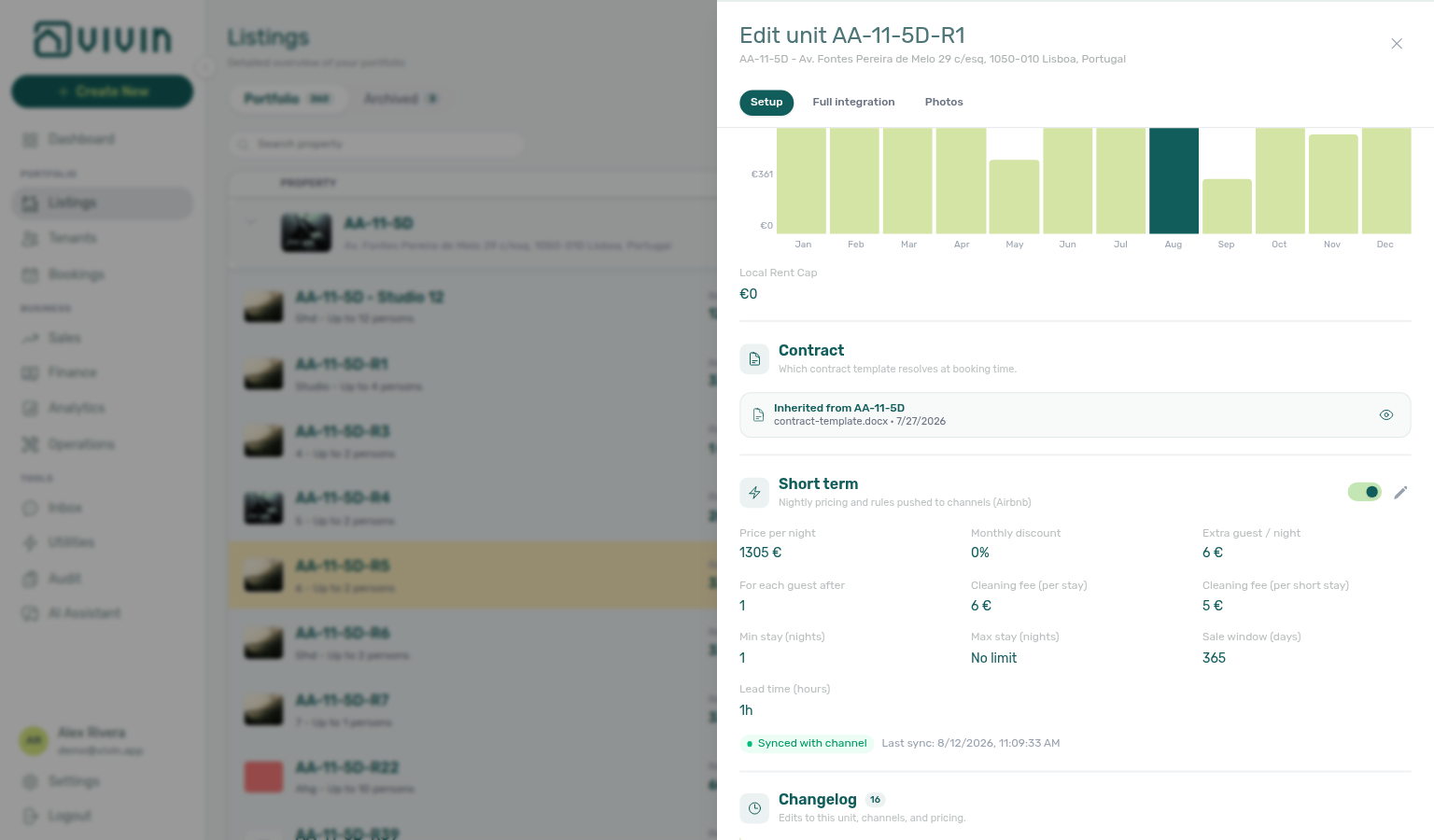
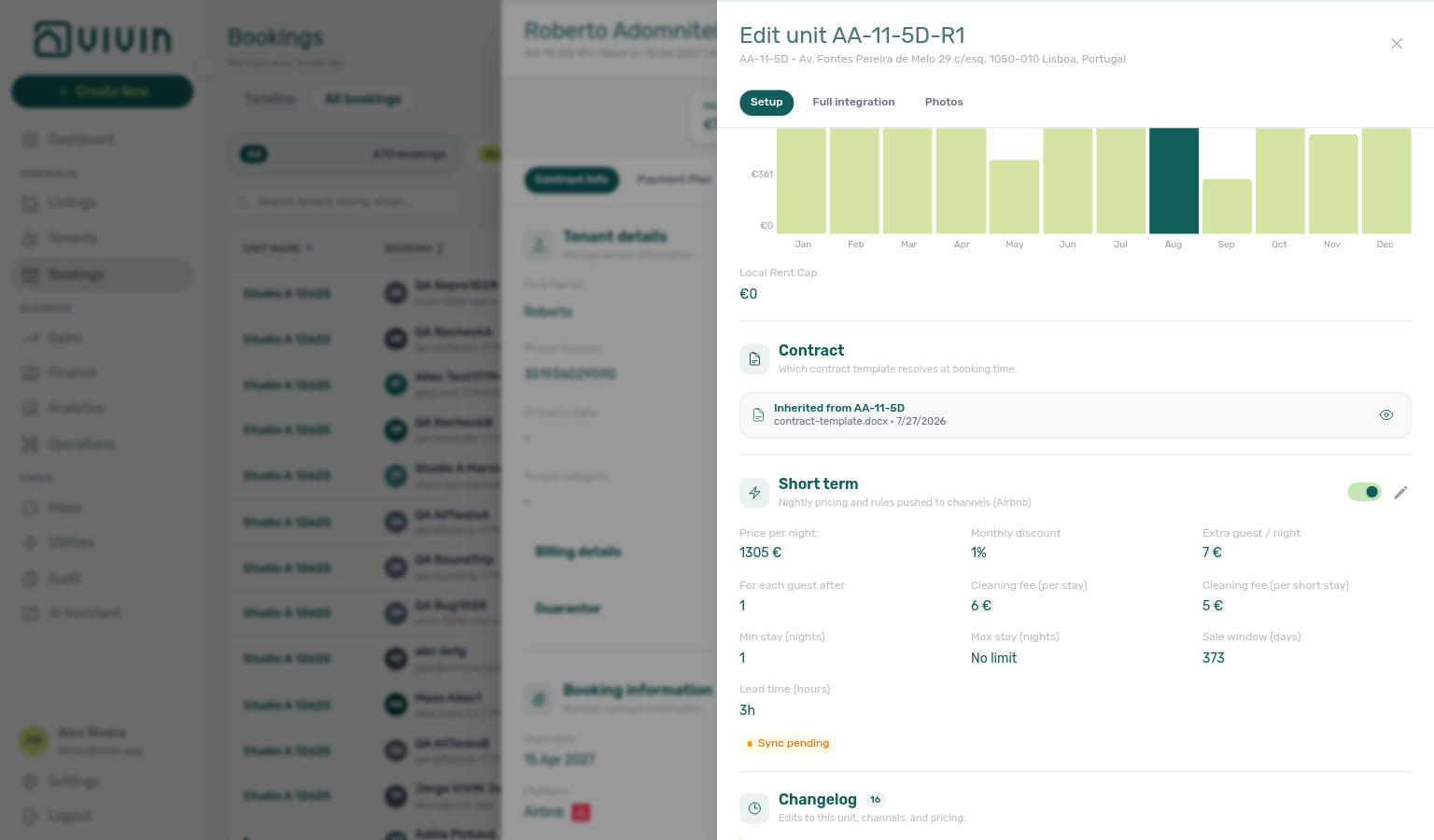
Below the monthly rent block, each unit sidebar includes a Short term card (lightning icon) for nightly pricing and stay rules that Vivin pushes to connected short-term channels. The card subtitle reads Nightly pricing and rules pushed to channels (Airbnb, Booking.com). Enabling the header toggle does not rewrite monthly rents or contract templates — mid-term bookings keep using Rent Value.
Fields sit in two groups — see Airbnb only settings.
Every connected channel (Airbnb and Booking.com):
| Field (English UI) | Meaning |
|---|---|
| Price per night | Base nightly rate (shown as a min–max range when Nightly calendar overrides exist). |
| Min stay / Max stay | Night bounds (Max stay No limit when unset; Edit shows 0 for no limit). |
| Sale window (days) | How far ahead the unit can sell on connected channels. |
Airbnb only settings (Airbnb; Booking.com has no matching fields):
| Field (English UI) | Meaning |
|---|---|
| Monthly discount | Percent off for longer short-term stays on Airbnb. |
| Extra guest fee (per night) | Airbnb surcharge: fee amount after how many guests are included — see below. |
| Cleaning fee (per stay) | Cleaning amount for a full stay on the Airbnb nightly package. |
| Cleaning fee (per short stay) | Separate short-stay cleaning amount when Airbnb expects a distinct short-stay fee. |
| Lead time (hours) | Minimum notice before check-in on Airbnb. |
Airbnb only settings
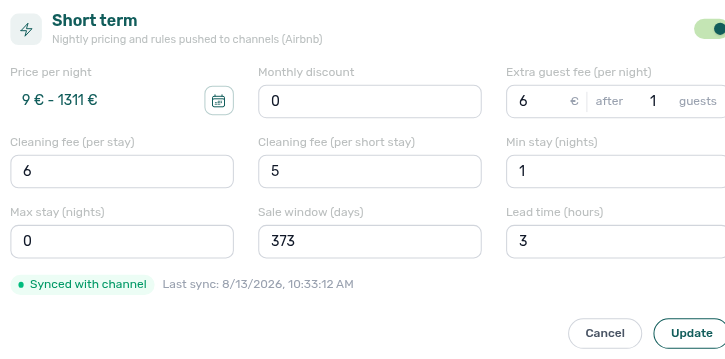
The Short term card separates the values every connected channel can use from the values that exist only on Airbnb. Price per night, Min stay, Max stay, and Sale window sit above the heading. Under Airbnb only settings you edit Monthly discount, Extra guest fee, both cleaning fees, and Lead time.
Use Edit to change either group, then Update to push. Cancel leaves the card unchanged. Channel sync badges still apply to the whole Short term package — Channel sync badges.
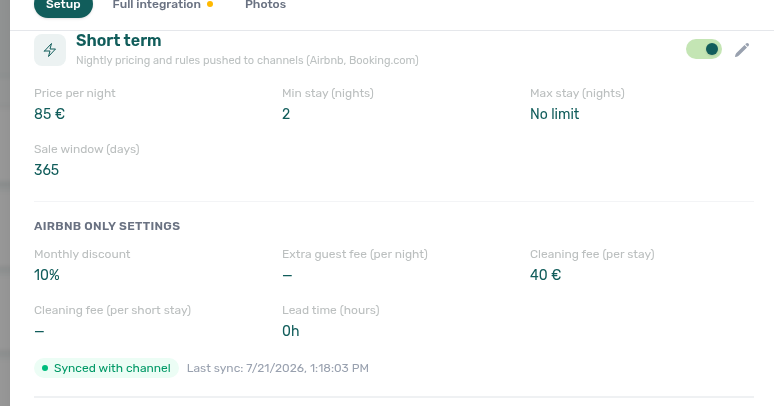
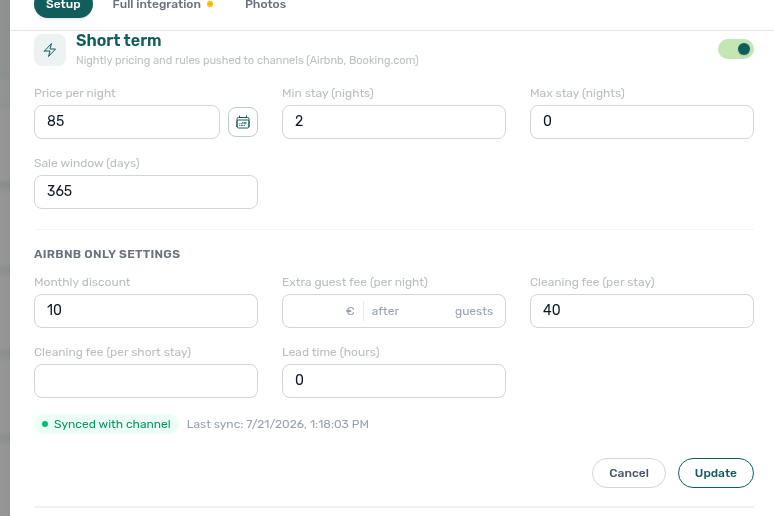
FAQ: What is Airbnb only settings on Short term?.
Extra guest fee (per night)
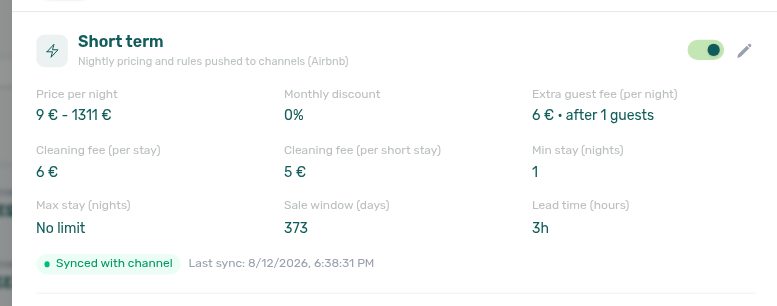
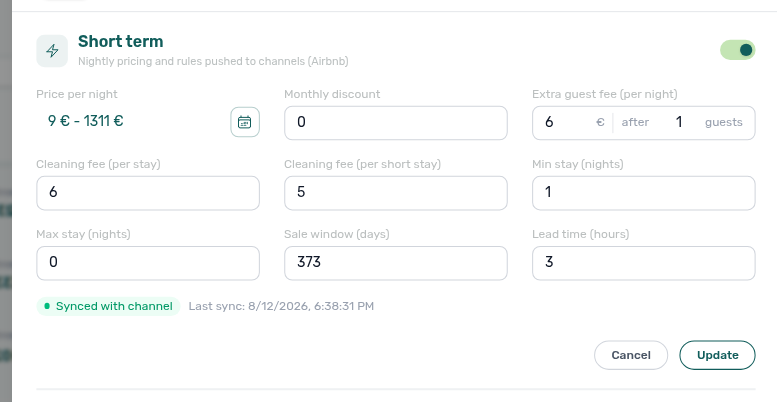
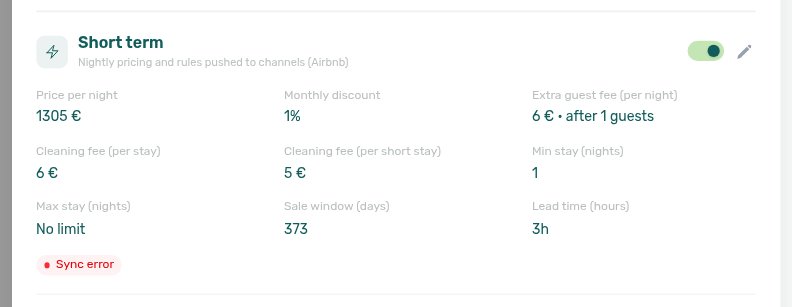
Extra guest fee (per night) lives under Airbnb only settings. It is one Airbnb control with two values in the same box: the € surcharge and after N guests (how many guests are included before the fee applies). In view mode the card shows a single line such as 6 € · after 1 guests. Edit opens the split field so you can type the fee and the guest threshold together — not as two unrelated inputs.
Leave the after threshold blank when you do not want a separate included-guest count (Vivin then keeps the fee inert relative to unit capacity). Set both the fee and after N guests when Airbnb should charge per extra guest beyond that count. Saving pushes the pair with the other Airbnb only settings.
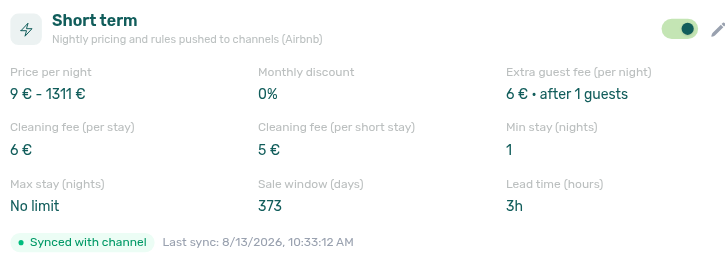
Cleaning fees (per stay and per short stay)
Both cleaning fees live under Airbnb only settings. Short term keeps two amounts so Airbnb can charge differently for a full stay versus a short stay:
| Field (English UI) | What to enter |
|---|---|
| Cleaning fee (per stay) | Cleaning amount for a standard / full stay on the nightly package. |
| Cleaning fee (per short stay) | Separate short-stay cleaning amount when the OTA expects a lower (or different) short-stay fee. |
In view mode the card shows both amounts side by side (for example 6 € and 5 €). Edit opens two number fields so you can update either fee without touching nightly rent or stay rules. Clearing a fee and clicking Update sends an empty value for that field so Vivin does not keep pushing a stale amount. Saving pushes the pair with the rest of the Airbnb-only Short term fields.
Channel pricing checks still apply on Update — for example Airbnb may reject a short-stay cleaning fee that violates its bands relative to the per-stay fee. When a value is rejected, the toast appears and the form stays open so you can correct the numbers. Compatible Airbnb-side cleaning edits can also flow into these fields after the next channel sweep — see Airbnb → Vivin pricing import.
FAQ: How do I set nightly short-term prices on a unit?, Do Airbnb price edits appear on Short term in Vivin?.
Edit opens the fields for typing. Beside Price per night, use Nightly calendar to set (or reset) per-night overrides for a date range — nights without an override sell at the base price. When you confirm, Vivin checks channel pricing rules (for example Airbnb nightly bands and cleaning-fee floors) before saving — if a value is rejected, the message appears in the usual API toast and the form stays open so you can correct the numbers.
Channel discounts (Airbnb)
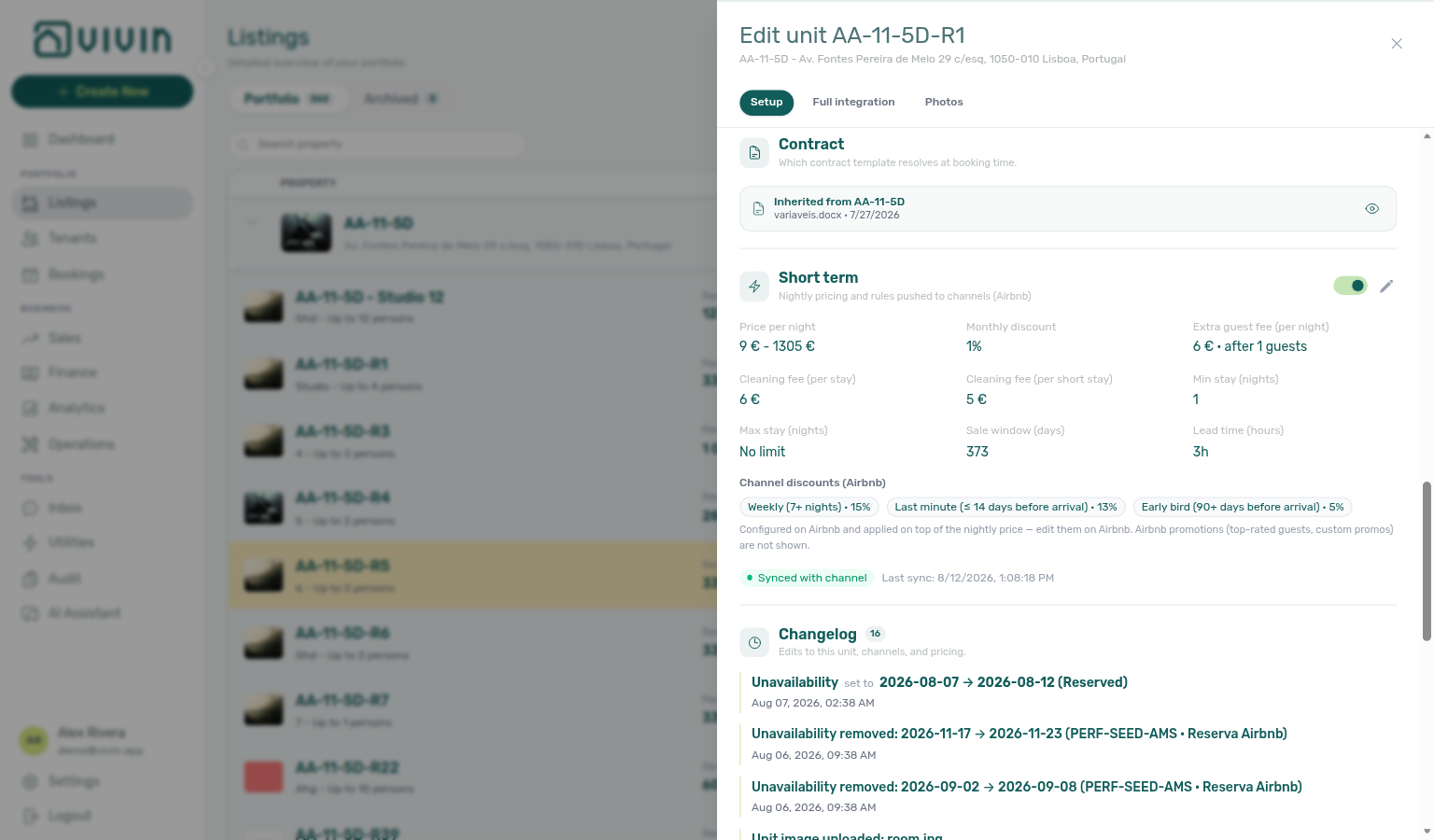
When the unit is allocated to Airbnb through Channex, Channel discounts (Airbnb) shows read-only chips for Airbnb-side rules that adjust the nightly price after Vivin pushes Price per night (and your editable Monthly discount). Use them to explain why a calendar night on Airbnb can look lower than the base rate you set here.
| Chip (English UI) | Meaning |
|---|---|
| Weekly (N+ nights) · X% | Length-of-stay discount for stays of at least about a week. |
| Last minute (≤ N days before arrival) · X% | Discount when the guest books close to arrival. |
| Early bird (N+ days before arrival) · X% | Discount when the guest books far ahead. |
| Length of stay (N+ nights) · X% | Other stay-length rules that are not the weekly or monthly band. |
| Other discount · X% (or €) | A rule Vivin mirrors without a dedicated label — hover the chip for the raw rule type when present. |
Monthly discount stays an editable Short term field (and is not repeated as a chip). Edit weekly / last-minute / early-bird rules on Airbnb — Vivin only mirrors them. Airbnb promotions such as top-rated guests or custom promos are not listed here. If the block is missing, the unit is not channel-connected yet, or Airbnb has no non-monthly rules to show.
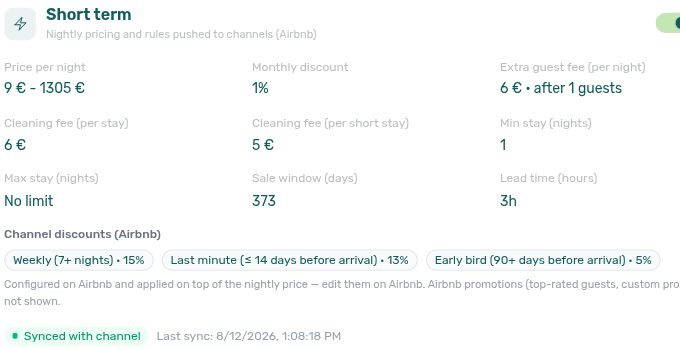
FAQ: What are Channel discounts (Airbnb) on Short term?.
Channel sync badges
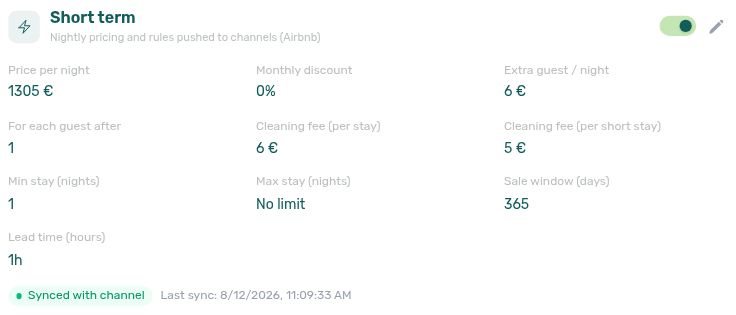
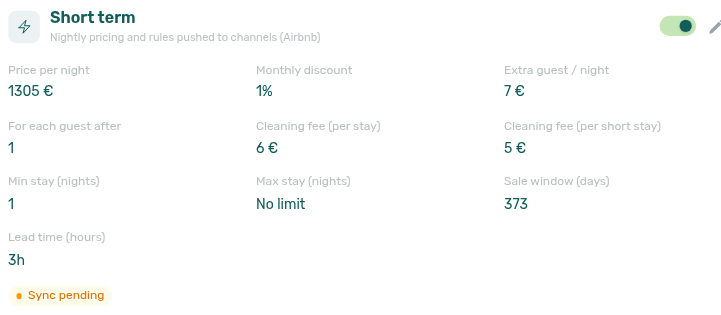
When the unit is mapped for Channex ARI, a status pill sits under the Short term fields:
| Badge (English UI) | Meaning |
|---|---|
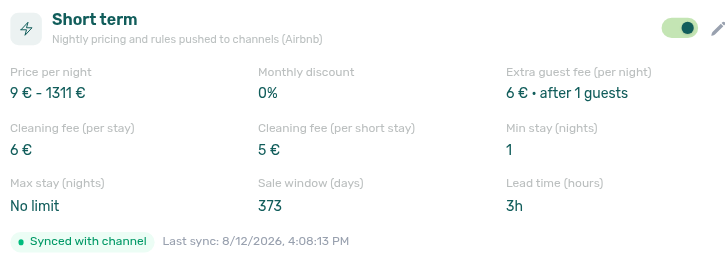
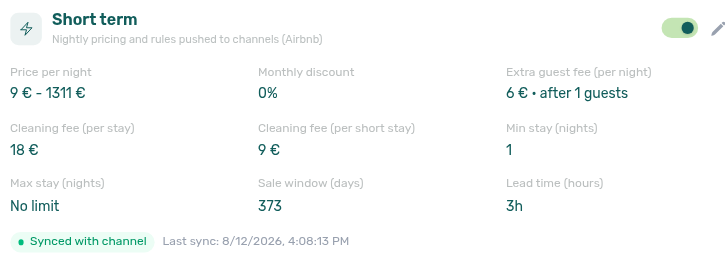
| Synced with channel | Vivin finished the last ARI push. The pill also shows Last sync with the date and time. |
| Sync pending | You saved Short term changes that still need to push to the channel. Re-open the unit sidebar if the pill has not refreshed yet. |
| Sync error | The channel rejected the push after Vivin’s first check. Open the channel logs from your Channex connection, fix the OTA-side values, then Edit → Update Short term again. |
A green Synced with channel state can later flip to Sync pending right after you save, then back to green when the push completes — or to Sync error if the OTA rejects the package.
Airbnb → Vivin pricing import
Edits you make on Airbnb can also flow into this Short term card after the next channel sweep. Vivin updates the matching fields without marking them as pending outbound changes, so your Airbnb-side tweak is not immediately overwritten by the next push.
| Imported from Airbnb | Short term field |
|---|---|
| Nightly rate | Price per night |
| Monthly discount | Monthly discount |
| Extra-guest fee / included guests | Extra guest fee (per night) (fee € · after N guests) |
| Cleaning fees | Cleaning fee (per stay) and Cleaning fee (per short stay) |
Values that would break channel rules (for example a nightly rate below the OTA floor, or a short-stay cleaning fee that violates Airbnb bands) are skipped rather than imported. Stay rules such as min nights stay on the ARI path and are not overwritten by this sweep. Prefer editing in Vivin when you want a controlled push; use Airbnb when you are adjusting live there and want Vivin to catch up.
FAQ: Do Airbnb price edits appear on Short term in Vivin?.
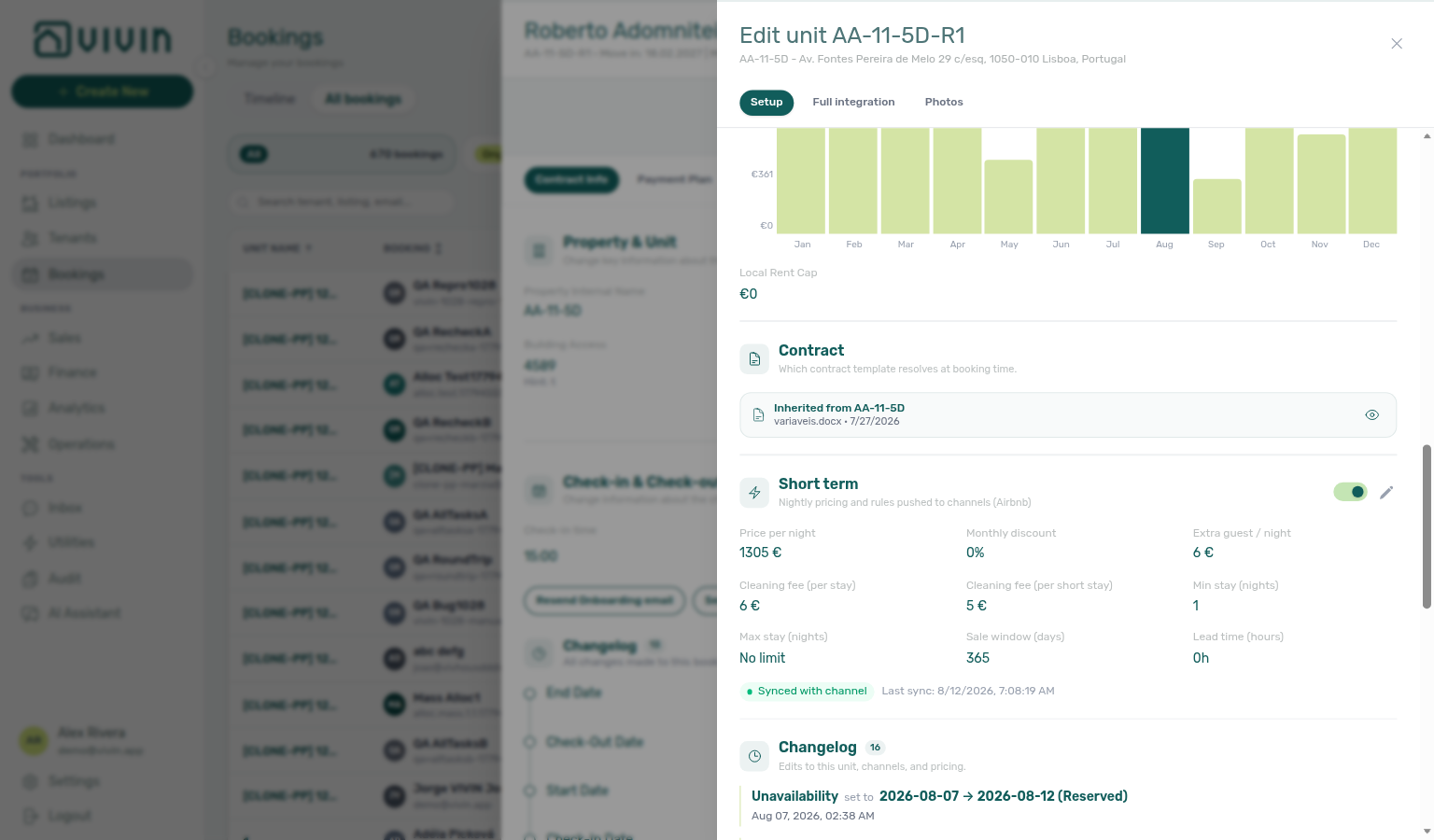
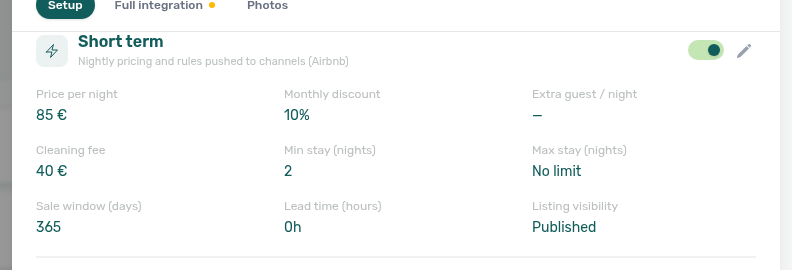
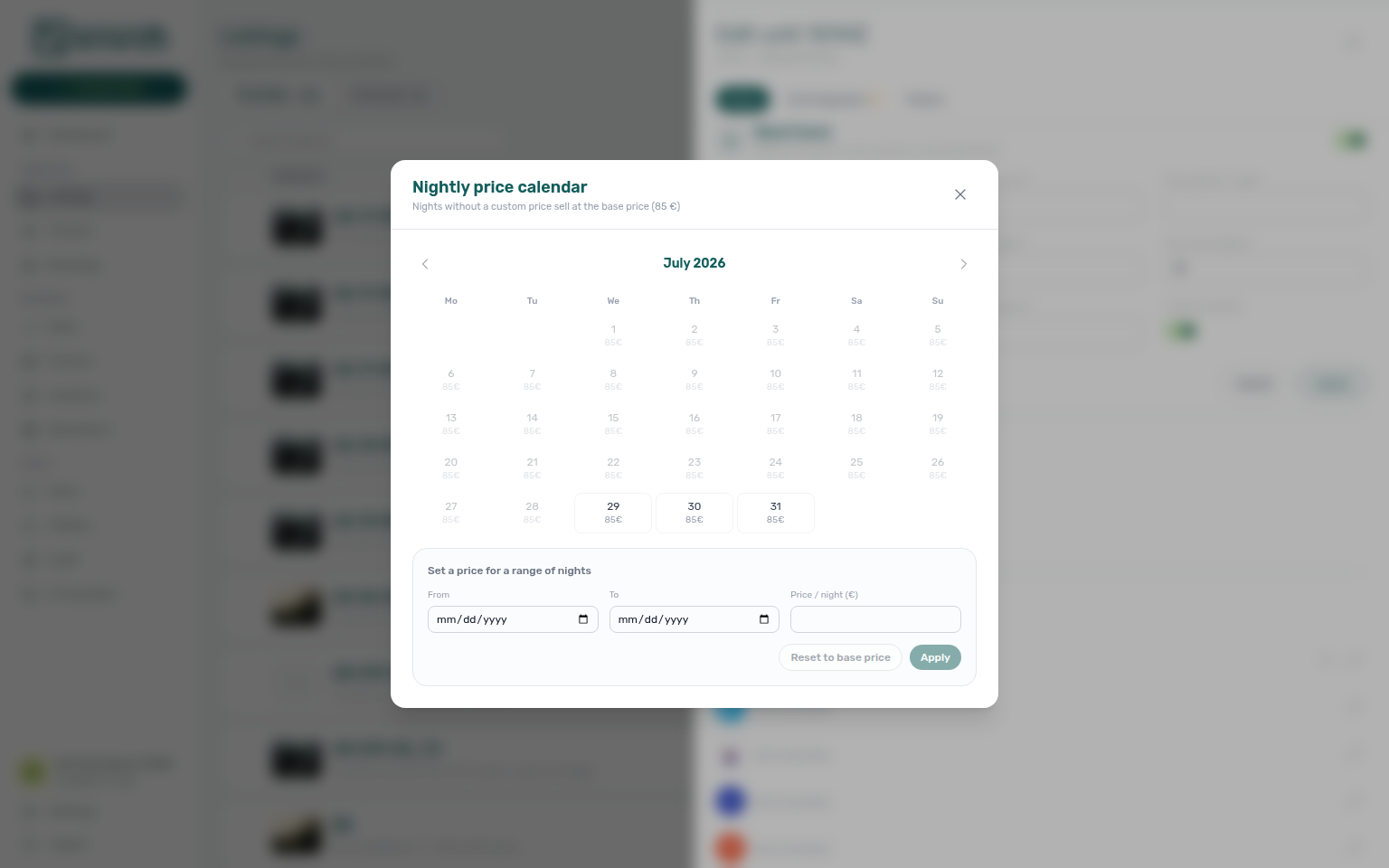
Pair account-wide calendar horizon with Settings → Integrations — Short-term iCal Max Date. After Vivin finishes an OTA rail on the Channex connection cards, Sales → Channels can switch Airbnb / Booking.com / Vrbo / Expedia cells to allocate mode — see that section. FAQ: How do I set nightly short-term prices on a unit?, What is Airbnb only settings on Short term?, What are Channel discounts (Airbnb) on Short term?, What do Short term sync badges mean?, Do Airbnb price edits appear on Short term in Vivin?.
Contract section
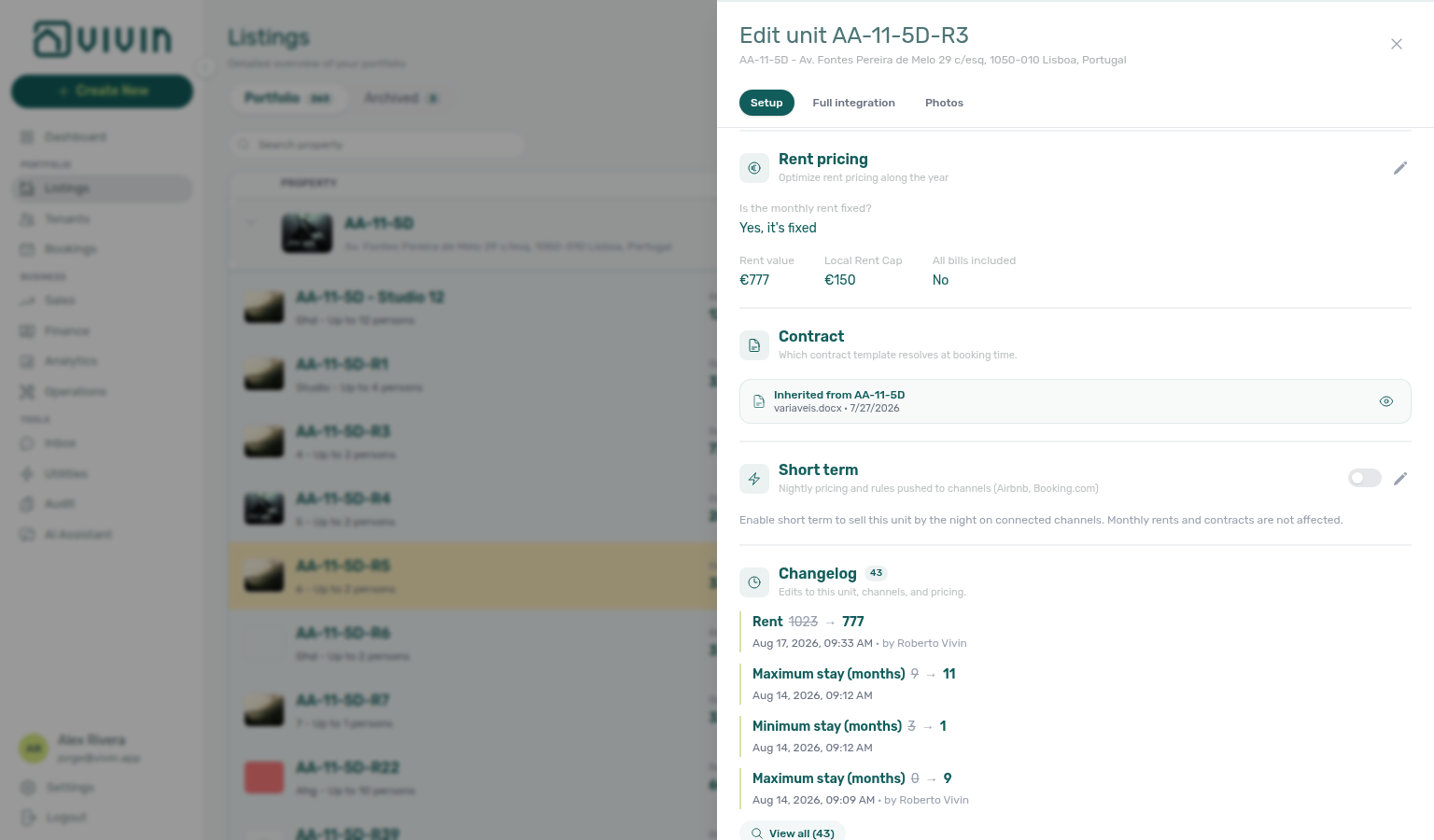
The unit edit sidebar includes a Contract block (above Change history and Channels) with the same effective contract card used on properties and on the full-page unit detail.
Resolution order for a unit:
| Resolved source (English UI) | Meaning |
|---|---|
| Uses this unit's own contract | A unit-scoped .docx uploaded in Settings overrides property and account defaults for this row only. |
| Inherited from <property name> | The parent property’s template applies (shown when the unit has no own file but the property does). |
| Uses the account default contract | Neither unit nor property has an override — the account default from Settings applies. |
| No contract template resolved | Upload a template before contract generation can succeed for new bookings on this unit. |
Use the eye control to preview the resolved template as PDF. Manage uploads from Settings > Contract templates.
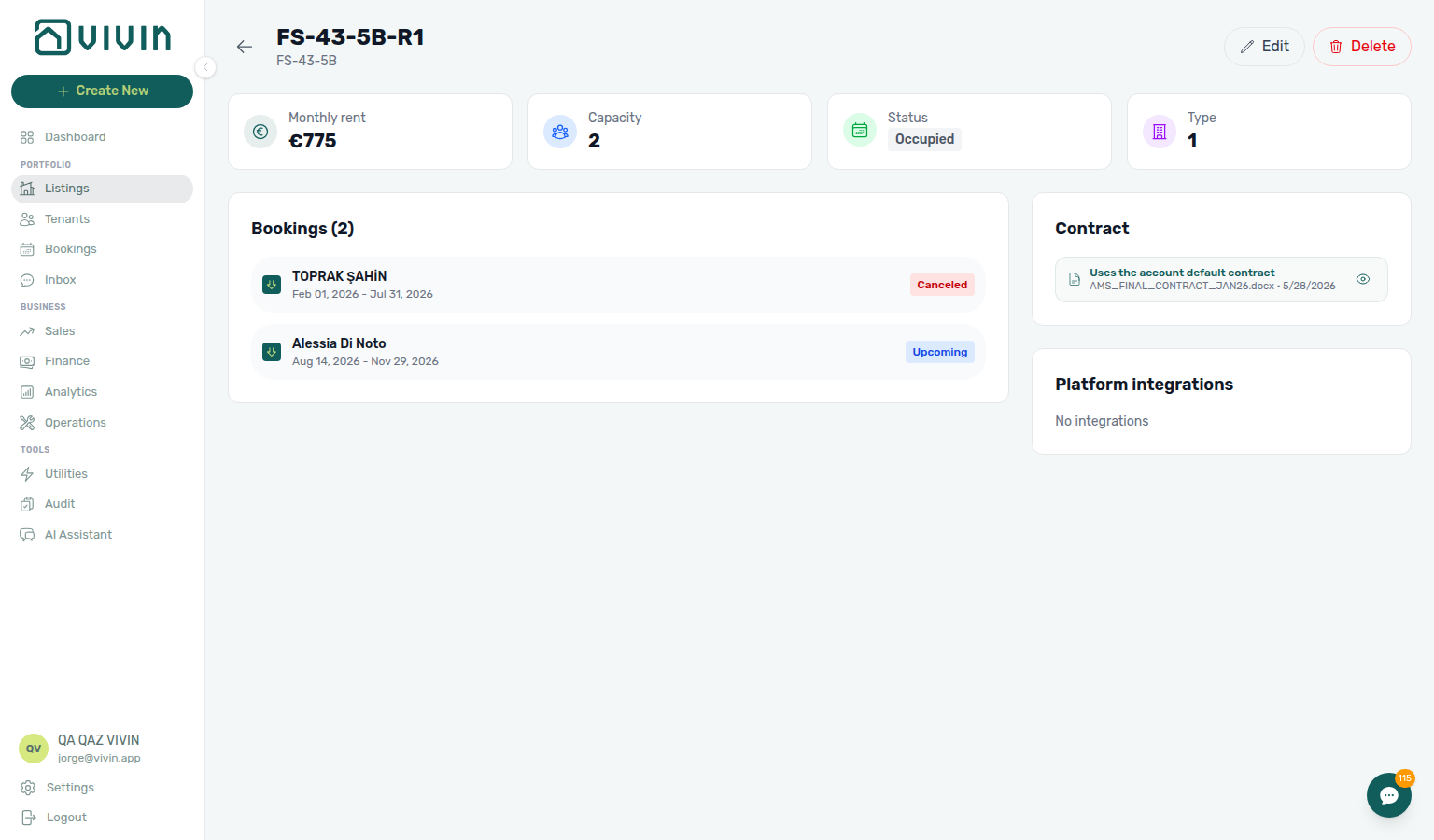
When the unit has no own .docx but the parent property does, the card shows Inherited from <property name> with the property template filename and upload date:

The account-default capture above uses the full-page unit detail Contract card (same resolution component as the unit sidebar). For a property-scoped tight crop and PDF preview modal, see Property Contract tab — effective contract card.
Channels Tab
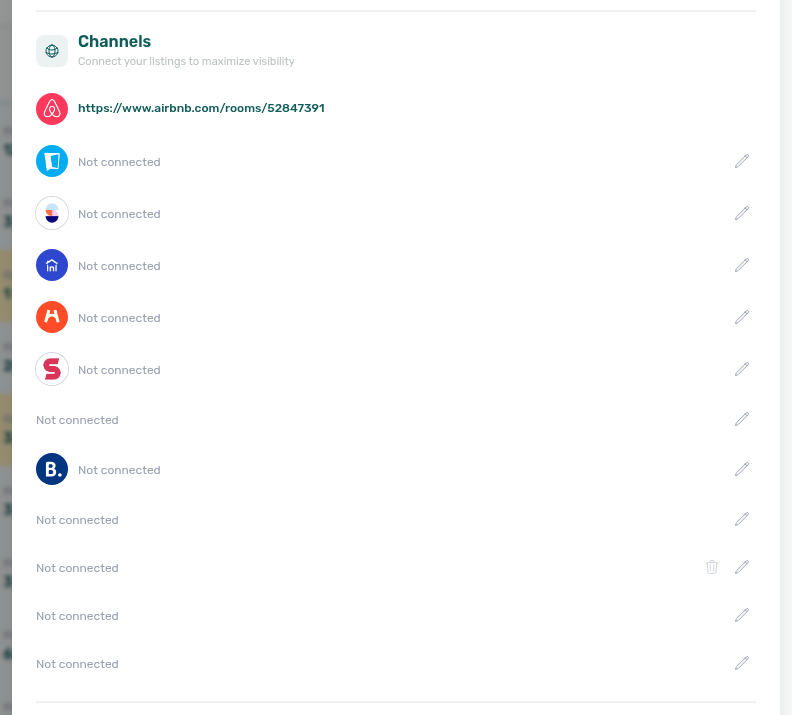
Use the unit Channels tab to wire this unit to external marketplace listings after the platform is enabled on Account Settings > Integrations. Credentials, Pricing Markup, and account-wide Short-term iCal Max Date stay on Integrations; here you add per-unit external listing IDs, import URLs, and connection status.
For a portfolio-wide channel matrix (search, platform filters, Export with a VIVIN iCal column per row), use Sales > Channels. For a property/unit inventory CSV of the current Listings filters, use Portfolio toolbar — Export. Both surfaces read the same integration toggles; open the unit Channels tab when you are already editing one row.
Typical linking workflow
- Turn on the marketplace under Account Settings > Integrations and save credentials or integration email.
- Open the unit in Listings and select the Channels tab in the unit sidebar.
- For each enabled platform, enter the external listing ID (and iCal or API fields the card shows) so imports and calendar sync map to this row. Until you save that ID, the unit does not appear on partner partial
GET /listingsorPOST /bookings. The full catalogue can still include it so the marketplace can create the listing — Which listings appear. - Open the platform link from the tab when you need to confirm the live listing on Airbnb, Booking.com, or a mid-term channel.
- When onboarding many units, audit gaps from Sales > Channels or Listings → Export, then return to this tab for one-off fixes.
This tab shows, per connected channel:
- Platform name (e.g., Airbnb, Booking.com, Idealista)
- Link to the listing on that platform
- Sync / connection status for that unit
Channex is provisioned differently from mid-term marketplaces: Vivin maps each unit to Channex property / room type / rate plan UUIDs via internal admin (channexMapping), not through self-serve external listing ID fields on this tab. Enable the Channex card under Settings → Integrations → Booking Platforms (optional Markup / Virtual IBAN) and contact Vivin support if ARI sync or booking imports are missing. There is no standalone Channex column on Sales > Channels — when an OTA rail (Airbnb, Booking.com, Vrbo, Expedia) is channel-connected, that OTA column switches to allocate mode instead of the classic iCal link cell. Airbnb / Vrbo / Expedia pick a listing; Booking.com picks a hotel ID you registered on the Integrations pool. After you allocate an Airbnb (or other OTA) listing there, this unit Channels tab shows a read-only Airbnb row with the live airbnb.com/rooms/… link (no pencil / trash) — the OTA id lives on the Channex mapping, not as a classic iCal integration you edit here. Nightly rates for those channels live on Short term. Operators confirm channel-manager credentials on the Integrations Platform Integrations Channex connection cards — not by typing UUIDs here.
Booking window
On the unit Setup sidebar, Booking window sits below Calendar. Use it to set allowed Move-in window and Move-out window ranges (earliest and latest check-in, earliest and latest check-out). Add window when a unit has more than one envelope.
Partners receive those ranges as bookingWindows on listing JSON. Housing Anywhere also paints nights outside the first still-open window as calendar blocks on the listing pull, so a marketplace calendar does not offer those nights. The extra blocks are outbound JSON only — they do not appear as holds in this unit Calendar. Creating a booking still has to fall inside a real window.
See Listings & Availability — Housing Anywhere booking windows and FAQ — Housing Anywhere booking window blocks.
Viewing Unit Availability and Unavailability
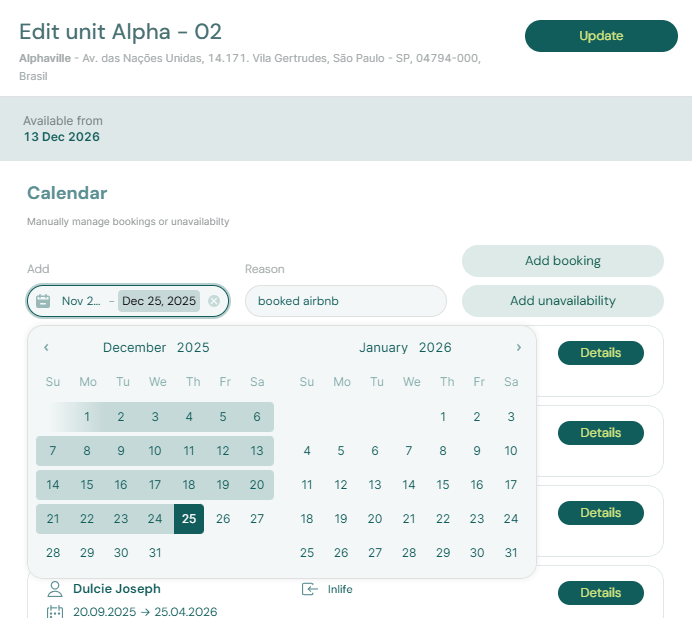
Calendar pairs with Sales — Multicalendar and Audit — Manual Blocks — edit holds here, triage portfolio-wide in Audit.
When you open a unit in the Listings module, the Calendar section at the top of the unit sidebar is where you read and manage availability: booked nights, channel blocks, and manual holds. (Older internal wording sometimes called this an “Availability” view; in the English UI the heading is Calendar, with the subtitle about manually managing bookings or unavailability.)
This view shows:
- Available Dates: Dates when the unit is ready to be booked
- Unavailable Dates: Dates when the unit is blocked
Unavailability can come from three sources:
- Bookings: Dates when a tenant is occupying the unit
- Airbnb (or other platforms): Dates blocked by external platform calendars
- Manual Unavailability: Dates you have manually blocked
Adding Manual Unavailability
To manually block dates (for example, during renovations or personal use), follow these steps:
Step 1: Open the unit's detail view by clicking on it in the Listings module.
Step 2: In the unit sidebar, scroll to the Calendar section (combined calendar and list for bookings and unavailability).
Step 3: Choose a start and end date (the date-range control above the calendar), optionally enter a reason, then click Add unavailability — the English UI uses that exact label on the primary action next to Add booking. The block is saved as soon as the request succeeds; the form clears and the calendar refreshes.
The unit will now be blocked for those dates and will not appear as available in the Sales module or external platforms.
Batch shortcut: To hold several units of the same property without opening each sidebar, use + Create New → Reservations → Unavailability. Pick the property, multi-select units, set dates and an optional reason, then Add unavailability. The same Listings edit permission applies; conflicting units fail the whole batch (nothing is created until you deselect conflicts or change dates).
In the Calendar section, the calendar shows booked, channel-blocked, and manually blocked ranges together; new manual blocks appear in the unavailability list under the calendar once added.
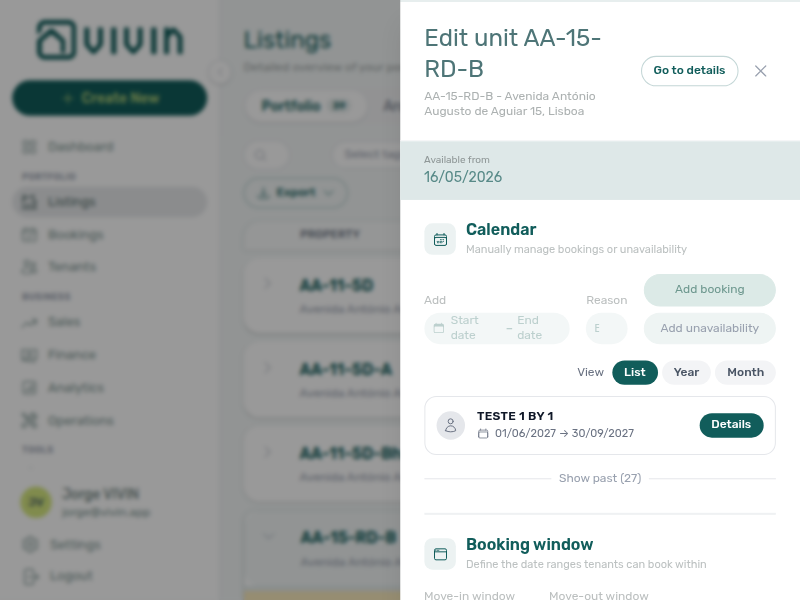
Reading the calendar
- Hover a coloured span on the calendar to see the date range, whether the block is tied to a booking, an external channel / iCal sync, or a manual block, and any reason or guest-style label the product shows for that slice.
- The range end is the day the unit is free again (checkout convention) when the block stores that field — the same end Sales → Multicalendar and Bookings → Timeline show on block hover tips. The coloured bar still covers blocked nights only.
- Short-term iCal blocks (for example Airbnb or Booking.com calendar imports) may show the platform logo on the block or list row when Vivin knows the
integrationPlatform. Raw feed reasons such asCLOSED - Not availableon Booking.com are normalized to Booking.com in the UI instead of the opaque calendar string. - Blocks imported from platforms that only expose an iCal feed (no deep API link) may appear with a platform or generic label rather than a tenant name — that is expected for calendar-only integrations.
Editing a manual unavailability block
To change a manual hold’s dates or reason without deleting and recreating it:
- On the unit Calendar list, click Edit block (pencil) on the manual row — or from Tools → Audit → Manual Blocks use the row Edit block action.
- The Edit block modal opens with the unit name, Dates, and Reason.
- Change either field, review the helper under Dates (N nights · last night …), then Save changes. You can save a reason-only change.
The last night in the helper is the last occupied night — the date field uses the same checkout convention as elsewhere (the range end is the day the unit is free again). Vivin keeps the same block identity. Changing Dates re-runs the same overlap checks as creation (bookings, other blocks, preparation days); a reason-only save does not re-check dates. On a date conflict, a warning appears before save and nothing is persisted until you pick a free range. Channel / integration-owned rows do not show Edit block — only operator-created manual holds.
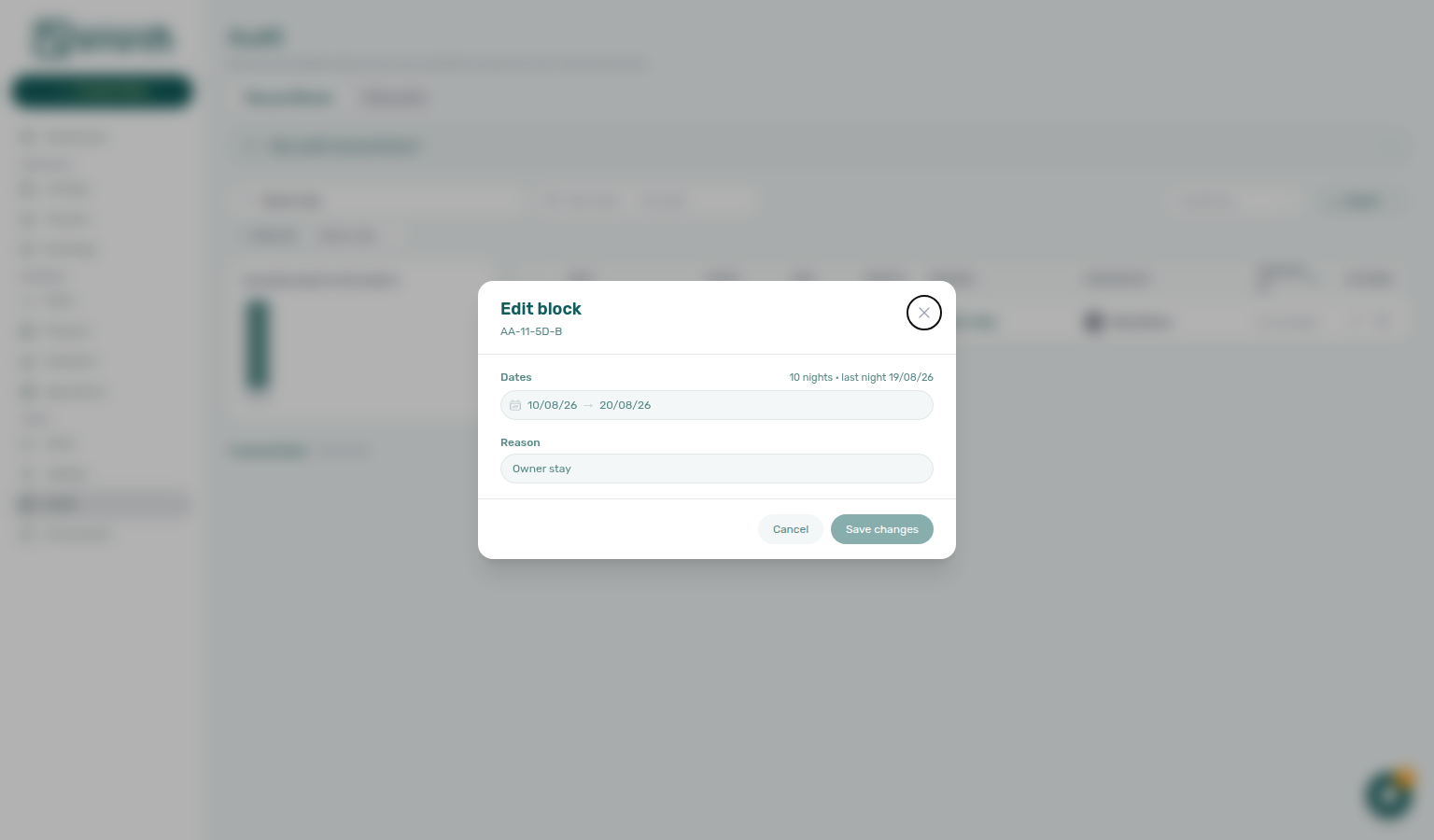
Removing manual unavailability
- Only manual unavailability rows you created from Add unavailability can be removed from this tab (use the delete/remove control on that row).
- Booking and channel blocks are managed from their source (for example cancel or amend the booking, or adjust the external calendar); you cannot delete those rows as if they were manual blocks.
Reviewing manual blocks across the portfolio (Audit)
When you need a cross-property view of manual holds (for example before high season or after staff changes), open Tools → Audit (/audit) — the Manual Blocks tab lists manual unavailability with filters, sortable column headers (server-side sort on Unit, dates, Nights, Reason, creator, and Created), a Blocked nights per month chart, and infinite-scroll pagination so you can spot forgotten or overlapping blocks without stepping through every unit sidebar. Access uses the same Listings module permission as this workspace. See Audit module, Modules — Audit, Deep Links — Audit, and Glossary — Manual unavailability.
Archived properties
Use the Archived pill at the top of Listings (next to Portfolio) or open platform.vivin.app/listings/archived directly. Legacy bookmarks under /properties/archived redirect to the same route (see Legacy /properties URLs). Archived property is building-level inventory retirement — distinct from Delete Booking (reservation soft-archive) and Cancel booking; step-by-step: FAQ — Archive a property. Hub matrix: Common Workflows — Portfolio retirement decisions. Scope table: FAQ — Portfolio retirement decisions, Glossary — Archived property, and FAQ — Cancel Booking vs Delete Booking.
| Tab / route | Purpose |
|---|---|
| Portfolio | Active properties and units in day-to-day operations (/listings). |
| Archived | Properties you have archived — hidden from portfolio pickers and default Listings views, but still available for history, contracts, and unarchive. The tab badge shows how many archived properties you have. |
The Archived table uses the same search, tag, type, and filter controls as Portfolio, and the same infinite-scroll loading behaviour (scroll near the bottom to load more archived properties). When nothing is archived yet, you see an empty state that explains archived units remain reviewable from the property editor.
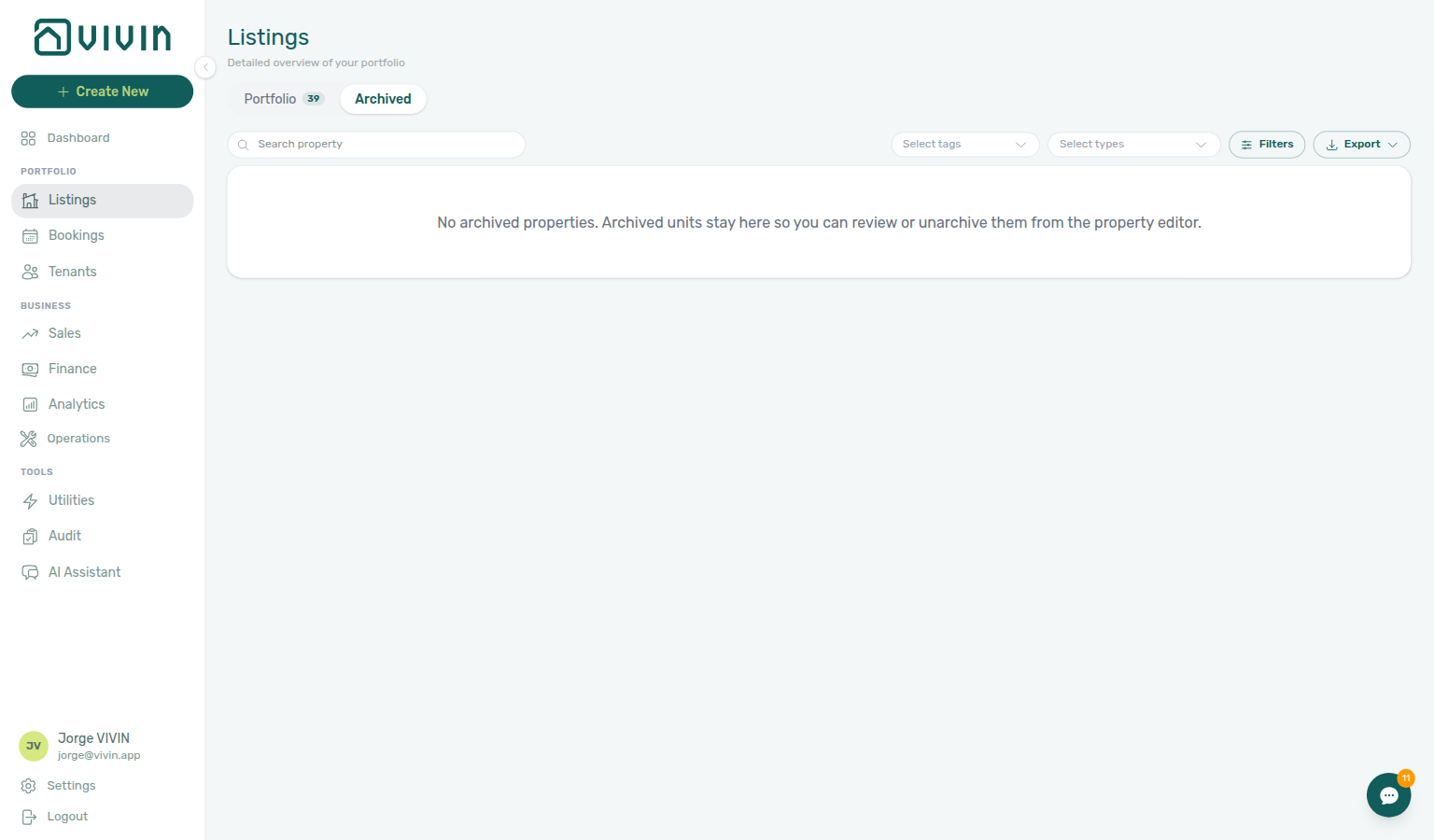
When your account has archived buildings, the Archived pill shows a badge count and the list fills with property cards (same card layout as Portfolio).
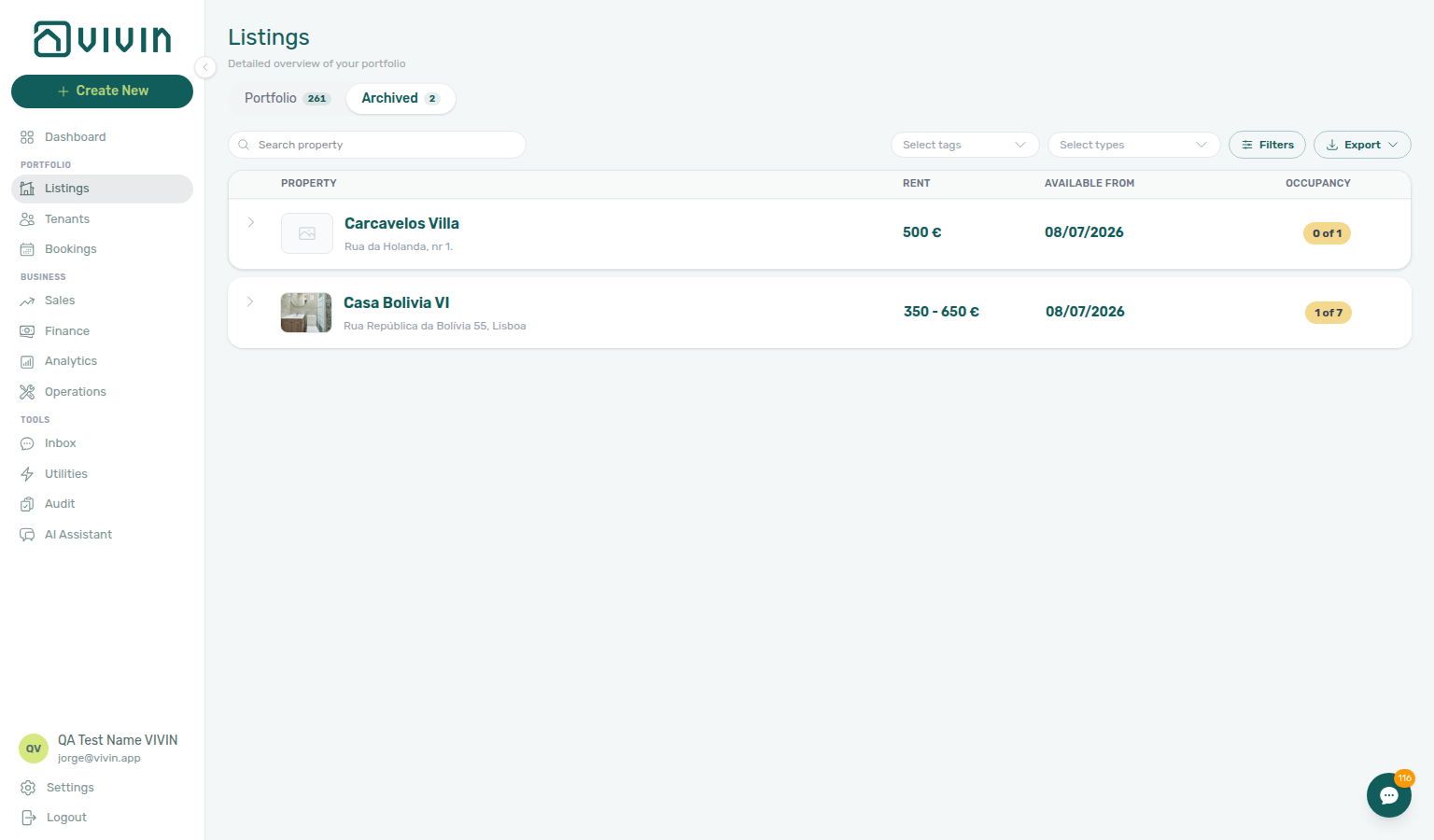
Archive and unarchive
- Archive — Open a property in the Edit property sidebar (Portfolio tab), scroll to the danger zone at the bottom of the sidebar, and choose Archive. The app confirms before archiving; properties with active bookings may show an extra warning. After archive, units under that building no longer advertise as available (vacancy lists, partner availability windows, and “available from” dates clear) until you Unarchive.
- Unarchive — From the Archived tab, open the property sidebar and choose Unarchive in the same area. The property returns to Portfolio and to property pickers across the app; availability advertising resumes with the rest of your active inventory.
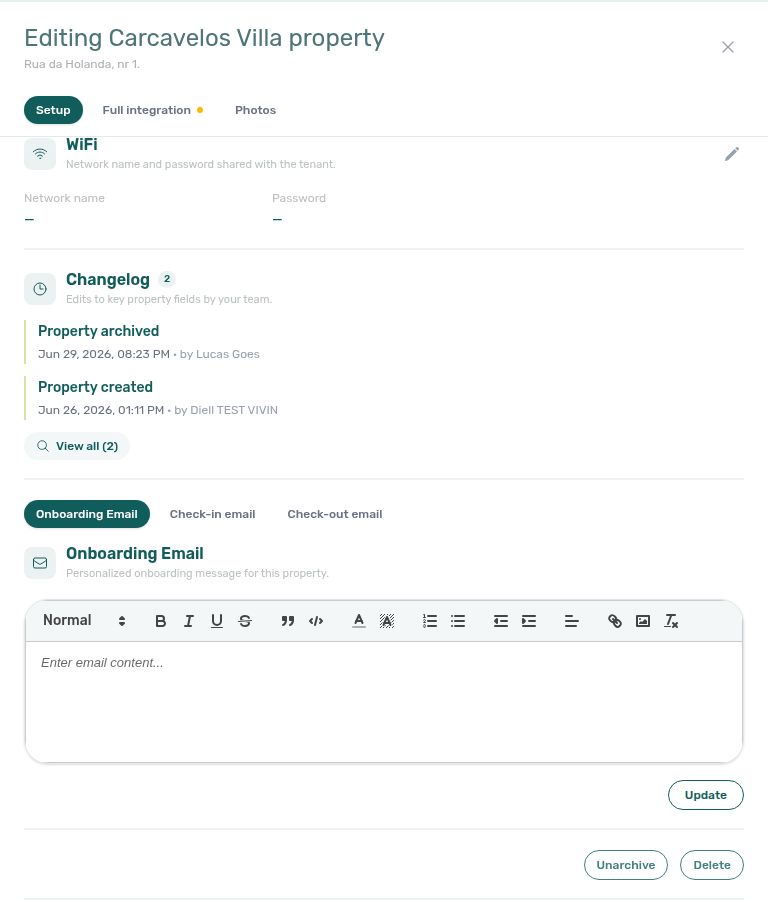
Archiving does not delete bookings or financial history; it removes the property from active portfolio workflows until you unarchive it.
Key Business Rules for Listings
-
Properties must exist before units: You cannot create a unit without first creating a property.
-
Owners must exist before properties: You cannot assign an owner to a property unless that owner has been registered in Settings > Owners.
-
Tags propagate from property to units: When you add a tag to a property, all units within that property automatically inherit that tag.
-
Cleaning fee frequency cannot be set during creation: When creating a property, the cleaning fee defaults to Every Month. Edit the property after creation to switch to One-Time Fee at Booking Confirmation or One-Time Fee at Move-in.
-
Property Payments Active controls tenant portal payments: If this setting is disabled, tenants will not be able to make any payments through the platform for bookings in this property.
-
Changes do not affect existing bookings: If you change the rent, payment terms, or other settings for a property or unit, those changes will only apply to new bookings created after the change. Existing bookings will continue using the values that were in effect when they were created.
-
Access codes in check-in email and portal: Tenant-facing codes configured in Access Lockers / unit access are included in the check-in email when that lifecycle message sends. Internal code / Internal hint are never included. The portal Home Entry codes card is separate — it requires Allow to see entry codes on Portal settings, a sent check-in email, and an active stay window. Tenants Show code and Copy code (green check) on that card. See Tenant Portal — Entry codes, Show code and Copy code, and Internal code.
-
Manual unavailability blocks connected channels: For units linked to external platforms, manual blocks you save here keep those dates unavailable in Vivin and on connected calendars — treat them like operational holds, not just a local note. See also the Sales module for how availability stays in sync across channels.
-
All bills included skips tenant overages on that unit: Tick No cap on unit Rent pricing when rent already covers utilities in full. Vivin then records a Covered allocation (Extra to charge € 0,00) for bookings on that unit (roommates’ shares stay the same). The property Bills Included ceiling still applies to other rooms. Unlike rent edits, this is read on the next allocation run, including current stays. See All bills included.
-
€0 rent omits the unit from partner listing JSON: A cleared or zero monthly rent — or any zero month on a variable grid — keeps the unit in Vivin but drops it from marketplace pulls until every month is greater than 0. See Rent Value and Listings & Availability — Usable rent required.
-
WiFi on portal Home is property-scoped: After the check-in email sends, tenants can see the property Network name and Password on Tenant Portal — WiFi. There is no Portal settings hide toggle. Check-in mail does not insert the password automatically. Marketplace booking create cannot send WiFi, and partner listing JSON never includes the password. See WiFi.
-
Cleaning days are not a cleaning fee: Property Common areas cleaning days and unit Room cleaning days are weekday schedules on portal Home — not the euro Cleaning fee on Contract Information, and not Airbnb short-term cleaning amounts. The portal card does not wait for the check-in email. See Tenant Portal — Cleaning.
Listings guide subsection index
| Subsection | When to open it | Pair with |
|---|---|---|
| Understanding the Listings Structure | Portfolio hierarchy and occupancy badges | Onboarding a New Property, Legacy /properties URLs |
| Save keeps your place in the list | Update on a property or unit keeps the scrolled portfolio | Portfolio table loading, FAQ — Does saving a listing send me back to the top? (listings-portfolio-save-keeps-scroll-before.png, listings-property-edit-update-keeps-list.png, listings-portfolio-save-keeps-scroll.png, listings-portfolio-save-keeps-scroll-flow.mp4) |
| Select tags stays open while you pick | Select tags stays open while you add another neighbourhood or amenity | Portfolio toolbar, FAQ — Does picking a second listing tag close the menu?, Settings > Categories — Listing Categories |
| Select types stays open while you pick | Select types stays open while you add another listing type | Portfolio toolbar, FAQ — Does picking a second listing type close the menu? (listings-portfolio-select-types-stays-open.png, listings-portfolio-select-types-two-types.png, listings-portfolio-select-types-two-chips.png, listings-portfolio-select-types-stays-open-flow.mp4) |
| Portfolio toolbar: search, filters, and export | Server search, filters, CSV export | Select tags stays open, Select types stays open (listings-portfolio-select-types-stays-open.png, listings-portfolio-select-types-two-types.png, listings-portfolio-select-types-two-chips.png, listings-portfolio-select-types-stays-open-flow.mp4), Finance — Property & Listing filters, Glossary — Server-driven search picker |
| Full-page unit detail | Bookmarkable /listings/:listingId workspace | Deep Links — Listings, Booking engine details |
| Creating a New Property | New building or location | Settings > Owners, Create New menu — Property |
| Creating a New Unit | Rentable space inside a property | Sales — Channel Manager, Settings > Tenant categories, Maximum stay 0, Creating Bookings — Honour listing |
| Importing from Inlife | Bulk partner inventory import | API Reference — Full listing feeds (Recognised cities, id + room.id), Create New menu — Inlife Import, FAQ — Listing missing from Inlife |
| Editing Properties | Property sidebar tabs and defaults | Settings > Contract, Tenant Portal, Exact Location map pin (listings-property-edit-address-autocomplete-map.png, listings-property-edit-address-suggestions-open.png, listings-property-exact-location-flow.mp4) |
| Editing Units — Local rent cap | Dual-pricing legal rent portion; omitted from partner listing JSON | Settings > Invoicing — Dual pricing, Bookings — Dual pricing, Listings & Availability — Local rent cap |
| Editing Units — All bills included | Per-unit utilities fully included (no cap); Covered allocation, Extra to charge € 0,00; listing JSON billsIncludedMaxValue: null | Listings — Step 3 Extra payments, Listings & Availability — All bills included, Utilities — Covered periods, Utilities — How tenant overage charges are created, Bookings — Bills included ceiling, FAQ — Include all bills on a unit (listings-unit-edit-all-bills-included-view.png, listings-unit-edit-all-bills-included-edit.png, listings-unit-all-bills-included-flow.mp4, api-swagger-listing-dto-bills-included.png) |
| Editing Units — Short term | Nightly rates, extra guest fee (after N guests), dual cleaning fees, Channel discounts (Airbnb), stay rules, channel sync badges, and Airbnb → Vivin pricing import | Airbnb only settings (listings-unit-short-term-airbnb-only-settings.png, listings-unit-short-term-airbnb-only-settings-edit.png, listings-unit-short-term-airbnb-only-settings-flow.mp4), Extra guest fee, Cleaning fees (per stay / per short stay), Channel discounts (Airbnb), Channel sync badges, Airbnb → Vivin pricing import, Settings > Integrations — Channex, Sales — Channex allocate mode, FAQ — Nightly short-term prices, FAQ — Airbnb only settings, FAQ — Channel discounts, FAQ — Sync badges, FAQ — Airbnb price edits on Short term (listings-unit-short-term-extra-guest-fee-view.png, listings-unit-short-term-extra-guest-fee-edit.png, listings-unit-short-term-extra-guest-fee-flow.mp4, listings-unit-short-term-dual-cleaning-fees-view.png, listings-unit-short-term-dual-cleaning-fees-edit.png, listings-unit-short-term-dual-cleaning-fees-flow.mp4, listings-unit-short-term-channel-discounts.png, listings-unit-short-term-channel-discounts-card.png, listings-unit-short-term-channel-discounts-flow.mp4, listings-unit-short-term-sync-synced-card.png, listings-unit-short-term-sync-pending-card.png, listings-unit-short-term-sync-error-card.png, listings-unit-short-term-sync-badges-flow.mp4, listings-unit-short-term-no-listing-visibility.png, listings-unit-short-term-nightly-calendar-modal.png, listings-unit-short-term-flow.mp4) |
| Editing Units — Channels Tab | Per-unit channel links | Sales — Channel Manager, Sales — Channex allocate mode, Settings > Integrations (listings-unit-edit-channels-tab.png, listings-unit-channels-channex-row.png, listings-unit-channels-channex-row-flow.mp4) |
| Viewing Unit Availability and Unavailability | Calendar blocks and holds | Sales — Multicalendar, Audit — Manual Blocks, Manual block hygiene |
| Editing a manual unavailability block | Change a manual hold’s dates or reason in place (Edit block / Save changes) | Audit — Editing a manual block, FAQ — Edit manual unavailability dates, Manual block hygiene — Step 4 (listings-edit-unavailability-modal.png, listings-edit-unavailability-flow.mp4) |
| Access Lockers / Internal code | Staff-only access codes at building, property, and unit | FAQ — Internal access code, Glossary — Internal access code (listings-property-access-lockers-internal-code.png, listings-unit-access-lockers-internal-code.png, listings-internal-access-code-flow.mp4) |
| Access Lockers | Tenant-facing building, property, and unit codes on portal Home | Tenant Portal — Entry codes, Tenant Portal — Show code and Copy code, FAQ — How do tenants show and copy entry codes on portal Home?, Managing a Check-in — Step 4 (tenant-portal-home-entry-codes-card.png, tenant-portal-home-entry-codes-revealed-card.png, tenant-portal-home-entry-codes-copied-card.png, tenant-portal-home-entry-codes-show-copy-flow.mp4) |
| WiFi | Property network name and password on portal Home | Tenant Portal — WiFi, Tenant Portal — Show password and Copy password, FAQ — How do tenants see WiFi on portal Home?, Managing a Check-in — Step 4 (listings-property-edit-wifi-section.png, tenant-portal-home-wifi-card.png, tenant-portal-home-wifi-password-revealed-card.png, tenant-portal-home-wifi-password-copied-card.png, tenant-portal-home-wifi-reveal-copy-flow.mp4) |
| Cleaning (common areas) | Property weekday schedule for shared spaces on portal Home | Room cleaning days, Tenant Portal — Cleaning, FAQ — How do tenants see cleaning days on portal Home?, Glossary — Cleaning days (listings-property-edit-cleaning-days-section.png, listings-property-edit-cleaning-days-edit.png, listings-cleaning-days-flow.mp4) |
| Room cleaning days | Unit weekday schedule for the tenant’s room on portal Home | Cleaning (common areas), Tenant Portal — Cleaning, FAQ — How do tenants see cleaning days on portal Home? (listings-unit-edit-room-cleaning-days-section.png, listings-unit-edit-room-cleaning-days-edit.png) |
| Archived properties | Retired inventory without deleting history | Bookings module, Sales module |
| Deeper workflow reads | Step-by-step procedures in this module | Common Workflows hub subsection index, Onboarding a New Property |
| Lockout catch-up after password recovery | Sign-in restored; module backlog accumulated | Common Workflows — Lockout catch-up, Getting Started — Lockout catch-up, Resetting a Management User Password — Step 3 |
| Pending manual receipt approval | Recorded bank transfers still pending until Approve payments | Common Workflows — Pending manual receipt approval, Finance — Pending manual payments, FAQ — Manual receipt still pending |
| Reject/revert mistaken receipts | Duplicate or wrong-booking receipts after Approve | Common Workflows — Reject/revert mistaken receipts, Payment Allocation — Correcting mistaken receipts, Glossary — Credit note (payment reject/revert) |
| Notification row-click navigation | /notifications row-click with listingId or propertyId | Common Workflows — Notification row-click navigation, Notification triage — Step 4, Editing Properties, Full-page unit detail |
| Payment alert to receivables triage | Property Payments Active portal charges on listing bookings | Common Workflows — Payment alert to receivables triage, Handling a Late Payment — Step 1, Notifications — Payment overdue alerts |
| Confirmation alert triage | Channel import Upcoming alerts on go-live properties | Common Workflows — Confirmation alert triage, Processing a New Booking — Step 5b, Onboarding a New Property — Step 7 |
| Portfolio segmentation by tenant category | Review one tenant segment across modules | Common Workflows — Portfolio segmentation, Settings > Tenant categories, Finance — Tenant category filter, Tenants — Tenant category filter |
| Finance debt receivables triage | Unit sidebar debt indicators may disagree with portfolio Top debtors until ledger cleanup finishes | Common Workflows — Finance debt receivables triage, Finance — Finance debt receivables triage, FAQ — Finance debt receivables triage hub, Full-page unit detail, Payment alert to receivables triage (finance-overview-debt-aging-expanded-bucket.png, finance-overview-debt-aging-walkthrough-flow.mp4) |
| Finance Income status drill-down | Unit sidebar debt is one booking — use Income → In debt for month-scoped payment lines | Common Workflows — Finance Income status drill-down, Finance — Income status drill-down, FAQ — Finance Income status drill-down hub, Full-page unit detail, Finance debt receivables triage (finance-overview-income-status-in-debt-modal.png, finance-overview-income-drill-down-flow.mp4) |
| Cash flow forecast drill-down | Unit-level collections questions — Cash flow forecast lists portfolio-wide confirmed payments | Common Workflows — Cash flow forecast drill-down, Finance Income status drill-down, Finance — Income chart and cash flow forecast, FAQ — Cash flow forecast drill-down hub, Full-page unit detail, Rent Value tab (finance-overview-cash-flow-all-payments-modal.png, finance-overview-cash-flow-day-view.png, finance-overview-cash-flow-drill-down-flow.mp4) |
| Listings section cross-reference | Per-section pairing matrix | Module cross-reference, Sales guide subsection index |
Listings section cross-reference
Use the sections above for this module. Related pages are linked from Related below when present, or from Modules.
Related
Related below links this module to settings, concepts, workflows, and escalation paths.
Documentation map & escalation
- Modules hub — Hub pairing matrix across operator workspaces
- Modules overview — Audit — Cross-portfolio review of manual availability blocks (
/audit) - Deep Links — Listings paths and
propertyDetails=1/listingDetails=1query flags - Glossary — Term definitions used across listings and channel workflows
Upstream & downstream workflows
- Onboarding a New Property — Step-by-step workflow for adding properties
- Processing a New Booking — First reservation after the property wizard completes
- Manual block hygiene (workflow) — Audit pass when Vacant Units or Sales heatmaps look suppressed by stale holds
- Notification triage (workflow) — Clear listing- or booking-linked alerts after portfolio edits
- Entering Monthly Utility Bills — Utility connections and Bills Included ceilings configured per property
- Managing a Check-out & Deposit Refund — Unit availability after Ended bookings release inventory for the next tenant
- Handling a Late Payment — Step 1 — Collections when Property Payments Active bookings still owe on portal-enabled properties; upstream path from Notifications — Payment overdue alerts
Deeper workflow reads
See Upstream & downstream workflows above for the same guides.
Settings that shape Listings
- Settings > Tenant categories — Default segment for tenants created from listing-linked bookings
- Settings > Categories — Configure property and unit tags; Select tags stays open on the portfolio toolbar
- Settings > Integrations — Connect units to external platforms
- Settings > Preferences — Min/Max Stay Defaults — Defaults for new units; 0 or blank is no restriction; 12 is twelve months — Maximum stay 0
- Settings > Preferences — In-app notifications — Account-wide listing or integration alerts before you open Notifications
- Settings > Emails — Email Customization tab, Access Lockers, and Communication Rules audience filters (Select smart locks stays open)
Deeper concept reads
- Integrations & Distribution — Per-unit Channels tab links inventory to external marketplace listings after account credentials are saved
- Services Marketplace — Property-scoped add-ons when Properties multi-select limits portal catalogue cards per building
- Payment Allocation — Two-layer receipts, invoiced-floor rent edits, and credit note reject/revert warnings
- Booking Lifecycle — Computed Upcoming → Ongoing → Ended / Canceled status model, list filters, and Timeline
- Tenant Portal — WiFi — Property Network name and Password on portal Home after the check-in email (
tenant-portal-home-wifi-card.png,tenant-portal-home-wifi-reveal-copy-flow.mp4) - Tenant MCP — External AI clients that read listing context for booking-scoped automation
- Landlord MCP — Account-scoped inventory and calendar tools after channel mapping on this module
Operator modules (pairing surfaces)
- Properties workspace — Legacy
/propertiesbookmarks that redirect into this module - Bookings Module — Create reservations for your units; bills included ceiling copied from property defaults
- Sales Module — Manage availability and pricing; manual blocks propagate to connected channels
- Sales — Multicalendar — Per-unit Gantt after manual blocks or booking holds change
- Utilities Module — Track utility expenses per property
- Audit — Discounts tab — Portfolio-wide discounted contract values after repricing on unit Contract Values
- Audit module — Cross-portfolio manual blocks when calendar edits do not match Sales heatmaps
- Analytics (KPI workspace) — Portfolio occupancy and revenue trends after large portfolio edits
- Notifications — Payment overdue alerts — Operator Payments category rows when property-level payment settings leave charges unpaid
- Property & listing details (booking engine) — Full integration pill, tab reference, legacy URL redirects
Navigation & bookmarks
Bookmark routes pair with Management Frontend Deep Links and Create New menu.
- Create New menu — Property and Unit — Wizard entry without a dedicated deep link
Operator habit hubs
Day-to-day operator habits (lockout catch-up, pending receipts, payment triage, handoffs, and related playbooks) live on the Common Workflows habit hub.
Deep-link anchors for habit hubs
Lockout catch-up after password recovery
Pending manual receipt approval
Reject/revert mistaken receipts
Check-out ledger cleanup before refund
Utility overage collections
Cancellation collections before void
Check-out collections before refund
Handling a Late Payment collections
Check-out vs cancellation
Deposit missing on Finance Deposits
Notification row-click navigation
Payment alert to receivables triage
Finance debt receivables triage
Finance Income status drill-down
Cash flow forecast drill-down
Confirmation alert triage
New inventory to first booking handoff
Property setup to first arrival handoff
Confirmation to check-in handoff
Check-in to check-out handoff
Check-out final utilities handoff
Same-day turnover coordination
WhatsApp per-booking messaging
Bot reasoning (audit)
ChatBot settings
Rent reduction after invoicing
Month-end invoicing (fixed date)
Bulk Hostkit invoicing
Occupancy KPI to block hygiene handoff
Partly collected security deposit
Portfolio retirement decisions
Archive property (building-level)
Portfolio segmentation by tenant category
Directory list refresh
When a list needs a refresh instead of showing rows, use Retry or reload the page. Zero rows after a successful load means your filters matched nothing — widen filters or clear search.
See FAQ — Directory list refresh and Glossary — Directory list refresh.
Key glossary terms
- Glossary — End-of-Booking cost split — Charge Time → End of Booking splits daily overage across every occupied unit; still-staying roommates stay in the denominator
- Glossary — Change history — Operator-initiated edits on Listings setup and Bookings Changelog; create-time defaults excluded
- Glossary — Archived booking ledger visibility — Delete Booking hides manual/provider_platform rows on Finance → Transactions; vIBAN and credit card stay visible
- Glossary — Finance tenant category cache refresh — Recategorizing a tenant updates
booking.tenantCategoryIdimmediately; ledger tabs reflect it on reload, while Overview can lag up to ~10 minutes - Glossary — SIMAR water contract ID — SIMAR (Loures e Odivelas) water bills use Cód. Local in Connections — not Nº de Contador; leading zeros stripped
- Glossary — Per-booking maintenance ticket opt-out — Add booking checkboxes skip automatic CI/CO tickets for one reservation only; property rule unchanged
- Glossary — Full term list
API & companion guides
- API Reference — Creating Bookings — Partner
POST …/bookingsafterexternalIdmaps to a unit here - API Reference — Listings & Availability — Partial
GET /listingspulls whoseunavailabilitiesshould match manual blocks saved here; gallery and copy are not on that pull — Catalogue fields - API Reference — Full listing feeds — Rich catalogue exports (photos, address, amenities) partners poll after units are linked on Channels
- API Reference — Property & unit mapping —
externalIdkeys operators save per unit before partner traffic - API Reference — iCal feeds — Calendar retrofeed URLs copied from Sales → Channel Manager
- AI usage API — Internal
utility_bill_extractioncost after Utilities → Bills AI upload on properties configured here
Module documentation hubs
- Listings module — Property wizard, Channels tab, Archived inventory, and unit management (this page)
- Utilities module — Bills Included ceiling model, Connections, AI bill upload, and tenant overage charges on payment plans (hub)
- Operations module — Maintenance tickets, cash flows, check-in/out coordination, Draft ticket queues, and linked cash flows (hub)
- Dashboard module — Post-login Today, Total debt, Vacant Units, and forecast KPI snapshot with bell notification triage (hub)
- Analytics module — Month-range portfolio KPI charts (Overview, Revenue, Occupancy, ADR, RevPAR, Maintenance) with rankings and heatmaps (hub)
- Properties workspace — Legacy
/propertiesURL redirects into Listings (hub) - Booking engine details — Rich marketplace payload editor via the Full integration pill (hub)
- Finance module — Portfolio ledgers (Overview, Income, Contract Values, Transactions, Payouts, Deposits) with payment approval and deposit settlement (hub)
- Tenants module — Tenant directory, profile sidebars, With Debt segmentation, and table expand for linked bookings (hub)
- Sales module — Portfolio availability, monthly rent editing, and channel manager connections (hub)
- Inbox module — Portfolio-wide WhatsApp workspace with Dashboard bell Inbox sub-tab deep links (hub)
- Notifications module — Full
/notificationshistory with search, filters, and row-click navigation (hub) - AI Chat module — AI Assistant using Landlord MCP tools for portfolio Q&A (hub)
- Audit module — Portfolio-wide Manual Blocks and Discounts contract-value review (hub)
- Account Settings — Workspace-wide financial policies, templates, integrations, and operational defaults (hub)
- API Reference hub — Partner HTTP contracts, Swagger onboarding, and partial vs full feeds (hub)