Getting into the Tenant Portal
This page covers how tenants reach the Tenant Portal and sign in, and how they set it up on their device.
How tenants get access
Tenants never use the management app; they open a personal link and sign in with their portal password. Each booking has its own link, which reaches them in your emails ({tenant_portal_url}, {paywall_url}, {tenant_services_url} in Tools → Emails), from Send portal access, or from the portal sign-in screen. A tenant with two or more bookings gets a switcher between them, and an All bookings page (combined balance) once two are current, upcoming or unpaid; each booking is still paid on its own. For a room change, a banner opens the other room.
Give access from a booking
- Open the booking on its Contract Info tab.
- Under Method of payments → Tenant Portal, the copy icon copies the link, and Impersonate Tenant opens the portal in a new tab as this tenant sees it.
- To email the link, click Send portal access under Check-in & Check-out. It then reads Resend portal access (hover it for the last send) and works again after one minute. It is disabled on Airbnb and Booking.com bookings synced through Channel Manager.
When the tenant asks for the link
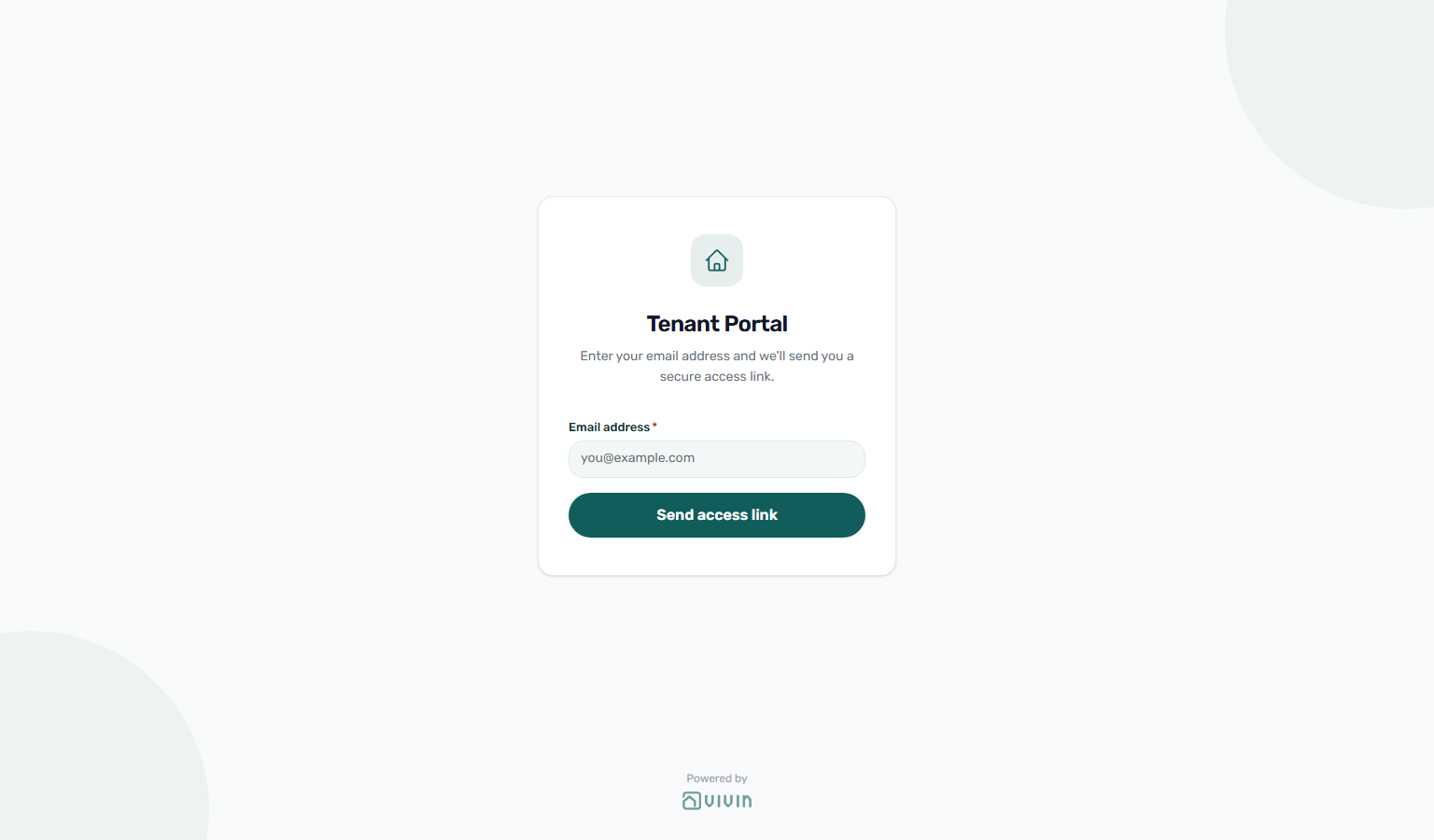
A tenant who opens the portal without a valid link sees the Tenant Portal sign-in screen. They type their email and click Send access link, and VIVIN emails the link of their current booking (the latest start date that is not cancelled); send any other booking's link from that booking. The screen always answers "Check your email", so it never reveals who your tenants are, and the link only goes to the email on their tenant record.
A wrong link, or the link of an archived booking, shows Invalid or expired link with Request new access link, which leads back to the same form.
Staying signed in
After signing in, the tenant stays signed in on that device for about 30 days. Sign out (top bar on a computer; on a phone More, or Account with the Booking Engine) ends the session on that device only, without changing the link.
Portal password
Every tenant needs a Portal password; the booking link alone does not open the portal.
- First visit: the link shows Set up your account, and Email me a setup link sends a one-time link (valid 60 minutes) to the email on the tenant record. With no email on file, the tenant is asked to contact you: add it to the tenant record.
- Later visits: the link shows Enter your portal password. Forgot your password? emails a one-time reset link (valid 60 minutes) to the same address.
A new password needs at least 10 characters and cannot be a common password, one found in a known data breach, or one that contains the tenant's email address. Tenants change it under Account → Portal password and cannot remove it. Impersonate Tenant opens the portal for your team without the password for 24 hours, and cannot set or change it.
Install as an app
When the browser supports it, the portal offers Install App, or the steps 1. Tap Share and 2. Add to Home Screen in Safari on an iPhone; Maybe later hides the offer on that device. The app uses your company name, icon logo and primary colour from Global Settings.
Notifications on the device
From the Get notified on this device offer on Home or Account → Notifications, tenants can get alerts about a technician visit, a resolved request, a payment received online (card or virtual IBAN) or a service approval or rejection while the portal is closed. On an iPhone or iPad, only the portal installed on the Home Screen, and opened from there, can notify. Nothing is sent to tenants whose category turns off Tenant Portal Access or Communications / Email.
Language
Tenants choose English, Português, Español, Italiano or Français from the switcher in the top bar, and the portal remembers it. Until they choose, it opens in the Default language set in Portal settings (English when not set).
Related
- Tenant Portal: the tabs and what controls them.
- Portal settings: defaults for every tenant's portal.
- Bookings: Contract Info tab — copy and send the portal link.
- Tenant categories: category portal rules.