Tenant Portal with the Booking Engine
When your account runs the VIVIN Booking Engine, tenants get one portal for their bookings and for what they do on your website: Reserved area on your website opens it, and the portal password signs them in to both.
The menu on the left
Every page sits in one menu on the left, in groups. My stay, Help & services and Room search open and close with their arrow; the portal remembers that on each device, and the group of the page on screen always opens. Each entry counts what waits for the tenant there, and a closed group shows the total.
- Home: the one thing that matters most for them now, then only the cards with something in them, such as what they owe across their bookings with Make payment (it asks which booking when several can be paid). See Home with the Booking Engine.
- My stay, once they have a booking: its pages, each only when the tab table shows it: Overview (its Home), Payments, Contract, Documents, Check-in/out, Inventory and Surveys. With two or more current, upcoming or unpaid bookings, it lists them by name and dates under All bookings; the selected one shows its pages, and choosing another opens its Overview. All bookings shows each booking with its figures, Overdue payments, Upcoming payments and, folded, Ended bookings.
- Help & services: the booking's Support, called Repairs & requests in the menu and on the page (or FAQs when you publish FAQs but tenants cannot open requests), its Services and Utilities, and Contact us with your contact lines. When your website has its sales chatbot, someone without a current, upcoming or unpaid booking also gets Ask a question here and on Home: it opens the chat on your website in a new tab, which knows them only from the email or phone they type.
- Room search, once they have something on your website:
- Requests: where each booking request stands, its price (monthly rent and deposit, or the total and nights of a short stay) and who must act by when. When you suggest other dates or another room, they see what they asked for beside your suggestion, with Accept and Decline. An accepted request shows Pay and confirm, which opens your website, a confirmed one Open your booking, and Cancel asks for a reason.
- Visits: each visit with its time and time zone, and its address, which opens directions in the phone's maps. They Choose a time you suggested, Add to calendar, Join the video call or Cancel the visit.
- Offers: the rooms you offered them with their monthly rent, each answered once with Accept or Decline by the date shown.
- Account: name, email, language, Booking account details, Profile and Sign out. Profile is where they keep what they are looking for (city, dates, budget, type of place), about themselves (photo, optional video, occupation), who is coming with them, and whether future housemates may see their information.
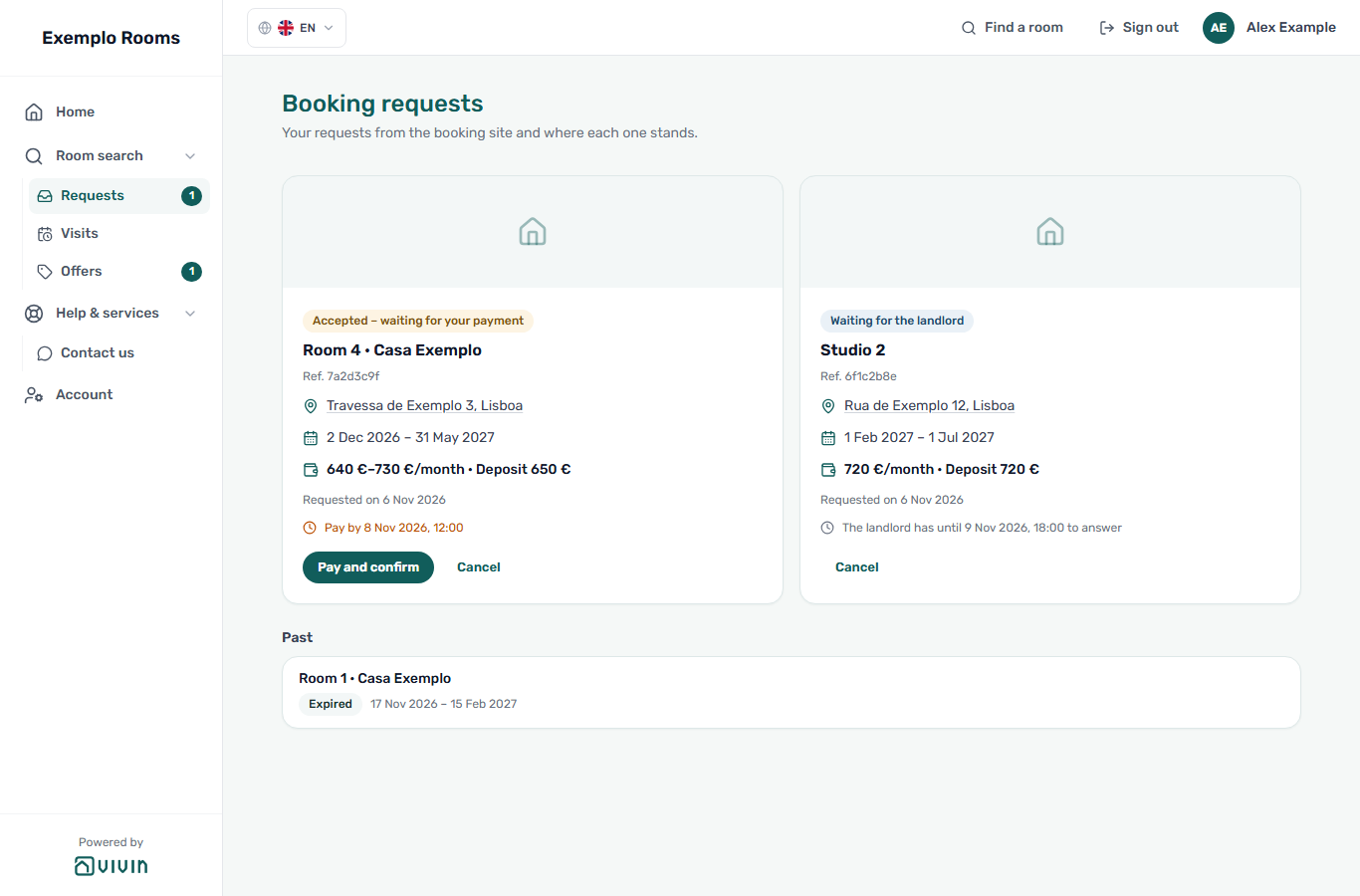
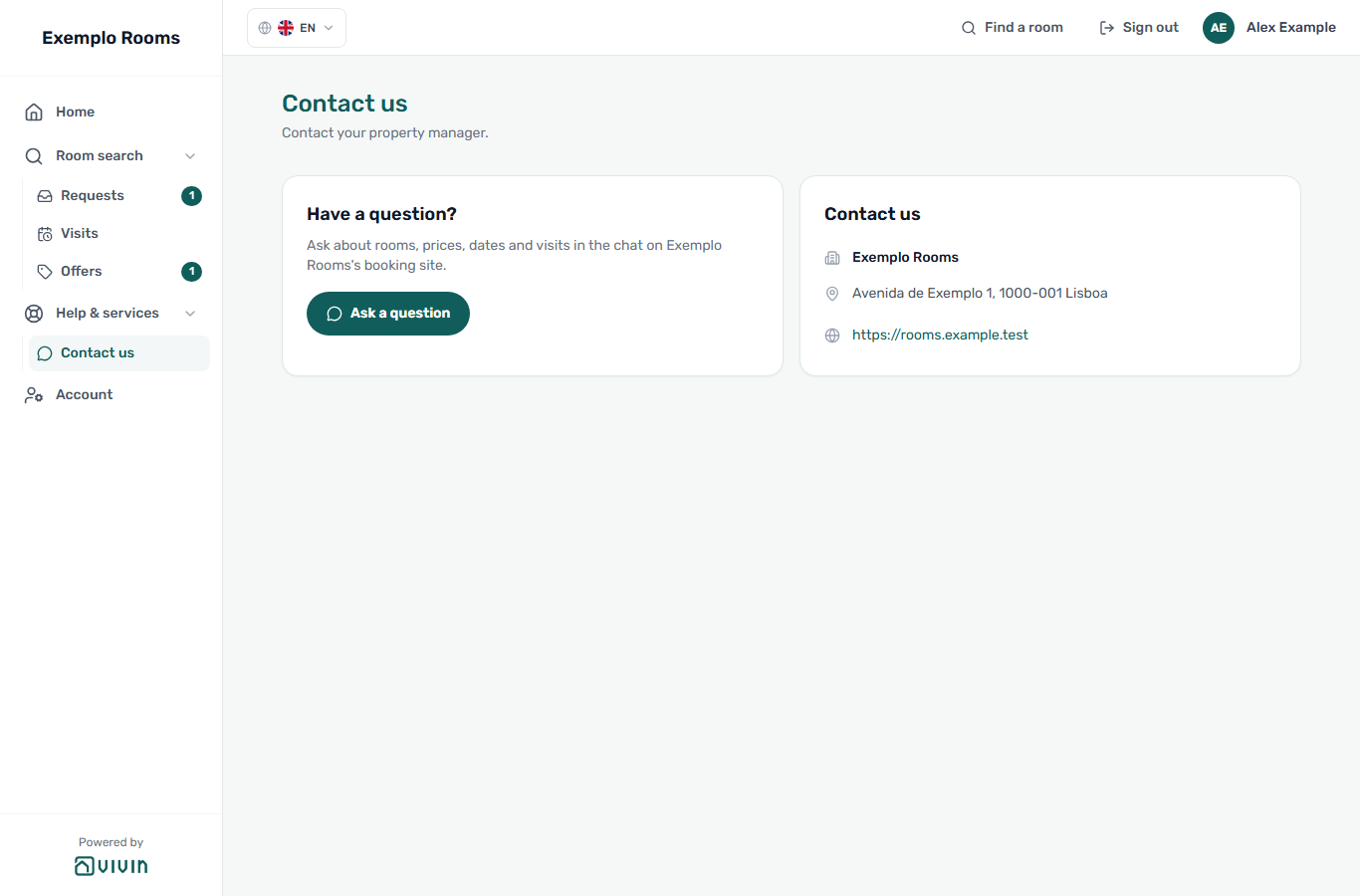
Above a booking's page, a line shows where it sits in the menu, for example My stay › Room 3B › Payments. With two or more bookings, the switcher in the top bar also moves between them.
From the tenant's Home, the booking pages open the booking open in that browser tab, else the last one opened on that device, else a current, upcoming or unpaid one. Find a room in the top bar opens your website, and a list with nothing open any more says Nothing open right now, with Find a room.
On a phone
On a phone, the bottom bar shows Home, each group (My stay, Help, Room search), Account when there is room, and More, which opens the whole menu with the same groups. A group's entry opens its first page, such as the booking's Overview. Someone with no booking yet has the same menu without My stay. Without the Booking Engine, the portal stays as described on the other Tenant Portal pages.
Booking portal only once booked
With Booking portal only once booked on in Portal settings, a tenant with a current or upcoming booking, or one still owing, has only that booking's portal, as on an account without the Booking Engine. Leads keep this portal until they book.
Related
- Tenant Portal: the tabs and what controls them.
- Portal settings: defaults for every tenant's portal.