Sales chatbot
The chat on your Booking Engine website answers visitors, proposes rooms and brings you leads. Its settings follow the conversation a visitor has with it, step by step, with a test chat beside them.
Where to find it
- Settings → Sales hub → Sales chatbot (
https://platform.vivin.app/settings/bookingEngine?subtab=salesAssistant), with the views Journey and Monitoring. - Only on an account that runs a VIVIN Booking Engine website. The entry shows once VIVIN has switched the chat on for your website; until the chat is live there, a note says so and your settings apply from then on.
- Permission: Sales hub → Settings: Sales chatbot. With Account Settings → Edit off, you can read the settings but not change or test them. A user linked to an owner does not have this entry.
- The conversations themselves are in Inbox → Sales.
How the page works
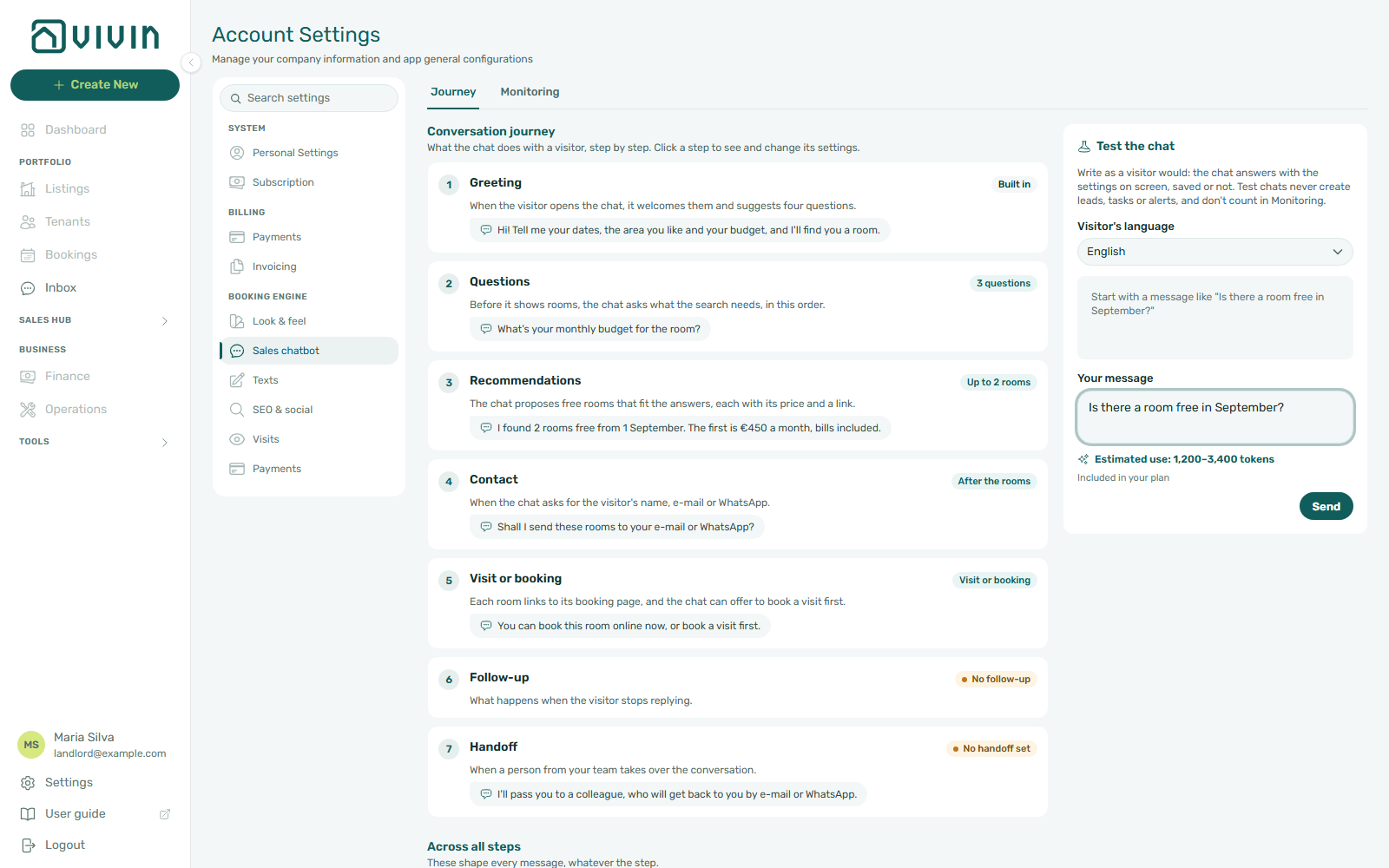
Journey shows the seven steps a visitor goes through, in order, then Across all steps: what shapes every message. Each step says what happens in one sentence, shows a line the chat could write with your settings, in your account's language, and a chip with its state, such as Up to 2 rooms or No handoff set.
Click a step to open its settings on the right, under With these settings, the chat could say. Every step edits one set of changes: closing a step keeps them, and Save or Discard, at the bottom, act on all of them. Leaving with unsaved changes asks whether to Keep editing or Discard changes.
Changes apply from the visitor's next message: the chat reads these settings on every message. A connected AI can read and change the same settings, and reads Monitoring as counts only, never what was said.
What the chat can and cannot do
Whatever you set, the chat:
- Answers questions about your rooms from what your listings say: rent, what is paid to book and at check-in, bills, the flat, the room, the cancellation policy and transport nearby.
- Finds rooms for the visitor's dates, people and budget, and shows them as cards with a price and a link. What it says about each neighbourhood comes from Lead pipeline → Neighbourhood lines.
- Writes in Portuguese, English, Spanish, Italian or French. A visitor who writes in another language gets English.
- Passes the visitor to your team when they ask for a person, complain, or ask what needs a person, or for a group or a company.
It never:
- Takes a payment, books, holds or reserves a room, or books, moves or confirms a visit or a call. The visitor books on the room's page; your team confirms the rest.
- Promises a price, an availability, a condition or a date that your listings and its cards do not state.
- Helps people who already live in one of your homes or have a booking, with a repair, keys, the Wi-Fi, their contract or their rent. It says the chat is for finding a room, and your team is told.
- Gives an amount, a link, an e-mail or a phone number that is not in your listings, FAQs, house rules or special rules, or any door, key or alarm code or Wi-Fi password.
- Invents an answer. It says honestly when it can't help here, and who can.
Knowledge & safety shows this list with your current settings.
The journey
1. Greeting
Built in. The chat opens only when the visitor clicks it, at the bottom right of your website. Its header shows your website's name and always says it is an AI assistant. It writes in the page's language, or in the language of the visitor's first message, and suggests four questions, such as "What's available for my dates?" or, on a room's page, "Is this room free for my dates?". The welcome is the same on every Booking Engine website.
2. Questions
Before it shows rooms, the chat asks what the search needs, in your order: drag a question or use its arrows. The move-out always comes after the move-in.
- Budget, on by default: asked before the rooms; on a room's page, that room's rent stands in. Off, the chat starts from the lowest prices.
- Move-in date: always asked, unless the visitor picked a date on the page. Also ask how flexible the visitor is when they give no date is off by default.
- Move-out date or length of stay, on by default: a date or a length, like 6 months. Off, the chat looks for 6 months and says so.
Filters apply only if the visitor mentions them, and both start on: Pets means no rooms, and the chat says why; Children passes the visitor to your team. Off, they change nothing. Groups and companies always go to your team, and a stay that is too short, or only a whole flat, gets no rooms.
At every step, the chat answers questions from your rooms' data and your special rules, without waiting for dates or a contact.
3. Recommendations
The chat proposes free rooms that fit the answers, each with its price and a link, followed by a link to all your free rooms. Every price and link is checked against your rooms before it is sent.
- Rooms per answer: 1 to 5, 2 by default. On a room's page that room comes first; the next ones are in other buildings when possible. The chat never picks or adds rooms itself.
- Lowest price it may offer: Never, or up to €10, €20, €30 (the default) or €50 a month off the rent. When a visitor finds a room too expensive, the chat may offer a reduction up to that amount, and your team confirms it on the booking. Above it, a person decides; a deposit or fee waiver always goes to a person. With Never, the chat answers from the room's facts and no one is called in just to say no.
4. Contact
When it asks for the visitor's name, e-mail or WhatsApp:
- Only when your team is needed: when a visitor wants a person, complains or is a group, or when it can't answer.
- After the first rooms, the default: one optional line at the end of the first rooms it proposes.
- Before the rooms: once, before the rooms; whatever the visitor replies, the chat carries on.
- Before the rooms, required: no rooms in the chat until the visitor leaves an e-mail or WhatsApp. It keeps answering questions and links to all the rooms on your website.
Under Contact details to ask for, tick Name, E-mail and WhatsApp; one of e-mail or WhatsApp stays on. Every contact ask, a handoff's too, names only the ways you turn on. The name is asked only here, and the chat never asks again once the visitor prefers not to leave a contact.
5. Visit or booking
Each room links to its booking page, your Booking Engine's own, with its price and payment. Offer to book a visit, on by default, gives rooms that take visits a Book a visit button beside See room. Off, a visitor who asks to visit is told your team arranges it, and asked for a contact. The links carry the chat's reference, so the booking or visit shows on the visitor's lead.
While your account takes no visits, this step says Booking only: visits are off, with Open Visits: see Booking Engine visits.
6. Follow-up
What happens when the visitor stops replying. Both are off by default.
- A line in the chat after 2, 5 or 10 minutes: shown once in the open chat, in the language of the conversation, when the visitor hasn't answered the chat's last message.
- A follow-up task after 1, 2 or 3 days: only for a visitor who left an e-mail or WhatsApp, a Follow up with this lead (AI SalesBot) task on their lead in Leads. Each new message moves its date, unless someone on your team changed it. It needs the Leads module.
Neither reaches a lead marked Lost or Won.
7. Handoff
When a person from your team takes over the conversation.
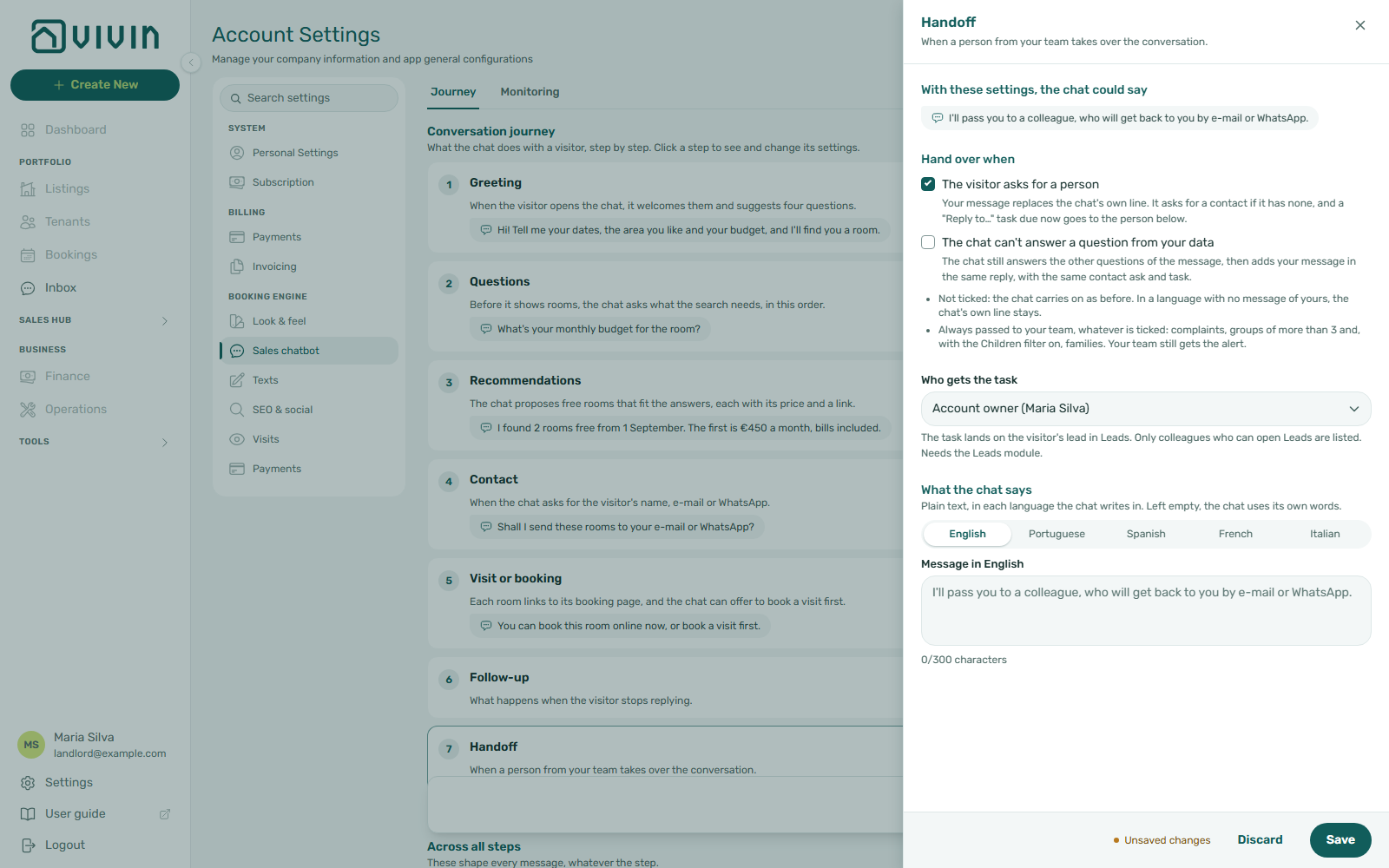
- Hand over when: The visitor asks for a person and The chat can't answer a question from your data. Ticked, the chat answers with your message, asks for a contact if it has none, and a Reply to this lead (AI SalesBot) task, due now, goes to the person below. On a question it can't answer, it still answers the other questions of the message first. Not ticked, the chat says a colleague will get in touch and your team gets an alert.
- Complaints, groups of more than 3 and, with the Children filter on, families always go to your team, whatever is ticked.
- Who gets the task: the account owner, or a colleague who can open Leads. The task lands on the visitor's lead, one open task per lead, and needs the Leads module. The same person gets the follow-up task of a lead nobody is assigned to.
- What the chat says: your message in each language the chat writes in, up to 300 characters of plain text, sent exactly as written. A language left empty gets the chat's own words.
Across all steps
Persona & tone
How the chat sounds in every message; A sample message in this tone shows the effect.
- 1. Choose a Persona: Daniela (warm and empathetic, the default), Marcus (consistent and fair) or Victoria (direct and precise).
- Warmth (default High), Directness (Medium) and Acknowledgment (High), each Low, Medium or High.
- Use emojis and Use first name, both on.
Changing a level or a preference selects Custom. Visitors never see the persona's name. It is separate from the Support chatbot's.
Special rules
What the chat says in a case you name: up to 20 rules, each with an If and a Then of up to 200 characters. Templates offers starters. Keep the If precise: "if the visitor asks about parking", not "if the visitor has a question".
Rules change what the chat says, not what it decides: who is asked for a contact, which rooms show and when a person takes over stay with the steps above, and no rule lets it promise what your rooms' data contradicts.
Knowledge & safety
What the chat answers from: your rooms' data, always, and with Also use your FAQs on, off by default, the published questions of FAQs. Check your FAQs first: those written for residents can hold what only residents should see. An FAQ about a Wi-Fi password, a door, key or alarm code or a key box is never used.
What the chat saves on the lead
With the Leads module on, the visitor becomes a lead in Sales hub → CRM → Leads, source AI SalesBot, as soon as they leave an e-mail or a phone number. Every later message that changes something updates it.
| The visitor tells the chat | Saved on the lead as |
|---|---|
| Name | First and last name; the e-mail or phone stands in until then |
| E-mail; phone or WhatsApp | E-mail; phone, in international format |
| Move-in date; move-out date or length of stay | Move-in and move-out date. A stay the chat assumed is never saved. |
| Monthly budget; language of the chat | Budget; preferred language |
| The room page they were on | Property and unit |
| Flexibility, people, area, university or workplace, room type, whole flat, shared flat, pets, children, a company booking | The lead's message |
| The rooms proposed, the questions left to your team, the reductions offered, the last messages | The Website chat block of the lead's message |
The lead's message lists, under "What the visitor told the chat:", everything they said, in their own words. The chat fills empty fields and keeps the dates, budget, last name and language up to date only while they still hold what it wrote: it never overwrites what your team typed, nor an e-mail or phone already on the lead.
Test the chat
Test the chat, beside the journey, answers with the settings on screen, saved or not. Pick the Visitor's language and write as a visitor would.
- Before a message goes, the estimated tokens show under it, with Included in your plan, or the most it can add to your next monthly charge when it is not. Send waits for the estimate. See AI usage.
- Test chats never create leads, tasks or alerts, and don't count in Monitoring. A note says what the message would have created in a live chat, or where a live chat would pass the visitor to your team.
- Start again clears the conversation. Testing needs edit access, since it uses AI.
Monitoring
What came of the chat over the last 30 days, 90 days (shown first) or 12 months, read-only: Visitor messages (with the chat's replies on the line below), Conversations, Contacts left, Handed to the team and Questions it couldn't answer. An (i) says what each counts.
When visitors write shows visitor messages by day and hour, in the account's time zone. A role that can open the conversations also sees See the conversations, which opens Inbox → Sales.