Invoicing
Choose what your invoices show and which tax applies to each charge.
Before you start
- Where: Settings → Invoicing, in the Billing group (
https://platform.vivin.app/settings/invoicing). - Plan: every account has this tab. Connect an invoicing provider in Integrations first; until then the Tax VAT lists are empty.
- Permissions: the same as Payments, which shares the Invoicing & Payments permission with this tab.
Each card has a pencil to edit it, then Save or Cancel.
Active invoicing systems
The strip at the top lists your connected invoicing providers; it only appears once one is connected. The VIVIN Invoicing and NetSuite chips open their own settings ("Configure …"). For VIVIN Invoicing that is where you manage issuer details, numbering, tax rates and Word templates. Invoice Express, Hostkit and Sage50c show as plain labels: their credentials live on Integrations.
Invoicing
| Field | What it does | Default |
|---|---|---|
| Exclude property name from invoice | Drops the property name from invoice lines, keeping the unit. | Off |
| Use today as invoice date | Dates each invoice the day it is issued. | On |
| Invoice date | The fixed date every invoice uses while the switch above is off. | — |
| Issue security deposits on a separate invoice | Puts each deposit on its own document. | Off |
| Should short-term bookings receive proformas? | Whether Airbnb and Booking.com bookings get proformas. | Off |
| Hostkit invoice series | The Fatura-Recibo (FR) series VIVIN uses in Hostkit. | Empty |
| Proforma Remarks | Fixed text printed on every new proforma. | Empty |
| Invoice Receipt / Fatura-Recibo Remarks | Fixed text printed on every new invoice-receipt. | Empty |
- Invoice lines normally show the property, the unit, the charge and the month.
- Invoice date only appears when Use today as invoice date is off, and it is required then. While a fixed date is set, the transaction details panel in Finance → Transactions shows a reminder.
- Issue security deposits on a separate invoice: on Hostkit you need it to refund a deposit later, because Hostkit can only credit a whole document. Each document is emailed to the tenant separately. Documents already issued do not change.
- Should short-term bookings receive proformas?: while it is off, VIVIN issues no proforma for Airbnb and Booking.com bookings and sends no proforma email; final invoices are issued as usual. Changing it only affects payments not yet invoiced.
- Hostkit invoice series only shows with Hostkit. Copy the exact series from Hostkit → Faturação → Séries. VIVIN does not issue Hostkit invoices until it is set.
- The two remarks fields only show with Invoice Express. Documents already issued do not change.
Tax Codes
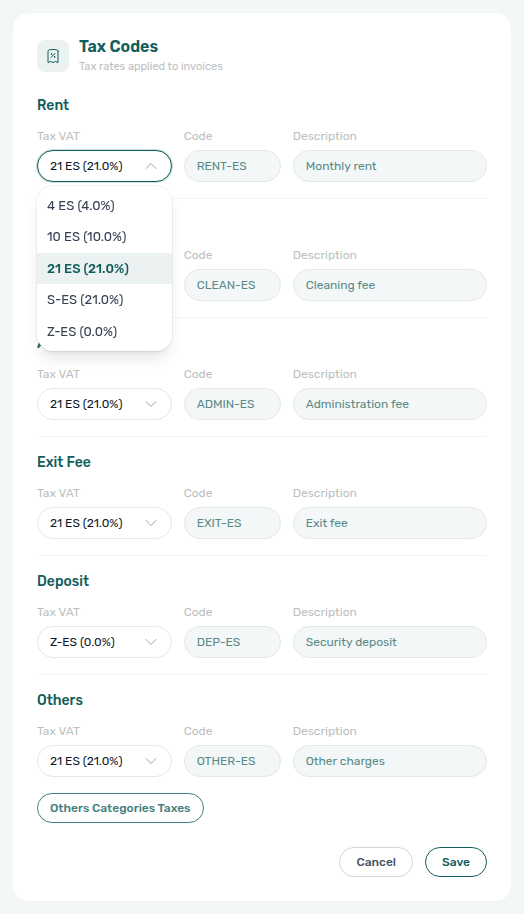
One row per charge type: Rent, Installment, Cleaning Fee, Admin Fee, Exit Fee, Deposit and Others.
| Column | What it does | Default |
|---|---|---|
| Tax VAT | The tax for that charge, from your invoicing provider's list. | Not set |
| Code | The product or item code in your invoicing system. | Empty |
| Description | Replaces the default charge name on the invoice line. Optional. | Default charge name |
- In the list, Portuguese rates such as IVA23 show as "VAT 23%", and other codes show their rate in brackets, for example "21 ES (21%)" for NetSuite. After saving, the card shows the provider's own name.
- With Invoice Express, Hostkit, VIVIN Invoicing, NetSuite and A-Cube, every charge type you invoice needs a Code, or it fails to issue. Only Sage50c works without codes.
- Installment has its own Code and Description but shares the Rent tax: changing its Tax VAT changes Rent's too. See Rent installments.
- With VIVIN Invoicing, first create the rates under Tax rates in its settings, then pick them here. The names must match, or invoices cannot be issued.
- If you switch provider, pick every Tax VAT again from the new provider's list.
Others Categories Taxes
The Others Categories Taxes button at the bottom of the card sets a Tax VAT and a Product code for each of your Others items categories (managed in Categories).
- An Others charge with a category uses that category's tax, and the category name appears on the invoice line. A category with no tax uses the Others row.
- With every provider except Sage50c, each category you charge needs its own Product code; the Others row's code is not used for it.
VAT by owner
Give some owners' properties a different VAT regime. Every other owner follows the Tax Codes above.
- Under Give an owner its own VAT, pick an owner in Choose an owner, then click Set VAT.
- In the "VAT for …" window, pick a tax for any charge under Charges or Others categories. A field left on "Default (…)" follows the account tax code, and Use the default clears a choice. An Others category left on the default follows the owner's Others tax when you set one. "Issued through …" under each field names the connection that issues that charge.
- Click Save.
Each owner in the list shows their overrides. Edit changes them; Reset sends the owner back to the account tax codes. This is separate from the fee and VAT for owner commissions in Owners.
What happens when you save
- New settings apply to the next invoice, proforma or credit note VIVIN issues. Documents already issued keep their dates, wording and VAT.
- An owner's VAT applies to every invoice, proforma and credit note for their properties from then on.
- A fixed Invoice date applies to everyone on the account until you switch Use today as invoice date back on.
Troubleshooting
- The Tax VAT list is empty: no invoicing provider is connected, or its tax list cannot be read. Check the connection in Integrations.
- An invoice fails to issue: the charge type or Others category has no Code or Product code, or the VIVIN Invoicing rate name does not match.
- The "VAT for …" window warns that a default tax is not in the provider's list: pick a tax there, or those charges will fail to issue.
Tips
- Set Tax Codes before you issue your first invoice, and ask your accountant which rate applies to each charge. Rent and deposits often need an exempt or zero rate.
- Switch Use today as invoice date back on after a month-end run.
Related
- Integrations: connect and configure your invoicing provider
- Payments
- Finance: issuing invoices
- Categories: Others items categories
- Owners