Recording a received payment
Record money a tenant paid you directly, such as a bank transfer to your own account, cash or a card you charged yourself, then confirm it once it has really arrived.
Before you start
- Plan: any plan. Payments made through VIVIN payments (a transfer to the booking's virtual IBAN, or a card payment in the Tenant Portal) are recorded for you, and so are Airbnb payouts. Do not record those again.
- Permissions, in Settings → Users → Role Permissions:
- Bookings → Add Payments to record a payment on a booking. Super Admin, Admin, Finance, Sales and Operations Admin have it by default.
- Create → Transfers to record one from Create New. Only Super Admin has it by default.
- Finance → Approve Payments to approve or reject payments and to open Finance → Transactions. Only Super Admin has it by default.
- You need the date the money reached you and the exact amount.
Steps
1. Check that the payment is not already recorded
Portfolio → Bookings, then the booking's Transactions tab
Open the booking and look for a payment with the same date and amount. If it is already there, go to step 4.
2. Record the payment
Portfolio → Bookings, then the booking's Payment Plan tab
- Click Transaction. The same button is on the Contract Values and Transactions tabs.
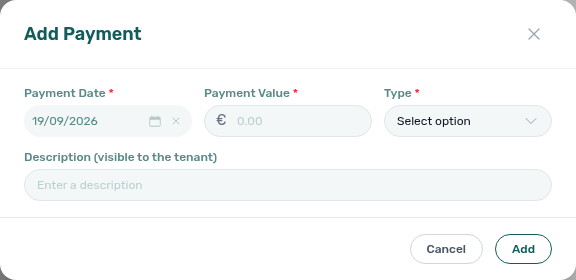
- In Add Payment, set the Payment Date (it starts on today, so change it to the day the money arrived) and the Payment Value.
- Pick the Type: Transfer, Cash or Credit Card. Use Credit Card only for a card you charged yourself, for example on a terminal at your desk.
- Optionally add a Description. If the field reads Description (visible to the tenant), the tenant sees this text in the Tenant Portal, because Allow to see payment descriptions is on in Portal settings.
- Click Add.
Result: Payment recorded successfully. appears and the payment is listed on Transactions as Pending. If your role has Finance → Auto Approve Manual In Payments (Super Admin by default), it is Confirmed straight away and you can skip step 4.
To record a payment from any page, use Create New → Transfer. The same Add Payment window opens with a Booking field to fill in first.
3. Check how VIVIN applied it
Payment Plan tab of the same booking
VIVIN applies the payment straight away to the booking's open lines, in the order set under Payments Priorities in Settings → Payments (see Payment allocation). A pending payment already counts.
Result: the lines it covers show Paid, or Partial Paid / Partial Overdue when it covers only part of a line. Money beyond what is due goes to the next lines, even months ahead.
Recording a payment can also complete what a tenant must pay before move-in. The arrival then shows Ready in Operations → Check-in/out (with the default Check-in Ready rule, once the contract is signed or Not applicable), and if your check-in email is sent on payment (for example After paid & contract signed in Settings → Emails), VIVIN sends it with the access codes.
4. Approve the payment once the money is in your bank
Business → Finance → Transactions
- On the All card, click the amber pending amount to list only pending payments. The list starts on the last 3 months: widen the date range for older payments.
- Check that each payment has arrived in your bank, then click Approve payment (the check icon) on its row. To approve several, tick them and click Approve selected.
You can also approve from the booking's Transactions tab: click Approve payment on the Pending row, then Confirm Approval.
Result: the payment shows Confirmed.
5. Reject a payment that never arrived
Business → Finance → Transactions, or the booking's Transactions tab
Tick the payment and click Reject selected, or click Reject Payment on the booking's row and then Confirm & Reject.
Result: the payment shows Rejected and no longer counts. The lines it covered are unpaid again, and show Overdue if their due date has passed.
Done when
- The payment shows Confirmed on the booking's Transactions tab.
- The lines it paid show Paid on Payment Plan.
- No payment you recorded is left Pending in Finance → Transactions.
Troubleshooting
- Transaction is greyed out. Hover it to see why. Either your role does not have Bookings → Add Payments (ask a Super Admin), or the booking came from Airbnb, or from Booking.com when Booking.com collected the money: the platform's payout is registered automatically, so there is nothing to record.
- You typed the wrong amount. While the payment is Pending, click Edit amount (pencil) on its row. This needs Finance → Approve Payments. A confirmed payment must first go back to Pending with Revert payment.
- The payment is on the wrong booking. Click Assign to other booking on its row and pick the right booking. This needs Finance → Assign Payments To Other Bookings (Super Admin and Finance by default) and works only while no part of the payment is invoiced.
- VIVIN refuses to reject the payment. Only a Pending payment can be rejected, and not once part of it is invoiced, waiting to be invoiced or included in an owner report. Sort out the invoice first in Finance, or put a confirmed payment back to Pending with Revert payment.
Tips
- Record each transfer separately, with the date it reached your bank, so that Transactions matches your bank statement line by line.
- Approve payments in one weekly pass in Finance → Transactions, with your bank statement open.
- To give back money a tenant overpaid, use Mark refunded on the booking's Deposit tab, as in Refunding a security deposit.
Related
- Payment allocation: the order in which payments pay the lines, and every payment action
- Finance: the Transactions tab in full
- Bookings: the Payment Plan and Transactions tabs
- Handling a late payment: when a payment does not arrive on time
- Processing a new booking: the first payment of a new booking