Find your way around
Every page of the management app has the same layout: the sidebar on the left with the modules, and the page you are working on to the right of it. This page shows where everything sits, what changes on a phone, and why some items are greyed out.
Where to find it: every page of platform.vivin.app once you have signed in.
The sidebar
From top to bottom:
- The VIVIN logo: back to your start page.
- Create New: opens the What would you like to create? panel to add a tenant, team member, owner, property, unit, booking, block, contract template, ticket, cash flow, payment or utility bills without leaving your page. See Create New menu.
- Dashboard, then the modules in three sections:
- Portfolio: Listings, Tenants, Bookings.
- Business: Sales, Finance, Analytics, Operations.
- Tools: Inbox, Utilities, Surveys, Audit, Genius.
- Your name and email, then Settings, User guide (opens this guide in a new tab) and Logout.
What each module is for: Modules.
On a computer, click the chevron on the edge of the sidebar to collapse it to icons (Collapse sidebar) and again to open it (Expand sidebar). VIVIN remembers your choice on that browser.
Outside the sidebar
- Notifications: the bell in the Dashboard header on a computer, and in the top bar of every page on a phone. See Notifications.
- Help & Support: the round chat button at the bottom right of every page on a computer, the chat icon in the top bar on a phone, or Support under the tab list in Settings. It opens your tickets with the VIVIN team. See Get help and support.
- Settings → Personal Settings: your own interface Language, notifications and tab order. Every user can open it, whatever their role. See Personal Settings.
- The rest of Settings configures the whole account and, by default, opens only for Admins and Super Admins. See Account Settings.
Greyed-out and missing items
Your role, your plan and your account's switches decide what you can open. A module you cannot open stays in the sidebar, greyed out, and hovering it tells you why. Surveys is the exception: it is not listed at all until an admin turns on satisfaction surveys. For each case and what to do, see When a module is greyed out or missing. For what each role opens by default, see Default roles.
Items inside Create New follow the same rule: greyed out when your role lacks that permission.
On a phone
Tap the menu button at the top left to open the sidebar. The top bar shows the page title, the notifications bell and the Help & Support chat icon.
The phone menu shows Dashboard, Listings, Bookings, Operations, Inbox and Genius, as far as your role allows, plus Create New and Logout. A small button next to Logout changes the language. Tenants, Sales, Finance, Analytics, Utilities, Surveys, Audit and Settings are not in the phone menu, but a link or bookmark to them still opens (see Deep links).
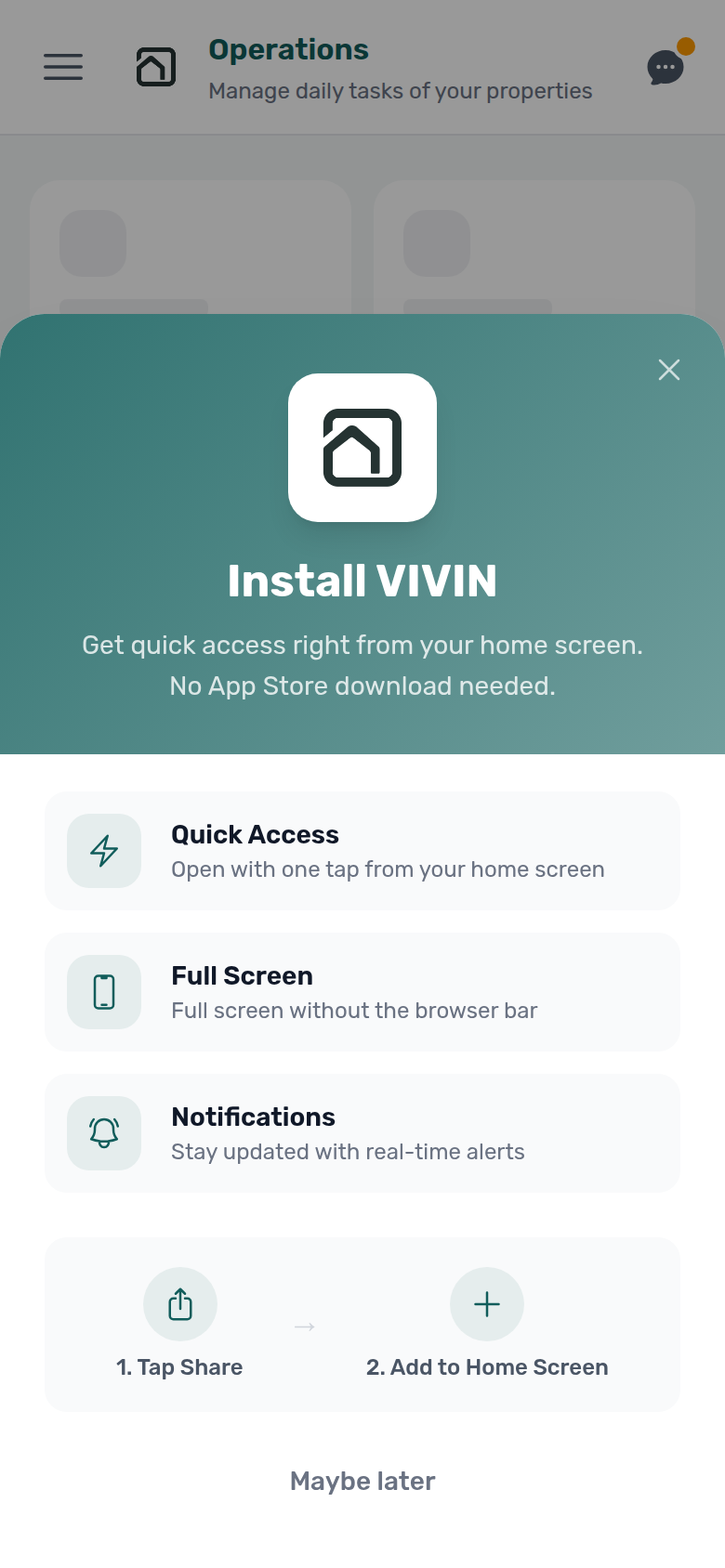
Install VIVIN on your phone
When you open VIVIN in a phone browser, an Install VIVIN sheet offers to add it to your home screen:
- On Android, tap Install App.
- On an iPhone, follow 1. Tap Share and 2. Add to Home Screen in the browser.
- Tap Maybe later to install it another time, from the Install App banner in the menu.
The installed app opens full screen and updates itself. To get alerts while VIVIN is closed, open the bell and use Get notified on this device. On an iPhone, open the app from the Home Screen first. See Push notifications.
Tips
- Share a view: most pages keep their tab and filters in the address bar, so you can bookmark a view or send the link to a colleague. See Deep links.
- Find a setting: type part of its name in Search settings at the top of the Settings tab list.
- Change your name: open My Profile at
https://platform.vivin.app/profile; no menu links to it. Saving needs Account Settings → Users, so other roles ask an admin (see Personal Settings).
Related
- Introduction: what VIVIN does and how this guide is organised.
- Modules: one line per sidebar module.
- Create New menu: every item and the permission it needs.
- Users: roles and the Role Permissions matrix.
- Getting started: your first week, step by step.