Sign in
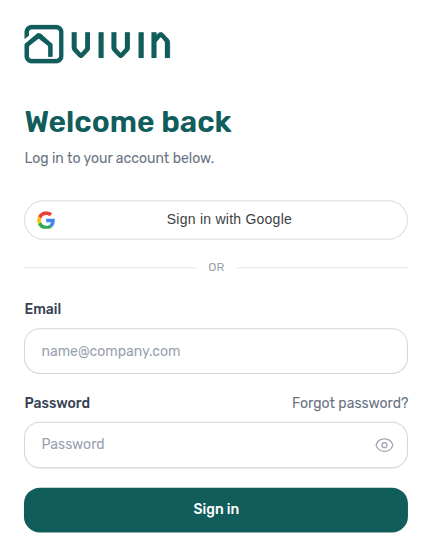
You sign in to the VIVIN management app with your work email. This page covers your first sign-in, the emailed code, passwords and how long you stay signed in.
Where to find it: platform.vivin.app, in any modern browser on a computer, tablet or phone. Each team member signs in with their own email address, which an admin adds first.
Your first sign-in
You do not choose a password when you are added to the team. When an admin adds you, VIVIN emails you "Welcome! Set Your Password" with your company name.
- Open the link in the email. It works for 24 hours.
- Under Create new password, type your new password in New password and Confirm new password.
- Click Reset password, then sign in with your email and the new password.
A password needs at least 10 characters. VIVIN refuses common passwords, passwords found in a known data breach and passwords that contain your email address.
If the link has expired, click Forgot password? on the sign-in page, or ask your admin to click Resend password on your card in Settings → Users.
Sign in with email and password
After your password, VIVIN emails you a 6-digit code to confirm that it is you; Google sign-in skips the code.
- Enter your Email and Password, then click Sign in.
- The page shows Check your email and the address the code went to.
- Type the 6-digit code into Verification code.
- On your own computer or phone, tick Don't ask for a code on this browser for 30 days.
- Click Verify and sign in.
VIVIN opens the page you were trying to reach, or your start page: the Dashboard if your role can see it, otherwise the first module your role can open (see Dashboard).
If the code does not come, check your spam folder, then click Send a new code. A code expires after a few minutes. If it expires, or you type a wrong code five times, VIVIN sends you back to the password step, so sign in again to get a fresh code. If you request too many codes, wait a few minutes before you ask for another one. To sign in with another email, click Use a different account.
Sign in with Google
If your work email is a Google account, click Sign in with Google and choose that account. Google sign-in:
- never asks for an emailed code;
- works before you have set a VIVIN password;
- only works for an email address that already has a VIVIN account. Otherwise you see "No VIVIN account for this Google email. Ask an admin to invite you." Ask an admin to add you in Settings → Users with that exact address.
Forgot or change your password
- On the sign-in page, click Forgot password?.
- Enter your email and click Send reset link.
- Open the link in the email and set a new password with the same rules as above.
There is no "change password" screen inside the app, so use Forgot password? to change a password you still know. For limits, what a reset does to your other devices, and how an admin helps a locked-out teammate, see Resetting a management user password.
Stay signed in and sign out
- VIVIN keeps you signed in on that browser for up to 30 days after you sign in, even if you use it every day. Then it asks you to sign in again.
- Closing the tab does not sign you out. On a shared computer, click Logout at the bottom of the sidebar.
- If a device is lost, an admin can click Sign out everywhere on your card in Settings → Users. See Users.
If VIVIN asks for a payment method
If your company has no card on file for its VIVIN subscription, a Subscription – Action Required window can open after you sign in. A reminder closes with I'll do it later. A lock ("A payment method is required to keep using VIVIN. Add your card to continue.") stays until someone adds a card, and offers Help & Support and Sign out. See Card reminder and card lock.
Tips
- Tick the 30-day box only on a device that is yours. On a shared computer, type the code each time.
- Codes, welcome and reset emails only go to the email address on your team card in Settings → Users.
- Locked out and no admin around? Write to VIVIN support (see Get help and support).
Related
- Find your way around: the sidebar, the phone menu and what your role opens.
- Resetting a management user password: every reset step, for you and for an admin.
- Users: adding team members and their card actions.
- Subscription: the card on file and your VIVIN invoices.
- Getting started: your first week, step by step.