Notifications
Tune alert categories under Preferences — In-app notifications during setup steps 1–12, then triage the Dashboard bell and /notifications after steps 13–15 go live — Notification triage. Lockout catch-up: Getting Started — Lockout catch-up after password recovery.
Start with Key Workflows — especially Payment overdue alerts (in-app) — then Interface Overview and Read status and list queries. Compare the Dashboard bell slide-over with the full /notifications module. Guide subsection map: Notifications guide subsection index (triage sections + Related subsections). Habit-specific shortcuts live under Related below.
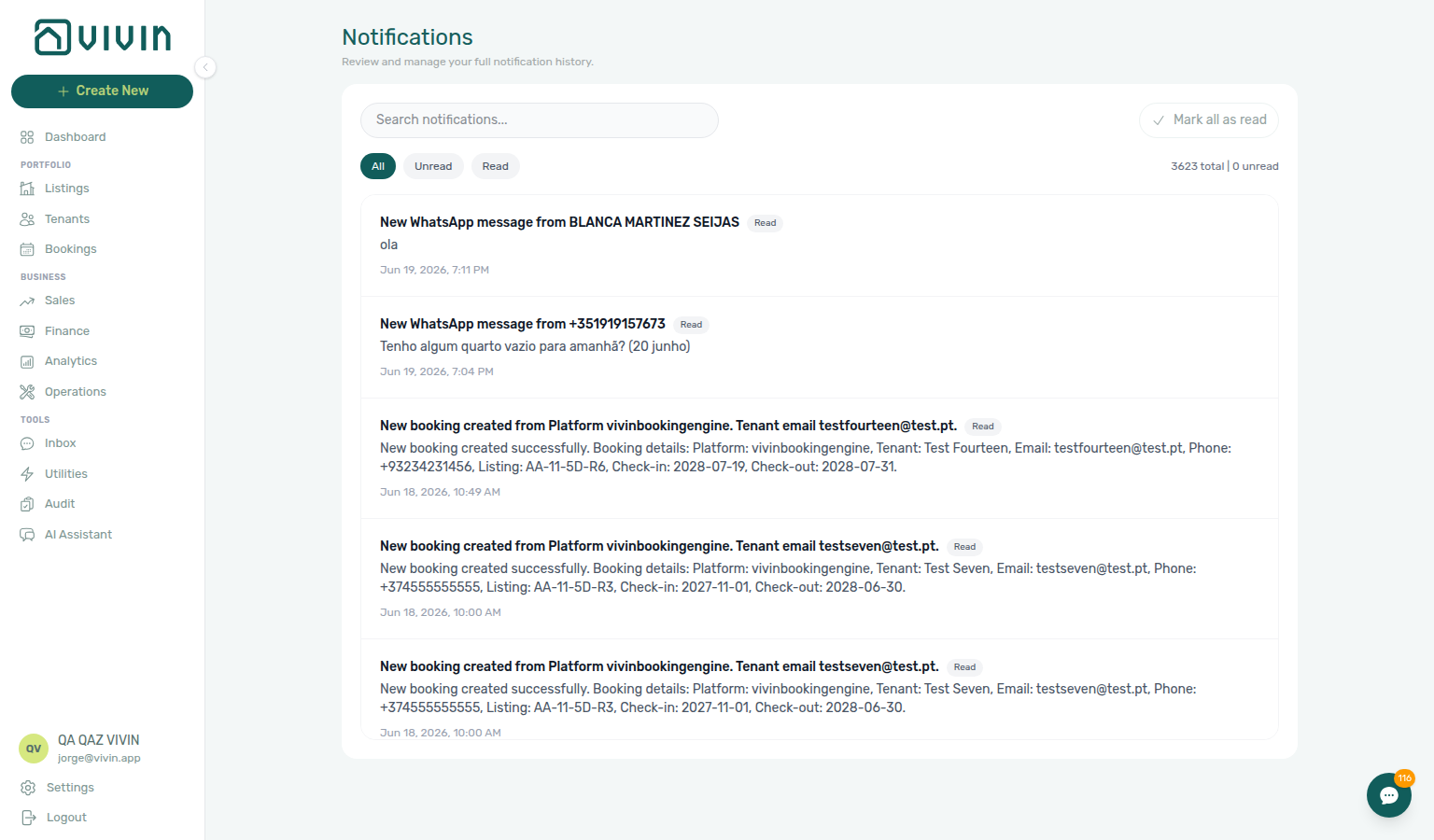
The Notifications module is your central inbox for in-app alerts. It displays all notifications sent by the platform: new bookings, payment events, ticket updates, and other important events. You can search, filter, and mark notifications as read to stay on top of what matters.
Reply to WhatsApp rows via Inbox; compare with Dashboard bell slide-over before opening /notifications. When payment overdue Payments rows cluster on one tenant category, scope Bookings — Tenant categories or Finance — Tenant category filter before account-wide reminder or portal changes — see Glossary — Tenant category. Internal LLM token spend is not listed in this inbox — during Portfolio KPI review — Step 7 poll AI usage API (GET /ai-usage/summary; landlord_chat, utility_bill_extraction).
User Roles and Access
| Role | Access |
|---|---|
| Property Manager | Full access — view, search, filter, and mark notifications as read |
| Admin | Full access |
| Viewer | Typically read-only; access depends on account configuration |
Prerequisites
- An active Vivin account
- Access to the management frontend (platform.vivin.app)
Open the Notifications module at platform.vivin.app/notifications. See Deep Links — Notifications for the bookmarkable route, how it compares to the Dashboard bell slide-over, and the Deep Links index for other management routes.
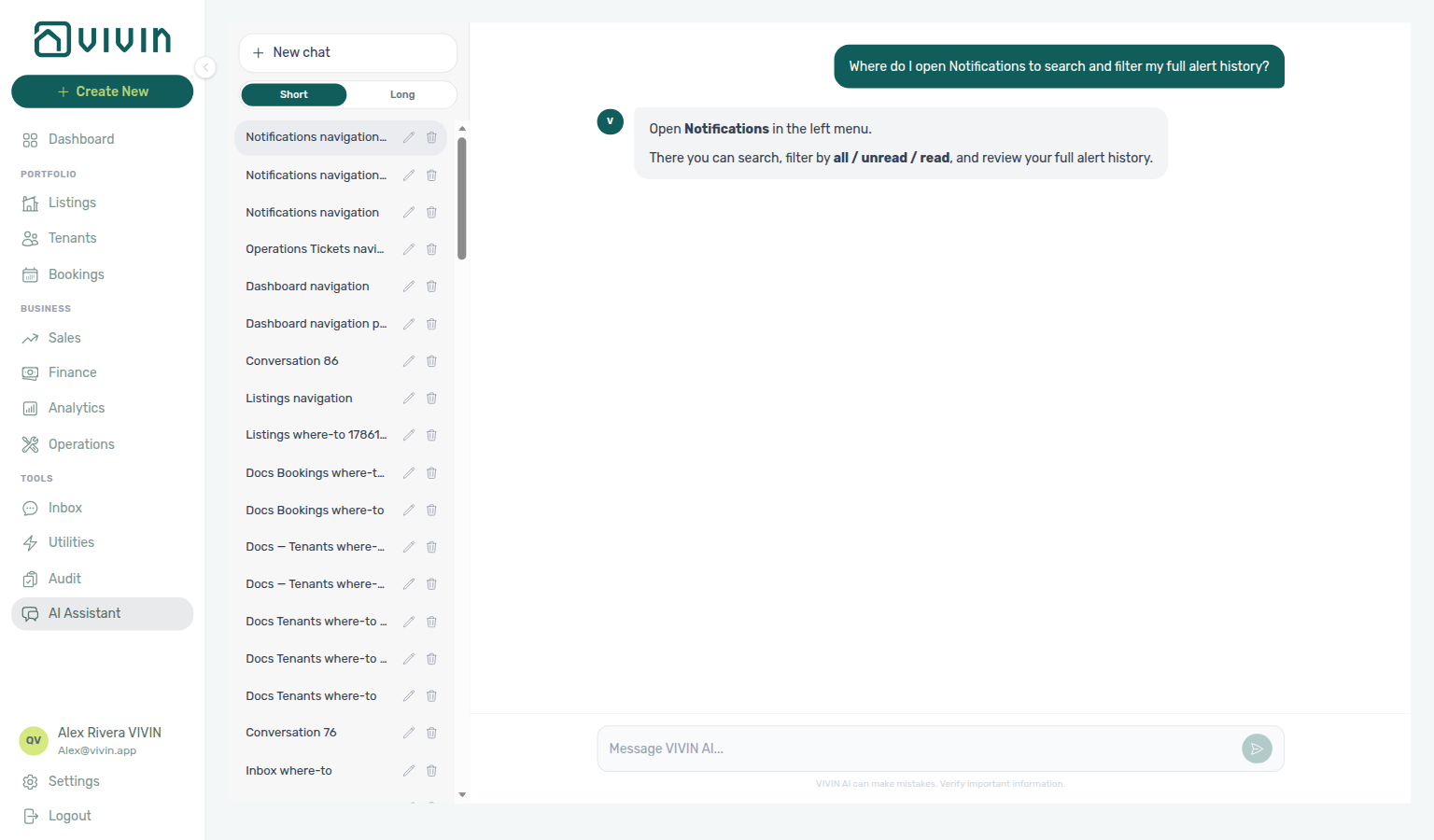
Not sure how to reach the full alert history? Ask AI Chat “Where do I open Notifications to search and filter my full alert history?” — then open /notifications (ai-chat-product-context-notifications-reply.png, ai-chat-product-context-notifications-flow.mp4). The assistant may say left menu; Notifications is not a sidebar item — use the bookmark or View all notifications from the Dashboard bell. The bell slide-over stays compact (no search / All / Unread / Read).
Need the full alert history with search and All / Unread / Read filters (not the compact Dashboard bell slide-over alone)? Ask AI Chat “Where do I open Notifications to search and filter my full alert history?” — then open /notifications (ai-chat-product-context-notifications-reply.png, ai-chat-product-context-notifications-flow.mp4). The assistant may say left menu; Notifications is not a sidebar item — bookmark /notifications or use View all notifications from the Dashboard bell. Habit: Notification triage.
Key Workflows
Daily triage starts with Notification triage — use search and read-status pills here, then row-click into Bookings or Finance when alerts need follow-up.
Viewing Notifications
- Open the full Notifications module by navigating directly to
/notifications - Notifications are listed in reverse chronological order (newest first)
- Each notification shows:
- Summary — short title or subject
- Content — full message body
- Status — Unread or Read
- Date — when the notification was created
Filtering and Searching
Search and filter pills pair with Deep Links — Notifications (bookmark is always /notifications — pills are in-page only) and Notification triage — Step 5 when you clear unread after triage.
- Filter by status — Use the All, Unread, or Read buttons to filter the list
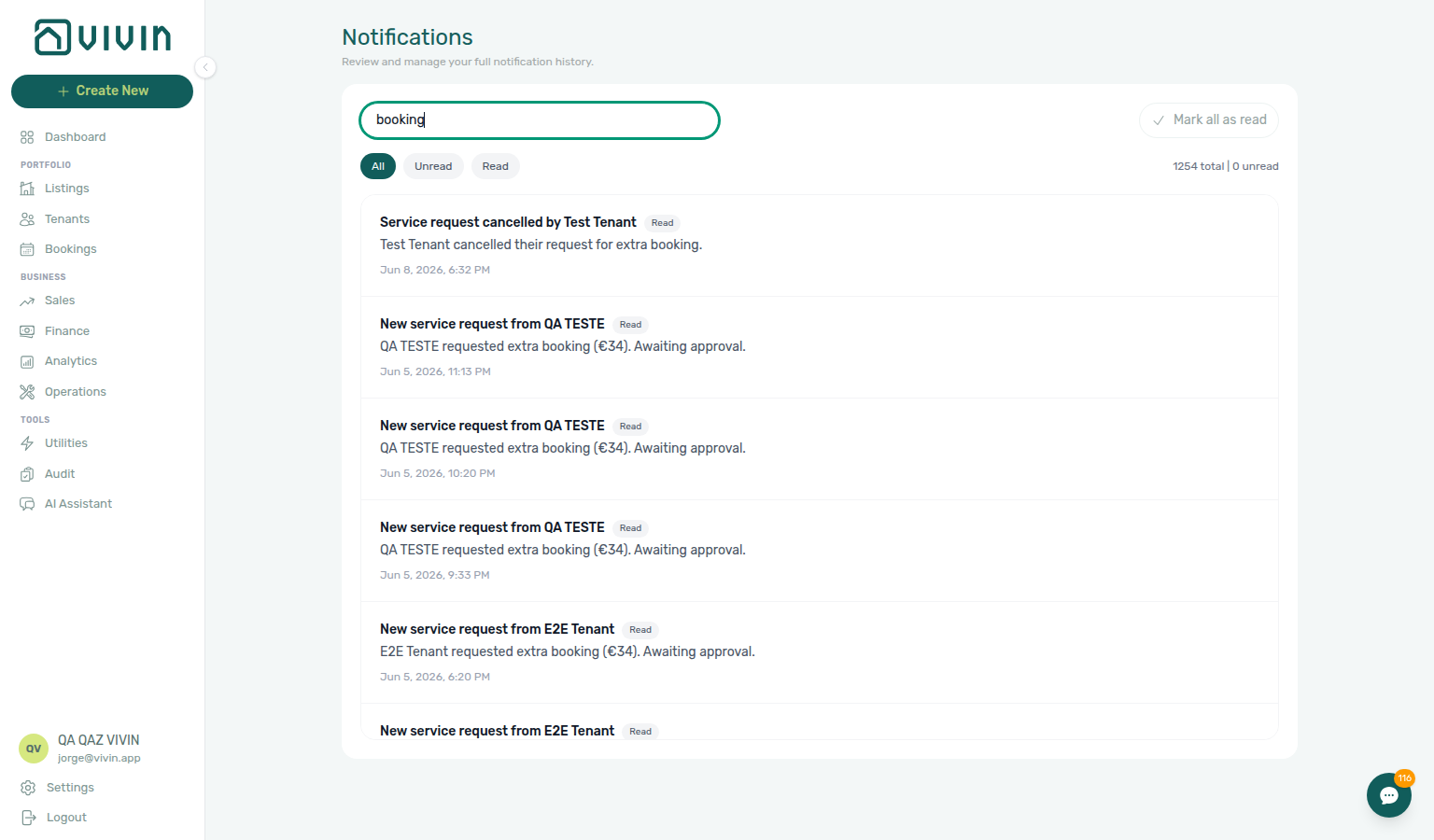
- Search — Type in the search box to find notifications by summary or content text (debounced; pause briefly after typing before expecting the list to update)
- Mark all as read — Click Mark all as read to clear the unread state for all notifications
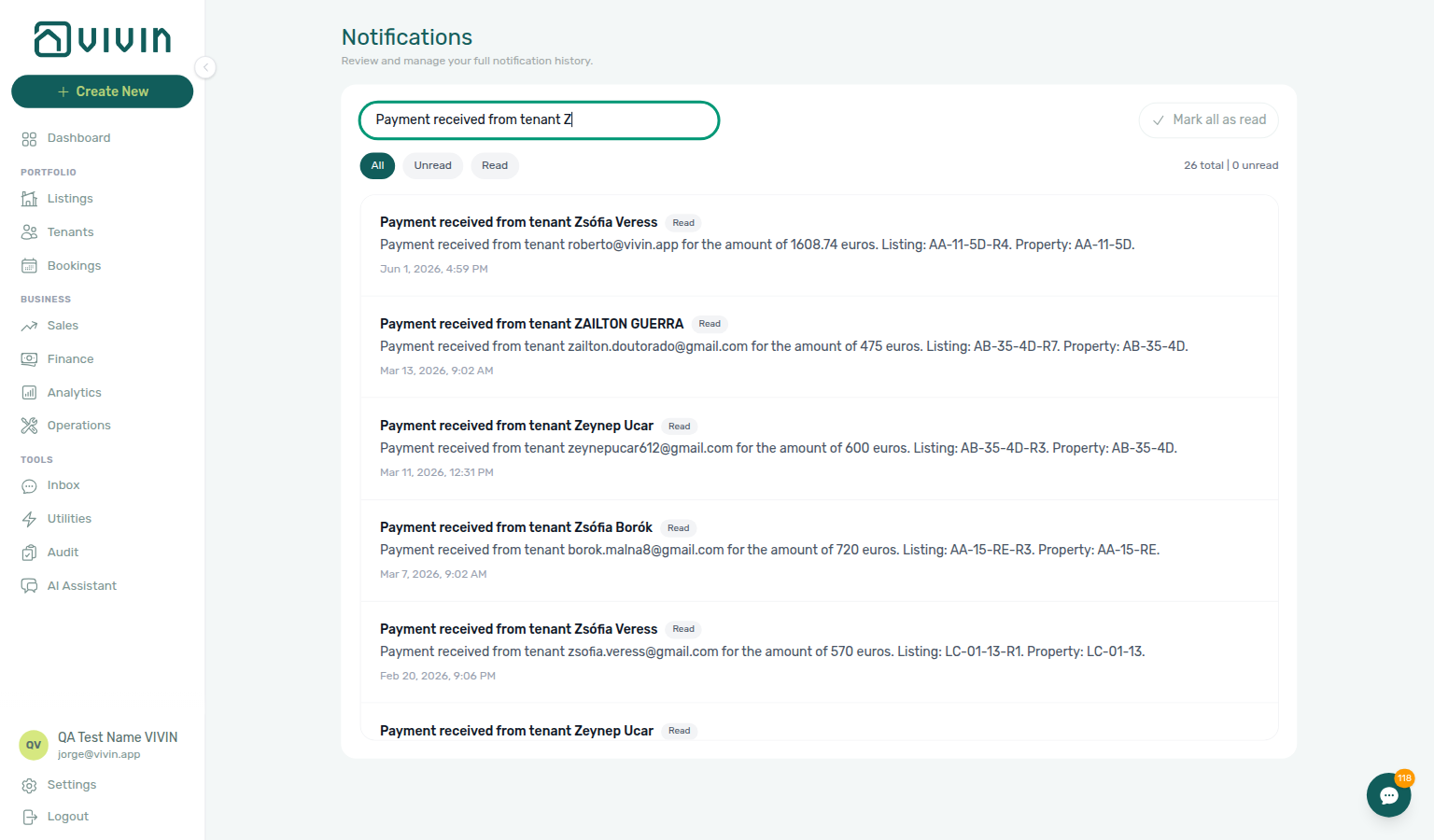
With All selected, a search term narrows the list to rows whose summary or body matches (counts in the totals line update to match):
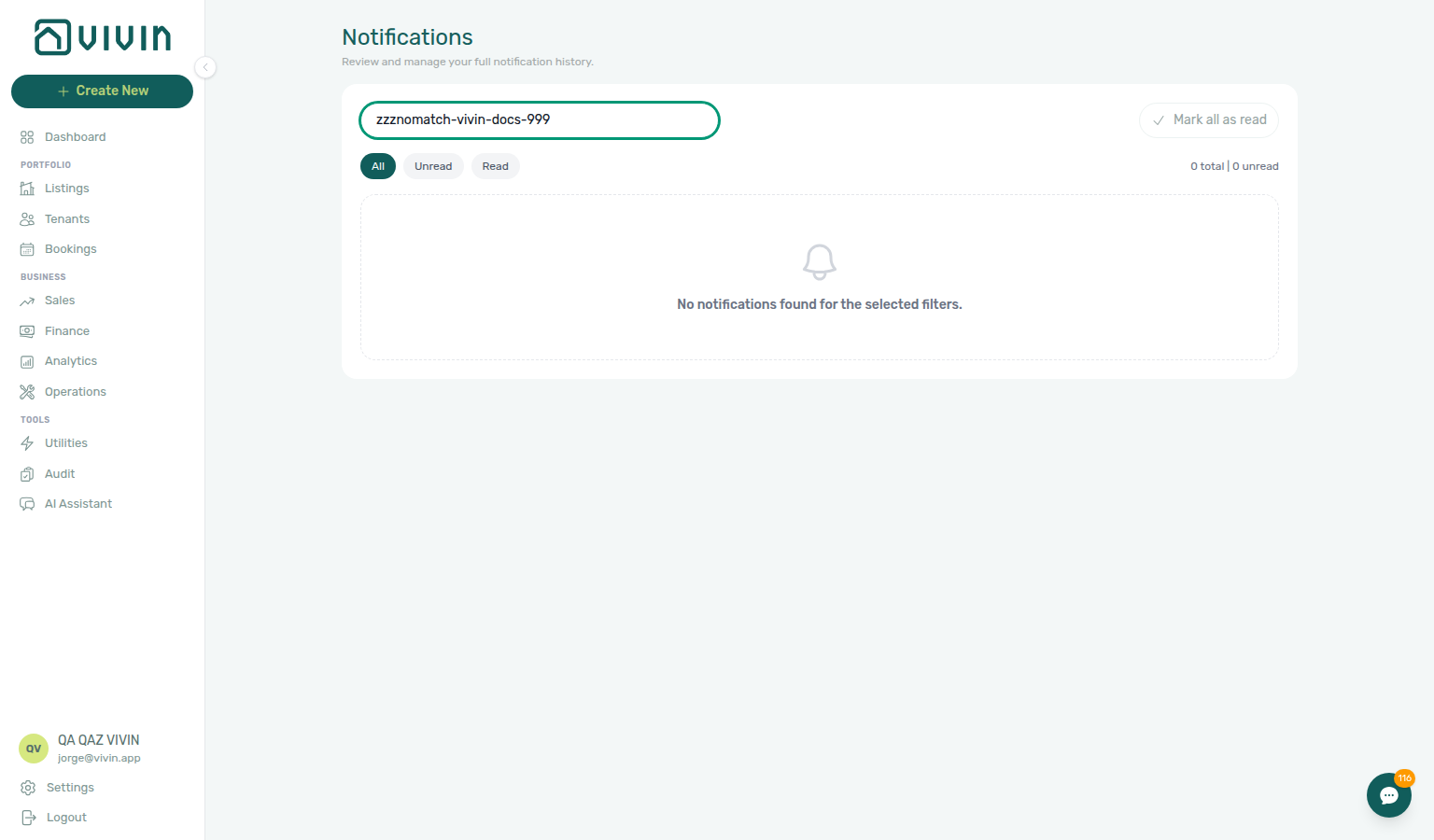
When nothing matches the active filter and search together, the list shows No notifications found for the selected filters. — switch pills or clear search before assuming data is missing:
Dashboard bell vs. full module
Bell Inbox sub-tab pairs with Inbox module; General payment rows pair with Handling a Late Payment — Step 1.
On desktop, the Dashboard (/) shows a bell in the page header (next to the title). Clicking it opens a Notifications slide-over from the right with General and Inbox sub-tabs: General holds payment, ticket, and booking alerts; Inbox holds inbound WhatsApp and email message pings (one notification per conversation, coalesced when new messages arrive). Each sub-tab has its own unread badge; Mark all as read clears only the active sub-tab. Inbox rows with a backend link navigate straight to the conversation (for example /inbox?contact=… or a booking Communication deep link) and mark the row read — other rows open Notification detail inside the panel. The slide-over scrolls with infinite load, Mark all as read, and footer totals. It does not include search or All / Unread / Read filters, and General rows without a link do not jump to Bookings, Tenants, or Listings from the bell alone.
Inbox sub-tab row labels — summaries are conversation-scoped, not one row per message:
| Channel | Summary (English UI) | Body preview |
|---|---|---|
New WhatsApp message from {tenant name} when the phone matches a tenant; otherwise New WhatsApp message from +{digits} | Last inbound message text (or New WhatsApp message) | |
New email from {sender} — display name when present, otherwise the From address | Gmail snippet or subject |
A new inbound message on an existing thread bumps that row to the top and marks it unread again instead of inserting a duplicate. The full /notifications page lists Inbox and General rows together (no category pill) — use the bell Inbox sub-tab when you only want message triage. See Inbox — Dashboard bell.
When the account tenant chatbot is not enabled (isTenantChatBotEnabled), the Inbox sub-tab is greyed out and cannot be selected — hover shows Activate the Chatbot to get tenant messages right here. General remains fully usable. The same flag gates Tools → Inbox and Bookings → Communication; see Inbox — Chatbot gating and ChatBot settings — Inbox and Dashboard bell gating.
The bell is not added to other modules’ page headers in the current layout, and it is not shown on narrow (mobile) viewports. The left sidebar lists Inbox under Tools (/inbox) on desktop when your role includes Bookings access — see Inbox module.
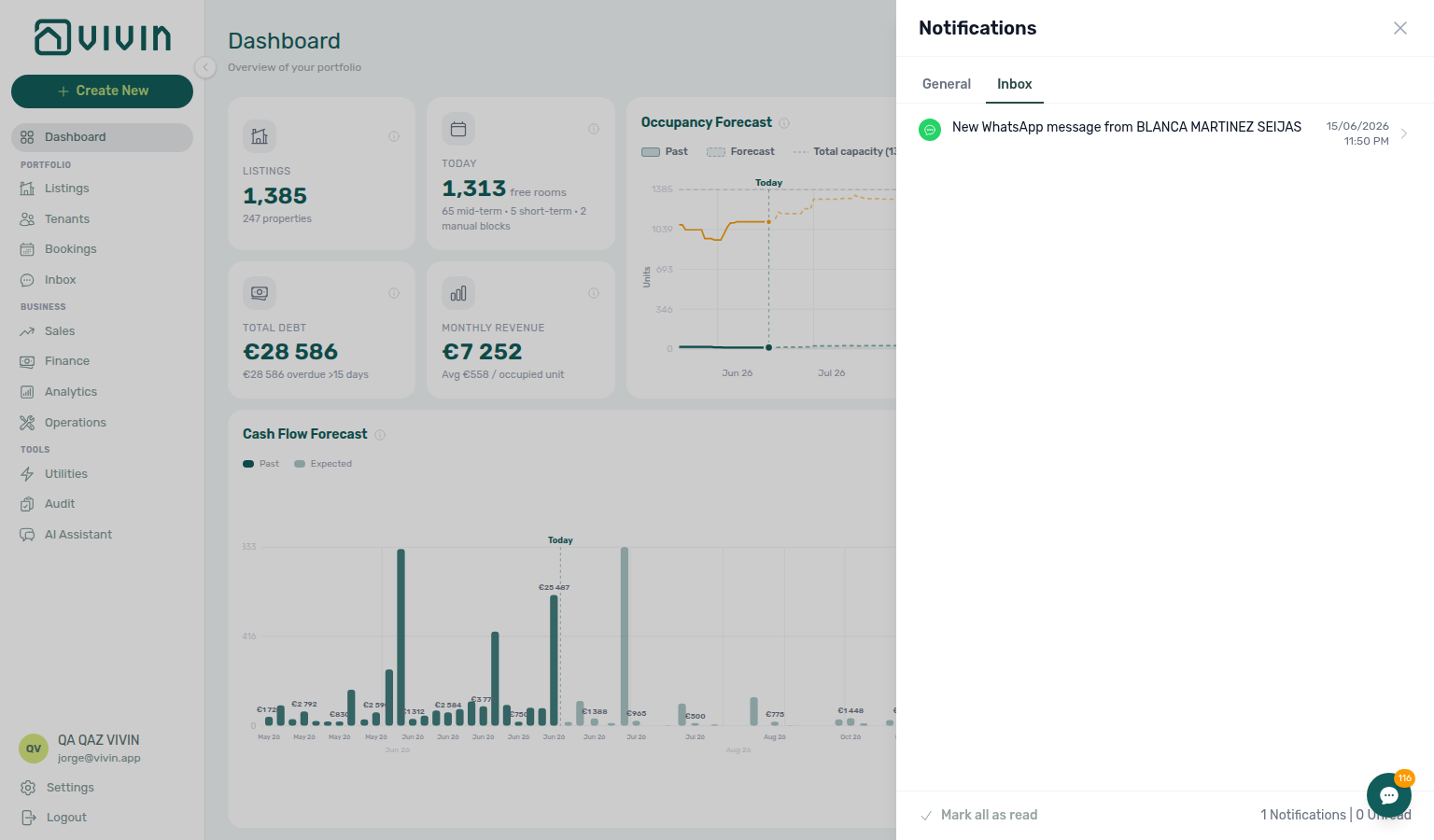
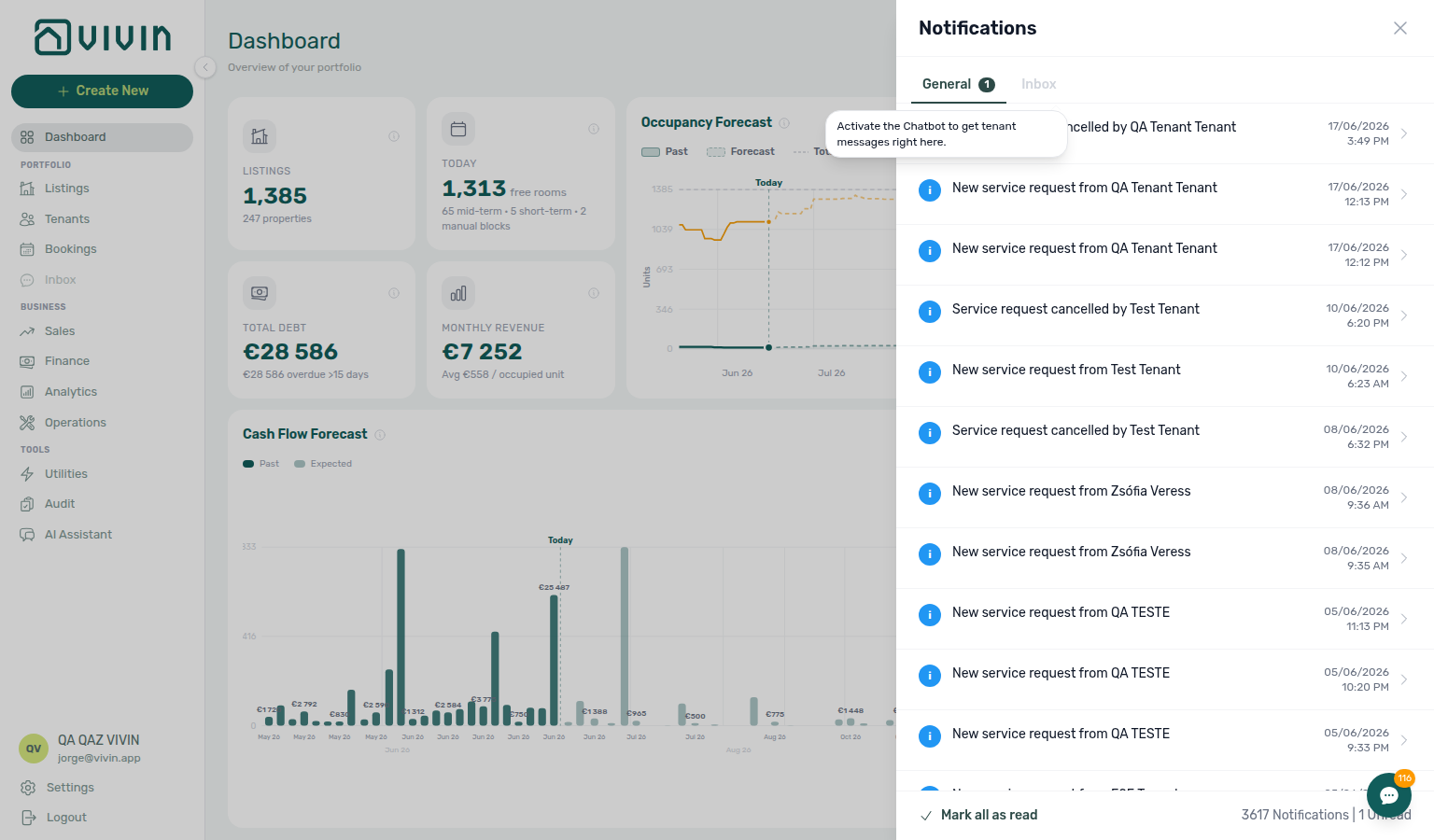
For search, read-status filters, full General history, and one-click entity navigation from payment/ticket rows, open the Notifications module directly — for example platform.vivin.app/notifications or your bookmarked /notifications URL. See Deep Links > Notifications.
Owner-linked General alerts
Owner-linked scoping pairs with Owners — Owner-linked management users and Inbox — Owner-linked access. Portfolio directories for the same login: Listings, Bookings, Operations, Utilities.
When your management login is owner-linked (email matches an Owners record), General alerts on the Dashboard bell and on /notifications only include rows that resolve to your buildings:
| How Vivin matches a General row | What counts as “yours” |
|---|---|
| Property, listing, or booking on the row | The building (or unit/stay on that building) is assigned to your owner |
| Tenant only (no stronger id) | Fallback when the row has no property/listing/booking — only if that tenant’s stays stay on your buildings |
| No portfolio id on the row | Hidden for owner-linked logins (fail closed) |
Inbox message pings on the same bell use the same property set (WhatsApp threads for tenants with a booking on your buildings). Full-account staff keep seeing every General and Inbox row their preferences allow.
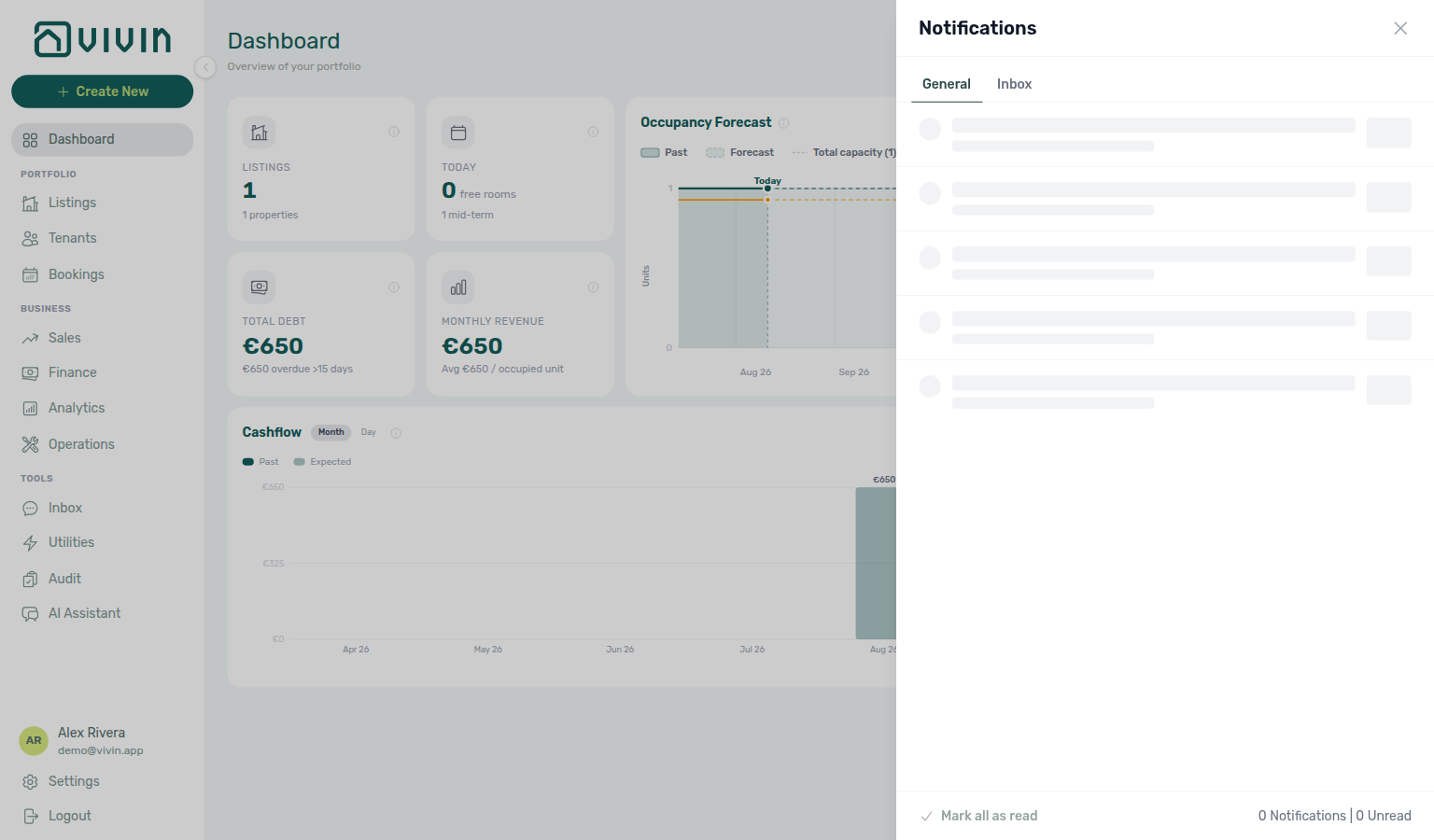
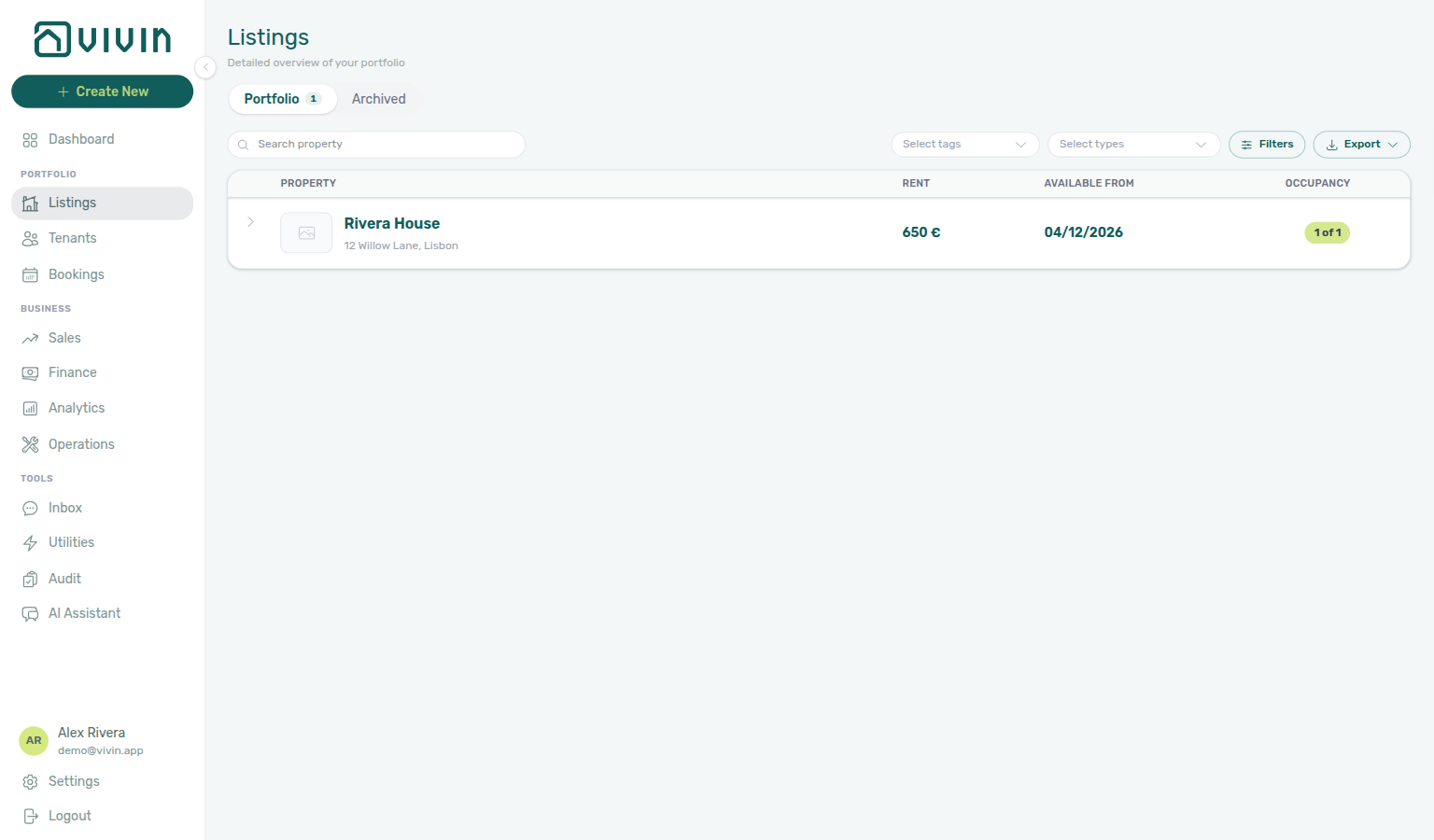
If General looks empty while full-account teammates still see payment or ticket rows, confirm those alerts attach to other owners’ properties — not a missing preference. Preferences and personal opt-outs still apply on top of this portfolio filter.
Payment received alerts (email + in-app)
Payment-received rows pair with Settings — Preferences masters and Finance — Pending manual payments when receipts stay pending after row-click.
When a tenant payment is received, opted-in operators can get both a mailbox email and an in-app row in this history (Dashboard bell and /notifications). Delivery requires both layers on for each recipient:
- Account — Preferences → Notifications & Emails: Receive payment notifications.
- You — Personal Settings (
/settings/personal): Payment notification emails — the same toggle controls your email and whether you see in-app payment-received rows.
Row shape: summary like Payment received from tenant …; body includes amount, listing, and property. When bookingId is set, clicking the row on /notifications opens the booking sidebar (see Open the related booking, tenant, or listing).
Audience scoping: in-app rows are created with a per-user audience list — only property managers who opted in on Payment notification emails see them. Teammates who did not opt in will not see those rows (and their unread counts differ). Legacy rows with no audience list remain visible to every signed-in user on the account.
See Glossary — Payment notification (operator), Notification triage — Step 4, and Handling a Late Payment — Step 4b when the receipt still shows pending after row-click navigation.
Payment overdue alerts (in-app)
Overdue Payments rows pair with Finance — Tenant category filter and Bookings — Tenant categories when alerts cluster on one segment — see Glossary — Tenant category.
When a scheduled charge is overdue or a booking balance triggers an operator alert, in-app rows under the Payments category can appear on /notifications and the Dashboard bell (subject to the same In-app notification preferences masters and personal opt-outs as payment-received rows).
Row-click navigation: when bookingId (or tenantId / listingId / propertyId) is set, clicking the row on /notifications opens the related entity — then continue collections on Handling a Late Payment — Step 1. When overdue rows cluster on one tenant category, add Finance — Tenant category filter or Bookings — Tenant categories before you chase every alert individually — see Glossary — Tenant category. See Notification triage — Step 4 and Glossary — Payment notification (operator).
In-app notification preferences
Operator in-app rows on the Dashboard bell and /notifications are grouped into four categories. Each category is controlled by two layers:
- Account — Preferences → In-app notifications: master switches (Payments, Service requests, Scheduled bookings, Inbox messages). When a master is Off, no user sees that category in-app.
- You — Personal Settings → Your in-app notifications: per-user opt-out toggles (default On). Turning a toggle Off hides that category for your session only.
| Category | Example row summaries | Extra gate for Payments only |
|---|---|---|
| Payments | Payment received from tenant … | Also requires account Receive payment notifications and your Payment notification emails audience opt-in — see Payment received alerts |
| Service requests | Portal service order / cancellation summaries | Service-order emails use Service subscription emails chips on Personal Settings (separate from in-app) |
| Scheduled bookings | Scheduled import or booking job success / failure | — |
| Inbox messages | New WhatsApp message from …, New email from …, chatbot handoff pings | Dashboard bell Inbox sub-tab when Chatbot is enabled |
Legacy rows with no eventType remain visible unless filtered by search or read-status pills. Preference lookup errors fail open (rows stay visible) so a transient API issue does not blank the module.
Pending manual in-payments (approval queue)
When someone records a manual in-payment on Finance → Add Payment or a booking Transactions tab, the receipt often stays pending until a user with Approve payments confirms it. Until approval, Total Debt, Contract Values, and Payment Plan pills may still show the old balance even though the bank deposit arrived — and a Pending manual in-payment row may remain on /notifications until ledger approval clears.
Triage from Transactions — Finance → Overview shows a Manual Payments KPI for the selected month (€ total + transaction count for all manual rails, including pending). Clicking the card opens the month drill-down of all manual rails — it does not isolate the approval queue. Open Finance → Transactions (Pending pill, row icons, or Approve selected / Reject selected bulk bar) to approve. Ledger Reject is bulk-only — there is no per-row reject icon on Finance. Reject and Revert modals warn about credit notes when Finance may already have invoiced the charge. Hub matrix: Common Workflows — Pending manual receipt approval.
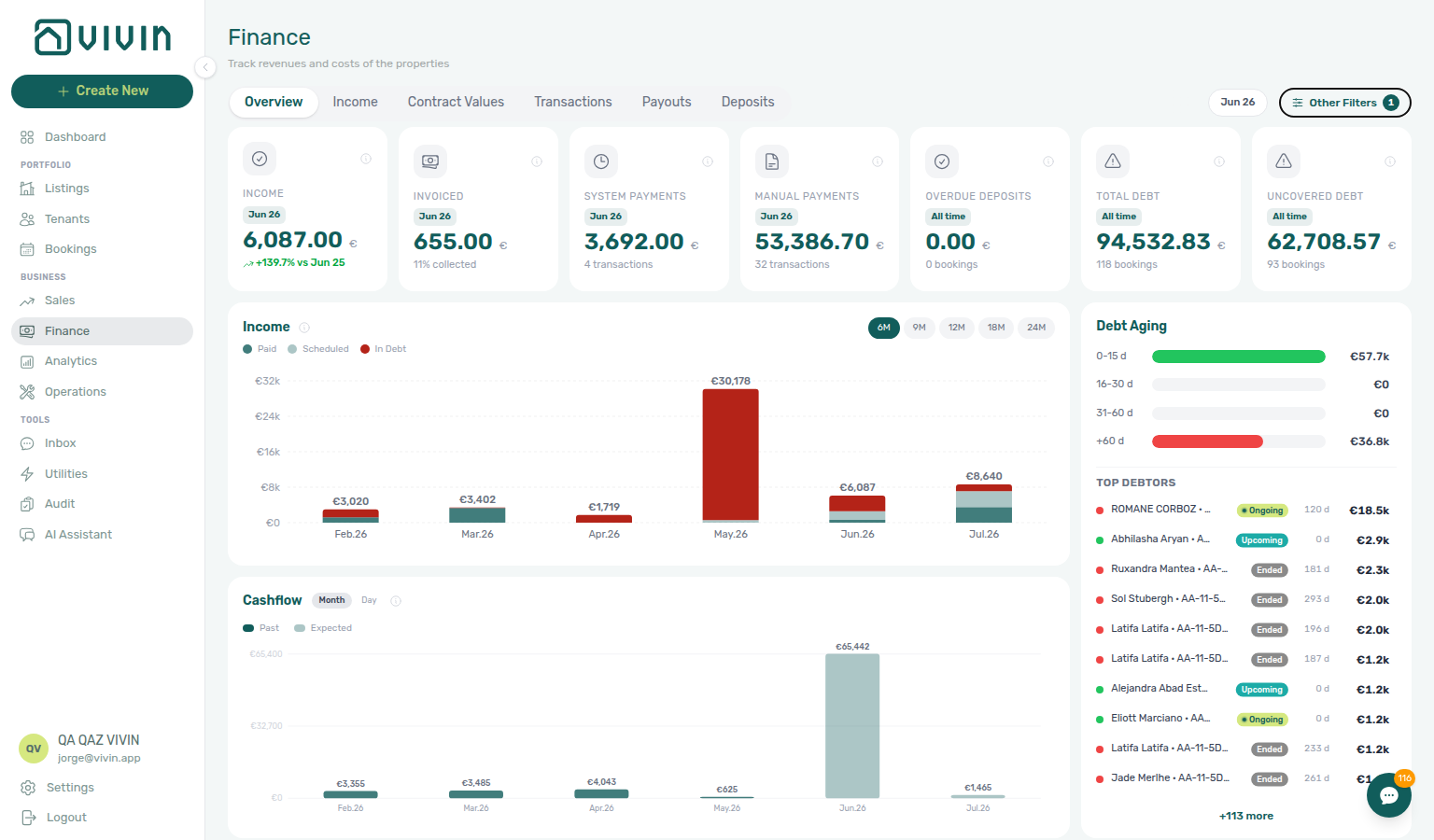

After you approve or reject from the booking sidebar or ledger, return to /notifications and Mark as read on any related payment alerts when balances look correct. Full operator rhythm: Notification triage — Step 4, Notification triage — Step 5, FAQ — Manual receipt still pending, FAQ — Pending manual in-payment on /notifications, Finance — Pending manual payments, Bookings > Transactions — Row actions, Payment Allocation — Pending manual approval (month-end habit), and Payment Allocation — Correcting mistaken receipts.
Marking Individual Notifications as Read
For unread notifications, click Mark as read to update the status. This helps you track which items you have already reviewed.
Open the related booking, tenant, or listing
Row-click navigation pairs with Notification triage — Step 4 and Glossary — Notification row navigation — bell General rows without link stay in-panel only.
On the full Notifications page (/notifications), clicking a row does more than update read status when the platform attached a navigation target:
- If the row is still Unread, it is marked read in the background (no success toast on row click alone — same as before).
- The app then navigates to the related workspace when possible, using the first match in this order:
link— backend-provided deep link (when present)bookingId→/bookings/list/:bookingIdtenantId→/tenants/:tenantIdlistingId→/listings/unit/:listingIdpropertyId→/listings/property/:propertyId
If none of those fields are set, the row is marked read when applicable but you stay on the inbox — use Mark as read when you only want to clear unread without leaving the page.
This behaviour applies to the full module only. On desktop Dashboard, the header bell slide-over opens Notification detail inside the panel for General rows without a deep link, or navigates directly when the row carries a link (Inbox message notifications jump to /inbox or booking Communication). Use /notifications when you want search, filters, and one-click triage into Bookings, Tenants, or Listings from General payment and ticket rows.
Hub matrix: Common Workflows — Notification row-click navigation. See FAQ — Notification row-click navigation, Glossary — Notification row navigation, Notification triage — Step 4, Deep Links — Notifications, Bookings, Tenants, Listings, Portfolio KPI review — Dashboard Total Debt subtitle, and Deep Links — Broken entity deep links when a target id no longer exists.
Notification Types
Notifications can relate to:
| Category | Examples |
|---|---|
| Bookings | New booking created, booking confirmed, cancellation |
| Payments | Payment received, payment overdue, deposit returned |
| Tickets | New ticket created, ticket assigned, ticket resolved |
| System | Account updates, integration alerts |
On desktop Dashboard, the header bell shows an unread badge when applicable and opens the slide-over for recent notifications. The full Notifications page at /notifications is where you search, filter by read status, and review complete history.
Interface Overview
Toolbar controls pair with Settings — Interface Language — Your in-app notifications opt-outs and Glossary — Notification read actions for Mark all as read toasts.
The full Notifications page is a single column inside the main content area (there is no extra sub-navigation beyond the filter pills).
Toolbar row
- Search — Text field above the list; matches against notification summary and body (search is debounced, so pause briefly after typing before expecting results).
- Mark all as read — Enabled when there is at least one unread item; disabled when every item is already read or while the request is in progress. On success, a toast confirms All notifications marked as read. (see Glossary — Notification read actions).
List load and read actions
List refresh pairs with FAQ — Directory list refresh — distinct from filter-empty states when nothing matches.
When the notifications list needs a refresh, use Retry — or reload the page. That is distinct from No notifications found for the selected filters. when nothing matches the active search or pills.
Per-row Mark as read — The explicit Mark as read control shows a confirmation toast. Row click still marks unread items in the background without a success toast when navigation or in-panel detail is the primary action (Dashboard bell detail view behaves the same).
Mark all as read — Available on the full page and in the Dashboard bell slide-over. While the request runs, the control is disabled. If badges stay unread after you click, wait a moment and use Mark all as read again.
Filters and counts
- All / Unread / Read — Pill-style toggles; the active pill uses the primary teal styling. The visible words on each pill follow your Interface language; behaviour is the same in every locale.
- Totals line — Shows how many notifications match the current query and how many are still unread (wording follows your interface language).
Why counts differ between teammates: booking, ticket, and most system rows are account-wide — every signed-in user with access sees the same history. Payment received rows are scoped to opted-in property managers only (see Payment received alerts above). If your bell badge or unread total does not match a colleague’s, check whether you both enabled Payment notification emails on /settings/personal and whether the account Receive payment notifications switch is on.
Notification rows
Each row is one notification. Unread items show an Unread badge; read items show Read. The body text preserves line breaks where the platform stored them. Mark as read appears on unread rows when you want to clear unread without navigating away.
On this full page, clicking the row marks unread items read (when applicable) and, when the notification includes a target, opens the related booking, tenant, or listing — see Open the related booking, tenant, or listing. Use Mark as read when you only need to update status and stay in the inbox.
The Dashboard header bell slide-over is a lighter variant of the same inbox (no read-status pills inside the panel), with General and Inbox sub-tabs when the WhatsApp global inbox release is active — see Inbox module. General rows without a link open in-panel detail only; use /notifications when you want search, filters, and one-click triage into Bookings, Tenants, or Listings from payment and ticket alerts.
Dashboard bell slide-over loading (infinite scroll)
The compact panel is also server-paged. The first open loads a batch of rows (enough for a quick scan); when you scroll near the bottom of the panel’s list, the app fetches the next batch automatically. While the next batch loads, skeleton rows appear at the bottom of the slide-over list (same row shape as the full /notifications page, but inside the narrower panel). The panel does not show an End of list line — keep scrolling until the footer total count matches what you expect, or open /notifications when you need filters, search, and the explicit end-of-history marker.
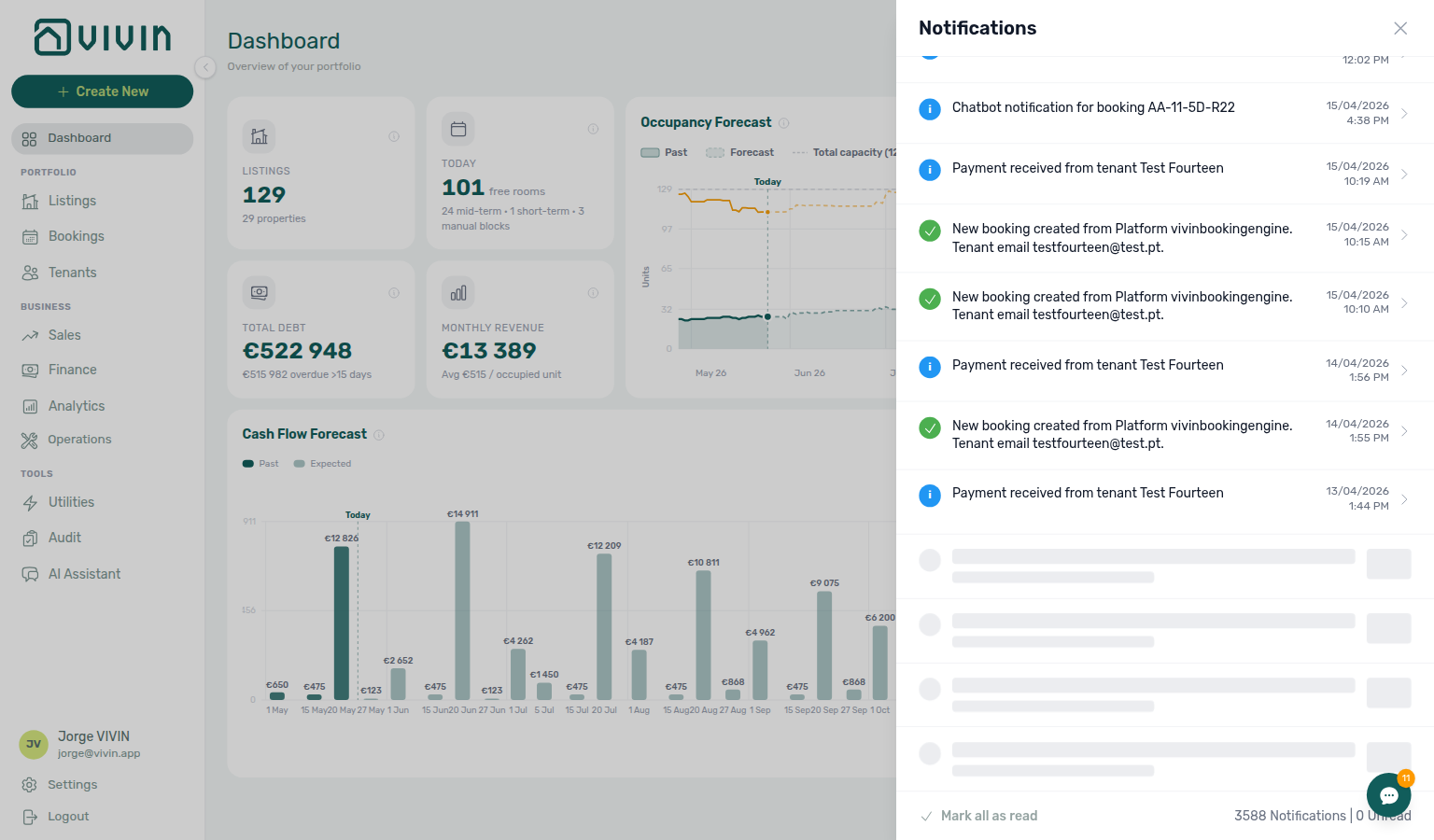
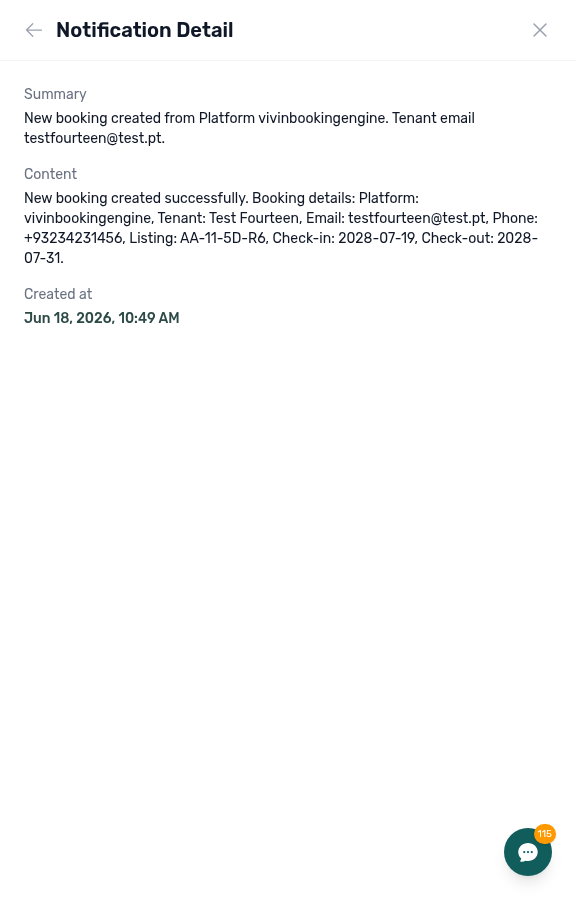
Click a row to open Notification detail inside the panel (summary, body, created time). The header title becomes Notification Detail, the General / Inbox sub-tabs hide, and the back arrow (←) beside the title returns you to the list for the same sub-tab. Opening a row that is still Unread marks it read (without a success toast on row click alone). The bell panel does not route to Bookings, Tenants, or Listings — open /notifications for that workflow.
Read status and list queries
Read-status pills pair with teammate payment-received audience scoping — check Personal Settings — Payment notification emails when bell badges differ between colleagues.
The All, Unread, and Read pills are mutually exclusive: only one read-status filter applies at a time, together with whatever you typed in search (after the short debounce). Changing the pill replaces the underlying list query and starts again from the first page of results, so you always see one coherent slice — every matching notification, only unread rows, or only rows already marked read.
The totals line under the toolbar reflects that same combination (filter + search), not a second hidden query. If you pick Read and see no rows, either nothing read matches your search yet or your history is still entirely unread; switch to All or clear search to confirm what exists before assuming data is missing.
History loading (infinite scroll)
Infinite scroll pairs with Dashboard bell skeleton loading — use /notifications when you need End of list, search, and read-status filters together.
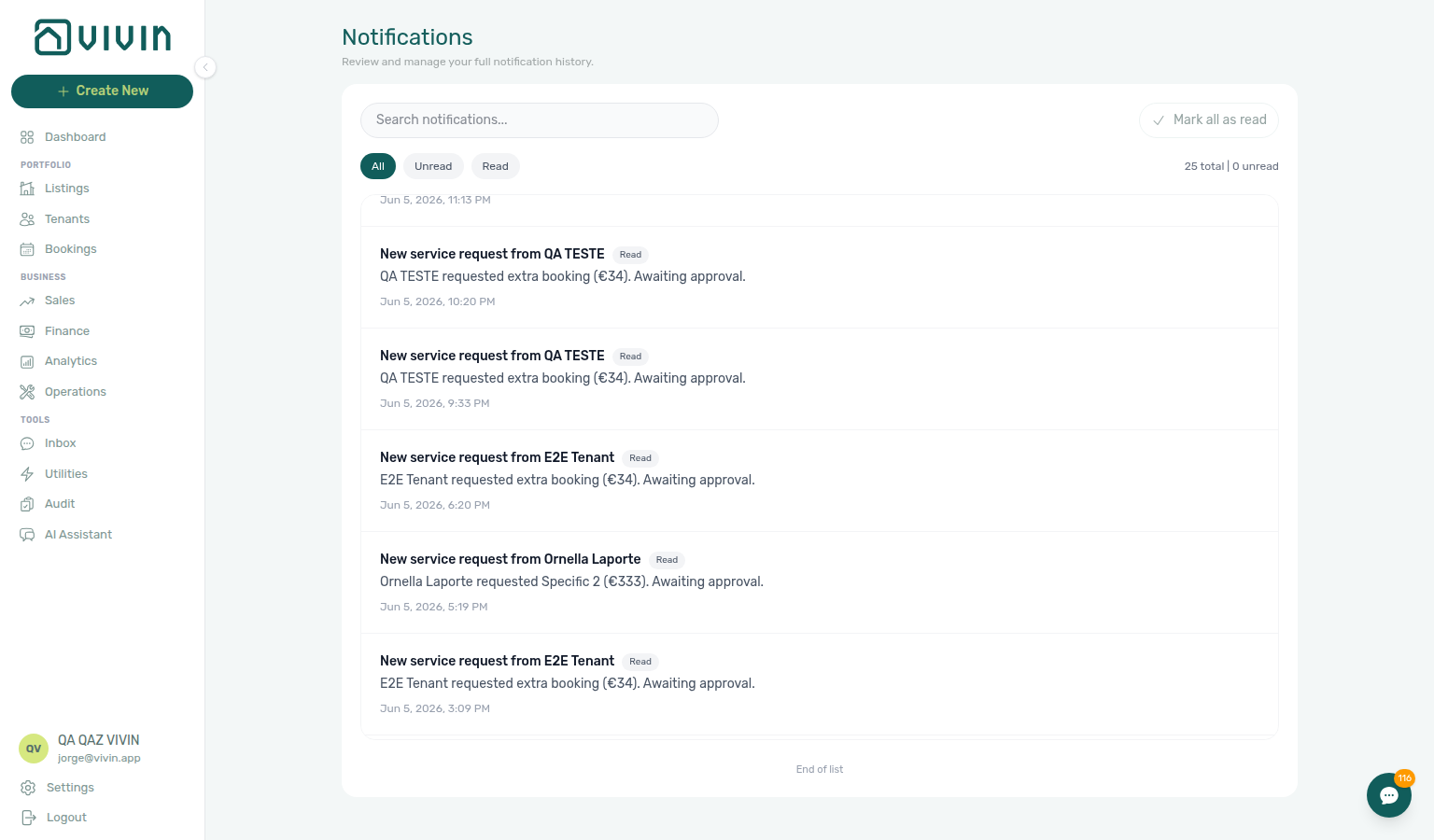
The notification list is server-paged like other large directories. The first request loads a batch of rows; as you scroll near the bottom of the scrollable list (inside the bordered panel), the app fetches the next batch automatically. While the next batch loads, compact skeleton rows appear at the bottom of that panel:

When every notification matching the current filter + search is loaded, an End of list line appears below the list. Changing the All / Unread / Read pill or the search box clears the list and starts again from the first batch.
Screenshots
Full Notifications page (/notifications) — All filter with a Payment received search, Mark all as read, and totals line:
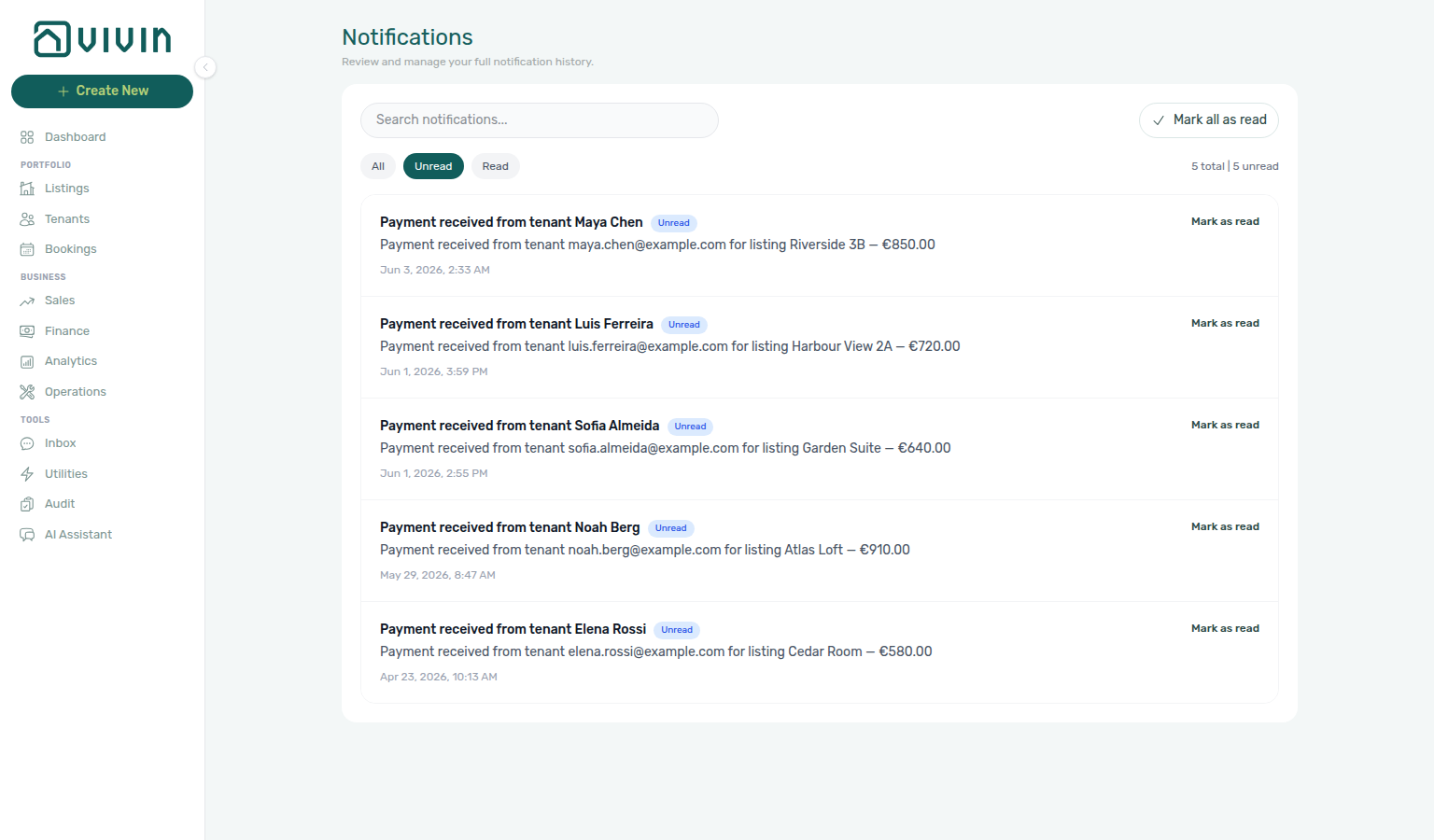
Unread filter narrows the list to items still marked unread (counts update in the totals line):
Read filter shows only notifications already marked read (same search and Mark all as read row; the Read pill uses the primary teal active styling when selected). When nothing matches, you see the standard empty state (“no notifications for the selected filters”) — that is still a valid Read filter outcome.
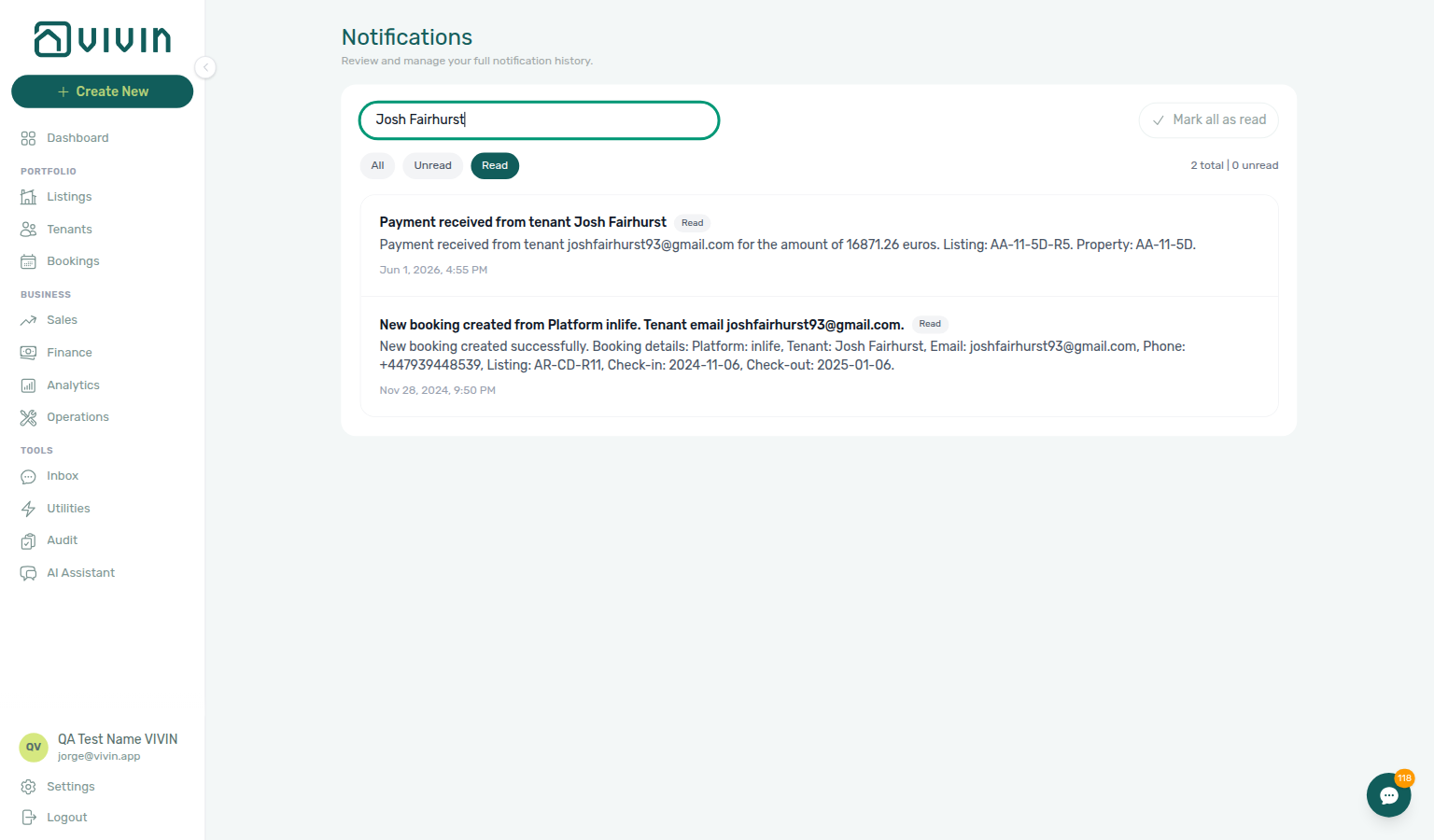
When no notifications match the current filter (for example you have no read items yet, or search text matches nothing), the list area shows the standard empty state: No notifications found for the selected filters. That is expected behaviour — switch back to All or Unread, clear the search box, or wait for new events. See the search empty-state capture above.
The URL is always /notifications. All, Unread, and Read are in-page only; a bookmark cannot open the module already filtered to Read. See Deep Links — Notifications.
Dashboard (desktop) — bell in the page header opens the slide-over (scroll the list to load more history; footer shows total and unread):
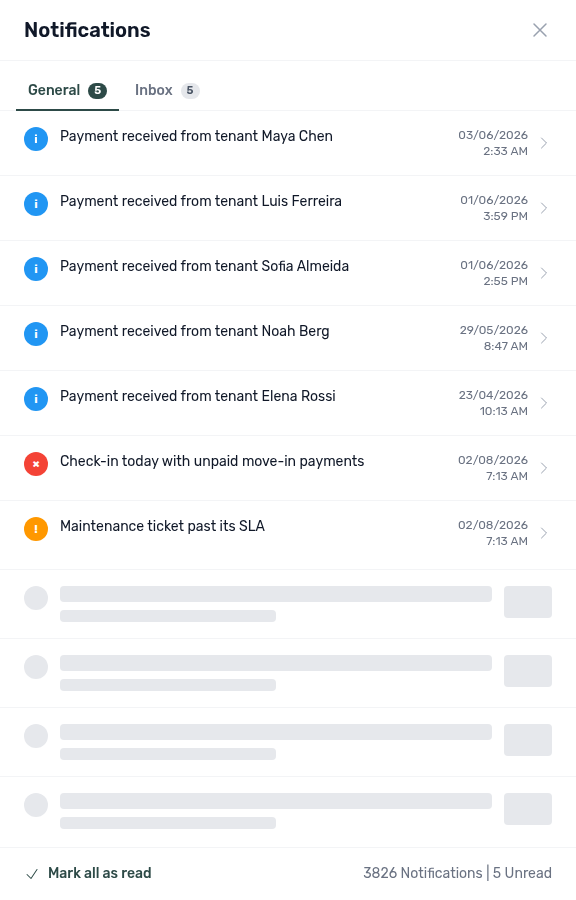
Owner-linked logins — General (and Inbox) on the same bell only list alerts for that landlord’s buildings:
Notifications guide subsection index
This index pairs Notifications triage sections with Related subsections — use it when bell General rows disagree with full /notifications search or read-status pills.
Notifications section cross-reference
Use the sections above for this module. Related pages are linked from Related below when present, or from Modules.
Related
Related below links this module to settings, concepts, workflows, and escalation paths.
Documentation map & escalation
- Modules hub — Hub pairing matrix across operator workspaces
- Deep Links — Notifications — Bookmarkable
/notificationsURL and Dashboard bell behaviour - Getting Started > Interface layout — Dashboard bell and full
/notificationsroute - Using in-app support — Vivin platform support tickets (distinct from product notification rows)
- Notifications section cross-reference — Section-to-module pairing table on this page
Upstream & downstream workflows
- Notification triage (workflow) — Step-by-step guide after busy booking or payment days
- Portfolio KPI review — Month-end pass that should clear stale unread rows before reconciling Dashboard and Analytics KPIs
- Handling a Late Payment — Collections workflow when payment alerts need Finance → Transactions follow-up
- Manual block hygiene — Availability alerts that clear after Audit removes stale manual blocks on Sales
- Cancelling a Booking — Clear booking alerts after early termination is recorded
- Managing a Check-out & Deposit Refund — Clear payment alerts after departure-week settlement (Step 6)
Deeper workflow reads
See Upstream & downstream workflows above for the same guides.
Settings that shape Notifications
- Settings > Preferences — In-app notifications — Account-wide category master switches before personal opt-out
- Settings > Interface Language — Your in-app notifications — Per-user category opt-outs
- Settings > Preferences — Account-level Receive payment notifications switch before personal opt-in
- Settings > Interface Language — Per-user email toggles that shape which payment rows appear here
- Settings > Chatbot — WhatsApp bot alerts that appear under bell Inbox rows
- Settings > Tenant categories — Segment definitions when Payments alerts cluster on one cohort — pair with Bookings — Tenant categories and Finance — Tenant category filter
- Settings > Emails — Communication Rules that generate some payment and lifecycle alerts surfaced here
Deeper concept reads
- Automation & AI — Communication Rules and chatbot channels that generate some rows surfaced here
- Integrations (concept) — Channel import alerts that sometimes precede payment notifications
- Booking Lifecycle — Computed Upcoming → Ongoing → Ended / Canceled status model, list filters, and Timeline
- Services Marketplace — Service requests alerts after portal orders need operator approval on Settings → Services
- Landlord MCP — External automation that may triage the same alert categories before row-click navigation
Operator modules (pairing surfaces)
- Bookings — Booking lifecycle and events (row-click navigation opens the detail sidebar)
- Bookings — Tenant categories — Portfolio segment filter when Payments alerts involve mixed tenant profiles
- Finance — Payment events
- Finance — Tenant category filter — In Debt triage by segment before account-wide reminder changes after alert triage
- Inbox module — Inbox sub-tab rows that deep-link into WhatsApp threads
- Operations — Ticket management
- Tenants module — Profile sidebar when tenant-scoped alerts carry
tenantId - Tenants — Tenant category filter — Profile-count cross-check before changing Communication Rules account-wide after payment alert triage
- Sales module — Availability context when channel sync disagrees with operator expectations
- Audit — Discounts tab — Cross-portfolio discount rows when payment alerts follow mid-stay repricing
- AI Chat module — Portfolio Q&A when alert volume suggests a cross-booking question before row-click navigation
Operator habit hubs
Day-to-day operator habits (lockout catch-up, pending receipts, payment triage, handoffs, and related playbooks) live on the Common Workflows habit hub.
Deep-link anchors for habit hubs
Lockout catch-up after password recovery
Pending manual receipt approval
Reject/revert mistaken receipts
Check-out ledger cleanup before refund
Utility overage collections
Cancellation collections before void
Check-out collections before refund
Handling a Late Payment collections
Check-out vs cancellation
Deposit missing on Finance Deposits
Notification row-click navigation
Payment alert to receivables triage
Month-end invoicing (fixed date)
Bulk Hostkit invoicing
Partly collected security deposit
Finance debt receivables triage
Finance Income status drill-down
Cash flow forecast drill-down
Confirmation alert triage
New inventory to first booking handoff
Property setup to first arrival handoff
Confirmation to check-in handoff
Check-in to check-out handoff
Check-out final utilities handoff
Same-day turnover coordination
Occupancy KPI to block hygiene handoff
WhatsApp per-booking messaging
Bot reasoning (audit)
ChatBot settings
Rent reduction after invoicing
Portfolio segmentation by tenant category
Directory list refresh
When the notifications list needs a refresh, use Retry — or reload the page. Zero rows after a successful load means your filters matched nothing — widen search or switch pills.
See FAQ — Directory list refresh and Glossary — Directory list refresh.
Booking sidebar tab refresh
If Communication or Tickets needs a refresh inside a booking opened from this module, use header Refresh or banner Retry. Other booking tabs stay usable.
See FAQ — Communication or Tickets won't open and Bookings — Sidebar tab refresh.
Key glossary terms
- Booking detail sidebar tab refresh — Communication / Tickets Refresh and Retry after row-click navigation
- Credit note (payment reject/revert) — Payment alerts that need Reject / Revert with invoiced-line follow-up
- Deposit dispute — Deposit-related alerts during check-out triage
- Glossary — End-of-Booking cost split — Charge Time → End of Booking splits daily overage across every occupied unit; still-staying roommates stay in the denominator
- Glossary — Change history — Operator-initiated edits on Listings setup and Bookings Changelog; create-time defaults excluded
- Glossary — Archived booking ledger visibility — Delete Booking hides manual/provider_platform rows on Finance → Transactions; vIBAN and credit card stay visible
- Glossary — Full term list
API & companion guides
- API Reference — Webhooks & Notifications — Partner HTTP callbacks (distinct from this in-app inbox) when channel imports change booking or calendar state
- AI usage API — Internal LLM token ledger (
GET /ai-usage/summary) when month-end alert triage pairs with Portfolio KPI review — Step 7; not tenant billing
Module documentation hubs
- Notifications module — Full
/notificationshistory with search, filters, and row-click navigation (this page) - Utilities module — Bills Included ceiling model, Connections, AI bill upload, and tenant overage charges on payment plans (hub)
- Operations module — Maintenance tickets, cash flows, check-in/out coordination, Draft ticket queues, and linked cash flows (hub)
- Dashboard module — Post-login Today, Total debt, Vacant Units, and forecast KPI snapshot with bell notification triage (hub)
- Analytics module — Month-range portfolio KPI charts (Overview, Revenue, Occupancy, ADR, RevPAR, Maintenance) with rankings and heatmaps (hub)
- Listings module — Property wizard, Channels tab, Archived inventory, and unit management (hub)
- Properties workspace — Legacy
/propertiesURL redirects into Listings (hub) - Booking engine details — Rich marketplace payload editor via the Full integration pill (hub)
- Finance module — Portfolio ledgers (Overview, Income, Contract Values, Transactions, Payouts, Deposits) with payment approval and deposit settlement (hub)
- Tenants module — Tenant directory, profile sidebars, With Debt segmentation, and table expand for linked bookings (hub)
- Sales module — Portfolio availability, monthly rent editing, and channel manager connections (hub)
- Inbox module — Portfolio-wide WhatsApp workspace with Dashboard bell Inbox sub-tab deep links (hub)
- AI Chat module — AI Assistant using Landlord MCP tools for portfolio Q&A (hub)
- Audit module — Portfolio-wide Manual Blocks and Discounts contract-value review (hub)
- Account Settings — Workspace-wide financial policies, templates, integrations, and operational defaults (hub)
- API Reference hub — Partner HTTP contracts, Swagger onboarding, and partial vs full feeds (hub)