Lead pipeline
Lead pipeline sets up your Leads as the journey every lead walks: Source → Stages → Follow-ups → Won / Lost, plus Lead scoring, Neighbourhood lines and E-mails under Across all steps. Each step explains what happens there, and you change its settings in place.
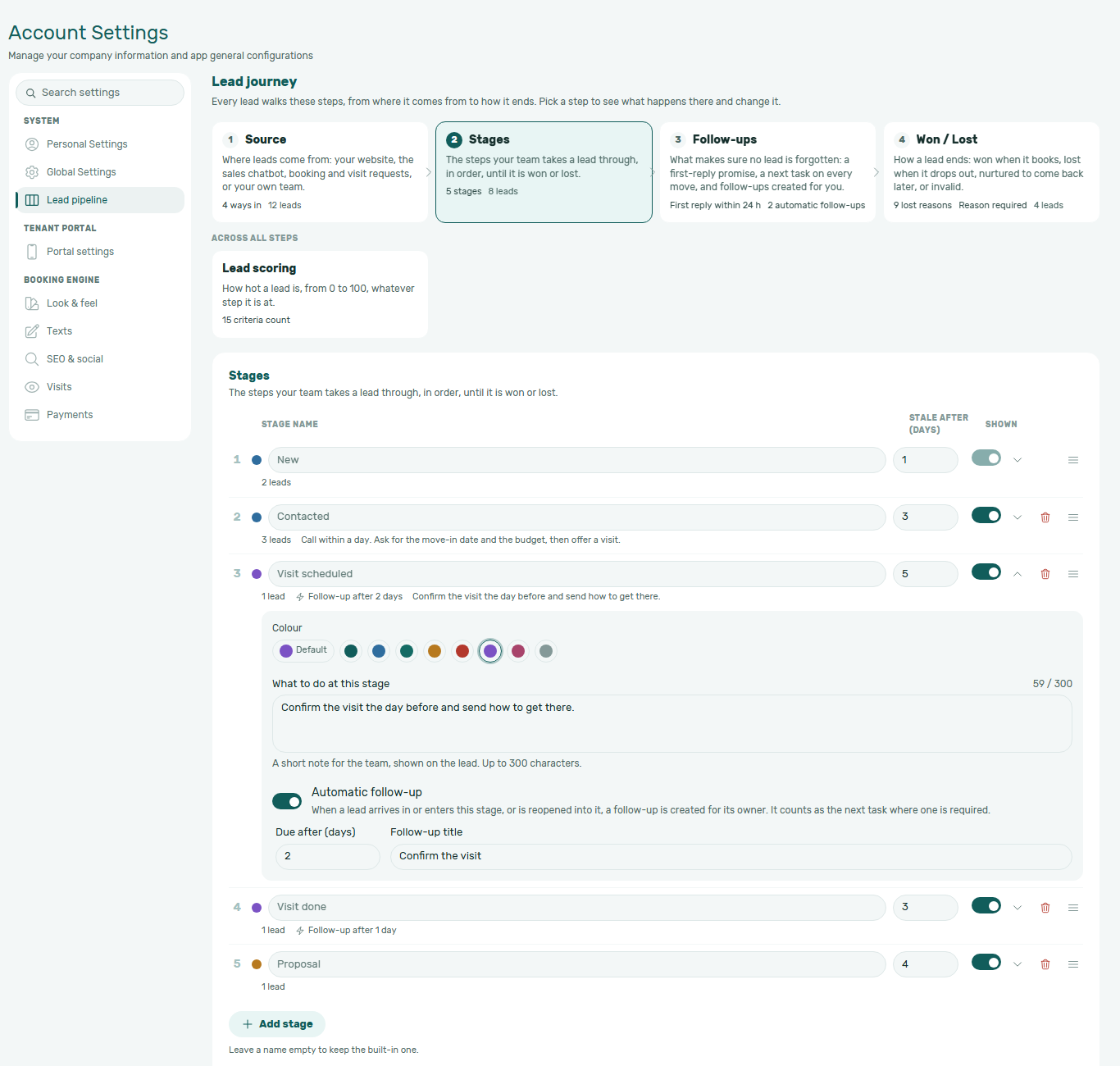
Where to find it
- Menu: Settings → Lead pipeline (
https://platform.vivin.app/settings/leads). The page opens on Stages; each step has its own address, for example?step=followUps. - Booking Engine: like Leads, it exists only on an account with the Booking Engine.
- Permissions: Account Settings → Module and Account Settings → Preferences open and save it; Super Admin and Admin have them by default. Without Account Settings → Edit the page is view only. Working on the leads themselves needs Leads → Module.
The journey and saving
The steps sit at the top as cards, numbered in the order a lead walks them, with Lead scoring, Neighbourhood lines and E-mails under Across all steps. Each card gives one line on what happens there, a short summary (for example 5 stages, First reply within 24 h or Reason required), how many leads are at that step, and a warning when something needs you: Needs a fix, 3 leads to move, No automatic follow-up or Lost has no reasons. Click a card to open its settings under the cards.
The page has one save for the journey steps, the score and the e-mails. Your changes wait in a bar at the foot of the screen, with Unsaved changes, Discard and Save. While a change would not be accepted (a blank or repeated name, a number out of range), the bar says what is wrong, holds Save, and Go to opens the step to fix. Switching to another Settings tab or following a link with unsaved changes asks Leave without saving? first, and the browser asks before a reload.
Automatic owner (on Source) and Working hours (on Follow-ups) each save on their own card, outside that bar.
1. Source
Where leads come from, to read: the website enquiry form, booking and visit requests, the sales chatbot and your team, as described in Leads. Each comes with a link to where it is set up (Open Requests, Visit settings, Sales chatbot settings, Open Leads), when your role can open it. Every new lead starts in your first stage.
Automatic owner
Who gets each new lead, by the shares you set. It applies to every new lead, whatever its source; you can still change the owner on the lead itself.
- Leave it off: new leads have no owner until someone takes them.
- Or Add person, pick teammates and give each a Share so the shares add up to 100%. Save on the card.
2. Stages
The steps your team takes a lead through, in order, until it is won or lost. Each row shows how many leads the stage holds, its automatic follow-up and its guidance.
- Edit the Stage name, up to 60 characters, or leave it empty to keep the built-in name.
- Set Stale after (days), from 1 to 365, or leave it empty for No clock. A lead that sits longer is marked Going stale on the board.
- Use Shown to take a stage off the board when your team never uses it.
- Click the arrow at the end of the row for the stage's colour, guidance and automatic follow-up.
- Drag the handle to reorder, Add stage to add one (at most 10; a new one starts at 7 days), or the bin to remove one.
- Click Save in the bar.
The first stage is always shown: every new lead starts there, so it cannot be hidden or removed. To change that, drag another stage above it and save first.
| Built-in stage | Stale after (days) |
|---|---|
| New | 1 |
| Contacted | 3 |
| Visit scheduled | 5 |
| Visit done | 3 |
| Proposal | 4 |
Colour and guidance
- Colour: Default (Teal), the brand colour, or Teal, Blue, Green, Amber, Red, Purple, Pink or Grey. The stage then wears it on its board column, on its card above the board, and on its badge in the table, the lead drawer and My follow-ups.
- What to do at this stage: a short note for the team, up to 300 characters. It shows on each lead in that stage, under Stage, as What to do in the stage.
Automatic follow-up
Switch on Automatic follow-up for a stage, the first one included, to create a follow-up each time a lead arrives in it, is moved into it or is reopened into it.
- Due after (days): from 1 to 30; a new one starts at 2. It falls due that many days later at the due time.
- Follow-up title: up to 80 characters. Left empty, it is called Follow up.
- It goes to the lead's owner or, when the lead has none, to whoever moved it. A lead that already has an open follow-up with that title does not get a second one.
- When your account asks for a next follow-up on every move, a move into a stage with an automatic follow-up does not ask for one.
Start from a preset
Start from a preset fills the stages and the lost reasons with a starting set: names, stale days, colours, guidance and automatic follow-ups. Stages that still hold leads stay, and a note names them. Your own lost reasons are switched off, never deleted. Nothing is saved until you click Save; Discard undoes it.
| Preset | Stages | Reasons it adds |
|---|---|---|
| Student residence | New enquiry, Options sent, Tour booked, Toured, Application sent | No guarantor; Course or exchange cancelled |
| Mid-term flats | New enquiry, Qualified, Viewing booked, Viewed, Offer sent | Stay too short |
| Short stays | New request, Quote sent, Awaiting payment | Minimum stay too long |
Remove or hide a stage that holds leads
Removing a stage, or switching Shown off, while it still holds leads asks where they go: Move the leads of the stage.
- Pick a stage in Move them to. Only shown stages are offered; when there is none, show or add one first.
- Click Move and remove (or Move and hide). Keep the stage leaves everything as it was.
- Click Save. The leads move with the change. If more leads arrived in the stage meanwhile, the same question comes back, then the save goes on.
Switching the stage back on before you save cancels the move. Moving leads needs Leads → Edit: without it, the dialog only says how many leads the stage holds and offers Keep the stage.
3. Follow-ups
What makes sure no lead is forgotten.
- First reply within: the hours the team has to give a new lead its first reply, from 1 to 8760 (24 by default). A lead's badge reads At risk, then Overdue, as the time runs out.
- Ask for a next follow-up on every move: moving a lead to another pipeline stage, when it has no open follow-up, asks for one (what and when), unless the stage creates its own. Winning, losing, nurturing, putting a lead on the waiting list or marking it invalid never asks.
- Move leads through the funnel by themselves: when on, an offer sent moves a lead to Proposal, a visit with its date to Visit scheduled, a paid reservation to Won, and new dates back to Contacted. A won or invalid lead never moves by itself; a person's latest lead, if lost, becomes Won when they pay a reservation and have no open lead.
- Follow-up cadence: one touch, one close: when a lead stops answering your last message — day 2 a follow-up for its owner with the text ready; day 8 the close e-mail; a day later closed as Lost (no response), or moved to the Waiting list if it waits for a room. Only leads with e-mail consent get the follow-up and the e-mail. While the team is talking to a lead, each step is a follow-up for its owner and the lead is never closed by itself. Only silences that start after you switch it on count. Needs Leads → Edit. While it is on, a stage's own automatic follow-up is not created.
- Ask for e-mail consent on the website: sign-up shows an unticked box with your consent words; the lead drawer shows consent (the team can record it). Funnel follow-up e-mails go only to leads with consent.
- Automatic follow-ups by stage: each stage that creates one, with its title and days. Set them in Stages opens Stages.
- Due time: automatic follow-ups fall due at 09:00 in your account's time zone, set in Global Settings → General Information. The Next follow-up? shortcuts on a lead use the same time.
Working hours
When automatic messages may go out and when the team answers, in the account's time zone. Automatic messages and Team each have their days and opening and closing times. With the follow-up cadence on, its steps use the automatic messages' hours and its follow-ups fall due in the team's hours. Optionally Move tasks that fall on a day off to the next working day. Save on the card.
4. Won / Lost
How a lead ends.
- Outcome names: how Won (the lead booked), Lost (it dropped out), Nurturing (not now: it comes back on a date you choose) and Invalid (spam, a duplicate or not a real enquiry) read on the board and on the lead. Up to 40 characters; leave a name empty to keep the built-in one. No two outcomes or stages can share a name. Waiting list stays under that name on the lead; you park a lead there from Leads, with a reason.
- Lost reasons: Price too high, Chose another option, Dates unavailable, Location or unit mismatch, Plans changed, No response, Screening failed and Other. Click one to offer it or not.
- Your own reasons: up to 12, of up to 60 characters. Add a reason, then name it; its switch offers it or not. A saved reason can be renamed or switched off, not deleted, because the leads lost for it keep it. Keep at least one reason on, built-in or your own.
- A reason is required to lose a lead: on, the team picks a reason every time. Off, the reason list also offers No reason.
Lead scoring
How hot a lead is, from 0 to 100, whatever step it is at. Each criterion has a weight from 0 to 100. The weights do not have to add up to anything: the score is scaled by whatever you leave on, and a weight of 0 ignores that criterion. Keep at least one above 0. The step shows how many points are allocated.
| Group | Criteria |
|---|---|
| Who they are | Has an email, Has a phone number, Stated a budget, Picked a property or unit (or room type, with residences), Handed over ID and tax details |
| What they want | Gave a move-in date, Moving in soon, Gave a move-out date, Wrote a real enquiry, Came to us directly |
| What has happened | We answered, We answered within the SLA, How far down the funnel it reached |
| Whether it is moving | Has a follow-up scheduled, Still inside its stage budget |
The score is worked out each time the leads load, so a saved change applies to every lead at once.
Neighbourhood lines
What the Sales chatbot says about each neighbourhood, in Portuguese and English. The chat adds these lines when it proposes a room there, and answers questions about the area only from them. A neighbourhood left empty gets no text.
- Open Neighbourhood lines under Across all steps (
?step=neighbourhoods). - For each neighbourhood your properties use, write one or two sentences in Portuguese and in English (what it is like and what is nearby).
- Click Save in the bar.
Neighbourhoods come from the Neighbourhood field on each property. With none set yet, the step says so until you fill them in on the properties. At most 60 neighbourhoods can have lines at once.
E-mails
The six e-mails of the funnel: who they come from, what they say, and a test to your own inbox. Portuguese goes to a lead who writes Portuguese; English to everyone else. Previews and tests use sample data.
- Under Who they come from, set the Mailbox replies go to and an optional Sender name (empty keeps the Booking Engine's sender name).
- Open each of the six (P1 · Your rooms, D1 · 10% off the admin fee, V1 · Your visit, R1 · Booking left half-way, F1 · Shall we close your search?, N1 · A room or a new house), preview it and send a test.
- Click Save in the bar.
Without edit rights
Without Account Settings → Edit, the page opens with View only. Your role can see this but not change it. Every step and each stage's details can be opened and read, but nothing can be changed: there is no Add stage, no preset, no bin, no drag handle and no save bar.
Tips
- Search Settings for "stale", "follow-up" or "lost" to jump to this page.
- Start from the preset closest to how you let, then rename what does not fit before saving.
- Hide the visit stages if you never show your places before a booking; the board then has fewer columns.
Related
- Leads: the board, the table, My follow-ups and the lead drawer.
- Global Settings: the time zone follow-ups are due in.
- Role Permissions: who can open and change this page.