Leads
Leads is your sales pipeline: everyone who showed interest in renting, from the first contact to the booking. You see it as a board, a table or your own list of follow-ups, and each lead opens in a drawer with its details, its follow-ups and its history. The tabs, status cards, toolbar, filters and export work as on every tab of CRM.
Where to find it
- Menu: Sales hub → CRM → Leads (
https://platform.vivin.app/leads). An old/leads/analyticslink opens the same page. - Booking Engine: Leads, like the whole Sales hub, needs the Booking Engine. An account without a VIVIN Booking Engine website has no Leads page and no lead settings: see Without the Booking Engine.
- Permissions: Leads → Module opens it; without Leads → Edit it is view only.
- Your pipeline: the stages, their colours and guidance, the follow-up rules, the lost reasons and the score are set in Lead pipeline.
Where leads come from
| Way in | Source on the lead | How |
|---|---|---|
| Website enquiry form | Website | Each enquiry sent from the form on your website. VIVIN support connects the form for you. |
| Booking and visit requests | Booking engine | A visitor who creates an account on your Booking Engine website to request a booking or a visit. |
| Sales chatbot | AI SalesBot | The visitor the Sales chatbot talked to, with what it learned. |
| Added by your team | The one you pick | New lead, for a call, an email or a walk-in. |
Every new lead starts in the first stage of your pipeline.
Views, status cards, search and filters
- Views: Board, Table and My follow-ups, to the left of Filters. The view is kept in the page address.
- Cards: All and the first four stages of your pipeline, each with how many leads it holds. Click a stage card to show only that stage. A stage with a colour of its own shows it on its card.
- Search: by name, email or phone.
- Filters: Source (or All sources), How did you hear about us, and Owner: All owners or My leads.
- Export: every lead that matches your search and filters, closed ones included, from the board or the table, with all of its fields.
Board
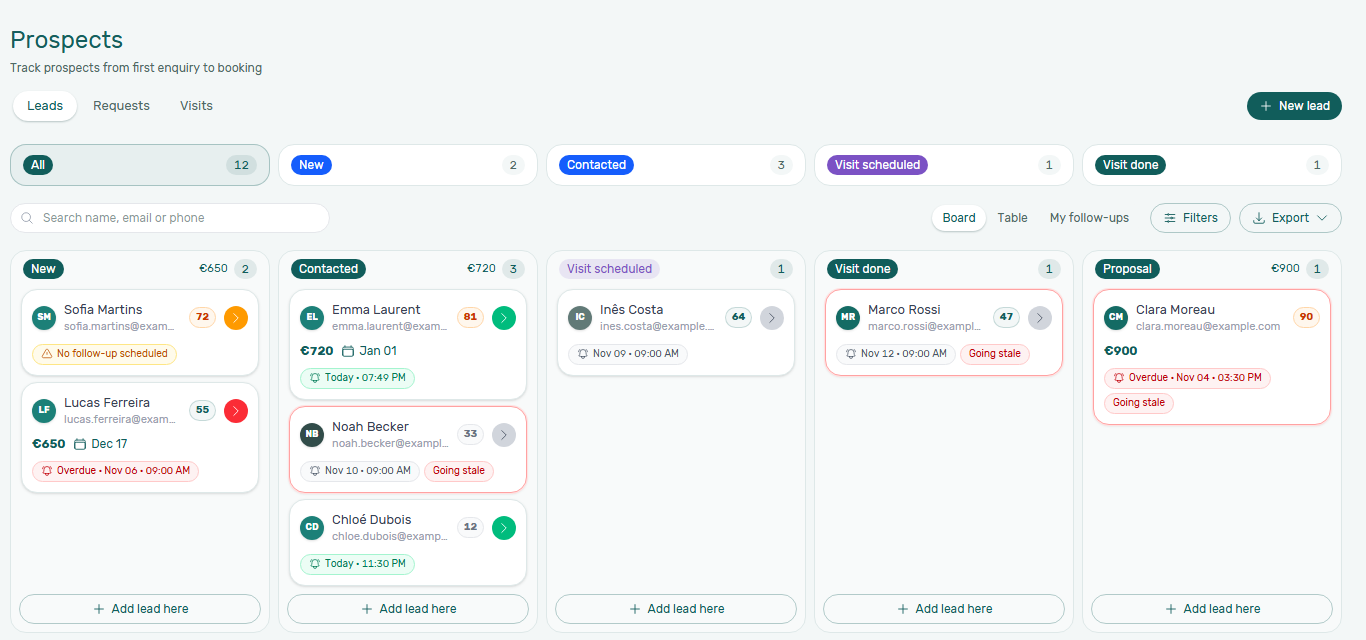
Board is the default view. It has one column per stage you show, in your pipeline's order, and holds the leads still in the pipeline; won, lost, nurtured, waiting-list and invalid leads are on the Table. Each column header shows the stage (in its colour, when it has one), the budgets of its leads added up, and how many leads it holds.
A card shows the lead's name and email or phone, its score, budget and desired move-in, the residence it wants (when you use residences), where a website lead came from, and its follow-up indicator. A card with a red edge and Going stale has sat in its stage longer than the stage allows. The score runs from 0 to 100; hover it to read Hot (70 and up), Warm (40 to 69) or Cold.
- Move a lead: drag the card to another column, or click the arrow on the card to move it one stage on (its tooltip names the stage). The arrow takes the colour of the follow-up indicator, and is not on the last stage.
- Win or lose: while you drag, Drop here to win and Drop here to lose appear under the board. Lose opens the lead's drawer to ask for a reason. A lead is won with its booking, so a lead without one opens its drawer, where you use Convert to booking.
- Next follow-up: when your account asks for a next follow-up on every move, the lead has none open and the stage does not create its own, the drawer opens to ask for one.
- Add lead here, at the foot of each column, opens New lead. A new lead always starts in the first stage.
The board holds up to 500 leads; past that, narrow the filters or use the table. When some leads stand in a stage the board no longer shows, a line under the board says how many, and the table lists them.
The follow-up indicator
Every lead says how its next follow-up stands, in words as well as in colour. The same indicator is on the board cards, in the table, in My follow-ups and on each follow-up in the drawer.
| It reads | Colour | When |
|---|---|---|
| No follow-up scheduled | Amber | The lead has no open follow-up. |
| Overdue · Nov 06 · 09:00 AM | Red | The follow-up's date, or its time, has passed. |
| Today or Today · 02:00 PM | Green | The follow-up is due later today. |
| Nov 12 · 09:00 AM | Grey | The follow-up is due on a later day. |
A follow-up saved without a time shows only its day, and becomes overdue once that day is over. "Today" and the times follow your account's time zone, set in Global Settings → General Information, whatever the time zone of your computer.
Table
Table lists every lead, won, lost, nurtured and invalid included, with Score, Stage, Source, Desired move-in, Budget, Next follow-up, Last activity and Owner. The highest score comes first. Click Score, Desired move-in, Budget or Last activity to sort by it, and click again to reverse. More rows load as you scroll; the foot shows how many leads are listed.
Next follow-up shows the follow-up indicator. A won, lost, nurtured or invalid lead with nothing open shows a dash instead of a warning.
My follow-ups
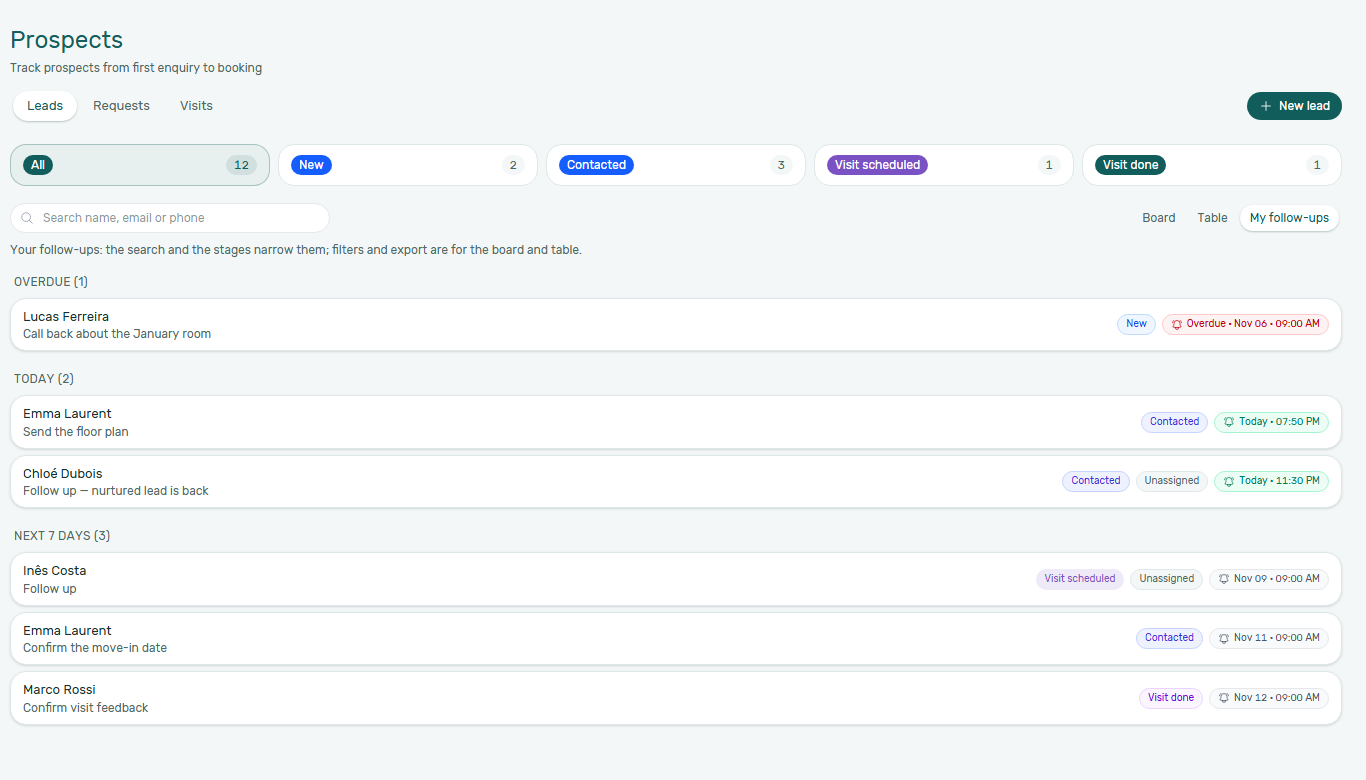
My follow-ups is your work list: your open follow-ups and the ones nobody is assigned to, from the overdue ones to those due in the next 7 days. When Follow-up cadence is on, its day-2 and close follow-ups appear here with the text ready to send.
- They are grouped as Overdue, Today and Next 7 days, each with how many it holds.
- Each row shows the lead, the follow-up, the lead's stage, Unassigned when nobody has it, and the follow-up indicator.
- Click a row to open the lead in its drawer, where you complete, change or move it.
- The search (the lead's name or the follow-up) and the stage cards narrow the list. Filters and Export belong to the board and the table, so this view does not offer them.
New lead
New lead, to the right of the tabs, opens a window over the list.
- Enter the First name and an Email or a Phone. A Last name is optional. If a lead with this email or phone already exists, the window says so; you can still save.
- Open the blocks you need:
- Interest: Source, How did you hear about us (the same answers as on your website under Booking Engine → Texts), Budget, Desired move-in, Desired move-out, Entry date (defaults to today on your account's calendar; leave it as today unless you set another day), Occupation, Destination, Desired typology and Enquiry.
- Residence, when you use residences: Residence, Room type, Tenancy option and Booking type.
- Identification: nationality, ID document, tax number and home address.
- Click Save. The lead starts in the first stage and its drawer opens.
AI SalesBot is not offered as a source: only the chatbot's own leads carry it.
The lead drawer
Click a card or a row to open the lead on the right. Its id goes in the page address (/leads?lead=<id>): a reload keeps it open, and you can send the link to a colleague. Closing the drawer with something typed and not saved asks first. Its head stays in place while you scroll:
- The name, the stage and the response badge: On track, At risk or Overdue, from the first response time and the days the stage allows.
- Open tenant page, for a lead linked to a tenant: the tenant portal as the person sees it (their bookings, requests, visits and offers), without acting in their name.
- See conversation, for an AI SalesBot lead: the chat that brought it in, in Inbox. It needs Sales hub → Prospects: Lead offers.
- The source, the desired move-in, the Entry date and when the lead was created.
- Four tiles: Days in stage, Next follow-up (amber when none, red when overdue), Budget and First response.
- The tabs Info, Follow-ups, Notes, Activity and, when your role can read it, Communication (website chat with the person), with Reopen for a lost or invalid lead and Convert to booking for any lead not yet won.
Info
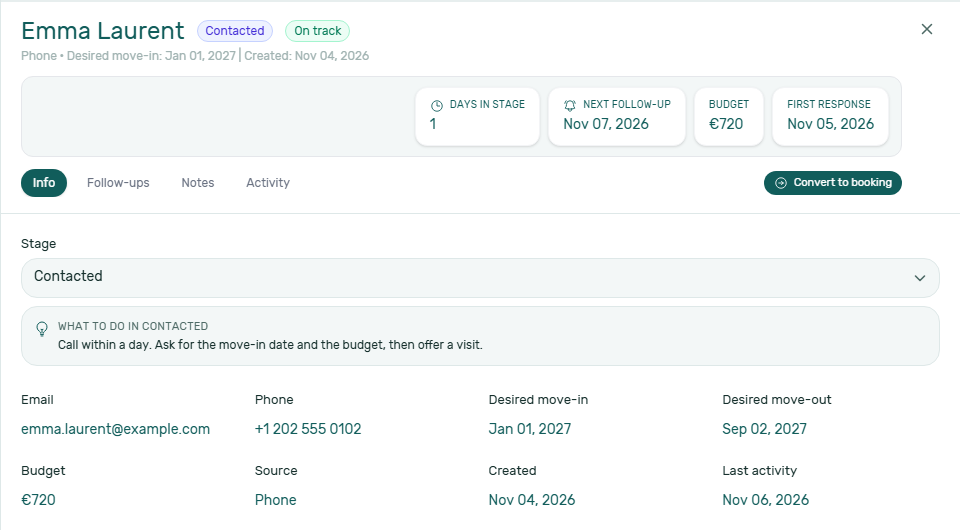
- Stage moves the lead to any stage you show, or to Nurturing, Waiting list, Invalid or Lost. Lost asks for a Reason from your lost reasons; when your account does not require one, No reason is offered too. Nurturing asks for a Bring back on date: the lead returns to the pipeline that day. Waiting list asks Why it waits: Wants to talk later or Waiting for a room. A move to a pipeline stage asks for a Next follow-up (what and the day) when your account requires one, the lead has none open and the stage does not create its own; it is due at 09:00 that day in your account's time zone, or at the end of the day when you pick today after 09:00. These moves wait for Save; any other move happens at once.
- What to do in the lead's stage: the note your account wrote for that stage in Lead pipeline, under Stage. A stage without a note shows nothing.
- Email, Phone, Desired move-in, Desired move-out, Budget, Source, How did you hear about us, Entry date, Occupation, Destination, Desired typology, Created and Last activity. When Lead pipeline asks for e-mail consent on the website, the drawer also shows that consent (the team can record it here). A lead from your website also shows its Entry channel and Campaign when the page it signed up on said so. The table also shows Entry date, Destination and Desired typology; board cards show the Entry date. Search includes destination.
- Enquiry: what the person wrote.
- Tenant details: nationality, ID number, document type, country and expiry, tax number and home address. Click the pencil to edit them (with the tenant category when you use categories) and Save.
- Delete, at the foot, removes the lead with its notes and follow-ups, after you confirm.
Reopen puts a lost or invalid lead back in the stage it left.
Residence
With Residences on and at least one residence, the Residence block shows the Residence, Room type, Tenancy option and Booking type the lead wants. Click the pencil to change them; a new residence clears the room type, the tenancy option and the unit of the previous property. Under it, one line gives the price of the stay (or the room type's price "from", for that season) and how many rooms of the room type are free for it, for example "3 of 18 free in 2027/28".
Booking Engine and Send offer
For a lead linked to a tenant, with Sales hub → Prospects: Lead offers, the Booking Engine block shows what the person told your website:
- The stay: Move-in, Move-out, Total stay, Monthly budget, Looking for, Rooms, People and Area, then Looking since, Booking requests, Visit requests, How did you hear about us, what they wrote about themselves and their presentation video.
- Matching rooms: rooms free for the whole stay, in the area they asked for and up to €150 over their budget. Pick up to four rooms, each marked Free for the stay. Preview and send shows the e-mail they will get; Send the offer sends it by email and to their Booking Engine account. A room with an offer still waiting for an answer shows Offer pending.
- Already shown or sent: what they already saw on the site, what the assistant suggested, offers sent, and booking or visit requests.
- Offers sent: each offer with its rooms (accepted or declined), Sent on, Expires on while pending, and its status: Pending, Accepted, Declined or Expired.
There is nothing to match until the person has told your website the stay they want. A person who has already found a place, or who does not accept offers, gets no new offer. Sending one needs Sales hub → Edit.
Site activity
For a lead linked to a tenant, Site activity shows what the person did on your website while signed in, after accepting analytics cookies:
- An engagement badge (High, Medium or Low engagement), when they were first seen, their visits, listing views and time on the site.
- Came from, Country of access, Device and Last seen.
- Listings viewed, with views, photos and the last view. With Sales hub → Site analytics: Listings, each listing opens its page in Site analytics.
- Dates picked, Buttons pressed, Pages visited and, folded, All events.
Follow-ups
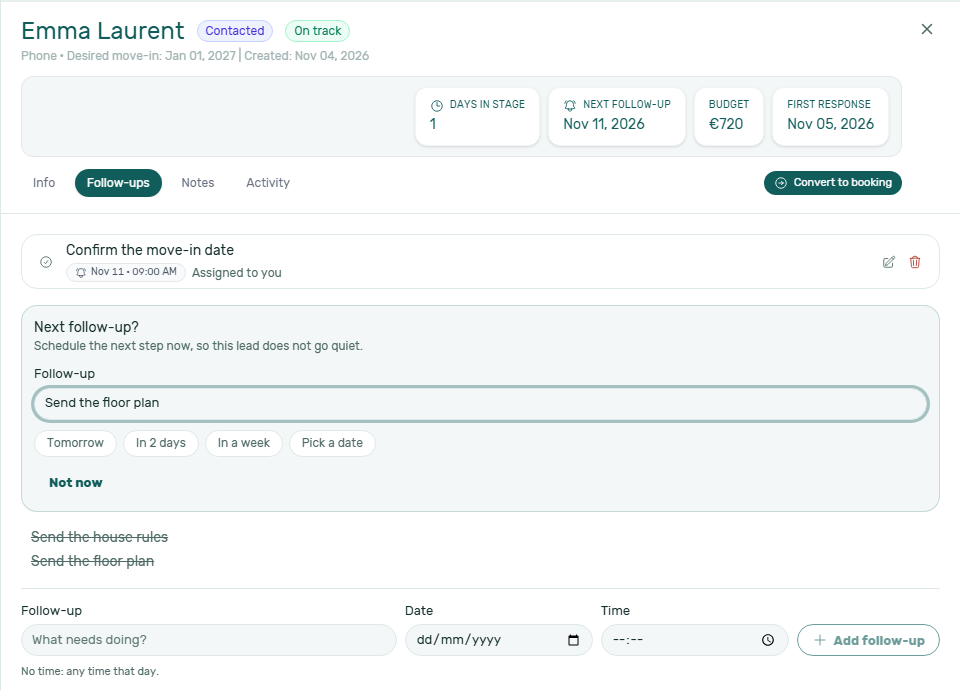
The lead's open follow-ups, each with its indicator and who it is for (Assigned to you, a colleague, or Unassigned), then the done ones, struck through. Follow-ups a stage creates by itself are listed like the others.
- Complete: click the tick on a follow-up. Next follow-up? opens at once with the same title, which you can change: click Tomorrow, In 2 days or In a week to schedule it at your account's follow-up time (09:00), or Pick a date for a Date and an optional Time, then Add follow-up. Not now closes the panel without scheduling one.
- Edit: the pencil opens Edit follow-up: the Follow-up, its Date and Time, and Assigned to (Unassigned, Me or someone on your team). Click Save.
- Delete: the bin asks you to confirm, then removes the follow-up from the lead.
- Add one: at the foot, write what needs doing, pick the Date and, if it matters, the Time, and click Add follow-up. Without a time, it is due any time that day. It goes to the lead's owner, or to you when the lead has none.
Without Leads → Edit the list is view only.
Notes and Activity
- Notes: your team's notes, with author and date. Write one and click +.
- Activity: what happened to the lead, newest first: created, first answered, moved, won or lost, notes added and follow-ups done.
Convert to booking
- In the drawer, click Convert to booking.
- If the lead has no email or no surname, add them: a tenant needs both. Click Convert to booking.
- VIVIN creates the tenant, or links the existing one, and opens the booking form with that tenant locked and the lead's property, unit and dates filled in.
- Save the booking. The lead is Won and linked to it.
A lead of a residence converts in one step instead: Convert into a booking by room type creates the tenant, a booking on a free room of the room type (provisional until the room is confirmed) and the won lead together, with Book and win the lead. It needs Residences → Manage. If you cancel, nothing is created.
Tips
- Start the day on My follow-ups: it holds what is overdue and due today, with the follow-ups nobody has taken yet.
- Give each stage an automatic follow-up in Lead pipeline, so a lead never enters a stage with nothing scheduled.
- When you complete a follow-up, schedule the next one from Next follow-up? instead of closing it: a lead with No follow-up scheduled is the one that goes quiet.
Related
- CRM: what the three tabs share, and who can open each.
- Lead pipeline: sources, stages, follow-ups, won and lost, and the lead score.
- Requests: the booking requests from your website.
- Sales chatbot: the website chat that brings in leads.
- Site analytics: how people find and read your listings.