Booking Engine animations & effects
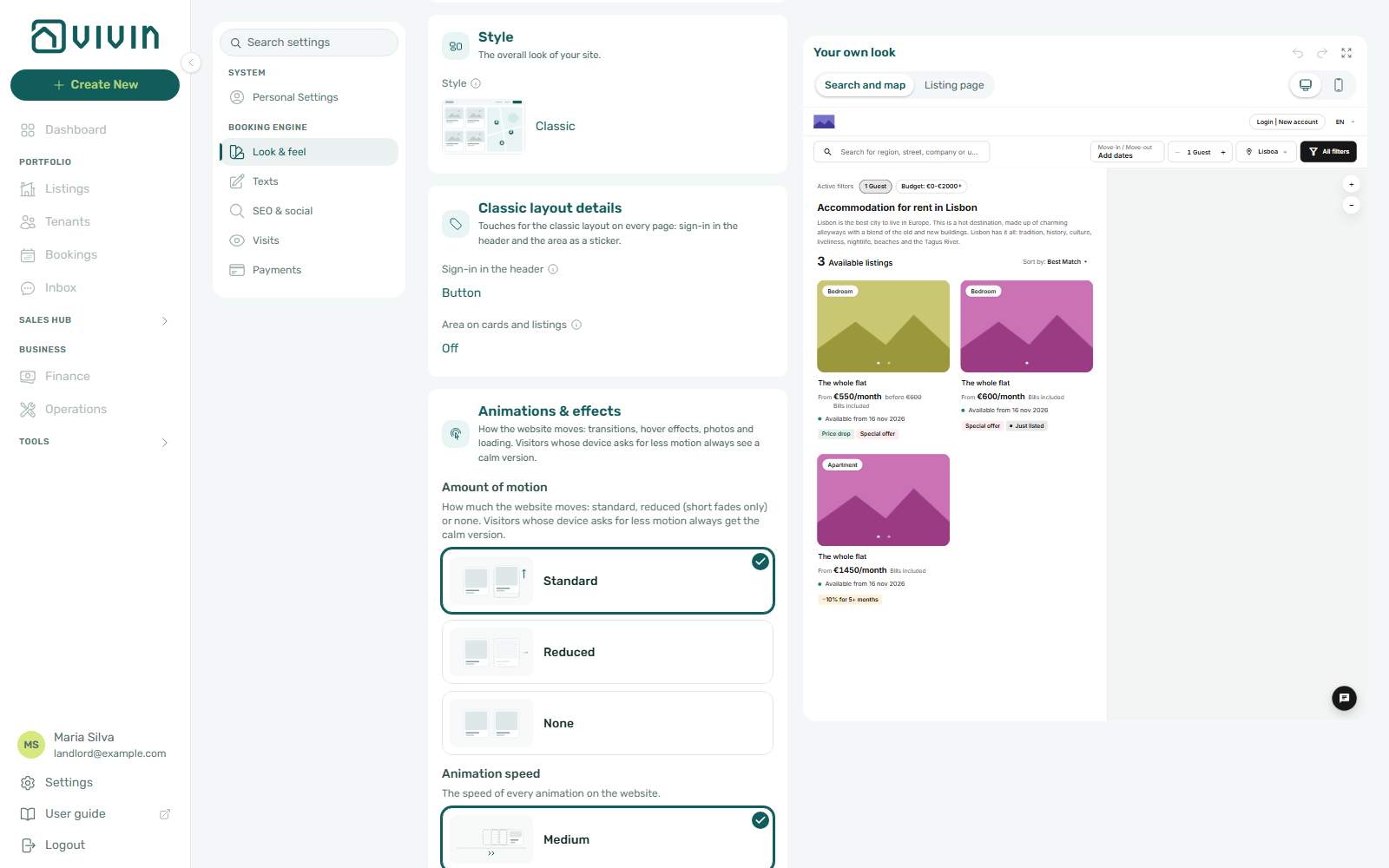
How your Booking Engine website moves: page and step transitions, what cards and buttons do under the pointer, how photos and results appear, and the animation when a request is sent. The same settings apply to both layouts.
Where to find it
- Settings → Sales hub → Look & feel, tab Design, card Animations & effects.
- Permission: Sales hub → Settings: Look & feel. A user linked to an owner can read these settings but not change them.
- Every setting here goes into your draft and plays in the preview at once; nothing changes on your website until Save & publish. See Save and publish.
Visitors who ask for less motion
A visitor whose phone or computer is set to reduce motion always gets a calm version of your website: no movement, zoom, stagger or slide, at most a short fade. This applies whatever you choose here, and cannot be turned off.
The settings
The option in bold is the default: it leaves your website as it was.
| Setting | What it does | Options |
|---|---|---|
| Amount of motion | How much the website moves. Reduced keeps short fades only. | Standard, Reduced, None |
| Animation speed | The speed of every animation on the website. | Medium, Slow, Fast |
| Reveal on scroll | How sections and cards appear as the visitor scrolls down the page. | None, Fade in, Fade in and rise |
| Result cards appearing | Whether search result cards appear all at once or one after another. | All at once, One after another |
| Card hover effect | What a search result card does when the pointer is over it. Computers only. | None, Lift, Lift with shadow, Zoom the photo |
| Photos appearing | How photos appear once they have loaded. | At once, Fade in, From blurred to sharp |
| Changing photos | How the photos of a card or a listing change from one to the next. | Slide, Cross-fade, Instant |
| Map pin highlight | How the map pin of the card under the pointer stands out, and the card of the pin under the pointer. | Standard, Colour only, None |
| Page transition | The transition when the visitor opens another page of the website. | None, Fade |
| Booking step transition | The transition between the steps of the booking journey. | None, Fade, Slide |
| Confirmation animation | The animation on the "request sent" and "booking confirmed" screens. | None, Tick, Tick and confetti |
| Loading placeholders | How the placeholders look while results and pages load. | Shimmer, Pulse, Still |
| Button hover effect | What buttons do when the pointer is over them. | Darken, Lift, None |
| Pop-ups and panels | How pop-ups, side panels and phone sheets open and close. | Standard, Fade, None |
Amount of motion on None stops every animation and transition for every visitor, whatever the other settings say. Reduced drops every movement, zoom, stagger and slide, and keeps short fades.
Tips
- Change one setting at a time and watch it in the preview: hover a card, open a listing or click through the booking steps.
- Reduced is a good middle ground for a calm, fast website: it keeps the fades and drops the movement.
- Keep Confirmation animation short on a site that takes many requests a day: the tick alone is enough.