Booking Engine look & feel
Design your Booking Engine website with the real site beside the settings, and publish it when it is ready. What your website says is on Texts and SEO.
Where to find it
- Settings → Sales hub → Look & feel (
https://platform.vivin.app/settings/bookingEngine?subtab=ux). - Only on an account that runs a VIVIN Booking Engine website.
- Permission: Sales hub → Settings: Look & feel. A user linked to an owner can read these settings but not change them, and has no Listing labels.
How the screen works
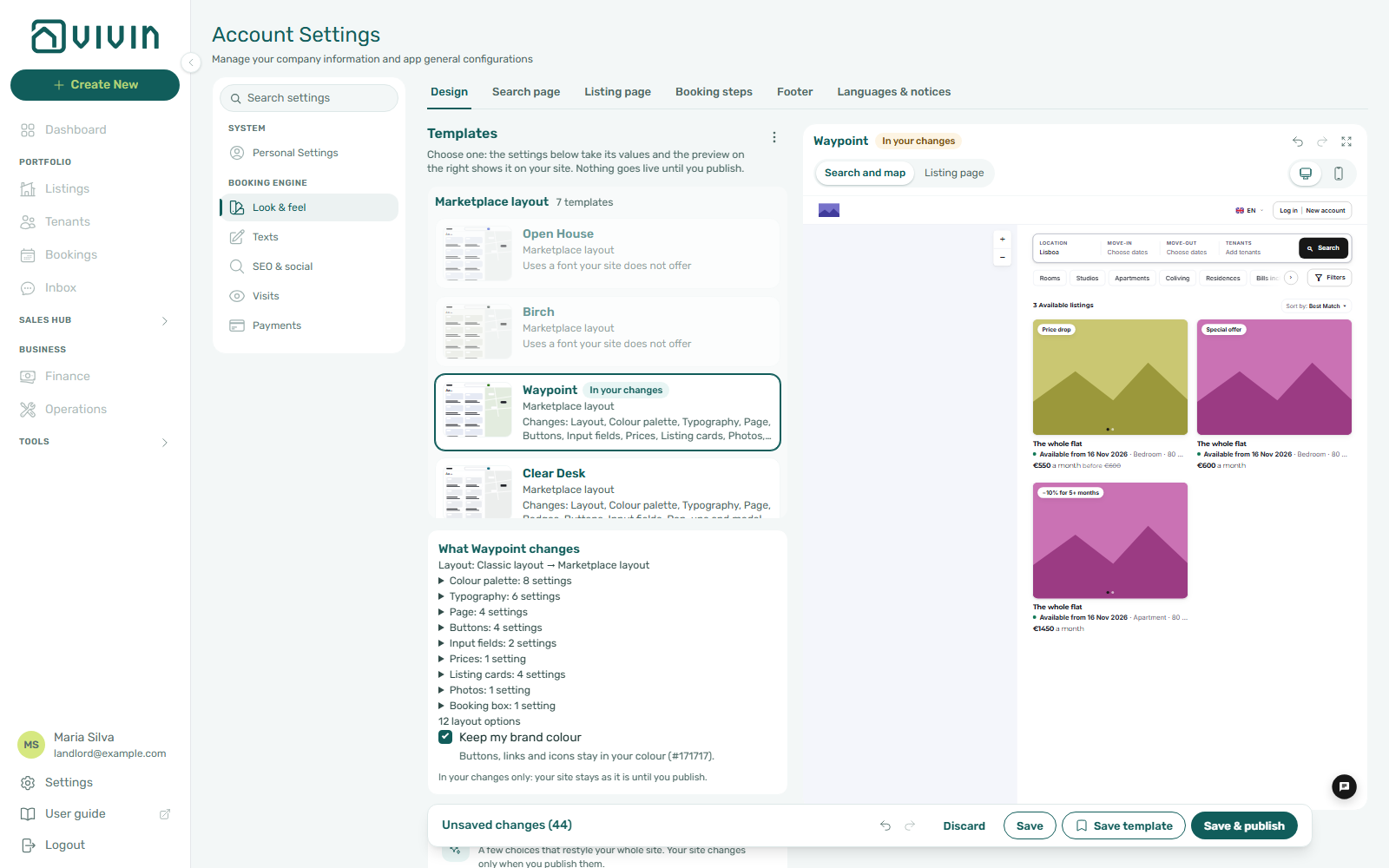
Look & feel has six tabs. On each, the settings are on the left and your real website on the right; on a phone, Settings and Preview switch between them.
| Tab | What it sets | Page |
|---|---|---|
| Design | Templates, quick style and colours, every detail of the look, brand, font, layout, animations, All settings | Design, below, and Animations & effects |
| Search page | The map, the results, the result cards, the filters and the stay picker | Search page |
| Listing page | The photos and the "All photos" view, the sections, the booking box and the stays offered | Listing page |
| Booking steps | The mid-term, short-stay and visit flows, the booking summary and the visit rules | Booking steps |
| Footer | The footer's type, legal links, texts, links, images, contacts and social links | Footer, below |
| Languages & notices | The languages offered, how notices show and the cookie banner's shape | Languages & notices, below |
Each card shows its values, an (i) explains them and the pencil opens it. A dot beside a tab's name means a card there holds changes; you can move between tabs and keep them. Leaving Look & feel with unsaved changes asks first.
In the option lists, the choice in bold is the default: it leaves your website as it was. You can also ask Genius, or an AI tool connected through the Landlord MCP, to read or change any of them.
Save and publish
Your changes repaint the preview at once, and a bar appears at the bottom of the screen as soon as something is edited:
- Save keeps your changes as a draft that visitors never see.
- Save template saves the draft and keeps that look in your templates, under a name.
- Save & publish lists what changes and, once you confirm, puts it on your website. Visitors see it within about 2 minutes.
- Discard drops what you have not saved; with nothing unsaved, it offers Delete draft. Your website keeps its look.
- Undo and Redo step through your changes, here and above the preview.
A card's own Save puts a design change into your changes, for the bar to save or publish. A few cards hold business choices rather than design, and skip the draft: their Save reaches your website within about 2 minutes, and the preview reloads. Each page says which ones. On this page: Brand, the footer's Footer texts, Footer links and images, Contact details and Social links, and Languages.
Preview
The right side is your real website with your changes, read-only: nothing you do in it is sent, so no booking, payment, visit request or message.
- A tab about a page opens that page, and Booking steps follows the step you click.
- Above it: Search and map or Listing page, and Web or Mobile. On a listing, you also pick the page, such as Booking request or Payment, and the listing.
- The expand icon opens it full screen, with Save and Save & publish.
Design
Templates
A template sets colours, fonts, shapes and layout options in one choice. Your logo, texts, languages, features, footer parts, legal links and booking steps stay as they are.
Your templates come first, then the built-in ones by layout, each saying what it would change. Click one and it goes into your changes: the settings take its values, the sections it touches say Changed, and a list shows each setting's old and new value. On a built-in template, Keep my brand colour stays ticked if your site has a brand colour; untick it to take the template's.
Current marks the template your website uses, Current, with your colour the same one with your own colours, and In your changes the one not published yet.
Save template on the bar keeps the look on screen; Save current look, in the ⋯ menu beside Templates, keeps the look your website has now, once your changes are published or discarded. You can keep up to 20. The ⋯ on one of yours renames or deletes it, and your website keeps its look.
Quick style and colours
Six choices restyle the whole site: Brand colour, Palette, Font pairing, Roundness, Density and Depth. Each shows the option in use, Standard if you have not chosen one, or Custom if a detail no longer matches an option; Reset goes back to the standard. Your other colours follow one by one, and one that is hard to read on its background shows a contrast warning.
Customize
For the details, in two views. Opening an item moves the preview to the page where it shows, and the values are the same on Web and Mobile.
- Theme settings, element by element, such as Typography, Buttons, Listing cards, Photos or Booking box. The shape of the photos on the result cards is Card photo shape, under Listing cards; the classic layout's photo grid size is Main photo width and Photo grid height, under Photos.
- Blocks, one part of the page at a time, such as Header, Search bar or Result card, with its own width, text, colours and padding.
Brand, font and style
- Brand: Logo, Logo size, Browser icon and Phone home-screen icon.
- Typography: the Font of every text on your site.
- Style: Classic, the list beside the map, or Marketplace, with large photo cards, a labelled search bar and a booking card that stays in view. A setting that belongs to one layout is locked in the other, says so and keeps its value.
- Classic layout details: Sign-in in the header and Area on cards and listings.
- Animations & effects: how the website moves, from page transitions to the confirmation animation. See Animations & effects.
All settings
The last row of Design opens every setting of your website in one list, grouped by where it is edited, with its Current value and what the site does When not set. Search all settings finds one by name, key or value. A row edits in place or opens the setting where it lives; the rows wait while the look has changes not published. The list also shows the E-mails the site sends: each team e-mail that can be muted links to Personal Settings → Booking Engine notifications (Mute in Personal Settings…); some team e-mails are Always sent; tenant e-mails are not muted from here.
Search page
Where the map goes and how it behaves, what each result card shows, the filters and how visitors choose their stay. See Booking Engine search page.
Listing page
The photos at the top of a listing and the "All photos" view, which sections show and in what order, the booking box and the short and mid-term stays offered. See Booking Engine listing page.
Booking steps
What a visitor goes through to book a mid-term stay, book a short stay or ask for a visit, the booking summary and the visit rules. See Booking Engine booking steps.
Footer
- Footer type: a Footer template (Standard, Columns, Centred, Minimal, Colour band) or Your own footer, the text under Footer texts. What the footer shows turns on or off the Logo, Line under the logo, Contact details, Social links, Language selector and Images; a part with nothing to show never appears.
- Legal links: for Privacy policy, Terms and conditions, Cookies policy and About us, set one
https://URL, the same in every language, and show or hide the link. A page you wrote before keeps showing until you give it a URL, and a page with neither shows nothing. Hiding only takes the link out of the footer: the terms stay linked where a tenant accepts them. - Footer texts: your own Footer text, also used at the bottom of the emails, and the Line under the logo, in each language.
- Footer links and images: up to 8 links, to an
https://page, amailto:address or a path of your site such as/faq, and up to 6 images such as partner, certificate or payment logos. A link with no text in a language shows its English text there; with no English text, it is left out. - Contact details and Social links. Like the links and images, they show in the template footers, not in your own.
Languages & notices
- Languages: the languages your site offers, at least one. A visitor whose browser uses one of them lands in it.
- Notices: Your notices shows your popups as a Window over the page or Inside the page, and Cookie banner shape is a Centred panel or a Full-width bar.
Genius
Genius, above the preview, opens beside your website. Say how you want the site to look, or attach with + up to 4 images (PNG, JPEG, WebP or GIF, up to 10 MB each): a print of a site you like, your logo or a brand sheet. It proposes a look for your draft, the site repaints and Undo takes it back. It saves nothing and leaves your public website as it is. It does not set the logo, the favicon, the footer's texts, links and images, the Texts or photos; for anything else, ask on the Genius page. It needs Account Settings → Mcp.