Booking Engine listing page
The Listing page tab of Look & feel sets the page of each listing on your Booking Engine website: its photos, its sections, its booking box and the stays it offers.
Where to find it
- Settings → Sales hub → Look & feel, tab Listing page. The preview on the right opens a listing; you can pick which one above it.
- Permission: Sales hub → Settings: Look & feel. A user linked to an owner can read these settings but not change them.
- The draft, the bar at the bottom and the preview work as on every tab: see Save and publish. In the tables below, the option in bold is the default: it leaves your website as it was.
Photos
Every photo setting of your website, wherever it is edited:
| Where the photos show | Setting | Where to change it |
|---|---|---|
| On each search result card | Photos per card: All, 1, 3, 5 or 10. With 1 there is no photo carousel. | Search page → Result cards |
| Shape of the card photos | Card photo shape: Classic (10:7), Almost square (20:19), Wide (16:9), Standard (4:3) or Square. The classic layout starts at Classic, the marketplace at Almost square. | Design → Customize → Theme settings → Listing cards |
| At the top of a listing | Photos: Grid or Carousel, and Photos at the top of a listing. | Photos and sections, below |
| After "Show all photos" | All photos view: Standard, By room or Grid. | Photos and sections, below |
| Size of the grid (classic layout) | Main photo width and Photo grid height. A carousel at the top follows the grid's height. | Design → Customize → Theme settings → Photos |
However many photos the cards and the top of a listing show, "Show all photos" ("See photos" with the marketplace layout) always opens every photo of the listing. How photos appear and change is in Animations & effects.
Photos and sections
- Photos: Grid or Carousel.
- Booking card (marketplace layout): On the right, On the left or Horizontal, a rectangle under the photos with the sections below it. It stays in view while the page scrolls; phones always show the bar at the bottom of the screen.
- Order of the sections: drag a section or use the arrows, and the eye shows or hides it. Back to the default order and Show all sections undo both. With the marketplace layout, house rules and rental conditions show together in Before you book. Listings built from an integration template keep the template's order. The order and which sections show skip the draft: the card's Save puts them on your website.
The other settings of the card, each with a drawing:
| Setting | What it does | Options |
|---|---|---|
| Photos at the top of a listing | How many photos the top of the page shows, in its grid or its carousel, before "All photos". Standard is one large photo and two or four smaller ones with the grid, and every photo with the carousel. With 1 there is only the main photo. | Standard, 1 photo, 3 photos, 5 photos |
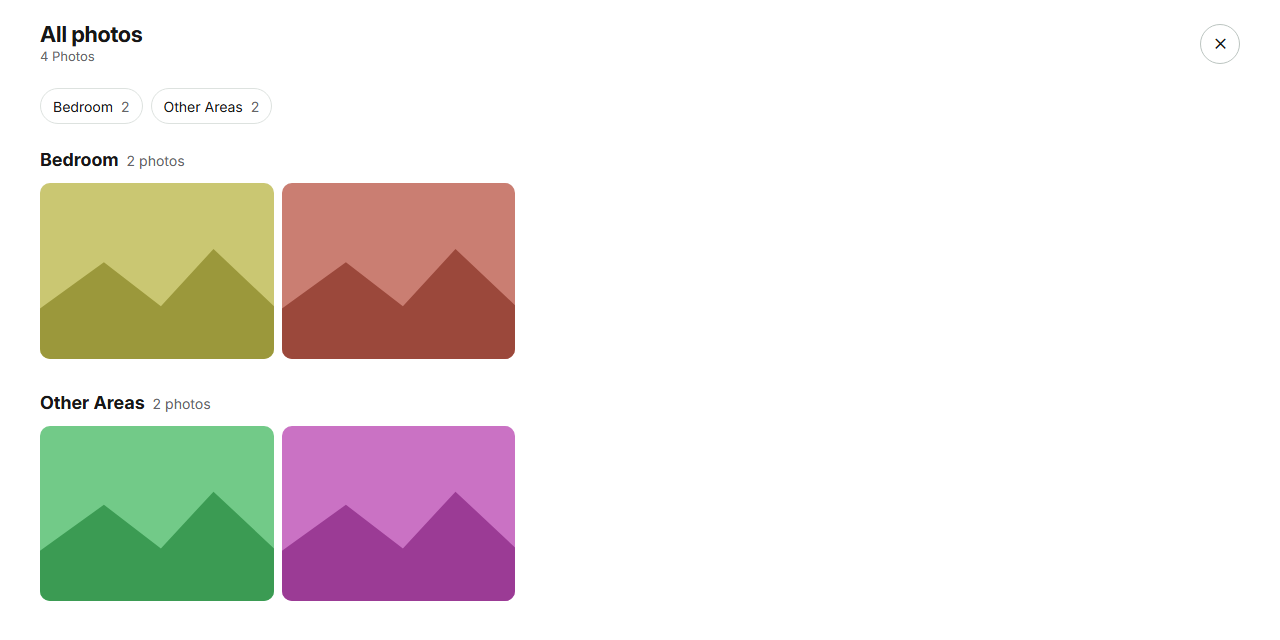
| All photos view | What "Show all photos" opens. Standard keeps the large photo with the small ones under it (with the marketplace layout, the grid of every photo first). By room groups the photos by room, each under its own name, with a row of the rooms at the top to jump to one. Grid shows every photo in one grid. A photo opens full size, and Back to all photos returns to the rooms or the grid. | Standard, By room, Grid |
| Section tabs | The tabs that jump to each section of the page. | Shown, Hidden |
| Share button | The button to share the listing. | Shown, Hidden |
| Amenities shown first | How many amenities show before "Show more". | Standard, A few, All |
| Missing amenities | The amenities a listing does not have, crossed out. Marketplace layout only. | Shown, Hidden |
| Similar places shown | How many similar places the page suggests. | All, Up to 3, Up to 6 |
Booking box and prices
Price before checkout, Bills line, Prices on the availability bars, Other rooms of the house, Booking illustrations and, with the classic layout, Payments in the booking step. Bills line skips the draft. Whether a listing sold for both short and mid-term stays shows both prices is set on the result cards and applies here too.
Stays
The stays a listing offers, for mid-term and short stays, in both layouts. These settings skip the draft: the card's Save puts them on your website within about 2 minutes, and the preview reloads.
| Setting | What it does | Options |
|---|---|---|
| Longest stay | The longest stay offered, in months, when a listing sets no maximum. | 6, 9, 12, 18 or 24 months |
| Stay lengths | The lengths offered when visitors choose a move-in date and a length: every month, or only 1, 3, 6, 9 and 12 months plus the listing's own minimum and maximum. | Every month, Key months |
| Short-stay check-in | The check-in time shown on short stays. | Not shown, 12:00 to 18:00 on the hour |
| Short-stay check-out | The check-out time shown on short stays. | Not shown, 10:00, 11:00, 12:00 |
| House rules on short stays | Shows the house rules and the conditions on short-stay listings too. | Hidden, Shown |
A stay of 30 nights or more is booked as a mid-term request, and a shorter one as a short stay paid at once: see Booking steps.
Listings
Room name as the title, the "Best price guaranteed" card beside the photos and in the conditions and, if your site has it, A colour per room. The card's Save puts it on your website.
Photo watermark
Watermark logo and Watermark background. They skip the draft. A new one re-generates every listing photo, so saving asks first: it can take a few hours, and photos show without it meanwhile.
Classic listing page details
For the classic layout: the top of the page, the booking bars, Listing ID, "Available now!", the bands at the bottom, the background tint and the amenities panel. Listing ID skips the draft.
Booking bar → Box at the side: on a computer, the listing page has no booking bar under the photos. A booking box sits on the right of the listing's sections and stays in view while visitors scroll. Phones keep their booking bar.