Booking Engine booking steps
The Booking steps tab of Look & feel sets what a visitor goes through on your Booking Engine website to book a mid-term stay, book a short stay or ask for a visit: the words of each step, what is optional in it, the booking summary and the rules for visits.
Where to find it
- Settings → Sales hub → Look & feel, tab Booking steps. The preview on the right follows the step you click, when the step can be shown.
- Permission: Sales hub → Settings: Look & feel. A user linked to an owner can read these settings but not change them.
- The draft, the bar at the bottom and the preview work as on every tab: see Save and publish. In the lists below, the option in bold is the default: it leaves your website as it was.
Choose the flow
Booking flow, at the top, picks the flow whose steps the tab shows. A flow your site lacks is locked and says why.
| Flow | Who gets it | Its steps |
|---|---|---|
| Mid-term | A visitor booking 30 nights or more. | Booking information, Sign in or create an account, Request details, Confirm your details, Pay & book, Request sent |
| Short stay | A visitor booking under 30 nights, on a site that sells them. Locked when none of your listings does. | Sign in or create an account, Pay & book, Booking confirmed |
| Visit | A visitor asking to visit a listing that takes visits. Locked while visits are off or no listing takes them. | Visit before you book, Booking information, Plan your visit, Sign in or create an account, Request details, Visit summary, Visit request sent |
A mid-term booking is a request you accept; a short stay is paid and booked at once. See Bookings from your website.
The steps
Each step is a numbered card. Its pencil rewords Step title and Line under the title in each language (blank keeps the site's own wording, shown in grey) and turns off what is optional:
- Request details: Profile photo, Presentation video, Tell us more about you and Where they study or work.
- Pay & book: Accepted payment methods and Safe checkout badge, plus Extras on Mid-term and Your stay on Short stay.
- Skip this step: Confirm your details, Visit before you book and the Visit flow's Booking information.
What a request needs, such as the payment, the terms and the required details, stays, listed under Always shown with the reason. The step texts and options go into your draft and repaint the preview.
Three cards belong to the marketplace layout and lock with the classic one, as does Your stay on Short stay:
- Step indicator: the line and the bar, only the line, only the bar, or nothing, and your own line.
{current}and{total}become the numbers:Step {current} of {total}reads "Step 1 of 5". - Your stay: show or hide this section and give it your own heading. Hidden, the dates and tenants still show in the summary.
- Page title, on Mid-term and Visit: the title for a booking request, a payment or a visit request.
Summary and policies
In both layouts, Monthly rent in the summary: Hidden or Shown, as a line of the booking summary.
The cancellation policy always shows in the booking journey: the tenant must see it before they book, so it cannot be hidden. Your own words about cancellations are on Texts.
Visit rules
When and how visitors ask for a visit, in both layouts, while visits are on. Each listing still decides whether it takes visits.
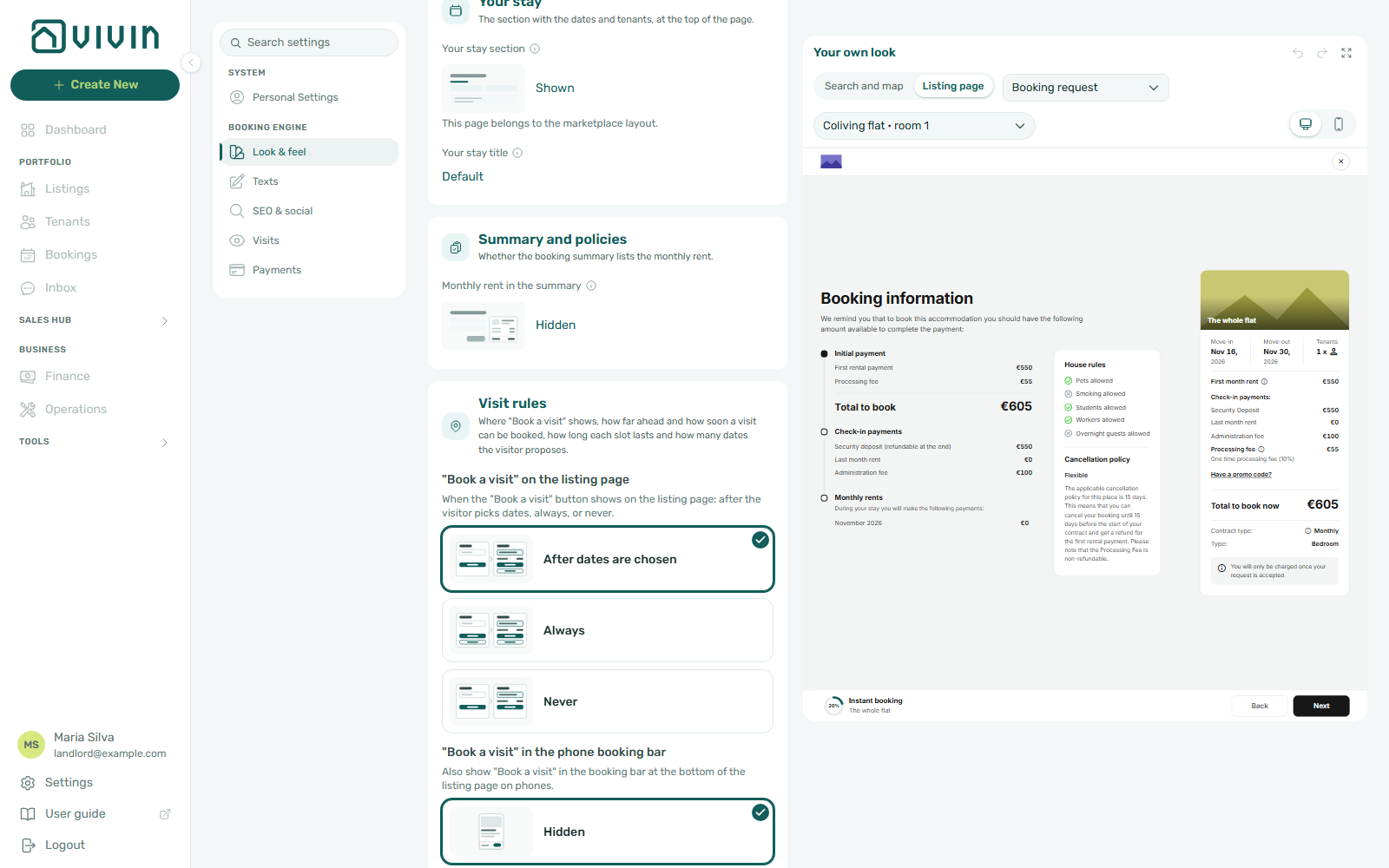
| Setting | What it does | Options |
|---|---|---|
| "Book a visit" on the listing page | When the button shows on the listing page. | After dates are chosen, Always, Never |
| "Book a visit" in the phone booking bar | Also shows the button in the booking bar at the bottom of the listing page on phones. | Hidden, Shown |
| Booking window for visits | How many days ahead a visit can be booked. | 3, 7, 14, 21 or 30 days |
| Minimum notice for a visit | The least time between the request and the visit. | 2, 4, 12, 24 or 48 hours |
| Visit slot length | The length of each time slot. | 30 minutes, 1 hour, 90 minutes, 2 hours |
| Dates proposed for a visit | How many dates and times the visitor proposes. | 1, 2 or 3 dates |
What saves straight away
Summary and policies and Visit rules skip the draft: the card's Save puts them on your website within about 2 minutes, and the preview reloads. Everything else on this tab waits in your draft for Save & publish.
Related
- Booking Engine look & feel
- Booking Engine visits: turn visits on, in person or by live call
- Bookings from your website
- Booking Engine payments