Notifications and tickets
Choose which automatic emails and alerts your account sends, and how tickets are timed and shared.
Before you start
- Where: Settings → Global Settings (
https://platform.vivin.app/settings). See Global Settings for the order of all cards. - Plan: every account has these cards.
- Permissions: Account Settings → Module and Account Settings → Preferences. Super Admin and Admin have both by default. The Support tickets list in Ticket alias also needs Support → Module.
Each card has a pencil to edit it, then Save or Cancel. A card saves on its own.
Notifications & Emails
| Switch | What it does | Default |
|---|---|---|
| Contract in onboarding email | Attaches the contract PDF to the tenant's welcome email. | Off |
| Send onboarding copy to account | Copies (CC) your account email on the tenant's welcome email. | On |
| Send invoice receipt email to tenant | Emails the tenant when a final invoice is issued. | Off |
| Send invoice receipt copy to account | Emails a copy to your account email only. | Off |
| Send proforma email to tenant | Emails proforma invoices to the tenant before the billing date. | Off |
| Send proforma copy to account | Emails a proforma copy to your account email only. | Off |
| Receive payment notifications | Sends an in-app and email alert when a tenant payment is received. | On |
- The switches sit under three headings: Final invoices (receipts), Proforma invoices and Payment notifications.
- The account email is the Email in General Information. Account copies never include the tenant.
- Turning Send onboarding copy to account off stops only the copy: the tenant still receives the welcome email. It does not depend on the email preferences each team member sets in Personal Settings.
- The contract PDF is left out for tenants whose tenant category turns off the Contract portal module or portal access.
- Receive payment notifications is the account switch. Each team member must also turn on Payment notifications in their own Personal Settings.
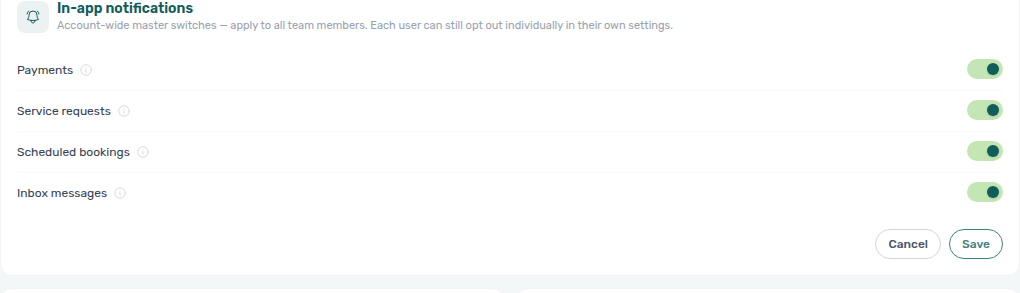
In-app notifications
Account-wide switches for the alerts in the bell and in push notifications.
| Switch | Alerts about | Default |
|---|---|---|
| Payments | A tenant payment is received. | On |
| Service requests | A tenant creates or cancels a service request. | On |
| Scheduled bookings | A scheduled booking succeeds or fails. | On |
| Inbox messages | New inbound WhatsApp, email and chatbot messages. | On |
| Operations tickets | A ticket is assigned to its responsible, rescheduled, or about to start. | On |
| Tenant documents | A tenant uploads a required document in the Tenant Portal. | On |
When a category is off here, nobody on the account sees it, in the bell or as a push. When it is on, each user can still turn it off for themselves in Personal Settings.
Ticket Priorities
| Field | What it does | Default |
|---|---|---|
| Low priority | Response deadline for Low tickets. | 4 Days |
| Medium priority | Response deadline for Medium tickets. | 2 Days |
| High priority | Response deadline for High tickets. | 1 Day |
| Critical priority | Response deadline for Critical tickets. | 12 Hours |
| Resolution proof required | A ticket can only be completed once a resolution proof file is attached. | Off |
- Each deadline is one of 1 Hour, 2 Hours, 6 Hours, 12 Hours, 1 Day, 2 Days, 3 Days, 4 Days, 1 Week, 2 Weeks, 3 Weeks or 1 Month.
- The deadline counts from the ticket's schedule date, or its opening date when it has none. Tickets past it show as overdue in Operations.
- The keyword rules that set a ticket's priority automatically are in ChatBot.
Ticket Time Windows
The hours behind the Morning, Afternoon and Out of hours buttons in the ticket filters.
| Window | Default |
|---|---|
| Morning | 08:00 – 12:59 |
| Afternoon | 13:00 – 18:59 |
| Out of hours | 19:00 – 07:59 |
Pick a start hour and an end hour for each. A window whose end is before its start runs past midnight. The windows cannot share an hour.
Ticket alias
People copied on a ticket next to its responsible. They are added when the ticket gets its responsible, on creation or when the responsible changes. They get the same emails as the responsible, and you can still change the alias on each ticket.
| Field | What it does | Default |
|---|---|---|
| Operations tickets | Team members added to every Operations ticket that has a responsible. | Nobody |
| Support tickets | Team members copied on the tickets you raise with VIVIN support, once VIVIN picks them up. | Nobody |
| Per responsible | Extra people added only to tickets whose responsible is the person on the left. | None |
| By category | Extra people added only to tickets of the group's categories. A category can be in one group only. | None |
To add a per-responsible row:
- Click Add responsible.
- Under Responsible, pick the person. Each person can have only one row.
- Under Alias, pick the people to add on that person's tickets. Nobody can be their own alias.
- Click Save. Empty rows are dropped.
To add a category group, click Add group under By category, name the group, pick its ticket categories (each category in one group only) and the people to add on those tickets, then click Save.
The read view shows "N responsibles with their own alias" and one line per row.
What happens when you save
- Email and alert switches apply to the next email or alert VIVIN sends. Nothing already sent changes.
- New ticket deadlines apply to every open ticket straight away, so some may become overdue or stop being overdue.
- Alias lists apply to tickets that get a responsible from then on. Other existing tickets keep their alias.
Troubleshooting
- "Morning, Afternoon and Out of hours cannot share an hour": move a start or end so the three windows do not overlap.
- "Too many users in the default alias — pick fewer": the Operations tickets list is full. Remove some people, or use per-responsible rows instead.
- A team member gets no payment emails: check that both Receive payment notifications here and their own Payment notifications are on.
Tips
- Keep the account switches on and let each person mute what they do not need in Personal Settings.
- Use per-responsible rows to copy a supervisor only on their team's tickets.
Related
- Global Settings
- Personal Settings: each user's own email and alert switches
- Notifications
- Operations
- Triaging notifications