AI Chat
Optional after core setup steps 1–15 — access follows the AI / MCP role permission described under AI / MCP / Genius: on by default for Super Admin and Admin, switched on per role by an administrator. Verify AI answers against Dashboard and Finance; external clients use Landlord MCP — see Getting Started — External AI and automation (optional).
Confirm Prerequisites and Interface Overview, then follow Key Workflows. Validate answers against Dashboard and Finance; external automation uses Landlord MCP. Guide subsection map: AI Chat guide subsection index (workflow and UI sections + Related subsections). Habit-specific shortcuts live under Related below.
The AI Chat module provides a conversational interface to the VIVIN AI Assistant. Use it to ask questions about your portfolio, occupancy, revenue, upcoming move-ins, and coliving overview — and get instant, data-backed answers without leaving the platform.
Validate AI answers against Dashboard KPIs and Finance ledgers; external clients use the same APIs via Landlord MCP. When the assistant cites Total debt or unpaid schedules, confirm against payment overdue rows — row-click opens the booking for Handling a Late Payment — Step 1. When answers cite one tenant category disproportionately, scope Finance — Tenant category filter or Bookings — Tenant categories before account-wide policy changes — see Glossary — Tenant category.
User Roles and Access
The AI Assistant screen (/ai-chat) is available to every role granted the AI / MCP row under Account Settings in Role permissions. Roles without it do not see Tools > AI Assistant and receive a standard permission message if they open the URL directly. What each user can see and do in the product is still enforced by the API on every request: the assistant gets no tools for a role without the row, and an administrator can switch one user's AI access off on AI / MCP → Per-user permissions.
| Role | Practical access |
|---|---|
| Super Admin / Admin | Row on by default. Use AI Assistant from Tools and /ai-chat, and manage every user's AI rules on AI / MCP; same API-enforced data access as other management features |
| Finance / Sales / Operations Admin / Operations | Row off by default. Once an administrator switches it on for the role, the assistant works with the role's own data access, and AI / MCP opens read-only (My permissions plus the connection card) |
Tool access follows the account's AI / MCP policy and the per-user overrides an administrator sets — see Administrator configuration.
Prerequisites
- An active Vivin account with at least one property and listing
- Access to the management frontend (platform.vivin.app)
- A role granted the AI / MCP permission for the AI Assistant nav entry (see User Roles and Access)
Administrator configuration
Workspace administrators (Admin or Super Admin with account_settings.mcp) manage Landlord MCP API keys, account-wide tool permissions, and per-user overrides on Account Settings → AI / MCP — the same policy caps what the in-app assistant and external MCP clients can call. Every other role granted that permission opens the tab read-only: My permissions for its effective domain access plus the connection card. See AI / MCP settings.
Open the AI Chat module at platform.vivin.app/ai-chat. See Deep Links for all management frontend routes.
Key Workflows
Portfolio answers route through Landlord MCP tools — verify write suggestions in Bookings or Finance before operational follow-up.
How answers are produced
The assistant does not run ad-hoc SQL against your database. Each user message is handled by the Core API AI Chat service, which invokes the same Landlord MCP tool catalogue wired for external MCP clients (portfolio reads, booking summaries, listing calendars, and permitted writes). Tool calls use the signed-in user’s JWT — account scoping and role permissions match the management frontend modules you can already open. Reply length follows your saved Answer mode (Short / Long), unless a single message overrides it with words such as explain or short.
- Account identity — every turn includes a prompt-safe profile of the active account (company name, contact emails, phone, address, fiscal ID, whether payments and operations are enabled, and whether billing is on because an invoicing connection exists). Ask “which account am I connected to?” and the assistant answers from that context — the same injection powers WhatsApp Genius. Secrets are never loaded; those capabilities are account configuration, not a substitute for AI / MCP tool permissions. Edit the visible fields on General Information. See FAQ — Genius / AI Chat account identity.
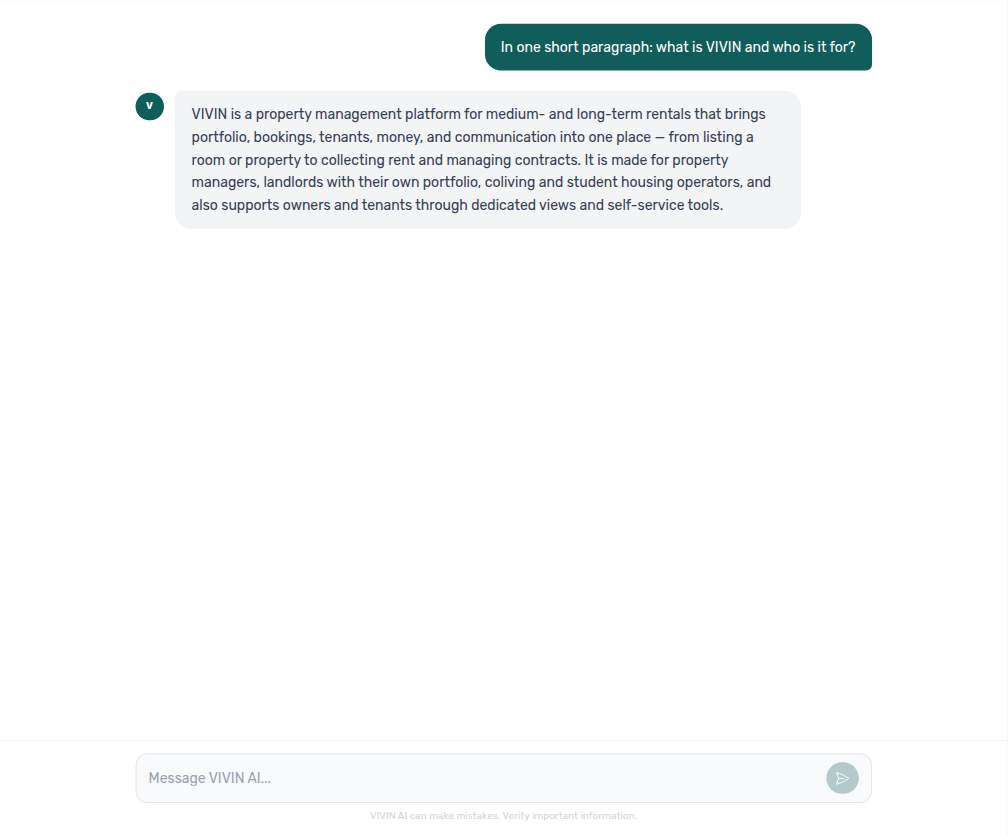
- Product context — every turn also starts with a fixed VIVIN product reference (what the platform is, how account / property / listing / booking / tenant fit together, and what each major area does). Ask “what is VIVIN?” or where to click for a job (“where do I manage invoices and tax rates?”, “where do I open Payments under Account Settings to configure tenant due days, deposit refund deadline, late penalties, and payment priorities?”, “where do I open the Global Settings tab under Account Settings System (English tab label Global Settings, also called Preferences — not Personal Settings, not Tenant categories, and not Property Categories) to configure booking defaults, check-in and check-out times, preparation days, vacant unit preference, fees, utilities, and Owner Reports?”, “where do I manage Genius scheduled reports?”, “where do I open Audit to review manual blocks and discounts?”, “where do I enter utility bills and review allocations?”, “where do I open Analytics for portfolio KPI charts like ADR and RevPAR?”, “where do I open Sales to edit monthly rents and manage channel connections?”, “where do I open the Pricing tab under Sales (Business → Sales — English tab label Pricing at /sales/pricing — the listing × month monthly rent grid with occupancy blocks — not the Multicalendar availability timeline, not Channel Manager for marketplace links, not Analytics KPI charts, and not the Listings Short term card for nightly rates) to edit monthly rents on the listing × month grid?”, “where do I open the Overview tab under Sales (Business → Sales — English tab label Overview at /sales/overview — the Sales KPI strip, Occupancy forecast, and Availability over time charts — not the Pricing monthly rent grid, not the Multicalendar availability timeline, not Channel Manager for marketplace links, and not Analytics KPI charts) to review Sales Overview KPIs, occupancy forecast, and availability charts?”, “where do I open the Channel Manager tab under Sales (Business → Sales — English tab label Channel Manager at /sales/channels — the unit × platform grid for marketplace links, publication status, and per-unit allocate — not the Pricing monthly rent grid, not the Multicalendar availability timeline, not Analytics KPI charts, and not Settings Integrations credentials) to link units to marketplaces and review channel publication status?”, “where do I open the Multicalendar tab under Sales (Business → Sales — English tab label Multicalendar at /sales/multicalendar — the unit × time availability timeline / Gantt without rent cells — not the Pricing monthly rent grid, not Channel Manager for marketplace links, not Analytics KPI charts, and not Bookings Timeline) to review unit availability over time on the Sales Multicalendar timeline?”, “where do I open Tenants to find a person and review debt across stays?”, “where do I open Bookings to review reservations and the unit timeline?”, “where do I open Listings to manage properties and units?”, “where do I open the Setup pill under Listings (property or unit edit sidebar — English pill label Setup — for operational fields like contract terms, payments, channels, and calendar — not the Full integration pill for marketplace Profile Location Amenities bilingual copy, not Sales Channel Manager, and not Settings Integration capabilities) to edit listing contract payments and channels?”, “where do I open the Full integration pill under Listings (property or unit edit sidebar — English pill label Full integration — for marketplace and booking-engine payload fields like Profile copy, Location, Amenities, bilingual descriptions — not the Setup pill for contract payments and channels, not Sales Channel Manager, and not Settings Integration capabilities) to edit partner marketplace descriptions and amenities?”, “where do I open the Photos pill under Listings (property or unit edit sidebar — English pill label Photos — for the booking-engine gallery, cover photo, and drag-to-reorder thumbnails — not the Setup pill for contract payments and channels, not the Full integration pill for marketplace Profile Location Amenities bilingual copy, and not Sales Channel Manager) to upload and reorder listing gallery and cover photo?”, “where do I open the Short term card under Listings (unit edit sidebar on the Setup pill — English card label Short term with lightning icon — for nightly pricing Price per night, Nightly calendar overrides, cleaning fees, min/max stay, Sale window, and Lead time — not the Sales Pricing monthly rent grid, not Sales Channel Manager, not the Full integration pill, and not monthly Rent Value) to set nightly short-term rates and stay rules on a unit?”, “where do I open the Dashboard to review portfolio KPIs, vacant units, and occupancy forecast?”, “where do I open Notifications to search and filter my full alert history?”, “where do I open Account Settings to manage users, integrations, and workspace preferences?”, “where do I open Owners to register property owners and set IBAN and fiscal ID before creating properties?”, “where do I open Support to create and track Vivin help tickets with the Vivin team?”, “where do I open My Profile to update my display name?”, “where do I open Create New to add a booking, tenant, or property without leaving my current screen?”, “where do I configure the tenant services marketplace catalogue and approve tenant service requests?”, “where do I configure the tenant WhatsApp chatbot persona and special rules?”, “where do I open AI / MCP to create Landlord MCP API keys and manage tool permissions?”, “where do I open FAQs to review and publish tenant FAQ entries and run the FAQ Generator?”, “where do I open Integrations to connect Airbnb, Booking.com, and other marketplace credentials?”, “where do I open Contract to upload the account default Word template and manage property or unit overrides?”) and the assistant grounds the answer in that reference before calling portfolio tools. External MCP clients load the same material via the
get-vivin-context-*topic tools — Chat does not expose those tool names in AI / MCP → Tool permissions. See FAQ — Genius / AI Chat product context.
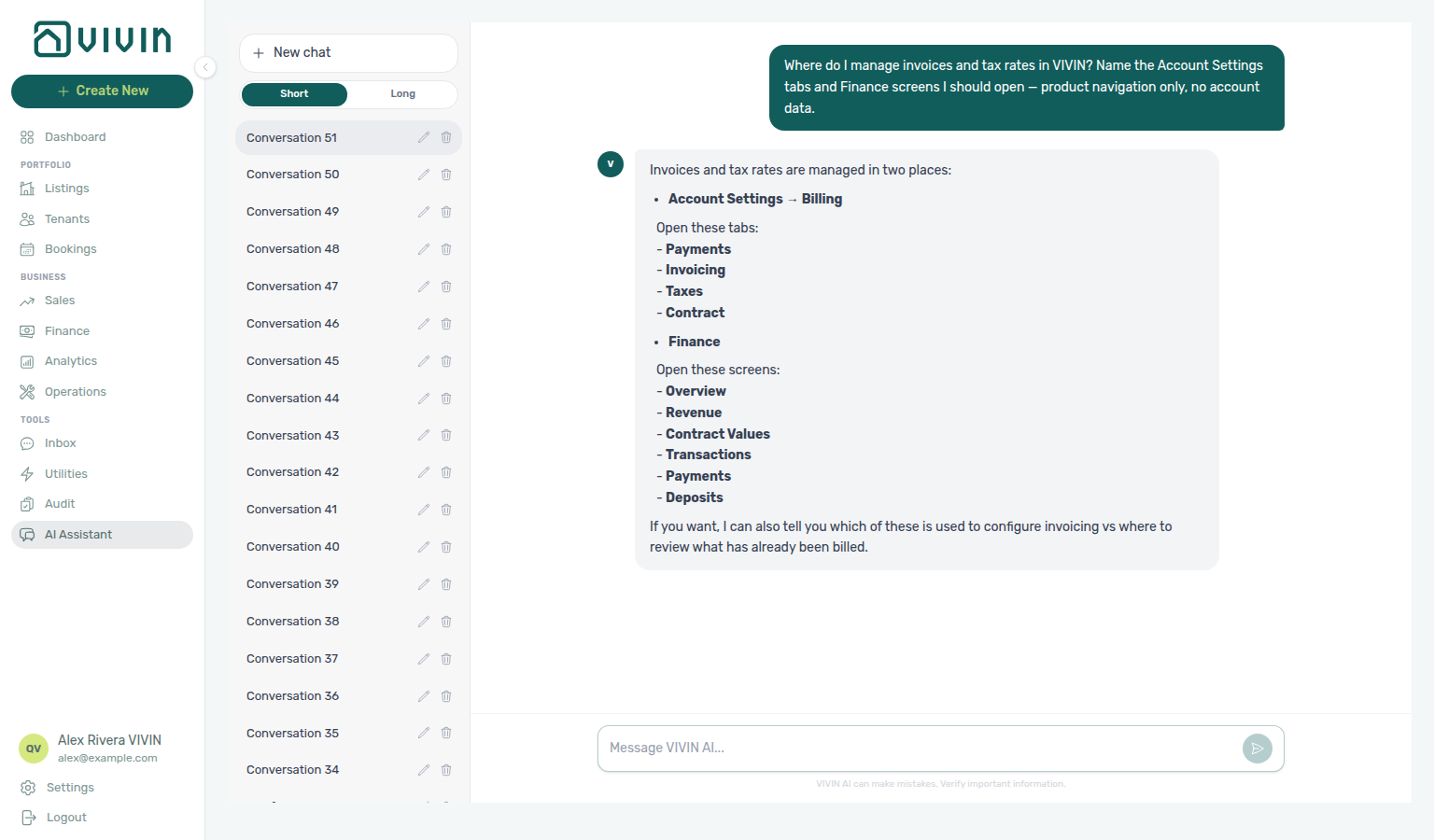
Where-to navigation (finance example): Ask “Where do I manage invoices and tax rates?” when you need the settings vs Finance split — not a portfolio total. The assistant should point you at Account Settings (configure) and Finance (review issued money). Canonical places to open after that orientation:
| Job | Open |
|---|---|
| Issuer, numbering, tax-rate catalogue, Word templates (VIVIN provider) | VIVIN Invoicing (Integrations → Configure) |
| Line-type Tax VAT / Tax Codes, fee labels, Hostkit series | Invoicing |
| Issued documents and allocations | Finance → Transactions |
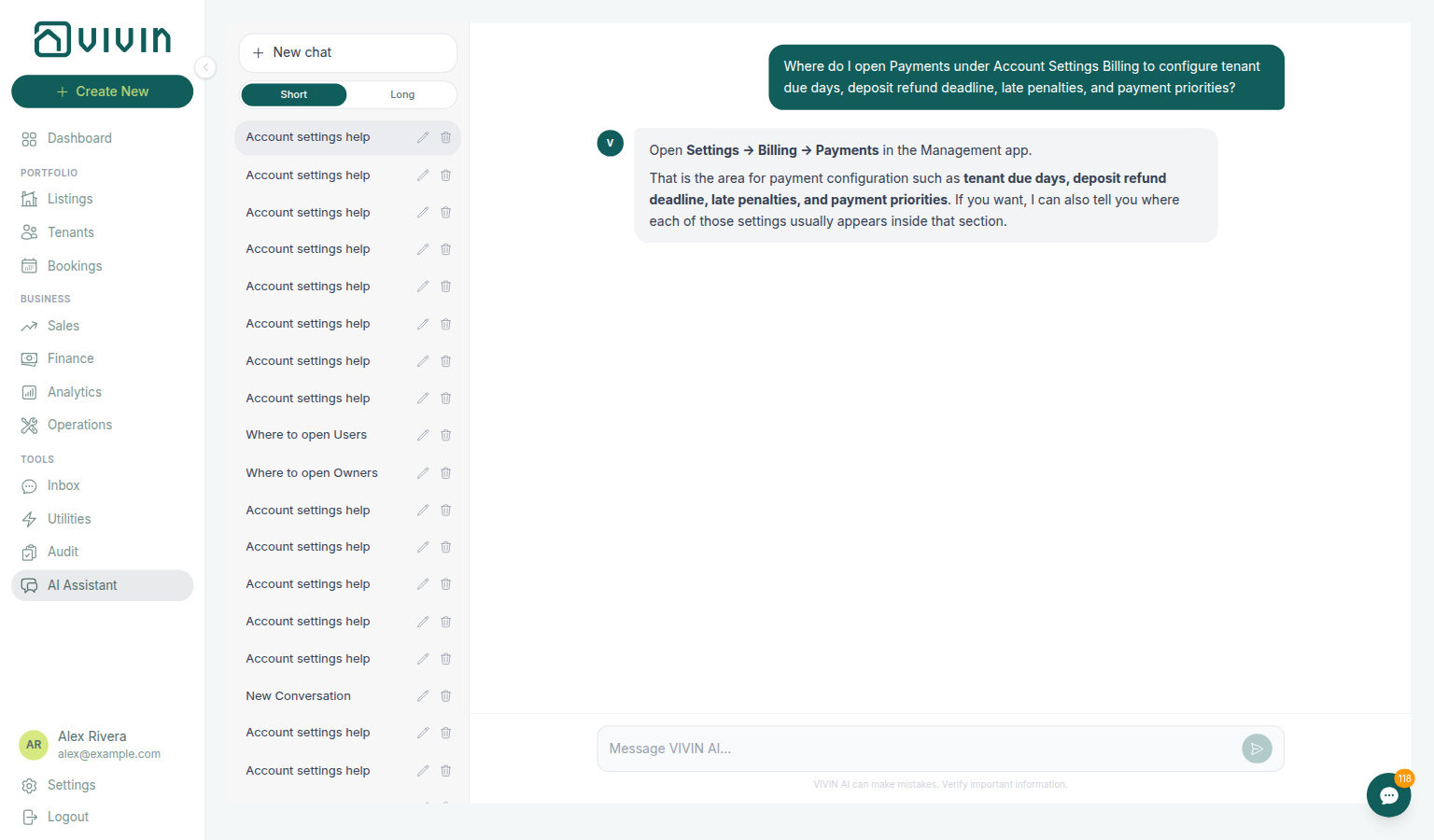
Where-to navigation (Payments settings / due days & priorities): Ask “Where do I open Payments under Account Settings to configure tenant due days, deposit refund deadline, late penalties, and payment priorities?” when you need the Payments tab under Billing — not portfolio ledgers on Finance, and not fee visibility toggles on Fees. Canonical jobs:
| Job | Open |
|---|---|
| Tenant due days, deposit refund deadline, late penalties | Payments (/settings/payments) |
| Receipt allocation order | Payments priorities |
| Admin / cleaning / exit fee toggles and invoice labels | Fees |
| Issued money and allocations | Finance |
The assistant typically says Settings → Billing (then Payments), or Settings → Billing / Payments.
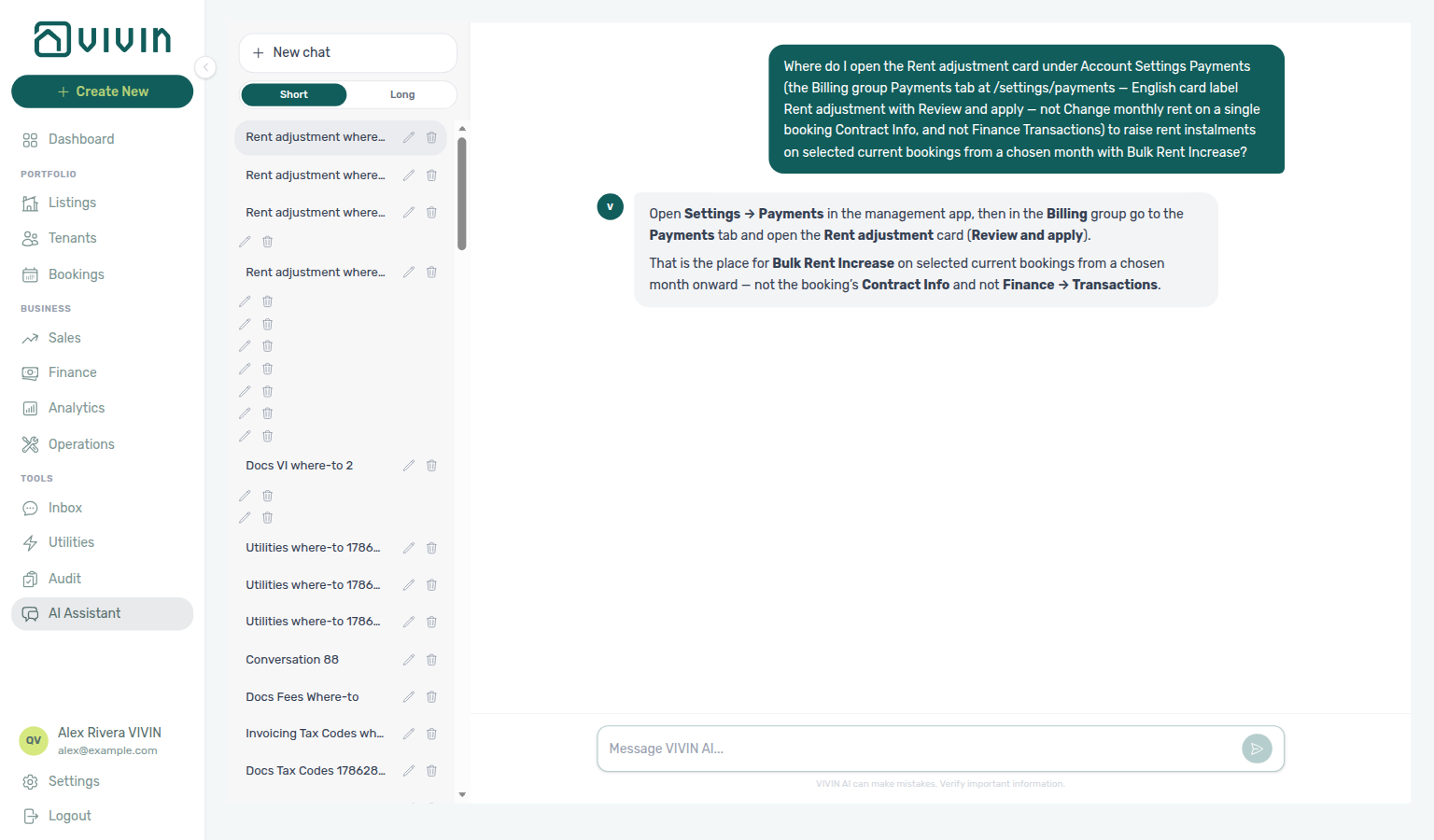
Where-to navigation (Rent adjustment / Bulk Rent Increase): Ask “Where do I open the Rent adjustment card under Account Settings Payments (the Billing group Payments tab at /settings/payments — English card label Rent adjustment with Review and apply — not Change monthly rent on a single booking Contract Info, and not Finance Transactions) to raise rent instalments on selected current bookings from a chosen month with Bulk Rent Increase?” when you need the portfolio percentage raise card — not single-stay Change monthly rent on Contract Info, and not Finance → Transactions. Canonical jobs:
| Job | Open |
|---|---|
| Portfolio percentage raise from an effective month | Rent adjustment (/settings/payments) |
| Single-booking rent change | Bookings → Contract Info → Change monthly rent |
| Due days, penalties, payment priorities | Payments (/settings/payments) |
The assistant typically says Settings → Payments (then the Billing group Payments tab → Rent adjustment), or Settings → Billing → Payments → Rent adjustment. Name Payments plus the Rent adjustment card and those disambiguators so the reply stays on the bulk-raise card (requires Bulk Rent Increase).
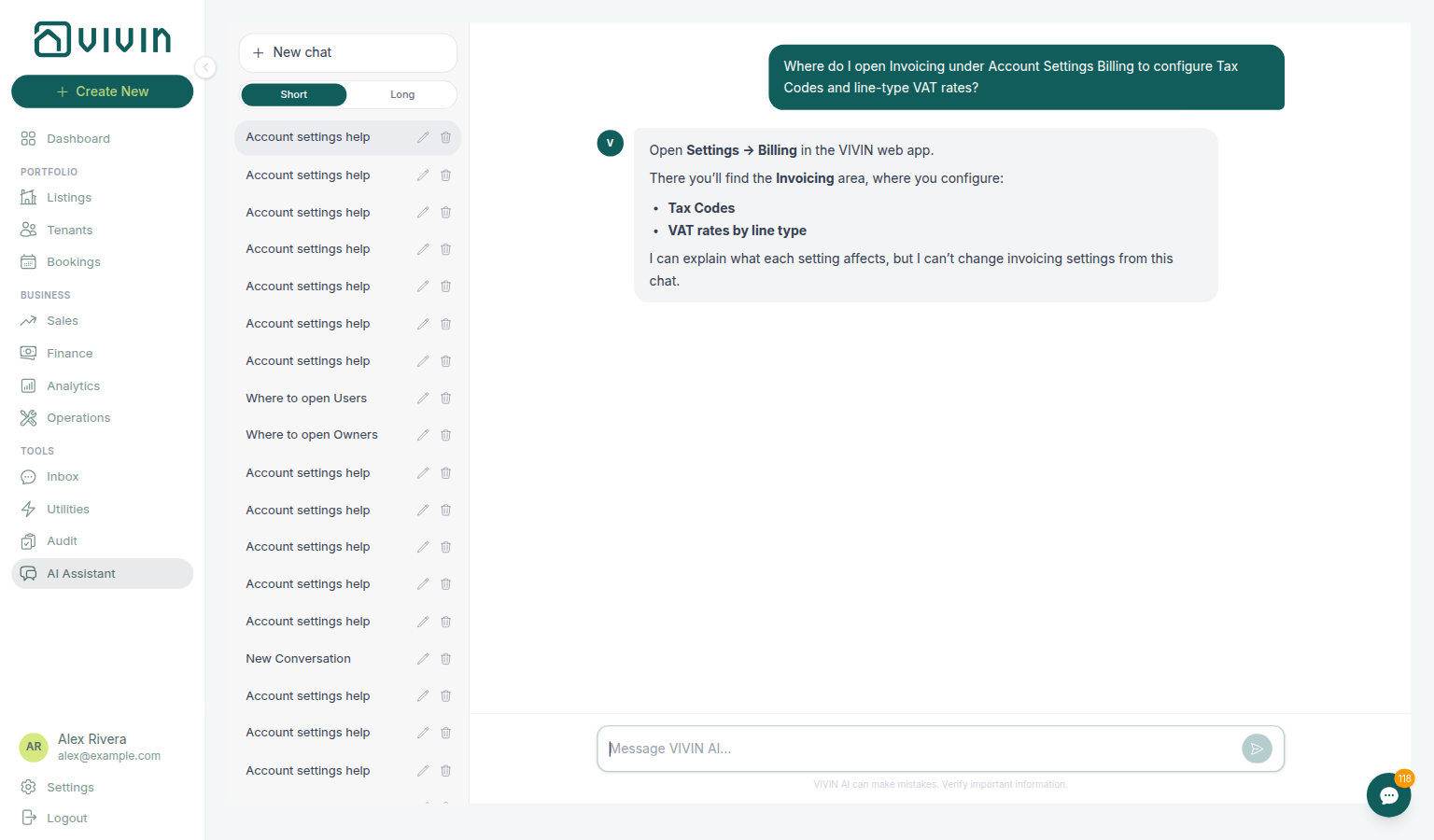
Where-to navigation (Invoicing / Tax Codes): Ask “Where do I open Invoicing under Account Settings to configure Tax Codes and line-type VAT rates?” when you need the Invoicing tab under Billing — not issuer numbering on VIVIN Invoicing, and not issued documents on Finance → Transactions. Canonical jobs:
| Job | Open |
|---|---|
| Line-type Tax VAT / Tax Codes, fee labels, Hostkit series | Invoicing (/settings/invoicing) |
| Issuer numbering and tax-rate catalogue (VIVIN provider) | VIVIN Invoicing |
| Issued money and allocations | Finance → Transactions |
The assistant typically says Settings → Billing (invoicing / tax configuration, including Tax Codes and VAT by line type).
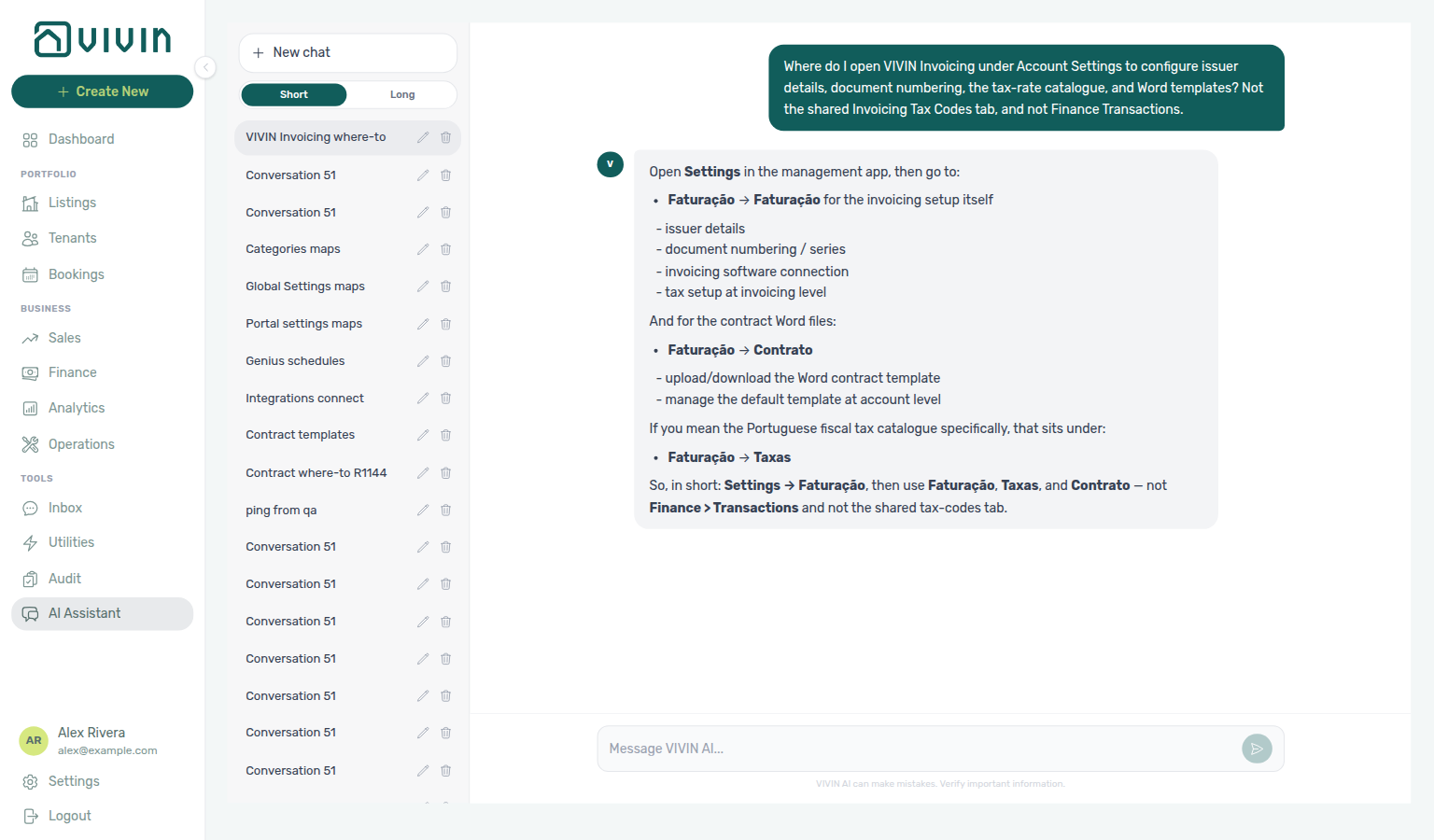
Where-to navigation (VIVIN Invoicing / issuer & templates): Ask “Where do I open VIVIN Invoicing under Account Settings to configure issuer details, document numbering, the tax-rate catalogue, and Word templates? Not the shared Invoicing Tax Codes tab, and not Finance Transactions.” when you need issuer details, numbering, tax rates, and invoice Word templates — not line-type Tax VAT on Invoicing, and not issued documents on Finance → Transactions. Canonical jobs:
| Job | Open |
|---|---|
| Issuer details, document numbering, tax-rate catalogue, Word templates | VIVIN Invoicing (Integrations → Configure) |
| Line-type Tax VAT / Tax Codes | Invoicing (/settings/invoicing) |
| Issued money and allocations | Finance → Transactions |
Live replies often say Settings → Faturação → Faturação (and may send Word files to Contrato or tax names to Taxas). Follow Settings → System → Integrations and Configure on the VIVIN Invoicing card instead. There is no Billing sidebar tab for this provider.
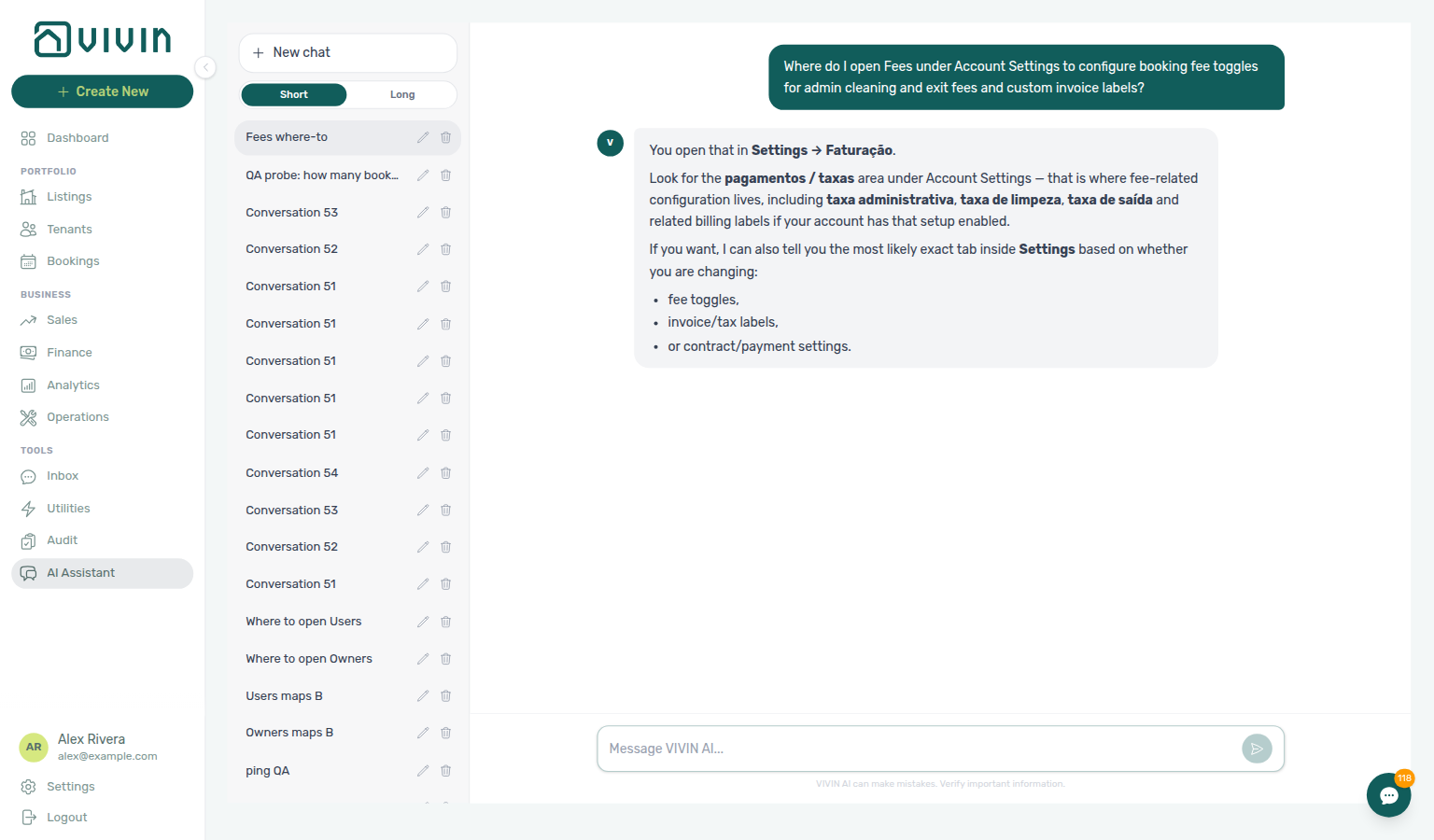
Where-to navigation (Fees / booking fee toggles & invoice labels): Ask “Where do I open Fees under Account Settings to configure booking fee toggles for admin cleaning and exit fees and custom invoice labels?” when you need the Fee visibility and Custom fee names cards on Global Settings — not due-day / penalty rules on Payments, and not per-property euro amounts on Listings. Canonical jobs:
| Job | Open |
|---|---|
| Admin / cleaning / exit fee toggles and custom invoice labels | Fees (/settings/fees → Global Settings) |
| Tenant due days, deposit refund deadline, late penalties | Payments (/settings/payments) |
| Per-property fee amounts | Listings — Contract Information |
The assistant may still say Settings → Faturação and mention a pagamentos / taxas area (sometimes taxa administrativa / taxa de limpeza / taxa de saída); follow Settings → System → Global Settings and scroll to the Fee visibility / Custom fee names cards.
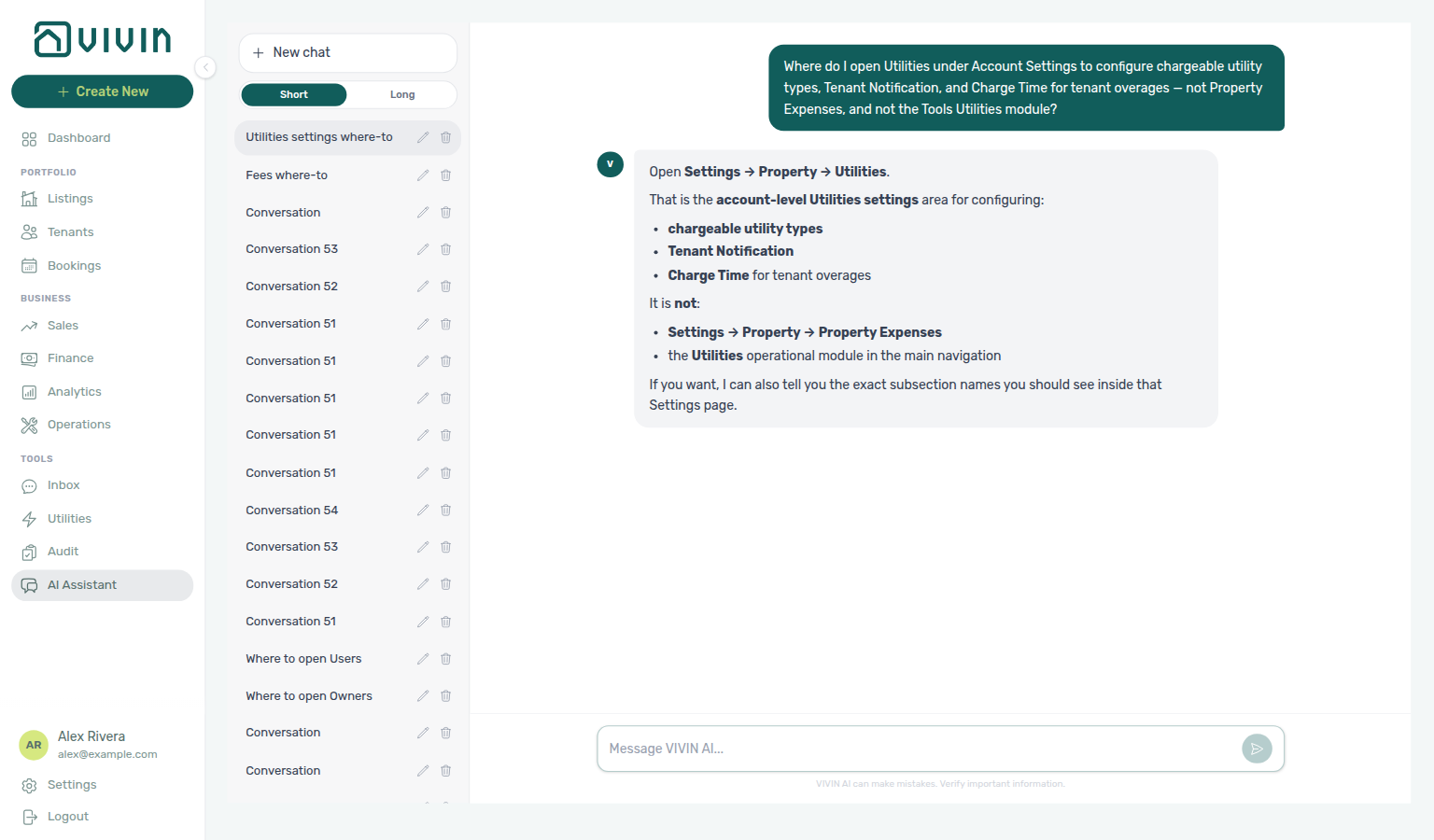
Where-to navigation (Utilities settings / overage rules): Ask “Where do I open Utilities under Account Settings to configure chargeable utility types, Tenant Notification, and Charge Time for tenant overages — not Property Expenses, and not the Tools Utilities module?” when you need the Utilities card on Global Settings — not supplier bill entry on Tools → Utilities, and not booking-fee toggles on Fees. Canonical jobs:
| Job | Open |
|---|---|
| Chargeable utility types, Tenant Notification, Charge Time | Utilities settings (/settings/utilities → Global Settings) |
| Enter supplier bills and review tenant allocations | Tools → Utilities |
| Admin / cleaning / exit fee toggles | Fees |
The assistant may still say Settings → Property → Utilities (while correctly excluding Property Expenses and the Tools Utilities module); follow Settings → System → Global Settings and scroll to the Utilities card. Name Global Settings and disambiguate from Property Expenses / the Tools module so the reply stays on overage rules.
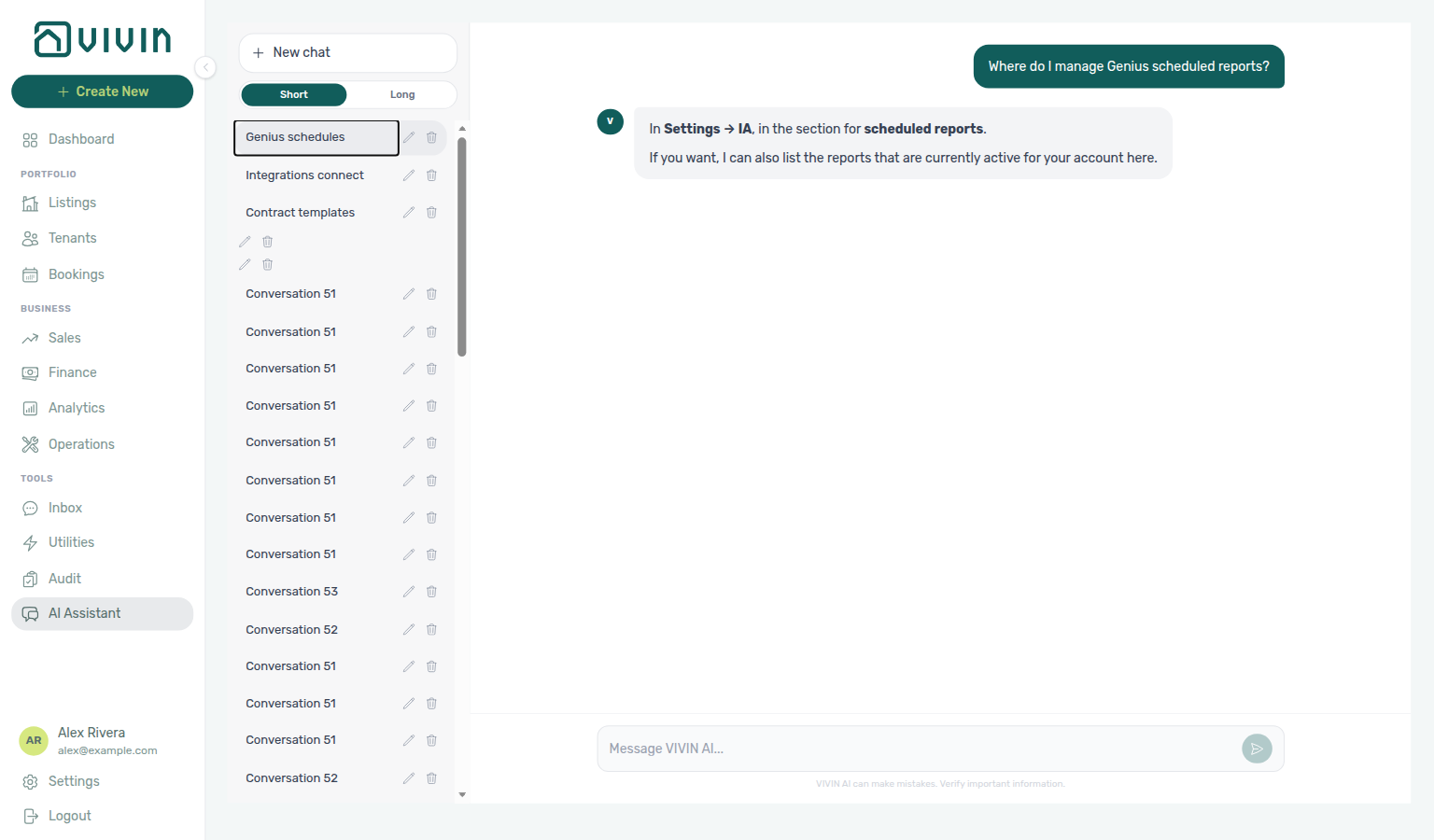
Where-to navigation (Genius scheduled reports): Ask “Where do I manage Genius scheduled reports?” when you need the settings table for vacancy / open-debt / upcoming-check-ins / Finance overview digests — not a one-off portfolio question. Canonical destination:
| Job | Open |
|---|---|
| Create, pause, edit, or cancel your digests in a table | Account Settings → Genius → Scheduled reports |
| Allow AI Chat / MCP to manage the same schedules | AI / MCP → Tool permissions (Scheduled reports domain) |
The assistant may say Settings → AI (or System → AI) for this job — open the Genius tab for the Scheduled reports table; AI / MCP is only the permission surface, not the digest list.
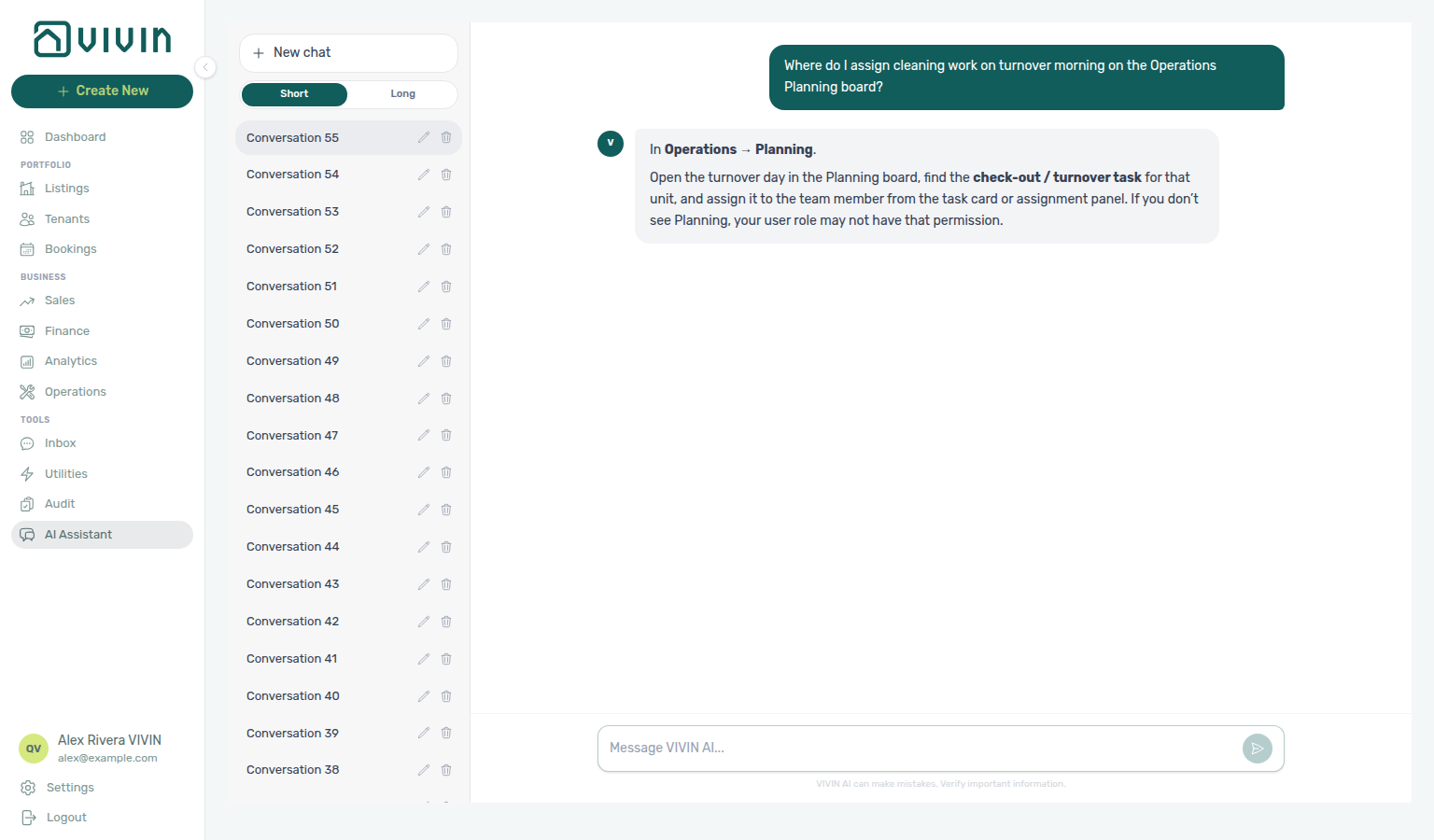
Where-to navigation (Operations Planning): Ask “Where do I assign cleaning work on turnover morning on the Operations Planning board?” when you need the people × day dispatch surface — not the Tickets list alone. Canonical destination:
| Job | Open |
|---|---|
| Drag cleaning / prep cards onto a person and time | Operations → Planning (requires Planning (schedule board)) |
| Create or edit the underlying maintenance rows | Operations → Tickets |
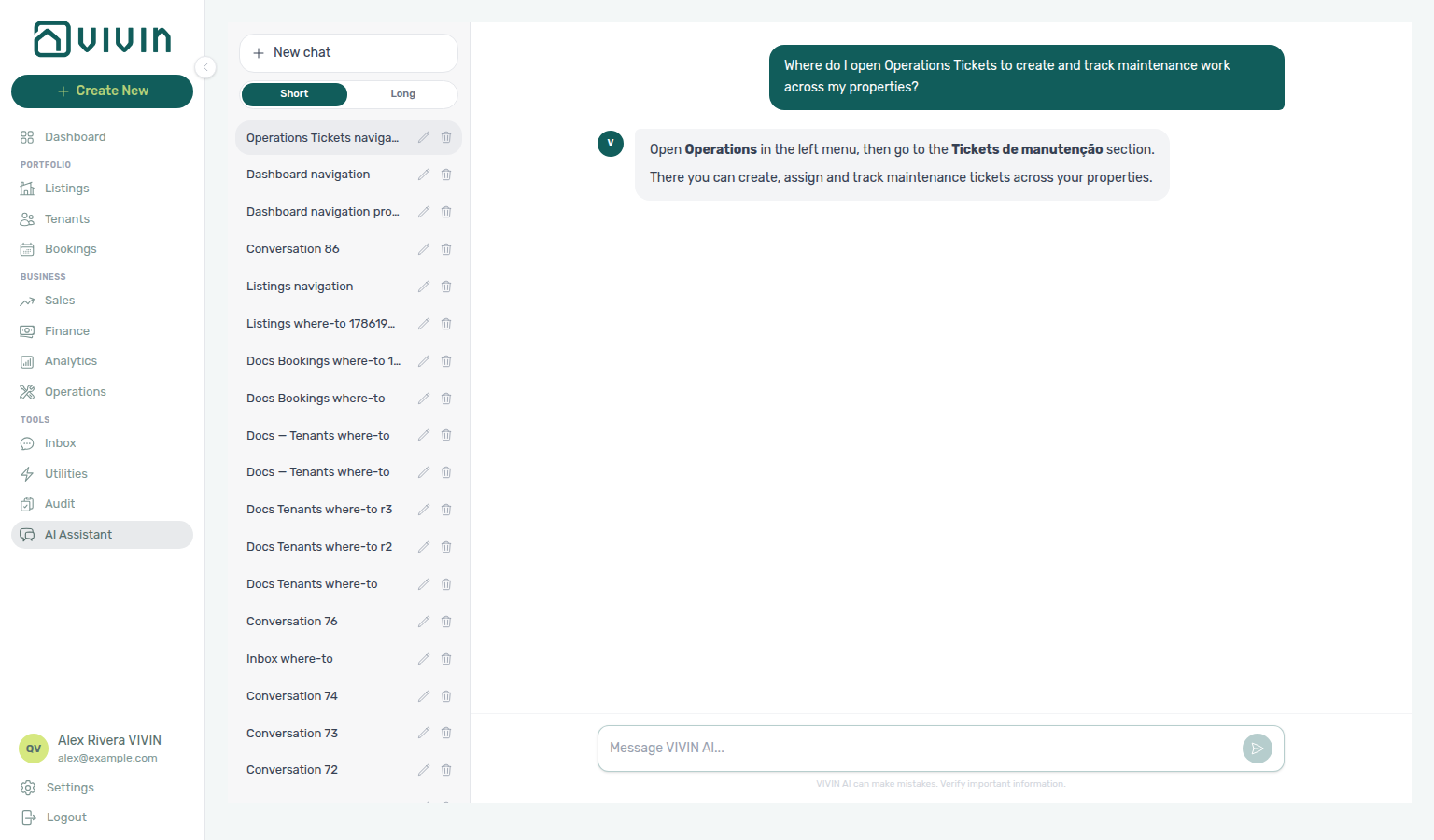
Where-to navigation (Operations Tickets): Ask “Where do I open Operations Tickets to create and track maintenance work across my properties?” when you need the maintenance list — create, assign, prioritize, and close work — not the Planning dispatch board alone. Canonical destination:
| Job | Open |
|---|---|
| Create, assign, filter, and close maintenance rows | Operations → Tickets |
| Drag same-day work onto a person and time | Operations → Planning (requires Planning (schedule board)) |
The assistant may say open Operations in the left menu and name Tickets (sometimes the Portuguese product term Tickets de manutenção) — the tab label in the English UI is Tickets. Use Tickets for the work queue; use Planning only when you are assigning timed cards on the day board.
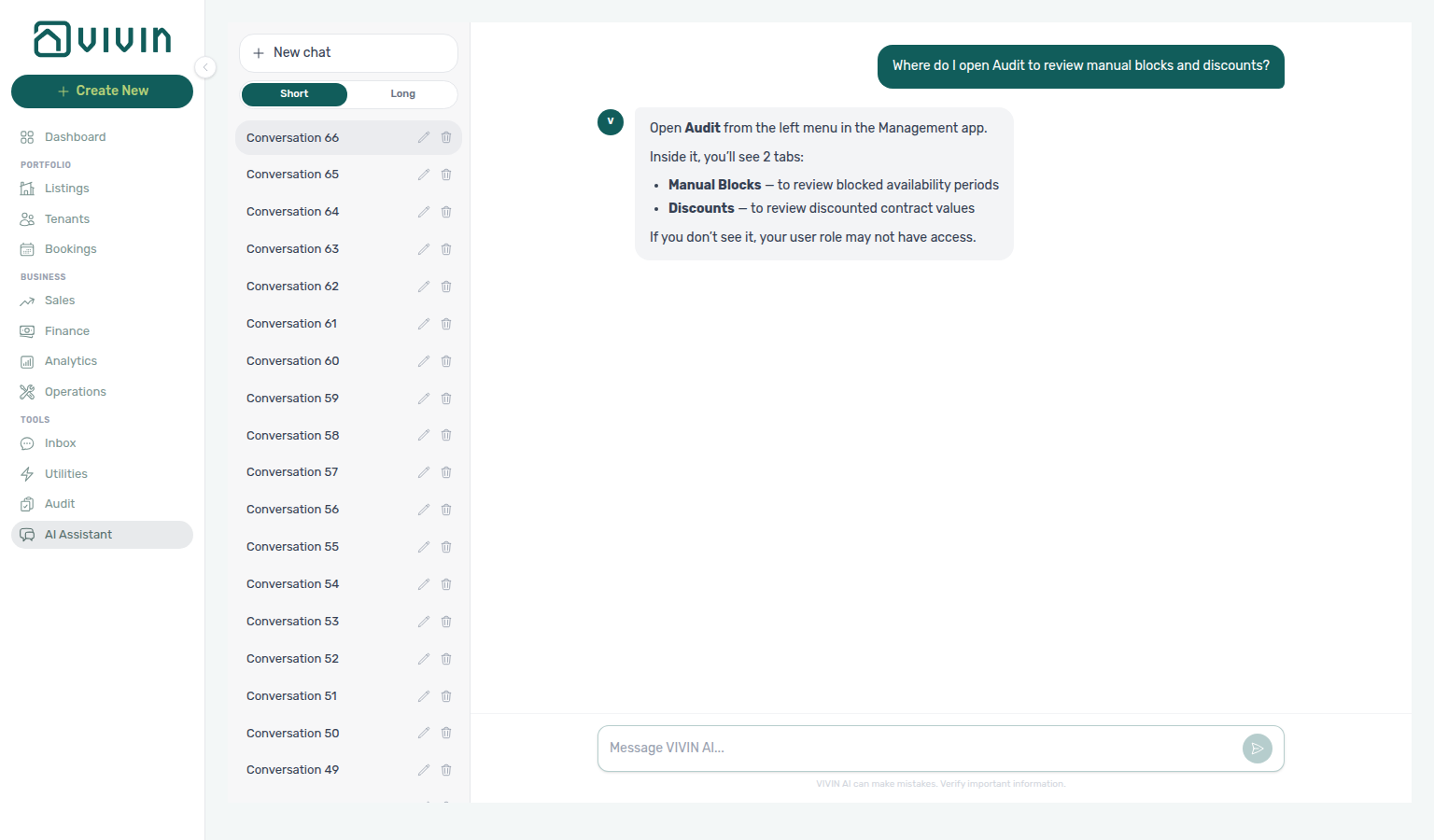
Where-to navigation (Audit): Ask “Where do I open Audit to review manual blocks and discounts?” when you need the cross-portfolio hygiene workspace — not a single unit calendar or one booking’s Contract Values. Canonical destination:
| Job | Open |
|---|---|
| Review manual availability holds across the portfolio | Tools → Audit → Manual Blocks |
| Review discounted contract values across bookings | Tools → Audit → Discounts |
Edit individual blocks on a unit Calendar in Listings; apply discounts on booking Contract Values. Audit is the month-end triage surface — see Manual block hygiene.
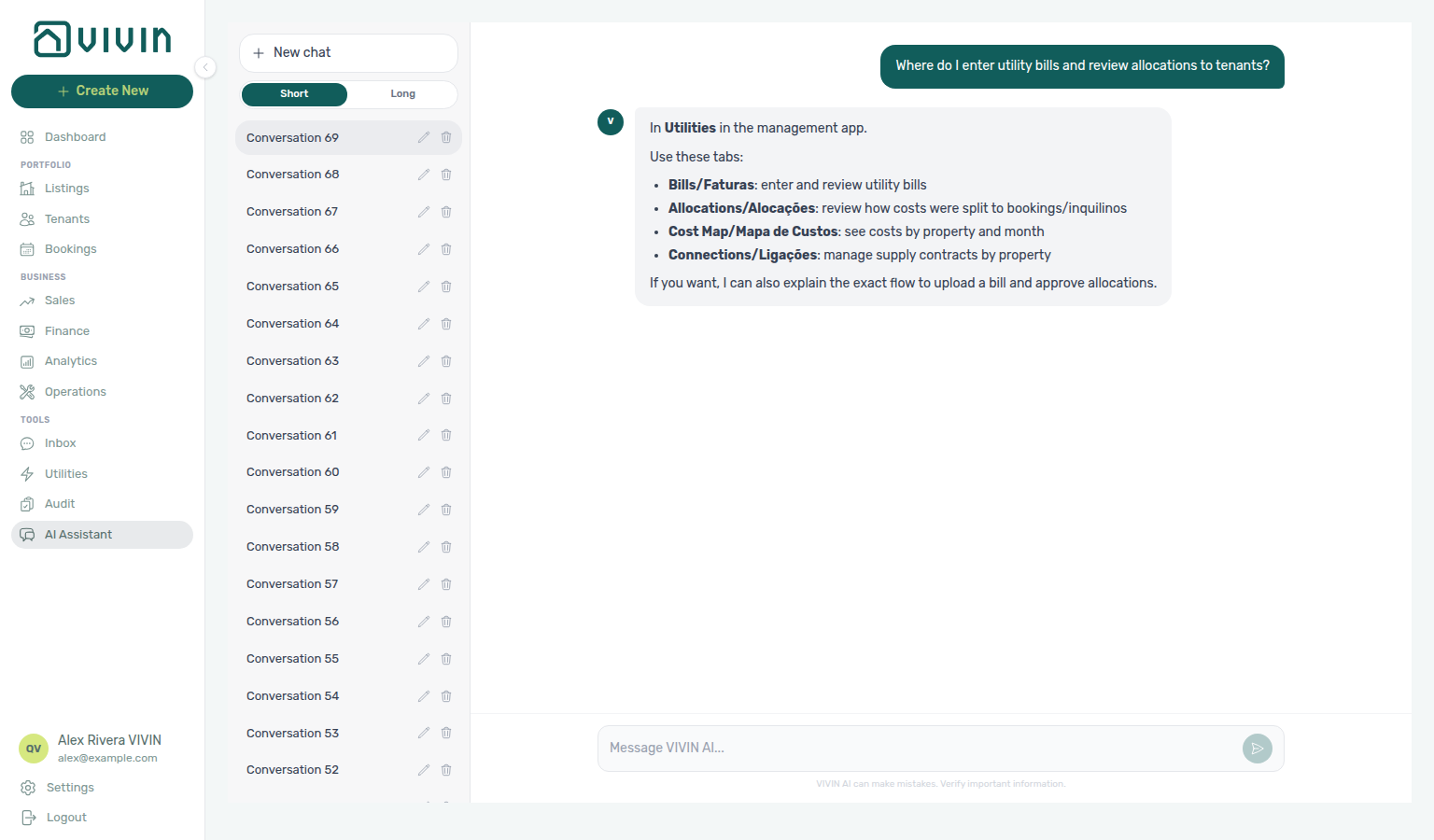
Where-to navigation (Utilities bills & allocations): Ask “Where do I enter utility bills and review allocations to tenants?” when you need the Tools → Utilities workspace — not Finance Transactions or a booking Payment Plan alone. Canonical tabs:
| Job | Open |
|---|---|
| Enter and review supplier bills | Utilities → Bills |
| Review how costs split to bookings / tenants | Utilities → Allocations |
| Costs by property and month | Utilities → Cost map — or ask AI Chat for June per-property totals |
| Supply contracts per property | Utilities → Connections |
Month-end habit: Entering Monthly Utility Bills. Configure Bills Included ceilings on Listings; overage lines land on booking Payment Plan.
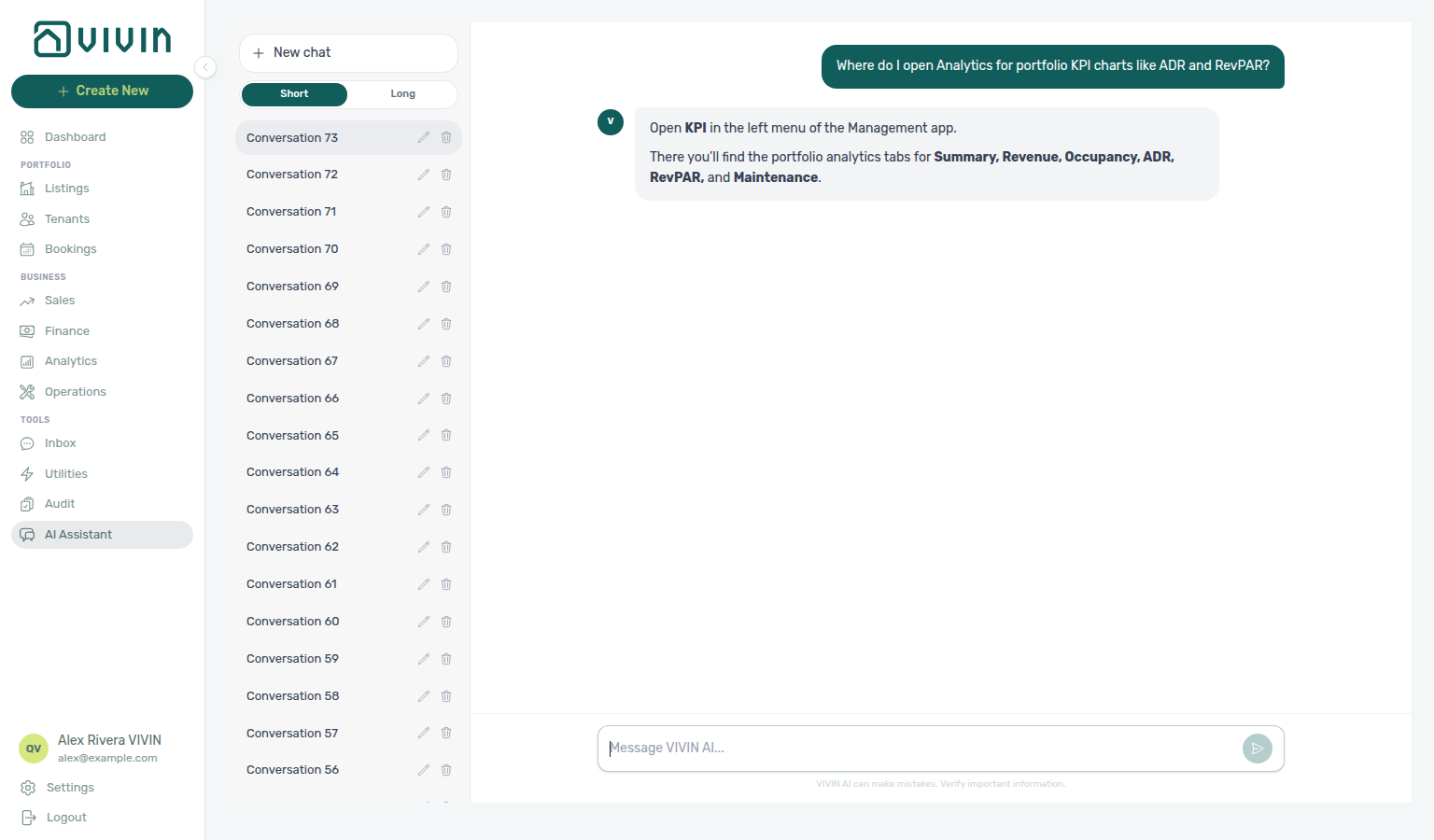
Where-to navigation (Analytics KPI workspace): Ask “Where do I open Analytics for portfolio KPI charts like ADR and RevPAR?” when you need the Business → Analytics chart workspace — not Finance → Overview cash/debt figures and not Sales pricing grids. Canonical tabs:
| Job | Open |
|---|---|
| Portfolio bar charts for the month range | Analytics (Overview) |
| Revenue, Occupancy, ADR, RevPAR trends | Analytics (Revenue / Occupancy / ADR / RevPAR) |
| Maintenance ticket trends | Analytics → Maintenance |
The assistant may say KPI (or open KPI from the left menu) for this job — the sidebar label is Analytics under Business. Money questions (“how much did we collect / are we owed?”) still belong on Finance — see FAQ — Genius revenue vs Analytics. Month-range habit: Portfolio KPI review.
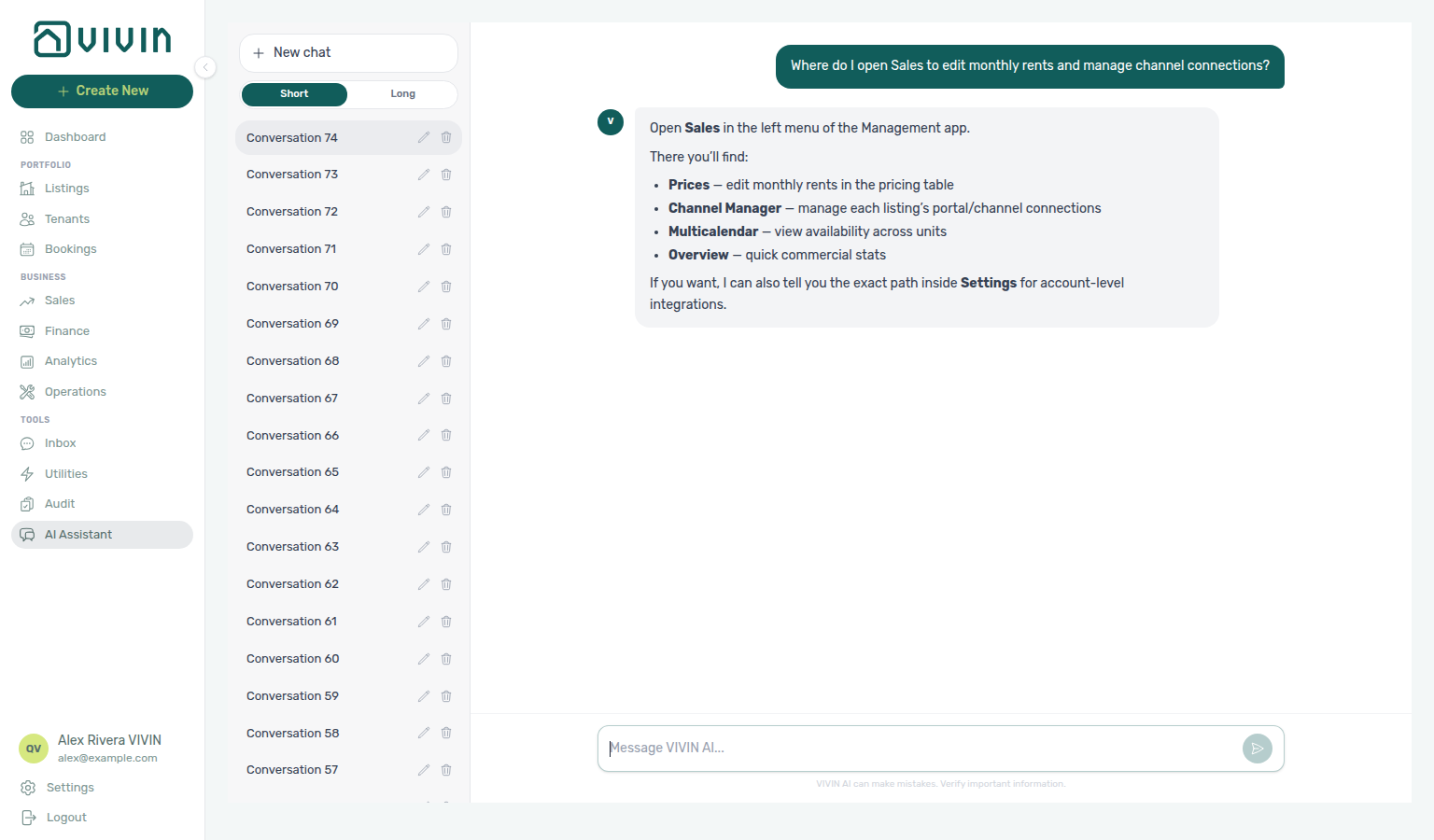
Where-to navigation (Sales rents & channels): Ask “Where do I open Sales to edit monthly rents and manage channel connections?” when you need the Business → Sales commercial workspace — not Analytics KPI charts and not Settings → Integrations alone. Canonical tabs:
| Job | Open |
|---|---|
| Bulk edit monthly rents | Sales → Pricing |
| Unit × time availability timeline | Sales → Multicalendar |
| Portal / channel publication status | Sales → Channel Manager |
| Commercial overview stats | Sales → Overview |
The assistant may say Prices for the monthly rent grid — the tab label is Pricing. Account-level portal credentials stay under Settings → Integrations; Sales Channel Manager is where you link units and watch publication status.
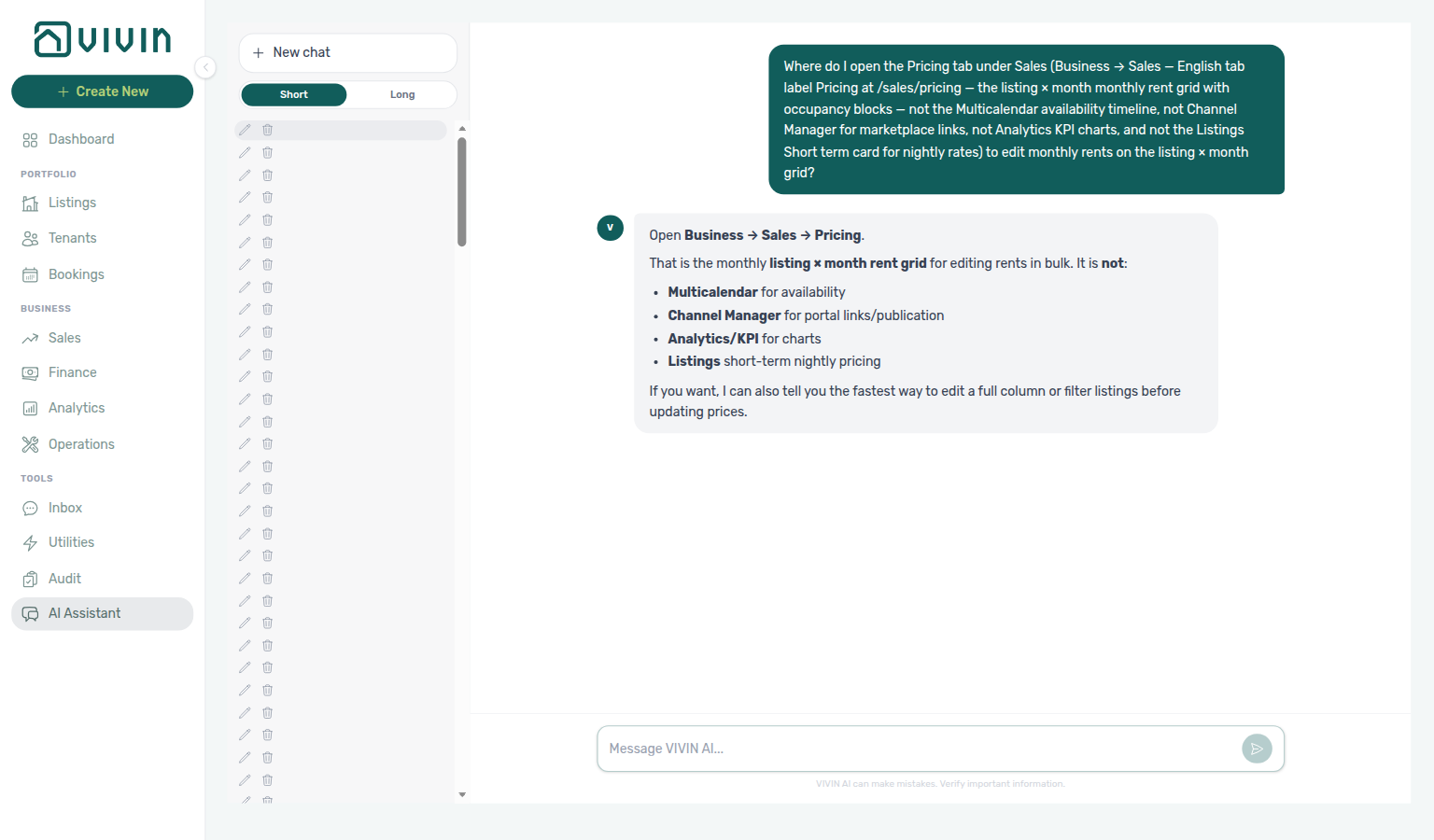
Where-to navigation (Pricing / monthly rent grid): Ask “Where do I open the Pricing tab under Sales (Business → Sales — English tab label Pricing at /sales/pricing — the listing × month monthly rent grid with occupancy blocks — not the Multicalendar availability timeline, not Channel Manager for marketplace links, not Analytics KPI charts, and not the Listings Short term card for nightly rates) to edit monthly rents on the listing × month grid?” when you need the Sales monthly rent grid — not the Sales → Multicalendar availability timeline, not Sales → Channel Manager, not Analytics KPI charts, and not Listings → Short term nightly rates. Canonical jobs:
| Job | Open |
|---|---|
| Bulk edit monthly rents (listing × month grid) | Sales → Pricing (/sales/pricing) |
| Unit × time availability timeline | Sales → Multicalendar |
| Unit × platform links / publication status | Sales → Channel Manager (/sales/channels) |
| Nightly short-term rates on a unit | Listings → Short term |
The assistant typically says Business → Sales → Pricing (it may also say Prices — the tab label is Pricing). Name Pricing plus those disambiguators so the reply stays on the monthly rent grid (not Multicalendar, Channel Manager, Analytics, or Listings Short term). Guide: Sales — Pricing.
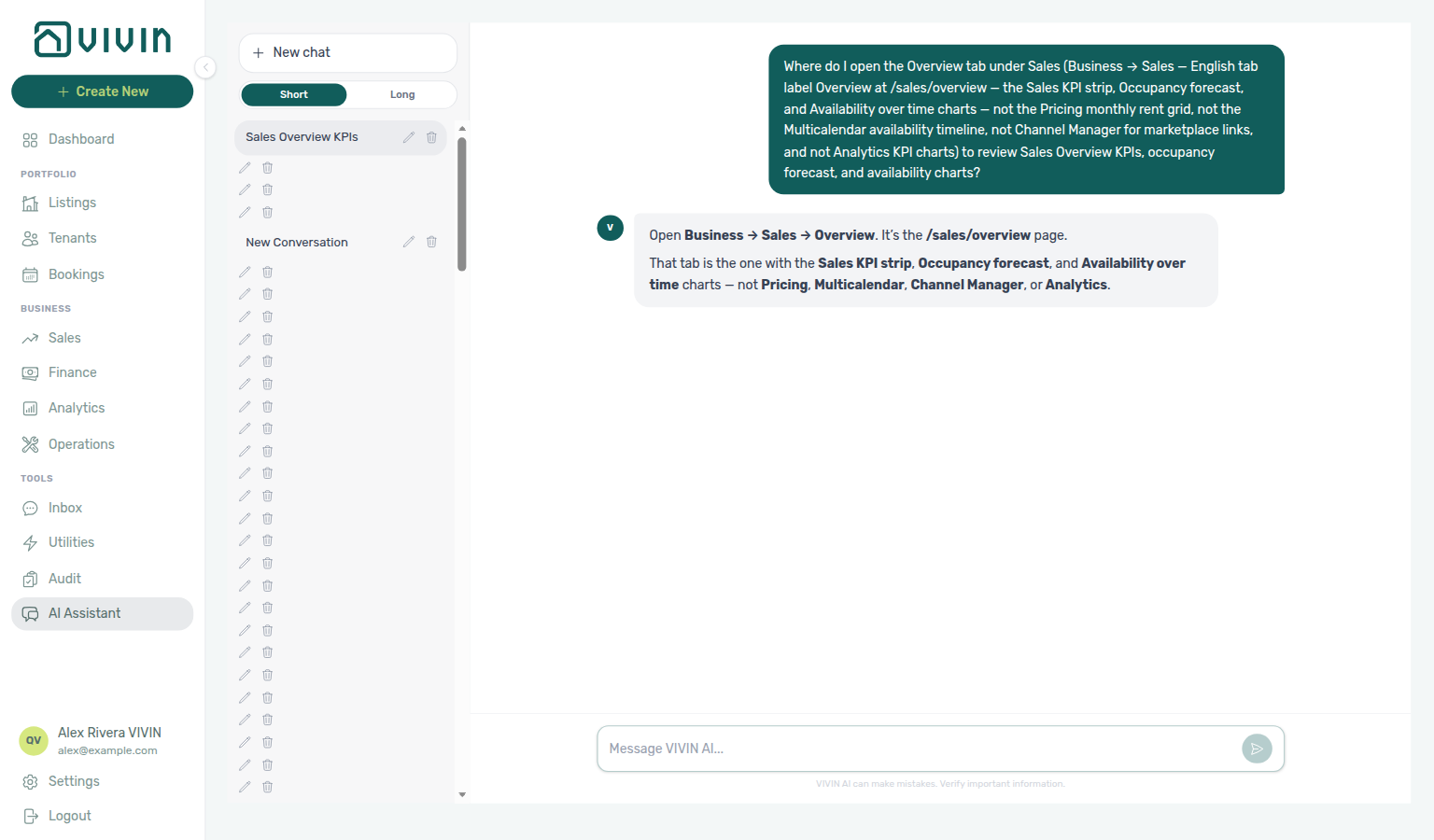
Where-to navigation (Sales Overview / KPIs & availability charts): Ask “Where do I open the Overview tab under Sales (Business → Sales — English tab label Overview at /sales/overview — the Sales KPI strip, Occupancy forecast, and Availability over time charts — not the Pricing monthly rent grid, not the Multicalendar availability timeline, not Channel Manager for marketplace links, and not Analytics KPI charts) to review Sales Overview KPIs, occupancy forecast, and availability charts?” when you need the Sales commercial overview — not the Sales → Pricing monthly rent grid, not Sales → Multicalendar, not Sales → Channel Manager, and not Analytics KPI charts. Canonical jobs:
| Job | Open |
|---|---|
| Sales KPI strip / Occupancy forecast / Availability | Sales → Overview (/sales/overview) |
| Bulk edit monthly rents | Sales → Pricing (/sales/pricing) |
| Unit × time availability timeline | Sales → Multicalendar |
| Portfolio ADR / RevPAR charts | Analytics |
The assistant typically says Business → Sales → Overview. Name Overview plus those disambiguators so the reply stays on the Sales KPI / availability charts (not Pricing, Multicalendar, Channel Manager, or Analytics). Guide: Sales — Overview.
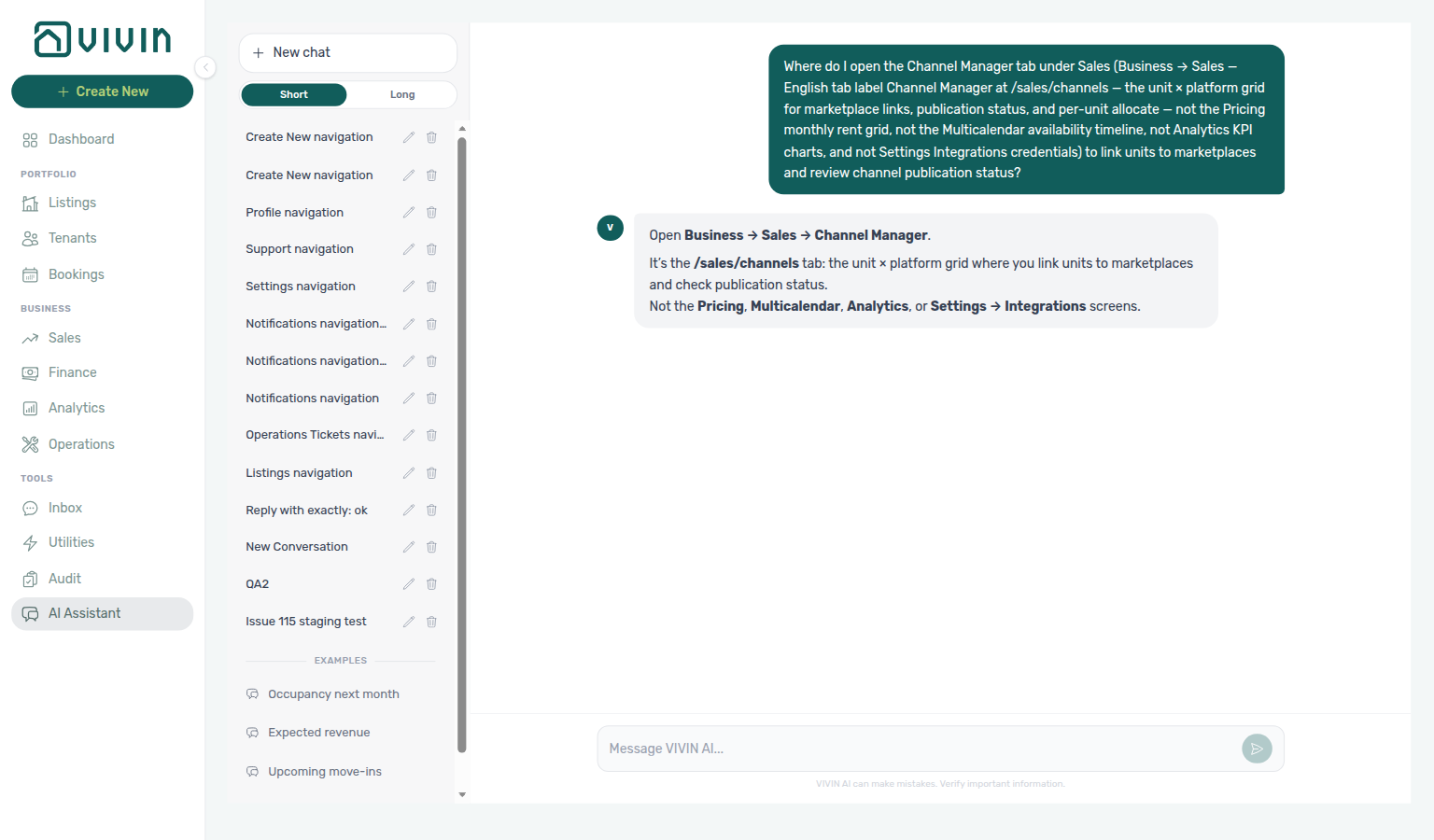
Where-to navigation (Channel Manager / marketplace links): Ask “Where do I open the Channel Manager tab under Sales (Business → Sales — English tab label Channel Manager at /sales/channels — the unit × platform grid for marketplace links, publication status, and per-unit allocate — not the Pricing monthly rent grid, not the Multicalendar availability timeline, not Analytics KPI charts, and not Settings Integrations credentials) to link units to marketplaces and review channel publication status?” when you need per-unit channel linking — not the Sales → Pricing monthly rent grid, not Sales → Multicalendar, not Analytics KPI charts, and not account credentials on Settings → Integrations. Canonical jobs:
| Job | Open |
|---|---|
| Unit × platform links / publication status / allocate | Sales → Channel Manager (/sales/channels) |
| Bulk edit monthly rents | Sales → Pricing (/sales/pricing) |
| Unit × time availability timeline | Sales → Multicalendar |
| Marketplace / provider credentials | Settings → Integrations |
The assistant typically says Business → Sales → Channel Manager. Name Channel Manager plus those disambiguators so the reply stays on the unit × platform grid (not Pricing or Settings Integrations). Guide: Sales — Channel Manager.
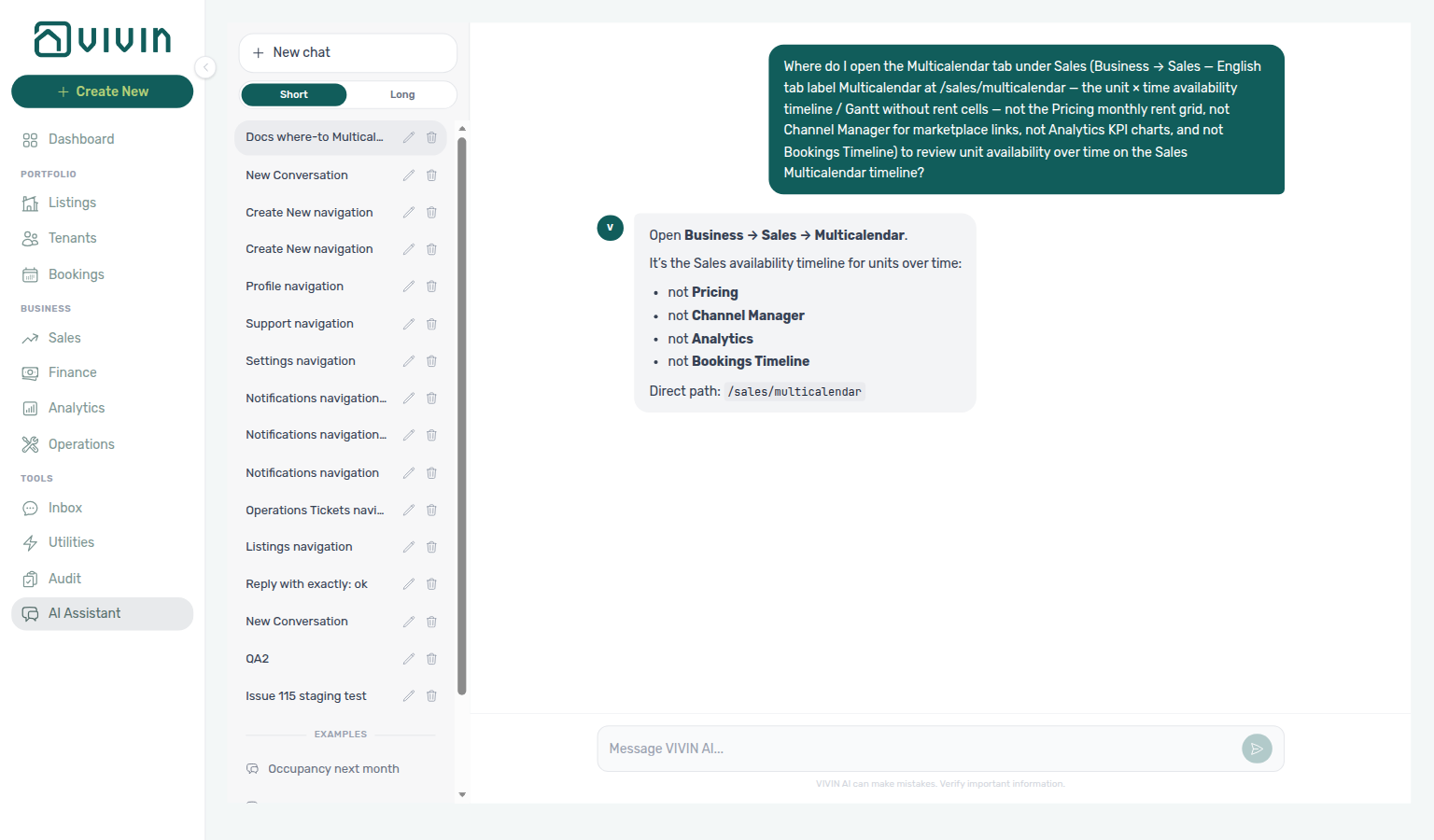
Where-to navigation (Multicalendar / availability timeline): Ask “Where do I open the Multicalendar tab under Sales (Business → Sales — English tab label Multicalendar at /sales/multicalendar — the unit × time availability timeline / Gantt without rent cells — not the Pricing monthly rent grid, not Channel Manager for marketplace links, not Analytics KPI charts, and not Bookings Timeline) to review unit availability over time on the Sales Multicalendar timeline?” when you need the Sales availability Gantt — not the Sales → Pricing monthly rent grid, not Sales → Channel Manager, not Analytics KPI charts, and not Bookings → Timeline. Canonical jobs:
| Job | Open |
|---|---|
| Unit × time availability timeline (no rent cells) | Sales → Multicalendar (/sales/multicalendar) |
| Bulk edit monthly rents | Sales → Pricing (/sales/pricing) |
| Unit × platform links / publication status | Sales → Channel Manager (/sales/channels) |
| Portfolio Gantt from Bookings | Bookings → Timeline |
The assistant typically says Business → Sales → Multicalendar. Name Multicalendar plus those disambiguators so the reply stays on the Sales availability timeline (not Pricing, Channel Manager, or Bookings Timeline). Guide: Sales — Multicalendar.
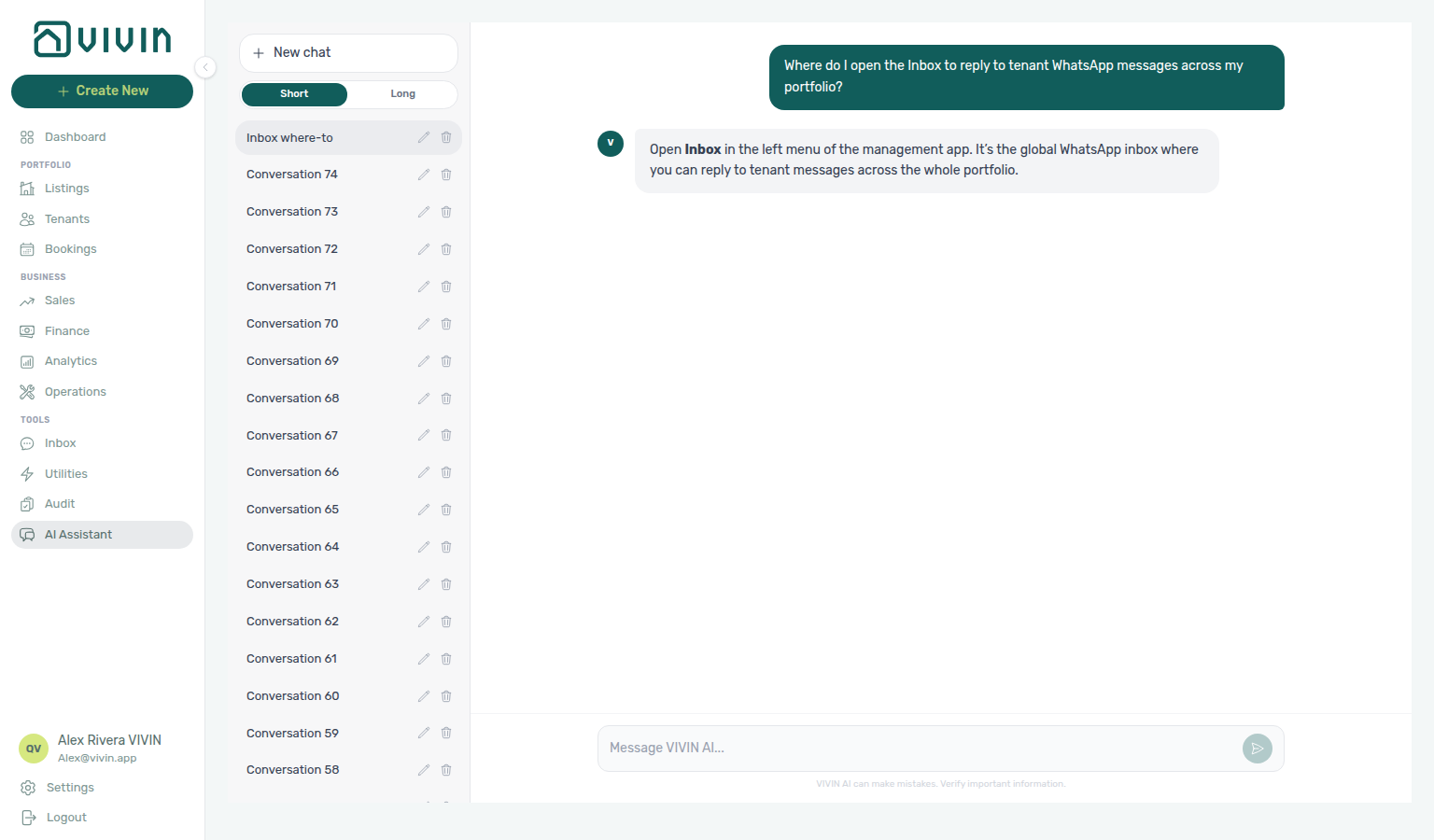
Where-to navigation (Inbox WhatsApp triage): Ask “Where do I open the Inbox to reply to tenant WhatsApp messages across my portfolio?” when you need the Tools → Inbox global thread list — not per-booking Communication and not landlord AI Chat. Canonical jobs:
| Job | Open |
|---|---|
| Portfolio-wide WhatsApp conversations | Inbox (Tools → Inbox) |
| Reply / search / labels / pause bot | Inbox — thread and composer |
| Same thread from a reservation | Bookings → Communication |
The assistant may say open Inbox in the left menu without naming Tools — the sidebar groups Inbox under Tools. Booking-scoped WhatsApp still lives on each reservation’s Communication tab; landlord AI Assistant is a separate surface.
Where-to navigation (Tenants directory): Ask “Where do I open Tenants to find a person, see their bookings, and review debt across stays?” when you need the person-first directory — not a single reservation in Bookings and not portfolio-wide debt on Finance. Canonical jobs:
| Job | Open |
|---|---|
| Search / segment people (Active, With Debt, …) | Tenants (Portfolio → Tenants) |
| Profile sidebar — bookings, payment plan, transactions | Tenants — profile tabs |
| Portfolio-wide debt and ledgers | Finance |
The assistant may say open Tenants in the left menu without naming Portfolio — the sidebar groups Tenants under Portfolio. One person’s balance across stays starts on Tenants; account-wide debt triage stays on Finance.
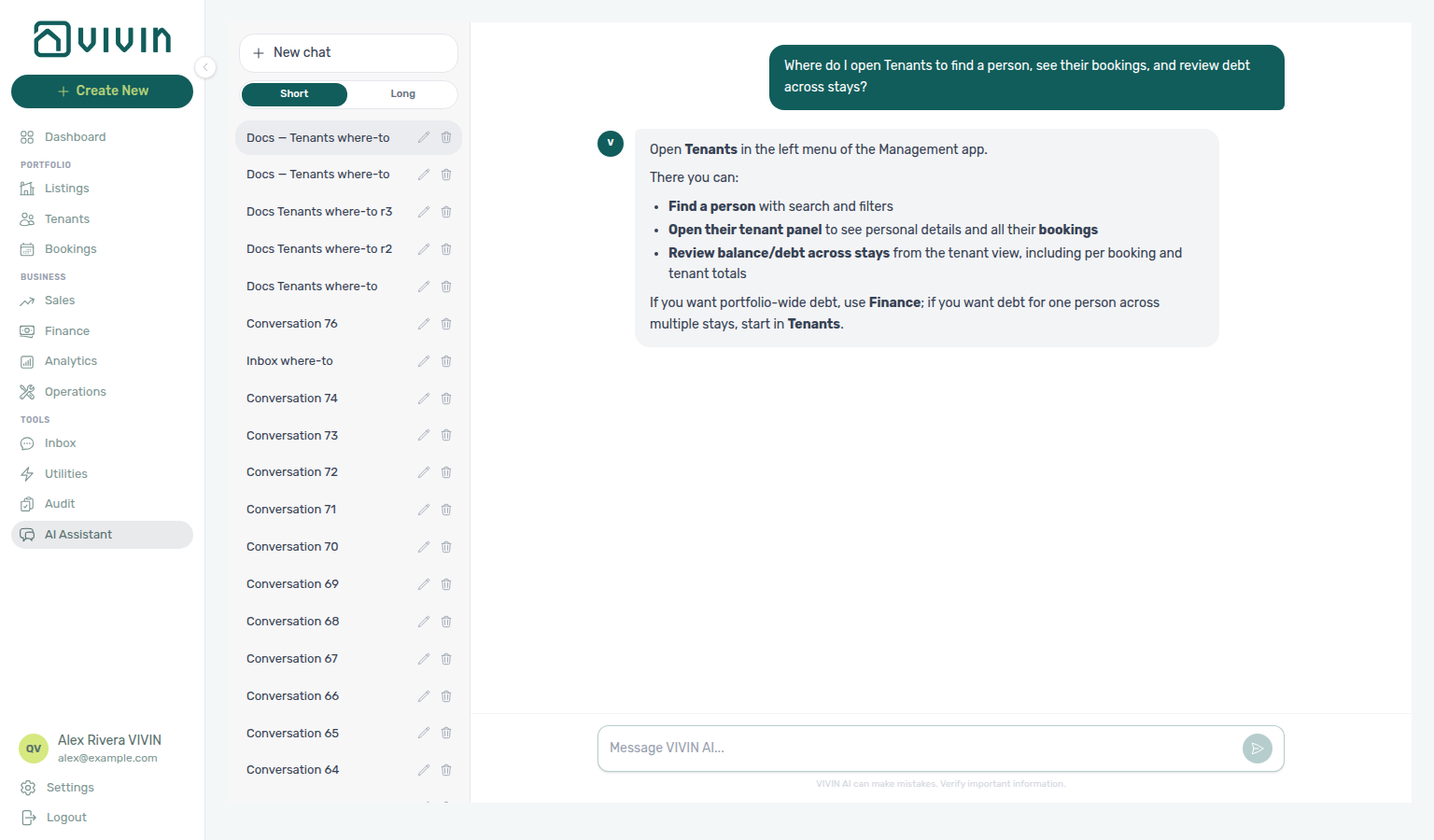
Where-to navigation (Bookings list & Timeline): Ask “Where do I open Bookings to review reservations and the unit timeline?” when you need the reservation-first workspace — not the person directory on Tenants and not commercial grids on Sales. Canonical jobs:
| Job | Open |
|---|---|
| Filterable reservation table (All, Ongoing, Upcoming, …) | Bookings — list (Portfolio → Bookings) |
| Unit × time Gantt (stays + manual blocks) | Bookings — Timeline |
| Person-first search / per-person debt | Tenants |
| Monthly rents / channel connections | Sales |
The assistant may say open Bookings in the left menu without naming Portfolio — the sidebar groups Bookings under Portfolio. Use List for row-by-row triage and Timeline when you need several stays on the same unit at once.
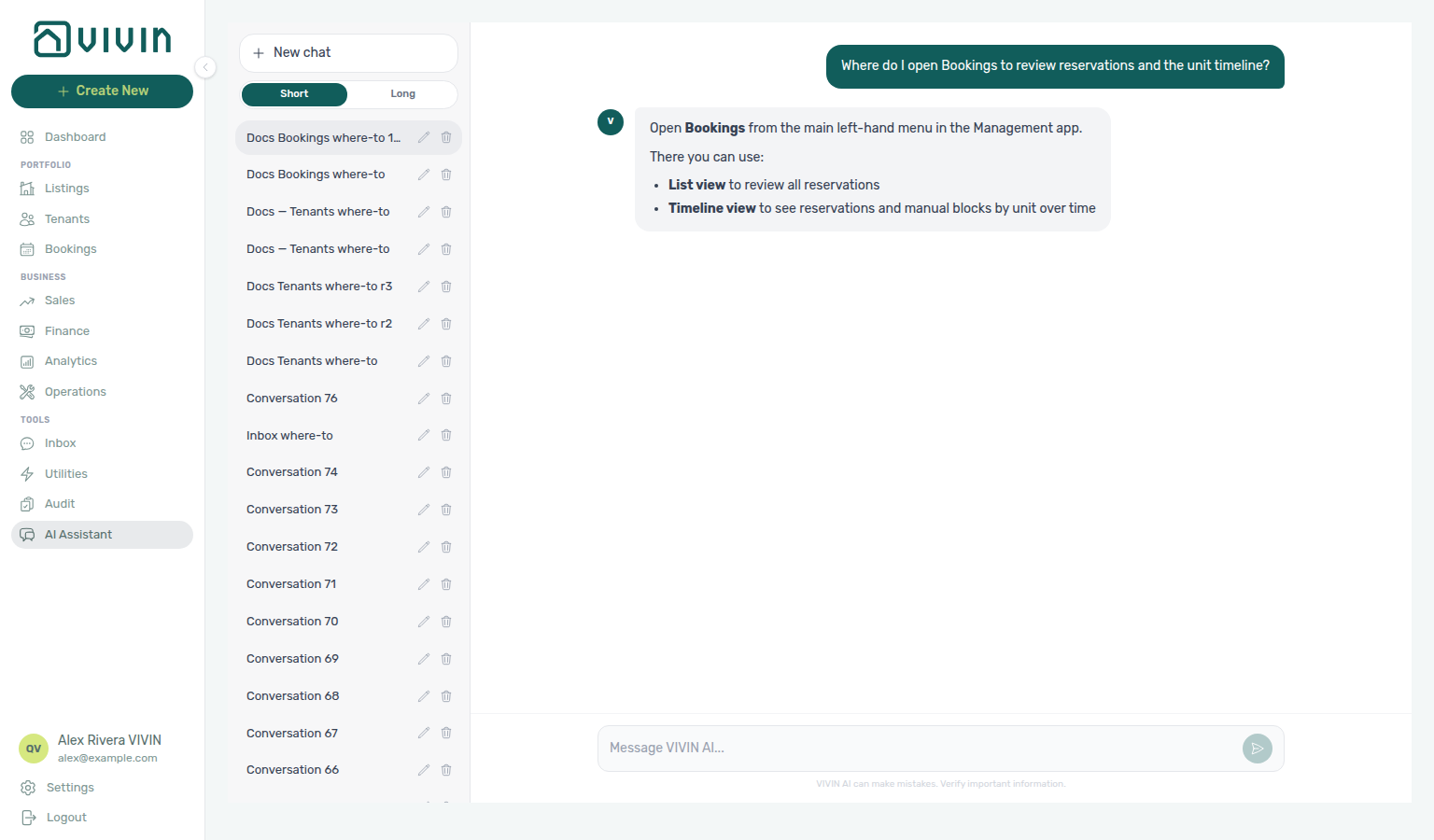
Where-to navigation (Listings portfolio): Ask “Where do I open Listings to manage properties and units in my portfolio?” when you need the property and unit inventory — not reservations on Bookings and not monthly rent grids on Sales. Canonical jobs:
| Job | Open |
|---|---|
| Properties grouped with units (rent, occupancy, availability) | Listings (Portfolio → Listings) |
| Edit property / unit side panels (photos, prices, publication) | Listings — portfolio table |
| Archived properties | Listings — Archived |
| Reservation-first triage | Bookings |
| Monthly rents / channel connections | Sales |
The assistant may say open Listings from the left menu without naming Portfolio — the sidebar groups Listings under Portfolio. Use Listings for inventory structure; use Bookings for stays and Sales for commercial pricing grids.
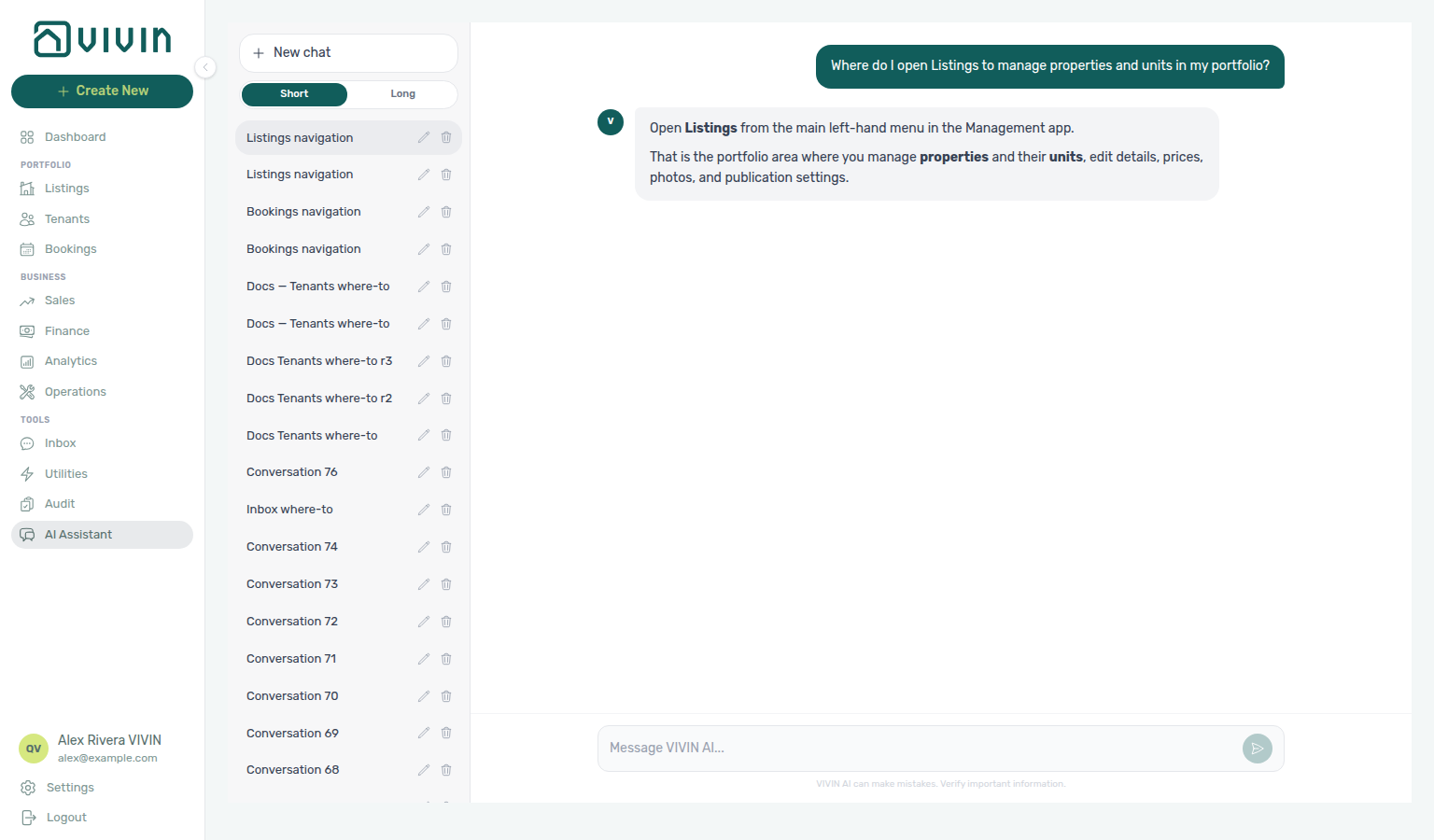
Where-to navigation (Setup / operational listing fields): Ask “Where do I open the Setup pill under Listings (property or unit edit sidebar — English pill label Setup — for operational fields like contract terms, payments, channels, and calendar — not the Full integration pill for marketplace Profile Location Amenities bilingual copy, not Sales Channel Manager, and not Settings Integration capabilities) to edit listing contract payments and channels?” when you need the operational editor on a property or unit — not marketplace Full integration fields, not Sales → Channel Manager, and not the read-only Integration capabilities matrix. Canonical jobs:
| Job | Open |
|---|---|
| Contract, payments, channels, calendar, access | Listings → Setup (property or unit sidebar) |
| Unit marketplace copy, amenities, bilingual descriptions | Listings → unit sidebar → Full integration |
| Day-to-day channel status / linking | Sales → Channel Manager |
| Partner required-vs-supported field matrix | Integration capabilities |
The assistant typically says Listings → open the unit/listing edit sidebar → Setup. Name Setup plus those disambiguators so the reply stays on the operational pill (not Full integration or Channel Manager). Guide: Listings — Editing Properties / Editing Units.
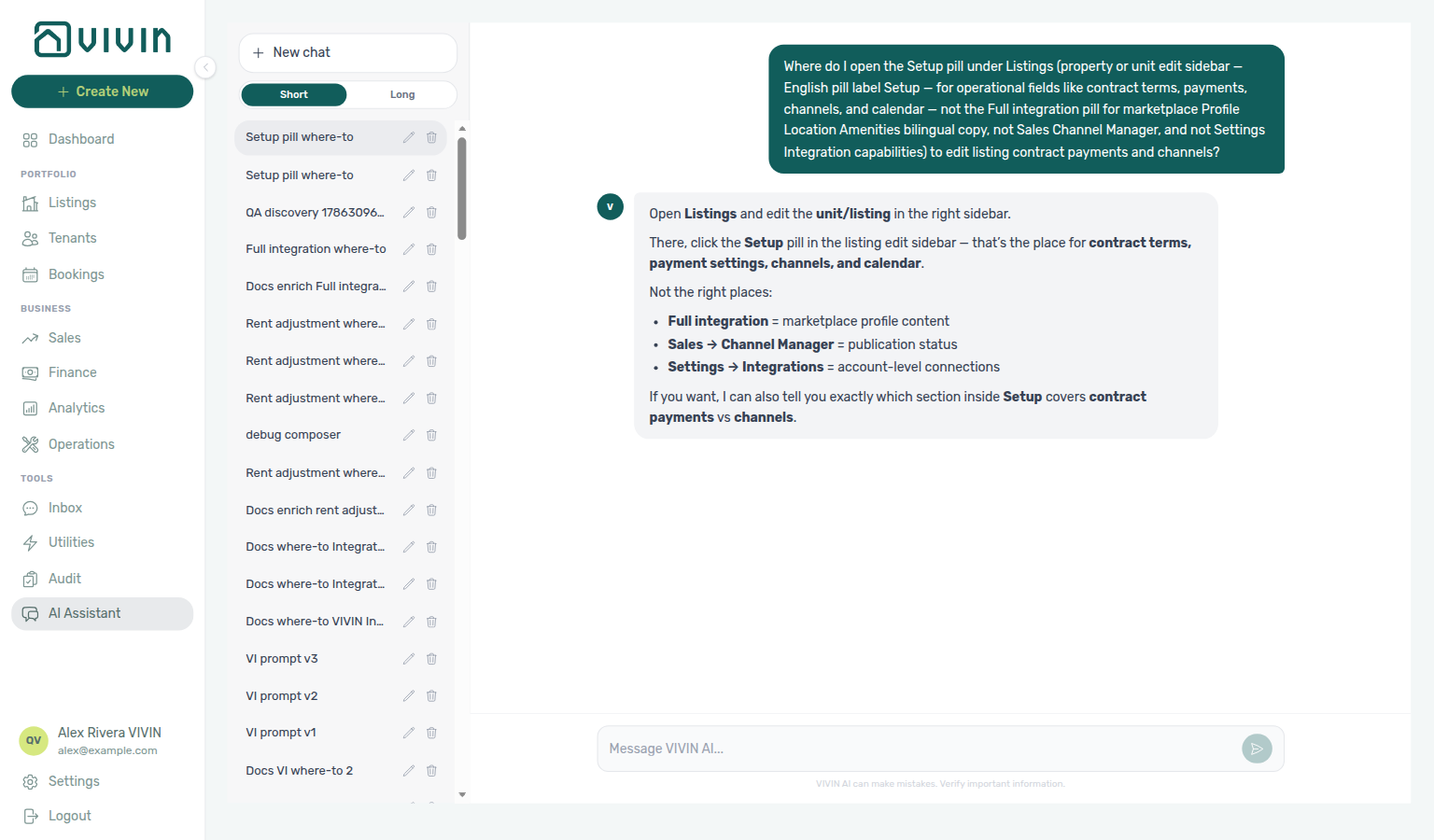
Where-to navigation (Full integration / booking-engine payload): Ask “Where do I open the Full integration pill under Listings (property or unit edit sidebar — English pill label Full integration — for marketplace and booking-engine payload fields like Profile copy, Location, Amenities, bilingual descriptions — not the Setup pill for contract payments and channels, not Sales Channel Manager, and not Settings Integration capabilities) to edit partner marketplace descriptions and amenities?” when you need the marketplace payload editor — not operational Setup fields, not Sales → Channel Manager, and not the read-only Integration capabilities matrix. Canonical jobs:
| Job | Open |
|---|---|
| Unit marketplace copy, amenities, bilingual descriptions | Listings → unit sidebar → Full integration |
| Property Profile, Location, Building & layout tabs | Listings → property sidebar → Full integration |
| Contract, payments, channels, calendar | Listings → Setup |
| Partner required-vs-supported field matrix | Integration capabilities |
The assistant typically says Listings → open the unit/listing edit sidebar → Full integration. Name Full integration plus those disambiguators so the reply stays on the payload pill (not Channel Manager or Integration capabilities). Guide: Property & listing details (booking engine).
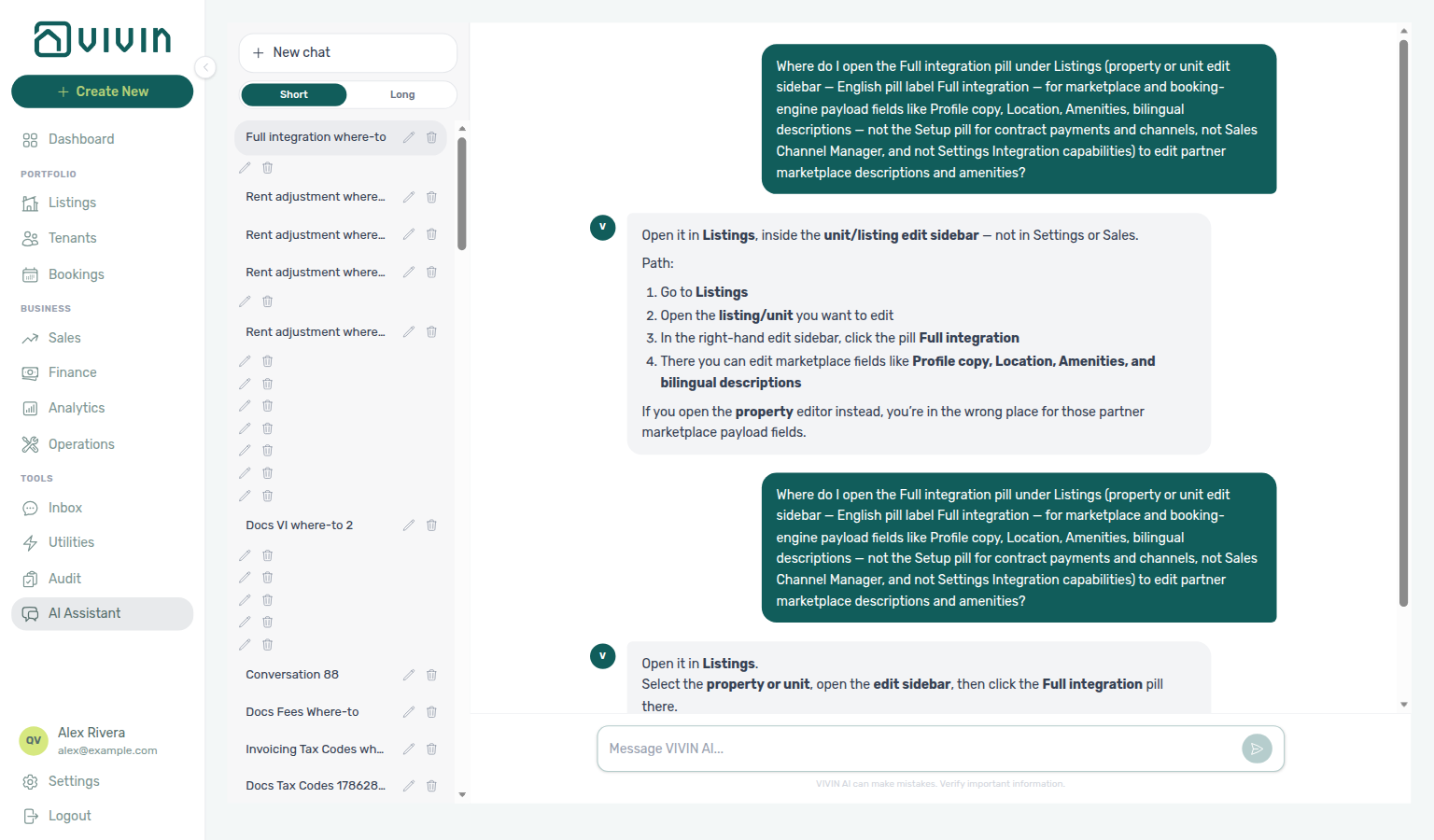
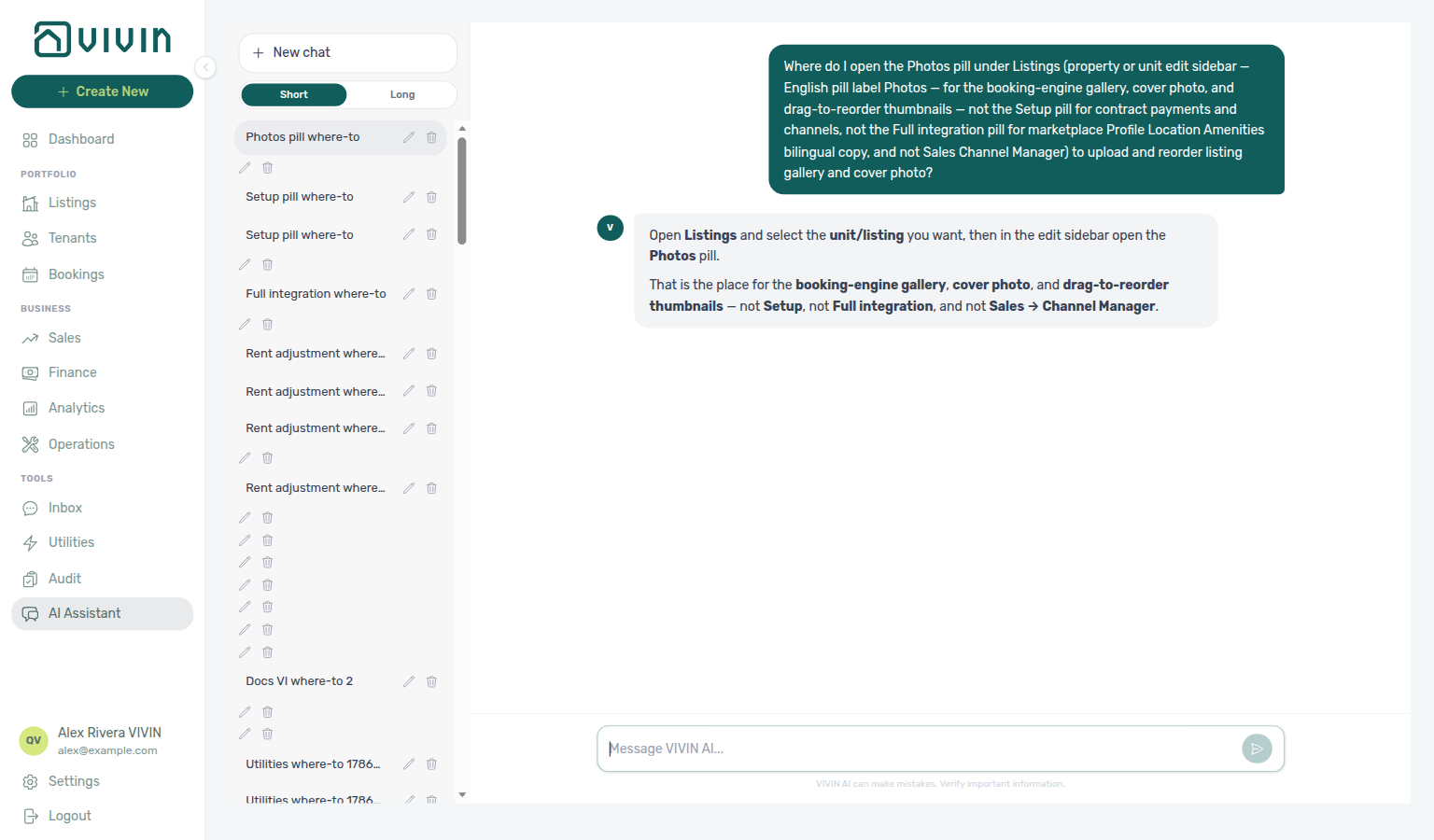
Where-to navigation (Photos / booking-engine gallery): Ask “Where do I open the Photos pill under Listings (property or unit edit sidebar — English pill label Photos — for the booking-engine gallery, cover photo, and drag-to-reorder thumbnails — not the Setup pill for contract payments and channels, not the Full integration pill for marketplace Profile Location Amenities bilingual copy, and not Sales Channel Manager) to upload and reorder listing gallery and cover photo?” when you need the gallery editor — not operational Setup fields, not marketplace Full integration copy, and not Sales → Channel Manager. Canonical jobs:
| Job | Open |
|---|---|
| Upload, cover photo, and drag-to-reorder gallery | Listings → Photos (property or unit sidebar) |
| Contract, payments, channels, calendar | Listings → Setup |
| Unit marketplace copy, amenities, bilingual descriptions | Listings → unit sidebar → Full integration |
The assistant typically says Listings → open the unit/listing edit sidebar → Photos. Name Photos plus those disambiguators so the reply stays on the gallery pill (not Setup or Full integration). Guide: Listings — Photos pill.
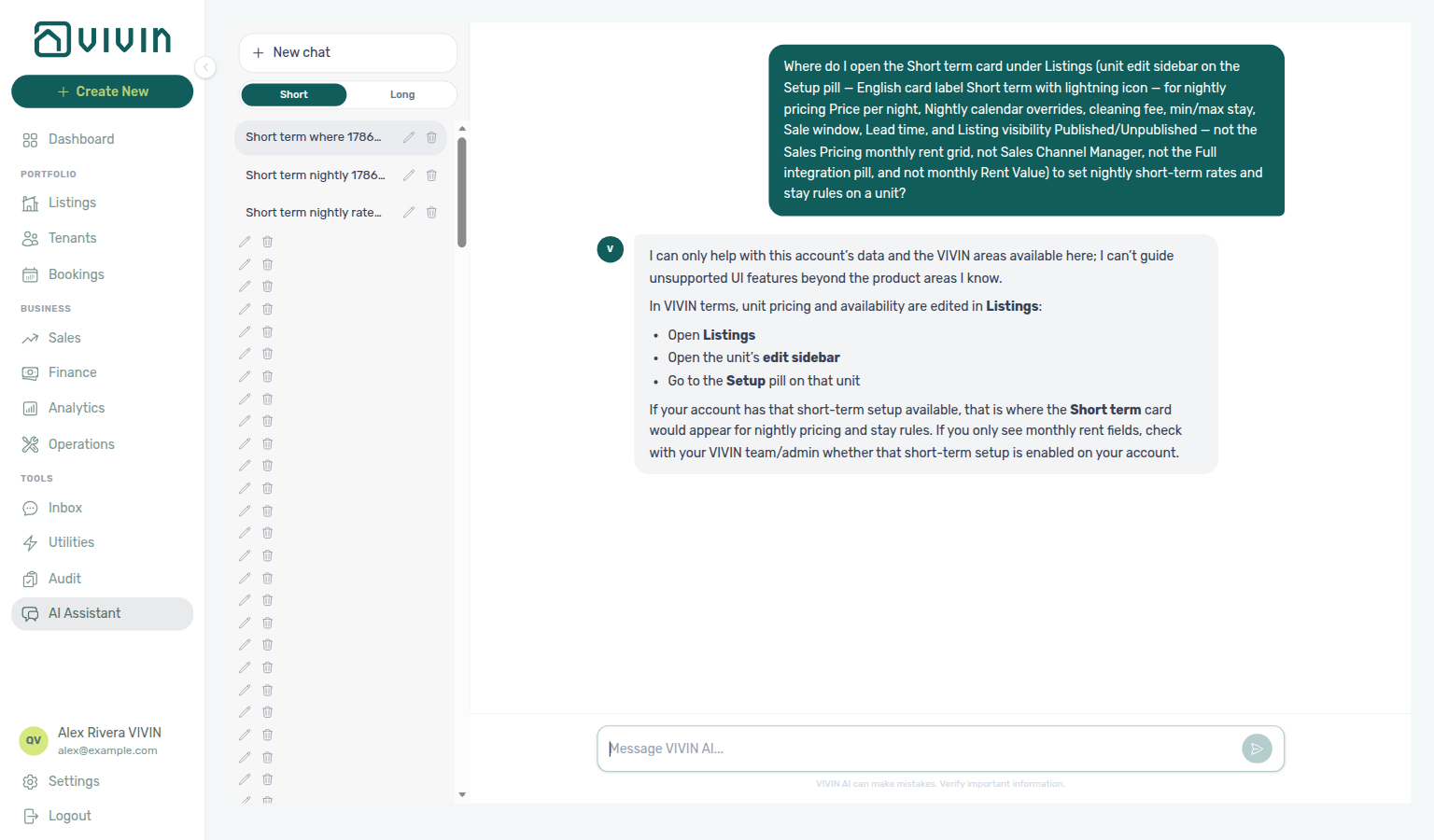
Where-to navigation (Short term / nightly pricing): Ask “Where do I open the Short term card under Listings (unit edit sidebar on the Setup pill — English card label Short term with lightning icon — for nightly pricing Price per night, Nightly calendar overrides, cleaning fees, min/max stay, Sale window, and Lead time — not the Sales Pricing monthly rent grid, not Sales Channel Manager, not the Full integration pill, and not monthly Rent Value) to set nightly short-term rates and stay rules on a unit?” when you need nightly channel pricing — not the Sales → Pricing monthly rent grid, not Sales → Channel Manager, not Full integration, and not monthly Rent Value. Canonical jobs:
| Job | Open |
|---|---|
| Nightly rate, Nightly calendar, stay rules, cleaning fees | Listings → Short term (unit sidebar on Setup) |
| Monthly rent grid / bulk rent edits | Sales → Pricing |
| Per-unit channel linking / allocate | Sales → Channel Manager |
| Contract, payments, channels, calendar | Listings → Setup |
The assistant typically says Listings → open the unit edit sidebar → Setup → Short term. Name Short term plus those disambiguators so the reply stays on the nightly card (not Sales Pricing or Channel Manager). Guide: Listings — Short term (nightly pricing).
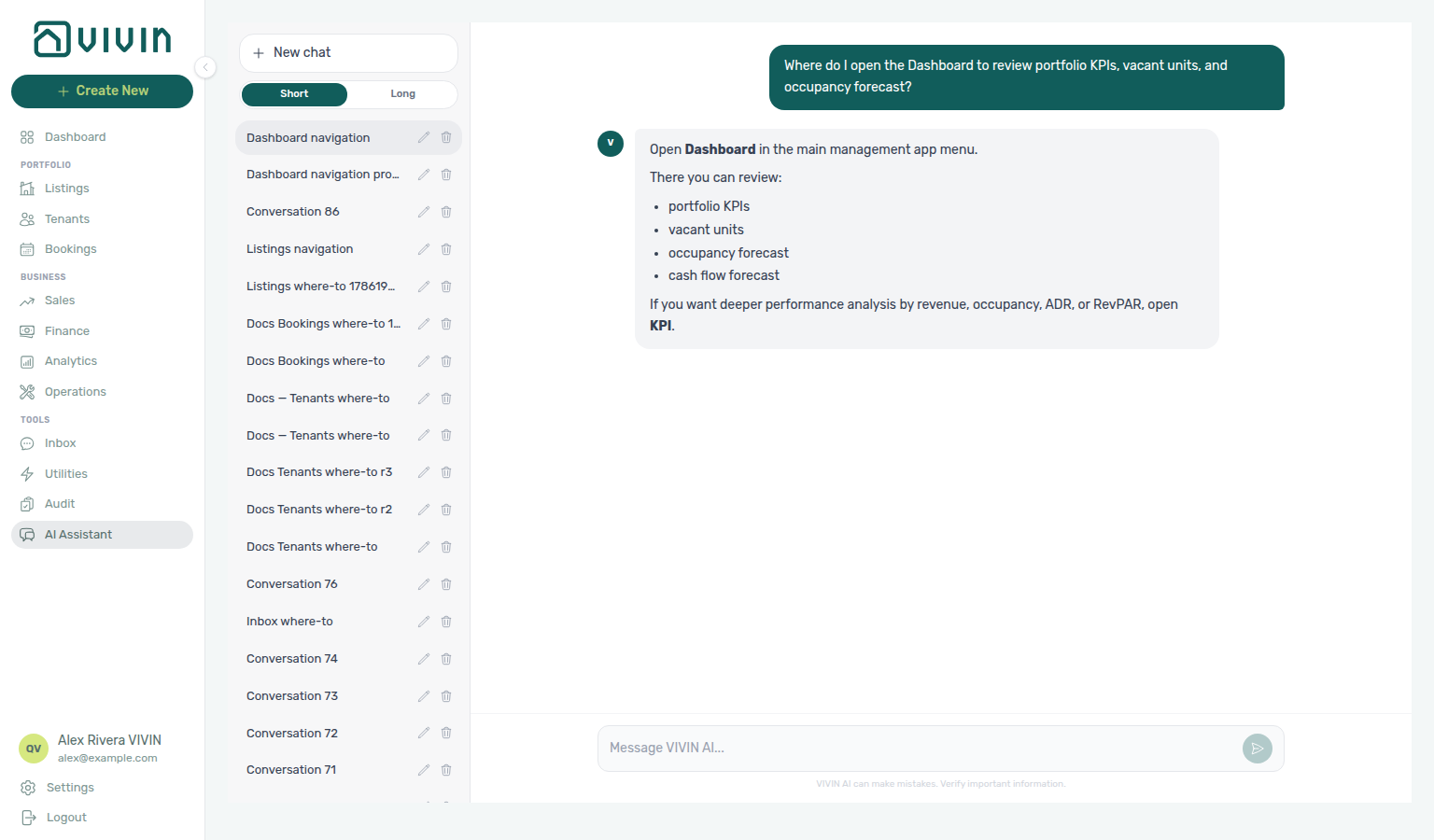
Where-to navigation (Dashboard home): Ask “Where do I open the Dashboard to review portfolio KPIs, vacant units, and occupancy forecast?” when you need the post-login home snapshot — not month-range charts on Analytics and not ledgers on Finance. Canonical jobs:
| Job | Open |
|---|---|
| Daily KPI cards (Listings, Today, Total Debt, Monthly Revenue) | Dashboard (sidebar Dashboard) |
| Occupancy / cash-flow forecasts and vacant-unit triage | Dashboard — forecasts & Vacant Units |
| Month-range ADR / RevPAR charts | Analytics |
| All-time debt / cash ledgers | Finance |
The assistant may say open Dashboard in the main menu (or point deeper analysis at KPI) — the sidebar label for month-range charts is Analytics under Business. Use Dashboard for the live daily pulse; use Analytics for ranged performance charts and Finance for receivables detail.
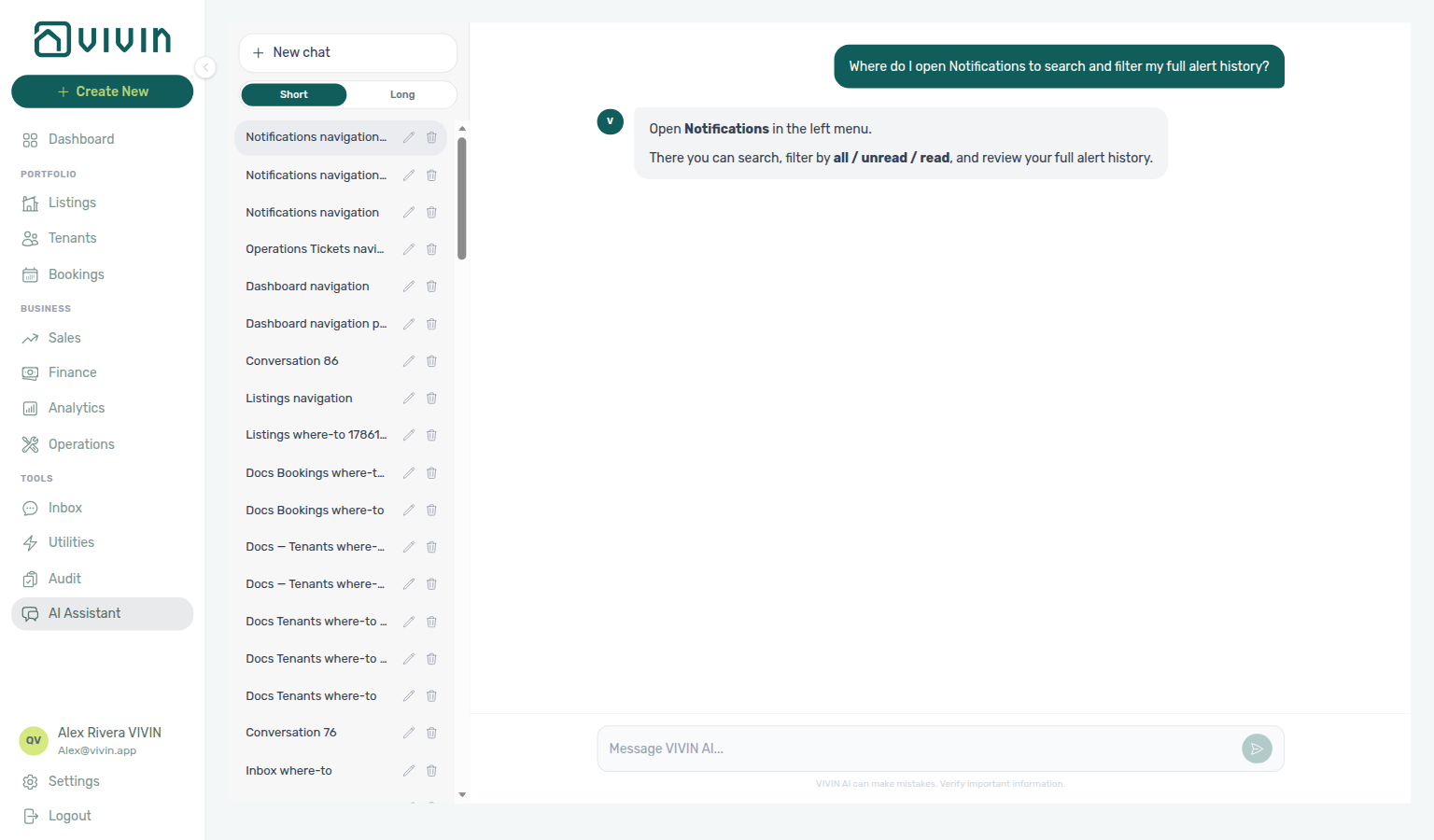
Where-to navigation (Notifications history): Ask “Where do I open Notifications to search and filter my full alert history?” when you need the full /notifications inbox — search, All / Unread / Read, and row-click into bookings — not the compact Dashboard bell slide-over alone. Canonical jobs:
| Job | Open |
|---|---|
| Search, filter by read status, and review full alert history | Notifications (/notifications) |
| Compact recent alerts (desktop) | Dashboard bell |
| Tune which categories fire | Preferences — In-app notifications |
The assistant may say open Notifications in the left menu — Notifications is not a sidebar item; bookmark /notifications, or use View all notifications from the Dashboard bell. The bell has no search or read-status pills — see Notification triage.
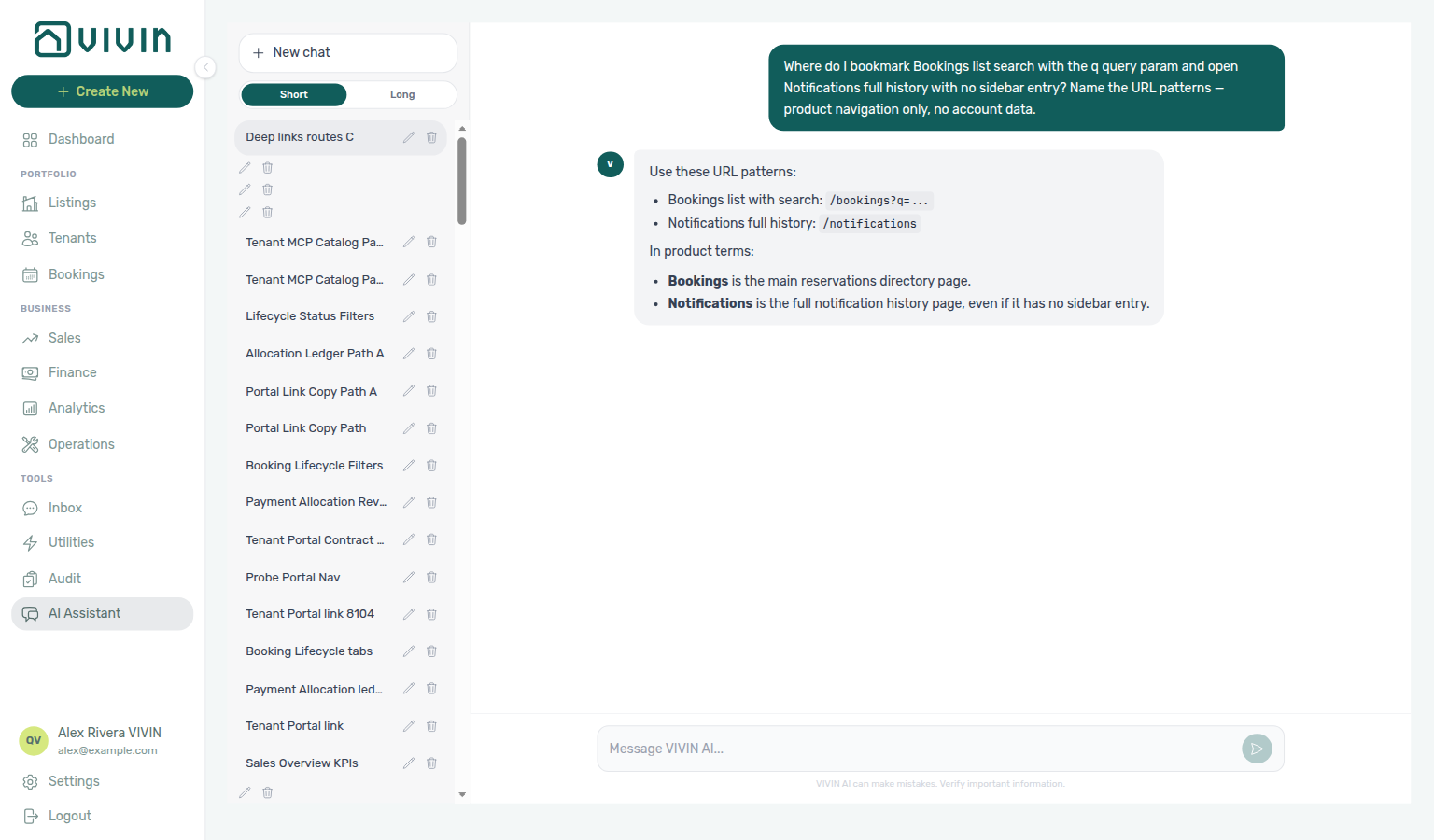
Where-to navigation (Deep Links / bookmarkable routes): Ask “Where do I bookmark Bookings list search with the q query param and open Notifications full history with no sidebar entry? Name the URL patterns — product navigation only, no account data.” when you need shareable management URLs — not only the sidebar click path, and not WhatsApp Inbox. Canonical jobs:
| Job | Open |
|---|---|
| Bookings list with toolbar Search pre-filled | /bookings?q=… — Bookings — Bookmarkable search |
| Full Notifications history (no sidebar entry) | /notifications — Notifications |
| Full route tables | Management Frontend Deep Links |
The assistant typically lists /bookings?q=… and /notifications, and notes that Notifications has no sidebar entry. Pair with the Dashboard bell only for compact recent alerts.
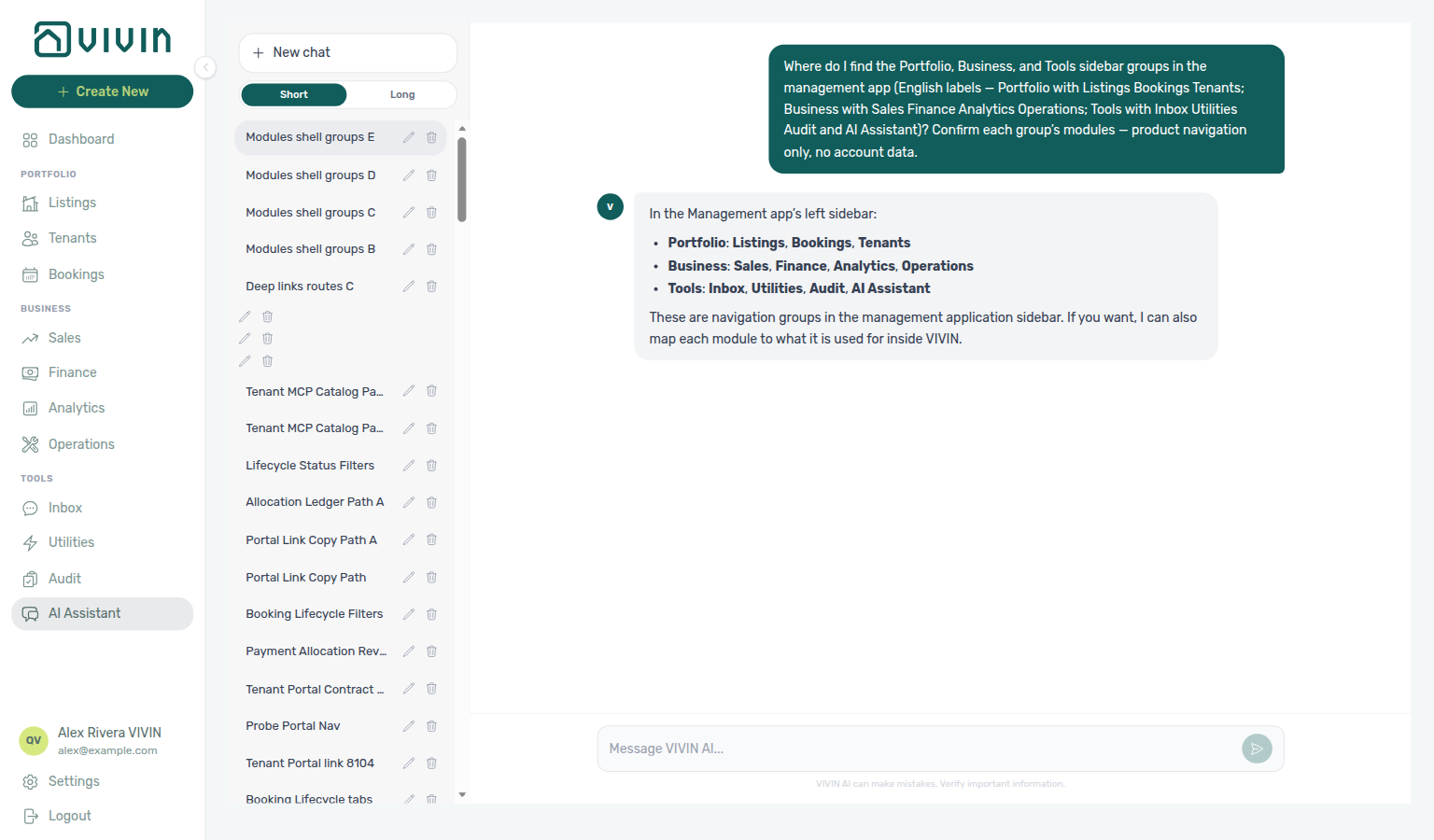
Where-to navigation (Modules hub / sidebar groups): Ask “Where do I find the Portfolio, Business, and Tools sidebar groups in the management app (English labels — Portfolio with Listings Bookings Tenants; Business with Sales Finance Analytics Operations; Tools with Inbox Utilities Audit and AI Assistant)? Confirm each group’s modules — product navigation only, no account data.” when you need the left-rail map for every module workspace — not a single module deep-dive and not Account Settings. Canonical jobs:
| Job | Open |
|---|---|
| Inventory, reservations, people | Portfolio — Listings, Bookings, Tenants |
| Commercial, ledgers, KPIs, field ops | Business — Sales, Finance, Analytics, Operations |
| WhatsApp, utilities, blocks, AI Assistant | Tools — Inbox, Utilities, Audit, AI Assistant |
| Full Modules hub | Modules — Shell and navigation |
The assistant typically lists those three groups and example modules. Dashboard sits above the groups; Settings and profile stay at the bottom of the rail.
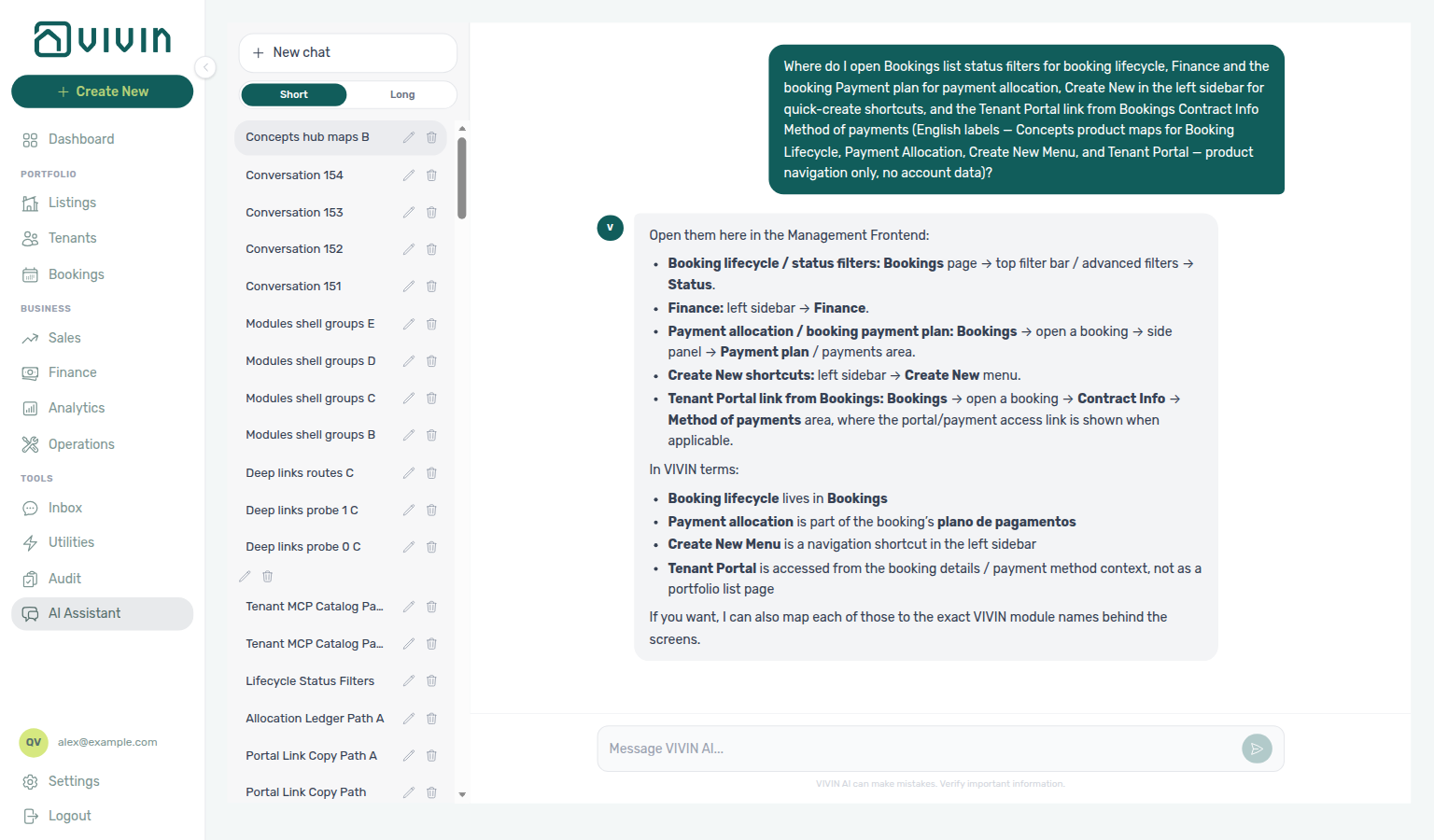
Where-to navigation (Concepts hub / product maps): Ask “Where do I open Bookings list status filters for booking lifecycle, Finance and the booking Payment plan for payment allocation, Create New in the left sidebar for quick-create shortcuts, and the Tenant Portal link from Bookings Contract Info Method of payments (English labels — Concepts product maps for Booking Lifecycle, Payment Allocation, Create New Menu, and Tenant Portal — product navigation only, no account data)?” when you need the management click paths Concepts docs explain — not one concept deep-dive alone and not the Modules sidebar-group map. Canonical jobs:
| Job | Open |
|---|---|
| Lifecycle status filters | Bookings list status filters — Booking Lifecycle |
| Ledgers + per-booking schedule | Finance and booking Payment plan — Payment Allocation |
| Quick-create shortcuts | + Create New in the left sidebar |
| Booking-scoped portal link | Bookings → Contract Info → Method of payments → Tenant Portal — Tenant Portal |
| Full Concepts hub | Concepts — Product maps |
The assistant typically names those four surfaces. Pair with Deep Links when you need shareable URLs instead of click paths.
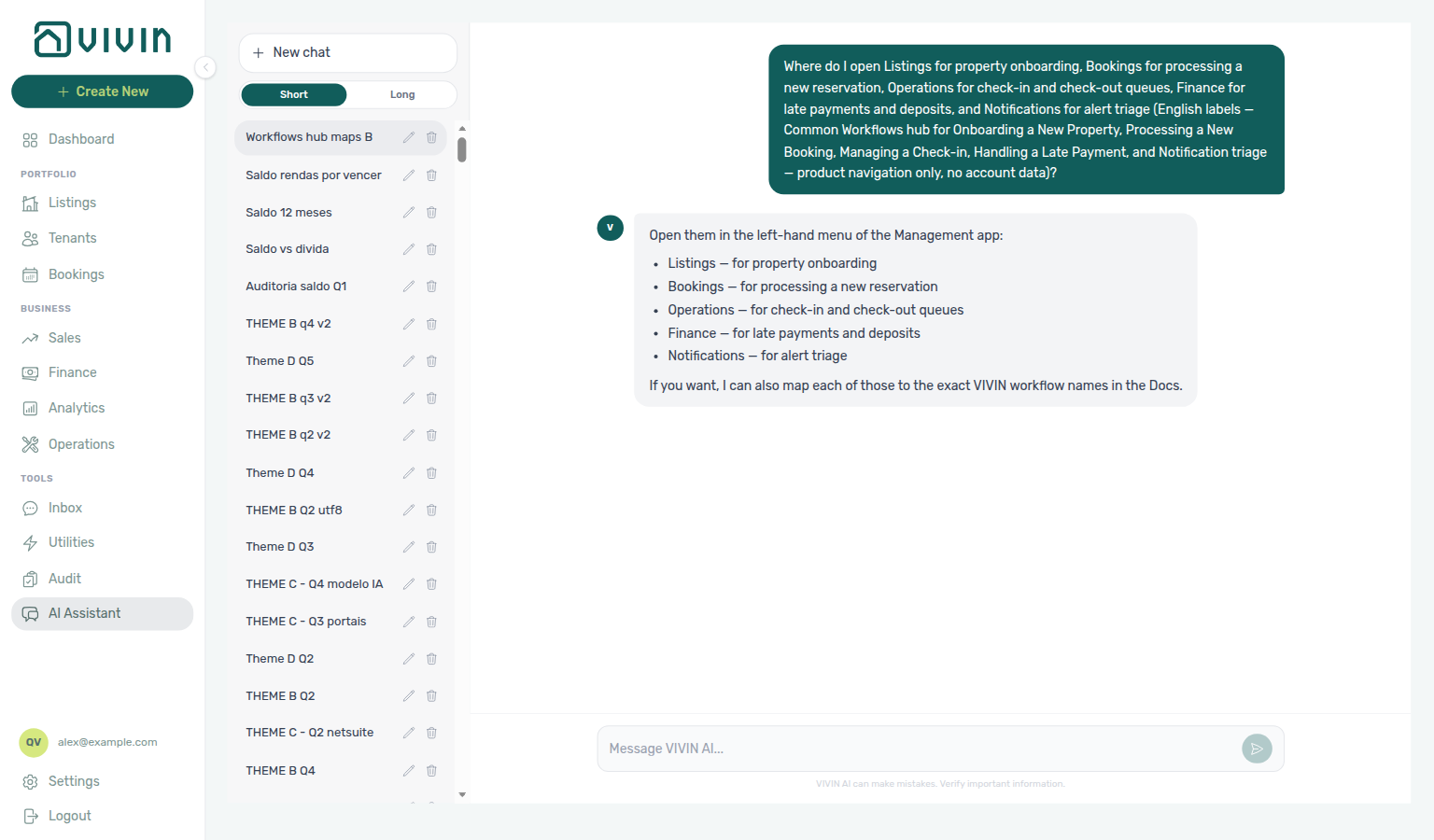
Where-to navigation (Common Workflows hub / product maps): Ask “Where do I open Listings for property onboarding, Bookings for processing a new reservation, Operations for check-in and check-out queues, Finance for late payments and deposits, and Notifications for alert triage (English labels — Common Workflows hub for Onboarding a New Property, Processing a New Booking, Managing a Check-in, Handling a Late Payment, and Notification triage — product navigation only, no account data)?” when you need the module click paths for the checklist guides — not one workflow deep-dive alone and not the Modules sidebar-group map. Canonical jobs:
| Job | Open |
|---|---|
| Property / unit go-live | Listings — Onboarding a New Property |
| New reservation | Bookings — Processing a New Booking |
| Arrival / departure queues | Operations — Managing a Check-in |
| Overdue rent / deposits | Finance — Handling a Late Payment |
| Alert triage | Notifications (/notifications) — Notification triage |
| Full Common Workflows hub | Common Workflows — Product maps |
The assistant typically points at the left-hand menu for Listings, Bookings, Operations, and Finance, and at Notifications for alert triage (not a sidebar item — use the bookmark or Dashboard bell View all).
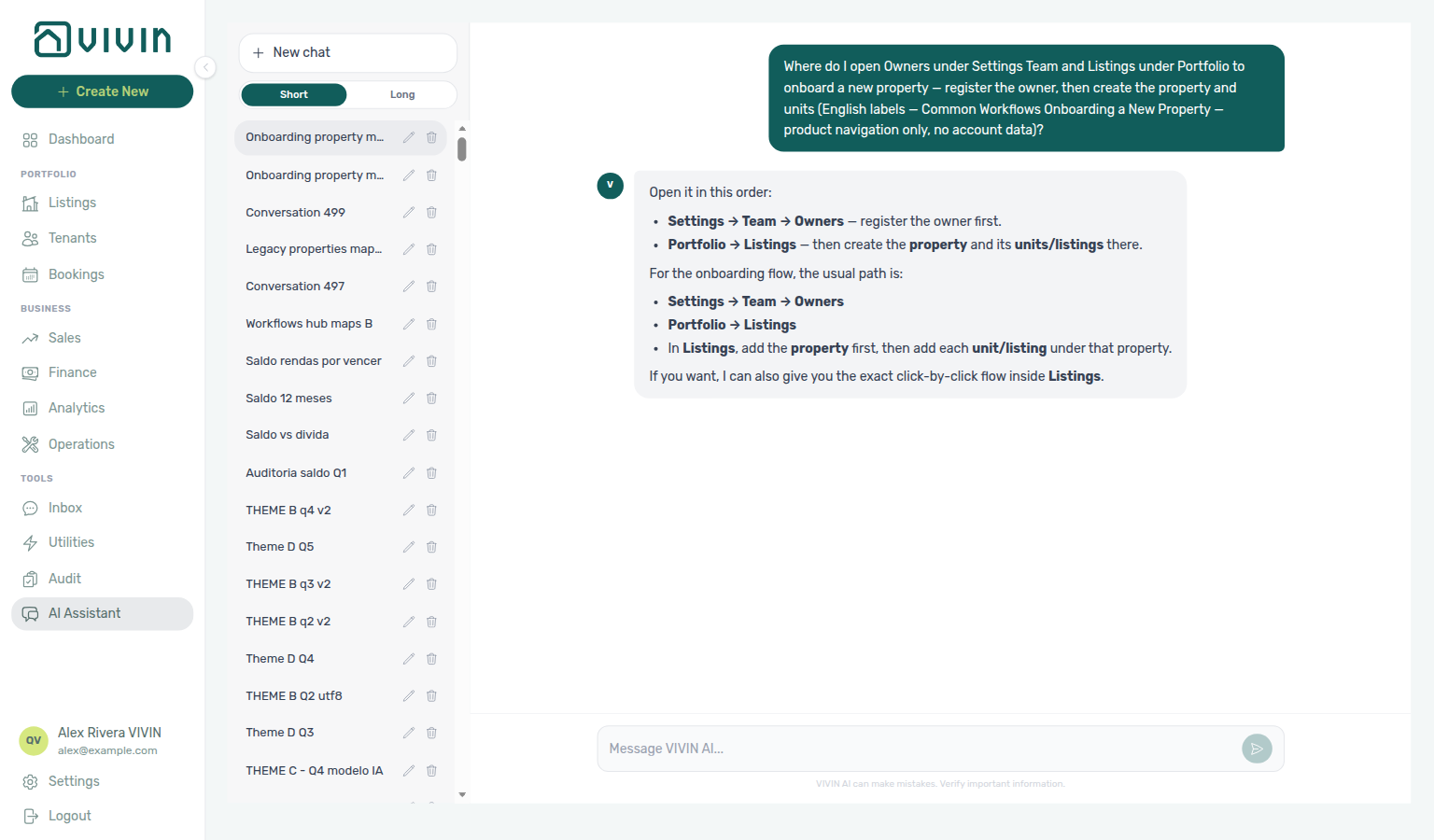
Where-to navigation (Onboarding a New Property): Ask “Where do I open Owners under Settings Team and Listings under Portfolio to onboard a new property — register the owner, then create the property and units (English labels — Common Workflows Onboarding a New Property — product navigation only, no account data)?” when you need the owner-then-Listings click path for go-live — not the broader Common Workflows hub map alone, and not reservation work on Bookings. Canonical jobs:
| Job | Open |
|---|---|
| Register the property owner | Settings → Team → Owners |
| Create the property and units | Portfolio → Listings |
| Full onboarding checklist | Onboarding a New Property |
The assistant typically says Settings → Team → Owners first, then Portfolio → Listings (add the property, then each unit/listing under it).
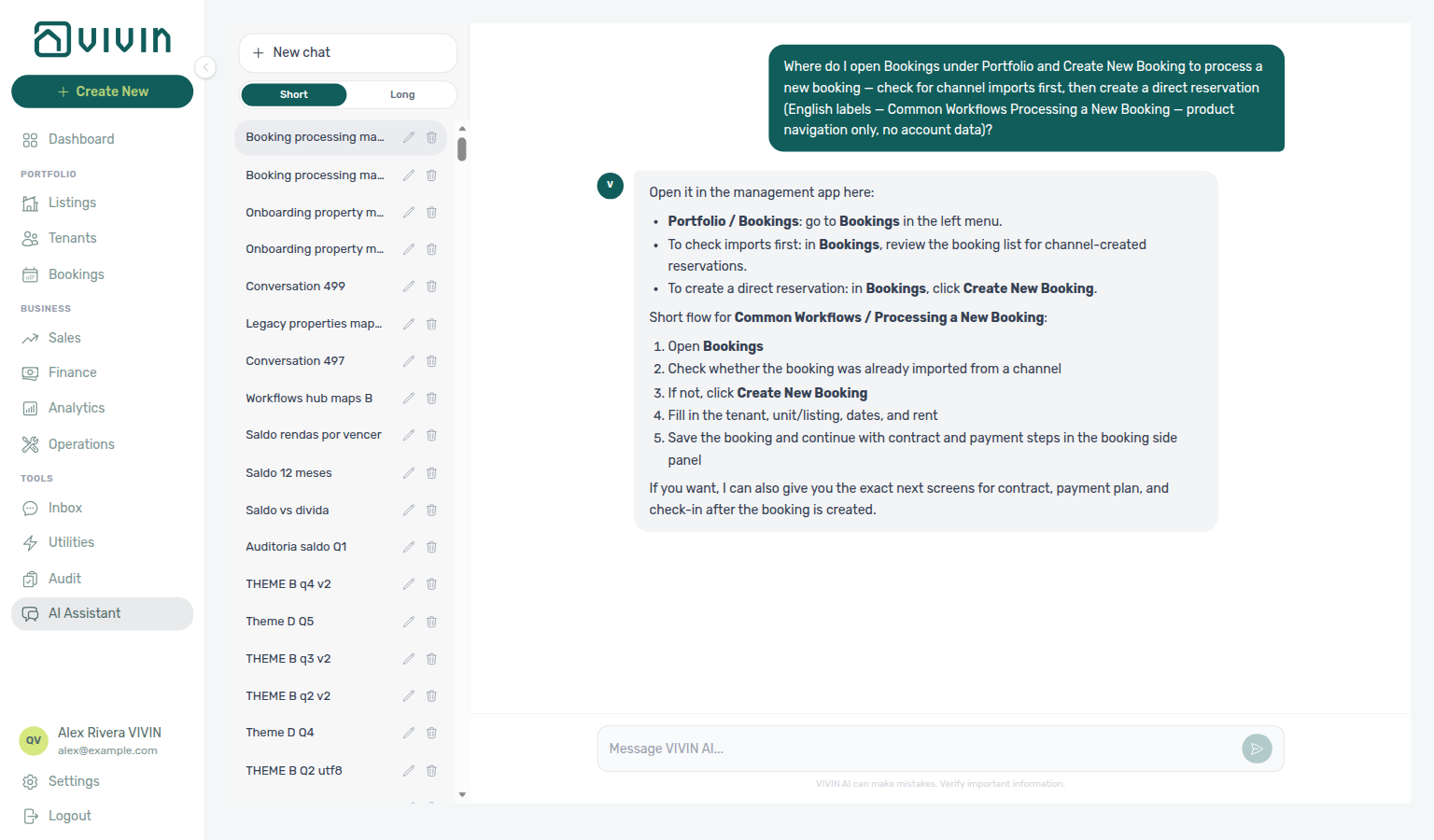
Where-to navigation (Processing a New Booking): Ask “Where do I open Bookings under Portfolio and Create New Booking to process a new booking — check for channel imports first, then create a direct reservation (English labels — Common Workflows Processing a New Booking — product navigation only, no account data)?” when you need the reservation click path after inventory is live — not property onboarding on Listings, and not the broader Common Workflows hub map alone. Canonical jobs:
| Job | Open |
|---|---|
| Check channel imports / list reservations | Portfolio → Bookings |
| Create a direct reservation | + Create New → Booking (assistant may say Create New Booking) |
| Full processing checklist | Processing a New Booking |
The assistant typically says open Bookings in the left menu, review the list for channel imports, then use Create New Booking — in the product UI that is + Create New → Booking under Reservations.
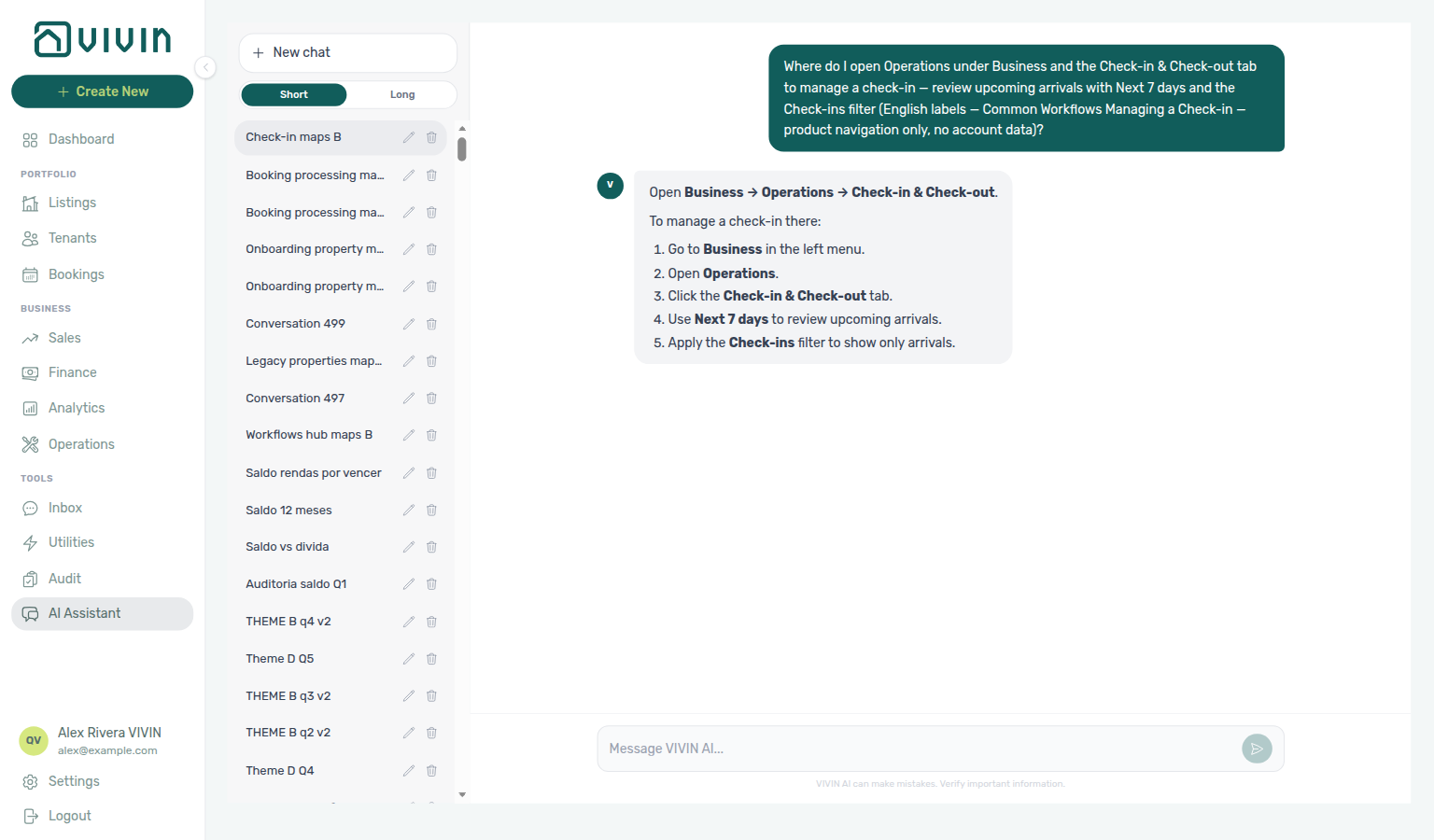
Where-to navigation (Managing a Check-in): Ask “Where do I open Operations under Business and the Check-in & Check-out tab to manage a check-in — review upcoming arrivals with Next 7 days and the Check-ins filter (English labels — Common Workflows Managing a Check-in — product navigation only, no account data)?” when you need the arrival-week queue after a booking is confirmed — not reservation creation on Bookings, and not the broader Common Workflows hub map alone. Canonical jobs:
| Job | Open |
|---|---|
| Review upcoming arrivals | Business → Operations → Check-in & Check-out (/operations/check-in-out) |
| Narrow to arrivals in the next week | Next 7 days + Check-ins filter on that tab |
| Full check-in checklist | Managing a Check-in |
The assistant typically says Business → Operations → Check-in & Check-out, then use Next 7 days and the Check-ins filter.
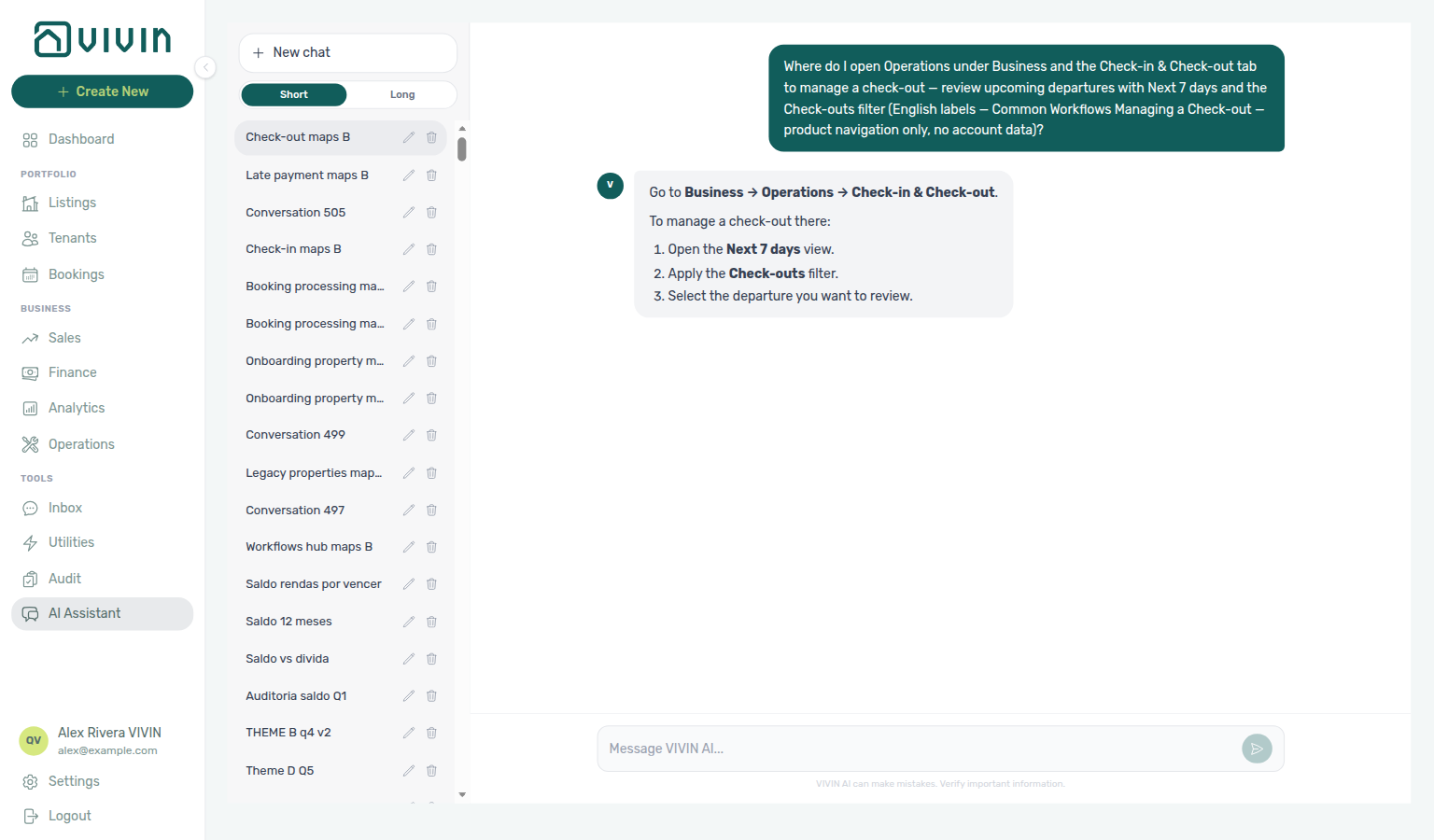
Where-to navigation (Managing a Check-out): Ask “Where do I open Operations under Business and the Check-in & Check-out tab to manage a check-out — review upcoming departures with Next 7 days and the Check-outs filter (English labels — Common Workflows Managing a Check-out — product navigation only, no account data)?” when you need the departure-week queue after move-in — not arrival planning on the same tab’s Check-ins filter, and not the broader Common Workflows hub map alone. Canonical jobs:
| Job | Open |
|---|---|
| Review upcoming departures | Business → Operations → Check-in & Check-out (/operations/check-in-out) |
| Narrow to departures in the next week | Next 7 days + Check-outs filter on that tab |
| Full check-out checklist | Managing a Check-out |
The assistant typically says Business → Operations → Check-in & Check-out, then use Next 7 days and the Check-outs filter.
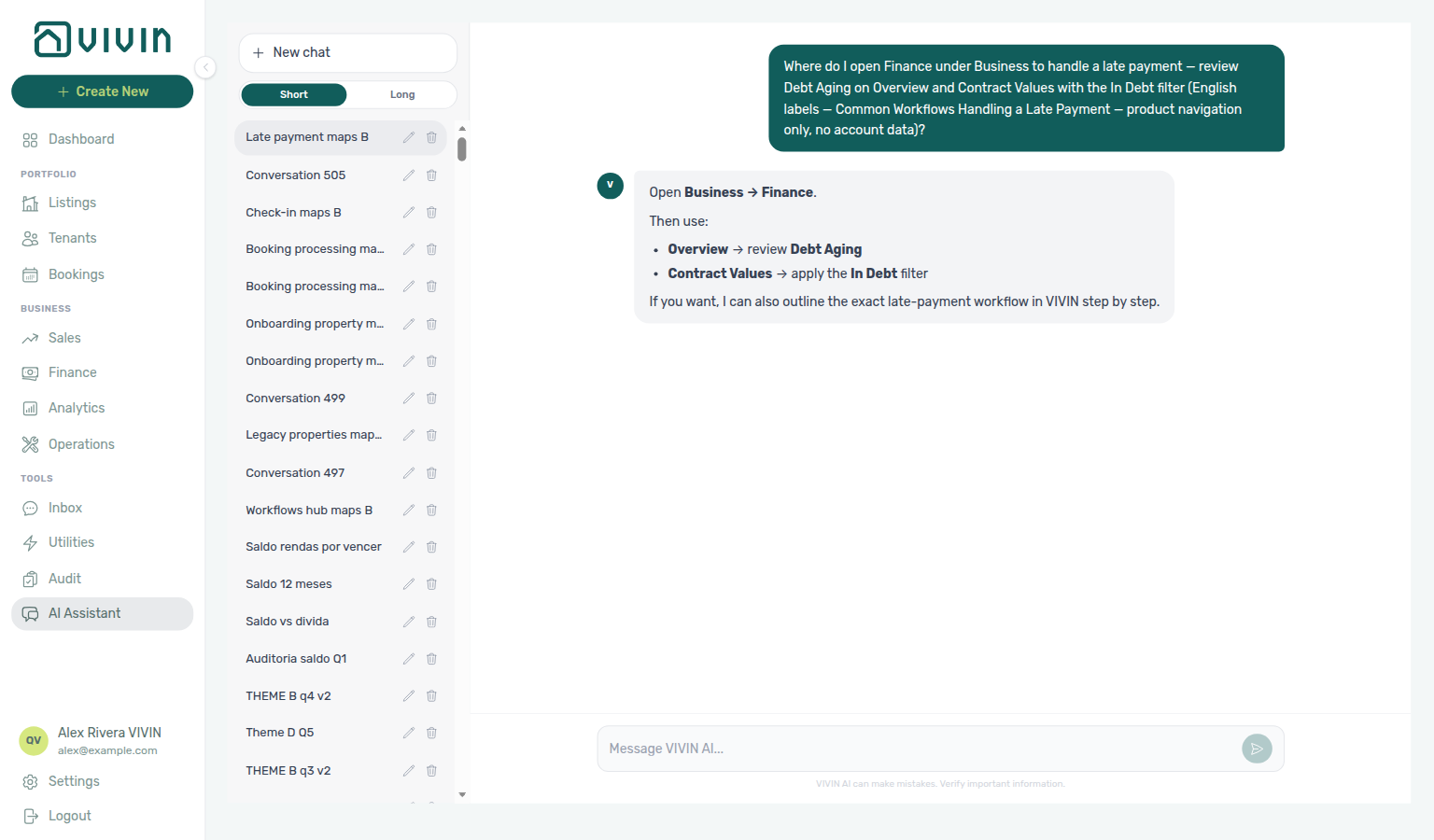
Where-to navigation (Handling a Late Payment): Ask “Where do I open Finance under Business to handle a late payment — review Debt Aging on Overview and Contract Values with the In Debt filter (English labels — Common Workflows Handling a Late Payment — product navigation only, no account data)?” when you need the collections triage surfaces after a payment alert or month-end debt review — not alert inbox work on Notifications, and not the broader Common Workflows hub map alone. Canonical jobs:
| Job | Open |
|---|---|
| Prioritize overdue balances | Business → Finance → Overview — Debt Aging / Top debtors (/finance/overview) |
| List overdue scheduled charges | Finance → Contract Values with the In Debt filter (/finance/contractValues) |
| Full collections checklist | Handling a Late Payment |
The assistant typically says Business → Finance, then use Overview → Debt Aging and Contract Values with the In Debt filter.
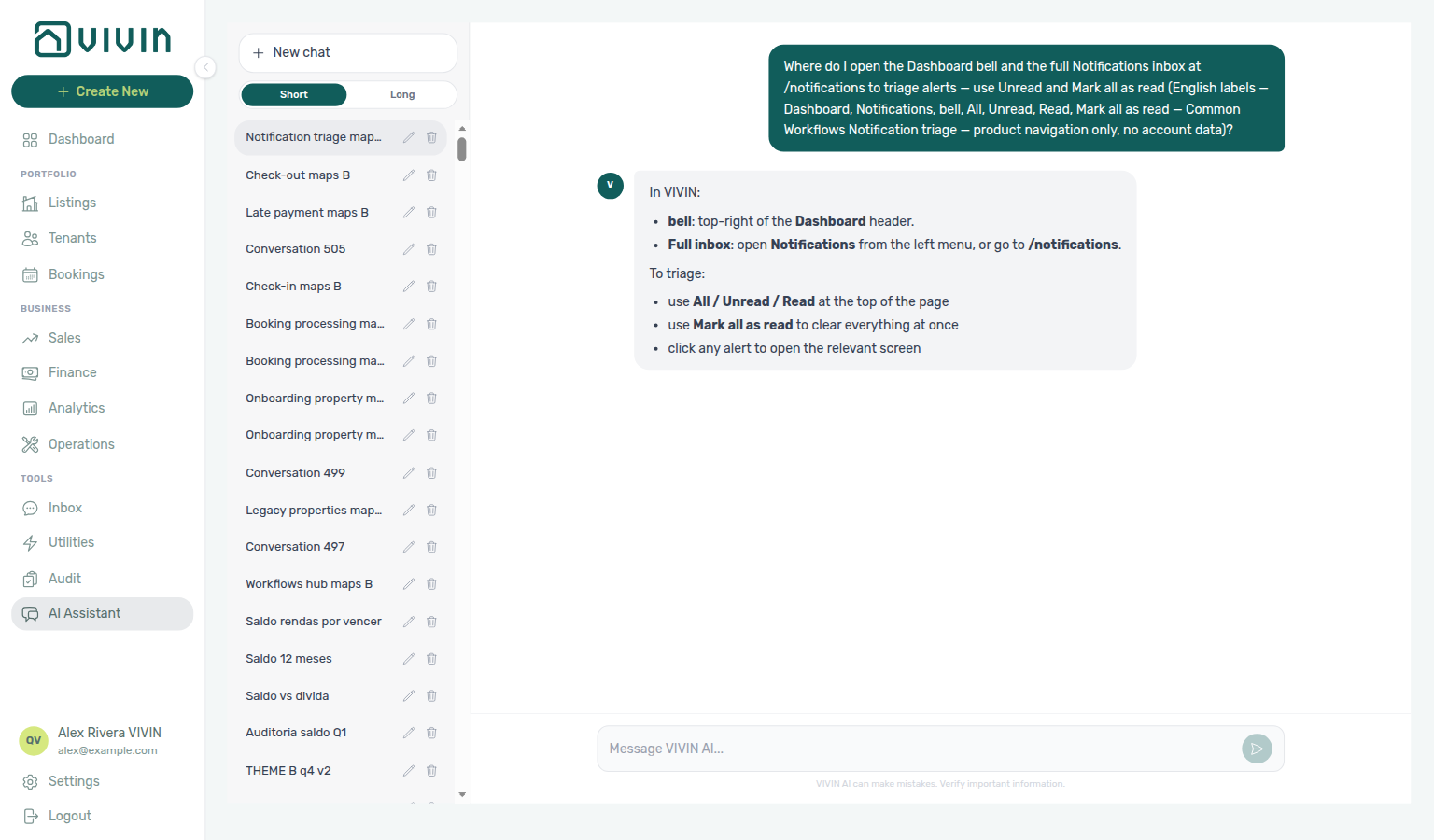
Where-to navigation (Notification triage): Ask “Where do I open the Dashboard bell and the full Notifications inbox at /notifications to triage alerts — use Unread and Mark all as read (English labels — Dashboard, Notifications, bell, All, Unread, Read, Mark all as read — Common Workflows Notification triage — product navigation only, no account data)?” when you need the in-app alert inbox after a busy booking or payment day — not collections ledgers on Finance, and not the broader Common Workflows hub map alone. Canonical jobs:
| Job | Open |
|---|---|
| Quick scan recent alerts (desktop) | Dashboard header bell (/) |
| Search, All / Unread / Read, full history | Notifications (/notifications) — bookmark; not a sidebar item |
| Full triage checklist | Notification triage |
The assistant typically points at the Dashboard bell and /notifications (it may say left menu — use the bookmark or View all from the bell).
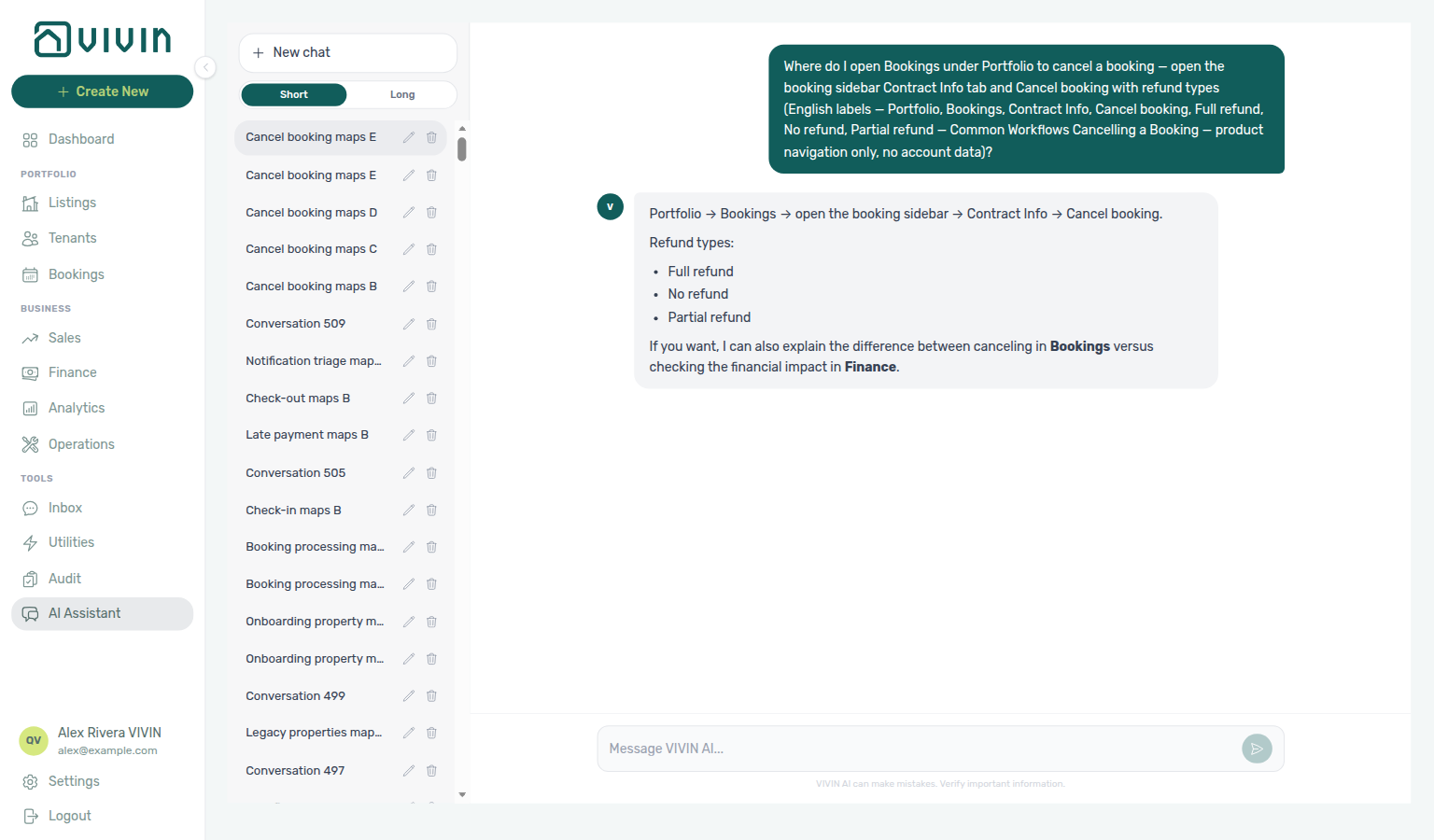
Where-to navigation (Cancelling a Booking): Ask “Where do I open Bookings under Portfolio to cancel a booking — open the booking sidebar Contract Info tab and Cancel booking with refund types (English labels — Portfolio, Bookings, Contract Info, Cancel booking, Full refund, No refund, Partial refund — Common Workflows Cancelling a Booking — product navigation only, no account data)?” when you need the policy-void click path for a reservation that should land in Canceled — not completed-stay closure on Managing a Check-out, and not the broader Common Workflows hub map alone. Canonical jobs:
| Job | Open |
|---|---|
| Find the reservation | Portfolio → Bookings (/bookings) |
| Open refund-type dialog | Booking sidebar Contract Info → Cancel booking |
| Full cancel checklist | Cancelling a Booking |
The assistant typically says Portfolio → Bookings, then Contract Info → Cancel booking, and lists the three refund types.
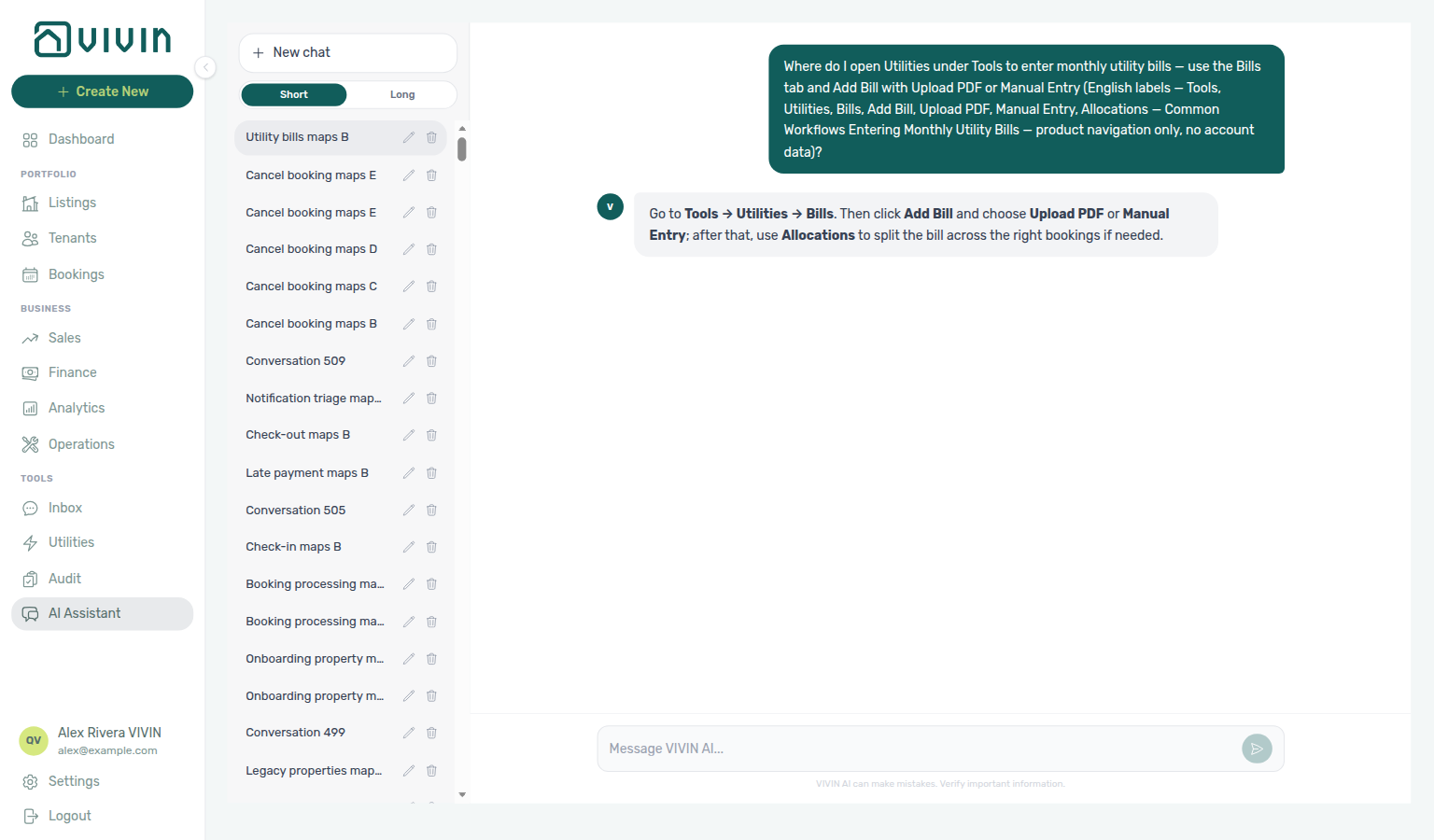
Where-to navigation (Entering Monthly Utility Bills): Ask “Where do I open Utilities under Tools to enter monthly utility bills — use the Bills tab and Add Bill with Upload PDF or Manual Entry (English labels — Tools, Utilities, Bills, Add Bill, Upload PDF, Manual Entry, Allocations — Common Workflows Entering Monthly Utility Bills — product navigation only, no account data)?” when you need the month-end supplier bill entry click path — not the broader module map alone (“where do I enter utility bills and review allocations…?”), and not Account Settings Global Settings → Utilities overage rules. Canonical jobs:
| Job | Open |
|---|---|
| Open the supplier ledger | Tools → Utilities → Bills (/utilities/bills) |
| Enter a bill (PDF or form) | Add Bill → Upload PDF or Manual Entry |
| Full month-end checklist | Entering Monthly Utility Bills |
The assistant typically says Tools → Utilities → Bills, then Add Bill with Upload PDF or Manual Entry, and mentions Allocations when costs need splitting.
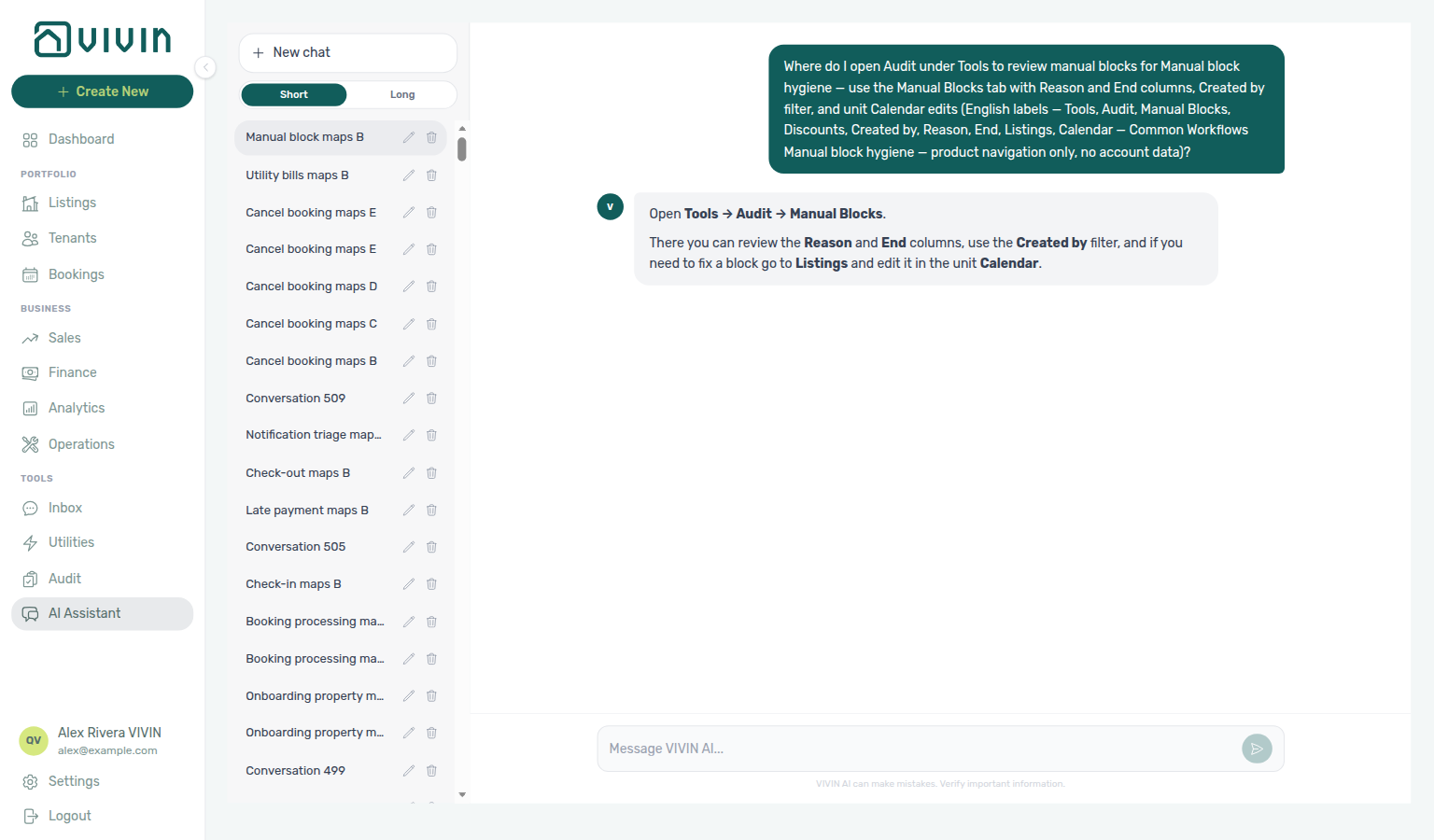
Where-to navigation (Manual block hygiene): Ask “Where do I open Audit under Tools to review manual blocks for Manual block hygiene — use the Manual Blocks tab with Reason and End columns, Created by filter, and unit Calendar edits (English labels — Tools, Audit, Manual Blocks, Discounts, Created by, Reason, End, Listings, Calendar — Common Workflows Manual block hygiene — product navigation only, no account data)?” when you need the stale-hold hygiene click path — not the broader module map alone (“where do I open Audit to review manual blocks and discounts…?”), and not a single unit calendar opened from Listings first. Canonical jobs:
| Job | Open |
|---|---|
| Open the portfolio Manual Blocks table | Tools → Audit → Manual Blocks (/audit/manual-blocks) |
| Narrow by operator / scan Reason and End | Created by filter; Reason and End columns |
| Shorten or remove a hold | Unit Calendar in Listings |
| Full hygiene checklist | Manual block hygiene |
The assistant typically says Tools → Audit → Manual Blocks, then points at Reason / End, Created by, and unit Calendar edits in Listings.
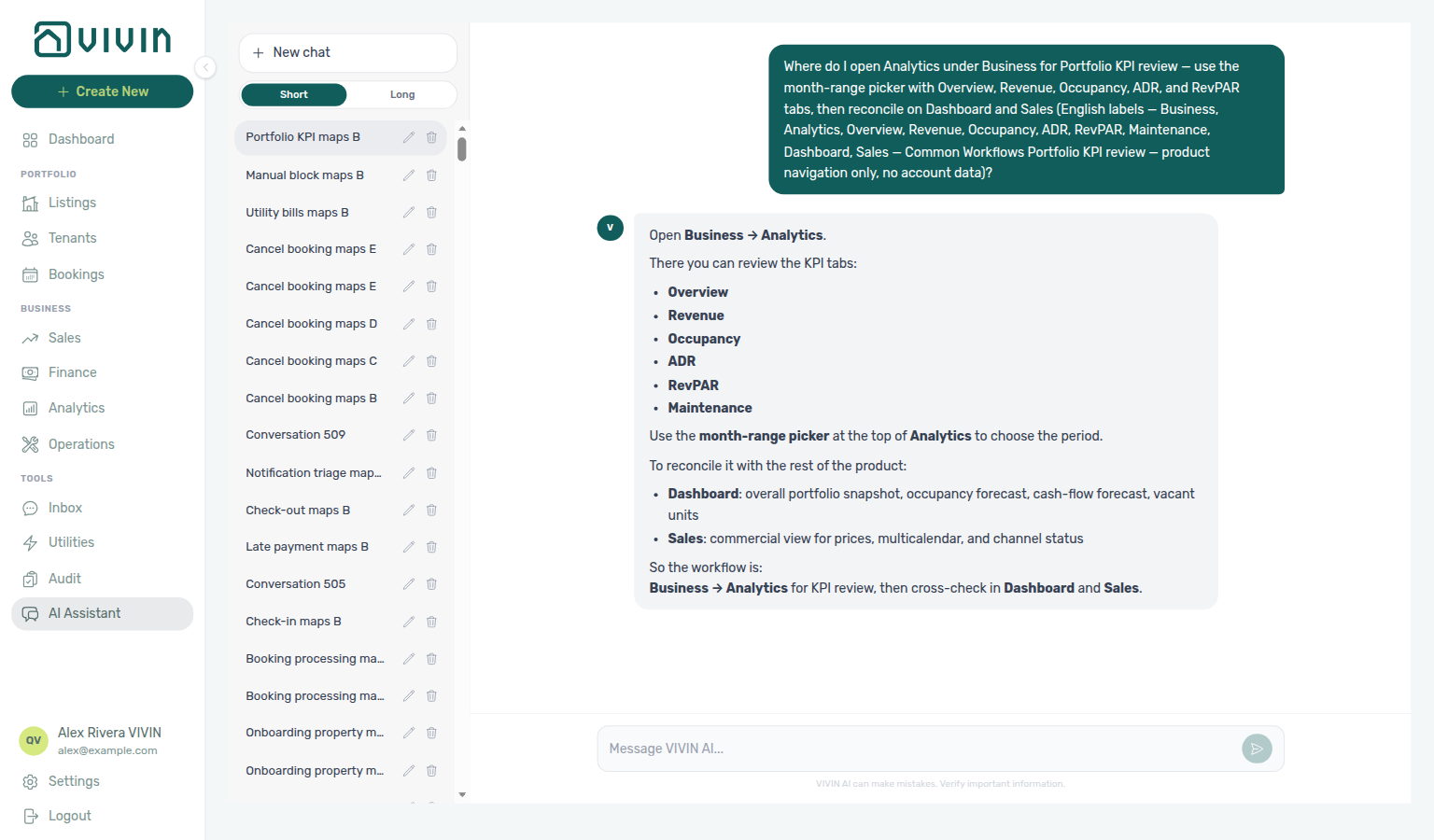
Where-to navigation (Portfolio KPI review): Ask “Where do I open Analytics under Business for Portfolio KPI review — use the month-range picker with Overview, Revenue, Occupancy, ADR, and RevPAR tabs, then reconcile on Dashboard and Sales (English labels — Business, Analytics, Overview, Revenue, Occupancy, ADR, RevPAR, Maintenance, Dashboard, Sales — Common Workflows Portfolio KPI review — product navigation only, no account data)?” when you need the month-end KPI review click path — not the broader module map alone (“where do I open Analytics for portfolio KPI charts like ADR and RevPAR…?”), and not Finance → Overview cash/debt figures. Canonical jobs:
| Job | Open |
|---|---|
| Open the Analytics KPI workspace | Business → Analytics (/analytics) |
| Set the reporting window | Month-range picker (presets 6M, 12M, YTD) |
| Scan Overview / depth tabs | Overview, Revenue, Occupancy, ADR, RevPAR, Maintenance |
| Reconcile live vacancy and debt | Dashboard and Sales |
| Full month-end checklist | Portfolio KPI review |
The assistant typically says Business → Analytics, then points at the month-range picker, the KPI tabs, and cross-checks on Dashboard and Sales.
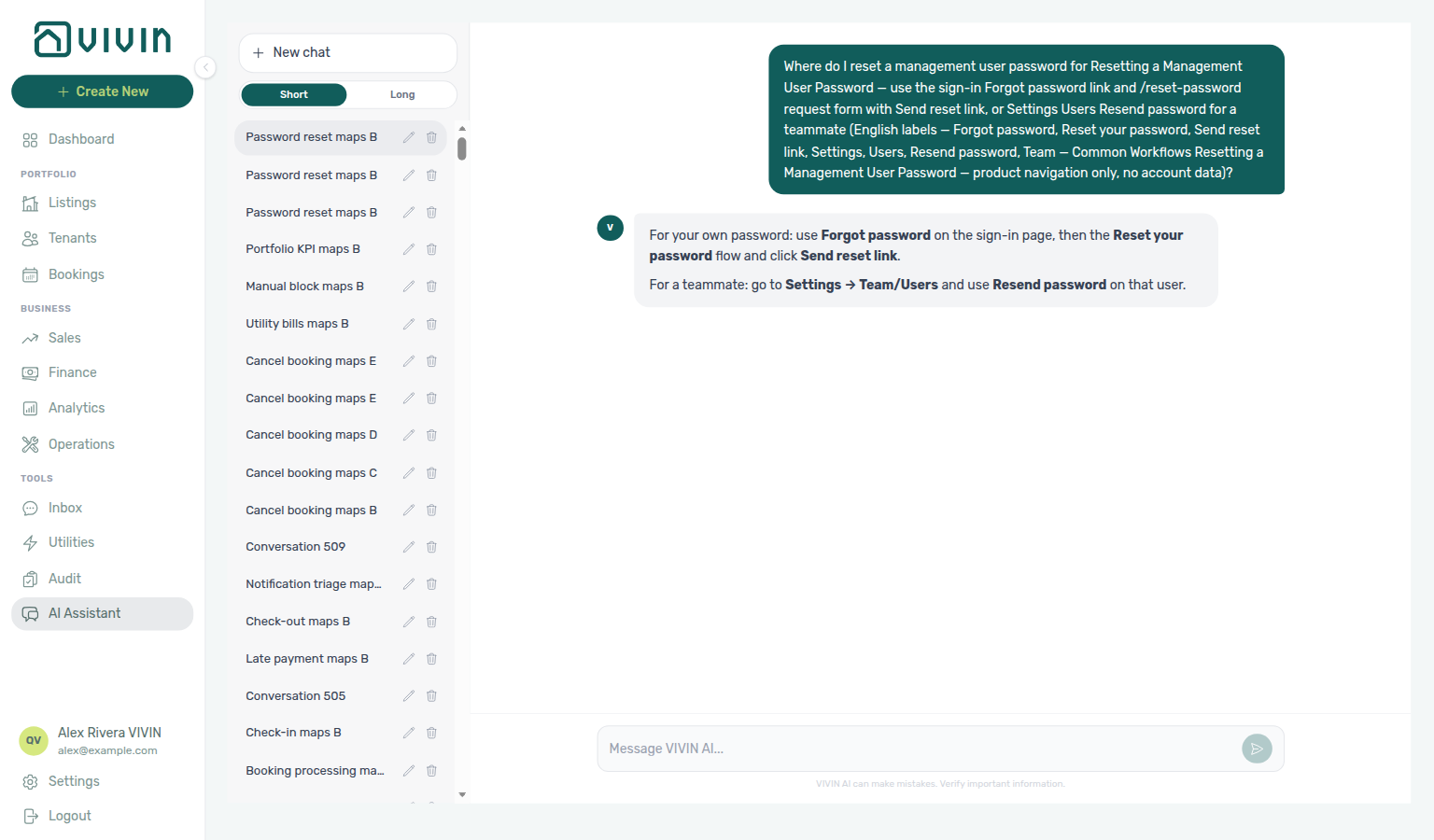
Where-to navigation (Resetting a Management User Password): Ask “Where do I reset a management user password for Resetting a Management User Password — use the sign-in Forgot password link and /reset-password request form with Send reset link, or Settings Users Resend password for a teammate (English labels — Forgot password, Reset your password, Send reset link, Settings, Users, Resend password, Team — Common Workflows Resetting a Management User Password — product navigation only, no account data)?” when you need the lockout recovery click path — not the broader Users invite map alone (“where do I open Users to invite team members…?”), and not tenant Booking ID + Access Code portal recovery. Canonical jobs:
| Job | Open |
|---|---|
| Self-service reset from sign-in | Forgot password? on the login page → /reset-password → Send reset link |
| Admin help for a teammate | Settings → Team → Users → Resend password |
| Full recovery checklist | Resetting a Management User Password |
The assistant typically says Forgot password on the sign-in page (then Reset your password / Send reset link), and Settings → Team/Users with Resend password for a teammate.
Where-to navigation (Account Settings hub): Ask “Where do I open Account Settings to manage users, integrations, and workspace preferences?” when you need the workspace configuration shell — team access, portal credentials, and account defaults — not day-to-day portfolio modules. Canonical jobs:
| Job | Open |
|---|---|
| Users, roles, and owners | Users & Roles / Owners (Team) |
| Marketplace / invoicing credentials | Integrations (System) |
| Company identity, subscription, and preferences | General Information / Preferences (Account) |
| Full Account Settings map | Account Settings (sidebar Settings) |
The assistant typically says Open Settings in the management app and names Team, System → Integrations, and Account — the sidebar label is Settings (gear, near your profile). Use Account Settings for workspace rules; use portfolio modules (Listings, Bookings, Finance) for day-to-day records.
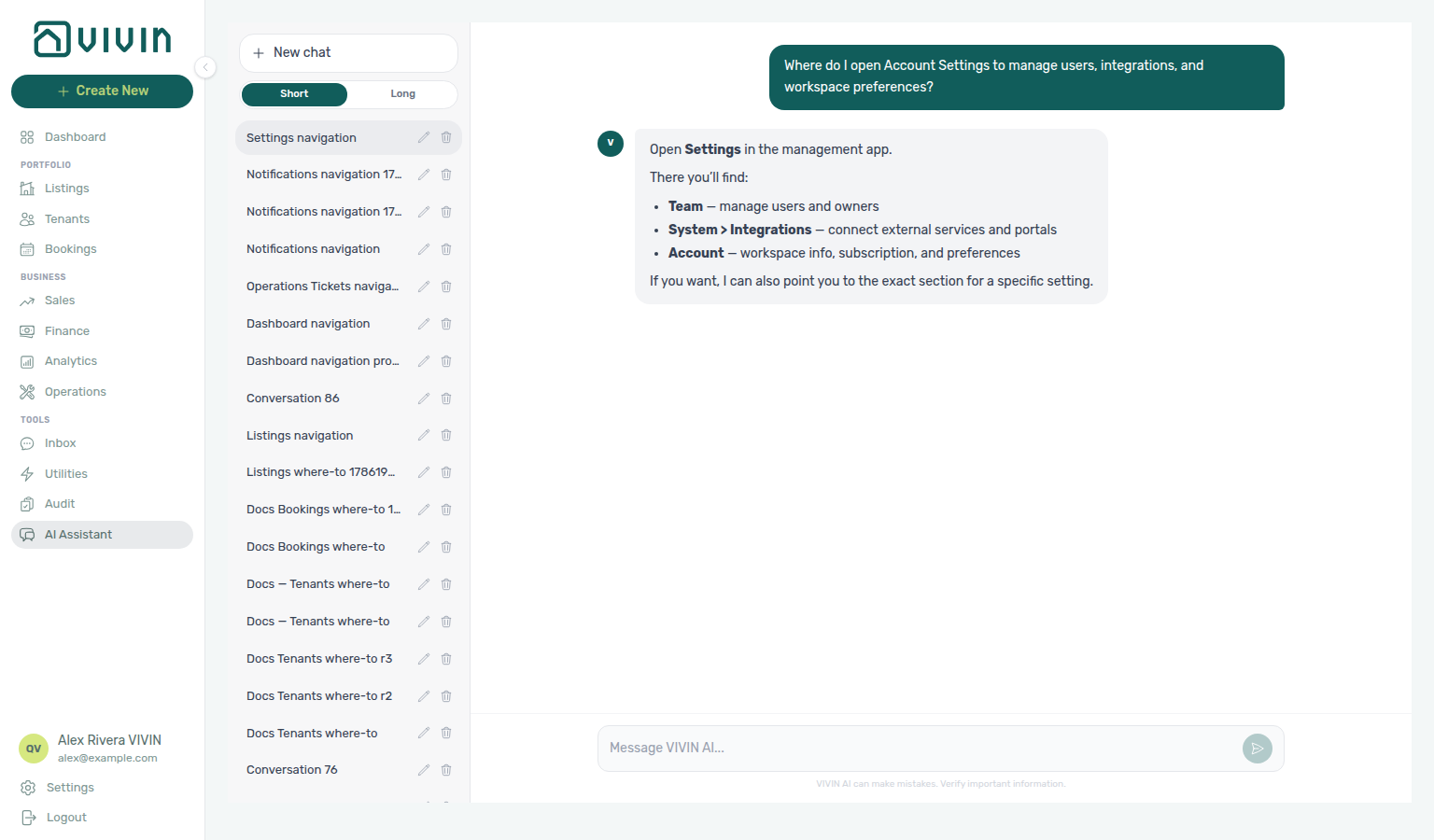
Where-to navigation (General Information / company identity): Ask “Where do I open General Information to edit company name, branding, and account contact details?” when you need company identity and branding under Account Settings — not Subscription plan billing, and not the other Preferences cards (booking defaults / portal gates — English tab Global Settings). Canonical jobs:
| Job | Open |
|---|---|
| Company name, contact, fiscal ID, branding | Settings → System → Global Settings (/settings/general redirects) — General Information / Branding cards |
| VIVIN plan billing and card-on-file | Subscription (System) |
| Booking defaults, vacant units, portal gates | Preferences (System — English tab Global Settings) |
The assistant may still say Settings → Conta → Informação geral, Settings → Conta / Account → General Information; follow Settings → System → Global Settings instead — company identity is a card on Global Settings, not a separate sidebar tab.
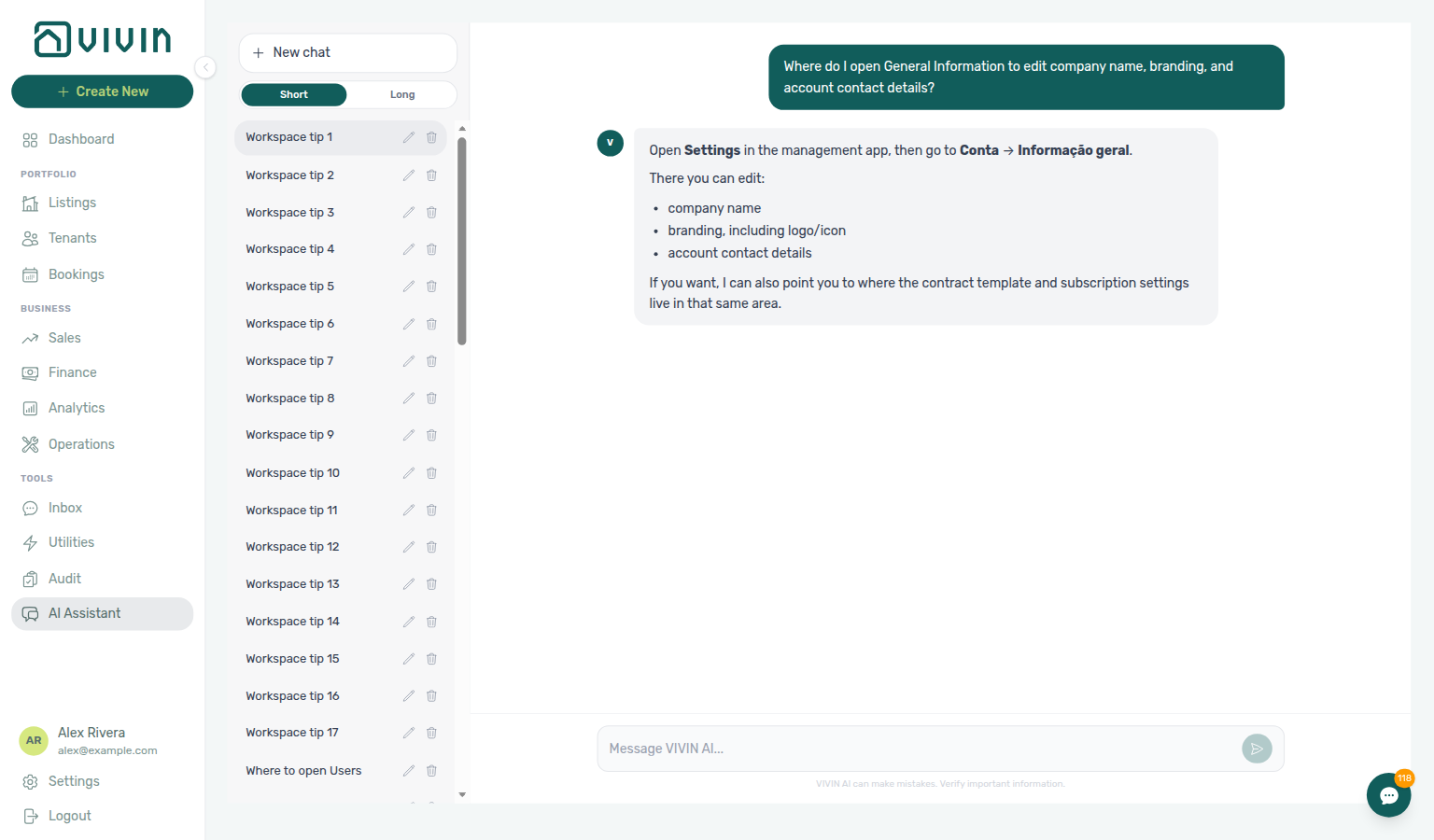
Where-to navigation (Subscription / plan billing): Ask “Where do I open Subscription to view plan pricing, payment method, and billing history?” when you need Vivin platform plan billing and card-on-file under Account Settings — not company identity on General Information (card on Global Settings), and not booking defaults on Preferences (English tab Global Settings). Canonical jobs:
| Job | Open |
|---|---|
| Plan pricing, payment method, and billing history | Settings → System → Subscription (/settings/subscription) |
| Company name, branding, contact details | General Information (System → Global Settings) |
| Booking defaults, vacant units, portal gates | Preferences (System — English tab Global Settings) |
The assistant may still say Settings → Conta → Subscrição or Settings → Account → Subscription; follow Settings → System → Subscription instead. The English tab label is Subscription.
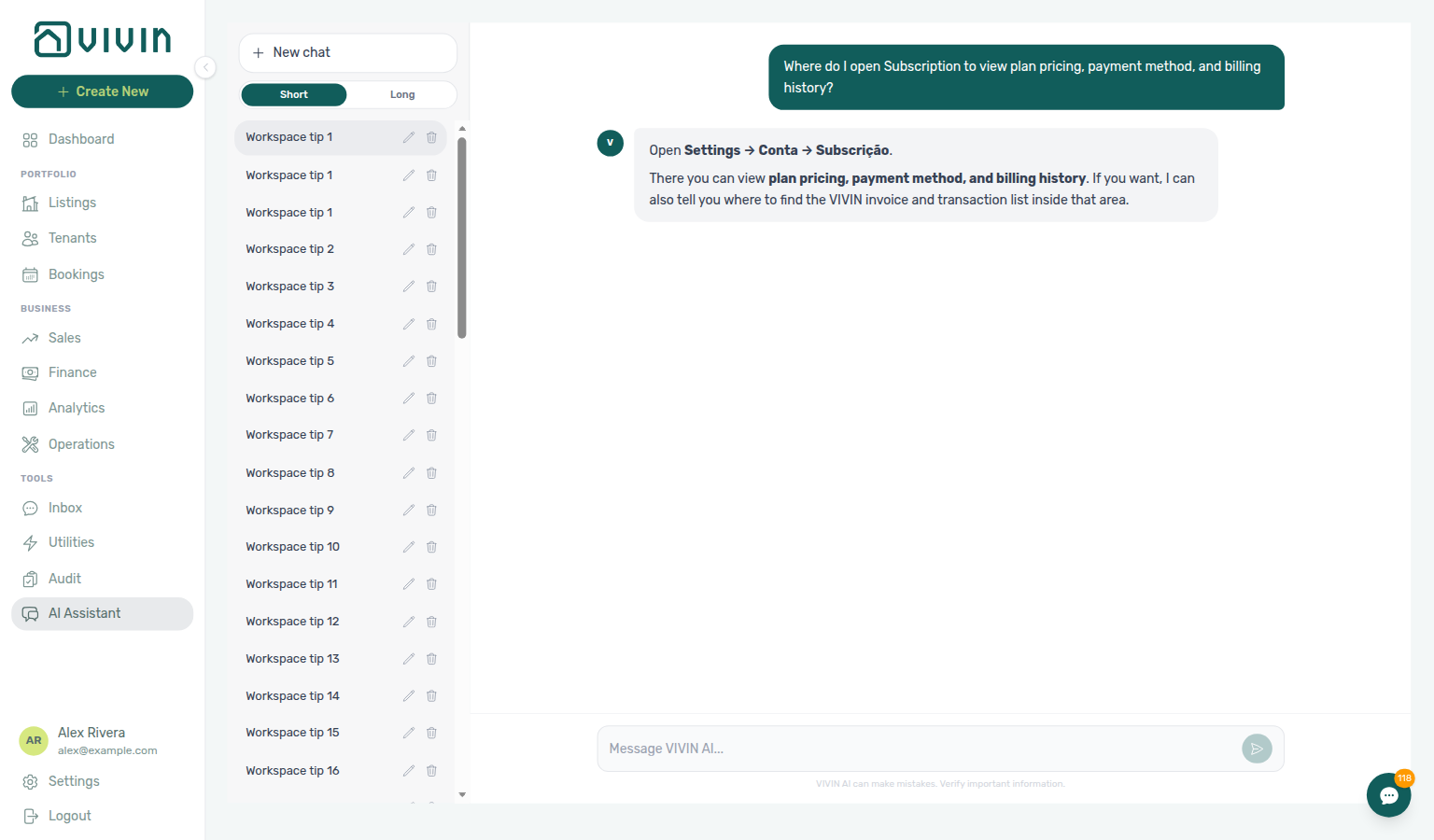
Where-to navigation (Preferences / Global Settings): Ask “Where do I open the Global Settings tab under Account Settings System (English tab label Global Settings, also called Preferences — not Personal Settings, not Tenant categories, and not Property Categories) to configure booking defaults, check-in and check-out times, preparation days, vacant unit preference, fees, utilities, and Owner Reports?” when you need account-wide booking defaults under Account Settings — not per-user locale on Personal Settings, not tenant edit / module / signing gates on Portal settings, not portal segments on Tenant categories, and not chip catalogs on Categories. Canonical jobs:
| Job | Open |
|---|---|
| Booking defaults, preparation days, vacant units, fees, utilities, Owner Reports | Settings → System → Global Settings (/settings/preferences) |
| Tenant edit permissions, portal modules, and signing gates | Settings → Tenant Portal → Portal settings (/settings/tenantPortal) |
| Company name, branding, contact details | General Information (System → Global Settings) |
| Plan pricing, payment method, and billing history | Subscription (System) |
| Per-user language and email toggles | Personal Settings (/settings/personal) |
The assistant typically says Settings → System → Global Settings (open Settings in the left menu, then System → Global Settings). Older prompts that still name an Account group may get Account → Global Settings — follow System either way. The English tab label is Global Settings; docs title this page Preferences. Name System and the Global Settings label (plus the Personal / Tenant categories / Property Categories disambiguators) so the reply stays on this tab.
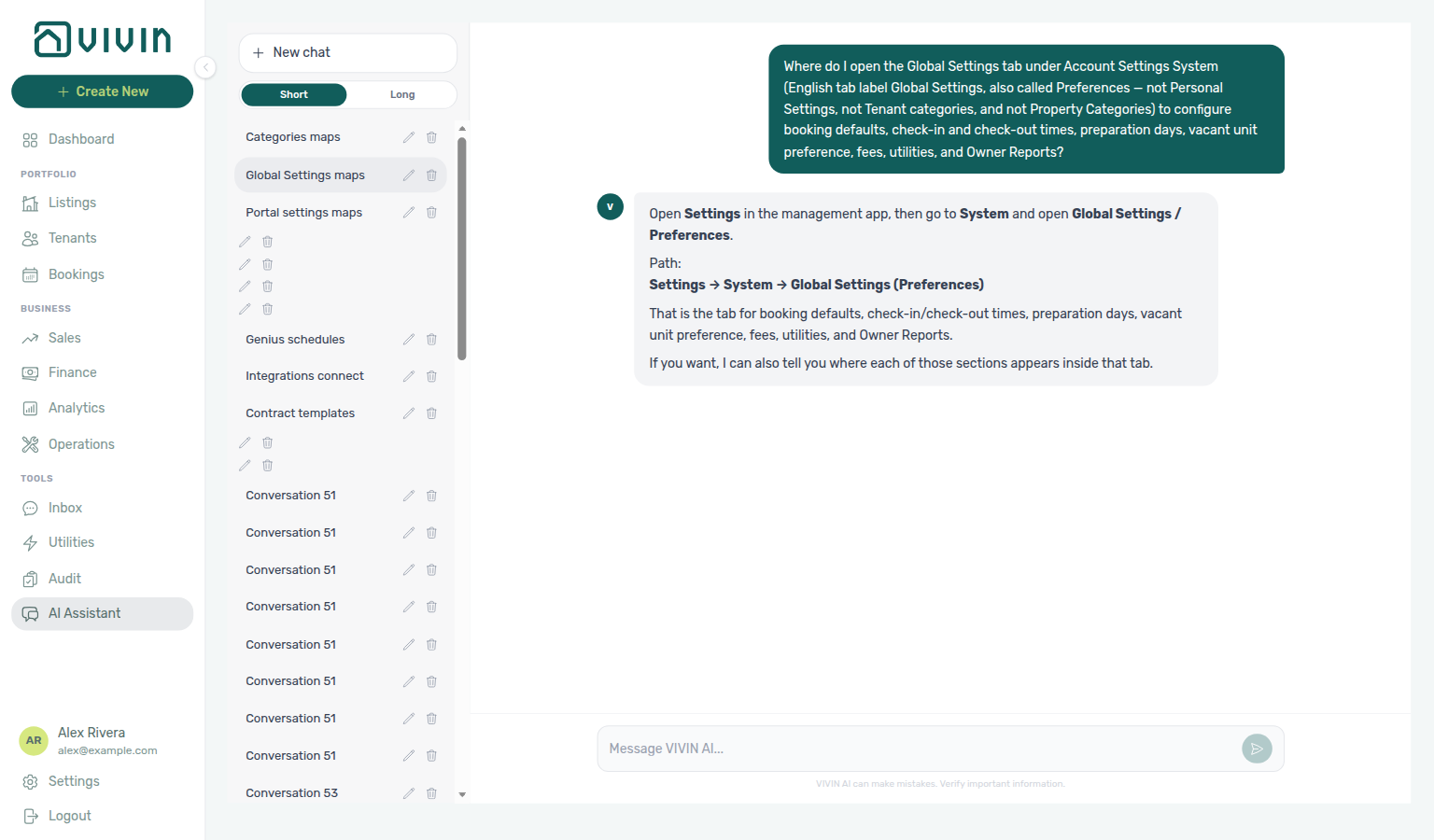
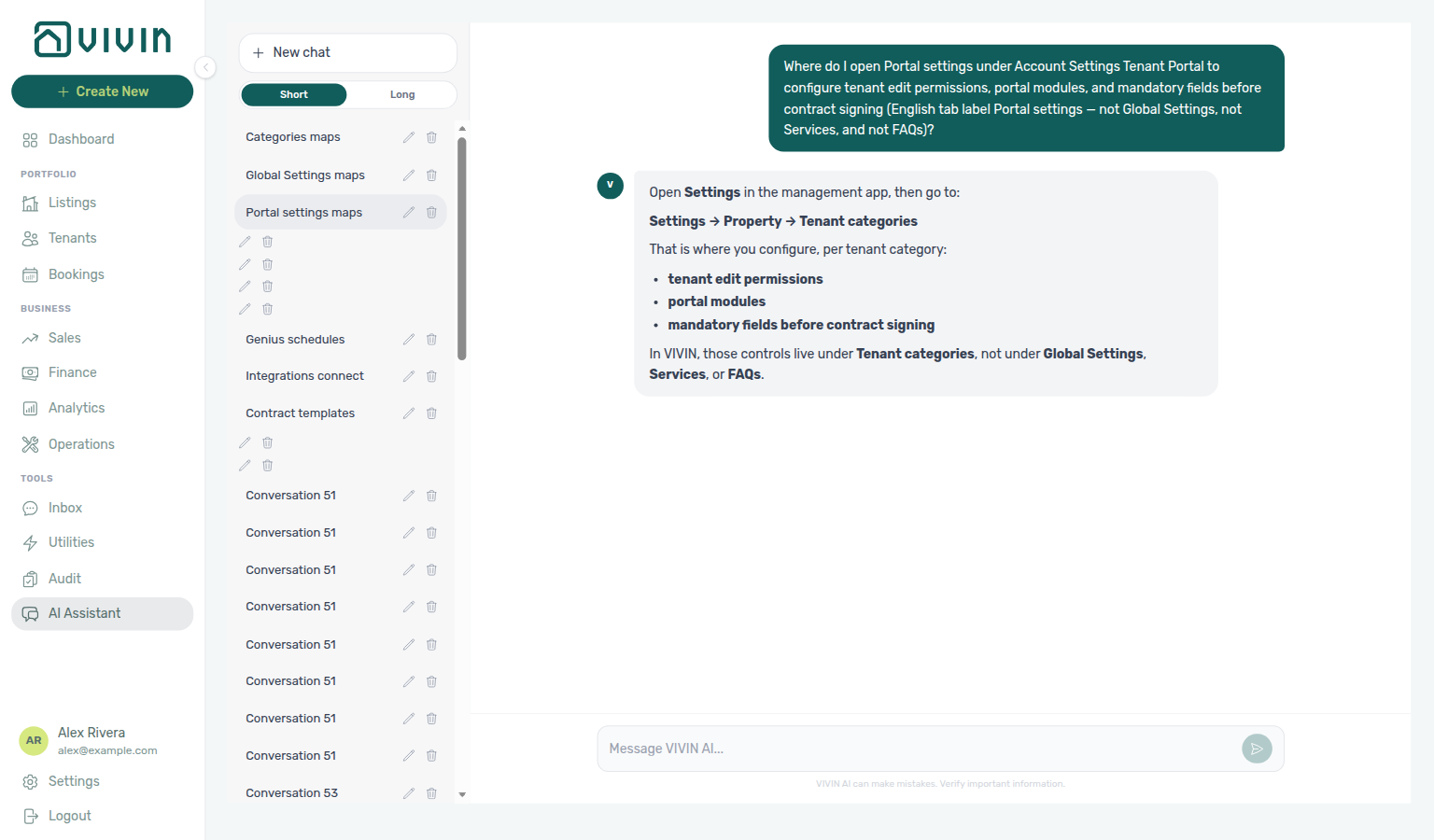
Where-to navigation (Portal settings): Ask “Where do I open Portal settings under Account Settings Tenant Portal to configure tenant edit permissions, portal modules, and mandatory fields before contract signing (English tab label Portal settings — not Global Settings, not Services, and not FAQs)?” when you need account-wide tenant portal toggles. The assistant may still say Settings → Property → Tenant categories — follow Settings → Tenant Portal → Portal settings (/settings/tenantPortal) instead. Per-segment overrides stay on Tenant categories.
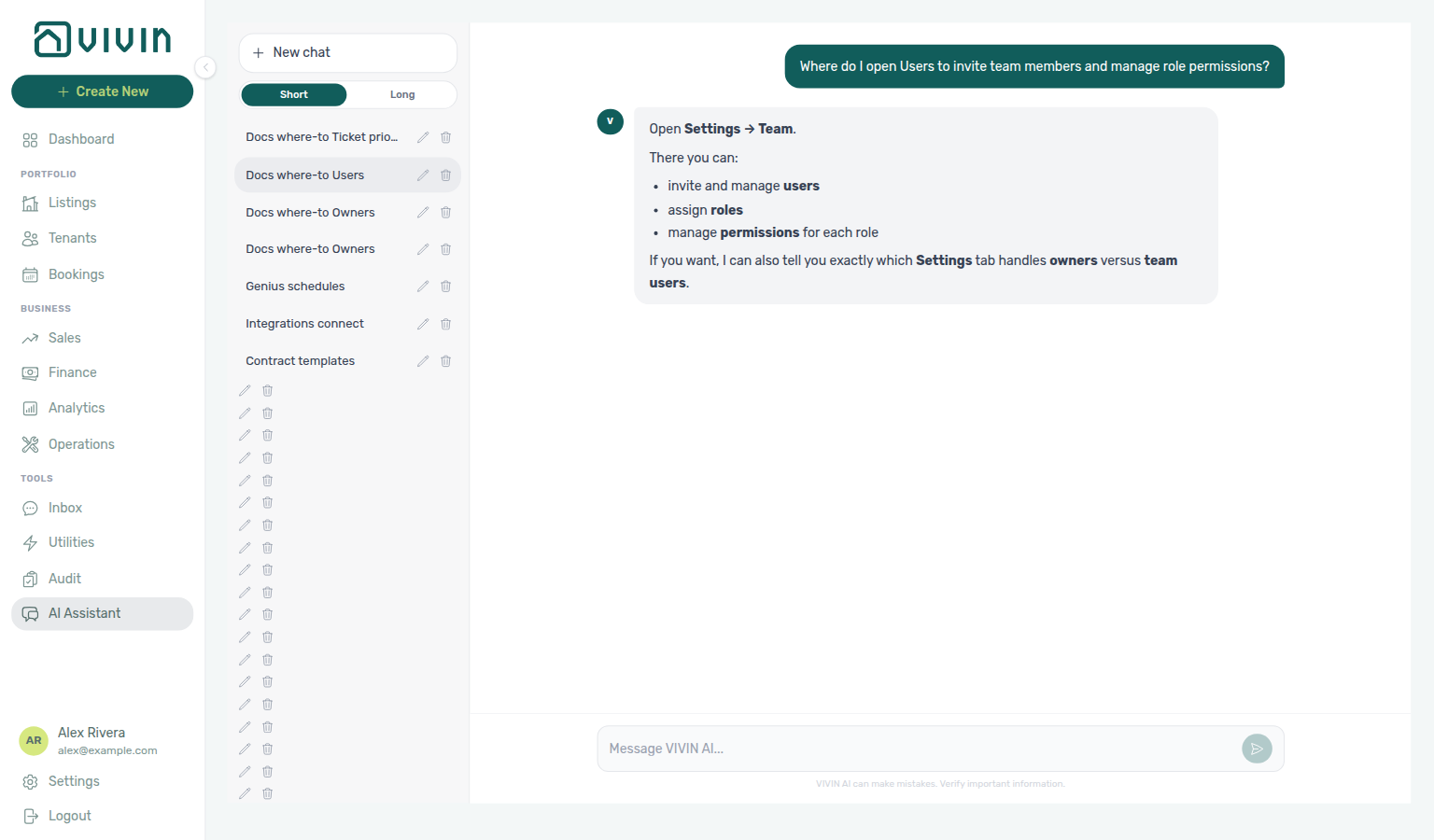
Where-to navigation (Users / team access): Ask “Where do I open Users to invite team members and manage role permissions?” when you need teammate accounts and the role permission matrix under Account Settings — not landlord payees on Owners, and not your own display name on My Profile. Canonical jobs:
| Job | Open |
|---|---|
| Invite team members, roles, and permission matrix | Settings → Team → Users (/settings/users) |
| Register owners, IBAN, fiscal ID | Owners (Team) |
| Your own display name | My Profile (/profile) |
The assistant typically says Settings → Team and names invite / users / roles and permissions. Open Settings → Team → Users for the English tab (settings-sidebar-team-users.png).
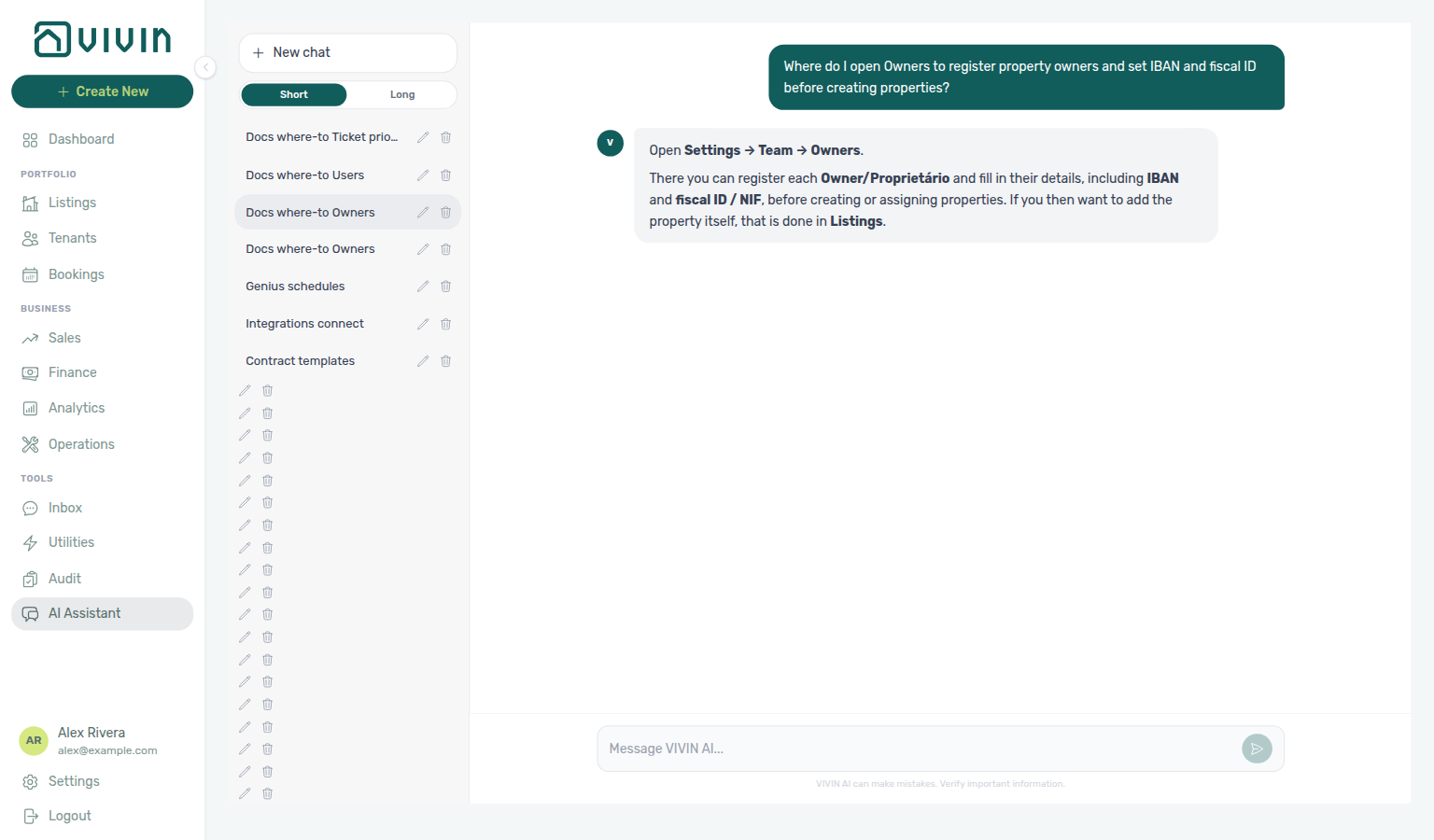
Where-to navigation (Owners / landlord registry): Ask “Where do I open Owners to register property owners and set IBAN and fiscal ID before creating properties?” when you need the landlord payee registry under Account Settings — not teammate accounts on Users, and not month-end Owner Reports on Finance. Canonical jobs:
| Job | Open |
|---|---|
| Register owners, IBAN, fiscal ID, ID document type | Settings → Team → Owners (/settings/owners) |
| Team member invites and role permissions | Users (Team) |
| Month-end owner settlements (after preference enabled) | Finance → Owner Reports |
The assistant typically says Settings → Team → Owners. Register owners here before the property wizard Owner dropdown can list them (settings-sidebar-team-owners.png).
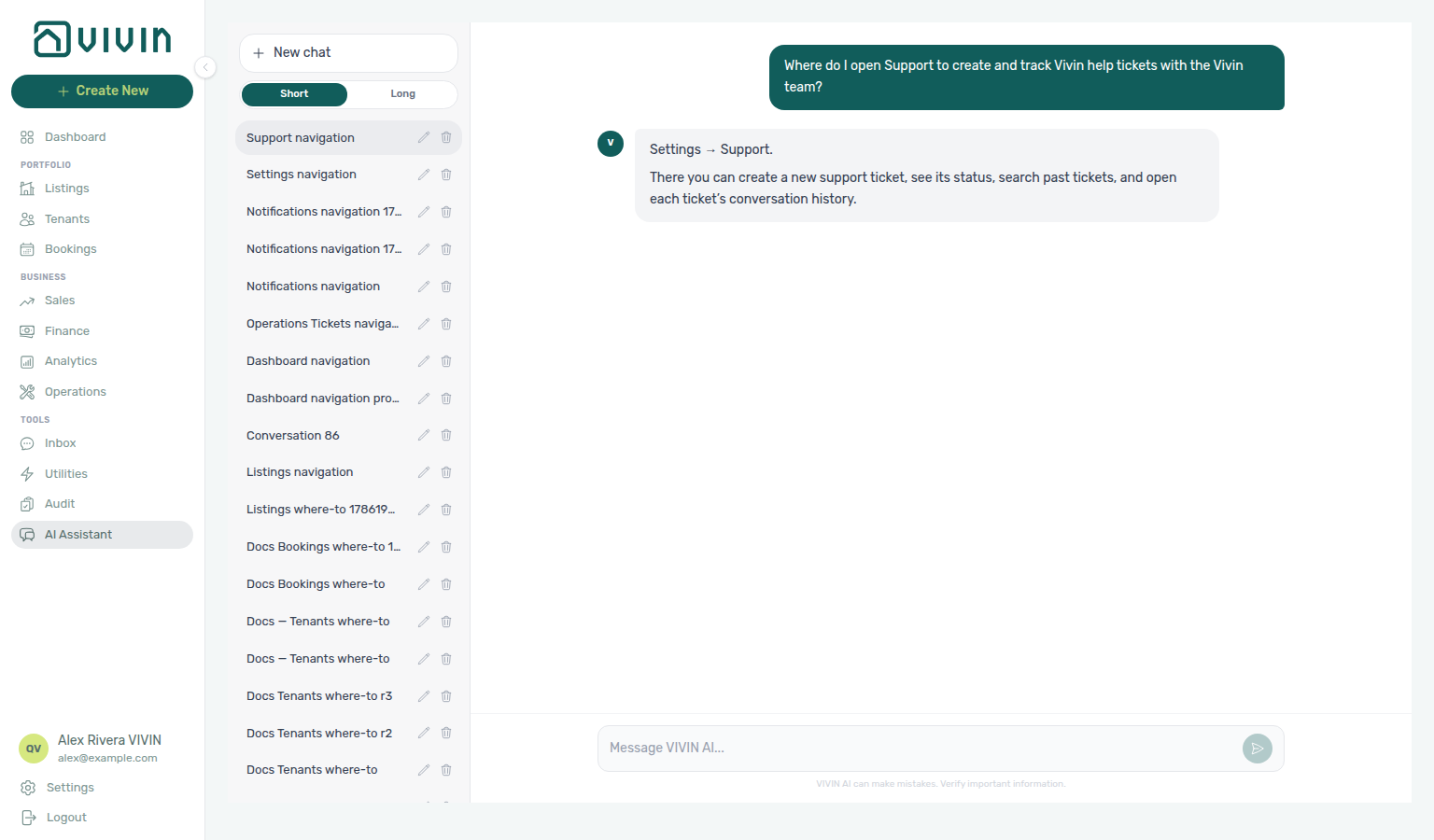
Where-to navigation (Support / Help & Support): Ask “Where do I open Support to create and track Vivin help tickets with the Vivin team?” when you need the Vivin product helpdesk — not an internal Operations maintenance ticket. Canonical jobs:
| Job | Open |
|---|---|
| Full ticket inbox (search, status, new ticket) | Account Settings → Support (/settings/support) |
| Quick drawer from any module | Desktop Help & Support FAB (or mobile header chat icon) — Using in-app support |
| File a new Vivin ticket | New Ticket on Support — New Support Ticket modal |
The assistant typically says Settings → Support and names create / status / search / conversation history. Prefer that path or the FAB; do not use + Create New → New Ticket (that opens Operations work on your portfolio).
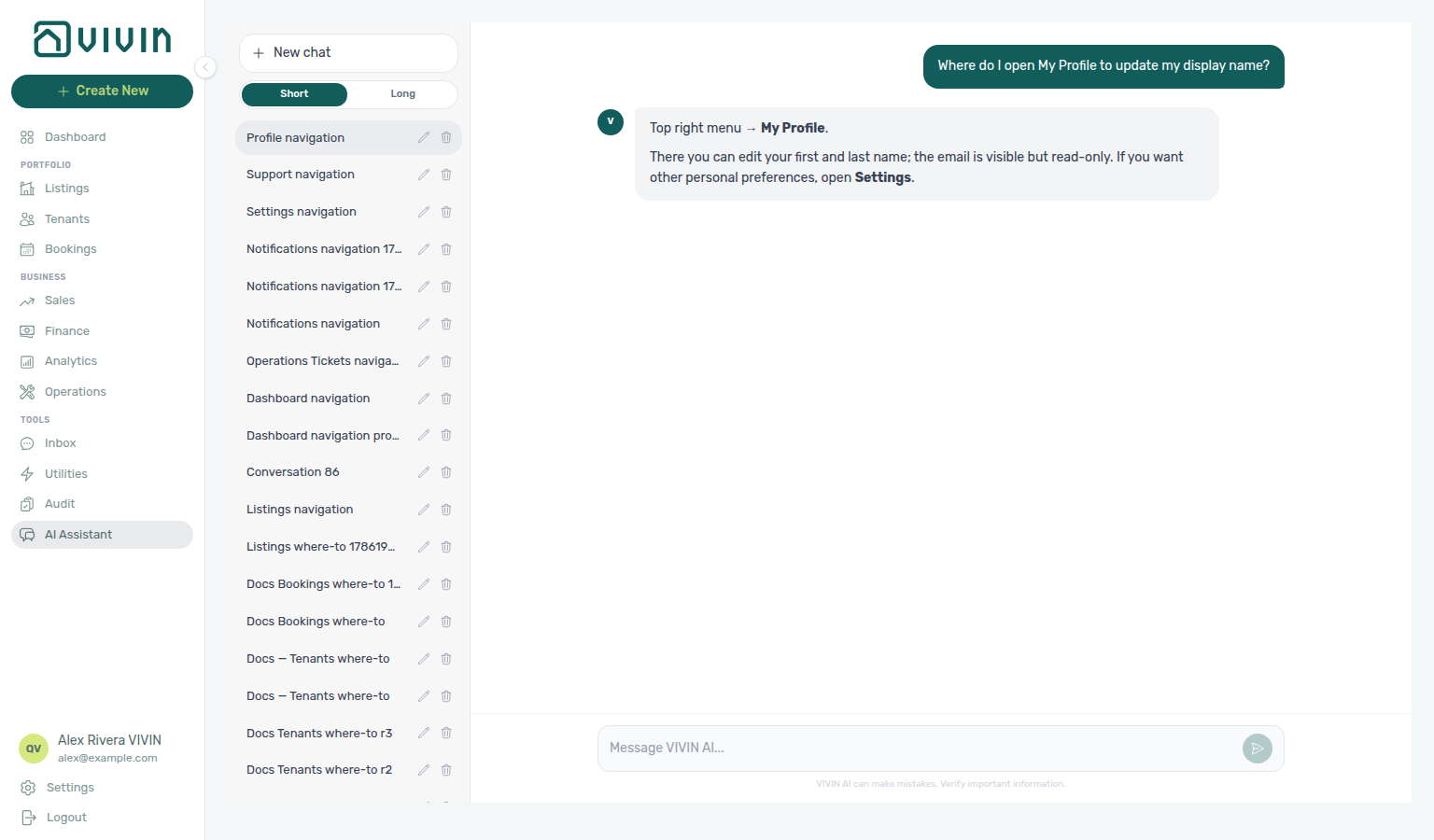
Where-to navigation (My Profile): Ask “Where do I open My Profile to update my display name?” when you need your own name fields — not team users on Users & Roles, and not locale or email toggles on Personal Settings. Canonical jobs:
| Job | Open |
|---|---|
| Edit first / last name (email read-only) | My Profile (/profile) |
| Interface language, tab order, personal email toggles | Personal Settings (/settings/personal) |
| Teammate accounts and roles | Users & Roles (Team) |
The assistant typically says Top right menu → My Profile and notes email is read-only; for other personal preferences it points at Settings. My Profile is outside the Account Settings tab list — open it from the header user menu or bookmark /profile.
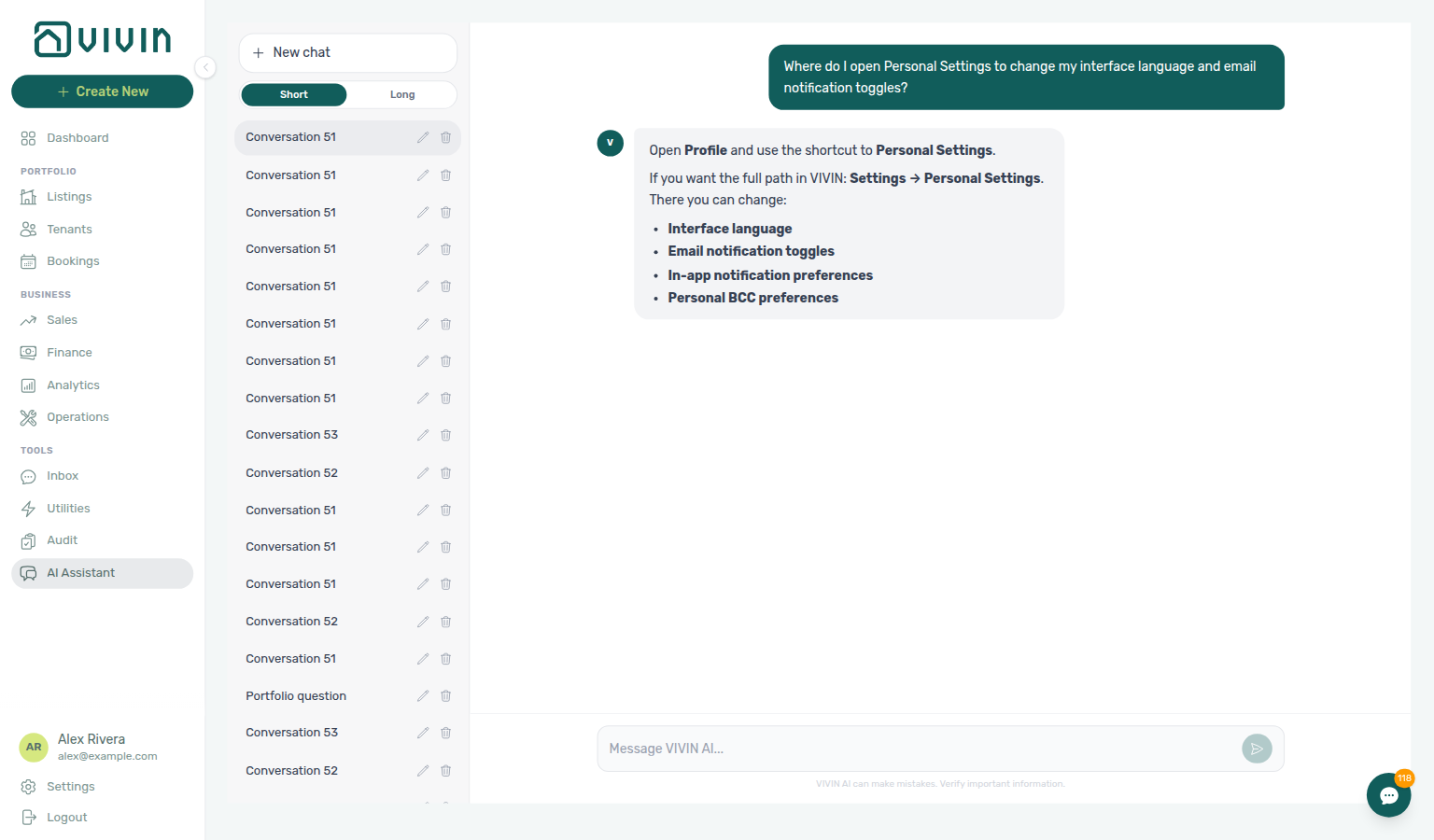
Where-to navigation (Personal Settings / interface language & email toggles): Ask “Where do I open Personal Settings to change my interface language and email notification toggles?” when you need per-user locale, email opt-outs, in-app notification categories, or module tab order — not workspace defaults on Preferences (English tab Global Settings), and not display-name edits on My Profile. Canonical jobs:
| Job | Open |
|---|---|
| Interface language, email / in-app toggles, tab order | Personal Settings (/settings/personal) |
| Display name (email read-only) | My Profile (/profile) |
| Account-wide notification masters | Preferences (/settings/preferences) |
The assistant typically says Profile → Personal Settings (open My Profile, then use the shortcut to Personal Settings). You can also open Account Settings → Personal Settings directly at /settings/personal.
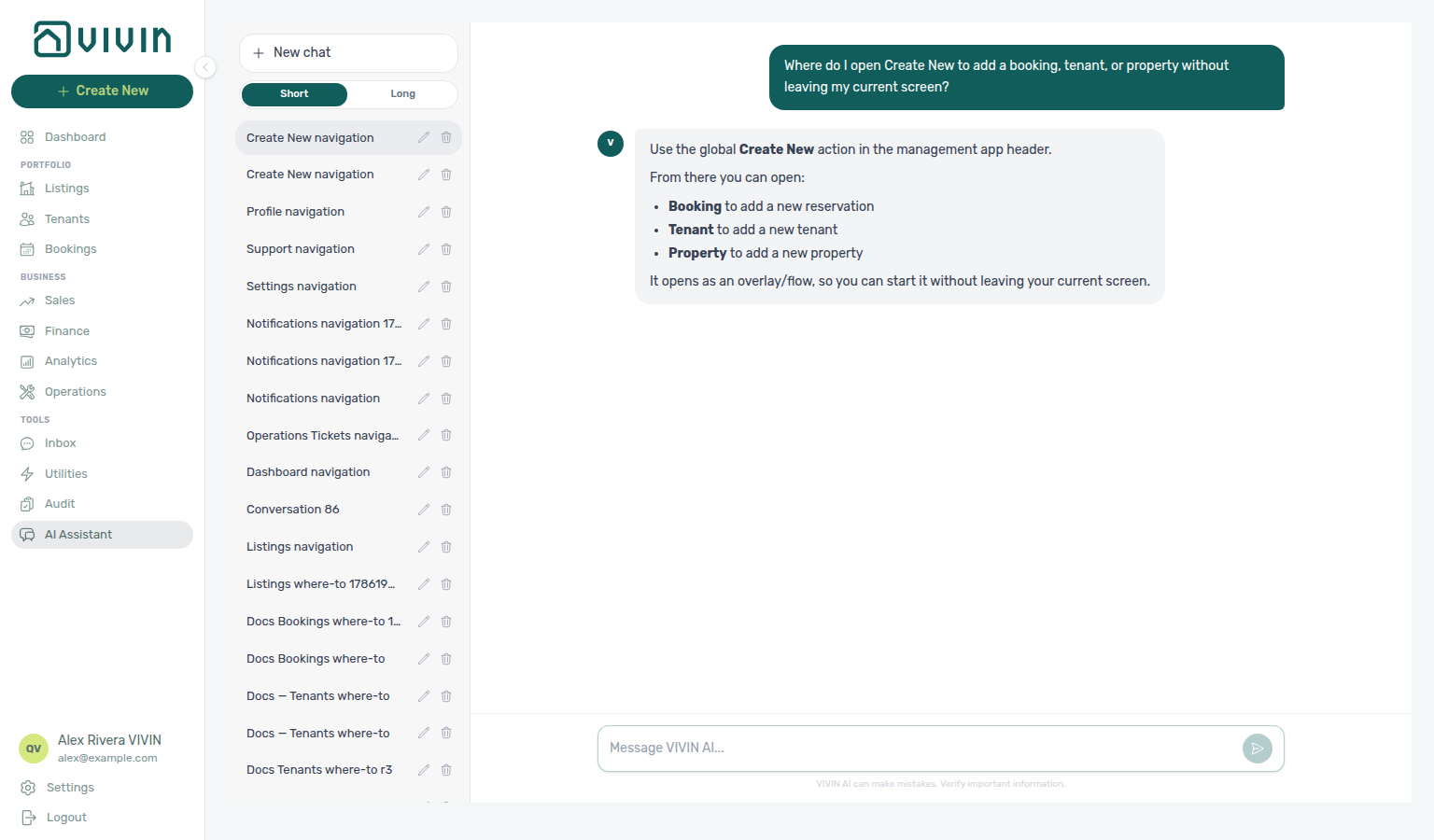
Where-to navigation (Create New): Ask “Where do I open Create New to add a booking, tenant, or property without leaving my current screen?” when you need the global quick-create panel — not a module’s own Add button, and not Help & Support tickets. Canonical jobs:
| Job | Open |
|---|---|
| Booking, tenant, property, unit, ticket, payment shortcuts | + Create New in the left sidebar |
| Full action catalogue and permission rules | Create New Menu |
| Narrow mobile (no sidebar +) | Each module’s own Add / Create entry points |
The assistant may say top bar, header, or global Create New in the management app header — the control is + Create New in the left sidebar (green + with label on desktop; icon + tooltip when the rail is collapsed). On narrow mobile layouts that sidebar control is hidden — use each module’s create entry points instead. See Create New Menu — Opening, layout, and closing.
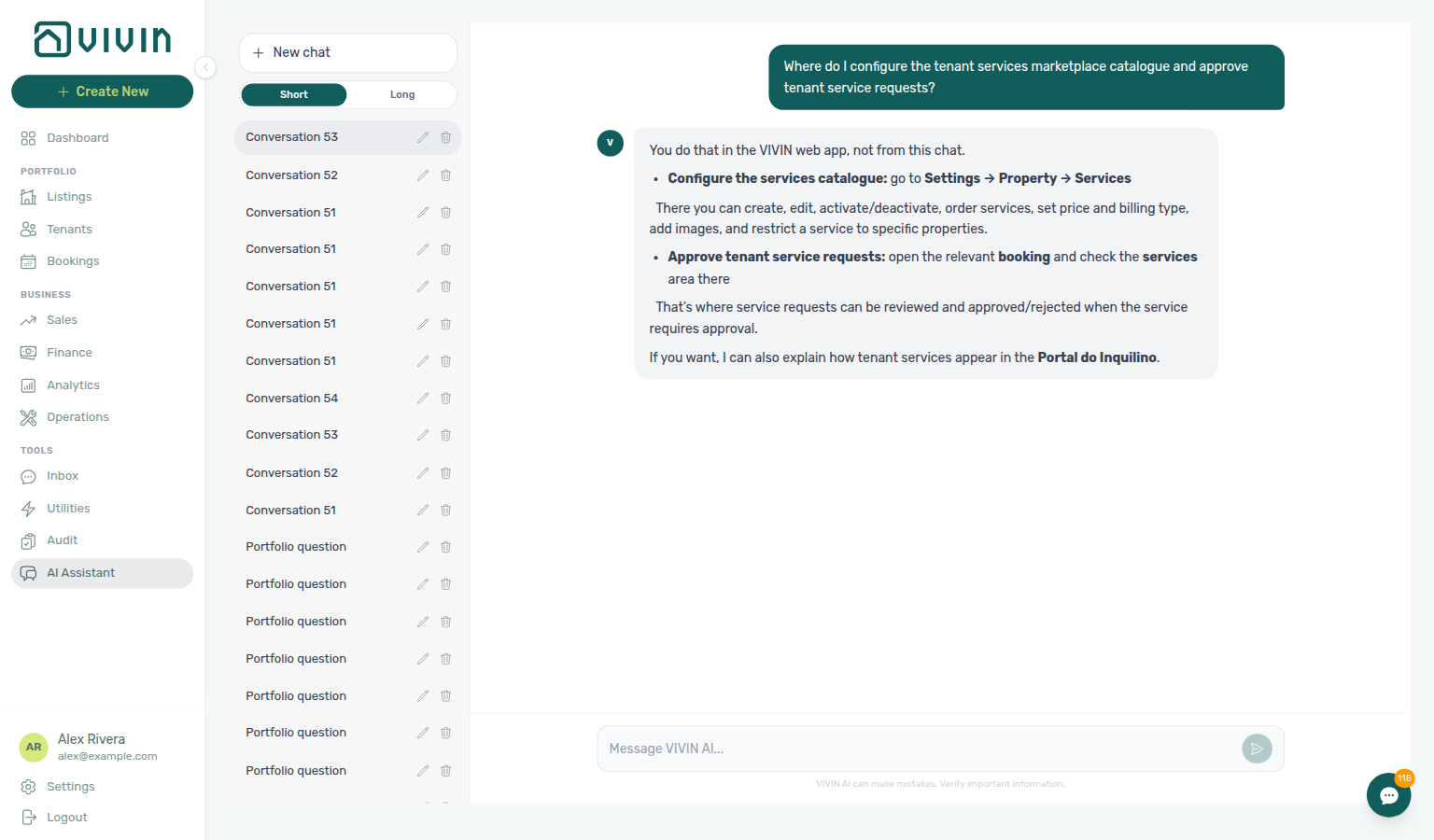
Where-to navigation (Services marketplace): Ask “Where do I configure the tenant services marketplace catalogue and approve tenant service requests?” when you need the Account Settings catalogue and Requests queue — not tenant-facing portal browse, and not Finance charge lines after approval. Canonical jobs:
| Job | Open |
|---|---|
| Catalogue (create / edit / reorder / active) | Settings → Tenant Portal → Services (/settings/services) |
| Pending portal requests (approve & charge / reject) | Services — Requests queue |
| Tenant Portal visibility | Portal settings — Allow to see services |
| Concept hub (billing + portal purchase flow) | Services Marketplace |
The assistant may still say Settings → Property → Services (or Portuguese Propriedade → Serviços) and may point approvals at a booking / reservation services area; follow Settings → Tenant Portal → Services (catalogue + Requests queue) instead. Portal purchases and charge lines still land on the booking Payment plan / Finance → Transactions after approval — see Services Marketplace — How It Works.
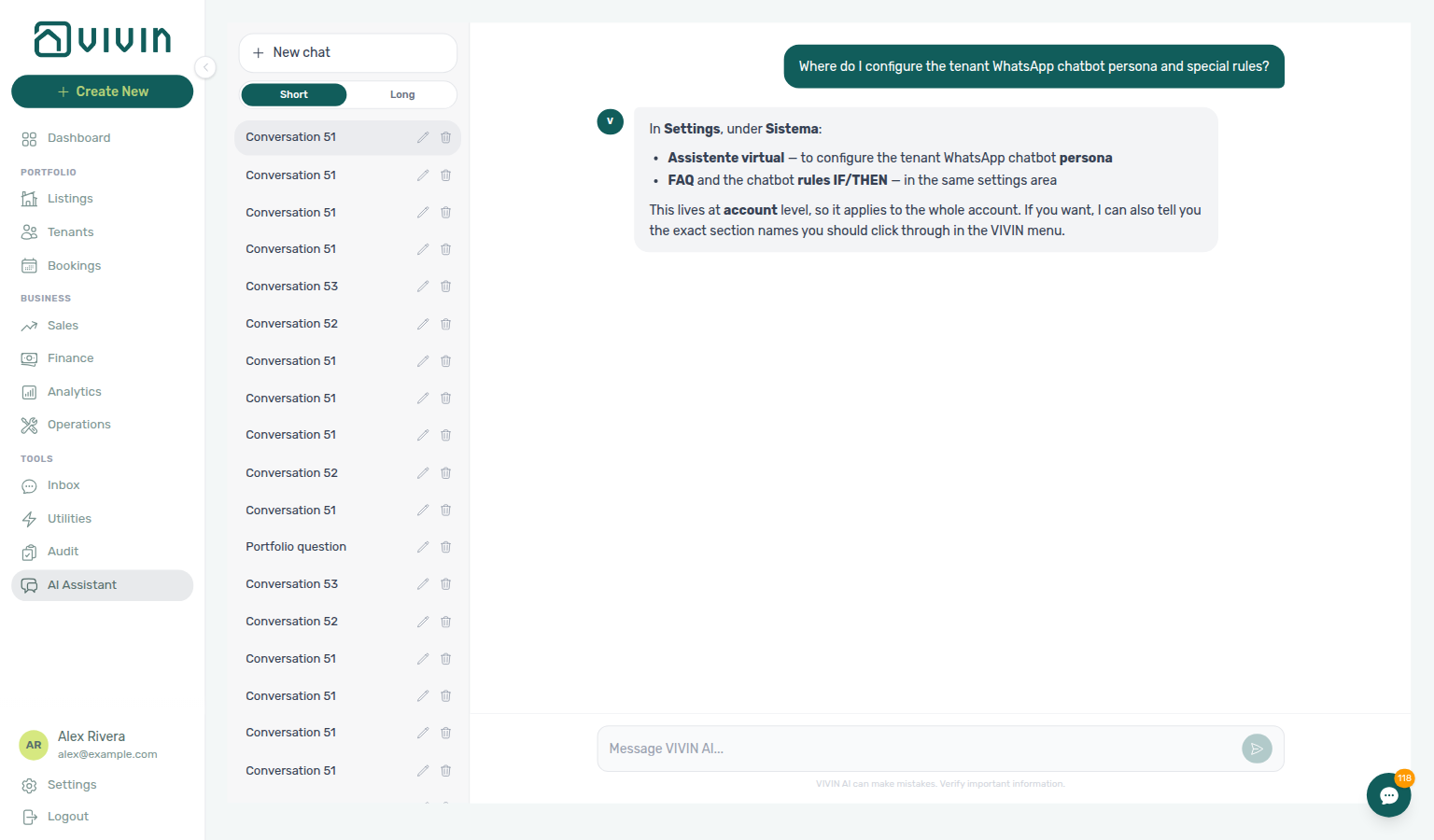
Where-to navigation (ChatBot / tenant WhatsApp assistant): Ask “Where do I configure the tenant WhatsApp chatbot persona and special rules?” when you need the tenant-facing automation settings — not the operator AI Assistant (/ai-chat), and not Inbox triage. Canonical jobs:
| Job | Open |
|---|---|
| Persona, IF/THEN Special Rules, FAQ drafts | Settings → System → ChatBot (/settings/chatbot) |
| Tenant + Genius WhatsApp pairing cards | ChatBot → Bot Status |
| Concept hub (channels vs Genius vs MCP) | Automation & AI — Tenant Support Chatbot |
The assistant may still say Settings → Sistema → assistente virtual / WhatsApp chatbot (or System → Virtual Assistant). Follow Settings → System → ChatBot. The English Account Settings tab label is ChatBot. Operator Genius digests stay on Genius; MCP keys stay on AI / MCP.
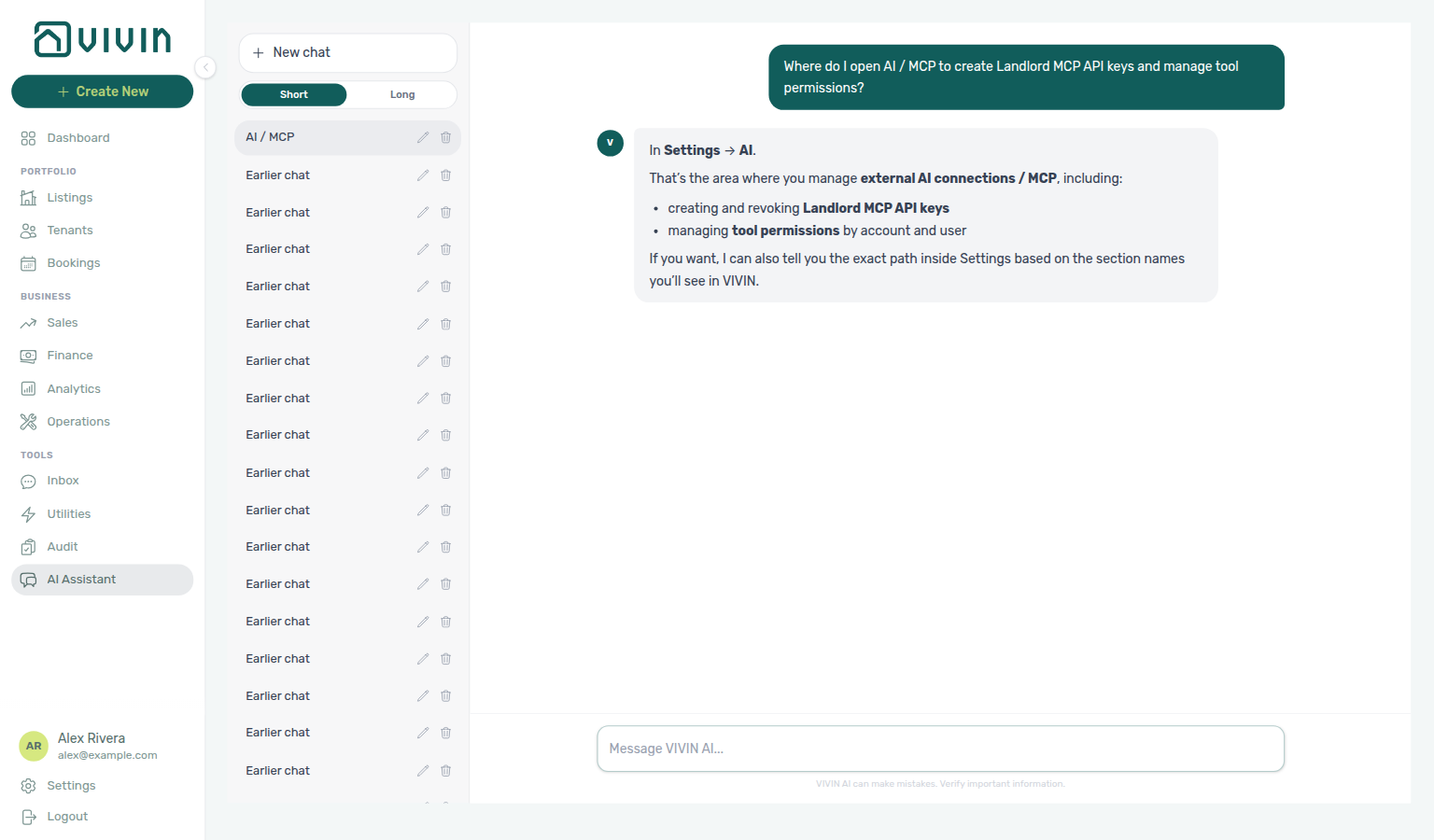
Where-to navigation (AI / MCP / Landlord MCP keys): Ask “Where do I open AI / MCP to create Landlord MCP API keys and manage tool permissions?” when you need the operator MCP connection, API keys, and tool-permission surface — not tenant ChatBot persona settings, and not the Genius Scheduled reports table. Canonical jobs:
| Job | Open |
|---|---|
| Connection URL, API keys, account / per-user tool permissions | Settings → System → AI / MCP (/settings/mcp) |
| Genius digest table (create / pause schedules in the UI) | Settings → System → Genius |
| Concept hub (external MCP clients + OAuth) | Landlord MCP |
The assistant typically says Settings → AI (it may omit System). Follow Settings → System → AI / MCP. The English Account Settings tab label is AI / MCP. Use this tab for Landlord MCP keys and domain policy; open Genius when you need the scheduled-reports list itself.
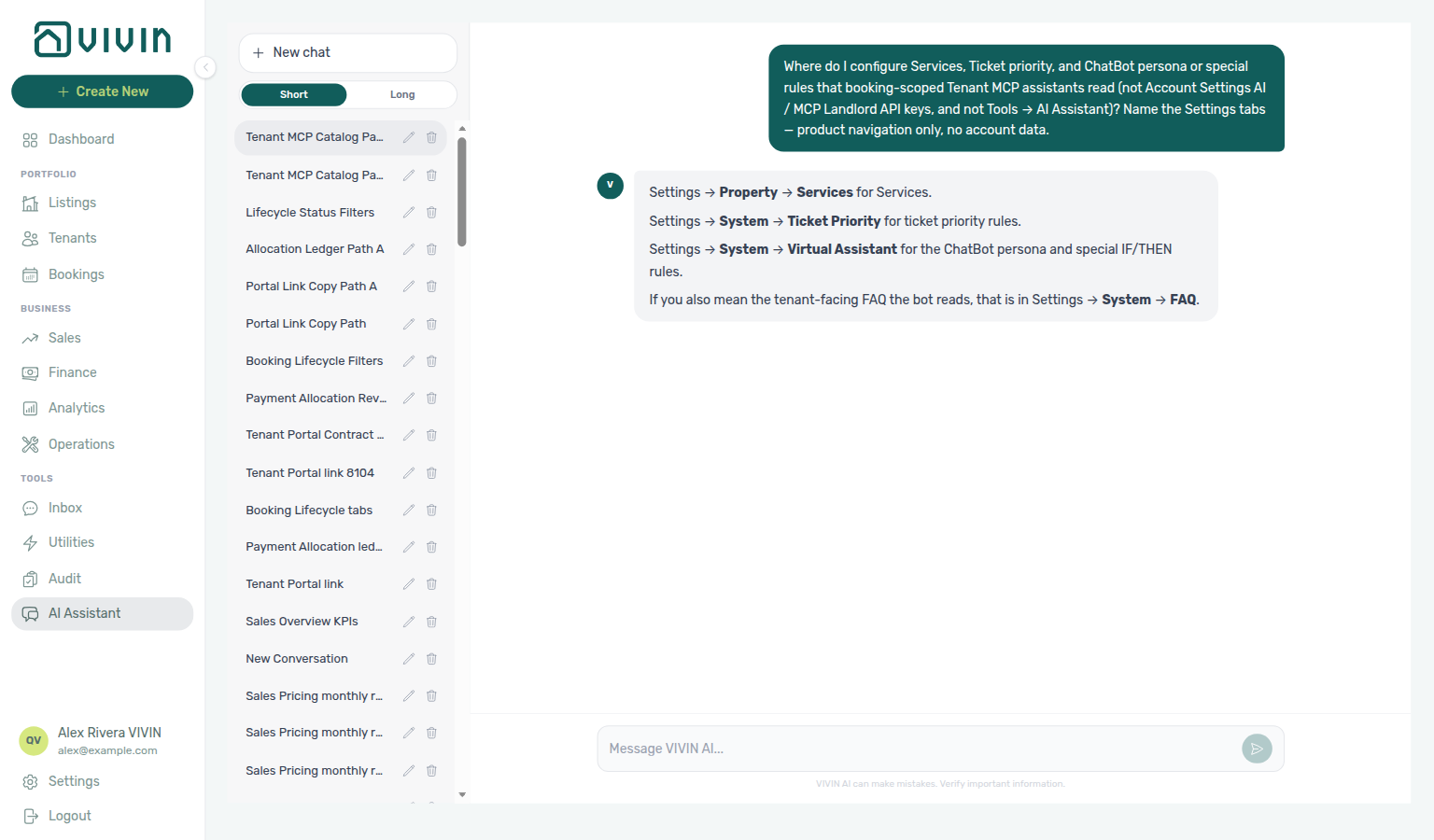
Where-to navigation (Tenant MCP catalogues): Ask “Where do I configure Services, Ticket priority, and ChatBot persona or special rules that booking-scoped Tenant MCP assistants read (not Account Settings AI / MCP Landlord API keys, and not Tools → AI Assistant)? Name the Settings tabs — product navigation only, no account data.” when you need the Settings catalogues booking-scoped Tenant MCP tools read — not Landlord AI / MCP keys, and not the in-app assistant itself. Canonical jobs:
| Job | Open |
|---|---|
Services catalogue (list-available-services) | Settings → Tenant Portal → Services (/settings/services) |
Ticket priority keywords (get-ticket-priority-rules) | Settings → System → ChatBot → Ticket priority (/settings/chatbot) |
ChatBot persona / Special Rules (get-chatbot-persona / get-chatbot-rules) | Settings → System → ChatBot (/settings/chatbot) |
| Concept hub (booking-scoped MCP tools) | Tenant MCP |
The assistant may still say Settings → Property → Services, Settings → System → Ticket Priority, and Settings → Sistema → assistente virtual (or System → Virtual Assistant; English tab ChatBot; may also mention FAQ); open Tenant Portal → Services and System → ChatBot (Ticket priority subtab) instead.
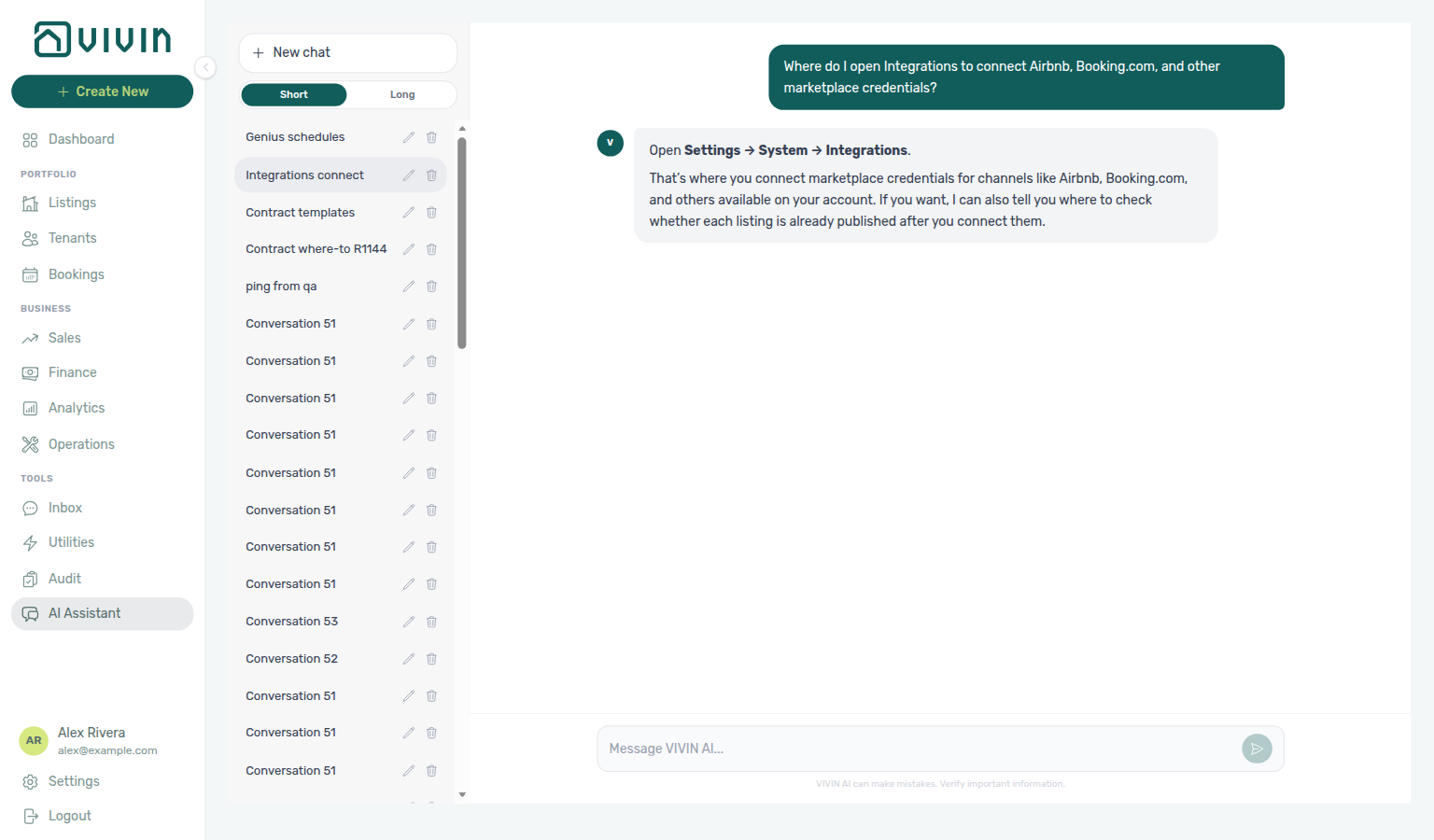
Where-to navigation (Integrations / marketplace credentials): Ask “Where do I open Integrations to connect Airbnb, Booking.com, and other marketplace credentials?” when you need the account-wide connection cards — not per-unit Listings → Channels links, and not day-to-day Sales → Channel Manager status. Canonical jobs:
| Job | Open |
|---|---|
| Marketplace / provider credentials and Channel Manager rules | Settings → System → Integrations (/settings/integrations) |
| Per-unit external IDs and channel links | Listings → Channels |
| Operational channel status across units | Sales → Channel Manager |
| Concept hub (distribution model) | Integrations & Distribution |
The assistant typically says Settings → System → Integrations. Use this tab for API keys, integration emails, and account-wide sync options; link each unit afterward on Listings → Channels.
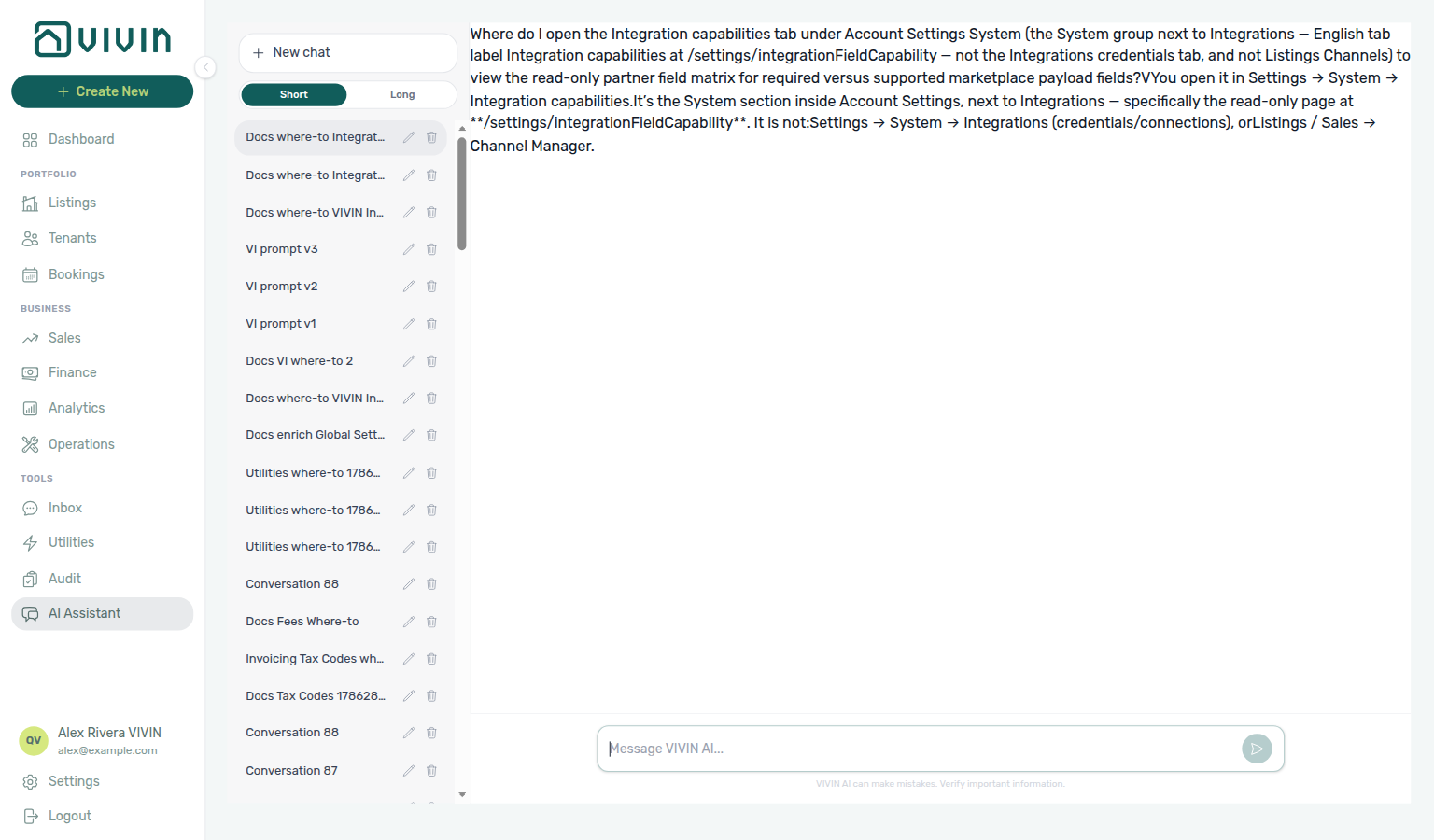
Where-to navigation (Integration capabilities / partner field matrix): Ask “Where do I open the Integration capabilities tab under Account Settings System (the System group next to Integrations — English tab label Integration capabilities at /settings/integrationFieldCapability — not the Integrations credentials tab, and not Listings Channels) to view the read-only partner field matrix for required versus supported marketplace payload fields?” when you need partner required vs supported field coverage — not per-unit Listings → Channels links. Canonical jobs:
| Job | Open |
|---|---|
| Partner required vs supported field matrix | Settings → System → Integrations (/settings/integrations; old capabilities bookmark opens here) — see Integration capabilities |
| Marketplace / provider credentials | Settings → System → Integrations (/settings/integrations) |
| Per-unit external IDs and channel links | Listings → Channels |
The assistant may still say Settings → System → Integration capabilities or point inside a marketplace card; follow Settings → System → Integrations instead (no separate Integration capabilities sidebar item in the current Account Settings rail).
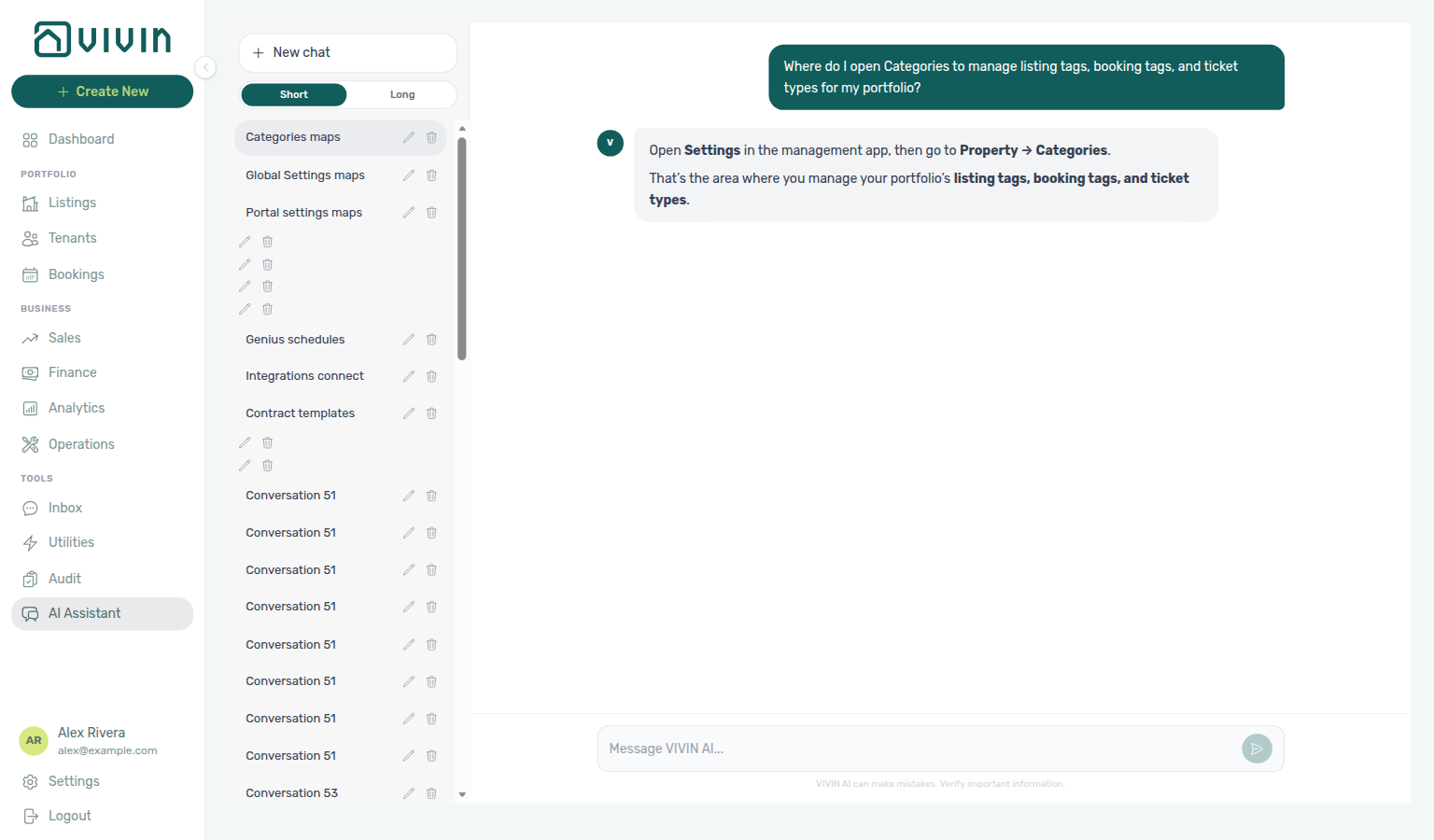
Where-to navigation (Categories / listing & booking tags): Ask “Where do I open Categories to manage listing tags, booking tags, and ticket types for my portfolio?” when you need the chip catalogs under Account Settings — not Tenant categories (portal segments on the Tenants card), and not filters on Listings or Bookings alone. Canonical jobs:
| Job | Open |
|---|---|
| Listing tags, booking tags, ticket types, and related chips | Settings → System → Categories (/settings/categories) |
| Tenant portal segments and integration defaults | Categories → Tenants card |
The assistant may still say Settings → Property → Categories (for example “open Settings, then go to the Property section and open Categories”); follow Settings → System → Categories instead. Apply chips afterward on Listings, Bookings, and Operations → Tickets.
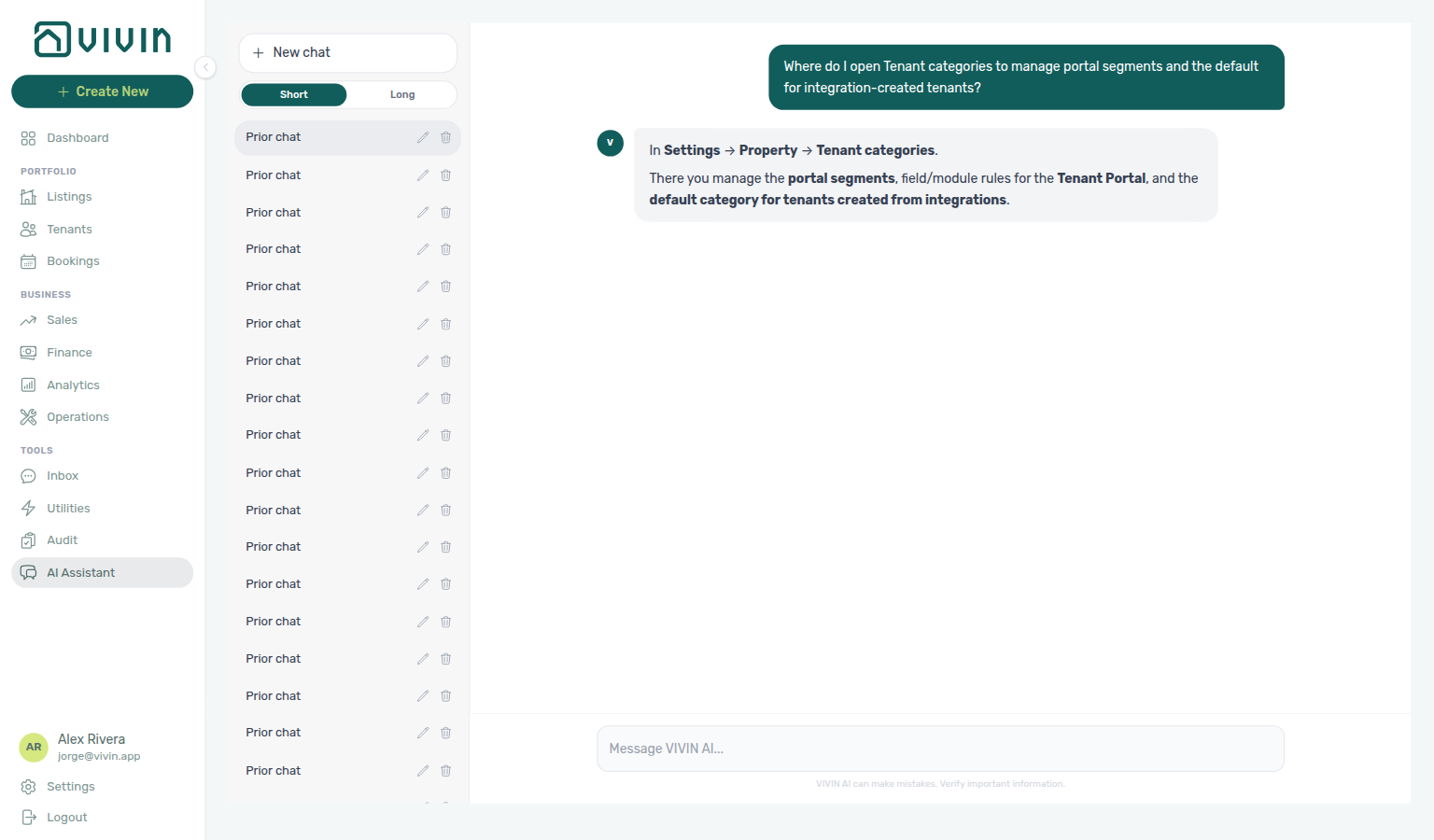
Where-to navigation (Tenant categories / portal segments): Ask “Where do I open Tenant categories to manage portal segments and the default for integration-created tenants?” when you need tenant segments under Account Settings — not Categories chip catalogs alone, and not the Tenant category filter alone on Bookings or Finance. Canonical jobs:
| Job | Open |
|---|---|
| Portal segments, field/module rules, integration default | Settings → System → Categories (Tenants card; /settings/tenantCategories redirects here) |
| Listing tags, booking tags, ticket types, and related chips | Settings → System → Categories (/settings/categories) |
| Communication Rules audience by tenant category | Settings → Emails → Communication Rules |
The assistant may still say Settings → Property → Tenant categories (sometimes Categories of tenants or Portuguese Categorias de inquilino); follow Settings → System → Categories (Tenants card) instead. Assign a segment on Tenants → Tenant Info before contract or onboarding mail for direct bookings.
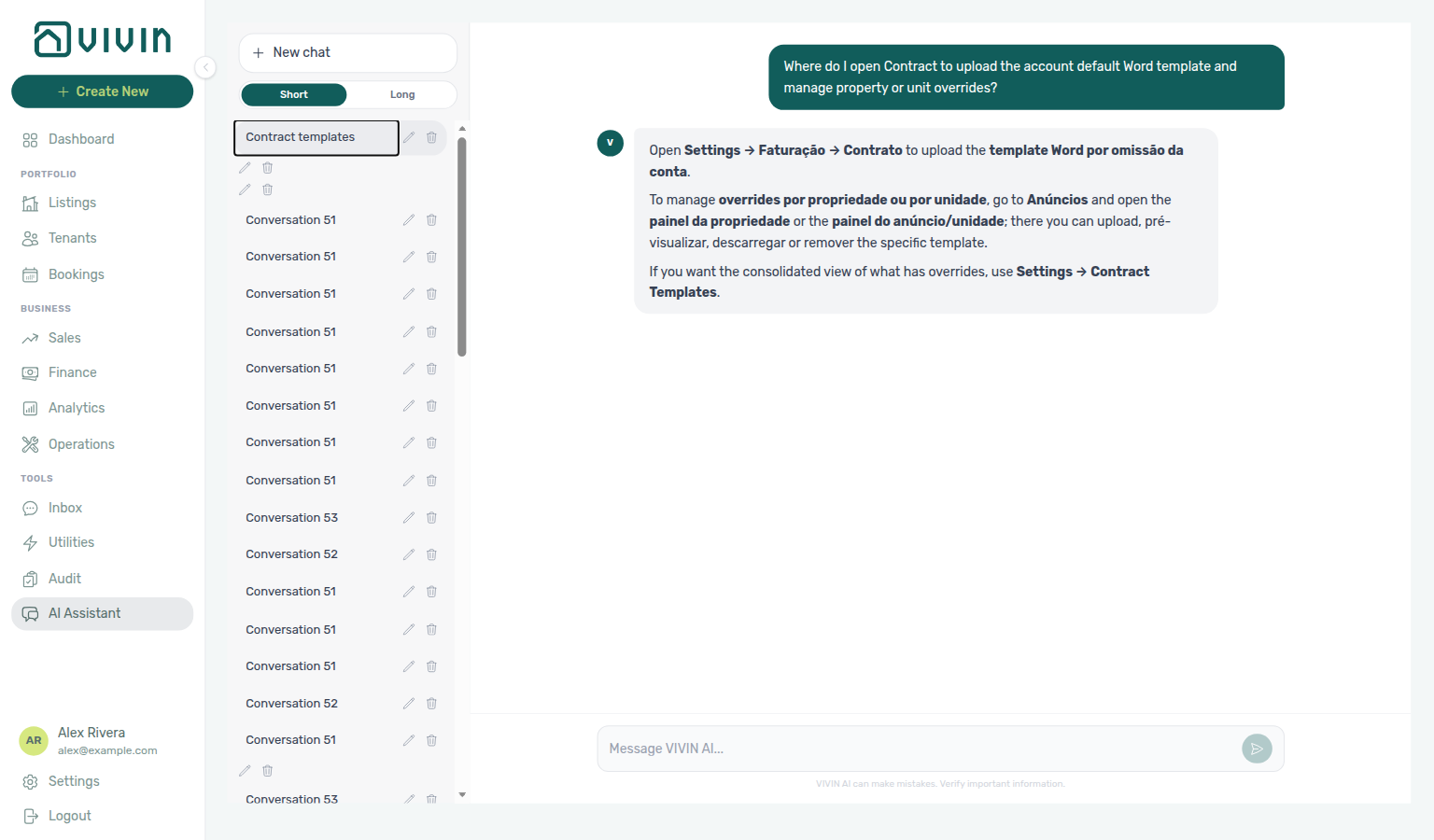
Where-to navigation (Contract / Word templates): Ask “Where do I open Contract to upload the account default Word template and manage property or unit overrides?” when you need the account default .docx under Account Settings — not the booking Contract Info tab, and not property/unit upload alone on Listings. Canonical jobs:
| Job | Open |
|---|---|
| Account default Word template, variable reference, override list | Settings → Billing → Contract (/settings/contract) |
| Property- or unit-specific template upload | Listings property / unit Contract editors (or upload with scope on this settings tab) |
| Generate / send a contract for one reservation | Bookings → Contract Info |
The assistant may still say Settings → Faturação → Contrato and/or Settings → Contract Templates (and Portuguese Anúncios for listing overrides); follow Settings → Billing → Contract instead. The English tab label is Contract under the Billing group. Use Upload Contract Template for the account default; add property/unit overrides when assets need a different file.
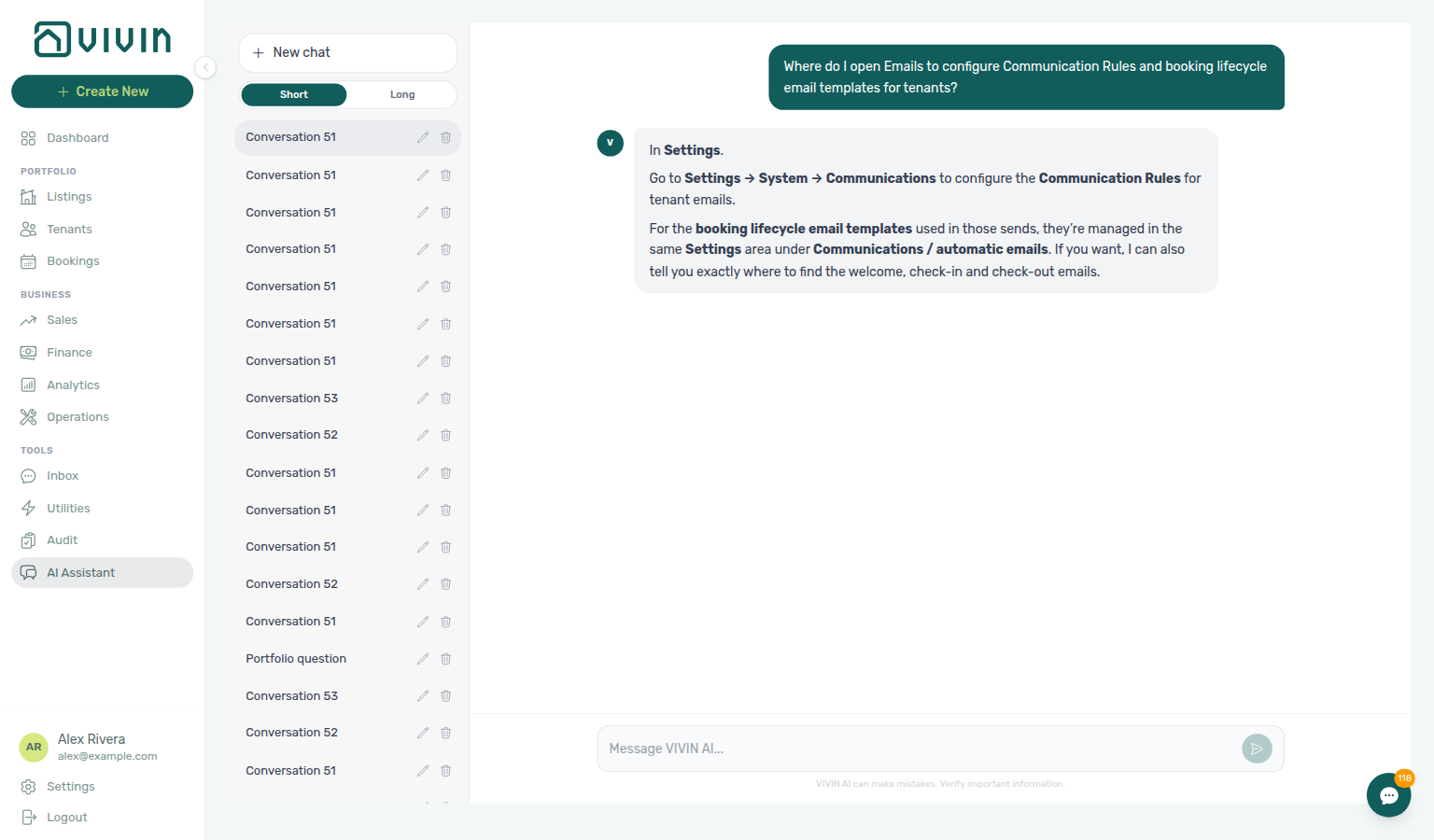
Where-to navigation (Emails / Communication Rules): Ask “Where do I open Emails to configure Communication Rules and booking lifecycle email templates for tenants?” when you need tenant-facing automated mail under Account Settings — not operator Personal Settings notification toggles, and not per-booking Send Check-in email. Canonical jobs:
| Job | Open |
|---|---|
| Communication Rules, Send now, Communication schedule | Settings → System → Emails (/settings/communications) — Communication Rules sub-tab |
| Onboarding / check-in / check-out default bodies and triggers | Same tab — Booking lifecycle emails sub-tab |
| Property-level body append | Listings — Email Customization |
The assistant may still say Settings → System → Communications and/or Faturação/Conta → templates de comunicação/email. Follow Settings → System → Emails (both subtabs live here). The English Account Settings tab label is Emails.
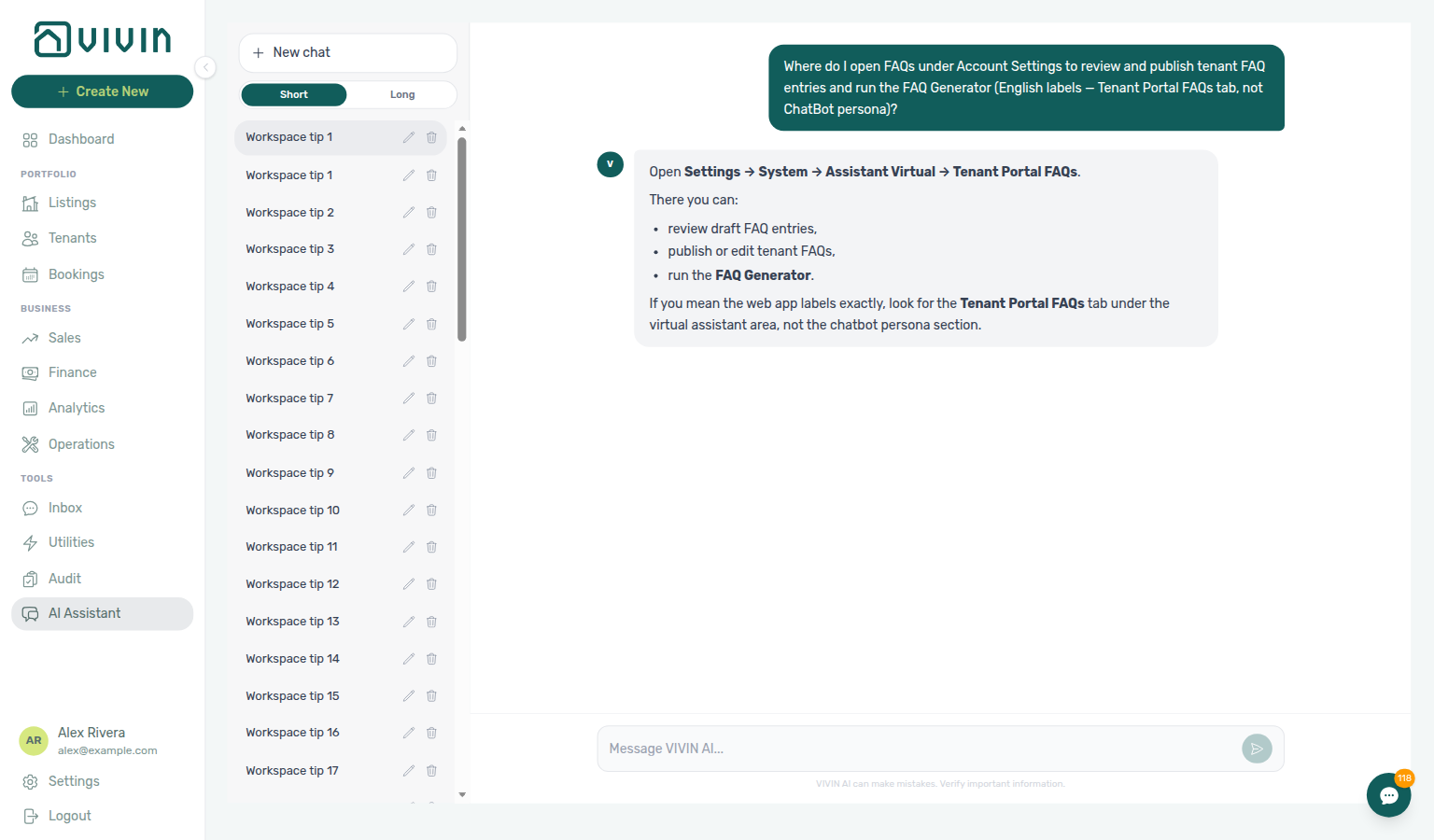
Where-to navigation (FAQs / FAQ Generator): Ask “Where do I open FAQs under Account Settings to review and publish tenant FAQ entries and run the FAQ Generator (English labels — Tenant Portal FAQs tab, not ChatBot persona)?” when you need the tenant-facing FAQ catalogue under Account Settings — not the ChatBot persona / IF/THEN tab alone, and not operator AI Assistant. Canonical jobs:
| Job | Open |
|---|---|
| Review, edit, publish, delete FAQ entries | Settings → Tenant Portal → FAQs (/settings/faqs) |
| Run FAQ Generator (cost estimate → drafts) | Same tab — Run FAQ Generator |
| Persona / IF/THEN that feed the generator | Settings → System → ChatBot |
The assistant may still say Settings → System → Assistant Virtual → Tenant Portal FAQs, System → Virtual Assistant → Tenant Portal FAQs, Settings → System → FAQ, or Sistema → Assistente virtual / FAQ. Follow Settings → Tenant Portal → FAQs. The English Account Settings tab label is FAQs.
Where-to navigation (Ticket priority): Ask “Where do I open Ticket priority to configure keyword rules and exception overrides for chatbot maintenance ticket triage?” when you need the keyword → priority catalog under Account Settings — not Preferences → Ticket Priorities (SLA hours) and not the live Operations → Tickets queue. Canonical jobs:
| Job | Open |
|---|---|
| Edit keyword columns and Exception Rules | Settings → System → ChatBot → Ticket priority (/settings/chatbot) |
| Run Analyze tickets (cost estimate → Pending drafts) | Same tab — Analyze past tickets |
| SLA deadline hours per Critical / High / Medium / Low | Preferences → Ticket Priorities |
The assistant typically says Settings → System → Ticket priority (it may omit ChatBot). Follow Settings → System → ChatBot → Ticket priority. Localized replies may say Sistema → Prioridade de tickets. The English subtab label is Ticket priority.
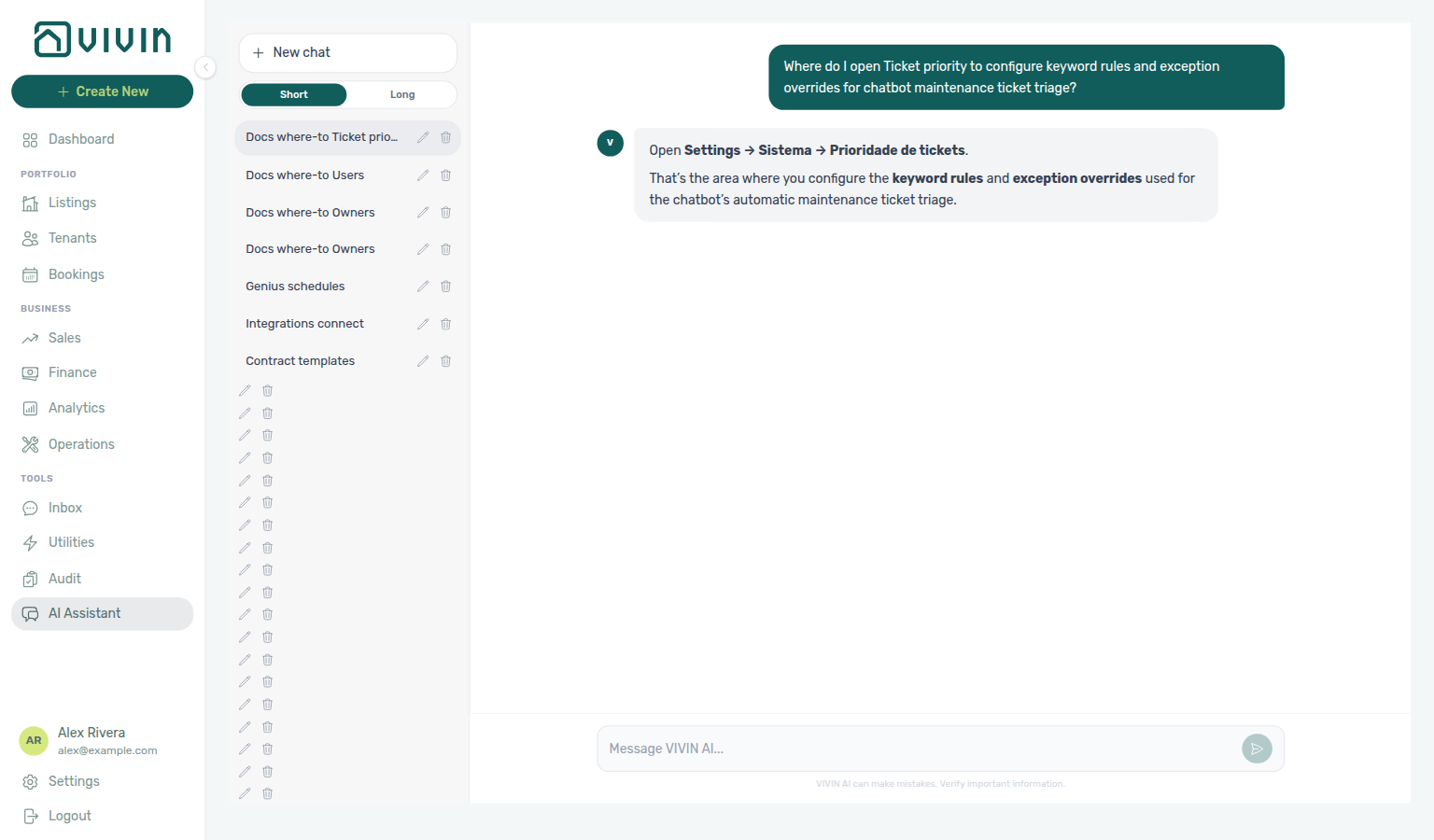
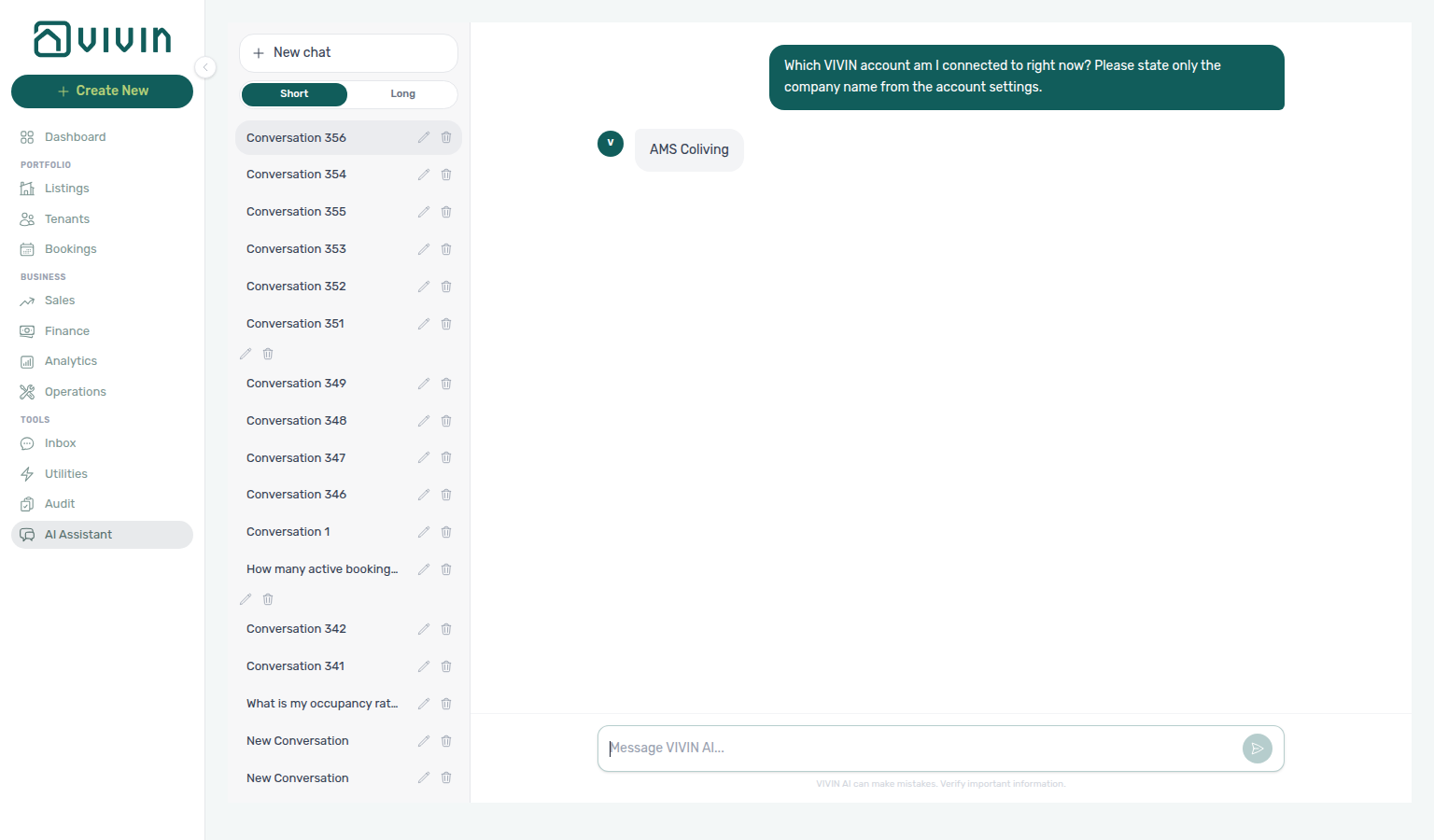
- Read / intelligence — occupancy snapshots (including manual vs OTA/iCal blocks and dual vacancy readings), occupancy by unit tag / listing type plus a July 2026 listing-type occupancy split (named settled month — not the 12-month best-performer ranking) plus a June 2026 listing-type occupancy split (named settled month — not July, not unit tags, not the 12-month ranking) plus a July 2026 unit-tag occupancy split (neighbourhood tags in that named month — not listing types, not the 12-month ranking) plus a June 2026 unit-tag occupancy split (neighbourhood tags in that named month — not listing types, not July, not the 12-month ranking, and not the current month), upcoming move-ins, booking summaries (bookings received for a creation window), ticket status counts, ticket priority counts, unassigned priority counts, draft priority counts, in-progress priority counts, closed priority counts, cancelled priority counts (whole-account Operations Tickets totals — not a page of titles), maintenance closure rate (closed vs received in a named trailing window — not the Closed-card mix) plus a 45-day mid-length window (closures can already show when 30 days is still 0%), a 50-day window (between 45 and 60 — not the 45-day look), and a 90-day window (the longest allowed — not the 60-day example), and operational cost summary (Cash Flows outflow and average cost per unit for a named date window — not Finance income) plus a June 2026 named month (not the July example, not the current-month default) plus an April 2026 named month (not June, not July, not the current-month default) plus operational cost summary by category (the same window’s category outflows — not headline totals alone) plus a June 2026 category split (including uncategorized when it has outflow — not the July Carpentry & doors + Maintenance example) and operational costs excluding a category (remaining outflow and average cost per unit after dropping one Cash Flows category by its exact name — not the unfiltered headline) plus excluding Maintenance (a different exact name than Carpentry & doors — not that Carpentry remaining total) plus excluding Manutenção in June (that month’s Portuguese Cash Flows name — not English Maintenance, and not remaining totals after excluding uncategorized) plus excluding uncategorized in June (remaining totals after dropping that other exact Cash Flows name — not remaining totals after excluding Manutenção) plus excluding maintenance in April (remaining totals after dropping that month’s exact Cash Flows name — not July remaining totals after excluding Maintenance, and not the unfiltered April headline) plus excluding maintenance and uncategorized in April (remaining totals after dropping both exact names — not remaining totals after excluding maintenance only, and not June remaining totals after excluding uncategorized) plus utilities cost map in June (per-property Cost map totals — not Cash Flows outflow) plus an April 1–15 custom window (not the full April month) plus an April 16–30 custom window (not 1–15 April, and not the full April month) plus a February 2026 named month (not June, not July, not April, not the April custom windows, and not the current-month default) plus a February 1–14 custom window (not the full February month, not 15–28 February, and not the April custom windows) plus a February 15–28 custom window (not the full February month, not 1–14 February, and not the April custom windows) plus a January 2026 named month (not February, not April, not June, not July, not the April custom windows, and not the current-month default) plus a March 2026 named month (not January, not February, not April, not June, not July, not the April custom windows, and not the current-month default) plus a May 2026 named month (not January, not February, not March, not April, not June, not July, not the April custom windows, and not the current-month default), listing pricing tables, tenant lists, smart-lock battery health, and similar portfolio questions. See Asking about your portfolio, Landlord MCP — Bookings received, Landlord MCP — Ticket status counts, Landlord MCP — Maintenance closure rate, Landlord MCP — Operational cost summary, and Landlord MCP — Occupancy, vacancy, and smart locks.
- Finance figures — “how much did we make / collect / invoice / are we owed?” uses Finance-sourced portfolio metrics (
get-finance-overview,get-revenue-summary,get-income-by-property,get-debt-summary) so answers match Finance → Overview / Income, not Analytics ADR/RevPAR charts. Prefer cash collected when you mean banked money; income expected is rent-related operating income (it excludes deposits and exit fees), while the paid / scheduled / in debt status split can include those charge types — so the status totals can exceed income expected. For “how much came in in June?”, ask for both bases — net System + Manual Payments (refunds subtract) and the gross cash-flow chart Past bar (refunds excluded) — see Cash in: net vs gross (June 2026). Income expected covers all stays managed in VIVIN (any duration) and excludes OTA-only revenue outside VIVIN. For “how much will I receive between two dates / until day X?”, the assistant should use the Cash flow forecast due-date series (not income expected) — see Expected receipts between two dates. For “which property earns the most?” / “highest income per unit?”, ask for an Income by property ranking (serverincomePerUnitwhen units are known) and reconcile on Finance → Income → Income by property. For “how much from September check-ins?”, ask for the expected check-in value by month (server total + basis), not a sum of the sample move-in list. For “how much are we owed?”, ask for the canceled vs live missing-payment debt split. If you contest a figure, the assistant should re-call Finance tools and answer from fresh data. See Asking about your portfolio and FAQ — Genius / AI Chat revenue vs Analytics. - Scheduled reports — ask AI Chat (or WhatsApp Genius) to create, list, pause, resume, cancel, update cadence, change delivery channel, or change digest language for recurring vacancy / open-debt / upcoming-check-ins / Finance overview digests delivered by email and/or WhatsApp. Content is deterministic; the assistant only manages the schedule. Writes use the usual two-turn confirm before creating, pausing, resuming, cancelling, changing day/time, switching email / WhatsApp / both, or switching English / Portuguese copy. Ask for English or Portuguese digest copy when you create (see Portuguese upcoming-check-ins frames below, and the Tuesday Finance overview email frames), or update language later on an existing schedule. See Automation & AI — Scheduled reports, Genius — Finance overview digest, and manage the same rows on Account Settings → Genius (
settings-genius-scheduled-reports-list.png,settings-genius-scheduled-reports-create-flow.mp4,settings-genius-scheduled-reports-finance-overview-modal.png,settings-genius-scheduled-reports-finance-overview-flow.mp4) (ai-chat-scheduled-reports-create-confirm-prompt.png,ai-chat-scheduled-reports-create-open-debt-reply.png,ai-chat-scheduled-reports-create-open-debt-flow.mp4,ai-chat-scheduled-reports-create-whatsapp-check-ins-confirm-prompt.png,ai-chat-scheduled-reports-create-whatsapp-check-ins-reply.png,ai-chat-scheduled-reports-create-whatsapp-check-ins-flow.mp4,ai-chat-scheduled-reports-create-both-open-debt-confirm-prompt.png,ai-chat-scheduled-reports-create-both-open-debt-reply.png,ai-chat-scheduled-reports-create-both-open-debt-flow.mp4,ai-chat-scheduled-reports-create-portuguese-check-ins-confirm-prompt.png,ai-chat-scheduled-reports-create-portuguese-check-ins-reply.png,ai-chat-scheduled-reports-create-portuguese-check-ins-flow.mp4,ai-chat-scheduled-reports-finance-overview-confirm-prompt.png,ai-chat-scheduled-reports-finance-overview-reply.png,ai-chat-scheduled-reports-finance-overview-flow.mp4,ai-chat-scheduled-reports-list-reply.png,ai-chat-scheduled-reports-pause-confirm-prompt.png,ai-chat-scheduled-reports-pause-vacancy-reply.png,ai-chat-scheduled-reports-pause-vacancy-flow.mp4,ai-chat-scheduled-reports-resume-confirm-prompt.png,ai-chat-scheduled-reports-resume-vacancy-reply.png,ai-chat-scheduled-reports-resume-vacancy-flow.mp4,ai-chat-scheduled-reports-cancel-confirm-prompt.png,ai-chat-scheduled-reports-cancel-open-debt-reply.png,ai-chat-scheduled-reports-cancel-open-debt-flow.mp4,ai-chat-scheduled-reports-update-cadence-confirm-prompt.png,ai-chat-scheduled-reports-update-cadence-vacancy-reply.png,ai-chat-scheduled-reports-update-cadence-vacancy-flow.mp4,ai-chat-scheduled-reports-update-channel-confirm-prompt.png,ai-chat-scheduled-reports-update-channel-vacancy-reply.png,ai-chat-scheduled-reports-update-channel-vacancy-flow.mp4,ai-chat-scheduled-reports-update-language-confirm-prompt.png,ai-chat-scheduled-reports-update-language-vacancy-reply.png,ai-chat-scheduled-reports-update-language-vacancy-flow.mp4). Enable the domain on AI / MCP → Tool permissions (settings-ai-mcp-scheduled-reports-domain.png).
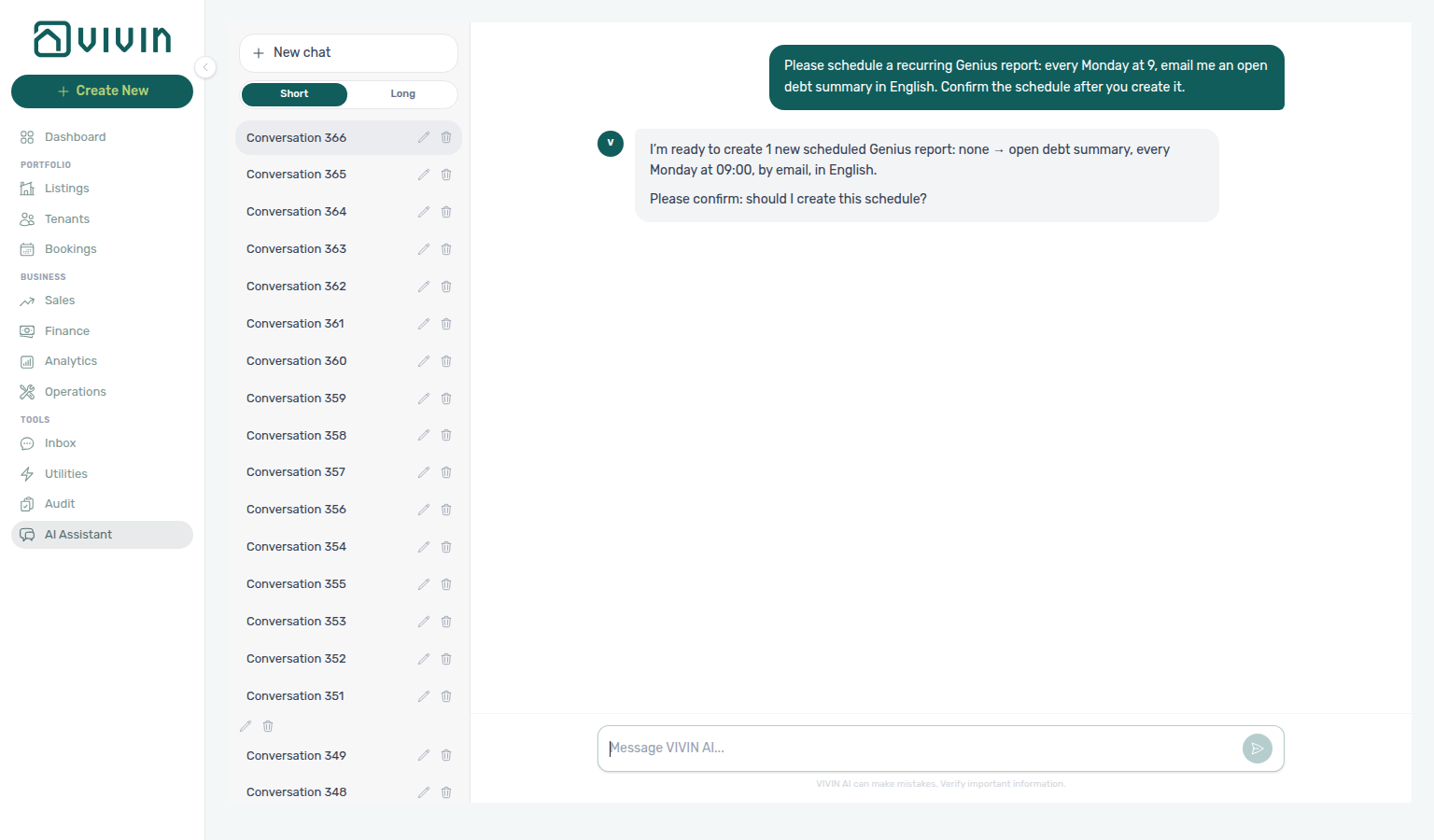
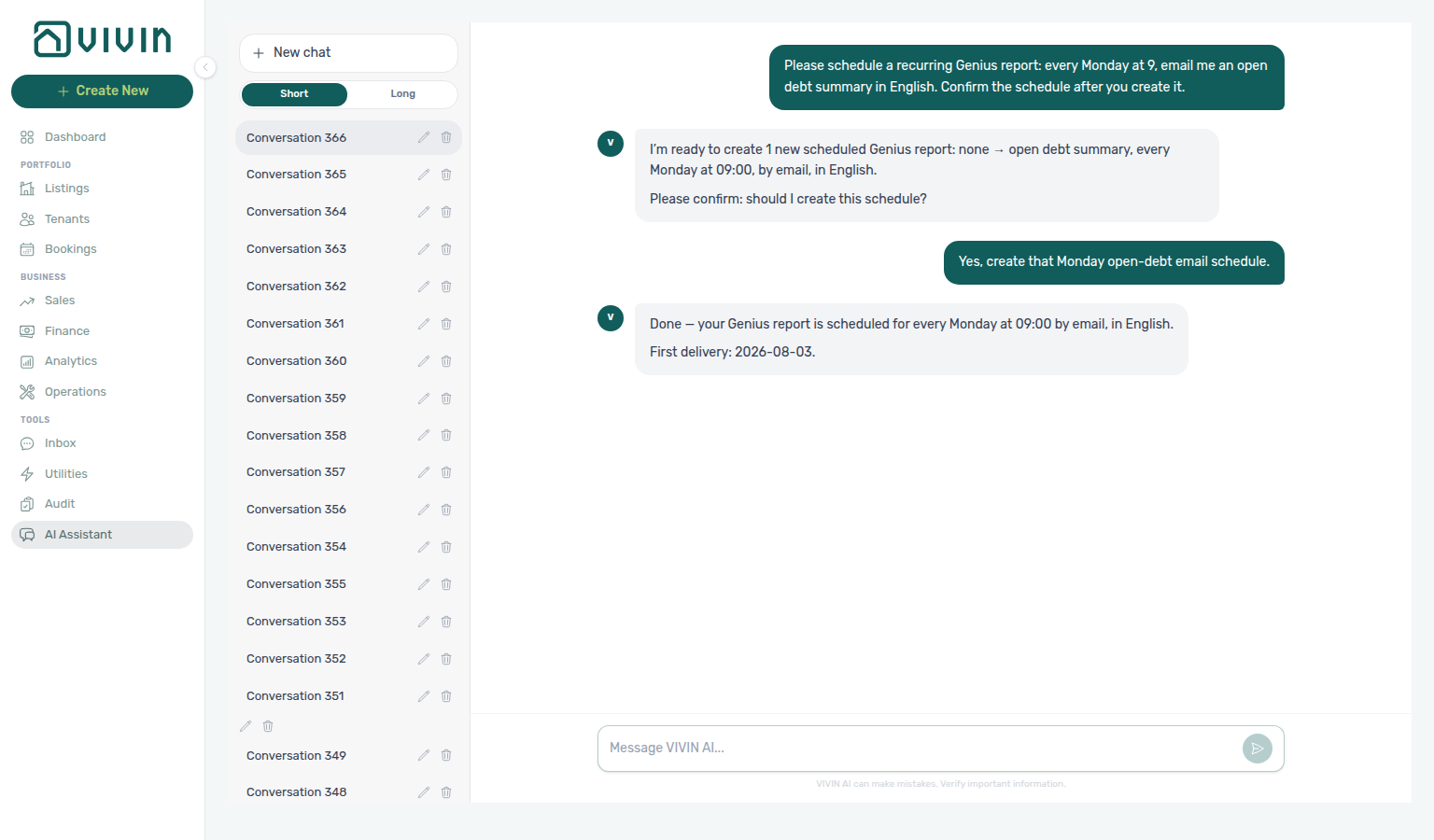
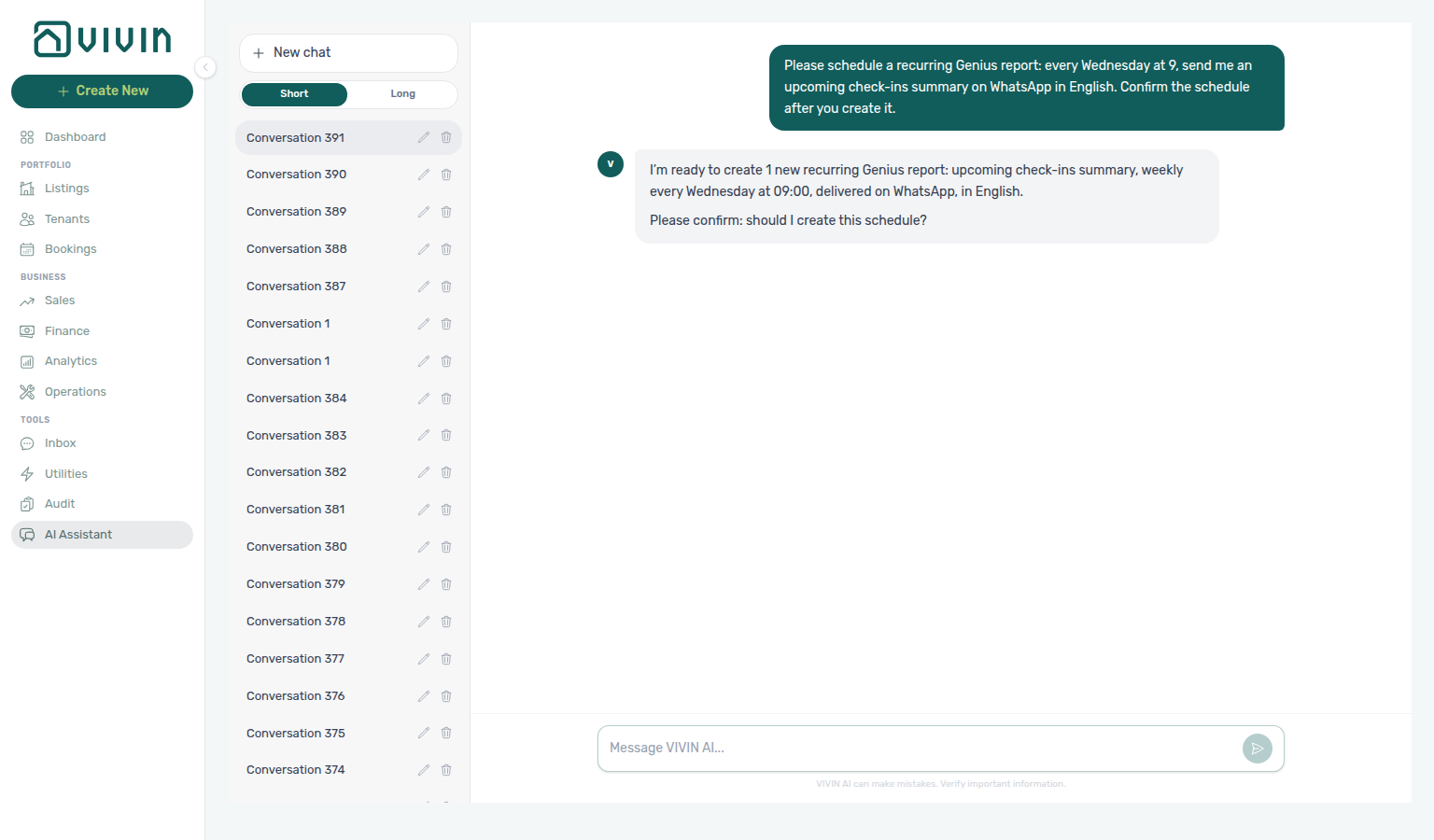
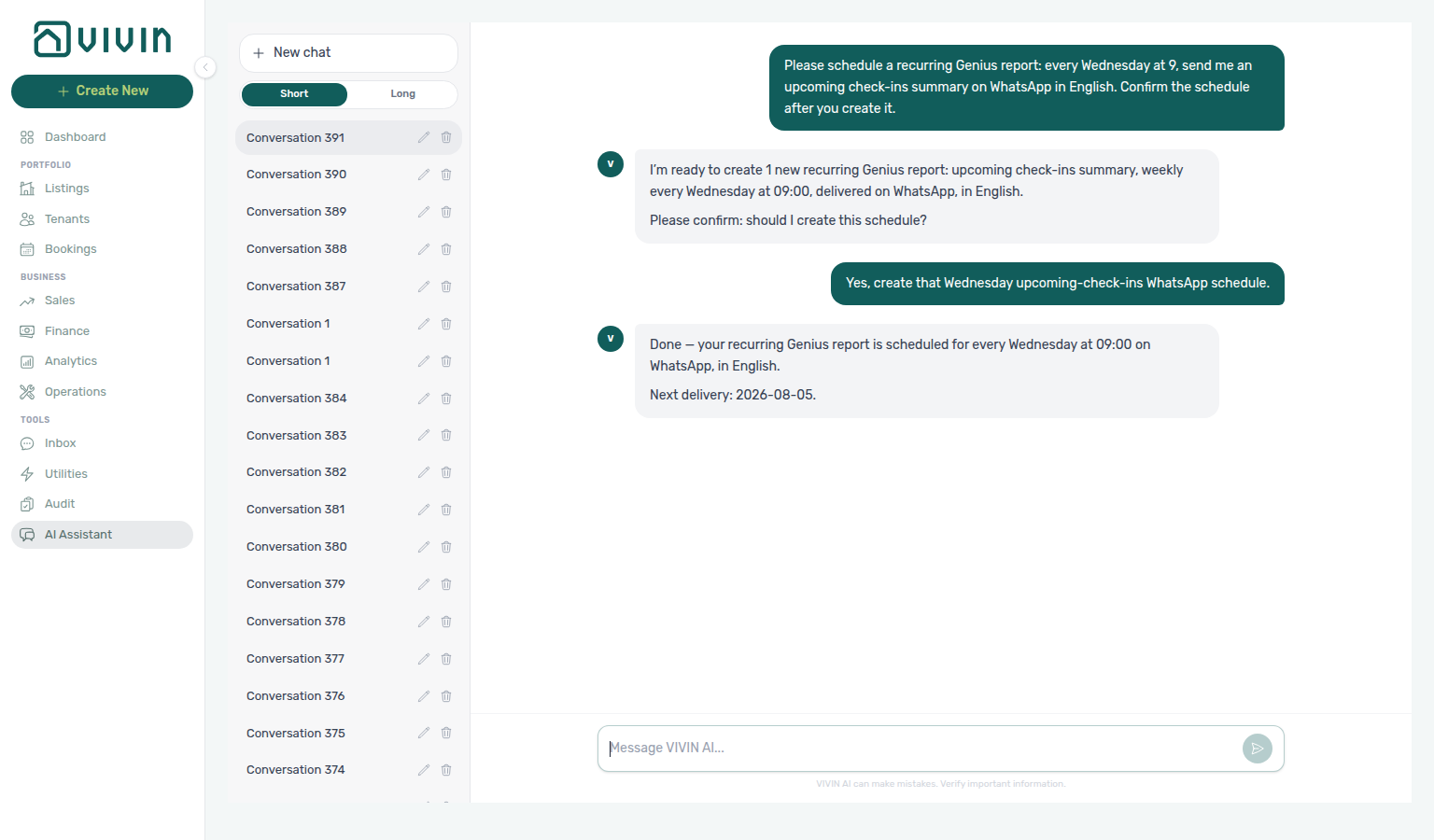
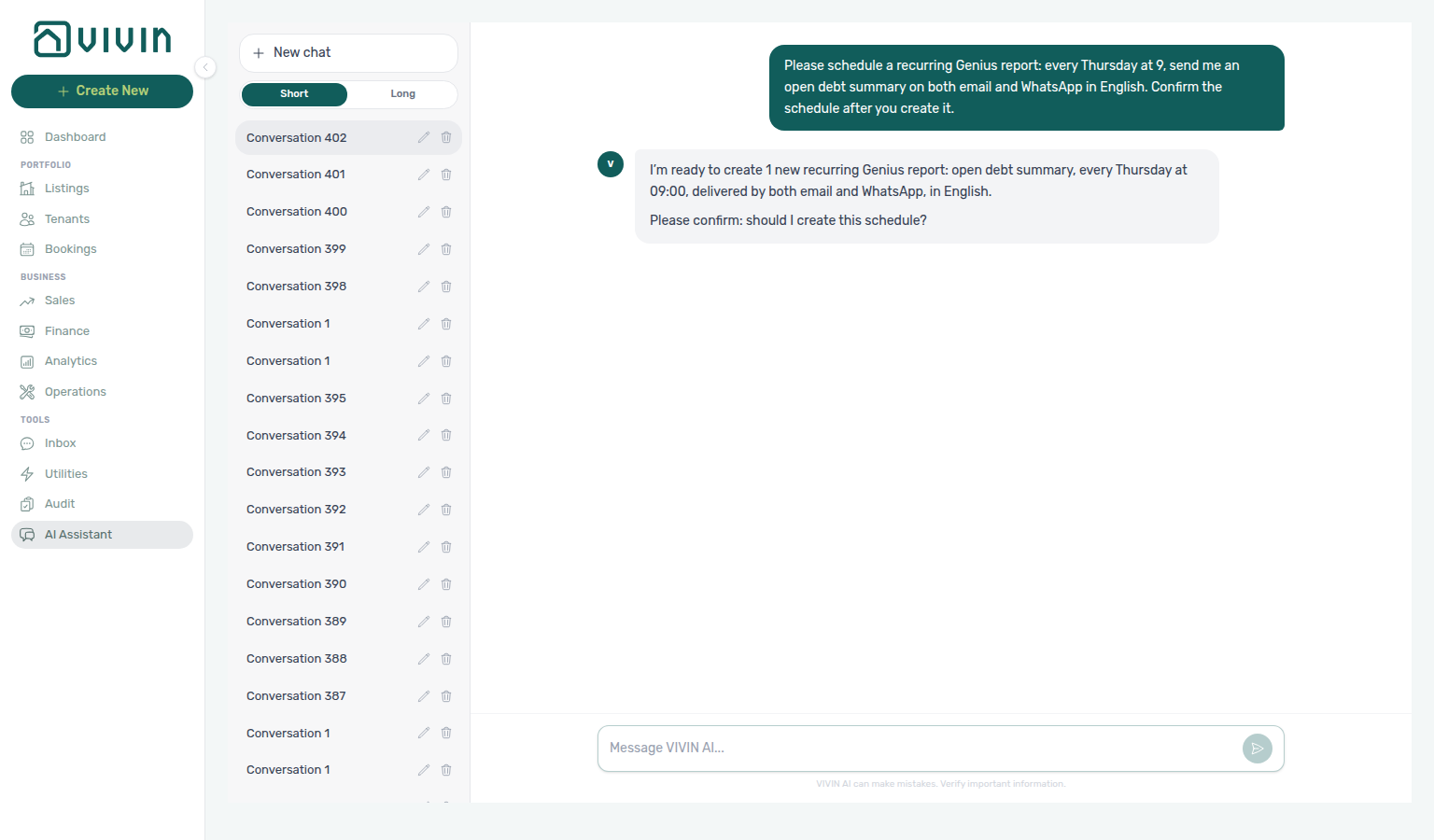
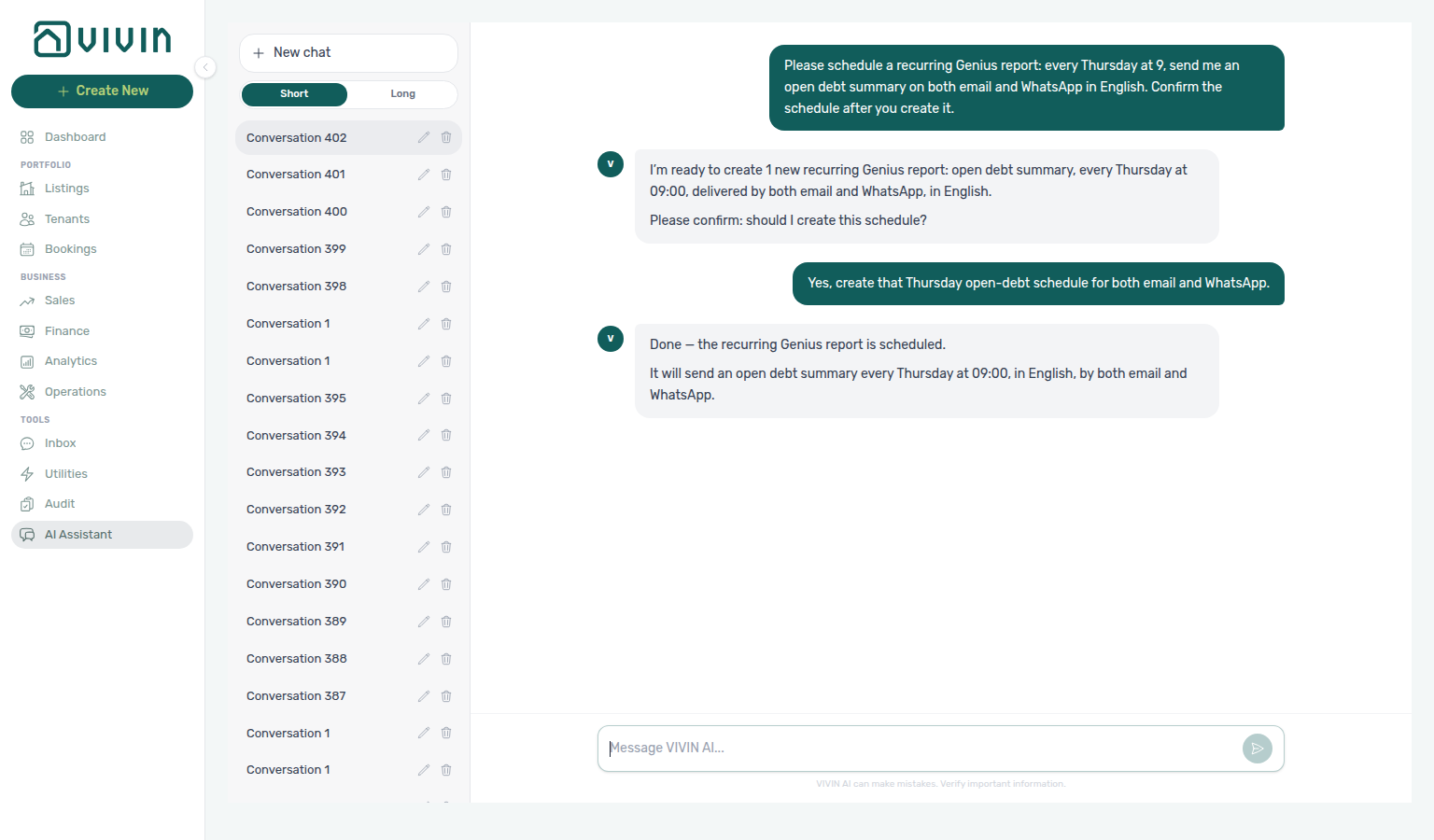
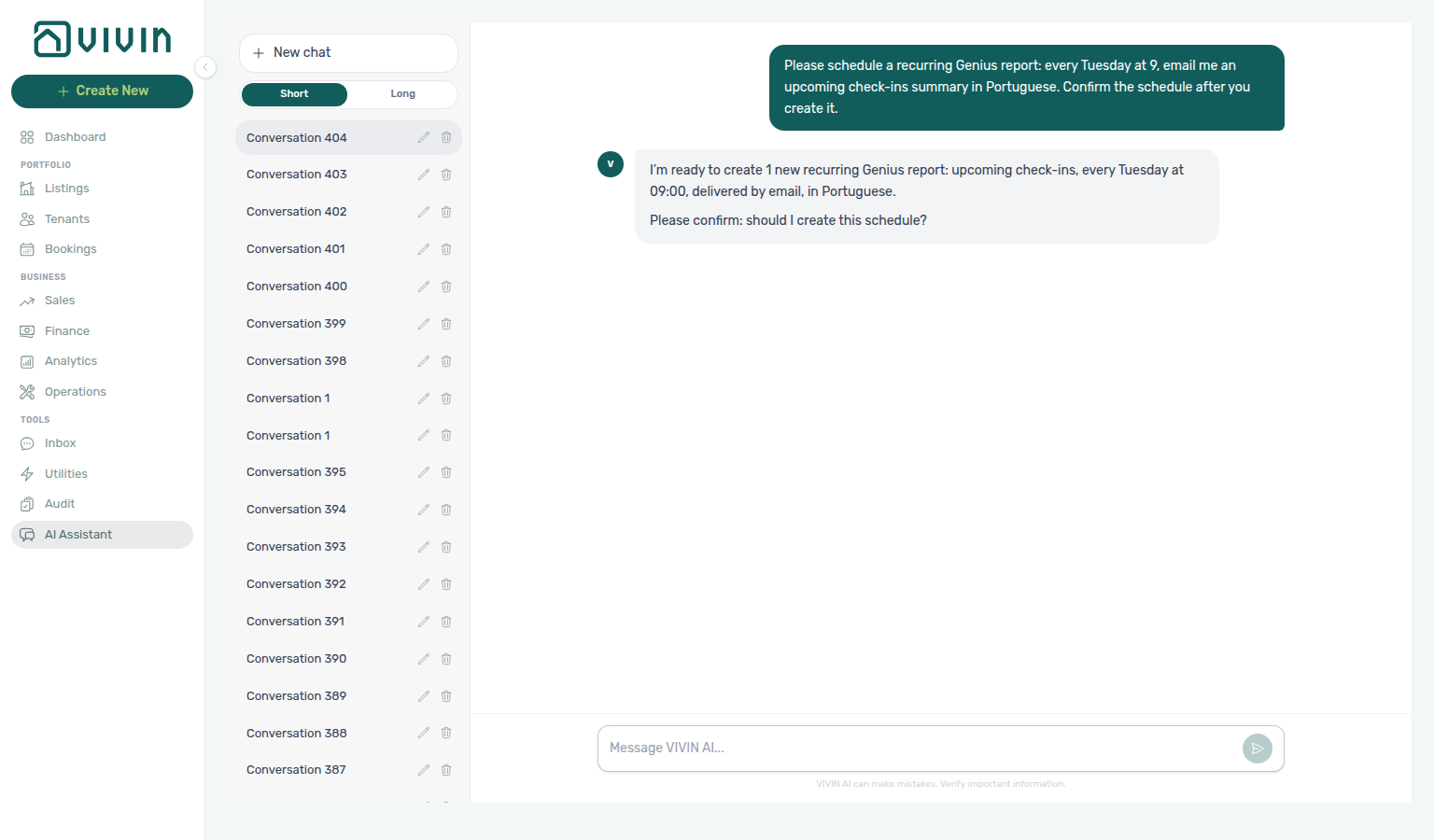
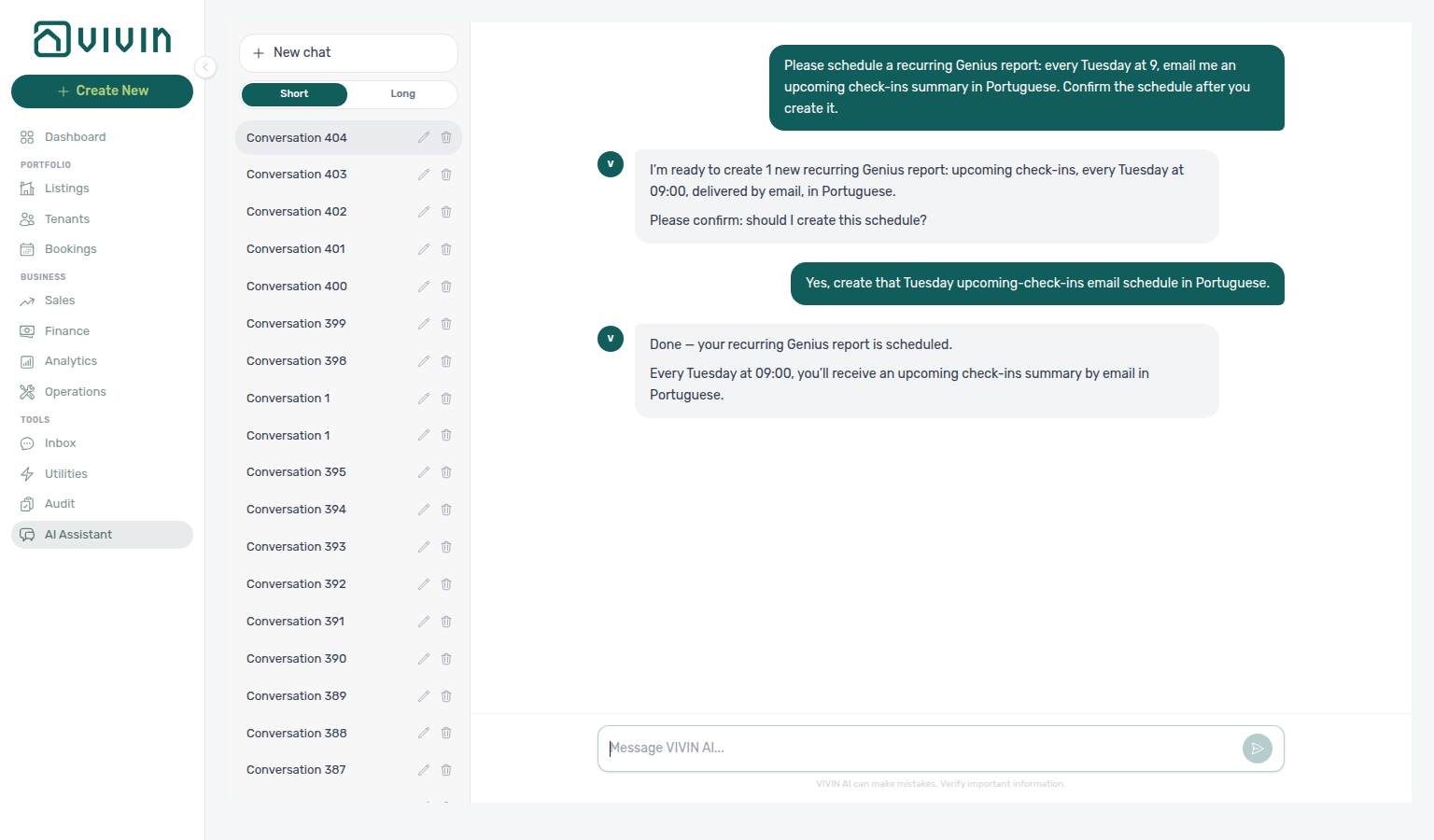
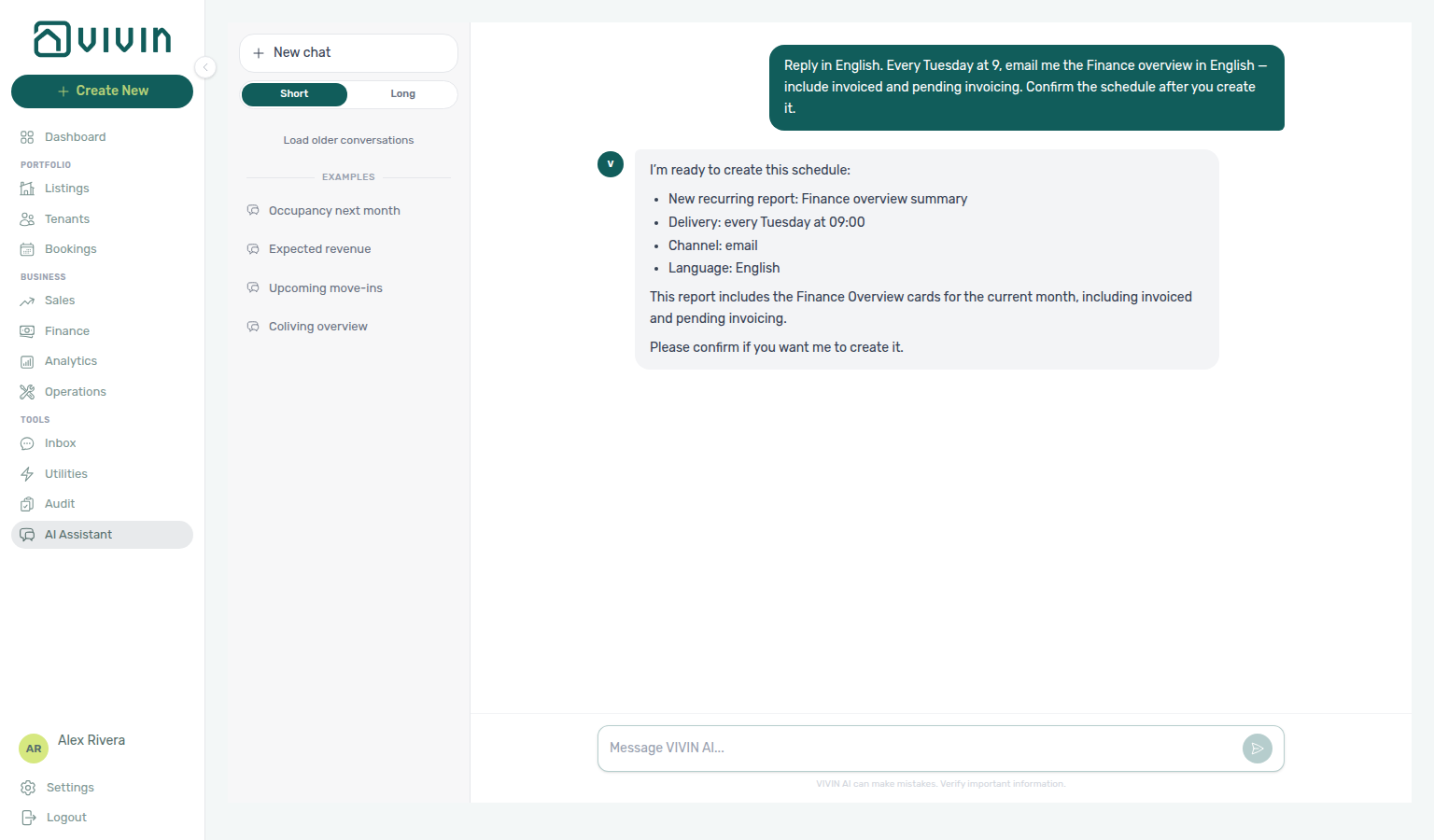
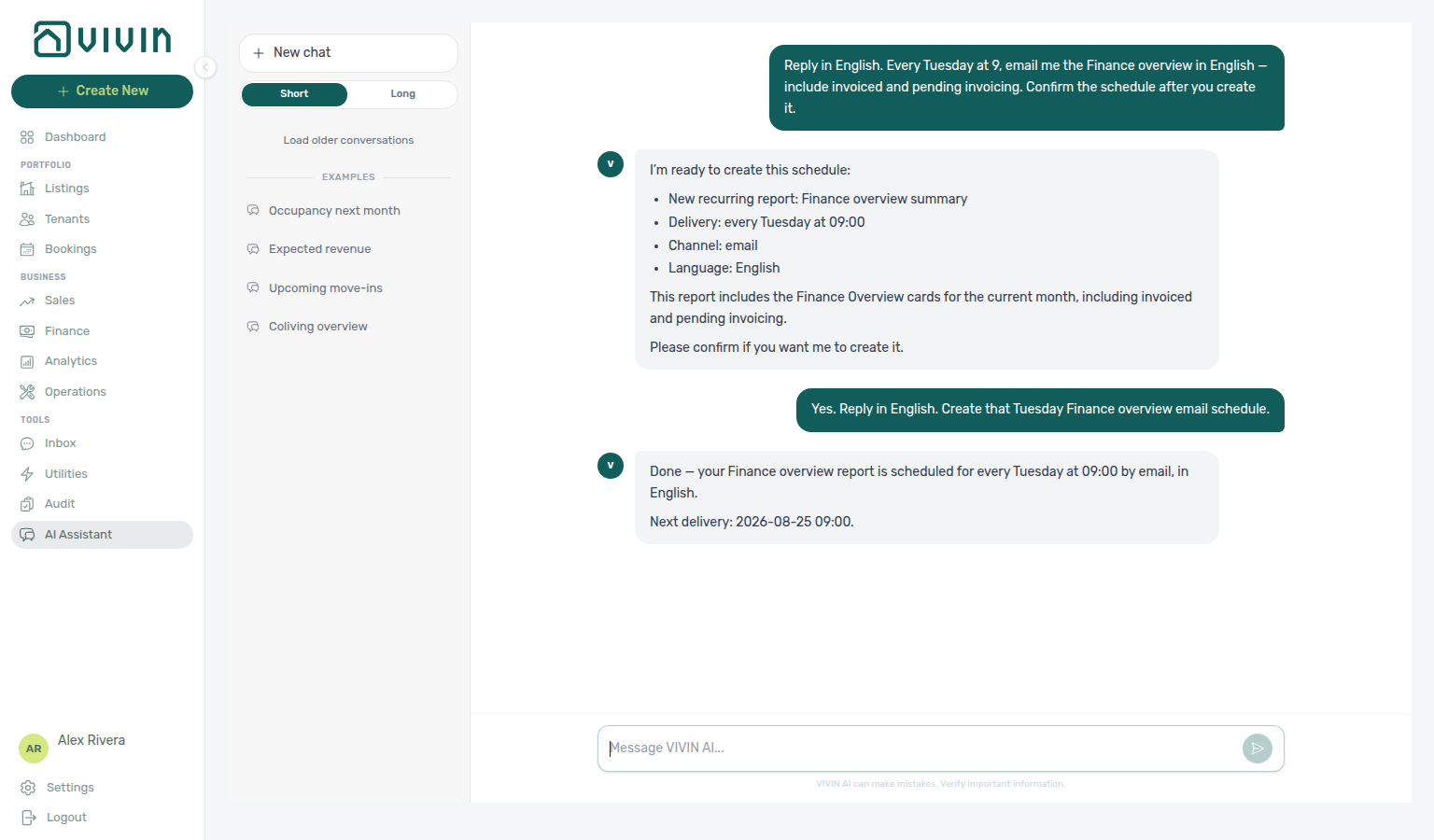
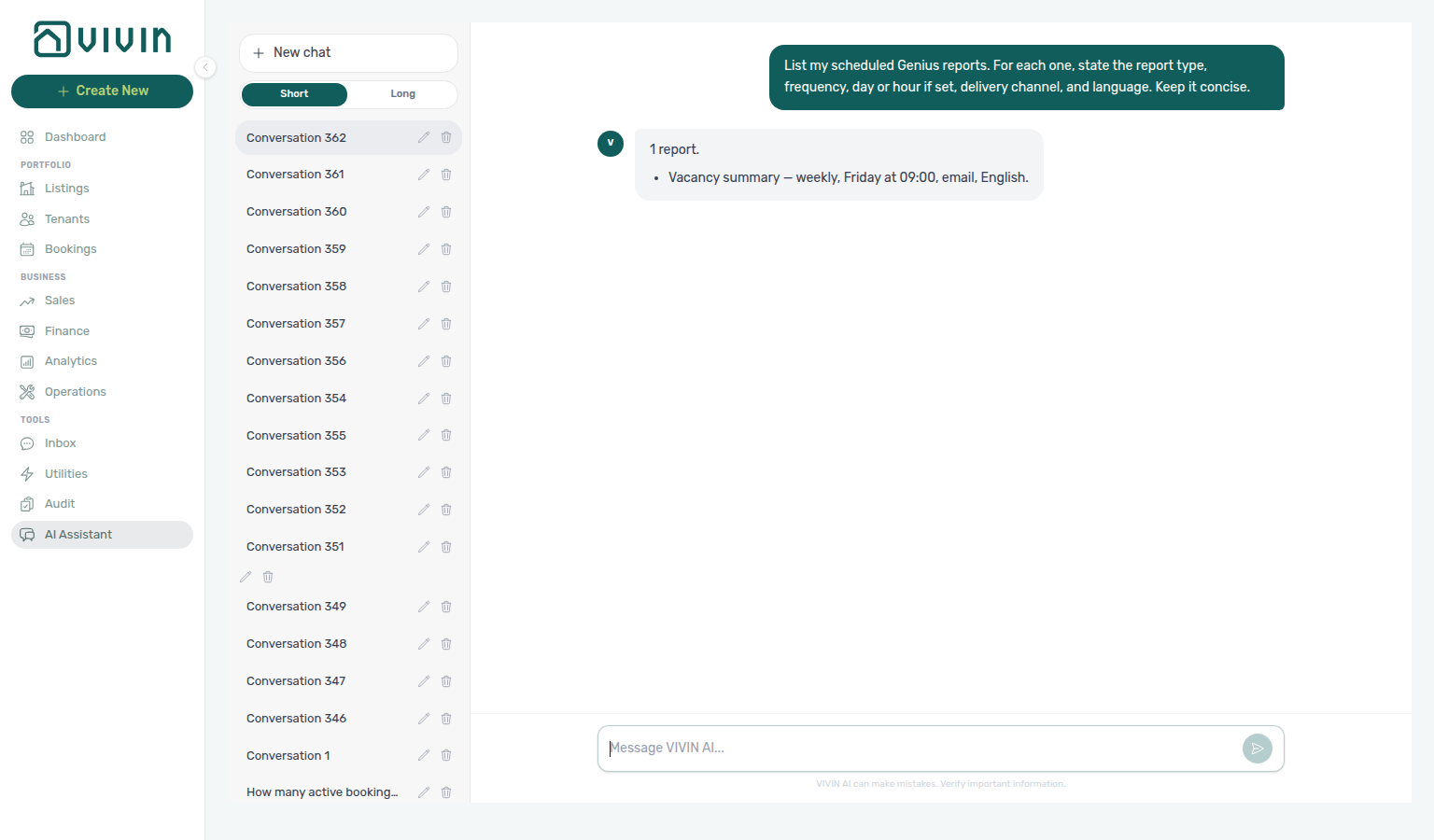
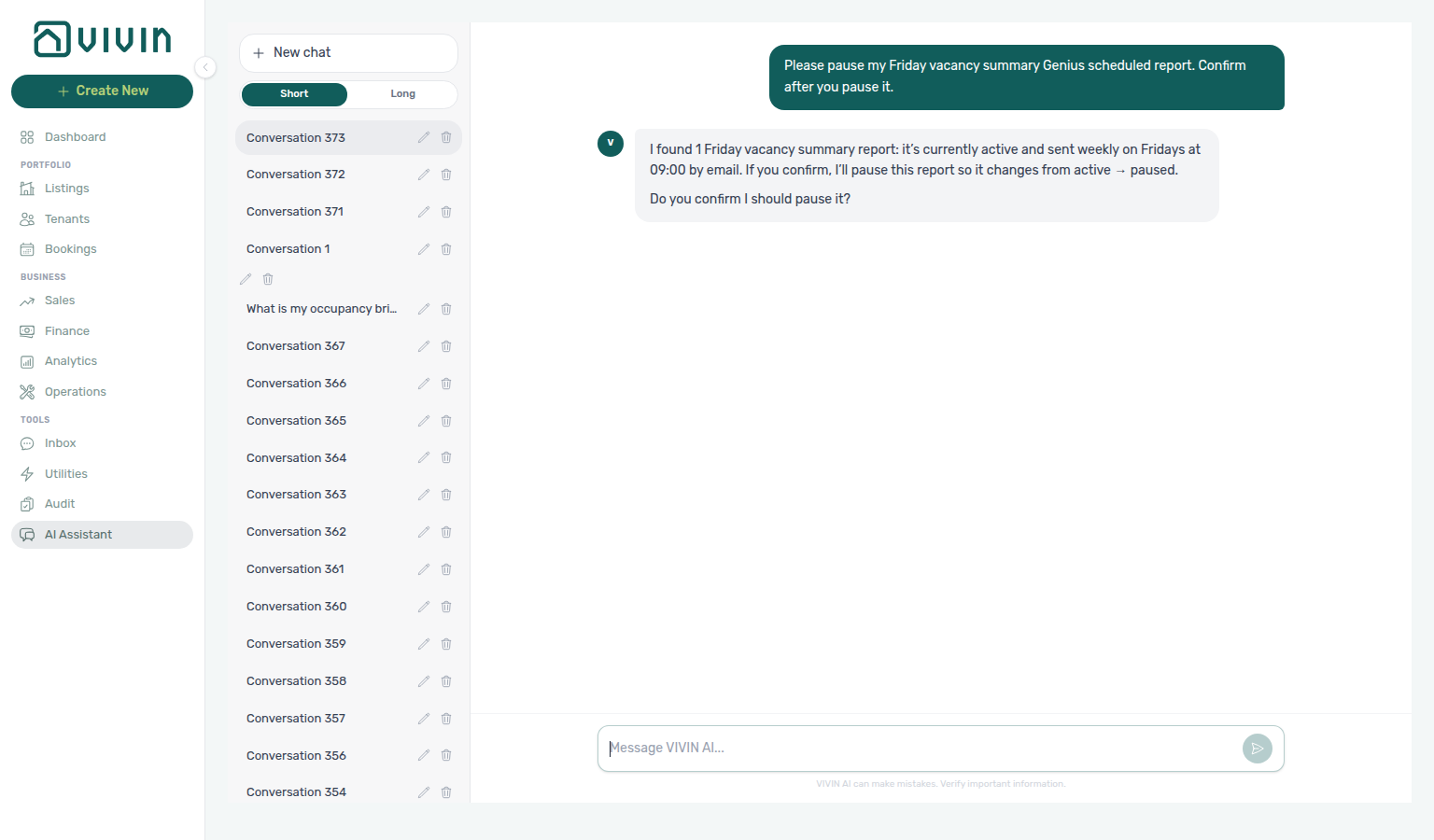
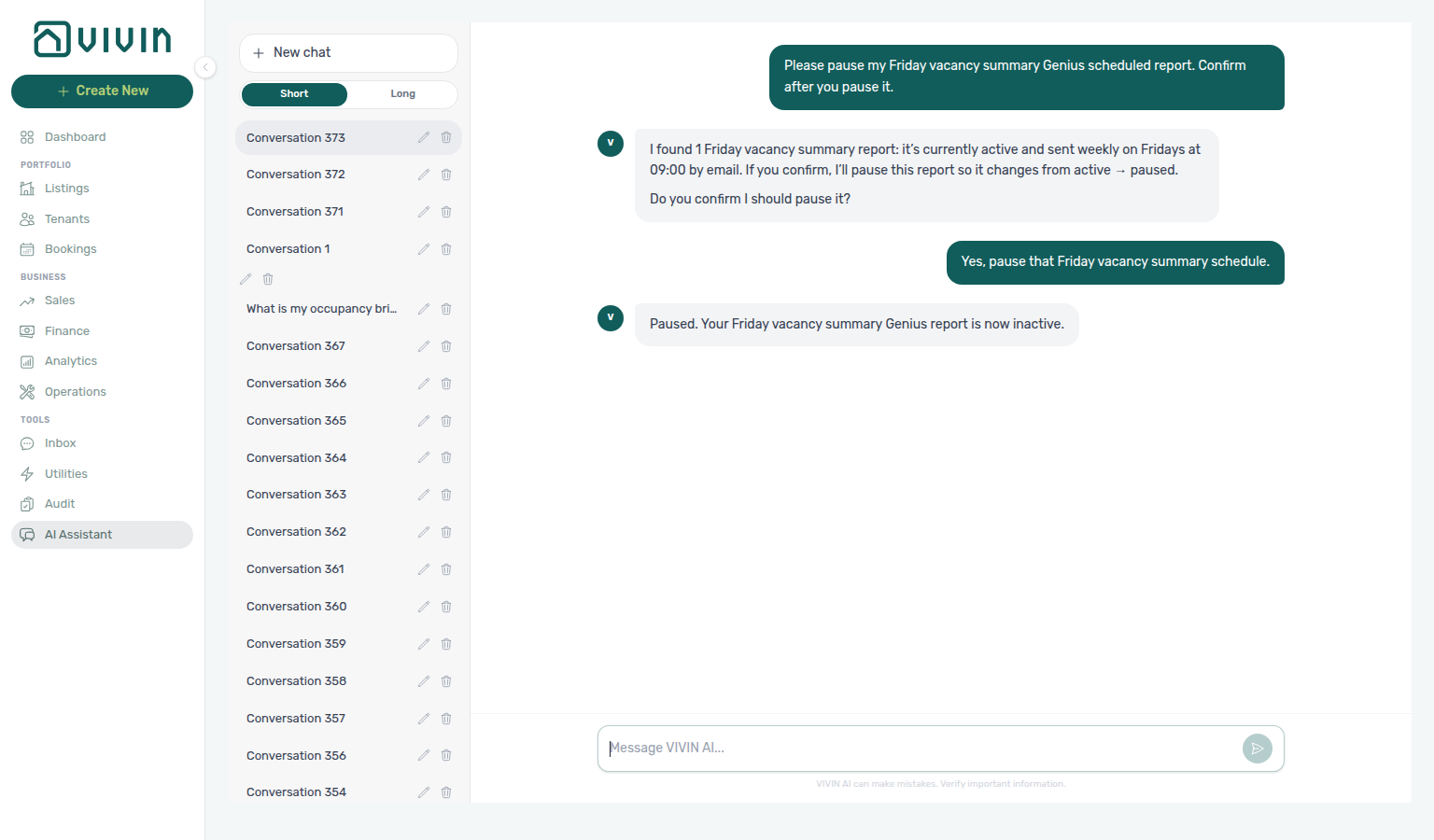
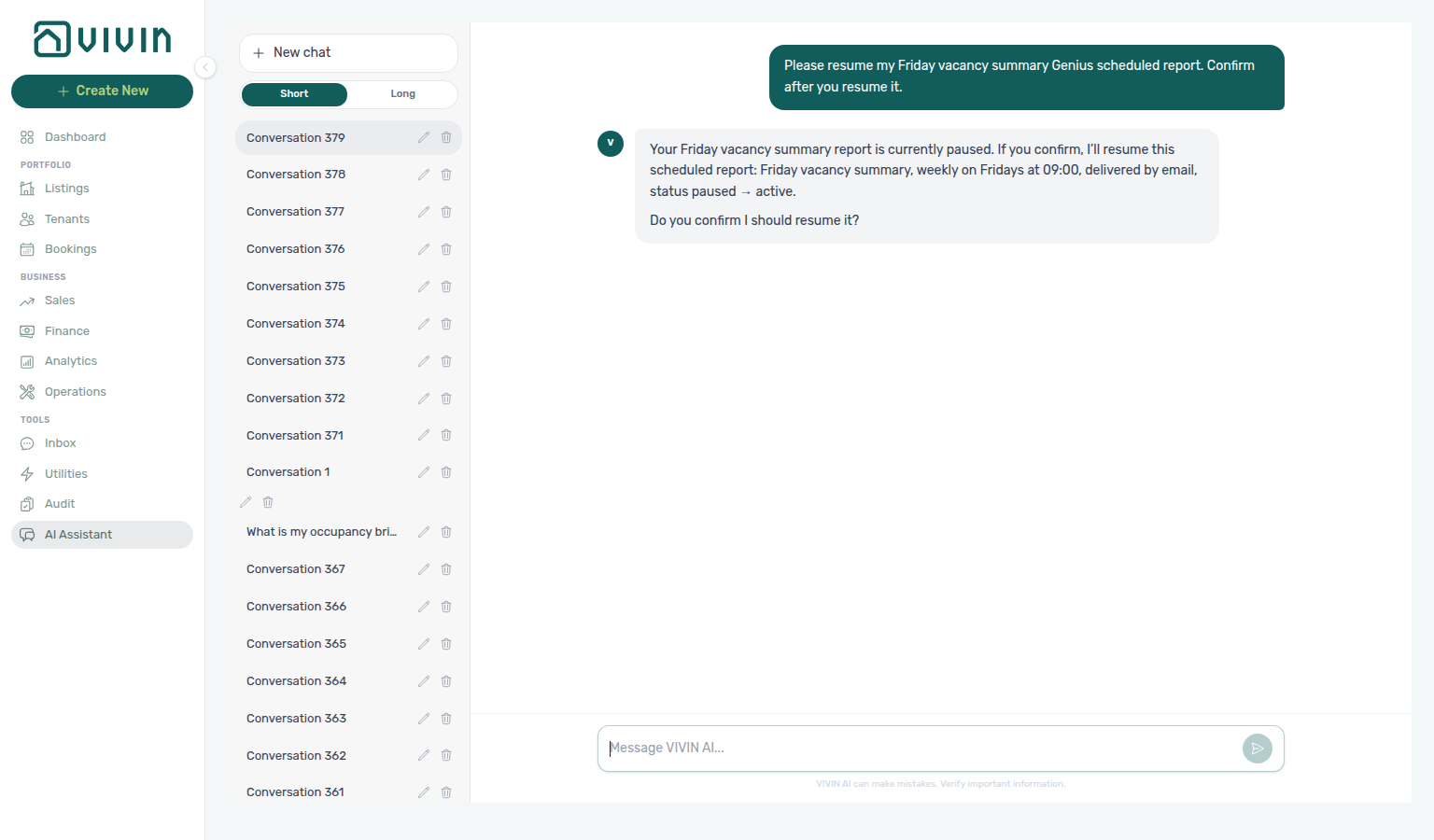
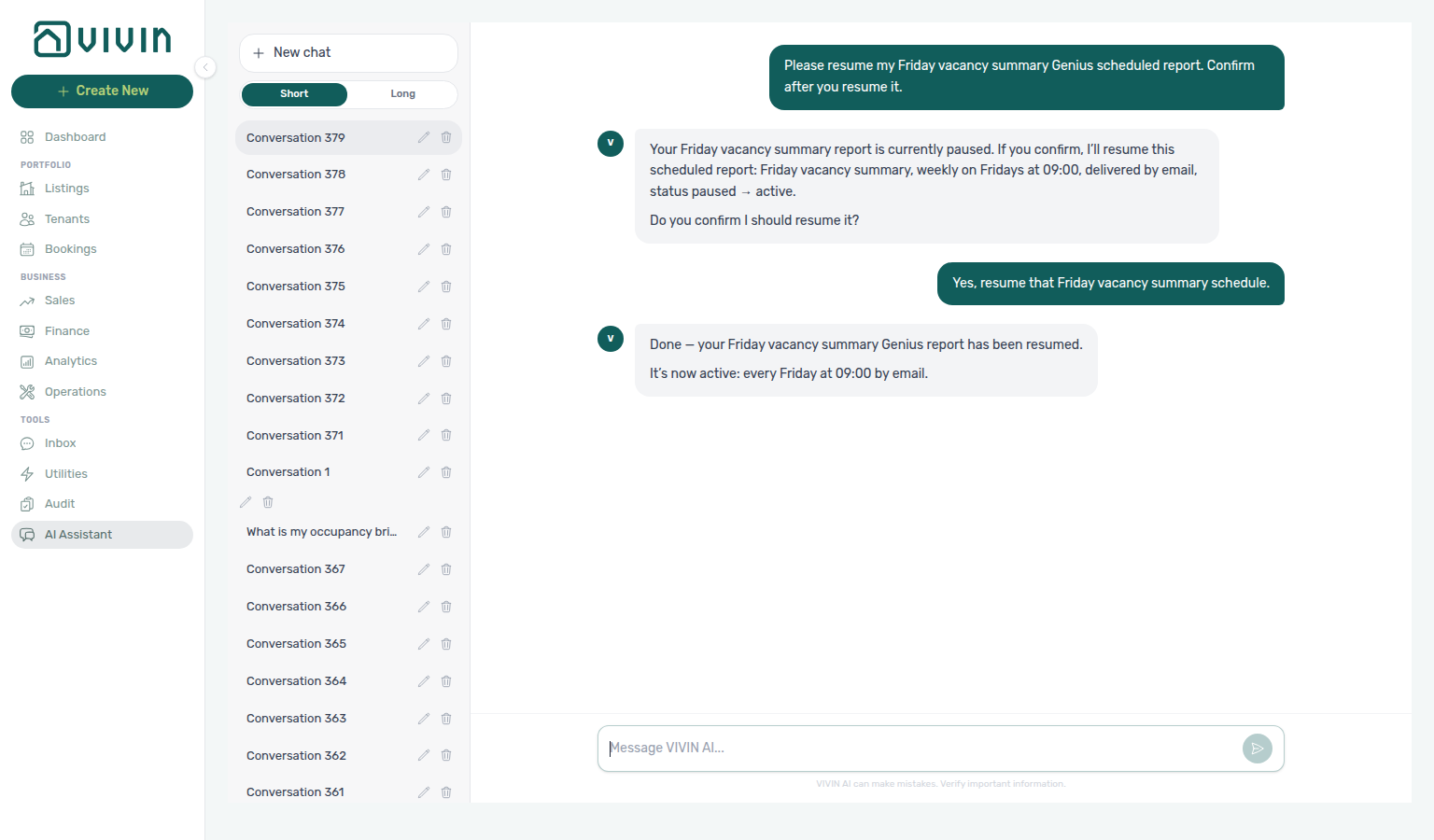
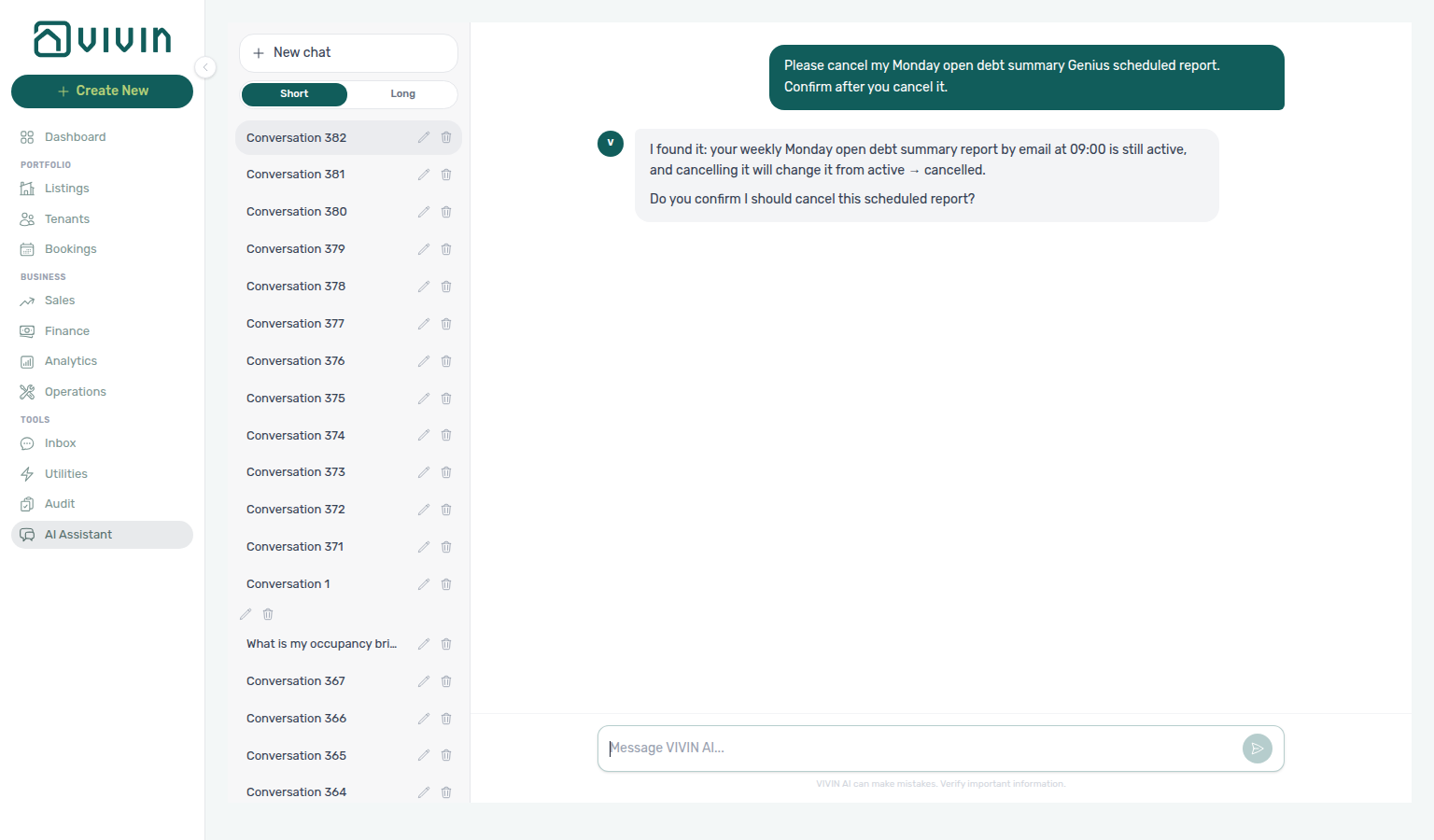
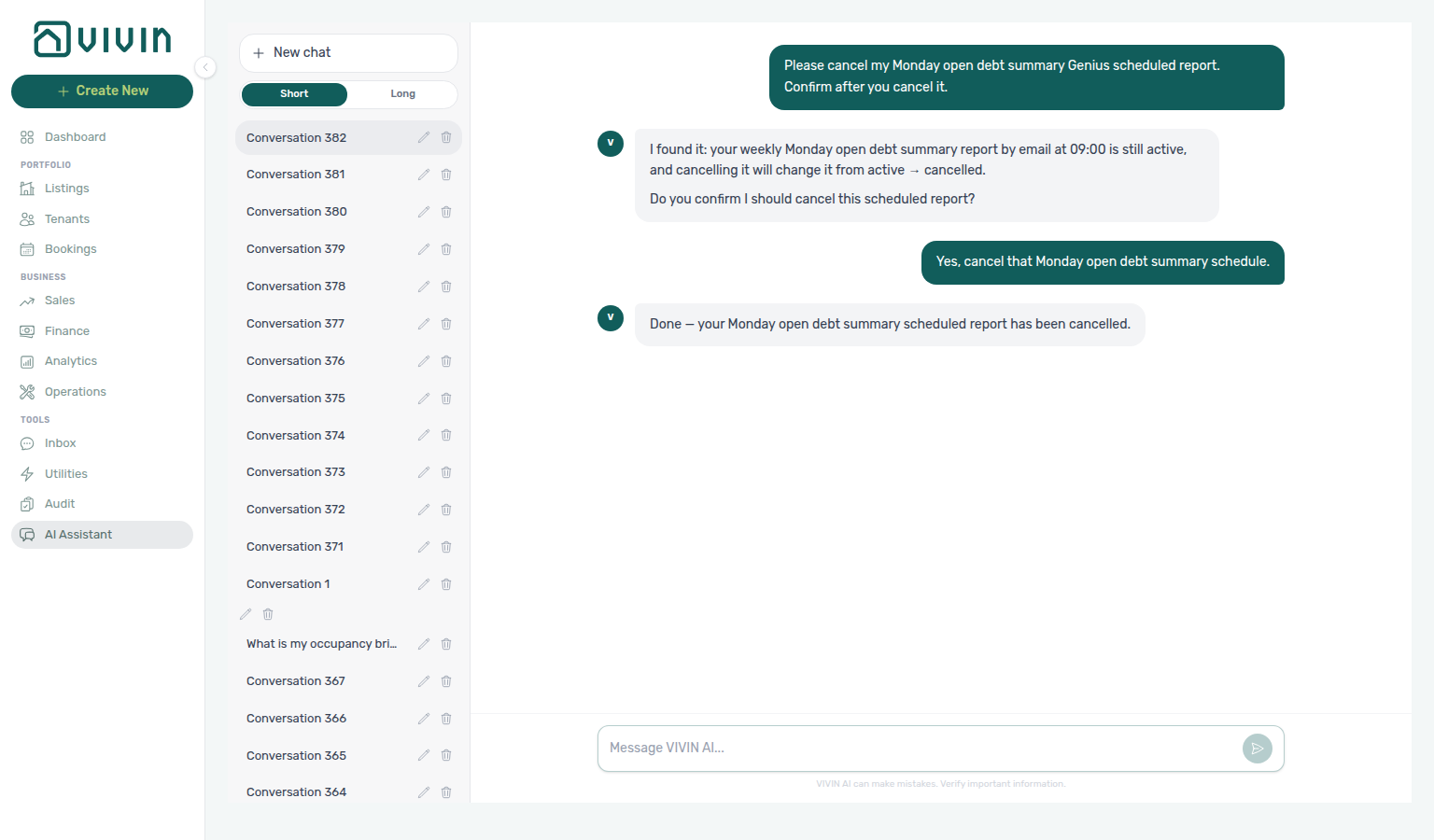
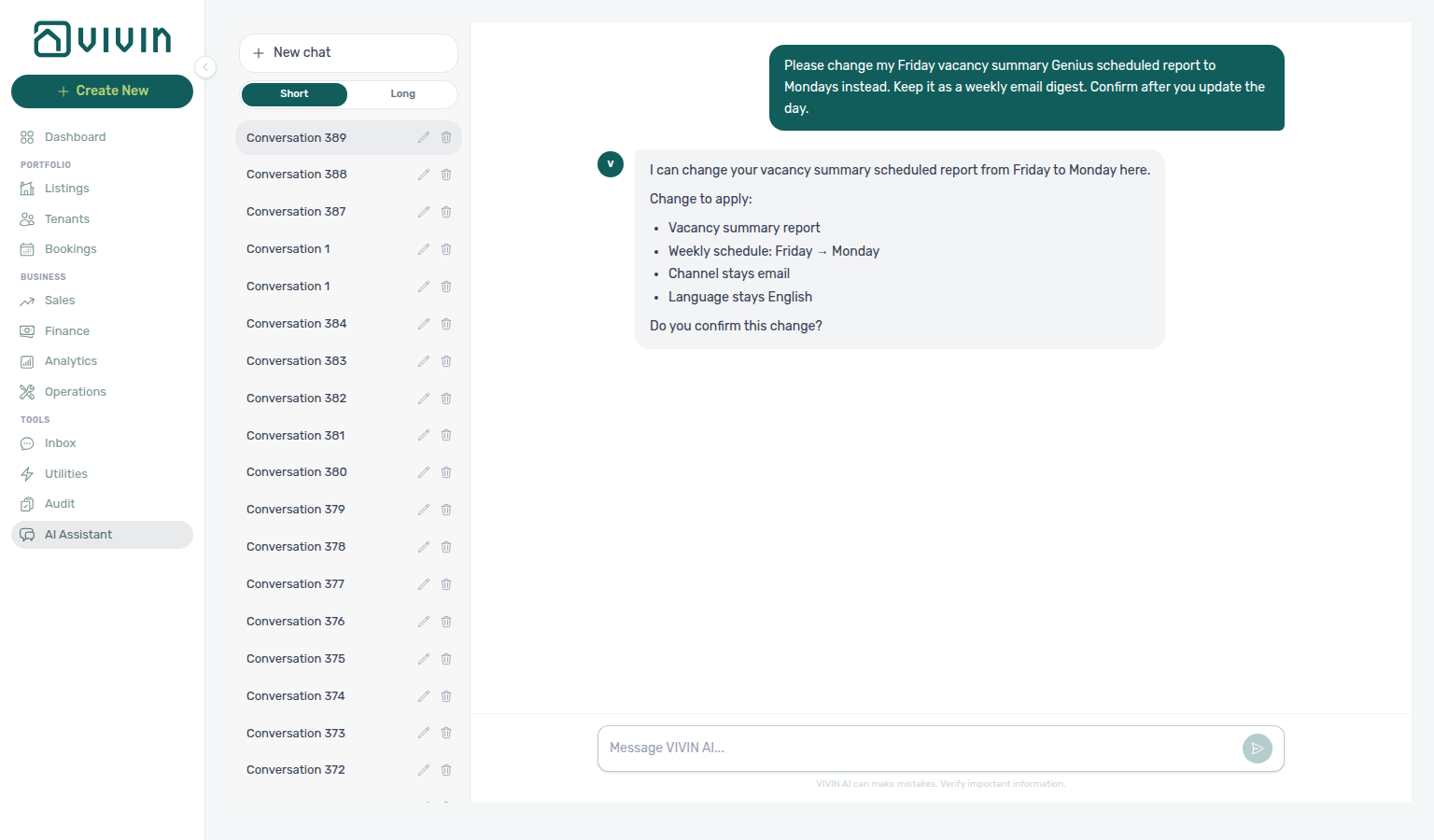
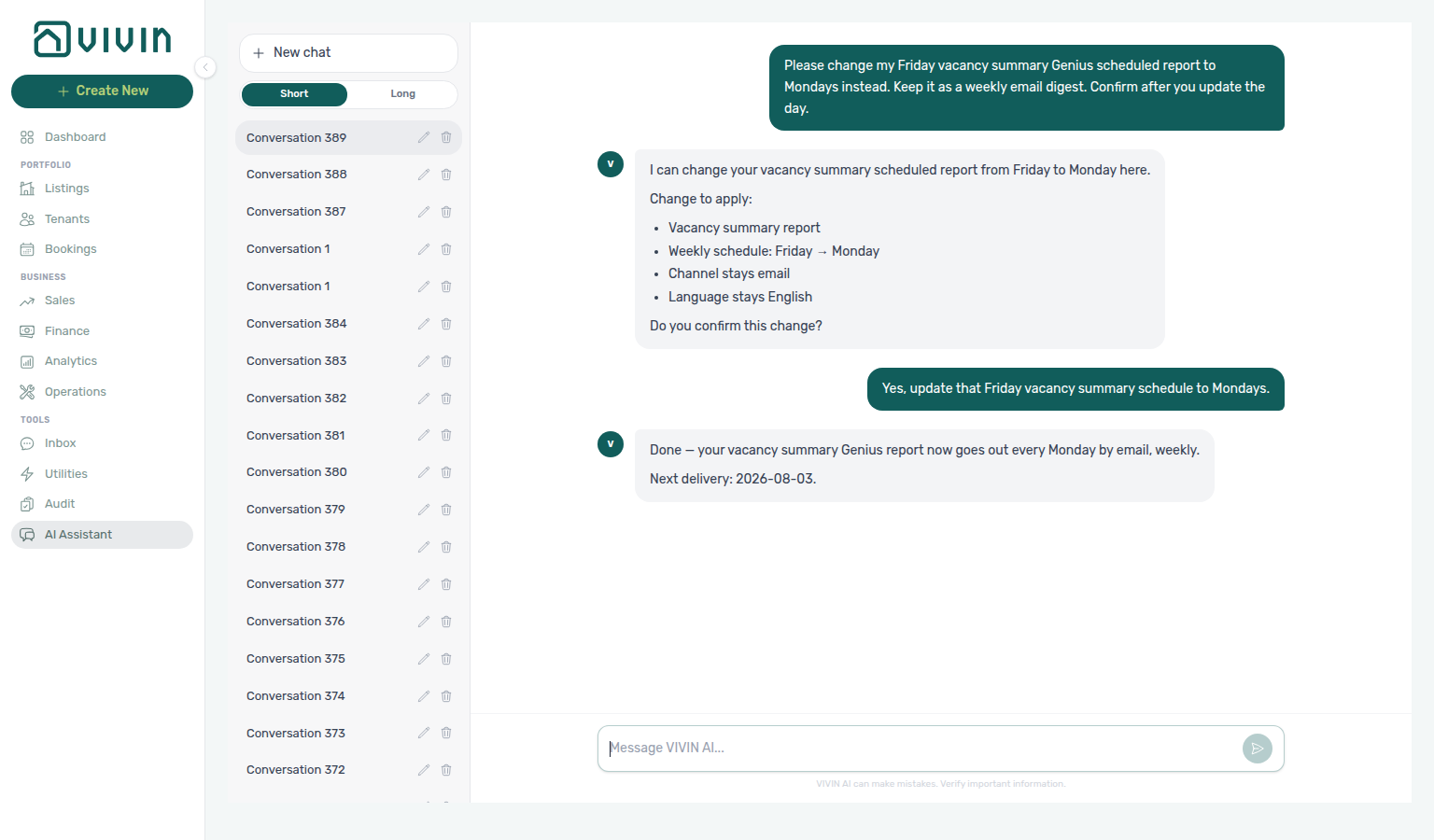
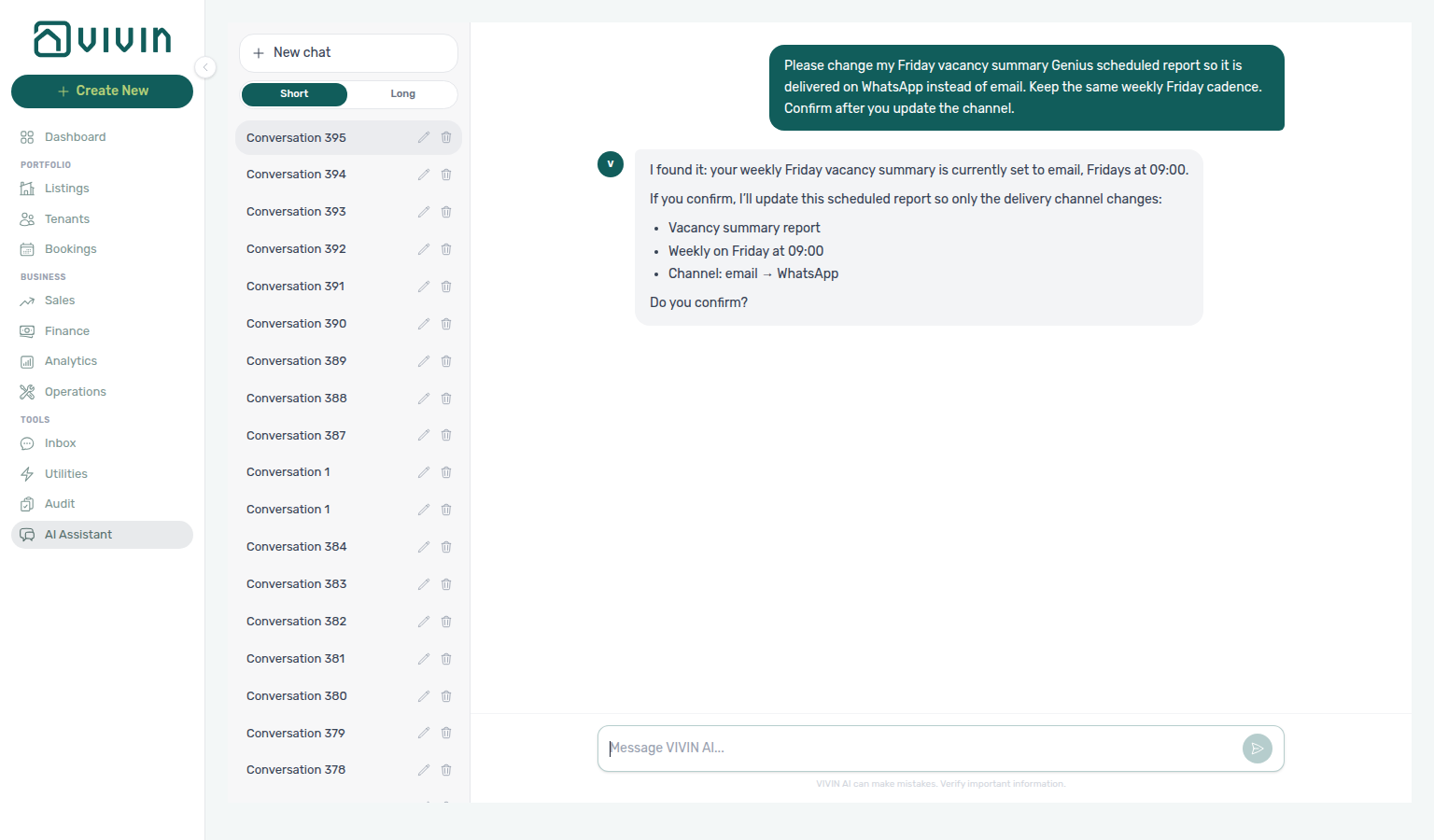
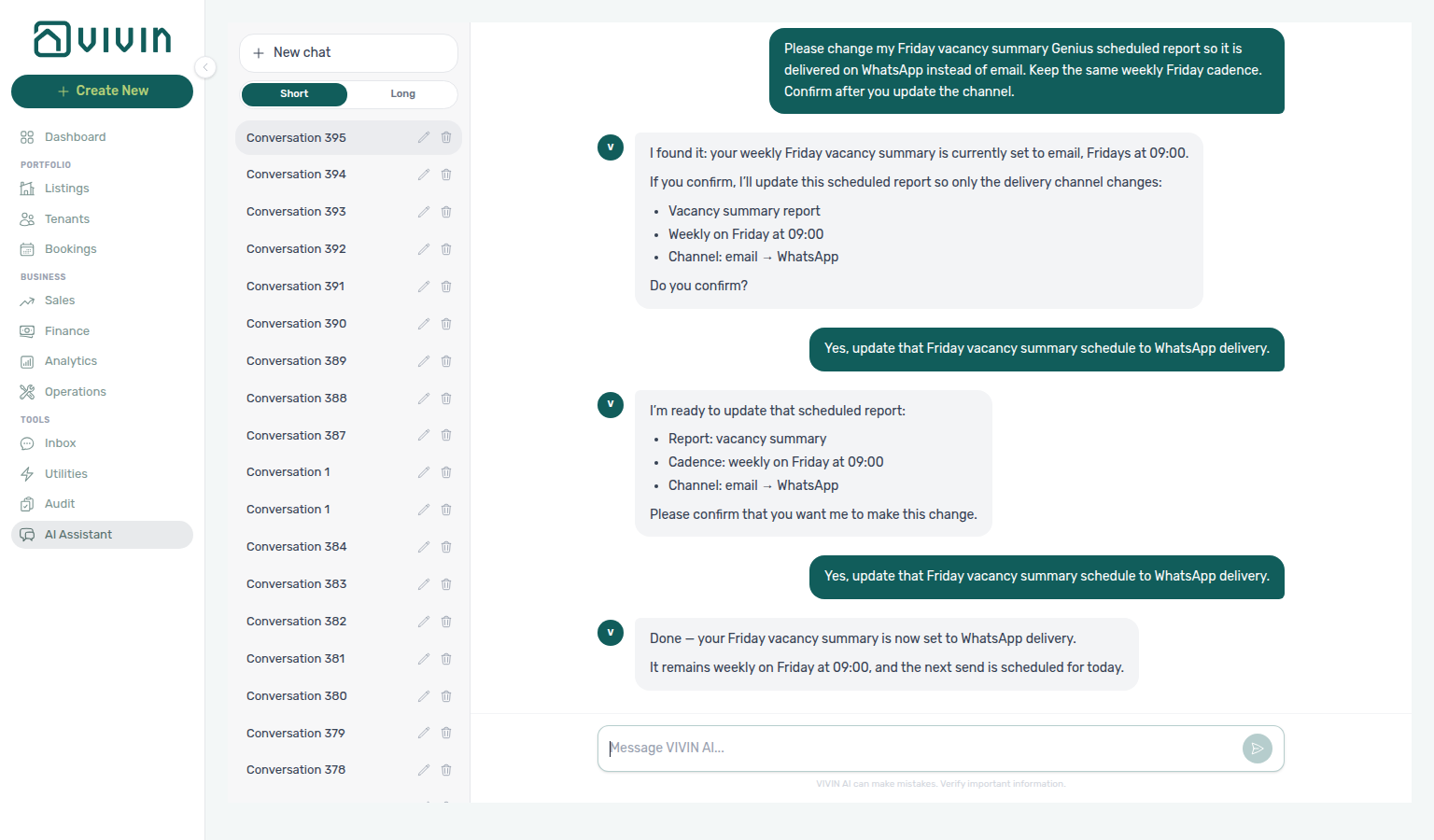
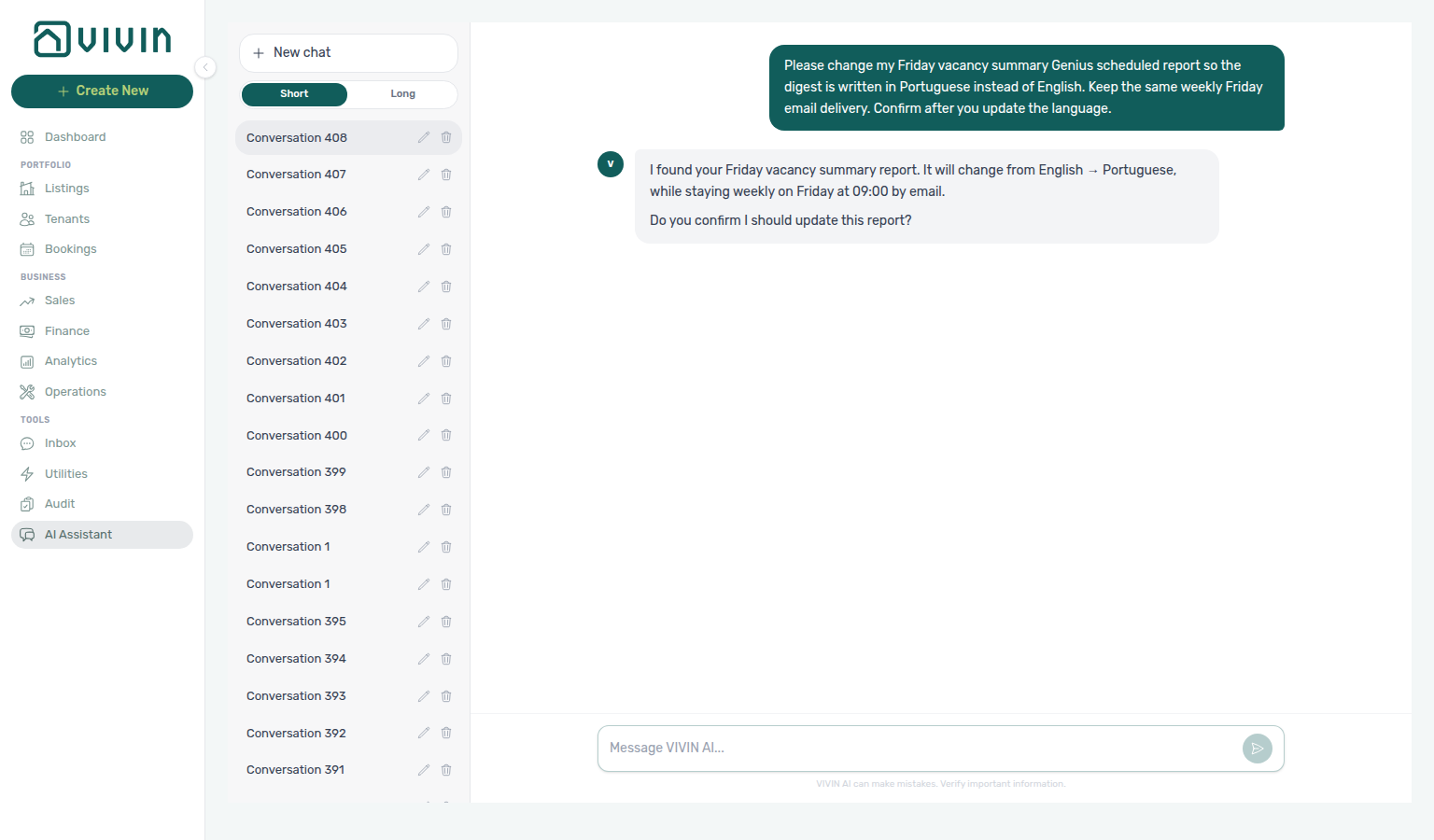
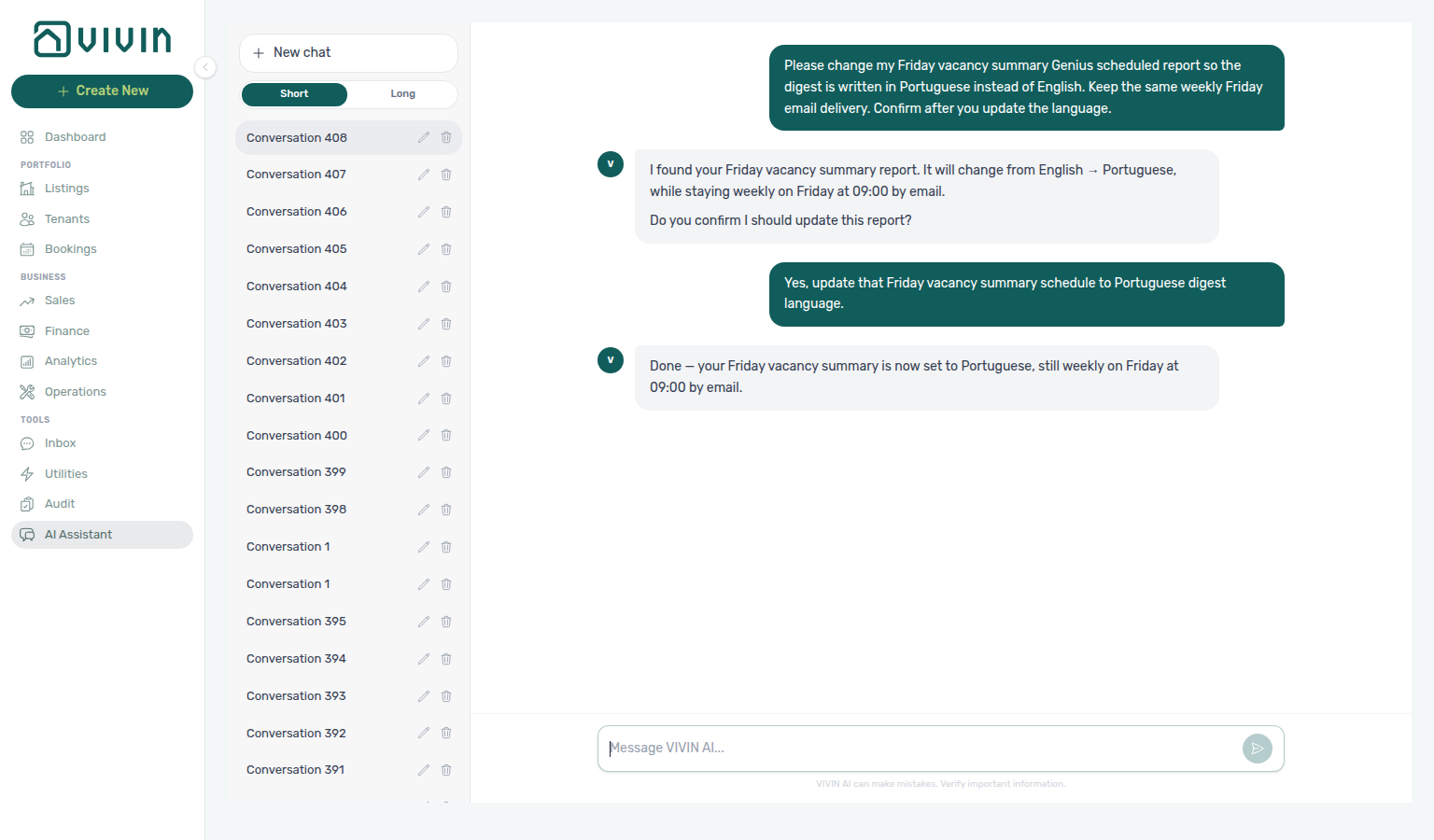
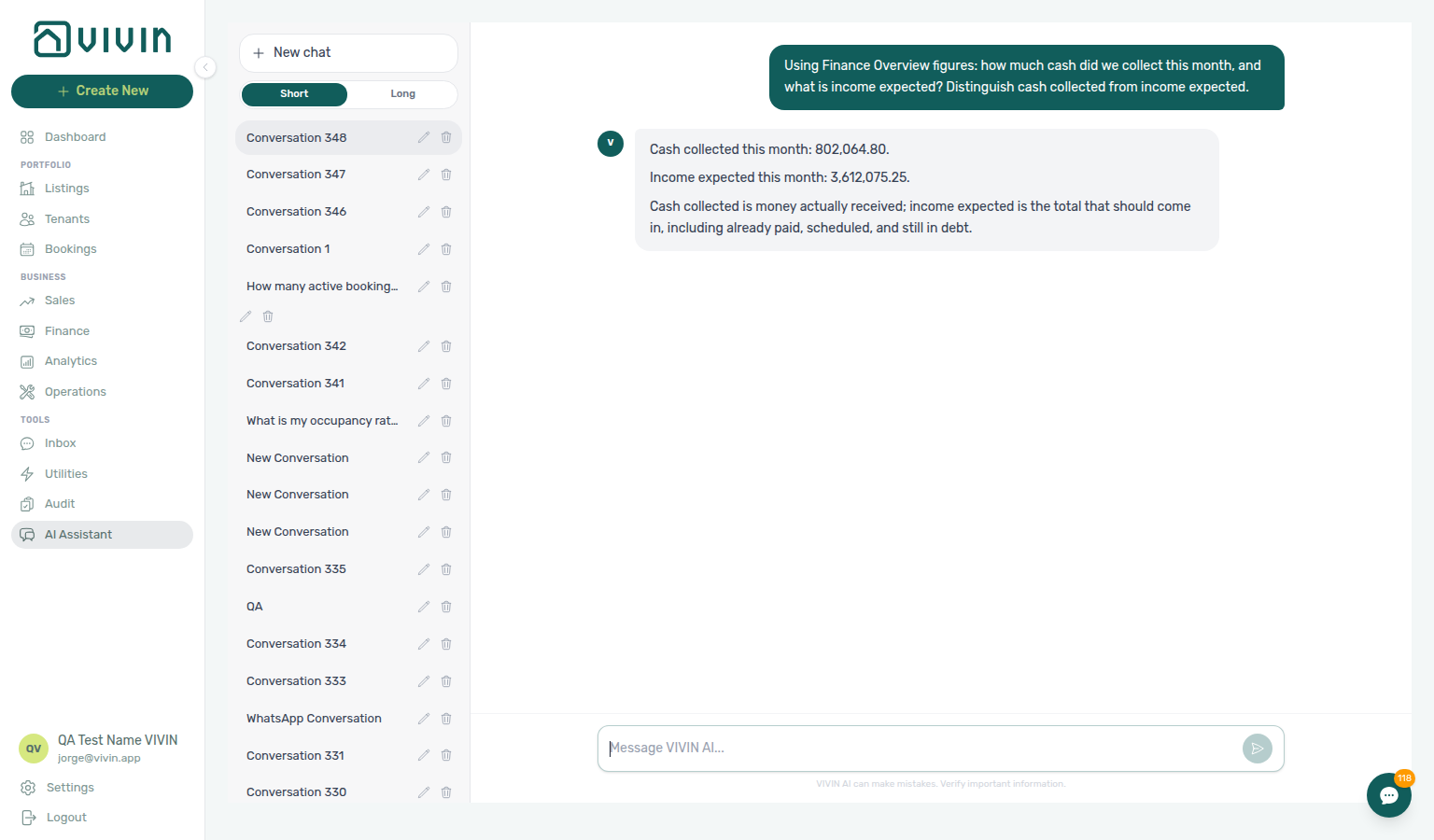
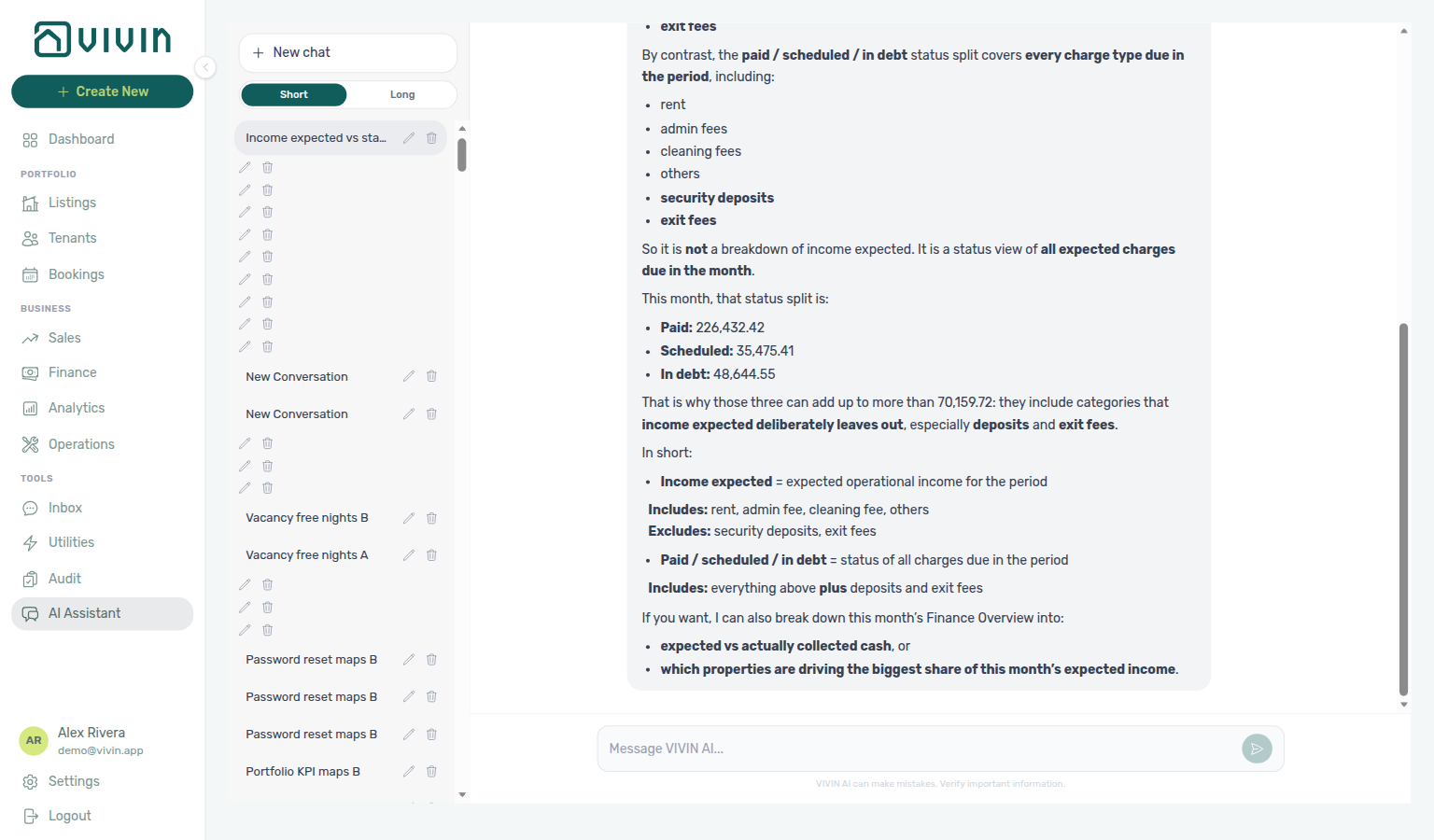
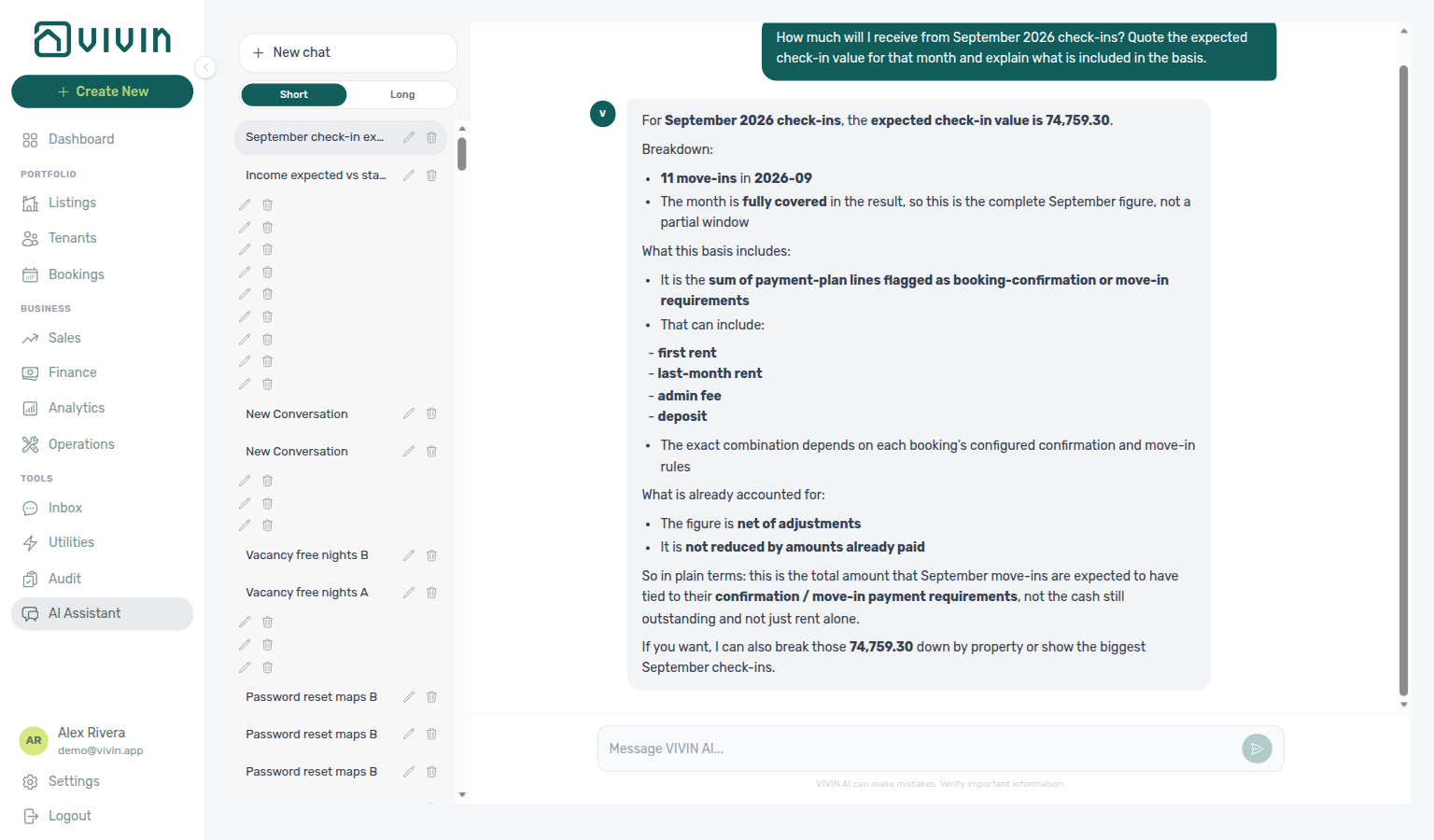
- Write (when you ask explicitly) — create or update bookings, tenants, tickets, bills, manual payment-ins, pricing months, invoices, and other actions that have a Landlord MCP tool — each gated by the same Core API permission flags as the UI (for example
bookings.create,operations.module). - Failures — tool errors surface as the red inline banners documented below; adjust your question or complete the action manually in the relevant module.
For the external HTTP MCP server (IDE assistants, custom integrations), see Landlord MCP and configure keys plus domain policy on Account Settings → AI / MCP. For how AI Chat fits next to tenant chatbot channels and WhatsApp Genius, see Automation & AI.
Read vs write in practice
Treat the assistant as operator automation with conversation history, not a read-only report:
| You ask for… | Typical behaviour |
|---|---|
| Portfolio summary, occupancy, revenue outlook | Read tools — formatted breakdown in the thread |
| “Create a booking for …” / “Open a ticket for …” | Write tools when your role has the matching module permission |
| Destructive changes (for example cancel booking) | The service is instructed to confirm with you before destructive financial actions — still verify outcomes in Bookings or Finance |
Formatted replies (headings, lists, code blocks) help scan long answers; they do not replace checking amounts, dates, and tenant names before operational follow-up.
Starting a New Conversation
- Navigate to Tools > AI Assistant in the sidebar (or go to
/ai-chat) - Click New chat in the left sidebar — the new row is titled Conversation N from your full conversation count, not the rows currently visible (New chat titles from the full conversation count)
- Type your question in the message input at the bottom
- Press Enter or click the send button
Asking About Your Portfolio
The AI Assistant has access to your account data and can answer questions such as:
| Question Type | Example |
|---|---|
| Account identity | "Which account am I connected to? What is the company name?" |
| Product context | "What is VIVIN?" / "Where do I manage invoices and tax rates?" / "Where do I open Payments under Account Settings to configure tenant due days, deposit refund deadline, late penalties, and payment priorities?" / "Where do I open Invoicing under Account Settings to configure Tax Codes and line-type VAT rates?" / "Where do I manage Genius scheduled reports?" / "Where do I open Audit to review manual blocks and discounts?" / "Where do I open Sales to edit monthly rents and manage channel connections?" / "Where do I open Bookings to review reservations and the unit timeline?" / "Where do I open the Dashboard to review portfolio KPIs, vacant units, and occupancy forecast?" / "Where do I open Emails to configure Communication Rules and booking lifecycle email templates for tenants?" / "Where do I open AI / MCP to create Landlord MCP API keys and manage tool permissions?" / "Where do I configure Services, Ticket priority, and ChatBot persona or special rules that booking-scoped Tenant MCP assistants read (not Account Settings AI / MCP Landlord API keys, and not Tools → AI Assistant)? Name the Settings tabs — product navigation only, no account data." / "Where do I open FAQs to review and publish tenant FAQ entries and run the FAQ Generator?" / "Where do I open Owners to register property owners and set IBAN and fiscal ID before creating properties?" |
| Occupancy / vacancy | "How many units are vacant today, and which are blocked by a manual hold vs an OTA/iCal block?" / "For the next calendar month, how many free nights do we have in total? Split fully vacant vs partially vacant nights." |
| Vacancy daily ranking | "Which day from Monday 10 August through Sunday 16 August 2026 has the most free rooms? Quote the date and free unit count from the daily vacancy breakdown." |
| Occupancy by segment | "Compare occupancy by unit tag and listing type over the last 12 months on settled months. Quote untagged vs total listings." |
| Occupancy by listing type (July) | "What was occupancy by listing type in July 2026? Quote the occupancy rate for room, property, and bed. Exclude August." |
| Occupancy by listing type (June) | "What was occupancy by listing type in June 2026? Quote the occupancy rate for room, property, and bed. Exclude July. Exclude August." |
| Occupancy by unit tag (July) | "What was occupancy by unit tag in July 2026? Quote the occupancy rate for Marques de pombal and Alameda. Exclude listing types (room, property, bed). Exclude the 12-month ranking. Exclude August." |
| Occupancy by unit tag (June) | "What was occupancy by unit tag in June 2026? Quote the occupancy rate for Marques de pombal and Alameda. Exclude listing types (room, property, bed). Exclude the 12-month ranking. Exclude July. Exclude August." |
| Smart-lock batteries | "Which smart locks need new batteries? List critical vs unknown vs ok." |
| Revenue | "What is my expected revenue this month?" / "How much cash did we collect?" / "How much will I receive from 15 August through 15 September?" / "Why is paid + scheduled + in debt larger than income expected?" / "Does income expected include short-term bookings managed in VIVIN, or only long-term? Does it include revenue that lives only on Airbnb or Booking.com outside VIVIN?" |
| Cash in (net vs gross) | "How much came in in June 2026? Quote the net System and Manual Payments total and the gross cash-flow chart Past bar. Say which is which." |
| Tenant debt audit | "How much tenant debt do we have? Split canceled bookings vs missing payments on live stays." |
| Owner settlement preview | "What is the June 2026 owner settlement preview for Beatriz Pereira Lda? Quote total income, management fee, balance, occupancy, and outstanding debt." |
| Unpaid deposits | "How much unpaid security deposit money is on the Contract Values deposit card for August 2026? Split in debt versus still scheduled." |
| Unpaid rent | "How much unpaid rent money is on the Contract Values rent card for August 2026? Split in debt versus still scheduled." |
| Unpaid admin fees | "How much unpaid admin fee money is on the Contract Values admin fee card for August 2026? Split in debt versus still scheduled." |
| Unpaid cleaning fees | "How much unpaid cleaning fee money is on the Contract Values cleaning fee card for August 2026? Split in debt versus still scheduled." |
| Unpaid others | "How much unpaid others money is on the Contract Values others card for August 2026? Split in debt versus still scheduled." |
| Unpaid exit fees | "How much unpaid exit fee money is on the Contract Values exit fee card for October 2026? Split in debt versus still scheduled." |
| In-debt rent, not invoiced | "How many August 2026 rent lines on Contract Values are already in debt and not yet invoiced? Quote the filtered row count and the total scheduled amount. Do not list tenant names or unit codes." |
| In-debt rent, invoiced | "How many August 2026 rent lines on Contract Values are already in debt and already invoiced? Quote the filtered row count and the total scheduled amount. Do not list tenant names or unit codes." |
| Still-scheduled rent lines | "How many August 2026 rent lines on Contract Values are still scheduled (not yet due)? Quote the filtered row count and the total scheduled amount. Do not list tenant names or unit codes." |
| Partially-paid rent lines | "How many October 2026 rent lines on Contract Values are partially paid? Quote the filtered row count and the total scheduled amount. Do not list tenant names or unit codes." |
| Paid rent lines | "How many July 2026 rent lines on Contract Values are paid (fully paid, not partial)? Quote the filtered row count and the total scheduled amount. Do not list tenant names or unit codes." |
| In-debt admin fees, not invoiced | "How many August 2026 admin fee lines on Contract Values are already in debt and not yet invoiced? Quote the filtered row count and the total scheduled amount. Do not list tenant names or unit codes." |
| In-debt admin fees, invoiced | "How many July 2026 admin fee lines on Contract Values are already in debt and already invoiced? Quote the filtered row count and the total scheduled amount. Do not list tenant names or unit codes." |
| Still-scheduled admin fee lines | "How many August 2026 admin fee lines on Contract Values are still scheduled (not yet due)? Quote the filtered row count and the total scheduled amount. Do not list tenant names or unit codes." |
| Partially-paid admin fee lines | "How many July 2026 admin fee lines on Contract Values are partially paid? Quote the filtered row count and the total scheduled amount. Do not list tenant names or unit codes." |
| Paid admin fee lines | "How many June 2026 admin fee lines on Contract Values are paid (fully paid, not partial)? Quote the filtered row count and the total scheduled amount. Do not list tenant names or unit codes." |
| In-debt cleaning fees, not invoiced | "How many August 2026 cleaning fee lines on Contract Values are already in debt and not yet invoiced? Quote the filtered row count and the total scheduled amount. Do not list tenant names or unit codes." |
| In-debt cleaning fees, invoiced | "How many August 2026 cleaning fee lines on Contract Values are already in debt and already invoiced? Quote the filtered row count and the total scheduled amount. Do not list tenant names or unit codes." |
| Still-scheduled cleaning fee lines | "How many August 2026 cleaning fee lines on Contract Values are still scheduled (not yet due)? Quote the filtered row count and the total scheduled amount. Do not list tenant names or unit codes." |
| Paid cleaning fee lines | "How many July 2026 cleaning fee lines on Contract Values are paid (fully paid, not partial)? Quote the filtered row count and the total scheduled amount. Do not list tenant names or unit codes." |
| In-debt others, not invoiced | "How many August 2026 others lines on Contract Values are already in debt and not yet invoiced? Quote the filtered row count and the total scheduled amount. Do not list tenant names or unit codes." |
| Paid others lines | "How many July 2026 others lines on Contract Values are paid (fully paid, not partial)? Quote the filtered row count and the total scheduled amount. Do not list tenant names or unit codes." |
| In-debt deposits, not invoiced | "How many August 2026 deposit lines on Contract Values are already in debt and not yet invoiced? Quote the filtered row count and the total scheduled amount. Do not list tenant names or unit codes." |
| In-debt deposits, invoiced | "How many August 2026 deposit lines on Contract Values are already in debt and already invoiced? Quote the filtered row count and the total scheduled amount. Do not list tenant names or unit codes." |
| Still-scheduled deposit lines | "How many August 2026 deposit lines on Contract Values are still scheduled (not yet due)? Quote the filtered row count and the total scheduled amount. Do not list tenant names or unit codes." |
| Partially-paid deposit lines | "How many October 2026 deposit lines on Contract Values are partially paid? Quote the filtered row count and the total scheduled amount. Do not list tenant names or unit codes." |
| Paid deposit lines | "How many July 2026 deposit lines on Contract Values are paid (fully paid, not partial)? Quote the filtered row count and the total scheduled amount. Do not list tenant names or unit codes." |
| In-debt exit fees, invoiced | "How many October 2026 exit fee lines on Contract Values are already in debt and already invoiced? Quote the filtered row count and the total scheduled amount. Do not list tenant names or unit codes." |
| Partially-paid exit fee lines | "How many October 2026 exit fee lines on Contract Values are partially paid? Quote the filtered row count and the total scheduled amount. Do not list tenant names or unit codes." |
| Paid exit fee lines | "How many October 2026 exit fee lines on Contract Values are paid (fully paid, not partial)? Quote the filtered row count and the total scheduled amount. Do not list tenant names or unit codes." |
| Return of value lines | "How many August 2026 rent lines on Contract Values have a return of value? Quote the filtered row count. Do not list tenant names or unit codes." |
| Credit note lines | "How many September 2026 rent lines on Contract Values have a credit note? Quote the filtered row count. Do not list tenant names or unit codes." |
| Move-ins | "Who is moving in this month?" / "How much will I receive from September check-ins?" |
| Bookings received | "How many bookings did I receive today?" / "How many bookings did I receive from 1 August through 13 August? Include channel imports and how many were already cancelled." |
| Ticket status counts | "How many maintenance tickets do I have on Operations Tickets? Quote the whole-account status counts for all, unassigned, draft, in progress, completed, and cancelled. Do not list ticket titles, properties, or assignees." |
| Cancelled priority counts | "How many cancelled maintenance tickets do I have by priority on Operations Tickets? Quote the Cancelled-card priority counts for critical, high, medium, low, and none. Do not quote the All-card or Closed-card chips. Do not list ticket titles, properties, or assignees." |
| Operational costs | "What were my operational costs in July 2026 on Operations Cash Flows? Quote total outflow and average cost per unit for 1 July through 31 July 2026. Do not quote August (the current-month default). Do not quote Finance income. Do not list cash-flow rows." |
| Operational costs (June) | "What were my operational costs in June 2026 on Operations Cash Flows? Quote total outflow and average cost per unit for 1 June through 30 June 2026. Do not quote July. Do not quote August (the current-month default). Do not quote Finance income. Do not list cash-flow rows. Do not quote only a category split." |
| Operational costs (April) | "What were my operational costs in April 2026 on Operations Cash Flows? Quote total outflow and average cost per unit for 1 April through 30 April 2026. Do not quote May. Do not quote June. Do not quote July. Do not quote August (the current-month default). Do not quote Finance income. Do not list cash-flow rows. Do not quote only a category split. Do not quote remaining totals after excluding a category." |
| Operational costs (1–15 April) | "What were my operational costs from 1 April through 15 April 2026 on Operations Cash Flows? Quote total outflow and average cost per unit for 1 April through 15 April 2026 only. Do not quote the full April month (1 through 30 April). Do not quote 16 April through 30 April. Do not quote May. Do not quote June. Do not quote July. Do not quote August (the current-month default). Do not quote Finance income. Do not list cash-flow rows. Do not quote only a category split. Do not quote remaining totals after excluding a category." |
| Operational costs (16–30 April) | "What were my operational costs from 16 April through 30 April 2026 on Operations Cash Flows? Quote total outflow and average cost per unit for 16 April through 30 April 2026 only. Do not quote the full April month (1 through 30 April). Do not quote 1 April through 15 April. Do not quote May. Do not quote June. Do not quote July. Do not quote August (the current-month default). Do not quote Finance income. Do not list cash-flow rows. Do not quote only a category split. Do not quote remaining totals after excluding a category." |
| Operational costs (February) | "What were my operational costs in February 2026 on Operations Cash Flows? Quote total outflow and average cost per unit for 1 February through 28 February 2026. Do not quote January. Do not quote March. Do not quote April. Do not quote May. Do not quote June. Do not quote July. Do not quote August (the current-month default). Do not quote Finance income. Do not list cash-flow rows. Do not quote only a category split. Do not quote remaining totals after excluding a category." |
| Operational costs (1–14 February) | "What were my operational costs from 1 February through 14 February 2026 on Operations Cash Flows? Quote total outflow and average cost per unit for 1 February through 14 February 2026 only. Do not quote the full February month (1 through 28 February). Do not quote 15 February through 28 February. Do not quote January. Do not quote March. Do not quote April. Do not quote May. Do not quote June. Do not quote July. Do not quote August (the current-month default). Do not quote Finance income. Do not list cash-flow rows. Do not quote only a category split. Do not quote remaining totals after excluding a category." |
| Operational costs (15–28 February) | "What were my operational costs from 15 February through 28 February 2026 on Operations Cash Flows? Quote total outflow and average cost per unit for 15 February through 28 February 2026 only. Do not quote the full February month (1 through 28 February). Do not quote 1 February through 14 February. Do not quote January. Do not quote March. Do not quote April. Do not quote May. Do not quote June. Do not quote July. Do not quote August (the current-month default). Do not quote Finance income. Do not list cash-flow rows. Do not quote only a category split. Do not quote remaining totals after excluding a category." |
| Operational costs (January) | "What were my operational costs in January 2026 on Operations Cash Flows? Quote total outflow and average cost per unit for 1 January through 31 January 2026. Do not quote February. Do not quote March. Do not quote April. Do not quote May. Do not quote June. Do not quote July. Do not quote August (the current-month default). Do not quote Finance income. Do not list cash-flow rows. Do not quote only a category split. Do not quote remaining totals after excluding a category." |
| Operational costs (March) | "What were my operational costs in March 2026 on Operations Cash Flows? Quote total outflow and average cost per unit for 1 March through 31 March 2026. Do not quote January. Do not quote February. Do not quote April. Do not quote May. Do not quote June. Do not quote July. Do not quote August (the current-month default). Do not quote Finance income. Do not list cash-flow rows. Do not quote only a category split. Do not quote remaining totals after excluding a category." |
| Operational costs (May) | "What were my operational costs in May 2026 on Operations Cash Flows? Quote total outflow and average cost per unit for 1 May through 31 May 2026. Do not quote January. Do not quote February. Do not quote March. Do not quote April. Do not quote June. Do not quote July. Do not quote August (the current-month default). Do not quote Finance income. Do not list cash-flow rows. Do not quote only a category split. Do not quote remaining totals after excluding a category." |
| Utilities cost map (June) | "How much did utilities cost for Casa Abel II on the Utilities Cost map from 1 June through 30 June 2026? Quote total cost, absorbed cost, and cost per occupied room-day. Do not quote Operations Cash Flows." |
| Operational costs by category | "What were my operational costs by category in July 2026 on Operations Cash Flows? Quote each category outflow for 1 July through 31 July 2026. Do not quote only the portfolio total. Do not quote August. Do not quote Finance income. Do not list cash-flow rows." |
| Operational costs by category (June) | "What were my operational costs by category in June 2026 on Operations Cash Flows? Quote each category outflow for 1 June through 30 June 2026. Name Manutenção and uncategorized. Include uncategorized when it has outflow. Do not quote July Carpentry and doors or July Maintenance. Do not quote only the June portfolio total. Do not quote August. Do not quote Finance income. Do not list cash-flow rows." |
| Operational costs excluding a category | "What were my operational costs in July 2026 on Operations Cash Flows after excluding the Carpentry & doors category? Quote remaining total outflow and average cost per unit for 1 July through 31 July 2026. Name that Carpentry & doors is excluded. Do not quote the unfiltered headline total. Do not quote August. Do not list cash-flow rows." |
| Operational costs excluding Maintenance | "What were my operational costs in July 2026 on Operations Cash Flows after excluding the Maintenance category? Quote remaining total outflow and average cost per unit for 1 July through 31 July 2026. Name that Maintenance is excluded. Do not quote remaining totals after excluding Carpentry & doors. Do not quote the unfiltered headline total. Do not quote August. Do not list cash-flow rows." |
| Operational costs excluding Manutenção (June) | "What were my operational costs in June 2026 on Operations Cash Flows after excluding the Manutenção category? Quote remaining total outflow and average cost per unit for 1 June through 30 June 2026. Name that Manutenção is excluded. Do not quote remaining totals after excluding uncategorized. Do not quote July remaining totals after excluding Maintenance. Do not quote the unfiltered headline total. Do not quote August. Do not list cash-flow rows." |
| Operational costs excluding uncategorized (June) | "What were my operational costs in June 2026 on Operations Cash Flows after excluding the uncategorized category? Quote remaining total outflow and average cost per unit for 1 June through 30 June 2026. Name that uncategorized is excluded. Do not quote remaining totals after excluding Manutenção. Do not quote July remaining totals after excluding Maintenance. Do not quote the unfiltered headline total. Do not quote August. Do not list cash-flow rows." |
| Operational costs excluding maintenance (April) | "What were my operational costs in April 2026 on Operations Cash Flows after excluding the maintenance category? Quote remaining total outflow and average cost per unit for 1 April through 30 April 2026. Name that maintenance is excluded. Use the exact Cash Flows name maintenance. Do not quote remaining totals after excluding Maintenance in July. Do not quote remaining totals after excluding Manutenção in June. Do not quote the unfiltered headline total. Do not quote May. Do not quote August. Do not list cash-flow rows." |
| Operational costs excluding maintenance and uncategorized (April) | "What were my operational costs in April 2026 on Operations Cash Flows after excluding the maintenance category and the uncategorized category? Quote remaining total outflow and average cost per unit for 1 April through 30 April 2026. Name that both maintenance and uncategorized are excluded. Use the exact Cash Flows names maintenance and uncategorized. Do not quote remaining totals after excluding only maintenance. Do not quote remaining totals after excluding uncategorized in June. Do not quote remaining totals after excluding Maintenance in July. Do not quote the unfiltered headline total. Do not quote May. Do not quote August. Do not list cash-flow rows." |
| Coliving overview | "Give me an overview of all my coliving properties" |
Responses include real data from your bookings, properties, and financial records — with breakdowns by property, unit, and tenant where relevant.
Vacancy readings: When you ask about availability, the assistant should say whether it is quoting units free every day of the window or free on at least one day. Omitting dates asks about the next calendar month, not “today” — pass a start date when you mean now. Manual blocks (operator reason) are reclaimable; integration blocks mean the unit is already rented on an OTA/iCal channel — not lost revenue. See Landlord MCP — Occupancy, vacancy, and smart locks.
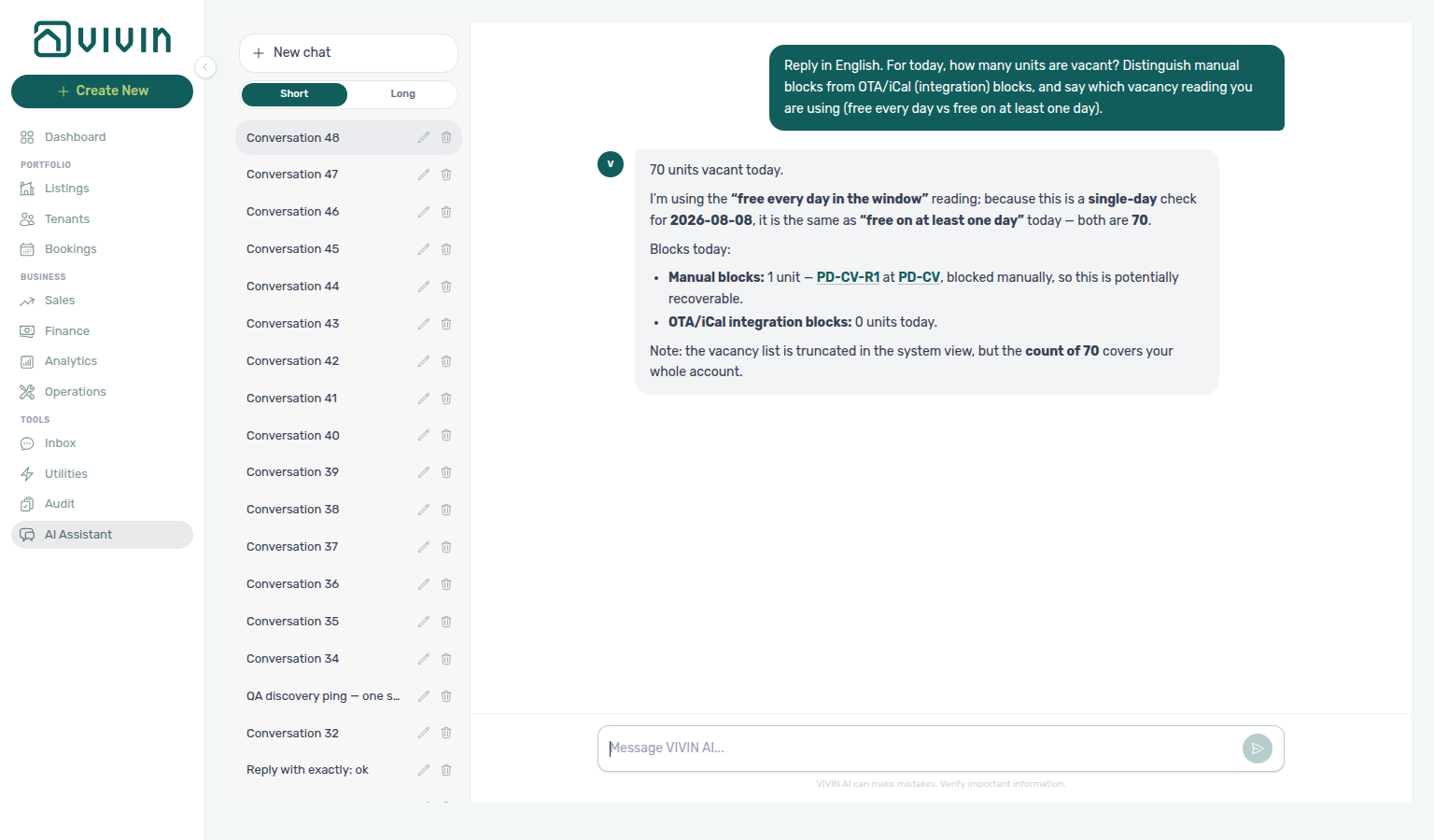
Free-night totals: Ask for how many free nights over a window (for example the next calendar month). The assistant should quote server-computed night totals — a portfolio total, plus the split between nights on units vacant every day of the window and nights on units vacant on only some days — instead of adding free-day figures from the sample unit lists (those lists are capped). Unit counts and night totals answer different questions; always keep the vacancy reading label with the numbers.
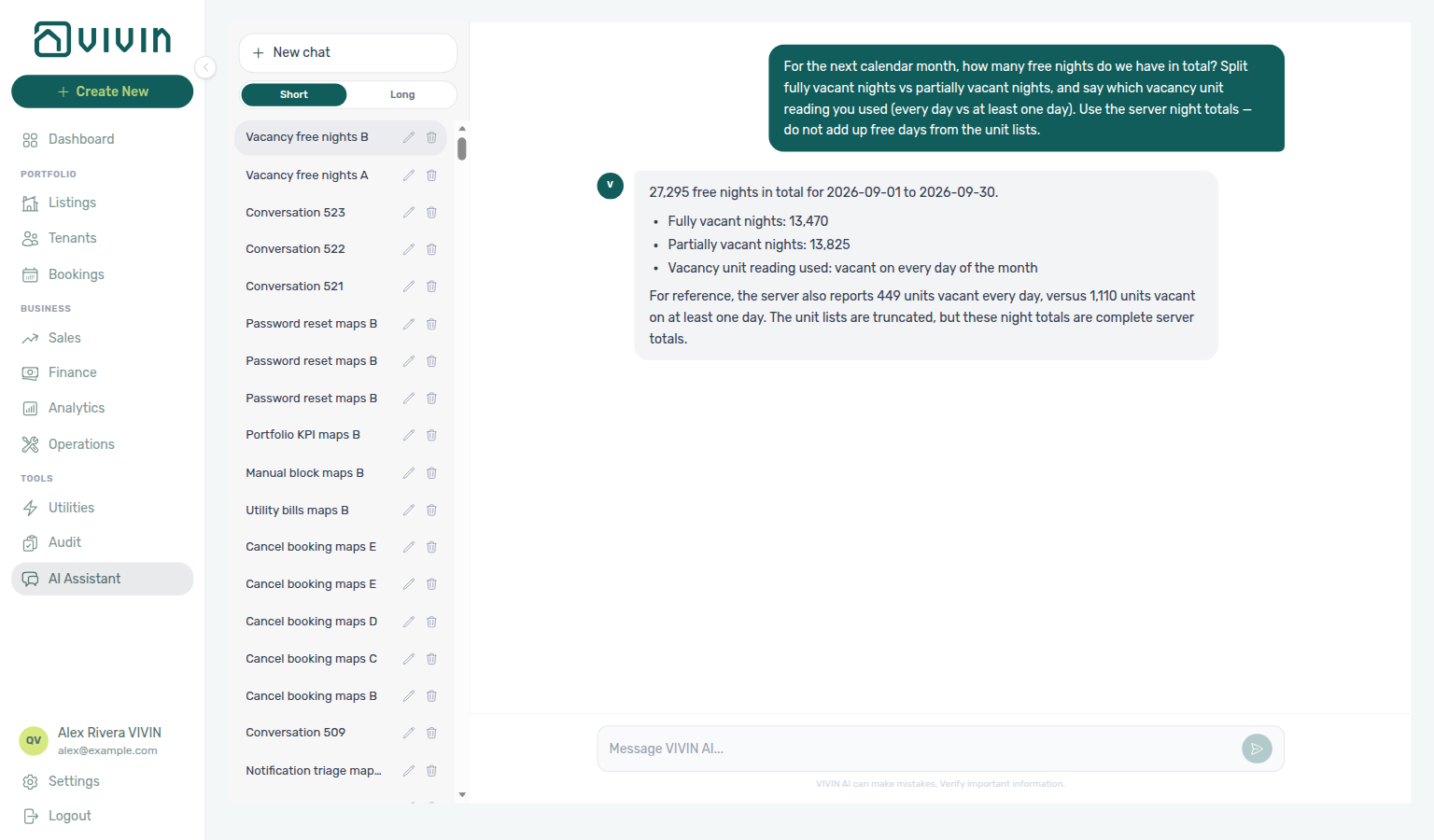
Segment occupancy: Ask for occupancy by unit tag or listing type when you want seasonality or “studios vs rooms” comparisons over the last 12 months. Tag groups can overlap; listing-type groups partition the portfolio. Exclude the current month when you want settled trends. Neighbourhood tags can still rank even when most listings are untagged — ask for untagged vs total listings if you need coverage. For listing-type rates in a named settled month, see Occupancy by listing type (July 2026). For listing-type rates in June 2026 (a different settled month — not July), see Occupancy by listing type (June 2026). For unit-tag rates in July 2026, see Occupancy by unit tag (July 2026). For unit-tag rates in June 2026 (a different settled month — not July), see Occupancy by unit tag (June 2026).
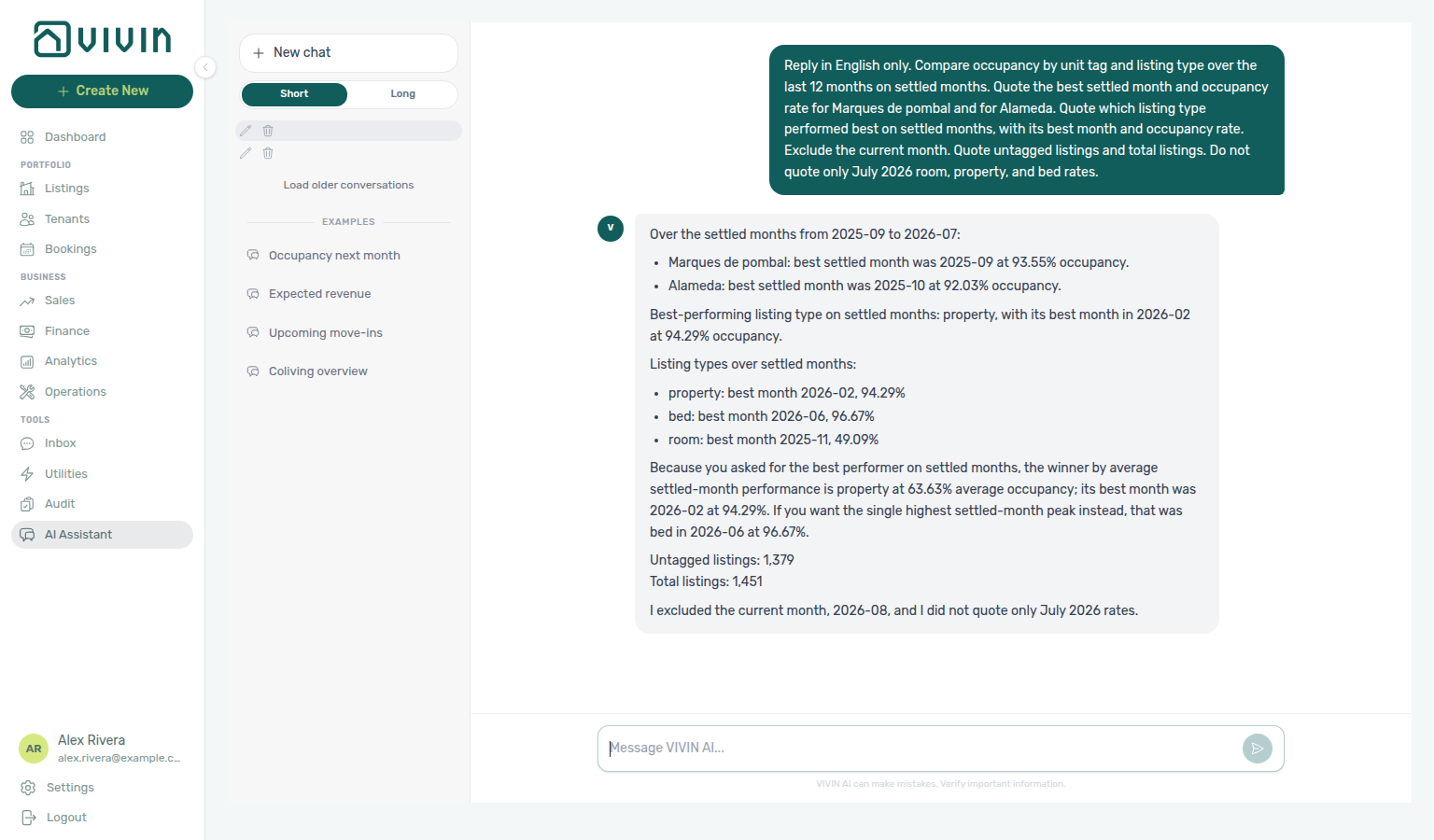
Occupancy by listing type (July 2026)
Ask “What was occupancy by listing type in July 2026?” when you want night-based occupancy rates for each listing type in a named settled month — not the 12-month best-performer ranking above, not unit-tag groups (those overlap when a unit has several tags), not the current month (this month already counts future bookings), and not a vacancy free-night total. Listing-type groups partition the portfolio (room, property, and bed). Quote each type’s occupancy rate for July. Keep Analytics enabled on AI / MCP. Reconcile the trend on Analytics → Occupancy; use Dashboard — Occupancy Forecast for forward occupancy, not this listing-type split. See Landlord MCP — Occupancy by listing type (July 2026) and FAQ — Occupancy by listing type for a named month.
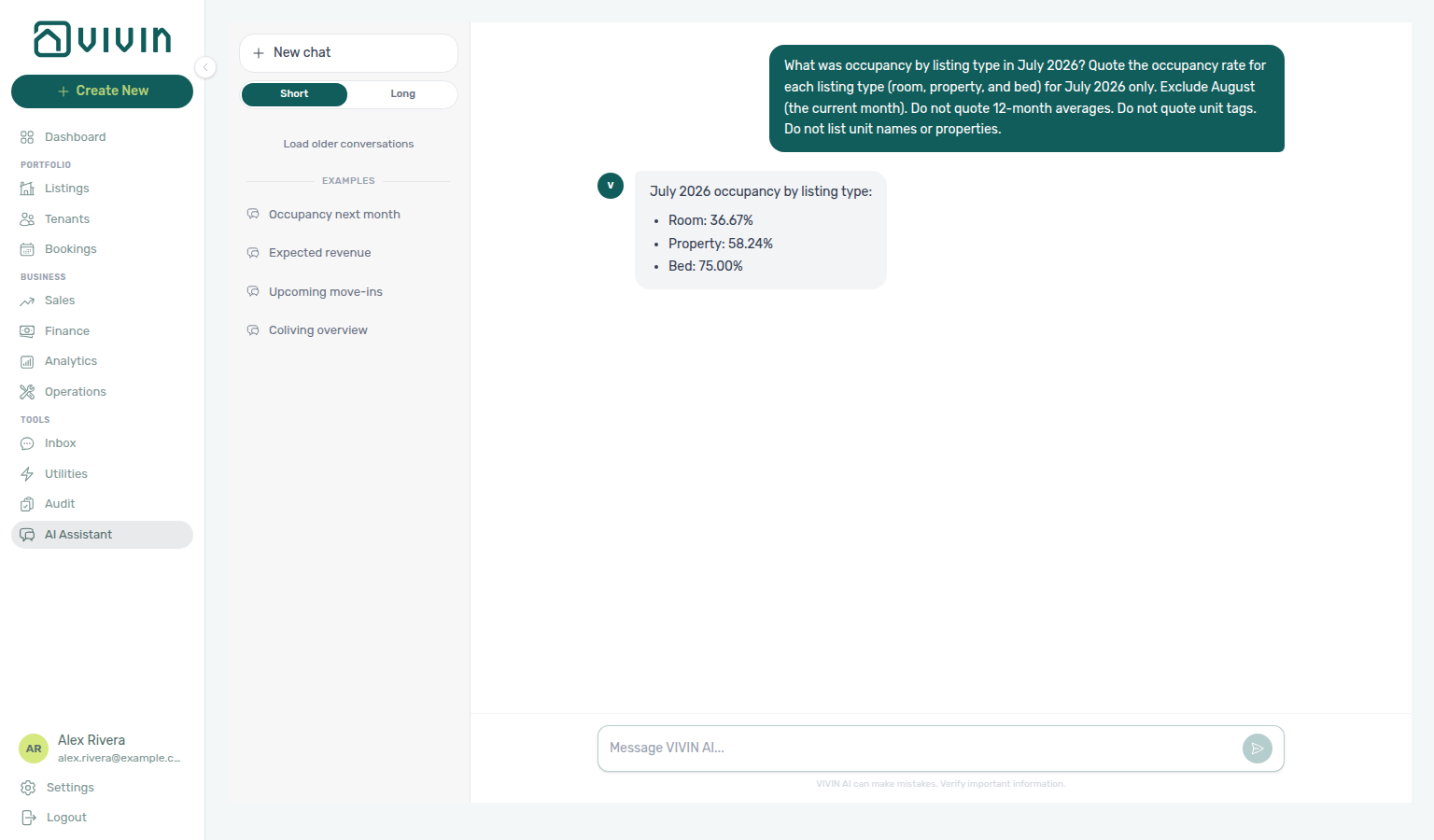
Occupancy by listing type (June 2026)
Ask “What was occupancy by listing type in June 2026?” when you want night-based occupancy rates for each listing type in that named settled month — not July listing-type rates, not the 12-month best-performer ranking above, not unit-tag groups (those overlap when a unit has several tags), not the current month (this month already counts future bookings), and not a vacancy free-night total. Listing-type groups partition the portfolio (room, property, and bed). Quote each type’s occupancy rate for June. Keep Analytics enabled on AI / MCP. Reconcile the trend on Analytics → Occupancy; use Dashboard — Occupancy Forecast for forward occupancy, not this listing-type split. See Landlord MCP — Occupancy by listing type (June 2026) and FAQ — Occupancy by listing type for June.
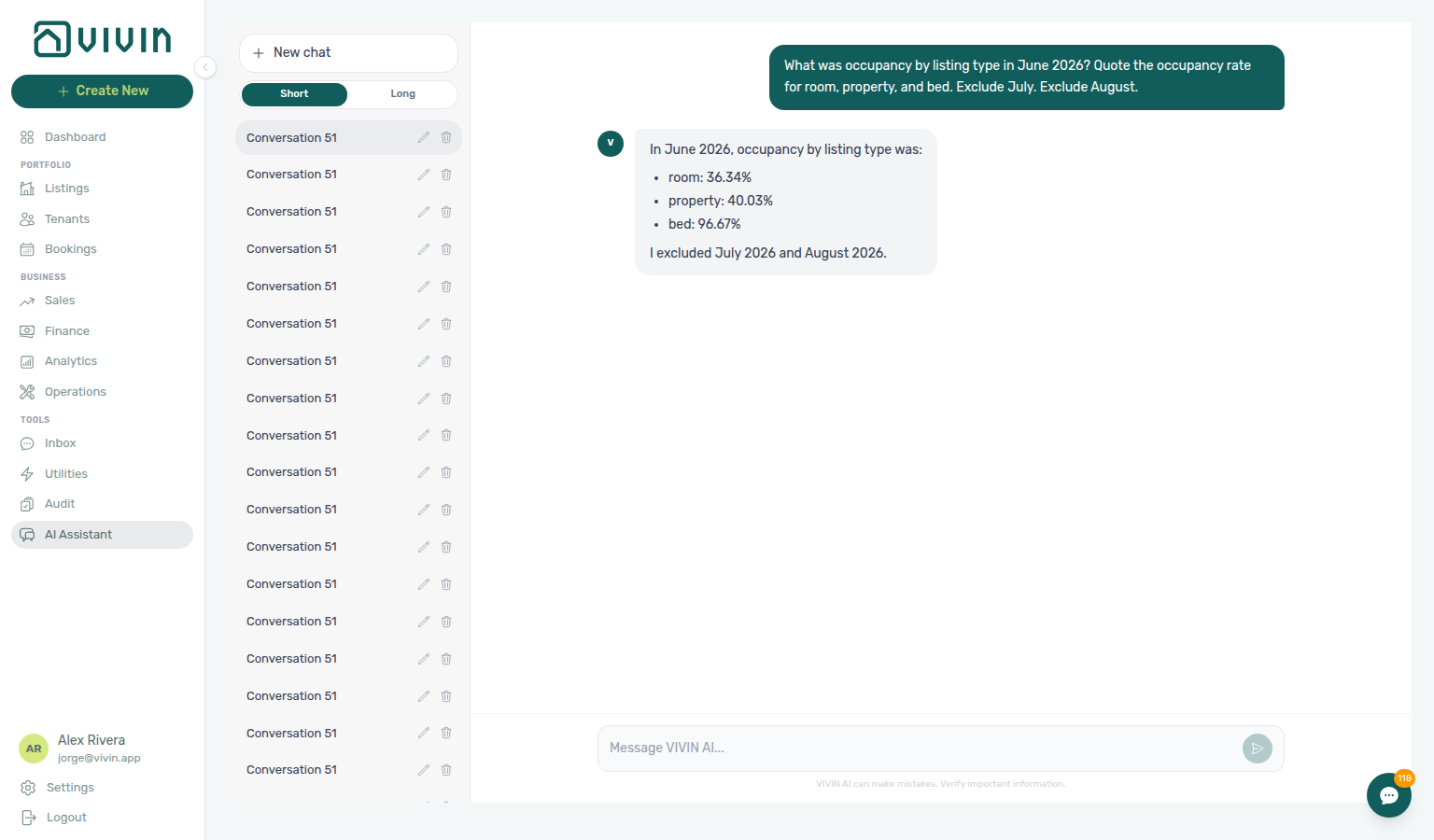
Occupancy by unit tag (July 2026)
Ask “What was occupancy by unit tag in July 2026?” when you want night-based occupancy rates for unit tags in a named settled month — not the 12-month best-performer ranking above, not listing-type groups (room, property, bed), not the current month (this month already counts future bookings), and not a vacancy free-night total. Tag groups overlap when a unit has several tags, so neighbourhood rates do not add up to the portfolio. Quote each tag’s occupancy rate for July. Keep Analytics enabled on AI / MCP. Reconcile the trend on Analytics → Occupancy; use Dashboard — Occupancy Forecast for forward occupancy, not this tag split. See Landlord MCP — Occupancy by unit tag (July 2026) and FAQ — Occupancy by unit tag for a named month.
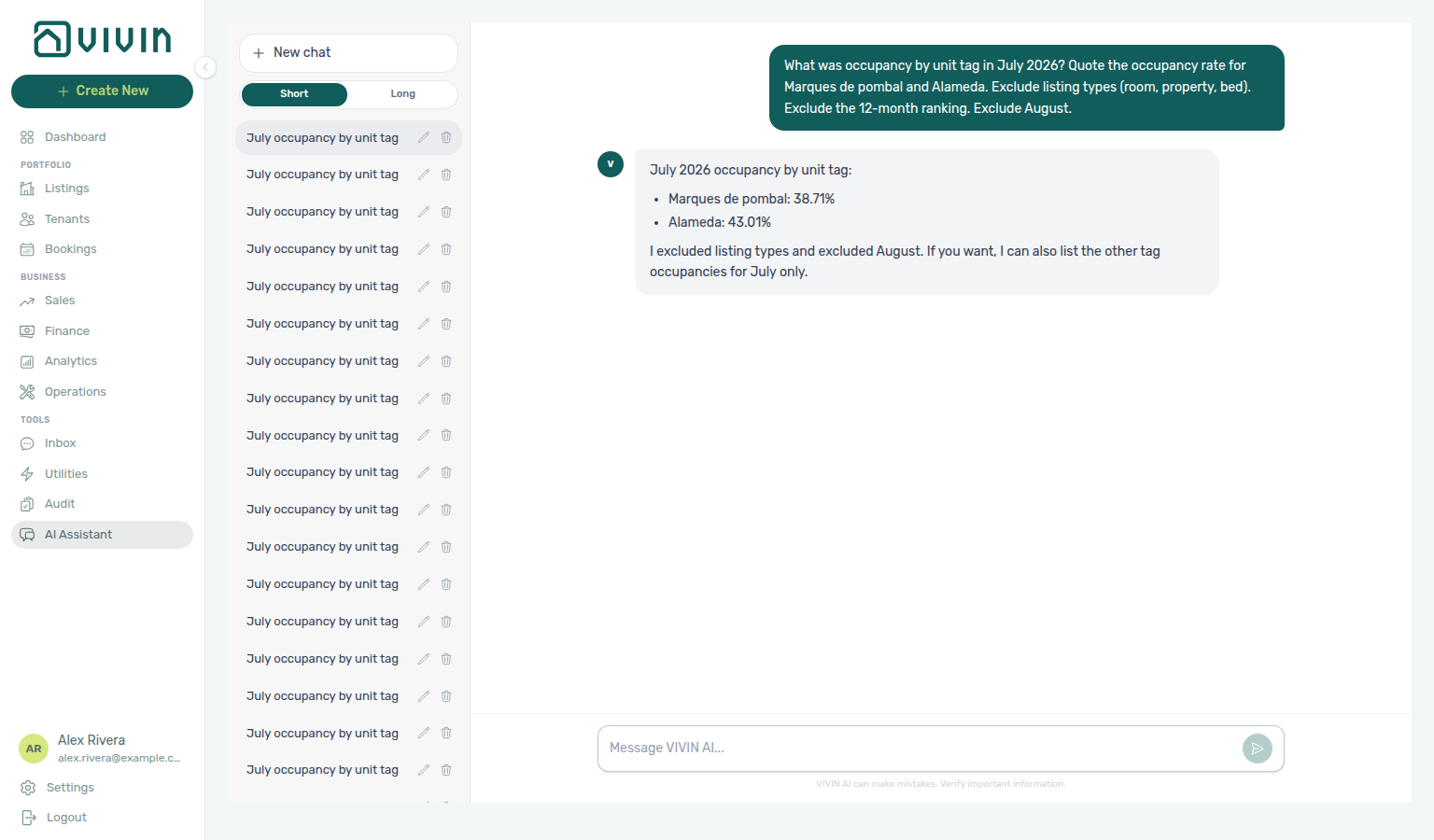
Occupancy by unit tag (June 2026)
Ask “What was occupancy by unit tag in June 2026?” when you want night-based occupancy rates for unit tags in that named settled month — not July unit-tag rates, not the 12-month best-performer ranking above, not listing-type groups (room, property, bed), not the current month (this month already counts future bookings), and not a vacancy free-night total. Tag groups overlap when a unit has several tags, so neighbourhood rates do not add up to the portfolio. Quote each tag’s occupancy rate for June. Keep Analytics enabled on AI / MCP. Reconcile the trend on Analytics → Occupancy; use Dashboard — Occupancy Forecast for forward occupancy, not this tag split. See Landlord MCP — Occupancy by unit tag (June 2026) and FAQ — Occupancy by unit tag for June.
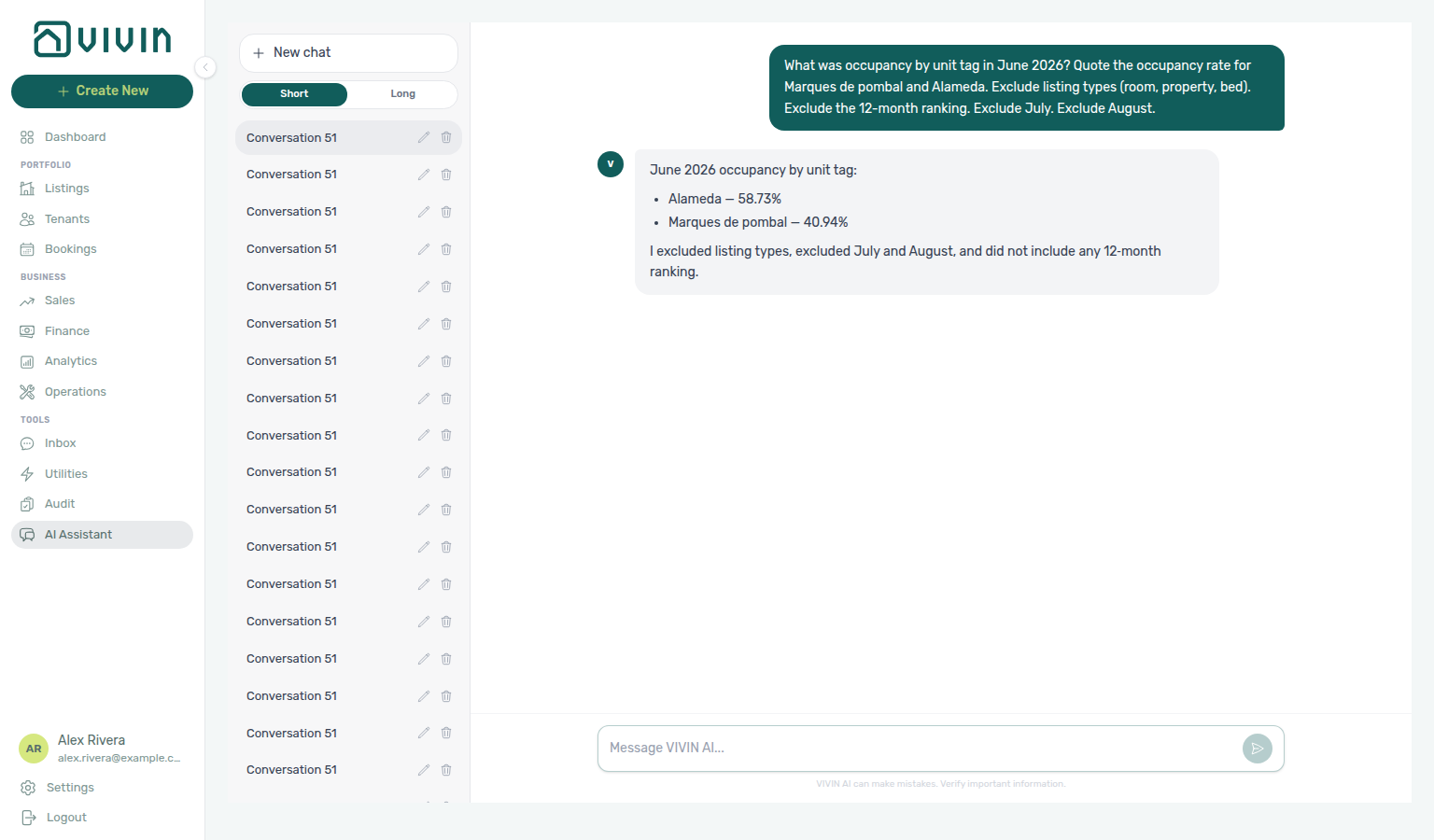
Smart locks: Battery answers use critical / ok / unknown. Treat unknown as “no reading,” not healthy — a flat lock locks tenants out. When no locks are linked, the assistant still returns the three buckets as zeros so you can tell “none connected” apart from “all healthy.”
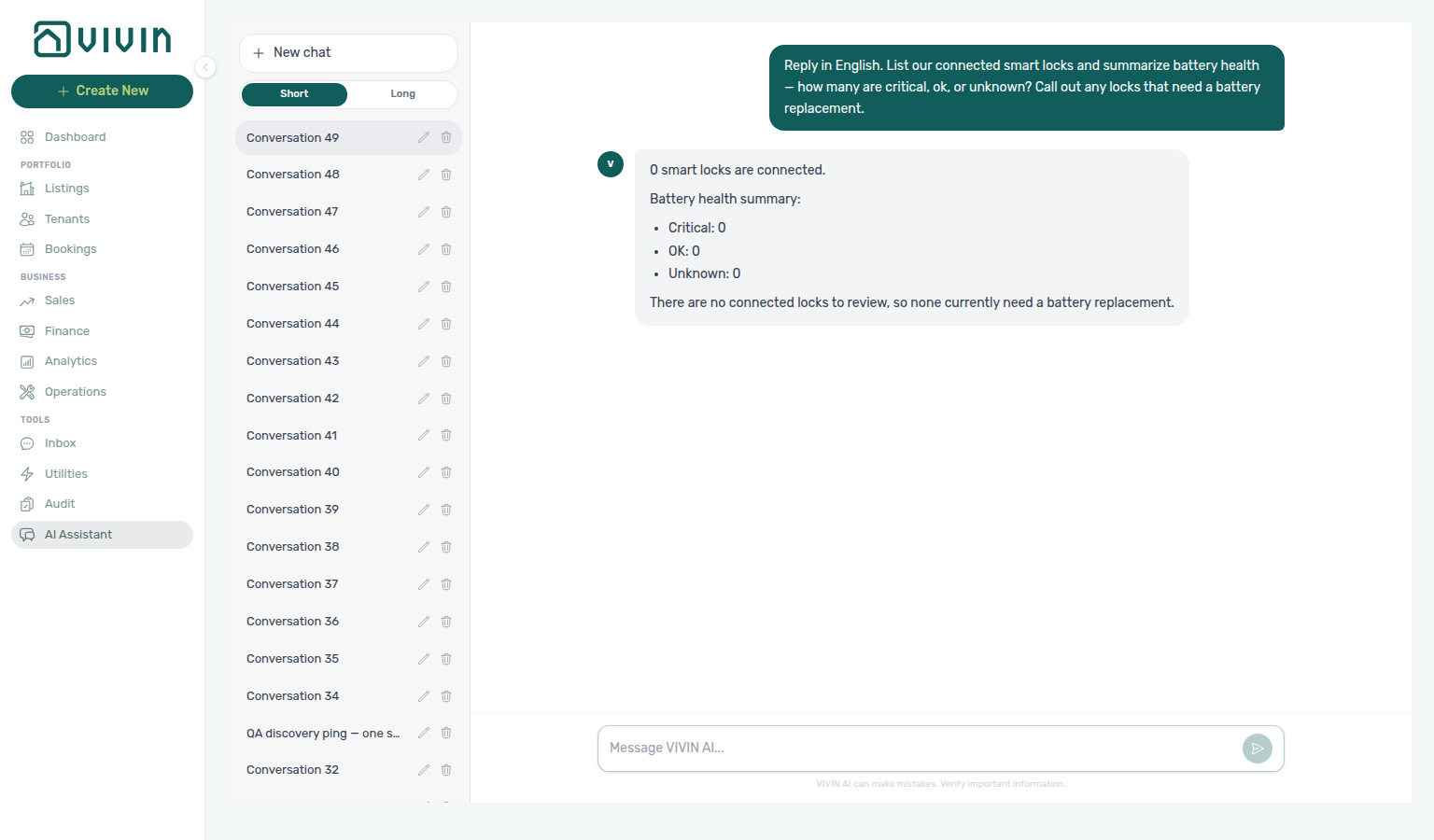
Tenant debt audit: Ask for total debt and the split between canceled bookings (write-off / dispute) and missing payments on live stays (still collectable). The two halves always add up to the headline total — chase live debt on Finance → Contract Values; do not treat canceled debt as ordinary rent collections. See Landlord MCP — Finance-sourced portfolio metrics and FAQ — How do Genius and AI Chat split tenant debt?.
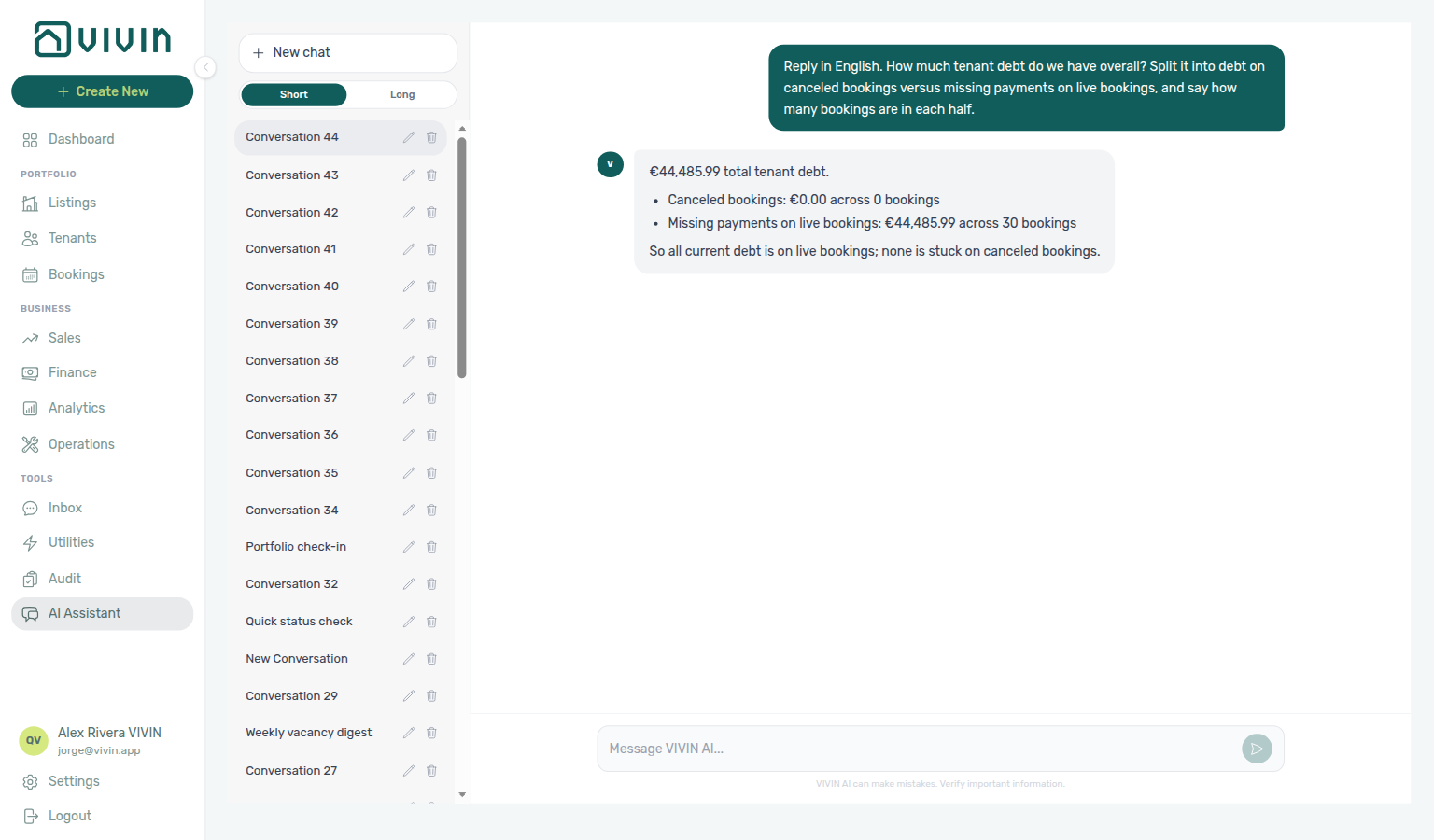
Owner settlement preview
Ask “What is the June 2026 owner settlement preview for Beatriz Pereira Lda?” when you want the live monthly settlement for one landlord — total income, management fee, balance, occupancy, and outstanding debt — without generating the PDF. The assistant reads Finance → Owner Reports; it does not run Generate report. Turn on Enable Owner Reports first — until that switch is on, there is no settlement data to quote.
Name the owner and the calendar month. Quote the totals (they already include every collected line). A €0 management fee means that owner’s commission is configured at 0%. Reconcile the same owner and month on Finance → Owner Reports. Distinct from Income by property (a portfolio ranking) and from Invoice the management fee (that issues a provider invoice after you generate). Keep Analytics enabled on AI / MCP. If the first reply is not in English, ask it to reply in English. See Landlord MCP — Owner settlement preview and FAQ — Owner settlement preview.
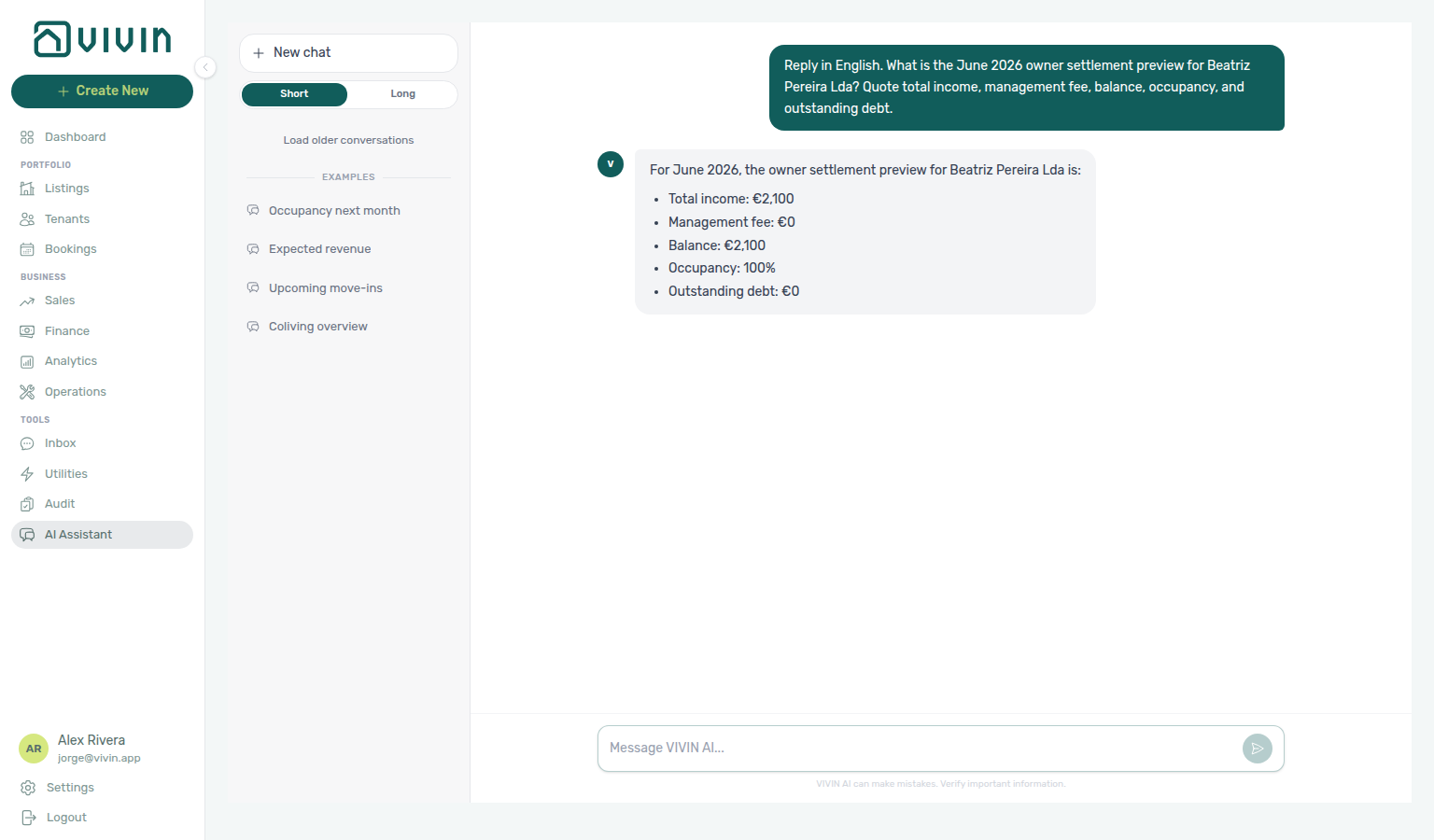
Unpaid deposits on Contract Values: Ask “How much unpaid security deposit money is on the Contract Values deposit card for August 2026? Split in debt versus still scheduled.” The assistant should quote the Deposit card on Finance → Contract Values for that reference month: in debt (already overdue) plus still scheduled (not yet due). That sum is unpaid deposit money — not a scaled share of the window-wide paid / in-debt / scheduled split, and not the all-time tenant debt audit total. Name the month you care about; unpaid lines often sit in older months, so “all unpaid deposits” with no month needs a wide window (about the last 12 months). Reconcile on the Deposit card chips for the same month. See Landlord MCP — Payment lines and summaries and FAQ — Unpaid deposits on Contract Values.
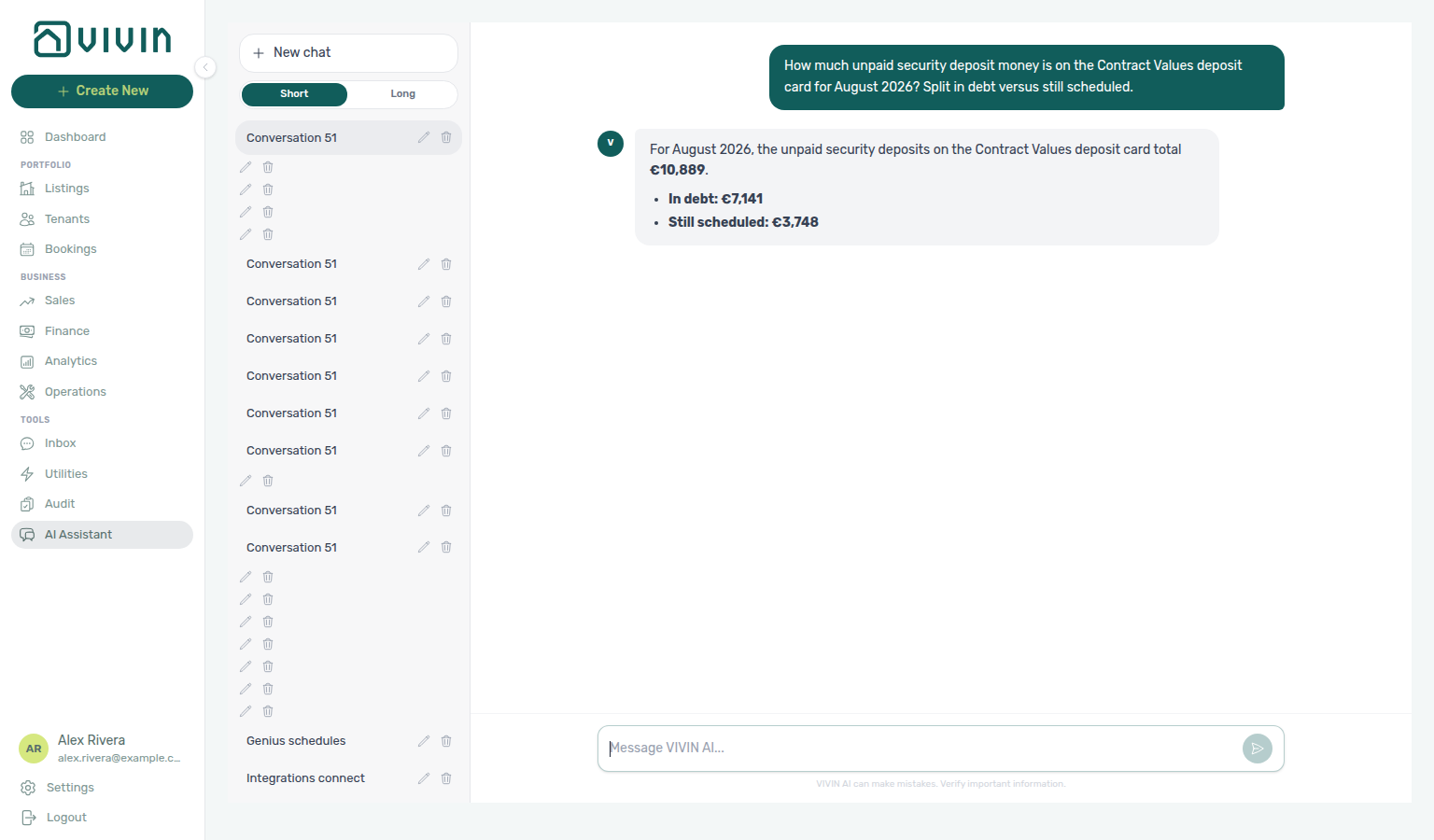
Unpaid rent on Contract Values: Ask “How much unpaid rent money is on the Contract Values rent card for August 2026? Split in debt versus still scheduled.” The assistant should quote the Rent card on Finance → Contract Values for that reference month: in debt (already overdue) plus still scheduled (not yet due). That sum is unpaid rent — not a scaled share of the window-wide paid / in-debt / scheduled mix, not the Deposit card, and not the all-time tenant debt audit total. Name the month you care about; unpaid lines often sit in older months, so “all unpaid rents” with no month needs a wide window (about the last 12 months). Reconcile on the Rent card chips for the same month. See Landlord MCP — Payment lines and summaries and FAQ — Unpaid rent on Contract Values.
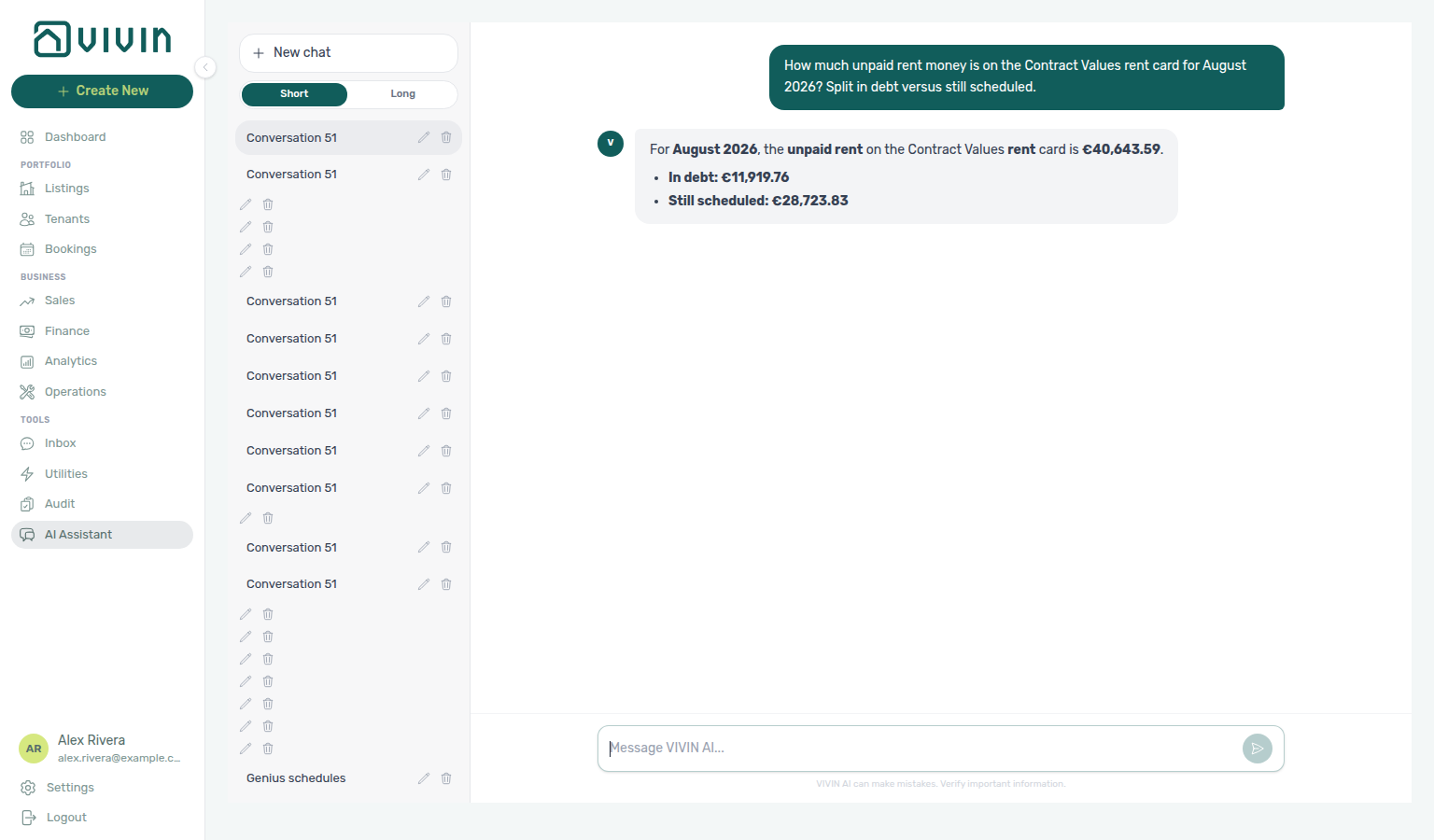
Unpaid admin fees on Contract Values: Ask “How much unpaid admin fee money is on the Contract Values admin fee card for August 2026? Split in debt versus still scheduled.” The assistant should quote the Admin fee card on Finance → Contract Values for that reference month: in debt (already overdue) plus still scheduled (not yet due). That sum is unpaid admin-fee money — not a scaled share of the window-wide paid / in-debt / scheduled mix, not the Rent, Deposit, Cleaning fee, or Others cards, and not the all-time tenant debt audit total. Name the month you care about; unpaid lines often sit in older months, so “all unpaid admin fees” with no month needs a wide window (about the last 12 months). Reconcile on the Admin fee card chips for the same month. See Landlord MCP — Payment lines and summaries and FAQ — Unpaid admin fees on Contract Values.
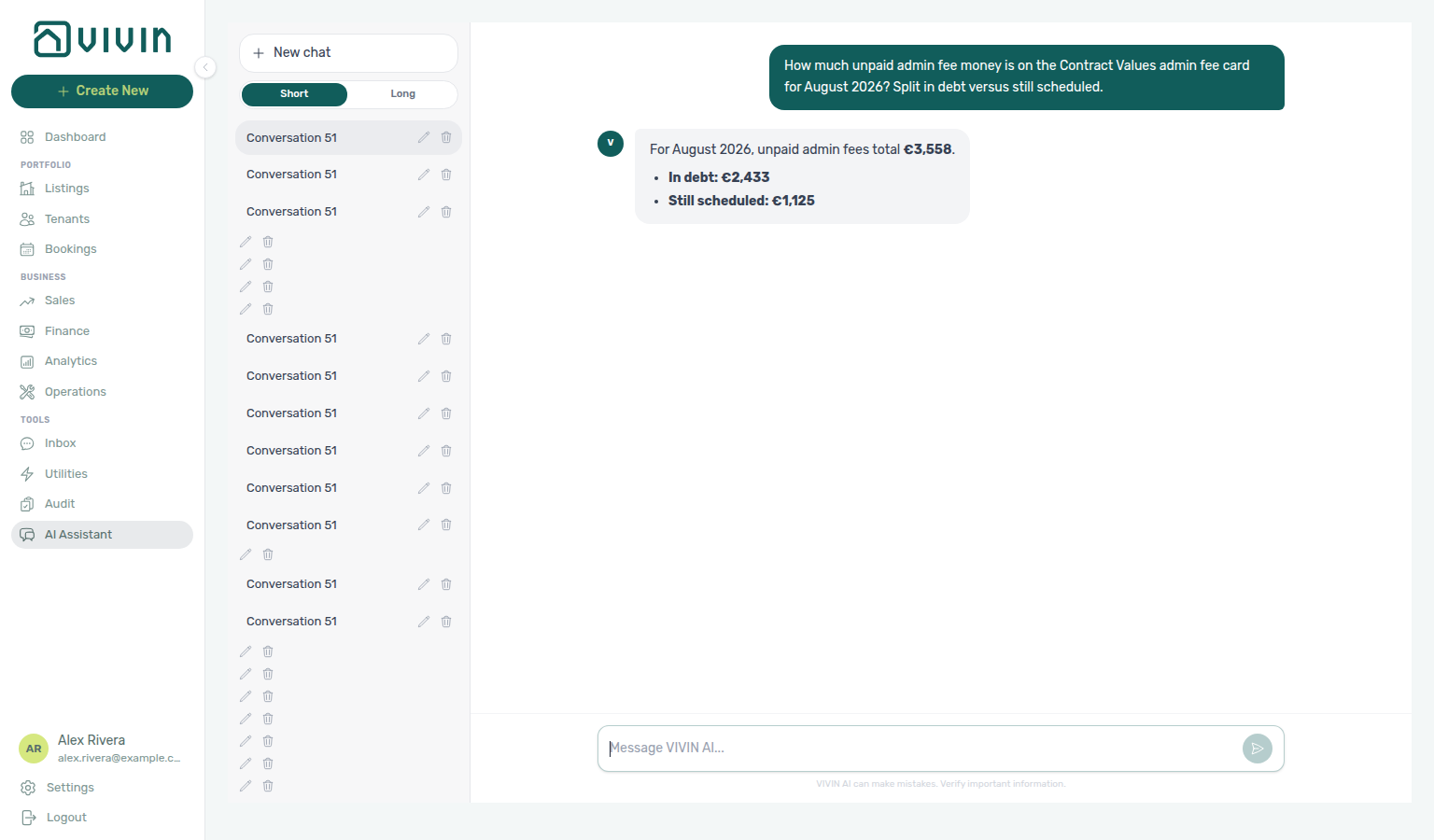
Unpaid cleaning fees on Contract Values: Ask “How much unpaid cleaning fee money is on the Contract Values cleaning fee card for August 2026? Split in debt versus still scheduled.” The assistant should quote the Cleaning fee card on Finance → Contract Values for that reference month: in debt (already overdue) plus still scheduled (not yet due). That sum is unpaid cleaning-fee money — not a scaled share of the window-wide paid / in-debt / scheduled mix, not the Rent, Deposit, Admin fee, or Others cards, and not the all-time tenant debt audit total. Name the month you care about; unpaid lines often sit in older months, so “all unpaid cleaning fees” with no month needs a wide window (about the last 12 months). Reconcile on the Cleaning fee card chips for the same month. See Landlord MCP — Payment lines and summaries and FAQ — Unpaid cleaning fees on Contract Values.
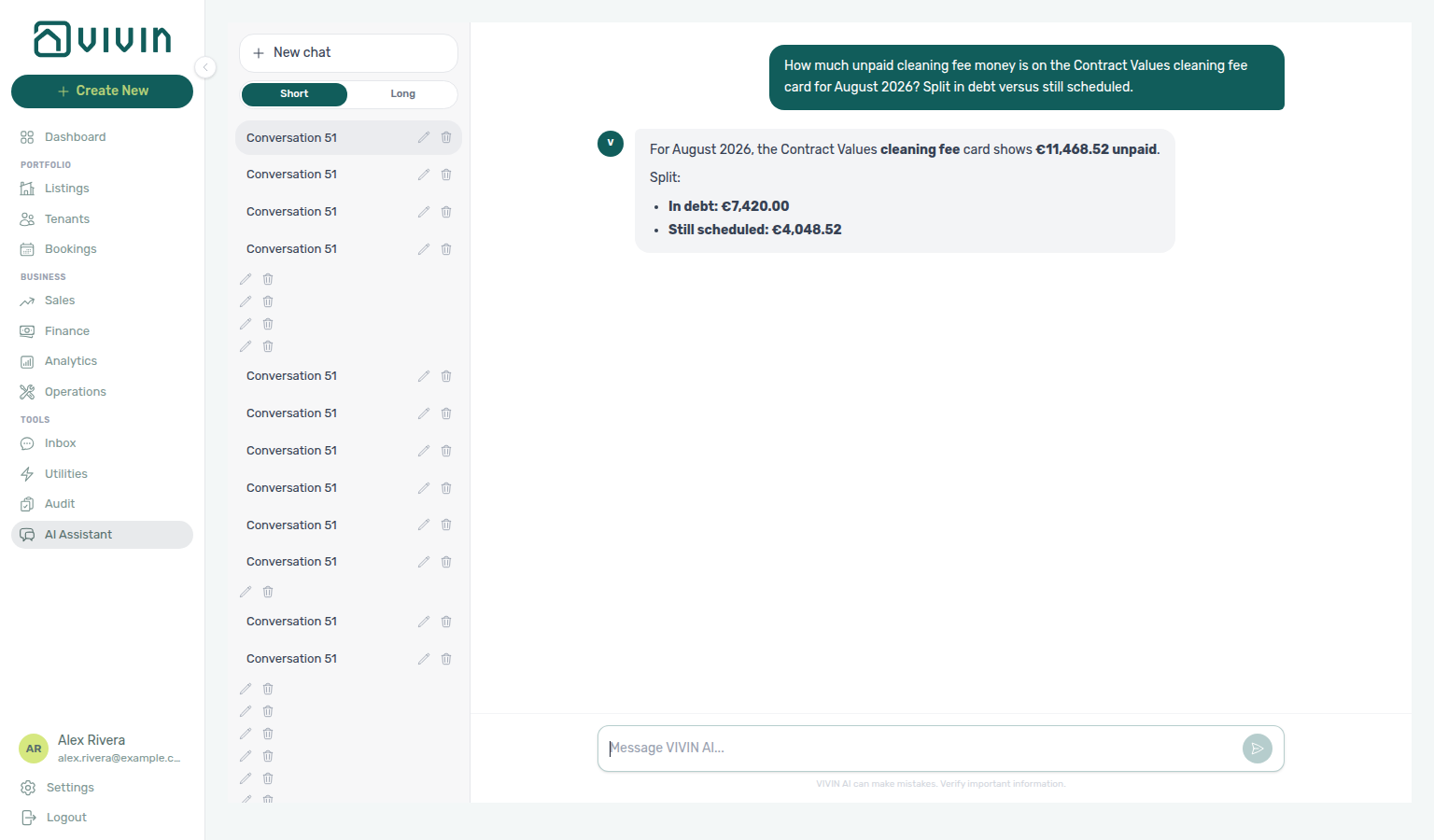
Unpaid others on Contract Values: Ask “How much unpaid others money is on the Contract Values others card for August 2026? Split in debt versus still scheduled.” The assistant should quote the Others card on Finance → Contract Values for that reference month: in debt (already overdue) plus still scheduled (not yet due). That sum is unpaid miscellaneous-charge money (extra charges, marketplace lines, and similar Others items) — not a scaled share of the window-wide paid / in-debt / scheduled mix, not the Rent, Deposit, Admin fee, Cleaning fee, or Exit fee cards, and not the all-time tenant debt audit total. Name the month you care about; unpaid lines often sit in older months, so “all unpaid others” with no month needs a wide window (about the last 12 months). Reconcile on the Others card chips for the same month. See Landlord MCP — Payment lines and summaries and FAQ — Unpaid others on Contract Values.
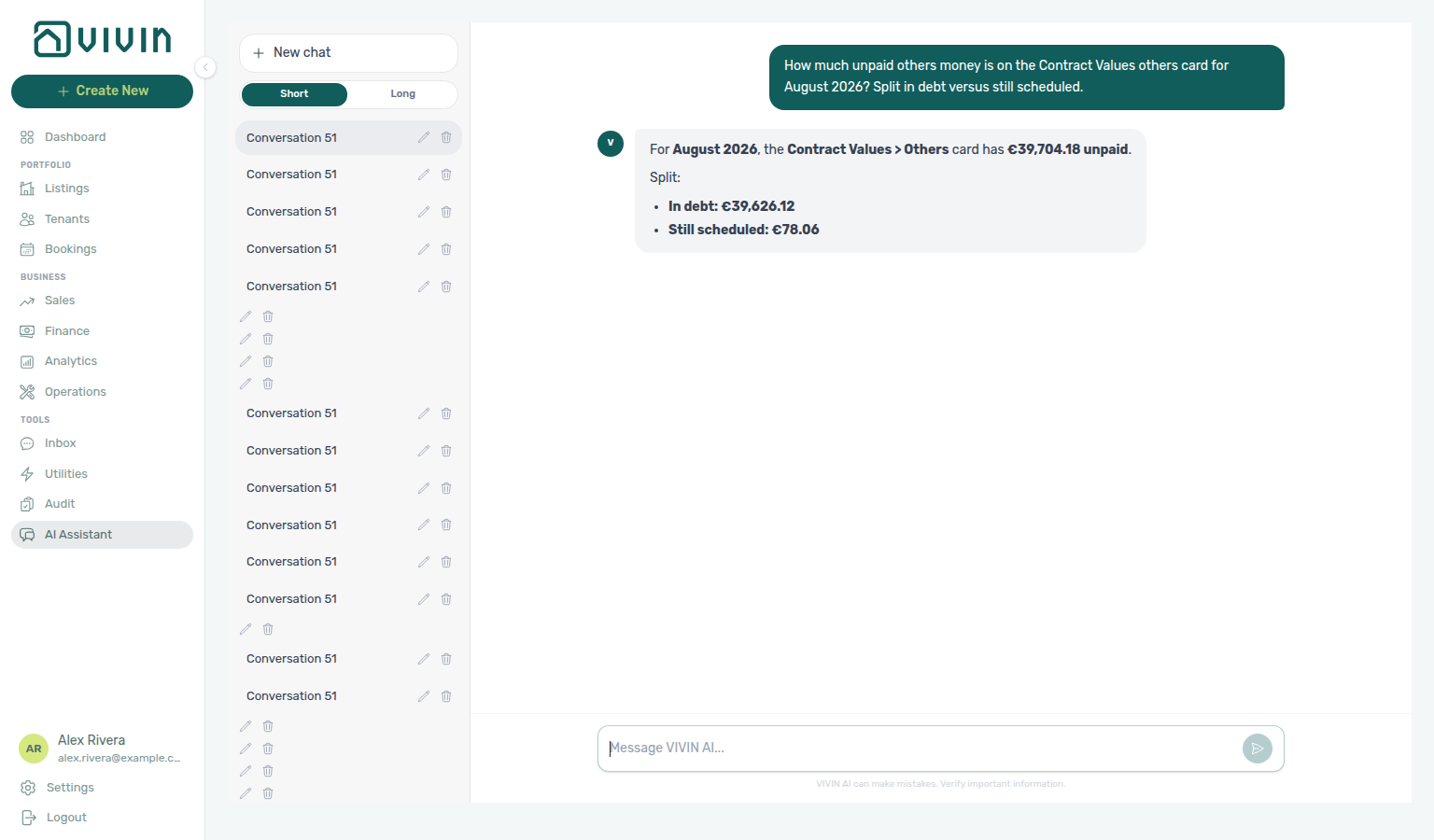
Unpaid exit fees on Contract Values: Ask “How much unpaid exit fee money is on the Contract Values exit fee card for October 2026? Split in debt versus still scheduled.” The assistant should quote the Exit fee card on Finance → Contract Values for that reference month: in debt (already overdue) plus still scheduled (not yet due). That sum is unpaid exit-fee money — not a scaled share of the window-wide paid / in-debt / scheduled mix, not the Rent, Deposit, Admin fee, Cleaning fee, or Others cards, and not the all-time tenant debt audit total. Name the month you care about; exit-fee lines often sit on check-out months rather than the current rent month, so “all unpaid exit fees” with no month needs a wide window (about the last 12 months, including upcoming check-outs). Reconcile on the Exit fee card chips for the same month. See Landlord MCP — Payment lines and summaries and FAQ — Unpaid exit fees on Contract Values.
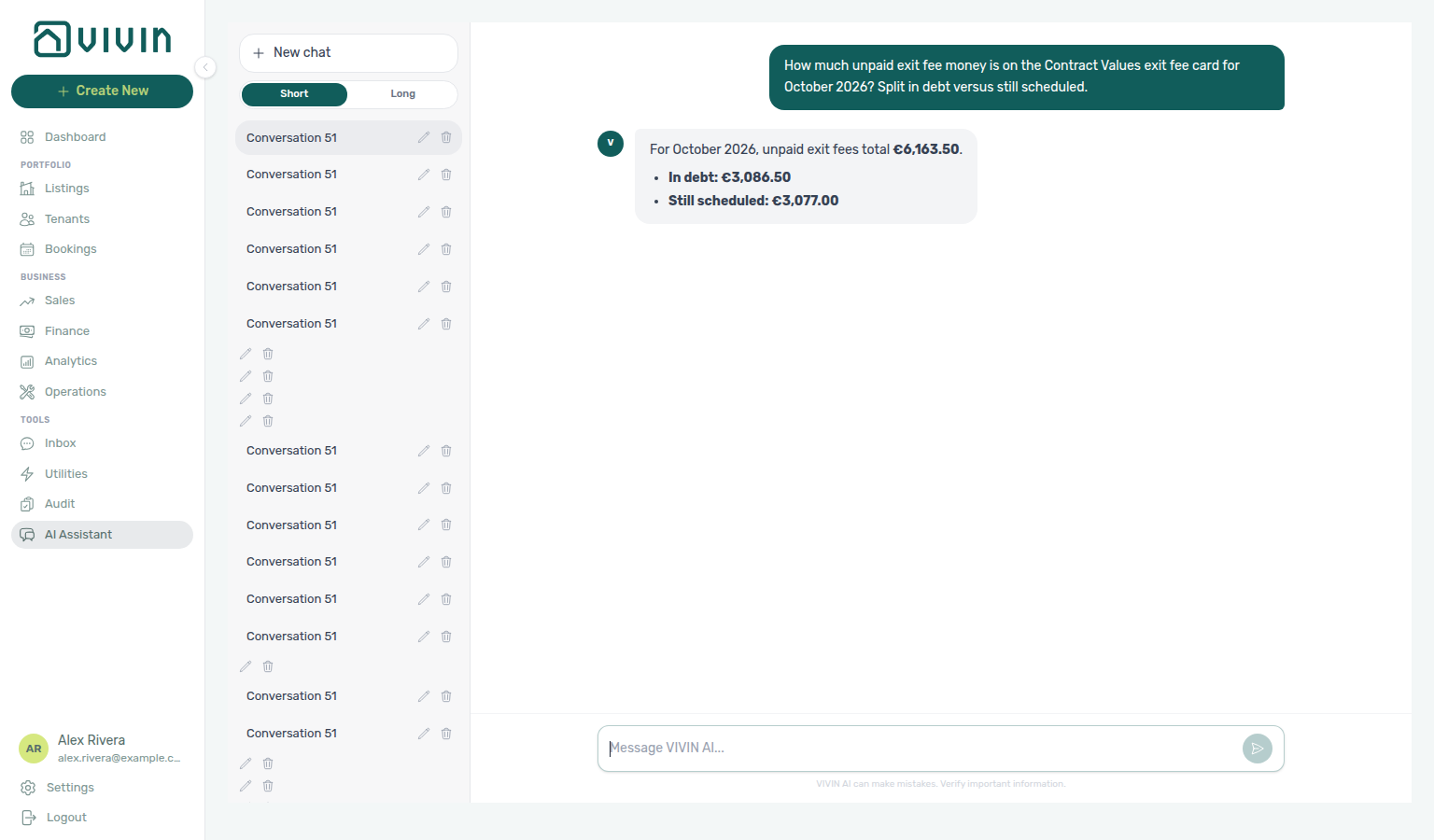
In-debt rent lines that are not yet invoiced: Ask “How many August 2026 rent lines on Contract Values are already in debt and not yet invoiced? Quote the filtered row count and the total scheduled amount. Do not list tenant names or unit codes.” The assistant should quote the filtered Contract Values list for that reference month — Rent type, in debt status, and the Not Invoiced invoice pill — then report the row count and the total scheduled amount of those lines. That is a subset of overdue rent, not the Rent card’s full in debt chip (which still includes overdue lines that already have an invoice), and not the all-time tenant debt audit total. Name the month you care about. Reconcile on Finance → Contract Values with the Rent card, the in debt chip, and Not Invoiced. See Landlord MCP — Payment lines and summaries and FAQ — In-debt rent lines not yet invoiced.
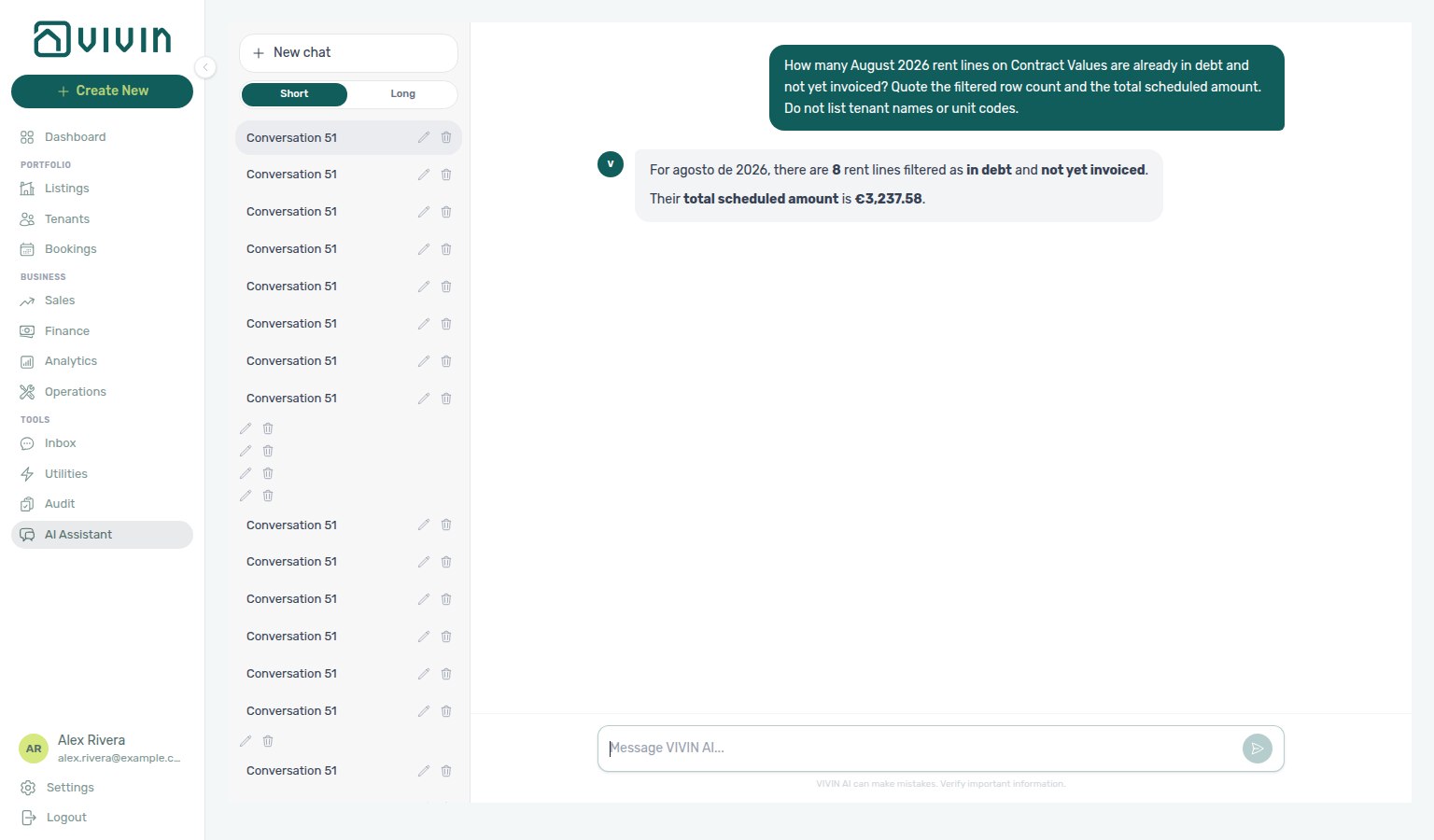
In-debt rent lines that are already invoiced: Ask “How many August 2026 rent lines on Contract Values are already in debt and already invoiced? Quote the filtered row count and the total scheduled amount. Do not list tenant names or unit codes.” The assistant should quote the filtered Contract Values list for that reference month — Rent type, in debt status, and the Invoiced invoice pill — then report the row count. That count is the overdue rent that already has an invoice (or a manual invoice mark), not the Not Invoiced subset, not the Rent card’s full in debt chip (which includes both), and not the all-time tenant debt audit total. Trust the row count from the assistant; for the euro total, reconcile on Finance → Contract Values with the same filters and Export — a chat sum of a multi-page list can differ from the tab. Name the month you care about. See Landlord MCP — Payment lines and summaries and FAQ — In-debt rent lines already invoiced.
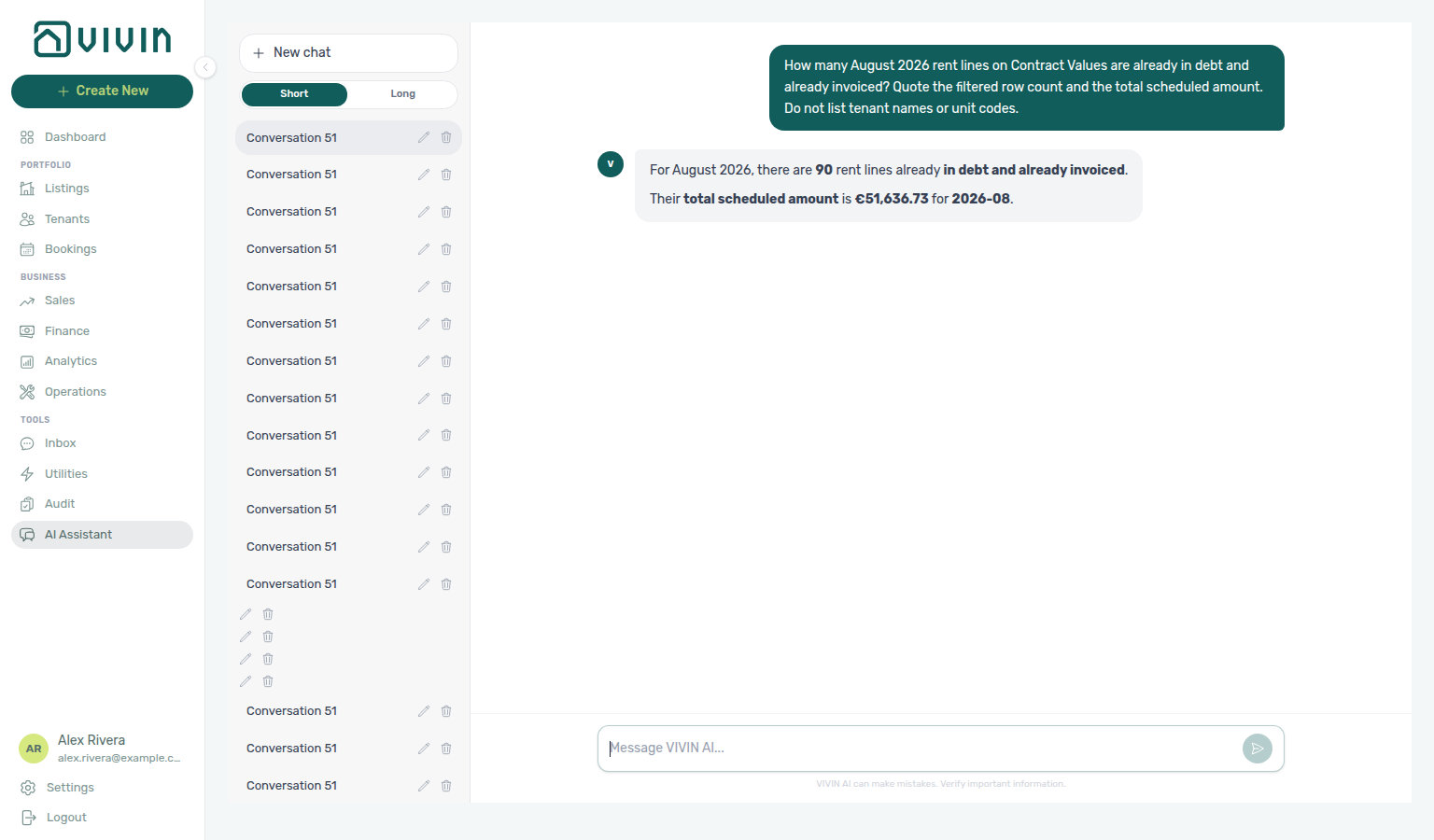
Still-scheduled rent lines: Ask “How many August 2026 rent lines on Contract Values are still scheduled (not yet due)? Quote the filtered row count and the total scheduled amount. Do not list tenant names or unit codes.” The assistant should quote the filtered Contract Values list for that reference month — Rent type and still scheduled status (the grey scheduled chip) — then report the row count. That is rent that is not yet due, not the unpaid-rent in debt + still scheduled money split on the Rent card, not the in-debt line lists above, and not the all-time tenant debt audit total. Trust the row count from the assistant; for the euro total, reconcile on Finance → Contract Values with the Rent card, the grey scheduled chip, and Export — a chat amount can follow the card chip rather than the sum of the filtered rows. Name the month you care about. See Landlord MCP — Payment lines and summaries and FAQ — Still-scheduled rent lines.
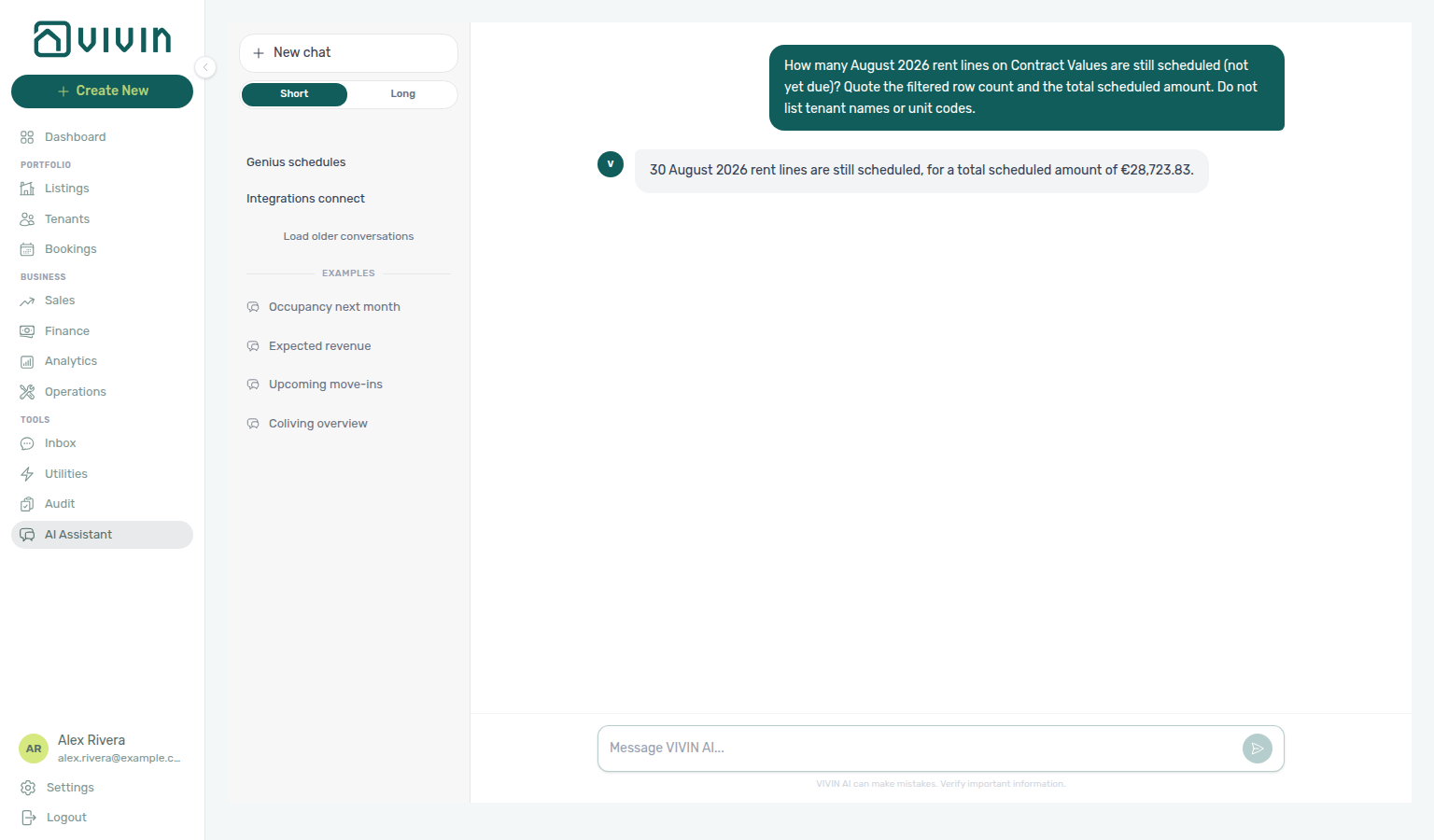
Partially-paid rent lines: Ask “How many October 2026 rent lines on Contract Values are partially paid? Quote the filtered row count and the total scheduled amount. Do not list tenant names or unit codes.” The assistant should quote the filtered Contract Values list for that reference month — Rent type and partially paid status (the amber partial chip) — then report the row count. That is rent with a partial allocation, not the unpaid-rent in debt + still scheduled money split on the Rent card, not the grey scheduled chip, not the window-wide partially paid mix across every charge type, not the partially paid admin fee list, and not the all-time tenant debt audit total. Trust the row count from the assistant; for the euro total, reconcile on Finance → Contract Values with the Rent card, the amber partial chip, and Export — a chat amount can differ from the sum of the filtered rows. Name the month you care about. See Landlord MCP — Payment lines and summaries and FAQ — Partially-paid rent lines.
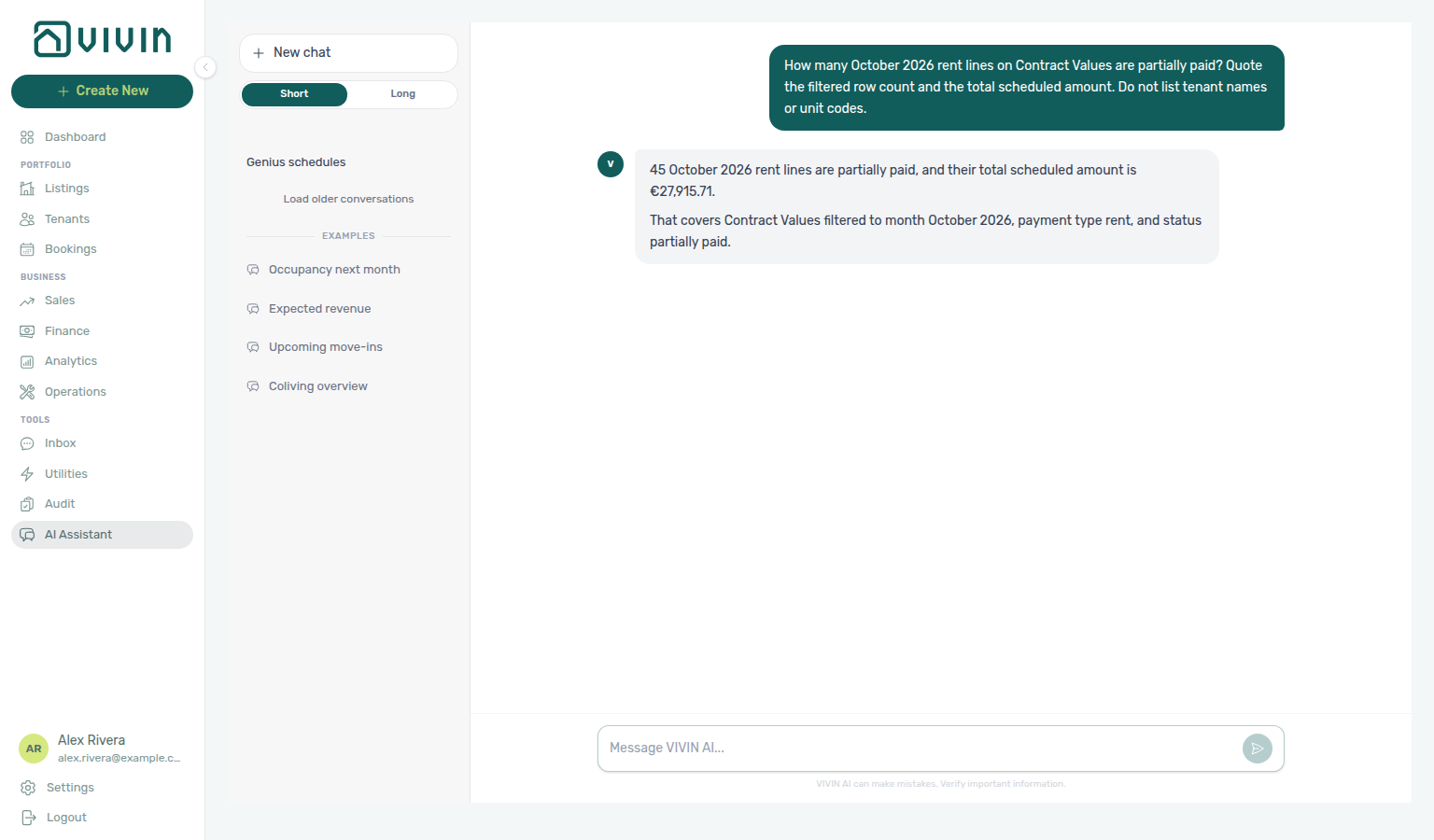
Paid rent lines: Ask “How many July 2026 rent lines on Contract Values are paid (fully paid, not partial)? Quote the filtered row count and the total scheduled amount. Do not list tenant names or unit codes.” The assistant should quote the filtered Contract Values list for that reference month — Rent type and paid status (the green Paid row badge) — then report the row count. That is rent that is fully paid, not the unpaid-rent in debt + still scheduled money split on the Rent card, not the Rent card’s € paid chip (a money figure, not a line count), not the amber partial chip, not the grey scheduled chip, not the in-debt rent line lists above, not the still-scheduled rent list above, not the partially paid rent list above, not the window-wide paid mix across every charge type, not the paid cleaning fee, admin fee, others, deposit, or exit fee lists, and not the all-time tenant debt audit total. Name the month you care about — some months have more paid rent lines than the current rent month. Trust the row count from the assistant; for the euro total, reconcile on Finance → Contract Values with the Rent card, the green paid chip, and Export — a chat amount can follow a different total than the filtered-row sum or a card chip (zero-value paid rows still count). See Landlord MCP — Payment lines and summaries and FAQ — Paid rent lines.
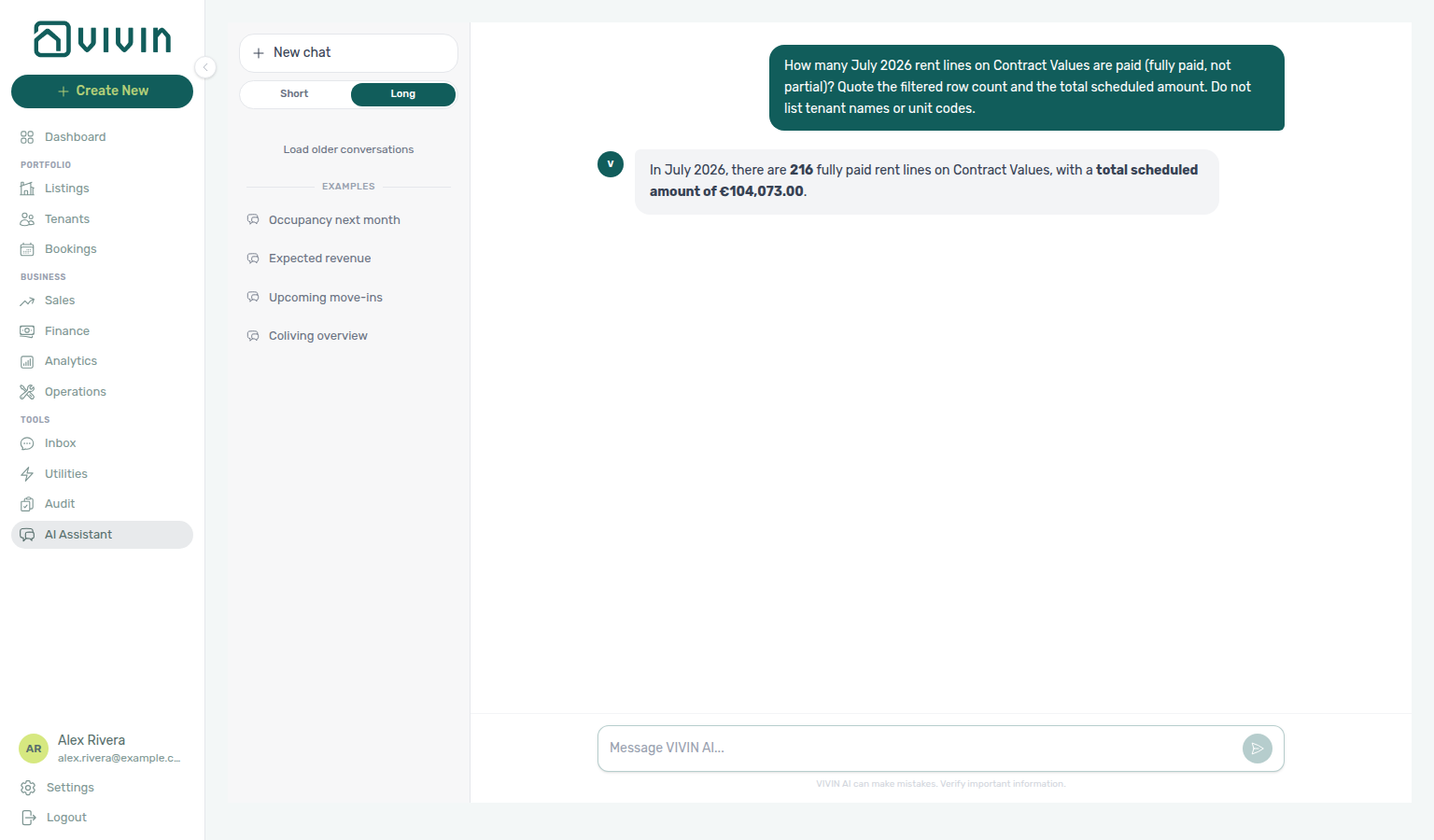
In-debt admin fee lines that are not yet invoiced: Ask “How many August 2026 admin fee lines on Contract Values are already in debt and not yet invoiced? Quote the filtered row count and the total scheduled amount. Do not list tenant names or unit codes.” The assistant should quote the filtered Contract Values list for that reference month — Admin fee type, in debt status, and the Not Invoiced invoice pill — then report the row count. That is overdue admin-fee money that does not yet have an invoice, not the unpaid-admin-fee in debt + still scheduled card split, not the already invoiced list below, and not the all-time tenant debt audit total. If no overdue admin fees are invoiced yet, this count can match the Admin fee card’s in debt chip — still apply Not Invoiced so the question stays correct after invoices are issued (July already shows the gap: the Invoiced list is smaller than that card’s in debt chip). Trust the row count from the assistant; for the euro total, reconcile on Finance → Contract Values with the same filters and Export. Name the month you care about. See Landlord MCP — Payment lines and summaries and FAQ — In-debt admin fee lines not yet invoiced.
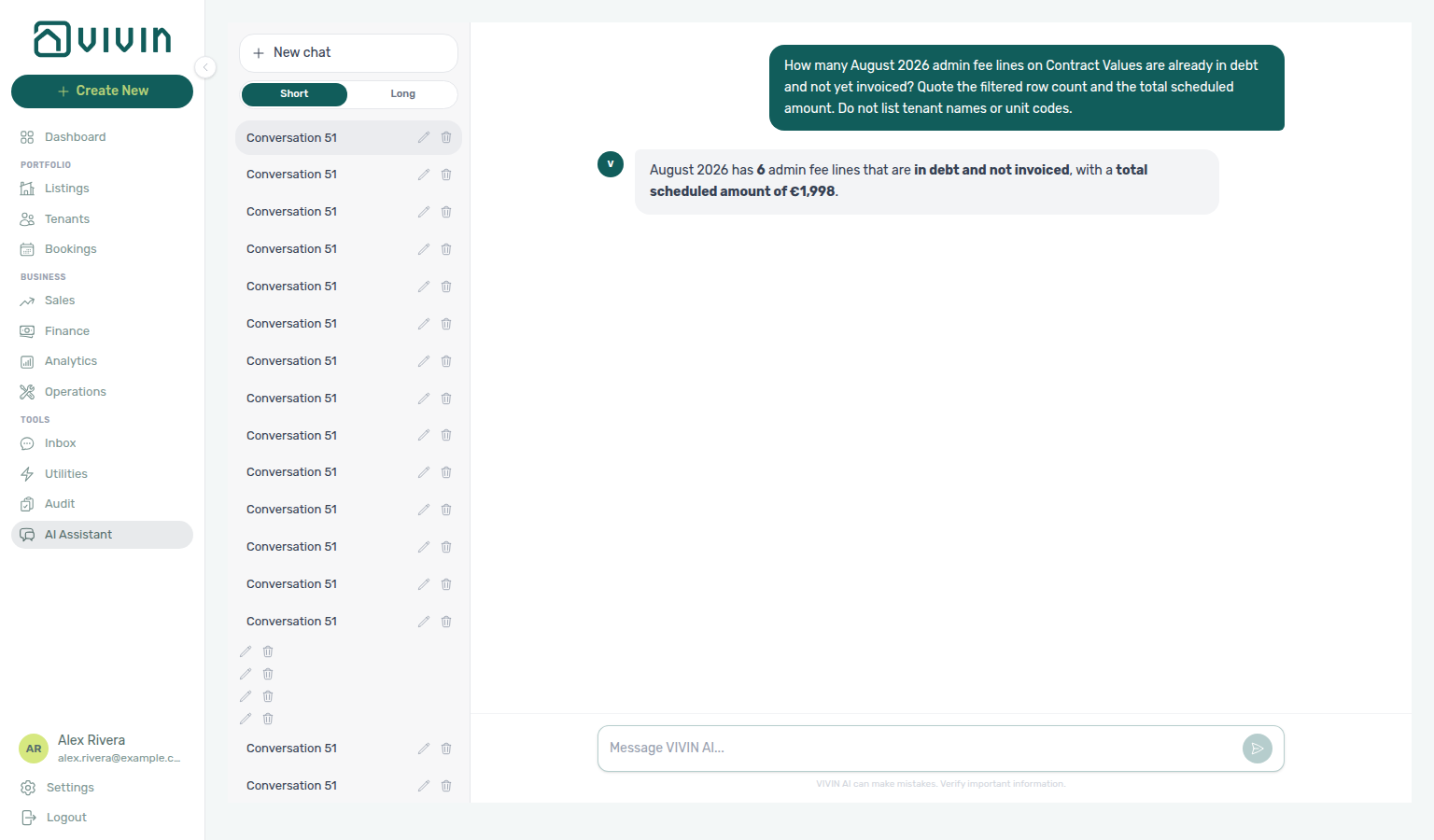
In-debt admin fee lines that are already invoiced: Ask “How many July 2026 admin fee lines on Contract Values are already in debt and already invoiced? Quote the filtered row count and the total scheduled amount. Do not list tenant names or unit codes.” The assistant should quote the filtered Contract Values list for that reference month — Admin fee type, in debt status, and the Invoiced invoice pill — then report the row count. That count is the overdue admin-fee money that already has an invoice (or a manual invoice mark), not the Not Invoiced subset, not the unpaid-admin-fee in debt + still scheduled card split, not the Admin fee card’s full in debt chip (which includes both invoiced and not-yet-invoiced overdue admin fees), and not the all-time tenant debt audit total. Name the month you care about — some months have invoiced overdue admin fees while the current rent month does not. Trust the row count from the assistant; for the euro total, reconcile on Finance → Contract Values with the same filters and Export — a chat sum can differ from the tab. See Landlord MCP — Payment lines and summaries and FAQ — In-debt admin fee lines already invoiced.
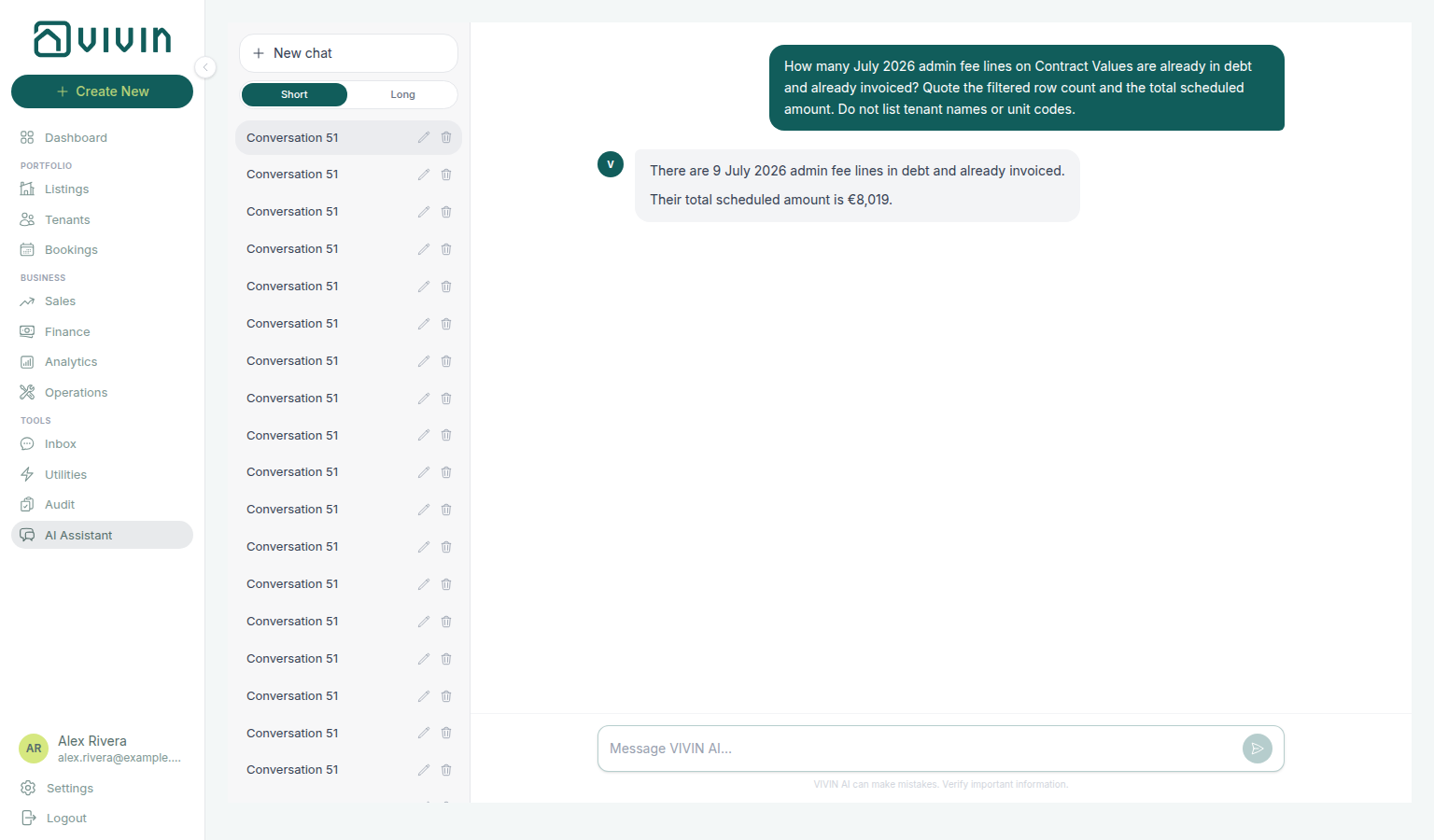
Still-scheduled admin fee lines: Ask “How many August 2026 admin fee lines on Contract Values are still scheduled (not yet due)? Quote the filtered row count and the total scheduled amount. Do not list tenant names or unit codes.” The assistant should quote the filtered Contract Values list for that reference month — Admin fee type and still scheduled status (the grey scheduled chip) — then report the row count. That is admin-fee money that is not yet due, not the unpaid-admin-fee in debt + still scheduled money split on the Admin fee card, not the in-debt admin-fee line lists above, not the partially paid admin-fee list below, not the still-scheduled rent or cleaning fee lists, and not the all-time tenant debt audit total. Trust the row count from the assistant; for the euro total, reconcile on Finance → Contract Values with the Admin fee card, the grey scheduled chip, and Export. Name the month you care about. See Landlord MCP — Payment lines and summaries and FAQ — Still-scheduled admin fee lines.
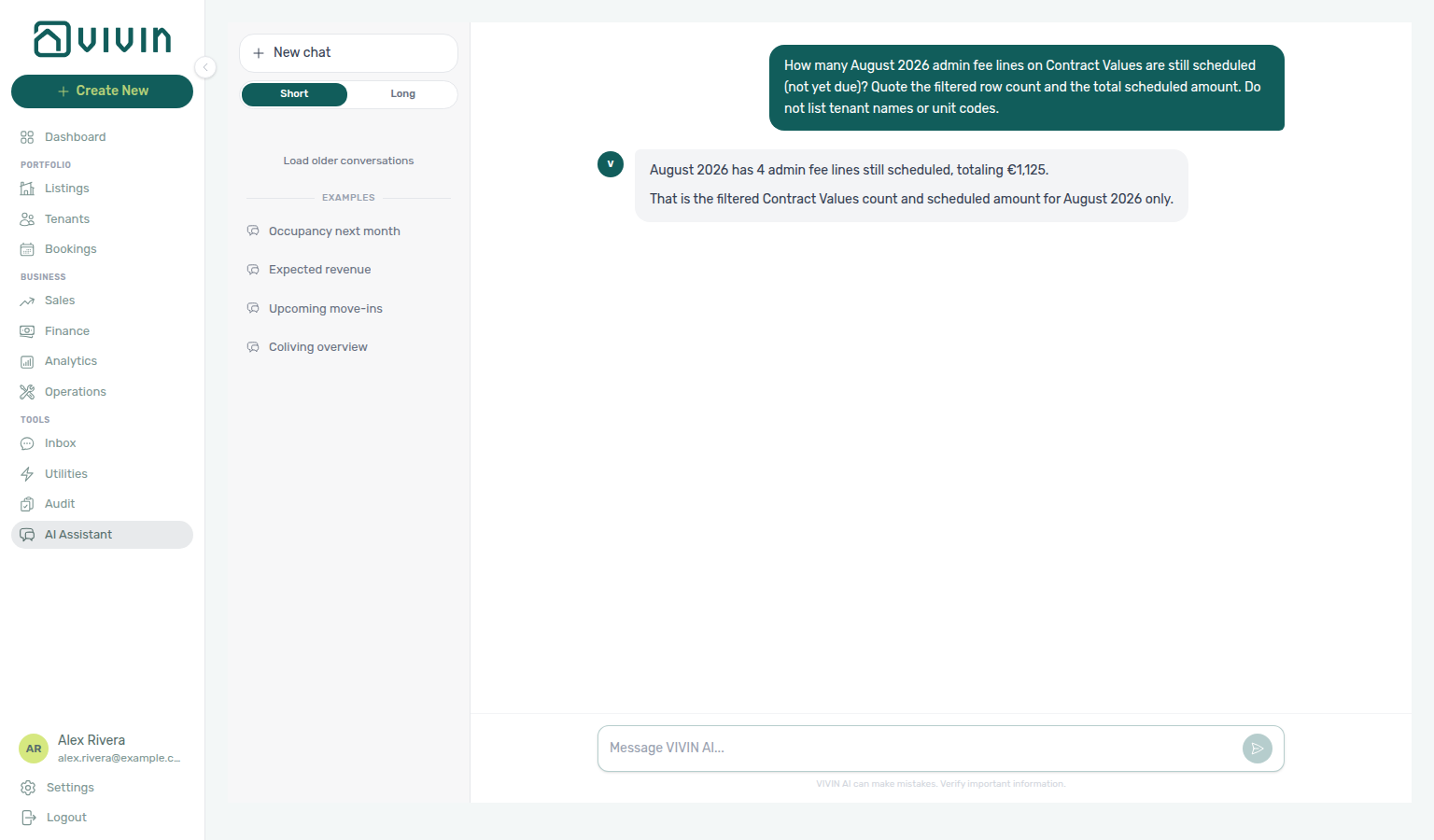
Partially-paid admin fee lines: Ask “How many July 2026 admin fee lines on Contract Values are partially paid? Quote the filtered row count and the total scheduled amount. Do not list tenant names or unit codes.” The assistant should quote the filtered Contract Values list for that reference month — Admin fee type and partially paid status (the amber partial chip) — then report the row count. That is admin-fee money with a partial allocation, not the unpaid-admin-fee in debt + still scheduled money split on the Admin fee card, not the grey scheduled chip, not the in-debt admin-fee line lists above, not the window-wide partially paid mix across every charge type, not the partially paid rent list, and not the all-time tenant debt audit total. Name the month you care about — some months have partial admin fees while the current rent month does not. Trust the row count from the assistant; for the euro total, reconcile on Finance → Contract Values with the Admin fee card, the amber partial chip, and Export — a chat amount can follow the sum of the filtered rows or a card chip. See Landlord MCP — Payment lines and summaries and FAQ — Partially-paid admin fee lines.
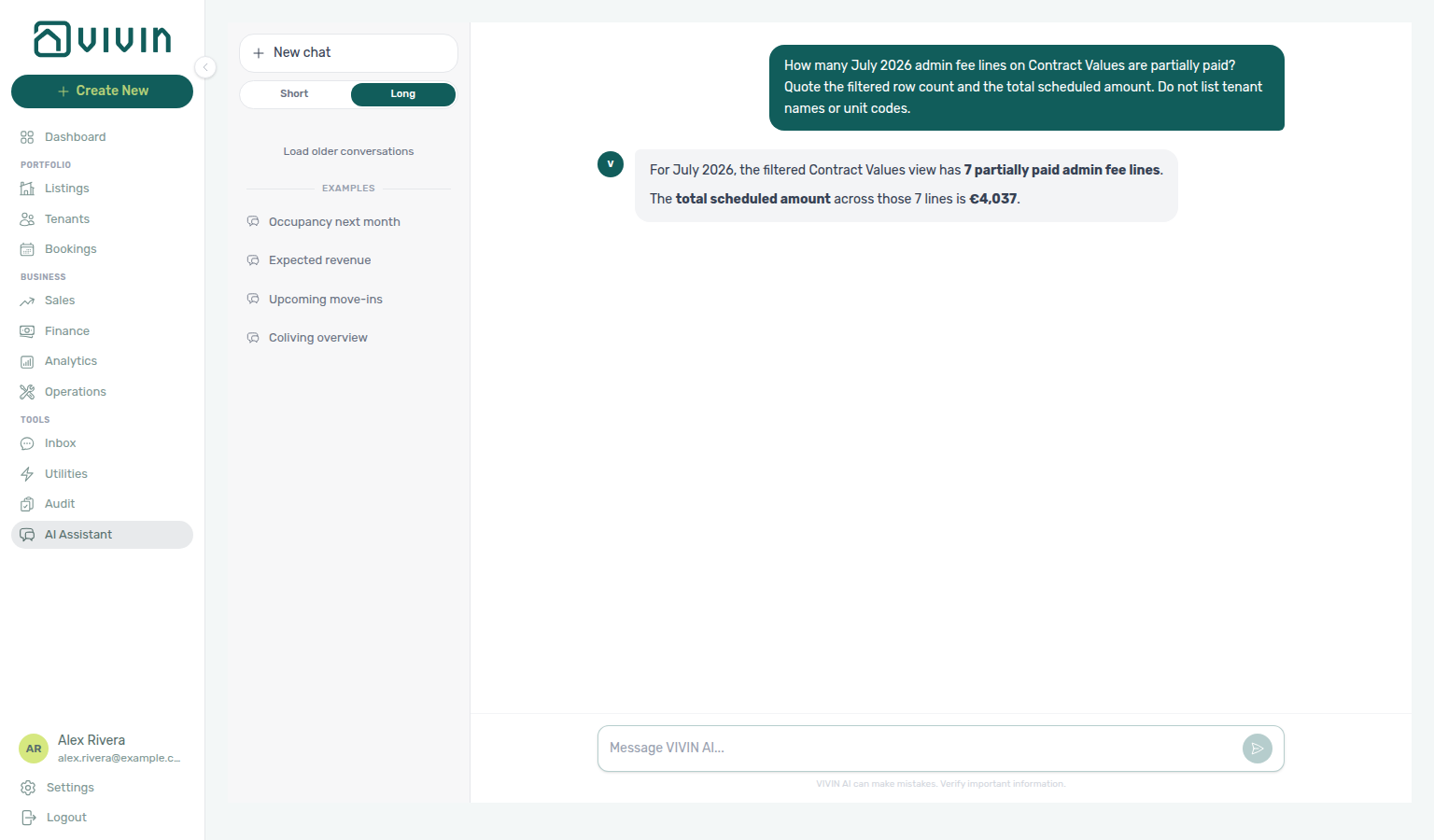
Paid admin fee lines: Ask “How many June 2026 admin fee lines on Contract Values are paid (fully paid, not partial)? Quote the filtered row count and the total scheduled amount. Do not list tenant names or unit codes.” The assistant should quote the filtered Contract Values list for that reference month — Admin fee type and paid status (the green Paid row badge) — then report the row count. That is admin-fee money that is fully paid, not the unpaid-admin-fee in debt + still scheduled money split on the Admin fee card, not the Admin fee card’s € paid chip (a money figure, not a line count), not the amber partial chip, not the grey scheduled chip, not the in-debt admin-fee line lists above, not the still-scheduled admin fee list above, not the partially paid admin-fee list above, not the window-wide paid mix across every charge type, not the paid rent, cleaning fee, others, deposit, or exit fee lists, and not the all-time tenant debt audit total. Name the month you care about — some months have paid admin fees while the current rent month does not. Trust the row count from the assistant; for the euro total, reconcile on Finance → Contract Values with the Admin fee card, the green paid chip, and Export — a chat amount can follow a different total than the filtered-row sum or a card chip. See Landlord MCP — Payment lines and summaries and FAQ — Paid admin fee lines.
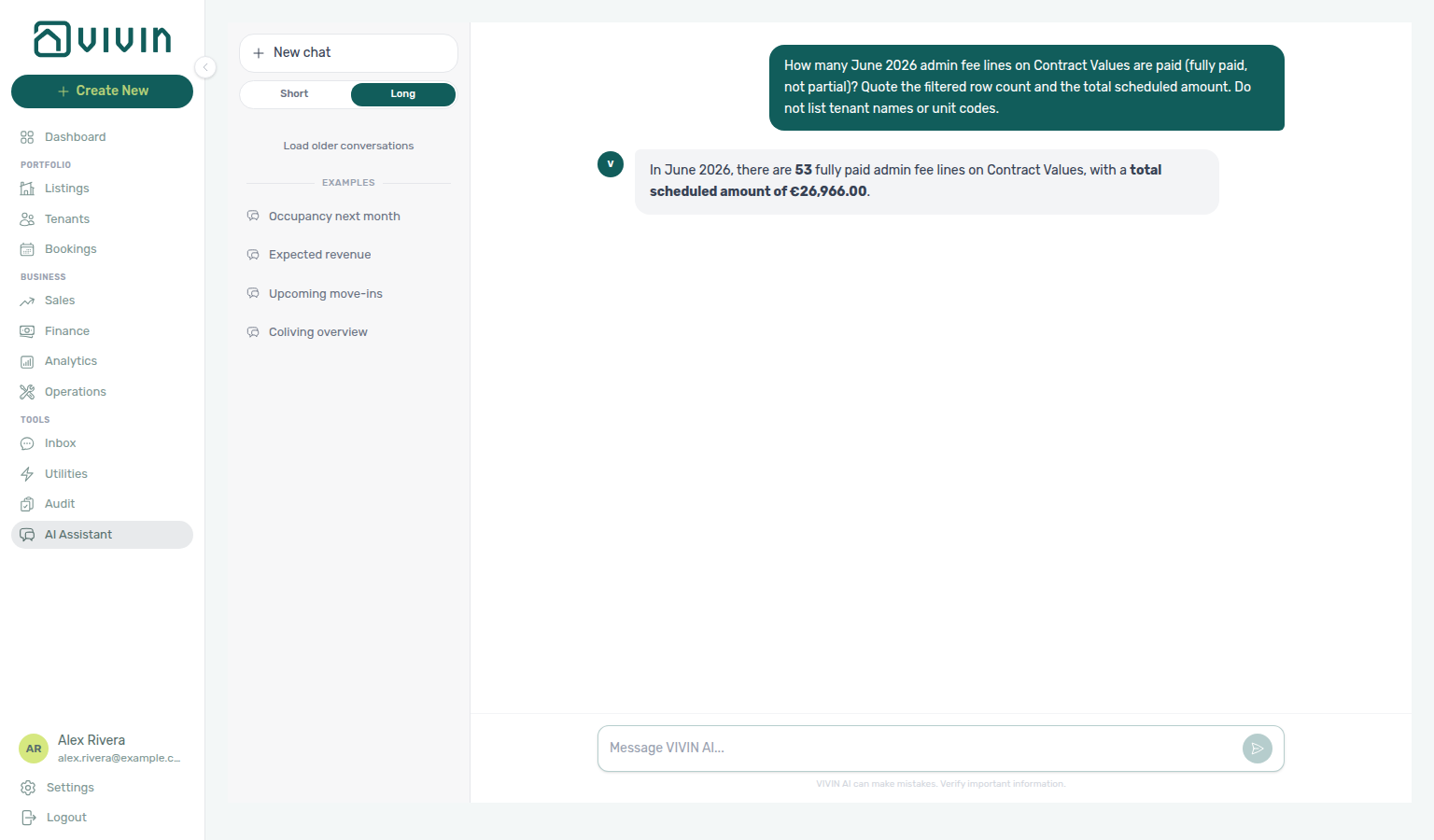
In-debt cleaning fee lines that are not yet invoiced: Ask “How many August 2026 cleaning fee lines on Contract Values are already in debt and not yet invoiced? Quote the filtered row count and the total scheduled amount. Do not list tenant names or unit codes.” The assistant should quote the filtered Contract Values list for that reference month — Cleaning fee type, in debt status, and the Not Invoiced invoice pill — then report the row count. That is overdue cleaning-fee money that does not yet have an invoice, not the unpaid-cleaning-fee in debt + still scheduled card split, not the Cleaning fee card’s full in debt chip (which still includes overdue lines that already have an invoice), and not the all-time tenant debt audit total. Trust the row count from the assistant; for the euro total, reconcile on Finance → Contract Values with the same filters and Export — a chat sum can differ from the tab. Name the month you care about. See Landlord MCP — Payment lines and summaries and FAQ — In-debt cleaning fee lines not yet invoiced.
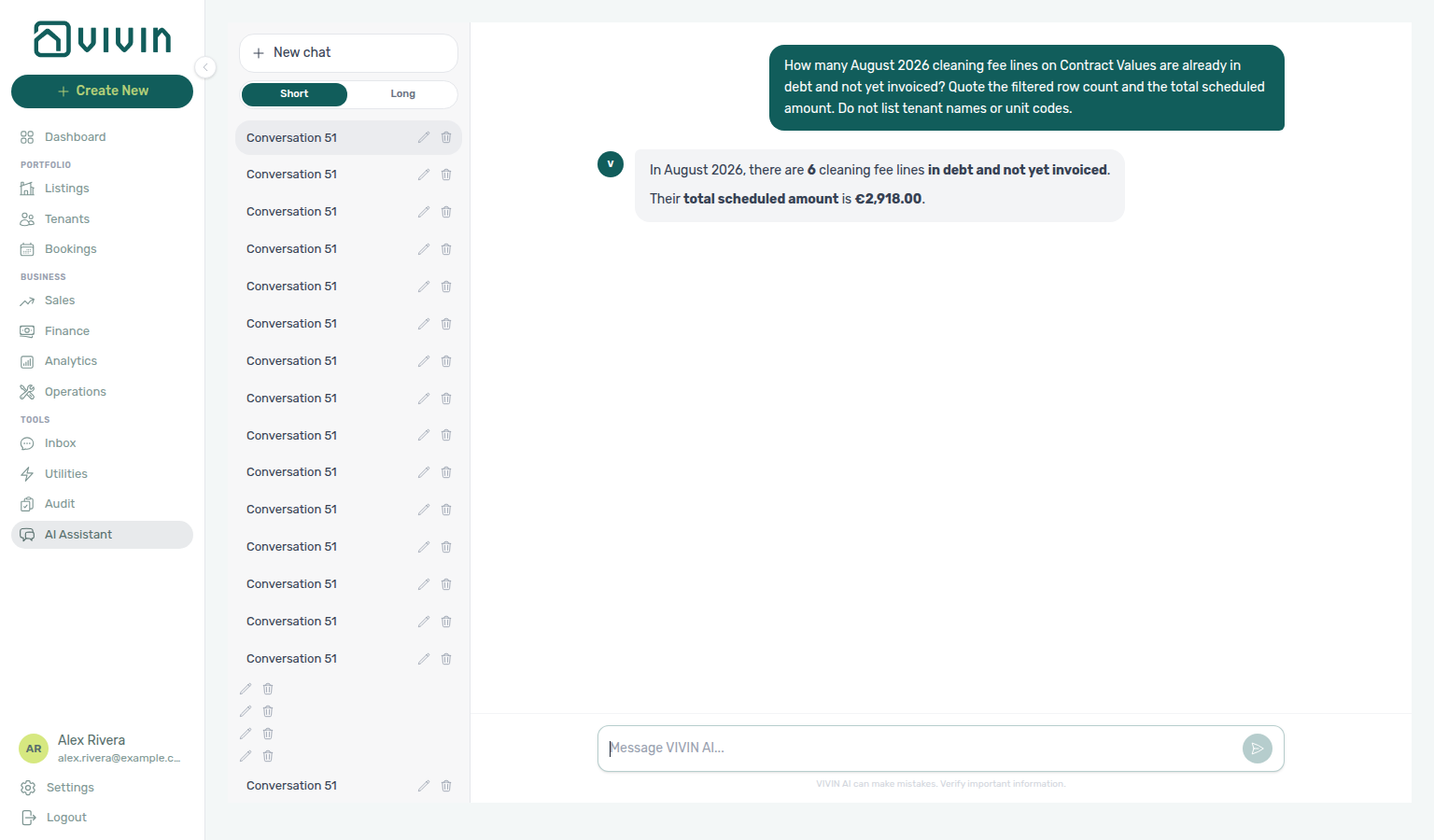
In-debt cleaning fee lines that are already invoiced: Ask “How many August 2026 cleaning fee lines on Contract Values are already in debt and already invoiced? Quote the filtered row count and the total scheduled amount. Do not list tenant names or unit codes.” The assistant should quote the filtered Contract Values list for that reference month — Cleaning fee type, in debt status, and the Invoiced invoice pill — then report the row count. That count is the overdue cleaning-fee money that already has an invoice (or a manual invoice mark), not the Not Invoiced subset, not the Cleaning fee card’s full in debt chip (which includes both), and not the all-time tenant debt audit total. Trust the row count from the assistant; for the euro total, reconcile on Finance → Contract Values with the same filters and Export — a chat sum can differ from the tab. Name the month you care about. See Landlord MCP — Payment lines and summaries and FAQ — In-debt cleaning fee lines already invoiced.
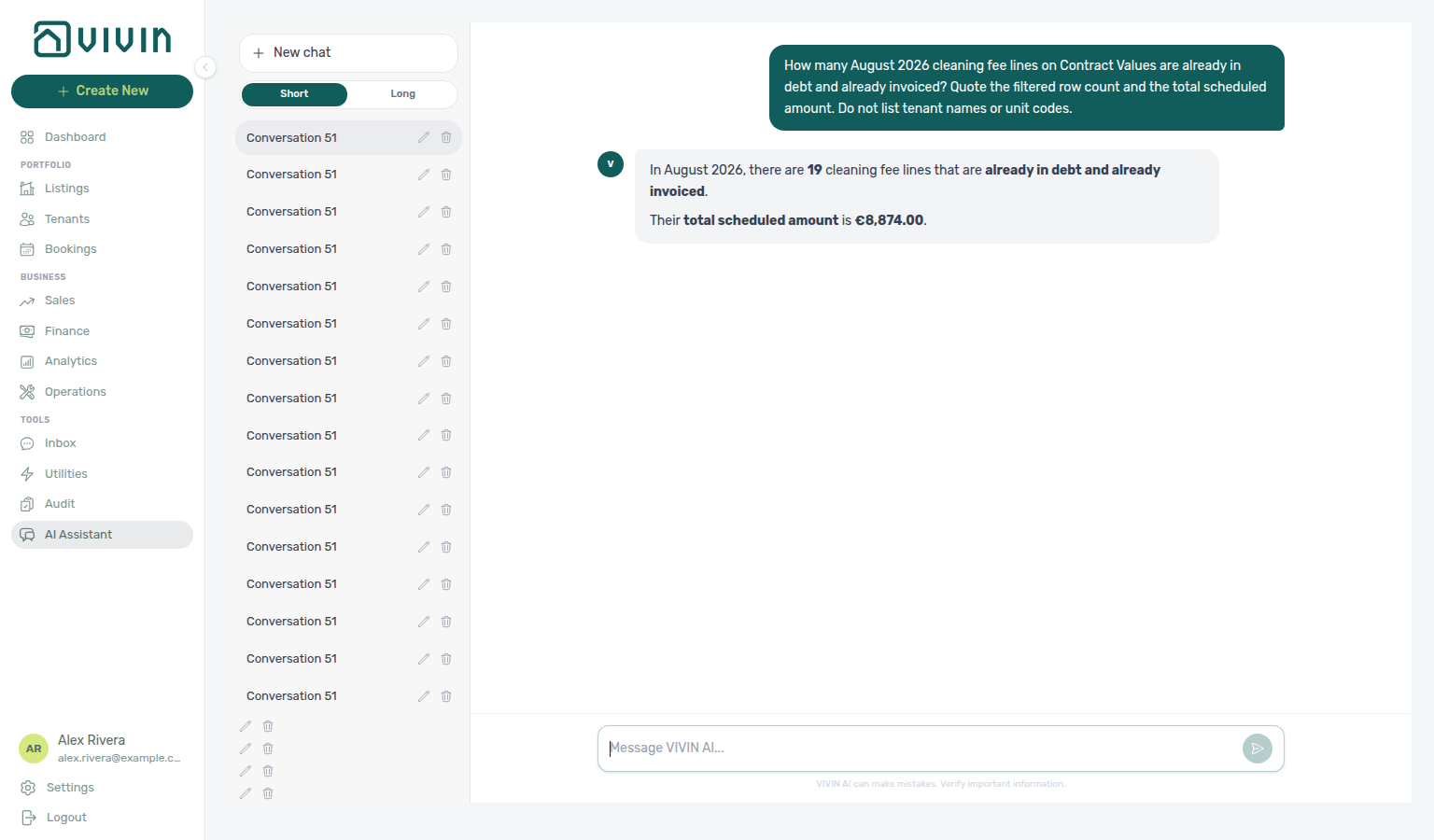
Still-scheduled cleaning fee lines: Ask “How many August 2026 cleaning fee lines on Contract Values are still scheduled (not yet due)? Quote the filtered row count and the total scheduled amount. Do not list tenant names or unit codes.” The assistant should quote the filtered Contract Values list for that reference month — Cleaning fee type and still scheduled status (the grey scheduled chip) — then report the row count. That is cleaning-fee money that is not yet due, not the unpaid-cleaning-fee in debt + still scheduled money split on the Cleaning fee card, not the in-debt cleaning-fee line lists above, not the still-scheduled rent, admin fee, or deposit lists, and not the all-time tenant debt audit total. Trust the row count from the assistant; for the euro total, reconcile on Finance → Contract Values with the Cleaning fee card, the grey scheduled chip, and Export — a chat amount can follow the card chip rather than the sum of the filtered rows. Name the month you care about. See Landlord MCP — Payment lines and summaries and FAQ — Still-scheduled cleaning fee lines.
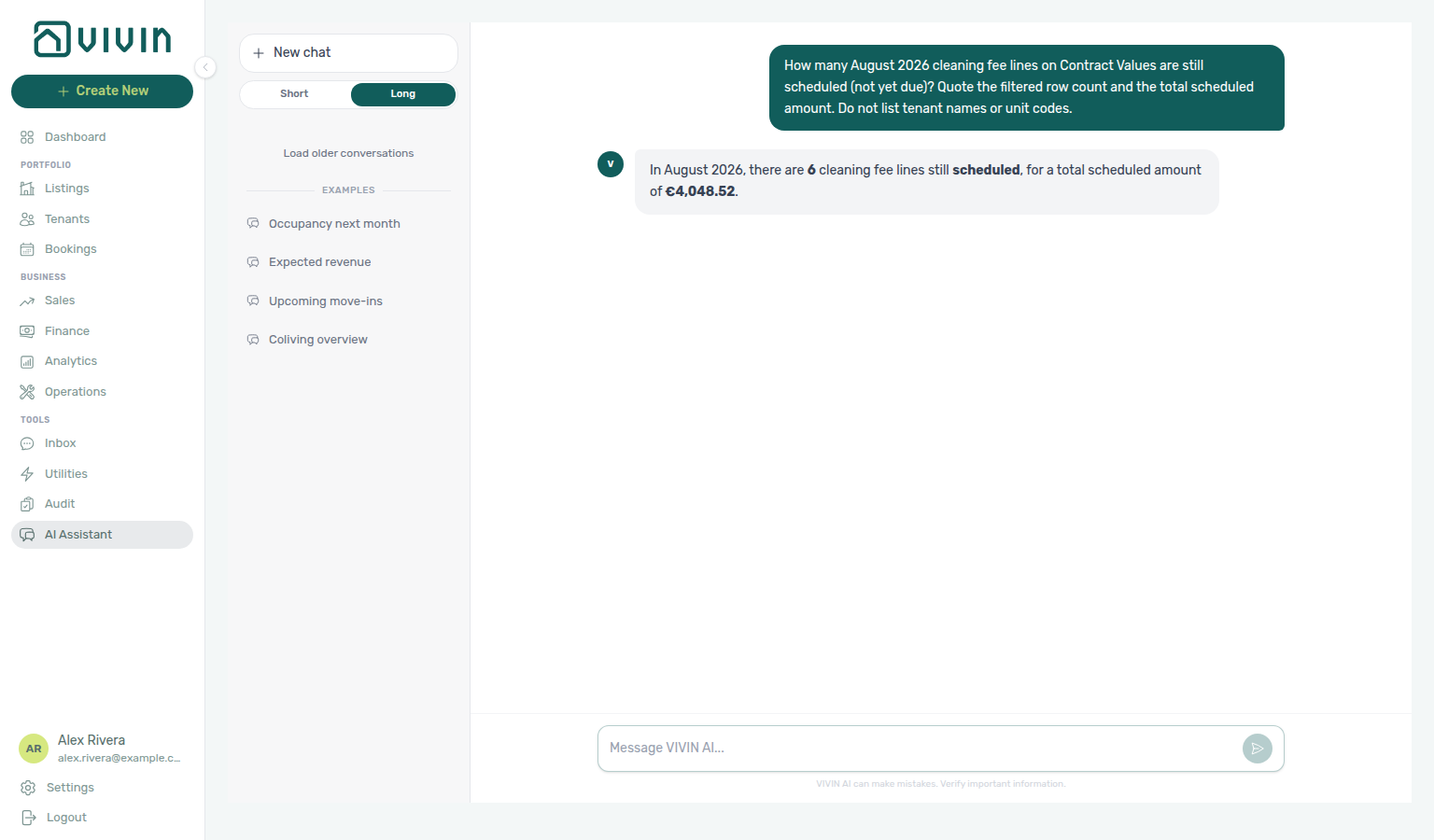
Paid cleaning fee lines: Ask “How many July 2026 cleaning fee lines on Contract Values are paid (fully paid, not partial)? Quote the filtered row count and the total scheduled amount. Do not list tenant names or unit codes.” The assistant should quote the filtered Contract Values list for that reference month — Cleaning fee type and paid status (the green Paid row badge) — then report the row count. That is cleaning-fee money that is fully paid, not the unpaid-cleaning-fee in debt + still scheduled money split on the Cleaning fee card, not the Cleaning fee card’s € paid chip (a money figure, not a line count), not the amber partial chip, not the grey scheduled chip, not the in-debt cleaning-fee line lists above, not the still-scheduled cleaning fee list above, not the window-wide paid mix across every charge type, not the paid rent, admin fee, others, deposit, or exit fee lists, and not the all-time tenant debt audit total. Name the month you care about — some months have paid cleaning fees while the current rent month does not. Trust the row count from the assistant; for the euro total, reconcile on Finance → Contract Values with the Cleaning fee card, the green paid chip, and Export — a chat amount can follow a different total than the filtered-row sum or a card chip (zero-value paid rows still count). See Landlord MCP — Payment lines and summaries and FAQ — Paid cleaning fee lines.
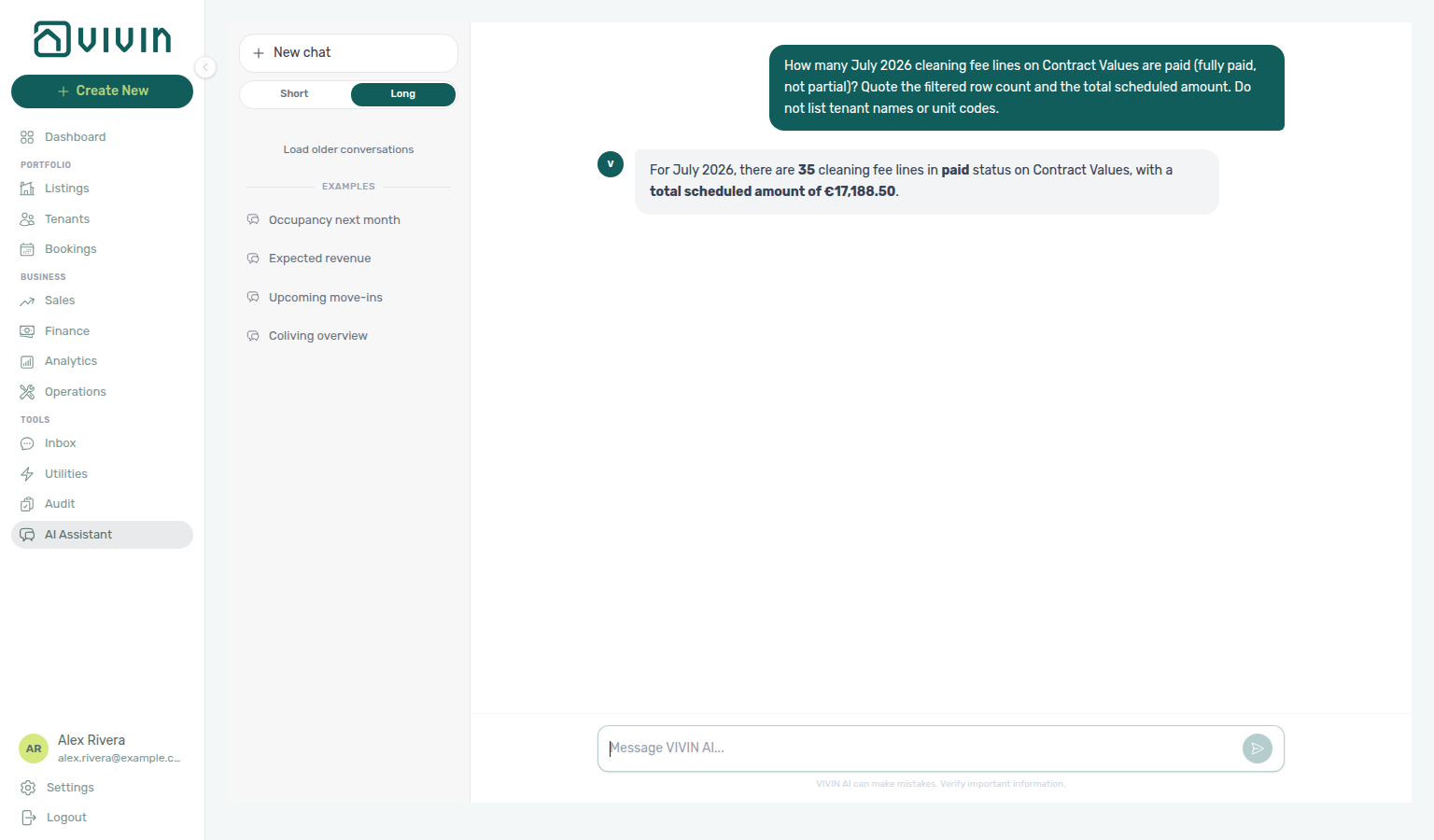
In-debt others lines that are not yet invoiced: Ask “How many August 2026 others lines on Contract Values are already in debt and not yet invoiced? Quote the filtered row count and the total scheduled amount. Do not list tenant names or unit codes.” The assistant should quote the filtered Contract Values list for that reference month — Others type, in debt status, and the Not Invoiced invoice pill — then report the row count. That is overdue miscellaneous-charge money (extra charges, marketplace lines, and similar Others items) that does not yet have an invoice, not the unpaid-others in debt + still scheduled card split, and not the all-time tenant debt audit total. If no overdue others are invoiced yet, this count can match the Others card’s in debt chip — still apply Not Invoiced so the question stays correct after invoices are issued (cleaning fees already show the gap: the Not Invoiced list is smaller than that card’s in debt chip). Trust the row count from the assistant; for the euro total, reconcile on Finance → Contract Values with the same filters and Export — a chat sum of a multi-page list can differ from the tab. Name the month you care about. See Landlord MCP — Payment lines and summaries and FAQ — In-debt others lines not yet invoiced.
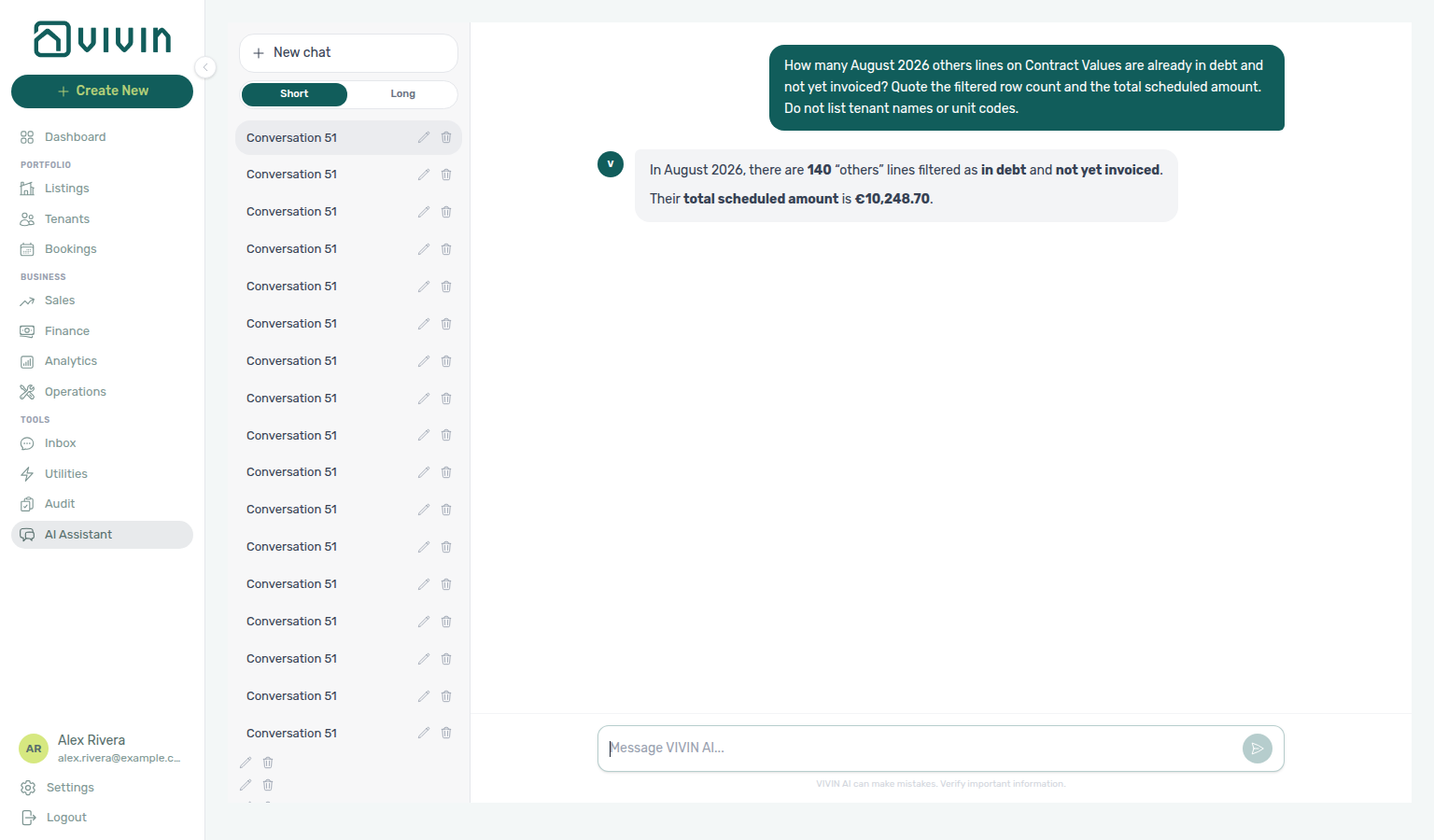
Paid others lines: Ask “How many July 2026 others lines on Contract Values are paid (fully paid, not partial)? Quote the filtered row count and the total scheduled amount. Do not list tenant names or unit codes.” The assistant should quote the filtered Contract Values list for that reference month — Others type and paid status (the green Paid row badge) — then report the row count. That is miscellaneous-charge money that is fully paid, not the unpaid-others in debt + still scheduled money split on the Others card, not the Others card’s € paid chip (a money figure, not a line count), not the amber partial chip, not the grey scheduled chip, not the in-debt others line list above, not the paid rent, cleaning fee, admin fee, deposit, or exit fee lists, not the window-wide paid mix across every charge type, and not the all-time tenant debt audit total. Name the month you care about — some months have paid others while the current rent month does not. Trust the row count from the assistant; for the euro total, reconcile on Finance → Contract Values with the Others card, the green paid chip, and Export — a chat amount can follow a card chip, or the filtered row-count call may omit a server total. See Landlord MCP — Payment lines and summaries and FAQ — Paid others lines.
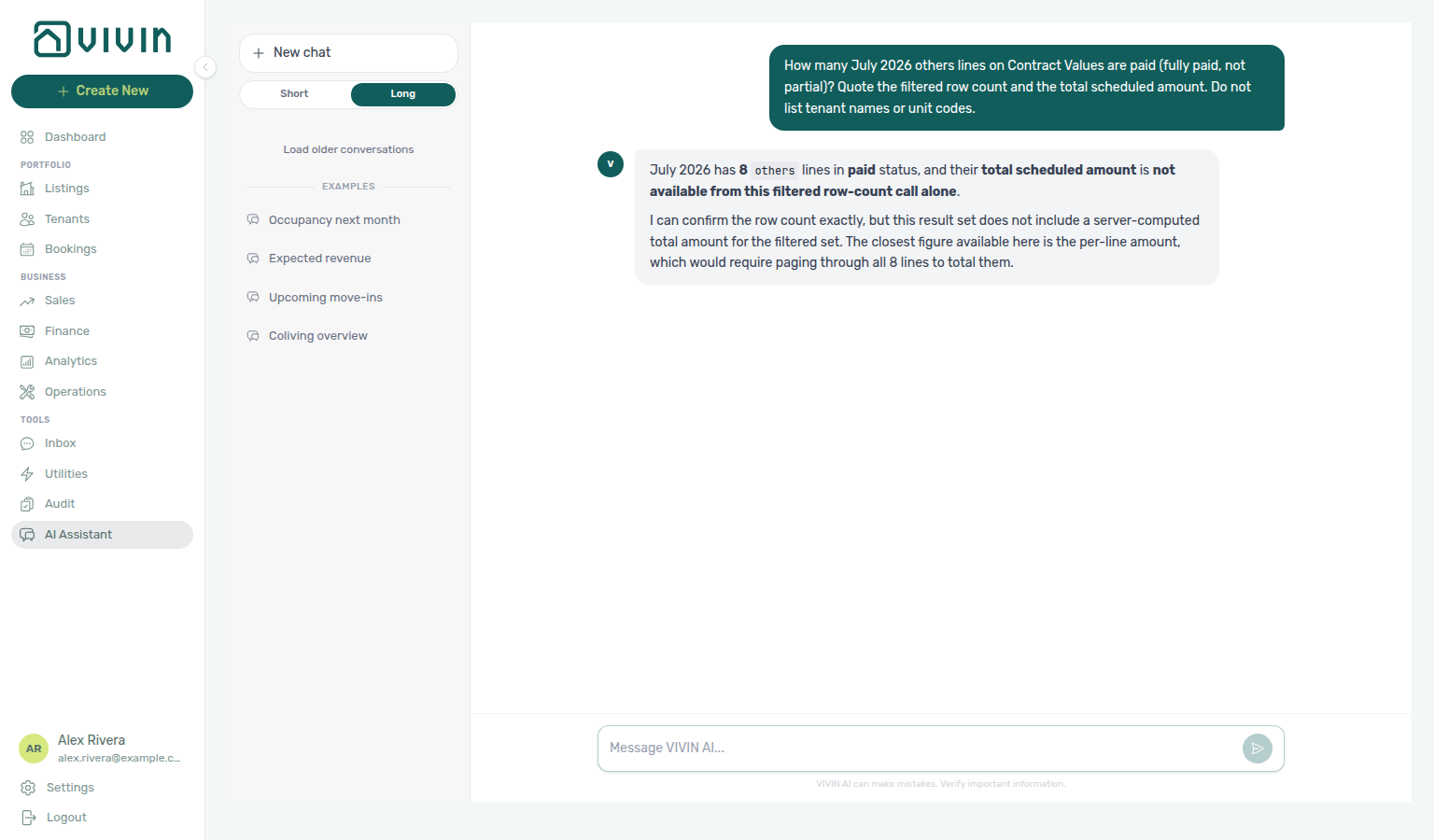
In-debt deposit lines that are not yet invoiced: Ask “How many August 2026 deposit lines on Contract Values are already in debt and not yet invoiced? Quote the filtered row count and the total scheduled amount. Do not list tenant names or unit codes.” The assistant should quote the filtered Contract Values list for that reference month — Deposit type, in debt status, and the Not Invoiced invoice pill — then report the row count. That is overdue security-deposit money that does not yet have an invoice, not the unpaid-deposits in debt + still scheduled card split, not the Deposit card’s full in debt chip (which still includes overdue deposits that already have an invoice), and not the all-time tenant debt audit total. Trust the row count from the assistant; for the euro total, reconcile on Finance → Contract Values with the same filters and Export — a chat sum can differ from the tab. Name the month you care about. See Landlord MCP — Payment lines and summaries and FAQ — In-debt deposit lines not yet invoiced.
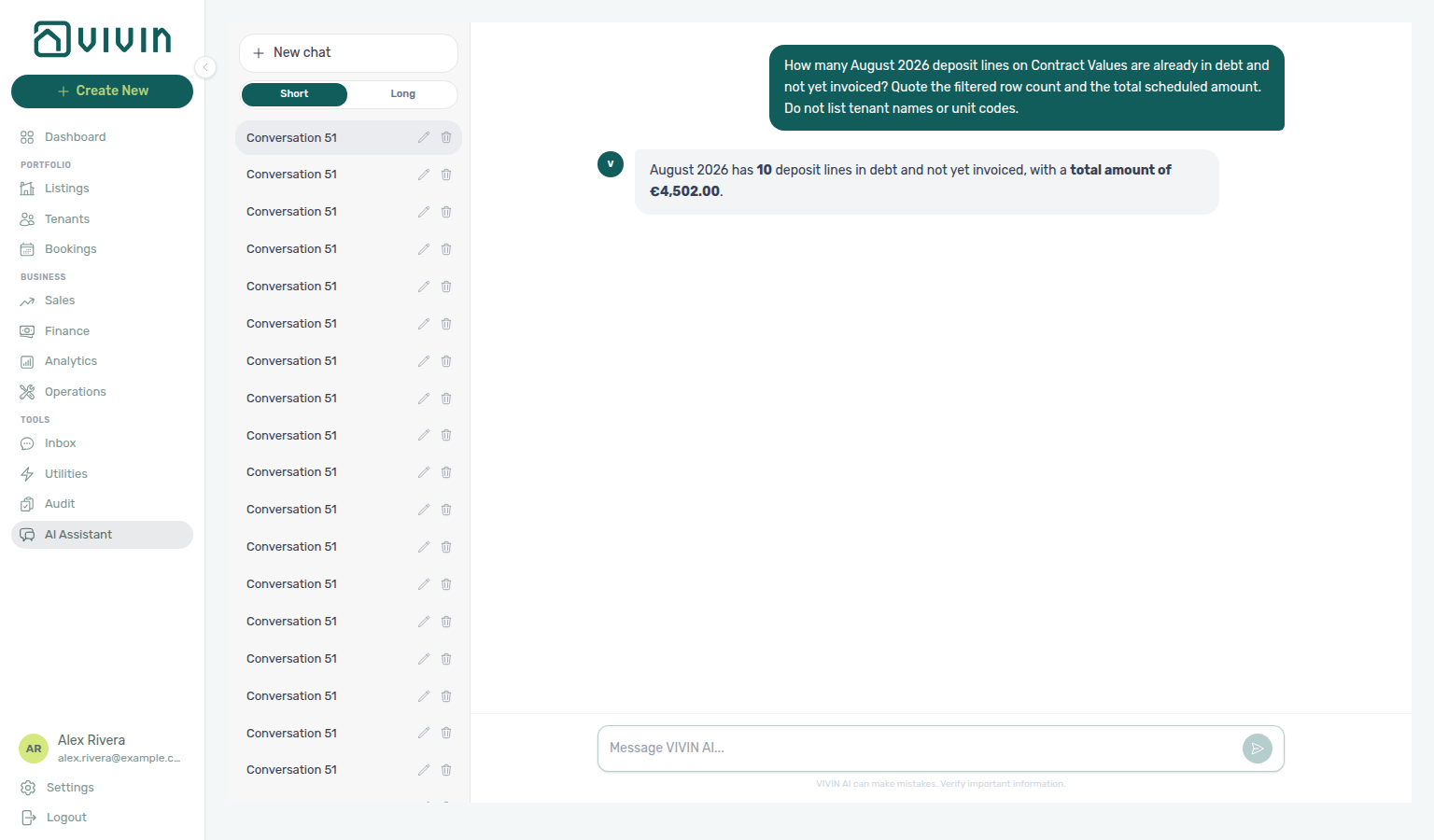
In-debt deposit lines that are already invoiced: Ask “How many August 2026 deposit lines on Contract Values are already in debt and already invoiced? Quote the filtered row count and the total scheduled amount. Do not list tenant names or unit codes.” The assistant should quote the filtered Contract Values list for that reference month — Deposit type, in debt status, and the Invoiced invoice pill — then report the row count. That count is the overdue security-deposit money that already has an invoice (or a manual invoice mark), not the Not Invoiced subset, not the unpaid-deposits in debt + still scheduled card split, not the Deposit card’s full in debt chip (which includes both invoiced and not-yet-invoiced overdue deposits), and not the all-time tenant debt audit total. Trust the row count from the assistant; for the euro total, reconcile on Finance → Contract Values with the same filters and Export — a chat sum can differ from the tab. Name the month you care about. See Landlord MCP — Payment lines and summaries and FAQ — In-debt deposit lines already invoiced.
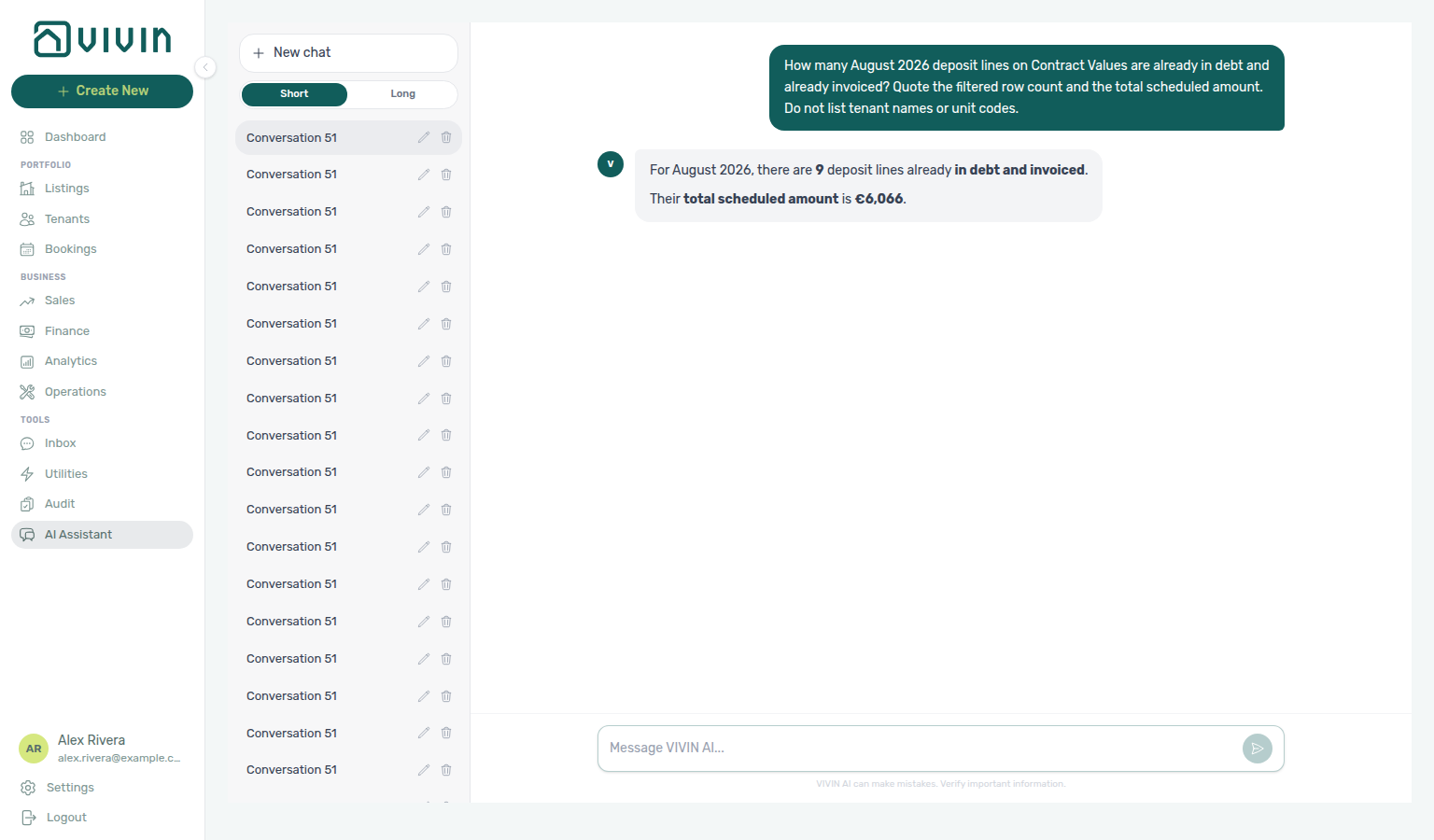
Still-scheduled deposit lines: Ask “How many August 2026 deposit lines on Contract Values are still scheduled (not yet due)? Quote the filtered row count and the total scheduled amount. Do not list tenant names or unit codes.” The assistant should quote the filtered Contract Values list for that reference month — Deposit type and still scheduled status (the grey scheduled chip) — then report the row count. That is security-deposit money that is not yet due, not the unpaid-deposits in debt + still scheduled money split on the Deposit card, not the in-debt deposit line lists above, not the partially paid deposit list below, not the still-scheduled rent, admin fee, or cleaning fee lists, and not the all-time tenant debt audit total. Trust the row count from the assistant; for the euro total, reconcile on Finance → Contract Values with the Deposit card, the grey scheduled chip, and Export — a chat amount can follow the card chip rather than the sum of the filtered rows. Name the month you care about. See Landlord MCP — Payment lines and summaries and FAQ — Still-scheduled deposit lines.
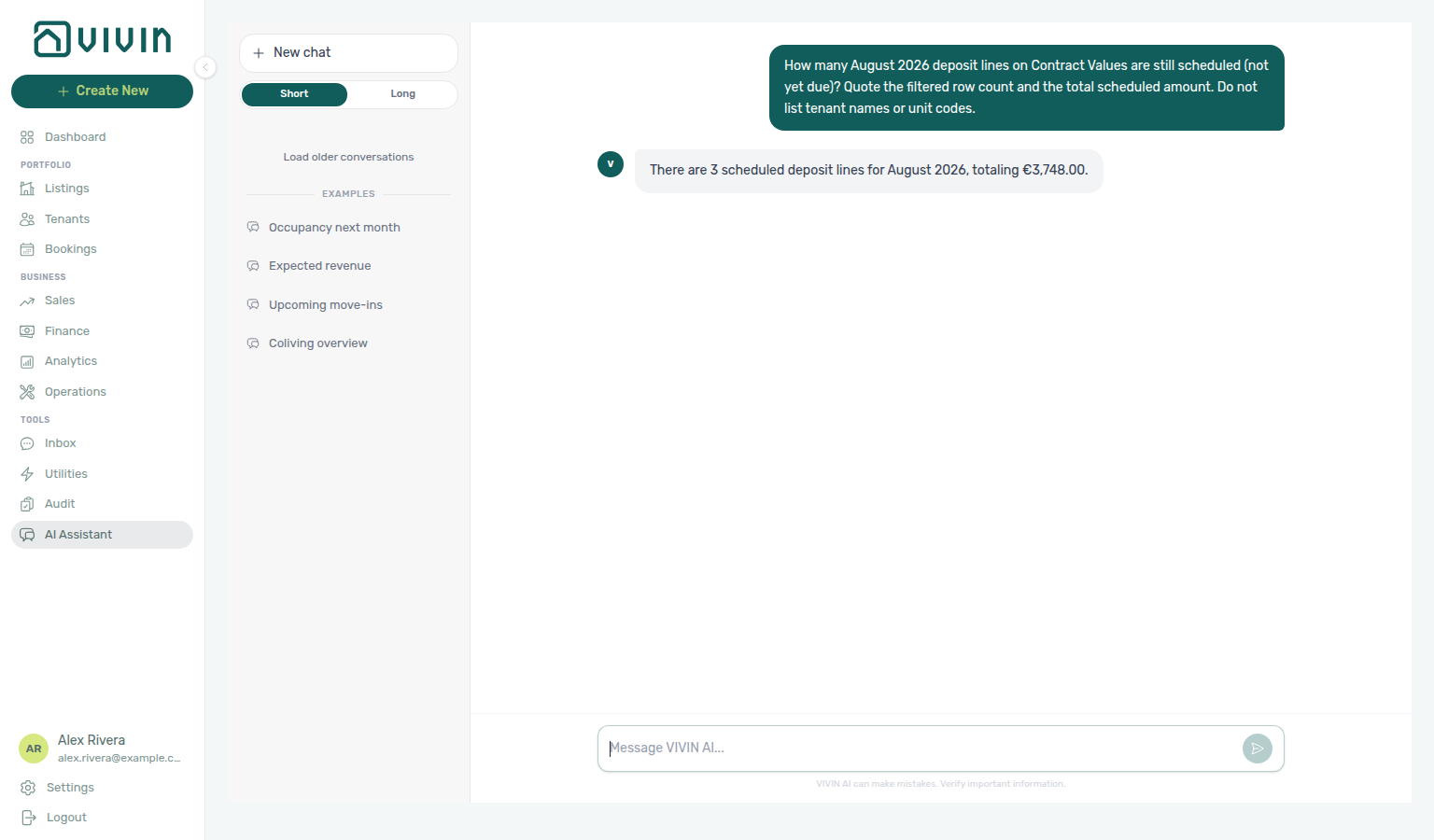
Partially-paid deposit lines: Ask “How many October 2026 deposit lines on Contract Values are partially paid? Quote the filtered row count and the total scheduled amount. Do not list tenant names or unit codes.” The assistant should quote the filtered Contract Values list for that reference month — Deposit type and partially paid status (the amber partial chip) — then report the row count. That is security-deposit money with a partial allocation, not the unpaid-deposits in debt + still scheduled money split on the Deposit card, not the grey scheduled chip, not the in-debt deposit line lists above, not the window-wide partially paid mix across every charge type, not the partially paid rent, admin fee, or exit fee lists, and not the all-time tenant debt audit total. Name the month you care about — some months have partial deposits while the current rent month does not. Trust the row count from the assistant; for the euro total, reconcile on Finance → Contract Values with the Deposit card, the amber partial chip, and Export — a chat amount can follow the sum of the filtered rows or a card chip. See Landlord MCP — Payment lines and summaries and FAQ — Partially-paid deposit lines.
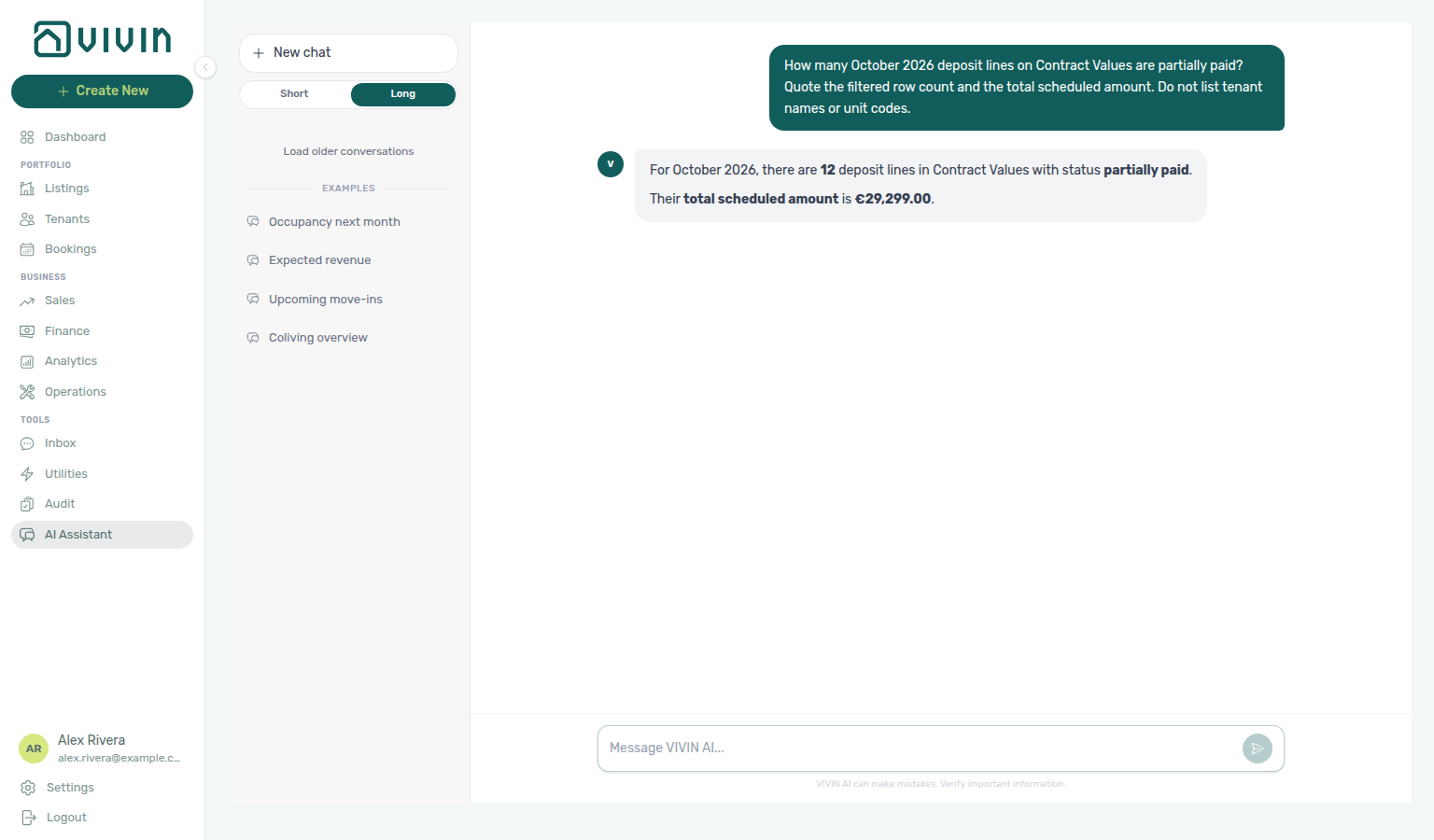
Paid deposit lines: Ask “How many July 2026 deposit lines on Contract Values are paid (fully paid, not partial)? Quote the filtered row count and the total scheduled amount. Do not list tenant names or unit codes.” The assistant should quote the filtered Contract Values list for that reference month — Deposit type and paid status (the green Paid row badge) — then report the row count. That is security-deposit money that is fully paid, not the unpaid-deposits in debt + still scheduled money split on the Deposit card, not the Deposit card’s € paid chip (a money figure, not a line count), not the amber partial chip, not the grey scheduled chip, not the in-debt deposit line lists above, not the partially paid deposit list above, not the window-wide paid mix across every charge type, not the paid rent, others, cleaning fee, admin fee, or exit fee lists, and not the all-time tenant debt audit total. Name the month you care about — some months have paid deposits while the current rent month does not. Trust the row count from the assistant; for the euro total, reconcile on Finance → Contract Values with the Deposit card, the green paid chip, and Export — a chat amount can follow the filtered rows (zero-value paid rows still count), while a card chip can differ. See Landlord MCP — Payment lines and summaries and FAQ — Paid deposit lines.
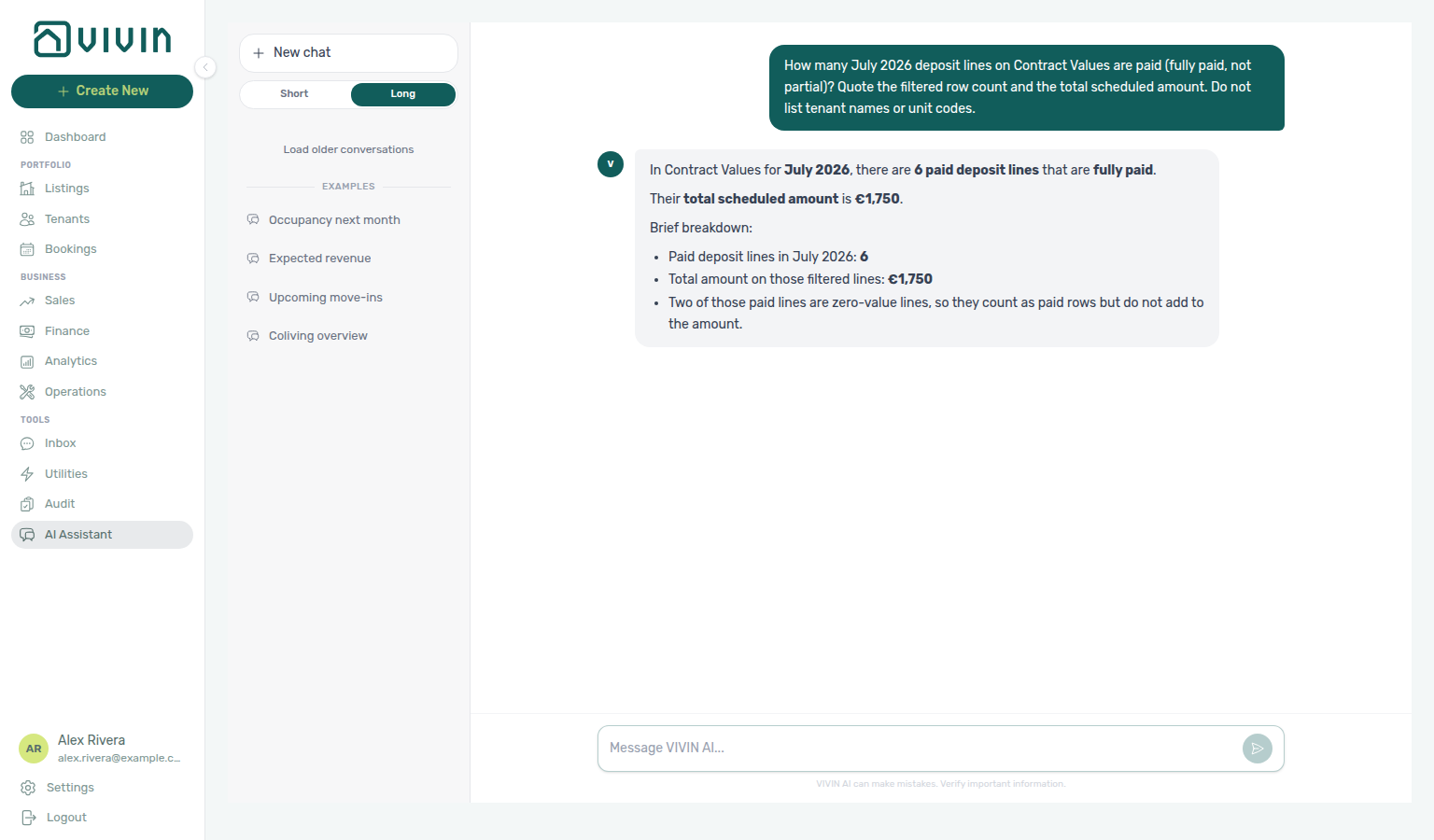
In-debt exit fee lines that are already invoiced: Ask “How many October 2026 exit fee lines on Contract Values are already in debt and already invoiced? Quote the filtered row count and the total scheduled amount. Do not list tenant names or unit codes.” The assistant should quote the filtered Contract Values list for that reference month — Exit fee type, in debt status, and the Invoiced invoice pill — then report the row count. That count is the overdue exit-fee money that already has an invoice (or a manual invoice mark), not the unpaid-exit-fee in debt + still scheduled card split, not the partially paid exit-fee list below, and not the all-time tenant debt audit total. If no overdue exit fees are still Not Invoiced, this count can match the Exit fee card’s in debt chip — still apply Invoiced so the question stays correct after uninvoiced overdue lines appear. Exit-fee lines often sit on check-out months rather than the current rent month, so name the month you care about (or a wide window). Trust the row count from the assistant; for the euro total, reconcile on Finance → Contract Values with the same filters and Export — a chat sum can differ from the tab. See Landlord MCP — Payment lines and summaries and FAQ — In-debt exit fee lines already invoiced.
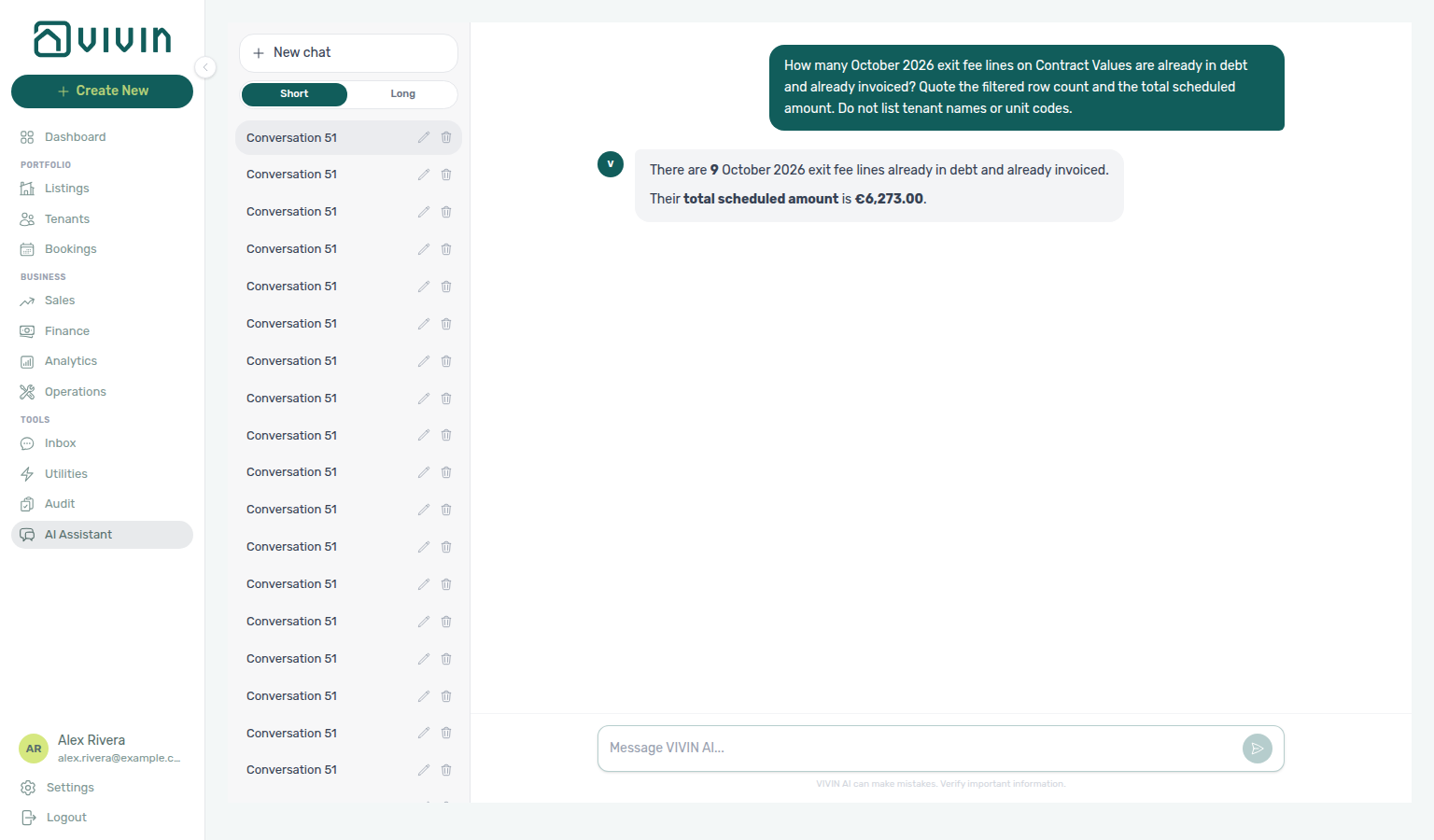
Partially-paid exit fee lines: Ask “How many October 2026 exit fee lines on Contract Values are partially paid? Quote the filtered row count and the total scheduled amount. Do not list tenant names or unit codes.” The assistant should quote the filtered Contract Values list for that reference month — Exit fee type and partially paid status (the amber partial chip) — then report the row count. That is exit-fee money with a partial allocation, not the unpaid-exit-fee in debt + still scheduled money split on the Exit fee card, not the grey scheduled chip, not the in-debt exit-fee line list above, not the window-wide partially paid mix across every charge type, not the partially paid rent, admin fee, or deposit lists, and not the all-time tenant debt audit total. Name a check-out month — some months have partial exit fees while the current rent month does not. Trust the row count from the assistant; for the euro total, reconcile on Finance → Contract Values with the Exit fee card, the amber partial chip, and Export — a chat amount can follow the sum of the filtered rows or a card chip. See Landlord MCP — Payment lines and summaries and FAQ — Partially-paid exit fee lines.
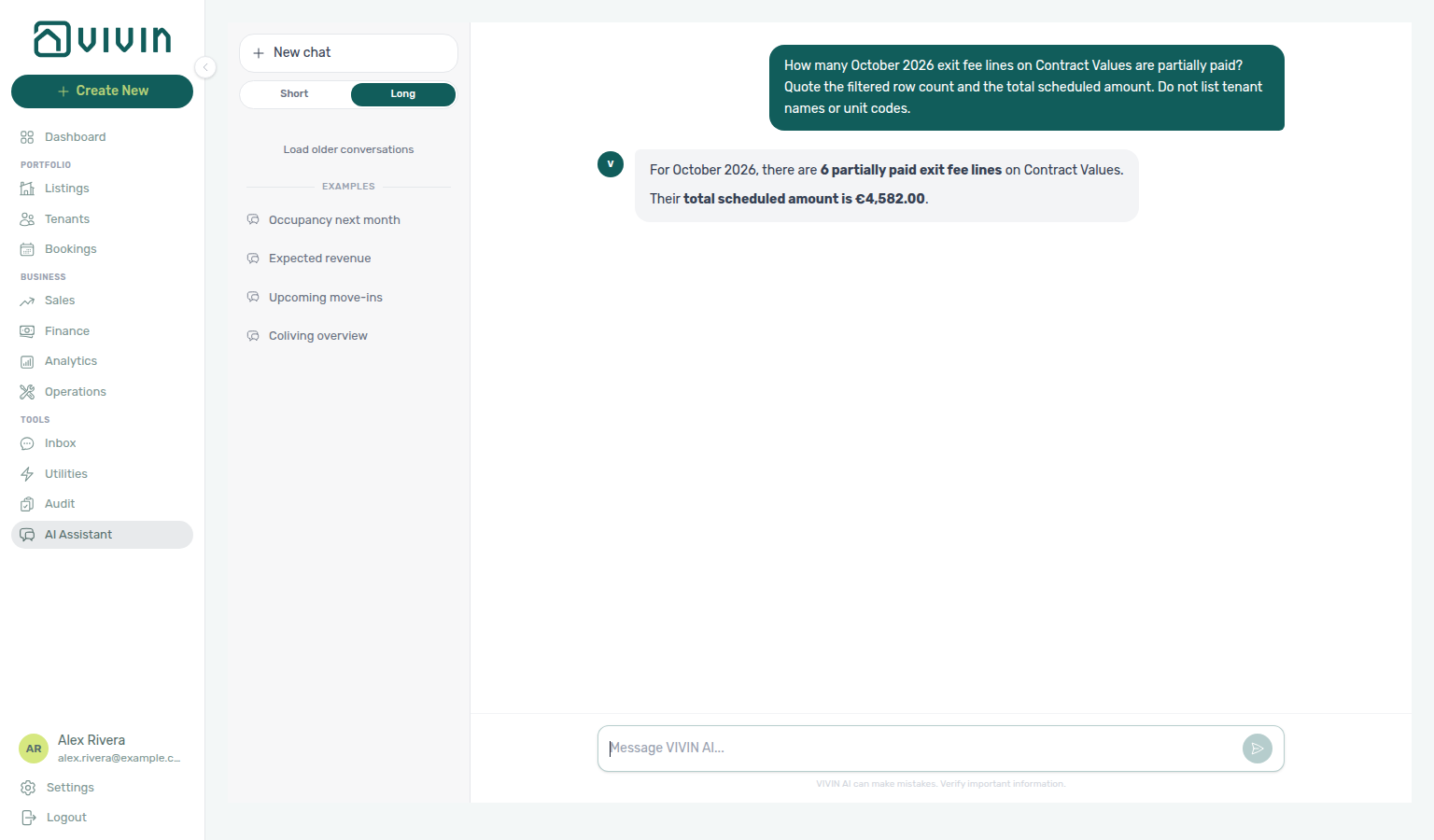
Paid exit fee lines: Ask “How many October 2026 exit fee lines on Contract Values are paid (fully paid, not partial)? Quote the filtered row count and the total scheduled amount. Do not list tenant names or unit codes.” The assistant should quote the filtered Contract Values list for that reference month — Exit fee type and paid status (the green Paid row badge) — then report the row count. That is exit-fee money that is fully paid, not the unpaid-exit-fee in debt + still scheduled money split on the Exit fee card, not the Exit fee card’s € paid chip (a money figure, not a line count), not the amber partial chip, not the grey scheduled chip, not the in-debt exit-fee line list above, not the partially paid exit-fee list above, not the window-wide paid mix across every charge type, not the paid rent, cleaning fee, others, deposit, or admin fee lists, and not the all-time tenant debt audit total. Name a check-out month — some months have paid exit fees while the current rent month does not. Trust the row count from the assistant; for the euro total, reconcile on Finance → Contract Values with the Exit fee card, the green paid chip, and Export — a chat amount can follow a different total than the filtered-row sum or a card chip. See Landlord MCP — Payment lines and summaries and FAQ — Paid exit fee lines.
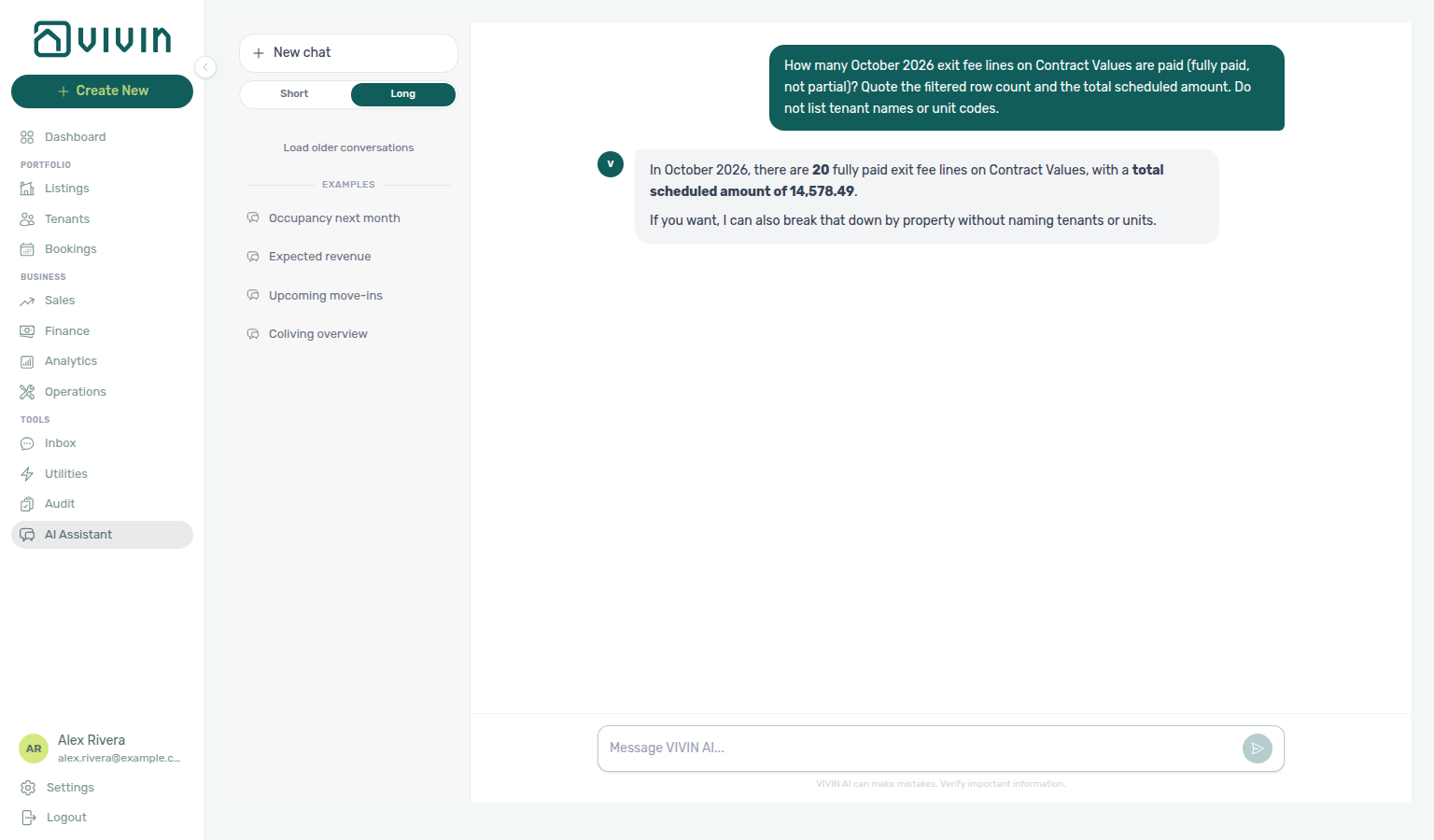
Return of value lines: Ask “How many August 2026 rent lines on Contract Values have a return of value? Quote the filtered row count. Do not list tenant names or unit codes.” The assistant should quote the filtered Contract Values list for that reference month — the Return of Value invoice pill, not the Invoiced / Not Invoiced pair and not the unpaid in debt + still scheduled card split. Trust the row count; reconcile on Finance → Contract Values — invoice filter pills (finance-contract-values-return-of-value-filter.png, finance-contract-values-invoice-filter-pills-flow.mp4). See FAQ — Contract Values invoice pills.
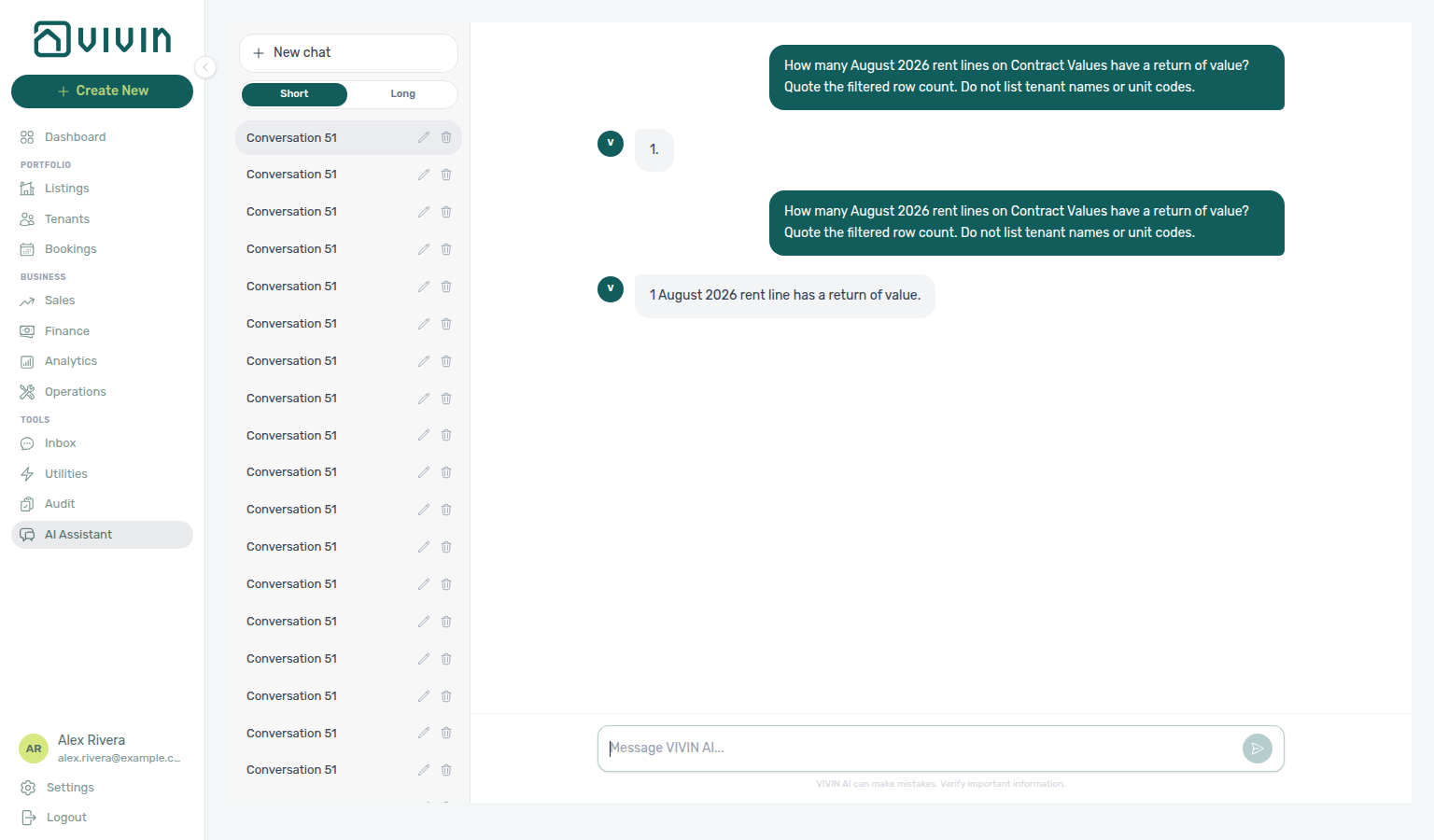
Credit note lines: Ask “How many September 2026 rent lines on Contract Values have a credit note? Quote the filtered row count. Do not list tenant names or unit codes.” The assistant should quote the Credit Notes invoice pill for that reference month — the credit-note subset of Reversals, not Return of Value and not the unpaid in debt + still scheduled card split. Name the month: some months have credit notes while the current rent month does not. Trust the row count; reconcile on Finance → Contract Values — invoice filter pills (finance-contract-values-credit-notes-filter.png). Reversals is the union of credit notes and returns of value.
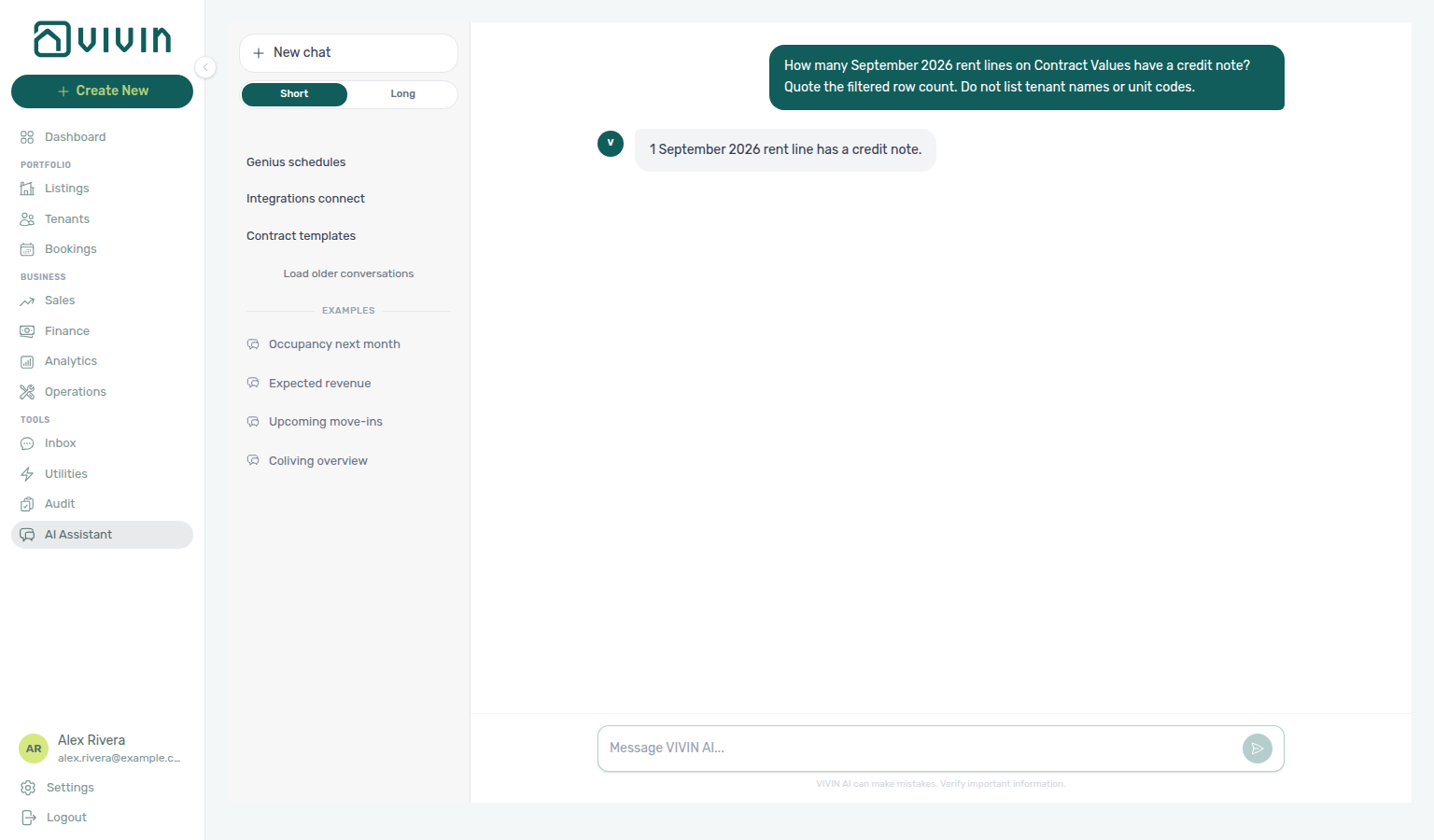
Portfolio scope (stay length vs external platforms): Ask whether income expected includes short-term stays. The assistant should say it covers every booking managed in VIVIN (short-, mid-, or long-term) and excludes revenue that exists only on Airbnb, Booking.com, or another OTA outside VIVIN. See Landlord MCP — Finance-sourced portfolio metrics and FAQ — Why don’t Genius or AI Chat revenue numbers match Analytics?.
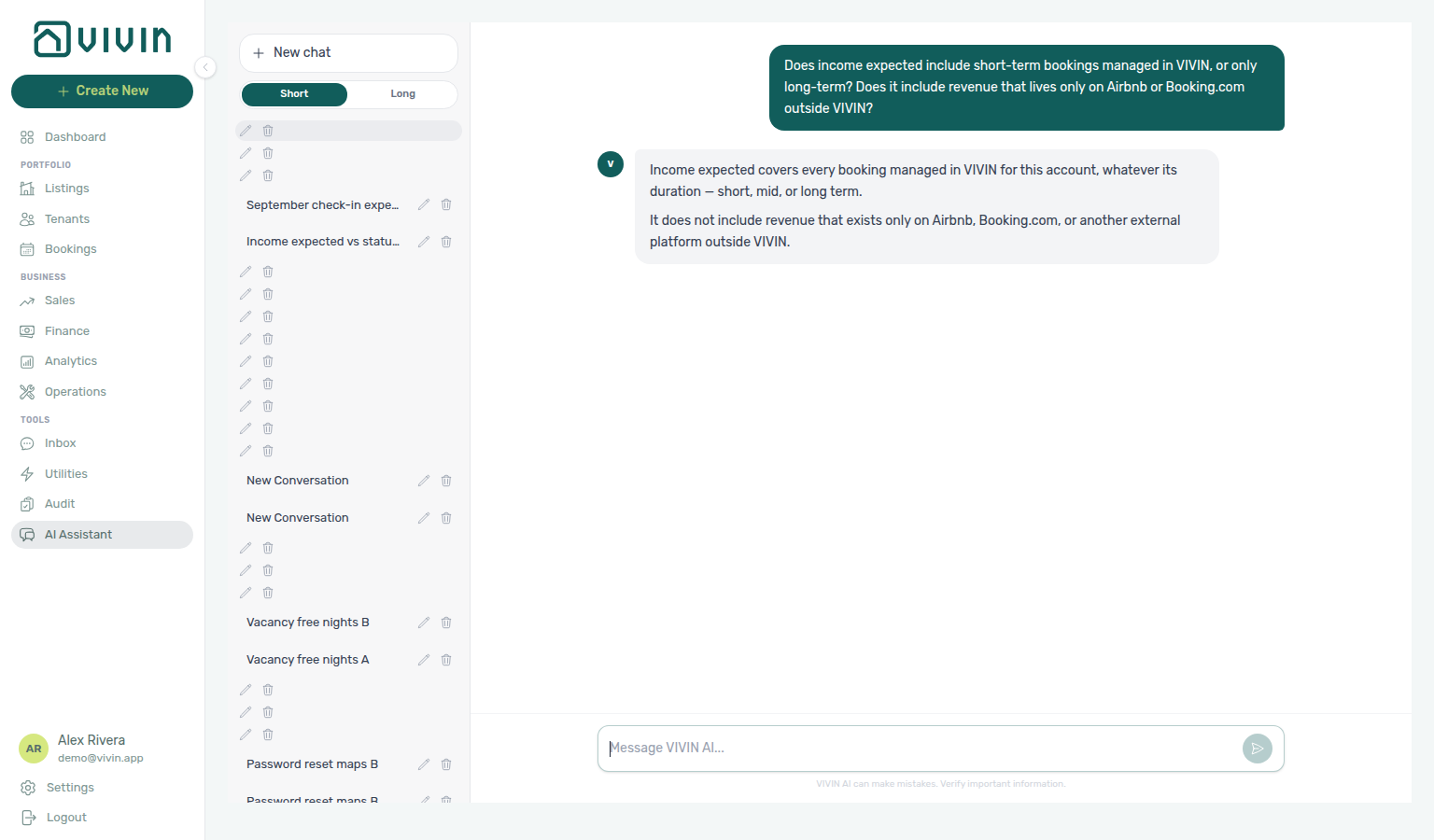
Income expected vs status split: Ask why paid + scheduled + in debt can exceed income expected. Income expected is rent-related operating income (rent, admin fee, cleaning fee, others) — it excludes security deposits and exit fees. The status split covers all charge types due in the period, so the sum can be larger. Prefer cash collected when you mean money already received. See Landlord MCP — Finance-sourced portfolio metrics and FAQ — Why don’t Genius or AI Chat revenue numbers match Analytics?.
Expected receipts between two dates: Ask “How much will I receive from 15 August through 15 September?” (or “until 15 September”). The assistant should quote cash still due in that window from the same series as Finance → Overview — Cash flow forecast — due date for money not yet collected (every charge type; early payments already counted on the day they arrived), collection date for money already in. It should name the dates it counted and should not add overdue unpaid balances unless you ask about debt. This is not income expected (reference month) and not check-in money (move-in requirements). See FAQ — Expected receipts between two dates and Landlord MCP — Expected receipts.
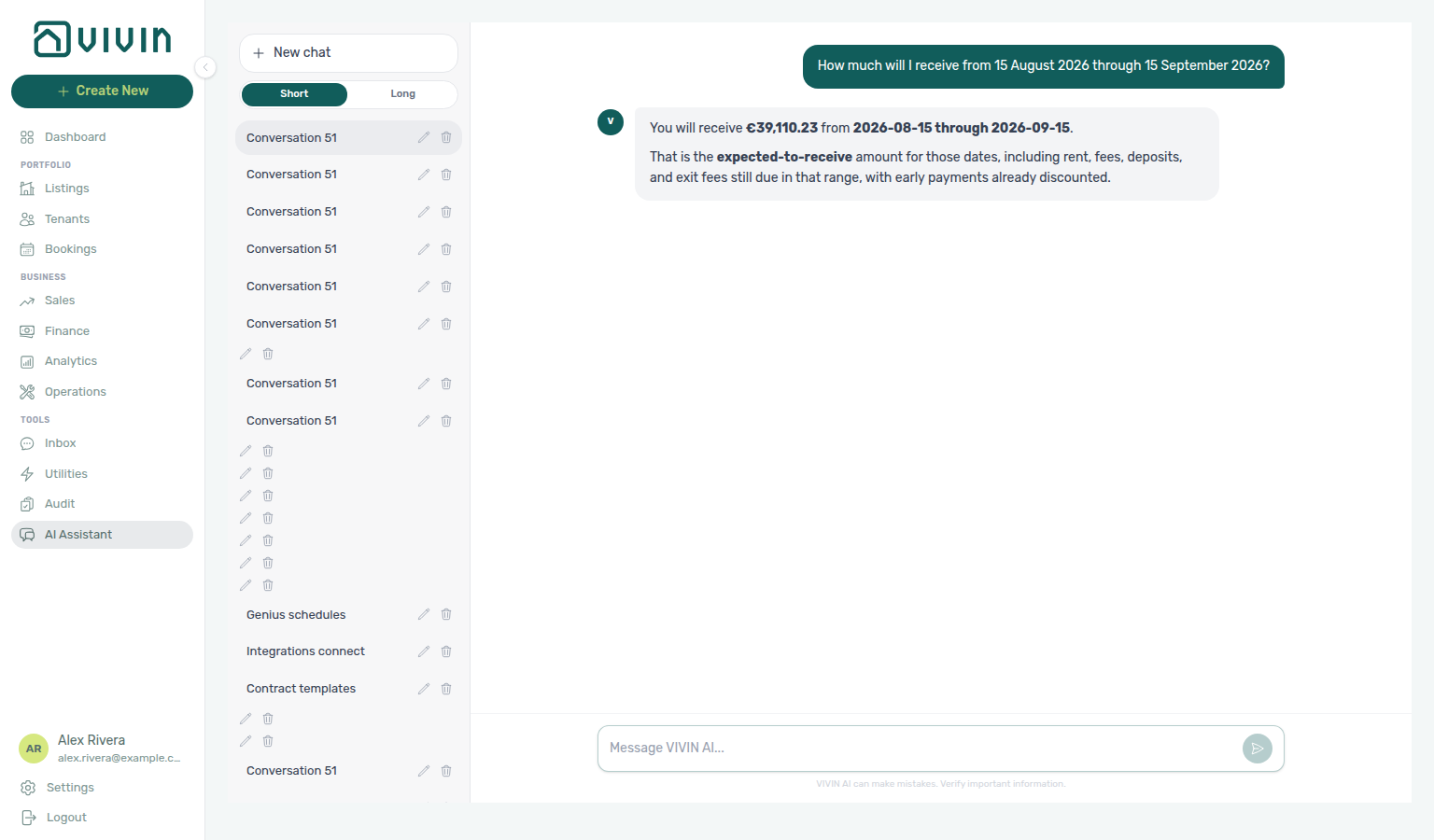
Cash in: net vs gross (June 2026)
Ask “How much came in in June 2026?” when you want cash that already arrived in a named settled month — not income expected, not expected receipts between two dates (still due), and not check-in money. Finance → Overview keeps two cash-in bases for the same month, and they can differ when deposit refunds or reversals posted:
| Basis | Where you reconcile | Refunds |
|---|---|---|
| Net | System Payments + Manual Payments cards (same total as cash collected) | Subtract |
| Gross | Cash-flow chart Past bar for that month | Excluded |
Ask the assistant to quote both and say which is which. Keep Analytics enabled on AI / MCP. Reconcile on Finance → Overview for the same month. See Landlord MCP — Cash in: net vs gross and FAQ — How much came in.
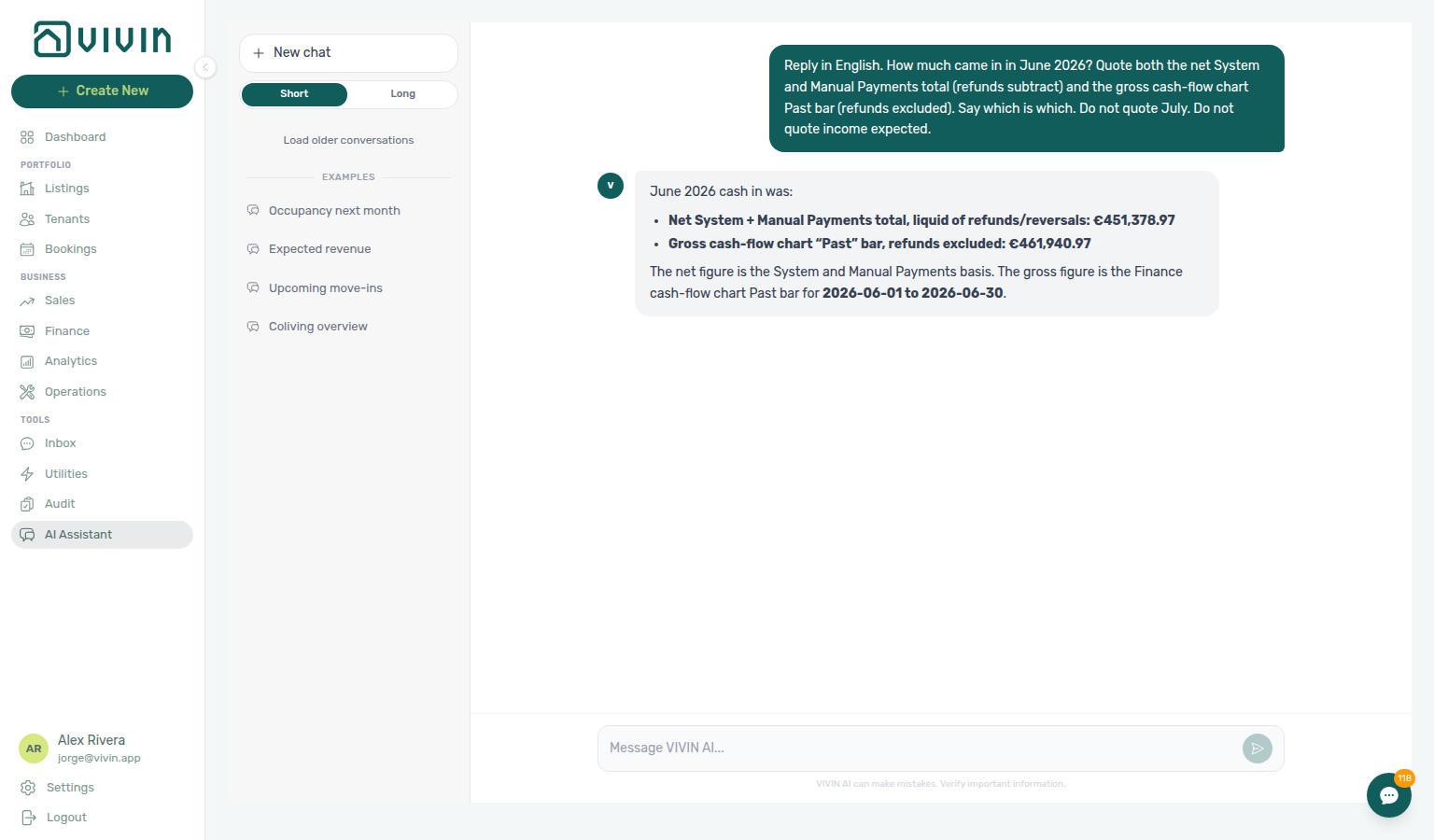
Expected check-in money: Ask “How much will I receive from September check-ins?” (or any month). The assistant should quote the server-computed expected check-in value for that month — first rent, last-month rent, admin fee, and deposit on move-in requirements, net of adjustments, not reduced by amounts already paid — and say whether the month is fully inside the look-ahead window. Do not treat a sum of the sample move-in rows as the portfolio total. If you meant calendar cash by due date rather than move-in totals, ask without the word check-ins — see Expected receipts between two dates. See FAQ — How do Genius and AI Chat quote check-in money?.
Bookings received: Ask “How many bookings did I receive today?” or pass an explicit range (“from 1 August through 13 August”). The assistant uses get-booking-summary with a creation window and should name the exact dates it counted. The headline is bookings created in VIVIN during that window; replies can also split channel / imported vs already canceled. For channel stays, creation means import time into VIVIN, which can differ from the guest’s click time on an OTA portal. Status counts (active / upcoming) stay separate — they describe the portfolio right now, not creations in the window. See Landlord MCP — Bookings received and FAQ — Bookings received.
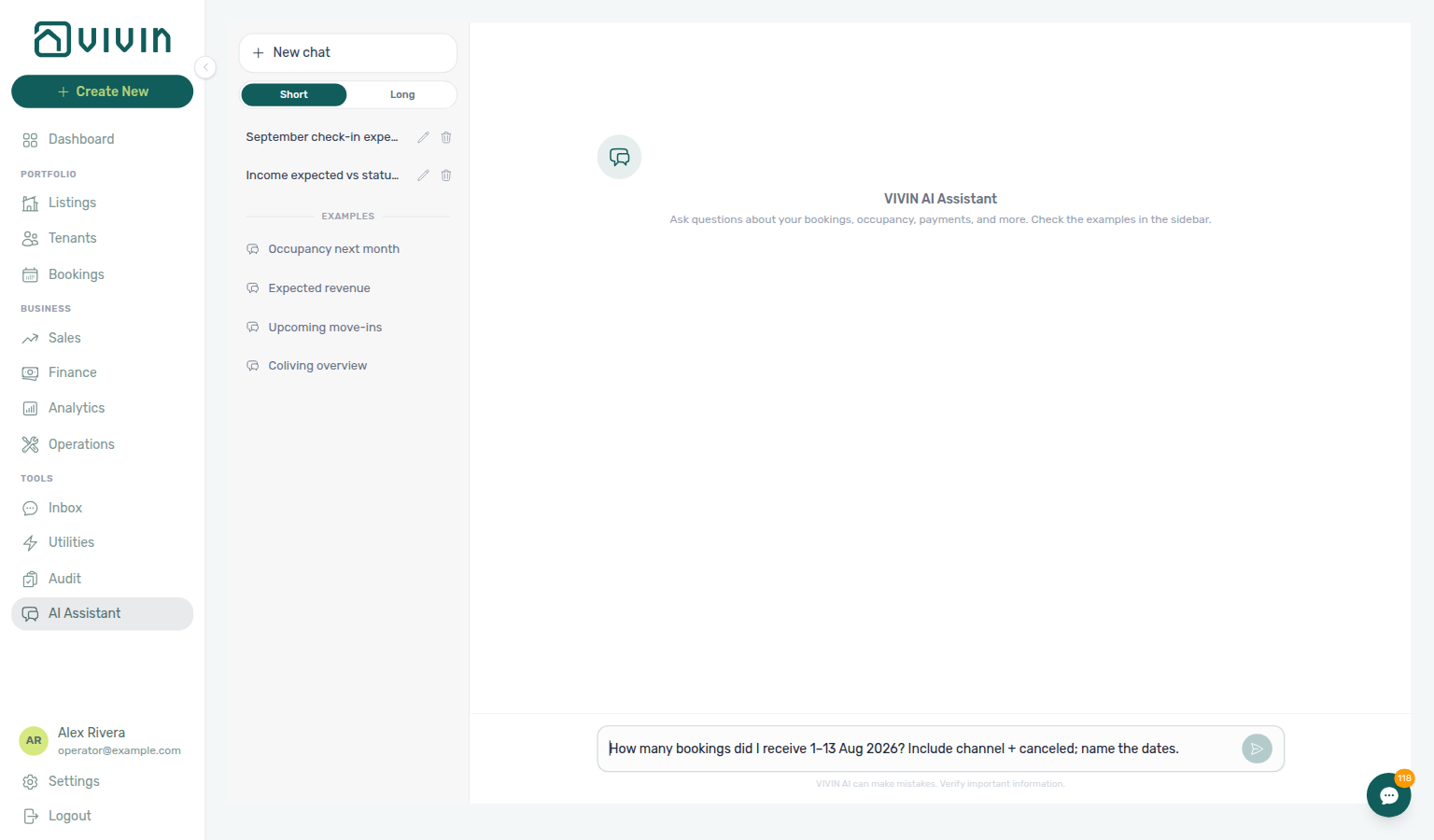
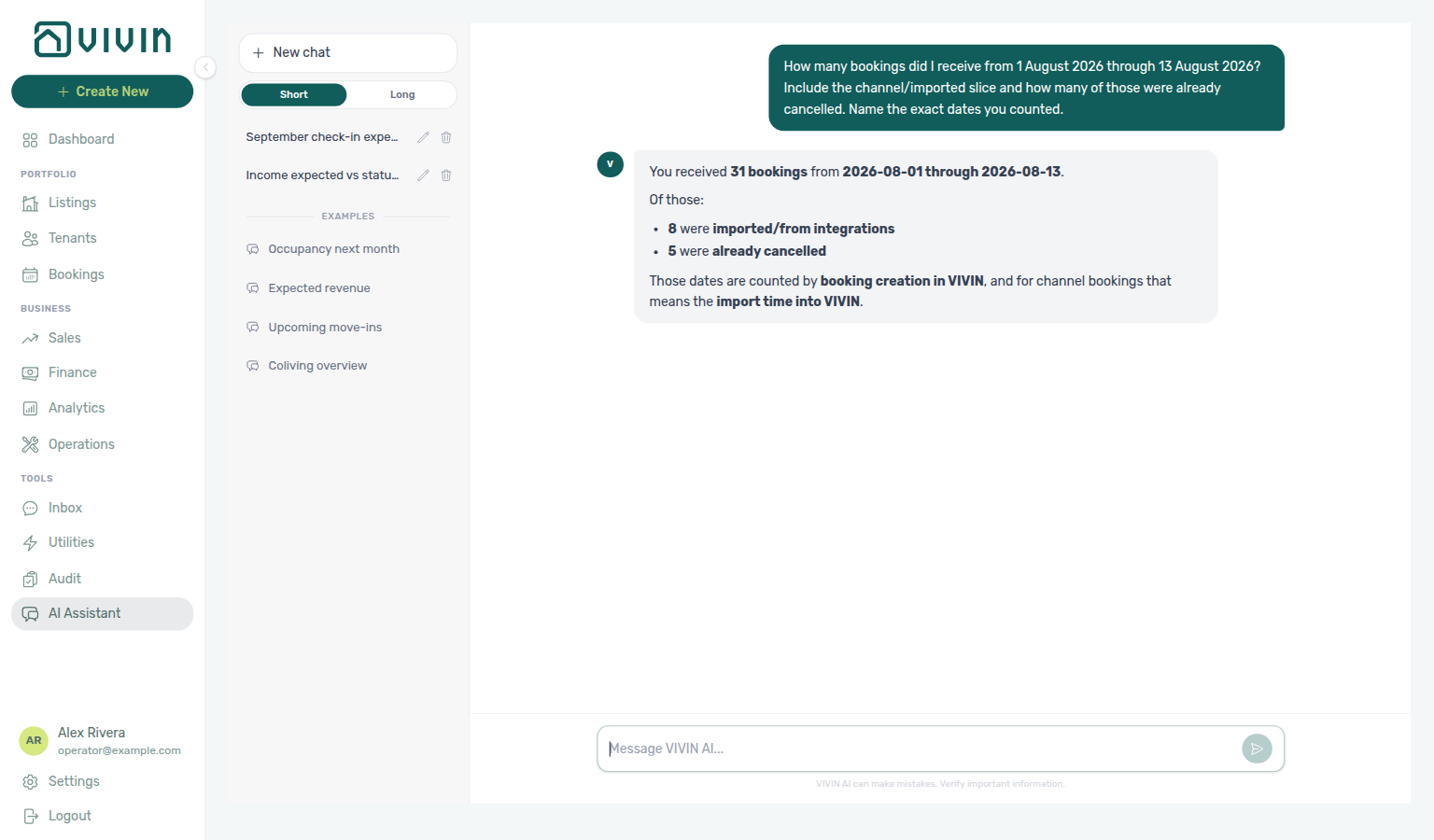
Ticket status counts
Ask “How many maintenance tickets do I have?” when you want whole-account status totals, not a list of ticket titles, properties, or assignees. The assistant uses get-ticket-status-counts — a server total that is never truncated — instead of counting a list-tickets page. The default ticket list omits Closed and Cancelled, so a first-page row count understates the portfolio. Status totals include All (every ticket, including Closed, Cancelled, and Duplicate — Duplicate is in All only), Unassigned, Draft (display status: Unassigned or In progress tickets whose Schedule date is more than 30 days ahead — see Operations — Draft status), In progress, Completed (same bucket as Closed on Operations → Tickets), and Cancelled. For the five chips under the All card, ask by priority. For the chips under Unassigned only, ask by unassigned priority. For the chips under Draft only, ask by draft priority. For the chips under In progress only, ask by in-progress priority. For the chips under Closed only (Genius Completed), ask by closed priority. For the chips under Cancelled only, ask by cancelled priority. Keep Maintenance enabled on AI / MCP. Reconcile with the status cards on Operations → Tickets with Overdue off — when Overdue is on, those cards shrink to overdue tickets only and will not match the Genius All total. See Landlord MCP — Ticket status counts and FAQ — Ticket status counts.
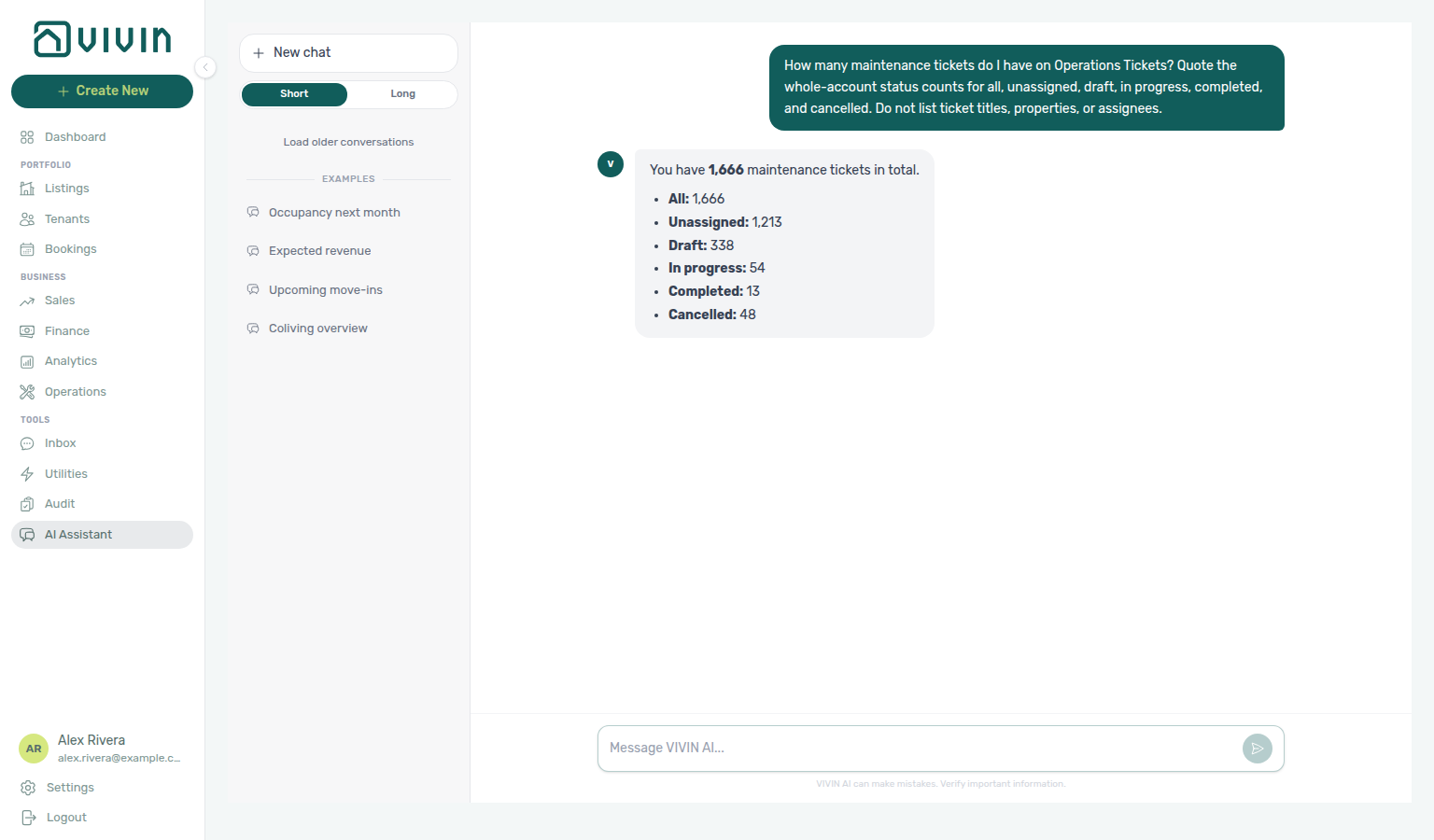
Ticket priority counts
Ask “How many maintenance tickets do I have by priority?” when you want whole-account priority totals on the All card — Critical, High, Medium, Low, and None — not a list of ticket titles. The assistant uses the same get-ticket-status-counts call as ticket status counts; the five chips under All always add up to All. None means tickets with no priority set. Do not count a filtered list-tickets page, and do not treat the Unassigned, Draft, In progress, Closed, or Cancelled card chips as the portfolio mix (those cards are only tickets with no assignee, far-future Draft rows, tickets currently in progress, all-time Closed, or all-time Cancelled — see unassigned priority counts, draft priority counts, in-progress priority counts, closed priority counts, and cancelled priority counts). Reconcile on Operations → Tickets — status-card priority chips with Overdue off. Keep Maintenance enabled on AI / MCP. See Landlord MCP — Ticket status counts and FAQ — Ticket priority counts.
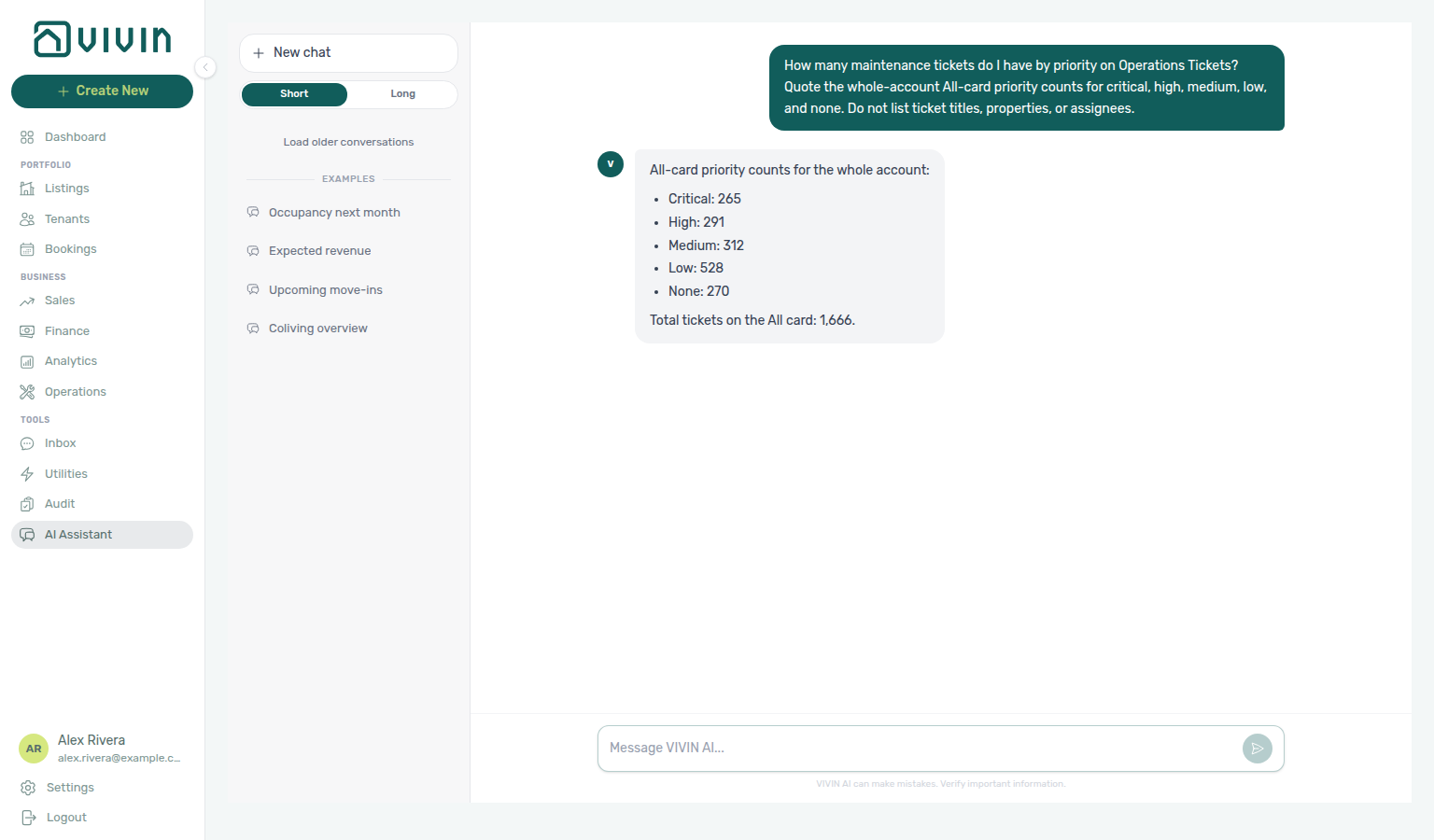
Ticket unassigned priority counts
Ask “How many unassigned maintenance tickets do I have by priority?” when you want the five chips under the Unassigned card — Critical, High, Medium, Low, and None — not the whole-account All mix, and not a list of ticket titles. The assistant uses the same get-ticket-status-counts call as ticket status counts; those five chips always add up to Unassigned. Unassigned is tickets with no assignee, excluding far-future Draft display rows. None means tickets with no priority set. Do not count a filtered list-tickets page, and do not quote the All or In progress card chips for this ask. Reconcile on Operations → Tickets — status-card priority chips with Overdue off, then open the Unassigned card. Keep Maintenance enabled on AI / MCP. See Landlord MCP — Ticket status counts and FAQ — Ticket unassigned priority counts.
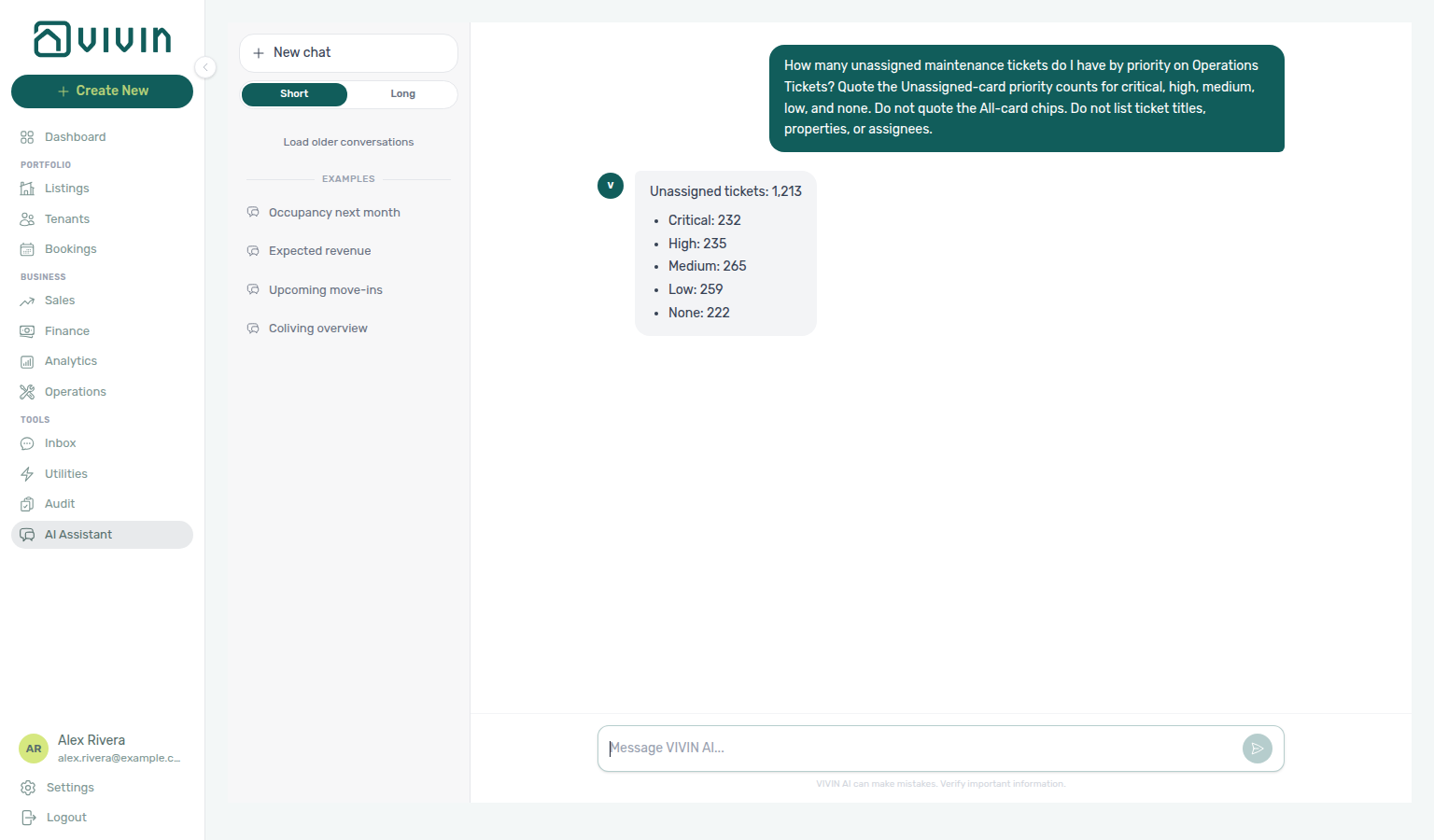
Ticket draft priority counts
Ask “How many draft maintenance tickets do I have by priority?” when you want the five chips under the Draft card — Critical, High, Medium, Low, and None — not the whole-account All mix, not the Unassigned intake mix, not the In progress queue, and not a list of ticket titles. The assistant uses the same get-ticket-status-counts call as ticket status counts; those five chips always add up to Draft. Draft is a display status: Unassigned or In progress tickets whose Schedule date is more than 30 days ahead (see Operations — Draft status). None means tickets with no priority set. Do not count a filtered list-tickets page, and do not quote the All, Unassigned, or In progress card chips for this ask. Reconcile on Operations → Tickets — status-card priority chips with Overdue off, then open the Draft card. Keep Maintenance enabled on AI / MCP. See Landlord MCP — Ticket status counts and FAQ — Ticket draft priority counts.
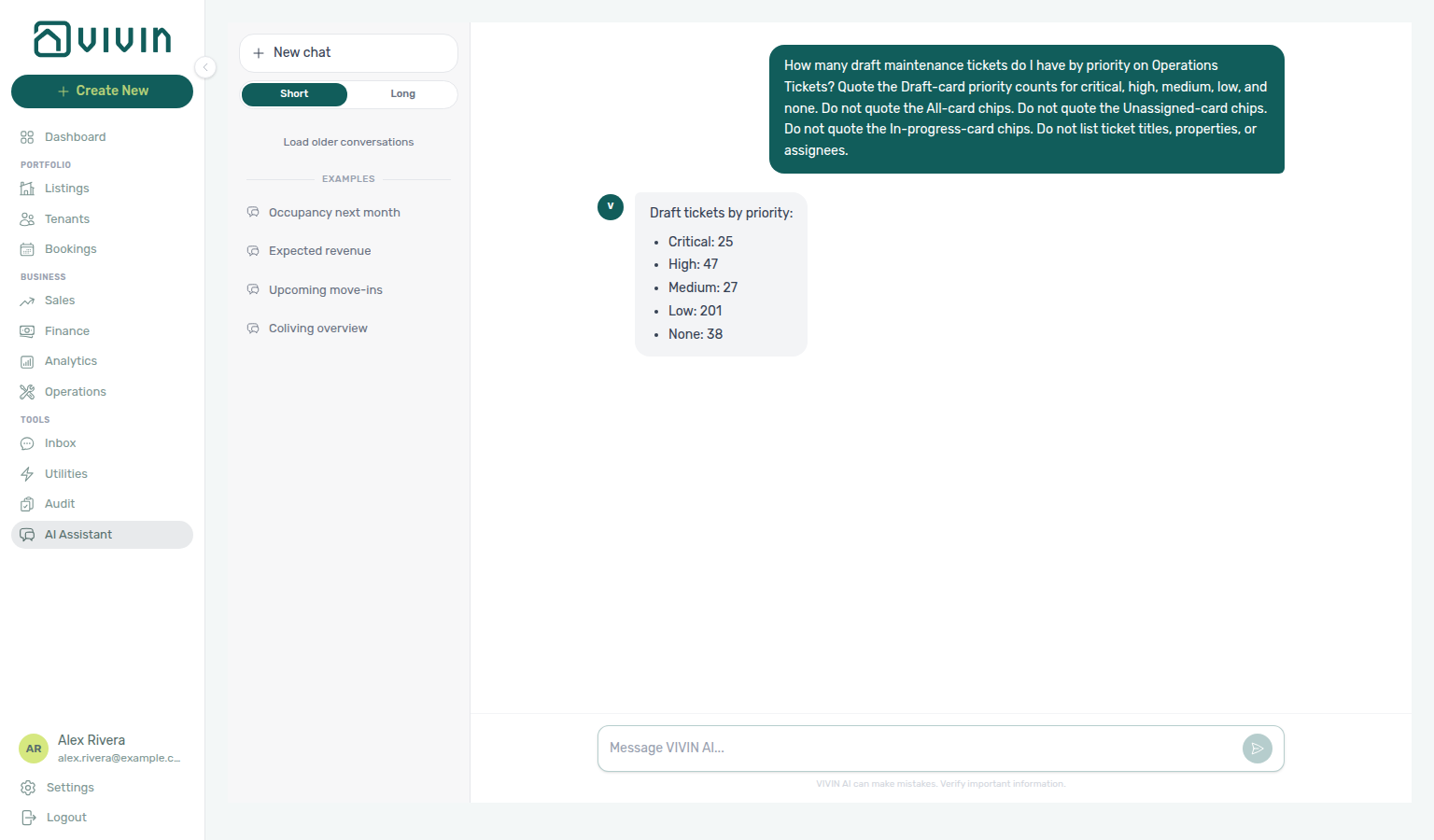
Ticket in-progress priority counts
Ask “How many in-progress maintenance tickets do I have by priority?” when you want the five chips under the In progress card — Critical, High, Medium, Low, and None — not the whole-account All mix, not the Unassigned intake mix, not the far-future Draft mix, and not a list of ticket titles. The assistant uses the same get-ticket-status-counts call as ticket status counts; those five chips always add up to In progress. In progress is assigned work inside the 30-day window (not far-future Draft display rows). None means tickets with no priority set. Do not count a filtered list-tickets page, and do not quote the All, Unassigned, Draft, or Closed card chips for this ask. Reconcile on Operations → Tickets — status-card priority chips with Overdue off, then open the In progress card. Keep Maintenance enabled on AI / MCP. See Landlord MCP — Ticket status counts and FAQ — Ticket in-progress priority counts.
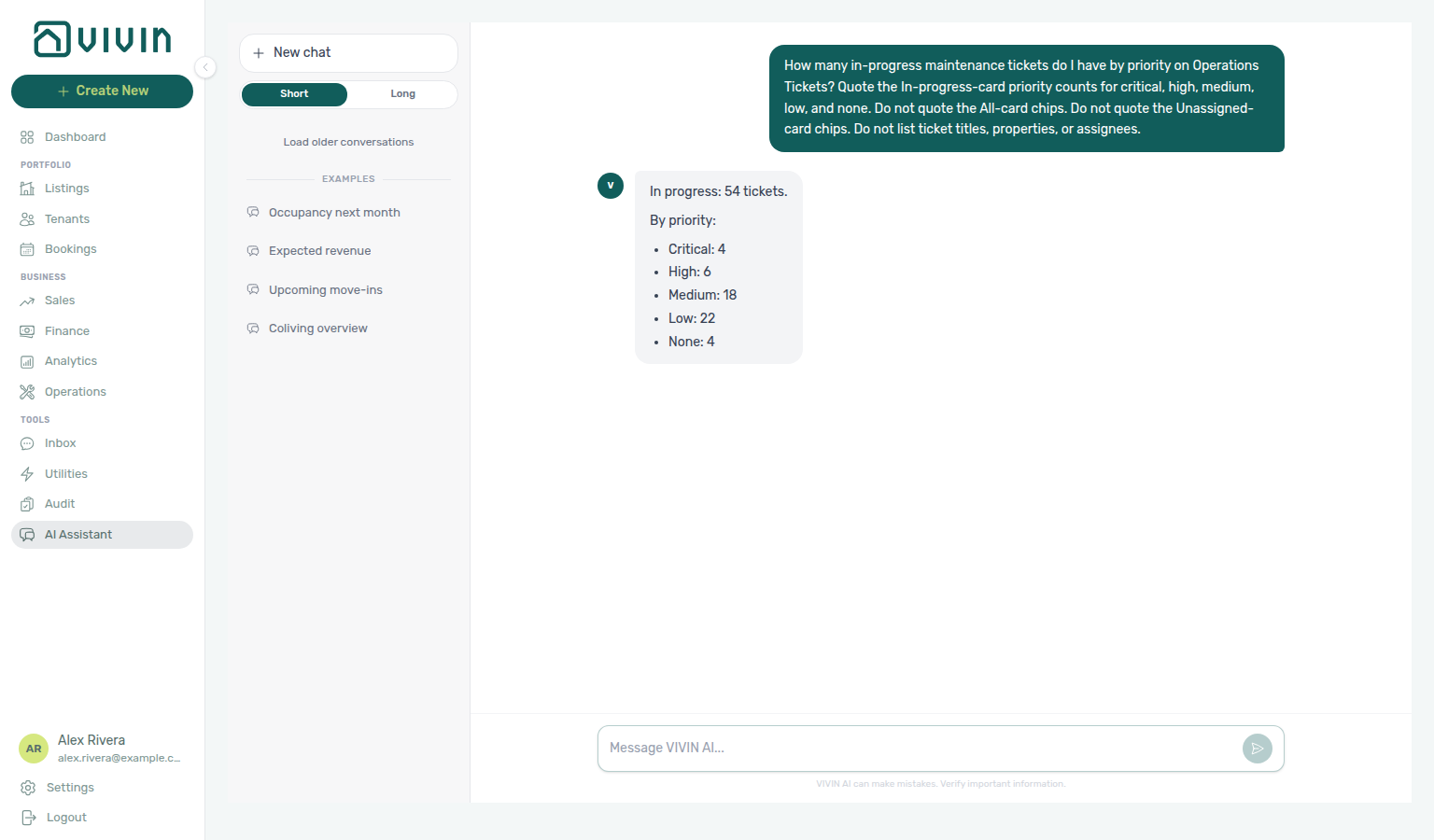
Ticket closed priority counts
Ask “How many closed maintenance tickets do I have by priority?” when you want the five chips under the Closed card — Critical, High, Medium, Low, and None — not the whole-account All mix, not the Unassigned intake mix, not the far-future Draft mix, not the In progress queue, not the Cancelled mix, not maintenance closure rate (closed vs received in a named window), and not a list of ticket titles. The assistant uses the same get-ticket-status-counts call as ticket status counts; those five chips always add up to Closed. Closed on Operations → Tickets is the same bucket as Completed in status totals. None means tickets with no priority set. Do not count a filtered list-tickets page (the default list omits Closed), and do not quote the All, Unassigned, Draft, In progress, or Cancelled card chips for this ask. Reconcile on Operations → Tickets — status-card priority chips with Overdue off, then open the Closed card. Keep Maintenance enabled on AI / MCP. See Landlord MCP — Ticket status counts and FAQ — Ticket closed priority counts.
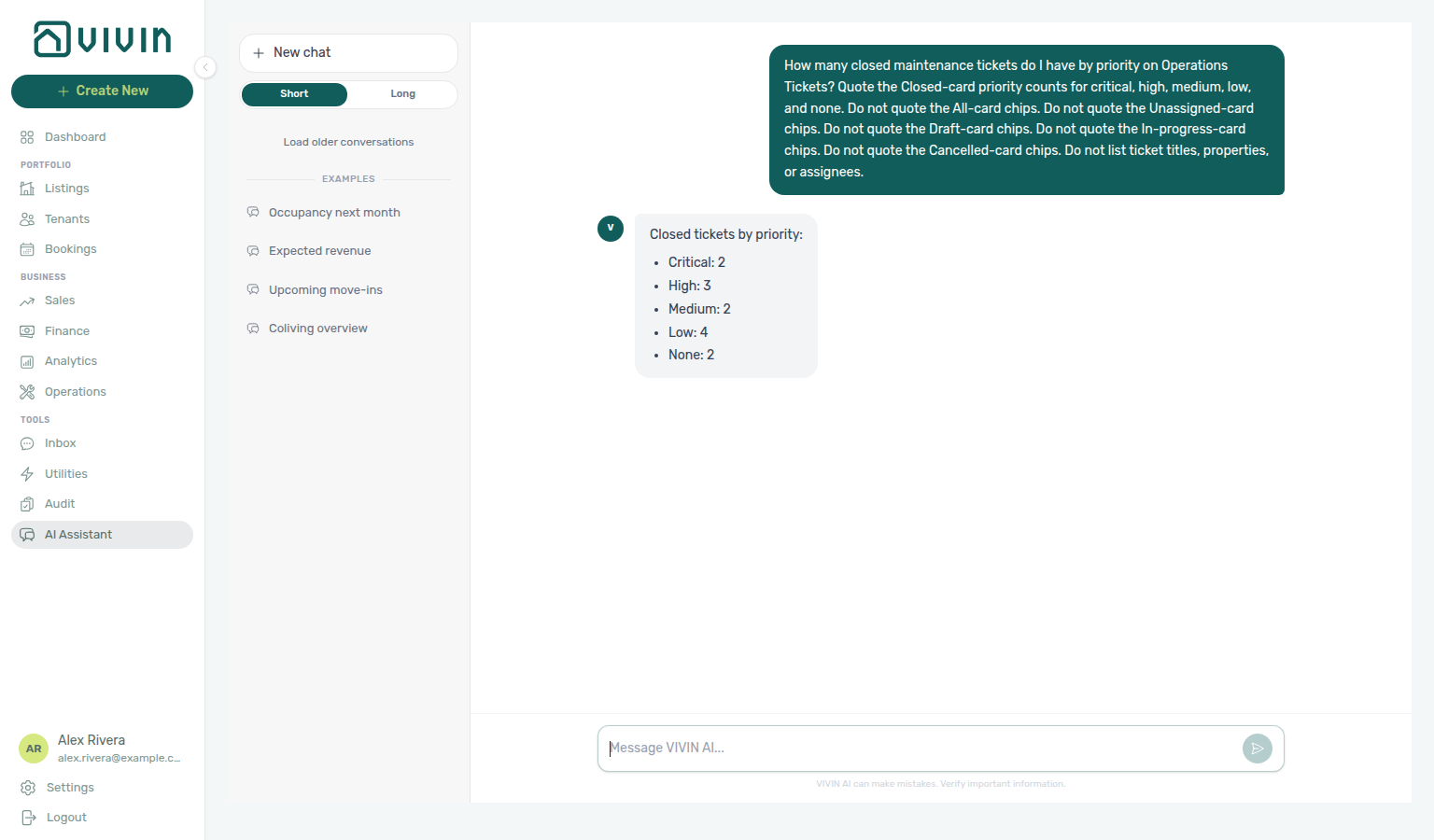
Ticket cancelled priority counts
Ask “How many cancelled maintenance tickets do I have by priority?” when you want the five chips under the Cancelled card — Critical, High, Medium, Low, and None — not the whole-account All mix, not the Unassigned intake mix, not the far-future Draft mix, not the In progress queue, not the Closed mix, and not a list of ticket titles. The assistant uses the same get-ticket-status-counts call as ticket status counts; those five chips always add up to Cancelled. None means tickets with no priority set. Do not count a filtered list-tickets page (the default list omits Cancelled), and do not quote the All, Unassigned, Draft, In progress, or Closed card chips for this ask. Reconcile on Operations → Tickets — status-card priority chips with Overdue off, then open the Cancelled card. Keep Maintenance enabled on AI / MCP. See Landlord MCP — Ticket status counts and FAQ — Ticket cancelled priority counts.
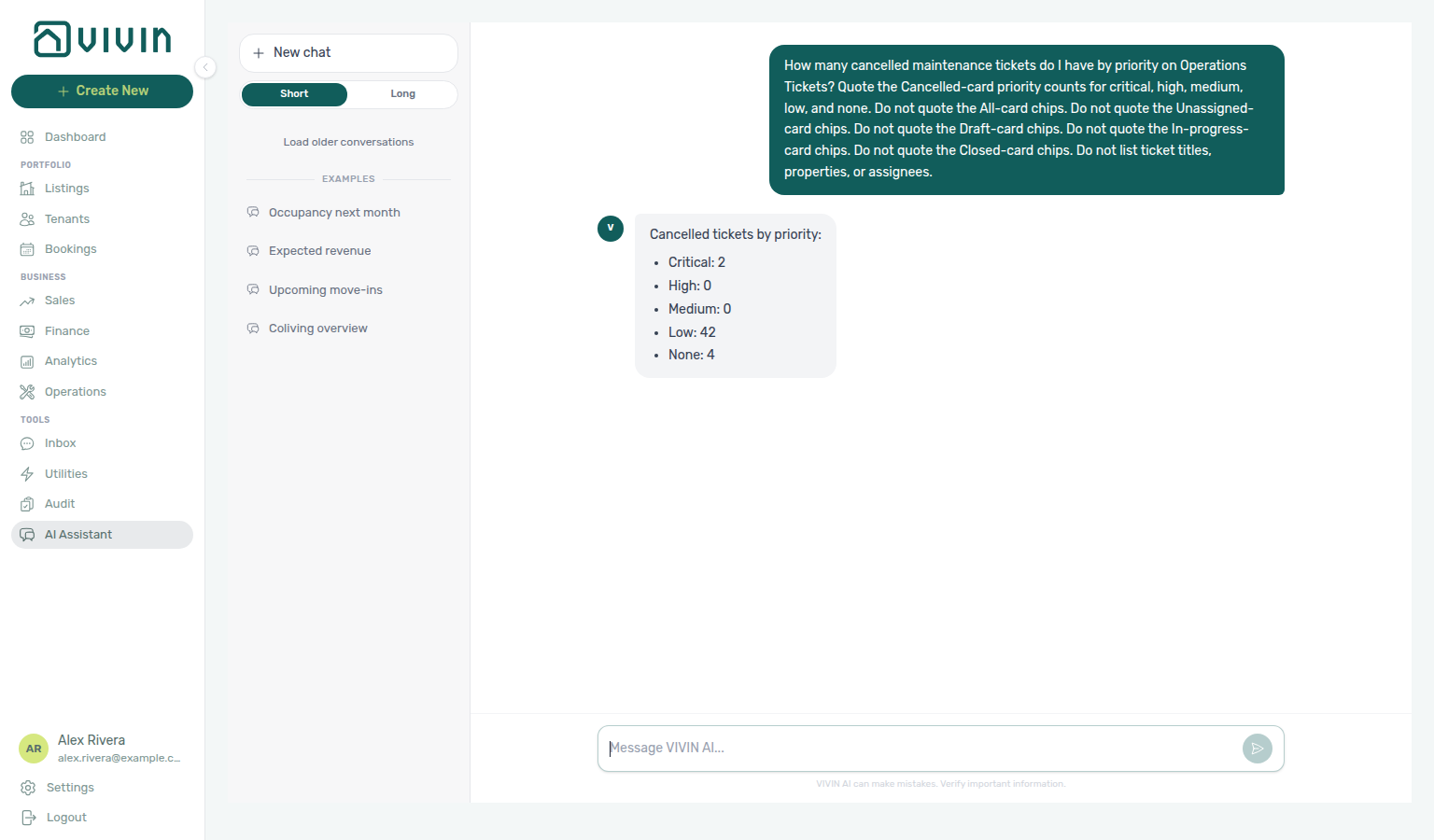
Maintenance closure rate
Ask “What is my maintenance ticket closure rate over the last 60 days?” when you want tickets closed vs tickets received for a named trailing window — not the Operations Tickets Closed card (all-time completed tickets), not Staff Workload (open tickets now), and not a list of ticket titles. The assistant uses get-maintenance-closure-rate. The tool default is 7 days, which can show 0% when nothing closed this week even though a longer window has closures — name the days (for example last 60 days). Quote closed, received, and the percentage (closed ÷ received). Do not count a list-tickets page, and do not list staff names for this ask. Keep Analytics enabled on AI / MCP (this read is not the Maintenance domain). Reconcile the created-vs-closed shape on Operations → Overview — Ticket volume trend. See 45-day window when 30 days is still 0% but you want a shorter look than 60. See 50-day window when you want a look between 45 and 60. See 90-day window when you want the longest allowed window. See Landlord MCP — Maintenance closure rate and FAQ — Maintenance closure rate.
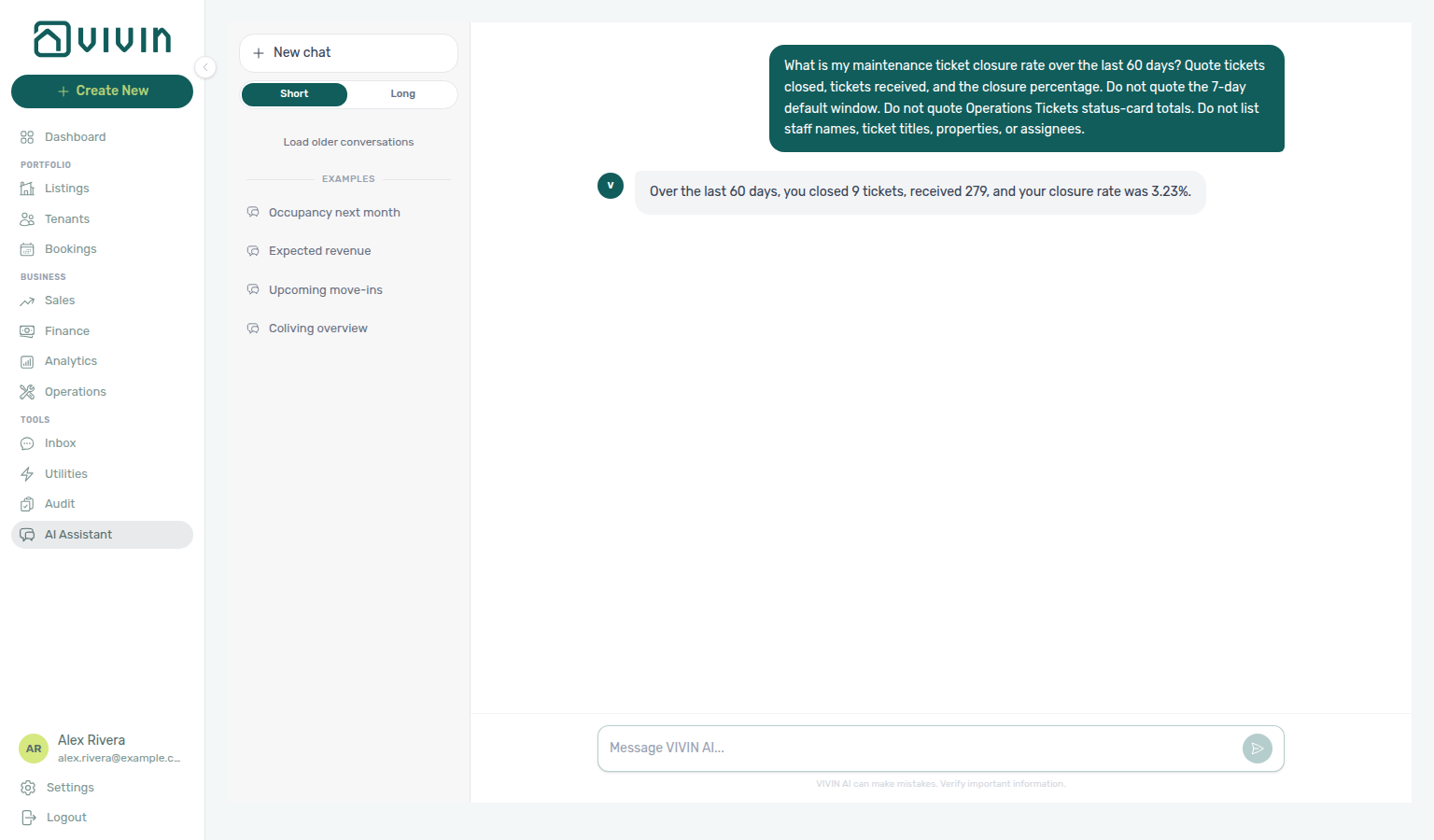
Maintenance closure rate (45-day window)
Ask “What is my maintenance ticket closure rate over the last 45 days?” when you want closed vs received for a mid-length trailing window — not the 50-day window, not the 60-day example, not the 90-day maximum, not the 30-day look (which can still be 0%), not the 7-day default, not the Operations Tickets Closed card, and not a staff ranking. The assistant uses the same get-maintenance-closure-rate call; pass 45 days. Quote received and the percentage. Closed can match one assignee’s close count on Staff Workload — name 45 days and quote received, not closed alone. Do not count a list-tickets page, and do not list staff names for this ask. Keep Analytics enabled on AI / MCP (this read is not the Maintenance domain). Reconcile the created-vs-closed shape on Operations → Overview — Ticket volume trend. See Landlord MCP — 45-day maintenance closure rate and FAQ — 45-day maintenance closure rate.
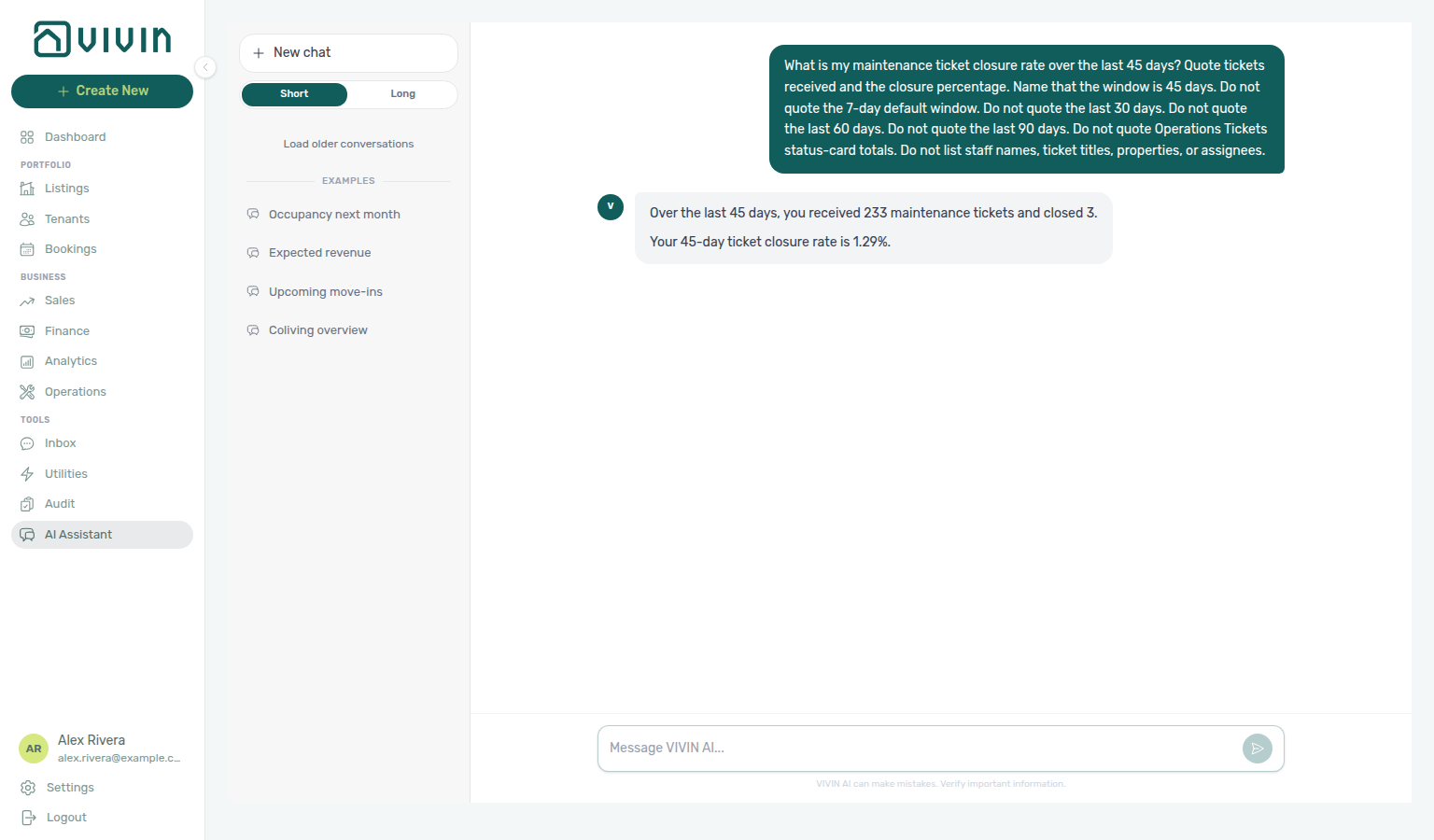
Maintenance closure rate (50-day window)
Ask “What is my maintenance ticket closure rate over the last 50 days?” when you want closed vs received for a trailing window between the 45-day mid-length look and the 60-day example — not the 90-day maximum, not the 30-day look (which can still be 0%), not the 7-day default, not the Operations Tickets Closed card, and not a staff ranking. The assistant uses the same get-maintenance-closure-rate call; pass 50 days. Quote received and the percentage. Closed can match a nearby window if you only compare that count — name 50 days and quote received, not closed alone. Do not count a list-tickets page, and do not list staff names for this ask. Keep Analytics enabled on AI / MCP (this read is not the Maintenance domain). Reconcile the created-vs-closed shape on Operations → Overview — Ticket volume trend. See Landlord MCP — 50-day maintenance closure rate and FAQ — 50-day maintenance closure rate.
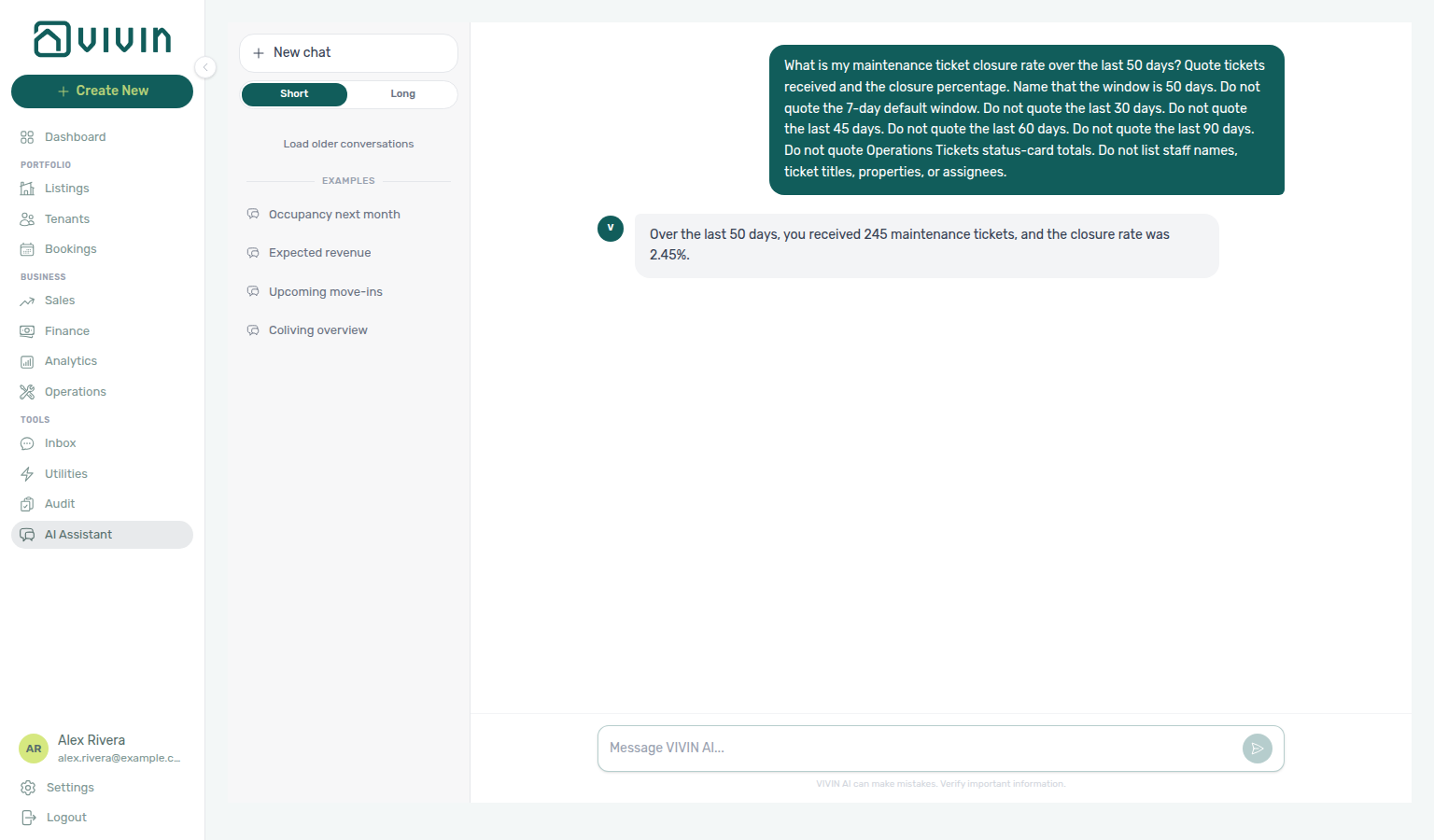
Maintenance closure rate (90-day window)
Ask “What is my maintenance ticket closure rate over the last 90 days?” when you want closed vs received for the longest trailing window the tool allows (1–90 days) — not the 60-day example, not the 50-day window, not the 45-day mid-length window, not the 7-day default (which can be 0%), not the Operations Tickets Closed card, and not a staff ranking. The assistant uses the same get-maintenance-closure-rate call; pass 90 days. Quote received and the percentage. Closed can match a shorter window that had the same closures — name 90 days and quote received, not closed alone. Do not count a list-tickets page, and do not list staff names for this ask. Keep Analytics enabled on AI / MCP (this read is not the Maintenance domain). Reconcile the created-vs-closed shape on Operations → Overview — Ticket volume trend. See Landlord MCP — 90-day maintenance closure rate and FAQ — 90-day maintenance closure rate.
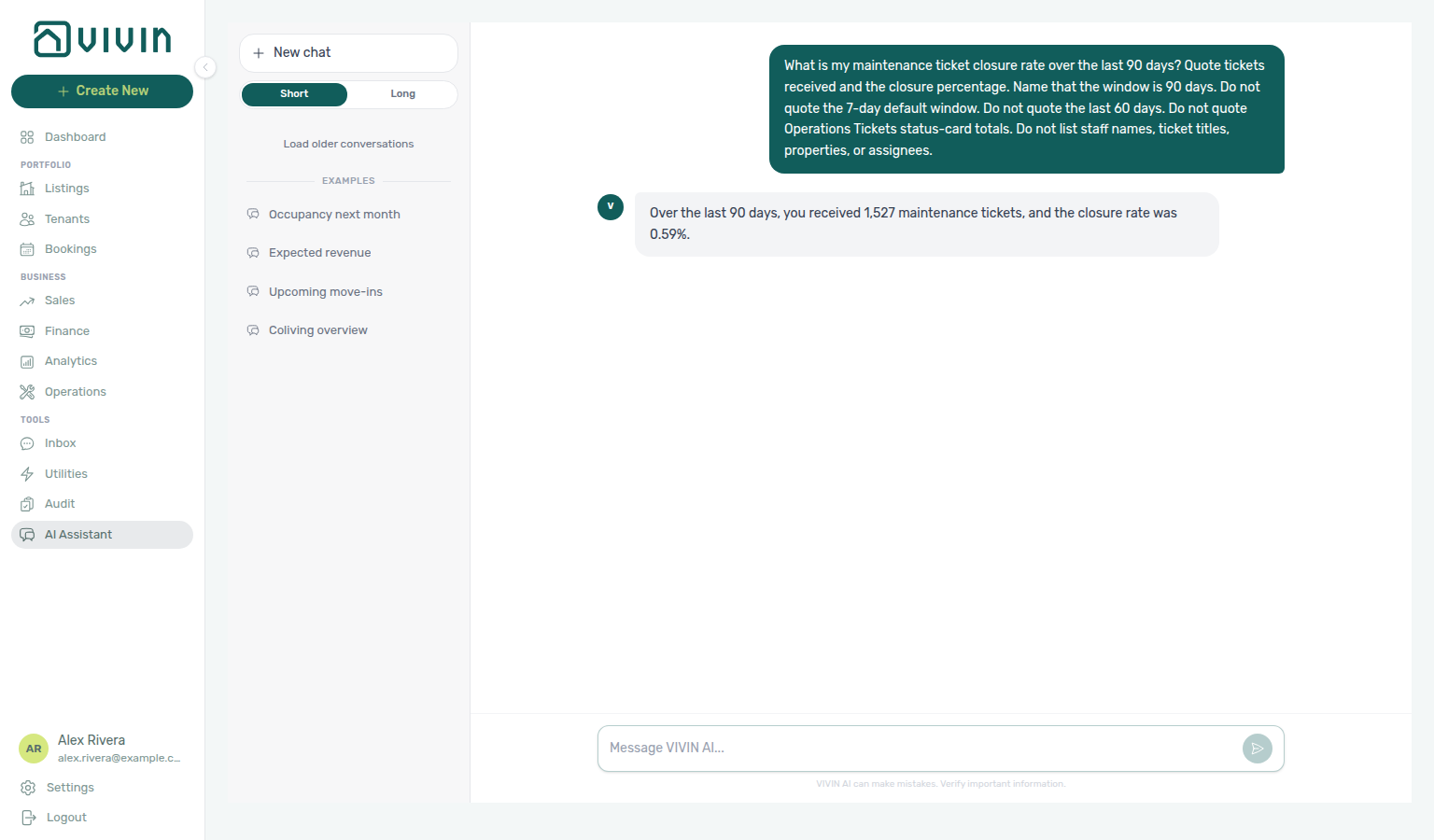
Operational cost summary
Ask “What were my operational costs in July 2026?” when you want Cash Flows outflow and average cost per unit for a named date window — not Finance → Overview income or cash collected, not the Dashboard cash-flow forecast, and not a list of supplier rows. The assistant uses get-cost-summary. The tool default is the current month through today, so a mid-month ask understates a settled month — name the from and to dates (for example 1 July through 31 July). Quote total outflow and average cost per unit. Do not sum a Cash Flows page of rows. Keep Analytics enabled on AI / MCP (this read is not the Operations write domain). Reconcile on Operations → Cash Flows with the matching month chip. See June 2026 when you want another named settled month. See April 2026 when you want a third named settled month (not June, not July). See Landlord MCP — Operational cost summary, FAQ — Operational cost summary, and FAQ — Operational costs excluding a category.
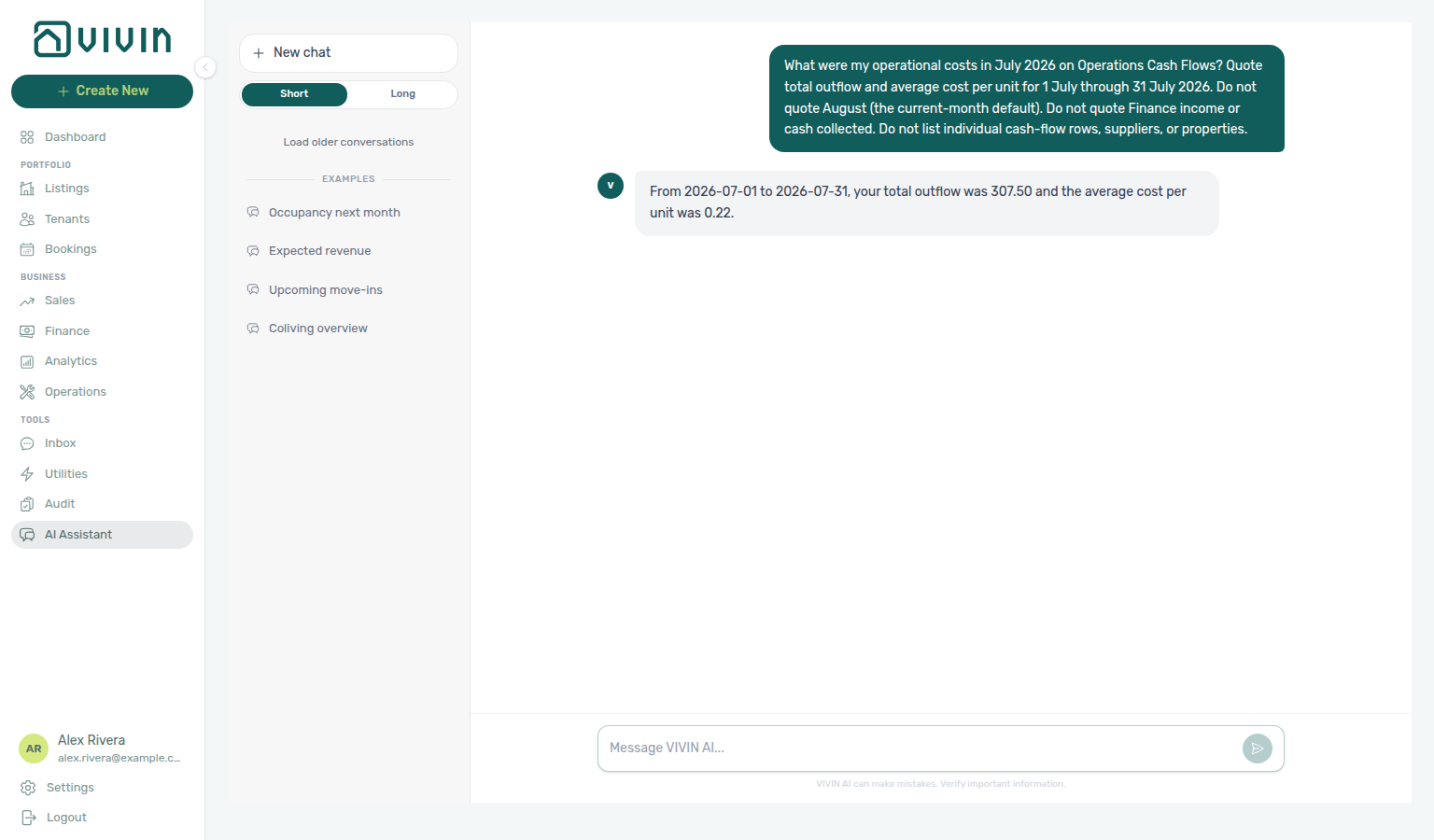
Operational cost summary (June 2026)
Ask “What were my operational costs in June 2026?” when you want Cash Flows outflow and average cost per unit for a different named settled month than the July example — not July’s totals, not the current-month default (this month through today), not Finance → Overview income or cash collected, not a category split or the June category split as the headline, and not a list of supplier rows. The assistant uses the same get-cost-summary call; pass 1 June through 30 June. Quote total outflow and average cost per unit. A single category’s outflow is not the portfolio total — name June and quote the headline totals. Keep Analytics enabled on AI / MCP (this read is not the Operations write domain). Reconcile on Operations → Cash Flows with the matching month chip. See Landlord MCP — June operational cost summary and FAQ — June operational costs. See April 2026 when you want a third named settled month.
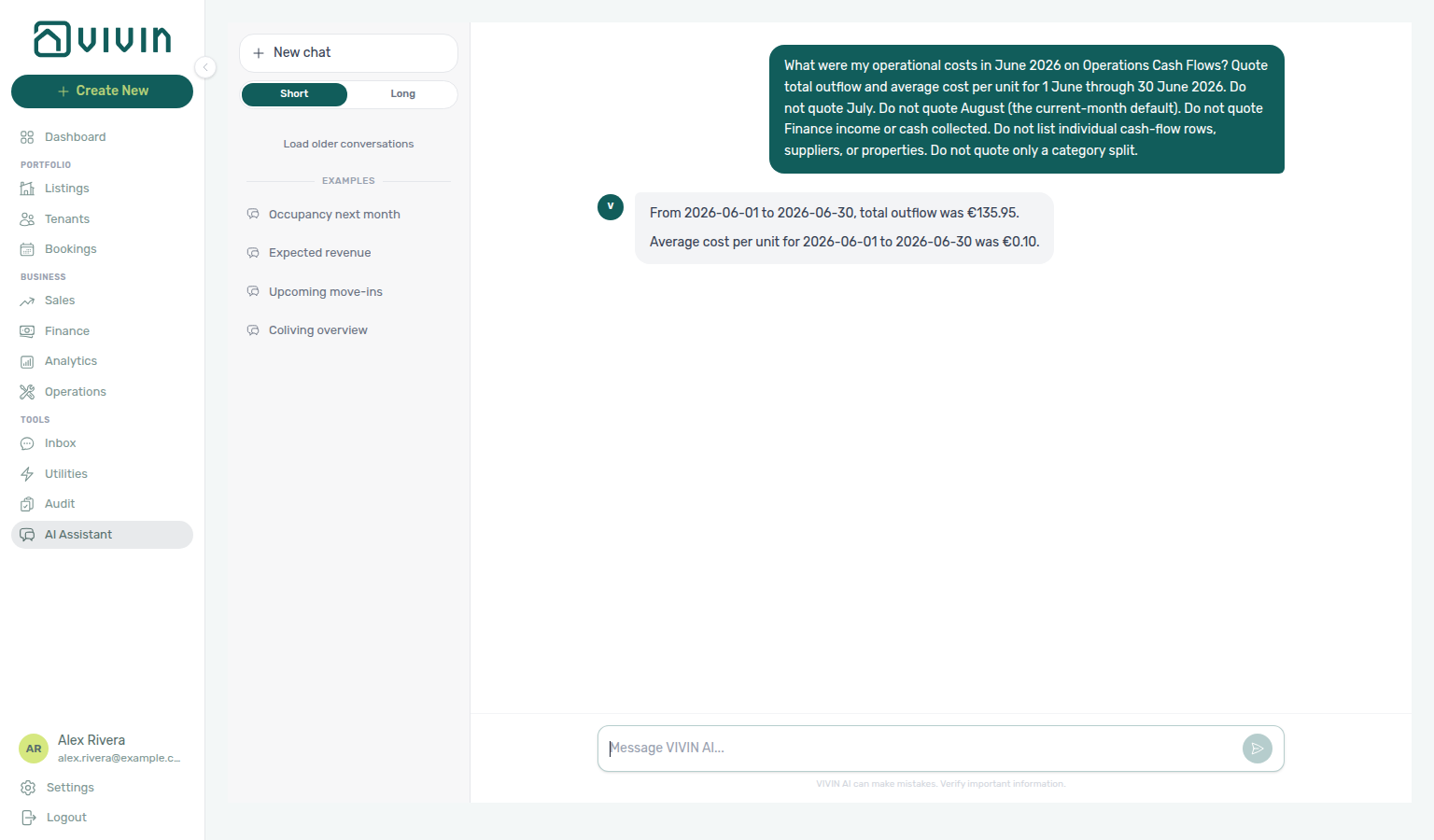
Operational cost summary (April 2026)
Ask “What were my operational costs in April 2026?” when you want Cash Flows outflow and average cost per unit for a different named settled month than the July example or June 2026 — not those months’ totals, not the current-month default (this month through today), not Finance → Overview income or cash collected, not remaining totals after excluding a category, not a category split as the headline, and not a list of supplier rows. The assistant uses the same get-cost-summary call; pass 1 April through 30 April. Quote total outflow and average cost per unit. April is a larger settled month than the June or July examples — name April and quote the headline totals. Keep Analytics enabled on AI / MCP (this read is not the Operations write domain). Reconcile on Operations → Cash Flows with the matching month chip. See Landlord MCP — April operational cost summary and FAQ — April operational costs. See 1–15 April 2026 when you want a custom half-month window (not the full calendar month). See 16–30 April 2026 when you want the other half of April (not 1–15 April, and not the full calendar month).
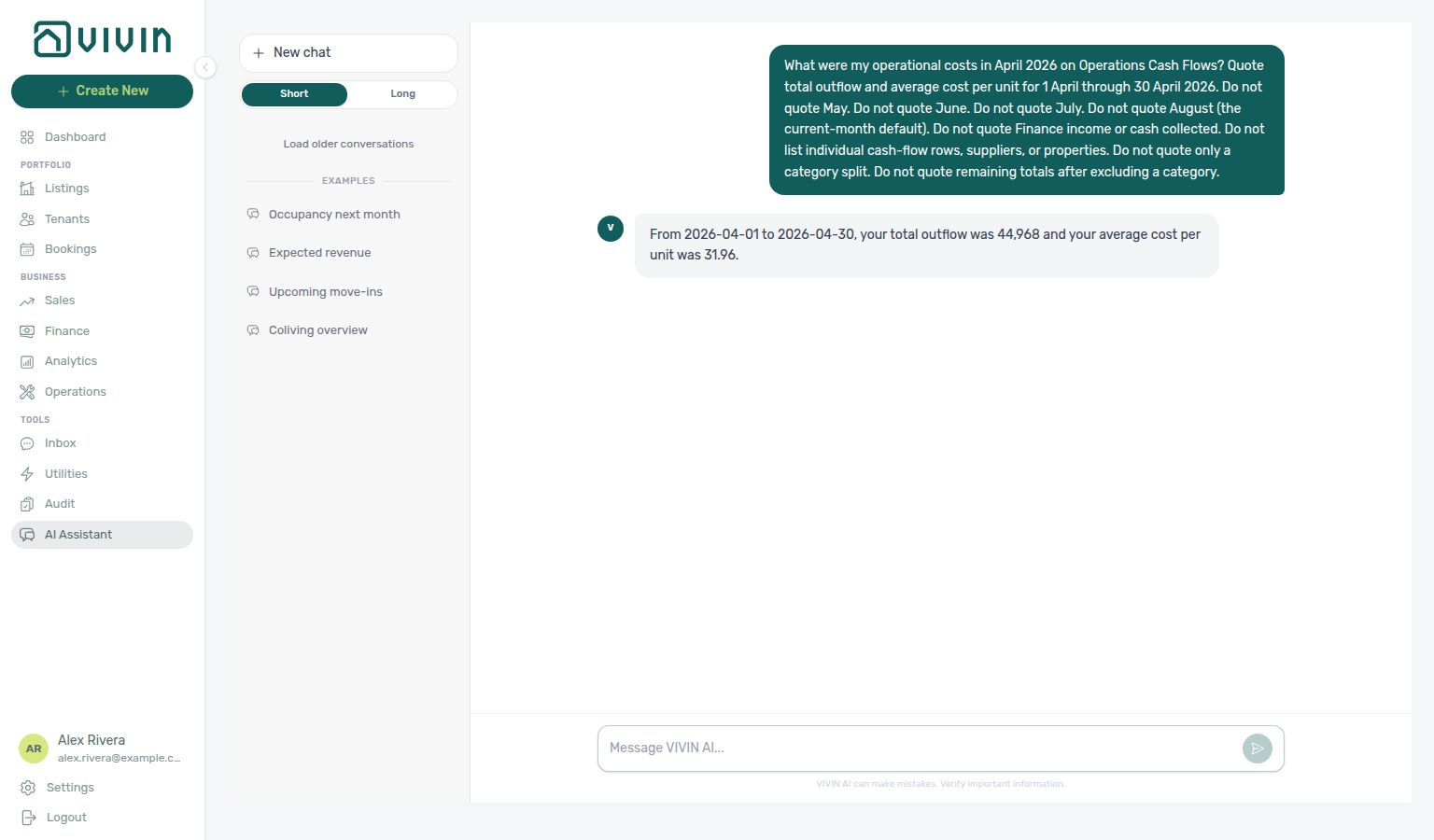
Operational cost summary (1–15 April 2026)
Ask “What were my operational costs from 1 April through 15 April 2026?” when you want Cash Flows outflow and average cost per unit for a custom date range that is not a full calendar month — not the full April month (1 through 30 April), not 16 April through 30 April, not June 2026 or the July example, not the current-month default (this month through today), not remaining totals after excluding a category, not a category split as the headline, and not a list of supplier rows. The assistant uses the same get-cost-summary call; pass 1 April through 15 April. Quote total outflow and average cost per unit. A half-month window is smaller than the full April headline — name both dates and quote the headline totals for that window. Keep Analytics enabled on AI / MCP (this read is not the Operations write domain). Reconcile on Operations → Cash Flows for the matching days. See Landlord MCP — April 1–15 operational cost summary and FAQ — April 1–15 operational costs. See 16–30 April 2026 when you want the other custom half-month window.
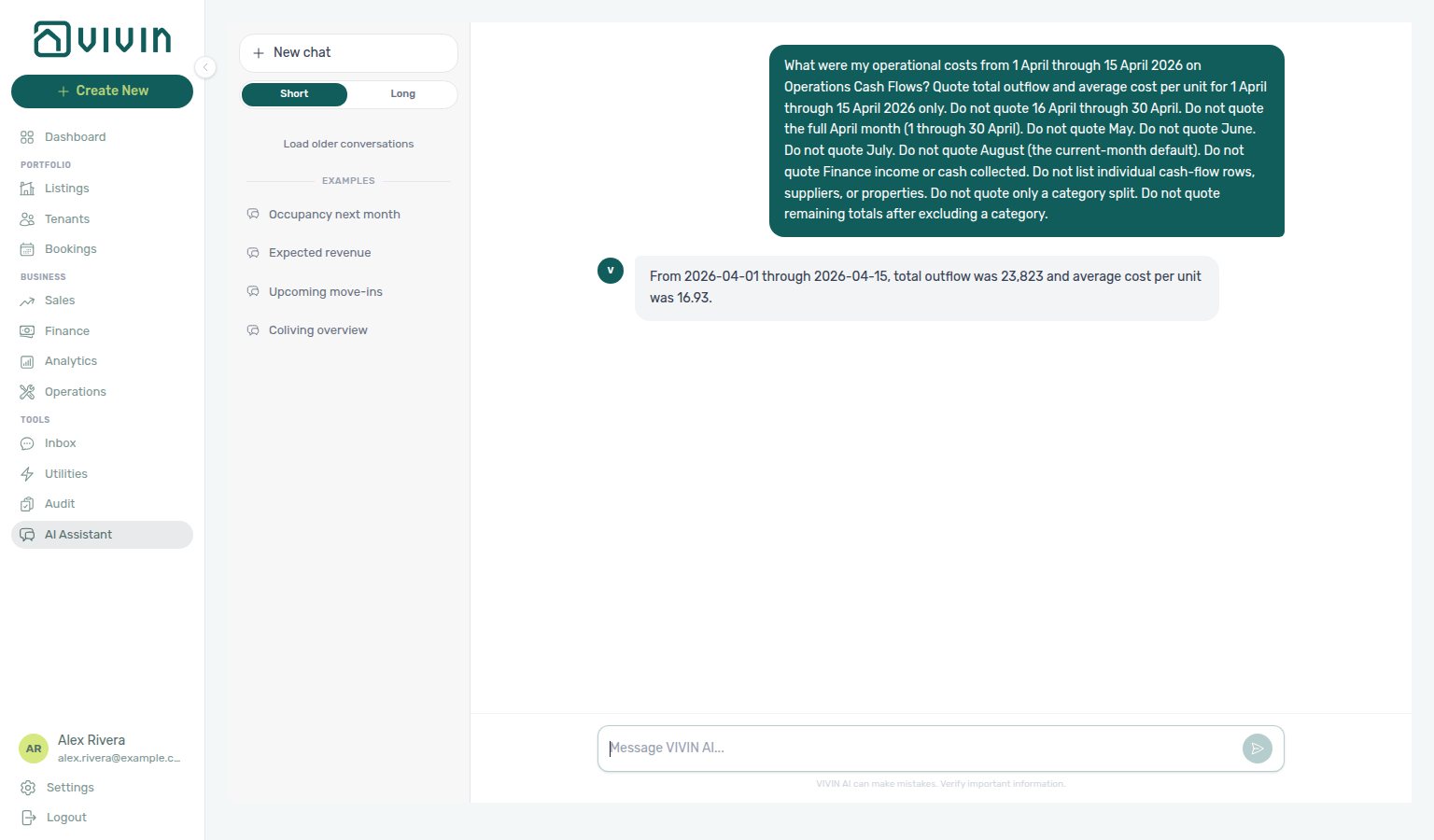
Operational cost summary (16–30 April 2026)
Ask “What were my operational costs from 16 April through 30 April 2026?” when you want Cash Flows outflow and average cost per unit for the other custom half-month window — not the full April month (1 through 30 April), not 1–15 April, not June 2026 or the July example, not the current-month default (this month through today), not remaining totals after excluding a category, not a category split as the headline, and not a list of supplier rows. The assistant uses the same get-cost-summary call; pass 16 April through 30 April. Quote total outflow and average cost per unit. A second-half window is not the full April headline and not the first-half totals — name both dates and quote the headline totals for that window. Keep Analytics enabled on AI / MCP (this read is not the Operations write domain). Reconcile on Operations → Cash Flows for the matching days. See Landlord MCP — April 16–30 operational cost summary and FAQ — April 16–30 operational costs.
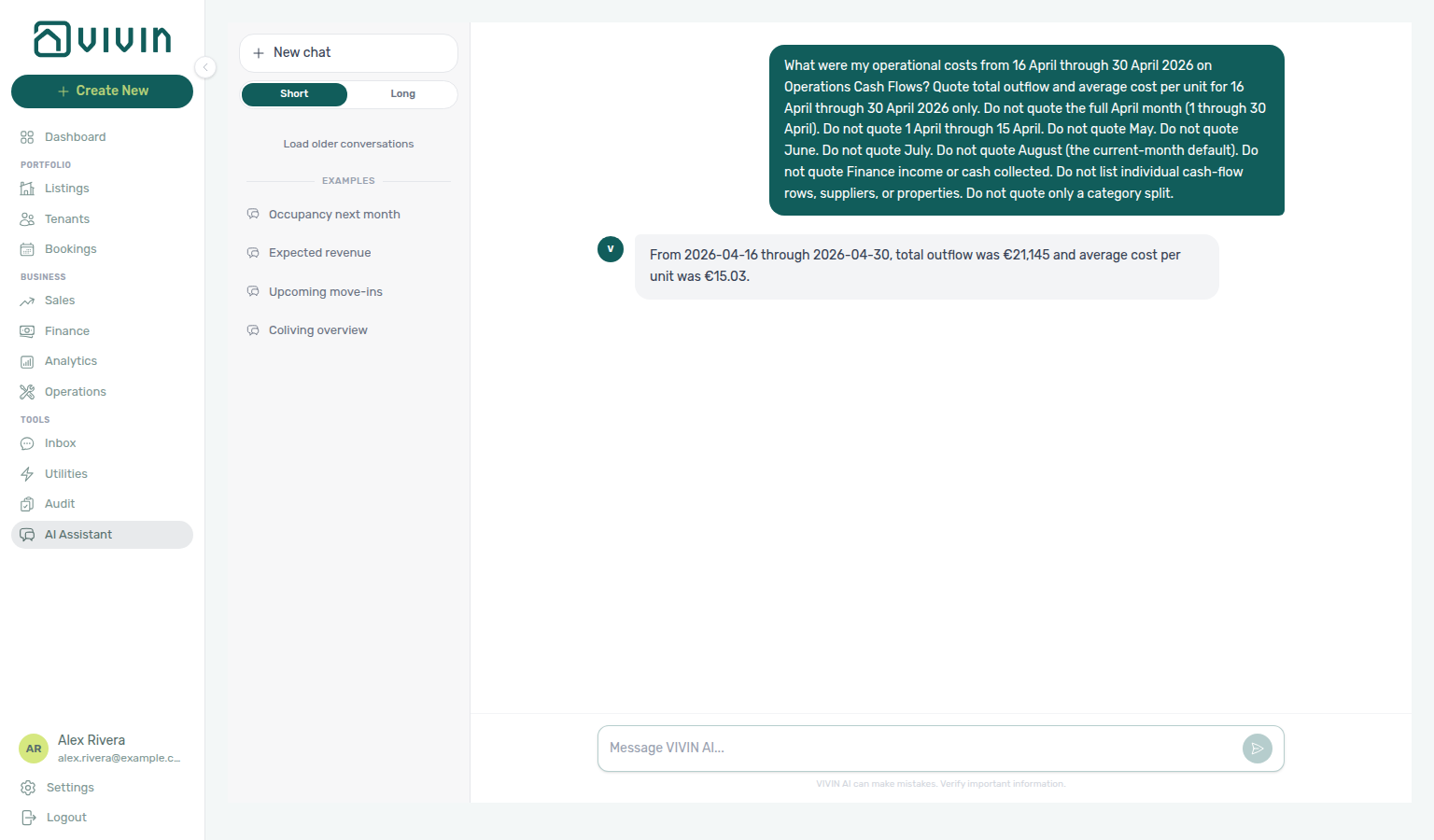
Operational cost summary (February 2026)
Ask “What were my operational costs in February 2026?” when you want Cash Flows outflow and average cost per unit for a fourth named settled month — not the July example, June 2026, or April 2026, not the 1–15 April or 16–30 April custom windows, not the current-month default (this month through today), not Finance → Overview income or cash collected, not remaining totals after excluding a category, not a category split as the headline, and not a list of supplier rows. The assistant uses the same get-cost-summary call; pass 1 February through 28 February. Quote total outflow and average cost per unit. February is a distinct settled month from April, June, and July — name February and quote the headline totals. Keep Analytics enabled on AI / MCP (this read is not the Operations write domain). Reconcile on Operations → Cash Flows with the matching month chip. See Landlord MCP — February operational cost summary and FAQ — February operational costs. See 1–14 February 2026 when you want a custom half-month window (not the full calendar month). See 15–28 February 2026 when you want the other half of February.
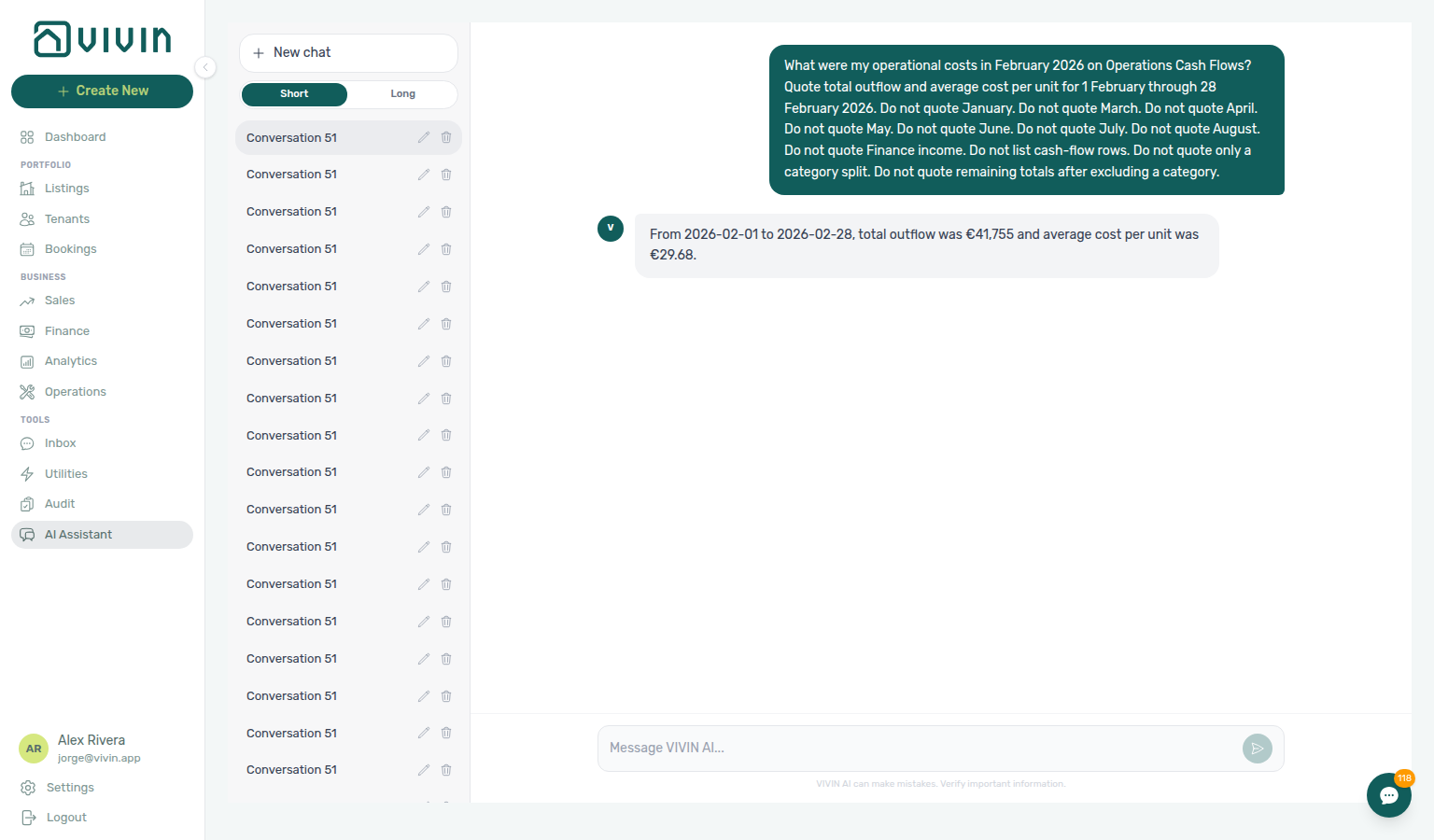
Operational cost summary (1–14 February 2026)
Ask “What were my operational costs from 1 February through 14 February 2026?” when you want Cash Flows outflow and average cost per unit for a custom date range that is not a full calendar month — not the full February month (1 through 28 February), not 15–28 February, not the 1–15 April or 16–30 April custom windows, not June 2026 or the July example, not the current-month default (this month through today), not remaining totals after excluding a category, not a category split as the headline, and not a list of supplier rows. The assistant uses the same get-cost-summary call; pass 1 February through 14 February. Quote total outflow and average cost per unit. A first-half February window is smaller than the full February headline — name both dates and quote the headline totals for that window. Keep Analytics enabled on AI / MCP (this read is not the Operations write domain). Reconcile on Operations → Cash Flows for the matching days. See Landlord MCP — February 1–14 operational cost summary and FAQ — February 1–14 operational costs.
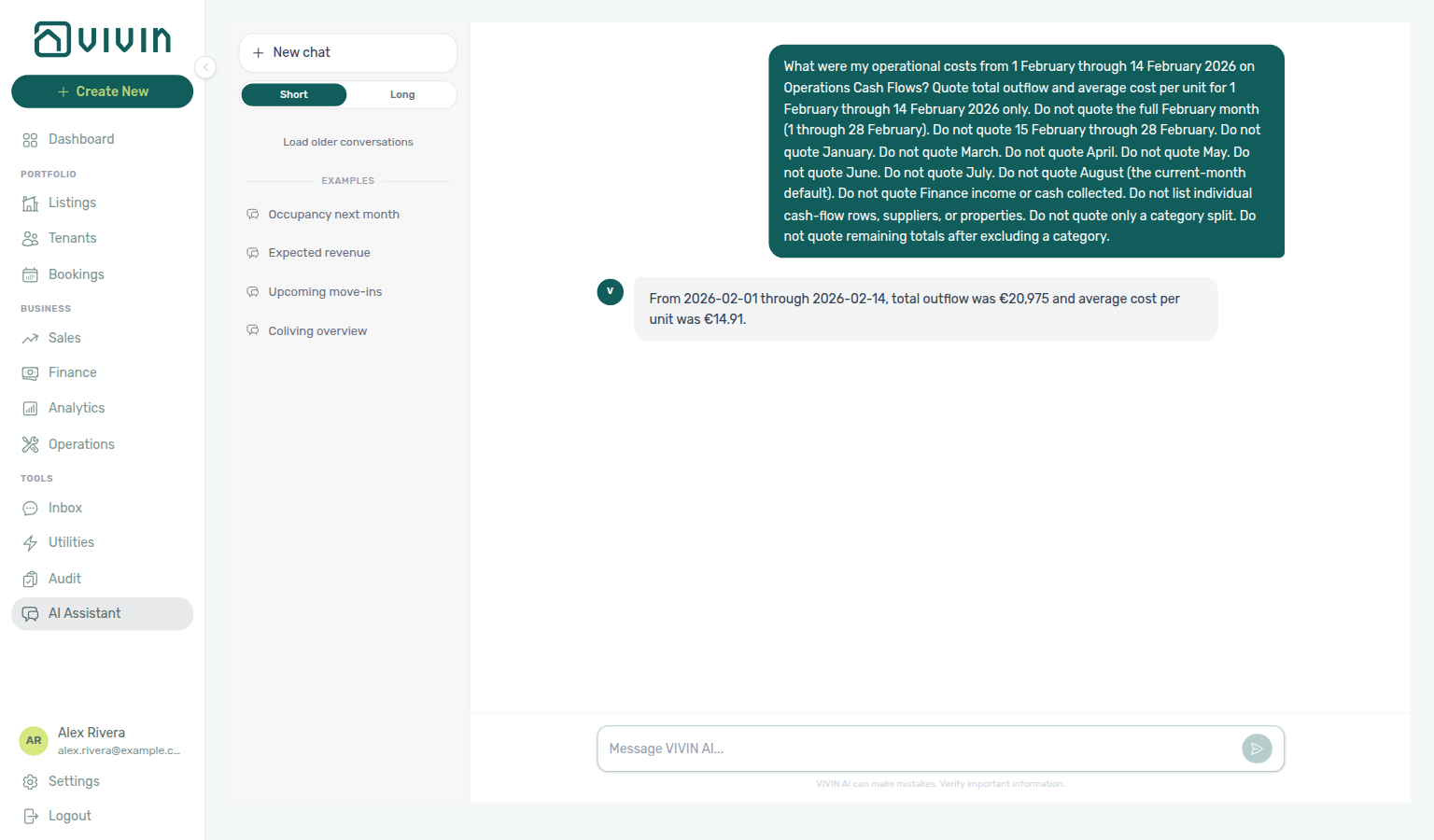
Operational cost summary (15–28 February 2026)
Ask “What were my operational costs from 15 February through 28 February 2026?” when you want Cash Flows outflow and average cost per unit for the other custom half-month window in February — not the full February month (1 through 28 February), not 1–14 February, not the 1–15 April or 16–30 April custom windows, not June 2026 or the July example, not the current-month default (this month through today), not remaining totals after excluding a category, not a category split as the headline, and not a list of supplier rows. The assistant uses the same get-cost-summary call; pass 15 February through 28 February. Quote total outflow and average cost per unit. A second-half February window is not the first-half window and not the full February headline — name both dates and quote the headline totals for that window. Keep Analytics enabled on AI / MCP (this read is not the Operations write domain). Reconcile on Operations → Cash Flows for the matching days. See Landlord MCP — February 15–28 operational cost summary and FAQ — February 15–28 operational costs.
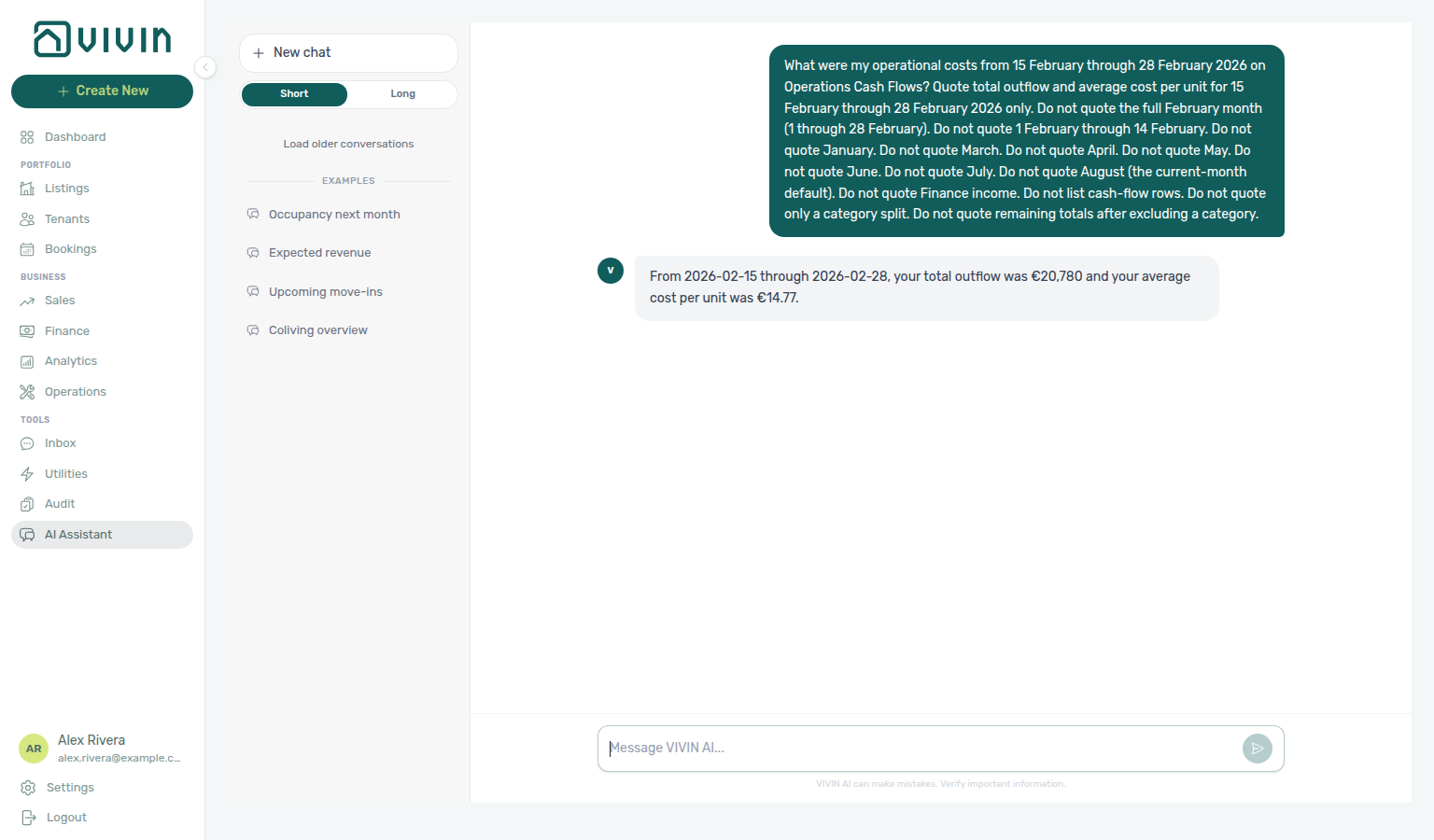
Operational cost summary (January 2026)
Ask “What were my operational costs in January 2026?” when you want Cash Flows outflow and average cost per unit for a fifth named settled month — not the July example, June 2026, April 2026, or February 2026, not the 1–14 February or 15–28 February, 1–15 April or 16–30 April custom windows, not the current-month default (this month through today), not Finance → Overview income or cash collected, not remaining totals after excluding a category, not a category split as the headline, and not a list of supplier rows. The assistant uses the same get-cost-summary call; pass 1 January through 31 January. Quote total outflow and average cost per unit. January is a distinct settled month from February, April, June, and July — name January and quote the headline totals. Keep Analytics enabled on AI / MCP (this read is not the Operations write domain). Reconcile on Operations → Cash Flows with the matching month chip. See Landlord MCP — January operational cost summary and FAQ — January operational costs.
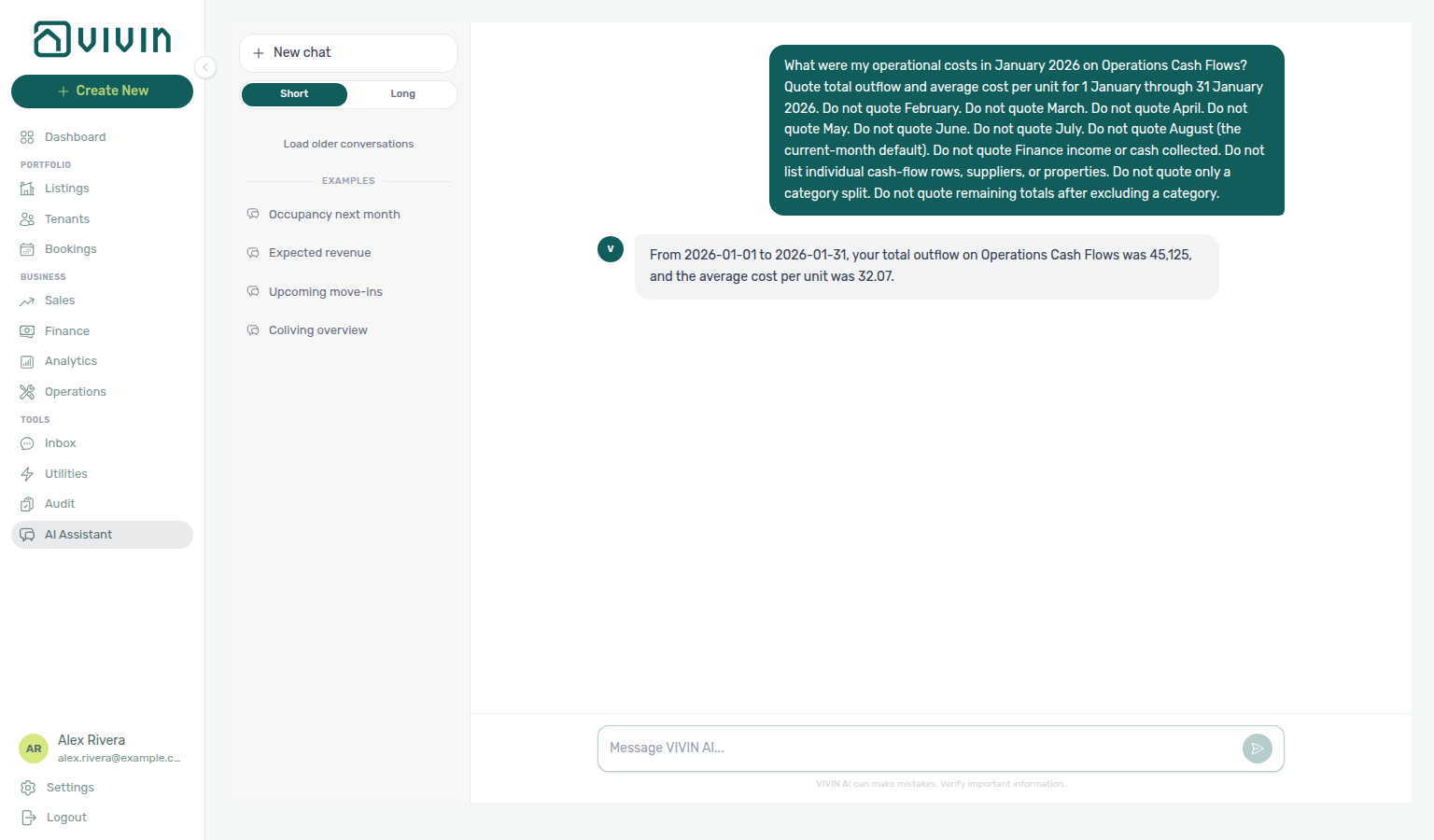
Operational cost summary (March 2026)
Ask “What were my operational costs in March 2026?” when you want Cash Flows outflow and average cost per unit for a sixth named settled month — not the July example, June 2026, April 2026, February 2026, or January 2026, not the 1–14 February or 15–28 February, 1–15 April or 16–30 April custom windows, not the current-month default (this month through today), not Finance → Overview income or cash collected, not remaining totals after excluding a category, not a category split as the headline, and not a list of supplier rows. The assistant uses the same get-cost-summary call; pass 1 March through 31 March. Quote total outflow and average cost per unit. March is a distinct settled month from January, February, April, June, and July — name March and quote the headline totals. Keep Analytics enabled on AI / MCP (this read is not the Operations write domain). Reconcile on Operations → Cash Flows with the matching month chip. See Landlord MCP — March operational cost summary and FAQ — March operational costs. See May 2026 when you want a seventh named settled month.
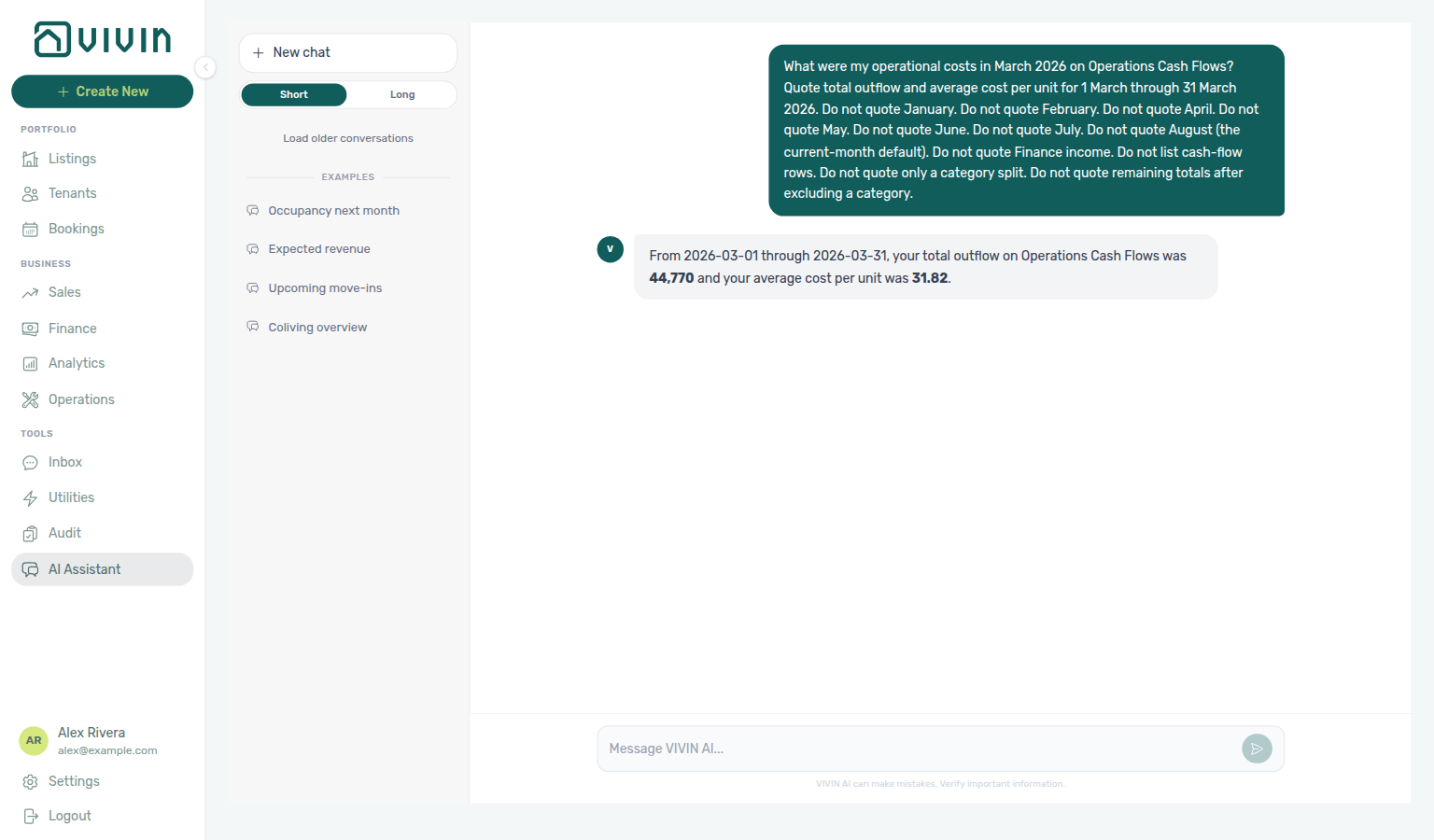
Operational cost summary (May 2026)
Ask “What were my operational costs in May 2026?” when you want Cash Flows outflow and average cost per unit for a seventh named settled month — not the July example, June 2026, April 2026, February 2026, January 2026, or March 2026, not the 1–14 February or 15–28 February, 1–15 April or 16–30 April custom windows, not the current-month default (this month through today), not Finance → Overview income or cash collected, not remaining totals after excluding a category, not a category split as the headline, and not a list of supplier rows. The assistant uses the same get-cost-summary call; pass 1 May through 31 May. Quote total outflow and average cost per unit. May is a distinct settled month from January, February, March, April, June, and July — name May and quote the headline totals. Keep Analytics enabled on AI / MCP (this read is not the Operations write domain). Reconcile on Operations → Cash Flows with the matching month chip. See Landlord MCP — May operational cost summary and FAQ — May operational costs.
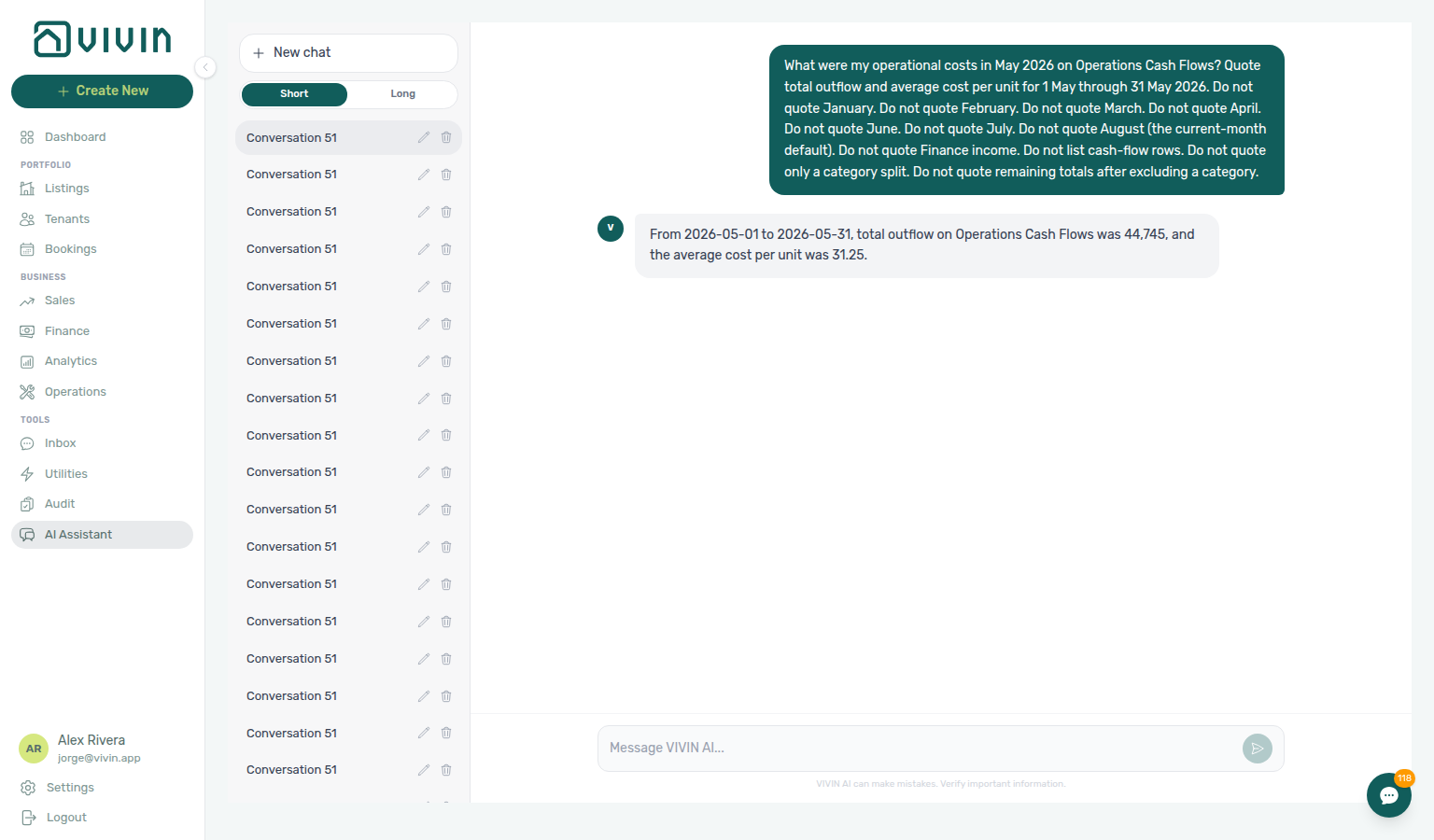
Operational cost summary by category
Ask “What were my operational costs by category in July 2026?” when you want the Cash Flows category split — which cost-allocation categories spent money in a named month — not the headline total outflow / average cost per unit alone, not Finance → Overview income or cash collected, and not a list of supplier rows. The assistant uses the same get-cost-summary call; quote each category’s outflow. Skip uncategorized when it is 0. The tool default is the current month through today, so name the from and to dates (for example 1 July through 31 July). Keep Analytics enabled on AI / MCP (this read is not the Operations write domain). Reconcile on Operations → Cash Flows with the matching month chip (category column). See June 2026 when you want another named month’s split (including uncategorized when it has outflow). See Landlord MCP — Operational cost summary by category, FAQ — Operational costs by category, and FAQ — Operational costs excluding a category.
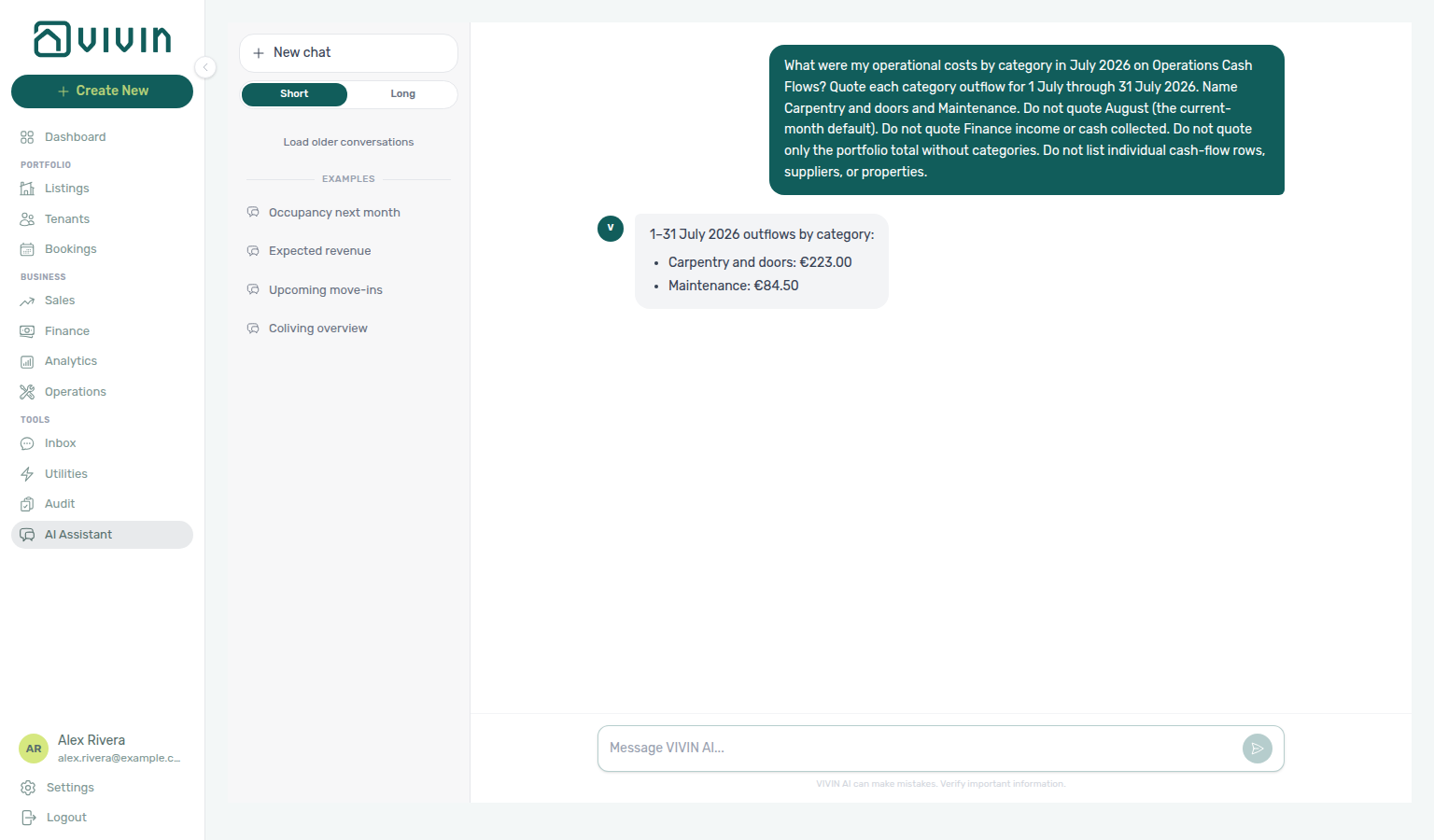
Operational cost summary by category (June 2026)
Ask “What were my operational costs by category in June 2026?” when you want the Cash Flows category split for a different named settled month than the July example — not July’s Carpentry & doors and Maintenance outflows, not the June headline totals alone, not the current-month default, not Finance → Overview income or cash collected, and not a list of supplier rows. The assistant uses the same get-cost-summary call; pass 1 June through 30 June. Quote each category’s outflow. Include uncategorized when it has outflow (July teaching skipped it at 0). Category names follow Cash Flows for that month — Manutenção here, not the English Maintenance label from July. Keep Analytics enabled on AI / MCP (this read is not the Operations write domain). Reconcile on Operations → Cash Flows with the matching month chip (category column). See Landlord MCP — June operational costs by category and FAQ — June operational costs by category.
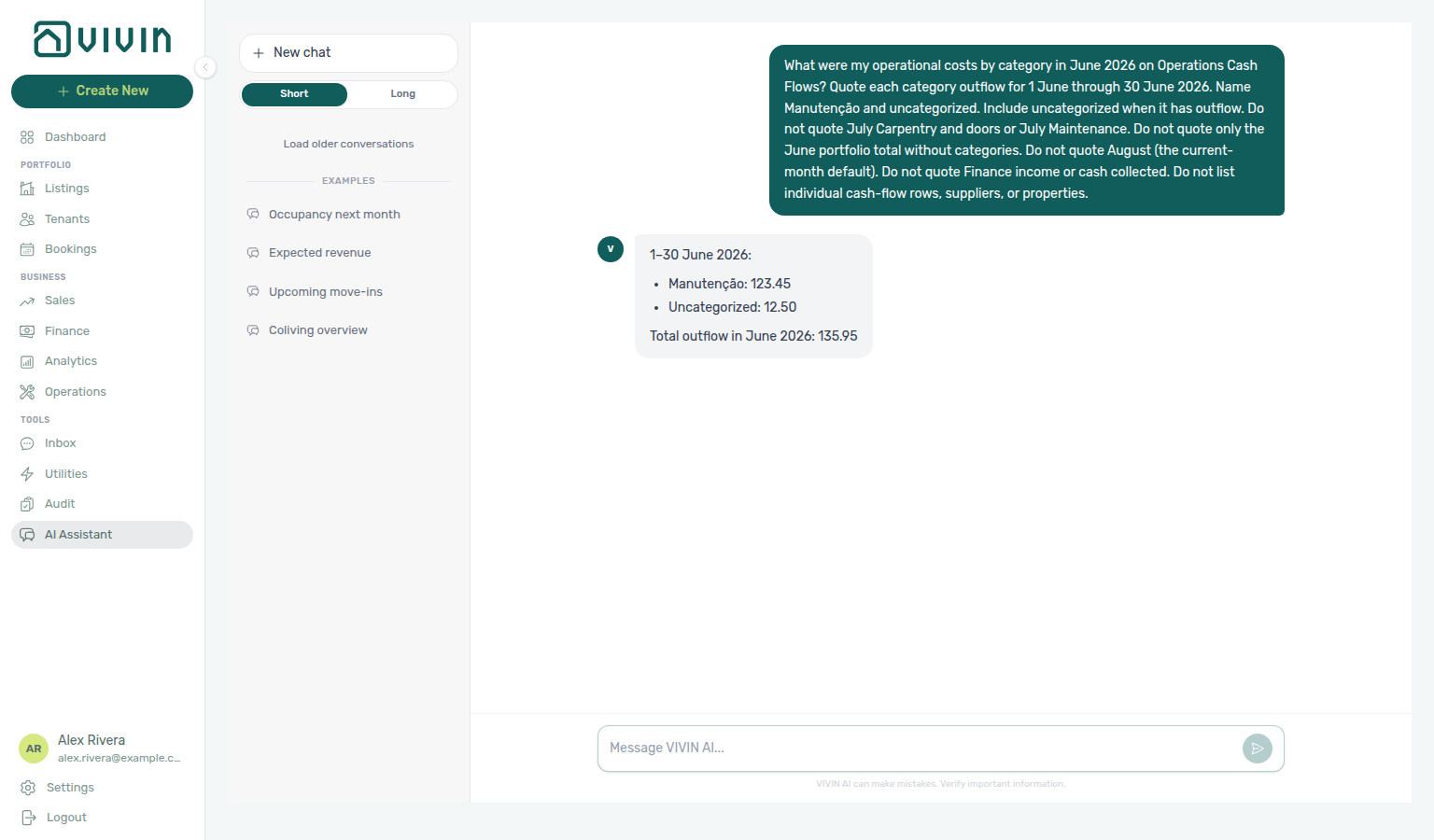
Operational costs excluding a category
Ask “What were my operational costs in July 2026 after excluding Carpentry & doors?” when you want remaining Cash Flows outflow and average cost per unit with one cost-allocation category dropped — not the unfiltered headline totals, not the category split that still lists every spend row, not Finance → Overview income or cash collected, and not a list of supplier rows. The assistant uses the same get-cost-summary call; pass the exact category name as it appears on Cash Flows (for example Carpentry & doors, not a shortened Carpentry). Quote remaining total outflow and average cost per unit for the named dates. The tool default is the current month through today, so name the from and to dates (for example 1 July through 31 July). Keep Analytics enabled on AI / MCP (this read is not the Operations write domain). Reconcile on Operations → Cash Flows with the matching month chip, then mentally drop that category’s rows. See Landlord MCP — Operational costs excluding a category, FAQ — Operational costs excluding a category, excluding Maintenance when you want remaining totals after dropping a different exact name, and excluding Manutenção in June when that month’s Cash Flows name is Portuguese.
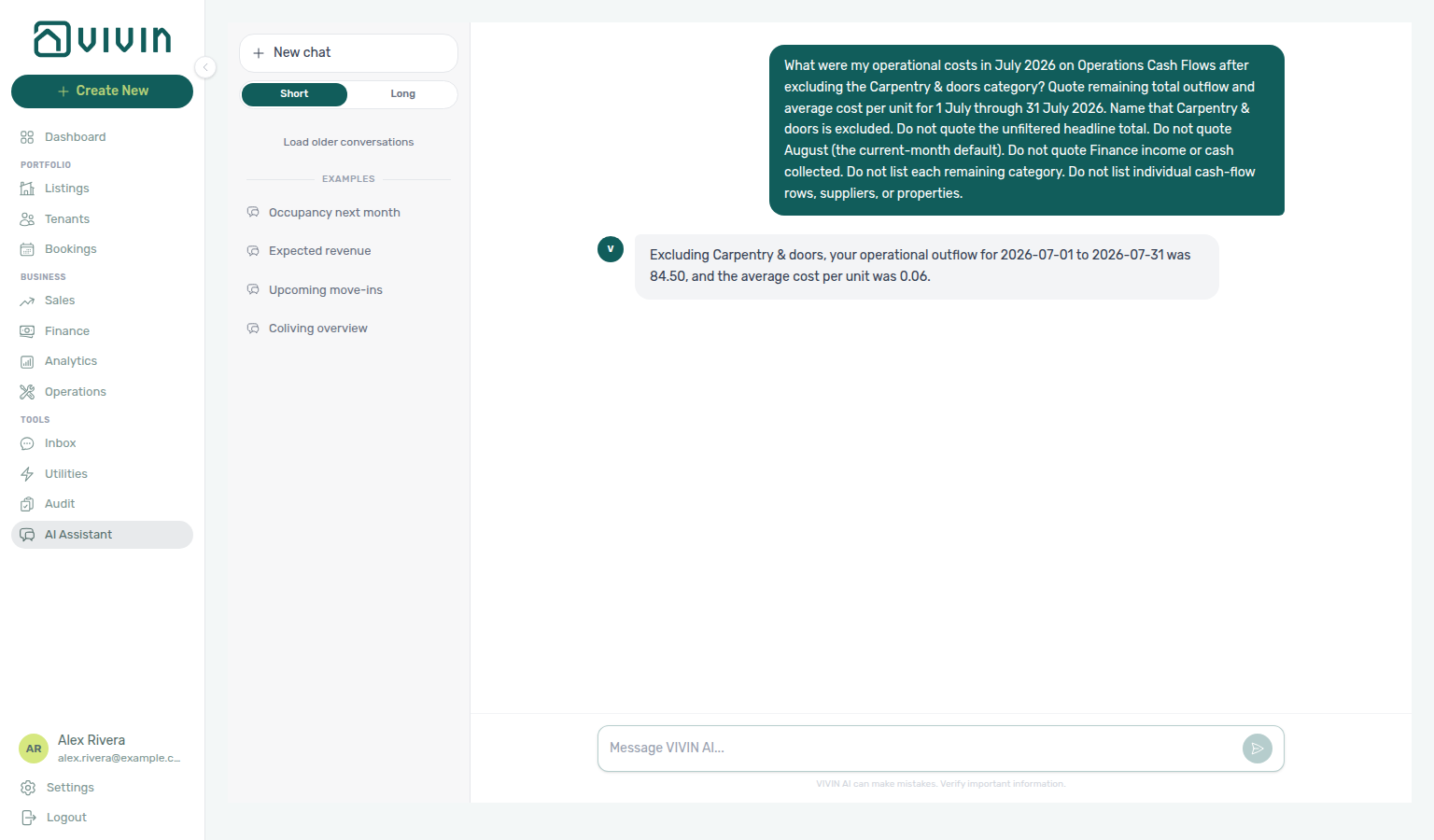
Operational costs excluding Maintenance
Ask “What were my operational costs in July 2026 after excluding Maintenance?” when you want remaining Cash Flows outflow and average cost per unit after dropping a different exact category than Carpentry & doors — not that Carpentry remaining total, not the unfiltered headline totals, not the category split that still lists every spend row, not Finance → Overview income or cash collected, and not a list of supplier rows. The assistant uses the same get-cost-summary call; pass the exact Cash Flows name Maintenance (not Portuguese Manutenção, which does not match this month’s English category). Quote remaining total outflow and average cost per unit for the named dates. Remaining outflow can match the other category’s spend — quote the average so you are not reading the category split. The tool default is the current month through today, so name the from and to dates (for example 1 July through 31 July). Keep Analytics enabled on AI / MCP (this read is not the Operations write domain). Reconcile on Operations → Cash Flows with the matching month chip, then mentally drop that category’s rows. See Landlord MCP — Operational costs excluding Maintenance, FAQ — Operational costs excluding Maintenance, excluding Manutenção in June when that month’s Cash Flows name is Portuguese, and excluding maintenance in April when that month’s Cash Flows name is lowercase maintenance.
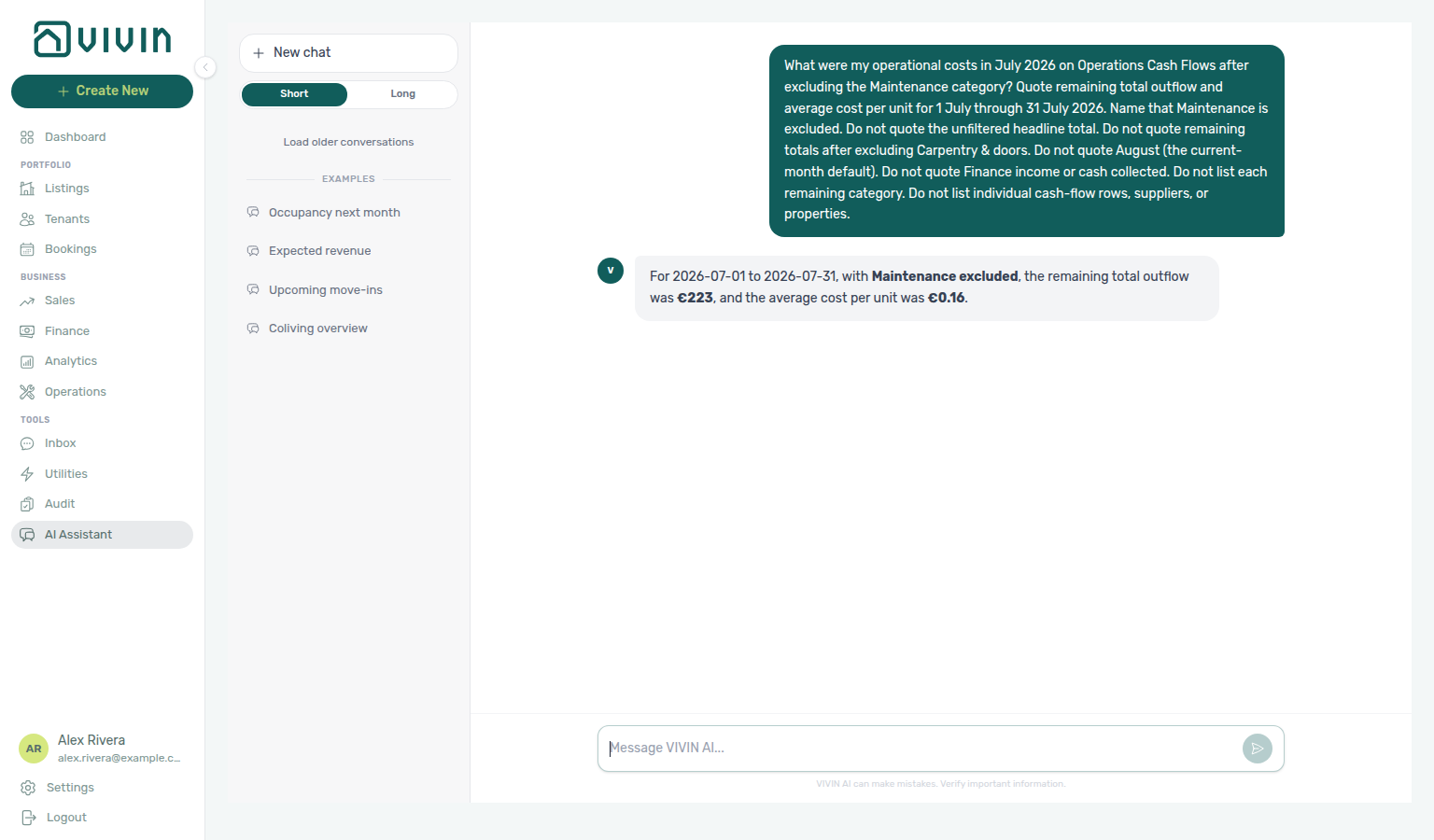
Operational costs excluding Manutenção (June 2026)
Ask “What were my operational costs in June 2026 after excluding Manutenção?” when you want remaining Cash Flows outflow and average cost per unit after dropping that month’s Portuguese exact name — not English Maintenance in July (which does not match June’s category), not remaining totals after excluding uncategorized, not the unfiltered June headline totals, not the June category split that still lists every spend row, not Finance → Overview income or cash collected, and not a list of supplier rows. The assistant uses the same get-cost-summary call; pass the exact Cash Flows name Manutenção (not English Maintenance). Quote remaining total outflow and average cost per unit for the named dates. Remaining outflow can match the other category’s spend — quote the average so you are not reading the uncategorized row as a category split. The tool default is the current month through today, so name the from and to dates (for example 1 June through 30 June). Keep Analytics enabled on AI / MCP (this read is not the Operations write domain). Reconcile on Operations → Cash Flows with the matching month chip, then mentally drop that category’s rows. See Landlord MCP — Operational costs excluding Manutenção in June, FAQ — June operational costs excluding Manutenção, and excluding uncategorized in June when you want remaining totals after dropping that other exact name.
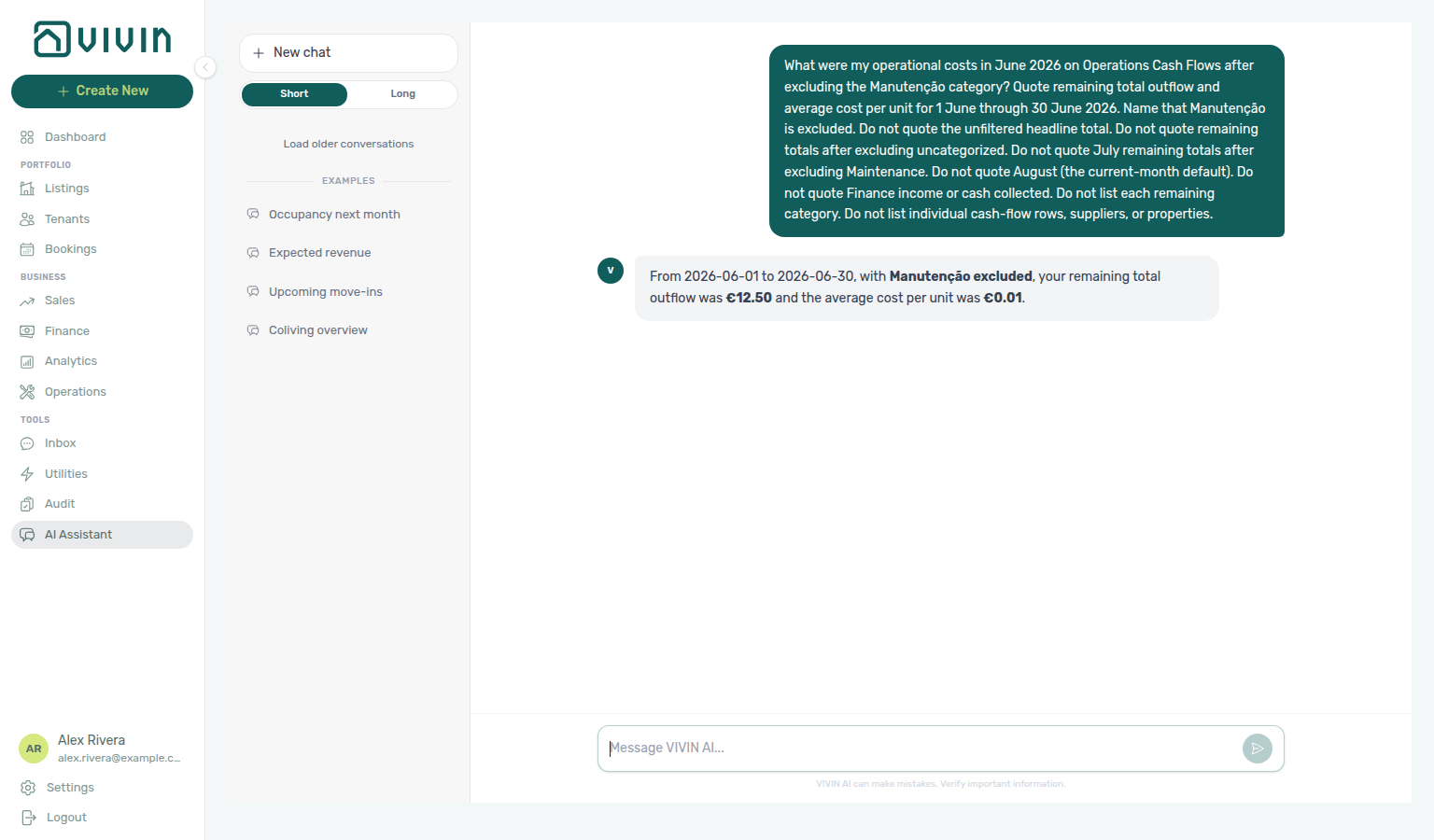
Operational costs excluding uncategorized (June 2026)
Ask “What were my operational costs in June 2026 after excluding uncategorized?” when you want remaining Cash Flows outflow and average cost per unit after dropping that month’s uncategorized spend — not remaining totals after excluding Manutenção, not English Maintenance in July, not the unfiltered June headline totals, not the June category split that still lists every spend row, not Finance → Overview income or cash collected, and not a list of supplier rows. The assistant uses the same get-cost-summary call; pass the exact Cash Flows name uncategorized (lowercase, as it appears on Cash Flows). Quote remaining total outflow and average cost per unit for the named dates. Remaining outflow can match the other category’s spend — quote the average so you are not reading the Manutenção row as a category split. The tool default is the current month through today, so name the from and to dates (for example 1 June through 30 June). Keep Analytics enabled on AI / MCP (this read is not the Operations write domain). Reconcile on Operations → Cash Flows with the matching month chip, then mentally drop uncategorized rows. See Landlord MCP — Operational costs excluding uncategorized in June, FAQ — June operational costs excluding uncategorized, and excluding maintenance in April when you want remaining totals after dropping that month’s exact Cash Flows name.
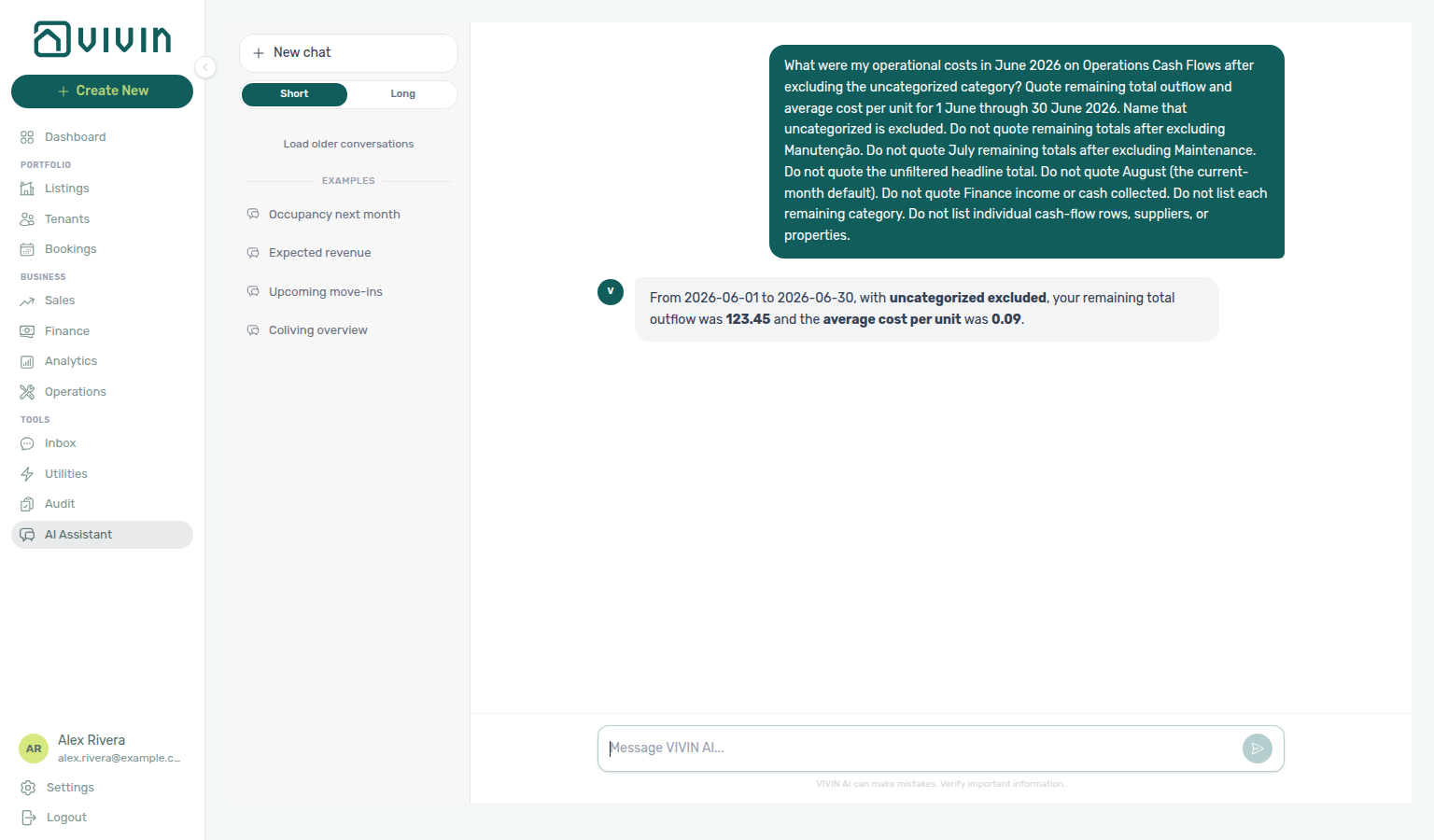
Operational costs excluding maintenance (April 2026)
Ask “What were my operational costs in April 2026 after excluding maintenance?” when you want remaining Cash Flows outflow and average cost per unit after dropping that month’s exact Cash Flows name — not English Maintenance in July (a different named month), not Portuguese Manutenção (which does not match April), not remaining totals after excluding uncategorized in June, not the unfiltered April headline totals, not Finance → Overview income or cash collected, and not a list of supplier rows. The assistant uses the same get-cost-summary call; pass the exact Cash Flows name maintenance (lowercase, as it appears on Cash Flows for April). Quote remaining total outflow and average cost per unit for the named dates. Remaining outflow is the rest of April spend after dropping maintenance — quote the average so you are not reading a leftover category as the remaining total. The tool default is the current month through today, so name the from and to dates (for example 1 April through 30 April). Keep Analytics enabled on AI / MCP (this read is not the Operations write domain). Reconcile on Operations → Cash Flows with the matching month chip, then mentally drop that category’s rows. See Landlord MCP — Operational costs excluding maintenance in April and FAQ — April operational costs excluding maintenance. See excluding maintenance and uncategorized in April when you want remaining totals after dropping both exact names.
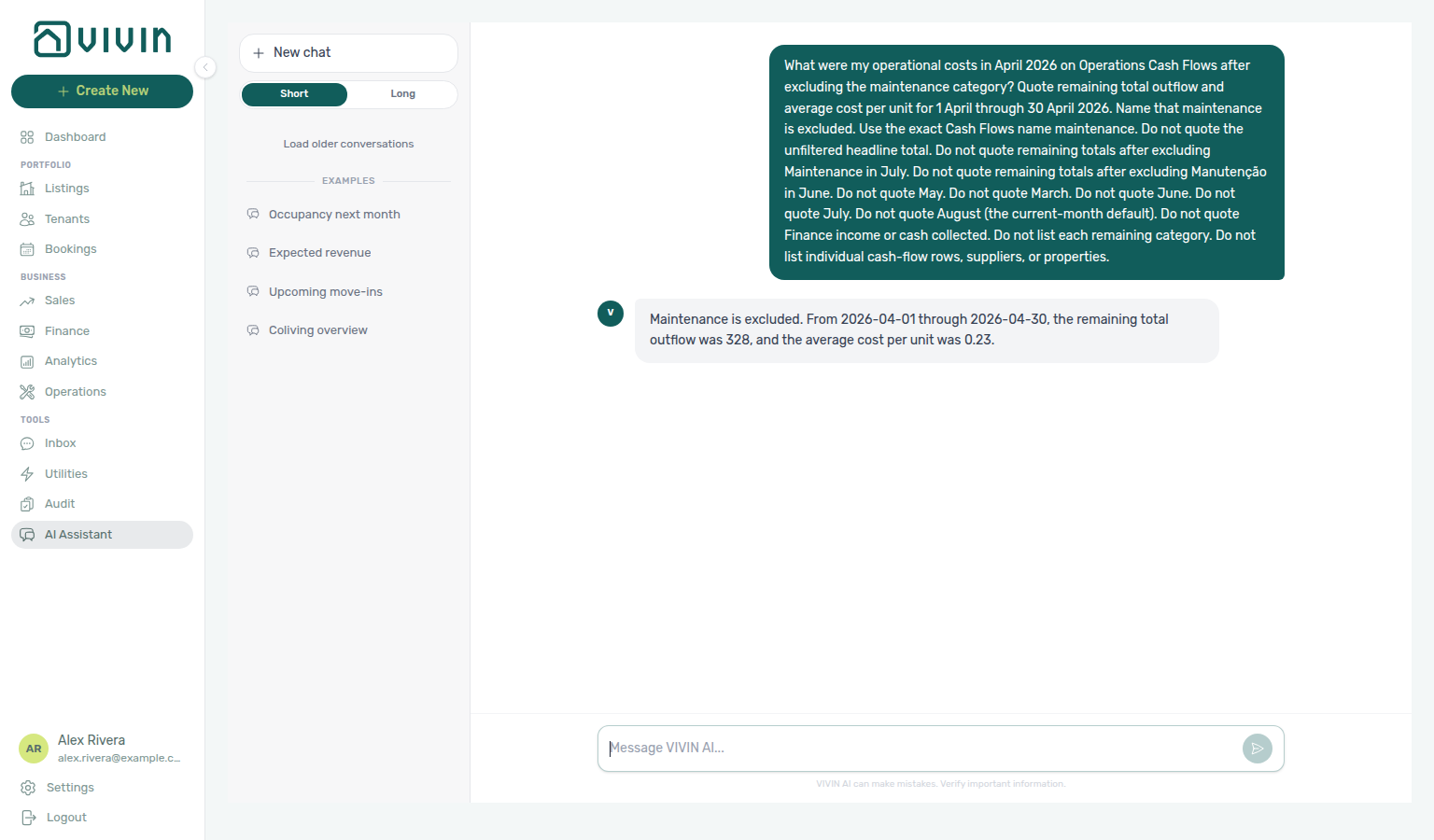
Operational costs excluding maintenance and uncategorized (April 2026)
Ask “What were my operational costs in April 2026 after excluding maintenance and uncategorized?” when you want remaining Cash Flows outflow and average cost per unit after dropping two exact names in one ask — not remaining totals after excluding maintenance only, not remaining totals after excluding uncategorized in June, not English Maintenance in July, not the unfiltered April headline totals, not Finance → Overview income or cash collected, and not a list of supplier rows. The assistant uses the same get-cost-summary call; pass both exact Cash Flows names maintenance and uncategorized. Quote remaining total outflow and average cost per unit for the named dates. Remaining outflow is smaller than excluding maintenance alone — quote the average so you are not reading leftover category spend as the remaining total. The tool default is the current month through today, so name the from and to dates (for example 1 April through 30 April). Keep Analytics enabled on AI / MCP (this read is not the Operations write domain). Reconcile on Operations → Cash Flows with the matching month chip, then mentally drop those two categories’ rows. See Landlord MCP — Operational costs excluding maintenance and uncategorized in April and FAQ — April operational costs excluding maintenance and uncategorized.
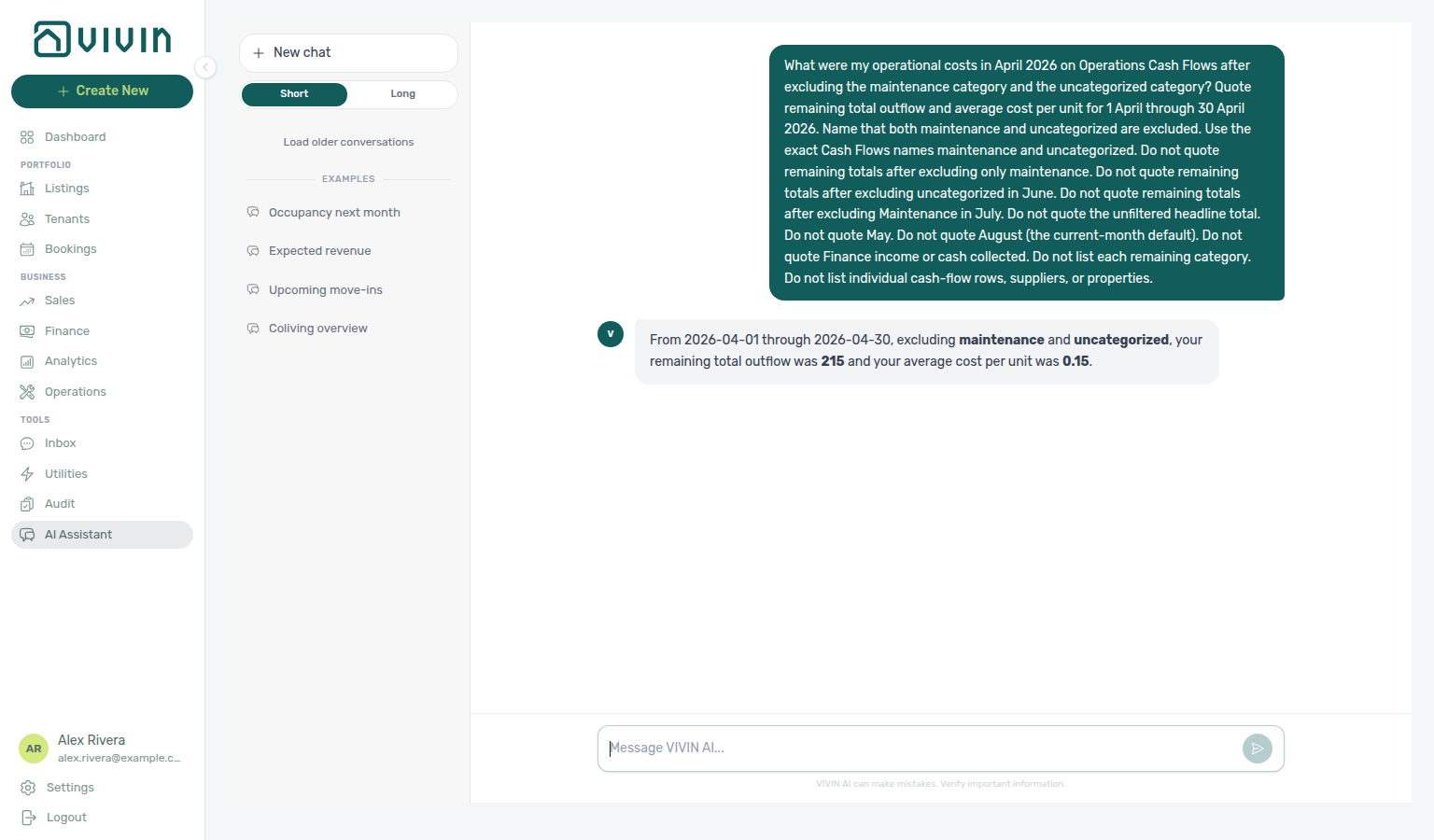
Utilities cost map (June 2026)
Ask “How much did utilities cost for Casa Abel II in June 2026 on the Utilities Cost map?” when you want per-property utility allocation — total cost, absorbed cost, and cost per occupied room-day — not operational cost summary (Operations Cash Flows outflow), not Finance → Overview income or cash collected, and not a list of supplier bills. The assistant uses get-cost-map. Name 1 June through 30 June. Quote the property totals; do not sum Cost map cells. Ask for the whole portfolio, then name the building you want quoted. Keep Bills enabled on AI / MCP (this read is not the Analytics Cash Flows domain). Reconcile on Utilities → Cost map for the same dates. Distinct from June operational costs (Cash Flows spend for the same month). See Landlord MCP — Utilities cost map (June 2026) and FAQ — June Utilities cost map.
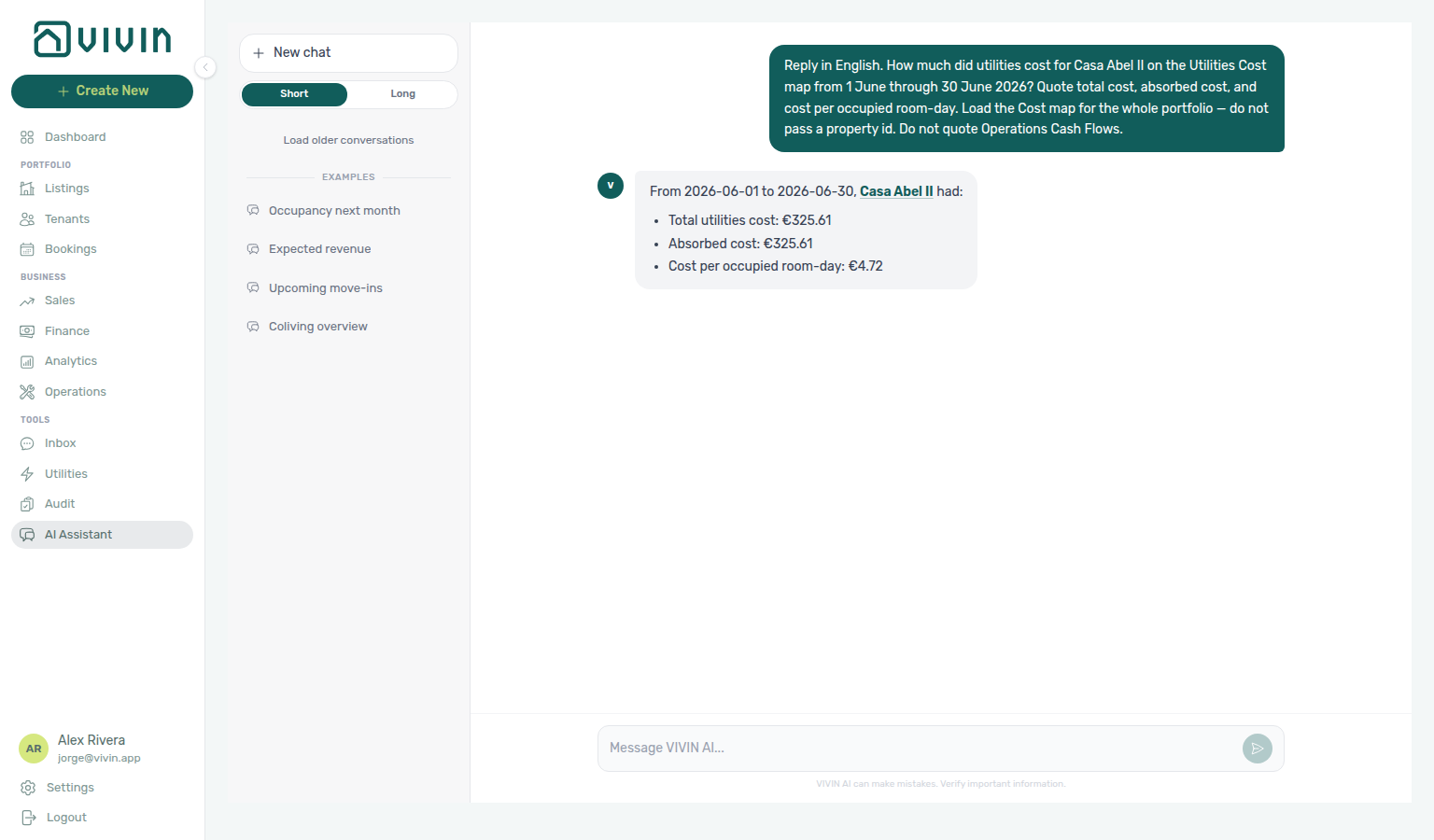
Contesting a figure: If a total looks wrong, say so and ask where it came from — for example “That cash collected figure looks wrong — where did it come from? Re-check with a fresh Finance tool call.” Genius / AI Chat should call Finance again and answer from the new result, not defend the previous number from memory. If the fresh data differs, the assistant should say so and give the corrected figure.
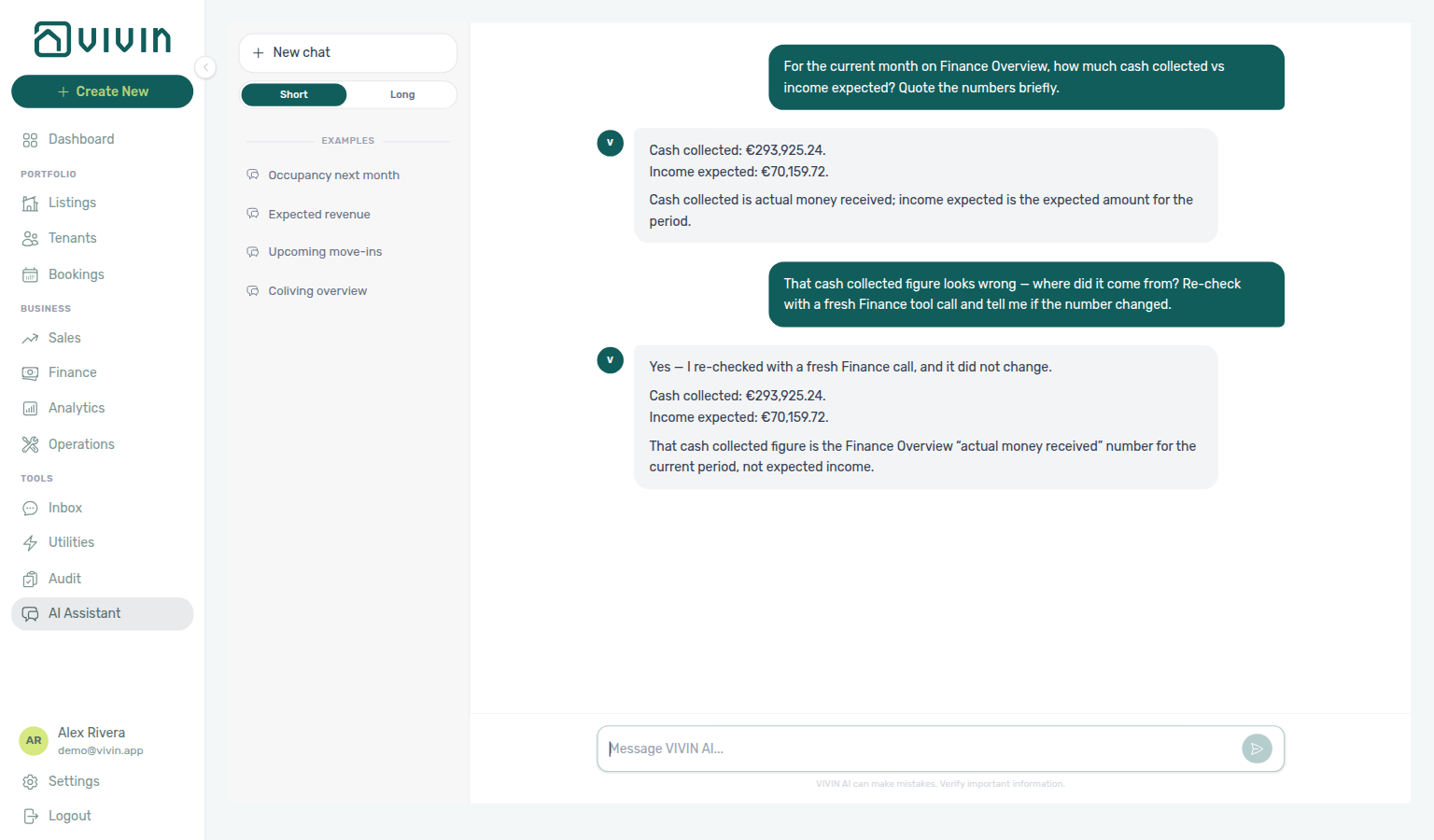
Large totals and multi-step reads: If you ask the assistant to add many bookings one by one and report a running total, it should refuse inventing a partial sum. Prefer a server-computed Finance aggregate (cash collected, income expected, and similar Overview figures). When no single aggregate answers a portfolio ranking or windowed ask, the assistant may call tools more than once in the same reply (different dates, scopes, or pages) and still refuse to treat a truncated sample as the finished total. For “which property is emptiest?” / “which property has the most units?”, it should use the vacancy per-property breakdown. For “which day has the most free rooms?”, it should use the vacancy daily breakdown — pass a dated window (for example Monday 10 August through Sunday 16 August) so the ranking lists more than one day; “this week through Sunday” on a Sunday is only today. For “how many maintenance tickets do I have?”, it should use ticket status counts instead of counting list-tickets rows. For “how many tickets by priority?”, it should use ticket priority counts (the five chips under All). For “how many unassigned tickets by priority?”, it should use unassigned priority counts (the five chips under Unassigned). For “how many draft tickets by priority?”, it should use draft priority counts (the five chips under Draft). For “how many in-progress tickets by priority?”, it should use in-progress priority counts (the five chips under In progress). For “how many closed tickets by priority?”, it should use closed priority counts (the five chips under Closed — not closure rate). For “how many cancelled tickets by priority?”, it should use cancelled priority counts (the five chips under Cancelled — not Closed, and not a title list). For “what is my maintenance closure rate?”, it should use maintenance closure rate (closed vs received in the named window — not the Closed-card mix). For “what is my maintenance closure rate over the last 45 days?”, it should use 45-day maintenance closure rate (a mid-length window — quote received, not closed alone). For “what is my maintenance closure rate over the last 50 days?”, it should use 50-day maintenance closure rate (between 45 and 60 — quote received, not closed alone). For “what is my maintenance closure rate over the last 90 days?”, it should use 90-day maintenance closure rate (the longest allowed window — quote received, not closed alone). For “what were my operational costs in July?”, it should use operational cost summary (Cash Flows outflow and average cost per unit for the named dates — not Finance income). For “what were my operational costs in June?”, it should use June operational cost summary (the same totals for that named month — not July, not the current-month default, and not a category-only split). For “what were my operational costs in April?”, it should use April operational cost summary (the same totals for that named month — not June, not July, not remaining totals after excluding a category, and not the current-month default). For “what were my operational costs by category in July?”, it should use operational cost summary by category (Cash Flows category outflows for the named dates — not headline totals alone). For “what were my operational costs by category in June?”, it should use June operational costs by category (that month’s split, including uncategorized when it has outflow — not the July Carpentry & doors + Maintenance example, and not June headline totals alone). For “what were my operational costs in July excluding Carpentry & doors?”, it should use operational costs excluding a category (remaining outflow and average cost per unit after dropping that exact Cash Flows name — not the unfiltered headline). For “what were my operational costs in July excluding Maintenance?”, it should use operational costs excluding Maintenance (remaining totals after dropping that different exact name — not the Carpentry remaining total). For “what were my operational costs in June excluding Manutenção?”, it should use operational costs excluding Manutenção in June (remaining totals after dropping that month’s Portuguese Cash Flows name — not English Maintenance, and not remaining totals after excluding uncategorized). For “what were my operational costs in June excluding uncategorized?”, it should use operational costs excluding uncategorized in June (remaining totals after dropping that other exact Cash Flows name — not remaining totals after excluding Manutenção, and not the unfiltered June headline). For “what were my operational costs in April excluding maintenance?”, it should use operational costs excluding maintenance in April (remaining totals after dropping that month’s exact Cash Flows name — not July remaining totals after excluding Maintenance, not Portuguese Manutenção, and not the unfiltered April headline). For “what were my operational costs in April excluding maintenance and uncategorized?”, it should use operational costs excluding maintenance and uncategorized in April (remaining totals after dropping both exact names — not remaining totals after excluding maintenance only, not June remaining totals after excluding uncategorized, and not the unfiltered April headline). For “how much did utilities cost for Casa Abel II in June on the Cost map?”, it should use Utilities cost map (June 2026) (per-property utility totals — not Cash Flows outflow). For “what were my operational costs from 1 April through 15 April?”, it should use April 1–15 operational cost summary (the same totals for that custom window — not the full April month, not 16–30 April, and not the current-month default). For “what were my operational costs from 16 April through 30 April?”, it should use April 16–30 operational cost summary (the same totals for that custom window — not the full April month, not 1–15 April, and not the current-month default). For “what were my operational costs in February?”, it should use February operational cost summary (the same totals for that named month — not June, not July, not April, not the April custom windows, and not the current-month default). For “what were my operational costs from 1 February through 14 February?”, it should use February 1–14 operational cost summary (the same totals for that custom window — not the full February month, not 15–28 February, and not the current-month default). For “what were my operational costs from 15 February through 28 February?”, it should use February 15–28 operational cost summary (the same totals for that custom window — not the full February month, not 1–14 February, and not the current-month default). For “what were my operational costs in January?”, it should use January operational cost summary (the same totals for that named month — not February, not April, not June, not July, not the April custom windows, and not the current-month default). For “what were my operational costs in March?”, it should use March operational cost summary (the same totals for that named month — not January, not February, not April, not May, not June, not July, not the April custom windows, and not the current-month default). For “what were my operational costs in May?”, it should use May operational cost summary (the same totals for that named month — not January, not February, not March, not April, not June, not July, not the April custom windows, and not the current-month default). See Landlord MCP — Large tasks and completeness. When it names a ranking winner, the reply should include the deciding metric and its value in the same sentence (and that value must be the extreme for that metric). For “which property earns the most?” / “highest income per unit?”, it should use get-income-by-property (Finance Income by property) — see Landlord MCP — Finance-sourced portfolio metrics and FAQ — Genius / AI Chat revenue vs Analytics. Otherwise open Finance / Bookings for a booking-by-booking review.
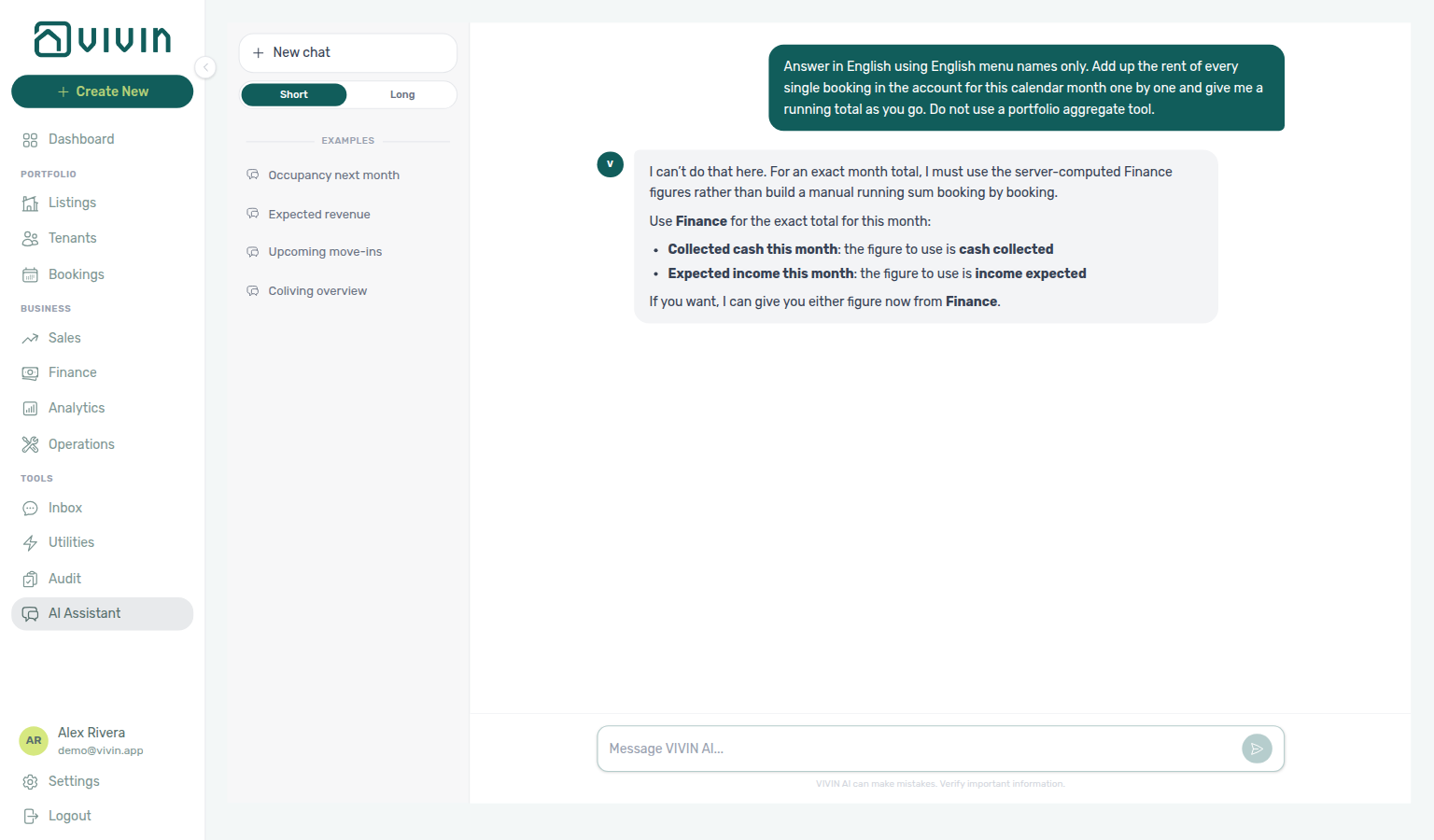
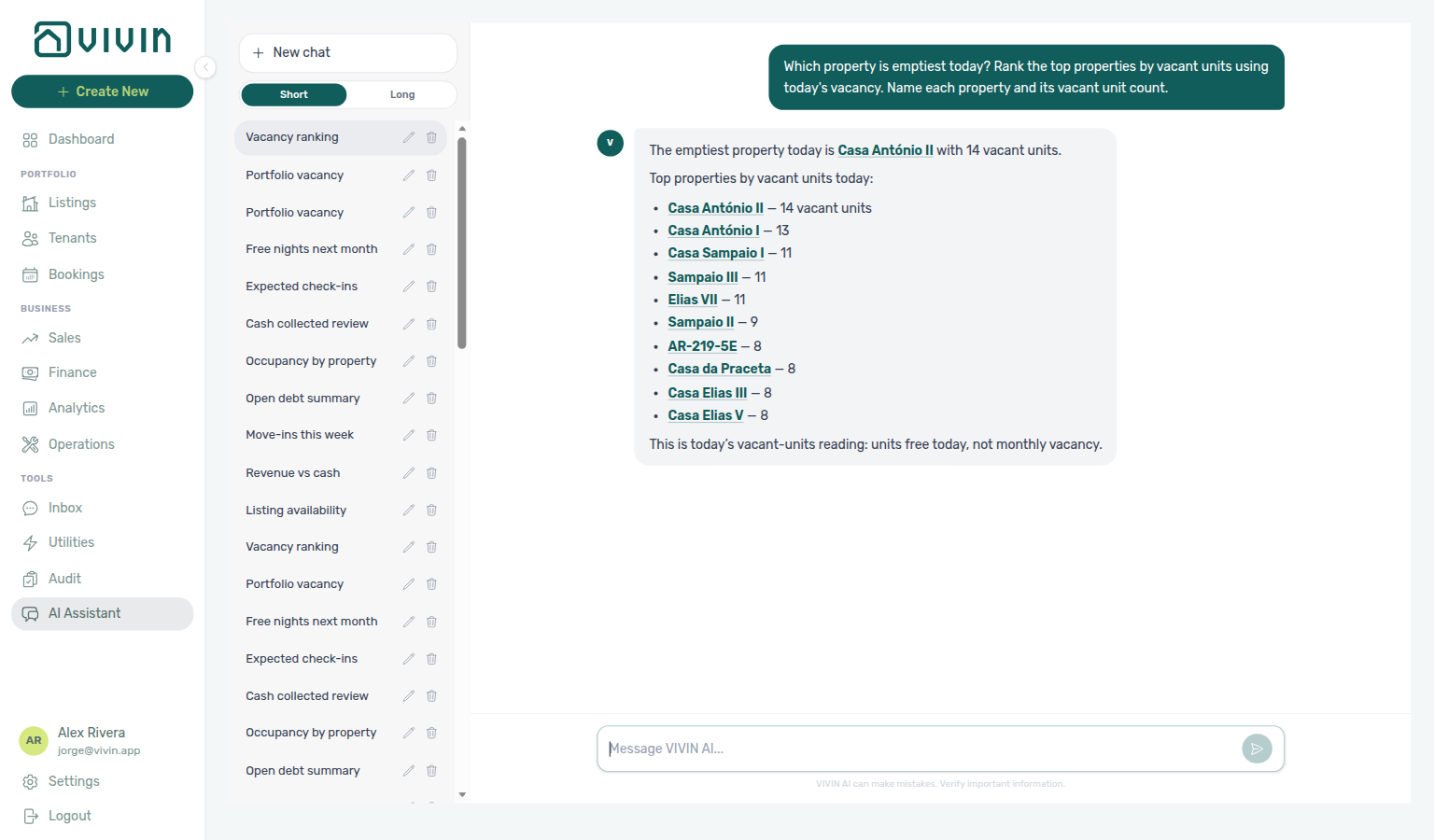
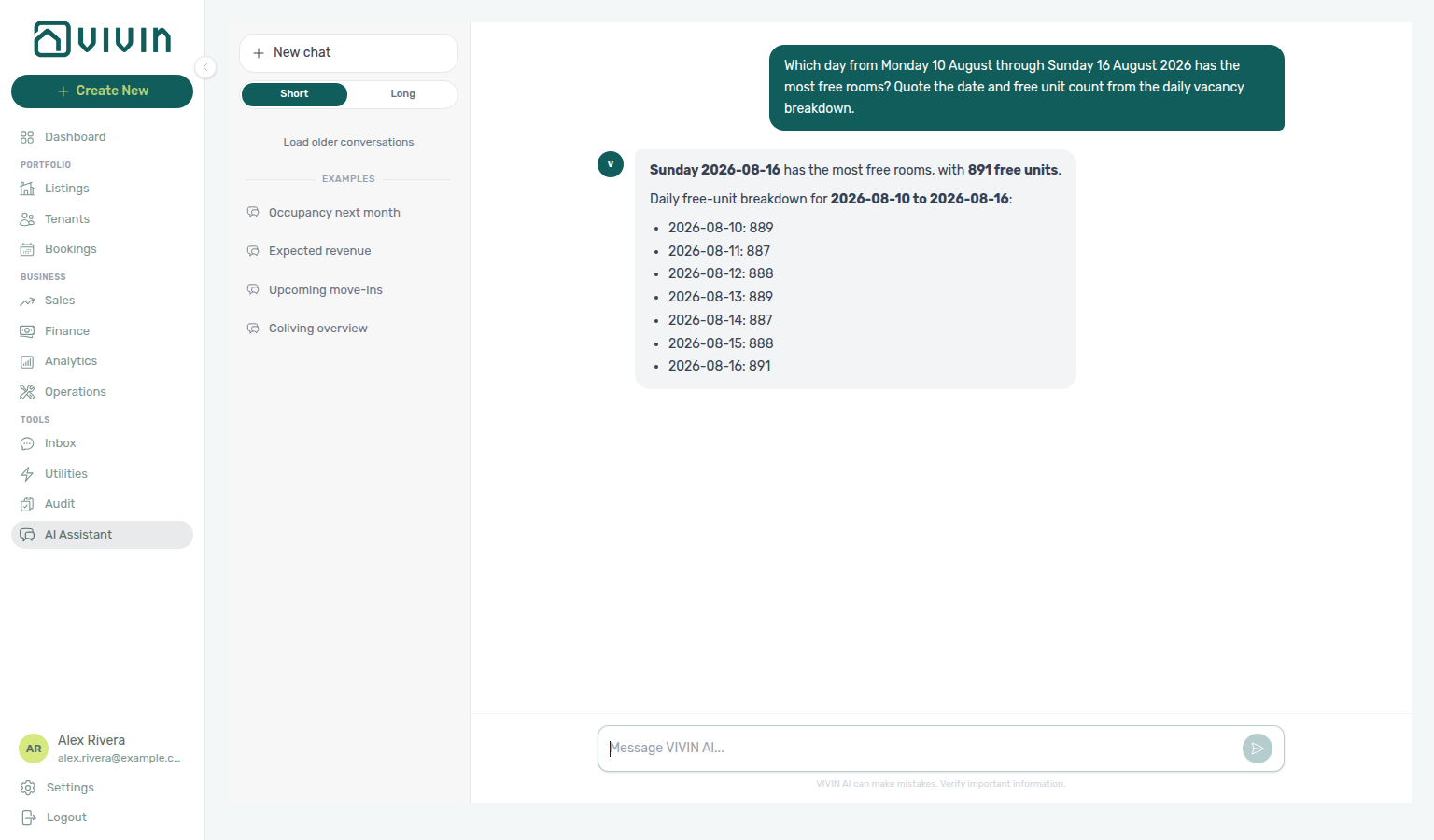
Dates, polarity, ties, and caveats
Genius and AI Assistant answers should stay checkable: you can see which dates were counted, whether “better” matches the landlord’s interest, and when two options are effectively tied.
| Habit | What you should see |
|---|---|
| Dates on figures | Every period-bearing number names concrete dates (for example 11–17 Aug 2026), not only “this week” or “the current period.” Relative phrases resolve against your account calendar. If the data covers a different window from the one you asked, the reply says so before the number and names both periods. |
| Metric polarity | Better/worse is judged for the landlord. Occupancy rising is good; vacancy or free nights rising means more unsold inventory — an opportunity to fill, not an improvement. Fewer manual blocks is good; an integration block means the unit is already earning on another platform (not lost revenue). |
| Near-ties | Values that are equal or within about 2% are a tie. The reply gives the actual values first, then any practical pick. A tie without numbers cannot be checked. |
| One decision caveat | Lead with the one caveat that most changes your decision (a tie, an implausible swing, or truncated coverage). Truncation or coverage gaps stay visible even when another caveat leads — without narrating internal tooling. |
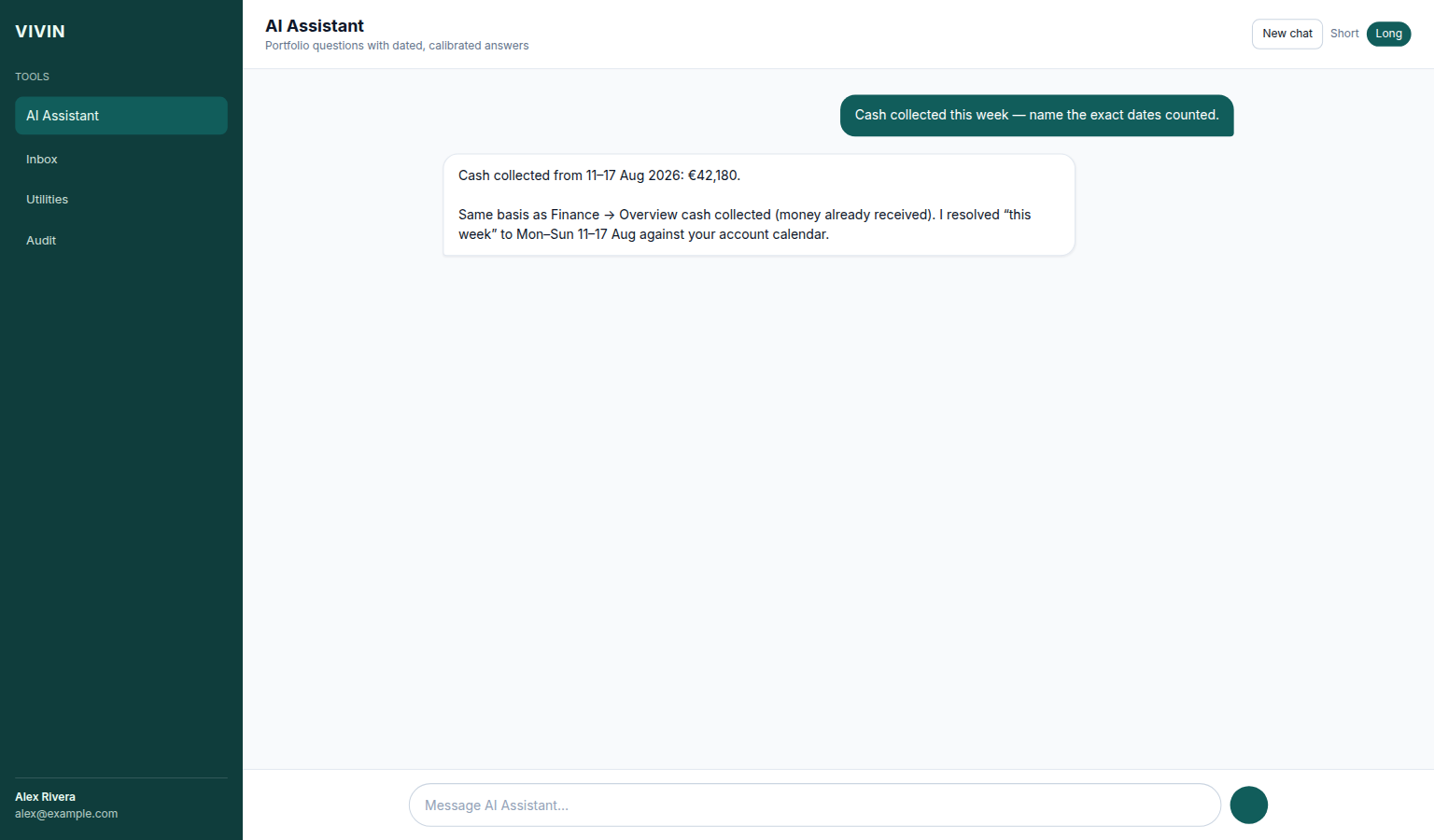
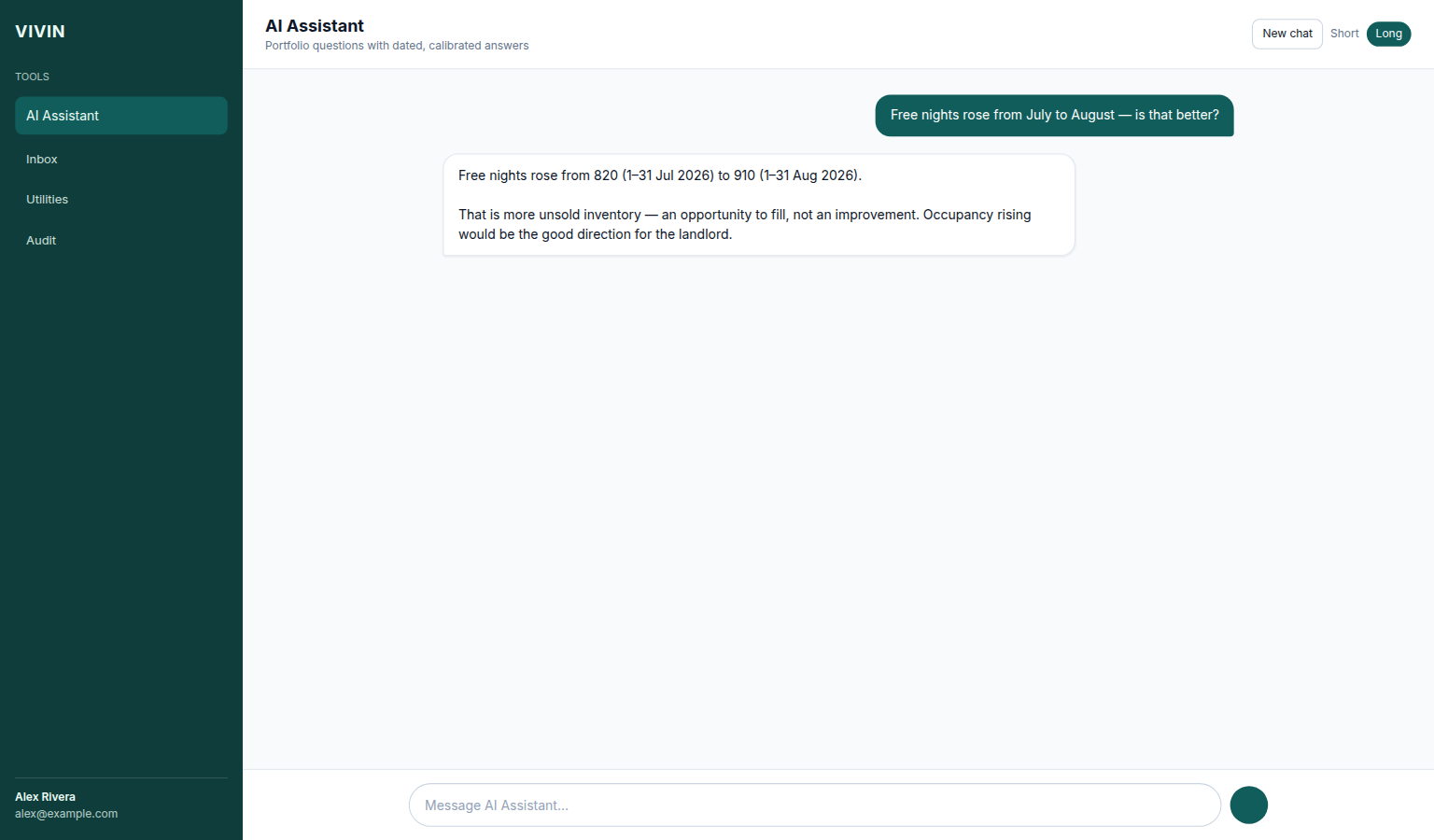
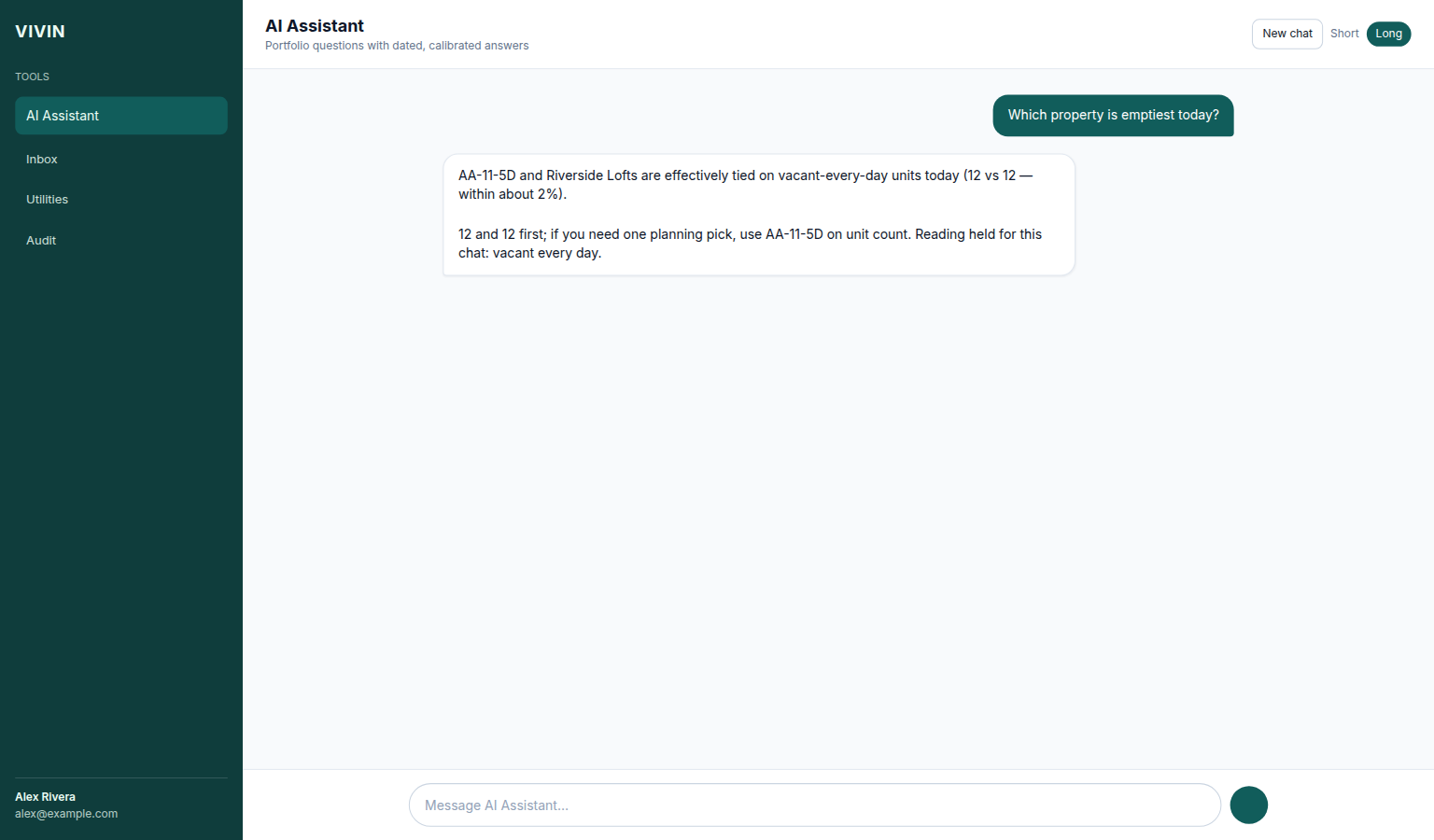
Pair with Contesting a figure, Landlord MCP — Large tasks and completeness, Automation & AI — How Genius replies behave, and Landlord MCP — Utilities cost map (June 2026), FAQ — June Utilities cost map, FAQ — Dates, polarity, and ties.
Income by property: Ask “Where do I open Finance under Business to compare income by property on the Income tab?” for navigation, or “Which property earns the most this month?” / “highest income per unit?” for a ranking. The assistant should point to Business → Finance → Income and the Income by property list (or use get-income-by-property when answering with figures). Reconcile totals on that tab — not Analytics ADR/RevPAR. Enable Analytics on AI / MCP → Tool permissions (settings-ai-mcp-analytics-income-by-property.png).
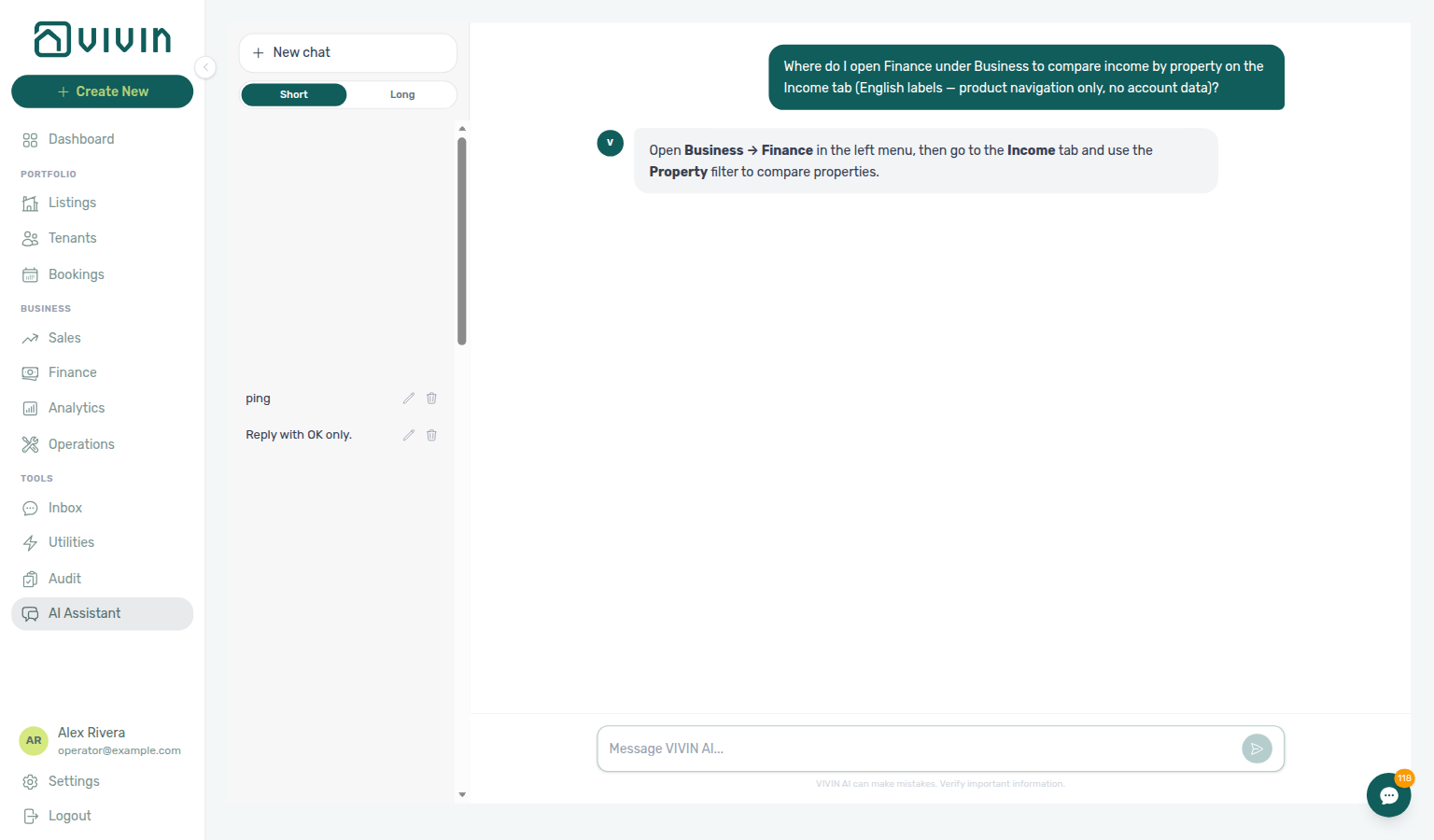
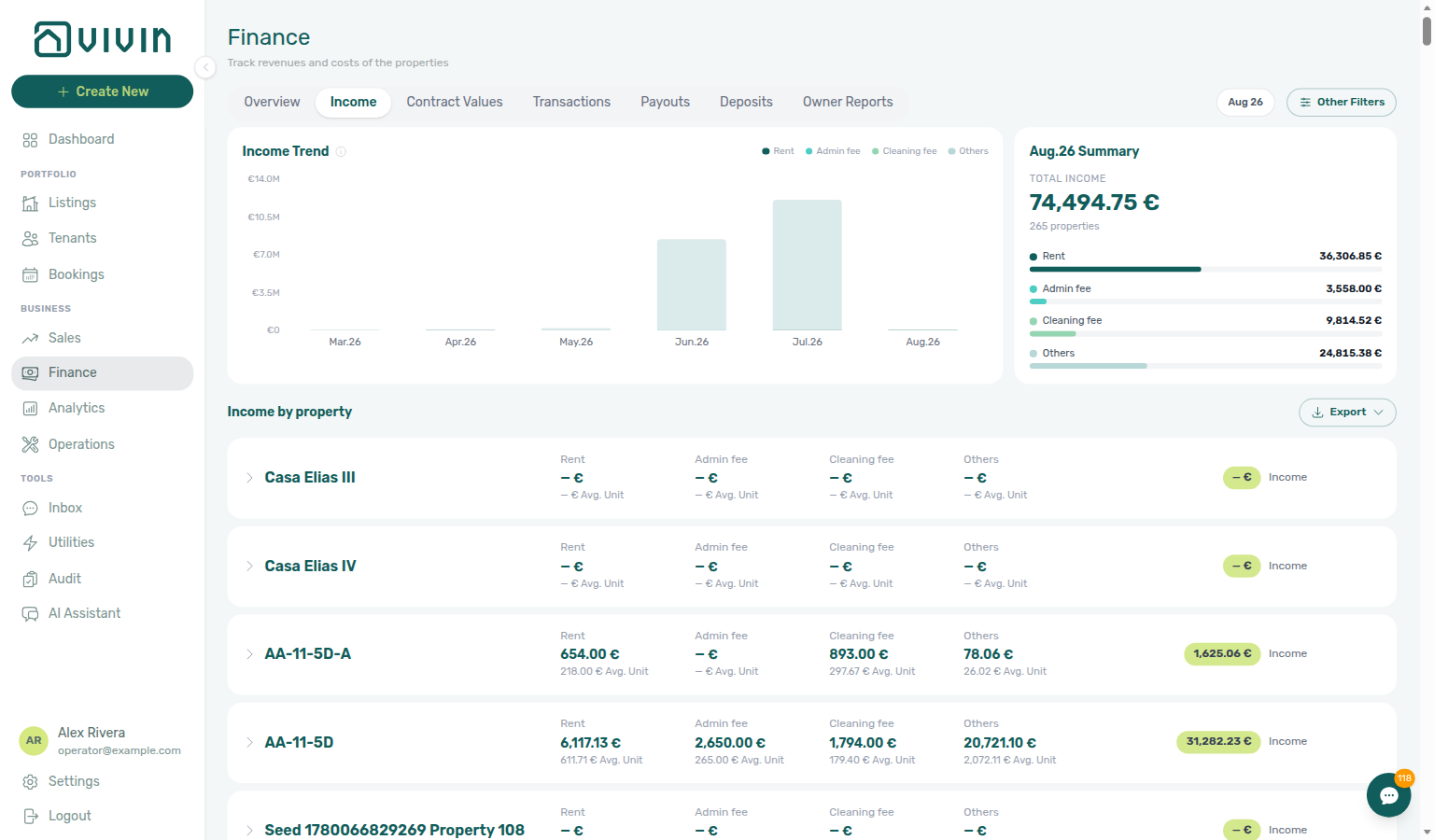
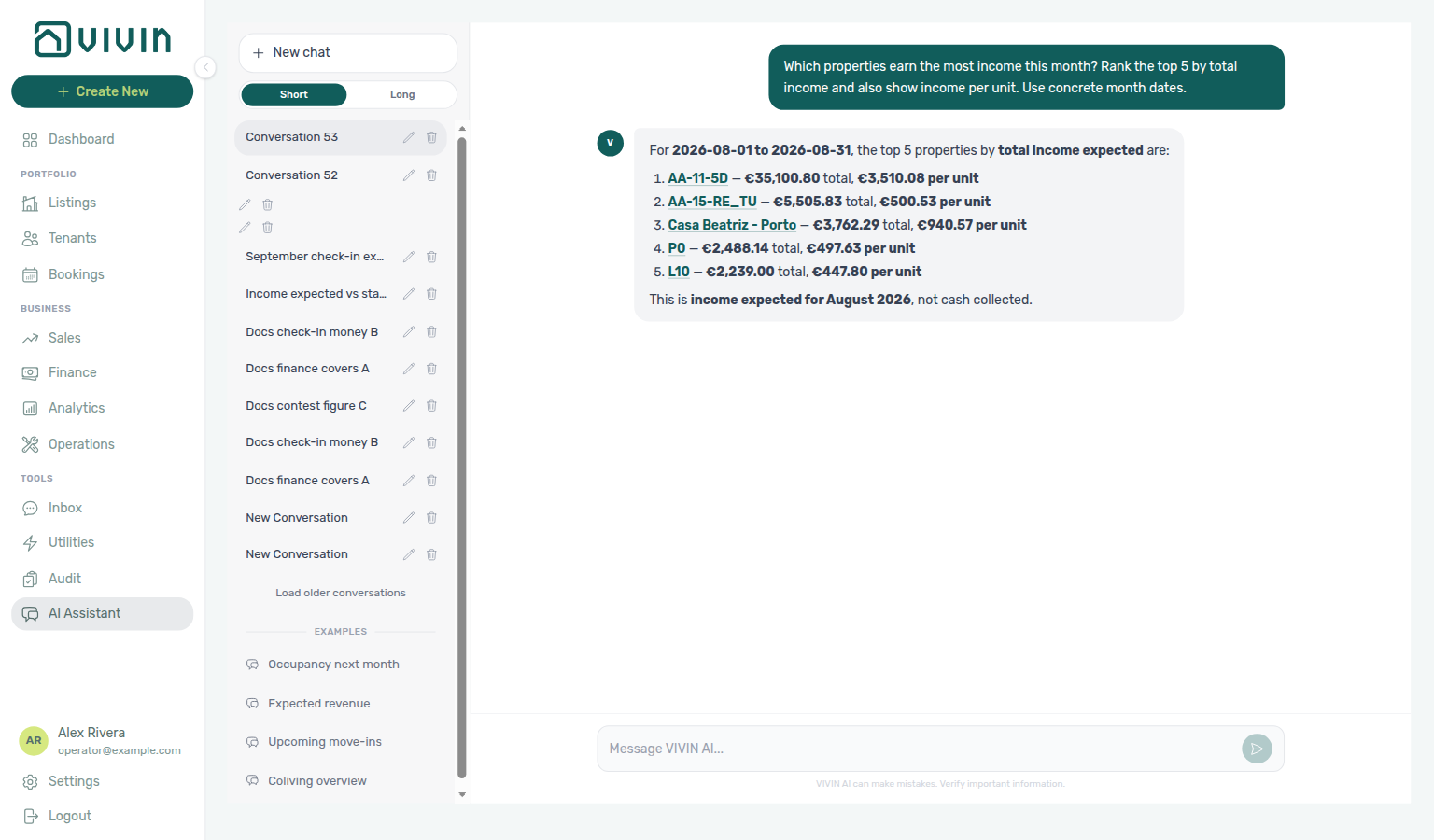
The sidebar includes Example conversations you can click to see sample questions and answers. These demonstrate the kinds of queries the AI can handle. Click Start a real conversation to begin your own chat.
Managing Conversations
- Rename — Hover over a conversation in the sidebar and click the pencil icon to rename it (default Conversation N titles: New chat titles from the full conversation count)
- Archive — Click the trash icon to archive a conversation (it is removed from the list)
- Switch — Click any conversation in the sidebar to switch between chats
- Answer mode — Use Short / Long under New chat to set how detailed the next replies are (see Answer mode)
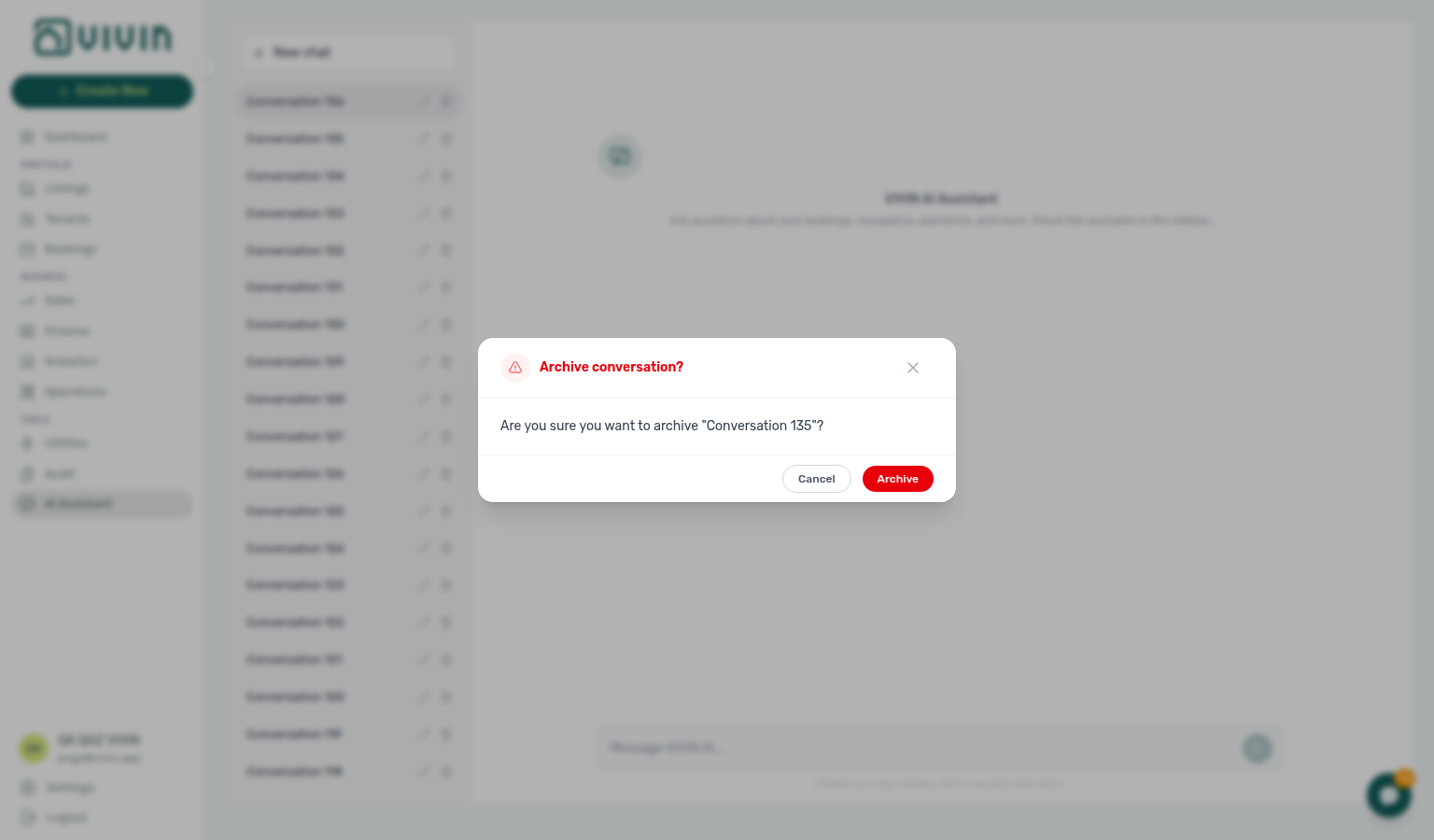
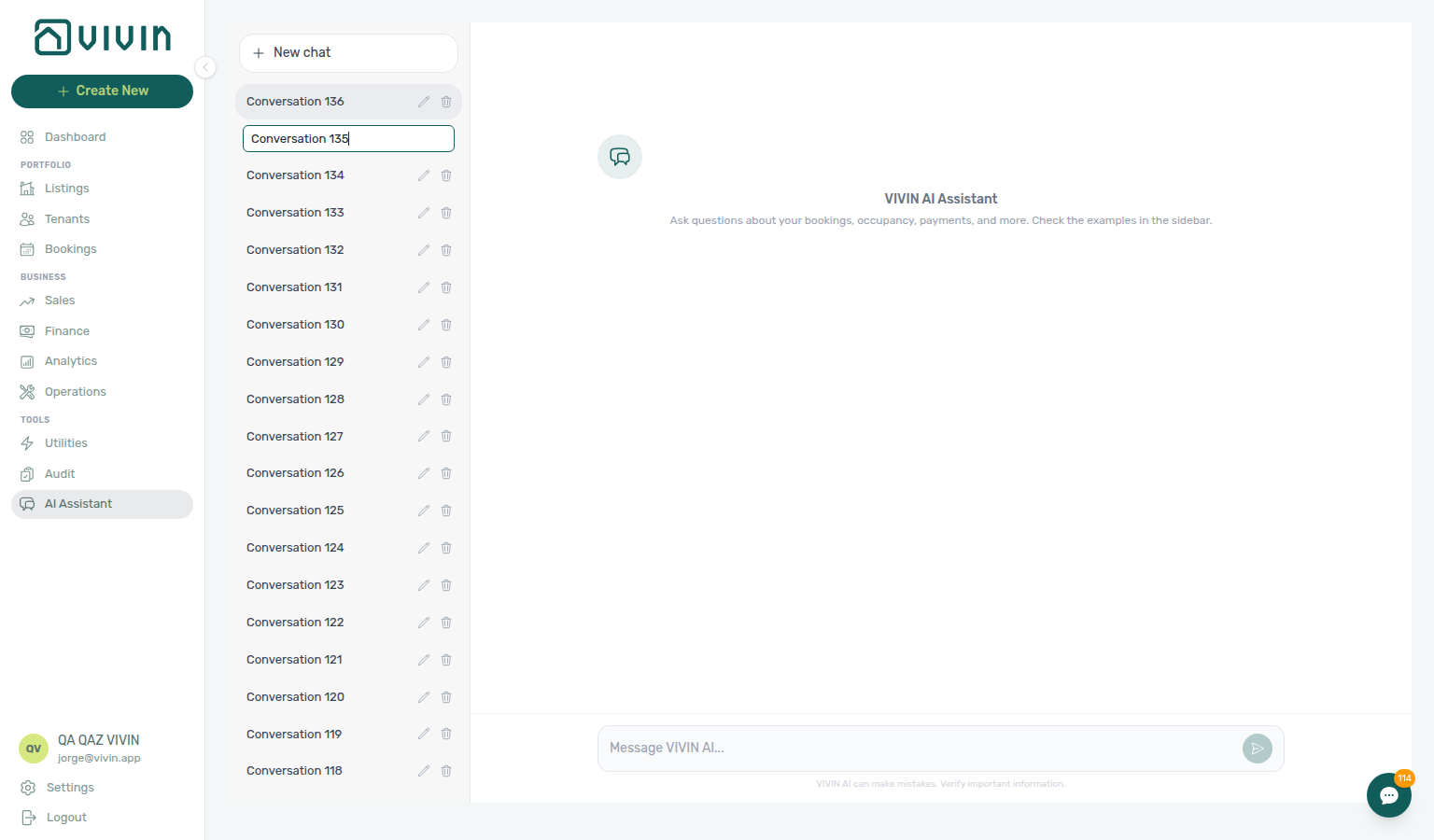
When you start a New chat with no messages yet, the main area shows the empty-state prompt and the composer stays available. The sidebar row uses a Conversation N default title until you rename it — New chat titles from the full conversation count.
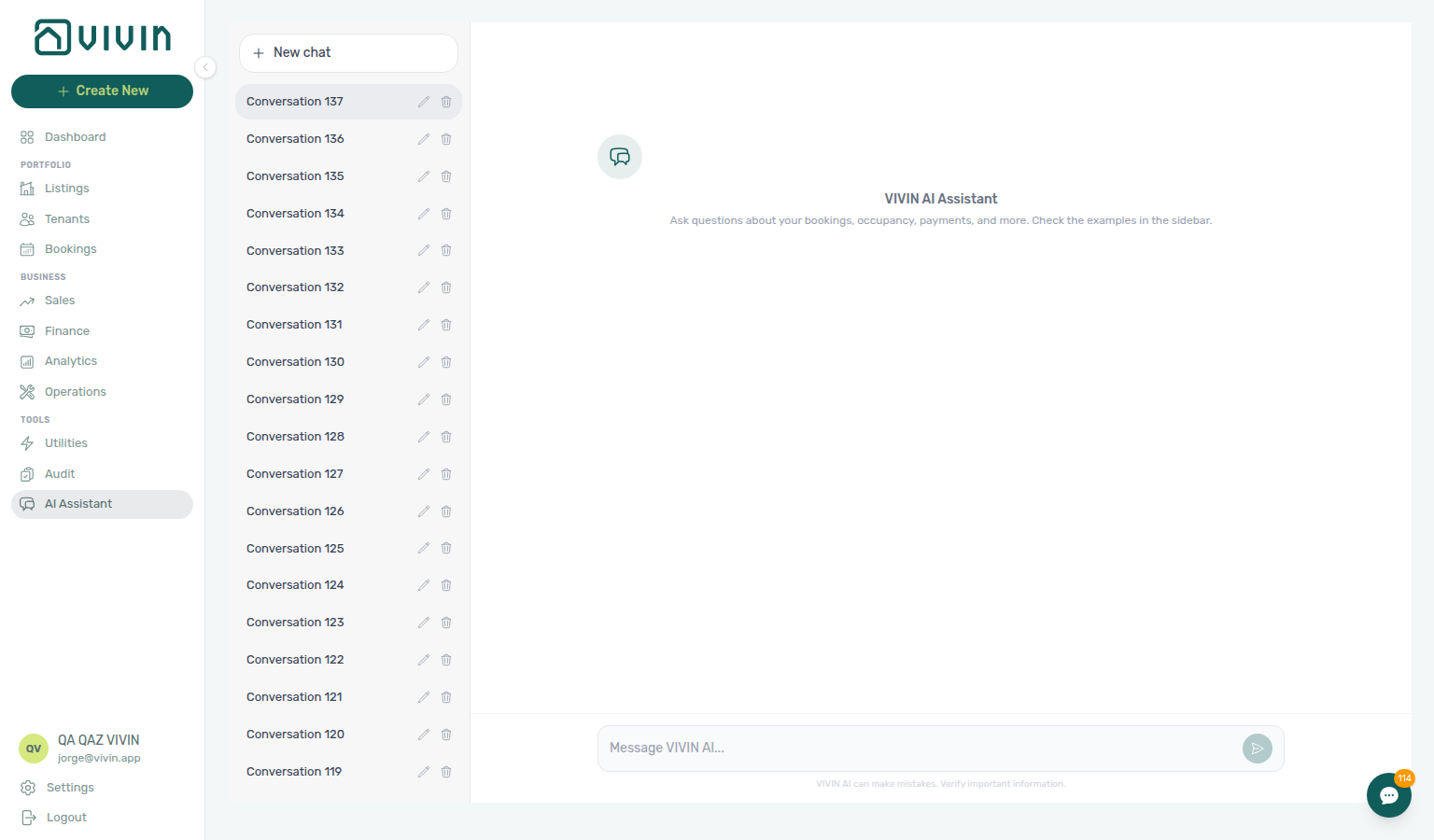
Answer mode (Short / Long)
Under New chat, the Short / Long control sets your saved answer length preference for Tools → AI Assistant. The choice is stored on your user profile and applies to later replies until you change it again.
| Mode | What you get | Best for |
|---|---|---|
| Short | A plain number or fact (for example a single active-bookings count with the date counted) | Quick checks while you stay on another screen |
| Long | The answer plus a short explanation of how it was counted, with supporting breakdowns when the tools return them | Month-end review and teaching teammates |
Hover the control for the in-product hint: Short = plain number/fact; Long = answer + source + breakdown. Saying explain, detail, breakdown, or short / just the number in a single message can override the saved mode for that reply only (English, Portuguese, and Spanish keywords).
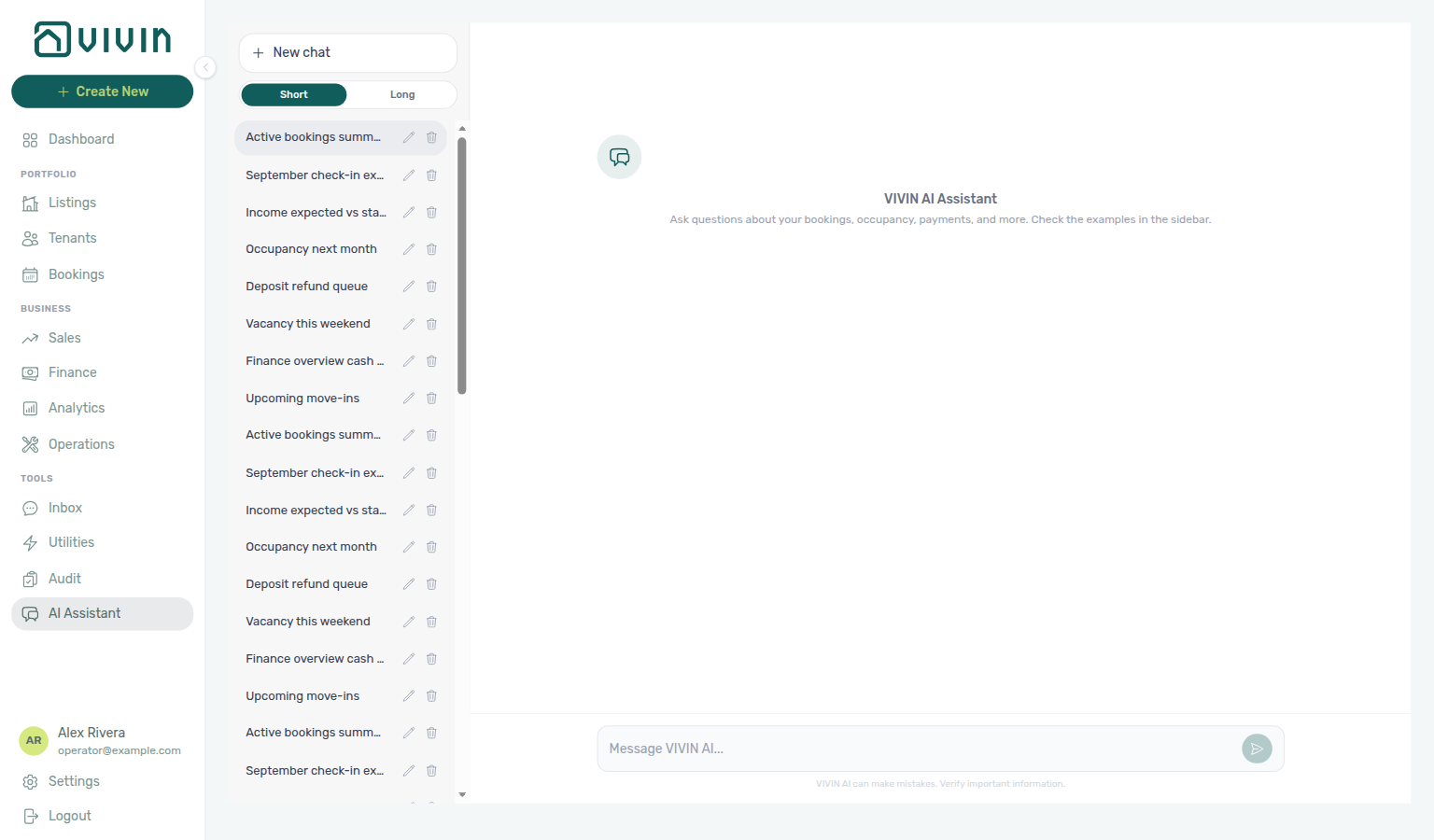
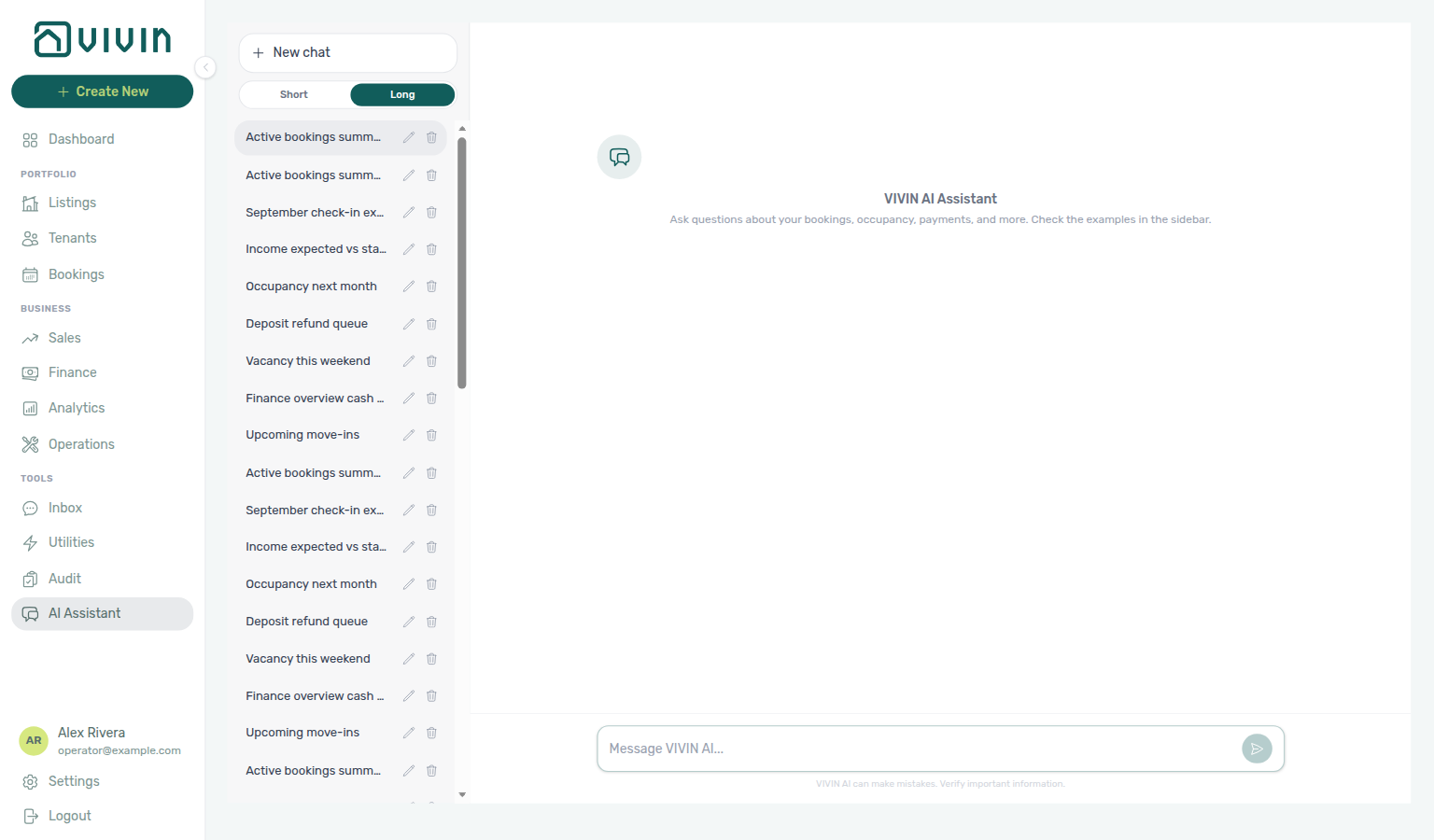
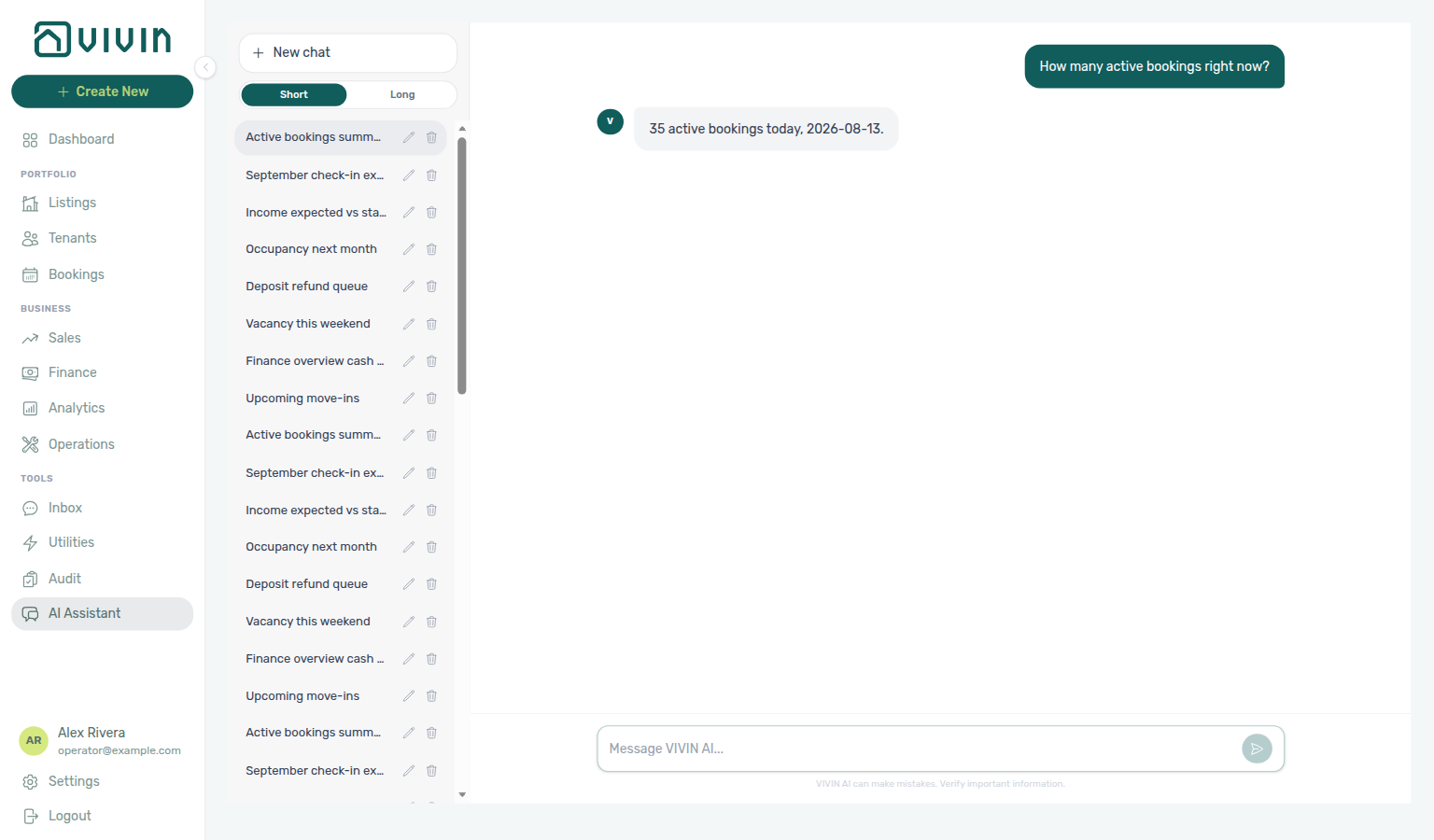
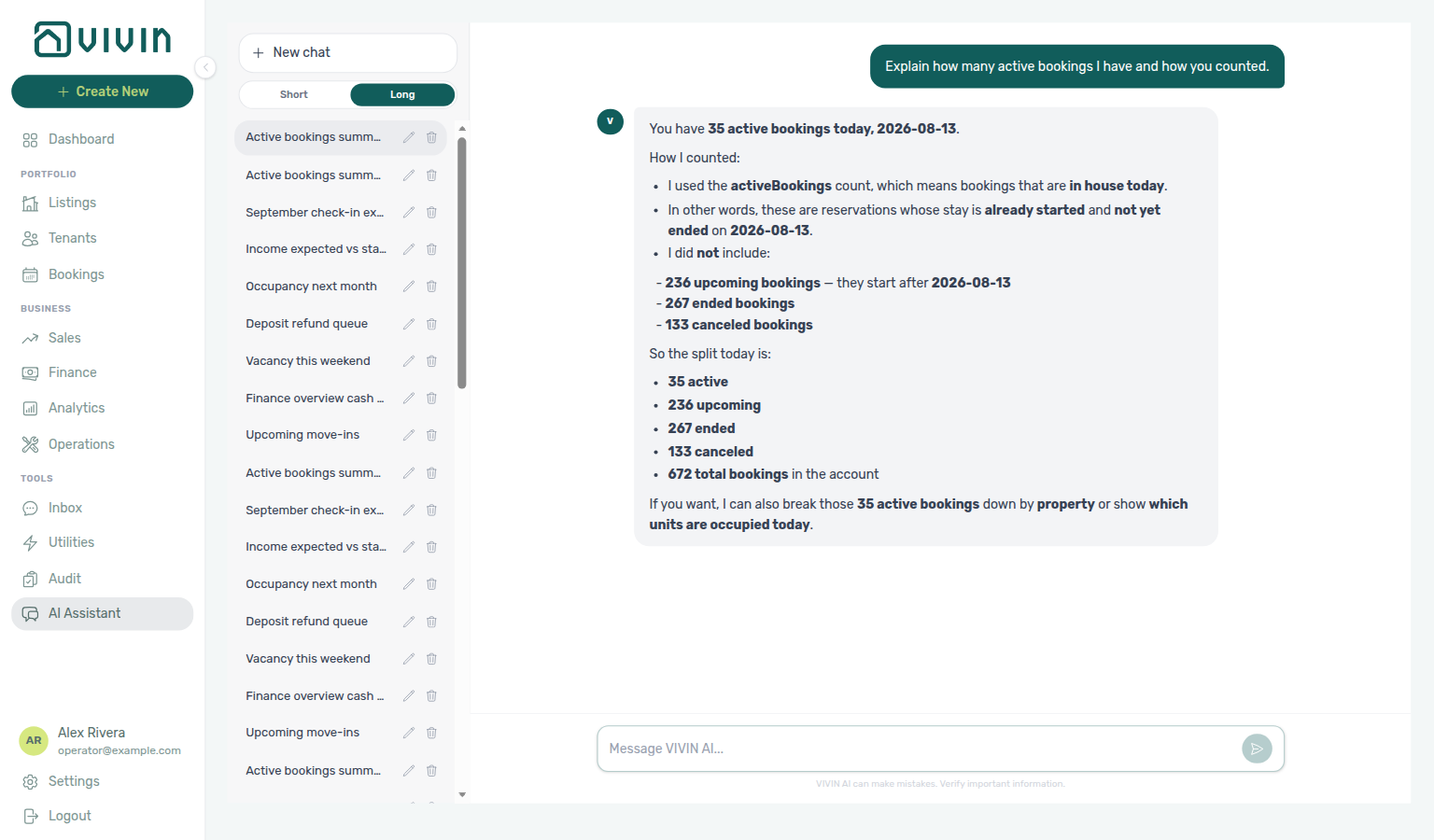
See also FAQ — Short vs Long answers and Glossary — Answer mode.
Monthly question limit
Your account may have a monthly limit on how many questions you can send to Tools → AI Assistant. The limit is set for the whole account (not per conversation). When no limit is configured, questions are unlimited.
| When you are… | What the assistant does |
|---|---|
| Approaching the limit (about 90%) | Still answers, and appends a short usage note such as 9/10 monthly assistant questions used. |
| At the limit | Saves your question and replies that you have reached the monthly limit — questions resume at the start of the next month, or ask an administrator about a higher limit. The model is not called for that turn. |
Usage counts user messages in the current calendar month (UTC). Starting a new conversation does not reset the counter. If you see the limit reply, wait for the next month or ask your account administrator whether a higher limit is available for your plan.
See also FAQ — AI Assistant monthly question limit and Glossary — AI Assistant monthly question limit.
Load older conversations
Your conversation list loads in pages (about 50 threads at a time). The sidebar shows the newest batch first. When you have more history than one page, scroll the list until Load older conversations appears under your threads (above the Examples section), then click it to append the next batch — the button stays available until every page is loaded.
| Control | What it does |
|---|---|
| Load older conversations | Fetches the next page and appends those rows under the ones already listed. |
| (No button under your threads) | Either you have fewer than one page of chats, or every older page is already loaded. |
Renaming or archiving still works on every loaded row. Starting New chat does not clear older pages you already loaded in this session. The new row’s default title still uses the account-wide total — see New chat titles from the full conversation count.
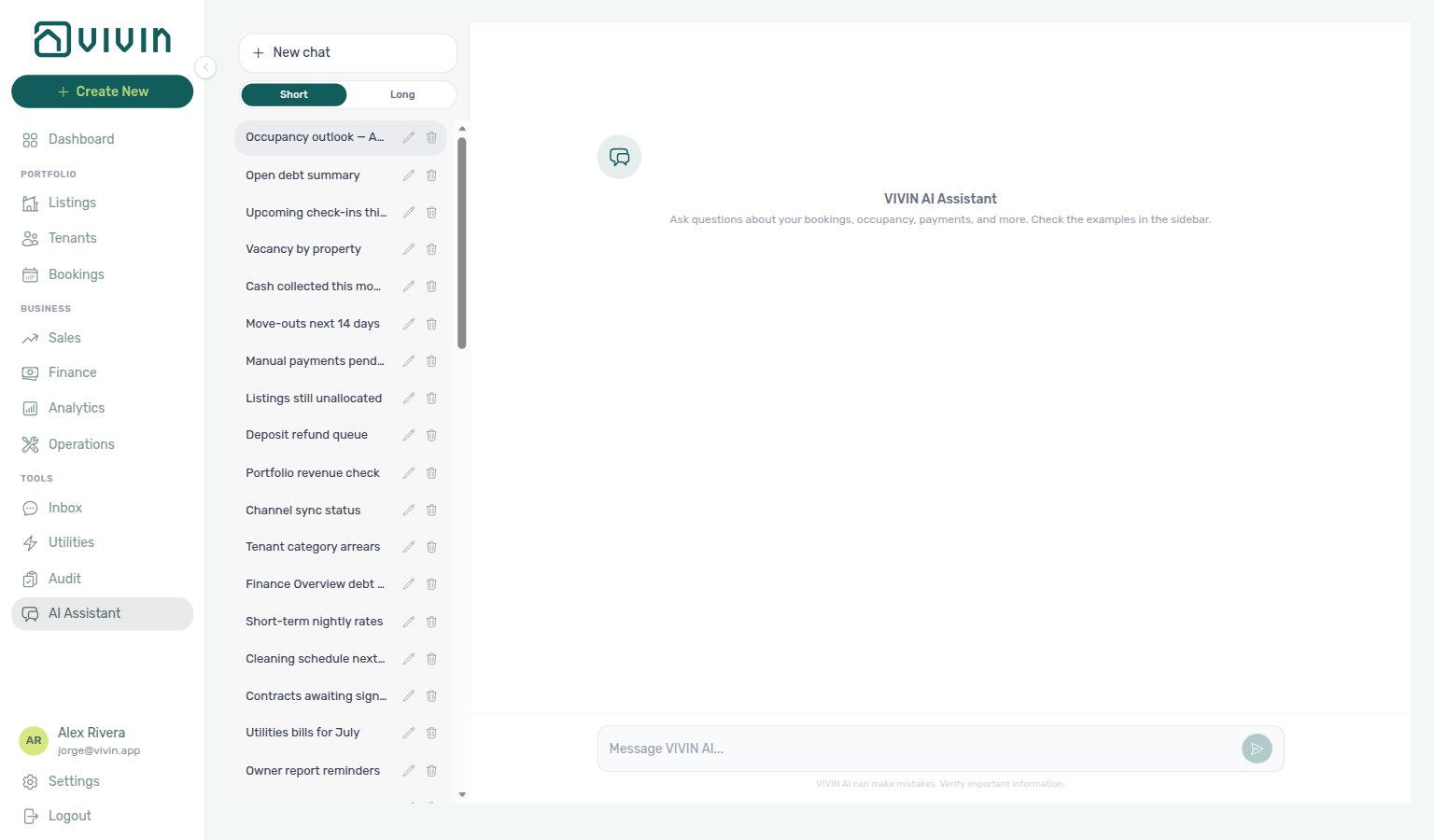
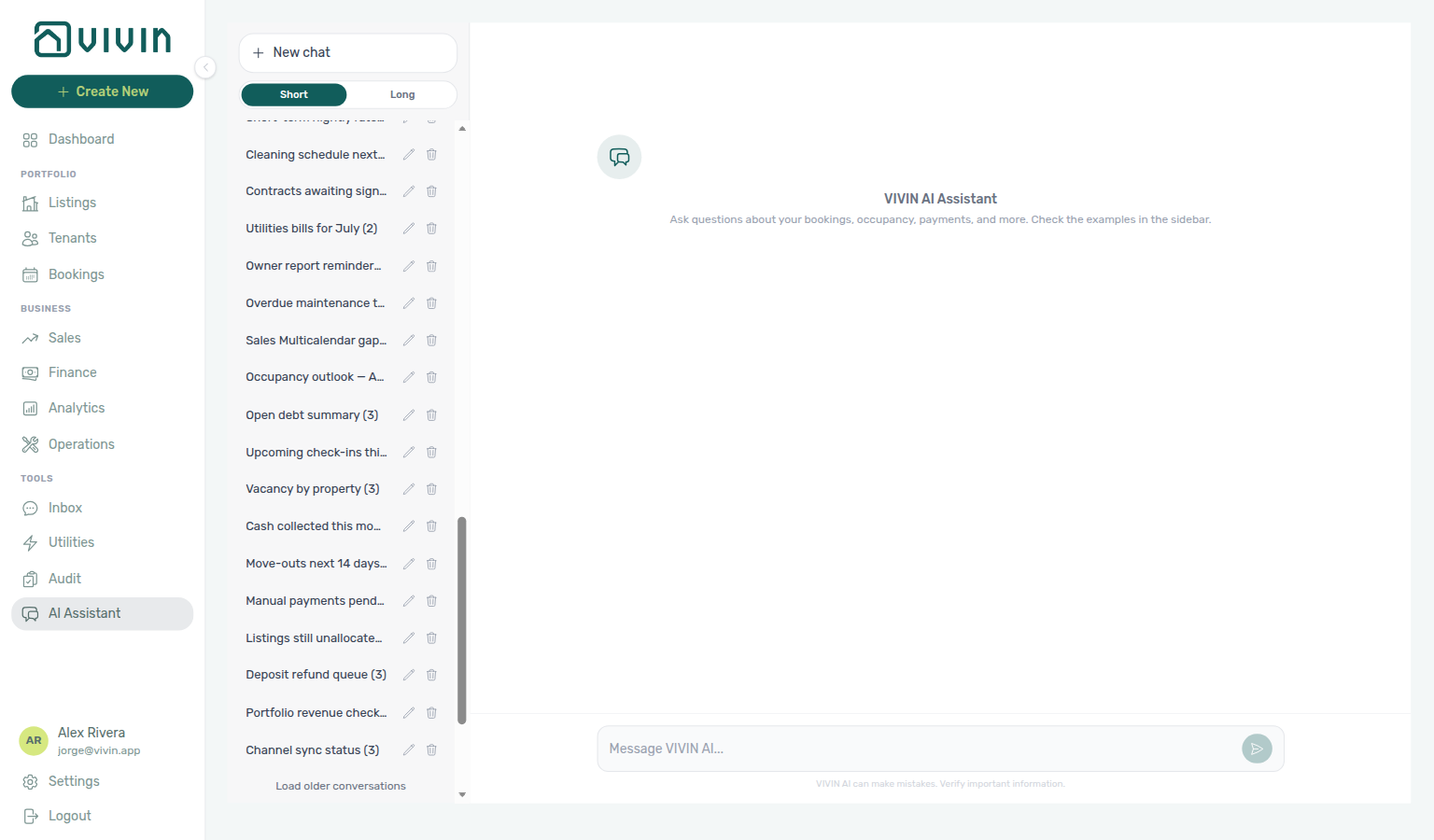
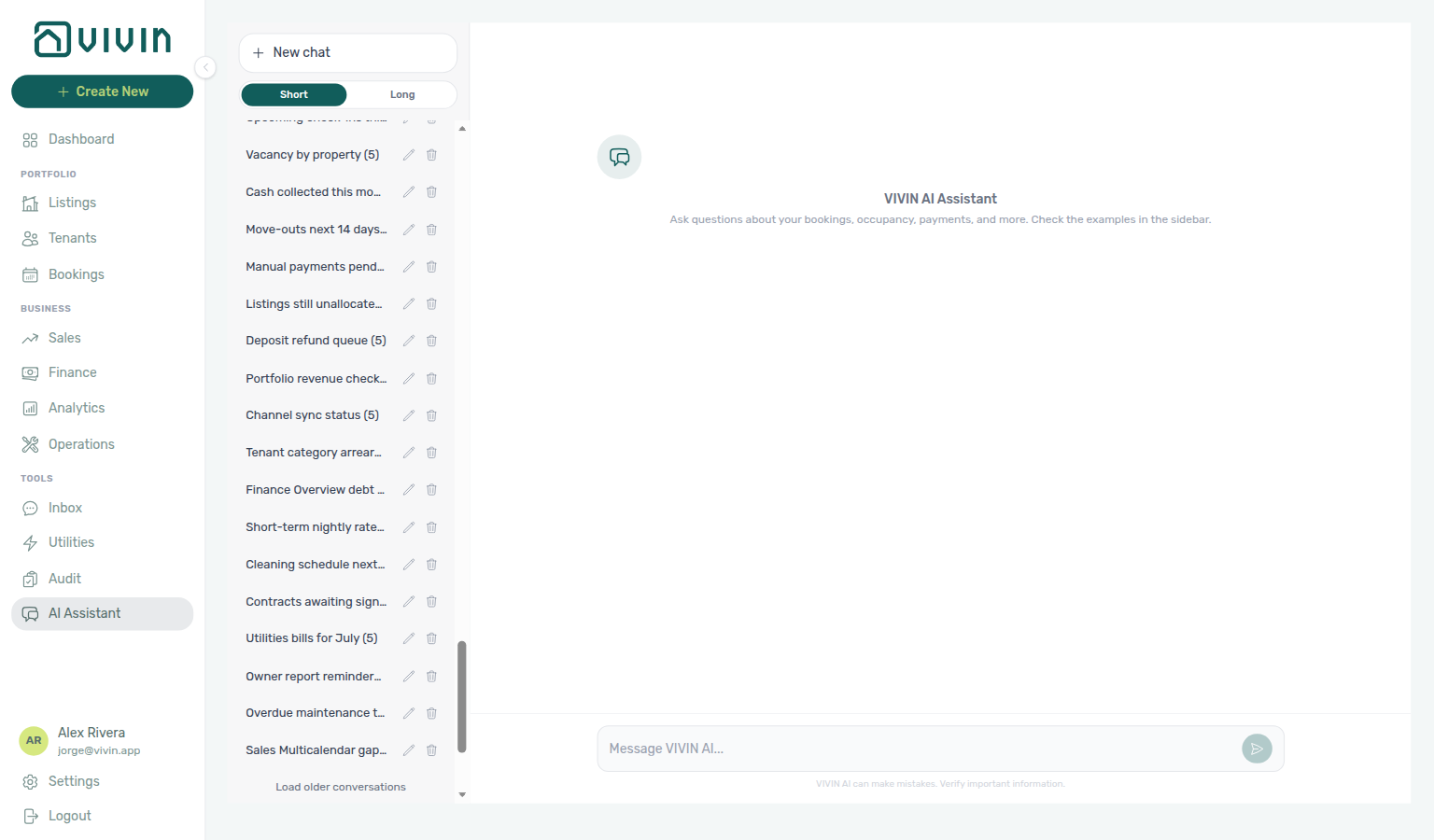
See also FAQ — Load older AI Assistant conversations and Glossary — Load older conversations.
New chat titles from the full conversation count
Default titles pair with Load older conversations (paged list) and Rename when you want a working name. Symptom: FAQ — Why is my new chat Conversation 121?. Term: Glossary — Conversation N.
When you click New chat, the new sidebar row is titled Conversation N (the label follows the UI language). N is your account-wide conversation total plus one — including older pages you have not loaded yet — not the number of threads currently on screen.
If you have 120 chats and only the newest 50 are listed, the next New chat is Conversation 121, not Conversation 51. Rename with the pencil whenever you want a working title. Archiving a thread lowers the count used for the next New chat. The first chat on an empty list (and the replacement row after you archive the last remaining thread) uses New Conversation instead of a number.
See also FAQ — New chat numbering and Glossary — Conversation N.
Interface Overview
The two-pane layout mirrors Inbox — bookmark /ai-chat from Deep Links — AI Assistant.
The AI Chat screen is a two-pane layout: your conversation list on the left and the active thread on the right (message history plus the composer at the bottom). The app shell matches other management modules (top bar and primary navigation).
Left sidebar
- New chat — starts a blank conversation titled Conversation N from the full conversation count (New chat titles from the full conversation count)
- Short / Long — saved answer mode for how detailed replies should be
- Your conversations — click a row to open that thread; use Load older conversations when the list is longer than one page
- Examples — canned threads that demonstrate question types; open one, then use Start a real conversation when you are ready to ask your own questions
Main chat area
- Thread — your messages and the assistant’s replies scroll chronologically
- Composer — text input at the bottom; send with Enter or the send control
- Busy state — a loading indicator appears while a reply is being generated
Formatted assistant replies
Assistant messages render Markdown-style formatting in the thread (not raw ** or backtick syntax). Supported constructs include:
| Construct | Example in a reply |
|---|---|
| Headings | Lines starting with ## or ### |
| Bold / italic | **emphasis** and *emphasis* |
| Bullet or numbered lists | Lines starting with - , * , or 1. |
| Inline code | `booking-id` |
| Fenced code blocks | Triple-backtick blocks for IDs, snippets, or structured text |
| Links | [label](https://…) — http and https only |
Anything outside that subset appears as plain text with normal line breaks. Formatting helps scan long portfolio answers; it does not replace verification — confirm amounts, dates, and tenant names in Finance or Bookings before operational action.
The Examples threads in the sidebar demonstrate formatted replies with headings, bullet lists, and emphasis (open Expected revenue or Coliving overview and scroll the thread):
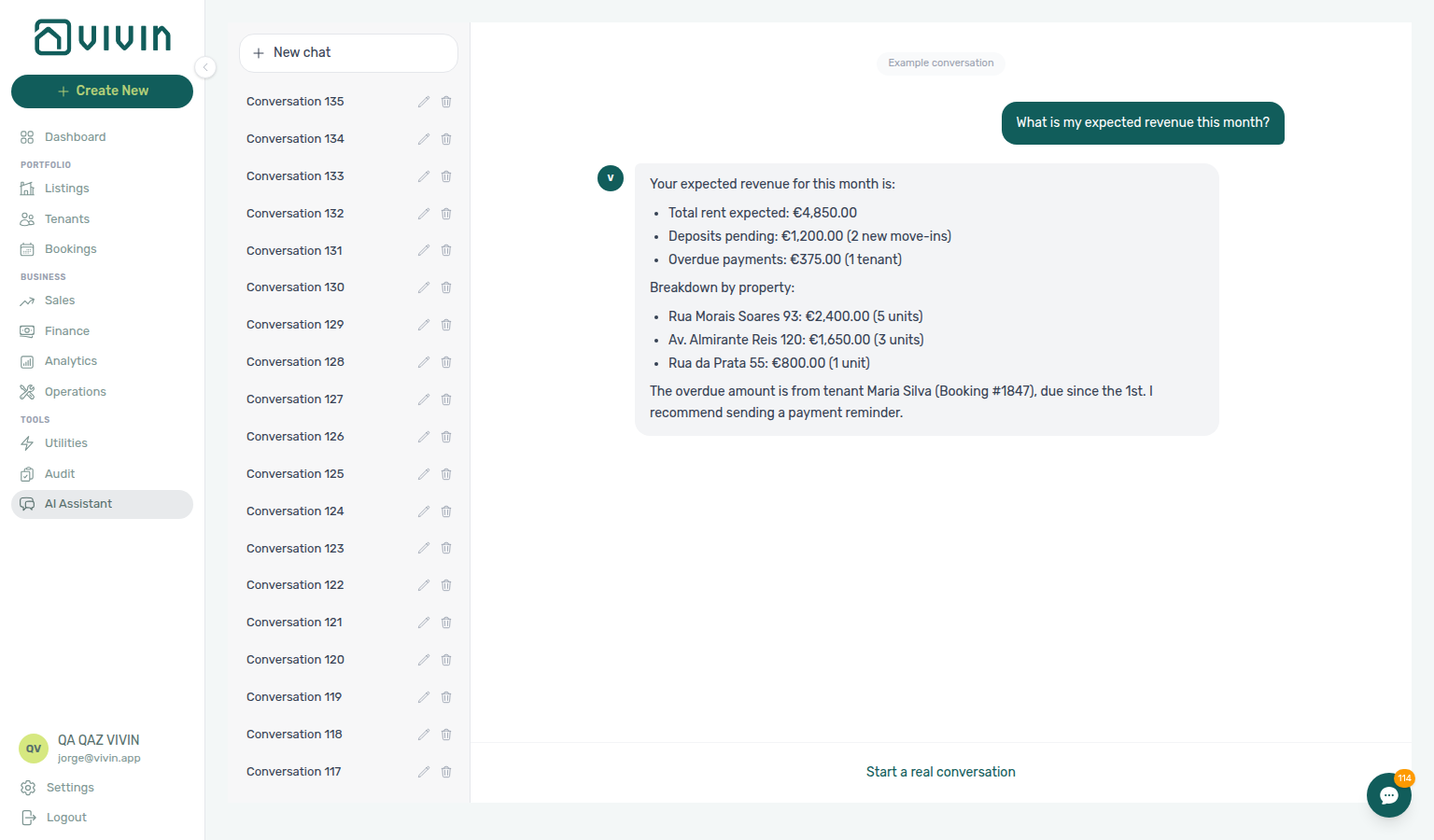
When a reply does not complete
If the conversation list, a thread, or a send does not complete, refresh the page or use New chat. After an incomplete send, retype your question — the composer clears when you submit.
Session or connectivity issues pair with Resetting a Management User Password and FAQ — AI & Automation.
Screenshots
Example layout after opening Tools > AI Assistant (conversation list and Examples on the left, active thread and composer on the right, full app shell):
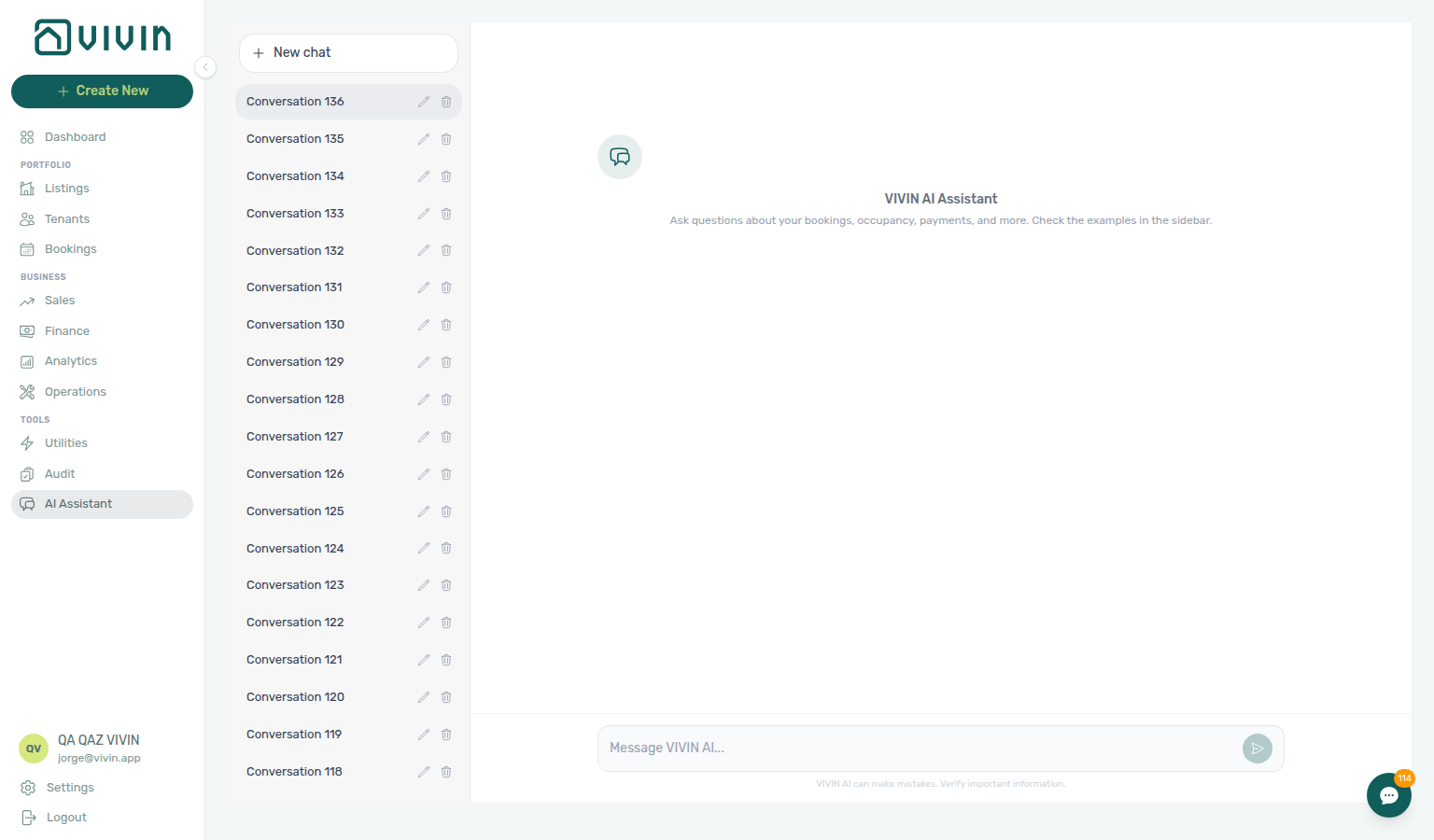
Important Notes
VIVIN AI can make mistakes. Verify important information before taking action.
The AI Assistant provides helpful summaries and insights based on your data, but critical decisions (e.g., payment reminders, contract changes) should be confirmed in the relevant modules (Finance, Bookings, etc.).
AI Chat guide subsection index
AI Chat section cross-reference
Use the sections above for this module. Related pages are linked from Related below when present, or from Modules.
Related
Related below links this module to settings, concepts, workflows, and escalation paths.
Documentation map & escalation
- Modules hub — Hub pairing matrix across operator workspaces
- AI usage API — Poll
GET /ai-usage/summaryfor internallandlord_chattoken cost (no management UI screen yet) - FAQ — AI token usage — Operator FAQ when finance or ops asks about assistant token spend
- Automation & AI — Platform-wide AI capabilities, including tenant-facing chatbot
- Landlord MCP — External HTTP MCP server sharing the same tool definitions
- Tenant MCP — External HTTP MCP server for tenant-scoped tools (complements operator AI Chat)
- FAQ — AI & Automation — Verification checklist when assistant answers conflict with Finance or Bookings modules
- Get Help & Support — Escalate when assistant-suggested writes fail or need product clarification beyond in-app support tickets
- Using in-app support — Escalate to Vivin when AI-suggested writes fail or need product clarification
Upstream & downstream workflows
- Portfolio KPI review — Structured weekly reconciliation the assistant complements but does not replace
- Resetting a Management User Password — Recover access when write tools fail on an expired session
- Manual block hygiene — Audit hygiene when assistant cites unexpected occupancy blocks
- Handling a Late Payment — Step 1 — Collections when portfolio answers surface overdue balances; upstream path from Notifications — Payment overdue alerts
- Notification triage — Clear Payments category alerts the assistant may cite before row-click navigation; payment overdue → Handling a Late Payment — Step 1
Deeper workflow reads
See Upstream & downstream workflows above for the same guides.
Navigation & bookmarks
Bookmark routes pair with Management Frontend Deep Links and Create New menu.
- Deep Links — AI Assistant — Bookmark
/ai-chat - Create New menu — Global + shortcuts the assistant may suggest when you ask to create bookings or tickets
- FAQ — Permission denied toast — Red You do not have permission to perform this action. toast when RBAC blocks a save; fix in Users → Role Permissions
- API Reference — Management session — Operator JWT sign-in surface the assistant shares with scripted Core API clients
Settings & tenant-facing AI
- Settings → ChatBot — Tenant-facing bot rules the assistant complements
- Settings > Tenant categories — Segment definitions when assistant answers cite receivables on one cohort — pair with Finance — Tenant category filter
- Settings > Preferences — In-app notifications — Account-wide alert masters when the assistant cites bell volume before row-click navigation
- Settings > Emails — Tenant-facing Communication Rules distinct from in-product AI Chat write tools
Operator modules (verify assistant answers)
- Dashboard — Real-time KPIs and overview
- Analytics — Overview tab — Portfolio KPI charts the assistant may summarize alongside Dashboard
- Finance — Revenue and payment details
- Finance — Tenant category filter — In Debt triage by segment before acting on assistant portfolio answers
- Finance > Deposits — Portfolio refund queue the assistant can summarize during departure-week triage
- Bookings — Booking and move-in details
- Bookings — Tenant categories stays open — Mirror segment filter when Finance Overview still shows the old segment after assistant debt answers
- Operations module — Ticket and cash-flow detail when AI cites maintenance spend or linked cash flows
- Inbox module — WhatsApp threads the tenant chatbot cannot resolve without an operator
- Notifications module — Bell alerts the assistant may cite when triaging portfolio questions
- Notifications — Payment overdue alerts — Operator Payments category rows when assistant answers surface unpaid schedules
- Listings module — Inventory questions the assistant may answer from live portfolio data
- Sales module — Availability and rent-grid answers to reconcile against Dashboard occupancy KPIs
- Tenants module — Fiscal and portal context when the assistant cites tenant profiles
- Tenants — Tenant category filter — Profile-count cross-check before account-wide policy changes after assistant debt answers
- Audit — Discounts tab — Portfolio-wide discount export to verify assistant answers about repriced contract values
Deeper concept reads
- Payment Allocation — Two-layer receipts, invoiced-floor rent edits, and credit note reject/revert warnings
- Booking Lifecycle — Computed Upcoming → Ongoing → Ended / Canceled status model, list filters, and Timeline
- Integrations & Distribution — Channel import questions are answered from Sales and Listings; AI Chat does not configure marketplace credentials
- Tenant Portal — Portal access, payments, and contract signing answers the assistant may cite for tenant-facing questions
- FAQ — Tenant contract signing blocked — No PDF yet, mandatory Your Details gates, category locks, or Lease purpose; portal signing vs paper upload on Contract Info
- Services Marketplace — Portal add-on catalogue context when the assistant cites ancillary charges on Payment plan
Operator habit hubs
Day-to-day operator habits (lockout catch-up, pending receipts, payment triage, handoffs, and related playbooks) live on the Common Workflows habit hub.
Deep-link anchors for habit hubs
Lockout catch-up after password recovery
Pending manual receipt approval
Reject/revert mistaken receipts
Check-out ledger cleanup before refund
Utility overage collections
Cancellation collections before void
Check-out collections before refund
Handling a Late Payment collections
Check-out vs cancellation
Deposit missing on Finance Deposits
Notification row-click navigation
Payment alert to receivables triage
Finance debt receivables triage
Finance Income status drill-down
Cash flow forecast drill-down
Confirmation alert triage
New inventory to first booking handoff
Property setup to first arrival handoff
Confirmation to check-in handoff
Check-in to check-out handoff
Check-out final utilities handoff
Same-day turnover coordination
WhatsApp per-booking messaging
Bot reasoning (audit)
ChatBot settings
Rent reduction after invoicing
Month-end invoicing (fixed date)
Bulk Hostkit invoicing
Occupancy KPI to block hygiene handoff
Partly collected security deposit
Portfolio segmentation by tenant category
Directory list refresh
When a list needs a refresh instead of showing rows, use Retry or reload the page. Zero rows after a successful load means your filters matched nothing — widen filters or clear search.
See FAQ — Directory list refresh and Glossary — Directory list refresh.
Key glossary terms
- Glossary — End-of-Booking cost split — Charge Time → End of Booking splits daily overage across every occupied unit; still-staying roommates stay in the denominator
- Glossary — Change history — Operator-initiated edits on Listings setup and Bookings Changelog; create-time defaults excluded
- Glossary — Archived booking ledger visibility — Delete Booking hides manual/provider_platform rows on Finance → Transactions; vIBAN and credit card stay visible
- Glossary — Finance tenant category cache refresh — Recategorizing a tenant updates
booking.tenantCategoryIdimmediately; ledger tabs reflect it on reload, while Overview can lag up to ~10 minutes - Glossary — SIMAR water contract ID — SIMAR (Loures e Odivelas) water bills use Cód. Local in Connections — not Nº de Contador; leading zeros stripped
- Glossary — Per-booking maintenance ticket opt-out — Add booking checkboxes skip automatic CI/CO tickets for one reservation only; property rule unchanged
- Glossary — Full term list
Module documentation hubs
- AI Chat module — AI Assistant using Landlord MCP tools for portfolio Q&A (this page)
- Dashboard module — Post-login KPI snapshot with bell notification triage (hub)
- Analytics module — Month-range portfolio KPI charts with rankings and heatmaps (hub)
- Finance module — Portfolio ledgers and payment approval (hub)
- Bookings module — Reservation lifecycle context (hub)
- Operations module — Maintenance tickets and cash flows (hub)
- Inbox module — Portfolio-wide WhatsApp workspace (hub)
- Notifications module — Full
/notificationshistory (hub) - Audit module — Manual Blocks and Discounts review (hub)
- Account Settings — Workspace-wide financial policies (hub)
- API Reference hub — Partner HTTP contracts and partial vs full feeds (hub)