Surveys
Surveys ask your tenants how their stay is going. You build a short questionnaire, choose when it appears in the tenant portal (for example 30 days after check-in), and read the scores and comments here. Admins use it to find problems early, before a tenant leaves.
Where to find it: sidebar Tools → Surveys (https://platform.vivin.app/surveys). It only shows once surveys are turned on, and you need the Surveys → View permission (Super Admin and Admin by default). The sidebar row is desktop only, but the link also opens on a phone.
Turn surveys on
Surveys are off by default. To turn them on:
- Open Settings → Global Settings.
- On the Satisfaction surveys card, click the pencil.
- Turn on Enable satisfaction surveys and click Save.
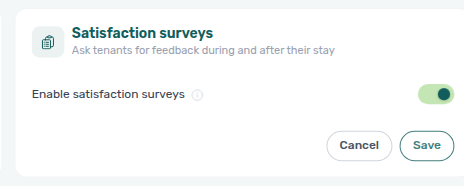
Surveys now appears under Tools in the sidebar. While the switch is off, the row is hidden and opening a Surveys link shows "Satisfaction surveys are turned off".
Two permissions control what each role can do. You set them in Settings → Users → Role Permissions, on the Surveys rows (View and Manage):
| Permission | Allows | Default roles |
|---|---|---|
| Surveys → View | Open all three tabs, read results and responses, export | Super Admin, Admin |
| Surveys → Manage | Create, edit and delete surveys | Super Admin, Admin |
Period and property
All three tabs share the toolbar at the top right:
- Date range: opens on the last 3 months up to today. Clear it (the ×) to see all time.
- Property: All properties by default, or pick one.
The filters are saved in the page link, so you can share or bookmark a view. Switching tabs keeps them.
Overview
The Overview tab gives you the picture for the chosen period.
| Card | What it shows |
|---|---|
| Average score | The average of every rated answer, out of 5, with the change vs previous period (the same number of days just before) |
| Responses | Surveys submitted in the period, with the change vs the previous period |
| Response rate | Of the tenants asked in the period, the share who answered ("12 of 40 asked") |
| Active surveys | Surveys that are on. "1 reaching nobody" in red means an active survey has no schedule, so no tenant gets it |
Lowest-rated areas lists the three questions with the lowest average in the period, counting only questions rated at least twice. Click one to open its survey's results.
Recent responses shows the latest submissions. Click a row to read the response. View All opens the Responses tab with the same period and property.
How scores work
Scales can differ between questions (1–5, 0–10 and so on). VIVIN converts every rating to a 1–5 score so they can be compared and averaged. For example, an 8 on a 0–10 scale counts as 4.2. Only Linear scale and Scale grid questions are rated. Choice and text answers have no score.
Score chips are coloured by value on the 1–5 scale: green from 4, amber from 3 to under 4, red below 3.
Responses
The Responses tab lists every submitted survey in the period, newest first. It loads more as you scroll.
- Search by tenant, property or comment.
- Survey: one survey or All surveys.
- Score: All, Low scores (average under 3) or High scores (average 4 or more).
When nothing matches, Clear filters resets them all, including the period and property.
Columns: Date, Tenant (with the property and unit below), Survey, Score (the response's average) and Comment (the start of the first written answer).
- Click a row to open the Response panel. It shows Property, Unit, Stay (check-in to check-out), Submitted, and every answer with its score.
- Click the tenant's name to open their booking in a side panel. This needs the Bookings → Sidebar permission.
Export → CSV or Excel downloads the filtered list: submission date, tenant, property, unit, survey, average score, lowest score and comment. One export holds up to 2,000 responses. Narrow the filters to get the rest.
To hear about each new answer without opening this tab, turn on Survey responses under Personal Settings → Your email preferences. You then get an email and an in-app alert with a link that opens the response here. The switch starts off. It is separate from a BCC of the tenant's Survey available email.
Surveys
The Surveys tab lists your surveys. Search by name, or filter by status: All, Active or Inactive. Each pill shows its count.
Columns: Survey (with its schedule below, for example "30 days after check-in"), Status, Questions, Responses, Updated, and Actions (pencil to edit, bin to delete). You need Surveys → Manage to see New survey and the Actions column.
Under the name, "Not scheduled · reaches nobody" means the survey is active but has no schedule. Edit it and add a moment.
Read a survey's results
Click a survey to open its Results panel. It uses the period and property from the toolbar.
- At the top: Period, Average score, Responses ("18 of 25 asked · 72%") and Last answer.
- Then one card per question, with its number of answers. Rated questions show the average on the question's own scale (for example "out of 10") and the spread of scores. For a Scale grid, each row gets its own average. N/A answers are counted on their own and left out of the average.
- For text questions, click Show answers to read them, and View response to open the full response.
Build a survey
- On the Surveys tab, click New survey (or the pencil on an existing one).
- Under Survey details, enter a Name (for example "Check-out satisfaction"). Add an Introduction if you like; tenants see it above the first question.
- Under Questions, click Add question. It starts as Multiple choice; pick another Type if needed (see below). Write the Question, click Add instructions for extra context, and tick Required if the tenant must answer it.
- Repeat for each question. Use the arrows to reorder, or duplicate or remove a question.
- Set the Schedule (see Schedule).
- Set Status to Active when you are ready for tenants to get it.
- Click Save.
Once a question has text, click Preview at the top to see the survey as a tenant will. Nothing you pick in the preview is recorded. Click Back to editing to return.
| Type | What the tenant does | Settings |
|---|---|---|
| Multiple choice | Picks from a list | Selection: Single choice or Multiple choices; Options |
| Text answer | Writes an answer | Long answer on gives a text box; off gives a single line |
| Linear scale | Gives one rating | From 0 or 1, To 2–10 (1–5 by default), optional label for each end |
| Scale grid | Rates several rows on the same scale; counts as one question | Rows, the scale, and Allow "Not applicable" (on by default) |
Status can only be set to Active once the survey has at least one question and a complete schedule. Until then the option is greyed out with the reason ("Add a question first" or "Complete the schedule first"). Set it back to Inactive to stop sending the survey.
Schedule
The schedule decides when the survey appears in each tenant's portal.
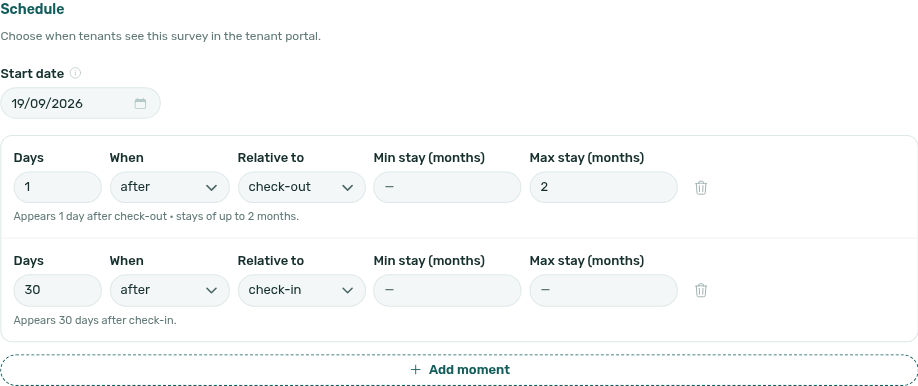
- Start date: only moments on or after this date reach tenants. Unless you pick one, it is the day you first set the survey to Active, and switching it back on later keeps that date. It cannot be in the future. Pick an earlier date to also reach stays whose moment has already passed.
- Moments: each moment is a number of Days, before or after (When), check-in or check-out (Relative to). Below each one, a line confirms it, for example "Appears 30 days after check-in."
- Min stay (months) / Max stay (months) (optional): limit a moment to stays of a given length. This lets one survey land on different days for a semester and for a year.
- Add moment adds another one (up to 12). Each moment is a separate request: a survey with two moments asks the same tenant twice.
Editing a survey that has answers
Once a tenant has answered, question types and scales are locked. You can still change the wording and add new questions. Allow "Not applicable" cannot be turned off once someone has answered N/A. If you remove a question that has answers, its past answers still show in the results, marked Removed.
Delete a survey
Click the bin in the Actions column and confirm with Delete survey. The survey stops being sent at once, and it and its responses no longer show on any Surveys tab, so export the responses first if you need them. To pause a survey instead, set it to Inactive.
What tenants see
When a moment arrives, the survey appears on the Surveys page of the tenant portal:
- Home shows "You have a survey to answer" with an Answer button, and the Surveys menu item shows a count ("1 survey to answer"). On a phone it sits under More.
- The tenant answers and taps Submit answers. Required questions are marked with *. Answered surveys stay in the list as "Answered on" a date.
- The Surveys page only appears once a survey has reached that booking.

Who gets a survey:
- Every booking whose moment falls on or after the start date. Cancelled bookings never get surveys.
- Not tenants in a tenant category that turns surveys off (Settings → Categories → Tenants → Tenant portal modules → Satisfaction surveys), or that has no tenant portal access. See Categories.
Announce a survey by email
The portal does not send an email by itself. To tell tenants a survey is waiting, add a communication rule:
- Open Settings → Emails → Communication Rules and click New Rule.
- Set Trigger Event to Survey available. You only see this trigger with the Surveys → View permission.
- Under Satisfaction survey, pick one survey, or All surveys to follow every active one.
- Choose On the day to send it when the survey appears, or After plus a number of days to send a reminder. Before is not allowed, since a survey can't be announced before it appears.
- Write the message and click Create Rule. New rules are saved inactive, so click ON on the rule's row when you want it to start sending.
See Emails for the rest of the rule settings.
Tips
- Keep surveys short. Three to five questions get more answers than fifteen.
- A survey set to Active with no schedule reaches nobody. The Overview flags it in red.
- When you switch a survey to Inactive, its answers leave the Overview but stay on the Responses tab and in the survey's results.
- Use Low scores on the Responses tab each week to find tenants to follow up with.
- Turn on Survey responses in Personal Settings if you want an alert the moment a tenant answers, instead of checking the Responses tab.
Related
- Global Settings: the Satisfaction surveys switch
- Personal Settings: the Survey responses alert switch
- Users: the Surveys → View and Surveys → Manage permissions
- Emails: the Survey available rule
- Notifications: where survey response alerts appear