Payments and deposit
The money side of one booking: what is due and when (Payment Plan), every contract line and its corrections (Contract Values), the money received (Transactions) and the security deposit (Deposit).
Before you start
- Where: open a booking (see Bookings) and pick one of the four tabs.
- Permissions: each action below names the permission it needs, as listed in Settings → Users → Role Permissions. The full table, with defaults, is on Bookings. Without a permission the button stays greyed out and a tooltip explains why.
- Channel-manager bookings (Airbnb, Booking.com) lock most of these actions, because the platform payout is recorded automatically. See Channel-manager bookings.
- How payments are matched to lines is explained in Payment allocation.
Payment Plan tab
Every amount due, one row per due date: Booking Confirmation, Move-in Payment, one payment per month (for example "March 2026 payment"), other charges and the Deposit Refund.
| Column | Meaning |
|---|---|
| Status | Scheduled, Partial Paid, Paid, Partial Overdue, Overdue or Refunded, with "Nd overdue", Due today or "Nd remaining". |
| Due date | When the row falls due. |
| Rent, cleaning, admin, exit fee columns | The amount of each, under your account's fee names. Fee columns show only when the fee is switched on. |
| Deposit | The deposit part, when the booking has one. |
| Others | Other charges. |
| Total, Paid | The row's total and what has been paid of it. |
Click a row to see its Total due and Breakdown.
Buttons:
| Button | What it does | Permission |
|---|---|---|
| Charge | Add Charge: a one-off charge with a value, a due date, a category and a reason. Category and reason are required when Require charge category / Require charge description are on in Global Settings → Charges & Payments. The due date must fall between the booking confirmation and the deposit refund date (the check-out date on an Airbnb or Booking.com short stay). | Bookings → Add Charges |
| Transaction | Add Payment: record a payment you received, with Payment Date, Payment Value, type (Transfer, Cash or Credit Card) and a description. When the field reads Description (visible to the tenant), the tenant sees it in the portal. | Bookings → Add Payments |
| Apply Discount | A Percentage (%) or a Fixed total, applied to the Entire booking (excl. deposit) or the Contract values only (rent, cleaning, admin), with a required reason. The window shows what will be discounted before you click Apply to booking. | Bookings → Add Discounts |
A payment recorded with Transaction stays Pending until someone with Finance → Approve Payments approves it on Transactions, unless your role has Finance → Auto Approve Manual In Payments.
Contract Values tab
Every contract line: rent per period, fees, deposit and other charges. The header counts the items, the debt, what is scheduled and any partial lines.
| Column | Meaning |
|---|---|
| Item | The line. A small counter next to it shows any returns of value or credit notes; click it for that history. |
| Status | Paid, Partial, Unpaid, Scheduled or Released. |
| Period, Due date | The period the line covers and when it falls due. |
| Amount | The net amount, with the original amount when it was discounted. On a part month, the info icon shows How this amount is calculated. |
| Paid, Invoiced | How much of the line has been paid and invoiced. |
| Actions | The line actions below, left to right. |
Line actions:
| Action | What it does | Permission |
|---|---|---|
| Edit Due Date | Moves the due date of a line with nothing paid yet; the new date must be after the check-in date. Dates set automatically (check-in, booking confirmation, split rent) can't be moved. | Bookings → Change Payment Due Date |
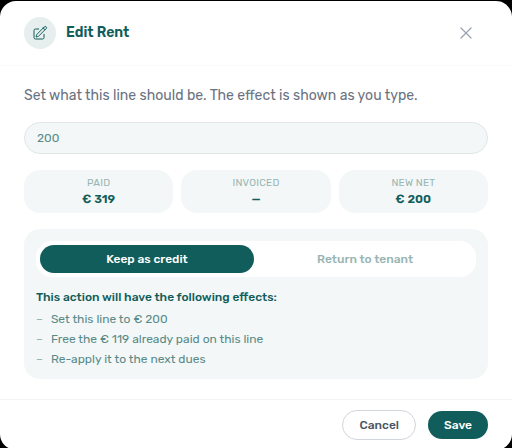
| Edit Amount | Type the new amount; the effects appear before you save. If the change frees money already paid, choose Keep as credit (applied to the next amounts due) or Return to tenant. Deposit lines change through the Deposit tab instead. | Bookings → Edit Items |
| Discounts | Manage Discounts on this line: Add discount as a Fixed amount or a Percentage (%). Not on deposit lines, nor on a line with a return of value. On a line that already has a credit note, the discount is applied as a new credit note; it is blocked only when you lack Bookings → Add Credit Note or nothing invoiced is left to credit. | Bookings → Add Discounts |
| Delete payment | Removes a line that is not invoiced, after Delete payment confirms it. | Bookings → Delete Others |
How Edit Amount gives money back:
- On a line that was never invoiced, Return to tenant records a return of value: the money leaves the booking and no fiscal document is issued. This also needs Bookings → Add Return Of Value.
- On an invoiced line, the change creates a credit note and the cash stays on the booking for the next amounts due. This also needs Bookings → Add Credit Note.
Utility costs split to this booking show up as Extra bills value from a month and year (for example "March of 2026"), status Pending, with Approve allocation and Reject allocation. You see them with Finance → Module; approving or rejecting needs Finance → Approve Payments.
Transactions tab
The money received on the booking and every movement of it. The header shows the number of transactions and the amounts completed and pending; Show all lists every row. Seeing the list needs Finance → Module.
| Column | Meaning |
|---|---|
| Date | When the money moved. |
| Type | In Payment, Charge, Refund, Adjustment or Return of Value. |
| Payment, Description | The line it pays and its description. |
| Source | System (collected by VIVIN or a platform) or Manual (recorded by your team). |
| Status | For example Pending, Confirmed, Completed, Processing, Rejected, Failed or Settled. |
| Amount, Invoiced | The amount and whether it is invoiced. |
| Actions | The row actions below. |
| Action | When | Permission |
|---|---|---|
| Approve payment / Reject Payment | A pending payment. A rejection may need a credit note afterwards. | Finance → Approve Payments |
| Revert payment | A confirmed or rejected payment; you may need to update the invoice. | Finance → Approve Payments |
| Edit amount | A pending payment recorded by hand (not one collected by card or Virtual IBAN). | Finance → Approve Payments |
| Invoice transaction | Issues the invoice for its eligible allocations, as Invoice selected does in Finance. | Finance → Approve Payments |
| Assign to other booking | Moves the payment to another booking in the account. | Finance → Assign Payments To Other Bookings |
Deposit tab
The Security Deposit card shows where the deposit stands and works out the expected refund: Initial Deposit, Current Deductions, Cash back to tenant and Total to refund. When charges are larger than the deposit, the cash back is 0.
| Status | Meaning |
|---|---|
| Not Paid | Nothing received yet; the refund is unavailable. |
| Partial Paid | Part of the deposit received. |
| Fully Paid | The whole deposit received. |
| Ready to Refund | Flagged for your finance team (see Ready To Refund below). |
| On hold | Paused while you wait for final costs; it can still be refunded. |
| Disputed | Under dispute; refunding is blocked until it is resolved. |
| Refunded | The refund is recorded. |
| No deposit | The booking has no deposit. |
| Action | What it does | Permission |
|---|---|---|
| Ready To Refund | Flags the deposit for your finance team. It gets its own status only when Use the "Ready to refund" status is on in Global Settings → Charges & Payments; it never blocks the refund. | — |
| Mark refunded | Records the refund, with a Refund date that defaults to today (Edit date changes it later). It does not send any money: make the bank transfer yourself. It also shows when there is no deposit to return but the tenant overpaid, or paid rent ahead of its due date; the dialog is then titled Refund overpayment or Refund balance. | Bookings → Refund |
| Put on Hold / Release Hold | Pauses the deposit while you wait for final costs. | Bookings → Edit Items |
| Mark as Disputed / Resolve Dispute | Blocks the refund until you resolve it. Only a Fully Paid deposit, and only when Enable deposit disputes is on in Global Settings → Charges & Payments. | Bookings → Dispute |
| Revert refund | Undoes a recorded refund. | Bookings → Refund |
| Transfer | Moves the refund balance to another booking of the same tenant as a credit. It can't be reversed, and Revert refund is no longer available afterwards. | Bookings → Refund |
Rules and limits
- Refund timing: Mark refunded is available from the contract end date, or earlier when Allow refund before contract end is on in Global Settings → Charges & Payments.
- Invoiced lines can't be discounted below what is invoiced: a line discount beyond that becomes a credit note (Apply as credit note), and Apply Discount leaves invoiced items out. An invoiced line can't be deleted.
- Returns of value block discounts on the lines they touch: reverse the return of value first, or pick another scope.
- Rent changes never take a month below what is already invoiced on it.
- Short stays from Airbnb or Booking.com have no deposit, so the Deposit tab is not shown.
Troubleshooting
| Problem | Cause | Fix |
|---|---|---|
| A recorded payment stays Pending | Manual payments wait for approval. | Someone with Finance → Approve Payments approves it, or grant Finance → Auto Approve Manual In Payments. |
| The bin on a Contract Values line is greyed out | Your role lacks Bookings → Delete Others, or the line is invoiced. | Ask for the permission; reverse an invoiced line with a credit note instead. |
| Edit Due Date is greyed out | The line is already partly or fully paid, the date is set automatically (check-in, confirmation, split rent), or the permission is missing. | Change the booking dates instead, or ask for Bookings → Change Payment Due Date. |
| Mark refunded is unavailable | The contract has not ended, the deposit is not paid, or it is disputed. | Wait for the end date (or turn on Allow refund before contract end), or Resolve Dispute first. |
| The Deposit tab says the refund is blocked by invoicing | The deposit shares an invoice with other charges. | Follow the steps the tab lists to unblock it. |
| A utility allocation can no longer be approved | The deposit was already refunded or transferred. | Add a Charge for any amount still owed. |
Related
- Bookings: the list, permissions and cancelling a booking.
- Booking drawer: Contract Info and the other tabs.
- Payment allocation: how payments are matched to lines.
- Handling a late payment: chasing debt step by step.
- Refunding a security deposit: settling and refunding the deposit.