Communication rules
Write an automated tenant email: what it says, when it sends and who gets it.
Before you start
- Where: Settings → Emails → Communication Rules, then New Rule or the edit icon on a row (
https://platform.vivin.app/settings/communications). - Plan: rules run on the Operations module. If Operations is not in your plan, only Super Admin can manage them.
- Permissions: Account Settings → Emails and Operations → Module; the Send Now event needs Communication → Send Now. Super Admin and Admin have them by default.
- On the left, write the message.
- On the right, under Rule settings, set the trigger and the audience.
- Click Create Rule (or Save Changes). New rules are saved Inactive; click ON on the row to start sending.
Message
| Field | What it does | Default | Limits |
|---|---|---|---|
| Template Name | An internal name; tenants never see it. | Empty | |
| Subject | The email subject. Variables allowed. | Empty | Required, 512 characters |
| CC, BCC | Extra recipients of every email the rule sends. | Empty | |
| Body | The email text. Variables allowed. | Empty | Required, 65,536 characters |
| HTML | Switches the body to a plain box for your own HTML. | Off | |
| Hide contact info | Removes the contact block at the end of the email. | Off |
- The contact block lists your company name, email and phone from General Information. Hide contact info only shows while HTML is off; an HTML email never gets the block, so put your contact details in your HTML.
- Formatting counts towards the body limit, so a message can be longer than it looks.
- Variables at the bottom of the drawer lists every variable. See Variables.
Trigger
Event decides when the rule sends; the timing fields change with it. A new rule starts on Check-in, Before, 1 day, at 9:00.
| Event | When it sends | Timing fields |
|---|---|---|
| Check-in | Relative to the check-in date | Offset Direction (Before, After, On the day), Days offset, Send at Hour |
| Check-out | Relative to the check-out date | Same as Check-in |
| Booking Confirmation | When the booking is created | None |
| Due Date | Relative to the due date of each unpaid payment | Offset, days, hour, plus Balance (financial) and Threshold |
| Financial Balance | When the booking's debt reaches the minimum debt | Minimum debt, Send at Hour |
| Penalty Fee | On the day a late-payment penalty is charged | Send at Hour |
| Auto-cancellation | On the day Auto-cancel unpaid move-in cancels a booking | Send at Hour |
| Survey available | When a satisfaction survey appears in the tenant portal | Satisfaction survey, After or On the day, days, hour |
| Survey submitted | Once per booking, after a rated answer at or above your minimum score | Satisfaction survey, Question, Minimum score |
| Inventory not submitted | While a room inventory report waits for the tenant; cancelled once submitted | Send at Hour |
| Check-in tasks not finished | Relative to check-in, while the tenant's check-in tasks are unfinished | Offset, days, hour |
| Check-in steps open, Settling-in steps open, Check-out steps open, After check-out opens | When that phase of the stay opens for the resident. See Check-in / out. | On the day or After, days, hour |
| Check-in steps close | Before the resident's check-in steps close, while some are still to do | Before or On the day, days, hour |
| Send Now | Once, when you confirm it | None; see Send Now |
- Some events only appear when their feature is in use: Survey available and Survey submitted need satisfaction surveys on and Surveys → View, and Survey submitted also needs a linear-scale or scale-grid question on the survey you pick (answers given before you created the rule do not count); Inventory not submitted needs room inventory on; Check-in tasks not finished and the five check-in / check-out phase events (Check-in steps open to After check-out opens) need the check-in / check-out process on; Send Now needs the Send Now permission.
- Switching room inventory or the check-in / check-out process off in Global Settings switches off the rules on its events, such as Inventory not submitted. They stay off until you switch them back on here.
- Send at Hour uses Lisbon (Portugal) time.
- Auto-cancellation only fires when VIVIN cancels a booking through Auto-cancel unpaid move-in in Booking and payment defaults, never for a cancellation by hand.
Two balance filters narrow who gets the message:
- Balance (financial) (Due Date only) matches bookings whose overall balance is Negative balance (in debt) or Positive balance (credit); with Threshold, only when the amount is at least that much.
- Next payment (balance) does the same with the booking's next payment. It is not offered on Check-out, Booking Confirmation, Penalty Fee, Auto-cancellation, Survey available, Survey submitted or check-in / check-out phase rules.
A Due Date rule sends one email for each due date with unpaid payments, timed from that date. Charges due the same day share one email, and a tenant with two unpaid months gets two reminders. For one "you are in debt" email per booking, use Financial Balance.
Audience
Every filter you set must match for a booking to get the message.
| Filter | What it does | Default |
|---|---|---|
| Properties | Limits the rule to some buildings. The list shows active properties only. | All properties |
| Booking Status | All bookings, Upcoming, Current, Ended or Canceled. Not on Booking Confirmation or Auto-cancellation. | All bookings |
| Contract Signed | Ignore, Contract signed or Contract not signed. | Ignore |
| Stay length (months) | Optional minimum and maximum stay, in whole months from check-in to the day after check-out. | No bounds |
| Bookings | Limits the rule to specific bookings. Not on Booking Confirmation. | All bookings |
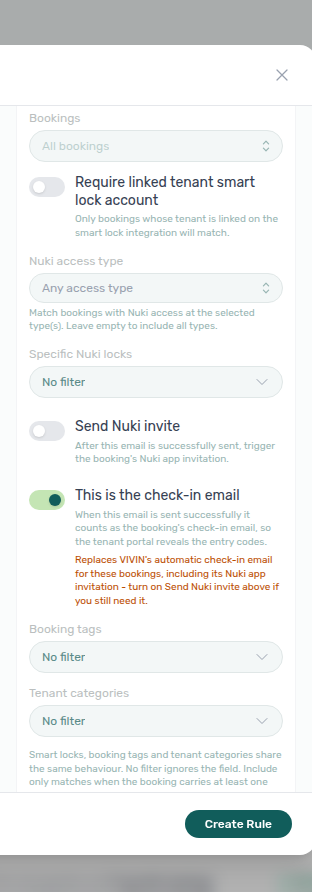
| Require linked tenant smart lock account | Only tenants linked on your smart lock integration. | Off |
| Nuki access type, Specific Nuki locks | Limit the rule to some doors or locks. Shown when your account has Nuki locks. | No filter |
| Booking tags | Shown once you have booking tags in Categories. | No filter |
| Tenant categories | Shown once tenant categories are on and you have some. | No filter |
- Contract not signed skips tenants whose category has no tenant portal or no contract module, because they never get a contract to sign.
- Specific Nuki locks, Booking tags and Tenant categories have three modes: No filter, Include only (at least one of the values) and Exclude (none of them).
Send Nuki invite and the check-in email
| Switch | What it does | Default |
|---|---|---|
| Send Nuki invite | Sends the booking's Nuki app invitation after this email goes out. Not on Auto-cancellation. | Off |
| This is the check-in email | Check-in rules only: a successful send counts as the booking's check-in email. | Off |
With This is the check-in email on, the tenant portal shows the entry codes after the send, and VIVIN's automatic check-in email, with the Nuki invitation it carries, is not sent for those bookings. Turn on Send Nuki invite too if tenants still need the invitation.
Variables
Variables fill in booking details when the email is sent. Wrap the name in curly braces, for example Dear {TenantName}. Variables in the rule drawer, or above the lifecycle email text, lists them all with descriptions.
- Tenant:
{TenantName},{TenantFirstName},{TenantEmail} - Stay:
{PropertyAddress},{ListingInternalName},{CheckInDate},{CheckInTime},{CheckOutDate},{StartDate},{EndDate} - Money:
{RentValue},{SecurityDeposit},{TotalValuePending},{Debt},{vIBAN} - Access:
{building_access_point_code},{property_access_point_code},{listing_access_point_code}, blank when no code is set - Links and contact:
{tenant_portal_url},{contact_email},{contact_phone} - Check-in / out (while the process is on, rules only):
{check_in_out_url},{phase_deadline}. See Check-in / out.
In a rule, a name not on the list is left blank in the email. Use the Test icon on the row to check.
What happens when you save
- Saving keeps the rule's state: a new rule stays Inactive, an active rule keeps sending with the new settings.
- Turning a rule OFF drops the messages it has not sent yet.
Troubleshooting
- "Subject is required." or "Body is required.": fill them in.
- "A survey can't be announced before it appears — choose After or On the day.": change Offset Direction.
- "The minimum stay length cannot be greater than the maximum.": swap or clear the stay bounds.
- "Select at least one smart lock, or set the filter to No filter.": pick a lock, or switch Specific Nuki locks to No filter.
Tips
- Use the Test icon before you switch a rule on. The copy goes to you only.