Transactions
Transactions is the ledger of every payment received in the date range, deposit refunds included, where you approve payments, invoice them and fix payments that landed on the wrong booking.
Before you start
- Where: Finance → Transactions (
/finance/transactions). - Permissions: Finance → Module and Finance → Approve Payments (only Super Admin by default). Moving a payment also needs Finance → Assign Payments To Other Bookings; deleting one needs Bookings → Delete Others.
- Invoicing: invoice actions send documents to the invoicing provider set up in Invoicing connections.
- The date range (last three months by default), Other Filters and Export work as described on Finance. Other Filters adds a source platform filter on this tab.
Screen tour
Cards
All is followed by two groups. Each card shows its amount and count; click a card to list that type, or one of its coloured amounts to list that status.
| Group | Cards |
|---|---|
| System Transactions | vIBAN and Credit Card (tenant card payments through VIVIN) |
| Manual Transactions | Transfer, Cash, Deposit refund, Platform and Others (anything else, such as a card payment you recorded by hand) |
Search and pills
Search with Search transactions.... The invoice pills are All, Invoiced, Not Invoiced, Not issued credit note and Issued credit note. With Not Invoiced selected, Invoice all allocations issues invoices for every eligible allocation in the current view, after you confirm.
Columns
| Column | Meaning |
|---|---|
| Booking | The tenant and unit |
| Date | The payment date |
| Type | System or manual type, as on the cards |
| Payment | The payment method or description |
| Status | Confirmed, Pending or Rejected |
| Source | Who recorded the payment, or the platform it came from. Hover it to see who created and last updated it |
| Amount | The amount. Deposit refunds are negative |
| Invoiced | The invoiced amount, or a dash. On a refunded deposit it shows the credit notes issued |
Row actions
| Action | Available on | Extra permission |
|---|---|---|
| Edit amount | Pending payments that are not vIBAN or card payments | — |
| Approve payment | Pending payments | — |
| Assign to other booking | Payments with no allocation invoiced, marked manual or in draft | Finance → Assign Payments To Other Bookings |
| Revert payment | Confirmed or Rejected payments: puts them back to Pending | — |
| Delete payment | Payments that are not vIBAN or provider-platform payments, with no allocation invoiced, marked manual or in draft | Bookings → Delete Others |
Approve, revert and delete ask you to confirm. If the payment was already invoiced, you may need to issue a credit note or update the invoice afterwards.
Bulk actions
Tick rows to open the selection bar: Approve selected, Reject selected, Invoice selected, Issue allocation (n), Issue credit notes (n), Set manual (n) and Revert invoice (n). The counts show how many selected allocations each action applies to; rows with nothing to do are skipped and counted in the result message.
Transaction details
Click a row to open Transaction details. The page address then points to that payment, so you can copy it to share one payment with a colleague.
- The header shows Amount, Type, Payment status and Invoice status.
- Allocations shows how the payment was split across the booking's charges: Month, Type, Amount, Status, Invoice and Actions. On a refunded deposit, Credit-note reversals lists the credit notes issued against the original deposit invoice.
- Actions has Invoice all allocations, and Approve and Reject on a pending payment or Revert to pending on a confirmed or rejected one.
- Assign to other booking: pick the booking in Select target booking, then click Reassign.
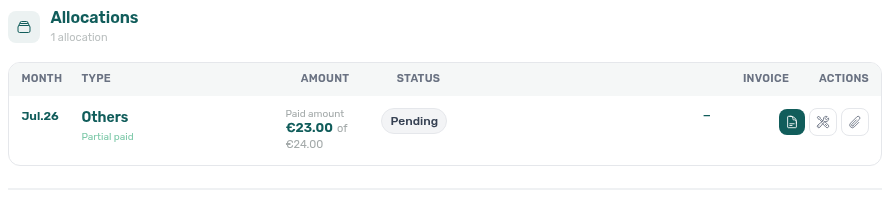
An allocation's Status is its invoice status:
| Status | Meaning |
|---|---|
| Pending | Not invoiced yet. Click it to invoice the allocation |
| Waiting | Sent to your provider, waiting for its answer. Reopen the payment in a moment; until then it cannot be reverted or set manual |
| Draft | Issued as a draft in Invoice Express. Finalise it there and it turns Invoiced |
| Invoiced | Issued, or attached with Attach invoice. Click it to open the document |
| Manual | Marked as invoiced outside VIVIN with Set manual |
| Failed | Your provider refused it; the reason shows under the line. Fix the cause (often a missing tax code in Invoicing) and click Failed to issue it again, or issue it in your own tool and use Set manual or Attach invoice |
| Ignored | Never invoiced: a return of value, or a deposit under A-Cube (Italian e-invoicing) |
Proforma marks a charge, not an allocation. With Invoice Express or VIVIN Invoicing, VIVIN issues a proforma automatically for each charge once it is due (see When to show payment as due) or paid, one per booking and due date, and saves it in the booking's Files. Hostkit, Sage50c, NetSuite and A-Cube issue none; when none of your providers issues proformas, or Sage50c is one of them, a due charge reads Ignored. Either way, the payment that settles the charge is invoiced as above.
Each allocation has its own invoice actions:
| Action | What it does |
|---|---|
| Invoice allocation | Sends it to your invoicing provider. Invoices are queued, so they can take a moment to appear. see invoice then opens the document |
| Set manual / Revert manual | Marks it as invoiced outside VIVIN, or undoes that |
| Attach invoice | Uploads one PDF from your accounting tool with its Invoice external ID (for example FT 2025/123) and an optional Invoice date |
| Revert invoice | Resets the invoice status. Remove any credit note first |
| Issue credit note to provider | Sends a pending credit note to your provider |
An allocation with a return of value cannot be invoiced. If your account uses a fixed invoice date (Settings → Invoicing, with Use today as invoice date off), a banner reminds you that invoices issued here use that date. Accounts invoicing in Italy also see an SdI status panel with the e-invoice status and Download XML.
Issue credit notes
Credit notes waiting to be sent to your provider show under Not issued credit note, for example after you refund a deposit that was already invoiced.
- Select Not issued credit note and find the payment. For a deposit, that is the original deposit payment, not the refund row.
- To issue several, tick the rows and click Issue credit notes (n).
- To issue one, open the row and click Issue credit note to provider on the credit-note allocation.
- If you handled the credit note in your accounting tool, use Set manual instead. On a credit note that is still a draft at your provider, VIVIN asks Mark credit note as issued? first; this cannot be undone.
Record a payment by hand
Most payments arrive on their own through vIBAN, card or a platform. To record one yourself:
- From a booking: open the booking and add the transaction there (see Bookings). This needs Bookings → Add Payments.
- From anywhere: click Create New → Payments → Transfer to open Add Payment. Choose the booking, then fill in Payment Date, Payment Value, the type and a description. This needs Create → Transfers, which only Super Admin has by default.
A payment you record by hand stays Pending until someone approves it, unless your role has Finance → Auto Approve Manual In Payments. VIVIN applies each payment to the booking's open charges (see Payment allocation).
Rules and limits
- A deposit refund is recorded as completed, so it cannot be approved, rejected or reverted here. To undo one, use Revert refund on Deposits.
- A payment that is invoiced, marked manual or in draft on any allocation cannot be moved or deleted. Revert the invoice first.
- Sage50c cannot issue credit notes from VIVIN: use Set manual on the credit-note line.
- Hostkit credits a whole document, never a single line. If a deposit was invoiced on the same Hostkit document as other charges, VIVIN blocks its refund. Issue the credit note for that document in Hostkit, use Revert invoice here on the deposit and every other charge of that document, re-issue the other charges, then mark the deposit refunded again. To avoid this, turn on Issue security deposits on a separate invoice in Settings → Invoicing.
- Export writes one row per allocation, with the tenant's billing details, the charge it paid and its invoice status.
Troubleshooting
| Problem | Cause | Fix |
|---|---|---|
| Assign to other booking is greyed out | An allocation is invoiced, or you lack the permission | Revert the invoice, or ask for Assign Payments To Other Bookings |
| Edit amount is greyed out | The payment is not pending, or it is a vIBAN or card payment | Revert it to pending first; system payments keep the amount the bank sent |
| An invoice does not appear after Invoice allocation | Invoices are queued at your provider | Wait a moment and reopen the payment |
| A credit note cannot be issued | It has no credit-note reference yet, or your provider is Sage50c | Use Set manual after you issue it in your accounting tool |
Tips
- Use Assign to other booking before you invoice a payment that landed on the wrong booking.
- At month end, filter Not Invoiced and use Invoice all allocations.
- Copy the address of an open payment to send a colleague straight to it.
Related
- Finance: Overview, Income and the shared filters
- Payment allocation: how payments are matched to charges
- Invoicing: series, invoice date and separate deposit invoices
- Deposits: refunds and their credit notes
- Bookings: a booking's Transactions tab