Property editor
The property editor holds everything a property's units share: owner and address, contract terms and fees, utility contracts, door codes, WiFi, cleaning days, building emails and the content partner marketplaces publish.
Before you start
- Where: Portfolio → Listings, then click a property's card (photo and name). The address changes so you can bookmark the open property.
- Permissions: Listings → Edit opens the editor and saves every change. See Listings for the full list.
- Settings that add sections: Show internal access codes, Enable room inventory and Enable comments in Settings → Global Settings; the cleaning, admin and exit fees under Fee visibility there.
Screen tour
The header reads "Editing name property". Tabs, left to right:
| Tab | What it holds |
|---|---|
| Setup | Day-to-day settings, as sections on one scrolling page. |
| Full integration | Content for partner marketplaces and the VIVIN booking engine. An amber dot means items are missing. |
| Photos | The property's photos. |
| Inventory | Common-area items. Only when Enable room inventory is on. |
| Comments | Team notes and files. Only when Enable comments is on. |
Setup sections
To change most sections, click the pencil, edit, then click Update (or Cancel). Maintenances and the email pills have no pencil: they are always editable and have their own Update button.
| Section | What you set |
|---|---|
| Property Information | Property name (required), Owner, Address (type, pick a suggestion, then drag the map pin onto the entrance if needed), Floor and Property Categories. |
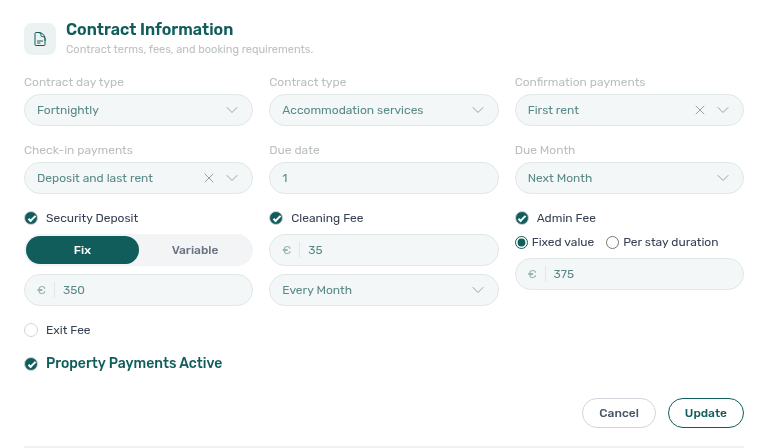
| Contract Information | The contract template in use, contract terms and fees. See Contract Information. |
| Utilities | Electricity, Gas, Water and Internet contract ID, used to match supplier bills; Bills Included with a monthly cap, or All bills included — no cap. |
| Maintenances | Tickets created automatically at check-in and check-out. See Maintenances. |
| Access Lockers | Building Door and Property Door: choose Nuki Locker (then pick one of your connected locks), Manual or Disabled, and set the Tenant code and an entrance hint. |
| WiFi | Network name and Password shared with tenants. Show or copy the password with the icons next to it. |
| Cleaning | Common areas cleaning days, shown to every tenant of the property in the tenant portal. |
| Changelog | Recent edits to key property fields by your team, with who made them and when. |
| Onboarding Email / Check-in email / Check-out email | Building-specific text for those emails. See Building emails. |
| Archive / Delete | At the bottom. See Archive or delete. |
Door codes in the tenant portal: tenants see the codes, hints and WiFi once their check-in email has been sent. The codes disappear at check-out, and are hidden when Allow to see entry codes is off in Settings → Portal settings. The check-in email itself always includes them. With Show internal access codes on, each door also gets an Internal code and Internal hint that only your team sees.
Contract Information
-
The top card shows which template new bookings will use: Uses this property's contract, Uses the account default contract or No contract template resolved. Click the eye icon to preview it. Templates are uploaded in Contract.
-
Contract day type sets how rent is charged in a first or last month that is not complete: Daily charges by the day, Fortnightly by half-month and Monthly the whole month. Installments also bills whole months, but collects the rent in a few equal instalments set under Rent installments in Settings → Payments.
-
Contract type: Traditional rental, Accommodation services or Others.
-
Confirmation payments is what the tenant pays to confirm the booking; Check-in payments is what they pay at move-in.
-
Due date and Due Month (Current Month, Previous Month or Next Month) set when rent falls due. Due date starts at the account default from Settings → Payments; change it only to use a different day for this property.
-
Security Deposit: Fix amount, or Variable as a number of rents.
-
Cleaning Fee and its frequency:
Frequency What the tenant is charged Every Month A cleaning fee each month of the contract. One-Time Fee at Booking Confirmation One fee, due when the booking is confirmed. One-Time Fee at Move-in One fee, charged at move-in. -
Admin Fee: Fixed value, or Per stay duration to charge by length of stay. Each tier row starts at a From day (the first at 0); add rows with Add tier. The last tier applies to all longer stays, and tiers must follow on from each other without gaps.
-
Exit Fee: a one-time fee charged at check-out.
-
Property Payments: when Inactive, tenants of this property cannot pay through the tenant portal, and the Payments tab and balance are hidden there.
Cleaning, admin and exit fees appear only when they are switched on under Fee visibility in Settings → Global Settings, where you can also rename them.
Maintenances
With the Operations module on your plan, VIVIN can open tickets automatically for every booking in this property. Without it, the section reads "These options are available when the Operations module is enabled for your account."
- At check-in and At check-out each list the automatic tickets, up to 10 per event.
- Tickets created here opens the tickets these rules have already opened, split into Upcoming and Past, with a search by number, title or tenant.
Building emails
The Onboarding Email, Check-in email and Check-out email pills hold building-specific text, such as parking directions or where the key box is. For bookings in this property, the text replaces the account-wide text from Settings → Emails. Leave a pill empty to keep the account text.
Click Variables to see the booking details you can insert. Wrap the name in curly braces, for example {TenantName}. A name that is not on the list stays in the email exactly as you typed it.
Full integration
Full integration holds the marketing and partner details that partner marketplaces (full integrations) and the VIVIN booking engine publish. You do not need it if you only use VIVIN to manage your properties.
- Full integration readiness shows Ready, or how many items are missing. For a property the checks are: marketing title, marketing description, full address (street, postal code or city, country), map coordinates, currency and at least one photo.
- The sections are Profile & copy, Location & geography, Building & layout, Amenities & services (amenities, facilities and common areas, parking, cleaning and laundry), Rules & host (rules and restrictions, landlord profile, Booking Engine Features) and Partner platforms (common partner fields, Housing Anywhere). Edit each with its pencil, then click Update. Titles and descriptions can be written in English and Portuguese.
- Building & layout holds the property's Area (sqm), which contract templates can also use.
- If you close the editor with unsaved changes here, VIVIN asks before discarding them (Discard and close).
Photos
Upload up to 30 JPG, PNG, GIF or WebP images for the property (its common areas), and up to 10 for each unit. Each upload saves immediately; you can crop or rotate an image before it is added. Drag photos to reorder them. The first photo is marked Main: it becomes the cover and the property's thumbnail in the portfolio. You can also pick it with Set as main photo. The booking engine and the full partner feeds use these photos.
Inventory and Comments
- Inventory lists what the property has in its common areas; each unit keeps its own list. Items come from the account list in Inventory. Tenants check their unit's items, and these common areas when that is on, in the tenant portal at check-in and check-out.
- Comments holds notes and files about the property that everyone on the account can read. Write a note, attach files if needed, then click Post.
Tasks
Add an automatic check-in or check-out ticket
- In Maintenances, under At check-in or At check-out, click Add check-in ticket or Add check-out ticket.
- Give the ticket a title, category, description, priority and responsible person. Priority is required (None counts): Update opens and flags any ticket still without one, including tickets saved before it was required.
- To give it to the person set on each booking instead, tick Assign to the booking's check-in responsible (or check-out).
- Click Update. New bookings in this property get the ticket; a single booking can skip it when it is created.
Fill the marketplace content with AI
Fill with AI (in the readiness card) reads the photos and text already on file and proposes values for the fields that are still blank.
- Click Fill with AI. The dialog shows how many photos and blank fields it will read, and an estimate of the AI usage.
- Click Read & propose.
- Untick any proposal that is wrong, then click Save N field(s). Nothing is saved before this step.
It never overwrites what you already wrote, a photo can only turn a feature on (never off), and it never guesses area, currency, address or map coordinates.
Turn on instant booking
Instant booking tells a partner marketplace that tenants can book without waiting for your approval. The Spotahome full integration uses it, and the VIVIN booking engine shows it as a badge and a search filter.
- Property → Full integration → Rules & host: under Booking Engine Features, turn on Instant booking, then click Update.
- Unit → Full integration → Partner platforms: set Minimum age, Maximum age and Instant booking — max days before check-in, then click Update.
Archive or delete
At the bottom of Setup:
- Archive → Yes, Archive hides the property but keeps its history. Unarchive → Yes, Unarchive brings it back. See Archive or restore a property or unit.
- Delete → Yes, Delete removes the property. This cannot be undone. VIVIN refuses it while any of its units has an active or upcoming booking, so archive a property with booking history instead.
Rules and limits
- Changes apply to bookings created afterwards. Existing bookings keep their rent, fees and contract terms; change those on the booking.
- The contract template is resolved unit first, then property, then the account default.
- Up to 10 automatic tickets per event, up to 30 photos per property and 10 per unit.
Troubleshooting
| Problem | Cause | Fix |
|---|---|---|
| Cleaning, admin or exit fee fields are missing | The fee is switched off for the account. | Turn it on under Fee visibility in Settings → Global Settings. |
| Maintenances cannot be edited | Operations is not part of your plan. | Contact VIVIN support. |
| Tenants do not see the door codes in the portal | The check-in email was not sent yet, or entry codes are hidden. | Send the check-in email from the booking, or turn on Allow to see entry codes. |
| Delete is refused | A unit still has an active or upcoming booking. | Archive the property, or cancel or end those bookings first. |
| The readiness card stays on "N missing" | A required item, often coordinates or a photo, is still blank. | Open the listed item; pick the address from the suggestions to set the coordinates. |
Related
- Listings: the portfolio list, adding properties and blocking dates.
- Unit editor: rent, calendar, short term and channels of each unit.
- Contract: account, property and unit contract templates.
- Emails: the account-wide email texts.
- Onboarding a new property: the full set-up sequence.