Categories
Categories are the classification labels used throughout the platform to tag and organize records. Creating a well-structured category system before you start using Vivin operationally makes filtering, reporting, and delegation much more effective.
Display in filters and tables: Vivin title-cases category values for readability in dropdowns, chips, and table cells (for example manutenção → Manutenção, not a broken ManutençãO). Accented letters in your catalog labels are preserved — configure labels exactly as operators should read them.
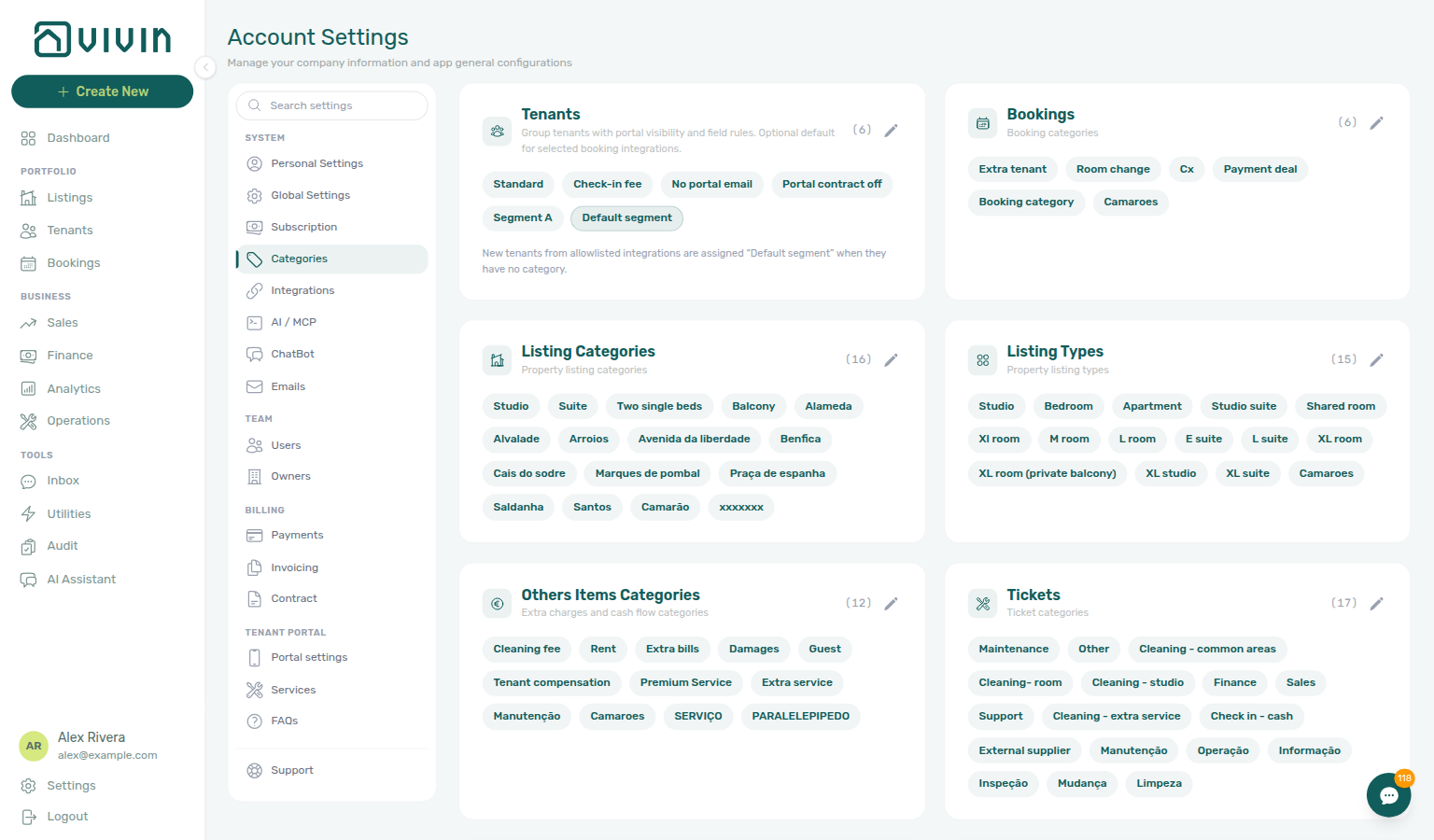
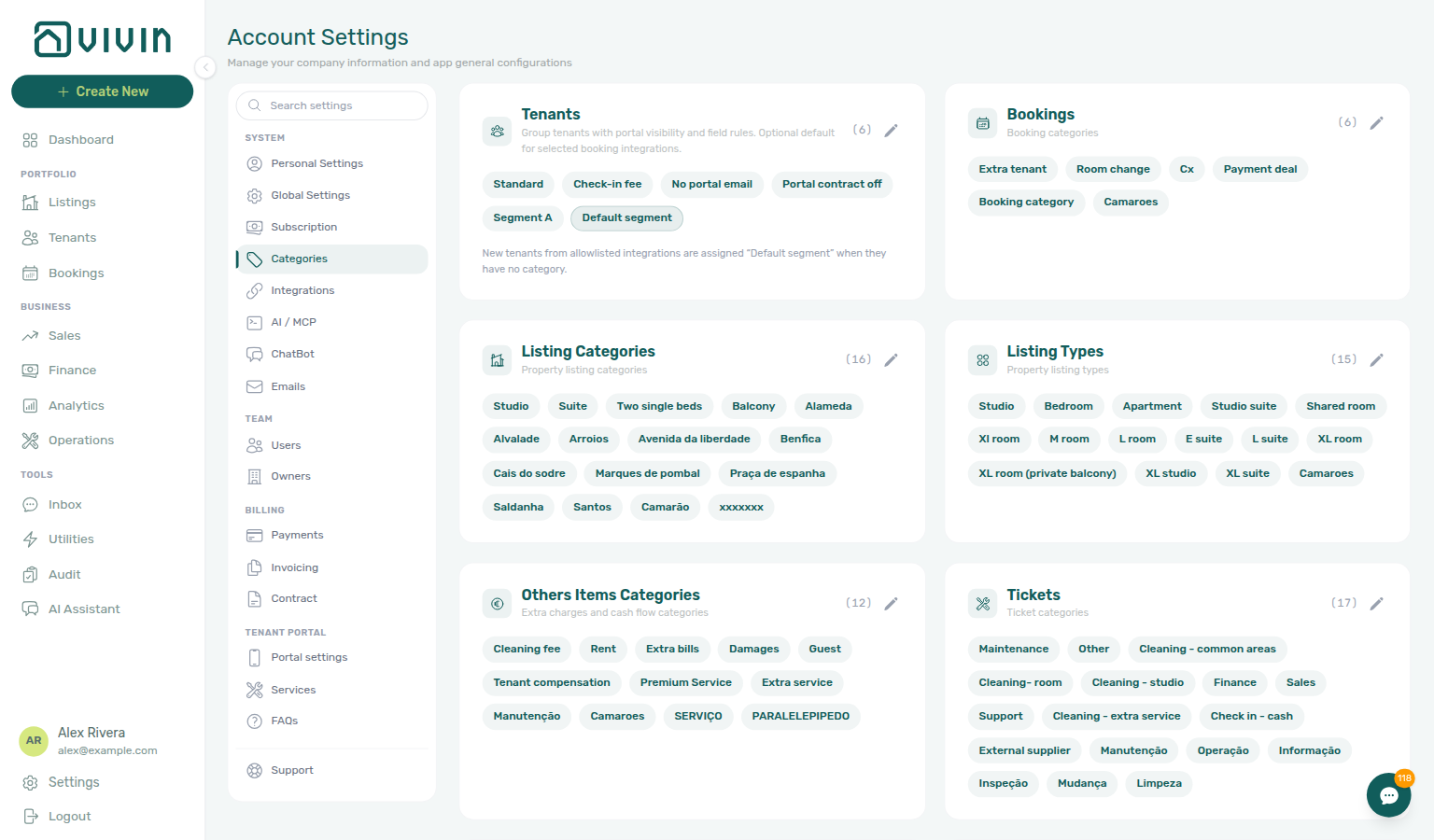
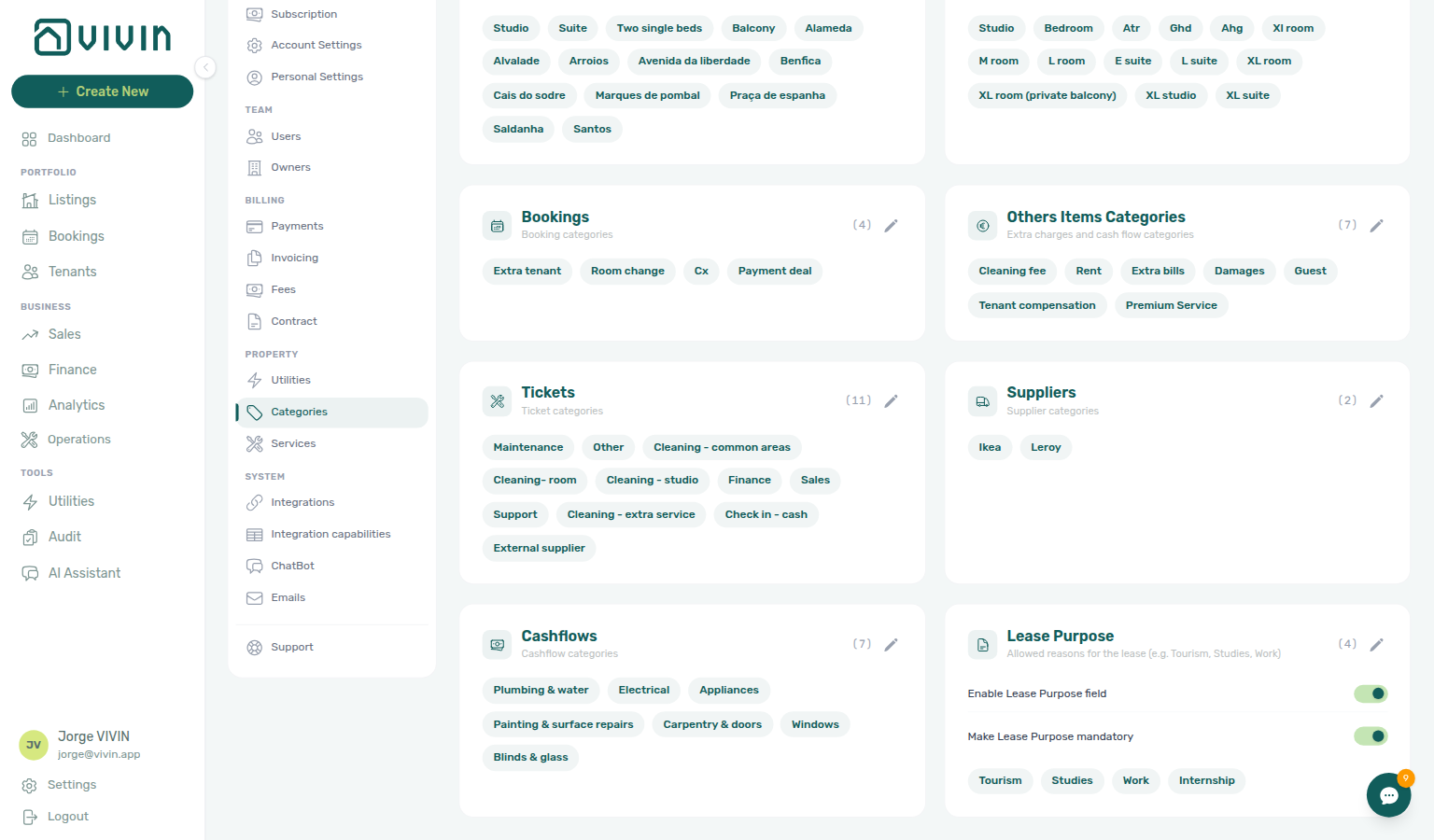
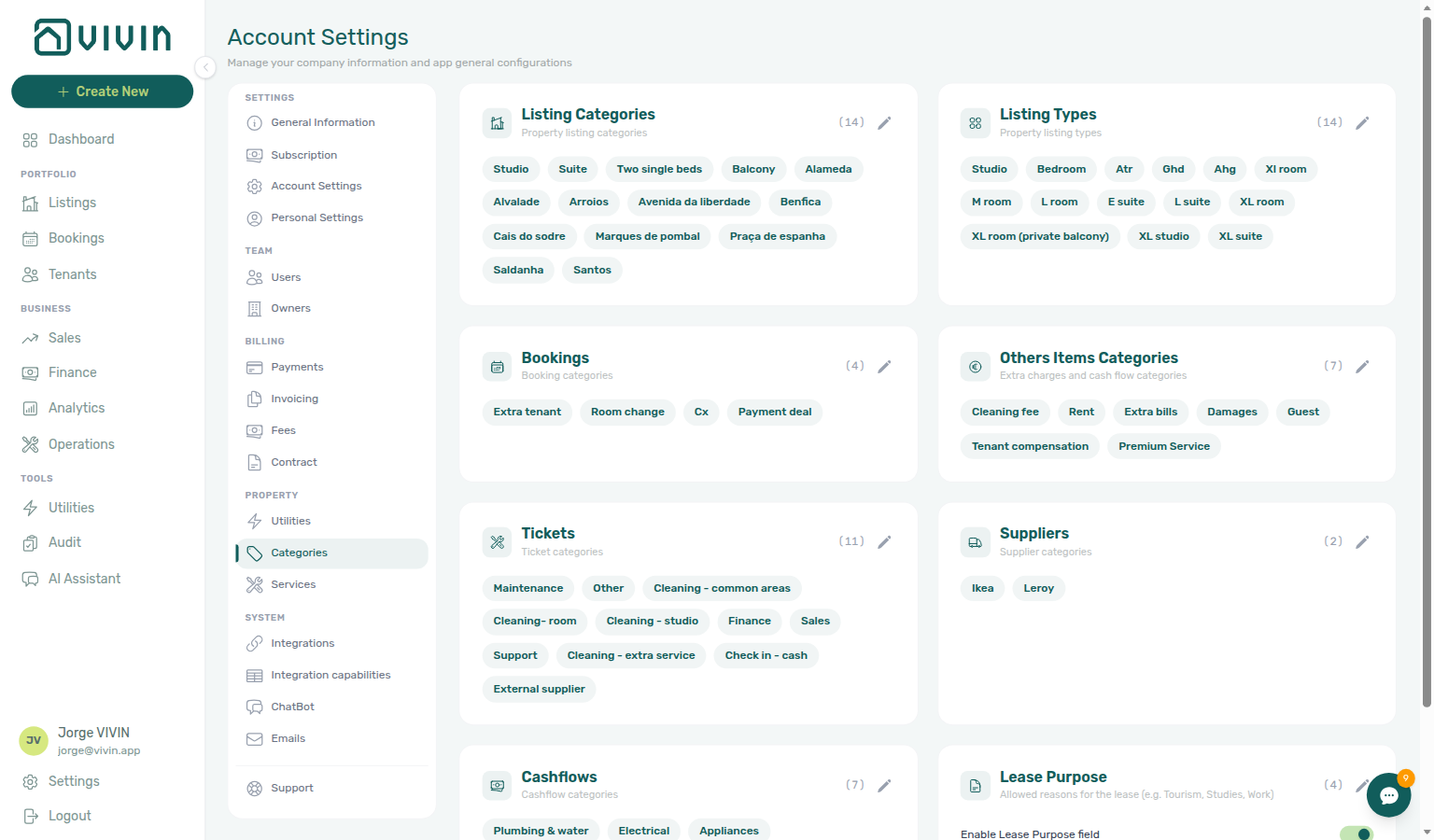
Open Account Settings → System → Categories (/settings/categories). The tab is a stack of editable cards—each card is one catalog.
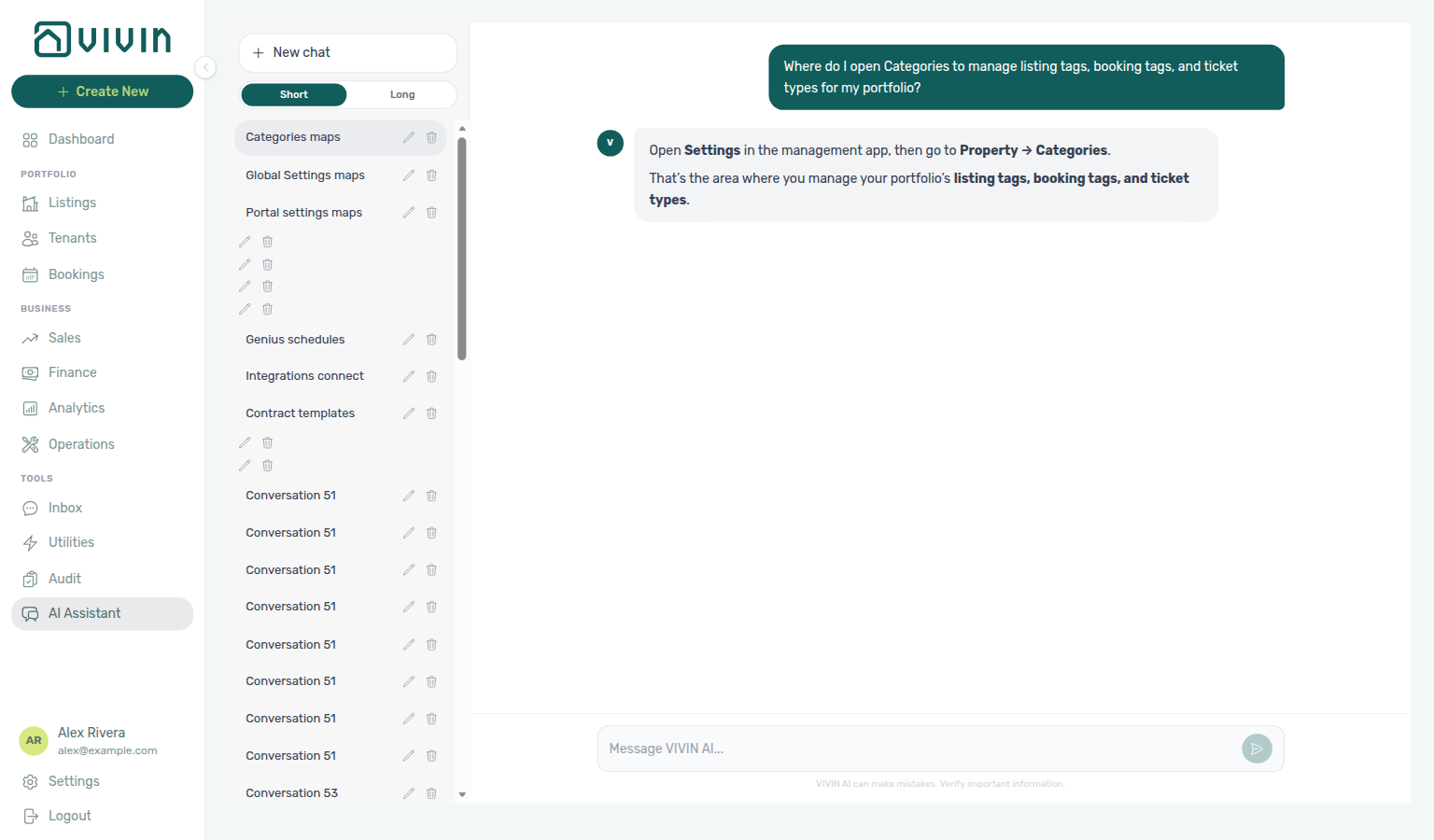
Ask AI Chat “Where do I open Categories to manage listing tags, booking tags, and ticket types for my portfolio?” — then open this Categories tab (ai-chat-product-context-categories-reply.png, ai-chat-product-context-categories-flow.mp4). The assistant may still say Settings → Property → Categories (for example “open Settings, then go to the Property section and open Categories”); follow Settings → System → Categories instead. Same grounding external MCP clients get from get-vivin-context-platform. Distinct from Tenant categories (portal segments on the Tenants card on this same tab).
Complete Getting Started — Recommended Setup Sequence step 9 (this tab — chip catalogs for properties, bookings, tickets) after step 8 Contract and before step 10 Tenant categories — full tab map: Recommended setup order. Finish steps 13–15 in Listings, Bookings, and Tenants, then Onboarding a New Property — Step 7. Guided steps 4–12: Onboarding a New Property. Lockout catch-up: Getting Started. Workflow pairing after go-live: Account Settings — Setup sequence after go-live.
Start with Listing Categories and Listing Types, then Bookings tags and Tickets types before go-live imports. Habit-specific shortcuts live under Related below.
Pair chip catalogs with Tenant categories (tenant segments — not the same as booking/property tags) and verify Operations ticket labels before the first maintenance job. Payments, Invoicing & Utilities utility types and Listings Step 3 Bills Included ceilings reference Others Items and Extra charges labels from this tab. Month-end category-filtered reconciliation pairs with Portfolio KPI review — Step 7 and optional AI usage API (utility_bill_extraction + landlord_chat). Hub: Recommended setup order.
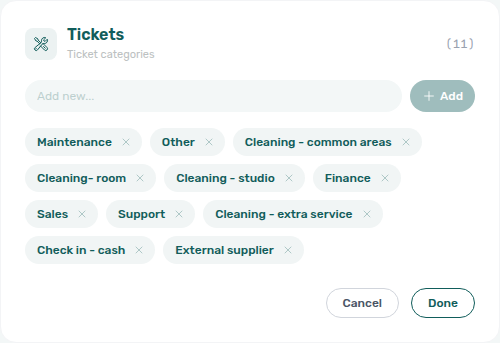
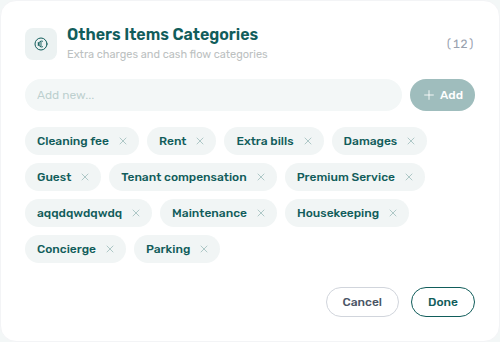
Click the pencil on a card to enter edit mode, type a label in the Add field, and press Enter or Add; removing a chip uses the × on that row. Each add or remove saves immediately (there is no separate Save for the whole page). Click Done to leave edit mode.
Tenant categories (portal access, profile field rules, integration defaults) live on the Tenants card at the top of this same Categories page — not a separate sidebar tab. See Tenant categories.
The Categories tab currently includes eight chip catalogs plus Lease Purpose, and — when Enable tenant categories is On — the Tenants segment card:
| Card in the app (English UI) | Used for |
|---|---|
| Tenants | Portal segments, field/module rules, and default for integrations — see Tenant categories (hidden when the Preferences switch is Off) |
| Listing Categories | Tags on properties and units in Listings |
| Listing Types | Property/listing type labels (separate from location-style tags) |
| Bookings | Booking-level tags and segmentation |
| Others Items Categories | Extra charges on bookings (“Add Charge”) and the required Invoicing category list on Services |
| Tickets | Mandatory categories on operations tickets |
| Suppliers | Supplier classification in operational workflows |
| Cashflows | Categories on Operations > Cash Flows entries |
| Lease Purpose | Optional booking field: allowed values + enable/required toggles |
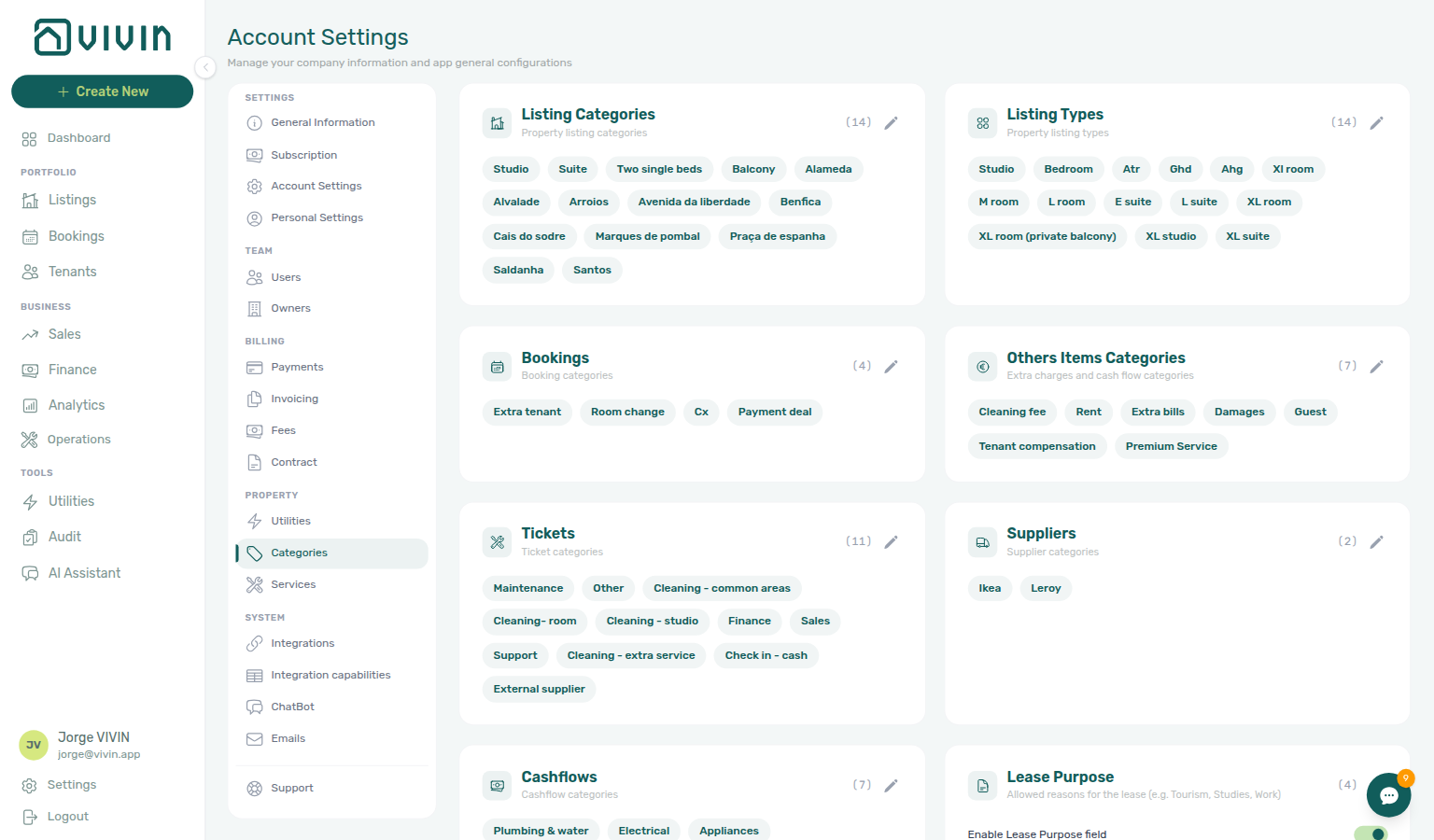
Listing Categories
Listing tags power Listings, Sales, Finance → Select categories, and Operations → Listing categories filters — apply tags on Listings — Tags Tab after you add chips here.
Tags that can be applied to properties and units. These appear in the Tags area when editing a property or unit in Listings.
Purpose: Filter the Listings view, generate targeted reports, and quickly identify properties with specific characteristics.
Examples:
- Location-based:
Alameda,Baixa,City Center,Suburbs - Feature-based:
Pet Friendly,Furnished,Elevator,Parking - Tenant-type:
Student Housing,Professional,Short-term
Filter surfaces: Tags you maintain here power multi-select filters across the portfolio:
| Module / surface | Control label | Docs |
|---|---|---|
| Listings → Portfolio / Archived | Select tags (inline toolbar) | Portfolio toolbar, Select tags stays open |
| Sales → Multicalendar | Select tags | Multicalendar tab |
| Sales → Pricing | Select tags | Pricing toolbar filters — sales-pricing-tags-types-toolbar.png |
| Finance → Other filters → Property & Listing | Select categories (listing tags on units) | Property and listing filters |
| Operations → Other filters → Property & date | Listing categories (same listing tags) | Operations — Listing categories filter |
Finance loads distinct tag strings from GET /listings/tags (sorted, de-duplicated across live listings). Listings and Sales filter the portfolio slice you are viewing; Finance narrows ledger and roll-up rows on Contract Values, Transactions, Income, and related exports. Operations → Listing categories uses the same tag vocabulary to scope tickets, schedule, planning, check-in/out, and cash flows — Operations — Listing categories filter.
How Finance loads tag options
The management app calls GET /listings/tags (Bearer auth, account-scoped) to populate Finance → Other filters → Property & Listing → Select categories. The response is the sorted, de-duplicated set of tag strings already on live listings — not the full Categories catalog from Settings. Listings and Sales filters use portfolio metadata on their own endpoints instead. Operators configure vocabulary on this page and apply tags on Listings — Tags Tab.
If tag options do not appear, refresh the page. An empty list after a successful load usually means your portfolio has no tagged units yet. Until tags load, Select tags / Select categories on Listings, Sales, and Finance may stay empty.
Listing Types
A separate catalog from Listing Categories for property or unit type labels (for example Studio, Room, Full Apartment). Use Listing Categories for cross-cutting tags (location, amenities) and Listing Types when you need a dedicated type taxonomy.
Examples: Studio, Room, Full Apartment, Two Single Beds, Coliving
Filter surfaces: Type labels appear as Select types on the Listings Portfolio toolbar (listings-portfolio-types-dropdown-open.png, Select types stays open) and Select listing types on Sales Multicalendar (sales-multicalendar-types-dropdown-open.png) and Sales Pricing (sales-pricing-types-dropdown-open.png). Combine tags and types with search and property pickers; Listings, Sales (Multicalendar, Pricing, and Channel Manager), and most other modules offer toolbar Clear all.
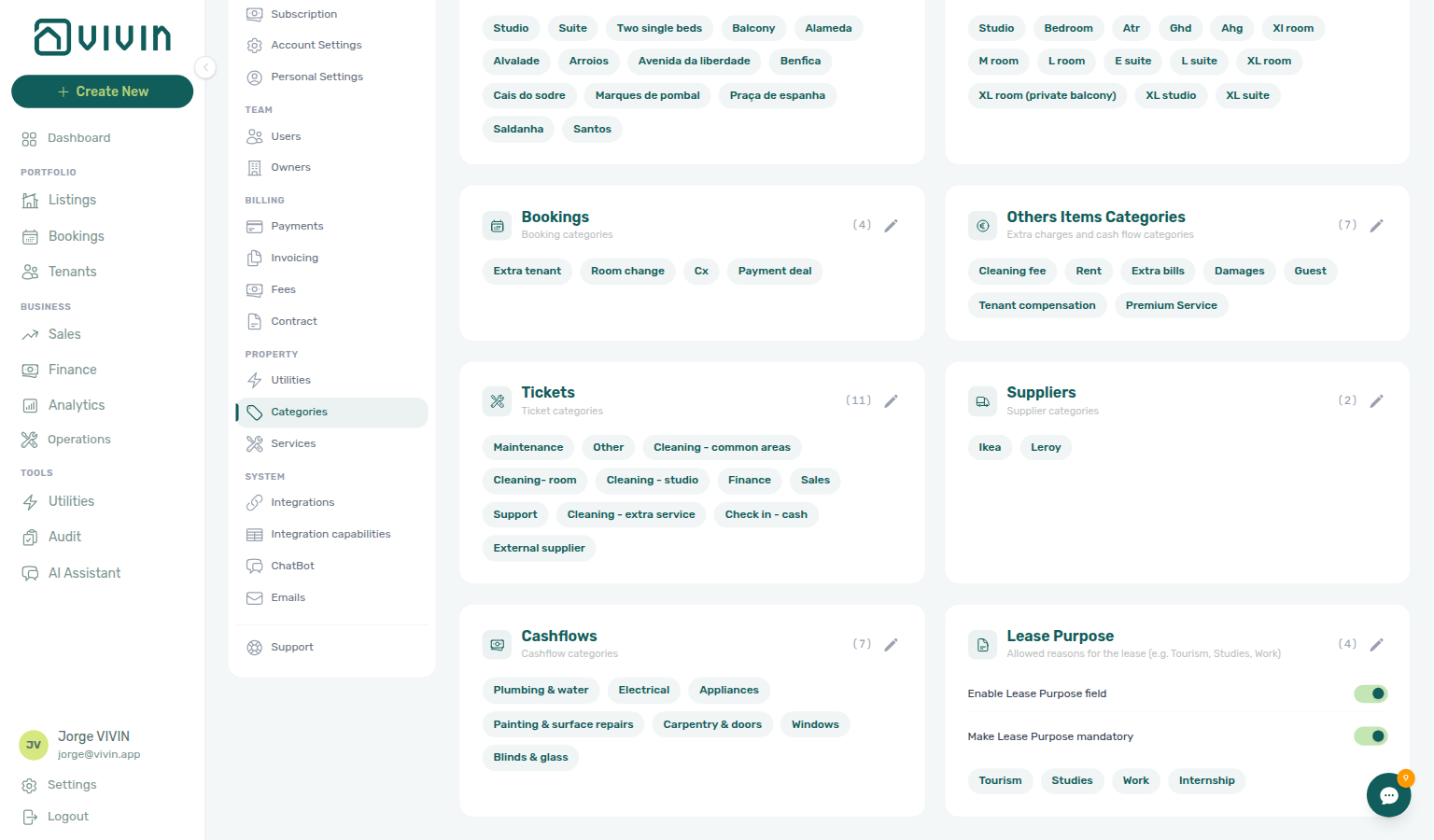
Bookings
Booking tags feed Emails — Communication Rules — Booking tags audience filters — All tags stays open while you add a second label. Changes save immediately on this card.
Tags and categories that can be applied to bookings to classify the type of reservation or associated charges. Marketplace POST /bookings cannot send these labels — imported stays stay empty until an operator picks chips — Creating Bookings — Booking tags.
Purpose: Segment booking data for reporting, provide context for custom charges added to a booking, and supply labels for Communication Rules audience filters (Emails → Communication Rules — Booking tags). This card is a catalog of allowed chips, not a default tag copied onto new stays.
When you add or remove tags on this card, the Booking tags multi-select in automated rule drawers updates on the next open (no separate publish step). On New Rule or Edit, set Include only (or Exclude) so All tags appears — that menu stays open while you add a second label.
On the Bookings list, the toolbar Booking categories control lists every tag here plus No booking category so operators can find reservations that still have an empty tag list — see Bookings — Property and category filters, Booking categories stays open, and Select all on category filters.
The same named tags appear as Select categories on Payments → Rent adjustment Step 2 (no No booking category row there). That menu stays open while you add a second tag.
The same tag set (including No category) is available under Finance → Other filters → Booking → Select categories when narrowing Contract Values, Transactions, Income roll-ups, and related exports — see Finance — Booking tags.
Filter surfaces: Tags you maintain here power multi-select filters across reservations and ledger views:
| Module / surface | Control label | Docs |
|---|---|---|
| Bookings → List / Timeline | Booking categories | List filters (bookings-list-select-categories-no-category.png, bookings-list-select-categories-named-tag.png), Booking categories stays open, Select all on category filters, and Timeline view (bookings-timeline-select-categories-no-category.png, bookings-timeline-select-categories-named-tag.png) |
| Bookings → Other filters → Booking | Discounts (All / With / Without) | Other filters, Glossary — Discount (booking) |
| Finance → Other filters → Booking | Select categories | Booking tags, Select all on category filters |
| Settings → Payments → Rent adjustment (Step 2) | Select categories | Payments — Select properties / Select categories stay open (named tags only — no No booking category row) |
| Finance → Other filters → Booking | Discounts (All / With / Without) | Deposit status filter |
| Settings → Emails → Communication Rules | Booking tags (audience) | Communication Rules — audience filters, Booking tags stays open (named tags only — no No booking category row) |
| Settings → Emails → Communication Rules | Tenant categories (audience) | Communication Rules — audience filters, Tenant categories stays open (named segments only — no No tenant category row) |
| Bookings → Tenant categories (toolbar) | Tenant categories | Tenant categories (toolbar), Tenant categories stays open, Finance — Tenant category filter, Tenants — Tenant category filter |
| Finance → Other filters → Tenant | Tenant category | Tenant category filter, Portfolio KPI review — Step 6 |
| Tenants → Directory toolbar | All categories | Tenant category filter, All categories stays open |
Examples:
Extra Tenant(booking has more tenants than the base capacity)Room Change(tenant moved from one unit to another)Renewal(existing tenant extended their stay)Corporate(booking made by a company rather than an individual)
Others Items Categories
Categories for miscellaneous booking charges that do not fit standard payment types (rent, deposit, admin fee). These labels appear when you Add Charge on a booking — and they also feed the required Invoicing category picker on Settings → Services.
Purpose: Classify one-off or non-standard charges on bookings, and give each marketplace service a fiscal category so Finance can resolve VAT and product codes when tenants purchase add-ons.
Examples:
DamagesCleaning fee(also a typical Services invoicing category)Guest Fee(extra charge for an additional occupant)ParkingStoragePenalty Fee
Create the Others Items labels you need here first, then assign each catalogue row an Invoicing category under Services. Changing the category on an existing service also updates that service’s not-yet-invoiced charges so Finance can keep issuing documents. Set each label’s invoice Tax VAT (and optional product code) under Invoicing → Others Categories Taxes so marketplace and extra-charge lines resolve the right rate.
Operational expenses recorded under Operations > Cash Flows use the Cashflows card on this tab, not Others Items Categories.
Tickets
Ticket categories are mandatory on Operations — Tickets — seed labels before the first maintenance job in Managing a Check-in turnover week.
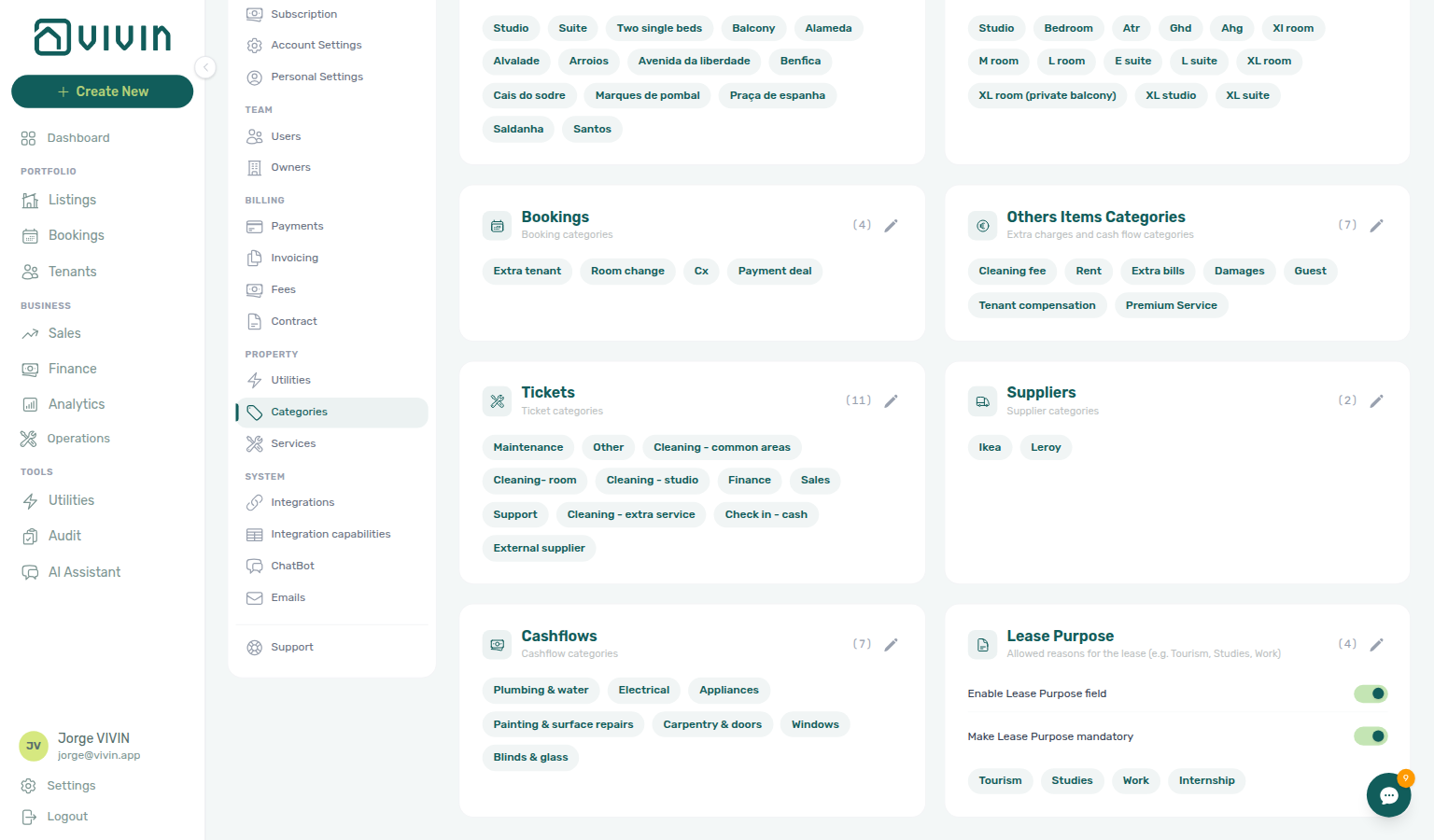
Categories for maintenance and operational tasks. Every ticket must have a category, so create a comprehensive list before your team uses the Operations module.
The Category filter on Operations → Tickets uses this catalog in full — not only types that appear on the first page of the queue. Scroll or search that menu when the list is long. Add or rename chips here when a type is missing from that menu.
Purpose: Route tickets to the right team, generate workload reports by category, and standardize how tasks are described.
Examples:
Cleaning - Check-inCleaning - Check-outPlumbingElectricalAppliance RepairKey HandoverTenant RequestInspection
Suppliers
Labels for supplier records used in operational and procurement-style workflows. Keep names consistent with how your team refers to vendors on invoices and tickets.
Examples: Cleaning company, Plumber, Electrician, Furniture supplier
Cashflows
Cashflows chips label Operations — Cash Flows and ticket Cost allocation rows — pair with Entering Monthly Utility Bills when supplier invoices land on the ledger.
Categories for Operations > Cash Flows entries—operational expenses, contractor costs, and similar out-of-booking cash movements. The same category chips appear on linked cash flow rows in a maintenance ticket’s Cost allocation panel (amber label on each linked row).
Examples: Contractor Invoice, Supplies, Utilities, Repairs
Lease Purpose
Lease Purpose values populate {LeasePurpose} in Contract templates and booking forms — enable before Processing a New Booking on accounts that require tourism vs studies classification.
Optional lease purpose values (for example Tourism, Studies, Work) shown on bookings when your account enables the field. This card is a catalog of allowed chips, not a default label copied onto new stays. Marketplace POST /bookings cannot send a value — imported stays show No lease purpose until an operator or tenant selects a chip — Creating Bookings — Lease purpose. In the Tenant Portal, Account → Personal information shows Lease Purpose as a disabled field (Set during contract signature); tenants pick an allowed value on Sign contract → Your Details. This card includes:
- Enable Lease Purpose field — turns the control on for new/edited bookings
- Make Lease Purpose mandatory — requires a selection when the field is enabled
- Chip list — the allowed values operators can pick
Configure this before teams rely on the field in booking creation or contract flows.
Best Practices for Category Design
Keep Categories Specific but Not Overly Granular
Categories should be specific enough to be useful for filtering and reporting, but not so granular that your team has to choose between dozens of similar options.
- Too broad:
Maintenance(does not help route tickets or generate useful reports) - Too granular:
Plumbing - Kitchen Sink,Plumbing - Bathroom Sink,Plumbing - Toilet,Plumbing - Shower(forces difficult decisions on every ticket) - Just right:
Plumbing,Electrical,Appliance Repair(clear, distinct, and useful for routing)
Use Consistent Naming Conventions
Decide on a naming pattern and apply it consistently:
- Use sentence case —
Cleaning - Check-inrather thancleaning - check-inorCLEANING - CHECK-IN - Use hyphens or dashes for subcategories —
Cleaning - Check-in,Cleaning - Check-outrather thanCleaning (Check-in)orCleaning/Check-in - Avoid abbreviations —
Electricalrather thanElec.to ensure clarity for all team members
Plan Before You Start
Set up your full category taxonomy before your team begins creating tickets, bookings, and cash flows. Retroactively recategorizing records is tedious and error-prone. A good approach:
- List all the types of tasks, charges, and property features your team handles
- Group similar items and decide on a manageable number of categories (aim for 8–15 per section)
- Review with your team to ensure the categories match how they think about their work
- Create the categories in Vivin
- Review and refine after 1–2 months of use — add missing categories, merge rarely-used ones
When to Create a New Category vs. Reuse an Existing One
Create a new category when:
- The existing options do not accurately describe the item
- You need to filter or report on this type of item separately
- Different team members or processes handle this type of item
Reuse an existing category when:
- The difference is minor and would not affect routing, reporting, or filtering
- The new category would be used very rarely (fewer than once a month)
Review your category usage quarterly. If a category has never been used, consider removing it to keep the dropdown menus clean. If team members are frequently choosing "Other" or misusing a category, a new category may be needed.
Key Rules
-
Categories cannot be deleted once in use. If a category has been applied to any record (ticket, booking, property, or cash flow), it remains in the system for historical accuracy. You can remove unused chips while editing a card, but labels already stored on historical records stay visible on those records.
-
Ticket categories are mandatory. Every ticket must have a category. Ensure your ticket category list is comprehensive enough before your operations team starts creating tickets.
-
Property tags propagate to units. Tags added to a property are automatically inherited by all units within that property. Unit-specific tags can be added independently.
-
Others Items vs. Cashflows vs. Services. Use Others Items Categories for extra booking charges and for the Invoicing category on Services marketplace rows; use Cashflows for Operations > Cash Flows expenses.
-
Lease Purpose is optional. Enable and populate Lease Purpose only when your booking workflow should capture a reason for the lease; use Make Lease Purpose mandatory when compliance or reporting requires it on every new booking.
Categories section cross-reference
Use the sections above for this settings area. Related setup pages are linked from Related below when present, or from Account Settings.
Related
Related below links this Account Settings tab to modules, workflows, concepts, and escalation paths.
Documentation map & escalation
- Account Settings hub — Tab pairing matrix across workspace configuration
- Tenant categories — Tenant segmentation (distinct from booking/property chip catalogs on this page)
- Glossary — Term definitions used across settings and module docs
- FAQ & Troubleshooting — Quick answers when category filters return unexpected rows
- Get Help & Support — Escalation when chip edits do not appear in module filters
Upstream & downstream workflows
- Onboarding a New Property — Seed listing tags and ticket categories before the first turnover on a new building
- Portfolio KPI review — Filter Finance and Operations exports by the same tags during month-end reconciliation
- Managing a Check-in — Turnover ticket categories on check-in day
- Managing a Check-out & Deposit Refund — Maintenance ticket categories for damage deductions during check-out
- Cancelling a Booking — Close Operations tickets by category after a reservation is canceled
- Handling a Late Payment — Step 1 — Identify overdue charges before posting Penalty Fee extra charges that use Others Items categories from this page
- Notification triage — Clear payment alerts after category-filtered booking or finance triage
Deeper workflow reads
See Upstream & downstream workflows above for the same guides.
Related Account Settings tabs
- Preferences — In-app notifications — Account-wide payment alerts after category-filtered booking or finance triage
- Invoicing & Payments — Utilities — Utility types paired with Others Items extra-charge labels
- Invoicing — Others Categories Taxes — Per-label Tax VAT and product code for Others Items / Services invoicing
- Services — Required Invoicing category picker is fed by Others Items Categories
- Emails — Booking tags audience filters use chips maintained on this tab; All tags stays open while you add a second label
Operator modules
- Operations — Tickets — Where ticket categories are used
- Operations — Cash Flows — Where cashflow categories are used
- Bookings — Property and category filters — Toolbar Select categories (booking tags + No category)
- Payments — Rent adjustment Select categories — Step 2 booking-tag picker (named tags only; stays open while you add a second tag)
- Bookings — Adding Extra Charges — Where booking and Others Items categories appear
- Finance — Booking tags — Other filters → Booking → Select categories
- Finance — Tenant category filter — Other filters → Tenant → Tenant category (segment filter — distinct from booking tags above)
- Finance — Property and listing filters — Other filters → Property & Listing → Select categories
- Listings — Tags Tab — Where property/listing tags are applied on records
- Listings — Portfolio toolbar — Inline Select tags / Select types filters (Select tags stays open, Select types stays open)
- Sales — Multicalendar — Select tags / Select listing types on availability grids
- Analytics — Maintenance tab — Portfolio ticket-count trends by category during KPI review
- Audit — Discounts tab — Cross-portfolio discount triage paired with booking tag filters on Finance exports
- Notifications — Payment overdue alerts (in-app) — Operator Payments category rows when scheduled charges are overdue on category-filtered bookings
Deeper concept reads
- Create New menu — New Ticket and Booking shortcuts use categories configured on this tab
- FAQ — Permission denied toast — Red You do not have permission to perform this action. toast when RBAC blocks a save; fix in Users → Role Permissions
- Integrations & Distribution — Listing tags and types filter Sales Multicalendar after channel linking
- Tenant Portal — Booking tags filter Communication Rules audience separately from tenant categories
- FAQ — Tenant contract signing blocked — No PDF yet, mandatory Your Details gates, category locks, or Lease purpose; portal signing vs paper upload on Contract Info
- Payment Allocation — Two-layer receipts and invoiced floor (rent) behaviour on tagged bookings
- Booking Lifecycle — Computed status model for reservations filtered by booking tags
Companion API guides
- API Reference — Creating bookings — Partner imports do not set
bookingTags; operators standardize chips on this tab - API Reference — Listings & availability — Partial pulls whose listing
tagsshould match categories saved here - AI usage API — Operator JWT ledger when category-filtered month-end review used AI Chat or Utilities — AI Invoice Reader
Module documentation hubs
- Bookings — Master reference when booking tags appear on list filters and extra charges
- Listings — Property wizard, Archived inventory, and tag application
- Finance — Portfolio ledgers filtered by booking and listing tags
- Sales — Portfolio availability and pricing grids filtered by tags and types
- Operations — Maintenance tickets and cash flows using ticket and cashflow categories
- Utilities — Cashflow categories on supplier bills distinct from ticket categories here
- Dashboard — Post-login KPI snapshot with bell notification triage
- Notifications — Full
/notificationshistory with search and filters - API Reference hub — Partner HTTP contracts and partial vs full feeds
Operator habit hubs
Day-to-day operator habits (lockout catch-up, pending receipts, payment triage, handoffs, and related playbooks) live on the Common Workflows habit hub.
Deep-link anchors for habit hubs
Lockout catch-up after password recovery
Pending manual receipt approval
Reject/revert mistaken receipts
Portfolio segmentation by tenant category
Notification row-click navigation
Payment alert to receivables triage
Confirmation alert triage
Finance debt receivables triage
Handling a Late Payment collections
Finance Income status drill-down
Cash flow forecast drill-down
Key glossary terms
- Draft ticket (display status) — Operations tickets that still show Draft until due date or assignment
- Glossary — End-of-Booking cost split — Charge Time → End of Booking splits daily overage across every occupied unit; still-staying roommates stay in the denominator
- Glossary — Change history — Operator-initiated edits on Listings setup and Bookings Changelog; create-time defaults excluded
- Glossary — Archived booking ledger visibility — Delete Booking hides manual/provider_platform rows on Finance → Transactions; vIBAN and credit card stay visible
- Glossary — Finance tenant category cache refresh — Recategorizing a tenant updates
booking.tenantCategoryIdimmediately; ledger tabs reflect it on reload, while Overview can lag up to ~10 minutes - Glossary — SIMAR water contract ID — SIMAR (Loures e Odivelas) water bills use Cód. Local in Connections — not Nº de Contador; leading zeros stripped
- Glossary — Full term list