FAQ & Troubleshooting
Start with Navigation & shortcuts for shell behaviour, permissions, and directory UX; use Bookings and Payments & Finance for reservation and ledger troubleshooting. First-time administrators configuring a workspace should pair answers here with Getting Started — Recommended Setup Sequence (steps 1–12 tab map: Account Settings — Recommended setup order, then steps 13–15 in Listings, Bookings, and Tenants). Payment overdue alerts: Handling a Late Payment — Step 1 after a /notifications row-click. Tenant-facing issues: Tenant Portal & Mobile App paired with Settings & tenant communications. Term definitions: Glossary deep-dive index Habit-specific shortcuts live under Related below.
Complete Getting Started — Recommended Setup Sequence (steps 1–12 on Account Settings tabs per Recommended setup order, then steps 13–15 in Listings, Bookings, and Tenants) and Onboarding a New Property — Step 7 go-live verification before you rely on FAQ answers for setup blockers. When behaviour does not match expectations during setup, start with Navigation & shortcuts (step 3 permissions), Settings & tenant communications (steps 10–12), and Help & Vivin support (when to file tickets). When sign-in was restored mid-setup, see Getting Started — Lockout catch-up after password recovery. Workflow pairing after go-live: Setup sequence after go-live.
Navigation & shortcuts
Directory and permission answers here pair with Notifications & alerts (bell vs /notifications) and Settings & tenant communications (email and Communication Rules). Why does my browser tab say VIVIN | Inbox? covers the Tools → Inbox tab title. During first-time setup, confirm Getting Started — Recommended Setup Sequence step 3 (Users) before greyed-out + Create New rows block onboarding. Mobile-only shell: Navigation & shortcuts (mobile) (FAQ — Phone shows Operations only.
Why are some rows in + Create New greyed out? Each action checks your role’s create permissions for that record type (tenants, bookings, tickets, and so on). Disabled rows include a no permission tooltip on hover. Ask an account administrator to adjust Users and roles. See the full action list in Create New Menu.
Why do I see “You do not have permission to perform this action”?
Permission toasts pair with Users and roles → Role Permissions, Users and roles — Blocked actions in the app, Create New menu — Permissions (greyed-out rows), Glossary — Permission denied toast, Finance — Access tabs and toolbar.
Vivin blocked the API call because your role lacks the granular permission for that action (save, delete, approve, and similar mutations). The toast is the localized replacement for the backend Forbidden resource denial when no more specific business message applies. Some controls are hidden or greyed out up front (+ Create New, Finance tabs without Approve payments); others stay visible until you click Save or a row action. An administrator can fix this in Users and roles → Role Permissions. After they change your role, refresh or navigate to a new page — you do not need to sign out. See Blocked actions in the app.
The + Create New slide-out keeps every shortcut in one grid; which rows are clickable depends on those permissions (and, for Tools, whether you are on a Vivin internal sign-in — see the next question).
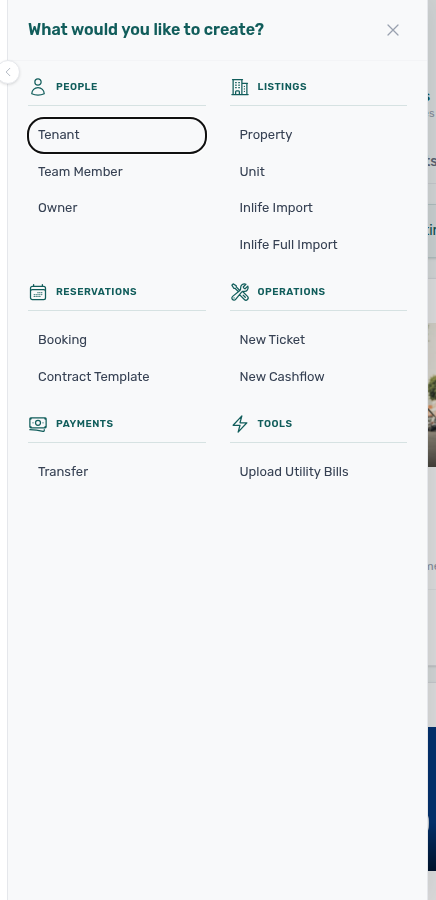
Why don’t I see a “Tools” block inside + Create New?
The Tools category (currently Upload Utility Bills) is shown only when you are signed in with an email address ending in @vivin.app (Vivin internal operators). Customer accounts see the other five categories only. Internal users who still lack the underlying permission for utility bill upload will see Tools but with that action disabled.
Why don’t I see “AI Assistant” under Tools in the sidebar?
The AI Assistant screen (/ai-chat) is available to roles granted the AI / MCP row in Role permissions — on by default for Admin and Super Admin, switched on per role by an administrator. The app hides the nav entry for other roles, and opening the URL directly shows the standard permission state (this is a role permission, not the + Create New > Tools email check above). See the AI Chat module and bookmarkable route in Deep Links — AI Assistant.
Why don’t I see “Analytics” under Business in the sidebar?
The Analytics entry (/analytics, portfolio KPI charts) is shown only when your role includes the Analytics module permission (analytics.module). Administrators can grant it in Users and roles. Opening /analytics directly without permission shows the standard access-denied state. For what each tab shows, see the Analytics module; tab-level URLs and behaviour are listed under Deep Links — Analytics (KPI Dashboard).
Why don’t I see “Audit” under Tools (or why is Audit empty / blocked)?
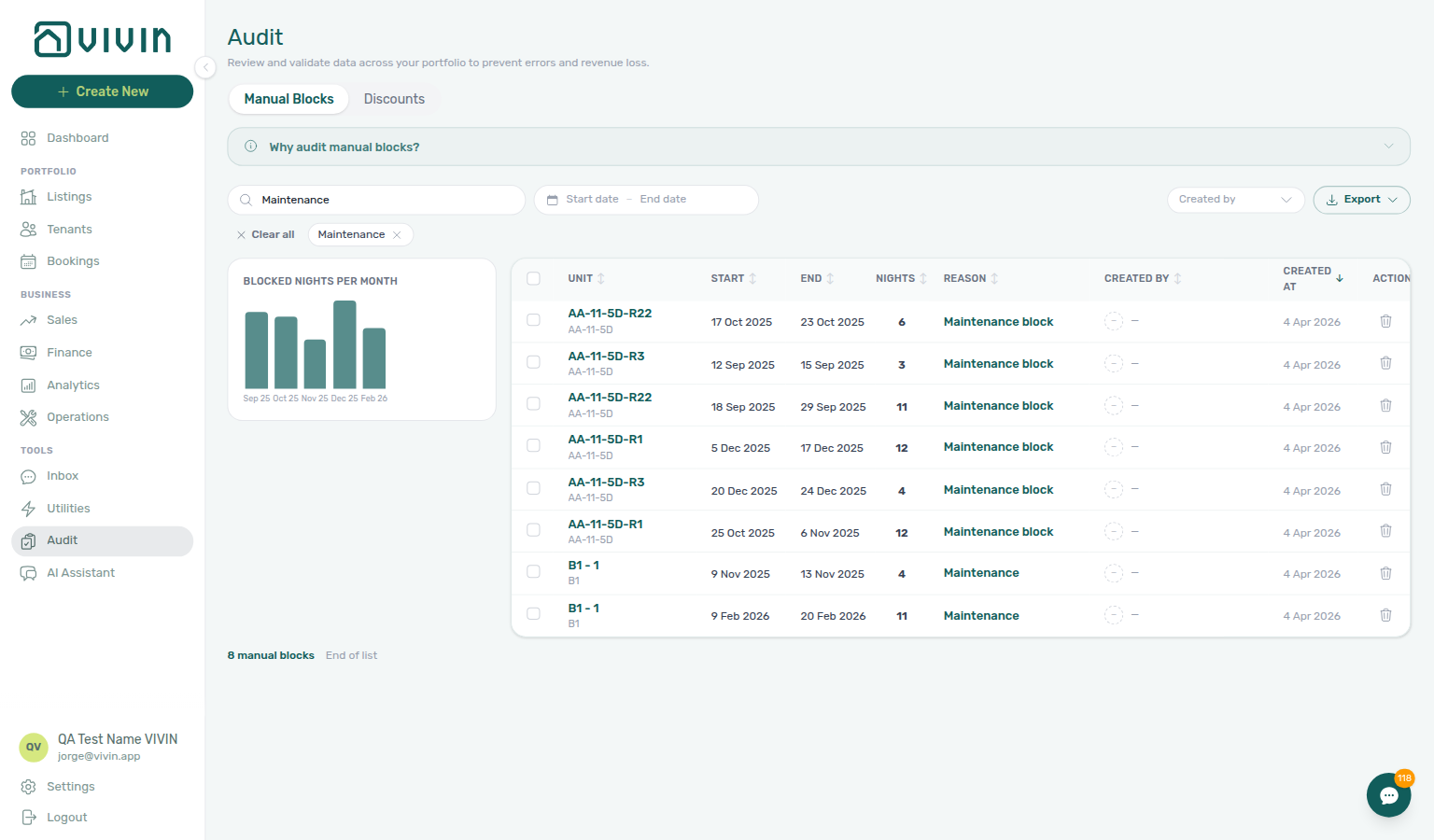
Audit (/audit) reviews manual availability blocks across your portfolio. The sidebar entry uses the same Listings module permission as the Listings workspace — if you cannot open Listings, you cannot open Audit either. The workspace does not replace the unit Calendar in Listings; it helps you spot blocks that may be stale or mis-described. When Analytics Occupancy dips without a rate change, pair Portfolio KPI review — Step 3 with hub Common Workflows — Occupancy KPI to block hygiene handoff before you edit Settings → Tenant categories account-wide. Use Created by (multi-select; the menu stays open while you add a second teammate) after staff turnover, clickable column headers for server-side sort (for example Unit or End), and Export for the full filtered set — see Audit — Toolbar and filters and Manual block hygiene. See Audit module and Deep Links — Audit.
Why does my browser tab say VIVIN | Inbox?
Tab titles pair with Inbox — Browser tab title, Glossary — Inbox browser tab, Deep Links — Inbox, and Where do I read WhatsApp and email for one booking?.
When you open Tools → Inbox (/inbox), the browser tab reads VIVIN | Inbox. A Dashboard bell Inbox row that opens /inbox?contact=… keeps that same title — it does not show the tenant’s name.
Opening the bell Inbox slide-over on Dashboard, Bookings, or another module does not change the tab until you follow a link to /inbox.
| Screen | Browser tab |
|---|---|
| Tools → Inbox | VIVIN | Inbox |
| Tools → AI Assistant | VIVIN | AI Assistant |
| Help & Support | VIVIN | Support |
| Sign-in | VIVIN |
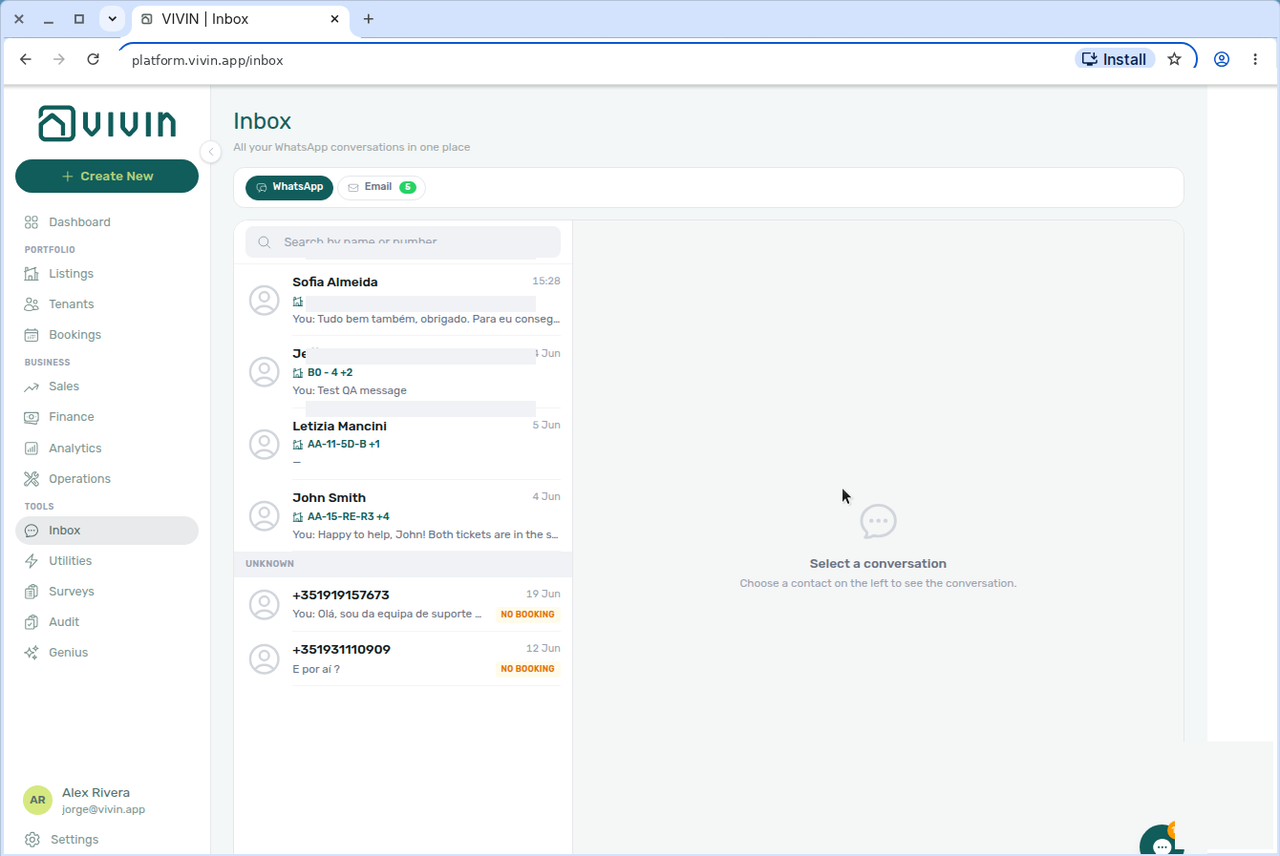
See Inbox — Browser tab title (inbox-browser-tab-vivin-inbox.png, inbox-browser-tab-vivin-inbox-flow.mp4).
Does picking a second Created by teammate close the Manual Blocks menu?
No. Open Created by on Tools → Audit → Manual Blocks, tick the first teammate, then tick a second teammate. The menu stays open with checks on both. The table shows holds created by any of the people you picked. Ticking names here only filters the list — it does not change who created a block. Date range is a calendar, not this menu. Tickets Assignee and Check-in & Check-out Responsible are different controls. Dismiss the menu when the chips under the toolbar look right. See Audit — Created by stays open.
A shared link opens the wrong Finance tab, or the URL says /finance/foo while I see Overview — is that normal?
Tabbed modules (Finance, Operations, Sales, Utilities, Account Settings, Analytics) rewrite unknown :tab segments to a safe default (usually the module Overview) so the address bar matches what is on screen. Legacy aliases (for example /sales/calendar → /sales/pricing) still work where documented. If a link includes a tenant, property, unit, or transaction id that does not exist, you get a short not found message and return to the parent list (unit sidebar bookmarks toast Unit not found.; full-page /listings/:id shows Listing not found with Back to listings). See Deep Links — Broken entity deep links and Why do I see Unit not found on a Listings link?.
Why do I see Unit not found on a Listings link?
Unit deep-link answers pair with Deep Links — Broken entity deep links, Listings — Property and unit deep links, Listings — Full-page unit detail, and Booking engine details — Legacy URLs.
Bookmarks that open a unit sidebar (/listings/unit/:listingId, /listings/units/:listingId, or /listings/property/:propertyId/unit/:listingId) load the unit from the server. When that id is missing, mistyped, soft-deleted, or outside your account, Vivin shows a Unit not found. toast and replaces the URL with /listings — you are not left on an empty editor. Property bookmarks use the same pattern with Property not found.
| Link shape | Missing-id feedback |
|---|---|
/listings/unit/… / /listings/units/… / …/unit/… | Unit not found. toast → /listings |
/listings/property/:propertyId/… (missing property) | Property not found. toast → /listings |
/listings/:listingId (full-page detail) | In-page Listing not found + Back to listings |
Legacy /booking-engine-details/listing/:listingId | Redirects to /listings when the unit cannot be resolved |
Open the unit again from the Portfolio table (or ask a teammate for a fresh link) after confirming the unit still exists and is not archived with its parent property. Soft-deleted units opened from an already-loaded portfolio row can show an unavailable panel inside the sidebar instead of the toast — that only applies when the catalogue row was already on screen.
Can I connect Vivin to an external AI assistant (for example ChatGPT or Claude with MCP)?
Yes, for automation against the same Core API the management app uses. Landlord MCP exposes account-scoped portfolio tools (bookings, listings, maintenance, and more, depending on your role). Tenant MCP targets booking- and tenant-scoped flows (portal links, chatbot rules, maintenance for a reservation). Both require a valid management-user token and respect the same permissions as HTTP clients. Administrators tune tool permissions on Account Settings → AI / MCP (/settings/mcp); API keys suit IDE and custom clients, while Claude.ai and ChatGPT connectors use OAuth on the Core API host — see Landlord MCP — Connector OAuth. Protocol details: Landlord MCP and Tenant MCP; HTTP contracts: API Reference.
How do Claude or ChatGPT connectors sign in to Landlord MCP?
Hosted MCP connectors (Claude.ai, ChatGPT) run Vivin's OAuth 2.1 authorization-code flow on the Core API host — you sign in on a Vivin consent page that lists the tool domains you are granting. PKCE is required. The connector receives a management JWT (same shape as browser login) plus a refresh token (60-day lifetime, rotates on use). This path does not use the API keys card on AI / MCP — keys remain for IDE configs (Cursor, Claude Desktop) and custom scripts. Enable at least one tool domain on Account Settings → AI / MCP before authorizing; zero enabled domains returns access_denied. Revoke by turning AI access off for the user or disabling every domain — the next refresh fails and the connector asks you to sign in again. Operator narrative: Landlord MCP — Connector OAuth. HTTP endpoints: MCP OAuth.
Where do I configure Landlord MCP API keys and tool permissions?
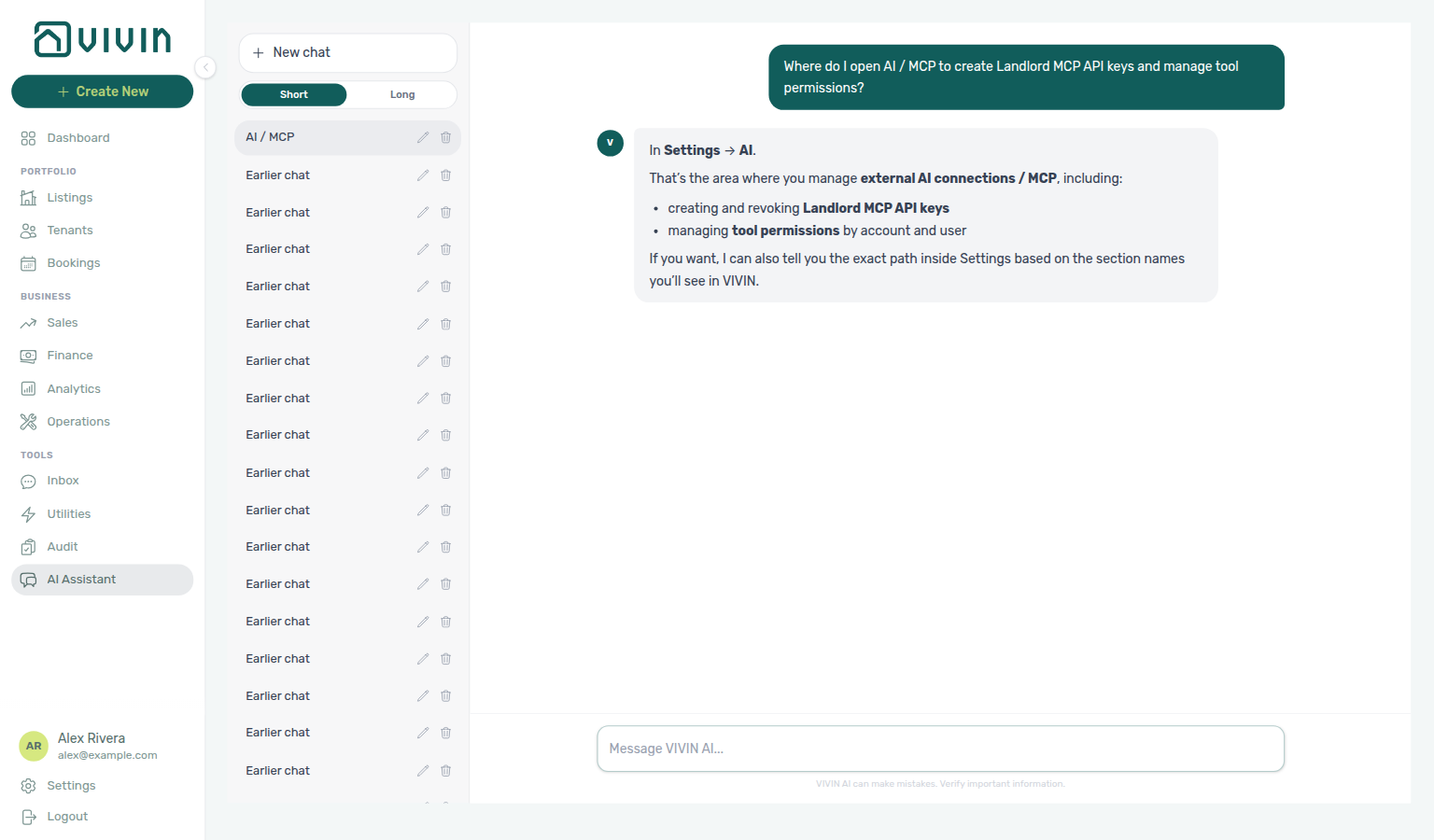
Ask AI Chat “Where do I open AI / MCP to create Landlord MCP API keys and manage tool permissions?” — then open Account Settings → System → AI / MCP at /settings/mcp (ai-chat-product-context-ai-mcp-reply.png, ai-chat-product-context-ai-mcp-flow.mp4). The assistant typically says Settings → AI (it may omit System); follow Settings → System → AI / MCP. The English tab label is AI / MCP. Admin and Super Admin edit Connection, API keys, account Tool permissions, Per-user permissions, and review the Permission audit trail and Genius activity logs. The tab opens for every role granted the AI / MCP row in Role permissions (the same switch as Tools → AI Assistant, /ai-chat; on by default for Admin and Super Admin); other roles with the row see a read-only My permissions card plus the connection card. See Users and roles — Role permissions. External MCP clients: get-vivin-context-platform (or get-vivin-context-ai).
Where do I configure catalogues that Tenant MCP assistants read?
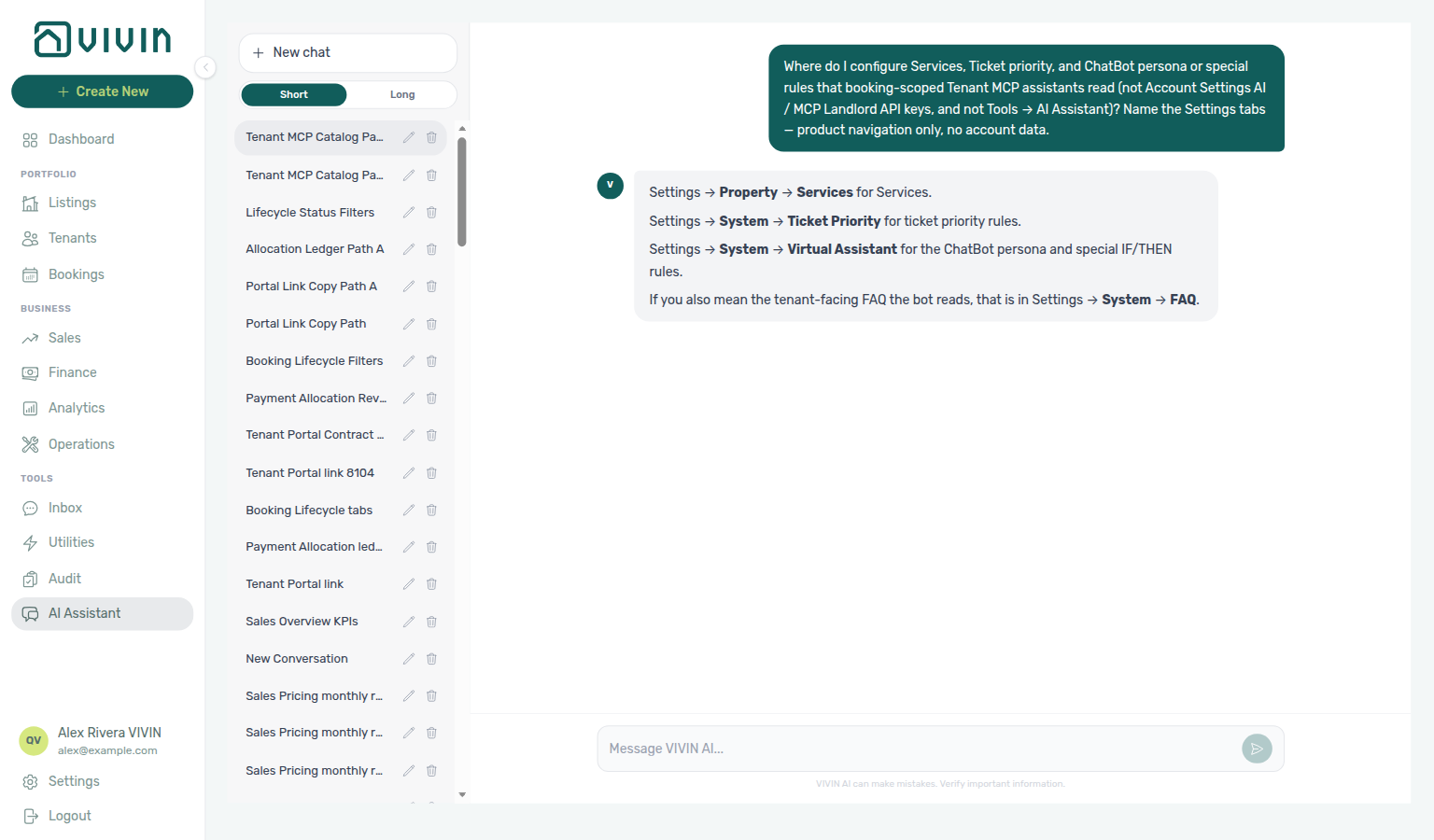
Ask AI Chat “Where do I configure Services, Ticket priority, and ChatBot persona or special rules that booking-scoped Tenant MCP assistants read (not Account Settings AI / MCP Landlord API keys, and not Tools → AI Assistant)? Name the Settings tabs — product navigation only, no account data.” — then open Services under Tenant Portal, Ticket priority as a ChatBot subtab, and ChatBot (ai-chat-product-context-tenant-mcp-reply.png, ai-chat-product-context-tenant-mcp-flow.mp4). The assistant may still say older paths such as Property → Services or a standalone Ticket Priority tab; use Tenant Portal → Services and System → ChatBot (Ticket priority subtab). These are the same catalogues Tenant MCP tools such as list-available-services, get-ticket-priority-rules, get-chatbot-persona, and get-chatbot-rules load — not AI / MCP Landlord connection URL / API keys. Concept hub: Tenant MCP. External MCP clients: get-vivin-context-ai (or get-vivin-context-platform / get-vivin-context-operations).
Navigation & shortcuts (mobile)
Phone-only Operations shell answers pair with Operations (bottom tab bar, field workflows), Getting Started — Mobile phones (operations-only shell), Operations — Mobile and narrow layouts (redirect vs 768px bottom tabs), Deep Links — Operations (bookmark /operations/* on phones), **Glossary — Operations-only phone shell.
Why does my phone only show Operations?
On an actual mobile phone (user-agent detection — not merely a narrow browser window), anyone whose role includes the Operations module gets an operations-focused shell: other module URLs redirect to /operations, and the mobile menu shows Operations only. That is intentional for field coordination (tickets, check-in/out, cash flows). iPads, tablets, and desktop browsers resized narrow keep the full module list — only phone-class devices are locked. Use a tablet or desktop browser when you need Listings, Bookings, Finance, and the rest of the portfolio tools from a phone. Support ticket links under /settings/support still open on phones. Roles without Operations access are not redirected. Inside Operations on any viewport below 768px, a bottom tab bar still appears for tab switching — that part is width-based, separate from the phone-only redirect. The Dashboard notifications bell is hidden on narrow viewports — use /notifications directly on phones. See Getting Started — Mobile phones (operations-only shell), Operations — Mobile and narrow layouts, Glossary — Operations-only phone shell, and Deep Links — Operations.
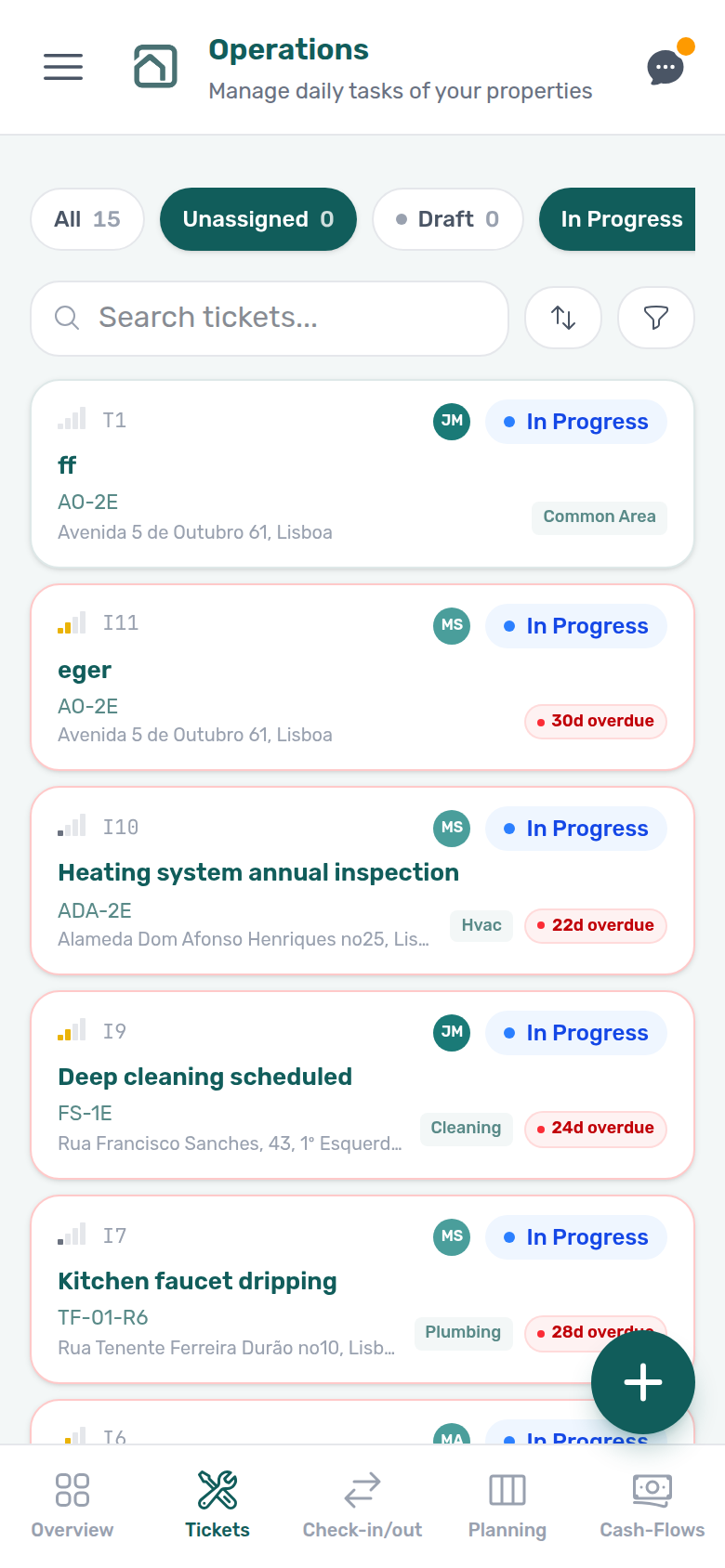
For a short clip of the /bookings → /operations redirect and bottom tab bar, see the video on Getting Started — Narrow viewports or Operations — Mobile and narrow layouts.
Notifications & alerts
Payment and overdue alert behaviour pairs with Payments & Finance and Bookings (row-click navigation into booking sidebars — FAQ — Notification row-click navigation, Notification row-click navigation hub (symptom table for /notifications row-click vs Dashboard bell — notifications-row-navigation-flow.mp4), Glossary — Notification row navigation.
Where do I open the full notification history (search and read filters)?
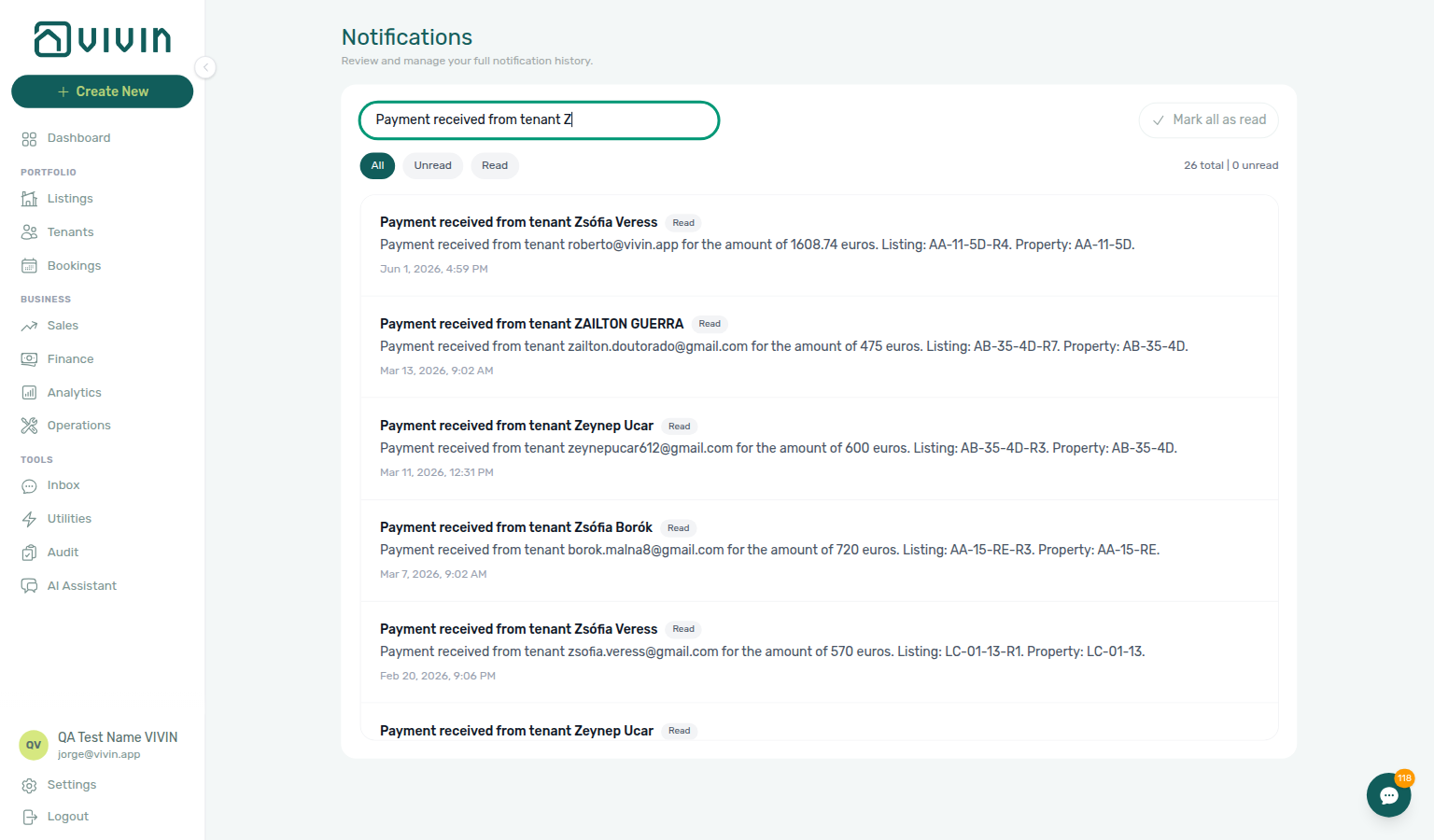
Open the Notifications module at /notifications — for example platform.vivin.app/notifications. The Dashboard header bell (desktop only) shows a compact recent list with General and Inbox sub-tabs when the global inbox release is active — Inbox rows deep-link to /inbox or booking Communication; the bell still has no search or All / Unread / Read pills. Bookmark /notifications when you triage the full mixed history regularly. See Notification triage.
Why is the Dashboard notifications bell missing on my phone?
The bell slide-over is tied to the Dashboard header and is hidden on narrow viewports in the current layout. Use /notifications directly for the same events with search, filters, and infinite history on mobile.
Why are General notifications empty for my owner-linked login?
Owner-linked alert scoping pairs with Notifications — Owner-linked General alerts, Owners — WhatsApp Inbox and alerts, and Glossary — Owner-linked user.
When your management email matches an Owners record, Vivin limits General rows on the Dashboard bell and on /notifications to alerts that resolve to your buildings (via property, listing, or booking — tenant-only as a fallback). Rows with no portfolio id stay hidden. Full-account teammates can still see payment or ticket alerts on other landlords’ properties. Confirm Listings shows only your buildings, then compare with a full-account login if you expected account-wide history. Preferences and personal opt-outs still apply on top of this filter. owner-scope-notifications-bell-general.png, owner-scope-notifications-page.png, owner-scope-notifications-flow.mp4.
Why does clicking a notification on /notifications open a booking or tenant?
Row-click navigation pairs with Common Workflows — Notification row-click navigation, FAQ — Notification row-click navigation hub, Common Workflows — WhatsApp per-booking messaging (New WhatsApp message from … → bell Inbox / Communication), FAQ — WhatsApp and email per booking, Common Workflows — Pending manual receipt approval.
| Surface | Row click behaviour | Best for |
|---|---|---|
/notifications | Opens link, then bookingId, tenantId, listingId, or propertyId (first match) | Payment alerts, ticket pings, search + All / Unread / Read filters |
| Dashboard bell — General | Opens in-panel Notification detail unless link is set | Quick desktop scan — not full triage |
| Dashboard bell — Inbox | Follows link to /inbox or booking Communication | WhatsApp / inbox message pings |
| Mobile | Bell hidden — use /notifications directly | Same row-click navigation as desktop full page |
| Symptom after row-click | Likely cause | Fix |
| -------------------------------------------- | ---------------------------------------- | -------------------------------------------------------------------------------------------------------------------------------- |
| Pending manual in-payment alert persists | Receipt still pending on ledger | Transactions → Approve payment — Pending manual receipt approval |
| Total Debt unchanged | Transfer not approved yet | Amber Pending chip on Finance → Transactions |
| Landed on booking but debt unclear | Payment overdue vs pending alert | Payment Plan or Finance debt receivables triage |
| Bell row did not navigate | General tab in-panel detail | Use /notifications for row-click triage |
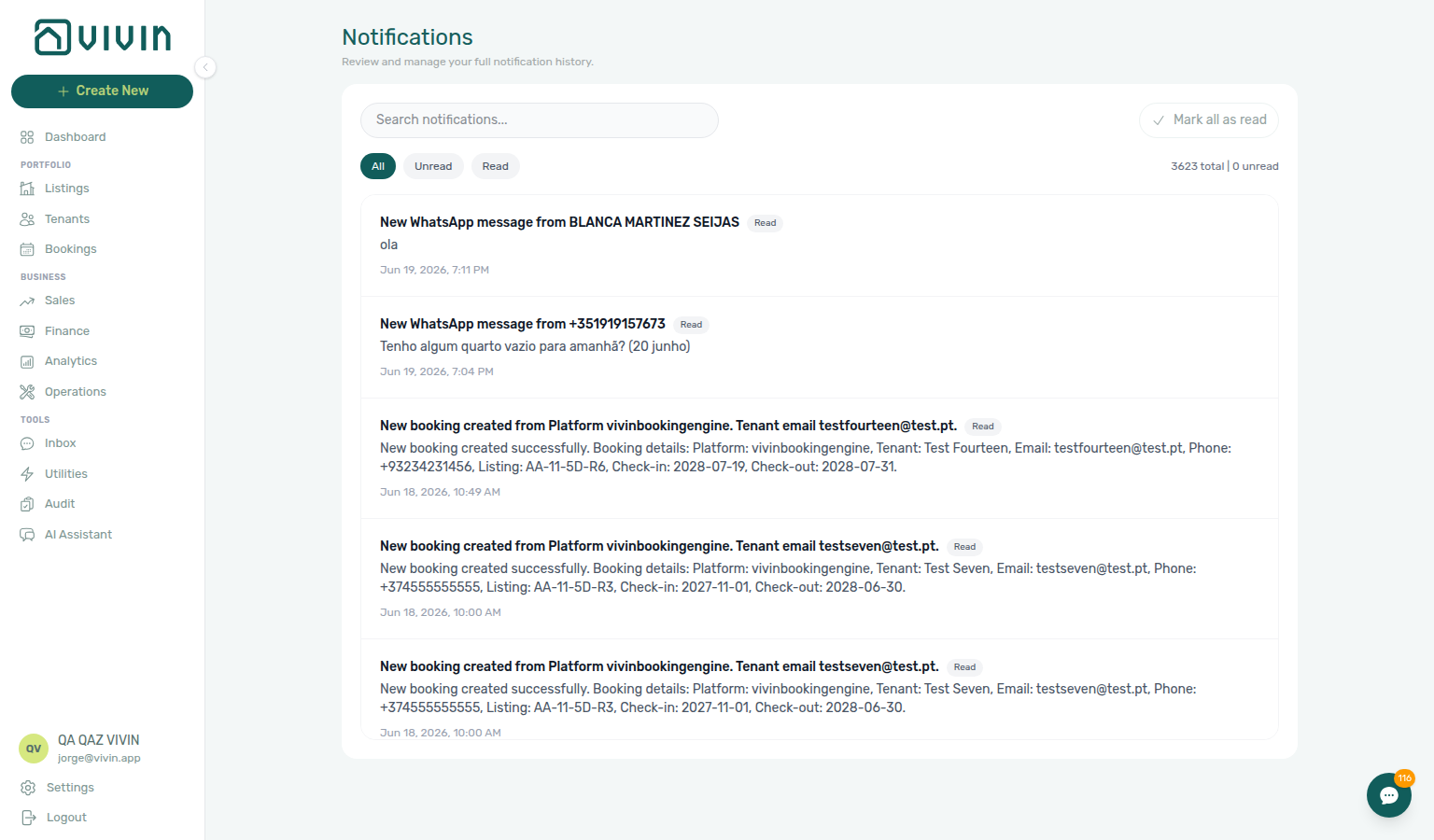
On the full Notifications page, a row click marks unread items in the background, then navigates when the event carries a target: backend link, then bookingId, tenantId, listingId, or propertyId (first match). Payment and overdue alerts usually open the related booking sidebar so you can review Payment Plan or Contract Values — see Handling a Late Payment — Step 1, Notifications — Payment overdue alerts, Notification triage — Step 4, and during month-end Portfolio KPI review — Dashboard Total Debt subtitle. The Dashboard bell does not jump to Bookings from most General rows (it opens Notification detail in the panel unless the row has a deep link). Inbox sub-tab rows with link still jump to /inbox or booking Communication from the bell. On phones, bookmark /notifications when the bell is hidden — see Getting Started — Notification access. See Glossary — Notification row navigation, Deep Links — Notifications, and Deep Links — Broken entity deep links when a target id no longer exists.
- Common Workflows — Notification row-click navigation — Operator habit hub
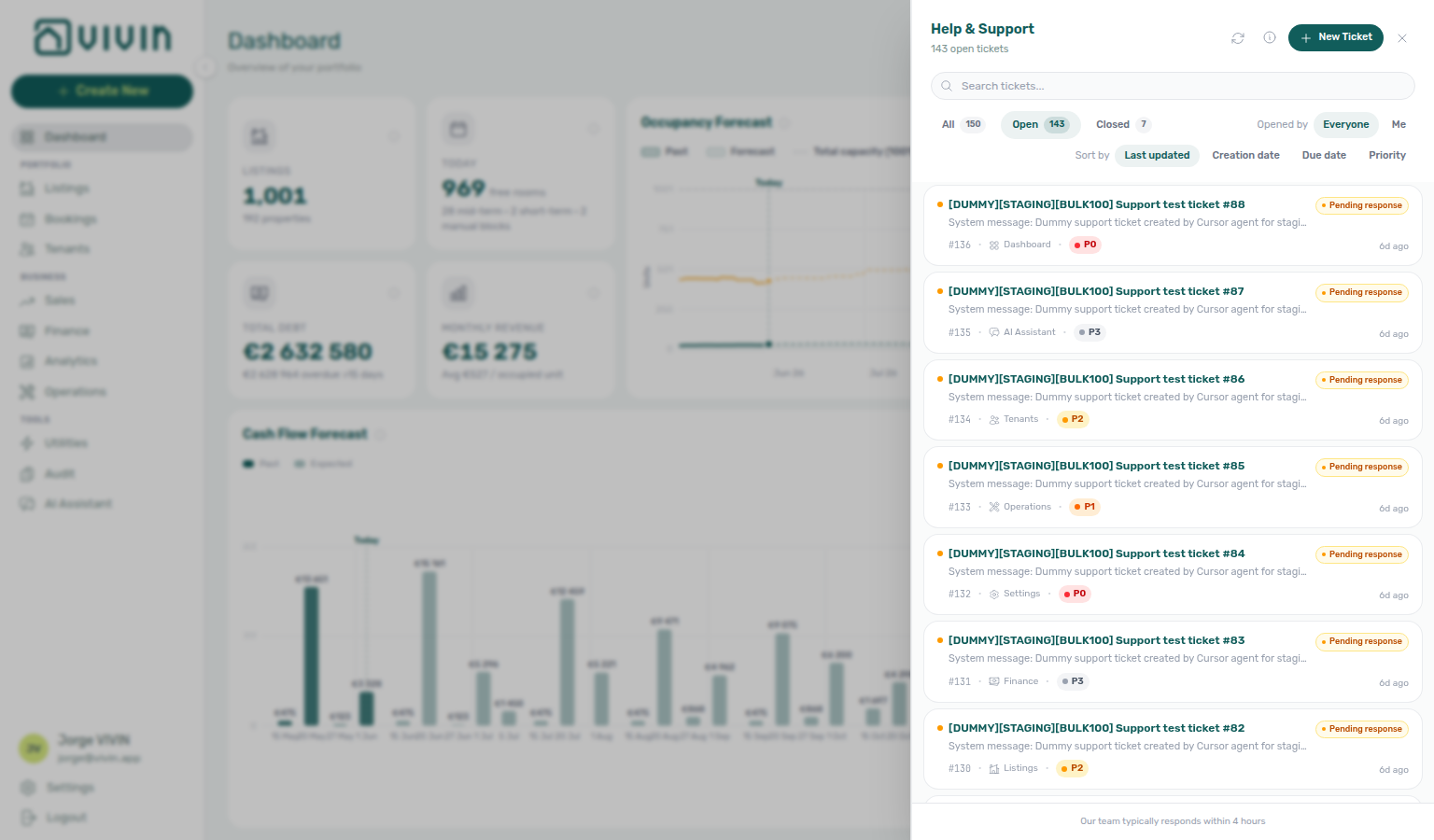
Why do some lists load more rows when I scroll (skeletons, “End of list”) instead of a Load more button?
Large directories — Listings (Portfolio and Archived), Bookings (list view), Bookings Timeline (unit rows on the Gantt chart), Audit (Manual Blocks), Tenants, Notifications, Sales (Pricing and Channels grids), Finance (Contract Values, Transactions, Payouts, Deposits), Operations (Tickets and Cash Flows), Utilities (Connections, Timeline rows, and Allocations), and in-app Support (Help & Support drawer and /settings/support inbox) — are server-paged. The app loads an initial batch, then fetches the next batch when you scroll near the bottom. Skeleton placeholders (or a small spinner under the ticket list in the Support drawer) appear while the request runs. When every row for your current search and filters is loaded, many full-page screens show Showing X of Y and an End of list line (the Bookings list, Dashboard notifications bell slide-over, and Help & Support drawer load in chunks but omit End of list). Changing filters or search clears the list and starts from the first batch again. On Bookings, Finance → Transactions, and Operations (Tickets and Cash Flows), Export still downloads the full filtered result set even if you have not scrolled through every chunk — see Exporting the list, Finance — Large tables, Operations — Tickets list loading, and Operations — Cash Flows list loading. Finance → Contract Values, Payouts, and Deposits, plus Utilities → Connections, export only loaded rows until you scroll through the list — see Finance — Large tables and Utilities — Connections. Finance ledger tabs omit the End of list footer. See Glossary — Infinite scroll (directory loading) and Glossary — End of list.

Why does the same search term sort differently on Bookings, Operations, and Listings? Large directories use server-side search, but only some modules re-rank matches. Bookings and Operations (Tickets, Check-in & Check-out, and Cash Flows) put unit / room hits at the top when you paste an internal name. Listings keeps properties in A–Z order after filtering. Tenants keeps your chosen sort column. See Glossary — Directory search ranking.
When should I use Tenants grid vs table view?
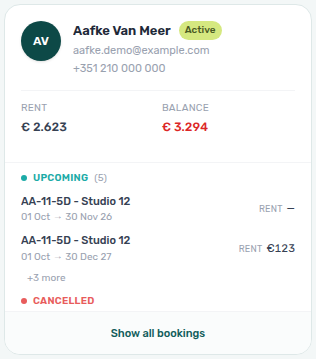
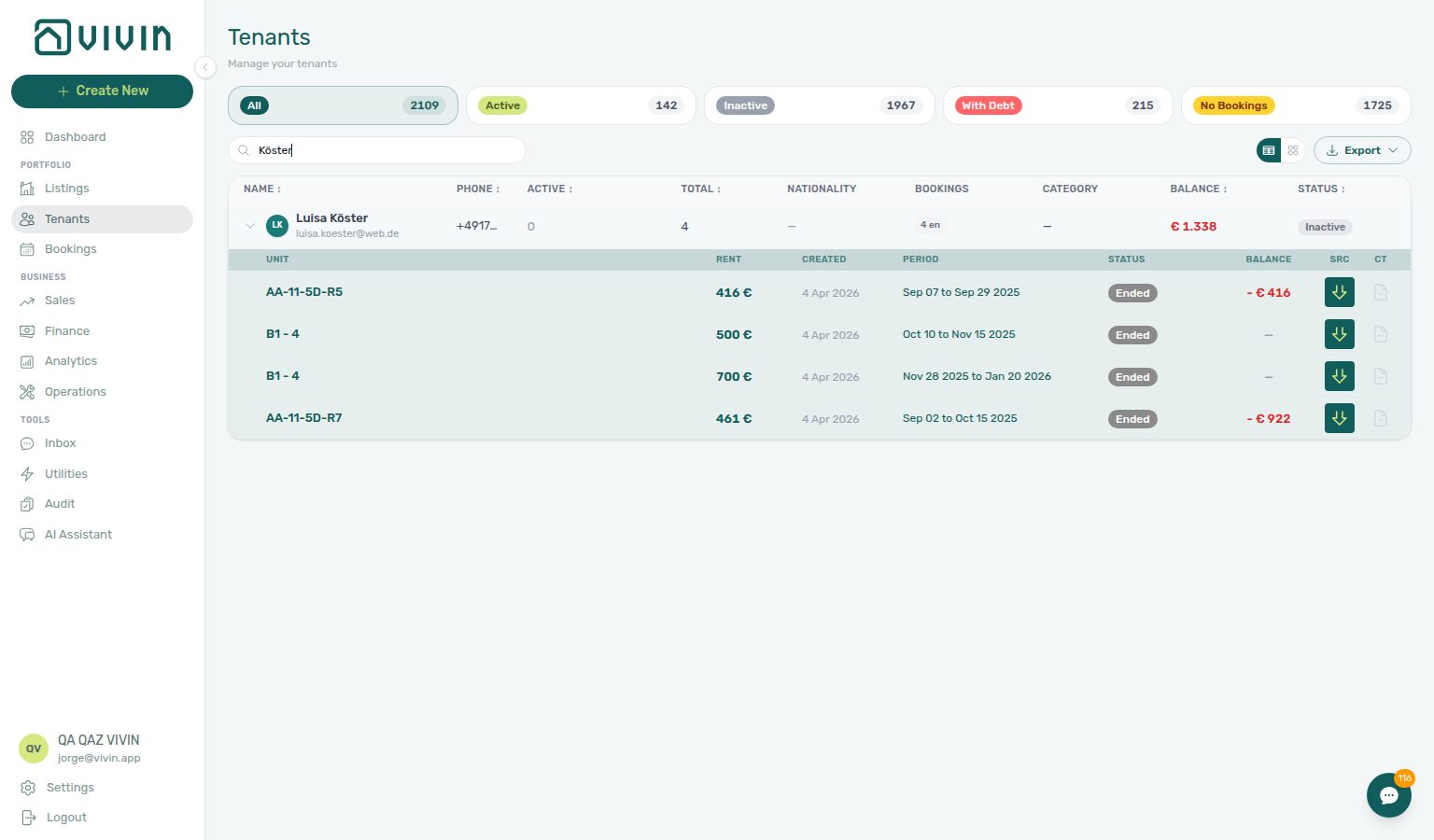
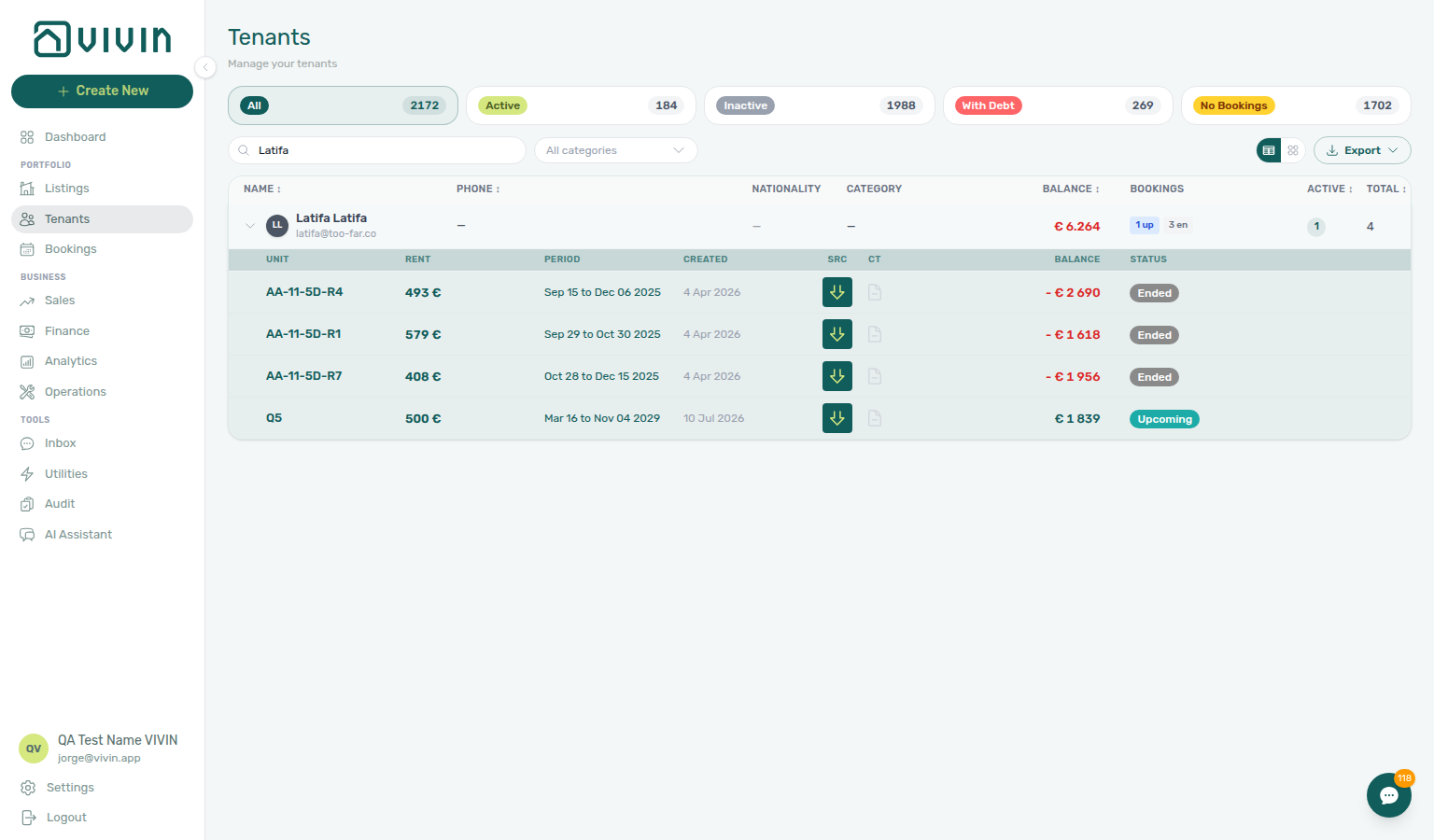
Use grid when debt badges and multi-status booking previews matter at a glance (Show all bookings on dense cards — tenants-grid-card-collapsed-bookings.png, tenants-grid-card-expanded-bookings.png, tenants-grid-expand-flow.mp4). Use table when you need column sort and an inline booking roll-up: click the row chevron to expand Unit, Rent, and Balance sub-rows, then open a sub-row for the booking sidebar or the tenant name for the profile sidebar. Pair table + With Debt during collections — see Tenants — Table view and Glossary — Tenants table expandand).
Does picking a second tenant category close the Tenants menu?
No. Open All categories on Tenants, tick the first segment, then tick a second segment. The menu stays open with checks on both. Tick a named segment (for example Corporate), then No category, when you want assigned profiles and unassigned profiles in one view. Dismiss the menu when the chips under the toolbar look right. Bookings → Tenant categories is a different control (placeholder Tenant categories; empty-case No tenant category) — it stays open while you add a second segment the same way. Emails → Communication Rules → Tenant categories is a different audience picker (named segments only, Select tenant categories… placeholder). Booking categories filters booking tags, not tenant segments. See Tenants — All categories stays open and Emails — Tenant categories stays open.
Why do a tenant’s bookings appear in a different unit order each time I open Tenants? They should not. Vivin sorts every “bookings for this tenant” list server-side: check-in, then check-out, then unit internal name with natural numeric compare (Room 2 before Room 10), then booking id. That order applies to table expand sub-rows, grid card previews, the sidebar Bookings tab, and the Bookings CSV sheet. If units for the same stay dates still look scrambled, refresh the page; if they remain wrong after deploy, report it — older heap order reshuffled whenever balance writers rewrote the row. See Tenants — How linked bookings are ordered.
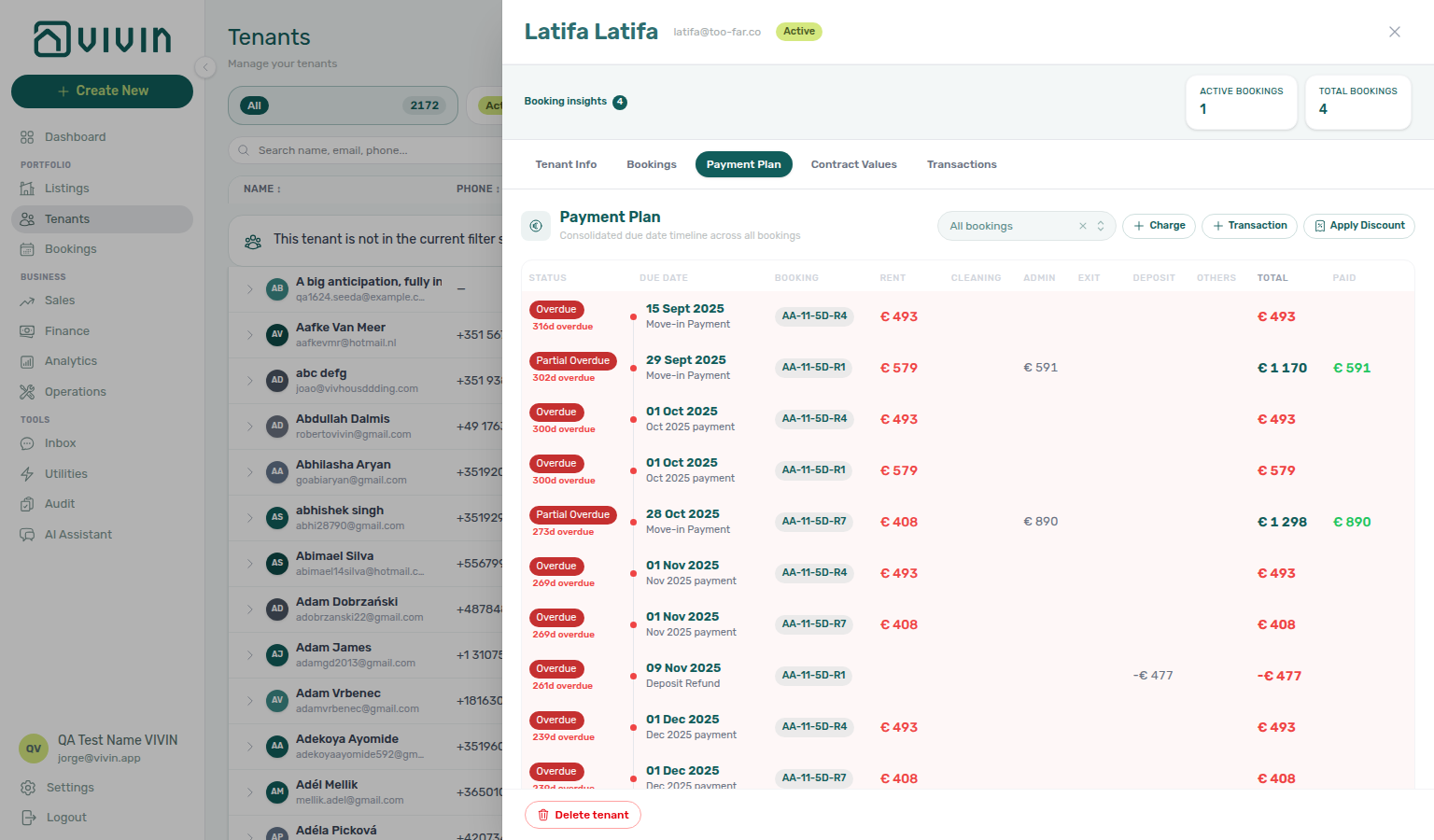
Where do I see Payment Plan / Contract Values / Transactions for a tenant with several bookings? Open the tenant profile sidebar — Payment Plan, Contract Values, and Transactions merge every linked stay into one view, with a Booking column on each row. Labels prefer the unit internal name operators already use elsewhere; stay dates (and only then a short id) appear when the same unit would otherwise be ambiguous. Use the header All bookings filter to narrow to one stay; pick a specific booking before + Charge, + Transaction, or Apply Discount. See Tenants — Consolidated finance tabs.
Why do totals look smaller when I choose Unread? The totals line describes the active filter and search together. Unread intentionally limits the list (and the count shown there) to items you have not marked read yet — switch back to All to see counts for the full matching set under your current search text. Mark all as read still clears unread items account-wide when enabled; see the Notifications module.
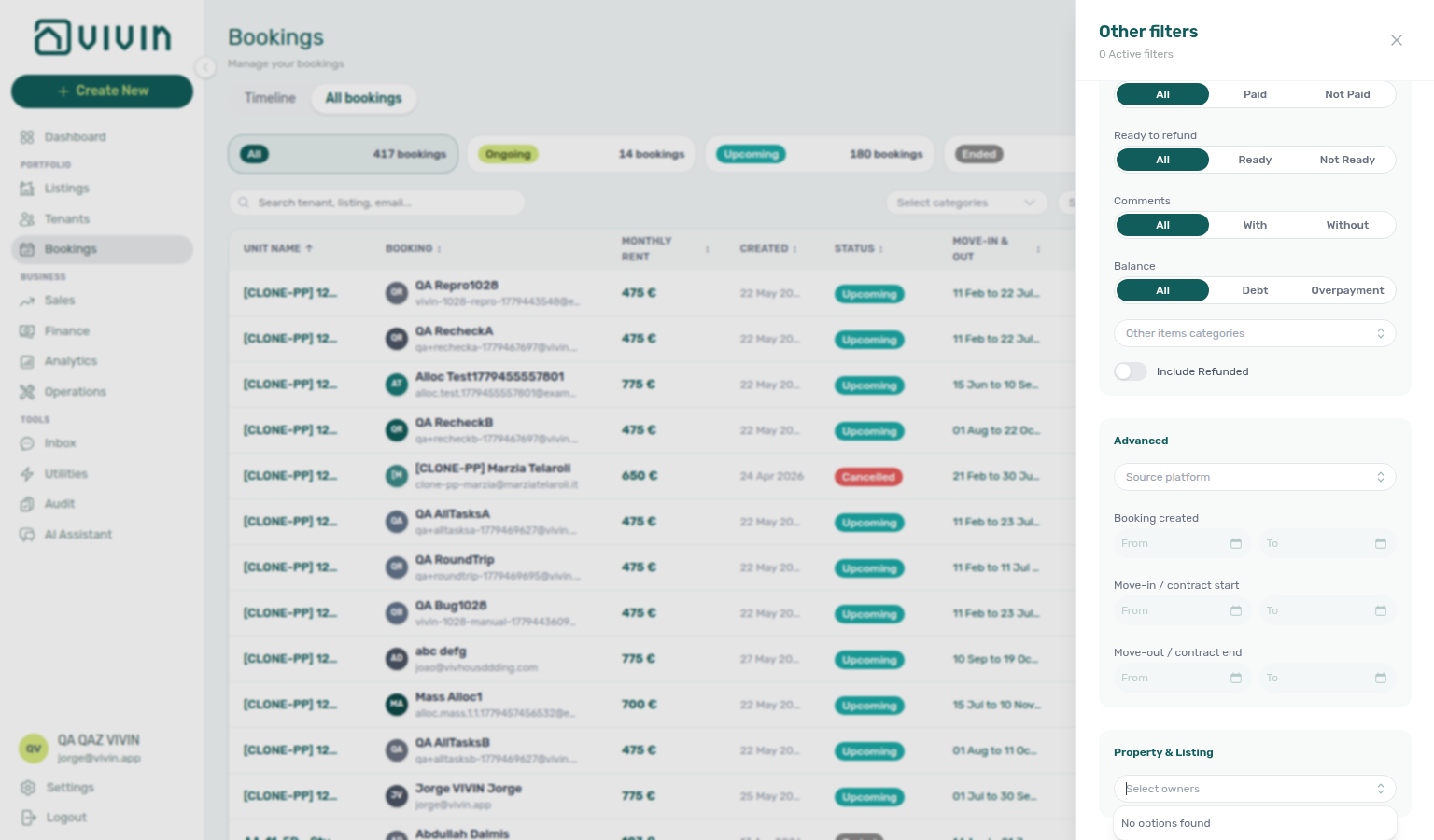
Why does Bookings → Other filters → Select owners show “No options found” when I have owners in Settings?
The Bookings list loads its filter vocabulary from the account-wide portfolio filter catalog. On the default Unit Name sort, the first portfolio response sometimes returns an empty meta.filterOptions.owners array even though Settings → Owners lists owners — the dedicated GET /bookings/portfolio/filter-options endpoint still has the full list. Workaround: click the Created column header once, or choose Creation Date from Sort By, reopen Other filters, then pick owners. You can switch back to Unit Name afterward; the owner filter stays applied. See Bookings — Property & Listing filters.
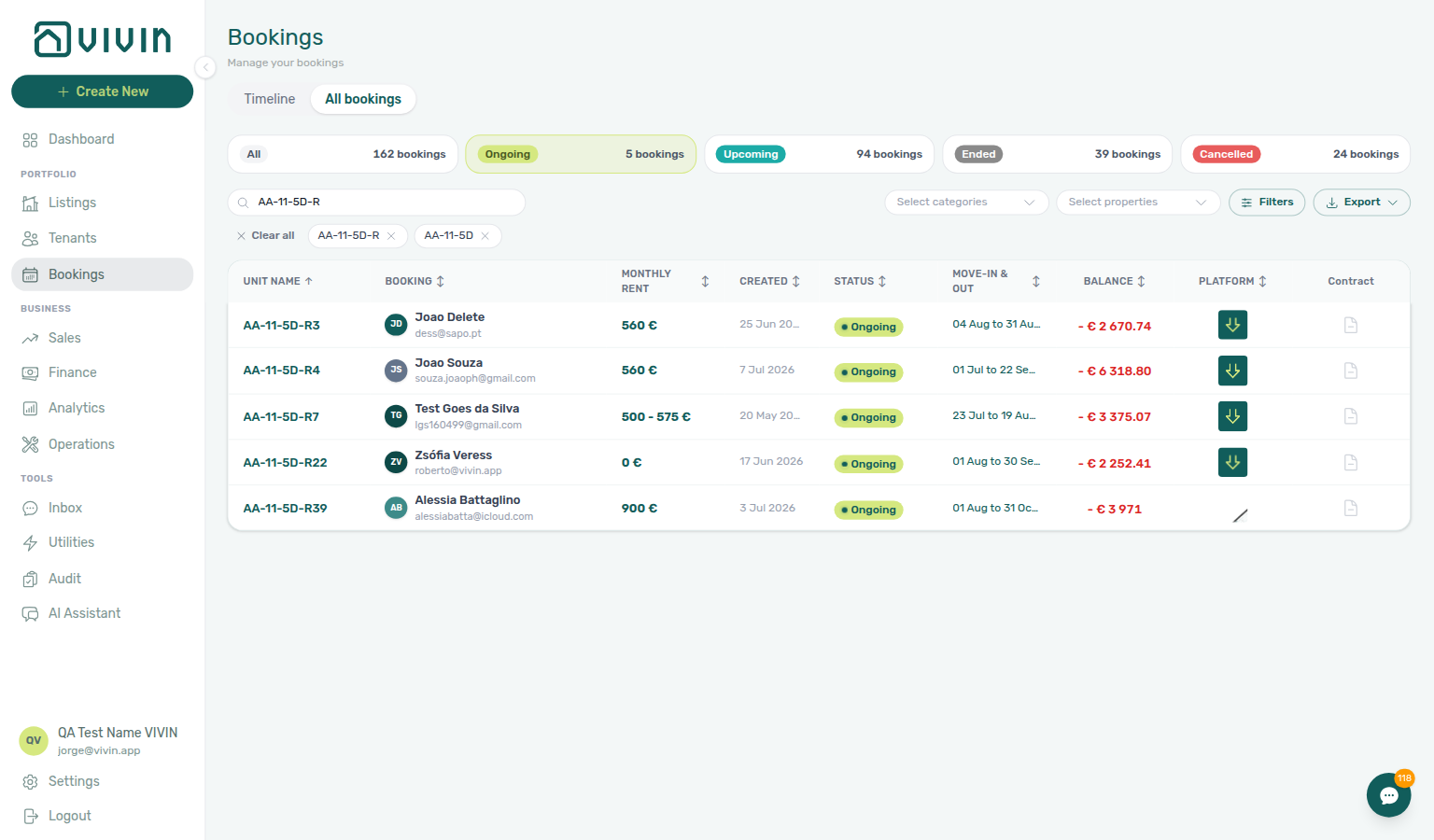
Why does the Bookings list open sorted by Unit Name?
Unit Name ascending is the intentional default so neighbouring units (for example R3, R4, R7, R22) stay together with natural numeric sort — R3 before R22, not alphabetic R22 before R3. Click the Unit Name header to reverse, or choose another column from Sort By. The same default applies after reload. See Bookings — Sort By (bookings-list-unit-name-sort-default.png).
Why do rooms stay in unit order when I reverse Contract Period?
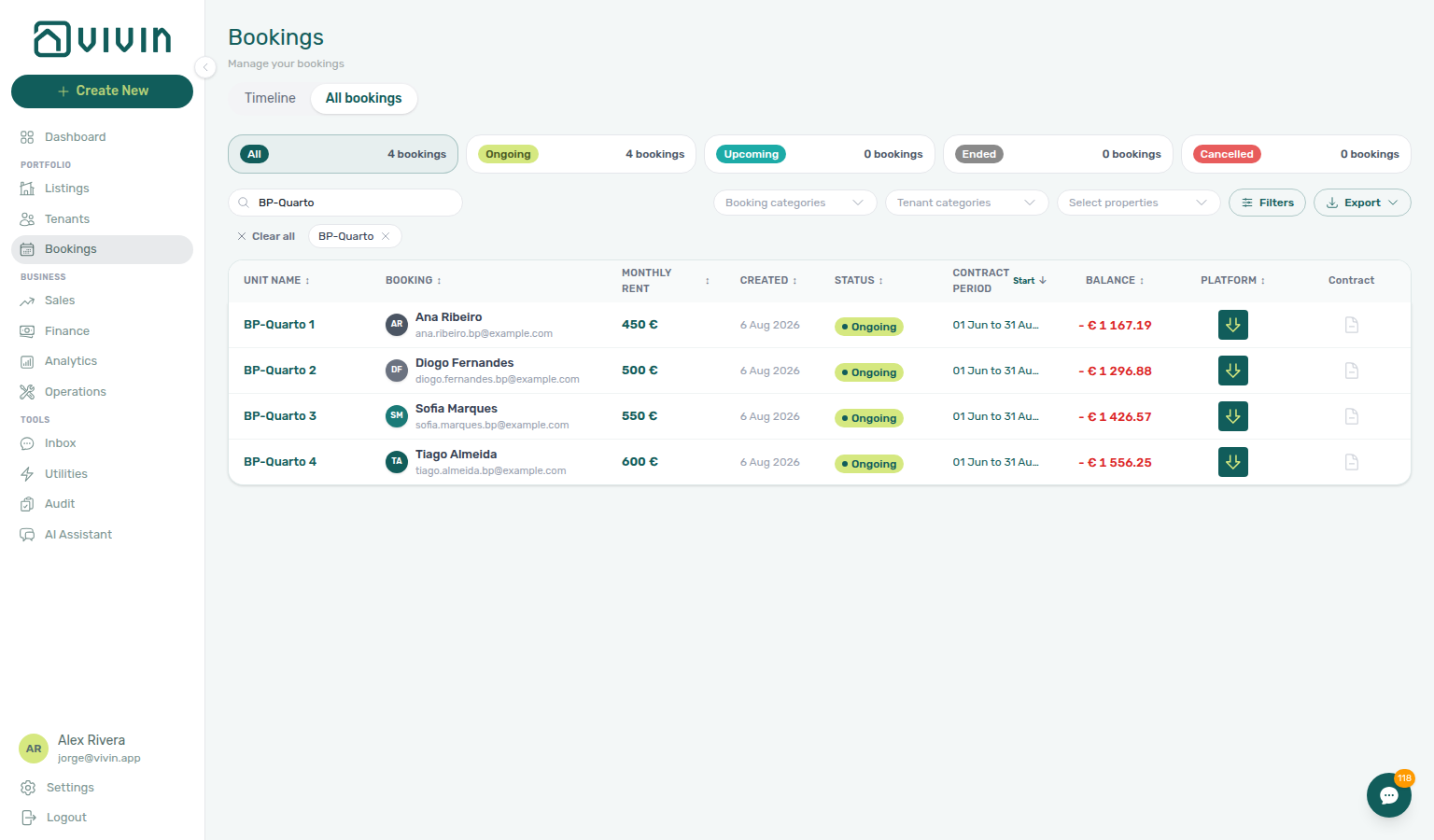
When several stays share the same start date, reversing Contract Period (or Move-In & Out) does not reverse the rooms. Vivin keeps Unit Name order — always 1 → 4 / A → Z — so a house that moves in together stays readable. Example: Casa Beatriz - Porto, search BP-Quarto, Start ↑ and Start ↓ both show BP-Quarto 1 → 2 → 3 → 4. See Bookings — Sort By (bookings-list-contract-period-sort-unit-name-tiebreak.png, bookings-list-contract-period-sort-unit-name-tiebreak-reversed.png, bookings-list-contract-period-sort-unit-name-tiebreak-flow.mp4).
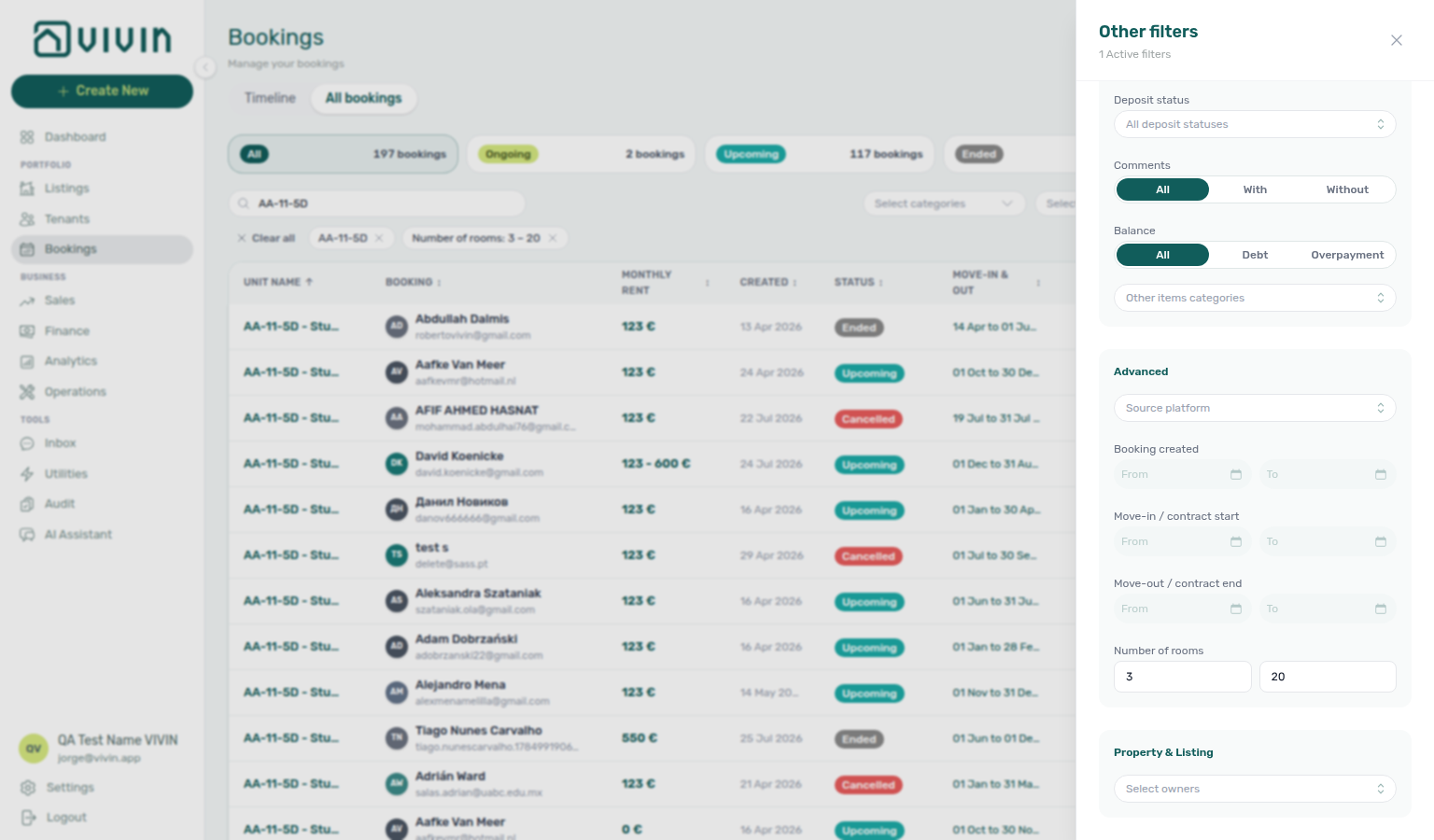
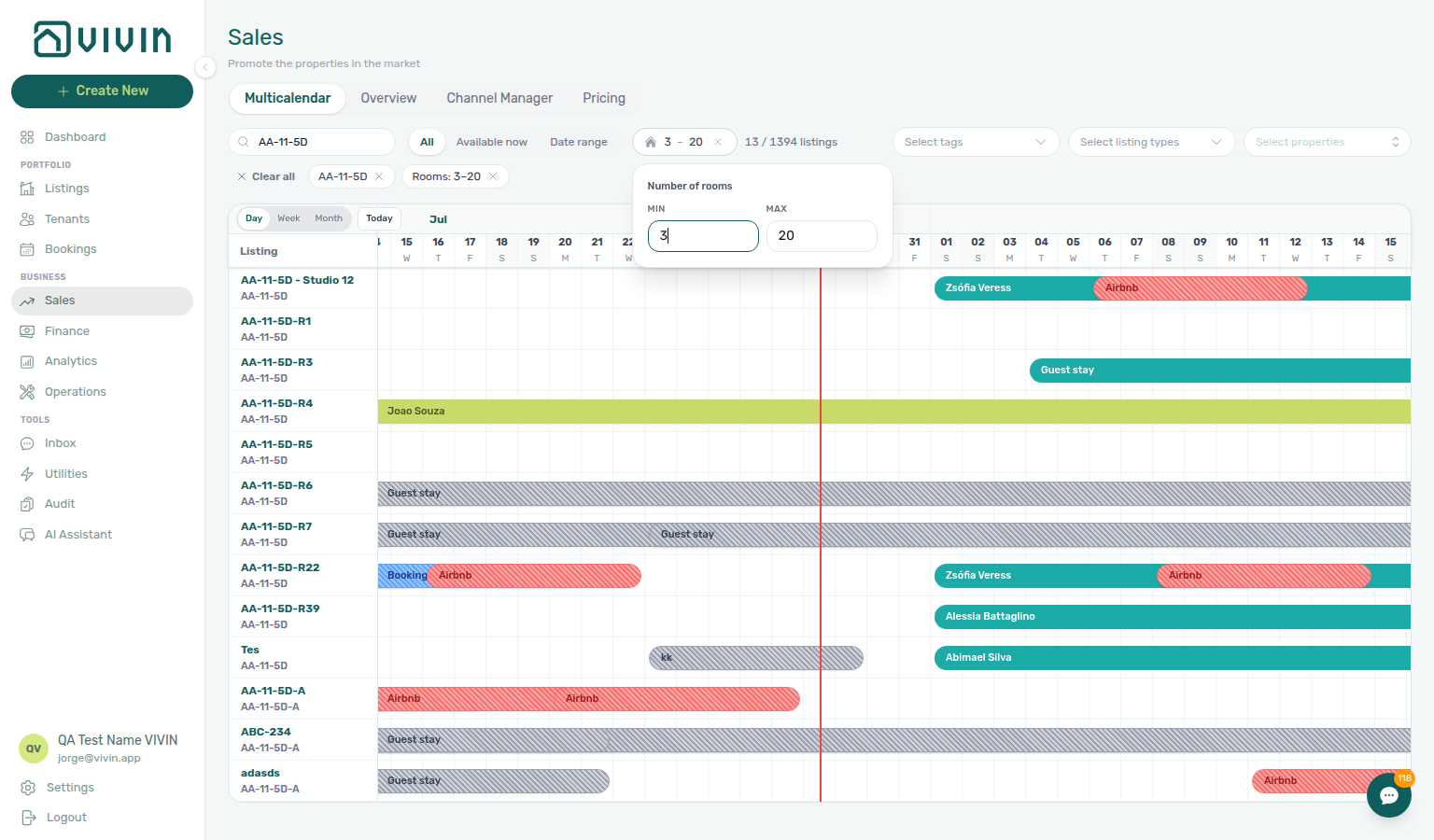
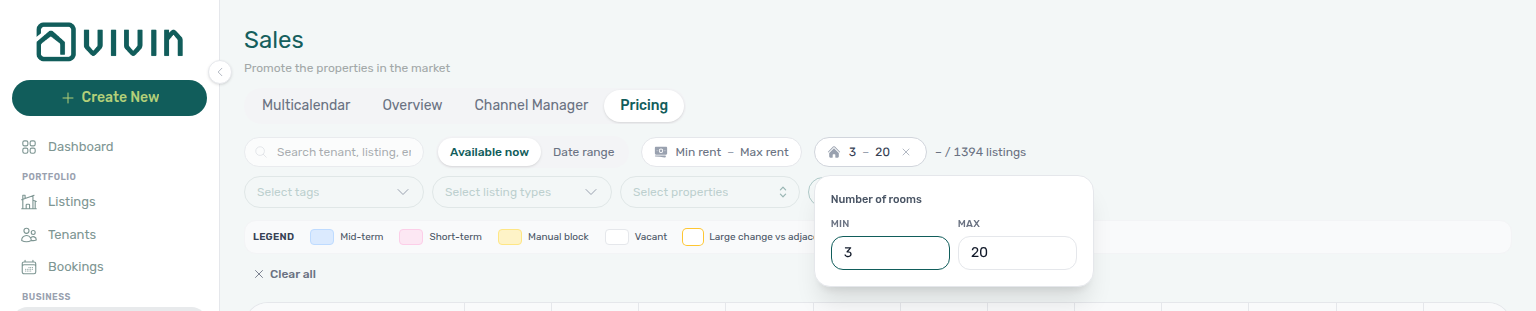
How do I filter Bookings or Sales by how many units a property has?
Number of rooms means how many units (listings) are registered under the property — not bedrooms inside one unit. On Bookings → Filters → Advanced, set Min / Max to keep only bookings in buildings that fall in that unit-count range; a removable toolbar pill shows the range (for example 3 – 20). On Sales → Multicalendar / Pricing, the same filter is a house-icon pill that opens a Min / Max popover. Invalid min greater than max shows Min rooms must be less than or equal to max. Clear the pill or use Clear all to return to the full portfolio. See Glossary — Number of rooms (filter).
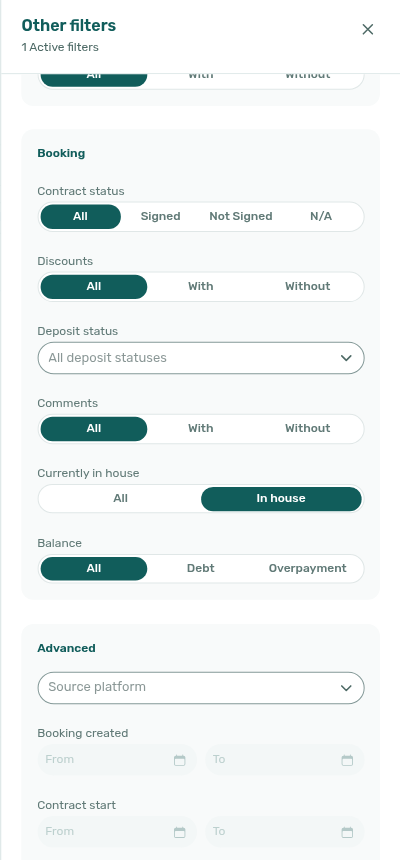
How do I find guests who are currently in house?
On Bookings → All bookings, open Filters and set Currently in house to In house. The list keeps stays where your team has recorded arrival and has not recorded departure (canceled stays are left out). The control appears only when the account check-in / check-out process and Record arrival and departure are both on. This is not the same as the Ongoing status card — Ongoing follows stay dates; In house follows the arrival stamp. A removable Currently in house chip and the Filters badge follow the choice. Bookmark with /bookings?inhouse=1. See Bookings — Currently in house and Glossary — Currently in house (bookings-list-other-filters-currently-in-house-all.png, bookings-list-other-filters-currently-in-house-selected.png, bookings-list-currently-in-house-chip.png, bookings-list-currently-in-house-filter-flow.mp4).

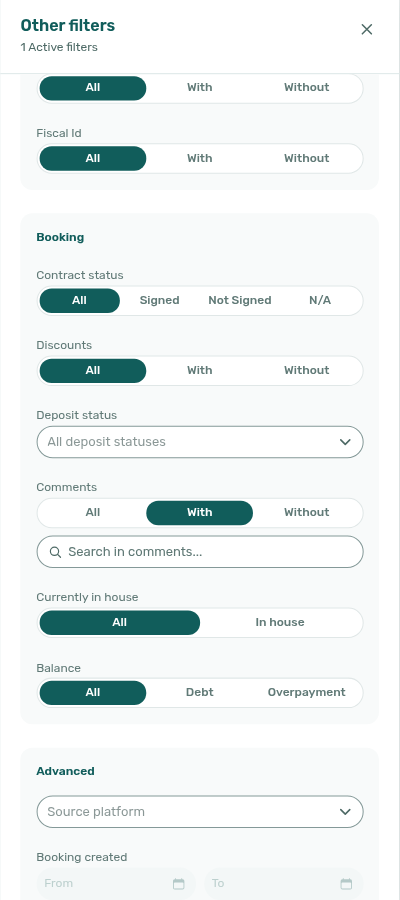
How do I search bookings by words in Internal Notes?
On Bookings → All bookings, open Filters and set Comments to With. Type in Search in comments… — every word must appear in the booking’s Internal Notes (case- and accent-insensitive). This does not match tenant names, emails, or unit labels; use the toolbar Search when you want those fields too. A Comments: With · … chip and the Filters badge follow the choice. Bookmark with /bookings?comments=with&commentsQ=…. See Bookings — Search in comments (bookings-other-filters-comments-with-search.png, bookings-other-filters-comments-search-filled.png, bookings-list-comments-search-chip.png, bookings-comments-search-flow.mp4).
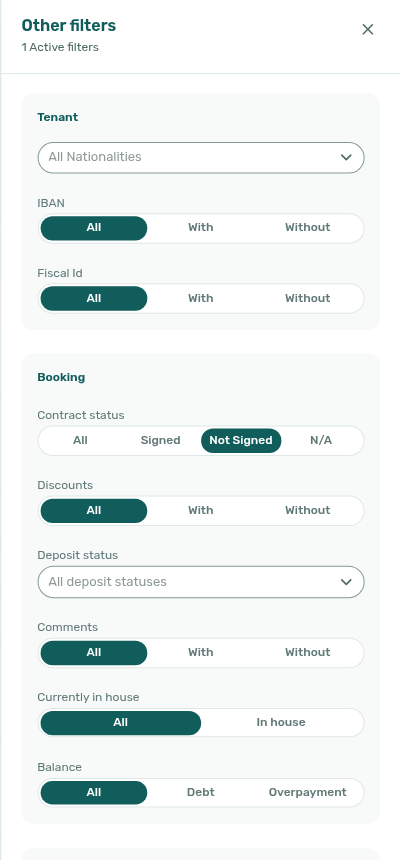
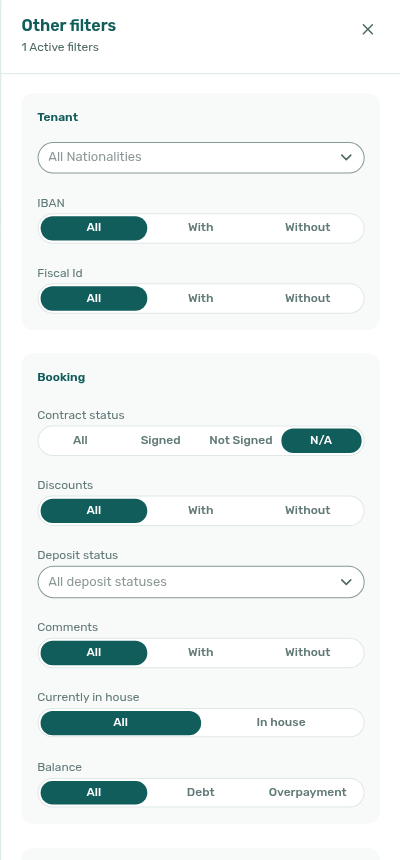
How do I find bookings that still need a signed contract?
On Bookings → All bookings, open Filters and set Contract status to Not Signed. The table keeps stays whose Contract column is still the grey document (hover Contract not signed). Switch to Signed to keep only teal checks (hover Signed on with the date). Stays whose tenant category has Tenant Portal Access or the Contract portal module turned off are not under Not Signed: there is nothing to sign in Vivin, so the Contract column shows a grey dash (hover Not applicable) and N/A lists them. Contract not signed communication rules leave them out as well — see Settings → Emails — Contract Signed condition. Status-card counts follow the same slice. After you upload a signed PDF on Contract Info, the list icon updates on the rows you already loaded (scroll stays put) unless Contract status is still Signed, Not Signed or N/A — then that filtered list reloads so the row can leave or join. See Bookings — Contract column and Contract mark stays on the list (bookings-list-contract-column-mixed.png, bookings-list-contract-mark-keeps-scroll.png, tenants-table-ct-signed-check.png, bookings-list-contract-status-filter-flow.mp4).
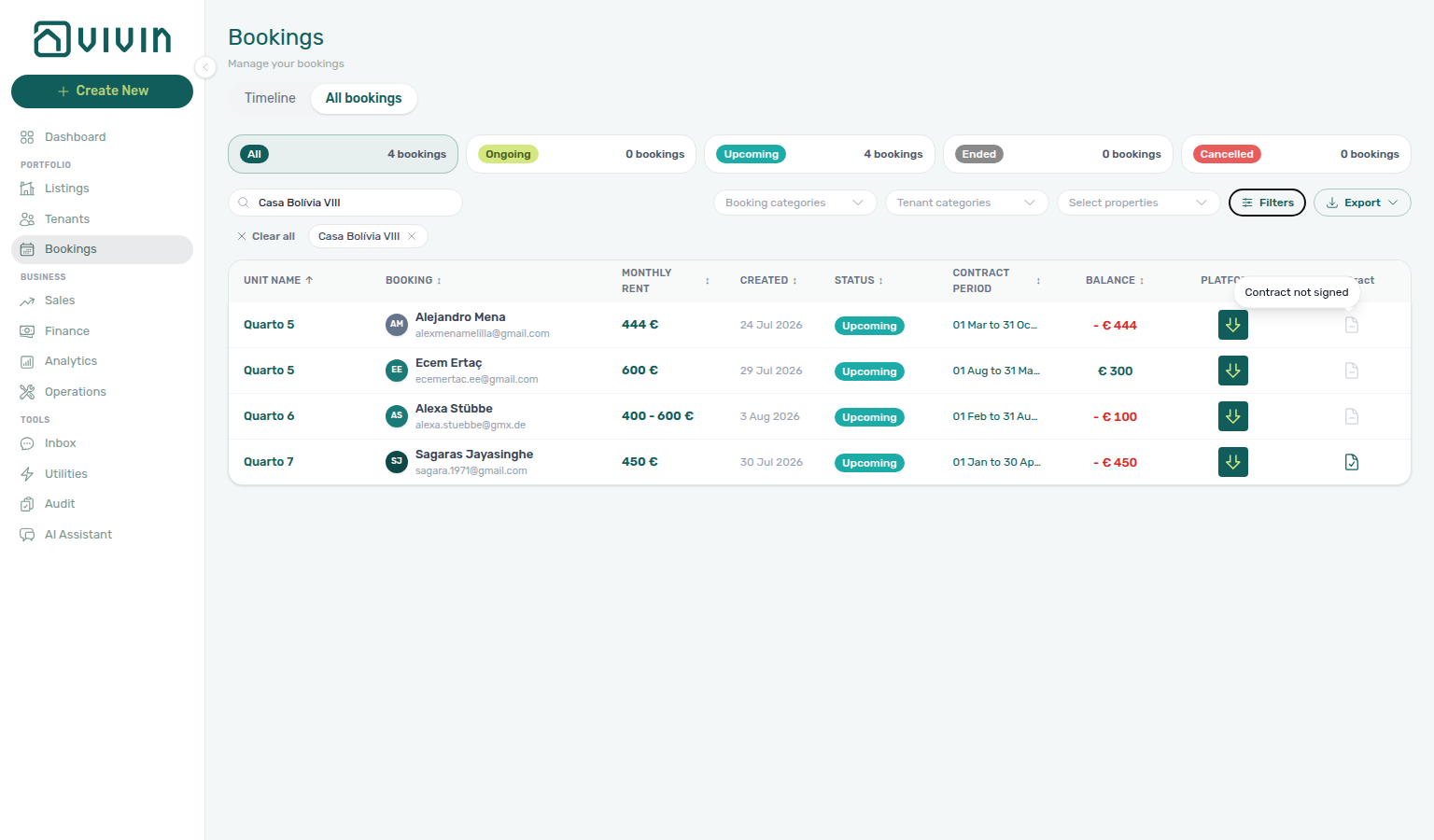
Where do I set or change lease purpose on a booking?
Enable and maintain the allowed values under Settings → Categories → Lease purpose. When the field is on, operators choose a value on + Create New → Booking and on the booking sidebar Contract Info → Booking information (edit mode). Tenants may be required to pick on the portal Your Details step when Make Lease Purpose mandatory is enabled. Marketplace POST /bookings cannot send a label — imported stays show No lease purpose until you or the tenant select a chip — FAQ — Marketplace booking lease purpose. See Bookings — Lease purpose, Tenant Portal — Lease Purpose, and Glossary — Lease purpose (booking).
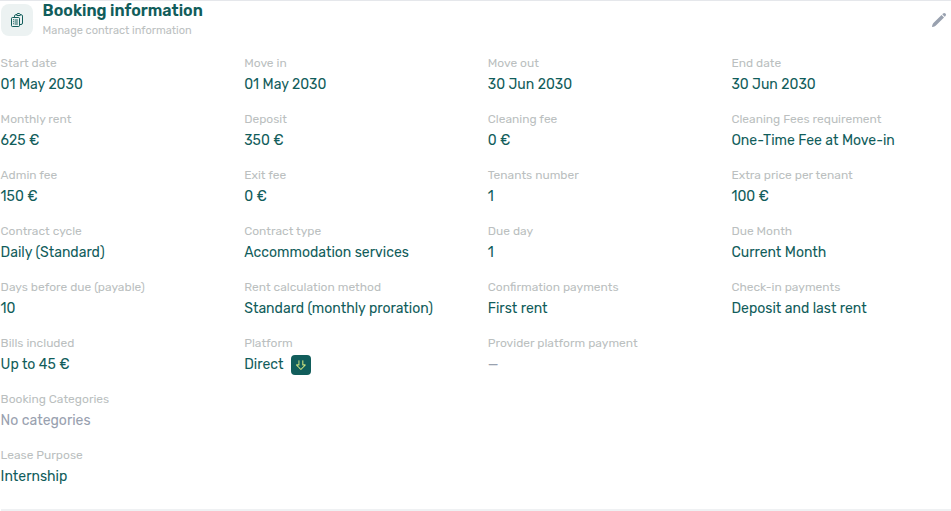
I enabled payment notifications on Preferences but I still don’t get emails when a tenant pays.
Receive payment notifications under Account Settings → Preferences → Notifications & Emails is account-wide permission for the workspace to send those operator alerts. Each user must also turn on Payment notification emails under Account → Personal Settings → Your email preferences (/settings/personal). If either layer is off, you will not receive email or in-app payment-received rows. Administrators can confirm the account toggle; you control only your personal opt-in on Personal Settings. See Glossary — Payment notification (operator), Glossary — Payment notification (operator) hub, and FAQ — Payment notification (operator) hub.
I see payment emails but no matching row on /notifications (or the Dashboard bell).
Check Preferences → In-app notifications → Payments (account master) and Personal Settings → Your in-app notifications → Payments (your opt-out). Payment in-app rows also require you to stay opted in on Payment notification emails under Your email preferences. See Notifications — In-app notification preferences, Glossary — Payment notification (operator) hub, and FAQ — Payment notification (operator) hub.
Why do I still see “Pending manual in-payment” on /notifications after I recorded a receipt?
That in-app row means the receipt is still pending until someone with Approve payments confirms it on Finance → Transactions or the booking Transactions tab — the alert is expected until approval clears the queue. Distinct from Payment received rows (tenant transfer already confirmed) and Payment overdue balance alerts — see Glossary — Payment notification (operator).
| Alert type | Typical summary | Next step |
|---|---|---|
| Pending manual in-payment | Operator-recorded receipt still pending | Row-click → booking Transactions → Approve payment |
| Payment received | Tenant transfer recorded (may still need approval if manual) | Same triage when status is pending — FAQ — Manual receipt still pending |
| Payment overdue | Balance past due — collections | Handling a Late Payment — Step 1 |
Row-click from /notifications opens the related booking so you can approve from Transactions — see FAQ — Notification row-click navigation, Notification triage — Step 4, Bookings > Transactions — Row actions, then Step 5 when balances look correct. Until approval, Dashboard Total Debt and Finance In debt lines may lag — FAQ — Dashboard Total Debt subtitle. Full ledger habit: Glossary — Pending manual in-payment (Finance), FAQ — Manual receipt still pending, Payment Allocation — Pending manual approval (month-end habit), Common Workflows — Pending manual receipt approval, Portfolio KPI review — Step 7, and Notifications — Pending manual in-payments.
How do I mute WhatsApp or inbox pings without turning off the Chatbot?
Turn off Inbox messages under Personal Settings → Your in-app notifications for your user, or ask an administrator to disable the account master under Preferences → In-app notifications. You can still open Tools → Inbox and booking Communication when your role allows — only the bell / /notifications pings are suppressed.
Settings & tenant communications
Lifecycle and Communication Rules answers pair with Tenant Portal & Mobile App (contract signing, check-in mail), Why didn't the automatic check-in email send? (trigger matrix, paper upload vs portal signing), Why did a tenant get several Due Date emails for one booking? (one send per unpaid payment line), Why did my Send now rule turn Inactive after I sent it? (fire-once blast), Does Cancel booking send the Auto-cancellation Communication Rule? (Auto-cancel unpaid move-in only), Does picking a second smart lock close the Communication Rule menu? (Select smart locks… stay-open), Does picking a second booking tag close the Communication Rule menu? (All tags stay-open), Does picking a second tenant category close the Communication Rule menu? (Select tenant categories… stay-open), and Integrations & Distribution (iCal URLs). During workspace setup, map answers to Getting Started — Recommended Setup Sequence steps 10–12 (Tenant categories.
Why didn't I get an email when a tenant ordered a service?
Service subscription emails is a per-service picker, not a single switch. Open Personal Settings → Your email preferences (/settings/personal) and select the catalogue chips you want. Teammates who selected a different service get mail for theirs only. Approving a request does not send another manager email — the person who approved already knows. Tenant cancellations of pending requests stay in-app under Service requests. If no services appear on the card, add offerings under Settings → Services first. Guide: Interface Language — Service subscription emails.
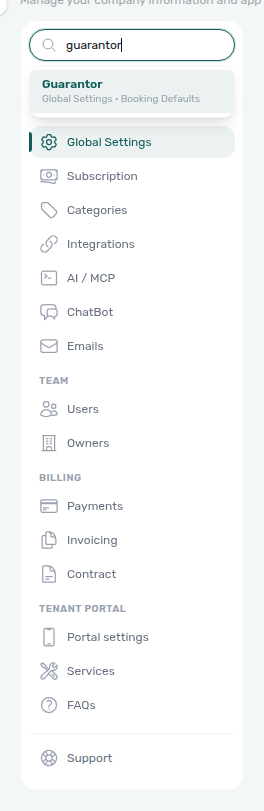
How do I jump to a setting without browsing every tab?
On any Account Settings page, type in Search settings at the top of the settings sidebar. Matching labels highlight in teal, with a tab · card line underneath. Click a result (or use the arrow keys and Enter) to open that tab and highlight the control. Results only include tabs and cards your role can open. Guide: Account Settings — Search settings (settings-search-idle.png, settings-search-results-guarantor.png, settings-search-flow.mp4).
How do I set up VIVIN Invoicing?
- Add VIVIN Invoicing under Integrations — no external API key is required. It can run beside NetSuite with catch-all + filtered peers (dual stack); Hostkit / Invoice-xpress stay exclusive.
- Click Configure on the VIVIN Invoicing card and fill Issuer details, Document numbering, and Tax rates. When you have two or more VIVIN peers, pick the peer in VIVIN connection first — issuer, numbering, and Word templates are per connection; tax rates stay shared.
- Upload Word templates for Invoice, Proforma, and Credit note, then use Preview and View available variables before go-live.
- On Invoicing → Tax Codes, pick Tax VAT names that exactly match the tax rate names from step 2 — the dropdown lists the same catalogue (view mode shows names such as IVA23; edit mode may show VAT 23%).
- If you use Others Items labels for extra charges or Services, open Others Categories Taxes on the same Tax Codes card and set Tax VAT per category.
VIVIN Invoicing issuer setup opens from Integrations when that connection is active (legacy /settings/vivinInvoicing bookmarks redirect there). Guide: VIVIN Invoicing (settings-integrations-vivin-invoicing-card.png, settings-vivin-invoicing-overview.png, settings-vivin-invoicing-setup-flow.mp4); where-to in AI Chat: ask “Where do I open VIVIN Invoicing under Account Settings to configure issuer details…?” (ai-chat-product-context-vivin-invoicing-reply.png, ai-chat-product-context-vivin-invoicing-flow.mp4); Tax Codes pairing: Tax Codes (settings-invoicing-tax-codes-vivin-dropdown.png, settings-invoicing-tax-codes-vivin-flow.mp4); per-category Others VAT: Others Categories Taxes (settings-invoicing-others-categories-taxes-modal.png, settings-invoicing-others-categories-taxes-flow.mp4).
Where do I get the iCal URL to subscribe an external site to Vivin availability?
Each unit exposes an outbound feed at {Core API host}/ical-integration/listings/{listingId}/iCal.ics (same host your management app uses for API calls). On Sales > Channels, click Copy iCal in the trailing actions column for one unit, use the Airbnb / Booking.com wizard when linking short-stay calendars, or export CSV / Excel and read the VIVIN iCal column for many units at once — see Sales — Channel Manager export and Integrations — iCal. The feed honours Short-term iCal Max Date and your availability rules. DTEND is the exclusive free-again morning (one day after Audit End) — iCal feeds — DTEND exclusive end. Technical details (response headers, retrofeed for Airbnb/Booking.com, troubleshooting) are in API Reference — iCal feeds.
Where do I see which automated emails are queued or already sent?
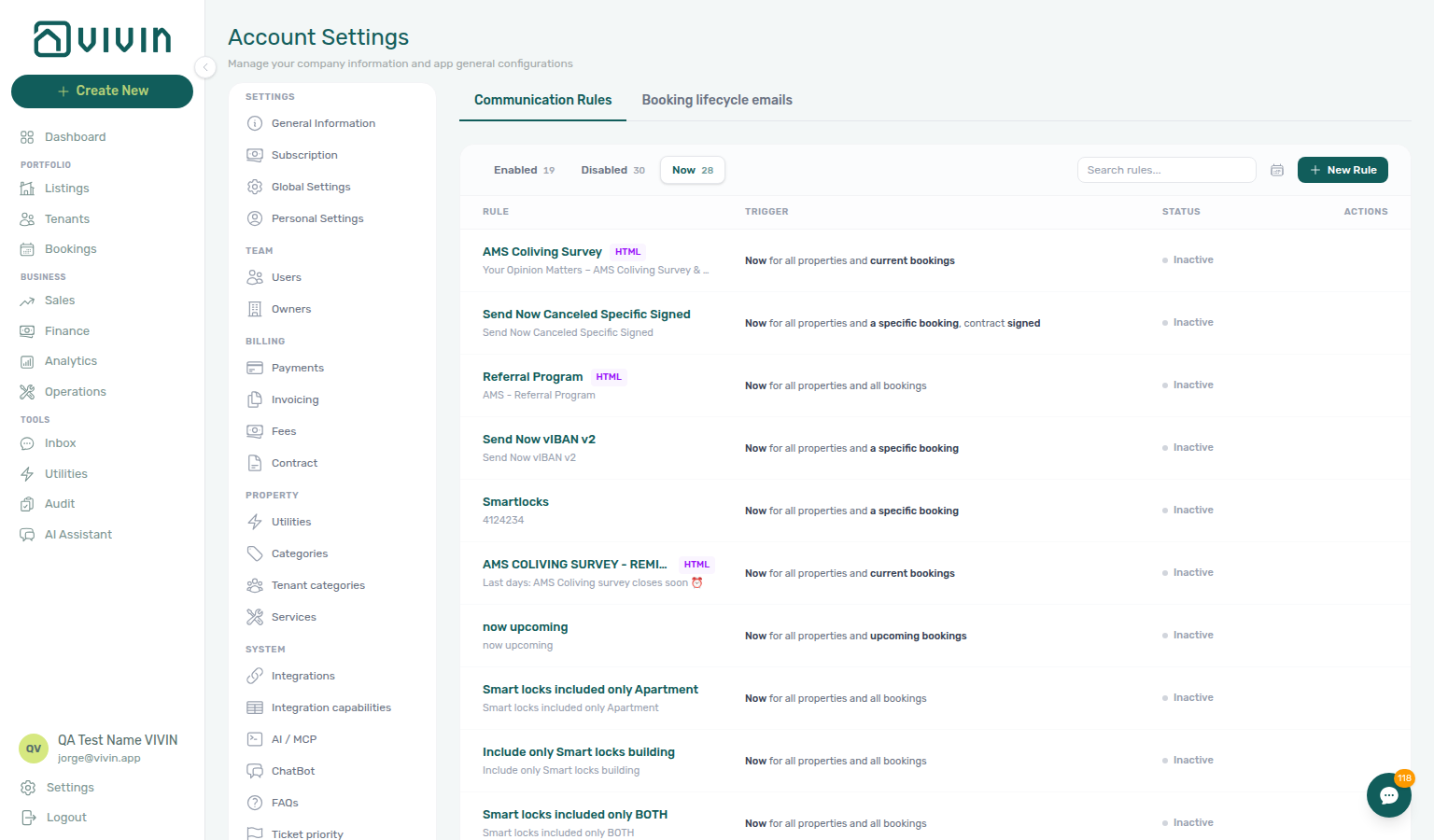
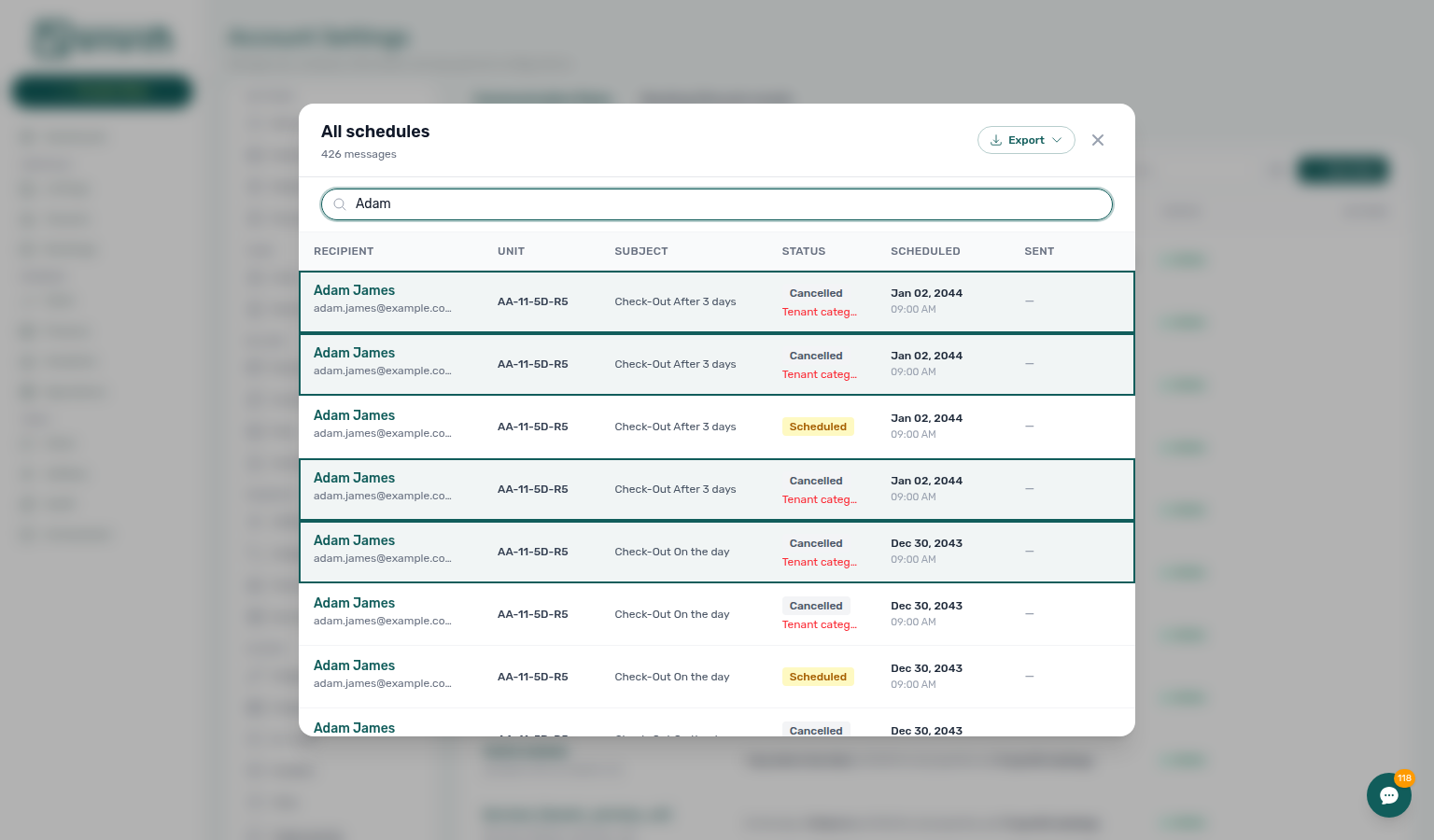
Open Account Settings → Emails and go to the Communication Rules sub-tab at /settings/communications. Click the toolbar calendar icon for All schedules, or use View sent/scheduled messages on one rule to scope the list to that rule only. The Communication schedule modal shows recipient, subject, status, and scheduled/sent times; use search to narrow the list or Export for CSV/Excel. Click a row to open that booking in the sidebar without leaving Settings. See Glossary — Communication schedule and Communication schedule (calendar).
How do I find a Communication Rule when I have dozens of them?
On Communication Rules, type in Search rules… — Vivin matches name, subject, and message wording (markup tags are ignored). Status chips (Enabled / Disabled / Now) keep showing account-wide counts for the current search, and the table loads more rows as you scroll (End of list when every match is loaded). No rules match your search means the query found nothing — use Clear search, which is different from an account that has no rules yet. Opening Edit shows brief loading placeholders while Vivin fetches that rule’s full body and audience filters — Emails — Edit loads the full rule. Guide: Emails — Browse, search, and load more (settings-emails-communication-rules-search-results.png, settings-emails-communication-rules-search-empty.png, settings-emails-communication-rules-search-scroll-flow.mp4, settings-emails-communication-rule-edit-loading.png, settings-emails-communication-rule-edit-loading-flow.mp4).
Does picking a second smart lock close the Communication Rule menu?
No. On New Rule or Edit, set Specific Nuki locks to Include only, open Select smart locks…, tick the first lock, then tick a second lock. The menu stays open with checks on both. Include only matches stays whose Nuki access points include any of those devices. Ticking locks here only scopes the audience — it does not send mail or save the rule. The No filter / Include only / Exclude dropdown is a different control. Nuki access type and Require Nuki tenant ID are different controls. Dismiss the menu when the chips under the picker look right, then Cancel unless you intend to keep the audience. See Emails — Select smart locks stays open.
Does picking a second booking tag close the Communication Rule menu?
No. On New Rule or Edit, set Booking tags to Include only, open All tags, tick the first tag, then tick a second tag. The menu stays open with checks on both. Tick Corporate, then Renewal, when you want stays with either label in one audience. Include only matches stays that carry any of those tags. Ticking tags here only scopes the audience — it does not send mail or save the rule. There is no No booking category row here. Bookings → Booking categories is a different toolbar control. Tenant categories on the same Audience card is a different catalog. The No filter / Include only / Exclude dropdown is a different control. Dismiss the menu when the chips under the picker look right, then Cancel unless you intend to keep the audience. See Emails — Booking tags stays open.
Does picking a second tenant category close the Communication Rule menu?
No. On New Rule or Edit, set Tenant categories to Include only, open Select tenant categories…, tick the first named segment, then tick a second named segment. The menu stays open with checks on both. Tick Corporate, then another named segment from Settings → Tenant categories, when you want stays in either segment in one audience. Include only matches stays whose tenant profile carries any of those segments. Ticking segments here only scopes the audience — it does not send mail or save the rule. There is no No tenant category or No category row here. Tenants → All categories and Bookings → Tenant categories (stays open on the reservation list) are different list filters. The No filter / Include only / Exclude dropdown is a different control. Dismiss the menu when the chips under the picker look right, then Cancel unless you intend to keep the audience. See Emails — Tenant categories stays open.
Does Cancel booking send the Auto-cancellation Communication Rule?
No. Auto-cancellation emails the tenant only after Auto-cancel unpaid move-in voids the stay for unpaid move-in charges. Cancel booking on Contract Info does not send that rule. The email goes out the same day at Send at Hour (default 10:00). Put teammates on CC / BCC if they should see a copy — there is no separate team alert. Guide: Emails — Auto-cancellation.
Why did a tenant get several Due Date emails for one booking?
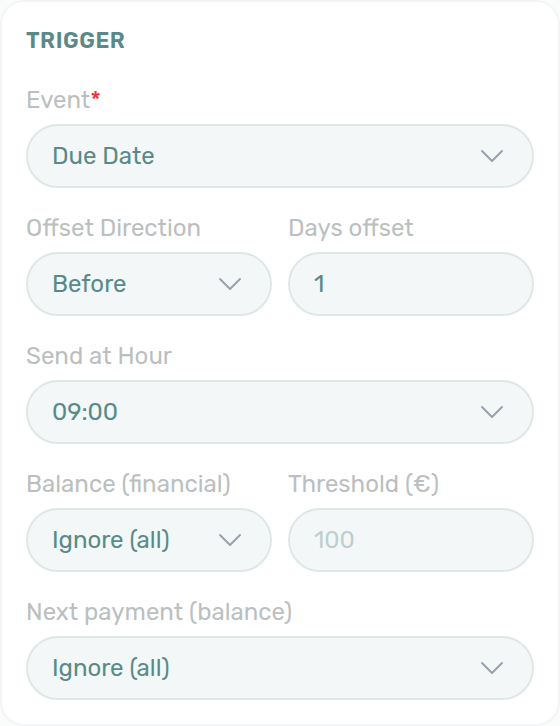
That is expected. A Due Date Communication Rule schedules one reminder per unpaid payment line, not one message per booking. Two unpaid months (or rent plus an unpaid fee) produce two rows on Communication schedule — each uses that line’s due date plus the rule’s offset and Send at Hour. Fully paid lines drop out; two unpaid lines on the same due date share one send. For a single “you are in debt” nudge, use the Financial Balance event instead. Guide: Emails — Due Date — one reminder per unpaid payment (settings-emails-communication-rule-trigger-card-due-date.png).
How do I send a Communication Rule without the company contact block?
On New Rule or Edit, keep HTML Off so Hide contact info appears beside Template name. Turn it On to omit the trailing Contact information block (company name, email, and phone from General Information). The setting is read when the email sends, so queued messages follow the saved choice. HTML and SMS rules hide the toggle — add a reply path in the HTML body if tenants still need one. Guide: Emails — Hide contact info (settings-emails-communication-rule-hide-contact-info-off.png, settings-emails-communication-rule-hide-contact-info-on.png, settings-emails-communication-rule-hide-contact-info-html-hides-toggle.png, settings-emails-communication-rule-hide-contact-info-flow.mp4).
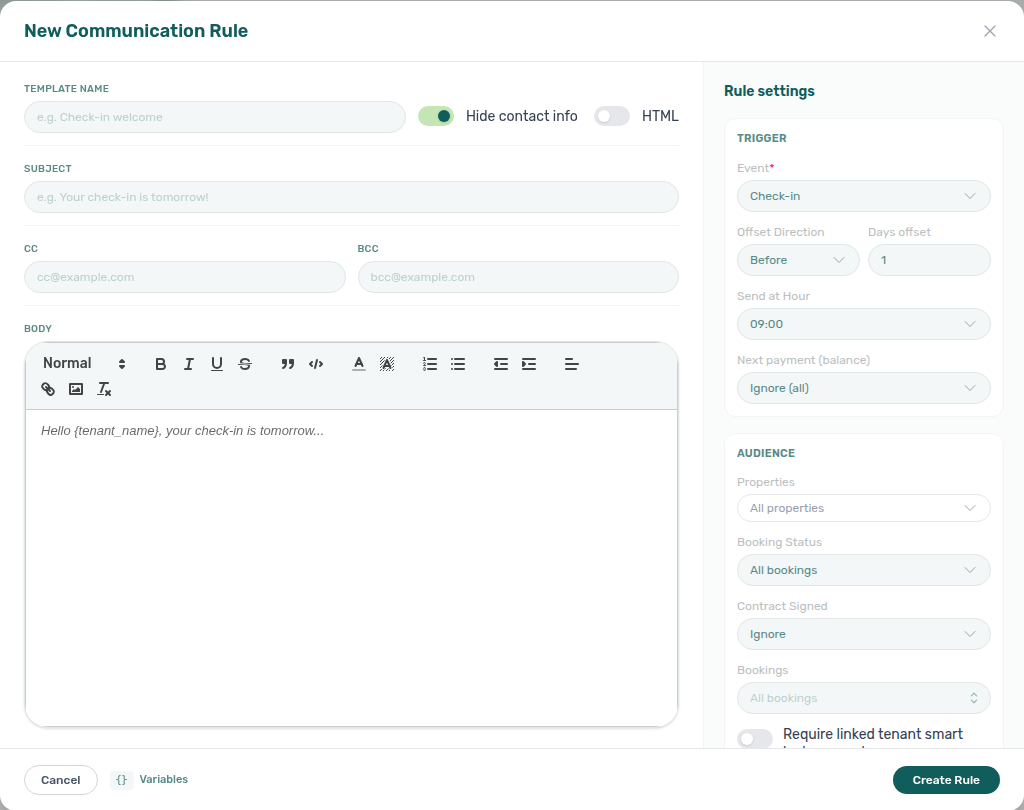
Why don’t I see the Now tab or Send now on a communication rule?
Immediate-send rules and the Now filter require the communication.send_now permission on the user’s role. Without it, the Now tab is disabled with an explanation and ad hoc blast actions are hidden. Grant it only to roles that should manually fire tenant messages; configure it in Users and roles. See Send now permission.
Why did my Send now rule turn Inactive after I sent it?
Send now fire-once pairs with Emails — Send now is fire-once, Firing a Send now rule, Glossary — Send now, and Why don’t I see the Now tab?.
That is expected. Send now is a one-time blast, not a standing reminder. After you confirm Send now to N recipients, Vivin queues the messages and the rule returns to Inactive on the Now chip. The emails you just queued still go out. Enabled / Disabled never list Send now rules.
| What you notice | Why | What to do |
|---|---|---|
| Row shows Inactive after the success toast | Fire-once — do not blast again tomorrow | Open Communication schedule to see queued or sent rows |
| Tenants did not get a second copy the next day | Standing check-in / due-date rules repeat; Send now does not | Play on the Inactive rule, review the preview, confirm again |
| Rule is still on Now, not Disabled | Now lists every immediate-send rule | Stay on Now to find it |
| Need a copy in your mailbox | Personal BCC is separate | Scheduled tenant communication: send immediately on Personal Settings |
Test still sends only to you and does not change Active / Inactive. Guide: Emails — Send now is fire-once (settings-emails-communication-rules-now-filter-tab.png, settings-emails-send-now-confirm-modal.png, settings-emails-send-now-confirm-flow.mp4).
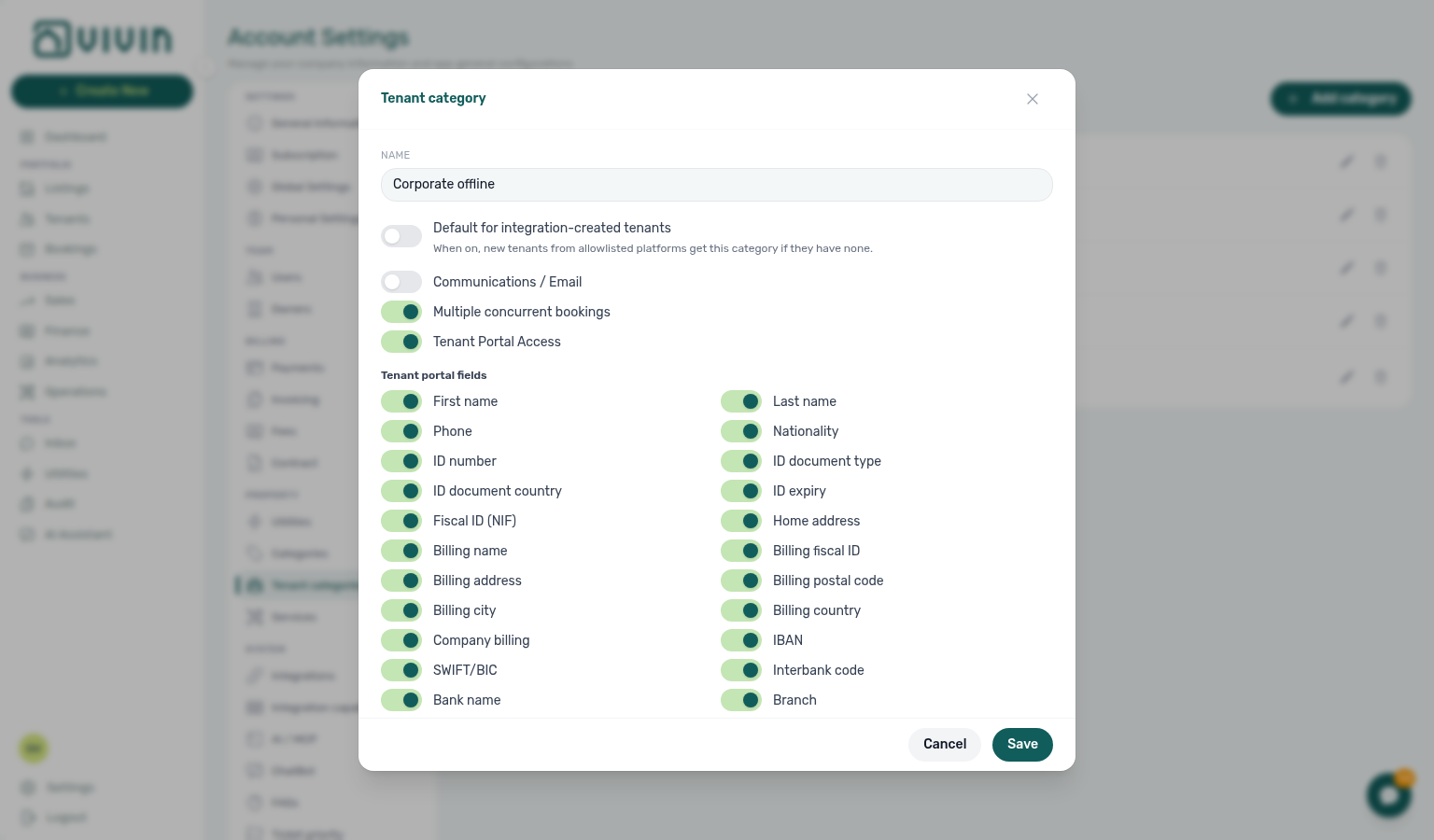
Why don’t scheduled emails appear after I enable Communications / Email on a tenant category?
Category email gating pairs with Settings > Tenant categories — Communications / Email and schedule rebuild, Emails — Communication schedule, Glossary — Communication schedule, Glossary — Tenant category, and Why didn't the automatic check-in email send? for lifecycle triggers.
While Communications / Email is off for a segment, Vivin skips creating Communication schedule rows for new bookings in that category (there is nothing to “uncancel”). Rows that already existed cancel as Cancelled — Tenant categor….
When you turn the toggle back on and Save, Vivin runs a background rebuild for that category’s bookings across active email Communication Rules. Open Communication schedule (toolbar calendar) after a short wait — eligible Scheduled rows should appear without waiting for the daily ~00:06 UTC recalculation and without re-saving an unchanged rule.
| Symptom | Likely cause | What to do |
| -------------------------------------------- | ------------------------------------------------------- | -------------------------------------------------------------------------------------------------------------------------------------------- | ------------------------------------------------------------------------------------------------------------------------------------------------------------------------------------------------------------------------------------------------------------------------------ |
| Still no rows after enable | Rebuild still running, or send window already past | Wait a minute and refresh the schedule modal; for past check-in/out windows use Send now / manual lifecycle actions |
| Only Cancelled — Tenant categor… rows | Toggle was off after rows existed | Expected for pre-existing rows; new eligible sends appear as Scheduled after rebuild |
| Moved a tenant into an email-on category | Rebuild is on the category off → on path only today | Wait for daily recalculation, or save a Communication Rule carefully (do not change trigger/offset/hour if you only meant to force catch-up) | settings-tenant-categories-communications-email-toggle.png, settings-tenant-categories-communications-email-flow.mp4, settings-emails-communication-schedule-cancelled-tenant-category.png, settings-emails-communication-schedule-cancelled-tenant-category-flow.mp4. |
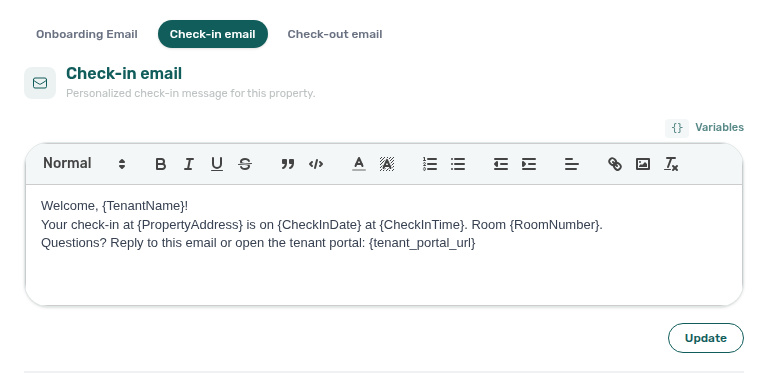
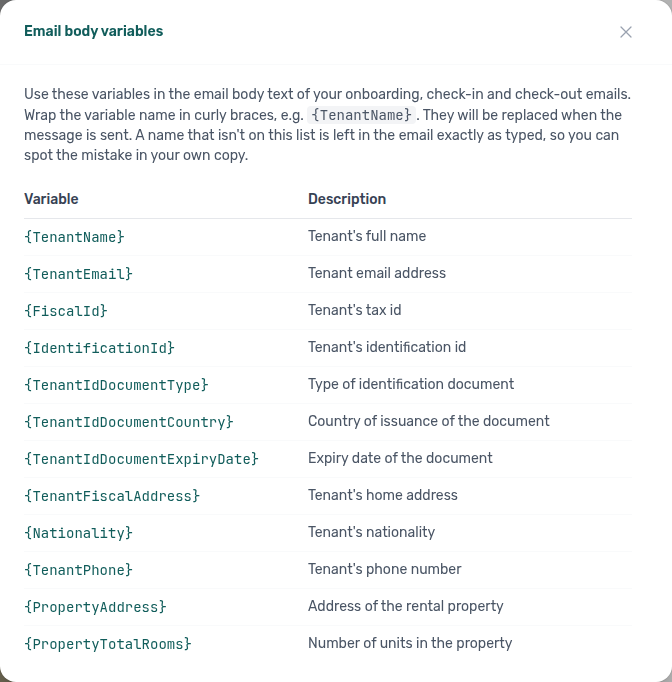
Can I use Variables on a property’s Email Customization?
Yes. On Listings → property edit → Email Customization, each Onboarding / Check-in / Check-out body has the same Variables control as account Booking lifecycle emails. Open the catalogue, copy tokens such as {TenantName} or {CheckInDate} into the rich-text body, and Vivin substitutes them when that property’s append block is sent. Unknown names stay verbatim so typos are visible in the delivered message. Rules-only tokens (for example {notification_title}) are not listed here. See Listings — Email Customization variables, Emails — Dynamic variables, and Glossary — Email body variables (listings-property-edit-email-customization-variables-hint.png, listings-property-edit-email-variables-modal.png, listings-property-email-variables-flow.mp4).
Analytics (KPI workspace)
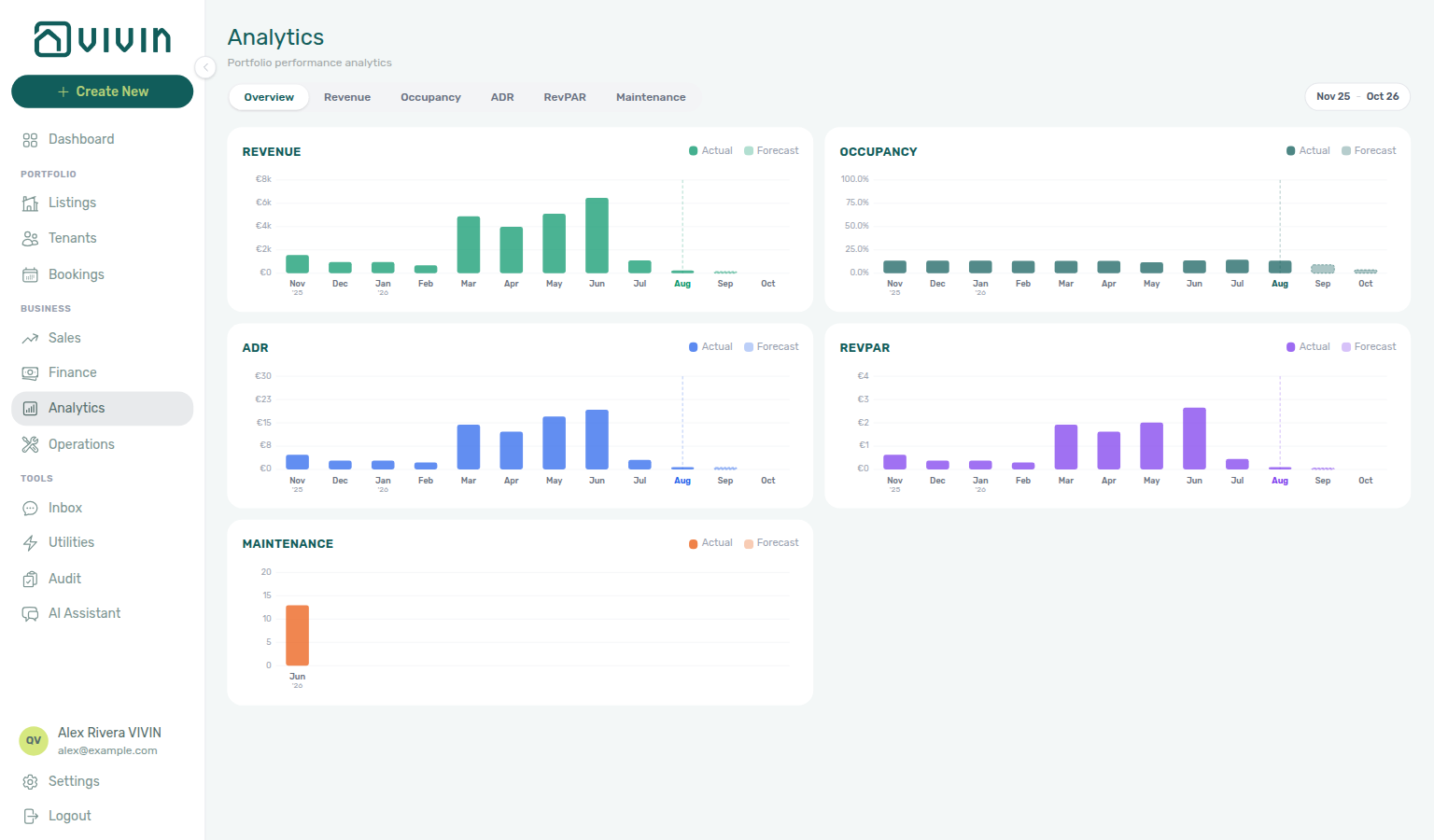
Why don’t portfolio KPIs in Analytics match what I see in Sales or on a listing calendar? Analytics rolls up the portfolio for the from–to month range on the tab you are viewing (use the toolbar picker or its 6M, 12M, and YTD quick presets), with optional property, unit, and (where offered) owner roll-ups on rankings and heatmaps. Sales and Listings focus on per-listing availability, rent edits, and channel rows over the windows you work in there. Metric definitions, filters, and time lenses differ by design, so headline revenue or occupancy values are not expected to match row-for-row. Use Analytics for multi-month trends and comparisons; use Sales when you are pricing or closing availability gaps. See How Analytics differs from Sales.
How is Analytics different from the Dashboard?
The Dashboard is the post-login snapshot: KPI cards, Occupancy Forecast and Cash Flow Forecast (with 1M / 3M / 6M / 12M horizon controls), and Vacant Units as of today. Illustrated chart behaviour: Glossary — Occupancy Forecast (Dashboard), Cash Flow Forecast (Dashboard), and Vacant Units (Dashboard). Analytics is the dedicated /analytics workspace: the same shell, but tabbed KPI views (Overview, Revenue, Occupancy, ADR, RevPAR, Maintenance) driven by a configurable month range, plus ranking tables and heatmaps on the metric tabs. ADR on the Analytics tabs (revenue divided by occupied nights in range) is not the same label as ADR (€) on the Dashboard occupancy chart (average monthly rent among units counted occupied that day) — see the Analytics module and Glossary — RevPAR.
Why does the heatmap say “and N more” while Ranking only shows about 20 rows?
On metric tabs, Monthly Trend always covers the full portfolio in scope. Ranking shows the top 20 of that portfolio-wide ranked list; the Heatmap loads a longer ranked page and ends with and N more when more properties or units exist beyond that page. Changing By Property / By Unit / By Owner re-ranks the whole scope — it does not rank only the rows already on screen. See Analytics — Ranking and heatmap paging (analytics-kpi-revenue-ranking-top20.png, analytics-kpi-revenue-heatmap-and-more.png, analytics-kpi-ranking-heatmap-paging-flow.mp4).
Why does Ranking show grey placeholder bars while Monthly Trend already has data?
Vivin loads portfolio totals (Monthly Trend) and the ranked breakdown (Ranking + Heatmap) as separate requests. Skeleton bars mean the breakdown is still in flight — not that every property ranks at zero. Changing roll-up (By Unit, and so on) briefly shows the skeleton again while Monthly Trend stays put. See Analytics — Ranking and heatmap loading (analytics-kpi-revenue-ranking-skeleton.png, analytics-kpi-ranking-skeleton-flow.mp4).
Charts stay empty after the spinner — what should I do? After the refresh spinner finishes, if Monthly Trend is still empty, use Retry before changing filters or treating the portfolio as zero. If Monthly Trend is filled but Ranking never leaves the skeleton (or shows a short retry message on that card), use Retry on the Ranking card or reload the tab. For a same-day snapshot while Analytics catches up, use the Dashboard. See Analytics — Layout and controls and Ranking and heatmap loading.
Bookings
Reservation lifecycle answers pair with Payments & Finance (payment schedule, invoiced floor), What does Leave outstanding on this line mean? (Edit amount when New net is above Paid), Rent reduction after invoicing hub (symptom table when Change monthly rent clamps exported months — bookings-detail-change-monthly-rent-modal.png, bookings-rent-reduction-invoiced-floor-flow.mp4), Lower rent below invoiced (Change monthly rent clamps and Edit amount blocks), Return of value on invoiced/draft allocation (protected parents disabled in Manage return of value), Why does Transactions show a negative Return of Value row? (booking Transactions lists one negative row per return), When should I use Card (recorded manually)? (desk / POS from booking + Transaction), Fixed rent on variable unit.
How do I leave an internal note for my team on a booking?
Open the booking (for example from Bookings → List or /bookings/list/:bookingId) and select the Internal Notes tab. The thread is not visible to tenants. Type your update in the composer; use @ plus a colleague’s handle (pick from the autocomplete list) to email them when you save. Messages are grouped by day in a chat-style layout. Hover your bubble for a pencil (correct the text in place) or the trash icon (delete after confirming). See Bookings > Internal Notes tab and How do I correct an internal note without deleting it?.
How do I correct an internal note without deleting it?
Hover a bubble labelled You on Internal Notes and click the pencil. The bubble becomes a textarea. Enter or Save writes the new text; Esc or Cancel leaves the original. After you save, the bubble shows italic edited next to the original time.
You can edit only your notes. Teammate bubbles have no pencil — use trash when the thread should not keep that message and your role allows delete.
If you add a new @mention in the edit, that teammate gets an email. People already mentioned on the original note are not emailed again.
See Bookings — Edit your own notes in place and Glossary — Edit internal notes.
Communication or Tickets won't open inside a booking — what should I do?
Tab-scoped refresh pairs with Booking sidebar tab refresh hub, Bookings — Sidebar tab refresh, and FAQ — Directory list refresh when the whole module list needs a refresh.
Each tab in the booking detail sidebar loads on its own. When Communication or Tickets needs a refresh, you can still use Contract Info, Payment Plan, Deposit, and other tabs.
| Tab | What to do |
|---|---|
| Communication | Use Refresh in the booking sidebar header |
| Tickets | Use Retry on the banner inside the tab |
If the tab still looks incomplete after that control, close the booking and open it again from the list. Whole-module list refresh is covered under Directory list refresh.
Wrong tenant on a booking
Wrong-tenant reassignment pairs with Common Workflows — Wrong tenant on a booking, Glossary — Wrong tenant on a booking hub, Common Workflows — Cancel Booking vs Delete Booking (duplicate row → Delete, not Change tenant), Bookings — Change tenant, Processing a New Booking — Step 6.
The booking is linked to the wrong tenant — can I point it at someone else already in Vivin?
Yes, when your role includes bookings.edit_items and the booking is still Upcoming, with check-in in the future, no signed contract on file, and no paid + invoiced allocations blocking the change. On Contract Info, use the swap icon (Change tenant) in the Tenant card, pick another existing tenant, and confirm Reassign booking. Past payments and issued invoices stay on the original tenant for audit; the payment plan is not rebuilt automatically.
| Symptom | Likely wrong control | Fix |
|---|---|---|
| Wrong person, dates and unit are correct | Delete Booking | Change tenant — reservation stays live |
| Entire row is duplicate import | Change tenant | Delete Booking — Cancel Booking vs Delete Booking |
| Real stay voided under policy | Change tenant or Delete | Cancel booking — refund dialog |
- Common Workflows — Wrong tenant on a booking — Operator habit hub
Where is the Gantt-style bookings chart (Day / Week / Month)?
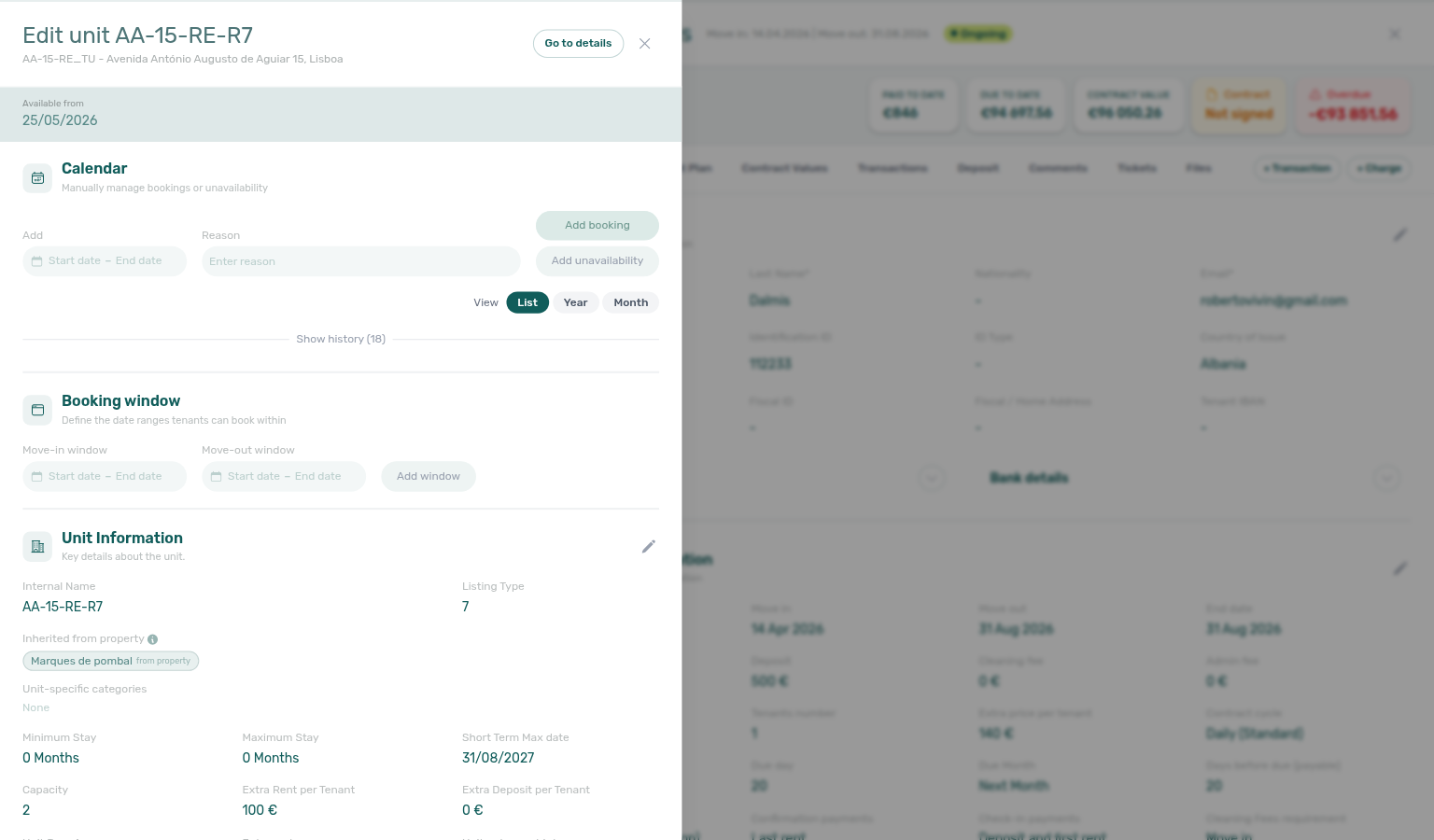
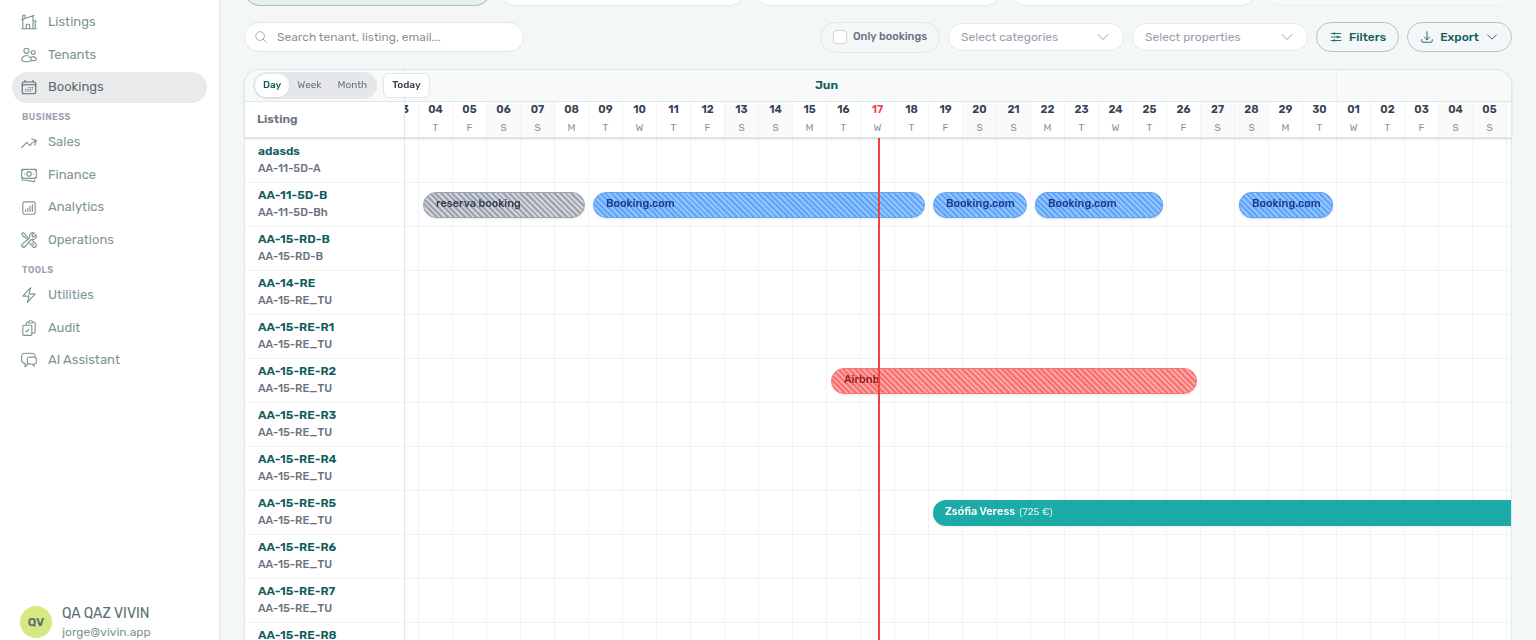
On Bookings, switch the view toggle to Timeline (or open /bookings/timeline). Each row is a unit; coloured bars are stays. The chart loads listings in pages — scroll the chart body vertically to load more unit rows. Use Day, Week, or Month above the date axis, clear Only bookings when you need manual or channel blocks on the same rows, and click a bar to open Booking detail in the sidebar. To download CSV/Excel, switch to All bookings (Timeline keeps the same property chips). See Bookings > Timeline view and the walkthrough video on that page.
Timeline went blank after I searched — is that a load problem?
No. When toolbar Search matches nothing, Timeline clears the listing column and shows No bookings found while the date header stays. All bookings shows the same No bookings found in the table. Click Clear all or the search chip to restore units. Retry on the chart is only when Timeline could not load. Sales → Multicalendar clears its listing axis the same way (No results found). See Bookings — Search with no matches (bookings-timeline-search-empty.png, bookings-timeline-search-empty-flow.mp4).
I saved the booking sidebar — do I need to refresh the list? No. After you save, the All bookings row and Timeline bar for that reservation update in place. If the edit changes status (for example Upcoming to Ongoing), the status-card counts refresh so they stay aligned. See Bookings — Timeline refresh.
Do I need to reload Timeline after Create Booking?
No. You do not reload either way. When Only bookings is off (the default), vacant rooms stay on the chart and the stay bar appears on a unit already in view. When Only bookings is on — or Search / a booking filter is hiding vacant rooms — Timeline also adds the unit row in place, then draws the stay bar. The month you scrolled to stays put. Delete Booking and Cancel booking update the chart the same way (a unit whose last stay in the window you removed leaves the list when Only bookings is on). Retry is only when Timeline could not load, not after a successful create. See Bookings — Stay bars update after create or delete and Unit list updates after create or delete (bookings-timeline-vacant-unit-rows.png, bookings-timeline-view.png).
Does picking a second building on Timeline close the property menu?
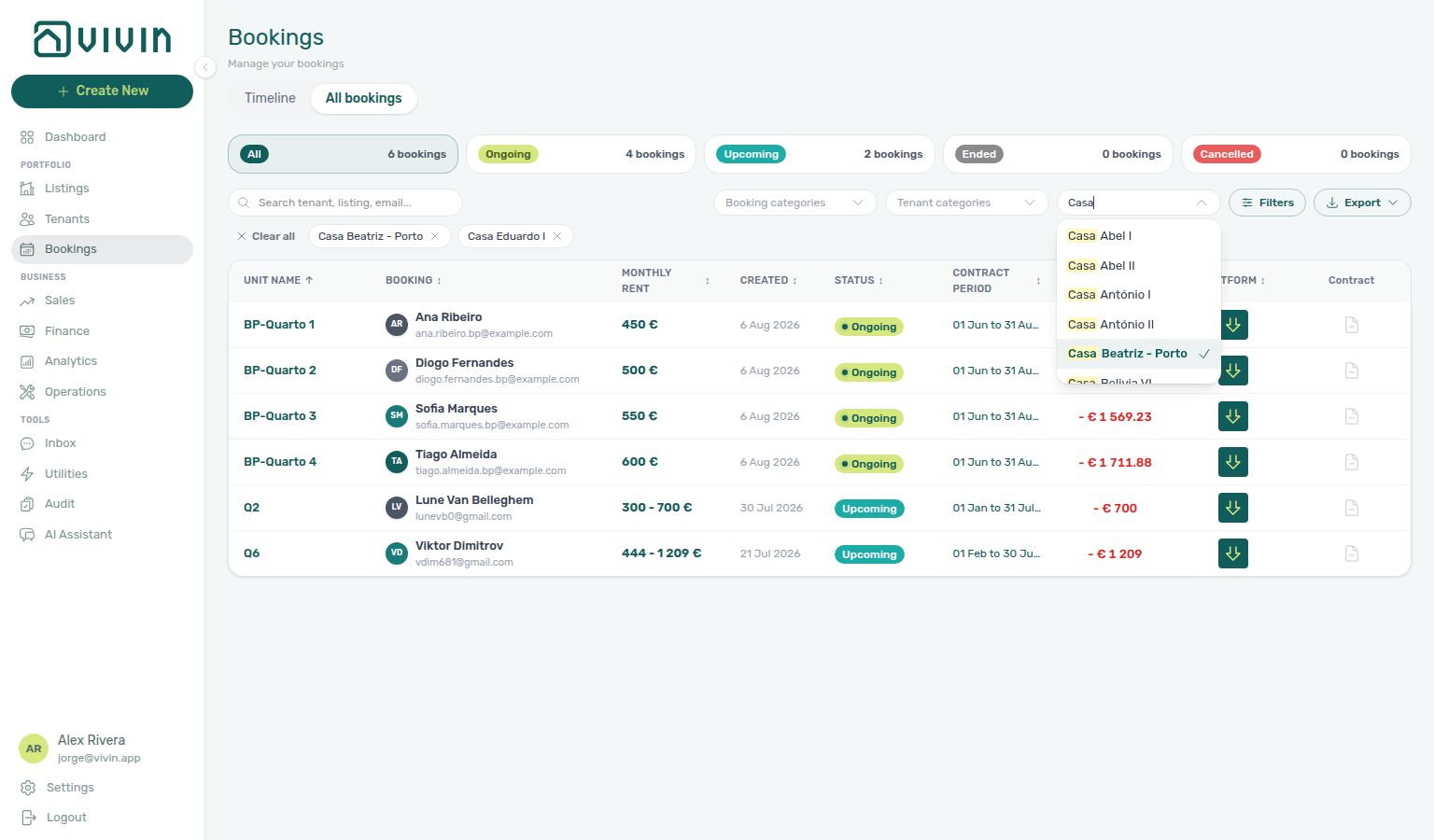
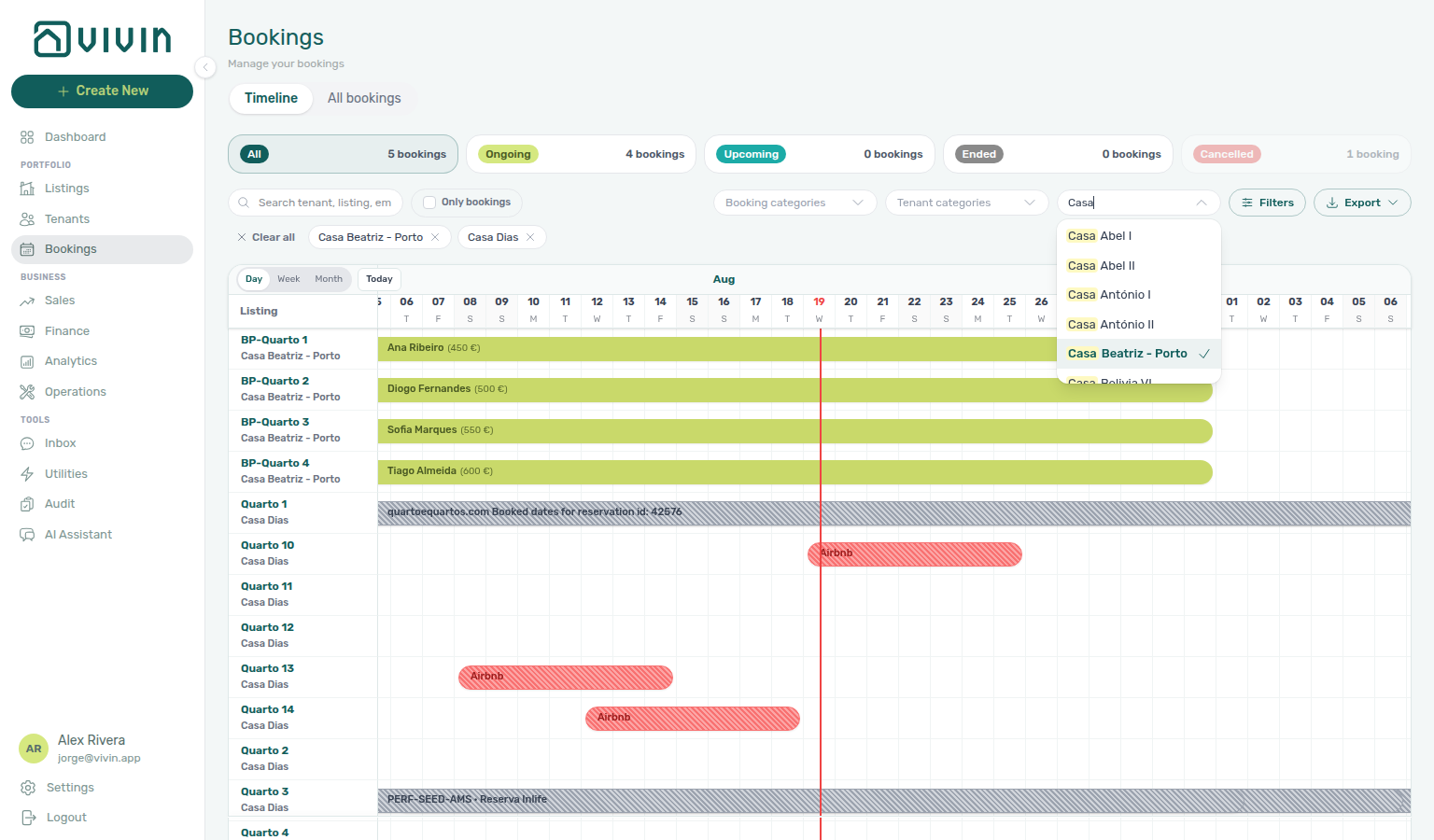
No. Open Select properties, type to filter the name list (for example Casa), and tick the first house. The table or Gantt redraws; the menu stays open with your filter so you can tick a second house. Dismiss it when the chips under the toolbar look right.
On All bookings, tick Casa Beatriz - Porto then Casa Eduardo I. On Timeline, tick Casa Beatriz - Porto then Casa Dias. See Bookings — Select properties stays open (bookings-list-select-properties-stays-open.png, bookings-list-select-properties-two-buildings.png, bookings-list-select-properties-stays-open-flow.mp4, bookings-timeline-select-properties-stays-open.png, bookings-timeline-select-properties-two-buildings.png, bookings-timeline-select-properties-stays-open-flow.mp4).
Does picking a second booking category close the menu?
No. Open Booking categories on Bookings → All bookings or Timeline, tick the first tag, then tick a second tag. The menu stays open with checks on both. Tick Student, then No booking category, when you want tagged stays and untagged stays in one view. Dismiss the menu when the chips under the toolbar look right. Tenant categories on Bookings stays open the same way (tenant segments; empty-case No tenant category). All categories on Tenants is a different control. Finance → Other filters → Booking → Select categories uses No category for the empty case. Emails → Communication Rules → Booking tags is a different audience picker (named tags only, All tags placeholder). See Bookings — Booking categories stays open and Tenants — All categories stays open.
How do I show every category except one?
Open Booking categories (or Tenant categories) on Bookings → List or Timeline. Click Select all at the top of the menu — every visible row ticks, including No booking category or No tenant category. Then untick the one tag or segment you want to hide. The count reads N of M. Click Clear all to start over.
If you typed in the menu search first, Select all only ticks matching rows. Earlier ticks stay selected.
On Finance, open Other filters and use Select all on Booking → Select categories or Tenant → Tenant category. Tenants → All categories does not include Select all — tick rows one by one there (the menu stays open). See Bookings — Select all on category filters.
Does picking a second tenant category close the Bookings menu?
No. Open Tenant categories on Bookings → All bookings or Timeline, tick the first segment, then tick a second segment. The menu stays open with checks on both. Tick a named segment (for example Corporate), then No tenant category, when you want assigned stays and unassigned stays in one view. Dismiss the menu when the chips under the toolbar look right. Tenants → All categories is a different control (placeholder All categories; empty-case No category). Emails → Communication Rules → Tenant categories is a different audience picker (named segments only, Select tenant categories… placeholder). Booking categories filters booking tags, not tenant segments. See Bookings — Tenant categories stays open and Tenants — All categories stays open.
Why can't I see a platform in my booking filters? Only platforms that are enabled in Settings > Integrations appear as filter options in the Bookings module. Enable the platform there first, then link each unit to its external listing ID. Channel-manager stays appear as Airbnb or Booking.com, not as a separate channel-manager chip — Why do channel-manager bookings show Airbnb or Booking.com?.
Why does Delete Booking fail on an integration reservation?
Integration Delete guard pairs with FAQ — Cancel Booking vs Delete Booking (when Delete is appropriate vs Cancel booking), FAQ — Portfolio retirement decisions, Glossary — Provider platform Delete Booking guard hub, Glossary — Provider platform Delete Booking guard, Bookings — Provider platform payment (bookings-detail-provider-platform-payment-field.png, bookings-provider-platform-reject-delete-flow.mp4).
When the booking still has a provider platform in-payment (partner-collected first payment recorded in Vivin), Delete Booking on Contract Info → Check-in & Check-out is blocked until that row is cleared. Open Transactions on the booking or Finance → Transactions, then Reject the provider-platform payment when it is still pending, or assign it to another reservation in the same account when no allocation is invoiced. Delete payment on the ledger stays disabled for provider-platform rails — rejection is the supported path. After the in-payment is rejected (or moved), retry Delete Booking. Use FAQ — Cancel Booking vs Delete Booking when you need full ledger history for a real voided stay instead of soft-archive. See Bookings — Delete Booking (soft archive) and Bookings — Provider platform payment.
- Common Workflows — Provider platform Delete Booking guard — Operator habit hub
Why does Delete Booking fail with a VIVIN credit card or Virtual IBAN message?
System-payment Delete guard pairs with FAQ — Delete Booking on integration reservation (provider platform guard — different error copy), FAQ — Cancel Booking vs Delete Booking, Finance — Assign a payment to another booking, Finance — Delete payment on the ledger, and Bookings — Delete Booking (soft archive).
When the booking still has a non-rejected credit card or Virtual IBAN in-payment row (Vivin system rails), Delete Booking is blocked until that payment is cleared. The error toast reads: "The booking cannot be deleted while there is a VIVIN credit card or Virtual IBAN payment still present, please reject or reassign the payment."
Open Transactions on the booking or Finance → Transactions, then Reject the pending system payment, or assign it to another reservation in the same account when invoicing rules allow. Delete payment stays disabled for vIBAN and credit card rails — rejection or reassignment is the supported path. After the in-payment is cleared, retry Delete Booking.
This guard is distinct from the provider platform block — that error mentions provider platform payment instead. A booking can hit one guard or the other depending on which rail still has an open in-payment.
Why doesn't the booking Changelog list every field Vivin stored at creation?
Changelog scope pairs with Glossary — Change history, Bookings — Timeline (booking change log), Listings — Change history (property/unit setup — same rule), Tools → Audit (manual blocks and discounts — not booking field edits), and Manual block hygiene (cross-portfolio block triage).
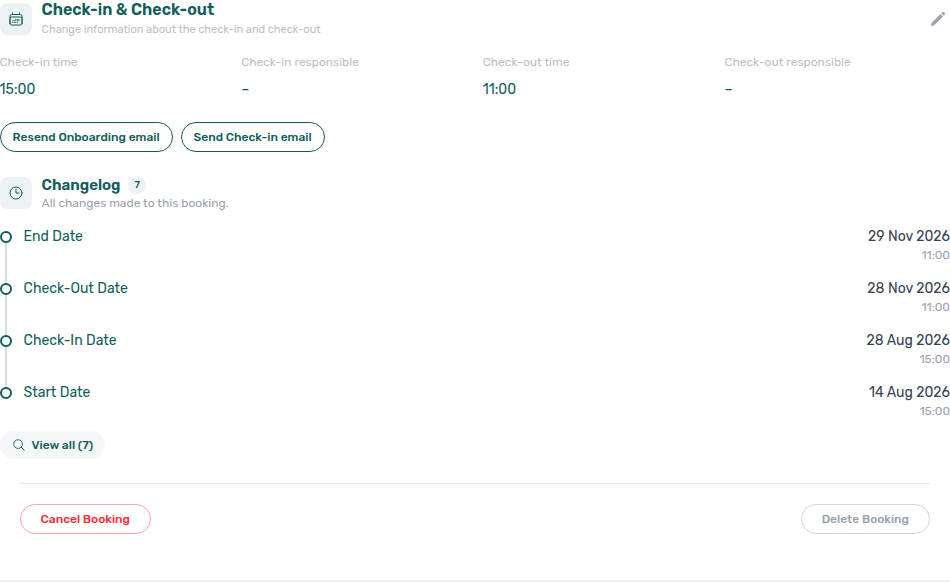
The Changelog under Contract Info → Check-in & Check-out shows operator-initiated edits and workflow milestones — not every default or normalized value Vivin writes when the reservation is first created. Vivin intentionally omits untouched defaults and normalized fields so the timeline does not look like dozens of phantom edits on day one. The same rule applies to Change history on Listings property/unit setup.
| Surface | Where | What it logs |
|---|---|---|
| Booking Changelog | Contract Info → Check-in & Check-out | Milestone dates + booking field edits (rent, dates, status) |
| Listings Change history | Property/unit setup sidebars | Building and unit field edits (contract timing, rent grid, access) |
| Tools → Audit | /audit | Cross-portfolio manual blocks and discounted contract values |
When more than four booking events exist, use View all (N) and Search changes… in the modal to filter by field name, author, or date text. For cross-portfolio manual block triage, open Tools → Audit — Audit does not replace the in-sidebar Changelog or Change history blocks.
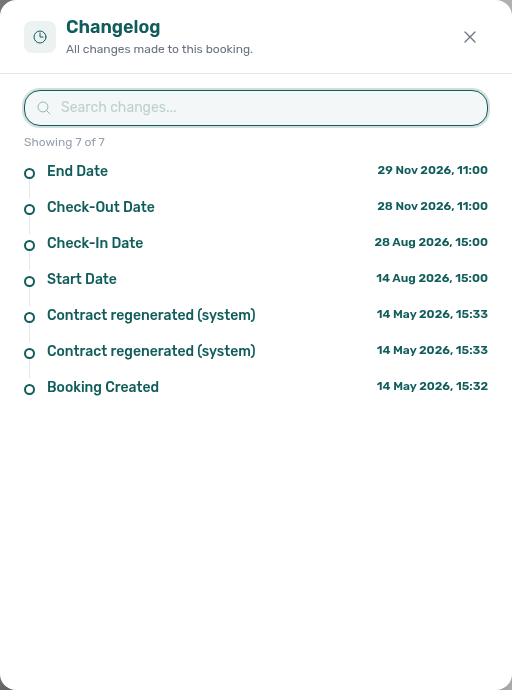
See Bookings — Timeline (booking change log), Listings — Change history (listings-property-edit-change-history.png), Glossary — Change history, and Manual block hygiene (Audit vs sidebar audit trails).
Why does a booking show fixed monthly rent when the unit is variable?
Fixed-rent inference pairs with Glossary — Fixed Rent, Listings — Rent Value tab, Bookings — Fixed rent on a variable unit, Processing a New Booking — Step 3, and FAQ — Lower rent below invoiced (invoiced floor still applies after inference).
When every contract month between the booking's Start date and End date shares the same configured rent on a variable unit, Vivin stores the reservation as fixed rent at booking level — scheduled payment amounts are unchanged; only the headline Monthly rent and the fixed/variable flag reflect the constant value. If any month is missing from the unit's seasonal grid or amounts differ, the booking stays variable with per-month rows. The listing remains variable for future stays — only this reservation collapses to one headline. After Add booking, open Contract Info to confirm whether Change monthly rent opens with fixed selected. Legacy bookings were backfilled when their stored per-month values already matched. Rent decreases on invoiced months still follow FAQ — Lower rent below invoiced. See Bookings > Fixed rent on a variable unit, Processing a New Booking — Step 3, and Glossary — Fixed Rent.
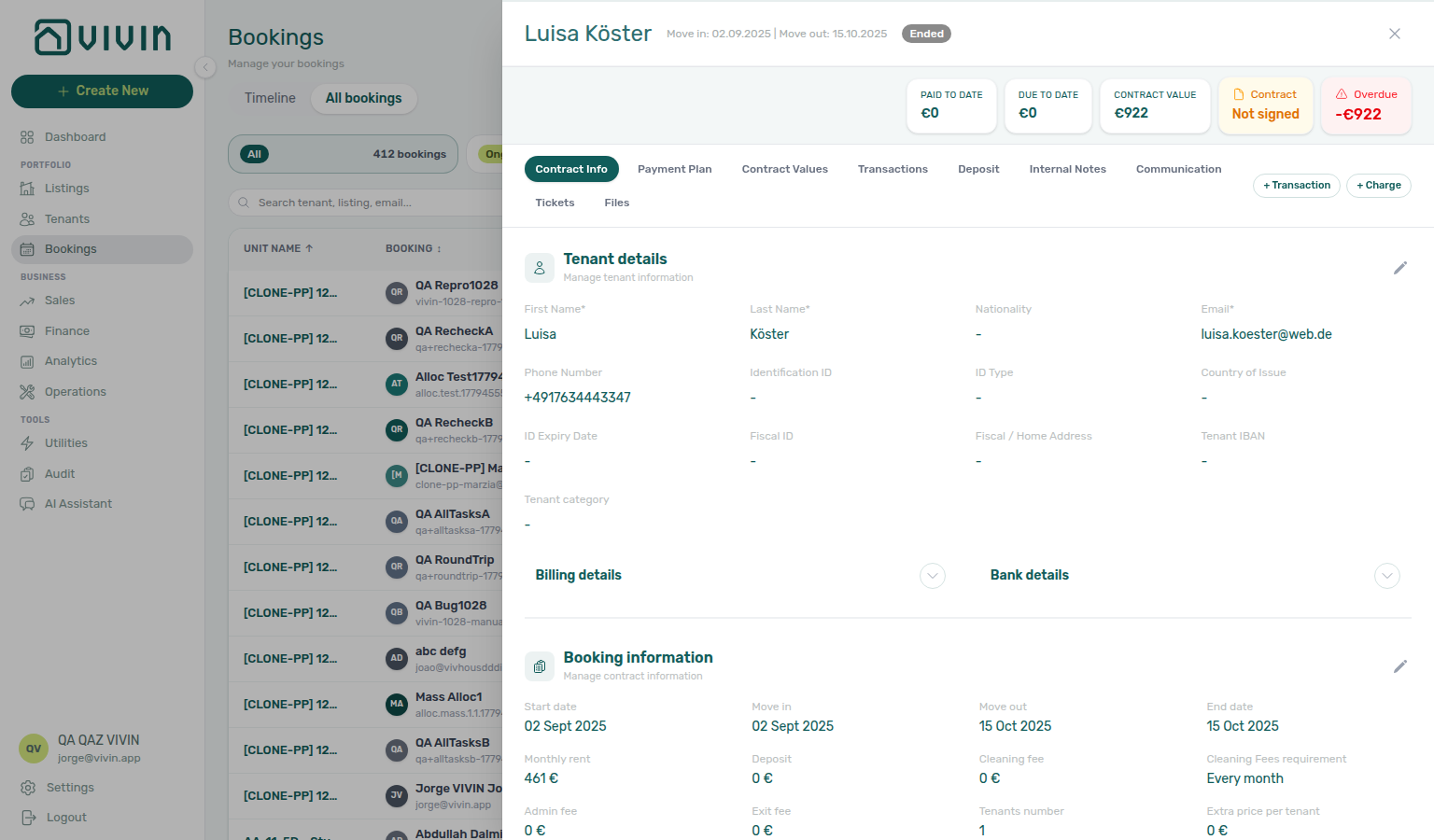
Why does a Booking Engine short stay keep the quoted rent?
For Vivin Booking Engine reservations with a Daily contract day type, a stay shorter than one month, and a positive Provider platform payment amount from the engine, Vivin puts that quoted stay total on the payment plan instead of recalculating rent from the unit’s monthly rate × nights. Stays that cross a month boundary still sum to the same quoted total (split by billable days). If you change contract dates or Monthly rent, Vivin drops that preservation and regenerates with normal daily proration. Other platforms and longer Booking Engine stays keep the usual rent rules. See Bookings — Changing contract dates and rent and Provider platform payment.
How do I list bookings with debt or filter by channel? Use Sort by → Debt for a debt-ordered list, or open Other filters on the Bookings toolbar: set Balance to Debt or Overpayment, use Source platform for channel-specific lists, and combine with contract, deposit, and date filters. See Bookings — Other filters.
Where do I assign a tenant category for a new direct booking?
Direct-booking category assignment pairs with Common Workflows — Portfolio segmentation by tenant category, Glossary — Tenant category, Settings > Tenant categories, Processing a New Booking — Step 2, Managing a Check-in — Step 1.
Add booking does not include a category field — assign tenant category on the tenant profile. First confirm Preferences → Enable tenant categories is On so the Categories → Tenants card and category pickers appear. Use + Create New → Tenant (optional Category in the modal) before you create the reservation, or open Tenants → Tenant Info → Personal Information (pencil) after the booking exists. Do this before contract or onboarding mail in Processing a New Booking — Step 4 so portal modules and Communication Rules audience match the segment. Re-verify Category during Managing a Check-in — Step 1 before access codes go out. Channel imports may inherit the default for integration-created tenants; marketplace POST /bookings does not send a category — FAQ — Marketplace booking tenant category. Direct bookings do not auto-assign. See Glossary — Tenant category, Onboarding a New Property — Step 4, and Processing a New Booking — Step 2.
Why is the Tenant categories tab missing from Account Settings?
Missing-tab checks pair with Preferences — Tenant categories, Tenant categories — Enable, and Glossary — Tenant category.
Open Account Settings → System → Global Settings and confirm Enable tenant categories is On, then Save. When the switch is Off, Vivin hides the Categories → Tenants card (and related portfolio category filters and pickers) — bookmarked /settings/tenantCategories still opens Categories, without the Tenants card. Turning the switch Off does not clear categories already assigned to tenants; those segments keep enforcing portal and email rules until you change them on Tenant Info after you re-enable the feature.
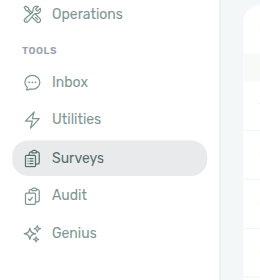
Why is Surveys missing from the Tools sidebar?
Missing Surveys pairs with Preferences — Satisfaction surveys, Tenant Portal — Surveys Home prompt, and FAQ — How do tenants see surveys to answer on portal Home?.
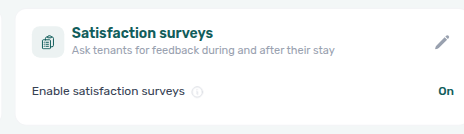
Open Account Settings → System → Global Settings and find the Satisfaction surveys card. Click the pencil, turn Enable satisfaction surveys On, then Save. The switch is off by default. Until it is On, Vivin hides Tools → Surveys, and /surveys shows Satisfaction surveys are turned off (an admin can turn them on in Global Settings). After you enable it, open Tools → Surveys for Overview, Responses, and the Surveys builder. Turning the switch Off again hides the sidebar entry; existing survey definitions and answers stay until you re-enable. Guide: Preferences — Satisfaction surveys (settings-preferences-satisfaction-surveys-card-on.png, settings-preferences-satisfaction-surveys-edit.png, surveys-sidebar-tools-entry.png, surveys-hub-overview-after-enable.png, settings-preferences-satisfaction-surveys-enable-flow.mp4).
Why did my booking not generate a payment schedule? The payment schedule is generated based on the property's contract settings (payment frequency, confirmation payments, check-in payments) configured during property creation Step 4. If these settings are incomplete or missing, the schedule may not generate correctly. Verify the property's Payments tab settings.
Can I edit a booking's payment schedule after creation? The payment schedule is fixed at booking creation. You can add extra charges using the Add Charge button (see Adding Extra Charges), but you cannot remove or modify the originally generated charges.
What happens if I create a booking that overlaps with an existing one? Vivin prevents overlapping bookings on the same unit. On a single unit, the date calendar greys occupied nights and blocks create. When you use Book several units at once, that calendar stays clear — after Create N bookings, Vivin names each clashing room (with the occupied window) and creates none of the set until you Remove these units from the selection or change dates. See Bookings — Date calendar stays clear. Marketplace imports also reject occupied nights; they honour listing JSON for Capacity, stay months, and available-from — FAQ — Marketplace booking exceeded Capacity.
Why did a marketplace booking exceed Capacity or stay bounds?
+ Create New → Booking enforces unit Capacity, Minimum / Maximum Stay Period, and listing available from. A stay imported with marketplace POST /bookings honours those listing JSON fields on the partner side. Vivin still rejects occupied nights.
If an imported stay looks over-capacity or longer than Maximum Stay, compare listing JSON capacity, minStayPeriod, maxStayPeriod, and availableFrom with the headcount and dates the channel sent. Guide: Creating Bookings — Honour listing (api-swagger-listing-dto-capacity-stay-bounds.png, api-swagger-create-booking-integration-occupants.png). If the monthly rent on the imported stay does not match a price the channel displayed, listing JSON is the source — FAQ — Marketplace booking rent.

How do I create a rent-free booking?
On + Create New → Booking, turn off Use unit contract rents and other contract details, keep Is the monthly rent fixed? on Yes, and leave Fixed rent (€) blank (or type 0). Vivin reads a blank field as €0; when you leave the field it shows 0. Use this for staff stays, promotions, or contracts whose charges live only in fees. Negative amounts are rejected. The same blank-as-zero read applies when you create a unit (Monthly Rent Value). On an existing reservation, Change monthly rent on Contract Info also accepts €0. See Bookings — Empty fixed rent reads as €0 (bookings-add-booking-empty-fixed-rent.png, bookings-add-booking-empty-fixed-rent-settles-zero.png, bookings-add-booking-empty-fixed-rent-flow.mp4).
Why are the days after checkout grey on Add Booking?
Those extra nights are your preparation days (Preferences — Mid-term Prep / Short-term Prep), not the previous guest still occupying the unit.
On + Create New → Booking for one unit, tick Ignore unit preparation days to start in that buffer. Occupied nights stay blocked. Manual, owner, maintenance, and channel holds stay blocked. Allow check-in date in the past is a different control (listing available-from month). Same-day check-out + check-in does not need this checkbox — see How do I handle same-day turnovers?.
After you create the stay, Vivin shortens the previous booking’s unit block to end at checkout. Tick the box only when your team can turn the unit around in that shorter window. Marketplace POST /bookings cannot send this skip — imported stays honour listing unavailabilities including those extra nights — FAQ — Marketplace booking Ignore unit preparation days. See Bookings — Ignore unit preparation days and Glossary — Ignore unit preparation days.
How do I book several units at once for the same tenant?
On + Create New → Booking, pick a tenant whose tenant category has Multiple concurrent bookings enabled, pick the House, then turn on Book several units at once. Select the rooms (at most 30 in one run) and confirm Create N bookings. Vivin creates a separate reservation per unit with the same tenant, dates, and details. The date calendar stays clear (no grey nights) — clashes are named per room after Create. Onboarding email and contract are not sent from this set — send them later from each booking if needed. Distinct from + Create New → Unavailability, which holds rooms without creating stays. See Bookings — Book several units at once and Date calendar stays clear (bookings-add-booking-multi-unit-toggle.png, bookings-add-booking-multi-unit-selected.png, bookings-add-booking-multi-unit-flow.mp4).
Why doesn’t the Add Booking calendar grey occupied days for several units?
When Book several units at once is on, the Check-in & Check-out calendar does not grey occupied days or show occupancy dots. Shading every room in the set at once would block a day without saying which room is busy.
Click Create N bookings. Vivin checks every selected room first. If a room cannot take those dates, it creates none of the set and lists each clash with the occupied window (for example occupied 1 Nov → 1 Dec). The heading reads N selected units cannot be booked. Nothing was created. Use Remove these units from the selection, or change dates and create the remaining rooms.
Occupancy greying and same-day-turnover adjacency stay on the single-unit calendar. Extra nights after checkout on that calendar are preparation days — see Why are the days after checkout grey on Add Booking?. For occupancy on one room, turn the toggle off, or use Bookings → Timeline / Sales → Multicalendar. See Bookings — Date calendar stays clear.
What happens to the payment schedule when I cancel a booking? It depends on the refund type. Full refund: all payment items are removed. No refund: only unpaid future items are removed; already-paid items are retained. Partial refund: requires manual adjustment — the system does not automatically calculate partial amounts. The dialog shows Paid, Deposit, and Refund so you can judge the return against the booking — What do Paid, Deposit, and Refund mean on Cancel booking?. When the tenant contests deposit retention during cancellation, use deposit disputes before you Mark refunded. See Cancelling a Booking.
What do Paid, Deposit, and Refund mean on Cancel booking?
The three amounts pair with Cancelling a Booking — Paid, Deposit, and Refund, Bookings — Cancellations and Refunds, and Glossary — Cancel booking Paid / Deposit / Refund.
Open Portfolio → Bookings, the booking Contract Info tab, and Cancel booking. On step 1, below Full refund, No refund, and Partial refund, three cells show the money on this reservation today:
| Label | Meaning |
|---|---|
| Paid | Total already paid on the booking |
| Deposit | Deposit already collected |
| Refund | Amount this cancel choice would return |
Full refund sets Refund to the cancel-path return (often Paid minus deposit kept for the deposit flow — read the effects list). No refund sets Refund to € 0. Partial refund starts Refund at € 0 until you set return amounts on the payment lines in the cancel flow.
The effects list always starts with Cancel this booking and free the unit, then explains the money outcome. Use Cancel (or the dialog X) if you were only checking the figures — Next continues the multi-step flow; the booking is not canceled until you finish.
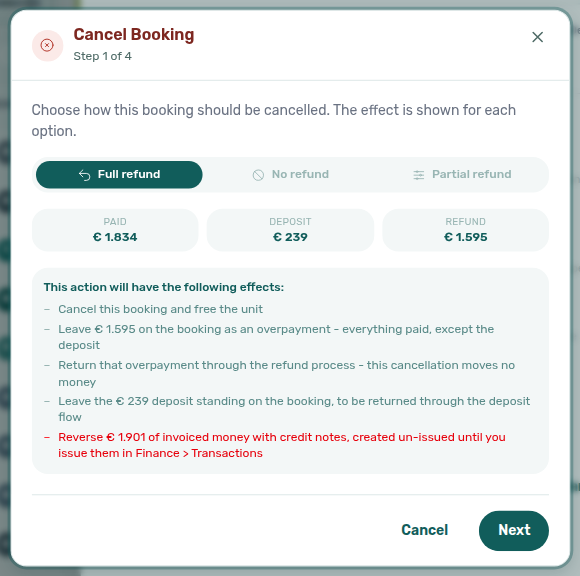
See Cancelling a Booking — Paid, Deposit, and Refund and Glossary — Cancel booking Paid / Deposit / Refund.
What happens after Next on Cancel booking?
After Next on step 1, Cancel booking continues through three more screens. Nothing is saved until Confirm Cancellation on the last step — use Close to leave without cancelling.
| Step | English title | What you see |
|---|---|---|
| 2 of 4 | Settle the deposit before cancelling | How this method treats each deposit line |
| 3 of 4 | Payment lines this cancellation acts on | Schedule preview (write-downs, overpayment, credit notes) |
| 4 of 4 | Confirm the cancellation | Method recap and effects; red Confirm Cancellation applies everything in one go |
On Partial refund, step 2 may be skipped when the deposit needs no decision. See Cancelling a Booking — Cancel booking wizard steps 2–4.
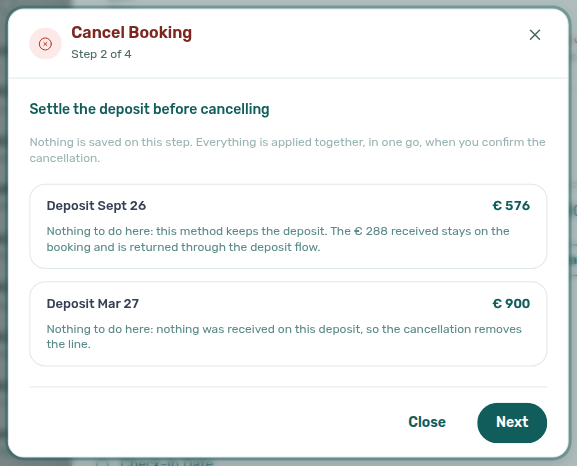
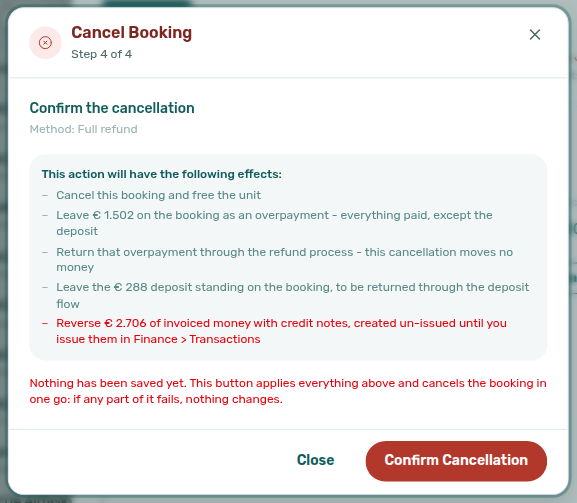
How do I handle an early departure? Update the booking Move out date to the actual departure date from Contract Info (pencil on Booking information → Move out → Change move-out date). Leave Update Payment Plan enabled so Vivin recalculates the schedule and removes future unpaid charges beyond the new date. For contract-boundary-only edits, use End date → Change contract end date — see Early Departures. Be careful with room changes to avoid double billing. When already-invoiced months fall outside the shortened span, amber contract-date change warnings appear on Payment Plan / Contract Values — see Why do amber warnings appear after I change contract dates?.
What about charges that have already been invoiced? Charges that have been invoiced through the accounting integration (e.g., Invoice-xpress) cannot be automatically removed from the payment schedule. Create a credit note on Contract Values (then issue from Finance → Transactions) or register the document manually in your accounting system. For rent specifically, Vivin enforces an invoiced floor on Change monthly rent and Contract Values → Edit amount — you cannot save a lower net on a month that Finance already exported. Shortening dates with Update Payment Plan leaves those invoiced lines on the ledger with amber warnings — contract-date change warnings.
Why do amber warnings appear after I change contract dates?
Contract-date stranded-line warnings pair with Bookings — Changing contract dates and rent, Bookings — Early Departures, FAQ — Lower rent below invoiced (invoiced floor on rent edits — distinct from date-span warnings), and Glossary — Contract-date change warning.
After you shorten the contract span (move-in anticipation, earlier move-out, or related date edits) with Update Payment Plan enabled, Vivin regenerates unpaid schedule lines but cannot rewrite already-invoiced charge amounts. Any invoiced month that now falls outside the updated contract range stays on the ledger and may no longer match the new dates.
On Payment Plan and Contract Values, those stranded lines show an amber warning icon. Hover for: The dates were changed, but already-invoiced amounts cannot be modified, so this line may be inconsistent. The warning is informational — it does not block other row actions. Reconcile with Finance (credit notes, manual adjustments, or support) before you treat the schedule as authoritative. Distinct from the invoiced floor that clamps or blocks lowering rent on an exported month.
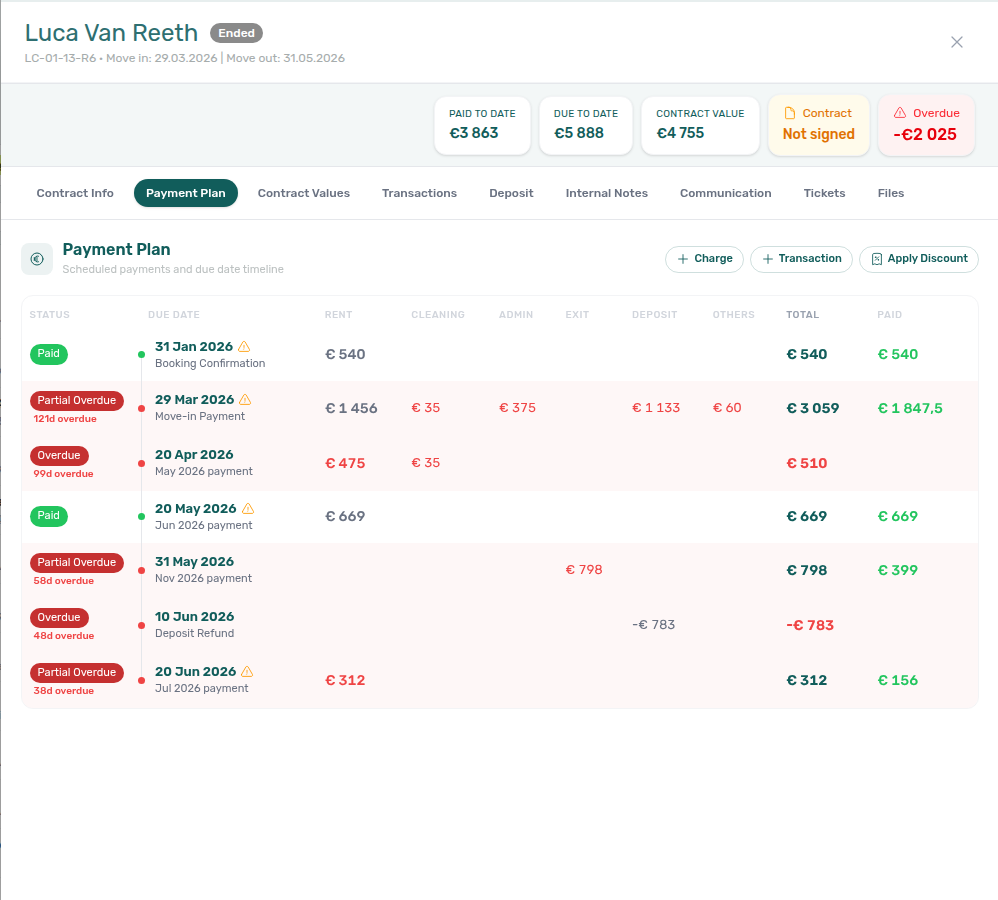
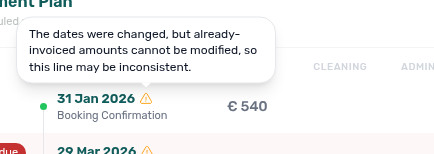
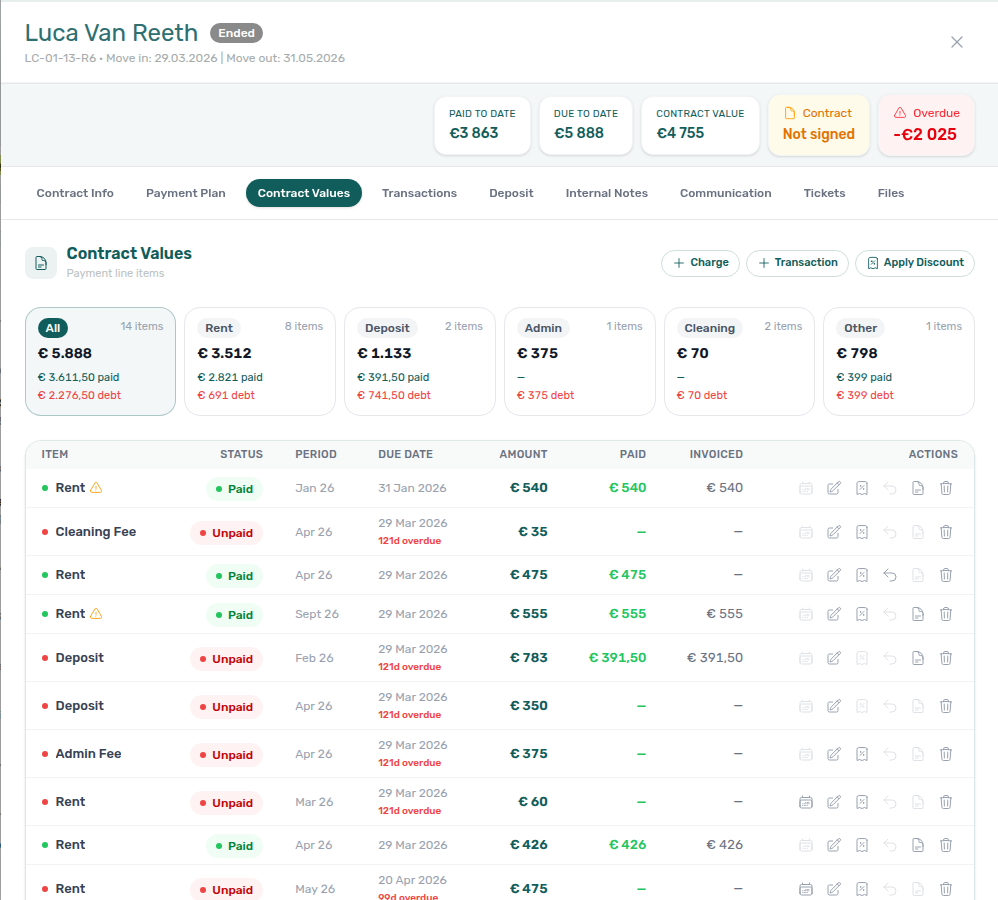
Why can't I lower rent below what was already invoiced?
Invoiced-floor blocks pair with Invoiced floor (rent) hub (surface table + per-guide mesh), Rent reduction after invoicing hub (workflow symptom table), Common Workflows — Rent reduction after invoicing, Common Workflows — Bulk Hostkit invoicing (Issue credit notes after external rent relief), Glossary — Invoiced floor (rent).
| Symptom | Surface | Fix |
|---|---|---|
| Month saves at invoiced amount, not your lower entry | Contract Info → Change monthly rent | Blue Already invoiced months banner — clamped months keep exported totals |
| Edit amount lists Issue a credit note | Contract Values → Edit amount | Lowering a fully invoiced line creates the credit note from Save — then Not issued credit note → Issue credit notes (N) on Finance (Edit amount) |
| Save disabled on a partly invoiced line | Contract Values → Edit amount | Mixed invoiced + not-invoiced cash cannot share one instrument — handle the slices separately |
| Need goodwill below exported rent after the credit note | Finance → Transactions | Not issued credit note → Issue credit notes (N) / Issue credit note to provider |
| Hostkit Not issued credit note after rent relief | Credit note registered in Vivin ledger | Issue credit notes (N) — same pacing as Bulk Hostkit invoicing |
When Finance has already invoiced rent for a calendar month, Change monthly rent still clamps exported months to the invoiced total (blue Already invoiced months banner — other months still save at your entered amount). On Contract Values → Edit amount, lowering a fully invoiced line issues a credit note for the difference (Paid / Invoiced / New net update as you type). Save stays blocked only when the line is partly invoiced. After Save, issue the document from Finance → Transactions (Not issued credit note → Issue credit notes (N) / Issue credit note to provider). Pair with FAQ — Fixed rent on variable unit when repricing after equal-month inference. See Bookings — Edit amount, Changing contract dates and rent, Finance — Invoiced floor and rent edits, and Common Workflows — Rent reduction after invoicing.
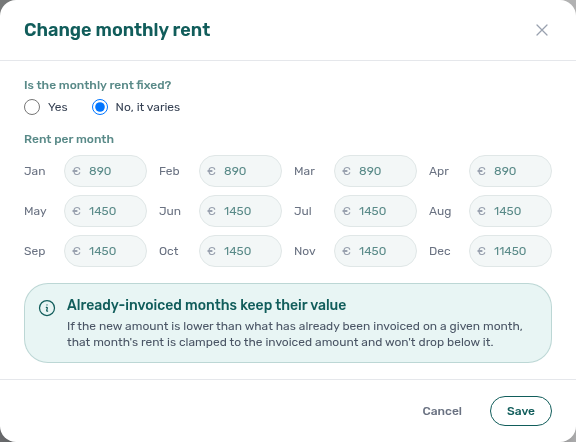
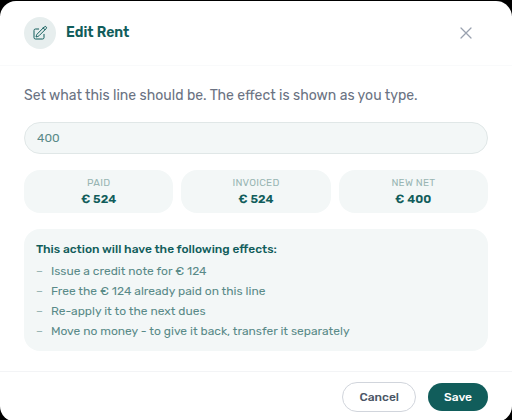
- Common Workflows — Rent reduction after invoicing — Operator habit hub
What does Leave outstanding on this line mean?
The outstanding line pairs with Bookings — Leave outstanding on Edit amount, Bookings — Edit amount, FAQ — Lower rent below invoiced (lowering exported rent — a different path), and Glossary — Leave outstanding (Edit amount).
Open the booking Contract Values tab and the pencil Edit amount. Type a new amount. The three tiles — Paid, Invoiced, and New net — update as you type.
When New net is higher than Paid, This action will have the following effects: includes Leave €X outstanding on this line. X is New net minus Paid. You do not subtract the tiles yourself. That line is the remainder the booking will keep after Save, not a cash movement.
When New net equals Paid, only Set this line to … appears. Lowering a paid line below Paid uses Keep as credit, Return to tenant, or a credit note instead — Edit amount.
Use Cancel if you were only checking the figure.
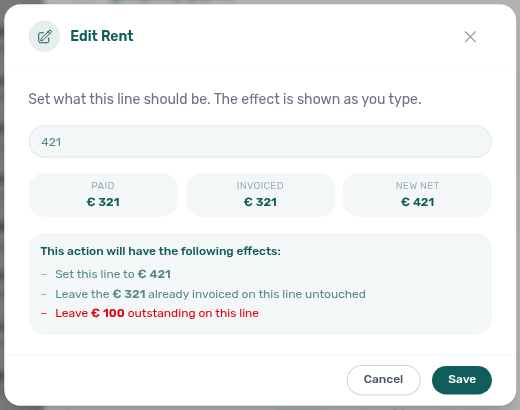
See Bookings — Leave outstanding on Edit amount and Glossary — Leave outstanding (Edit amount).
Why can't I return of value on an invoiced or draft allocation?
Return-of-value guards pair with Bookings — Manage return of value, Bookings — Manage credit notes, Glossary — Return of value, Glossary — Credit note (payment reject/revert), Payment Allocation — Adjustments.
| Symptom | Cause | Fix |
|---|---|---|
| Row action disabled; tooltip All cash on this line is on an invoice. Use a credit note instead. | Every cash allocation is already invoiced or manual | Use Credit note on the same row — Vivin does not open an empty return-of-value dialog |
| Select shows No allocation available (modal still open) | A draft (or similar protected-only mix) remains, so the modal opens to explain, but nothing is selectable | Issue the draft on the provider, then Credit note |
| Row caption Invoiced… — use a credit note (disabled) | Parent already on a provider document | Credit note → Not issued credit note → Issue credit notes (N) |
| Row caption Draft invoice — issue… then use a credit note | Draft document exists and will promote to invoiced | Issue the draft on the provider, then Credit note — do not use return of value |
| Caption Not invoiced — available to return | Pending / not-invoiced cash | Enter amount (see Available: €…) and Apply when policy allows |
Return of value hands money back without a fiscal document, so it only applies to cash that never reached Invoice-xpress / Hostkit / NetSuite. Fully invoiced lines keep the row action disabled; mixed and draft lines still open the modal so protected parents appear as disabled rows (with those captions) instead of a €0 limit. Permission: bookings.add_return_of_value (Admin / Finance by default). After Apply, the booking Transactions tab lists a negative Return of Value row — Why does Transactions show a negative Return of Value row?. bookings-detail-contract-values-manage-return-of-value-protected.png, bookings-detail-contract-values-manage-return-of-value-draft-caption.png, bookings-detail-contract-values-manage-return-of-value-available.png, bookings-detail-contract-values-return-of-value-flow.mp4, bookings-detail-contract-values-return-of-value-draft-caption-flow.mp4.
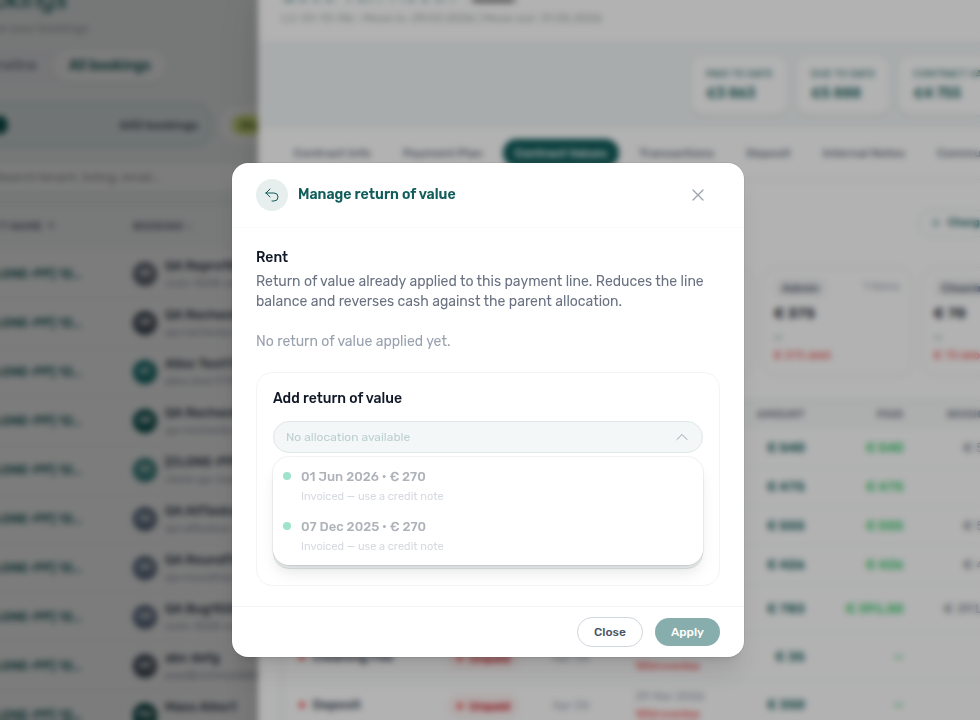
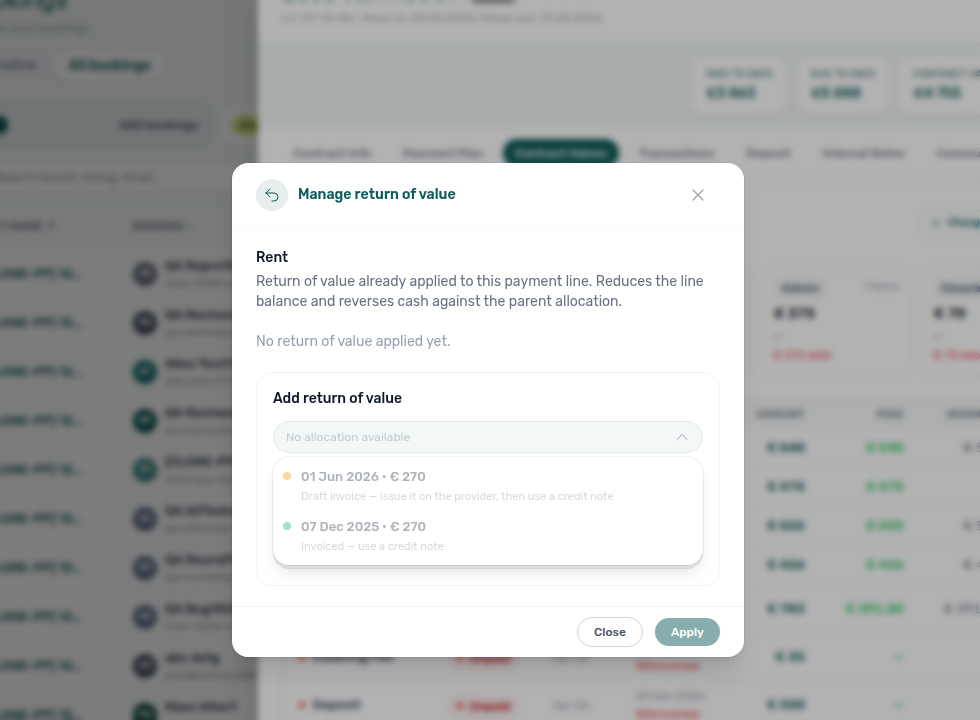
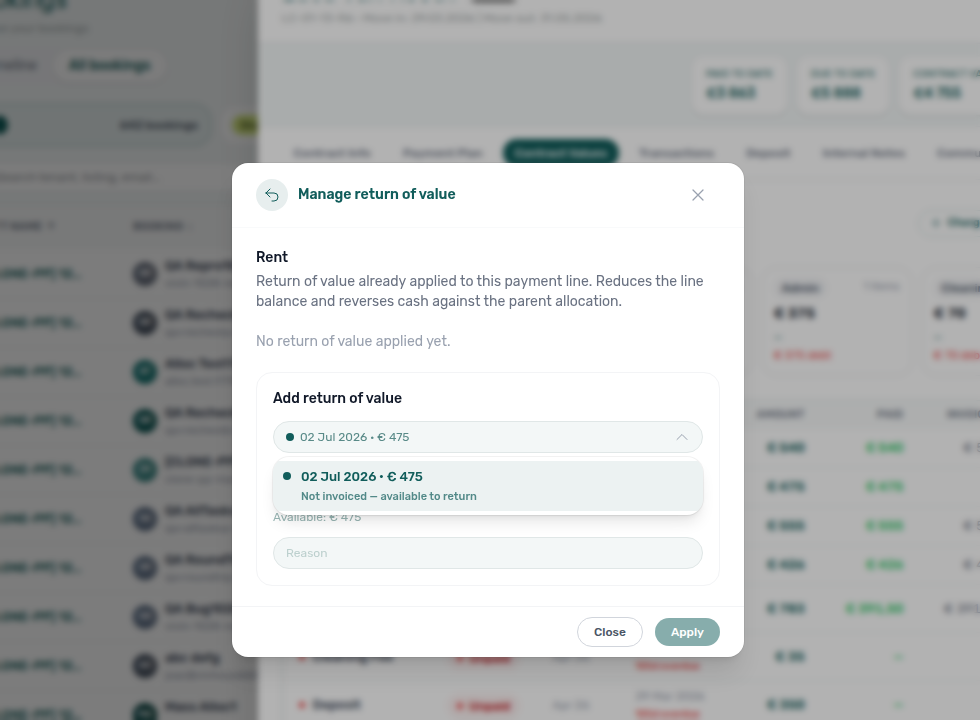
What happens when I reject or revert an incoming payment?
Reject/revert flows pair with Common Workflows — Reject/revert mistaken receipts, Glossary — Credit note warning (reject/revert) hub, FAQ — Credit note warning (reject/revert) hub, Common Workflows — Bulk Hostkit invoicing (Issue credit notes Hostkit pacing after invoiced Reject / Revert), Glossary — Credit note (payment reject/revert).
Pick the correction that matches receipt status — a duplicate still pending needs Reject; a duplicate already approved needs Revert:
| Symptom | Likely cause | Fix | | -------------------------------------------------- | --------------------------------------------------------------------------------------- | --------------------------------------------------------------------------------------------------------------------------------------------------------------- | ------------------------------------------------------------------------------------------------------------------------------------------ | | Duplicate never approved | Still pending on ledger | Reject payment / Reject selected — Pending manual receipt approval | | Duplicate after month-end Approve | Wrong booking or amount confirmed | Revert payment on booking Transactions or Finance row menu | | Delete payment greyed out | vIBAN / provider platform or invoiced allocation | Revert or clear Not issued credit note queue | | Red / blue modal on confirm | Charge already invoiced | Issue credit notes (N) — Finance — Issuing credit notes | | Not issued credit note batch stays Pending | Hostkit rate limit on bulk push | Same pacing as Bulk Hostkit invoicing — FAQ — Bulk Hostkit invoicing slow | | Rent cut blocked below exported month | Invoiced floor — distinct from receipt cleanup | Rent reduction after invoicing |
| Action | Row status | Best surface | Effect |
|---|---|---|---|
| Reject payment / Reject selected | pending / processing | Bookings → Transactions (per-row) or Finance → Transactions (bulk Reject selected only) | Removes the in-payment from the booking and ledger |
| Revert payment | confirmed or rejected | Bookings → Transactions (per-row) or Finance → Transactions row menu | Rolls allocations and booking balances back |
| Delete payment | Eligible manual rows only | Finance → Transactions | Removes the row entirely — disabled for vIBAN / provider platform or when any allocation is invoiced, manual, or draft |
| Issue credit notes | After Reject / Revert on an invoiced charge | Finance → Transactions — Not issued credit note filter pill | Pushes reversal documents to Hostkit / Invoice-xpress or Set manual |
Both Reject and Revert show accounting follow-up copy in the confirmation modal — Reject warns that you may need a credit note and invoice updates (red banner); Revert reminds you to update the invoice or issue a credit note when Finance already recorded the charge (blue info banner). On Finance → Transactions, Reject is bulk-only — tick pending rows and use Reject selected (there is no per-row reject icon on the ledger); booking Transactions still exposes per-row Reject payment and Revert payment.
When Hostkit or Invoice-xpress already invoiced the charge, Vivin creates credit-note reversal allocations after you confirm Reject or Revert. Triage those from Finance → Transactions: use the invoice filter pills beside Export — Not issued credit note lists rows whose reversals still need a provider push or manual registration; tick eligible rows and Issue credit notes (N) on the bulk bar, or open transaction detail and use Issue credit note to provider / Set manual on each reversal allocation. Issued credit note confirms the document left Vivin or was registered externally. This queue is the in-product follow-up the red and blue modals reference — not a separate spreadsheet. Pair with Finance — Issuing credit notes (integrated invoicing) and Glossary — Credit note (payment reject/revert).
When a duplicate or wrong booking receipt blocks month-end KPIs, use the same habit as Processing a New Booking — Step 5b, Managing a Check-in — Step 3b, Handling a Late Payment — Step 4b, Entering Monthly Utility Bills — Step 4b, Cancelling a Booking — Step 2a, Managing a Check-out — Step 6 (duplicate final payment), Notification triage — Step 4, and Portfolio KPI review — Step 7. See Payment Allocation — Correcting mistaken receipts, Bookings > Transactions row actions, Finance > Row actions, and Finance > Delete payment on the ledger.
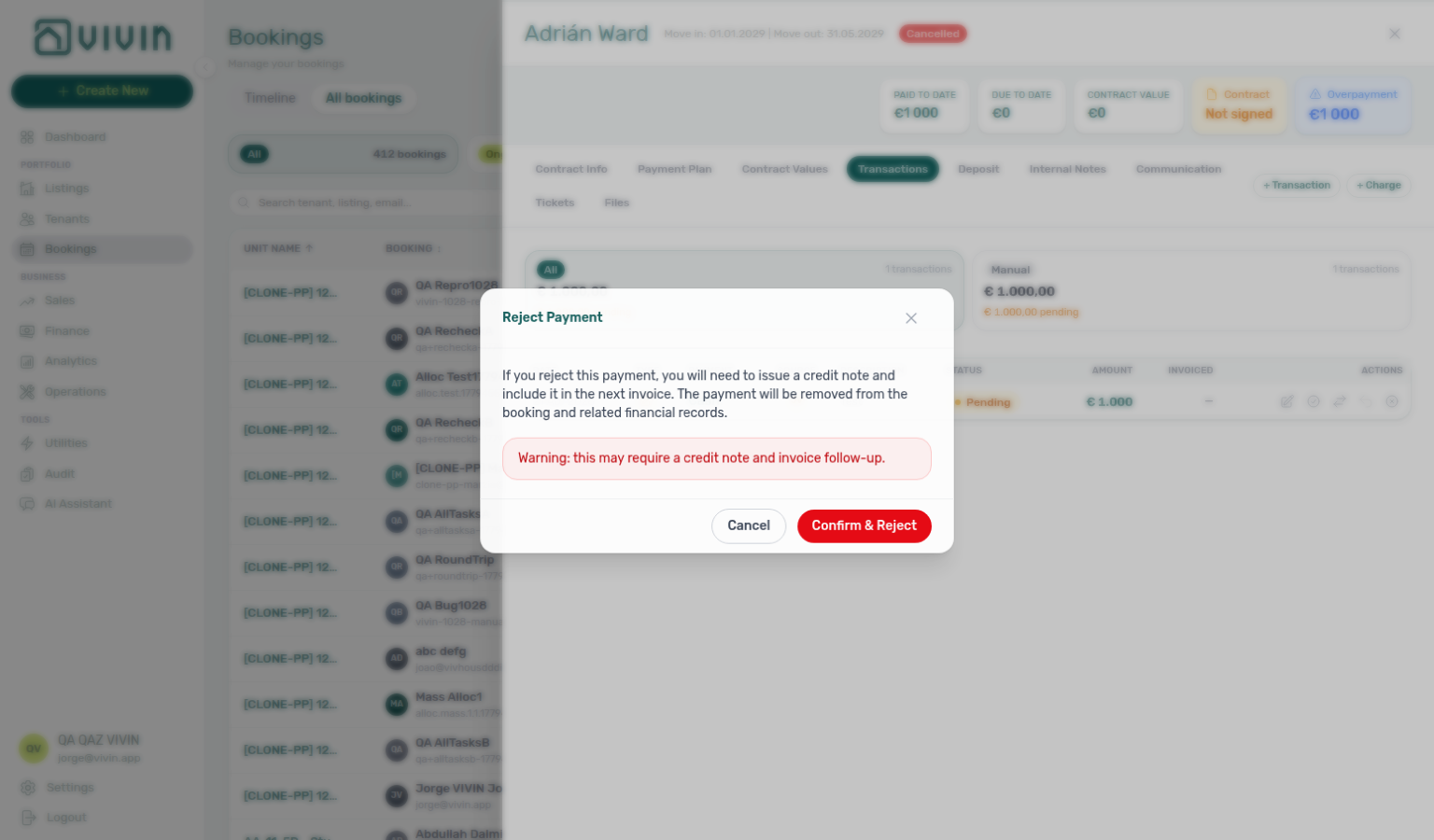
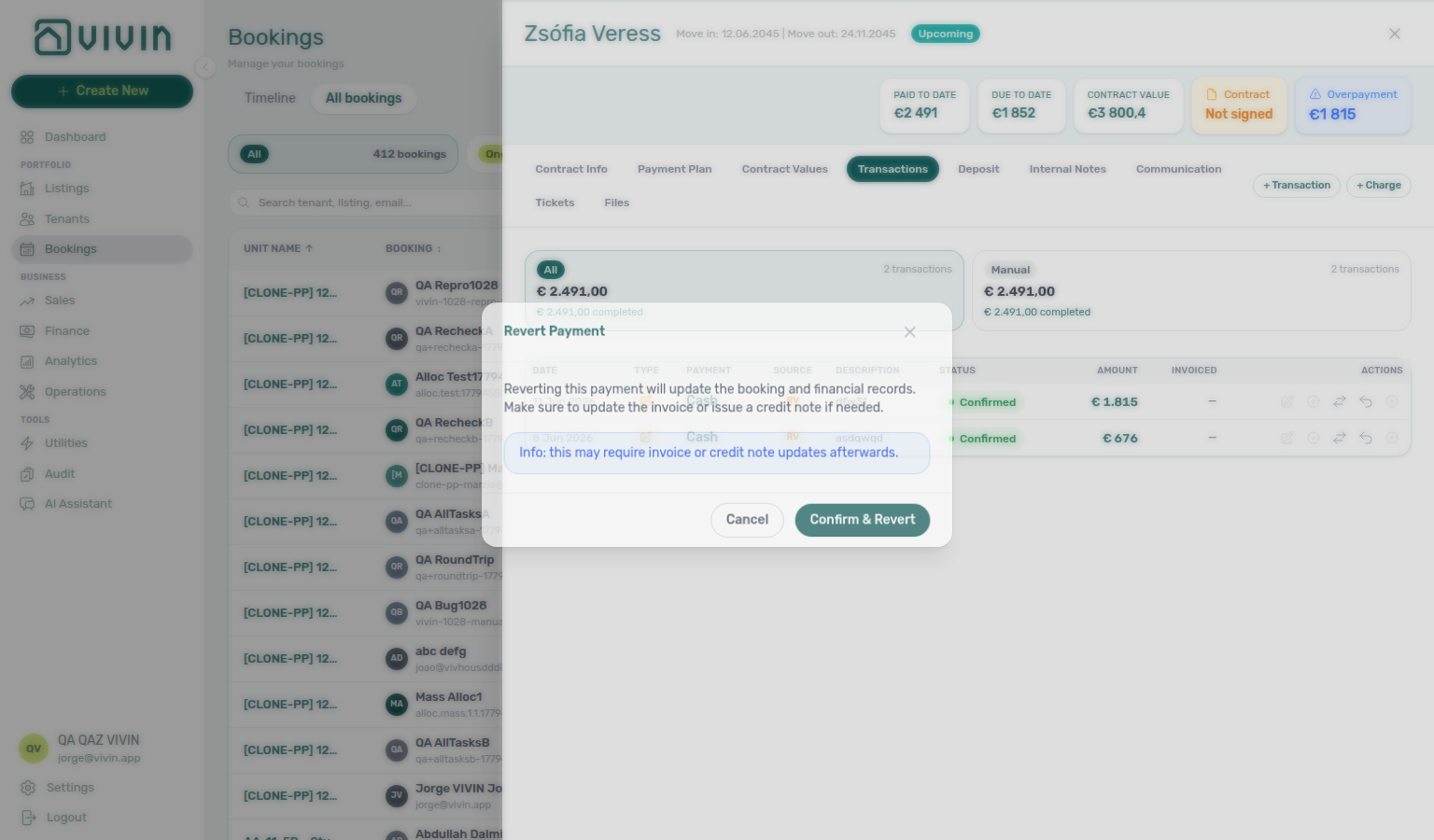

- Common Workflows — Reject/revert mistaken receipts — Operator habit hub
Why is my manual receipt still pending after I recorded it?
Pending receipt flows pair with Common Workflows — Pending manual receipt approval, Common Workflows — Reject/revert mistaken receipts (Reject duplicate while still pending — finance-transactions-bulk-reject-selected-bar.png), Common Workflows — Notification row-click navigation (alert → booking Transactions), Glossary — Pending manual in-payment (Finance), Glossary — Pending manual in-payment (Finance) hub.
Manual in-payments stay pending until a user with Approve payments confirms them. The Manual Payments KPI on Overview totals every manual in-payment in the selected month (pending and approved) — a non-zero value does not by itself mean the approval queue still has rows. Clicking the card opens the month drill-down of all manual rails; isolate pending rows with the amber Pending chip on Finance → Transactions.
| Surface | Best for | Approval action |
|---|---|---|
| Finance → Transactions | Portfolio-wide Pending queue, bulk Approve selected / Reject selected | Amber Pending chip on All card → row icons or bulk bar |
| Bookings → Transactions | One reservation with Payment Plan / Contract Values context | Per-row Approve payment (same modal as Finance) |
/notifications or bell | Alert-driven entry when a receipt still awaits approval | Row-click → booking Transactions → Approve (Step 4) |
Triage from Finance → Transactions: click the amber Pending chip on the All type-summary card, then Approve payment (per row) or Approve selected / Reject selected (bulk bar). Ledger Reject is bulk-only — booking Transactions still exposes per-row reject. If the receipt is real but the € is wrong, correct the pending transfer amount before Approve. For mistaken duplicates, see FAQ — Reject or revert an incoming payment and Common Workflows — Reject/revert mistaken receipts. Until approval, Total Debt and In debt lines may not reflect the receipt — including the Dashboard Total Debt card for ongoing stays (headline and >15 days subtitle — FAQ — Dashboard Total Debt subtitle). When a Payment received or Pending manual in-payment alert brought you here, start from Notification triage — Step 4 before you clear unread in Step 5 — see also FAQ — Pending manual in-payment on /notifications. See Glossary — Pending manual in-payment (Finance), Payment Allocation — Pending manual approval (month-end habit), Processing a New Booking — Step 5b, Handling a Late Payment — Step 4b, Managing a Check-in — Step 3b, Entering Monthly Utility Bills — Step 4b, Cancelling a Booking — Step 2a, Portfolio KPI review — Step 7, and Finance — Pending manual payments.

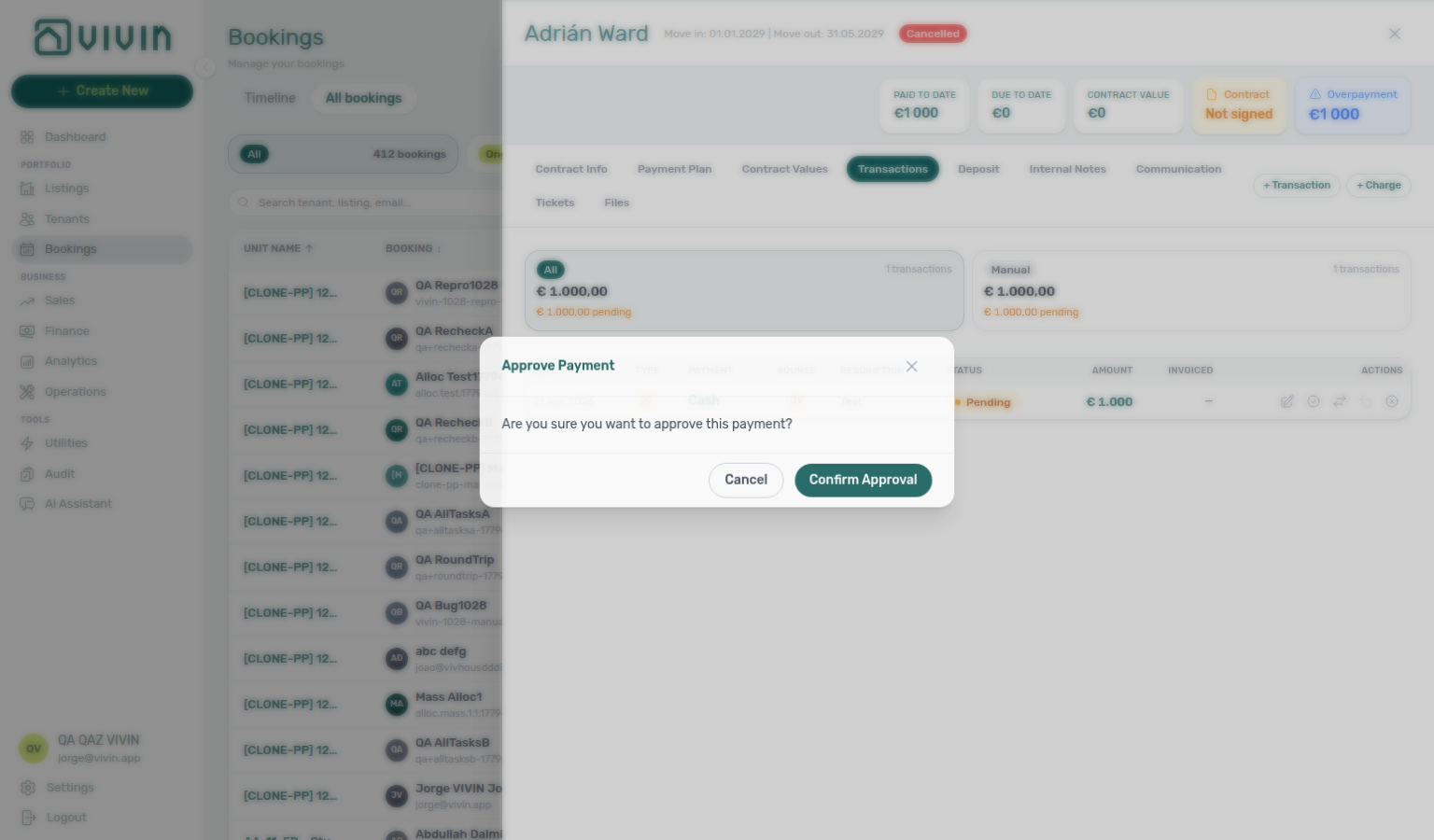
- Common Workflows — Pending manual receipt approval — Operator habit hub
Payments & Finance
Ledger, deposits, When should I use Card (recorded manually)? (desk / POS vs Tenant Portal Credit Card), What does Leave outstanding on this line mean? (Contract Values → Edit amount when New net is above Paid), Why does the same tenant appear under both Paid and Scheduled on Income? (partly collected Income split), How do I turn invoicing on? (Integrations connection, no separate billing switch), credit note (modal banners: Credit note warning hub), and payment overdue answers pair with Bookings (Contract Values, Transactions tabs), Why does Transactions show a negative Return of Value row? (booking Transactions, not this Finance ledger), Hostkit hub, Does opening a booking from Total Debt close the list? (Overview drill-down sidebar), Can I filter Total Debt by category without closing the list? (Booking category / Tenant category inside the list), Where do I see which Total Debt filters are on? (white picker bar + grey chip bar), Does Ready To Refund leave the booking on Fully paid? (Bookings Deposit status filter), Does Mark refunded on the booking leave the row on Finance Deposits?, and Does picking a second property close the Rent adjustment menu? (Select properties / Select categories stay-open on Rent adjustment Step 2).
How do I correct a pending transfer amount?
Amount corrections pair with FAQ — Manual receipt still pending, Bookings — Edit payment amount, Finance — Edit payment amount, FAQ — Reject or revert an incoming payment, and Bookings — Edit amount (charge lines — a different pencil).
If you typed the wrong € on a manual in-payment that is still pending, use the row pencil Edit amount. Fix the figure, then Approve. Do not Approve the wrong amount, and do not Reject unless the receipt itself should not exist (duplicate or wrong booking).
| Surface | How you edit |
|---|---|
| Bookings → Transactions | Pencil opens Edit Payment Amount — Update the amount received for this transaction. Save or Cancel. |
| Tenants sidebar Transactions | Same pencil; modal title Edit amount. |
| Finance → Transactions | Pencil, then type in the Amount cell. Enter or click away to save; Escape to cancel. |
You need Approve payments. The pencil stays off for vIBAN and Credit card (VIVIN) rails, and after Approve — then use Revert payment. A pending Card (recorded manually) receipt can be edited. The new amount cannot sit below what Finance has already invoiced on that receipt. Contract Values → Edit amount changes a scheduled charge line, not this receipt. A Return of Value row on booking Transactions is not a receipt — its pencil stays off too (Why does Transactions show a negative Return of Value row?).
When should I use Card (recorded manually)?
Desk card receipts pair with Bookings — Card (recorded manually), Finance — Type summary cards, FAQ — Manual receipt still pending, and Glossary — Card (recorded manually).
Use the desk/POS card habit (Card (recorded manually) in this guide) when the tenant paid on your card terminal (desk, POS, portable reader) and you are typing the receipt into Vivin. Open the booking → Transactions (or Payment Plan / Contract Values) → + Transaction → set Type to Credit Card → Cancel if you were only checking the list, or Add when the money is real.
That Type choice is not the automated Tenant Portal card rail. Portal card captures land under System Transactions → Credit card (VIVIN) and feed VIVIN card payouts. A desk tap recorded on that rail would look like money VIVIN collected.
| Situation | Type to use on + Transaction | Where it lands |
|---|---|---|
| Tenant paid on your terminal | Credit Card | Manual / Manual Card / Card (manual) |
| Tenant paid in the Tenant Portal with a card | Do not type it — it posts itself | System Transactions → Credit card (VIVIN) |
| Bank transfer you reconcile by hand | Transfer | Manual |
| Cash at the desk | Cash | Manual |
On the booking + Transaction modal, Type is only Cash, Credit Card, and Transfer — Credit card (VIVIN) is not in that list. After save, the booking table may show Manual Card; Finance → Transactions may show Card (manual). Same receipt.
The row stays pending until Approve payments, like any other manual in-payment. While pending, Edit amount can correct the €.
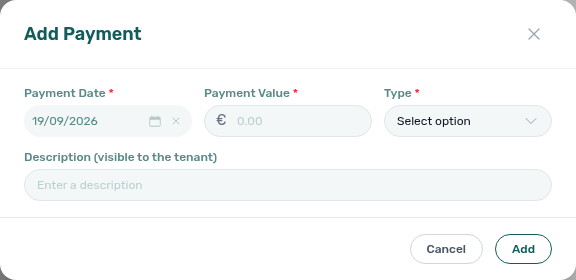
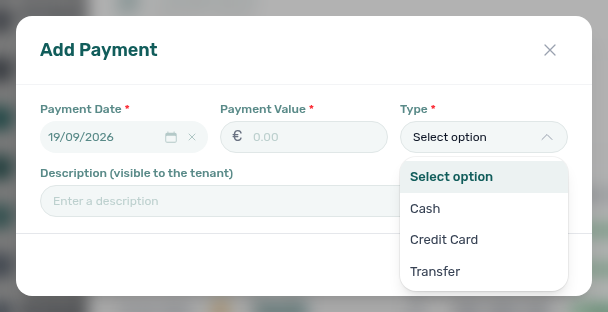
See Bookings — Card (recorded manually) and Glossary — Card (recorded manually).
How do I turn invoicing on?
Add an invoicing connection on Account Settings → Integrations (Platform Integrations → + Add). Choose VIVIN Invoicing, Hostkit, Invoice Express, NetSuite, or Sage50c (when Vivin has provisioned it). That connection is what turns invoicing on — there is no separate billing switch.
Then map Tax Codes on Settings → Billing → Invoicing, and issue from Finance → Transactions.
| What you want | Where |
|---|---|
| Turn invoicing on | Integrations → Add Integration — pick a provider |
| VAT / Tax Codes | Settings → Billing → Invoicing after the connection exists |
| Issue documents | Finance → Transactions → Issue allocation |
| Tenant Portal card / vIBAN | Payments on the account — separate from invoicing |
AI Chat / WhatsApp Genius listing billing as an active module means that invoicing connection exists. It does not grant Issue allocation by itself — that still follows your role.
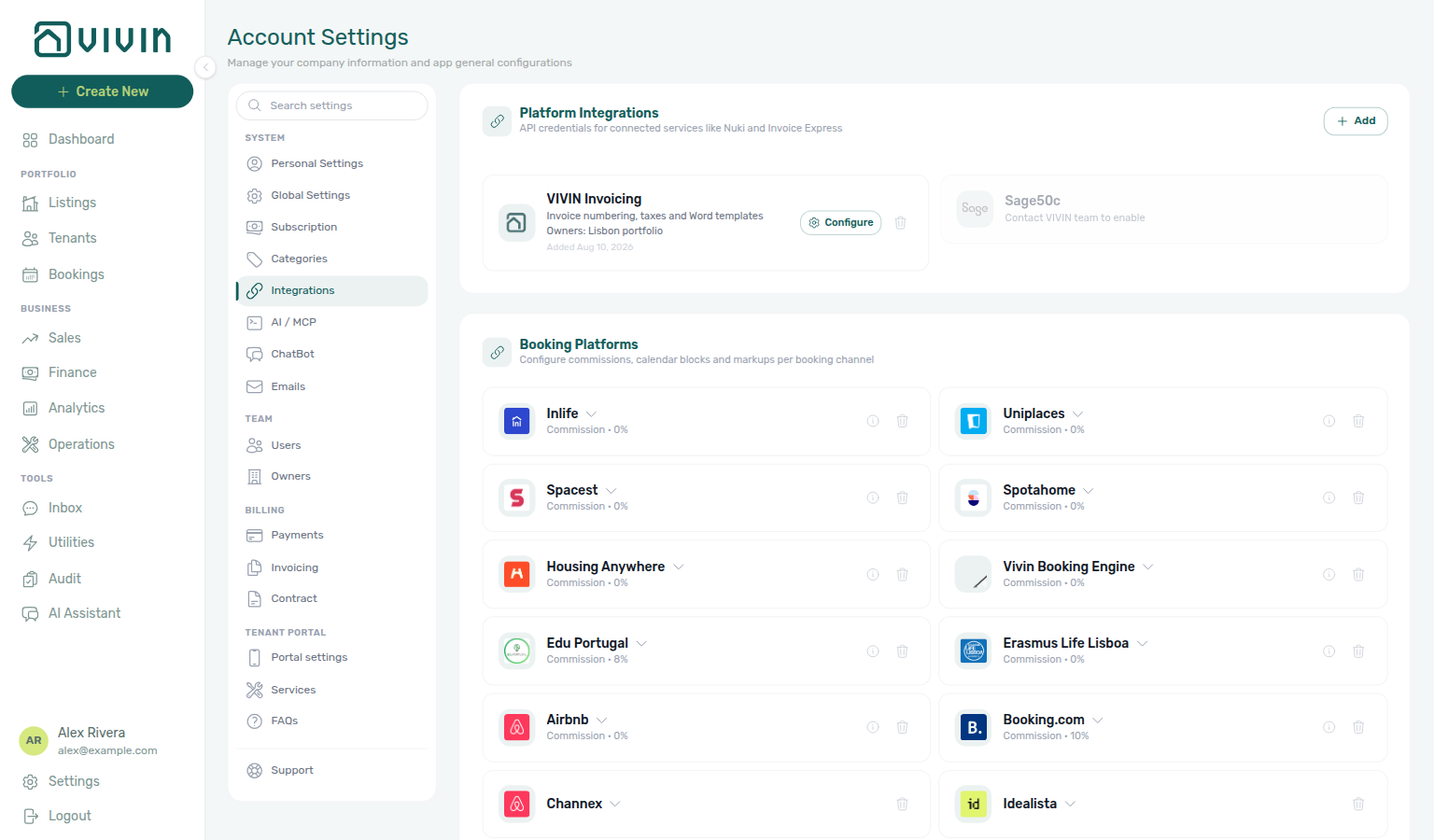
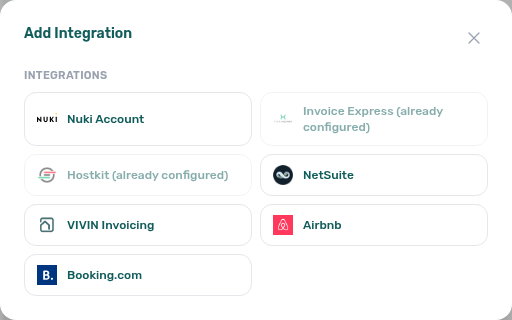
See Integrations — Billing from the invoicing connection and Glossary — Billing from the invoicing connection.
Why does Transactions show a negative Return of Value row?
That row is the return of value you already recorded on Contract Values (or that Vivin posted when you Mark refunded paid, not-invoiced deposit cash). It is not a second receipt and not a bank payout from + Transaction.
| What you see | Meaning |
|---|---|
| Type Return of Value, amount -€ … | One row per return, so All and Manual match what the tenant actually paid |
| Returned on Cleaning Fee (or Rent, Deposit, …) | The charge the money came off |
| Date is later than the charge due date | Date is when you recorded the return, not when the line was due |
| Approve / Reject / Revert / Edit amount stay off | There is no in-payment behind the row — change it from Manage return of value |
| Missing on Finance → Transactions | That ledger is receipts. Use booking Transactions, or Finance → Contract Values → Return of Value for the portfolio list |
Credit notes stay nested on Contract Values and issue from Finance → Transactions — they do not appear as these negative rows.
How do I raise rent across many bookings at once?
Portfolio raises pair with Payments — Rent adjustment, Payments — Select properties / Select categories stay open, Payments — View booking details stays on the preview, Does picking a second property close the Rent adjustment menu?, Does opening a booking from Rent adjustment close the preview?, Glossary — Rent adjustment, Users — Bulk Rent Increase, Bookings — Changing contract dates and rent (single stay), Rent reduction after invoicing (lowering exported rent — different tool).
Open Account Settings → Payments → Rent adjustment → Review and apply. Enter the Increase percentage and Effective month / year, then Preview. Select the bookings to include (filters and search narrow the list), optionally Export CSV/Excel, and Apply only when the totals look right — Apply cannot be undone. On Step 2, Select properties and Select categories stay open while you add a second building or booking tag — see Does picking a second property close the Rent adjustment menu?. The teal tenant name opens booking details on top of the preview — see Does opening a booking from Rent adjustment close the preview?. Dual-pricing, cancelled, and invoicing-in-progress stays stay out of the raise. You need Bulk Rent Increase; without it the card is hidden. For one reservation, use Contract Info → Change monthly rent instead.
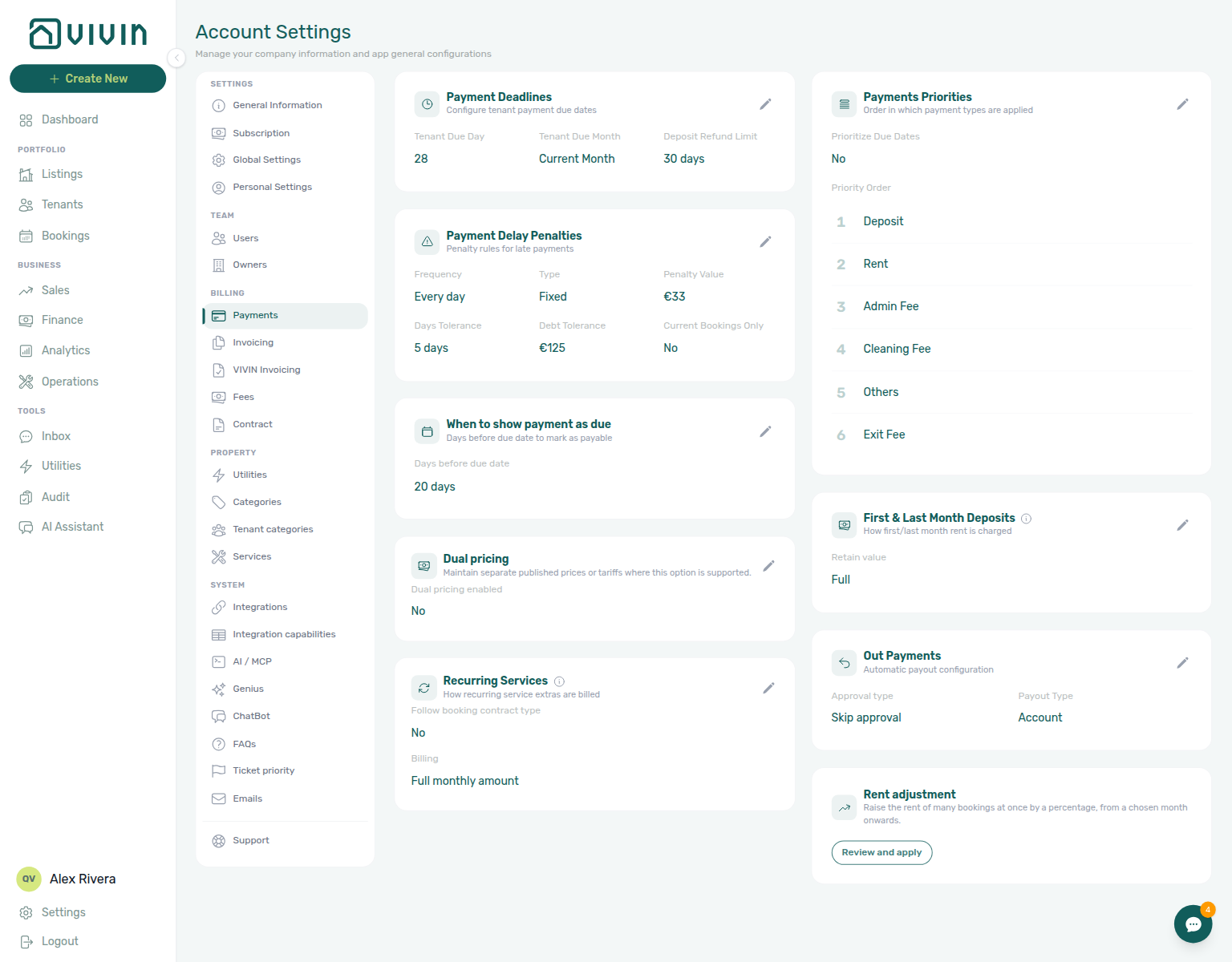
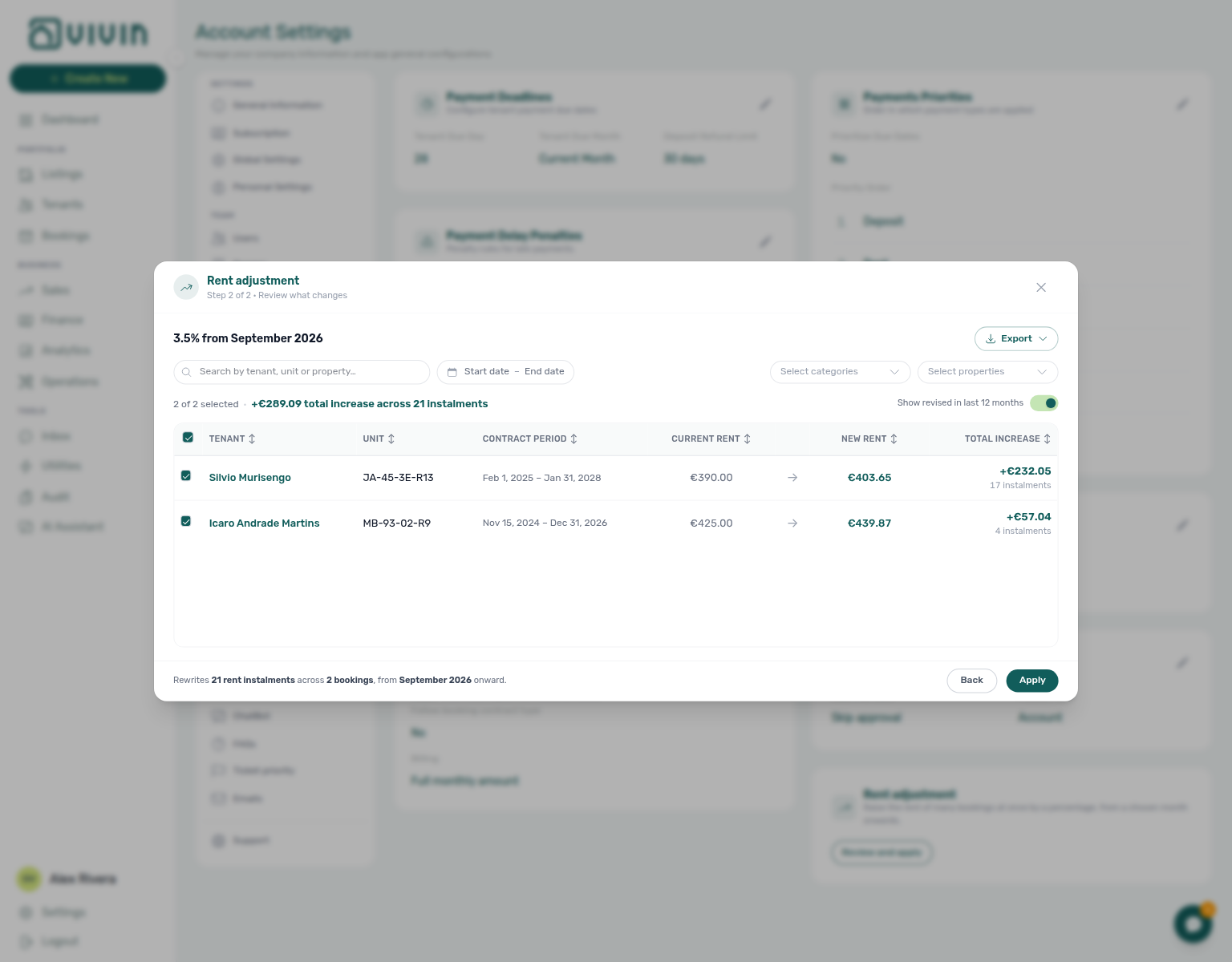
Does picking a second property close the Rent adjustment menu?
No. On Account Settings → Payments → Rent adjustment, open Review and apply, enter a percentage and month, then Preview. Open Select properties, tick the first building, then tick a second building. The menu stays open with checks on both. Tick Casa Abel II, then Casa Bolívia VIII, when you want those two houses in one preview. The table shows bookings in any of the buildings you picked. Select categories (booking tags) stays open the same way when that control is on the bar — for example tick Extra tenant, then another tag. Dismiss the menu when the chips look right, then Cancel unless you intend to raise rent. Search, Start date / End date, and Show revised in last 12 months are different controls. See Payments — Select properties / Select categories stay open.
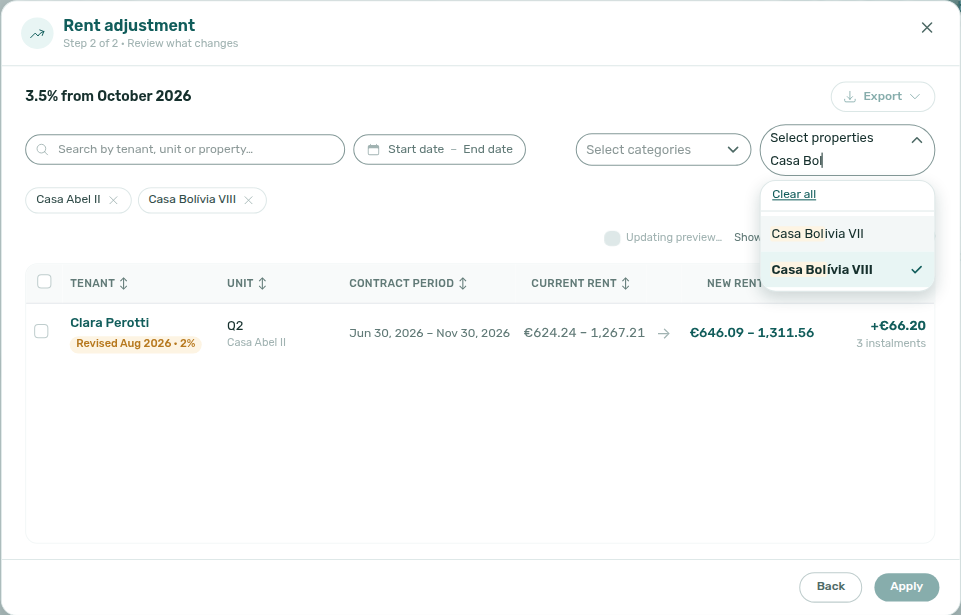
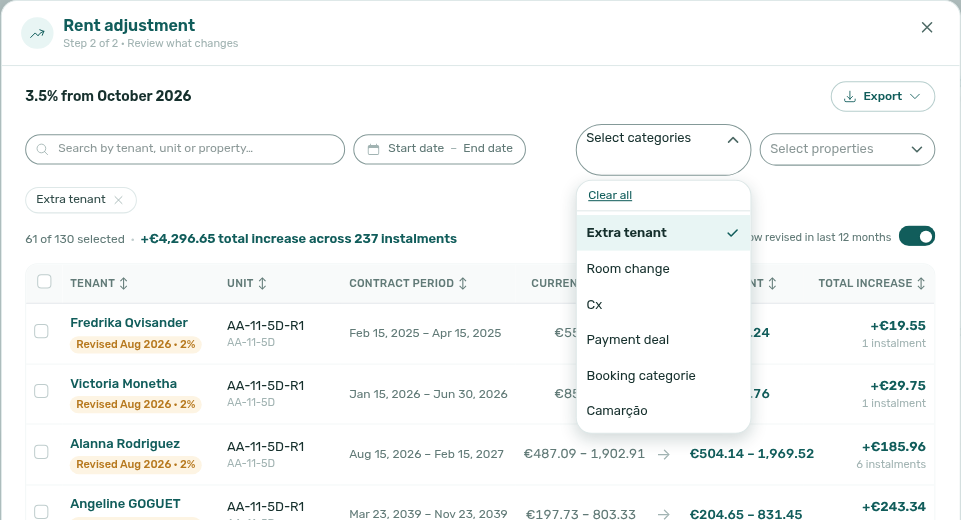
Does opening a booking from Rent adjustment close the preview?
The preview sidebar pairs with Payments — View booking details stays on the preview, How do I raise rent across many bookings at once?, Does picking a second property close the Rent adjustment menu?, Glossary — Rent adjustment (View booking details), and Does opening a booking from Total Debt close the list? (Finance Overview lists — a different surface).
No. On Account Settings → Payments → Rent adjustment, open Review and apply, enter a percentage and month, then Preview. Click the teal tenant name (English View booking details). The booking opens on top of the preview. Search, property and category chips, checkboxes, and Show revised in last 12 months stay. Close the sidebar — not the Rent adjustment X — to continue the list.
Clicking the rest of the row checks or unchecks that stay for the raise; it does not open the booking.
See Payments — View booking details stays on the preview. Distinct from Does opening a booking from Total Debt close the list?.
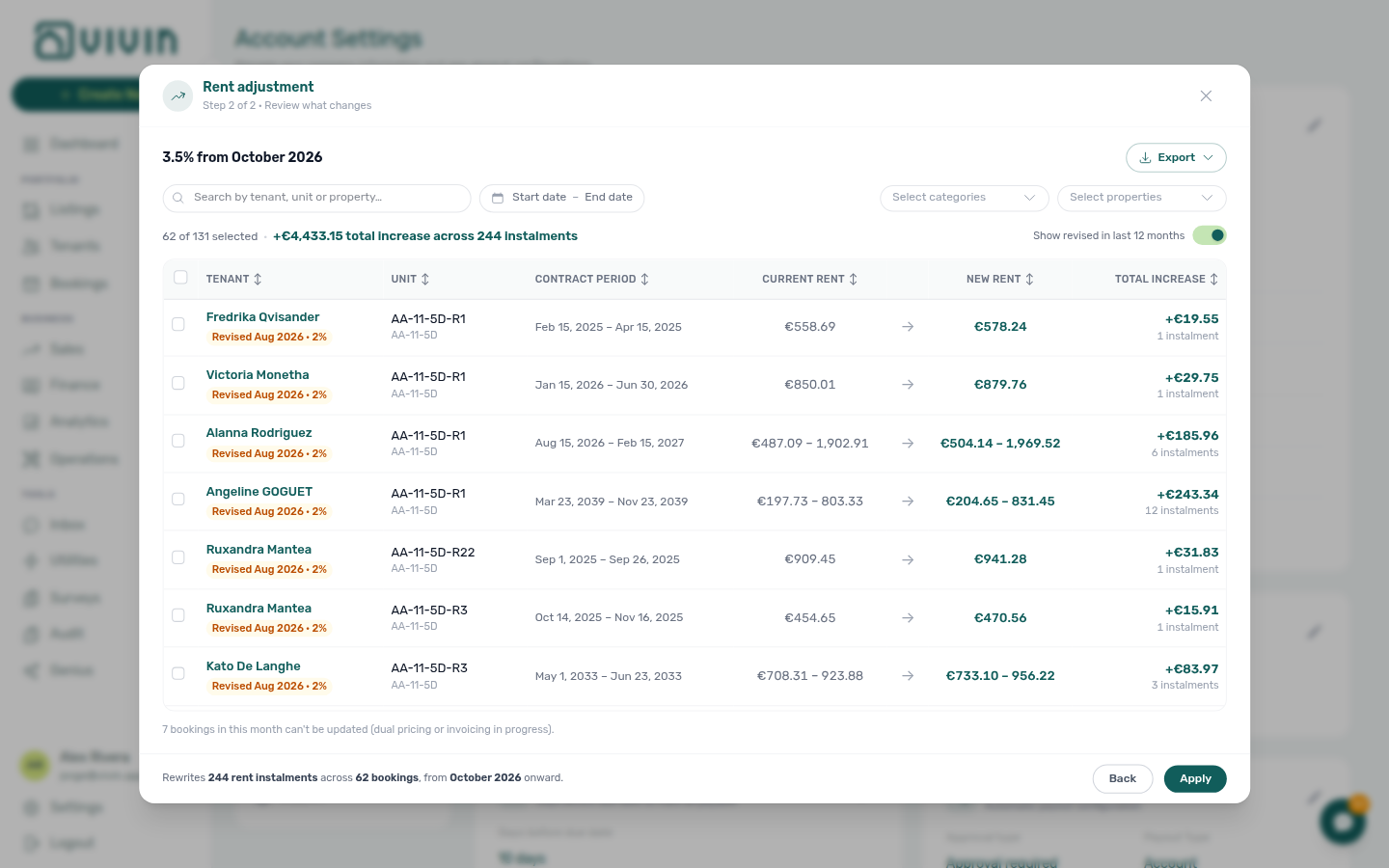
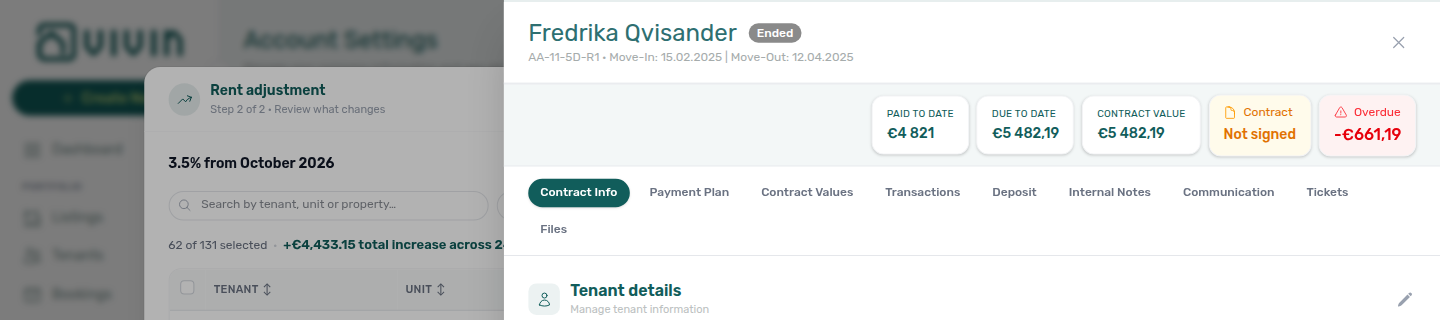
When should I use Cancel Booking vs Delete Booking?
Cancel vs Delete pairs with Common Workflows — Wrong tenant on a booking (Change tenant when profile link is wrong — not Delete), Common Workflows — Cancel Booking vs Delete Booking, Glossary — Cancel Booking vs Delete Booking hub, Common Workflows — Portfolio retirement decisions (three-way Archive vs Cancel vs Delete — listings-archived-populated-table.png), Cancelling a Booking.
Use Cancel booking when a real reservation ends or is voided under your cancellation policy — you settle balances first (Cancelling a Booking), pick a refund type in the Contract Info dialog, and the stay stays visible in Canceled filters with full Finance → Transactions history. Use Delete Booking (soft-archive) only for mistaken or test rows you want out of default Bookings lists while keeping audit rails — not as a shortcut around cancellation settlement or deposit refunds.
| Action | When to use | List visibility | Finance → Transactions after action |
|---|---|---|---|
| Cancel booking | Real stay voided; policy-driven refund | Canceled filter / status | All payment types stay visible |
| Delete Booking | Duplicate import, training row, mistaken create | Drops from default lists (soft-archive) | System Transactions (vIBAN, credit card) stay; Manual Transactions hidden; clear provider platform in-payment first |
Cancel booking opens the refund-type dialog on Contract Info → Check-in & Check-out — illustrated in Cancelling a Booking — Step 4. After confirmation, filter Bookings → Canceled to audit voided stays (bookings-list-canceled-tab.png). Delete Booking sits beside Cancel booking on the same card but soft-archives without running cancellation policy.
Delete Booking guards: clear any non-rejected provider platform in-payment first — see Why does Delete Booking fail on an integration reservation?. Clear any non-rejected credit card or Virtual IBAN system in-payment before soft-archive — see Why does Delete Booking fail with a VIVIN credit card or Virtual IBAN message?. Distinct from Archive property (building-level). Full three-way scope table: Portfolio retirement decisions. When manual or provider platform rows vanish from Finance → Transactions after soft-archive, see FAQ — Manual payments after Delete Booking (finance-transactions-type-summary-cards.png).
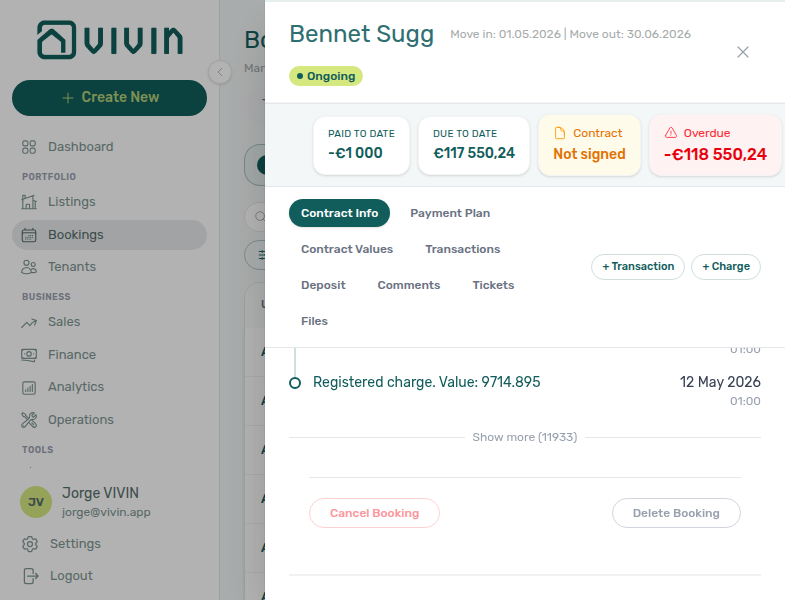
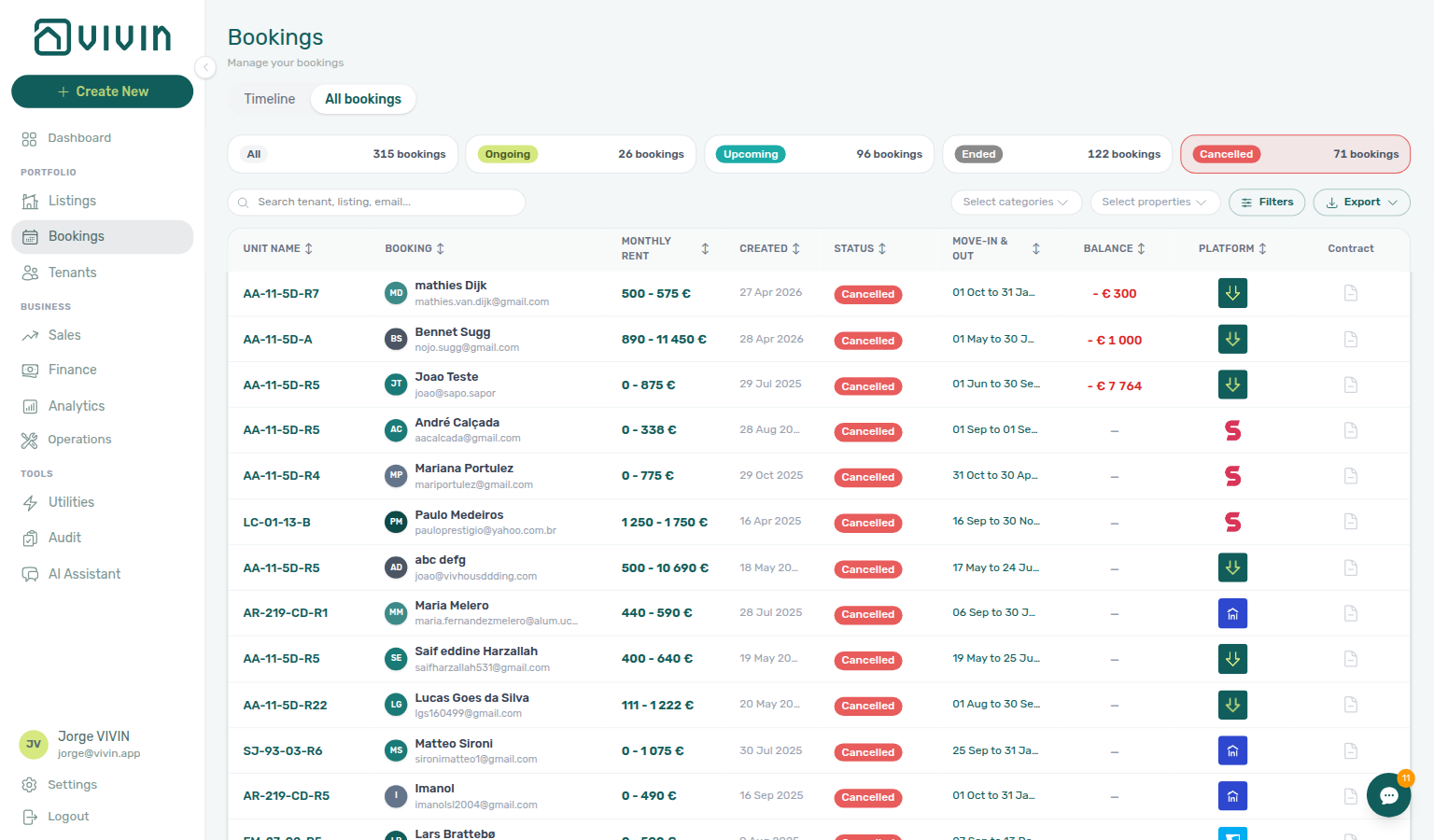

- Common Workflows — Cancel Booking vs Delete Booking — Operator habit hub
See Bookings — Delete Booking (soft archive), Finance — Archived bookings on the ledger, and Glossary — Archived booking ledger visibility.
Why did manual or provider platform payments disappear from Finance → Transactions after Delete Booking?
Archived-ledger visibility pairs with FAQ — Cancel Booking vs Delete Booking, FAQ — Portfolio retirement decisions, FAQ — Delete Booking on integration reservation (provider platform guard), Glossary — Archived booking ledger visibility hub, Glossary — Archived booking ledger visibility.
Delete Booking soft-archives the reservation. On Finance → Transactions, Vivin hides manual ledger types tied to archived bookings — transfer, cash, deposit refund, provider platform, and similar operator-recorded rows under Manual Transactions — so test or mistaken stays do not clutter the portfolio ledger. vIBAN and credit card automated captures under System Transactions stay visible for bank/card reconciliation. Canceled bookings that are not archived keep every payment type visible. Ledger rows with no booking link (platform-level movements) are never hidden by this gate.
This is expected behaviour, not a sync bug — use FAQ — Cancel Booking vs Delete Booking when you need full Transactions history for a real voided stay. Month-end: if totals look short after cleaning up training rows, confirm you did not Delete Booking on reservations that still had manual receipts you need in exports — Portfolio KPI review — Step 7.
See Finance — Archived bookings on the ledger, Glossary — Archived booking ledger visibility hub, Glossary — Archived booking ledger visibility, and Bookings — Delete Booking (soft archive).
- Common Workflows — Archived booking ledger visibility — Operator habit hub
What does Finance Overview “Income status” show, and how do I open the debt list?
Income status pairs with FAQ — Why does the same tenant appear under both Paid and Scheduled on Income? (partly collected charges split across segments), FAQ — Bookings that owe money (Top debtors / overdue buckets — not the payment-line modal alone), FAQ — Dashboard Total Debt subtitle (ongoing bookings on / vs Finance all-booking KPIs), FAQ — Uncovered Debt KPI, Finance Income status drill-down hub (segment vs Debt Aging symptom table), Glossary — Finance income status.
On Finance > Overview, the stacked Income chart breaks each month into Paid (dark teal), Scheduled (light teal), and In debt (red). Click a bar segment (or a row in its hover tooltip) to open a payment-line modal scoped to that month and status — tenant · unit rows with lifecycle chips, not a ranked debtor list. The modal shows Loading items… while Vivin gathers every matching line on demand (not infinite scroll); Export (CSV / Excel) unlocks after the list finishes — Finance — Income status on-demand loading.
| Surface | Scope | Opens |
|---|---|---|
| Income → In debt segment | One calendar month + status | Payment-line modal (finance-overview-income-status-in-debt-modal.png) |
| Debt Aging panel | Booking-level receivables | Top debtors, or overdue bucket → Debt Aging modal (Overdue since) then row → booking sidebar (finance-overview-debt-aging-expanded-bucket.png) |
| Total Debt KPI (Finance strip) | All-booking underpayment headline | Clickable debt list + Booking status (finance-overview-debt-booking-status-ended.png) |
| Uncovered Debt KPI | Debt not offset by deposits | Same list scoped to uncovered rows + Booking status |
| Dashboard Total Debt card | Ongoing bookings only | Headline + >15 days subtitle — not clickable (dashboard-kpi-total-debt-tooltip.png) |
For booking-level receivables (who owes, and which charges are late), use the Debt Aging panel on the right: click an overdue bucket to open the band modal (Overdue since + band amount), or pick Top debtors, then click a row to open the booking sidebar. Click Total Debt or Uncovered Debt for the full booking list and use Booking status when you need lifecycle slices (for example only Ended arrears) — Finance — Total Debt / Uncovered Debt drill-down. Pair with FAQ — Bookings that owe money when you need tenant · unit rows instead of payment lines. Collections workflow: Handling a Late Payment — Step 1. Month-end reconciliation: Portfolio KPI review — Step 7. See Finance > Income status drill-down and Debt Aging.
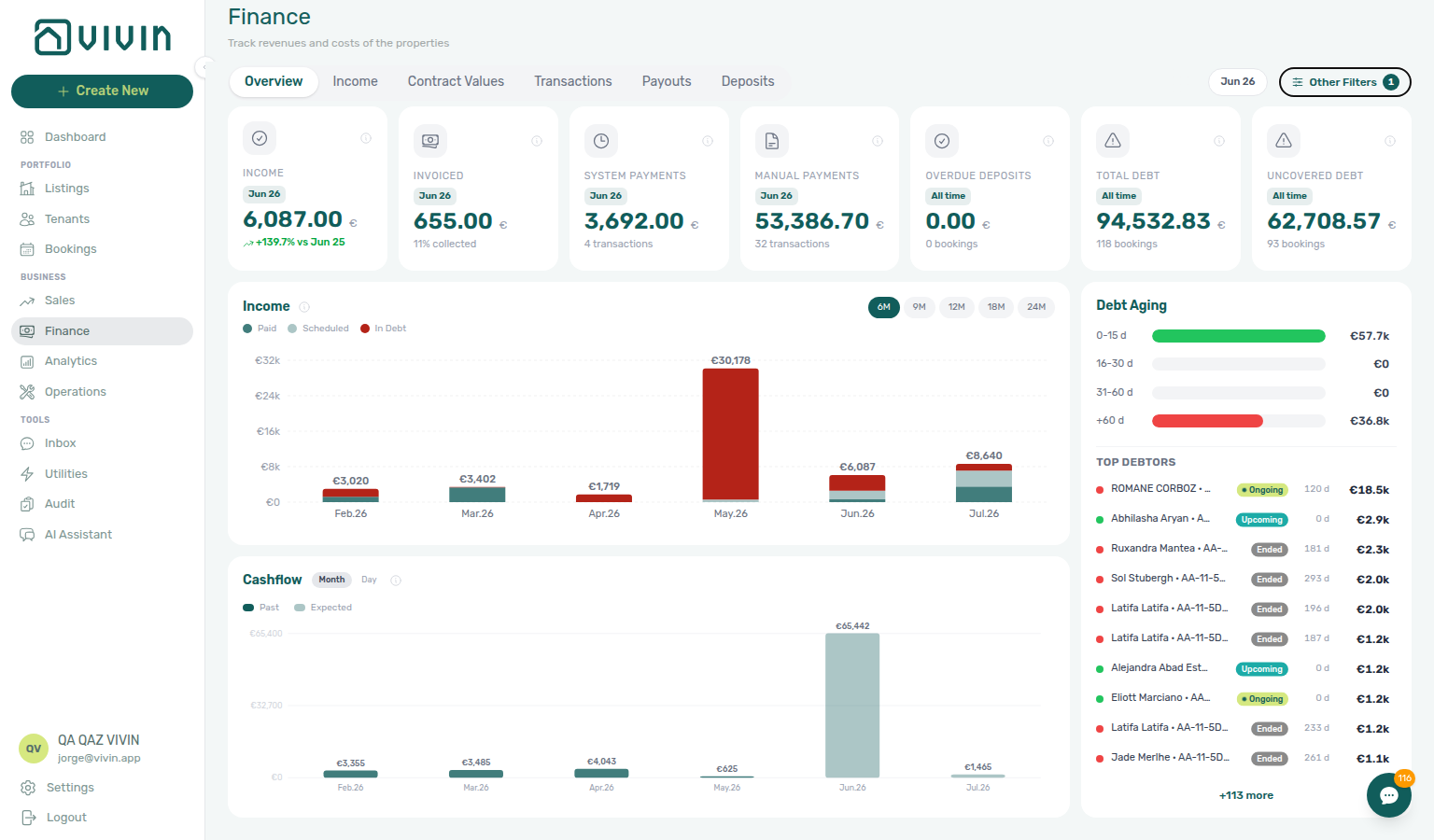
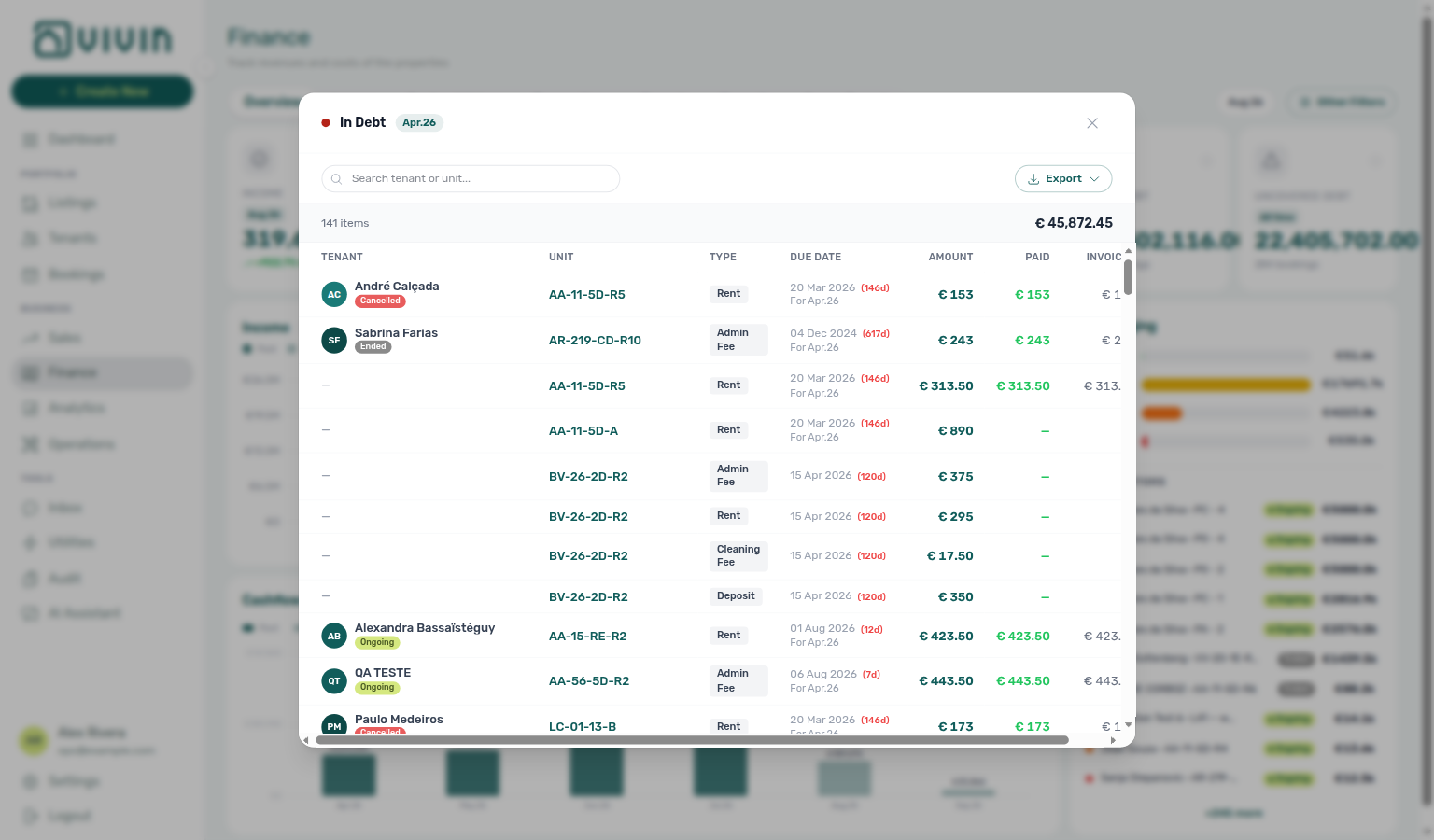
- Common Workflows — Finance Income status drill-down — Operator habit hub
Why does the same tenant appear under both Paid and Scheduled on Income?
The split pairs with Finance — Partial payments across Paid, Scheduled, and In debt, FAQ — Finance Income status drill-down (how to open a segment), and Glossary — Income partial split.
That is expected when the charge is only partly collected. Click Paid and Scheduled (or In debt once the remainder is overdue) on the stacked Income chart. Each modal lists the same tenant · unit · type for a different slice:
- Paid — Amount is the euros already collected.
- Scheduled — Amount is the euros still expected, not yet due.
- In debt — Amount is the euros still owed after the due date.
The Paid column on the row still shows the full collected figure. The header total € matches the coloured segment you clicked — it does not add the two slices together in one list. A fully settled charge appears only under Paid.
Cash flow forecast lists collected cash once on the day it arrived; it does not split a charge across Paid and Scheduled.
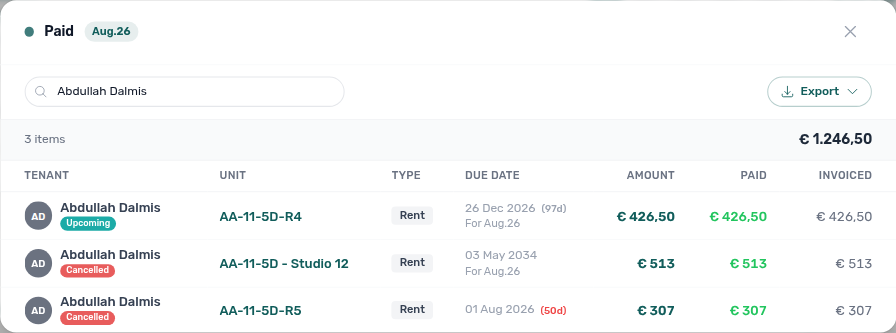
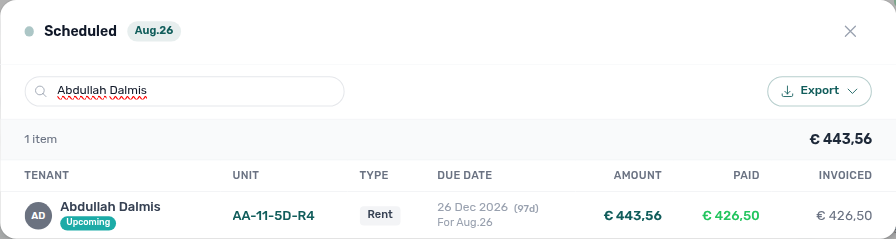
See Finance — Partial payments across Paid, Scheduled, and In debt and Glossary — Income partial split.
What does Finance Overview “Cash flow forecast” show, and how do I open the All payments modal?
Cash flow forecast (Finance Overview) pairs with FAQ — Finance Income status drill-down (Income chart groups by reference month; Cash flow groups by money-move dates), Cash flow forecast drill-down hub (hybrid Past/Expected vs Income symptom table), FAQ — Dashboard Total Debt subtitle (ongoing bookings on / vs Finance KPIs), Glossary — Cash flow forecast (Finance Overview), Glossary — Cash Flow Forecast (Dashboard).
On Finance > Overview, the Cash flow forecast chart (below the stacked Income chart) is hybrid: past bars show cash actually collected (same figures as Transactions, by collection day); today and future bars show uncollected rent still expected, grouped by due date. An early-paid charge appears once on its collection day — not again on the due date — so a fully settled future month correctly reads € 0. Toggle Month vs Day on the chart header. Click a bar to open an All payments drill-down listing exactly the lines that make up that bar (modal total equals the bar).
| Surface | Scope | Opens |
|---|---|---|
| Cash flow forecast bar | One calendar month or day | All payments modal (finance-overview-cash-flow-all-payments-modal.png) |
| Income → Paid segment | One month + status (reference month) | Payment-line modal — FAQ — Finance Income status drill-down |
| Dashboard Cash Flow Forecast | Same hybrid Past / Expected series on / | Timing chart (dashboard-cash-flow-forecast-chart.png) |
| Operations → Cash Flows | Non-booking expenses | Operator-recorded lines — not Overview cash timing |
This is cash timing on Finance (collections behind, expected rent ahead) — the same series as the Dashboard chart (Dashboard > Cash Flow Forecast), and distinct from the stacked Income chart which groups by the month a charge refers to (FAQ — Finance Income status drill-down). Month-end reconciliation: Portfolio KPI review — Step 7.
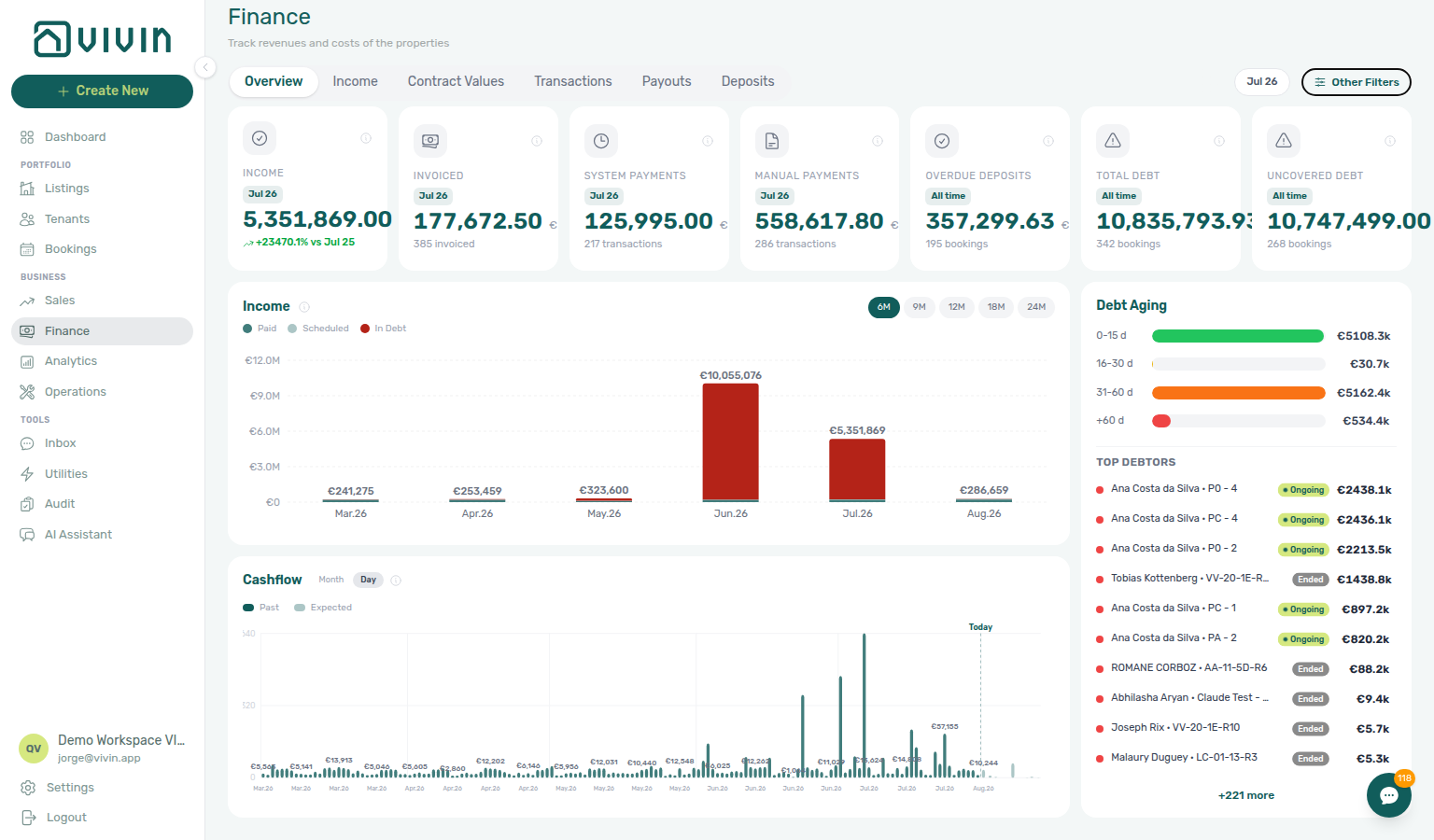
- Common Workflows — Cash flow forecast drill-down — Operator habit hub
How do I triage a payment overdue alert before opening Finance Debt Aging?
Payment overdue alerts on /notifications pair with Payment alert to receivables triage hub (symptom table + per-guide mesh), FAQ — Notification row-click navigation (row-click opens the related booking), FAQ — Confirmation alert triage (contrast Upcoming vs Ongoing/Ended alerts), FAQ — Pending manual in-payment on /notifications (Approve before Debt Aging), FAQ — Bookings that owe money.
On /notifications, row-click a Payments alert before you bulk Mark all as read — Notification triage — Step 4 opens the booking behind the ping so you confirm balance on Payment Plan or Transactions first. Only after single-booking triage (and clearing amber Pending receipts) open Finance → Overview → Debt Aging for ranked Top debtors — hub: Common Workflows — Finance debt receivables triage.
Alert text on /notifications | Step 4 row-click target | Before Debt Aging |
|---|---|---|
| Payment overdue | Payment Plan on opened booking | Confirm arrears — then Handling a Late Payment — Step 1 or Top debtors |
| Pending manual in-payment | Transactions → Approve | Not Debt Aging until queue clears — Pending manual receipt approval |
| Payment received from tenant … | Transactions — confirm ledger | Approve if still pending — then Step 5 |
Contrast Upcoming confirmation-week alerts (Booking created, Payment received on imports) with Ongoing/Ended payment overdue — FAQ — Confirmation alert triage and hub: Common Workflows — Confirmation alert triage. When Total Debt stays high after row-click, check amber Pending on Finance → Transactions and duplicate approved transfers (Reject/revert mistaken receipts) before you escalate collections on phantom debt.
- Common Workflows — Payment alert to receivables triage — Operator habit hub
How do I triage an Upcoming confirmation alert before marking notifications read?
Upcoming confirmation-week alerts on /notifications pair with FAQ — Notification row-click navigation (row-click opens the related booking), FAQ — Payment alert to receivables triage (contrast Upcoming vs Ongoing/Ended payment overdue), Confirmation alert triage hub (Booking created / Payment received symptom table), FAQ — Pending manual in-payment on /notifications (Approve before bulk mark-read), Common Workflows — Confirmation alert triage.
On /notifications, row-click each Upcoming Booking created or Payment received alert before you bulk Mark all as read — Notification triage — Step 4 opens the Upcoming booking behind the ping so you finish confirmation gates on Transactions or Contract Info first. Only after Processing a New Booking — Step 5b / Step 6 (and Step 5) clear unread — hub: Common Workflows — Confirmation alert triage.
Alert text on /notifications | Step 4 row-click target | Before bulk mark-read |
|---|---|---|
| Booking created / new reservation | Contract Info / status tabs on opened booking | Step 6 portal sanity — not Managing a Check-in — Step 1 until ~7 days out |
| Payment received from tenant … | Transactions → Approve | Step 5b when receipt stays pending |
| Pending manual in-payment | Transactions → Approve | Pending manual receipt approval — not Debt Aging |
| Payment overdue on Upcoming stay | Payment Plan on opened booking | Handling a Late Payment — Step 1 — contrast Upcoming vs Ongoing on Payment alert to receivables triage |
Contrast Upcoming confirmation-week alerts with Ongoing/Ended payment overdue — route receivables alerts via FAQ — Payment alert to receivables triage before Finance → Overview → Debt Aging. When Payment Plan still shows unpaid after a Payment received alert, the transfer is usually still pending — finish Step 5b before Step 5. Month-end lingering Pending on imports: Step 6b during Portfolio KPI review — Step 7.
- Common Workflows — Confirmation alert triage — Operator habit hub
How do I see which bookings owe money right now?
Booking-level receivables pair with FAQ — Finance Income status drill-down (In debt segment opens payment-line detail, not booking rows), FAQ — Dashboard Total Debt subtitle (ongoing bookings only on /), FAQ — Uncovered Debt KPI, Glossary — Finance Debt Aging, Finance — Debt Aging panel.
Open Finance > Overview and use the Debt Aging panel: click an overdue bucket to open the band modal (tenant · unit, Overdue since, band amount), or pick a row under Top debtors. Click a bucket-list row to open the booking on top of that list so you can return to the same band (Finance — Booking sidebar stays on the drill-down). Top debtors on the Overview panel is not a modal — that ranked list still opens the booking beside the page.
Each overdue charge is aged by its own due date. A booking with both a recent missed rent and an older arrear can appear in more than one band — each modal shows only that band’s slice, not the booking’s full debt. Bucket counts are distinct bookings per band (not additive across bands); bucket amounts are.
When arrears cluster on one tenant category (corporate, short-stay, or Unassigned), open Other filters → Tenant category on Finance → Overview or Contract Values before you rank Top debtors — mirror the same segment on Bookings and Tenants when the Finance drawer omits it (FAQ — Finance tenant category filter parity, Common Workflows — Portfolio segmentation by tenant category).
Click Total Debt or Uncovered Debt for the full booking list, then use Booking status to isolate Ongoing, Ended, Upcoming, or Cancelled rows — Finance — Total Debt / Uncovered Debt drill-down (finance-overview-debt-booking-status-ended.png). To slice by booking tag or tenant segment without changing Overview KPIs, use Booking category and Tenant category on that same list — FAQ — Can I filter Total Debt by category without closing the list?. For age bands, triage from Debt Aging or the In debt segment on the Income chart (FAQ — Finance Income status drill-down). When Uncovered Debt sits close to Total Debt, prioritize Top debtors rows with thin deposit coverage — FAQ — Uncovered Debt KPI. Collections follow-through: Handling a Late Payment — Step 1. After a payment alert on /notifications, continue from Notification triage — Step 4. See Finance > Debt Aging panel and Glossary — Finance Debt Aging.
- Common Workflows — Finance debt receivables triage — Operator habit hub
Does opening a booking from Total Debt close the list?
No. Click a row on Total Debt, Uncovered Debt, a Debt Aging bucket list, Overdue Deposits, System Payments, Manual Payments, or an Income / Cash flow payment list. The booking sidebar opens on top of that list. Search, Booking status, and (on Total Debt / Uncovered Debt / Debt Aging lists) Booking category and Tenant category stay as you left them. Close the sidebar to continue the queue. Top debtors on the Overview panel is a different control — that list is not a modal. See Finance — Booking sidebar stays on the drill-down and FAQ — Bookings that owe money.
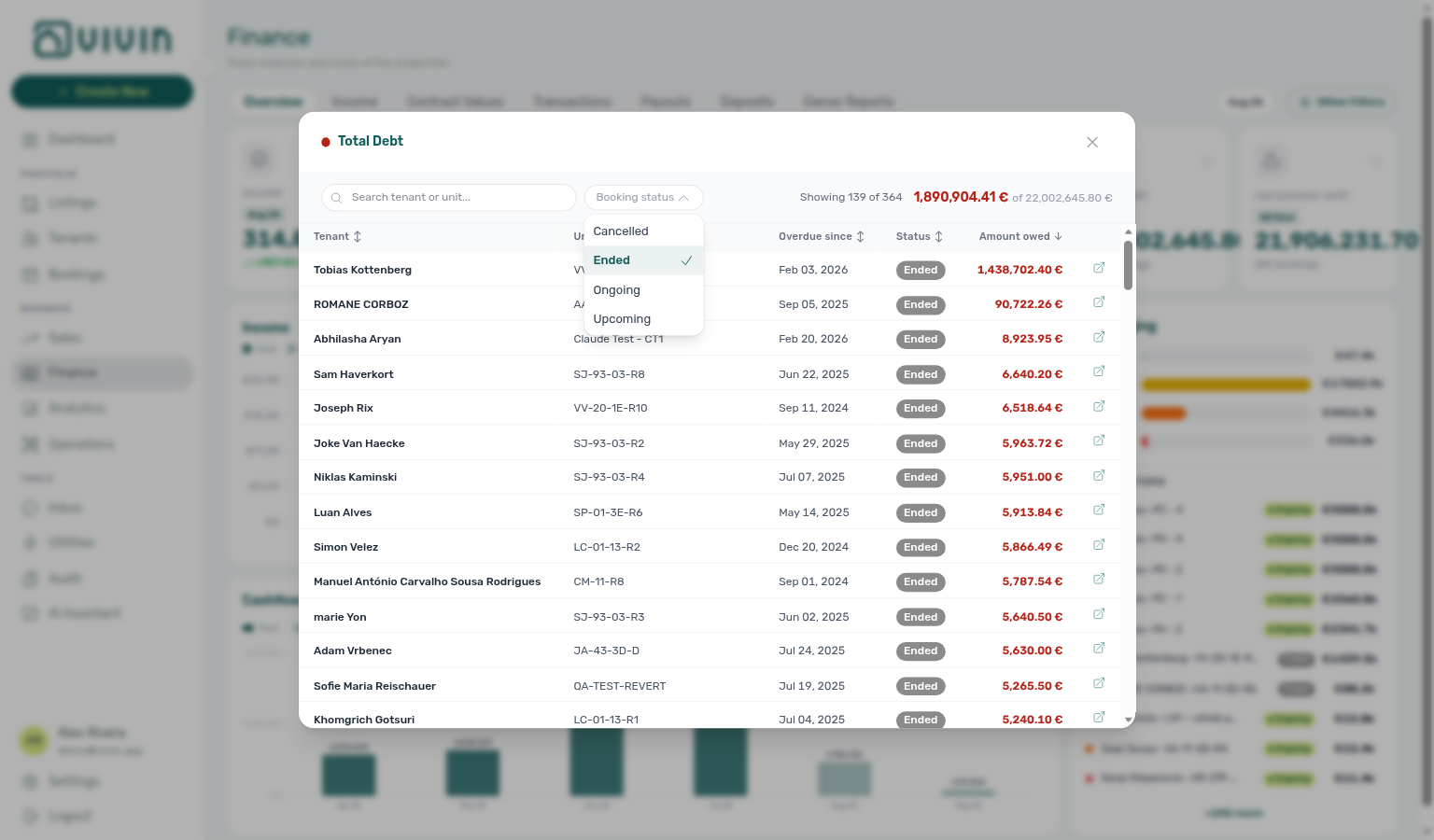
Can I filter Total Debt by category without closing the list?
Yes. On Total Debt, Uncovered Debt, or a Debt Aging bucket list, use Booking category and Tenant category beside search. They slice the open rows — Overview KPI cards stay as they were. Tick a named tag or segment, then No category / No tenant category if you also want unassigned stays. Each menu stays open while you add another choice. Showing N of M and the filtered € total sit on the grey summary bar beside the card total; chips appear there, and the pickers on the white bar keep their placeholders. Clear all resets search, Booking status, and both category pickers.
This is not Other filters → Tenant category or Booking → Select categories — those rebuild Overview. Overdue Deposits, System Payments, Manual Payments, and Income lists do not have these pickers.
See Finance — Filter the debt list by category, Finance — Filter toolbar stays two bars, and FAQ — Does opening a booking from Total Debt close the list?.
Where do I see which Total Debt filters are on?
On the grey summary bar, not inside the picker labels. Search tenant or unit…, Booking status, Booking category, and Tenant category stay on the white bar and keep their placeholders after you tick a choice. Chips, Clear all, Showing N of M, and the filtered € total sit on the grey bar below. Click a chip × to drop one filter; Clear all resets every control.
When the list shortens, the table keeps enough height that an open menu stays on its trigger — tick a second Booking status or category without hunting for a floating list.
This two-bar split is only on Total Debt, Uncovered Debt, and Debt Aging bucket lists. See Finance — Filter toolbar stays two bars and FAQ — Can I filter Total Debt by category without closing the list?.
Why does the same booking appear in more than one Debt Aging band?
Per-receivable aging pairs with FAQ — Bookings that owe money, Finance — Debt Aging panel, Glossary — Finance Debt Aging, and Common Workflows — Finance debt receivables triage.
Debt Aging ages each overdue charge by its own due date — not by a single “next payment” or booking-level proxy. If one booking still owes last month’s rent (31–60 d) and this month’s rent (0–15 d), that booking is listed in both bands. Opening each band’s modal shows only that band’s amount and Overdue since (the oldest unpaid due date in that b.
Bucket counts count distinct bookings per band, so adding the four counts usually over-counts multi-band bookings. Bucket amounts do add up to portfolio overdue debt.
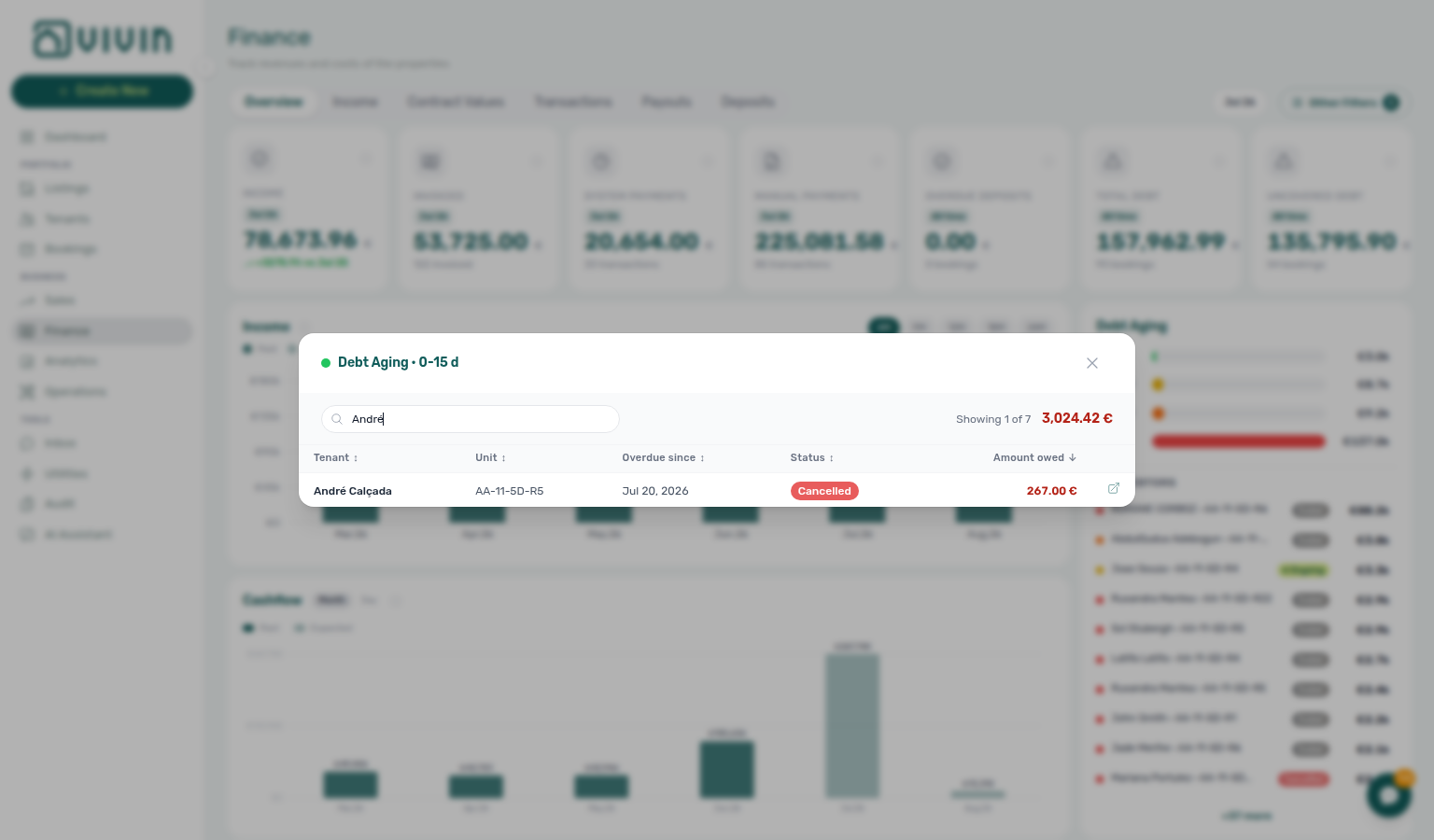
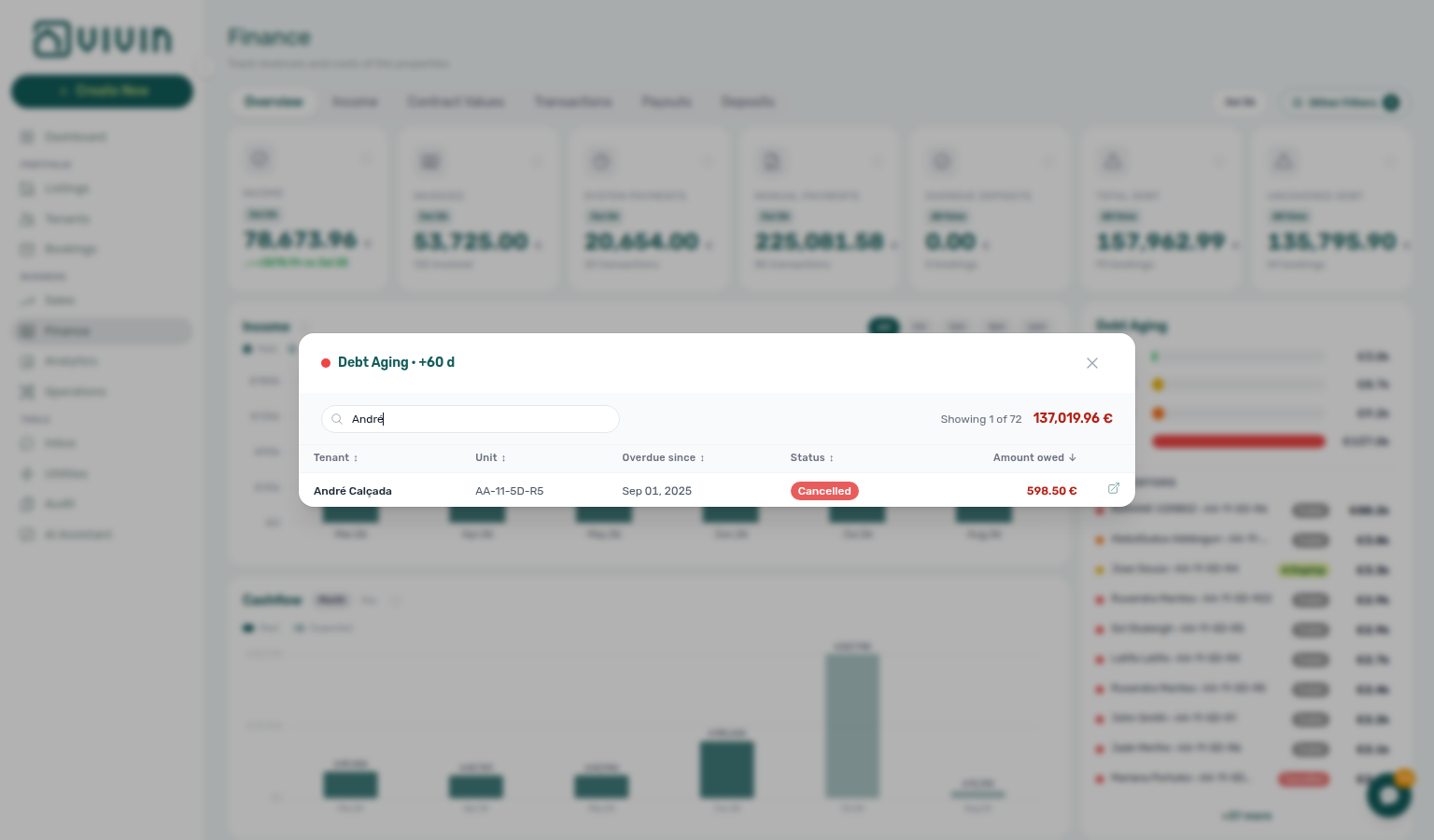
What does Dashboard Total Debt subtitle mean?
Dashboard Total Debt pairs with FAQ — Bookings that owe money (Top debtors on Finance when the card is not enough), FAQ — Finance Income status drill-down, FAQ — Uncovered Debt KPI, Glossary — Dashboard KPI cards, Common Workflows — Finance debt receivables triage.
On the post-login Dashboard, the Total Debt card headline sums tenant underpayment on ongoing bookings only — the same live-stay notion Finance uses for collections triage. The subtitle below it shows how much of that ongoing debt sits on bookings older than 15 days; it is not a second copy of the headline. Hover the card info icon for the in-app definition of ongoing bookings and overdue debt.
The card does not open a booking list — use FAQ — Bookings that owe money (Debt Aging / Top debtors on Finance) when you need tenant · unit rows. For all-booking receivables, Uncovered Debt, and Manual Payments, open Finance > Overview instead (finance-overview-kpi-cards.png). Month-end reconciliation habit: Portfolio KPI review — Dashboard Total Debt subtitle. See Common Workflows — Finance debt receivables triage.
What is Uncovered Debt on Finance Overview?
Uncovered Debt pairs with FAQ — Uncovered Debt KPI hub, FAQ — Bookings that owe money (Top debtors when deposit coverage is thin), FAQ — Dashboard Total Debt subtitle, FAQ — Finance Income status drill-down, Glossary — Uncovered Debt.
Uncovered Debt is the part of portfolio Total Debt that is not offset by security deposits you still hold. A high Total Debt with a similar Uncovered Debt figure often means collections risk is not cushioned by deposit balances — prioritize those bookings in Debt Aging or Contract Values → In Debt (FAQ — Bookings that owe money, Finance — Debt Aging panel).
The Dashboard Total Debt card covers ongoing bookings only and does not show Uncovered Debt — open Finance → Overview for the seven-card strip (finance-overview-kpi-cards.png). See Glossary — Uncovered Debt, Glossary — Uncovered Debt hub, Common Workflows — Uncovered Debt KPI, Common Workflows — Finance debt receivables triage, Handling a Late Payment — Step 1, FAQ — Dashboard Total Debt subtitle, and Finance > KPI strip.
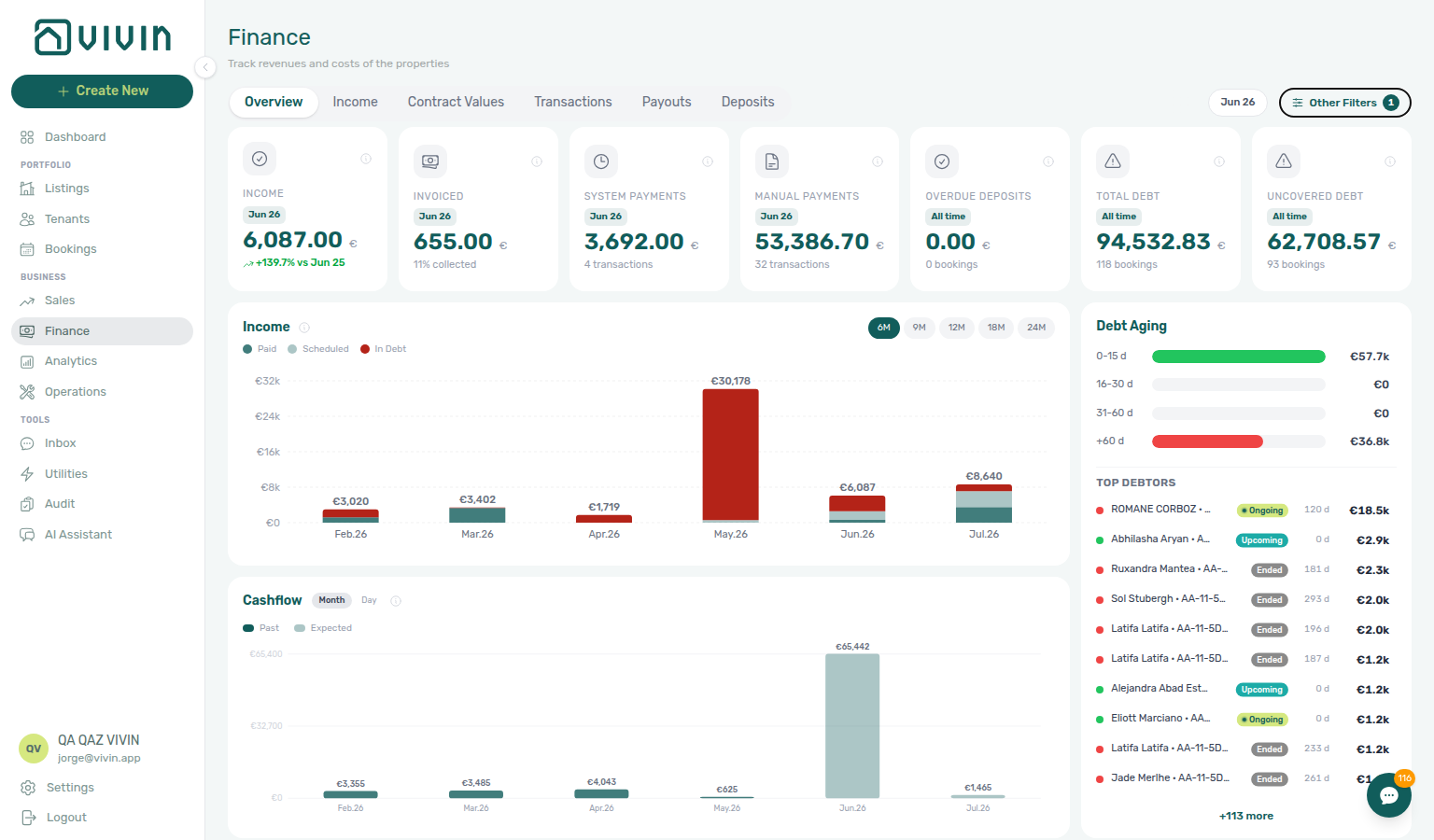
How do I open overdue security deposits from Finance Overview?
Click Overdue Deposits on the Finance → Overview KPI strip when the count is non-zero. The modal lists deposits past Refund Due Date that are not yet marked refunded — all time, respecting active Other filters, not the month picker. Rows load on demand from the same filtered SQL the card aggregates, so the footer foots to the KPI and a normal Overview visit does not download the overdue list up front.
| Looking for… | Use |
|---|---|
| Portfolio overdue refund queue | Overdue Deposits KPI → drill-down (finance-overview-overdue-deposits-drilldown-modal.png) |
| Day-to-day refund / dispute actions | Finance → Deposits Timeline Overdue / lifecycle Ready to refund |
| One booking’s deposit settlement | Booking Deposit tab — Managing a Check-out — Step 5 |
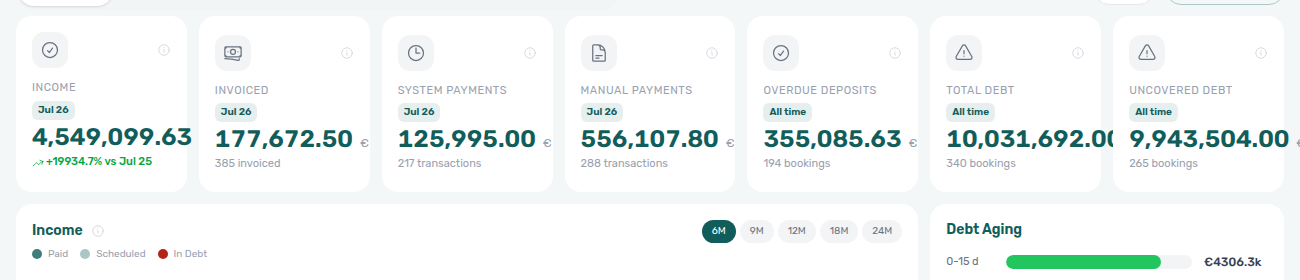
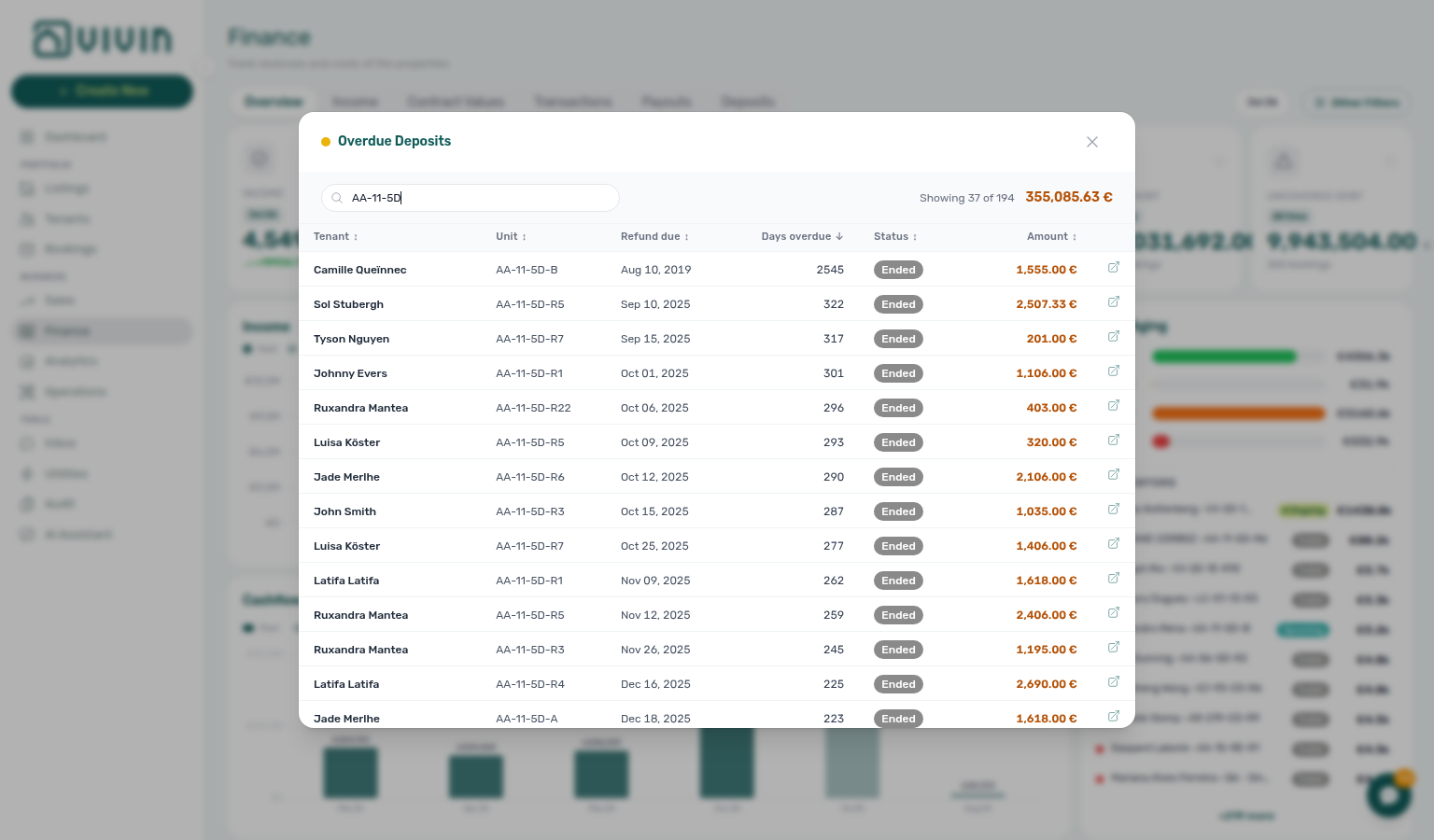
See Finance — Overdue Deposits drill-down, Finance — Booking sidebar stays on the drill-down, and Finance — Deposits Tab.
Uncovered Debt KPI
Deposit-coverage questions pair with Finance debt receivables triage hub (Top debtors after KPI strip compare), Pending manual receipt approval hub (Total Debt / Uncovered Debt lag until Approve), Partly collected security deposit hub (booking Deposit shortfall vs portfolio KPI), Payments & Finance, and Portfolio KPI review — Step 7.
| Symptom | Fix |
|---|---|
| Uncovered Debt ≈ Total Debt | Thin deposit offsets — prioritize Debt Aging Top debtors (finance-overview-debt-aging-expanded-bucket.png) |
| Looking for Uncovered Debt on Dashboard | Open Finance → Overview seven-card strip — finance-overview-kpi-cards.png |
| Total Debt unchanged after Add Payment | Approve Pending rows first — Pending manual receipt approval hub |
| Month-end debt looks low but notifications persist | Compare Uncovered Debt on Finance strip — not Dashboard ongoing card — Portfolio KPI review — Step 7 |
| Need ranked debtors after thin-coverage read | Finance debt receivables triage hub — Top debtors after KPI compare |
-
FAQ — What is Uncovered Debt on Finance Overview? — Short answer + per-guide mesh
-
Glossary — Uncovered Debt hub — Surface table + module mesh reciprocal hub
-
Common Workflows — Uncovered Debt KPI — Hub matrix (
finance-overview-kpi-cards.png,finance-overview-debt-aging-expanded-bucket.png,dashboard-kpi-total-debt-tooltip.png,finance-uncovered-debt-kpi-triage-flow.mp4) -
Common Workflows — Finance debt receivables triage — Four-surface habit after KPI strip compare
-
FAQ — Dashboard Total Debt subtitle — Ongoing bookings on
/vs Finance all-booking KPIs -
FAQ — Bookings that owe money — Top debtors when deposit coverage is thin
-
Handling a Late Payment — Step 1 — Collections follow-through after thin-coverage triage
-
Portfolio KPI review — Uncovered Debt KPI — Month-end Step 7 strip compare
-
Finance — KPI strip — Total Debt vs Uncovered Debt canonical surface
-
Dashboard — KPI cards — Total Debt headline does not show Uncovered Debt
-
Bookings — Deposit tab — Deposit tab on opened booking
-
Tenants — Finance debt receivables triage — With Debt cross-check
-
Common Workflows — Uncovered Debt KPI — Operator habit hub
Why doesn't Finance → Other filters list every tenant category?
Finance drawer parity pairs with Common Workflows — Portfolio segmentation by tenant category, FAQ — Assign tenant category for direct booking, Glossary — Tenant category, Glossary — Finance tenant category cache refresh ( recategorization refresh), Finance — Tenant category filter.
| Symptom | Likely cause | Fix |
|---|---|---|
| Segment defined in Settings but missing on Finance | Stale browser session or permissions | Refresh the page; confirm the segment still exists under Settings → Tenant categories — Finance loads the full catalog via GET /tenant-categories |
| Filter results stale on ledger tabs after Tenant Info | Tab still showing a pre-save payload | Reload Contract Values / Deposits / Income — live month-scoped reads; see Finance tenant category cache refresh |
| Overview still shows the old segment after recategorize | Overview computed cache (~10 min) | Wait up to ~10 minutes or revisit later — Finance tenant category cache refresh |
| Segment missing on Bookings toolbar but present on Finance | Bookings uses portfolio filter catalog | Mirror on Tenants or check Bookings — Other filters catalog source |
| Month-end debt skewed to one segment | Mixed portfolio in default Finance views | Finance → Other filters → Tenant category + Finance debt receivables triage — Portfolio KPI review — Step 6 |
| Overview drill-down list looks wider than the filtered KPIs | Stale Overview cache or filters cleared | Confirm Other Filters still shows an active count, wait for Overview refresh (~10 min after recategorize), then reopen the modal — Overview drill-downs honour Tenant category |
Finance → Other filters → Tenant category lists every segment defined under Settings → Tenant categories (GET /tenant-categories) — not only segments already present on booking rows. If a segment you created in Settings does not appear, refresh the drawer or confirm the segment was saved. Bookings → Tenant categories lists segments from the account catalog on the toolbar; when Bookings and Finance disagree, check that the segment exists in Settings first. See Finance — Tenant category filter.
After you recategorize a tenant on Tenants → Tenant Info, Vivin updates booking.tenantCategoryId on linked reservations immediately. Contract Values, Income, Transactions, Deposits, and Payouts use the live month-scoped payments path — reload the tab and filter results match right away. Overview can lag up to about ten minutes (computed cache cron / read miss). That updates which rows match the filter; it does not change the drawer vocabulary (already account-wide). See Glossary — Finance tenant category cache refresh.
- Common Workflows — Portfolio segmentation by tenant category — Operator habit hub
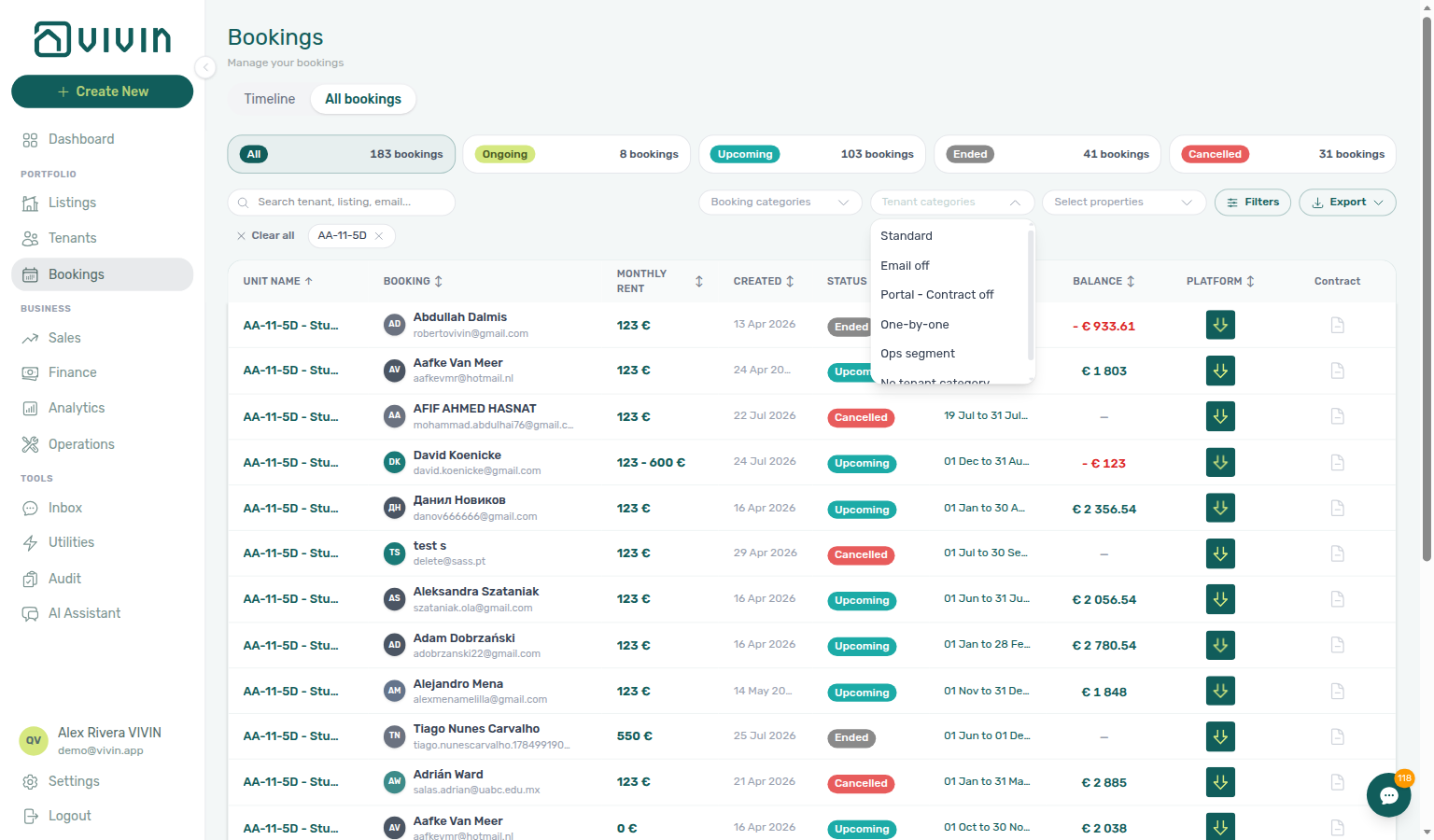
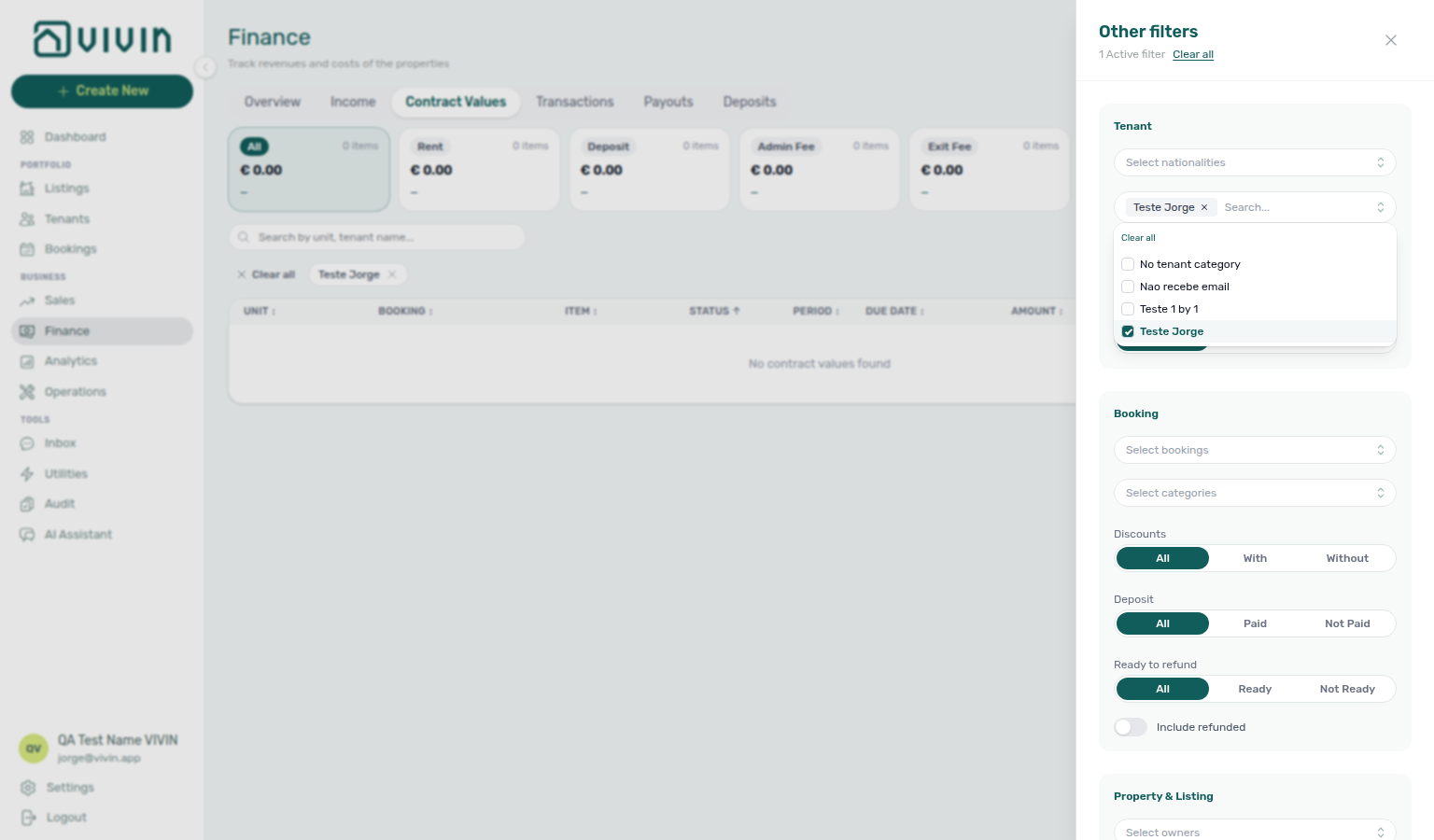
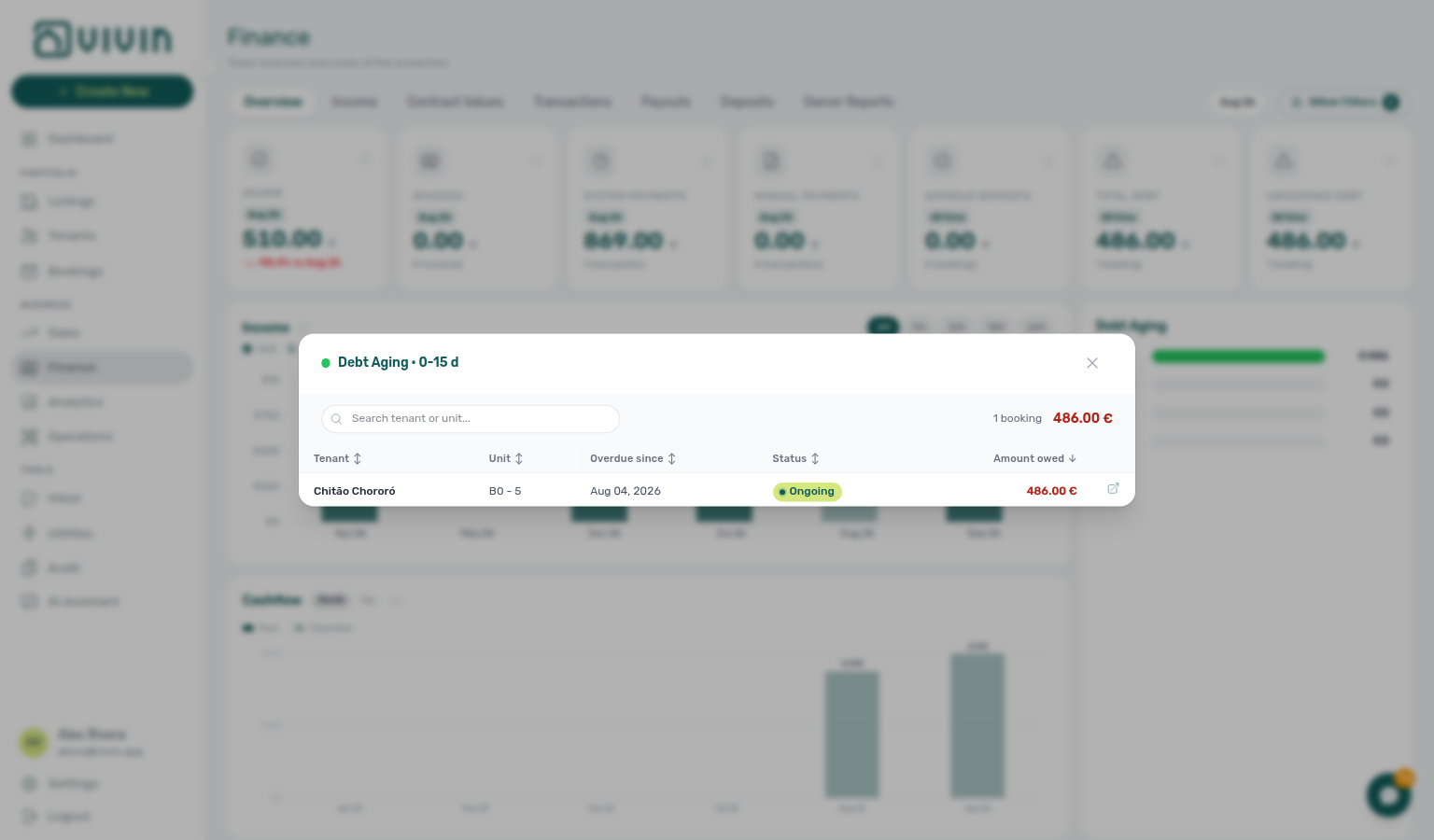
Why doesn't WhatsApp Genius recognize my number?
| Symptom | Likely cause | Fix |
|---|---|---|
| Genius ignores messages from a staff phone | Number not linked on Users | Open Account Settings → Users, Edit the teammate, enter Phone Number in international format, and save — the field is on Edit, not Add Team Member |
| Linked but wrong permissions | Sender maps to a different user | Confirm the WhatsApp sender matches the saved Phone Number exactly — Genius resolves the real property manager and their role |
| Cannot save a phone | Number already linked to another user | Each phone is unique per account while set — clear or change the other user's phone first |
| Confused with tenant chatbot | Two different WhatsApp flows | Genius = landlord staff assistant; ChatBot = tenant support line — see Automation & AI |
| Replies look like broken markdown / tables | WhatsApp formatting path | Expected: Genius strips tables/headings for WhatsApp — see Automation & AI — How Genius replies behave |
| Genius says it cannot change data / cannot access account | Honest tool surface | Check AI / MCP → Tool permissions and the user’s role — Genius only advertises tools actually attached this turn |
| Confirmation asks in the wrong language | Language consistency | Genius must confirm in the language of the latest user message; rephrase in that language if a prior English stub appears |
How do Genius and AI Chat know which account I am on?
| Symptom | Likely cause | Fix |
|---|---|---|
| Assistant cannot name the company / contact email | Empty or outdated General Information fields | Open Account Settings → General Information, set Company Name and Contact Email, save, then ask again |
| Assistant sounds account-agnostic after a platform outage | Fail-open account-profile lookup | Retry the question; if it persists, confirm you are signed into the expected workspace and that company name is saved |
| Genius answers for a different landlord than expected | Wrong WhatsApp sender ↔ user link | Confirm Phone Number on the correct Users card — FAQ — Genius does not recognize my number |
| Assistant names modules that the user’s tools cannot call | Account configuration ≠ per-user tool surface | Expected: payments / operations (account capabilities) and billing (an invoicing connection exists) are account configuration; effective tools still follow AI / MCP and the user’s role |
| Confused with tenant chatbot naming your brand | Two different assistants | Genius / AI Chat = landlord operators; ChatBot = tenant support — see Automation & AI |
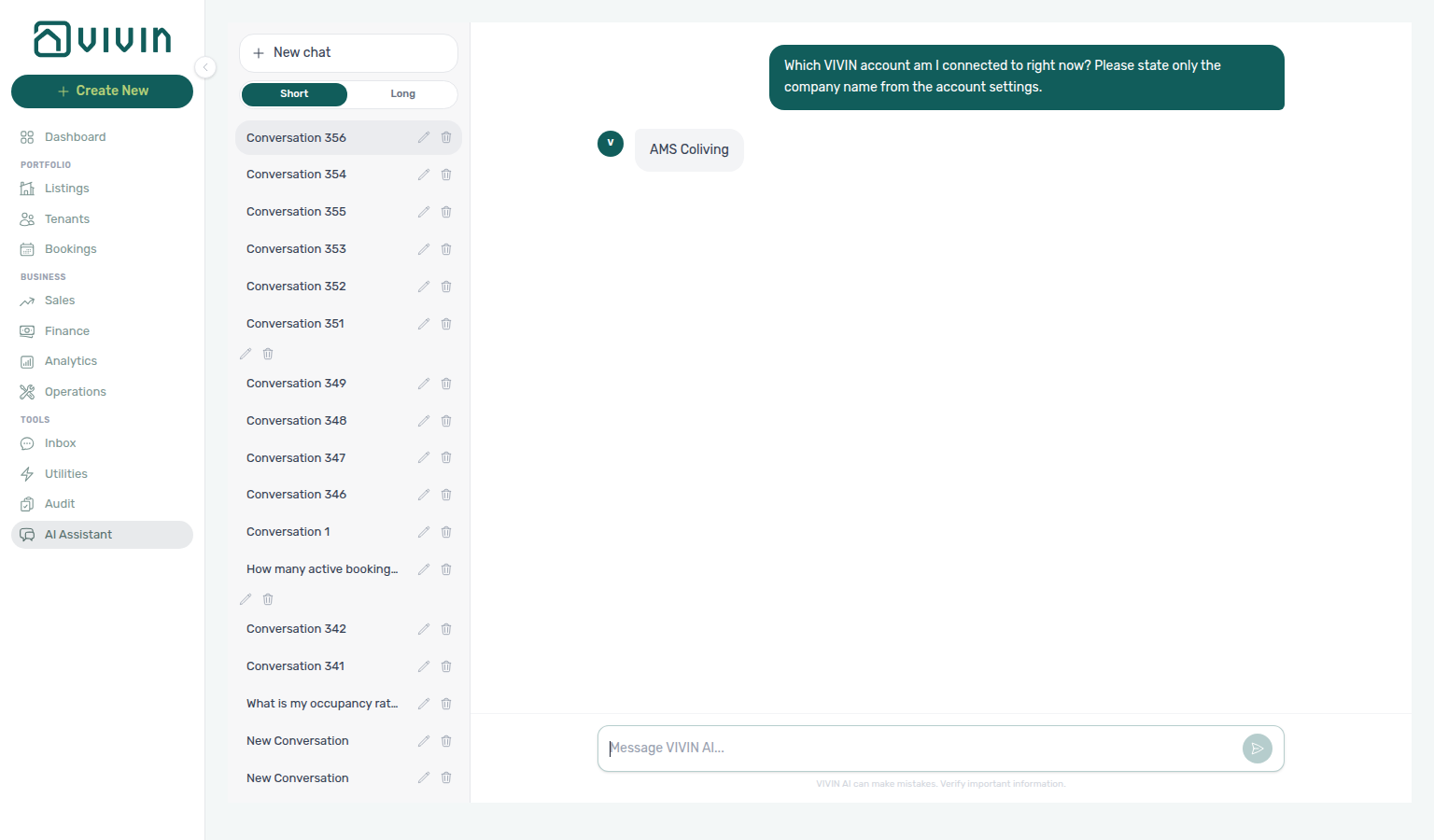
How do Genius and AI Chat know what VIVIN is?
| Symptom | Likely cause | Fix |
|---|---|---|
| Assistant cannot explain modules or where to click in the product | Build without product-context prompt (or client not on Landlord MCP) | Confirm you are on AI Chat / WhatsApp Genius / a connected Landlord MCP client — then ask again (“What is VIVIN?” / “Where do I manage invoices and tax rates?” / “Where do I manage scheduled reports?” / “Where do I open Audit to review manual blocks and discounts?” / “Where do I enter utility bills and review allocations?”) |
| External MCP client invents product features | Client never called a get-vivin-context-* topic tool | Ask the client to load product help first — start with get-vivin-context-overview, then the matching theme tool (for example get-vivin-context-finance for invoicing navigation); they stay available even when all Tool permissions domains are Off |
Looking for get_vivin_context / topic tools under Tool permissions chips | Expected — product help is not a gated domain | It will not appear in the Settings chips; Chat/Genius embed the reference automatically; HTTP MCP exposes seven get-vivin-context-* tools outside the gate |
| Confused with account identity (“which company am I on?”) | Two different injections | Product context = what VIVIN is; account identity = your company fields on General Information — FAQ — account identity |
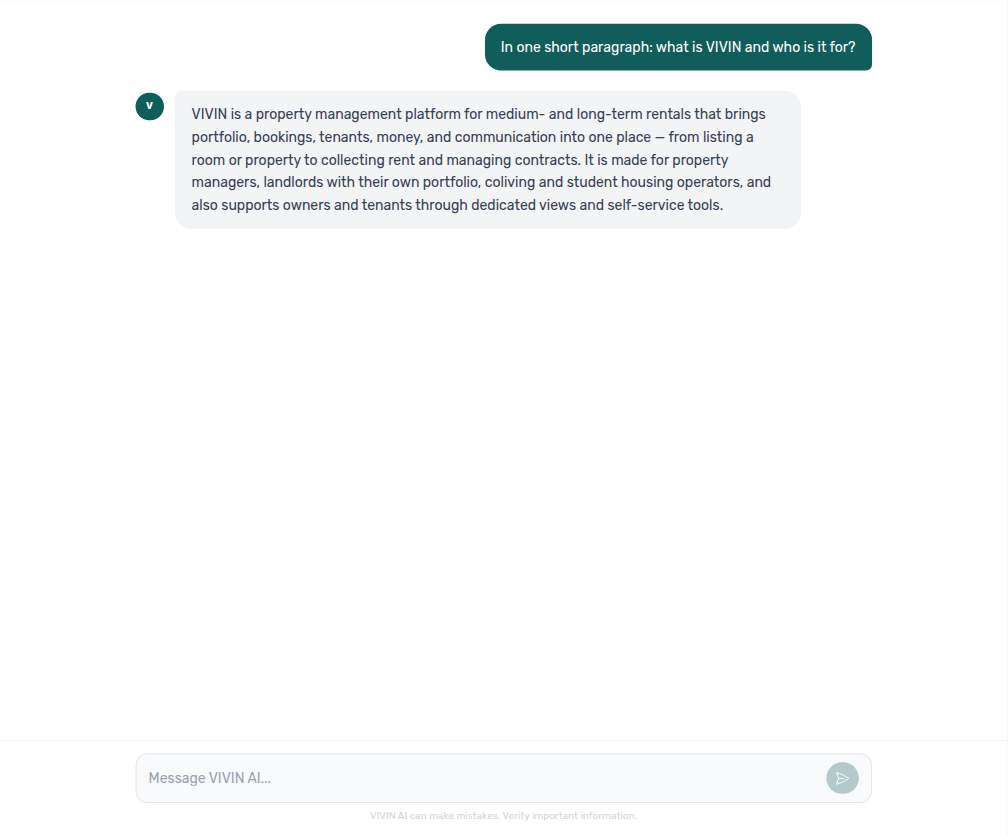
For a where-to finance question (“Where do I manage invoices and tax rates?”), expect orientation toward Account Settings (configure) and Finance (review). Then open Integrations → Configure for VIVIN issuer numbering and templates (there is no Billing tab for that provider), Invoicing → Tax Codes for line-type VAT, and Finance → Transactions for issued documents. External MCP clients should call get-vivin-context-finance for that slice.
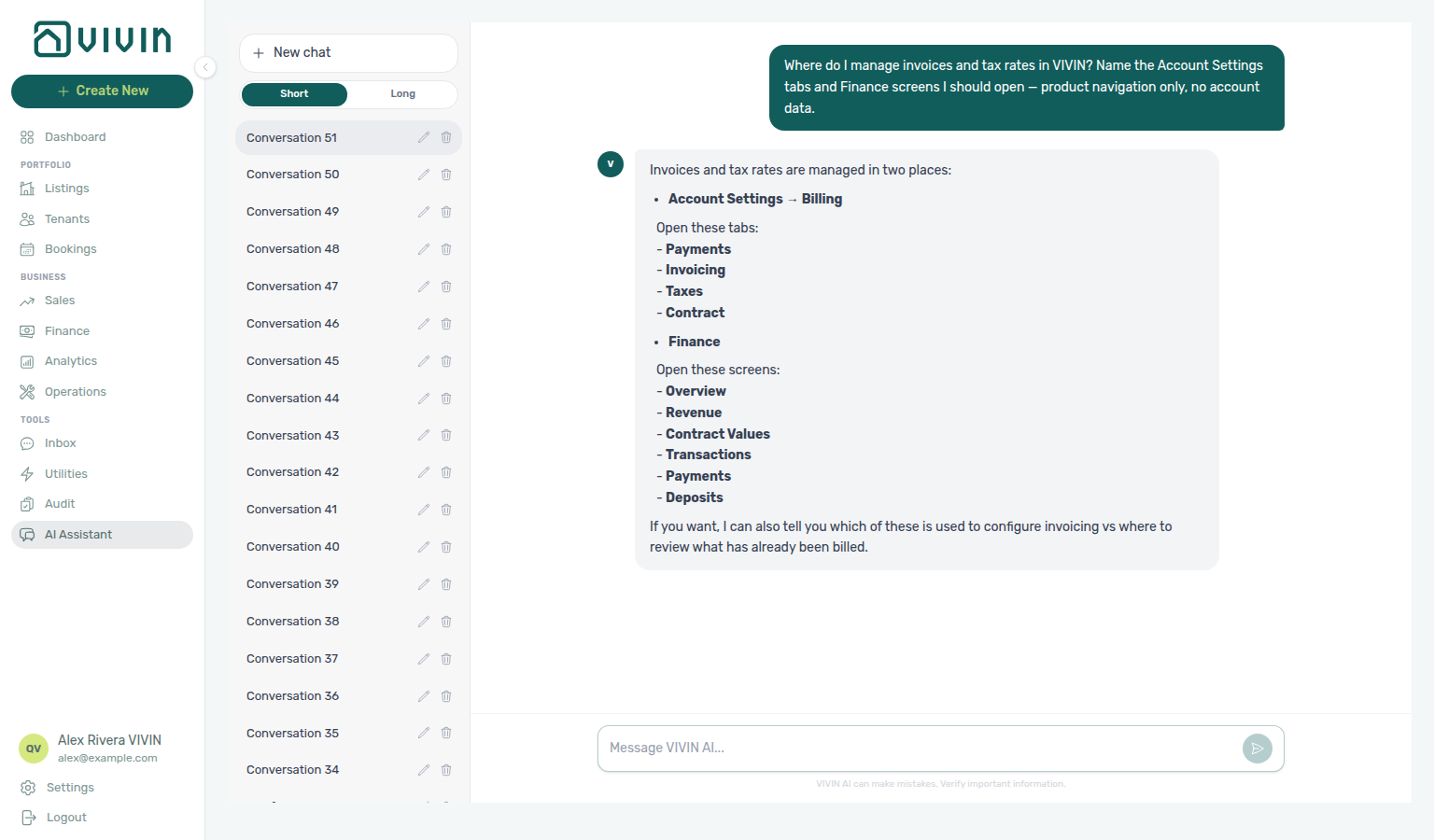
For Payments settings (“Where do I open Payments under Account Settings to configure tenant due days, deposit refund deadline, late penalties, and payment priorities?”), open Settings → Billing → Payments (/settings/payments) — due days, deposit refund deadline, late penalties, and Payments priorities. The assistant typically says Settings → Billing (then Payments), or Settings → Billing / Payments. Portfolio ledgers stay on Finance; fee visibility toggles stay on Fees. External MCP clients: get-vivin-context-finance (or get-vivin-context-platform).
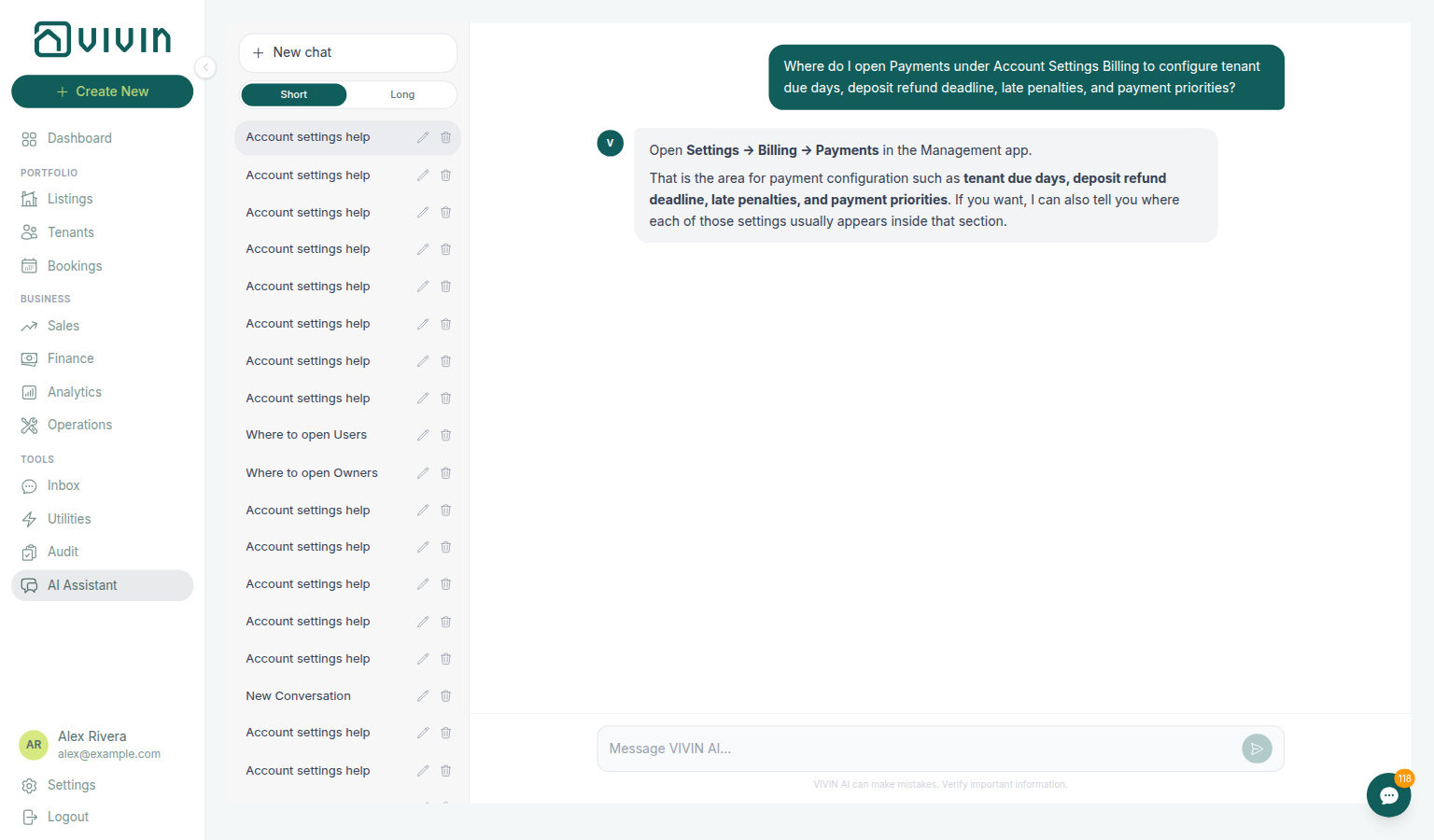
For Rent adjustment (“Where do I open the Rent adjustment card under Account Settings Payments (the Billing group Payments tab at /settings/payments — English card label Rent adjustment with Review and apply — not Change monthly rent on a single booking Contract Info, and not Finance Transactions) to raise rent instalments on selected current bookings from a chosen month with Bulk Rent Increase?”), open Settings → Payments → Rent adjustment (/settings/payments) — portfolio percentage raise with Review and apply. The assistant typically says Settings → Payments (then the Billing group Payments tab → Rent adjustment), or Settings → Billing → Payments → Rent adjustment. Single-stay changes stay on Bookings → Contract Info → Change monthly rent; ledgers stay on Finance → Transactions. Name Payments plus the Rent adjustment card and those disambiguators so the reply stays on the bulk-raise card (requires Bulk Rent Increase). External MCP clients: get-vivin-context-finance (or get-vivin-context-platform).
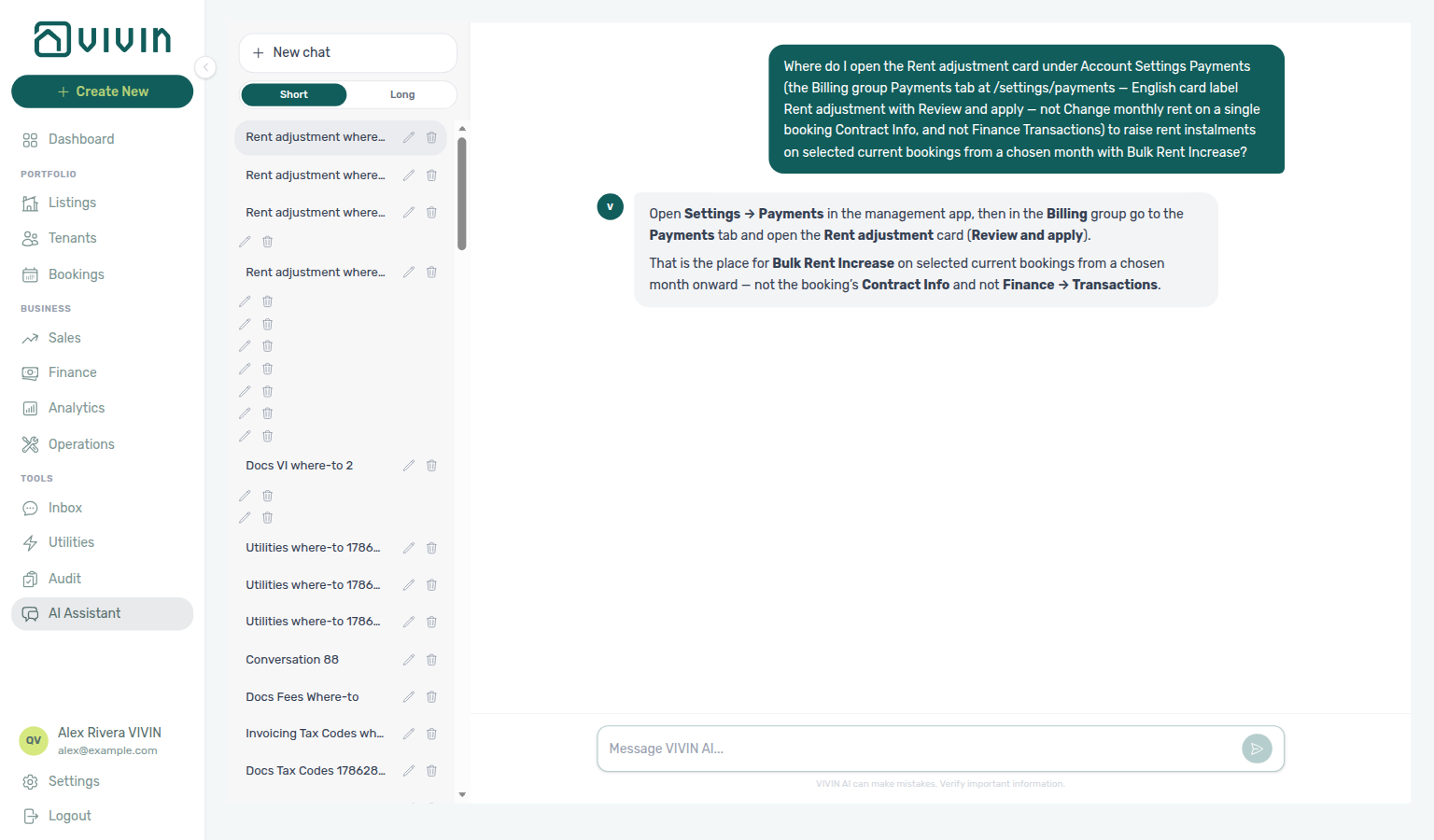
For Invoicing / Tax Codes (“Where do I open Invoicing under Account Settings to configure Tax Codes and line-type VAT rates?”), open Settings → Billing → Invoicing (/settings/invoicing) — Tax Codes, line-type VAT, and related invoicing fields. The assistant typically says Settings → Billing (invoicing / tax configuration, including Tax Codes). Issuer numbering stays on VIVIN Invoicing; issued documents stay on Finance → Transactions. External MCP clients: get-vivin-context-finance (or get-vivin-context-platform).
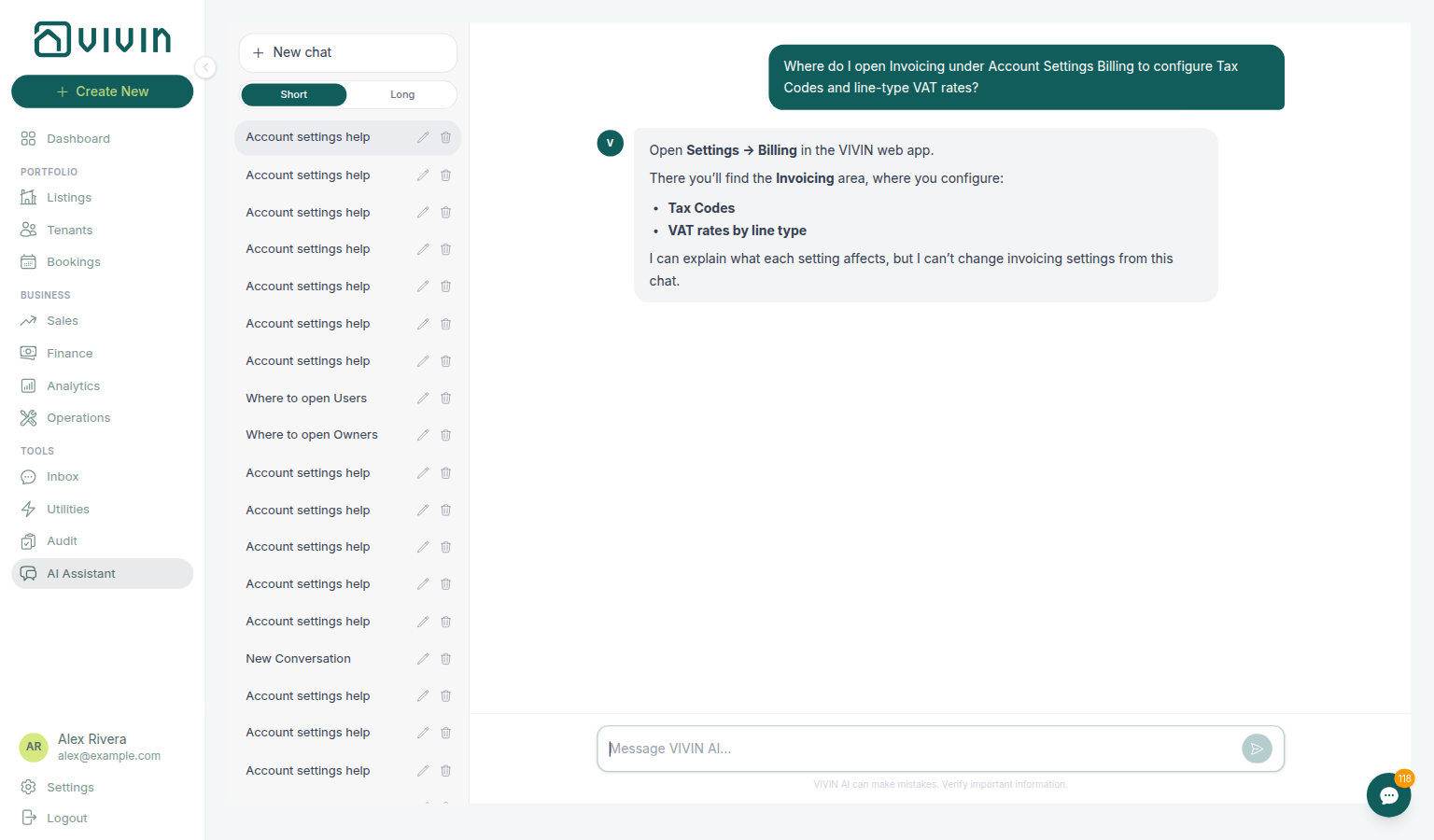
For VIVIN Invoicing (“Where do I open VIVIN Invoicing under Account Settings to configure issuer details, document numbering, the tax-rate catalogue, and Word templates? Not the shared Invoicing Tax Codes tab, and not Finance Transactions.”), open Settings → System → Integrations and Configure on the VIVIN Invoicing card — issuer details, document numbering, tax-rate catalogue, and Word templates for Invoice, Proforma, and Credit note. Live replies often say Settings → Faturação → Faturação (and may send Word files to Contrato). Follow Integrations → Configure instead. Line-type Tax VAT stays on Invoicing; issued documents stay on Finance → Transactions. External MCP clients: get-vivin-context-finance (or get-vivin-context-platform).
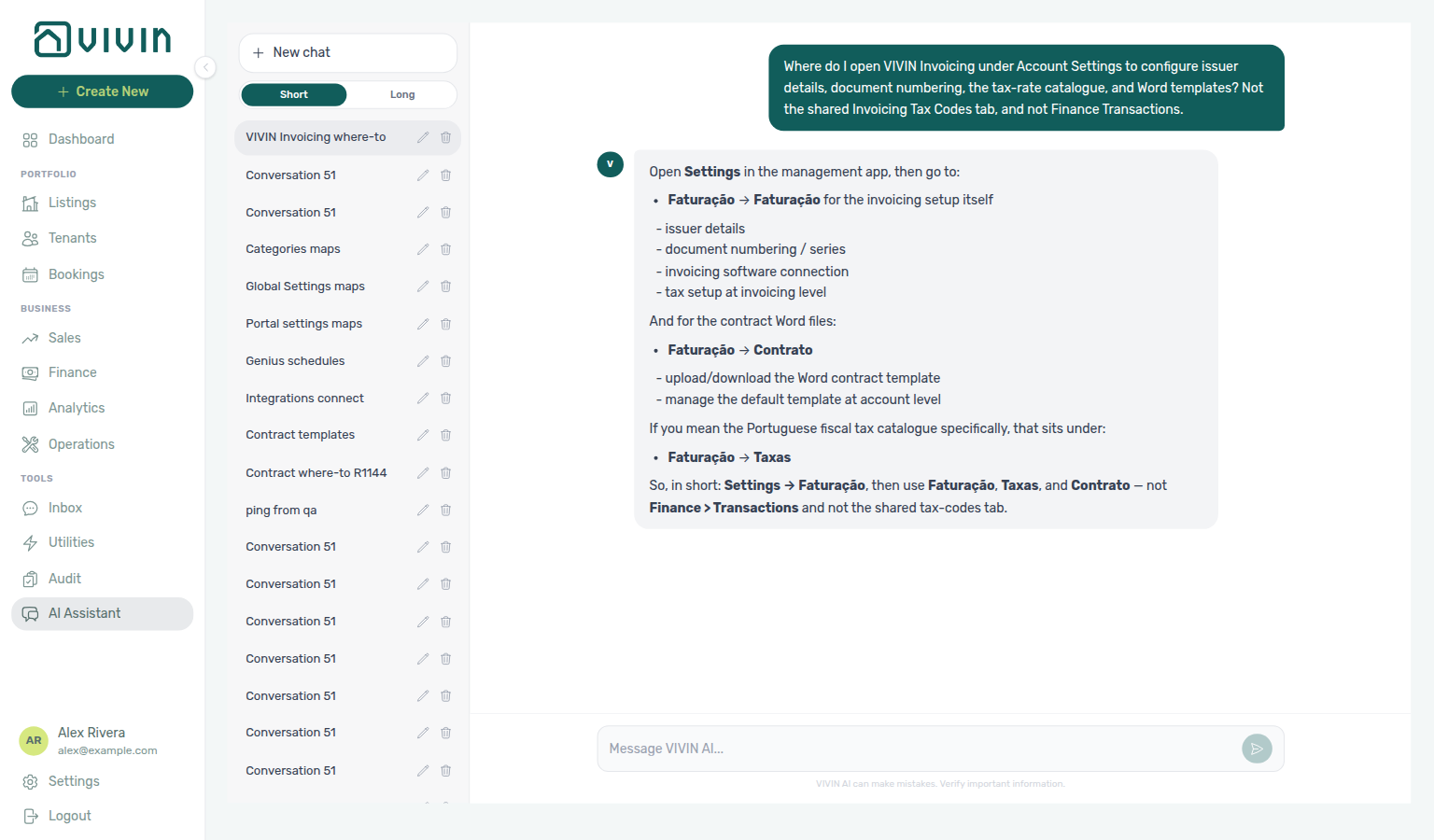
For Fees (“Where do I open Fees under Account Settings to configure booking fee toggles for admin cleaning and exit fees and custom invoice labels?”), open Settings → System → Global Settings (/settings/fees redirects) — Fee visibility and Custom fee names cards. The assistant may still say Settings → Faturação and point at a pagamentos / taxas area (sometimes taxa administrativa / taxa de limpeza / taxa de saída); follow Global Settings instead. Due-day / penalty rules stay on Payments; per-property euro amounts stay on Listings. External MCP clients: get-vivin-context-finance (or get-vivin-context-platform).
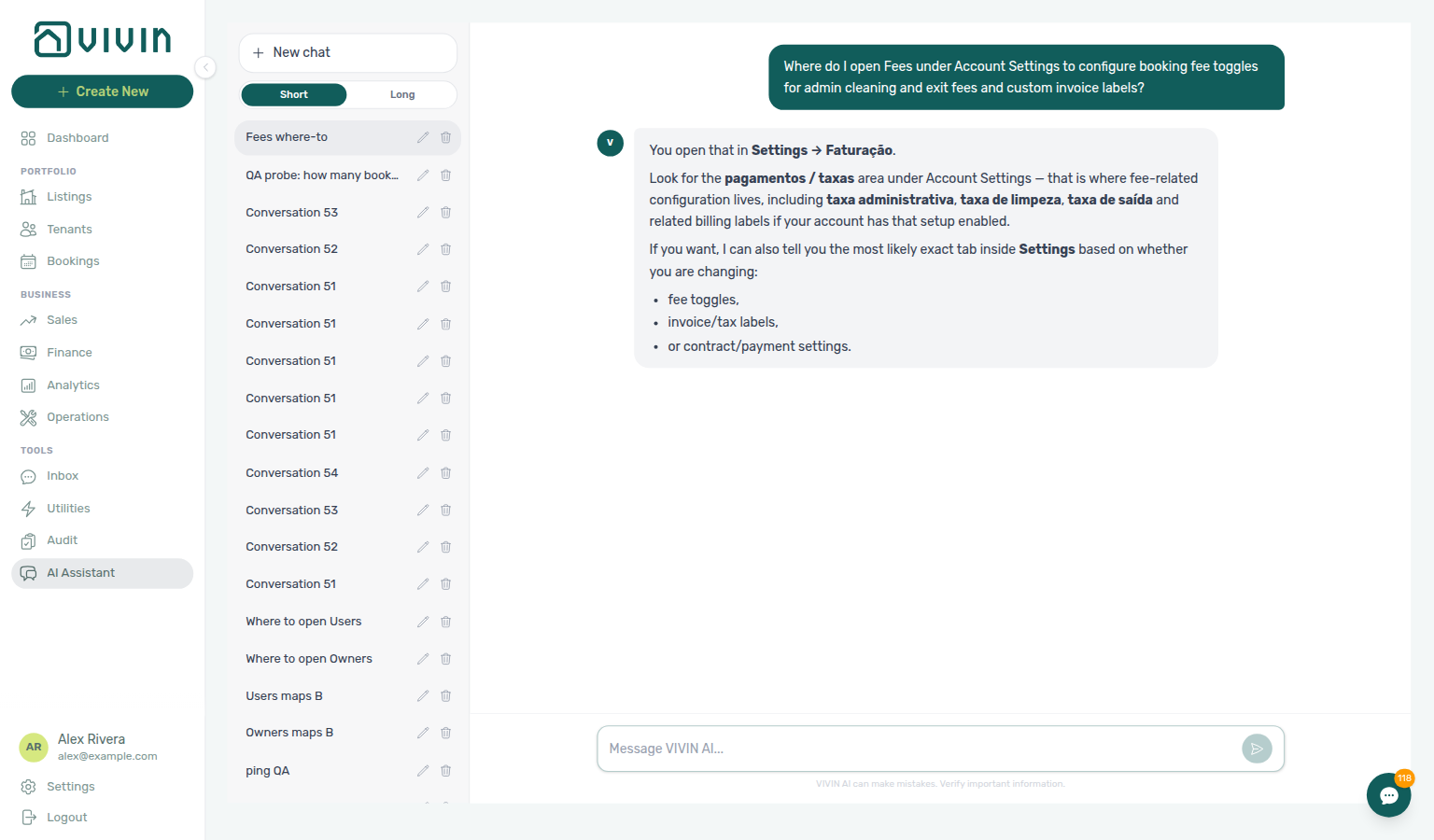
For Utilities settings (“Where do I open Utilities under Account Settings to configure chargeable utility types, Tenant Notification, and Charge Time for tenant overages — not Property Expenses, and not the Tools Utilities module?”), open Settings → System → Global Settings (/settings/utilities redirects) — the Utilities card with chargeable types plus Tenant Notification and Charge Time. The assistant may still say Settings → Property → Utilities (while excluding Property Expenses and the Tools module); follow Global Settings instead. Supplier bill entry stays on Tools → Utilities; booking-fee toggles stay on Fees. Name Global Settings and disambiguate from Property Expenses / the Tools module so the reply stays on overage rules. External MCP clients: get-vivin-context-finance (or get-vivin-context-platform).
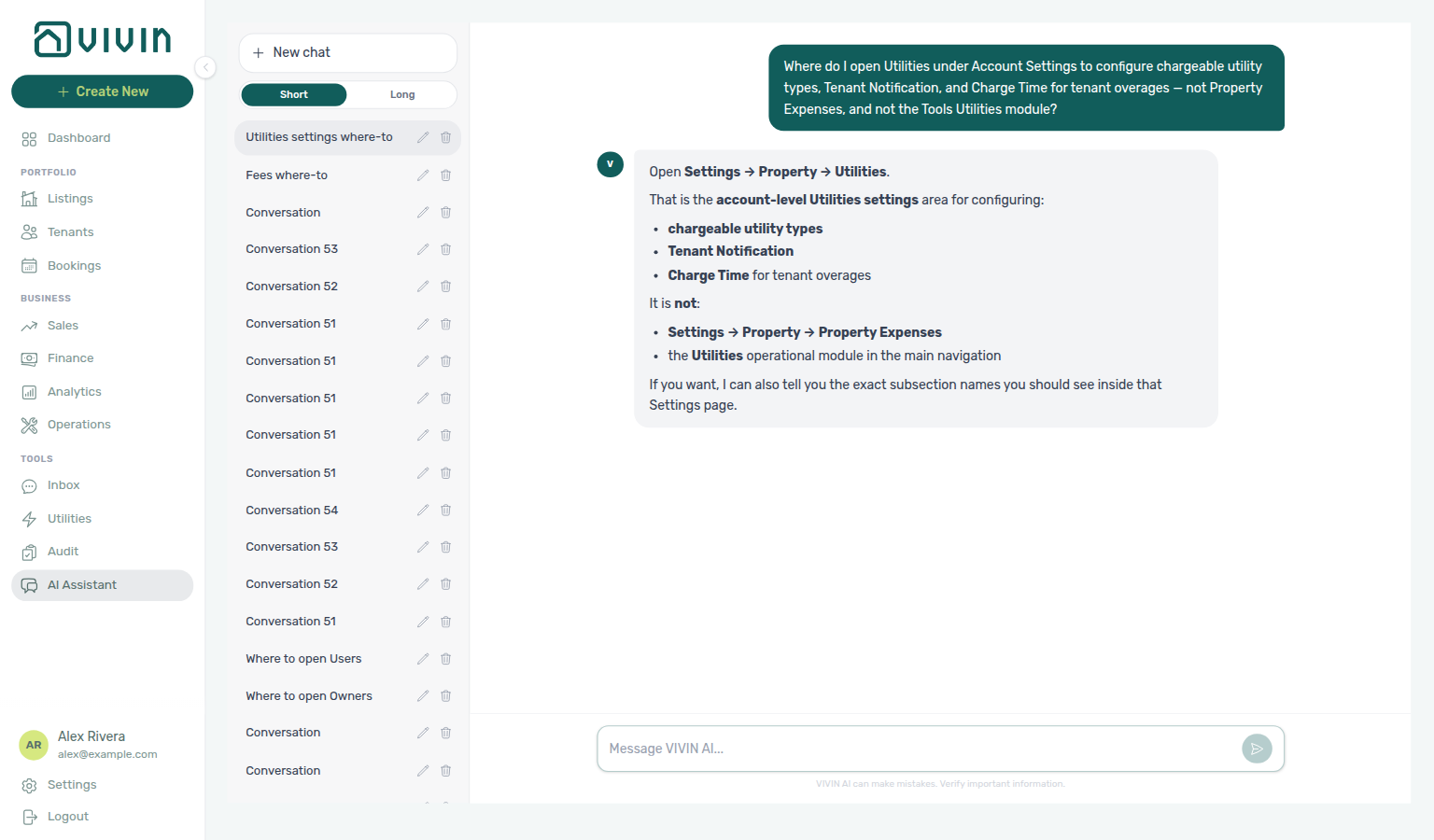
For Genius scheduled reports (“Where do I manage Genius scheduled reports?”), open Account Settings → Genius → Scheduled reports for the digest table. Enable the Scheduled reports domain on AI / MCP → Tool permissions when AI Chat / MCP should create or pause rows. If the assistant answers Settings → AI, use that as a System hint — the table itself is on the Genius tab. External MCP clients: get-vivin-context-ai (or get-vivin-context-platform).
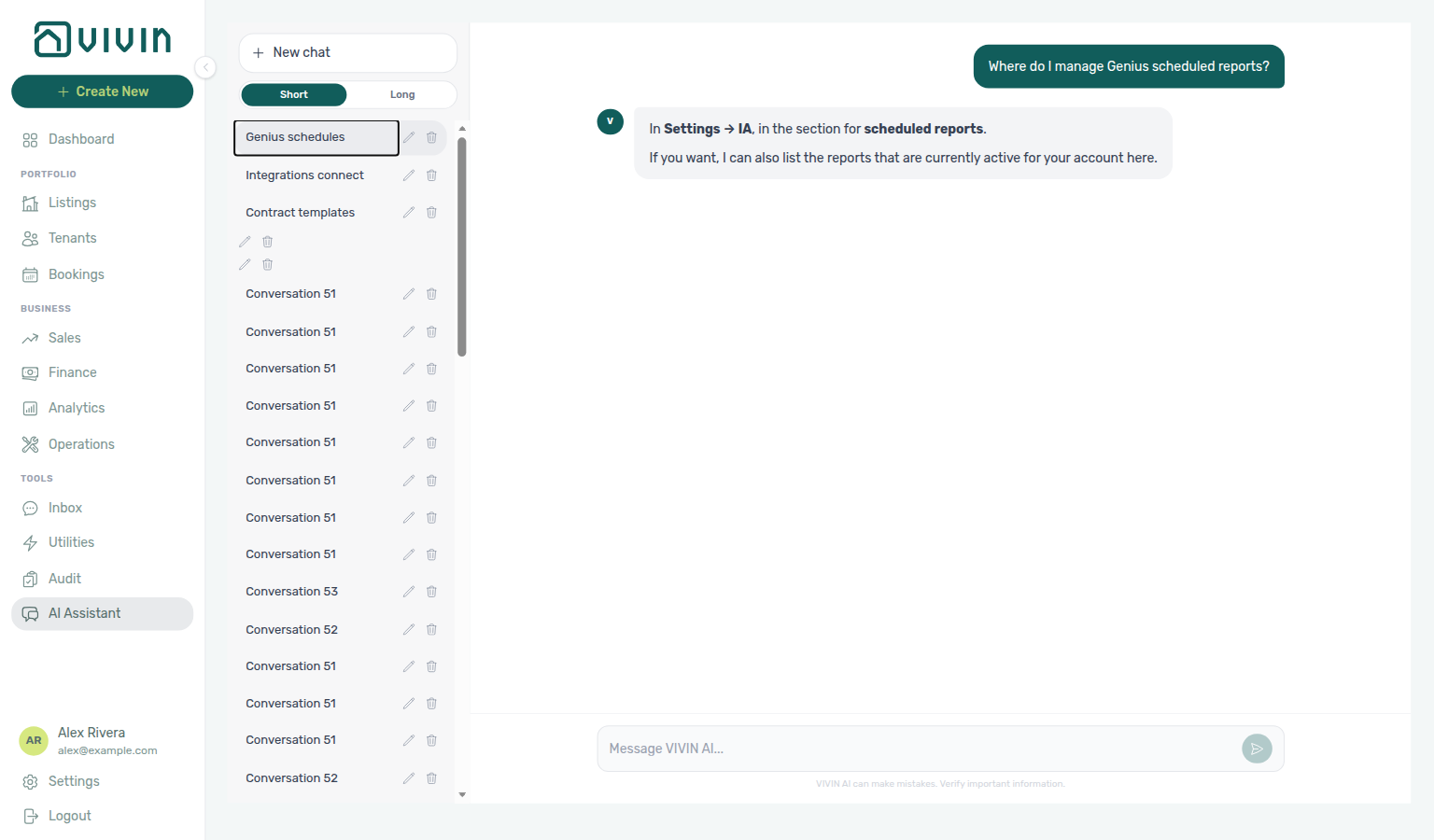
For Operations Planning (“Where do I assign cleaning work on turnover morning on the Operations Planning board?”), open Operations → Planning when Planning (schedule board) is granted; create or edit the maintenance row on Tickets first if it does not exist yet. External MCP clients: get-vivin-context-operations.
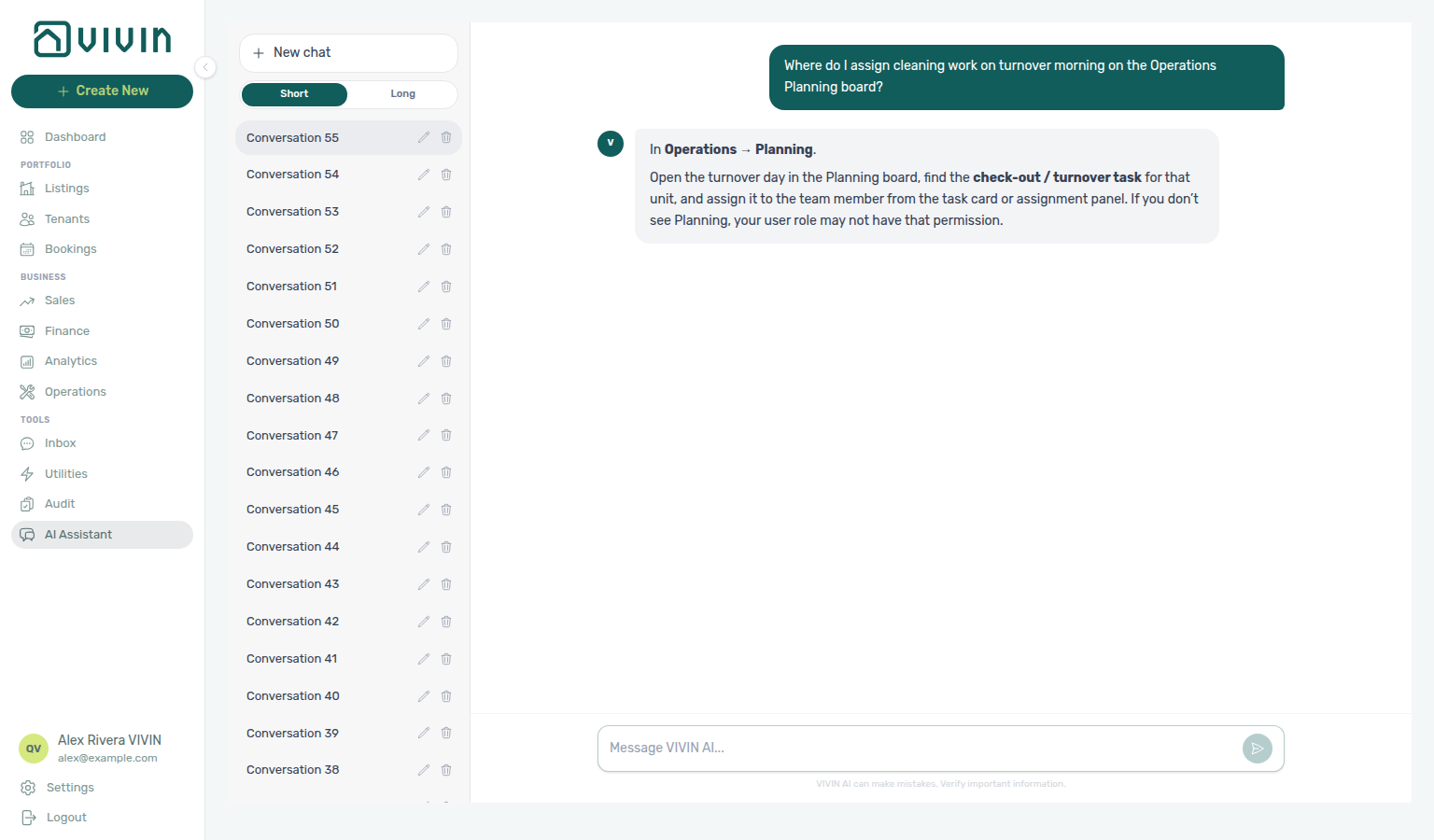
For Audit (“Where do I open Audit to review manual blocks and discounts?”), open Tools → Audit — Manual Blocks for cross-portfolio unavailability holds and Discounts for discounted contract values. Create or edit blocks on a unit Calendar in Listings; apply discounts on booking Contract Values. Month-end habit: Manual block hygiene. External MCP clients: get-vivin-context-properties-listings (or get-vivin-context-overview).
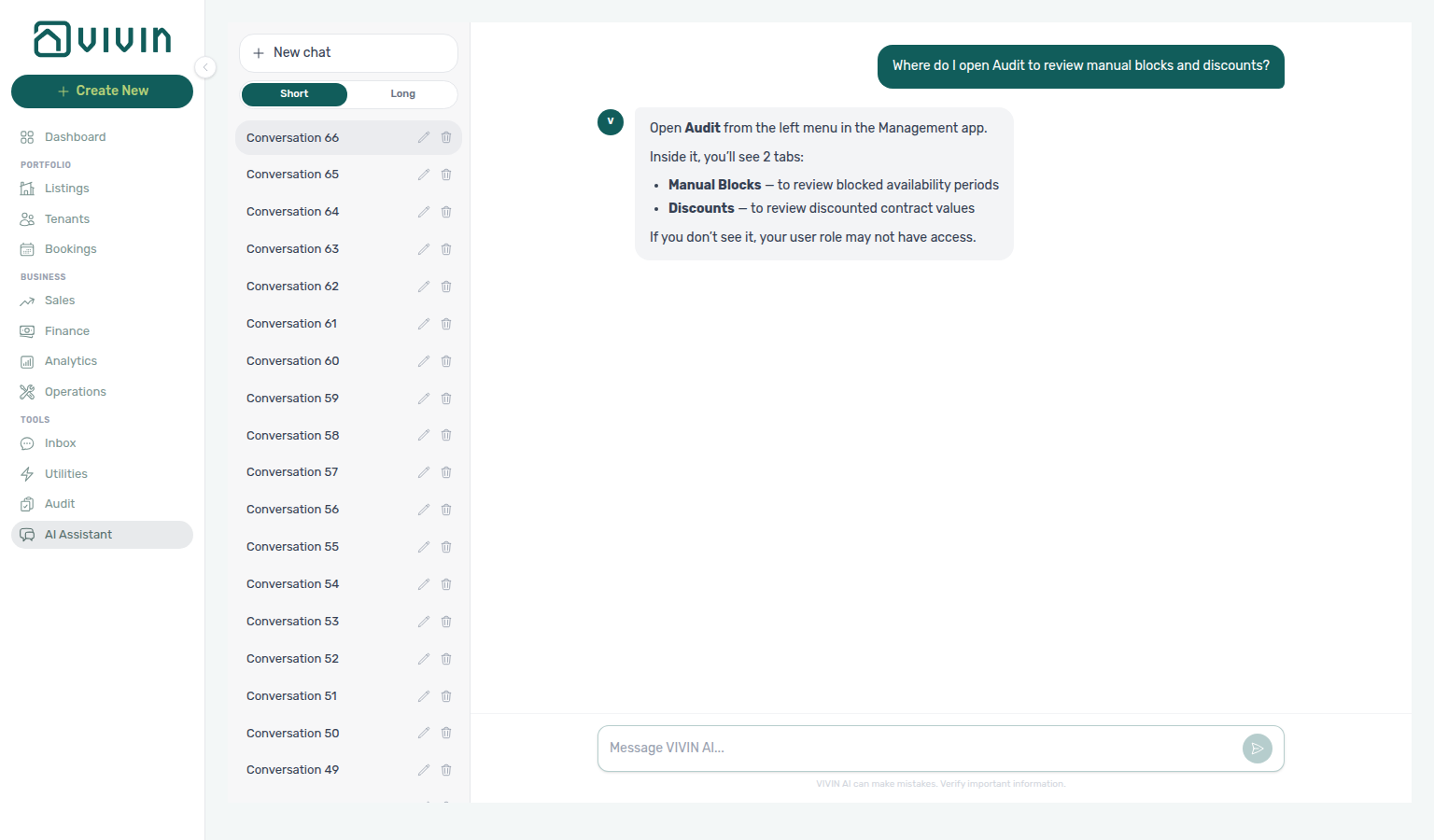
For Utilities (“Where do I enter utility bills and review allocations to tenants?”), open Tools → Utilities — Bills for supplier invoices, Allocations for booking/tenant splits, Cost map for property × month costs, and Connections for supply contracts. Month-end habit: Entering Monthly Utility Bills. Configure Bills Included on Listings; overages appear on booking Payment Plan. External MCP clients: get-vivin-context-finance.
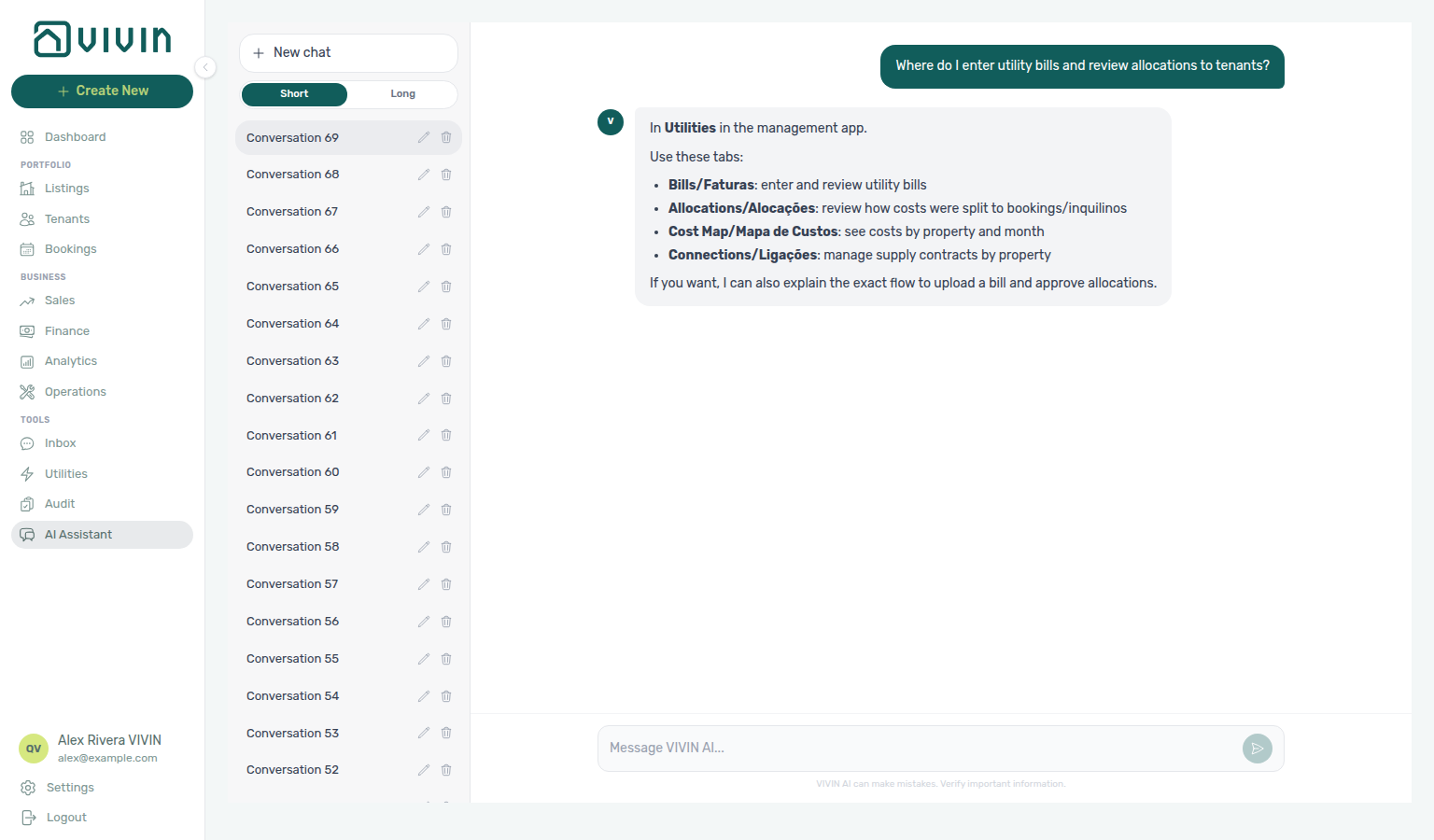
For Analytics (“Where do I open Analytics for portfolio KPI charts like ADR and RevPAR?”), open Business → Analytics — Overview, Revenue, Occupancy, ADR, RevPAR, and Maintenance for the toolbar month range. The assistant may say KPI for this workspace; the sidebar label is Analytics. Cash collected / debt questions still belong on Finance → Overview — see FAQ — Genius revenue vs Analytics. Habit: Portfolio KPI review. External MCP clients: get-vivin-context-finance.
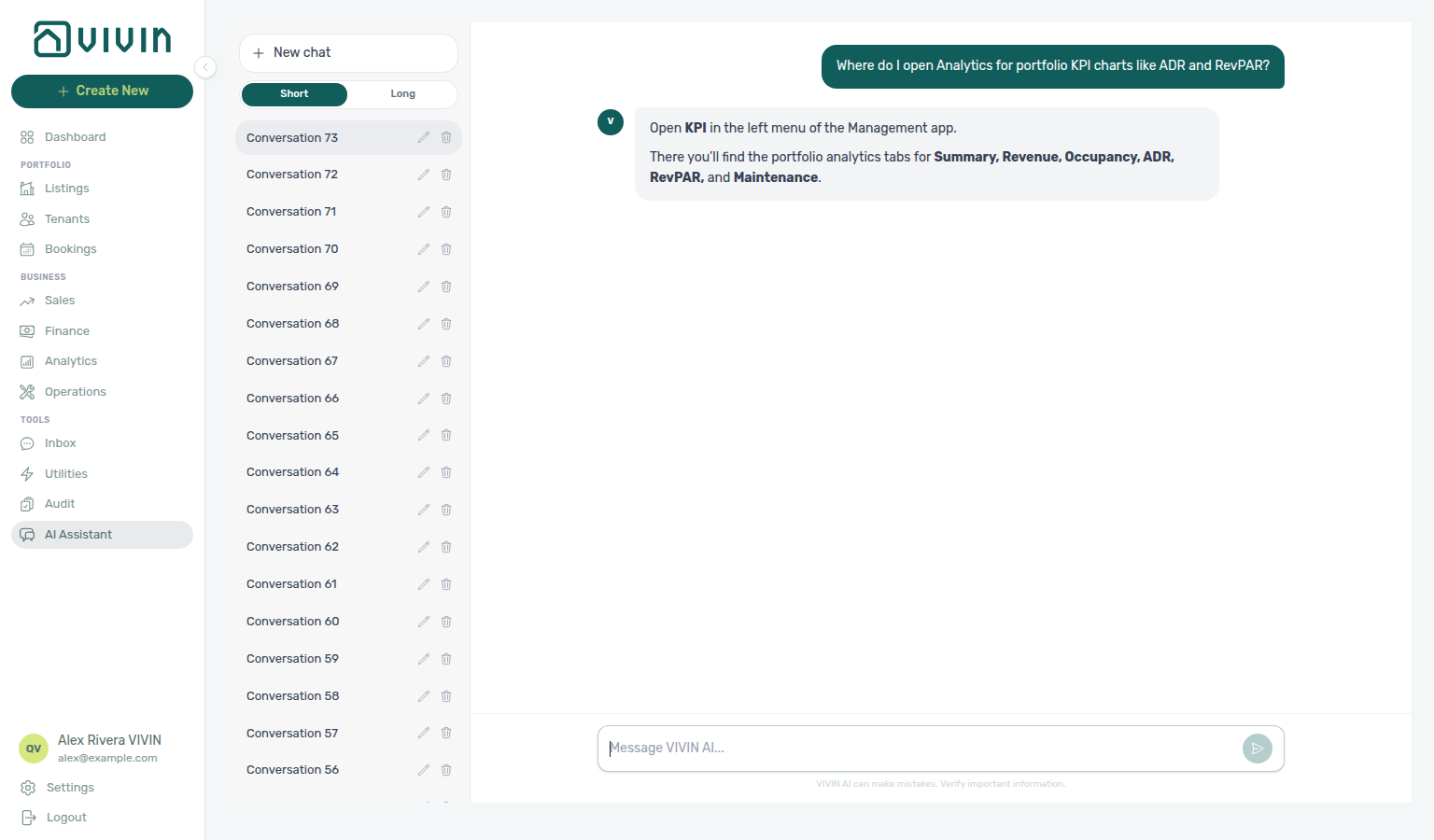
For Sales (“Where do I open Sales to edit monthly rents and manage channel connections?”), open Business → Sales — Overview, Multicalendar, Pricing, and Channel Manager. The assistant may say Prices for the monthly rent grid; the tab label is Pricing. Account-level portal credentials stay under Settings → Integrations; use Sales Channel Manager to link units and watch publication status. External MCP clients: get-vivin-context-properties-listings.
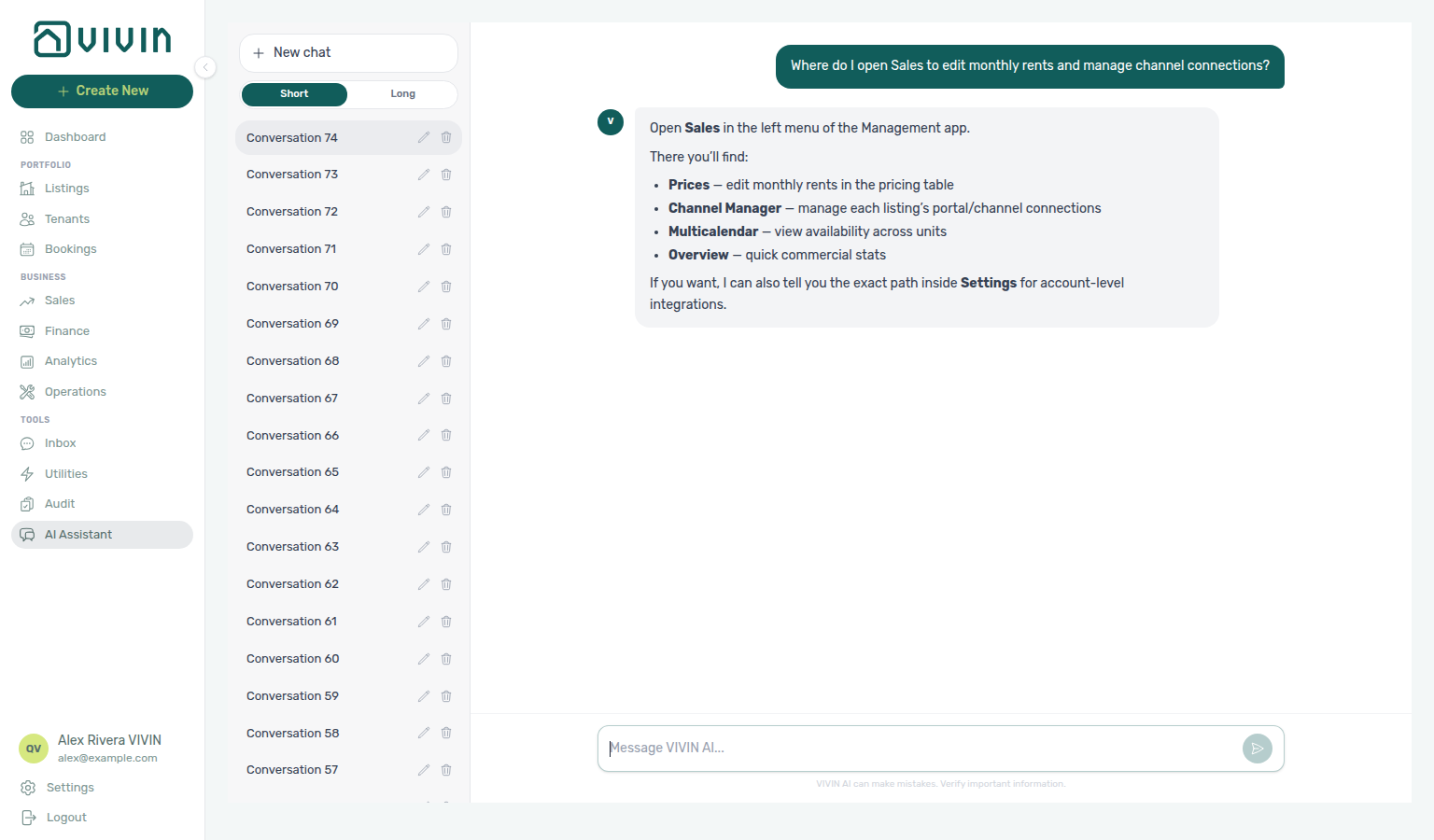
For Inbox (“Where do I open the Inbox to reply to tenant WhatsApp messages across my portfolio?”), open Tools → Inbox — the global WhatsApp conversation list with reply, search, labels, and pause-bot. The assistant may say left menu without naming Tools. Per-reservation WhatsApp stays on Bookings → Communication; chatbot connection is under Settings → ChatBot. External MCP clients: get-vivin-context-operations.
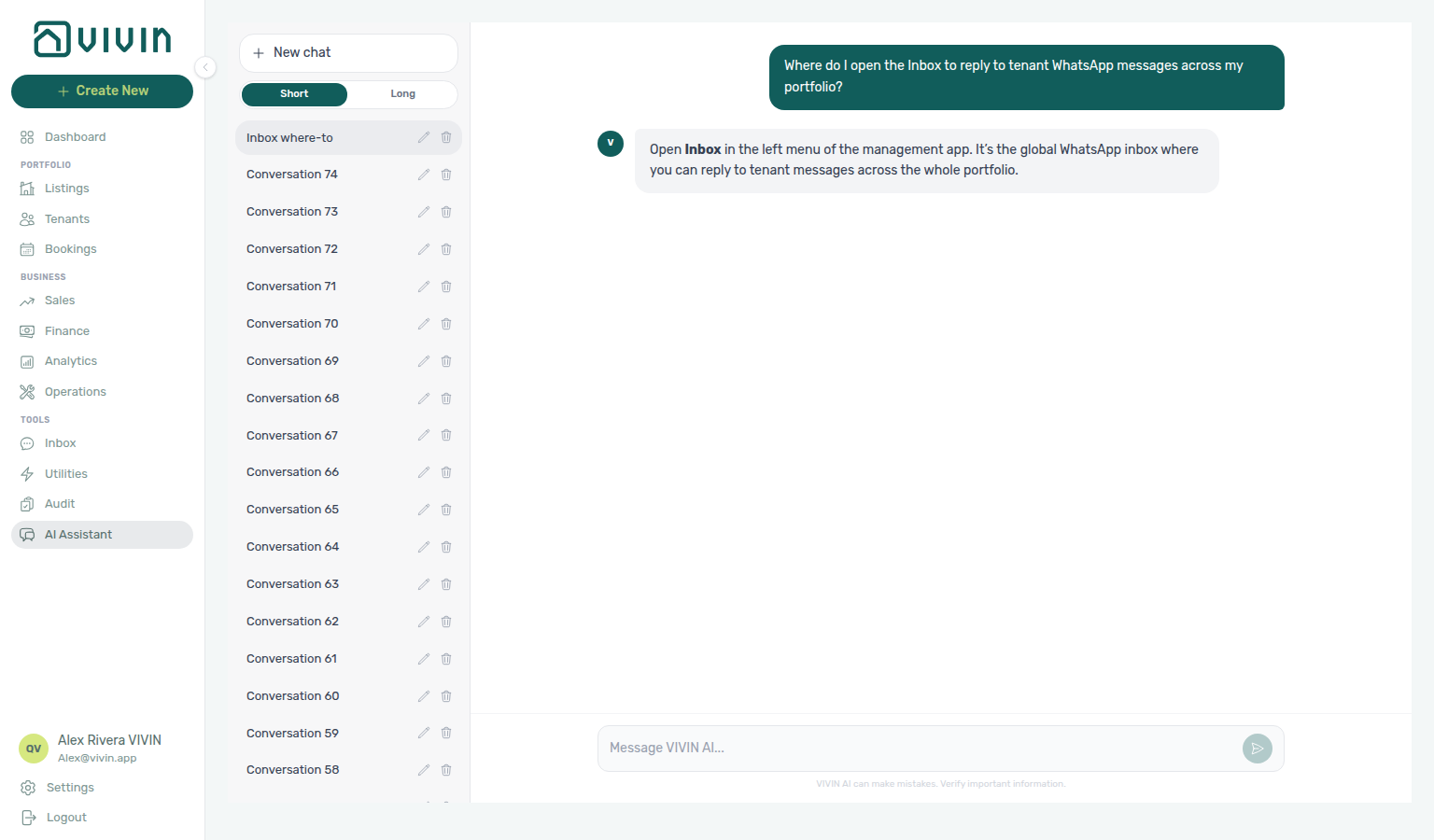
For Tenants (“Where do I open Tenants to find a person, see their bookings, and review debt across stays?”), open Portfolio → Tenants — search and segment people, open the profile sidebar for bookings and balances, and triage With Debt. The assistant may say left menu without naming Portfolio. Portfolio-wide debt stays on Finance; reservation-first work stays on Bookings. External MCP clients: get-vivin-context-bookings-tenants.
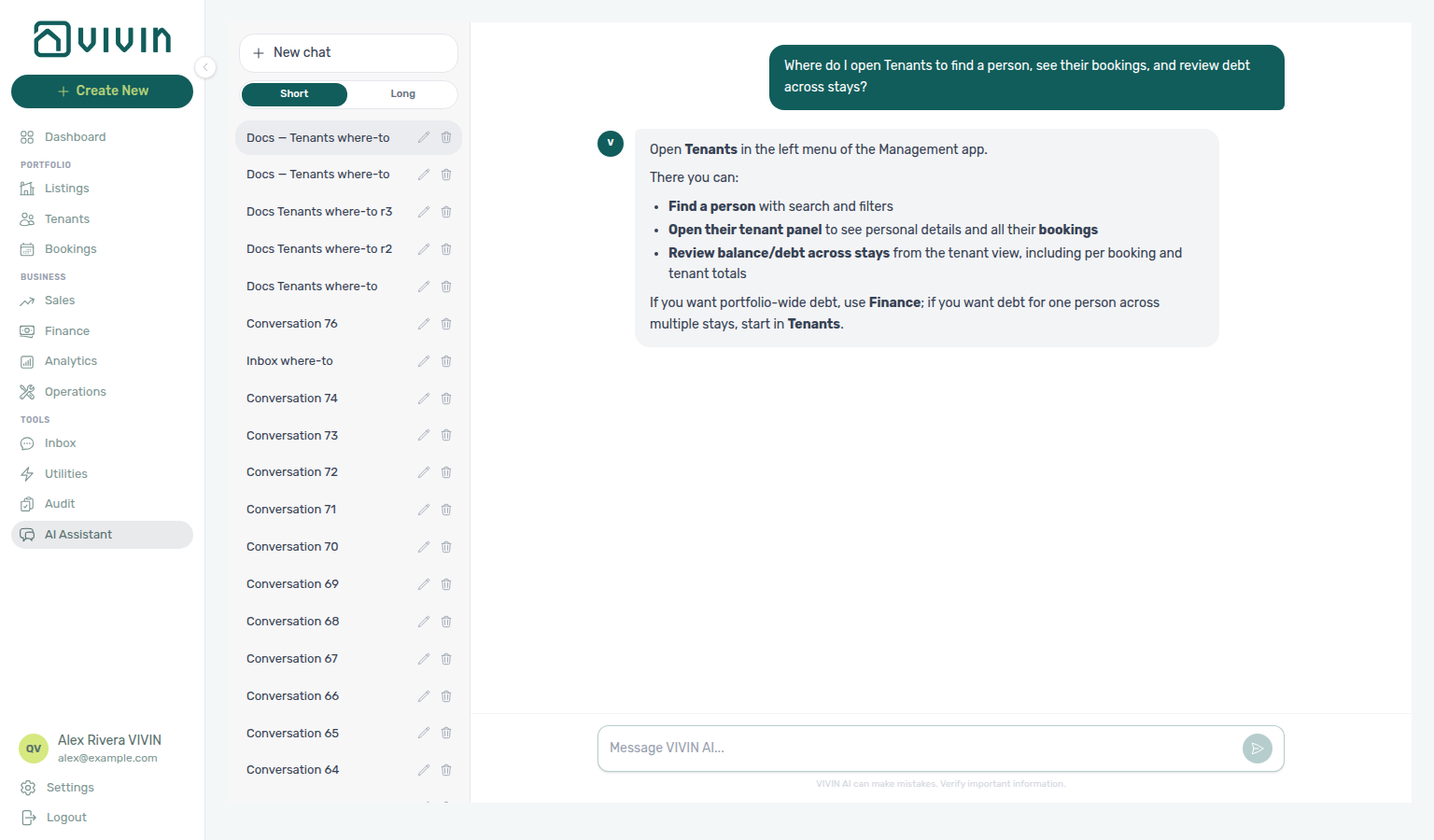
For Bookings (“Where do I open Bookings to review reservations and the unit timeline?”), open Portfolio → Bookings — List for the filterable reservation table and Timeline for stays (and manual blocks) by unit. The assistant may say left menu without naming Portfolio. Person-first search stays on Tenants; monthly rents and channels stay on Sales. External MCP clients: get-vivin-context-bookings-tenants.
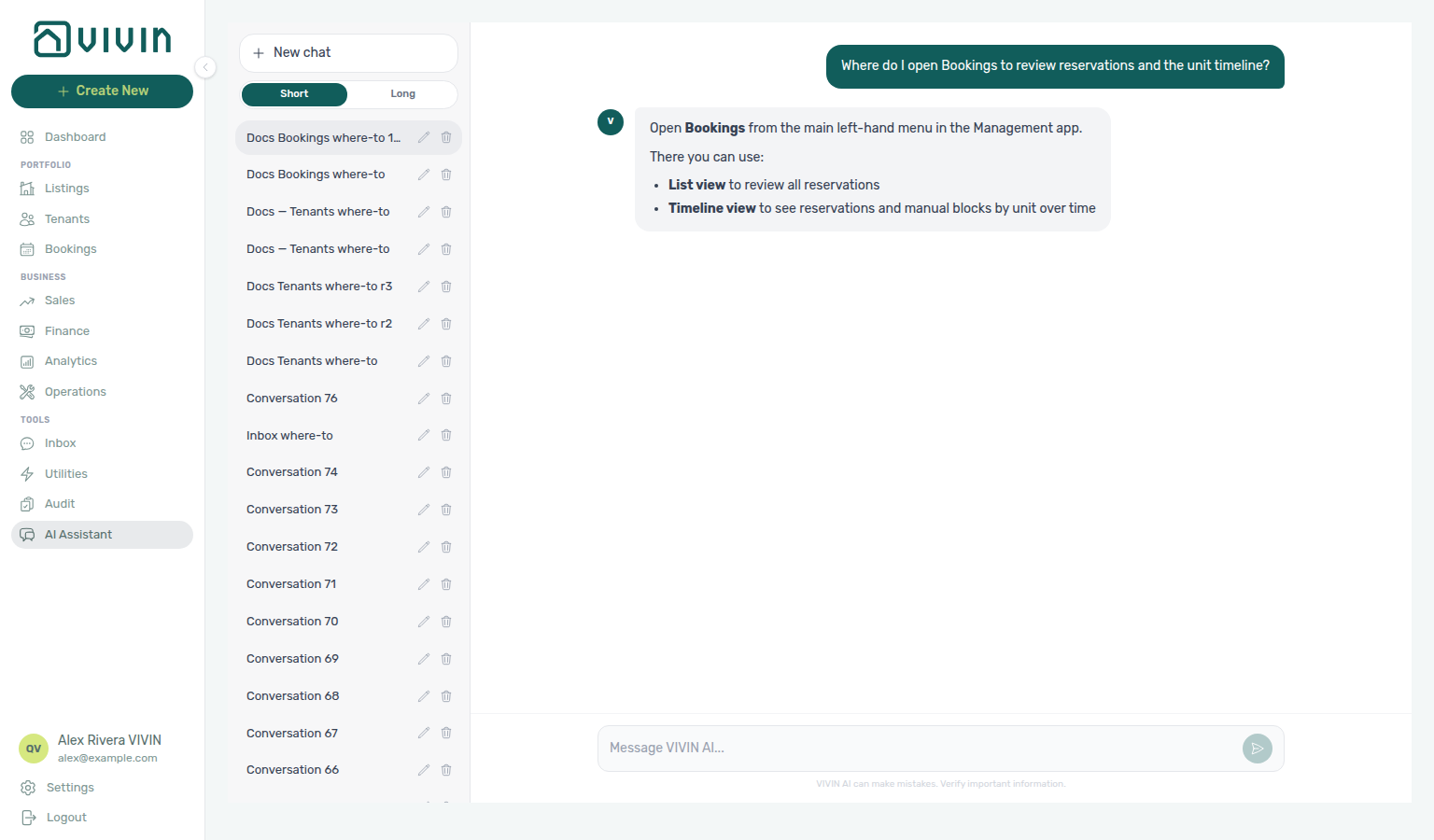
For Listings (“Where do I open Listings to manage properties and units in my portfolio?”), open Portfolio → Listings — properties grouped with units, occupancy, side-panel editors, and Archived. The assistant may say left menu without naming Portfolio. Reservation triage stays on Bookings; monthly rents and channel links stay on Sales. External MCP clients: get-vivin-context-properties-listings.
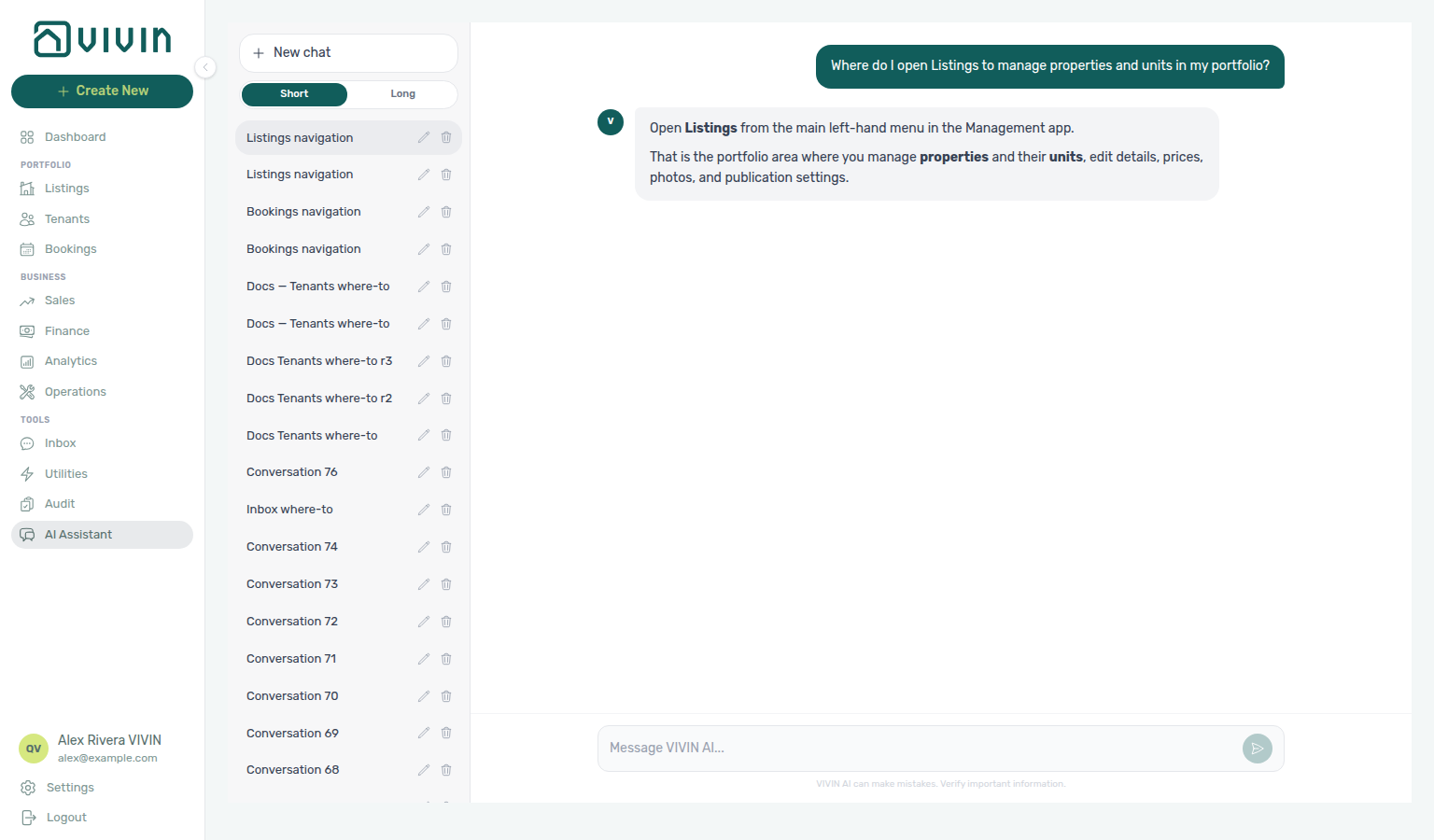
For Dashboard (“Where do I open the Dashboard to review portfolio KPIs, vacant units, and occupancy forecast?”), open Dashboard — KPI cards, Occupancy Forecast, Cash Flow Forecast, and Vacant Units. The assistant may say main menu / Dashboard, and may point deeper ADR/RevPAR analysis at KPI — the sidebar label for those charts is Analytics. Month-range performance stays on Analytics; receivables detail stays on Finance. External MCP clients: get-vivin-context-properties-listings (Dashboard lives in that slice with Listings / Sales).
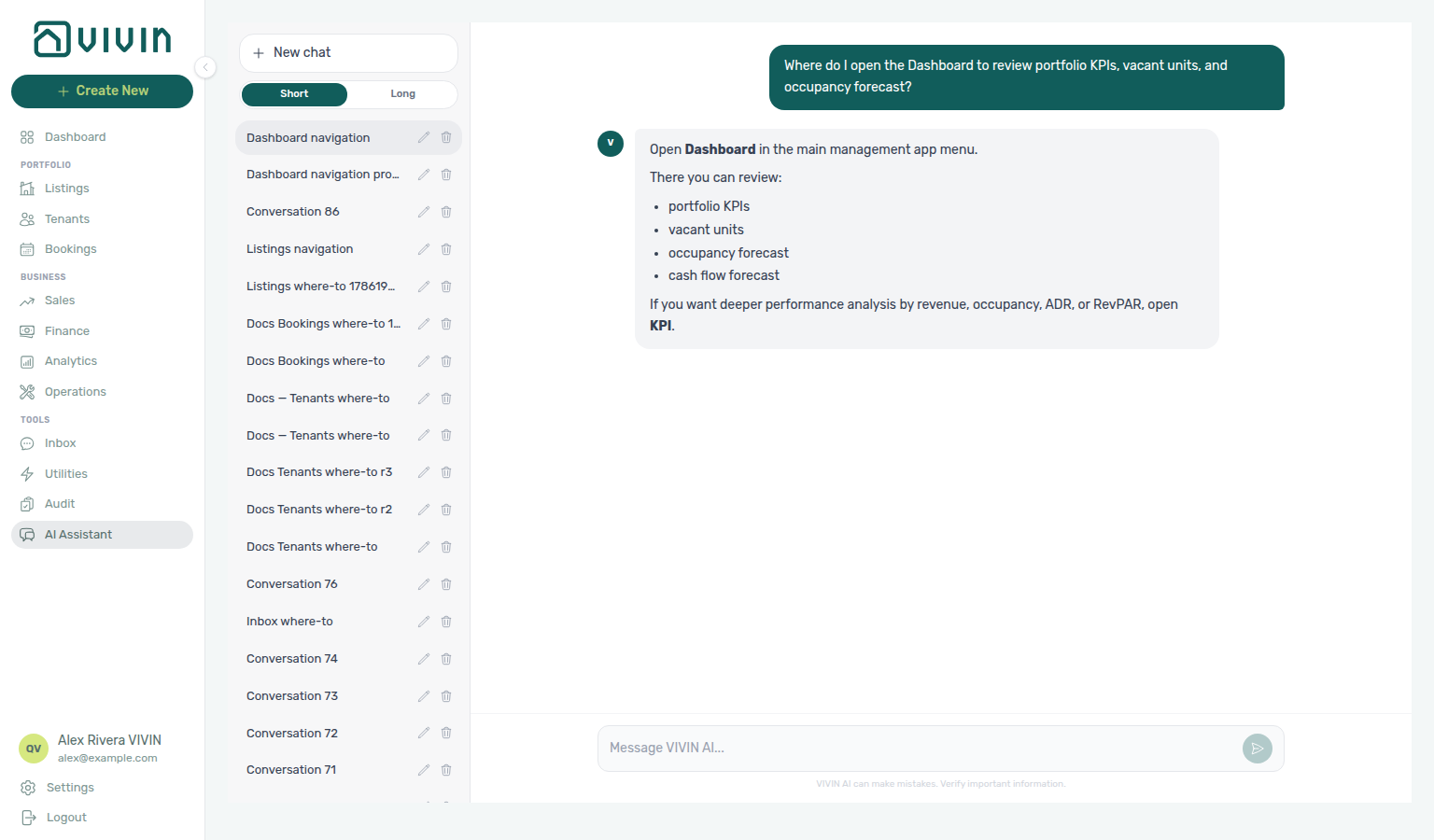
For Operations Tickets (“Where do I open Operations Tickets to create and track maintenance work across my properties?”), open Operations → Tickets — create, assign, filter, and close maintenance rows. The assistant may say left menu / Operations, and may use the Portuguese product term Tickets de manutenção; the English tab label is Tickets. Same-day person × time dispatch stays on Planning. External MCP clients: get-vivin-context-operations.
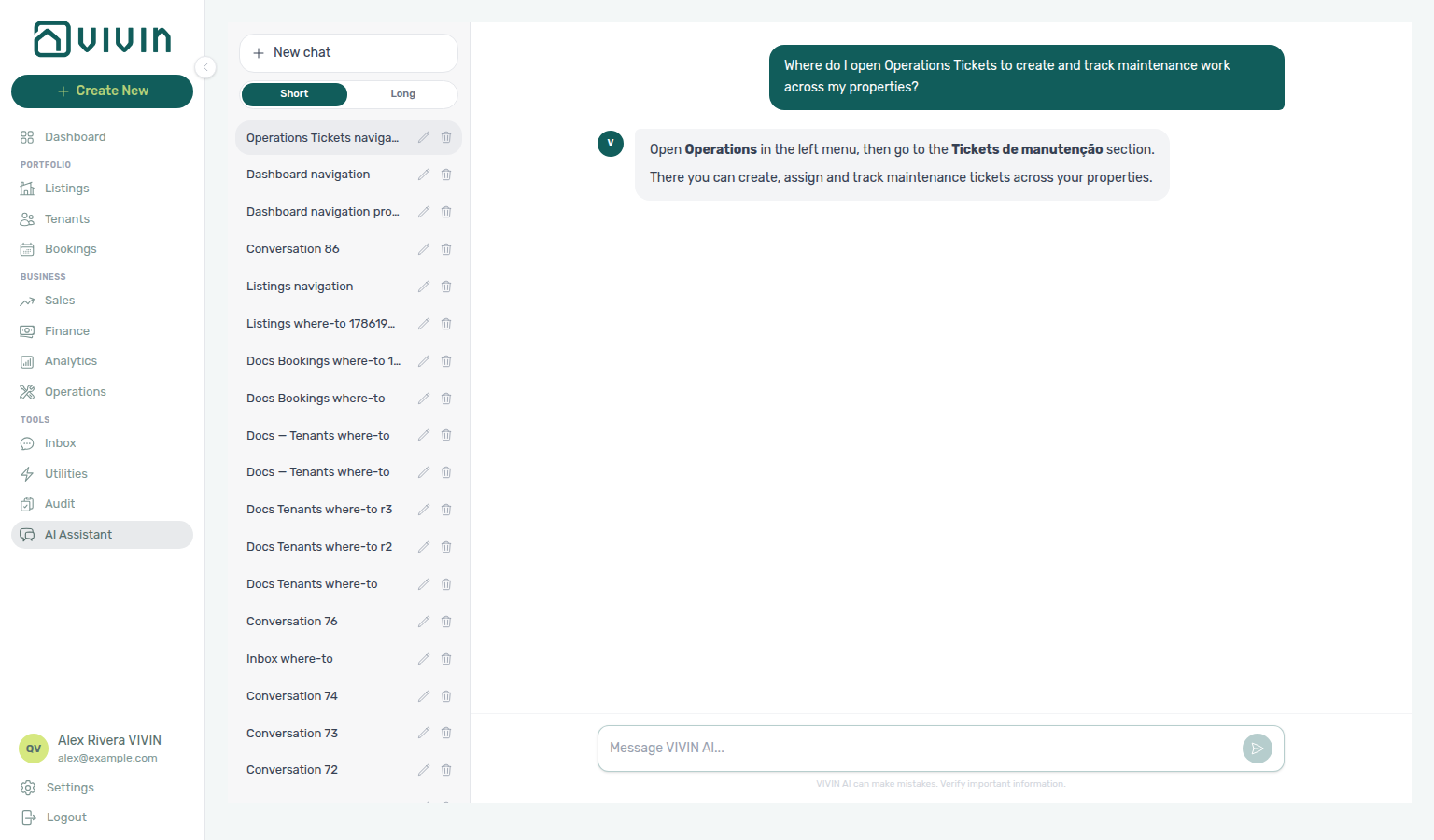
For Notifications (“Where do I open Notifications to search and filter my full alert history?”), open the Notifications module at /notifications — search, All / Unread / Read, and row-click into related bookings. The assistant may say left menu; Notifications is not a sidebar item — bookmark the route or use View all notifications from the Dashboard bell. The bell slide-over is compact (no search or read-status pills). Habit: Notification triage. External MCP clients: get-vivin-context-operations.
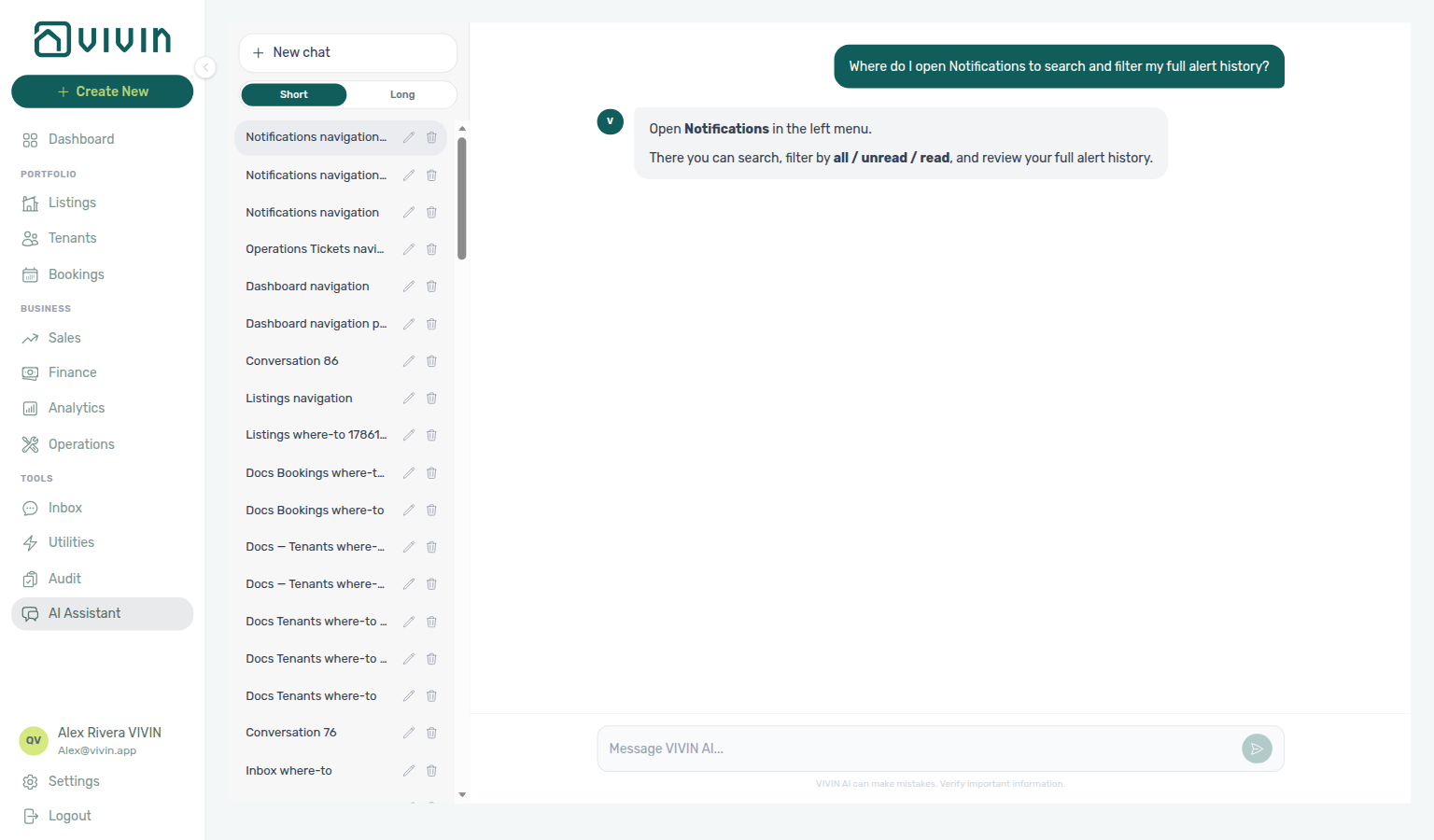
For Deep Links (“Where do I bookmark Bookings list search with the q query param and open Notifications full history with no sidebar entry?”), use /bookings?q=… and /notifications — see Management Frontend Deep Links. The assistant typically lists those URL patterns and notes that Notifications has no sidebar entry. Distinct from the Dashboard bell slide-over and from Inbox WhatsApp. External MCP clients: get-vivin-context-overview.
For Modules hub / sidebar groups (“Where do I find the Portfolio, Business, and Tools sidebar groups in the management app…?”), scan the left rail — see Modules — Shell and navigation. The assistant typically lists Portfolio (Listings, Bookings, Tenants), Business (Sales, Finance, Analytics, Operations), and Tools (Inbox, Utilities, Audit, AI Assistant). Dashboard sits above those groups; Settings stays at the bottom. External MCP clients: get-vivin-context-overview.
For Concepts hub / product maps (“Where do I open Bookings list status filters for booking lifecycle, Finance and the booking Payment plan for payment allocation, Create New in the left sidebar…, and the Tenant Portal link from Bookings Contract Info…?”), open the same screens Concepts explains — see Concepts — Product maps. The assistant typically points at Bookings status filters, Finance plus the booking Payment plan, left-sidebar Create New, and Bookings → Contract Info → Method of payments for the Tenant Portal link. Deep guides: Booking Lifecycle, Payment Allocation, Create New Menu, Tenant Portal. External MCP clients: get-vivin-context-overview.
For Common Workflows hub / product maps (“Where do I open Listings for property onboarding, Bookings for processing a new reservation, Operations for check-in and check-out queues, Finance for late payments and deposits, and Notifications for alert triage…?”), open the same modules the workflow checklists use — see Common Workflows — Product maps. The assistant typically points at the left-hand menu for Listings, Bookings, Operations, and Finance, and at Notifications for alert triage (bookmark /notifications or View all from the Dashboard bell). Deep guides: Onboarding a New Property, Processing a New Booking, Managing a Check-in, Handling a Late Payment, Notification triage. External MCP clients: get-vivin-context-overview.
For Onboarding a New Property (“Where do I open Owners under Settings Team and Listings under Portfolio to onboard a new property — register the owner, then create the property and units…?”), open Settings → Team → Owners first, then Portfolio → Listings — see Onboarding a New Property (ai-chat-product-context-onboarding-property-reply.png, ai-chat-product-context-onboarding-property-flow.mp4). The assistant typically says Settings → Team → Owners, then Portfolio → Listings. External MCP clients: get-vivin-context-overview (or get-vivin-context-platform / get-vivin-context-properties-listings).
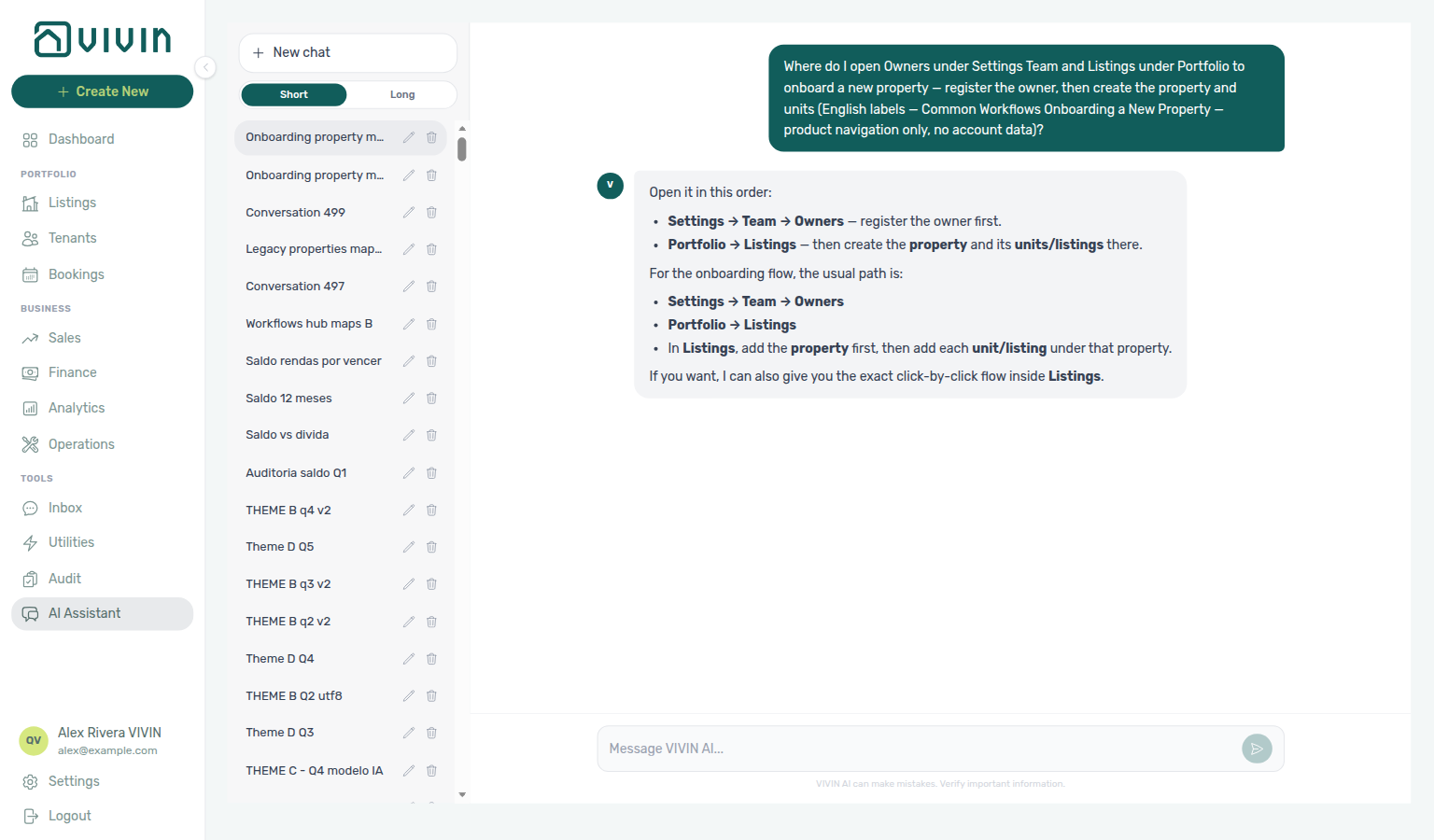
For Processing a New Booking (“Where do I open Bookings under Portfolio and Create New Booking to process a new booking — check for channel imports first, then create a direct reservation…?”), open Portfolio → Bookings first, then + Create New → Booking — see Processing a New Booking (ai-chat-product-context-processing-booking-reply.png, ai-chat-product-context-processing-booking-flow.mp4). The assistant typically says open Bookings, check for channel imports, then Create New Booking (in the product UI that is + Create New → Booking). External MCP clients: get-vivin-context-overview (or get-vivin-context-bookings-tenants).
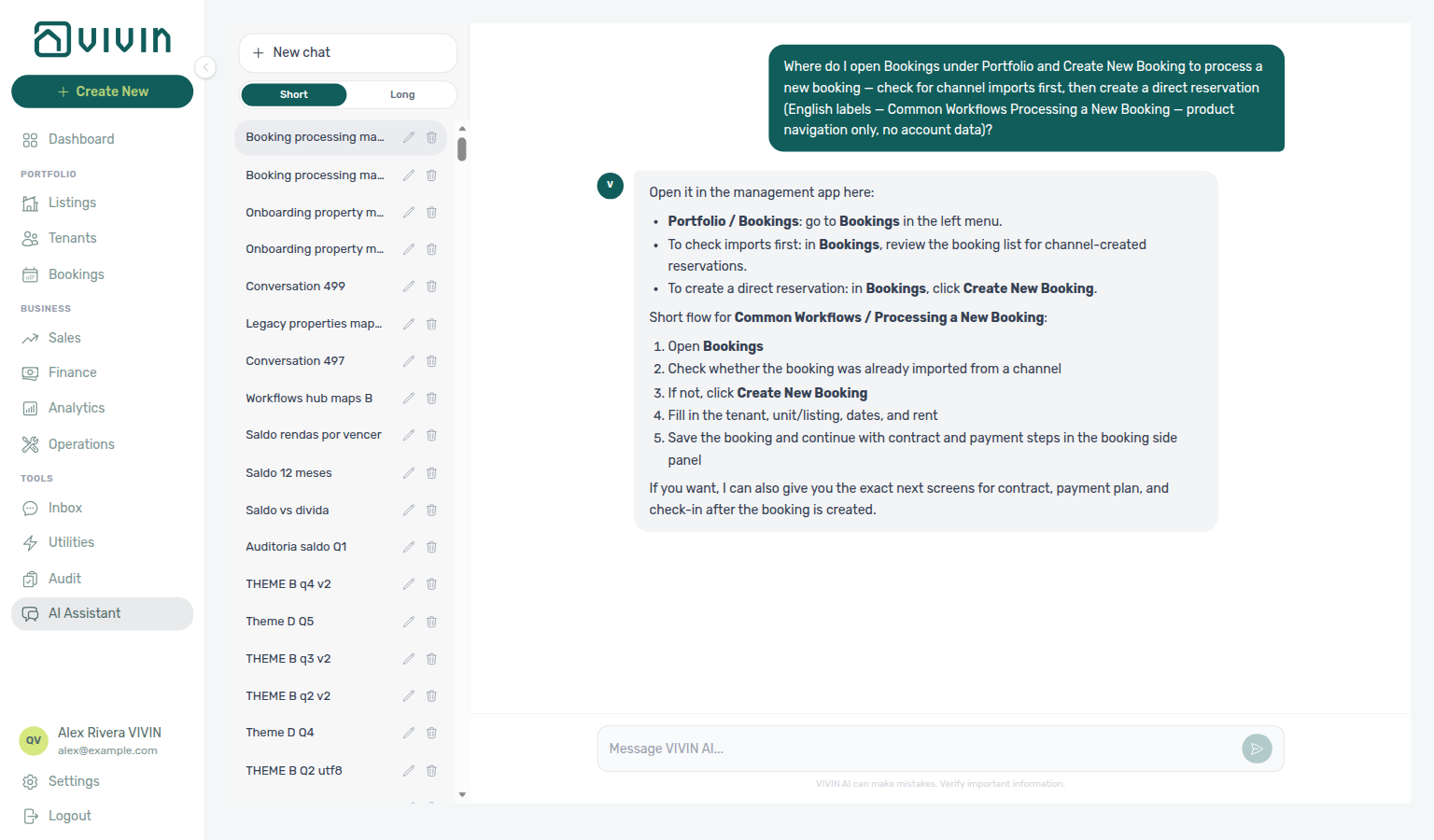
For Managing a Check-in (“Where do I open Operations under Business and the Check-in & Check-out tab to manage a check-in — review upcoming arrivals with Next 7 days and the Check-ins filter…?”), open Business → Operations → Check-in & Check-out — see Managing a Check-in (ai-chat-product-context-check-in-reply.png, ai-chat-product-context-check-in-flow.mp4). The assistant typically says Business → Operations → Check-in & Check-out, then Next 7 days and the Check-ins filter. External MCP clients: get-vivin-context-overview (or get-vivin-context-operations).
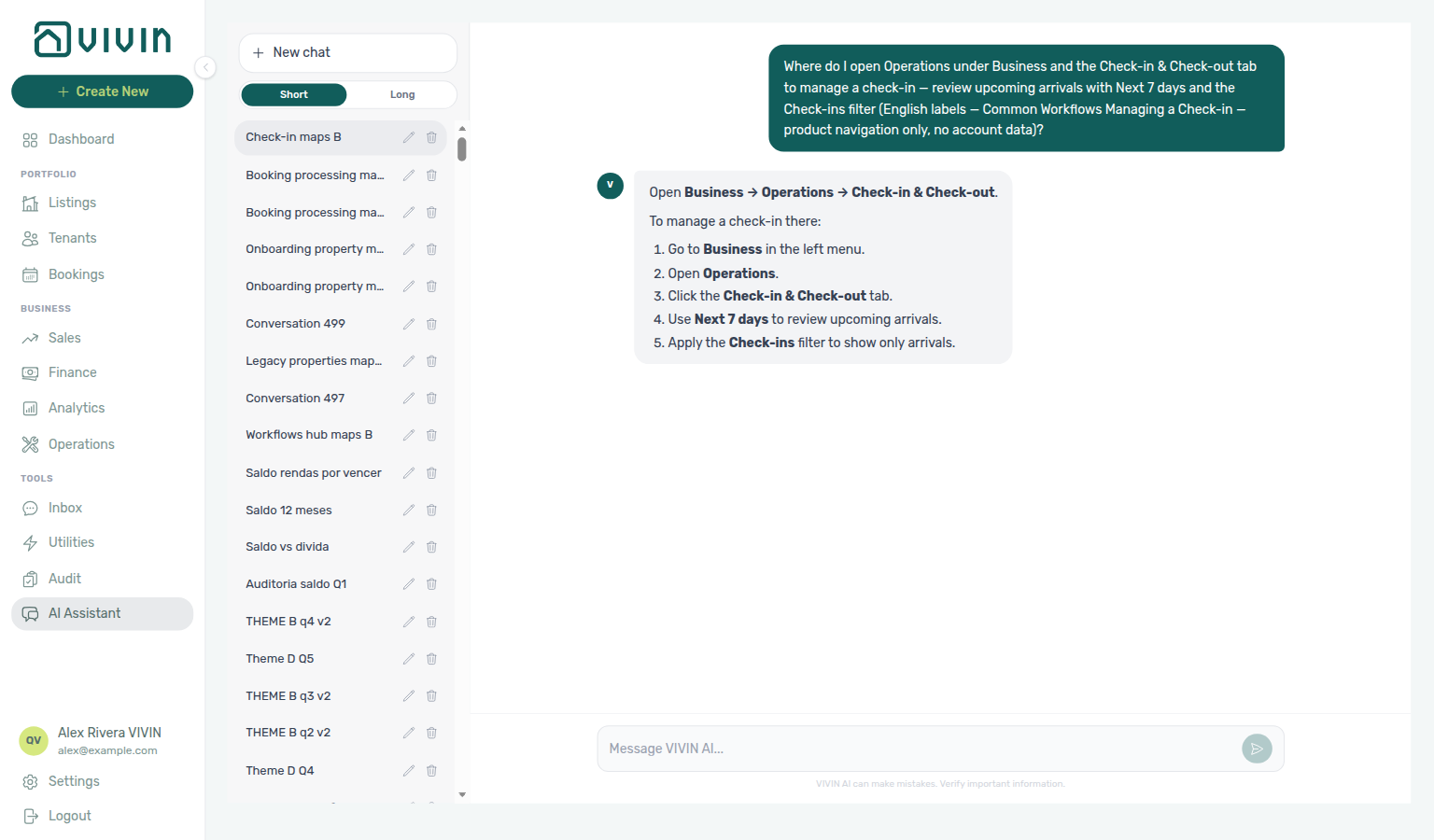
For Managing a Check-out (“Where do I open Operations under Business and the Check-in & Check-out tab to manage a check-out — review upcoming departures with Next 7 days and the Check-outs filter…?”), open Business → Operations → Check-in & Check-out — see Managing a Check-out (ai-chat-product-context-check-out-reply.png, ai-chat-product-context-check-out-flow.mp4). The assistant typically says Business → Operations → Check-in & Check-out, then Next 7 days and the Check-outs filter. External MCP clients: get-vivin-context-overview (or get-vivin-context-operations).
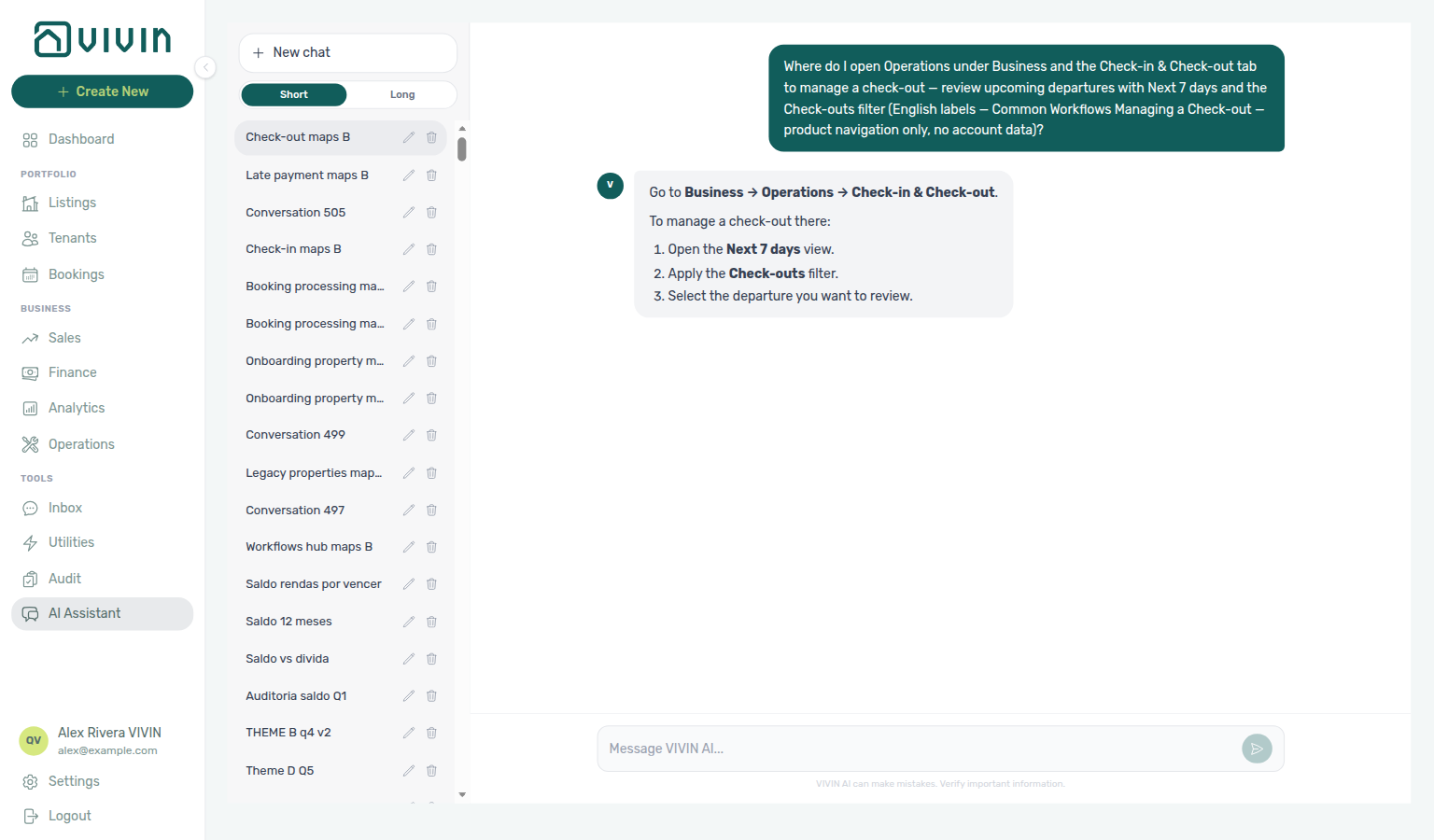
For Handling a Late Payment (“Where do I open Finance under Business to handle a late payment — review Debt Aging on Overview and Contract Values with the In Debt filter…?”), open Business → Finance — see Handling a Late Payment (ai-chat-product-context-late-payment-reply.png, ai-chat-product-context-late-payment-flow.mp4). The assistant typically says Business → Finance, then Overview → Debt Aging and Contract Values with the In Debt filter. External MCP clients: get-vivin-context-overview (or get-vivin-context-finance).
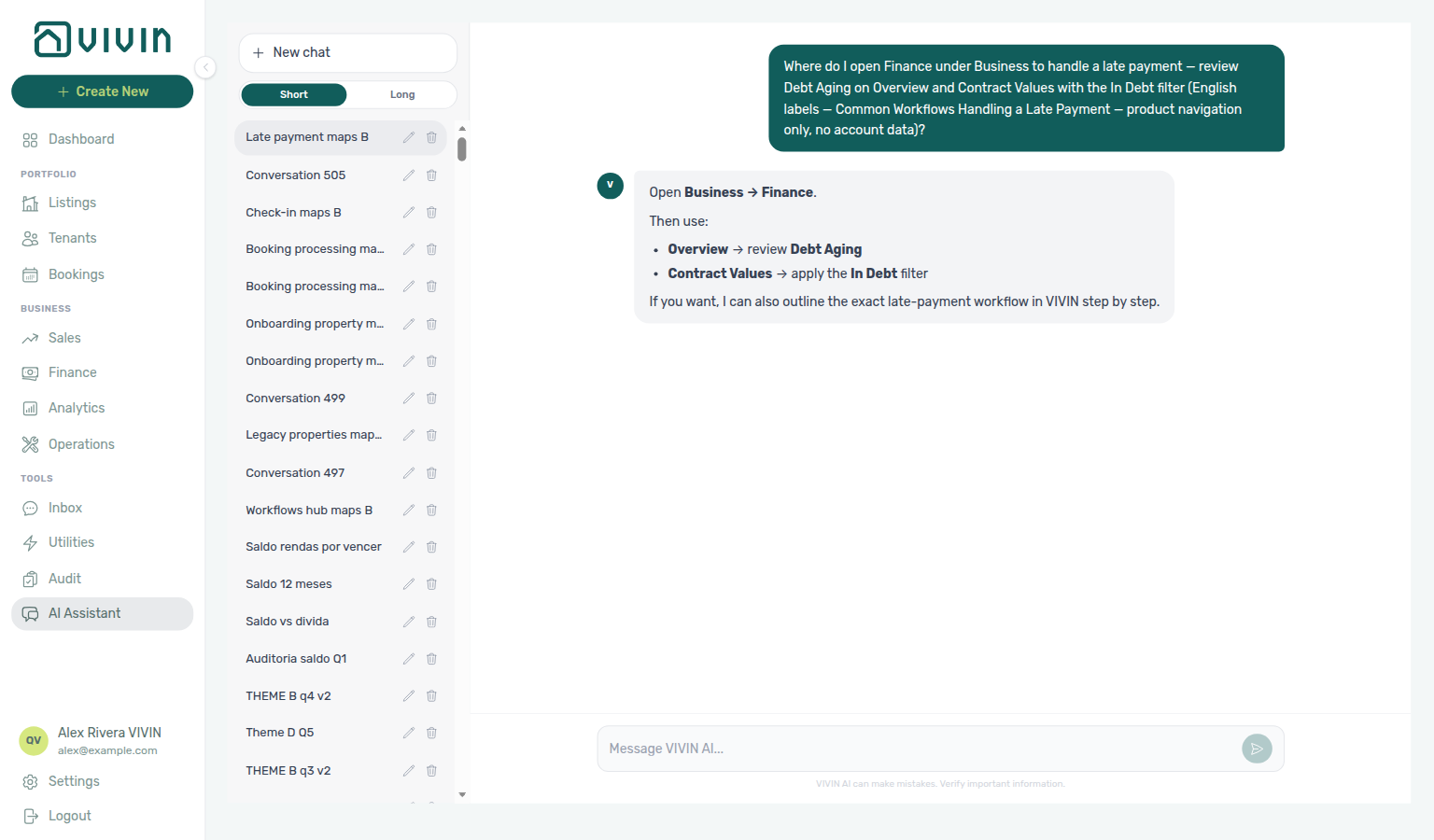
For Notification triage (“Where do I open the Dashboard bell and the full Notifications inbox at /notifications to triage alerts — use Unread and Mark all as read…?”), open the Dashboard header bell and bookmark /notifications — see Notification triage (ai-chat-product-context-notification-triage-reply.png, ai-chat-product-context-notification-triage-flow.mp4). The assistant typically points at the Dashboard bell and /notifications (it may say left menu — Notifications is not a sidebar item; use the bookmark or View all from the bell). External MCP clients: get-vivin-context-overview (or get-vivin-context-operations).
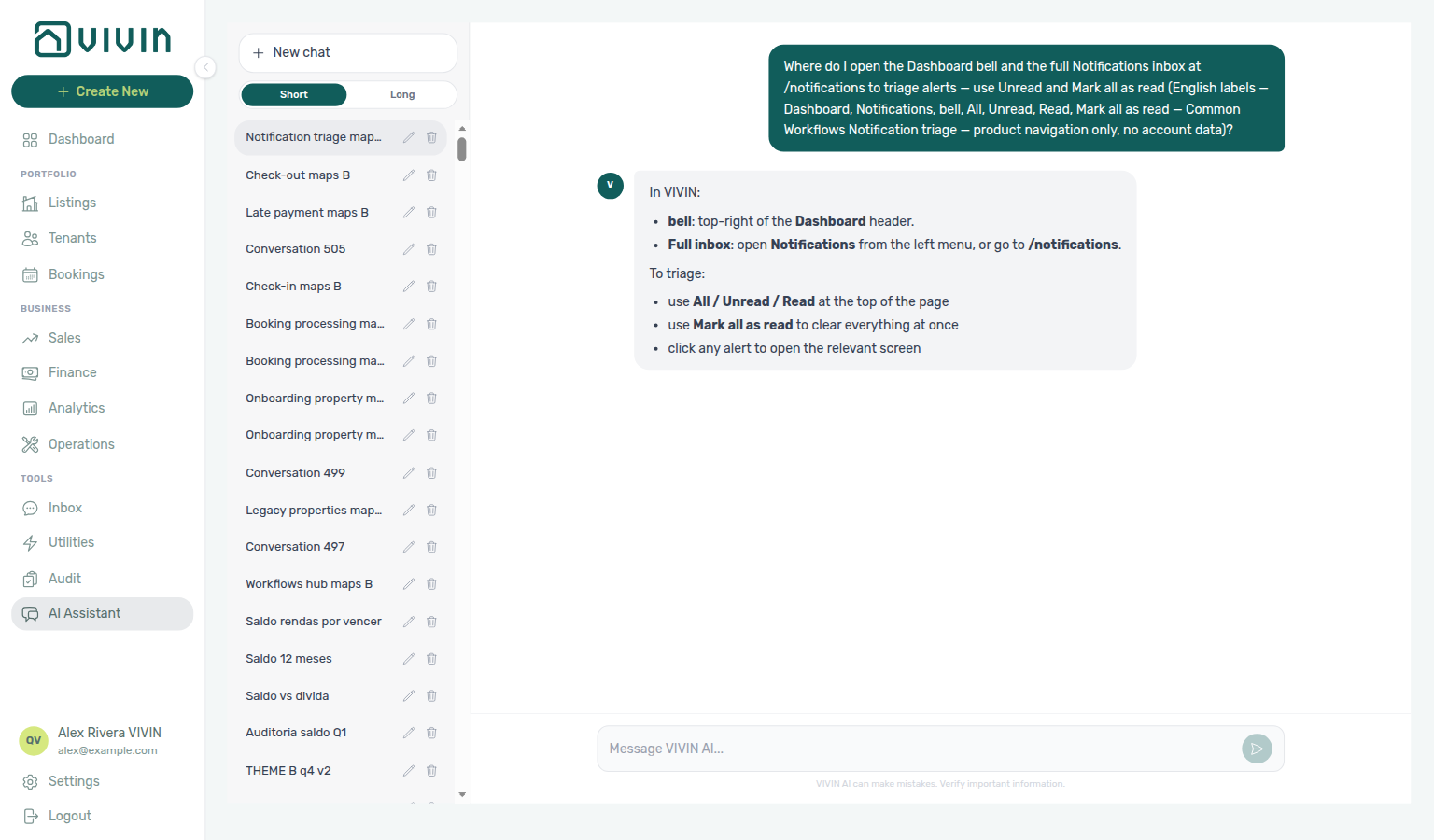
For Cancelling a Booking (“Where do I open Bookings under Portfolio to cancel a booking — open the booking sidebar Contract Info tab and Cancel booking with refund types…?”), open Portfolio → Bookings — see Cancelling a Booking (ai-chat-product-context-cancelling-booking-reply.png, ai-chat-product-context-cancelling-booking-flow.mp4). The assistant typically says Portfolio → Bookings, then Contract Info → Cancel booking, and lists the three refund types. External MCP clients: get-vivin-context-overview (or get-vivin-context-bookings-tenants).
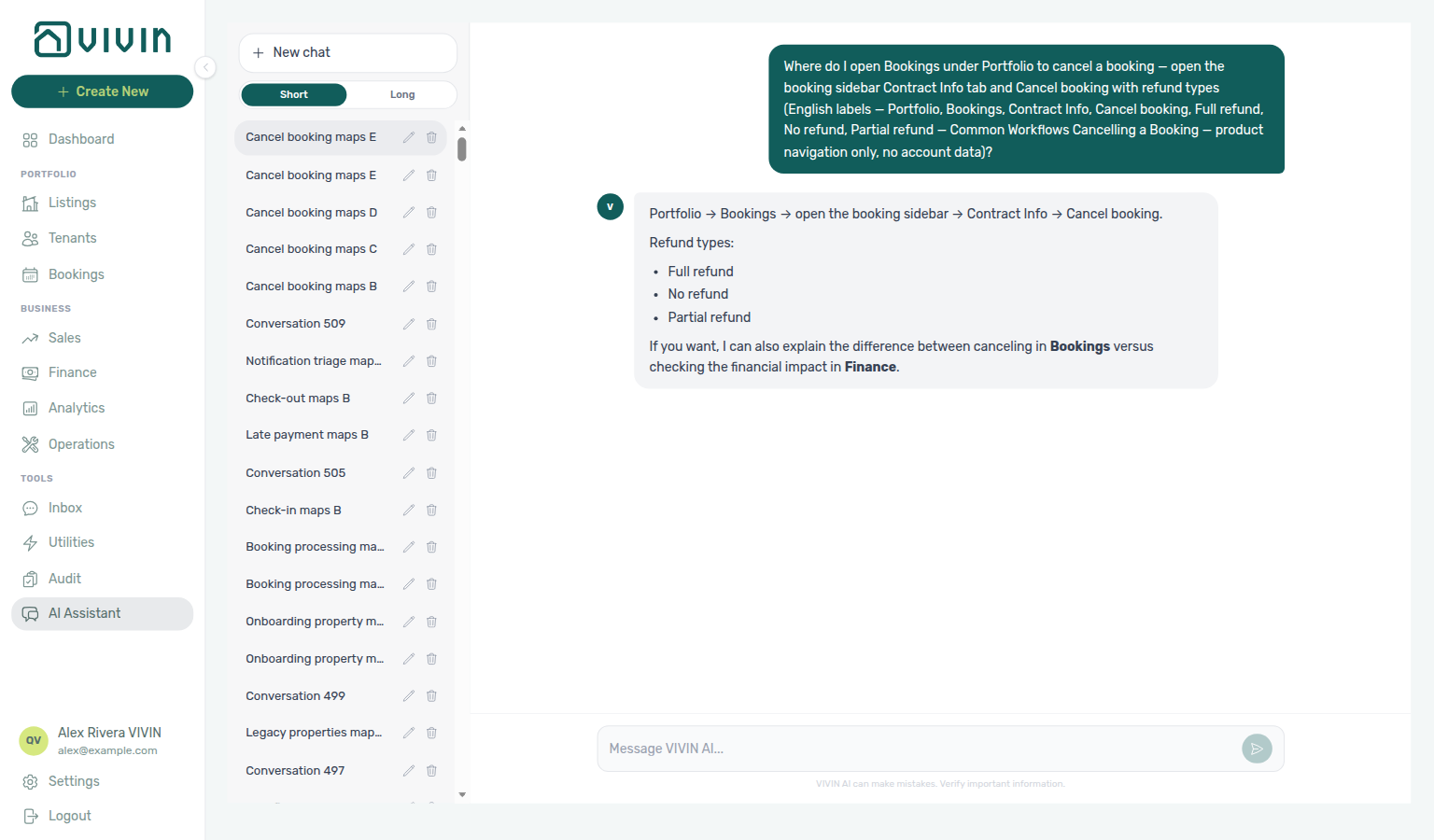
For Entering Monthly Utility Bills (“Where do I open Utilities under Tools to enter monthly utility bills — use the Bills tab and Add Bill with Upload PDF or Manual Entry…?”), open Tools → Utilities → Bills — see Entering Monthly Utility Bills (ai-chat-product-context-monthly-utility-bills-reply.png, ai-chat-product-context-monthly-utility-bills-flow.mp4). The assistant typically says Tools → Utilities → Bills, then Add Bill with Upload PDF or Manual Entry, and points at Allocations when you need to split costs. External MCP clients: get-vivin-context-finance. Distinct from the broader Utilities module map (“where do I enter utility bills and review allocations…?”) and from Account Settings Global Settings → Utilities overage rules.
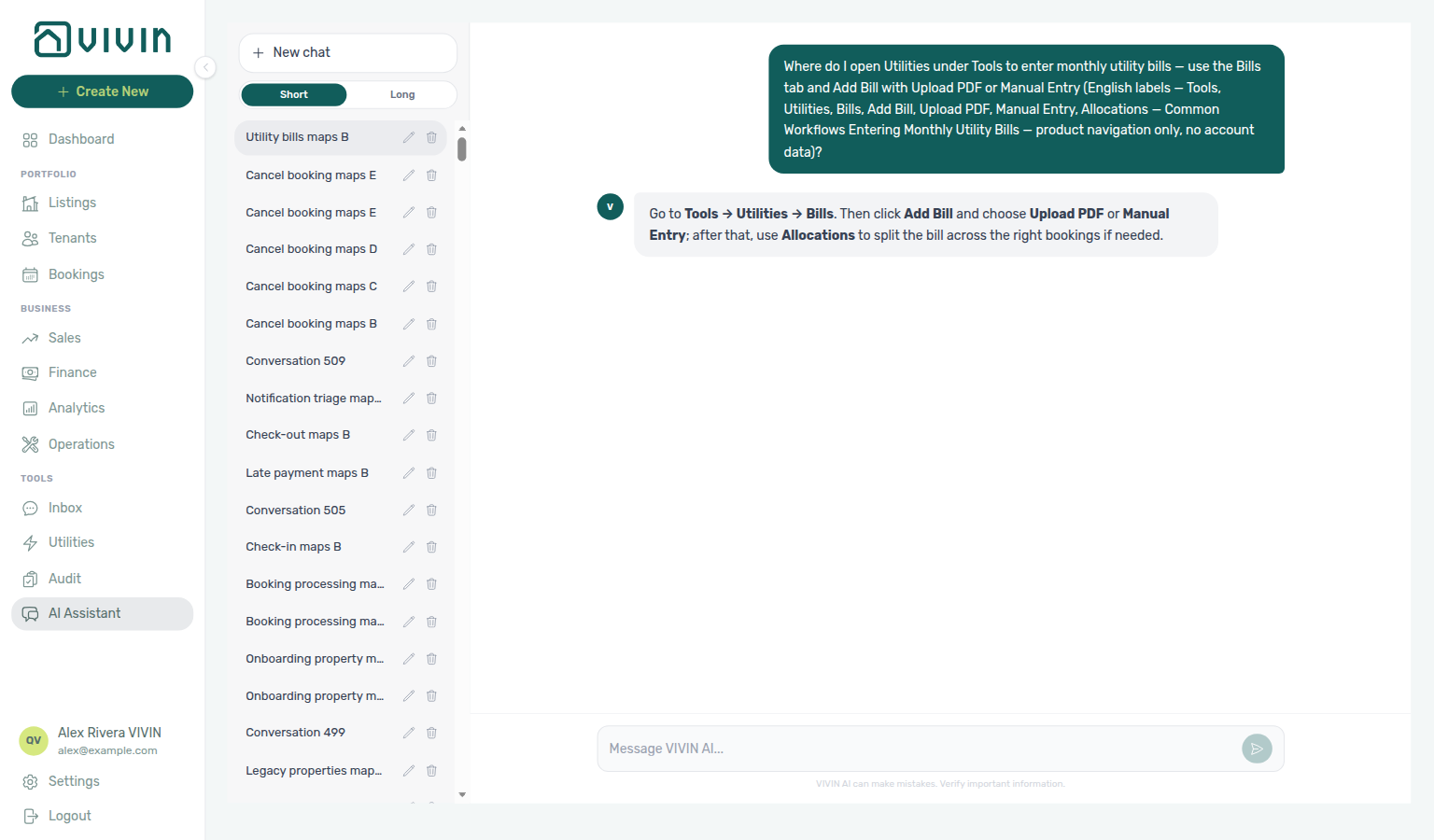
For Manual block hygiene (“Where do I open Audit under Tools to review manual blocks for Manual block hygiene — use the Manual Blocks tab with Reason and End columns, Created by filter, and unit Calendar edits…?”), open Tools → Audit → Manual Blocks — see Manual block hygiene (ai-chat-product-context-manual-block-hygiene-reply.png, ai-chat-product-context-manual-block-hygiene-flow.mp4). The assistant typically says Tools → Audit → Manual Blocks, then points at Reason / End, Created by, and unit Calendar edits in Listings. External MCP clients: get-vivin-context-properties-listings (or get-vivin-context-overview). Distinct from the broader Audit module map (“where do I open Audit to review manual blocks and discounts…?”).
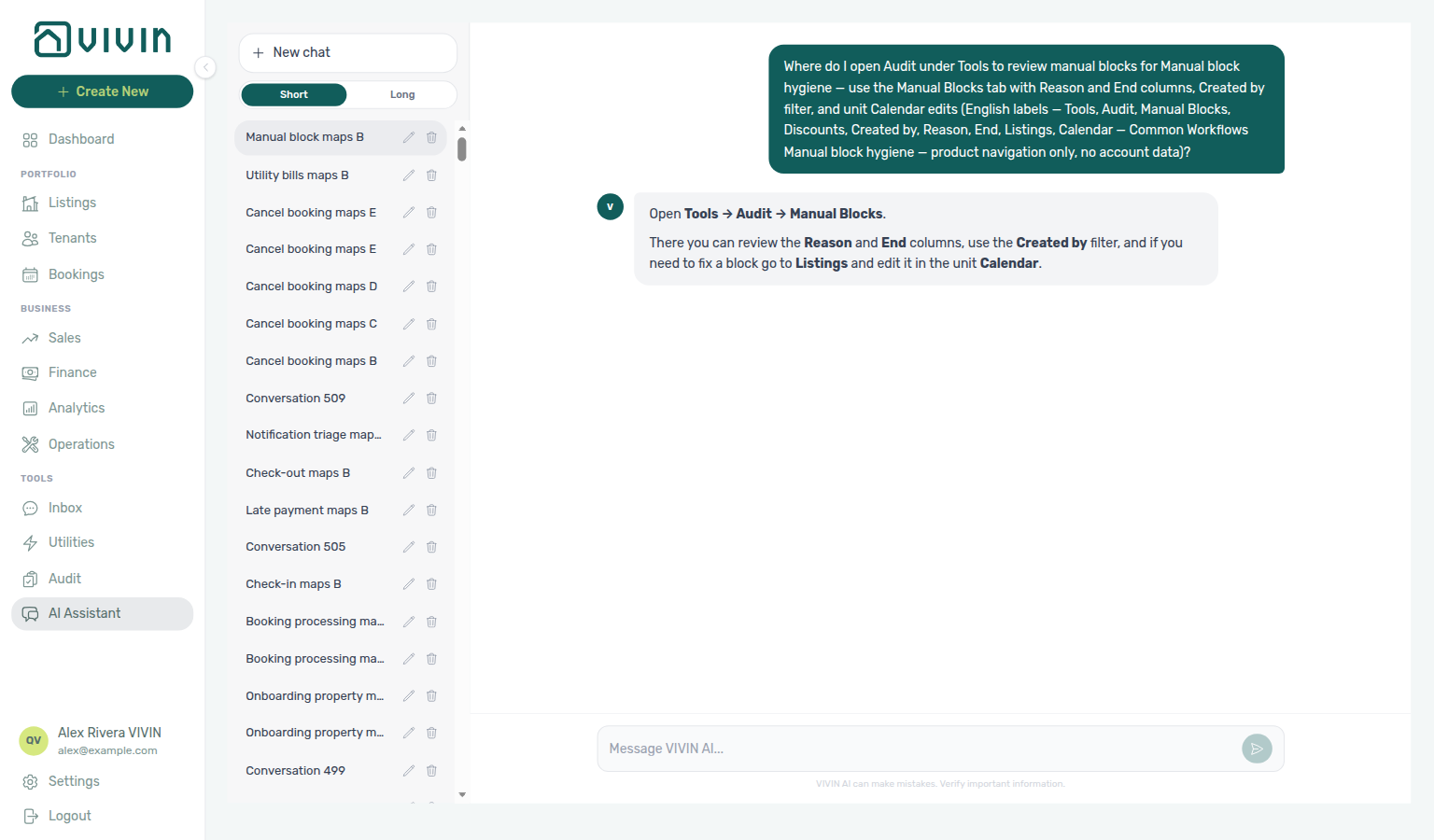
For Portfolio KPI review (“Where do I open Analytics under Business for Portfolio KPI review — use the month-range picker with Overview, Revenue, Occupancy, ADR, and RevPAR tabs, then reconcile on Dashboard and Sales…?”), open Business → Analytics — see Portfolio KPI review (ai-chat-product-context-portfolio-kpi-review-reply.png, ai-chat-product-context-portfolio-kpi-review-flow.mp4). The assistant typically says Business → Analytics, then points at the month-range picker, the KPI tabs (Overview, Revenue, Occupancy, ADR, RevPAR, Maintenance), and cross-checks on Dashboard and Sales. External MCP clients: get-vivin-context-finance. Distinct from the broader Analytics module map (“where do I open Analytics for portfolio KPI charts like ADR and RevPAR…?”).
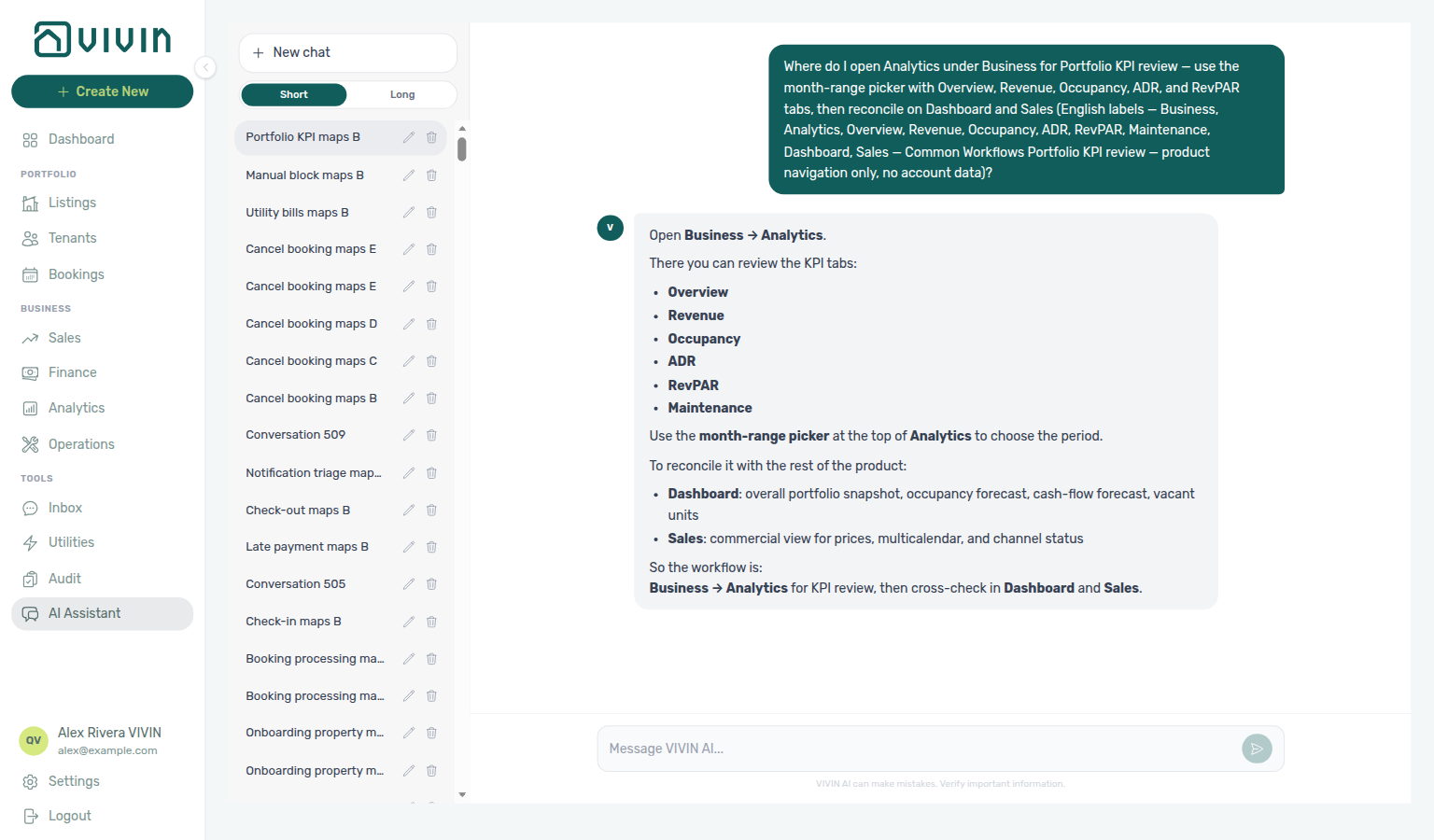
For Resetting a Management User Password (“Where do I reset a management user password for Resetting a Management User Password — use the sign-in Forgot password link and /reset-password request form with Send reset link, or Settings Users Resend password for a teammate…?”), open Forgot password? on the sign-in page or Settings → Users — see Resetting a Management User Password (ai-chat-product-context-password-reset-reply.png, ai-chat-product-context-password-reset-flow.mp4). The assistant typically says Forgot password on the sign-in page (then Reset your password / Send reset link), and Settings → Team/Users with Resend password for a teammate. External MCP clients: get-vivin-context-platform. Distinct from the broader Users tab map (“where do I open Users to invite team members…?”).
For Account Settings (“Where do I open Account Settings to manage users, integrations, and workspace preferences?”), open Account Settings from the sidebar Settings gear — Team (users / owners), System → Integrations, and Account (company, subscription, preferences). The assistant typically says Open Settings in the management app and names those sections. Day-to-day portfolio work stays on Listings, Bookings, and Finance. External MCP clients: get-vivin-context-platform.
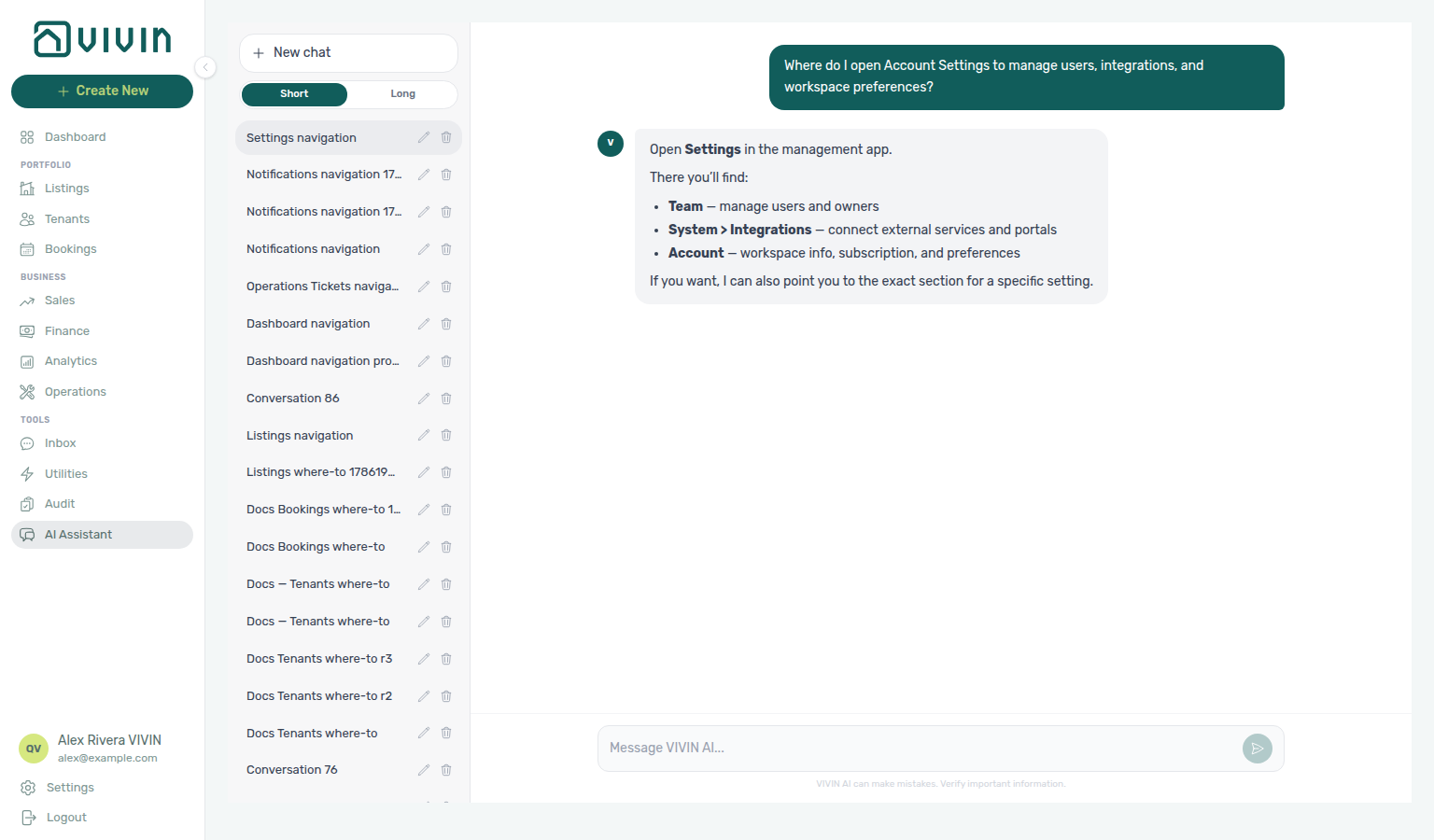
For General Information (“Where do I open General Information to edit company name, branding, and account contact details?”), open Settings → System → Global Settings (/settings/general redirects) — company name, contact fields, fiscal ID, and branding on the General Information / Branding cards. The assistant may still say Settings → Conta → Informação geral, Settings → Conta, or Account → General Information; follow Settings → System → Global Settings instead. Plan billing stays on Subscription; booking defaults stay on the other Preferences cards (English tab Global Settings); tenant edit / module / signing gates stay on Portal settings. External MCP clients: get-vivin-context-platform.
For Subscription (“Where do I open Subscription to view plan pricing, payment method, and billing history?”), open Settings → System → Subscription (/settings/subscription) — plan pricing, payment method, and billing history. The assistant may still say Settings → Conta → Subscrição or Settings → Account → Subscription; follow Settings → System → Subscription instead. Company identity stays on General Information (card on Global Settings); booking defaults stay on Preferences (English tab Global Settings); tenant edit / module / signing gates stay on Portal settings. External MCP clients: get-vivin-context-platform.
For Preferences / Global Settings (“Where do I open the Global Settings tab under Account Settings System (English tab label Global Settings, also called Preferences — not Personal Settings, not Tenant categories, and not Property Categories) to configure booking defaults, check-in and check-out times, preparation days, vacant unit preference, fees, utilities, and Owner Reports?”), open Settings → System → Global Settings (/settings/preferences) — booking defaults, check-in/out times, preparation days, vacant unit preference, fees, utilities, and Owner Reports. The assistant typically says Settings → System → Global Settings. Older prompts that still name an Account group may get Account → Global Settings — follow System either way. The English tab label is Global Settings; docs title this page Preferences. Per-user locale stays on Personal Settings; tenant edit / module / signing gates stay on Portal settings; portal segments stay on Tenant categories; chip catalogs stay on Categories. Name System and the Global Settings label so the reply stays on this tab. External MCP clients: get-vivin-context-platform.
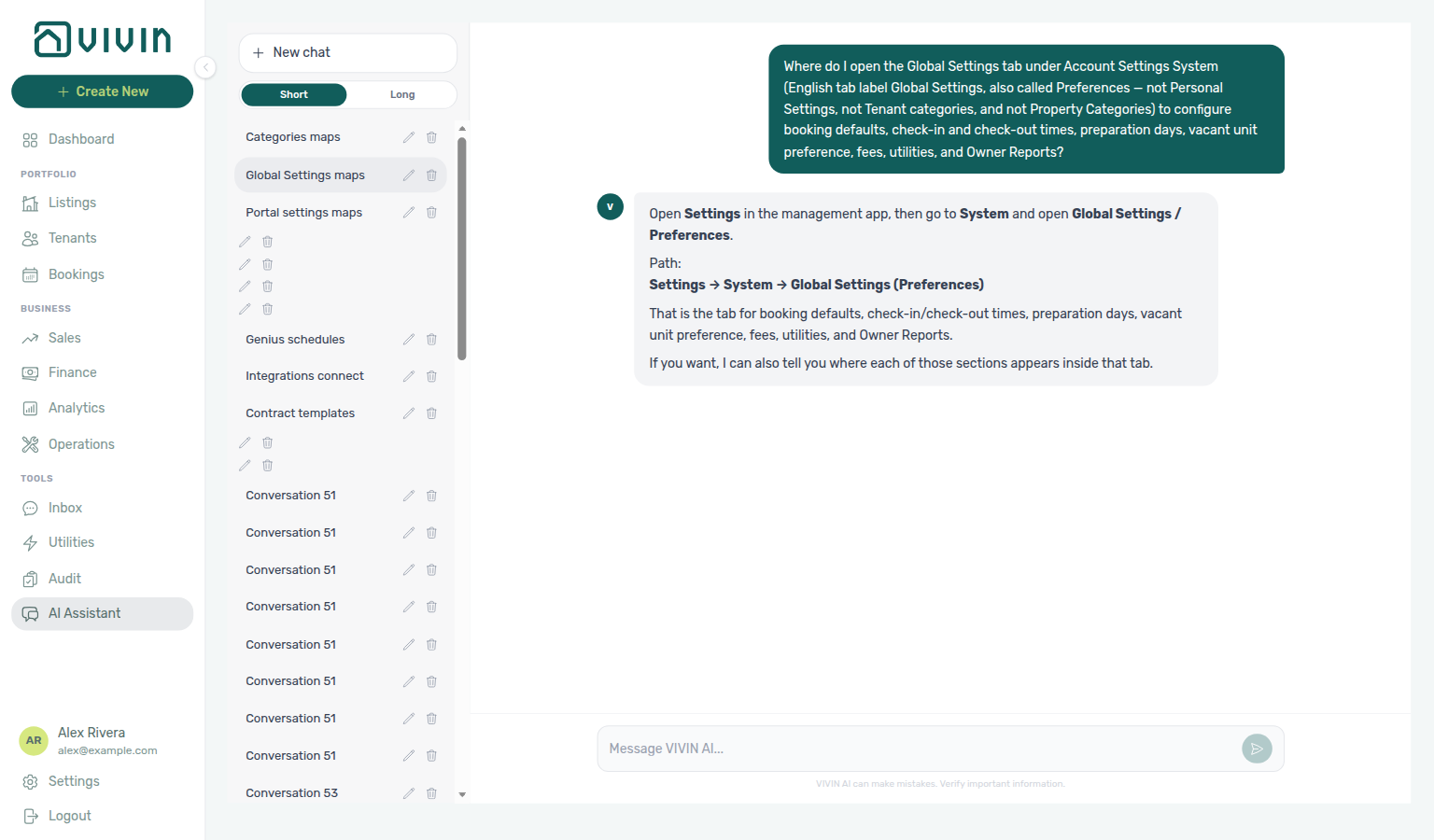
For Portal settings (“Where do I open Portal settings under Account Settings Tenant Portal to configure tenant edit permissions, portal modules, and mandatory fields before contract signing (English tab label Portal settings — not Global Settings, not Services, and not FAQs)?”), open Settings → Tenant Portal → Portal settings (/settings/tenantPortal) — Tenant can edit, Portal modules, and Mandatory for contract signing. The assistant may still say Settings → Property → Tenant categories. Follow Tenant Portal → Portal settings. Per-segment overrides stay on Tenant categories. Booking defaults stay on Global Settings. External MCP clients: get-vivin-context-platform.
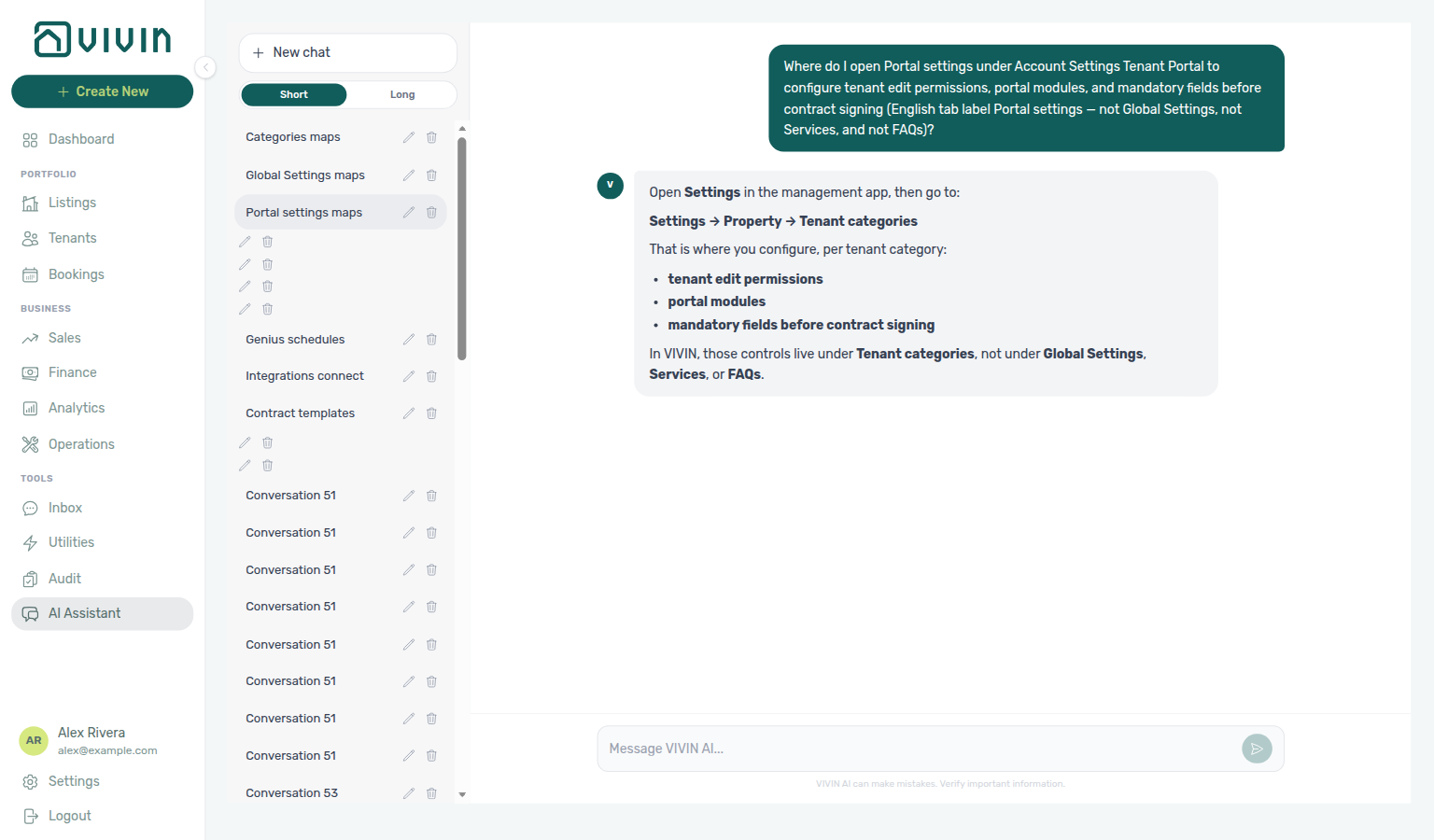
For Support (“Where do I open Support to create and track Vivin help tickets with the Vivin team?”), open Account Settings → Support (/settings/support) or the desktop Help & Support FAB — create tickets, search history, and follow conversation threads with the Vivin team. The assistant typically says Settings → Support. Do not use + Create New → New Ticket (that is Operations maintenance work). External MCP clients: get-vivin-context-operations.
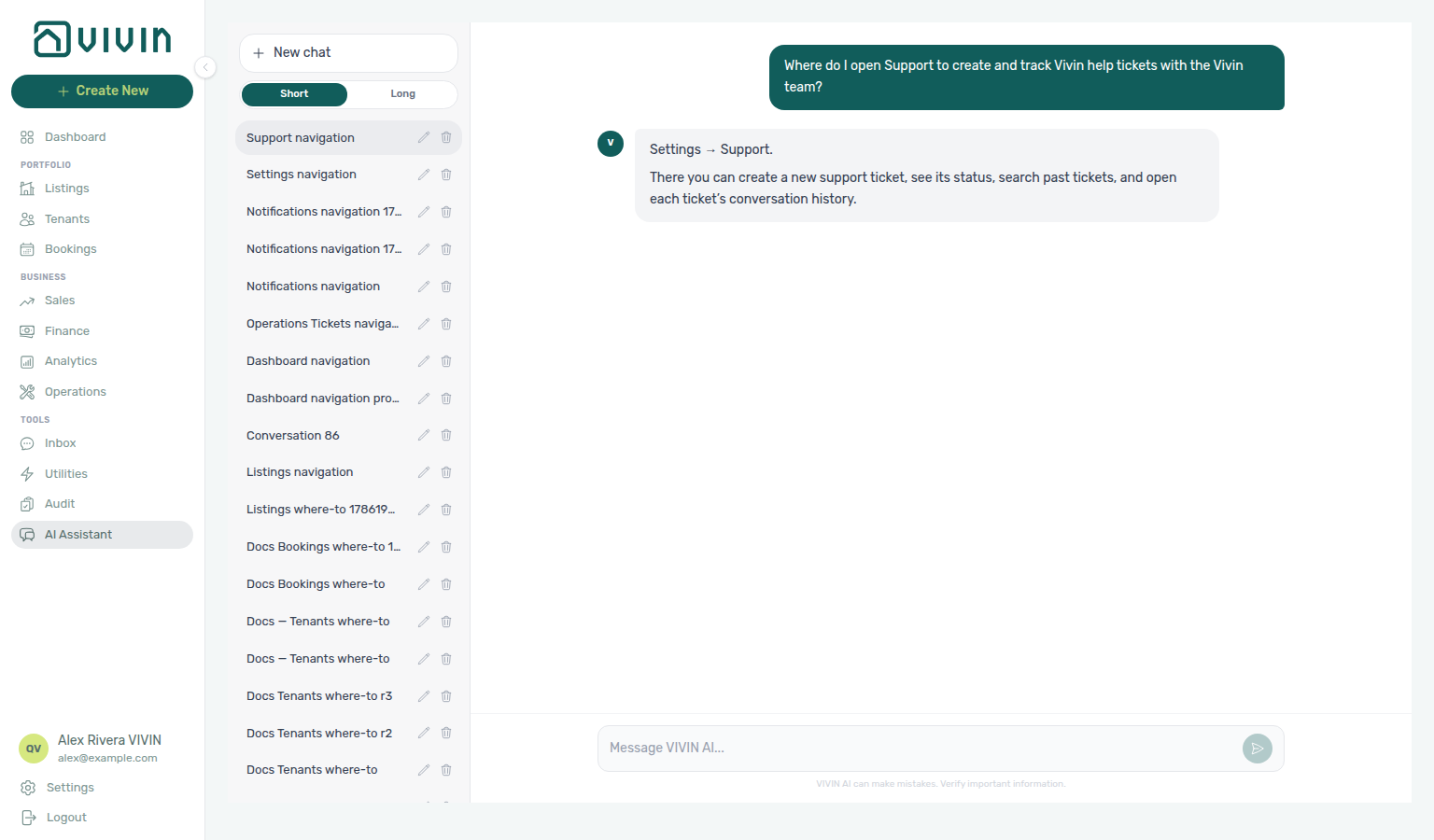
For Users (“Where do I open Users to invite team members and manage role permissions?”), open Settings → Team → Users (/settings/users) — invite staff, edit roles, and audit the permission matrix. The assistant typically says Settings → Team (invite members, manage users, edit roles and permissions). The English tab label is Users. Landlord payees stay on Owners; your own name fields stay on My Profile. External MCP clients: get-vivin-context-platform.
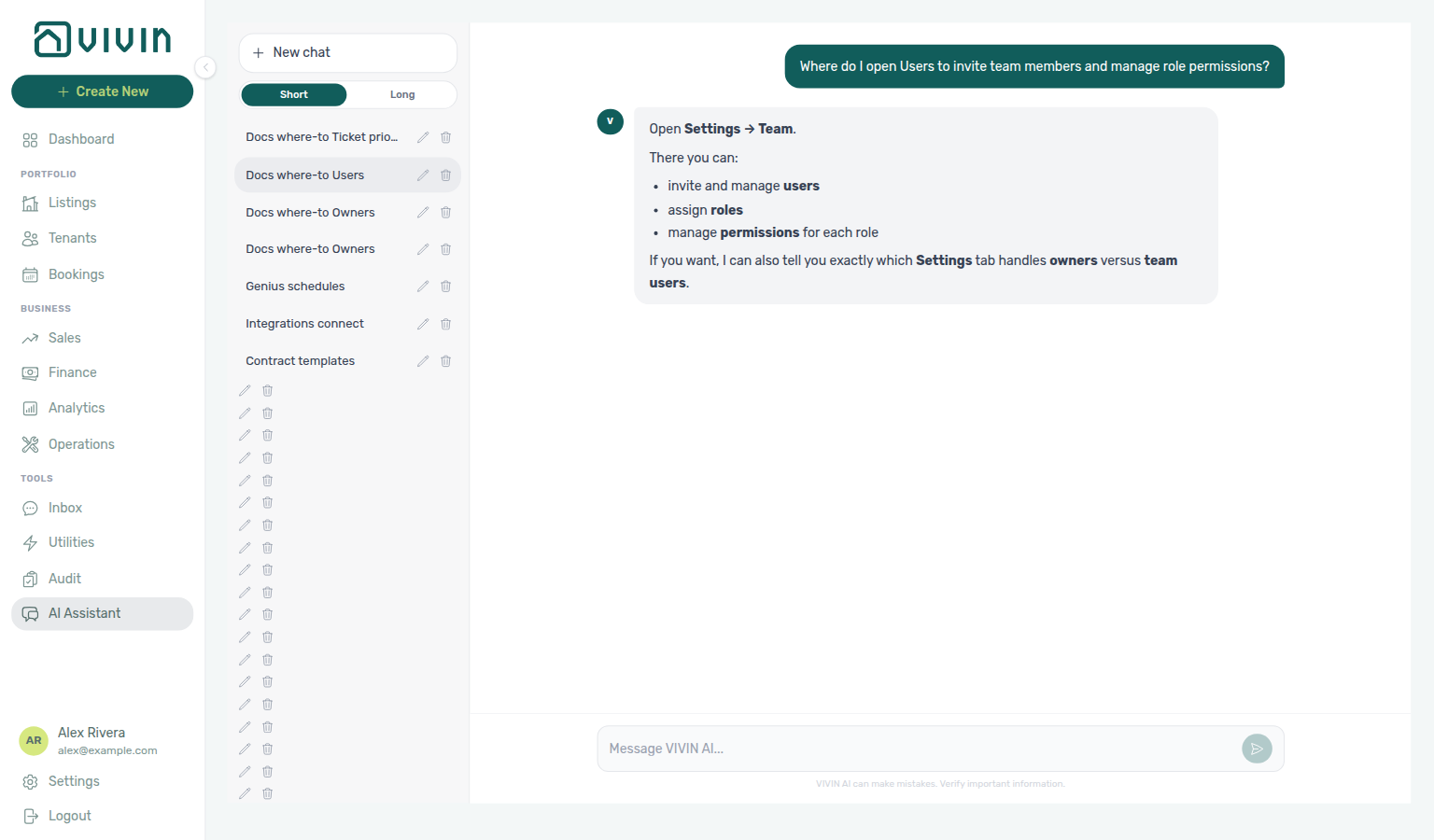
For Owners (“Where do I open Owners to register property owners and set IBAN and fiscal ID before creating properties?”), open Settings → Team → Owners (/settings/owners) — register landlords, banking, and fiscal IDs before the property wizard can list them. The assistant typically says Settings → Team → Owners. Teammate accounts stay on Users. External MCP clients: get-vivin-context-platform.
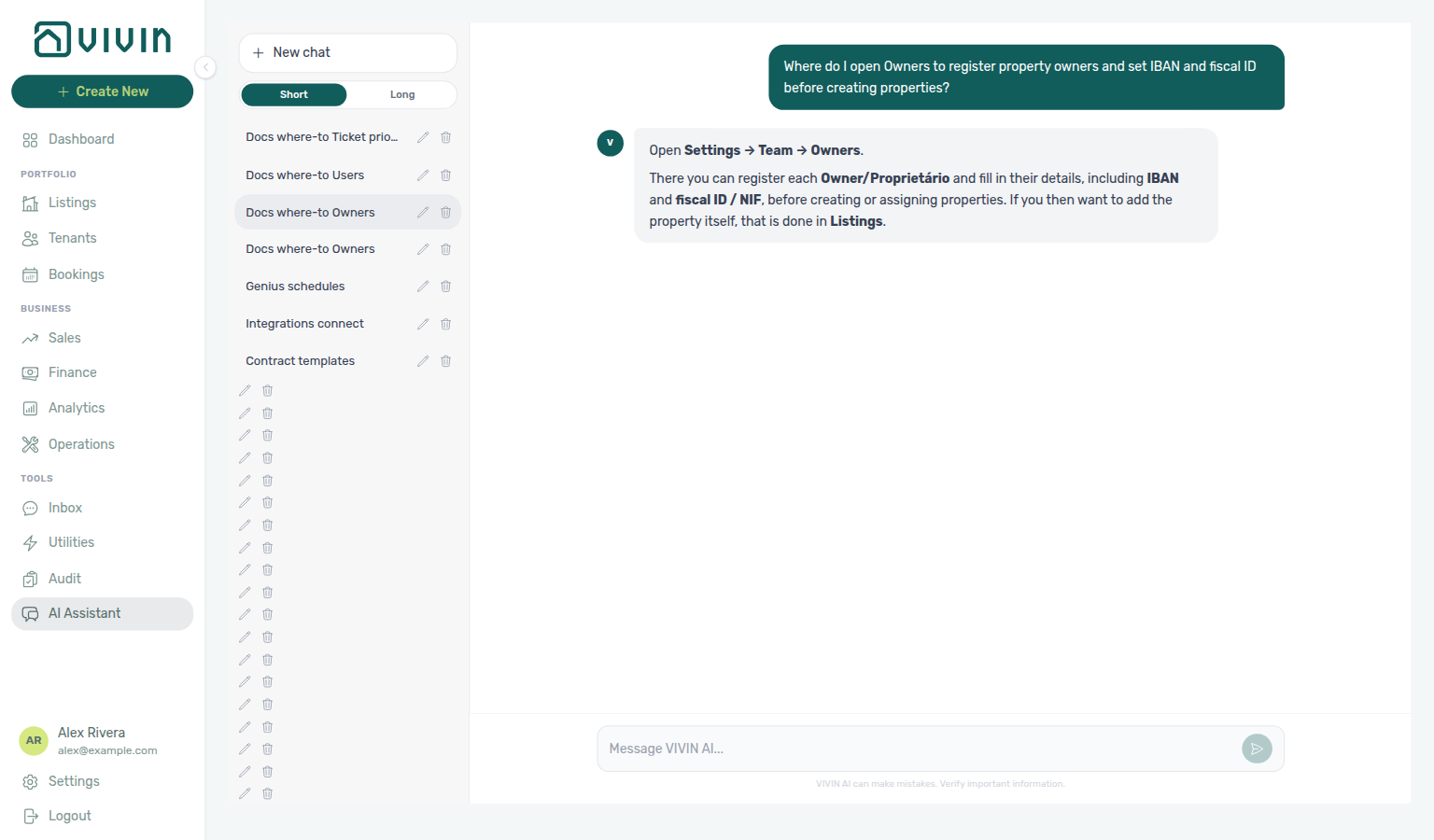
For My Profile (“Where do I open My Profile to update my display name?”), open My Profile from the header user menu → My Profile (/profile) — edit first and last name; email stays read-only. Locale, tab order, and personal email toggles live on Personal Settings (/settings/personal). The assistant typically says Top right menu → My Profile. External MCP clients: get-vivin-context-platform.
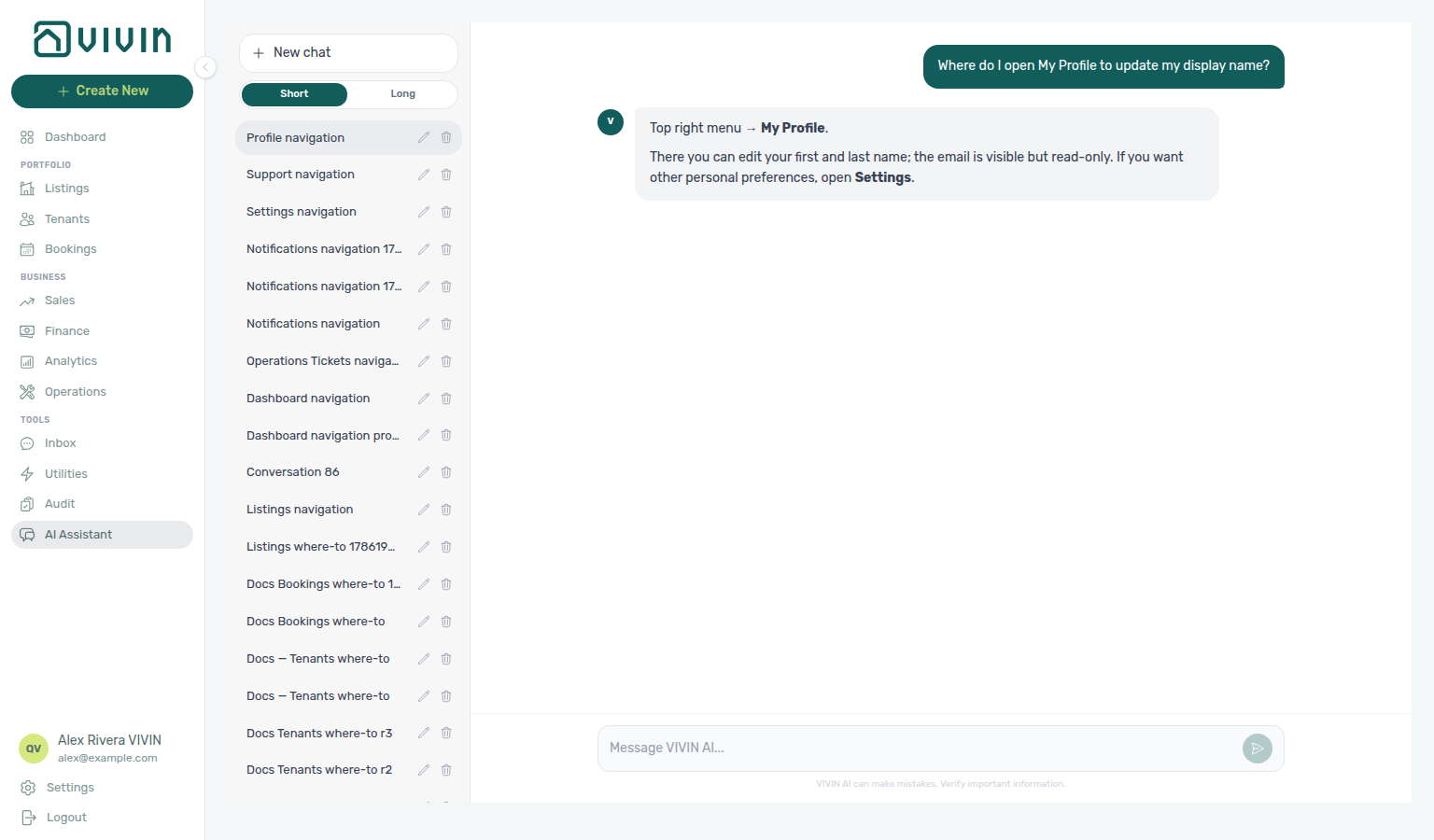
For Personal Settings (“Where do I open Personal Settings to change my interface language and email notification toggles?”), open Personal Settings at /settings/personal (ai-chat-product-context-personal-settings-reply.png, ai-chat-product-context-personal-settings-flow.mp4). The assistant typically says Profile → Personal Settings (open My Profile, then use the shortcut). Workspace notification masters stay on Preferences (English tab Global Settings). External MCP clients: get-vivin-context-platform.
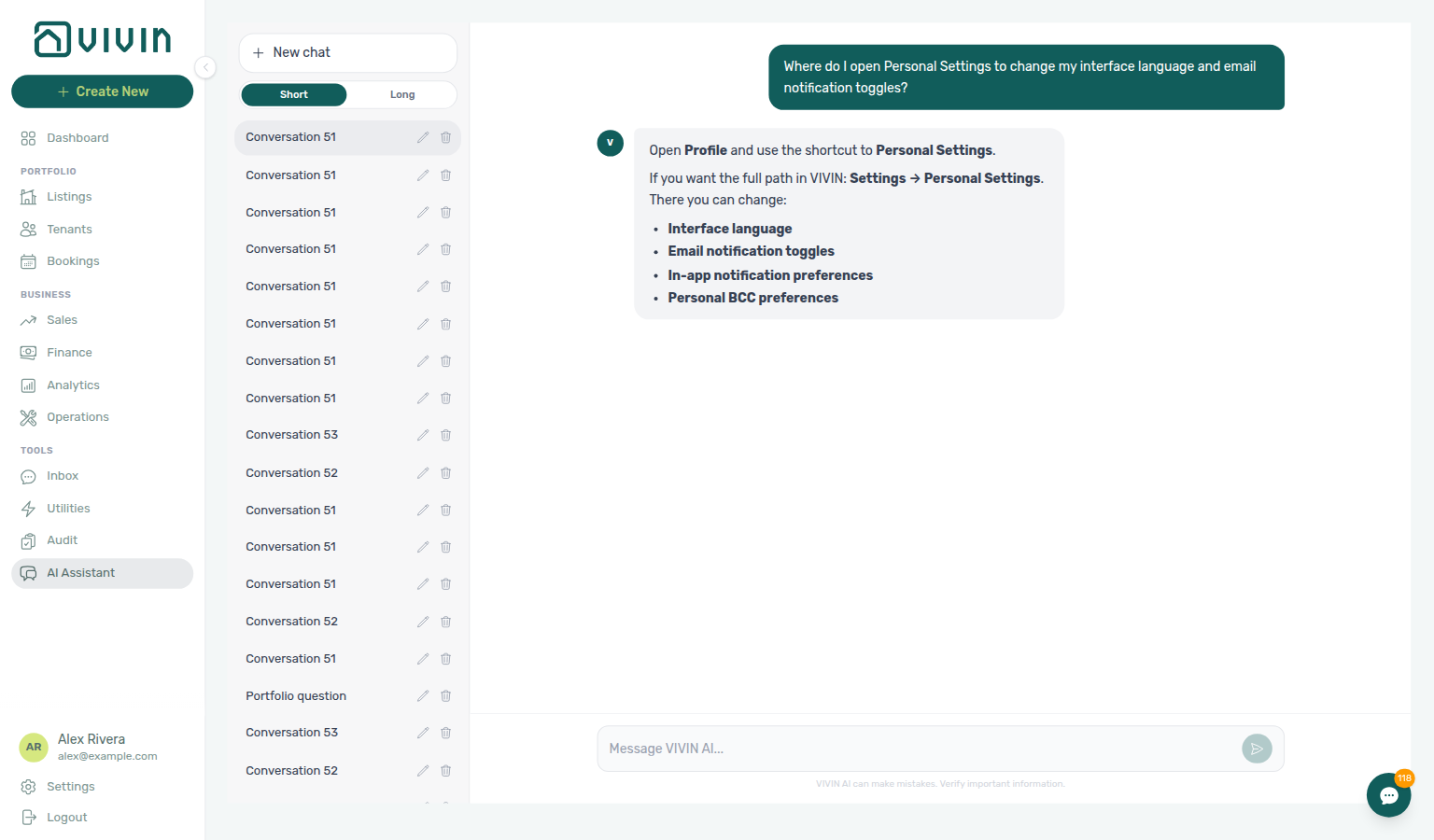
For Create New (“Where do I open Create New to add a booking, tenant, or property without leaving my current screen?”), use + Create New in the left sidebar — green + with label on desktop; icon + tooltip when the rail is collapsed. The assistant may say top bar, header, or global Create New in the management app header. On narrow mobile layouts the sidebar control is hidden — use each module’s Add / Create instead. External MCP clients: get-vivin-context-overview.
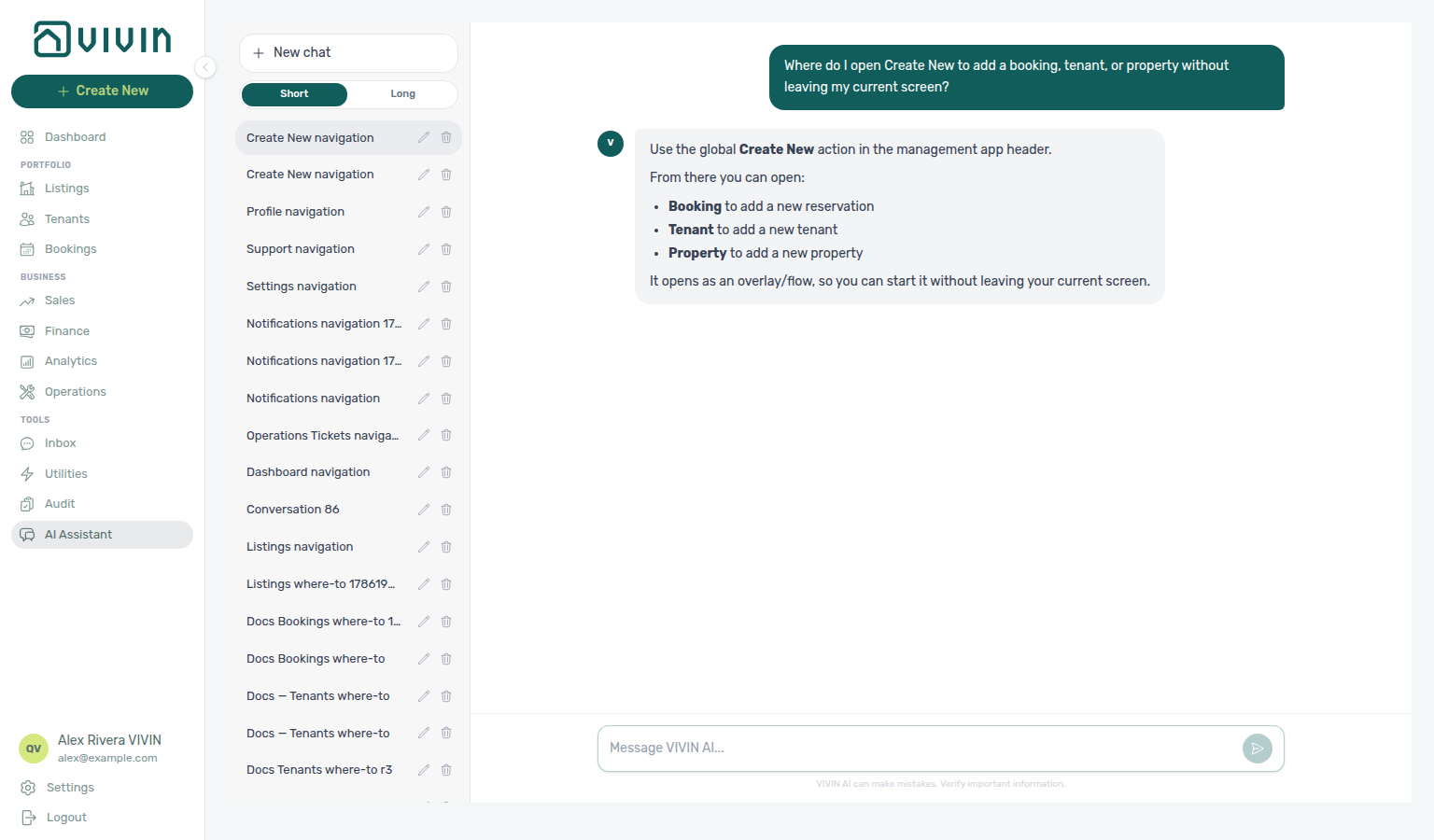
For Services marketplace (“Where do I configure the tenant services marketplace catalogue and approve tenant service requests?”), open Settings → Tenant Portal → Services (/settings/services) — catalogue cards, Requests queue for approval-gated offerings, and active/sort controls. The assistant may still say Settings → Property → Services and may point approvals at a booking services area; follow Tenant Portal → Services (catalogue + Requests) instead. Turn on Allow to see services under Portal settings before tenants browse add-ons. Concept hub: Services Marketplace. External MCP clients: get-vivin-context-operations.
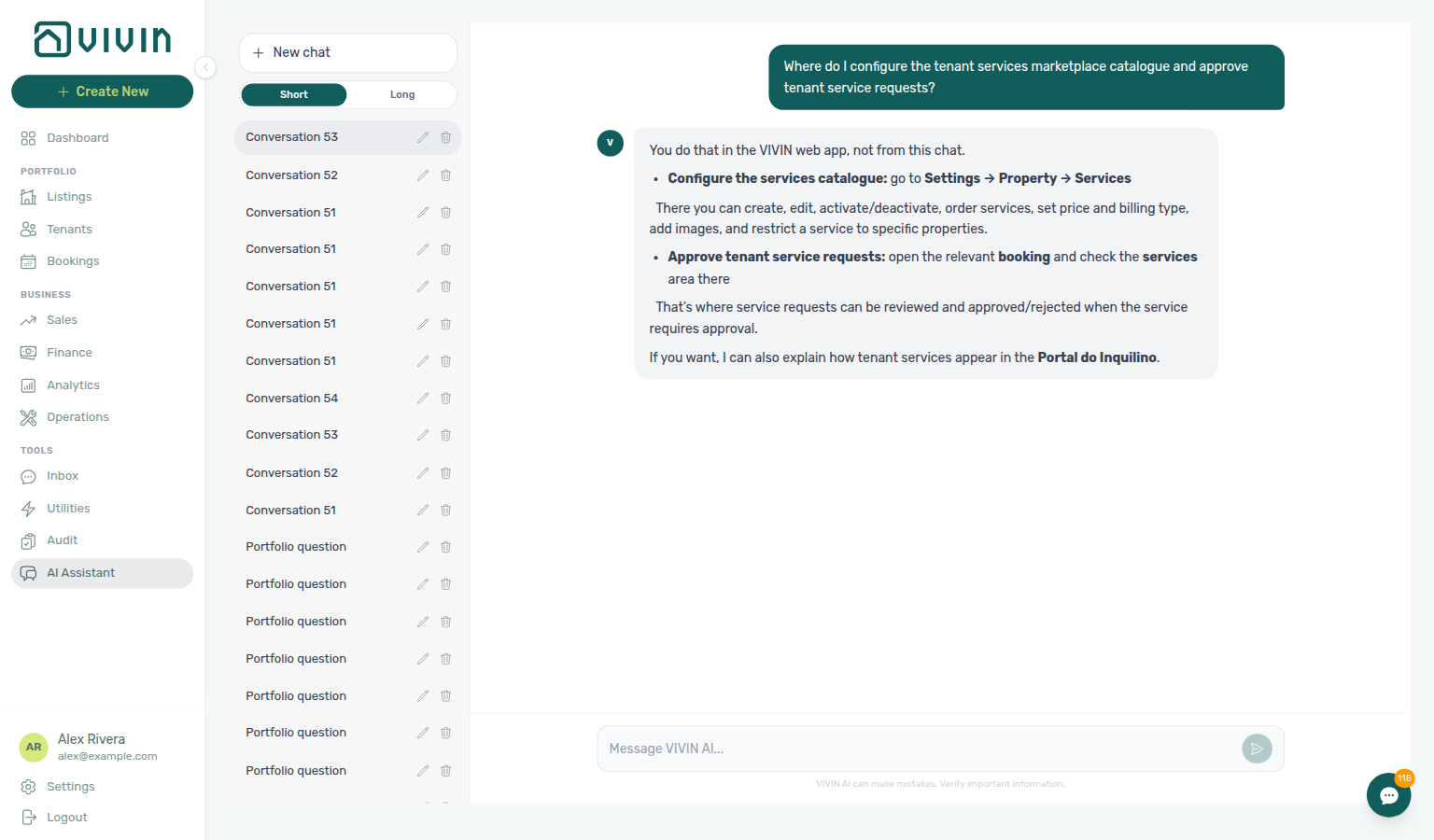
For ChatBot (“Where do I configure the tenant WhatsApp chatbot persona and special rules?”), open Settings → System → ChatBot (/settings/chatbot) — Persona, Special Rules (IF/THEN), FAQ drafts, and Bot Status WhatsApp cards. The assistant may still say Settings → Sistema → assistente virtual / WhatsApp chatbot (or System → Virtual Assistant); follow System → ChatBot. The English tab label is ChatBot. This is the tenant-facing assistant — not operator AI Chat and not Inbox triage. External MCP clients: get-vivin-context-ai.
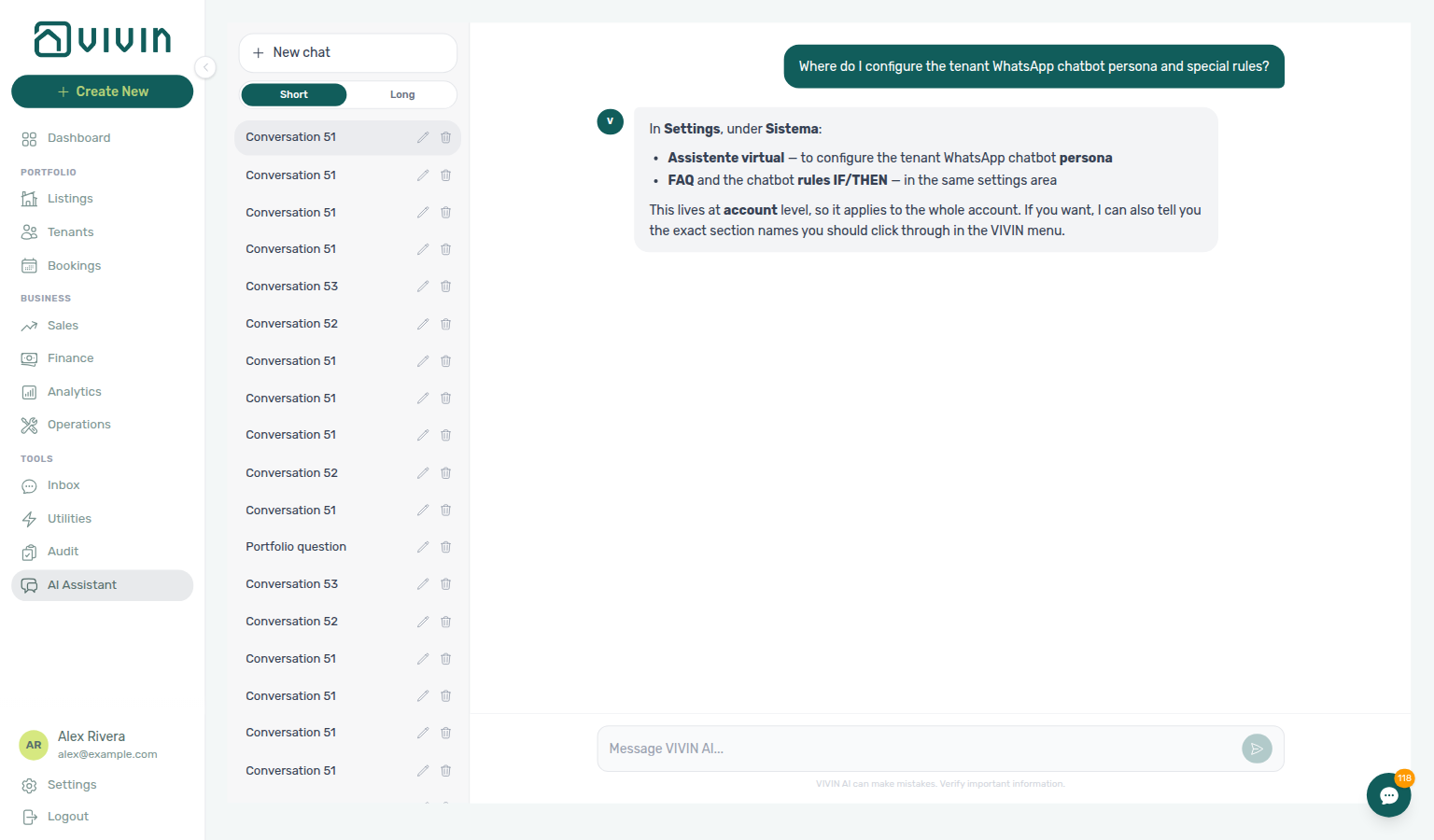
For AI / MCP (“Where do I open AI / MCP to create Landlord MCP API keys and manage tool permissions?”), open Settings → System → AI / MCP (/settings/mcp) — Connection URL, API keys, account / per-user tool permissions, and audit logs. The assistant typically says Settings → AI (it may omit System); follow Settings → System → AI / MCP. The English tab label is AI / MCP. Distinct from tenant ChatBot and from the Genius Scheduled reports table. External MCP clients: get-vivin-context-platform (or get-vivin-context-ai).
For Tenant MCP catalogues (“Where do I configure Services, Ticket priority, and ChatBot persona or special rules that booking-scoped Tenant MCP assistants read (not Account Settings AI / MCP Landlord API keys, and not Tools → AI Assistant)? Name the Settings tabs — product navigation only, no account data.”), open Services under Tenant Portal, Ticket priority as a ChatBot subtab, and ChatBot — the same Settings catalogues booking-scoped Tenant MCP tools read. The assistant may still say Settings → Property → Services, Settings → System → Ticket Priority, and Settings → Sistema → assistente virtual (or System → Virtual Assistant; English tab ChatBot; may also mention FAQ); use Tenant Portal → Services and System → ChatBot. Distinct from AI / MCP Landlord keys. Concept hub: Tenant MCP. External MCP clients: get-vivin-context-ai (or get-vivin-context-platform / get-vivin-context-operations).
For Integrations (“Where do I open Integrations to connect Airbnb, Booking.com, and other marketplace credentials?”), open Settings → System → Integrations (/settings/integrations) — booking-platform cards, other providers (Nuki, Hostkit, Invoice-xpress, NetSuite), and account-wide Channel Manager rules. The assistant typically says Settings → System → Integrations. Per-unit links stay on Listings → Channels; day-to-day channel status stays on Sales → Channel Manager. Concept hub: Integrations & Distribution. External MCP clients: get-vivin-context-platform.
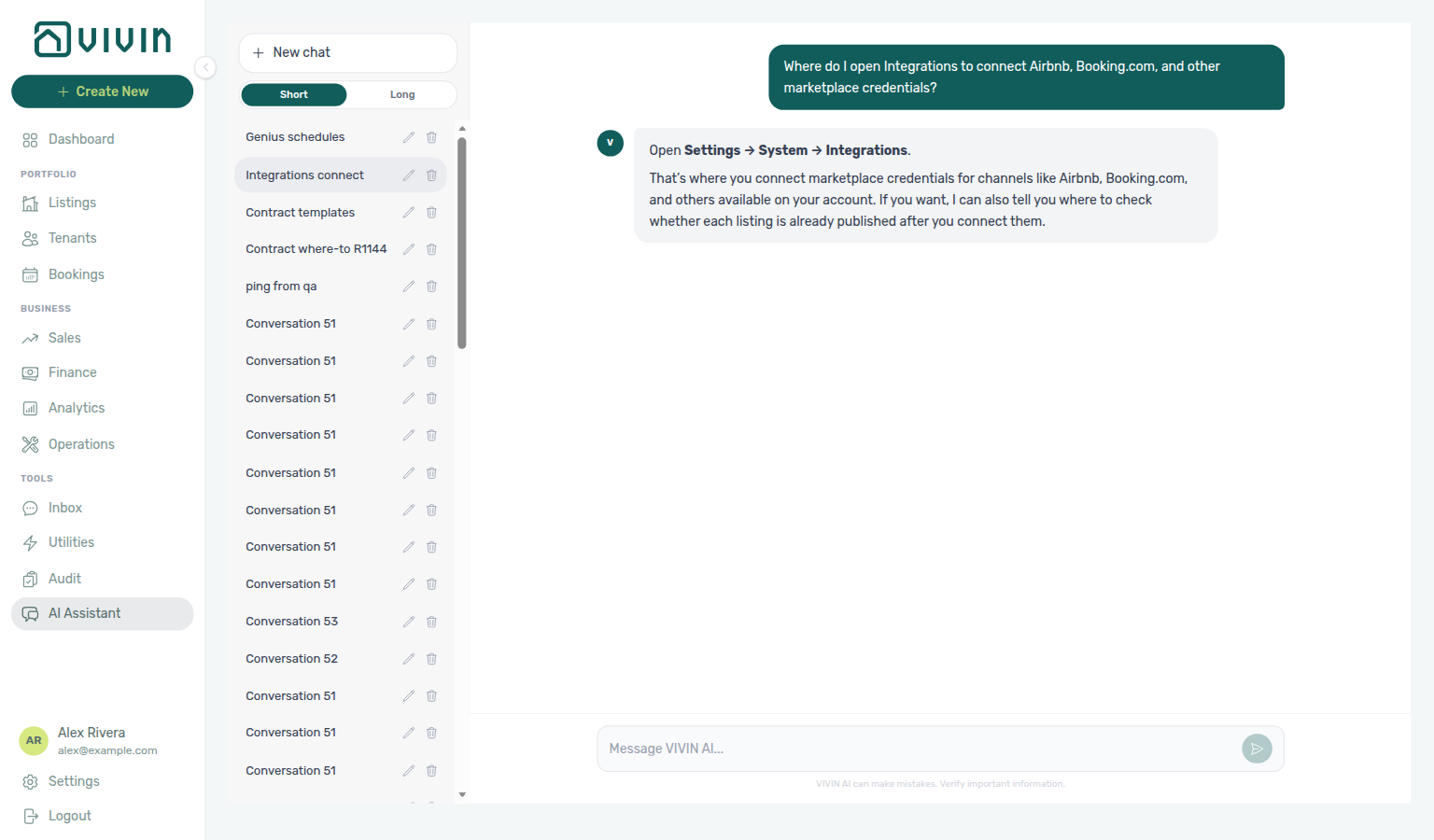
For Integration capabilities (“Where do I open the Integration capabilities tab under Account Settings System (the System group next to Integrations — English tab label Integration capabilities at /settings/integrationFieldCapability — not the Integrations credentials tab, and not Listings Channels) to view the read-only partner field matrix for required versus supported marketplace payload fields?”), open Settings → System → Integrations (/settings/integrations) — partner field coverage on connection cards (old /settings/integrationFieldCapability bookmarks open here). The assistant may still say Settings → System → Integration capabilities; follow Integrations instead. Reference guide: Integration capabilities. Per-unit links stay on Listings → Channels. External MCP clients: get-vivin-context-platform.
For Categories (“Where do I open Categories to manage listing tags, booking tags, and ticket types for my portfolio?”), open Settings → System → Categories (/settings/categories) — chip catalogs for listings, bookings, tickets, suppliers, cashflows, and lease purpose. The assistant may still say Settings → Property → Categories (for example open Settings, then the Property section, then Categories); follow System → Categories. This is not Tenant categories alone (portal segments on the Tenants card). External MCP clients: get-vivin-context-platform.
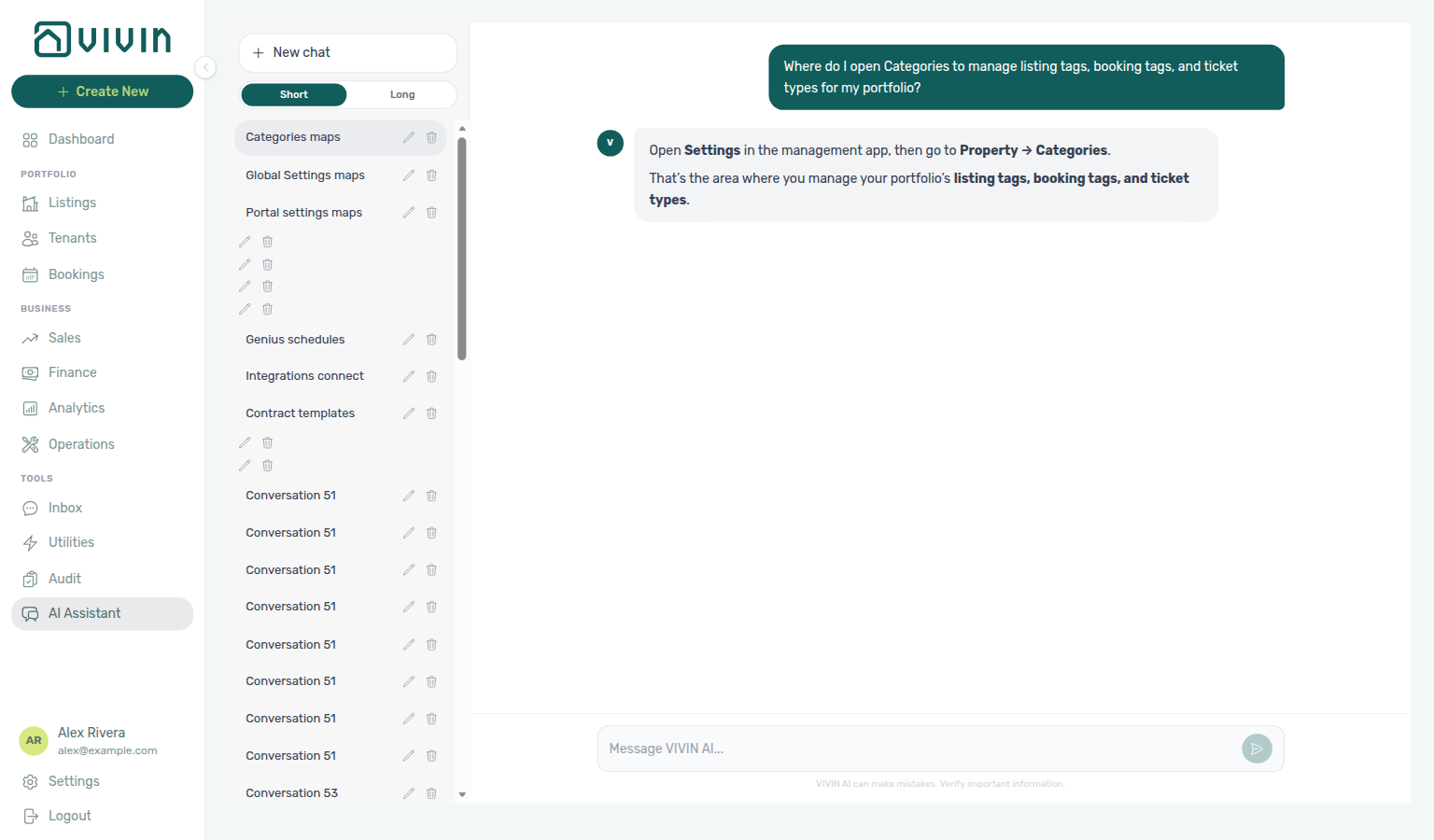
For Tenant categories (“Where do I open Tenant categories to manage portal segments and the default for integration-created tenants?”), open Settings → System → Categories (Tenants card; /settings/tenantCategories redirects) — portal field/module rules and the default for integration-created tenants. The assistant may still say Settings → Property → Tenant categories (sometimes Categories of tenants); follow System → Categories (Tenants card). This is not only the listing/booking chip catalogs on the same Categories page. External MCP clients: get-vivin-context-platform.
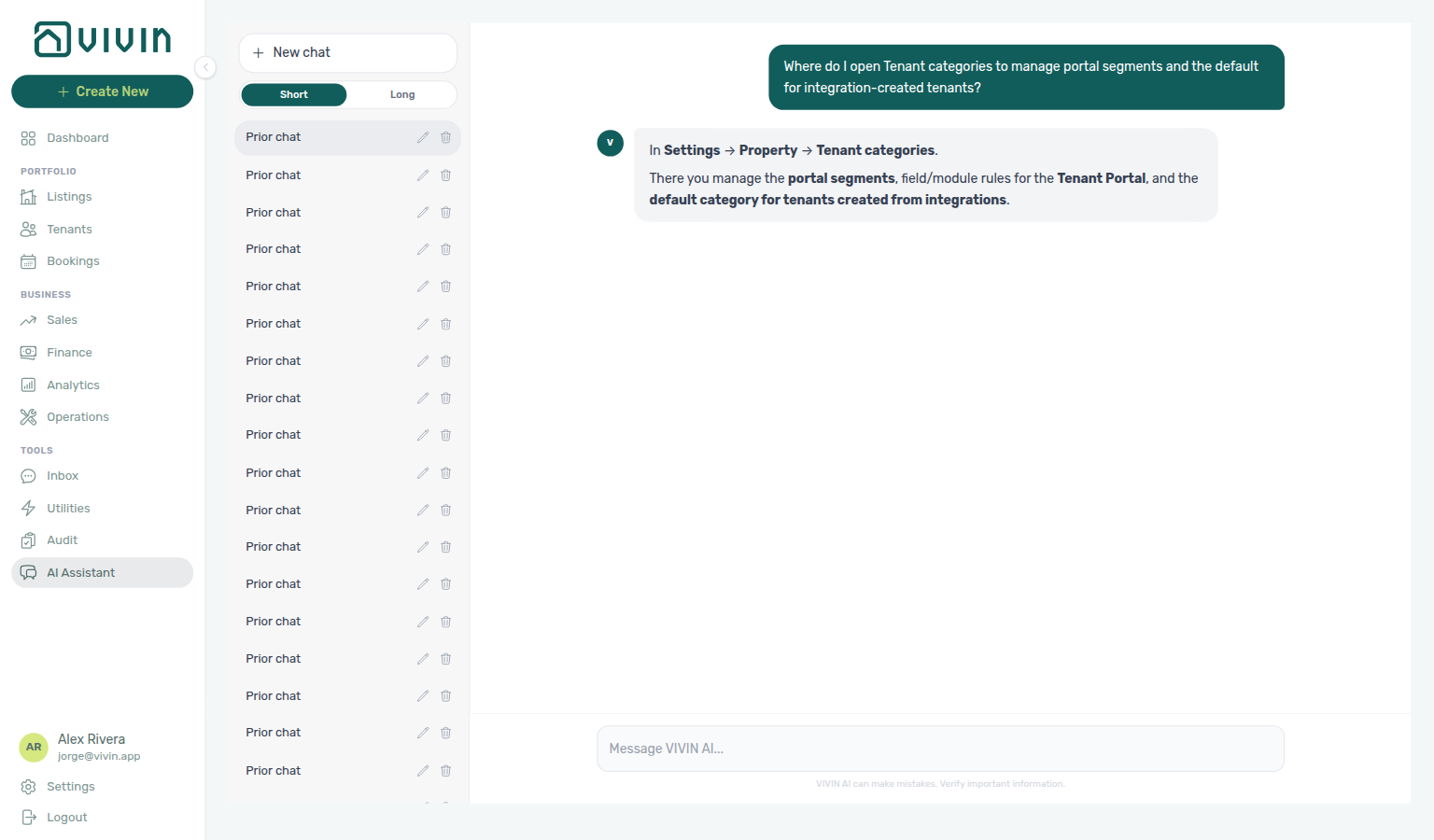
For Contract (“Where do I open Contract to upload the account default Word template and manage property or unit overrides?”), open Settings → Billing → Contract (/settings/contract) — account default .docx, variable reference, and property/unit override list. The assistant may still say Settings → Faturação → Contrato and/or Settings → Contract Templates; follow Settings → Billing → Contract instead. Property/unit files can also be uploaded from Listings; generating a PDF for one stay stays on Bookings → Contract Info. External MCP clients: get-vivin-context-bookings-tenants.
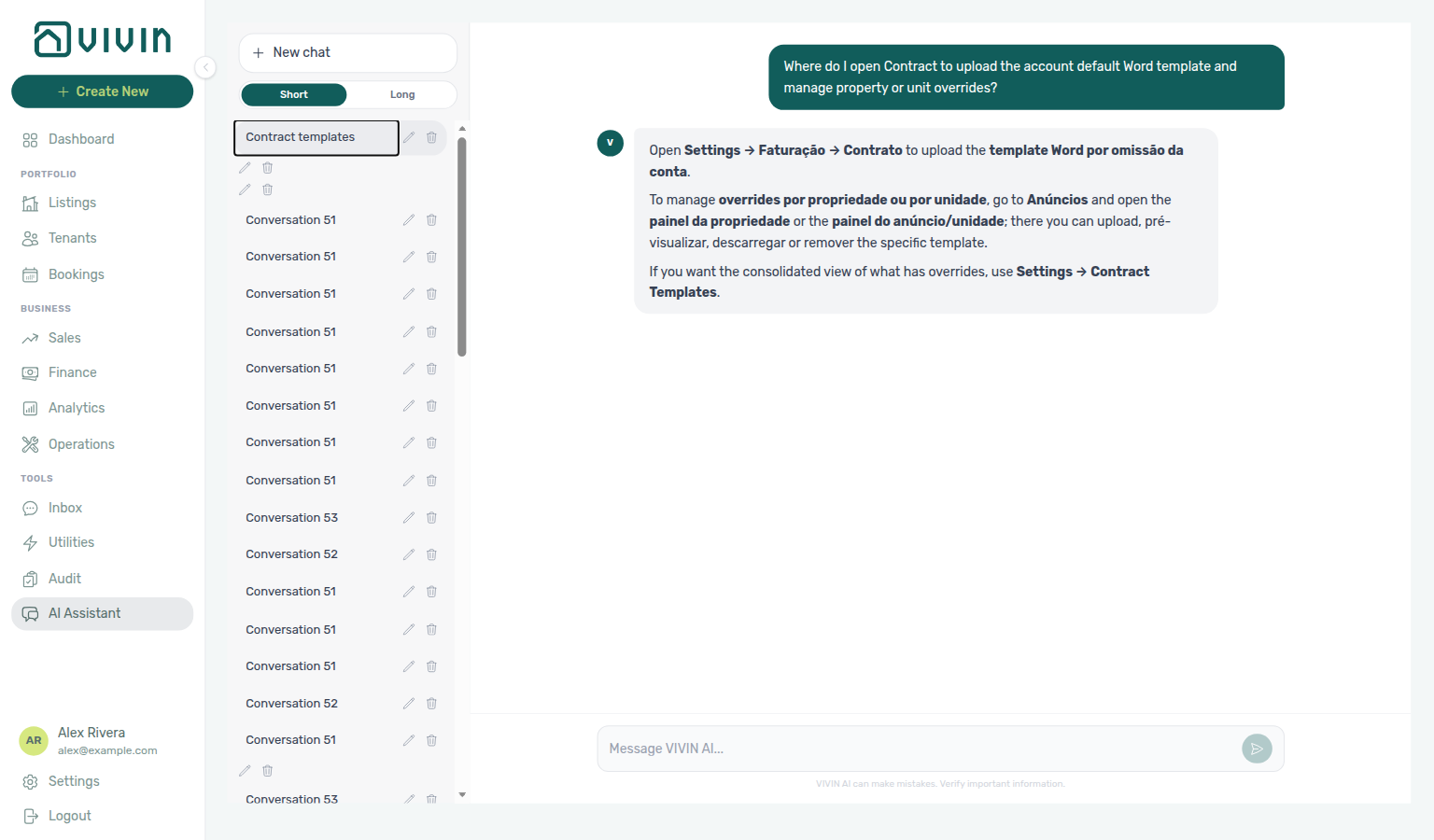
For Emails (“Where do I open Emails to configure Communication Rules and booking lifecycle email templates for tenants?”), open Settings → System → Emails (/settings/communications) — Communication Rules and Booking lifecycle emails. The assistant may still say Settings → System → Communications and/or Faturação/Conta → templates de comunicação/email; follow System → Emails. The English tab label is Emails. Operator notification toggles stay on Personal Settings. External MCP clients: get-vivin-context-platform.
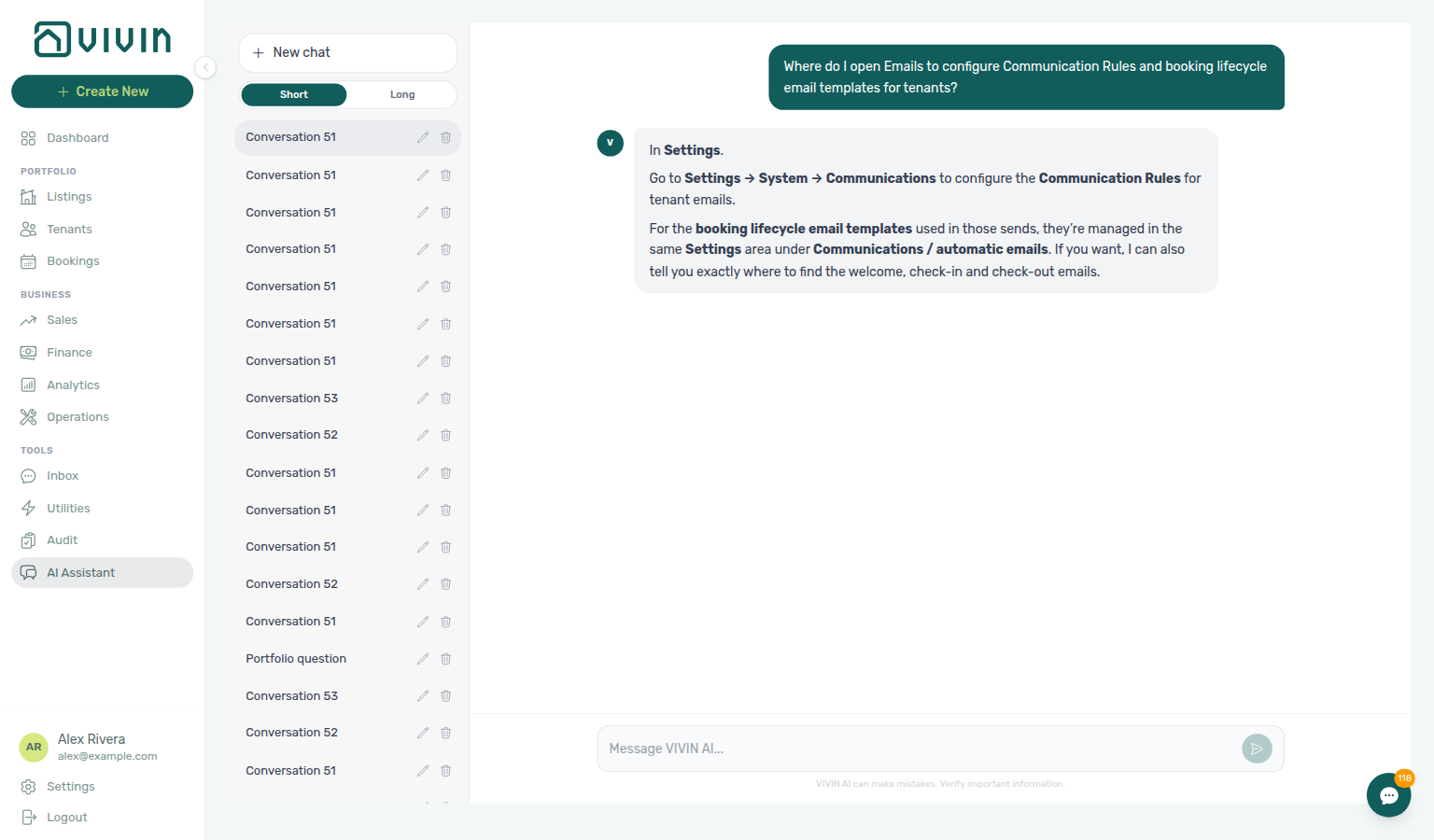
For FAQs (“Where do I open FAQs under Account Settings to review and publish tenant FAQ entries and run the FAQ Generator (English labels — Tenant Portal FAQs tab, not ChatBot persona)?”), open Settings → Tenant Portal → FAQs (/settings/faqs) — tenant-facing FAQ catalogue, publish toggles, and FAQ Generator. Published rows appear on portal Requests. The assistant may still say Settings → System → Assistant Virtual → Tenant Portal FAQs, System → Virtual Assistant → Tenant Portal FAQs, Settings → System → FAQ, or Sistema → Assistente virtual / FAQ; follow Tenant Portal → FAQs. The English tab label is FAQs. Persona and IF/THEN rules stay on ChatBot under System. External MCP clients: get-vivin-context-platform.
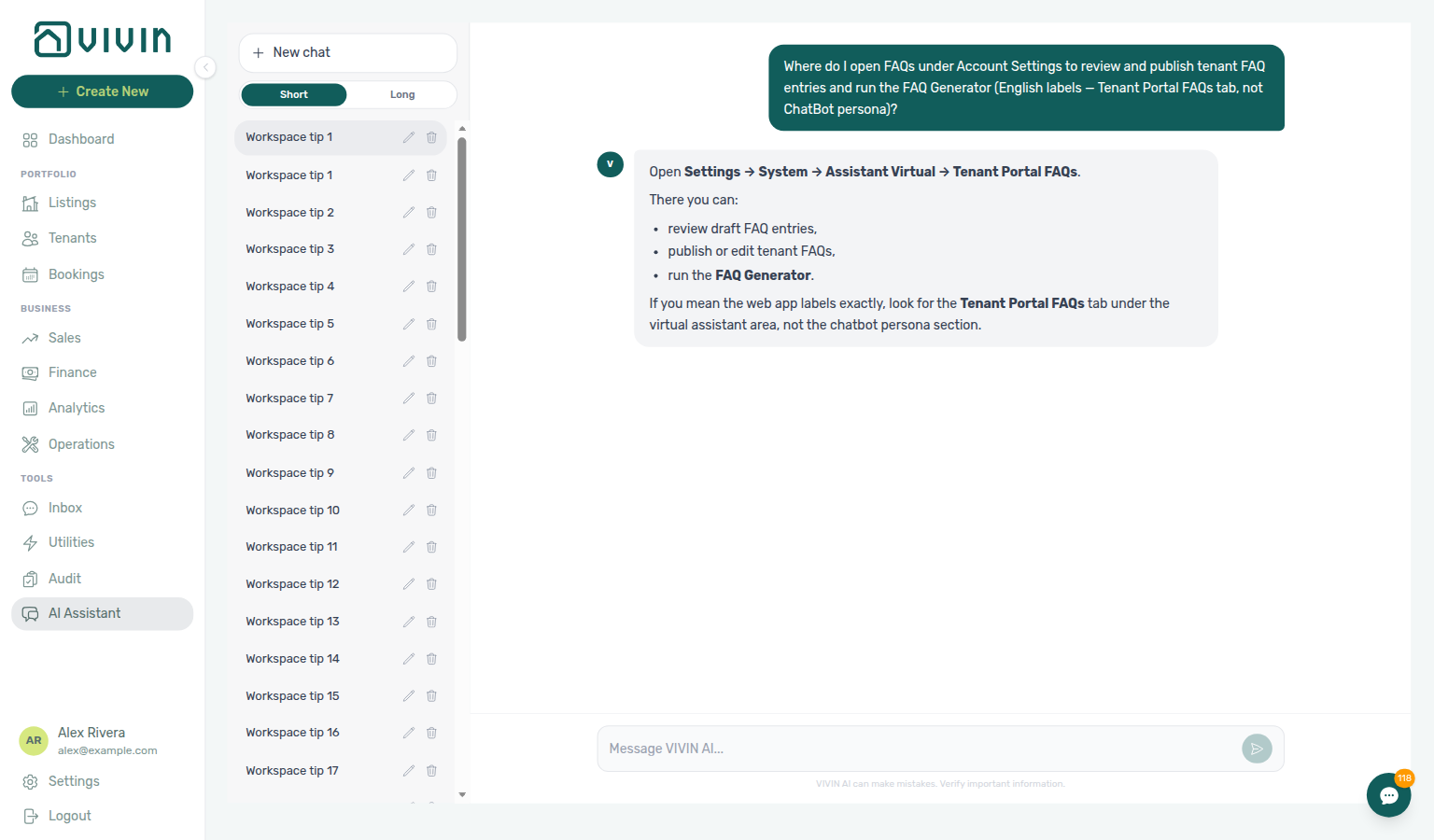
For Ticket priority (“Where do I open Ticket priority to configure keyword rules and exception overrides for chatbot maintenance ticket triage?”), open Settings → System → ChatBot → Ticket priority (/settings/chatbot, then the Ticket priority subtab; legacy /settings/ticketPriority redirects) — keyword columns, Exception Rules, and Analyze tickets. The assistant typically says Settings → System → Ticket priority (it may omit ChatBot); follow Settings → System → ChatBot → Ticket priority. Localized replies may say Sistema → Prioridade de tickets. The English subtab label is Ticket priority. SLA deadline hours stay on Preferences → Ticket Priorities. External MCP clients: get-vivin-context-platform.
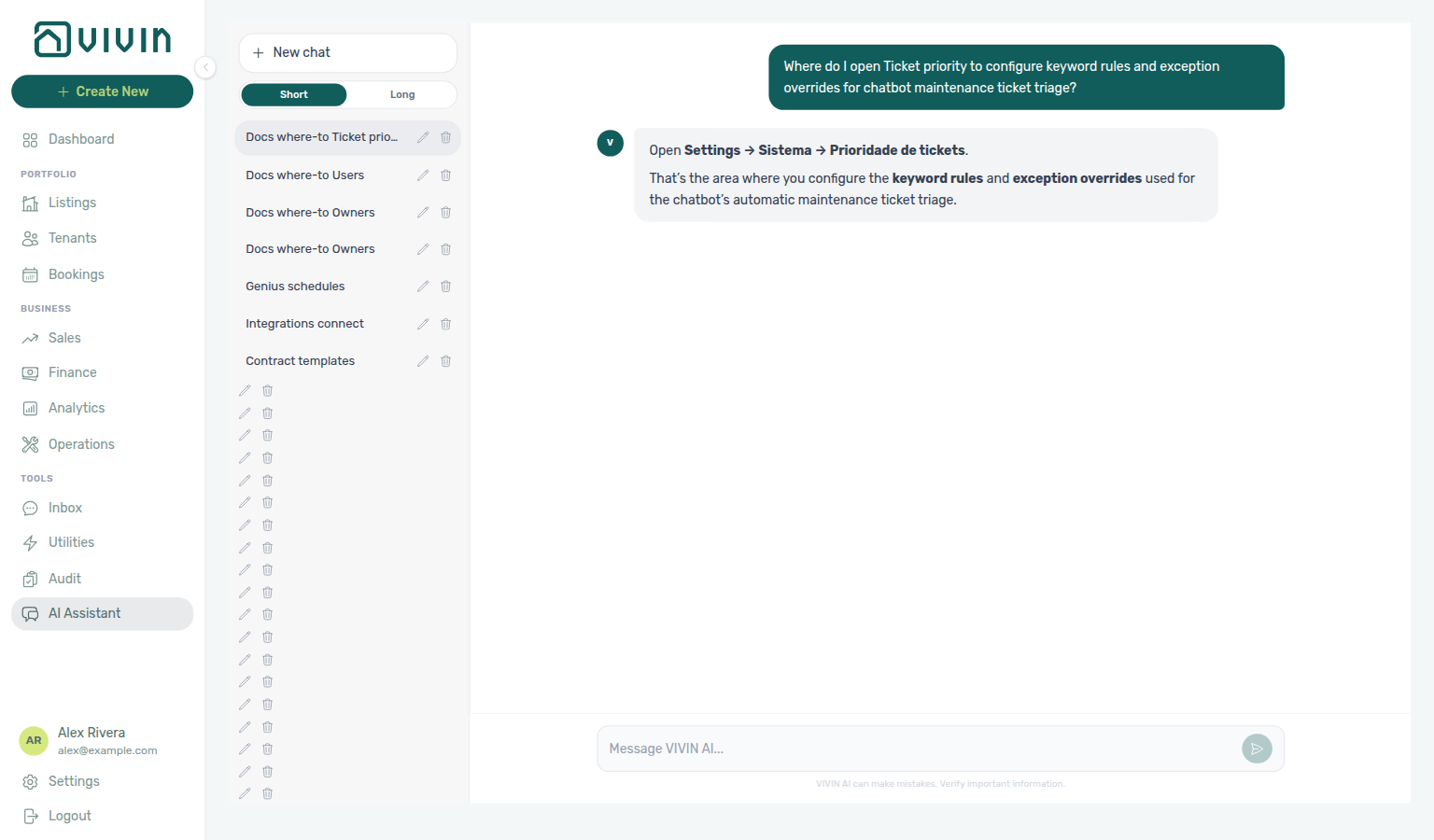
Why don't Genius or AI Chat revenue numbers match Analytics?
Finance-sourced AI metrics: Landlord MCP — Finance-sourced portfolio metrics, Finance → Overview, Automation & AI — WhatsApp Genius, AI Chat, Portfolio KPI review — Step 7.
| Symptom | Likely cause | Fix |
|---|---|---|
| Assistant “revenue” ≠ Analytics Revenue / ADR / RevPAR charts | Different domains by design | Compare against Finance → Overview (or Income), not Analytics occupancy pricing charts |
| “How much did we make?” ≠ bank deposits | Income expected vs cash collected | Ask for cash collected / received — get-finance-overview exposes both; get-revenue-summary is expected operating income, not cash in |
| Paid + scheduled + in debt ≫ income expected | Different coverage (deposits / exit fees) | Income expected covers rent, admin fee, cleaning fee, and others only; the status split includes deposits and exit fees — ask the assistant to explain coverage |
| “Does income expected include short-term / Airbnb?” | Portfolio scope (VIVIN-managed vs OTA-only) | Income expected covers all stays managed in VIVIN (any duration) and excludes revenue that lives only on external platforms — ask the assistant to state scope |
| Assistant cannot answer finance questions | Analytics tool domain Off, or missing finance.module | Enable Analytics (at least Read-only) on AI / MCP and confirm the user’s role includes Finance |
| Figures look stale vs the Finance page | Filters / month window | Match the assistant’s month (or omit months for current) and property/owner scope to the Finance toolbar before re-asking; contest a figure to force a fresh tool call |
| Challenged number is defended from memory | Assistant did not re-call Finance | Say the figure looks wrong and ask where it came from — Genius / AI Chat should re-check with a fresh Finance tool call |
| “Running total” while adding every booking one by one | No honest aggregate path | Ask for a server-computed Finance total instead (cash collected / income expected); open Finance or Bookings for row-level review |
| “Which property is emptiest / has the most units?” | Needs vacancy per-property rollup | Ask for today’s (or a dated) vacancy ranking — assistants use propertyBreakdown on the vacancy tool; they may take several tool calls in one reply for windowed asks — Landlord MCP — Large tasks and completeness |
| “Which day has the most free rooms?” | Needs vacancy per-day rollup | Ask for a dated window (for example Monday 10 August through Sunday 16 August) — assistants use dailyBreakdown on the vacancy tool (one row per day with free / occupied / blocked counts); prefer that over one call per day. On a Sunday, “this week through Sunday” is only today — Landlord MCP — Occupancy, vacancy, and smart locks (ai-chat-vacancy-daily-breakdown-reply.png, ai-chat-vacancy-daily-breakdown-flow.mp4) |
| “What was occupancy by listing type in July?” matches the 12-month ranking or August | Used trailing-year bestMonth or the current month | Ask for listing-type rates in July only (room, property, bed) — FAQ — Occupancy by listing type for a named month (ai-chat-occupancy-july-listing-type-reply.png, ai-chat-occupancy-july-listing-type-flow.mp4) |
| “What was occupancy by listing type in June?” matches July, the 12-month ranking, or August | Used July listing-type rates, trailing-year bestMonth, or the current month | Ask for listing-type rates in June only (room, property, bed — not July) — FAQ — Occupancy by listing type for June (ai-chat-occupancy-june-listing-type-reply.png, ai-chat-occupancy-june-listing-type-flow.mp4) |
| “What was occupancy by unit tag in July?” matches listing types or the 12-month ranking | Used listingType groups or trailing-year bestMonth | Ask for unit-tag rates in July (neighbourhood tags — not room / property / bed) — FAQ — Occupancy by unit tag for a named month (ai-chat-occupancy-july-unit-tag-reply.png, ai-chat-occupancy-july-unit-tag-flow.mp4) |
| “What was occupancy by unit tag in June?” matches July, listing types, or the 12-month ranking | Used July tag rates, listingType groups, or trailing-year bestMonth | Ask for unit-tag rates in June (neighbourhood tags — not room / property / bed, and not July) — FAQ — Occupancy by unit tag for June (ai-chat-occupancy-june-unit-tag-reply.png, ai-chat-occupancy-june-unit-tag-flow.mp4) |
| “Which property earns the most / highest income per unit?” | Needs Finance Income by property | Ask for an income ranking — assistants use get-income-by-property (server incomePerUnit); reconcile on Finance → Income — not Analytics ADR/RevPAR — Landlord MCP — Finance-sourced portfolio metrics |
| “How much will I receive until day X / between two dates?” ≠ income expected | Date-range receipts use cash flow, not the reference-month axis | Ask without the word check-ins; assistants should use the Cash flow forecast due-date series — FAQ — Expected receipts between two dates |
| “How much came in in June?” ≠ the cash-flow chart Past bar | Net System + Manual vs gross Past bar | Ask for both bases and which is which — FAQ — How much came in (ai-chat-cash-in-june-net-vs-gross-reply.png, ai-chat-cash-in-june-net-vs-gross-flow.mp4) |
| “How many unpaid deposits in August?” ≠ all-time tenant debt | Needs the Contract Values Deposit card for that month | Ask for the deposit card split (in debt + still scheduled) — FAQ — Unpaid deposits on Contract Values |
| “How much unpaid rent in August?” ≠ all-time tenant debt | Needs the Contract Values Rent card for that month | Ask for the rent card split (in debt + still scheduled) — FAQ — Unpaid rent on Contract Values |
| “How much unpaid admin fee in August?” ≠ all-time tenant debt | Needs the Contract Values Admin fee card for that month | Ask for the admin fee card split (in debt + still scheduled) — FAQ — Unpaid admin fees on Contract Values |
| “How much unpaid cleaning fee in August?” ≠ all-time tenant debt | Needs the Contract Values Cleaning fee card for that month | Ask for the cleaning fee card split (in debt + still scheduled) — FAQ — Unpaid cleaning fees on Contract Values |
| “How much unpaid others in August?” ≠ all-time tenant debt | Needs the Contract Values Others card for that month | Ask for the others card split (in debt + still scheduled) — FAQ — Unpaid others on Contract Values |
| “How much unpaid exit fee in October?” ≠ all-time tenant debt | Needs the Contract Values Exit fee card for that month | Ask for the exit fee card split (in debt + still scheduled) — FAQ — Unpaid exit fees on Contract Values |
| “How many in-debt rent lines are not yet invoiced?” ≠ the Rent card in-debt chip | Needs the Contract Values list with Not Invoiced | Ask for in debt AND not yet invoiced rent lines — FAQ — In-debt rent lines not yet invoiced |
| “How many in-debt rent lines are already invoiced?” ≠ the Rent card in-debt chip | Needs the Contract Values list with Invoiced | Ask for in debt AND already invoiced rent lines — FAQ — In-debt rent lines already invoiced |
| “How many in-debt admin fee lines are not yet invoiced?” ≠ the Admin fee card unpaid split | Needs the Contract Values list with Not Invoiced | Ask for in debt AND not yet invoiced admin fee lines — FAQ — In-debt admin fee lines not yet invoiced |
| “How many in-debt admin fee lines are already invoiced?” ≠ the Admin fee card in-debt chip | Needs the Contract Values list with Invoiced | Ask for in debt AND already invoiced admin fee lines — FAQ — In-debt admin fee lines already invoiced |
| “How many rent lines are still scheduled?” ≠ the Rent card unpaid split | Needs the Contract Values list with the grey scheduled chip | Ask for still-scheduled rent lines (count-only) and name the month — FAQ — Still-scheduled rent lines |
| “How many admin fee lines are still scheduled?” ≠ the Admin fee card unpaid split | Needs the Contract Values list with the grey scheduled chip | Ask for still-scheduled admin fee lines (count-only) and name the month — FAQ — Still-scheduled admin fee lines |
| “How many admin fee lines are partially paid?” ≠ the Admin fee card unpaid split | Needs the Contract Values list with the amber partial chip | Ask for partially paid admin fee lines (count-only) and name the month — FAQ — Partially-paid admin fee lines |
| “How many admin fee lines are paid?” ≠ the Admin fee card unpaid split | Needs the Contract Values list with the green Paid badge | Ask for paid admin fee lines (count-only, fully paid, not partial) and name the month — FAQ — Paid admin fee lines |
| “How many cleaning fee lines are still scheduled?” ≠ the Cleaning fee card unpaid split | Needs the Contract Values list with the grey scheduled chip | Ask for still-scheduled cleaning fee lines (count-only) and name the month — FAQ — Still-scheduled cleaning fee lines |
| “How many cleaning fee lines are paid?” ≠ the Cleaning fee card unpaid split | Needs the Contract Values list with the green Paid badge | Ask for paid cleaning fee lines (count-only, fully paid, not partial) and name the month — FAQ — Paid cleaning fee lines |
| “How many in-debt cleaning fee lines are not yet invoiced?” ≠ the Cleaning fee card in-debt chip | Needs the Contract Values list with Not Invoiced | Ask for in debt AND not yet invoiced cleaning fee lines — FAQ — In-debt cleaning fee lines not yet invoiced |
| “How many in-debt cleaning fee lines are already invoiced?” ≠ the Cleaning fee card in-debt chip | Needs the Contract Values list with Invoiced | Ask for in debt AND already invoiced cleaning fee lines — FAQ — In-debt cleaning fee lines already invoiced |
| “How many in-debt others lines are not yet invoiced?” ≠ the Others card unpaid split | Needs the Contract Values list with Not Invoiced | Ask for in debt AND not yet invoiced others lines — FAQ — In-debt others lines not yet invoiced |
| “How many others lines are paid?” ≠ the Others card unpaid split | Needs the Contract Values list with the green Paid badge | Ask for paid others lines (count-only, fully paid, not partial) and name the month — FAQ — Paid others lines |
| “How many in-debt deposit lines are not yet invoiced?” ≠ the Deposit card in-debt chip | Needs the Contract Values list with Not Invoiced | Ask for in debt AND not yet invoiced deposit lines — FAQ — In-debt deposit lines not yet invoiced |
| “How many in-debt deposit lines are already invoiced?” ≠ the Deposit card in-debt chip | Needs the Contract Values list with Invoiced | Ask for in debt AND already invoiced deposit lines — FAQ — In-debt deposit lines already invoiced |
| “How many deposit lines are still scheduled?” ≠ the Deposit card unpaid split | Needs the Contract Values list with the grey scheduled chip | Ask for still-scheduled deposit lines (count-only) and name the month — FAQ — Still-scheduled deposit lines |
| “How many deposit lines are partially paid?” ≠ the Deposit card unpaid split | Needs the Contract Values list with the amber partial chip | Ask for partially paid deposit lines (count-only) and name the month — FAQ — Partially-paid deposit lines |
| “How many deposit lines are paid?” ≠ the Deposit card unpaid split | Needs the Contract Values list with the green Paid badge | Ask for paid deposit lines (count-only, fully paid, not partial) and name the month — FAQ — Paid deposit lines |
| “How many in-debt exit fee lines are already invoiced?” ≠ the Exit fee card unpaid split | Needs the Contract Values list with Invoiced | Ask for in debt AND already invoiced exit fee lines — FAQ — In-debt exit fee lines already invoiced |
| “How many exit fee lines are partially paid?” ≠ the Exit fee card unpaid split | Needs the Contract Values list with the amber partial chip | Ask for partially paid exit fee lines (count-only) and name a check-out month — FAQ — Partially-paid exit fee lines |
| “How many exit fee lines are paid?” ≠ the Exit fee card unpaid split | Needs the Contract Values list with the green Paid badge | Ask for paid exit fee lines (count-only, fully paid, not partial) and name a check-out month — FAQ — Paid exit fee lines |
| “How many rent lines have a return of value?” ≠ Invoiced / Not Invoiced | Needs the Contract Values Return of Value pill | Ask for return of value lines (count-only) — FAQ — Contract Values invoice pills |
| “How many rent lines have a credit note?” ≠ Return of Value / Invoiced | Needs the Contract Values Credit Notes pill | Ask for credit note lines (count-only) and name the month — FAQ — Contract Values invoice pills |
| “How many rent lines are partially paid?” ≠ the Rent card unpaid split | Needs the Contract Values list with the amber partial chip | Ask for partially paid rent lines (count-only) and name the month — FAQ — Partially-paid rent lines |
| “How many rent lines are paid?” ≠ the Rent card unpaid split | Needs the Contract Values list with the green Paid badge | Ask for paid rent lines (count-only, fully paid, not partial) and name the month — FAQ — Paid rent lines |
| “How many bookings did I receive today / this week?” | Needs creation-window counts, not active/upcoming | Ask for bookings received with dates — assistants use get-booking-summary (bookingsCreatedInWindow); basis is creation / import time in VIVIN — FAQ — Bookings received |
| “How many tickets do I have?” lists titles or understates the queue | Counted a list-tickets page (default omits Closed / Cancelled) | Ask for status counts and say do not list titles — assistants use get-ticket-status-counts — FAQ — Ticket status counts |
| “How many tickets by priority?” lists titles or quotes Unassigned chips | Counted a list-tickets page, or used the Unassigned card mix | Ask for All-card priority counts and say do not list titles — FAQ — Ticket priority counts |
| “How many unassigned tickets by priority?” quotes All-card chips | Quoted whole-account All mix, not Unassigned | Ask for Unassigned-card priority counts — FAQ — Ticket unassigned priority counts |
| “How many in-progress tickets by priority?” quotes All or Unassigned chips | Quoted All or Unassigned, not the active In progress queue | Ask for In-progress-card priority counts — FAQ — Ticket in-progress priority counts |
| “How many closed tickets by priority?” quotes All chips or closure rate | Quoted the All mix, or closed vs received in a window | Ask for Closed-card priority counts — FAQ — Ticket closed priority counts |
| “How many cancelled tickets by priority?” quotes All or Closed chips | Quoted the All mix, or all-time Closed | Ask for Cancelled-card priority counts — FAQ — Ticket cancelled priority counts |
| “How many draft tickets by priority?” quotes All, Unassigned, or In progress chips | Quoted another status card, not far-future Draft | Ask for Draft-card priority counts — FAQ — Ticket draft priority counts |
| “What is my ticket closure rate?” matches the Closed card or a 7-day 0% | Quoted all-time Closed, or used the 7-day default | Ask for closure rate and name the days (for example last 60 days) — FAQ — Maintenance closure rate |
| “What is my 45-day ticket closure rate?” matches 30-day 0% or 60-day figures | Quoted a shorter or longer window; closed can match one assignee | Ask for 45 days and quote received — FAQ — 45-day maintenance closure rate |
| “What is my 50-day ticket closure rate?” matches 45-day or 60-day figures | Quoted a nearby window | Ask for 50 days and quote received — FAQ — 50-day maintenance closure rate |
| “What is my 90-day ticket closure rate?” matches 60-day figures | Quoted a shorter window; closed can match 60 days | Ask for 90 days and quote received — FAQ — 90-day maintenance closure rate |
| “What were my operational costs?” matches Finance income or a mid-month partial | Quoted income expected / cash collected, or used the current-month default | Ask for Cash Flows outflow and average cost per unit, and name the dates — FAQ — Operational cost summary |
| “What were my June operational costs?” matches July or a category-only split | Quoted the July teaching month, the current-month default, or one category’s outflow | Ask for June headline outflow and average cost per unit — FAQ — June operational costs |
| “What were my April operational costs?” matches June, July, May, or remaining totals after excluding a category | Quoted the June or July teaching month, May, the current-month default, or remaining totals after excluding maintenance | Ask for April headline outflow and average cost per unit — FAQ — April operational costs |
| “What were my operational costs from 1–15 April?” matches the full April month | Quoted 1 April through 30 April | Ask for 1 April through 15 April headline outflow and average cost per unit — FAQ — April 1–15 operational costs |
| “What were my operational costs from 16–30 April?” matches the full April month or 1–15 April | Quoted 1 April through 30 April, or the first half | Ask for 16 April through 30 April headline outflow and average cost per unit — FAQ — April 16–30 operational costs |
| “What were my February operational costs?” matches June, July, April, or a custom April window | Quoted the June, July, or April teaching month, a 1–15 April or 16–30 April window, or the current-month default | Ask for February headline outflow and average cost per unit — FAQ — February operational costs |
| “What were my operational costs from 1–14 February?” matches the full February month | Quoted 1 February through 28 February | Ask for 1 February through 14 February headline outflow and average cost per unit — FAQ — February 1–14 operational costs |
| “What were my operational costs from 15–28 February?” matches the full February month or 1–14 February | Quoted 1 February through 28 February, or the first half | Ask for 15 February through 28 February headline outflow and average cost per unit — FAQ — February 15–28 operational costs |
| “What were my January operational costs?” matches February, April, June, or July | Quoted the February, April, June, or July teaching month, a custom April window, or the current-month default | Ask for January headline outflow and average cost per unit — FAQ — January operational costs |
| “What were my March operational costs?” matches January, February, April, June, or July | Quoted the January, February, April, June, or July teaching month, a custom April window, or the current-month default | Ask for March headline outflow and average cost per unit — FAQ — March operational costs |
| “What were my May operational costs?” matches January, February, March, April, June, or July | Quoted the January, February, March, April, June, or July teaching month, a custom April window, or the current-month default | Ask for May headline outflow and average cost per unit — FAQ — May operational costs |
| “What were my operational costs by category?” matches headline totals or August | Quoted total outflow / average cost per unit only, or used the current-month default | Ask for Cash Flows category outflows and name the dates — FAQ — Operational costs by category |
| “What were my June operational costs by category?” matches July or June headline totals | Quoted the July Carpentry & doors + Maintenance split, skipped uncategorized, or quoted June headline outflow only | Ask for June category outflows and include uncategorized when it has spend — FAQ — June operational costs by category |
| “What were my operational costs excluding a category?” matches the unfiltered headline | Quoted total outflow / average cost per unit without dropping the category, or used a shortened name | Ask for remaining Cash Flows outflow after excluding the exact category name, and name the dates — FAQ — Operational costs excluding a category |
| “What were my operational costs excluding Maintenance?” matches Carpentry remaining totals or the unfiltered headline | Quoted remaining totals after dropping Carpentry & doors, or used Portuguese Manutenção when Cash Flows shows English Maintenance | Ask for remaining Cash Flows outflow after excluding Maintenance, and quote the average — FAQ — Operational costs excluding Maintenance |
| “What were my June operational costs excluding Manutenção?” matches July remaining totals, English Maintenance, or uncategorized remaining | Quoted July excluding Maintenance, used English Maintenance on June, or quoted remaining totals after excluding uncategorized | Ask for remaining Cash Flows outflow after excluding Manutenção, and quote the average — FAQ — June operational costs excluding Manutenção |
| “What were my June operational costs excluding uncategorized?” matches Manutenção remaining totals, July remaining totals, or the unfiltered headline | Quoted remaining totals after dropping Manutenção, quoted July excluding Maintenance, or quoted June headline outflow | Ask for remaining Cash Flows outflow after excluding uncategorized, and quote the average — FAQ — June operational costs excluding uncategorized |
| “What were my April operational costs excluding maintenance?” matches July remaining totals, the unfiltered April headline, or Portuguese Manutenção | Quoted July excluding Maintenance, quoted April headline outflow, or used Manutenção when Cash Flows shows maintenance | Ask for remaining Cash Flows outflow after excluding maintenance, and quote the average — FAQ — April operational costs excluding maintenance |
| “What were my April operational costs excluding maintenance and uncategorized?” matches remaining totals after excluding only maintenance, June uncategorized remaining, or the unfiltered April headline | Quoted April remaining after dropping maintenance only, quoted June excluding uncategorized, or quoted April headline outflow | Ask for remaining Cash Flows outflow after excluding maintenance and uncategorized, and quote the average — FAQ — April operational costs excluding maintenance and uncategorized |
| “How much did utilities cost for Casa Abel II in June?” matches Cash Flows outflow or July Cost map totals | Quoted Operations Cash Flows / get-cost-summary, or quoted a different month | Ask for the Utilities Cost map and quote total cost, absorbed cost, and cost per occupied room-day — FAQ — June Utilities cost map |
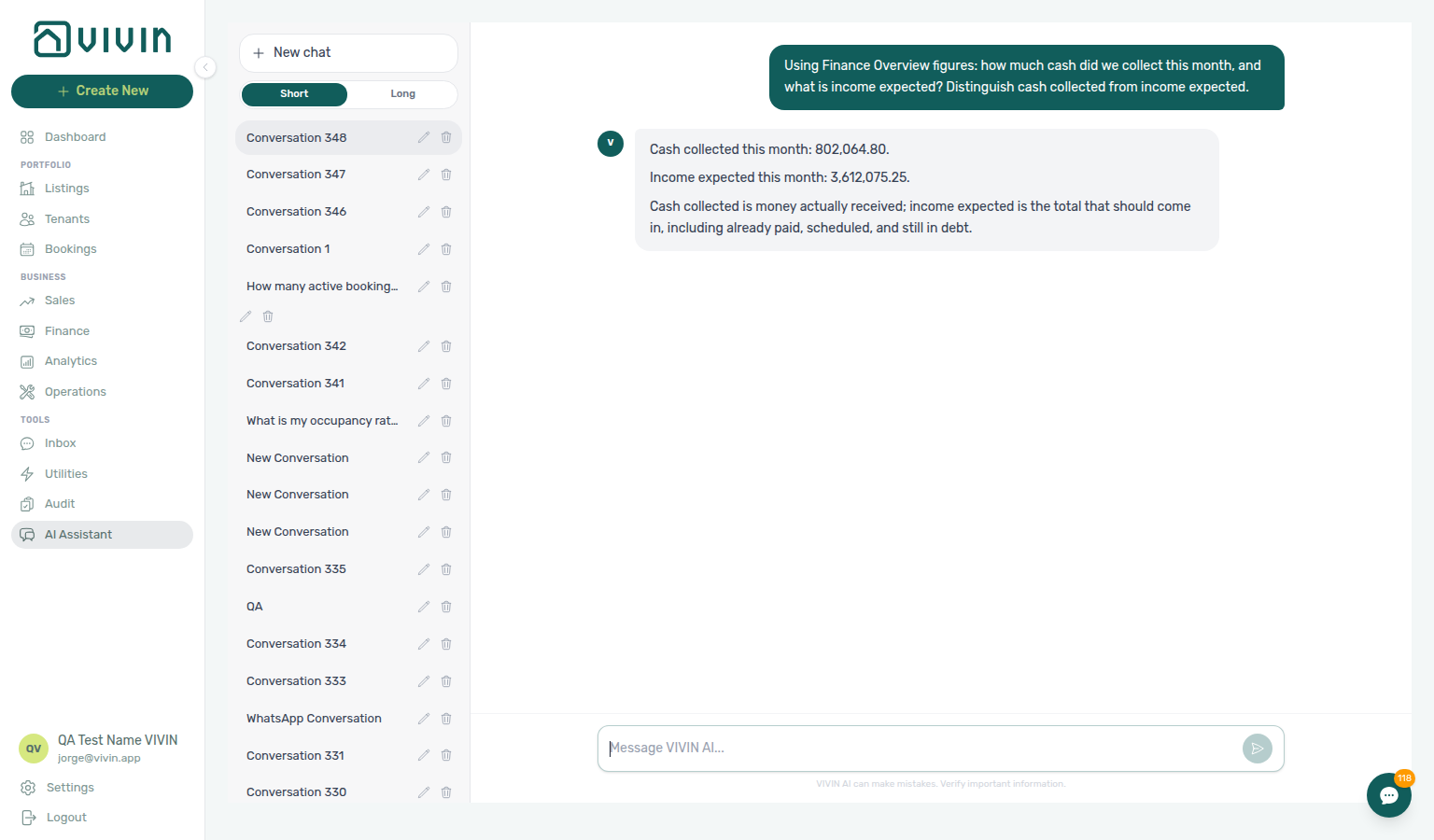
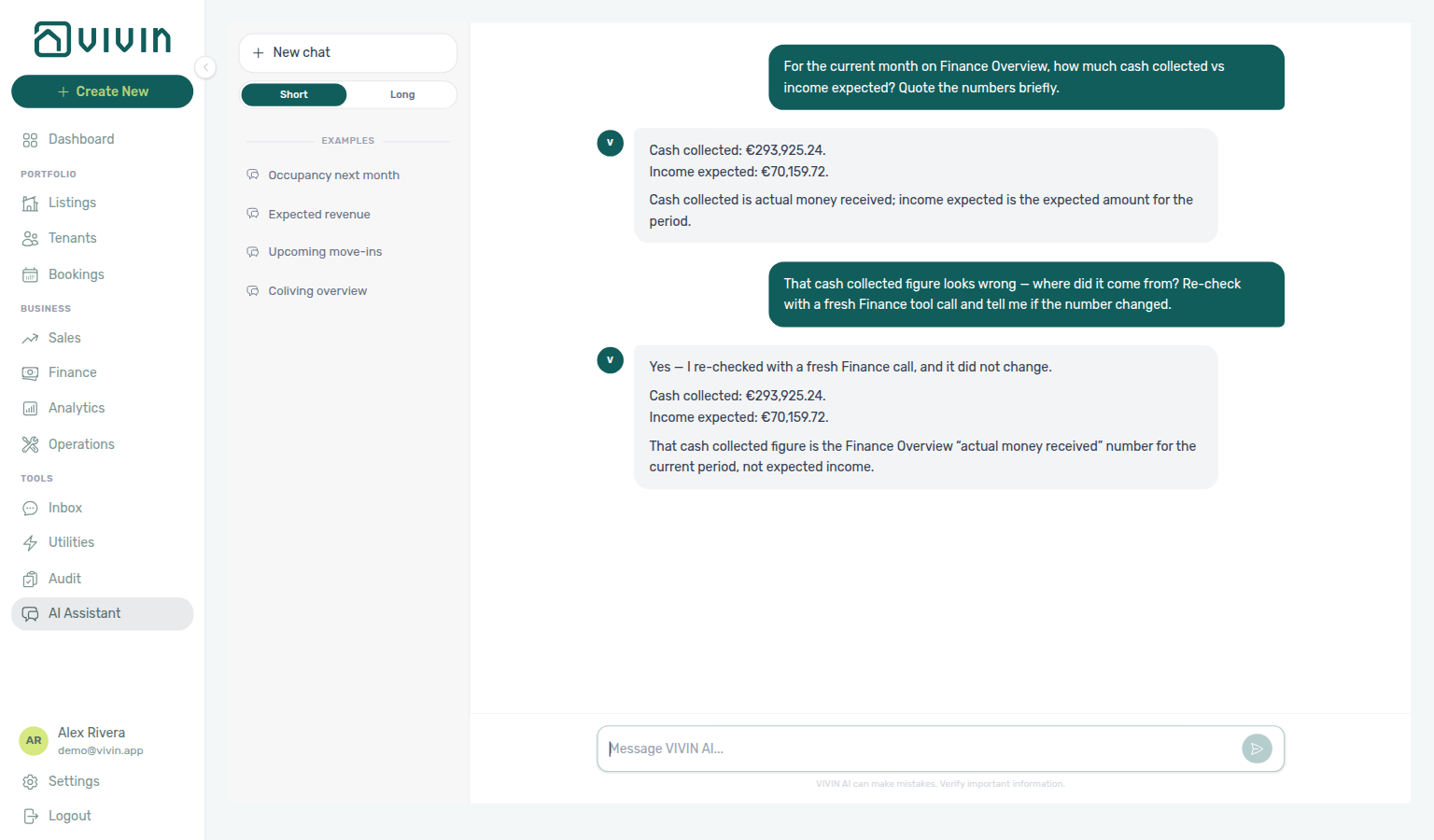
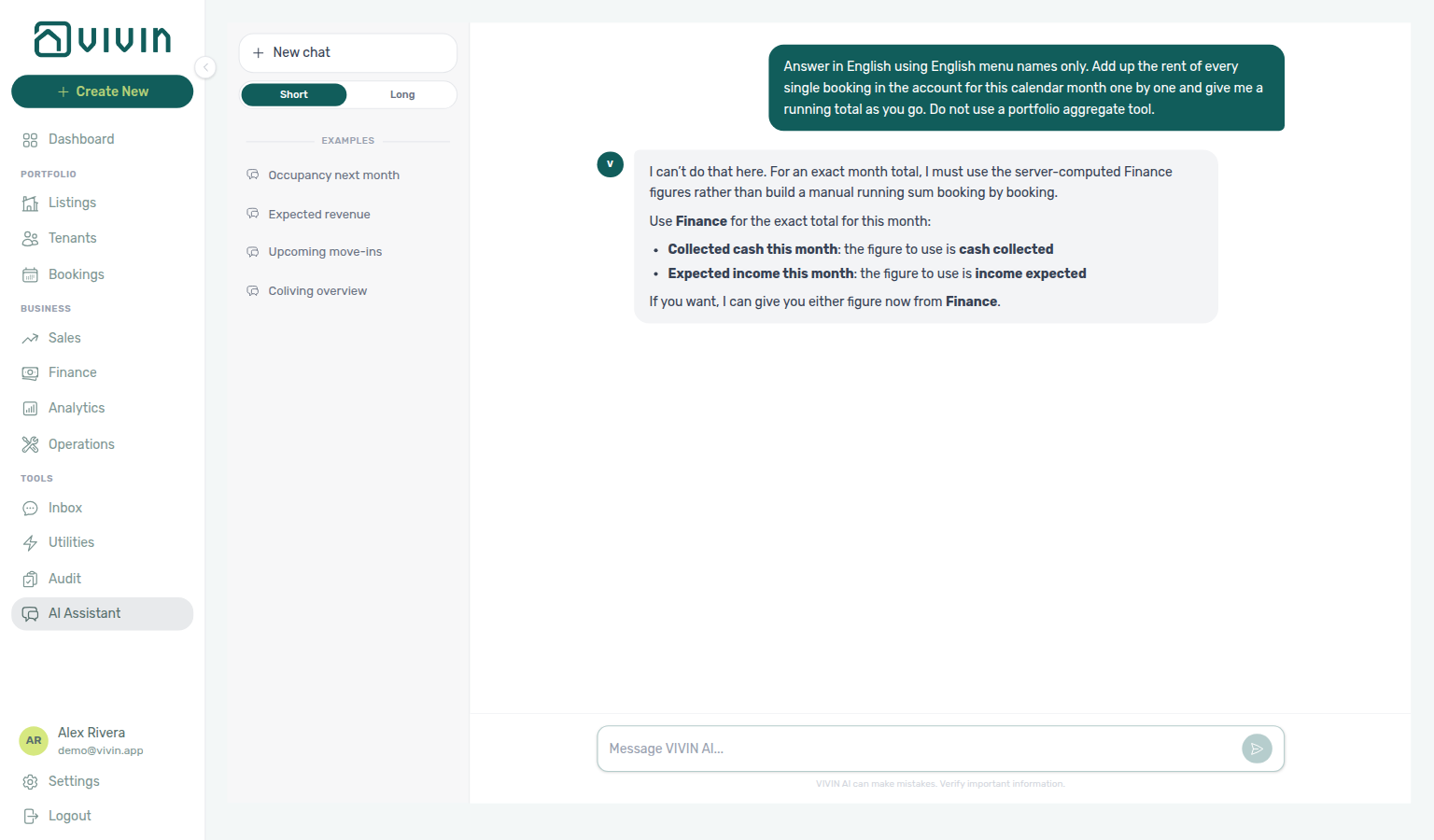
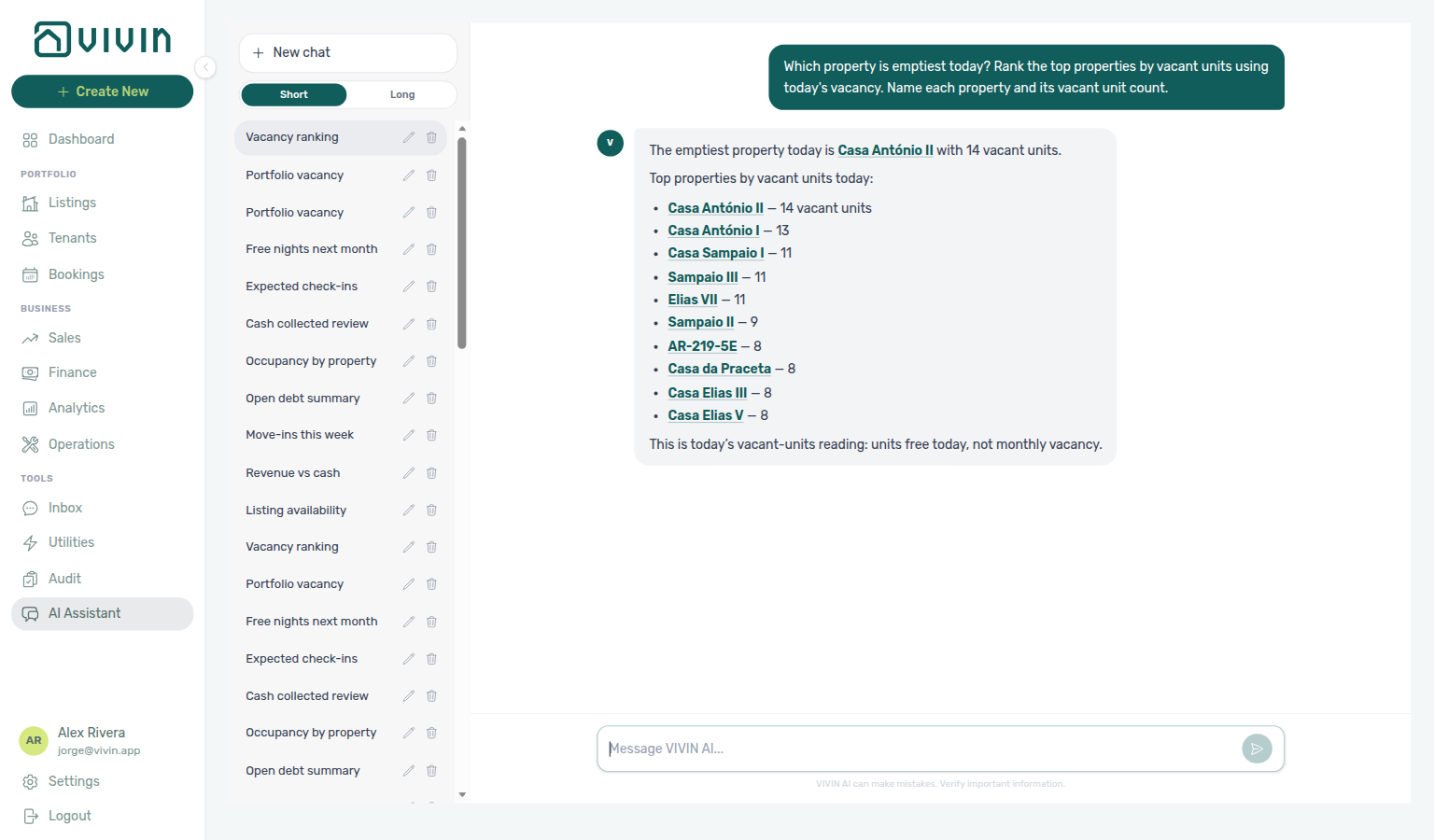
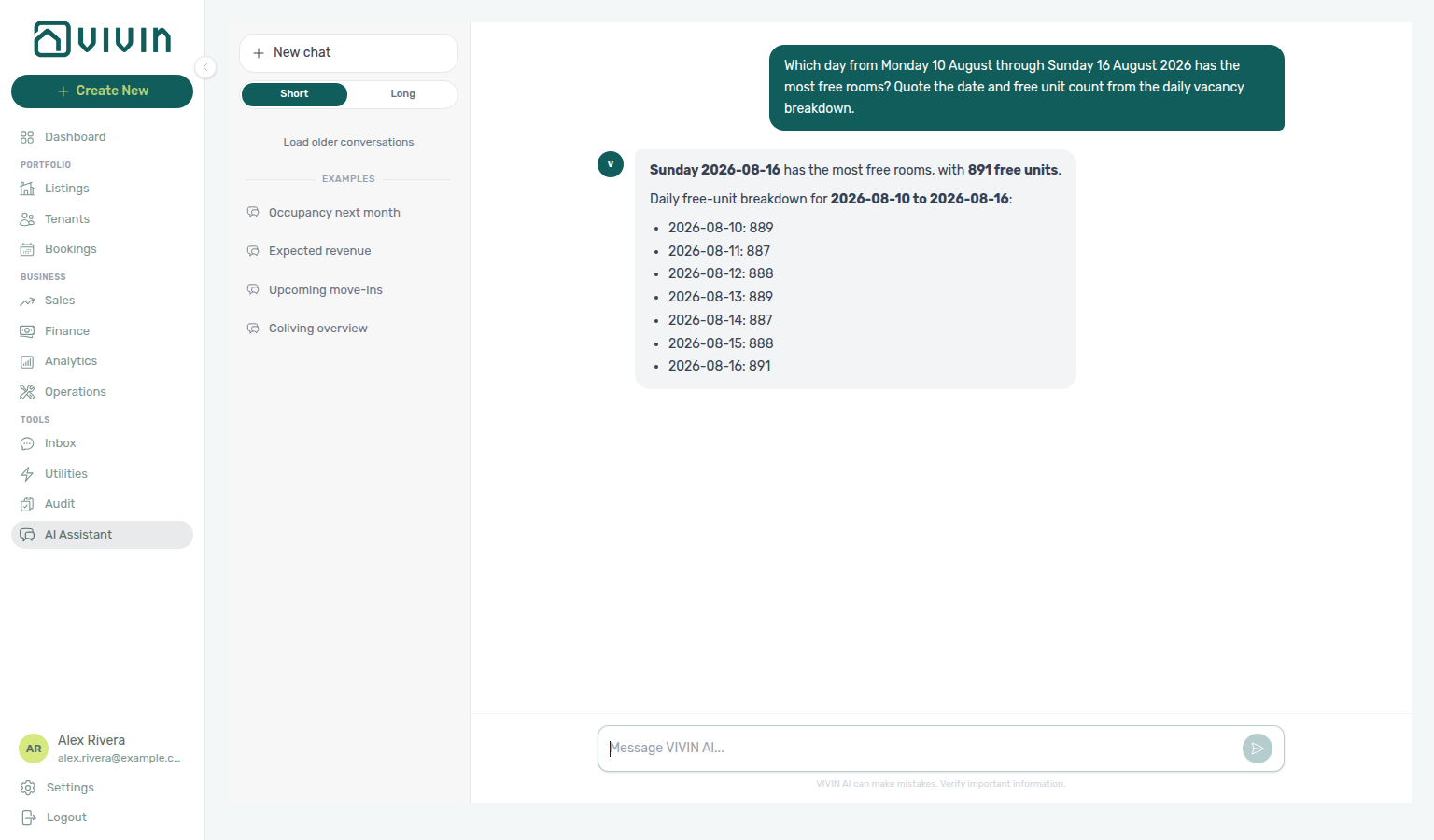
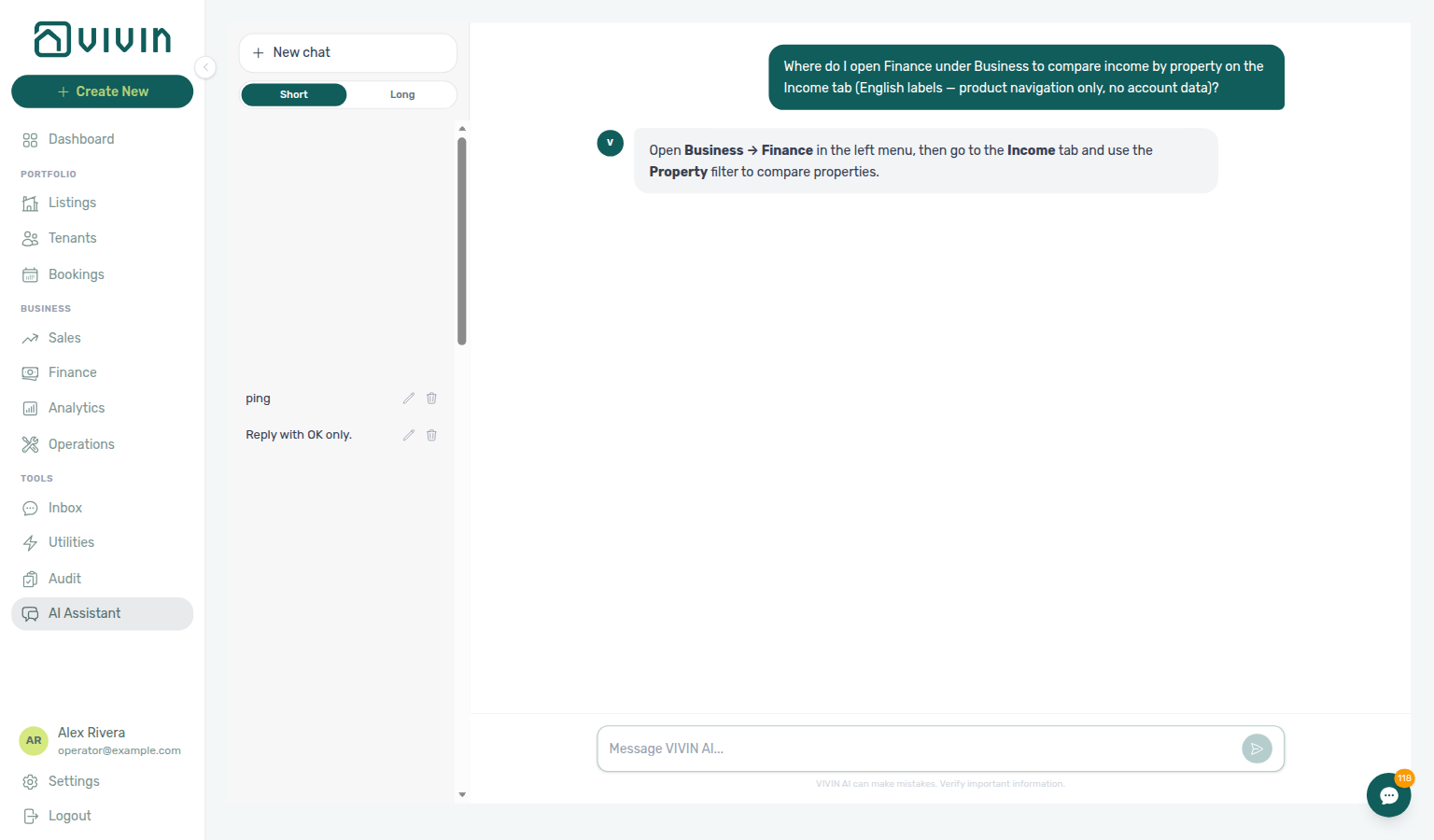
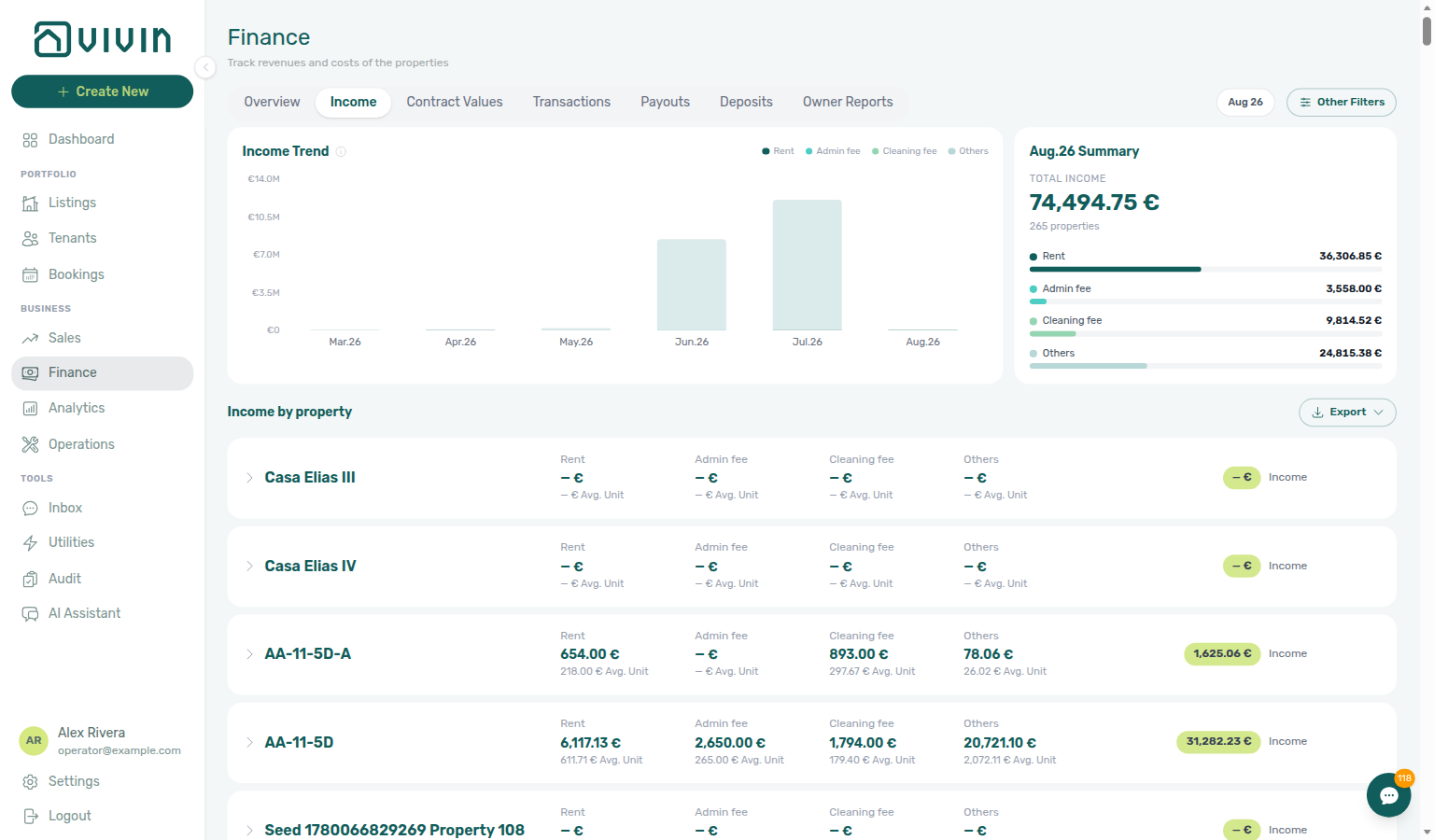
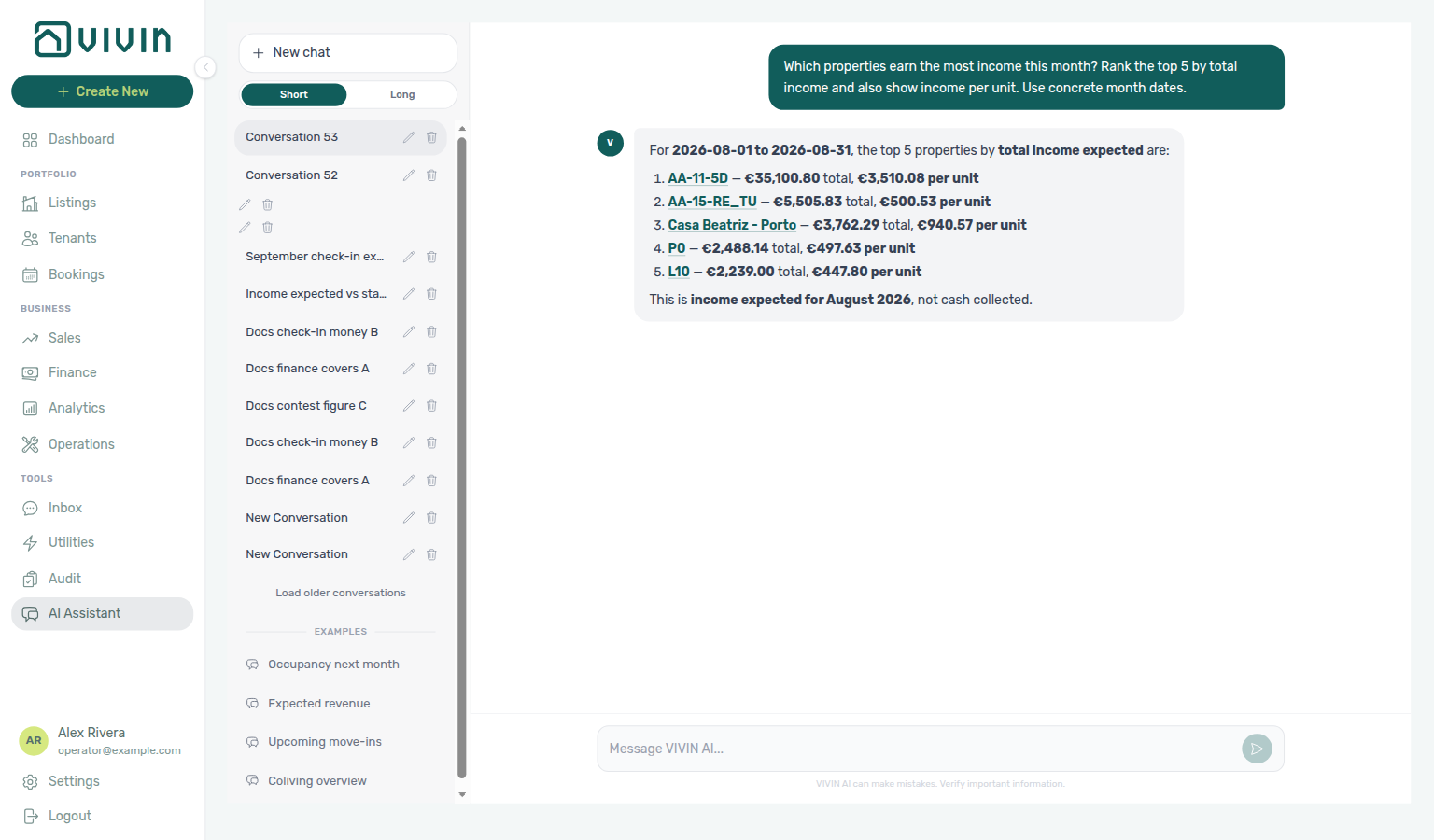
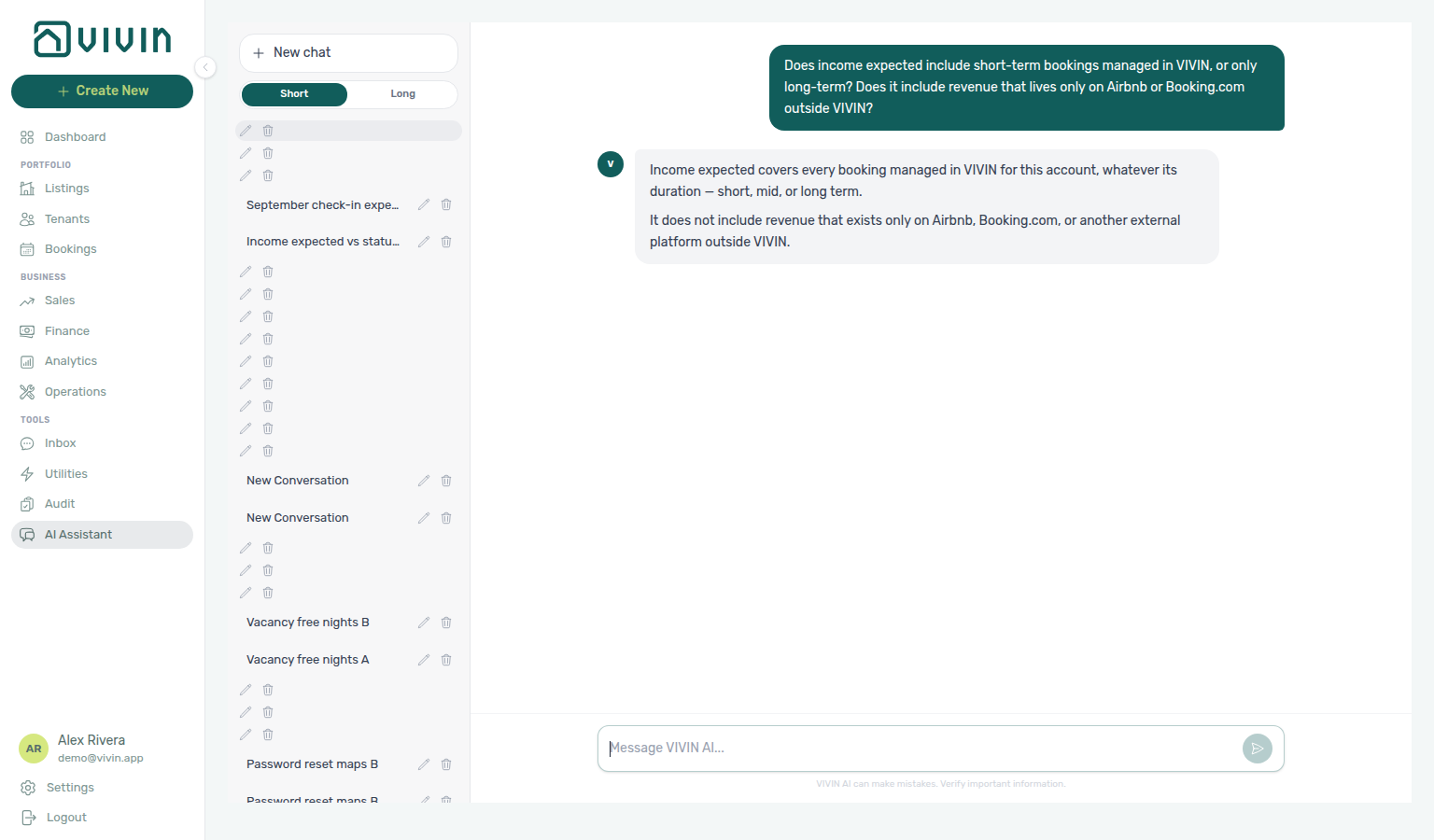
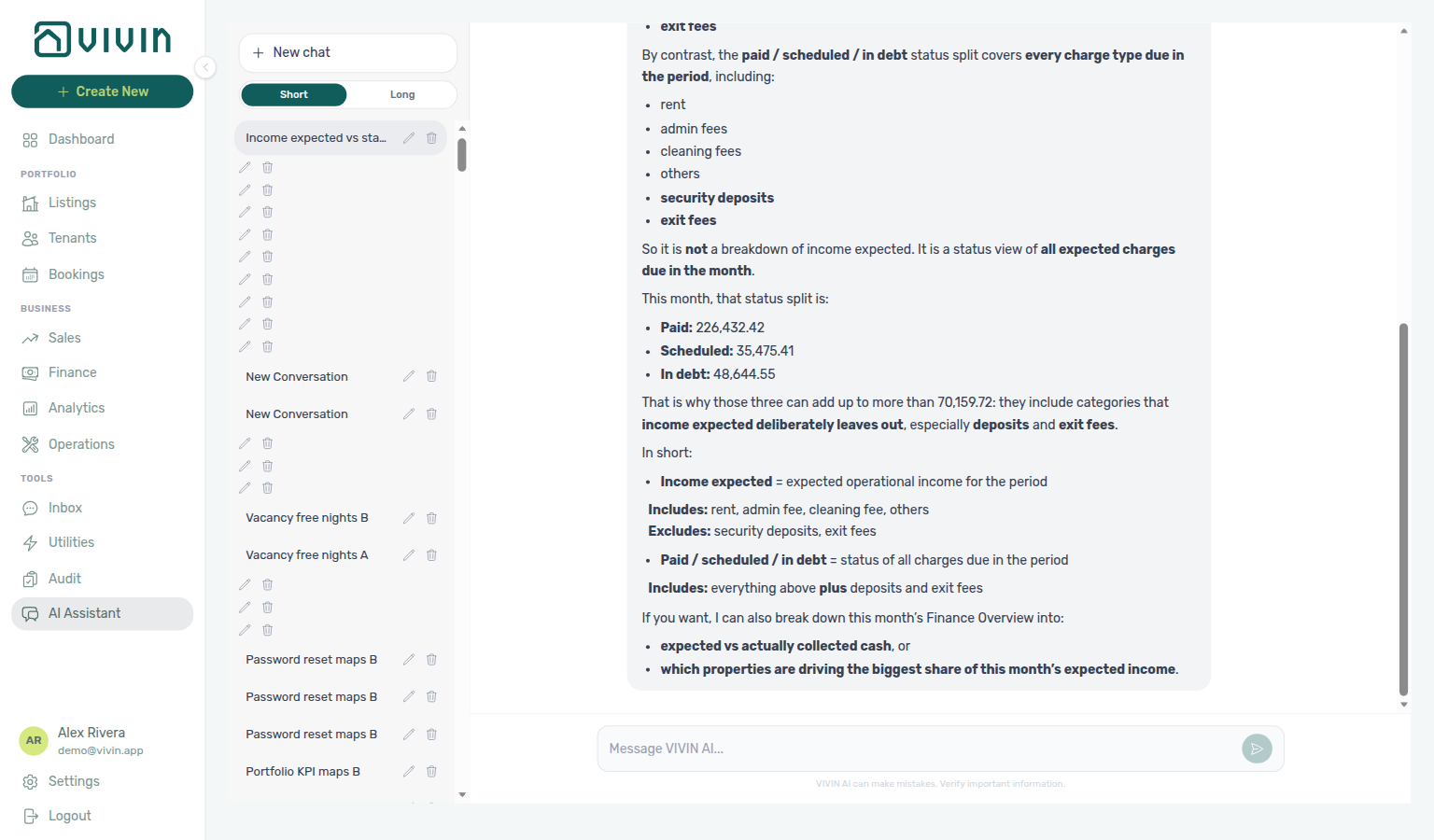
How do Genius and AI Chat quote money I will receive between two dates?
Ask in natural language — for example “How much will I receive from 15 August through 15 September?” or “How much will I receive until 15 September?” The assistant should:
- Quote cash still due in that window from the same series as Finance → Overview — Cash flow forecast.
- Name the exact dates counted.
- Treat due date for money not yet collected (every charge type — rent, fees, deposits, exit fees — with early payments already excluded) and collection date for money already in.
- Not add overdue unpaid balances unless you ask about debt.
Do not confuse this with:
| You asked… | What you get |
|---|---|
| “…until 15 September” / “between two dates” | Calendar cash by due date (this FAQ) |
| “…from September check-ins” | Move-in requirement totals — Check-in money |
| “How much did we collect this month?” | Cash collected (banked money) — net of refunds; ask for the gross cash-flow Past bar when you are reading the chart — How much came in |
| “What is expected revenue this month?” | Income expected (reference-month operating income — not due-date cash) |
Enable the Analytics domain on AI / MCP. Reconcile on Finance → Overview with the Cash flow forecast Day toggle.
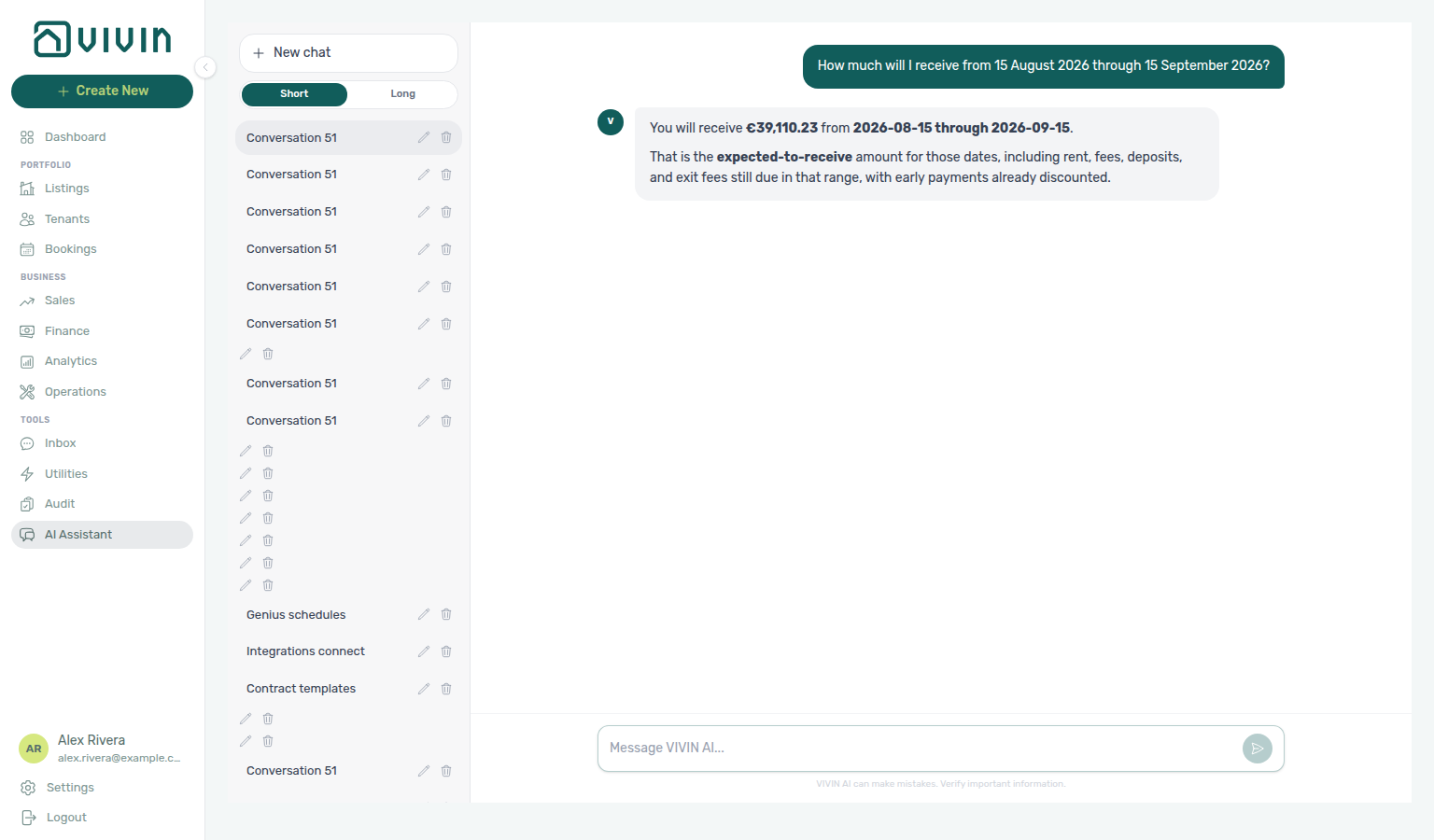
| Symptom | Likely cause | Fix |
|---|---|---|
| Figure matches income expected for a whole month | Assistant used the reference-month axis | Ask again and say by due date / cash I will receive, not expected revenue |
| Figure matches check-in move-in totals | The question included check-ins | Ask without that word when you mean calendar cash |
| Reply also lists overdue debt you did not ask for | Extra debt line volunteered | Ask it to quote only the date-range receipts; open Debt Aging when you want arrears separately |
| Assistant cannot answer | Analytics tool domain Off | Enable Analytics (at least Read-only) on AI / MCP |
How do Genius and AI Chat quote how much came in?
Ask in natural language — for example “How much came in in June 2026? Quote the net System and Manual Payments total and the gross cash-flow chart Past bar. Say which is which.” The assistant should:
- Quote the net total from System Payments + Manual Payments (cash collected — refunds subtract).
- Quote the gross cash-flow chart Past bar for that month (refunds excluded).
- Say which is which, and name June (not July, and not the current-month default).
Do not treat either figure as income expected or as money still due. Enable the Analytics domain on AI / MCP. Reconcile on Finance → Overview for the same month.
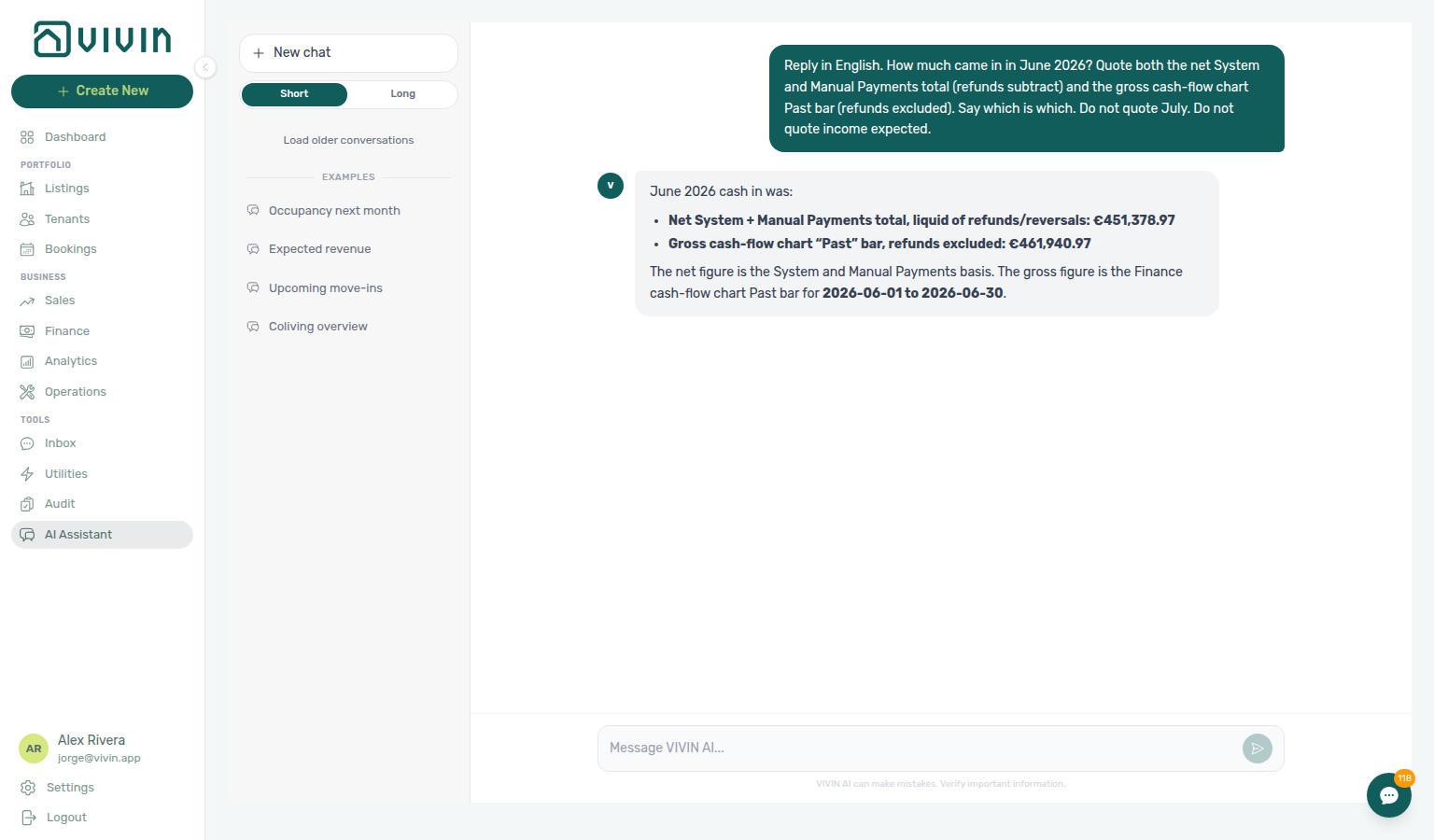
| Symptom | Likely cause | Fix |
|---|---|---|
| Figure matches income expected | Quoted the reference-month operating total | Ask for cash that came in, not expected revenue |
| Figure matches only the Past bar | Quoted gross realized cash | Ask for the net System and Manual Payments total as well |
| Figure matches only cash collected | Quoted net cards | Ask for the gross cash-flow chart Past bar as well |
| Figure matches July or this month | Used the current-month default | Name June |
| Assistant cannot answer | Analytics tool domain Off | Enable Analytics (at least Read-only) on AI / MCP |
How do Genius and AI Chat quote check-in money?
Ask in natural language — for example “How much will I receive from September check-ins?” The assistant should:
- Quote the expected check-in value for that month (and the portfolio total when you ask across a window).
- State the basis — payment-plan lines flagged as booking-confirmation or move-in requirements (first rent, last-month rent, admin fee, and deposit), net of adjustments, not reduced by amounts already paid.
- Say whether the month is fully covered by the look-ahead window (widen the window when a month is only partly inside it).
Do not add only the sample move-in rows in the reply — that list is capped. Enable the Analytics / Bookings tool domains as needed on AI / MCP. Reconcile arrival week on Operations → Check-in & Check-out. If you meant calendar cash by due date rather than move-in totals, ask without the word check-ins — Expected receipts between two dates.
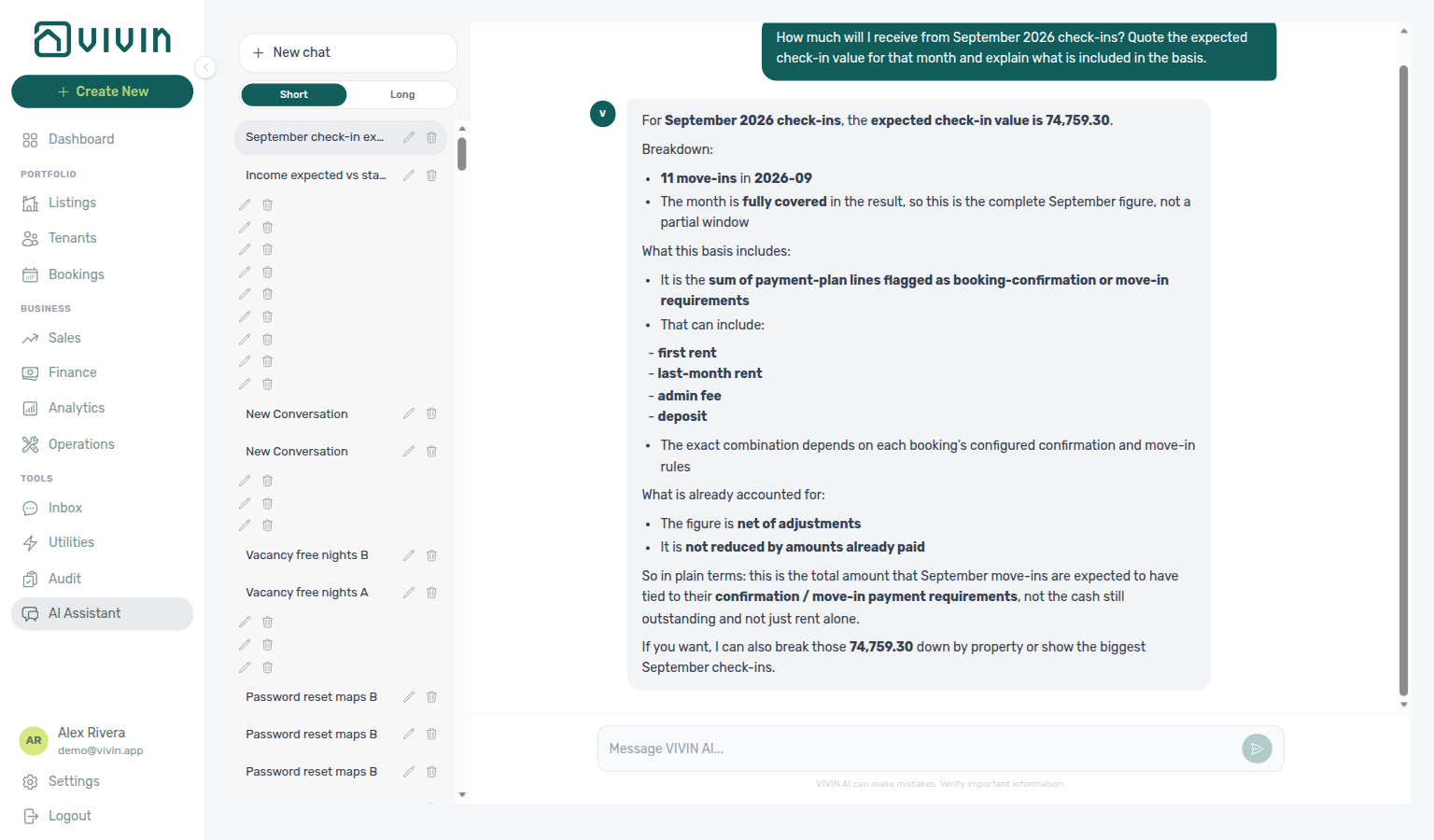
| Symptom | Likely cause | Fix |
|---|---|---|
| Total looks like a sum of a few named move-ins only | Sample list capped | Ask explicitly for the expected check-in value by month / portfolio total |
| Month figure marked partial / days missing | Look-ahead window starts today | Ask with a wider window so the whole calendar month fits, or accept that the current month is inherently partial mid-month |
| Assistant cannot answer move-in money questions | Tool domain Off, or missing Bookings / Finance | Enable the relevant domains on AI / MCP; confirm role permissions |
How do I ask how many bookings I received?
Creation-window counts: Landlord MCP — Bookings received, AI Chat — Asking about your portfolio, Bookings module, Processing a New Booking.
Ask Genius or AI Chat in natural language — for example “How many bookings did I receive today?” or “How many bookings did I receive from 1 August through 13 August? Include channel imports and cancellations.”
The assistant should:
- Quote
bookingsCreatedInWindowfor that window (defaults to today when you omit dates). - Name the exact dates counted (
createdWindow.from/to). - Optionally split channel / imported vs already canceled.
- Say the basis is creation time in VIVIN (for channel stays, import time — which can differ from an OTA portal’s “booked at” clock).
Do not confuse this with active / upcoming status counts — those describe the portfolio right now, not creations inside the window. Enable the Bookings domain on AI / MCP. Reconcile imports on Bookings.
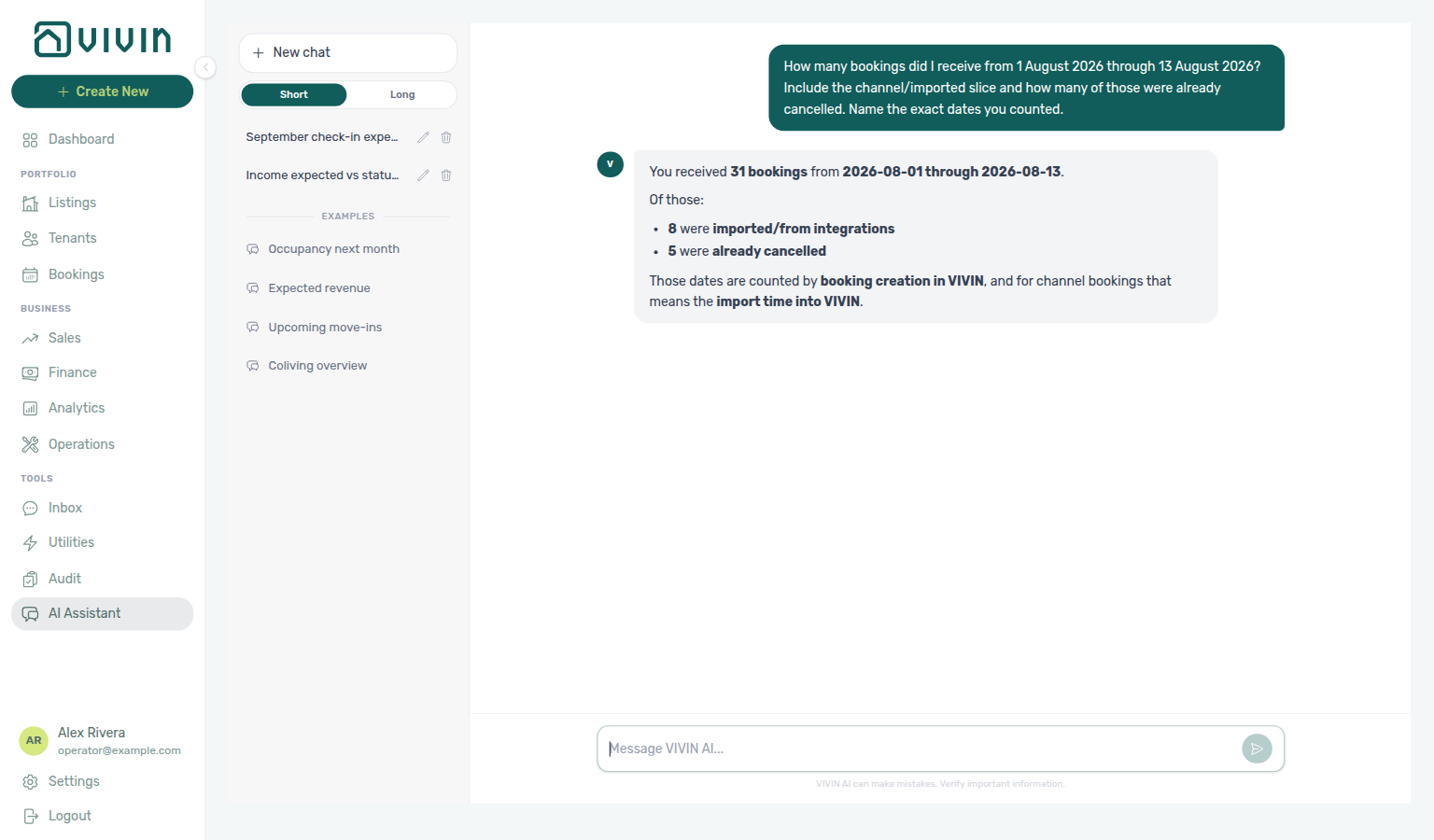
| Symptom | Likely cause | Fix |
|---|---|---|
| Number ≠ Airbnb / Booking.com “bookings today” | VIVIN counts import / creation time | Ask the assistant to state the basis; compare portal clocks only after accounting for sync lag |
| Assistant quotes active/upcoming instead of received | Ambiguous “how many bookings” phrasing | Say received / created / “how many new bookings” and pass dates when you mean a window |
| Assistant cannot answer | Bookings tool domain Off | Enable Bookings (at least Read-only) on AI / MCP |
How do I ask how many maintenance tickets I have?
Whole-account ticket totals: Landlord MCP — Ticket status counts, AI Chat — Ticket status counts, Operations — Tickets, Operations — Overdue filter and status cards.
Ask Genius or AI Chat in natural language — for example “How many maintenance tickets do I have on Operations Tickets? Quote the whole-account status counts. Do not list ticket titles.”
The assistant should:
- Use
get-ticket-status-counts(a server total that is never truncated) — not alist-ticketspage. The default ticket list omits Closed and Cancelled, so counting the first page understates the portfolio. - Quote All, Unassigned, Draft, In progress, Completed, and Cancelled. Completed is the same bucket as Closed on Operations → Tickets. Draft is a display status: Unassigned or In progress tickets whose Schedule date is more than 30 days ahead. All includes Closed, Cancelled, and Duplicate (Duplicate is in All only).
- Optionally split by priority (Critical, High, Medium, Low, None) — see FAQ — Ticket priority counts for the All card, FAQ — Ticket unassigned priority counts for the Unassigned card, FAQ — Ticket draft priority counts for the Draft card, FAQ — Ticket in-progress priority counts for the In progress card, FAQ — Ticket closed priority counts for the Closed card, or FAQ — Ticket cancelled priority counts for the Cancelled card. None means tickets with no priority set.
Keep Maintenance enabled on AI / MCP. Reconcile with the status cards on Operations → Tickets with Overdue off.
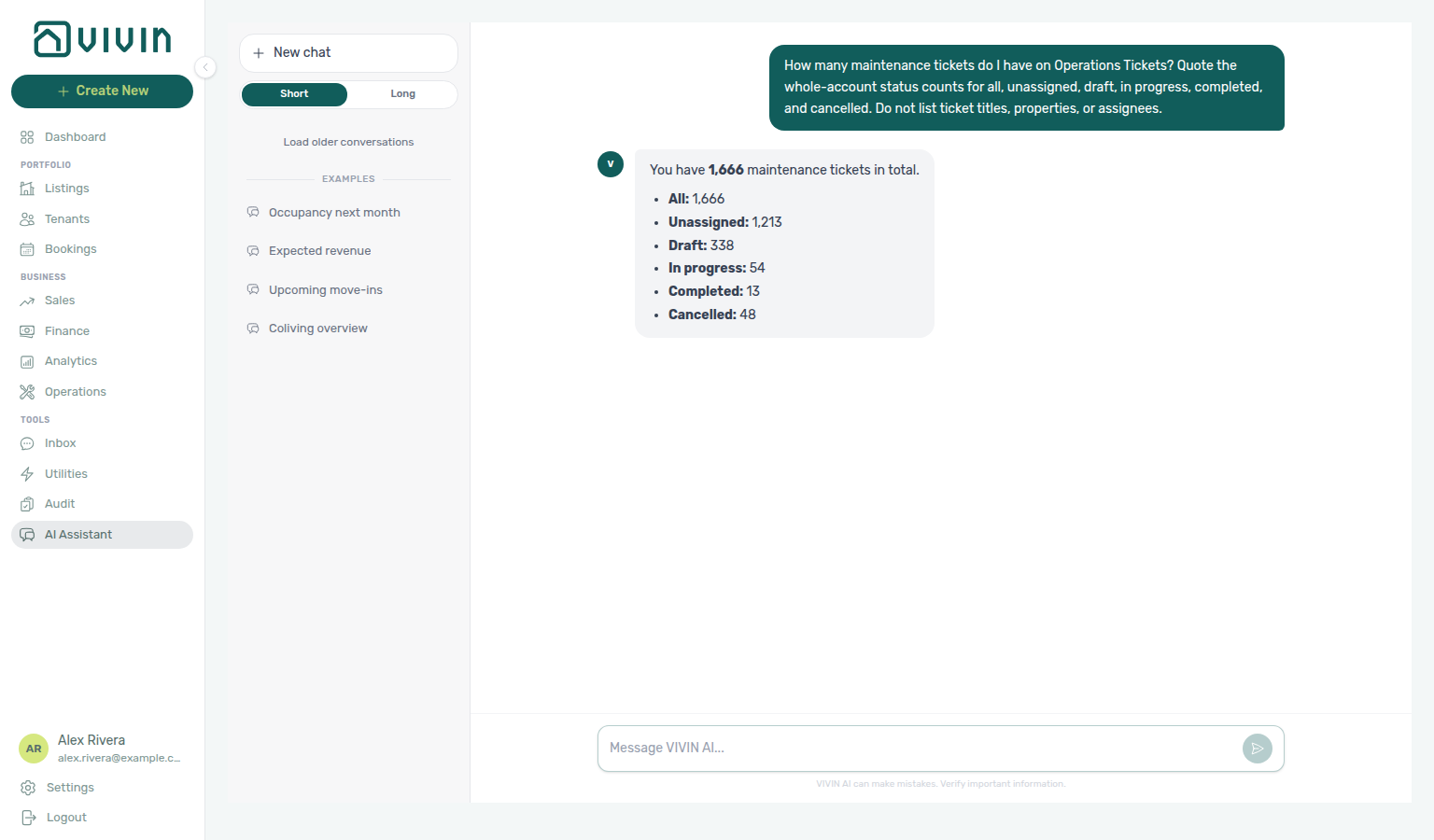
| Symptom | Likely cause | Fix |
|---|---|---|
| Number matches only the first page of tickets | Counted list-tickets rows | Ask for status counts / how many tickets and say do not list titles |
| Number ≠ Operations All card | Overdue is on, or a property filter | Turn Overdue off and clear property/category filters, then compare again |
| Assistant cannot answer | Maintenance tool domain Off | Enable Maintenance (at least Read-only) on AI / MCP |
How do I ask how many maintenance tickets I have by priority?
Whole-account priority mix: Landlord MCP — Ticket status counts, AI Chat — Ticket priority counts, Operations — Status-card priority chips, FAQ — Ticket status counts.
Ask Genius or AI Chat — for example “How many maintenance tickets do I have by priority? Quote the All-card counts. Do not list ticket titles.”
The assistant should:
- Use the same
get-ticket-status-countscall as status totals — never count alist-ticketspage. - Quote Critical, High, Medium, Low, and None for the All card. Those five numbers add up to All. None means tickets with no priority set.
- Not treat the Unassigned, Draft, In progress, Closed, or Cancelled card chips as the portfolio mix — those cards are only tickets with no assignee, far-future Draft rows, tickets currently in progress, all-time Closed, or all-time Cancelled. For those chips, see FAQ — Ticket unassigned priority counts, FAQ — Ticket draft priority counts, FAQ — Ticket in-progress priority counts, FAQ — Ticket closed priority counts, and FAQ — Ticket cancelled priority counts.
Keep Maintenance enabled on AI / MCP. Reconcile on Operations → Tickets — status-card priority chips with Overdue off.
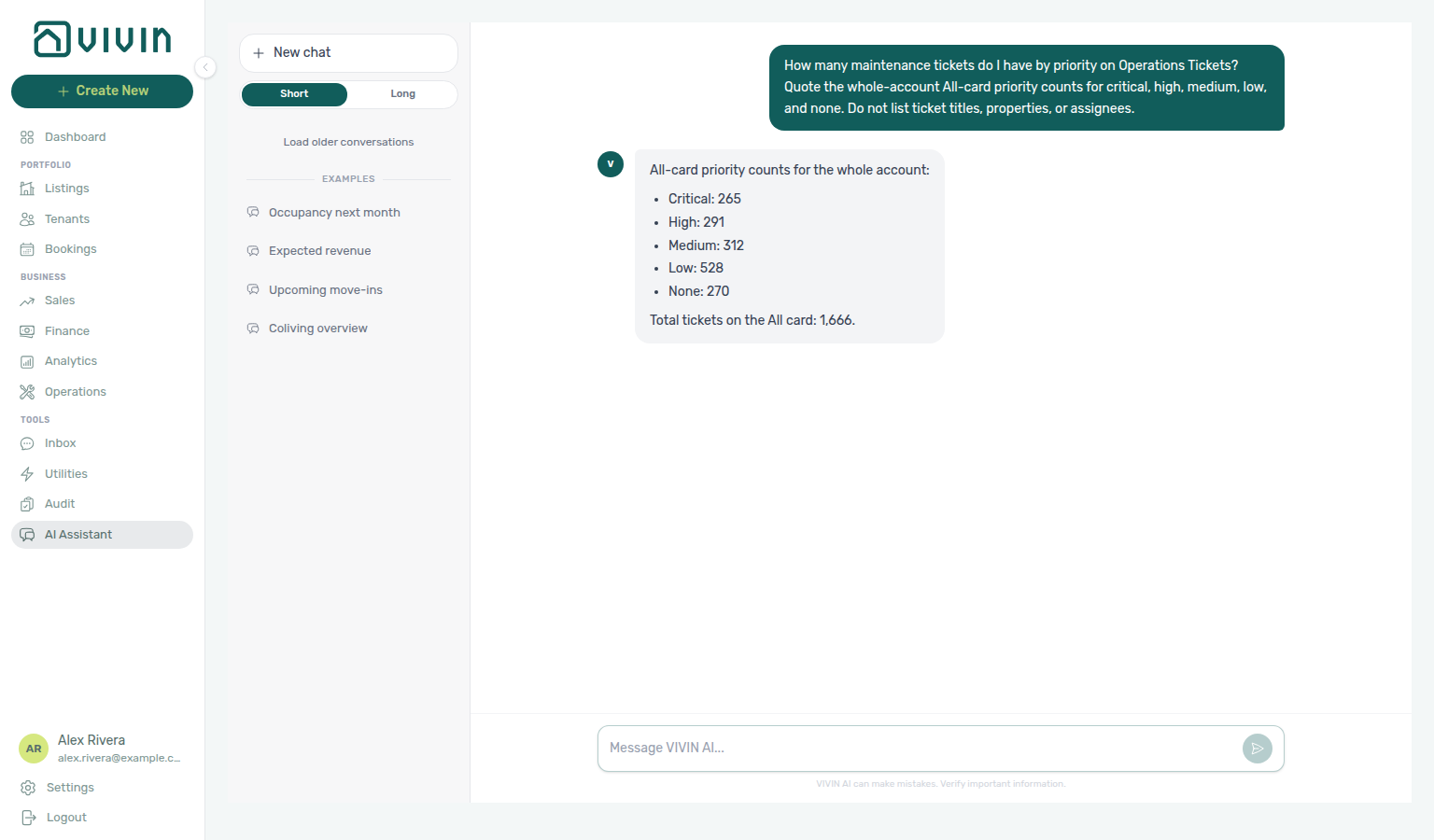
| Symptom | Likely cause | Fix |
|---|---|---|
| Numbers match only the Unassigned card chips | Quoted unassigned priority, not All | Ask for the All card / whole-account priority mix, or see FAQ — Ticket unassigned priority counts when that is what you wanted |
| Five chips do not add up to All | Dropped None, or Overdue is on | Include None; turn Overdue off and compare the All card again |
| Assistant lists ticket titles | Counted a list-tickets page | Ask for priority counts and say do not list titles |
How do I ask how many unassigned maintenance tickets I have by priority?
Unassigned-card priority mix: Landlord MCP — Ticket status counts, AI Chat — Ticket unassigned priority counts, Operations — Status-card priority chips, FAQ — Ticket priority counts.
Ask Genius or AI Chat — for example “How many unassigned maintenance tickets do I have by priority? Quote the Unassigned-card counts. Do not quote the All-card chips. Do not list ticket titles.”
The assistant should:
- Use the same
get-ticket-status-countscall as status totals — never count alist-ticketspage. - Quote Critical, High, Medium, Low, and None for the Unassigned card. Those five numbers add up to Unassigned. None means tickets with no priority set.
- Not quote the All or In progress card chips — All includes assigned, in-progress, closed, and cancelled tickets; In progress is the active assigned queue.
Keep Maintenance enabled on AI / MCP. Reconcile on Operations → Tickets — status-card priority chips with Overdue off, then open the Unassigned card. Far-future Draft rows are not in Unassigned.
| Symptom | Likely cause | Fix |
|---|---|---|
| Numbers match the All card chips | Quoted whole-account priority, not Unassigned | Ask for the Unassigned card / tickets with no assignee |
| Five chips do not add up to Unassigned | Dropped None, or Overdue is on | Include None; turn Overdue off and compare the Unassigned card again |
| Assistant lists ticket titles | Counted a list-tickets page | Ask for unassigned priority counts and say do not list titles |
How do I ask how many draft maintenance tickets I have by priority?
Ask Genius or AI Chat — for example “How many draft maintenance tickets do I have by priority? Quote the Draft-card counts. Do not quote the All-card, Unassigned-card, or In-progress-card chips. Do not list ticket titles.”
The assistant should:
- Use the same
get-ticket-status-countscall as status totals — never count alist-ticketspage. - Quote Critical, High, Medium, Low, and None for the Draft card. Those five numbers add up to Draft. None means tickets with no priority set.
- Not quote the All card chips (the whole portfolio), the Unassigned card chips (tickets with no assignee inside the 30-day window), or the In progress card chips (assigned work inside the 30-day window). Draft is a display status: Unassigned or In progress tickets whose Schedule date is more than 30 days ahead.
Keep Maintenance enabled on AI / MCP. Reconcile on Operations → Tickets — status-card priority chips with Overdue off, then open the Draft card.
| Symptom | Likely cause | Fix |
|---|---|---|
| Numbers match the All card chips | Quoted whole-account priority, not Draft | Ask for the Draft card / far-future scheduled work |
| Numbers match the Unassigned or In progress card chips | Quoted today’s queue, not far-future Draft | Ask for Draft (Schedule date more than 30 days ahead) |
| Five chips do not add up to Draft | Dropped None, or Overdue is on | Include None; turn Overdue off and compare the Draft card again |
| Assistant lists ticket titles | Counted a list-tickets page | Ask for draft priority counts and say do not list titles |
How do I ask how many in-progress maintenance tickets I have by priority?
Ask Genius or AI Chat — for example “How many in-progress maintenance tickets do I have by priority? Quote the In-progress-card counts. Do not quote the All-card, Unassigned-card, Draft-card, or Closed-card chips. Do not list ticket titles.”
The assistant should:
- Use the same
get-ticket-status-countscall as status totals — never count alist-ticketspage. - Quote Critical, High, Medium, Low, and None for the In progress card. Those five numbers add up to In progress. None means tickets with no priority set.
- Not quote the All card chips (the whole portfolio), the Unassigned card chips (tickets with no assignee), the Draft card chips (far-future scheduled work), or the Closed card chips (all-time completed). In progress is assigned work inside the 30-day window — far-future Draft rows are not in this card.
Keep Maintenance enabled on AI / MCP. Reconcile on Operations → Tickets — status-card priority chips with Overdue off, then open the In progress card.
| Symptom | Likely cause | Fix |
|---|---|---|
| Numbers match the All card chips | Quoted whole-account priority, not In progress | Ask for the In progress card / currently assigned active queue |
| Numbers match the Unassigned card chips | Quoted tickets with no assignee | Ask for In progress (assigned work), or see FAQ — Ticket unassigned priority counts when that is what you wanted |
| Numbers match the Draft card chips | Quoted far-future scheduled work | Ask for In progress (inside the 30-day window), or see FAQ — Ticket draft priority counts when that is what you wanted |
| Numbers match the Closed card chips | Quoted all-time completed tickets | Ask for In progress (active queue), or see FAQ — Ticket closed priority counts when that is what you wanted |
| Five chips do not add up to In progress | Dropped None, or Overdue is on | Include None; turn Overdue off and compare the In progress card again |
| Assistant lists ticket titles | Counted a list-tickets page | Ask for in-progress priority counts and say do not list titles |
How do I ask how many closed maintenance tickets I have by priority?
Ask Genius or AI Chat — for example “How many closed maintenance tickets do I have by priority? Quote the Closed-card counts. Do not quote the All-card, Unassigned-card, Draft-card, In-progress-card, or Cancelled-card chips. Do not quote closure rate. Do not list ticket titles.”
The assistant should:
- Use the same
get-ticket-status-countscall as status totals — never count alist-ticketspage (the default list omits Closed). - Quote Critical, High, Medium, Low, and None for the Closed card. Those five numbers add up to Closed. Closed on Operations → Tickets is the same bucket as Completed. None means tickets with no priority set.
- Not quote the All card chips (the whole portfolio), the Unassigned card chips (tickets with no assignee), the Draft card chips (far-future scheduled work), the In progress card chips (active assigned queue), or the Cancelled card chips. Not quote closure rate — that is closed vs received in a named trailing window, not all-time Closed.
Keep Maintenance enabled on AI / MCP. Reconcile on Operations → Tickets — status-card priority chips with Overdue off, then open the Closed card.
| Symptom | Likely cause | Fix |
|---|---|---|
| Numbers match the All card chips | Quoted whole-account priority, not Closed | Ask for the Closed card / all-time completed tickets |
| Numbers match the In progress card chips | Quoted the active assigned queue | Ask for Closed (completed work), or see FAQ — Ticket in-progress priority counts when that is what you wanted |
| Numbers match closure rate (closed vs received) | Quoted a trailing window, not all-time Closed | Ask for Closed-card priority counts, or see FAQ — Maintenance closure rate when you wanted the rate |
| Numbers match the Cancelled card chips | Quoted cancelled tickets, not Closed | Ask for Closed (completed work), or see FAQ — Ticket cancelled priority counts when that is what you wanted |
| Five chips do not add up to Closed | Dropped None, or Overdue is on | Include None; turn Overdue off and compare the Closed card again |
| Assistant lists ticket titles | Counted a list-tickets page | Ask for closed priority counts and say do not list titles |
How do I ask how many cancelled maintenance tickets I have by priority?
Ask Genius or AI Chat — for example “How many cancelled maintenance tickets do I have by priority? Quote the Cancelled-card counts. Do not quote the All-card, Unassigned-card, Draft-card, In-progress-card, or Closed-card chips. Do not list ticket titles.”
The assistant should:
- Use the same
get-ticket-status-countscall as status totals — never count alist-ticketspage (the default list omits Cancelled). - Quote Critical, High, Medium, Low, and None for the Cancelled card. Those five numbers add up to Cancelled. None means tickets with no priority set.
- Not quote the All card chips (the whole portfolio), the Unassigned card chips (tickets with no assignee), the Draft card chips (far-future scheduled work), the In progress card chips (active assigned queue), or the Closed card chips (all-time completed). Cancelled is not the same bucket as Closed.
Keep Maintenance enabled on AI / MCP. Reconcile on Operations → Tickets — status-card priority chips with Overdue off, then open the Cancelled card.
| Symptom | Likely cause | Fix |
|---|---|---|
| Numbers match the All card chips | Quoted whole-account priority, not Cancelled | Ask for the Cancelled card / all-time cancelled tickets |
| Numbers match the Closed card chips | Quoted all-time completed tickets | Ask for Cancelled (not Closed), or see FAQ — Ticket closed priority counts when that is what you wanted |
| Five chips do not add up to Cancelled | Dropped None, or Overdue is on | Include None; turn Overdue off and compare the Cancelled card again |
| Assistant lists ticket titles | Counted a list-tickets page | Ask for cancelled priority counts and say do not list titles |
How do I ask for my maintenance ticket closure rate?
Closed vs received: Landlord MCP — Maintenance closure rate, AI Chat — Maintenance closure rate, FAQ — 45-day maintenance closure rate, FAQ — 50-day maintenance closure rate, FAQ — 90-day maintenance closure rate, Operations — Ticket volume trend, FAQ — Ticket status counts, FAQ — Ticket closed priority counts.
Ask Genius or AI Chat — for example “What is my maintenance ticket closure rate over the last 60 days? Quote tickets closed, tickets received, and the percentage. Do not quote the 7-day default. Do not list staff names or ticket titles.”
The assistant should:
- Use
get-maintenance-closure-rate— never count alist-ticketspage, and never treat the Operations Tickets Closed card (all-time completed) as the rate. - Quote closed, received, and the percentage (closed ÷ received) for the named window.
- Not use the 7-day default when you asked for a longer window. That default can be 0% even when the last 60 days have closures.
Keep Analytics enabled on AI / MCP (this read is not the Maintenance domain). Reconcile the created-vs-closed shape on Operations → Overview — Ticket volume trend. For a mid-length window that can already have closures when 30 days is still 0%, see FAQ — 45-day maintenance closure rate. For a window between 45 and 60, see FAQ — 50-day maintenance closure rate. For the longest allowed window, see FAQ — 90-day maintenance closure rate.
| Symptom | Likely cause | Fix |
|---|---|---|
| Rate is 0% but you closed tickets last month | Tool defaulted to 7 days | Name a longer window (for example last 60 days) |
| Number matches the Closed status card | Quoted all-time completed tickets | Ask for closed vs received in a trailing window |
| Number matches Staff Workload | Quoted open tickets now | Closure rate is closed ÷ received in the window, not open work |
| Assistant lists staff names or ticket titles | Ranked assignees or counted a ticket page | Ask for account totals and say do not list names or titles |
How do I ask for my 90-day maintenance ticket closure rate?
Ask Genius or AI Chat — for example “What is my maintenance ticket closure rate over the last 90 days? Quote tickets received and the percentage. Name that the window is 90 days. Do not quote the 7-day default. Do not quote the last 60 days. Do not list staff names or ticket titles.”
The assistant should:
- Use
get-maintenance-closure-ratewith 90 days — never count alist-ticketspage, and never treat the Operations Tickets Closed card as the rate. - Quote received and the percentage for that named window. Closed can match a shorter window that had the same closures — do not treat closed alone as proof of 90 days.
- Not use the 7-day default, a 45-day window, a 50-day window, or a 60-day window when you asked for 90 days.
Keep Analytics enabled on AI / MCP. Reconcile the created-vs-closed shape on Operations → Overview — Ticket volume trend.
| Symptom | Likely cause | Fix |
|---|---|---|
| Figures match the 60-day window | Quoted a shorter window; closed can match | Name 90 days and quote received, not closed alone |
| Rate is 0% but you closed tickets last quarter | Tool defaulted to 7 days | Name 90 days (the longest allowed window) |
| Number matches the Closed status card | Quoted all-time completed tickets | Ask for closed vs received in a trailing window |
| Assistant lists staff names or ticket titles | Ranked assignees or counted a ticket page | Ask for account totals and say do not list names or titles |
How do I ask for my 45-day maintenance ticket closure rate?
Ask Genius or AI Chat — for example “What is my maintenance ticket closure rate over the last 45 days? Quote tickets received and the percentage. Name that the window is 45 days. Do not quote the 7-day default. Do not quote the last 30 days. Do not quote the last 50 days. Do not quote the last 60 days. Do not quote the last 90 days. Do not list staff names or ticket titles.”
The assistant should:
- Use
get-maintenance-closure-ratewith 45 days — never count alist-ticketspage, and never treat the Operations Tickets Closed card as the rate. - Quote received and the percentage for that named window. Closed can match one assignee’s close count on Staff Workload — do not treat closed alone as proof of 45 days.
- Not use the 7-day default, a 30-day look (which can still be 0%), a 50-day window, a 60-day window, or the 90-day maximum when you asked for 45 days.
Keep Analytics enabled on AI / MCP. Reconcile the created-vs-closed shape on Operations → Overview — Ticket volume trend.
| Symptom | Likely cause | Fix |
|---|---|---|
| Rate is 0% but you closed tickets last month | Tool defaulted to 7 or 30 days | Name 45 days (a mid-length window that can already have closures) |
| Figures match the 50-day, 60-day, or 90-day window | Quoted a longer window | Name 45 days and quote received, not closed alone |
| Number matches the Closed status card | Quoted all-time completed tickets | Ask for closed vs received in a trailing window |
| Assistant lists staff names or ticket titles | Ranked assignees or counted a ticket page | Ask for account totals and say do not list names or titles |
How do I ask for my 50-day maintenance ticket closure rate?
Ask Genius or AI Chat — for example “What is my maintenance ticket closure rate over the last 50 days? Quote tickets received and the percentage. Name that the window is 50 days. Do not quote the 7-day default. Do not quote the last 45 days. Do not quote the last 60 days. Do not quote the last 90 days. Do not list staff names or ticket titles.”
The assistant should:
- Use
get-maintenance-closure-ratewith 50 days — never count alist-ticketspage, and never treat the Operations Tickets Closed card as the rate. - Quote received and the percentage for that named window. Closed can match a nearby window if you only compare that count — do not treat closed alone as proof of 50 days.
- Not use the 7-day default, a 45-day window, a 60-day window, or the 90-day maximum when you asked for 50 days.
Keep Analytics enabled on AI / MCP. Reconcile the created-vs-closed shape on Operations → Overview — Ticket volume trend.
| Symptom | Likely cause | Fix |
|---|---|---|
| Figures match the 45-day window | Quoted a shorter window | Name 50 days and quote received, not closed alone |
| Figures match the 60-day or 90-day window | Quoted a longer window | Name 50 days and quote received, not closed alone |
| Rate is 0% but you closed tickets last month | Tool defaulted to 7 or 30 days | Name 50 days (a window between 45 and 60 that already has closures) |
| Number matches the Closed status card | Quoted all-time completed tickets | Ask for closed vs received in a trailing window |
| Assistant lists staff names or ticket titles | Ranked assignees or counted a ticket page | Ask for account totals and say do not list names or titles |
How do I ask for my operational costs?
Cash Flows spend: Landlord MCP — Operational cost summary, AI Chat — Operational cost summary, FAQ — June operational costs, FAQ — April operational costs, FAQ — April 1–15 operational costs, FAQ — April 16–30 operational costs, FAQ — February operational costs, FAQ — February 1–14 operational costs, FAQ — February 15–28 operational costs, FAQ — January operational costs, FAQ — March operational costs, FAQ — May operational costs, Operations — Cash Flows, FAQ — Operational costs by category, FAQ — June operational costs by category, FAQ — Operational costs excluding a category, FAQ — Operational costs excluding Maintenance, FAQ — June operational costs excluding Manutenção, FAQ — June operational costs excluding uncategorized, FAQ — April operational costs excluding maintenance, FAQ — April operational costs excluding maintenance and uncategorized, FAQ — Maintenance closure rate.
Ask Genius or AI Chat — for example “What were my operational costs in July 2026? Quote total outflow and average cost per unit for 1 July through 31 July. Do not quote August. Do not quote Finance income. Do not list cash-flow rows.”
The assistant should:
- Use
get-cost-summary— never sum a Cash Flows page of rows, and never treat Finance → Overview income or cash collected as operational spend. - Quote total outflow and average cost per unit for the named dates.
- Not use the current-month default when you asked for a settled month. That default is the month through today, so a mid-month ask understates July.
Keep Analytics enabled on AI / MCP. Reconcile on Operations → Cash Flows with the matching month chip. For another named settled month, see FAQ — June operational costs, FAQ — April operational costs, FAQ — February operational costs, FAQ — January operational costs, or FAQ — March operational costs, or FAQ — May operational costs.
| Symptom | Likely cause | Fix |
|---|---|---|
| Figure matches income expected or cash collected | Quoted Finance Overview, not Cash Flows | Ask for operational costs / Cash Flows outflow |
| Figure looks too small for last month | Tool defaulted to the current month | Name from and to dates for the settled month |
| Assistant lists suppliers or properties | Counted Cash Flows rows | Ask for totals only and say do not list rows |
How do I ask for my June operational costs?
Named June month: Landlord MCP — June operational cost summary, AI Chat — June operational cost summary, FAQ — Operational cost summary, FAQ — April operational costs, Operations — Cash Flows, FAQ — Operational costs by category, FAQ — June operational costs by category, FAQ — June operational costs excluding Manutenção, FAQ — June operational costs excluding uncategorized.
Ask Genius or AI Chat — for example “What were my operational costs in June 2026? Quote total outflow and average cost per unit for 1 June through 30 June. Do not quote July. Do not quote August. Do not quote Finance income. Do not quote only a category split. Do not list cash-flow rows.”
The assistant should:
- Use
get-cost-summarywith 1 June through 30 June — never sum a Cash Flows page of rows, and never treat Finance → Overview income or cash collected as operational spend. - Quote total outflow and average cost per unit for that named month. A single category’s outflow is not the portfolio total — do not treat a category split as the headline.
- Not use the July teaching month or the current-month default when you asked for June.
Keep Analytics enabled on AI / MCP. Reconcile on Operations → Cash Flows with the matching month chip. For a third named settled month, see FAQ — April operational costs. For a fourth named settled month, see FAQ — February operational costs. For a fifth named settled month, see FAQ — January operational costs. For a sixth named settled month, see FAQ — March operational costs. For a seventh named settled month, see FAQ — May operational costs.
| Symptom | Likely cause | Fix |
|---|---|---|
| Figures match July | Quoted a different named month | Name 1 June through 30 June and quote headline totals |
| Figure looks like August or this month | Tool defaulted to the current month | Name June from and to dates |
| Figure matches one category outflow | Quoted the category split as the headline | Ask for total outflow and average cost per unit, not a category-only split |
| Figure matches income expected or cash collected | Quoted Finance Overview, not Cash Flows | Ask for operational costs / Cash Flows outflow |
| Assistant lists suppliers or properties | Counted Cash Flows rows | Ask for totals only and say do not list rows |
How do I ask for my April operational costs?
Named April month: Landlord MCP — April operational cost summary, AI Chat — April operational cost summary, FAQ — April 1–15 operational costs, FAQ — April 16–30 operational costs, FAQ — February operational costs, FAQ — January operational costs, FAQ — March operational costs, FAQ — Operational cost summary, FAQ — June operational costs, FAQ — April operational costs excluding maintenance, Operations — Cash Flows.
Ask Genius or AI Chat — for example “What were my operational costs in April 2026? Quote total outflow and average cost per unit for 1 April through 30 April. Do not quote May. Do not quote June. Do not quote July. Do not quote August. Do not quote Finance income. Do not quote only a category split. Do not quote remaining totals after excluding a category. Do not list cash-flow rows.”
The assistant should:
- Use
get-cost-summarywith 1 April through 30 April — never sum a Cash Flows page of rows, and never treat Finance → Overview income or cash collected as operational spend. - Quote total outflow and average cost per unit for that named month. A single category’s outflow is not the portfolio total — do not treat a category split as the headline.
- Not use the June or July teaching months, May, remaining totals after excluding a category, or the current-month default when you asked for April.
Keep Analytics enabled on AI / MCP. Reconcile on Operations → Cash Flows with the matching month chip.
| Symptom | Likely cause | Fix |
|---|---|---|
| Figures match June or July | Quoted a different named month | Name 1 April through 30 April and quote headline totals |
| Figures match May | Quoted the next month | Name April from and to dates |
| Figure looks like August or this month | Tool defaulted to the current month | Name April from and to dates |
| Figure matches remaining totals after excluding a category | Quoted spend after dropping maintenance | Ask for total outflow and average cost per unit, not remaining totals |
| Figure matches one category outflow | Quoted the category split as the headline | Ask for total outflow and average cost per unit, not a category-only split |
| Figure matches income expected or cash collected | Quoted Finance Overview, not Cash Flows | Ask for operational costs / Cash Flows outflow |
| Assistant lists suppliers or properties | Counted Cash Flows rows | Ask for totals only and say do not list rows |
| Figures match 1–15 April only | Quoted a custom half-month window | Name 1 April through 30 April — FAQ — April 1–15 operational costs |
| Figures match 16–30 April only | Quoted a custom half-month window | Name 1 April through 30 April — FAQ — April 16–30 operational costs |
How do I ask for my April 1–15 operational costs?
Ask Genius or AI Chat — for example “What were my operational costs from 1 April through 15 April 2026? Quote total outflow and average cost per unit for 1 April through 15 April only. Do not quote the full April month (1 through 30 April). Do not quote 16 April through 30 April. Do not quote May. Do not quote June. Do not quote July. Do not quote August. Do not quote Finance income. Do not quote only a category split. Do not quote remaining totals after excluding a category. Do not list cash-flow rows.”
The assistant should:
- Use
get-cost-summarywith 1 April through 15 April — never sum a Cash Flows page of rows, and never treat Finance → Overview income or cash collected as operational spend. - Quote total outflow and average cost per unit for that named window. A half-month window is not the full April headline — do not treat a category split as the headline.
- Not use the full April month, 16–30 April, the June or July teaching months, May, remaining totals after excluding a category, or the current-month default when you asked for 1–15 April.
Keep Analytics enabled on AI / MCP. Reconcile on Operations → Cash Flows for the matching days.
| Symptom | Likely cause | Fix |
|---|---|---|
| Figures match the full April month | Quoted 1 April through 30 April | Name 1 April through 15 April and quote headline totals for that window |
| Figures match 16–30 April | Quoted the second half of the month | Name 1 April through 15 April — FAQ — April 16–30 operational costs |
| Figures match June or July | Quoted a different named month | Name 1 April through 15 April |
| Figure looks like August or this month | Tool defaulted to the current month | Name 1 April through 15 April |
| Figure matches remaining totals after excluding a category | Quoted spend after dropping maintenance | Ask for total outflow and average cost per unit, not remaining totals |
| Figure matches one category outflow | Quoted the category split as the headline | Ask for total outflow and average cost per unit, not a category-only split |
| Figure matches income expected or cash collected | Quoted Finance Overview, not Cash Flows | Ask for operational costs / Cash Flows outflow |
| Assistant lists suppliers or properties | Counted Cash Flows rows | Ask for totals only and say do not list rows |
How do I ask for my April 16–30 operational costs?
Ask Genius or AI Chat — for example “What were my operational costs from 16 April through 30 April 2026? Quote total outflow and average cost per unit for 16 April through 30 April only. Do not quote the full April month (1 through 30 April). Do not quote 1 April through 15 April. Do not quote May. Do not quote June. Do not quote July. Do not quote August. Do not quote Finance income. Do not quote only a category split. Do not quote remaining totals after excluding a category. Do not list cash-flow rows.”
The assistant should:
- Use
get-cost-summarywith 16 April through 30 April — never sum a Cash Flows page of rows, and never treat Finance → Overview income or cash collected as operational spend. - Quote total outflow and average cost per unit for that named window. A second-half window is not the full April headline and not the first-half totals — do not treat a category split as the headline.
- Not use the full April month, 1–15 April, the June or July teaching months, May, remaining totals after excluding a category, or the current-month default when you asked for 16–30 April.
Keep Analytics enabled on AI / MCP. Reconcile on Operations → Cash Flows for the matching days.
| Symptom | Likely cause | Fix |
|---|---|---|
| Figures match the full April month | Quoted 1 April through 30 April | Name 16 April through 30 April and quote headline totals for that window |
| Figures match 1–15 April | Quoted the first half of the month | Name 16 April through 30 April |
| Figures match June or July | Quoted a different named month | Name 16 April through 30 April |
| Figure looks like August or this month | Tool defaulted to the current month | Name 16 April through 30 April |
| Figure matches remaining totals after excluding a category | Quoted spend after dropping maintenance | Ask for total outflow and average cost per unit, not remaining totals |
| Figure matches one category outflow | Quoted the category split as the headline | Ask for total outflow and average cost per unit, not a category-only split |
| Figure matches income expected or cash collected | Quoted Finance Overview, not Cash Flows | Ask for operational costs / Cash Flows outflow |
| Assistant lists suppliers or properties | Counted Cash Flows rows | Ask for totals only and say do not list rows |
How do I ask for my February operational costs?
Named February month: Landlord MCP — February operational cost summary, AI Chat — February operational cost summary, FAQ — February 1–14 operational costs, FAQ — February 15–28 operational costs, FAQ — Operational cost summary, FAQ — June operational costs, FAQ — April operational costs, FAQ — April 1–15 operational costs, FAQ — April 16–30 operational costs, FAQ — January operational costs, FAQ — March operational costs, FAQ — May operational costs, Operations — Cash Flows.
Ask Genius or AI Chat — for example “What were my operational costs in February 2026? Quote total outflow and average cost per unit for 1 February through 28 February. Do not quote January. Do not quote March. Do not quote April. Do not quote May. Do not quote June. Do not quote July. Do not quote August. Do not quote Finance income. Do not quote only a category split. Do not quote remaining totals after excluding a category. Do not list cash-flow rows.”
The assistant should:
- Use
get-cost-summarywith 1 February through 28 February — never sum a Cash Flows page of rows, and never treat Finance → Overview income or cash collected as operational spend. - Quote total outflow and average cost per unit for that named month. A single category’s outflow is not the portfolio total — do not treat a category split as the headline.
- Not use the June, July, or April teaching months, the 1–15 April or 16–30 April custom windows, the 1–14 February or 15–28 February custom windows, January, March, remaining totals after excluding a category, or the current-month default when you asked for February.
Keep Analytics enabled on AI / MCP. Reconcile on Operations → Cash Flows with the matching month chip.
| Symptom | Likely cause | Fix |
|---|---|---|
| Figures match June, July, or April | Quoted a different named month | Name 1 February through 28 February and quote headline totals |
| Figures match 1–15 April or 16–30 April | Quoted a custom April window | Name February, not an April half-month |
| Figures match 1–14 February or 15–28 February only | Quoted a custom half-month window | Name 1 February through 28 February — FAQ — February 1–14 operational costs / FAQ — February 15–28 operational costs |
| Figures match January or March | Quoted a neighbouring month | Name February from and to dates |
| Figure looks like August or this month | Tool defaulted to the current month | Name February from and to dates |
| Figure matches remaining totals after excluding a category | Quoted spend after dropping maintenance | Ask for total outflow and average cost per unit, not remaining totals |
| Figure matches one category outflow | Quoted the category split as the headline | Ask for total outflow and average cost per unit, not a category-only split |
| Figure matches income expected or cash collected | Quoted Finance Overview, not Cash Flows | Ask for operational costs / Cash Flows outflow |
| Assistant lists suppliers or properties | Counted Cash Flows rows | Ask for totals only and say do not list rows |
How do I ask for my February 1–14 operational costs?
Ask Genius or AI Chat — for example “What were my operational costs from 1 February through 14 February 2026? Quote total outflow and average cost per unit for 1 February through 14 February only. Do not quote the full February month (1 through 28 February). Do not quote 15 February through 28 February. Do not quote January. Do not quote March. Do not quote April. Do not quote May. Do not quote June. Do not quote July. Do not quote August. Do not quote Finance income. Do not quote only a category split. Do not quote remaining totals after excluding a category. Do not list cash-flow rows.”
The assistant should:
- Use
get-cost-summarywith 1 February through 14 February — never sum a Cash Flows page of rows, and never treat Finance → Overview income or cash collected as operational spend. - Quote total outflow and average cost per unit for that named window. A first-half February window is not the full February headline — do not treat a category split as the headline.
- Not use the full February month, 15–28 February, the June, July, or April teaching months, the 1–15 April or 16–30 April custom windows, remaining totals after excluding a category, or the current-month default when you asked for 1–14 February.
Keep Analytics enabled on AI / MCP. Reconcile on Operations → Cash Flows for the matching days.
| Symptom | Likely cause | Fix |
|---|---|---|
| Figures match the full February month | Quoted 1 February through 28 February | Name 1 February through 14 February and quote headline totals for that window |
| Figures match 15–28 February | Quoted the second half of the month | Name 1 February through 14 February |
| Figures match 1–15 April or 16–30 April | Quoted a custom April window | Name 1 February through 14 February, not an April half-month |
| Figures match June, July, April, or January | Quoted a different named month | Name 1 February through 14 February |
| Figure looks like August or this month | Tool defaulted to the current month | Name 1 February through 14 February |
| Figure matches remaining totals after excluding a category | Quoted spend after dropping maintenance | Ask for total outflow and average cost per unit, not remaining totals |
| Figure matches one category outflow | Quoted the category split as the headline | Ask for total outflow and average cost per unit, not a category-only split |
| Figure matches income expected or cash collected | Quoted Finance Overview, not Cash Flows | Ask for operational costs / Cash Flows outflow |
| Assistant lists suppliers or properties | Counted Cash Flows rows | Ask for totals only and say do not list rows |
How do I ask for my February 15–28 operational costs?
Ask Genius or AI Chat — for example “What were my operational costs from 15 February through 28 February 2026? Quote total outflow and average cost per unit for 15 February through 28 February only. Do not quote the full February month (1 through 28 February). Do not quote 1 February through 14 February. Do not quote January. Do not quote March. Do not quote April. Do not quote May. Do not quote June. Do not quote July. Do not quote August. Do not quote Finance income. Do not quote only a category split. Do not quote remaining totals after excluding a category. Do not list cash-flow rows.”
The assistant should:
- Use
get-cost-summarywith 15 February through 28 February — never sum a Cash Flows page of rows, and never treat Finance → Overview income or cash collected as operational spend. - Quote total outflow and average cost per unit for that named window. A second-half February window is not the first-half window and not the full February headline — do not treat a category split as the headline.
- Not use the full February month, 1–14 February, the June, July, or April teaching months, the 1–15 April or 16–30 April custom windows, remaining totals after excluding a category, or the current-month default when you asked for 15–28 February.
Keep Analytics enabled on AI / MCP. Reconcile on Operations → Cash Flows for the matching days.
| Symptom | Likely cause | Fix |
|---|---|---|
| Figures match the full February month | Quoted 1 February through 28 February | Name 15 February through 28 February and quote headline totals for that window |
| Figures match 1–14 February | Quoted the first half of the month | Name 15 February through 28 February |
| Figures match 1–15 April or 16–30 April | Quoted a custom April window | Name 15 February through 28 February, not an April half-month |
| Figures match June, July, April, or March | Quoted a different named month | Name 15 February through 28 February |
| Figure looks like August or this month | Tool defaulted to the current month | Name 15 February through 28 February |
| Figure matches remaining totals after excluding a category | Quoted spend after dropping maintenance | Ask for total outflow and average cost per unit, not remaining totals |
| Figure matches one category outflow | Quoted the category split as the headline | Ask for total outflow and average cost per unit, not a category-only split |
| Figure matches income expected or cash collected | Quoted Finance Overview, not Cash Flows | Ask for operational costs / Cash Flows outflow |
| Assistant lists suppliers or properties | Counted Cash Flows rows | Ask for totals only and say do not list rows |
How do I ask for my January operational costs?
Named January month: Landlord MCP — January operational cost summary, AI Chat — January operational cost summary, FAQ — Operational cost summary, FAQ — June operational costs, FAQ — April operational costs, FAQ — April 1–15 operational costs, FAQ — April 16–30 operational costs, FAQ — February operational costs, FAQ — February 1–14 operational costs, FAQ — February 15–28 operational costs, FAQ — March operational costs, FAQ — May operational costs, Operations — Cash Flows.
Ask Genius or AI Chat — for example “What were my operational costs in January 2026? Quote total outflow and average cost per unit for 1 January through 31 January. Do not quote February. Do not quote March. Do not quote April. Do not quote May. Do not quote June. Do not quote July. Do not quote August. Do not quote Finance income. Do not quote only a category split. Do not quote remaining totals after excluding a category. Do not list cash-flow rows.”
The assistant should:
- Use
get-cost-summarywith 1 January through 31 January — never sum a Cash Flows page of rows, and never treat Finance → Overview income or cash collected as operational spend. - Quote total outflow and average cost per unit for that named month. A single category’s outflow is not the portfolio total — do not treat a category split as the headline.
- Not use the June, July, April, or February teaching months, the 1–15 April or 16–30 April custom windows, the 1–14 February or 15–28 February custom windows, February, March, remaining totals after excluding a category, or the current-month default when you asked for January.
Keep Analytics enabled on AI / MCP. Reconcile on Operations → Cash Flows with the matching month chip.
| Symptom | Likely cause | Fix |
|---|---|---|
| Figures match June, July, April, or February | Quoted a different named month | Name 1 January through 31 January and quote headline totals |
| Figures match 1–15 April or 16–30 April | Quoted a custom April window | Name January, not an April half-month |
| Figures match February or March | Quoted a neighbouring month | Name January from and to dates |
| Figure looks like August or this month | Tool defaulted to the current month | Name January from and to dates |
| Figure matches remaining totals after excluding a category | Quoted spend after dropping maintenance | Ask for total outflow and average cost per unit, not remaining totals |
| Figure matches one category outflow | Quoted the category split as the headline | Ask for total outflow and average cost per unit, not a category-only split |
| Figure matches income expected or cash collected | Quoted Finance Overview, not Cash Flows | Ask for operational costs / Cash Flows outflow |
| Assistant lists suppliers or properties | Counted Cash Flows rows | Ask for totals only and say do not list rows |
How do I ask for my March operational costs?
Named March month: Landlord MCP — March operational cost summary, AI Chat — March operational cost summary, FAQ — Operational cost summary, FAQ — June operational costs, FAQ — April operational costs, FAQ — April 1–15 operational costs, FAQ — April 16–30 operational costs, FAQ — February operational costs, FAQ — February 1–14 operational costs, FAQ — February 15–28 operational costs, FAQ — January operational costs, Operations — Cash Flows.
Ask Genius or AI Chat — for example “What were my operational costs in March 2026? Quote total outflow and average cost per unit for 1 March through 31 March. Do not quote January. Do not quote February. Do not quote April. Do not quote May. Do not quote June. Do not quote July. Do not quote August. Do not quote Finance income. Do not quote only a category split. Do not quote remaining totals after excluding a category. Do not list cash-flow rows.”
The assistant should:
- Use
get-cost-summarywith 1 March through 31 March — never sum a Cash Flows page of rows, and never treat Finance → Overview income or cash collected as operational spend. - Quote total outflow and average cost per unit for that named month. A single category’s outflow is not the portfolio total — do not treat a category split as the headline.
- Not use the June, July, April, February, or January teaching months, the 1–15 April or 16–30 April custom windows, the 1–14 February or 15–28 February custom windows, remaining totals after excluding a category, or the current-month default when you asked for March.
Keep Analytics enabled on AI / MCP. Reconcile on Operations → Cash Flows with the matching month chip. For a seventh named settled month, see FAQ — May operational costs.
| Symptom | Likely cause | Fix |
|---|---|---|
| Figures match June, July, April, February, or January | Quoted a different named month | Name 1 March through 31 March and quote headline totals |
| Figures match 1–15 April or 16–30 April | Quoted a custom April window | Name March, not an April half-month |
| Figures match January, February, or April | Quoted a neighbouring month | Name March from and to dates |
| Figure looks like August or this month | Tool defaulted to the current month | Name March from and to dates |
| Figure matches remaining totals after excluding a category | Quoted spend after dropping maintenance | Ask for total outflow and average cost per unit, not remaining totals |
| Figure matches one category outflow | Quoted the category split as the headline | Ask for total outflow and average cost per unit, not a category-only split |
| Figure matches income expected or cash collected | Quoted Finance Overview, not Cash Flows | Ask for operational costs / Cash Flows outflow |
| Assistant lists suppliers or properties | Counted Cash Flows rows | Ask for totals only and say do not list rows |
How do I ask for my May operational costs?
Named May month: Landlord MCP — May operational cost summary, AI Chat — May operational cost summary, FAQ — Operational cost summary, FAQ — June operational costs, FAQ — April operational costs, FAQ — April 1–15 operational costs, FAQ — April 16–30 operational costs, FAQ — February operational costs, FAQ — February 1–14 operational costs, FAQ — February 15–28 operational costs, FAQ — January operational costs, FAQ — March operational costs, FAQ — May operational costs, Operations — Cash Flows.
Ask Genius or AI Chat — for example “What were my operational costs in May 2026? Quote total outflow and average cost per unit for 1 May through 31 May. Do not quote January. Do not quote February. Do not quote March. Do not quote April. Do not quote June. Do not quote July. Do not quote August. Do not quote Finance income. Do not quote only a category split. Do not quote remaining totals after excluding a category. Do not list cash-flow rows.”
The assistant should:
- Use
get-cost-summarywith 1 May through 31 May — never sum a Cash Flows page of rows, and never treat Finance → Overview income or cash collected as operational spend. - Quote total outflow and average cost per unit for that named month. A single category’s outflow is not the portfolio total — do not treat a category split as the headline.
- Not use the June, July, April, March, February, or January teaching months, the 1–15 April or 16–30 April custom windows, the 1–14 February or 15–28 February custom windows, remaining totals after excluding a category, or the current-month default when you asked for May.
Keep Analytics enabled on AI / MCP. Reconcile on Operations → Cash Flows with the matching month chip.
| Symptom | Likely cause | Fix |
|---|---|---|
| Figures match June, July, April, March, February, or January | Quoted a different named month | Name 1 May through 31 May and quote headline totals |
| Figures match 1–15 April or 16–30 April | Quoted a custom April window | Name May, not an April half-month |
| Figures match March or April | Quoted a neighbouring month | Name May from and to dates |
| Figure looks like August or this month | Tool defaulted to the current month | Name May from and to dates |
| Figure matches remaining totals after excluding a category | Quoted spend after dropping maintenance | Ask for total outflow and average cost per unit, not remaining totals |
| Figure matches one category outflow | Quoted the category split as the headline | Ask for total outflow and average cost per unit, not a category-only split |
| Figure matches income expected or cash collected | Quoted Finance Overview, not Cash Flows | Ask for operational costs / Cash Flows outflow |
| Assistant lists suppliers or properties | Counted Cash Flows rows | Ask for totals only and say do not list rows |
How do I ask for operational costs by category?
Cash Flows category split: Landlord MCP — Operational cost summary by category, AI Chat — Operational cost summary by category, Operations — Cash Flows, FAQ — Operational cost summary, FAQ — June operational costs, FAQ — June operational costs by category, FAQ — Operational costs excluding a category, FAQ — Operational costs excluding Maintenance, FAQ — June operational costs excluding Manutenção, FAQ — June operational costs excluding uncategorized.
Ask Genius or AI Chat — for example “What were my operational costs by category in July 2026? Quote each category outflow for 1 July through 31 July. Do not quote August. Do not quote Finance income. Do not quote only the portfolio total. Do not list cash-flow rows.”
The assistant should:
- Use
get-cost-summarybyCategory— never sum a Cash Flows page of rows, and never treat headline total outflow / average cost per unit as the category answer. - Quote each category’s outflow for the named dates. Skip uncategorized when it is 0.
- Not use the current-month default when you asked for a settled month.
Keep Analytics enabled on AI / MCP. Reconcile on Operations → Cash Flows with the matching month chip (category column). For another named month’s split, see FAQ — June operational costs by category.
| Symptom | Likely cause | Fix |
|---|---|---|
| Figure is only total outflow / average per unit | Quoted headline totals, not byCategory | Ask for costs by category and say do not quote only the portfolio total |
| Figure matches income expected or cash collected | Quoted Finance Overview, not Cash Flows | Ask for Cash Flows category outflows |
| Figure looks like the current month | Tool defaulted to the month through today | Name from and to dates for the settled month |
| Assistant lists suppliers or properties | Counted Cash Flows rows | Ask for category totals and say do not list rows |
How do I ask for my June operational costs by category?
June category split: Landlord MCP — June operational costs by category, AI Chat — June operational costs by category, Operations — Cash Flows, FAQ — Operational costs by category, FAQ — June operational costs, FAQ — June operational costs excluding Manutenção, FAQ — June operational costs excluding uncategorized.
Ask Genius or AI Chat — for example “What were my operational costs by category in June 2026? Quote each category outflow for 1 June through 30 June. Name Manutenção and uncategorized. Include uncategorized when it has outflow. Do not quote July. Do not quote only the June portfolio total. Do not quote August. Do not quote Finance income. Do not list cash-flow rows.”
The assistant should:
- Use
get-cost-summarybyCategorywith 1 June through 30 June — never treat headline total outflow / average cost per unit as the category answer, and never quote the July Carpentry & doors + Maintenance split. - Quote each category’s outflow for that named month. Include uncategorized when it has outflow (July teaching skipped it at 0). Use the Cash Flows name for that month — Manutenção, not July’s English Maintenance.
- Not use the July teaching month or the current-month default when you asked for June.
Keep Analytics enabled on AI / MCP. Reconcile on Operations → Cash Flows with the matching month chip (category column).
| Symptom | Likely cause | Fix |
|---|---|---|
| Figures match July Carpentry & doors / Maintenance | Quoted a different named month | Name 1 June through 30 June and quote Manutenção plus uncategorized |
| Figure is only June total outflow / average | Quoted headline totals, not byCategory | Ask for costs by category and say include uncategorized |
| Reply skips uncategorized | Followed the July “skip when 0” habit | Ask to include uncategorized when it has outflow |
| Figure looks like August or this month | Tool defaulted to the current month | Name June from and to dates |
| Figure matches income expected or cash collected | Quoted Finance Overview, not Cash Flows | Ask for Cash Flows category outflows |
| Assistant lists suppliers or properties | Counted Cash Flows rows | Ask for category totals and say do not list rows |
How do I ask for operational costs excluding a category?
Cash Flows remaining totals: Landlord MCP — Operational costs excluding a category, AI Chat — Operational costs excluding a category, Operations — Cash Flows, FAQ — Operational cost summary, FAQ — Operational costs by category, FAQ — Operational costs excluding Maintenance, FAQ — June operational costs excluding Manutenção, FAQ — June operational costs excluding uncategorized.
Ask Genius or AI Chat — for example “What were my operational costs in July 2026 after excluding Carpentry & doors? Quote remaining total outflow and average cost per unit for 1 July through 31 July. Name that Carpentry & doors is excluded. Do not quote the unfiltered headline total. Do not quote August. Do not quote Finance income. Do not list cash-flow rows.”
The assistant should:
- Use
get-cost-summaryexcludeCategorieswith the exact Cash Flows category name (for example Carpentry & doors, not a shortened Carpentry) — never quote the unfiltered total outflow / average cost per unit, and never treat the by-category list as the remaining-totals answer. - Quote remaining total outflow and average cost per unit for the named dates.
- Not use the current-month default when you asked for a settled month.
Keep Analytics enabled on AI / MCP. Reconcile on Operations → Cash Flows with the matching month chip, then mentally drop that category’s rows.
| Symptom | Likely cause | Fix |
|---|---|---|
| Figure matches the unfiltered total / average | Quoted headline totals, not remaining spend | Ask for remaining outflow after excluding the exact category name |
| Totals stay the same after you name a category | Filter needs the exact Cash Flows name | Use the full name as it appears on Cash Flows (for example Carpentry & doors, not Carpentry) |
| Figure matches income expected or cash collected | Quoted Finance Overview, not Cash Flows | Ask for Cash Flows remaining outflow |
| Figure looks like the current month | Tool defaulted to the month through today | Name from and to dates for the settled month |
| Assistant lists remaining categories or suppliers | Counted Cash Flows rows | Ask for remaining totals only and say do not list rows |
How do I ask for operational costs excluding Maintenance?
Cash Flows remaining totals after a different category: Landlord MCP — Operational costs excluding Maintenance, AI Chat — Operational costs excluding Maintenance, Operations — Cash Flows, FAQ — Operational costs excluding a category, FAQ — Operational costs by category, FAQ — June operational costs excluding Manutenção, FAQ — June operational costs excluding uncategorized.
Ask Genius or AI Chat — for example “What were my operational costs in July 2026 after excluding Maintenance? Quote remaining total outflow and average cost per unit for 1 July through 31 July. Name that Maintenance is excluded. Do not quote remaining totals after excluding Carpentry & doors. Do not quote the unfiltered headline total. Do not quote August. Do not quote Finance income. Do not list cash-flow rows.”
The assistant should:
- Use
get-cost-summaryexcludeCategorieswith the exact Cash Flows name Maintenance (not Portuguese Manutenção when that month’s category is English Maintenance) — never quote remaining totals after dropping Carpentry & doors, never quote the unfiltered total outflow / average cost per unit, and never treat the by-category list as the remaining-totals answer. - Quote remaining total outflow and average cost per unit for the named dates. Remaining outflow can match the other category’s spend — quote the average so you are not reading the category split.
- Not use the current-month default when you asked for a settled month.
Keep Analytics enabled on AI / MCP. Reconcile on Operations → Cash Flows with the matching month chip, then mentally drop that category’s rows.
| Symptom | Likely cause | Fix |
|---|---|---|
| Figure matches remaining totals after Carpentry & doors | Dropped a different category | Ask for excluding Maintenance and quote remaining average cost per unit |
| Totals stay the same after you name Maintenance | Filter needs the exact Cash Flows name | Use Maintenance as it appears on Cash Flows (not Portuguese Manutenção when the English label is the one that spent) |
| Figure matches the unfiltered total / average | Quoted headline totals, not remaining spend | Ask for remaining outflow after excluding Maintenance |
| Figure matches income expected or cash collected | Quoted Finance Overview, not Cash Flows | Ask for Cash Flows remaining outflow |
| Figure looks like the current month | Tool defaulted to the month through today | Name from and to dates for the settled month |
| Assistant lists remaining categories or suppliers | Counted Cash Flows rows | Ask for remaining totals only and say do not list rows |
How do I ask for June operational costs excluding Manutenção?
June remaining totals after the Portuguese category name: Landlord MCP — Operational costs excluding Manutenção in June, AI Chat — Operational costs excluding Manutenção in June, Operations — Cash Flows, FAQ — Operational costs excluding Maintenance, FAQ — June operational costs by category, FAQ — June operational costs excluding uncategorized.
Ask Genius or AI Chat — for example “What were my operational costs in June 2026 after excluding Manutenção? Quote remaining total outflow and average cost per unit for 1 June through 30 June. Name that Manutenção is excluded. Do not quote remaining totals after excluding uncategorized. Do not quote July remaining totals after excluding Maintenance. Do not quote the unfiltered headline total. Do not quote August. Do not quote Finance income. Do not list cash-flow rows.”
The assistant should:
- Use
get-cost-summaryexcludeCategorieswith the exact Cash Flows name Manutenção (not English Maintenance, which does not match June) — never quote remaining totals after dropping uncategorized, never quote July remaining totals after dropping English Maintenance, never quote the unfiltered total outflow / average cost per unit, and never treat the by-category list as the remaining-totals answer. - Quote remaining total outflow and average cost per unit for the named dates. Remaining outflow can match the other category’s spend — quote the average so you are not reading the uncategorized row as a category split.
- Not use the July teaching month or the current-month default when you asked for June.
Keep Analytics enabled on AI / MCP. Reconcile on Operations → Cash Flows with the matching month chip, then mentally drop that category’s rows.
| Symptom | Likely cause | Fix |
|---|---|---|
| Figure matches July remaining totals after Maintenance | Quoted a different named month | Name 1 June through 30 June and exclude Manutenção |
| Totals stay the same after you name Maintenance | Filter needs the exact Cash Flows name | Use Manutenção as it appears on Cash Flows for June (not English Maintenance) |
| Figure matches remaining totals after uncategorized | Dropped a different category | Ask for excluding Manutenção and quote remaining average cost per unit |
| Figure matches the unfiltered June total / average | Quoted headline totals, not remaining spend | Ask for remaining outflow after excluding Manutenção |
| Figure matches income expected or cash collected | Quoted Finance Overview, not Cash Flows | Ask for Cash Flows remaining outflow |
| Figure looks like August or this month | Tool defaulted to the current month | Name June from and to dates |
| Assistant lists remaining categories or suppliers | Counted Cash Flows rows | Ask for remaining totals only and say do not list rows |
How do I ask for June operational costs excluding uncategorized?
June remaining totals after dropping uncategorized: Landlord MCP — Operational costs excluding uncategorized in June, AI Chat — Operational costs excluding uncategorized in June, Operations — Cash Flows, FAQ — June operational costs excluding Manutenção, FAQ — June operational costs by category, FAQ — April operational costs excluding maintenance, FAQ — April operational costs excluding maintenance and uncategorized.
Ask Genius or AI Chat — for example “What were my operational costs in June 2026 after excluding uncategorized? Quote remaining total outflow and average cost per unit for 1 June through 30 June. Name that uncategorized is excluded. Do not quote remaining totals after excluding Manutenção. Do not quote July remaining totals after excluding Maintenance. Do not quote the unfiltered headline total. Do not quote August. Do not quote Finance income. Do not list cash-flow rows.”
The assistant should:
- Use
get-cost-summaryexcludeCategorieswith the exact Cash Flows name uncategorized — never quote remaining totals after dropping Manutenção, never quote July remaining totals after dropping English Maintenance, never quote the unfiltered total outflow / average cost per unit, and never treat the by-category list as the remaining-totals answer. - Quote remaining total outflow and average cost per unit for the named dates. Remaining outflow can match the other category’s spend — quote the average so you are not reading the Manutenção row as a category split.
- Not use the July teaching month or the current-month default when you asked for June.
Keep Analytics enabled on AI / MCP. Reconcile on Operations → Cash Flows with the matching month chip, then mentally drop uncategorized rows.
| Symptom | Likely cause | Fix |
|---|---|---|
| Figure matches remaining totals after Manutenção | Dropped a different category | Ask for excluding uncategorized and quote remaining average cost per unit |
| Figure matches July remaining totals after Maintenance | Quoted a different named month | Name 1 June through 30 June and exclude uncategorized |
| Totals stay the same after you name Uncategorized | Filter needs the exact Cash Flows name | Use uncategorized as it appears on Cash Flows for June |
| Figure matches the unfiltered June total / average | Quoted headline totals, not remaining spend | Ask for remaining outflow after excluding uncategorized |
| Figure matches income expected or cash collected | Quoted Finance Overview, not Cash Flows | Ask for Cash Flows remaining outflow |
| Figure looks like August or this month | Tool defaulted to the current month | Name June from and to dates |
| Assistant lists remaining categories or suppliers | Counted Cash Flows rows | Ask for remaining totals only and say do not list rows |
How do I ask for April operational costs excluding maintenance?
April remaining totals after dropping maintenance: Landlord MCP — Operational costs excluding maintenance in April, AI Chat — Operational costs excluding maintenance in April, Operations — Cash Flows, FAQ — Operational costs excluding Maintenance, FAQ — April operational costs, FAQ — April operational costs excluding maintenance and uncategorized.
Ask Genius or AI Chat — for example “What were my operational costs in April 2026 after excluding maintenance? Quote remaining total outflow and average cost per unit for 1 April through 30 April. Name that maintenance is excluded. Use the exact Cash Flows name maintenance. Do not quote remaining totals after excluding Maintenance in July. Do not quote remaining totals after excluding Manutenção in June. Do not quote the unfiltered headline total. Do not quote May. Do not quote August. Do not quote Finance income. Do not list cash-flow rows.”
The assistant should:
- Use
get-cost-summaryexcludeCategorieswith the exact Cash Flows name maintenance (lowercase, as it appears on Cash Flows for April — not Portuguese Manutenção, which does not match that month) — never quote July remaining totals after dropping English Maintenance, never quote the unfiltered total outflow / average cost per unit, and never treat the by-category list as the remaining-totals answer. - Quote remaining total outflow and average cost per unit for the named dates. Remaining outflow is the rest of April spend after dropping maintenance — quote the average so you are not reading a leftover category as the remaining total.
- Not use the July teaching month, May, or the current-month default when you asked for April.
Keep Analytics enabled on AI / MCP. Reconcile on Operations → Cash Flows with the matching month chip, then mentally drop that category’s rows.
| Symptom | Likely cause | Fix |
|---|---|---|
| Figure matches July remaining totals after Maintenance | Quoted a different named month | Name 1 April through 30 April and exclude maintenance |
| Totals stay the same after you name Maintenance | Filter needs the exact Cash Flows name | Use maintenance as it appears on Cash Flows for April (not Portuguese Manutenção) |
| Figure matches the unfiltered April total / average | Quoted headline totals, not remaining spend | Ask for remaining outflow after excluding maintenance |
| Figure matches income expected or cash collected | Quoted Finance Overview, not Cash Flows | Ask for Cash Flows remaining outflow |
| Figure looks like August or this month | Tool defaulted to the current month | Name April from and to dates |
| Figure matches remaining totals after excluding maintenance and uncategorized | Dropped a second category you did not ask to exclude | Ask for excluding maintenance only — FAQ — April operational costs excluding maintenance and uncategorized |
| Assistant lists remaining categories or suppliers | Counted Cash Flows rows | Ask for remaining totals only and say do not list rows |
How do I ask for April operational costs excluding maintenance and uncategorized?
April remaining totals after dropping maintenance and uncategorized: Landlord MCP — Operational costs excluding maintenance and uncategorized in April, AI Chat — Operational costs excluding maintenance and uncategorized in April, Operations — Cash Flows, FAQ — April operational costs excluding maintenance, FAQ — June operational costs excluding uncategorized.
Ask Genius or AI Chat — for example “What were my operational costs in April 2026 after excluding maintenance and uncategorized? Quote remaining total outflow and average cost per unit for 1 April through 30 April. Name that both maintenance and uncategorized are excluded. Use the exact Cash Flows names maintenance and uncategorized. Do not quote remaining totals after excluding only maintenance. Do not quote remaining totals after excluding uncategorized in June. Do not quote remaining totals after excluding Maintenance in July. Do not quote the unfiltered headline total. Do not quote May. Do not quote August. Do not quote Finance income. Do not list cash-flow rows.”
The assistant should:
- Use
get-cost-summaryexcludeCategorieswith both exact Cash Flows names maintenance and uncategorized — never quote remaining totals after dropping maintenance only, never quote June remaining totals after dropping uncategorized, never quote July remaining totals after dropping English Maintenance, never quote the unfiltered total outflow / average cost per unit, and never treat the by-category list as the remaining-totals answer. - Quote remaining total outflow and average cost per unit for the named dates. Remaining outflow is smaller than excluding maintenance alone — quote the average so you are not reading leftover category spend as the remaining total.
- Not use the July teaching month, May, or the current-month default when you asked for April.
Keep Analytics enabled on AI / MCP. Reconcile on Operations → Cash Flows with the matching month chip, then mentally drop those two categories’ rows.
| Symptom | Likely cause | Fix |
|---|---|---|
| Figure matches remaining totals after maintenance only | Dropped one category instead of both | Ask for excluding maintenance and uncategorized and quote remaining average cost per unit |
| Figure matches June remaining totals after uncategorized | Quoted a different named month | Name 1 April through 30 April and exclude maintenance and uncategorized |
| Figure matches July remaining totals after Maintenance | Quoted a different named month | Name 1 April through 30 April and exclude maintenance and uncategorized |
| Totals stay the same after you name both categories | Filter needs the exact Cash Flows names | Use maintenance and uncategorized as they appear on Cash Flows for April |
| Figure matches the unfiltered April total / average | Quoted headline totals, not remaining spend | Ask for remaining outflow after excluding maintenance and uncategorized |
| Figure matches income expected or cash collected | Quoted Finance Overview, not Cash Flows | Ask for Cash Flows remaining outflow |
| Figure looks like August or this month | Tool defaulted to the current month | Name April from and to dates |
| Assistant lists remaining categories or suppliers | Counted Cash Flows rows | Ask for remaining totals only and say do not list rows |
How do I ask for June Utilities cost map totals?
Per-property utility allocation: AI Chat — Utilities cost map (June 2026), Landlord MCP — Utilities cost map (June 2026), Utilities — Cost map, FAQ — June operational costs.
Ask Genius or AI Chat — for example “How much did utilities cost for Casa Abel II on the Utilities Cost map from 1 June through 30 June 2026? Quote total cost, absorbed cost, and cost per occupied room-day. Do not quote Operations Cash Flows.”
The assistant should:
- Use
get-cost-map— never treat Operations Cash Flows outflow (get-cost-summary) as the Cost map, and never treat Finance → Overview income as utility allocation. - Quote total cost, absorbed cost, and cost per occupied room-day for the named property and dates.
- Ask the Cost map for the whole portfolio, then name the building you want quoted.
Keep Bills enabled on AI / MCP. Reconcile on Utilities → Cost map for the same dates. For June Cash Flows spend, see FAQ — June operational costs.
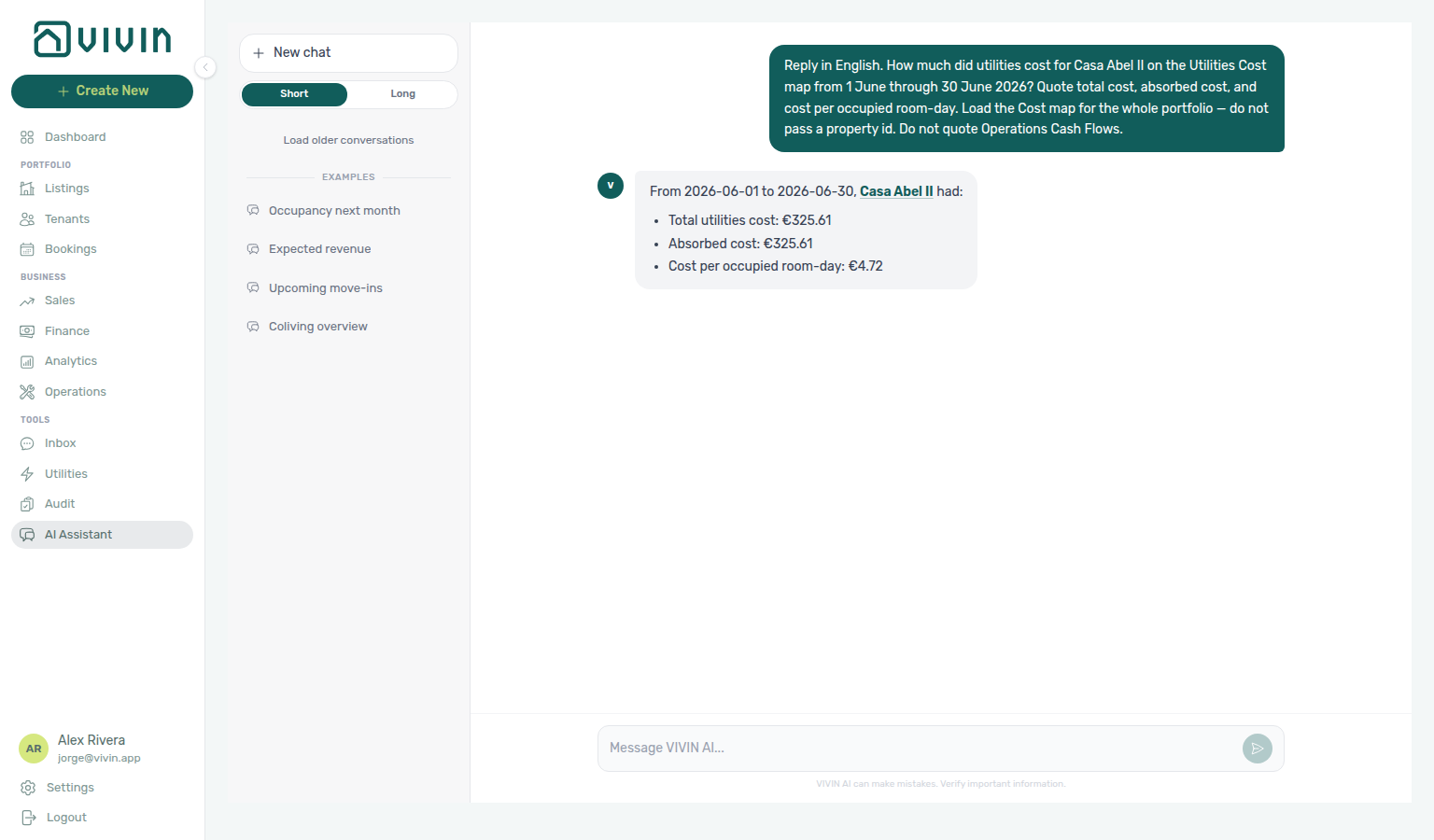
| Symptom | Likely cause | Fix |
|---|---|---|
| Figure matches June Cash Flows outflow | Quoted get-cost-summary, not the Cost map | Ask for the Utilities Cost map and quote total cost |
| Figure matches July Cost map totals | Quoted a different named month | Name 1 June through 30 June |
| Figure matches Finance income or cash collected | Quoted Finance Overview | Ask for utility total cost, absorbed cost, and cost per occupied room-day |
| Assistant lists supplier bills or Cost map cells | Counted bills or summed the matrix | Ask for property totals only |
How do Genius and AI Chat date figures and judge better vs worse?
Ask in natural language — for example “Cash collected this week — name the exact dates counted,” “Free nights rose from July to August — is that better?,” or “Which property is emptiest today?”
Expect the assistant to:
- Name concrete dates on every period figure (not only “this week”).
- Judge better/worse for the landlord — occupancy up is good; vacancy or free nights up is unsold inventory (opportunity to fill), not an improvement.
- Treat equal or ~2% values as a tie — quote both numbers before any planning pick.
- Lead with the one caveat that most changes your decision (tie, implausible swing, or truncated coverage).
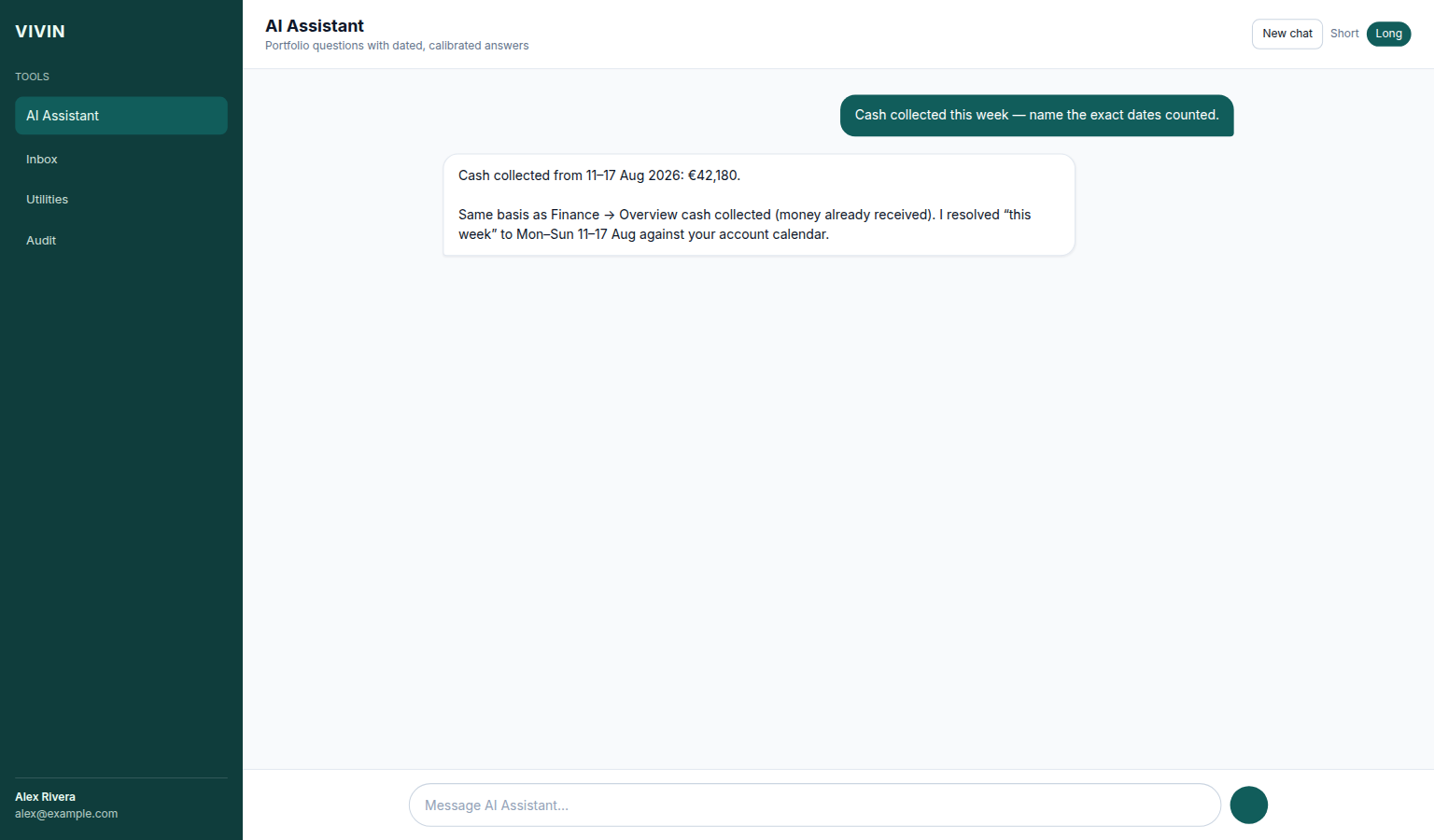
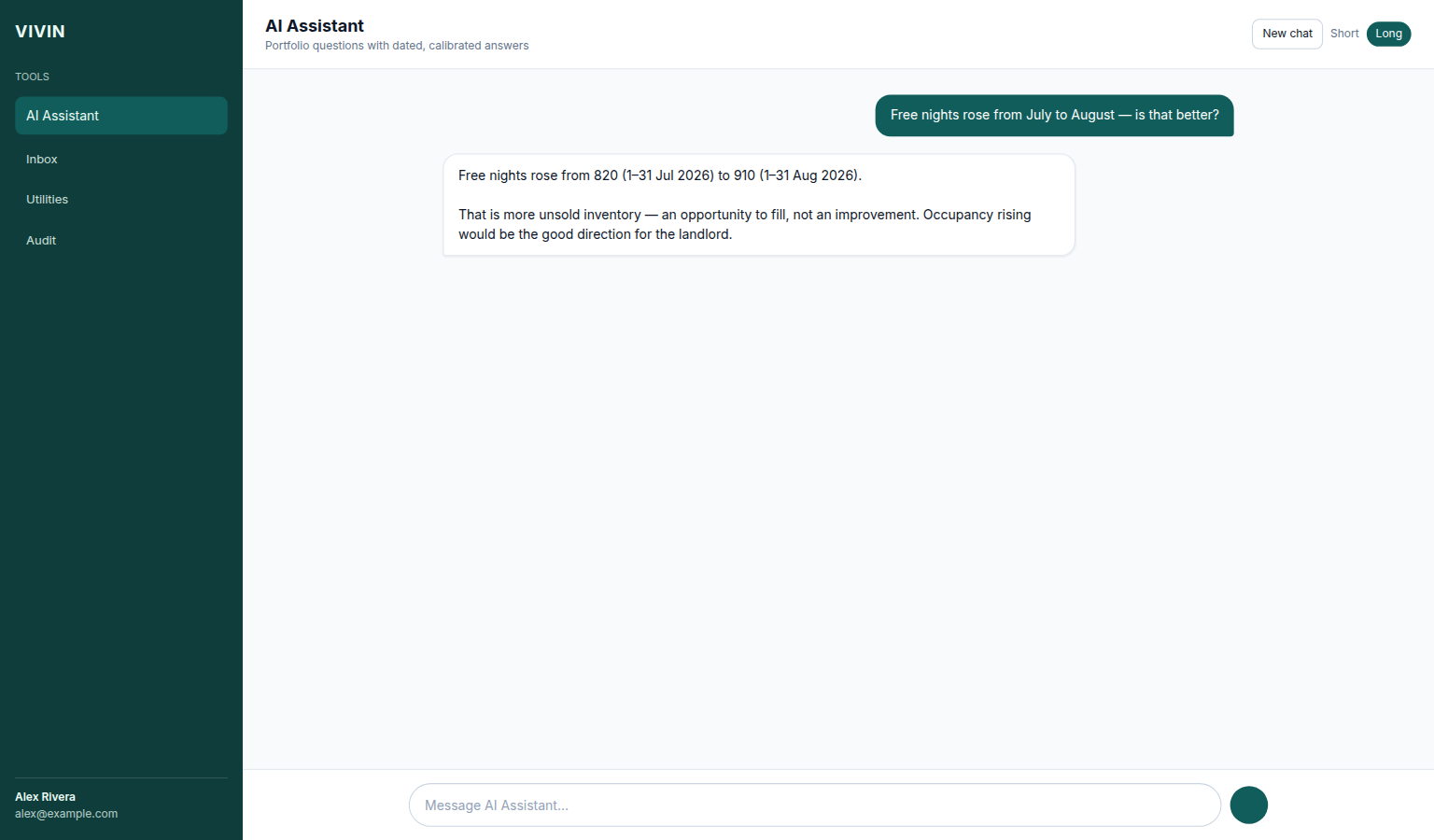
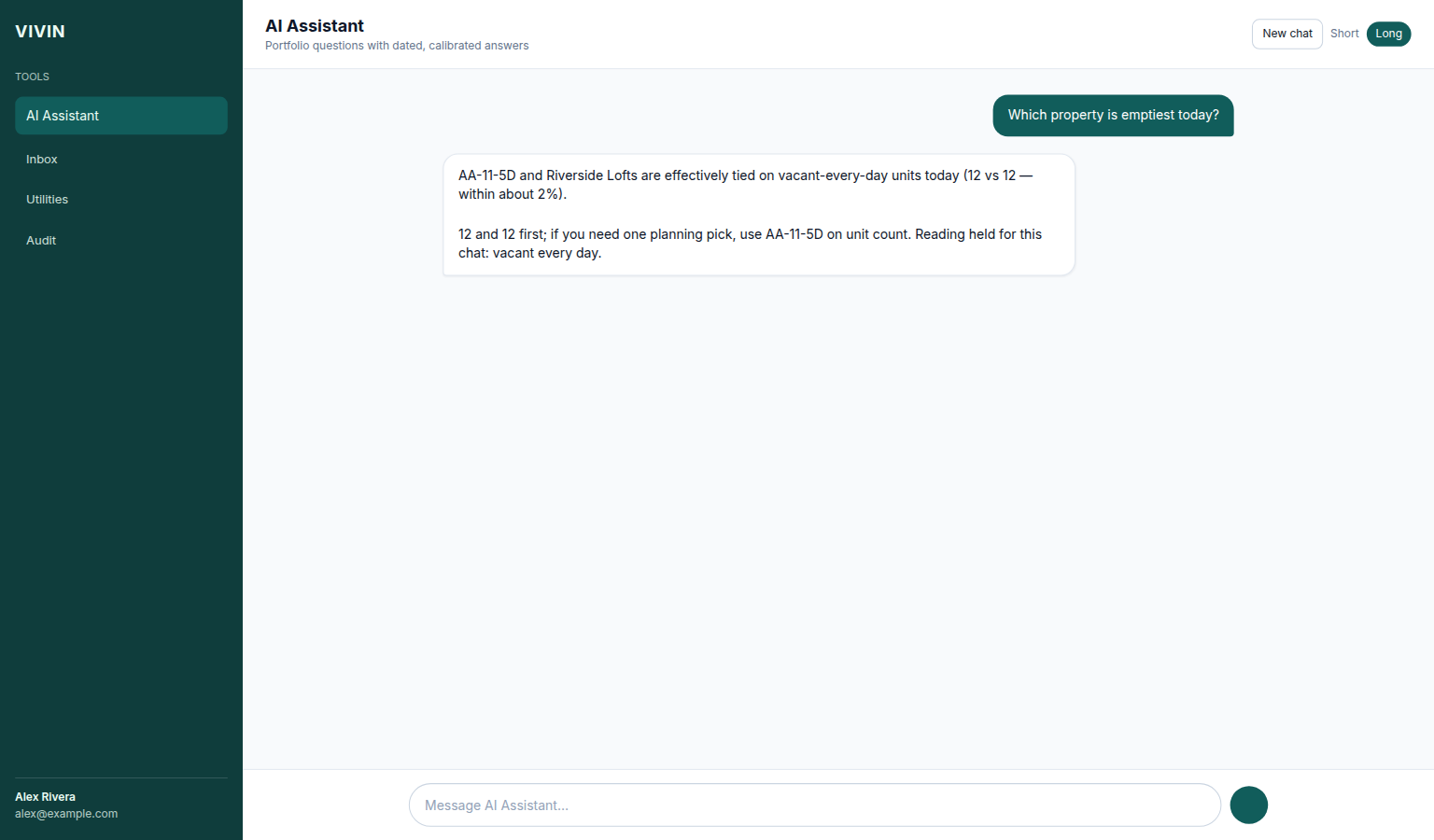
| Symptom | Likely cause | Fix |
|---|---|---|
| Reply says “this week” with no calendar dates | Vague period without grounding | Ask it to name the exact dates counted and re-check |
| Free nights up called an “improvement” | Polarity flipped | Ask again; expect unsold inventory / opportunity to fill |
| Winner named without the tied values | Near-tie skipped | Ask for both numbers first, then any practical pick |
How do Genius and AI Chat split tenant debt?
Ask in natural language — for example “How much tenant debt do we have? Split canceled bookings vs missing payments on live stays.” The assistant uses get-debt-summary and should return:
- Total debt and how many bookings carry it.
- Canceled half — amount and booking count (usually a write-off or dispute, not ordinary collections).
- Missing payments on live stays — amount and booking count (rent still to collect).
The two halves always add up to the totals. Enable the Analytics tool domain (at least Read-only) on AI / MCP. Chase the live half on Finance → Contract Values (In Debt); do not treat canceled debt as the same workflow as overdue rent on active stays.
| Symptom | Likely cause | Fix |
|---|---|---|
| Only a single debt total, no canceled / live split | Older habit / vague question | Ask explicitly for canceled vs missing payments on live bookings |
| Assistant cannot answer debt questions | Analytics tool domain Off, or missing Finance | Enable Analytics on AI / MCP; confirm the role includes Finance |
| Live debt does not match Contract Values | Filters / canceled rows mixed into collections | Scope In Debt on Finance → Contract Values to active stays before re-asking |
How do Genius and AI Chat quote unpaid deposits on Contract Values?
Deposit card: AI Chat — Asking about your portfolio, Landlord MCP — Payment lines and summaries, Finance → Contract Values, FAQ — Unpaid rent on Contract Values, FAQ — Unpaid admin fees on Contract Values, FAQ — Unpaid cleaning fees on Contract Values, FAQ — Unpaid others on Contract Values, FAQ — Unpaid exit fees on Contract Values, FAQ — In-debt deposit lines not yet invoiced, FAQ — In-debt deposit lines already invoiced, FAQ — Still-scheduled deposit lines, FAQ — Partially-paid deposit lines, FAQ — Paid deposit lines, FAQ — Tenant debt split.
Ask in natural language — for example “How much unpaid security deposit money is on the Contract Values deposit card for August 2026? Split in debt versus still scheduled.” The assistant should:
- Quote the Deposit card on Finance → Contract Values for that reference month.
- Split in debt (already overdue) versus still scheduled (not yet due). The sum is unpaid deposit money.
- Name the month it counted.
Do not treat a scaled share of the window-wide paid / in-debt / scheduled mix as the deposit answer — use the Deposit card. This is not the all-time tenant debt audit. Unpaid lines often sit in older months, so “all unpaid deposits” with no month needs a wide window (about the last 12 months). Enable the Payments tool domain (at least Read-only) on AI / MCP. Reconcile on the Deposit card chips for the same month.
| Symptom | Likely cause | Fix |
|---|---|---|
| One blended paid / in-debt / scheduled mix | Window-wide split used instead of the Deposit card | Ask explicitly for the Deposit card split (in debt + still scheduled) |
| Figure matches all-time tenant debt | Debt-audit tool used instead of the month card | Name the month and say Contract Values deposit card |
| Figure is an invoiced in-debt list count | Invoiced pill applied instead of the card | Ask for the deposit card split — for the filtered list see In-debt deposit lines already invoiced |
| Figure is a not-yet-invoiced in-debt list count | Not Invoiced pill applied instead of the card | Ask for the deposit card split — for the filtered list see In-debt deposit lines not yet invoiced |
| Figure is a still-scheduled line count | Grey scheduled chip used instead of the card split | Ask for the deposit card split — for the filtered list see Still-scheduled deposit lines |
| Figure is a partially-paid line count | Amber partial chip used instead of the card split | Ask for the deposit card split — for the filtered list see Partially-paid deposit lines |
| Figure is a paid line count | Green Paid badge used instead of the card split | Ask for the deposit card split — for the filtered list see Paid deposit lines |
| Assistant cannot answer deposit-card questions | Payments tool domain Off | Enable Payments (at least Read-only) on AI / MCP |
How do Genius and AI Chat quote unpaid rent on Contract Values?
Rent card: AI Chat — Asking about your portfolio, Landlord MCP — Payment lines and summaries, Finance → Contract Values, FAQ — Unpaid deposits on Contract Values, FAQ — Unpaid admin fees on Contract Values, FAQ — Unpaid cleaning fees on Contract Values, FAQ — Unpaid others on Contract Values, FAQ — Unpaid exit fees on Contract Values, FAQ — In-debt rent lines not yet invoiced, FAQ — In-debt rent lines already invoiced, FAQ — Still-scheduled rent lines, FAQ — Partially-paid rent lines, FAQ — Paid rent lines, FAQ — Tenant debt split.
Ask in natural language — for example “How much unpaid rent money is on the Contract Values rent card for August 2026? Split in debt versus still scheduled.” The assistant should:
- Quote the Rent card on Finance → Contract Values for that reference month.
- Split in debt (already overdue) versus still scheduled (not yet due). The sum is unpaid rent.
- Name the month it counted.
Do not treat a scaled share of the window-wide paid / in-debt / scheduled mix as the rent answer — use the Rent card. This is not the Deposit card, and it is not the all-time tenant debt audit. Unpaid lines often sit in older months, so “all unpaid rents” with no month needs a wide window (about the last 12 months). Enable the Payments tool domain (at least Read-only) on AI / MCP. Reconcile on the Rent card chips for the same month.
| Symptom | Likely cause | Fix |
|---|---|---|
| One blended paid / in-debt / scheduled mix | Window-wide split used instead of the Rent card | Ask explicitly for the Rent card split (in debt + still scheduled) |
| Figure matches all-time tenant debt | Debt-audit tool used instead of the month card | Name the month and say Contract Values rent card |
| Figure matches unpaid deposits | Deposit card used instead of rent | Ask for the rent card, not the deposit card |
| Figure matches unpaid admin fees | Admin fee card used instead of rent | Ask for the rent card, not the admin fee card |
| Figure matches unpaid cleaning fees | Cleaning fee card used instead of rent | Ask for the rent card, not the cleaning fee card |
| Figure matches unpaid others | Others card used instead of rent | Ask for the rent card, not the others card |
| Figure matches unpaid exit fees | Exit fee card used instead of rent | Ask for the rent card, not the exit fee card |
| Figure is a small not-invoiced subset | Not Invoiced pill applied instead of the card | Ask for the rent card split — for the filtered list see In-debt rent lines not yet invoiced |
| Figure is an invoiced in-debt list count | Invoiced pill applied instead of the card | Ask for the rent card split — for the filtered list see In-debt rent lines already invoiced |
| Figure is a paid line count | Green Paid badge used instead of the card split | Ask for the rent card split — for the filtered list see Paid rent lines |
| Assistant cannot answer rent-card questions | Payments tool domain Off | Enable Payments (at least Read-only) on AI / MCP |
How do Genius and AI Chat quote unpaid admin fees on Contract Values?
Admin fee card: AI Chat — Asking about your portfolio, Landlord MCP — Payment lines and summaries, Finance → Contract Values, FAQ — Unpaid deposits on Contract Values, FAQ — Unpaid rent on Contract Values, FAQ — Unpaid cleaning fees on Contract Values, FAQ — Unpaid others on Contract Values, FAQ — Unpaid exit fees on Contract Values, FAQ — In-debt admin fee lines not yet invoiced, FAQ — In-debt admin fee lines already invoiced, FAQ — Still-scheduled admin fee lines, FAQ — Partially-paid admin fee lines, FAQ — Paid admin fee lines, FAQ — Tenant debt split.
Ask in natural language — for example “How much unpaid admin fee money is on the Contract Values admin fee card for August 2026? Split in debt versus still scheduled.” The assistant should:
- Quote the Admin fee card on Finance → Contract Values for that reference month.
- Split in debt (already overdue) versus still scheduled (not yet due). The sum is unpaid admin-fee money.
- Name the month it counted.
Do not treat a scaled share of the window-wide paid / in-debt / scheduled mix as the admin-fee answer — use the Admin fee card. This is not the Rent card, not the Deposit card, not the Cleaning fee card, not the Others card, and it is not the all-time tenant debt audit. Unpaid lines often sit in older months, so “all unpaid admin fees” with no month needs a wide window (about the last 12 months). Enable the Payments tool domain (at least Read-only) on AI / MCP. Reconcile on the Admin fee card chips for the same month.
| Symptom | Likely cause | Fix |
|---|---|---|
| One blended paid / in-debt / scheduled mix | Window-wide split used instead of the Admin fee card | Ask explicitly for the Admin fee card split (in debt + still scheduled) |
| Figure matches all-time tenant debt | Debt-audit tool used instead of the month card | Name the month and say Contract Values admin fee card |
| Figure matches unpaid rent | Rent card used instead of admin fees | Ask for the admin fee card, not the rent card |
| Figure matches unpaid deposits | Deposit card used instead of admin fees | Ask for the admin fee card, not the deposit card |
| Figure matches unpaid cleaning fees | Cleaning fee card used instead of admin fees | Ask for the admin fee card, not the cleaning fee card |
| Figure matches unpaid others | Others card used instead of admin fees | Ask for the admin fee card, not the others card |
| Figure matches unpaid exit fees | Exit fee card used instead of admin fees | Ask for the admin fee card, not the exit fee card |
| Figure is a not-invoiced line list | Not Invoiced pill applied instead of the card | Ask for the admin fee card split — for the filtered list see In-debt admin fee lines not yet invoiced |
| Figure is an invoiced in-debt list count | Invoiced pill applied instead of the card | Ask for the admin fee card split — for the filtered list see In-debt admin fee lines already invoiced |
| Figure is a still-scheduled line count | Grey scheduled chip used instead of the card split | Ask for the admin fee card split — for the filtered list see Still-scheduled admin fee lines |
| Figure is a partially-paid line count | Amber partial chip used instead of the card split | Ask for the admin fee card split — for the filtered list see Partially-paid admin fee lines |
| Figure is a paid line count | Green Paid badge used instead of the card split | Ask for the admin fee card split — for the filtered list see Paid admin fee lines |
| Assistant cannot answer admin-fee-card questions | Payments tool domain Off | Enable Payments (at least Read-only) on AI / MCP |
How do Genius and AI Chat quote unpaid cleaning fees on Contract Values?
Cleaning fee card: AI Chat — Asking about your portfolio, Landlord MCP — Payment lines and summaries, Finance → Contract Values, FAQ — Unpaid deposits on Contract Values, FAQ — Unpaid rent on Contract Values, FAQ — Unpaid admin fees on Contract Values, FAQ — Unpaid others on Contract Values, FAQ — Unpaid exit fees on Contract Values, FAQ — In-debt cleaning fee lines not yet invoiced, FAQ — In-debt cleaning fee lines already invoiced, FAQ — Still-scheduled cleaning fee lines, FAQ — Paid cleaning fee lines, FAQ — Tenant debt split.
Ask in natural language — for example “How much unpaid cleaning fee money is on the Contract Values cleaning fee card for August 2026? Split in debt versus still scheduled.” The assistant should:
- Quote the Cleaning fee card on Finance → Contract Values for that reference month.
- Split in debt (already overdue) versus still scheduled (not yet due). The sum is unpaid cleaning-fee money.
- Name the month it counted.
Do not treat a scaled share of the window-wide paid / in-debt / scheduled mix as the cleaning-fee answer — use the Cleaning fee card. This is not the Rent card, not the Deposit card, not the Admin fee card, not the Others card, and it is not the all-time tenant debt audit. Unpaid lines often sit in older months, so “all unpaid cleaning fees” with no month needs a wide window (about the last 12 months). Enable the Payments tool domain (at least Read-only) on AI / MCP. Reconcile on the Cleaning fee card chips for the same month.
| Symptom | Likely cause | Fix |
|---|---|---|
| One blended paid / in-debt / scheduled mix | Window-wide split used instead of the Cleaning fee card | Ask explicitly for the Cleaning fee card split (in debt + still scheduled) |
| Figure matches all-time tenant debt | Debt-audit tool used instead of the month card | Name the month and say Contract Values cleaning fee card |
| Figure matches unpaid rent | Rent card used instead of cleaning fees | Ask for the cleaning fee card, not the rent card |
| Figure matches unpaid deposits | Deposit card used instead of cleaning fees | Ask for the cleaning fee card, not the deposit card |
| Figure matches unpaid admin fees | Admin fee card used instead of cleaning fees | Ask for the cleaning fee card, not the admin fee card |
| Figure matches unpaid others | Others card used instead of cleaning fees | Ask for the cleaning fee card, not the others card |
| Figure matches unpaid exit fees | Exit fee card used instead of cleaning fees | Ask for the cleaning fee card, not the exit fee card |
| Figure is a not-invoiced line list | Not Invoiced pill applied instead of the card | Ask for the cleaning fee card split — for the filtered list see In-debt cleaning fee lines not yet invoiced |
| Figure is an invoiced in-debt list count | Invoiced pill applied instead of the card | Ask for the cleaning fee card split — for the filtered list see In-debt cleaning fee lines already invoiced |
| Figure is a still-scheduled line count | Grey scheduled chip used instead of the card split | Ask for the cleaning fee card split — for the filtered list see Still-scheduled cleaning fee lines |
| Figure is a paid line count | Green Paid badge used instead of the card split | Ask for the cleaning fee card split — for the filtered list see Paid cleaning fee lines |
| Assistant cannot answer cleaning-fee-card questions | Payments tool domain Off | Enable Payments (at least Read-only) on AI / MCP |
How do Genius and AI Chat quote unpaid others on Contract Values?
Others card: AI Chat — Asking about your portfolio, Landlord MCP — Payment lines and summaries, Finance → Contract Values, FAQ — Unpaid deposits on Contract Values, FAQ — Unpaid rent on Contract Values, FAQ — Unpaid admin fees on Contract Values, FAQ — Unpaid cleaning fees on Contract Values, FAQ — Unpaid exit fees on Contract Values, FAQ — In-debt others lines not yet invoiced, FAQ — Paid others lines, FAQ — Tenant debt split.
Ask in natural language — for example “How much unpaid others money is on the Contract Values others card for August 2026? Split in debt versus still scheduled.” The assistant should:
- Quote the Others card on Finance → Contract Values for that reference month.
- Split in debt (already overdue) versus still scheduled (not yet due). The sum is unpaid miscellaneous-charge money (extra charges, marketplace lines, and similar Others items).
- Name the month it counted.
Do not treat a scaled share of the window-wide paid / in-debt / scheduled mix as the others answer — use the Others card. This is not the Rent card, not the Deposit card, not the Admin fee card, not the Cleaning fee card, not the Exit fee card, and it is not the all-time tenant debt audit. Unpaid lines often sit in older months, so “all unpaid others” with no month needs a wide window (about the last 12 months). Enable the Payments tool domain (at least Read-only) on AI / MCP. Reconcile on the Others card chips for the same month.
| Symptom | Likely cause | Fix |
|---|---|---|
| One blended paid / in-debt / scheduled mix | Window-wide split used instead of the Others card | Ask explicitly for the Others card split (in debt + still scheduled) |
| Figure matches all-time tenant debt | Debt-audit tool used instead of the month card | Name the month and say Contract Values others card |
| Figure matches unpaid rent | Rent card used instead of others | Ask for the others card, not the rent card |
| Figure matches unpaid deposits | Deposit card used instead of others | Ask for the others card, not the deposit card |
| Figure matches unpaid admin fees | Admin fee card used instead of others | Ask for the others card, not the admin fee card |
| Figure matches unpaid cleaning fees | Cleaning fee card used instead of others | Ask for the others card, not the cleaning fee card |
| Figure matches unpaid exit fees | Exit fee card used instead of others | Ask for the others card, not the exit fee card |
| Figure is a not-invoiced line list | Not Invoiced pill applied instead of the card | Ask for the others card split — for the filtered list see In-debt others lines not yet invoiced |
| Figure is a paid line count | Green Paid badge used instead of the card split | Ask for the others card split — for the filtered list see Paid others lines |
| Assistant cannot answer others-card questions | Payments tool domain Off | Enable Payments (at least Read-only) on AI / MCP |
How do Genius and AI Chat quote unpaid exit fees on Contract Values?
Exit fee card: AI Chat — Asking about your portfolio, Landlord MCP — Payment lines and summaries, Finance → Contract Values, FAQ — Unpaid deposits on Contract Values, FAQ — Unpaid rent on Contract Values, FAQ — Unpaid admin fees on Contract Values, FAQ — Unpaid cleaning fees on Contract Values, FAQ — Unpaid others on Contract Values, FAQ — In-debt exit fee lines already invoiced, FAQ — Partially-paid exit fee lines, FAQ — Paid exit fee lines, FAQ — Tenant debt split.
Ask in natural language — for example “How much unpaid exit fee money is on the Contract Values exit fee card for October 2026? Split in debt versus still scheduled.” The assistant should:
- Quote the Exit fee card on Finance → Contract Values for that reference month.
- Split in debt (already overdue) versus still scheduled (not yet due). The sum is unpaid exit-fee money.
- Name the month it counted.
Do not treat a scaled share of the window-wide paid / in-debt / scheduled mix as the exit-fee answer — use the Exit fee card. This is not the Rent card, not the Deposit card, not the Admin fee card, not the Cleaning fee card, not the Others card, and it is not the all-time tenant debt audit. Exit-fee lines often sit on check-out months rather than the current rent month, so “all unpaid exit fees” with no month needs a wide window (about the last 12 months, including upcoming check-outs). Enable the Payments tool domain (at least Read-only) on AI / MCP. Reconcile on the Exit fee card chips for the same month.
| Symptom | Likely cause | Fix |
|---|---|---|
| One blended paid / in-debt / scheduled mix | Window-wide split used instead of the Exit fee card | Ask explicitly for the Exit fee card split (in debt + still scheduled) |
| Figure matches all-time tenant debt | Debt-audit tool used instead of the month card | Name the month and say Contract Values exit fee card |
| Figure matches unpaid rent | Rent card used instead of exit fees | Ask for the exit fee card, not the rent card |
| Figure matches unpaid deposits | Deposit card used instead of exit fees | Ask for the exit fee card, not the deposit card |
| Figure matches unpaid admin fees | Admin fee card used instead of exit fees | Ask for the exit fee card, not the admin fee card |
| Figure matches unpaid cleaning fees | Cleaning fee card used instead of exit fees | Ask for the exit fee card, not the cleaning fee card |
| Figure matches unpaid others | Others card used instead of exit fees | Ask for the exit fee card, not the others card |
| Figure is an invoiced in-debt list count | Invoiced pill applied instead of the card | Ask for the exit fee card split — for the filtered list see In-debt exit fee lines already invoiced |
| Figure is a partially-paid line count | Amber partial chip used instead of the card split | Ask for the exit fee card split — for the filtered list see Partially-paid exit fee lines |
| Figure is a paid line count | Green Paid badge used instead of the card split | Ask for the exit fee card split — for the filtered list see Paid exit fee lines |
| Zero exit fees in the current rent month | Exit fees billed on check-out months | Name a check-out month (or a wide window) — the current rent month can be empty |
| Assistant cannot answer exit-fee-card questions | Payments tool domain Off | Enable Payments (at least Read-only) on AI / MCP |
How do Genius and AI Chat quote in-debt rent lines that are not yet invoiced?
Filtered rent lines: AI Chat — Asking about your portfolio, Landlord MCP — Payment lines and summaries, Finance → Contract Values, FAQ — Unpaid rent on Contract Values, FAQ — In-debt rent lines already invoiced, FAQ — Still-scheduled rent lines, FAQ — Partially-paid rent lines, FAQ — Paid rent lines, FAQ — Tenant debt split.
Ask in natural language — for example “How many August 2026 rent lines on Contract Values are already in debt and not yet invoiced? Quote the filtered row count and the total scheduled amount. Do not list tenant names or unit codes.” The assistant should:
- Quote the filtered Contract Values list on Finance → Contract Values for that reference month.
- Apply Rent type, in debt status, and the Not Invoiced invoice pill together.
- Report the row count and the total scheduled amount of those lines, and name the month.
Do not treat the Rent card’s full in debt chip as the answer — that chip still includes overdue rent that already has an invoice. This is also not the unpaid-rent in debt + still scheduled card split, and it is not the all-time tenant debt audit. Enable the Payments tool domain (at least Read-only) on AI / MCP. Reconcile on Finance → Contract Values with the Rent card, the in debt chip, and Not Invoiced.
| Symptom | Likely cause | Fix |
|---|---|---|
| Figure matches the Rent card in debt chip | Invoice pill omitted | Ask for in debt AND not yet invoiced rent lines |
| Figure matches the already-invoiced list | Invoiced pill used instead of Not Invoiced | Ask for not yet invoiced — In-debt rent lines already invoiced |
| Figure matches unpaid rent in debt + scheduled | Rent card split used instead of the filtered list | Ask for the Not Invoiced list, not the rent card split |
| Figure matches all-time tenant debt | Debt-audit tool used instead of the month list | Name the month and say Contract Values rent lines |
| Assistant lists tenant names or unit codes | Question did not ask for count and amount only | Re-ask for the row count and scheduled amount without listing names |
| Assistant cannot answer filtered-list questions | Payments tool domain Off | Enable Payments (at least Read-only) on AI / MCP |
How do Genius and AI Chat quote in-debt rent lines that are already invoiced?
Filtered rent lines: AI Chat — Asking about your portfolio, Landlord MCP — Payment lines and summaries, Finance → Contract Values, FAQ — Unpaid rent on Contract Values, FAQ — In-debt rent lines not yet invoiced, FAQ — Still-scheduled rent lines, FAQ — Partially-paid rent lines, FAQ — Paid rent lines, FAQ — Tenant debt split.
Ask in natural language — for example “How many August 2026 rent lines on Contract Values are already in debt and already invoiced? Quote the filtered row count and the total scheduled amount. Do not list tenant names or unit codes.” The assistant should:
- Quote the filtered Contract Values list on Finance → Contract Values for that reference month.
- Apply Rent type, in debt status, and the Invoiced invoice pill together.
- Report the row count and name the month.
Do not treat the Rent card’s full in debt chip as the answer — that chip still includes overdue rent that is not yet invoiced. This is also not the unpaid-rent in debt + still scheduled card split, and it is not the all-time tenant debt audit. Trust the row count; for the euro total, reconcile on Finance → Contract Values with the same filters and Export — a chat sum of a multi-page list can differ from the tab. Enable the Payments tool domain (at least Read-only) on AI / MCP.
| Symptom | Likely cause | Fix |
|---|---|---|
| Figure matches the Rent card in debt chip | Invoice pill omitted | Ask for in debt AND already invoiced rent lines |
| Figure matches the not-yet-invoiced list | Not Invoiced pill used instead of Invoiced | Ask for already invoiced — In-debt rent lines not yet invoiced |
| Figure matches unpaid rent in debt + scheduled | Rent card split used instead of the filtered list | Ask for the Invoiced list, not the rent card split |
| Chat euro total differs from the Contract Values tab | Multi-page list summed in chat | Reconcile the amount with Export on Finance → Contract Values |
| Figure matches all-time tenant debt | Debt-audit tool used instead of the month list | Name the month and say Contract Values rent lines |
| Assistant lists tenant names or unit codes | Question did not ask for count only | Re-ask for the row count without listing names |
| Assistant cannot answer filtered-list questions | Payments tool domain Off | Enable Payments (at least Read-only) on AI / MCP |
How do Genius and AI Chat quote still-scheduled rent lines?
Filtered rent lines: AI Chat — Asking about your portfolio, Landlord MCP — Payment lines and summaries, Finance → Contract Values, FAQ — Unpaid rent on Contract Values, FAQ — In-debt rent lines not yet invoiced, FAQ — In-debt rent lines already invoiced, FAQ — Partially-paid rent lines, FAQ — Paid rent lines, FAQ — Still-scheduled admin fee lines, FAQ — Still-scheduled deposit lines, FAQ — Still-scheduled cleaning fee lines.
Ask in natural language — for example “How many August 2026 rent lines on Contract Values are still scheduled (not yet due)? Quote the filtered row count and the total scheduled amount. Do not list tenant names or unit codes.” The assistant should:
- Quote the filtered Contract Values list on Finance → Contract Values for that reference month.
- Apply Rent type and still scheduled status (the grey scheduled chip).
- Report the row count and name the month.
Do not treat the unpaid-rent in debt + still scheduled money split on the Rent card as the answer — that split is a pair of amounts, not a line count. This is also not the in-debt line lists, and it is not the all-time tenant debt audit. Trust the row count; for the euro total, reconcile on Finance → Contract Values with the same filters and Export — a chat amount can follow the Rent card’s scheduled chip rather than the sum of the filtered rows. Enable the Payments tool domain (at least Read-only) on AI / MCP.
| Symptom | Likely cause | Fix |
|---|---|---|
| Figure is a money split, not a line count | Rent card unpaid split used instead of the filtered list | Ask for still-scheduled rent lines, not the rent card split |
| Figure matches in-debt rent lines | in debt chip used instead of scheduled | Ask for still scheduled (not yet due) — In-debt rent lines not yet invoiced |
| Figure is a paid line count | Green Paid badge used instead of scheduled | Ask for still scheduled (not yet due) — Paid rent lines |
| Chat euro total differs from the Contract Values tab | Card chip or a multi-page list summed in chat | Reconcile the amount with Export on Finance → Contract Values |
| Figure matches all-time tenant debt | Debt-audit tool used instead of the month list | Name the month and say Contract Values rent lines |
| Assistant lists tenant names or unit codes | Question did not ask for count only | Re-ask for the row count without listing names |
| Assistant cannot answer filtered-list questions | Payments tool domain Off | Enable Payments (at least Read-only) on AI / MCP |
How do Genius and AI Chat quote partially-paid rent lines?
Filtered rent lines: AI Chat — Asking about your portfolio, Landlord MCP — Payment lines and summaries, Finance → Contract Values, FAQ — Unpaid rent on Contract Values, FAQ — Still-scheduled rent lines, FAQ — In-debt rent lines not yet invoiced, FAQ — Paid rent lines, FAQ — Partially-paid admin fee lines, FAQ — Partially-paid deposit lines, FAQ — Partially-paid exit fee lines.
Ask in natural language — for example “How many October 2026 rent lines on Contract Values are partially paid? Quote the filtered row count and the total scheduled amount. Do not list tenant names or unit codes.” The assistant should:
- Quote the filtered Contract Values list on Finance → Contract Values for that reference month.
- Apply Rent type and partially paid status (the amber partial chip).
- Report the row count and name the month.
Do not treat the unpaid-rent in debt + still scheduled money split on the Rent card as the answer — that split is a pair of amounts, not a line count. This is also not the grey scheduled chip, not the window-wide partially paid mix across every charge type, and not the all-time tenant debt audit. Trust the row count; for the euro total, reconcile on Finance → Contract Values with the same filters and Export — a chat amount can differ from the sum of the filtered rows. Enable the Payments tool domain (at least Read-only) on AI / MCP.
| Symptom | Likely cause | Fix |
|---|---|---|
| Figure is a money split, not a line count | Rent card unpaid split used instead of the filtered list | Ask for partially paid rent lines, not the rent card split |
| Figure matches still-scheduled rent lines | Grey scheduled chip used instead of amber partial | Ask for partially paid — Still-scheduled rent lines |
| Figure matches every charge type, not rent | Window-wide partially paid mix used instead of Rent | Ask for rent lines that are partially paid |
| Figure matches partially-paid admin fee lines | Admin fee type used instead of Rent | Ask for rent lines — Partially-paid admin fee lines |
| Figure matches partially-paid deposit lines | Deposit type used instead of Rent | Ask for rent lines — Partially-paid deposit lines |
| Figure matches partially-paid exit fee lines | Exit fee type used instead of Rent | Ask for rent lines — Partially-paid exit fee lines |
| Figure is a paid line count | Green Paid badge used instead of amber partial | Ask for partially paid, not paid — Paid rent lines |
| Chat euro total differs from the Contract Values tab | Multi-page list summed in chat | Reconcile the amount with Export on Finance → Contract Values |
| Figure matches all-time tenant debt | Debt-audit tool used instead of the month list | Name the month and say Contract Values rent lines |
| Assistant lists tenant names or unit codes | Question did not ask for count only | Re-ask for the row count without listing names |
| Assistant cannot answer filtered-list questions | Payments tool domain Off | Enable Payments (at least Read-only) on AI / MCP |
How do Genius and AI Chat quote paid rent lines?
Filtered rent lines: AI Chat — Asking about your portfolio, Landlord MCP — Payment lines and summaries, Finance → Contract Values, FAQ — Unpaid rent on Contract Values, FAQ — In-debt rent lines not yet invoiced, FAQ — In-debt rent lines already invoiced, FAQ — Still-scheduled rent lines, FAQ — Partially-paid rent lines, FAQ — Paid cleaning fee lines, FAQ — Paid others lines, FAQ — Paid deposit lines, FAQ — Paid exit fee lines, FAQ — Paid admin fee lines.
Ask in natural language — for example “How many July 2026 rent lines on Contract Values are paid (fully paid, not partial)? Quote the filtered row count and the total scheduled amount. Do not list tenant names or unit codes.” The assistant should:
- Quote the filtered Contract Values list on Finance → Contract Values for that reference month.
- Apply Rent type and paid status (the green Paid row badge).
- Report the row count and name the month.
Do not treat the unpaid-rent in debt + still scheduled money split on the Rent card as the answer — that split is a pair of amounts, not a line count. This is also not the Rent card’s € paid chip (a money figure, not a line count), not the amber partial chip, not the grey scheduled chip, not the in-debt rent line lists, not the paid cleaning fee, admin fee, others, deposit, or exit fee lists, not the window-wide paid mix across every charge type, and not the all-time tenant debt audit. Name the month: some months have more paid rent lines than the current rent month. Trust the row count; for the euro total, reconcile on Finance → Contract Values with the same filters and Export — a chat amount can follow a different total than the filtered-row sum or a card chip (zero-value paid rows still count). Enable the Payments tool domain (at least Read-only) on AI / MCP.
| Symptom | Likely cause | Fix |
|---|---|---|
| Figure is a money split, not a line count | Rent card unpaid split used instead of the filtered list | Ask for paid rent lines, not the rent card split |
| Figure matches the Rent card € paid chip | Card money chip used instead of the Paid list | Ask for the row count of paid rent lines, then reconcile euros with Export |
| Figure matches in-debt rent lines | in debt chip used instead of Paid | Ask for paid (fully paid, not partial) — In-debt rent lines not yet invoiced |
| Figure matches still-scheduled rent lines | Grey scheduled chip used instead of Paid | Ask for paid rent lines, not still scheduled — Still-scheduled rent lines |
| Figure matches partially-paid rent lines | Amber partial chip used instead of Paid | Ask for paid rent lines, not partially paid — Partially-paid rent lines |
| Figure matches paid cleaning fee lines | Cleaning fee type used instead of Rent | Ask for rent lines — Paid cleaning fee lines |
| Figure matches paid others lines | Others type used instead of Rent | Ask for rent lines — Paid others lines |
| Figure matches paid deposit lines | Deposit type used instead of Rent | Ask for rent lines — Paid deposit lines |
| Figure matches paid exit fee lines | Exit fee type used instead of Rent | Ask for rent lines — Paid exit fee lines |
| Figure matches paid admin fee lines | Admin fee type used instead of Rent | Ask for rent lines — Paid admin fee lines |
| Figure matches every charge type, not rent | Window-wide paid mix used instead of Rent | Ask for rent lines that are paid |
| Chat euro total differs from the Contract Values tab | Card chip or a multi-page list summed in chat | Reconcile the amount with Export on Finance → Contract Values |
| Figure matches all-time tenant debt | Debt-audit tool used instead of the month list | Name the month and say Contract Values rent lines |
| Assistant lists tenant names or unit codes | Question did not ask for count only | Re-ask for the row count without listing names |
| Assistant cannot answer filtered-list questions | Payments tool domain Off | Enable Payments (at least Read-only) on AI / MCP |
How do Genius and AI Chat quote in-debt admin fee lines that are not yet invoiced?
Filtered admin fee lines: AI Chat — Asking about your portfolio, Landlord MCP — Payment lines and summaries, Finance → Contract Values, FAQ — Unpaid admin fees on Contract Values, FAQ — In-debt admin fee lines already invoiced, FAQ — Still-scheduled admin fee lines, FAQ — In-debt rent lines not yet invoiced, FAQ — In-debt cleaning fee lines not yet invoiced, FAQ — Tenant debt split.
Ask in natural language — for example “How many August 2026 admin fee lines on Contract Values are already in debt and not yet invoiced? Quote the filtered row count and the total scheduled amount. Do not list tenant names or unit codes.” The assistant should:
- Quote the filtered Contract Values list on Finance → Contract Values for that reference month.
- Apply Admin fee type, in debt status, and the Not Invoiced invoice pill together.
- Report the row count and name the month.
Do not treat the unpaid-admin-fee in debt + still scheduled card split as the answer — that split still includes scheduled lines that are not yet due. This is also not the Rent Not Invoiced list, and it is not the all-time tenant debt audit. If no overdue admin fees are invoiced yet, the filtered row count can match the Admin fee card’s in debt chip — still apply Not Invoiced so the question stays correct after invoices are issued. In months where some overdue admin fees already have an invoice, the Invoiced list is smaller than that card’s in debt chip — see In-debt admin fee lines already invoiced. Trust the row count; for the euro total, reconcile on Finance → Contract Values with the same filters and Export — a chat sum can differ from the tab. Enable the Payments tool domain (at least Read-only) on AI / MCP.
| Symptom | Likely cause | Fix |
|---|---|---|
| Figure matches unpaid admin fees in debt + scheduled | Admin fee card split used instead of the filtered list | Ask for the Not Invoiced list, not the admin fee card split |
| Figure matches still-scheduled admin fee lines | Grey scheduled chip used instead of in debt | Ask for in debt AND not yet invoiced — Still-scheduled admin fee lines |
| Figure matches the Admin fee card in debt chip without Not Invoiced | Invoice pill omitted | Ask for in debt AND not yet invoiced admin fee lines |
| Figure matches the rent not-yet-invoiced list | Rent type used instead of admin fees | Ask for admin fee lines — In-debt rent lines not yet invoiced |
| Figure matches the already-invoiced list | Invoiced pill used instead of Not Invoiced | Ask for not yet invoiced — In-debt admin fee lines already invoiced |
| Chat euro total differs from the Contract Values tab | List summed in chat | Reconcile the amount with Export on Finance → Contract Values |
| Figure matches all-time tenant debt | Debt-audit tool used instead of the month list | Name the month and say Contract Values admin fee lines |
| Assistant lists tenant names or unit codes | Question did not ask for count only | Re-ask for the row count without listing names |
| Assistant cannot answer filtered-list questions | Payments tool domain Off | Enable Payments (at least Read-only) on AI / MCP |
How do Genius and AI Chat quote in-debt admin fee lines that are already invoiced?
Filtered admin fee lines: AI Chat — Asking about your portfolio, Landlord MCP — Payment lines and summaries, Finance → Contract Values, FAQ — Unpaid admin fees on Contract Values, FAQ — In-debt admin fee lines not yet invoiced, FAQ — Still-scheduled admin fee lines, FAQ — Partially-paid admin fee lines, FAQ — In-debt rent lines already invoiced, FAQ — In-debt cleaning fee lines already invoiced, FAQ — In-debt deposit lines already invoiced, FAQ — Tenant debt split.
Ask in natural language — for example “How many July 2026 admin fee lines on Contract Values are already in debt and already invoiced? Quote the filtered row count and the total scheduled amount. Do not list tenant names or unit codes.” The assistant should:
- Quote the filtered Contract Values list on Finance → Contract Values for that reference month.
- Apply Admin fee type, in debt status, and the Invoiced invoice pill together.
- Report the row count and name the month.
Do not treat the Admin fee card’s full in debt chip as the answer — that chip still includes overdue admin fees that are not yet invoiced. This is also not the unpaid-admin-fee in debt + still scheduled card split, and it is not the all-time tenant debt audit. Name the month you care about — some months have invoiced overdue admin fees while the current rent month does not. Trust the row count; for the euro total, reconcile on Finance → Contract Values with the same filters and Export — a chat sum can differ from the tab. Enable the Payments tool domain (at least Read-only) on AI / MCP.
| Symptom | Likely cause | Fix |
|---|---|---|
| Figure matches the Admin fee card in debt chip | Invoice pill omitted | Ask for in debt AND already invoiced admin fee lines |
| Figure matches the not-yet-invoiced list | Not Invoiced pill used instead of Invoiced | Ask for already invoiced — In-debt admin fee lines not yet invoiced |
| Figure matches unpaid admin fees in debt + scheduled | Admin fee card split used instead of the filtered list | Ask for the Invoiced list, not the admin fee card split |
| Figure matches still-scheduled admin fee lines | Grey scheduled chip used instead of in debt | Ask for in debt AND already invoiced — Still-scheduled admin fee lines |
| Figure matches partially-paid admin fee lines | Amber partial chip used instead of in debt | Ask for in debt AND already invoiced — Partially-paid admin fee lines |
| Figure matches the rent or cleaning-fee invoiced list | Another payment type used instead of admin fees | Ask for admin fee lines — In-debt rent lines already invoiced, In-debt cleaning fee lines already invoiced |
| Chat euro total differs from the Contract Values tab | List summed in chat | Reconcile the amount with Export on Finance → Contract Values |
| Zero invoiced admin fees in the current rent month | Invoices issued on older months | Name an older month (or a wide window) |
| Figure matches all-time tenant debt | Debt-audit tool used instead of the month list | Name the month and say Contract Values admin fee lines |
| Assistant lists tenant names or unit codes | Question did not ask for count only | Re-ask for the row count without listing names |
| Assistant cannot answer filtered-list questions | Payments tool domain Off | Enable Payments (at least Read-only) on AI / MCP |
How do Genius and AI Chat quote still-scheduled admin fee lines?
Filtered admin fee lines: AI Chat — Asking about your portfolio, Landlord MCP — Payment lines and summaries, Finance → Contract Values, FAQ — Unpaid admin fees on Contract Values, FAQ — In-debt admin fee lines not yet invoiced, FAQ — In-debt admin fee lines already invoiced, FAQ — Partially-paid admin fee lines, FAQ — Still-scheduled rent lines, FAQ — Still-scheduled deposit lines, FAQ — Still-scheduled cleaning fee lines.
Ask in natural language — for example “How many August 2026 admin fee lines on Contract Values are still scheduled (not yet due)? Quote the filtered row count and the total scheduled amount. Do not list tenant names or unit codes.” The assistant should:
- Quote the filtered Contract Values list on Finance → Contract Values for that reference month.
- Apply Admin fee type and still scheduled status (the grey scheduled chip).
- Report the row count and name the month.
Do not treat the unpaid-admin-fee in debt + still scheduled money split on the Admin fee card as the answer — that split is a pair of amounts, not a line count. This is also not the in-debt admin-fee line lists, not the partially paid admin-fee list, not the still-scheduled rent or cleaning fee lists, and it is not the all-time tenant debt audit. Trust the row count; for the euro total, reconcile on Finance → Contract Values with the same filters and Export. Enable the Payments tool domain (at least Read-only) on AI / MCP.
| Symptom | Likely cause | Fix |
|---|---|---|
| Figure is a money split, not a line count | Admin fee card unpaid split used instead of the filtered list | Ask for still-scheduled admin fee lines, not the admin fee card split |
| Figure matches in-debt admin fee lines | in debt chip used instead of scheduled | Ask for still scheduled (not yet due) — In-debt admin fee lines not yet invoiced |
| Figure matches still-scheduled rent lines | Rent type used instead of Admin fee | Ask for admin fee lines — Still-scheduled rent lines |
| Figure matches still-scheduled deposit lines | Deposit type used instead of Admin fee | Ask for admin fee lines — Still-scheduled deposit lines |
| Figure matches still-scheduled cleaning fee lines | Cleaning fee type used instead of Admin fee | Ask for admin fee lines — Still-scheduled cleaning fee lines |
| Figure matches partially-paid admin fee lines | Amber partial chip used instead of grey scheduled | Ask for still scheduled (not yet due) — Partially-paid admin fee lines |
| Chat euro total differs from the Contract Values tab | Card chip or a multi-page list summed in chat | Reconcile the amount with Export on Finance → Contract Values |
| Figure matches all-time tenant debt | Debt-audit tool used instead of the month list | Name the month and say Contract Values admin fee lines |
| Assistant lists tenant names or unit codes | Question did not ask for count only | Re-ask for the row count without listing names |
| Assistant cannot answer filtered-list questions | Payments tool domain Off | Enable Payments (at least Read-only) on AI / MCP |
How do Genius and AI Chat quote partially-paid admin fee lines?
Filtered admin fee lines: AI Chat — Asking about your portfolio, Landlord MCP — Payment lines and summaries, Finance → Contract Values, FAQ — Unpaid admin fees on Contract Values, FAQ — Still-scheduled admin fee lines, FAQ — In-debt admin fee lines not yet invoiced, FAQ — In-debt admin fee lines already invoiced, FAQ — Partially-paid rent lines, FAQ — Partially-paid deposit lines, FAQ — Partially-paid exit fee lines, FAQ — Paid admin fee lines.
Ask in natural language — for example “How many July 2026 admin fee lines on Contract Values are partially paid? Quote the filtered row count and the total scheduled amount. Do not list tenant names or unit codes.” The assistant should:
- Quote the filtered Contract Values list on Finance → Contract Values for that reference month.
- Apply Admin fee type and partially paid status (the amber partial chip).
- Report the row count and name the month.
Do not treat the unpaid-admin-fee in debt + still scheduled money split on the Admin fee card as the answer — that split is a pair of amounts, not a line count. This is also not the grey scheduled chip, not the in-debt admin-fee line lists, not the window-wide partially paid mix across every charge type, not the partially paid rent list, and not the all-time tenant debt audit. Name the month — some months have partial admin fees while the current rent month does not. Trust the row count; for the euro total, reconcile on Finance → Contract Values with the same filters and Export — a chat amount can follow the sum of the filtered rows or a card chip. Enable the Payments tool domain (at least Read-only) on AI / MCP.
| Symptom | Likely cause | Fix |
|---|---|---|
| Figure is a money split, not a line count | Admin fee card unpaid split used instead of the filtered list | Ask for partially paid admin fee lines, not the admin fee card split |
| Figure matches still-scheduled admin fee lines | Grey scheduled chip used instead of amber partial | Ask for partially paid — Still-scheduled admin fee lines |
| Figure matches in-debt admin fee lines | in debt chip used instead of partial | Ask for partially paid — In-debt admin fee lines already invoiced |
| Figure matches partially-paid rent lines | Rent type used instead of Admin fee | Ask for admin fee lines — Partially-paid rent lines |
| Figure matches partially-paid deposit lines | Deposit type used instead of Admin fee | Ask for admin fee lines — Partially-paid deposit lines |
| Figure matches partially-paid exit fee lines | Exit fee type used instead of Admin fee | Ask for admin fee lines — Partially-paid exit fee lines |
| Figure matches every charge type, not admin fees | Window-wide partially paid mix used instead of Admin fee | Ask for admin fee lines that are partially paid |
| Figure is a paid line count | Green Paid badge used instead of amber partial | Ask for partially paid, not paid — Paid admin fee lines |
| Chat euro total differs from the Contract Values tab | Card chip or a multi-page list summed in chat | Reconcile the amount with Export on Finance → Contract Values |
| Figure matches all-time tenant debt | Debt-audit tool used instead of the month list | Name the month and say Contract Values admin fee lines |
| Assistant lists tenant names or unit codes | Question did not ask for count only | Re-ask for the row count without listing names |
| Assistant cannot answer filtered-list questions | Payments tool domain Off | Enable Payments (at least Read-only) on AI / MCP |
How do Genius and AI Chat quote paid admin fee lines?
Filtered admin fee lines: AI Chat — Asking about your portfolio, Landlord MCP — Payment lines and summaries, Finance → Contract Values, FAQ — Unpaid admin fees on Contract Values, FAQ — In-debt admin fee lines not yet invoiced, FAQ — In-debt admin fee lines already invoiced, FAQ — Still-scheduled admin fee lines, FAQ — Partially-paid admin fee lines, FAQ — Paid rent lines, FAQ — Paid cleaning fee lines, FAQ — Paid others lines, FAQ — Paid deposit lines, FAQ — Paid exit fee lines.
Ask in natural language — for example “How many June 2026 admin fee lines on Contract Values are paid (fully paid, not partial)? Quote the filtered row count and the total scheduled amount. Do not list tenant names or unit codes.” The assistant should:
- Quote the filtered Contract Values list on Finance → Contract Values for that reference month.
- Apply Admin fee type and paid status (the green Paid row badge).
- Report the row count and name the month.
Do not treat the unpaid-admin-fee in debt + still scheduled money split on the Admin fee card as the answer — that split is a pair of amounts, not a line count. This is also not the Admin fee card’s € paid chip (a money figure, not a line count), not the amber partial chip, not the grey scheduled chip, not the in-debt admin-fee line lists, not the paid rent, cleaning fee, others, deposit, or exit fee lists, not the window-wide paid mix across every charge type, and not the all-time tenant debt audit. Name the month — some months have paid admin fees while the current rent month does not. Trust the row count; for the euro total, reconcile on Finance → Contract Values with the same filters and Export — a chat amount can follow a different total than the filtered-row sum or a card chip. Enable the Payments tool domain (at least Read-only) on AI / MCP.
| Symptom | Likely cause | Fix |
|---|---|---|
| Figure is a money split, not a line count | Admin fee card unpaid split used instead of the filtered list | Ask for paid admin fee lines, not the admin fee card split |
| Figure matches the Admin fee card € paid chip | Card money chip used instead of the Paid list | Ask for the row count of paid admin fee lines, then reconcile euros with Export |
| Figure matches in-debt admin fee lines | in debt chip used instead of Paid | Ask for paid (fully paid, not partial) — In-debt admin fee lines already invoiced |
| Figure matches still-scheduled admin fee lines | Grey scheduled chip used instead of Paid | Ask for paid admin fee lines, not still scheduled — Still-scheduled admin fee lines |
| Figure matches partially-paid admin fee lines | Amber partial chip used instead of Paid | Ask for paid admin fee lines, not partially paid — Partially-paid admin fee lines |
| Figure matches paid rent lines | Rent type used instead of Admin fee | Ask for admin fee lines — Paid rent lines |
| Figure matches paid cleaning fee lines | Cleaning fee type used instead of Admin fee | Ask for admin fee lines — Paid cleaning fee lines |
| Figure matches paid others lines | Others type used instead of Admin fee | Ask for admin fee lines — Paid others lines |
| Figure matches paid deposit lines | Deposit type used instead of Admin fee | Ask for admin fee lines — Paid deposit lines |
| Figure matches paid exit fee lines | Exit fee type used instead of Admin fee | Ask for admin fee lines — Paid exit fee lines |
| Figure matches every charge type, not admin fees | Window-wide paid mix used instead of Admin fee | Ask for admin fee lines that are paid |
| Chat euro total differs from the Contract Values tab | Card chip or a multi-page list summed in chat | Reconcile the amount with Export on Finance → Contract Values |
| Figure matches all-time tenant debt | Debt-audit tool used instead of the month list | Name the month and say Contract Values admin fee lines |
| Assistant lists tenant names or unit codes | Question did not ask for count only | Re-ask for the row count without listing names |
| Assistant cannot answer filtered-list questions | Payments tool domain Off | Enable Payments (at least Read-only) on AI / MCP |
How do Genius and AI Chat quote in-debt cleaning fee lines that are not yet invoiced?
Filtered cleaning fee lines: AI Chat — Asking about your portfolio, Landlord MCP — Payment lines and summaries, Finance → Contract Values, FAQ — Unpaid cleaning fees on Contract Values, FAQ — In-debt cleaning fee lines already invoiced, FAQ — Still-scheduled cleaning fee lines, FAQ — In-debt rent lines not yet invoiced, FAQ — In-debt admin fee lines not yet invoiced, FAQ — Tenant debt split.
Ask in natural language — for example “How many August 2026 cleaning fee lines on Contract Values are already in debt and not yet invoiced? Quote the filtered row count and the total scheduled amount. Do not list tenant names or unit codes.” The assistant should:
- Quote the filtered Contract Values list on Finance → Contract Values for that reference month.
- Apply Cleaning fee type, in debt status, and the Not Invoiced invoice pill together.
- Report the row count and name the month.
Do not treat the unpaid-cleaning-fee in debt + still scheduled card split as the answer — that split still includes scheduled lines that are not yet due. This is also not the Cleaning fee card’s full in debt chip (which still includes overdue lines that already have an invoice), not the Admin fee Not Invoiced list, not the Rent Not Invoiced list, and it is not the all-time tenant debt audit. Trust the row count; for the euro total, reconcile on Finance → Contract Values with the same filters and Export — a chat sum can differ from the tab. Enable the Payments tool domain (at least Read-only) on AI / MCP.
| Symptom | Likely cause | Fix |
|---|---|---|
| Figure matches unpaid cleaning fees in debt + scheduled | Cleaning fee card split used instead of the filtered list | Ask for the Not Invoiced list, not the cleaning fee card split |
| Figure matches the Cleaning fee card in debt chip without Not Invoiced | Invoice pill omitted | Ask for in debt AND not yet invoiced cleaning fee lines |
| Figure matches the admin fee not-yet-invoiced list | Admin fee type used instead of cleaning fees | Ask for cleaning fee lines — In-debt admin fee lines not yet invoiced |
| Figure matches the rent not-yet-invoiced list | Rent type used instead of cleaning fees | Ask for cleaning fee lines — In-debt rent lines not yet invoiced |
| Figure matches the already-invoiced list | Invoiced pill used instead of Not Invoiced | Ask for not yet invoiced — In-debt cleaning fee lines already invoiced |
| Figure matches still-scheduled cleaning fee lines | Grey scheduled chip used instead of in debt | Ask for in debt AND not yet invoiced — Still-scheduled cleaning fee lines |
| Chat euro total differs from the Contract Values tab | List summed in chat | Reconcile the amount with Export on Finance → Contract Values |
| Figure matches all-time tenant debt | Debt-audit tool used instead of the month list | Name the month and say Contract Values cleaning fee lines |
| Assistant lists tenant names or unit codes | Question did not ask for count only | Re-ask for the row count without listing names |
| Assistant cannot answer filtered-list questions | Payments tool domain Off | Enable Payments (at least Read-only) on AI / MCP |
How do Genius and AI Chat quote in-debt cleaning fee lines that are already invoiced?
Filtered cleaning fee lines: AI Chat — Asking about your portfolio, Landlord MCP — Payment lines and summaries, Finance → Contract Values, FAQ — Unpaid cleaning fees on Contract Values, FAQ — In-debt cleaning fee lines not yet invoiced, FAQ — Still-scheduled cleaning fee lines, FAQ — In-debt rent lines already invoiced, FAQ — In-debt admin fee lines already invoiced, FAQ — In-debt others lines not yet invoiced, FAQ — Tenant debt split.
Ask in natural language — for example “How many August 2026 cleaning fee lines on Contract Values are already in debt and already invoiced? Quote the filtered row count and the total scheduled amount. Do not list tenant names or unit codes.” The assistant should:
- Quote the filtered Contract Values list on Finance → Contract Values for that reference month.
- Apply Cleaning fee type, in debt status, and the Invoiced invoice pill together.
- Report the row count and name the month.
Do not treat the Cleaning fee card’s full in debt chip as the answer — that chip still includes overdue cleaning fees that are not yet invoiced. This is also not the unpaid-cleaning-fee in debt + still scheduled card split, and it is not the all-time tenant debt audit. Trust the row count; for the euro total, reconcile on Finance → Contract Values with the same filters and Export — a chat sum can differ from the tab. Enable the Payments tool domain (at least Read-only) on AI / MCP.
| Symptom | Likely cause | Fix |
|---|---|---|
| Figure matches the Cleaning fee card in debt chip | Invoice pill omitted | Ask for in debt AND already invoiced cleaning fee lines |
| Figure matches the not-yet-invoiced list | Not Invoiced pill used instead of Invoiced | Ask for already invoiced — In-debt cleaning fee lines not yet invoiced |
| Figure matches the admin-fee invoiced list | Admin fee type used instead of cleaning fees | Ask for cleaning fee lines — In-debt admin fee lines already invoiced |
| Figure matches unpaid cleaning fees in debt + scheduled | Cleaning fee card split used instead of the filtered list | Ask for the Invoiced list, not the cleaning fee card split |
| Figure matches still-scheduled cleaning fee lines | Grey scheduled chip used instead of in debt | Ask for in debt AND already invoiced — Still-scheduled cleaning fee lines |
| Chat euro total differs from the Contract Values tab | List summed in chat | Reconcile the amount with Export on Finance → Contract Values |
| Figure matches all-time tenant debt | Debt-audit tool used instead of the month list | Name the month and say Contract Values cleaning fee lines |
| Assistant lists tenant names or unit codes | Question did not ask for count only | Re-ask for the row count without listing names |
| Assistant cannot answer filtered-list questions | Payments tool domain Off | Enable Payments (at least Read-only) on AI / MCP |
How do Genius and AI Chat quote still-scheduled cleaning fee lines?
Filtered cleaning fee lines: AI Chat — Asking about your portfolio, Landlord MCP — Payment lines and summaries, Finance → Contract Values, FAQ — Unpaid cleaning fees on Contract Values, FAQ — In-debt cleaning fee lines not yet invoiced, FAQ — In-debt cleaning fee lines already invoiced, FAQ — Paid cleaning fee lines, FAQ — Still-scheduled rent lines, FAQ — Still-scheduled admin fee lines, FAQ — Still-scheduled deposit lines.
Ask in natural language — for example “How many August 2026 cleaning fee lines on Contract Values are still scheduled (not yet due)? Quote the filtered row count and the total scheduled amount. Do not list tenant names or unit codes.” The assistant should:
- Quote the filtered Contract Values list on Finance → Contract Values for that reference month.
- Apply Cleaning fee type and still scheduled status (the grey scheduled chip).
- Report the row count and name the month.
Do not treat the unpaid-cleaning-fee in debt + still scheduled money split on the Cleaning fee card as the answer — that split is a pair of amounts, not a line count. This is also not the in-debt cleaning-fee line lists, not the still-scheduled rent, admin fee, or deposit lists, and it is not the all-time tenant debt audit. Trust the row count; for the euro total, reconcile on Finance → Contract Values with the same filters and Export — a chat amount can follow the card chip rather than the sum of the filtered rows. Enable the Payments tool domain (at least Read-only) on AI / MCP.
| Symptom | Likely cause | Fix |
|---|---|---|
| Figure is a money split, not a line count | Cleaning fee card unpaid split used instead of the filtered list | Ask for still-scheduled cleaning fee lines, not the cleaning fee card split |
| Figure matches in-debt cleaning fee lines | in debt chip used instead of scheduled | Ask for still scheduled (not yet due) — In-debt cleaning fee lines not yet invoiced |
| Figure matches still-scheduled rent lines | Rent type used instead of Cleaning fee | Ask for cleaning fee lines — Still-scheduled rent lines |
| Figure matches still-scheduled admin fee lines | Admin fee type used instead of Cleaning fee | Ask for cleaning fee lines — Still-scheduled admin fee lines |
| Figure matches still-scheduled deposit lines | Deposit type used instead of Cleaning fee | Ask for cleaning fee lines — Still-scheduled deposit lines |
| Figure is a paid line count | Green Paid badge used instead of scheduled | Ask for still scheduled (not yet due) — Paid cleaning fee lines |
| Chat euro total differs from the Contract Values tab | Card chip or a multi-page list summed in chat | Reconcile the amount with Export on Finance → Contract Values |
| Figure matches all-time tenant debt | Debt-audit tool used instead of the month list | Name the month and say Contract Values cleaning fee lines |
| Assistant lists tenant names or unit codes | Question did not ask for count only | Re-ask for the row count without listing names |
| Assistant cannot answer filtered-list questions | Payments tool domain Off | Enable Payments (at least Read-only) on AI / MCP |
How do Genius and AI Chat quote paid cleaning fee lines?
Filtered cleaning fee lines: AI Chat — Asking about your portfolio, Landlord MCP — Payment lines and summaries, Finance → Contract Values, FAQ — Unpaid cleaning fees on Contract Values, FAQ — In-debt cleaning fee lines not yet invoiced, FAQ — In-debt cleaning fee lines already invoiced, FAQ — Still-scheduled cleaning fee lines, FAQ — Paid rent lines, FAQ — Paid others lines, FAQ — Paid deposit lines, FAQ — Paid exit fee lines, FAQ — Paid admin fee lines.
Ask in natural language — for example “How many July 2026 cleaning fee lines on Contract Values are paid (fully paid, not partial)? Quote the filtered row count and the total scheduled amount. Do not list tenant names or unit codes.” The assistant should:
- Quote the filtered Contract Values list on Finance → Contract Values for that reference month.
- Apply Cleaning fee type and paid status (the green Paid row badge).
- Report the row count and name the month.
Do not treat the unpaid-cleaning-fee in debt + still scheduled money split on the Cleaning fee card as the answer — that split is a pair of amounts, not a line count. This is also not the Cleaning fee card’s € paid chip (a money figure, not a line count), not the amber partial chip, not the grey scheduled chip, not the in-debt cleaning-fee line lists, not the paid rent, admin fee, others, deposit, or exit fee lists, not the window-wide paid mix across every charge type, and not the all-time tenant debt audit. Name the month: some months have paid cleaning fees while the current rent month does not. Trust the row count; for the euro total, reconcile on Finance → Contract Values with the same filters and Export — a chat amount can follow a different total than the filtered-row sum or a card chip (zero-value paid rows still count). Enable the Payments tool domain (at least Read-only) on AI / MCP.
| Symptom | Likely cause | Fix |
|---|---|---|
| Figure is a money split, not a line count | Cleaning fee card unpaid split used instead of the filtered list | Ask for paid cleaning fee lines, not the cleaning fee card split |
| Figure matches the Cleaning fee card € paid chip | Card money chip used instead of the Paid list | Ask for the row count of paid cleaning fee lines, then reconcile euros with Export |
| Figure matches in-debt cleaning fee lines | in debt chip used instead of Paid | Ask for paid (fully paid, not partial) — In-debt cleaning fee lines not yet invoiced |
| Figure matches still-scheduled cleaning fee lines | Grey scheduled chip used instead of Paid | Ask for paid cleaning fee lines, not still scheduled — Still-scheduled cleaning fee lines |
| Figure matches paid others lines | Others type used instead of Cleaning fee | Ask for cleaning fee lines — Paid others lines |
| Figure matches paid deposit lines | Deposit type used instead of Cleaning fee | Ask for cleaning fee lines — Paid deposit lines |
| Figure matches paid rent lines | Rent type used instead of Cleaning fee | Ask for cleaning fee lines — Paid rent lines |
| Figure matches paid admin fee lines | Admin fee type used instead of Cleaning fee | Ask for cleaning fee lines — Paid admin fee lines |
| Figure matches paid exit fee lines | Exit fee type used instead of Cleaning fee | Ask for cleaning fee lines — Paid exit fee lines |
| Figure matches every charge type, not cleaning fees | Window-wide paid mix used instead of Cleaning fee | Ask for cleaning fee lines that are paid |
| Chat euro total differs from the Contract Values tab | Card chip or a multi-page list summed in chat | Reconcile the amount with Export on Finance → Contract Values |
| Figure matches all-time tenant debt | Debt-audit tool used instead of the month list | Name the month and say Contract Values cleaning fee lines |
| Assistant lists tenant names or unit codes | Question did not ask for count only | Re-ask for the row count without listing names |
| Assistant cannot answer filtered-list questions | Payments tool domain Off | Enable Payments (at least Read-only) on AI / MCP |
How do Genius and AI Chat quote in-debt others lines that are not yet invoiced?
Filtered others lines: AI Chat — Asking about your portfolio, Landlord MCP — Payment lines and summaries, Finance → Contract Values, FAQ — Unpaid others on Contract Values, FAQ — Paid others lines, FAQ — In-debt rent lines not yet invoiced, FAQ — In-debt admin fee lines not yet invoiced, FAQ — In-debt cleaning fee lines not yet invoiced, FAQ — Tenant debt split.
Ask in natural language — for example “How many August 2026 others lines on Contract Values are already in debt and not yet invoiced? Quote the filtered row count and the total scheduled amount. Do not list tenant names or unit codes.” The assistant should:
- Quote the filtered Contract Values list on Finance → Contract Values for that reference month.
- Apply Others type, in debt status, and the Not Invoiced invoice pill together.
- Report the row count and name the month.
Do not treat the unpaid-others in debt + still scheduled card split as the answer — that split still includes scheduled lines that are not yet due. If no overdue others are invoiced yet, this count can match the Others card’s in debt chip — still apply Not Invoiced so the question stays correct after invoices are issued. This is also not the Rent, Admin fee, or Cleaning fee Not Invoiced lists, and it is not the all-time tenant debt audit. Trust the row count; for the euro total, reconcile on Finance → Contract Values with the same filters and Export — a chat sum of a multi-page list can differ from the tab. Enable the Payments tool domain (at least Read-only) on AI / MCP.
| Symptom | Likely cause | Fix |
|---|---|---|
| Figure matches unpaid others in debt + scheduled | Others card split used instead of the filtered list | Ask for the Not Invoiced list, not the others card split |
| Figure matches the Others card in debt chip without Not Invoiced | Invoice pill omitted | Ask for in debt AND not yet invoiced others lines |
| Figure matches the cleaning fee not-yet-invoiced list | Cleaning fee type used instead of others | Ask for others lines — In-debt cleaning fee lines not yet invoiced |
| Figure matches the admin fee not-yet-invoiced list | Admin fee type used instead of others | Ask for others lines — In-debt admin fee lines not yet invoiced |
| Figure matches the rent not-yet-invoiced list | Rent type used instead of others | Ask for others lines — In-debt rent lines not yet invoiced |
| Chat euro total differs from the Contract Values tab | List summed in chat | Reconcile the amount with Export on Finance → Contract Values |
| Figure matches all-time tenant debt | Debt-audit tool used instead of the month list | Name the month and say Contract Values others lines |
| Figure is a paid line count | Green Paid badge used instead of in debt | Ask for in debt AND not yet invoiced — Paid others lines |
| Assistant lists tenant names or unit codes | Question did not ask for count only | Re-ask for the row count without listing names |
| Assistant cannot answer filtered-list questions | Payments tool domain Off | Enable Payments (at least Read-only) on AI / MCP |
How do Genius and AI Chat quote paid others lines?
Filtered others lines: AI Chat — Asking about your portfolio, Landlord MCP — Payment lines and summaries, Finance → Contract Values, FAQ — Unpaid others on Contract Values, FAQ — In-debt others lines not yet invoiced, FAQ — Paid rent lines, FAQ — Paid deposit lines, FAQ — Paid cleaning fee lines, FAQ — Partially-paid rent lines, FAQ — Partially-paid admin fee lines, FAQ — Partially-paid deposit lines, FAQ — Partially-paid exit fee lines, FAQ — Paid exit fee lines, FAQ — Paid admin fee lines.
Ask in natural language — for example “How many July 2026 others lines on Contract Values are paid (fully paid, not partial)? Quote the filtered row count and the total scheduled amount. Do not list tenant names or unit codes.” The assistant should:
- Quote the filtered Contract Values list on Finance → Contract Values for that reference month.
- Apply Others type and paid status (the green Paid row badge).
- Report the row count and name the month.
Do not treat the unpaid-others in debt + still scheduled money split on the Others card as the answer — that split is a pair of amounts, not a line count. This is also not the Others card’s € paid chip (a money figure, not a line count), not the amber partial chip, not the grey scheduled chip, not the in-debt others line list, not the paid rent, admin fee, cleaning fee, deposit, or exit fee lists, not the window-wide paid mix across every charge type, and not the all-time tenant debt audit. Name the month: some months have paid others while the current rent month does not. Trust the row count; for the euro total, reconcile on Finance → Contract Values with the same filters and Export — a chat amount can follow a card chip, or the filtered row-count call may omit a server total. Enable the Payments tool domain (at least Read-only) on AI / MCP.
| Symptom | Likely cause | Fix |
|---|---|---|
| Figure is a money split, not a line count | Others card unpaid split used instead of the filtered list | Ask for paid others lines, not the others card split |
| Figure matches the Others card € paid chip | Card money chip used instead of the Paid list | Ask for the row count of paid others lines, then reconcile euros with Export |
| Figure matches in-debt others lines | in debt chip used instead of Paid | Ask for paid (fully paid, not partial) — In-debt others lines not yet invoiced |
| Figure matches partially-paid rent or fee lines | Amber partial chip used instead of Paid | Ask for paid others lines, not partially paid — Partially-paid rent lines |
| Figure matches paid deposit lines | Deposit type used instead of Others | Ask for others lines — Paid deposit lines |
| Figure matches paid cleaning fee lines | Cleaning fee type used instead of Others | Ask for others lines — Paid cleaning fee lines |
| Figure matches paid rent lines | Rent type used instead of Others | Ask for others lines — Paid rent lines |
| Figure matches paid admin fee lines | Admin fee type used instead of Others | Ask for others lines — Paid admin fee lines |
| Figure matches paid exit fee lines | Exit fee type used instead of Others | Ask for others lines — Paid exit fee lines |
| Figure matches every charge type, not others | Window-wide paid mix used instead of Others | Ask for others lines that are paid |
| Chat euro total differs from the Contract Values tab | Card chip or a multi-page list summed in chat | Reconcile the amount with Export on Finance → Contract Values |
| Figure matches all-time tenant debt | Debt-audit tool used instead of the month list | Name the month and say Contract Values others lines |
| Assistant lists tenant names or unit codes | Question did not ask for count only | Re-ask for the row count without listing names |
| Assistant cannot answer filtered-list questions | Payments tool domain Off | Enable Payments (at least Read-only) on AI / MCP |
How do Genius and AI Chat quote in-debt deposit lines that are not yet invoiced?
Filtered deposit lines: AI Chat — Asking about your portfolio, Landlord MCP — Payment lines and summaries, Finance → Contract Values, FAQ — Unpaid deposits on Contract Values, FAQ — In-debt deposit lines already invoiced, FAQ — Still-scheduled deposit lines, FAQ — Partially-paid deposit lines, FAQ — In-debt rent lines not yet invoiced, FAQ — In-debt cleaning fee lines not yet invoiced, FAQ — In-debt others lines not yet invoiced, FAQ — Tenant debt split.
Ask in natural language — for example “How many August 2026 deposit lines on Contract Values are already in debt and not yet invoiced? Quote the filtered row count and the total scheduled amount. Do not list tenant names or unit codes.” The assistant should:
- Quote the filtered Contract Values list on Finance → Contract Values for that reference month.
- Apply Deposit type, in debt status, and the Not Invoiced invoice pill together.
- Report the row count and name the month.
Do not treat the Deposit card’s full in debt chip as the answer — that chip still includes overdue deposits that already have an invoice. This is also not the unpaid-deposits in debt + still scheduled card split, and it is not the all-time tenant debt audit. Trust the row count; for the euro total, reconcile on Finance → Contract Values with the same filters and Export — a chat sum can differ from the tab. Enable the Payments tool domain (at least Read-only) on AI / MCP.
| Symptom | Likely cause | Fix |
|---|---|---|
| Figure matches the Deposit card in debt chip | Invoice pill omitted | Ask for in debt AND not yet invoiced deposit lines |
| Figure matches unpaid deposits in debt + scheduled | Deposit card split used instead of the filtered list | Ask for the Not Invoiced list, not the deposit card split |
| Figure matches still-scheduled deposit lines | Grey scheduled chip used instead of in debt | Ask for in debt AND not yet invoiced — Still-scheduled deposit lines |
| Figure matches the already-invoiced deposit list | Invoiced pill used instead of Not Invoiced | Ask for not yet invoiced — In-debt deposit lines already invoiced |
| Figure matches the rent or cleaning-fee not-yet-invoiced list | Another payment type used instead of deposits | Ask for deposit lines — In-debt rent lines not yet invoiced, In-debt cleaning fee lines not yet invoiced |
| Chat euro total differs from the Contract Values tab | List summed in chat | Reconcile the amount with Export on Finance → Contract Values |
| Figure matches all-time tenant debt | Debt-audit tool used instead of the month list | Name the month and say Contract Values deposit lines |
| Assistant lists tenant names or unit codes | Question did not ask for count only | Re-ask for the row count without listing names |
| Assistant cannot answer filtered-list questions | Payments tool domain Off | Enable Payments (at least Read-only) on AI / MCP |
How do Genius and AI Chat quote in-debt deposit lines that are already invoiced?
Filtered deposit lines: AI Chat — Asking about your portfolio, Landlord MCP — Payment lines and summaries, Finance → Contract Values, FAQ — Unpaid deposits on Contract Values, FAQ — In-debt deposit lines not yet invoiced, FAQ — Still-scheduled deposit lines, FAQ — Partially-paid deposit lines, FAQ — In-debt rent lines already invoiced, FAQ — In-debt admin fee lines already invoiced, FAQ — In-debt cleaning fee lines already invoiced, FAQ — In-debt others lines not yet invoiced, FAQ — In-debt exit fee lines already invoiced, FAQ — Tenant debt split.
Ask in natural language — for example “How many August 2026 deposit lines on Contract Values are already in debt and already invoiced? Quote the filtered row count and the total scheduled amount. Do not list tenant names or unit codes.” The assistant should:
- Quote the filtered Contract Values list on Finance → Contract Values for that reference month.
- Apply Deposit type, in debt status, and the Invoiced invoice pill together.
- Report the row count and name the month.
Do not treat the Deposit card’s full in debt chip as the answer — that chip still includes overdue deposits that are not yet invoiced. This is also not the unpaid-deposits in debt + still scheduled card split, and it is not the all-time tenant debt audit. Trust the row count; for the euro total, reconcile on Finance → Contract Values with the same filters and Export — a chat sum can differ from the tab. Enable the Payments tool domain (at least Read-only) on AI / MCP.
| Symptom | Likely cause | Fix |
|---|---|---|
| Figure matches the Deposit card in debt chip | Invoice pill omitted | Ask for in debt AND already invoiced deposit lines |
| Figure matches unpaid deposits in debt + scheduled | Deposit card split used instead of the filtered list | Ask for the Invoiced list, not the deposit card split |
| Figure matches still-scheduled deposit lines | Grey scheduled chip used instead of in debt | Ask for in debt AND already invoiced — Still-scheduled deposit lines |
| Figure matches the not-yet-invoiced deposit list | Not Invoiced pill used instead of Invoiced | Ask for already invoiced — In-debt deposit lines not yet invoiced |
| Figure matches the rent or cleaning-fee invoiced list | Another payment type used instead of deposits | Ask for deposit lines — In-debt rent lines already invoiced, In-debt cleaning fee lines already invoiced |
| Chat euro total differs from the Contract Values tab | List summed in chat | Reconcile the amount with Export on Finance → Contract Values |
| Figure matches all-time tenant debt | Debt-audit tool used instead of the month list | Name the month and say Contract Values deposit lines |
| Assistant lists tenant names or unit codes | Question did not ask for count only | Re-ask for the row count without listing names |
| Assistant cannot answer filtered-list questions | Payments tool domain Off | Enable Payments (at least Read-only) on AI / MCP |
How do Genius and AI Chat quote still-scheduled deposit lines?
Filtered deposit lines: AI Chat — Asking about your portfolio, Landlord MCP — Payment lines and summaries, Finance → Contract Values, FAQ — Unpaid deposits on Contract Values, FAQ — In-debt deposit lines not yet invoiced, FAQ — In-debt deposit lines already invoiced, FAQ — Still-scheduled rent lines, FAQ — Still-scheduled admin fee lines, FAQ — Still-scheduled cleaning fee lines, FAQ — Partially-paid deposit lines, FAQ — Paid deposit lines.
Ask in natural language — for example “How many August 2026 deposit lines on Contract Values are still scheduled (not yet due)? Quote the filtered row count and the total scheduled amount. Do not list tenant names or unit codes.” The assistant should:
- Quote the filtered Contract Values list on Finance → Contract Values for that reference month.
- Apply Deposit type and still scheduled status (the grey scheduled chip).
- Report the row count and name the month.
Do not treat the unpaid-deposits in debt + still scheduled money split on the Deposit card as the answer — that split is a pair of amounts, not a line count. This is also not the in-debt deposit line lists, not the partially paid deposit list, not the still-scheduled rent, admin fee, or cleaning fee lists, and it is not the all-time tenant debt audit. Trust the row count; for the euro total, reconcile on Finance → Contract Values with the same filters and Export — a chat amount can follow the card chip rather than the sum of the filtered rows. Enable the Payments tool domain (at least Read-only) on AI / MCP.
| Symptom | Likely cause | Fix |
|---|---|---|
| Figure is a money split, not a line count | Deposit card unpaid split used instead of the filtered list | Ask for still-scheduled deposit lines, not the deposit card split |
| Figure matches in-debt deposit lines | in debt chip used instead of scheduled | Ask for still scheduled (not yet due) — In-debt deposit lines not yet invoiced |
| Figure matches still-scheduled rent lines | Rent type used instead of Deposit | Ask for deposit lines — Still-scheduled rent lines |
| Figure matches still-scheduled admin fee lines | Admin fee type used instead of Deposit | Ask for deposit lines — Still-scheduled admin fee lines |
| Figure matches still-scheduled cleaning fee lines | Cleaning fee type used instead of Deposit | Ask for deposit lines — Still-scheduled cleaning fee lines |
| Figure matches partially-paid deposit lines | Amber partial chip used instead of grey scheduled | Ask for still scheduled (not yet due) — Partially-paid deposit lines |
| Figure matches paid deposit lines | Green Paid badge used instead of grey scheduled | Ask for still scheduled (not yet due) — Paid deposit lines |
| Chat euro total differs from the Contract Values tab | Card chip or a multi-page list summed in chat | Reconcile the amount with Export on Finance → Contract Values |
| Figure matches all-time tenant debt | Debt-audit tool used instead of the month list | Name the month and say Contract Values deposit lines |
| Assistant lists tenant names or unit codes | Question did not ask for count only | Re-ask for the row count without listing names |
| Assistant cannot answer filtered-list questions | Payments tool domain Off | Enable Payments (at least Read-only) on AI / MCP |
How do Genius and AI Chat quote partially-paid deposit lines?
Filtered deposit lines: AI Chat — Asking about your portfolio, Landlord MCP — Payment lines and summaries, Finance → Contract Values, FAQ — Unpaid deposits on Contract Values, FAQ — Still-scheduled deposit lines, FAQ — In-debt deposit lines not yet invoiced, FAQ — In-debt deposit lines already invoiced, FAQ — Partially-paid rent lines, FAQ — Partially-paid admin fee lines, FAQ — Partially-paid exit fee lines, FAQ — Paid deposit lines.
Ask in natural language — for example “How many October 2026 deposit lines on Contract Values are partially paid? Quote the filtered row count and the total scheduled amount. Do not list tenant names or unit codes.” The assistant should:
- Quote the filtered Contract Values list on Finance → Contract Values for that reference month.
- Apply Deposit type and partially paid status (the amber partial chip).
- Report the row count and name the month.
Do not treat the unpaid-deposits in debt + still scheduled money split on the Deposit card as the answer — that split is a pair of amounts, not a line count. This is also not the grey scheduled chip, not the in-debt deposit line lists, not the window-wide partially paid mix across every charge type, not the partially paid rent, admin fee, or exit fee lists, and not the all-time tenant debt audit. Name the month — some months have partial deposits while the current rent month does not. Trust the row count; for the euro total, reconcile on Finance → Contract Values with the same filters and Export — a chat amount can follow the sum of the filtered rows or a card chip. Enable the Payments tool domain (at least Read-only) on AI / MCP.
| Symptom | Likely cause | Fix |
|---|---|---|
| Figure is a money split, not a line count | Deposit card unpaid split used instead of the filtered list | Ask for partially paid deposit lines, not the deposit card split |
| Figure matches still-scheduled deposit lines | Grey scheduled chip used instead of amber partial | Ask for partially paid — Still-scheduled deposit lines |
| Figure matches paid deposit lines | Green Paid badge used instead of amber partial | Ask for partially paid — Paid deposit lines |
| Figure matches in-debt deposit lines | in debt chip used instead of partial | Ask for partially paid — In-debt deposit lines already invoiced |
| Figure matches partially-paid rent lines | Rent type used instead of Deposit | Ask for deposit lines — Partially-paid rent lines |
| Figure matches partially-paid admin fee lines | Admin fee type used instead of Deposit | Ask for deposit lines — Partially-paid admin fee lines |
| Figure matches partially-paid exit fee lines | Exit fee type used instead of Deposit | Ask for deposit lines — Partially-paid exit fee lines |
| Figure matches every charge type, not deposits | Window-wide partially paid mix used instead of Deposit | Ask for deposit lines that are partially paid |
| Chat euro total differs from the Contract Values tab | Card chip or a multi-page list summed in chat | Reconcile the amount with Export on Finance → Contract Values |
| Figure matches all-time tenant debt | Debt-audit tool used instead of the month list | Name the month and say Contract Values deposit lines |
| Assistant lists tenant names or unit codes | Question did not ask for count only | Re-ask for the row count without listing names |
| Assistant cannot answer filtered-list questions | Payments tool domain Off | Enable Payments (at least Read-only) on AI / MCP |
How do Genius and AI Chat quote paid deposit lines?
Filtered deposit lines: AI Chat — Asking about your portfolio, Landlord MCP — Payment lines and summaries, Finance → Contract Values, FAQ — Unpaid deposits on Contract Values, FAQ — In-debt deposit lines not yet invoiced, FAQ — In-debt deposit lines already invoiced, FAQ — Still-scheduled deposit lines, FAQ — Partially-paid deposit lines, FAQ — Paid others lines, FAQ — Paid cleaning fee lines, FAQ — Paid rent lines, FAQ — Paid exit fee lines, FAQ — Paid admin fee lines.
Ask in natural language — for example “How many July 2026 deposit lines on Contract Values are paid (fully paid, not partial)? Quote the filtered row count and the total scheduled amount. Do not list tenant names or unit codes.” The assistant should:
- Quote the filtered Contract Values list on Finance → Contract Values for that reference month.
- Apply Deposit type and paid status (the green Paid row badge).
- Report the row count and name the month.
Do not treat the unpaid-deposits in debt + still scheduled money split on the Deposit card as the answer — that split is a pair of amounts, not a line count. This is also not the Deposit card’s € paid chip (a money figure, not a line count), not the amber partial chip, not the grey scheduled chip, not the in-debt deposit line lists, not the paid rent, admin fee, others, cleaning fee, or exit fee lists, not the window-wide paid mix across every charge type, and not the all-time tenant debt audit. Name the month: some months have paid deposits while the current rent month does not. Trust the row count; for the euro total, reconcile on Finance → Contract Values with the same filters and Export — a chat amount can follow the filtered rows (zero-value paid rows still count), or a card chip can differ. Enable the Payments tool domain (at least Read-only) on AI / MCP.
| Symptom | Likely cause | Fix |
|---|---|---|
| Figure is a money split, not a line count | Deposit card unpaid split used instead of the filtered list | Ask for paid deposit lines, not the deposit card split |
| Figure matches the Deposit card € paid chip | Card money chip used instead of the Paid list | Ask for the row count of paid deposit lines, then reconcile euros with Export |
| Figure matches in-debt deposit lines | in debt chip used instead of Paid | Ask for paid (fully paid, not partial) — In-debt deposit lines already invoiced |
| Figure matches still-scheduled deposit lines | Grey scheduled chip used instead of Paid | Ask for paid deposit lines, not still scheduled — Still-scheduled deposit lines |
| Figure matches partially-paid deposit lines | Amber partial chip used instead of Paid | Ask for paid deposit lines, not partially paid — Partially-paid deposit lines |
| Figure matches paid others lines | Others type used instead of Deposit | Ask for deposit lines — Paid others lines |
| Figure matches paid cleaning fee lines | Cleaning fee type used instead of Deposit | Ask for deposit lines — Paid cleaning fee lines |
| Figure matches paid rent lines | Rent type used instead of Deposit | Ask for deposit lines — Paid rent lines |
| Figure matches paid admin fee lines | Admin fee type used instead of Deposit | Ask for deposit lines — Paid admin fee lines |
| Figure matches paid exit fee lines | Exit fee type used instead of Deposit | Ask for deposit lines — Paid exit fee lines |
| Figure matches every charge type, not deposits | Window-wide paid mix used instead of Deposit | Ask for deposit lines that are paid |
| Chat euro total differs from the Contract Values tab | Card chip or a multi-page list summed in chat | Reconcile the amount with Export on Finance → Contract Values |
| Figure matches all-time tenant debt | Debt-audit tool used instead of the month list | Name the month and say Contract Values deposit lines |
| Assistant lists tenant names or unit codes | Question did not ask for count only | Re-ask for the row count without listing names |
| Assistant cannot answer filtered-list questions | Payments tool domain Off | Enable Payments (at least Read-only) on AI / MCP |
How do Genius and AI Chat quote in-debt exit fee lines that are already invoiced?
Filtered exit fee lines: AI Chat — Asking about your portfolio, Landlord MCP — Payment lines and summaries, Finance → Contract Values, FAQ — Unpaid exit fees on Contract Values, FAQ — Partially-paid exit fee lines, FAQ — Paid exit fee lines, FAQ — In-debt deposit lines already invoiced, FAQ — In-debt rent lines already invoiced, FAQ — In-debt admin fee lines already invoiced, FAQ — In-debt cleaning fee lines already invoiced, FAQ — Tenant debt split.
Ask in natural language — for example “How many October 2026 exit fee lines on Contract Values are already in debt and already invoiced? Quote the filtered row count and the total scheduled amount. Do not list tenant names or unit codes.” The assistant should:
- Quote the filtered Contract Values list on Finance → Contract Values for that reference month.
- Apply Exit fee type, in debt status, and the Invoiced invoice pill together.
- Report the row count and name the month.
Do not treat the unpaid-exit-fee in debt + still scheduled card split as the answer. If no overdue exit fees are still Not Invoiced, this count can match the Exit fee card’s in debt chip — still apply Invoiced so the question stays correct after uninvoiced overdue lines appear. This is also not the partially paid exit-fee list and not the all-time tenant debt audit. Exit-fee lines often sit on check-out months, so name a check-out month (or a wide window) rather than assuming the current rent month. Trust the row count; for the euro total, reconcile on Finance → Contract Values with the same filters and Export — a chat sum can differ from the tab. Enable the Payments tool domain (at least Read-only) on AI / MCP.
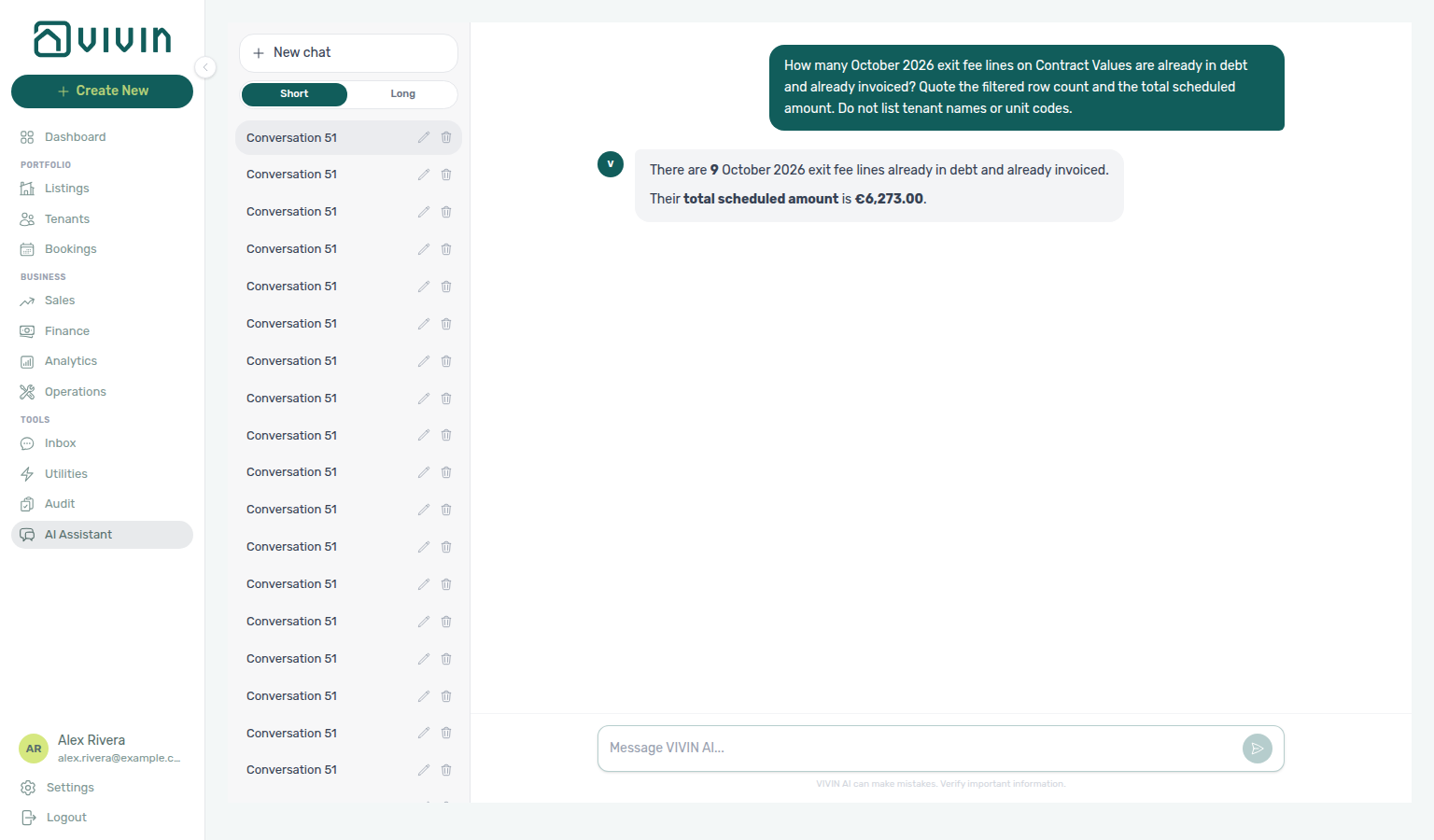
| Symptom | Likely cause | Fix |
|---|---|---|
| Figure matches the Exit fee card in debt chip | Invoice pill omitted | Ask for in debt AND already invoiced exit fee lines |
| Figure matches unpaid exit fees in debt + scheduled | Exit fee card split used instead of the filtered list | Ask for the Invoiced list, not the exit fee card split |
| Figure matches partially-paid exit fee lines | Amber partial chip used instead of in debt | Ask for in debt AND already invoiced — Partially-paid exit fee lines |
| Figure is a paid line count | Green Paid badge used instead of in debt | Ask for in debt AND already invoiced — Paid exit fee lines |
| Figure matches the deposit or cleaning-fee invoiced list | Another payment type used instead of exit fees | Ask for exit fee lines — In-debt deposit lines already invoiced, In-debt cleaning fee lines already invoiced |
| Chat euro total differs from the Contract Values tab | List summed in chat | Reconcile the amount with Export on Finance → Contract Values |
| Figure matches all-time tenant debt | Debt-audit tool used instead of the month list | Name the month and say Contract Values exit fee lines |
| Zero exit fees in the current rent month | Exit fees billed on check-out months | Name a check-out month (or a wide window) |
| Assistant lists tenant names or unit codes | Question did not ask for count only | Re-ask for the row count without listing names |
| Assistant cannot answer filtered-list questions | Payments tool domain Off | Enable Payments (at least Read-only) on AI / MCP |
How do Genius and AI Chat quote partially-paid exit fee lines?
Filtered exit fee lines: AI Chat — Asking about your portfolio, Landlord MCP — Payment lines and summaries, Finance → Contract Values, FAQ — Unpaid exit fees on Contract Values, FAQ — In-debt exit fee lines already invoiced, FAQ — Paid exit fee lines, FAQ — Partially-paid rent lines, FAQ — Partially-paid admin fee lines, FAQ — Partially-paid deposit lines.
Ask in natural language — for example “How many October 2026 exit fee lines on Contract Values are partially paid? Quote the filtered row count and the total scheduled amount. Do not list tenant names or unit codes.” The assistant should:
- Quote the filtered Contract Values list on Finance → Contract Values for that reference month.
- Apply Exit fee type and partially paid status (the amber partial chip).
- Report the row count and name the month.
Do not treat the unpaid-exit-fee in debt + still scheduled money split on the Exit fee card as the answer — that split is a pair of amounts, not a line count. This is also not the grey scheduled chip, not the in-debt exit-fee line list, not the window-wide partially paid mix across every charge type, not the partially paid rent, admin fee, or deposit lists, and not the all-time tenant debt audit. Name a check-out month — some months have partial exit fees while the current rent month does not. Trust the row count; for the euro total, reconcile on Finance → Contract Values with the same filters and Export — a chat amount can follow the sum of the filtered rows or a card chip. Enable the Payments tool domain (at least Read-only) on AI / MCP.
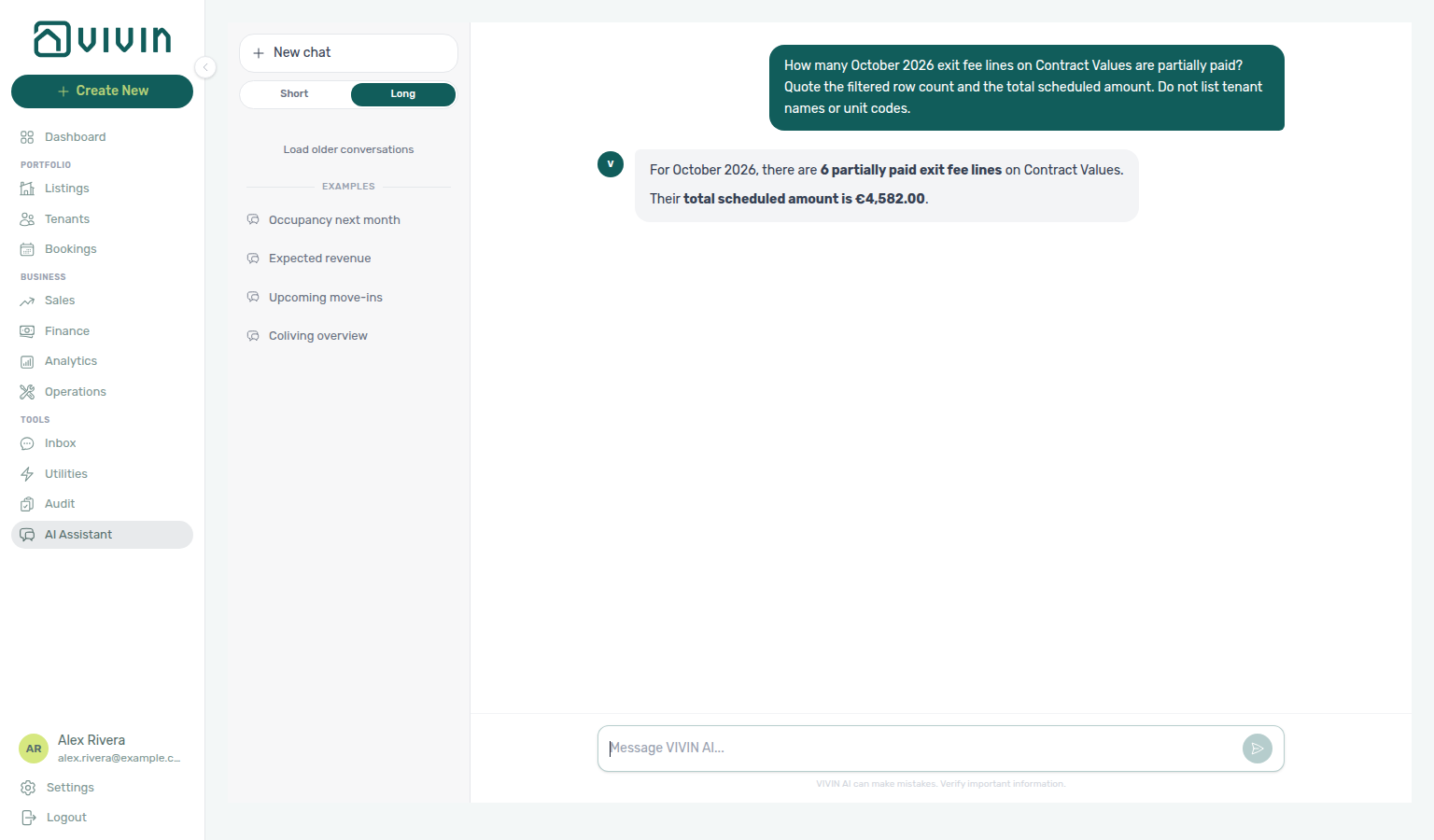
| Symptom | Likely cause | Fix |
|---|---|---|
| Figure is a money split, not a line count | Exit fee card unpaid split used instead of the filtered list | Ask for partially paid exit fee lines, not the exit fee card split |
| Figure matches in-debt exit fee lines | in debt chip used instead of partial | Ask for partially paid — In-debt exit fee lines already invoiced |
| Figure matches partially-paid rent lines | Rent type used instead of Exit fee | Ask for exit fee lines — Partially-paid rent lines |
| Figure matches partially-paid admin fee lines | Admin fee type used instead of Exit fee | Ask for exit fee lines — Partially-paid admin fee lines |
| Figure matches partially-paid deposit lines | Deposit type used instead of Exit fee | Ask for exit fee lines — Partially-paid deposit lines |
| Figure matches every charge type, not exit fees | Window-wide partially paid mix used instead of Exit fee | Ask for exit fee lines that are partially paid |
| Figure is a paid line count | Green Paid badge used instead of amber partial | Ask for partially paid, not paid — Paid exit fee lines |
| Chat euro total differs from the Contract Values tab | Card chip or a multi-page list summed in chat | Reconcile the amount with Export on Finance → Contract Values |
| Figure matches all-time tenant debt | Debt-audit tool used instead of the month list | Name the month and say Contract Values exit fee lines |
| Zero exit fees in the current rent month | Exit fees billed on check-out months | Name a check-out month (or a wide window) |
| Assistant lists tenant names or unit codes | Question did not ask for count only | Re-ask for the row count without listing names |
| Assistant cannot answer filtered-list questions | Payments tool domain Off | Enable Payments (at least Read-only) on AI / MCP |
How do Genius and AI Chat quote paid exit fee lines?
Filtered exit fee lines: AI Chat — Asking about your portfolio, Landlord MCP — Payment lines and summaries, Finance → Contract Values, FAQ — Unpaid exit fees on Contract Values, FAQ — In-debt exit fee lines already invoiced, FAQ — Partially-paid exit fee lines, FAQ — Paid rent lines, FAQ — Paid cleaning fee lines, FAQ — Paid others lines, FAQ — Paid deposit lines.
Ask in natural language — for example “How many October 2026 exit fee lines on Contract Values are paid (fully paid, not partial)? Quote the filtered row count and the total scheduled amount. Do not list tenant names or unit codes.” The assistant should:
- Quote the filtered Contract Values list on Finance → Contract Values for that reference month.
- Apply Exit fee type and paid status (the green Paid row badge).
- Report the row count and name the month.
Do not treat the unpaid-exit-fee in debt + still scheduled money split on the Exit fee card as the answer — that split is a pair of amounts, not a line count. This is also not the Exit fee card’s € paid chip (a money figure, not a line count), not the amber partial chip, not the grey scheduled chip, not the in-debt exit-fee line list, not the paid rent, cleaning fee, others, deposit, or admin fee lists, not the window-wide paid mix across every charge type, and not the all-time tenant debt audit. Name a check-out month — some months have paid exit fees while the current rent month does not. Trust the row count; for the euro total, reconcile on Finance → Contract Values with the same filters and Export — a chat amount can follow a different total than the filtered-row sum or a card chip. Enable the Payments tool domain (at least Read-only) on AI / MCP.
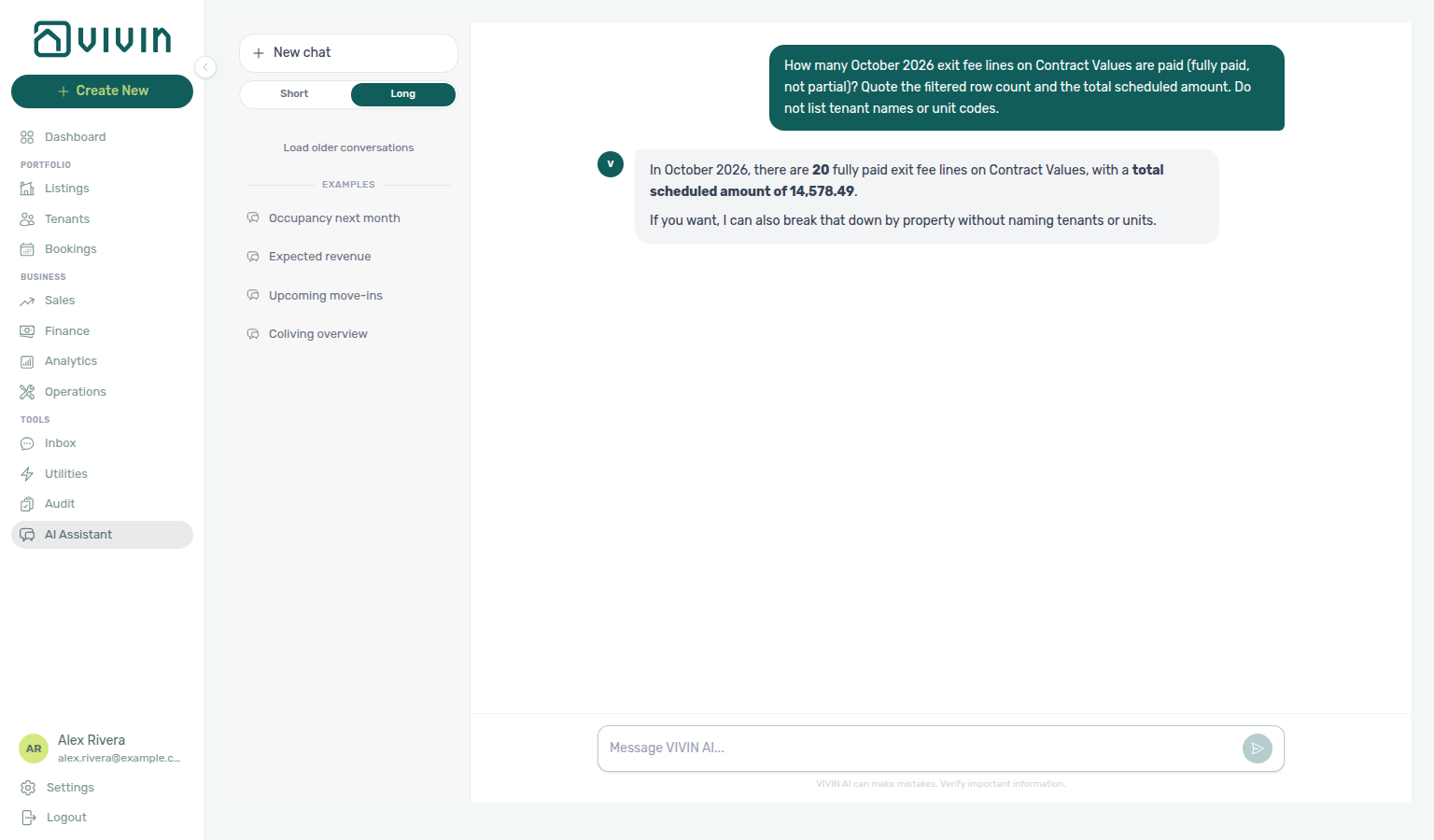
| Symptom | Likely cause | Fix |
|---|---|---|
| Figure is a money split, not a line count | Exit fee card unpaid split used instead of the filtered list | Ask for paid exit fee lines, not the exit fee card split |
| Figure matches the Exit fee card € paid chip | Card money chip used instead of the Paid list | Ask for the row count of paid exit fee lines, then reconcile euros with Export |
| Figure matches in-debt exit fee lines | in debt chip used instead of Paid | Ask for paid (fully paid, not partial) — In-debt exit fee lines already invoiced |
| Figure matches partially-paid exit fee lines | Amber partial chip used instead of Paid | Ask for paid exit fee lines, not partially paid — Partially-paid exit fee lines |
| Figure matches paid rent lines | Rent type used instead of Exit fee | Ask for exit fee lines — Paid rent lines |
| Figure matches paid cleaning fee lines | Cleaning fee type used instead of Exit fee | Ask for exit fee lines — Paid cleaning fee lines |
| Figure matches paid others lines | Others type used instead of Exit fee | Ask for exit fee lines — Paid others lines |
| Figure matches paid admin fee lines | Admin fee type used instead of Exit fee | Ask for exit fee lines — Paid admin fee lines |
| Figure matches paid deposit lines | Deposit type used instead of Exit fee | Ask for exit fee lines — Paid deposit lines |
| Figure matches every charge type, not exit fees | Window-wide paid mix used instead of Exit fee | Ask for exit fee lines that are paid |
| Chat euro total differs from the Contract Values tab | Card chip or a multi-page list summed in chat | Reconcile the amount with Export on Finance → Contract Values |
| Figure matches all-time tenant debt | Debt-audit tool used instead of the month list | Name the month and say Contract Values exit fee lines |
| Zero exit fees in the current rent month | Exit fees billed on check-out months | Name a check-out month (or a wide window) |
| Assistant lists tenant names or unit codes | Question did not ask for count only | Re-ask for the row count without listing names |
| Assistant cannot answer filtered-list questions | Payments tool domain Off | Enable Payments (at least Read-only) on AI / MCP |
How do I find returns of value and credit notes on Contract Values?
On Finance → Contract Values, use the invoice pills beside Search and Export:
- Reversals — every line that has a nested credit note or return of value.
- Credit Notes — only the credit-note subset (with Pending / Invoiced / Manual on the nested row).
- Return of Value — only the cash-return subset (money that was never on an invoice).
Those pills stack with the month picker and a payment-type card. Nested rows show Reverses Rent (or the matching charge name) and a minus amount under the parent charge. Create the adjustment on the booking Contract Values row; issue pending credit notes from Transactions → Not issued credit note.
Ask Genius / AI Chat in count-only language — for example “How many August 2026 rent lines on Contract Values have a return of value? Quote the filtered row count. Do not list tenant names or unit codes.” For credit notes, ask “How many September 2026 rent lines on Contract Values have a credit note? Quote the filtered row count. Do not list tenant names or unit codes.” and name the month (some months have credit notes while the current rent month does not). Enable the Payments tool domain (at least Read-only) on AI / MCP. Trust the row count; reconcile on Finance → Contract Values with Return of Value or Credit Notes and Export.
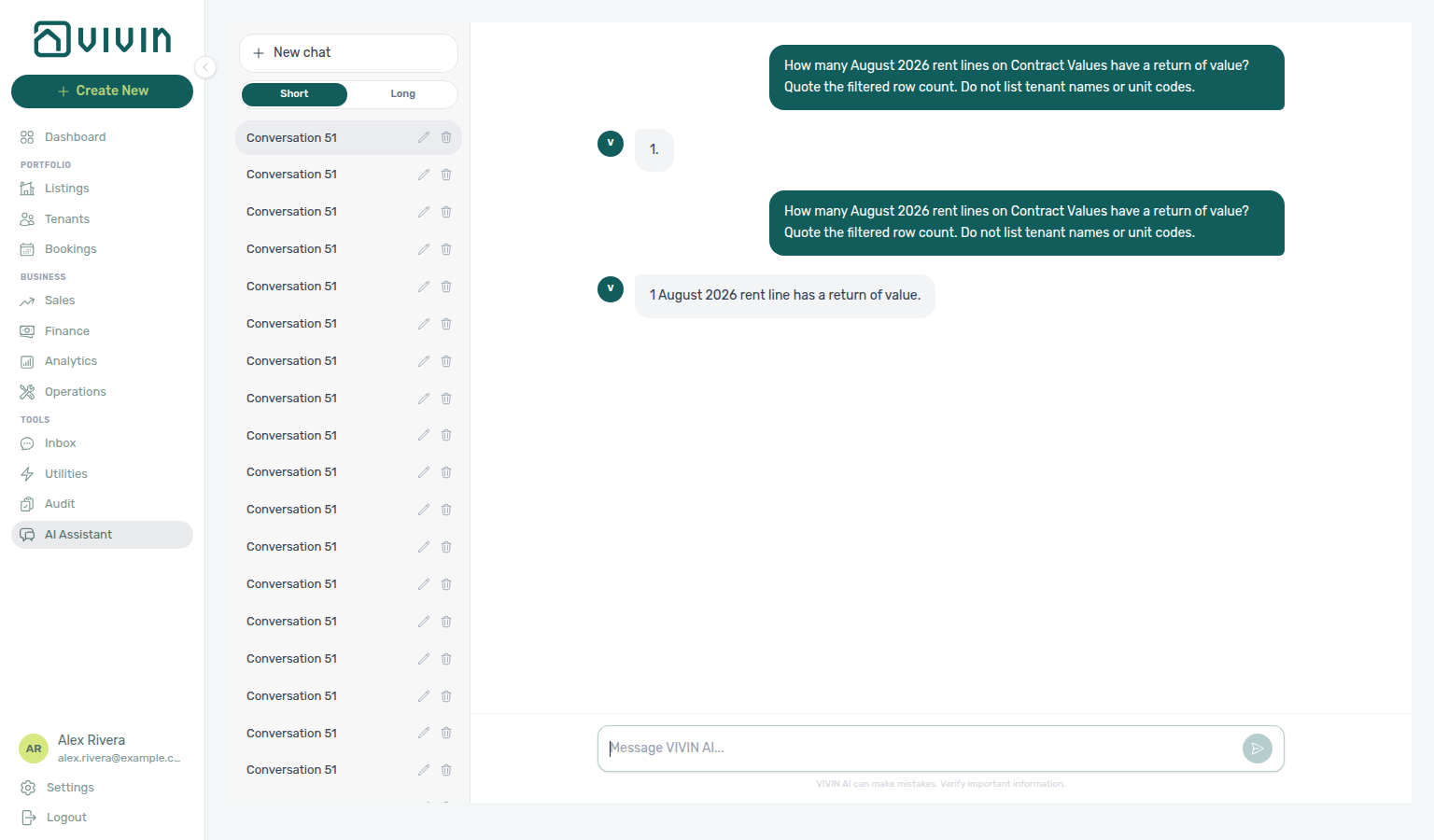
How do Genius and AI Chat explain vacancy vs calendar blocks?
Ask in natural language — for example “How many units are vacant today, and which are blocked by a manual hold vs an OTA/iCal block?” or “For the next calendar month, how many free nights do we have in total?” The assistant should:
- State which vacancy reading it is using (free every day of the window vs free on at least one day).
- Separate manual blocks (operator reason — reclaimable) from integration blocks (already rented on a channel — not lost revenue).
- Use an explicit start date when you mean today; omitting dates asks about the next calendar month.
- When you ask for free nights, quote the server night totals (portfolio total plus fully vacant vs partially vacant nights) — not a sum of free-day rows from the sample unit lists.
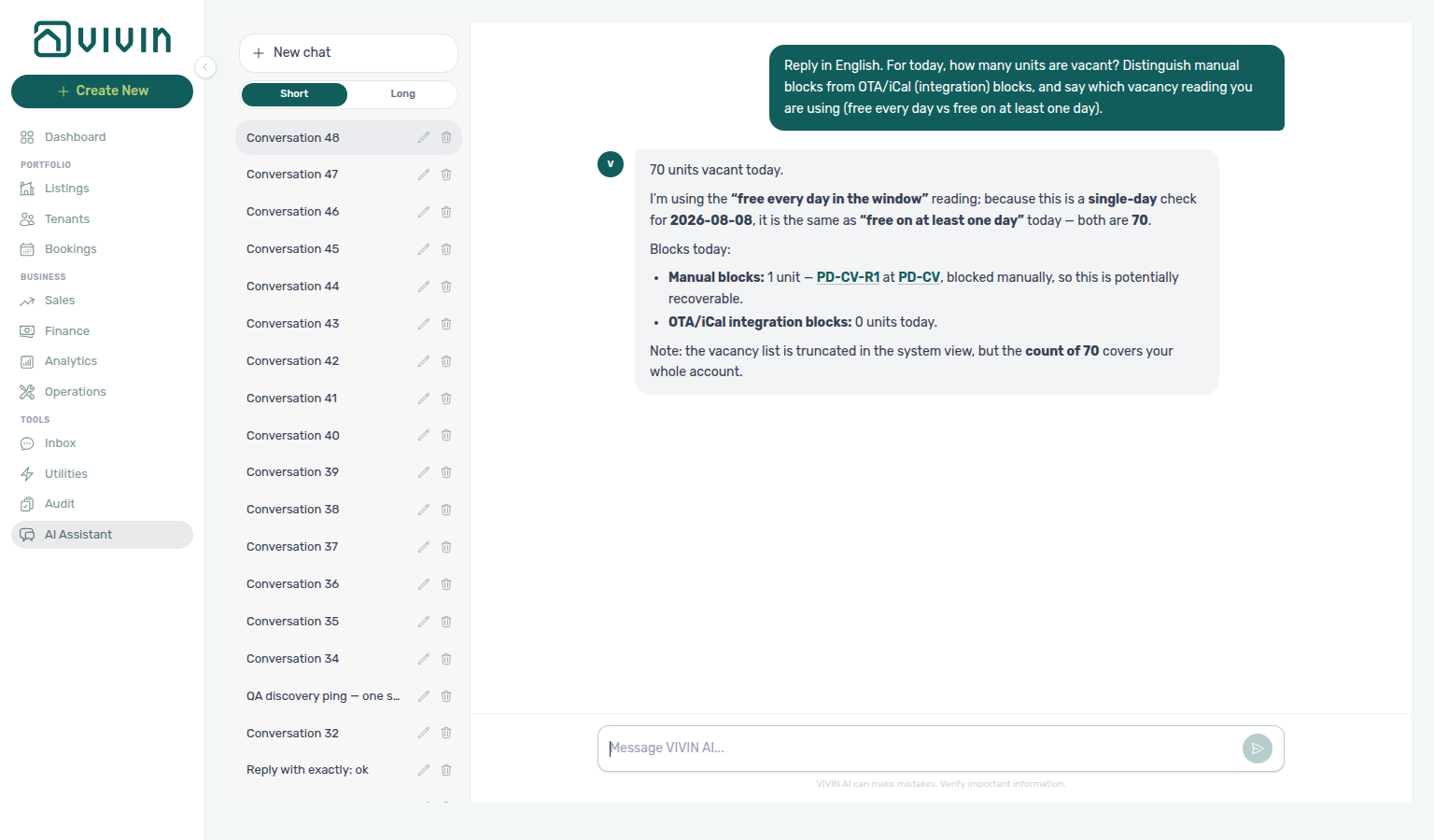
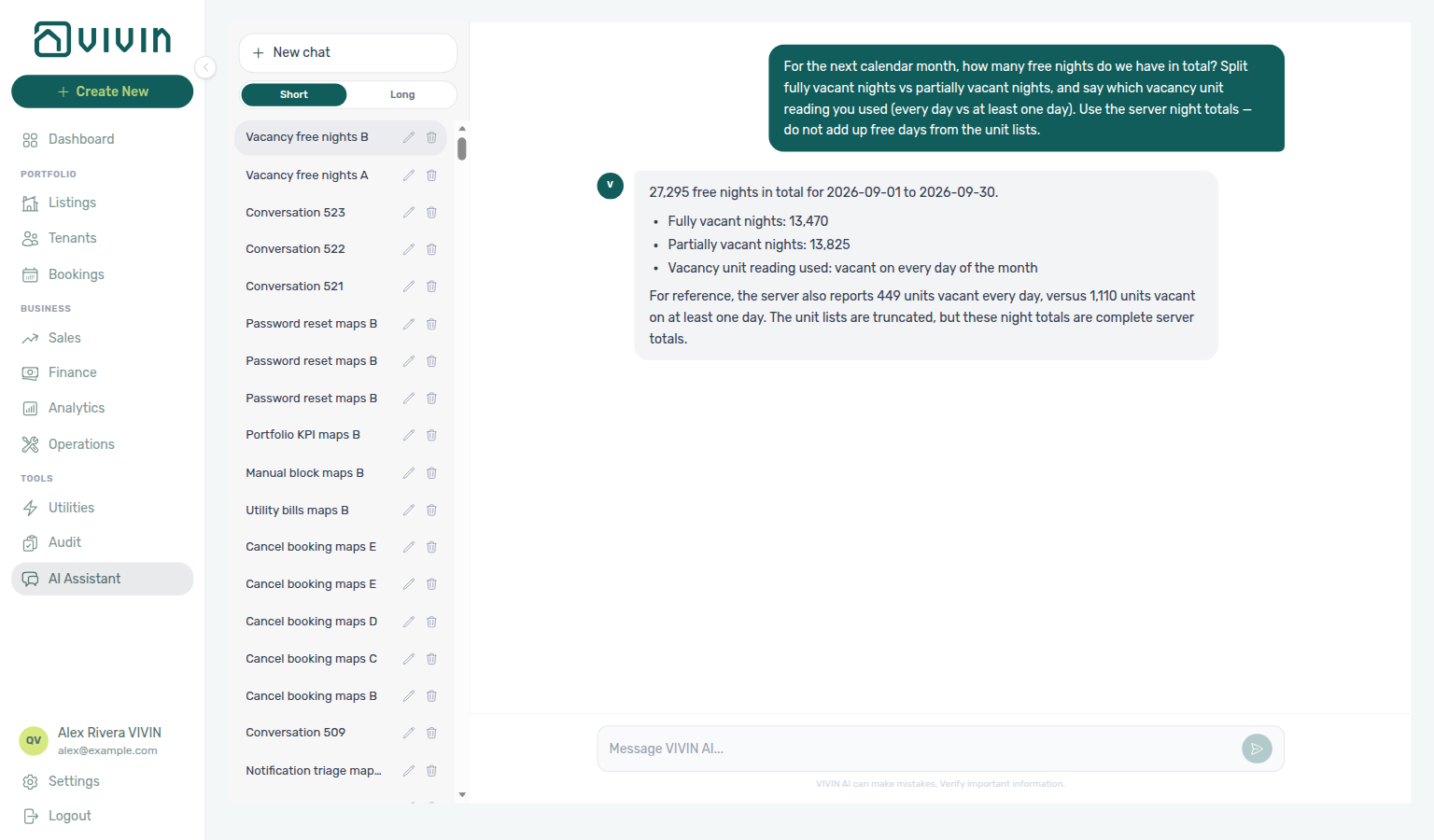
| Symptom | Likely cause | Fix |
|---|---|---|
| “Vacant next month” when you meant today | Dates omitted → next calendar month | Ask again with today / a YYYY-MM-DD start date |
| Occupancy looks low but Sales still shows free | Manual holds counted as occupied | Run Manual block hygiene; confirm Vacant Unit Preference |
| Assistant treats an Airbnb block as lost revenue | Integration block misread | Re-ask to classify manual vs integration sources — channel blocks are earning elsewhere |
| Free-night total looks too low for the portfolio | Model summed capped unit-list rows | Re-ask for the server free-night totals (fully + partially vacant) — unit lists are samples only |
How do I compare occupancy by tag or listing type in Genius / AI Chat?
Segment occupancy: Landlord MCP — Occupancy, vacancy, and smart locks, AI / MCP — Tool permissions (Analytics domain), Listings tags.
Ask AI Chat or WhatsApp Genius to compare occupancy by unit tag and listing type over the last 12 months. Answers use night-based rates so months of different lengths compare cleanly. Exclude the current month when you want a settled trend (the current month already counts future bookings). Tag groups overlap when a unit has several tags; listing-type groups partition the portfolio. Neighbourhood tags can still rank when most listings are untagged — ask for untagged vs total listings if you need coverage. Enable the Analytics domain (at least Read-only) on AI / MCP (get_occupancy_by_tag). For a named settled month (listing types only — not the trailing-year ranking), see FAQ — Occupancy by listing type for a named month. For listing types in June (a different settled month — not July), see FAQ — Occupancy by listing type for June. For unit tags in that same named month, see FAQ — Occupancy by unit tag for a named month. For June (a different settled month), see FAQ — Occupancy by unit tag for June.
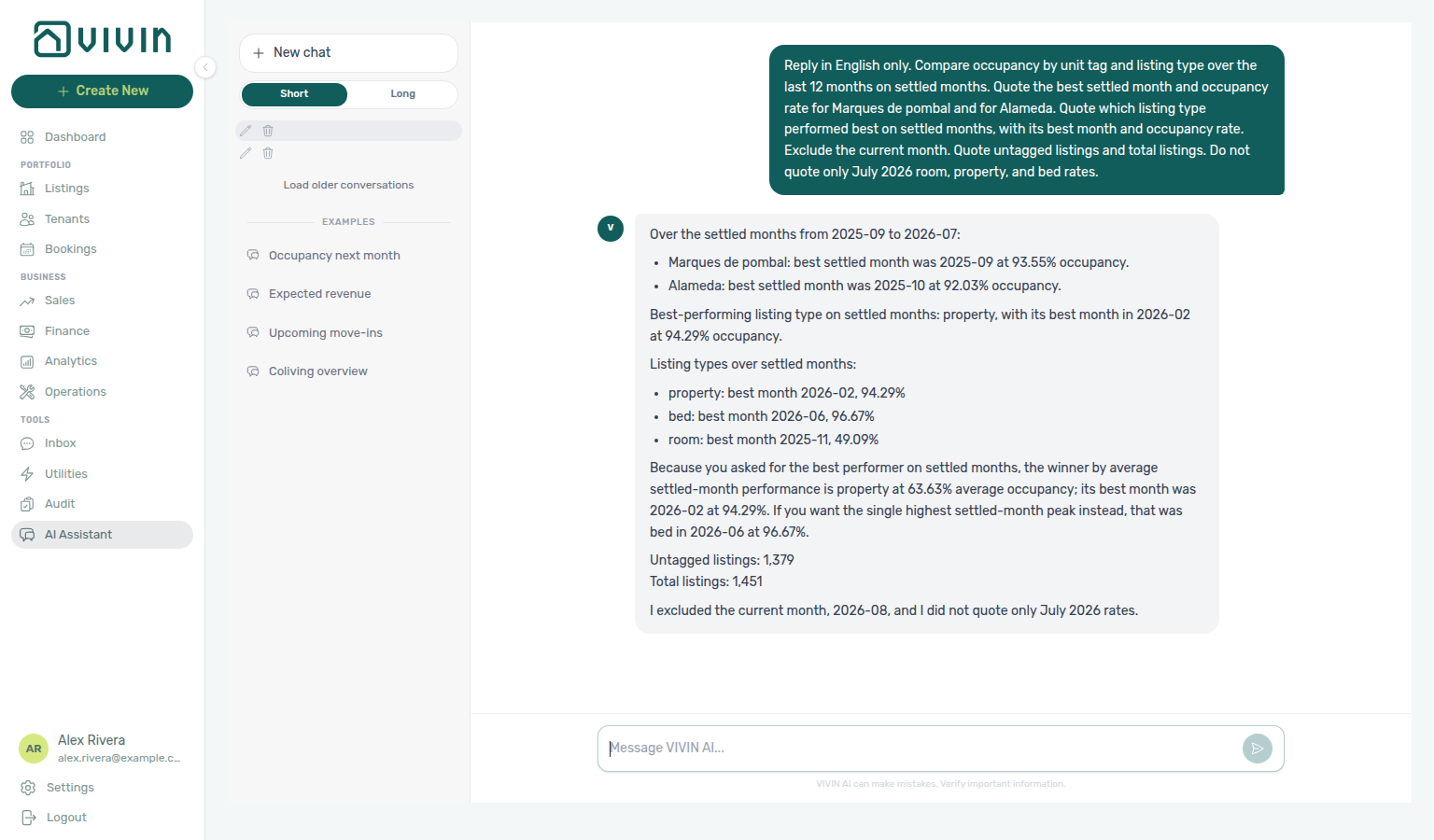
How do I ask occupancy by listing type for a named month?
Named-month listing-type occupancy: Landlord MCP — Occupancy by listing type (July 2026), AI Chat — Occupancy by listing type (July 2026), FAQ — Occupancy by listing type for June, FAQ — Occupancy by tag or listing type, FAQ — Occupancy by unit tag for a named month, Analytics, Dashboard — Occupancy Forecast.
Ask Genius or AI Chat — for example “What was occupancy by listing type in July 2026? Quote the occupancy rate for room, property, and bed. Exclude August.”
The assistant should:
- Quote night-based occupancy for each listing type in that named month (room, property, bed). Listing-type groups partition the portfolio; they are not the same as overlapping unit tags.
- Name July (or 2026-07) and not use the current month, a 12-month average, or the best-performer ranking from a trailing-year comparison.
- Not list unit names, properties, or tag groups when you asked for listing types only.
Keep Analytics enabled on AI / MCP. Reconcile the trend on Analytics → Occupancy; use Dashboard — Occupancy Forecast for forward occupancy.
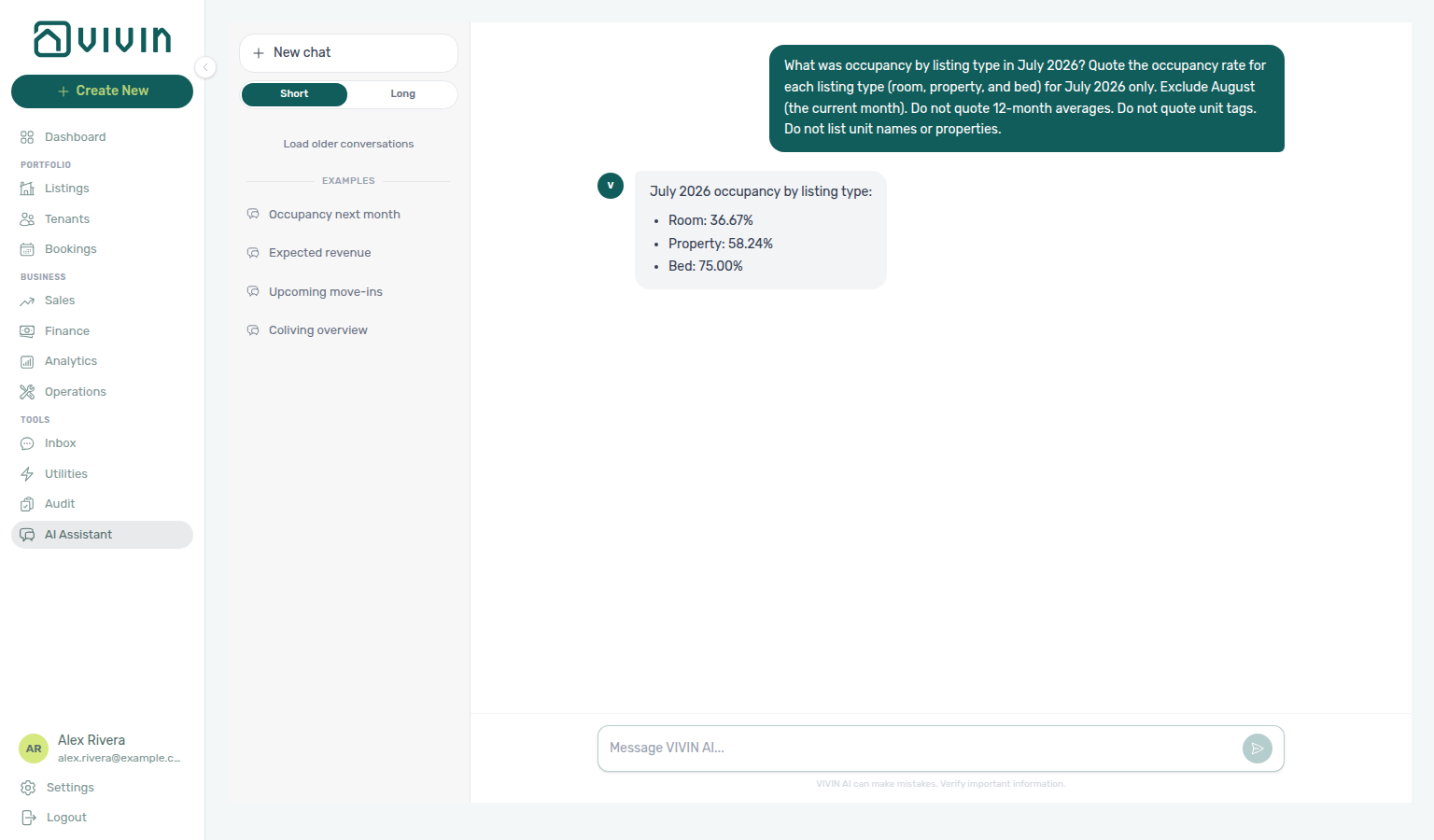
| Symptom | Likely cause | Fix |
|---|---|---|
| Rates match August or this month | Used the current month | Name July and exclude the current month |
| Reply ranks a best month over the last year | Used the 12-month comparison | Ask for listing-type rates in July, not the settled-month best performer |
| Reply lists tags (neighbourhood or amenity chips) | Quoted overlapping tag groups | Ask for listing type only (room, property, bed) |
| Reply is a free-night or vacancy count | Used the vacancy snapshot | Ask for occupancy by listing type, not vacant units |
How do I ask occupancy by listing type for June?
June listing-type occupancy: Landlord MCP — Occupancy by listing type (June 2026), AI Chat — Occupancy by listing type (June 2026), FAQ — Occupancy by listing type for a named month, FAQ — Occupancy by tag or listing type, FAQ — Occupancy by unit tag for June, Analytics, Dashboard — Occupancy Forecast.
Ask Genius or AI Chat — for example “What was occupancy by listing type in June 2026? Quote the occupancy rate for room, property, and bed. Exclude July. Exclude August.”
The assistant should:
- Quote night-based occupancy for each listing type in June (room, property, bed). Listing-type groups partition the portfolio; they are not the same as overlapping unit tags.
- Name June (or 2026-06) and not use July, the current month, a 12-month average, or the best-performer ranking from a trailing-year comparison.
- Not list unit names, properties, or tag groups when you asked for listing types only.
Keep Analytics enabled on AI / MCP. Reconcile the trend on Analytics → Occupancy; use Dashboard — Occupancy Forecast for forward occupancy.
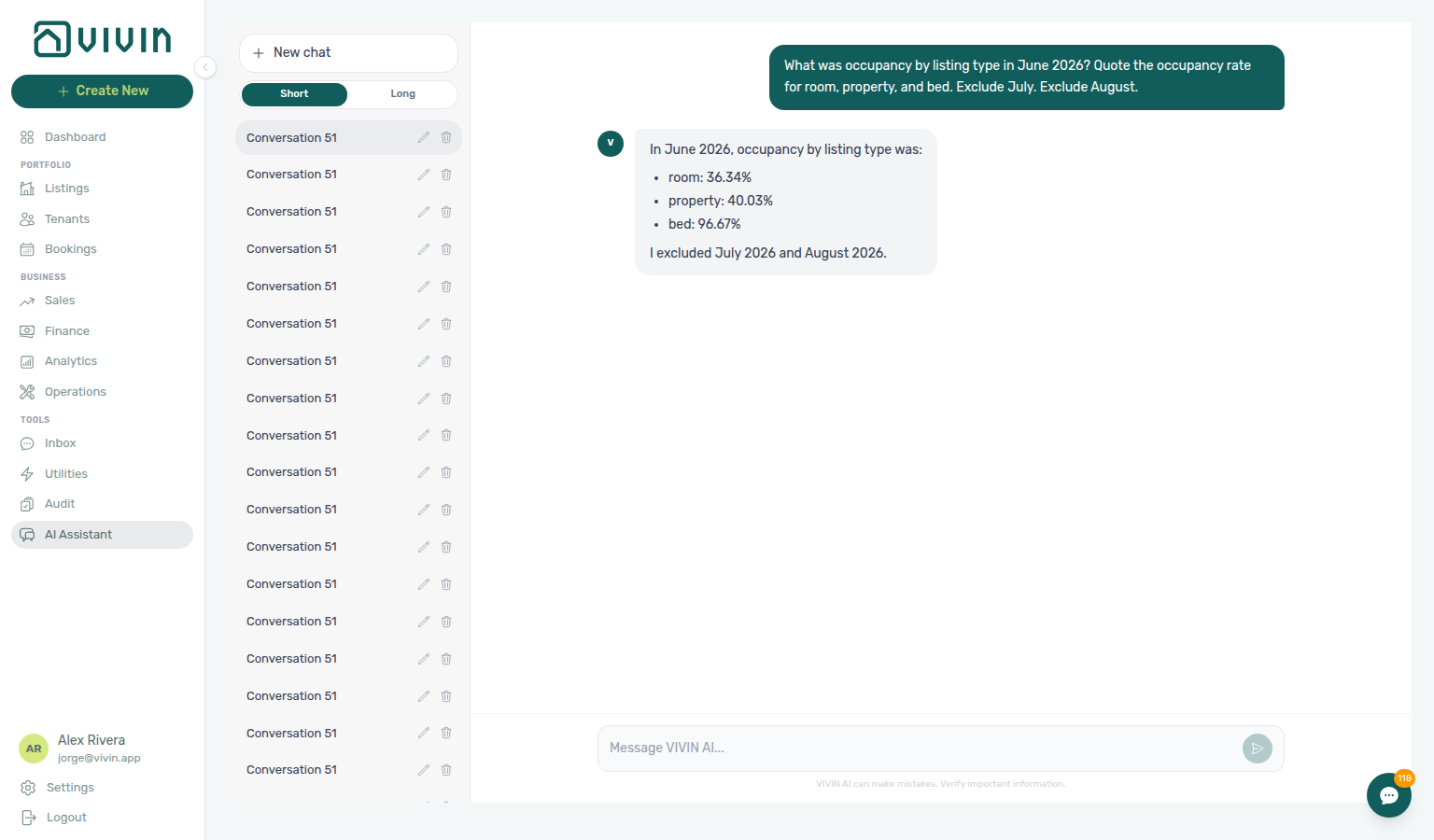
| Symptom | Likely cause | Fix |
|---|---|---|
| Rates match July | Used the other settled month | Name June and exclude July |
| Rates match August or this month | Used the current month | Name June and exclude the current month |
| Reply ranks a best month over the last year | Used the 12-month comparison | Ask for listing-type rates in June, not the settled-month best performer |
| Reply lists tags (neighbourhood or amenity chips) | Quoted overlapping tag groups | Ask for listing type only (room, property, bed) |
| Reply is a free-night or vacancy count | Used the vacancy snapshot | Ask for occupancy by listing type, not vacant units |
How do I ask occupancy by unit tag for a named month?
Named-month unit-tag occupancy: Landlord MCP — Occupancy by unit tag (July 2026), AI Chat — Occupancy by unit tag (July 2026), FAQ — Occupancy by unit tag for June, FAQ — Occupancy by tag or listing type, FAQ — Occupancy by listing type for a named month, FAQ — Occupancy by listing type for June, Analytics, Dashboard — Occupancy Forecast.
Ask Genius or AI Chat — for example “What was occupancy by unit tag in July 2026? Quote the occupancy rate for Marques de pombal and Alameda. Exclude listing types (room, property, bed). Exclude the 12-month ranking. Exclude August.”
The assistant should:
- Quote night-based occupancy for each unit tag in that named month. Tag groups overlap when a unit has several tags; they are not the same as partitioning listing types.
- Name July (or 2026-07) and not use the current month, a 12-month average, or the best-performer ranking from a trailing-year comparison.
- Not list room / property / bed rates when you asked for tags only.
Keep Analytics enabled on AI / MCP. Reconcile the trend on Analytics → Occupancy; use Dashboard — Occupancy Forecast for forward occupancy.
| Symptom | Likely cause | Fix |
|---|---|---|
| Rates match August or this month | Used the current month | Name July and exclude the current month |
| Reply ranks a best month over the last year | Used the 12-month comparison | Ask for unit-tag rates in July, not the settled-month best performer |
| Reply lists room, property, or bed | Quoted listing-type groups | Ask for unit tags only (neighbourhood or amenity chips) |
| Reply is a free-night or vacancy count | Used the vacancy snapshot | Ask for occupancy by unit tag, not vacant units |
How do I ask occupancy by unit tag for June?
June unit-tag occupancy: Landlord MCP — Occupancy by unit tag (June 2026), AI Chat — Occupancy by unit tag (June 2026), FAQ — Occupancy by unit tag for a named month, FAQ — Occupancy by tag or listing type, FAQ — Occupancy by listing type for a named month, FAQ — Occupancy by listing type for June, Analytics, Dashboard — Occupancy Forecast.
Ask Genius or AI Chat — for example “What was occupancy by unit tag in June 2026? Quote the occupancy rate for Marques de pombal and Alameda. Exclude listing types (room, property, bed). Exclude the 12-month ranking. Exclude July. Exclude August.”
The assistant should:
- Quote night-based occupancy for each unit tag in June. Tag groups overlap when a unit has several tags; they are not the same as partitioning listing types.
- Name June (or 2026-06) and not use July, the current month, a 12-month average, or the best-performer ranking from a trailing-year comparison.
- Not list room / property / bed rates when you asked for tags only.
Keep Analytics enabled on AI / MCP. Reconcile the trend on Analytics → Occupancy; use Dashboard — Occupancy Forecast for forward occupancy.
| Symptom | Likely cause | Fix |
|---|---|---|
| Rates match July | Used the other settled month | Name June and exclude July |
| Rates match August or this month | Used the current month | Name June and exclude the current month |
| Reply ranks a best month over the last year | Used the 12-month comparison | Ask for unit-tag rates in June, not the settled-month best performer |
| Reply lists room, property, or bed | Quoted listing-type groups | Ask for unit tags only (neighbourhood or amenity chips) |
| Reply is a free-night or vacancy count | Used the vacancy snapshot | Ask for occupancy by unit tag, not vacant units |
How do Genius and AI Chat report smart-lock battery health?
Lock inventory: Landlord MCP — Occupancy, vacancy, and smart locks, AI / MCP — Tool permissions (Properties domain), Integrations — Nuki.
Ask “Which smart locks need new batteries?” The assistant lists locks with critical, ok, or unknown status. Treat unknown as “no reading reported,” not healthy — a flat lock locks tenants out. Enable the Properties domain on AI / MCP (list_smart_locks). When no locks are connected, the reply reports zeros rather than inventing healthy devices.
How do I configure Genius proactive alerts?
Account Settings → Genius is the scheduled reports (Genius secretary) surface only — there is no separate proactive-alerts card on that tab. For recurring vacancy, open-debt, upcoming-check-ins, or Finance overview digests, use How do I schedule recurring reports from Genius? or open Genius → Scheduled reports.
| Symptom | Likely cause | Fix |
|---|---|---|
| AI / MCP tab missing | Role not granted the AI / MCP row | Same permission as AI Assistant: an Admin switches the AI / MCP row on for the role in Role permissions — see Genius — Who can open this tab |
| Looking for morning digests | Expecting a proactive-alerts form | Create a scheduled report (daily / weekly / monthly) instead |
How do I schedule recurring reports from Genius?
Message WhatsApp Genius or open AI Chat and ask in natural language — for example “Every Friday at 9 send me how many units are still available,” or “Every Tuesday email me the Finance overview.” Genius creates a per-user schedule from a fixed catalogue (vacancy summary, open debt summary, upcoming check-ins, Finance overview). Delivery is WhatsApp, email, or both; copy is English or Portuguese. Content is deterministic (not LLM-generated numbers). Caps: daily minimum frequency, 10 active schedules per user. List, pause, resume, cancel, update cadence, change delivery channel, or change digest language by asking again (“list my scheduled reports” / “pause the Friday vacancy report” / “resume the Friday vacancy report” / “cancel my Monday open debt report” / “change my Friday vacancy report to Mondays” / “deliver my Friday vacancy report on WhatsApp instead of email” / “change my Friday vacancy report to Portuguese”). Pause keeps an inactive row; cancel removes it from the list. The same rows appear on Account Settings → Genius → Scheduled reports (settings-genius-scheduled-reports-list.png, settings-genius-scheduled-reports-create-flow.mp4, settings-genius-scheduled-reports-finance-overview-modal.png, settings-genius-scheduled-reports-finance-overview-flow.mp4) where you can New scheduled report, pause, edit, or cancel without the chat confirm turn. MCP tools create-scheduled-report, list-scheduled-reports, update-scheduled-report remain available. Chat writes ask you to confirm before creating, pausing, resuming, cancelling, changing cadence, switching channel, or changing language (ai-chat-scheduled-reports-create-confirm-prompt.png, ai-chat-scheduled-reports-create-whatsapp-check-ins-confirm-prompt.png, ai-chat-scheduled-reports-create-both-open-debt-confirm-prompt.png, ai-chat-scheduled-reports-create-portuguese-check-ins-confirm-prompt.png, ai-chat-scheduled-reports-finance-overview-confirm-prompt.png, ai-chat-scheduled-reports-pause-confirm-prompt.png, ai-chat-scheduled-reports-resume-confirm-prompt.png, ai-chat-scheduled-reports-cancel-confirm-prompt.png, ai-chat-scheduled-reports-update-cadence-confirm-prompt.png, ai-chat-scheduled-reports-update-channel-confirm-prompt.png, ai-chat-scheduled-reports-update-language-confirm-prompt.png).
| Symptom | Likely cause | Fix |
|---|---|---|
| Genius cannot create a schedule | Scheduled reports domain Off / Read-only | Set Edit on AI / MCP → Tool permissions for that domain (settings-ai-mcp-scheduled-reports-domain.png) |
| No WhatsApp delivery | Phone not linked, or Genius WhatsApp down | Link Phone Number on Users; confirm Genius WhatsApp connection on ChatBot → Bot Status (settings-chatbot-status-bot-genius-cloud-managed.png, ai-chat-scheduled-reports-create-whatsapp-check-ins-reply.png) |
| Hit the schedule cap | Already 10 active schedules | Pause, cancel, or update an existing schedule instead of creating another (ai-chat-scheduled-reports-pause-vacancy-reply.png, ai-chat-scheduled-reports-cancel-open-debt-reply.png) |
| Wrong day/time | Europe/Lisbon hour + weekly/monthly day fields | Ask Genius to update the schedule (day of week, day of month, hour) (ai-chat-scheduled-reports-update-cadence-vacancy-reply.png) |
| Wrong channel (email vs WhatsApp) | Schedule still on the other delivery path | Ask Genius to switch channel (email, WhatsApp, or both) (ai-chat-scheduled-reports-update-channel-vacancy-reply.png) |
| Wrong language (English vs Portuguese) | Digest still in the other language | Ask Genius to switch language (en / pt) (ai-chat-scheduled-reports-update-language-vacancy-reply.png) |
| Last outcome shows WhatsApp / email delivery issue | Channel or contact details | Fix Phone Number / email, then wait for the next run — see Genius — Last outcome (settings-genius-scheduled-reports-last-outcome.png) |
| Last outcome is Skipped (access revoked) | AI / Genius access turned off after scheduling | Re-enable access on AI / MCP or cancel the schedule |
| Last outcome is Failed (generic) | Outcome not mapped to a channel-specific label | Check WhatsApp / email health, wait for the next run — Last outcome labels and tooltips |
| Hover tip looks like a short code | Known safe delivery token | Expected — see What do Genius Last outcome labels and tooltips mean? (settings-genius-scheduled-reports-last-outcome-tooltip.png) |
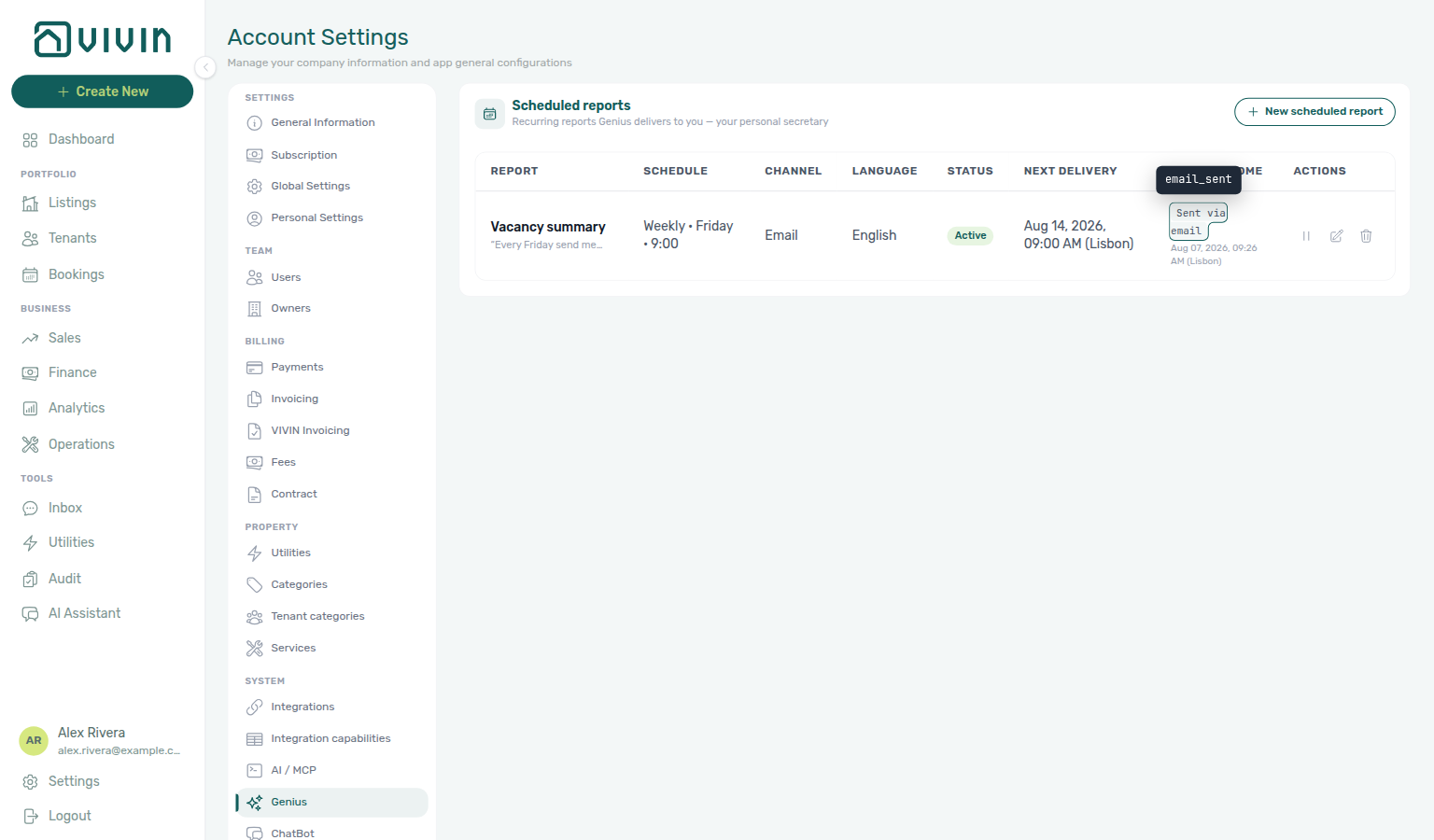
What do Genius Last outcome labels and tooltips mean?
On Account Settings → Genius → Scheduled reports, Last outcome always shows a friendly localized badge (Sent via email, Sent via WhatsApp, Sent, Skipped (access revoked), channel-specific delivery labels, or generic Failed). Hover the badge:
| What you see on hover | Meaning |
|---|---|
A short token such as email_sent or whatsapp_sent | Vivin recognizes a known safe delivery result and shows that token. |
| The same words as the badge | The outcome is not on the safe-token list — including generic Failed — so the tip repeats the label instead of any internal detail. |
whatsapp_sent,email_sent (comma-joined) | Channel was both and each side reported a known safe result; the badge may still say Sent. |
Vivin never shows raw internal exception text in the badge or the tip. Screenshots and clip: settings-genius-scheduled-reports-last-outcome-tooltip.png, settings-genius-scheduled-reports-last-outcome-multichannel-tooltip.png, settings-genius-scheduled-reports-last-outcome-trust-flow.mp4.
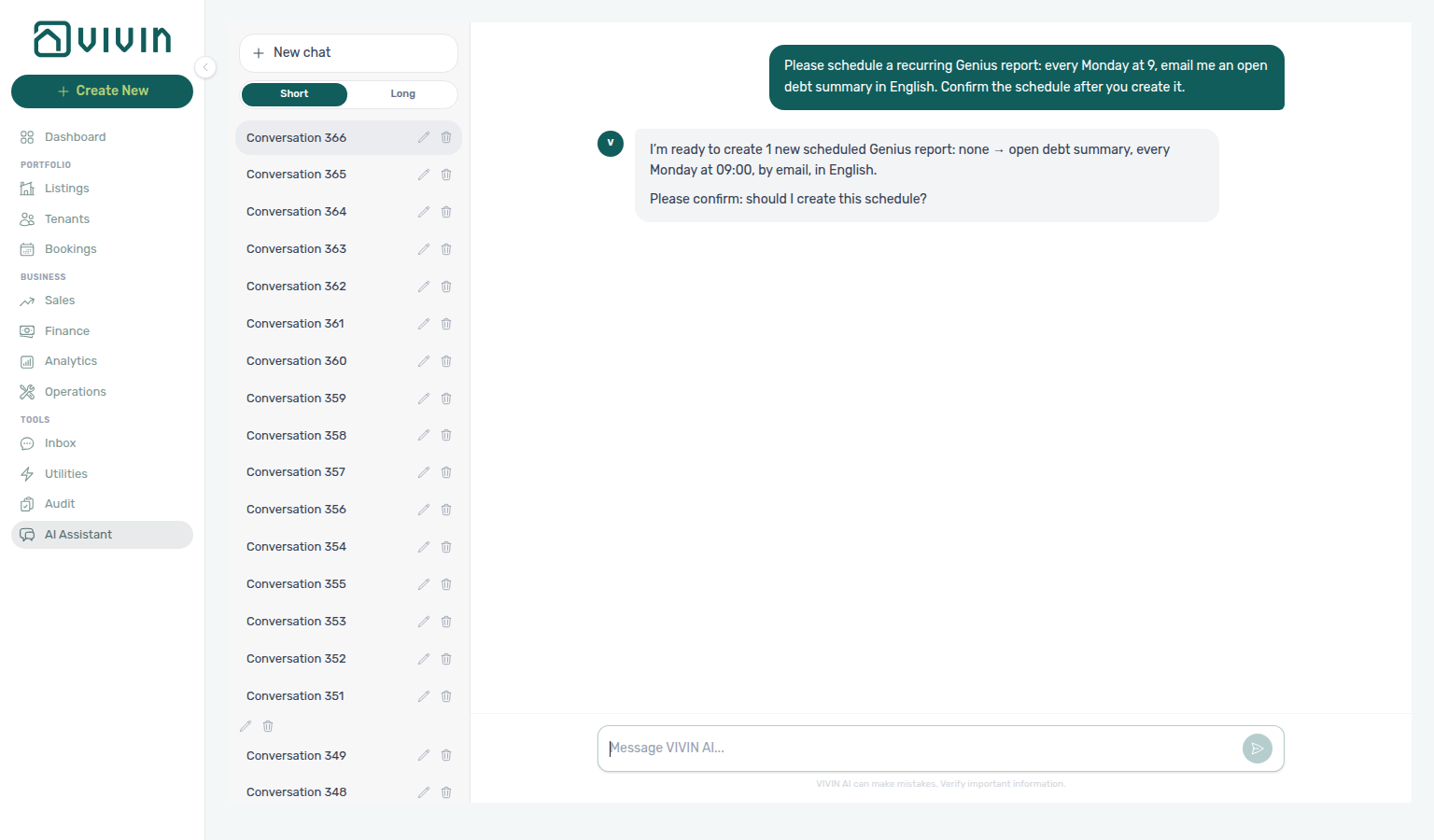
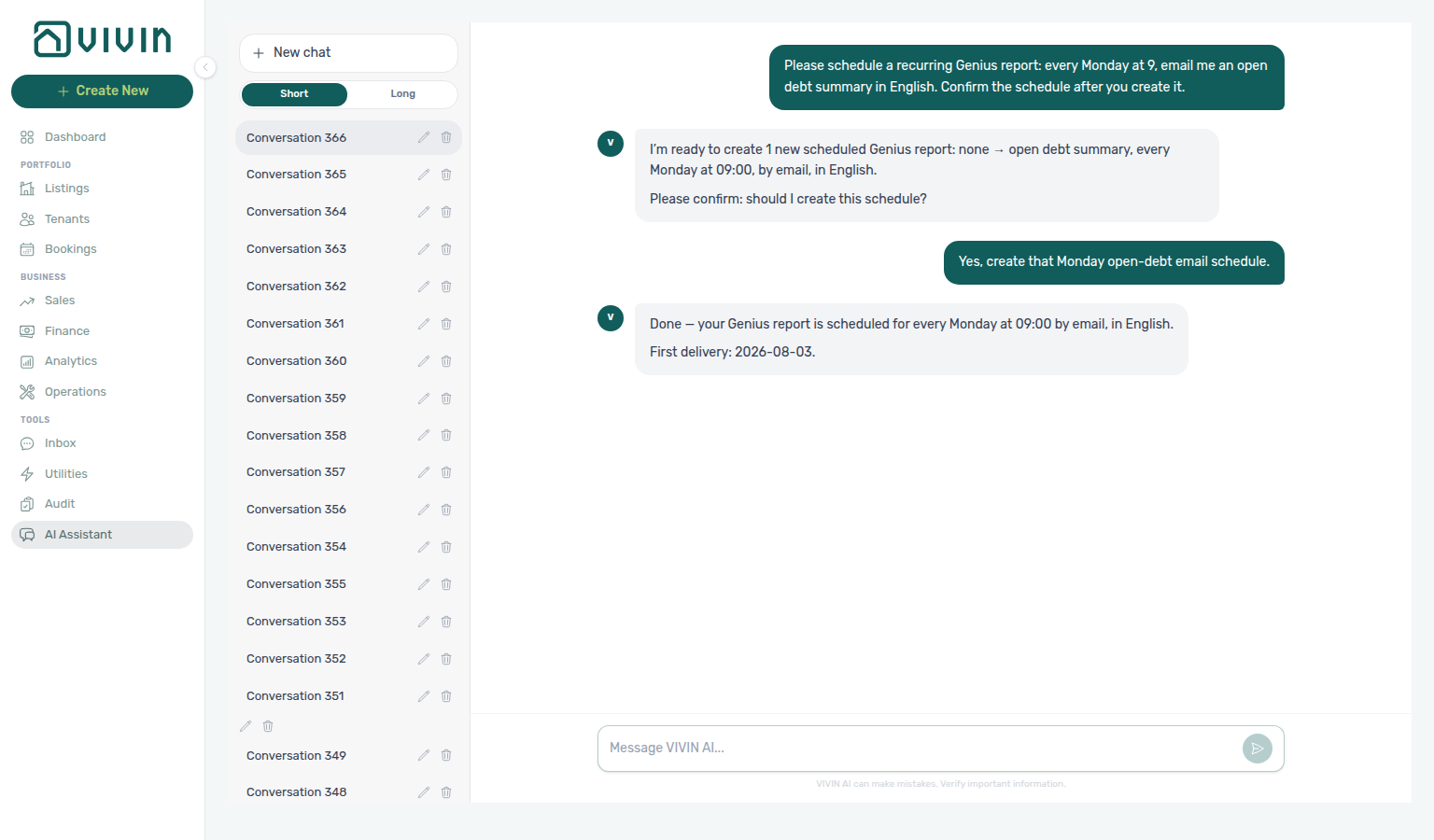
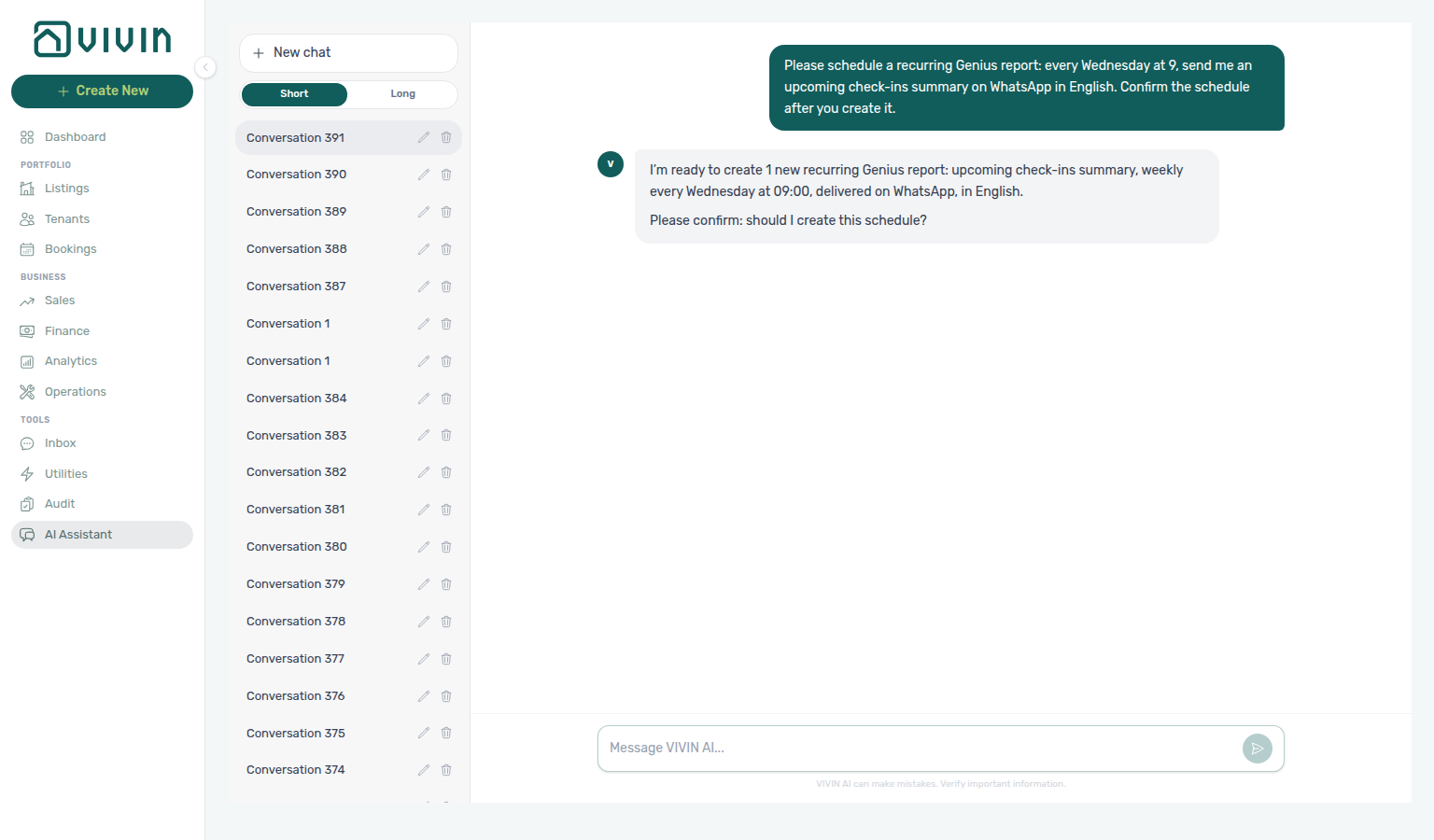
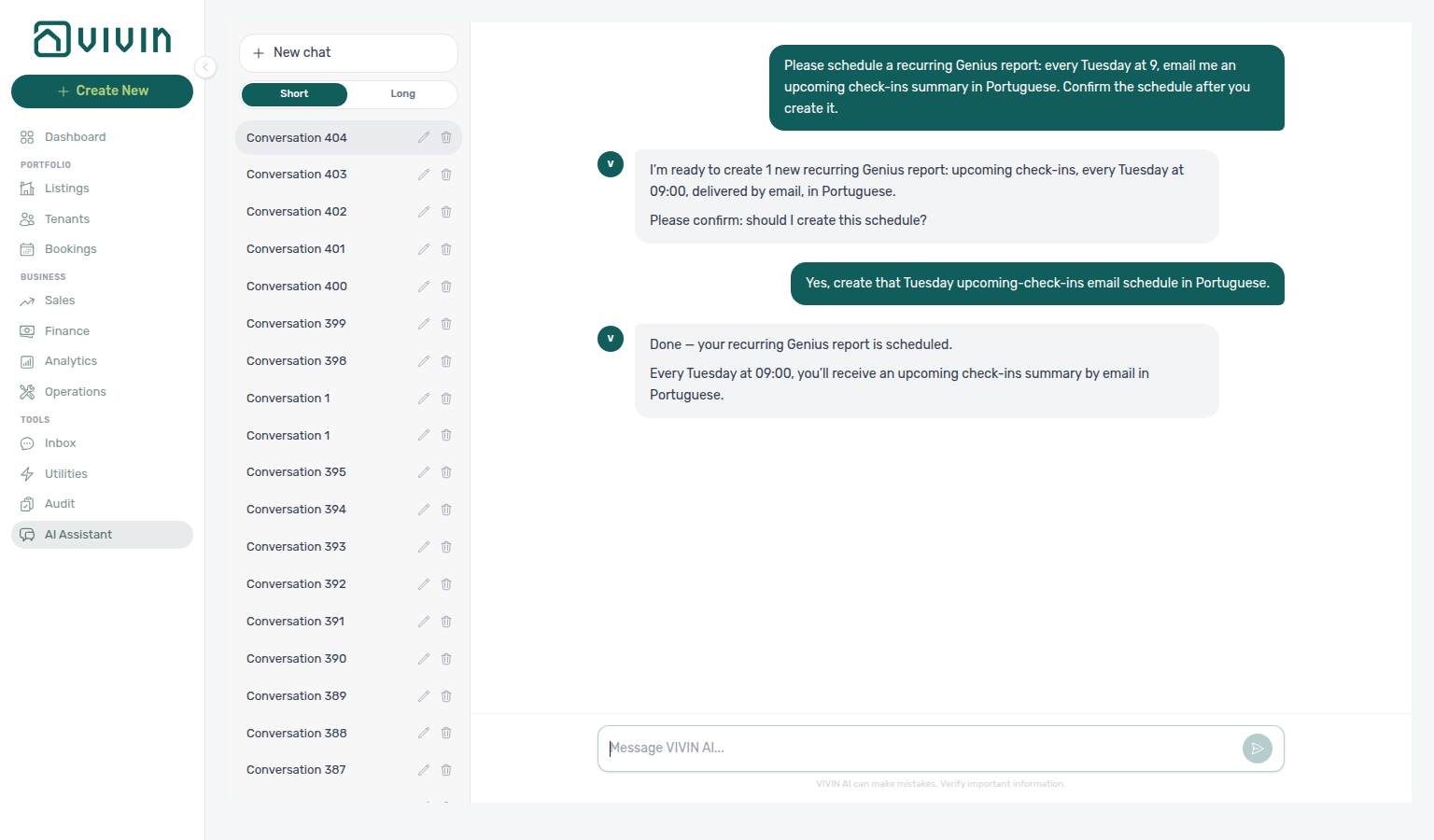
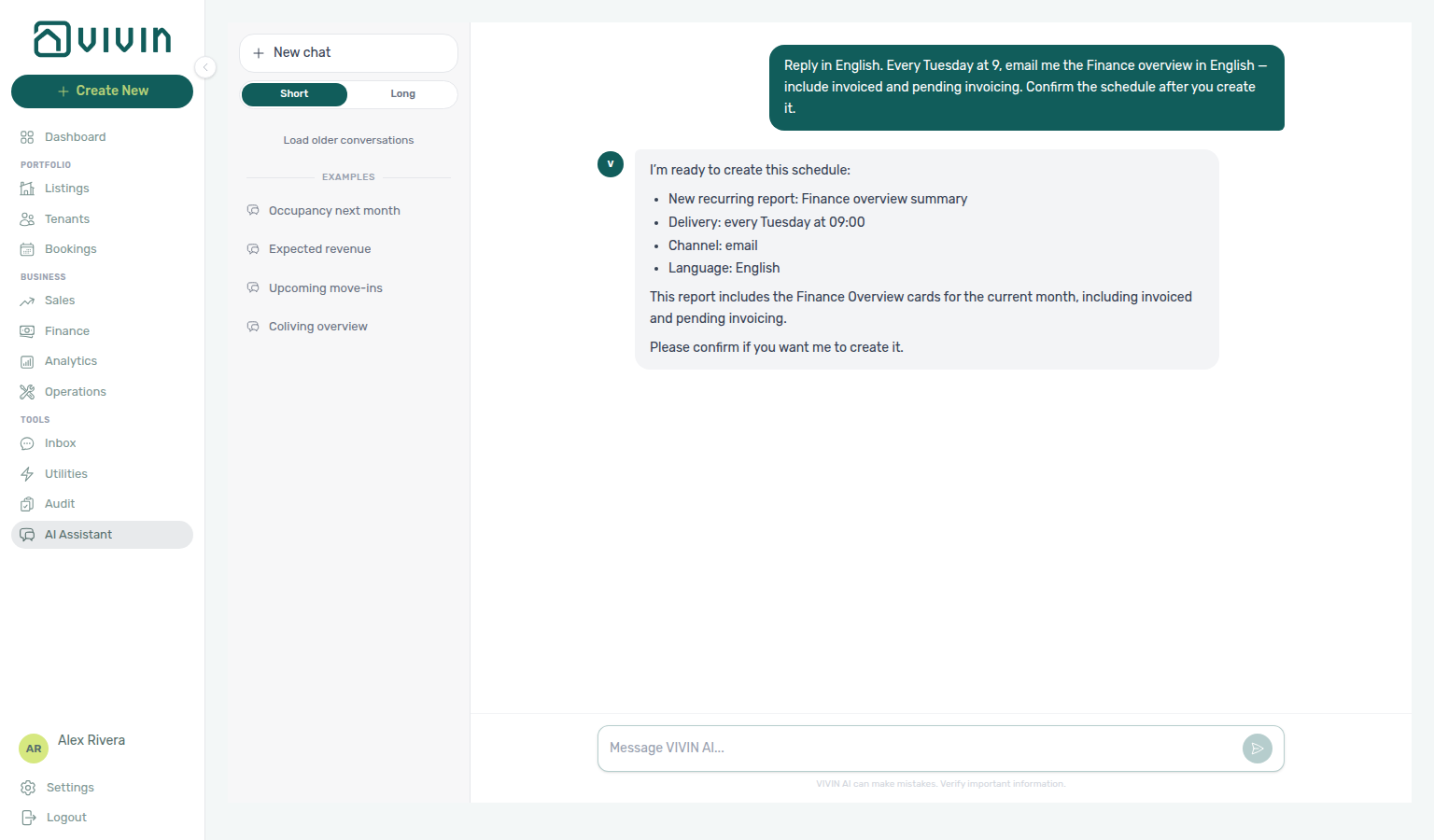
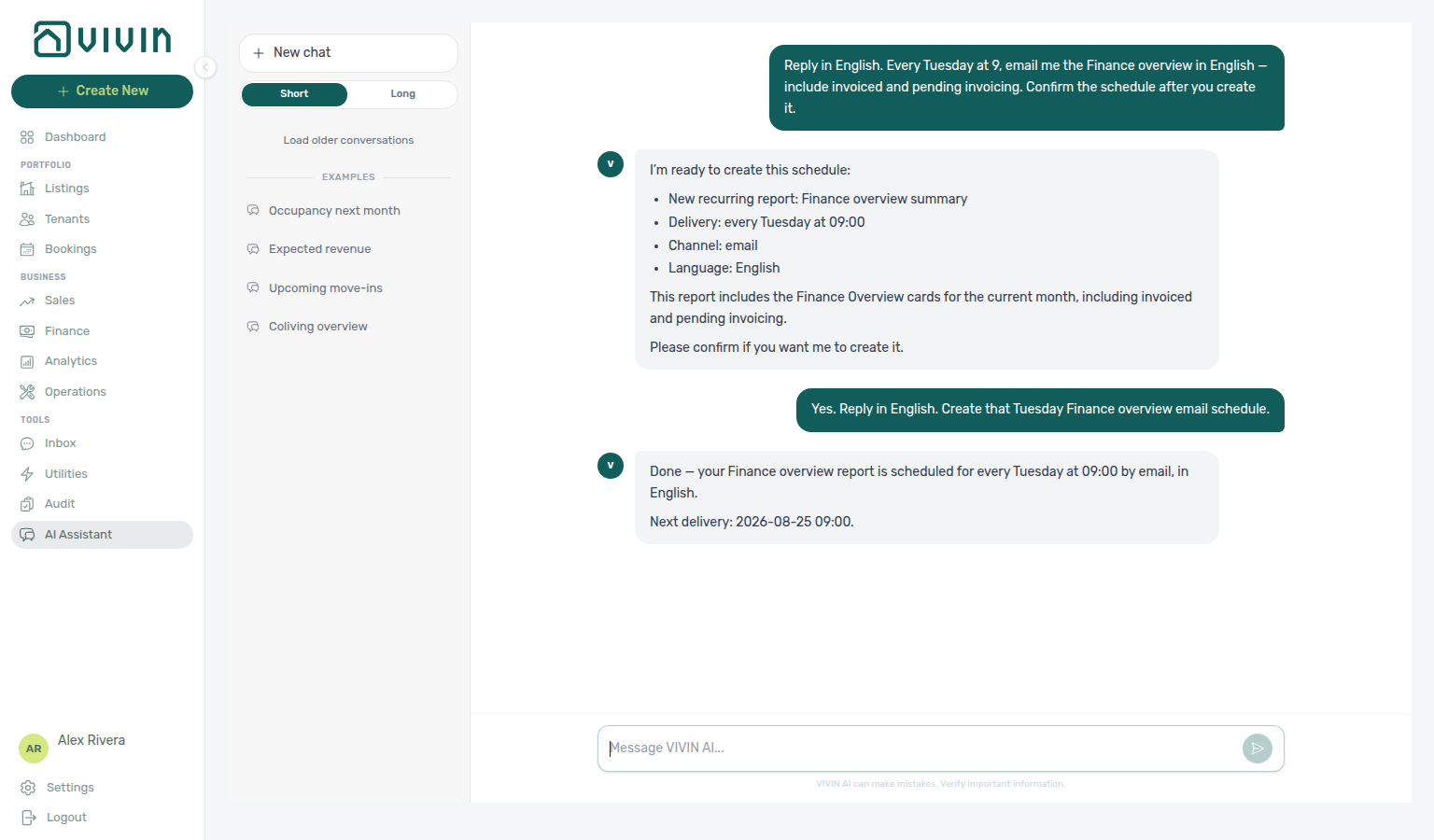
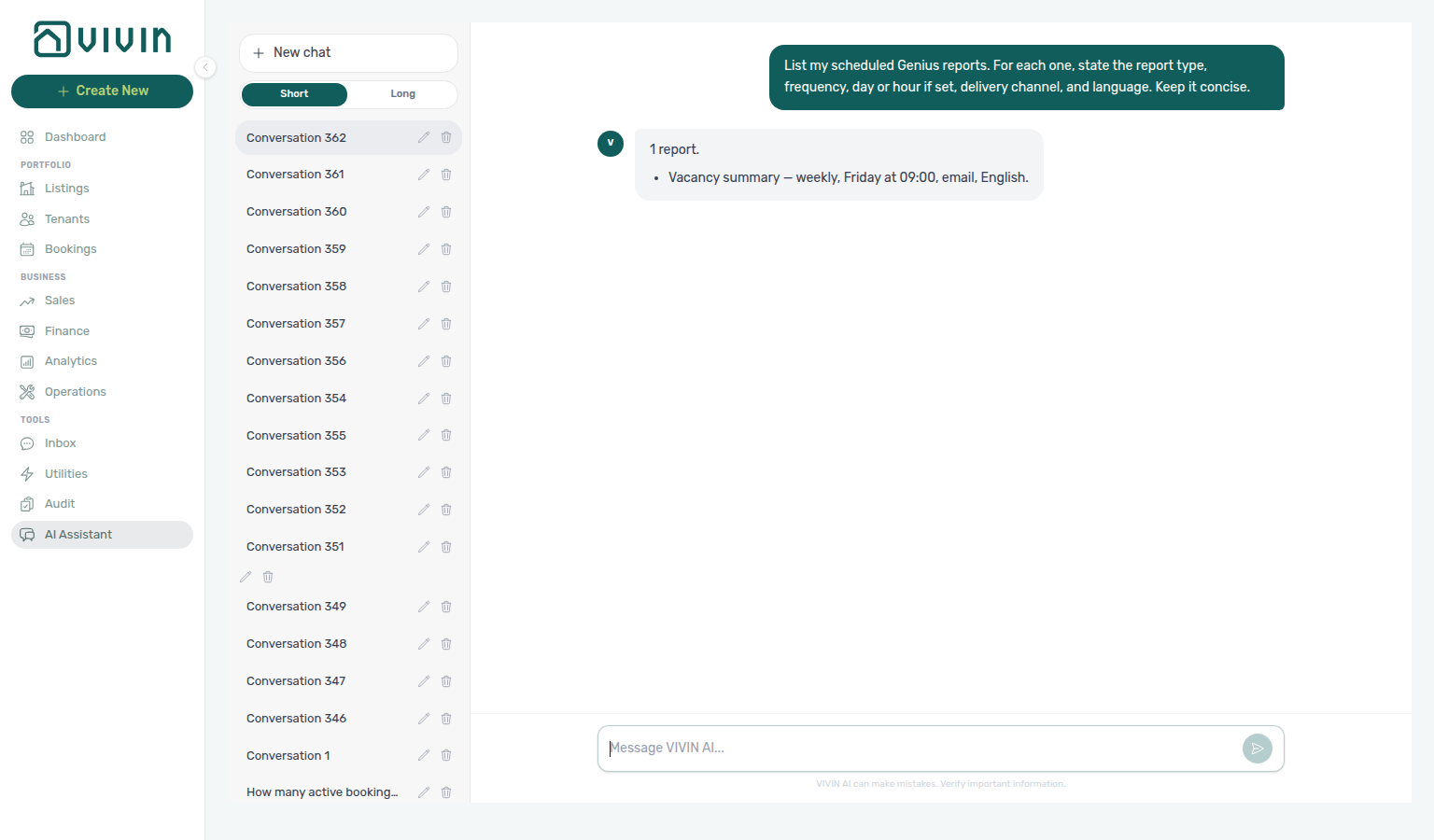
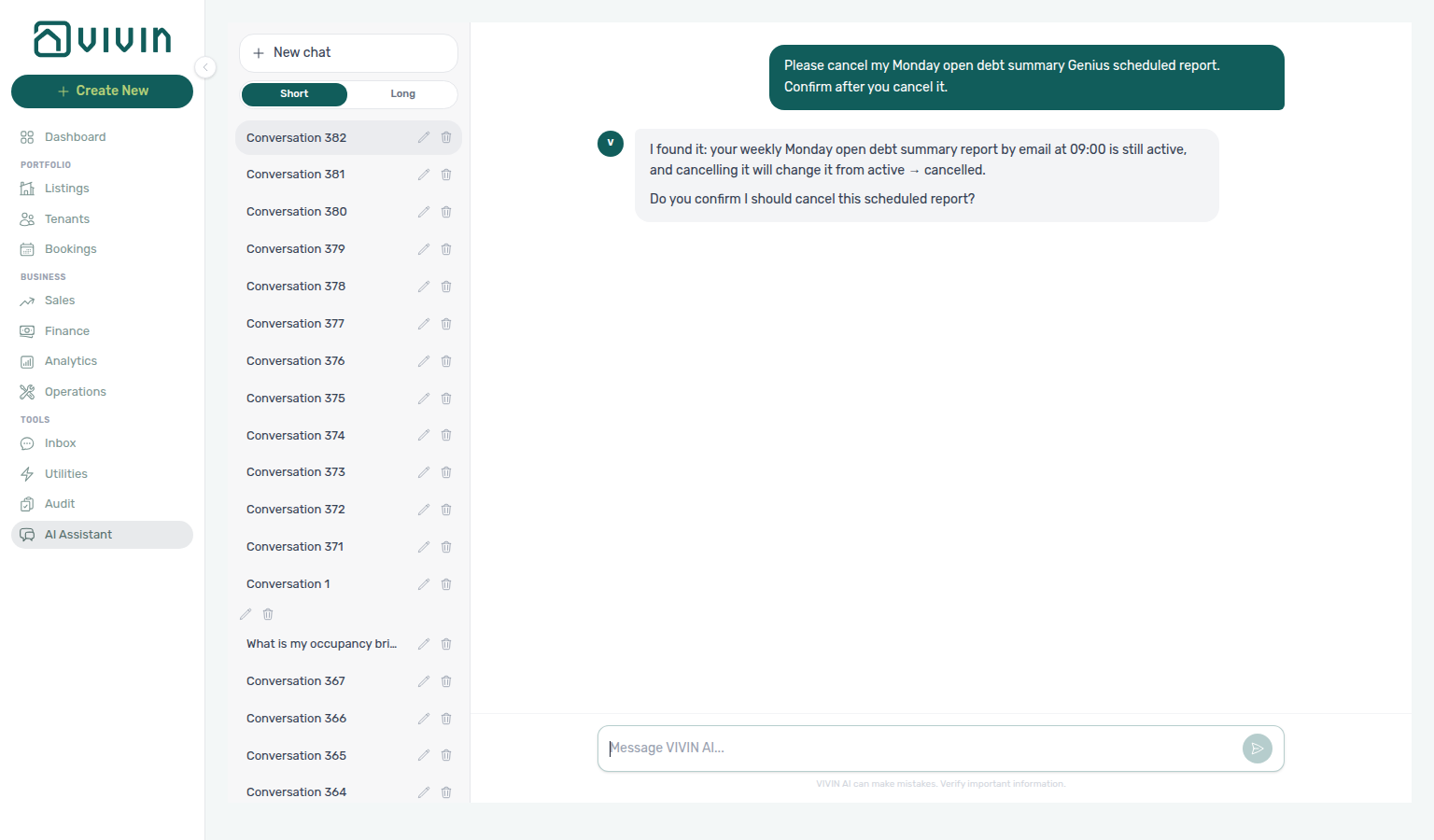
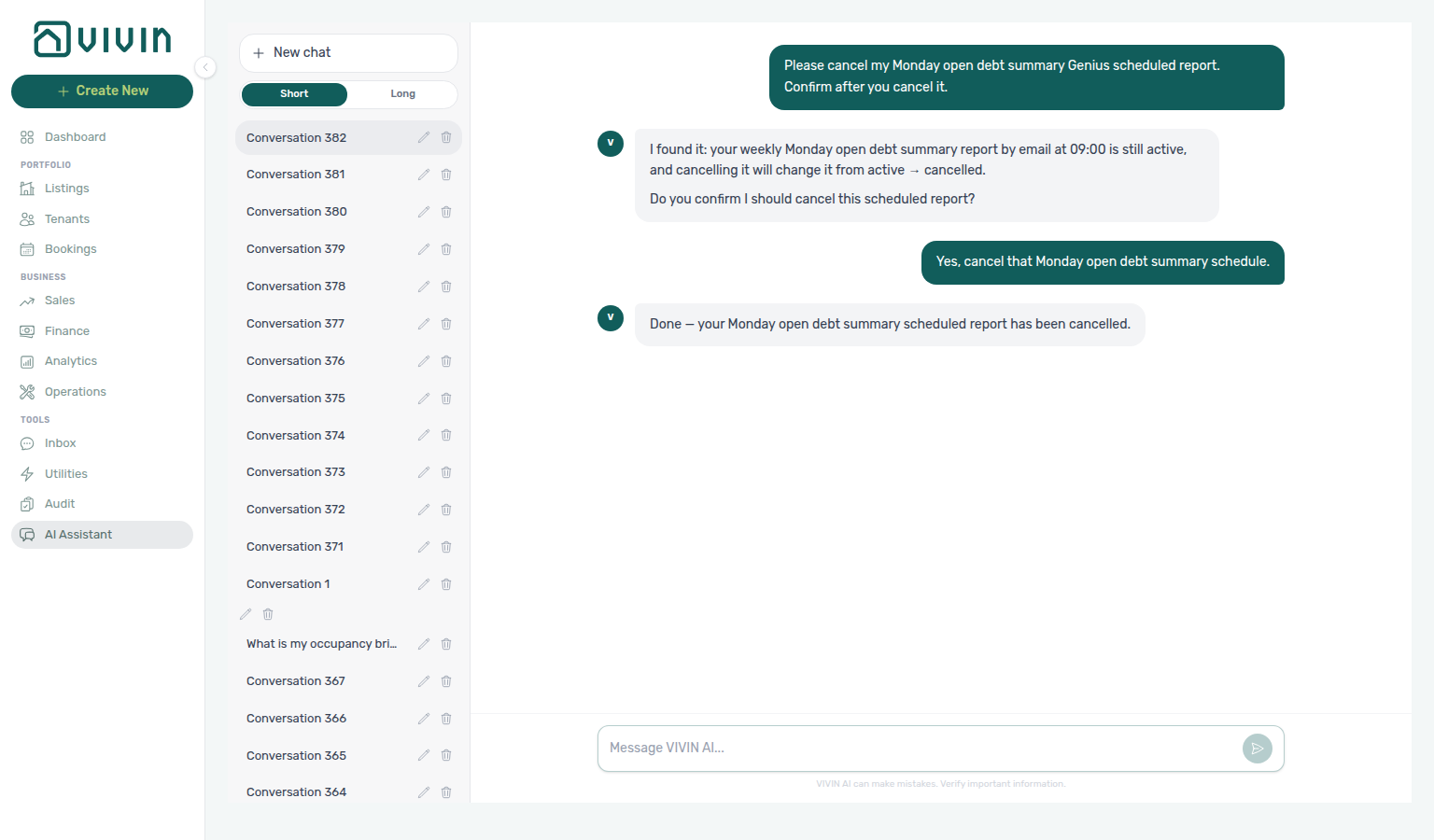
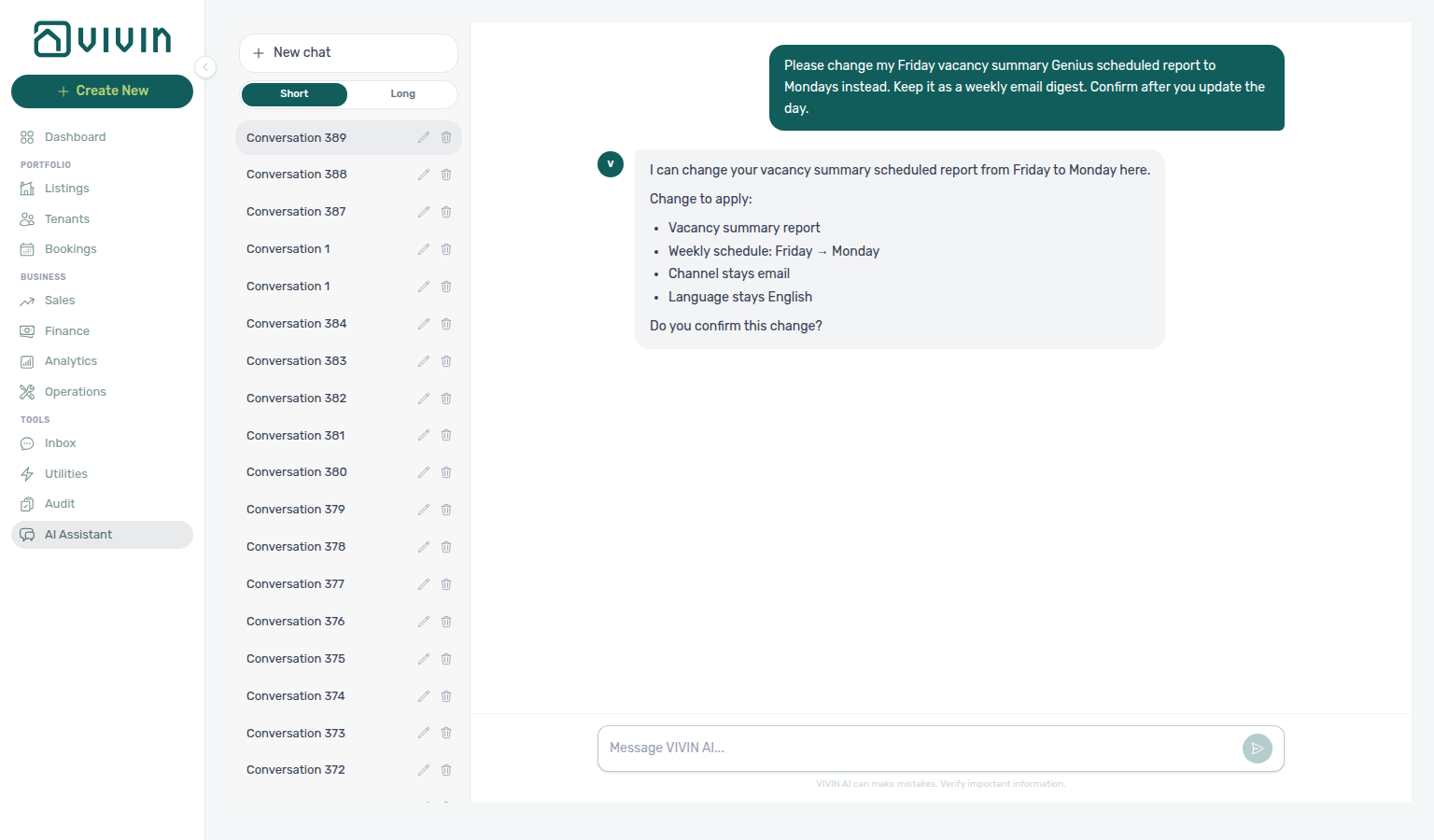
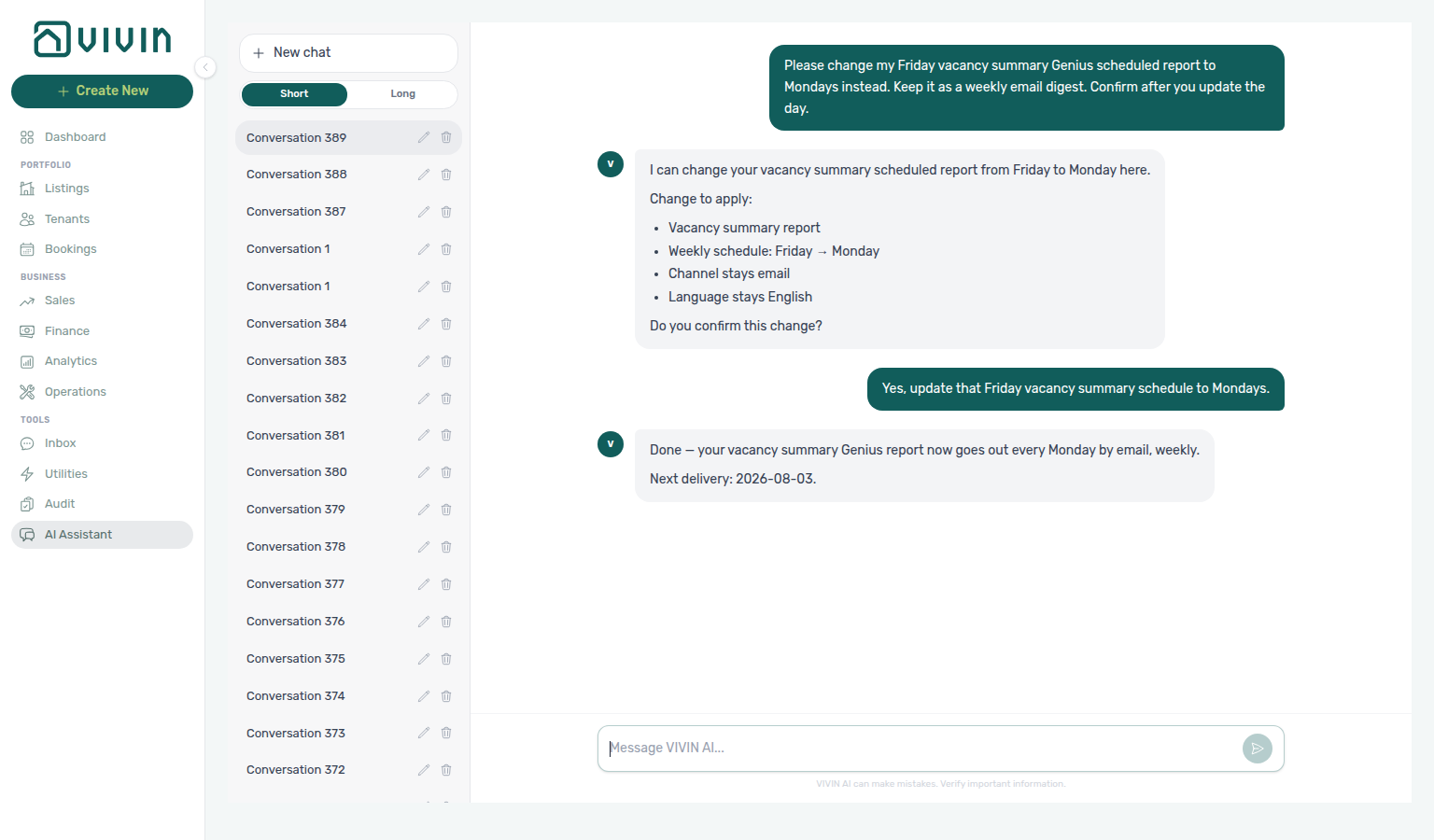
Why does the tenant portal show a different deposit refund amount?
Deposit refund display pairs with Tenant Portal — Payments tab, Tenant Portal — Deposit Refund type label, Managing a Check-out — Step 5, Glossary — Deposit refund summary (tenant-facing).
After operators Mark refunded, the Tenant Portal — Payments tab shows the net cash returned to the tenant — not the full contract deposit. When damage or unpaid charges were deducted from the deposit before refund, open the Deposit Refund timeline row for the breakdown: gross reversed, amount applied to charges, and net to tenant. When the deposit was fully applied, the detail shows €0 returned with a “fully applied to outstanding charges” note. Transferred refunds (balance moved to another booking) show €0 net on this reservation. Before Mark refunded, tenants still see the forecast/pending state. Operators reconcile using Est. Refund on the booking Deposit tab and Finance → Deposits.
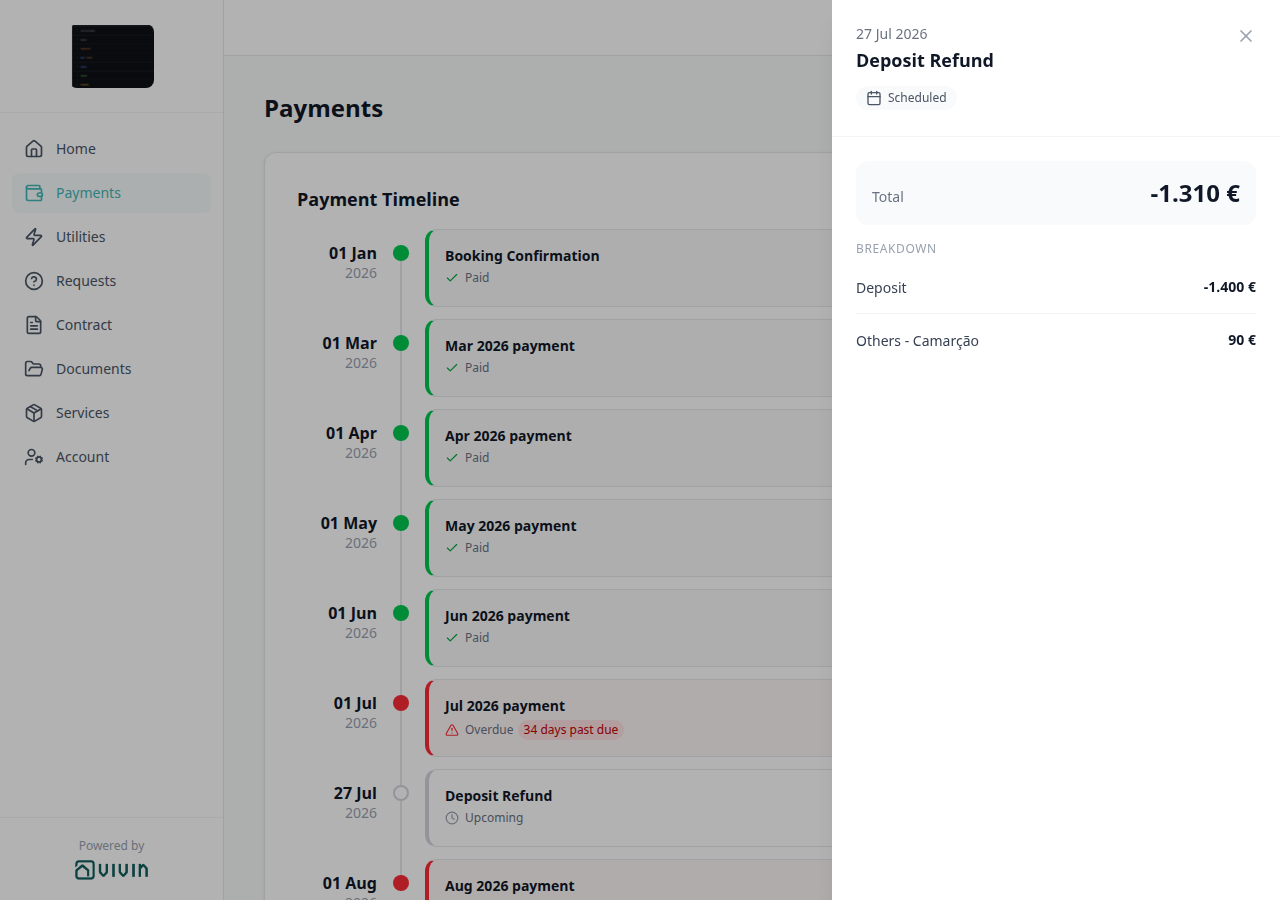
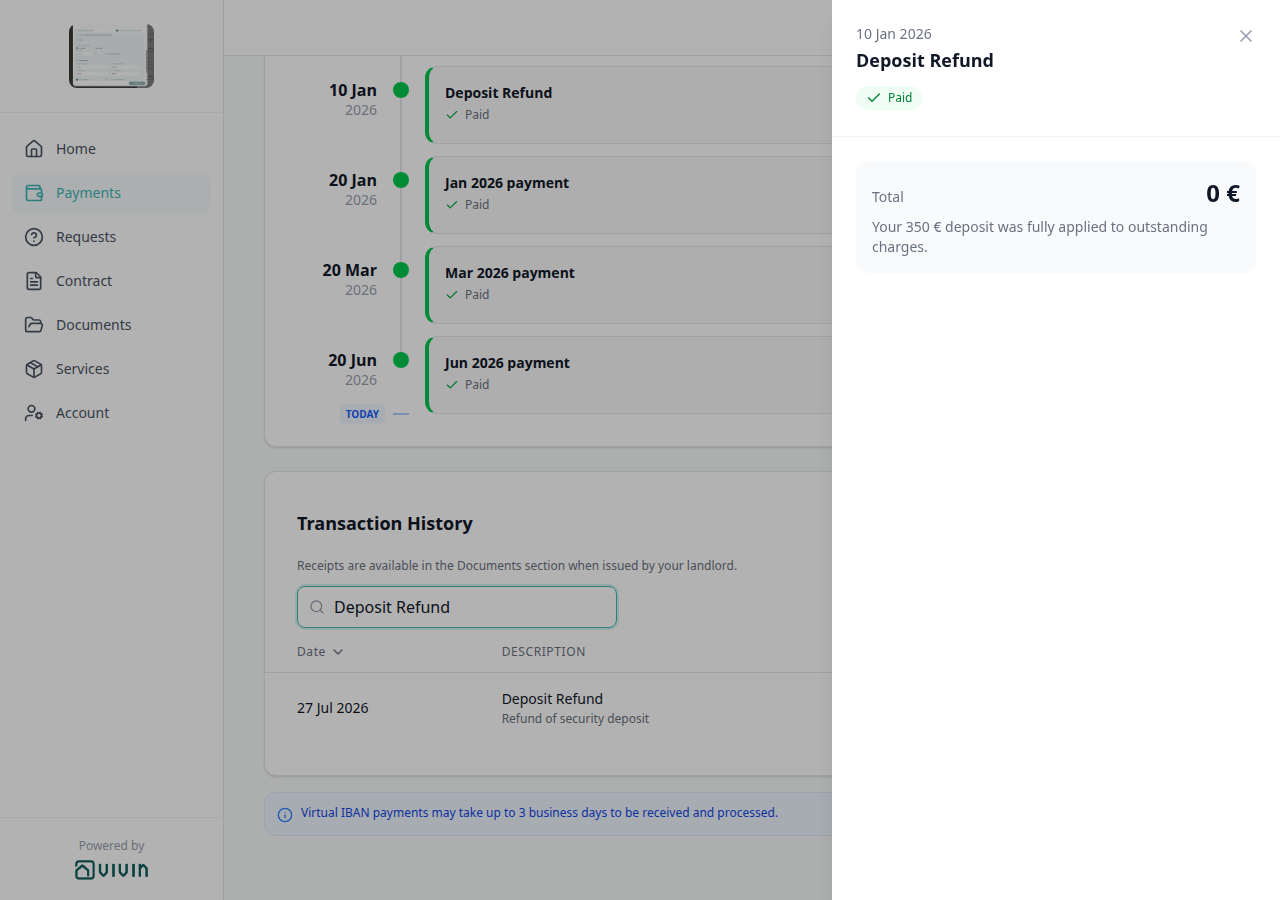
Does Mark refunded send money to the tenant?
Mark refunded pairs with Finance — Deposit Return Workflow, Bookings — Deposit tab, Managing a Check-out — Step 5, and Glossary — Deposit lifecycle status.
No. Mark refunded only records that you completed (or will complete) the bank return outside Vivin. The button label is always Mark refunded — it never shows a live Refund €… amount (read Est. Refund / Total to refund instead).
| Surface | Confirm step | Tip |
|---|---|---|
| Bookings → Deposit | Confirm modal with This does not actually send any money to the tenant | Safer when you want an explicit review before status flips |
| Finance → Deposits | No confirm modal — click applies immediately | Finish the bank transfer first; use Ready to refund + search to build the queue (finance-deposits-mark-refunded-row-action.png, finance-deposits-mark-refunded-row-flow.mp4) |
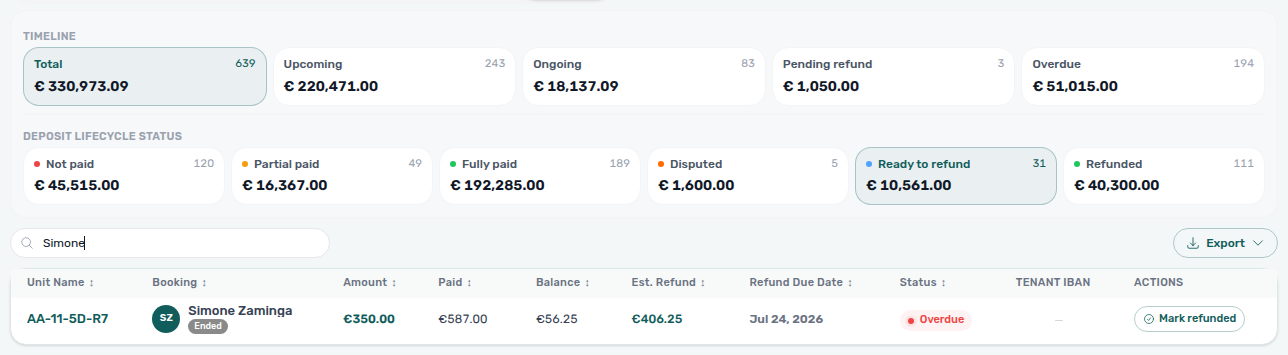
Can I refund an overpayment when the booking has no security deposit?
No-deposit overpayment returns pair with Bookings — Refund an overpayment when there is no deposit, Does Mark refunded send money to the tenant?, Managing a Check-out — Step 5, and Why do I not see a deposit on Finance Deposits?.
Yes. Open the booking Deposit tab. When Initial Deposit is a dash and the pill reads No deposit, a payment-plan surplus still appears as Current Adjustments. Mark refunded records that you returned that surplus outside Vivin (the confirm modal still says Refund Security Deposit and repeats that Vivin does not send money). After confirm, Refund Completed shows From overpayment balance only.
The same button appears when a configured deposit is Unpaid but the payment plan is in overpayment — Vivin hides the Deposit not paid — refund unavailable helper so you can return the surplus without waiting for deposit collection.
Finance → Deposits does not list bookings with no configured deposit. Find them from the booking sidebar, or filter the Bookings list Other filters → Balance → Overpayment.
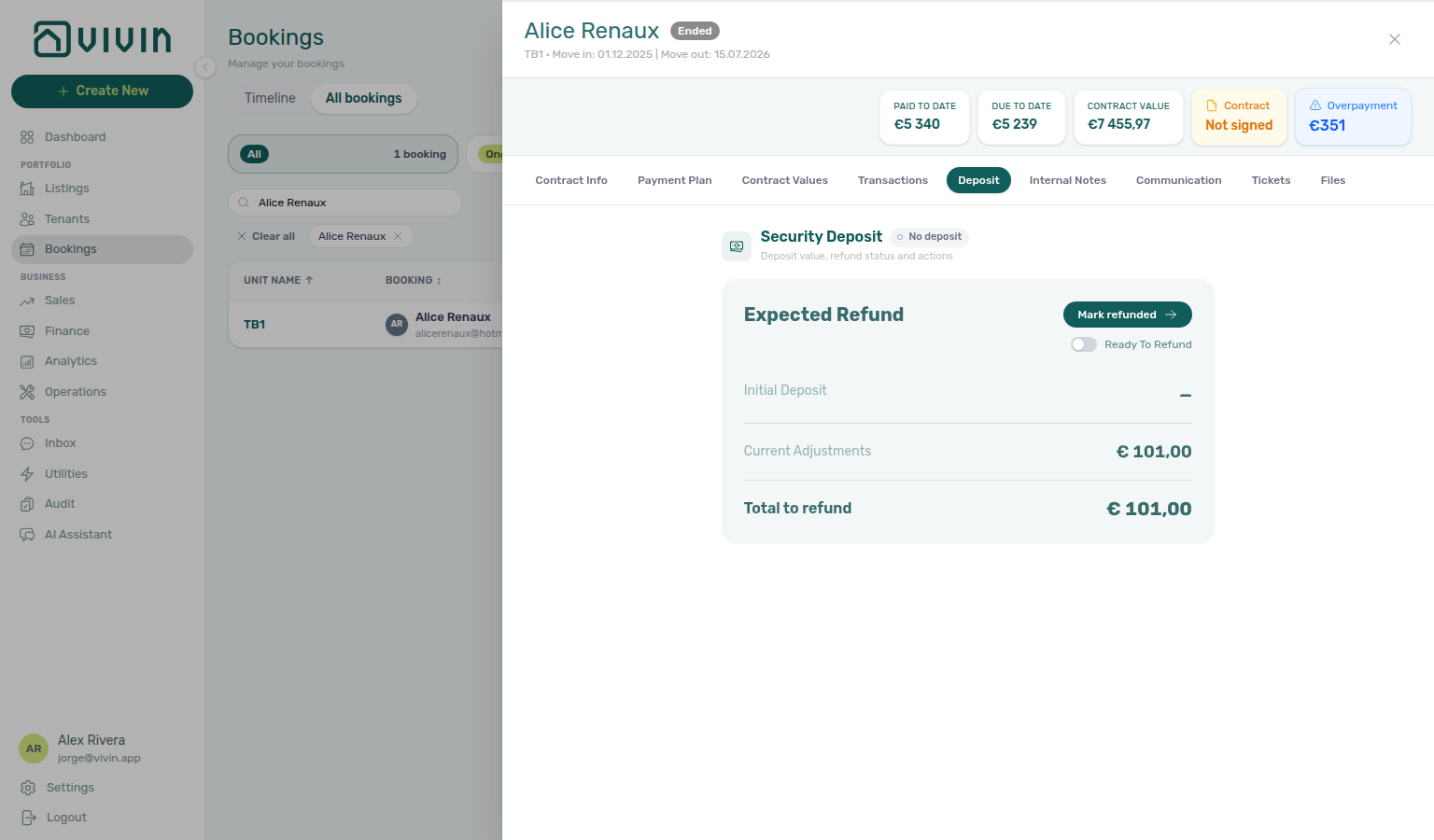
Why does Payment Plan show Refunded instead of Overdue on a deposit return?
Refunded deposit-return rows pair with Bookings — Refunded status when fees share the due date, Does Mark refunded send money to the tenant?, and Managing a Check-out — Step 5.
After Mark refunded, the Payment Plan due-date row with subtitle Deposit Refund uses a green Refunded status — not Overdue or Pending — even when that due date is in the past. If other fees were settled from the deposit on the same day, they still appear in Others (or fee columns) and count toward Paid, but Total stays the net cash return (those settled amounts are not added again). Click the row to open the due-date Breakdown: status Refunded, Total due matches the schedule, and co-located fees show Fully paid.
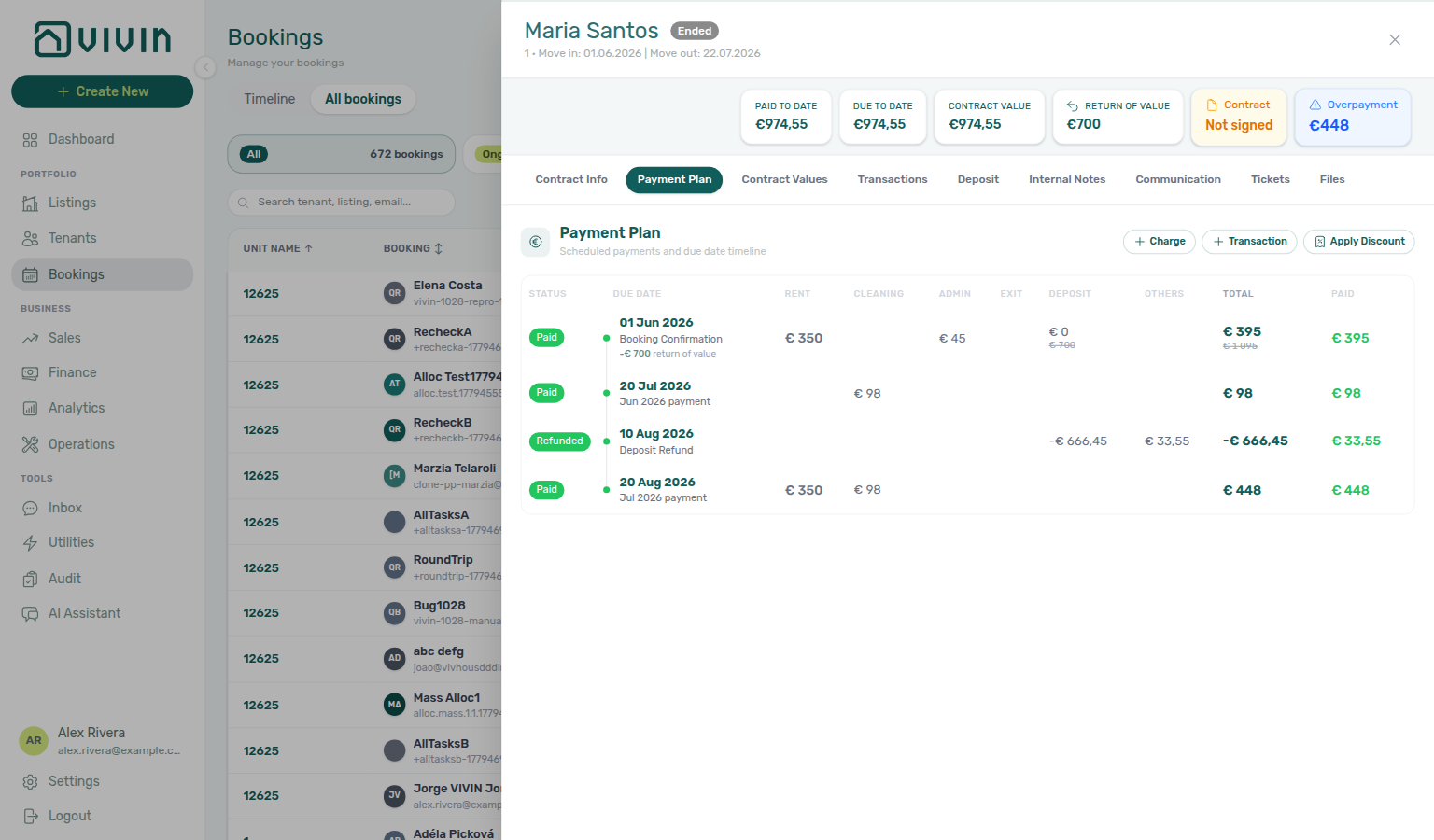
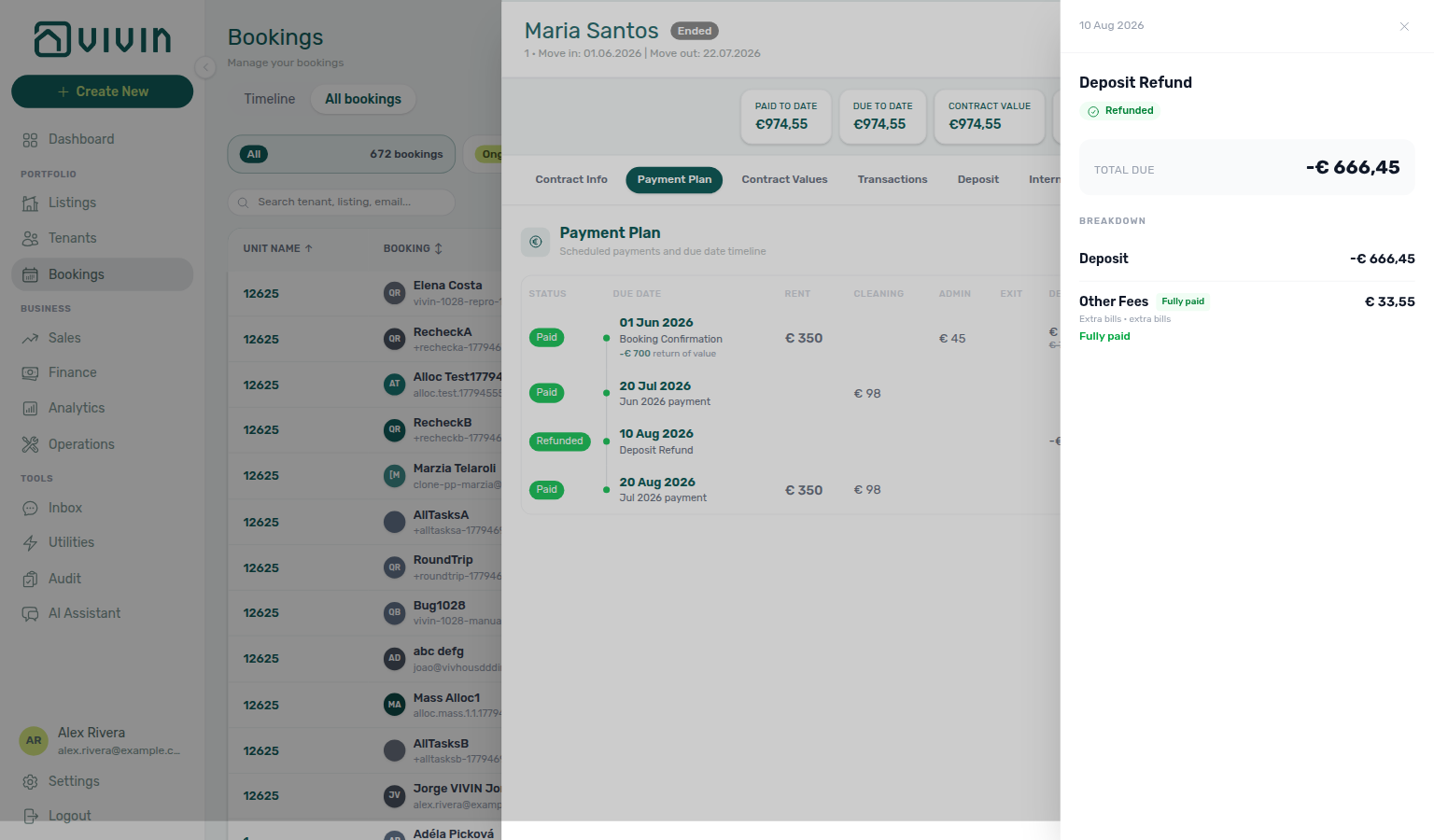
What fiscal documents does Mark refunded create?
Deposit refund fiscal reversal pairs with Bookings — Deposit refund fiscal reversal, Finance — Issuing credit notes, Managing a Check-out — Step 5, and Does Mark refunded send money to the tenant?.
Mark refunded always posts the cash Deposit Refund ledger line. It also reverses the deposit collection so accounting matches the return:
- Invoiced / manual / draft deposit cash → pending credit note (reason Refund of security deposit). Finance issues it from Finance → Transactions → Not issued credit note (or Set manual when the nota de crédito is handled outside Vivin).
- Paid, not-invoiced deposit cash → return of value on the deposit line (no provider document).
- Mixed deposits can receive both on the same booking.
On Payment plan, look for the teal −€… credit note / −€… return of value subtitle beside the deposit collection, plus the Deposit Refund out-payment row. Edit amount and Return of value stay disabled on the deposit Contract Values line so operators do not double-reverse outside the Deposit tab. Revert refund works only while deposit credit notes are still Pending — once issued to the provider, the refund stays final. On Hostkit, if the deposit invoice cannot be reversed on its own (shared with other charges or only partly paid), Vivin blocks the refund until you reverse that invoice in Hostkit first.
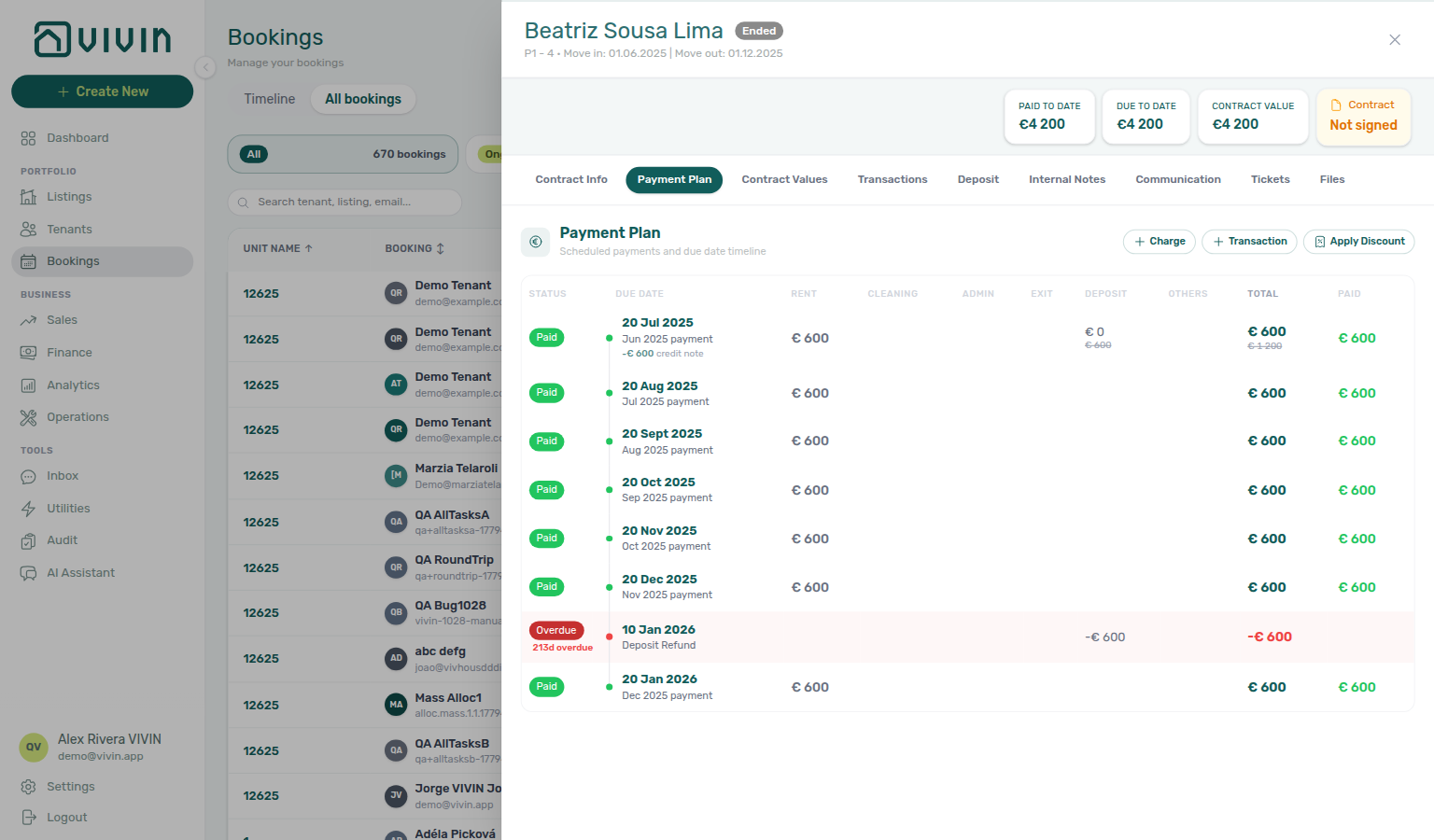
How do I transfer a deposit refund to another booking for the same tenant?
Transfer refund balance pairs with Bookings — Deposit tab, Managing a Check-out — Step 5, and Why does the tenant portal show a different deposit refund amount? (portal shows €0 net on the source after transfer).
After Refund Completed on the source booking Deposit tab, click Transfer (requires bookings.refund). In Transfer Refund Balance, read the amber warning — Vivin creates a credit payment on the destination booking and the source refund becomes non-reversible (Revert refund disables after transfer). Choose Select a target booking (only other reservations for the same tenant; rows show property — unit · contract dates · status when the tenant has several stays), then Confirm Transfer. Do not confuse this with Assign to other booking on Finance → Transactions, which moves an in-payment receipt and can target a different tenant.
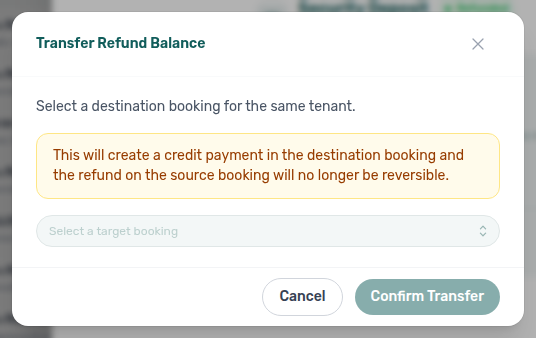
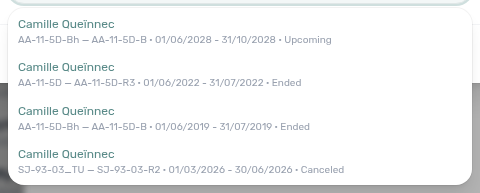
How do I switch a booking's Virtual IBAN to another stay for the same tenant?
Switch IBAN pairs with Bookings — Virtual IBAN, How do I transfer a deposit refund to another booking for the same tenant? (same picker identity pattern), and Finance — Automated Rent Collection.
On Bookings → Contract Info → Method of payments, click the pencil (Switch IBAN) beside the Virtual IBAN. In Edit Booking Virtual IBAN, pick another reservation for the same tenant from Select a booking — rows show property — unit · contract dates · status so same-unit stays stay distinguishable — then Update IBAN only when you intend to swap the references. Close without updating to leave the current IBAN unchanged. This swaps virtual IBANs between stays; it does not move deposit refund credit (use Transfer on the Deposit tab for that).
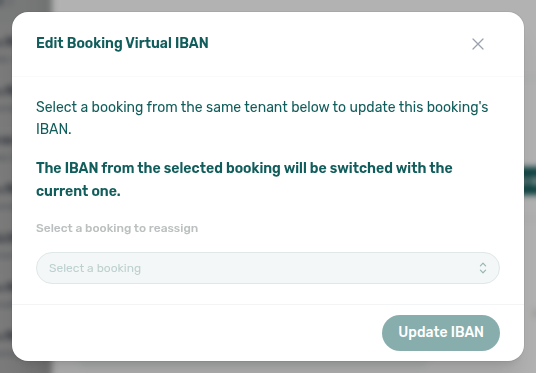
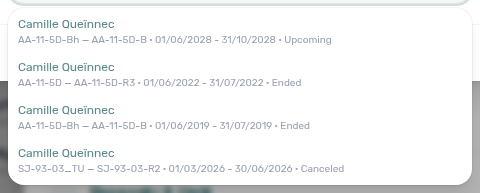
Why is a payment showing in the wrong month? Check the Paid At date on the incoming payment. If it is set incorrectly, the payment will appear in the wrong period in financial reports. Correct it in the Finance > Transactions tab.
A tenant paid on the wrong booking — can I move the receipt without re-entering the amount?
Yes, when your role includes Assign payments to other bookings (finance.assign_payments_to_other_bookings). On Finance → Transactions or a booking’s Transactions tab, use Assign to other booking on an eligible in-payment row, or open transaction detail and use Reassign after choosing the target booking. The target can belong to a different tenant as long as it is in the same Vivin account — the case where a tenant pays for a family member and the transfer lands on the payer's booking. Open Select target booking and use the property — unit · contract dates identity rows so similar stays stay distinguishable before you confirm. The whole payment moves (there is no partial split), and the control is disabled when any allocation on that payment is already invoiced. See Finance > Assign a payment to another booking (finance-transactions-assign-picker-identity.png, finance-assign-picker-identity-flow.mp4).
How does payment allocation work? Incoming payments are allocated to scheduled charges based on the priority order configured in Settings > Payments. The highest-priority outstanding charge is paid first. See Payment Allocation for a detailed explanation.
What happens when a tenant overpays? The excess amount becomes a credit that is automatically applied to the next outstanding charge. See Overpayment Handling.
How do I reconcile bank statements with Vivin? Use the Transactions tab as your ledger: set the date range and Other filters to match the statement period, and use Select platforms when you isolate one channel's inflows. Export CSV or Excel to compare against your bank file offline. When you need to approve pending payments or batch-update invoice or allocation state, select rows with the checkboxes and use Approve selected, Issue allocation, Set manual, or Revert invoice from the bulk bar (requires Approve payments). For platform payouts where commissions were deducted, see Platform reconciliation. If a payment appears in the wrong month in reports, check Paid At on the transaction row.
Why is bulk Hostkit invoicing slow?
Bulk Hostkit pacing pairs with Bulk Hostkit invoicing hub (symptom table + per-guide mesh), Common Workflows — Month-end invoicing (fixed date) (save fixed Invoice date before bulk Issue allocation), Common Workflows — Bulk Hostkit invoicing, Common Workflows — Reject/revert mistaken receipts (Issue credit notes after invoiced Reject / Revert), Glossary — Hostkit.
Before you re-run Issue allocation on the same rows, match what you see:
| What you see | What it usually means | What to do |
|---|---|---|
| Rows stay Pending for several minutes | Hostkit rate limit — Vivin paces per listing key | Leave the batch running; refresh Transactions before duplicate runs |
| Rows still not Invoiced after a refresh | Missing Listing keys or blank Hostkit invoice series | Integrations — Hostkit + Invoicing — Hostkit series |
| Hostkit invoice series is not configured toast | Series field empty | Save the exact FR code from Hostkit Faturação → Séries |
| Wrong document date on issued invoices | Fixed Invoice date still active | Month-end invoicing hub — turn Use today back on after batch |
| Bulk Pending — not a date issue | Hostkit API pacing | Bulk Hostkit invoicing — refresh Transactions before re-issue |
| Not issued credit note queue after Reject / Revert | Invoiced charge reversed in Vivin | Issue credit notes (N) — same Hostkit pacing as Issue allocation — Reject/revert mistaken receipts |
| Change monthly rent clamped below exported total | Invoiced floor — not Hostkit pacing | Rent reduction after invoicing — external credit note first |
Hostkit limits how many API requests each listing key can make per minute. When you run Issue allocation or Invoice selected on many Finance → Transactions rows at once, Vivin paces outbound Hostkit calls (per key and at account level) and automatically retries rate-limit responses with backoff — so a large batch can take several minutes even though the UI stays responsive.
What to do: leave the batch running, then refresh Transactions before you click Issue allocation again on rows that are still Pending — duplicate runs create support noise. If rows stay incomplete after a few minutes, confirm each unit has a Listing keys entry and Hostkit invoice series is saved. See Integrations — Hostkit API pacing, Glossary — Hostkit, and Portfolio KPI review — Step 7 (month-end sign-off).
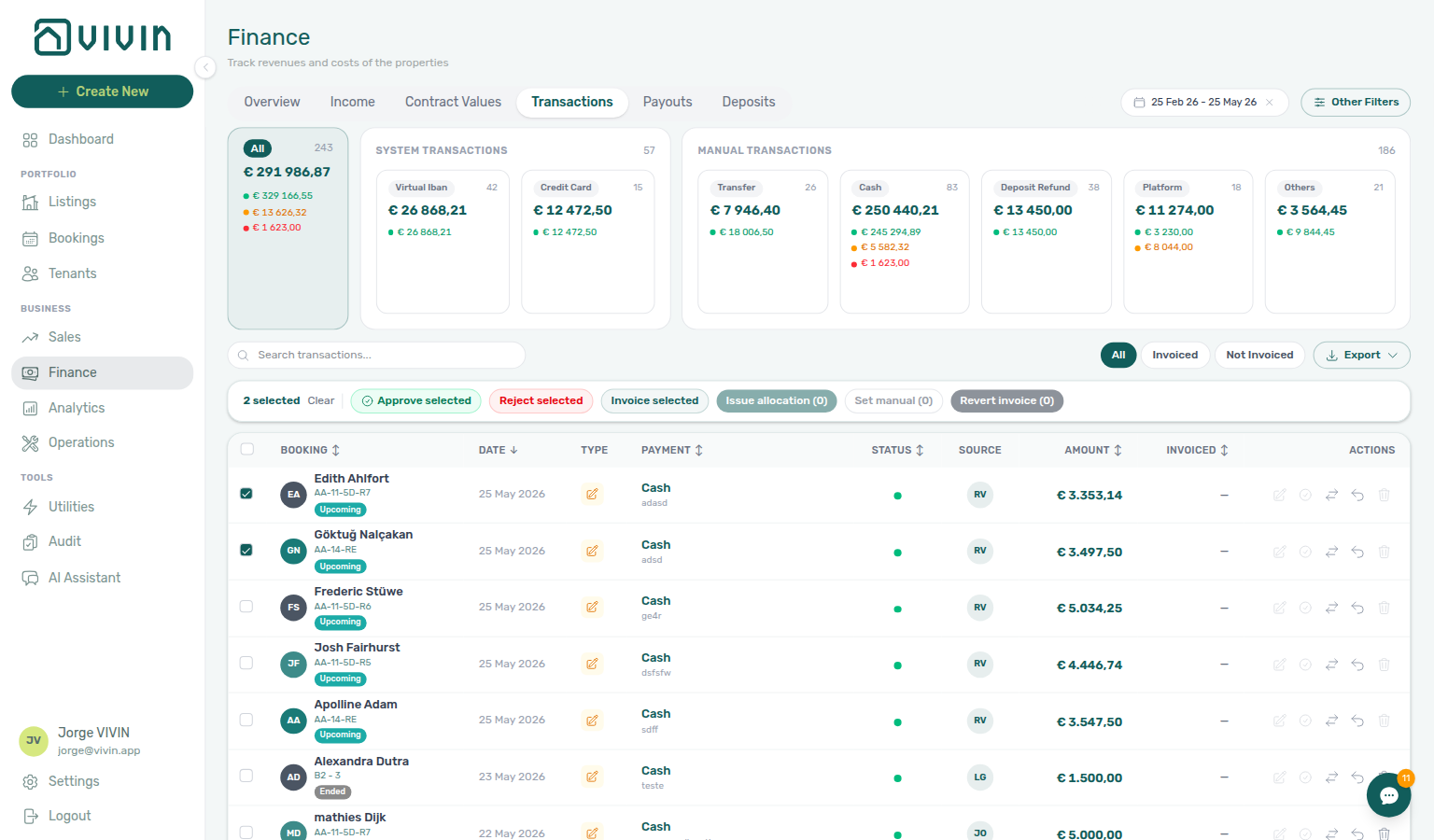


How do I check which tenants have provided their IBAN for deposit returns? The Deposits tab lists Tenant IBAN on each row and supports search (including IBAN substring) plus quick status chips so you can focus on refunds blocked on missing bank details. See Finance > Deposits.
How do I set a different deposit refund limit for one booking?
Per-booking refund ceilings pair with Settings → Payments — Deposit Refund Deadline, Bookings — Deposit Refund Limit, and Glossary — Deposit Refund Limit.
Open the booking sidebar → Contract Info → Booking information → pencil. Deposit Refund Limit shows Account default (N days) when the booking inherits Settings → Billing → Payments → Deposit Refund Deadline.
| Goal | What to enter |
|---|---|
| Keep the account default | Leave the field blank, then Update |
| Same-day ceiling | Enter 0, then Update |
| Custom window for this stay | Enter the day count (for example 30), Update |
Blank clears an override; 0 is a real override (not the same as blank). Finance Deposits → Refund Due Date and post-checkout Add Charge due-date bounds use the effective term for that booking. Marketplace POST /bookings cannot send this field — imported stays inherit the account setting until you override it here — FAQ — Marketplace booking Deposit Refund Limit. Screenshots and clip: bookings-detail-deposit-refund-limit-inherited.png, bookings-detail-deposit-refund-limit-edit.png, bookings-detail-deposit-refund-limit-override.png, bookings-deposit-refund-limit-flow.mp4.
How do I find bookings where the security deposit is only partly collected?
Deposit collection shortfalls pair with Glossary — Deposit lifecycle status, Glossary — Partly collected security deposit, Glossary — Partly collected security deposit hub, Finance — Deposit lifecycle status cards (Partial paid card), Common Workflows — Partly collected security deposit.
Partial Paid on a security deposit is not the same signal as Partial Paid on a rent schedule line — use this table before you chase the wrong tab:
| Signal | Where to look | What it means |
|---|---|---|
| Deposit Partial paid lifecycle card | Finance → Deposits — Deposit lifecycle status row | Portfolio queue: Paid > 0 but < Amount on the deposit |
| Other filters → Deposit status → Partial paid | Bookings or Finance → Contract Values | Same lifecycle slice without opening Finance first |
| Amber Partially paid + remaining | Booking sidebar Deposit tab — Initial Deposit | Per-booking shortfall (Partial Paid on depositStatus) |
| Partial Paid on a rent line | Payment Plan or Contract Values rent rows | Scheduled rent — not the security deposit |
On Finance → Deposits, click Partial paid in the Deposit lifecycle status row on Finance → Deposits to narrow the table to rows where Paid is greater than zero but still below Amount. Alternatively, open Other filters → Deposit status → Partial paid on Bookings or Finance → Contract Values for the same lifecycle slice across modules. Click a row to open the booking sidebar on Deposit — the Initial Deposit row shows an amber Partially paid badge and a remaining helper with the shortfall (Partial Paid on depositStatus). The same badge appears when you open Deposit from the booking list without using Finance first. See Common Workflows — Partly collected security deposit.


How do I freeze a deposit refund while we dispute deductions?
Turn on Enable deposit disputes under Account Settings → Preferences → Charges & Payments, then use Mark as Disputed on the booking Deposit tab (or Mark disputed on Finance → Deposits) while the deposit is Fully Paid and your role includes bookings.dispute. Mark refunded stays disabled until you click Resolve Dispute (Disputed on depositStatus — see Glossary — Deposit lifecycle status). Portfolio triage: Other filters → Deposit status → Disputed on Bookings or Finance — see Finance — Deposit status filter. Full symptom table and mesh: Deposit dispute hub. See also Glossary — Deposit dispute hub, Glossary — Deposit dispute, Bookings — Deposit disputes, Finance — Deposit disputes (portfolio actions), Managing a Check-out, and Cancelling a Booking when retention is contested during cancellation.
Does Mark refunded on the booking leave the row on Finance → Deposits?
No. After you confirm Mark refunded, Revert refund, Mark as Disputed, Resolve Dispute, or Transfer on the booking Deposit tab, Finance → Deposits already shows the new state. A Ready to refund row leaves that queue; lifecycle cards move with it. You do not reload the tab or change its filters.
If the booking sidebar is still open over Finance → Deposits, close it to see the table. Distinct from the date range — older move-outs can still sit outside the default three-month window. Distinct from All bookings Filters → Deposit status after Ready To Refund — that Bookings slice already updates too (Does Ready To Refund leave the booking on Fully paid?). See Bookings — Finance Deposits updates from this tab and Managing a Check-out — Step 5.
Why do I not see a deposit (or dispute row actions) on Finance → Deposits?
Before you assume a booking has no deposit record, check whether the Finance → Deposits toolbar date range is hiding the row:
| Symptom | Likely cause | Fix |
|---|---|---|
| Tenant or unit missing after an older move-out | Default ~3 months excludes check-out / Refund Due Date | Clear date range selection or widen from / to, then Search |
| Booking has No deposit but the tenant overpaid | Finance → Deposits only lists configured deposits | Open the booking Deposit tab — FAQ — Refund overpayment with no deposit |
| Mark disputed / Resolve dispute chips missing on Finance | Dispute row actions only render on visible rows | Clear or widen the toolbar range first |
| Lifecycle card counts look too low | Cards scope to the active date window | Clear the range before month-end deposit triage |
| Partial paid card empty after clearing range | No partly collected deposits in portfolio | FAQ — Partly collected security deposit — distinct from rent Payment Plan |
| Older move-outs surfaced during lockout catch-up | Delayed refund/dispute triage | Common Workflows — Lockout catch-up after password recovery |
The tab’s date range defaults to about the last three months. Rows appear when check-in, check-out, or Refund Due Date intersects that window — not when the booking was created. For older move-outs, clear the date range or widen from / to, then use Search by tenant or unit. The same range applies to status summary card counts and to which rows match for Export — Deposits Export downloads the full filtered set for that range (see Why is my Finance export missing rows?). See Common Workflows — Deposit missing on Finance Deposits.


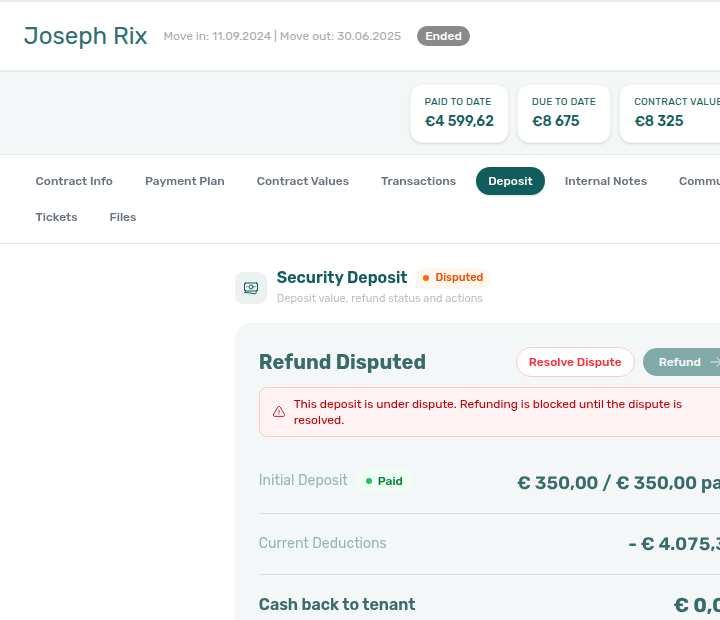
Where is the invoice number in the Finance → Transactions export?
Finance → Transactions → Export (CSV and Excel) includes an Invoice Reference column immediately after Invoice Status. It carries the provider document number Vivin stored on that allocation (the same value shown as #… in transaction detail) — for example a Sage ST… id, Hostkit {series}/{id}, an Invoice-xpress document id such as #263420692, or a NetSuite document id. Rows marked invoiced outside Vivin, or allocations with no document id on file, leave the cell empty. Module reference: Finance — Invoice Reference in the export.
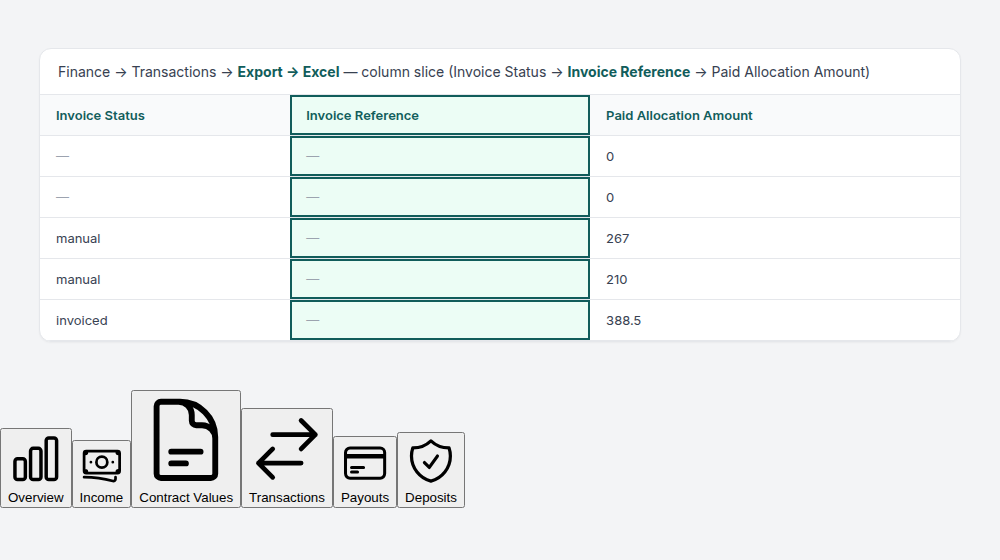
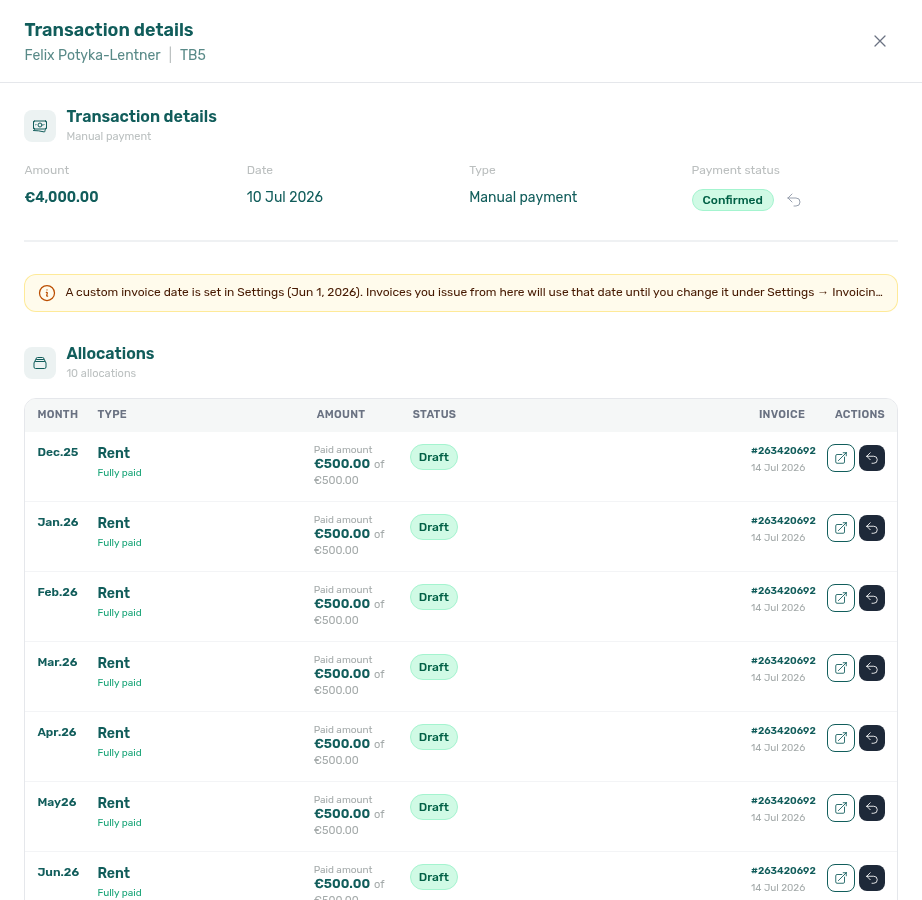
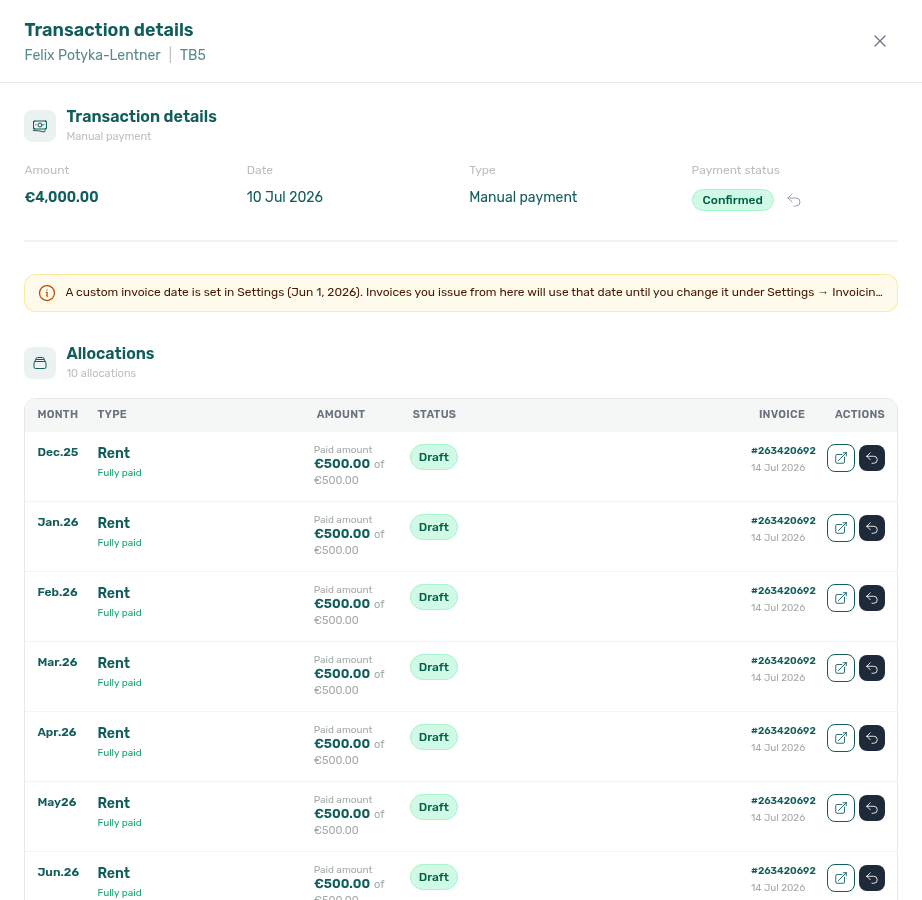
Which exports include a Booking ID column?
Every export whose rows are bookings (or booking-linked charge / message / check-in lines) carries a Booking ID column — the Vivin booking UUID — under a consistent header:
| Surface | Header | Notes |
|---|---|---|
| Finance → Deposits / Contract Values | Booking ID | First column |
| Finance → Income | Booking ID | First column on the aggregated income export |
| Finance → Transactions / Overview Income drill-down | Booking ID | First column on Transactions (before Unit Name / Guest Name) |
| Finance → Payouts | Booking ID | Header standardised (was raw bookingId); after bookingInPaymentDate |
| Audit → Discounts | Booking ID | First column |
| Operations → Check-in & Check-out | Booking ID | First column |
| Tenants → Bookings CSV | Booking ID | First column |
| Settings → Communications → Communication schedule | Booking ID (translated) | Alongside recipient / subject / status |
| Listings → Portfolio listings CSV | Current Booking ID | Beside active-booking start/end/rent (unit row) |
| Bookings list export | id | Same booking UUID under the shorter id header (bookings-list-export-id-columns.png, bookings-list-export-id-column-flow.mp4) |
Use Booking ID (or id on the Bookings list export) to join downloads to Vivin deep links (/bookings/list/<bookingId>) or an external ledger. Empty cells mean the row has no booking (for example a unit with no active stay, or a credit-note edge case) — not a missing export column.
On the same Bookings list export, contractTotalValue sits beside bookingTotalValue. Use contractTotalValue when you need contracted rent only (the figure contracts print as {ContractTotalValue}); use bookingTotalValue when you need the sum of every payment line (rent plus deposit and fees). An empty contractTotalValue cell means the rent total is not yet known — not zero. The same sheet also includes othersValue (sum of Other items charges) and othersCategories (JSON array of Others Items category labels; [] when none). See Bookings — Exporting the list (bookings-list-export-contract-total-columns.png, bookings-list-export-others-columns.png).
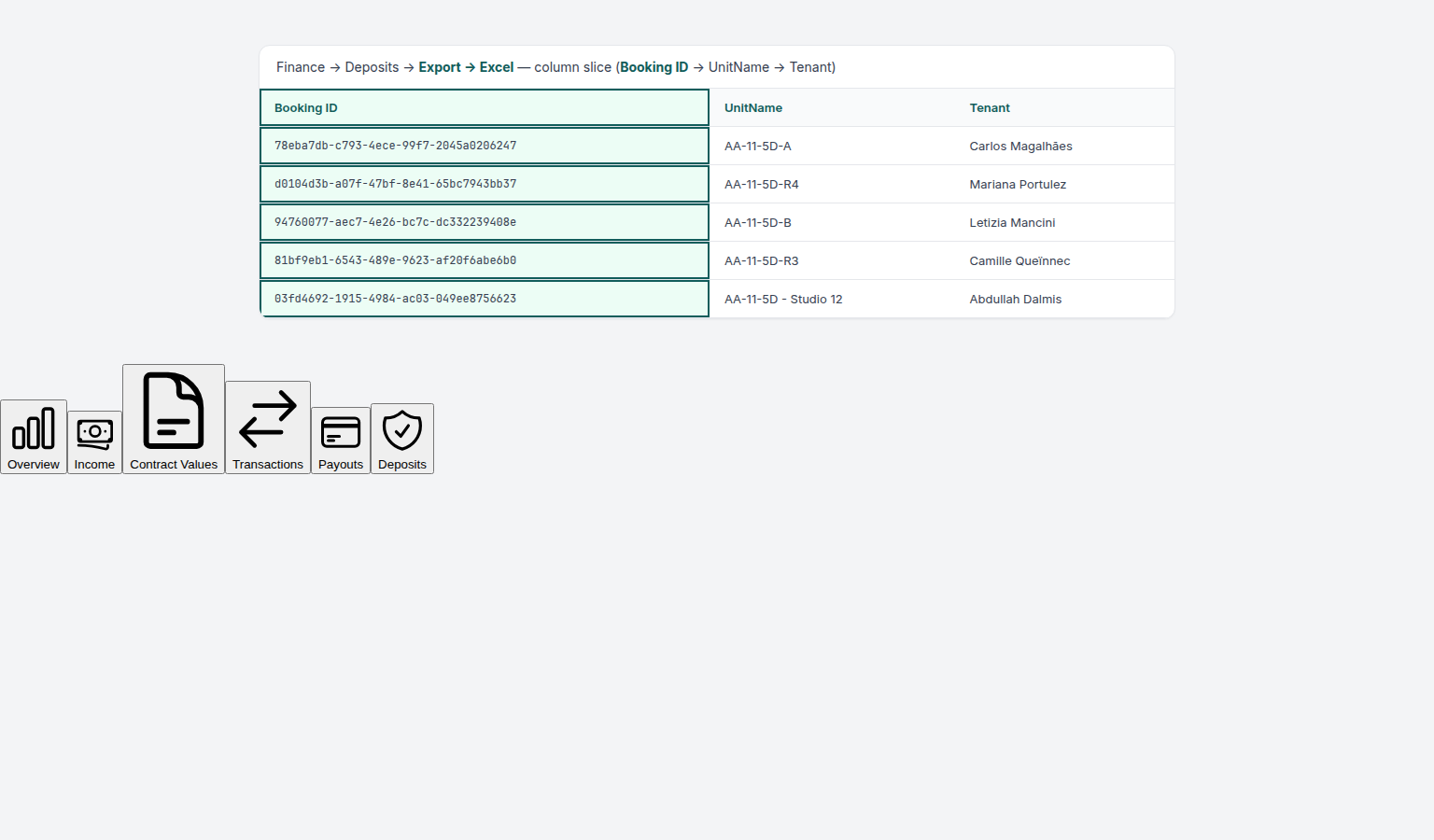
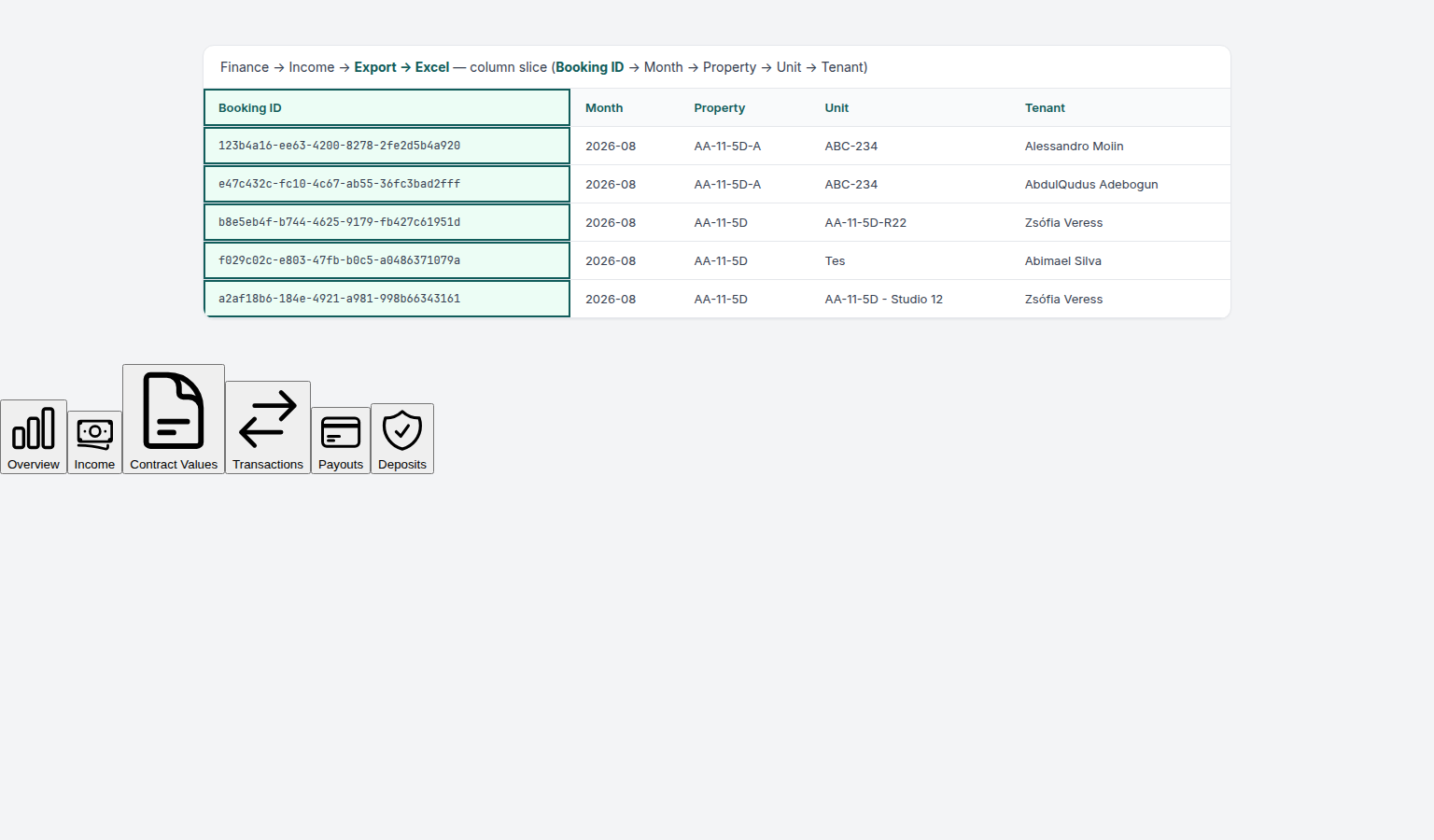
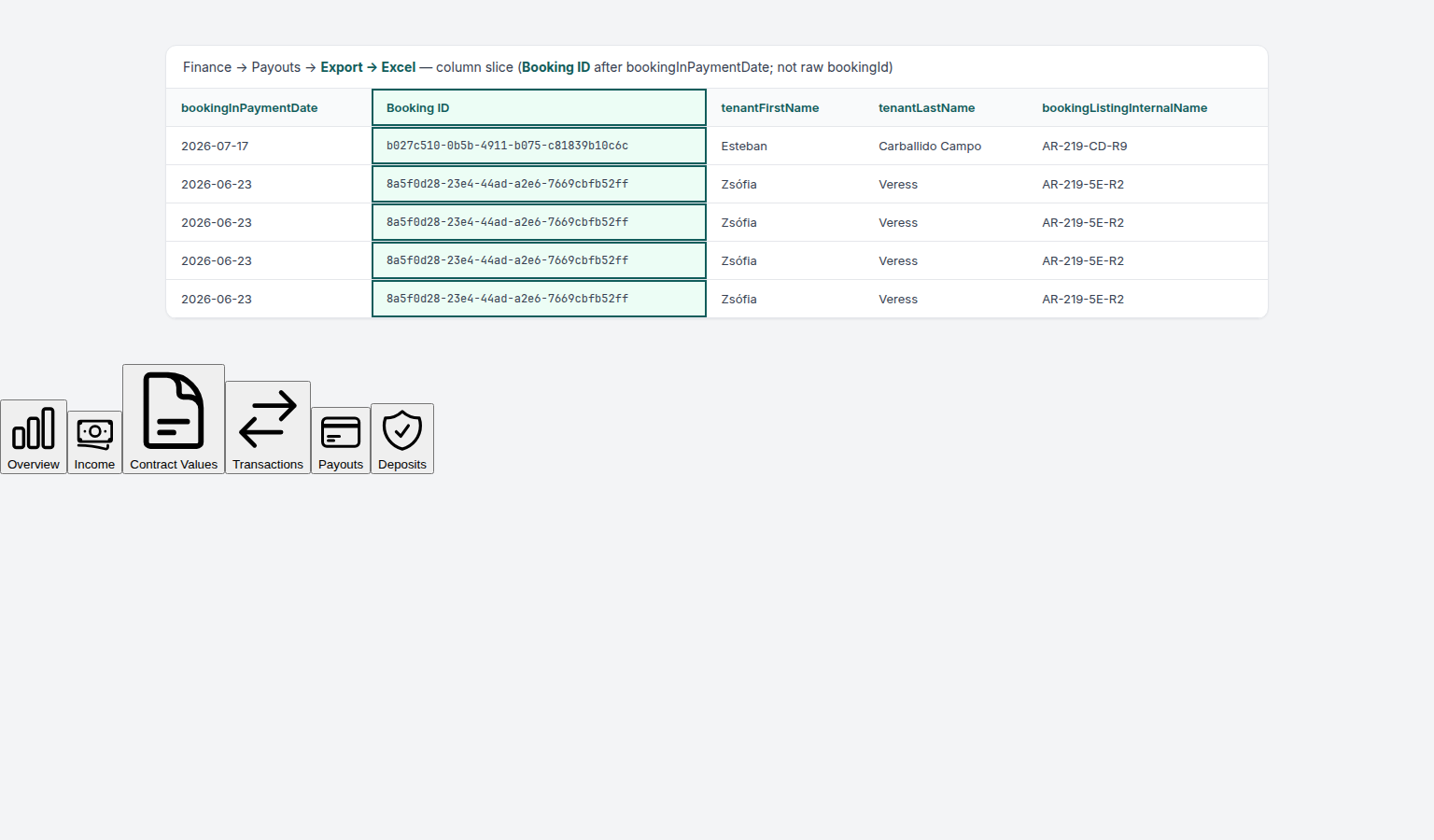
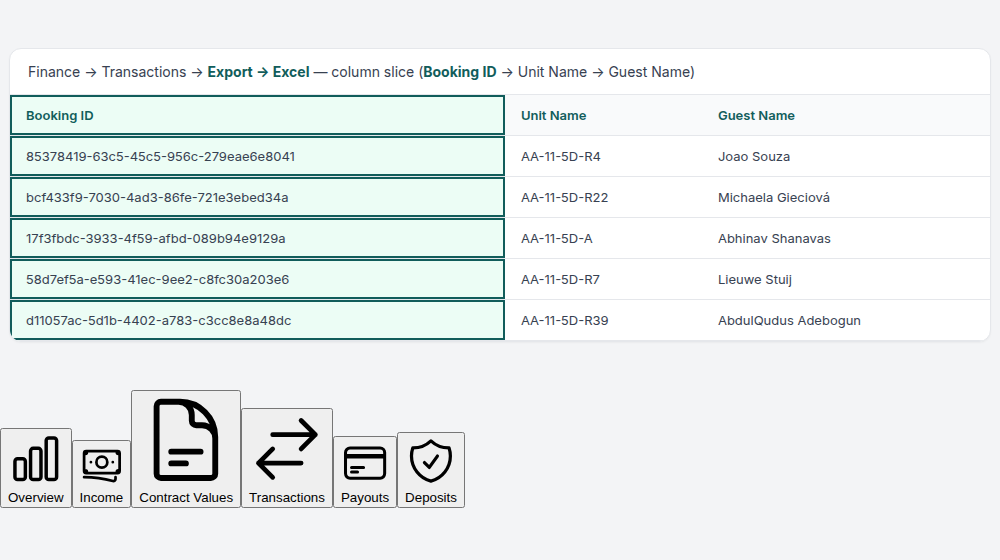
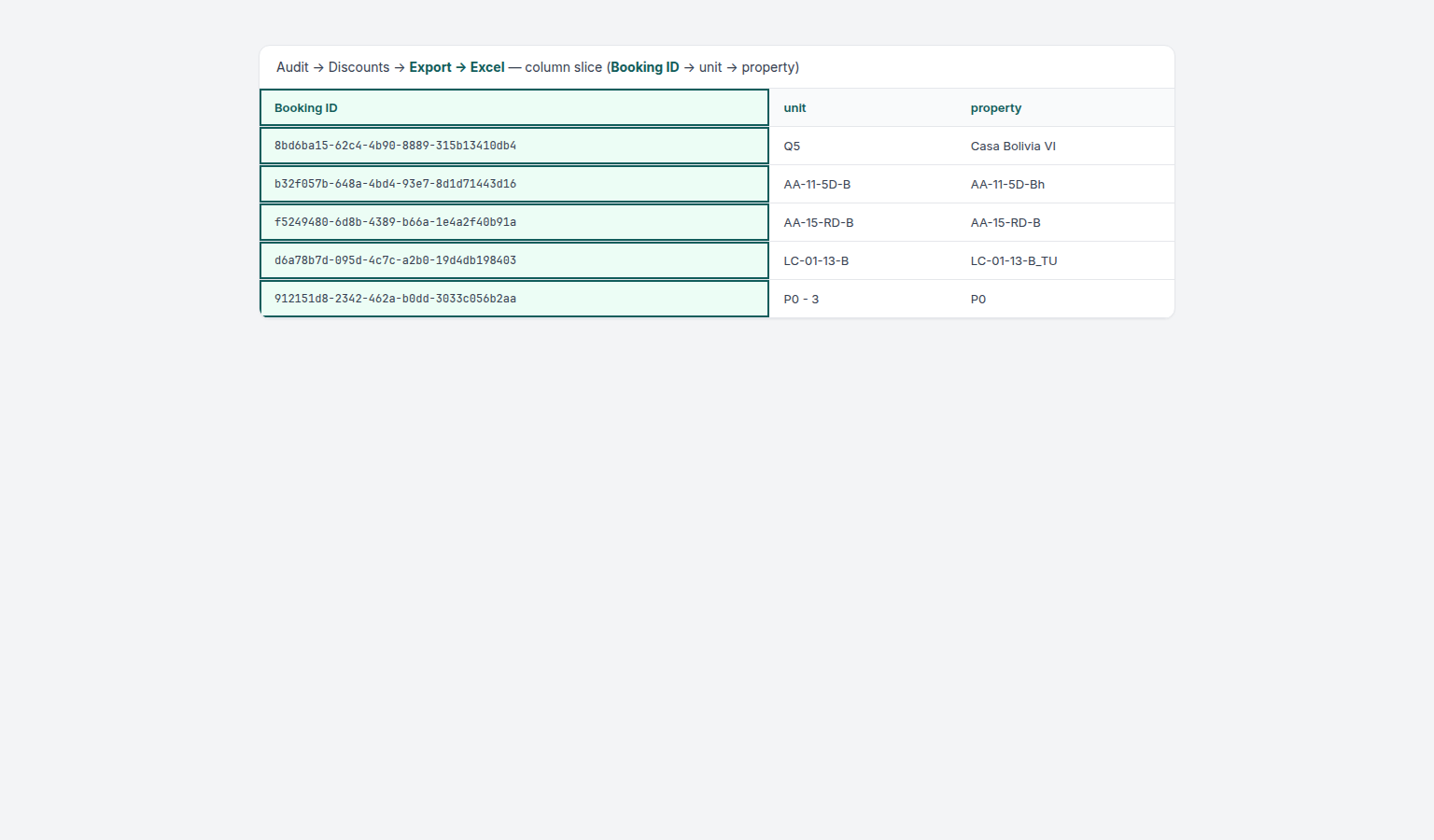
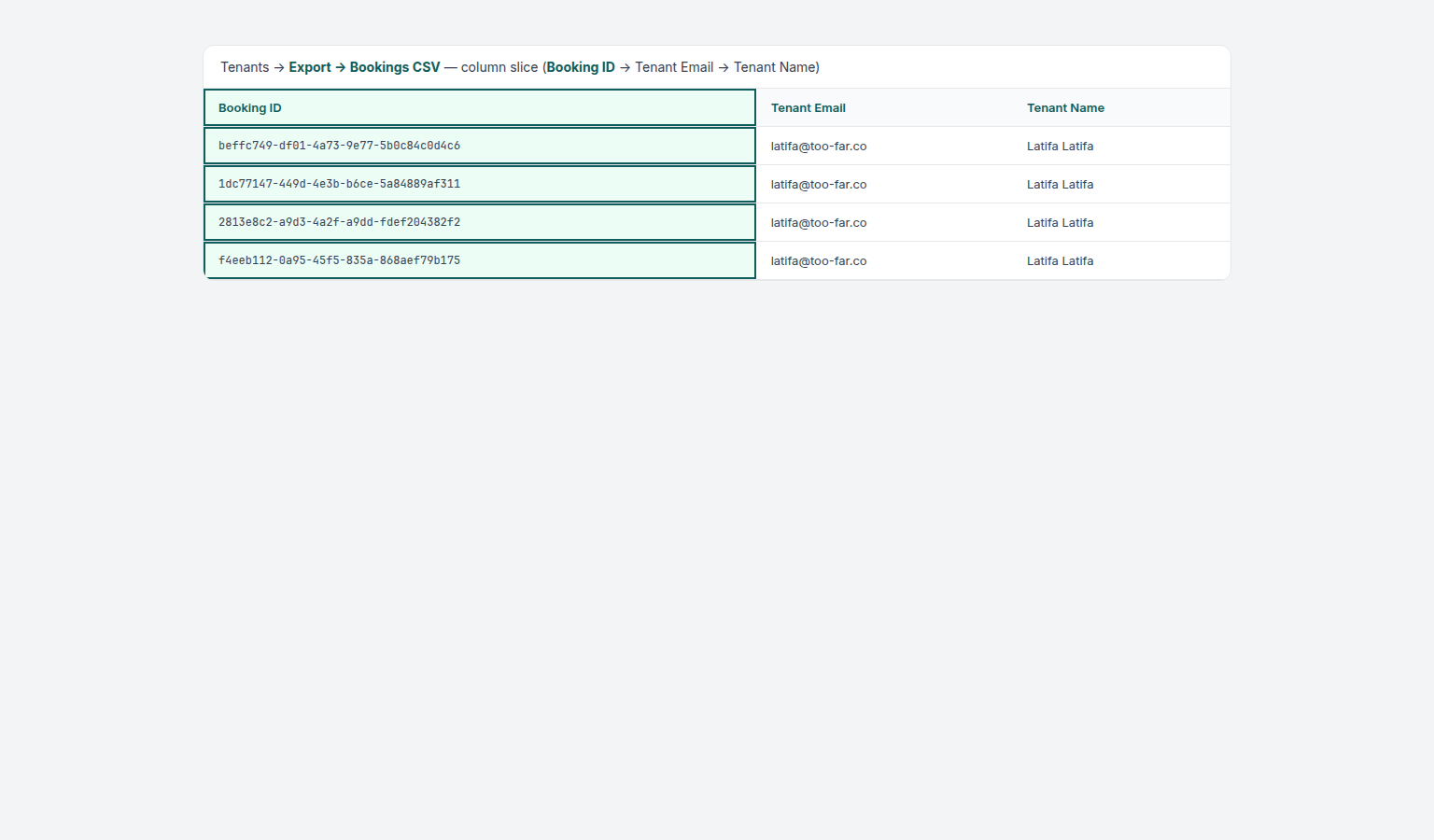
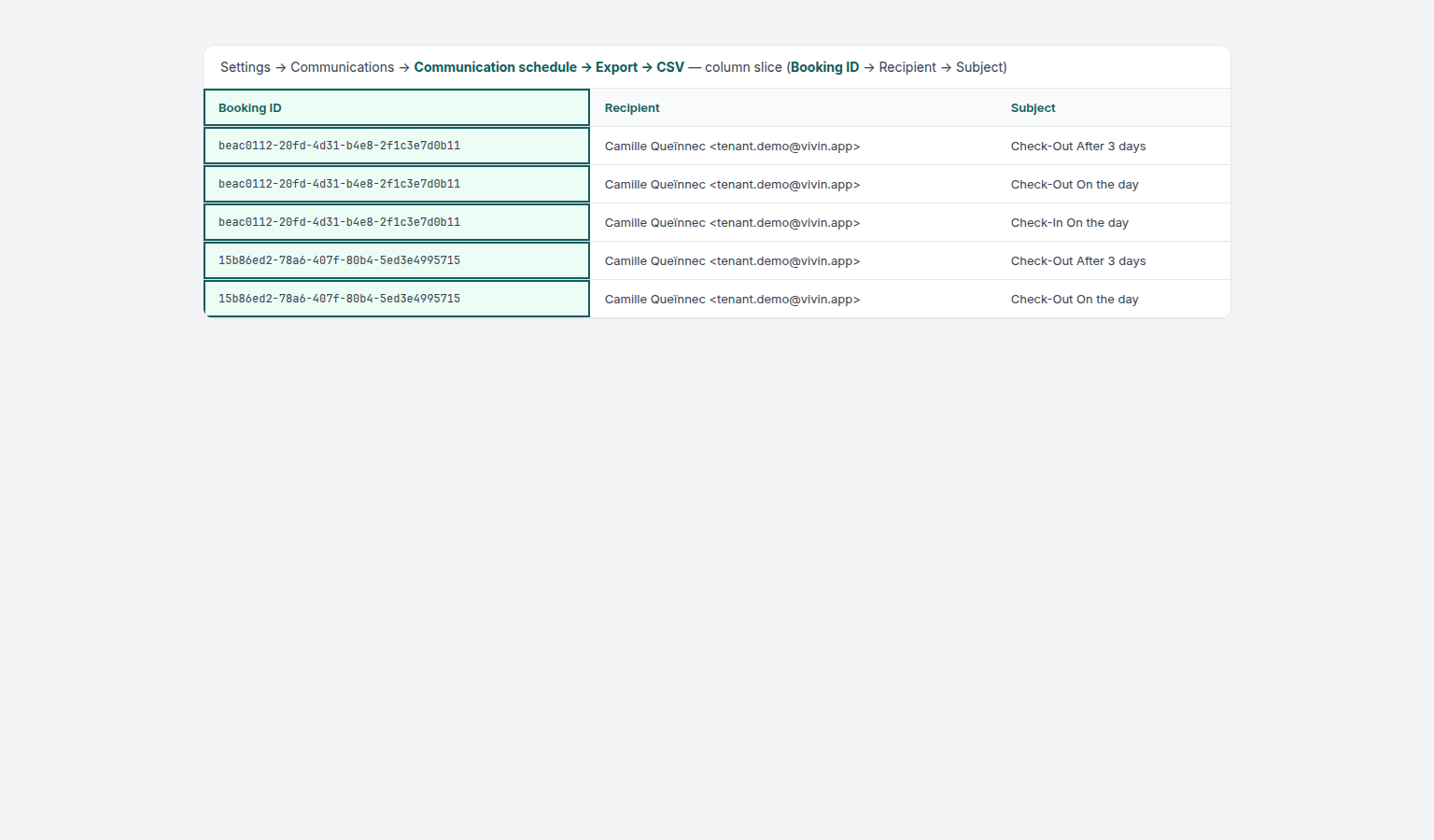
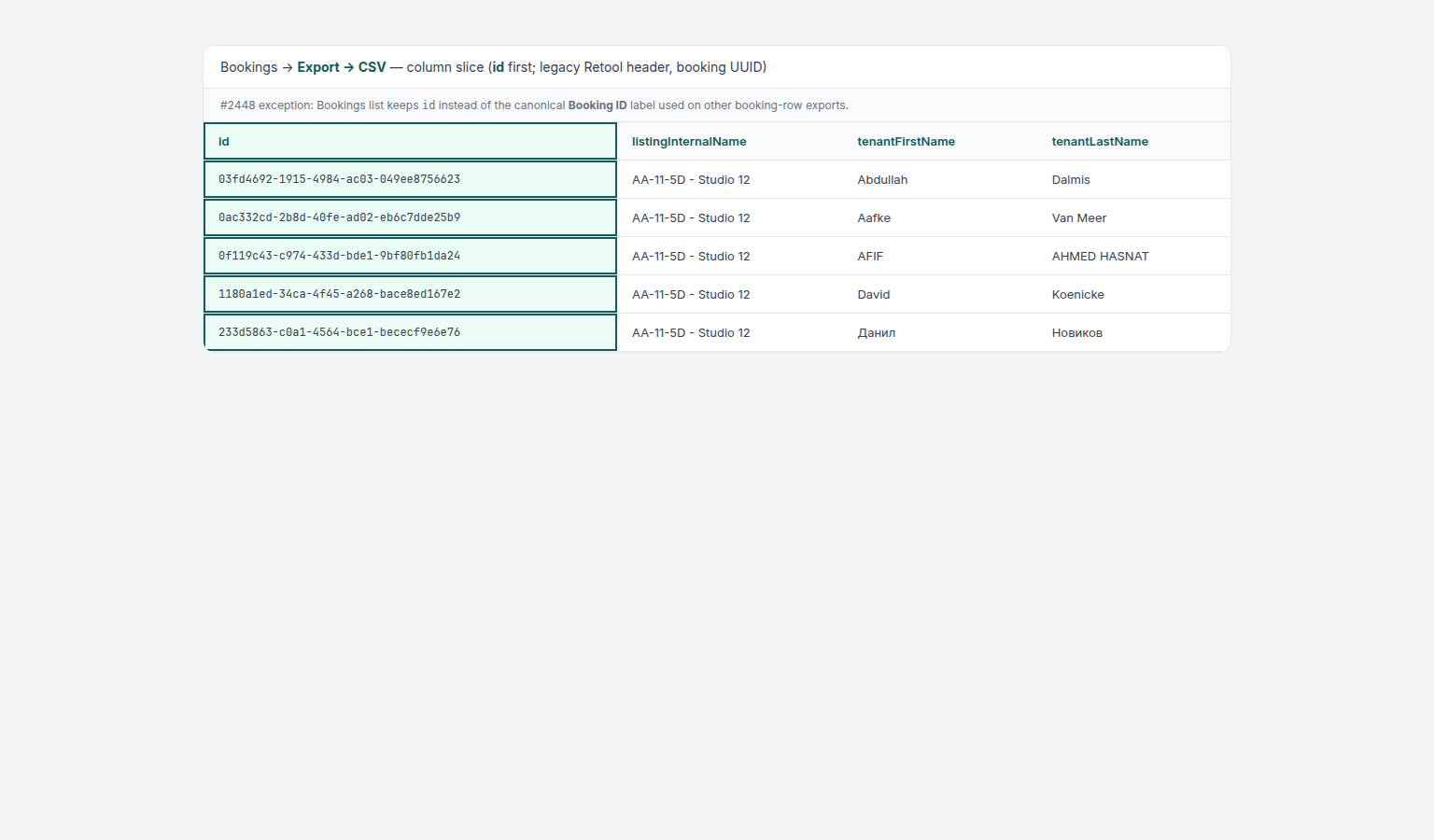
Why is my Finance export missing rows?
Finance → Transactions, Contract Values, Payouts, Deposits, and Income all download the full filtered set — each tab walks every matching server page (or the Income monthly breakdown) before building CSV/Excel. You do not need to scroll infinite-scroll tables to the end first.
If a download looks short, check filters first — not scroll depth:
| Check | What to verify |
|---|---|
| Date range / month picker | Deposits default to about the last three months; widen or clear the range for older move-outs. Income and Contract Values follow the toolbar month(s). |
| Other filters / search / status chips | Property, owner, tenant category, deposit lifecycle cards, and search all narrow the file. |
| Error toast | A failed multi-page fetch shows an error and writes no partial file — retry after the network settles. |
| Wrong export surface | Overview Income-chart drill-down Export is payment lines for one chart segment — not the Income-tab property/unit map. |
Utilities → Connections still exports only rows already loaded in its grid — that surface is unchanged. Module reference: Finance — Large tables and infinite scroll, Income Tab — Export.
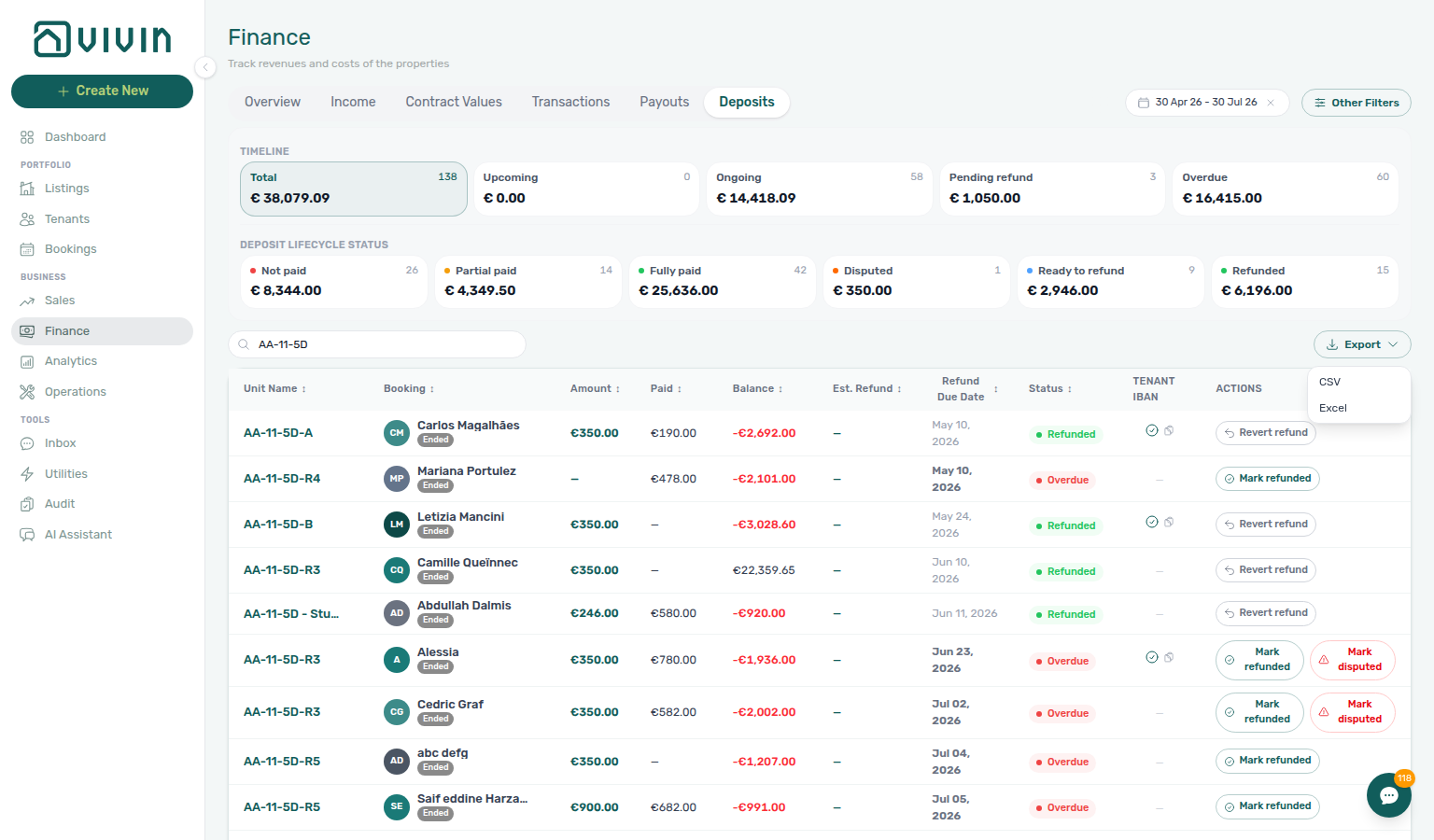
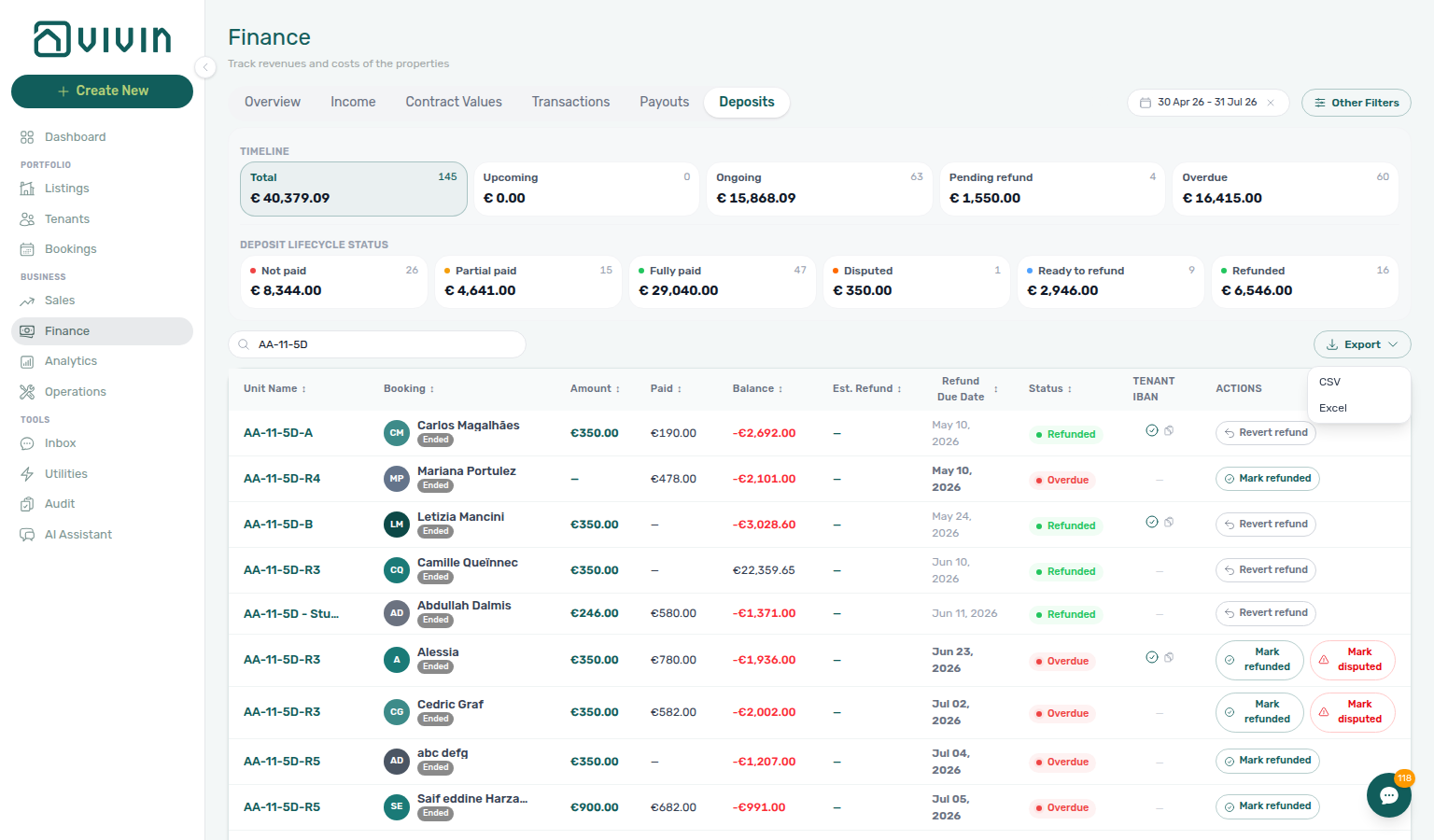
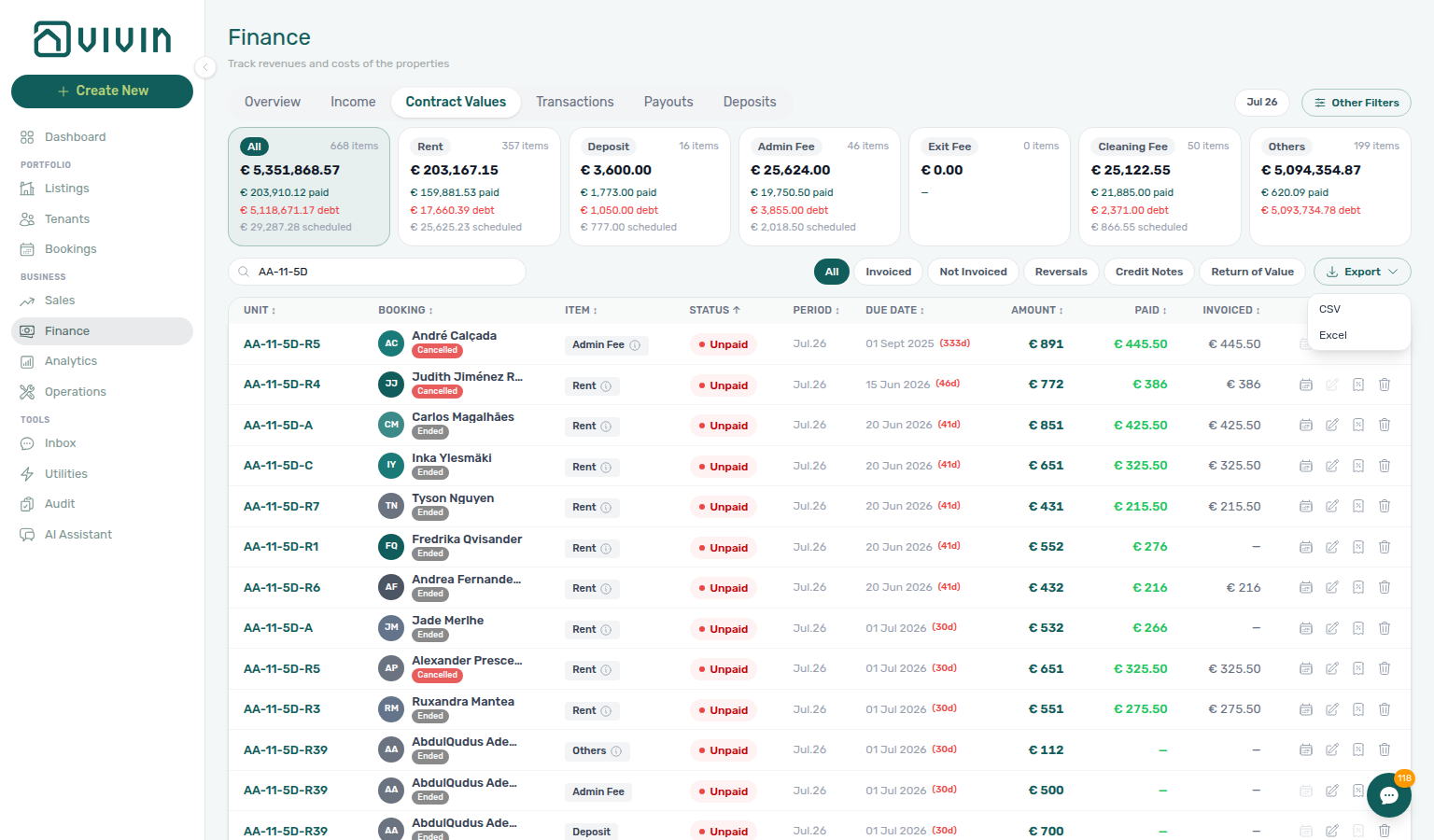
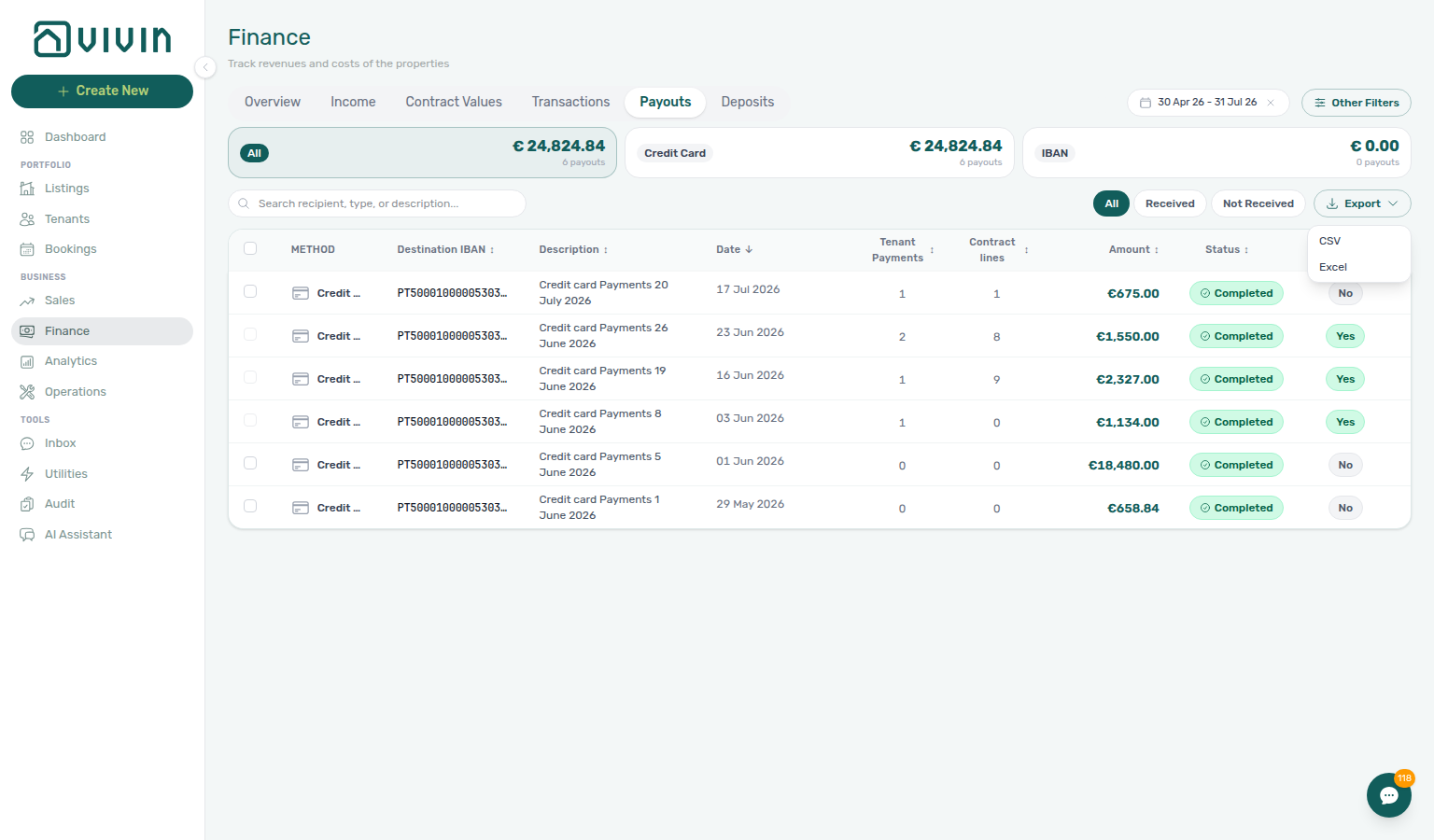
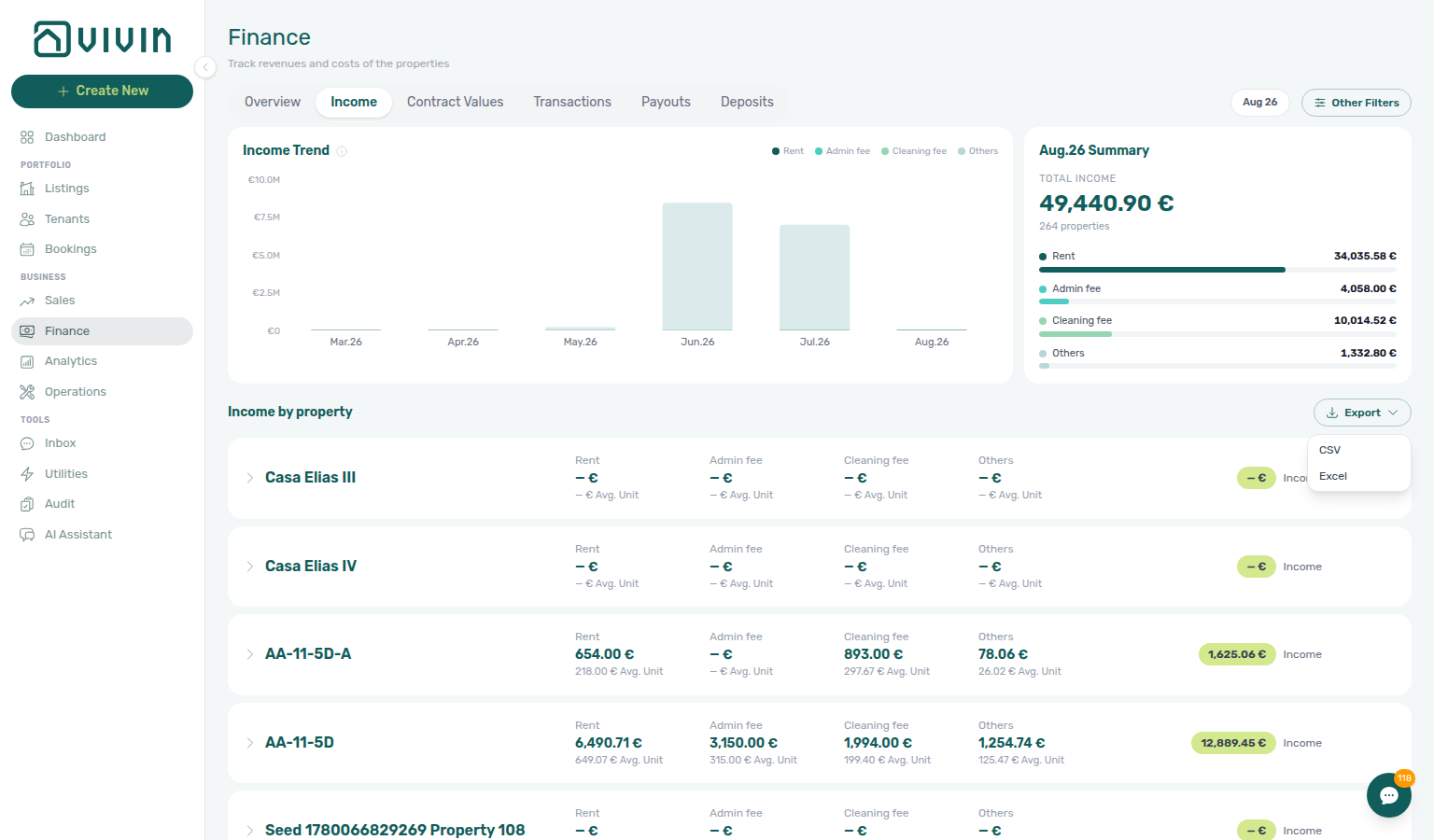
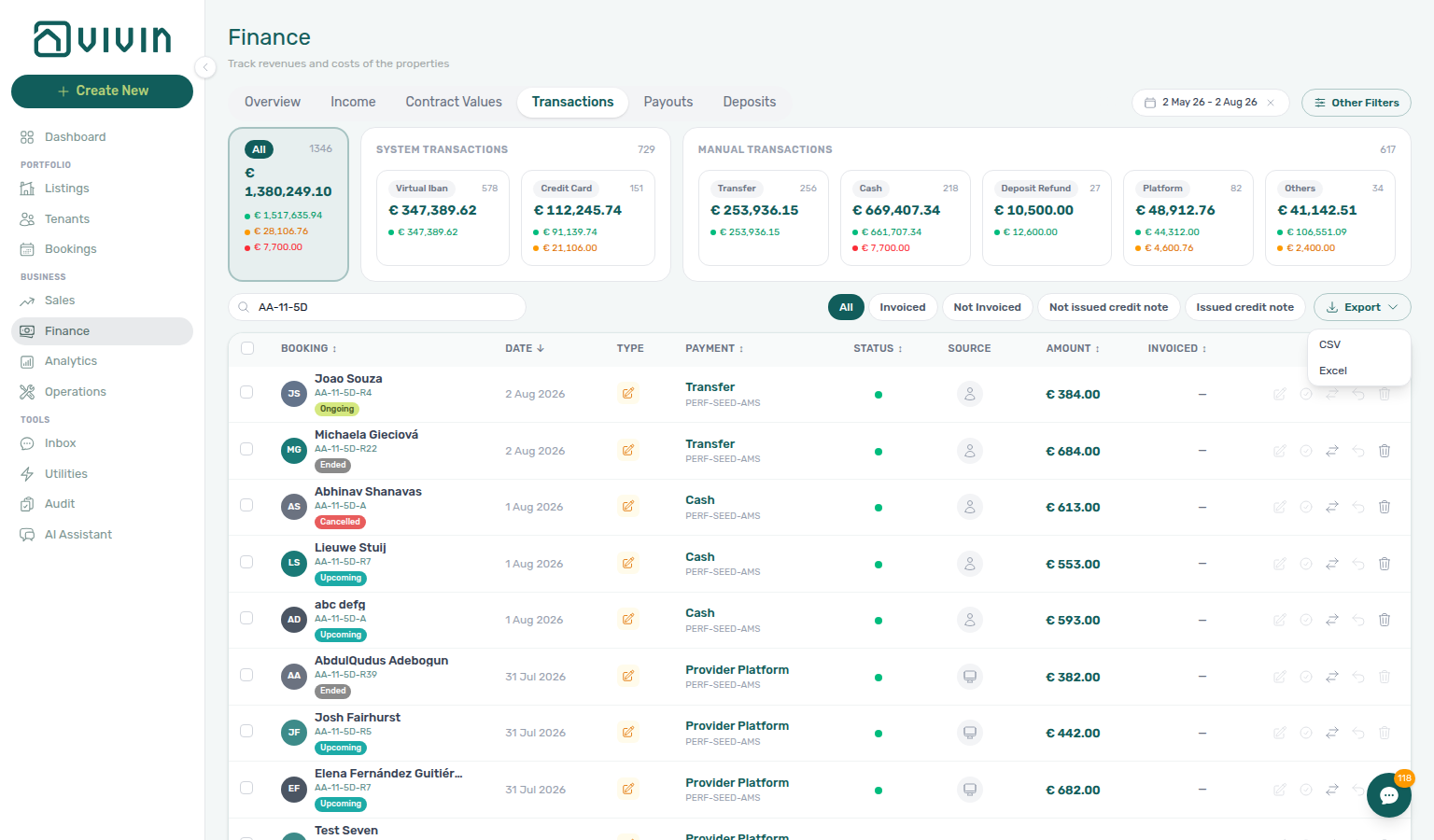
Why doesn't dueDate match Period in my Contract Values export?
Item month in the Contract Values file pairs with Finance — Item month in the export, Finance — Income vs cash flow, Glossary — Period (Contract Values), Which exports include a Booking ID column?, and Why is my Finance export missing rows?.
Use year and month for the month the charge is for. Use dueDate only for when it is payable. They are different columns on purpose.
On Finance → Contract Values, Period (for example Sep.26) is the item month. Due date can sit in another month — last-month rent collected at check-in is the usual case. The CSV and Excel files now export that period as year (calendar year) and month (1–12) immediately before dueDate. Inferring the item month from the due date files most of those rows in the wrong accounting month.
Booking ID stays the first column. payedAt is when cash landed, if collected. CSV and Excel share the same column list.
Can I see Airbnb and Booking.com income in the Finance module? Short-term platform income (when configured) is reflected in the Finance module's Income tab and Transactions tab. See the Finance module for income tracking across all channels.
Properties & Listings
Property wizard and calendar answers pair with Integrations & Distribution (channels and iCal), Operations (check-in/out pseudo rows), Bookings (Timeline overlap checks), Why does Multicalendar Date range still show units that are booked later? (click End date right after Start date), Does the Sales Overview free-unit list stay after I click a day? (Availability over time popover), Does picking a second listing type close the menu? (Select types stay-open), Does picking a second listing tag close the menu? (Select tags stay-open), and Does picking a second Created by teammate close the Manual Blocks menu? (Created by stay-open on Tools → Audit). Extra Charge hidden on a one-person unit: Why don't I see Extra Charge per Tenant on a studio?. Stale unit bookmarks: Why do I see Unit not found on a Listings link?. Exit fee on a property: How do I set an exit fee?.
How do I change the cleaning fee timing (Every Month vs. one-time)?
The cleaning fee frequency defaults to Every Month during property creation and cannot be changed in the wizard. After creation, open the property in Listings, edit Contract Information, enable Cleaning Fee if needed, and choose Every Month, One-Time Fee at Booking Confirmation, or One-Time Fee at Move-in from the Frequency dropdown — see Payments tab — Cleaning fee frequency. You can override the mode on an individual booking under Contract Info → Cleaning Fees requirement; verify the Payment plan afterward, especially when invoiced cleaning rows already exist.
Listing JSON still publishes only the euro amount (cleaningFeeValue). Frequency is not on the marketplace pull — FAQ — Listing cleaningFeeValue is not one-time.
How do I set an exit fee on a property?
Turn Exit fee on under Account Settings > Fees, then open the property in Listings, edit Contract Information, check Exit fee, and enter the € amount. New bookings copy that amount as a one-time line due on check-out. On an existing stay, override the euro amount on Bookings → Contract Info.
Listing JSON and partner POST /bookings do not include this fee — FAQ — Listing JSON has no exit fee.
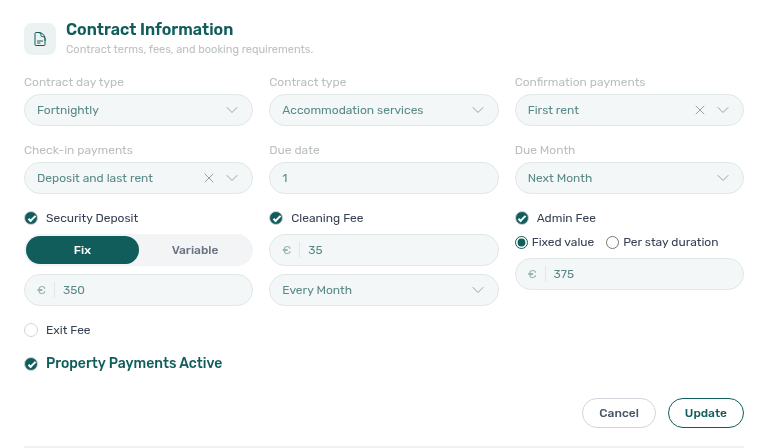
What is the difference between a Property and a Unit? A Property is a physical building or location. A Unit is an individual rentable space within that property. See Portfolio Hierarchy for more details.
Why can't I select an owner when creating a property? Owners must be registered in Settings > Owners before they appear in the property creation wizard. Add the owner there first.
How do I set the Exact Location pin on a property address?
Open the property in Listings, edit Property Information, and use the map under Address. Start typing to open suggestions, pick one to fill street, postal and city, then drag the pin if the entrance is offset from the geocoded point. Update saves latitude/longitude with the structured address; Cancel discards an unsaved drag. Glossary: Exact Location.
Where do I set the owner ID document type for contracts?
On Settings → Owners, open Add Owner or edit an existing card and set ID Document Type (Passport, ID, CC, …). That value fills {OwnerIdDocumentType} on Contract templates. Properties without an owner (or owners without a type) leave the token blank.
Why don’t I see commission on owner cards?
The Commission chip and per-item table appear on Settings → Owners only when Enable Owner Reports is On under Preferences → Owner Reports. With the switch Off (the default), owner cards show identity and banking only — including in inline Edit — so you never configure commission for a settlement feature that is not enabled. Turn the preference On when you are ready to settle landlords, then set Owner payout, PM Charge, Fee, and VAT per item on each owner. Illustrated Off vs On states: Owners — When Owner Reports is Off (settings-owners-owner-report-hidden-view.png, settings-owners-owner-report-hidden-when-off-flow.mp4).
How do I invoice the owner management fee?
On Finance → Owner Reports, open Reports for the landlord. Settlements with a non-zero Management fee and a blank Invoice cell expose Invoice the management fee (needs Approve payments). After the provider issues the document, the column shows the invoice number and the same control downloads that PDF. Invoiced settlements cannot be deleted — use a credit note on the invoice instead. Keep one VAT percentage on every charged item in Settings → Owners if you bill the fee from the report; mixed VAT rates belong at the invoicing provider or netted off Payouts. Pair with Owner report document for the settlement letterhead (finance-owner-reports-history-invoice-column.png, finance-owner-reports-invoice-fee-flow.mp4).
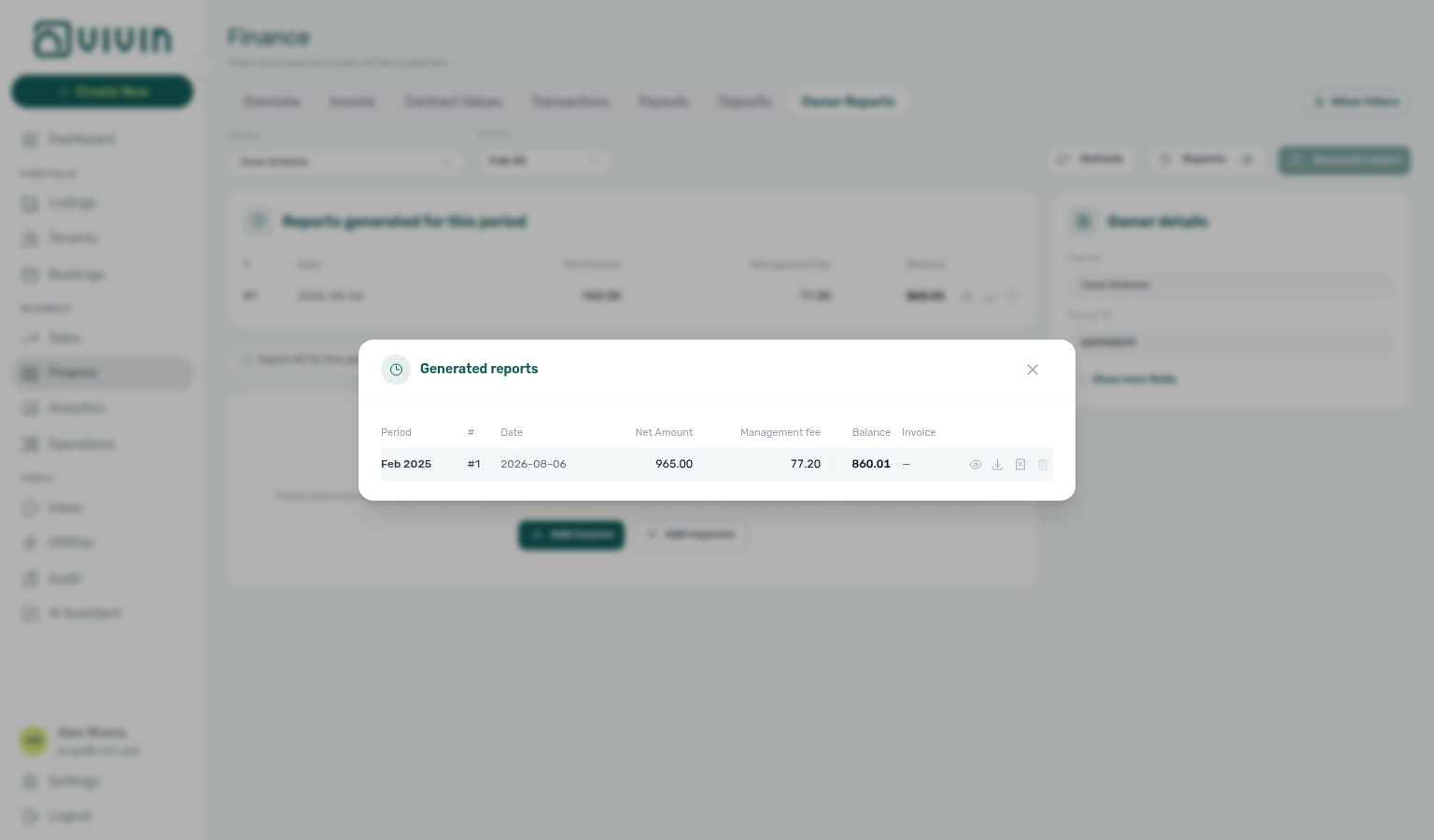
How do I ask for an owner settlement preview?
Ask Genius or AI Chat — for example “What is the June 2026 owner settlement preview for Beatriz Pereira Lda? Quote total income, management fee, balance, occupancy, and outstanding debt.”
The assistant should:
- Use
get-owner-report-preview— a live preview of Finance → Owner Reports for that owner and calendar month. It does not run Generate report and does not invoice the management fee. - Quote total income, management fee, balance, occupancy, and outstanding debt. A €0 management fee means that owner’s commission is configured at 0%.
- Name the owner and month it counted.
Keep Analytics enabled on AI / MCP. Turn on Enable Owner Reports first. Reconcile on Finance → Owner Reports for the same owner and month. For settlements already generated, ask which reports went out — that uses list-owner-reports, not the live preview. To bill the fee after you generate, see How do I invoice the owner management fee?.
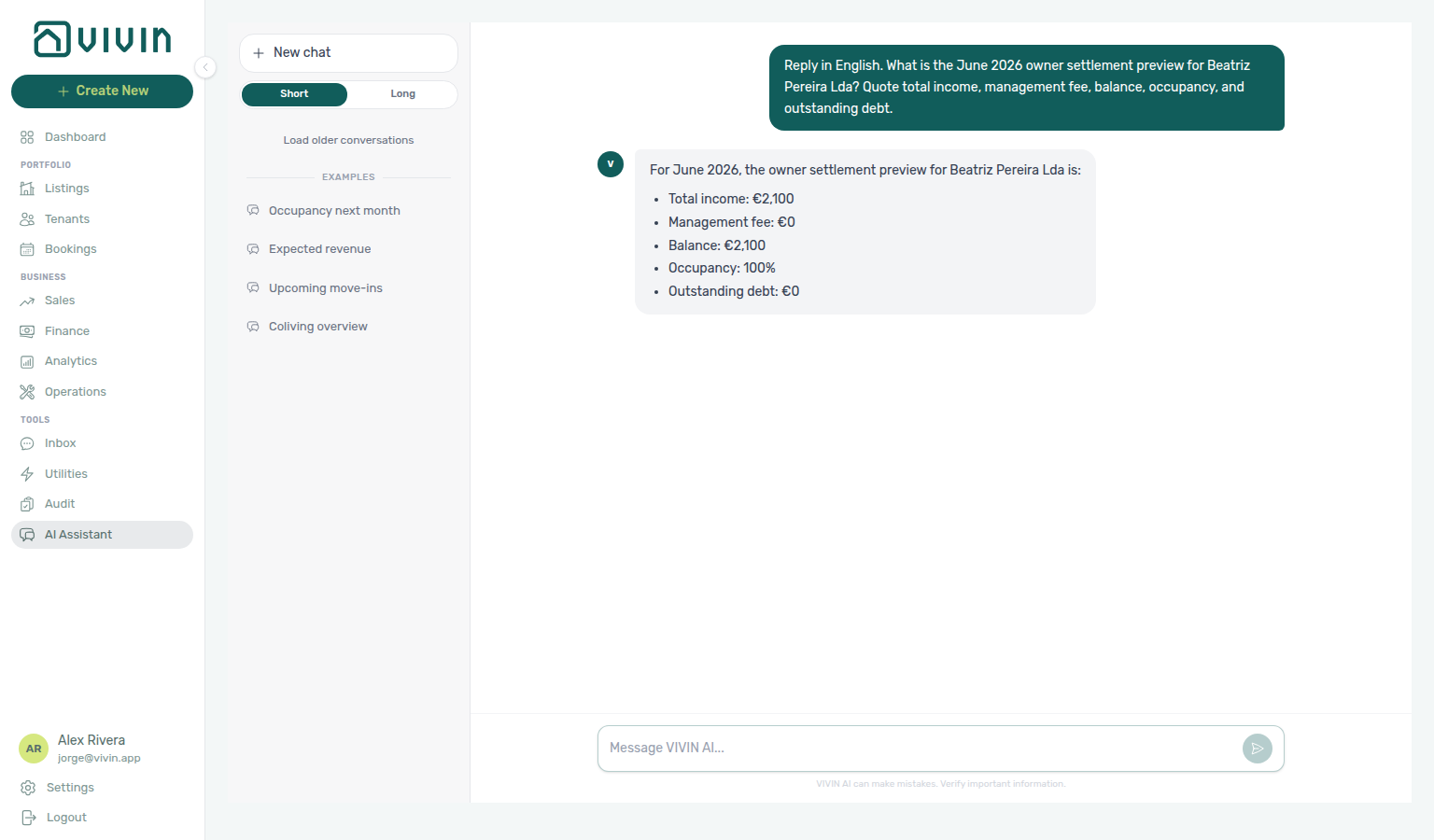
| Symptom | Likely cause | Fix |
|---|---|---|
| Figures match Finance Overview income | Quoted portfolio income, not one owner’s settlement | Name the owner and month and say owner settlement preview |
| Management fee is €0 | That owner’s commission is 0% | Check Fee on Settings → Owners |
| Reply matches a generated PDF instead of preview | Used already-generated reports | Ask for the preview; use list-owner-reports only after Generate report |
| Assistant cannot answer owner-settlement questions | Analytics Off, or Owner Reports preference Off | Enable Analytics on AI / MCP; turn Enable Owner Reports On |
How do I customise the owner report PDF?
With Owner Reports enabled, open Settings → Owners. The Owner report document card uses your branded built-in layout until you Upload template (Word .docx). Preview renders a sample PDF; Show available variables lists merge fields such as {OwnerName} and {#Lines}. Document language applies to the built-in layout only. Generate settlements on Finance → Owner Reports after the template looks right (settings-owners-owner-report-document-card.png, settings-owners-owner-report-document-variables.png).
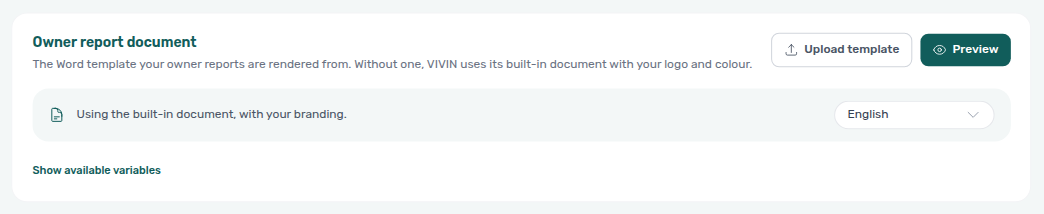
Which owner fields appear on generated contracts?
Contract DOCX templates use single-brace owner tokens from the Contract → available variables catalogue — not Handlebars-style {{…}} names:
| Token | Owner field (Settings → Owners) |
|---|---|
{OwnerName} | Display / legal name printed on the lease |
{OwnerFiscalId} | Tax / fiscal ID (NIF / CIF) |
{OwnerFiscalAddress} | Registered fiscal address |
{OwnerEmail} | |
{OwnerPhone} | Phone |
{OwnerIdDocumentType} | ID Document Type (Passport, ID, CC, …) |
There is no {OwnerFullName} or {OwnerAddress} token — older drafts that used those labels stay blank (or print N/A if Empty variables is on). Double-brace {{…}} names are not tokens and print as written. Open available variables on the Contract tab and copy the exact names. Pair with Users — Owner visibility on documents and Owners — ID document type.
How does the landlord signature appear on contracts?
Upload or draw your signature once on Settings → Contract → Landlord signature. Put {%LandlordSignature} in the Word template (remove any baked-in signature image). Draft PDFs leave the placeholder empty; when the tenant e-signs in the portal, Vivin inserts your stored image automatically — there is no separate landlord counter-sign step. Without a signature on file (or without the token), the tenant can still sign; the PDF is simply tenant-only.
What prints when a contract variable has no value?
On Settings → Contract → Empty variables, Print N/A for empty variables starts off (blank placeholders). Turn it on so empty text variables print N/A on new, regenerated, and signed contracts. Signature image tokens stay blank either way. Operator guide: Contract — Empty variables (settings-contract-empty-variables.png, settings-contract-empty-variables-flow.mp4).

Why does my contract PDF look different from Word?
Vivin converts .docx templates to PDF with LibreOffice on the server. If the template uses a font the conversion image cannot render with matching metrics (for example Aptos, or other brand/display faces), LibreOffice substitutes a wider fallback and the whole document re-flows — wraps mid-word, truncates headings, shifts page breaks — even though Word on your machine looks correct.
Fix: Restyle body and headings to Calibri, Arial, Cambria, or Times New Roman (Courier New for monospace), re-upload, and compare Preview on Settings → Contract or the eye control on Listings → Contract. Upload is never blocked for unsupported fonts. Full table: Contract — Fonts and PDF fidelity. Glossary: Contract PDF fonts.
How do I record a second tenant on a booking?
Turn Second tenant On under Settings → Preferences → Booking Defaults. On a booking whose Tenants number is at least 2, open Contract Info and expand Second tenant (below Billing / Bank details). Unit capacity alone is not enough — the stay must be booked for two or more tenants. Fill identity fields only — billing, IBAN, and tenant category stay on the main tenant. Marketplace POST /bookings cannot send those identity fields — FAQ — Marketplace booking Second tenant. Contract tokens: Second tenant variables (settings-contract-variables-second-tenant.png). Switching the preference Off hides the section but keeps saved values (and still fills tokens until you clear the fields).
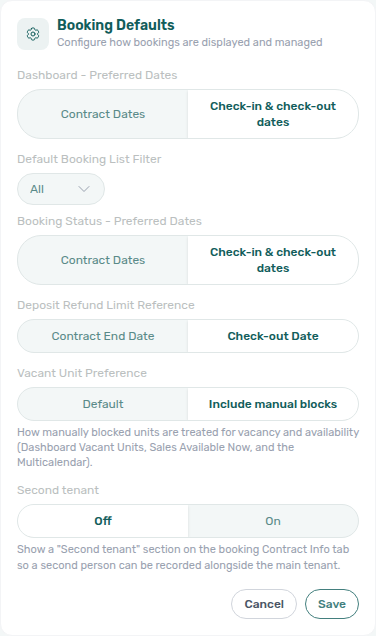
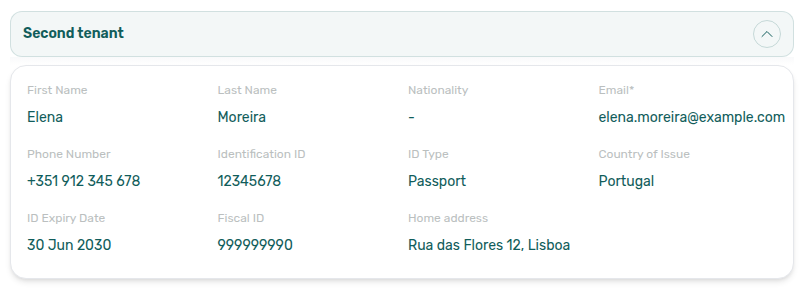
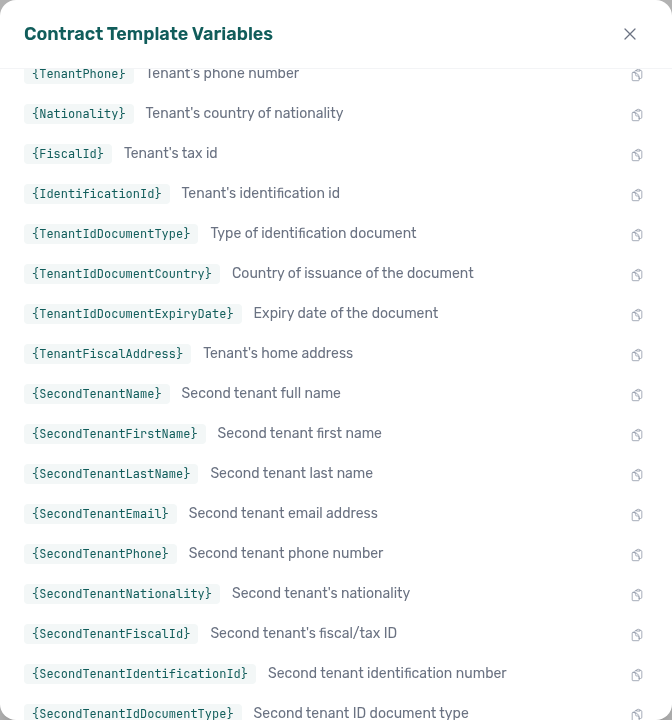
How do I record a guarantor on a booking?
Turn Guarantor On under Settings → Preferences → Booking Defaults. On any booking, open Contract Info and expand Guarantor (near Billing / Bank details / Second tenant). Unlike the second tenant, tenant count and unit capacity do not matter — a single-tenant stay can still record a guarantor. Fill the identity fields and, if the guarantee is for a set sum, Guarantor amount (€) — billing, IBAN, and tenant category stay on the main tenant. An empty amount renders blank on the contract, never 0. The switch is independent of Second tenant. Contract tokens: Guarantor variables ({GuarantorAmount}, {GuarantorAmountInTextEn|Pt|Es|It}, {%GuarantorSignature}, settings-contract-variables-guarantor.png, settings-contract-variables-guarantor-signature.png, settings-contract-guarantor-second-tenant-flow.mp4). Switching the preference Off hides the section but keeps saved values (and still fills tokens until you clear the fields). Marketplace POST /bookings cannot send those identity fields or Guarantor amount (€) — FAQ — Marketplace booking Guarantor.
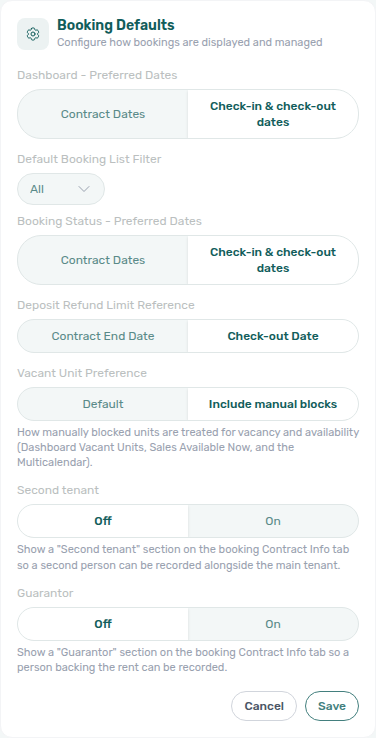
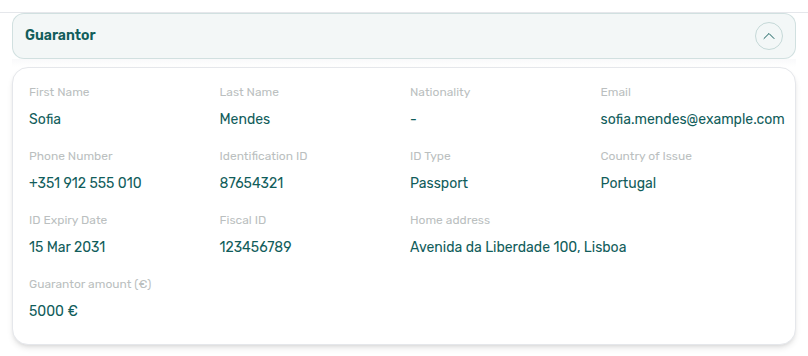
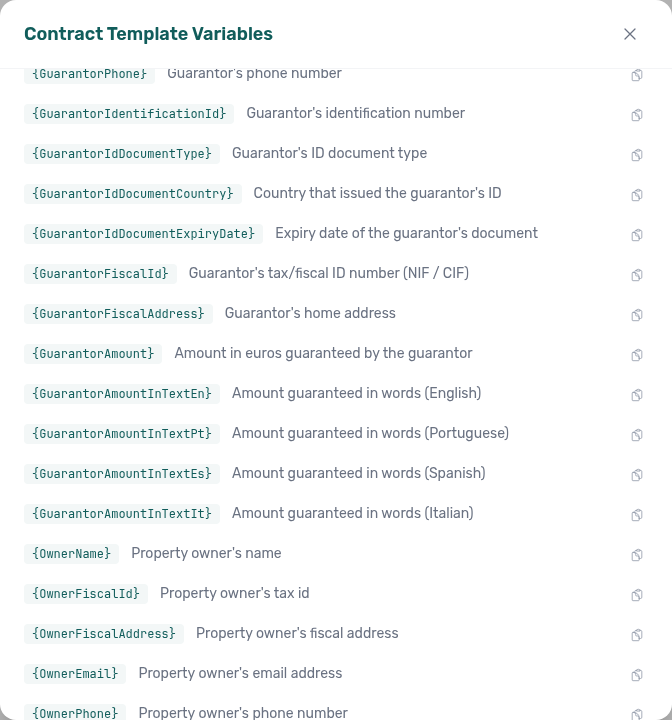
How do contract duration tokens work?
On Settings → Contract, open available variables and use {ContractDurationMonths} (plain number) or {ContractDurationInTextEn|Pt|Es|It} (words + figure, e.g. seis [6] meses). Duration is counted between the same dates as {StartDate} / {EndDate} (end inclusive; partial months dropped). See Contract duration.
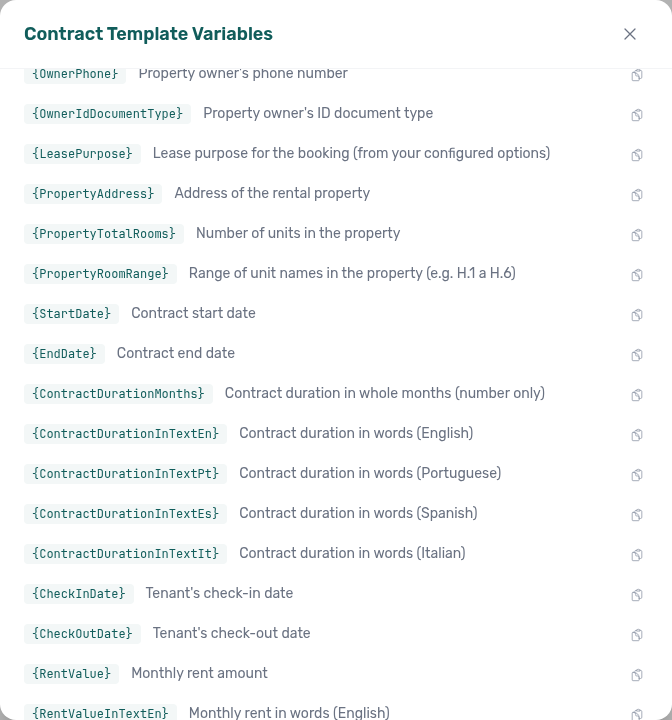
How do surface area tokens work on contracts?
Open Settings → Contract → available variables and use {ListingArea} / {PropertyArea} for the unit and building figures in m², or the language-suffixed {…AreaInTextEn|Pt|Es|It} tokens for words + bracketed figure (for example sessenta e dois [62] metros quadrados). Values come from the areas you set on Full integration — see Contract — Surface area variables and Booking engine details — Surface area. Unset areas print blank (not zero).
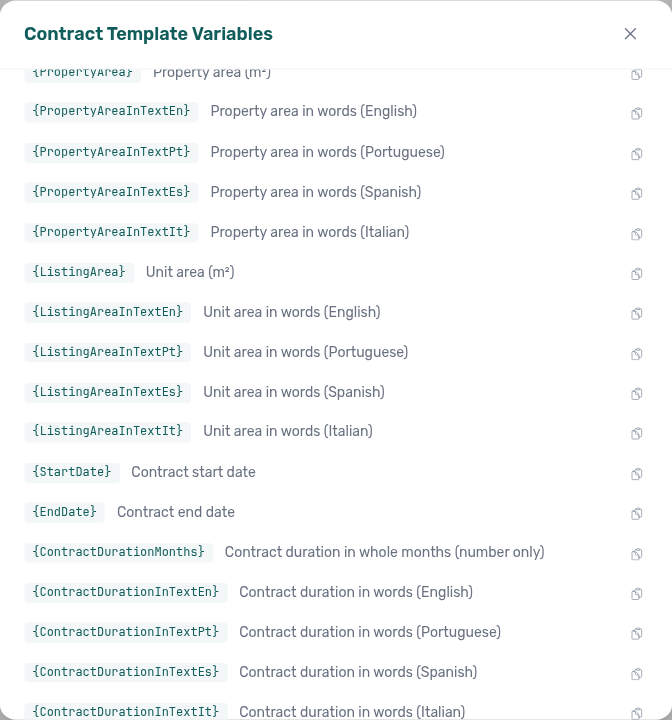
Which date token should I put on a contract signature line?
Use {ContractGenerationDate} when the printed day must be the day Vivin builds the PDF — especially renewals and any regenerate after the stay has started. Use {ContractSignDate} when you want “today” only before move-in and the booking start date afterward. Full comparison: Contract — Sign date vs generation date.
The same two tokens appear in Emails — Sign date vs generation date ({} Variables on Booking lifecycle emails and Communication Rules) when body copy needs a signature-style date.
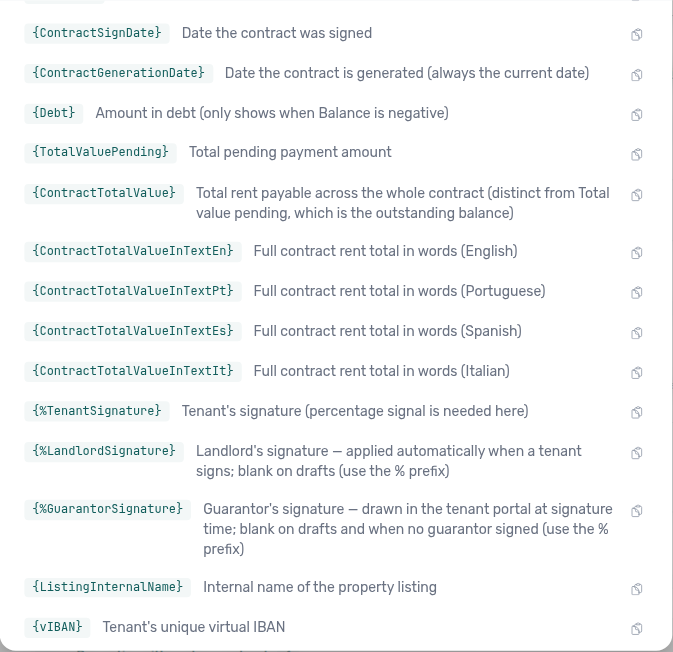
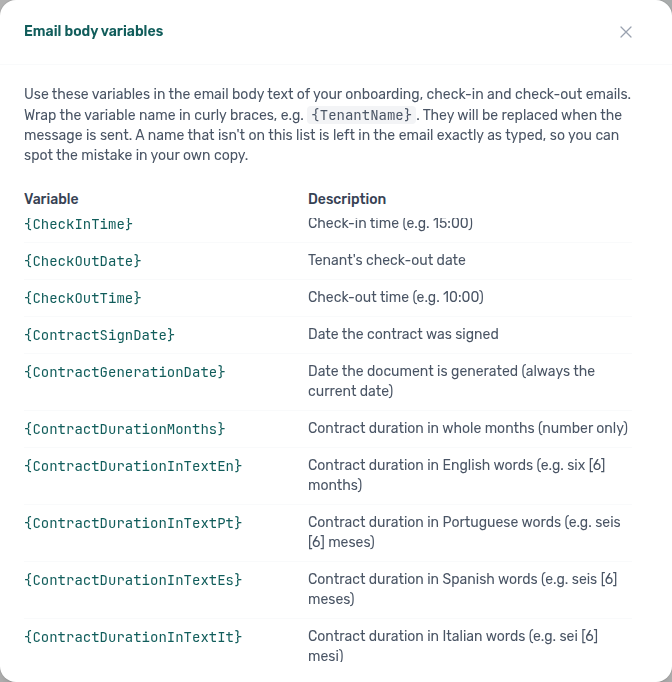
What do PropertyTotalRooms and PropertyRoomRange print?
{PropertyTotalRooms} is the property's unit count (same figure as elsewhere in the app). {PropertyRoomRange} lists unit internal names, collapsing to a range only when names are contiguous and same-prefix (gaps, mixed prefixes, or repeated names stay as a naturally sorted list). Catalogue: Property rooms.
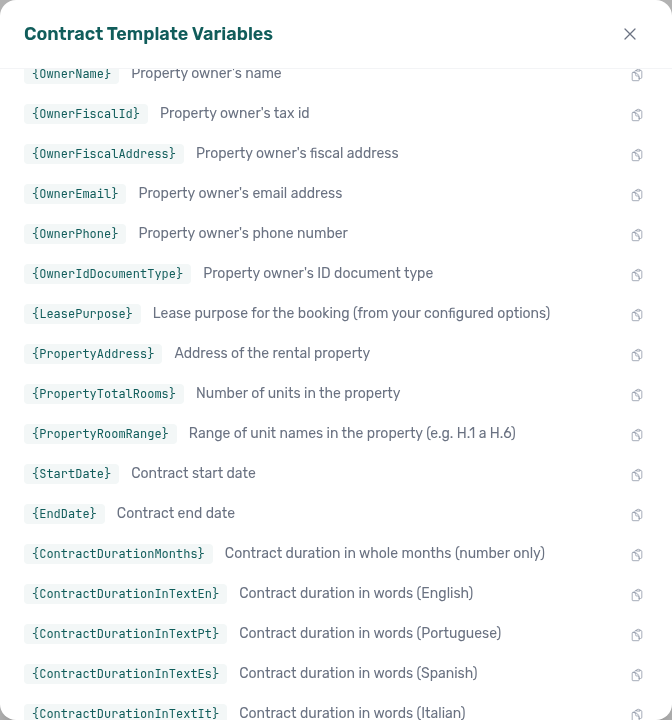
Why don't I see the Full integration pill on my property or unit in Listings? Operators with Listings edit access should see Setup, Full integration, and Photos pills in the property or unit edit sidebar. Setup holds operational fields; Full integration opens the rich property & listing (booking engine) details editor (marketplace copy, amenities, partner fields); Photos is the gallery-only layer. If pills are missing, confirm your role includes Listings edit permission in Users and roles. The older header Go to details shortcut was replaced by these pills — see Glossary — Property edit sidebar pills and Listings — Editing Properties.
Not sure which pill holds marketplace copy? Ask AI Chat “Where do I open the Full integration pill under Listings (property or unit edit sidebar — English pill label Full integration — for marketplace and booking-engine payload fields like Profile copy, Location, Amenities, bilingual descriptions — not the Setup pill for contract payments and channels, not Sales Channel Manager, and not Settings Integration capabilities) to edit partner marketplace descriptions and amenities?” — then open Listings → unit edit sidebar → Full integration (ai-chat-product-context-full-integration-reply.png, ai-chat-product-context-full-integration-flow.mp4). The assistant typically says Listings → Full integration. Guide: Property & listing details (booking engine).
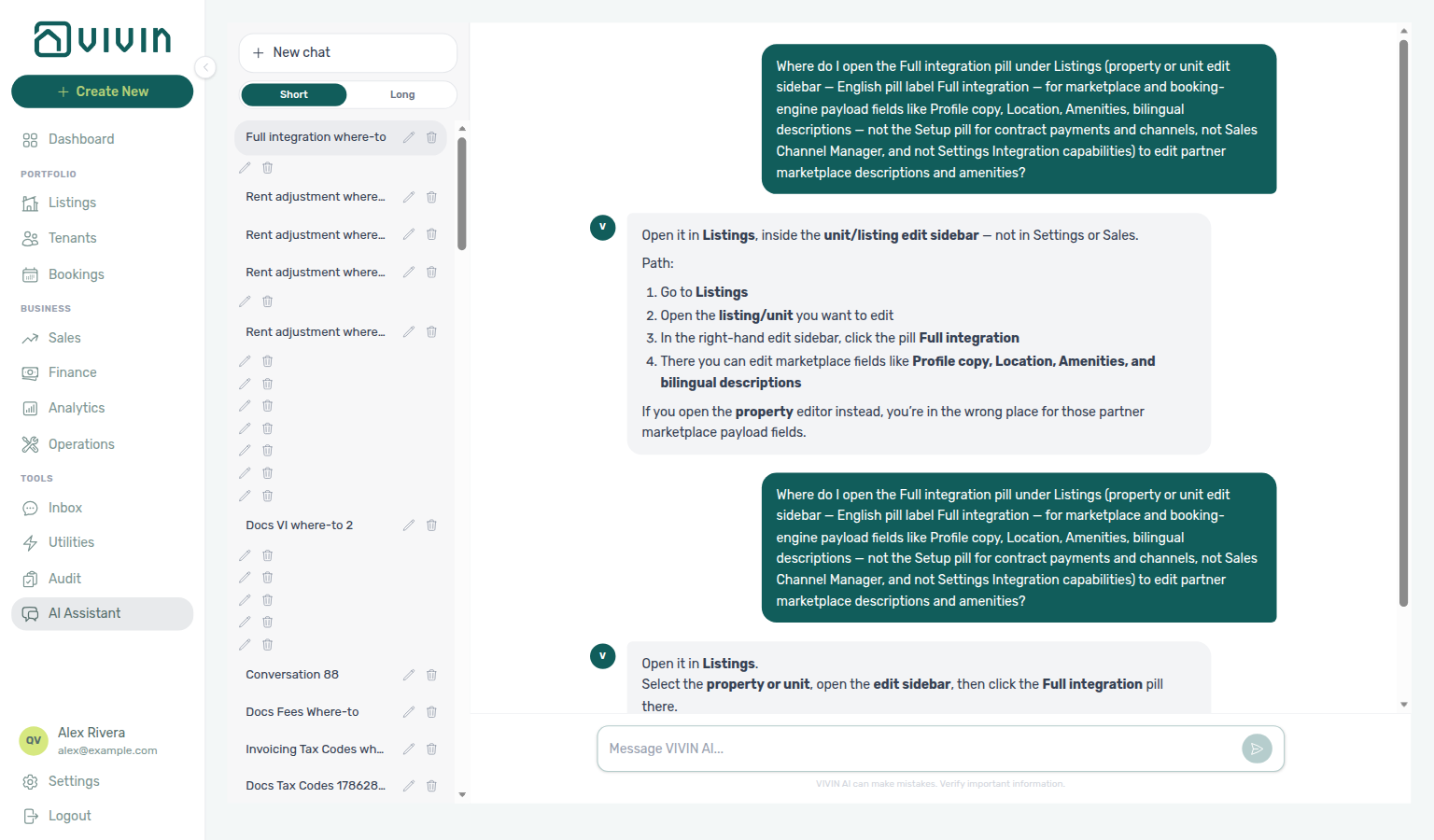
Need contract, payments, channels, or the unit calendar instead? Ask “Where do I open the Setup pill under Listings (property or unit edit sidebar — English pill label Setup — for operational fields like contract terms, payments, channels, and calendar — not the Full integration pill for marketplace Profile Location Amenities bilingual copy, not Sales Channel Manager, and not Settings Integration capabilities) to edit listing contract payments and channels?” — then open Listings → unit edit sidebar → Setup (ai-chat-product-context-setup-reply.png, ai-chat-product-context-setup-flow.mp4). The assistant typically says Listings → Setup. Guide: Listings — Editing Properties.
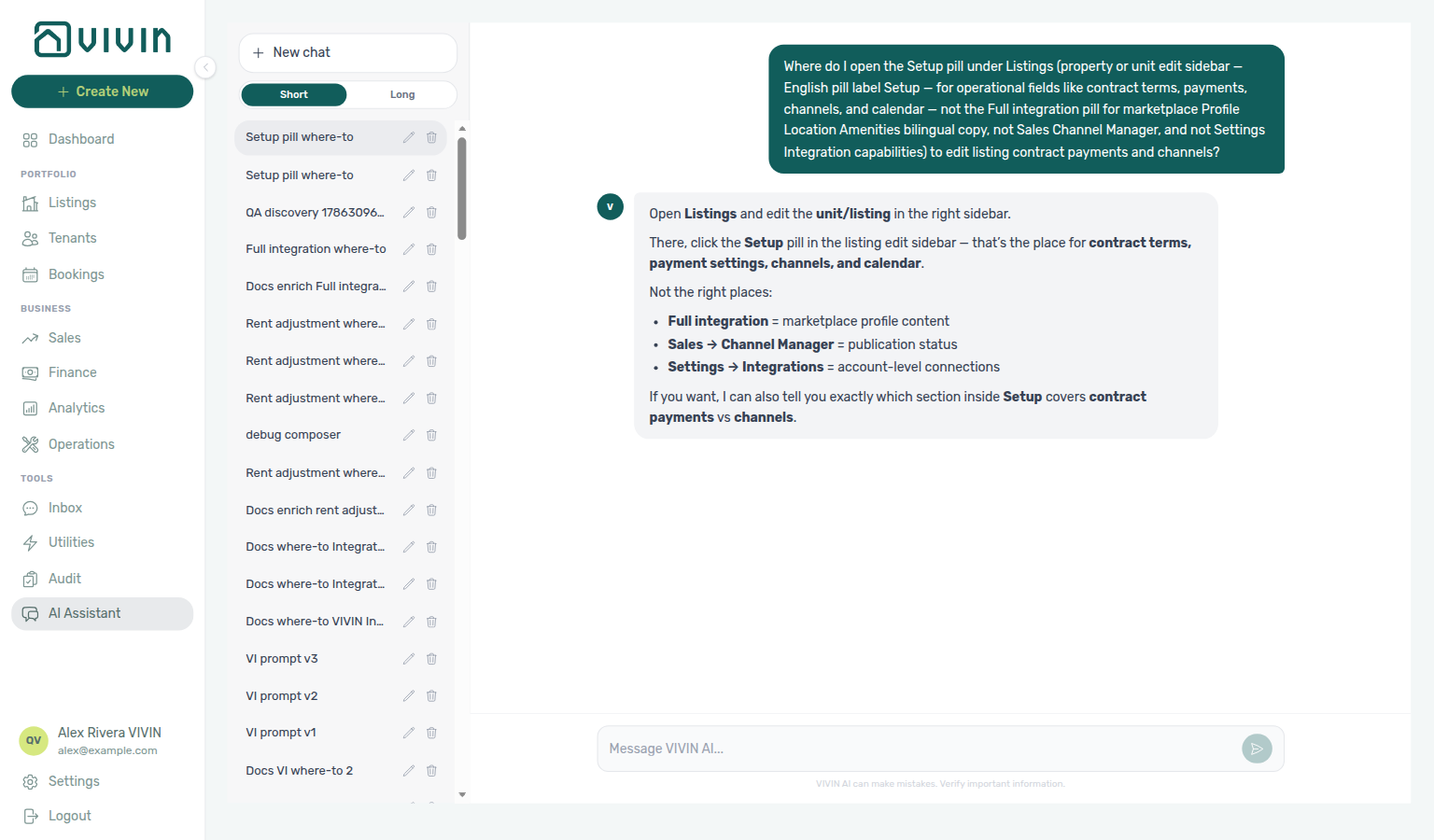
Need the booking-engine gallery or cover photo? Ask “Where do I open the Photos pill under Listings (property or unit edit sidebar — English pill label Photos — for the booking-engine gallery, cover photo, and drag-to-reorder thumbnails — not the Setup pill for contract payments and channels, not the Full integration pill for marketplace Profile Location Amenities bilingual copy, and not Sales Channel Manager) to upload and reorder listing gallery and cover photo?” — then open Listings → unit edit sidebar → Photos (ai-chat-product-context-photos-reply.png, ai-chat-product-context-photos-flow.mp4). The assistant typically says Listings → Photos. Guide: Listings — Photos pill.
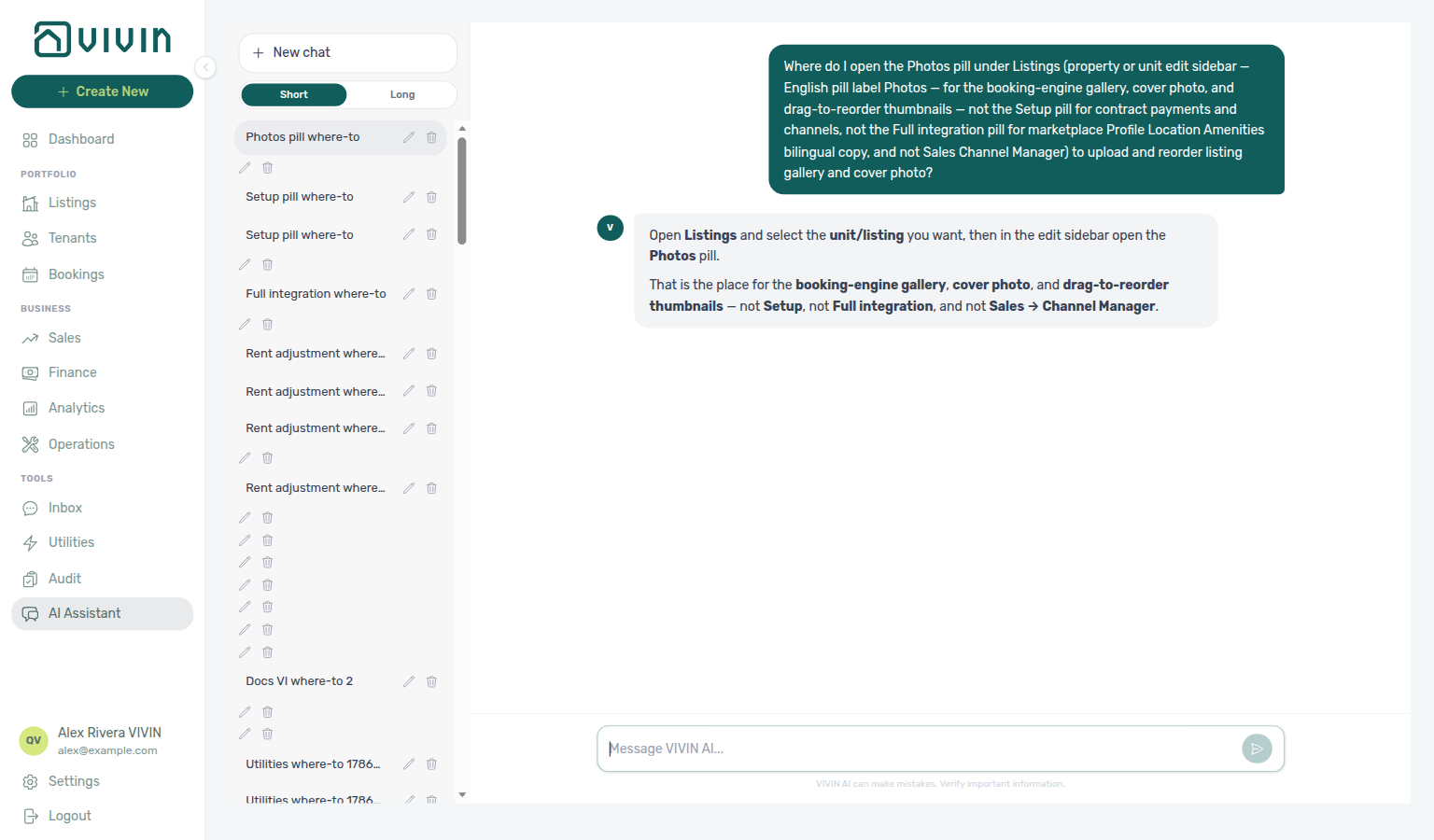
Partners reading GET /listings do not receive this gallery — FAQ — Photos missing from listing JSON.
Can I bookmark or share a link straight into Property Details or Listing Details?
Yes: use Listings URLs with ?propertyDetails=1 on the property edit path, or ?listingDetails=1 on a unit sidebar path. Patterns and examples are in Management Frontend Deep Links — Booking engine details layer.
Can I see prices directly on the availability calendar?
Yes. Open Sales > Pricing (/sales/pricing): each month cell shows rent with bookings and blocks drawn behind it. You can also bulk-edit prices by selecting multiple cells. Legacy /sales/calendar bookmarks redirect to the same grid. For a time-on-axis view without month rent cells, use Sales > Multicalendar (/sales/multicalendar), Sales > Overview → Availability over time, or Bookings > Timeline. See Sales > Pricing tab and Sales > Multicalendar tab.
Does the Sales Overview free-unit list stay after I click a day?
Yes. On Sales → Overview, click a Timeline day or a Daily / Fortnightly / Monthly bar. The popover lists those units with N free in the header. Scroll the list — the period and Close stay put. Click a unit to open it. Click another period for a new list. The popover stays on screen even near the right edge of the chart. A period with no vacant rooms says No free units in this period. Dashboard → Vacant Units and Bookings → Timeline are different surfaces.

Why doesn’t Vacant Units show a unit that only has a manual block?
Vacancy math pairs with Glossary — Vacant Unit Preference, Manual block hygiene, and Preferences → Vacant Unit Preference.
By default (Default on Preferences → Booking Defaults), a manual block makes the unit not vacant — it disappears from Dashboard → Vacant Units, lowers Today, and is excluded from Sales → Available now / Multicalendar filters. Choose Include manual blocks when you treat operator holds as physical vacancy for leasing triage (maintenance buffers you still want on Vacant Units). OTA/iCal calendar blocks and booking-linked unavailabilities still occupy the unit everywhere. After you change the setting, refresh Dashboard and Sales before reconciling counts with Portfolio KPI review — Step 7.
How can I tell the difference between a booking and a manual block on the calendar?
How do I block several units at once without opening each Calendar?
Use + Create New → Reservations → Unavailability. Pick one Property, multi-select Units, set Dates and an optional Reason, then Add unavailability. The holds are the same operator manual blocks as Add unavailability on a unit Calendar — they appear on Sales, Bookings → Timeline (when blocks are shown), and Tools → Audit. If any selected unit conflicts, Vivin creates nothing until you deselect conflicts or change dates. Requires Listings edit permission (greyed out otherwise). Per-unit shortcut: Listings — Adding Manual Unavailability. create-new-menu-panel-reservations-unavailability.png, create-new-unavailability-modal.png, create-new-unavailability-flow.mp4.
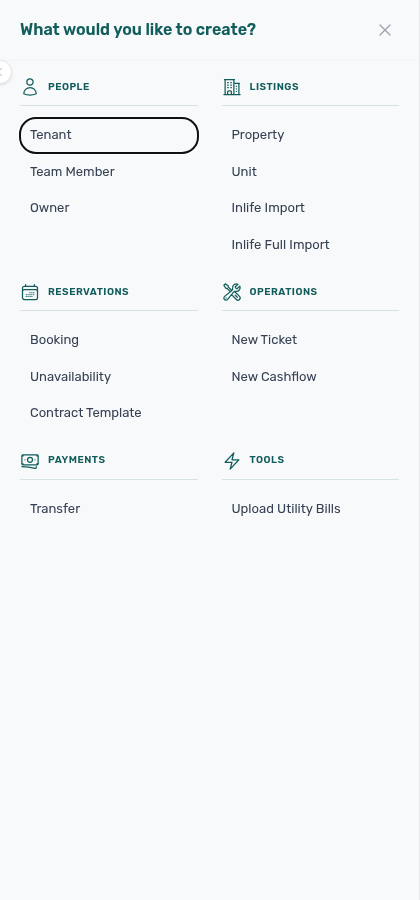
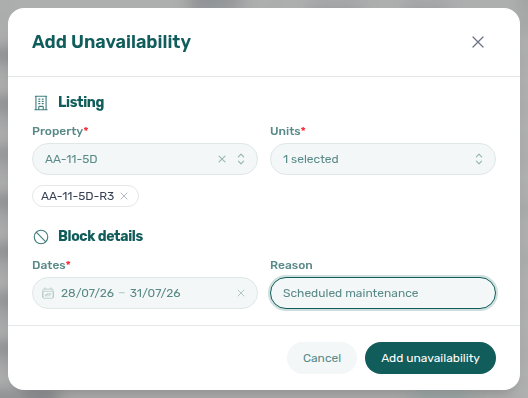
How do I change the dates or reason on an existing manual block?
Edit-in-place pairs with Listings — Editing a manual unavailability block, Audit — Editing a manual block, and Manual block hygiene — Step 4.
Open Edit block (pencil) on the manual row in the unit Calendar list or on Tools → Audit → Manual Blocks. The Edit block modal lets you change Dates and Reason without deleting and recreating the hold — Vivin keeps the same block identity. Changing dates re-checks overlaps (bookings, other blocks, preparation days) before Save changes; you can save a reason-only change without touching the dates. Channel/integration rows do not show Edit block. audit-manual-blocks-edit-dates-action.png, listings-edit-unavailability-modal.png, listings-edit-unavailability-flow.mp4.
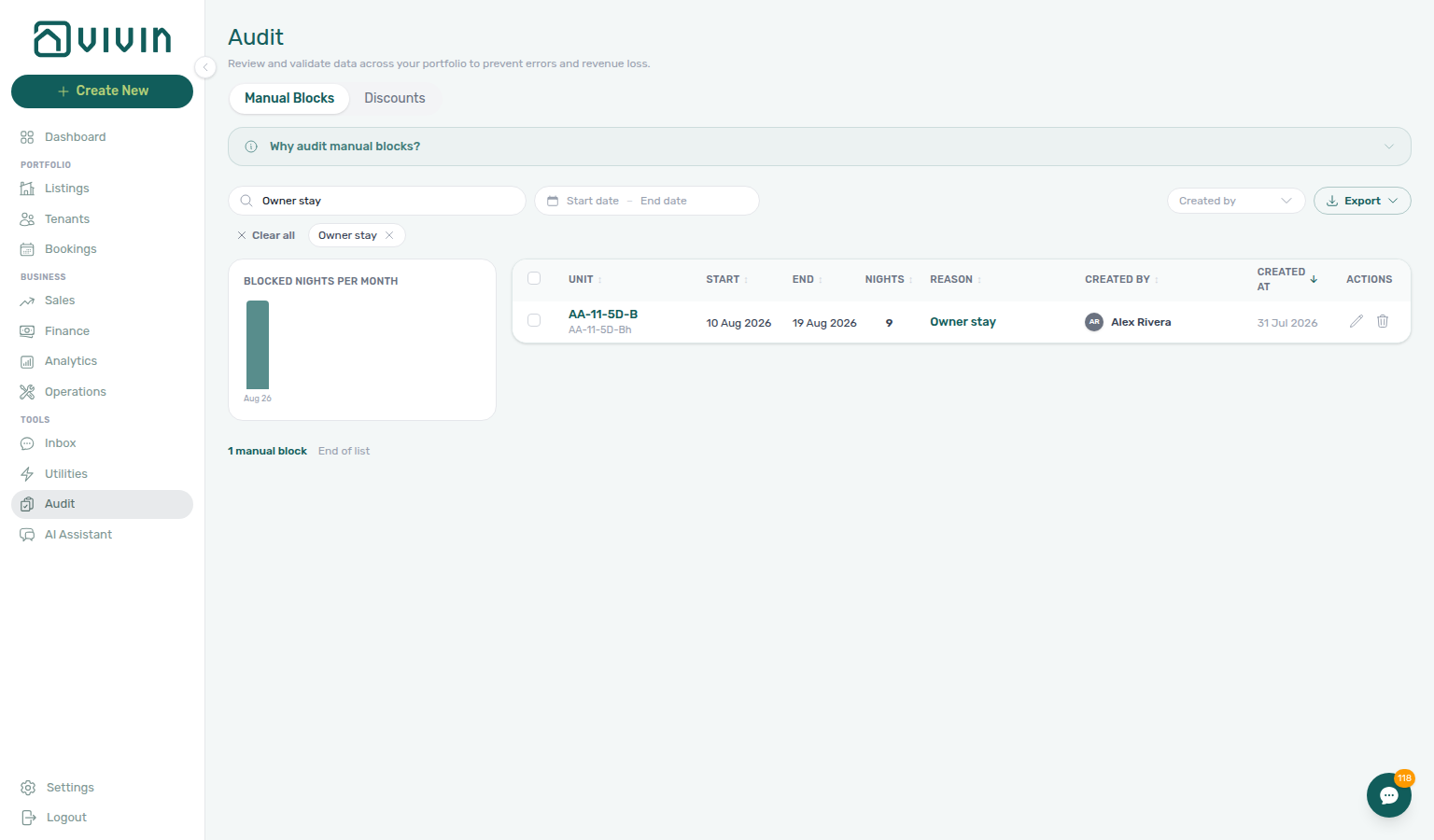
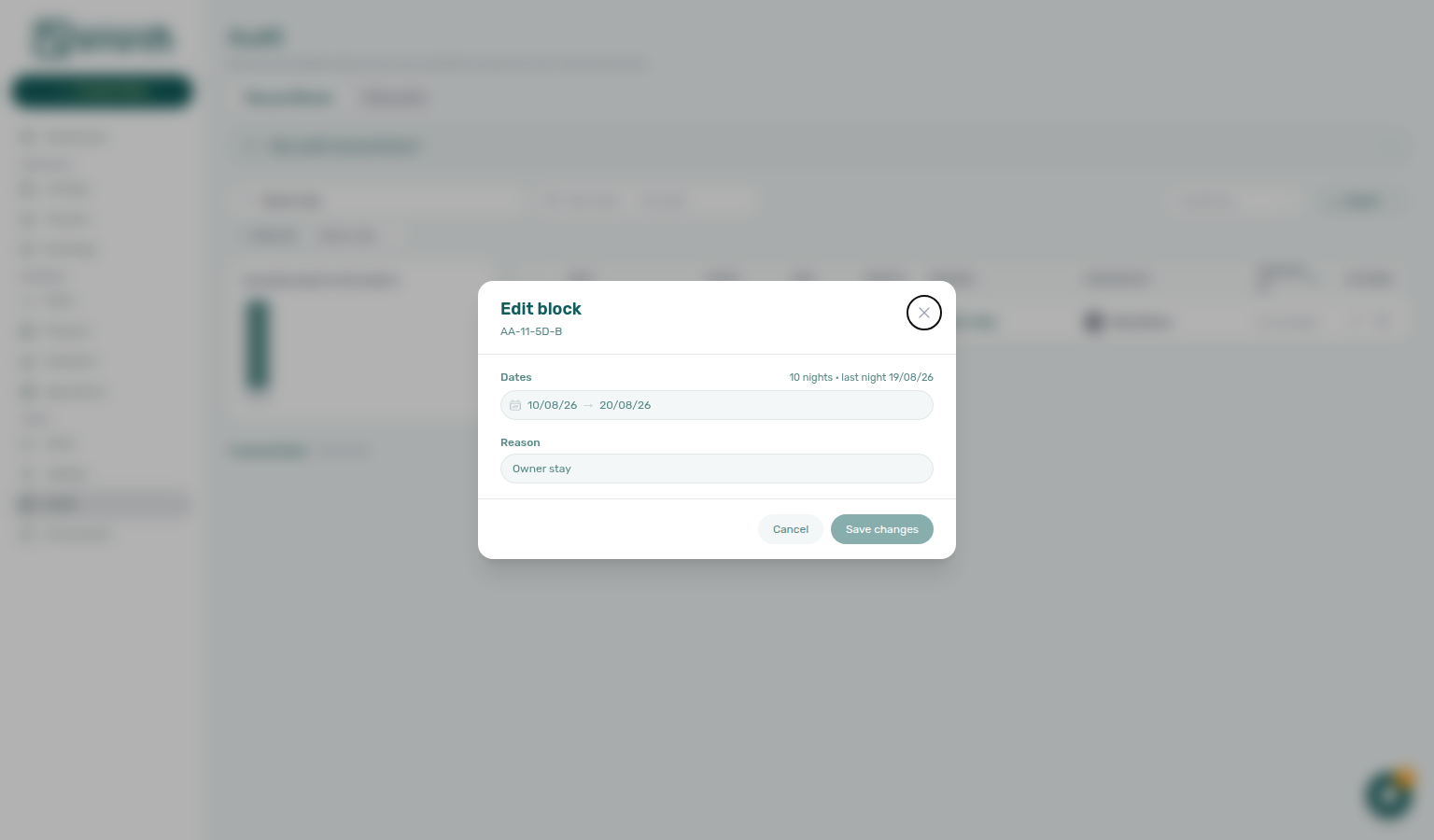
How do I store a staff-only access code that tenants must never see?
Staff-only codes pair with Listings — Internal code and Glossary — Internal access code.
On property Access Lockers (building and property doors) and on the unit Setup access fields, fill Internal code and Internal hint. These are manual, editable any time, and available at building, property, and unit levels. Vivin never shows them in the Tenant Portal and never includes them in tenant emails — keep tenant-facing codes in the normal access fields. listings-property-access-lockers-internal-code.png, listings-unit-access-lockers-internal-code.png, listings-internal-access-code-flow.mp4.
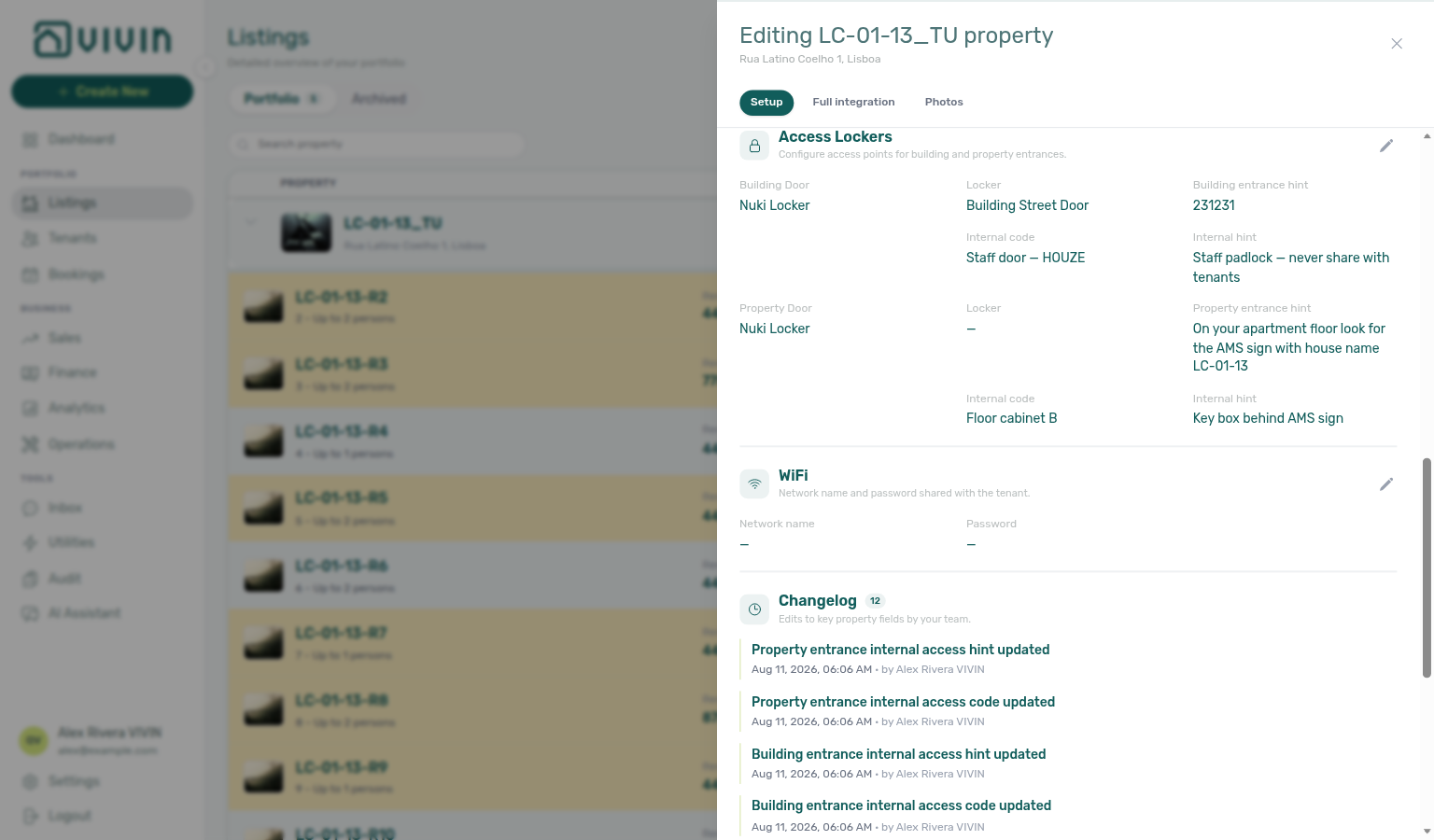
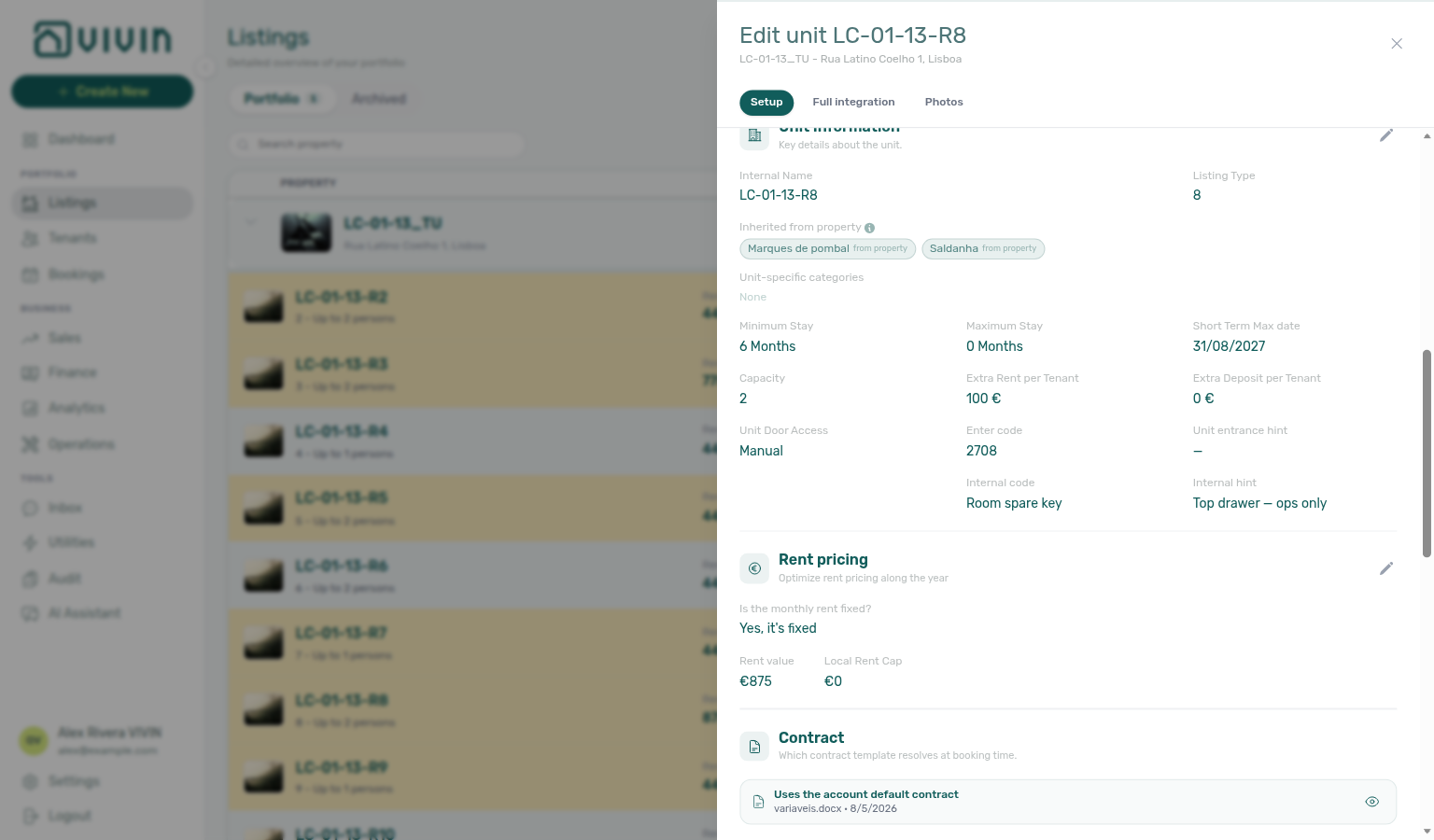
In Sales > Pricing, bookings and manual or channel unavailabilities use different colours and patterns so you can distinguish tenant stays from operator holds and short-term blocks. The Overview tab’s Availability over time charts and Bookings Timeline use the same underlying occupancy rules with aggregated or per-unit free windows. See Sales module.
Portfolio retirement: Archive property, Cancel booking, or Delete Booking?
Portfolio retirement pairs with Common Workflows — Cancel Booking vs Delete Booking (refund dialog vs soft-archive — workflows-cancel-booking-refund-modal-flow.mp4), Glossary — Portfolio retirement decisions hub, FAQ — Cancel Booking vs Delete Booking (reservation-level void vs cleanup), FAQ — Archive a property (building-level), FAQ — Delete Booking on integration reservation.
Before you pick Archive, Cancel booking, or Delete Booking, match your symptom:
| Symptom | Likely wrong control | Fix |
|---|---|---|
| Need full ledger for a voided real stay | Delete Booking | Use Cancel booking — Cancelling a Booking |
| Manual receipts vanished after cleanup | Delete Booking on a stay you still reconcile | Expected — use Cancel when you need manual rows; see Manual payments after Delete Booking |
| Building should leave pickers but history stays | Delete Booking on every reservation | Archive property — Archive a property |
| Delete Booking blocked on OTA import | Pending provider platform in-payment | Reject or assign first — Delete Booking on integration reservation |
Three different controls retire inventory at different scopes. Use this table before you pick Archive, Cancel booking, or Delete Booking:
| Action | Scope | When to use | Visibility after action | Finance → Transactions |
|---|---|---|---|---|
| Archive property | Whole building | Portfolio sunsetting; building leaves active pickers | Listings → Archived tab; hidden from default property pickers | All booking history and payment rows stay visible |
| Cancel booking | One reservation | Real stay voided under cancellation policy | Canceled filter / status | All payment types stay visible |
| Delete Booking | One reservation | Mistaken import, training row, duplicate create | Drops from default Bookings lists (soft-archive) | vIBAN / credit card stay; manual / provider platform hidden |
Archive property does not remove bookings — step-by-step: How do I archive a property?. For reservation-level voids vs cleanup, see Cancel Booking vs Delete Booking (bookings-cancel-booking-modal-refund-types.png, bookings-list-canceled-tab.png, workflows-cancel-booking-refund-modal-flow.mp4). After Delete Booking, manual / provider platform rows may disappear from Finance → Transactions while vIBAN / credit card stay — FAQ — Manual payments after Delete Booking (finance-transactions-type-summary-cards.png). Clear provider platform in-payment before Delete Booking on integration reservations —.
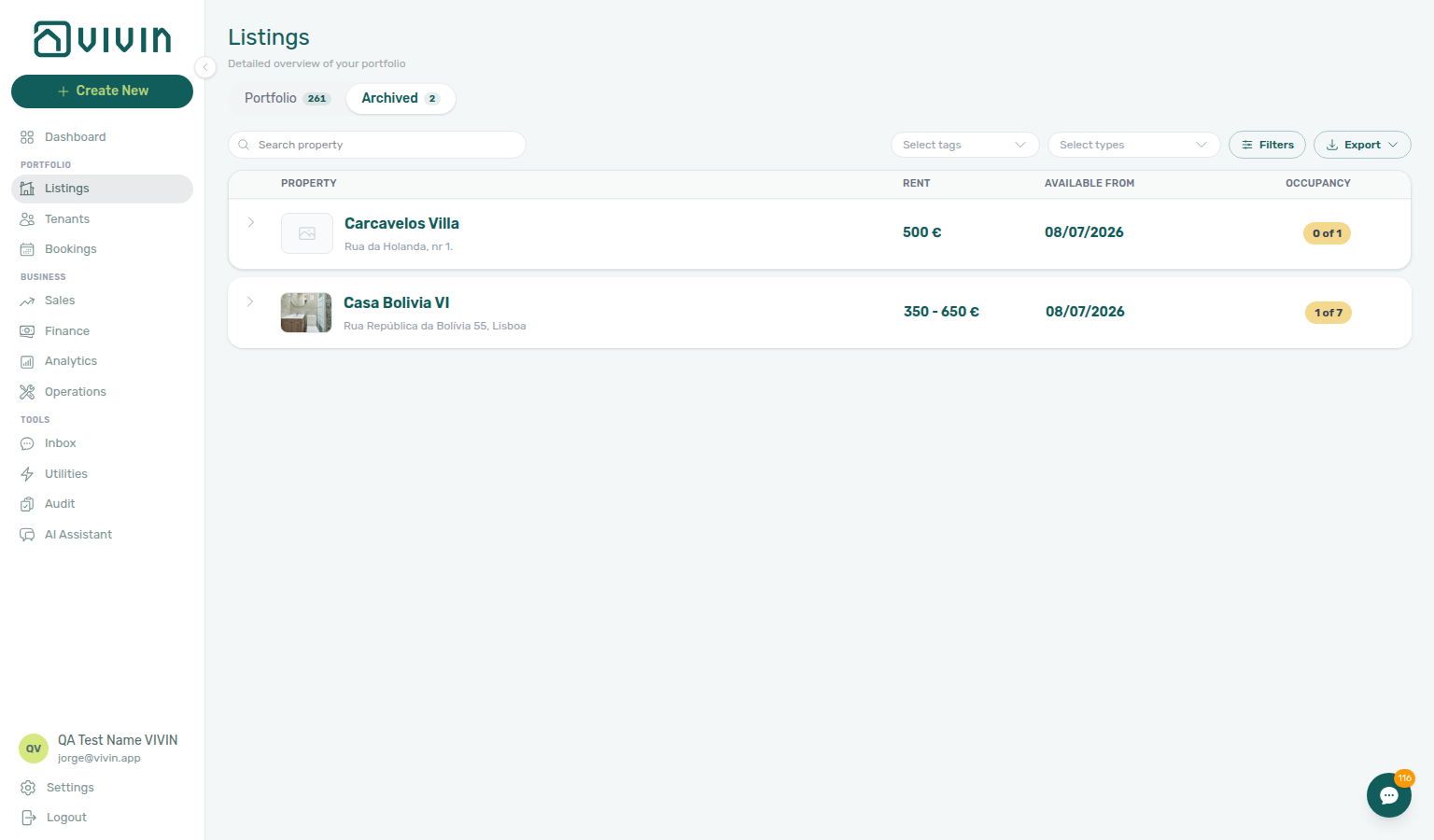
- Common Workflows — Portfolio retirement decisions — Operator habit hub
How do I archive a property (or bring one back)?
Open the property in the Edit property sidebar on the Portfolio tab, scroll to the danger zone at the bottom, and choose Archive (the app confirms first; active bookings may trigger an extra warning). Archived properties move to the Archived tab at /listings/archived and disappear from default portfolio pickers until you Unarchive from that tab’s property sidebar. Units in an archived building no longer show as vacant or advertise an available-from date on Sales, Dashboard vacancy, or partner feeds. Archiving does not delete bookings or financial history. Legacy /properties/archived URLs redirect to the same tab. Archive property is building-level — do not confuse it with Delete Booking (reservation soft-archive) or Cancel booking (policy void with settlement). See Common Workflows — Archive property (building-level).
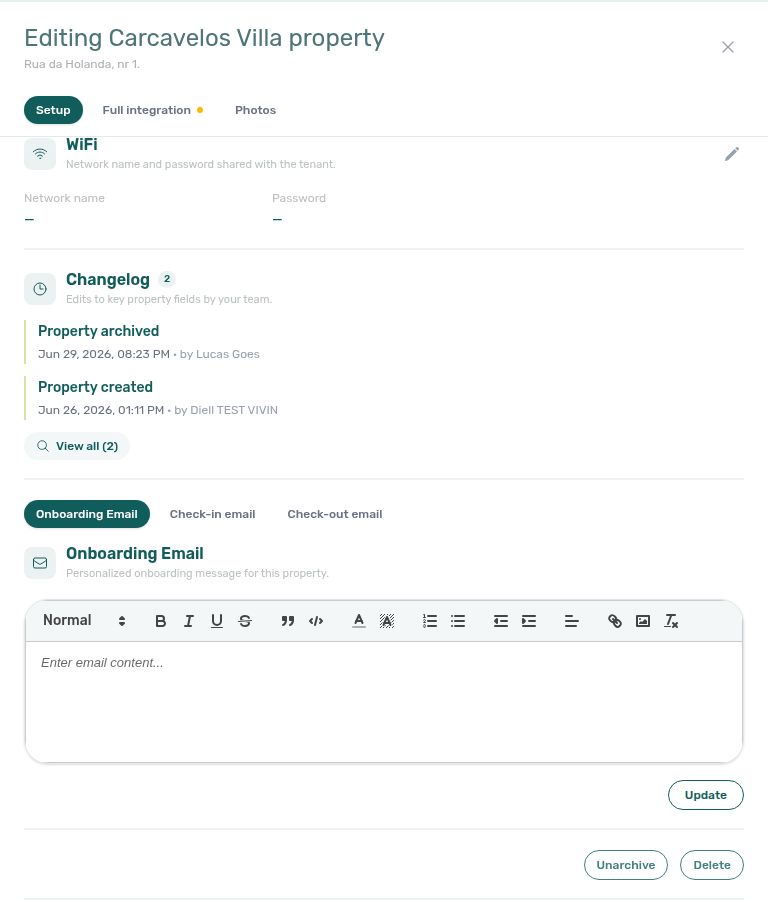
Does Ready To Refund leave the booking on Fully paid?
No. After you change the lifecycle on the booking Deposit tab — Ready To Refund, a dispute action, Mark refunded, Revert refund, or Transfer — All bookings already respects Filters → Deposit status. A Fully paid row leaves that slice. Switch the filter to Ready to refund (or Disputed / Refunded) to find it in the next queue. You do not reload.
This is the Bookings list. Finance → Deposits is a separate queue that already matches after Mark refunded (or a dispute / transfer / revert) — see Does Mark refunded on the booking leave the row on Finance Deposits?. Ready To Refund is the operations hand-off; it does not record the bank return. See Bookings — Deposit status filter updates while you work and Managing a Check-out — Step 5.
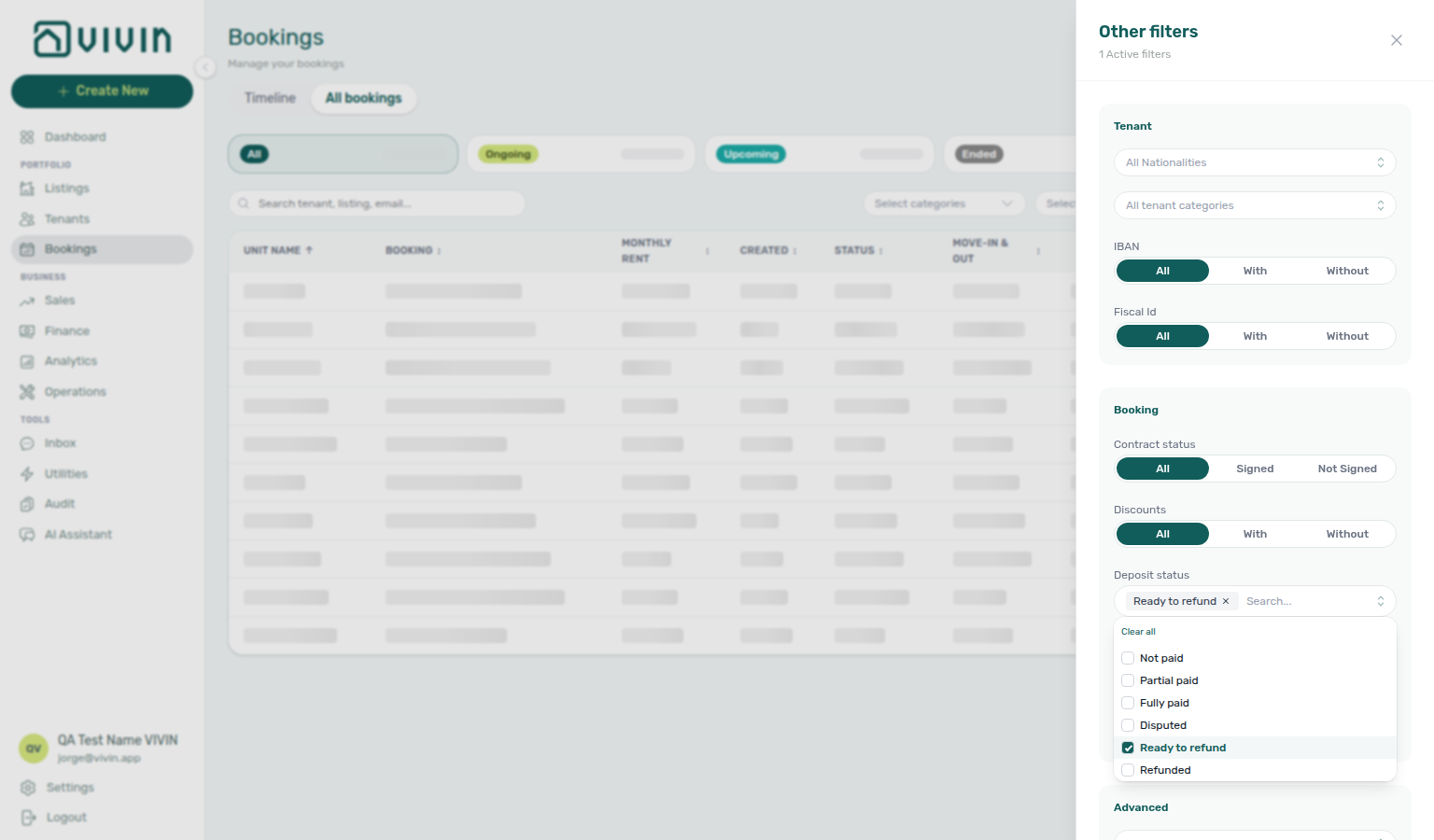
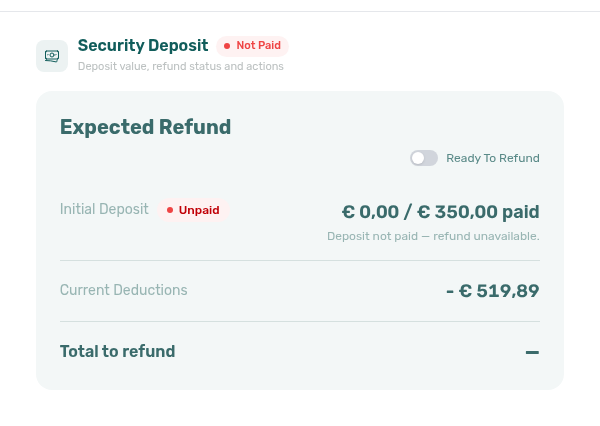
Does uploading a signed contract send me back to the top of Bookings?
No. Vivin writes the teal Contract check into the All bookings rows you already loaded. Scroll stays put, so a house search such as Casa Bolívia VIII still shows Quarto 5–7 after you close the sidebar. Regenerate clears the mark the same way. If Filters → Contract status is Signed, Not Signed or N/A, that filtered list reloads because the row may need to leave or join. The CT icon on Tenants table expand updates in place too. See Bookings — Contract mark stays on the list (bookings-list-contract-mark-keeps-scroll.png, tenants-table-ct-signed-check.png, bookings-list-contract-mark-keeps-scroll-flow.mp4).
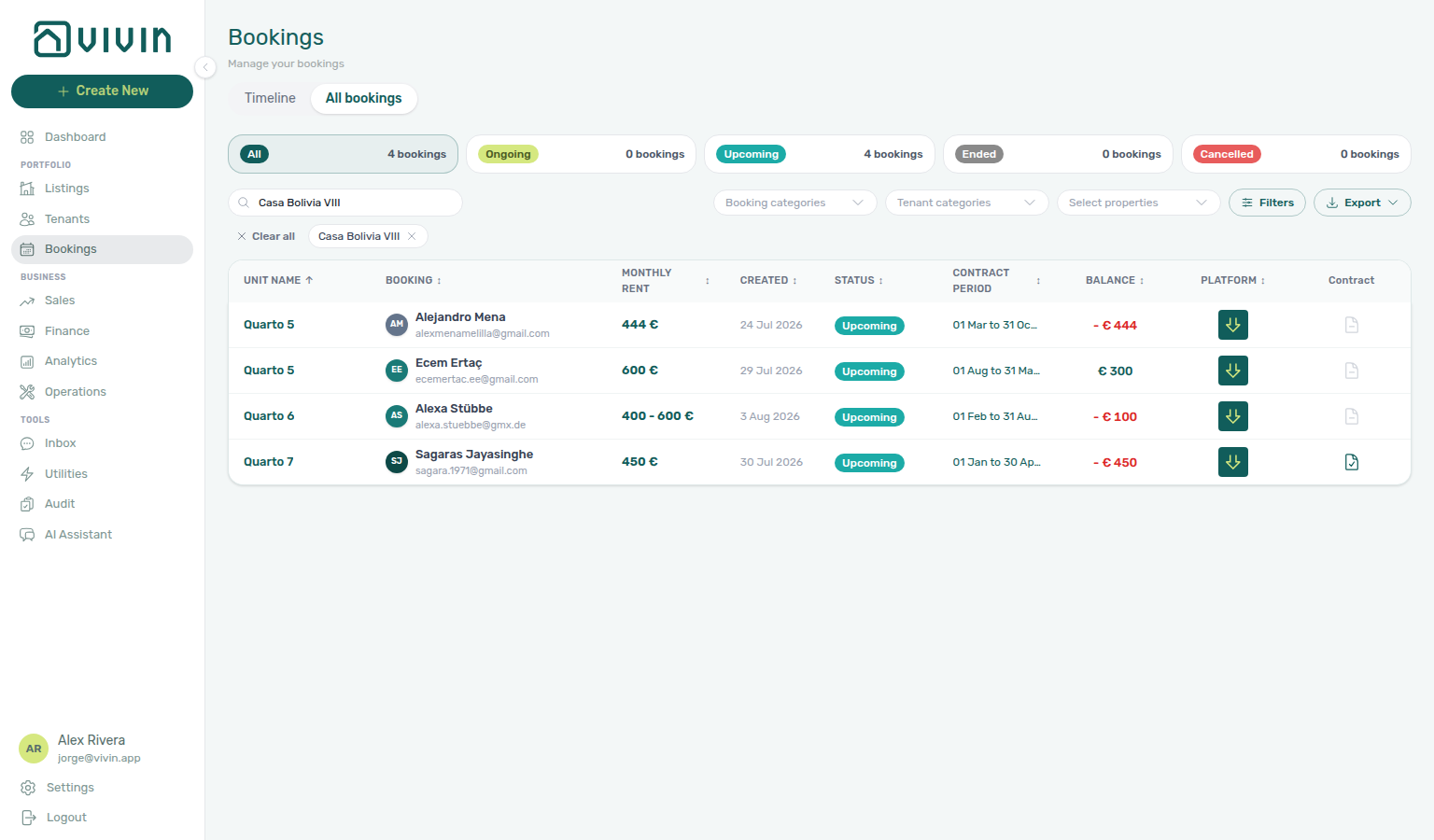
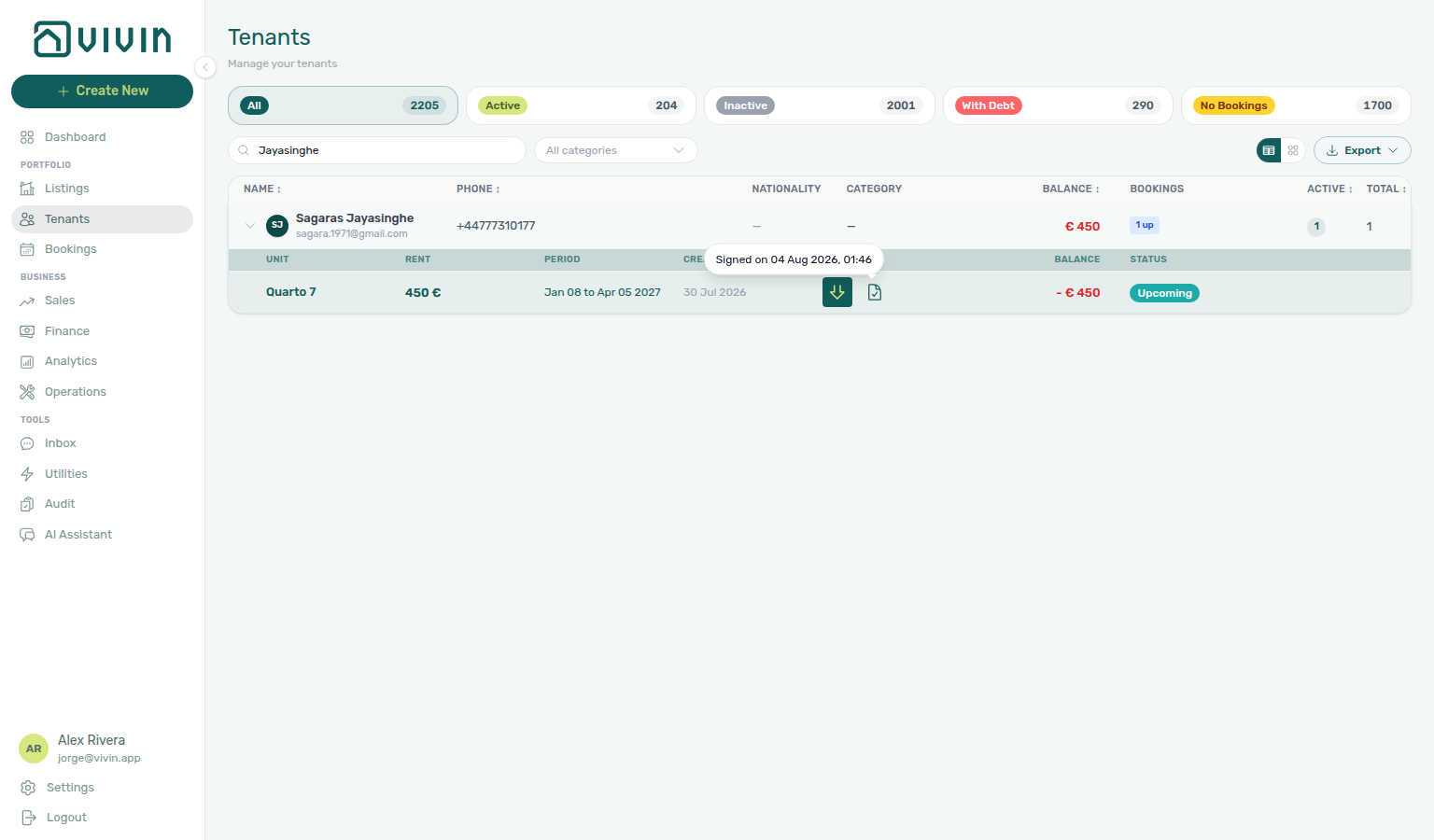
Does saving a listing send me back to the top of the portfolio?
No. Update on a property or unit sidebar writes that row into the list you already loaded. Scroll stays put, so you can keep working down Listings → Portfolio (for example a Casa search still showing Casa Dias after save, not jumping back to Casa Abel I). Changing search or filters still starts from the first matching batch. Archive and Delete still reload from the top because those actions remove the row.
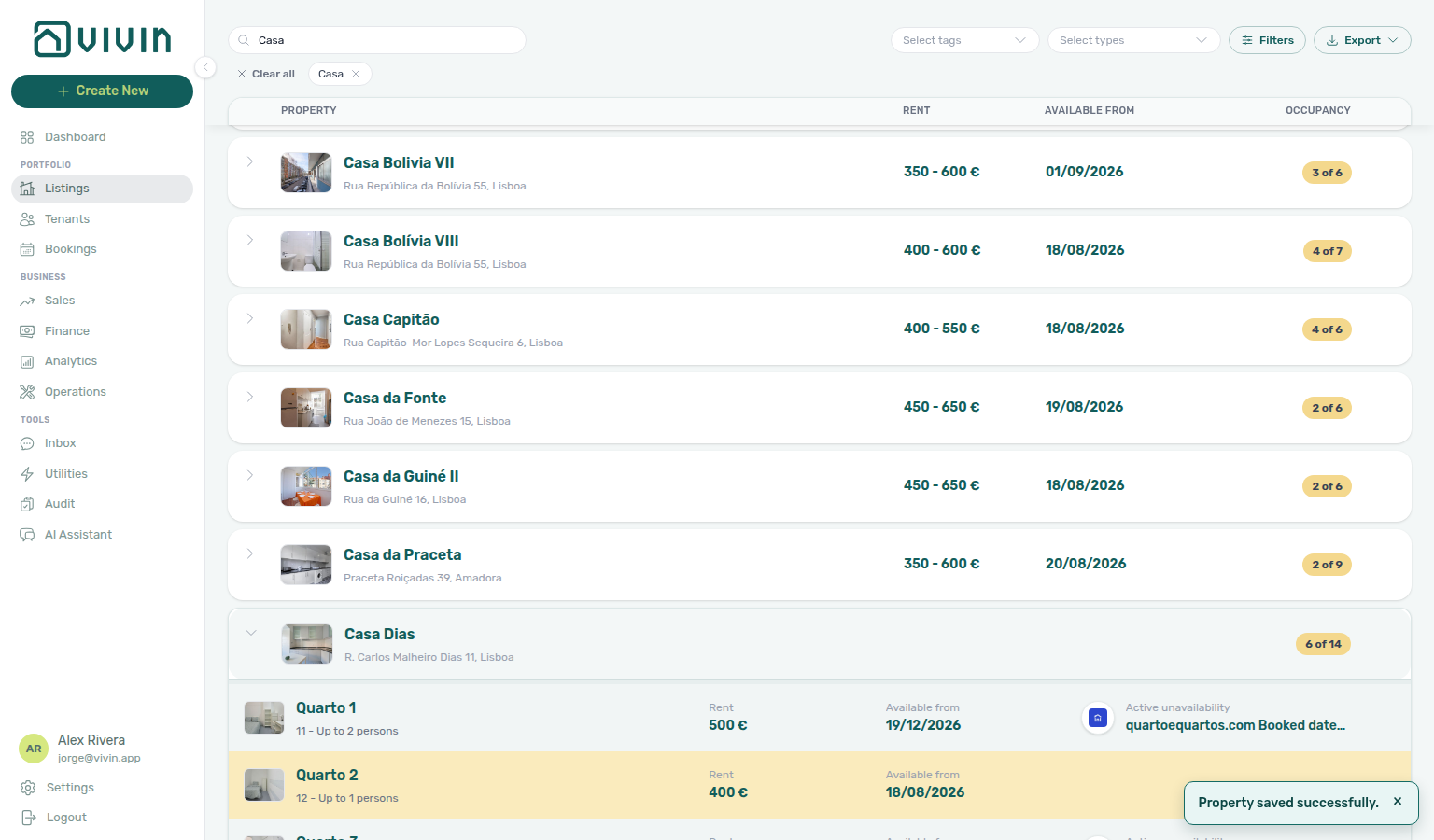
Does picking a second listing type close the menu?
No. Open Select types on Listings → Portfolio, tick the first type, then tick a second type. The menu stays open with checks on both. Search Conde first when you want a known building in view, then tick Double Room and Single Room. Dismiss the menu when the chips under the toolbar look right. Select tags is a different control — see Does picking a second listing tag close the menu?. See Listings — Select types stays open (listings-portfolio-select-types-stays-open.png, listings-portfolio-select-types-two-types.png, listings-portfolio-select-types-two-chips.png, listings-portfolio-select-types-stays-open-flow.mp4).
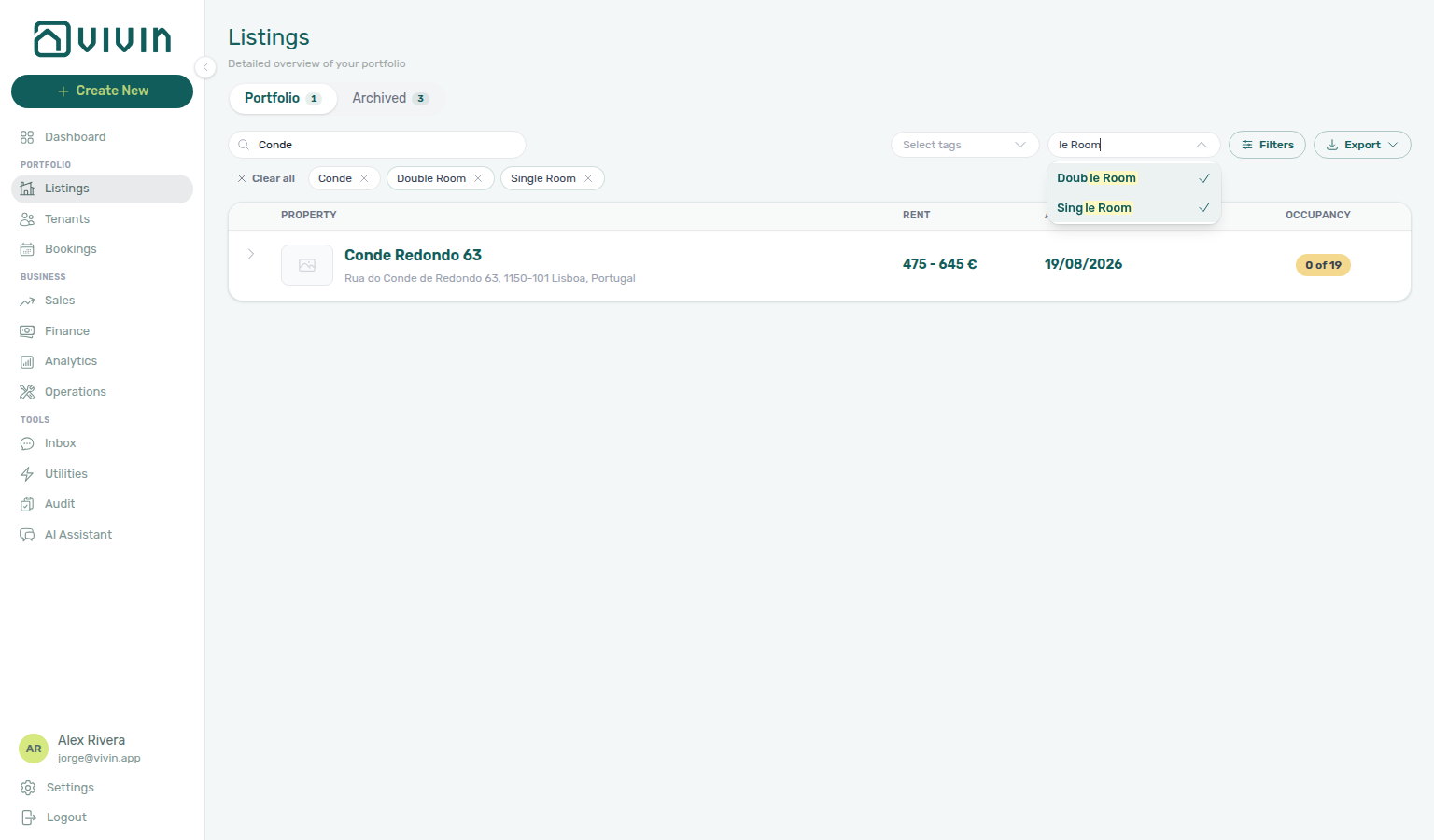
Does picking a second listing tag close the menu?
No. Open Select tags on Listings → Portfolio, tick the first tag, then tick a second tag. The menu stays open with checks on both. Tick Alameda, then Saldanha (or another pair from Settings → Categories → Listing Categories). The portfolio shows buildings that have any of those tags — not only buildings tagged with both. Dismiss the menu when the chips under the toolbar look right. Other filters → Select categories is the same tag list and also stays open. On Sales → Multicalendar and Pricing, Select tags is a separate control — pick one tag, then open that menu again for a second neighbourhood. See Listings — Select tags stays open.
How do I include all bills on a unit with no cap?
Open the unit in Listings, edit Rent pricing, tick All bills included (No cap), then Update. That unit receives a Covered allocation with Extra to charge € 0,00 on Utilities → Allocations — never a pending overage; other occupied rooms in the house still share the supplier bill. This is separate from the property Bills Included euro ceiling and from a per-booking Bills included override. Listing JSON then publishes billsIncluded: true and billsIncludedMaxValue: null — FAQ — Listing billsIncludedMaxValue is null. The same No cap checkbox is on + Create New → Unit step 2. See Glossary — All bills included.
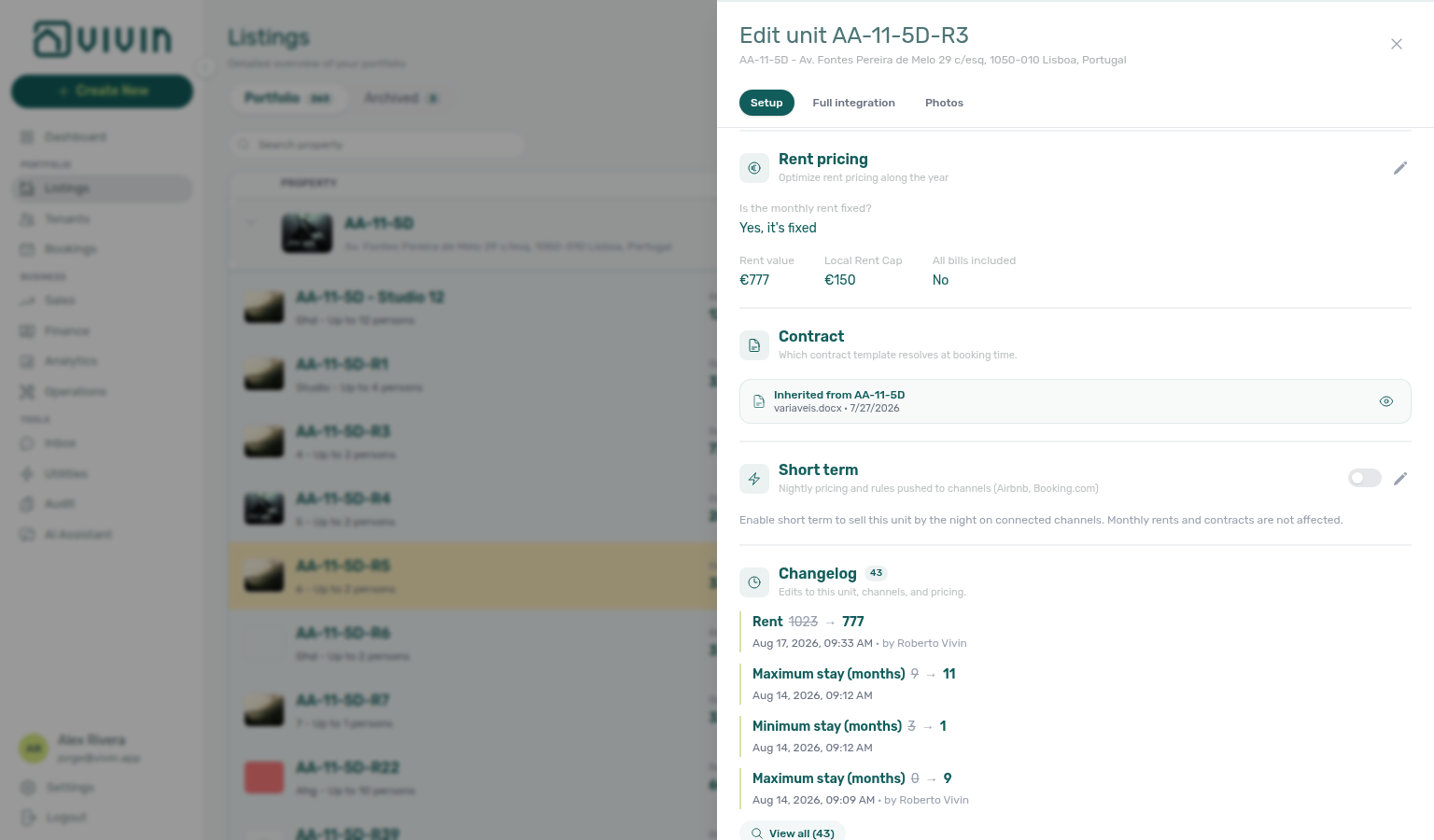
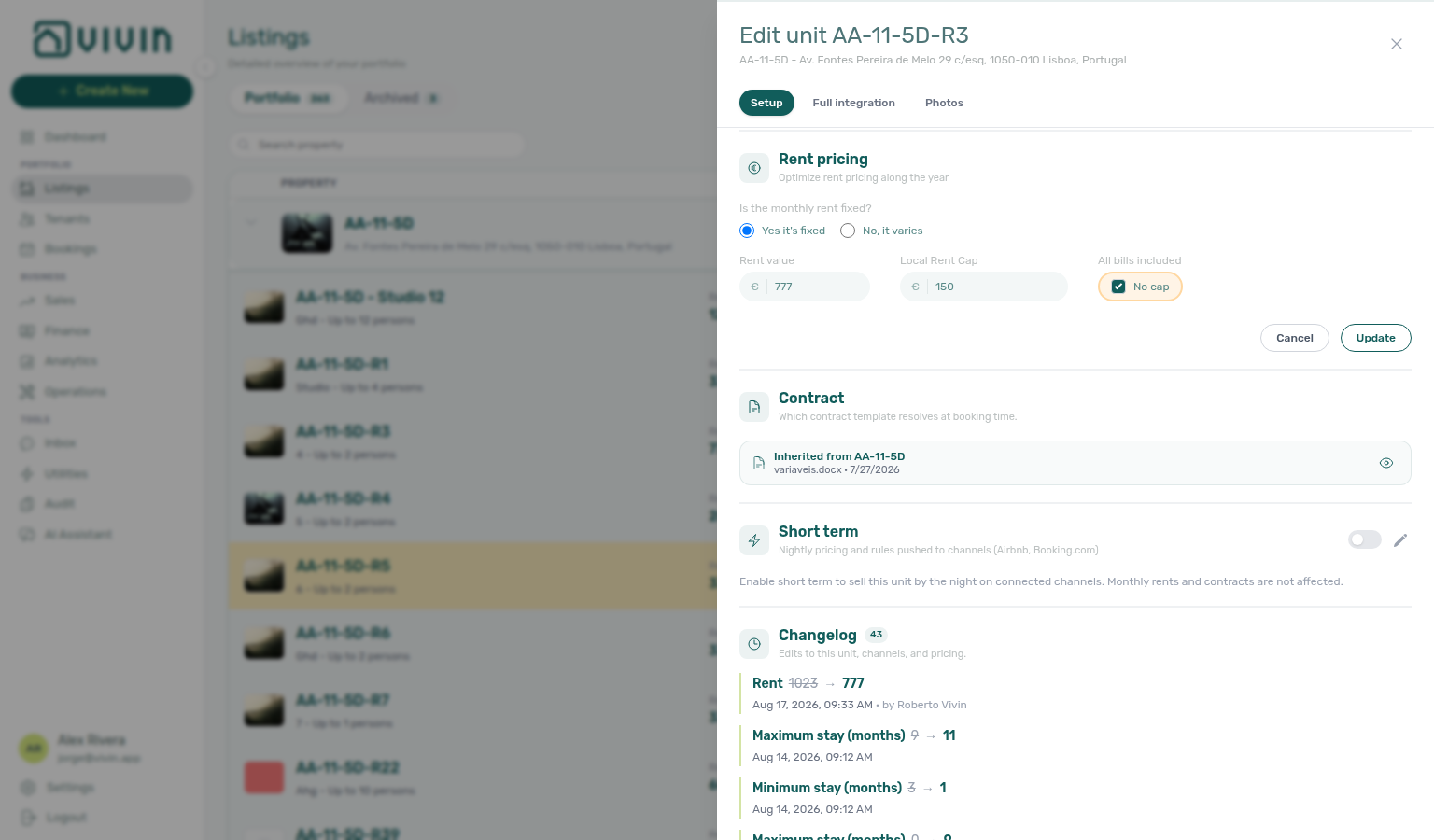
Why don't I see Extra Charge per Tenant on a studio?
Extra Charge per Tenant and Extra Deposit per Tenant appear on the unit Setup sidebar only when Capacity is greater than 1. A one-person unit has no extra occupant, so those fields stay hidden.
Raise Capacity to 2 or more to show Extra Charge again. Listing JSON for a capacity-1 unit publishes extraPricePerTenant: 0 even if a leftover amount is stored. This is not the Airbnb extra guest fee on Short term. Guide: Listings — Extra Charge per Tenant and Listings & Availability — Extra price per tenant.
Does a 12-month maximum stay mean unlimited?
No. Maximum Stay Period of 12 is twelve months. 0 means no maximum.
Set 0 on the unit (Add Unit step 2 or unit Setup) when you do not want a cap. Account Min/Max Stay Defaults apply to new units only. If Maximum Stay is 0 and you raise Minimum Stay, the sidebar also raises Maximum Stay to match — set Maximum Stay back to 0 if you still want no cap.
This is not the Short term card’s nightly Min stay / Max stay. Listing JSON publishes the stored months (maxStayPeriod: 0 is no cap). Add Booking uses those monthly bounds; marketplace imports honour listing JSON — FAQ — Marketplace booking exceeded Capacity. Guide: Listings — Maximum stay 0 and Listings & Availability — Maximum stay.
How do I set nightly short-term prices on a unit?
Nightly Short term rates pair with Integrations & Distribution (Channex / iCal), Listings — Short term, and Sales — Channex allocate mode.
Not sure which card holds nightly rates? Ask AI Chat “Where do I open the Short term card under Listings (unit edit sidebar on the Setup pill — English card label Short term with lightning icon — for nightly pricing Price per night, Nightly calendar overrides, cleaning fees, min/max stay, Sale window, and Lead time — not the Sales Pricing monthly rent grid, not Sales Channel Manager, not the Full integration pill, and not monthly Rent Value) to set nightly short-term rates and stay rules on a unit?” — then open Listings → unit edit sidebar → Setup → Short term (ai-chat-product-context-short-term-reply.png, ai-chat-product-context-short-term-flow.mp4). The assistant typically says Listings → Setup → Short term.
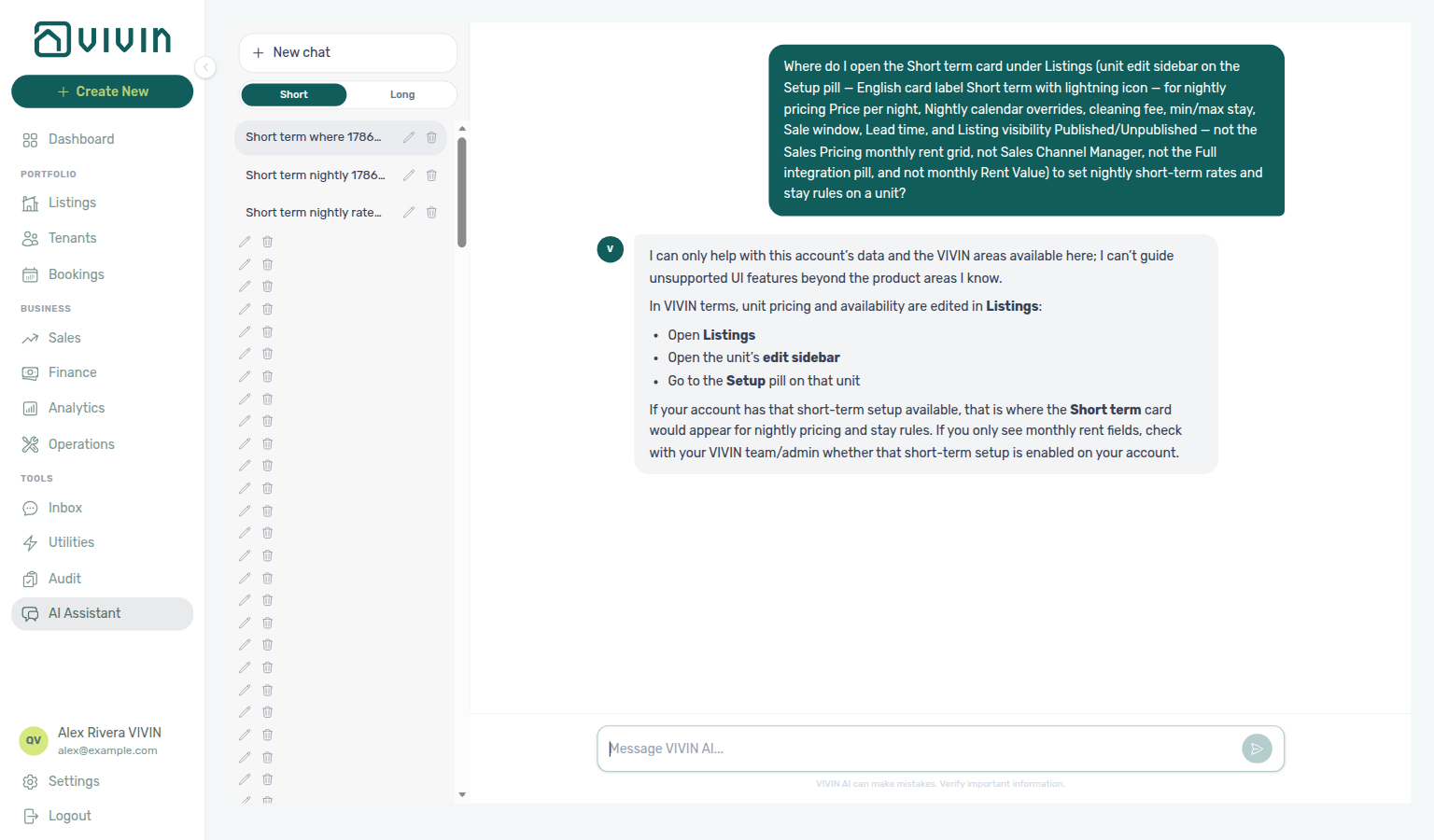
Open the unit in Listings, scroll to the Short term card, and turn the header toggle On. That enables nightly pricing without changing monthly Rent Value or contract templates. The card groups Price per night, min/max stay, and Sale window for every connected channel, then Airbnb only settings for monthly discount, extra guest fee, both cleaning fees, and lead time — What is Airbnb only settings on Short term?. Use Edit to set those fields (Extra guest fee is fee € and after N guests in one split control — view mode shows e.g. 6 € · after 1 guests). Leave the guest threshold blank when you do not need a separate included-guest count. Open Nightly calendar to override individual nights (or reset a range to the base price) — Cancel / close without Apply leaves nightly prices unchanged. Confirming a save runs channel pricing checks (for example Airbnb bands); rejected values keep the form open with the API toast so you can fix them. After you save, watch the channel sync badges — What do Short term sync badges mean?. Compatible edits made directly on Airbnb (nightly price, monthly discount, extra-guest fee, cleaning fees) can also appear here after the next channel sweep without immediately re-pushing. When Airbnb is allocated, read-only Channel discounts (Airbnb) chips explain weekly / last-minute / early-bird rules that still apply on top of your nightly price — What are Channel discounts (Airbnb) on Short term?. Account-wide forward horizon still uses Short-term iCal Max Date. After a Channex OTA rail is connected, allocate the unit on Sales → Channels so prices push to the OTA listing. See Listings — Extra guest fee, Listings — Dual cleaning fees, and Glossary — Short term (nightly pricing).
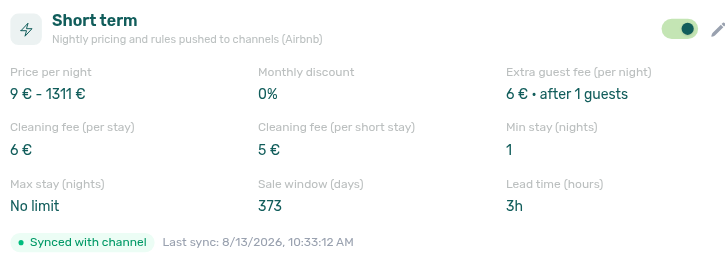
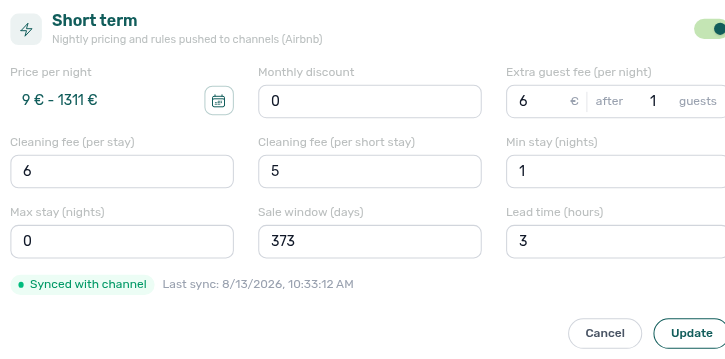
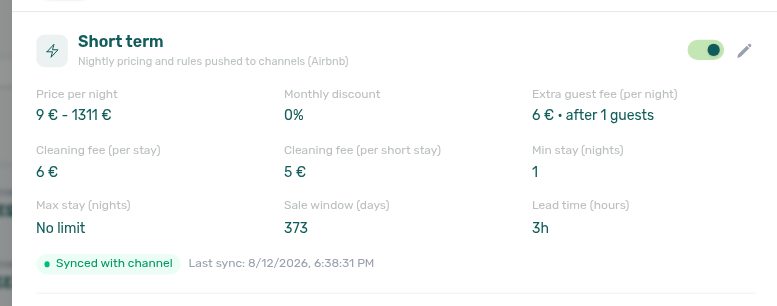
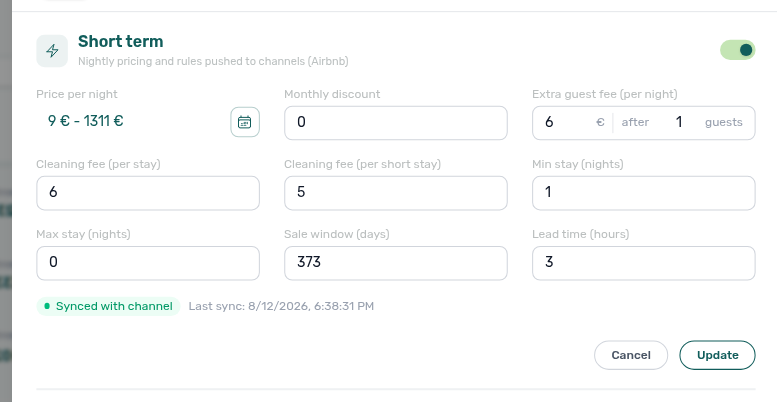
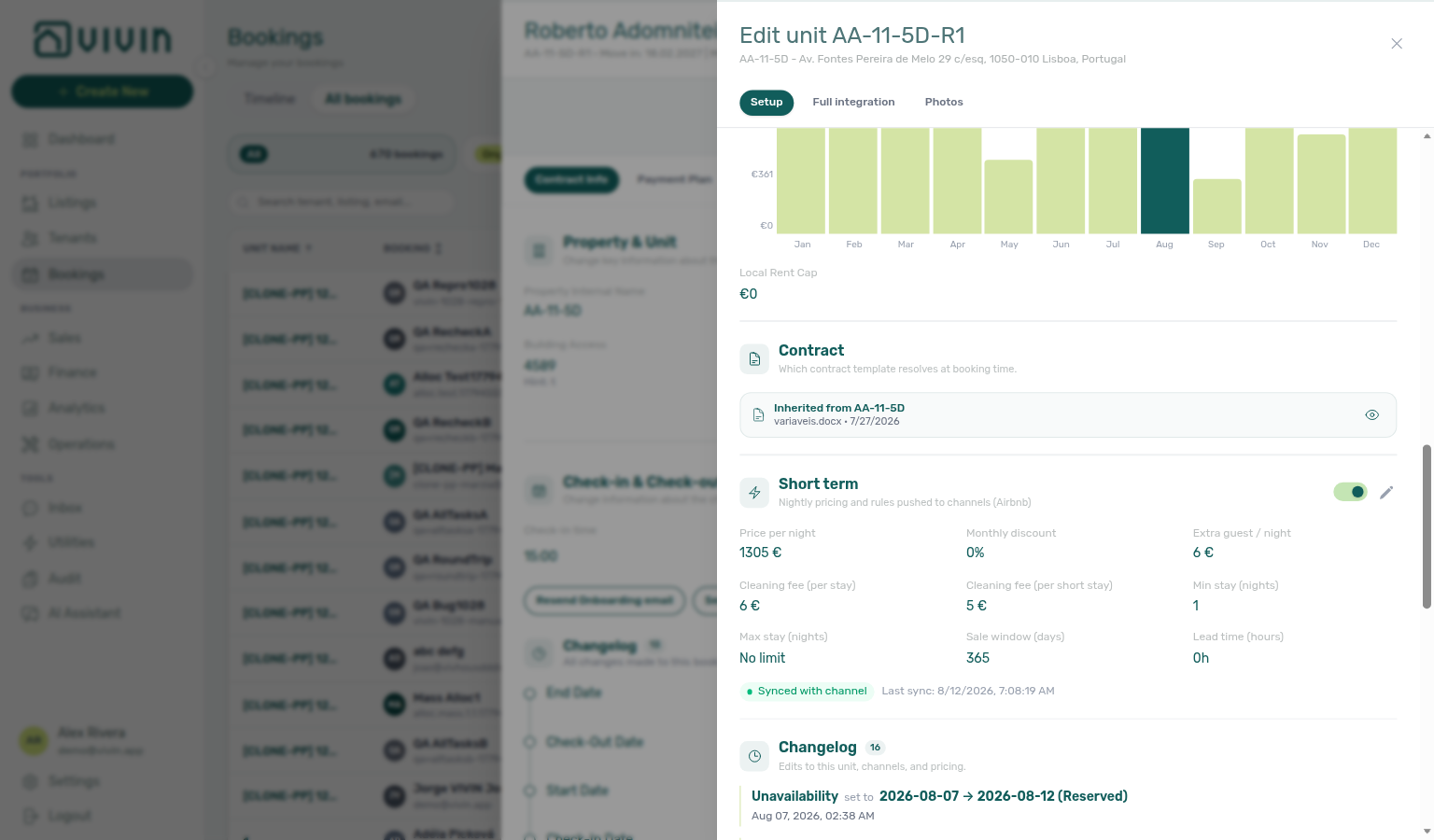
What is Airbnb only settings on Short term?
Airbnb-only fields pair with How do I set nightly short-term prices on a unit?, Listings — Airbnb only settings, and Listings — Extra guest fee.
On the unit Short term card, Airbnb only settings is the heading under the common nightly fields. Price per night, Min stay, Max stay, and Sale window push to every connected short-term channel (Airbnb and Booking.com). Monthly discount, Extra guest fee (per night), both cleaning fees, and Lead time apply on Airbnb only — Booking.com does not have matching fields. Open Edit to change either group; Cancel leaves the card unchanged. See Listings — Airbnb only settings (listings-unit-short-term-airbnb-only-settings.png, listings-unit-short-term-airbnb-only-settings-edit.png, listings-unit-short-term-airbnb-only-settings-flow.mp4).
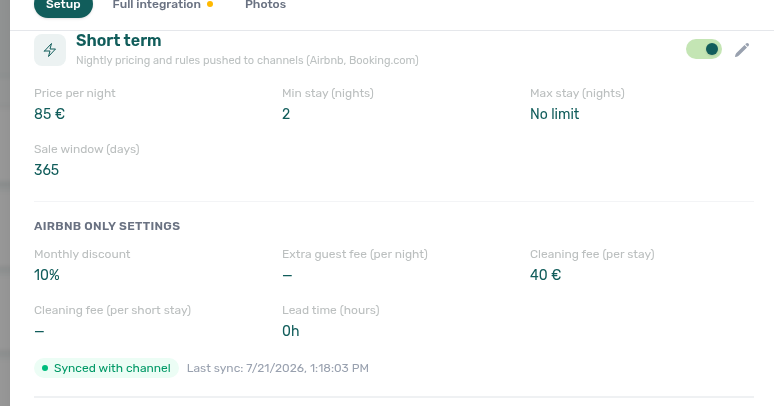
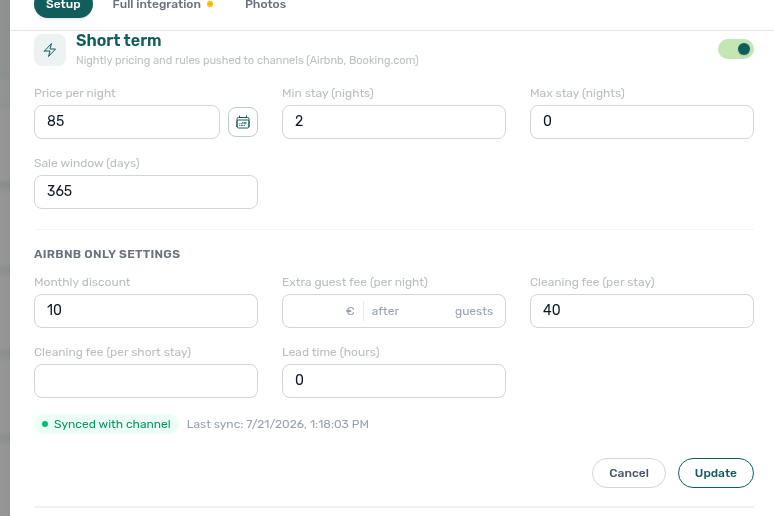
What are Channel discounts (Airbnb) on Short term?
Channel discount chips pair with How do I set nightly short-term prices on a unit?, Listings — Channel discounts (Airbnb), and Settings → Integrations — Channex.
On an Airbnb-allocated unit, the Short term card can show Channel discounts (Airbnb) — read-only chips for Airbnb rules that adjust the nightly price on top of the rate Vivin pushes:
- Weekly, Last minute, Early bird, and other length-of-stay chips — edit those rules on Airbnb; Vivin only mirrors them.
- Monthly discount stays editable in Vivin under Airbnb only settings (and is not repeated as a chip).
- Airbnb promotions (top-rated guests, custom promos) are not listed.
If the block is missing, the unit is not channel-connected yet, or Airbnb has no non-monthly rules to show. See Glossary — Short term (nightly pricing).
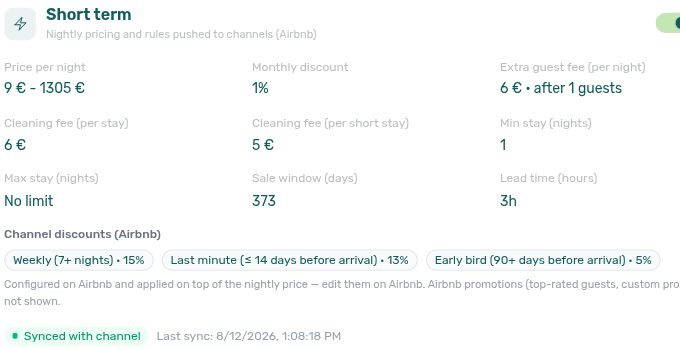
What do Short term sync badges mean?
Channel sync pills pair with How do I set nightly short-term prices on a unit?, Listings — Channel sync badges, and Settings → Integrations — Channex.
On the unit Short term card, Vivin shows channel ARI status when Channex mapping is available:
- Synced with channel — last push finished; Last sync shows when.
- Sync pending — you saved Short term changes that still need to push; re-open the unit sidebar if the pill has not refreshed.
- Sync error — the OTA rejected the push after Vivin’s first check; open channel logs from your Channex connection, fix the OTA-side values, then Edit → Update Short term again.
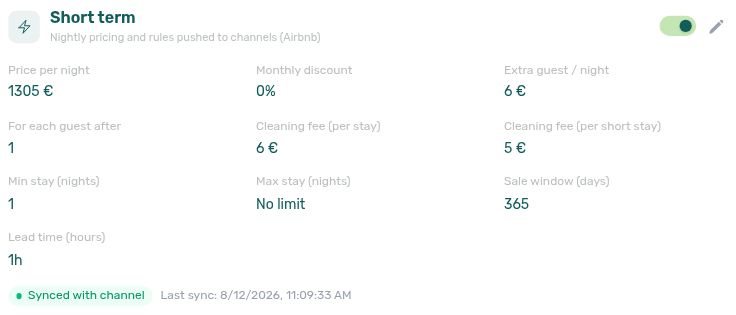
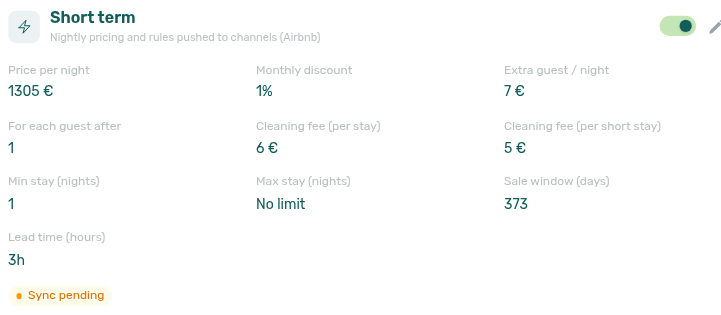
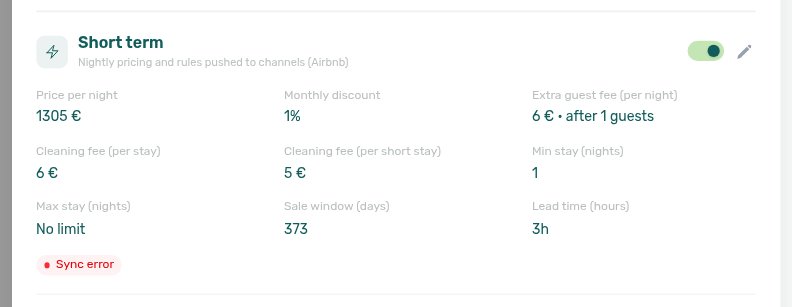
Do Airbnb price edits appear on Short term in Vivin?
Airbnb → Vivin pricing import pairs with What do Short term sync badges mean?, Listings — Airbnb → Vivin pricing import, and How do I set nightly short-term prices on a unit?.
Yes — for channel-connected units, compatible edits you make on Airbnb (nightly price, monthly discount, extra-guest fee / included guests, and both cleaning fees) can flow into the unit Short term card after the next channel sweep. Vivin updates those fields without flipping the badge to Sync pending, so the Airbnb change is not immediately overwritten by the next outbound push. Values that would break channel rules are skipped. Prefer editing in Vivin when you want a controlled push. See the before/after card shots and short clip on Listings — Airbnb → Vivin pricing import (listings-unit-short-term-airbnb-pricing-import-before.png, listings-unit-short-term-airbnb-pricing-import-after.png, listings-unit-short-term-airbnb-pricing-import-flow.mp4) and Glossary — Short term (nightly pricing).
Why do channel-manager bookings show Airbnb or Booking.com?
OTA identity on channel-manager stays pairs with Bookings — Platform badge and filters follow the real OTA, Why does an Airbnb booking hide rent and deposit on Contract Info?, and How do I read and reply to Airbnb guest messages?.
When a stay arrives through the channel manager, Vivin labels it with the OTA the guest used. The PLATFORM column, Other filters → Source platform, Finance → Transactions → Select platforms, and the Communication chat pill all say Airbnb or Booking.com. There is no separate channel-manager chip to tick. Use Airbnb to find channel-manager Airbnb stays; use Booking.com for Booking.com stays. See Bookings — Platform badge and filters follow the real OTA (bookings-list-ota-real-ota-airbnb-search.png, bookings-other-filters-source-platform-real-ota.png, finance-transactions-select-platforms-real-ota.png, bookings-ota-real-ota-identity-flow.mp4).

Why does an Airbnb booking hide rent and deposit on Contract Info?
Channel-manager stays pair with Why do channel-manager bookings show Airbnb or Booking.com?, Bookings — Channel-manager (Airbnb) bookings, Settings → Integrations — Channex, and Provider platform payment.
When a reservation arrives through the Channex channel manager (guest booked on Airbnb or another connected OTA), Contract Info → Booking information shows a dates-only card: stay dates, the Airbnb (OTA) platform badge, Provider platform payment, and booking categories. Mid-term fields such as Monthly rent, deposit, and admin/cleaning fees stay hidden because the guest already paid the OTA — Vivin does not recreate those mid-term charges on import. Stay dates are read-only in Vivin (amber note under the dates); change them on Airbnb and they sync back when the channel revision applies. The one Booking information edit that remains is Booking categories. Reconcile OTA money by reading Provider platform payment, Payment Plan, and Transactions — charge/discount actions stay locked. Read and reply to the OTA guest thread on Communication → Airbnb — How do I read and reply to Airbnb guest messages?. See Why can’t I edit an Airbnb booking in Vivin?, Glossary — Channel-manager (Airbnb) booking (bookings-detail-ota-contract-info-dates-only.png, bookings-detail-ota-airbnb-lockdown-dates-note.png, bookings-ota-airbnb-edit-lockdown-flow.mp4).
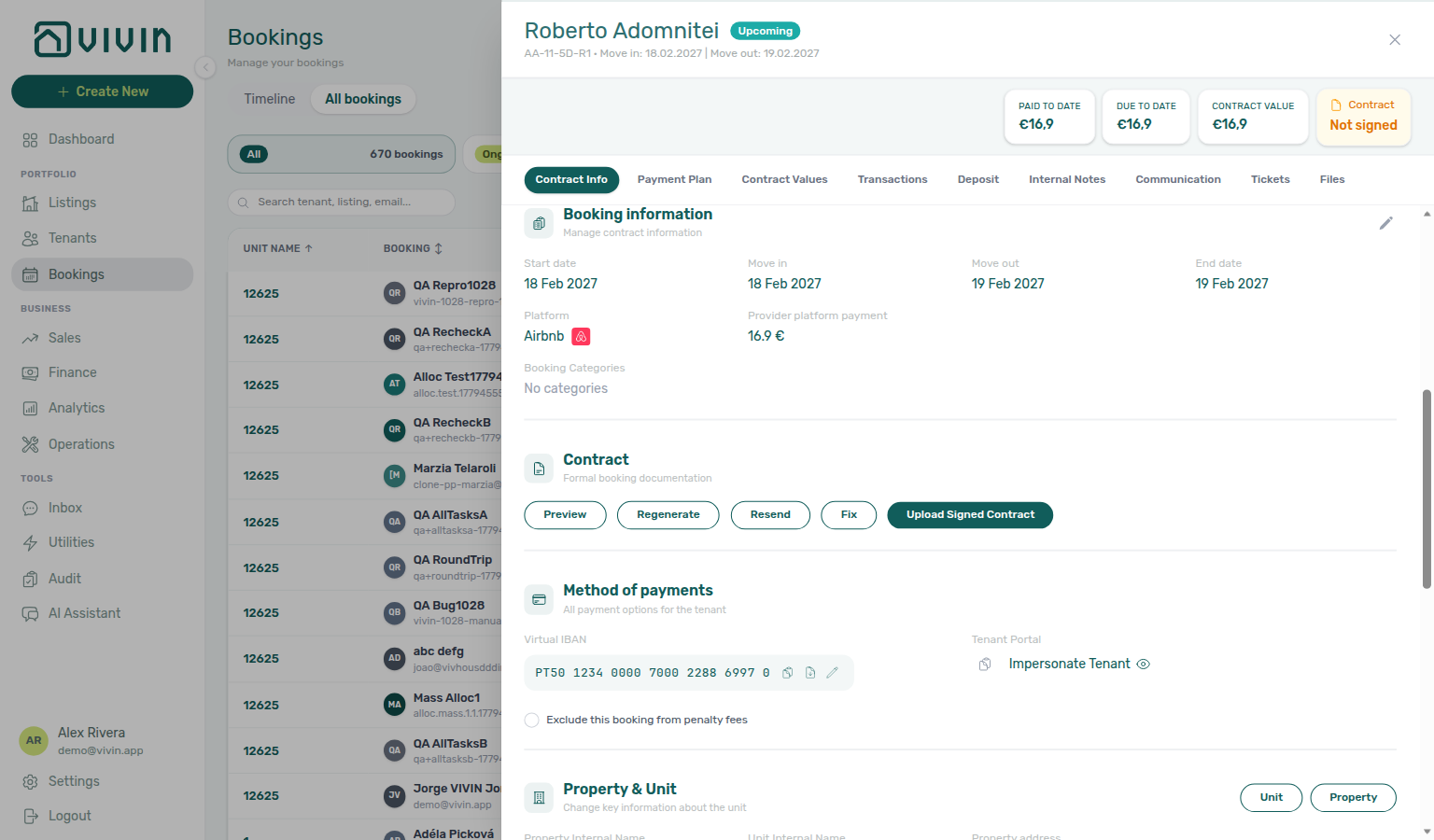
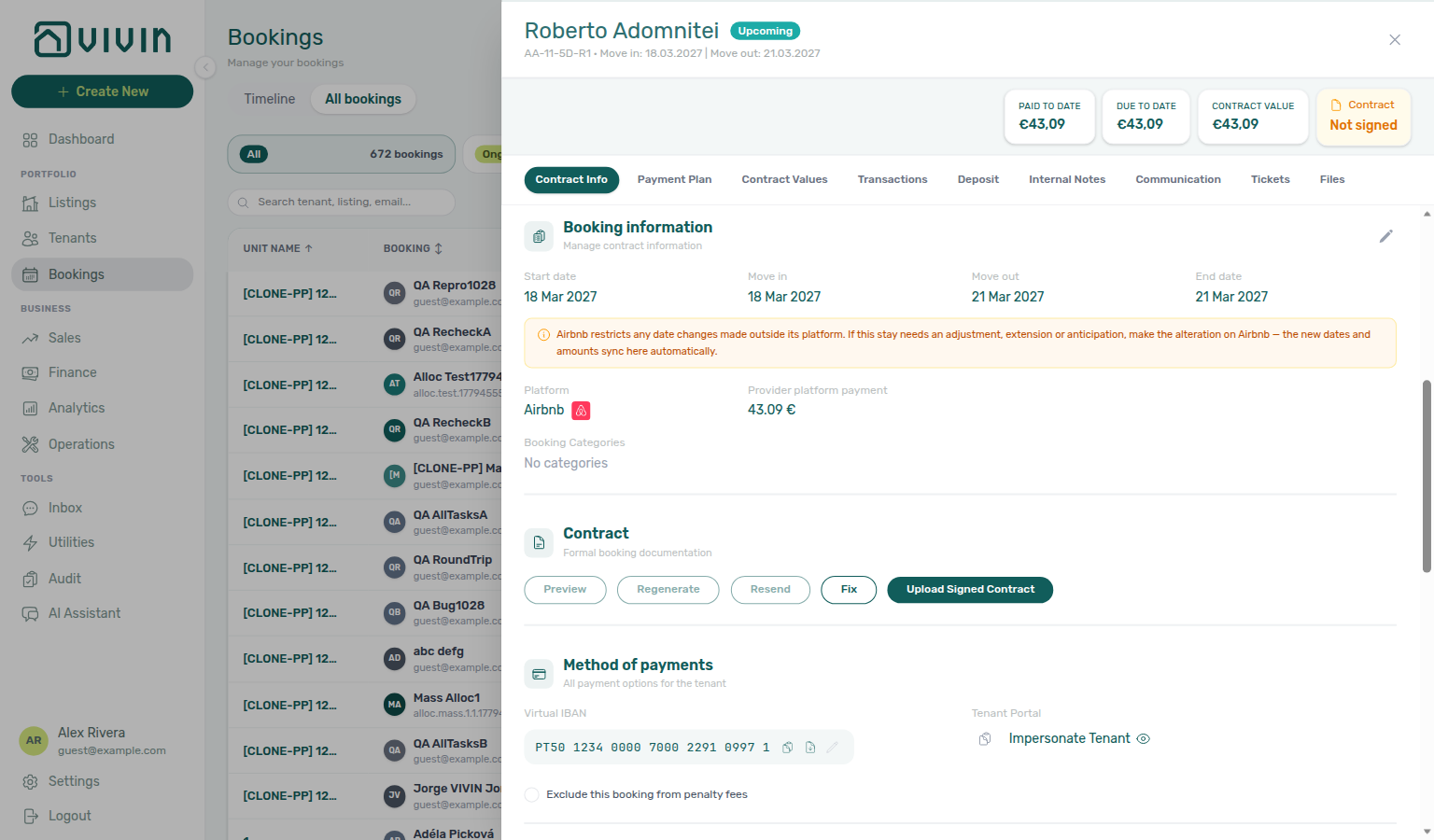
Why can’t I edit an Airbnb booking in Vivin?
Channel-manager (Airbnb) stays are mirrors of the OTA reservation. Airbnb does not allow reservation changes from outside its platform, so Vivin greys out edit affordances (tenant pencil, stay dates, contract Preview / Regenerate / Resend / Upload Signed Contract, check-in emails, Cancel / Delete Booking, and + Charge / + Transaction / Apply Discount) with the tooltip This can't be edited on Airbnb bookings. Make date, cancel, or payout changes on Airbnb; Vivin applies the channel revision automatically when safe. You can still edit Booking categories, copy the virtual IBAN, and reply on Communication → Airbnb. Airbnb guests already agreed on the OTA — you do not upload a separate signed PDF on these rows. See Bookings — Edit lockdown on Airbnb bookings (bookings-detail-ota-airbnb-lockdown-upload-signed-locked.png, bookings-detail-ota-airbnb-lockdown-upload-signed-tooltip.png, bookings-ota-airbnb-upload-signed-lock-flow.mp4, bookings-detail-ota-airbnb-lockdown-dates-note.png, bookings-detail-ota-airbnb-lockdown-check-in-out.png, bookings-detail-ota-airbnb-lockdown-payment-plan.png, bookings-ota-airbnb-edit-lockdown-flow.mp4) and Glossary — Channel-manager (Airbnb) booking.
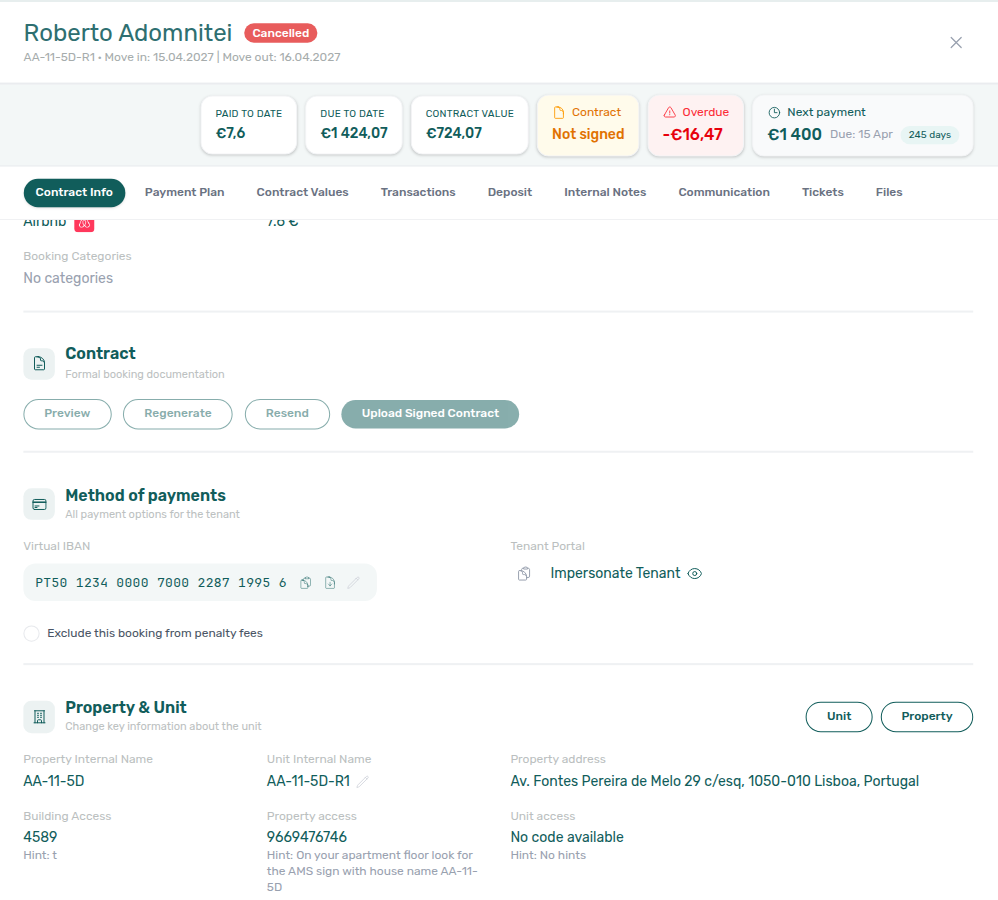
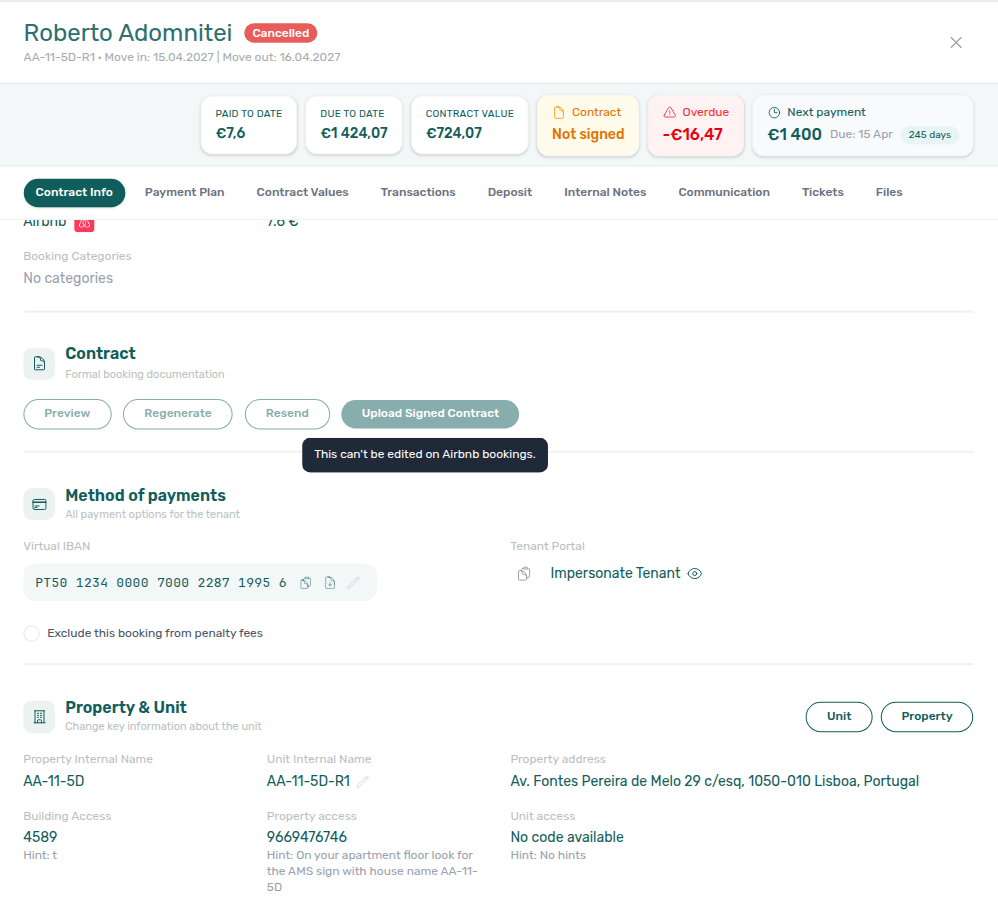
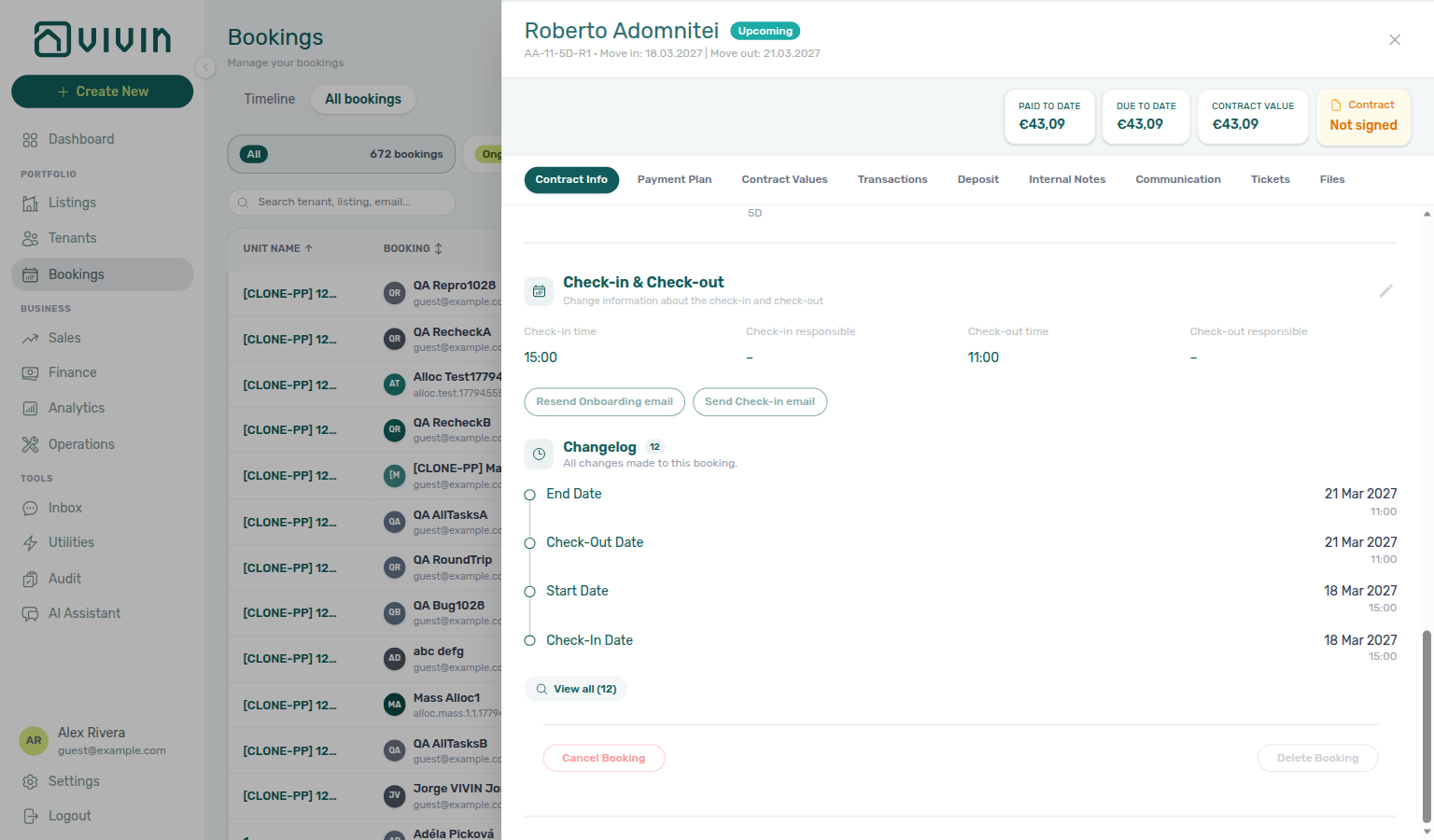
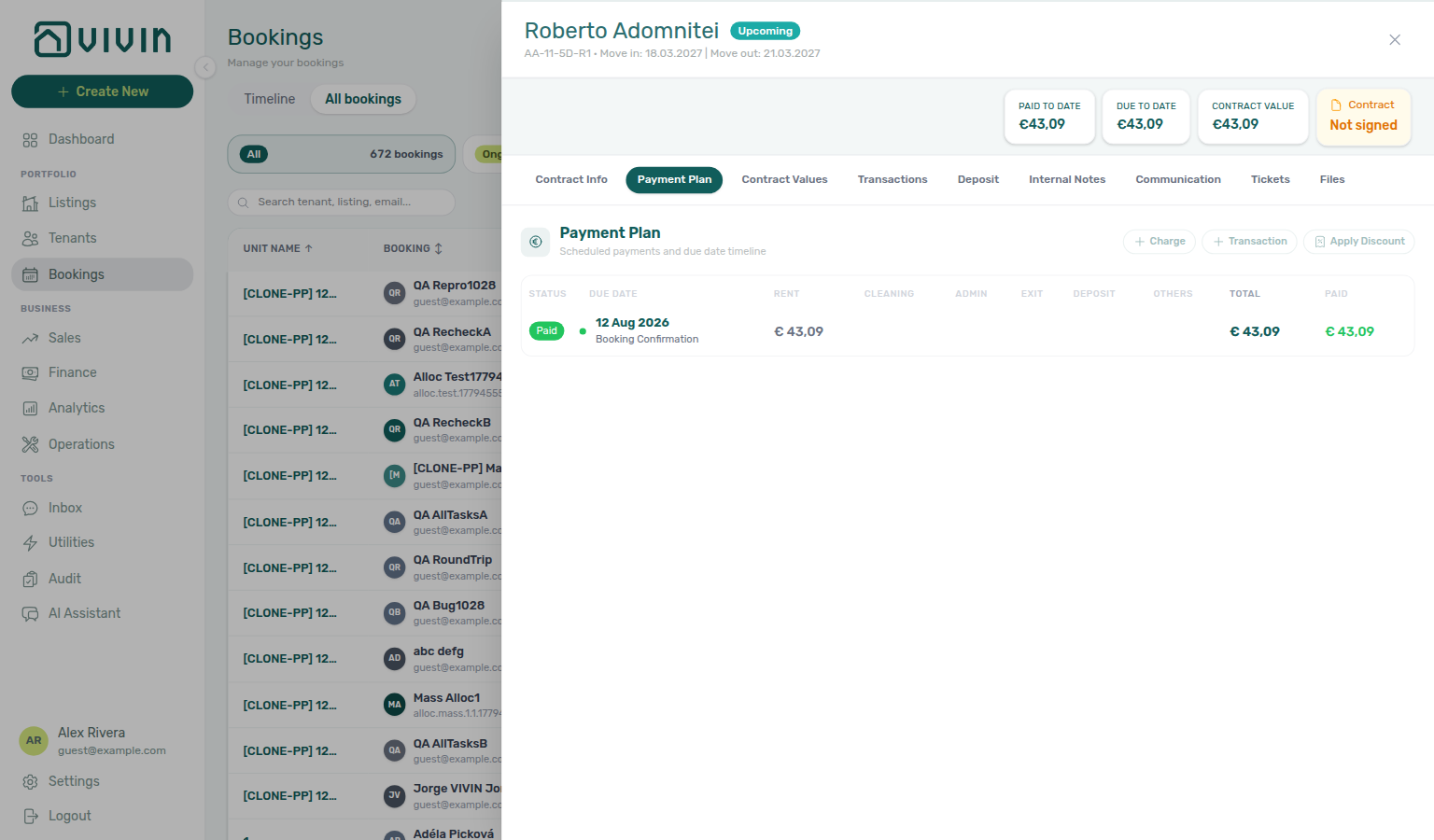
Why does an Airbnb booking show Paid equal to the payout?
OTA payout matching pairs with Why does an Airbnb booking hide rent and deposit on Contract Info?, Bookings — Payment plan matches the Airbnb payout, and Provider platform payment.
Channel-manager (Airbnb) imports set Payment Plan so Paid to Date, Due to Date, and Contract Value equal the Provider platform payment (the OTA payout). Vivin also records a Provider Platform in-payment on Transactions and allocates it right away, so the stay usually opens as Paid. Confirm the match on the booking insights bar without opening Payment Plan. Later Airbnb date or payout changes are applied automatically when safe — What happens when an Airbnb guest changes dates or the payout?. Booking.com stays are different: the property collects the money, so you record it with + Transaction — Why does a Booking.com stay show one rent line due at check-in?. See Glossary — Channel-manager (Airbnb) booking (bookings-detail-ota-insights-bar-payout-matched-crop.png, bookings-detail-ota-payment-plan-payout-matched.png, bookings-ota-insights-bar-payout-matched-flow.mp4).

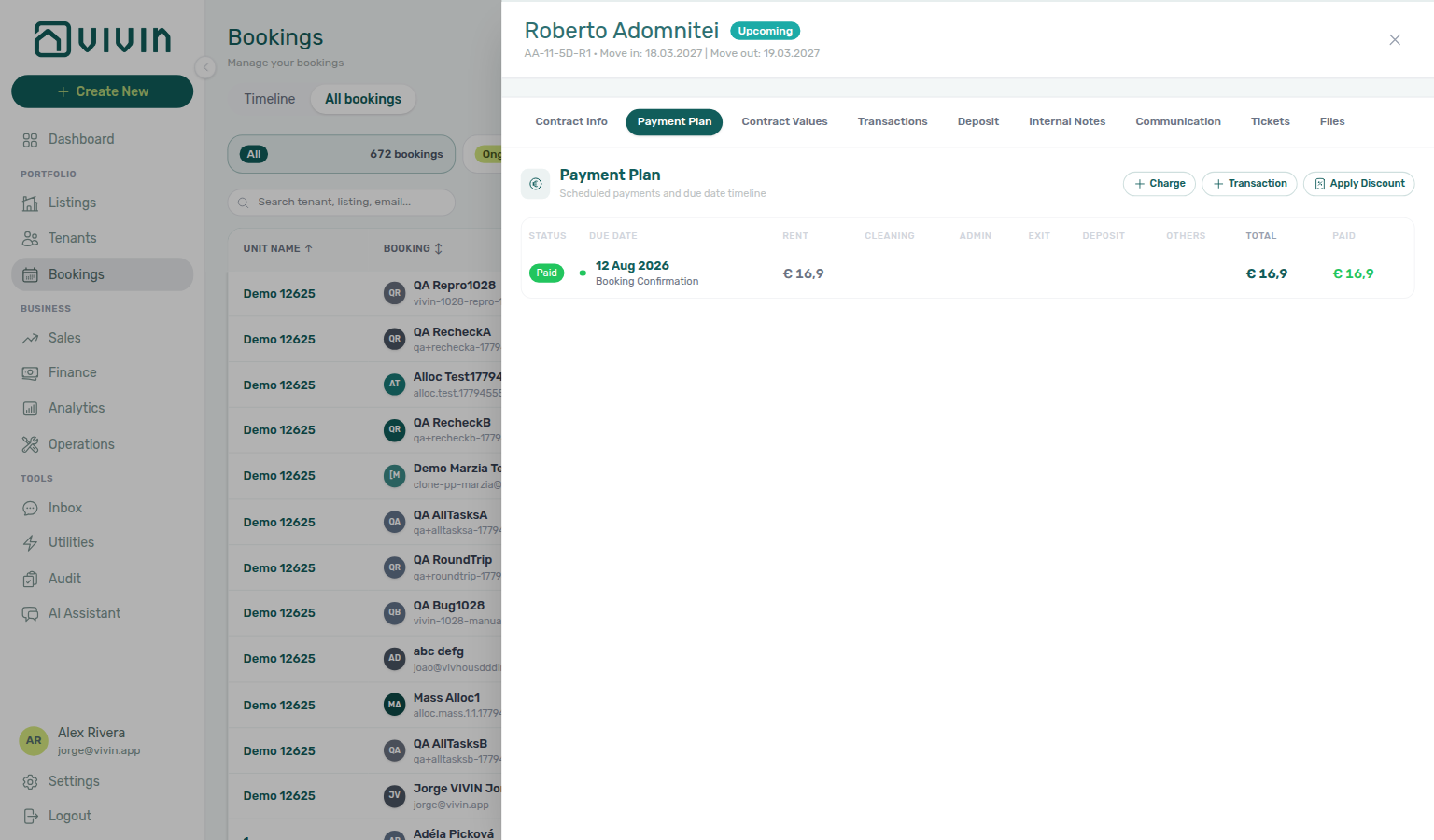
Why does a Booking.com stay show one rent line due at check-in?
Booking.com collections pair with Why does an Airbnb booking show Paid equal to the payout?, Bookings — Booking.com stays: one rent line due at check-in, and Why can’t I edit an Airbnb booking in Vivin?.
On Booking.com channel-manager stays, the property collects the guest’s money — Vivin does not register an automatic payout. Payment Plan therefore shows one rent line due on check-in (Move-in Payment), even when the stay crosses a calendar month. + Transaction stays enabled so you can record the collection on Payment Plan, Contract Values, or Transactions; + Charge and Apply Discount stay locked (tooltip: Charges and discounts are locked for Booking.com bookings — the amounts follow Booking.com. Record here the payments you collect from the guest.). Airbnb stays keep + Transaction locked because that payout lands automatically. See Bookings — Booking.com stays: one rent line due at check-in (bookings-detail-ota-bookingcom-payment-plan-one-rent-line.png, bookings-detail-ota-bookingcom-transactions-record-payment.png, bookings-detail-ota-bookingcom-add-payment-modal.png, bookings-ota-bookingcom-collect-at-check-in-flow.mp4).
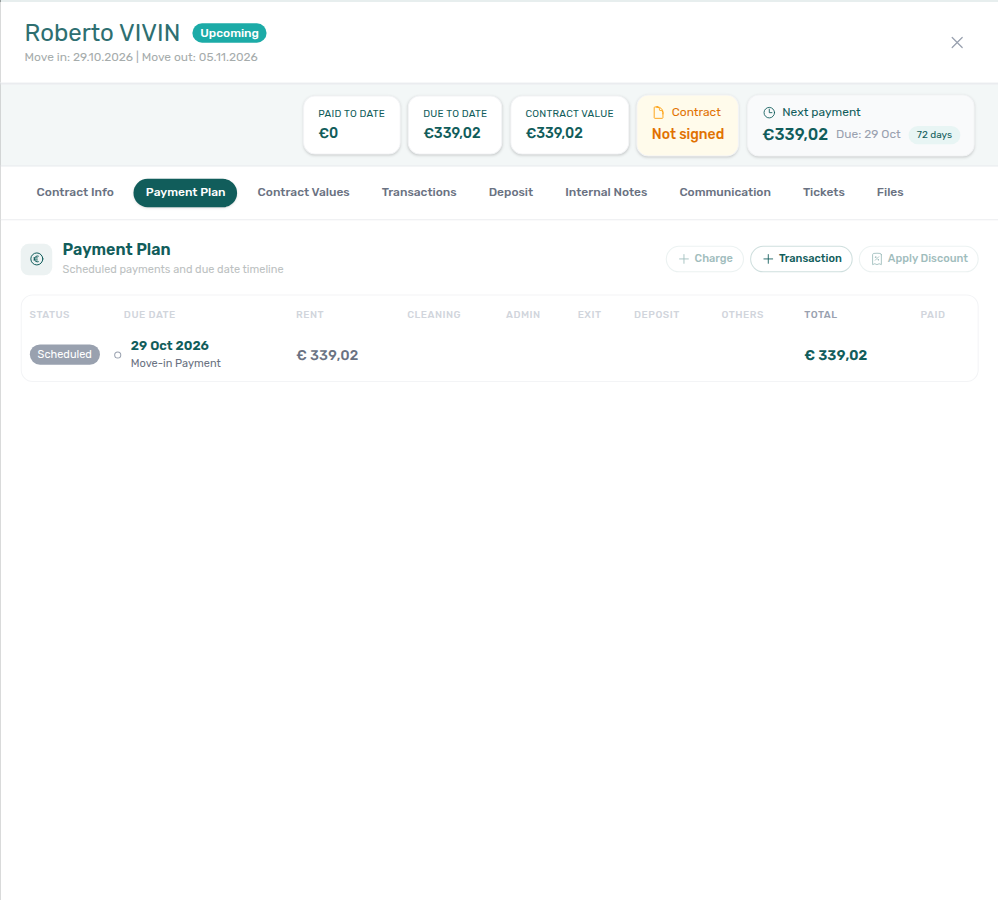
What happens when an Airbnb guest changes dates or the payout?
Reservation changes pair with Why does an Airbnb booking show Paid equal to the payout?, Bookings — When Airbnb changes dates or the payout, and Provider platform payment.
When a guest changes dates or the host payout on Airbnb, Channex sends a modified revision. Vivin acknowledges it and updates the Vivin booking when the change is safe: Contract Info stay dates and Provider platform payment move with the channel, the Payment Plan and received payout regenerate, and Changelog records OTA modification applied automatically from the channel…. Open the stay afterward and confirm Paid to Date still matches the new payout. If Changelog shows a review warning instead (for example a date collision or invoiced rows), clear the blocker when you can and correct the stay on Airbnb — you cannot change dates with Change contract start/end date on these bookings (Why can’t I edit an Airbnb booking in Vivin?). See Bookings — When Airbnb changes dates or the payout (bookings-detail-ota-alteration-auto-applied-contract-info.png, bookings-detail-ota-alteration-auto-applied-timeline.png, bookings-ota-reservation-alteration-flow.mp4) and Glossary — Channel-manager (Airbnb) booking.
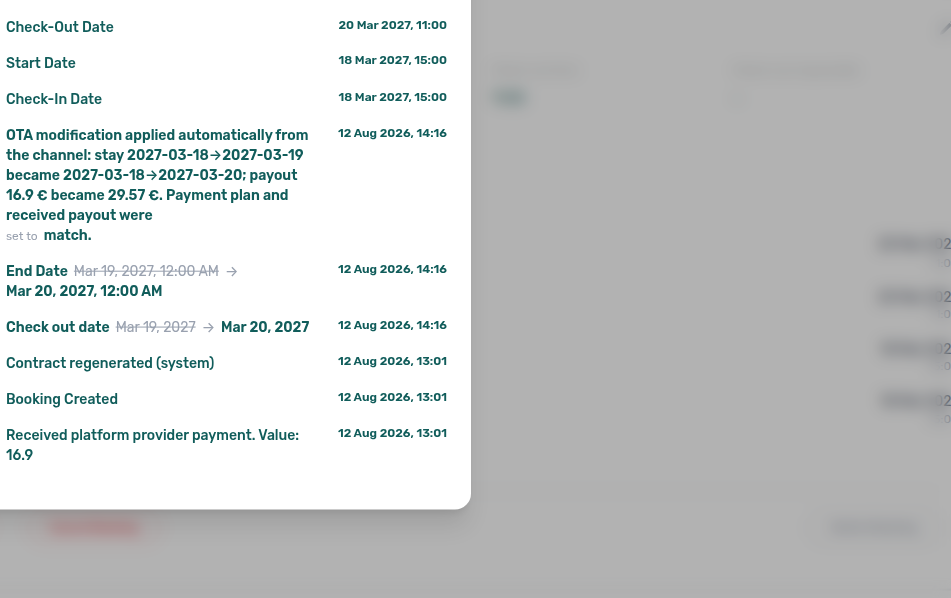
Operations
Ticket and turnover answers pair with Bookings (Timeline / Multicalendar overlap), Properties & Listings (maintenance automation on property), Payments & Finance (deposit settlement on check-out), Does picking a second ticket assignee close the menu? (Assignee stay-open), and Does picking a second responsible teammate close the Check-in & Check-out menu? (Responsible stay-open).
Why do Ticket status cards change when I turn Overdue on?
On Operations → Tickets, the Overdue toolbar toggle (and Other filters → Overdue only) narrows both the table and the status summary cards. With Overdue on, Draft, Closed, and Cancelled read 0, and All matches the open overdue buckets (usually Unassigned + In progress). Click a non-zero card to stay inside that overdue slice — you should never open an empty table from a card that still shows a count.
Those overdue rows are tickets past their SLA due date (priority + SLA hours on Ticket Priorities). Tickets with None priority, or a priority with blank SLA hours, stay out of this slice even when their schedule date is in the past.
Clicking Overdue on Operations → Overview turns on that same filter — you land on Tickets with the overdue chip already active, and the Overview headline matches the Tickets overdue count. Open Tickets on Overview clears it. See Operations — Overdue KPI card (operations-overview-overdue-opens-tickets.png, operations-overview-overdue-card-flow.mp4).
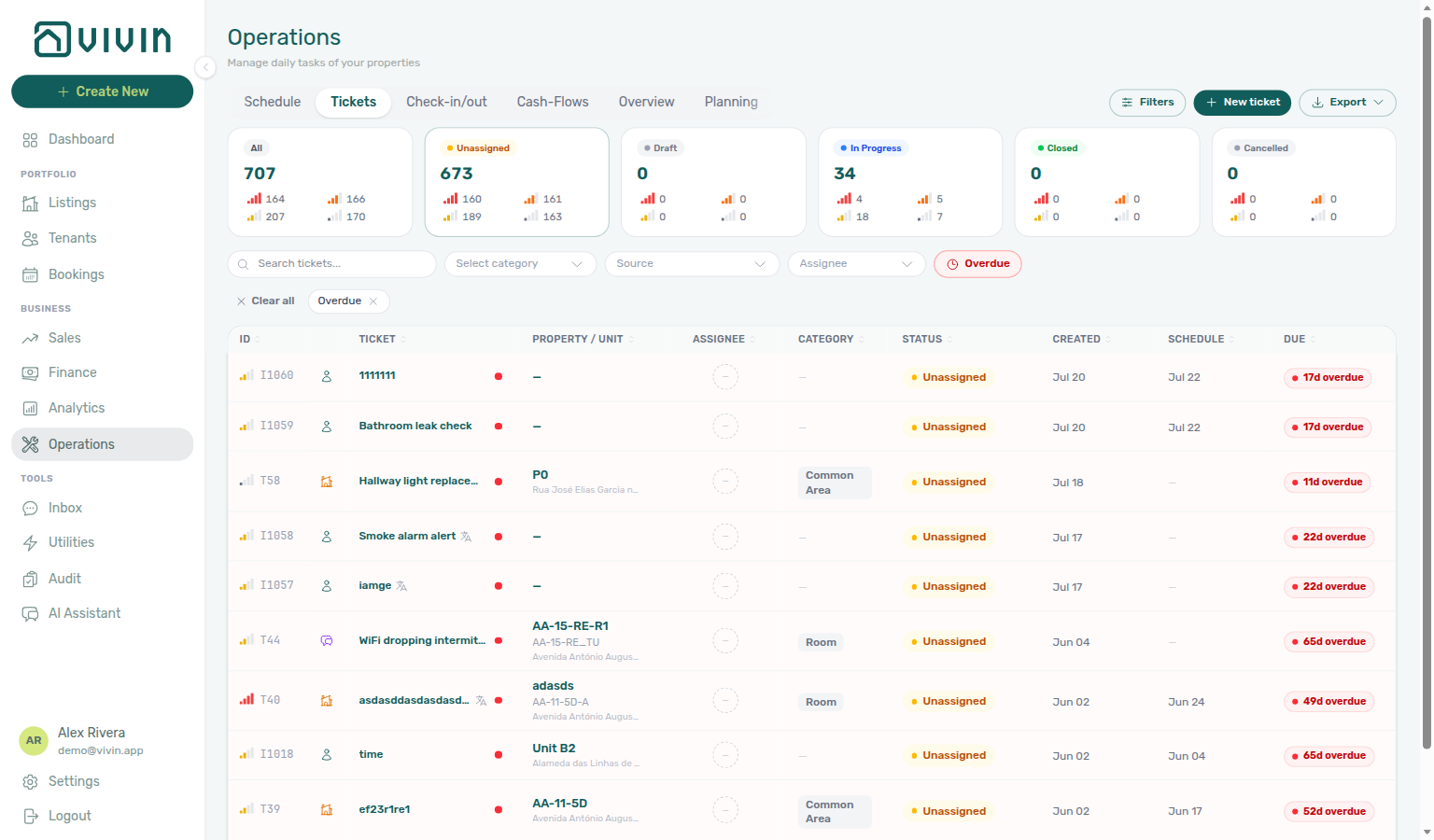
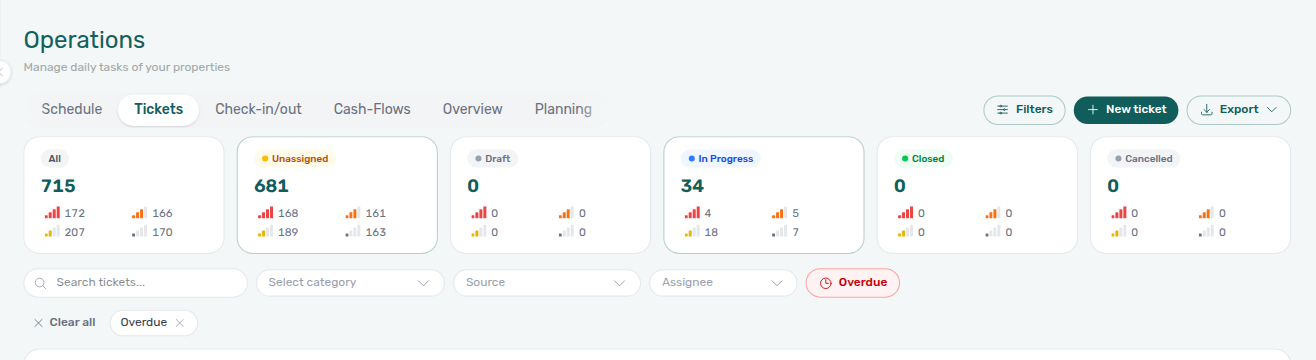
How do I open the overdue ticket queue from Operations Overview?
Overview → overdue triage pairs with Operations — Overdue KPI card, Operations — Overdue filter and status cards, and Why do Ticket status cards change when I turn Overdue on?.
On Operations → Overview, click the Overdue KPI card. Vivin opens Tickets with the shared Overdue filter on — status cards show only the late slice, and the toolbar shows Overdue plus Clear all. The card counts the same tickets as that filter: open work past the SLA due date. Use Clear all (or the toolbar toggle) when you want the full queue again, or click Open Tickets on Overview to clear overdue from the portfolio summary.
Why is Overview Overdue lower than tickets that look late?
Overdue on Operations → Overview counts only open tickets that have a priority and SLA hours, and whose computed due date (schedule or opened/created date plus those hours) is already past. It matches the Tickets Overdue filter and the late badges on those rows.
A ticket can look late and still stay off the card when:
- Priority is None (use the None chip on status cards to find them).
- That priority’s hours field on Ticket Priorities is blank.
- The ticket is Closed or Cancelled.
- The SLA window has not elapsed yet (a High ticket scheduled yesterday with a 48-hour SLA is not overdue this morning).
Set a priority with SLA hours when you want the clock to run. You cannot type a custom due date on the ticket — change Schedule, priority, or the account hours. See Operations — What counts as overdue (operations-overview-overdue-kpi-card.png, settings-preferences-ticket-priorities-card.png).
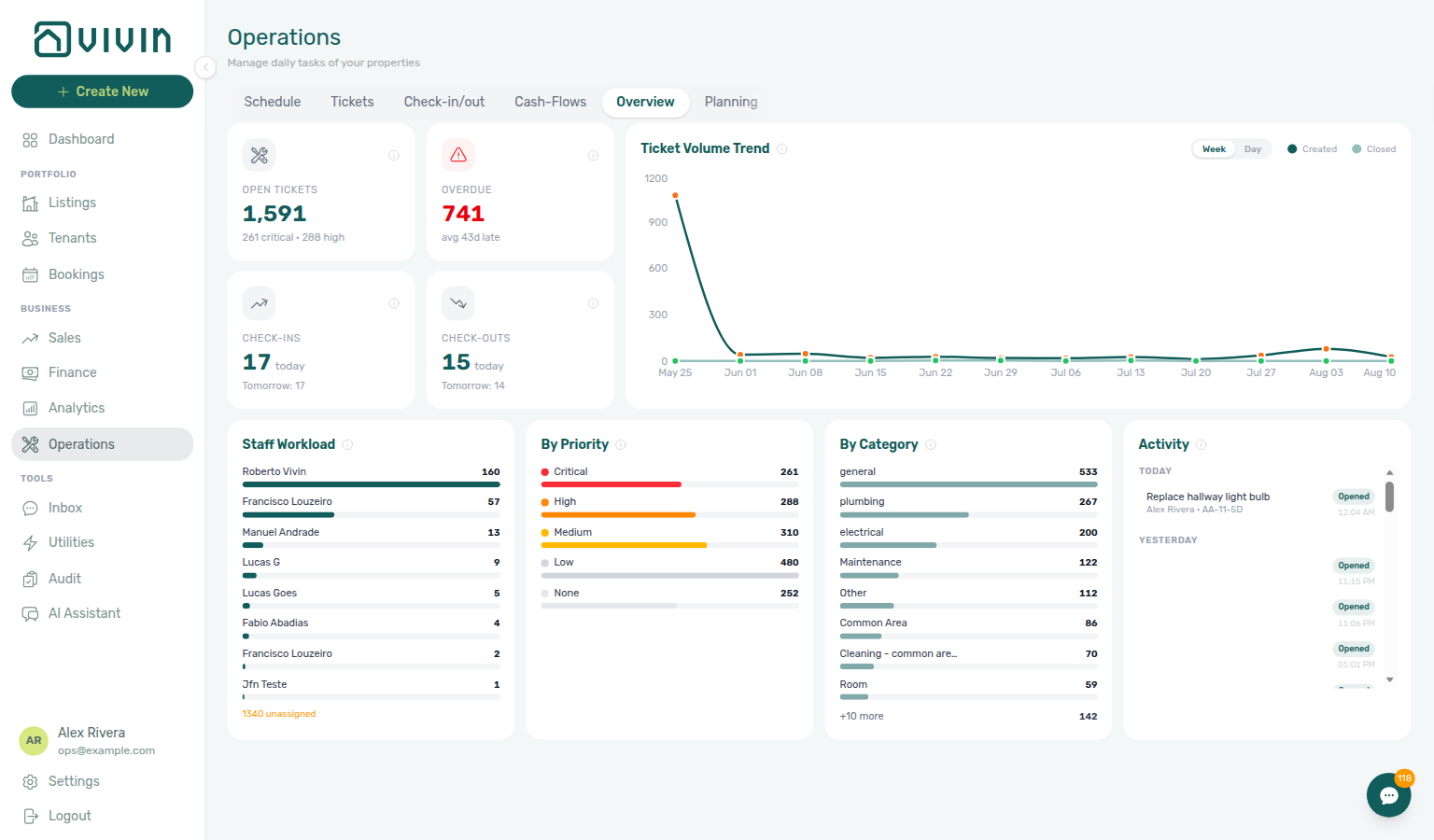
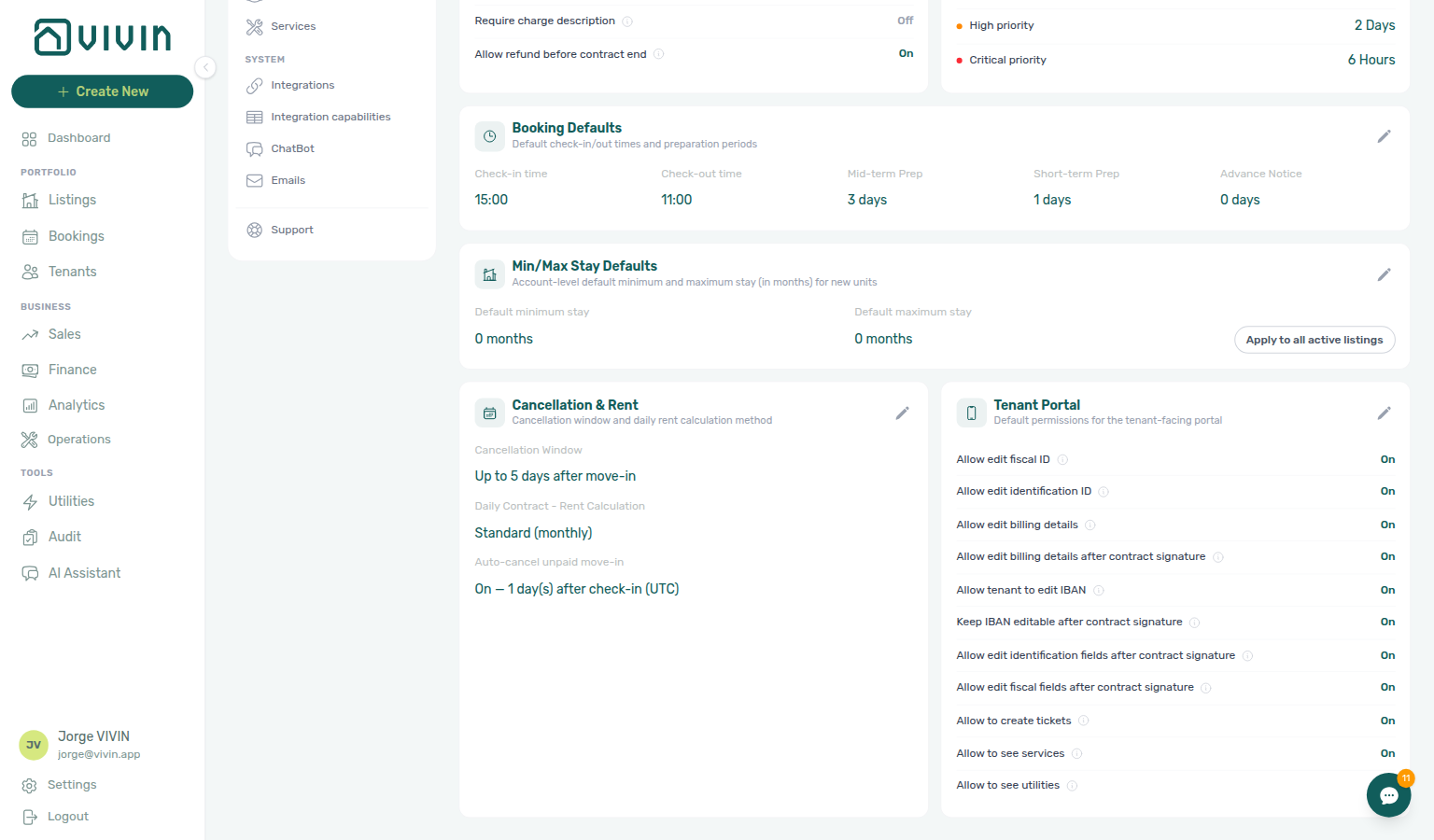
Where is the Planning dispatch board?
Planning pairs with Operations — Planning, Users — Role permissions (Planning (schedule board)), Deep Links — Operations (/operations/planning), Managing a Check-in — Step 2, Managing a Check-out — Step 2, and Same-day turnover coordination. Contrast Vivin-internal Schedule.
Open Operations → Planning (or bookmark /operations/planning) after an administrator enables Planning (schedule board) on your role — the permission is off by default for every preset. The board is a people × day dispatch view: drag tickets from Unscheduled or To replan onto a person and time slot (or the hourless Tasks strip). On phones, Planning appears on the Operations bottom bar when permitted; drag-and-drop stays desktop-first. It is not the same as Schedule (Vivin-internal property timeline).
Use it during arrival and departure weeks after tickets exist — Managing a Check-in — Step 2 and Managing a Check-out — Step 2 — especially on same-day turnovers. Glossary: Planning (Operations).
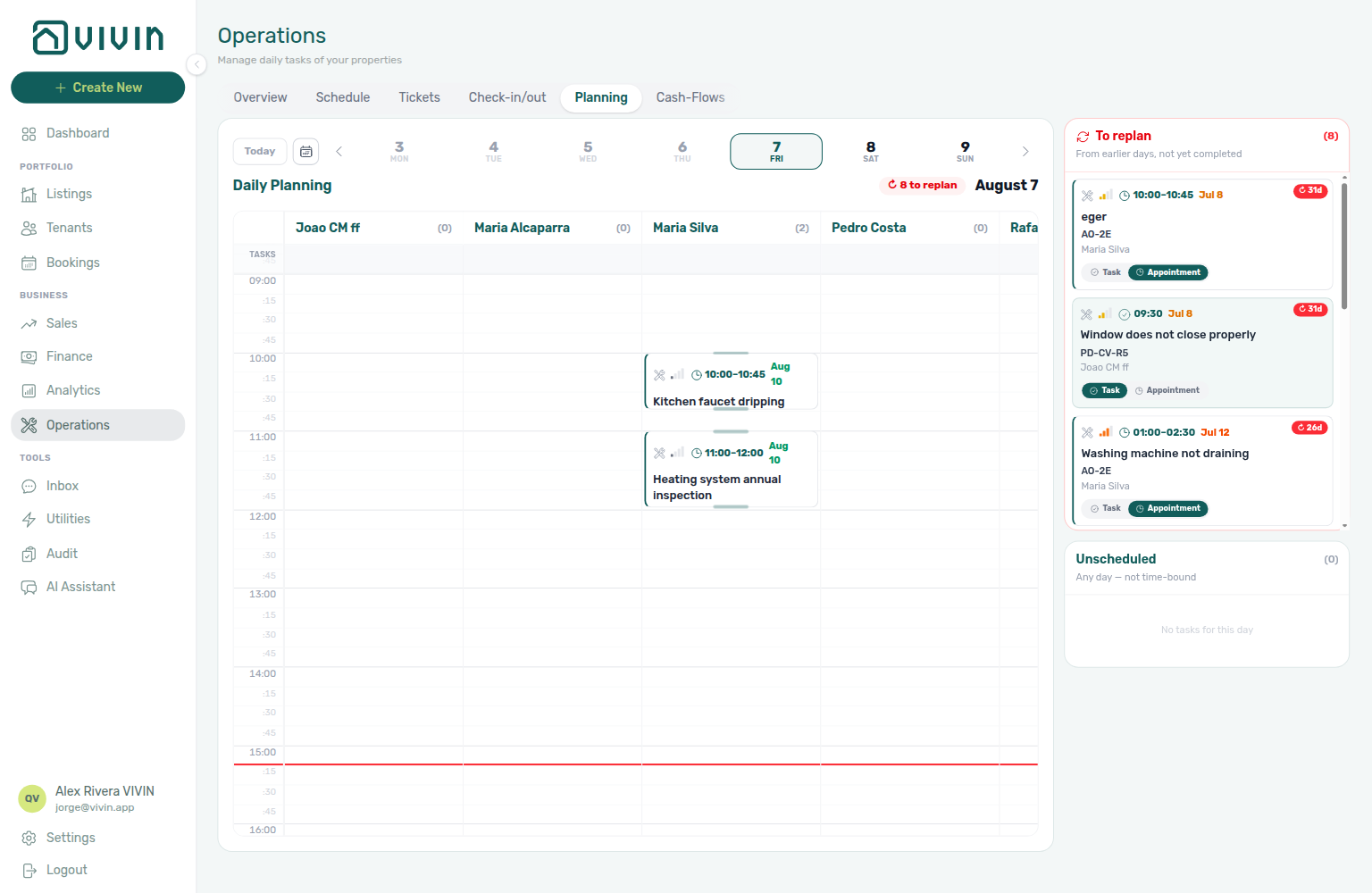
How do I handle same-day turnovers?
Same-day check-out + check-in pairs with Glossary — Same-day turnover, Bookings — Creating a New Booking (Add Booking calendar adjacency — bookings-add-booking-same-day-turnover-flow.mp4), Common Workflows — Same-day turnover coordination (hub matrix + bookings-timeline-day-week-month-and-sidebar.mp4), Common Workflows — Check-in to check-out handoff, Managing a Check-in hub.
When a check-out and check-in fall on the same calendar day for the same unit, plan cleaning, inspection, key handover, and deposit timing together — see Glossary — Same-day turnover.
Creating the adjacent stay: On + Create New → Booking for one unit, the date calendar blocks the next stay’s arrival day while you pick check-in (that night is occupied), then enables the same day once you are picking check-out — so your departure can land on their arrival without a false “overlap” grey-out. bookings-add-booking-same-day-turnover-checkin-blocked.png, bookings-add-booking-same-day-turnover-checkout-enabled.png, bookings-add-booking-same-day-turnover-flow.mp4. When Book several units at once is on, that occupancy greying is off — clashes are named per room after Create. Extra nights after checkout are preparation days — tick Ignore unit preparation days only when the new stay should start in that buffer.
- Operations → Check-in & Check-out — Use Next 7 days (or Custom), switch Check-outs and Check-ins on the same unit (paste the unit internal name in Search so unit hits rank first). Responsible stays open while you add a second teammate — see Operations — Responsible stays open. Step-by-step: Managing a Check-out and Managing a Check-in.
- Operations → Tickets — Create or verify a turnover ticket with a due date before the incoming arrival; far-future schedule dates may show Draft until the date nears (Glossary — Draft ticket (display status)). Assignee stays open while you add a second teammate so two cleaners stay in one view — see Operations — Assignee stays open.
- Operations → Planning (when Planning (schedule board) is granted) — Drag the cleaning card onto a person and time for turnover morning (
operations-planning-board-desktop.png,operations-planning-dispatch-flow.mp4). See Where is the Planning dispatch board?. - Visual overlap — On one unit row, open Bookings → Timeline (
/bookings/timeline) or Sales → Multicalendar (/sales/multicalendar), paste the unit in toolbar Search, and use Week or Month scale to see departure and arrival bars together (bookings-timeline-day-week-month-and-sidebar.mp4,sales-multicalendar-timeline-booking-click.mp4). - Times and access — Confirm default check-in / check-out times in Settings → General Information and Access Lockers on the property before handover (Managing a Check-in — Step 4).
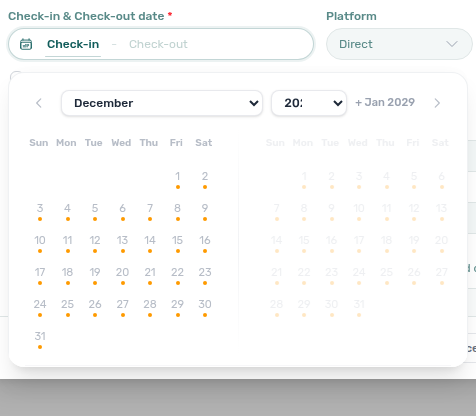
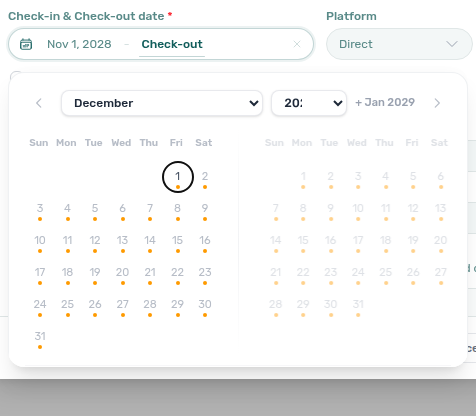
- Common Workflows — Same-day turnover coordination — Operator habit hub
Why aren't automatic tickets being created for check-ins? Automatic ticket creation must be configured per property in Maintenances tab in the property editor (Listings). Verify the required fields and that the check-in automation toggle is enabled. If you opted out on Add booking for a one-off stay, see Can I skip automatic check-in/out tickets for one booking?.
Can I skip automatic check-in/out tickets for one booking?
Yes — on Add booking, after you select property and unit, turn off Use unit contract rents and other contract details on the rent step. When the property has check-in or check-out auto-create on Maintenances tab, Vivin shows Create check-in ticket and/or Create check-out ticket. Both default on (same as the property). Uncheck the events you want to skip for this reservation only — the property rule stays unchanged for future bookings. Marketplace POST /bookings cannot send this skip — imported stays follow the property Maintenances tab — FAQ — Marketplace booking maintenance tickets. See Glossary — Per-booking maintenance ticket opt-out and Bookings — Creating a New Booking (bookings-add-booking-maintenance-ticket-opt-out.png).
Do automatic check-in/out tickets follow a Change unit move?
Yes for active automatic tickets. When you Change unit on Contract Info, Vivin re-points that booking’s automatic check-in/out tickets to the new unit (and property) in the same save — so Operations → Tickets and property filters show the destination room, not the old one. Closed, cancelled, and duplicate tickets are left unchanged. Common-area automatic tickets (no unit on the row) keep a null listing and only refresh the property snapshot. Manually created tickets on the old unit are not moved — reassign or close them yourself if the work should follow the stay. See Bookings — Change unit and Operations — Tickets.
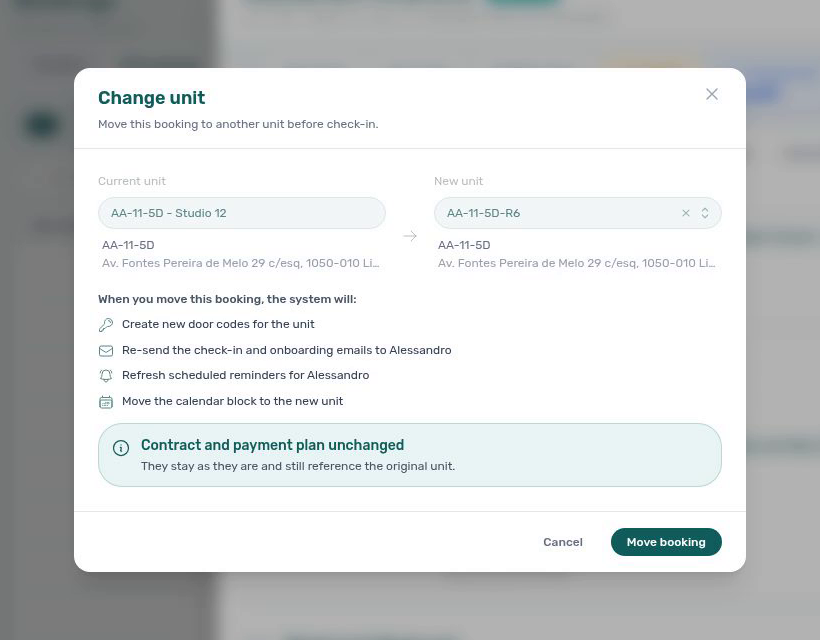
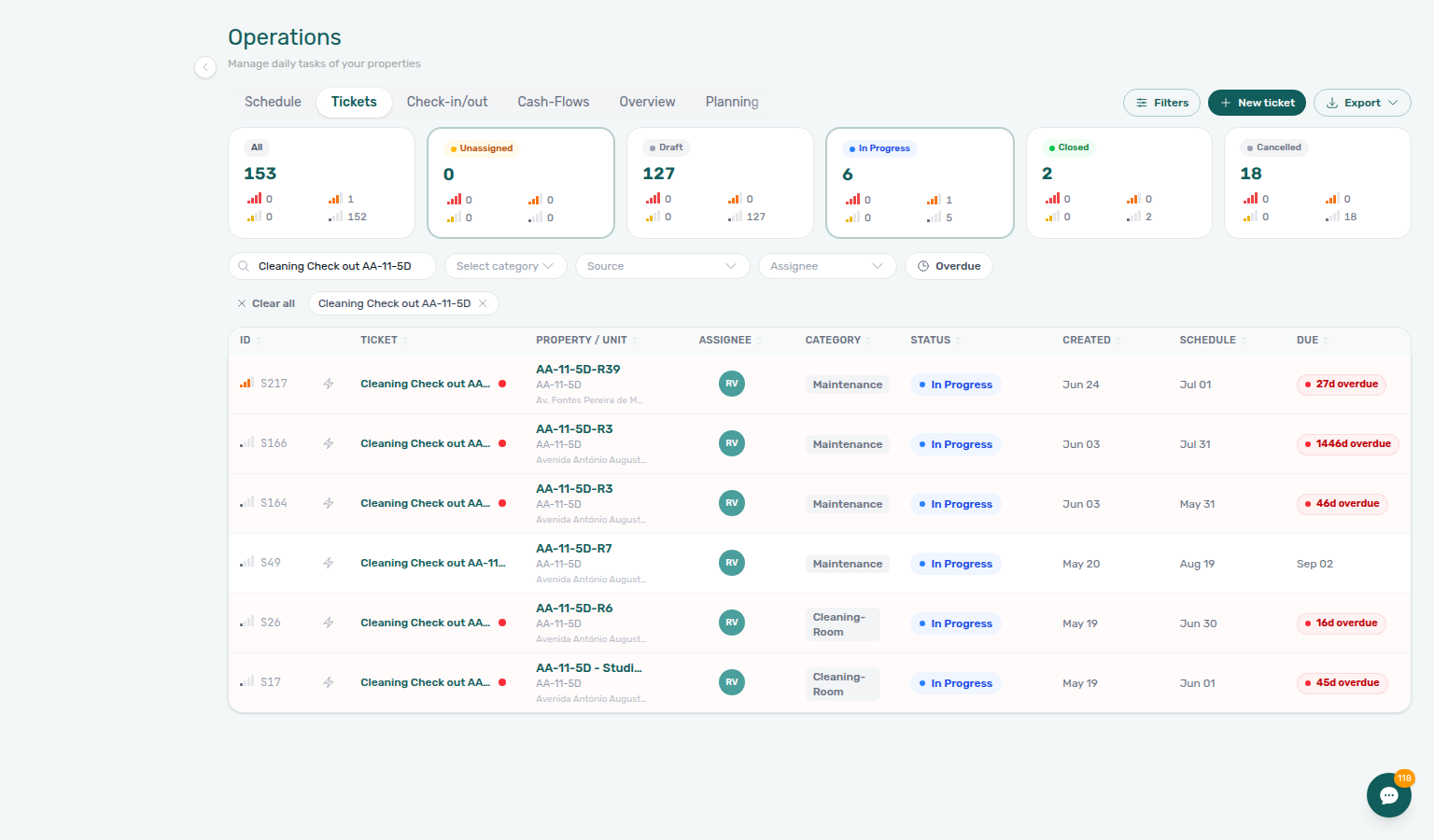
Why does Create ticket say “Title is required”?
Title is mandatory on Operations → Tickets → New ticket. If you leave it blank (even with Description and Property filled) and click Create ticket, Vivin shows a red Title is required message under the field and does not create a row. The same rule applies on POST /maintenance and on Landlord MCP / Genius create-ticket — empty or whitespace-only titles are rejected. Titles are also capped at 255 characters on create and update (POST / PUT /maintenance). Fill a short descriptive title, then submit. See Operations — Creating a Ticket (operations-add-ticket-title-required.png, operations-add-ticket-title-required-flow.mp4) and Landlord MCP — Extended account tools.
How do I find a ticket by its ID?
On Operations → Tickets, paste the full sequential ticket ID shown on the row (for example S259, T27) into the toolbar Search box. Use the prefix letter plus number when email or support references #S259; partial numeric-only queries can match unrelated rows. For property-level tickets (common-area work with no unit suffix on the row), search the building internal name or combine with an active Property filter chip. When the Vivin team cites a maintenance ticket ID in Using in-app support, use the same Search habit on Operations → Tickets — not the Vivin support inbox. See Operations — Tickets toolbar search and Glossary — Directory search ranking.
Why is a ticket category missing from the Tickets filter?
Open Category on Operations → Tickets — the list is your Settings → Categories → Tickets catalog, not only types on the current page. Scroll or type in the menu (for example clean) when the catalog is long. Add the label on that Settings card if it is missing there. After you pick a type, the menu stays the full catalog (it does not shrink to the selected chip) and stays open so you can tick a second type. See Operations — Tickets toolbar category filter and Category stays open (operations-tickets-category-filter-open.png, operations-tickets-category-filter-search.png, operations-tickets-category-filter-selected.png, operations-tickets-category-filter-flow.mp4, operations-tickets-category-filter-stays-open.png, operations-tickets-category-filter-two-types.png, operations-tickets-category-filter-stays-open-flow.mp4).



Does picking a second ticket category close the menu?
No. Open Category on Operations → Tickets, tick the first type, then tick a second type. The menu stays open with checks on both. Search hallway first when you want a known row in view, then tick Limpeza and Maintenance. Dismiss the menu when the chips under the toolbar look right. See Operations — Category stays open (operations-tickets-category-filter-stays-open.png, operations-tickets-category-filter-two-types.png, operations-tickets-category-filter-stays-open-flow.mp4).
Does picking a second ticket source close the menu?
No. Open Source on Operations → Tickets, tick the first channel, then tick a second channel. The menu stays open with checks on both. Tick Tenant portal, then Chatbot, when you want inbound tenant reports from both surfaces. Add Tenant (all channels) in the same open list if you also want the generic tenant source — that option is not a shortcut that includes portal and chatbot. For turnover prep, tick Automatic - Check-in/out, then Internal Team. Dismiss the menu when the chips under the toolbar look right. See Operations — Source stays open and Does picking a second ticket assignee close the menu?.
Does picking a second ticket assignee close the menu?
No. Open Assignee on Operations → Tickets, tick the first teammate, then tick a second teammate. The menu stays open with checks on both. The list shows tickets assigned to any of the people you picked. Ticking names here only filters the queue — it does not change who is assigned on a ticket. Filters → Responsible is one person at a time. Unassigned tickets stay on the Unassigned status card; they are not an option in this menu. Check-in & Check-out Responsible is a different control on a different tab. Dismiss the menu when the chips under the toolbar look right. See Operations — Assignee stays open.
Does picking a second responsible teammate close the Check-in & Check-out menu?
No. Open Responsible on Operations → Check-in & Check-out, tick the first teammate, then tick a second teammate. The menu stays open with checks on both. Names come from people already assigned on a handover in this tab. Dismiss the menu when the chips under the toolbar look right. Filters → Assigned responsible (With / Without) is a different control: it answers whether a row has any assignee, not which teammate. Tickets toolbar Assignee is a different control on Operations → Tickets. See Operations — Responsible stays open.
Does the Tickets Schedule column show the hour?
Yes. On Operations → Tickets, the Schedule column shows the date and, when a clock time is set, the hour next to it (for example 15:00). A day task with no hour stays date-only. Long-lead jobs sit under Draft — search Bolivia, open the Draft card, then read Schedule. Use Filters → Scheduled time (All / With / Without) when you want only timed rows or only hourless rows. Search hallway for a repair whose Schedule is a dash. See Operations — Schedule hour on the list (operations-tickets-schedule-hour.png, operations-tickets-other-filters-scheduled-time.png, operations-tickets-other-filters-scheduled-time-with.png, operations-tickets-schedule-hour-without-hallway.png, operations-tickets-schedule-hour-flow.mp4).
How do I find tickets that have an internal note?
On Operations → Tickets, open Filters and use Internal note under Ticket filters (All / With / Without). With keeps only tickets that have resolution text; Without keeps blank notes. Empty or whitespace-only notes count as Without. Status cards and the Filters badge update with the list. Turn the Internal note column on under Personal Settings → Operations ticket columns when you want to read or sort notes in the table — click the column header to sort (blank notes last). The filter works even when the column stays hidden. This is not the booking Internal Notes chat thread. See Operations — Internal note filter and sort (operations-tickets-other-filters-internal-note.png, operations-tickets-other-filters-internal-note-with.png, operations-tickets-filters-badge-internal-note.png, operations-tickets-internal-note-column-sorted.png, operations-tickets-internal-note-filter-flow.mp4) and Glossary — Internal note filter (Operations Tickets).
How do I choose which columns I see on Operations Tickets?
Open Account Settings → Personal Settings (/settings/personal) and scroll to Operations ticket columns. That list is your Tickets table — not an account-wide setting.
Turn a switch off to hide a column; drag the grip to reorder; click Save. ID and Status stay on (Always visible). Internal note is off until you turn it on. Reset to default restores the shipped layout immediately (you do not need Save after reset).
A source icon on the Tickets table is not in this list. Teammates keep their own columns. If a new column appears in the product and you already saved a custom list, turn it on here or reset.
See Operations — Customize your ticket columns and Personal Settings — Operations ticket columns.
How do I open a maintenance ticket from an assignment email?
Assignment and unassigned-ticket emails for Operations maintenance work include a See ticket button. Click it to open /operations/tickets?ticket=<ticketId> — the Tickets tab with that ticket’s details sidebar already open. After the sidebar loads, the address bar settles on /operations/tickets. This is separate from Support ticket assigned emails (Vivin product help), which open the Help & Support surface instead. See Operations — Assignment email See ticket (operations-tickets-email-see-ticket-deep-link.png, operations-tickets-email-see-ticket-flow.mp4) and Deep Links — Ticket email deep link.
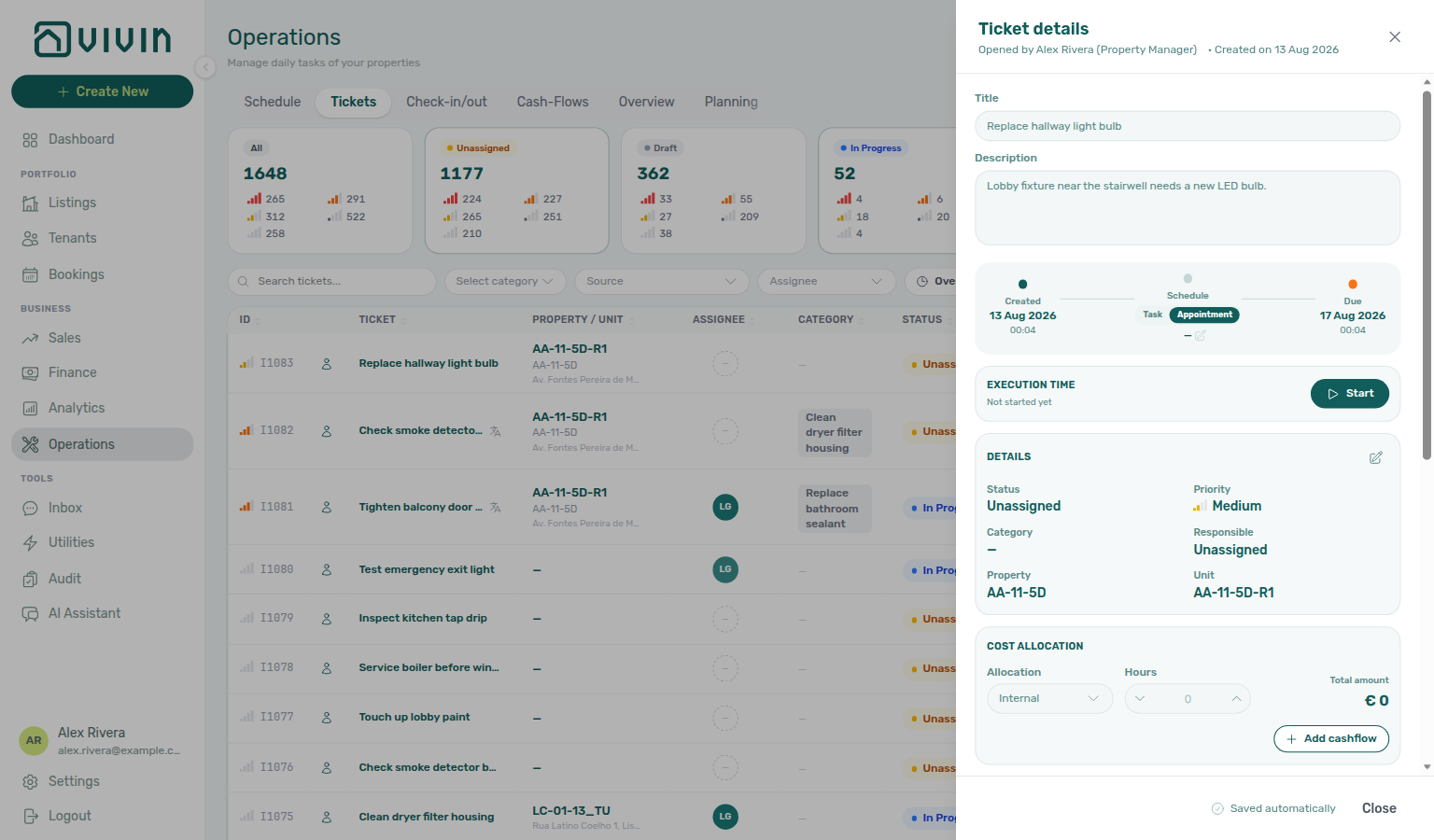
How do I attach more than one receipt on Add Cash Flow?
Multi-file attach pairs with Operations — Multi-file attach on Add Cash Flow, Operations — AI Invoice Analysis, and Preferences — Mobile quick add.
On Operations → Cash Flows → Add Cash Flow, use Files / Images:
- Click the dashed dropzone (or drag and drop a file onto it) to attach the first receipt.
- When the thumbnail appears, click the dropzone again — Tap to add more — or drop another file. Thumbnails stack; each has × to remove only that file.
- Finish the amount and property fields, then Create Cash Flow (or Cancel to discard the draft, including attachments).
You do not need to save the row before attaching files. After save, open the cash-flow detail sidebar to add more with Add file, or run AI Analysis when an invoice photo should fill supplier / amount fields. Screenshots and clip: operations-cashflows-add-modal-multi-attachments.png, operations-cashflows-add-modal-drag-active.png, operations-cashflows-add-attachments-flow.mp4.
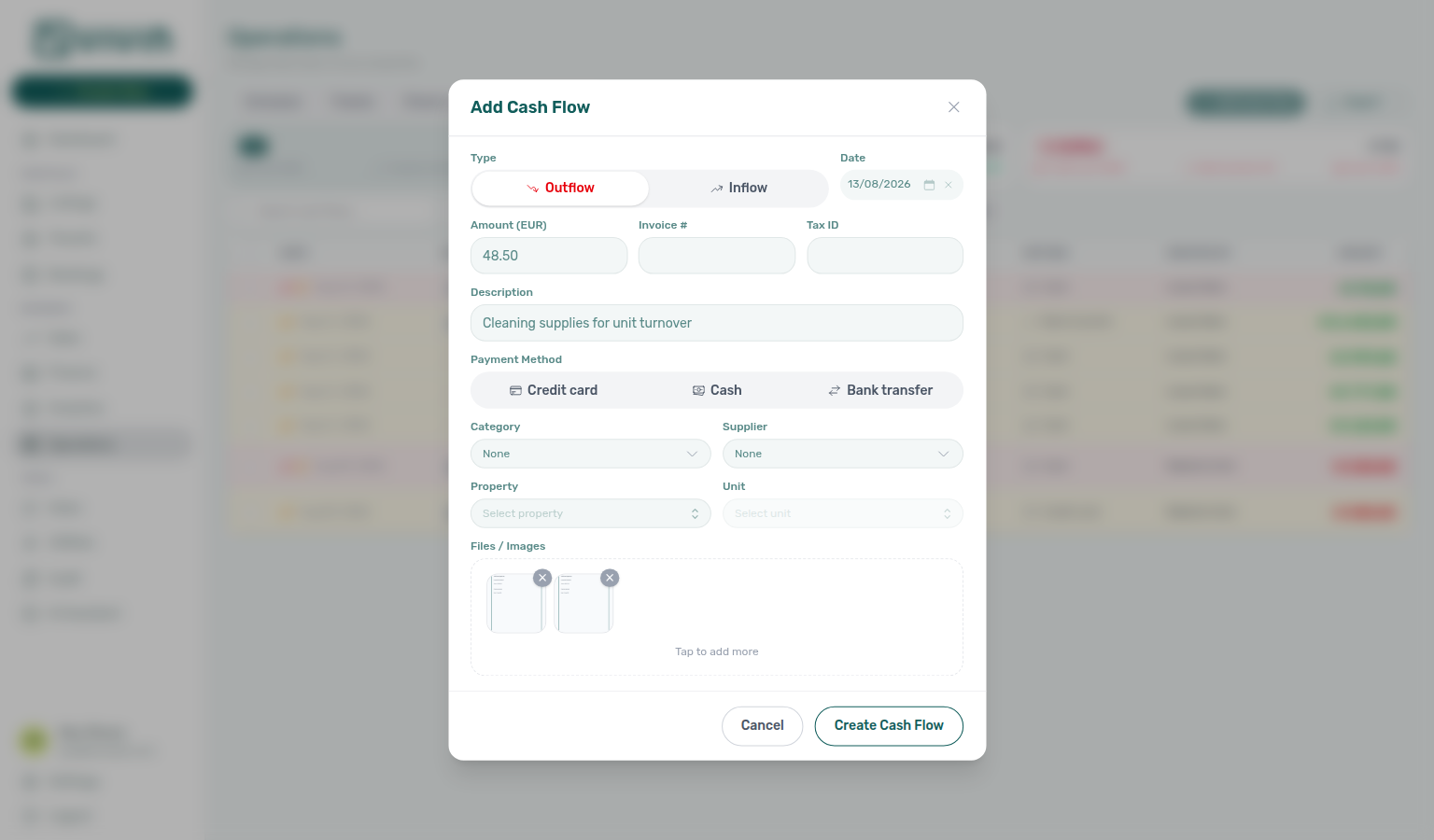
Where is the Operations Schedule timeline?
The Schedule tab (/operations/schedule) is a Vivin internal-only Gantt-style view of maintenance tickets by property. Customer property managers do not see it in the tab strip; opening the URL redirects to Operations overview. On desktop, use Today and the Day / Week zoom pills to scan ticket bars; click a bar to open Ticket details. The tab is not on the Operations bottom bar on phones — bookmark /operations/schedule or use a wider screen. See Operations — Schedule tab and Glossary — Schedule (Operations).
Why do I see “Booking.com Reservation” (or Airbnb) on Check-in & Check-out without a tenant booking? Short-term platforms sync through iCal calendar blocks, not full API booking imports. Those blocks appear as pseudo arrival or departure rows on Operations > Check-in & Check-out — often labelled with the platform name instead of a tenant. They block dates on your calendar but do not create a mid-term booking with payment plan, contract, or tenant portal access. Use Filters → Stay type → Mid-term when you only want long-stay handovers; use Short-term when reconciling channel turnover with Sales > Multicalendar. For contract and collections work, add a manual booking — see Processing a New Booking. See Glossary — Short-term iCal pseudo check-in/out.
Management Account Access
Sign-in and session answers pair with Common Workflows — Lockout catch-up after password recovery (post-recovery backlog mesh), Help & Vivin support (when locked out vs product help), and Platform subscription (Vivin billing) (checkout after sign-in). Team invites during setup: Getting Started — Recommended Setup Sequence step 3 (Users) and Accessing the Platform (including Sign in with Google when shown).
How do I sign in with Google?
When platform.vivin.app shows Sign in with Google above the OR divider, click it and choose the Google account whose email matches your Vivin Users invite (or existing management email). Vivin opens the same session as email/password — it does not create a new workspace from an unknown Google mailbox. Ask an admin to invite that exact address under Users first. Invited teammates can use Google even before they set a password. If the Google control is hidden, use email/password (or Forgot password?). Operator guide: Getting Started — Sign in with Google (getting-started-management-login-google-sign-in.png, getting-started-management-login-google-sign-in-flow.mp4).
I forgot my management account password. How do I recover access? On the login page, click Forgot password? (wording may say Reset your password in some locales), enter your account email, then use the link sent to your inbox to open the tokenized reset page and set a new password. If Sign in with Google is available and your Google email matches your Users record, you can sign in that way instead. Follow the full workflow: Resetting a Management User Password. After Step 3, catch up operational backlog per Getting Started — Lockout catch-up after password recovery and Common Workflows — Lockout catch-up after password recovery (notification triage, month-end Pending receipt mesh, portal gates). If you are signed in but need product help instead, see Help & Vivin support below.
| Symptom after password reset | Fix |
|---|---|
Unread /notifications alerts | Notification triage — Step 4 |
| Pending receipts inflated debt | Common Workflows — Pending manual receipt approval |
| Landlord MCP / AI Chat 403 | Refresh JWT — Landlord MCP — How it connects |
| Setup still blocked mid-wizard | Rerun Onboarding — Step 7 after catch-up |
The reset link says invalid or expired. What should I do? Request a new link at platform.vivin.app/reset-password, then complete the flow using the newest email link. See Troubleshooting: invalid or expired link/token.
The reset form says my email format is invalid.
Enter a full address with @ and a domain (for example [email protected]). The request step validates format in the browser before sending — see Step 1.
I saw “Check your email” but no reset message arrived — could the request have failed? Yes. The request step always shows the same success screen for anti-enumeration, and it also shows that screen when the reset API returns a server or network error (for example HTTP 5xx). Wait, retry later, or ask an admin to use Resend password under Settings > Users & Roles. Full troubleshooting: Didn't receive the reset email.
Why was I signed out with “Your session expired”? The management app refreshes your access token automatically in the background. That message appears only when refresh can no longer continue — for example after Logout, a long idle period past the refresh lifetime, or revoked credentials. Sign in again with your email and password, or Sign in with Google when that control is shown. On shared devices, use Logout when you finish. See Getting Started — Staying signed in and logging out and Glossary — Management session.
Platform subscription (Vivin billing)
Workspace billing answers pair with Management Account Access (sign-in before checkout), Why can’t I dismiss the Subscription checkout after I sign in? (card-required block), and Help & Vivin support (billing escalations).
Why does Subscription show “Action Required” and ask me to add a card?
Your workspace is not fully subscribed yet (or the previous card was removed). Open Account Settings → System → Subscription at /settings/subscription, expand Add card, and complete the hosted checkout (on mobile, use Open checkout in a new tab). If Company Name, Email, Phone, or Fiscal ID is missing, Vivin asks you to complete those company details first (Save and continue) before the payment form — the same fields live on General Information. Do not close the page until checkout succeeds. Some accounts also see the same checkout modal shortly after sign-in on desktop. If you cannot dismiss that modal, see Why can’t I dismiss the Subscription checkout after I sign in?. See Subscription — Hosted checkout when action is required and Company details before card capture (settings-subscription-action-required-add-card.png, settings-subscription-company-details-form.png, settings-subscription-company-details-checkout-flow.mp4, settings-subscription-hosted-checkout-modal.png, settings-subscription-add-card-flow.mp4).
Why can’t I dismiss the Subscription checkout after I sign in?
That prompt is a block, not a reminder. Some workspaces require a saved card before anyone can use the management app. The modal opens immediately on every screen size, shows A payment method is required to keep using VIVIN. Add your card to continue., and hides I'll do it later, Escape, and click-outside. Sign out stays available. On a phone, use Open checkout in a new tab. Finance, Sales, and Operations logins see the same block. Tenants and listing feeds keep working. The block clears a few seconds after a card is saved — including by a colleague — with no reload. Ask your Vivin contact if the account should not be in this mode. See Subscription — When a card is required.
How do I remove or replace the card on file for Vivin platform billing?
On a subscribed workspace, open Account Settings → Subscription, choose Remove card on Payment method, then confirm Yes, remove. The tab returns to Add card so you can attach a different card. Removal stops future platform charges from using that method; already-approved or in-flight internal charge rows may still settle. See Subscription — Remove or replace the card on file (settings-subscription-payment-method-remove-card.png, settings-subscription-payment-method-remove-card-confirm.png, settings-subscription-remove-card-flow.mp4).
Why does Billing History only show Upcoming when Subscription says Action Required?
While the workspace still needs a card (Subscription – Action Required), Billing history stays on the tab but the landlord UI does not load past period rows — you typically see a single Upcoming estimate from usage tracking (subtitle may still say “past invoices”). After Add card succeeds and the account is subscribed again, refresh the tab to see Current / past months. Action Required teaching: settings-subscription-billing-history-action-required-upcoming-only.png, settings-subscription-billing-history-action-required-flow.mp4. Subscribed contrast: settings-subscription-billing-history-table.png, settings-subscription-billing-history-subscribed-overview.png, settings-subscription-billing-history-subscribed-flow.mp4. See Subscription — Billing History.
Help & Vivin support
In-app ticket UX pairs with Management Account Access (password recovery before tickets), Directory list refresh hub (when a whole-module list needs Retry), and Navigation & shortcuts (export and directory refresh patterns). Drawer Status stay-open: Does picking a second Status close the Help & Support drawer menu?. After you send a reply: Do I also need to email support after I reply in Help & Support?. After Reopen: What status does a reopened support ticket use?. When a setup tab or wizard step still blocks progress after self-serve docs, confirm the matching Getting Started — Recommended Setup Sequence step and Account Settings — Recommended setup order row before you file a ticket — choose module Settings or Listings on the ticket.
When should I email support versus opening a ticket in the app? Use Get Help & Support (email to Vivin and the status page) for account-wide questions, billing or subscription changes, or when you do not need the conversation tied to a specific screen inside Vivin. Use in-app support when your role has the Support permission and you want a structured ticket thread, attachments (including videos up to 100 MB per file with inline playback in the thread), and history under Account Settings > Support (or the floating Help & Support control on desktop).
Why don't I see the floating Help & Support button or Support under Account Settings? The in-app experience is permission-gated. Only users whose role includes Support see the floating button and the Support area; administrators assign that capability in Users and roles (Support is only assignable to Administrator and Super administrator roles in the matrix). If you open a Support URL directly without permission, you see a standard access message.
Where do I open the full support ticket inbox?
Sign in and go to platform.vivin.app/settings/support, or use Account / Settings in the sidebar and choose Support. Per-ticket URLs use /settings/support/:ticketId. See Using in-app support for filters, search, sort, scroll-to-load behaviour, New Ticket, and status labels.
Can I edit a Vivin support ticket after I submit it? On open tickets, use the ticket sidebar to fix the subject (pencil beside the title), change the module chip, or Edit the text of your own replies before Vivin posts a later message. You cannot change priority from the landlord inbox, edit Vivin’s messages, or edit messages on Closed tickets. See Editing open tickets.
How do search and sort work in the drawer versus the full inbox?
Both surfaces share the same status and Opened by filters, the same sort options (Last activity, Creation date, Due date, Priority), and the same server-side search and sort (debounced search on subject, ticket number, and message text). Last activity is the last message in the thread (drawer preview + full-page Last Activity column), not a status or assignee change. Each loads tickets in batches of 20 and fetches the next batch when you scroll near the bottom. The full page shows Showing X of Y and End of list when every matching row is loaded; the drawer uses the same loading pattern in its scroll panel. Status tab counts come from a dedicated count API so badges stay accurate before you scroll through every ticket. Use the full inbox when you want the table layout and new ticket assignee default card. Changing search, sort, or filters reloads from the first batch on both surfaces. See Using in-app support — Last activity (settings-support-drawer-last-activity-preview.png, settings-support-last-activity-flow.mp4).
When does an open Vivin support ticket pick up a new reply? Opening a ticket loads the latest messages, so a Vivin reply that arrived while you were elsewhere is already in the thread. Keep the ticket open to see further replies without a full page reload. If you are scrolled up when a new message arrives, click the New message pill to jump to the latest. The drawer refresh control updates both the list and the open thread. See Using in-app support — Last activity.
Do I also need to email support after I reply in Help & Support?
No. Send the message in the ticket sidebar (drawer or full inbox). That reply is enough — you do not also email the support mailbox. The ticket moves to Pending (Pending response on some badges), and the Vivin teammate assigned to the ticket is emailed (your workspace default assignee when the ticket has no assignee). If nobody is assigned and there is no default, the shared support inbox still receives the alert. The Support ticket assigned toggle under Personal Settings only covers assignment emails, not these reply emails. Guide: Using in-app support — Your reply emails the assigned teammate (settings-support-ticket-thread-fresh-open.png, settings-support-ticket-message-edit-hover.png).
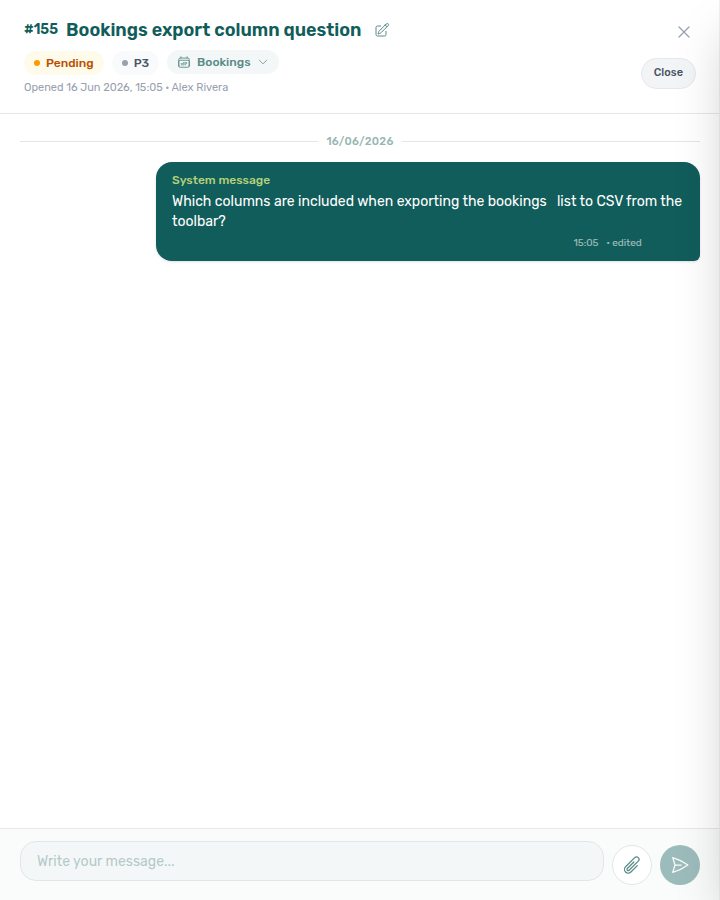
What is the drawer Status multi-select (beside Active / Closed)?
On desktop, the Help & Support drawer pairs Active and Closed view chips with a Status multi-select and a Sort by menu on the filter row. Status narrows active workflow states — tick any combination of Pending, Awaiting your reply, Ongoing analysis, or Backlog (leave all unticked for All statuses; Closed is only on the chip; Open is not on this menu). The menu stays open while you add a second state. Chip and Status compose together: Active + Status → [Pending] focuses on Vivin-pending rows (including after Reopen) while Closed tickets can still appear in the list until you switch to the Closed chip; Closed ignores Status. The full /settings/support inbox still uses All / Open / Closed chips only — after Reopen, use All, not Open. See Using in-app support — Help & Support drawer, Status stays open, Reopen lands on Pending, and Ticket status labels.
Does picking a second Status close the Help & Support drawer menu?
No. Open Status on the Help & Support drawer, tick Pending, then tick Awaiting your reply. The menu stays open with checks on both. The list shows tickets in any of those states. Ticking statuses here only filters the list — it does not change a ticket’s badge. Sort by is a different menu. The full Support inbox still uses All / Open / Closed chips only. Operations Tickets status is a different control. Dismiss the menu when the trigger reads 2 selected. See Using in-app support — Status stays open.
What status does a reopened support ticket use?
Pending (rows may read Pending response). Reopen on a Closed ticket continues the same thread — Vivin owes the next reply. Find it on the drawer Active chip with Status → Pending, or on the full inbox All chip. The full-page Open chip still means tickets whose badge is literally Open, so a reopened thread does not appear there. You do not need a New Ticket for the same issue. Guide: Using in-app support — Reopen lands on Pending.
Is “New Ticket” under + Create New how I contact Vivin?
No. + Create New > Operations > New Ticket opens an internal operations ticket for work on your properties (maintenance, cleaning, inspections, tenant requests). Vivin support threads are filed from Help & Support, Account Settings > Support, or /settings/support when your role has the Support permission. See Create New Menu and Using in-app support.
I clicked Export but no file downloaded — what happened? Large directory Export actions assemble the full filtered result set server-side. When the request fails (timeout, network drop, or HTTP error), Vivin shows feedback instead of failing silently: Bookings shows a red alert under the toolbar; Tenants, Listings, Sales, and Audit show a toast. Those messages stay localized for operators (for example Failed to export.) — a stalled download does not surface a raw technical timeout string. An empty filtered list produces no file by design — that is not an error. See Glossary — Export and download issues.
A list page won't show my data — what should I do?
Whole-module refresh pairs with Directory list refresh hub, Common Workflows — Directory list refresh, and FAQ — Communication or Tickets won't open when only one booking tab is affected.
When a directory such as Bookings, Tenants, Listings, or Notifications shows a Retry control instead of rows, your portfolio is not empty — use Retry on the alert, or reload the page. A successful load with zero rows for your filters is the normal empty state: widen filters or clear search.
| Scope | Surfaces | What to do |
|---|---|---|
| Whole directory | Bookings list, Tenants, Listings, Sales, Operations, Notifications | Retry on the alert, or reload the page |
| Bookings Timeline | /bookings/timeline chart | Retry on the chart panel (or switch to List) |
| Finance ledger tabs | Transactions, Deposits, Contract Values, Payouts | Reload the browser tab when summary cards show totals but the table looks empty |
| Dashboard | Post-login home | Retry on the banner — other widgets may already be fine |
| One booking tab | Communication, Tickets | Tab-scoped Refresh / Retry — Communication or Tickets won't open |
More detail: Glossary — Directory list refresh · Directory list refresh hub.
Mark all as read did nothing — did it work?
On /notifications and the Dashboard bell, a successful Mark all as read shows a success toast (All notifications marked as read.). If unread badges stay the same, wait a moment and use Mark all as read again once your connection is steady. See Glossary — Notification read actions.
Tenant Portal & Mobile App
Portal access and payment answers pair with Settings & tenant communications (mandatory fields, lifecycle emails), How do tenants install the Tenant Portal on their phone? (Install plus your company name / iPhone Share → Add to Home Screen / Android Install App), What does Powered by VIVIN mean in the Tenant Portal? (computer sidebar and access-link Powered by VIVIN), How do tenants sign out of the Tenant Portal? (desktop Sign out / phone More), How do tenants open More on the Tenant Portal phone? (Documents / Utilities / Services / Surveys / Account), How do tenants change the Tenant Portal language? (globe + EN / PT / ES / IT), How do tenants see surveys to answer on portal Home? (You have N surveys to answer), How do tenants open payment details in the portal? (Payments timeline sidebar), How do tenants tell two payments in the same month apart? (Payments — due D titles), When does the portal TODAY divider show a calendar date? (Payments next payment due), Where does TODAY sit when every portal payment is already due? (Payments compact TODAY after the last card), How do tenants see how many days a portal payment is overdue? (Payments N days past due), How do tenants see a pending installment on the portal timeline? (Payments Pending), How do tenants see N days remaining on a pending installment? (Payments N days remaining), How do tenants see a paid installment on the portal timeline? (Payments Paid), How do tenants see a discounted installment on the portal timeline? (Payments struck-through original), How do tenants see Due in N days on the portal timeline? (Payments Due in N days), How do tenants see Upcoming on the portal timeline? (Payments Upcoming), How do tenants export payment history from the portal? (Payments → Export CSV), How do tenants search payment history in the portal? (Payments → Transaction History Search by type, description, date, amount…), How do tenants sort payment history in the portal? (Payments → Transaction History Date / Amount), How do tenants see which platform paid in the portal? (Payments Roomless / Airbnb name and logo), How do tenants see a cash payment in the portal? (Payments Cash), How do tenants see a bank transfer in the portal? (Payments Bank Transfer), How do tenants see a Viban payment in the portal? (Payments Viban), How do tenants see a credit card payment in the portal? (Payments Credit Card), How do tenants see an automatic adjustment in the portal? (Payments Automatic Adjustment), How do tenants see an overpayment return in the portal? (Payments Overpayment Return), How do tenants see a cancelation with refund in the portal? (Payments Cancelation With Refund), How do tenants open a receipt from portal payment history? (Payments → Receipt), How long do virtual IBAN payments take in the Tenant Portal? (Payments 3-business-days notice), How do tenants select an amount in the Tenant Portal? (Make payment radios), How do tenants copy the virtual IBAN in the Tenant Portal? (Make payment tap-to-copy), What does Payment Due Soon mean in the Tenant Portal? (Make payment Bank Transfer dialog), How do tenants leave Make payment without paying? (Make payment back chevron), How do tenants see files and invoices on portal Documents? (Documents preview / download / Hostkit new tab), How do tenants see the greeting and listing address on portal Home? (Home Hello, First name! and listing pin), Why can't a tenant sign the contract in the portal? (PDF + Your Details gates), How do tenants download the contract from the portal? (Contract N pages / contract.pdf), How do tenants unlock Sign on the Contract tab? (Read to the end to sign then Ready to sign), How do tenants enter first and last name? (portal First name / Last name), How do tenants enter a phone number? (portal Phone), How do tenants enter nationality? (portal Nationality), How do tenants enter a fiscal number and home address? (portal Fiscal number / Home address), How do tenants enter a billing address? (portal invoice street), How do tenants update locked bank or billing details? (amber lock banners), How do tenants know Account changes saved? (green Details updated successfully!), How do tenants see WiFi on portal Home? (Home WiFi card), How do tenants show and copy entry codes on portal Home? (Home Entry codes Show / Copy), How do tenants see lease dates and landlord contact on portal Home? (Home Lease information / Contact us), How do tenants see their balance on portal Home? (Home Overdue payment / Make payment), How do tenants open Transaction History from portal Home? (Home View transactions), How do tenants open requests and the contract from portal Home? (Home Open requests / Contract), How do tenants see Received on a portal request? (Home and History Received), Where do tenants see published FAQs? (Requests FAQ accordion), What's the difference between Report an Issue and General Inquiry? (Requests What do you need?), How do tenants see property utility bills in the portal? (Utilities Your Property Bills), How do tenants see daily utility consumption in the portal? (Utilities Daily Breakdown), How do tenants see ordered services in the portal? (Services Order History), How do tenants expand a long service description in the portal? (Services Show more / Show less), How do tenants confirm a service request in the portal? (Services Confirm request), How do tenants enter lease purpose? (portal Lease Purpose), How do tenants enter an IBAN? (portal IBAN), and Payments & Finance (operator-side receipts).
How do tenants access the Tenant Portal?
The web Tenant Portal opens with an email form where tenants click Send access link. If a matching booking is found, Vivin emails a secure portal link. Direct links that include Booking ID (id) + Access Code (code, when configured) are also supported in onboarding/check-in communications. The portal does not use email/password login. After Sign out, tenants see this email form again — the booking code is unchanged. See Tenant Portal.
How do tenants sign out of the Tenant Portal?
Portal Sign out pairs with Tenant Portal — Sign out, Tenant Portal — More, How do tenants access the Tenant Portal?, and management Logout. Distinct from FAQ — How do tenants know Account changes saved? (Save changes stays signed in).
On a computer, tenants click Sign out in the top bar (logout icon plus the label). The name and avatar next to it open Account — they do not sign out.
On a phone, tenants open More in the bottom bar, then the last card: Sign out / End this session on this device. More also lists Documents, Utilities (when utilities are on and the booking is not refunded), Services (when services are on), Surveys (when surveys are available for the stay), and Account.
After Sign out, the portal shows the Send access link email form. The booking access code is not rotated — the same portal link still works. This is not management Logout. There is no Portal settings toggle to hide Sign out. Marketplace POST /bookings cannot send this control.

How do tenants open More on the Tenant Portal phone?
Portal More pairs with Tenant Portal — More, How do tenants sign out of the Tenant Portal?, How do tenants see surveys to answer on portal Home?, and How do tenants change the Tenant Portal language?. Distinct from management sidebar navigation.
On a phone, tenants tap More (menu icon) in the bottom bar. When many modules are on, swipe the bottom bar sideways until More appears. The page heading is More, subtitle Access additional features and settings.
Cards on More:
- Documents — View your contracts and documents (always)
- Utilities — View your utility usage and bills (when utilities are on and the booking is not refunded)
- Services — Request additional services (when services are on)
- Surveys — Share your feedback about your stay (when surveys are available; count badge while pending)
- Account — Manage your account settings (always)
- Sign out — End this session on this device (always)
Each card except Sign out opens that portal page. Home, Payments, Requests, and Contract stay in the bottom bar. On a computer, tenants use the left sidebar instead — More is phone-only. The language switcher stays in the top bar; it is not a More card. Marketplace POST /bookings cannot send More.

How do tenants change the Tenant Portal language?
Portal language switcher pairs with Tenant Portal — Language switcher, Portal settings — Default language, Tenants — Portal language, How do I set the Tenant Portal default language?, How do I set one tenant’s Portal language?, How do tenants sign out of the Tenant Portal?, and management Interface language. Distinct from FAQ — How do tenants know Account changes saved? (Save changes does not set language).
On a computer, tenants open the globe + flag + two-letter code at the left of the top bar (the same bar as Sign out). The menu lists EN, PT, ES, and IT with flags. A checkmark marks the language in use.
On a phone, the same compact control sits in the top bar next to your logo. It is not on More.
The pick is stored on the tenant (every stay), so the next visit opens in that language. Until they pick, the portal uses Portal settings — Default language — Not set (English) opens in English. Operators can also set Portal language on the tenant sidebar (Account default or a specific language). This does not change your management Interface language.
There is no Portal settings hide toggle. Marketplace POST /bookings cannot send this control.
How do I set the Tenant Portal default language?
Default language pairs with Portal settings — Default language, How do tenants change the Tenant Portal language?, How do I set one tenant’s Portal language?, and Interface language. Distinct from the tenant globe control and from your workspace locale.
Open Settings → Tenant Portal → Portal settings. On the Tenant Portal card, pencil to edit, then set Default language to Not set (English), English, Português, Español, or Italiano. Save applies the account fallback for tenants who have not picked a language (and for tenants whose Portal language is Account default). Cancel discards the draft. This does not change management Interface language.

How do I set one tenant’s Portal language?
Portal language pairs with Tenants — Portal language, Portal settings — Default language, How do I set the Tenant Portal default language?, and How do tenants change the Tenant Portal language?. Distinct from Tenant Info pencils (this control saves on change).
Open Tenants, then open a tenant sidebar. In the header, Portal language is a compact select: Account default, English, Português, Español, or Italiano. Picking a language saves immediately (Portal language updated). Account default is not the same as English — it hands the tenant back to your account Default language. A tenant who later uses the portal language switcher keeps their own pick on every stay.

How do tenants see surveys to answer on portal Home?
Portal Surveys Home prompt pairs with Tenant Portal — Surveys Home prompt, Tenant Portal — Signed-in home, Tenant Portal — Balance card, Tenant Portal — Language switcher, Tenant Portal — More, How do tenants open More on the Tenant Portal phone?, How do tenants see their balance on portal Home?, and How do tenants change the Tenant Portal language?. Distinct from FAQ — How do tenants open requests and the contract from portal Home? (Open requests) and from FAQ — How do tenants see ordered services in the portal? (Services).
When a satisfaction survey is still pending for the booking, Home shows a card under the greeting: You have a survey to answer (one) or You have N surveys to answer (two or more), the first pending survey’s name, and Answer. Answer opens Surveys without submitting. The desktop sidebar also shows Surveys with a count while anything is pending. On a phone, More lists a Surveys card (Share your feedback about your stay) with the same count badge while surveys are waiting. The prompt disappears when every survey for the stay is answered. There is no Portal settings hide toggle. Marketplace POST /bookings cannot send this prompt.
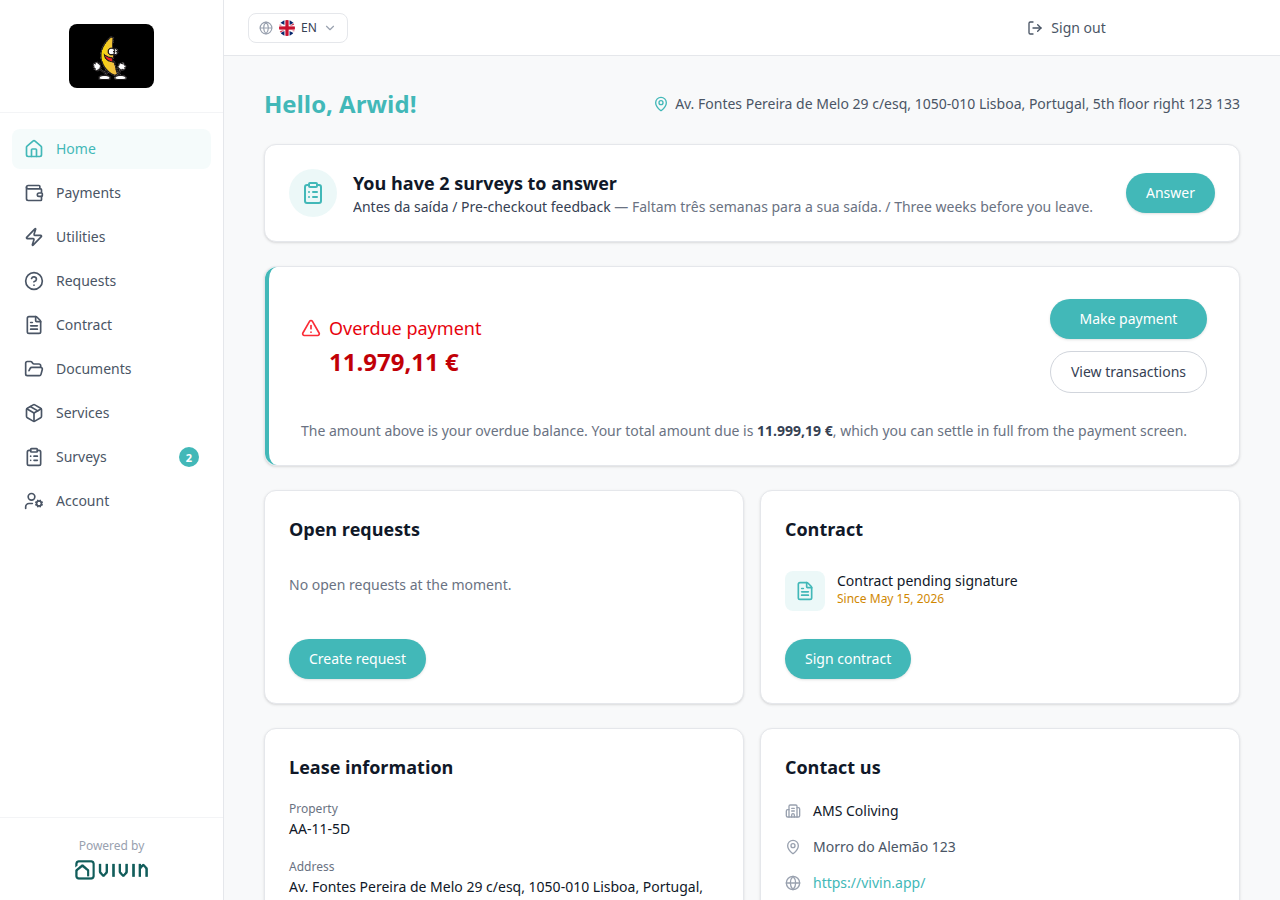

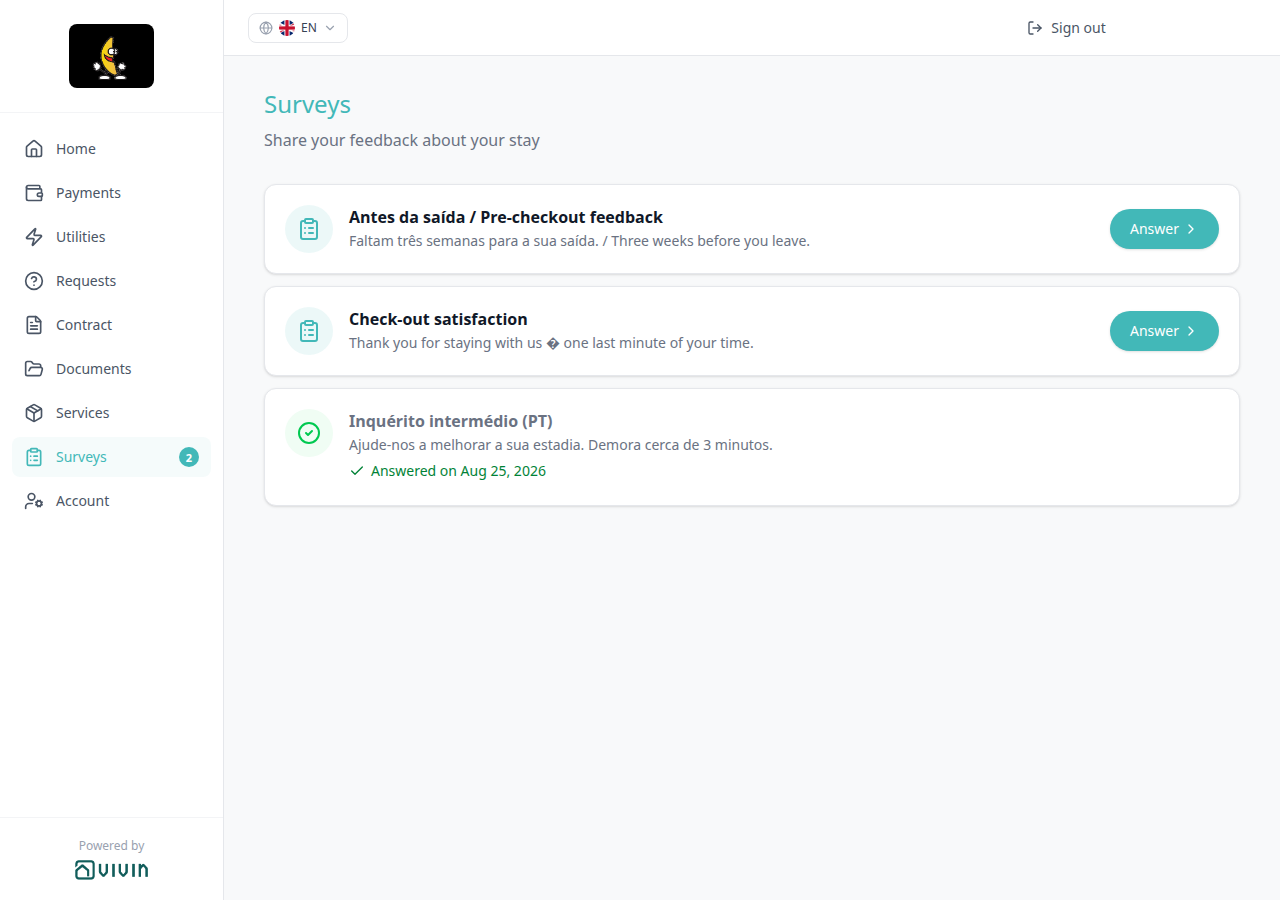
How do tenants see files and invoices on portal Documents?
Portal Documents pairs with Tenant Portal — Documents, Bookings — Files, Finance — Hostkit invoice links, Tenant categories (Documents / invoices), and How do tenants sign out of the Tenant Portal? (phone More). Distinct from FAQ — Tenant contract signing blocked (Contract PDF), from Receipt column, and from FAQ — How do tenants export payment history from the portal? (Export CSV).
Tenants open Documents from the desktop sidebar, or from More on a phone. They see files you uploaded on Bookings → Files, plus Hostkit Invoice_<ref>.pdf tiles when Hostkit is your invoicing provider. PDF and images open in an in-portal preview with Download and Close (Escape also closes); Word and other types open in a new tab. Hostkit invoices always open in a new tab.
There is no Portal settings hide toggle. Turn Documents / invoices Off on the tenant’s category to hide the desktop sidebar item. Tenants cannot upload or delete. When nothing is shared yet, they see No Documents Yet. Marketplace POST /bookings cannot send these files.


How do tenants open payment details in the portal?
Portal Payment details pairs with Tenant Portal — Payment details, Tenant Portal — Same-month installment titles, Tenant Portal — TODAY far-due date, Tenant Portal — Paid installment, Tenant Portal — Scheduled Due in N days, Tenant Portal — Payments tab, Tenant Portal — Balance card (View transactions), Tenant Portal — Make payment (Paywall), Bookings — Payment Plan, Tenant categories (VIVIN payments), How do tenants tell two payments in the same month apart?, How do tenants see Due in N days on the portal timeline?, How do tenants see Upcoming on the portal timeline?, How do tenants export payment history from the portal?, and How do tenants open a receipt from portal payment history?. Distinct from FAQ — How do tenants sort payment history in the portal? (the ledger table) and from FAQ — How long do virtual IBAN payments take in the Tenant Portal?.
On Payments, tenants tap a Payment Timeline card (the same schedule as Home). A panel opens with the due date, title, status badge (Paid, Pending, Overdue, or Scheduled), Total, and Breakdown (Rent, Deposit, fees). The paid/remaining bar is hidden while the row is still Scheduled. Timeline chips can say Due in N days, Due DD MMM YYYY (when the date is 60+ days away), or Upcoming for the same unpaid row — the panel badge is Scheduled. Close with X, the dimmed backdrop, or Escape.
There is no Portal settings hide toggle. Turn VIVIN payments Off on the tenant’s category (or leave the payment module unprovisioned) to hide the whole Payments tab. Tenants cannot edit amounts here. Marketplace POST /bookings cannot send this panel.
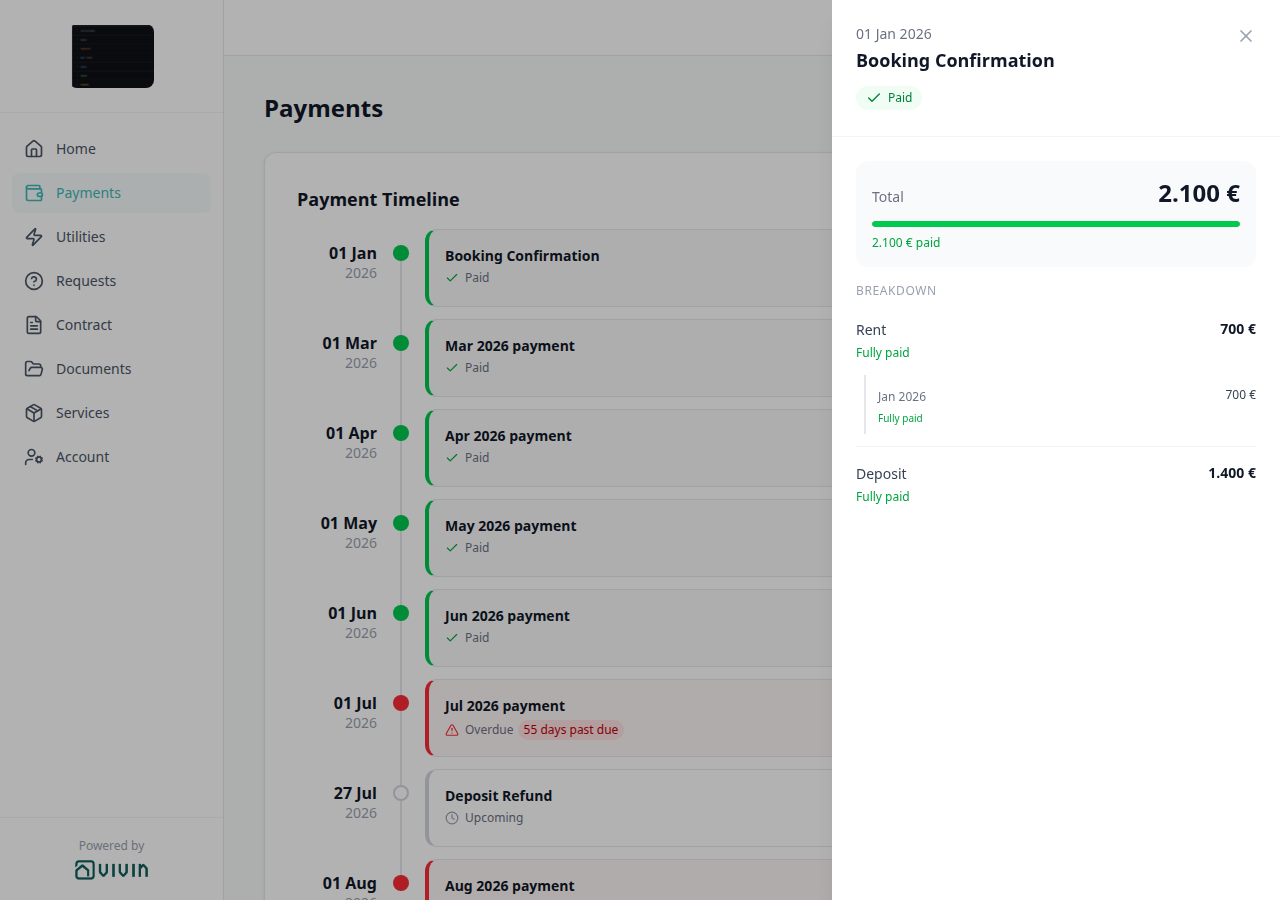
How do tenants tell two payments in the same month apart?
Portal same-month installment titles pair with Tenant Portal — Same-month installment titles, Tenant Portal — Payment details, Tenant Portal — Payments tab, Bookings — Payment Plan, Tenant categories (VIVIN payments), and How do tenants open payment details in the portal?. Distinct from FAQ — How do tenants sort payment history in the portal? (the ledger table).
On Payments → Payment Timeline, a regular installment is titled MMM YYYY payment. When two or more regular installments share that calendar month, each card adds — due D — for example Aug 2026 payment — due 20 and Aug 2026 payment — due 23. A month with only one regular installment keeps the plain month title.
Booking Confirmation, Move-in Payment, and Deposit Refund keep those names and do not trigger the suffix for a regular installment in the same month. Opening payment details still shows the month title; the due date is in the panel header.
There is no Portal settings hide toggle. Turn VIVIN payments Off on the tenant’s category (or leave the payment module unprovisioned) to hide the whole Payments tab. Marketplace POST /bookings cannot send this label.
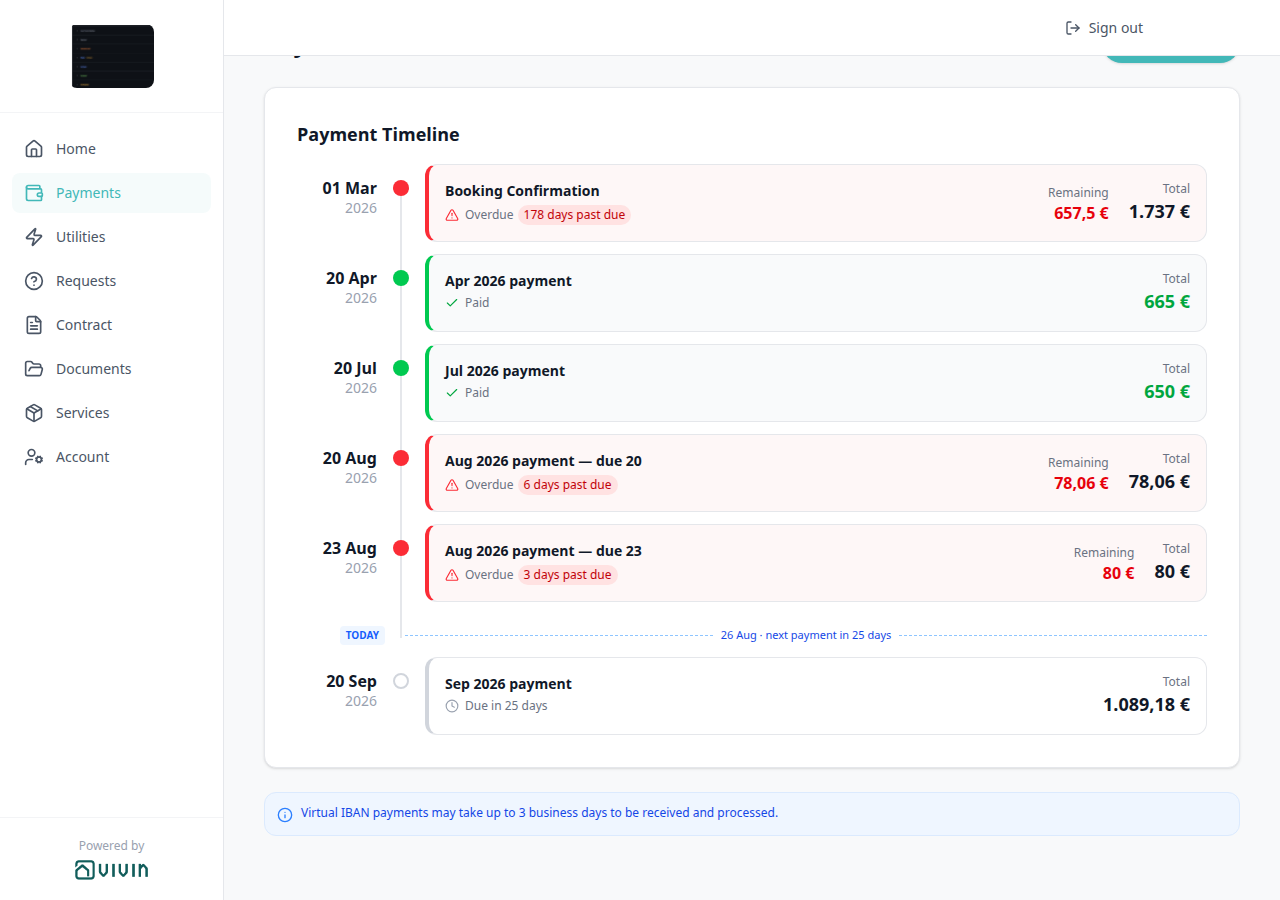
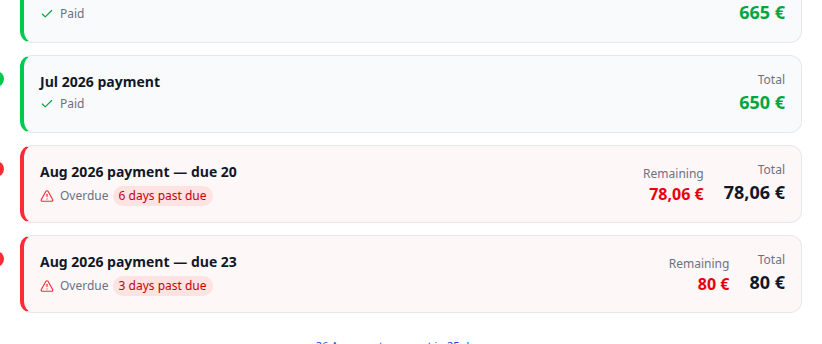
When does the portal TODAY divider show a calendar date?
Portal TODAY far-due date pairs with Tenant Portal — TODAY far-due date, Tenant Portal — Scheduled Due in N days, Tenant Portal — Payments tab, Tenant Portal — Balance card, Tenant Portal — Payment details, Bookings — Payment Plan, Tenant categories (VIVIN payments), How do tenants see Due in N days on the portal timeline?, How do tenants see Upcoming on the portal timeline?, Where does TODAY sit when every portal payment is already due?, and Why do the portal TODAY divider and “Due in N days” chip disagree?. Distinct from the near-term next payment in N days copy, from TODAY compact tick at the end (the same compact tick after the last card when nothing is still ahead), from Due in N days on a future card, from Upcoming on a Scheduled card whose due date is today or already past, and from Overdue N days past due on a late card.
When the next installment is 60 or more calendar days away, Payments → Payment Timeline does not show next payment in 534 days. The blue TODAY divider uses the calendar due date — for example 26 Aug · next payment due 11 Feb 2028. The next card’s chip matches: Due 11 Feb 2028 (not Due in N days).
Closer than 60 days, the divider still says next payment in N days, and the chip still says Due in N days — those two N values always match. When the next installment is 14 days or fewer, TODAY is a compact tick instead of a full divider row. When no installment is still in the future, that compact tick sits after the last card — see Where does TODAY sit when every portal payment is already due?.
There is no Portal settings hide toggle. Turn VIVIN payments Off on the tenant’s category (or leave the payment module unprovisioned) to hide the whole Payments tab. Marketplace POST /bookings cannot send this label.


Where does TODAY sit when every portal payment is already due?
Portal TODAY compact tick at the end pairs with Tenant Portal — TODAY compact tick at the end, Tenant Portal — TODAY far-due date, Tenant Portal — Scheduled Due in N days, Tenant Portal — Upcoming, Tenant Portal — Overdue days past due, Tenant Portal — Payments tab, Tenant Portal — Balance card, Bookings — Payment Plan, Tenant categories (VIVIN payments), and When does the portal TODAY divider show a calendar date?. Distinct from the full TODAY divider (next payment in N days / next payment due DD MMM YYYY) and from the compact tick that sits above a near-term future card.
On Payments → Payment Timeline, TODAY is a compact blue tick — a small TODAY chip plus a short blue dash — not a full divider row. When no installment is still in the future, that tick sits after the last card. It does not say next payment in N days or next payment due DD MMM YYYY.
The same compact tick appears above the next card when that due date is 14 days or fewer away. This answer is the end-of-timeline case: every due date is today or already past (paid, Overdue, or Upcoming), so TODAY is the last mark on the line. For example the tick can sit under Aug 2026 payment after Deposit Refund Upcoming.
There is no Portal settings hide toggle. Turn VIVIN payments Off on the tenant’s category (or leave the payment module unprovisioned) to hide the whole Payments tab. Marketplace POST /bookings cannot send this label.

How do tenants see how many days a portal payment is overdue?
Portal Overdue days past due pairs with Tenant Portal — Overdue days past due, Tenant Portal — TODAY far-due date, Tenant Portal — Paid installment, Tenant Portal — Scheduled Due in N days, Tenant Portal — Payments tab, Tenant Portal — Balance card, Tenant Portal — Payment details, Bookings — Payment Plan, Tenant categories (VIVIN payments), Handling a Late Payment — Step 1, When does the portal TODAY divider show a calendar date?, How do tenants see Due in N days on the portal timeline?, and How do tenants see Upcoming on the portal timeline?. Distinct from Home Overdue payment (a booking total), from Pending installment (amber Remaining), from Due in N days, from Upcoming, and from Paid (no Remaining).
On Payments → Payment Timeline, an unpaid installment whose due date is already in the past shows Overdue plus a red chip N days past due (or 1 day past due). For example Booking Confirmation can read 96 days past due with red Remaining next to Total. Counts use calendar days from start-of-day — the same helper as the TODAY far-due date. On the due date itself, the card still reads Overdue without a day-count chip.
This chip is per installment. Home Overdue payment is the booking total of every late row — not a second copy of this N.
There is no Portal settings hide toggle. Turn VIVIN payments Off on the tenant’s category (or leave the payment module unprovisioned) to hide the whole Payments tab. Marketplace POST /bookings cannot send this label.


How do tenants see a pending installment on the portal timeline?
Portal Pending installment pairs with Tenant Portal — Pending installment, Tenant Portal — Overdue days past due, Tenant Portal — Paid installment, Tenant Portal — Scheduled Due in N days, Tenant Portal — TODAY far-due date, Tenant Portal — Payments tab, Tenant Portal — Balance card, Tenant Portal — Payment details, Bookings — Payment Plan, Tenant categories (VIVIN payments), How do tenants see how many days a portal payment is overdue?, How do tenants see a paid installment on the portal timeline?, How do tenants see Due in N days on the portal timeline?, and When does the portal TODAY divider show a calendar date?. Distinct from Overdue Remaining, from Home Outstanding payment (a booking total — Overdue payment still wins when a late row exists), from Due in N days (grey clock, no Remaining), and from Paid (no Remaining).
On Payments → Payment Timeline, an unpaid installment that is already in its due window — but not yet overdue — shows Pending with an amber dot and amber Remaining next to Total. When the due date is 60 or more calendar days away, the chip is Due DD MMM YYYY instead of N days remaining. For example Move-in Payment can read Pending with Due 11 Feb 2028, Remaining 1.921,24 €, and Total 5.081,74 €.
This status is per installment. Home Outstanding payment is the booking total of every due-window row. Overdue payment still wins on Home when any late row exists, so the headline can stay red while a later card is Pending. Tapping the card opens payment details, which repeats the Pending badge.
There is no Portal settings hide toggle. Turn VIVIN payments Off on the tenant’s category (or leave the payment module unprovisioned) to hide the whole Payments tab. Marketplace POST /bookings cannot send this label.


How do tenants see N days remaining on a pending installment?
Portal Pending N days remaining pairs with Tenant Portal — Pending N days remaining, Tenant Portal — Pending installment, Tenant Portal — Scheduled Due in N days, Tenant Portal — Overdue days past due, Tenant Portal — TODAY far-due date, Tenant Portal — Payments tab, Tenant Portal — Balance card, Bookings — Payment Plan, Tenant categories (VIVIN payments), How do tenants see a pending installment on the portal timeline?, How do tenants see Due in N days on the portal timeline?, and How do tenants see how many days a portal payment is overdue?. Distinct from Pending Due DD MMM YYYY (60+ days), from Due in N days (grey clock, no Remaining), and from Overdue N days past due.
On Payments → Payment Timeline, a Pending installment that is 1–59 calendar days from its due date shows amber N days remaining (or 1 day remaining) next to Pending, plus amber Remaining next to Total. For example Sep 2026 payment can read Pending with 4 days remaining, Remaining 459 €, and Total 459 €.
This chip is per installment. Home Overdue payment still wins when any late row exists, so the headline can stay red while a later card is Pending with N days remaining. Tapping the card opens payment details, which repeats the Pending badge. When the due date is 60 or more calendar days away, the same Pending card uses Due DD MMM YYYY instead.
There is no Portal settings hide toggle. Turn VIVIN payments Off on the tenant’s category (or leave the payment module unprovisioned) to hide the whole Payments tab. Marketplace POST /bookings cannot send this label.


How do tenants see a paid installment on the portal timeline?
Portal Paid installment pairs with Tenant Portal — Paid installment, Tenant Portal — Payment details, Tenant Portal — Overdue days past due, Tenant Portal — Pending installment, Tenant Portal — Scheduled Due in N days, Tenant Portal — Payments tab, Tenant Portal — Balance card, Bookings — Payment Plan, Tenant categories (VIVIN payments), How do tenants open payment details in the portal?, How do tenants see a pending installment on the portal timeline?, How do tenants see Due in N days on the portal timeline?, and How do tenants see Upcoming on the portal timeline?. Distinct from the payment details sidebar Paid badge, from Home All payments up to date, from Pending installment (amber Remaining), from Due in N days (grey clock), from Discounted installment (same Paid card plus a struck-through original), from Upcoming (the same grey clock when that due date is today or already past), and from Overdue Remaining.
On Payments → Payment Timeline, a fully settled installment shows Paid with a green check. Total is green. There is no Remaining line. For example Booking Confirmation can read Paid with Total 2.100 €. Remaining only appears on Overdue or Pending cards that still have a balance.
This status is per installment. Home All payments up to date is the booking headline when nothing is overdue or outstanding — the same timeline can still list Paid cards above later Overdue rows. Tapping the card opens payment details, which repeats the Paid badge.
There is no Portal settings hide toggle. Turn VIVIN payments Off on the tenant’s category (or leave the payment module unprovisioned) to hide the whole Payments tab. Marketplace POST /bookings cannot send this label.


How do tenants see a discounted installment on the portal timeline?
Portal Discounted installment pairs with Tenant Portal — Discounted installment, Tenant Portal — Paid installment, Tenant Portal — Payment details, Tenant Portal — Payments tab, Bookings — Discounts and payment adjustments, Tenant categories (VIVIN payments), How do tenants see a paid installment on the portal timeline?, and How do tenants open payment details in the portal?. Distinct from Paid without a strikethrough, from Upcoming minus Total on a refund, and from operator Discount (booking) on Contract Values.
On Payments → Payment Timeline, when an installment’s Total is lower than the original scheduled amount, the card shows that original struck through under Total. Paid cards keep the green check and green Total. For example Dec 2025 payment can read Paid with Total 380 € and 760 € crossed out.
Tenants do not add or remove a discount from the portal. Operators apply the reduction on the booking Payment Plan / Discounts. This section does not open payment details.
There is no Portal settings hide toggle. Turn VIVIN payments Off on the tenant’s category (or leave the payment module unprovisioned) to hide the whole Payments tab. Marketplace POST /bookings cannot send this label.


How do tenants see Due in N days on the portal timeline?
Portal Scheduled Due in N days pairs with Tenant Portal — Scheduled Due in N days, Tenant Portal — TODAY far-due date, Tenant Portal — Overdue days past due, Tenant Portal — Paid installment, Tenant Portal — Payments tab, Tenant Portal — Balance card, Tenant Portal — Payment details, Bookings — Payment Plan, Tenant categories (VIVIN payments), When does the portal TODAY divider show a calendar date?, How do tenants see Upcoming on the portal timeline?, and Why do the portal TODAY divider and “Due in N days” chip disagree?. Distinct from Pending N days remaining, from Upcoming when the count is already 0 or fewer days, from Due DD MMM YYYY when the date is 60+ days away, and from Overdue Remaining.
On Payments → Payment Timeline, an unpaid installment that is not yet in the due window is Scheduled. The card shows a grey clock plus Due in N days (or Due in 1 day). For example Sep 2026 payment can read Due in 25 days with Total 1.089,18 €. Counts use calendar days from start-of-day — the same helper as the TODAY far-due date. When the next installment is 15–59 days away, the blue TODAY divider uses the same N (26 Aug · next payment in 25 days).
When the due date is 60 or more calendar days away, this chip switches to Due DD MMM YYYY. When the count is already 0 or fewer days, the chip says Upcoming. Payment details still shows Scheduled. There is no Remaining on a Scheduled card.
There is no Portal settings hide toggle. Turn VIVIN payments Off on the tenant’s category (or leave the payment module unprovisioned) to hide the whole Payments tab. Marketplace POST /bookings cannot send this label.


How do tenants see Upcoming on the portal timeline?
Portal Upcoming pairs with Tenant Portal — Upcoming, Tenant Portal — Scheduled Due in N days, Tenant Portal — TODAY far-due date, Tenant Portal — Overdue days past due, Tenant Portal — Paid installment, Tenant Portal — Payments tab, Tenant Portal — Payment details, Bookings — Payment Plan, Managing a Check-out — Step 5, Tenant categories (VIVIN payments), How do tenants see Due in N days on the portal timeline?, and Where does TODAY sit when every portal payment is already due?. Distinct from Due in N days while the due date is still in the future, from Pending N days remaining, and from Overdue Remaining.
On Payments → Payment Timeline, an unpaid installment that is still Scheduled shows a grey clock. While the due date is in the future, that clock reads Due in N days. When the count is 0 or fewer calendar days (today or already past) and the row has not become Pending or Overdue, the same clock reads Upcoming.
Unpaid rent usually becomes Pending or Overdue when the date arrives. Upcoming is the leftover Scheduled label. A live example is a Deposit Refund that is not yet paid out: the card stays Scheduled, shows Upcoming, and Total uses a minus (money back to the tenant) — for example Deposit Refund Upcoming Total -1.310 €. That refund does not become Overdue. Payment details still shows Scheduled. There is no Remaining on a Scheduled / Upcoming card.
There is no Portal settings hide toggle. Turn VIVIN payments Off on the tenant’s category (or leave the payment module unprovisioned) to hide the whole Payments tab. Marketplace POST /bookings cannot send this label.


How do tenants export payment history from the portal?
Portal Export CSV pairs with Tenant Portal — Export CSV, Tenant Portal — Payment details, Tenant Portal — Transaction History search, Tenant Portal — Transaction History sort, Tenant Portal — Receipt column, Tenant Portal — Virtual IBAN processing notice, Tenant Portal — Payments tab, Tenant Portal — Balance card (View transactions), Tenant categories (VIVIN payments), How do tenants open payment details in the portal?, How do tenants search payment history in the portal?, How do tenants sort payment history in the portal?, How do tenants open a receipt from portal payment history?, and How do tenants see files and invoices on portal Documents? (PDF receipts, not the spreadsheet). Distinct from operator CSV downloads on Bookings, Finance, Listings, and Tenants.
On Payments → Transaction History, tenants click Export CSV (download icon). On a computer, it sits beside the heading; on a phone, it sits under Transaction History (above the receipts line and search). The file is named transaction-history-YYYY-MM-DD.csv and columns are Date, Description, Amount, and Total. Inbound amounts use a minus, matching the table. Search and sort apply; pagination does not — every matching row is included. The button shows when this booking has at least one history row.
There is no Portal settings hide toggle. Turn VIVIN payments Off on the tenant’s category (or leave the payment module unprovisioned) to hide the whole Payments tab. Receipt PDFs stay on the Receipt column and on Documents — they are not CSV columns. Marketplace POST /bookings cannot send this download.


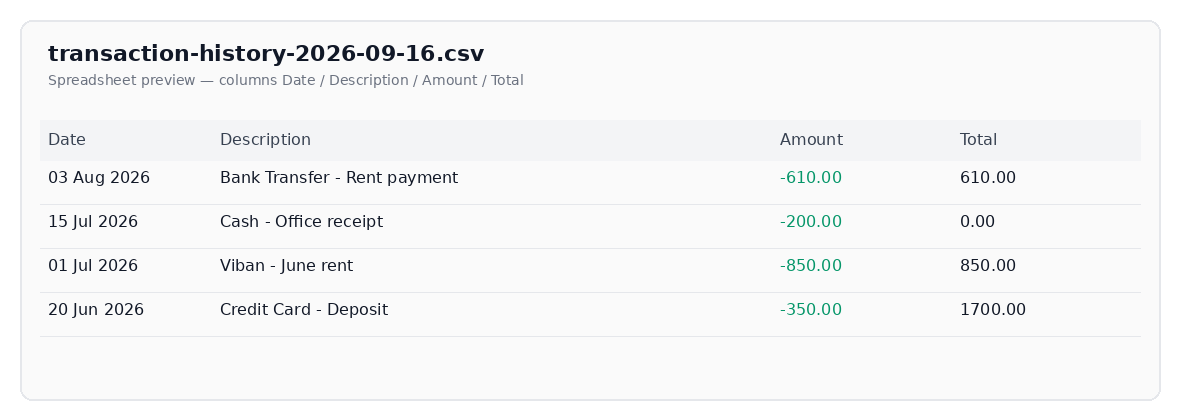
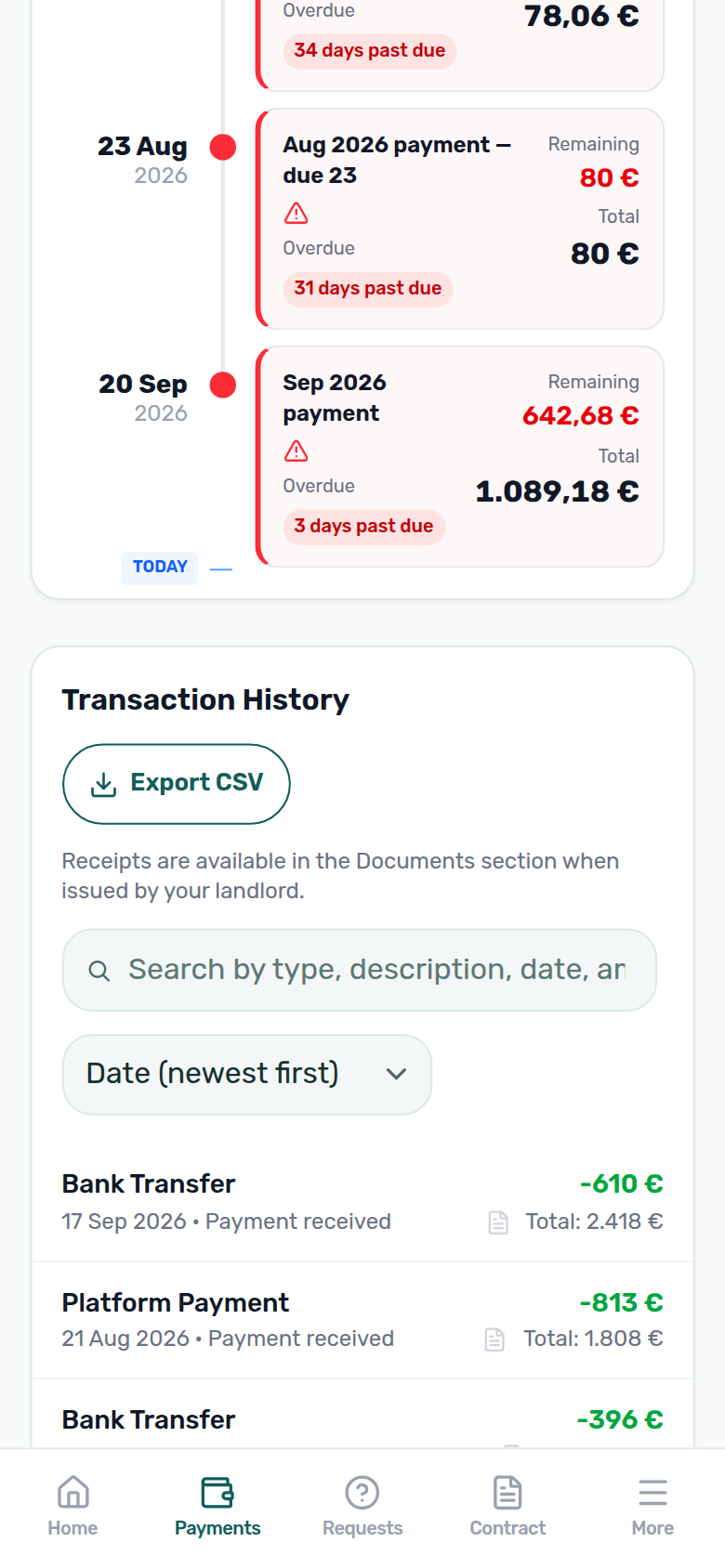
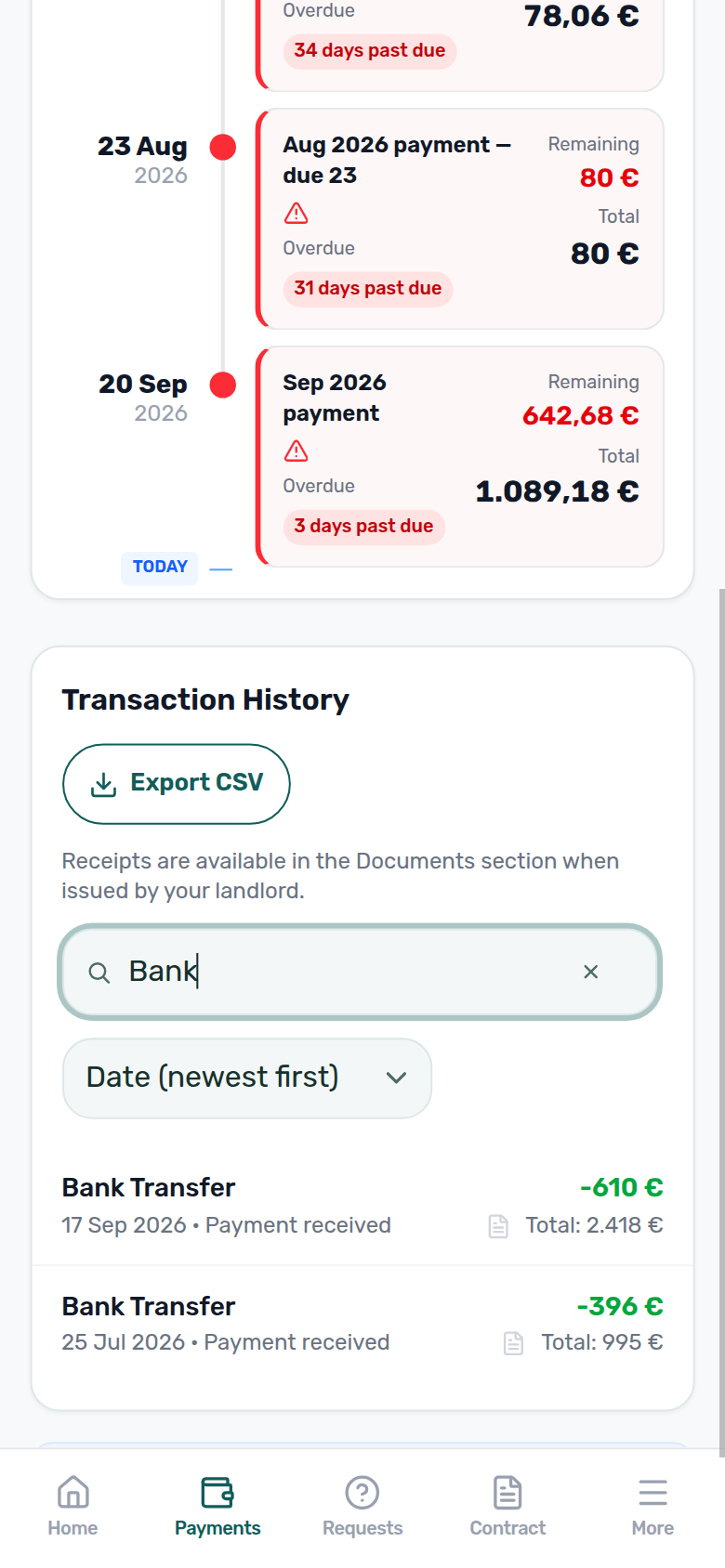
How do tenants search payment history in the portal?
Portal Transaction History search pairs with Tenant Portal — Transaction History search, Tenant Portal — Payments tab, Tenant Portal — Transaction History sort, Tenant Portal — Export CSV, Tenant Portal — Platform payment label, Tenant Portal — Cash type label, Tenant Portal — Bank Transfer type label, Tenant Portal — Credit Card type label, Tenant Portal — Automatic Adjustment type label, Tenant Portal — Receipt column, Tenant Portal — Balance card (View transactions), Tenant categories (VIVIN payments), How do tenants sort payment history in the portal?, How do tenants export payment history from the portal?, and Why doesn't portal transaction search find a payment when I type the amount I see?. Distinct from operator search on Finance → Transactions.
On Payments → Transaction History, tenants type in Search by type, description, date, amount... to keep matching rows. Empty search shows every row. The field matches what the table shows — a type label fragment (Bank, Cash, Credit, Automatic, Roomless), a description fragment, a short date (for example 17 Sep 2026), or a signed amount (-610 or 610). The list updates as they type. Changing the query returns to page 1 of the table (10 rows per page). Export CSV uses the same query — every matching row, not only the current page. Date / Amount sort still applies to whatever remains.
When nothing matches, the table reads No transactions match your search. Clear the field to see every row again. On a phone, the same search field sits above the Sort menu.
There is no Portal settings hide toggle. Turn VIVIN payments Off on the tenant’s category (or leave the payment module unprovisioned) to hide the whole Payments tab. Marketplace POST /bookings cannot send this search.
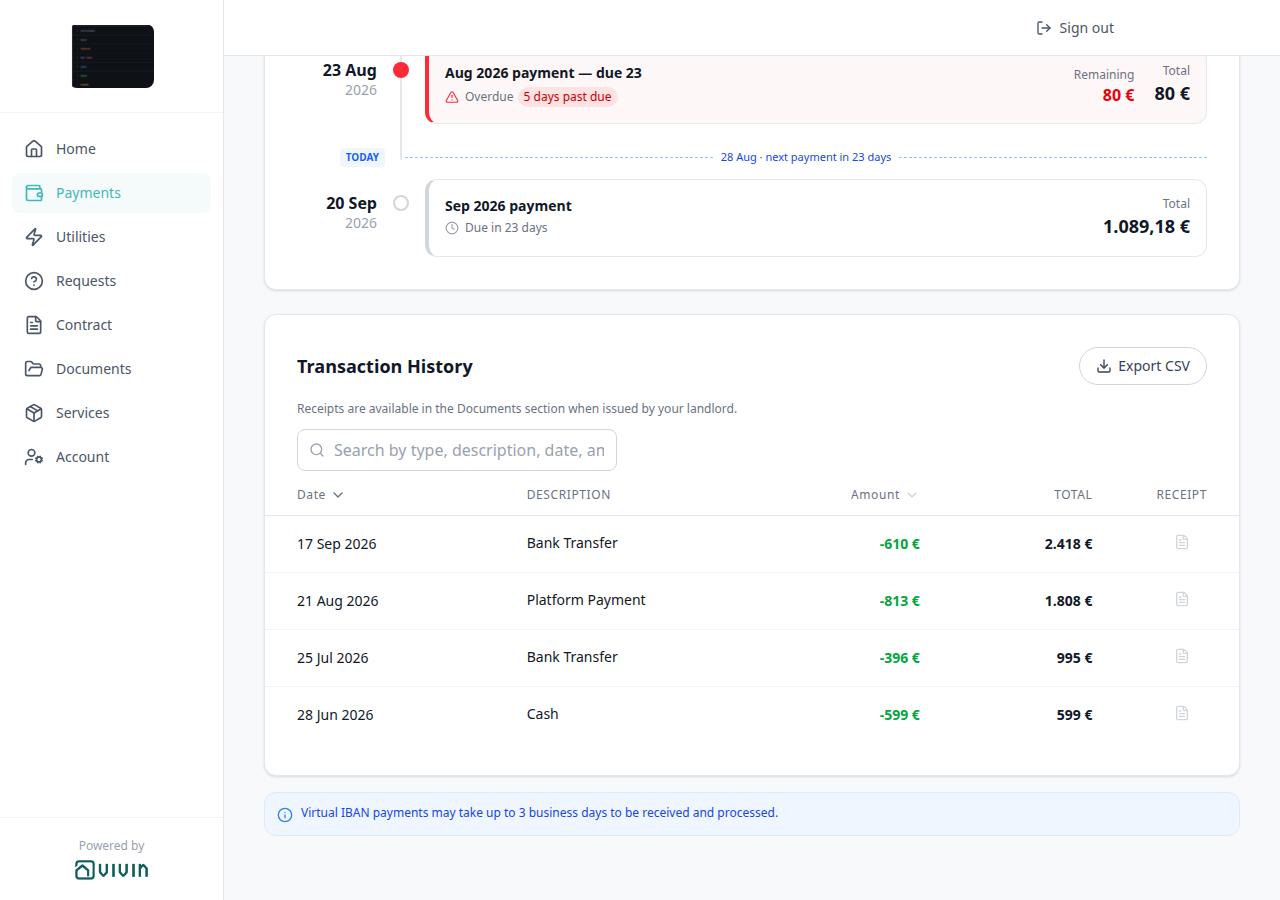
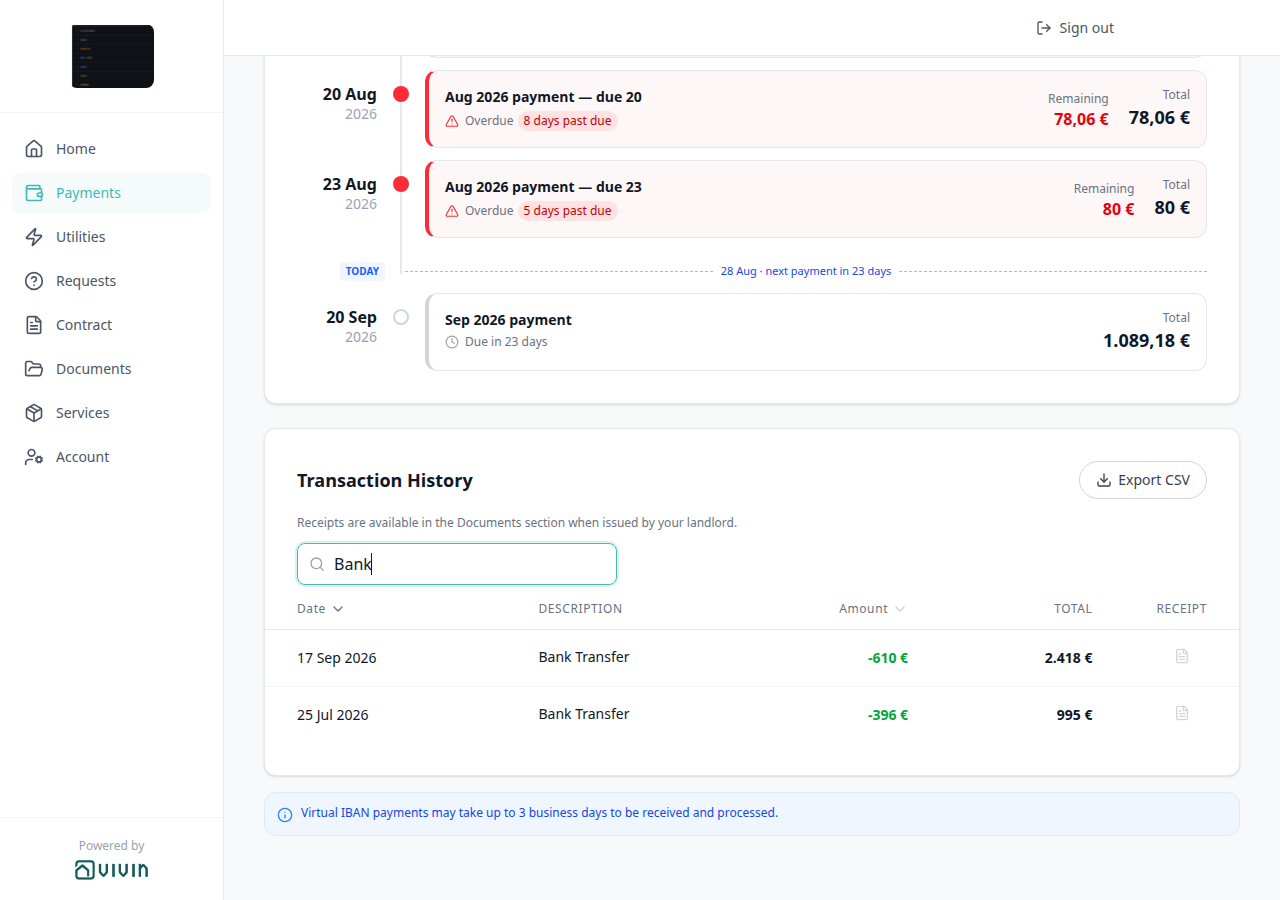

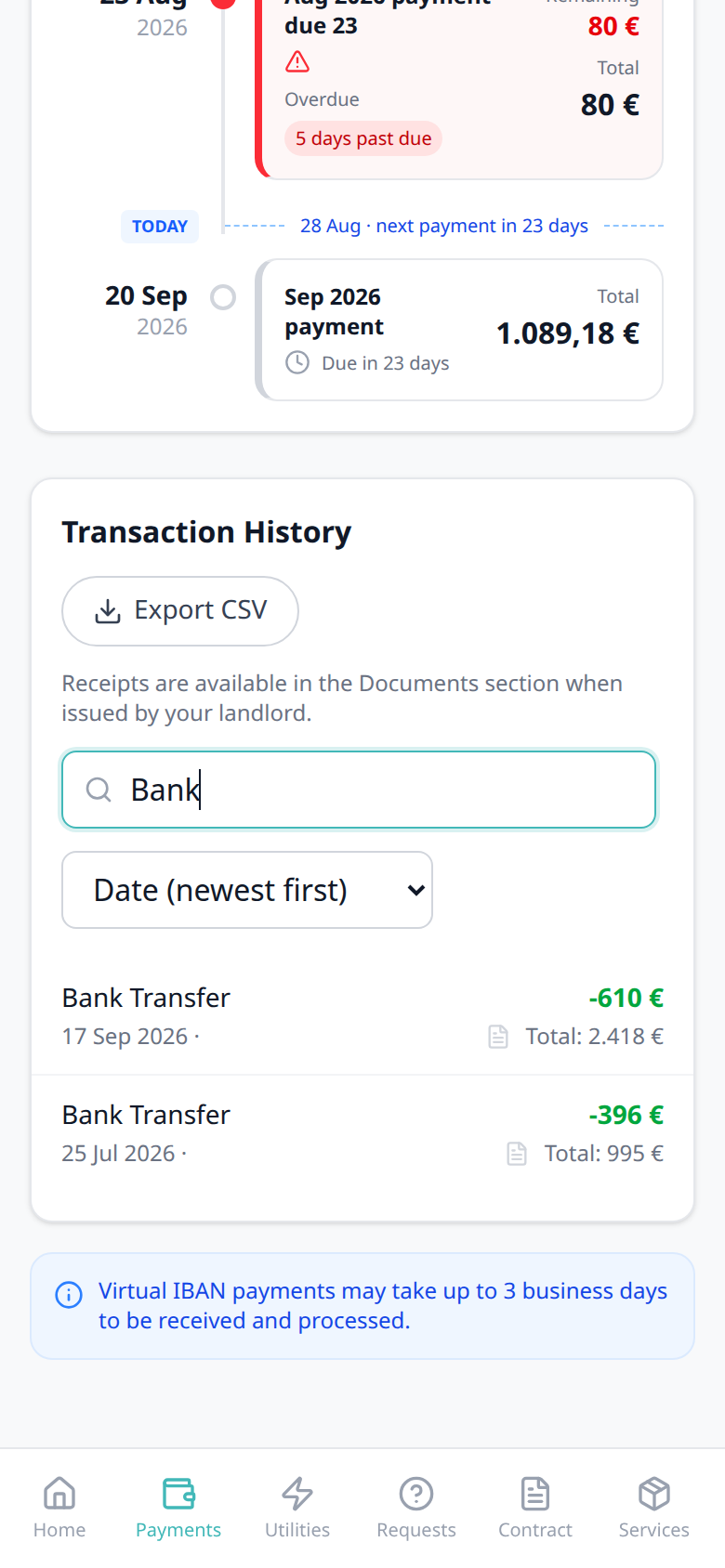
How do tenants sort payment history in the portal?
Portal Transaction History sort pairs with Tenant Portal — Transaction History sort, Tenant Portal — Transaction History search, Tenant Portal — Payments tab, Tenant Portal — Export CSV, Tenant Portal — Receipt column, Tenant Portal — Virtual IBAN processing notice, Tenant Portal — Balance card (View transactions), Tenant categories (VIVIN payments), How do tenants search payment history in the portal?, and How do tenants export payment history from the portal?. Distinct from operator CSV sorts on Bookings, Finance, Listings, and Tenants.
On Payments → Transaction History, tenants sort by Date or Amount. The default is newest date first. On a computer, they click a column heading; the first click on Amount shows smallest amounts first, then click again to reverse. On a phone, a Sort menu lists newest date, oldest date, largest amount, and smallest amount. Changing sort (or typing in Search) returns to page 1 of the table. Total stays a chronological running total — it does not re-add in amount order.
There is no Portal settings hide toggle. Turn VIVIN payments Off on the tenant’s category (or leave the payment module unprovisioned) to hide the whole Payments tab. Export CSV uses the same sort. Marketplace POST /bookings cannot send this sort.
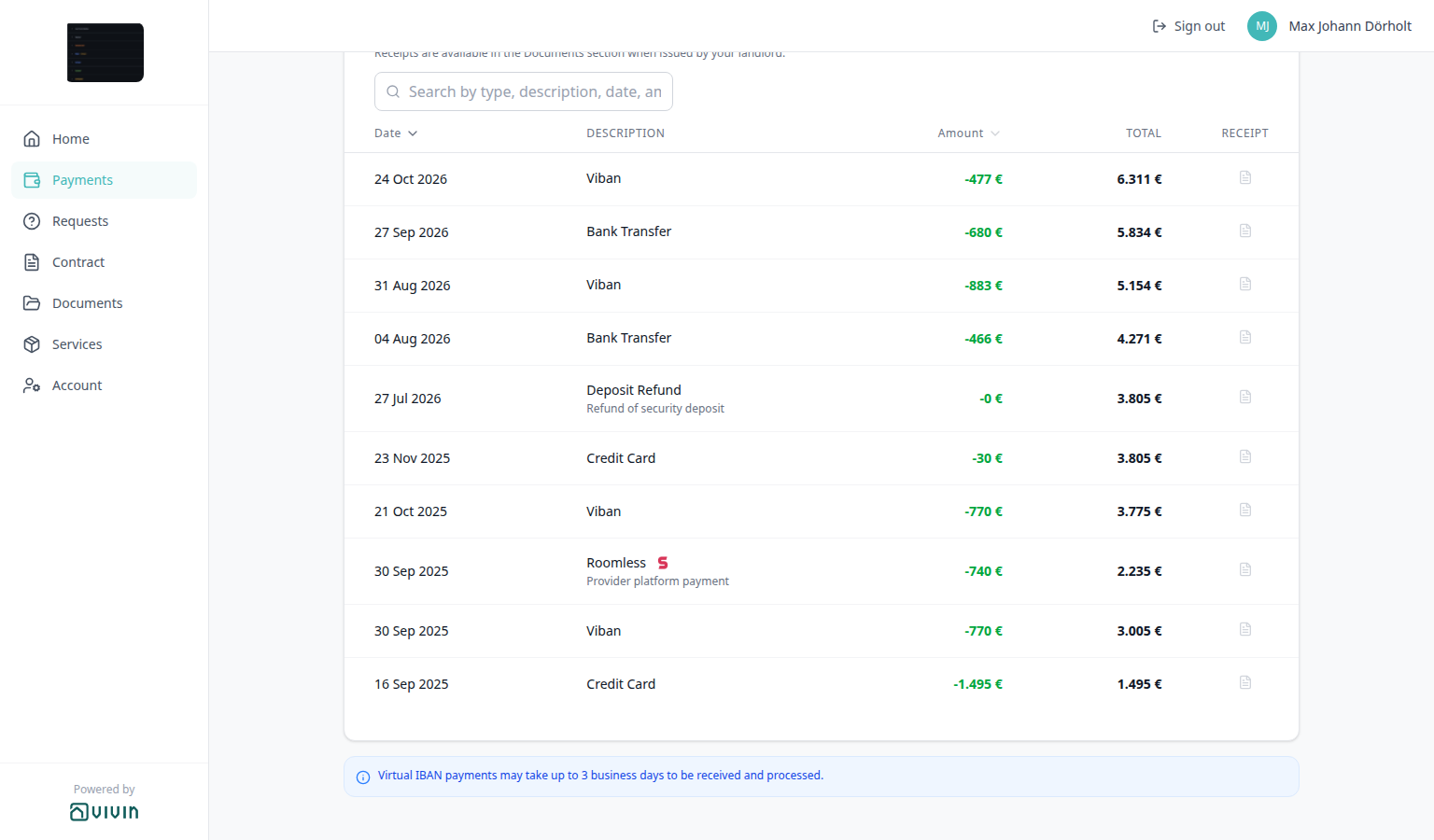
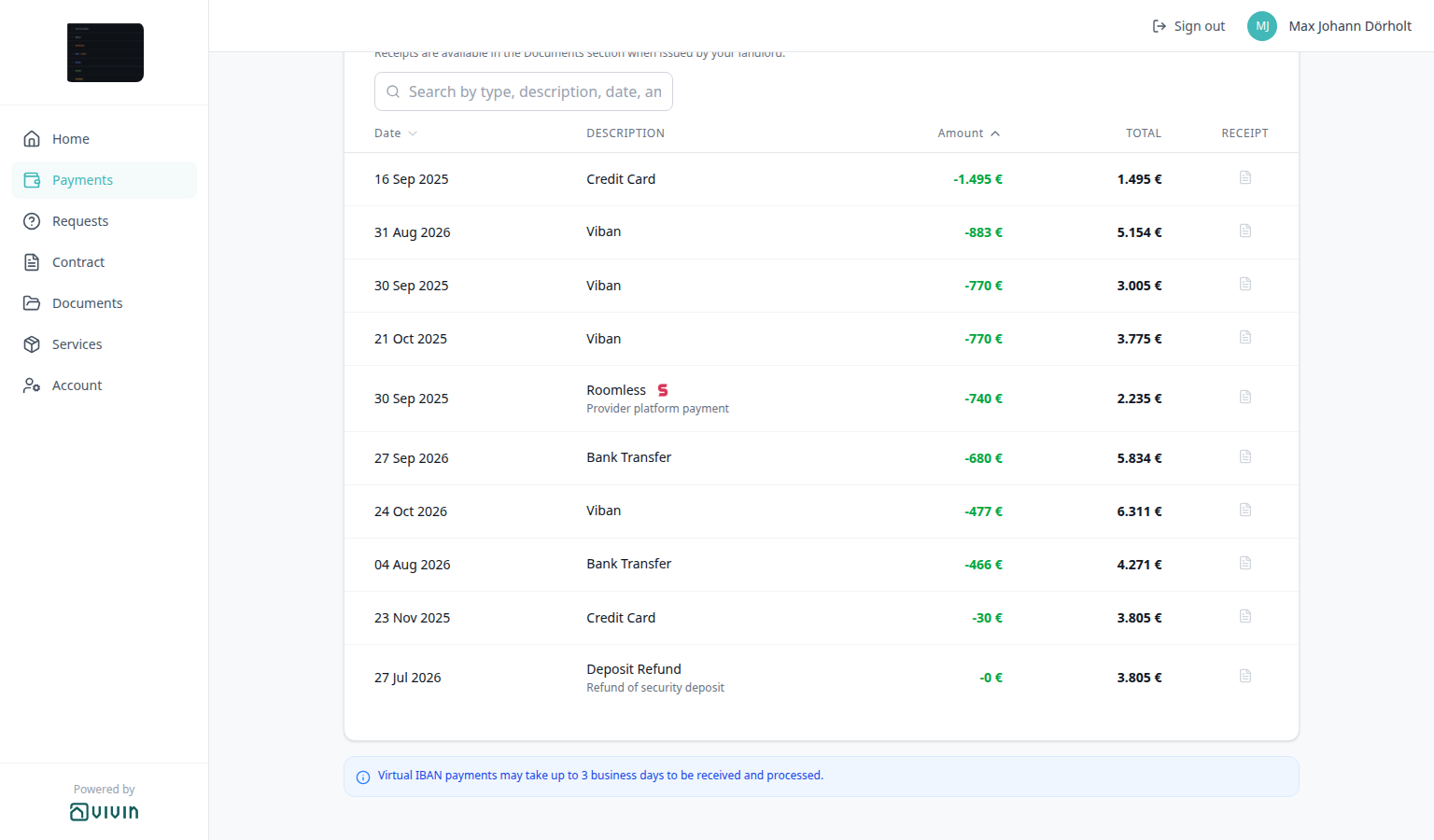
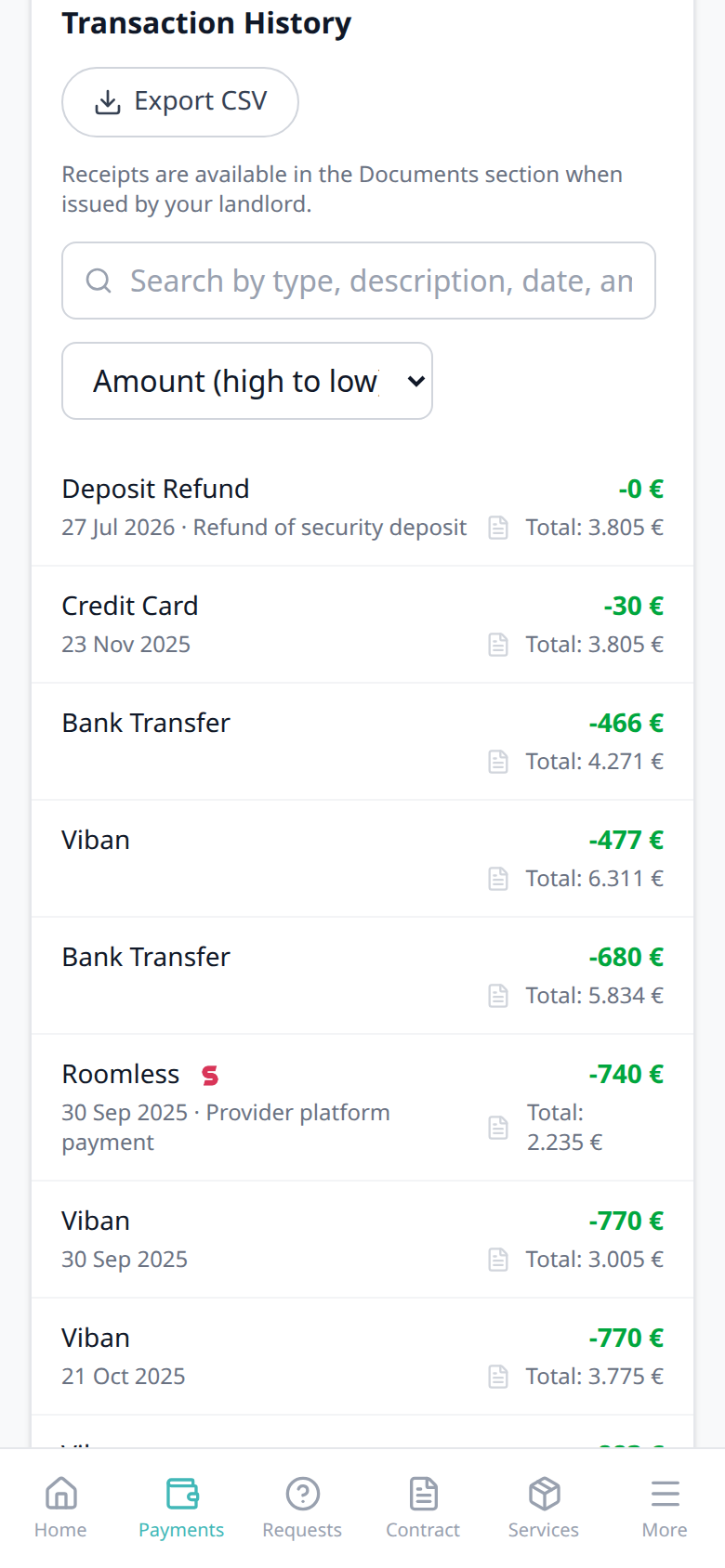
How do tenants page through payment history in the portal?
Portal Transaction History pagination pairs with Tenant Portal — Transaction History pagination, Tenant Portal — Payments tab, Tenant Portal — Transaction History search, Tenant Portal — Transaction History sort, Tenant Portal — Export CSV, Tenant Portal — Receipt column, Tenant Portal — Balance card (View transactions), Tenant categories (VIVIN payments), How do tenants search payment history in the portal?, How do tenants sort payment history in the portal?, and How do tenants export payment history from the portal?. Distinct from operator infinite-scroll lists on Finance → Transactions.
On Payments → Transaction History, when more than 10 matching rows exist, a footer under the table pages the list. It reads Showing X–Y of Z and Page N of M, with previous / next chevrons. Each page holds 10 rows (for example Showing 1–10 of 18 Page 1 of 2, then Showing 11–18 of 18 Page 2 of 2). The footer is omitted when 10 or fewer rows match. Typing in Search or changing Date / Amount sort returns to page 1. Export CSV still includes every matching row, not only the page on screen. On a phone, the same footer sits under the history cards.
There is no Portal settings hide toggle. Turn VIVIN payments Off on the tenant’s category (or leave the payment module unprovisioned) to hide the whole Payments tab. Marketplace POST /bookings cannot send this pagination.
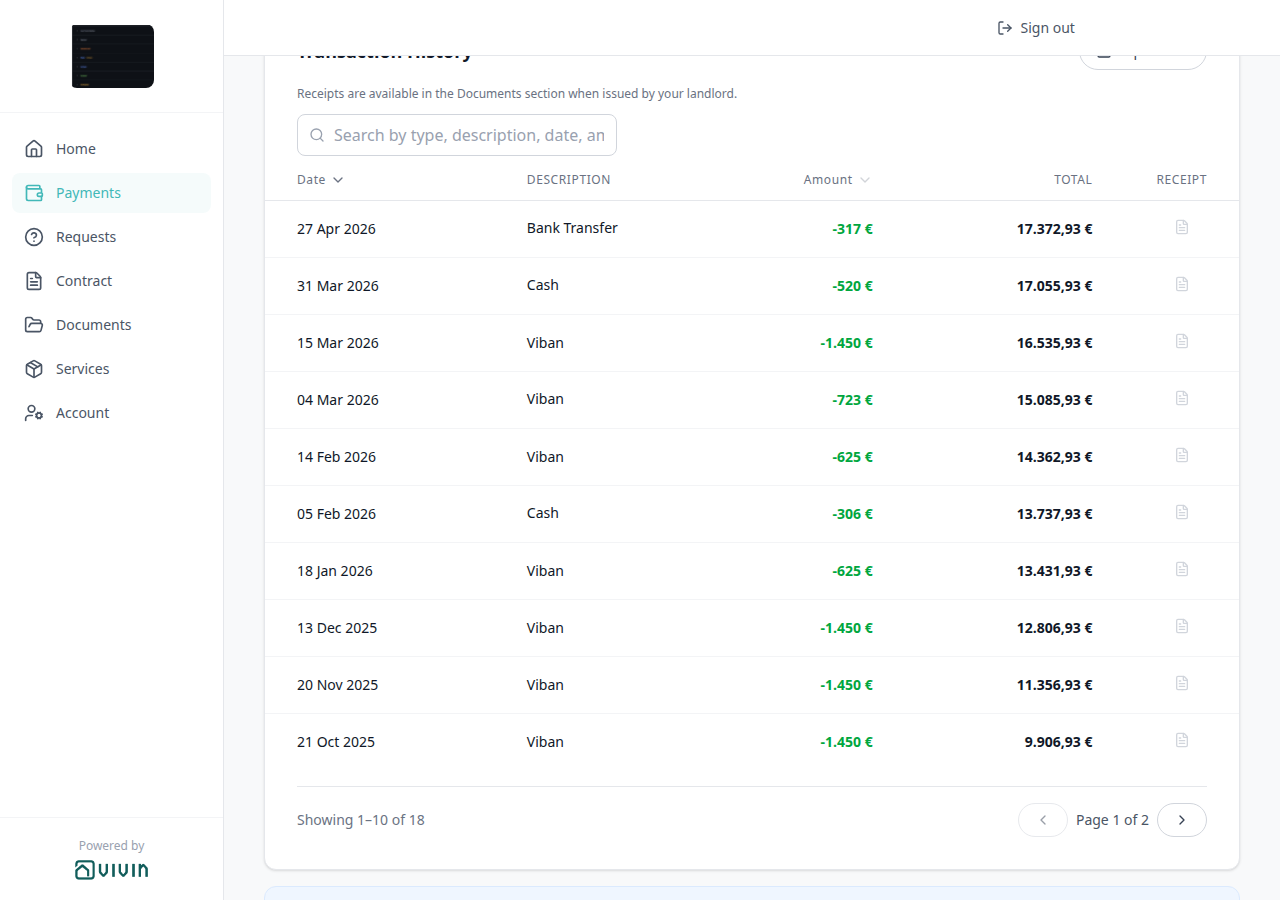

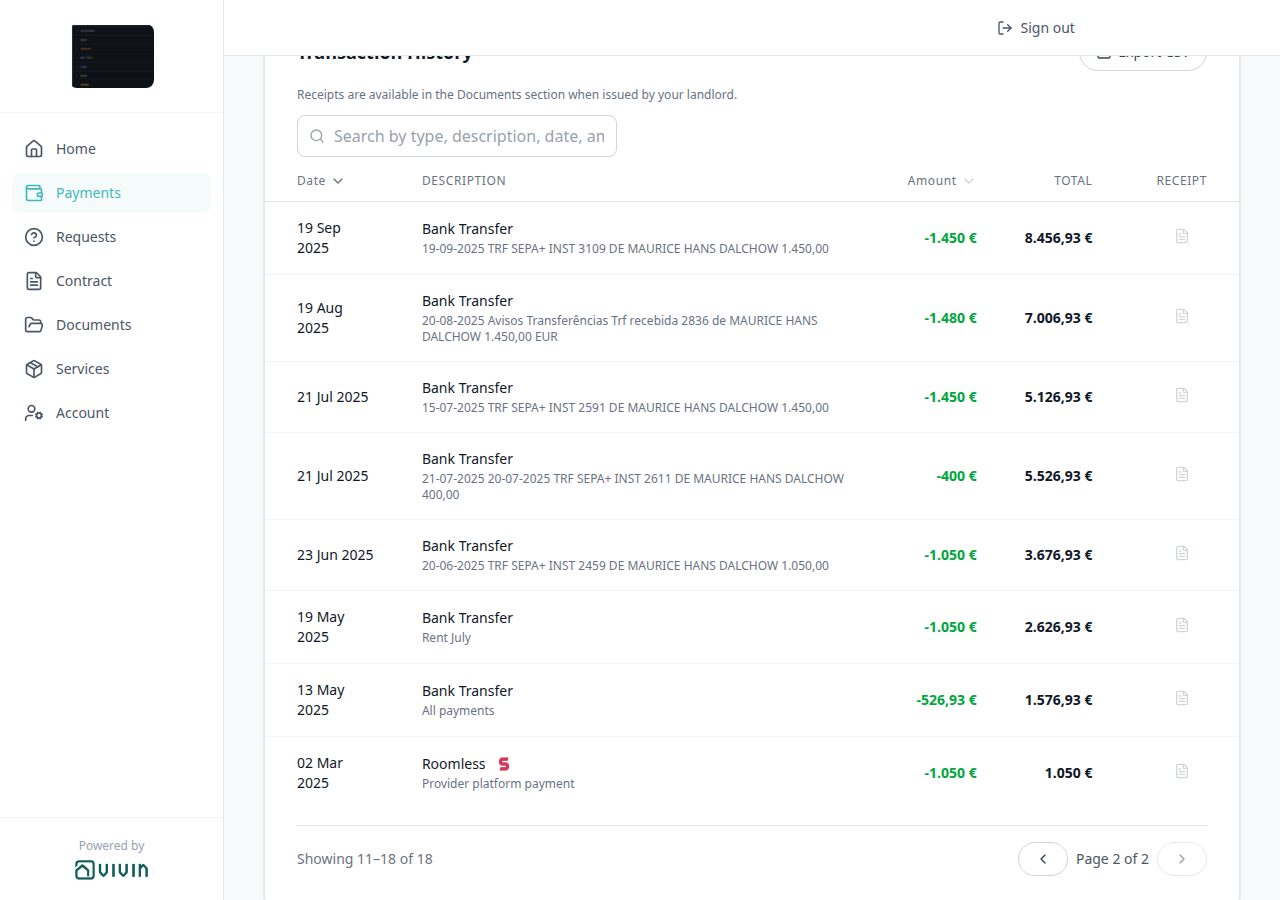
How do tenants see which platform paid in the portal?
Portal platform payment label pairs with Tenant Portal — Platform payment label, Tenant Portal — Payments tab, Tenant Portal — Transaction History search, Tenant Portal — Transaction History sort, Tenant Portal — Export CSV, Bookings — Provider platform payment, Tenant categories (VIVIN payments), How do tenants search payment history in the portal?, and How do tenants sort payment history in the portal?. Distinct from FAQ — How do tenants see a cash payment in the portal?, from FAQ — How do tenants see a bank transfer in the portal?, from FAQ — How do tenants open a receipt from portal payment history?, and from operator Finance → Transactions type cards.
On Payments → Transaction History, a payment collected on a listing platform shows that platform’s name and logo — for example Roomless — not a generic Platform Payment label. Tenants can type that name in Search (for example Roomless or Airbnb) to keep only those rows. Export CSV uses the same name in Description.
When the booking has no known platform, the row stays Platform Payment and has no logo. Names include Airbnb, Booking.com, Housing Anywhere, Inlife, Roomless, Spotahome, Uniplaces, EduPortugal, Erasmus Life, and VIVIN.
There is no Portal settings hide toggle. Turn VIVIN payments Off on the tenant’s category (or leave the payment module unprovisioned) to hide the whole Payments tab. Reconcile the euro amount on booking Contract Info — Provider platform payment. Marketplace POST /bookings cannot send this label.

How do tenants see a cash payment in the portal?
Portal Cash type label pairs with Tenant Portal — Cash type label, Tenant Portal — Payments tab, Tenant Portal — Transaction History search, Tenant Portal — Transaction History sort, Tenant Portal — Export CSV, Tenant categories (VIVIN payments), How do tenants search payment history in the portal?, and How do tenants sort payment history in the portal?. Distinct from FAQ — How do tenants see which platform paid in the portal? (name and logo), from FAQ — How do tenants see a bank transfer in the portal?, from FAQ — How do tenants see an automatic adjustment in the portal?, from FAQ — How do tenants see an overpayment return in the portal?, from FAQ — How do tenants see a cancelation with refund in the portal?, from operator Card (recorded manually), and from operator Cash Flow.
On Payments → Transaction History, a payment recorded as cash shows Cash as plain text — no platform logo. Tenants can type Cash in Search to keep only those rows. Export CSV uses Cash in Description.
There is no Portal settings hide toggle. Turn VIVIN payments Off on the tenant’s category (or leave the payment module unprovisioned) to hide the whole Payments tab. Marketplace POST /bookings cannot send this label.

How do tenants see a bank transfer in the portal?
Portal Bank Transfer type label pairs with Tenant Portal — Bank Transfer type label, Tenant Portal — Payments tab, Tenant Portal — Transaction History search, Tenant Portal — Transaction History sort, Tenant Portal — Export CSV, Tenant Portal — Make payment (Paywall), Tenant categories (VIVIN payments), How do tenants search payment history in the portal?, and How do tenants sort payment history in the portal?. Distinct from FAQ — How do tenants see a cash payment in the portal?, from FAQ — How do tenants see which platform paid in the portal? (name and logo), from FAQ — How do tenants see an automatic adjustment in the portal?, from FAQ — How do tenants see an overpayment return in the portal?, from FAQ — How do tenants see a cancelation with refund in the portal?, and from Make payment → Bank Transfer (IBAN) (the receiving-account tile).
On Payments → Transaction History, a payment recorded as a bank transfer shows Bank Transfer as plain text — no platform logo. Tenants can type Bank in Search to keep only those rows. Export CSV uses Bank Transfer in Description. This is the history label, not the Make payment → Bank Transfer (IBAN) checkout tile.
There is no Portal settings hide toggle. Turn VIVIN payments Off on the tenant’s category (or leave the payment module unprovisioned) to hide the whole Payments tab. Marketplace POST /bookings cannot send this label.

How do tenants see a Viban payment in the portal?
Portal Viban type label pairs with Tenant Portal — Viban type label, Tenant Portal — Payments tab, Tenant Portal — Transaction History search, Tenant Portal — Transaction History sort, Tenant Portal — Export CSV, Tenant Portal — Virtual IBAN processing notice, Tenant Portal — Make payment (Paywall), Tenant categories (VIVIN payments), How do tenants search payment history in the portal?, and How do tenants sort payment history in the portal?. Distinct from FAQ — How do tenants see a bank transfer in the portal?, from FAQ — How do tenants see a cash payment in the portal?, from FAQ — How do tenants see which platform paid in the portal?, from FAQ — How do tenants see a credit card payment in the portal?, from FAQ — How do tenants see an automatic adjustment in the portal?, from FAQ — How do tenants see an overpayment return in the portal?, from FAQ — How do tenants see a cancelation with refund in the portal?, and from FAQ — How long do virtual IBAN payments take in the Tenant Portal? (the blue notice, not this row label).
On Payments → Transaction History, a payment matched through the booking virtual IBAN shows Viban as plain text — no platform logo. Tenants can type Viban in Search to keep only those rows. Export CSV uses Viban in Description. This is the history label, not the Make payment → Bank Transfer (IBAN) checkout tile, and not the Virtual IBAN payments may take up to 3 business days notice under the table.
There is no Portal settings hide toggle. Turn VIVIN payments Off on the tenant’s category (or leave the payment module unprovisioned) to hide the whole Payments tab. Marketplace POST /bookings cannot send this label.

How do tenants see a credit card payment in the portal?
Portal Credit Card type label pairs with Tenant Portal — Credit Card type label, Tenant Portal — Payments tab, Tenant Portal — Transaction History search, Tenant Portal — Transaction History sort, Tenant Portal — Export CSV, Tenant Portal — Make payment (Paywall), Tenant categories (VIVIN payments), How do tenants search payment history in the portal?, and How do tenants sort payment history in the portal?. Distinct from FAQ — How do tenants see a cash payment in the portal?, from FAQ — How do tenants see a bank transfer in the portal?, from FAQ — How do tenants see a Viban payment in the portal?, from FAQ — How do tenants see which platform paid in the portal?, from FAQ — How do tenants see an automatic adjustment in the portal?, from FAQ — How do tenants see an overpayment return in the portal?, from FAQ — How do tenants see a cancelation with refund in the portal?, from Make payment → Credit Card (the checkout tile), and from operator Card (recorded manually).
On Payments → Transaction History, a payment collected by card shows Credit Card as plain text — no platform logo. Tenants can type Credit in Search to keep only those rows. Export CSV uses Credit Card in Description. This is the history label, not the Make payment → Credit Card checkout tile.
There is no Portal settings hide toggle. Turn VIVIN payments Off on the tenant’s category (or leave the payment module unprovisioned) to hide the whole Payments tab. Marketplace POST /bookings cannot send this label.

How do tenants see an automatic adjustment in the portal?
Portal Automatic Adjustment type label pairs with Tenant Portal — Automatic Adjustment type label, Tenant Portal — Payments tab, Tenant Portal — Transaction History search, Tenant Portal — Transaction History sort, Tenant Portal — Export CSV, Bookings — Transactions (operator Adjustment with Approve / Reject while pending), Tenant categories (VIVIN payments), How do tenants search payment history in the portal?, and How do tenants sort payment history in the portal?. Distinct from FAQ — How do tenants see a cash payment in the portal?, from FAQ — How do tenants see a bank transfer in the portal?, from FAQ — How do tenants see a Viban payment in the portal?, from FAQ — How do tenants see a credit card payment in the portal?, from FAQ — How do tenants see which platform paid in the portal?, from FAQ — How do tenants see an overpayment return in the portal?, from FAQ — How do tenants see a cancelation with refund in the portal?, and from operator Adjustment on booking Transactions.
On Payments → Transaction History, a system ledger adjustment shows Automatic Adjustment as plain text — no platform logo. The grey subtitle is the ledger note Automatic adjustment. Tenants can type Automatic in Search to keep only those rows. Export CSV uses Automatic Adjustment in Description. This is the history label, not the operator Adjustment row on booking Transactions.
There is no Portal settings hide toggle. Turn VIVIN payments Off on the tenant’s category (or leave the payment module unprovisioned) to hide the whole Payments tab. Marketplace POST /bookings cannot send this label.
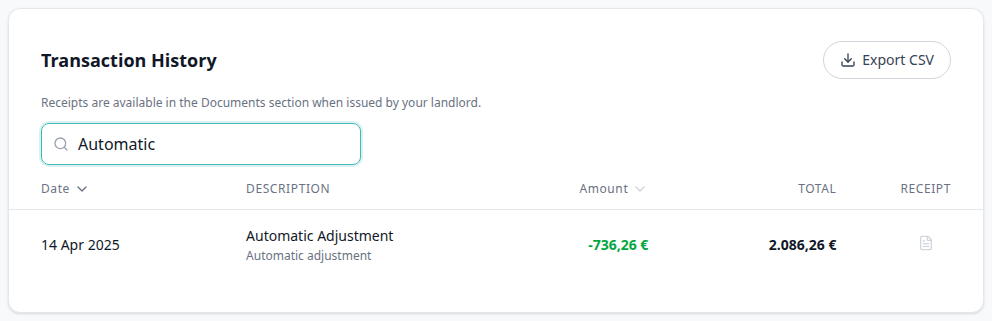

How do tenants see an overpayment return in the portal?
Portal Overpayment Return type label pairs with Tenant Portal — Overpayment Return type label, Tenant Portal — Payments tab, Tenant Portal — Transaction History search, Tenant Portal — Transaction History sort, Tenant Portal — Export CSV, Bookings — Refund an overpayment when there is no deposit, Tenant categories (VIVIN payments), How do tenants search payment history in the portal?, and How do tenants sort payment history in the portal?. Distinct from FAQ — How do tenants see a cash payment in the portal?, from FAQ — How do tenants see a bank transfer in the portal?, from FAQ — How do tenants see a Viban payment in the portal?, from FAQ — How do tenants see a credit card payment in the portal?, from FAQ — How do tenants see an automatic adjustment in the portal?, from FAQ — How do tenants see which platform paid in the portal?, and from timeline Deposit Refund.
On Payments → Transaction History, money returned because the tenant paid more than the plan required shows Overpayment Return as plain text — no platform logo. The grey subtitle is the ledger note Refund of tenant overpayments. Tenants can type Overpayment in Search to keep only those rows. Export CSV uses Overpayment Return in Description. This is the history label after you Mark refunded an overpayment (including no deposit), not the Deposit Refund card on Payment Timeline.
There is no Portal settings hide toggle. Turn VIVIN payments Off on the tenant’s category (or leave the payment module unprovisioned) to hide the whole Payments tab. Marketplace POST /bookings cannot send this label.
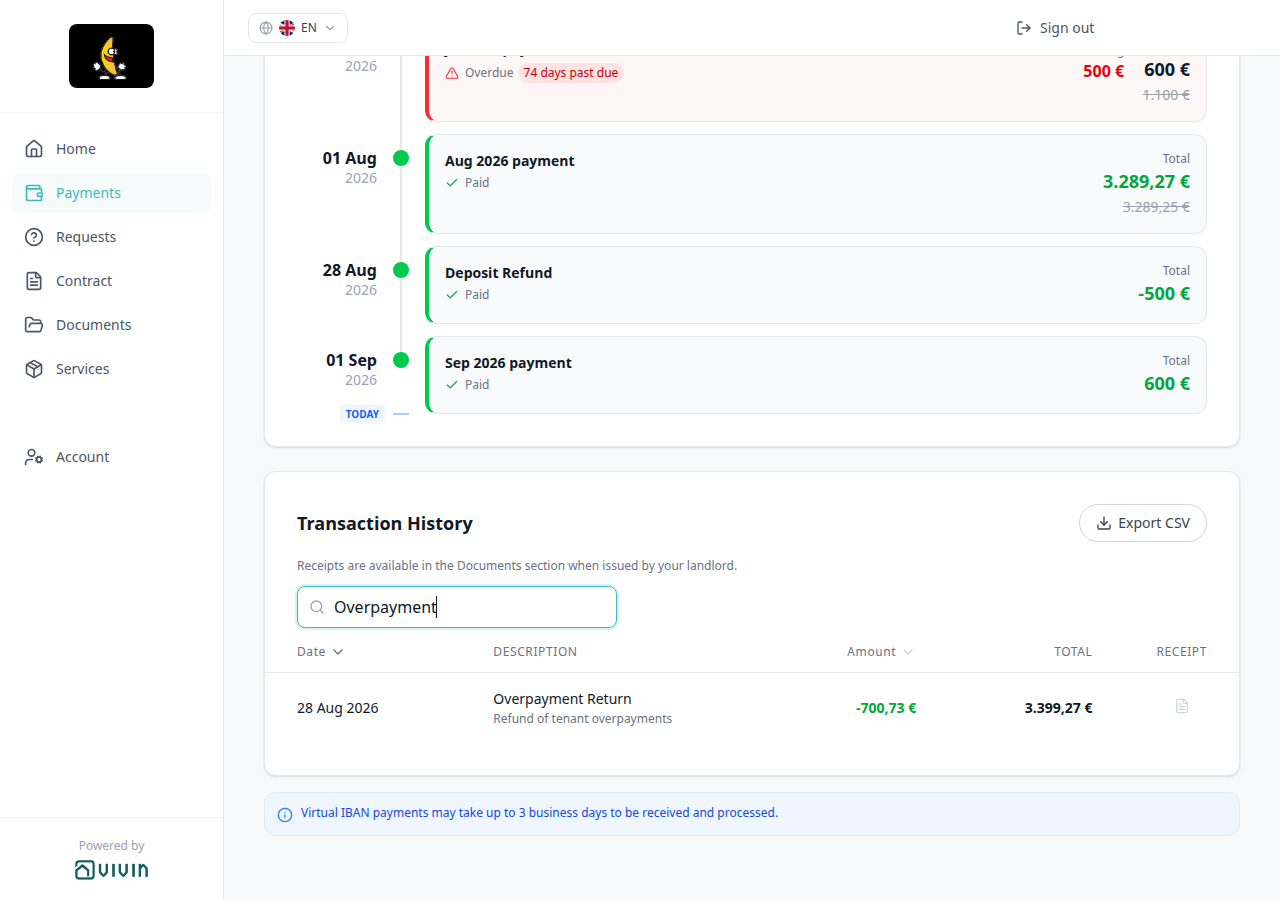

How do tenants see a cancelation with refund in the portal?
Portal Cancelation With Refund type label pairs with Tenant Portal — Cancelation With Refund type label, Tenant Portal — Payments tab, Tenant Portal — Transaction History search, Tenant Portal — Transaction History sort, Tenant Portal — Export CSV, Cancelling a Booking — Step 4 (With refund), Bookings — Cancellations and Refunds, Tenant categories (VIVIN payments), How do tenants search payment history in the portal?, and How do tenants sort payment history in the portal?. Distinct from FAQ — How do tenants see a cash payment in the portal?, from FAQ — How do tenants see a bank transfer in the portal?, from FAQ — How do tenants see a Viban payment in the portal?, from FAQ — How do tenants see a credit card payment in the portal?, from FAQ — How do tenants see an automatic adjustment in the portal?, from FAQ — How do tenants see an overpayment return in the portal?, from FAQ — How do tenants see which platform paid in the portal?, and from timeline Deposit Refund.
On Payments → Transaction History, money returned when you cancel With refund shows Cancelation With Refund as plain text — no platform logo. The grey subtitle is the ledger note Cancelation with refund. Tenants can type Cancelation in Search to keep only those rows. Export CSV uses Cancelation With Refund in Description. This is the history label after Cancel booking → With refund, not the Deposit Refund card on Payment Timeline, and not a Cancelation With Partial Refund row.
There is no Portal settings hide toggle. Turn VIVIN payments Off on the tenant’s category (or leave the payment module unprovisioned) to hide the whole Payments tab. Marketplace POST /bookings cannot send this label.
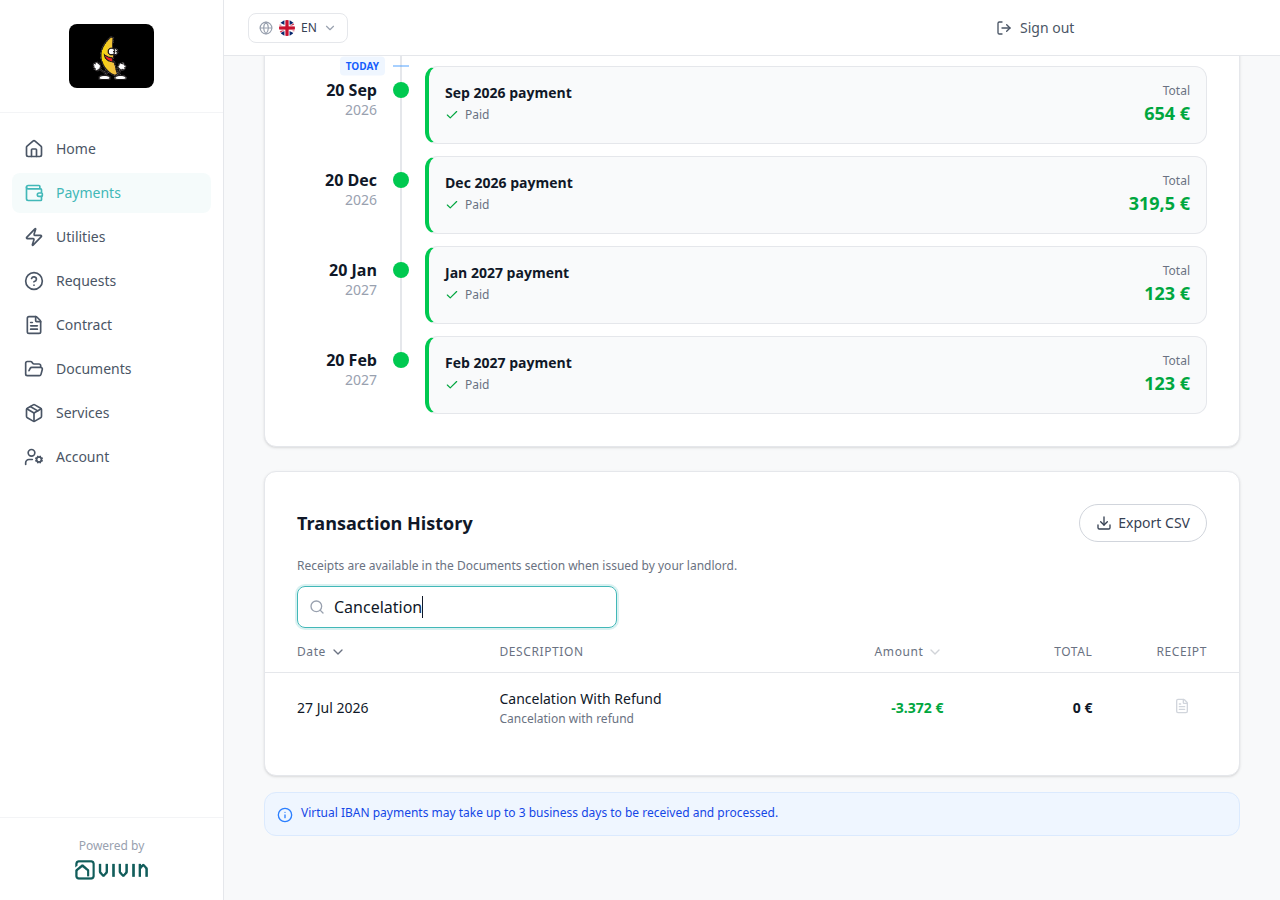

How do tenants see a cancelation with partial refund in the portal?
Portal Cancelation With Partial Refund type label pairs with Tenant Portal — Cancelation With Partial Refund type label, Tenant Portal — Payments tab, Tenant Portal — Transaction History search, Tenant Portal — Transaction History sort, Tenant Portal — Export CSV, Cancelling a Booking — Step 4 (Partial refund), Bookings — Cancellations and Refunds, Tenant categories (VIVIN payments), How do tenants search payment history in the portal?, and How do tenants sort payment history in the portal?. Distinct from FAQ — How do tenants see a cash payment in the portal?, from FAQ — How do tenants see a bank transfer in the portal?, from FAQ — How do tenants see a Viban payment in the portal?, from FAQ — How do tenants see a credit card payment in the portal?, from FAQ — How do tenants see an automatic adjustment in the portal?, from FAQ — How do tenants see an overpayment return in the portal?, from FAQ — How do tenants see a cancelation with refund in the portal?, from FAQ — How do tenants see which platform paid in the portal?, and from timeline Deposit Refund.
On Payments → Transaction History, money returned when you cancel Partial refund shows Cancelation With Partial Refund as plain text — no platform logo. The grey subtitle is the ledger note Cancelation with partial refund. Tenants can type Partial in Search to keep only those rows. Export CSV uses Cancelation With Partial Refund in Description. This is the history label after Cancel booking → Partial refund, not the Deposit Refund card on Payment Timeline, and not a Cancelation With Refund row.
There is no Portal settings hide toggle. Turn VIVIN payments Off on the tenant’s category (or leave the payment module unprovisioned) to hide the whole Payments tab. Marketplace POST /bookings cannot send this label.
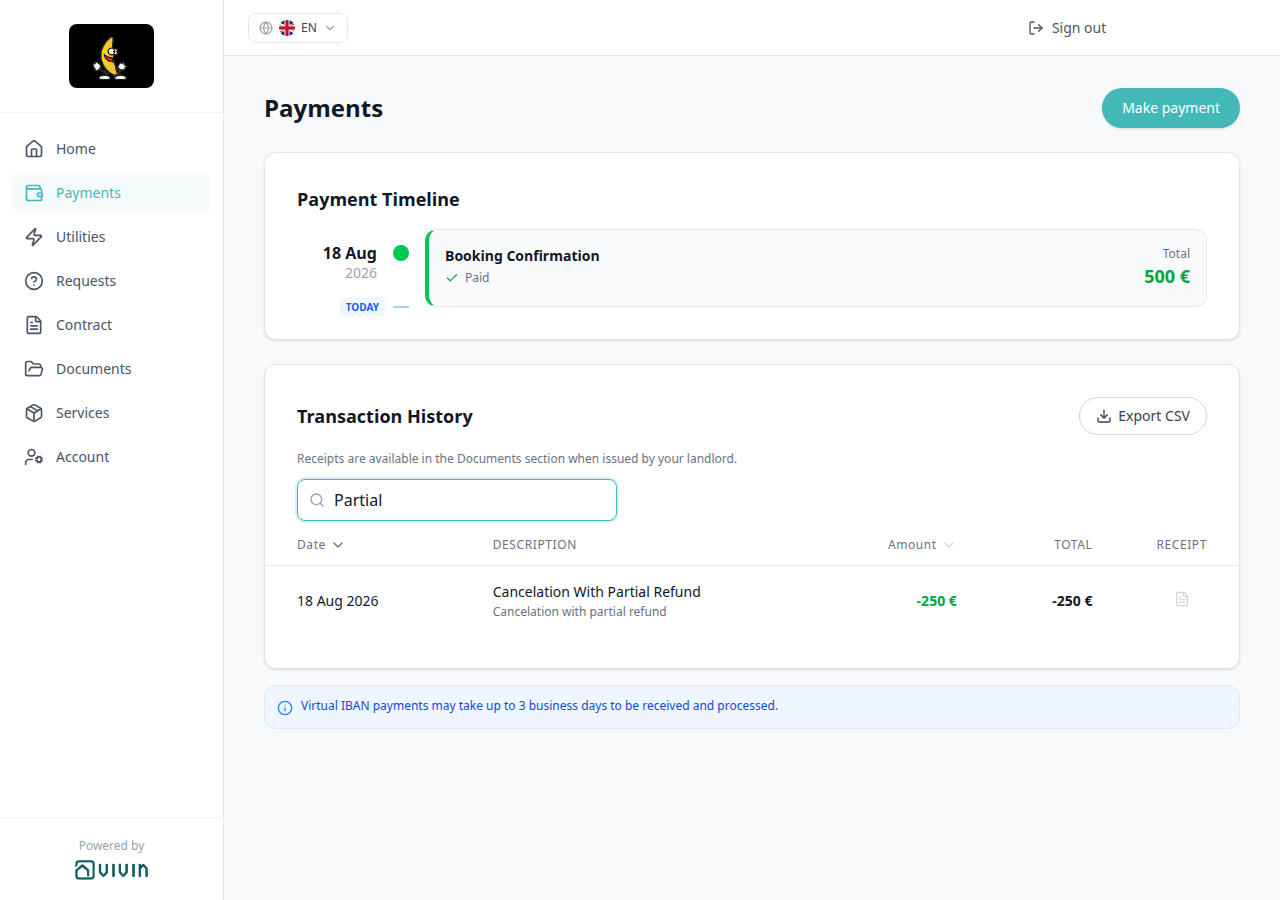

How do tenants see a deposit refund in payment history?
Portal Deposit Refund type label pairs with Tenant Portal — Deposit Refund type label, Tenant Portal — Payments tab, Tenant Portal — Transaction History search, Tenant Portal — Transaction History sort, Tenant Portal — Export CSV, Managing a Check-out — Step 5 (Mark refunded), Glossary — Deposit refund summary (tenant-facing), Tenant categories (VIVIN payments), How do tenants search payment history in the portal?, and Why does the tenant portal show a different deposit refund amount?. Distinct from How do tenants see an overpayment return in the portal? and from How do tenants see a cancelation with refund in the portal?.
On Payments → Transaction History, money returned after operators Mark refunded shows Deposit Refund as plain text — no platform logo. The grey subtitle is the ledger note Refund of security deposit. Tenants can type Deposit in Search to keep only those rows. Export CSV uses Deposit Refund in Description. This is the history label after Mark refunded, not the Deposit Refund card on Payment Timeline, and not an Overpayment Return row.
There is no Portal settings hide toggle. Turn VIVIN payments Off on the tenant’s category (or leave the payment module unprovisioned) to hide the whole Payments tab. Marketplace POST /bookings cannot send this label.
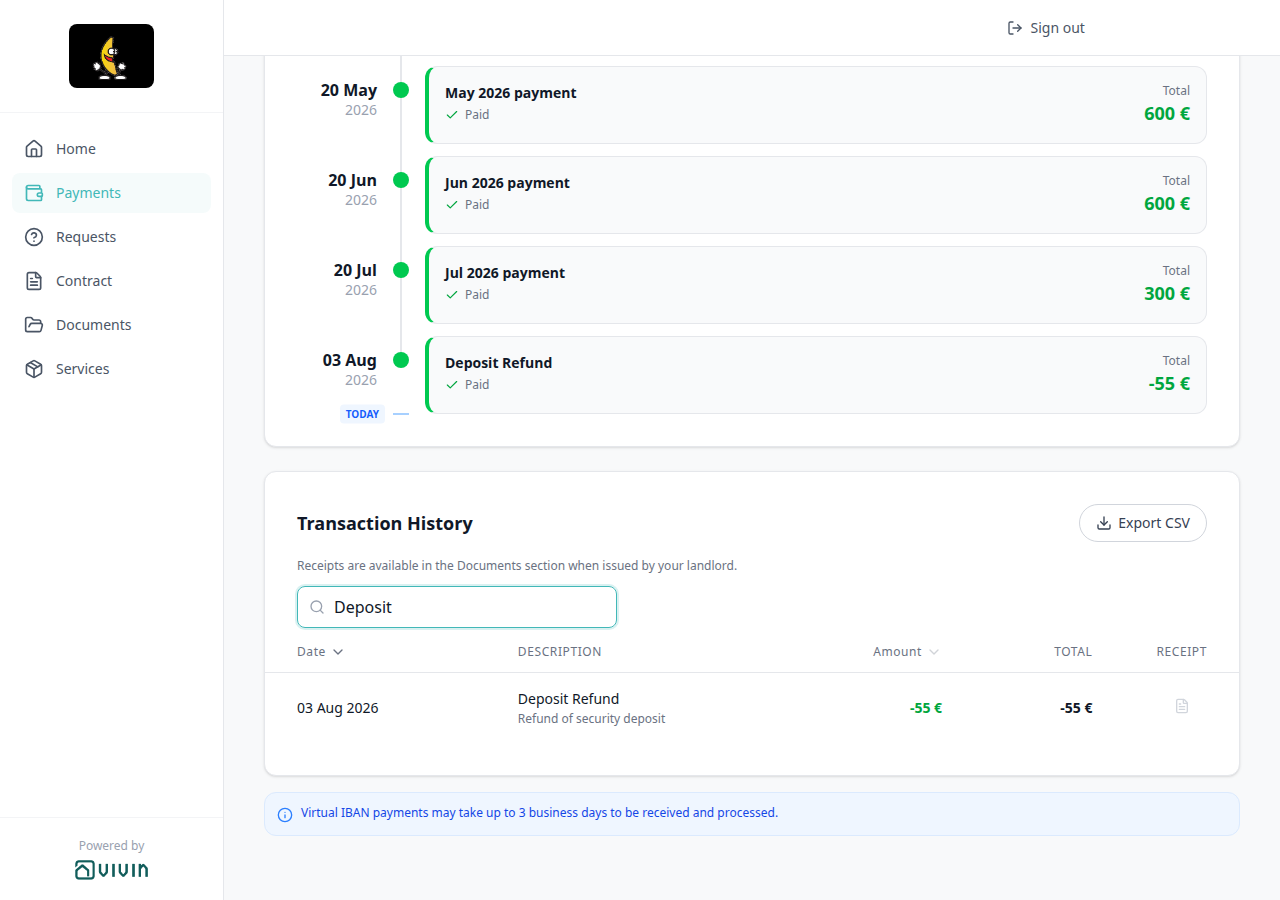

How do tenants see Others charges on portal payment details?
Portal Others breakdown pairs with Tenant Portal — Others breakdown, Tenant Portal — Payment details, Tenant Portal — Payments tab, Tenant Portal — Overdue days past due, Handling a Late Payment, Tenant categories (VIVIN payments), and How do tenants open payment details in the portal?. Distinct from Transaction History method labels such as Cash or Manual Card.
On Payments, tenants tap a Payment Timeline card (for example Move-in Payment). Under BREAKDOWN, extras on that installment list in the Others group: plain Others, or Others - Category when you set a category (for example Others - Penalty fee). Grey subtitles show the stored reason — late-payment penalties often read Penalty for late payment applied on DD/MM/YYYY. The timeline card keeps its normal title; tenants open details to read these lines.
There is no Portal settings hide toggle. Turn VIVIN payments Off on the tenant’s category (or leave the payment module unprovisioned) to hide the whole Payments tab. Marketplace POST /bookings cannot send this breakdown.
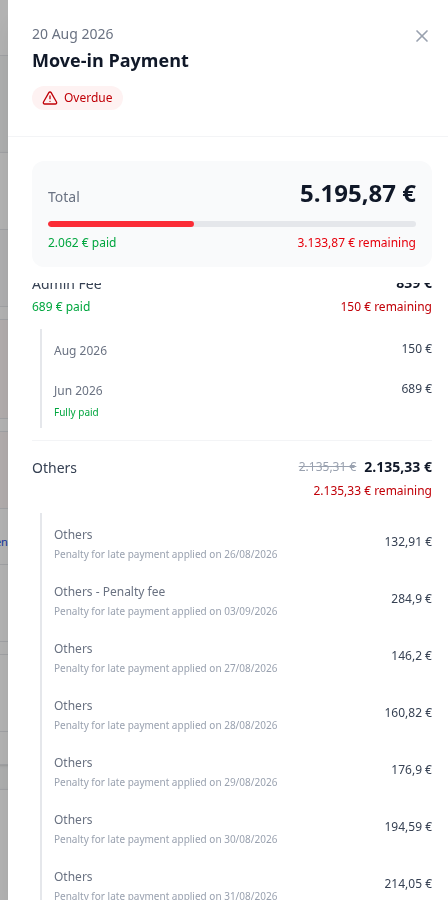
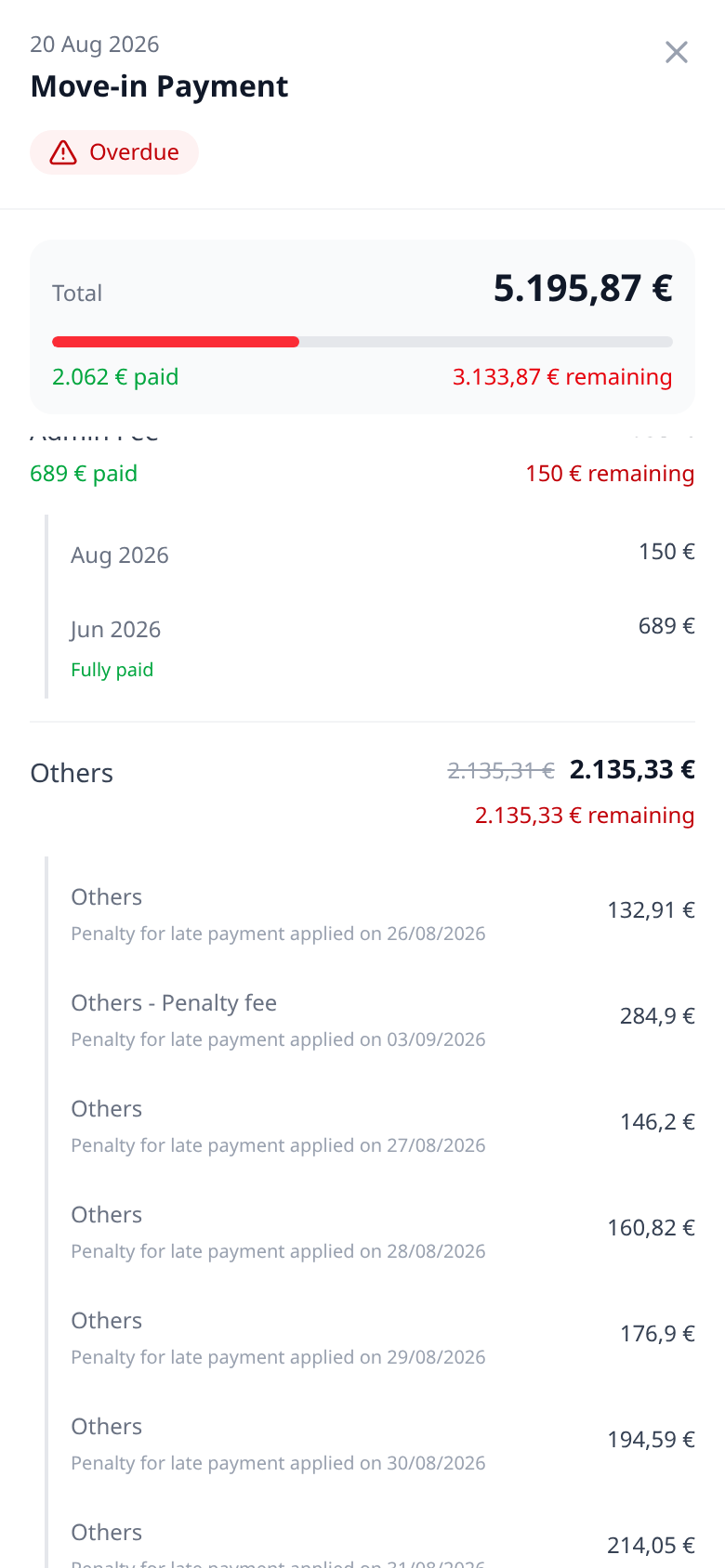
How do tenants see a manual card payment in the portal?
Portal Manual Card type label pairs with Tenant Portal — Manual Card type label, Tenant Portal — Payments tab, Tenant Portal — Transaction History search, Tenant Portal — Transaction History sort, Tenant Portal — Export CSV, Bookings — Card (recorded manually), Tenant categories (VIVIN payments), How do tenants search payment history in the portal?, and How do tenants see a credit card payment in the portal?. Distinct from portal Credit Card checkout rows and from logo platform-payment rows.
On Payments → Transaction History, a card payment operators recorded by hand (desk terminal, POS, or any card machine that is not Tenant Portal checkout) shows Manual Card as plain text — no platform logo. Tenants can type Manual in Search to keep only those rows. Export CSV uses Manual Card in Description.
This is the history label after + Transaction → Card (recorded manually) is confirmed on the booking. It is not the Credit Card label from portal Make payment → Credit Card. There is no Portal settings hide toggle. Turn VIVIN payments Off on the tenant’s category (or leave the payment module unprovisioned) to hide the whole Payments tab. Marketplace POST /bookings cannot send this label.
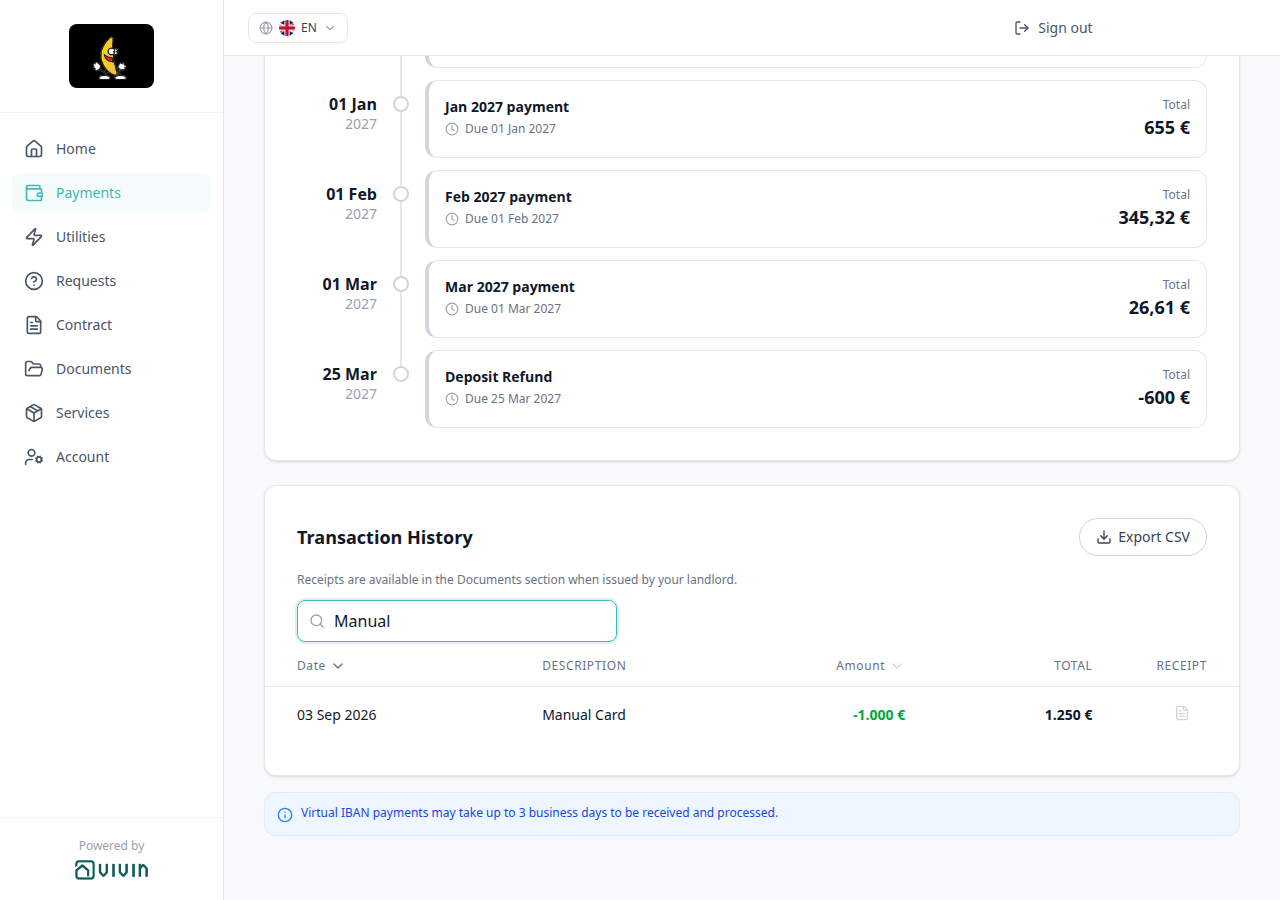

How do tenants open a receipt from portal payment history?
Portal Receipt column pairs with Tenant Portal — Receipt column, Tenant Portal — Payments tab, Tenant Portal — Export CSV, Tenant Portal — Documents, Bookings — Files, Tenant categories (VIVIN payments), How do tenants export payment history from the portal?, and How do tenants see files and invoices on portal Documents?. Distinct from FAQ — How long do virtual IBAN payments take in the Tenant Portal? (the blue bank-transfer notice) and from FAQ — How do tenants download the contract from the portal?.
On Payments → Transaction History, every row has a Receipt control. When no file is matched yet, the icon is grey and a line under the heading says Receipts are available in the Documents section when issued by your landlord. Tenants open issued invoices on Documents. When you attach Invoice / receipt files on Bookings → Files, inbound rows can show a downloadable icon.
There is no Portal settings hide toggle. Turn VIVIN payments Off on the tenant’s category (or leave the payment module unprovisioned) to hide the whole Payments tab. Marketplace POST /bookings cannot send this column.
How long do virtual IBAN payments take in the Tenant Portal?
The Virtual IBAN processing notice pairs with Tenant Portal — Virtual IBAN processing notice, Tenant Portal — Payments tab, Tenant Portal — Make payment (Paywall), Tenant Portal — Copy virtual IBAN, Tenant Portal — Export CSV, Tenant Portal — Receipt column, Finance module, and How do tenants export payment history from the portal?. Distinct from FAQ — How do tenants copy the virtual IBAN in the Tenant Portal? (checkout tap-to-copy), from FAQ — How do tenants enter an IBAN? (the tenant’s personal refund account), and from operator column matching on Finance → Transactions.
When Payments → Transaction History has at least one row, tenants see a blue notice: Virtual IBAN payments may take up to 3 business days to be received and processed. The notice hides when history is empty, so an unused ledger does not look like a transfer is already on the way.
Make payment → Bank Transfer says matching can take up to 48 hours. Use the Payments notice when a tenant asks when a bank transfer will show on the ledger.
There is no Portal settings hide toggle. Turn VIVIN payments Off on the tenant’s category (or leave the payment module unprovisioned) to hide the whole Payments tab. Marketplace POST /bookings cannot send this notice.

How do tenants select an amount in the Tenant Portal?
Select an amount pairs with Tenant Portal — Select an amount, Tenant Portal — Make payment (Paywall), Tenant Portal — Make payment Back, Tenant Portal — Payment Due Soon, Tenant Portal — Copy virtual IBAN, Tenant Portal — Balance card, and How do tenants copy the virtual IBAN in the Tenant Portal?. Distinct from FAQ — How do tenants open payment details in the portal? (the Payments timeline sidebar) and from FAQ — How do tenants enter an IBAN? (the tenant’s personal refund account).
On Make payment, tenants pick how much to pay before they pick Bank Transfer (IBAN) or Credit Card. Radios appear only when that slice is owed: Pay overdue debt, Pay next payment, Pay overdue + next payment (when both apply), and Pay entire balance. When both overdue and next apply, Pay overdue + next payment is selected first. The amount on the method tiles updates to match. Tenants cannot type a custom amount.
When nothing is due, the section shows You have nothing to pay right now. Your payments are up to date. and Select a payment method is hidden.
There is no Portal settings hide toggle. Turn VIVIN payments Off on the tenant’s category (or leave the payment module unprovisioned) to hide Make payment. Marketplace POST /bookings cannot send this control.
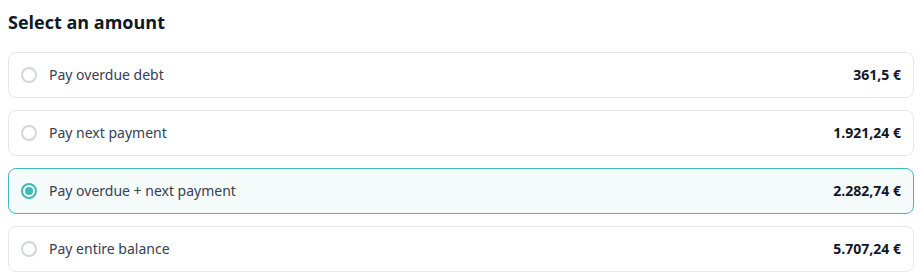
How do tenants copy the virtual IBAN in the Tenant Portal?
Copy virtual IBAN pairs with Tenant Portal — Copy virtual IBAN, Tenant Portal — Make payment (Paywall), Tenant Portal — Select an amount, Tenant Portal — Payment Due Soon, Tenant Portal — Virtual IBAN processing notice, Bookings — Virtual IBAN, and How long do virtual IBAN payments take in the Tenant Portal?. Distinct from FAQ — How do tenants select an amount in the Tenant Portal? (how much to pay) and from FAQ — How do tenants enter an IBAN? (the tenant’s personal refund account on Account).
On Make payment, tenants expand Bank Transfer (IBAN) and tap the formatted virtual IBAN. A green check replaces the grey copy icon for a couple of seconds — that copies the receiving number. If Payment Due Soon appears first, dismiss it, then tap the IBAN. Do not tap Credit Card unless they intend to start a card checkout.
This is not Account → Bank account → IBAN (deposit refunds). Make payment → Bank Transfer says matching can take up to 48 hours; Payments uses the 3-business-days notice when history exists.
There is no Portal settings hide toggle. Turn VIVIN payments Off on the tenant’s category (or leave the payment module unprovisioned) to hide Make payment. Marketplace POST /bookings cannot send this control.
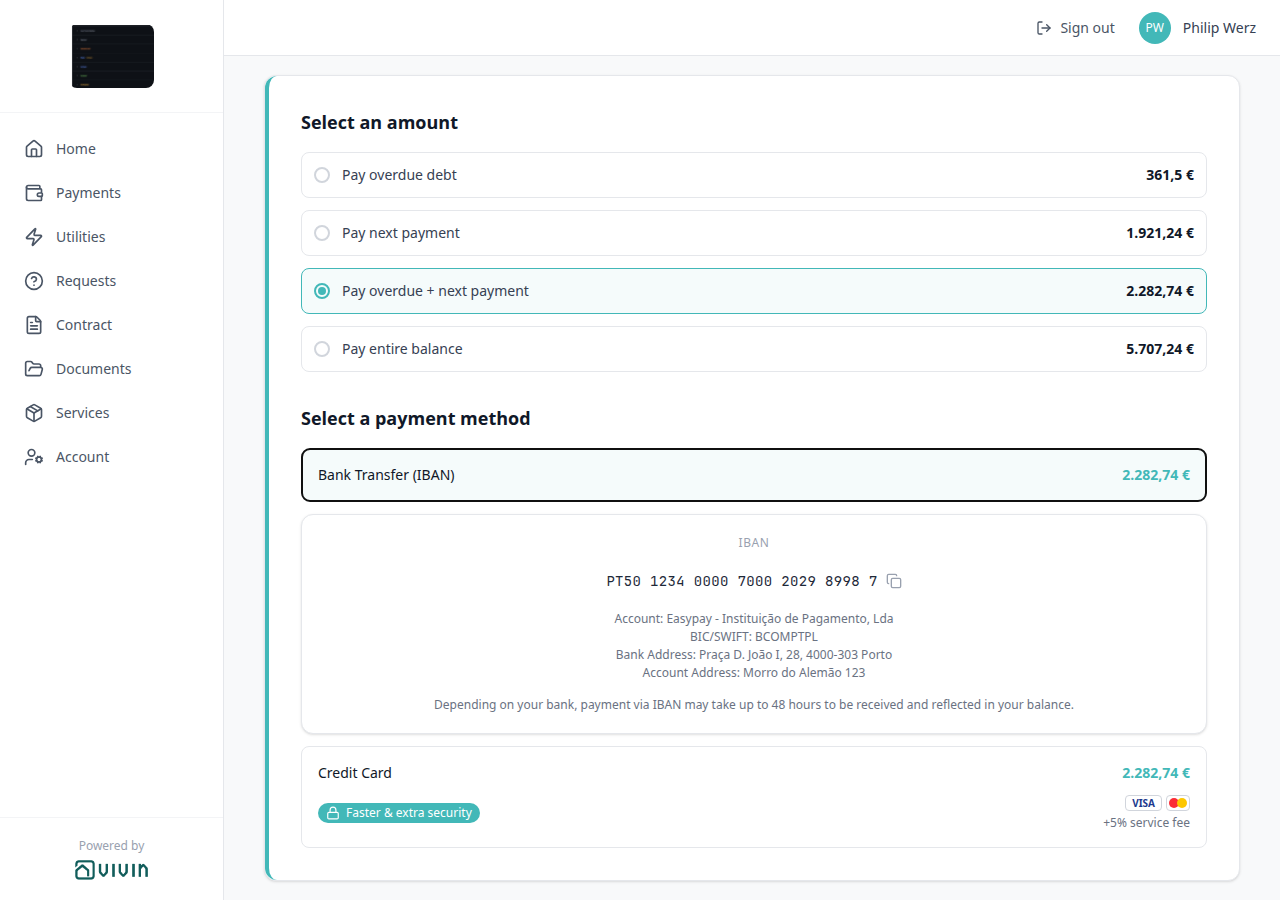
What does Payment Due Soon mean in the Tenant Portal?
Payment Due Soon pairs with Tenant Portal — Payment Due Soon, Tenant Portal — Make payment (Paywall), Tenant Portal — Select an amount, Tenant Portal — Copy virtual IBAN, Tenant Portal — Virtual IBAN processing notice, Handling a Late Payment — Step 3, and How do tenants copy the virtual IBAN in the Tenant Portal?. Distinct from FAQ — How do tenants select an amount in the Tenant Portal? (how much to pay) and from FAQ — When should I use Card (recorded manually)? (operator desk/POS, not portal checkout).
On Make payment, expanding Bank Transfer (IBAN) can open Payment Due Soon when an unpaid charge is due within about three days, or when a bank transfer (up to 48 hours) might not arrive before the due date. The dialog recommends Credit Card for instant confirmation and explains that IBAN transfers may take up to 48h.
Escape, X, or the backdrop dismisses it. Dismissing does not start a card checkout. Tenants who still want bank transfer then copy the virtual IBAN. Tenants who want card tap the Credit Card tile after dismiss.
There is no Portal settings hide toggle. Turn VIVIN payments Off on the tenant’s category (or leave the payment module unprovisioned) to hide Make payment. Marketplace POST /bookings cannot send this control.
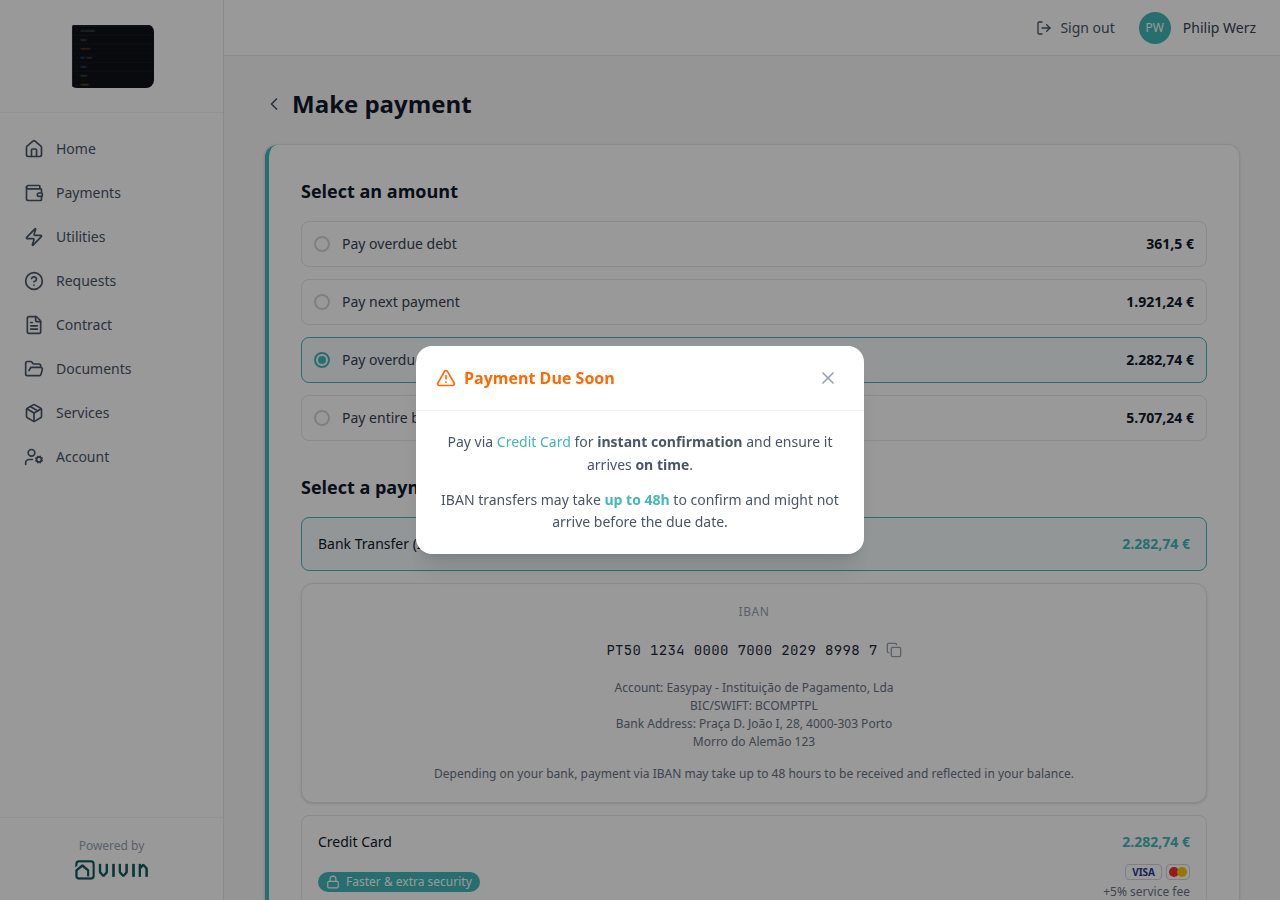
How do tenants leave Make payment without paying?
Make payment Back pairs with Tenant Portal — Make payment Back, Tenant Portal — Make payment (Paywall), Tenant Portal — Balance card, Tenant Portal — Payments tab, and How do tenants select an amount in the Tenant Portal?. Distinct from FAQ — How do tenants sign out of the Tenant Portal? (ends the session) and from FAQ — How do tenants open payment details in the portal? (the Payments timeline sidebar).
On Make payment, tenants tap the left chevron next to the Make payment heading to leave checkout without paying. Nothing is sent. From Home, they return to Home. From Payments, they return to Payments. A direct Make payment link returns to Home.
There is no Portal settings hide toggle. Turn VIVIN payments Off on the tenant’s category (or leave the payment module unprovisioned) to hide Make payment. Marketplace POST /bookings cannot send this control.
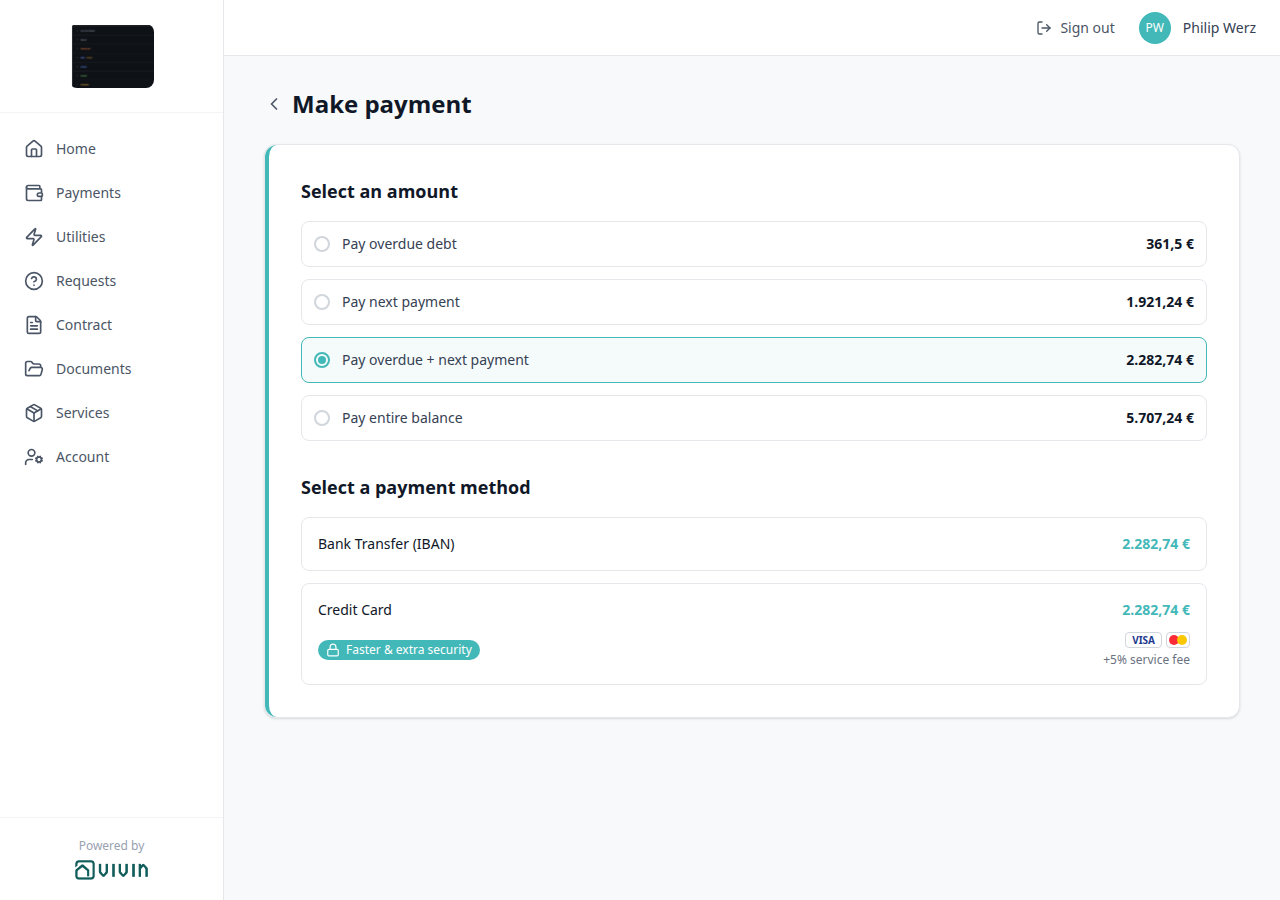
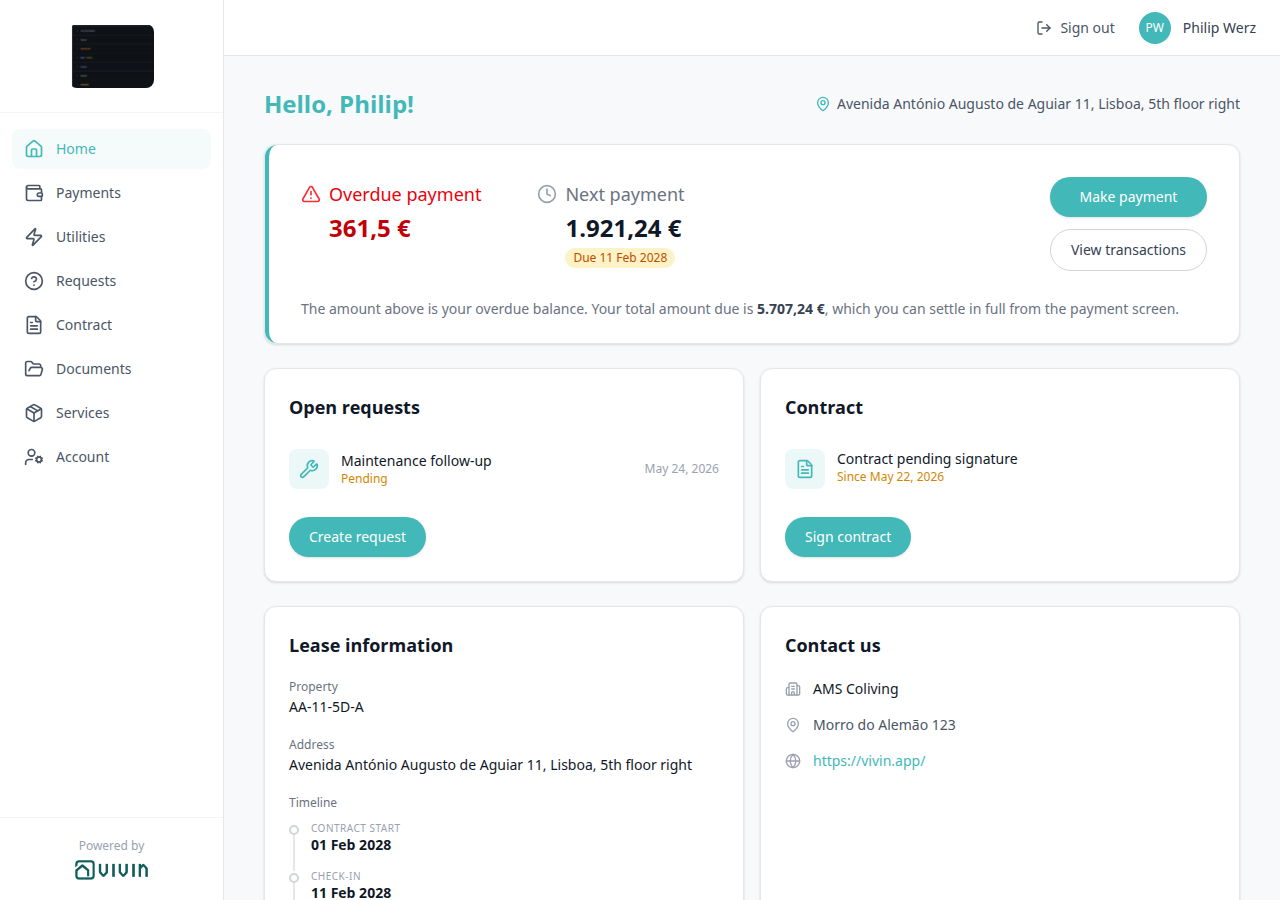
How do tenants see the greeting and listing address on portal Home?
The Home greeting and listing pin pair with Tenant Portal — Greeting and listing address, Tenant Portal — First name and last name, Tenant Portal — Lease information, Listings — Step 1: Property Details, and How do tenants enter first and last name?. Distinct from FAQ — How do tenants see lease dates and landlord contact on portal Home? (Lease information / Contact us cards) and from Account Home address.
Signed-in portal Home always opens with Hello, First name! (first word of the tenant name) or Hello! when the name is empty. A map pin on the same row shows the listing street from Listings → Property Details → Address. When Floor is stored, Vivin appends it the same way as Lease information (3 → , Floor 3; a value that already includes “floor” is kept). The pin hides when the listing has no street; the greeting still shows.
The greeting and pin are not gated by the check-in email, and there is no Portal settings hide toggle. Tenants cannot edit the pin on Home — they change the greeting by saving First name on Account. Operators set Address and Floor on the listing. Marketplace POST /bookings must send firstName and lastName; it cannot send the listing pin.


Why can't a tenant make a payment online? Tenant online payments require your account payment module to be active (Vivin provisioning for pay-in flows — contact support if payments never appear for tenants) and the per-property Property Payments Active toggle in the Listings property editor — Payments tab. Both must be enabled for that property. These controls are not a single switch under Preferences; that page covers portal edit permissions and operational defaults instead.
Why is the Tenant Portal credit-card checkout blank or stuck on “Initializing payment…”?
Card pay-in runs on Make payment (/paywall): Vivin creates a checkout session, then embeds the provider form in an iframe on the same page. A blank frame usually means the browser blocked embedding (privacy extension, strict tracking protection) or the session failed before a URL was returned — the portal shows a red error with Retry when create-checkout fails. Confirm the booking has an amount selected, Property Payments Active is on, and the tenant retries on desktop without frame-blocking extensions. Operators still see successful card in-payments on Finance → Transactions after webhook completion. See Tenant Portal — Make payment (Paywall) and Credit card (embedded checkout).
Why doesn't portal transaction search find a payment when I type the amount I see?
Inbound payments and refunds on Payments → Transaction History show a leading minus (for example -5.400 €). Search matches that on-screen signed value — type -5.400 (or -5.400 €) to keep the matching inbound row. Searching only the positive digits (5.400 / 5400) also works. Labels match what the table shows (for example Bank Transfer, not the raw transfer enum). If nothing matches, clear the field or try a shorter fragment of the description or date.
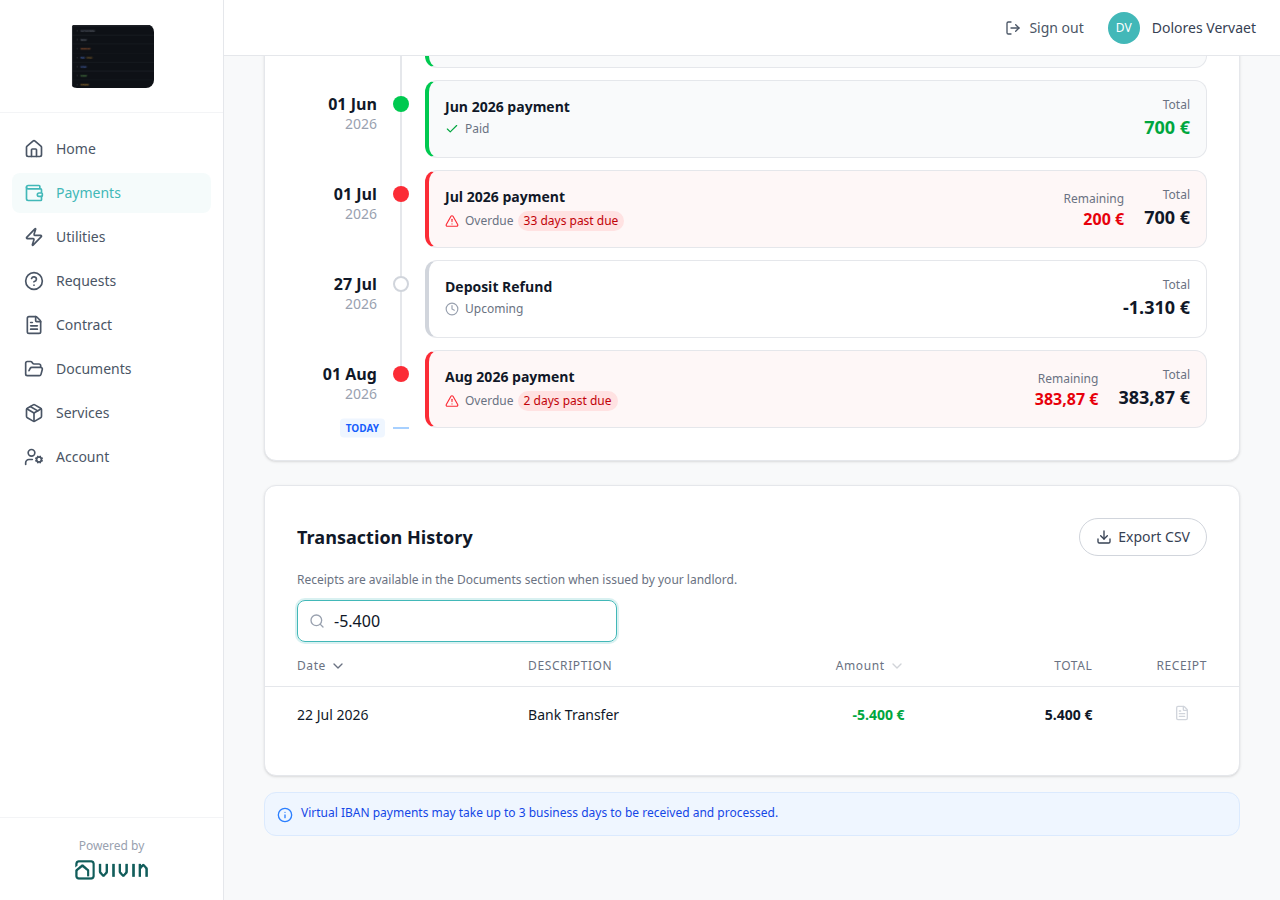
Why do the portal TODAY divider and “Due in N days” chip disagree?
Calendar-day parity pairs with Tenant Portal — Payments tab, Tenant Portal — Scheduled Due in N days, Tenant Portal — TODAY far-due date, and How do tenants see Due in N days on the portal timeline?.
They should not. The TODAY divider and the next installment chip both use calendar days from start-of-day, so the number N matches regardless of the current clock time. When the next installment is 60 or more calendar days away, both sides switch to a calendar due date instead of N days (for example next payment due 11 Feb 2028 and Due 11 Feb 2028). If a tenant still sees a one-day mismatch on a near-term installment, ask them to hard-refresh — an older portal build computed chip days from a raw timestamp diff.
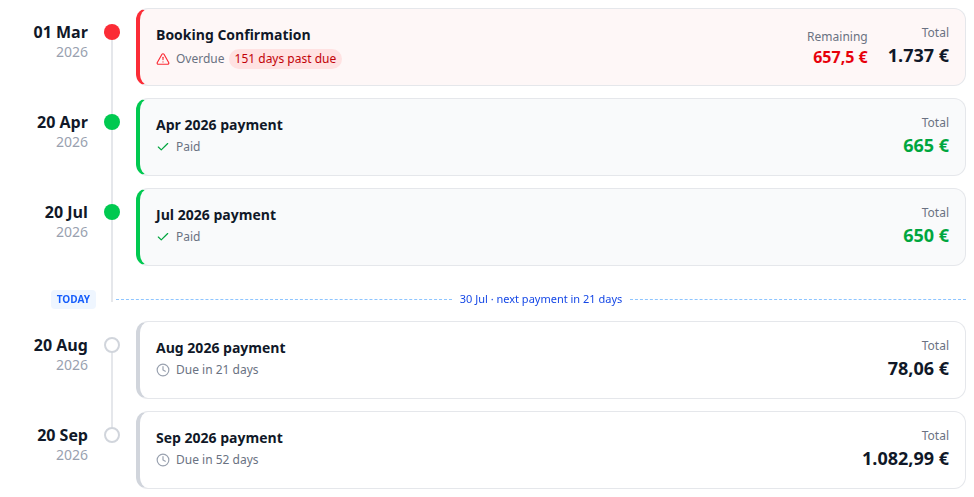
Why does the portal Contract card say “Since” a date before the booking was created?
Contract Since anchoring pairs with Tenant Portal — Signed-in home and Digital contract signing.
It should not. For unsigned bookings, Contract pending signature → Since uses bookingCreatedAt, not payments[0].dueDate. A backfilled Booking Confirmation due date earlier than creation no longer advances the “pending since” label into the past. Hard-refresh if an older portal build still prefers the payment due date.

Can tenants attach photos to maintenance requests? Yes. On Requests → New Request, Report an Issue requires at least one photo, video, or document. General Inquiry can be sent without files. See Tenant Portal — What do you need?.
Why don't tenants see entry codes on portal Home?
Entry codes visibility pairs with Tenant Portal — Entry codes, Tenant Portal — Show code and Copy code, Portal settings — Allow to see entry codes, Listings — Access Lockers, Managing a Check-in — Step 4, How do tenants show and copy entry codes on portal Home?, and Why didn't the automatic check-in email send?.
The portal Home Entry codes card is gated separately from the check-in email. Tenants see the card only when all of the following are true:
| Check | What to verify |
|---|---|
| Portal settings toggle | Allow to see entry codes is On under Settings → Tenant Portal → Portal settings. |
| Check-in email sent | checkInEmailSentAt is set — via the lifecycle Check-in template (Last sent on Contract Info → Check-in & Check-out), Send / Resend Check-in email, or a Communication Rule with This is the check-in email on. |
| During the stay | Current time is before checkout date + time. After checkout, the card hides even if codes were visible earlier. |
| Not canceled | Canceled reservations do not show entry codes on Home. |
| Codes configured | Building, property, or unit codes exist on Listings → Access Lockers. |
When tenants received access codes in check-in mail but Home has no card, the account toggle is usually Off or the check-in email has not sent yet — not missing Access Lockers data. If you send arrival mail only through Communication Rules and never enable This is the check-in email, the portal watermark never sets even though the tenant got the message — see Emails — This is the check-in email. Disabling Allow to see entry codes hides only the portal card; it does not remove codes from the check-in email body.
How do tenants show and copy entry codes on portal Home?
Portal Entry codes Show / Copy pairs with Tenant Portal — Entry codes, Tenant Portal — Show code and Copy code, Listings — Access Lockers, Portal settings — Allow to see entry codes, and Why don't tenants see entry codes on portal Home?. Distinct from How do tenants see WiFi on portal Home? (a different Home card) and from How do tenants copy the virtual IBAN in the Tenant Portal?.
When the Entry codes card is on Home, each filled level (Building access, Property access, Unit access) starts masked. Tenants tap Show code (eye) to read that row, then Hide code (slashed eye) to mask it again. Copy code (overlapping squares) copies the real value even while it is still masked; a green check confirms the copy. A Hint: line under the row, when present, stays visible. Empty levels are omitted.
Operators store tenant-facing codes and hints on Listings → Access Lockers. Internal code / Internal hint never appear on this card. Marketplace POST /bookings cannot send entry codes.
If the card is missing, use Why don't tenants see entry codes on portal Home? — this answer is the Show / Copy path when the card is already visible.
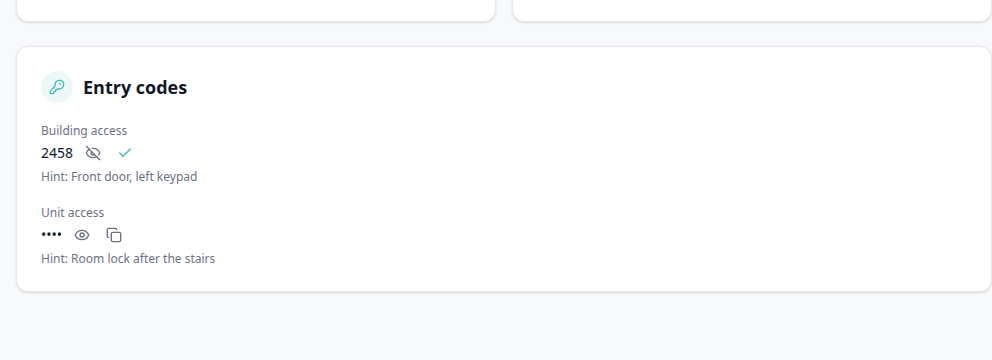
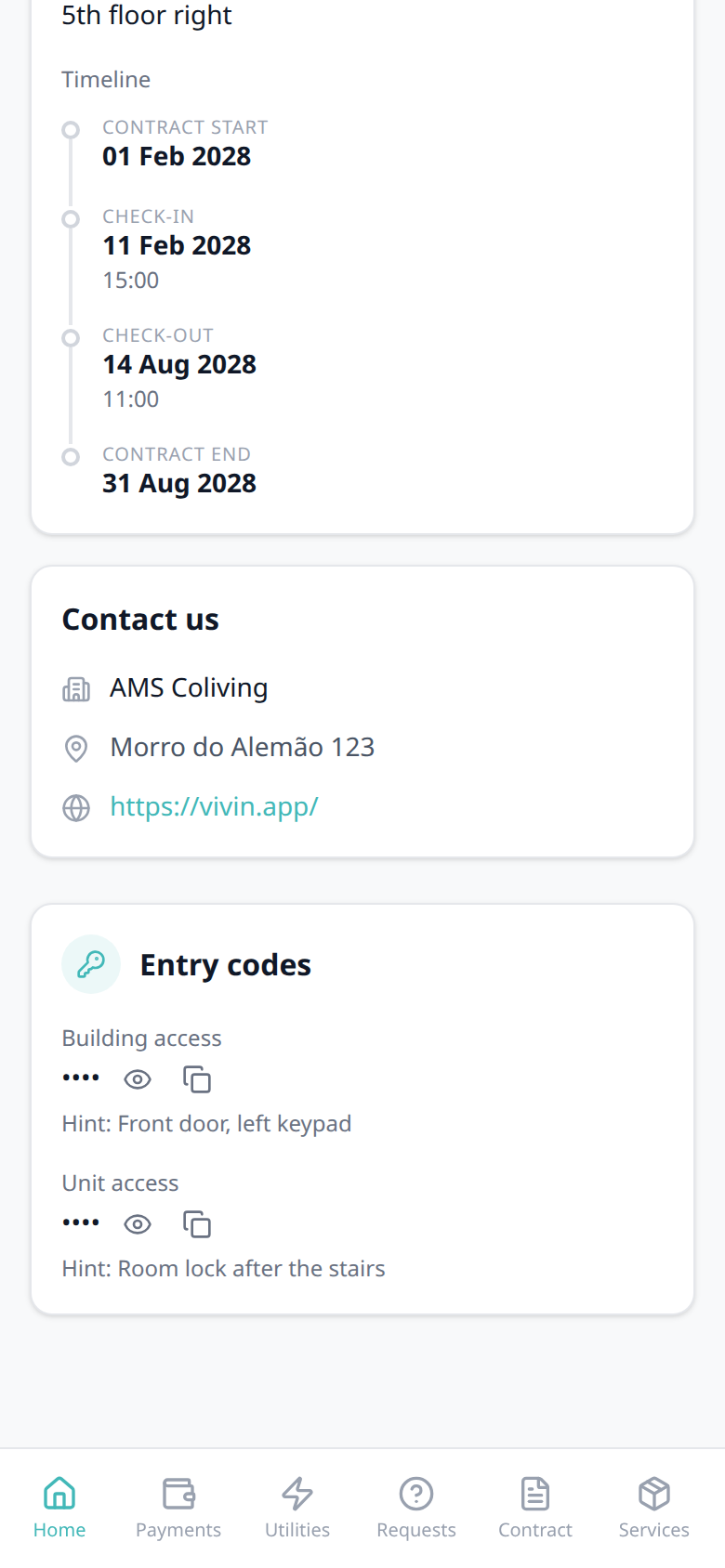
How do tenants see WiFi on portal Home?
Portal WiFi pairs with Tenant Portal — WiFi, Tenant Portal — Show password and Copy password, Listings — WiFi, Managing a Check-in — Step 4, and Why didn't the automatic check-in email send?. Distinct from FAQ — Entry codes in the portal / How do tenants show and copy entry codes on portal Home? (a different Home card) and from How do tenants copy the virtual IBAN in the Tenant Portal?.
After Vivin has sent the booking’s check-in email, portal Home can show a WiFi card with Network name and Password. The password stays masked until the tenant taps the eye (Show password). Copy password copies the real value even while it is masked; a green check confirms the copy. Hide password (slashed eye) masks it again. Operators store both fields on Listings → WiFi (property sidebar — not per unit). This is not Copy virtual IBAN on Make payment.
The card is hidden when the check-in email has not sent yet, or when both property fields are empty. There is no Portal settings toggle to hide WiFi. Unlike Entry codes, the card is not limited to the stay window and is not hidden for a canceled booking. The check-in email does not insert the password automatically — add WiFi to the property check-in body if tenants should also receive it by mail.
Marketplace POST /bookings cannot send WiFi. Partner listing JSON never includes the password.
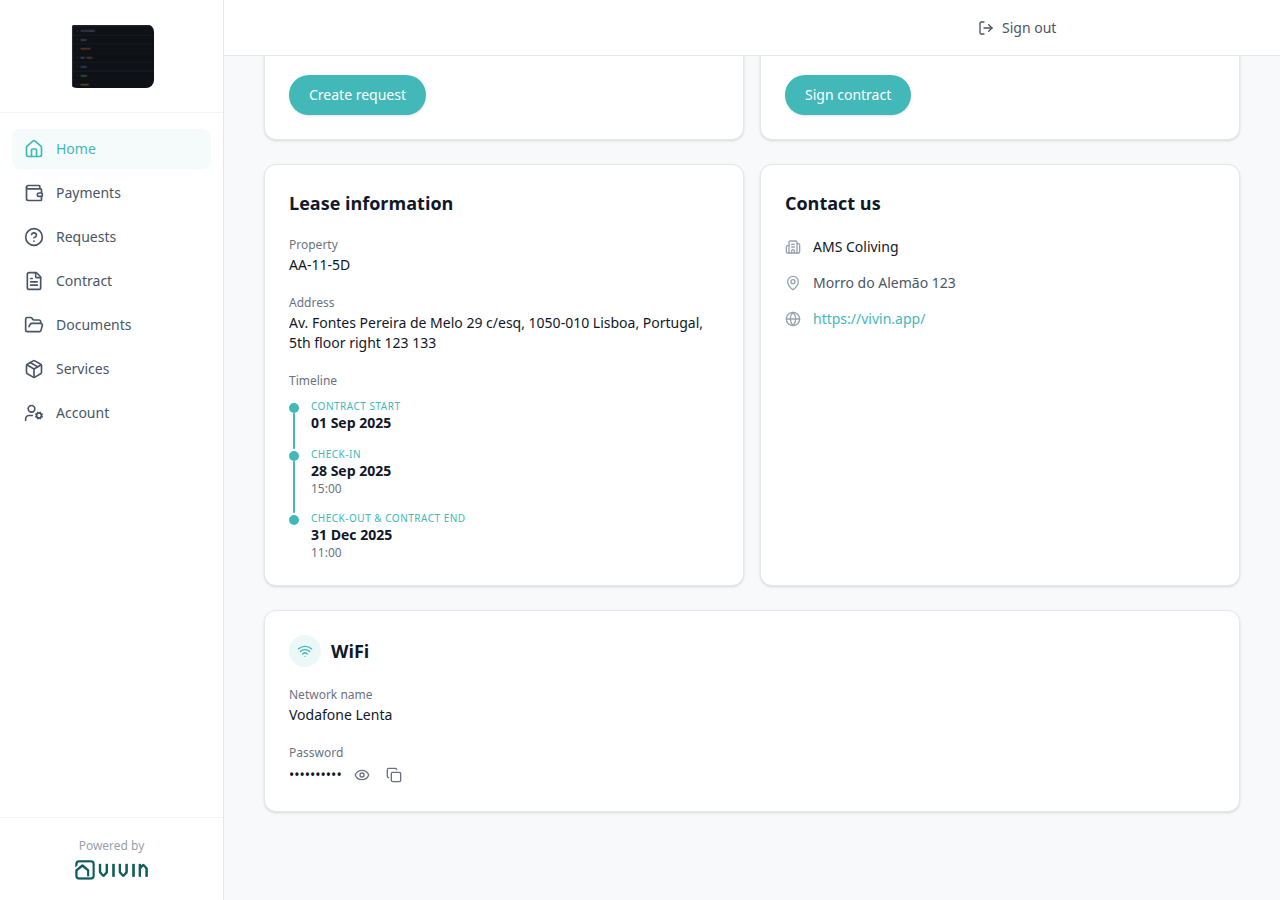


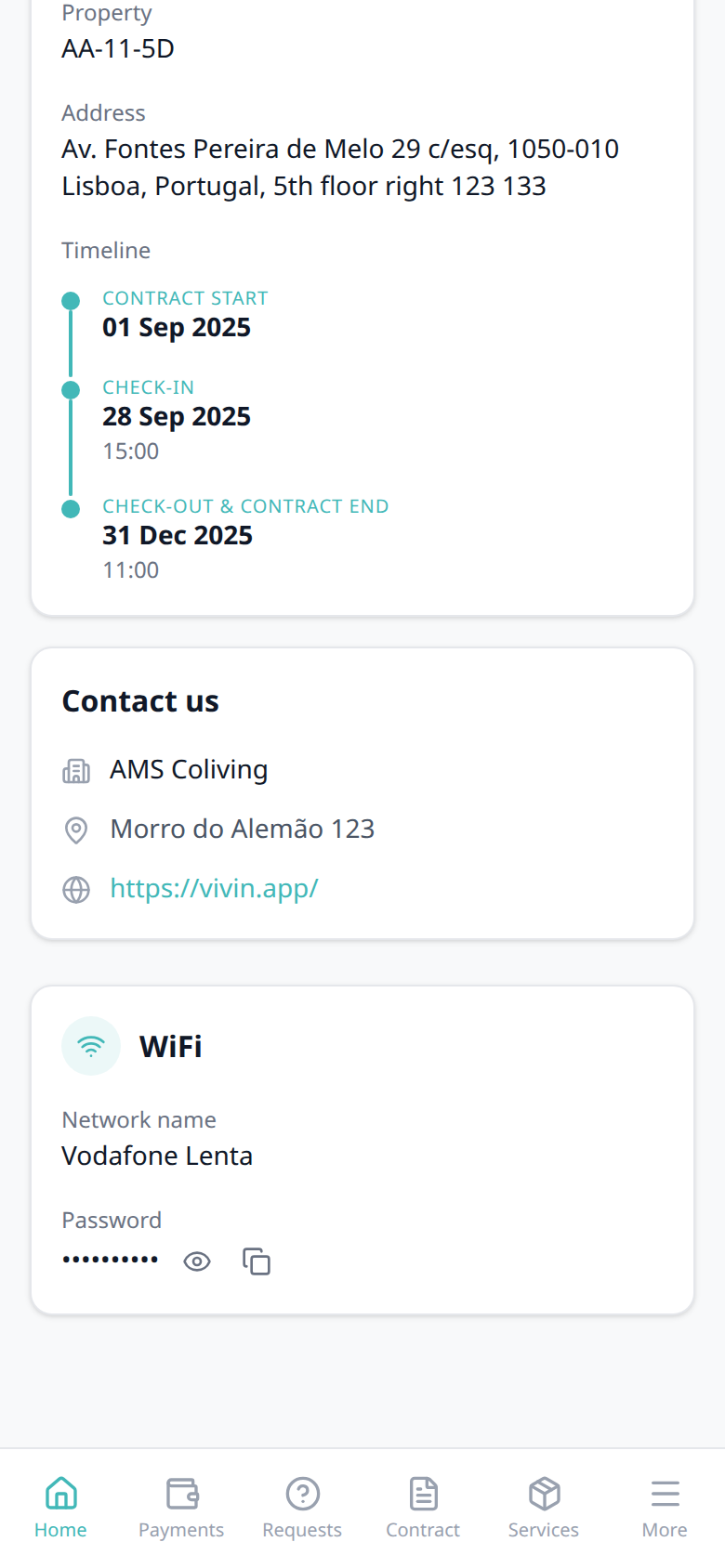
How do tenants see cleaning days on portal Home?
Portal Cleaning pairs with Tenant Portal — Cleaning, Listings — Cleaning (common areas), Listings — Room cleaning days, and Glossary — Cleaning days. Distinct from How do tenants see WiFi on portal Home? / FAQ — Entry codes in the portal (different Home cards that wait for the check-in email) and from the monetary Cleaning fee on the payment plan.
Portal Home can show a Cleaning card with two rows:
| Row | Where operators set it |
|---|---|
| Common areas | Property sidebar Cleaning → Common areas cleaning days (weekday chips) |
| Your room | Unit sidebar Room cleaning days (weekday chips under Unit Information) |
The card appears when at least one of those schedules has days. Empty rows are omitted. Days use the tenant’s portal language. The card does not wait for the check-in email and has no Portal settings hide toggle — clear the Listings fields to hide it. Tenants cannot edit the schedule in the portal.
Marketplace POST /bookings cannot send cleaning days. Partner listing JSON does not publish them. This is not the euro Cleaning fee on Contract Information, and not Airbnb short-term cleaning amounts.


How do tenants see lease dates and landlord contact on portal Home?
Portal Lease information and Contact us pair with Tenant Portal — Lease information, Tenant Portal — Contact us, Listings — Step 1: Property Details, Settings — General Information, Managing a Check-in — Step 4, and How do tenants see WiFi on portal Home?. Distinct from FAQ — Entry codes in the portal and How do tenants enter lease purpose?.
Signed-in portal Home always includes Lease information and Contact us after the balance and quick-action cards — they do not wait for the check-in email (unlike WiFi and Entry codes). There is no Portal settings toggle to hide them. Tenants cannot edit either card.
Lease information shows the property name and address from the listing (with Floor appended when stored). A Timeline appears when contract start, check-in, check-out, and contract end span at least two calendar days; same-day milestones merge (for example CONTRACT START & CHECK-IN). Dates use a four-digit year.
Contact us shows Company Name, company Address, and Website URL from General Information — not the listing address, and not values from marketplace POST /bookings. Empty fields are omitted. The website opens in a new tab. The same Website URL also wraps the account logo when a logo is uploaded.
How do tenants open the company website from the portal logo?
Logo website pairs with Tenant Portal — Logo website, Tenant Portal — Contact us, Tenant Portal — Branded home screen, Settings — General Information (Logo and Website URL), and How do tenants see lease dates and landlord contact on portal Home?. Distinct from FAQ — How do tenants install the Tenant Portal on their phone? (the overlay logo is not a website link) and from FAQ — What does Powered by VIVIN mean in the Tenant Portal? (always Vivin’s site).
When General Information has both a Logo and a Website URL, tenants tap the company logo to open your site in a new browser tab. On a computer, the logo sits at the top of the left sidebar. On a phone, it sits at the left of the top bar. The portal stays open.
If Website URL is empty, the logo still shows and is not tappable. If there is no logo, tenants see Company Name as text instead. There is no Portal settings hide toggle. Marketplace POST /bookings cannot send the logo or website.


What does Powered by VIVIN mean in the Tenant Portal?
Powered by VIVIN pairs with Tenant Portal — Powered by VIVIN, Tenant Portal — Logo website, Tenant Portal — Contact us, How do tenants open the company website from the portal logo?, How do tenants access the Tenant Portal?, and Settings — General Information. Distinct from FAQ — How do tenants install the Tenant Portal on their phone? (the overlay is your brand) and from How do tenants see lease dates and landlord contact on portal Home? (Contact us Website is your URL).
Powered by VIVIN is Vivin’s attribution. Tenants tap it to open Vivin’s site in a new browser tab. On a computer, it sits at the bottom of the left sidebar, under the nav. On the email access-link screen (Send access link), the same mark sits under the form — computer and phone. After sign-in on a phone, it is not in the top bar or bottom tabs.
This is not your Website URL. The company logo and Home → Contact us open your site when Website URL is set. Powered by VIVIN always opens Vivin’s site. There is no Portal settings hide toggle. Marketplace POST /bookings cannot send this control.

How do tenants see their balance on portal Home?
The Home balance card pairs with Tenant Portal — Balance card, Tenant Portal — Make payment (Paywall), Listings — Payments tab (Property Payments Active), Tenant categories (VIVIN payments), Handling a Late Payment — Step 1, and Notifications — Payment overdue alerts. Distinct from FAQ — How do tenants open requests and the contract from portal Home? and from the Why can't a tenant make a payment online? answer in this section.
Signed-in portal Home shows a balance card under the greeting when the booking’s payment module is on. It is not gated by the check-in email, and there is no Portal settings hide toggle.
Tenants may see Overdue payment (red, past due), Outstanding payment (amber, due window but not overdue), All payments up to date (green, schedule exists and nothing is owed), or No payments scheduled yet (neutral empty schedule). Next payment can appear beside that status. Make payment opens the paywall when online pay-in is available and something is payable. View transactions opens Payments → Transaction History, where tenants can Export CSV.
When the headline is more than €1 below the full amount due, the card explains: The amount above is your overdue balance. Your total amount due is …, which you can settle in full from the payment screen. (or outstanding balance). That sentence matches Pay entire balance on the paywall.
Hide the card by turning off VIVIN payments on the tenant category, by turning off Property Payments Active on the listing, or when the account payment module is not provisioned. Marketplace POST /bookings cannot send this card.
For the green success headline, see When does portal Home show All payments up to date?.
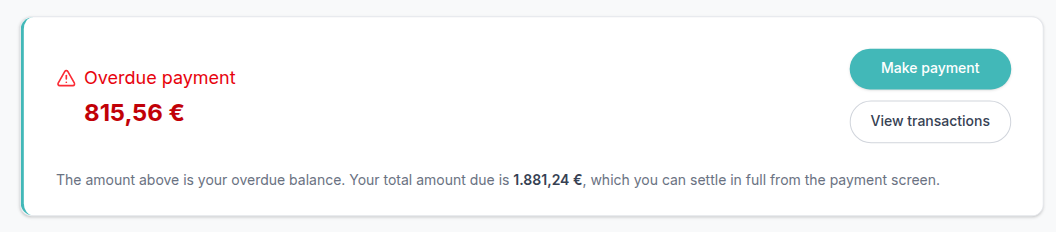
When does portal Home show All payments up to date?
Portal All payments up to date pairs with Tenant Portal — All payments up to date, Tenant Portal — Balance card, Tenant Portal — View transactions, Tenant Portal — Paid installment, Tenant categories (VIVIN payments), How do tenants see their balance on portal Home?, and How do tenants open Transaction History from portal Home?. Distinct from Outstanding payment (amber) and Overdue payment (red) on the same card.
On portal Home, the balance card shows a green check and All payments up to date when the booking has a payment schedule and nothing is overdue or outstanding.
Make payment is usually hidden (nothing is payable). Outline View transactions still opens Payments → Transaction History. If the payment module is on but the schedule has no rows, tenants see No payments scheduled yet instead — not this green headline.
There is no Portal settings hide toggle. Marketplace POST /bookings cannot send this status. See Tenant Portal — All payments up to date.

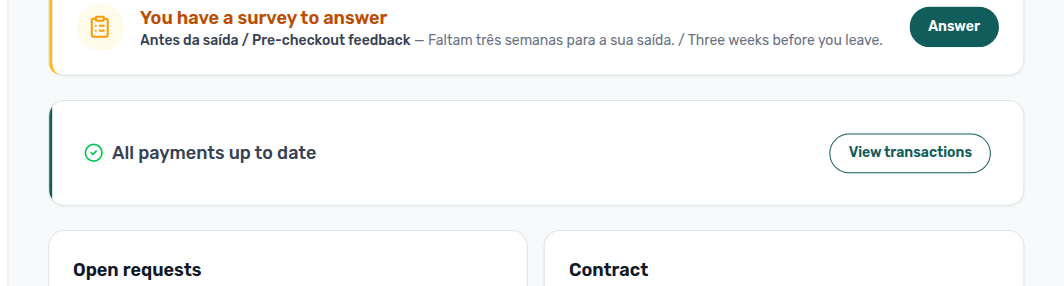
How do tenants open Transaction History from portal Home?
Portal View transactions pairs with Tenant Portal — View transactions, Tenant Portal — Balance card, Tenant Portal — Payments tab, Tenant Portal — Transaction History search, Tenant Portal — Transaction History sort, Tenant Portal — Export CSV, Tenant Portal — Make payment (Paywall), Tenant categories (VIVIN payments), How do tenants see their balance on portal Home?, How do tenants search payment history in the portal?, How do tenants sort payment history in the portal?, and How do tenants export payment history from the portal?. Distinct from How do tenants open payment details in the portal? (Payment Timeline tap) and from operator Finance → Transactions.
On portal Home, outline View transactions on the balance card opens Payments on Transaction History. The button is there whenever the booking’s payment module is on — including when Make payment is hidden.
There is no Portal settings hide toggle. Turn VIVIN payments Off on the tenant’s category (or turn off Property Payments Active on the listing) to hide Payments and this button. Marketplace POST /bookings cannot send this button. See Tenant Portal — View transactions (tenant-portal-home-view-transactions.png).
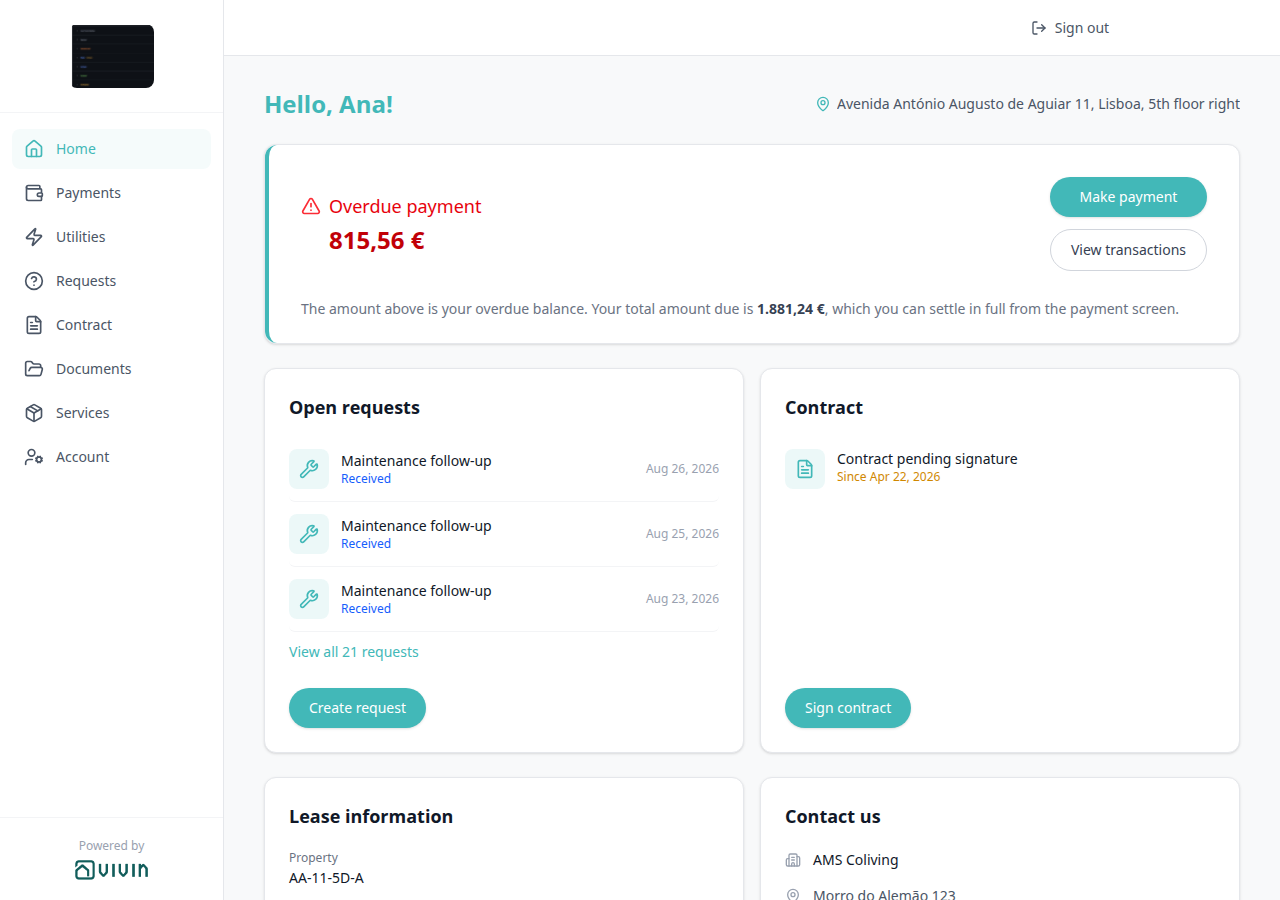

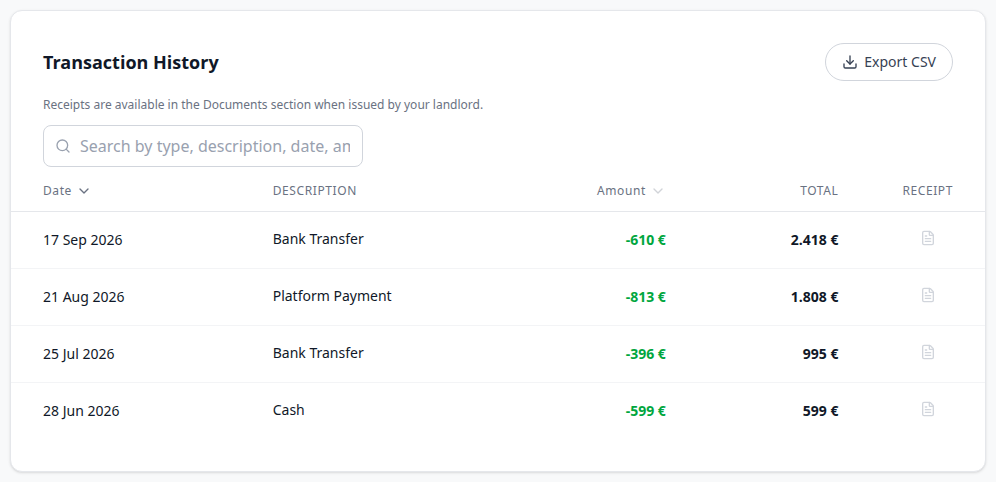
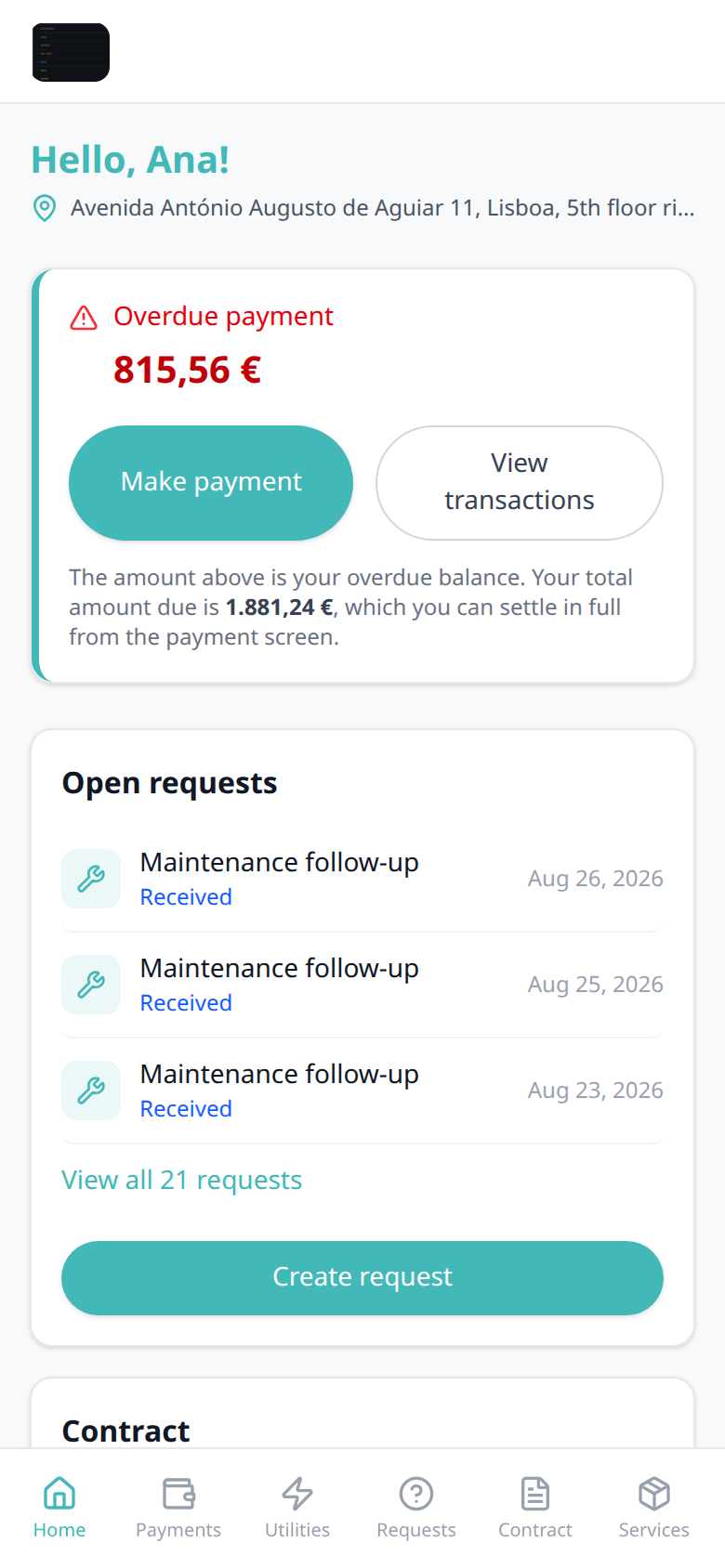
How do tenants open requests and the contract from portal Home?
Home Open requests and Contract pair with Tenant Portal — Open requests, Tenant Portal — Received status, Tenant Portal — Contract card, Tenant Portal — Requests tab, Tenant Portal — What do you need?, Tenant Portal — FAQ accordion, Tenant Portal — Digital contract signing, Portal settings — Allow to create tickets, and Operations. Distinct from FAQ — How do tenants see Received on a portal request?, FAQ — Where do tenants see published FAQs?, FAQ — Report an Issue vs General Inquiry, FAQ — How do tenants see lease dates and landlord contact on portal Home? and FAQ — Tenant contract signing blocked.
Signed-in portal Home shows Open requests next to Contract, after the balance card.
Open requests appears when Allow to create tickets is On. It lists up to three open tickets (Received, Pending, or In Progress). A row opens Requests → History on that ticket. View all N requests (when more than three are open) opens the full History list. Create request opens New Request. When nothing is open, tenants still see No open requests at the moment. and Create request. The card is not gated by the check-in email. Received is the same word on Home and History when nobody is assigned yet — see FAQ — How do tenants see Received on a portal request?.
Contract is always on Home. Unsigned stays with a PDF show Contract pending signature, a Since date (booking creation day), and Sign contract — that button opens the Contract tab; tenants then read to the end to unlock Sign. Signed stays show Contract signed, Signed on, and View contract. Generate the unsigned PDF on Contract Info so Sign contract appears. Tenants cannot upload a signed file from this card.

How do tenants see Received on a portal request?
Portal Received pairs with Tenant Portal — Received status, Tenant Portal — Open requests, Tenant Portal — History, Tenant Portal — Requests tab, Operations, Portal settings — Allow to create tickets, How do tenants open requests and the contract from portal Home?, and FAQ — Report an Issue vs General Inquiry. Distinct from FAQ — How do tenants see a pending installment on the portal timeline? (Payments Pending is not a ticket status).
On portal Home → Open requests and Requests → Request History, an unassigned ticket reads Received on both screens. Home shows blue Received under the title (for example Maintenance follow-up). History shows a blue Received chip next to the ticket id (for example #T31).
That word means you already have the request and nobody is assigned yet. Open requests also lists Pending and In Progress. Closed work (Resolved, Cancelled, Duplicate) stays on History. On Operations → Tickets, the matching value for Received is Unassigned — tenants never see Unassigned in the portal.
There is no Portal settings hide toggle for these labels. Turn Allow to create tickets Off (or turn tickets off on the tenant’s category) to hide Requests and Open requests. Marketplace POST /bookings cannot send this label. See Tenant Portal — Received status (tenant-portal-requests-received-status-home-card.png, tenant-portal-requests-received-status-history.png, tenant-portal-requests-received-status-flow.mp4).
Where do tenants see published FAQs?
Portal FAQ pairs with Tenant Portal — FAQ accordion, Settings — FAQs, Tenant Portal — Requests tab, Tenant Portal — What do you need?, Portal settings — Allow to create tickets, and How do tenants open requests and the contract from portal Home?. Distinct from FAQ — Report an Issue vs General Inquiry, ChatBot persona / IF/THEN rules and from operator AI Chat.
Published catalogue answers appear on portal Requests (heading Maintenance & Support), in an FAQ card under New Request and History. Tenants tap a question to read the answer. Opening one question closes the previous. Drafts do not appear. When nothing is published, the card is omitted.
There is no Portal settings hide toggle for FAQ. Turn Allow to create tickets Off (or turn tickets off on the tenant’s category) to hide Requests — and the accordion with it. Marketplace POST /bookings cannot send these answers. See Tenant Portal — FAQ accordion (tenant-portal-requests-faq-accordion.png, tenant-portal-requests-faq-accordion-open.png, tenant-portal-requests-faq-accordion-flow.mp4).


What's the difference between Report an Issue and General Inquiry?
What do you need? pairs with Tenant Portal — What do you need?, Tenant Portal — Requests tab, Tenant Portal — FAQ accordion, Portal settings — Allow to create tickets, Operations, and How do tenants open requests and the contract from portal Home?. Distinct from FAQ — Where do tenants see published FAQs? and from Services catalogue orders.
On portal Requests (Maintenance & Support), New Request starts with What do you need? — Report an Issue or General Inquiry. The rest of the form appears after that choice.
Report an Issue is for maintenance, broken items, and hygiene. It adds Where is the issue? (Common Area or My Room) and requires at least one photo, video, or document. General Inquiry is for rent, contract, and similar questions: no location tiles, and files are optional.
Both paths still create an Operations ticket. Report an Issue uses Common Area or Room from the location tiles. General Inquiry has no Inquiry category — those tickets appear as Common Area. There is no Portal settings toggle for the two tiles; Allow to create tickets Off hides Requests (and this form) entirely. Marketplace POST /bookings cannot send this choice. See Tenant Portal — What do you need? (tenant-portal-requests-new-request-form.png, tenant-portal-requests-new-request-report-an-issue.png, tenant-portal-requests-new-request-general-inquiry.png, tenant-portal-requests-what-do-you-need-flow.mp4).

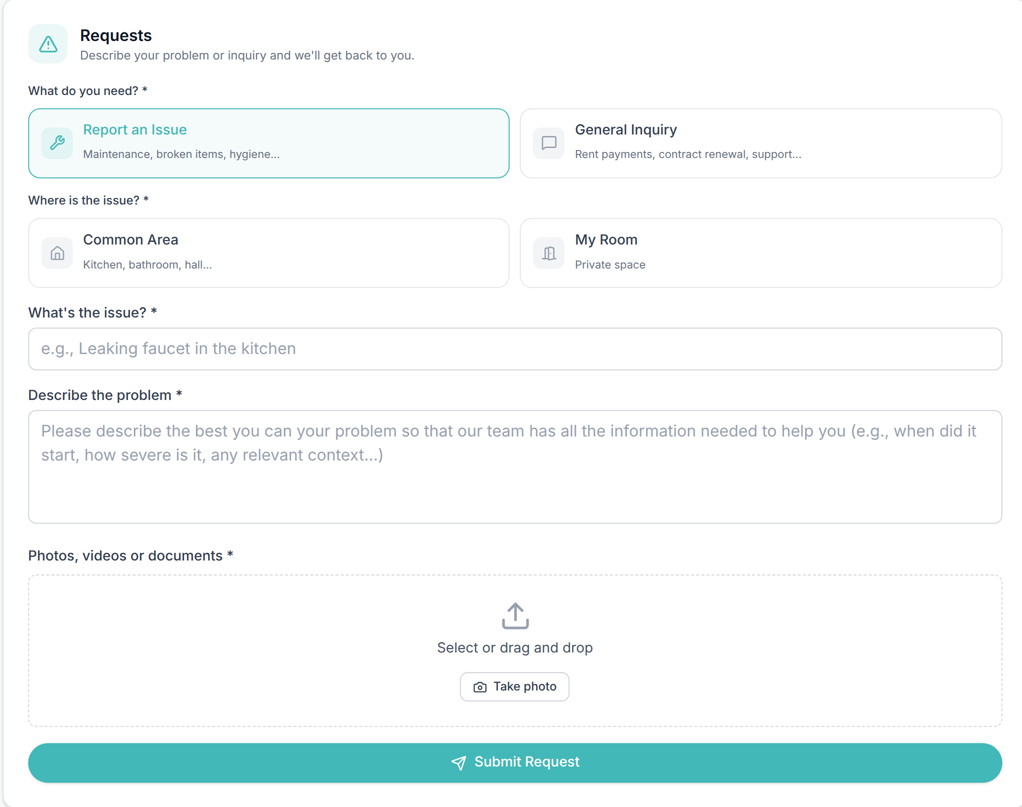
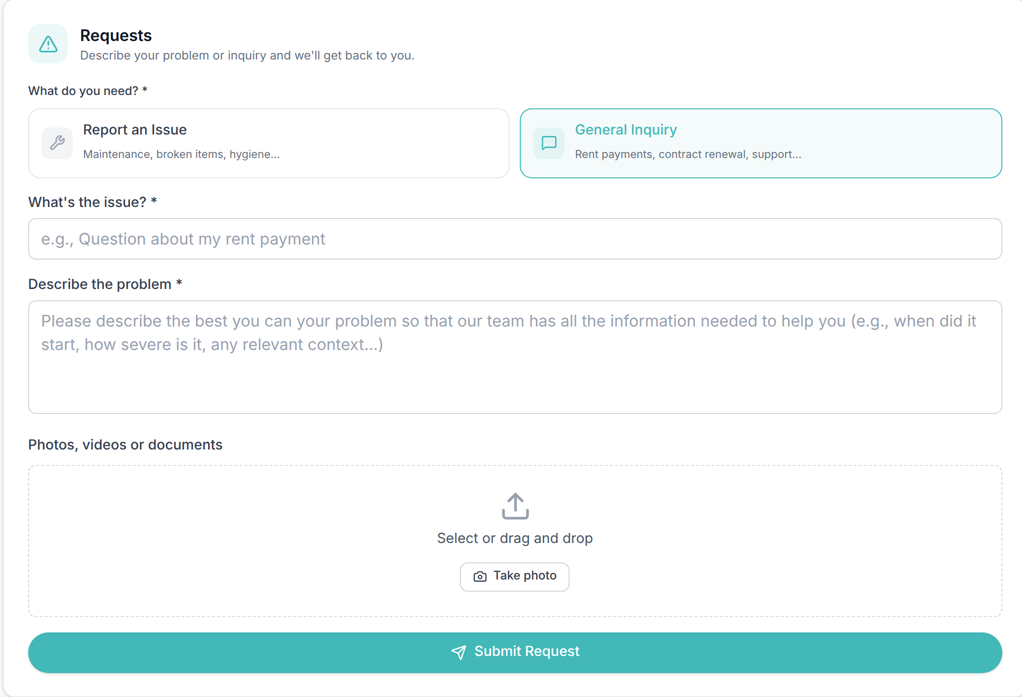
How do tenants see daily utility consumption in the portal?
Daily Breakdown pairs with Tenant Portal — Daily Breakdown, Tenant Portal — Utilities, Tenant Portal — Your Property Bills, Portal settings — Allow to see utilities, Entering Monthly Utility Bills, and Utilities module. Distinct from FAQ — How do tenants see property utility bills? (supplier PDFs under the grid) and from Payments tab overage lines.
On portal Utilities, the first card is Daily Breakdown. Tenants see Property (when more than one building is mapped) and Unit. Their listing is underlined with (you). Today has a red outline. Occupied days can show a euro amount; hover a cell for the date and amount. Scroll sideways across months.
There is no separate hide toggle for this card. Turn Allow to see utilities Off (or turn utilities off on the tenant’s category) to hide Utilities. Refunded bookings do not show the tab. Tenants cannot edit the grid. Marketplace POST /bookings cannot send it. See Tenant Portal — Daily Breakdown (tenant-portal-utilities-daily-breakdown.png, tenant-portal-utilities-daily-breakdown-tooltip.png, tenant-portal-utilities-daily-breakdown-flow.mp4).
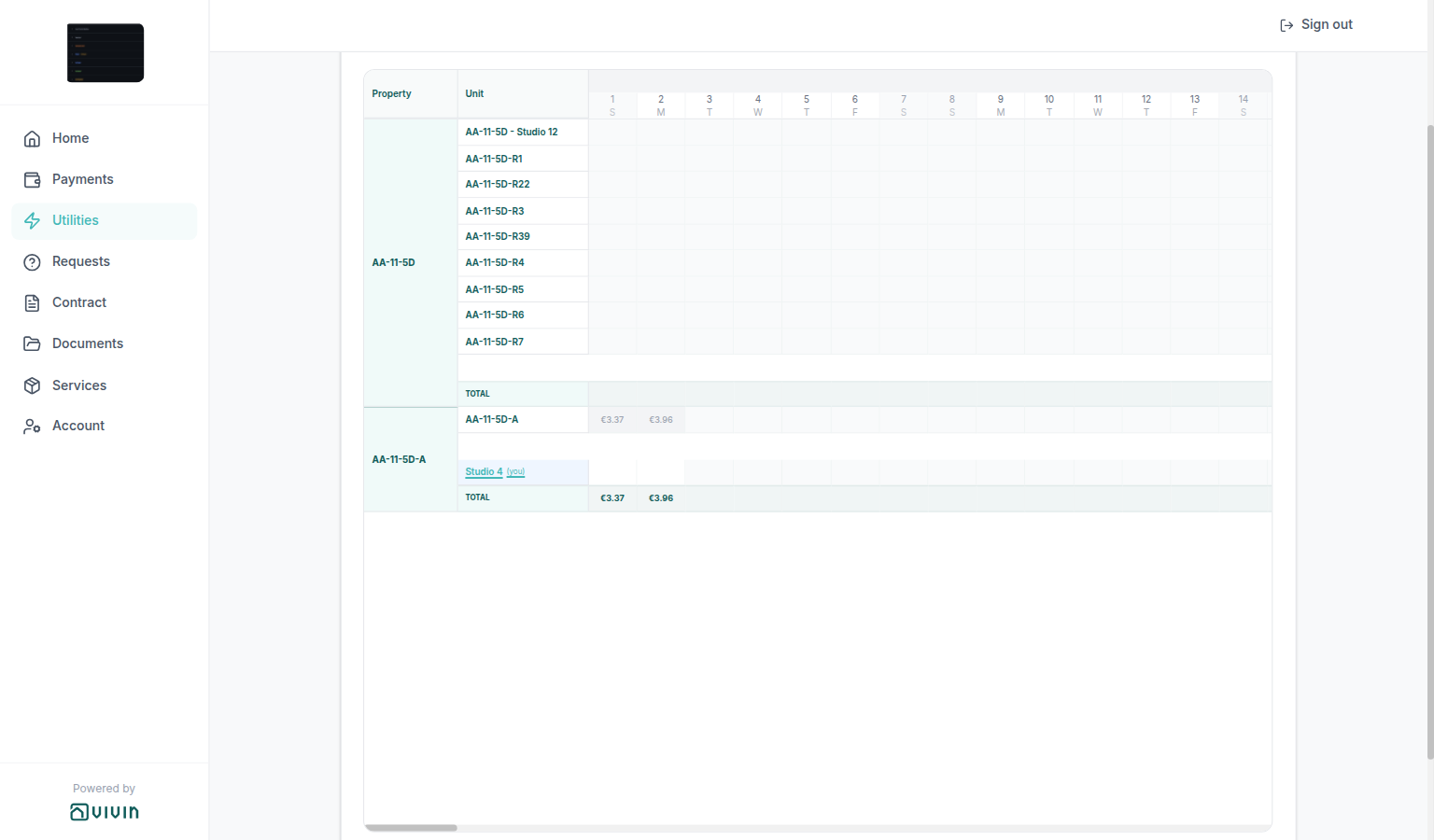
How do tenants see property utility bills in the portal?
Your Property Bills pairs with Tenant Portal — Your Property Bills, Tenant Portal — Utilities, Tenant Portal — Daily Breakdown, Portal settings — Allow to see utilities, Entering Monthly Utility Bills, and Utilities module. Distinct from FAQ — How do tenants see daily utility consumption?, FAQ — How do tenants see files and invoices on portal Documents? and from Payments tab overage lines.
On portal Utilities, the second card is Your Property Bills. Tenants see Type, Provider, Bill, Period, Amount, and a Total. An eye opens Bill Preview when a file is stored; a dash means there is no file. Escape, X, or a click outside closes the preview.
There is no separate hide toggle for this card. Turn Allow to see utilities Off (or turn utilities off on the tenant’s category) to hide Utilities. Refunded bookings do not show the tab. Tenants cannot upload or delete these bills. Marketplace POST /bookings cannot send them. See Tenant Portal — Your Property Bills (tenant-portal-utilities-property-bills.png, tenant-portal-utilities-property-bills-card.png, tenant-portal-utilities-bill-preview.png, tenant-portal-utilities-bill-preview-header.png; clip: tenant-portal-utilities-property-bills-flow.mp4).

How do tenants see ordered services in the portal?
Order History pairs with Tenant Portal — Order History, Tenant Portal — Services catalogue, Tenant Portal — Confirm request, Tenant Portal — Show more, Tenant Portal — Awaiting approval, Settings > Services, Portal settings — Allow to see services, How do tenants confirm a service request?, How do tenants expand a long service description?, and How do tenants see property utility bills?. Distinct from FAQ — Report an Issue vs General Inquiry (Requests tickets) and from FAQ — How do tenants export payment history from the portal? (Payments → Export CSV).
On portal Services, confirmed add-ons appear under Order History. Monthly rows show a green Active badge and a /mo price; one-time rows show Nx ordered and a Total. The catalogue card for a monthly already on the stay shows Active. Tenants cannot cancel an Active monthly from this list.
Pending approval-gated requests sit in Awaiting approval (with Cancel) until you Approve & charge or Reject. Rejected and cancelled rows move to Request history — not Requests → History (that tab is maintenance tickets).
There is no separate hide toggle for these lists. Turn Allow to see services Off (or turn services off on the tenant’s category) to hide Services. Marketplace POST /bookings cannot send these rows. See Tenant Portal — Order History (tenant-portal-services-order-history.png).
How do tenants expand a long service description in the portal?
Show more pairs with Tenant Portal — Show more, Tenant Portal — Services catalogue, Tenant Portal — Confirm request, Settings > Services, Portal settings — Allow to see services, How do tenants confirm a service request?, and How do tenants see ordered services?. Distinct from FAQ — Report an Issue vs General Inquiry (Requests tickets).
On portal Services, a catalogue card whose Description overflows about two lines shows Show more. Tenants tap it to read the rest on that card, then Show less to collapse it. Cards whose copy already fits have no control.
Confirm request shows the full description (scroll the panel). It does not use Show more. See How do tenants confirm a service request in the portal?.
There is no separate hide toggle for this control. Turn Allow to see services Off (or turn services off on the tenant’s category) to hide Services. Marketplace POST /bookings cannot send this control. See Tenant Portal — Show more (tenant-portal-services-show-more.png).
How do tenants confirm a service request in the portal?
Confirm request pairs with Tenant Portal — Confirm request, Tenant Portal — Services catalogue, Tenant Portal — Show more, Tenant Portal — Order History, Tenant Portal — Awaiting approval, Settings > Services, Portal settings — Allow to see services, How do tenants expand a long service description?, and How do tenants see ordered services?. Distinct from FAQ — Report an Issue vs General Inquiry (Requests tickets).
On portal Services, Request Service opens Confirm request. The panel shows the full Description (no Show more), a Monthly or One-time badge, the unit price, and Total. Teal Confirm request submits the order; Cancel or X closes the panel with no charge.
Standard catalogue rows can bill immediately after confirm. Rows that Require approval appear under Awaiting approval until you decide. Opening the panel does not charge the booking.
There is no separate hide toggle for this panel. Turn Allow to see services Off (or turn services off on the tenant’s category) to hide Services. Marketplace POST /bookings cannot send this panel. See Tenant Portal — Confirm request (tenant-portal-services-confirm-request.png).
How do tenants enter an IBAN?
IBAN pairs with Tenant Portal — IBAN, Portal settings — Allow tenant to edit IBAN, Portal settings — Require IBAN, Tenant categories (field IBAN), Tenants — Bank Details, and Bookings — Other filters (IBAN All / With / Without). Distinct from FAQ — How do tenants enter a non-European bank account? and from FAQ — How do tenants copy the virtual IBAN in the Tenant Portal? (booking virtual IBAN for rent).
On portal Account → Bank account, tenants fill IBAN next to Account type. The card subtitle is Used to process your deposit refund at the end of the lease. Placeholder e.g. PT50 0002 0123 1234 5678 9015 4. That is the tenant’s personal account for deposit refunds — not the booking virtual IBAN for rent.
The field may stay empty unless Require IBAN is On under Portal settings. Then Sign contract → Your Details shows an asterisk on IBAN and Next stays blocked until it is filled (IBAN is required to sign). The wizard also caps IBAN at 128 characters.
Allow tenant to edit IBAN (and after-signature IBAN edit, when they already signed) must be On. When those toggles are Off, tenants see the locked bank banner instead of editing the card. A tenant category can hide or lock the field IBAN. Operators edit IBAN on Tenants → Tenant Info → Bank Details. Marketplace POST /bookings can send tenantIBAN. This field is not the European bank account switch, not the booking virtual IBAN, and not Use company billing.
How do tenants enter a non-European bank account?
Non-European bank details pair with Tenant Portal — European bank account, Tenant Portal — IBAN, FAQ — How do tenants enter an IBAN?, Portal settings — Allow tenant to edit IBAN, Tenant categories (field European bank account), and Tenants — Bank Details.
New profiles default to European bank account (IBAN / SEPA). On portal Account → Bank account, Account type shows European bank account On, so only IBAN is visible. That is expected — not a missing SWIFT field.
To record an international account, the tenant turns European bank account Off, fills Bank country, SWIFT / BIC, Interbank code, Bank name, Branch, Bank address, and Bank city, then Save changes. The same switch appears on Sign contract → Your Details (copy: IBAN-based account (SEPA zone)).
Operators can type SWIFT/BIC and bank address on Tenants → Tenant Info → Bank Details without that toggle. Marketplace POST /bookings can send IBAN and SWIFT fields but cannot set the European flag, so imported tenants stay on the IBAN-only layout until someone turns the switch Off in the portal and saves.
Allow tenant to edit IBAN (and after-signature IBAN edit, when they already signed) must be On — locking IBAN also locks the European switch. A tenant category can hide or lock the field European bank account. This toggle is not the booking virtual IBAN used for rent collection, and it is not Use company billing.
How do tenants use company billing?
Company billing pairs with Tenant Portal — Use company billing, Portal settings — Allow edit billing details, Tenant categories (field Company billing), and Tenants — Tenant Info.
New profiles default to personal billing. On portal Account → Billing information, Billing type shows Use company details Off, so Company name and Company fiscal number stay hidden. That is expected — not missing company fields.
To invoice to a company, the tenant turns Use company details On, fills Company name and Company fiscal number plus the billing address fields, then Save changes. The same switch appears on Sign contract → Billing (copy: Company billing / Use company details for invoices). When On, address labels switch to Company Address.
Operators can set Use company details for billing on Tenants → Tenant Info and Bookings → Contract Info (Yes/No in view; toggle in edit). Marketplace POST /bookings can send useCompanyBilling — unlike the European bank flag.
Allow edit billing details (and Allow edit billing details after contract signature, when they already signed) must be On. A tenant category can hide or lock the field Company billing. This toggle is not the European bank account switch and not the booking virtual IBAN used for rent collection.
How do tenants enter a billing address?
Billing address pairs with Tenant Portal — Billing address, Tenant Portal — Fiscal number and home address, FAQ — How do tenants enter a fiscal number and home address?, Tenant Portal — Use company billing, Portal settings — Allow edit billing details, Tenant categories (fields Billing address, Billing city, Billing postal code, Billing country), and Tenants — Tenant Info.
Home address and Billing address are two different fields. Filling one does not copy into the other.
On portal Account → Personal information, Home address (placeholder Your home address) is the tax / contract home address. On Account → Billing information, Billing address (placeholder Street address) is the invoice street, with City, Postal code, and Country on the same card.
There is no Require Billing address toggle — Require Home address gates Home address only. Country on Billing information is the invoice country — not Nationality and not Country of issue. On Account it shows an asterisk and Required when a fiscal/tax number is provided when a fiscal/tax number is on file or Use company details is On.
The same street appears on Sign contract → Billing. When company billing is On, that label is Company Address. Review shows Home address under Personal Information and Address under Billing Information.
Allow edit billing details (and after-signature billing edit, when they already signed) must be On. When those toggles are Off, tenants see the locked billing banner instead of editing the card. A tenant category can hide or lock Billing address, Billing city, Billing postal code, or Billing country. Operators edit Billing address on Tenants → Tenant Info → Billing Information. Marketplace POST /bookings can send billingAddress, billingCity, billingPostalCode, and billingCountry. This is not Home address, not Bank address, and not the Use company billing toggle.

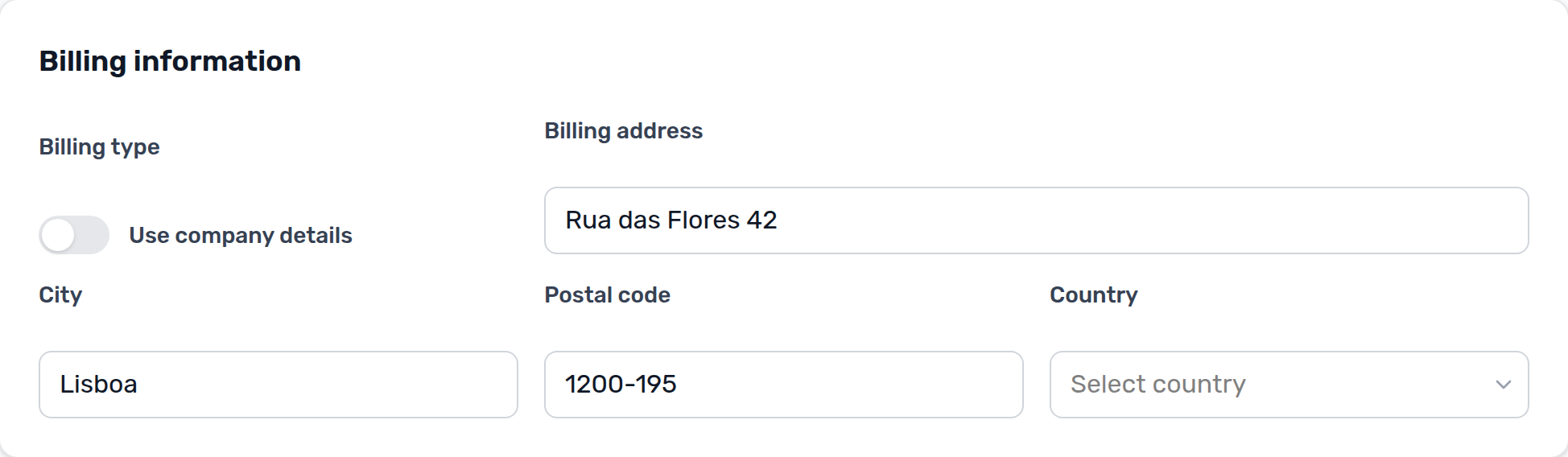
How do tenants update locked bank or billing details?
Locked banners pair with Tenant Portal — Locked bank and billing banners, Tenant Portal — IBAN, Tenant Portal — Billing address, Portal settings — Tenant can edit, FAQ — How do tenants enter an IBAN?, FAQ — How do tenants enter a billing address?, and Tenants — Tenant Info. Distinct from FAQ — Why can't a tenant sign the contract in the portal? (Require IBAN is a signing gate, not this banner).
They do not edit those cards in the portal until you unlock them. On Account → Bank account the amber notice is Bank details cannot be changed here based on your landlord’s settings. Please contact your property manager if you need an update. On Account → Billing information it is Billing details cannot be changed here. Please contact your property manager if you need an update. The fields stay visible and disabled. The same notices appear in Sign contract. Home does not have Edit details — tenants change unlocked fields on Account.
Turn Allow tenant to edit IBAN and/or Allow edit billing details On under Portal settings. If the tenant already signed, also turn on Keep IBAN editable after contract signature and Allow edit billing details after contract signature. Until then, operators edit IBAN and billing on Tenants → Tenant Info.
This is not a tenant category hide of a single field (that can disable IBAN or Billing address without the landlord-settings notice). It is not Require IBAN (that only blocks Sign contract → Next). Marketplace POST /bookings can send bank and billing values at create time; it does not clear these banners.
How do tenants know Account changes saved?
Save confirmation pairs with Tenant Portal — Save changes success, Tenant Portal — First name and last name, Tenant Portal — Locked bank and billing banners, Portal settings — Tenant can edit, and Tenants — Tenant Info. Distinct from FAQ — Why can't a tenant sign the contract in the portal? (signing wizard, not Save changes).
They look for a green notice that reads Details updated successfully! above Save changes on portal Account. The page stays on Account, the form reloads the stored values, and the notice disappears after a few seconds. It is not a corner toast and not an email. Home does not have Edit details.


Save changes still works when bank or billing cards are locked — unlocked sections save. Fill both names when those fields are editable. Operators do not see this notice; they save on Tenants → Tenant Info. Marketplace POST /bookings can send profile values at create time; it does not show this portal notice.
How do tenants enter ID type, expiry, and country of issue?
ID document fields pair with Tenant Portal — ID document details, Portal settings — Mandatory for contract signing, Portal settings — Tenant can edit, Tenant categories (fields ID number, ID document type, ID expiry, ID document country), and Tenants — Tenant Info.
On portal Account → Personal information, tenants fill Identification ID, then ID Type (CC, Passport, ID, or Residence Permit), ID Expiry Date, and Country of issue. Country of issue is the country on the identity document — not billing Country and not Nationality.
When Identification ID, ID Type, ID Expiry Date, or a fiscal/tax number is on file, Country of issue shows an asterisk and the hint Required when ID or fiscal number is provided. The same four fields appear on Sign contract → Your Details. Account toggles Require Identification ID, Require ID Type, Require ID Expiry Date, and Require Country of issue can also block signing until those values are filled.
Operators edit the same data on Tenants → Tenant Info → Personal Information (ID Number, ID Document Type, ID Document Country, ID Expiry Date). Marketplace POST /bookings can send identificationId, idDocumentType, idDocumentCountry, and idDocumentExpiryDate.
Allow edit identification ID (and after-signature identification edit, when they already signed) controls the number, type, and expiry. Country of issue follows Allow edit fiscal ID (and after-signature fiscal edit) — the same permission as fiscal number. A tenant category can hide or lock ID number, ID document type, ID expiry, or ID document country. These fields are not the European bank account switch and not Use company billing.
How do tenants enter first and last name?
Names pair with Tenant Portal — First name and last name, Portal settings — Mandatory for contract signing (Require First Name, Require Last Name), Tenant categories (fields First name and Last name), and Tenants — Tenant Info. Distinct from read-only Email on the same Account row.
On portal Account → Personal information, tenants fill First name and Last name on the first row. Email on that row is read-only — tenants change their name, not the login email. After Save changes, portal Home shows Hello, First name! (first word) or Hello! when the name is empty — see How do tenants see the greeting and listing address on portal Home?.
Save changes needs both names when the fields are editable (spaces-only does not count). That Account rule applies even when Require First Name / Require Last Name is Off. Those toggles only add asterisks on Sign contract → Your Details (First Name / Last Name). When a toggle is On, the tenant must fill that name before Next.
There is no account-level Allow edit first name toggle. A tenant category can hide or lock First name or Last name. Operators edit First Name and Last Name on Tenants → Tenant Info → Personal Information. Marketplace POST /bookings must send firstName and lastName (minimum two characters). This is not Email, not Phone, not Nationality, not ID document details, and not Fiscal number and home address.


How do tenants enter a phone number?
Phone pairs with Tenant Portal — Phone, Portal settings — Mandatory for contract signing (Require Phone), Tenant categories (field Phone), and Tenants — Tenant Info. Distinct from FAQ — Phone shows Operations only (operator mobile shell).
On portal Account → Personal information, tenants fill Phone next to Nationality and Identification ID. Email on that card is read-only.
Use an optional leading + and 7–15 digits. Spaces, parentheses, and hyphens are removed on save (+351 912 345 678 becomes +351912345678). The field may stay empty unless Require Phone is On under Portal settings — then Sign contract → Your Details shows an asterisk on Phone and the tenant must fill it before Next.
There is no account-level Allow edit phone toggle. A tenant category can hide or lock the field Phone. Operators edit Phone on Tenants → Tenant Info → Personal Information. Marketplace POST /bookings can send phone. This is not ID document details, not Nationality, not European bank account, and not Use company billing.
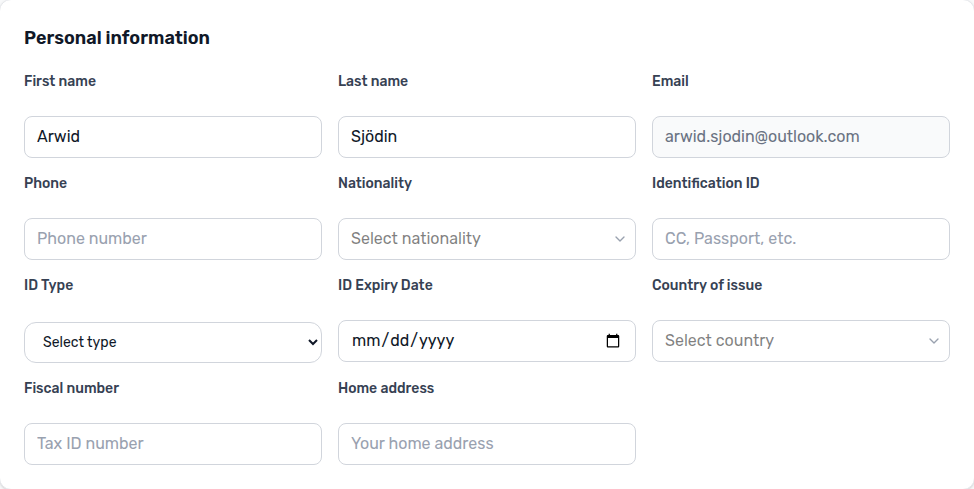
How do tenants enter nationality?
Nationality pairs with Tenant Portal — Nationality, Portal settings — Mandatory for contract signing (Require Nationality), Tenant categories (field Nationality), Tenants — Tenant Info, and Bookings — Other filters (All Nationalities / No Nationality).
On portal Account → Personal information, tenants pick Nationality between Phone and Identification ID. Email on that card is read-only.
The list shows nationality words with flags (for example Spanish, Portuguese) — not country names. Type a few letters to search. Country of issue on the ID row is the document country (for example Portugal), and billing Country is for invoices.
The same control appears on Sign contract → Your Details. When Require Nationality is On under Portal settings, the label shows an asterisk and the tenant must pick a value before Next.
There is no account-level Allow edit nationality toggle. A tenant category can hide or lock the field Nationality. Operators edit Nationality on Tenants → Tenant Info and Bookings → Contract Info. Marketplace POST /bookings can send nationality as a two-letter country code. This is not ID document details (Country of issue), not Phone, not European bank account, and not Use company billing.

How do tenants enter a fiscal number and home address?
Fiscal fields pair with Tenant Portal — Fiscal number and home address, Portal settings — Mandatory for contract signing (Require Fiscal ID, Require Home address), Portal settings — Tenant can edit (Allow edit fiscal ID), Tenant categories (fields Fiscal ID (NIF) and Home address), Tenants — Tenant Info, and Bookings — Other filters (Fiscal Id All / With / Without).
On portal Account → Personal information, tenants fill Fiscal number (placeholder Tax ID number) and Home address (placeholder Your home address) on the row below Country of issue. Email on that card is read-only.
Fiscal number is the personal tax ID (NIF in Portugal) — not Identification ID and not Company fiscal number. Home address is the tenant’s home / tax address — not the billing street. Filling Fiscal number also requires Country of issue (hint: Required when ID or fiscal number is provided) and billing Country (hint: Required when a fiscal/tax number is provided).
The same values appear on Sign contract → Your Details as Fiscal ID and Home address. When Require Fiscal ID or Require Home address is On under Portal settings, those labels show an asterisk and the tenant must fill them before Next. Lease Purpose on the Account row stays disabled (Set during contract signature) — tenants pick it on Your Details when the account enables that field. See FAQ — How do tenants enter lease purpose?.
Allow edit fiscal ID (and Allow edit fiscal fields after contract signature, when they already signed) controls Fiscal number, Home address, and Country of issue. A tenant category can hide or lock Fiscal ID (NIF) or Home address. Operators edit Fiscal ID and Home address on Tenants → Tenant Info → Personal Information. Marketplace POST /bookings can send fiscalId and fiscalAddress. These fields are not ID document details, not Use company billing, not Phone, and not European bank account.
How do tenants enter lease purpose?
Lease Purpose pairs with Tenant Portal — Lease Purpose, Settings → Categories — Lease Purpose (Enable Lease Purpose field, Make Lease Purpose mandatory), Bookings — Lease purpose, and Creating Bookings — Lease purpose. Distinct from FAQ — How do tenants enter a fiscal number and home address?, FAQ — How do tenants enter nationality?, and FAQ — Why didn't a marketplace booking use the lease purpose I sent?.
On portal Account → Personal information, Lease Purpose sits next to Fiscal number and Home address when the account enables the field. It stays disabled with placeholder Set during contract signature. Tenants do not edit it on Account.
They pick an allowed chip on Sign contract → Your Details (Select lease purpose). When Make Lease Purpose mandatory is On, the label shows an asterisk and Next stays blocked until they pick a value (Lease purpose is required). Review only displays the choice.
Operators set Lease Purpose on Bookings → Contract Info and + Create New → Booking. Tenant Info does not include this field. Marketplace POST /bookings cannot send leasePurpose. This is not Fiscal number, not Nationality, not Country of issue, and not Use company billing.

Why can't a tenant sign the contract in the portal?
Portal signing gates pair with Glossary — Mandatory for contract signing, Portal settings — Mandatory fields before contract signing (account toggles), Tenant Portal — Digital contract signing (four steps, or five with Guarantor), Settings > Contract templates (PDF must exist first; {%GuarantorSignature} when a guarantor signs), Processing a New Booking — Step 4.
Common causes:
- No contract PDF yet — Vivin must generate a contract for the booking before Sign contract appears on portal Home or Contract. Confirm Contract Info in management shows a generated file (or regenerate from your contract template workflow). Without a PDF, the portal shows a contact-you message instead of opening the wizard — see Processing a New Booking — Step 4.
- Mandatory fields empty — Each toggle under Portal settings — Mandatory for contract signing blocks the wizard Your Details step until the matching field is filled (including Require IBAN — How do tenants enter an IBAN?). Asterisk labels in the portal mirror those toggles. Enforcement runs in the portal UI and server-side on sign.
- Sign still hidden on Contract — On a long PDF, Sign stays hidden until the tenant reads to the end. Home Sign contract only opens that tab. Download contract still works while the banner says Read to the end to sign.
- Category or preference locks — Tenant categories and portal permission toggles can make a field read-only; the tenant cannot complete a gate you require but disabled for their segment.
- Lease purpose — When Lease Purpose is required on the account, the tenant must pick an allowed value on the Your Details step before Next — see Bookings — Lease purpose and FAQ — How do tenants enter lease purpose?.
Operator checklist: (1) PDF on Contract Info, (2) mandatory toggles in Portal settings, (3) tenant category allows editing required fields, (4) Lease purpose when required. Illustrated account toggles and the tenant-facing wizard:
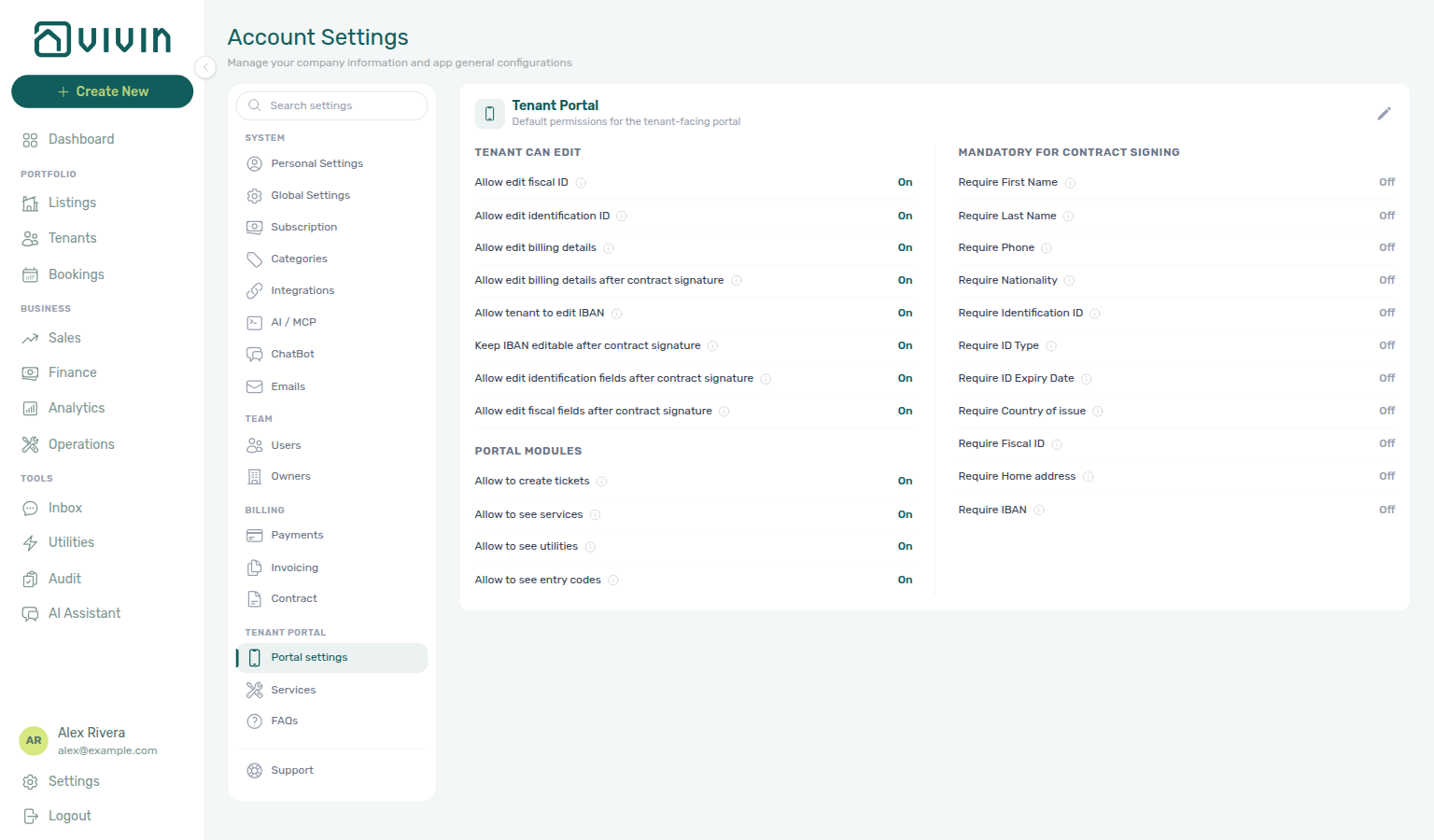
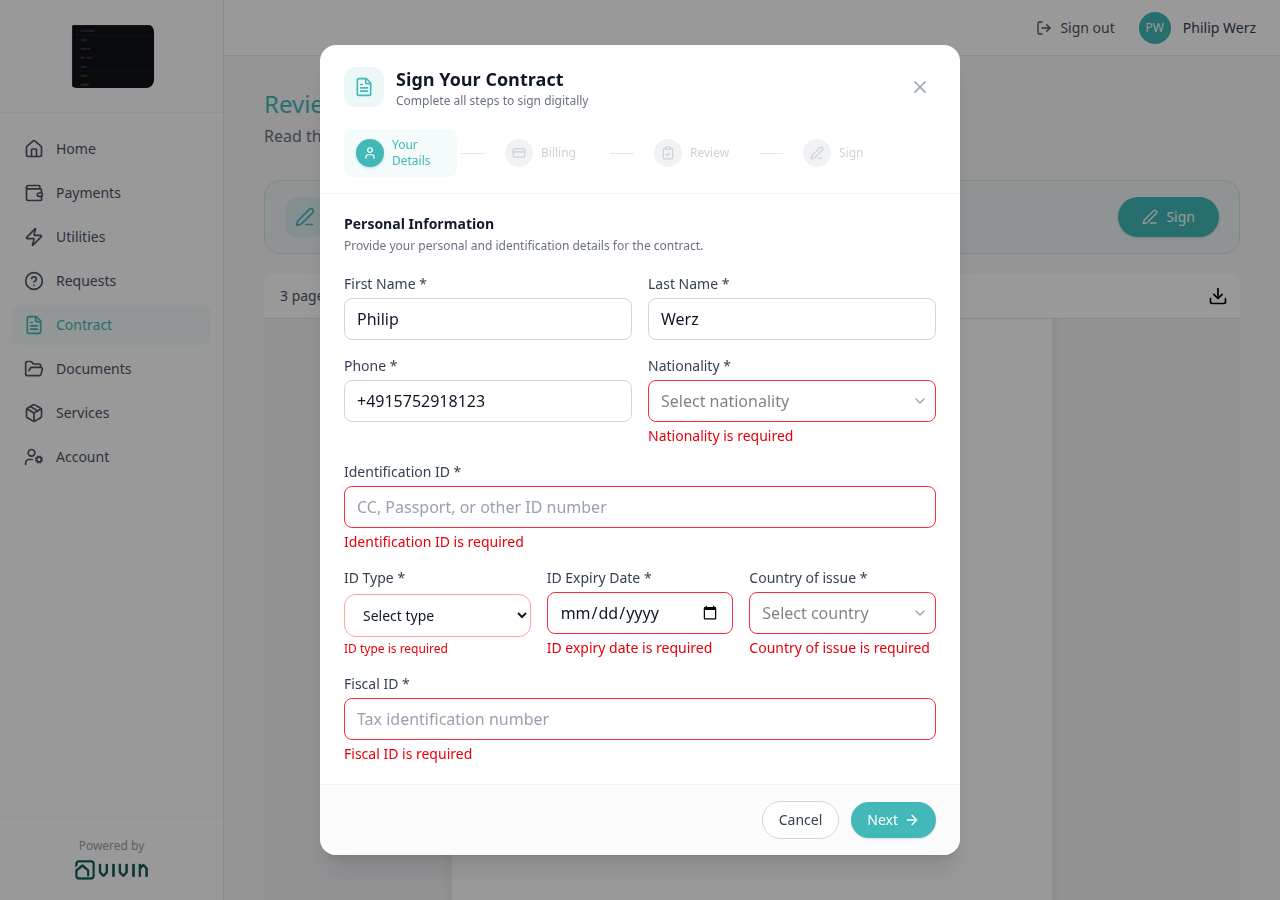
See Tenant Portal — Digital contract signing for the full wizard (Your Details → Billing → Review → Sign, plus Guarantor when the booking has a guarantor — tenant-portal-signature-modal-guarantor-step.png) and the short walkthrough video. Portal signing satisfies lifecycle After contract signed triggers; paper uploads on Contract Info do not — see Why didn't the automatic check-in email send?.
How do tenants unlock Sign on the Contract tab?
Read to the end to sign pairs with Tenant Portal — Read to the end to sign, Tenant Portal — Digital contract signing, Tenant Portal — Download contract, How do tenants download the contract from the portal?, and FAQ — Tenant contract signing blocked. Distinct from Home Sign contract (that button only opens the Contract tab) and from Documents Download.
On Contract, Sign stays hidden until the tenant scrolls the PDF to the end. The banner starts as Read to the end to sign / Scroll through the full contract below — the Sign button will unlock once you reach the end. After that scroll — or when a short PDF already fits without a scrollbar — it becomes Ready to sign / You've read the full contract. Click Sign to proceed., and a teal Sign button opens the wizard.
Home Sign contract does not skip the read. Tenants can still download contract.pdf while Sign is hidden. There is no Portal settings hide toggle. Turn Contract Off on the tenant’s category to hide the tab. Marketplace POST /bookings cannot send this banner. See Tenant Portal — Read to the end to sign (tenant-portal-contract-read-to-the-end.png, tenant-portal-contract-ready-to-sign.png, tenant-portal-contract-read-to-the-end-flow.mp4).


How do tenants download the contract from the portal?
Download contract pairs with Tenant Portal — Download contract, Tenant Portal — Read to the end to sign, Tenant Portal — Digital contract signing, Bookings — Contract Info, Settings > Contract templates, and How do tenants see files and invoices on portal Documents?. Distinct from FAQ — How do tenants export payment history from the portal? (Payments → Export CSV), from FAQ — How do tenants unlock Sign on the Contract tab?, and from FAQ — Tenant contract signing blocked (Sign is a different control).
On portal Contract, the PDF viewer header shows the page count (for example 3 pages) and a download icon. Hover shows Download contract. The file is always named contract.pdf. Tenants can save it as soon as the PDF is on screen — they do not need to scroll to the end first.
Before they sign, the file is the unsigned agreement from Contract Info. After a portal signature (or when a signed copy is already on file), the same icon saves the signed PDF — still contract.pdf.
There is no Portal settings hide toggle. Turn Contract Off on the tenant’s category to hide the Contract tab (and this download with it). Marketplace POST /bookings cannot send this control. See Tenant Portal — Download contract (tenant-portal-contract-download.png, tenant-portal-contract-download-toolbar.png, tenant-portal-contract-download-flow.mp4).
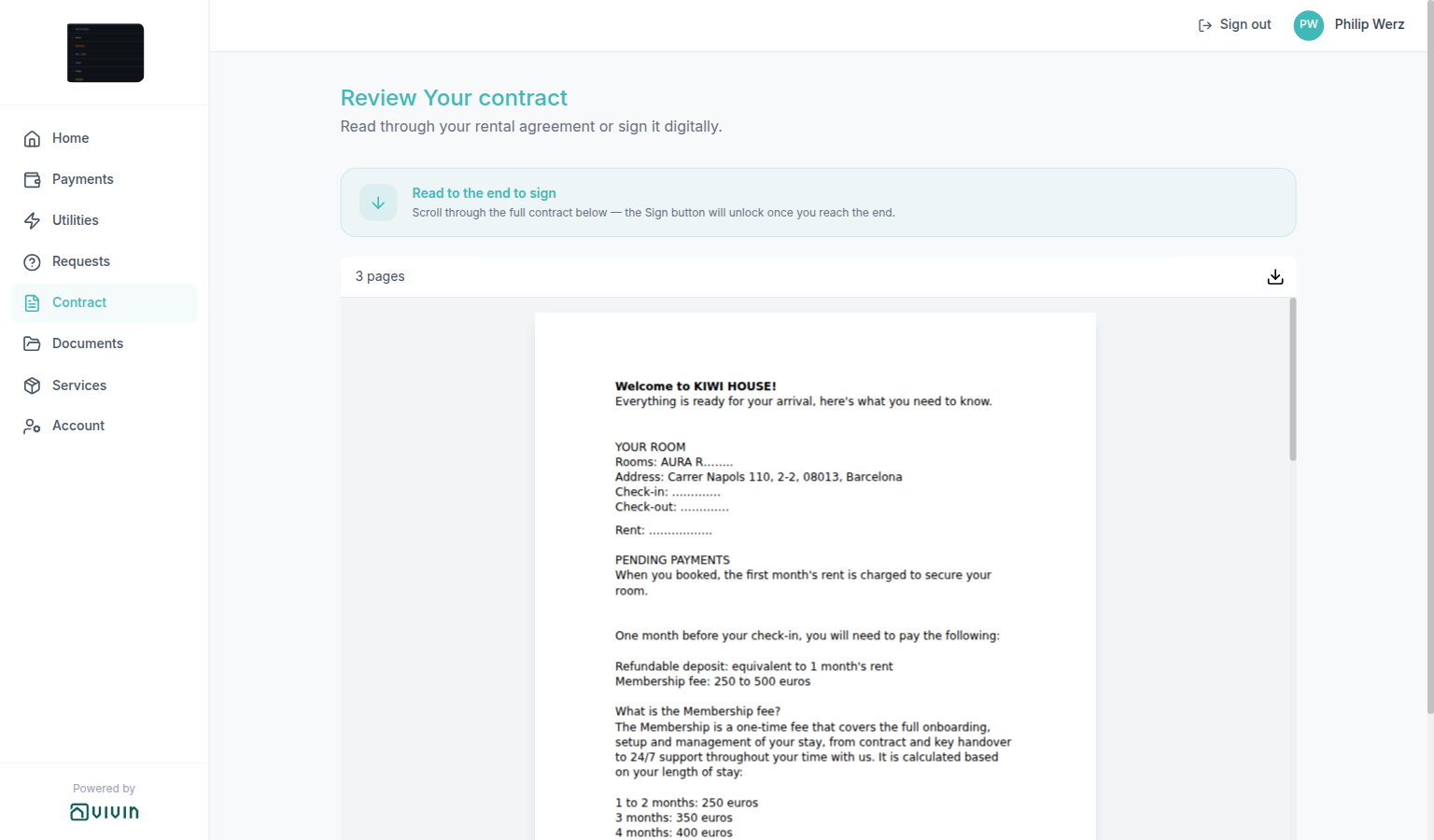

Why is my tenant not receiving emails? Check the email template triggers in Settings > Emails. Verify the trigger conditions (e.g., "After paid & contract signed" vs. "Immediately after booking creation") and ensure the tenant's email address is correct in the booking. For lifecycle templates (onboarding, check-in, check-out), also confirm the booking still meets the trigger on the Booking lifecycle emails sub-tab — see the next question for check-in specifics.
Why didn't the automatic check-in email send?
Lifecycle check-in mail pairs with Glossary — Lifecycle check-in email, Emails — When lifecycle check-in emails send (trigger matrix + operator upload vs portal signing), Tenant Portal — Digital contract signing (signedContractPath), Bookings — Check-in & Check-out emails, Processing a New Booking — Step 4.
Lifecycle check-in mail fires only when your Booking lifecycle emails — check-in trigger matches and Vivin has not already sent one check-in email for that booking (checkInEmailSentAt). Common blockers:
- Trigger is No trigger — Automatic lifecycle check-in is off for the account, and Send Check-in email / Resend Check-in email is hidden on Contract Info. Choose any other check-in trigger on Booking lifecycle emails to show the button again (
settings-emails-lifecycle-check-in-trigger-dropdown.png). - Trigger not met — For example After paid & contract signed requires move-in requirements paid and a portal digital signature (
signedContractPath); After paid alone waits on move-in payments only. Next payment (balance) waits until the upcoming installment is €0. When the trigger needs signing but tenants stall on Sign contract, start with FAQ — Tenant contract signing blocked (PDF on Contract Info, mandatory Your Details gates, category locks). - Paper contract uploaded — Uploading a signed PDF on Contract Info marks the booking contract-signed for reporting but does not set
signedContractPathor re-run lifecycle evaluation — see Emails — Operator upload vs portal signing. Use Send Check-in email on Contract Info → Check-in & Check-out after upload when move-in requirements are met. - 15-day cutoff — Automatic send is skipped when check-in day is more than 15 days in the past (canceled bookings are skipped entirely).
- Nuki-only toggle — With Only for Nuki access on, send waits until Nuki access points exist on the property or unit.
- Already sent — Check Last sent on Resend Check-in email on Contract Info; use Resend if you need another copy. A Communication Rule with This is the check-in email also sets the watermark and suppresses this automatic template for matching bookings.
- Custom check-in rule replaced it — If an email Check-in Communication Rule has This is the check-in email on, the lifecycle template does not auto-send for those bookings. Confirm the rule is active, the audience matches, and the schedule row shows a successful send — see Emails — This is the check-in email (
settings-emails-communication-rule-is-check-in-email-on.png).
On Contract Info → Check-in & Check-out, Send Check-in email / Resend Check-in email and Last sent are the operator controls when automation did not fire and the account check-in trigger is not No trigger. Communication Rules usually handle payment reminders and custom schedules, but an email rule with Check-in trigger can also own the check-in watermark via This is the check-in email. Only a portal digital signature satisfies lifecycle After contract signed triggers; paper upload on Contract Info does not — pair Tenant Portal — Digital contract signing with FAQ — Tenant contract signing blocked when tenants never reach the Sign step.

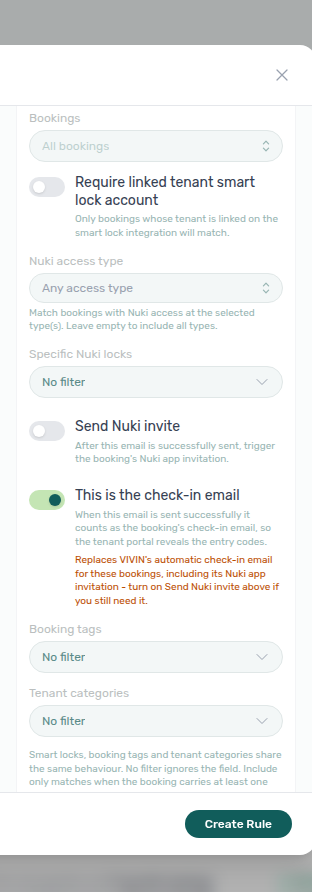
See Managing a Check-in, Glossary — Lifecycle check-in email, Emails — This is the check-in email, Processing a New Booking — Step 4 (generate PDF before portal signing), and Bookings — Check-in & Check-out emails.
What is the difference between Resend Onboarding email, Send portal access, and Contract Resend?
Operator email actions pair with Bookings — Check-in & Check-out emails, Preferences — Contract attachment overrides, Emails — Onboarding, and Processing a New Booking — Step 6.
They are three different buttons on Contract Info:
| Control | Use it when | Contract PDF |
|---|---|---|
| Send / Resend Onboarding email (Check-in & Check-out card) | The tenant missed the welcome email | Attached only if Contract in onboarding email is on, the category allows Contract, and a contract file exists — otherwise the welcome email still sends without it |
| Send / Resend portal access (same card) | The tenant needs the portal login link only | Never — this message is portal access only |
| Resend on the Contract card | You need the onboarding email with the contract, even if the Preferences toggle is off | Always attempted; generate the contract first if none exists. A tenant category with the Contract module off still blocks the attachment |

See Bookings — Check-in & Check-out emails and Manual contract management. Marketplace imports always queue the welcome email at create — FAQ — Marketplace booking onboarding email.
Can tenants submit maintenance requests through the portal? Yes. On Requests → New Request, tenants pick What do you need? — Report an Issue (location + required files) or General Inquiry (no location; files optional) — then Submit Request. That creates a ticket in the Operations module for your team. See Tenant Portal — What do you need? and FAQ — Report an Issue vs General Inquiry.
Is the tenant portal branded with my company? Yes. The Tenant Portal is white-labelled with your brand colours, logo, and company name — including the browser tab, the home-screen name, and Install app (Install plus your company name). When Website URL is set, the logo opens your site in a new tab. A small Powered by VIVIN line stays at the bottom of the computer sidebar (and on the email access-link screen); it always opens Vivin’s site and cannot be hidden. Configure branding in Settings > General Information. See Tenant Portal — Branded home screen and How do tenants install the Tenant Portal on their phone?.
How do tenants install the Tenant Portal on their phone?
Portal Install app pairs with Tenant Portal — Install app, Tenant Portal — Branded home screen, Settings — General Information, and management Install app (PWA). Distinct from FAQ — How do tenants sign out of the Tenant Portal? and from installing the Vivin workspace for your team.
After a valid access link, the browser tab uses Company Name from General Information (or Tenant Portal when no company name is stored).
On a phone, tenants may see Install plus your company name with Quick Access and Native Experience. On iPhone Safari, they follow 1. Tap Share → 2. Add to Home Screen, or tap Maybe later. On Android, they tap Install App when the browser offers install, or Maybe later. Closing with X, tapping outside, Escape, or Maybe later hides the overlay on this browser. The overlay does not show when the portal is already open from the home screen.
This is not management Install app. There is no Portal settings hide toggle. Marketplace POST /bookings cannot send this overlay. See Tenant Portal — Install app (tenant-portal-install-app-prompt.png, tenant-portal-install-app-ios-share-steps.png, tenant-portal-install-app-flow.mp4, tenant-portal-install-app-android.png, tenant-portal-install-app-android-card.png, tenant-portal-install-app-android-flow.mp4).
Integrations & Distribution
Channel sync and iCal answers pair with Properties & Listings (Channels tab linking), Bookings (import vs manual booking), Operations (pseudo check-in/out rows), and Why does Multicalendar Date range still show units that are booked later? (stay-window search on Sales → Multicalendar). Marketplace calendars that stay closed for years after the last stay: Calendar Block (days). Extra occupant price on a one-person listing: extraPricePerTenant is 0. Extra Charge vs Markup: Extra Charge did not follow Markup. Variable-rent headline: listing rent higher than some months. Computed deposit: listing depositValue vs Extra Deposit. Cleaning fee amount: listing cleaningFeeValue is not one-time. Marketplace cleaning fee: POST does not set cleaning fee. Marketplace deposit: POST does not set deposit. Marketplace admin fee: POST does not set admin fee. Marketplace bills included: POST does not set bills included. Marketplace contract type: POST does not set contract type. Marketplace confirmation payments: POST does not set confirmation payments. Marketplace due day: POST does not set due day. Marketplace check-in times: POST does not set check-in time. Marketplace days before due: POST does not set days before due. Marketplace check-in responsible: POST does not set check-in responsible. Marketplace lease purpose: POST does not set lease purpose. Marketplace Deposit Refund Limit: POST does not set Deposit Refund Limit. Marketplace booking tags: POST does not set booking tags. Marketplace maintenance tickets: POST does not set check-in/out ticket opt-out. Marketplace Ignore unit preparation days: POST does not set Ignore unit preparation days. Marketplace Allow check-in date in the past: POST does not set Allow check-in date in the past. Marketplace penalty exclusion: POST does not set Exclude from penalty fees. Marketplace contract dates from check-in: POST does not set Use check in date as contract start date. Marketplace onboarding email: POST always sends onboarding. Marketplace unit contract rents: POST always uses unit contract rents. Exit fee: listing JSON has no exit fee. Photos and amenities: listing JSON has no photos. All bills included: listing billsIncludedMaxValue is null. Landlord email: listing landlordEmail vs login. Usable rent: listing JSON omits a unit with €0 rent. Marketplace POST: honour listing Capacity and stay bounds. Marketplace rent: POST does not set rent. Marketplace Extra Charge: POST does not set Extra Charge. Marketplace Second tenant: POST does not set Second tenant. Marketplace Guarantor: POST does not set Guarantor. Marketplace platform commission: POST records platform commission. Marketplace tenant category: POST does not set tenant category. Local rent cap: listing JSON has no local rent cap.
Why aren't bookings syncing from Airbnb/Booking.com? Verify your API key or integration email is correct in Settings > Integrations. Then ensure each unit is linked to its corresponding external listing ID in the unit's Channels tab. See Integrations Troubleshooting for more issues.
Does Airbnb or Booking.com iCal sync create a full Vivin booking with payment plan? No. Airbnb and Booking.com use two-way iCal from Sales > Channels (and per-unit Channels in Listings): Vivin exports outbound availability and imports platform calendar blocks to prevent double bookings. Imported short-stay blocks surface on Operations > Check-in & Check-out and unit calendars as pseudo check-in/out rows — they do not automatically create mid-term booking records, payment schedules, or tenant profiles. For contract and collections work on a channel stay, create or import a proper booking. Mid-term marketplaces (HousingAnywhere, Uniplaces, and similar) use API imports that do create full booking records. See Glossary — Short-term iCal pseudo check-in/out and API Reference — iCal feeds — Inbound platform calendars. When a Channex OTA rail is connected, the same Airbnb / Booking.com columns switch to allocate mode instead of the iCal manage modal — Airbnb / Vrbo / Expedia pick a listing; Booking.com picks a hotel ID from the Integrations pool. Nightly rates still come from Listings → Short term.
How do I add Booking.com hotel IDs and allocate them to units?
On Settings → Integrations, find the Booking.com connection card (Channex rail) and click Add hotel ID (or Connect channel while the pool is empty). The Booking.com hotel IDs dialog opens — the card itself stays one compact row with Connected · N hotel IDs · M allocated. Paste IDs in Hotel IDs one per line or separated by commas, then Add. Each ID is one Booking.com property (one room) — Vivin lists the room title next to it (for example 6519420 — Single Room). Then open Sales → Channel Manager and pick that hotel ID on the unit’s Booking.com cell. IDs already allocated to another unit stay disabled. Unlink the unit before you can remove an ID in the dialog. Airbnb, Expedia, and Vrbo still use a listing picker — they do not use this pool. Guide: Integrations — Booking.com hotel IDs / Hotel ID list opens as a dialog.
Where did the hotel ID list on the Booking.com card go?
Add hotel ID (or Connect channel while the pool is empty) opens a Booking.com hotel IDs dialog. The card itself stays one compact row with Connected · N hotel IDs · M allocated, so a long pool does not stretch the Integrations grid. Guide: Integrations — Hotel ID list opens as a dialog.
How do I re-sync Airbnb or Booking.com after the calendar changed on the OTA?
Open Sales > Channels, click the green Airbnb or Booking.com cell for the unit (not the external View control), and use Sync on the manage modal — Connected summary, read-only platform iCal URL with Copy + Sync, and Delete integration. You do not need to delete and reconnect first. sales-channel-airbnb-ical-manage-modal.png / sales-channel-airbnb-ical-manage-flow.mp4 (Airbnb) and sales-channel-bookingcom-ical-manage-modal.png / sales-channel-bookingcom-ical-manage-flow.mp4 (Booking.com).
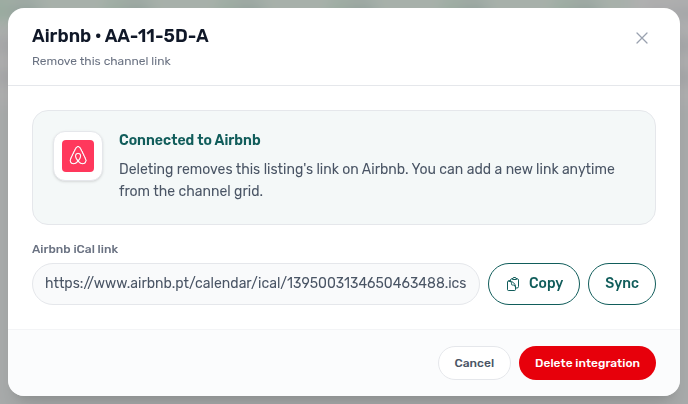
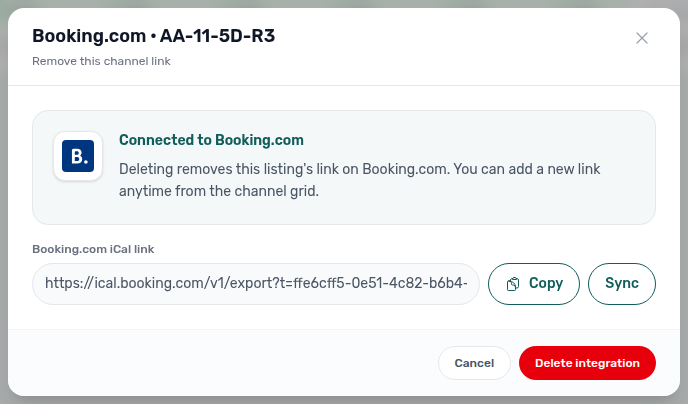
Why does a free unit disappear from Sales Multicalendar or Pricing when I filter by date range?
Available now / Date range (and the same filter on CSV export and bulk rent update) mark a listing occupied from each booking’s linked unit unavailability block — aligned with check-out and preparation days — not from a longer contract end date alone. After check-out, a unit can correctly stay free even if the contract calendar still reaches into your window. See Sales — Multicalendar filters (sales-multicalendar-availability-checkout-aligned.png, sales-availability-checkout-aligned-flow.mp4). If the list still includes units booked later in your stay, you may have searched only the Start date — Why does Multicalendar Date range still show units that are booked later?.
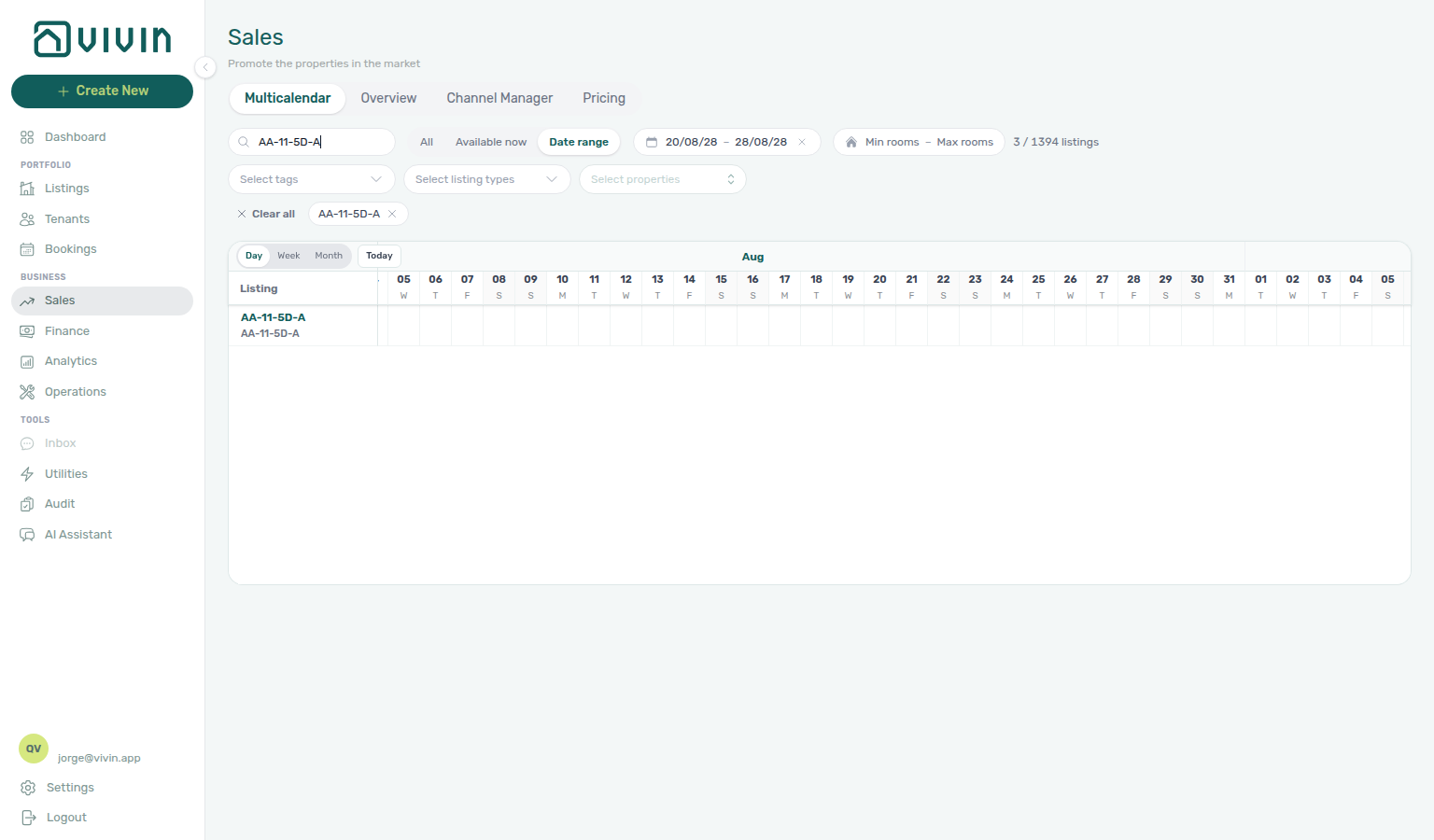
Why does Multicalendar Date range still show units that are booked later?
On Sales → Multicalendar, Date range searches one day if only Start date is set, and the whole window when End date is set too. Click Start date then End date without pausing — Vivin waits for the end so the list is units free every night in that window. A pause after the start searches “free on that day,” which still lists units booked later in the season. Wait until the toolbar count leaves Updating... and shows N / M listings before you treat the Gantt as the answer. Guide: Sales — Date range waits for both dates.
Why does a Multicalendar or Timeline block tooltip end one day after the last blocked night?
That end date is the day the unit is free again (checkout convention) — the same end the unit Calendar in Listings shows for the block. Booking bars on the Gantt already used checkout; block hover tips now match. The coloured bar still covers blocked nights only. Tools → Audit → Manual Blocks is different: its End column still shows the last blocked night, so the same Owner stay can read 19 Aug in Audit and 20 Aug on the Multicalendar tip — see Audit — End vs free-again day (audit-manual-blocks-end-last-blocked-night.png, audit-manual-blocks-end-vs-free-again-flow.mp4). Also: Sales — Multicalendar (sales-multicalendar-block-free-again-tooltip.png, sales-multicalendar-block-free-again-flow.mp4) and Bookings — Timeline blocks (bookings-timeline-block-free-again-tooltip.png, bookings-timeline-block-free-again-flow.mp4). A live booking site that looks a day earlier than check-out is the same split on listing JSON — FAQ — Booking site first available day.

How do I clear every Sales filter at once?
On Multicalendar, Pricing, and Channel Manager, when any filter value is active (search, tags, types, properties, rent/rooms ranges, date-range dates, or a non-All platform filter on Channels), click Clear all at the start of the chip row. It resets every filter in one click — same pattern as Listings and Bookings. Switching to Available now / Date range without filling dates does not show Clear all by itself. sales-multicalendar-clear-all-filters.png, sales-pricing-clear-all-filters.png, sales-channel-manager-clear-all-filters.png, sales-clear-all-filters-flow.mp4.


Why does Airbnb or Booking.com stop showing availability after a certain date (or show everything as blocked beyond my horizon)? Short-term platforms read Vivin’s iCal feeds. The Short-term iCal Max Date is an account-wide safety horizon: nights after that date are exported to the feed as blocked, so external sites do not advertise open inventory past the cutoff you configured. If the date is too soon, calendars look “cut off”; if it is too far, you may be exposing more forward availability than you intended. Adjust the date under Account Settings > Integrations and use Apply to all listings or Apply to selected listings (Airbnb) so unit overrides stay aligned. See also Glossary — Short-term iCal Max Date.
Which marketplaces does Vivin integrate with? Vivin has full API integration with HousingAnywhere, Spotahome, Uniplaces, Inlife, Spacest, and more. Airbnb and Booking.com are supported via iCal calendar sync, and — when Vivin has provisioned Channex — via channel-manager allocate (Booking.com hotel IDs on Integrations, listing pickers for Airbnb / Vrbo / Expedia). See Integrations & Distribution and How do I add Booking.com hotel IDs?.
Why does the Uniplaces webhook URL have no landlord key?
Uniplaces registers one callback for the whole partner key. Vivin exposes POST /uniplaces-integration/webhook with no {landlordKey} path segment. Each payload names the listing in offer_api_reference — that is the full-feed reference_id (your channel externalId when the unit is linked, or the Vivin listing id when it is not). Housing Anywhere still uses {landlordKey} in the path and echoes listingReference as listing_external_reference — FAQ — Housing Anywhere webhook listing. Guide: Webhooks & Notifications — Uniplaces (api-swagger-uniplaces-webhook-post.png).
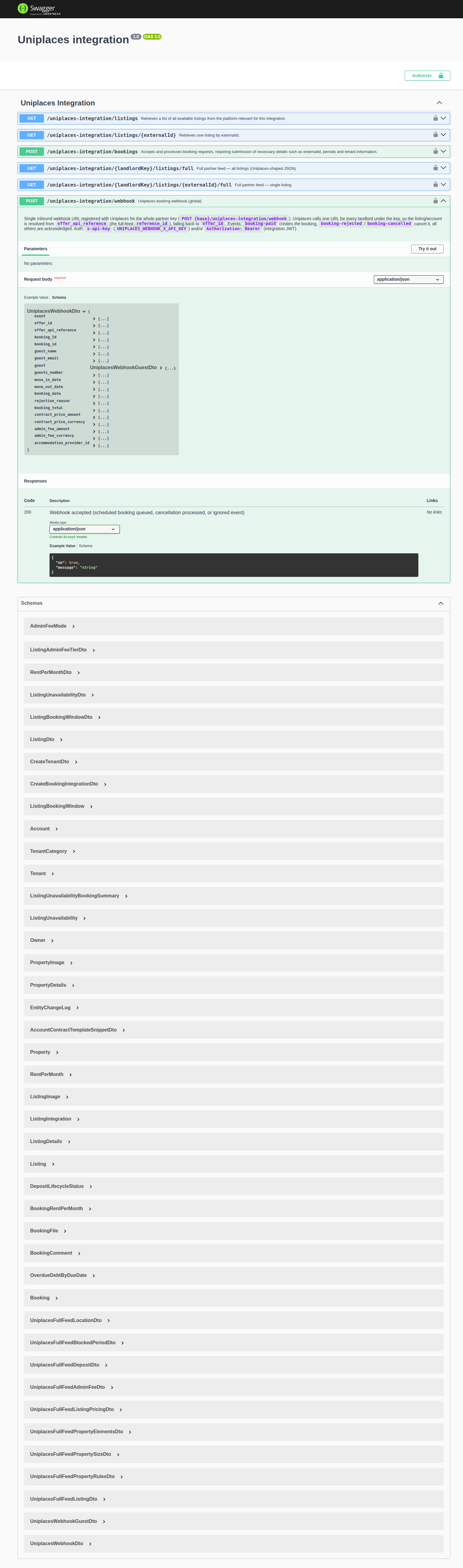
How does Housing Anywhere match a webhook to a listing?
Housing Anywhere posts to POST /housinganywhere-integration/{landlordKey}/webhook. The {landlordKey} segment is the same as full-feed URLs: the stored landlord key or the Housing Anywhere integration email. Each payload names the listing in listing_external_reference — that is the full-feed listingReference (your channel externalId when the unit is linked, or the Vivin listing id when it is not). booking_uuid is required. Uniplaces has no path key — that is a different route. Guide: Webhooks & Notifications — Housing Anywhere (api-swagger-housinganywhere-webhook-post.png, api-swagger-housinganywhere-listing-reference.png).
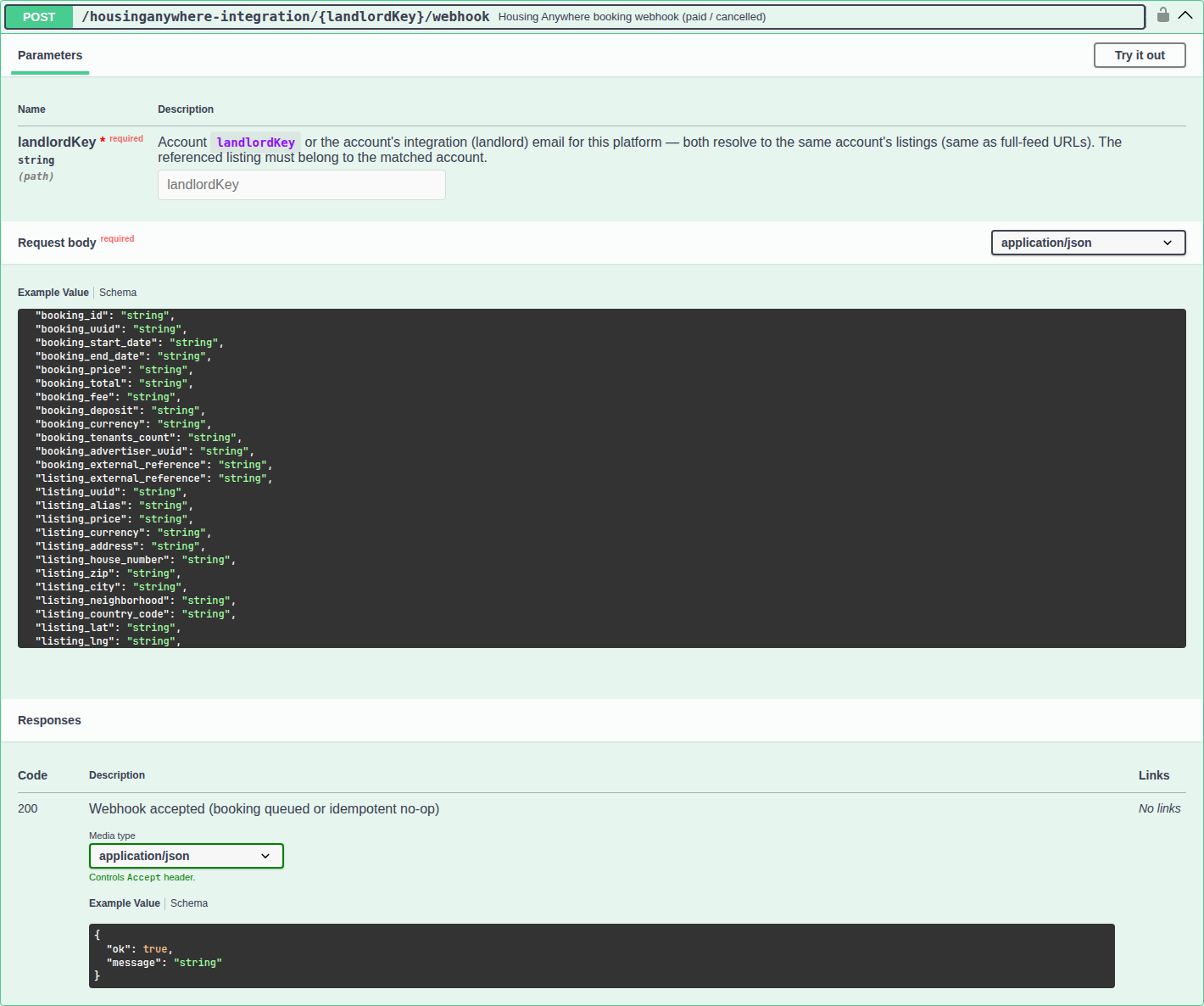
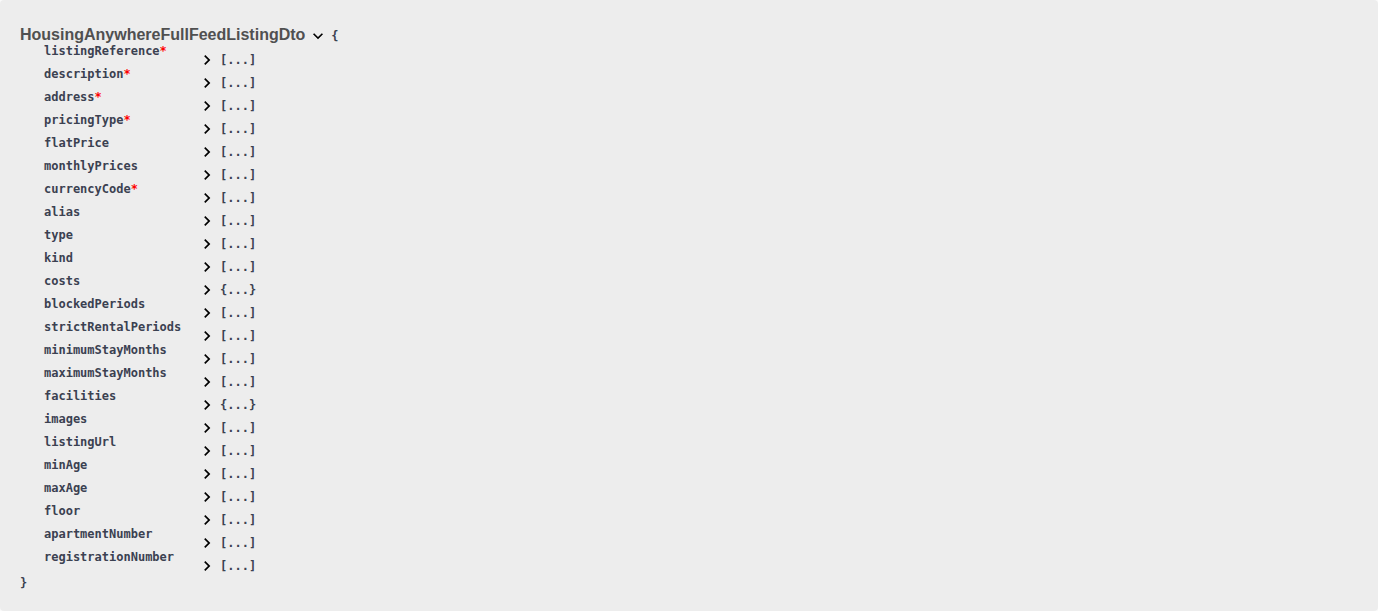
What is the white label booking engine? It's a fully branded booking interface you embed on your website for commission-free direct bookings. It shows real-time availability, supports visit scheduling and video calls, and includes conversion tracking. See White Label Booking Engine.
Where do I configure property and listing details for the booking engine? From Listings, open a property or unit sidebar and choose the Full integration pill to edit booking-engine fields (descriptions, amenities, rules, multilingual content). Use Photos for gallery-only work. Those details power the white-label booking engine and marketplace integrations. See Property & listing details (booking engine).
Why does the booking site show a different first available day than check-out?
The site calendar and the booking check-out date use two conventions.
Check-out in Vivin is the day the tenant leaves — the unit is free again that day when you have no preparation days. The listing feed your booking site reads uses the last blocked night, which is the night before check-out when preparation days are 0.
Example: check-out 23 December, no preparation days. The feed’s to is 22 December. The first night a new guest can start is 23 December. If the site treats that last night as check-out, it offers the unit on 22 December.
Point your site builder at Listings & Availability — Last blocked night and Booking Engine API — Unavailability to. Listing availableFrom is already the next move-in — prefer that field over reinterpreting to. Marketplace catalogues (Uniplaces, Spotahome, Housing Anywhere, Inlife) use the same last night under partner field names — FAQ — Marketplace listing blocked through check-out night. Calendar subscribers (Airbnb, Booking.com, Google Calendar) use exclusive DTEND instead — that named day is the free-again morning, same as check-out: iCal feeds — DTEND exclusive end and FAQ — iCal block ends one day after Audit End. The same last-night vs free-again split appears in the hub: Audit — End vs free-again day and FAQ — Block tooltip free-again day.
Why does an iCal calendar show the block ending one day after Audit End?
That extra day is the exclusive free-again morning, not an extra occupied night.
Tools → Audit → Manual Blocks → End (and listing JSON to) is the last blocked night. Outbound iCal sets DTEND to the next calendar day. Calendar apps treat that named day as the first morning the unit is free — the same checkout convention as the Multicalendar / Timeline hover tip.
Example: Audit End 31 August, no preparation days. The subscribed calendar shows DTEND 1 September. Nights through 31 August stay blocked; 1 September is free (check-out). If you treat DTEND as the last occupied night, you block a free morning.
Copy the feed from Sales → Channels → Copy iCal. Guide: iCal feeds — DTEND exclusive end. Same split: Audit — End vs free-again day, FAQ — Booking site first available day, and FAQ — Marketplace listing blocked through check-out night.
Why does a marketplace listing stay blocked through check-out night?
Uniplaces, Spotahome, Housing Anywhere, and Inlife ingest Vivin’s full listing feed. Most of those catalogues paint the last occupied night, not the check-out morning — Housing Anywhere is the exception.
Check-out in Vivin is when the tenant leaves. The occupancy fields partners ingest name the night before that (when preparation days are 0):
| Platform | Field | Meaning |
|---|---|---|
| Uniplaces | blocked_periods[].to | last blocked night (inclusive) |
| Spotahome | occupancies[].to | last blocked night (inclusive) |
| Housing Anywhere | blockedPeriods[].endDate | first free day (exclusive) |
| Inlife | unavailability[].end | last blocked night (inclusive) |
Example: check-out 1 September, no preparation days. The catalogue still shows 31 August as unavailable. The first new stay can start on 1 September. If the channel treats that last night as check-out, it offers the unit one night too early.
On Housing Anywhere the same stay is sent as endDate 1 September — the first free day, not the last blocked night — because HA reads that field exclusively. The blocked nights are identical; only the field's meaning differs.
This is the same convention as partial listing JSON to — Listings & Availability — Last blocked night and Full listing feeds — Last blocked night. White-label booking sites: FAQ — Booking site first available day. iCal subscribers use exclusive DTEND (free-again morning): FAQ — iCal block ends one day after Audit End.
Why does RoomLess block nights before move-in?
RoomLess (Spacest) paints availability from the unavailabilities array. When availableFrom is still in the future, Vivin adds one extra row covering today through the night before move-in, so the calendar does not offer those nights.
Example: next move-in 10 January. The extra row’s to is 9 January (last blocked night). The first new stay can start on 10 January — the same date as availableFrom.
Other marketplaces do not add this row. They still send availableFrom; use that field for the next arrival. Guide: Listings & Availability — RoomLess nights before move-in.


Why does Housing Anywhere block nights outside the booking window?
Housing Anywhere’s calendar connector does not apply listing booking windows on its own. When a unit has a still-open window, Vivin adds extra unavailabilities rows on the Housing Anywhere listing pull so nights before the earliest check-in and after the latest check-out look occupied (reason: Booking window restriction). Stay length on that same payload (minStayPeriod / maxStayPeriod) is rewritten from the window.
Those extra rows are on the JSON pull only — they do not appear as operator Calendar holds. Creating a booking still has to fall inside a real window.
The Housing Anywhere full catalogue does not copy those extra rows into blockedPeriods. It does use the same window math for minimumStayMonths / maximumStayMonths. Uniplaces, Spotahome, and Inlife full occupancy does include the window nights.
Guide: Listings & Availability — Housing Anywhere booking windows and Full listing feeds — booking windows vs blockedPeriods. Operators set the envelope on Listings → Booking window.

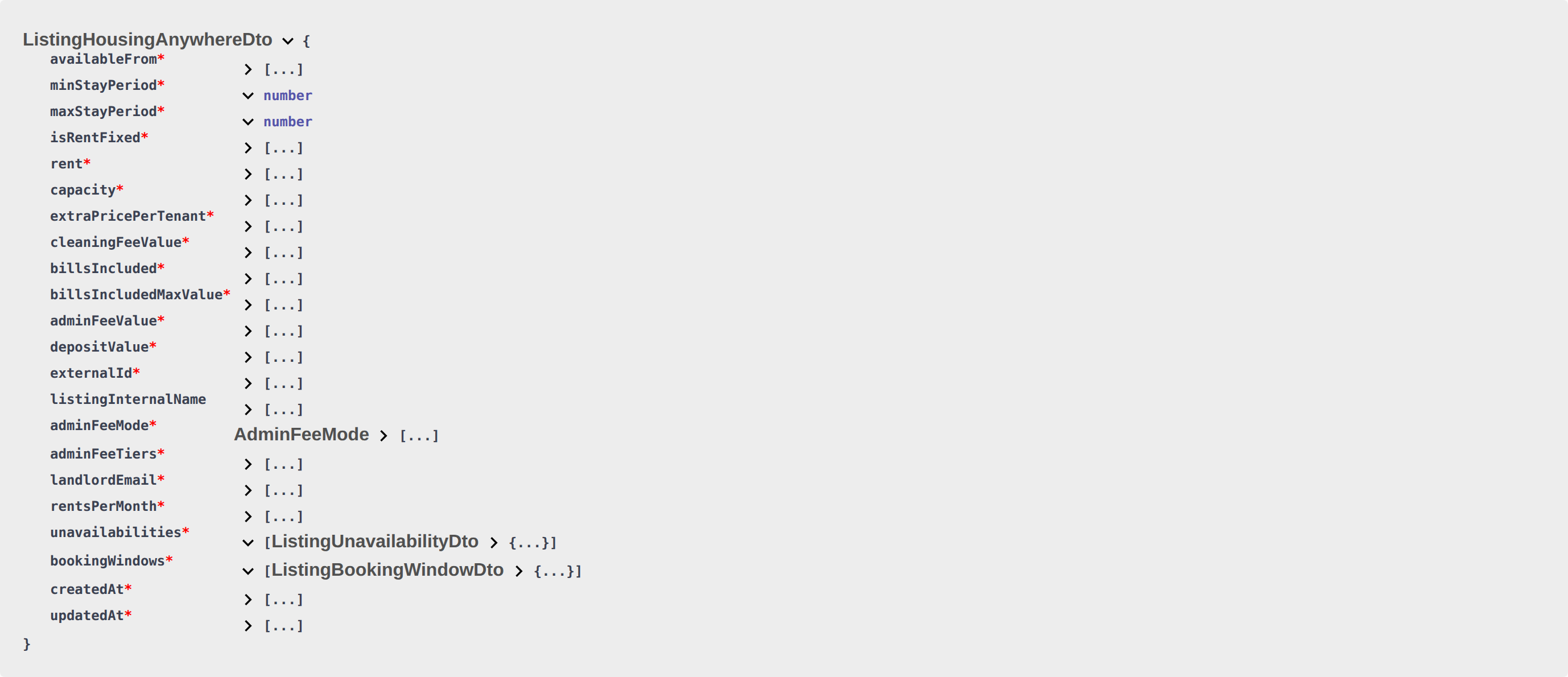
Why does a marketplace stay blocked for years after the last booking?
Calendar Block (days) on that platform’s Settings → Integrations card can close listing JSON after a stay that is still far in the future. When the latest occupancy’s last night is more than N days away, Vivin adds a closed span from that night through about two years later. Marketplaces that paint only those rows then look fully booked long after the tenant leaves.
That extra span is outbound JSON only — it does not appear as a hold on the unit Calendar. Clear the field (or set 0) if you want the channel to reopen after the last occupancy. Each platform card is independent.
This is not Short-term iCal Max Date (Airbnb / Booking.com iCal) and not preparation days. Guide: Listings & Availability — Calendar Block (days).
Why are Housing Anywhere catalogue prices in cents?
The Housing Anywhere full catalogue publishes money in cents. The partial listing pull publishes the same unit in whole euros.
€850 rent is rent: 850 on GET /listings and flatPrice: 85000 on GET …/listings/full. Monthly rows use price: 80000 for €800. Divide full-feed amounts by 100 before you treat them as euros.
Partial Housing Anywhere rows also include a costs[] array in euros. The full catalogue uses a costs object in cents, drops lines the tenant does not pay (for example bills marked included-in-rent), and renames utility-bills to other-additional-costs. Membership fee amount and Parking fee amount on Full integration → Partner platforms appear only on that full object.
Guide: Full listing feeds — euros vs cents (api-swagger-housinganywhere-full-costs.png, api-swagger-housinganywhere-monthly-price-cents.png).
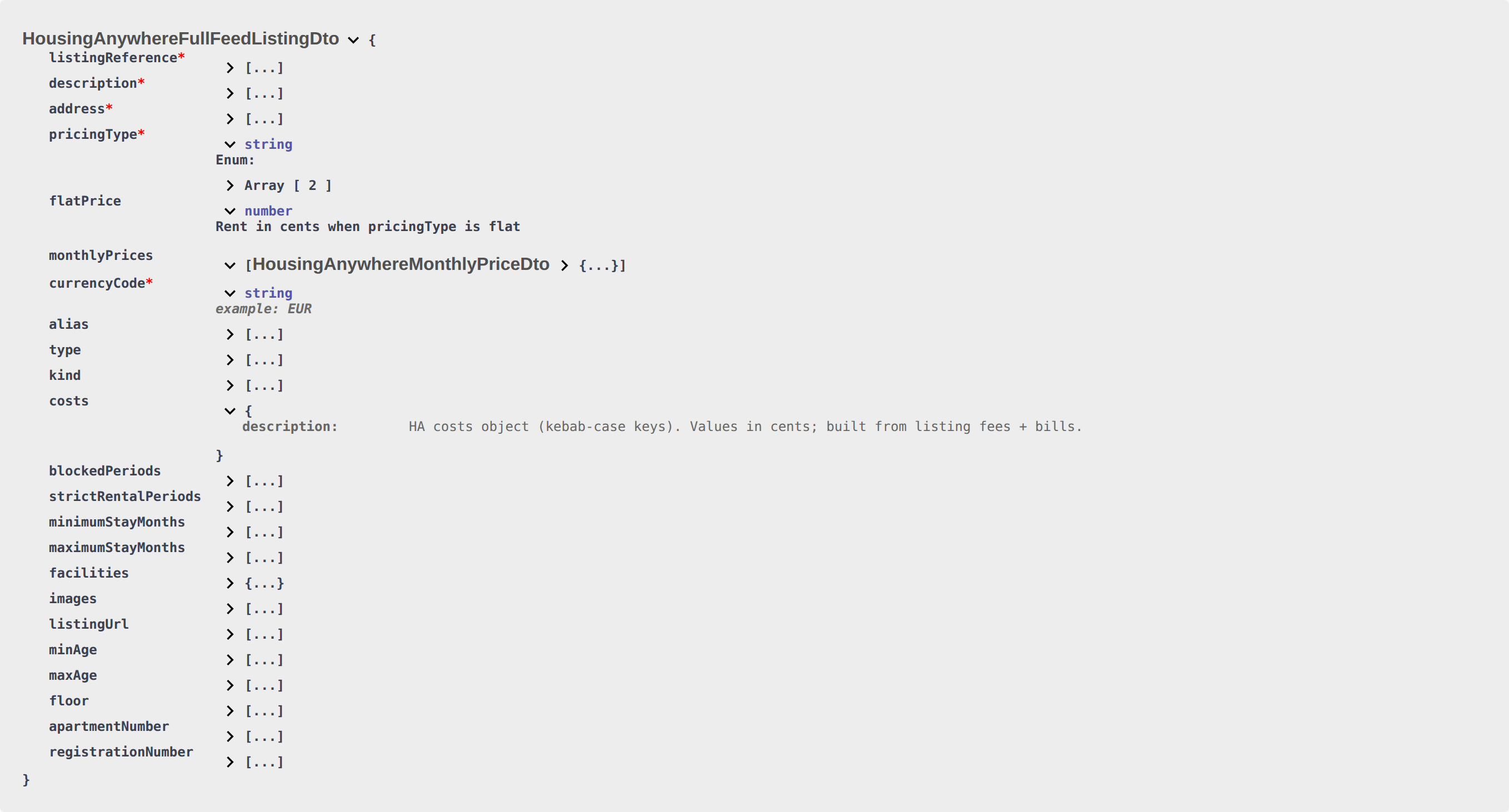

Why is extraPricePerTenant 0 on a one-person listing?
When listing capacity is 1, every partial GET /listings row publishes extraPricePerTenant: 0, even if Extra Charge per Tenant was filled while capacity was higher. Raise Capacity above 1 to advertise the stored amount. The field is present and zero — it is not omitted.
Inlife full-feed rooms copy that same number as extraTenantsPrice (numPeople is capacity). Uniplaces, Spotahome, and Housing Anywhere full catalogues do not have a separate extra-tenant price field. Extra Deposit per Tenant is not on listing JSON. Markup does not change Extra Charge — FAQ — Extra Charge vs Markup. Marketplace POST /bookings cannot send Extra Charge euros — FAQ — Marketplace booking Extra Charge.
Guide: Listings & Availability — Extra price per tenant and Full listing feeds — Extra tenants price (api-swagger-listing-dto-extra-price-per-tenant.png, api-swagger-inlife-extra-tenants-price.png). Operators: FAQ — Extra Charge missing on a studio.


Why didn't Extra Charge change when I set Pricing Markup?
Markup on a Settings → Integrations Booking Platforms card (None, Percentage (%), or Fixed (€)) applies only to listing JSON rent and rentsPerMonth. Extra Charge per Tenant is published as extraPricePerTenant at the stored amount (or 0 when Capacity is 1). Cleaning fee and the computed deposit are not marked up either.
Example: rent €850 with 15% Markup publishes rent: 978. Extra Charge €60 stays extraPricePerTenant: 60. Do not add the percentage a second time on rent.
Inlife full-feed extraTenantsPrice is that same unmarked Extra Charge. Uniplaces, Spotahome, and Housing Anywhere full catalogues have no extra-tenant price field.
Guide: Listings & Availability — Platform markup (api-swagger-listing-dto-markup-rent-only.png). Operators: Integrations — Pricing Markup.

Why doesn't listing JSON include a unit with €0 rent?
Partner listing JSON publishes a unit only when rent is a usable positive amount. €0, a missing amount, or a variable grid with even one zero month omits the unit. You never receive rent: 0.
That is different from Extra Charge on a one-person unit — that field stays on the row as extraPricePerTenant: 0. Security Deposit off also stays on the row as depositValue: 0.
GET /listings simply leaves the row out. GET /listings/{externalId} (and the matching full single-listing route) returns 404 with message Listing not available — the same envelope as an unmapped ID. If Channels already has an ID, open Listings — Rent Value and enter a positive monthly rent (every month on a variable grid). A cleared field stores €0.
This is not Excluded from feed and not Inlife’s city filter (full catalogue only). Guide: Listings & Availability — Usable rent required and Full listing feeds — Usable rent (api-swagger-listing-dto-variable-rent.png, api-swagger-listing-rent-per-month.png).


Why doesn't listing depositValue include Extra Deposit?
Listing JSON depositValue is the computed security deposit from the property: a Fixed euro amount, or Half Rent / 1 Rent / 2 Rents × the unit’s rent. When the unit is variable, that rent is the highest month (the same headline as rent). Extra Deposit per Tenant is not on the pull — it is added when a booking is created for extra occupants. Marketplace POST /bookings cannot send depositValue either — FAQ — Marketplace booking deposit.
If Security Deposit is off, depositValue is 0. Platform markup applies to rent, not to the deposit — FAQ — Extra Charge vs Markup. Uniplaces copies the same figure as listing_pricing.deposit.value; Inlife as room securityDeposit; Housing Anywhere as costs security-deposit (euros on the partial pull, cents on the full catalogue).
Guide: Listings & Availability — Computed deposit and Full listing feeds — Computed deposit (api-swagger-listing-dto-deposit-value.png, api-swagger-uniplaces-pricing-deposit.png). Operators: Listings — Step 3 Extra payments.

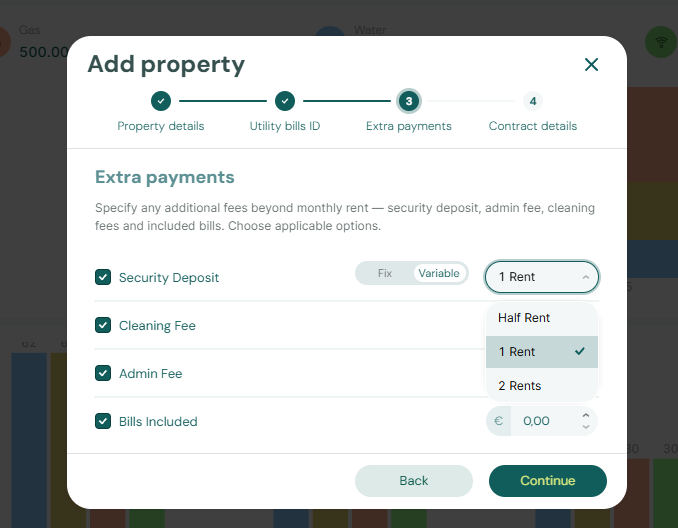
Why isn't listing cleaningFeeValue a one-time fee?
Listing JSON cleaningFeeValue is the property cleaning amount (EUR), not a one-time-at-booking flag. When Cleaning fee is off, the field is still present as 0. Frequency (Every Month, One-Time Fee at Booking Confirmation, One-Time Fee at Move-in) lives on the property Contract Information card and on the booking payment plan — it is not a listing JSON field. Marketplace POST /bookings cannot send the amount either — FAQ — Marketplace booking cleaning fee.
Housing Anywhere costs cleaning-fee copies that amount and always uses payableAt: "monthly". Uniplaces full catalogues send cleaning / cleaning_included booleans, not the euro amount. Spotahome full can send periodicCleaning with frequency: "onlyAtMoveIn" as the catalogue mapping — that is not the property dropdown.
Guide: Listings & Availability — Cleaning fee and Full listing feeds — Cleaning fee (api-swagger-listing-dto-cleaning-fee-value.png, api-swagger-uniplaces-pricing-cleaning.png). Operators: FAQ — Change cleaning fee timing.

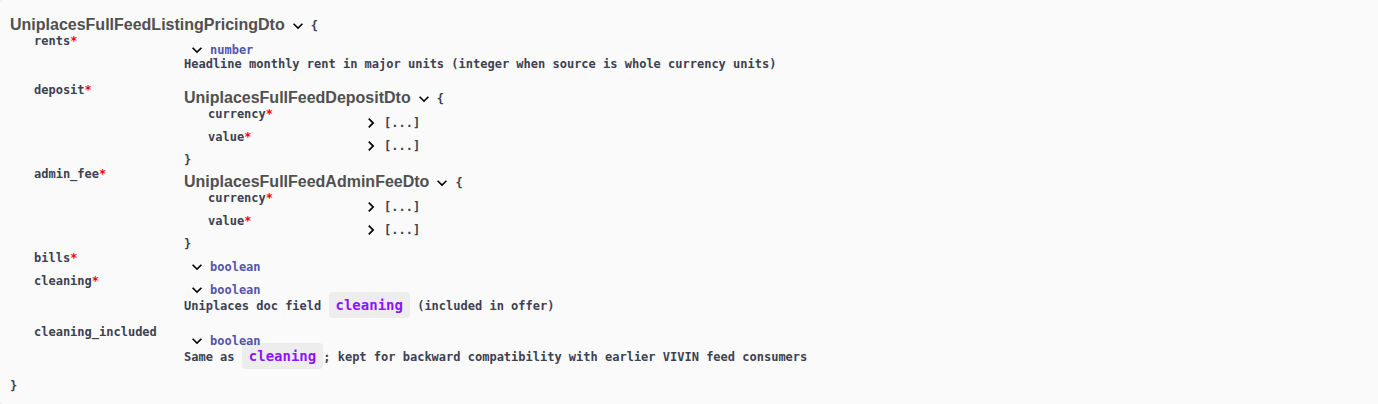
Why isn't listing JSON showing the exit fee?
Listing JSON has no exitFeeValue field. Admin, cleaning, bills, and deposit appear on GET /listings; the exit / check-out fee does not — even when it is on for the property. Housing Anywhere costs[] also has no exit-fee type. Uniplaces, Spotahome, and Inlife full catalogues omit it too.
Partner POST /bookings cannot send the amount either. Vivin still copies the property exit fee onto the created booking (one-time, due on check-out). Operators change it on Contract Info.
Guide: Listings & Availability — Exit fee, Full listing feeds — Exit fee, and Creating Bookings — Exit fee (api-swagger-listing-dto-no-exit-fee.png, api-swagger-create-booking-integration-no-exit-fee.png). Operators: FAQ — Set an exit fee on a property.
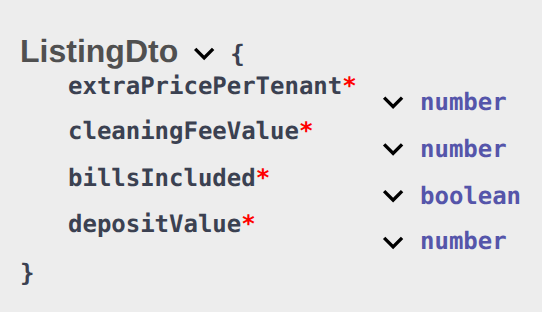
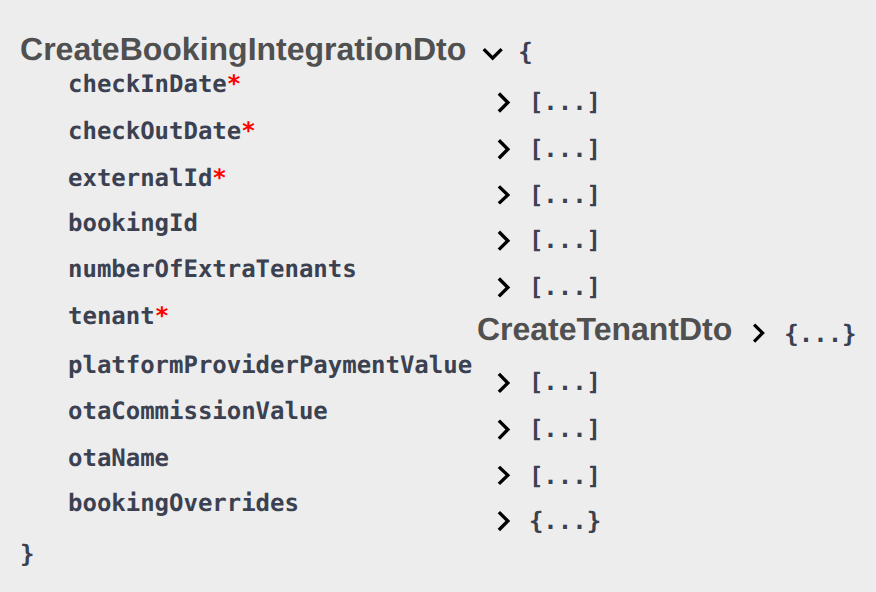
Why isn't listing JSON showing the local rent cap?
Listing JSON has no localRentCap field. Advertised rent (and rentsPerMonth) is the full monthly amount after Markup, not a legal-rent slice. Dual pricing lives on the booking after create.
Uniplaces listing_pricing.rents is that same headline. Housing Anywhere costs[] has no local-rent-cap cost type. Partner POST /bookings cannot send the cap. When dual pricing is on, Vivin can still freeze Local Rent Cap from the unit onto the payment plan (capped Rent plus Others).
Guide: Listings & Availability — Local rent cap, Full listing feeds — Local rent cap, and Creating Bookings — Local rent cap (api-swagger-listing-dto-no-local-rent-cap.png, api-swagger-uniplaces-pricing-no-local-rent-cap.png). Operators: Listings — Local rent cap and Payments — Dual pricing.

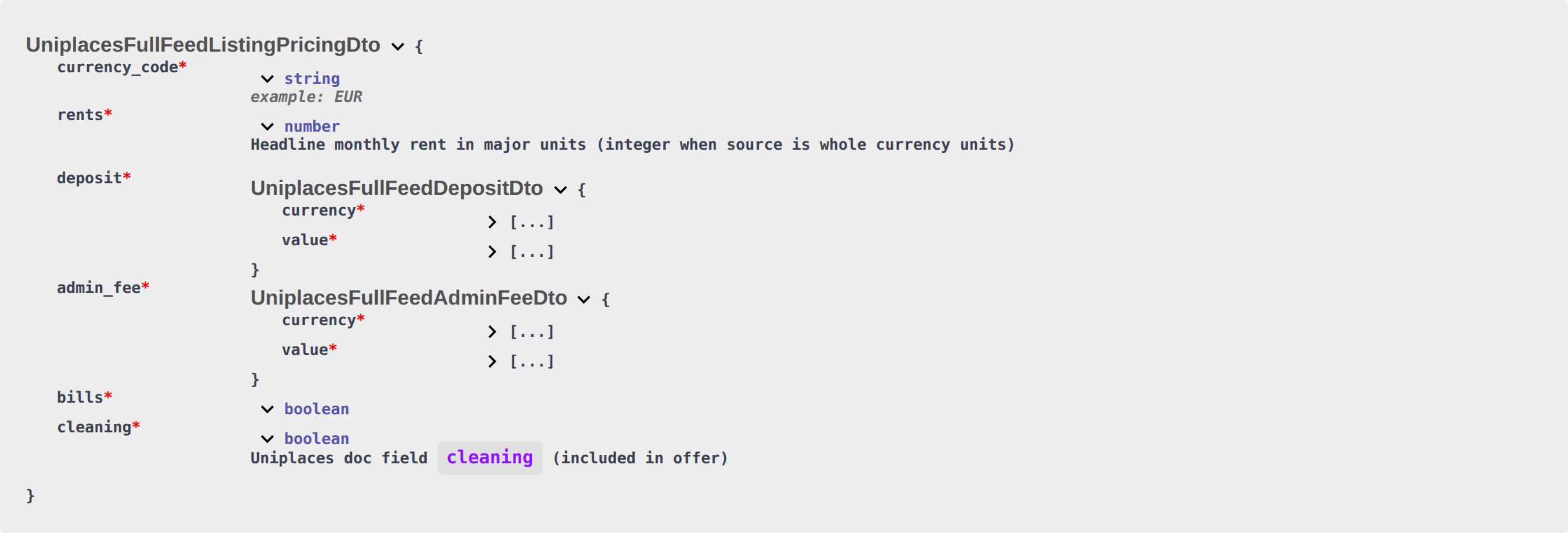
Why doesn't listing JSON include photos?
Partial GET /listings is calendar and pricing. Photos, street address, amenities, and marketing copy are not on that pull — even when the gallery and Full integration copy are filled in Vivin. Partners that publish a listing page should poll the full catalogue (GET …/listings/full).
A Wi-Fi amenity (boolean or feature slug) can appear on the full catalogue. The Wi-Fi password is never on partner JSON.
White-label POST /property-listing can create copy and media in Vivin. PUT /listing writes pricing and calendar. GET /listings still returns ListingDto without a gallery.
Guide: Listings & Availability — Catalogue fields and Full listing feeds — Catalogue fields (api-swagger-listing-dto-no-catalogue-fields.png, api-swagger-uniplaces-full-feed-catalogue-fields.png). Operators: Listings — Photos pill and Property & listing details.
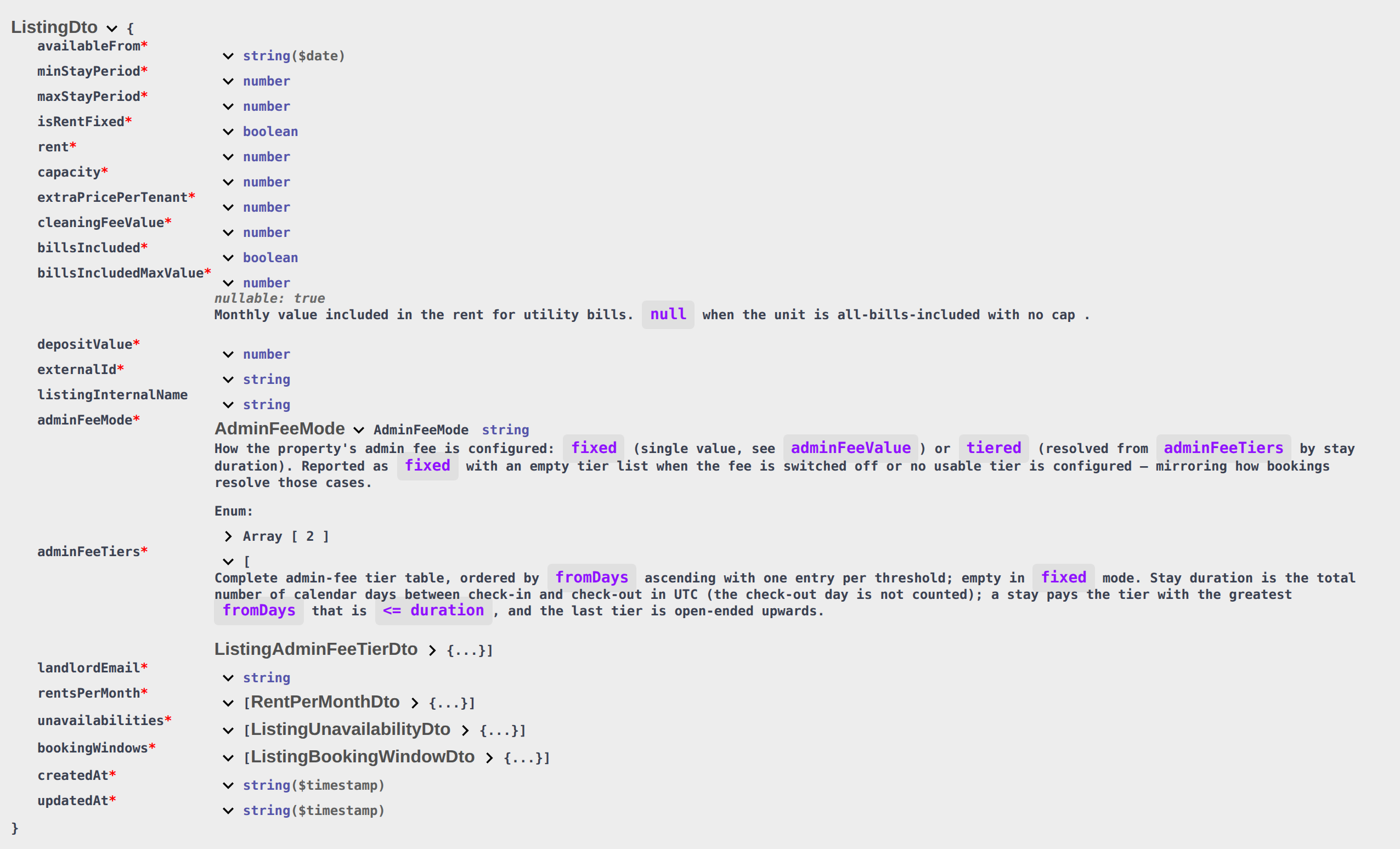
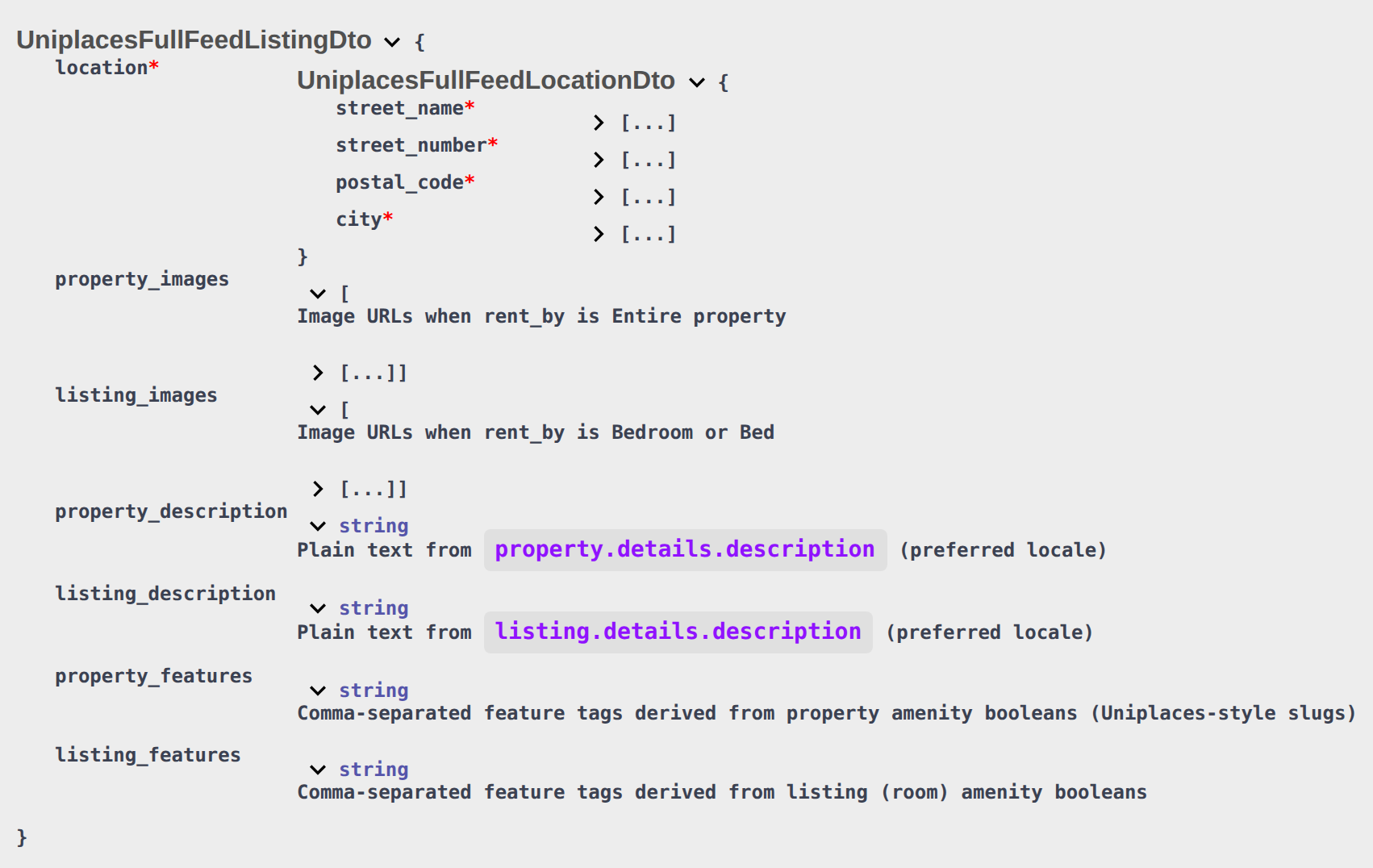
Why is listing billsIncludedMaxValue null?
billsIncludedMaxValue: null with billsIncluded: true means the unit has All bills included (No cap). Utilities are fully in the rent — there is no monthly euro ceiling on the pull. That override applies even when the property Bills Included toggle is off or the property still has a stored cap.
When the unit flag is off, the pull mirrors the property: a euro ceiling when Bills Included is on, or billsIncluded: false and billsIncludedMaxValue: null when it is not. A stored 0 is a euro amount of zero, not “unlimited”. Marketplace POST /bookings cannot send a different ceiling — FAQ — Marketplace booking bills included.
Housing Anywhere partial costs[] then marks utility-bills as payableBy: "included-in-rent" with value: null. The Housing Anywhere full catalogue omits those included-in-rent lines. Uniplaces full sends listing_pricing.bills: true. Spotahome full sends [{ "name": "all", "option": "included", "value": "0" }]. Inlife full sends billsIncluded: true and omits billsMax.
Guide: Listings & Availability — All bills included and Full listing feeds — All bills included (api-swagger-listing-dto-bills-included.png, api-swagger-uniplaces-pricing-bills.png). Operators: FAQ — Include all bills on a unit.


Why isn't listing landlordEmail my login email?
Listing JSON landlordEmail is the Integration Email on that platform’s Booking Platforms card under Settings → Integrations — not the signed-in user’s login, not the General Information company email, and not a per-unit contact. Vivin copies that one card onto every listing in the pull.
Uniplaces and Inlife full catalogues use landlord_email for the same address (Uniplaces omits the field when the card is blank). Housing Anywhere full and Spotahome full catalogues do not include a landlord-email field. Booking Engine PUT /listing accepts landlordEmail on the body but does not change the card — edit Integration Email to change what partners receive.
The same address can also be used as {landlordKey} on full listing URLs. That path use is independent of the JSON field.
Guide: Listings & Availability — Landlord email and Full listing feeds — Landlord email (api-swagger-listing-dto-landlord-email.png, api-swagger-uniplaces-landlord-email.png). Operators: Settings → Integrations.


Why is listing maxStayPeriod 0?
maxStayPeriod: 0 means no maximum stay, not a zero-length stay. 12 is twelve months, not unlimited. The same rule applies to minStayPeriod: 0 means no minimum.
You still receive the field — it is not omitted on the shared listing JSON. Housing Anywhere can rewrite both fields from a still-open booking window, so a unit with Maximum Stay 0 can still show maxStayPeriod: 1 on that platform. Spotahome’s legacy /listings/feed omits stay.max_days when the maximum is 0.
Stay bounds apply when an operator creates a booking with Add Booking. Marketplace POST /bookings honours listing JSON instead — FAQ — Honour listing Capacity and stay bounds. Changing dates on an existing booking does not re-check them.
Guide: Listings & Availability — Maximum stay and Full listing feeds — Maximum stay (api-swagger-listing-dto-stay-period.png). Operators: FAQ — Does 12-month maximum stay mean unlimited?.
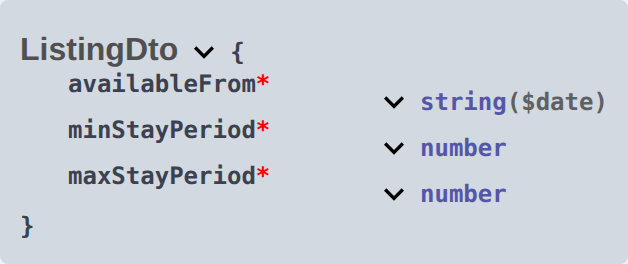
Does POST /bookings honour listing Capacity and stay bounds?
Yes. Marketplace POST /{platform}-integration/bookings trusts your platform to honour listing JSON capacity, minStayPeriod, maxStayPeriod, and availableFrom. Compare occupant headcount (numberOfExtraTenants, including the lead tenant) to capacity, keep stay length within the published months, and do not start before availableFrom.
Occupied nights still reject. Overlaps with listing unavailabilities do not create the booking. Partner POST cannot send Allow check-in date in the past — FAQ — Marketplace booking Allow check-in date in the past. Add Booking in the management app still enforces those unit fields.
Guide: Creating Bookings — Honour listing and Booking Lifecycle — Stay duration (api-swagger-listing-dto-capacity-stay-bounds.png, api-swagger-create-booking-integration-occupants.png). Operators: FAQ — Marketplace booking exceeded Capacity.

Why didn't a marketplace booking use the rent I sent?
Marketplace POST /{platform}-integration/bookings has no rent, isRentFixed, or rentsPerMonth field. The payment plan uses listing JSON rent / rentsPerMonth (after Markup). Extra Charge / Extra Deposit euros copy from the unit using occupant headcount — FAQ — Marketplace booking Extra Charge. platformProviderPaymentValue is channel commission for reconciliation — it does not change what the tenant owes.
To advertise a different monthly amount, change the unit (and Markup on the platform card) before the channel creates the stay. After import, operators can change Monthly rent on Contract Info. + Create New → Booking can type a custom rent (including €0) only when Use unit contract rents is off — that control is operator-only.
Guide: Creating Bookings — Rent (api-swagger-create-booking-integration-no-rent.png, api-swagger-listing-dto-rent-source-for-partner-post.png). Operators: FAQ — Empty fixed rent. Custom Extra Charge / Extra Deposit euros are a separate field — FAQ — Marketplace booking Extra Charge.
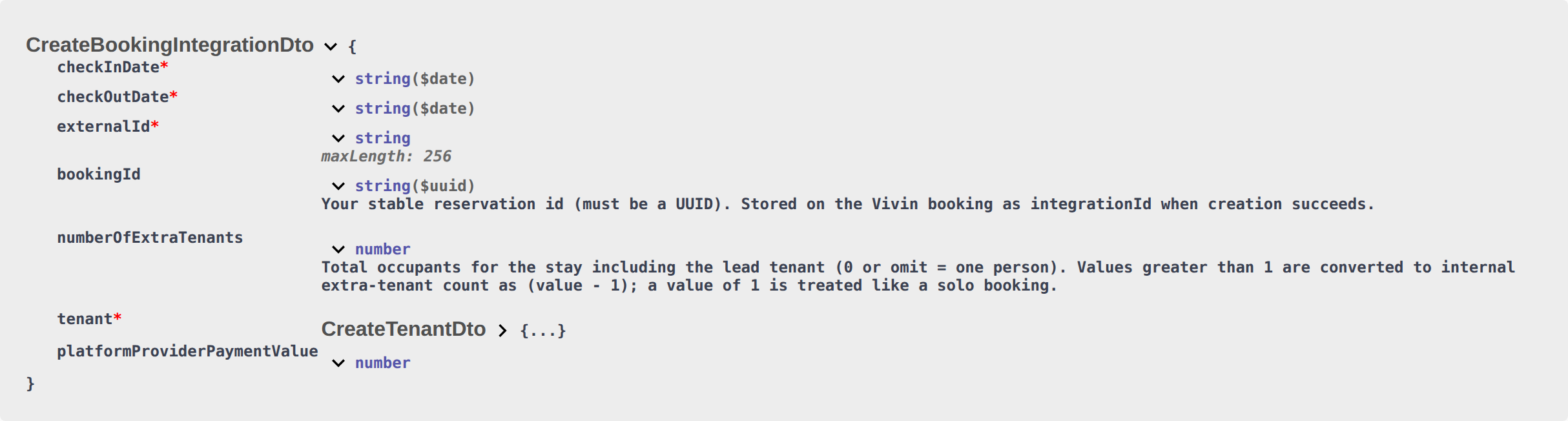

Why didn't a marketplace booking use the Extra Charge I sent?
Marketplace POST /{platform}-integration/bookings has no extraPricePerTenant or extraDepositPerTenant field. Send occupant headcount as numberOfExtraTenants (including the lead tenant). Vivin copies unit Extra Charge (listing JSON extraPricePerTenant) and Extra Deposit, then multiplies each by the extra occupants. Extra Charge is added into monthly rent. Extra Deposit is added to listing depositValue. Markup does not apply to Extra Charge. When listing capacity is 1, listing JSON publishes Extra Charge as 0. Extra Deposit is never on listing GET. platformProviderPaymentValue is channel commission for reconciliation — it does not replace Extra Charge.
To advertise a different Extra Charge, change the unit Extra Charge (and Capacity) before the channel creates the stay. After import, operators can change Extra Charge on Contract Info. + Create New → Booking can tick Extra price per tenant / Extra deposit per tenant with a custom euro amount only when Use unit contract rents is off — that control is operator-only. Co-occupant identity is a separate field — FAQ — Marketplace booking Second tenant.
Guide: Creating Bookings — Extra Charge (api-swagger-create-booking-integration-no-extra-price-per-tenant.png, api-swagger-listing-dto-extra-price-per-tenant.png). Operators: FAQ — Extra Charge missing on a studio and FAQ — extraPricePerTenant is 0.

Why didn't a marketplace booking use the Second tenant I sent?
Marketplace POST /{platform}-integration/bookings has no secondTenant object and no secondTenantFirstName (or other secondTenant*) fields. Send occupant headcount as numberOfExtraTenants (including the lead tenant). That count can open the Second tenant accordion when Preferences → Second tenant is On and the stay has at least two occupants. Identity stays empty until an operator fills Contract Info → Second tenant. platformProviderPaymentValue is channel commission for reconciliation — it does not name a co-occupant.
+ Create New → Booking also has no Second tenant fields at create. Create the stay first, then open Contract Info. Extra Charge / Extra Deposit euros are a separate field — FAQ — Marketplace booking Extra Charge. Guarantor identity is a separate field — FAQ — Marketplace booking Guarantor.
Guide: Creating Bookings — Second tenant (api-swagger-create-tenant-dto-no-second-tenant.png, api-swagger-create-booking-integration-occupants.png, bookings-detail-contract-info-second-tenant-accordion.png). Operators: FAQ — Record a second tenant.
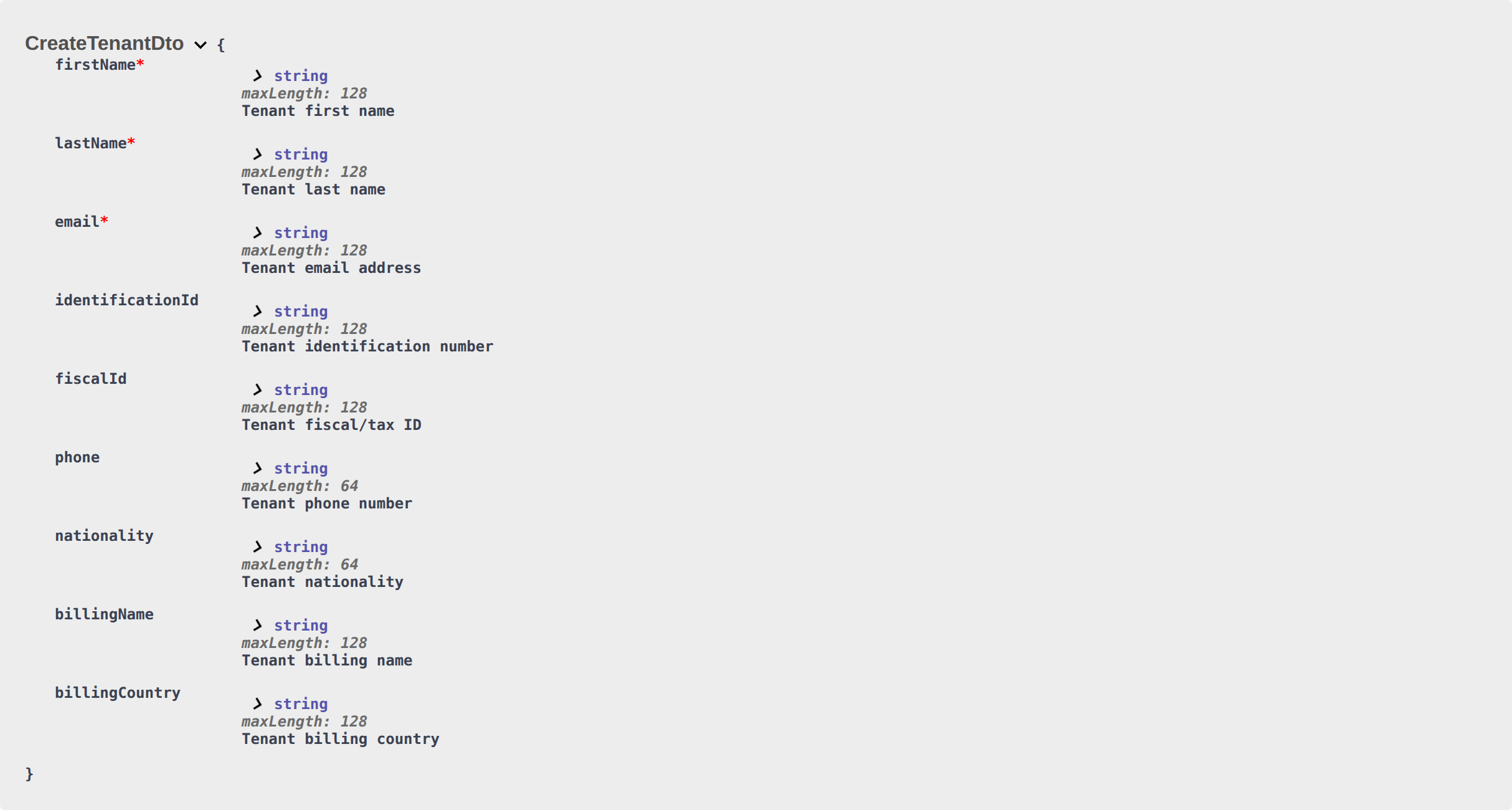
Why didn't a marketplace booking use the Guarantor I sent?
Marketplace POST /{platform}-integration/bookings has no guarantor object and no guarantorFirstName (or other guarantor* fields, including guarantorAmount). Send occupant headcount as numberOfExtraTenants. That count does not open or fill Guarantor. When Preferences → Guarantor is On, every imported stay shows the accordion — including a single-tenant stay — and identity plus Guarantor amount (€) stay empty until an operator fills Contract Info → Guarantor. platformProviderPaymentValue is channel commission for reconciliation — it does not name a guarantor or set the euro amount.
+ Create New → Booking also has no Guarantor fields at create. Create the stay first, then open Contract Info. Co-occupant identity is a separate field — FAQ — Marketplace booking Second tenant.
Guide: Creating Bookings — Guarantor (api-swagger-create-booking-integration-no-guarantor.png, api-swagger-create-tenant-dto-no-second-tenant.png, bookings-detail-contract-info-guarantor-accordion.png). Operators: FAQ — Record a guarantor.

Does marketplace platform commission change what the tenant owes?
Marketplace POST /{platform}-integration/bookings does include platformProviderPaymentValue. Send the euro amount your platform collected (or will pay) for this stay. Operators see it as read-only Provider platform payment on Contract Info. It does not replace monthly rent, Extra Charge, or the tenant payment schedule — except Vivin Booking Engine Daily stays shorter than one month, where a positive amount can also drive the rent schedule.
Inlife and the Vivin Booking Engine fill a fallback from listing rent plus Extra Charge when the field is omitted. Other marketplace prefixes require the number you collected. Direct stays show —. Empty shows Not set.
+ Create New → Booking can type First payment value (€) when Platform is a channel (not Direct). That maps to the same stored amount.
Guide: Creating Bookings — Platform commission (api-swagger-create-booking-integration-platform-commission.png, bookings-detail-provider-platform-payment-field.png). Operators: Bookings — Provider platform payment.
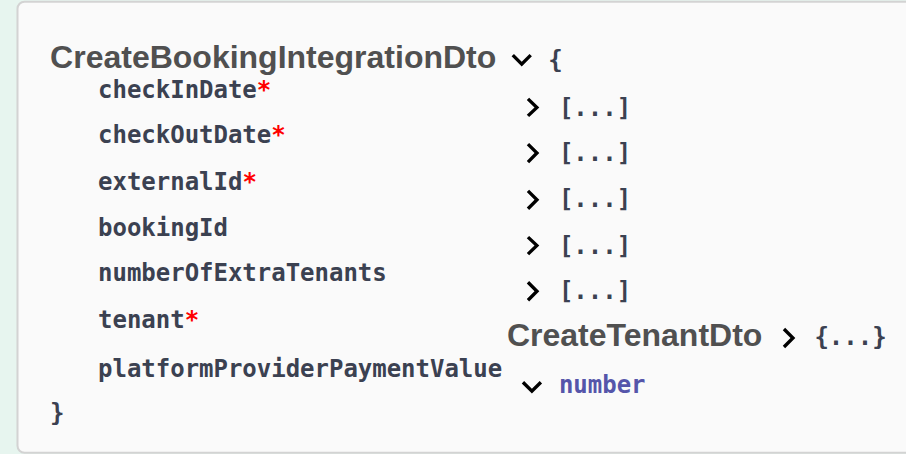

Why didn't a marketplace booking use the cleaning fee I sent?
Marketplace POST /{platform}-integration/bookings has no cleaningFeeValue field. The payment plan copies the property cleaning amount (the same euro figure listing JSON publishes as cleaningFeeValue). When Cleaning fee is off, that copy is €0. Frequency (Every Month / one-time) also copies from the property — it is not on this POST and not on listing GET.
To advertise a different cleaning amount, change the property before the channel creates the stay. After import, operators can change the euro amount and Cleaning Fees requirement on Contract Info. + Create New → Booking can include or omit Cleaning fee (and type a custom amount) — that control is operator-only.
Guide: Creating Bookings — Cleaning fee (api-swagger-create-booking-integration-no-cleaning-fee.png, api-swagger-listing-dto-cleaning-fee-value.png). Operators: FAQ — Change cleaning fee timing.
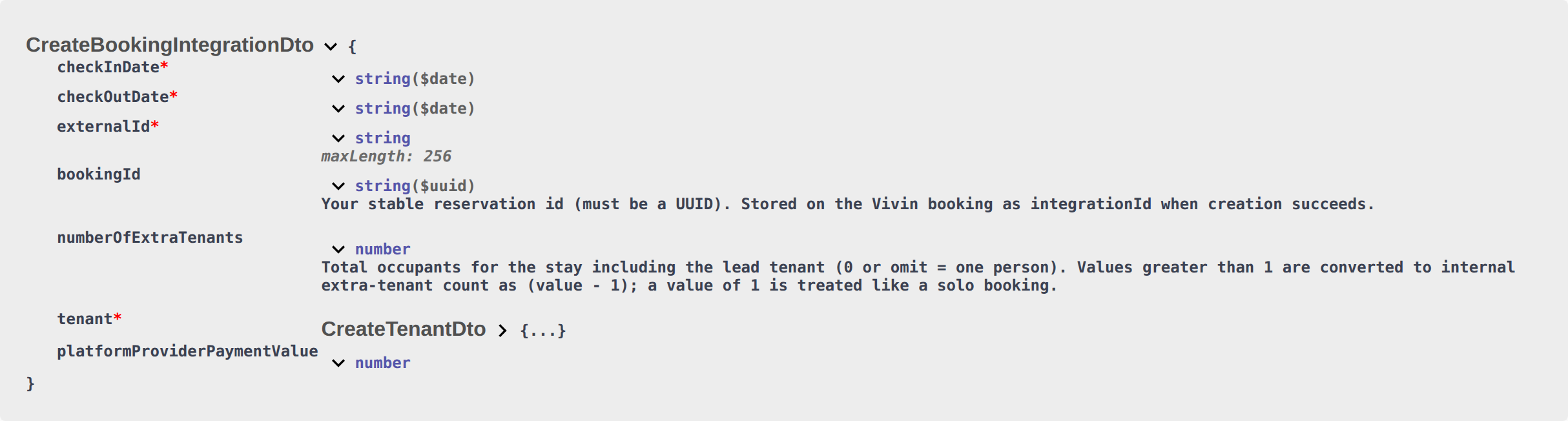
Why didn't a marketplace booking use the deposit I sent?
Marketplace POST /{platform}-integration/bookings has no depositValue or extraDepositPerTenant field. The payment plan copies listing JSON depositValue (the computed property hold). Extra Deposit is added from the unit Extra Deposit per Tenant and occupant headcount — custom Extra Deposit euros are not on this POST — FAQ — Marketplace booking Extra Charge. When Security Deposit is off, that copy is €0 — Extra Deposit can still add for extra occupants. platformProviderPaymentValue is channel commission for reconciliation — it does not change the tenant hold.
To advertise a different hold, change the property Security Deposit (and unit Extra Deposit) before the channel creates the stay. After import, operators can change the euro amount on Contract Info. + Create New → Booking can include or omit Security deposit (and Extra Deposit) only when Use unit contract rents is off — that control is operator-only.
Guide: Creating Bookings — Deposit (api-swagger-create-booking-integration-no-deposit.png, api-swagger-listing-dto-deposit-value.png). Operators: FAQ — Listing depositValue vs Extra Deposit.
Why didn't a marketplace booking use the admin fee I sent?
Marketplace POST /{platform}-integration/bookings has no adminFeeValue, adminFeeMode, or adminFeeTiers field. The payment plan resolves the property admin fee: €0 when Admin fee is off; the fixed euro amount when the property uses Fixed value; or the matching Per stay duration tier from the stay length (UTC days between check-in and check-out, not counting check-out). Listing GET still publishes adminFeeValue / adminFeeMode / adminFeeTiers so the channel can advertise the same fee. When the property is tiered, listing adminFeeValue may be a leftover — advertise from the tiers. platformProviderPaymentValue is channel commission for reconciliation — it does not change the tenant admin fee.
To advertise a different admin fee, change the property before the channel creates the stay. After import, operators can change the euro amount on Contract Info. + Create New → Booking can include or omit Admin fee only when Use unit contract rents is off — that control is operator-only.
Guide: Creating Bookings — Admin fee (api-swagger-create-booking-integration-no-admin-fee.png, api-swagger-listing-dto-admin-fee-mode-tiers.png). Operators: Listings — Admin fee.
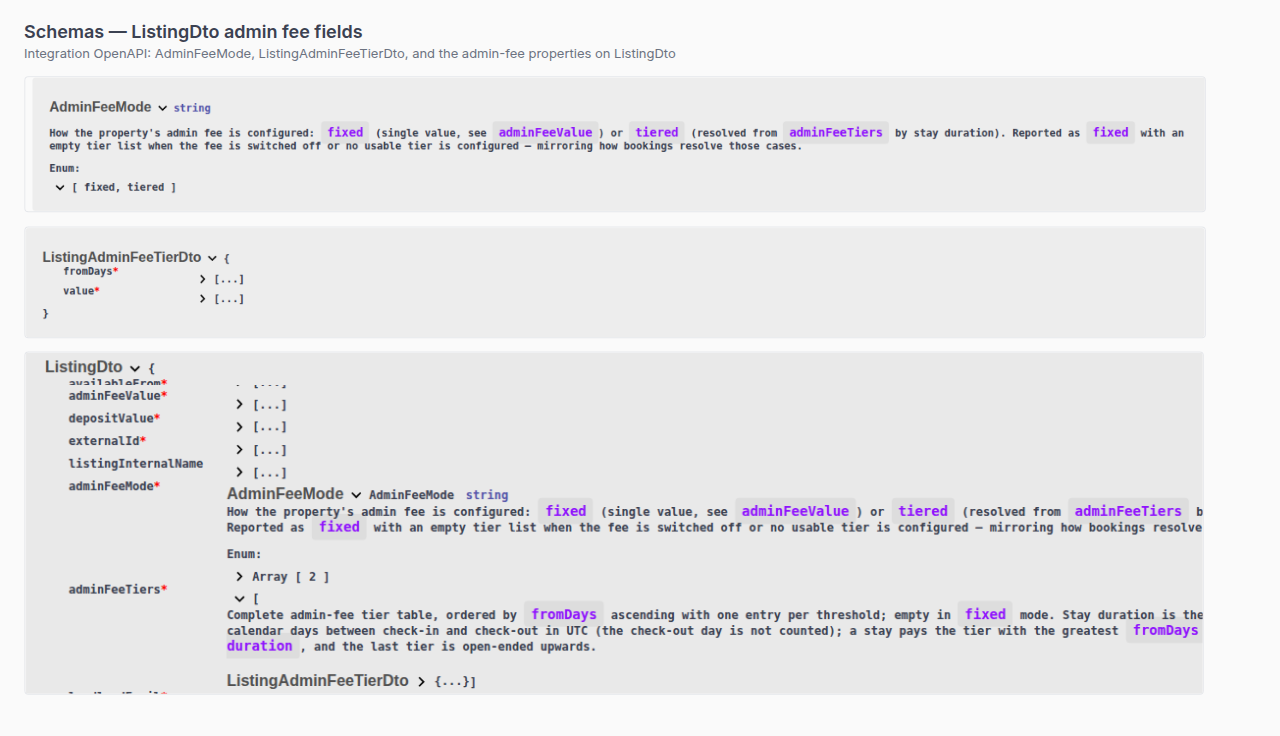
Why didn't a marketplace booking use the bills included ceiling I sent?
Marketplace POST /{platform}-integration/bookings has no billsIncluded or billsIncludedMaxValue field. The imported stay copies the property Bills Included ceiling (the same euro figure listing JSON publishes as billsIncludedMaxValue when the unit is not All bills included). When Bills Included is off and no cap is stored, that copy is €0 (Not set). platformProviderPaymentValue is channel commission for reconciliation — it does not change the tenant utility ceiling.
When the unit has All bills included (No cap), listing GET publishes billsIncludedMaxValue: null. That null is not a POST input. Covered allocations on that unit come from the unit No cap flag, not from this POST.
To advertise a different ceiling, change the property Bills Included (or the unit No cap flag) before the channel creates the stay. After import, operators can change the ceiling on Contract Info (inert for the payment plan). + Create New → Booking can include or omit Bills included (max) only when Use unit contract rents is off — that control is operator-only.
Guide: Creating Bookings — Bills included (api-swagger-create-booking-integration-no-bills-included.png, api-swagger-listing-dto-bills-included.png). Operators: Bookings — Bills included ceiling.
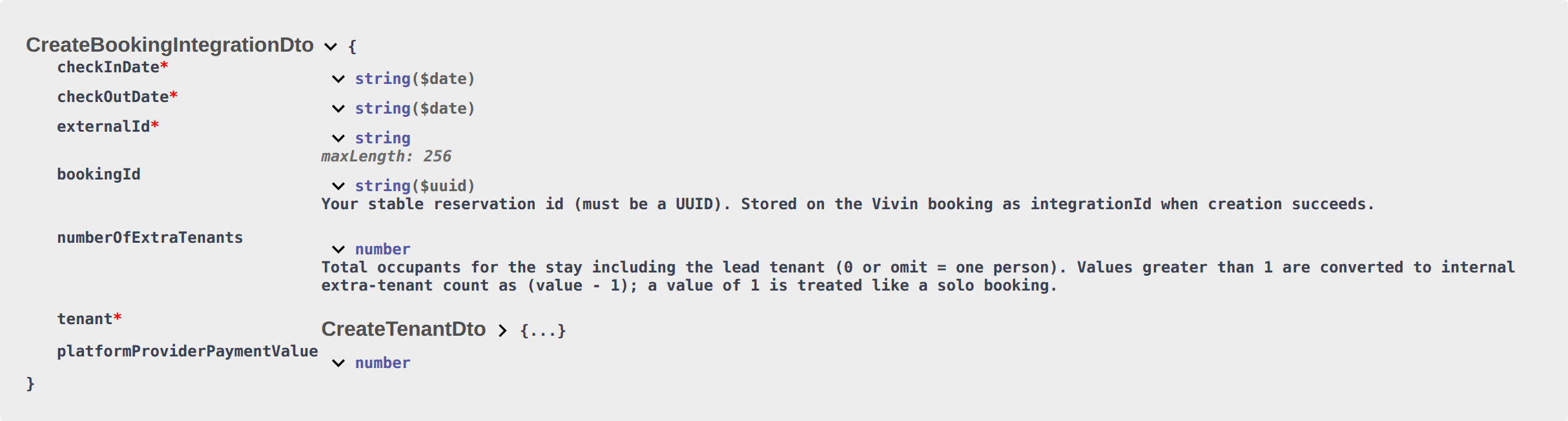
Why didn't a marketplace booking use the contract type I sent?
Marketplace POST /{platform}-integration/bookings has no contractType or contractDayType field. The imported stay copies the property Rental payment frequency (Daily / Fortnightly / Monthly) and Contract type (Traditional rental / Accommodation services / Others). Partial listing JSON also omits those keys. platformProviderPaymentValue is channel commission for reconciliation — it does not change rent billing type.
To use a different frequency or classification, change the property before the channel creates the stay. After import, Contract Info shows Contract cycle and Contract type as read-only. + Create New → Booking can pick both only when Use unit contract rents is off — that control is operator-only.
Guide: Creating Bookings — Contract type (api-swagger-create-booking-integration-no-contract-type.png, listings-property-edit-contract-tab.png). Operators: Listings — Step 4 Contract details.
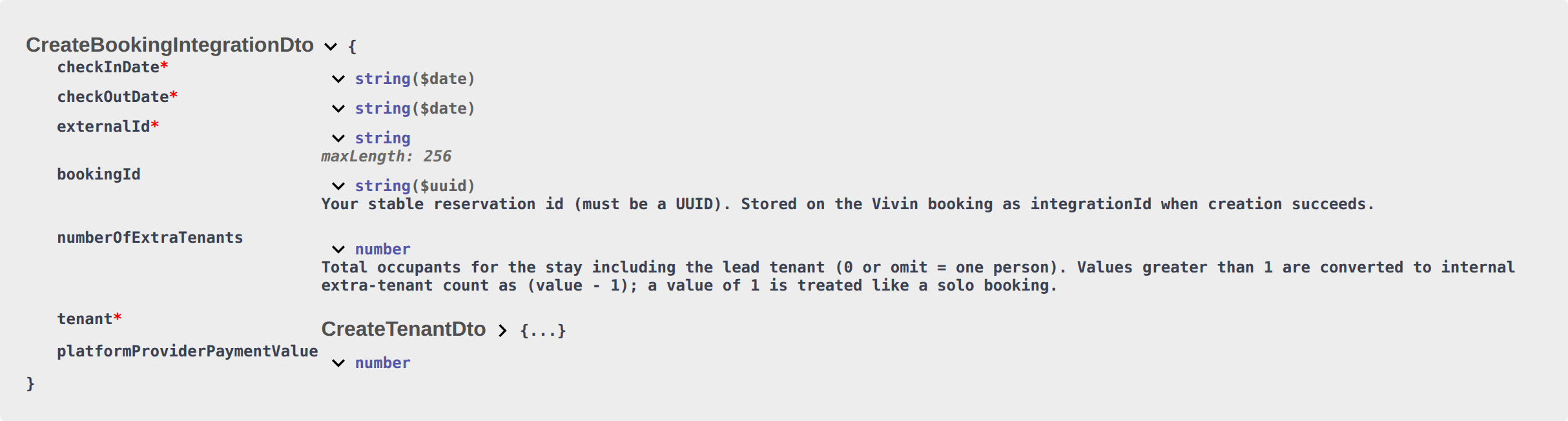
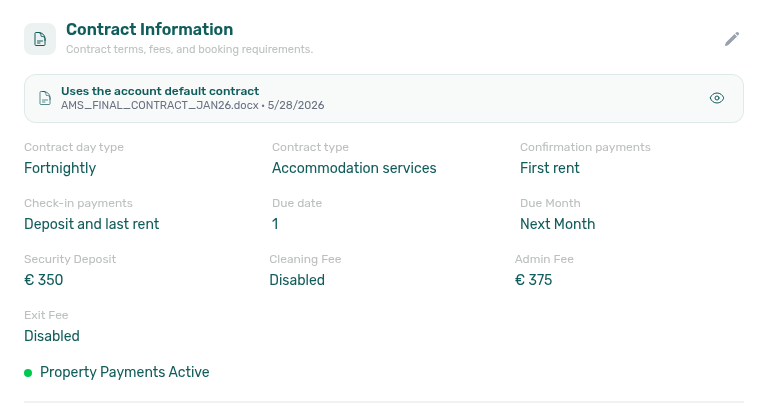
Why didn't a marketplace booking use the confirmation payments I sent?
Marketplace POST /{platform}-integration/bookings has no bookingConfirmationRequirements or moveInRequirements field. The imported stay copies the property Confirmation payments and Check-in payments. Partial listing JSON also omits those keys. Inlife full catalogues may show paidAtMovinDate (Security Deposit or Security Deposit + Last Rent) — that is advertise-only, not a POST input. platformProviderPaymentValue is channel commission for reconciliation — it does not change which charges are due at confirmation vs move-in.
To use a different split, change the property before the channel creates the stay. After import, Contract Info can still override both fields for that reservation only. + Create New → Booking can pick both only when Use unit contract rents is off — that control is operator-only.
Guide: Creating Bookings — Confirmation payments (api-swagger-create-booking-integration-no-confirmation-payments.png, listings-property-edit-contract-tab.png). Operators: Listings — Step 4 Contract details and Bookings — Confirmation payments.
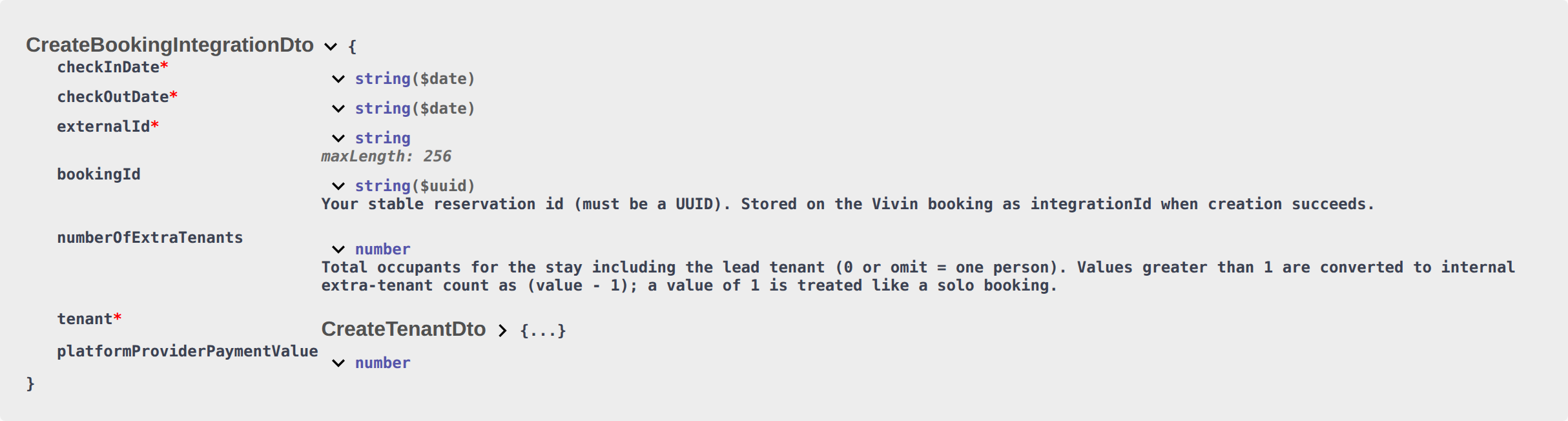
Why didn't a marketplace booking use the due day I sent?
Marketplace POST /{platform}-integration/bookings has no dueDay or dueDayMonth field. The imported stay copies the property Due date and Due Month. When the property has no override, Vivin uses account Tenant Due Day / Tenant Due Month. Partial listing JSON also omits those keys. platformProviderPaymentValue is channel commission for reconciliation — it does not change the calendar due day.
+ Create New → Booking also cannot pick Due day at create — both paths copy from the property, then the account. After import, Contract Info can still override Due day and Due Month for that reservation only.
This is not Confirmation payments (which charges are due at booking vs move-in). It is not Edit due date on one Contract Values line.
Guide: Creating Bookings — Due date (api-swagger-create-booking-integration-no-due-day.png, listings-property-edit-contract-tab.png, settings-payments-tab-overview.png). Operators: Listings — Payments tab and Payments — Payment Deadlines.
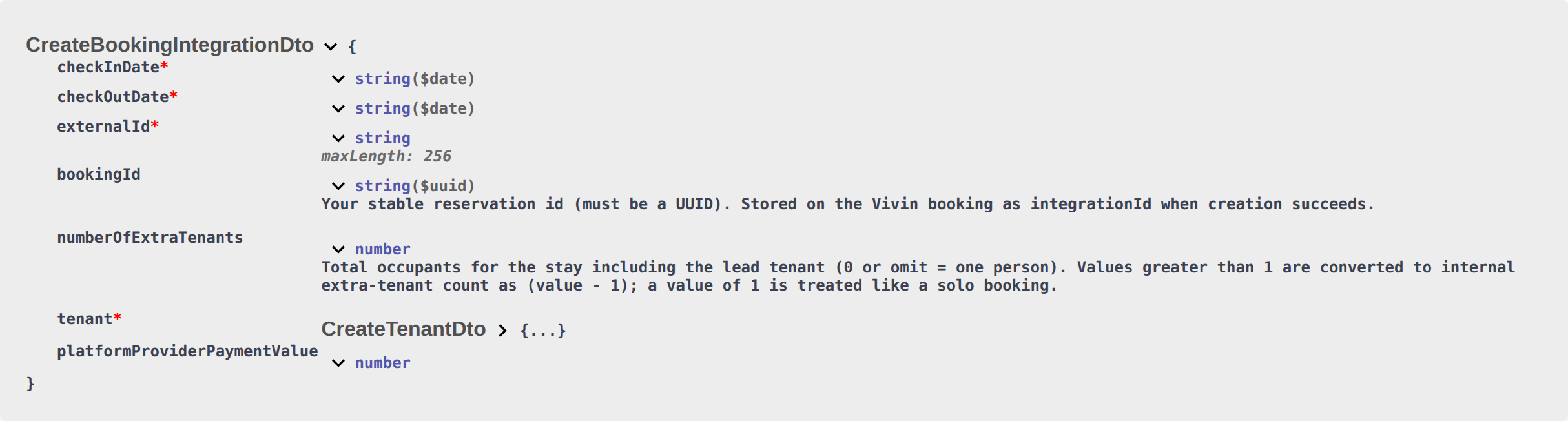
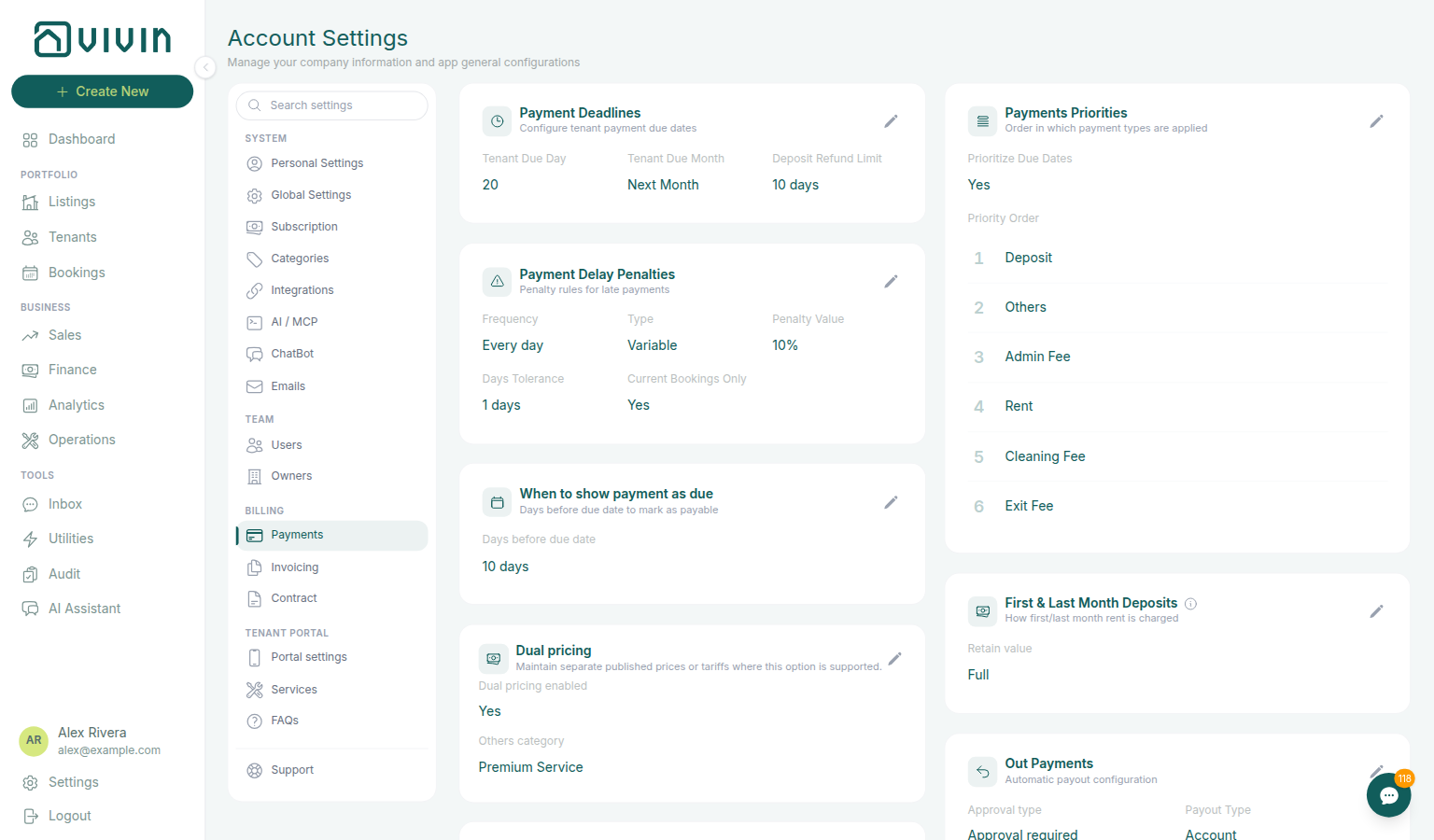
Why didn't a marketplace booking use the check-in time I sent?
Marketplace POST /{platform}-integration/bookings has no checkInTime or checkOutTime field. The imported stay copies account Check-in time / Check-out time. Partial listing JSON also omits those keys. platformProviderPaymentValue is channel commission for reconciliation — it does not change arrival or departure clock times.
+ Create New → Booking can pick both times at create, or leave them blank so Vivin uses the same account defaults. After import, Contract Info → Check-in & Check-out can still override both times for that reservation only.
This is not Confirmation payments (which charges are due at booking vs move-in). It is not checkInDate / checkOutDate (those calendar days are on the partner body). It is not Check-in responsible (teammates stay empty until assigned).
Guide: Creating Bookings — Check-in times (api-swagger-create-booking-integration-no-check-in-times.png, settings-preferences-booking-defaults-times-preparation.png, bookings-add-booking-modal.png, bookings-detail-contract-check-in-out-emails.png). Operators: Preferences — Booking Defaults and Bookings — Check-in & Check-out.
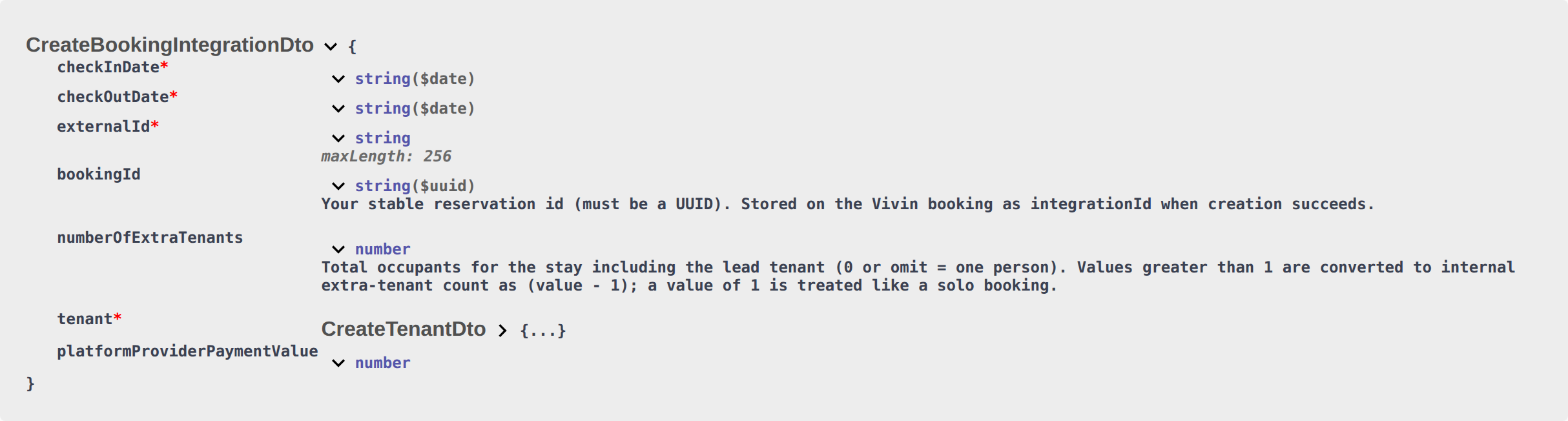
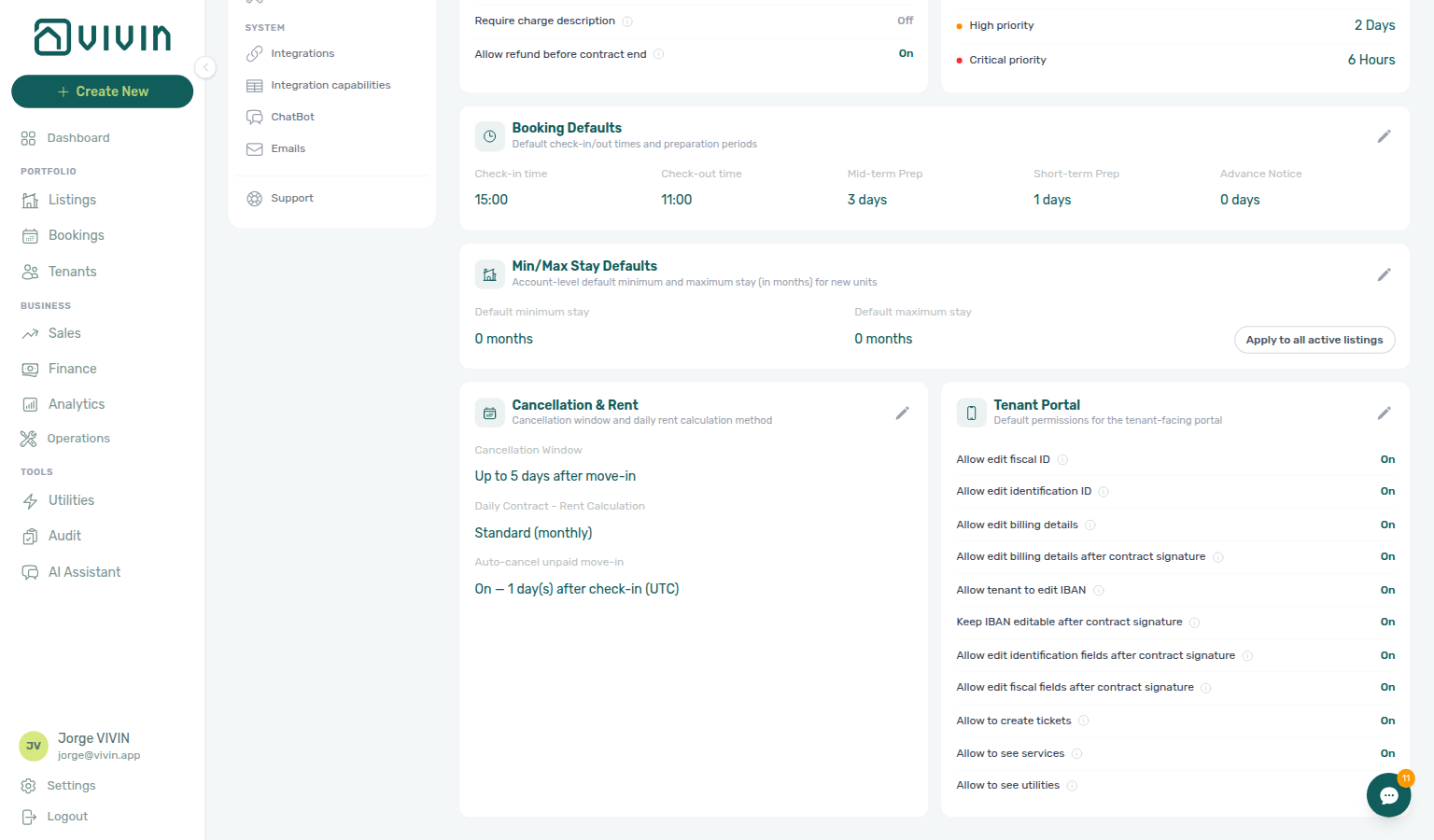
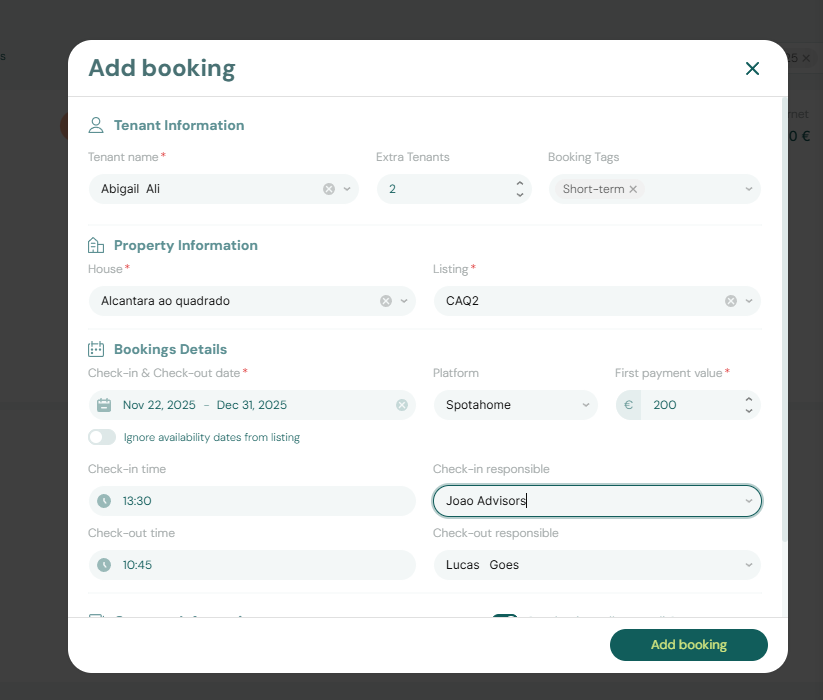
Why didn't a marketplace booking use the days before due I sent?
Marketplace POST /{platform}-integration/bookings has no daysBeforeDueAsPayable field. The imported stay copies account Days before due date from Payments. Partial listing JSON also omits that key. platformProviderPaymentValue is channel commission for reconciliation — it does not change when a charge appears as payable.
+ Create New → Booking also cannot pick Days before due at create — both paths copy from the account. There is no property-level Days before due date. After import, Contract Info can still override Days before due (payable) for that reservation only — that does not rebuild the payment plan.
This is not Due date / Due Month (calendar day for the rent schedule). It is not Deposit Refund Limit (days after checkout to return the hold).
Guide: Creating Bookings — Days before due (api-swagger-create-booking-integration-no-days-before-due.png, settings-payments-when-to-show-due-card.png, bookings-detail-deposit-refund-limit-inherited.png). Operators: Payments — When to show payment as due and Bookings — Days before due.
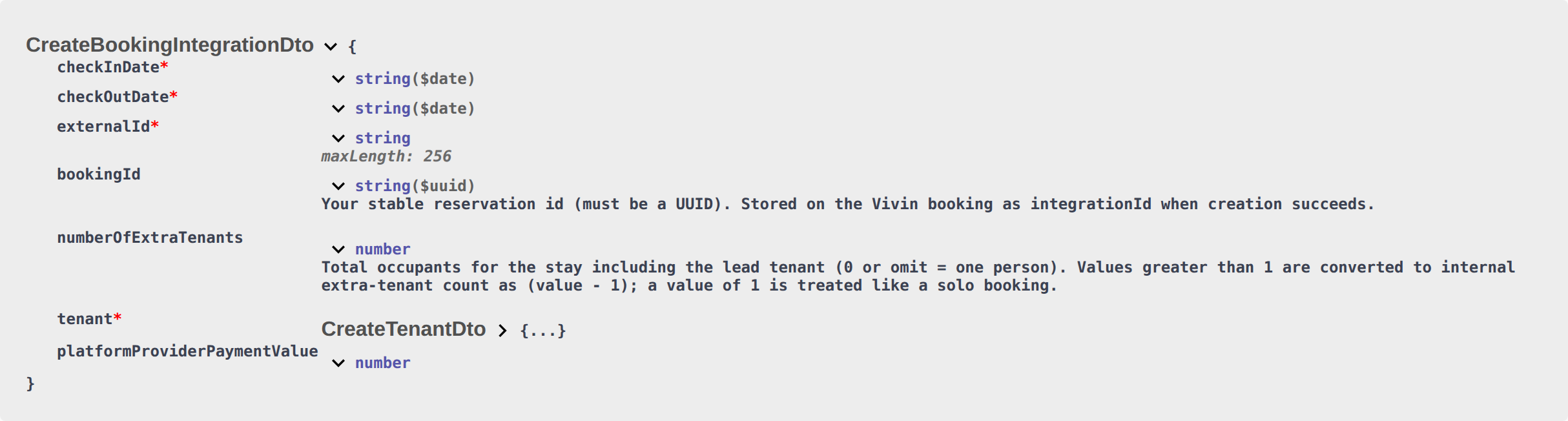
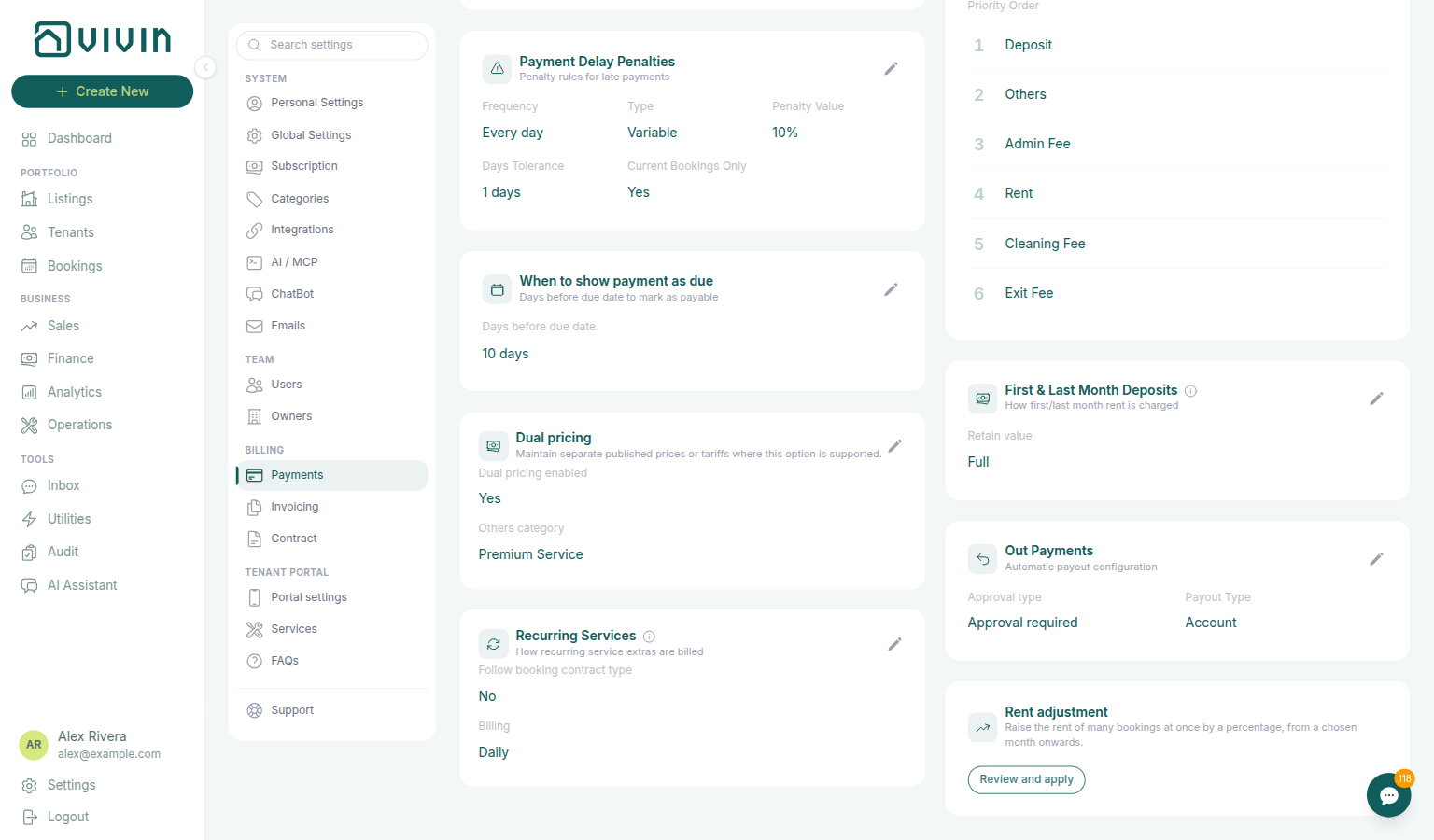
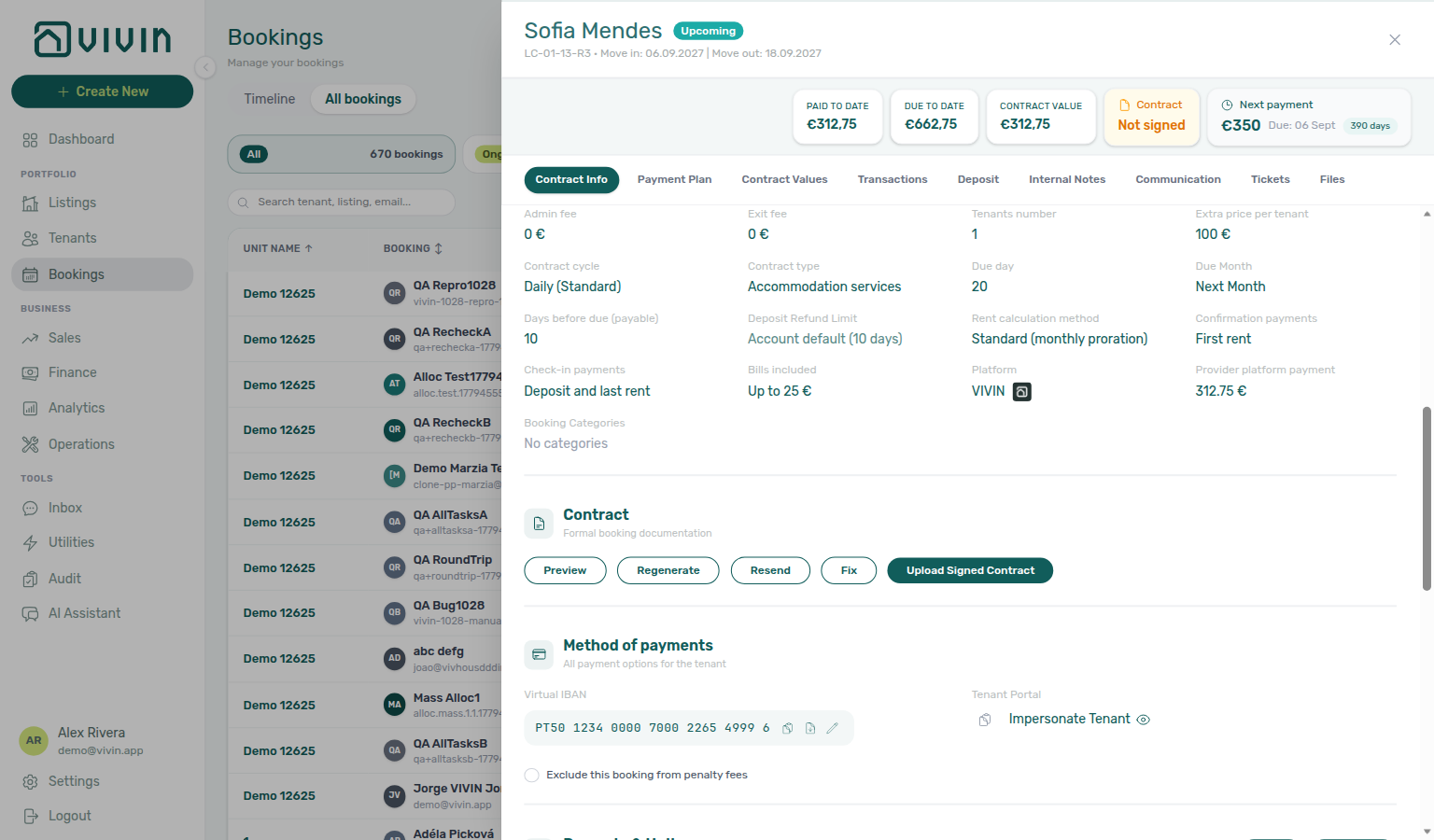
Why didn't a marketplace booking use the check-in responsible I sent?
Marketplace POST /{platform}-integration/bookings has no checkInResponsableId or checkOutResponsableId field. Check-in responsible and Check-out responsible stay empty (–) until an operator assigns a teammate. Partial listing JSON also omits those keys. There is no account-level or property-level default. platformProviderPaymentValue is channel commission for reconciliation — it does not name a teammate.
+ Create New → Booking can pick both at create. After import, Contract Info → Check-in & Check-out can still assign both for that reservation only. Until then, Operations → Check-in & Check-out → Filters → Assigned responsible → Without lists those marketplace stays as unassigned.
This is not Check-in times (clock times copy from account Booking Defaults). It is not checkInDate / checkOutDate (those calendar days are on the partner body). It is not the Operations toolbar Responsible filter (names already on a handover).
Guide: Creating Bookings — Check-in responsible (api-swagger-create-booking-integration-no-check-in-responsible.png, bookings-add-booking-modal.png, bookings-detail-contract-check-in-out-emails.png). Operators: Bookings — Check-in responsible and Operations — Assigned responsible.
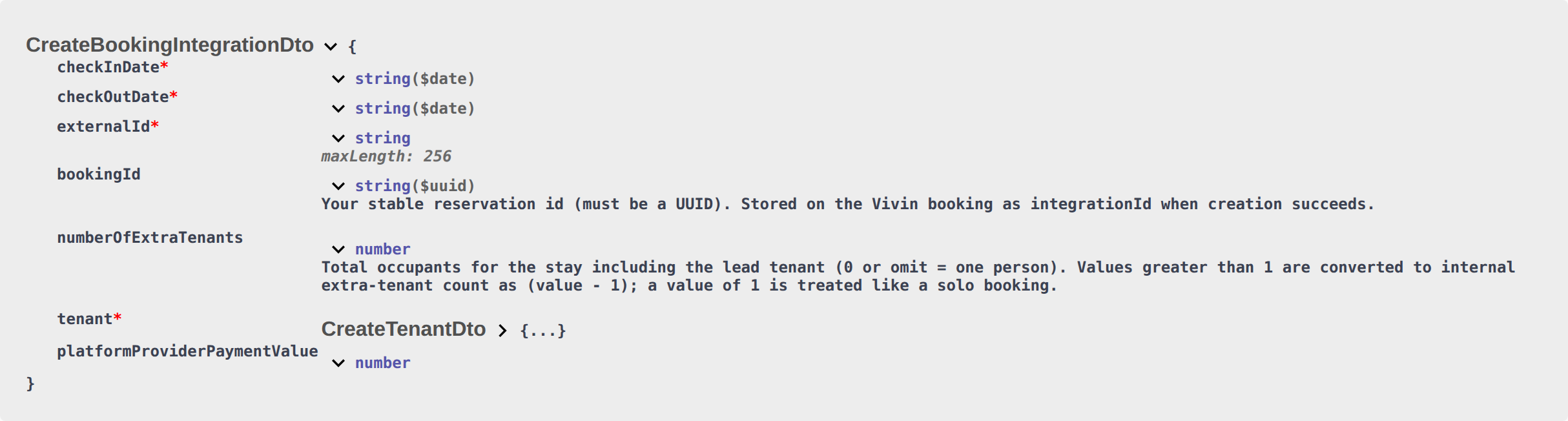
Why didn't a marketplace booking use the lease purpose I sent?
Marketplace POST /{platform}-integration/bookings has no leasePurpose field. Lease purpose stays empty (No lease purpose) until an operator or tenant selects an allowed chip. Partial listing JSON also omits that key. Settings → Categories → Lease purpose is a catalog of allowed values — it is not a default label copied onto imported stays. platformProviderPaymentValue is channel commission for reconciliation — it does not classify why the tenant is renting.
+ Create New → Booking can pick Lease purpose when the field is enabled. After import, Contract Info → Booking information can still set it for that reservation only. Make Lease Purpose mandatory does not reject channel create — when that toggle is on, the tenant must pick on the portal Your Details step before Next.
This is not Check-in responsible (teammates stay empty until assigned). It is not Tenant category (allowlisted channels can assign a default segment). It is not a chip auto-copied from Categories.
Guide: Creating Bookings — Lease purpose (api-swagger-create-booking-integration-no-lease-purpose.png, settings-categories-lease-purpose-section.png, bookings-add-booking-lease-purpose-dropdown.png). Operators: Bookings — Lease purpose and Settings → Categories — Lease purpose.
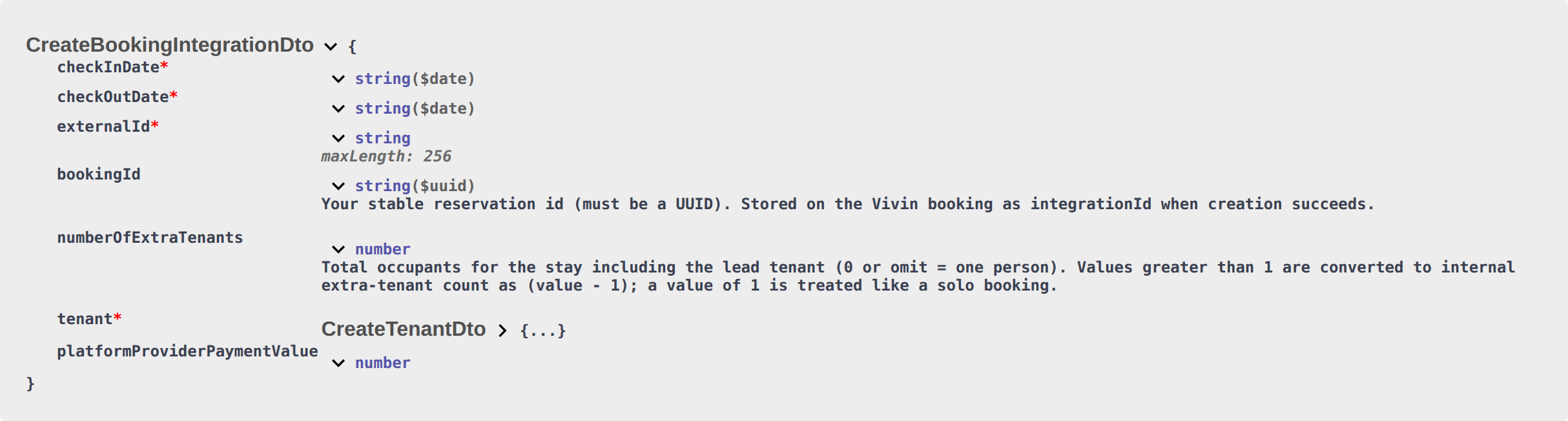
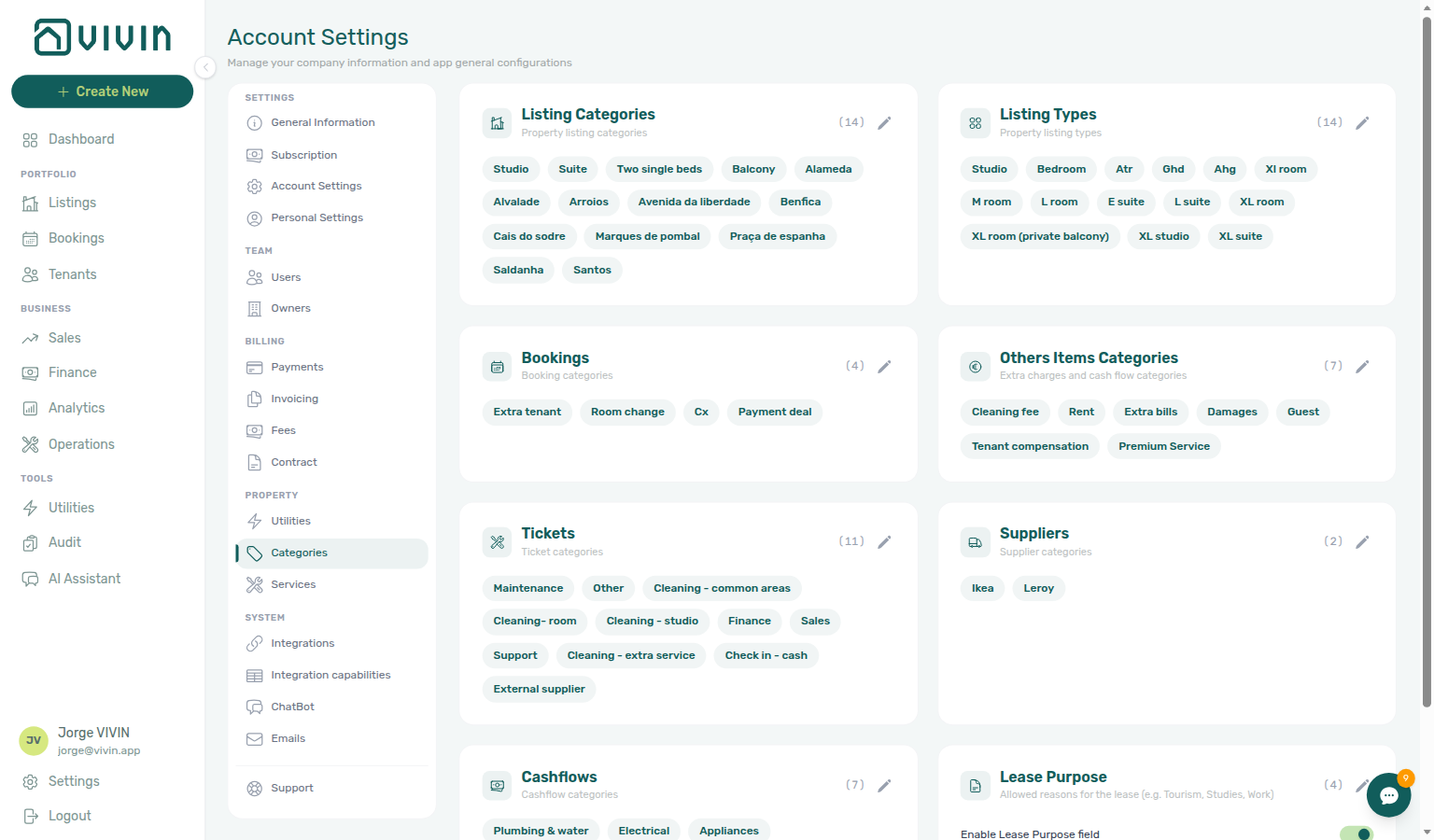
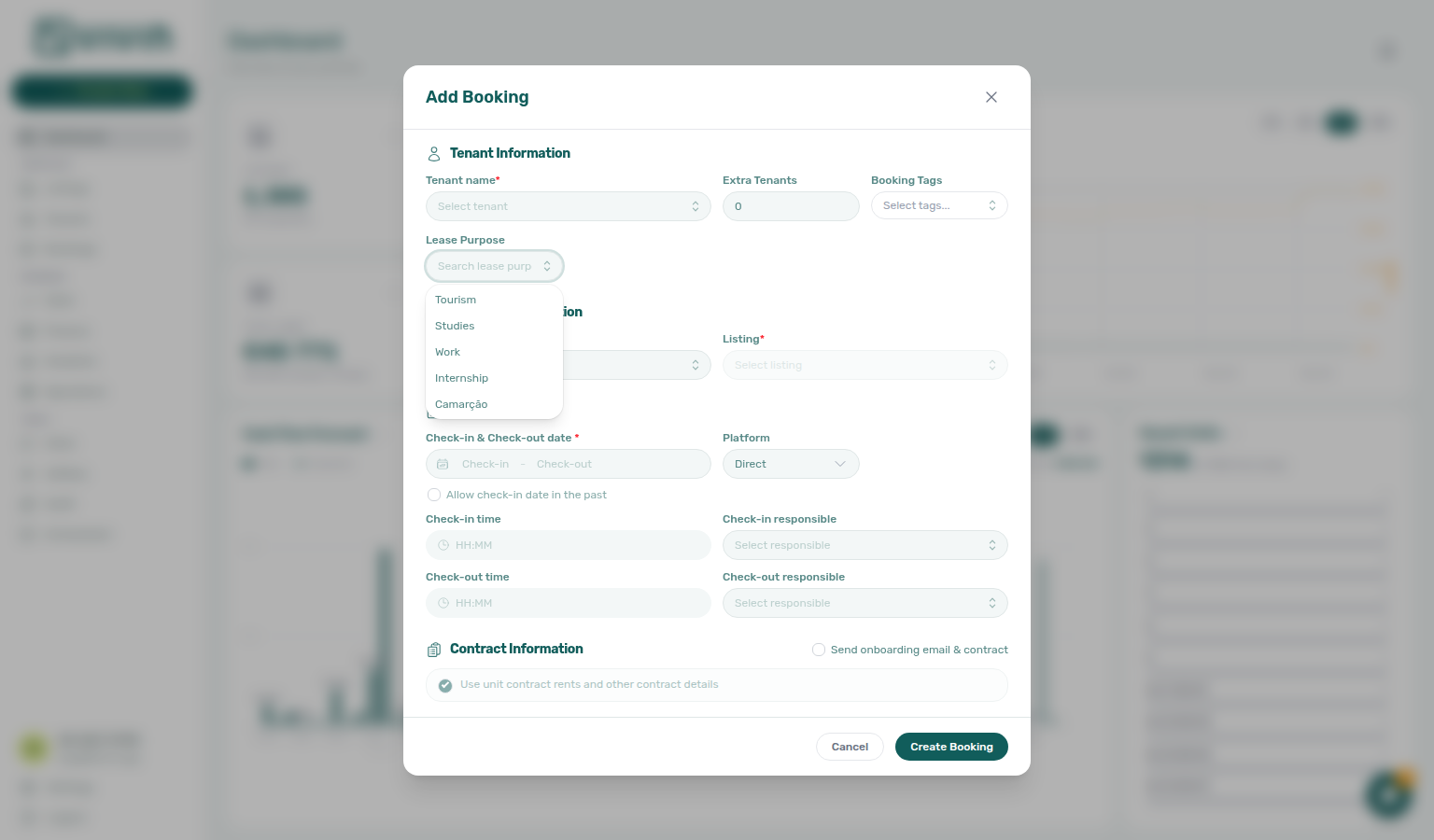
Why didn't a marketplace booking use the Deposit Refund Limit I sent?
Marketplace POST /{platform}-integration/bookings has no depositReturnDueDay field. Deposit Refund Limit stays blank and inherits the account Payments — Deposit Refund Limit on every read — Vivin does not copy a number onto the stay at create. Partial listing JSON also omits that key. There is no property-level Deposit Refund Limit. platformProviderPaymentValue is channel commission for reconciliation — it does not change when the hold is due back.
+ Create New → Booking also cannot pick it at create. After import, Contract Info → Booking information can still override Deposit Refund Limit for that reservation only. Blank keeps inheriting. 0 is a same-day override. Changing Payments still moves every booking that has no override.
This is not Deposit (the euro hold copied from listing JSON). It is not Days before due (that window is copied at create). It is not Deposit Refund Limit Reference (which date the term counts from — account-wide).
Guide: Creating Bookings — Deposit Refund Limit (api-swagger-create-booking-integration-no-deposit-refund-limit.png, settings-payments-tab-overview.png, bookings-detail-deposit-refund-limit-inherited.png). Operators: Bookings — Deposit Refund Limit and Payments — Payment deadlines.
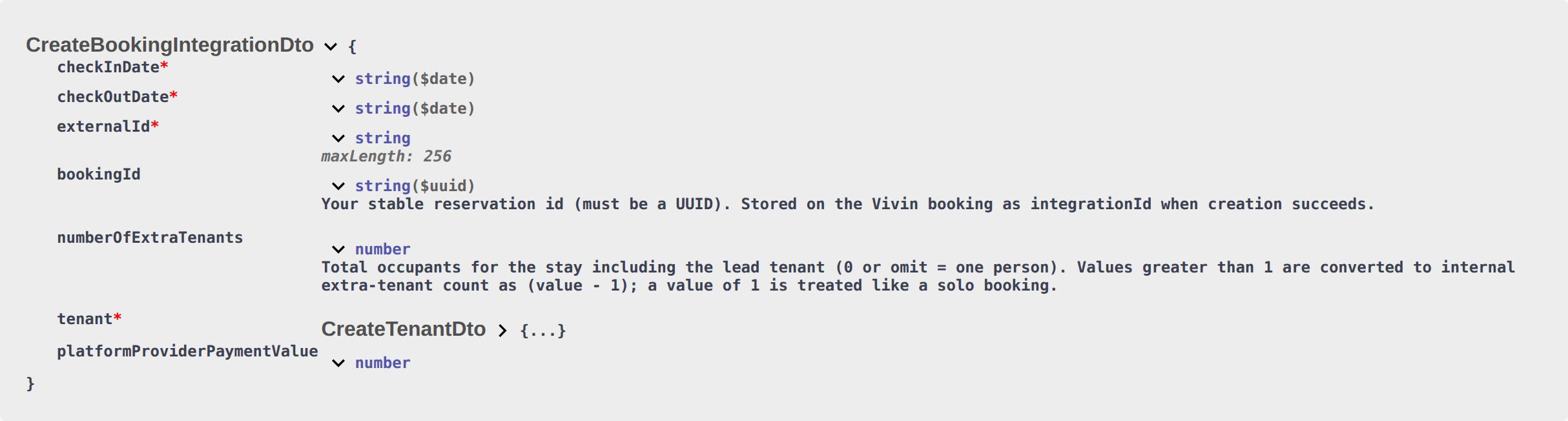
Why didn't a marketplace booking use the booking tags I sent?
Marketplace POST /{platform}-integration/bookings has no bookingTags field. Booking categories stay empty (No categories on Contract Info) until an operator picks chips. Partial listing JSON also omits that key. Settings → Categories → Bookings is a catalog of allowed values — it is not a default tag copied onto imported stays. platformProviderPaymentValue is channel commission for reconciliation — it does not label the stay.
+ Create New → Booking can pick Booking categories when the account has chips. After import, Contract Info → Booking information can still set them for that reservation only. Until then, Bookings → Booking categories → No booking category lists those marketplace stays. Emails → Communication Rules → Booking tags → Include only will not match an untagged marketplace stay.
This is not Tenant category (allowlisted channels can assign a default segment). It is not Lease purpose (why the tenant is renting). It is not listing Select tags (property and unit labels). It is not a chip auto-copied from Categories.
Guide: Creating Bookings — Booking tags (api-swagger-create-booking-integration-no-booking-tags.png, settings-categories-bookings-section.png, bookings-list-select-categories-no-category.png). Operators: Bookings — Booking tags and Settings → Categories — Bookings.
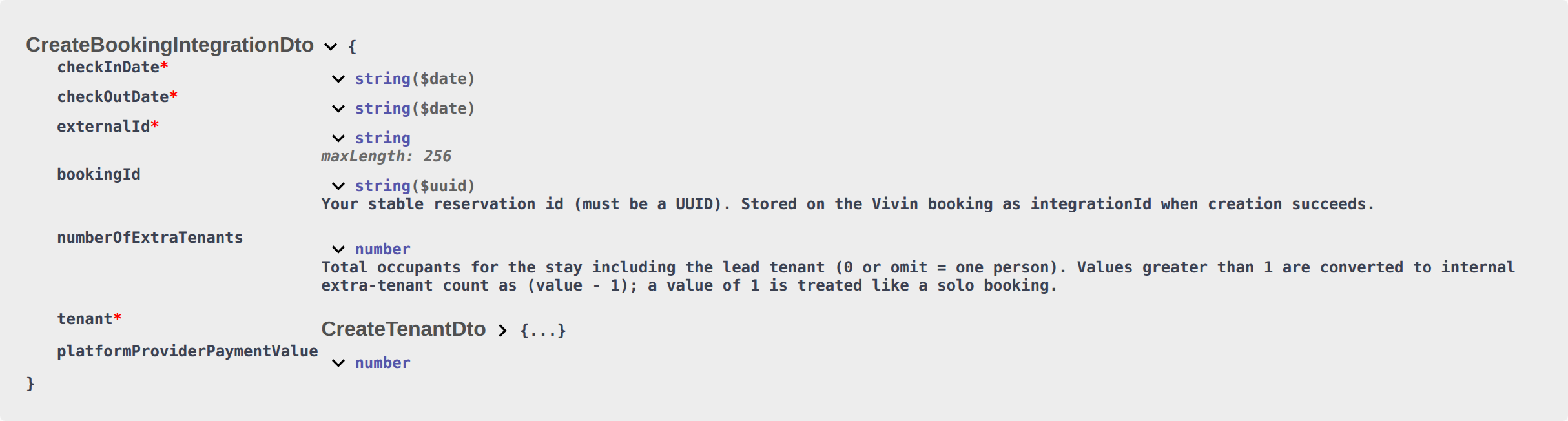
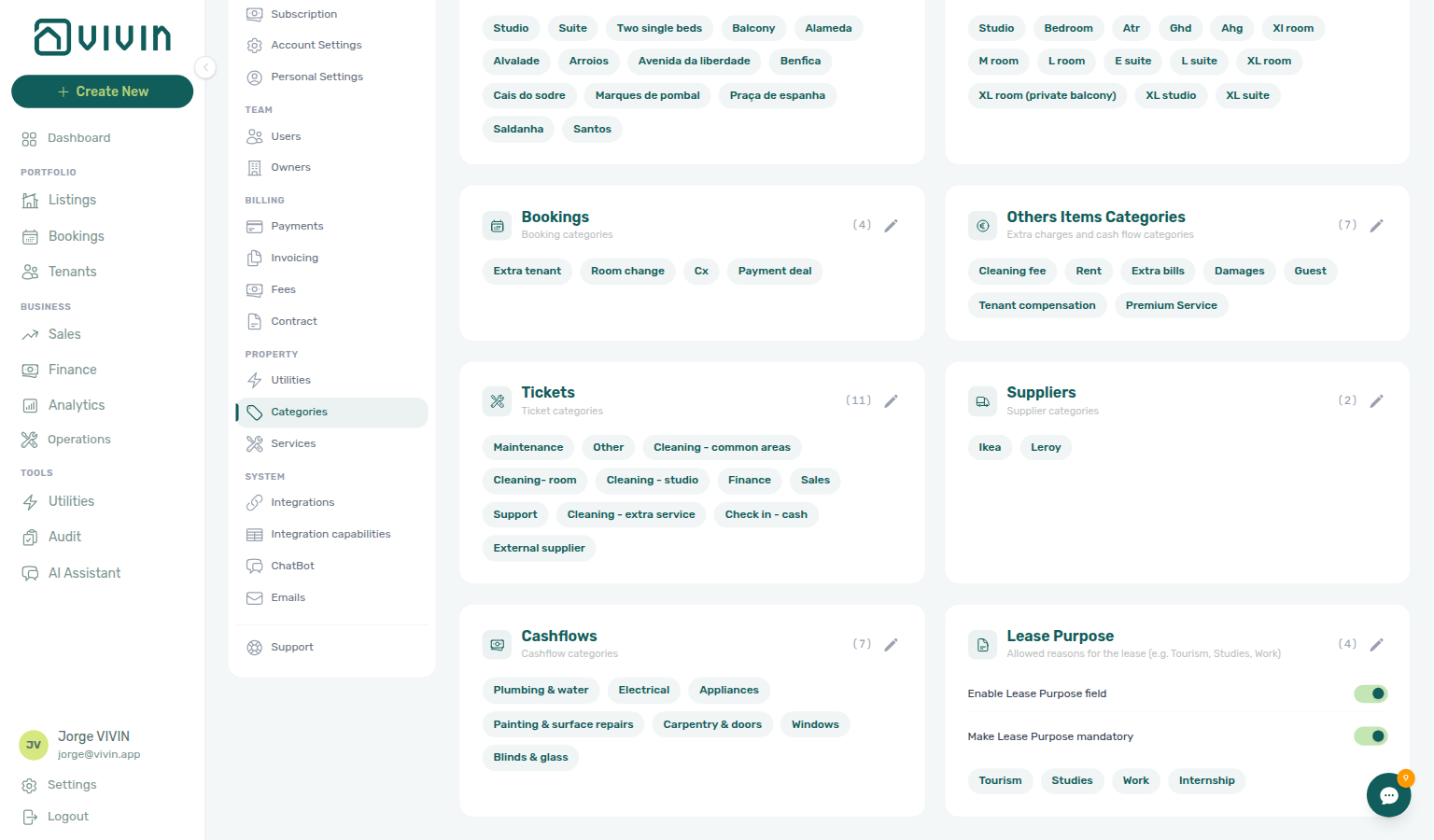
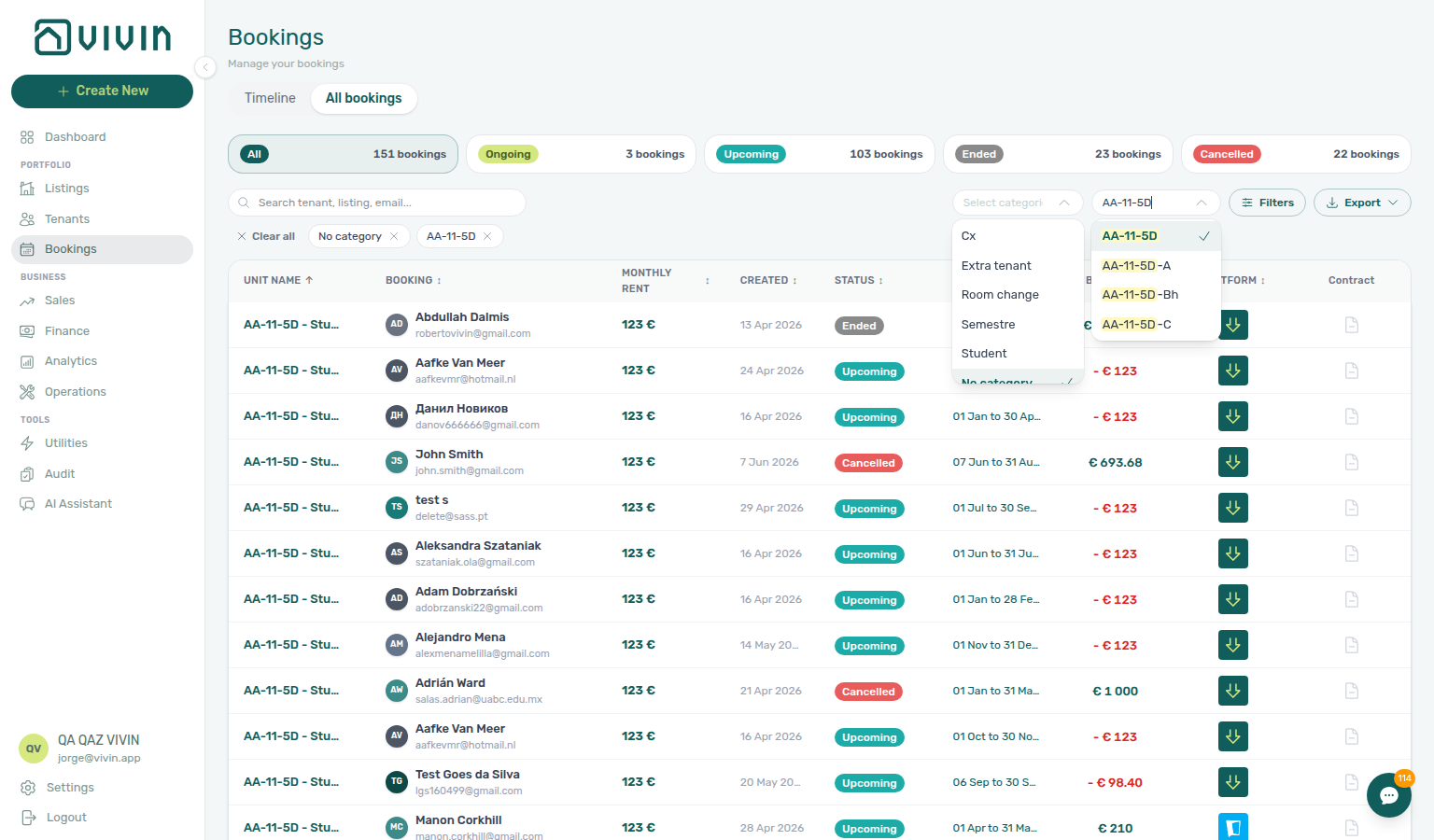
Why didn't a marketplace booking use the maintenance ticket opt-out I sent?
Marketplace POST /{platform}-integration/bookings has no createCheckInMaintenanceTicket or createCheckOutMaintenanceTicket field. Automatic check-in/out tickets follow the property Maintenances tab. Partial listing JSON also omits those keys. There is no listing-level or account-level ticket default.
+ Create New → Booking can uncheck Create check-in ticket / Create check-out ticket when you turn off Use unit contract rents and other contract details. That skip is operator-only. After import, Contract Info cannot flip this snapshot. Cancel an unwanted automatic row in Operations → Tickets. Changing Maintenances later does not rewrite stays already imported. A partner flag cannot turn tickets on when the property has auto-create off.
This is not Per-booking maintenance ticket opt-out on Add booking (marketplace POST always uses the property rule). It is not Ignore unit preparation days. It is not Check-in responsible.
Guide: Creating Bookings — Maintenance tickets (api-swagger-create-booking-integration-no-maintenance-tickets.png, listings-property-edit-maintenances-tab.png, bookings-add-booking-maintenance-ticket-opt-out.png). Operators: Listings — Maintenances tab and FAQ — Skip automatic tickets for one booking.
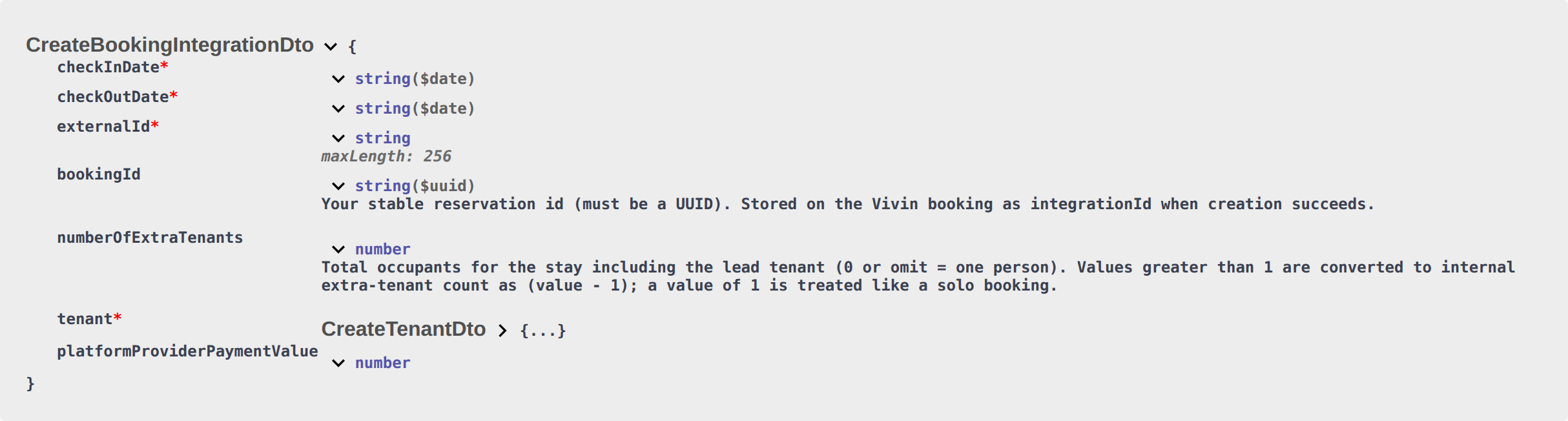
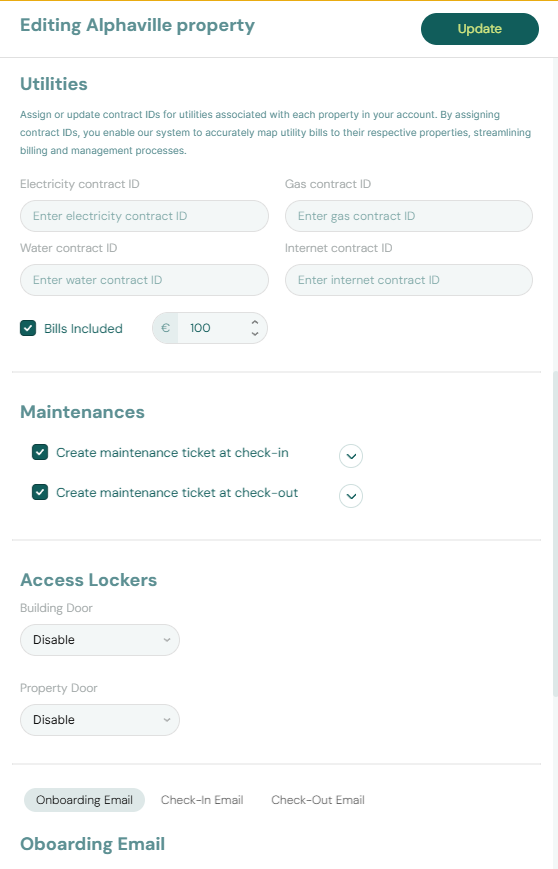

Why didn't a marketplace booking use the Ignore unit preparation days I sent?
Marketplace POST /{platform}-integration/bookings has no ignoreListingPreparationDays field. Occupied nights and preparation nights already in listing unavailabilities still reject. Partial listing JSON also omits that key. There is no listing-level or account-level skip default.
+ Create New → Booking can tick Ignore unit preparation days so a manual stay starts in the previous booking’s Mid-term Prep / Short-term Prep buffer. That skip is operator-only. After import, Contract Info cannot flip this. Changing Booking Defaults later does not rewrite stays already imported. Same-day turnover (checkout = the next check-in) does not need this flag. If a channel POSTs dates that overlap a prep tail, the worker does not create the booking.
This is not Ignore unit preparation days on Add booking (marketplace POST always honours prep nights). It is not same-day turnover. It is not Allow check-in date in the past. It is not Maintenance tickets.
Guide: Creating Bookings — Ignore unit preparation days (api-swagger-create-booking-integration-no-ignore-preparation-days.png, settings-preferences-booking-defaults-times-preparation-card.png). Operators: Bookings — Ignore unit preparation days and FAQ — Why are the days after checkout grey on Add Booking?.
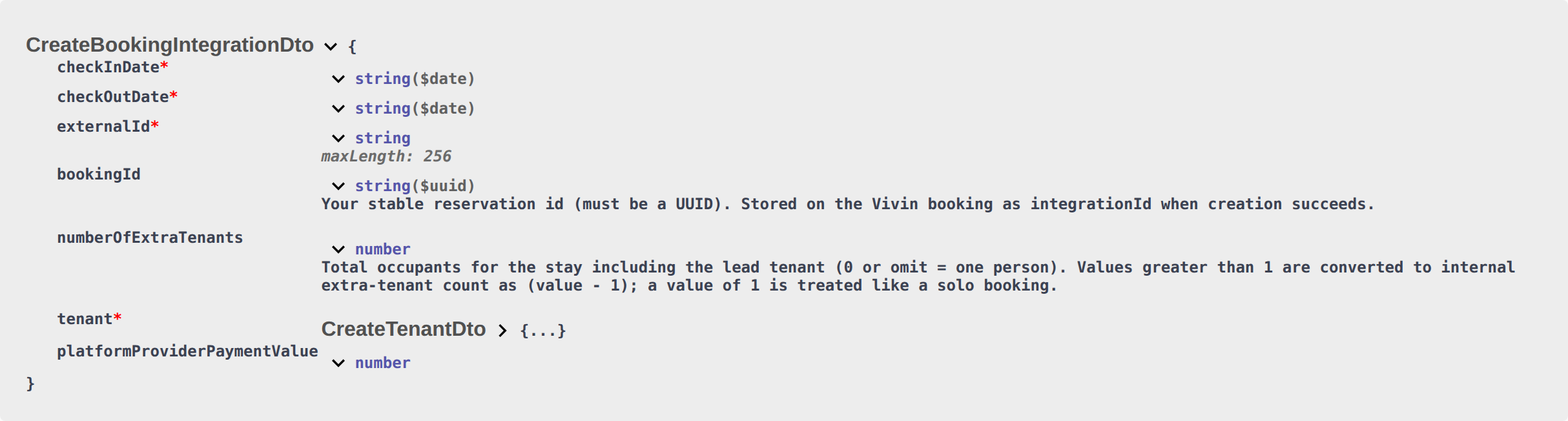
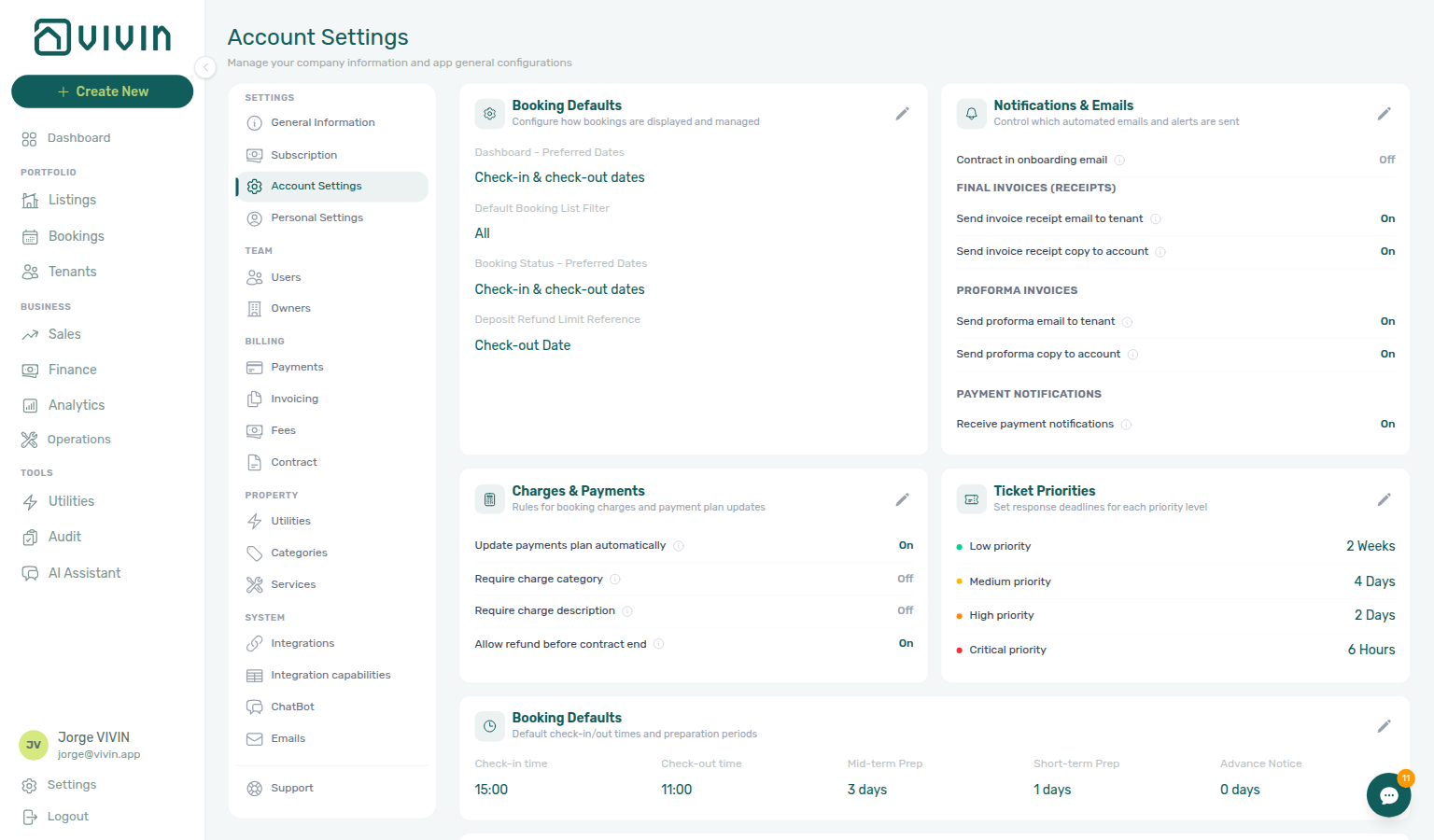
Why didn't a marketplace booking use the Allow check-in date in the past I sent?
Marketplace POST /{platform}-integration/bookings has no ignoreAvailableFrom field. Honour listing JSON availableFrom on your marketplace. Partial listing JSON also omits that skip key (it does publish availableFrom). There is no listing-level or account-level skip default.
+ Create New → Booking can tick Allow check-in date in the past so a manual stay starts before the listing’s available-from month. That skip is operator-only. After import, Contract Info cannot flip this. Occupied nights still reject. On RoomLess, nights before availableFrom already appear in listing unavailabilities. Changing Available from later does not rewrite stays already imported.
This is not Allow check-in date in the past on Add booking (marketplace POST honours listing availableFrom). It is not Ignore unit preparation days. It is not same-day turnover. It is not Honour listing capacity and stay bounds.
Guide: Creating Bookings — Allow check-in date in the past (api-swagger-create-booking-integration-no-ignore-available-from.png, api-swagger-listing-dto-capacity-stay-bounds.png). Operators: Bookings — Allow check-in date in the past and FAQ — Honour listing Capacity and stay bounds.
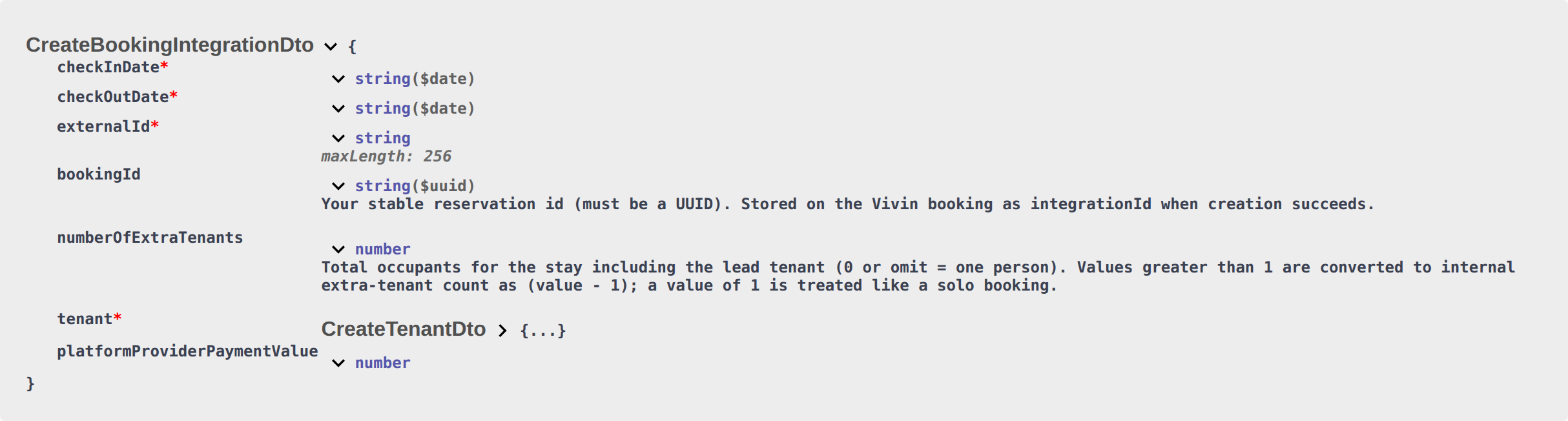
Why didn't a marketplace booking use the check-in date as contract start I sent?
Marketplace POST /{platform}-integration/bookings has no useCheckInDateInContract or useCheckOutDateInContract field. Use check in date as contract start date and Use check out date as contract end date stay off until an operator ticks them on Change contract start date / Change contract end date. Partial listing JSON also omits those keys. There is no listing-level or account-level overlay default. Property Rental payment frequency still sets stored Start date / End date at create (for example a Monthly contract starts on the 1st).
+ Create New → Booking has no create-time checkbox. After import, Contract Info can still overlay that reservation only. The helper text is Without impact in the payments plan. Airbnb channel-manager stays keep Change contract start/end date locked.
This is not Contract type (the property billing cycle still copies at create). It is not Allow check-in date in the past. It is not Change move-in date.
Guide: Creating Bookings — Use check in date as contract start date (api-swagger-create-booking-integration-no-use-check-in-date-in-contract.png, bookings-detail-change-contract-start-date-modal.png, bookings-detail-change-contract-end-date-modal.png). Operators: Bookings — Use check in date as contract start date and Bookings — Changing contract dates and rent.
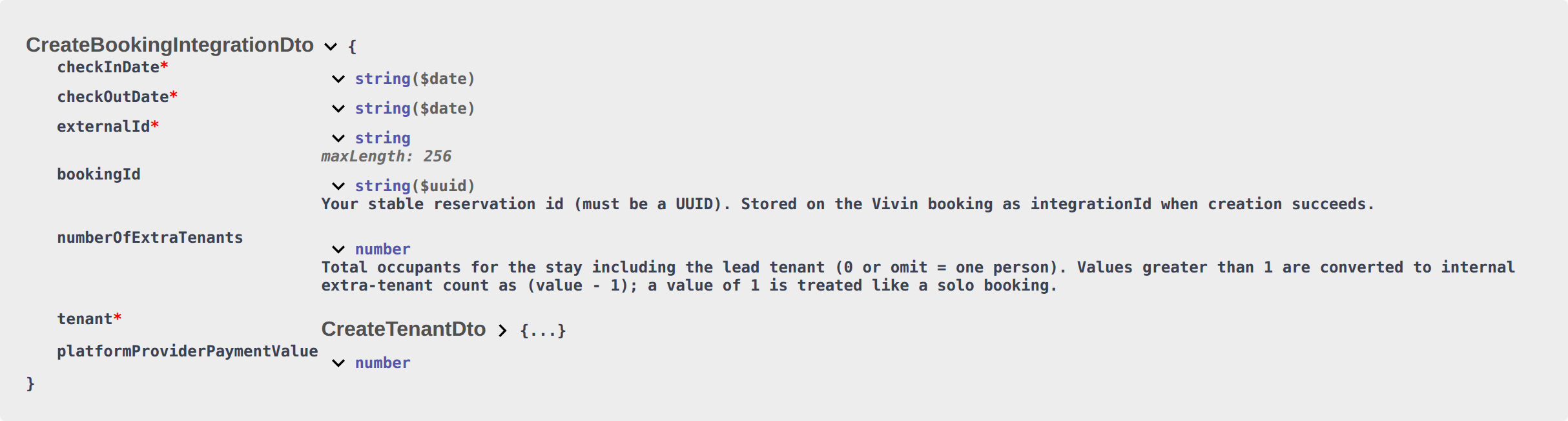
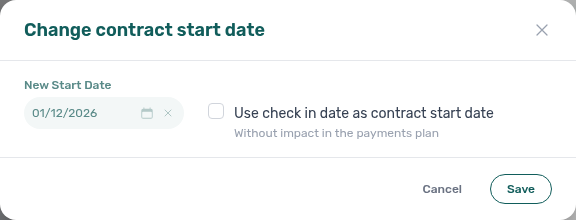
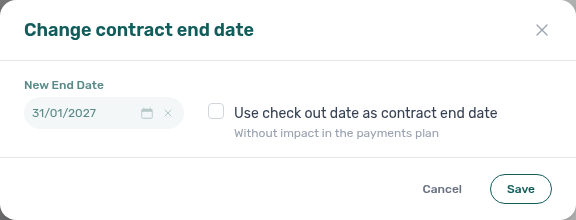
Why did a marketplace booking send the onboarding email I tried to skip?
Marketplace POST /{platform}-integration/bookings has no sendOnBoarding field. Vivin always treats the imported stay as Send onboarding email & contract on: it generates the contract (when a template exists) and queues the welcome email. Partial listing JSON also omits that key. There is no listing-level or account-level skip-on-import default.
+ Create New → Booking can skip — the checkbox defaults off. After import, Contract Info can still Send / Resend Onboarding email. Account Onboarding No trigger — disabled still skips the welcome email for every stay, including marketplace imports. Contract in onboarding email and the tenant’s category still control whether the PDF attaches.
This is not Send portal access (portal login only). It is not Resend on the Contract card (forces the PDF). It is not Use check in date as contract start date.
Guide: Creating Bookings — Send onboarding (api-swagger-create-booking-integration-no-send-onboarding.png, bookings-detail-contract-check-in-out-emails.png, bookings-detail-contract-section-resend.png). Operators: Bookings — Send onboarding email & contract and Emails — Onboarding.
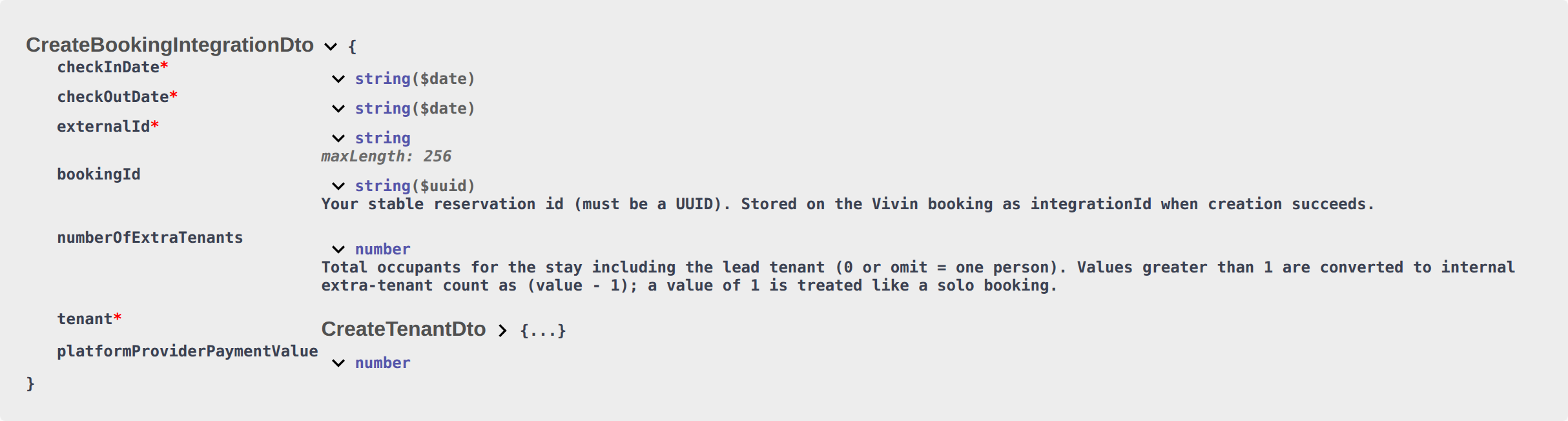
Why didn't a marketplace booking use the custom contract rents I sent?
Marketplace POST /{platform}-integration/bookings has no useListingValues field. Vivin always treats the imported stay as Use unit contract rents and other contract details on: monthly rent, Security deposit, Extra Charge / Extra Deposit, Confirmation payments, and Check-in payments copy from the unit and property. Partial listing JSON also omits that key. There is no listing-level or account-level custom-contract-on-import default.
+ Create New → Booking can turn the box off and type custom rent, fees, and contract details. After import, Contract Info can still change euro amounts for that reservation. platformProviderPaymentValue is channel commission for reconciliation — it does not replace unit contract rents.
This is not Rent / Deposit (those name the copied amounts). It is not Send onboarding. It is not Extra Charge from occupant headcount.
Guide: Creating Bookings — Use unit contract rents (api-swagger-create-booking-integration-no-use-listing-values.png, bookings-add-booking-empty-fixed-rent.png, api-swagger-listing-dto-rent-source-for-partner-post.png). Operators: Bookings — Use unit contract rents and FAQ — Empty fixed rent.
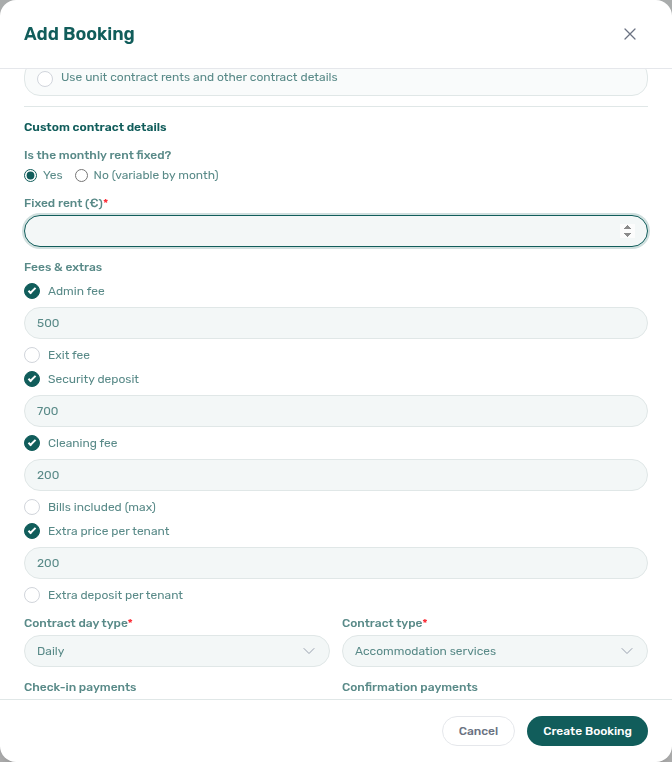
Why didn't a marketplace booking use the Exclude from penalty fees I sent?
Marketplace POST /{platform}-integration/bookings has no ignorePenaltyFees field. Exclude this booking from penalty fees stays off until an operator ticks it on Contract Info → Method of payments. Partial listing JSON also omits that key. There is no listing-level or account-level exclusion default. Account Payment Delay Penalties still apply.
+ Create New → Booking has no create-time checkbox. After import, Contract Info can still exclude that reservation only. Penalty Fee Communication Rules skip an excluded stay. Operators can still add a one-off extra charge on Payment Plan. Airbnb channel-manager stays keep the box locked.
This is not Payment Delay Penalties on Payments (those rules still apply unless excluded). It is not Ignore unit preparation days. It is not a Penalty Fee Communication Rule field.
Guide: Creating Bookings — Exclude from penalty fees (api-swagger-create-booking-integration-no-ignore-penalty-fees.png, settings-payments-tab-overview.png, bookings-detail-contract-method-of-payments.png). Operators: Bookings — Exclude this booking from penalty fees and Handling a Late Payment — Step 5.
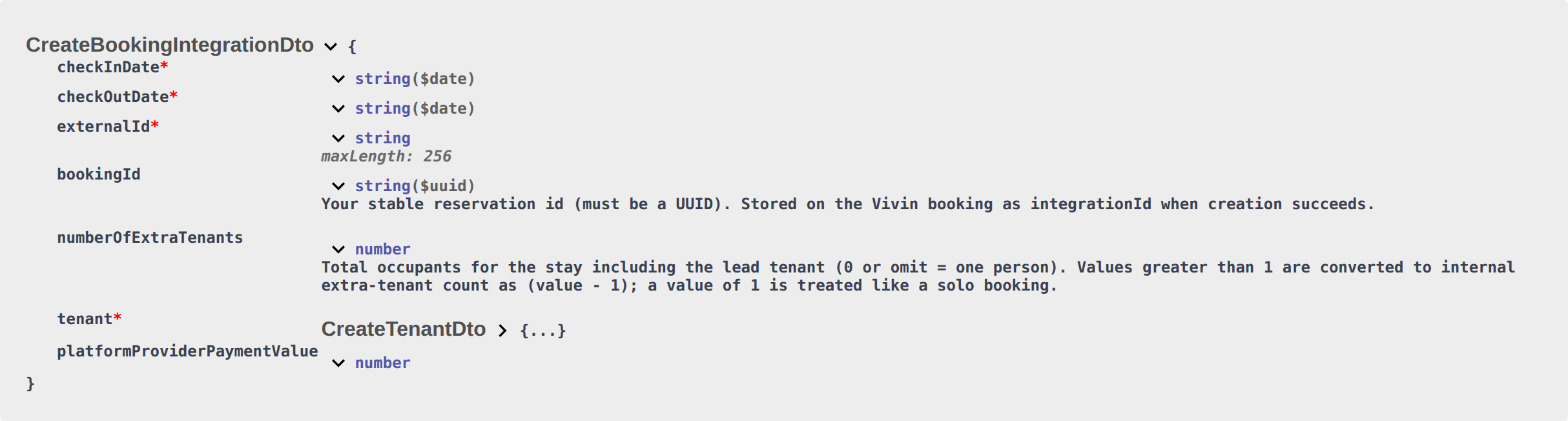
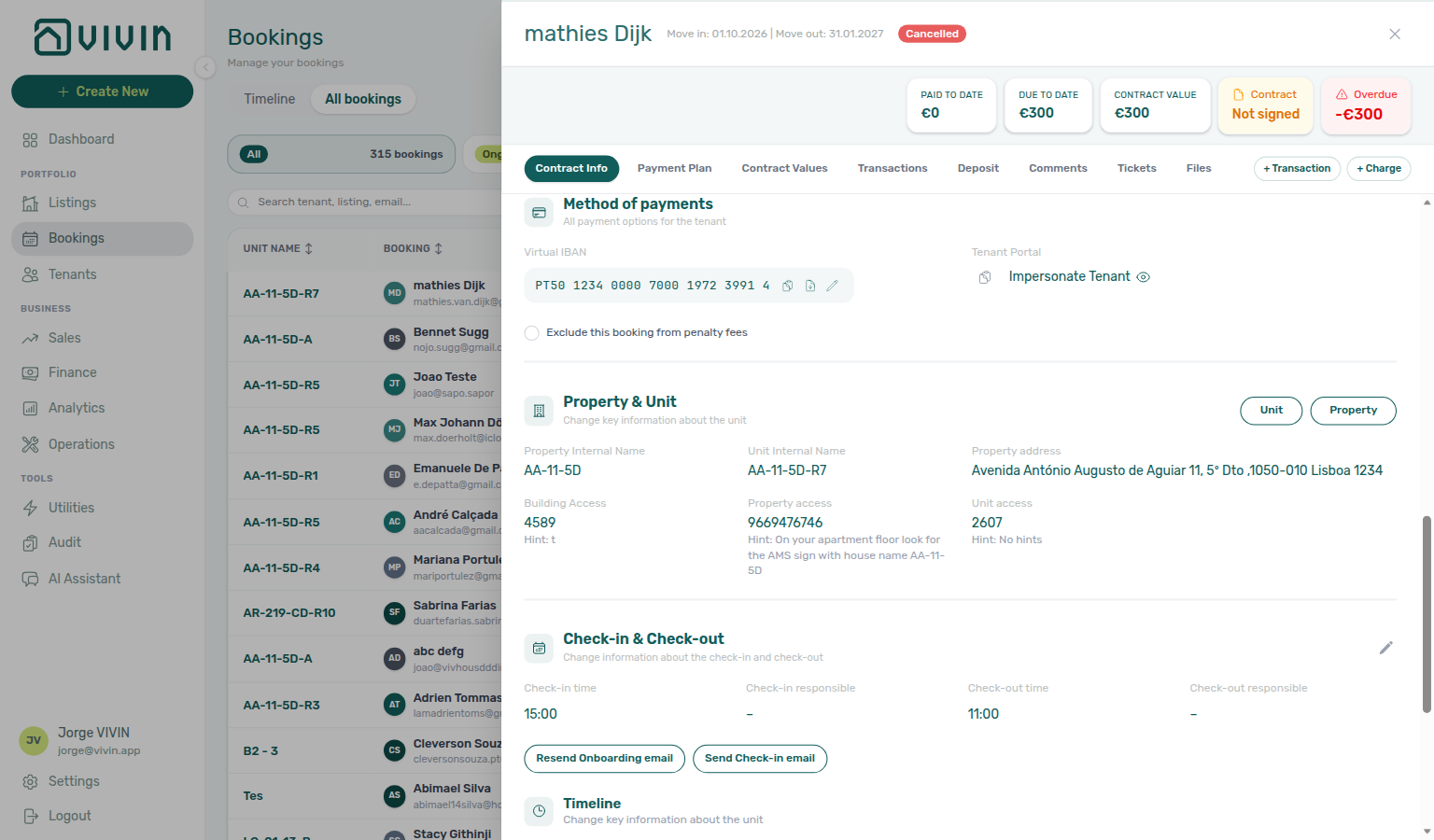
Does POST /bookings set the tenant category?
No. Marketplace POST /{platform}-integration/bookings has no booking-level tenant category field. Nested OpenAPI may list tenantCategoryId on CreateTenantDto — omit it (that is an operator UUID).
Allowlisted channels assign Default for integration-created tenants when the person is new or still has no category: Uniplaces, Inlife, RoomLess (Spacest), Housing Anywhere, Spotahome, Vivin Booking Engine, Edu Portugal, Erasmus Life Lisboa, Kiwi, Capital Rooms, Porta85, and Lisbeyond. A returning guest (same email or fiscal id) keeps their existing category.
+ Create New → Booking never auto-assigns a category — use Tenant Info. Channex (Airbnb / Booking.com), Idealista, and Coliving also skip this default.
Guide: Creating Bookings — Tenant category (api-swagger-create-booking-integration-no-tenant-category.png, api-swagger-create-tenant-dto-no-tenant-category.png, settings-tenant-categories-tab-when-enabled.png). Operators: FAQ — Assign tenant category for direct booking.
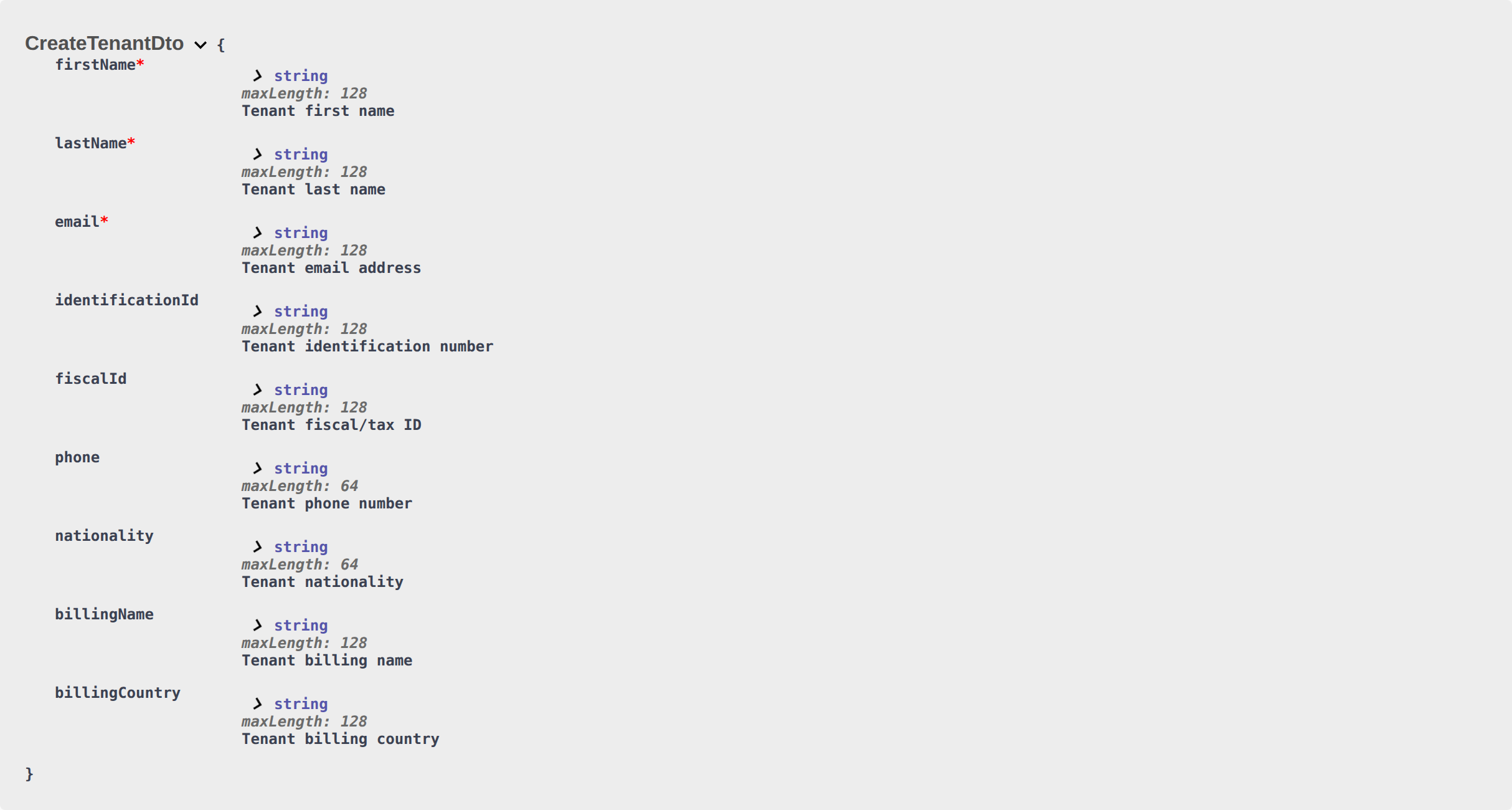
Why is the listing rent field higher than some months?
When a unit uses variable monthly rent (isRentFixed: false), listing JSON rent is the highest month in rentsPerMonth, after platform markup. It is not January and not a leftover base from when the unit was created. Markup still does not apply to Extra Charge — FAQ — Extra Charge vs Markup.
Bill each stay month from rentsPerMonth. Use rent only as a headline if you cannot store twelve months. Uniplaces and Spotahome full catalogues use that same highest month as their headline (pricing.rents on Uniplaces). Housing Anywhere full sends monthlyPrices in cents instead.
This is not dual pricing / local rent cap — listing JSON also omits the cap — FAQ — Listing JSON has no local rent cap. Guide: Listings & Availability — Variable rent headline and Full listing feeds — Variable rent headline (api-swagger-listing-dto-variable-rent.png, api-swagger-uniplaces-pricing-rents.png). Operators: Listings — Rent Value.

Why does the full listing feed have more units than GET /listings?
The two pulls are different sets of units, not two views of the same list.
Partial GET /listings only includes units with a Channels mapping for that marketplace. Full GET …/listings/full includes every listing on the account so the channel can create listings that are not linked yet. Those extra rows are keyed by the Vivin listing id (Uniplaces reference_id, Housing Anywhere listingReference, and so on). Save an external ID on Listings → Channels before you expect the unit on calendar/booking pulls or on POST /bookings.
A unit marked Excluded from feed on Integration listings is omitted from both pulls — that is not a Channels gap. Do not treat extra catalogue rows as a mapping defect. Inlife can still omit rows for unknown cities — FAQ — Listing missing from Inlife. Units without a usable positive rent are omitted from both pulls — FAQ — Listing JSON omits a unit with €0 rent. Guide: Full listing feeds — Which listings appear (api-swagger-uniplaces-partial-vs-full-listings.png).

Why is a listing missing from a marketplace pull?
Open the unit Full integration → Integration listings. If that platform shows Excluded from feed, Vivin leaves the unit off that partner’s listing JSON — both the calendar/booking import and the full catalogue. The unit stays in Vivin. Default is Included in feed; a switch you never touched is on.
This is not a missing Channels ID. Unlinked units still appear on the full catalogue. It is also not Inlife’s city filter (full catalogue only) and not €0 rent (both pulls omit unpriced units).
Click Edit on the Full integrations card, turn the platform back to Included in feed, then Confirm or Save. Airbnb and Booking.com are not on this card — they stay in channel manager settings.
Guide: Integration listings and Listings & Availability — Integration listings (booking-engine-details-listing-integration-listings-tab.png).
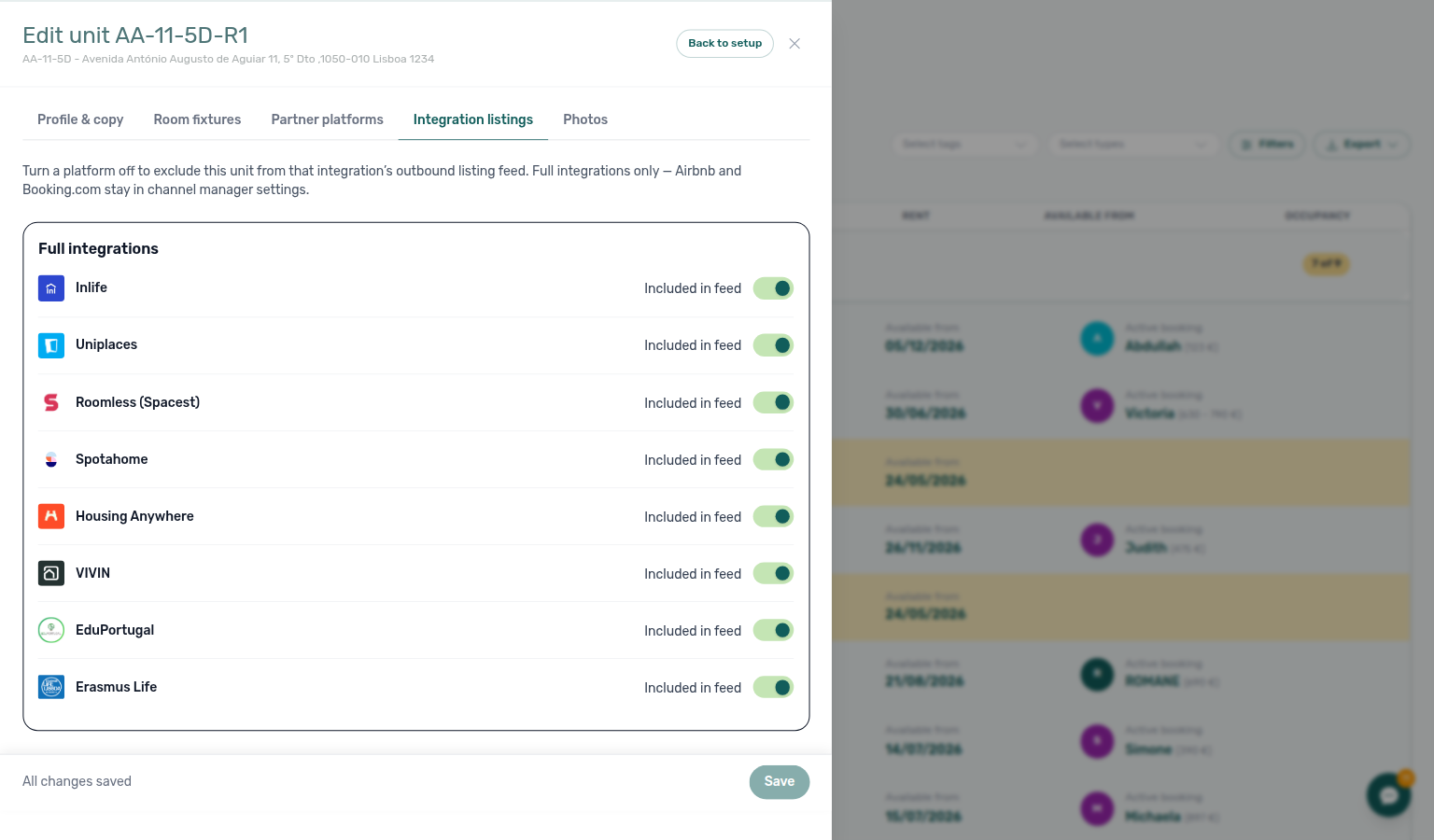
Why is a listing missing from the Inlife catalogue?
Inlife’s full listing feed only publishes units whose property City (or Region) maps to a city Inlife supports. Unknown or blank cities are left out of the catalogue so Inlife can ingest the feed. The unit is still in Vivin, and it still appears on Inlife partial listing pulls used for calendars and booking import.
Open the property Full integration → Location & geography tab. Set City to a recognised name — Lisbon / Lisboa, Porto, Madrid, Barcelona, Rome / Roma, Milan / Milano, Seville / Sevilla, Valencia, Aveiro, or Braga. Accents and capitalisation do not matter. Neighborhood is not enough. An address suggestion picked on Setup → Address fills the same City field.
If City is already a recognised name, check that the unit has a usable rent (fixed monthly rent greater than 0, or a variable grid with every month greater than 0). That rent gate applies to every partner listing pull, not only Inlife — FAQ — Listing JSON omits a unit with €0 rent.
Guide: Full listing feeds — Recognised cities (booking-engine-details-property-location-geography-tab.png).
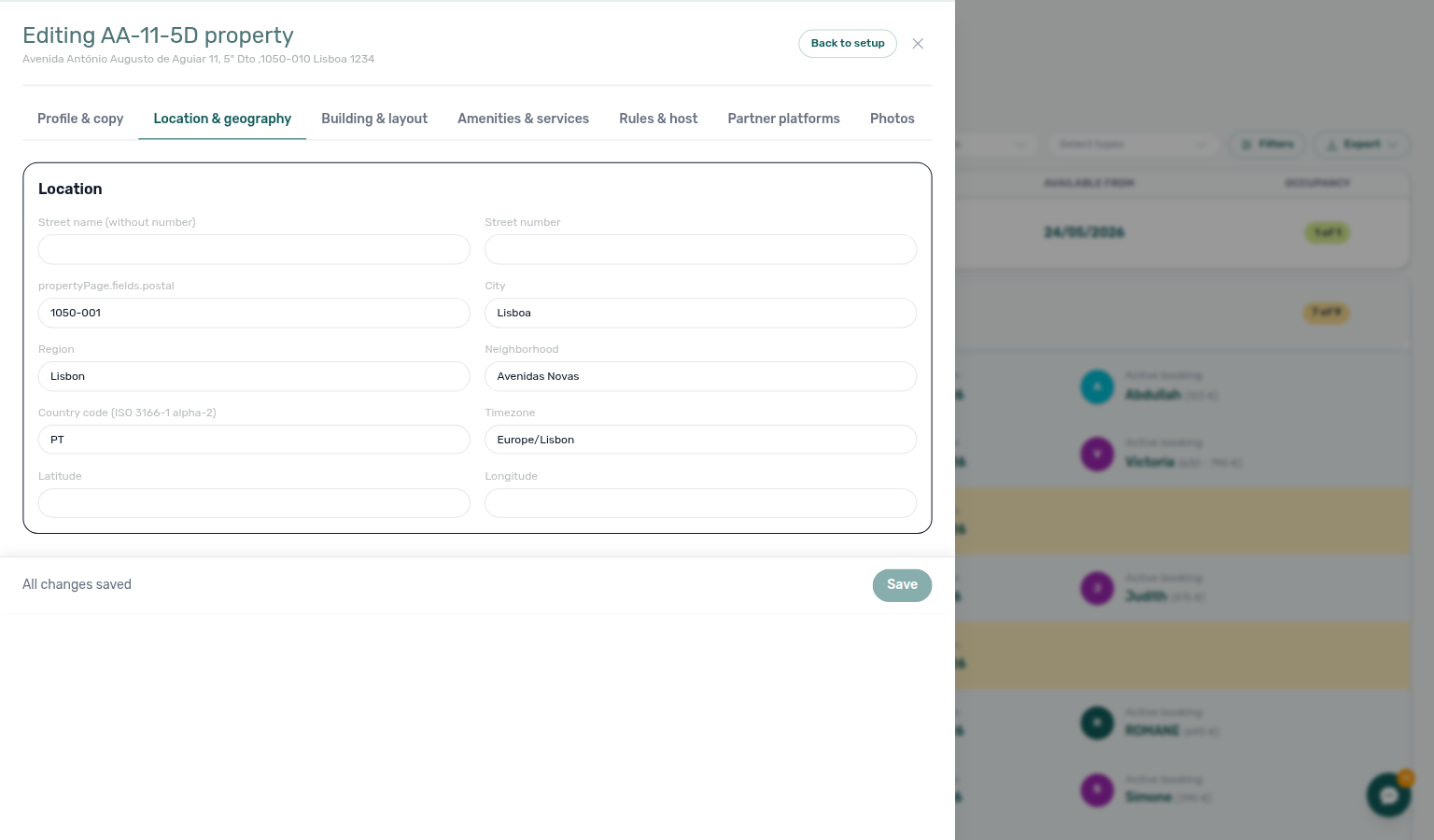
How does Inlife identify a listing in the full feed?
Inlife stores the channel key as propertyId_roomId (from import or a /house/{propertyId}/{roomId} listing URL). The full catalogue splits that string: listing id is the property segment, room.id is the room segment. Both must be underscore-free. Partial listing pulls and booking create still use the joined externalId. Guide: Full listing feeds — Inlife id and room.id (api-swagger-inlife-listing-id.png, api-swagger-inlife-room-id.png).
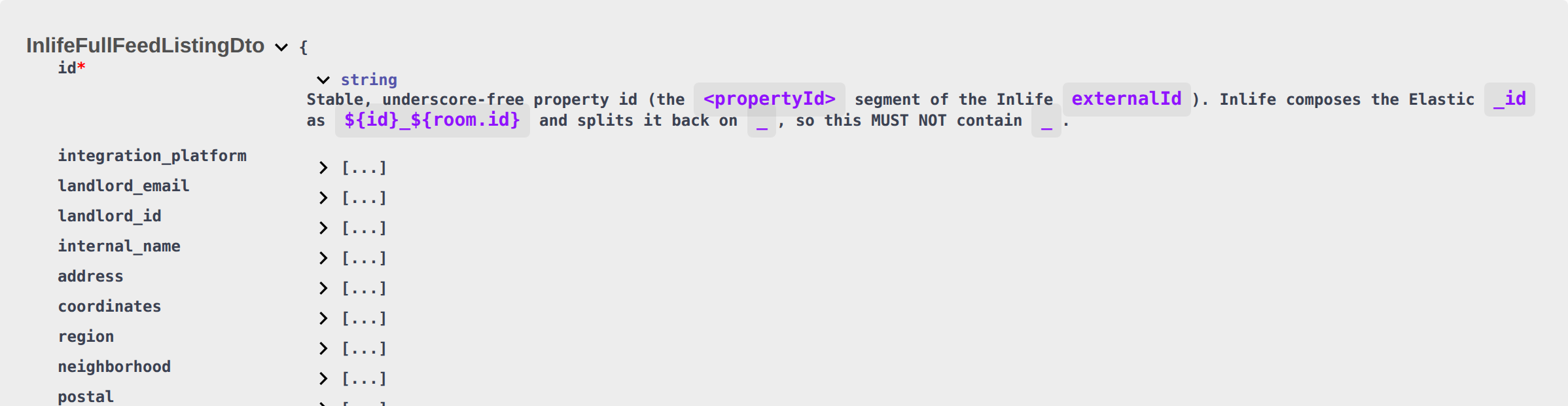
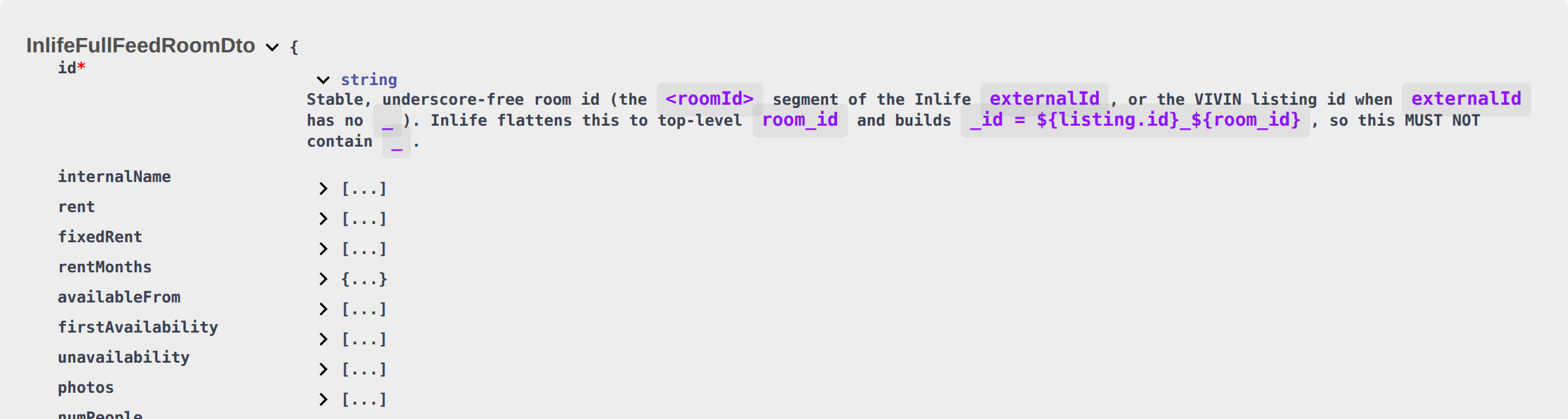
How do I turn on Instant Booking for partner feeds?
On the property, open Full integration → Rules & host, select the Instant booking chip under Booking Engine Features, then Update. On each unit, open Full integration → Partner platforms and set Minimum age, Maximum age, and Instant booking — max days before check-in, then Update. Couples allowed is under the unit Room fixtures section. Guide: Instant Booking (property + unit) (booking-engine-details-property-instant-booking-toggle.png, booking-engine-details-listing-instant-booking-max-days.png, booking-engine-details-instant-booking-property-unit-flow.mp4).
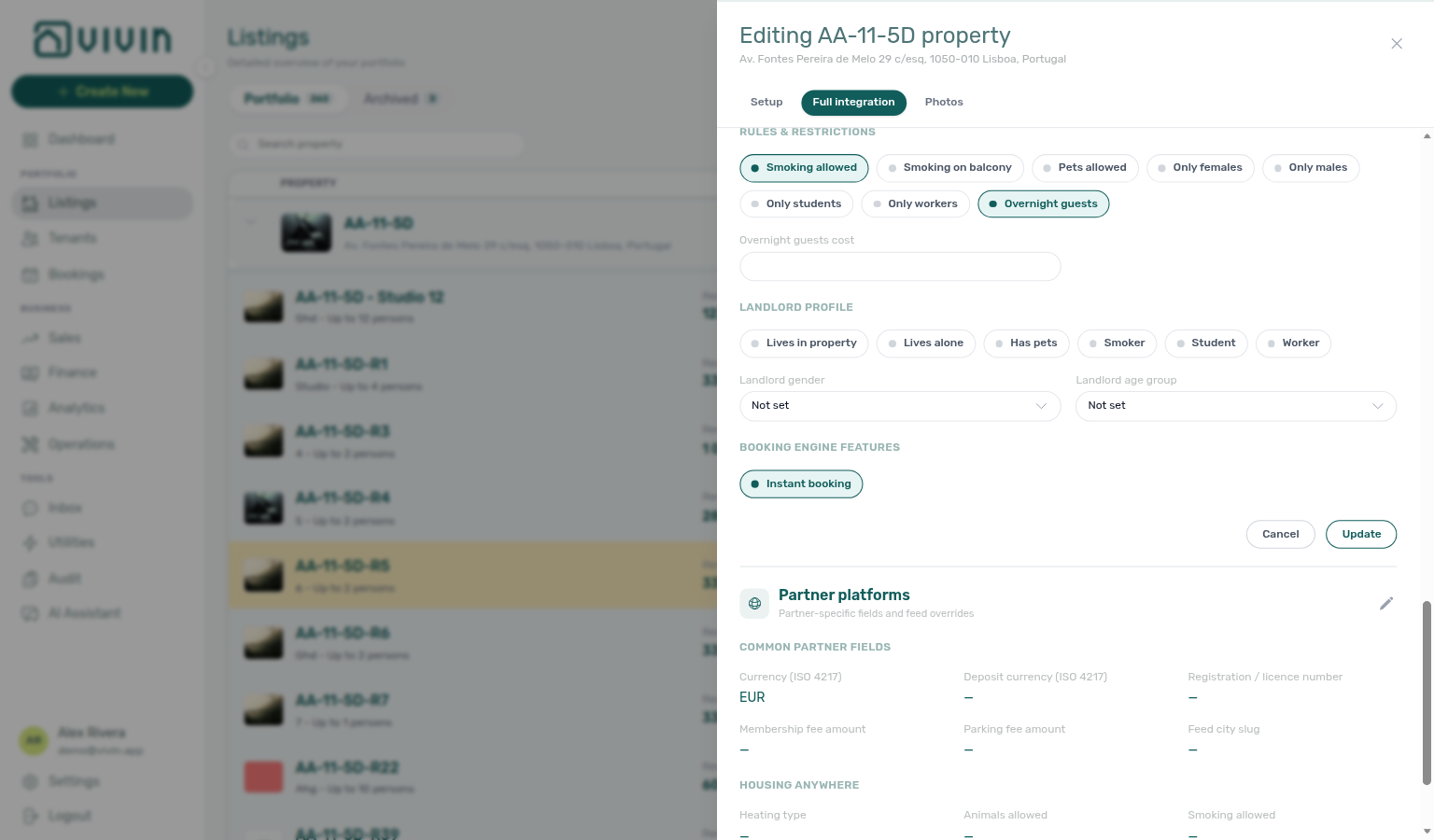
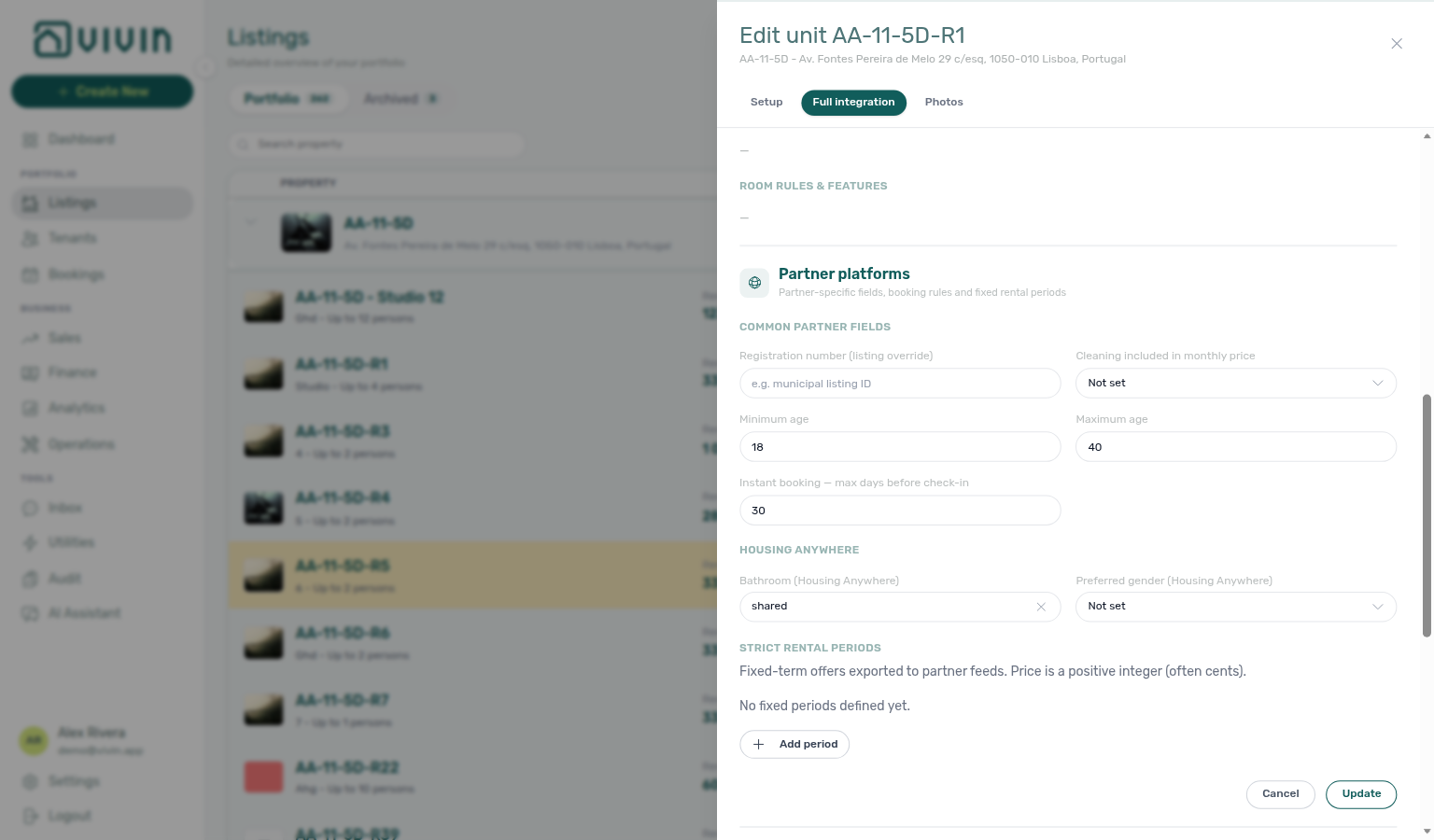
Do I need to update each channel separately when blocking dates? No. When you block dates in Vivin (whether manually, through a booking, or via any channel), all connected platforms are updated automatically. See How Calendar Synchronisation Works.
How do I set up Hostkit for Portuguese Fatura-Recibo invoicing?
- Open Account Settings → Integrations and add Hostkit under Other providers (no API key on the add dialog — keys are per listing). Connecting Hostkit is what turns invoicing on — FAQ — How do I turn invoicing on?.
- On the Hostkit card, open Listing keys, search for each unit if needed, paste the property API key from Hostkit, and Save per row (the modal loads about 20 listings per scroll chunk).
- Set Hostkit invoice series on Account Settings → Invoicing to match Hostkit Faturação → Séries (Vivin always requests document type FR).
- After chargeable payments are invoiced, use see invoice on Finance → Transactions allocation rows or Invoice_ PDF tiles on the booking Files tab. See Finance — Hostkit invoice links and Glossary — Hostkit. Only one invoicing provider (Hostkit, Invoice-xpress, or NetSuite) can be active per account.
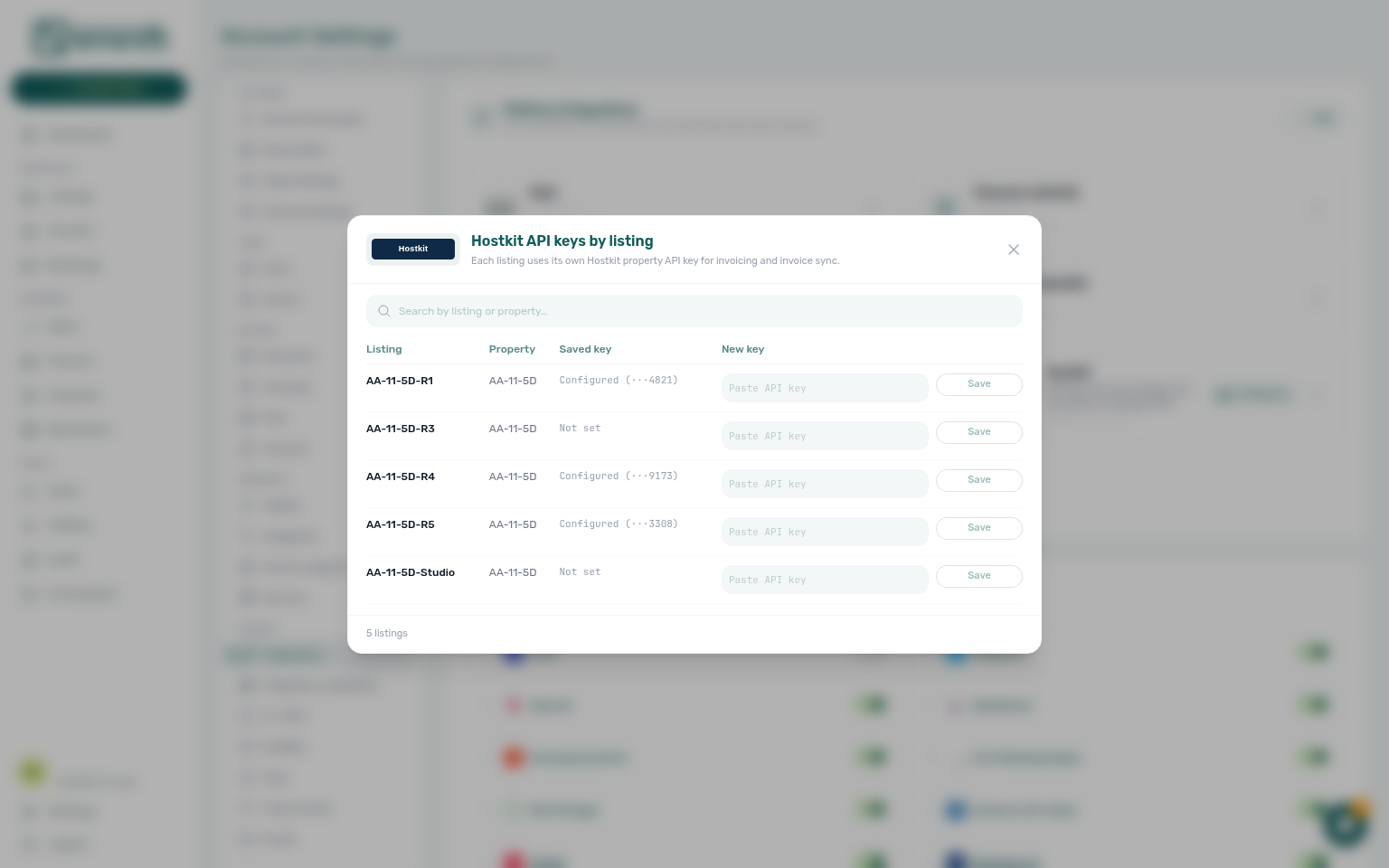
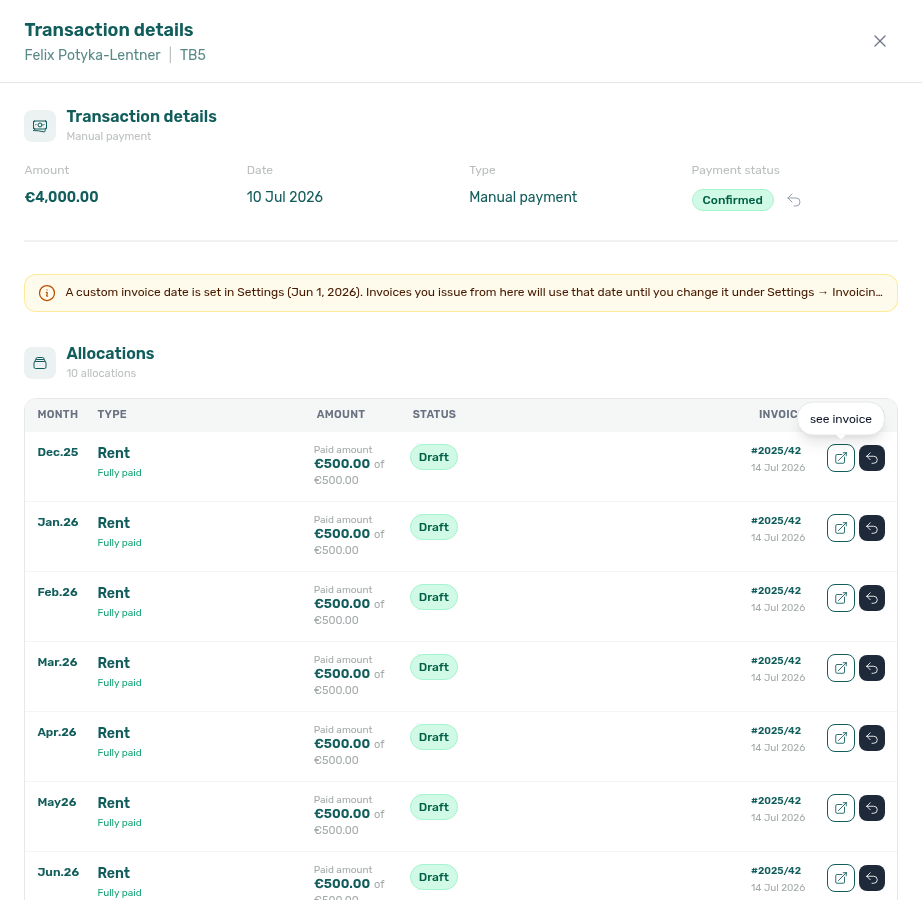
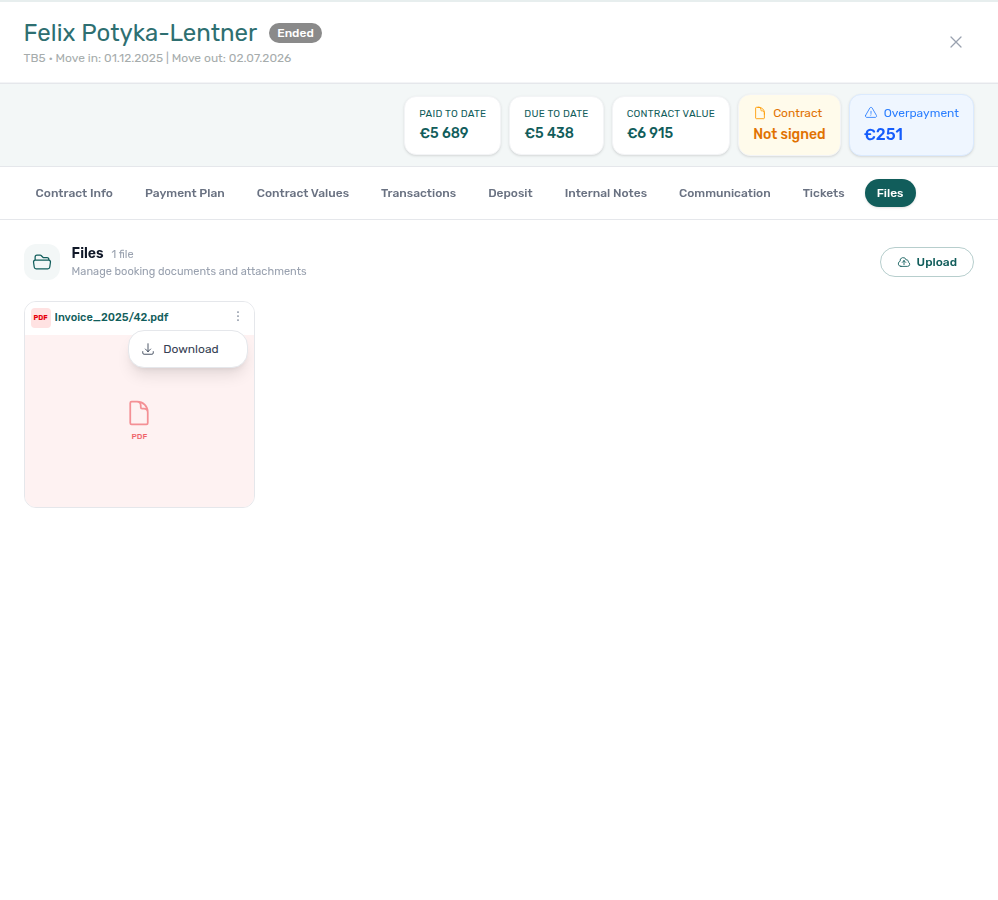
How do I set up NetSuite for ERP invoicing?
- Open Account Settings → Integrations and add NetSuite under Other providers with Account ID, OAuth client ID, Certificate ID, and private key (PEM).
- On the NetSuite card, click Configure. For Invoice defaults, pick subsidiary, department, GL account, and base location from the live NetSuite lists when the dropdowns are populated; type render script / deploy ids (and terms / currency / payment method when those lists are unavailable for your account).
- Optionally add SII identification type map rows and Property class mappings — open Select a property, use Search properties… or scroll the list (infinite scroll), then pick a NetSuite class code and + Add (
settings-integrations-netsuite-config-property-class-picker.png,settings-integrations-netsuite-property-class-picker-flow.mp4). - Click Save configuration, then run Issue allocation / Invoice selected from Finance → Transactions. See Glossary — NetSuite and the Configure walkthrough (
settings-integrations-netsuite-config-flow.mp4). NetSuite blocks Hostkit / Invoice-xpress until you remove the connection.
Hostkit invoice links or PDFs look wrong — what should I check?
Confirm Hostkit invoice series on Account Settings → Invoicing matches the FR series you issue from in Hostkit Faturação → Séries. Hostkit reuses numeric sequence ids across series; Vivin tracks each document as {series}/{id} and fetches PDFs from Hostkit’s permalink for that pair. A series typo can cause invalid series errors on create or mismatched see invoice / Files attachments until Settings match your live Hostkit series. See Finance — Hostkit invoice links.
Why does Hostkit invoicing fail with “invoice series is not configured”? The Hostkit invoice series field on Account Settings → Invoicing is required before Vivin calls Hostkit to create a document — an empty or whitespace-only value is rejected in-product so invoices are not silently issued into Hostkit’s default series. Paste the exact FR series code from Hostkit Faturação → Séries, Save, then retry Issue allocation or Invoice selected on Finance → Transactions.
The tenant did not receive a final invoice receipt email — was invoicing skipped? Not necessarily. Issue allocation / Invoice selected persists the PDF on the booking and updates allocation Invoiced state before Vivin attempts the optional receipt email controlled on Preferences → Final invoices (receipts). Check Bookings → Files or Finance → Transactions first — when the document is there, invoicing succeeded and only delivery may have failed (tenant email missing, toggles off, or spam). Outbound mail failure does not roll back invoiced state; do not re-issue solely because the mailbox is empty. See Finance — Tenant invoice receipt email.
AI & Automation
Chatbot and MCP answers pair with Settings & tenant communications (ChatBot settings under Account Settings), Bookings (Communication tab, Bot reasoning), Where do I read WhatsApp and email for one booking? (Communication vs global Inbox), WhatsApp per-booking messaging hub (symptom table for Inbox vs Bookings → Communication — inbox-module-triage-flow.mp4), Common Workflows — WhatsApp per-booking messaging.
What can the AI chatbot do? The chatbot provides 24/7 tenant support via WhatsApp and email (there is no tenant chat surface inside the Tenant Portal). It handles enquiries about payment status, contracts, maintenance, and move-in information. Complex issues are automatically escalated to your team. See Automation & AI.
Where can I ask the AI questions about my own portfolio?
Use the AI Chat module (Tools > AI Assistant in the sidebar, or /ai-chat) to ask questions about occupancy, revenue, move-ins, and coliving overview. The VIVIN AI Assistant answers using your real data. Access is Vivin internal accounts only — other roles do not see this menu entry. WhatsApp Genius (staff phones linked on Users) shares the same Landlord MCP tools. Money answers use Finance-page figures (get-finance-overview, get-revenue-summary) — compare against Finance → Overview, not Analytics ADR/RevPAR (FAQ — Genius revenue vs Analytics). For one landlord’s monthly settlement totals without generating the PDF, see How do I ask for an owner settlement preview?. See AI Chat Module, Automation & AI — WhatsApp Genius, and bookmarkable routes under Management deep links.
How do I choose Short or Long AI Assistant answers?
Answer length pairs with AI Chat — Answer mode, Glossary — Answer mode, and Where can I ask the AI questions about my own portfolio?.
On Tools → AI Assistant, use the Short / Long control under New chat. Short keeps replies to a plain number or fact; Long adds a short explanation and breakdown when the tools return one. The choice is saved for your user until you change it. Typing explain / detail / breakdown (or short / just the number) in one message can override the saved mode for that reply only. See AI Chat — Answer mode (ai-chat-answer-mode-short-reply.png, ai-chat-answer-mode-long-reply.png, ai-chat-answer-mode-flow.mp4).
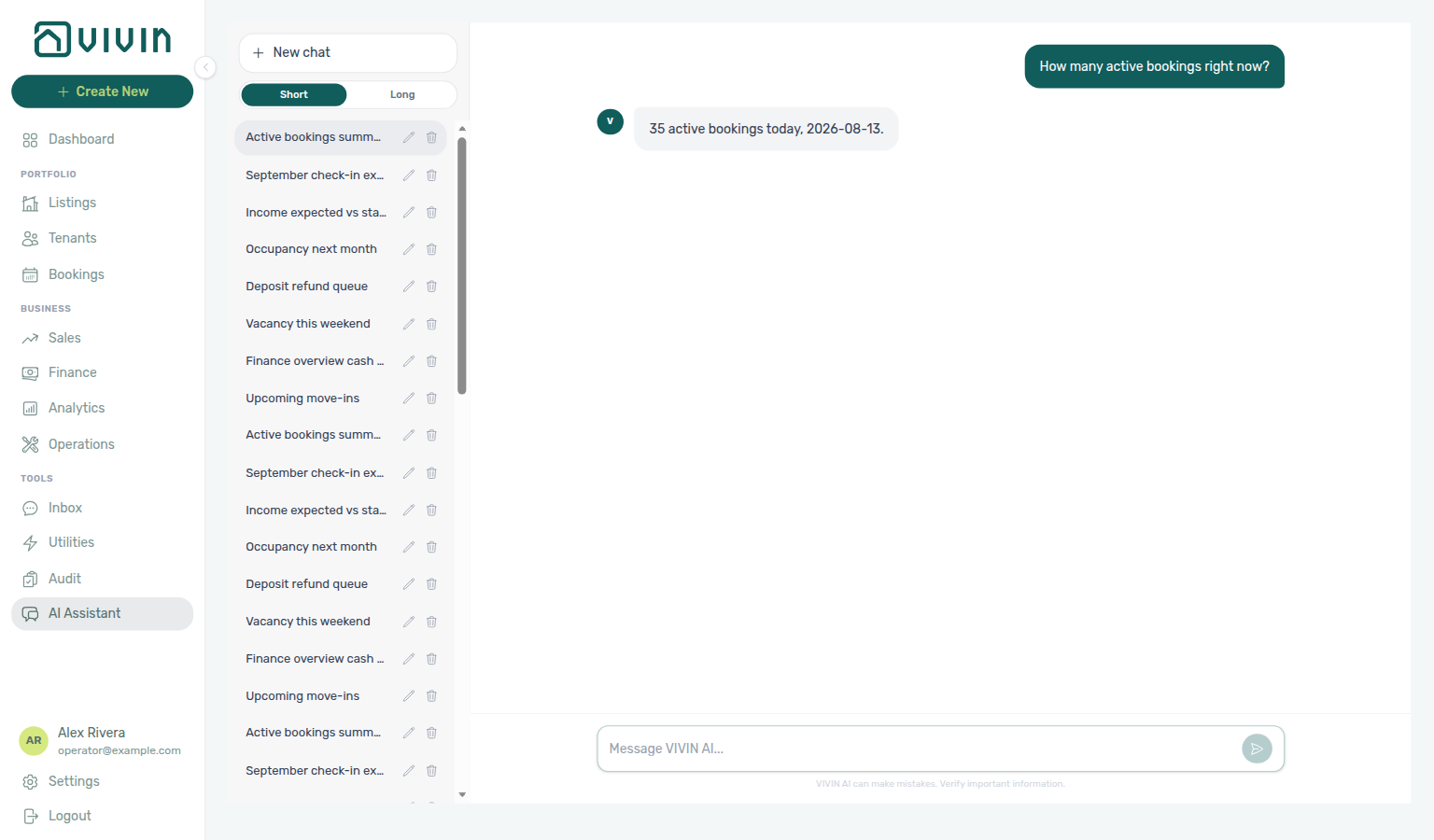
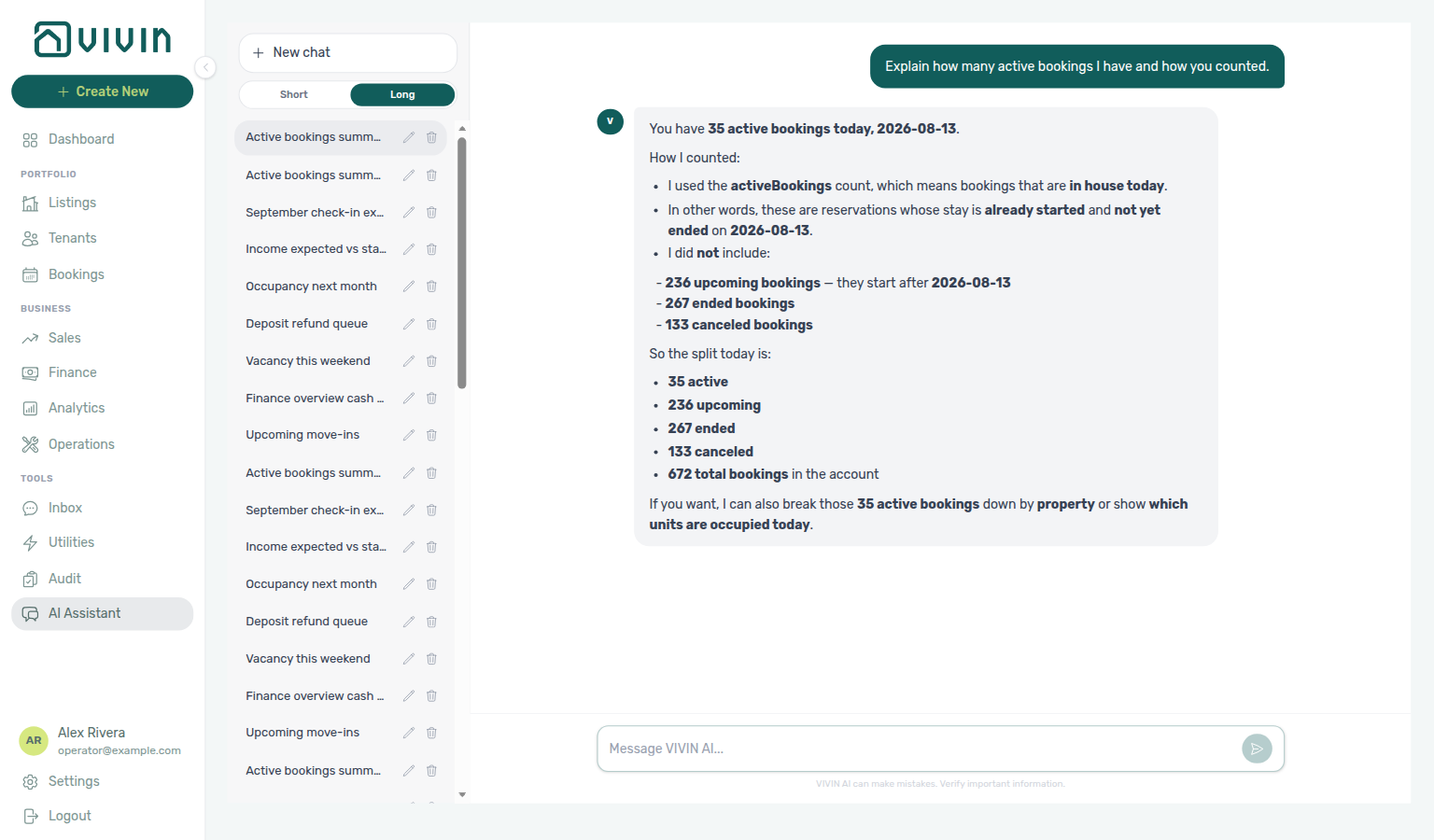
What happens when I reach the AI Assistant monthly question limit?
Monthly question limits pair with AI Chat — Monthly question limit, Glossary — AI Assistant monthly question limit, and How do I choose Short or Long AI Assistant answers?.
Some accounts cap how many questions Tools → AI Assistant accepts each calendar month. Near the limit, replies still answer and may append a short note such as 9/10 monthly assistant questions used. At the limit, the assistant explains that you have reached the monthly limit — questions resume at the start of the next month, or ask an administrator about a higher limit. Starting a new chat does not reset the counter. See AI Chat — Monthly question limit.
How do I find older AI Assistant conversations?
Open Tools → AI Assistant. The left sidebar lists your threads in pages (about 50 at a time). Scroll that list until Load older conversations appears under your chats (above Examples), then click it to append the next batch. Repeat until the control disappears — every older page is then loaded for rename, archive, or open. If you never see the control, you have fewer than one page of conversations. See AI Chat — Load older conversations (ai-chat-load-older-conversations-button.png, ai-chat-load-older-conversations-flow.mp4).
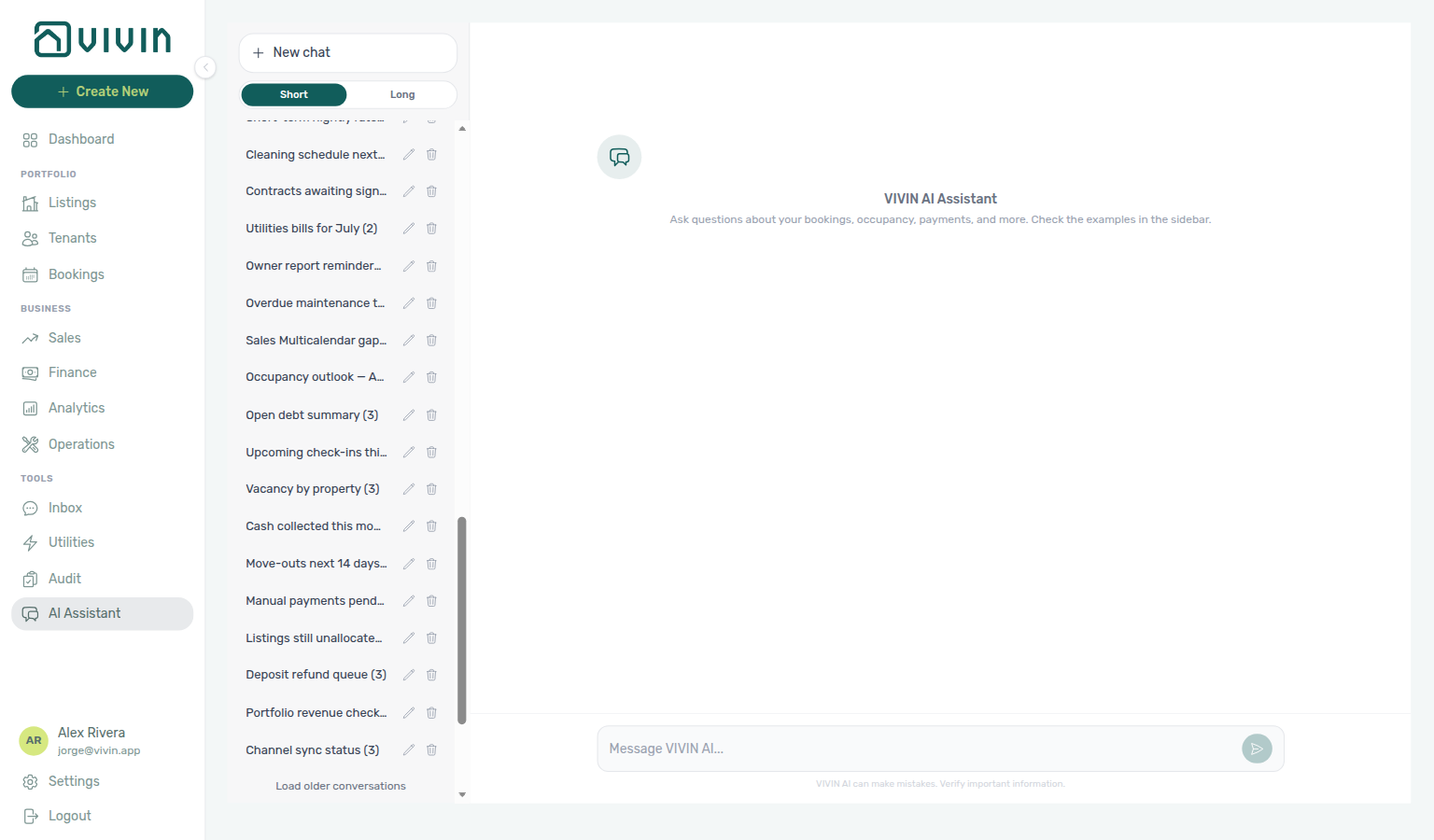
Why is my new AI Assistant chat numbered past the visible list?
Default titles pair with AI Chat — New chat titles from the full conversation count, Glossary — Conversation N, and How do I find older AI Assistant conversations?.
New chat titles the row Conversation N from your account-wide conversation total, not from the threads currently in the sidebar. The list loads about 50 at a time, so a skip from Conversation 50 to Conversation 121 means you still have older pages to load — it is not a gap in your history. Rename with the pencil for a working title. See AI Chat — New chat titles from the full conversation count (ai-chat-empty-state-new-conversation.png).
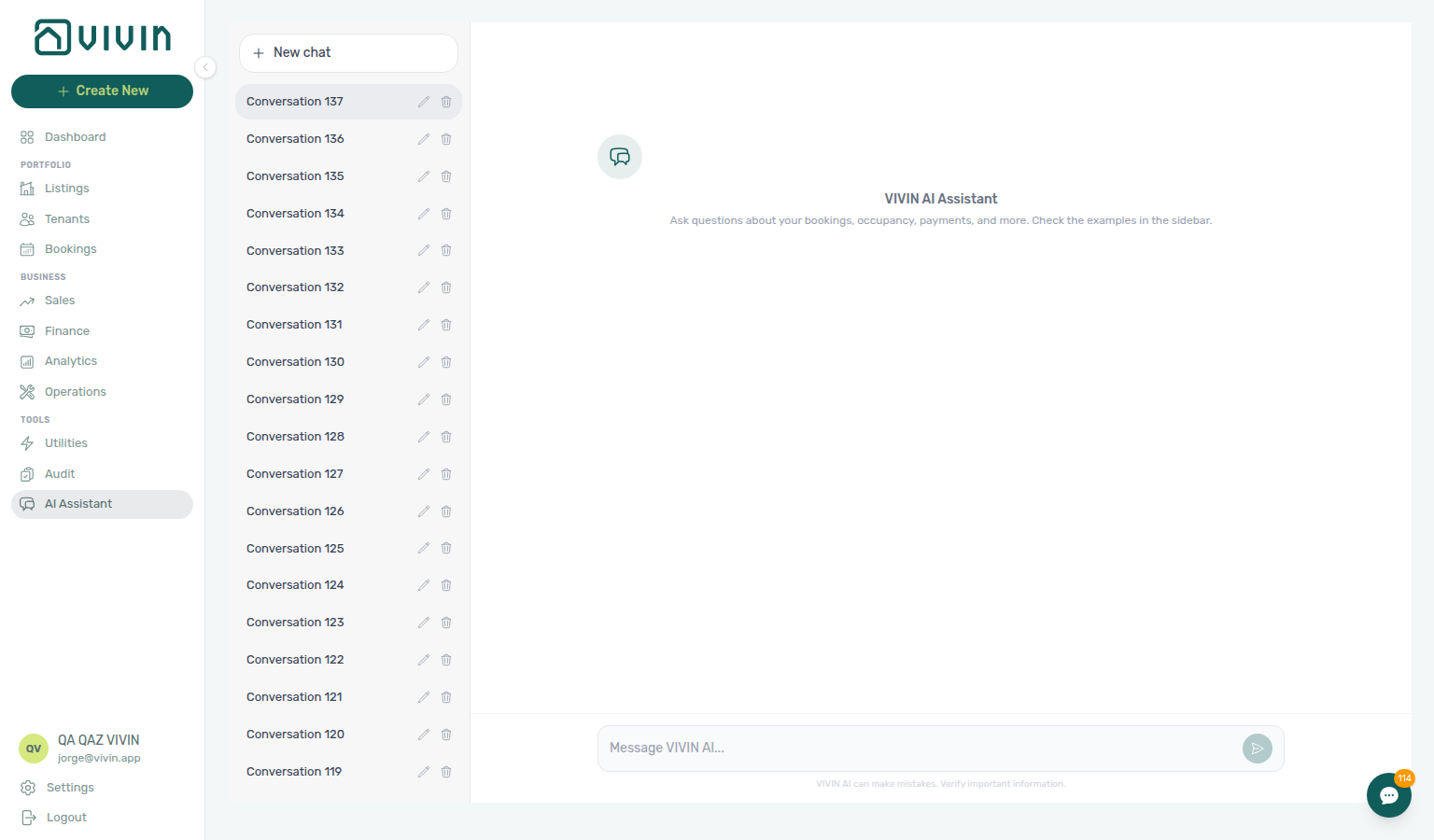
Why don't I see Tools > AI Assistant (or /ai-chat)?
The in-product AI Assistant for operators is available to management roles granted the AI / MCP permission (on by default for Admin and Super Admin). Roles without it use the rest of the platform without this entry point; opening /ai-chat directly shows a standard permission message. Tenant-facing automated support remains on WhatsApp and email, not inside the Tenant Portal. See AI Chat.
What is the difference between Landlord MCP and Tenant MCP? Both are Model Context Protocol servers in the VIVIN stack that call the same Core API as the management app, but they target different automation scopes. Landlord MCP is account-scoped — portfolio intelligence, listings, bookings, owners, payments, and related operator tools for integrations that act like a signed-in property manager. Tenant MCP is booking- and tenant-context scoped — tools for tenant-facing assistants (portal links, payment and contract context, chatbot rules, maintenance) when the conversation is about a specific reservation. Choose Landlord MCP for operator workflows; choose Tenant MCP when the client already knows which tenant or booking it is serving.
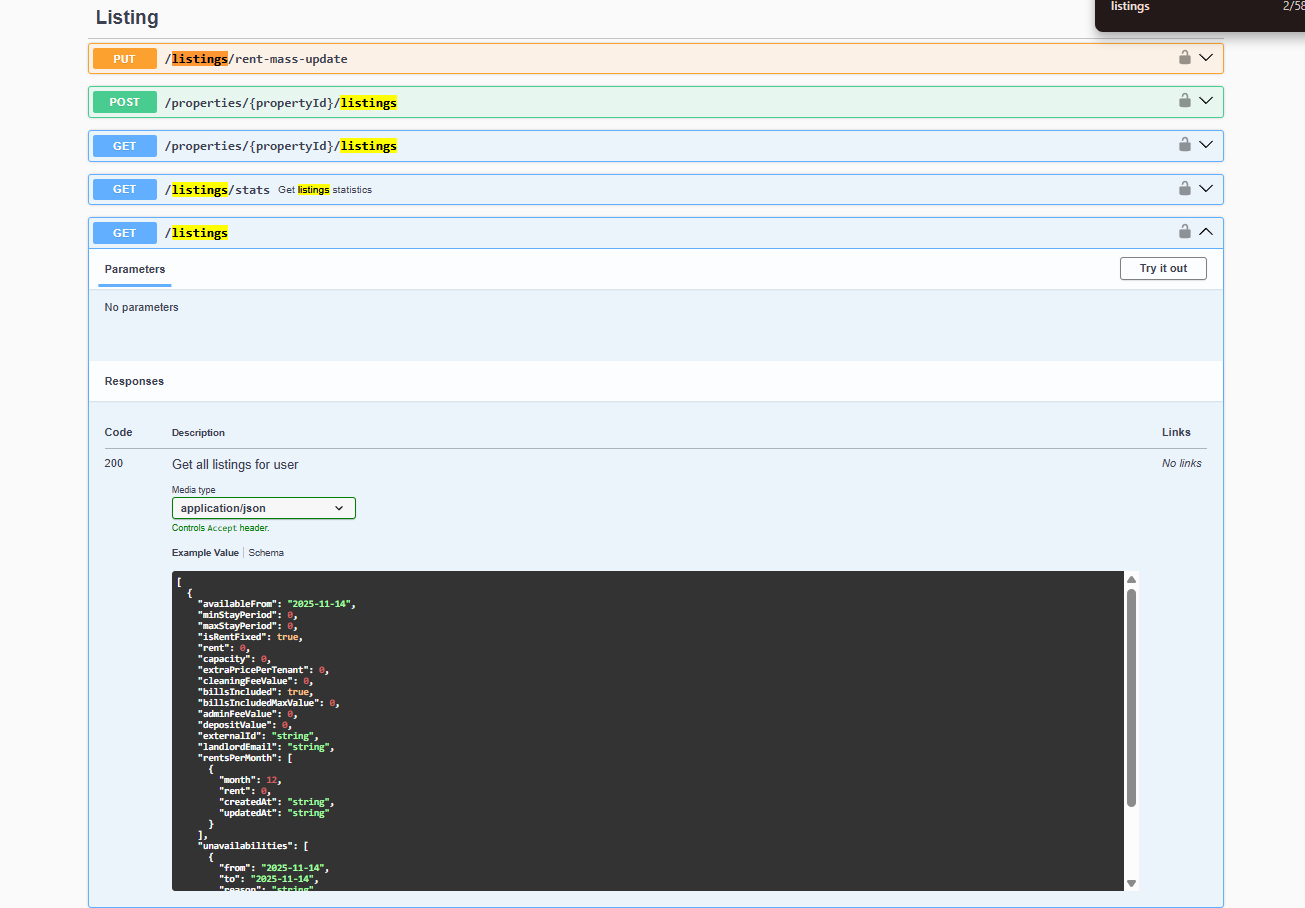
Partner channels that push booking events into Vivin use inbound POST …/webhook routes on the Core API host — Housing Anywhere includes {landlordKey} in the path and echoes listingReference as listing_external_reference; Uniplaces uses a global POST /uniplaces-integration/webhook with offer_api_reference. See Webhooks & Notifications (api-swagger-housinganywhere-webhook-post.png, api-swagger-uniplaces-webhook-post.png), not MCP tool names.
How does the AI invoice reader work? Upload a utility bill and the AI automatically detects the utility type, identifies the correct property, and extracts the amount, consumption, and billing dates. See Utilities > AI Invoice Reader.
How do I see AI token usage for my account?
Token metering pairs with Glossary — AI usage ledger, AI usage API (GET /ai-usage, GET /ai-usage/summary), Portfolio KPI review — Step 7, and Automation & AI (assistant vs utility-bill features).
Vivin records each LLM call in an append-only ai_usage ledger (token counts and Vivin’s internal USD provider cost). There is no management-frontend screen for this today — operators with account_settings.module poll the Core API with a management JWT:
GET /ai-usage— paginated call log (newest first), with optionalfeature,from, andtofiltersGET /ai-usage/summary— month-scoped aggregates byfeatureandmodel
landlord_chat covers AI Chat assistant turns; utility_bill_extraction covers Utilities — AI Invoice Reader PDF reads; booking_communication_summary covers Bookings — AI conversation summary (Communication → Summary); faq_generation covers Settings → FAQs FAQ Generator; ticket_priority_analysis covers Settings → Ticket priority Analyze tickets; cashflow_invoice_analysis covers Operations → Cash Flows — AI Invoice Analysis. Costs are internal metering — not tenant-facing invoices. Month-end review habit: Portfolio KPI review — Step 7. Full contract: AI usage API and Glossary — AI usage ledger.
Does Vivin change my prices automatically? No. Rent is under your control: set and bulk-edit monthly amounts in Sales > Pricing. Integrations propagate the availability and rates you configure; they do not replace your pricing decisions.
What kind of automation can I set up? Vivin supports automated booking-to-contract pipelines, payment reminders, invoice generation, check-in/check-out ticket creation, and bulk operations. Most automations are configured through Settings or property-level configuration. See Automation & AI.
Does the WhatsApp bot create tickets automatically? Yes. When the bot identifies a new issue that requires action, it automatically creates a ticket in the Operations module with the tenant's message, booking context, and any relevant history. If an existing ticket already covers the topic, the bot responds with that context instead of creating a duplicate. See Automatic Ticket Creation.
Will the WhatsApp bot respond to suppliers or contractors? If your WhatsApp business number is used for both tenant and supplier communications, the bot may respond to non-tenant messages. Consider using a dedicated number for tenant support to avoid this. See WhatsApp Support.
How do I audit why the WhatsApp bot sent a particular reply?
On Bookings → booking detail → Communication, select the WhatsApp filter and find a mint Bot bubble (outbound message sent by the tenant chatbot). When Vivin stored internal reasoning for that automated reply, a compact Reasoning control appears under the message body — click it to expand the explanation the bot used before sending (italic text in parentheses). Only Bot messages include this toggle; tenant and human You bubbles do not. Use it to verify IF/THEN rules and persona behaviour without server logs. See Bookings — Communication tab (Bot reasoning) and Glossary — Bot reasoning (audit).
Bot reasoning (audit)
Bot audit pairs with ChatBot settings hub (edit Persona / IF/THEN after thread review), FAQ — WhatsApp per-booking messaging hub, and AI & Automation.
| Symptom | Likely cause | Fix |
|---|---|---|
| Bot gave a generic or wrong answer | Broad IF/THEN If phrase | Expand Reasoning → narrow rule at ChatBot settings |
| No Reasoning under Bot bubble | Reasoning not stored for that send | Not a UI bug — adjust rules from message content; see ChatBot settings hub |
| Need to change tone for all channels | Persona missing or vague | ChatBot — Persona — then verify on live thread |
| Bot still auto-replies on one booking | Pause bot not toggled | Communication → WhatsApp when pause label is configured |
- Common Workflows — Bot reasoning (audit) — Operator habit hub
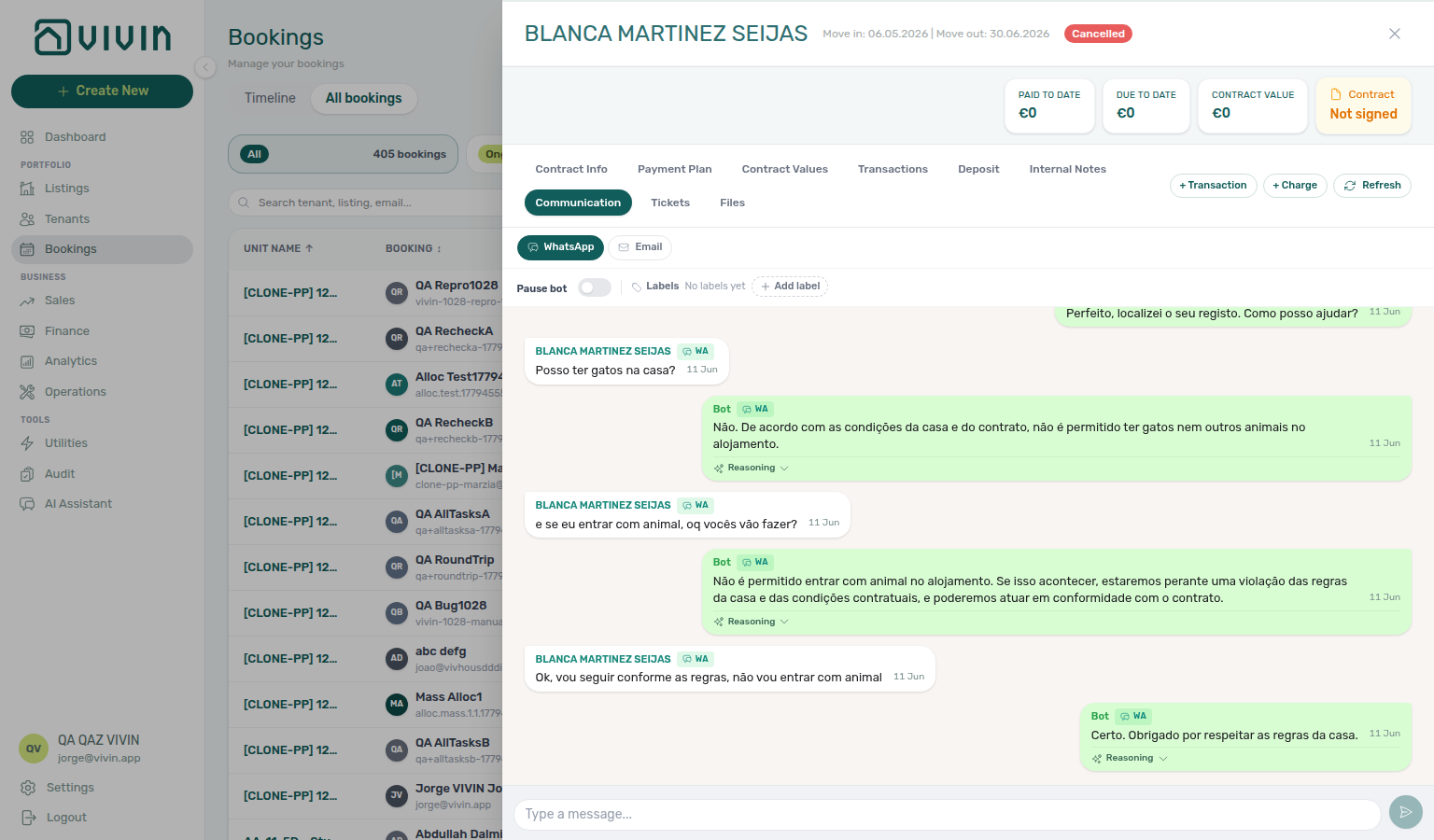
ChatBot settings
ChatBot configuration pairs with Bot reasoning (audit) hub (thread audit after rule edits), FAQ — WhatsApp per-booking messaging hub, and AI & Automation.
| Symptom | Likely cause | Fix |
|---|---|---|
| Inbox greyed in sidebar | Chatbot not enabled or Bot Status Disconnected | Bot Status → Connect WhatsApp until Connected (settings-chatbot-status-bot-disconnected.png) |
| Unlock your communication history | isTenantChatBotEnabled false | Contact Vivin; then pair Bot Status |
| Bot replies on almost every message | Catch-all IF/THEN rule | Replace with specific If situations — IF/THEN rules or seed from AI Examples (settings-chatbot-ai-examples-flow.mp4) |
| ChatBot tab missing, cannot edit rules | Your role does not have the Chatbot permission | Who can edit ChatBot settings |
| Tenant never hears the bot is AI at the start of a thread | Introduce as AI on start is Off (default) | ChatBot — Introduce as AI on start — distinct from AI Disclosure (answers only when asked) |
| WhatsApp composer missing | Outbound not provisioned | WhatsApp replies aren't available yet notice on Communication |
| QR expired before scan | Session timed out on phone | Refresh QR code on Bot Status |
- Common Workflows — ChatBot settings — Operator habit hub
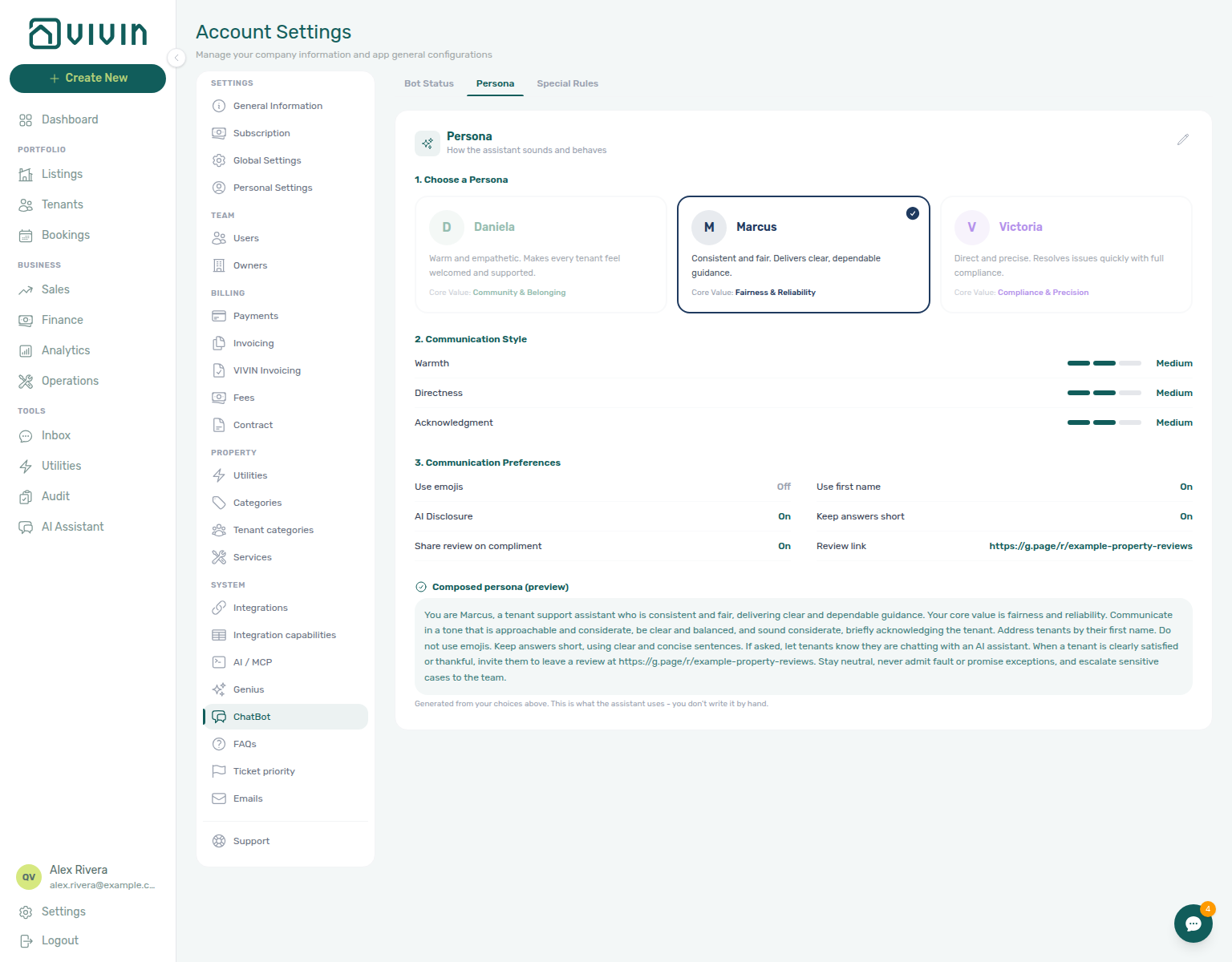
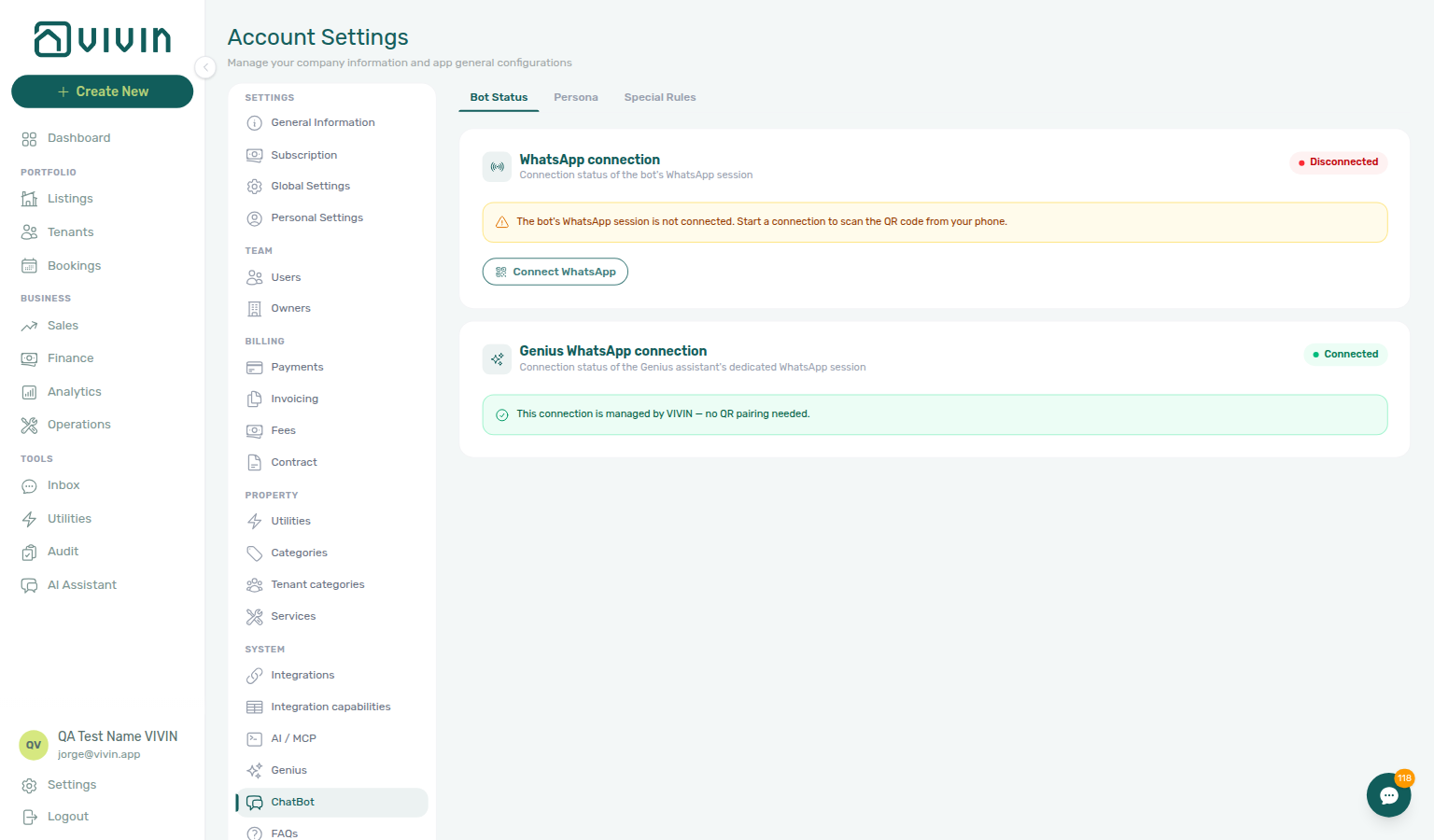

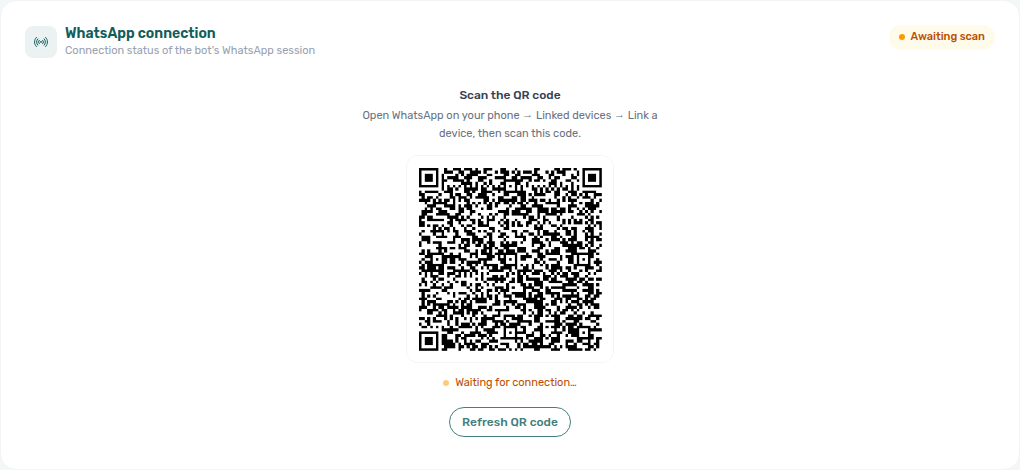
What's the difference between AI Disclosure and Introduce as AI on start?
Persona identification pairs with ChatBot — Introduce as AI on start, Glossary — Introduce as AI on start, and ChatBot settings hub.
AI Disclosure (On by default on named presets) answers if a tenant asks whether they are talking to a person. Introduce as AI on start is Off until you turn it on: the assistant then identifies as AI at the beginning of a new conversation. The two toggles are independent — you can use one, both, or neither. Edit them on Account Settings → ChatBot → Persona Communication Preferences, then Save. See ChatBot — Introduce as AI on start.
Where do I read WhatsApp and email for one booking?
When the tenant chatbot is enabled on your account, open the booking from Bookings and select the Communication tab in the detail sidebar. Use the WhatsApp pill for chat bubbles (tenant, Bot, and You), Labels, Pause bot (when configured), and the bottom composer to send replies from the management UI; use Email for read-only inbox-style rows you can expand (attachments preview/download when ingested); use Summary for an AI Communication report of WhatsApp + email history (Bookings — AI conversation summary). On channel-manager stays, an extra pill named Airbnb or Booking.com mirrors the OTA guest thread — How do I read and reply to Airbnb guest messages? and Why do channel-manager bookings show Airbnb or Booking.com?. Traffic matches the tenant’s phone or email on the booking. Use Refresh in the sidebar header to reload after new traffic.
| Surface | Best for | Reply from Vivin? |
|---|---|---|
| Bookings → Communication | One reservation with Payment Plan, Tickets, and Files context | WhatsApp yes (composer); Email read-only; Airbnb / Booking.com yes on channel-manager stays |
Inbox (/inbox) or bell Inbox sub-tab | Cross-booking triage, unknown numbers, alert-driven entry | WhatsApp yes; same conversation state as Communication |
| Dashboard bell → General | Payment/ticket/booking alerts — not message threads | N/A — switch to Inbox for WhatsApp pings |
/notifications row New WhatsApp message from … | Mixed alert inbox — message ping among payment rows | Row with link opens thread; bookingId only → open Communication — Notification row-click navigation |
On Tools → Inbox, the browser tab reads VIVIN | Inbox (including /inbox?contact=…). The bell Inbox slide-over does not change the tab until you land on that route.
If you see Unlock your communication history, the chatbot integration is not active for the workspace yet — pair with ChatBot settings and Inbox — Chatbot gating. If Communication messages do not appear, use header Refresh — other booking tabs stay available (FAQ — Communication or Tickets won't open). While the tab stays open, Vivin polls about every 15 seconds for inbound WhatsApp/email; a floating N new messages pill appears when counts rise — click it to refetch and scroll to the newest item (Bookings — New messages while the tab is open).
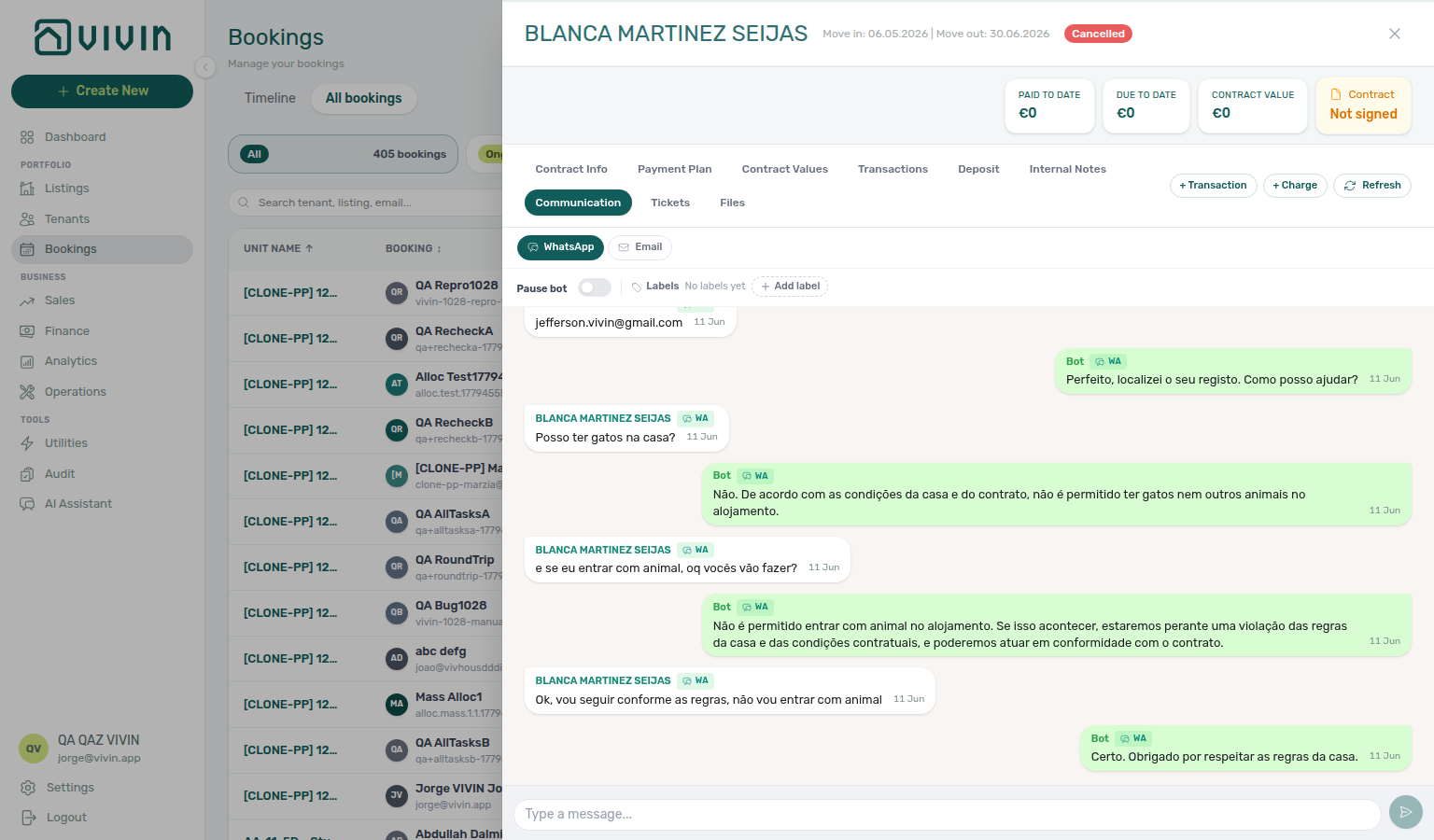
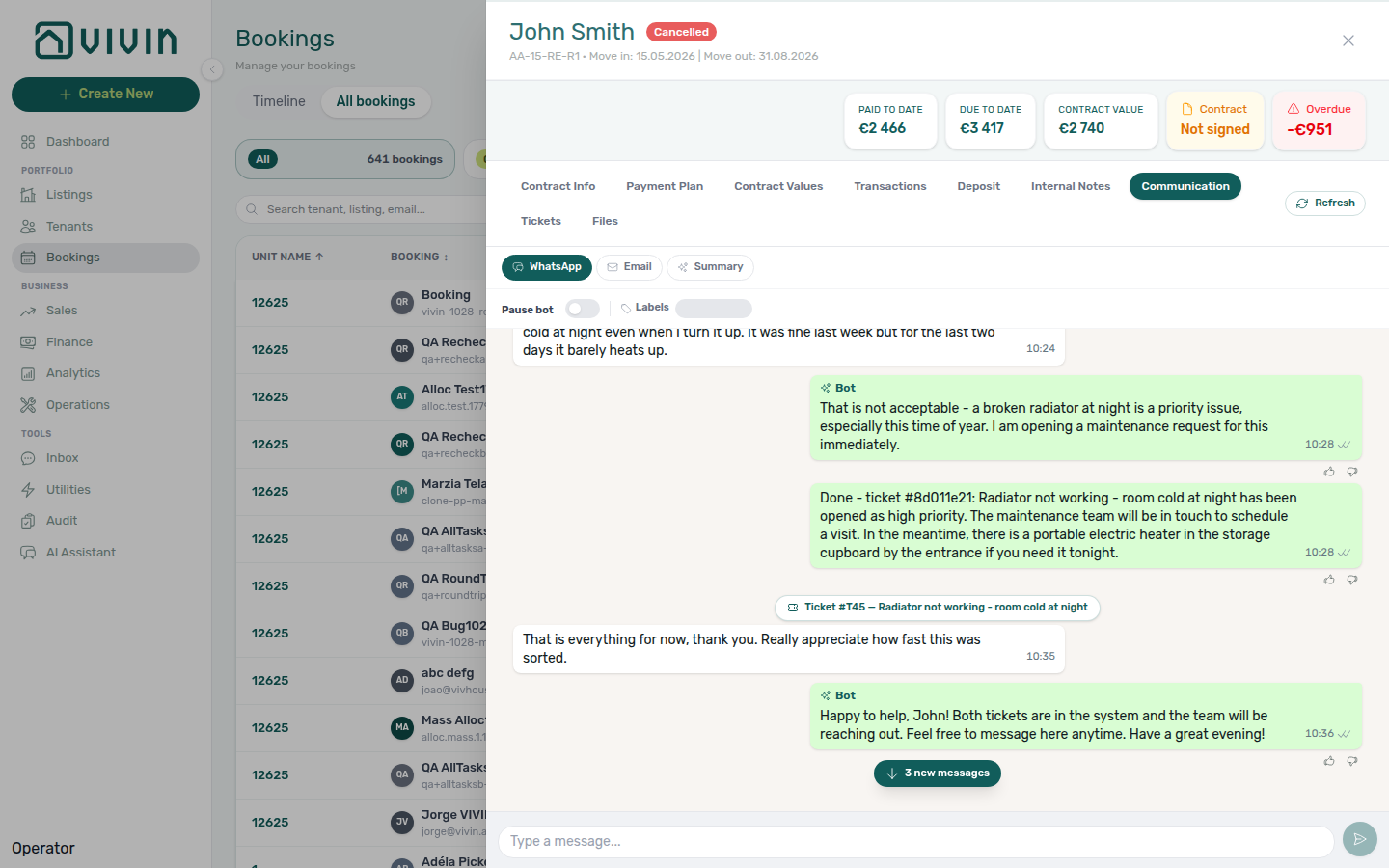
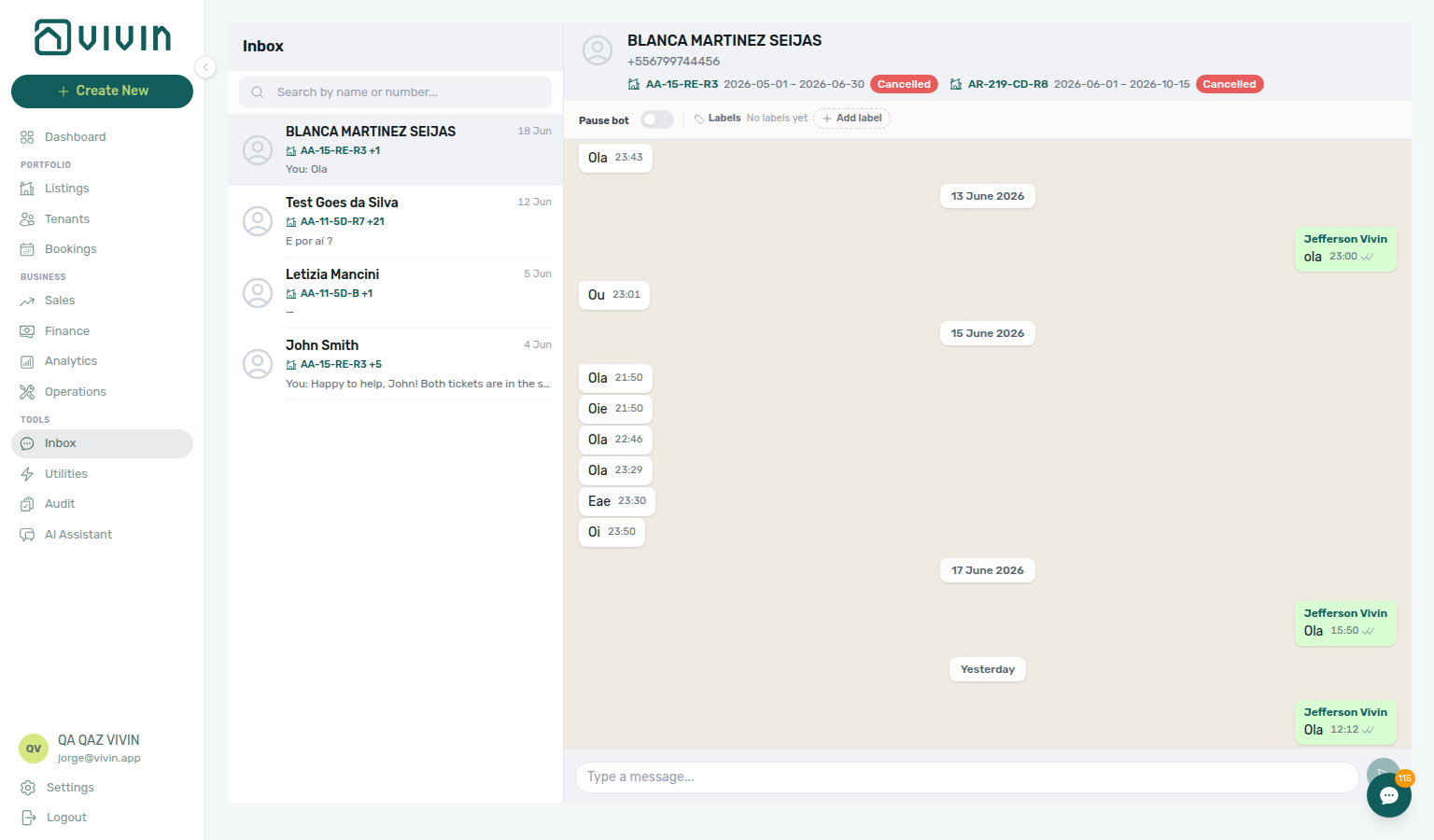
- Common Workflows — WhatsApp per-booking messaging — Operator habit hub
See Bookings — Communication tab (bookings-detail-communication-tab-whatsapp-composer.png, bookings-detail-communication-tab-email-inbox.png, bookings-detail-communication-tab-summary-report.png, bookings-detail-communication-tab-new-messages-pill.png, bookings-communication-new-messages-pill-flow.mp4) and Inbox — Relationship to Bookings Communication.
How do I read and reply to Airbnb guest messages on a booking?
Open a channel-manager booking from Bookings, then Communication and the pill named after the OTA — Airbnb or Booking.com. Vivin mirrors the live host↔guest thread: Guest bubbles on the left, Host on the right (soft pink on Airbnb, blue on Booking.com). Type in Reply to the guest on Airbnb… or Reply to the guest on Booking.com… and press Enter to send (or Shift+Enter for a new line). The OTA pill appears only on these stays and works even when the tenant chatbot is off — it does not use WhatsApp pairing. If you see copy about installing the Messages application, finish that one-time setup on your channel-manager Applications page so Vivin can mirror and send. Empty threads show No Airbnb guest messages yet for this reservation. (Booking.com stays use the same sentence with Booking.com.) See Bookings — Airbnb guest chat (bookings-detail-communication-tab-ota-real-ota.png, bookings-detail-communication-tab-airbnb-thread.png, bookings-detail-communication-tab-airbnb-bubbles.png, bookings-detail-communication-tab-airbnb-composer.png, bookings-communication-airbnb-reply-flow.mp4), Why do channel-manager bookings show Airbnb or Booking.com?, and Glossary — Airbnb guest chat.
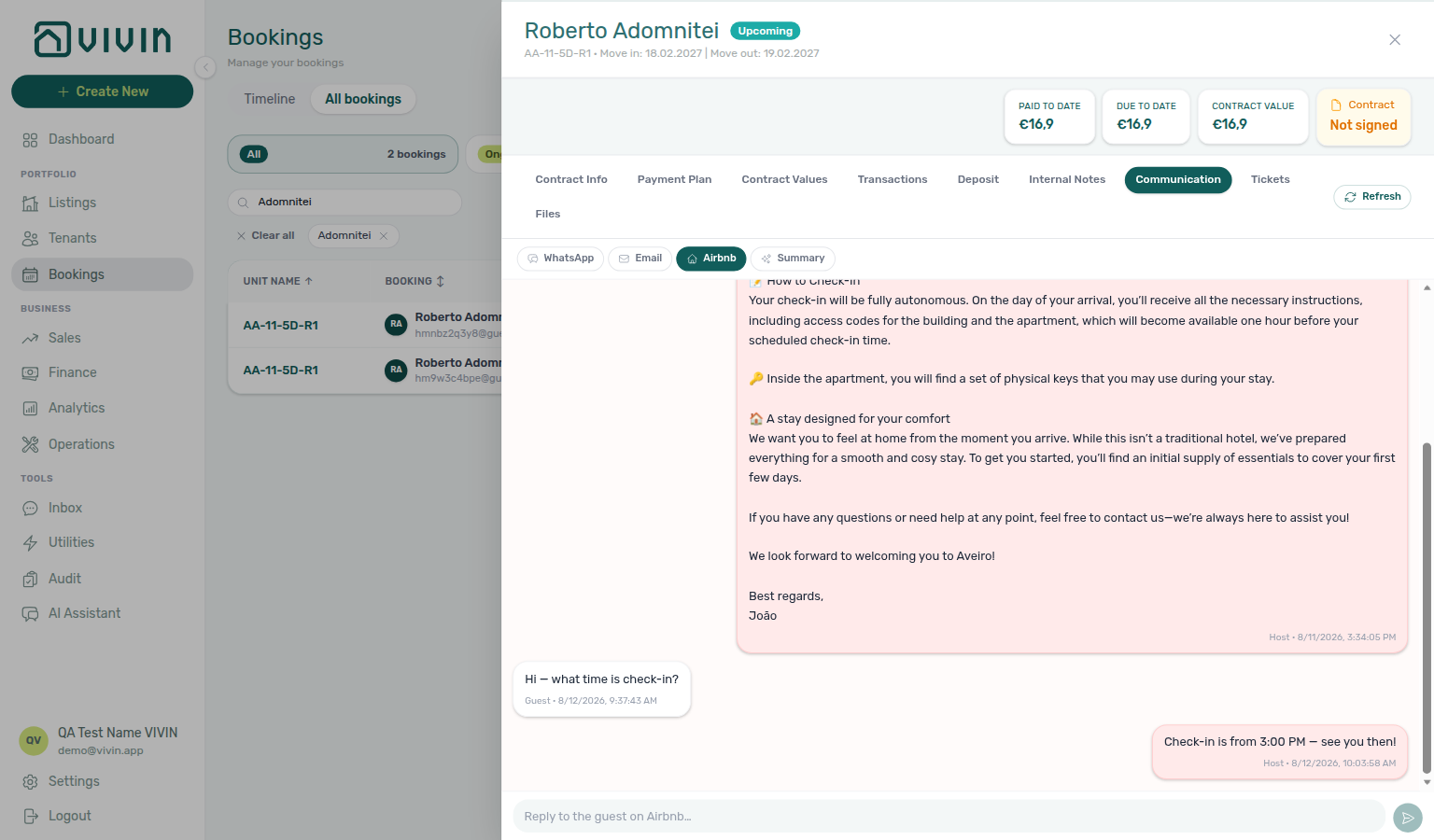
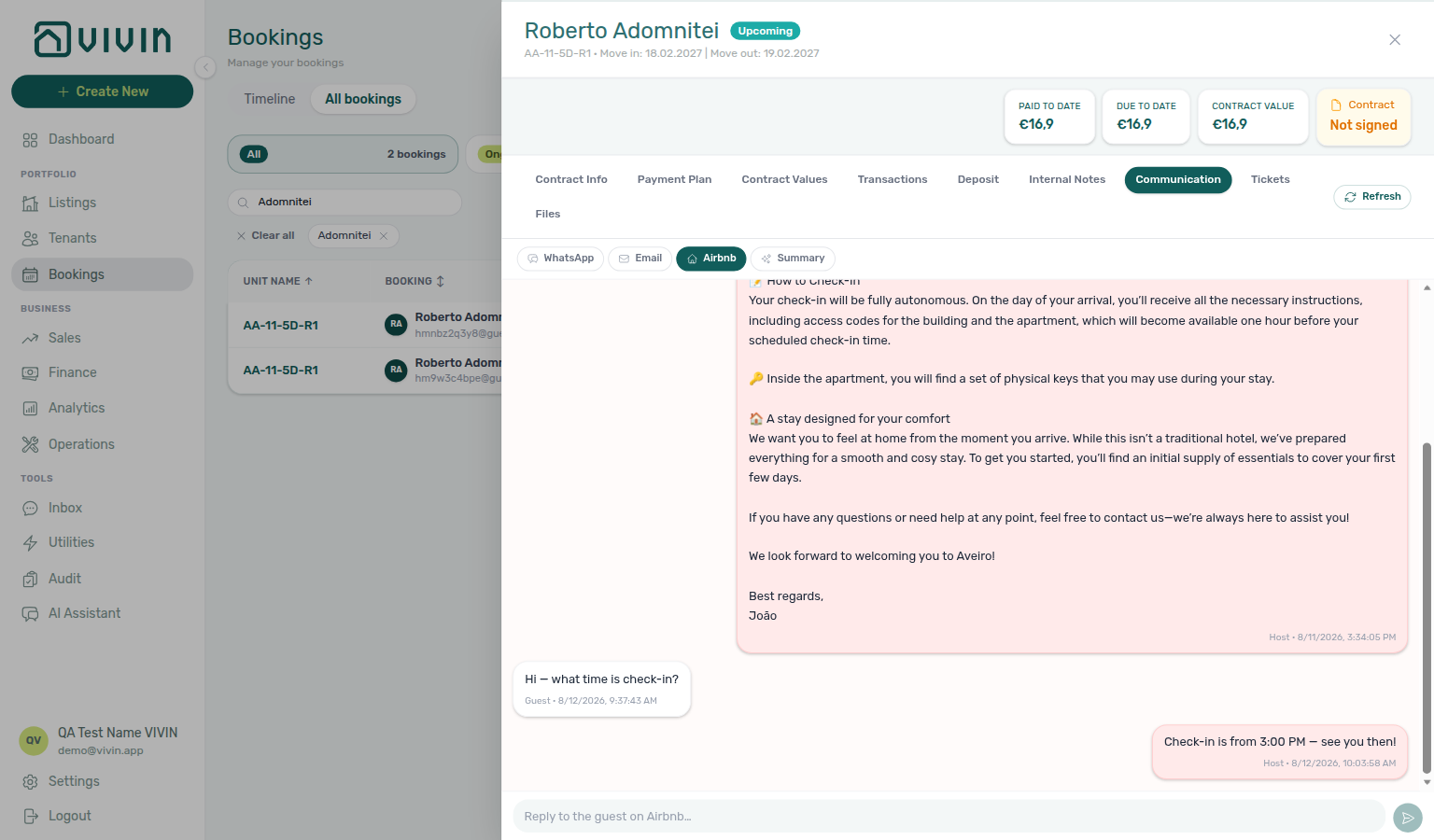
How do I generate an AI summary of a booking’s WhatsApp and email?
On Bookings → Communication, open the Summary pill. If nothing is stored yet, click Generate summary; if a report already exists, use Regenerate. The modal shows a free cost estimate and model choice (Sonnet 4.6 / Opus 4.8) before the paid run. The report is internal (tenants never see it) and meters to booking_communication_summary on AI usage. See Bookings — AI conversation summary (bookings-detail-communication-tab-summary-empty.png, bookings-detail-communication-tab-summary-run-modal.png, bookings-communication-summary-flow.mp4).
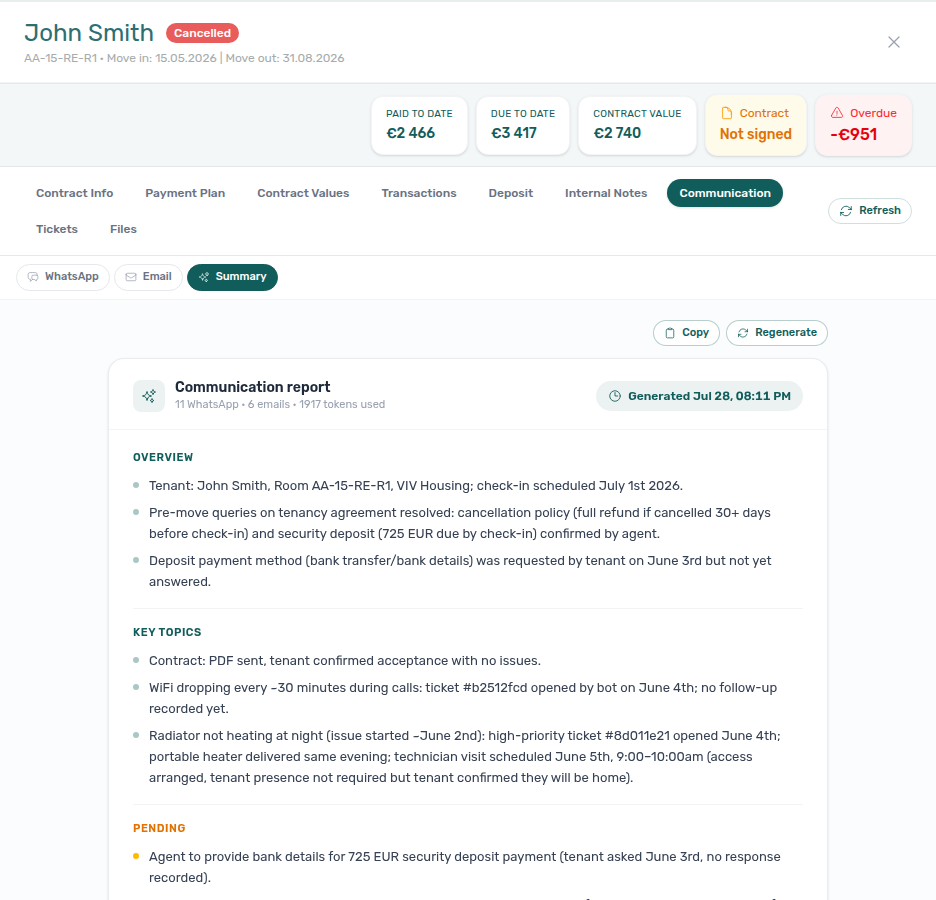
How do I see why the bot sent a particular WhatsApp reply? On Bookings → Communication → WhatsApp, automated Bot bubbles can include a Reasoning control under the message when Vivin stored audit text with that reply. Click Reasoning to expand the internal explanation (italic text in parentheses). Tenant messages and human You replies do not show this control. Persona and IF/THEN rules are edited under Account Settings → ChatBot; reasoning is read-only on the thread. See Bookings — Bot reasoning and Glossary — Bot reasoning (audit).
Services Marketplace
Tenant add-on answers pair with Tenant Portal & Mobile App (catalogue preview) and Payments & Finance (charges on payment plan).
What services can I offer to tenants? You can offer any service through a customisable catalogue — common examples include cleaning packages, gym memberships, insurance, airport transfers, co-working access, parking, and more. See Services Marketplace.
How are service charges billed? Service charges are automatically added to the tenant's payment schedule and tracked alongside rent and other charges in the Finance module.
My service description is long (for example terms and conditions). What do tenants see? The catalogue card starts with about two lines. When the rest would overflow, tenants tap Show more (then Show less) on that card. Confirm request shows the full description (scroll the panel) — it does not use the two-line clamp. Put critical information at the beginning, or add the optional Link on the service in Settings > Services so tenants can open your full terms or detail page. See Tenant Portal — Show more and FAQ — How do tenants expand a long service description?.
Where do tenants see services they already ordered? Under Services → Order History. Monthly add-ons show Active; one-time add-ons show how many times they were ordered. Pending approval-gated requests stay in Awaiting approval until you decide. See Tenant Portal — Order History and FAQ — How do tenants see ordered services?.
Notifications
This section complements Notifications & alerts — start there for bell vs /notifications, infinite scroll, and payment-alert opt-in.
Where can I see all my notifications?
Use the Notifications module to view your full notification history. You can search, filter by All/Unread/Read, and mark notifications as read. On desktop Dashboard, the header bell shows unread count and opens a slide-over with General and Inbox sub-tabs (message pings on Inbox; payment/ticket/booking alerts on General) — no in-panel link to the full page. Open /notifications directly (bookmark or address bar) for the full module. For WhatsApp-only triage, use the bell Inbox sub-tab or the global Inbox workspace at /inbox. There is no dedicated Notifications item in the left sidebar. See Notifications Module.
Utilities
Overage and AI reader answers pair with Properties & Listings (Bills Included ceilings), Payments & Finance (tenant charges on payment plan), Why is there a Covered row with Extra to charge of € 0,00? (Covered vs missing bill), Did a calendar block remove my Covered allocation? (Absorbed block vs Covered stay), What does the Upload PDF banner mean? (processed successfully / Already uploaded / Unconfirmed — check the Bills list), Does picking a second utility type close the Bills menu? (Select type stay-open), Does picking a second booking status close the Allocations menu? (Booking status stay-open), Why didn't my SIMAR water bill match the property? (Cód. Local vs meter number on Connections), How do I turn off a utility connection on a property? (Remove contract ID on Connections), How do I undo a mistaken utility allocation approval? (Approved → Pending on Allocations), Can I approve a utility overage from the booking? (Contract Values Approve allocation / Reject allocation), Why can't I approve a utility allocation after the deposit was refunded? (Deposit status → Refunded; Approve stays disabled), Why do rooms on different buildings show the same daily utility amount on Cost map? (shared-meter split), and When should I use Recalculate Allocations on Cost map? (rebuild pending, rejected, and Covered rows after bill corrections).
Why are tenant overage charges not being created? Overages require three things to be configured: (1) utility account IDs linked to the property, (2) Bills Included ceilings set on the property, and (3) utility types enabled in Settings > Utilities. Also ensure the bill is entered with the correct billing period. A Covered row with Extra to charge € 0,00 means the period was calculated and the tenant owes nothing — that is expected when consumption stayed inside the allowance, or when the unit has All bills included (No cap). See Entering Monthly Utility Bills and Why is there a Covered row with Extra to charge of € 0,00?.
Why is there a Covered row with Extra to charge of € 0,00?
Covered means Vivin calculated the period and the tenant owes nothing. Extra to charge is € 0,00 on purpose — a real zero, not a missing bill and not the — used on Absorbed (calendar block) rows.
Open Utilities → Allocations and click the Covered scope card. Hover the teal Covered badge: either consumption stayed within the budget included in the rent, or the unit has All bills included. Expand the row for the teal banner (no bill is missing), Allocated cost (consumption assigned), Allowance for the period, and Bills included in the period. Covered rows have no checkbox and cannot be approved or rejected — they never appear in Pending.
A later bill for the same period can replace Covered with a Pending overage. A calendar block on the same unit does not remove the Covered stay — Did a calendar block remove my Covered allocation?. See Utilities — Covered periods and Glossary — Covered (utilities allocation).
Did a calendar block remove my Covered allocation?
No. A calendar block (owner stay, maintenance hold) is an Absorbed row — Extra to charge —, no tenant. Covered is the booking’s calculated stay — Extra to charge € 0,00. Vivin keeps both for the same unit and month.
Open Utilities → Allocations. Click Covered for the tenant row, then Absorbed for the block. Overnight rebuilds and Recalculate Allocations follow the same rule: a block does not overwrite the booking’s Covered line.
A later bill for that stay and month can still replace Covered with a Pending overage. That is bill math, not the block. Do not Recalculate Allocations to check this — read the two scope cards.
See Utilities — Calendar blocks do not replace Covered (utilities-allocations-tab-list.png).
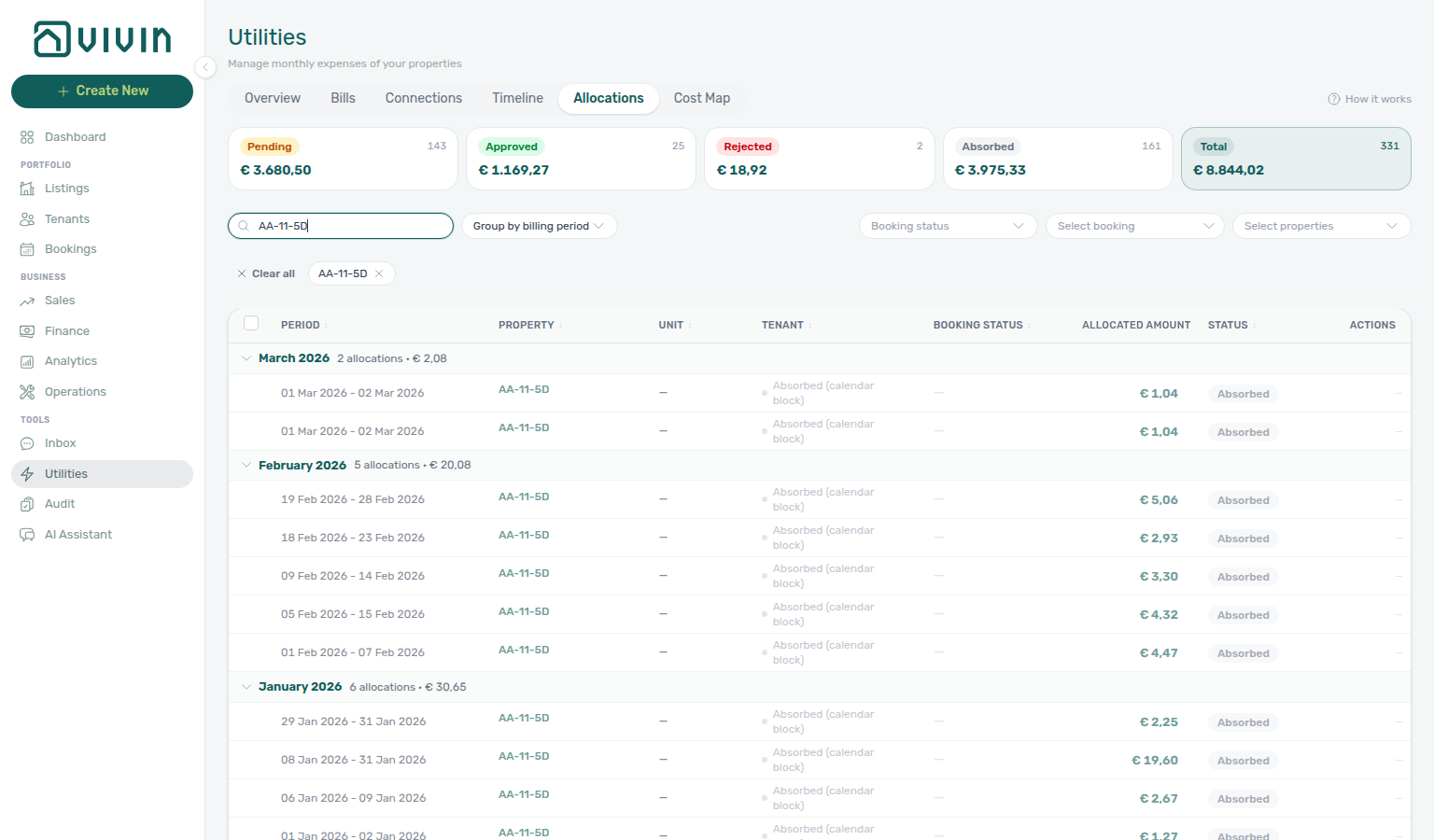
How do I change Bills included on an existing booking?
Open the booking → Contract Info → Booking information → pencil (edit). The Bills included field becomes a € number input — set the ceiling for this reservation only, then Update (or Cancel to discard). Changing it is inert for the payment plan: Vivin stores the new ceiling but does not regenerate scheduled lines or recalculate past overages. Property defaults stay unchanged for future bookings. See Bookings — Bills included ceiling.
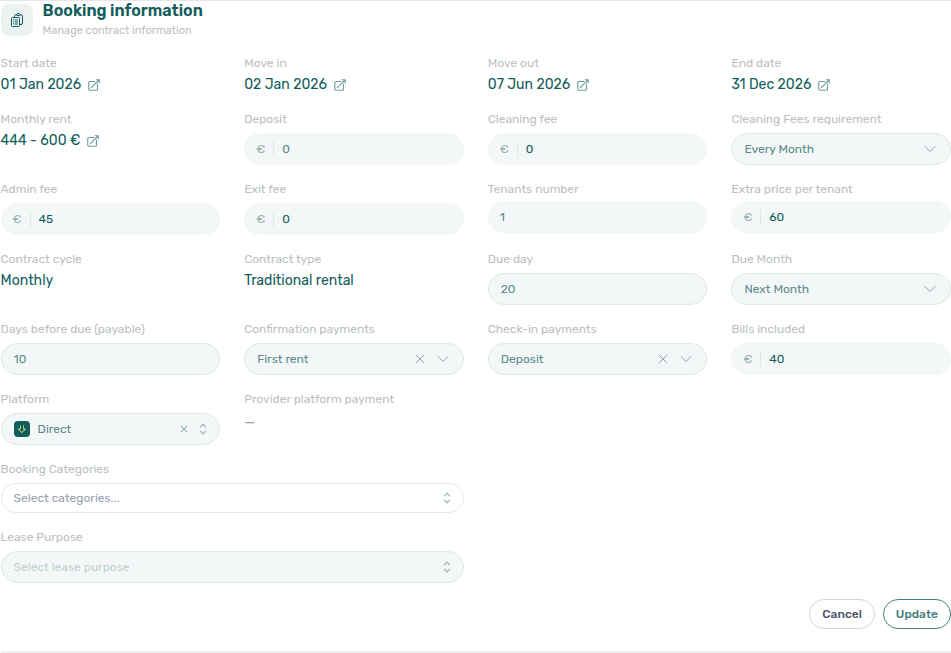
How does the AI read my utility bills? Upload the bill document and the AI Invoice Reader extracts all relevant data automatically. For best results, ensure your property utility connections are configured with up-to-date account IDs so the AI can match bills to properties. See Utilities > AI Invoice Reader.
What does the Upload PDF banner mean?
Upload results pair with Utilities — After you upload, Entering Monthly Utility Bills — Step 2, Create New — Upload Utility Bills, and When should I use Recalculate Allocations on Cost map? (a different success line: Deleted N, created M).
N processed successfully (green) and Bills created successfully on the file mean the invoice is already on Received. Tenant overage rows on Allocations can still appear a moment later — Close and keep working.
Already uploaded (amber) means that statement is already on Received (same property, period, and bill number). Close without sending the same PDF again. A mixed batch can read 2 processed successfully, 1 already uploaded.
Unconfirmed — check the Bills list (amber) means the connection dropped while Vivin was saving. Open Received and search for that statement before you upload the file again.
The same banner appears on + Create New → Tools → Upload Utility Bills. Guide: Utilities — After you upload.
Does picking a second utility type close the Bills menu?
No. Open Select type on Utilities → Bills, tick the first service, then tick a second service. The menu stays open with checks on both. Scope Select properties first when you want a known building in view (for example Casa Abel II), then tick Water and Electricity. Dismiss the menu when the chips under the toolbar look right. The ledger shows bills that match any of the types you picked. See Utilities — Select type stays open (utilities-bills-select-type-stays-open.png, utilities-bills-select-type-two-types.png, utilities-bills-select-type-two-chips.png, utilities-bills-select-type-stays-open-flow.mp4).
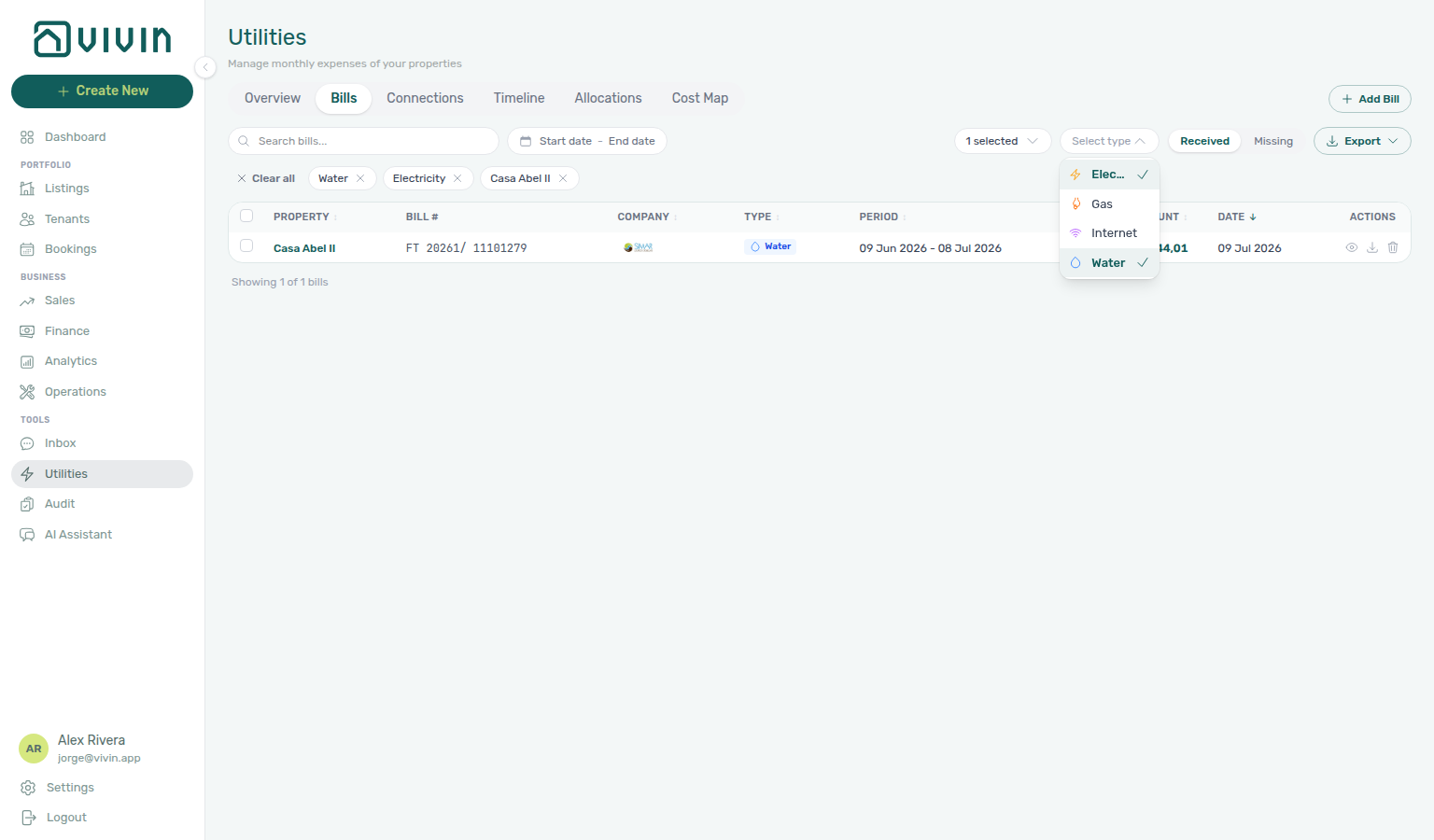
Does picking a second booking status close the Allocations menu?
No. Open Booking status on Utilities → Allocations, tick the first stay state, then tick a second stay state. The menu stays open with checks on both. Search a tenant first when you want a known stay in view, then tick Ongoing and Upcoming. Dismiss the menu when the chips under the toolbar look right. There is still no Refunded booking-status chip — use Deposit status for refunded deposits. See Utilities — Booking status stays open.
Why didn't my SIMAR water bill match the property?
SIMAR water matching pairs with Glossary — SIMAR water contract ID, Utilities — Connections tab, Listings — Step 2: Utility Bills ID, Utilities — AI Invoice Reader, and Entering Monthly Utility Bills.
SIMAR (Loures e Odivelas) invoices label the supply location as Cód. Local or Código de Local — not the water meter number (Nº de Contador). Enter that local code (without leading zeros) in Utilities → Connections Water and in property setup Step 2. Example: Cód. Local: 0181474 → save 181474. The AI reader enforces the same rule on upload; if matching still fails, open the PDF, copy Cód. Local, and compare it to your Connections row. See Glossary — SIMAR water contract ID and Onboarding a New Property — Step 6.
How do I turn off a utility connection on a property?
Turning a connection off pairs with Utilities — Turning a utility off, Utilities — Connections tab, and Onboarding a New Property — Step 6.
Open Tools → Utilities → Connections, search the property, then click the teal toggle on the saved contract ID. Remove contract ID names that ID and explains that bills will no longer match it automatically. Choose Cancel to keep the connection, or Remove to clear it — the cell then shows No connection. To change an ID instead of clearing it, click the value, edit, and Save. See Utilities — Connections (utilities-connections-tab.png, utilities-connections-remove-confirm-modal.png, utilities-connections-remove-confirm-flow.mp4).
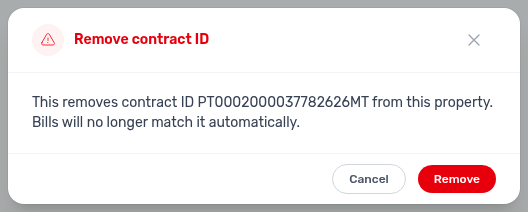
Can I approve a utility overage from the booking?
Pending Contract Values rows pair with Bookings — Pending utility allocations, Utilities — Allocations tab, Tenants — Consolidated finance tabs, How do I undo a mistaken utility allocation approval?, Why can't I approve a utility allocation after the deposit was refunded?, and Glossary — Pending utility allocations.
Yes. Open the booking Contract Values tab (or Tenants → Contract Values). On All or Other, a Pending row labelled Extra bills value from July of 2026 (month and year of the bill) is the overage waiting for review. Hover for Consumed, Included in rent, and To approve. Click Approve allocation to post the tenant charge, or Reject allocation and confirm — Reject leaves the row on Utilities → Allocations. You need Approve payments.
These rows do not change category totals, Payment Plan, or the booking balance until you Approve. They hide if you click Rent, Deposit, or a Paid / Debt / Scheduled / Partial drill-down — click All to bring them back. The Other card shows N pending approval whenever any row is waiting. Finance → Contract Values (the portfolio table) does not list them. Undo a mistaken approval from Allocations → Approved, not from Contract Values. See Bookings — Pending utility allocations.
How do I undo a mistaken utility allocation approval?
Undo allocation approval pairs with Utilities — Allocations tab, Entering Monthly Utility Bills — Step 4, FAQ — Reject or revert an incoming payment, and Users and roles — Role Permissions (finance.approve_payments).
Open Utilities → Allocations, click the Approved scope card, then use Undo approval on the row (or select charged rows and Undo selected). Confirm to return the allocation(s) to Pending and remove the generated tenant charge. Invoiced charges cannot be undone here — the UI blocks with "Cannot undo: the charge has already been invoiced." Use Finance → Transactions → Reject / Revert (and a credit note when needed) instead. The same finance.approve_payments permission gates undo as Approve / Reject. See Utilities — Allocations tab (utilities-allocations-approved-scope.png, utilities-allocations-undo-selected-bar.png, utilities-allocations-undo-approval-confirm-modal.png, utilities-allocations-undo-approval-flow.mp4).
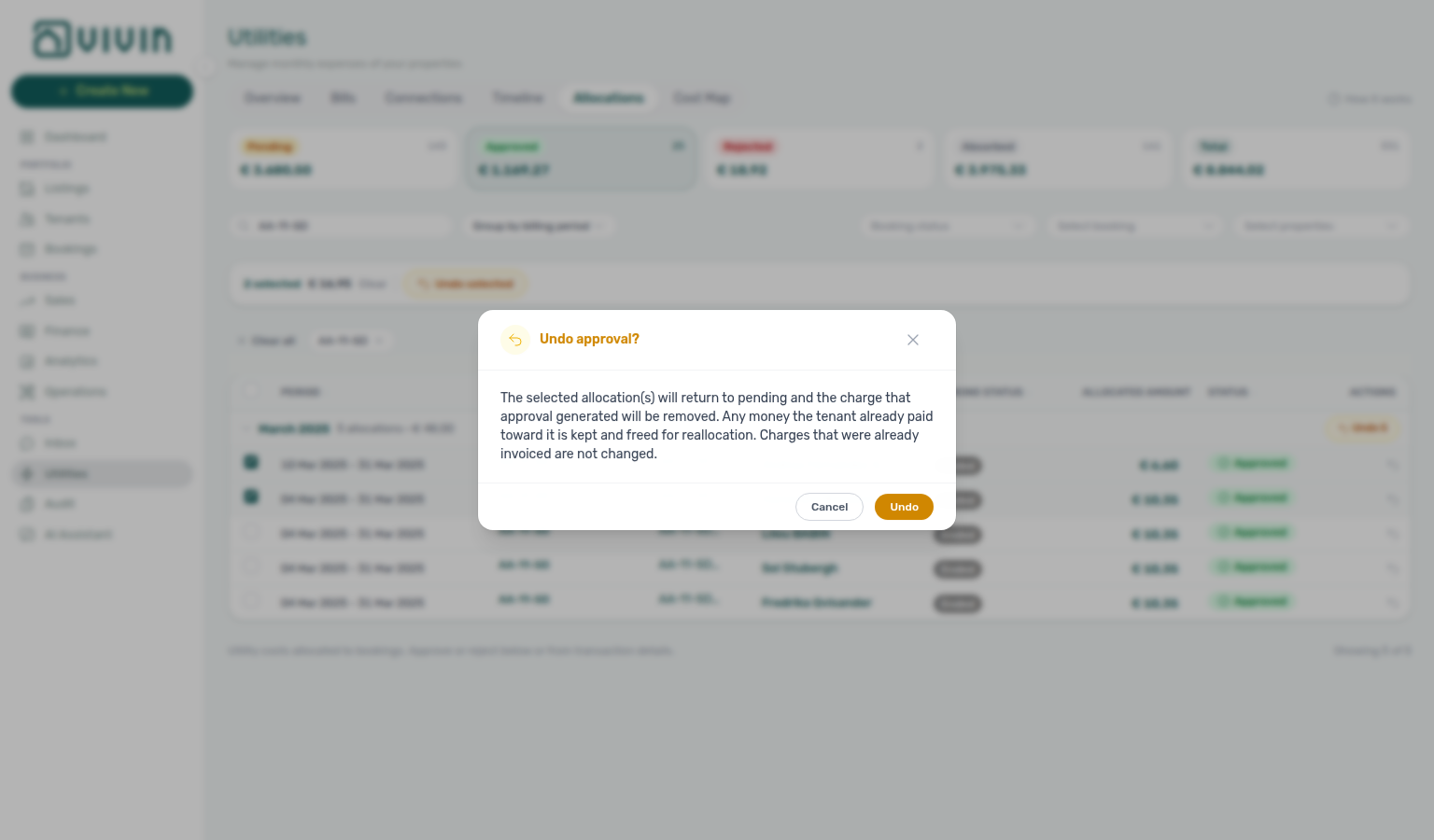
Why can't I approve a utility allocation after the deposit was refunded?
Deposit-refunded allocation approval pairs with Utilities — Deposit already refunded, Bookings — Deposit tab, Finance — Adding payments, and How do I undo a mistaken utility allocation approval?.
On Utilities → Allocations (and on booking or tenant Contract Values), Approve stays disabled when that booking’s security deposit has already been refunded (or the refund was transferred). Hover the control to read Deposit already refunded — cannot be approved (Contract Values copy: The deposit was already refunded or transferred, so this allocation can no longer be approved. Use a manual charge for any amount still owed.). Reject remains available so you can clear the proposed row without charging the tenant. Filter Pending with Deposit status → Refunded on Allocations to find these rows. If the tenant still owes utility money, record a manual payment on the booking instead of approving the allocation. See Utilities — Deposit already refunded (utilities-allocations-deposit-status-refunded-filter.png, utilities-allocations-deposit-refunded-approve-tooltip.png, utilities-allocations-deposit-refunded-flow.mp4).
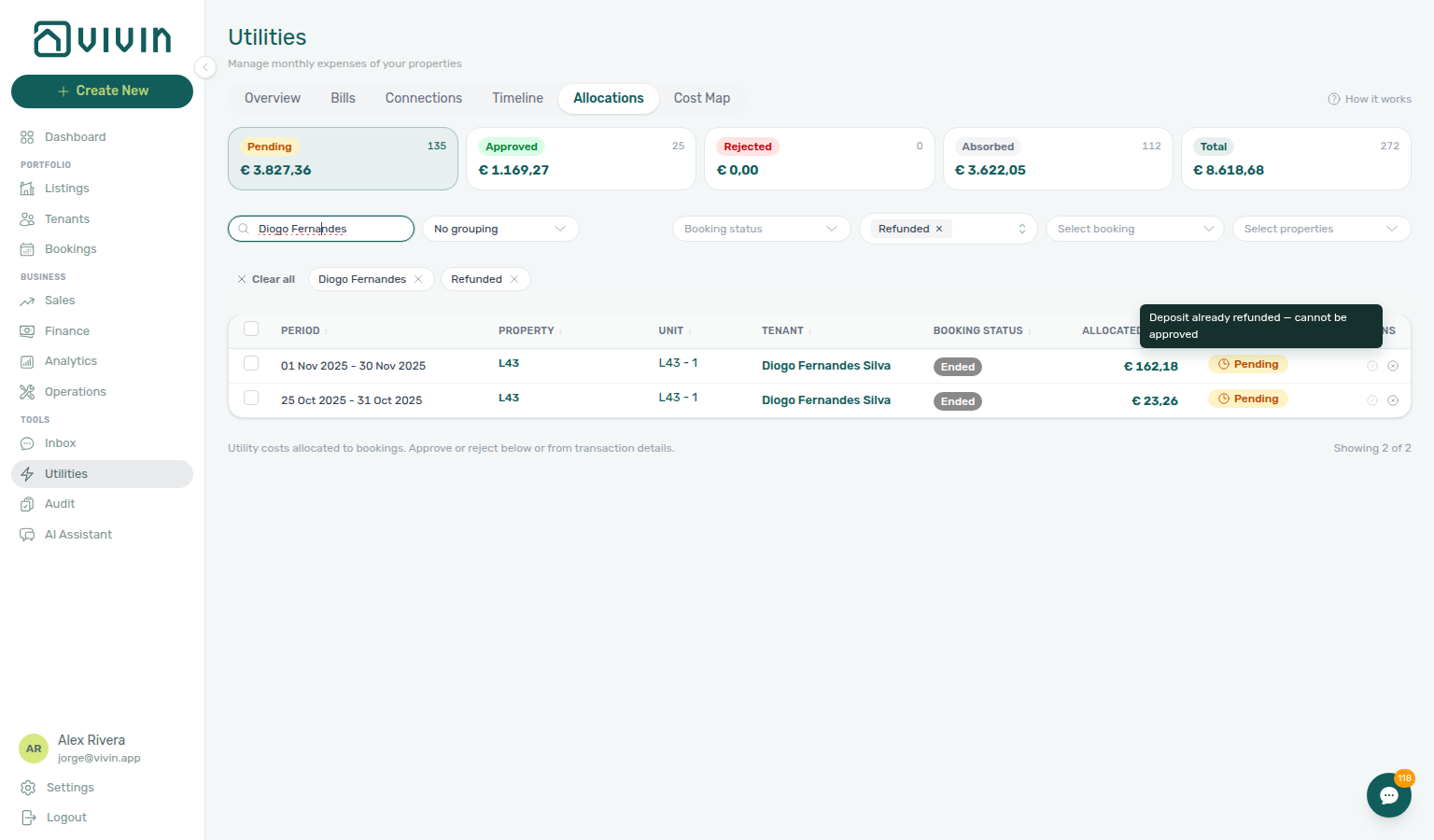
Why do rooms on different buildings show the same daily utility amount on Cost map?
Shared-meter Cost map amounts pair with Utilities — Shared meters count once, Utilities — Cost map, Glossary — Shared utility connection, and Entering Monthly Utility Bills — Step 3.
That is the shared-meter split: one supplier bill, counted once, divided across occupied rooms on every building that shares the contract. Open Utilities → Cost map, use Select properties, and tick the whole group (the menu stays open while you pick). If a sibling is missing, the amber Shared utility connections detected banner stays up and the buildings you did select can show the whole day’s bill on their occupied rooms. After every sibling is in scope, each occupied room shows the same euro share. Hover a Total cell for the day total and occupied-room count. See Utilities — Shared meters count once (utilities-cost-map-shared-meter-one-building.png, utilities-cost-map-shared-meter-all-siblings.png, utilities-cost-map-shared-meter-room-share-tooltip.png, utilities-cost-map-shared-meter-split-flow.mp4).
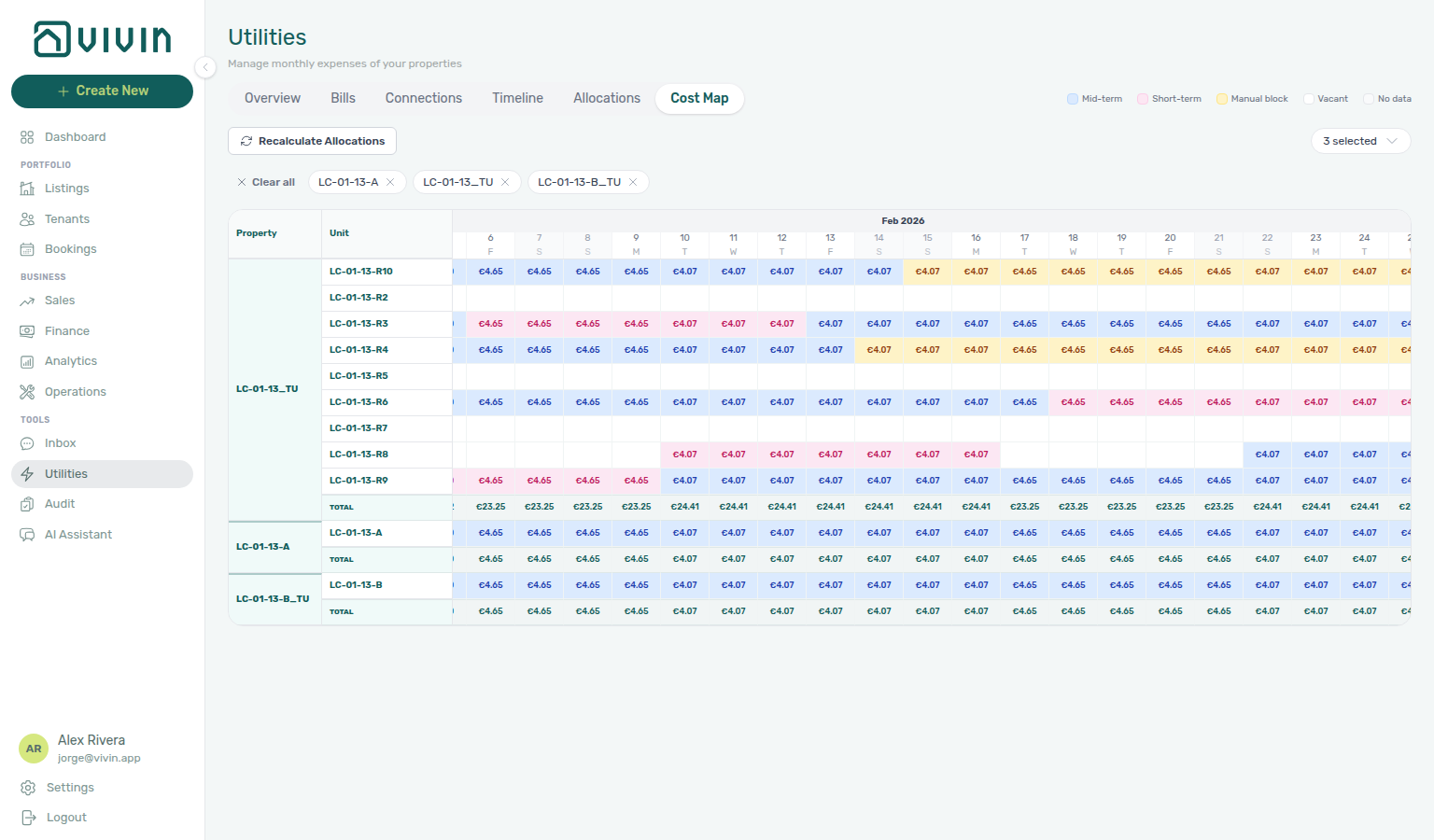
When should I use Recalculate Allocations on Cost map?
Recalculate Allocations pairs with Utilities — Recalculate Allocations, Utilities — Cost map, Entering Monthly Utility Bills — Step 3, Did a calendar block remove my Covered allocation?, and How do I undo a mistaken utility allocation approval? when an Approved row is the problem instead.
Correct bills and connections first. If pending allocation rows still look wrong, open Utilities → Cost map and click Recalculate Allocations (refresh icon, next to Select properties) once. The rebuild can take a few minutes: the label becomes Recalculating... and the button stays disabled. You can keep working in other modules; if you return to Cost map before it finishes, the button still shows Recalculating.... If a rebuild is already running, another click does not start a second one. When it finishes, Vivin shows Deleted N, created M — that count is the successful finish. Cost map reloads by itself if you stayed on the tab after you clicked; otherwise reload when the button is idle so the matrix matches the new rows. Approved (charged) rows stay; pending, rejected, and Covered rows are rebuilt from your current bills. A calendar block on the same unit does not overwrite a booking’s Covered line — Did a calendar block remove my Covered allocation?. You need Approve payments. Owner-linked logins cannot run this account-wide rebuild. The Add Bill Upload PDF banner (processed successfully / Already uploaded) is a different summary — see What does the Upload PDF banner mean?. See Utilities — Recalculate Allocations (utilities-cost-map-recalculate-allocations-idle.png, utilities-cost-map-recalculate-allocations-toolbar.png, utilities-cost-map-recalculate-allocations-flow.mp4).

FAQ subsection cross-reference
Use the headings in this page for the topic you need. Related modules and workflows are linked from individual answers where they help the next step.
FAQ section cross-reference
Use the headings in this page for the topic you need. Related modules and workflows are linked from individual answers where they help the next step.
Related
Related below is the documentation map when troubleshooting spans setup, modules, concepts, workflows, or escalation paths.
Setup sequence after go-live
Post-go-live pairing starts with Getting Started — Recommended Setup Sequence (steps 1–15) and Onboarding a New Property — Step 7 before setup defect tickets. When a step is blocked, continue to Support — Setup sequence escalation. Self-serve first: FAQ — Settings & tenant communications.
- Setup steps 1–3 — Navigation & shortcuts (greyed-out + Create New rows, permission toasts), Management Account Access (invites and session expiry); complete before Onboarding a New Property
- Setup steps 4–12 — Settings & tenant communications (steps 10–12: tenant categories, emails, integrations); guided walkthrough: Onboarding a New Property; unfamiliar labels: Glossary — Setup sequence vocabulary
- Setup steps 13–15 (Listings, Bookings, Tenants) — Bookings, Properties & Listings, and Payments & Finance once reservations exist
- After steps 13–15 — Onboarding a New Property — Step 7 go-live verification before you escalate Listings/Multicalendar display defects
- Optional setup sections on Getting Started — Recommended Setup Sequence map to FAQ sections: Integrations & Distribution (step 12), Tenant Portal & Mobile App (portal optional section), Utilities (Bills Included optional section), Analytics (KPI workspace) (dashboard optional section)
- When a settings tab, property wizard step, or module permission still blocks progress after self-serve docs, open Get Help & Support or Using in-app support — cite the matching setup step and pair with Support — Setup sequence escalation
Documentation map & escalation
- Introduction — Platform overview and how this guide is organised;
- Getting Started — Interface layout, mobile shell rules, and the Recommended Setup Sequence hub (steps 1–12 Account Settings: Recommended setup order; steps 13–15 Listings, Bookings, Tenants);
- Onboarding a New Property — Guided walkthrough of setup steps 4–12; Step 7 — Verify in Listings after steps 13–15
- Modules — Screen-by-screen reference for each management workspace linked from FAQ answers
- Account Settings — Workspace-wide configuration that shapes module behaviour referenced in troubleshooting; setup sequence tab map: Recommended setup order and Tab cross-reference
- Glossary — Definitions for terms referenced in these answers (ADR, webhooks, infinite scroll, and more);
- Common Workflows — Step-by-step procedures when FAQ points you to a task (hub: Setup sequence after go-live)
- Concepts — Deeper explanations behind lifecycle, payments, integrations, and automation;
- API Reference — Partner HTTP contracts and integration feeds (including partial vs full feeds);
- Get Help & Support — Escalation when troubleshooting does not resolve the issue (hub: Support — Section cross-reference, Setup sequence after go-live, Setup sequence escalation; cite Recommended Setup Sequence step on setup tickets)
- Using in-app support — Vivin product tickets, attachments, and drawer vs full inbox
Navigation & bookmarks
Bookmark routes pair with FAQ — Navigation & shortcuts when answers point to wrong tabs. Missing records: Create New menu. UI-language mismatches: Interface language before translation defect tickets.
- Management Frontend Deep Links — Bookmarkable
platform.vivin.approutes when FAQ answers point to wrong tabs (including Notifications bell vs/notificationsand booking-engine details query params) - Create New menu — Global + slide-out shortcuts into module modals when FAQ points to wizards
- Deep Links — Account Settings —
/settings/*tab routes paired with settings-driven FAQ answers - Settings > Interface language — Personal UI locale before you share deep links with multilingual operators
- Resetting a Management User Password — Sign-in recovery when FAQ permission answers involve locked accounts
Operator habit hubs
Day-to-day operator habits (lockout catch-up, pending receipts, payment triage, handoffs, and related playbooks) live on the Common Workflows habit hub.
Deep-link anchors for habit hubs
Walkthrough media
MP4 clips complement PNG screenshots on workflow and module guides — start at Common Workflows — Walkthrough media.
- Modules — Module pages with embedded clips (Analytics tab switching, Operations mobile shell, Finance drill-downs)
- Account Settings — Settings clips (ChatBot Save, Support new-ticket flow)
- Onboarding a New Property — Property wizard MP4 beside setup steps 4–12
- Booking lifecycle — Status filters and Timeline MP4 beside lifecycle concepts
- FAQ — Reject or revert an incoming payment — Transactions row-action MP4 (
bookings-payment-row-actions-flow.mp4)
Portfolio segmentation by tenant category
Segment filter questions pair with Finance debt receivables triage hub (segment-scoped Top debtors), Settings & tenant communications, Analytics (KPI workspace), and Occupancy KPI to block hygiene handoff hub (stale holds vs category-driven dips).
| Symptom | Fix |
|---|---|
| Segment on Bookings but missing on Finance drawer | Load Contract Values or mirror Bookings / Tenants — FAQ — Finance tenant category filter parity |
| Stale results after Tenants → Tenant Info recategorization | Reload ledger tabs; wait up to ~10 min on Overview — Finance tenant category cache refresh |
| Direct booking has wrong portal modules | Assign on Tenant Info before contract mail — FAQ — Assign tenant category for direct booking |
| Payment alerts cluster on one cohort | /notifications row-click → Finance → Other filters → Tenant category before account-wide collections |
| Segment filters healthy but Occupancy still dips | Occupancy KPI to block hygiene handoff hub — stale holds, not category rules |
| Top debtors skewed to one segment | Finance debt receivables triage hub — add Tenant category filter on Overview / Contract Values first |
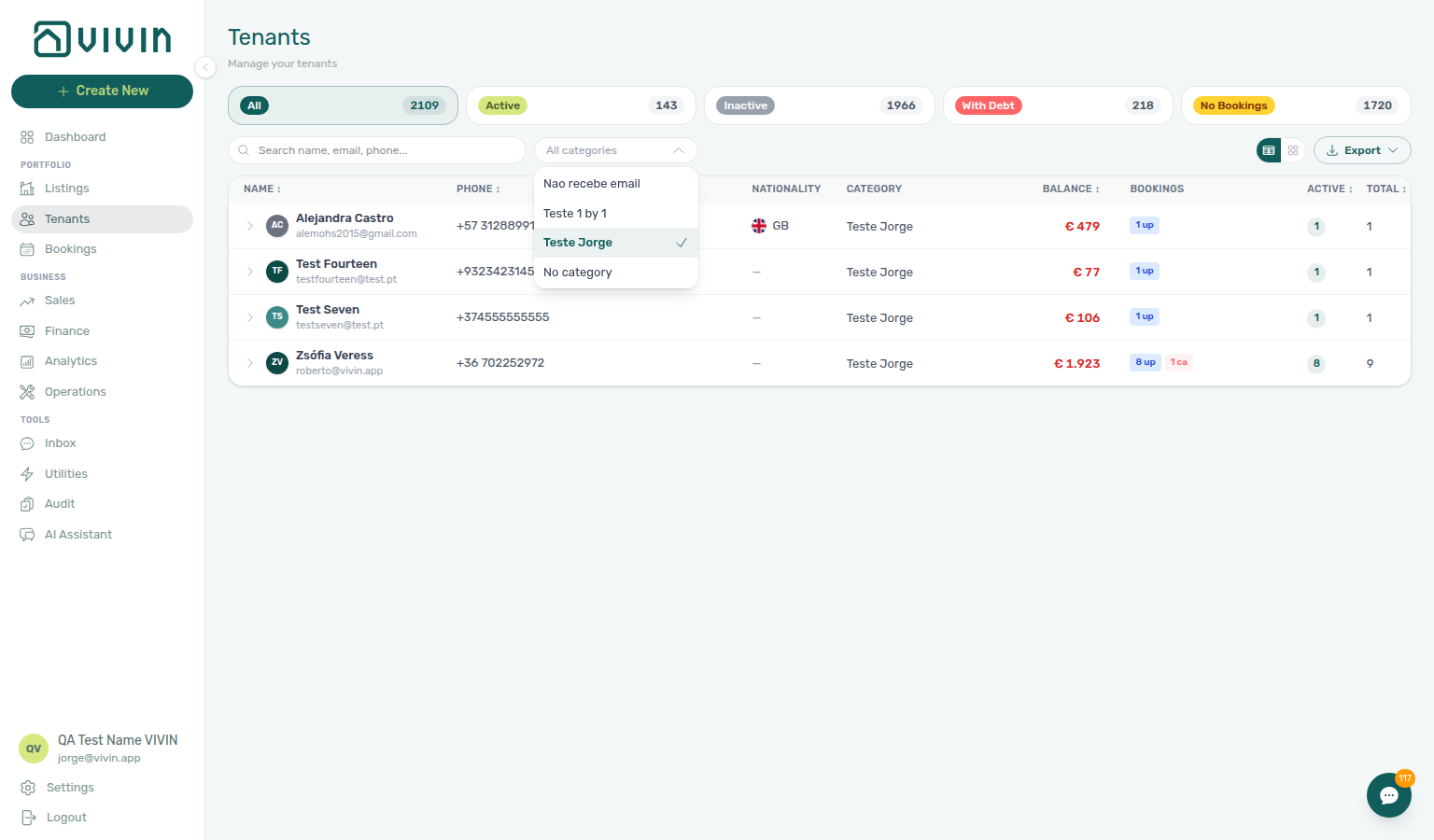
- Common Workflows — Portfolio segmentation by tenant category — Operator habit hub
WhatsApp per-booking messaging
Tenant messaging questions pair with Notification row-click navigation hub (message alerts on /notifications), AI & Automation, and the anchored FAQ subsection below.
- Common Workflows — WhatsApp per-booking messaging — Operator habit hub
Finance debt receivables triage
Receivables surface choice pairs with Handling a Late Payment hub (collections Steps 1–6 after triage surfaces), Processing a New Booking hub (unpaid confirmation on Upcoming stays), Managing a Check-in hub (move-in shortfall before key handover), Managing a Check-out hub (departure arrears before deposit refund), Cancelling a Booking hub.
| Symptom | Fix |
|---|---|
| Total Debt unchanged after Add Payment | Approve Pending rows first — Pending manual receipt approval hub |
| Top debtors still high after tenant paid | Duplicate transfer approved — Reject/revert mistaken receipts hub — Revert duplicate (bookings-detail-transactions-revert-modal-info-banner.png) |
| Need ranked debtors with days overdue | Finance → Overview → Debt Aging — Top debtors after pending queue clears and ledger duplicates are Reverted |
| Opened Income → In debt modal, need booking rows | Use Debt Aging buckets — not payment-line modal alone |
| Dashboard Total Debt not clickable | Headline only — open Finance → Overview |
| Payment overdue alert but portfolio rank needed | Notification triage — Step 4 first — then Debt Aging (finance-overview-debt-aging-expanded-bucket.png) |
| Unpaid confirmation on Upcoming stay | Processing a New Booking hub — booking Payment Plan before portfolio Top debtors |
| Move-in shortfall before key handover | Managing a Check-in hub — Step 3 before Debt Aging |
| Departure arrears block Ready To Refund | Managing a Check-out hub — Step 6 before deposit refund |
| Pre-cancel rent In Debt blocks void | Cancelling a Booking hub — Step 2 before Step 4 |
| Utility overage In Debt after bill cycle | Entering Monthly Utility Bills hub — Step 4 — not rent Top debtors alone |
- Common Workflows — Payment alert to receivables triage — Operator habit hub
Finance Income status drill-down
Income chart segment questions pair with Finance debt receivables triage hub (Income → In debt modal is payment-line scope — use Debt Aging for booking rows), Cash flow forecast drill-down hub (collections history vs status segments), Pending manual receipt approval hub (Scheduled / In debt lag until Approve), Payments & Finance, and FAQ — Finance Income status drill-down.
| Symptom | Fix |
|---|---|
| Opened Income → In debt modal, need ranked debtors | Finance → Overview → Debt Aging Top debtors — not payment-line modal alone (finance-overview-debt-aging-expanded-bucket.png) |
| Scheduled high but bank shows collections | Cash flow forecast All payments modal — Cash flow forecast drill-down hub (finance-overview-cash-flow-all-payments-modal.png) |
| Paid segment disagrees with month-end KPIs | Portfolio KPI review — Step 7 — reconcile Income vs Analytics (finance-overview-income-drill-down-flow.mp4) |
| Same tenant under Paid and Scheduled | Expected on a partly collected charge — FAQ — Why does the same tenant appear under both Paid and Scheduled on Income? |
| Confirmation month In debt before check-in | Processing a New Booking hub — Step 5 / Step 6 |
| Move-in shortfall in wrong month segment | Managing a Check-in hub — Step 3 before Debt Aging |
| Departure charges block Ready To Refund | Managing a Check-out hub — Step 6 + Debt Aging |
| Pre-cancel rent In Debt on Contract Values | Cancelling a Booking hub — Step 2 before Step 4 |
| Utility overage In Debt after bill cycle | Entering Monthly Utility Bills hub — Step 4 — not rent Top debtors alone |
| Income → In debt inflated after duplicate transfer | Reject/revert mistaken receipts hub — Revert approved duplicate before re-reading segments (bookings-detail-transactions-revert-modal-info-banner.png) |
- Common Workflows — Finance Income status drill-down — Operator habit hub
Cash flow forecast drill-down
Cash-timing questions pair with Finance Income status drill-down hub (Income status segments vs cash-move dates), Pending manual receipt approval hub (past month bars lag until Approve), Payments & Finance, FAQ — Cash flow forecast drill-down, and Dashboard — Cash Flow Forecast (same hybrid Past / Expected series).
| Symptom | Fix |
|---|---|
| Bank received cash but Income → Paid looks low | Cash flow forecast All payments modal — collected cash on past bars, uncollected rent on future ones (finance-overview-cash-flow-all-payments-modal.png) |
| Opened Dashboard Cash Flow Forecast by mistake | Both charts show the same hybrid series (collections behind, expected rent ahead) (dashboard-cash-flow-forecast-chart.png) |
| Scheduled high but bank shows collections | Cash flow forecast bar click — contrast Income segments on Finance Income status drill-down hub |
| Month bar missing a transfer tenant insists they paid | Pending manual receipt approval hub — Approve before Cash flow forecast month bars update (finance-transactions-pending-pill.png) |
| Month-end collections vs Analytics mismatch | Day view on Cash flow forecast — Portfolio KPI review — Step 7 (finance-overview-cash-flow-drill-down-flow.mp4) |
| Confirmation payment not on current month bar | Processing a New Booking hub — Step 5b before portfolio reads |
| Move-in deposit landed but wrong week | Managing a Check-in hub — Step 3 — toggle Day on Cash flow forecast |
| Departure refund blocked despite bank transfer | Managing a Check-out hub — Step 6 — All payments for final-week collections |
| Utility overage payment not visible | Entering Monthly Utility Bills hub — Step 4 — not rent Top debtors alone |
- Common Workflows — Cash flow forecast drill-down — Operator habit hub
Pending manual receipt approval
Pending receipt questions pair with Finance debt receivables triage hub (Total Debt / In debt until Approve — not Debt Aging alone), Finance Income status drill-down hub (Scheduled / In debt lag until approval), Cash flow forecast drill-down hub (month bars lag until Approve), Reject/revert mistaken receipts hub (Reject duplicate while pending), Payments & Finance.
| Symptom | Fix |
|---|---|
| Total Debt unchanged after Add Payment | Amber Pending chip → Approve payment / Approve selected — not Debt Aging (finance-transactions-pending-pill.png) |
| Manual Payments KPI non-zero but queue unclear | KPI totals monthly manual in-payments including pending — card opens the month drill-down, not the pending-only queue; triage amber Pending on Finance → Transactions |
| Pending manual in-payment alert persists | Row-click → booking Transactions → Approve — Notification triage — Step 4 |
| Income → Paid / Cash flow forecast bar low | Approve before segment or month bars update — Finance Income status drill-down hub / Cash flow forecast drill-down hub |
| Duplicate bank transfer recorded | Reject selected while pending — Reject/revert mistaken receipts hub (finance-transactions-bulk-reject-selected-bar.png) |
| Typed the wrong € on a real pending receipt | Pencil Edit amount then Approve — FAQ — Correct a pending transfer amount |
| Month-end KPIs disagree after lockout | Lockout catch-up after password recovery + workflow Steps 5b / 6b |
| Confirmation transfer still Pending | Processing a New Booking hub — Step 5b before portal gates |
| Move-in receipt still Pending before key handover | Managing a Check-in hub — Step 3b before Step 4 |
| Departure receipt still Pending before refund | Managing a Check-out hub — Step 6b before Ready To Refund |
| Utility overage receipt still Pending | Entering Monthly Utility Bills hub — Step 4b |
| Approve payments permission missing on ticket | Users and roles — Role permissions — self-serve before filing product defect |
- Common Workflows — Pending manual receipt approval — Operator habit hub
Payment notification (operator)
Operator payment alert questions pair with Notification row-click navigation hub, Glossary — Notification row navigation hub, Payment alert to receivables triage hub, Confirmation alert triage hub, Pending manual receipt approval hub.
| Symptom | Fix |
|---|---|
| No email when tenant pays | Account Receive payment notifications + your Payment notification emails on /settings/personal — both layers required |
| Email but no in-app row | Preferences → In-app notifications → Payments master On + your Payments opt-out On |
| Teammate missing payment rows | They need Payment notification emails on — in-app rows are per-PM audience scoped |
| Payment received but balance unchanged | Receipt still pending — Pending manual receipt approval hub (not a broken notification) |
| Payment overdue opened Debt Aging too early | Payment alert to receivables triage hub — row-click booking first |
| Upcoming alert bulk mark-read before triage | Confirmation alert triage hub — contrast Upcoming vs Ongoing/Ended |
| Confused Pending manual in-payment vs Payment received | FAQ — Pending manual in-payment on /notifications — third row type |
- Common Workflows — Payment notification (operator) — Operator habit hub
Occupancy KPI to block hygiene handoff
Occupancy dip questions pair with Analytics (KPI workspace) (Occupancy / RevPAR without rate change), Portfolio segmentation by tenant category hub (segment filters — not holds), Properties & Listings, FAQ — Vacant Units manual block, and Does picking a second Created by teammate close the Manual Blocks menu? (Created by stay-open).
| Symptom | Fix |
|---|---|
| Occupancy / RevPAR dip without rate change | Portfolio KPI review — Step 3 → Manual block hygiene — Step 1 (analytics-kpi-occupancy-tab.png) |
| Ranking concentrates on one unit | Manual block hygiene — Step 2 Search + row-click unit sidebar — not Sales → Pricing yet |
| Segment filters look healthy on Step 6 | Edit Settings → Tenant categories — not holds; contrast Portfolio segmentation by tenant category hub |
| Dashboard Vacant Units lower than Analytics | Portfolio KPI review — Step 7 → Manual block hygiene — Step 5 |
| Sales Multicalendar mystery blocks after go-live | Onboarding a New Property — Step 7 → Manual block hygiene — Step 4 |
| Timeline overlap on channel import | Processing a New Booking — Step 1 — clear holds before Add booking |
| Calendar bars persist after Ended departure | Managing a Check-out — Step 7 → Manual block hygiene — Step 4 |
| Availability not restored after cancellation void | Cancelling a Booking — Step 5 — Multicalendar before repricing |
| Unit looks vacant but collections triage shows arrears | Handling a Late Payment — Step 1 — distinguish holds from rent debt |
| Calendar edit blocked after hold cleanup | Manual block hygiene — Step 6 → Using in-app support |
- Common Workflows — Occupancy KPI to block hygiene handoff — Operator habit hub
Processing a New Booking
Confirmation workflow pairs with Managing a Check-in hub (Step 6 → arrival-week Steps 1–4), Notification triage (Steps 4–5 on Booking created / Payment received alerts), Pending manual receipt approval hub (Step 5b / Step 6b confirmation receipts — finance-transactions-pending-pill.png), Reject/revert mistaken receipts hub (duplicate confirmation transfers on Step 5b — `finance-transactions-bulk-reject-selected-bar.
| Symptom | Stay on confirmation | Hand off to check-in |
|---|---|---|
| Contract unsigned | Processing a New Booking — Step 4 | Wait — portal gates block arrival prep |
| Portal modules hidden after Impersonate Tenant | Step 6 + Tenant category on Tenant Info | Managing a Check-in — Step 6 when category is already correct |
| Confirmation transfer still Pending after bank transfer | Pending manual receipt approval hub | Step 5b before Step 6 handoff / Step 3b for move-in bucket only |
| ~7 days to move-in, planning tickets | Step 6 sanity check | Managing a Check-in — Step 1 |
| Booking created / Payment received alert | Notification triage — Step 4 | Step 5b / Step 6 |
| Pending manual in-payment on Upcoming import | Pending manual receipt approval hub — row-click → Approve | Step 5b / Notification triage — Step 5 after balance clears |
| Month-end Pending on confirmation imports | Pending manual receipt approval hub — amber Pending chip | Step 6b during Portfolio KPI review — Step 7 |
| Tenant paid once, ledger shows duplicate confirmation | Reject/revert mistaken receipts hub — Reject while pending / Revert after Approve | Step 5b before Step 6 handoff |
| Deposit Partially paid after confirmation payment | Partly collected security deposit — not rent Partial Paid | Step 5 — chase remaining before Step 6 handoff |
| Partial paid card empty after Step 5 | Deposit missing on Finance Deposits — toolbar date range | Clear date range selection on Finance → Deposits (finance-deposits-date-range-clear-flow.mp4) before deposit triage |
- Common Workflows — New inventory to first booking handoff — Operator habit hub
Managing a Check-in
Arrival-week workflow pairs with Onboarding a New Property — Step 7 (upstream property setup on new inventory — hub: Property setup to first arrival handoff; workflows-onboarding-property-wizard.mp4), Processing a New Booking hub (upstream Step 6 portal gates), Common Workflows — Confirmation alert triage (upstream alert-driven confirmation before arrival week), Managing a Check-out hub.
| Symptom | Upstream confirmation fix | Check-in step |
|---|---|---|
| Arrival listed but contract unsigned | Processing a New Booking — Step 4 | Not Step 4 until signed |
| Payment overdue before key handover | Handling a Late Payment — Step 1 | Step 3 |
| Move-in receipt Pending after bank transfer | Pending manual receipt approval hub | Step 3b before Step 4 handover / Step 5b for confirmation bucket only |
| Pending manual in-payment on arrival-week import | Pending manual receipt approval hub — row-click → Approve | Step 3b / Notification triage — Step 5 after balance clears |
| Month-end Pending on move-in imports | Pending manual receipt approval hub — amber Pending chip | Step 6b during Portfolio KPI review — Step 7 |
| Tenant paid once, ledger shows duplicate move-in | Reject/revert mistaken receipts hub — Reject while pending / Revert after Approve | Step 3b before Step 4 handover |
| Portal access codes missing | Onboarding — Access Lockers | Step 4 |
| Same-day turnover on unit | Managing a Check-out — Step 2 turnover ticket | Managing a Check-in — Step 4 — hub: Same-day turnover coordination |
| Deposit Partially paid before key handover | Partly collected security deposit — not rent Partial Paid | Step 3 — chase remaining before Step 4 |
| Partial paid card empty at move-in | Deposit missing on Finance Deposits — toolbar date range | Clear date range selection on Finance → Deposits (finance-deposits-date-range-clear-flow.mp4) before Step 3 |
- Common Workflows — Confirmation alert triage — Operator habit hub
Managing a Check-out
Departure-week workflow pairs with Managing a Check-in hub (upstream Step 4 keys handed over), Cancelling a Booking hub (policy void vs completed stay — not Delete Booking), Handling a Late Payment hub (rent/fee arrears before Step 5.
| Symptom | Upstream check-in fix | Check-out step |
|---|---|---|
| Guest still Upcoming on departure week | Managing a Check-in — Step 4 not completed | Not Step 5 until Ongoing |
| Deposit Partially paid at move-in | Partly collected security deposit | Step 5 blocked |
| Unpaid rent/fee on Payment Plan | Handling a Late Payment — Step 1 → Step 4 | Step 6 before Step 5 |
| Final utility overage unpaid | Entering Monthly Utility Bills — Step 4 | Step 6 — hub: Check-out final utilities |
| Departure transfer still Pending after bank transfer | Pending manual receipt approval hub | Step 6b before Step 5 refund / Step 4b for collections bucket only |
| Pending manual in-payment on departure-week import | Pending manual receipt approval hub — row-click → Approve | Step 6b / Notification triage — Step 5 after balance clears |
| Month-end Pending on departure imports | Pending manual receipt approval hub — amber Pending chip | Step 6b during Portfolio KPI review — Step 7 |
| Tenant paid once, ledger shows duplicate departure | Reject/revert mistaken receipts hub — Reject while pending / Revert after Approve | Step 6 / Step 6b before Step 5 |
| Same-day turnover on unit | Managing a Check-out — Step 2 before incoming arrival | FAQ — Same-day turnovers — hub: Same-day turnover coordination (bookings-timeline-day-week-month-and-sidebar.mp4) |
| Stay voided under policy, not completed | Cancelling a Booking hub — Canceled filter | Not Step 7 — hub: Check-out vs cancellation |
| Older move-out missing on Finance → Deposits | N/A | Deposit missing on Finance Deposits — clear date range |
- Common Workflows — Check-in to check-out handoff — Operator habit hub
Cancelling a Booking
Cancellation workflow pairs with Managing a Check-out hub (completed stay → Ended vs policy void → Canceled), Handling a Late Payment hub (collections before Step 2 / Step 4), Cancel Booking vs Delete Booking.
| Symptom | Cancellation step | Check-out contrast |
| --------------------------------------------------------- | ------------------------------------------------------------------------------------------------------------------------------------------------------------------------------------------------------- | ------------------------------------------------------------------------------------------------------------------------------------------------------------------------------------------------------------------------------------------------------------------------------------------------------------------------------------------------------------------ | -------------------------------------------------------------------------------------------------------------------- |
| Tenant backs out before arrival | Step 4 refund-type dialog | Guest never Ongoing — not Managing a Check-out |
| Mid-stay early termination | Steps 1–4 policy settlement | Step 7 only when stay completes |
| Deposit refund after void | Step 3 | Step 5 for normal departure |
| Settlement transfer still Pending after bank transfer | Pending manual receipt approval hub | Step 2a before Step 4 / Step 6b for month-end mesh only | Step 6b |
| Pending manual in-payment on settlement import | Pending manual receipt approval hub — row-click → Approve | Step 2a / Notification triage — Step 5 after balance clears | Step 6b departure mesh |
| Month-end Pending on settlement imports | Pending manual receipt approval hub — amber Pending chip | Step 6b during Portfolio KPI review — Step 7 | Step 6b |
| Calendar still blocked | Step 5 + Manual block hygiene | Step 7 |
| Unpaid rent/fee before Cancel booking | Handling a Late Payment — Step 1 → Step 4 | Step 2 before Step 4 |
| Collections failed — last resort | Step 6 | Step 4 refund dialog |
| Deposit Partially paid before void | Partly collected security deposit — not rent Partial Paid | Step 2 / Step 3 — settlement math on remaining before Step 4 |
| Partial paid card empty at Step 3 | Deposit missing on Finance Deposits — toolbar date range | Clear date range selection on Finance → Deposits (finance-deposits-date-range-clear-flow.mp4) before Step 3 deposit settlement |
| Tenant paid once, ledger shows duplicate settlement | Reject/revert mistaken receipts hub — Reject while pending / Revert after Approve | Step 2a / Step 6b before Step 4 |
| Mistaken duplicate row | Delete Booking — not this hub | Cancel Booking vs Delete Booking |
- Common Workflows — Cancellation collections before void — Operator habit hub
Entering Monthly Utility Bills
Monthly supplier billing pairs with Managing a Check-out hub (downstream Step 6 / Step 5 before deposit release — hub: Check-out final utilities handoff), Handling a Late Payment hub.
| Symptom | Utility bills step | Check-out step |
|---|---|---|
| Final supplier bill missing at departure | Step 2 | Step 6 blocked |
| Overage on Payment Plan, tenant has not paid | Step 4 | Handling a Late Payment — Step 1 → Step 4 |
| Overage on Canceled stay (not departure week) | Step 4 | Step 1 — not rent cancellation mesh |
| Overage transfer still Pending after bank transfer | Pending manual receipt approval hub | Step 4b before Managing a Check-out — Step 6 / Handling a Late Payment — Step 4b for collections bucket only |
| Pending manual in-payment on overage import | Pending manual receipt approval hub — row-click → Approve | Step 4b / Notification triage — Step 5 after balance clears |
| Month-end Pending on overage imports | Pending manual receipt approval hub — amber Pending chip | Step 4b during Portfolio KPI review — Step 7 — hub: Check-out final utilities handoff |
| Departure-week overage blocks refund | Step 4 | Managing a Check-out — Step 6 before Step 5 |
| End of Booking — charge not posted yet | Glossary — End-of-Booking cost split | Step 7 |
| Month-end Missing bills on portfolio | Step 5 | Portfolio KPI review — Step 7 |
| Upload banner Already uploaded | After you upload / What does the Upload PDF banner mean? | Close — that invoice is already on Received; do not send the same PDF again |
| Upload banner Unconfirmed — check the Bills list | After you upload | Open Received and search for the statement before you upload that file again |
| Tenant paid once, ledger shows duplicate overage | Reject/revert mistaken receipts hub — Reject while pending / Revert after Approve | Step 4b before Managing a Check-out — Step 6 |
- Common Workflows — Utility overage collections — Operator habit hub
Handling a Late Payment
Collections workflow pairs with Entering Monthly Utility Bills hub (utility overage lines after Step 4), Cancelling a Booking hub (pre-cancel settlement before Step 4), Managing a Check-in hub.
| Symptom | Triage first | Collections step |
|---|---|---|
Payment overdue alert on /notifications | Row-click → confirm balance | Handling a Late Payment — Step 1 → Step 3 |
| Need portfolio-ranked debtors | Finance → Overview → Debt Aging | Step 1 after you open a booking |
| Collections transfer still Pending after bank transfer | Pending manual receipt approval hub | Step 4b before Step 3 outreach / Step 6b for month-end mesh only |
| Pending manual in-payment on collections import | Pending manual receipt approval hub — row-click → Approve | Step 4b / Notification triage — Step 5 after balance clears |
| Month-end Pending on collections receipts | Pending manual receipt approval hub — amber Pending chip | Step 6b during Portfolio KPI review — Step 7 |
| Tenant paid once, ledger shows duplicate collections | Reject/revert mistaken receipts hub — Reject while pending / Revert after Approve | Step 4b / Step 6b before Step 3 — re-triage Debt Aging |
| In Debt includes utility overage line | Entering Monthly Utility Bills — Step 4 | Step 1 — hub: Utility overage collections |
| In Debt blocks Cancel booking dialog | Step 1 → Step 4 | Cancelling a Booking — Step 2 before Step 4 |
| Departure-week Ready To Refund blocked by rent arrears | Step 1 on booking Payment Plan | Managing a Check-out — Step 6 before Step 5 |
| Amber Partial Paid on Payment Plan but shortfall is deposit | Rent collections mesh — security deposit is separate | Partly collected security deposit — open Deposit tab at Step 1 |
| Partial paid card empty during portfolio triage | Toolbar date range on Finance → Deposits hides the stay | Deposit missing on Finance Deposits — clear range before deposit vs rent contrast at Step 1 |
| Last-resort cancel after collections failed | Step 6 | Cancelling a Booking — Step 4 |
- Common Workflows — Payment alert to receivables triage — Operator habit hub
Handling a Late Payment collections
Receivables triage surfaces answer “who owes?” — Handling a Late Payment Steps 1–6 answer “what do I do next?” Pair with Handling a Late Payment hub (full collections workflow), Finance debt receivables triage hub (Debt Aging / Top debtors before Step 3), Payment alert to receivables triage hub.
| Symptom | Triage surface | Collections step |
|---|---|---|
| Need ranked debtors with days overdue | Finance → Overview → Debt Aging | Step 1 after you pick a booking |
| Payment overdue alert row-click | Confirm balance on opened booking | Step 3 after Step 2 |
| Tenant paid but Total Debt unchanged | Pending manual receipt approval hub | Step 4 / Step 4b |
| Tenant insists they paid twice | Reject/revert mistaken receipts hub | Re-open Debt Aging — not Step 3 until ledger is clean |
| Month-end Pending collections receipts | Amber Pending chip | Step 6b mesh |
| Dashboard Total Debt not clickable | Finance → Overview | Step 1 |
| Partly collected deposit, not rent arrears | Finance → Deposits Partial paid card | Partly collected security deposit — not rent collections |
- Common Workflows — Handling a Late Payment collections hub — Operator habit hub
Credit note warning (reject/revert)
Modal-banner flows pair with Reject/revert mistaken receipts hub, Bulk Hostkit invoicing hub (Issue credit notes Hostkit pacing), Pending manual receipt approval hub (Reject while pending vs invoiced Revert), Rent reduction after invoicing hub (external rent relief → same queue), Payments & Finance.
| Symptom | Likely cause | Fix |
|---|---|---|
| Red banner on Reject payment | Charge may already be invoiced | Confirm duplicate is wrong — then Not issued credit note → Issue credit notes (N) |
| Blue info on Revert payment | Approved receipt tied to exported invoice | Same Finance → Transactions queue |
| Banner but no reversal rows | Filter wrong or batch already Issued | Toggle Not issued credit note / Issued credit note pills; refresh ledger |
| Issue credit notes batch Pending | Hostkit rate limit | FAQ — Bulk Hostkit invoicing slow — same pacing as Issue allocation |
| Confused with invoiced floor block | Rent edit — not receipt cleanup | Invoiced floor (rent) hub · Rent reduction after invoicing hub |
- Common Workflows — Reject/revert mistaken receipts — Operator habit hub
Booking sidebar tab refresh
Pairs with Directory list refresh hub (whole-module list refresh) and FAQ — Communication or Tickets won't open.
- Common Workflows — Booking sidebar tab refresh — Operator habit hub
- Directory list refresh hub — Whole-module list refresh (distinct)
Payment alert to receivables triage
Ongoing/Ended payment overdue alerts pair with FAQ — Payment alert to receivables triage, Finance debt receivables triage hub, Confirmation alert triage hub (contrast Upcoming vs Ongoing), Pending manual receipt approval hub, and Notifications & alerts.
| Symptom | Fix |
|---|---|
| Bulk Mark all as read before opening each row | Notification triage — Step 4 — row-click every payment overdue alert first (notifications-row-navigate-to-booking-detail.png) |
Payment overdue on /notifications | Row-click → Payment Plan on opened booking — then Handling a Late Payment — Step 1 or Top debtors |
| Pending manual in-payment on alert | Transactions → Approve — not Debt Aging until queue clears — Pending manual receipt approval |
| Payment received from tenant … still unread | Transactions — confirm ledger → Approve if still pending → Notification triage — Step 5 |
| Total Debt high after alert triage | Amber Pending on Finance → Transactions + Revert duplicate transfers — Finance debt receivables triage hub |
| Upcoming Booking created / Payment received instead | Confirmation alert triage hub — contrast Upcoming vs Ongoing/Ended payment overdue |
| Lockout-delayed payment overdue backlog | Resetting a Management User Password — Step 3 → Notification triage — Steps 4–5 |
| Stale alerts after calendar hold cleanup | Manual block hygiene — Step 5 before bulk-clear |
| Month-end alert batch before KPI sign-off | Portfolio KPI review — Step 7 — triage before Dashboard Total Debt read |
- Common Workflows — Payment alert to receivables triage — Operator habit hub
- FAQ — Payment alert to receivables triage — Symptom table before Finance → Overview → Debt Aging
- Notification triage — Step 4 — Row-click entry
Confirmation alert triage
Upcoming confirmation-week alerts pair with FAQ — Confirmation alert triage, Processing a New Booking hub, Payment alert to receivables triage (contrast Upcoming vs Ongoing), Pending manual receipt approval hub, Confirmation to check-in handoff.
| Symptom | Fix |
|---|---|
| Bulk Mark all as read before opening each row | Notification triage — Step 4 — row-click every Upcoming alert first (notifications-row-navigate-to-booking-detail.png) |
| Payment received but Payment Plan still unpaid | Processing a New Booking — Step 5b — transfer still pending (bookings-detail-transactions-approve-payment-modal.png) |
| Booking created on already-confirmed stay | Processing a New Booking — Step 6 — portal gates; not Managing a Check-in — Step 1 until ~7 days out |
| Pending manual in-payment on Upcoming import | Pending manual receipt approval hub — Approve before Notification triage — Step 5 |
| Upcoming payment overdue before void | Cancelling a Booking hub — Step 2 — contrast Payment alert to receivables triage |
| Month-end lingering Pending on confirmation imports | Processing a New Booking — Step 6b during Portfolio KPI review — Step 7 |
| Stale Upcoming after calendar hold cleanup | Manual block hygiene — Step 5 before bulk-clear |
| Lockout-delayed confirmation backlog | Resetting a Management User Password — Step 3 catch-up mesh |
- Common Workflows — Confirmation alert triage — Operator habit hub
- FAQ — Processing a New Booking hub — Steps 5b / 6 confirmation mesh
- Notification triage — Step 4 — Row-click entry
Invoiced floor (rent)
Invoiced-floor blocks pair with Rent reduction after invoicing hub (workflow mesh), Bulk Hostkit invoicing hub (Issue credit notes Hostkit pacing after external rent relief), Month-end invoicing (fixed date) hub (fixed Invoice date before first Issue allocation), Credit note warning (reject/revert) hub (receipt cleanup — distinct from rent edit blocks), Bookings.
| Surface | Modal behaviour | Best for |
|---|---|---|
| Contract Info → Change monthly rent | Months below exported totals clamp (blue Already invoiced months banner) | Portfolio-wide repricing (bookings-detail-change-monthly-rent-modal.png) |
| Contract Values → Edit amount | Save disabled when net below invoiced+draft totals | Per-line net edit (bookings-detail-contract-values-invoiced-floor-edit-amount.png) |
| Finance → Transactions Not issued credit note | Bulk Issue credit notes (N) after external rent relief | Post-accounting queue (finance-transactions-bulk-selection-bar.png) |
| Symptom | Likely cause | Fix |
| ---------------------------------------------------- | ------------------------------------ | ---------------------------------------------------------------------------------------------------------- |
| Month saves at invoiced amount, not your lower entry | Invoiced floor on exported month | Change monthly rent — other months still save at your amount |
| Save disabled under New net amount | Net below invoiced+draft on line | External credit notes first |
| Need goodwill below exported rent | Accounting alignment rule | Issue credit notes outside Vivin — then Issue credit notes (N) |
| Hostkit batch Pending on Transactions | Hostkit API pacing | Floor unrelated — check booking modals first |
| Red/blue banner on Reject / Revert | Receipt cleanup — not rent floor | Credit note warning (reject/revert) hub |
| Repricing after equal-month inference | Fixed rent on variable unit | FAQ — Fixed rent on variable unit |
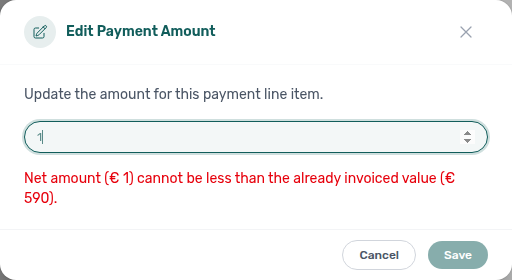
- Common Workflows — Rent reduction after invoicing — Operator habit hub
Rent reduction after invoicing
Invoiced-floor blocks pair with Bulk Hostkit invoicing hub (Issue credit notes Hostkit pacing after external rent relief — finance-transactions-bulk-selection-bar.png), Month-end invoicing (fixed date) hub (fixed Invoice date before first Issue allocation), Invoiced floor (rent) hub (definition + modal surfaces), Bookings, Payments & Finance.
| Symptom | Surface | Fix |
|---|---|---|
| Month saves at invoiced amount, not your lower entry | Contract Info → Change monthly rent | Blue Already invoiced months banner — clamped months keep exported totals; other months save at your amount (bookings-detail-change-monthly-rent-modal.png) |
| Save disabled under New net amount | Contract Values → Edit amount | Red inline validation — net would drop below invoiced+draft totals on that line (bookings-detail-contract-values-invoiced-floor-edit-amount.png) |
| Need goodwill discount below exported rent | External accounting | Issue credit notes or manual adjustments — Vivin will not persist lower nets on exported months |
| Hostkit Not issued credit note after rent relief | External credit note registered in Vivin | Issue credit notes (N) — same pacing as Bulk Hostkit invoicing (finance-transactions-bulk-selection-bar.png) |
| Repricing after equal-month inference on variable unit | Change monthly rent reopen | Same floor applies — pair FAQ — Fixed rent on variable unit |
| Batch stays Pending on Transactions | Hostkit pacing | Floor unrelated — check booking modals; Refresh Transactions before duplicate Hostkit run |
| Support ticket cites blocked rent cut below exported month | Self-serve modal check skipped | Using in-app support — Rent reduction after invoicing before New Support Ticket modal |
| Lockout-delayed month-end repricing on live bookings | Password recovery delayed repricing | Resetting a Management User Password — Step 3 → Contract Info → Change monthly rent (bookings-rent-reduction-invoiced-floor-flow.mp4) |
- Common Workflows — Rent reduction after invoicing — Operator habit hub
Directory list refresh
Pairs with Booking sidebar tab refresh hub (one booking tab) and FAQ — Directory list refresh (step-by-step).
- Common Workflows — Directory list refresh — Operator habit hub
- Booking sidebar tab refresh hub — Communication / Tickets inside one booking
- Get Help & Support — Escalate when Retry still leaves the list incomplete after you reload
Fixed invoice date reminder
Amber banner surfaces pair with Month-end invoicing (fixed date) hub (save fixed Invoice date → bulk export → reset toggle), Bulk Hostkit invoicing hub (same toolbar beside Issue allocation), Hostkit hub, Payments & Finance, and Portfolio KPI review — Step 7.
| Surface | Banner layout | Best for |
|---|---|---|
| Finance → Transactions inline strip | Full-width above search | Confirm saved date before filtering (finance-transactions-fixed-invoice-date-banner.png) |
| Finance → Transactions bulk toolbar | Compact beside Issue allocation | Month-end bulk export (finance-transactions-bulk-toolbar-fixed-invoice-date-banner.png) |
| Transaction detail sidebar | Compact above allocations | Single-row Invoice selected (finance-transaction-detail-fixed-invoice-date-banner.png) |
| Settings → Invoicing | Toggle off + date picker | Source of truth — no banner until saved (settings-invoicing-invoice-date-toggle.png) |
| Symptom | Likely cause | Fix |
| ---------------------------------------- | ------------------------------------------ | ------------------------------------------------------------------------------------------------------------ |
| No amber banner on Transactions | Use today still on or date unsaved | Save fixed date in Invoicing, reload Transactions |
| Banner shows wrong date | Stale session | Re-save Invoice date in Invoicing, hard-refresh Transactions |
| Bulk toolbar banner missing | No allocatable rows selected | Tick rows with Pending / Failed invoicing |
| Issued invoices show wrong document date | Fixed date still active after batch | Month-end invoicing (fixed date) hub — turn Use today back on |
| Bulk Pending with banner visible | Hostkit API pacing | Bulk Hostkit invoicing hub — not a banner bug |

- Common Workflows — Month-end invoicing (fixed date) — Operator habit hub
Month-end invoicing (fixed date)
Fixed document-date batches pair with Fixed invoice date reminder hub (amber banner surfaces on Finance → Transactions), Bulk Hostkit invoicing hub (same Transactions bulk toolbar + Hostkit pacing), Payments & Finance, and month-end Portfolio KPI review — Step 7.
| Symptom | Fix |
| -------------------------------------------- | ------------------------------------------------------------------------------------------------------------------------------------------------------------------------------------------------------------------------------ | ----------------------------------------------------------------------------------------------------------------------------------------------------------------------------------------------------------------------------- |
| Wrong document date on issued invoices | Turn Use today as invoice date back on after batch — Invoicing — Default invoice date (finance-transactions-bulk-toolbar-fixed-invoice-date-banner.png) |
| No amber banner on Transactions | Save fixed date with toggle off, reload Transactions (finance-transactions-fixed-invoice-date-banner.png) |
| Bulk Pending for minutes | Hostkit pacing — not a date issue; see Bulk Hostkit invoicing hub (finance-transactions-bulk-selection-bar.png) |
| Forgot to reset after month-end | Turn Use today as invoice date back on in Settings → Invoicing — next day's invoices otherwise use the saved fixed date (settings-invoicing-invoice-date-toggle.png) |
| Month-end export blocked by Pending mesh | Confirmation or duplicate transfers still pending | Pending manual receipt approval — finish Pending mesh on workflow Step 6b before Issue allocation |
| Lockout-delayed month-end export backlog | Password recovery delayed bulk export | Resetting a Management User Password — Step 3 → save fixed date → Finance → Transactions bulk toolbar |
| Support ticket cites wrong document date | Self-serve toggle check skipped | Using in-app support — Month-end invoicing (fixed date) before New Support Ticket modal |
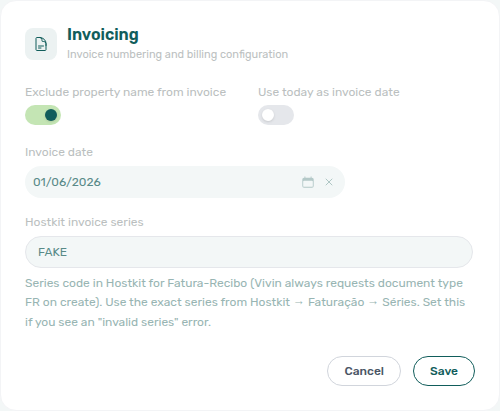
- Common Workflows — Month-end invoicing (fixed date) — Operator habit hub
Hostkit
Hostkit setup pairs with Bulk Hostkit invoicing hub (month-end Issue allocation pacing), Month-end invoicing (fixed date) hub (fixed Invoice date before bulk export), Credit note warning (reject/revert) hub (Not issued credit note queue after invoiced Reject / Revert), Payments & Finance, and Integrations & Distribution.
| Surface | Setup / retrieval behaviour | Best for |
|---|---|---|
| Integrations → Hostkit → Listing keys | Server search + ~20-row infinite scroll; per-row Save | Per-listing API keys before first export |
| Invoicing → Hostkit invoice series | Required FR code from Hostkit Faturação → Séries | Account-wide series before document create |
| Finance → Transactions bulk toolbar | Issue allocation / Invoice selected; Issue credit notes (N) | Month-end export (finance-transactions-bulk-selection-bar.png) |
| Finance → Transactions allocation row | see invoice opens Hostkit permalink | Post-export PDF retrieval |
| Booking → Files tab | Invoice_ PDF tiles | Tenant-facing document copy |
| Symptom | Likely cause | Fix |
| -------------------------------------------------------- | ---------------------------------------- | ------------------------------------------------------------------------------------------------ |
| Hostkit invoice series is not configured toast | Blank FR series | Save exact series — settings-invoicing-hostkit-series.png |
| Rows stay Failed after refresh | Missing Listing keys | Integrations → Hostkit → Listing keys — search unit, paste key, Save |
| see invoice disabled or 404 | Series typo or wrong {series}/{id} | Match Invoicing series to live Hostkit FR code |
| Batch stays Pending for minutes | Hostkit API pacing | Bulk Hostkit invoicing hub — refresh Transactions before re-issue |
| Not issued credit note after Reject / Revert | Invoiced charge reversed in Vivin | Issue credit notes (N) — same Hostkit pacing |
| Wrong document date on issued invoices | Fixed Invoice date still active | Month-end invoicing (fixed date) hub |
- Common Workflows — Bulk Hostkit invoicing — Operator habit hub
Bulk Hostkit invoicing
Bulk Hostkit pacing pairs with Hostkit hub (setup surfaces + Listing keys / FR series), Glossary — Hostkit hub, Month-end invoicing (fixed date) hub (fixed Invoice date before bulk export — finance-transactions-bulk-toolbar-fixed-invoice-date-banner.png), Rent reduction after invoicing hub (invoiced floor → external credit notes → Issue credit notes — bookings-rent-reduction-invoiced-floor-flow.mp4), Reject/revert mistaken receipts hub.
| Symptom | Fix |
| -------------------------------------------------------------- | --------------------------------------------------------------------------------------------------------------------------------------------------------------------------------------------------------------------------------------------------------------------------- | --------------------------------------------------------------------------------------------------------------------------------------------------------------------------------------------------------------------------------- |
| Rows stay Pending / Failed for several minutes | Hostkit rate limit — Vivin paces per listing key — leave batch running; refresh Transactions before duplicate Issue allocation (finance-transactions-bulk-selection-bar.png) |
| Same rows still Failed after refresh | Missing Listing keys or blank Hostkit invoice series — Integrations — Hostkit + Invoicing — Hostkit series (settings-invoicing-hostkit-series.png) |
| Hostkit invoice series is not configured toast | Series field empty on account | Save the exact FR code from Hostkit Faturação → Séries |
| Wrong document date on issued invoices | Fixed Invoice date still active | Month-end invoicing hub — turn Use today back on after batch (finance-transactions-bulk-toolbar-fixed-invoice-date-banner.png) |
| Not issued credit note queue after Reject / Revert | Invoiced charge reversed in Vivin | Issue credit notes (N) — same Hostkit pacing as Issue allocation — Reject/revert mistaken receipts |
| Change monthly rent clamped below exported total | Invoiced floor — not Hostkit slowness | Rent reduction after invoicing — external credit note first (bookings-rent-reduction-invoiced-floor-flow.mp4) |
| Month-end export blocked by Pending receipts | Duplicate or confirmation transfers still pending | Pending manual receipt approval — finish Pending mesh on workflow Step 6b before Issue allocation |
| Support ticket cites slow Hostkit batch | Self-serve pacing before escalation | FAQ — Bulk Hostkit invoicing slow — Using in-app support — New Support Ticket modal only after refresh + series/keys check |
| Lockout-delayed month-end Issue allocation backlog | Password recovery delayed bulk export | Resetting a Management User Password — Step 3 → Finance → Transactions bulk toolbar |
- Common Workflows — Bulk Hostkit invoicing — Operator habit hub
Wrong tenant on a booking
Wrong-profile questions pair with Cancel Booking vs Delete Booking hub (duplicate import row → Delete, not Change tenant), Bookings, Processing a New Booking hub (Step 1 import check, Step 6 confirmation), and FAQ — Wrong tenant on a booking hub.
- Common Workflows — Wrong tenant on a booking — Operator habit hub
Cancel Booking vs Delete Booking
Cancel vs Delete pairs with Wrong tenant on a booking hub (Change tenant when profile link is wrong), Portfolio retirement decisions hub (building Archive vs reservation actions), Bookings, and FAQ — Cancel Booking vs Delete Booking.
- Common Workflows — Cancel Booking vs Delete Booking — Operator habit hub
Same-day turnover coordination
Shared-unit turnover pairs with Managing a Check-in hub, Managing a Check-out hub, Operations, FAQ — Same-day turnovers, Check-out collections before refund.
| Symptom | Fix |
|---|---|
| Incoming guest waiting but unit not ready | Managing a Check-out — Step 2 turnover ticket before Managing a Check-in — Step 4 (operations-add-ticket-modal.png) |
| Same unit shows two bookings on Timeline Week scale | Bookings — Timeline view — paste unit in toolbar Search (bookings-timeline-day-week-month-and-sidebar.mp4) |
| Outgoing tenant still In Debt on Payment Plan | Handling a Late Payment — Step 1 → Check-out collections before refund before incoming key handover |
| Keys handed before outgoing checkout Ended | Managing a Check-in — Step 4 only after outgoing Managing a Check-out — Step 7 |
| Turnover ticket shows Draft far from due date | Operations → Tickets — assign tight due date before incoming arrival |
| Arrival/access alert before turnover ticket done | Notification triage — Step 4 row-click before bulk mark-read |
| Multicalendar gap on turnover day | Sales — Multicalendar Week scale overlap check |
| Lockout-delayed turnover catch-up | Resetting a Management User Password — Step 3 → Operations → Check-in & Check-out |
| Turnover coordination blocked after self-serve checks | Using in-app support — New Support Ticket modal — not tenant notify-landlord |
| Final utilities not posted before deposit release on turnover day | Check-out final utilities handoff — outgoing Step 6 before incoming Step 4 |
- Common Workflows — Same-day turnover coordination — Operator habit hub
New inventory to first booking handoff
First-reservation questions pair with Setup sequence after go-live (steps 13–15 + Onboarding — Step 7), Processing a New Booking hub (Steps 1–6), Property setup to first arrival handoff (downstream arrival week), and Confirmation alert triage hub (first Booking created alerts).
- Common Workflows — New inventory to first booking handoff — Operator habit hub
Property setup to first arrival handoff
First-arrival questions pair with New inventory to first booking handoff (upstream property wizard → first reservation), Managing a Check-in hub (Steps 1–4), Confirmation to check-in handoff (portal gates after first booking), and FAQ — Automatic check-in email.
- Common Workflows — Property setup to first arrival handoff — Operator habit hub
Confirmation to check-in handoff
Confirmation-week handoff pairs with Processing a New Booking hub (upstream Steps 5b / 6), Managing a Check-in hub (downstream Steps 1–4), Confirmation alert triage hub (alert-driven entry), Pending manual receipt approval hub (Step 5b / Step 3b mesh), and FAQ — Tenant contract signing blocked.
| Symptom | Fix |
|---|---|
| Started Managing a Check-in — Step 1 weeks before move-in | Finish Processing a New Booking — Step 6 portal gates first — arrival-week planning ~7 days out (booking-lifecycle-status-tabs-flow.mp4) |
| Tenant Portal Copy / Impersonate Tenant blocked | Processing a New Booking — Step 6 — contract + Tenant category; file support only after checklist (bookings-detail-contract-method-of-payments.png) |
| Contract not signed on Upcoming import | Step 4 → Step 5 before Managing a Check-in — Step 4 |
| Confirmation bank transfer still Pending | Processing a New Booking — Step 5b — distinct from move-in Step 3b (finance-transactions-pending-pill.png) |
| Move-in week but unpaid Payment Plan pills | Handling a Late Payment — Step 1 before Managing a Check-in — Step 4 |
| Tenant category wrong on portal | Processing a New Booking — Step 2 / Tenant Info — Glossary — Tenant category |
| Deposit only partly collected | Partly collected security deposit — deposit shortfall vs rent Partial Paid on Payment Plan |
| Month-end lingering Pending on confirmation imports | Processing a New Booking — Step 6b during Portfolio KPI review — Step 7 |
| Operations → Check-in & Check-out empty ~7 days out | Confirm Upcoming portal gates on Step 6 — then scan Next 7 days (workflows-operations-check-in-out-planning-view.png) |
| Lockout-delayed Upcoming backlog | Resetting a Management User Password — Step 3 catch-up → Confirmation alert triage hub before handoff |
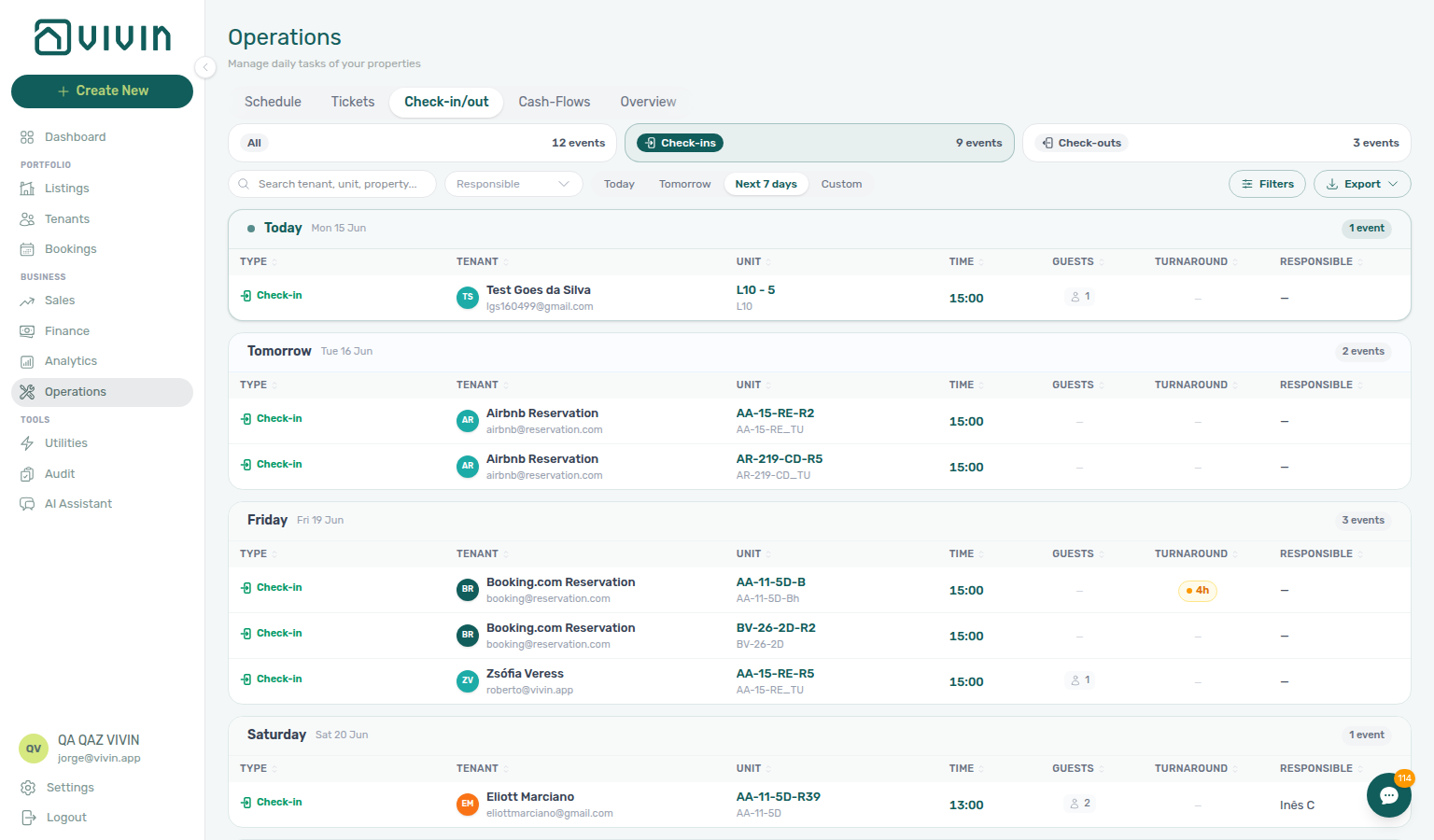
- Common Workflows — Confirmation to check-in handoff — Operator habit hub
Check-in to check-out handoff
Mid-stay handoff pairs with Managing a Check-in hub (upstream Step 4), Managing a Check-out hub (downstream Steps 1–7), Same-day turnover coordination (shared-unit one-day overlap), and Check-out final utilities handoff (final overages before refund).
| Symptom | Fix |
|---|---|
| Started Managing a Check-out — Step 1 weeks before departure | Finish Managing a Check-in — Step 4 first — departure-week planning ~7 days before checkout (operations-check-in-out-check-outs-next-7-days.png) |
| Still running check-in prep on Ongoing stay | Step 5 confirms Ongoing — then scan Check-outs pill |
| Operations → Check-in & Check-out empty ~7 days out | Switch to Check-outs pill + Next 7 days — not Check-ins (operations-check-in-out-check-outs-next-7-days.png) |
| payment overdue on Ongoing stay at bell | Handling a Late Payment — Step 1 before Managing a Check-out — Step 5 |
| Deposit only partly collected at move-in | Partly collected security deposit — deposit shortfall vs rent Partial Paid |
| Same-day turnover on shared unit | Same-day turnover coordination — outgoing Step 2 before incoming Step 4 |
| Booking still Ongoing after departure day | Managing a Check-out — Step 7 — not more check-in prep |
| Month-end Ongoing entering departure week | Portfolio KPI review — Step 7 → Check-outs pill |
| Lockout-delayed departure-week planning | Resetting a Management User Password — Step 3 catch-up → hub Lockout catch-up after password recovery |
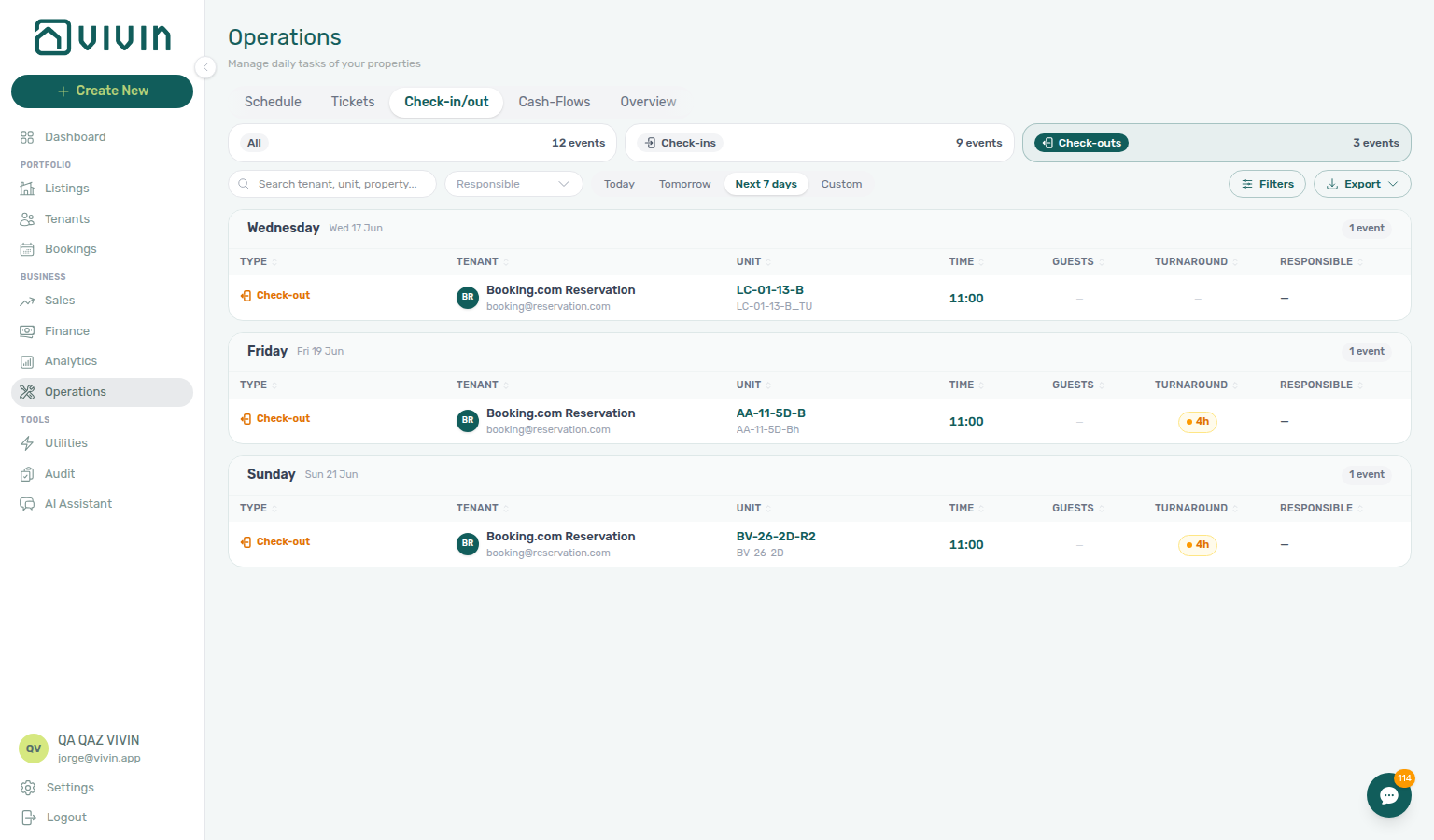
- Common Workflows — Check-in to check-out handoff — Operator habit hub
Check-out final utilities handoff
Departure-week utility settlement pairs with Entering Monthly Utility Bills hub (Steps 2–4 posting), Managing a Check-out hub (Step 6 before Step 5), Utility overage collections.
| Symptom | Surface | Fix |
|---|---|---|
| Final utility overage unpaid on Payment Plan | Booking Payment Plan | Step 4 → Step 6 (bookings-detail-payment-plan-tab-schedule.png) |
| Ready To Refund blocked by overage | Booking Deposit tab | Step 4 → Step 1 → Step 6 (bookings-detail-deposit-tab-ready-to-refund-toggle.png) |
| Overage paid but Ready To Refund greyed | Booking Transactions | Step 4b ↔ Step 6b (finance-transactions-pending-pill.png) |
| End of Booking — overage not visible yet | Charge Time setting | Glossary — End-of-Booking cost split — Step 7 then re-check Step 6 |
| Month-end Missing bills on departing units | Utilities → Bills Missing toggle | Step 5 → Portfolio KPI review — Step 7 (utilities-bills-tab-missing-toggle.png) |
| Rent + utility both block Ready To Refund | Booking Payment Plan | Utility overage collections (utility line) · Check-out collections before refund (rent/fee lines) |
| Same-day turnover blocked by outgoing overage | Operations → Check-in & Check-out | Outgoing Step 6 before incoming Step 4 — hub: Same-day turnover coordination |
| Departure-week utility payment overdue alert | /notifications row-click | Step 4 → Step 4 → Step 6 |
| Support ticket cites final overage blocking Ready To Refund | Self-serve triage skipped | Using in-app support — Check-out final utilities handoff before New Support Ticket modal |
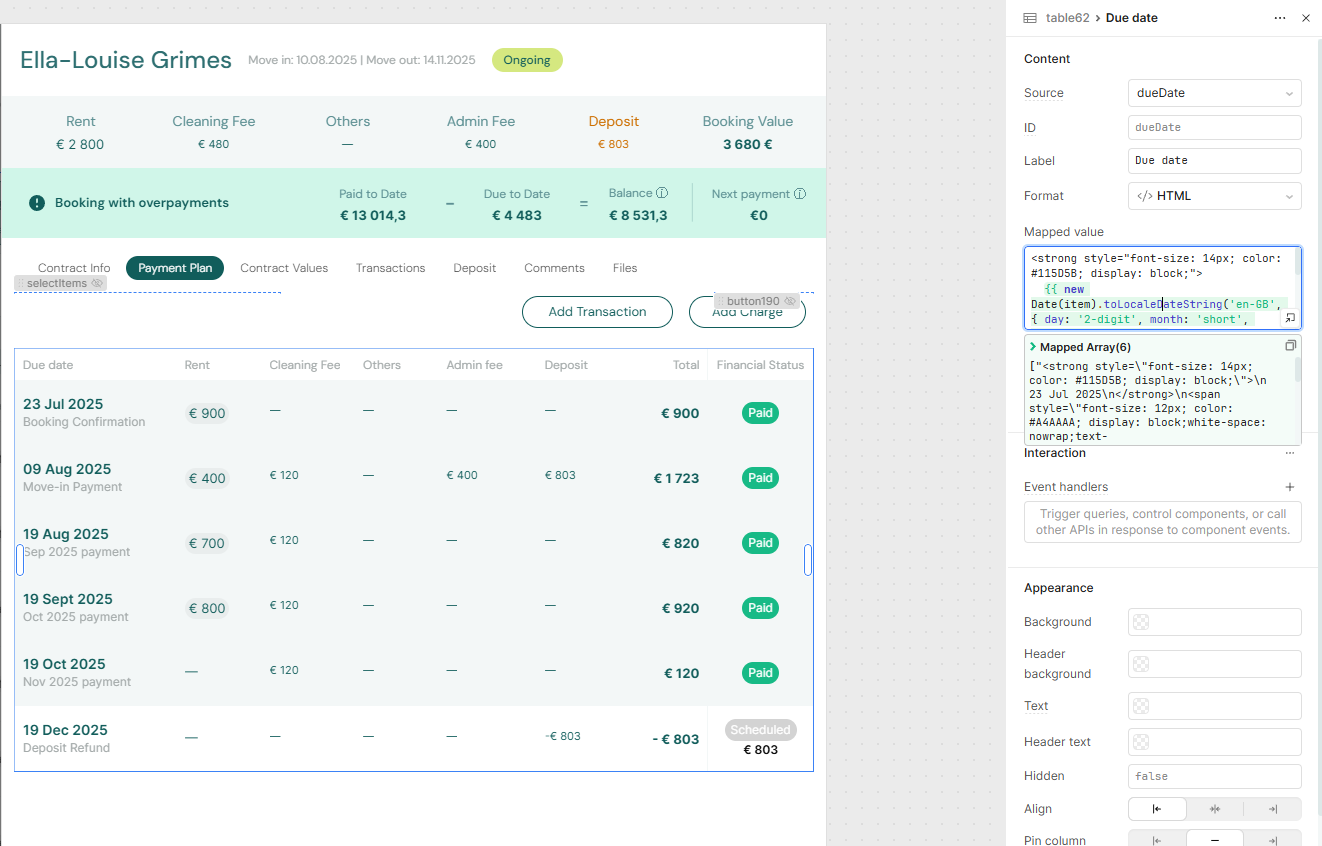
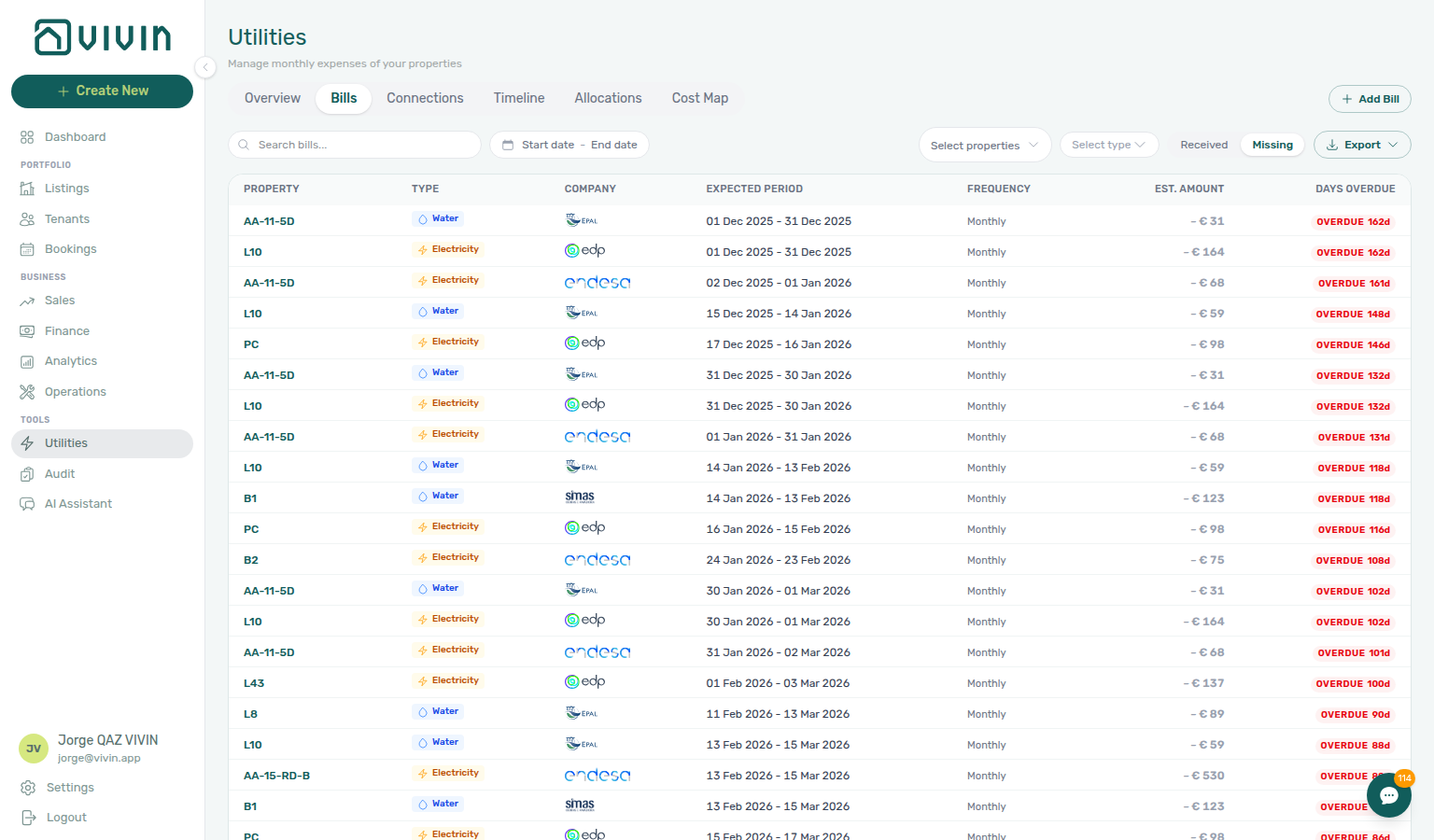
- Common Workflows — Check-out final utilities handoff — Operator habit hub
Check-out collections before refund
Departure-week rent/fee arrears pair with Managing a Check-out hub (Step 6 before Step 5), Handling a Late Payment hub (collections Steps 1–4), Pending manual receipt approval hub.
| Symptom | Surface | Fix |
|---|---|---|
| Ready To Refund greyed / In Debt on rent | Booking Payment Plan | Step 1 → Step 4 → Step 6 (bookings-detail-payment-plan-tab-schedule.png) |
| Ready To Refund blocked on Deposit tab | Booking Deposit tab | Step 6 after collections — bookings-detail-deposit-tab-ready-to-refund-toggle.png |
| Tenant paid once, balance still Unpaid | Booking Transactions | Check-out ledger cleanup before refund — Revert duplicate |
| Unpaid line is utility overage | Booking Payment Plan | Check-out final utilities handoff — not rent collections mesh |
| Departure transfer still Pending | Booking Transactions | Pending manual receipt approval hub — Step 6b (finance-transactions-pending-pill.png) |
| Shortfall is deposit collection, not rent | Finance → Deposits | Partly collected security deposit hub — Partial paid card |
| Portfolio Top debtors shows departure arrears | Finance → Contract Values | Step 1 — In Debt filter (finance-contract-values-in-debt-filter.png) |
| Rent + utility both block Ready To Refund | Booking Payment Plan | Utility overage collections (utility line) · Check-out collections before refund (rent/fee lines) |
| Same-day turnover blocked by outgoing arrears | Operations → Check-in & Check-out | Outgoing Step 6 before incoming Step 4 — hub: Same-day turnover coordination |
| Departure-week payment overdue alert | /notifications row-click | Step 4 → Step 1 → Step 6 |
| Support ticket cites Ready To Refund blocked by arrears | Self-serve triage skipped | Using in-app support — Check-out collections before refund before New Support Ticket modal |
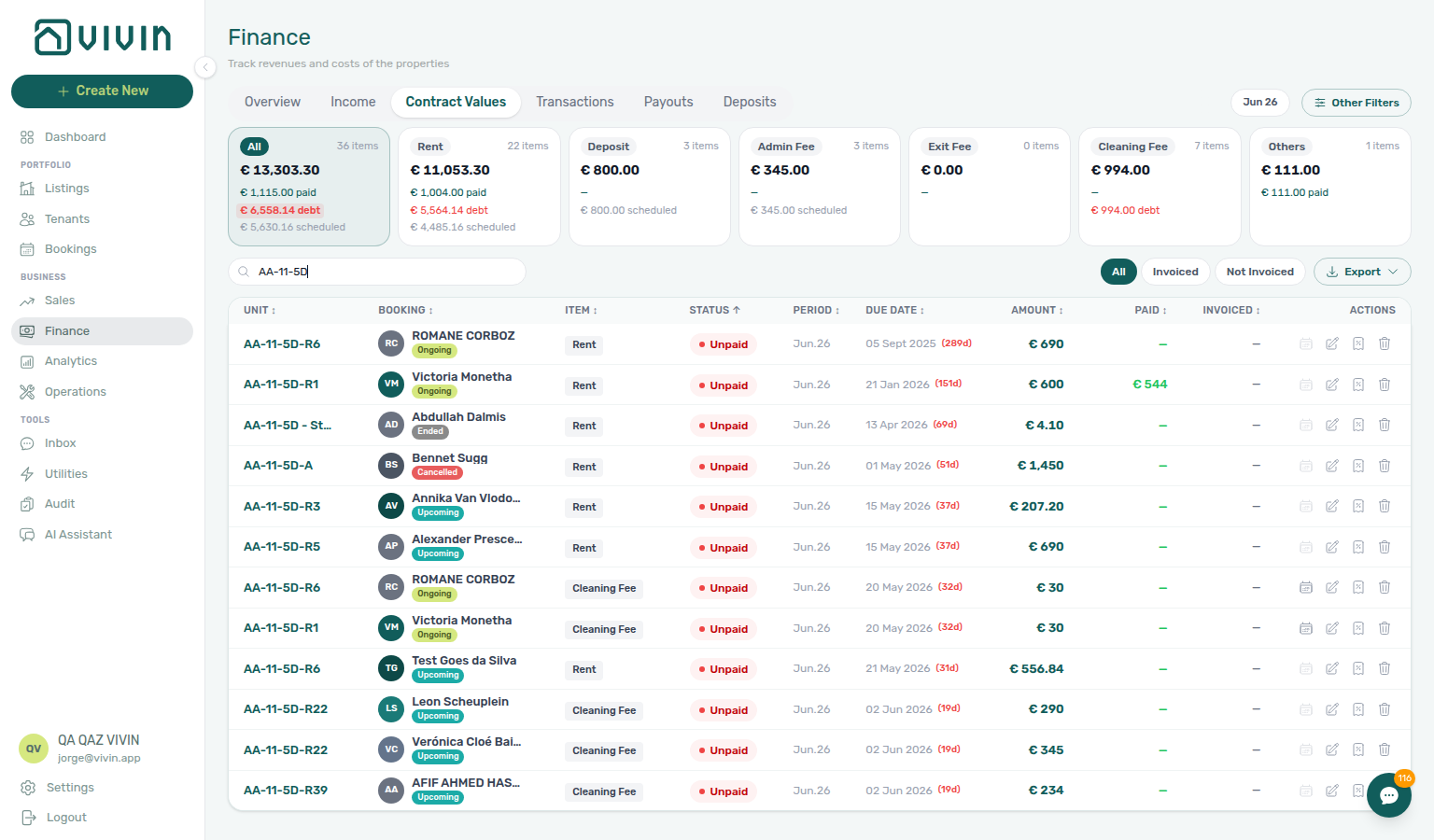
- Common Workflows — Check-out collections before refund — Operator habit hub
Check-out ledger cleanup before refund
Duplicate-transfer cleanup pairs with Reject/revert mistaken receipts hub (Revert approved duplicate before collections — bookings-detail-transactions-revert-modal-info-banner.png, bookings-payment-row-actions-flow.mp4), Managing a Check-out hub (Step 6 / Step 6b — finance-transactions-bulk-reject-selected-bar.png), Pending manual receipt approval hub.
| Symptom | Surface | Likely wrong path | Fix |
|---|---|---|---|
| Ready To Refund blocked despite tenant paid | Booking Deposit tab | Handling a Late Payment — Step 3 outreach | Transactions → Revert duplicate — Reject/revert mistaken receipts hub |
| In Debt after tenant paid departure rent | Booking Transactions | Collections outreach | Revert duplicate — not Step 3 until ledger clean |
| Top debtors still high after tenant paid | Finance → Contract Values | Real arrears collections | Check-out collections before refund — confirm duplicate pair on Transactions |
| Two identical transfers, one Pending | Finance → Transactions | Revert on approved row | Pending manual receipt approval hub — Reject pending duplicate first |
| Two identical transfers, both approved | Booking Transactions | Collections Step 3 | Revert payment on duplicate — Reject/revert mistaken receipts hub |
| Est. Refund inflated by duplicate | Booking Deposit tab | External bank transfer anyway | Revert duplicate before Step 5 |
| Red / blue modal after Reject / Revert | Booking Transactions | Skip credit-note queue | Issue credit notes — Bulk Hostkit invoicing hub pacing |
| Unpaid rent line on Payment Plan | Booking Payment Plan | Ledger cleanup mesh | Check-out collections before refund — tenant has not paid |
| Utility overage shows Unpaid | Booking Payment Plan | Ledger cleanup mesh | Check-out final utilities handoff — unpaid overage line, not duplicate transfer |
| Duplicate Pending manual in-payment during departure week | /notifications row-click | Approve both rows | Step 4 → Reject selected |
| Support ticket — tenant paid but Ready To Refund blocked | Self-serve triage skipped | File ticket first | Using in-app support — Check-out ledger cleanup before refund |
- Common Workflows — Check-out ledger cleanup before refund — Operator habit hub
Cancellation collections before void
Pre-cancel rent/fee arrears pair with Cancelling a Booking hub (Step 2 before Step 4 — bookings-cancel-booking-modal-refund-types.png, workflows-cancel-booking-refund-modal-flow.mp4), Handling a Late Payment hub (collections Steps 1–4 — finance-contract-values-in-debt-filter.png), Check-out vs cancellation.
| Symptom | Surface | Likely wrong path | Fix |
|---|---|---|---|
| Cancel booking blocked by In Debt | Booking Contract Info | Managing a Check-out departure mesh | Cancelling a Booking — Step 2 — policy void, not Ended stay |
| Unpaid rent/fee line on Payment Plan | Booking Payment Plan | Cancel booking without settlement | Steps 1–4 → Step 2 before Step 4 |
| Top debtors still high before void queue | Finance → Contract Values | Batch Cancel booking without triage | Finance debt receivables triage hub — filter In Debt before void |
| Unpaid utility overage on Canceled stay | Booking Payment Plan | Rent pre-cancel mesh | Entering Monthly Utility Bills — Step 4 + Handling a Late Payment — Step 1 |
| Settlement receipt Pending at cancel | Booking Transactions | Collections Step 3 | Step 2a / Pending manual receipt approval hub |
| Tenant paid once, balance still Unpaid | Booking Transactions | Collections outreach | Check-out ledger cleanup before refund — Revert duplicate during Step 2 |
| Tenant backs out before arrival | Booking Payment Plan | Departure-week Step 6 | Managing a Check-in hub move-in arrears → Cancelling a Booking — Step 4 |
| Pre-cancel payment overdue alert on Upcoming stay | /notifications row-click | Bulk mark-read before triage | Step 4 → Step 1 → Step 2 |
| Support ticket cites In Debt blocking Cancel booking | Self-serve triage skipped | File ticket first | Using in-app support — Cancellation collections before void |
| Lockout-delayed pre-cancel collections backlog | Password recovery delayed triage | Cancel booking without catch-up | Resetting a Management User Password — Step 3 → Step 2 |
| Month-end pre-cancel arrears at KPI sign-off | Finance → Contract Values | Policy void batch with open In Debt | Portfolio KPI review — Step 7 — settle before void queue |
- Common Workflows — Cancellation collections before void — Operator habit hub
Deposit lifecycle status
Deposit-lifecycle vocabulary pairs with Payments & Finance, Partly collected security deposit (Partial Paid shortfall), Deposit dispute hub (Disputed freeze), Deposit missing on Finance Deposits (lifecycle card counts scoped to toolbar date range), Managing a Check-out hub.
| Symptom | Likely wrong path | Fix |
|---|---|---|
| Lifecycle pill Partial Paid but rent line also amber | Rent Payment Plan vs deposit | Open booking Deposit tab — security deposit shortfall — Partly collected security deposit |
| Partial paid lifecycle card shows zero rows | Toolbar date range excludes the stay | Deposit missing on Finance Deposits — clear range first |
| Ready To Refund toggle disabled at departure | Rent/fee arrears on Payment Plan | Check-out collections before refund — not deposit shortfall alone |
| Refund / Mark refunded greyed on Deposit tab | Active Disputed freeze | Deposit dispute hub — Resolve Dispute after internal review |
| Pill stuck on Fully Paid at check-out | Ready To Refund step required | Managing a Check-out — Step 5 — toggle Ready To Refund |
| Month-end KPI finds wrong lifecycle mix | Card counts scoped to date window | Portfolio KPI review — Step 7 — clear toolbar range first |
| Deposit shortfall at confirmation or move-in | Departure inspection mesh | Processing a New Booking — Step 5 / Managing a Check-in — Step 3 |
| Partially paid badge or lifecycle pill defects | Product defect after self-serve triage | Using in-app support — Deposit lifecycle status — Finance module ticket |

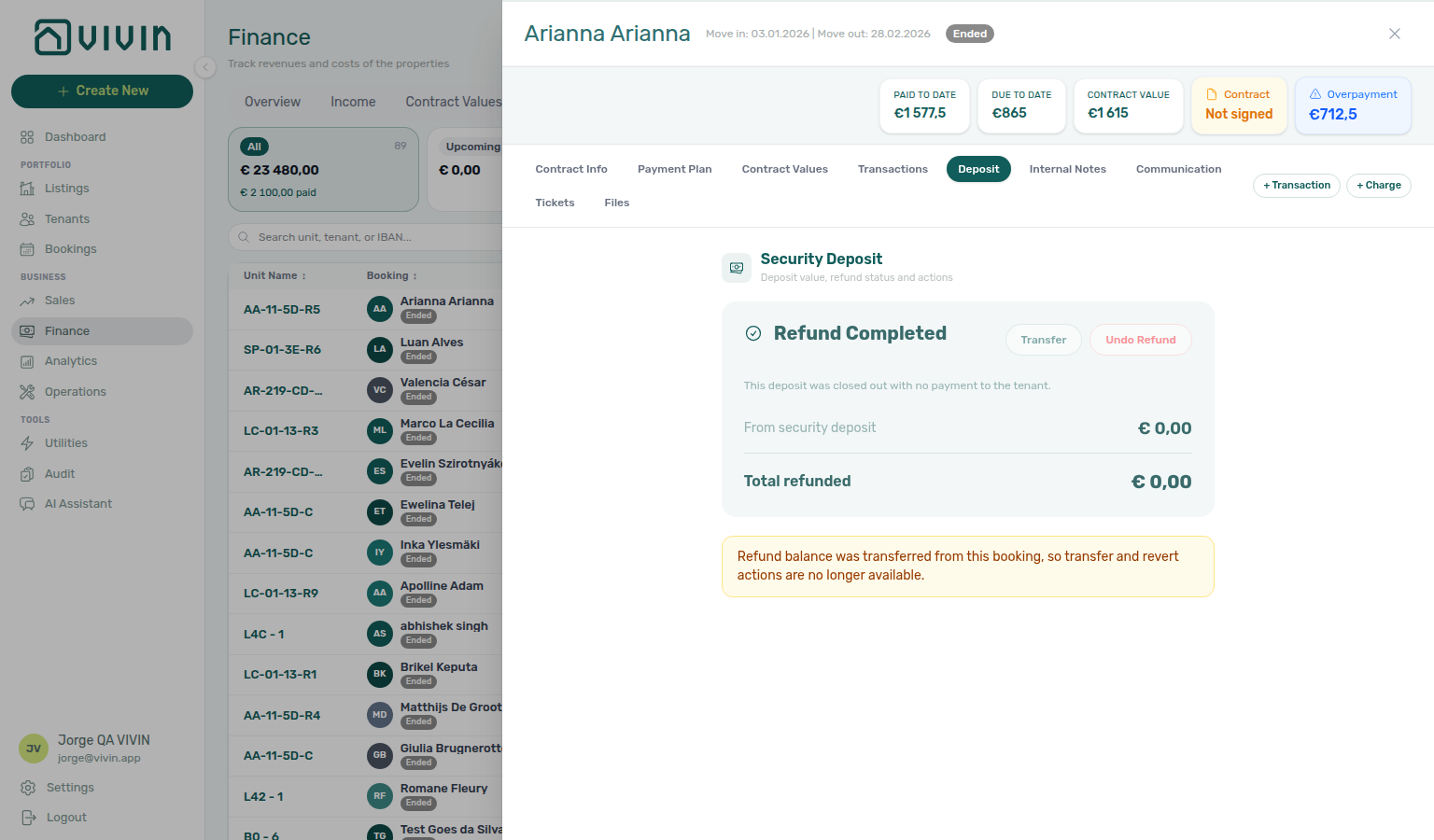
- Common Workflows — Deposit lifecycle status — Operator habit hub
Deposit dispute
Contested deposit retention pairs with Managing a Check-out hub (Step 5 — deposit-dispute-mark-and-resolve-flow.mp4), Cancelling a Booking hub (Step 3), Partly collected security deposit.
| Symptom | Surface | Likely wrong path | Fix |
|---|---|---|---|
| Refund / Mark refunded greyed on Deposit tab | Booking Deposit tab | Check-out collections before refund rent mesh | Resolve Dispute after internal review — Step 5 |
| Mark as Disputed missing on booking Deposit tab | Booking Deposit tab | Partly collected shortfall mesh | Enable deposit disputes + bookings.dispute on role |
| Mark disputed chip missing on Finance → Deposits | Finance → Deposits toolbar | Assuming no deposit record | Deposit missing on Finance Deposits — clear date range first |
| Deposit not Fully Paid yet | Booking Deposit tab lifecycle pill | Dispute freeze on partial collection | Partly collected security deposit — collect shortfall first |
| Tenant contests retention during cancellation | Booking Deposit tab on Canceled | Managing a Check-out hub departure mesh | Cancelling a Booking — Step 3 — Mark as Disputed before Mark refunded |
| Ready To Refund blocked despite settled charges | Booking Deposit tab | Rent In Debt on Payment Plan | Resolve Dispute — not Check-out collections before refund |
| Month-end KPI finds contested refunds | Finance → Deposits Disputed card | Bulk Mark refunded without review | Portfolio KPI review — Step 7 — Disputed filter |
| Tenant WhatsApp contest before operator action | Inbox thread | Chat reassurance without ledger check | Open booking Deposit tab — confirm Disputed state before reply |
| Lockout-delayed dispute backlog | Password recovery delayed triage | Mark refunded without catch-up | Resetting a Management User Password — Step 3 → Finance → Deposits Disputed filter |
| Support ticket — refund blocked by dispute | Self-serve triage skipped | File ticket first | Managing a Check-out — Step 5 before filing |
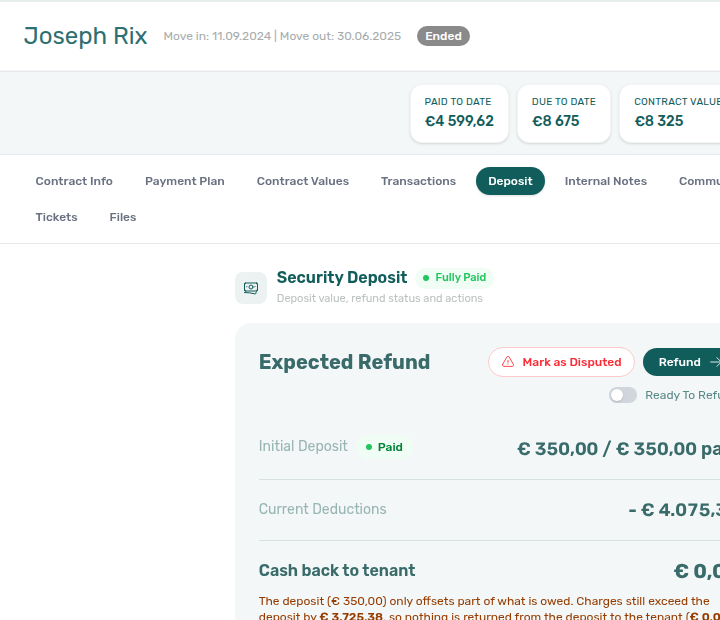


- Managing a Check-out — Step 5 — Mark, resolve, and refund disputed deposits
Utility overage collections
Utility overage arrears pair with Entering Monthly Utility Bills hub (upstream Steps 2–4), Handling a Late Payment hub (collections Steps 1–4), Check-out final utilities handoff (departure-week subset), Pending manual receipt approval hub (Step 4b overage receipts — finance-transactions-pending-pill.png), Reject/revert mistaken receipts hub.
| Symptom | Surface | Fix |
|---|---|---|
| In Debt includes utility-type line on Contract Values | Finance → Contract Values In Debt filter | Step 4 → Step 1 (finance-contract-values-in-debt-filter.png) |
| Payment overdue alert after monthly bill cycle | /notifications row-click | Step 4 before Step 1 (notifications-row-navigate-to-booking-detail.png) |
| Overage line not on Payment Plan yet | Utilities → Allocations | Step 2 → Step 4 — not collections until charge posts (utilities-allocations-row-breakdown-expanded.png) |
| Overage receipt still Pending at month-end | Finance → Transactions / booking Transactions | Step 4b (bookings-detail-transactions-approve-payment-modal.png, finance-transactions-pending-pill.png) |
| Tenant insists they paid — duplicate on ledger | Booking Transactions | Reject/revert mistaken receipts hub — Reject while pending / Revert after Approve on Step 4b |
| End of Booking — line not visible yet | Charge Time setting | Glossary — End-of-Booking cost split — wait until Managing a Check-out — Step 7 |
| Rent line mistaken for utility overage | Booking Payment Plan | Check-out collections before refund — rent In Debt contrast, not utility mesh alone |
| Support ticket cites utility overage on Payment Plan | Self-serve triage skipped | Using in-app support — Utility overage collections before New Support Ticket modal |
| Lockout-delayed overage payment overdue backlog | Password recovery delayed triage | Resetting a Management User Password — Step 3 → Step 4 (utilities-allocations-review-flow.mp4) |
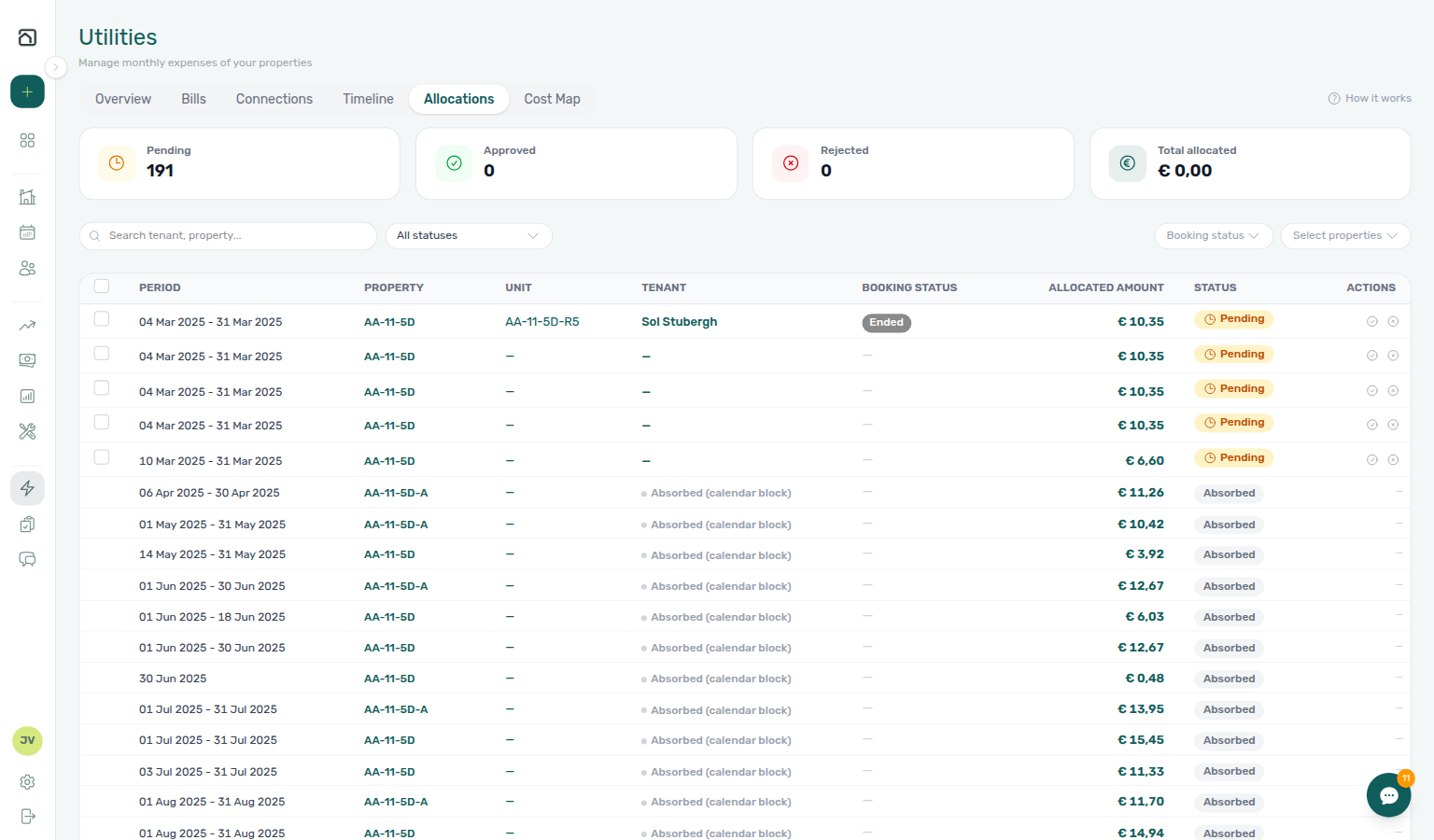
- Common Workflows — Utility overage collections — Operator habit hub
Check-out vs cancellation
Lifecycle exit questions pair with Managing a Check-out hub (completed stay → Ended), Cancelling a Booking hub (policy void → Canceled), Cancel Booking vs Delete Booking hub (real void vs mistaken row), Check-out collections before refund (departure-week arrears on Ended path), Cancellation collections before void.
| Symptom | Likely wrong path | Fix |
|---|---|---|
| Guest never moved in but operator ran check-out flow | Managing a Check-out Ended | Cancelling a Booking — Step 4 → Canceled filter |
| Mid-stay policy void but operator used Ended | Step 7 on voided stay | Cancelling a Booking — Step 4 — hub: Check-out vs cancellation |
| Completed stay but Cancel booking was used | Canceled filter + refund dialog | Managing a Check-out — Step 7 — Ended status |
| Mistaken Add booking / training duplicate | Cancel booking or check-out | Delete Booking — Cancel Booking vs Delete Booking |
| Ready To Refund blocked on policy void | Check-out collections before refund mesh | Cancellation collections before void — Step 2 before Step 4 |
| Utility overage on Canceled stay | Managing a Check-out — Step 6 | Entering Monthly Utility Bills — Step 4 |
- Common Workflows — Check-out vs cancellation — Operator habit hub
Portfolio retirement decisions
Portfolio retirement pairs with Cancel Booking vs Delete Booking hub (reservation void vs soft-archive — workflows-cancel-booking-refund-modal-flow.mp4), Properties & Listings, Bookings, and Payments & Finance (ledger visibility after soft-archive).
- Common Workflows — Portfolio retirement decisions — Operator habit hub
Deposit missing on Finance Deposits
Missing deposit rows pair with Payments & Finance, Why do I not see a deposit on Finance Deposits?, Partly collected security deposit (Partial paid card empty until range clears), Lockout catch-up after password recovery (older move-outs missed during lockout), Processing a New Booking hub.
| Symptom | Likely cause | Fix |
|---|---|---|
| Row on booking Deposit but missing on Finance → Deposits | Default ~3 months toolbar date range | Clear date range selection or widen from / to, then Search (finance-deposits-date-range-clear-flow.mp4) |
| Mark disputed / Resolve dispute chips missing | Dispute actions only render on visible rows | Clear or widen toolbar range before portfolio dispute triage |
| Lifecycle card counts look too low | Cards scope to the active date window | Clear range before month-end deposit sign-off — Portfolio KPI review — Step 7 |
| Partial paid card empty but booking Deposit shows shortfall | Range excludes the stay — not “no shortfalls” | Clear range first, then Partly collected security deposit |
| Older move-outs surfaced during lockout catch-up | Delayed refund/dispute triage | Lockout catch-up after password recovery — Clear toolbar range before Partial paid card |
- Common Workflows — Deposit missing on Finance Deposits — Operator habit hub
Partly collected security deposit
Deposit shortfalls pair with Payments & Finance, How do I find bookings where the security deposit is only partly collected?, Deposit missing on Finance Deposits (Partial paid card empty until toolbar range clears), Deposit dispute hub (shortfall vs dispute freeze contrast), Handling a Late Payment hub.
| Symptom | Likely wrong path | Fix |
|---|---|---|
| Amber badge on Payment Plan rent line | Rent collections mesh | Open booking Deposit tab — security deposit, not scheduled rent |
| Partial paid lifecycle card shows zero rows | Toolbar date range excludes the stay | Deposit missing on Finance Deposits — clear range first |
| Ready To Refund toggle disabled at departure | Rent/fee arrears on Payment Plan | Check-out collections before refund — not deposit shortfall alone |
| Deposit shortfall at move-in | Departure inspection mesh | Managing a Check-in — Step 3 — chase remaining before key handover |
| Partially paid badge or partial filter wrong | Product defect after self-serve triage | Using in-app support — Partly collected security deposit — Finance module ticket |
- Common Workflows — Partly collected security deposit — Operator habit hub
Key glossary terms
- Glossary — Permission denied toast — Localized management UI replacement for generic
Forbidden resource - Glossary — Dashboard KPI cards — Listings, Today, Total Debt, Monthly Revenue on post-login
/(vs Finance Overview seven-card strip) - Glossary — Credit note (payment reject/revert) — Reject/revert modals and external accounting follow-up; concept walkthrough: Payment Allocation — Correcting mistaken receipts; workflow hub: Common Workflows — Reject/revert mistaken receipts
- Glossary — Tenant category — Profile assignment, portfolio filters on Bookings / Tenants / Finance, and Finance drawer / ledger freshness (FAQ)
- Glossary — Notification row navigation —
/notificationsrow-click target-field order and bell General contrast - Glossary — Full term list
Concepts & integrations
Concept escalations pair with API Reference for partner HTTP (distinct from Vivin support tickets). Tenant-facing issues: Tenant Portal + FAQ — Tenant Portal & Mobile App. External AI: Landlord MCP vs Tenant MCP.
- Payment Allocation — Two-layer receipts, invoiced-floor rent edits, Pending manual approval month-end habit, and credit note reject/revert warnings
- Booking Lifecycle — Computed Upcoming → Ongoing → Ended / Canceled status model, list filters, and Timeline
- Services Marketplace — Ancillary charges distinct from rent FAQ answers; segment gates: Settings > Tenant categories
- Tenant Portal — Tenant-facing access, payments, and contract signing when FAQ answers involve portal behaviour; Portal access by tenant category
- Tenant MCP — Booking-scoped automation paired with AI & Automation MCP answers
- Landlord MCP — Account-scoped automation paired with AI & Automation MCP answers
- Automation & AI — Distinguish product automation issues from platform outages in troubleshooting FAQ
Settings that shape troubleshooting
- Settings > Integration field capability — Partner payload matrix when channel sync questions appear in troubleshooting
- Settings > Subscription — Billing FAQ cross-link for platform fees and card-on-file
- Settings > Emails — Communication Rules, lifecycle templates, and Communication schedule answers in email troubleshooting FAQ
Self-serve workflows
Confirmation to check-in handoff (reservation → arrival-week), and Support — Self-serve before opening a ticket. Month-end debt: Portfolio KPI review. Alert backlog: Notification triage → Handling a Late Payment — Step 1.
- Handling a Late Payment — Step 1 — Identify overdue charges when a payment overdue alert row-click brought you here
- Notifications — Payment overdue alerts — Operator Payments category rows and row-click navigation into the related booking
- Notification triage — Row-click from
/notificationsinto bookings before you approve pending receipts (Step 4, Step 5) - Common Workflows — Pending manual receipt approval — Operator habit hub
- Common Workflows — Reject/revert mistaken receipts — Operator habit hub
- Portfolio KPI review — Month-end reconciliation when Analytics FAQ answers disagree with Finance
- Managing a Check-out & Deposit Refund — Step-by-step deposit settlement when FAQ answers point to move-out
Deeper workflow reads
- Handling a Late Payment — Full collections workflow when FAQ payment answers point to overdue receivables
- Notification triage — Row-click from
/notificationsbefore approving pending receipts - Portfolio KPI review — Month-end reconciliation when Analytics FAQ answers disagree with Finance
- Managing a Check-out & Deposit Refund — Deposit settlement when FAQ answers point to move-out
- Common Workflows — Reject/revert mistaken receipts — Operator habit hub
Module documentation hubs
Using in-app support — Module picker layout. Payment overdue alerts: Notifications — Payment overdue alerts. WhatsApp triage: Inbox.
- Utilities module — Bills Included ceiling model, Connections, AI bill upload, and tenant overage charges on payment plans (guide subsection index; section cross-reference; Deeper workflow reads; hub)
- Operations module — Maintenance tickets, cash flows, check-in/out coordination, Draft ticket queues, and linked cash flows (guide subsection index; section cross-reference; Deeper workflow reads; hub)
- Dashboard module — Post-login Today, Total debt, Vacant Units, and forecast KPI snapshot with bell notification triage (guide subsection index; section cross-reference; Deeper workflow reads; hub); see also FAQ — Analytics vs Dashboard
- Analytics module — Month-range portfolio KPI charts (Overview, Revenue, Occupancy, ADR, RevPAR, Maintenance) with rankings and heatmaps (guide subsection index; section cross-reference; Deeper workflow reads; hub)
- Listings module — Property wizard, Channels tab, Archived inventory, and unit management (guide subsection index; section cross-reference; Deeper workflow reads; hub)
- Properties workspace — Legacy
/propertiesURL redirects into Listings (guide subsection index; section cross-reference; Deeper workflow reads; hub) - Booking engine details — Rich marketplace payload editor via the Full integration pill (guide subsection index; section cross-reference; Deeper workflow reads; hub)
- Finance module — Portfolio ledgers (Overview, Income, Contract Values, Transactions, Payouts, Deposits) with payment approval and deposit settlement (guide subsection index; section cross-reference; Deeper workflow reads; hub); see credit note answers in payment troubleshooting
- Tenants module — Tenant directory, profile sidebars, With Debt segmentation, and table expand for linked bookings (guide subsection index; section cross-reference; Deeper workflow reads; hub)
- Sales module — Portfolio availability, monthly rent editing, and channel manager connections (guide subsection index; section cross-reference; Deeper workflow reads; hub)
- Inbox module — Portfolio-wide WhatsApp workspace with Dashboard bell Inbox sub-tab deep links (guide subsection index; section cross-reference; Deeper workflow reads; hub)
- Notifications module — Full
/notificationshistory with search, filters, and row-click navigation (guide subsection index; section cross-reference; Deeper workflow reads; hub); see Payment overdue alerts and In-app notification preferences for bell behaviour - Bookings module — Lifecycle, Communication, and Deposit tabs opened from notification row-click navigation (guide subsection index; section cross-reference; Deeper workflow reads; hub)
- AI Chat module — AI Assistant using Landlord MCP tools for portfolio Q&A (guide subsection index; section cross-reference; Deeper workflow reads; hub)
- Audit module — Portfolio-wide Manual Blocks and Discounts contract-value review (guide subsection index; section cross-reference; Deeper workflow reads; hub); see also Audit — Discounts tab for repricing export disputes
- Account Settings — Workspace-wide financial policies, templates, integrations, and operational defaults
- API Reference hub — Partner HTTP contracts, Swagger onboarding, and partial vs full feeds