Preferences
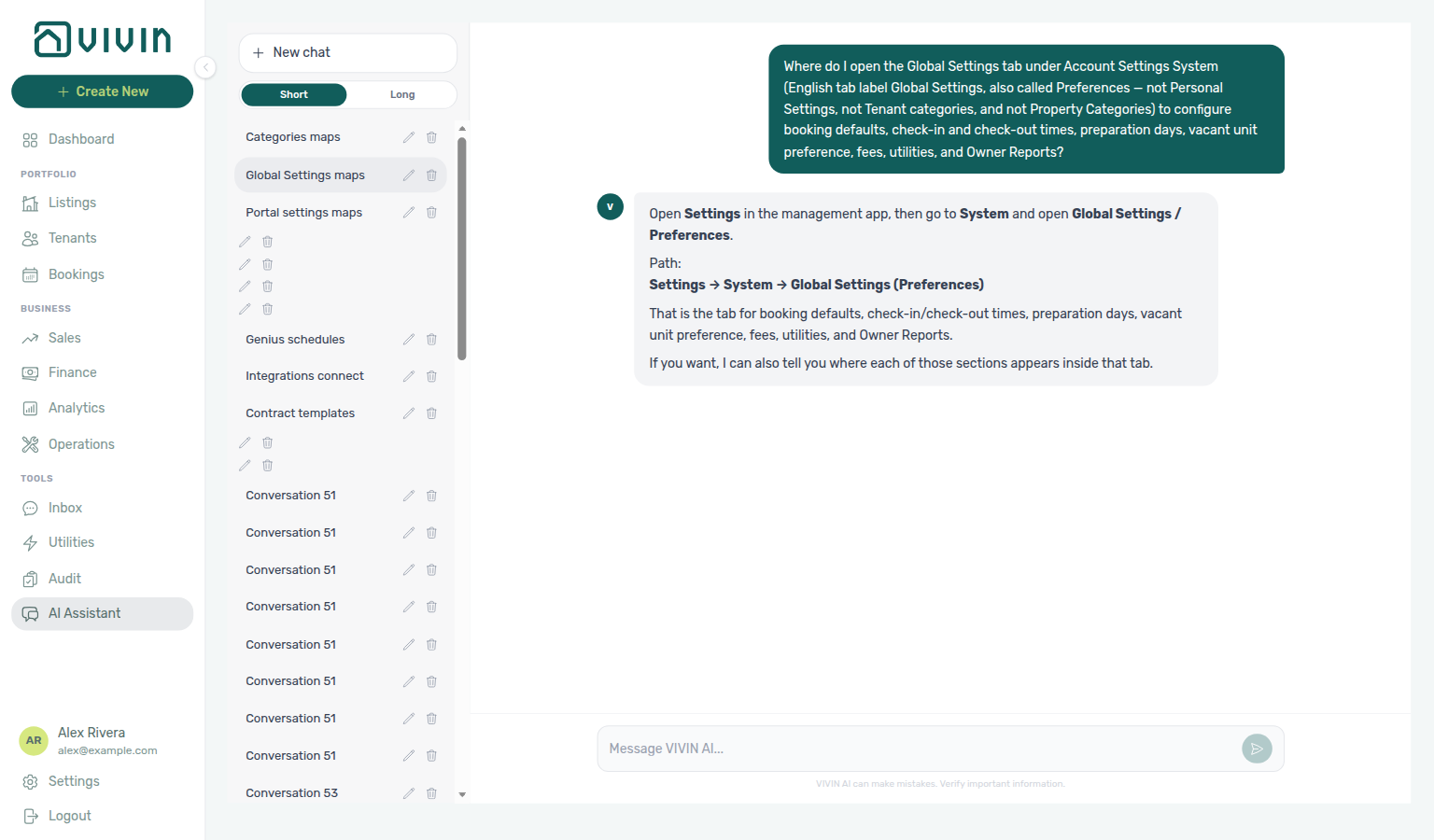
Ask AI Chat “Where do I open the Global Settings tab under Account Settings System (English tab label Global Settings, also called Preferences — not Personal Settings, not Tenant categories, and not Property Categories) to configure booking defaults, check-in and check-out times, preparation days, vacant unit preference, fees, utilities, and Owner Reports?” — then open this Global Settings tab (ai-chat-product-context-preferences-reply.png, ai-chat-product-context-preferences-flow.mp4). The assistant typically says Settings → System → Global Settings (Preferences). The English tab label is Global Settings; this guide title is Preferences. Canonical route: /settings (also /settings/preferences). Same grounding external MCP clients get from get-vivin-context-platform. Distinct from Personal Settings (per-user locale / email toggles), Portal settings (tenant edit / module / signing gates), Tenant categories (portal segments on the Categories Tenants card), Categories (chip catalogs), and Subscription (plan billing). General Information and Branding are cards on this same tab — see General Information.
Complete Getting Started — Recommended Setup Sequence step 2 (this tab — check-in/out defaults and preparation days) after step 1 General Information and before step 3 Users — full tab map: Recommended setup order. Tenant edit / module / signing gates are on Portal settings. Finish steps 13–15 in Listings, Bookings, and Tenants, then Onboarding a New Property — Step 7. Guided steps 4–12: Onboarding a New Property. Lockout catch-up: Getting Started. Workflow pairing after go-live: Account Settings — Setup sequence after go-live.
Skim Booking Defaults (times and preparation) and Notifications & Emails, then Charges & Payments. Ticket deadlines: Ticket Priorities. Field expense capture: Cash flows (mobile add). Segment tooling: Tenant categories (opt-in). Monthly owner settlements: Owner Reports (opt-in). Tenant feedback module: Satisfaction surveys (opt-in). Tenant edit / module / signing gates live on Portal settings. Habit-specific shortcuts live under Related below.
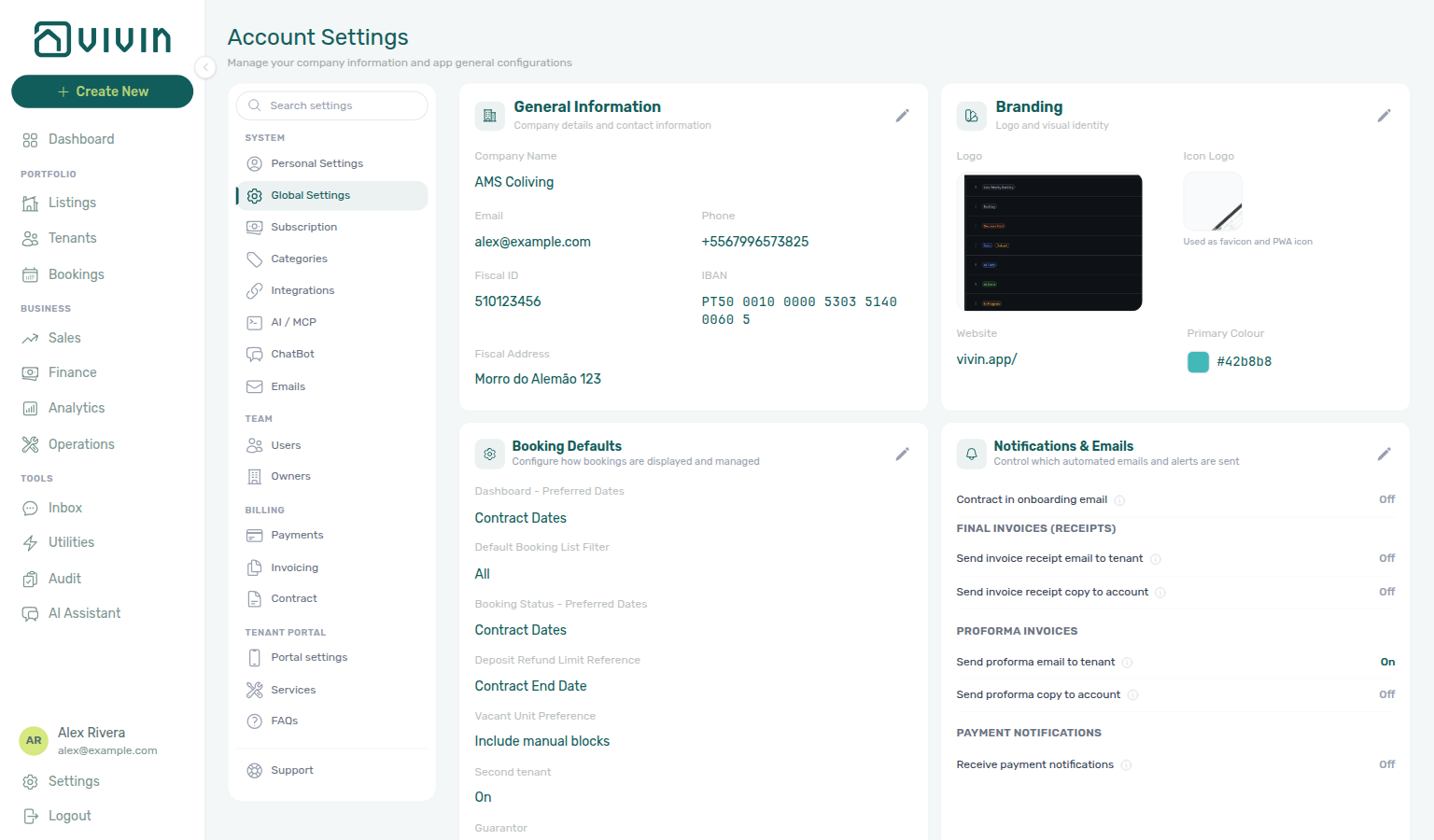
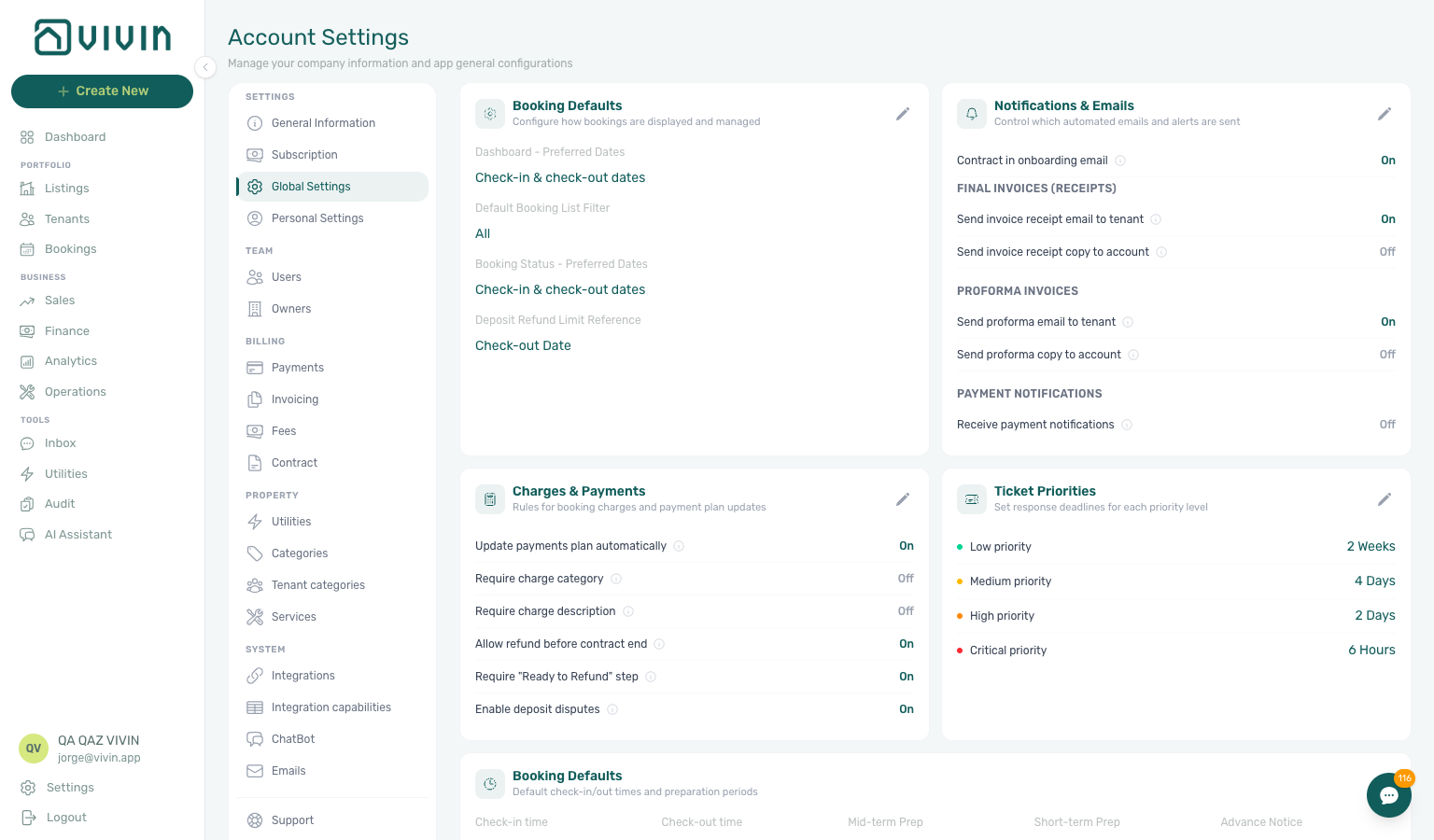
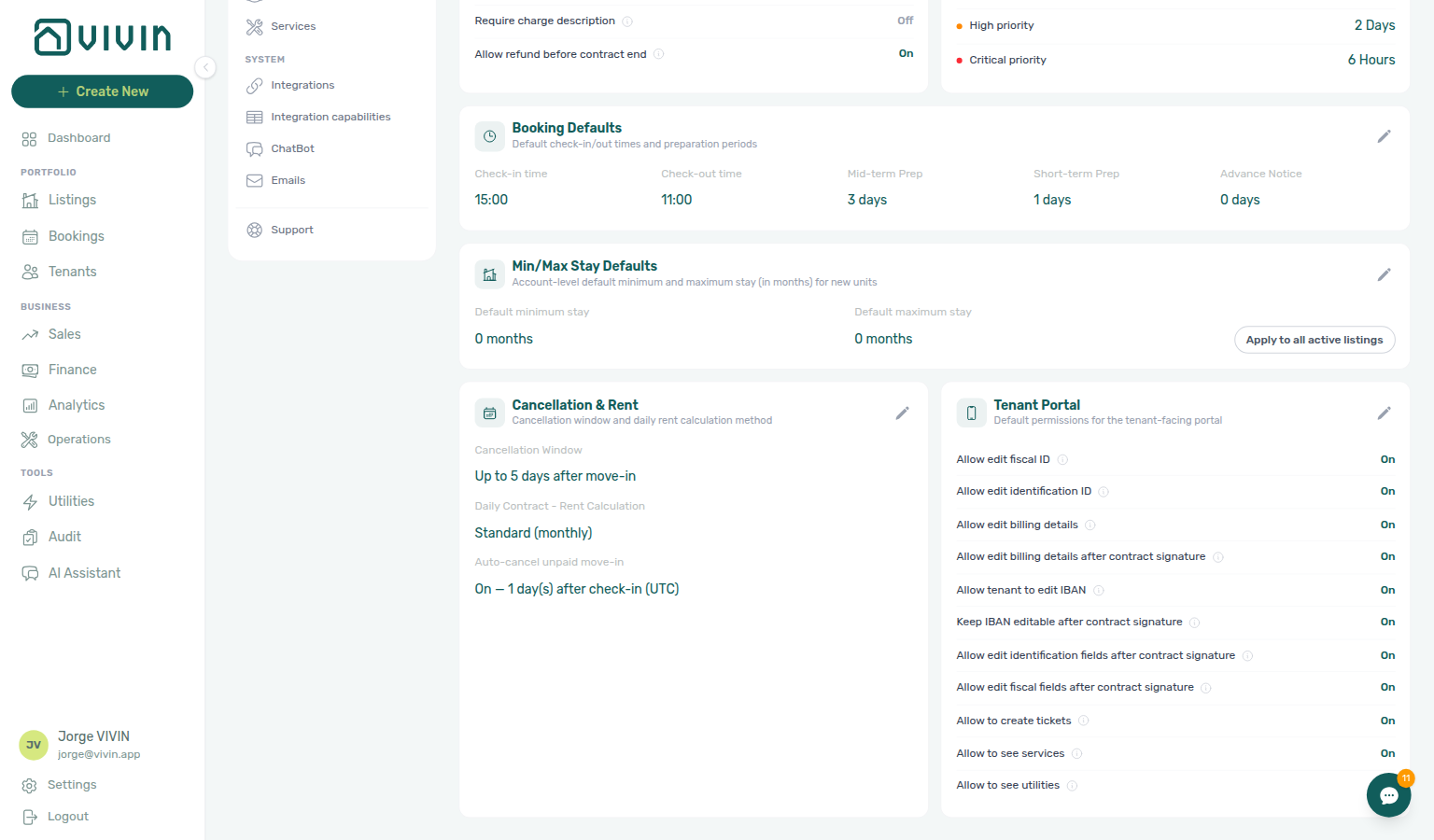
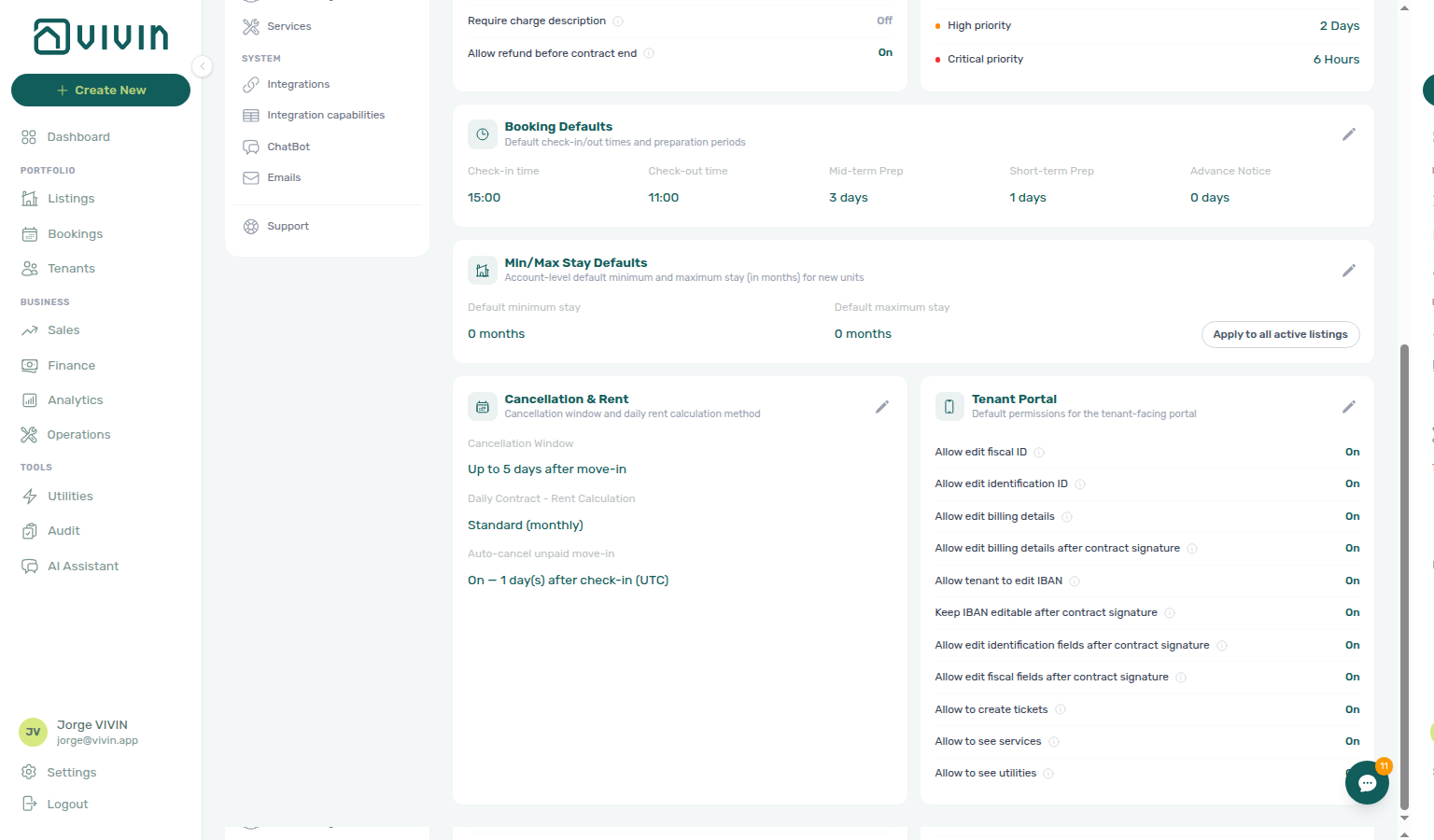
Preferences under Account Settings → System → Global Settings centralises account-wide defaults: company identity and branding cards, how booking dates and filters behave, automated email and notification behaviour, rules for charges and payment plans, fee visibility, utilities, ticket priority deadlines, cancellation and rent-calculation settings, and default minimum/maximum stay for new units. Tenant-facing edit / module / signing toggles live on Portal settings under Tenant Portal — not on this tab.
Open System → Global Settings in the settings navigation, or go directly to platform.vivin.app/settings (or /settings/preferences).
The screen uses cards: each group shows current values, and the pencil icon enters edit mode for that card. Save persists changes to the server; Cancel discards edits for that card. Only one card is in edit mode at a time; other cards stay in read-only view until you save or cancel.
Before go-live, pair this tab with Portal settings (tenant edit / module / signing gates), Tenant categories (per-segment overrides), Services (Allow to see services), and Payments, Invoicing & Utilities (due dates, penalties, and deposit rules behind Charges & Payments). In-app notification masters here gate Dashboard bell rows — they do not surface internal LLM spend; poll AI usage API during Portfolio KPI review — Step 7. Hub: Recommended setup order.
Per-user tab order (drag-to-reorder for module tab bars such as Bookings, Sales, Finance, Utilities, and Operations) is not on this page. It lives under Account Settings > Personal at /settings/personal. See My Profile for how /profile relates to account settings routes.
Booking Defaults (display)
Default list filters and date interpretations here shape how Bookings and Dashboard open on first load — align Deposit Refund Limit Reference with your Managing a Check-out SOP.
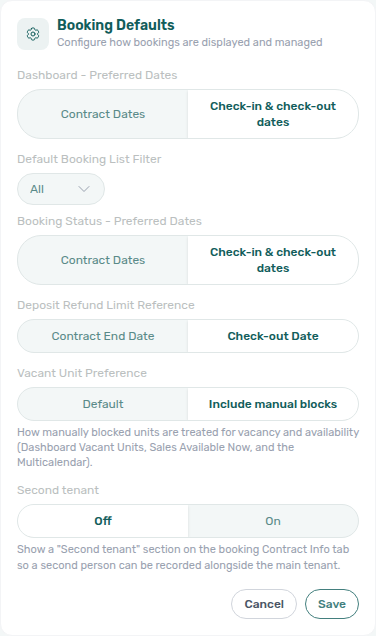
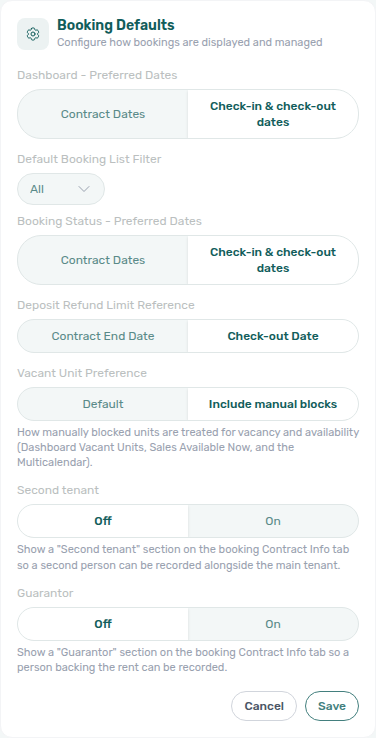
This card configures how dates, filters, vacancy math, and optional second tenant / guarantor capture behave in booking views:
| Control (as shown in the app) | Purpose |
|---|---|
| Dashboard — Preferred Dates | Whether the dashboard emphasises Contract dates or Check-in & check-out dates when interpreting booking periods. |
| Default Booking List Filter | Which status filter the Bookings list applies first (All, Ongoing, Upcoming, Ended, Cancelled). |
| Booking Status — Preferred Dates | Same contract vs move-in/out choice, scoped to booking status workflows. |
| Deposit Refund Limit Reference | Whether deposit-refund limits align to Contract end date or Check-out date. Marketplace POST /bookings cannot send this anchor — it stays account-wide — Creating Bookings — Deposit Refund Limit. |
| Vacant Unit Preference | How manually blocked units count as vacant or available — see below. |
| Second tenant | Whether bookings show a Second tenant section on Contract Info — see below. |
| Guarantor | Whether bookings show a Guarantor section on Contract Info — see below. |
These settings apply account-wide (all users see the same defaults until they change filters locally where the product allows it). Deposit Refund Limit Reference is the date the term counts from — it is not the day count itself. The day count lives on Payments — Deposit Refund Limit. Marketplace POST /bookings cannot send either field — Creating Bookings — Deposit Refund Limit.

Vacant Unit Preference
This setting changes vacancy math on Dashboard — Today and Vacant Units, Sales — Overview Available Now, and Sales — Multicalendar / Pricing Available now filters. OTA/iCal blocks and booking-linked holds still count as occupied everywhere.
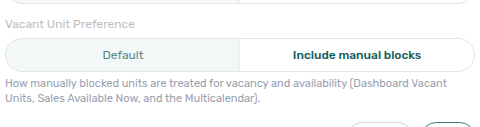
The Vacant Unit Preference control sits on the Booking Defaults (display) card alongside preferred dates and the list filter. It answers whether a listing with a manual block (operator-added unavailability with no booking) should still count as free for vacancy KPIs and availability filters.
| Option | Behaviour |
|---|---|
| Default | Today's behaviour — a manual block makes the unit not vacant (matches Sales → Available Now and Multicalendar → Available now before you change this setting). |
| Include manual blocks | A manually blocked but otherwise unbooked unit counts as vacant / available on Dashboard Today and Vacant Units, Sales → Overview Available Now (including occupancy bars and forecast clicks), and Multicalendar / Pricing Available now and Date range filters. OTA/iCal calendar blocks and booking-linked unavailabilities still occupy the unit. |
Unset or Default keeps existing accounts unchanged until you opt in. Use Include manual blocks when you treat manual holds as physical vacancy for leasing triage (for example maintenance buffers you still want on Vacant Units) while channel-imported blocks stay occupied.
Second tenant
Turning Second tenant On adds a collapsible Second tenant box on the booking Contract Info tab (below Billing details / Bank details) when the booking’s Tenants number is at least 2. Contract tokens are listed under Contract — Second tenant variables.
Second tenant is an account-wide Off / On control on the same Booking Defaults (display) card. Default is Off.
| Value | Behaviour |
|---|---|
| Off | Bookings hide the Second tenant Contract Info section. Existing second-tenant fields stay stored; generated contracts still fill {SecondTenant*} tokens if values remain. |
| On | Bookings whose Tenants number is at least 2 (numberOfExtraTenants >= 1) show a Second tenant accordion for identity fields only (name, contact, ID, fiscal ID/address). Unit capacity alone does not open the section — a single-tenant stay stays hidden even on a large unit. Billing details, bank details (including IBAN), and tenant category stay on the main tenant. |
Use On when co-signers or co-occupants need to appear on the lease without becoming the billing party. Switch back to Off when you no longer want operators filling the section — clear saved fields on each booking first if you need {SecondTenant*} tokens to stop rendering. Marketplace POST /bookings cannot send Second tenant identity — occupant headcount can open the accordion after import — Creating Bookings — Second tenant.
Guarantor
Turning Guarantor On adds a collapsible Guarantor box on the booking Contract Info tab (near Billing details / Bank details / Second tenant). Unlike Second tenant, it does not require a multi-tenant stay — any booking can show the section. Contract tokens: Contract — Guarantor variables.
Guarantor is an account-wide Off / On control on the same Booking Defaults (display) card, independent of Second tenant. Default is Off.
| Value | Behaviour |
|---|---|
| Off | Bookings hide the Guarantor Contract Info section. Existing guarantor fields stay stored; generated contracts still fill {Guarantor*} tokens if values remain. |
| On | Every booking shows a Guarantor accordion for identity fields only (name, contact, ID, fiscal ID/address). Tenant count and unit capacity do not gate the section — a single-tenant stay can still record a guarantor. Billing, IBAN, and tenant category stay on the main tenant. |
Use On when someone backs the rent (guarantor / avalista) without occupying the unit or becoming the billing party. Switch back to Off when you no longer want operators filling the section — clear saved fields on each booking first if you need {Guarantor*} tokens to stop rendering. From any settings tab, type guarantor in Search settings to open this control. Marketplace POST /bookings cannot send Guarantor identity or Guarantor amount (€) — Creating Bookings — Guarantor.
Booking Defaults (times and preparation)
Preparation-day values block back-to-back stays in Sales — Multicalendar and connected Integrations iCal feeds — pair with General Information for operator-facing explanation.
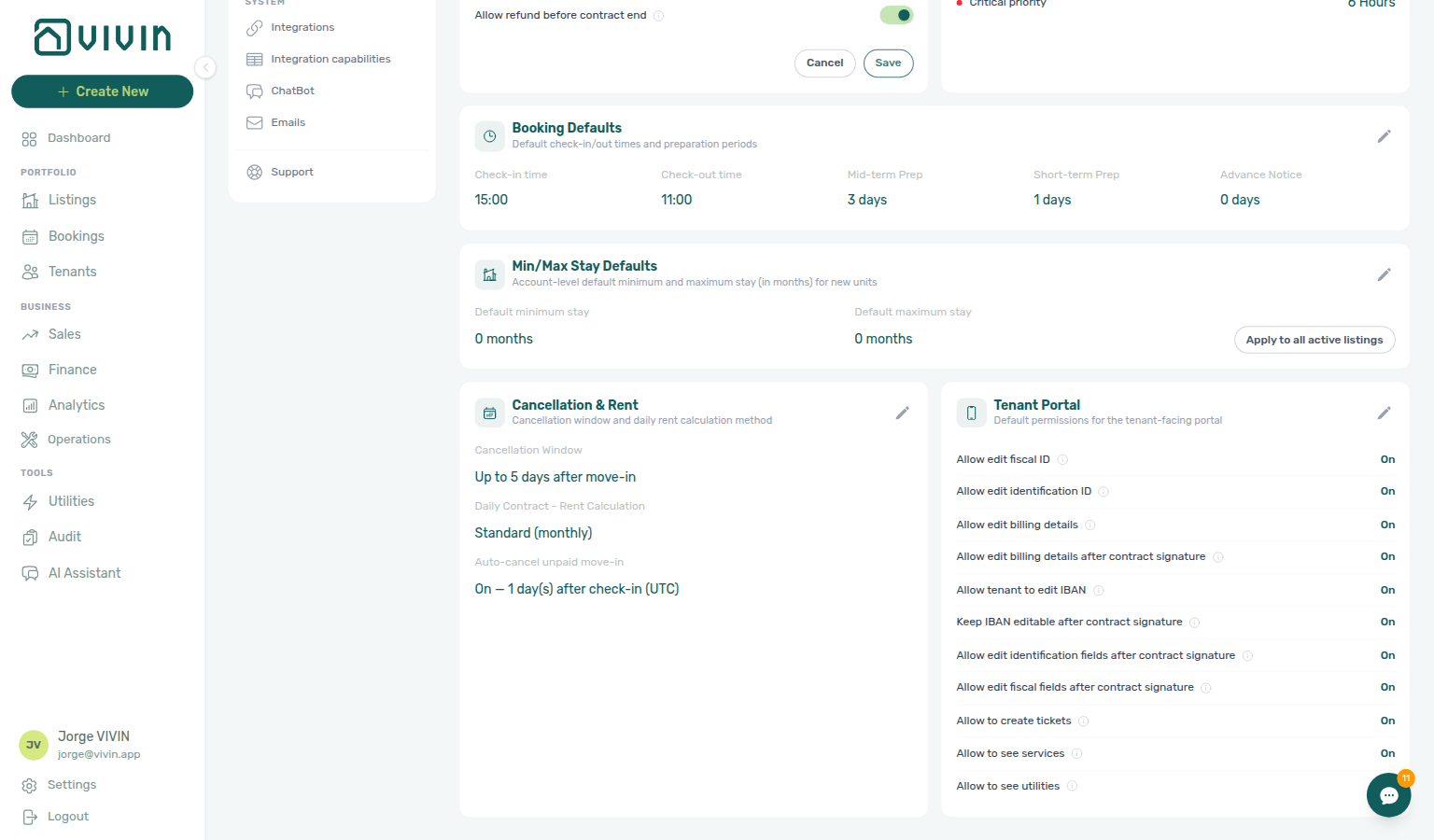
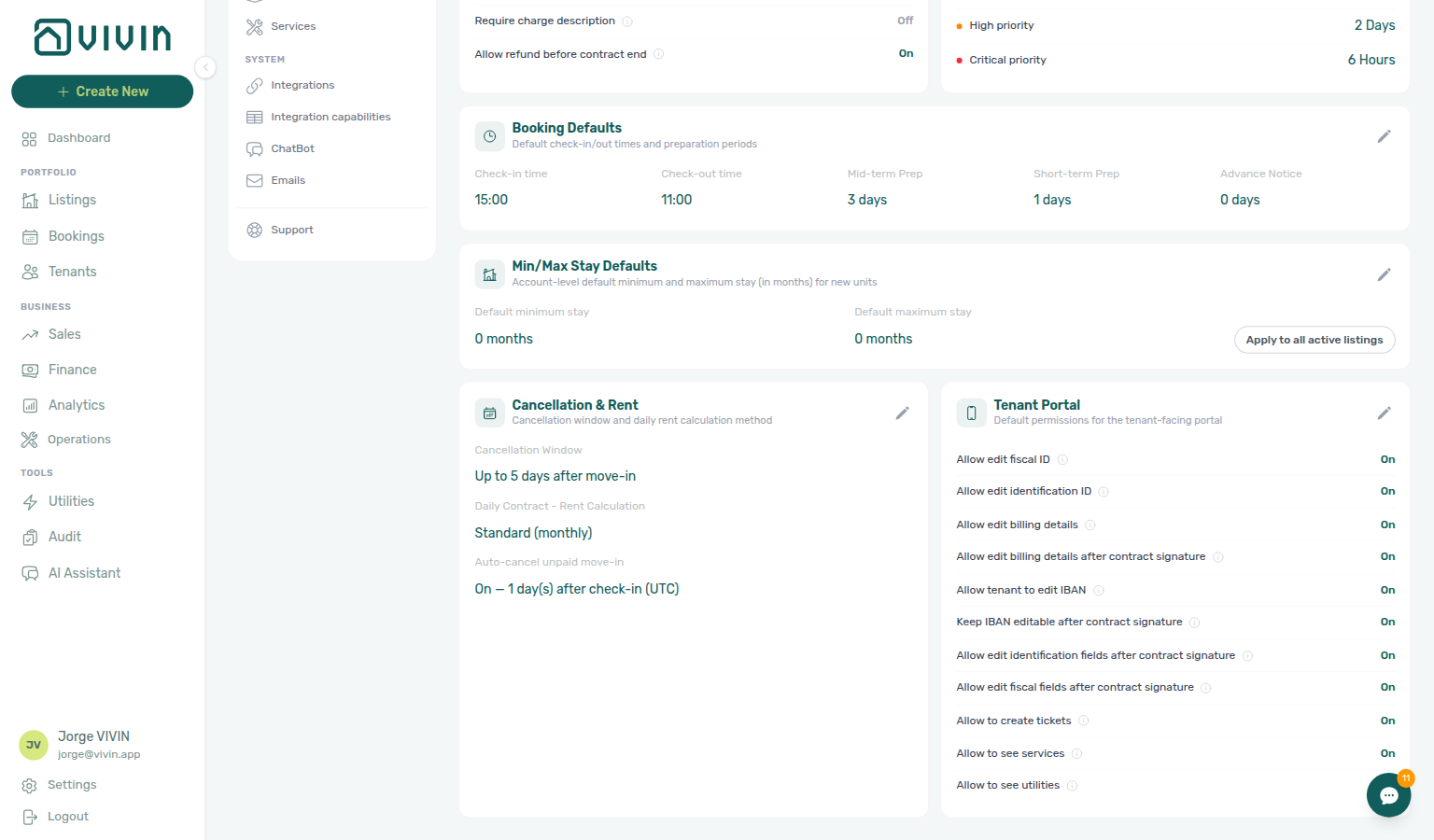
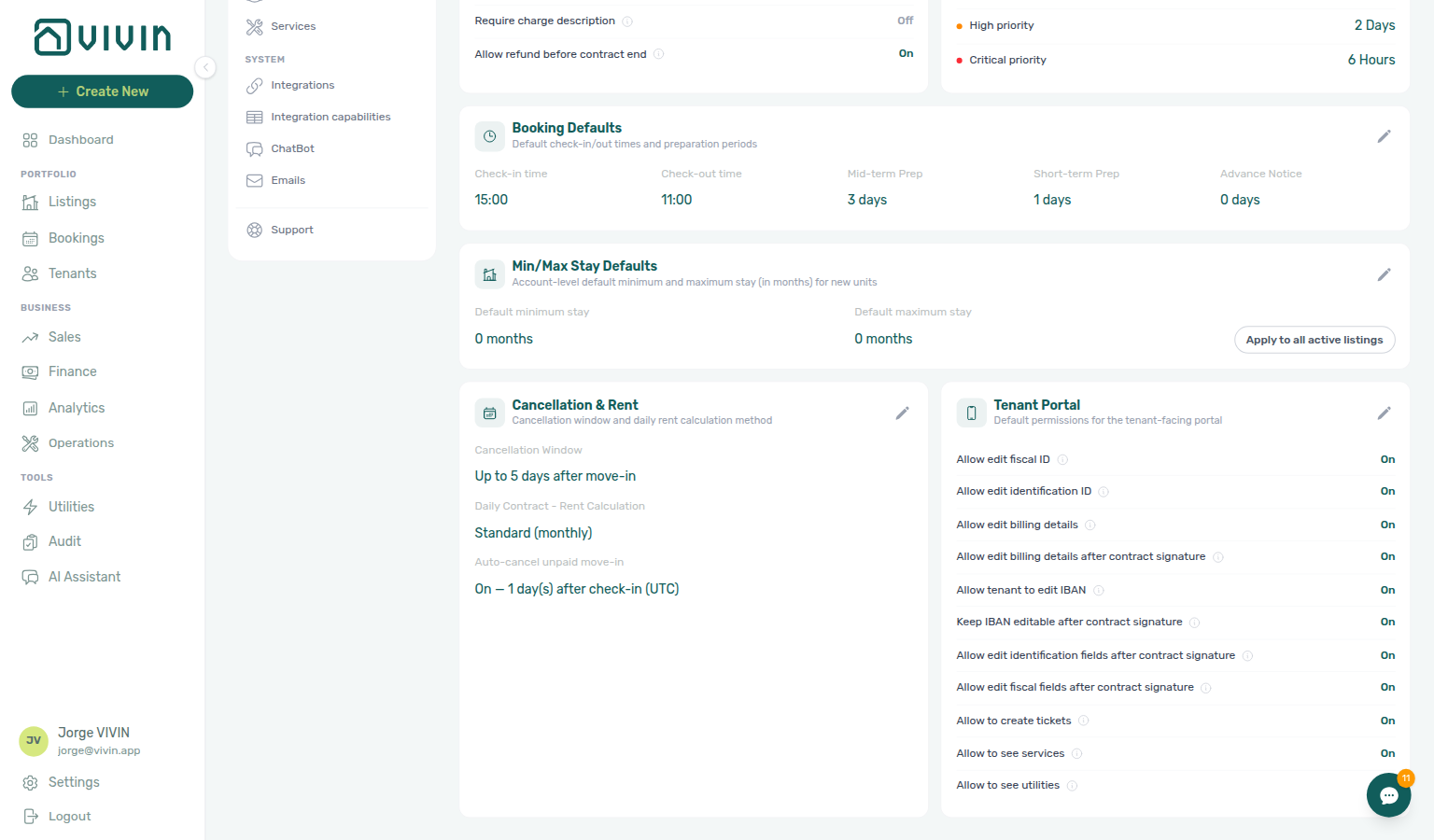
A separate Booking Defaults card (subtitle: default check-in/out times and preparation periods) controls operational timing:
| Field | Purpose |
|---|---|
| Check-in time / Check-out time | Default times proposed for new bookings and operational views. Marketplace POST /bookings cannot send a different clock time — Creating Bookings — Check-in times. |
| Mid-term Prep | Preparation window (0–7 days) for mid-term stays. |
| Short-term Prep | Preparation window (0–7 days) for short-term stays. |
| Advance Notice | Minimum advance notice (0–30 days) for reservations. |
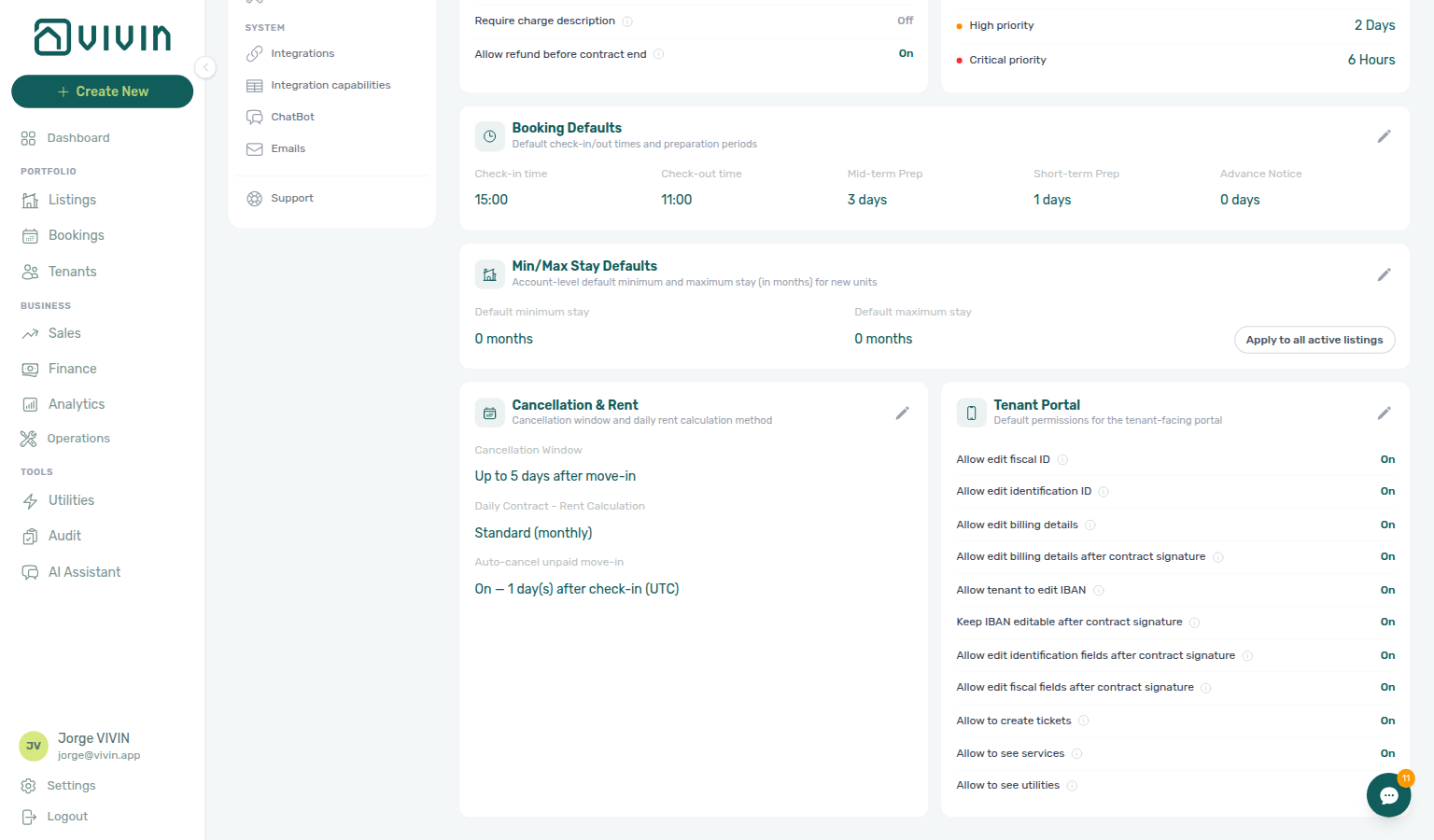
These values used to be documented under General Information; in the current product they are edited only on Preferences. See General Information for how preparation buffers affect Sales availability. Marketplace POST /bookings copies Check-in time and Check-out time from this card — Creating Bookings — Check-in times. This card does not name a default Check-in responsible or Check-out responsible — marketplace imports leave those empty — Creating Bookings — Check-in responsible. This card also does not name a default Lease purpose — that catalog lives on Categories; marketplace imports leave the field empty — Creating Bookings — Lease purpose. This card also does not name Deposit Refund Limit — that day count lives on Payments; marketplace imports inherit it — Creating Bookings — Deposit Refund Limit. On + Create New → Booking, Ignore unit preparation days can start a manual stay in that buffer without changing these account defaults. Marketplace POST /bookings cannot send that skip — Creating Bookings — Ignore unit preparation days. Vacant Unit Preference and Second tenant live on the Booking Defaults (display) card above.
Notifications & Emails
Receipt and payment-notification toggles complement Emails — Communication Rules tenant templates and per-user opt-outs on Personal Settings — enable account masters before testing Finance — Transactions invoice automation.
Controls automated messages and operator alerts. The Notifications & Emails card is grouped in the app like this (labels follow your interface language):
| Group / control (English UI) | Purpose |
|---|---|
| Contract in onboarding email | Attach the contract PDF to the tenant welcome email when enabled. Tenant category rules can override this — see below and Tenant categories. |
| Final invoices (receipts) | Send the invoice receipt email to the tenant; optionally email a copy to account only (no tenant on the account copy). |
| Proforma invoices | Email proforma to the tenant before billing; optional copy to account only. |
| Payment notifications → Receive payment notifications | Account-wide switch: allows the workspace to send operator-facing notifications when a tenant payment is received. |
Final invoice receipt emails
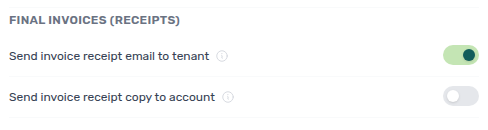
When Vivin issues a final invoice (invoice receipt) through your connected provider — for example after Issue allocation or Invoice selected on Finance → Transactions — the PDF is stored on the booking and operators can open it from Files or transaction detail. These Preferences toggles control whether Vivin also emails that PDF automatically:
| Toggle (English UI) | Recipient | When it sends |
|---|---|---|
| Send invoice receipt email to tenant | Booking tenant (primary To:) | After a final invoice is issued, when the tenant has a non-empty email on the booking. |
| Send invoice receipt copy to account | Account email only | Separate message to your workspace account email — the tenant is not on this copy (use when finance wants an inbox archive without CC). |
You can enable either, both, or neither:
- Tenant only — typical default: the tenant receives the branded email with the PDF attached; operators reconcile from Finance.
- Tenant + account copy — tenant email is primary; the account address is CC on the same message (one send, two inboxes).
- Account copy only — useful when you issue invoices internally and do not want the tenant emailed automatically (tenant still has portal/files access when configured).
- Both off — invoicing and ledger state still update; no automatic receipt email is sent.
Emails use the same tenant-notification template family as other booking messages (logo, brand colour, portal link). Optional BCC on tenant invoice emails for individual operators is configured on Personal Settings when your role exposes that control.
Invoice issuance (provider API, allocation status, Files tile) is separate from email delivery. Vivin persists the provider PDF on the booking and marks the allocation Invoiced before attempting the optional receipt email — a SendGrid or mailbox failure does not roll back invoiced state or remove the Files tile. When toggles are on, Invoice-xpress receipt emails attach the same PDF already stored on the booking (not a second provider fetch that could fail silently). If the tenant did not receive mail but Files / Transactions show the document, confirm toggles here, the tenant email on the booking, and spam filters — do not re-issue solely because the mailbox did not update; contact support if delivery keeps failing while the PDF is present.
Payment notifications: account vs your inbox
Two layers must both be on for a given user to receive payment-received operator alerts (mailbox and in-app rows on the Dashboard bell and /notifications):
- Account — Here under Preferences → Notifications & Emails, turn on Receive payment notifications (saving the card persists it for the whole workspace).
- You — Each team member must opt in under Account → Personal Settings at
/settings/personal: Your email preferences includes Payment notification emails. That toggle applies only to your user — it controls your payment emails and whether you see in-app Payment received from tenant … rows; it does not change other operators’ inboxes (see the subtitle on that screen).
If the account switch is off, personal Payment notification emails has no effect until an administrator enables the account setting.
For template text and triggers, still configure Settings > Emails.
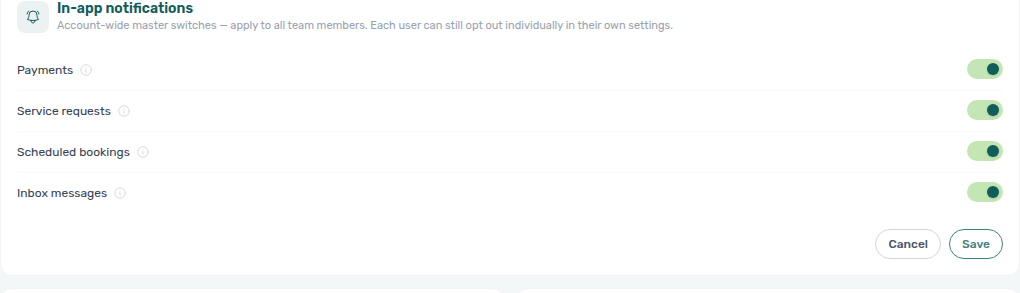
In-app notifications
Account-wide Payments, Inbox messages, and Service requests masters gate Dashboard bell rows — pair with Notifications module and Notification triage before bulk-disabling categories during onboarding.
A separate In-app notifications card on Preferences holds account-wide master switches for operator alerts that appear on the Dashboard bell and /notifications. Each category defaults On for the whole workspace. When a master switch is Off, no teammate sees in-app rows for that category — personal opt-in cannot override an account-disabled category.
| Control (English UI) | In-app rows gated when Off |
|---|---|
| Payments | Payment received from tenant …, payment overdue operator alerts, and related payment event types — see Notifications — Payment overdue alerts |
| Service requests | Tenant portal service orders and cancellations |
| Scheduled bookings | Scheduled booking success and failure alerts |
| Inbox messages | Inbound WhatsApp, email, and chatbot message pings (Dashboard bell Inbox sub-tab rows) |
Save the card after editing; toggles apply account-wide immediately for new notification queries.
How account masters interact with personal settings
Payment-received and payment-overdue in-app alerts share the Payments category and use four layers for in-app delivery (email for payment-received still follows Payment notifications: account vs your inbox above):
- Account — Notifications & Emails → Receive payment notifications (creates payment-received notifications for opted-in operators).
- Account — In-app notifications → Payments (master gate for payment in-app rows).
- You — Personal Settings → Your email preferences: Payment notification emails (audience list for who receives payment alerts).
- You — Personal Settings → Your in-app notifications: Payments opt-out (hide payment in-app rows for your user only).
Service requests, Scheduled bookings, and Inbox messages use the account master on this card plus each user’s matching toggle under Your in-app notifications on Personal Settings — there is no separate email toggle for those in-app categories on the personal screen. Service-order emails use Service subscription emails (per-service chips under Your email preferences).
See Notifications module for how categories map to Dashboard bell sub-tabs and /notifications rows.
Contract attachment overrides
The Contract in onboarding email toggle is the account default. Resend Onboarding email on Contract Info → Check-in & Check-out follows this toggle. Resend on the Contract card attaches the PDF even when the toggle is off (the tenant category Contract module can still block it). Vivin may still omit the PDF on a setting-driven send when:
| Override | When it applies |
|---|---|
| Tenant category — Contract module off | The tenant’s category has Tenant Portal Access off, or the Contract portal module disabled for that segment. This wins over the account toggle so tenants who cannot sign in the portal are not sent a contract attachment they cannot use. Tenants without a category keep the account setting. |
| No contract file on the booking | Resend Onboarding email still sends the welcome message and skips the attachment when no contract file exists, so the tenant is not blocked by a missing PDF. Resend on the Contract card is the control that always tries to attach the file — generate or preview the contract first when that send should include it. |
| Signed contract on listing change | Change unit does not regenerate the contract. If a signed PDF exists, the onboarding resend can still attach it per the account setting — the modal warns that the signed document may still reference the original unit until you handle contract updates separately (contract regeneration is planned for a later release). |
Charges & Payments
Deposit dispute and Ready to Refund toggles govern Bookings — Deposit tab and Finance — Deposits — lifecycle pill states (Fully Paid, Ready to Refund, Disputed) are defined in Glossary — Deposit lifecycle status. Align with Payments, Invoicing & Utilities penalty rules before peak check-out season.
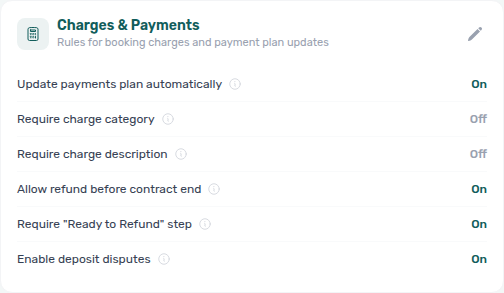
Rules for booking charges and payment plans:
| Toggle | Purpose |
|---|---|
| Update payments plan automatically | Recalculate the payment plan when charges change. |
| Require charge category | Category is mandatory on Add Charge (+ Charge on Payment Plan / Contract Values). |
| Require charge description | Reason is mandatory on Add Charge (the modal label is Reason; placeholder Enter reason). The Preferences toggle still says “description”. |
| Allow refund before contract end | Allow deposit refunds before the contract end date when your process allows it. |
| Require "Ready to Refund" step | When On, operators must turn on Ready To Refund on the booking Deposit tab before finance can record a refund. When Off, the per-booking toggle is optional and refunds can proceed once collection and deductions are settled. |
| Enable deposit disputes | When On, users with bookings.dispute can flag a Fully Paid deposit as Disputed from the booking Deposit tab or Finance → Deposits row actions. Refund stays disabled until Resolve Dispute clears the flag. |
Deposit lifecycle toggles (Require "Ready to Refund" step and Enable deposit disputes) in view mode:
Ticket Priorities
Default SLA hours here seed Operations — Tickets due dates and the Overview Overdue card — pair with Categories — Tickets mandatory labels before the first maintenance wave.
Set a default deadline (stored as hours; shown in the UI as hours or day labels) for each priority (Low, Medium, High, Critical). Vivin adds those hours to each ticket’s Schedule date (or opened/created date) to compute the SLA due date. Leave a tier’s hours blank to give that priority no SLA — tickets on that tier (and tickets with None priority) never count as overdue on Overview or on the Tickets Overdue filter. Change Schedule or priority on the ticket when a single job needs a different deadline; there is no separate due-date field. See Operations — What counts as overdue and Glossary — Overdue ticket (SLA).
Cancellation & Rent
Auto-cancel unpaid move-in is a backstop after Managing a Check-in — coordinate grace periods with move-in charge requirements on Bookings — Payment Plan.
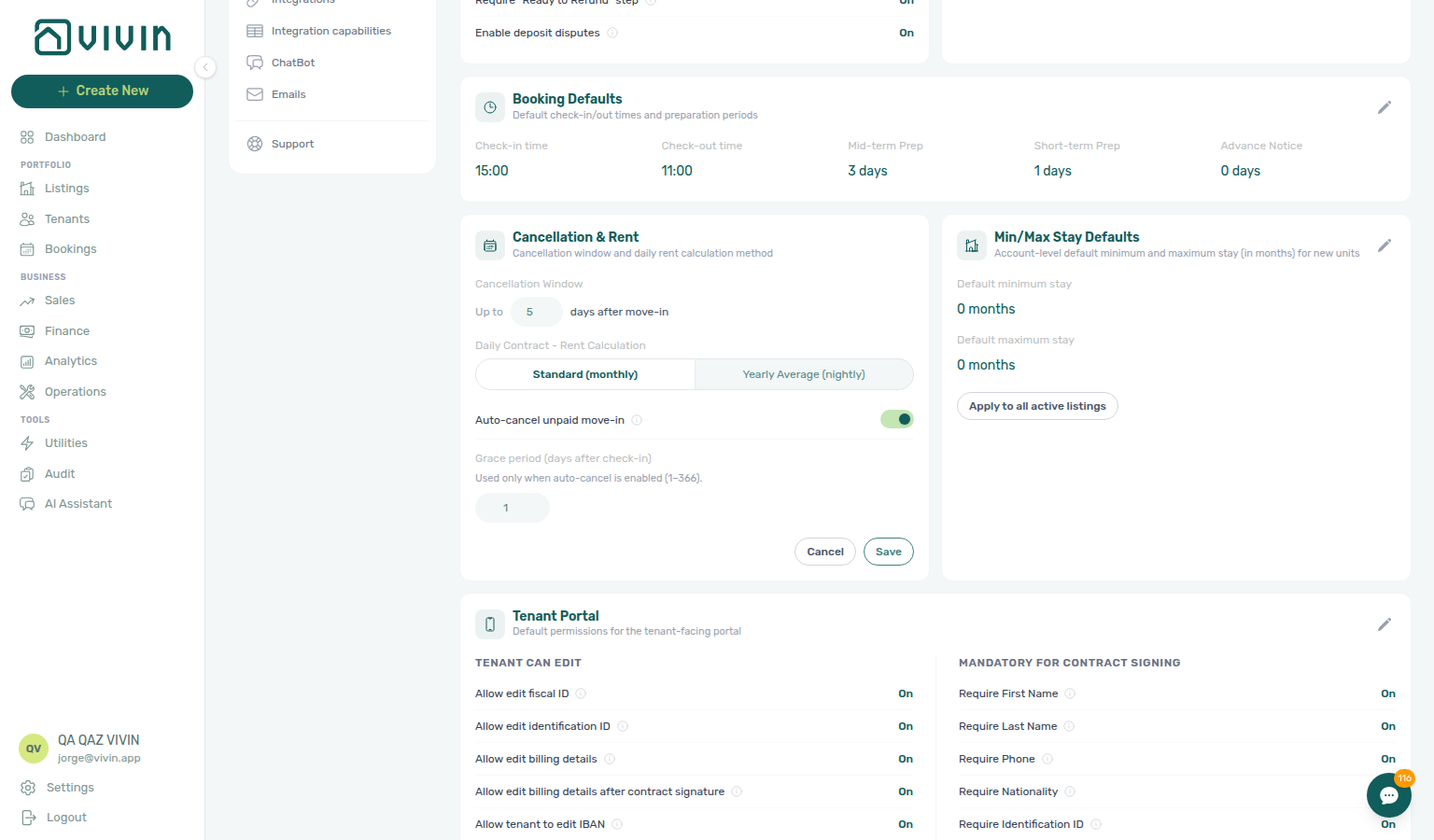
- Cancellation window — up to N days after move-in during which the configured cancellation rules apply (wording in the app summarises the window).
- Daily Contract — Rent Calculation — Standard (monthly) vs Yearly Average (nightly) for how daily amounts are derived when the product needs a nightly breakdown.
- Auto-cancel unpaid move-in — optional automation that cancels bookings when move-in charges stay fully unpaid after check-in; see Auto-cancel unpaid move-in below.
Auto-cancel unpaid move-in
When Auto-cancel unpaid move-in is On, Vivin evaluates each booking after check-in (UTC):
| Outcome | Condition |
|---|---|
| Auto-cancel (no refund) | Every move-in required payment is still fully unpaid once the grace period has elapsed. |
| One-time email instead | The tenant has partially paid move-in charges — the product notifies operators/tenants rather than cancelling immediately. |
| No action | Move-in required payments are satisfied, or auto-cancel is Off. |
| Control (English UI) | Purpose |
|---|---|
| Auto-cancel unpaid move-in | Master switch for the workflow above. |
| Grace period (days after check-in) | Wait time after check-in before auto-cancel can run (1–366 days). The day-count field is disabled when auto-cancel is Off. |
Coordinate this with your move-in payment requirements on bookings and Finance collections workflow — auto-cancel is an account-level backstop, not a substitute for operator follow-up on partial payments.
To email the tenant when this backstop runs, add an Auto-cancellation Communication Rule. Cancel booking on Contract Info does not send that rule.
Tenant Portal
Account-wide tenant edit permissions, portal modules, and Mandatory for contract signing live on Portal settings under Account Settings → Tenant Portal (/settings/tenantPortal). They are not on this Global Settings tab.
Per-segment overrides still use Tenant categories. The Enable tenant categories master switch remains on this page — see Tenant categories below.
Mandatory fields before contract signing
The Require First Name / Last Name / Phone / … / IBAN gates are configured on Portal settings — Mandatory for contract signing. Older bookmarks to this heading still land here so existing links keep working.
Min/Max Stay Defaults
Apply to all active listings overwrites per-unit stay rules on Listings — confirm channel minimums on Sales — Pricing before bulk apply. 0 on a unit is no maximum — Listings — Maximum stay 0.
Default minimum stay and default maximum stay (in months) apply as account-level defaults for new units. Saving defaults does not rewrite existing listings.
- Leave a field blank or enter 0 for no restriction on that side. New units then store 0 (no minimum or no maximum).
- If these defaults were never saved, new units still start at 1 month minimum and 2 months maximum.
- 12 is twelve months, not unlimited.
- Apply to all active listings — overwrites min/max stay on every non-archived listing with the saved account defaults; listing-specific values are lost. The app asks for confirmation before running this bulk action.
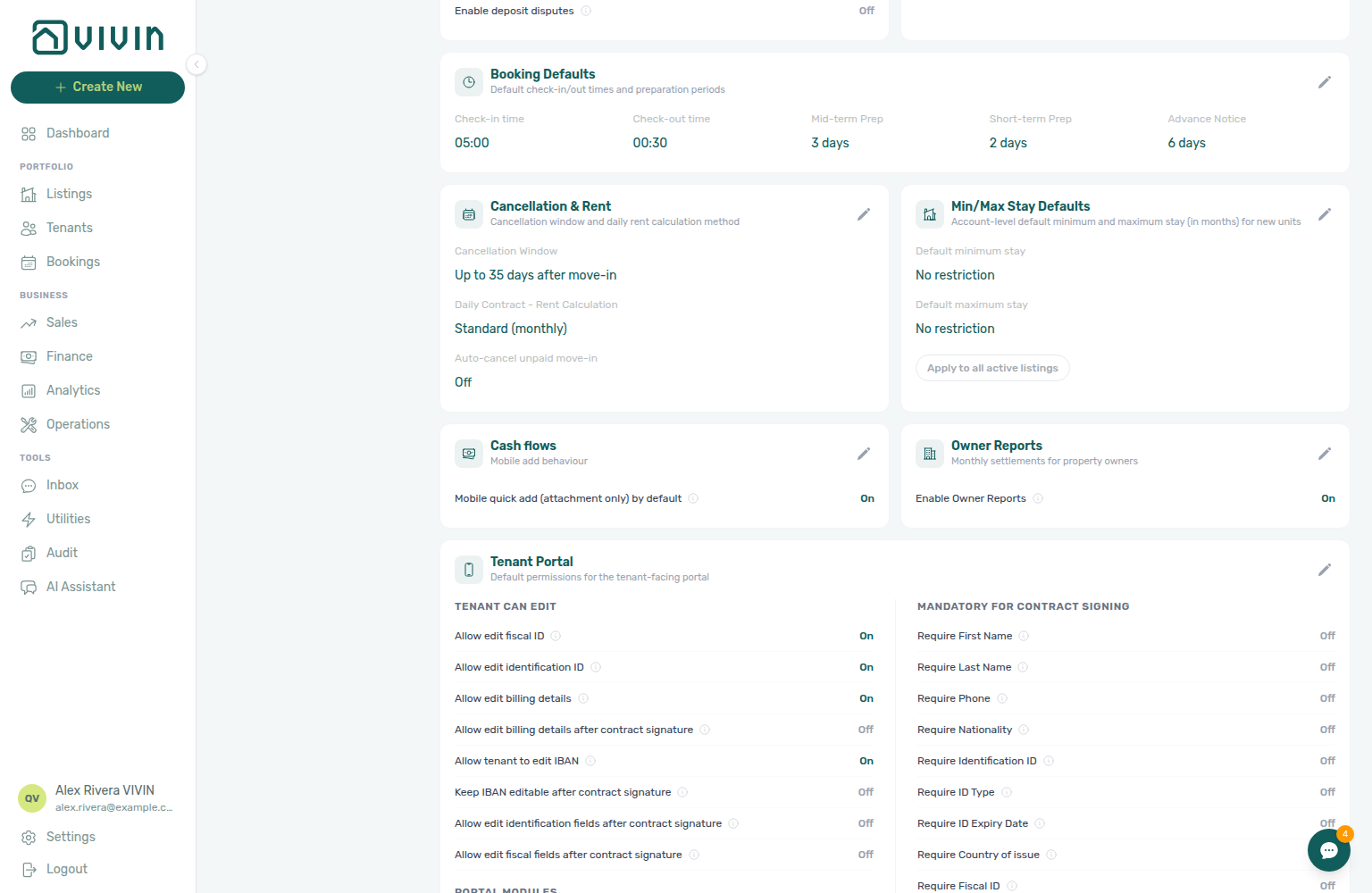
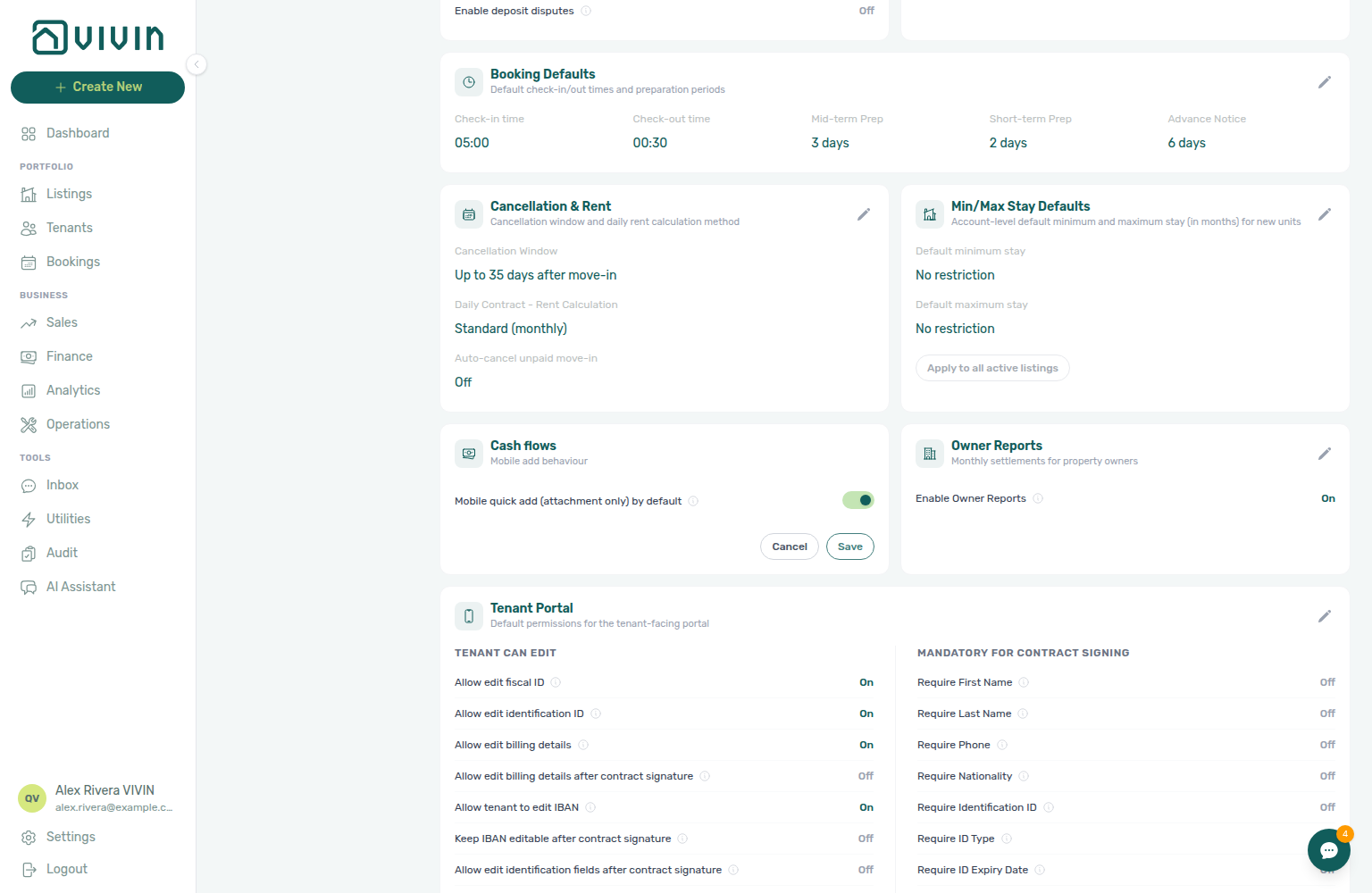
Cash flows (mobile add)
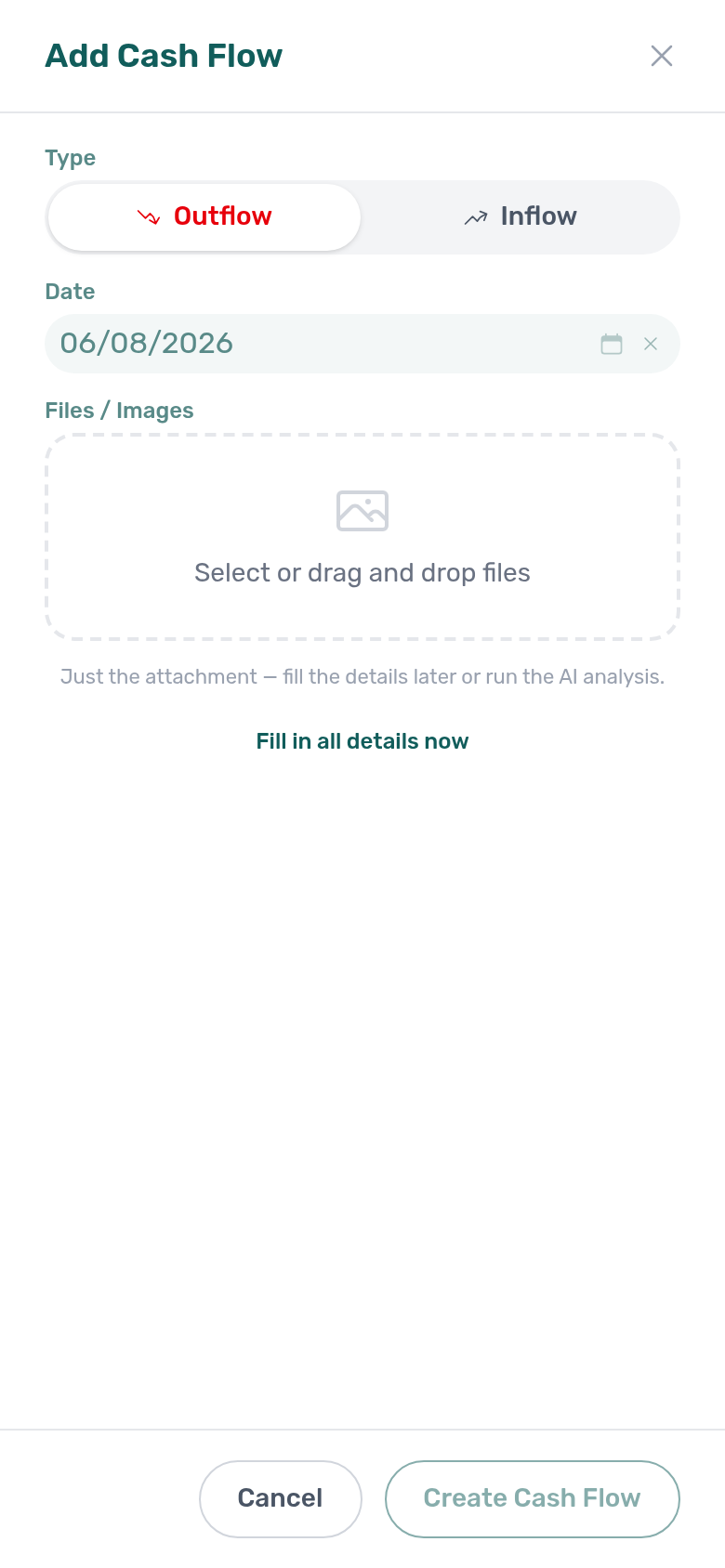
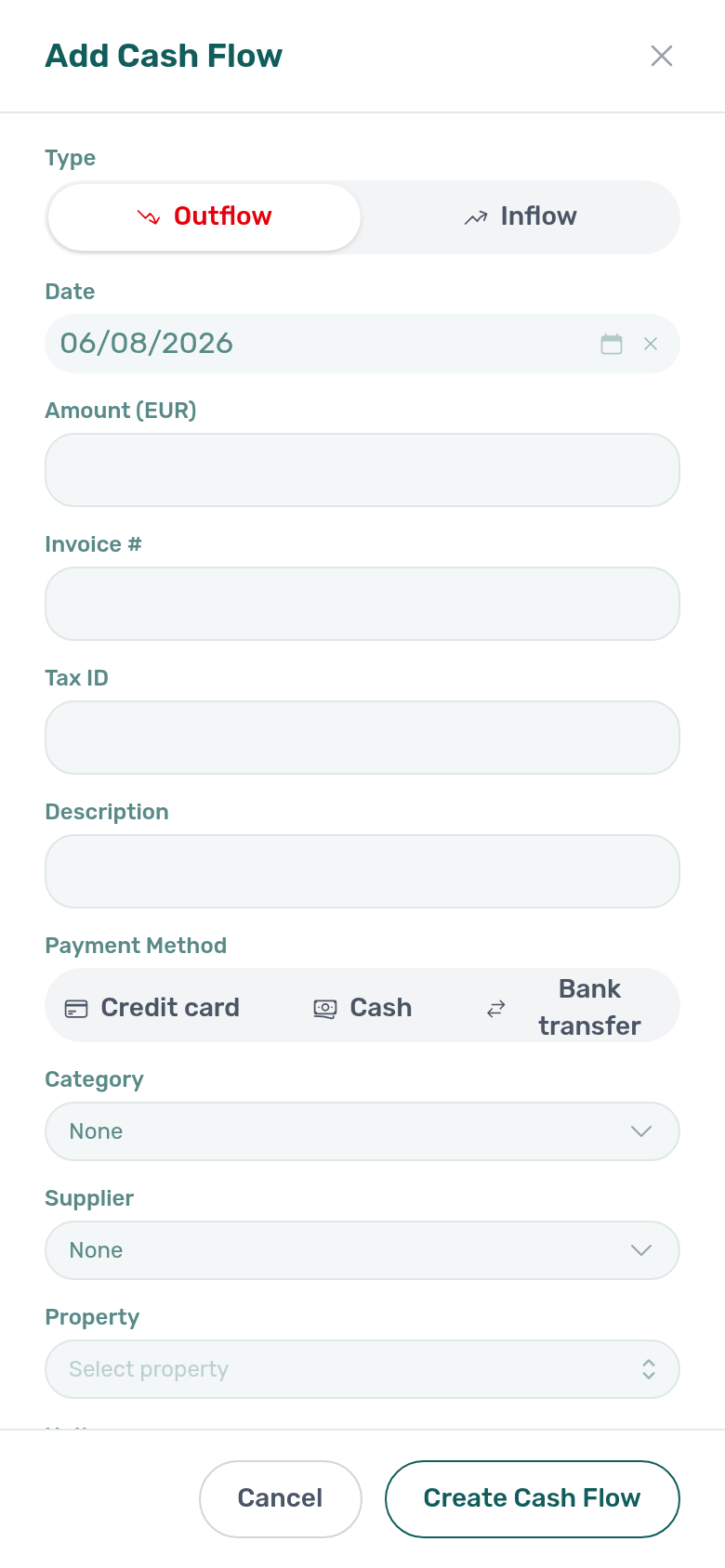
This card only changes how Add Cash Flow opens on a narrow viewport (below 768px). Desktop and tablet widths keep the full form. Pair with Operations → Cash Flows and AI Invoice Analysis when field staff photograph receipts first.
Cash flows controls the default mobile add behaviour for operational expenses:
| Control | Purpose |
|---|---|
| Mobile quick add (attachment only) by default | When On, opening Add Cash Flow on a phone-width screen starts in attachment-only mode — type, date, and file upload — so operators can capture a receipt quickly. Amount, supplier, property, and other details stay hidden until they choose Fill in all details now, or until they edit the row later / run AI Analysis. When Off, the mobile modal opens with the full form. |
The preference is account-wide. On mobile, operators can still switch modes for a single entry with Fill in all details now / Add attachment only at the bottom of the modal — the Preference only sets the starting mode each time they open Add Cash Flow.
- Open Account Settings → Preferences (
/settings/preferences). - Find the Cash flows card (near Min/Max Stay Defaults / Owner Reports).
- Click the pencil, set Mobile quick add (attachment only) by default, then Save.
Tenant categories
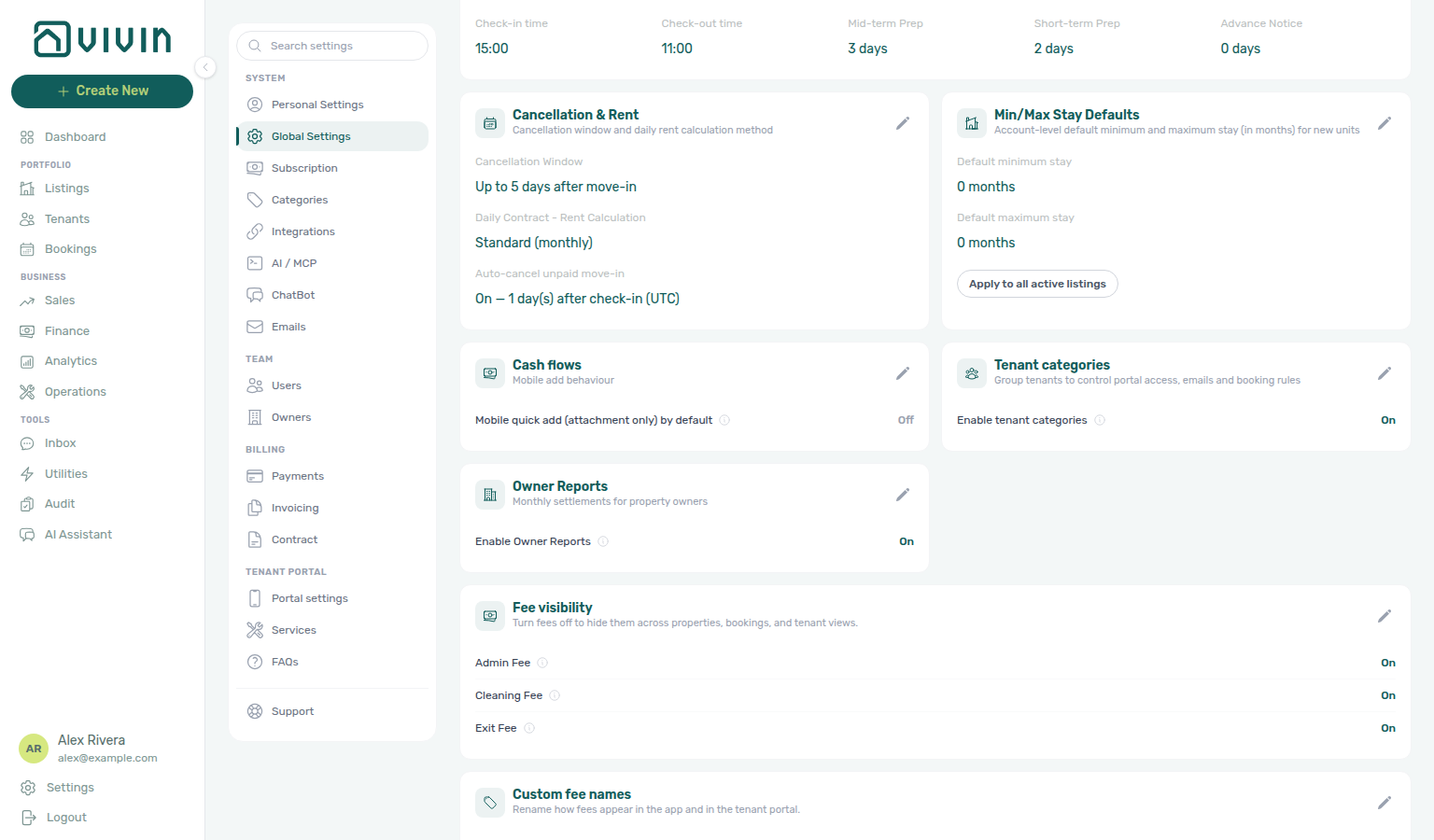
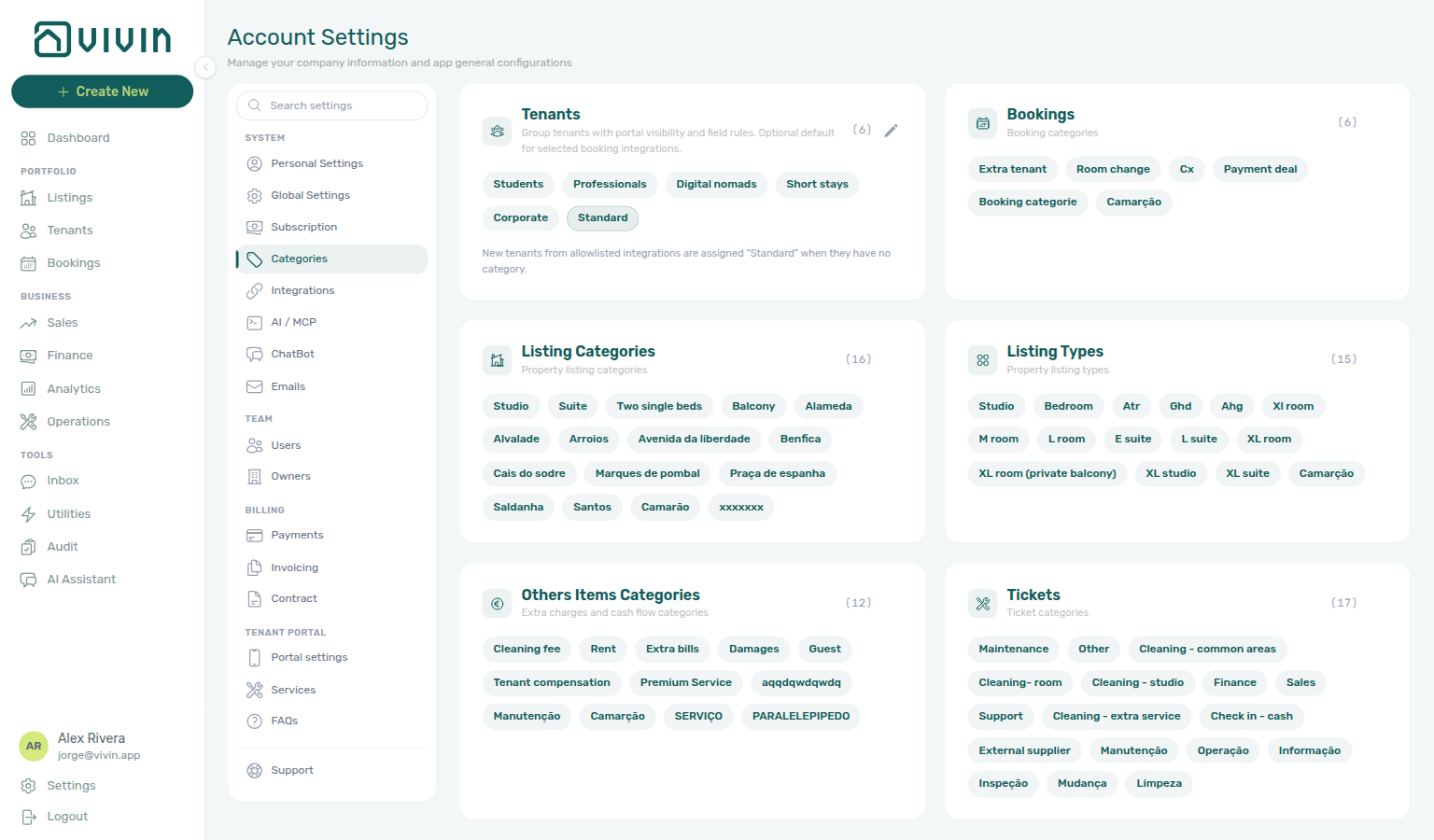
This is the account master switch for tenant segments. Turn it On before you use the Tenants card on System → Categories, then refine portal modules per segment. Leave it Off when the workspace does not use segments at all.
Tenant categories is opt-in. One switch shows or hides the segment tooling across Account Settings and the portfolio:
| When the switch is… | What operators see |
|---|---|
| Off | No Tenants segment card under System → Categories. Bookmarked /settings/tenantCategories opens Categories without tenant-segment tooling. Category pickers and filters stay hidden on Tenants, Bookings (toolbar Tenant categories), Finance, Add tenant, and Communication Rules. |
| On | The Tenants card appears on System → Categories. Operators can create segments, set default for integrations, and use Tenant category filters and profile fields across the portfolio — including toolbar Tenant categories on Bookings. |
Visibility only — assigned rules keep applying. Turning the switch Off hides the controls and freezes the category catalog (you cannot add, edit, or delete segments). Categories already assigned to tenants still enforce portal access, email gating, and concurrent-booking rules. Profile and booking saves keep the existing category value even when the picker is hidden, so disabling the feature does not clear segment assignments.
- Open Account Settings → System → Global Settings (
/settings). - Find the Tenant categories card (near Cash flows / Owner Reports).
- Click the pencil, turn Enable tenant categories On, then Save.
- Open System → Categories and use the Tenants card to create segments and set default for integrations. Legacy
/settings/tenantCategoriesbookmarks open Categories.
Workspaces that already had at least one category keep the switch On after Vivin enables the feature. Brand-new workspaces start Off until an administrator opts in here.
Owner Reports
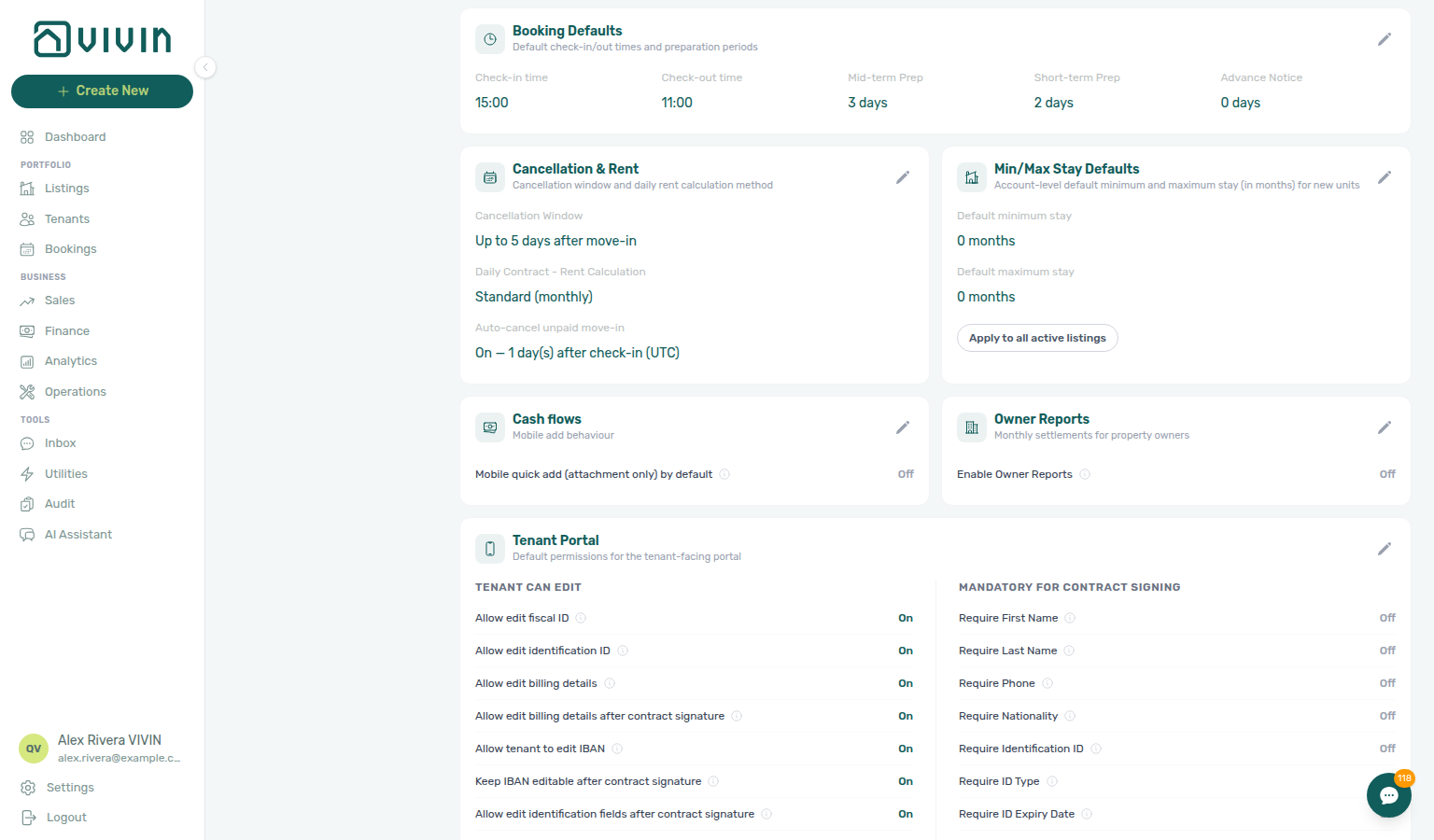
This is the account master switch for monthly owner settlements. Leave it Off unless you settle landlords in Vivin — then configure fees on Owners and generate documents on Finance → Owner Reports.
Owner Reports is opt-in and off by default. One switch controls the whole feature:
| When the switch is… | What operators see |
|---|---|
| Off (default) | No Owner Reports tab in Finance. Bookmarked /finance/ownerReports opens Overview instead. On Owners, fee figures are hidden on the read-only card and the Owner report block is absent from inline Edit — identity and banking stay editable. |
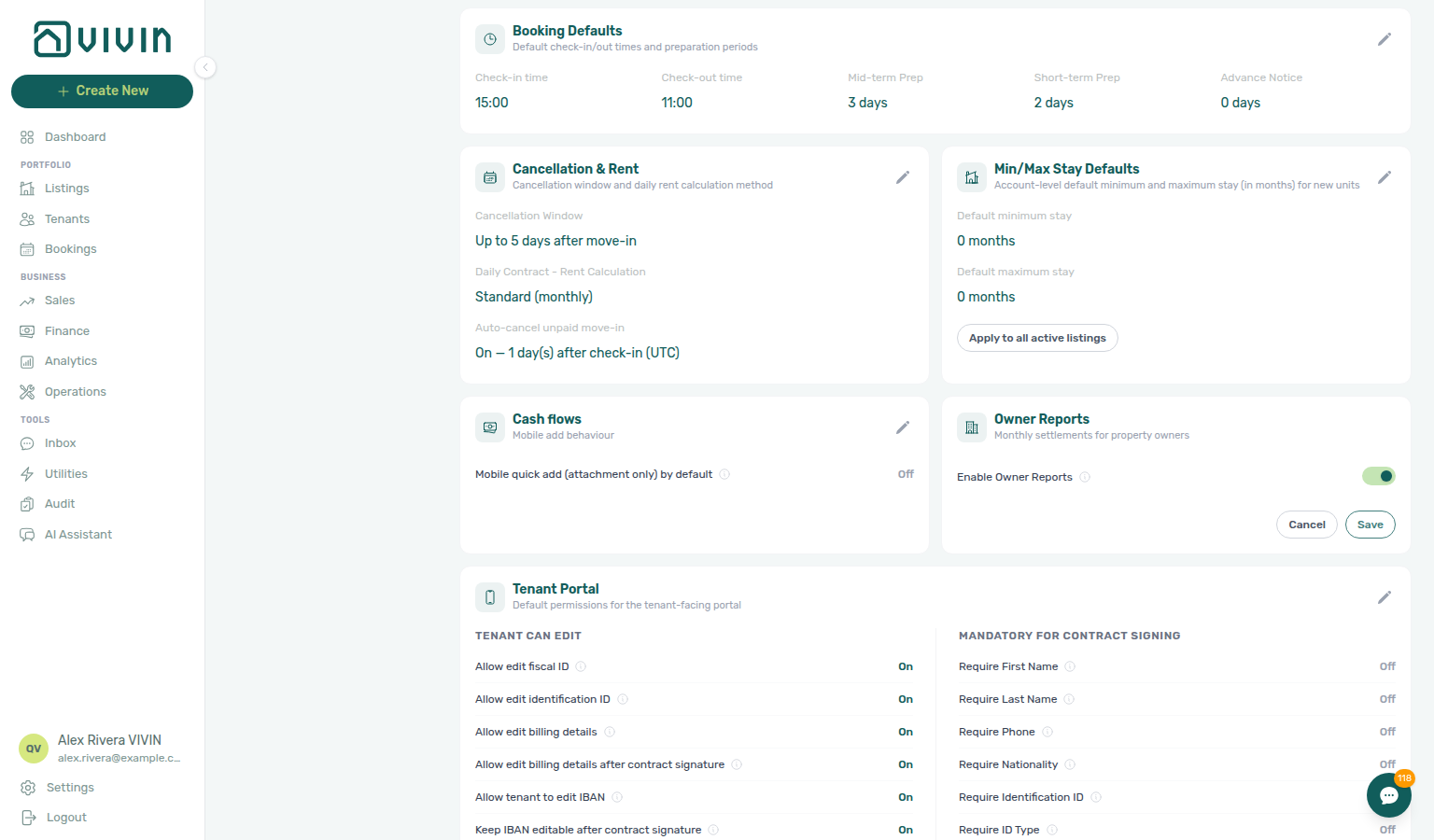
| On | Finance shows Owner Reports for anyone with Finance access. Generate report / Delete report still need Approve payments. Each owner card shows report fee settings in view and edit. |
- Open Account Settings → Preferences (
/settings/preferences). - Find the Owner Reports card (near Cash flows / Tenant categories).
- Click the pencil, turn Enable Owner Reports On, then Save.
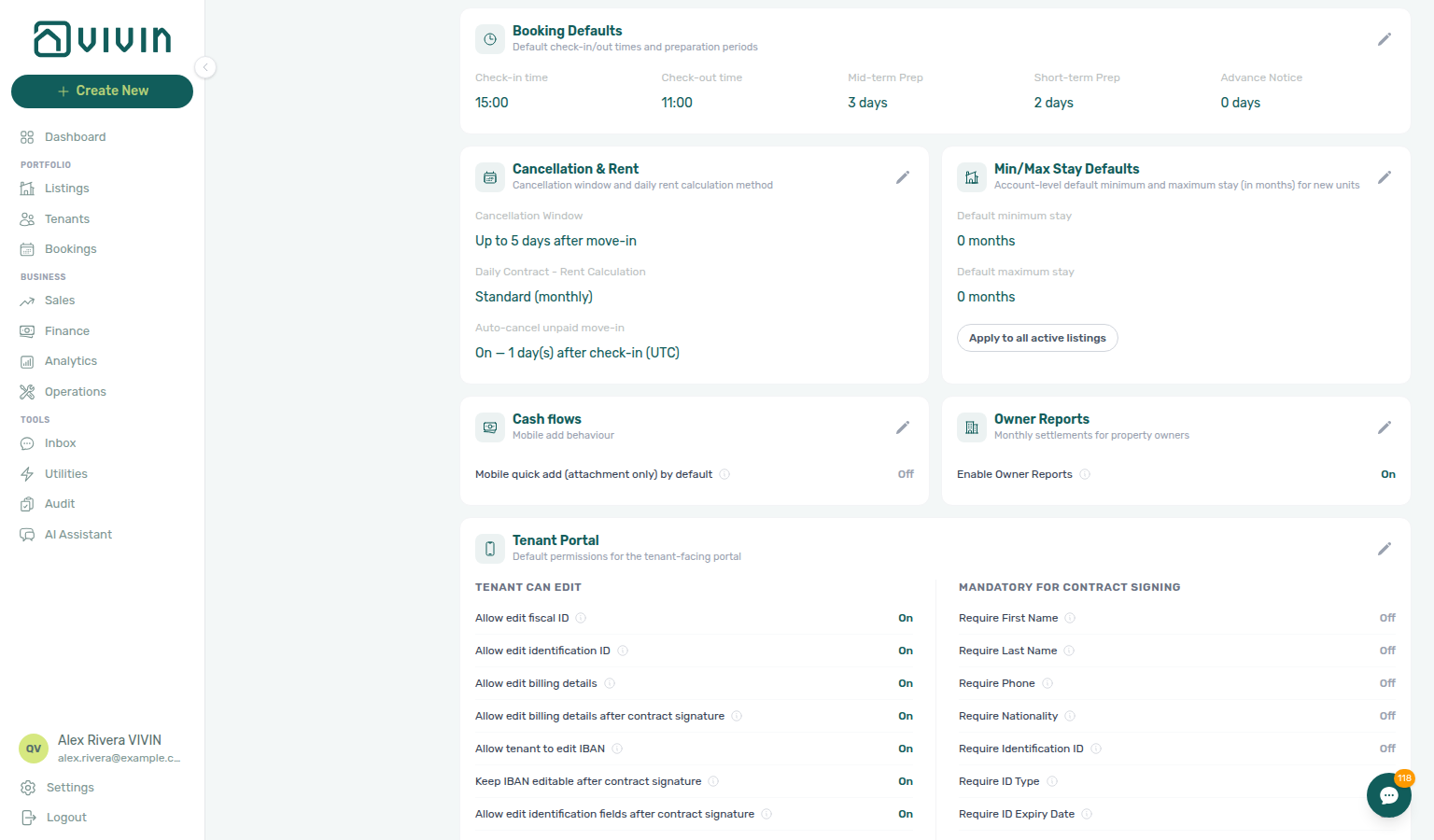
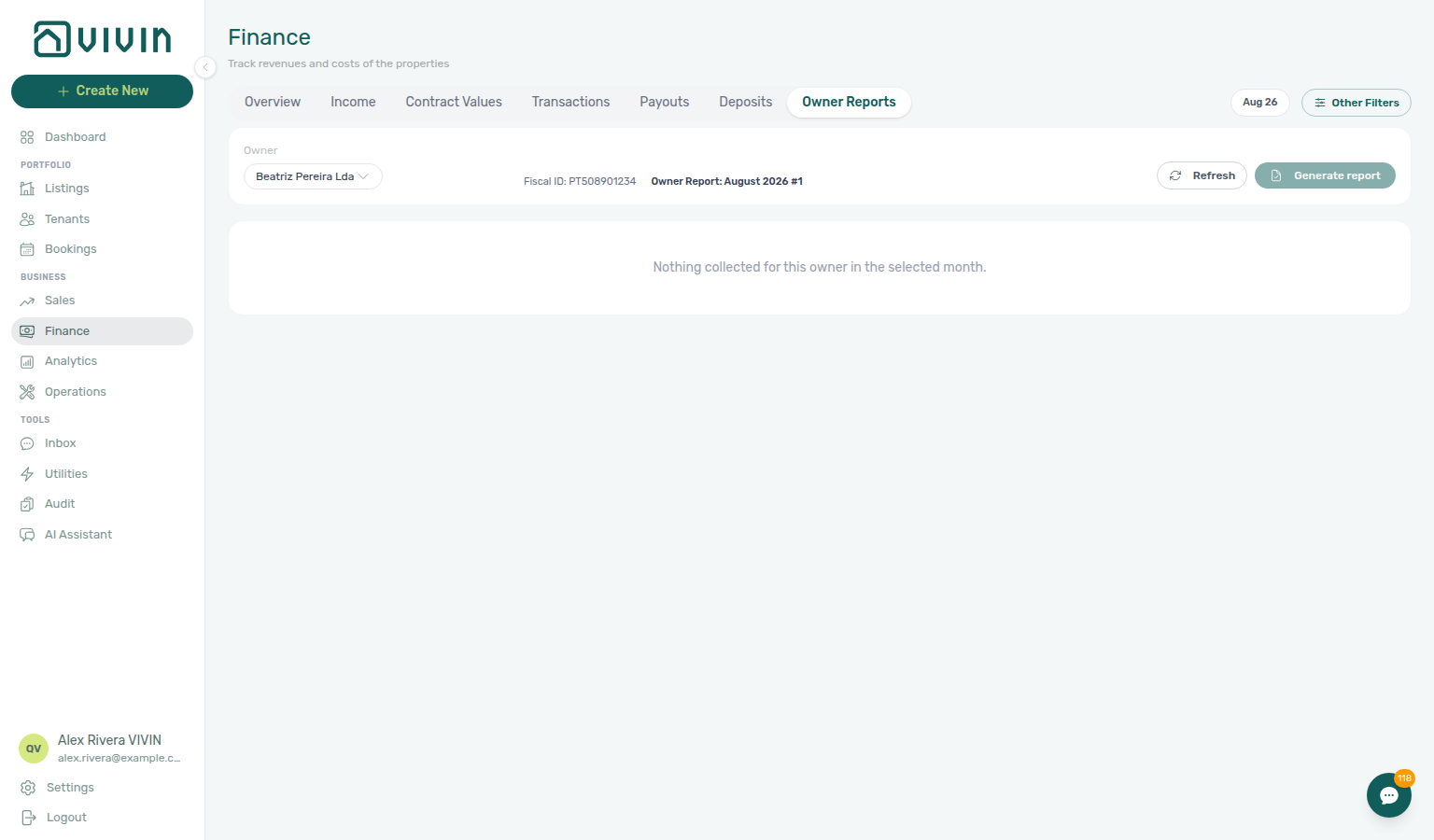
Turning the switch Off again hides the Finance tab and removes fee figures from every Owners card (view and edit). Existing generated settlement files are not deleted from history when you disable the feature — re-enable to open Owner Reports again and restore the fee fields on Owners.
Satisfaction surveys
This is the account master switch for the Surveys workspace. Leave it Off until you are ready to build surveys and deliver them in the Tenant Portal — then turn it On here before teammates open Tools → Surveys.
Satisfaction surveys is opt-in and off by default. One switch controls the whole module:
| When the switch is… | What operators see |
|---|---|
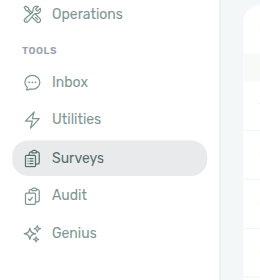
| Off (default) | No Surveys entry under Tools in the sidebar. Opening /surveys shows Satisfaction surveys are turned off — an admin can turn them on in Global Settings. |
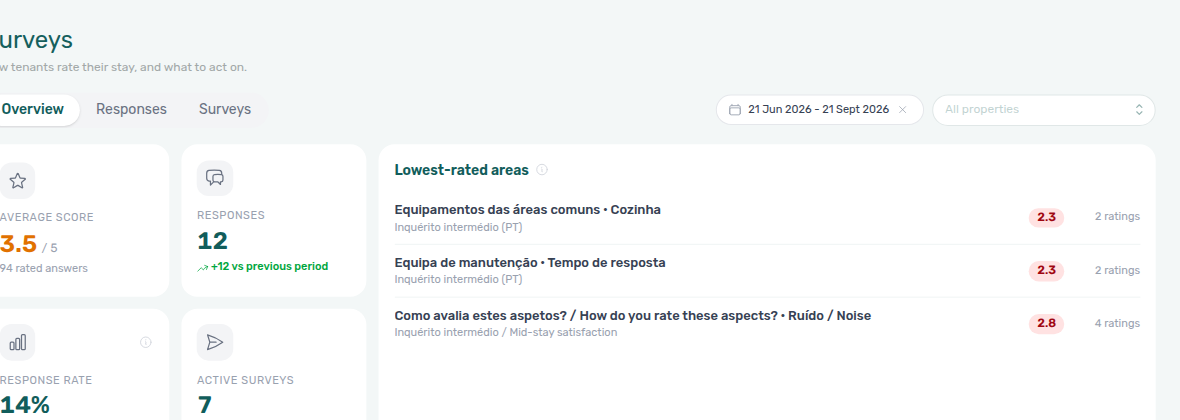
| On | Tools → Surveys appears. Operators with survey permissions open Overview, Responses, and Surveys (build / schedule). Tenants can receive surveys in the portal and by email when you publish them. |
- Open Account Settings → System → Global Settings (
/settingsor/settings/preferences). - Find the Satisfaction surveys card (near Owner Reports / Tenant categories / Access codes).
- Click the pencil, turn Enable satisfaction surveys On, then Save.
- Open Tools → Surveys to read scores on Overview, review answers on Responses, and build or schedule surveys on the Surveys tab.
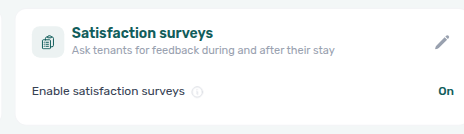
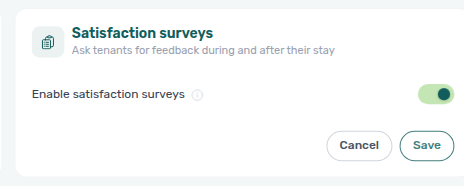
Turning the switch Off again hides Tools → Surveys. Survey definitions and collected answers stay in the account — re-enable to open the module again. Distinct from the tenant-facing Surveys Home prompt (what tenants see when a survey is pending) and from Portal settings module toggles (there is no separate portal hide for surveys).
Preferences section cross-reference
Use the sections above for this settings area. Related setup pages are linked from Related below when present, or from Account Settings.
Related
Related below links this Account Settings tab to modules, workflows, concepts, and escalation paths.
Documentation map & escalation
- Account Settings hub — Tab pairing matrix across workspace configuration
- Glossary — Term definitions used across settings and module docs
- FAQ & Troubleshooting — Quick answers when portal or move-in behaviour does not match expectations
- Get Help & Support — Escalate when portal toggles or move-in defaults behave unexpectedly
Upstream & downstream workflows
- Onboarding a New Property — Apply move-in defaults and portal gates before the first reservation
- Managing a Check-in — Move-in charge triage before Auto-cancel unpaid move-in can run
- Managing a Check-out & Deposit Refund — Enable deposit disputes toggle before operators use Mark as Disputed on departure week
- Handling a Late Payment — Step 1 — Identify overdue charges when partial move-in payment triggers a payment overdue alert instead of auto-cancel
- Notification triage — Payment-received and payment overdue in-app alerts after move-in or penalty rules change (Step 4)
- Cancelling a Booking — Auto-cancel unpaid move-in backstop alongside manual cancellation paths
- Settings > Emails — Auto-cancellation — Tenant email after this backstop runs; Cancel booking does not send it
Deeper workflow reads
See Upstream & downstream workflows above for the same guides.
Related Account Settings tabs
- Owners — Per-item commission table after you enable Owner Reports here; occupancy and debt export live on Finance → Owner Reports
- Interface language — Your in-app notifications — Per-user opt-outs that complement the account masters on this tab
- Interface language — Personal UI locale (distinct from account booking defaults on this tab)
- Services — Tenant services catalogue and approval workflow alongside portal toggles here
- Invoicing & Payments — Due dates, penalties, payment priorities, and payout behaviour
- Tenant categories — Portal segment rules after you enable Enable tenant categories on this tab; paired with Portal settings
- Tenant Portal — Surveys Home prompt — What tenants see after you enable Enable satisfaction surveys here and publish a survey
- Categories — Lease Purpose and ticket categories paired with portal gates on this tab
- General Information — How preparation-day buffers interact with Sales availability after check-out defaults are saved here
- My Profile — Personal settings; Personal tab for tab order
Operator modules
- Finance — Owner Reports — Monthly settlements unlocked by Enable Owner Reports on this tab
- Notifications module — Dashboard bell and
/notificationsbehaviour gated by these switches - Notifications — Payment overdue alerts (in-app) — Operator Payments category rows when scheduled charges are overdue
- Listings — Payments tab — Per-property Property Payments Active
- Operations — Tickets — Where priority deadlines surface on tickets
- Operations — Cash Flows — Where Mobile quick add from this tab shapes the Add Cash Flow modal on narrow viewports
- Sales — Multicalendar — Min/max stay defaults affect availability windows on new units
- Bookings — Ignore unit preparation days — Add booking checkbox to start a stay in the Mid-term Prep / Short-term Prep buffer without changing these defaults. Marketplace
POST /bookingscannot send that skip — Creating Bookings — Ignore unit preparation days - Finance — Deposits — Portfolio Mark disputed actions after Enable deposit disputes is turned on here; widen the toolbar date range when older move-outs are missing (FAQ — Deposit missing on Finance Deposits)
- Dashboard module — Post-login KPI snapshot affected by move-in defaults configured here
- Audit — Discounts tab — Cross-portfolio discount KPIs and export paired with account notification categories
Deeper concept reads
- Tenant Portal — Tenant-facing capabilities and payment eligibility
- FAQ — Tenant contract signing blocked — No PDF yet, mandatory Your Details gates, category locks, or Lease purpose; portal signing vs paper upload on Contract Info
- Payment Allocation — Two-layer payment model behind move-in requirement and auto-cancel toggles; credit note reject/revert warnings when mistaken receipts are cleared after payment alerts
- Services Marketplace — Allow to see services and Service requests notification masters on this tab
- Integrations & Distribution — Tenant portal toggles complement but do not replace marketplace channel setup
- Booking Lifecycle — Computed status model for stays shaped by defaults on this tab
- Create New menu — Booking wizard inherits move-in defaults and portal toggles saved here
- FAQ — Permission denied toast — Red You do not have permission to perform this action. toast when RBAC blocks a save; fix in Users → Role Permissions
Module documentation hubs
- Bookings — Operator UI for reservations affected by move-in and portal defaults
- Listings — Property wizard and per-property payment overrides
- Finance — Portfolio ledgers and deposit dispute workflow
- Operations — Maintenance tickets and check-in/out coordination
- Utilities — Bills Included ceiling model and tenant overage charges
- Sales — Portfolio availability and channel manager connections
- Tenants — Tenant directory and With Debt segmentation
- Inbox — Portfolio-wide WhatsApp workspace
- Analytics — Month-range portfolio KPI charts
- AI Chat — AI Assistant for portfolio Q&A
- Audit — Portfolio-wide Manual Blocks and Discounts review
- Booking engine details — Rich marketplace payload editor via the Full integration pill
- Properties workspace — Legacy
/propertiesURL redirects into Listings
Operator habit hubs
Day-to-day operator habits (lockout catch-up, pending receipts, payment triage, handoffs, and related playbooks) live on the Common Workflows habit hub.
Deep-link anchors for habit hubs
Lockout catch-up after password recovery
Pending manual receipt approval
Reject/revert mistaken receipts
Portfolio segmentation by tenant category
Notification row-click navigation
Payment alert to receivables triage
Confirmation alert triage
Finance debt receivables triage
Handling a Late Payment collections
Finance Income status drill-down
Cash flow forecast drill-down
Key glossary terms
- Invoiced floor (rent) — Rent edits blocked below exported months after Finance invoices (distinct from Auto-cancel unpaid move-in)
- Credit note (payment reject/revert) — Reject/revert warnings when clearing mistaken receipts after payment alerts; concept walkthrough: Payment Allocation — Correcting mistaken receipts; workflow hub: Common Workflows — Reject/revert mistaken receipts
- Deposit dispute — Contested deposit retention during check-out (distinct from move-in auto-cancel)
- Glossary — End-of-Booking cost split — Charge Time → End of Booking splits daily overage across every occupied unit; still-staying roommates stay in the denominator
- Glossary — Change history — Operator-initiated edits on Listings setup and Bookings Changelog; create-time defaults excluded
- Glossary — Archived booking ledger visibility — Delete Booking hides manual/provider_platform rows on Finance → Transactions; vIBAN and credit card stay visible
- Glossary — Full term list