Emails
Use the Emails tab in Account Settings to configure the automated emails Vivin sends to tenants throughout the booking lifecycle. Every email can be customized with your own content and personalized using dynamic variables.
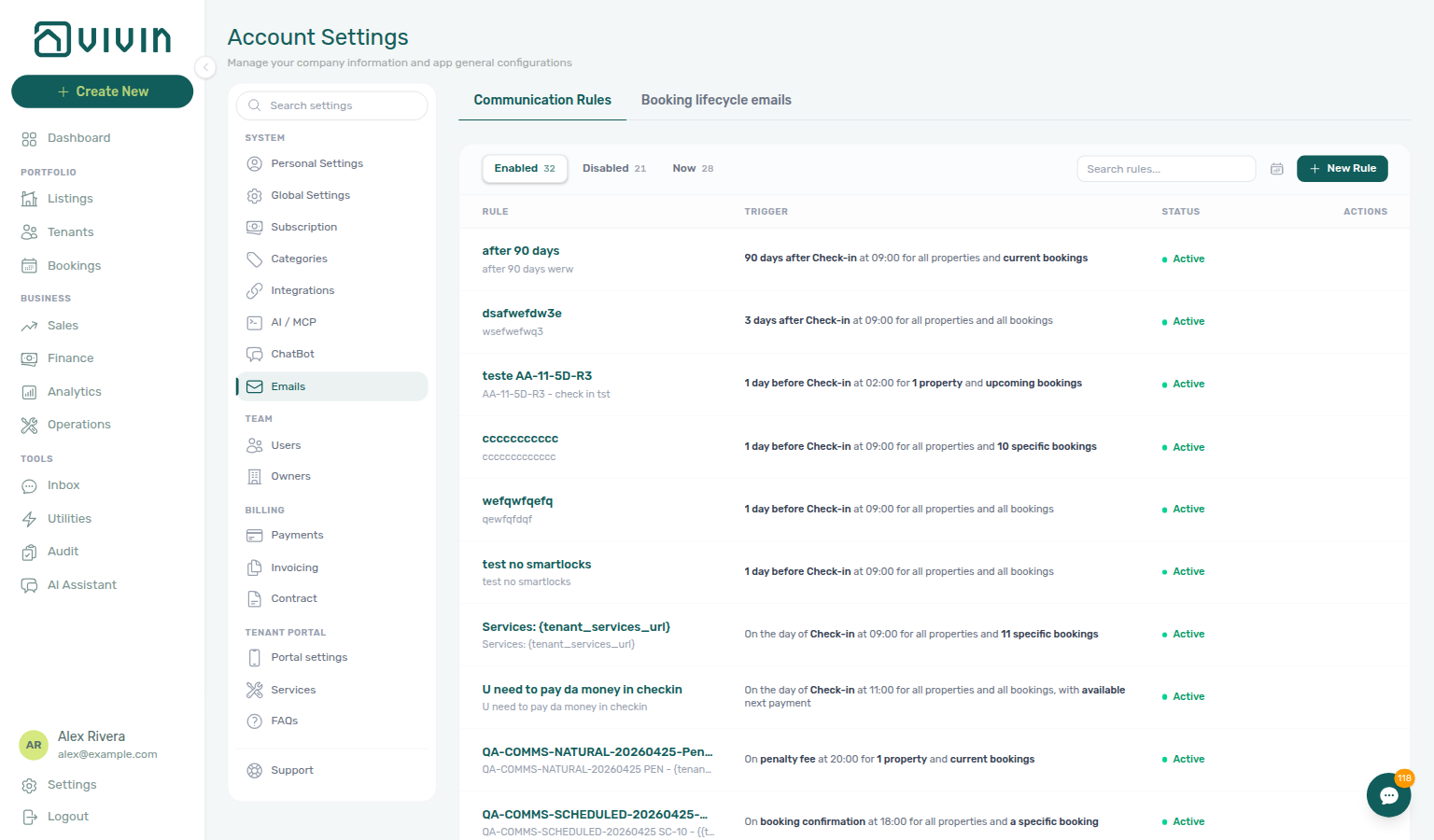
In the product, this tab lives under Settings → System → Emails and opens at /settings/communications.
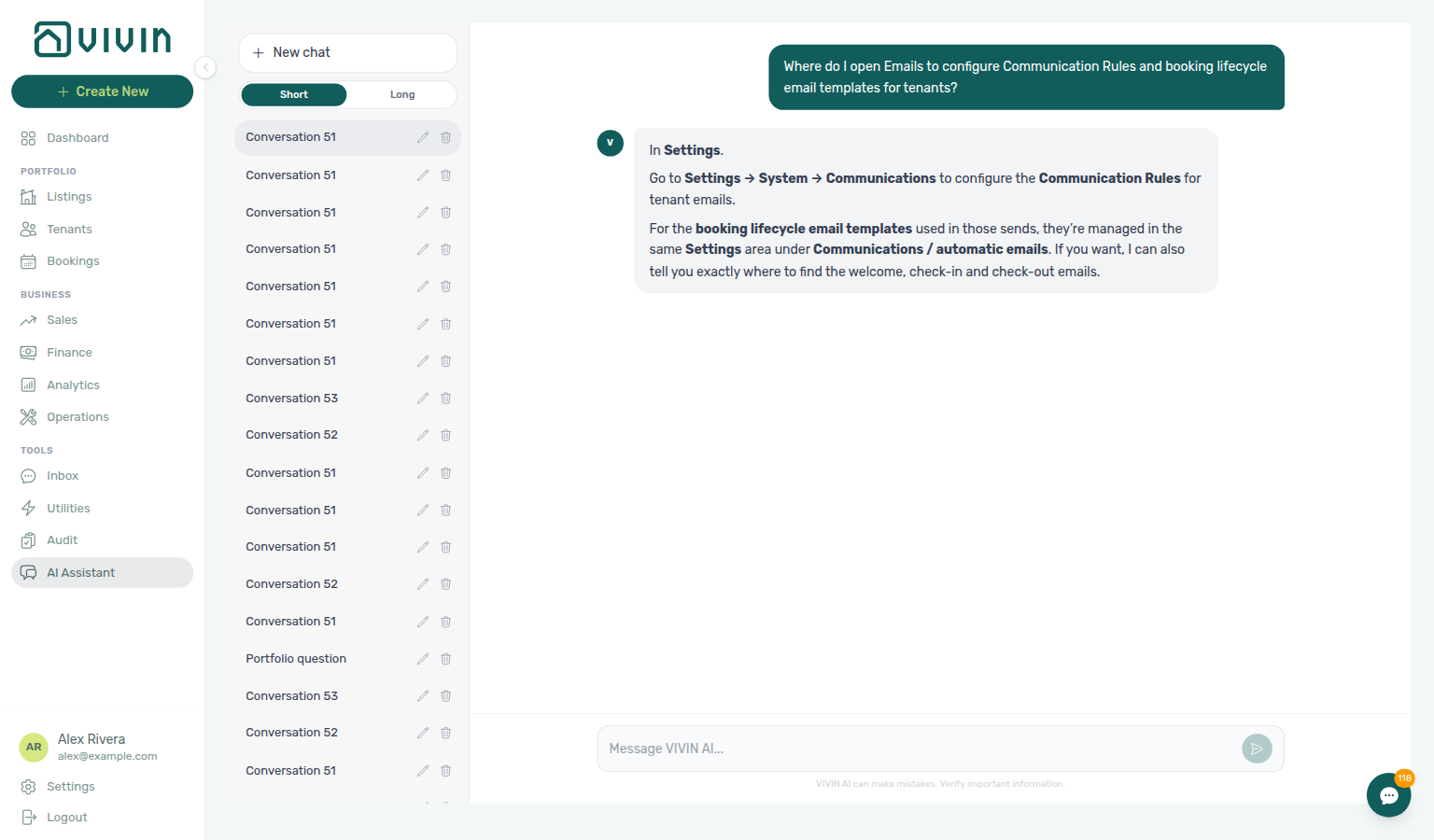
Ask AI Chat “Where do I open Emails to configure Communication Rules and booking lifecycle email templates for tenants?” — then open this Emails tab (ai-chat-product-context-emails-reply.png, ai-chat-product-context-emails-flow.mp4). The assistant typically says Settings → System → Communications (localized replies may say Sistema → Comunicações); follow Settings → System → Emails instead — both Communication Rules and Booking lifecycle emails live on this one tab. The English tab label is Emails. Same grounding external MCP clients get from get-vivin-context-platform. Distinct from operator notification toggles on Personal Settings.
Complete Getting Started — Recommended Setup Sequence step 11 (this tab — lifecycle emails and Communication Rules) after step 10 Tenant categories and before step 12 Integrations — full tab map: Recommended setup order. Finish steps 13–15 in Listings, Bookings, and Tenants, then Onboarding a New Property — Step 7. Guided steps 4–12: Onboarding a New Property. Lockout catch-up: Getting Started. Workflow pairing after go-live: Account Settings — Setup sequence after go-live.
Customize Lifecycle Email Templates first, then configure Communication Rules (automated reminders) for payment (Due Date — one reminder per unpaid payment), check-in, Auto-cancellation, and Send now — fire-once blasts. Smart-lock audience: Select smart locks stays open. Booking-tag audience: Booking tags stays open. Tenant-segment audience: Tenant categories stays open. Variable reference: Dynamic variables for emails. Habit-specific shortcuts live under Related below.
Pair Communication Rules with Preferences account-wide alert masters (in-app payment alerts are distinct from tenant-facing rules) and ChatBot WhatsApp IF/THEN behaviour. Contrast scheduled tenant email/SMS with landlord AI Chat — internal landlord_chat spend is on AI usage API, not Communication Rules. General Information contact details appear in lifecycle templates and in the Communication Rule Contact information footer unless Hide contact info is on. Hub: Recommended setup order.
The page is split into two sub-tabs (same URL):
| Sub-tab | Purpose |
|---|---|
| Communication Rules | Rule-based automated emails and SMS (payment reminders, check-in nudges, debt thresholds, Auto-cancellation, Send now, and more). |
| Booking lifecycle emails | Account-wide defaults for Onboarding, Check-in, and Check-out (triggers + rich Email body text blocks). |
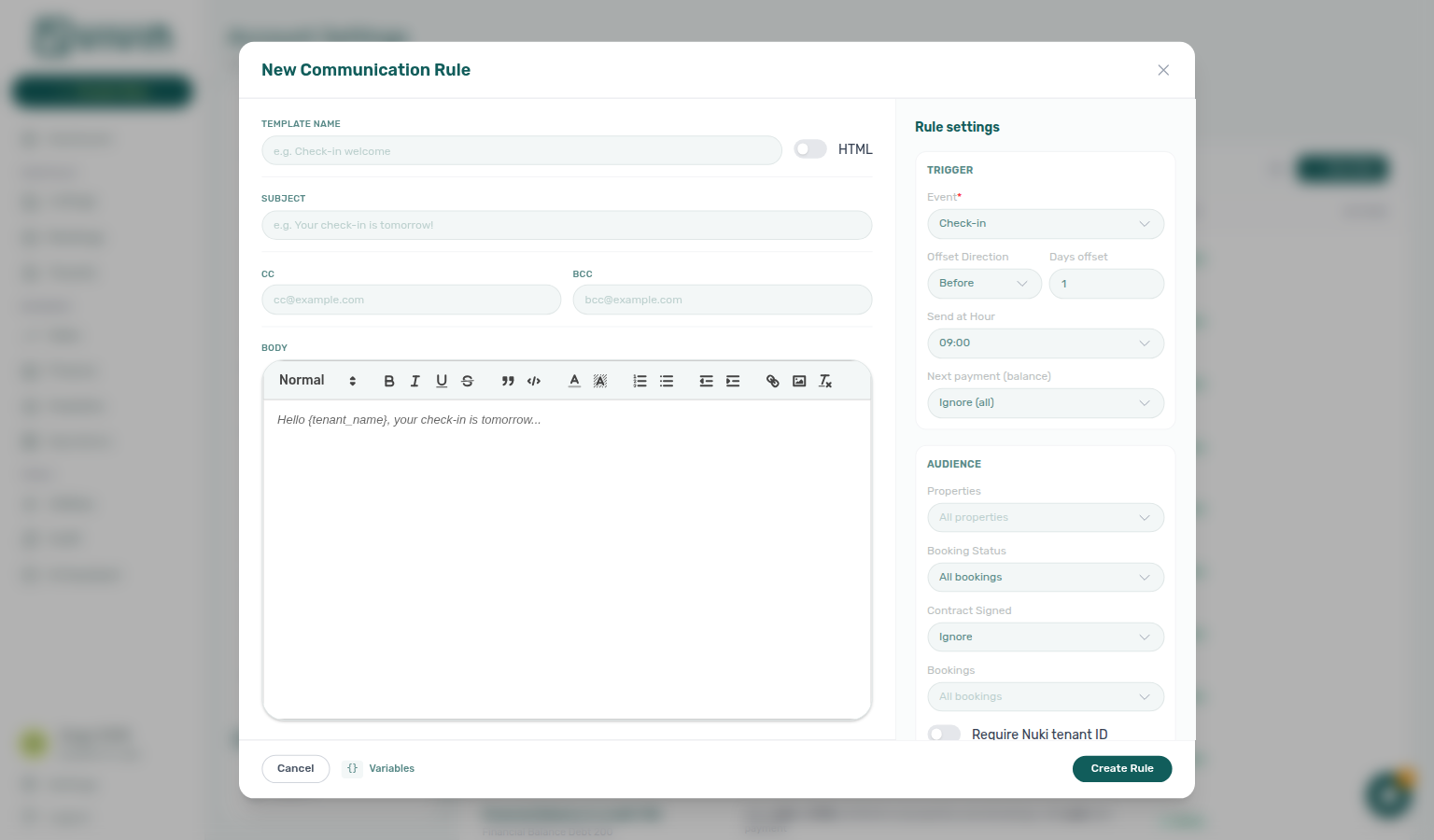
New Rule opens the communication-rule editor drawer. Inside that drawer, use Variables (footer) to open the Email body variables catalogue (same tokens as in the table below).
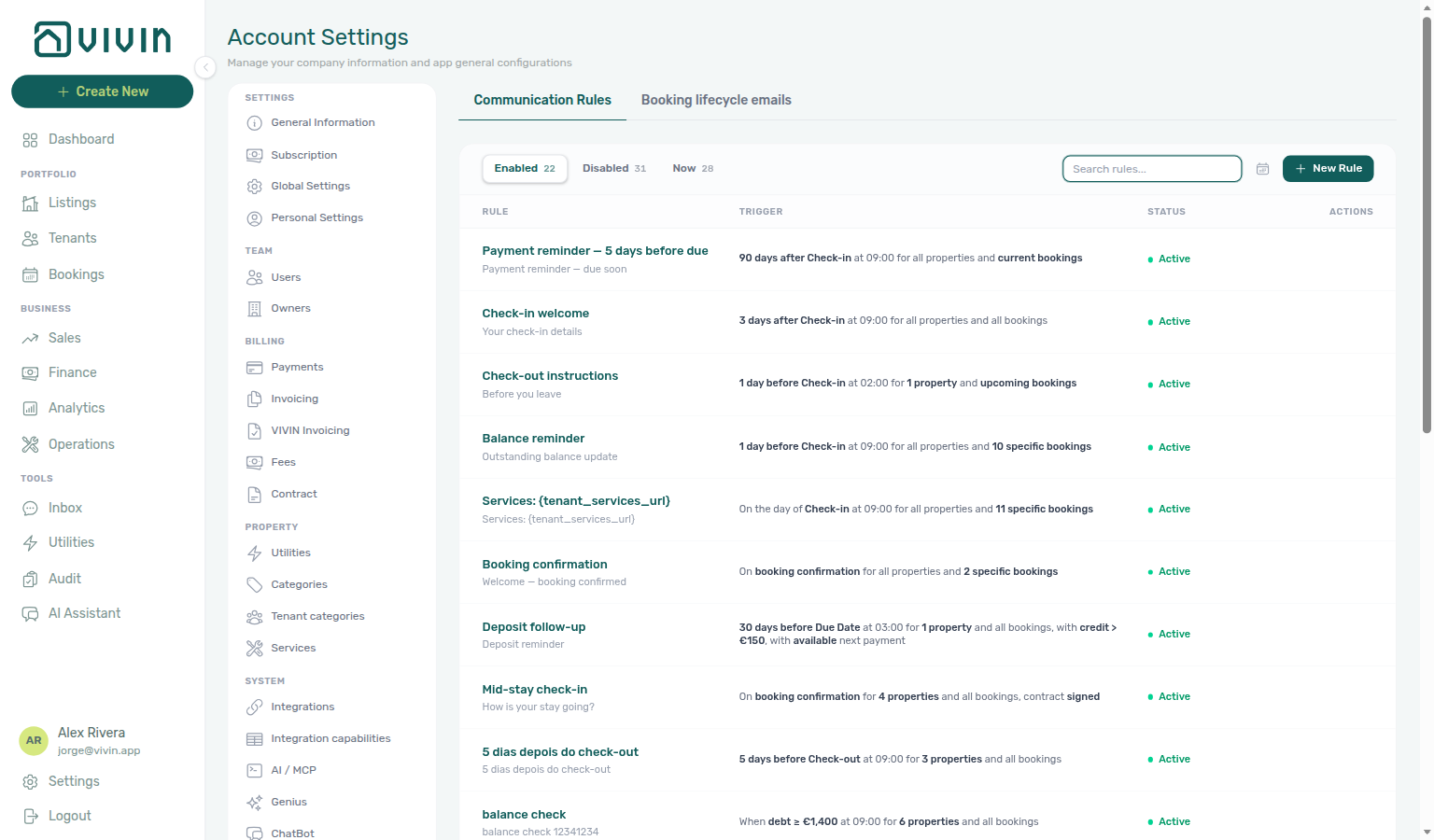
The list searches and scrolls in batches — see Browse, search, and load more. If the first fetch does not complete, the sub-tab shows a recovery prompt with Retry (or refresh the page). A successful fetch with no rules is the normal empty list — not this recovery state.
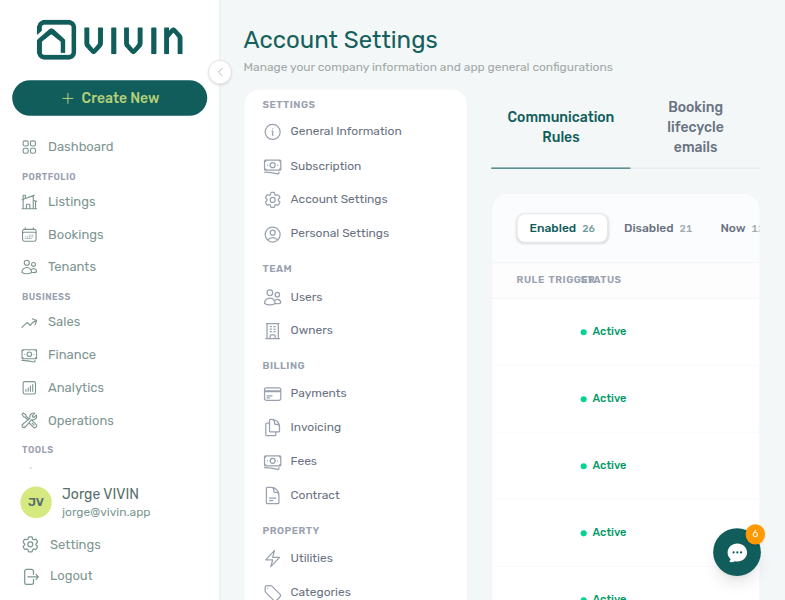
Lifecycle Email Templates
Lifecycle triggers pair with Bookings — Check-in & Check-out emails manual overrides and Listings — Access Lockers codes appended to check-in mail. Portal signing gates: Tenant Portal.
These are the three main emails sent to tenants at specific points in their tenancy:
Onboarding Email
Sent when a booking is confirmed (trigger configurable). This is the tenant's welcome email — include information about your company, the property rules, and what to expect before move-in.
Operators can send this template again from Contract Info → Check-in & Check-out with Send Onboarding email / Resend Onboarding email. That control is not the same as Send portal access (portal login only) or Resend on the Contract card (onboarding with the contract PDF). See Bookings — Check-in & Check-out emails. Marketplace POST /bookings always queues this send (operators cannot skip it on the channel) — Creating Bookings — Send onboarding. + Create New → Booking can leave Send onboarding email & contract off.
- Subject: The email subject line
- Email body text: Rich text appended to the system template for that lifecycle email (onboarding, check-in, or check-out). Use single-brace variables such as
{TenantName}and{PropertyAddress}— see Dynamic variables. Click Variables above the editor to open the in-app catalogue for that surface. - Trigger (onboarding): Active — send based on delay (with Delay after booking, e.g. no delay, 15 minutes, 1 hour, 1 day) or No trigger — disabled.
- Trigger (check-in): Options include No trigger, After paid, Next payment (balance), After contract signed, After paid & contract signed, X Days before check-in (with a day count), and combined options such as After paid & contract signed & 1 Week before. No trigger turns automatic check-in mail off for the account and hides Send Check-in email / Resend Check-in email on Contract Info. Optional Only for Nuki access limits the check-in email to bookings with Nuki smart-lock access.
- Trigger (check-out): No trigger or X Days before checkout (with a day count).
Check-in Email
Sent according to the check-in trigger you choose on the Booking lifecycle emails sub-tab. Include access codes, check-in instructions, local tips, and emergency contacts. Access codes configured in a property's Access Lockers tab are automatically appended to this email.
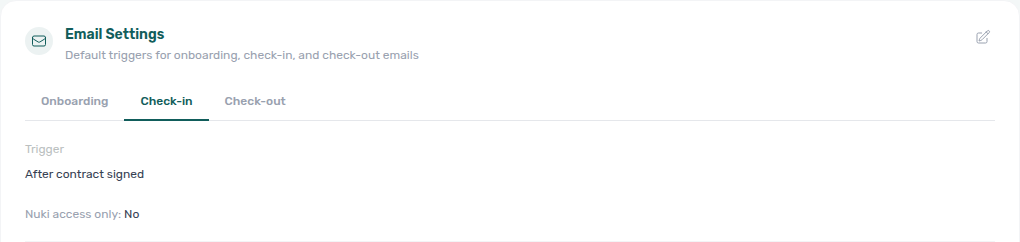
Open Edit (pencil) on that card to change the trigger. No trigger is in the same list — choose it only when this account should not send the lifecycle check-in template (the Contract Info button disappears until you pick another trigger).
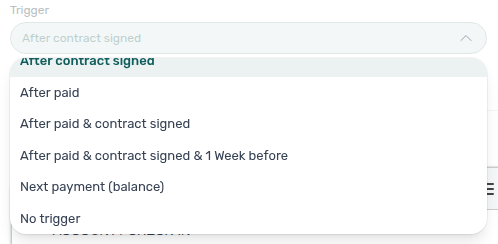
When lifecycle check-in emails send automatically
Vivin evaluates the check-in trigger on the Booking lifecycle emails sub-tab whenever qualifying booking state changes, then sends at most one check-in email per booking (checkInEmailSentAt is set on success). Automatic evaluation happens in these cases:
| Trigger (examples) | When Vivin re-evaluates | Send conditions (summary) |
|---|---|---|
| After paid | Move-in / confirmation payments are recorded | All move-in requirements paid; no prior check-in email |
| Next payment (balance) | The booking’s next scheduled installment becomes €0 | Nothing left due on the upcoming payment line; no prior check-in email. This is the Check-in template trigger — not the Communication Rule Next payment (balance) filter |
| After contract signed | Tenant completes digital signature in the Tenant Portal (evaluation runs immediately after the signature is saved) | signedContractPath present; no prior check-in email |
| After paid & contract signed | Payment recorded or portal contract signed | Paid and signed; no prior check-in email |
| After paid & contract signed & 1 Week before | Payment, portal signing, or daily cron | Paid and signed and check-in date is within 7 days (today through seven days ahead); no prior check-in email |
| X Days before check-in | Daily cron on the matching calendar date | Booking still Upcoming on that date; no prior check-in email |
15-day cutoff — No automatic lifecycle check-in email is sent when the booking’s check-in date is more than 15 days in the past (canceled bookings are skipped entirely). The daily cron for After paid & contract signed & 1 Week before scans check-ins from 15 days ago through 7 days ahead so late contract signatures or payments still catch up inside that window.
Operator upload vs portal signing — Uploading a signed PDF on Contract Info marks the booking contract-signed for reporting, but it does not run the lifecycle trigger evaluation. Only a portal digital signature sets signedContractPath for After contract signed triggers — see Tenant Portal — Digital contract signing. If the tenant signs on paper, use Send Check-in email / Resend Check-in email on Contract Info → Check-in & Check-out after upload when move-in requirements are met — illustrated controls: bookings-detail-contract-check-in-out-emails.png; see FAQ — Automatic check-in email and Bookings — Check-in & Check-out emails. When tenants cannot complete portal signing (no PDF, mandatory-field gates, category locks), start with FAQ — Tenant contract signing blocked and Processing a New Booking — Step 4.
Nuki-only toggle — When Only for Nuki access is on, sendCheckInEmail still requires at least one Nuki access point on the property or unit before the message goes out (access codes must be generatable).
Manual send on Contract Info — Send Check-in email / Resend Check-in email appears on Contract Info → Check-in & Check-out only when this check-in trigger is not No trigger. Anyone who can open that tab sees the button when a real trigger is set. Clicking it queues the template even if automatic conditions are not met yet (still subject to Only for Nuki access and access-code generation). Hover Resend for Last sent after the first successful send. If the trigger is No trigger, the button is hidden — turn a trigger on here first. When automatic send did not fire, start with FAQ — automatic check-in email (bookings-detail-contract-check-in-out-emails.png).
Communication Rules as check-in mail — Accounts that send arrival instructions from Communication Rules (instead of this lifecycle template) can mark an email rule with Check-in trigger as This is the check-in email. A provider-confirmed send then writes the same checkInEmailSentAt watermark so portal Entry codes unlock — and replaces this automatic lifecycle check-in for matching bookings. See This is the check-in email.
Check-out Email
Sent before the tenant's departure according to the check-out trigger (typically X Days before checkout). Include check-out instructions, key return, inspection, and deposit refund timelines.
Individual properties can add custom content that is appended to these default templates. See Email Customization Tab for property-level email customization.
Dynamic variables for emails
Single-brace tokens match Contract templates — contract-only tokens like {%TenantSignature%} do not apply here. Open the in-app Variables catalogue from a Communication Rule drawer or from Booking lifecycle emails (and from property-level Email Customization).
Use the same single-brace placeholder style as Contract templates: wrap the token name in { and }, for example {TenantName} and {CheckInDate}. Vivin replaces them with booking data when the message is sent.
| Surface | How to open the catalogue |
|---|---|
| Communication Rules | New Rule or Edit on a row → Variables in the drawer footer |
| Booking lifecycle emails | Above each Email body text editor (onboarding, check-in, check-out) → Variables |
| Property email customization | Same Variables control beside the property-level body editor on Listings — Email Customization |
The Email body variables modal lists every token that surface supports. The modal intro copy differs by surface:
| Surface | Modal teaches |
|---|---|
| Communication Rules | Placeholders work in subject and body; includes rules-only tokens such as {notification_title} |
| Booking lifecycle emails | Body text only — subject lines are fixed per template; unknown tokens are left verbatim in the sent email so you can spot typos |
| Property email customization | Same body-only catalogue as lifecycle emails |
Contract-only tokens (for example {%TenantSignature%}) apply to .docx contracts, not tenant emails.
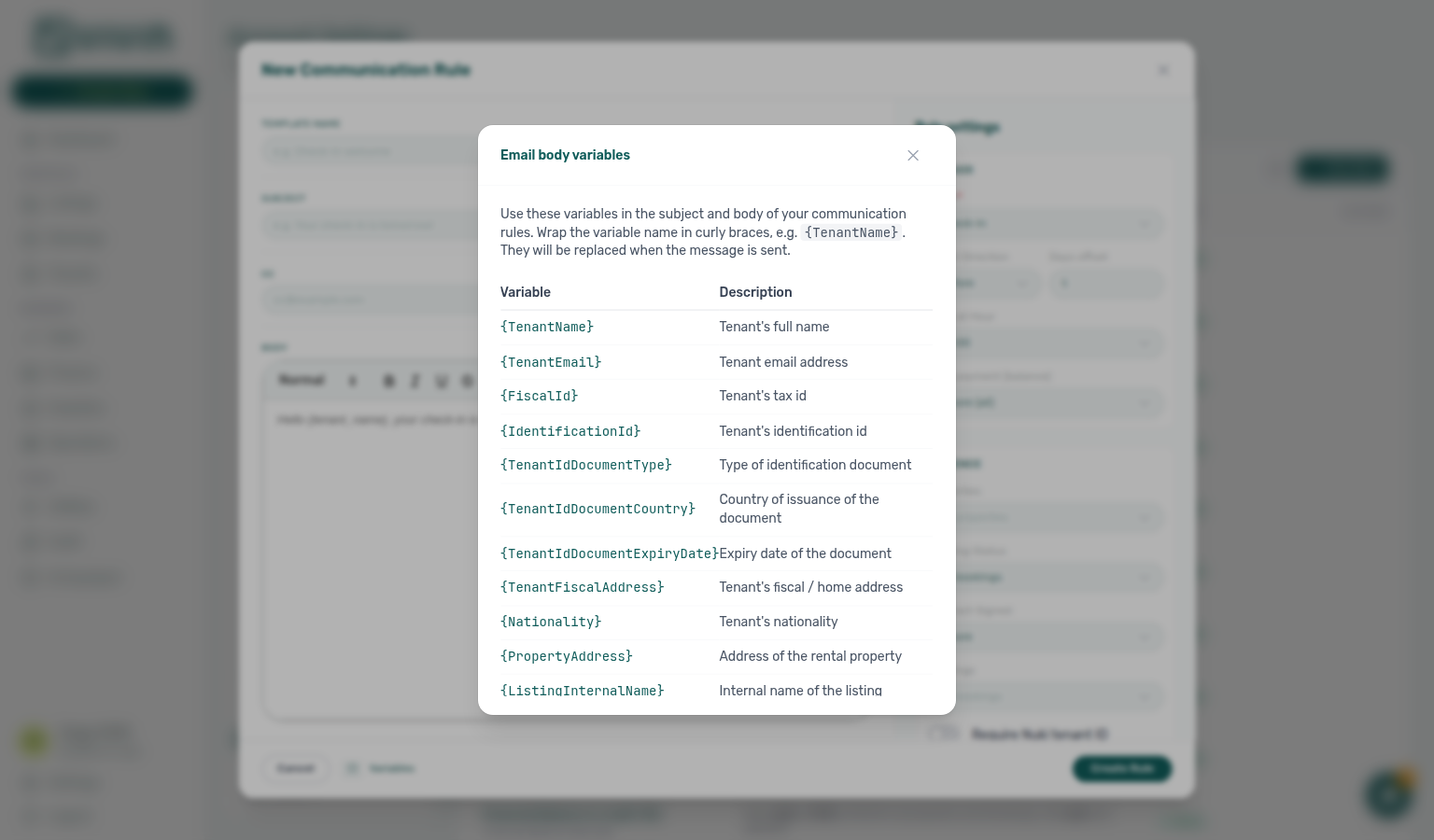
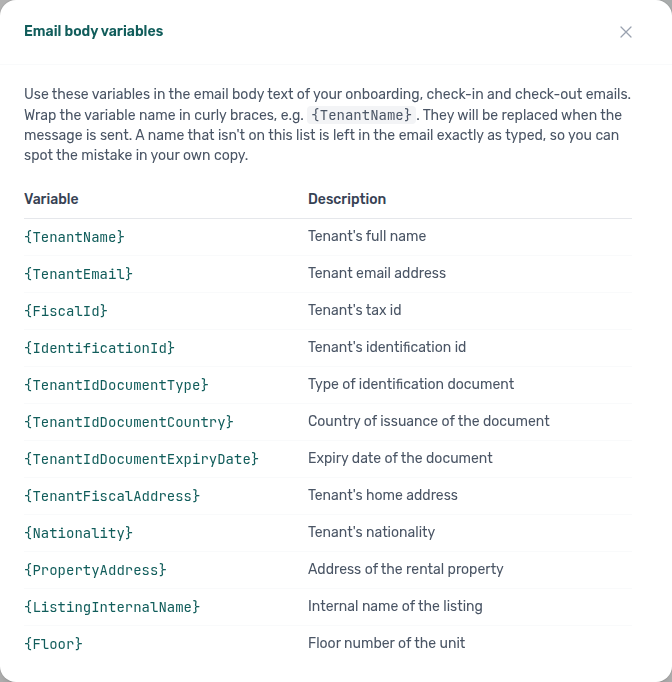
Tokens such as show_tenant_portal_section / show_viban_section may still appear on the server render context for category module rules, but they are not usable inside the rich-text Email body text you edit on this tab (or in Communication Rules). Vivin does not run a Handlebars/{{#if …}} step on operator-authored copy — wrapping blocks that way can corrupt the body. Use the Variables catalogue above, and control portal/vIBAN visibility with Tenant categories module rules instead.
Commonly used variables in emails:
| Variable | Output | Typical use |
|---|---|---|
{TenantName} | Tenant's full name | Greeting (Dear {TenantName}) |
{TenantEmail} | Tenant email | Contact block |
{PropertyAddress} | Full property address | Check-in directions |
{ListingInternalName} | Unit/listing internal name | Identifying the unit |
{StartDate} / {EndDate} | Contract start / end | Tenancy period |
{CheckInDate} / {CheckOutDate} | Physical move-in / move-out dates | Arrival and departure |
{CheckInTime} / {CheckOutTime} | Check-in / check-out times | Access windows |
{ContractSignDate} | Today before move-in; booking start date afterward | Signature-style date in body copy when you want the stay’s start day after check-in |
{ContractGenerationDate} | Always the send / generate day (current date) | Prefer on renewals or any body line that must show the day Vivin builds the message — see Sign date vs generation date |
{RentValue} | Monthly rent | Payment context |
{SecurityDeposit} | Security deposit | Onboarding or check-in |
{Debt} / {TotalValuePending} | Outstanding debt / pending total | Payment reminders |
{vIBAN} | Tenant virtual IBAN | Bank transfer instructions |
{tenant_portal_url} | Tenant portal link | Self-service |
{contact_email} / {contact_phone} | Account contact details | Support footer |
{building_access_point_code} / {property_access_point_code} / {listing_access_point_code} | Nuki keypad or manual access codes | Check-in instructions (blank when not configured) |
{BillsIncludedMaxValue} | Bills-included cap per month | Onboarding or check-in |
{LocalRentCap} / {RentCapDifference} | Dual-pricing cap and services slice | When dual pricing applies |
{RentJan}–{RentDec} | Per-month rent amounts | Variable-rent bookings; same tokens as Contract templates |
Email-only branding tokens ({image_url}, {landlord_brand_color}, {contact_name}, {tenant_services_url}, {paywall_url}, and others) are listed in the Variables modal. For contract PDF tokens shared with emails, see Contract > Dynamic Variables.
Sign date vs generation date in emails
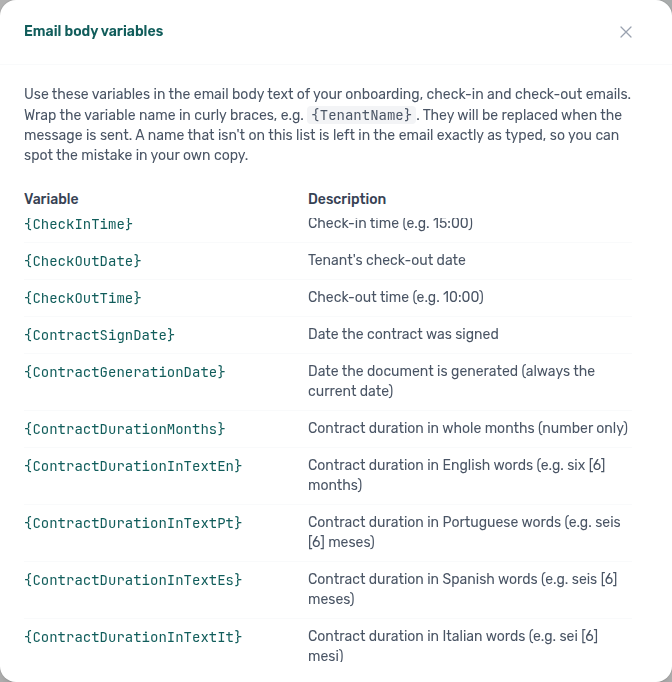
The Email body variables catalogue includes the same two date tokens as Contract templates — Sign date vs generation date. Behaviour matches contracts:
| Token | What Vivin prints |
|---|---|
{ContractSignDate} | Today only before the booking start; the booking start date once the stay has begun |
{ContractGenerationDate} | Always today’s date when Vivin builds or sends the message |
Use {ContractGenerationDate} in onboarding or renewal body copy when the printed day must be the day the email goes out (or when you regenerate mid-stay). Keep {ContractSignDate} only when you intentionally want the start-date collapse after move-in.
Open Variables on Booking lifecycle emails (or from a Communication Rule / property email editor) and scroll past check-in / check-out times — the two date tokens sit together before the contract-duration rows:
Communication Rules (automated reminders)
Communication Rules pair with ChatBot IF/THEN behaviour on WhatsApp and Preferences — In-app notifications for operator alert masters. communication.send_now: Send now permission.
On the Communication Rules sub-tab at /settings/communications (see also Glossary — Communication Rules), each row is a scheduled message rule with a human-readable trigger sentence (timing, properties, bookings, debt/credit filters, contract-signed state, and more).
Browse, search, and load more
The rules table loads in batches as you scroll (same infinite scroll pattern as other large directories). The first batch is sized for a normal desktop view; scrolling near the bottom fetches the next batch automatically. When every matching rule is on screen after more than one batch, a subtle End of list line appears under the last row — see Glossary — End of list.
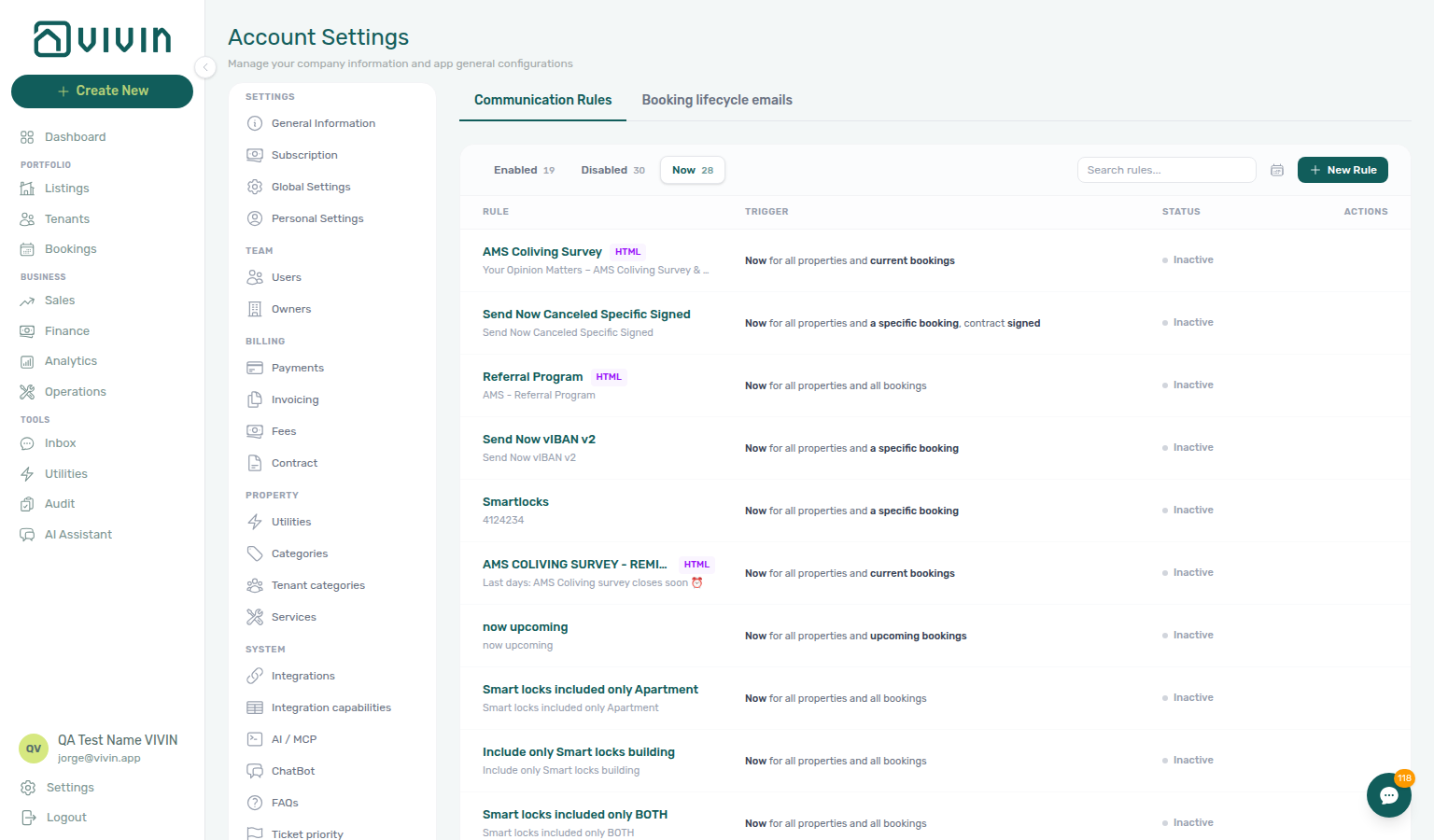
Filter chips Enabled, Disabled, and Now (immediate-send rules; see Send now permission below) show counts for the whole account under the current search (not only the rows loaded so far). Send now rules stay on Now after a blast — they do not move to Disabled (Send now is fire-once). Changing a chip or the search box resets the list to the first batch. End of list only appears when the current chip/search set has more than one batch and you have scrolled until every matching rule is loaded (for example Enabled on a large account).
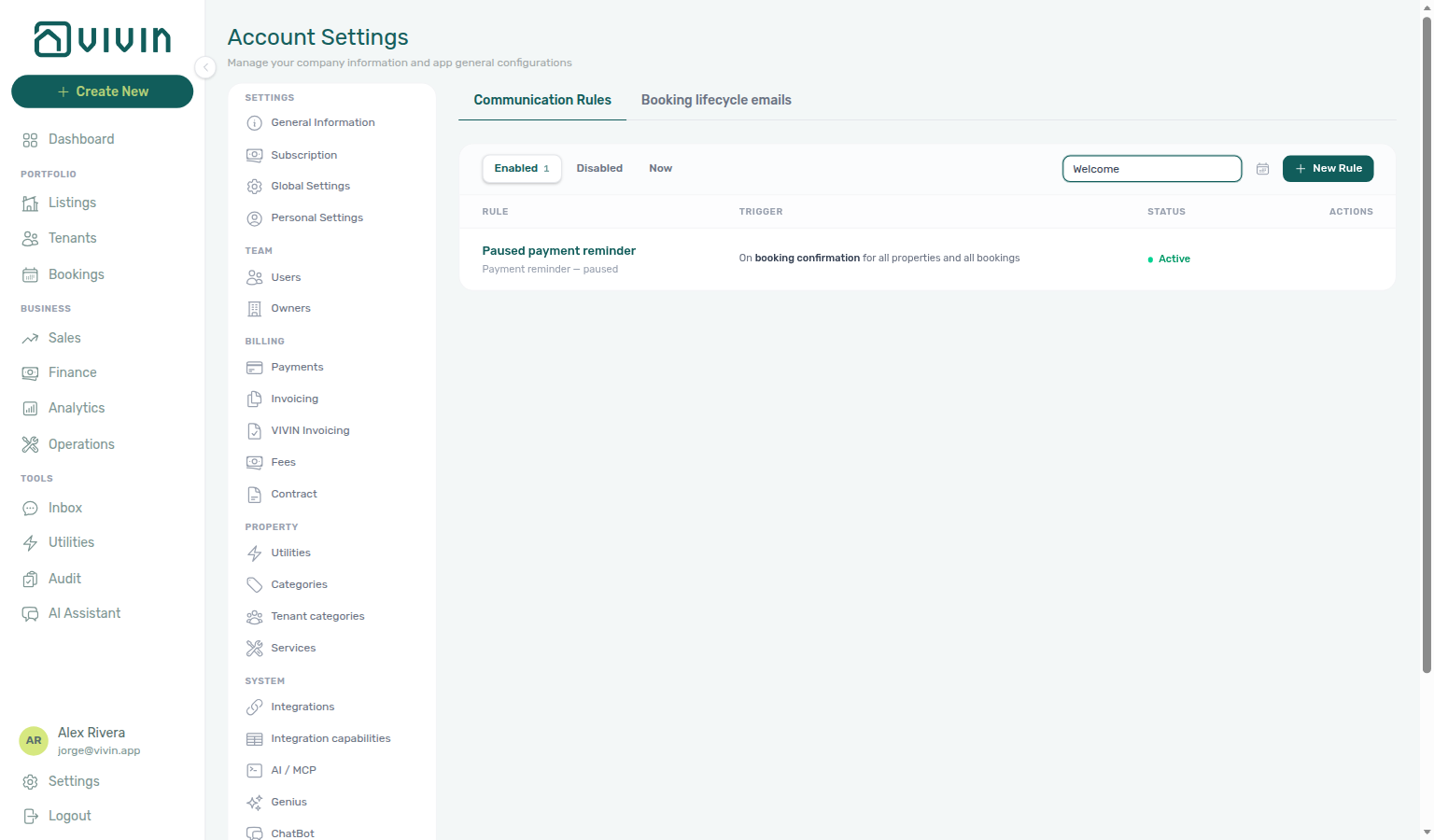
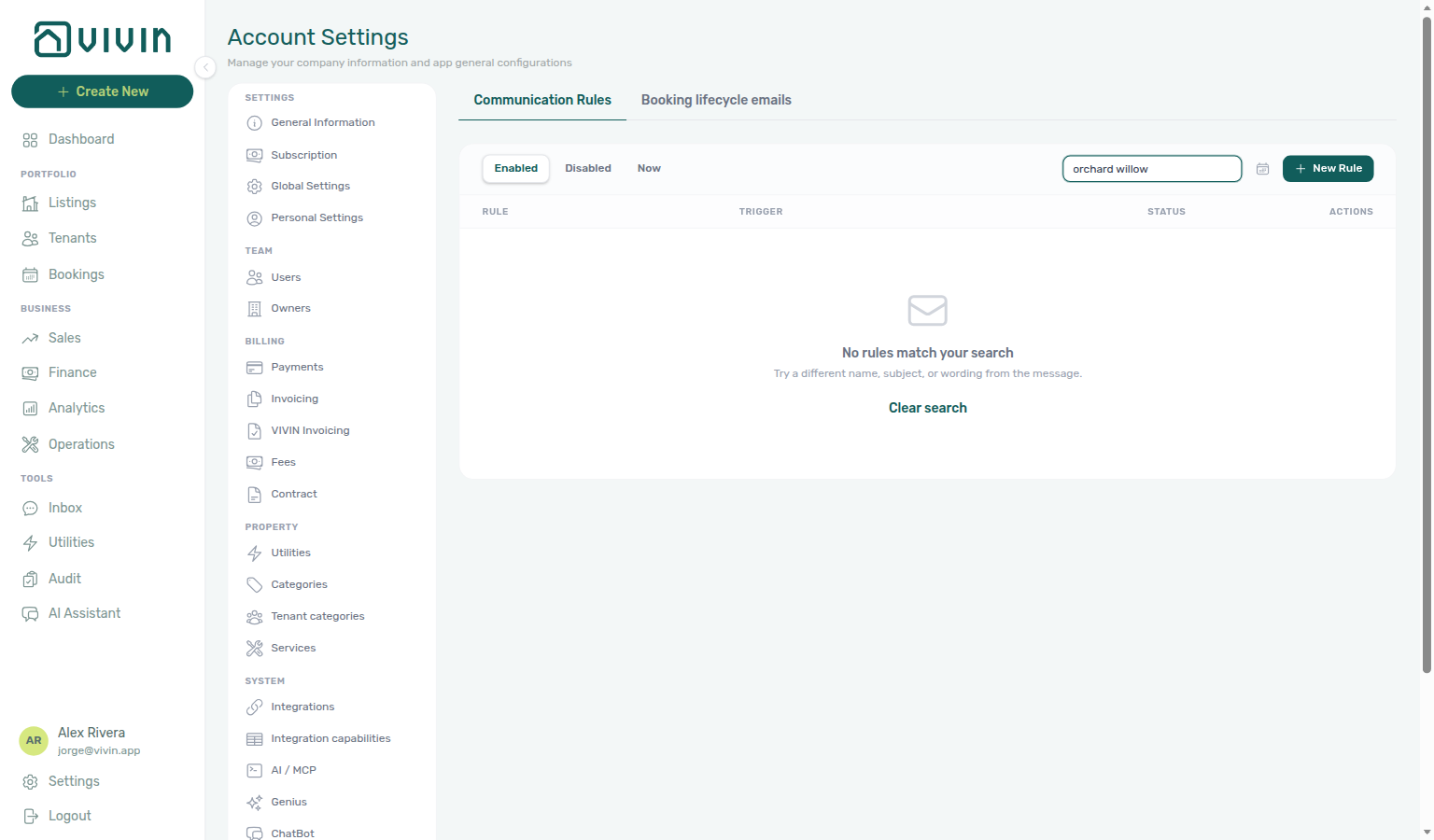
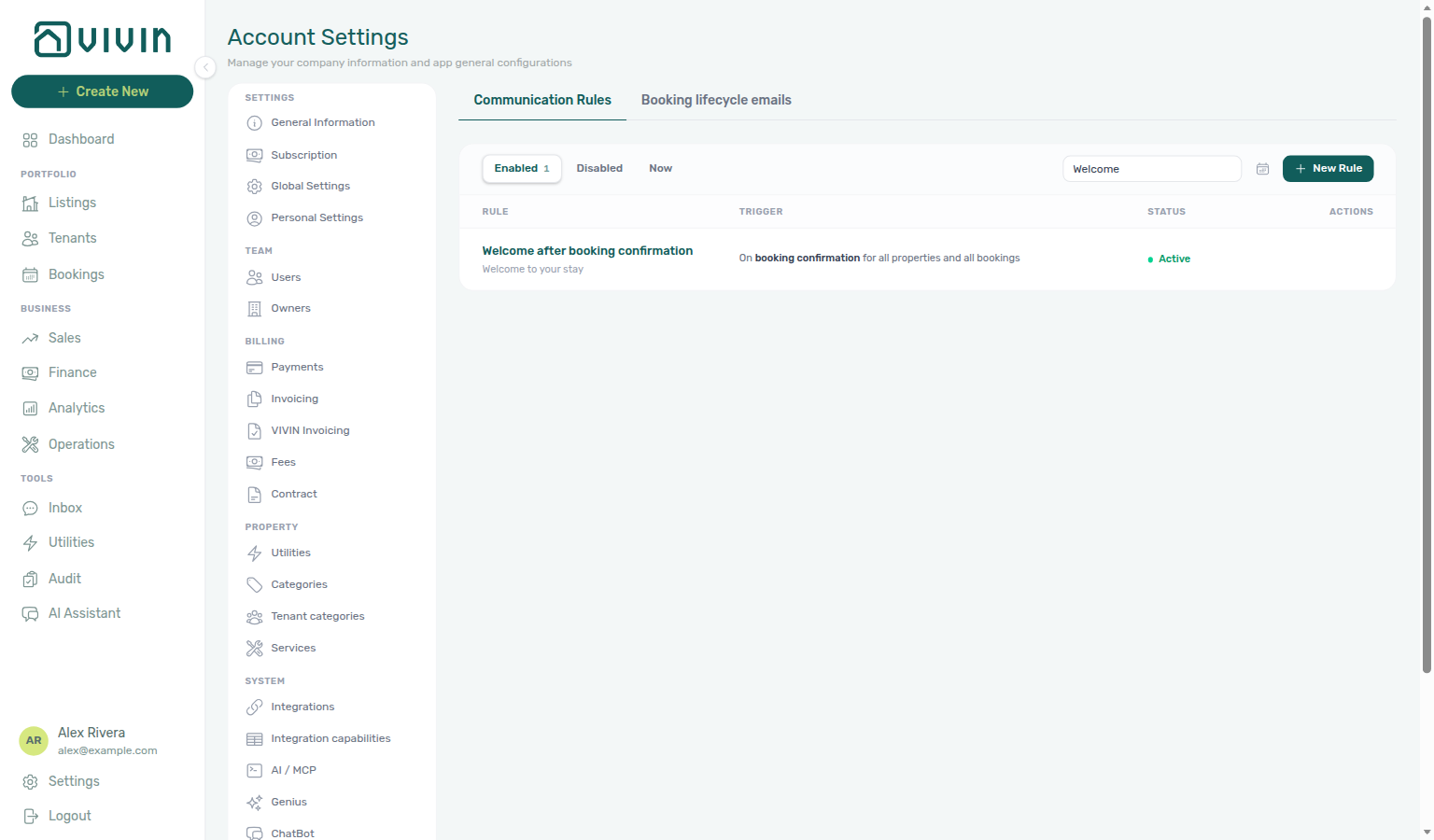
Use Search rules… in the toolbar to find rules by name, subject, or wording from the message body (HTML tags are ignored so common markup does not flood the results). Search is debounced while you type.
The list rows stay lightweight: each row shows the name, subject, trigger summary, and audience counts (for example all properties or N properties / N bookings) without downloading every message body up front. Opening Edit loads the full rule into the drawer — see Edit loads the full rule.
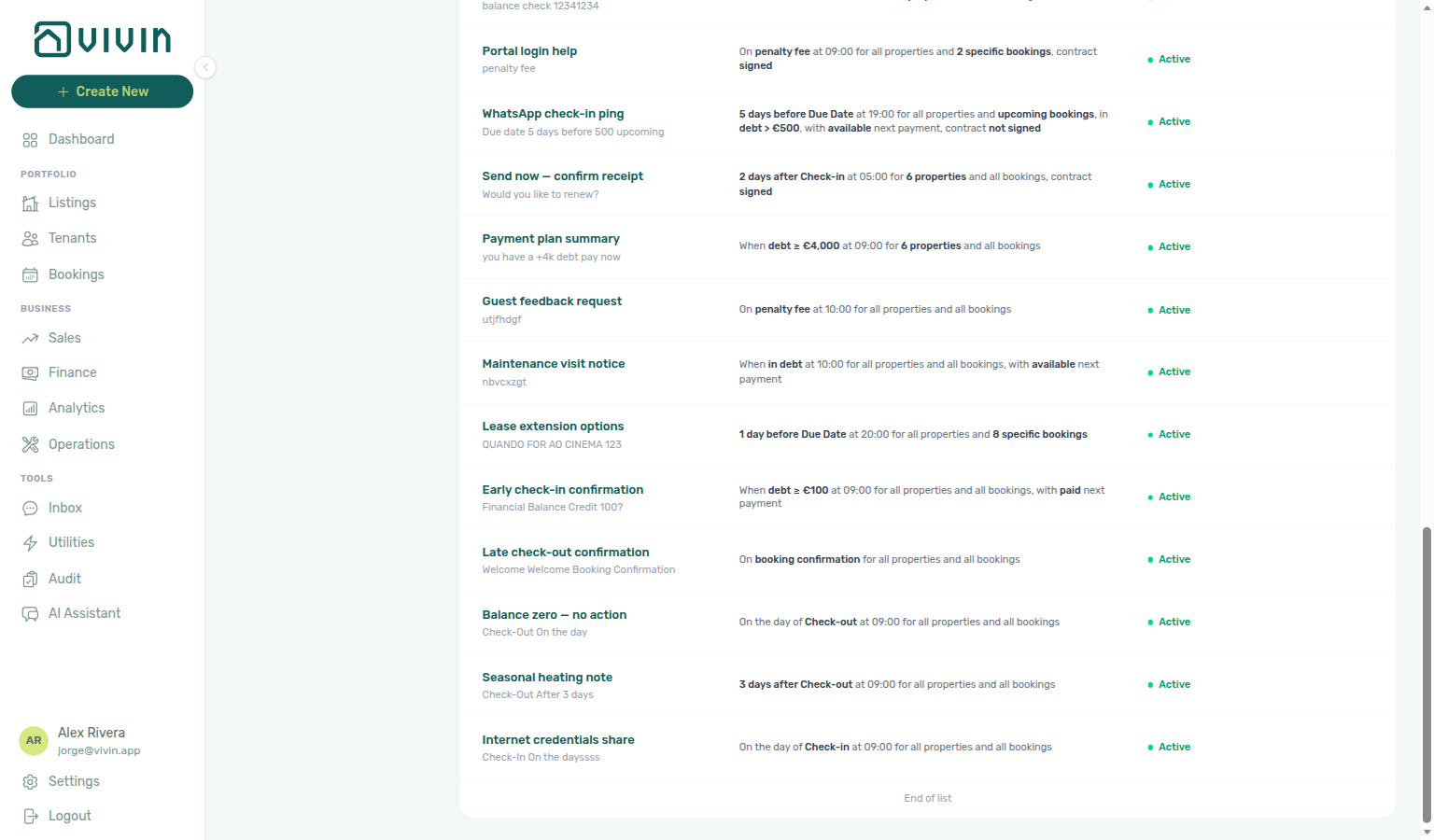
Edit loads the full rule
Edit pairs with Browse, search, and load more and New Rule / drawer fields — the list stays fast; the drawer fetches message body and audience filters when you open a row.
Click Edit on a rule row to open Edit Communication Rule. Vivin fetches that rule’s full details (subject, body, trigger, and audience filters) as the drawer opens. While the fetch is in progress, the drawer shows placeholder bars instead of an empty form — so you never briefly see blank Subject / Body fields that look like a cleared rule. When the load finishes, the left pane shows the message editor and the right pane shows Trigger and Audience.
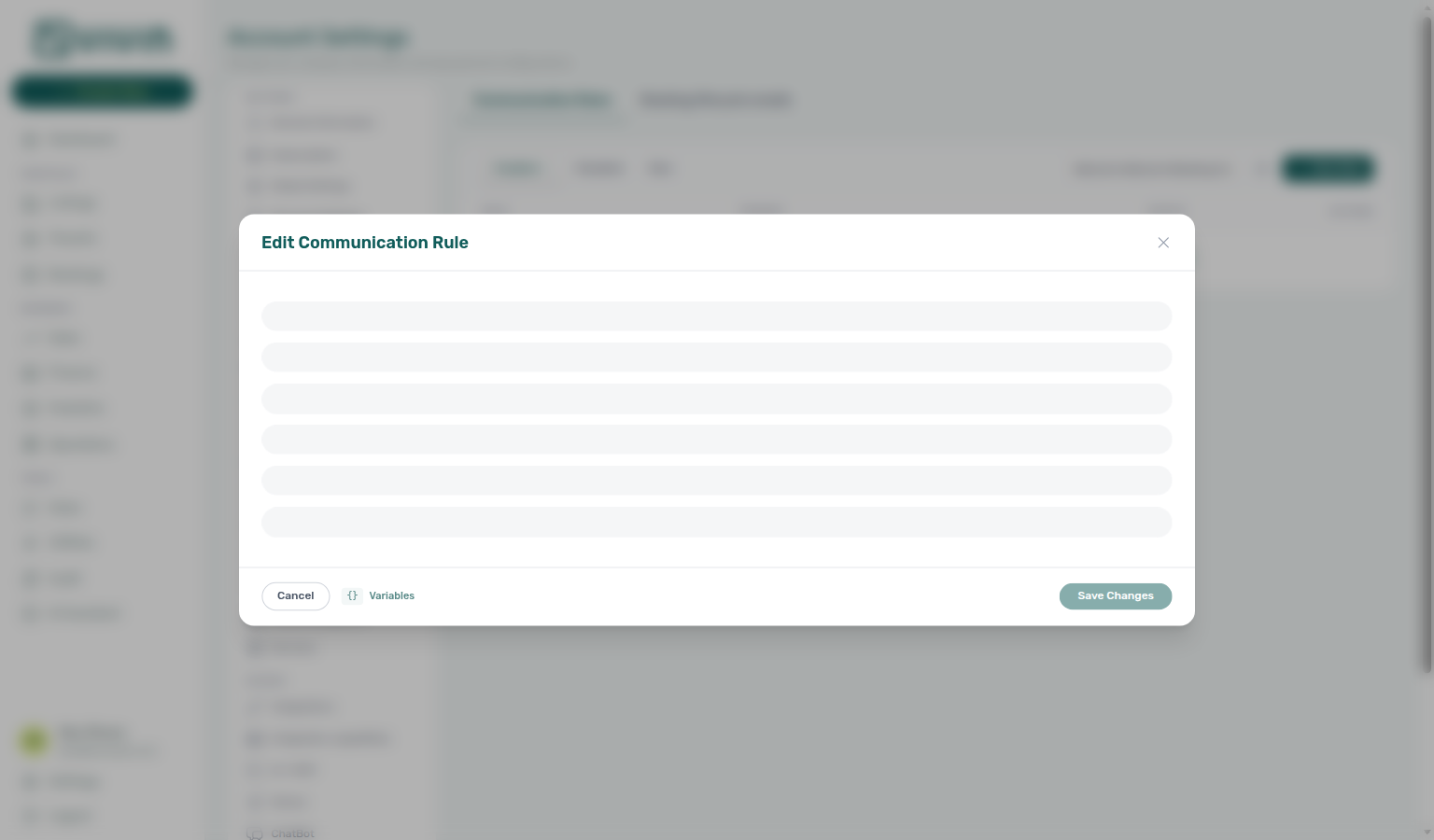
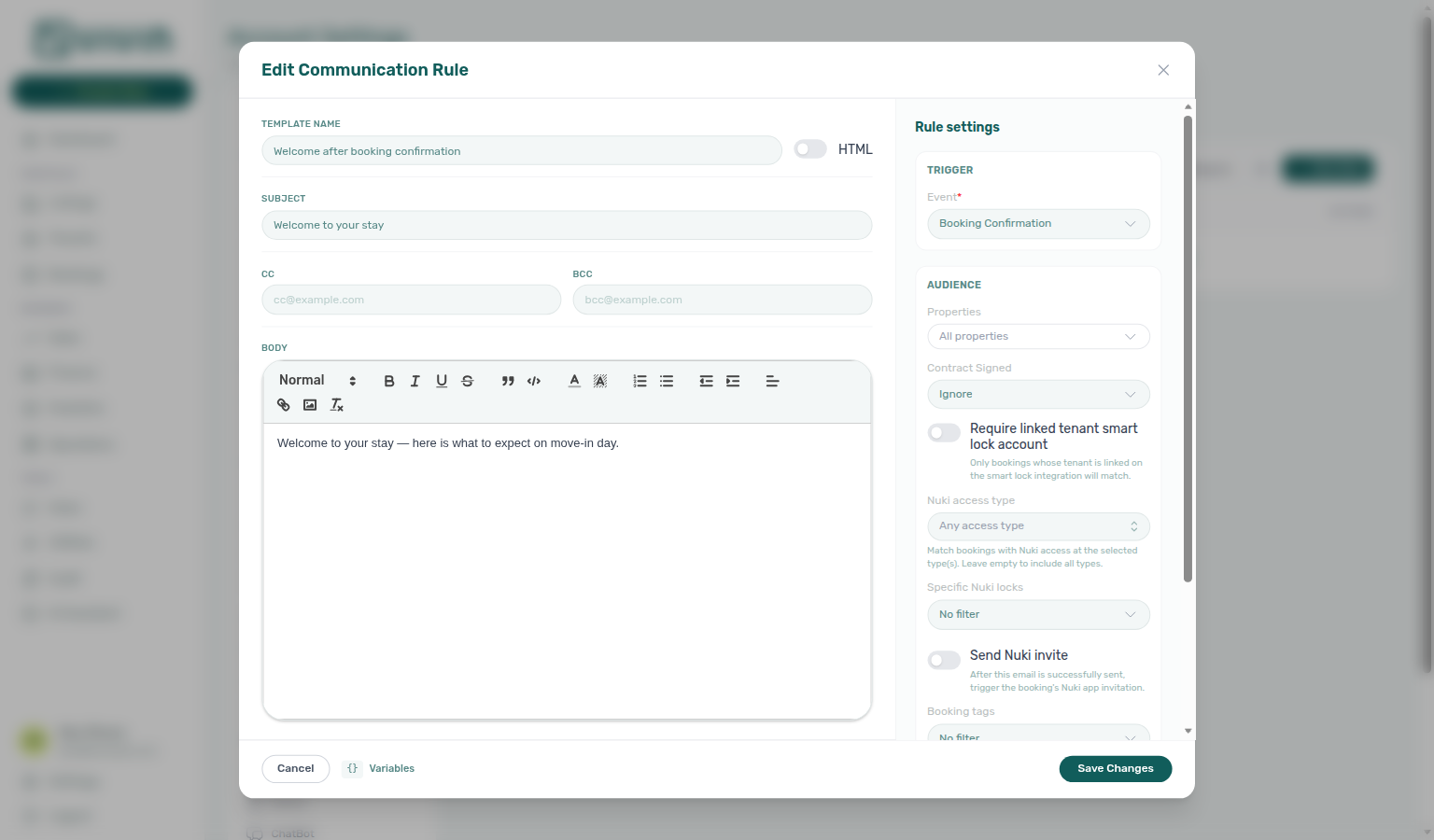
Use Cancel to close without saving, or Save Changes when you intend to update the rule. Variables stays available in the footer once the form is ready.
The toolbar also includes a calendar icon to open the Communication schedule modal (all scheduled and sent messages, or scoped to one rule from that rule's row). Row actions typically include Edit, Test (send a test to yourself), Send now / Schedule (when permitted), and enable/disable.
When the rules list is empty or needs a refresh
Three different empty experiences:
| What you see | Meaning | What to do |
|---|---|---|
| No rules match your search | The current Search rules… query (and status chip) matched nothing | Clear search or try different wording from the name, subject, or message |
| No rules found / Create your first rule to get started | The account has no rules yet (and search is empty) | Create your first rule or New Rule |
| Recovery prompt with Retry | The list could not load | Retry or refresh the page — your saved rules are unchanged |
Communication schedule (calendar)
Communication schedule pairs with Glossary — Communication schedule, row-click into Booking detail from queued messages, and Handling a Late Payment — Step 2 (sent vs scheduled overdue rules). A Due Date rule can list several rows for one booking — one reminder per unpaid payment.
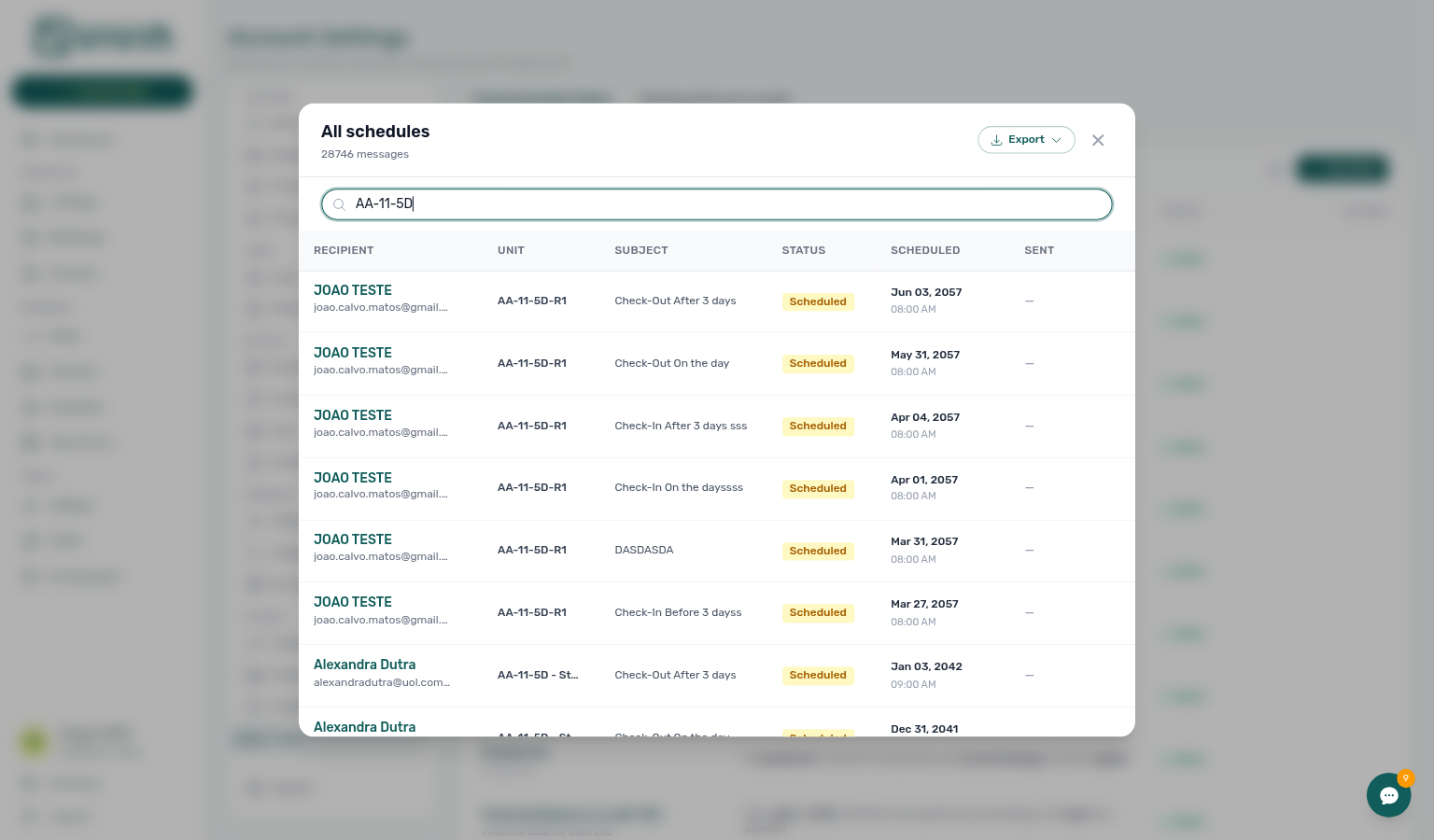
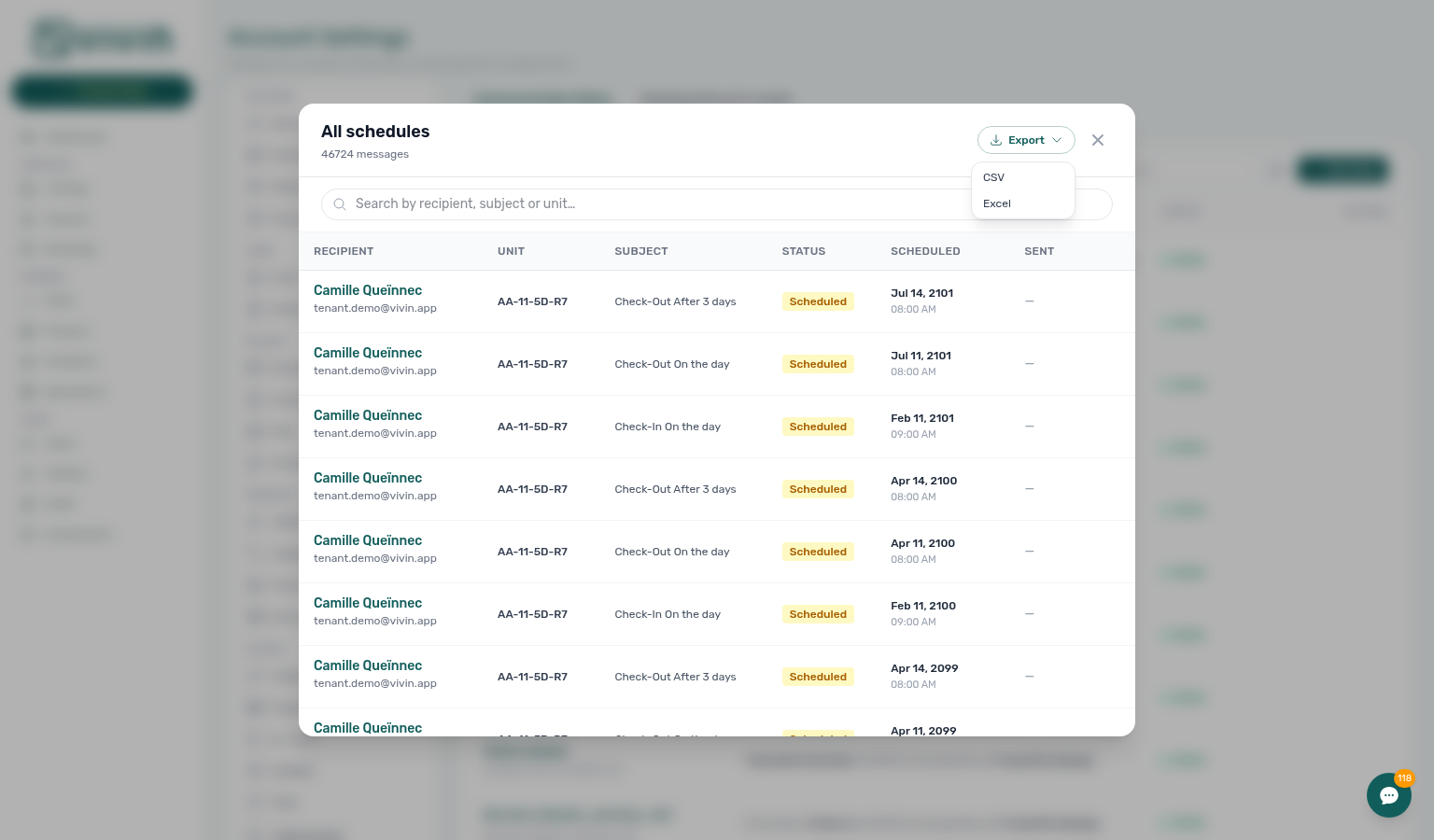
Click the calendar icon in the Communication Rules toolbar to open All schedules, or open the schedule from a single rule's row to filter to that rule only. See Glossary — Communication schedule. The modal lists every queued and sent message with:
- Recipient — tenant name and email
- Subject and rule context (when filtered)
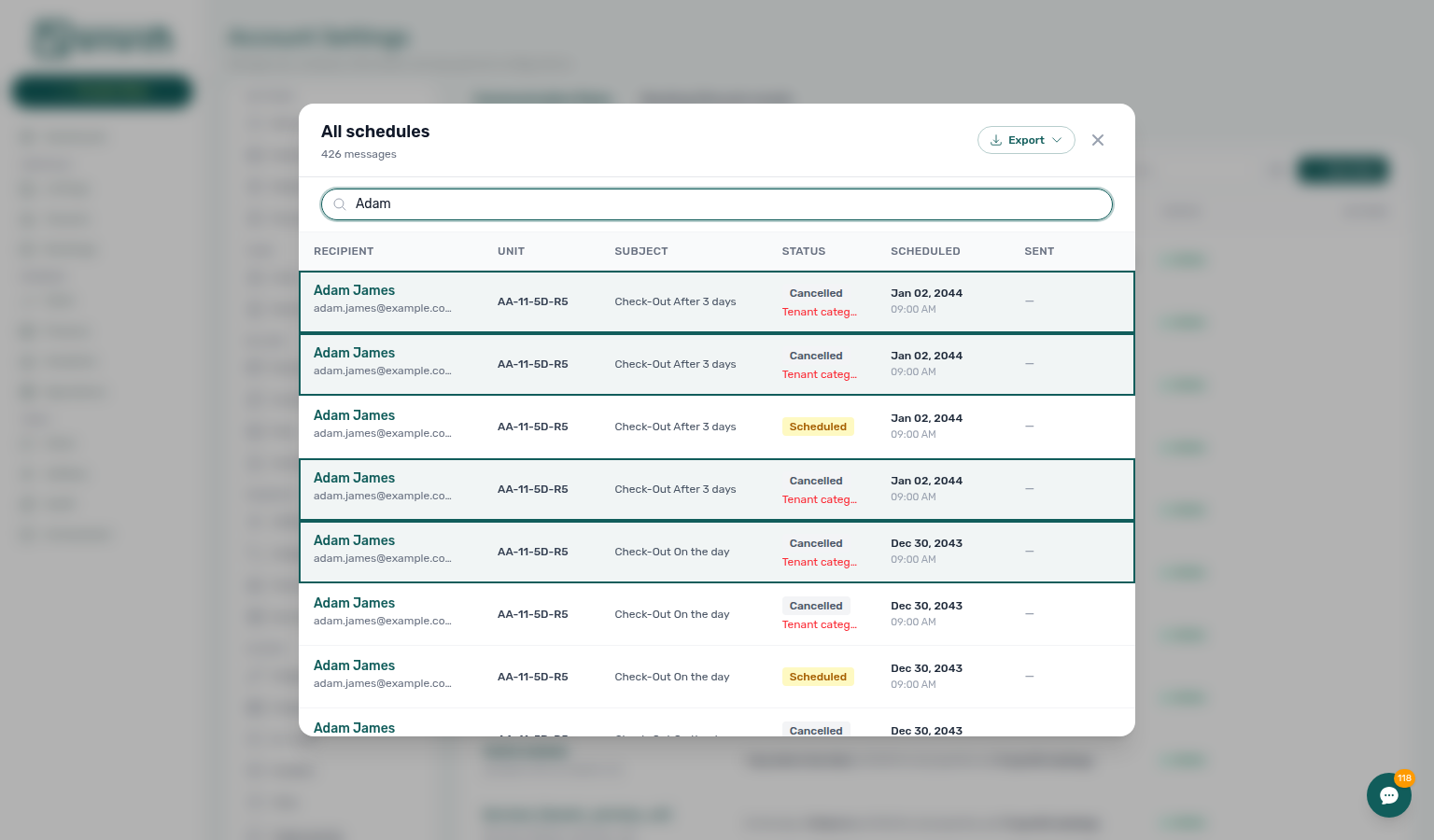
- Status — for example pending, scheduled, sent, failed, or cancelled. When a tenant’s category has Communications / Email off, pre-existing rows cancel as Cancelled — Tenant categor…; bookings created while the toggle was off may have no row at all until you turn email back on (background rebuild) or the daily recalculation runs. See Tenant categories — Communications / Email and schedule rebuild.
- Scheduled and sent timestamps
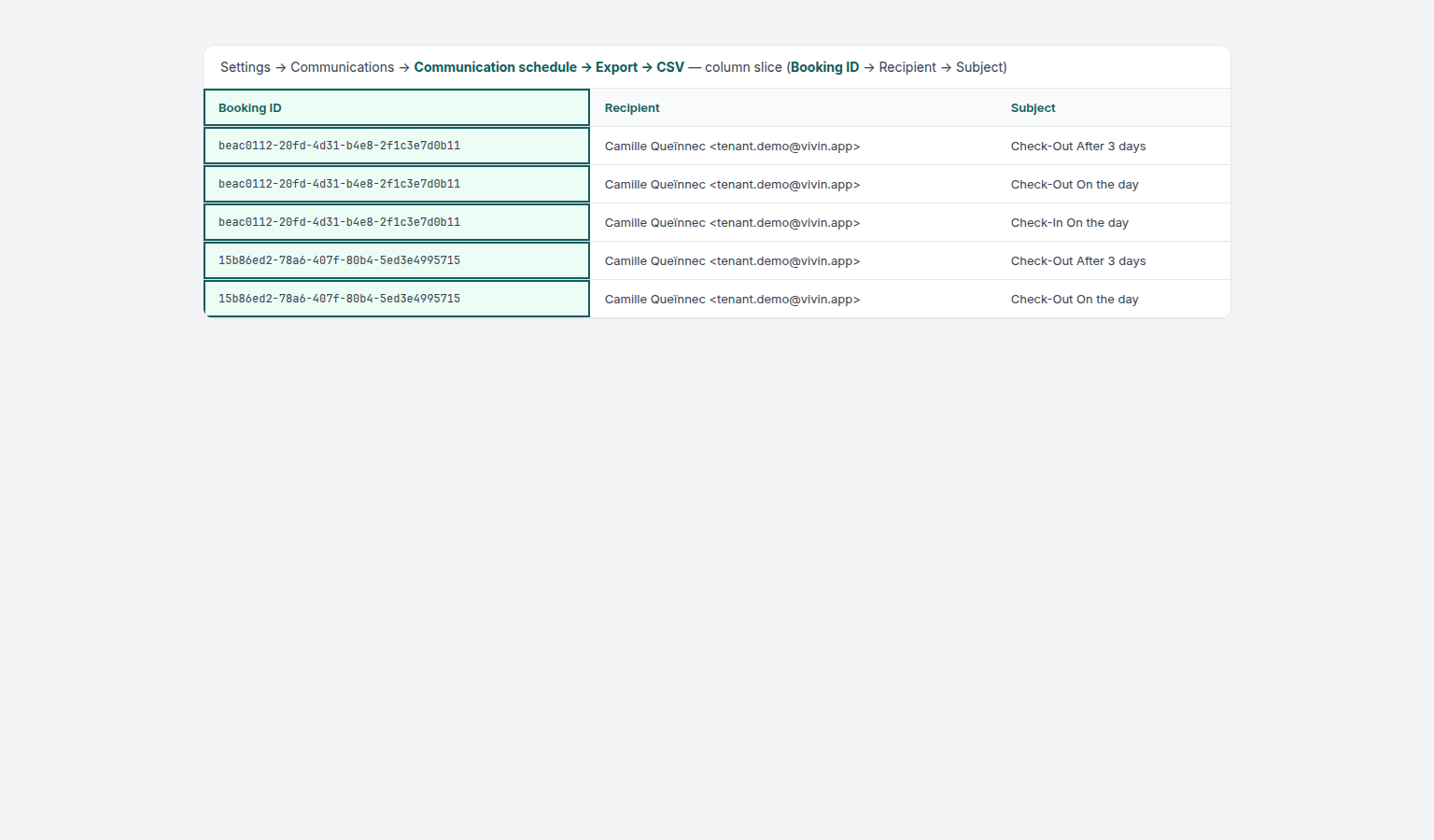
Use the search field to narrow by recipient, subject, or unit internal name. Status chips and the rule scope you opened from (toolbar All schedules vs a single rule’s calendar) further narrow the list. Export builds CSV or Excel on the server with those same filters — you get every matching row for the current search / status / rule scope without downloading the whole account history into the browser first. The file includes a translated Booking ID column (canonical header) so queued or sent messages can be joined back to the reservation. Click a row to open that booking in the Booking detail sidebar without leaving Settings.
Send now permission
Send now permission pairs with communication.send_now in Users and roles, the Now filter tab, Firing a Send now rule (recipient preview), and Send now is fire-once. Contrast scheduled Due Date / Financial Balance rules in Trigger configuration.
The Now filter tab and any rule that sends immediately (Send now / ScheduledMessageTrigger.Now) require the communication.send_now permission on the user's role. Without it, the Now tab appears disabled with an explanation, and immediate-send actions are hidden. Grant this only to roles that should blast or manually fire ad hoc tenant messages. Configure it in Users and roles via the Role Permissions matrix (same place as other Settings capabilities).
When your role includes communication.send_now, the Communication Rules toolbar shows Enabled, Disabled, and Now filter chips. Now lists only immediate-send rules (row actions include Send now where applicable):
Firing a Send now rule
Send now blast pairs with recipient preview counts, Audience filters, and Notification triage when tenants reply on blast threads. Upstream: Send now permission. After confirm, the rule is Inactive and the queued send still goes out — Send now is fire-once. Use Test on the row before production blasts.
On an inactive Now rule, use the row play control (Send now to all matching recipients) to open a recipient preview for every tenant who matches the rule’s Audience filters at that moment (properties, booking status, debt thresholds, booking tags, smart-lock scope, and so on). The product does not send until you confirm from that preview — confirming queues the blast, then the rule returns to Inactive. That is expected — Send now is fire-once. On an active Now rule, the same play control deactivates the rule (no preview):
- Open Communication Rules and select the Now filter.
- On the inactive rule you want to blast, click the play icon on the right (requires
communication.send_now; active Now rules use play to turn the rule off instead). - In Send now: <rule name>, review the summary counts and the recipient table:
- Subtitle — how many bookings match right now (for example 23 bookings match this rule right now).
- Deliverable — how many have a valid email and will receive the blast (green count).
- Without a valid email — bookings listed but skipped (red count when non-zero).
- Search — filter the table by recipient name, email, or unit internal name.
- Table columns — Recipient (name + email), Unit, Booking dates, Status (booking status badge), and Email (valid checkmark or No valid email badge).
- Click Send now to N recipients (or Send now when the count is not shown) to queue the blast, or Cancel to close without sending. The confirm button stays disabled while the preview loads, when the API errors, or when deliverable is zero.
- A success toast (Send now request submitted successfully.) confirms the request. The rule stays on the Now chip and shows Inactive — the queued messages still go out (Send now is fire-once).
If no bookings match the rule’s filters, the preview shows No matching recipients instead of a table. If the preview API fails, use Cancel and retry — your saved rule is unchanged.
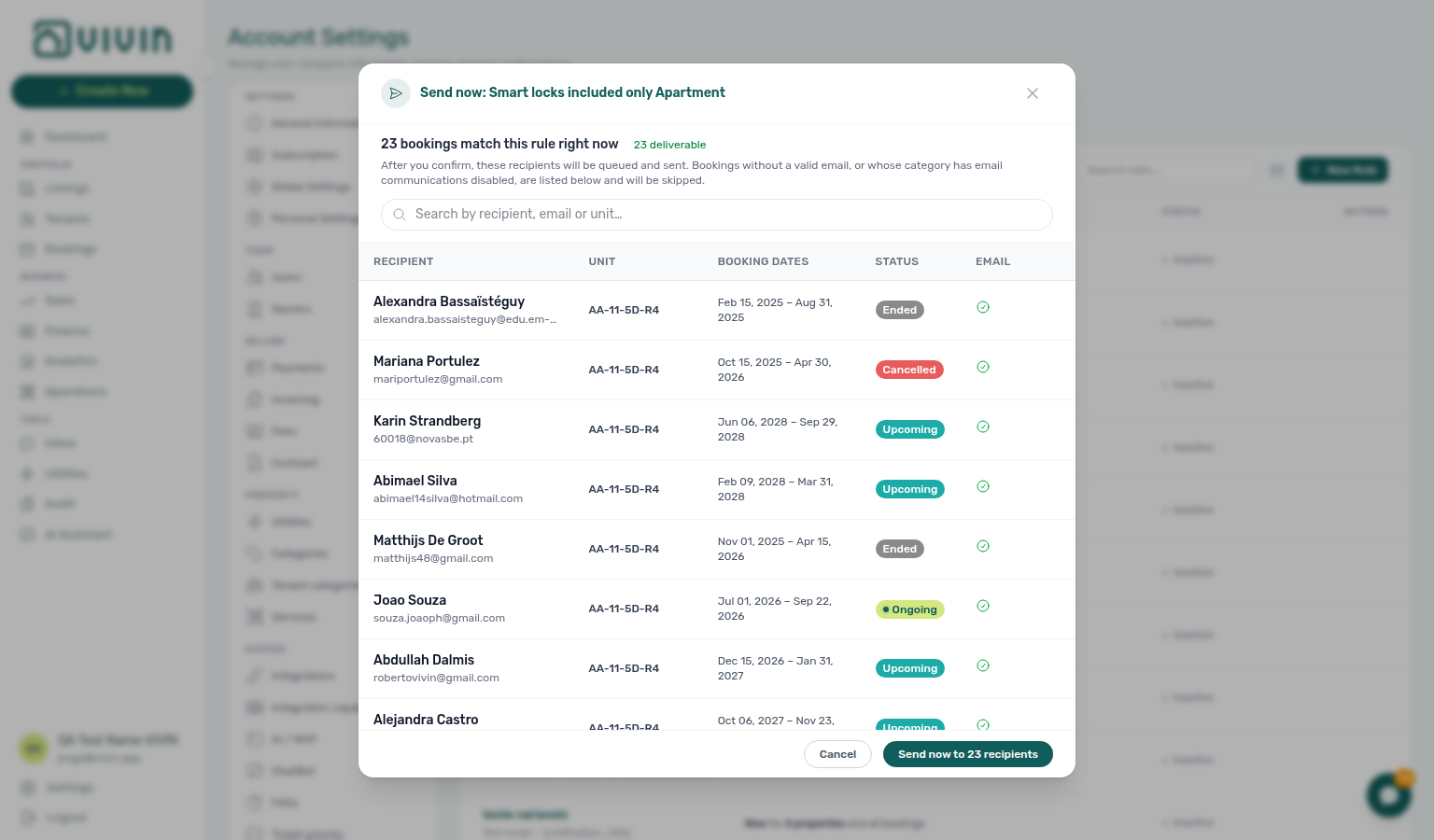
Send now can reach many tenants at once. Use the preview table to spot unexpected units or missing emails, review the rule’s Audience in Edit when counts look wrong, and use Test on the row to send only to yourself when you are validating copy.
Send now is fire-once
Send now is a one-time blast. Contrast standing Due Date / Check-in rules on the Enabled chip in Trigger configuration. Preview and permission: Firing a Send now rule. Queue: Communication schedule.
Send now does not stay on like a check-in or due-date reminder. After you confirm the preview, Vivin queues the messages and turns the rule Inactive. The emails (or SMS) you just queued still send. The Now chip still lists the rule — Enabled and Disabled are for standing events only.
| Habit | What happens |
|---|---|
| After you confirm | Toast Send now request submitted successfully. The row on Now shows Inactive (grey). |
| Queued messages | Still send. Inactive here means “do not blast again,” not “cancel this send.” |
| Tomorrow / later days | Does not send again on its own. Open play and confirm when you want the same audience again. |
| Where to find the rule | Now chip (every immediate-send rule, Active or Inactive). It does not move to Enabled or Disabled. |
| Play on Inactive | Opens the recipient preview again. Confirm to queue another blast. |
| Play on Active | Turns the rule off with no preview. Use this only if the row still shows Active (green) and you need to stop it. |
| Test | Sends a copy only to you. Does not queue the tenant blast and does not change Active / Inactive. |
| Team copies | Turn on Scheduled tenant communication: send immediately under Personal Settings → Your email preferences, or put addresses on the rule BCC. |
Open Communication schedule (toolbar calendar, or View sent/scheduled messages on the rule) to see the queued and sent rows. Test on the row when you are checking copy — not Send now.
See FAQ — Why did my Send now rule turn Inactive? and Glossary — Send now (Communication Rule).
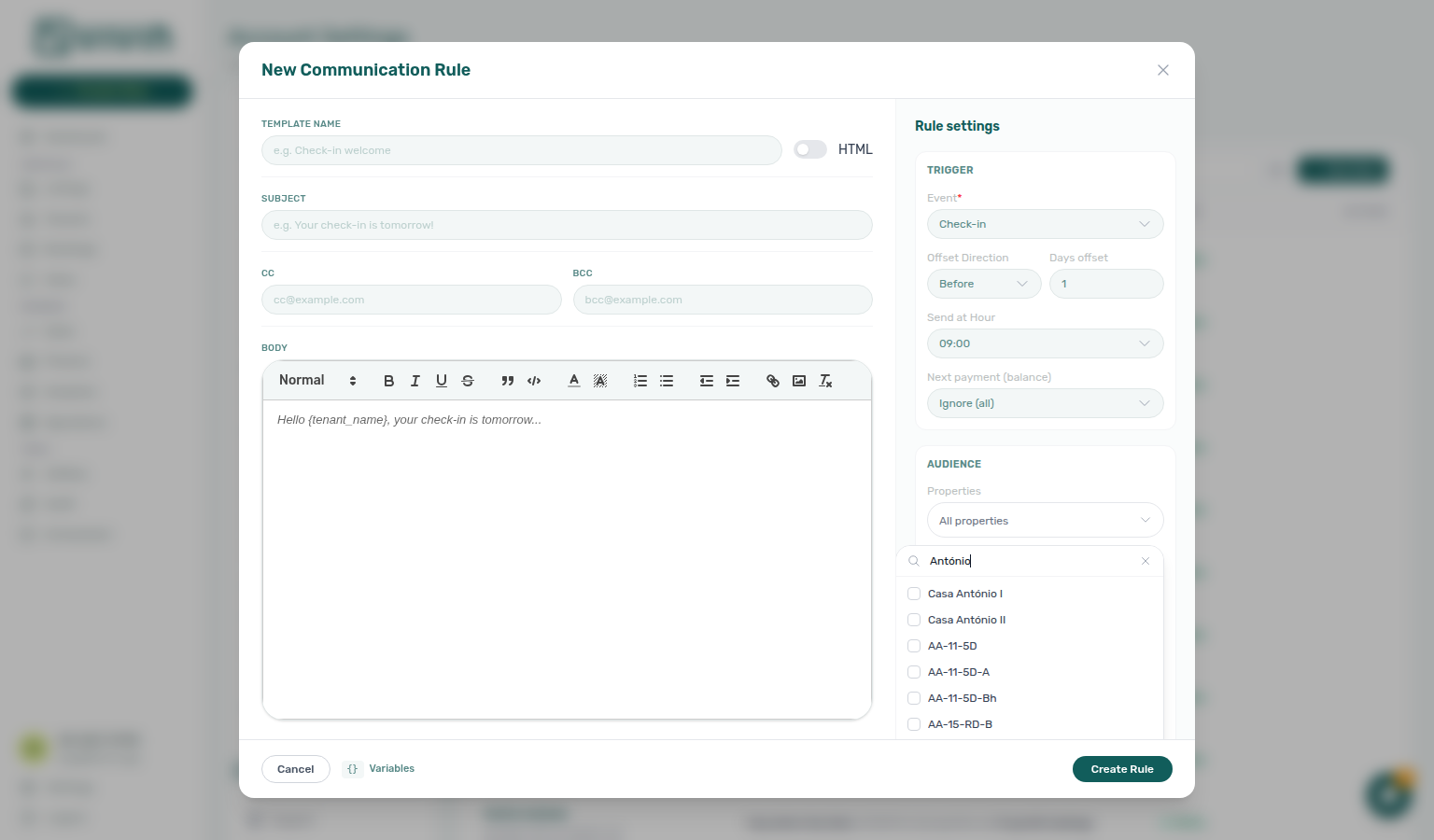
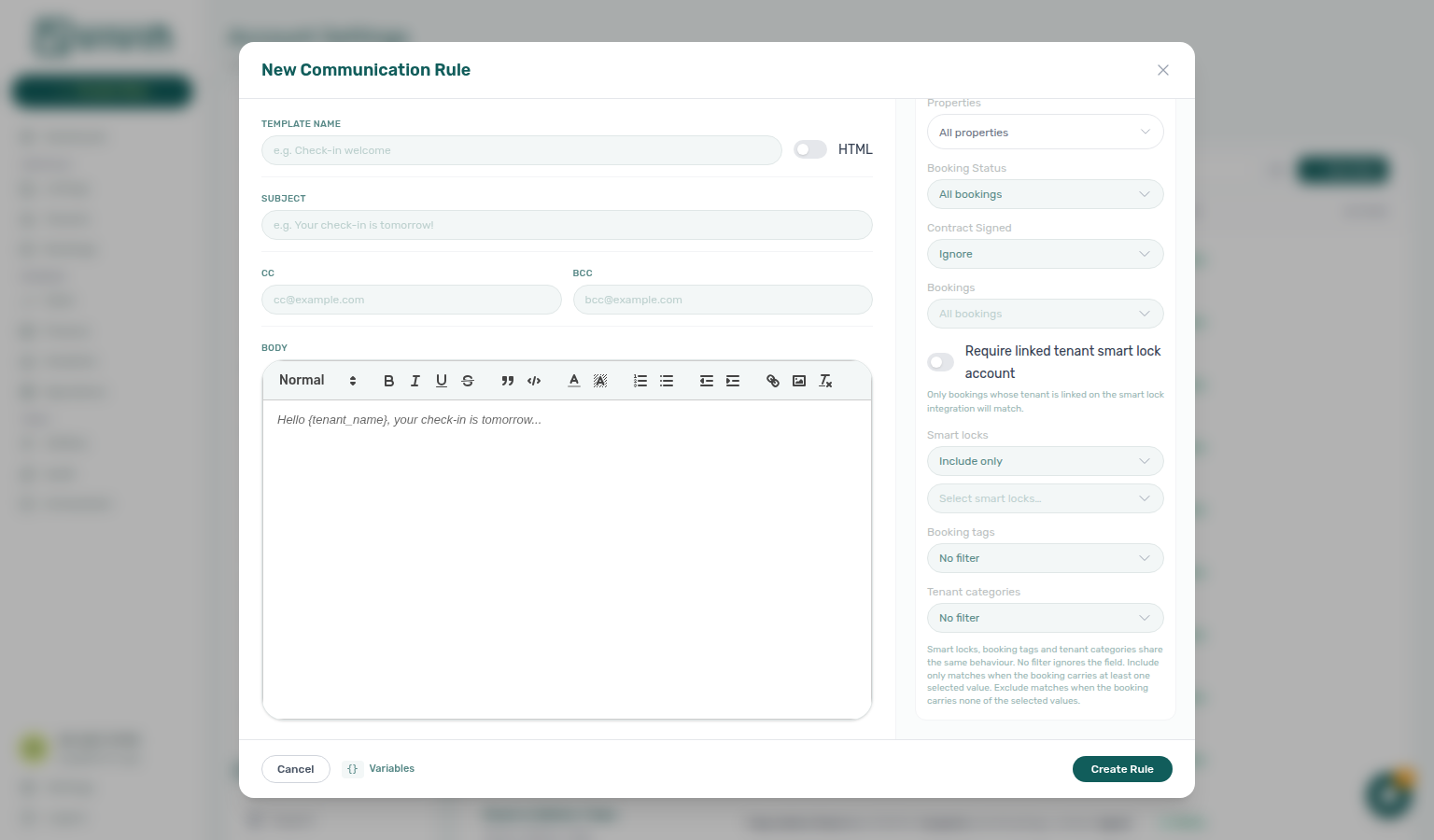
Rules can send email and, where configured, SMS bodies. Use New Rule to open the drawer: set Template name, Subject, optional CC / BCC, and Body, then configure Trigger (event, offset, send time, balance filters) and Audience (properties, booking status, contract signed, specific bookings, optional booking tags, optional tenant categories, and optional smart-lock scoping). When Specific Nuki locks is Include only or Exclude, Select smart locks… stays open while you add a second device. When Booking tags is Include only or Exclude, All tags stays open while you add a second label. When Tenant categories is Include only or Exclude, Select tenant categories… stays open while you add a second segment. Match scope and balance conditions so reminders only reach the right tenants.
Trigger configuration (rule drawer)
Trigger events pair with Bookings — Check-in & Check-out emails lifecycle mail (distinct evaluation model), Handling a Late Payment — Step 2 (overdue Due Date / Financial Balance rules), and Glossary — Communication Rules.
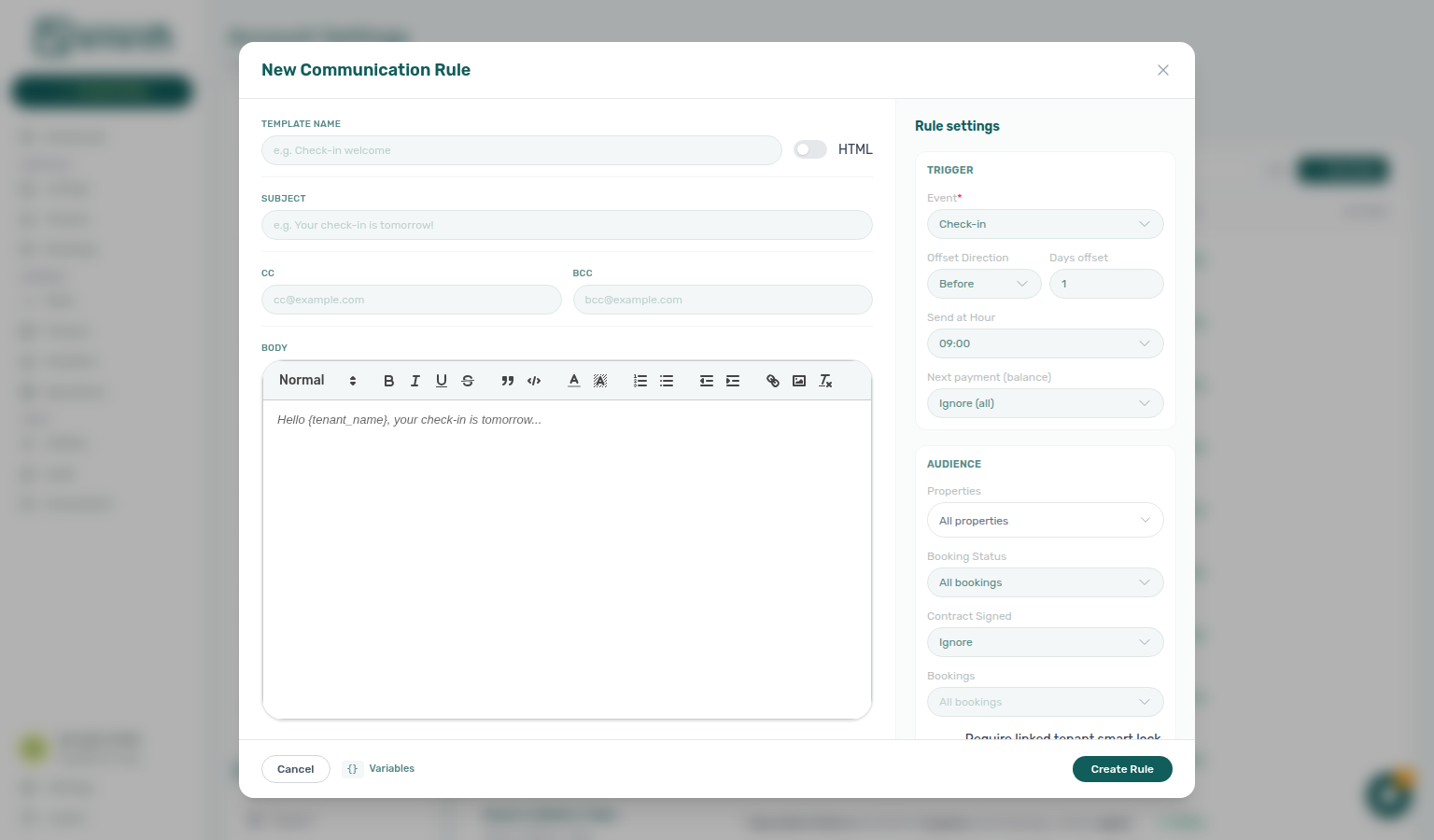
Inside New Rule or Edit, the Rule settings step includes a Trigger card. Event is required; additional fields appear or hide based on the event you pick (the product resets sensible defaults when you change events — for example Send Now clears day offsets).
| Event (English UI) | Typical use | Extra trigger fields |
|---|---|---|
| Check-in | Welcome or access instructions relative to move-in | Offset direction (Before / After / On the day), Days offset, Send at Hour |
| Check-out | Departure reminders | Same offset + hour pattern as check-in |
| Booking Confirmation | Message right after a booking is confirmed | Send at Hour only (no day offset row) |
| Due Date | Rent or charge reminders tied to scheduled due dates — one send per unpaid payment line, not one per booking (Due Date — one reminder per unpaid payment) | Offset + hour, plus Balance (financial) and Threshold (€) (see below) |
| Financial Balance | Debt nudges when the booking balance is negative | Minimum debt (€) — rule runs when absolute debt is at least this amount; Send at Hour |
| Penalty Fee | Follow-up after a penalty line exists. Stays with Exclude this booking from penalty fees ticked skip this trigger. Marketplace imports land with the box off — Creating Bookings — Exclude from penalty fees. | Send at Hour; Next payment (balance) filter is hidden for this event |
| Auto-cancellation | Tenant notice after Auto-cancel unpaid move-in voids the stay | Send at Hour only (same day; offset, booking status, and balance filters hidden) |
| Send Now | Immediate blast (requires communication.send_now; see Send now permission) — fire-once, then Inactive (Send now is fire-once) | No schedule fields — audience filters alone define who receives the blast when you confirm from the preview |
Offset direction and Days offset apply only to Check-in, Check-out, and Due Date. Choose On the day to fire on the event date itself (offset value locks to 0). Send at Hour is available on every scheduled event except Send Now and Booking Confirmation (confirmation uses its own timing model). Auto-cancellation keeps the hour control and locks timing to the same day.
Due Date adds a second balance row:
| Field | Purpose |
|---|---|
| Balance (financial) | Ignore (all), Negative balance (in debt), or Positive balance (credit) — narrows which bookings qualify relative to the payment-plan balance on the due date |
| Threshold (€) | Minimum balance magnitude when the balance filter is not Ignore (disabled when set to Ignore) |
Most other events (except Check-out, Booking Confirmation, Penalty Fee, and Auto-cancellation) also expose Next payment (balance) with the same Ignore / Negative / Positive options — use it when the rule should only match tenants whose upcoming scheduled line is in debt or in credit.
Row badges in the rules list summarize the saved trigger (timing + filters). Open Edit to change event, offsets, or balance gates without recreating the rule.
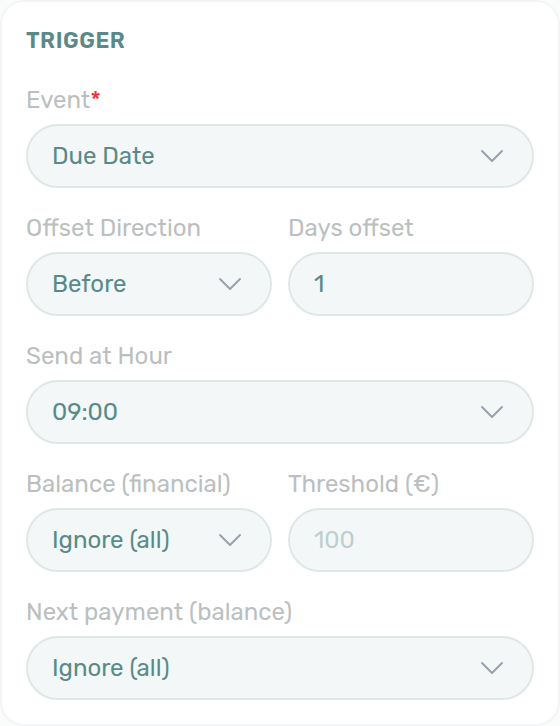
Due Date — one reminder per unpaid payment
Due Date pairs with Payment Plan / Contract Values unpaid lines and Handling a Late Payment — Step 2 (sent vs scheduled). Contrast Financial Balance in Trigger configuration (one nudge from overall booking debt). Queue: Communication schedule.
A Due Date Communication Rule does not send one email (or SMS) per booking. It schedules one message per unpaid payment line on matching bookings.
Each send uses that line’s due date, plus this rule’s Offset direction, Days offset, and Send at Hour. In the capture above, Before 1 day at 09:00 means a charge due on the 5th is queued for the 4th at 09:00. A later unpaid month on the same stay gets its own row on Communication schedule.
| Habit | What happens |
|---|---|
| What counts as unpaid | The line still has an amount to collect (greater than €0, and not fully paid). Rent, deposit, admin / cleaning / exit fees, and extra charges can each produce a send. |
| Paid in full | That line is skipped. A reminder that was still Scheduled for it is dropped when the schedule next refreshes. |
| Partly paid | Still counts — the remaining amount is enough. |
| €0 line | Skipped (nothing to collect). |
| Two unpaid lines on the same due date | One send that day — they share the same scheduled time. |
| Financial Balance (different event) | One nudge per booking from overall debt. Use that when you want a single “you are in debt” message, not a reminder for every installment. |
Balance (financial) / Threshold (€) and Next payment (balance) still decide which bookings match. They do not fold several unpaid months into a single send.
Open Communication schedule (toolbar calendar, or View sent/scheduled messages on the rule) to confirm one row per send. Leave New Rule with Cancel unless you intend to keep the rule.
See FAQ — Several Due Date emails for one booking and Glossary — Due Date (Communication Rule).
Auto-cancellation
This event pairs with Preferences — Auto-cancel unpaid move-in (the job that cancels the stay) and Cancelling a Booking (manual Cancel booking on Contract Info — a different path).
Use Auto-cancellation when Auto-cancel unpaid move-in voids a stay because every move-in required charge stayed fully unpaid past the grace period. The tenant then receives this rule’s email (subject, body, CC / BCC) the same day.
Cancel booking on Contract Info does not send this rule. For a manual void, write to the tenant yourself if they still need a notice. If you already have this Communication Rule, it still sends — the Event label is Auto-cancellation so it is not confused with Cancel booking.
| Habit | What happens |
|---|---|
| Event | Auto-cancellation in the rule drawer. The list summary reads On auto-cancellation at …. |
| When it sends | Same day at Send at Hour (the drawer defaults to 10:00). Day offset, booking status, and balance filters are hidden — the stay is already Canceled, and cancelling unpaid lines would make a debt/credit filter match nobody. The list summary also omits debt/credit wording for this event. |
| If the hour already passed | Vivin sends at the next occurrence of that hour (within two days). |
| Audience | Properties, booking tags, tenant categories, contract signed, and specific bookings still apply. Send Nuki invite is hidden — this email never invites the tenant into Nuki. |
| How often | At most one email per booking per this rule. A newly created rule does not email older auto-cancels. |
| Team copies | There is no separate internal alert. Put teammates on CC / BCC, or turn on Scheduled tenant communication: auto-cancellation under Personal Settings → Your email preferences. |
Leave New Rule with Cancel unless you intend to keep the rule.
HTML vs rich-text body
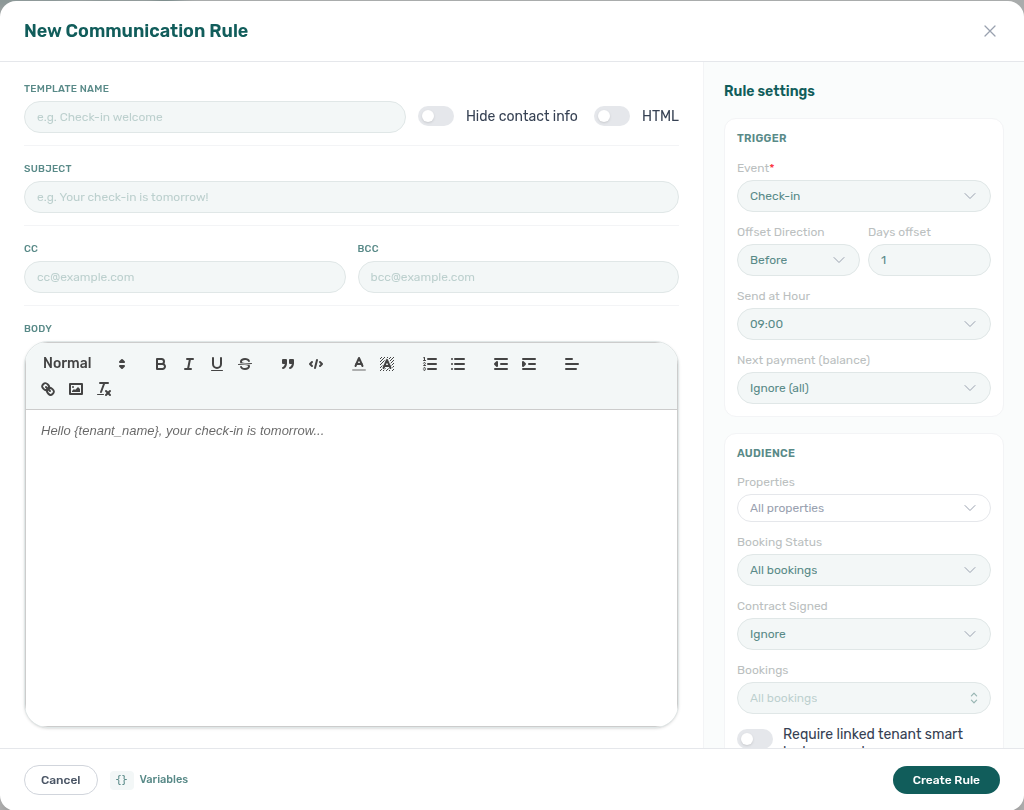
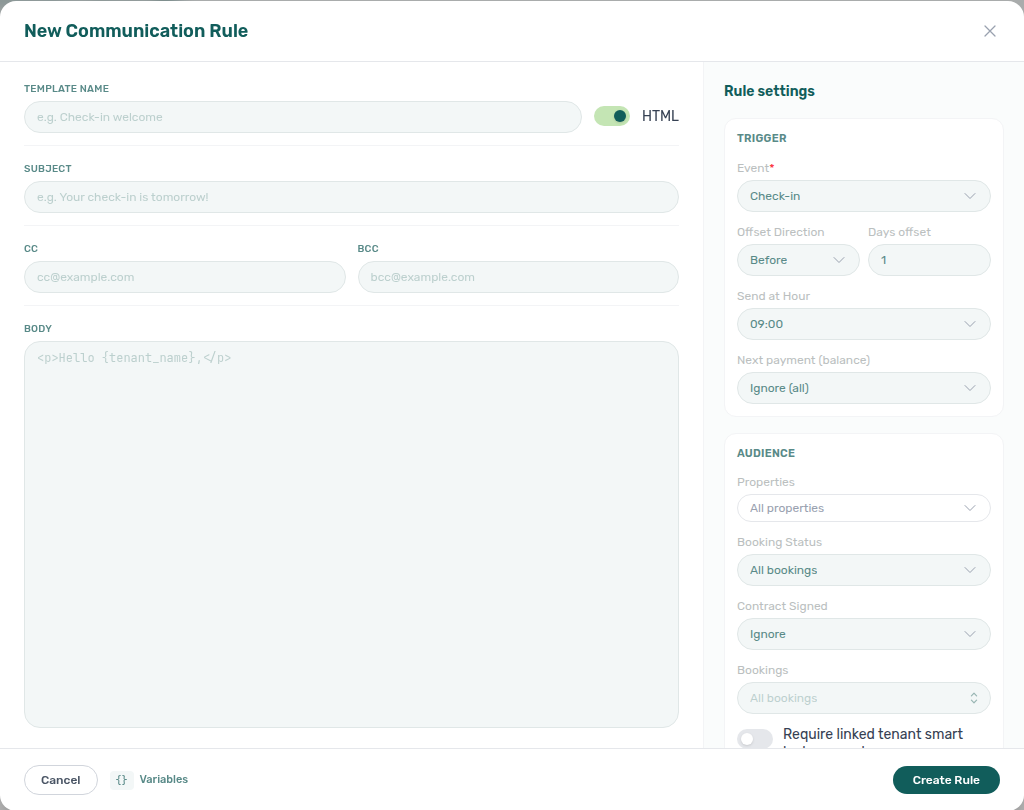
Beside Template name, the HTML toggle switches how you author the message body:
| HTML | Editor | Typical use |
|---|---|---|
| Off (default) | Rich-text editor with formatting toolbar | Most tenant emails — paragraphs, links, and lists with {VariableName} placeholders |
| On | Plain HTML textarea (monospace) | Branded layouts or markup you paste from an external template; placeholders still use {VariableName} syntax |
When HTML is on, CC and BCC stay available; the product sends the body as HTML rather than the rich-text HTML the visual editor would generate. The body field switches to a monospace textarea for raw HTML. Test with Test on the rule row before enabling a rule for production traffic. Hide contact info sits beside HTML on the standard (rich-text) template — see Hide contact info.
Hide contact info
The standard footer uses General Information company name, email, and phone. Authoring the body: HTML vs rich-text body. Copy guidance: Best Practices for Email Content.
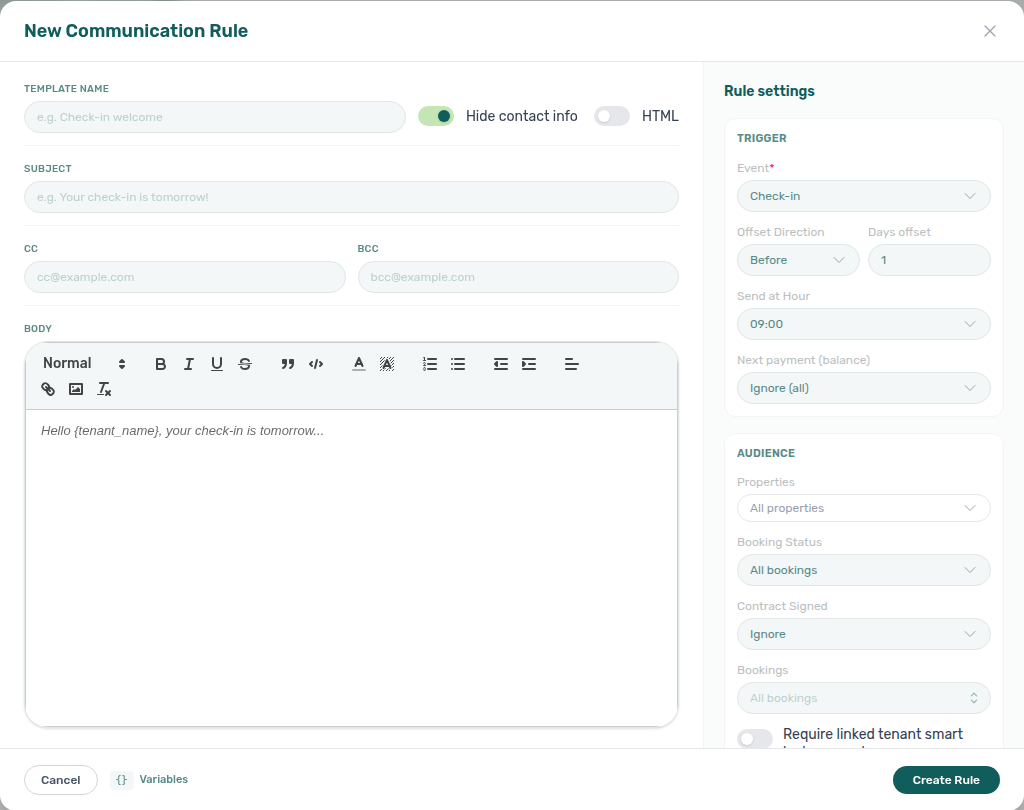
Beside Template name, Hide contact info opts this standard (rich-text) email out of the trailing Contact information block. Hover the control for the in-product hint: the standard template ends with your company’s name, email, and phone from Settings → General Information.
| Hide contact info | What tenants receive |
|---|---|
| Off (default) | After your body, the standard template adds Contact information — Name, Email, and Phone from General Information. |
| On | The same subject and body; the trailing Contact information block is omitted. Put a reply path in the body if tenants still need a way to reach you. |
The toggle is visible only on email rules with HTML Off. Turning HTML On hides it (the standard footer is not part of an HTML body — add contact lines in your markup if you still want them). SMS / phone rules also hide the control. If you turn HTML off later, the last Hide contact info choice comes back.
Vivin reads the setting when the message sends, so changing it on an existing rule applies to emails already queued for that rule — you do not need to recreate the schedule.
Leave New Rule with Cancel (or Escape) unless you intend to create the rule. Use Edit on an existing rich-text email rule when you want to save the change.
Audience: Properties (portfolio scope)
Audience scoping pairs with Bookings — Tenant categories, Finance — Tenant category filter, and Portfolio KPI review — Step 6 before account-wide rule changes. Send now preview: Firing a Send now rule.
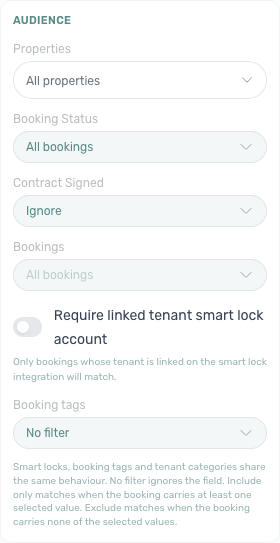
At the top of the rule drawer Audience card, Properties scopes which buildings the rule can match. The control is a server-paged multi-select (same picker pattern as Utilities connections and Sales Pricing property filters):
| Selection state | Behaviour |
|---|---|
| Empty (placeholder All properties) | Global rule — any property on the account can match, subject to the booking-status, balance, tag, and smart-lock filters below. |
| One or more property chips | Rule runs only for bookings tied to at least one of the selected properties (OR semantics across buildings). |
Open the picker to search by internal property code or name; scroll the dropdown to load more rows. Selected properties appear as removable chips under the trigger. Clearing every chip returns the rule to All properties. With an active query, internalName matches rank above address-only hits before pagination — see Glossary — Picker search ranking.
Audience: Nuki, Smart locks, booking tags, and tenant categories
Further down the same Audience card (below Properties and the booking-level filters):
| Control | Purpose |
|---|---|
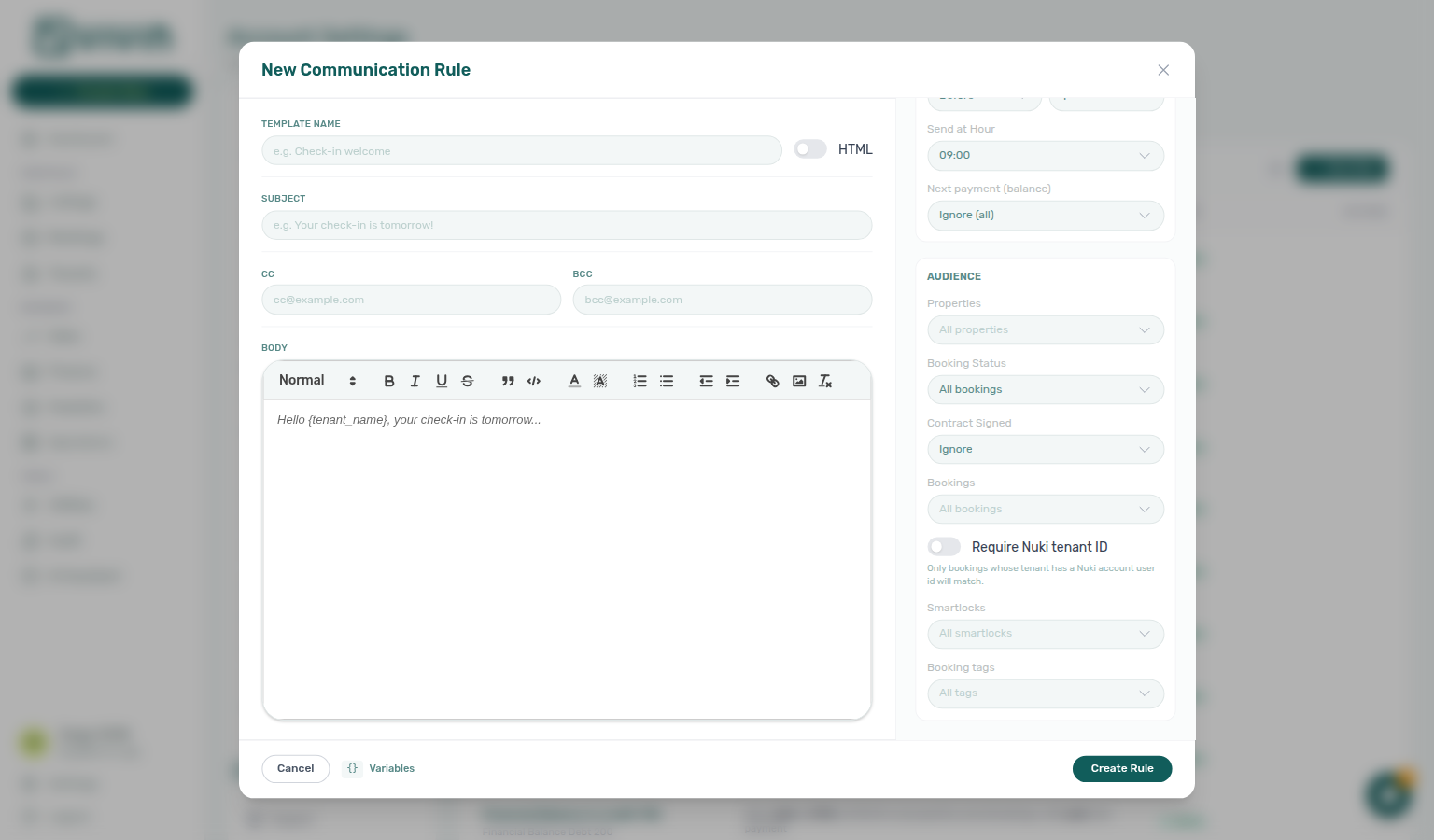
| Require Nuki tenant ID | When enabled, only bookings whose tenant has a Nuki account user id match the rule (subtitle in the UI explains this). Use for check-in or access messages that assume Nuki-generated codes. |
| Send Nuki invite | After this email rule sends successfully, trigger the booking’s Nuki app invitation. Independent of This is the check-in email — turn it on when you still need the invite after designating a custom check-in rule. |
| This is the check-in email | Email rules with Check-in trigger only (hidden for SMS and for other events). When a provider-confirmed send succeeds, Vivin sets checkInEmailSentAt so the Tenant Portal can reveal Entry codes — the same watermark the automatic lifecycle check-in template writes. Default off. Enabling it replaces Vivin’s automatic lifecycle check-in email for matching bookings (including that template’s built-in Nuki invitation) — see Marking a Communication Rule as the check-in email. |
| Specific Nuki locks | When your account has Nuki devices connected (Integrations), a filter mode dropdown appears above the lock picker: No filter, Include only, or Exclude, plus a searchable Select smart locks… multi-select when a scoped mode is active. The lock menu stays open while you add another device. Selected locks appear as removable chips under the picker. No filter ignores lock ids even if the rule previously stored them. Validation blocks save when Include only or Exclude is selected but no locks are chosen. |
| Booking tags | When your account defines tags under Categories → Bookings, the same No filter / Include only / Exclude pattern applies to booking labels. Pick one or more tags when scoped — a booking matches Include only when it carries at least one selected tag (OR across selected tags), and Exclude when it carries none of the selected tags (for example exclude VIP to skip premium tenants on a mass reminder). The tag menu stays open while you add another label. The field is hidden until at least one booking tag exists on the account or the rule already stores tag filters. |
| Tenant categories | When Tenant categories exist on the account, the same No filter / Include only / Exclude pattern applies to the tenant’s assigned category on the booking. Pick one or more categories when scoped — Include only matches when the tenant’s category is at least one of the selected segments. The segment menu stays open while you add another named segment. Hidden until categories exist or the rule already stores category filters. If categories fail to load while you edit, the drawer shows a short unavailable notice instead of the picker. Before you save a scoped rule, cross-check audience size with the same segment on Bookings — Tenant categories, Finance — Tenant category filter, or Tenants — Tenant category filter — see Portfolio KPI review — Step 6. |
This is the check-in email
Custom check-in designation pairs with When lifecycle check-in emails send (automatic template still runs unless this rule replaces it), FAQ — Automatic check-in email, FAQ — Portal entry codes, and Glossary — Lifecycle check-in email.
Accounts that send arrival / access mail through Communication Rules (instead of — or in addition to — Booking lifecycle emails) need the send to count as the booking’s check-in email, or the tenant portal never sets checkInEmailSentAt and Entry codes stay hidden.
| Condition | Behaviour |
|---|---|
| Email + Check-in trigger | Toggle This is the check-in email appears on the Audience card (below Send Nuki invite). |
| SMS / phone or other triggers | Toggle is hidden; changing the event away from Check-in clears a previously saved flag. |
| Toggle Off (default) | Rule sends normally; it does not write checkInEmailSentAt. Lifecycle automation and Send / Resend on Contract Info still own the check-in watermark. |
| Toggle On | A provider-confirmed successful send records checkInEmailSentAt and replaces Vivin’s automatic lifecycle check-in email for those bookings. |
When the toggle is On, the drawer shows an amber warning: the automatic check-in template (including its Nuki app invitation) no longer fires for matching bookings — turn on Send Nuki invite on the same rule if tenants still need the invite.
Use this when you author your own check-in body, timing, or audience on Communication Rules and still want portal Entry codes after send. Prefer the lifecycle Check-in template when the default trigger matrix is enough — see When lifecycle check-in emails send.
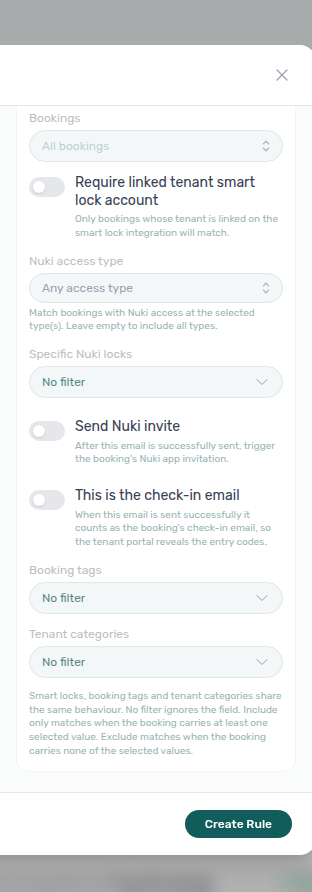
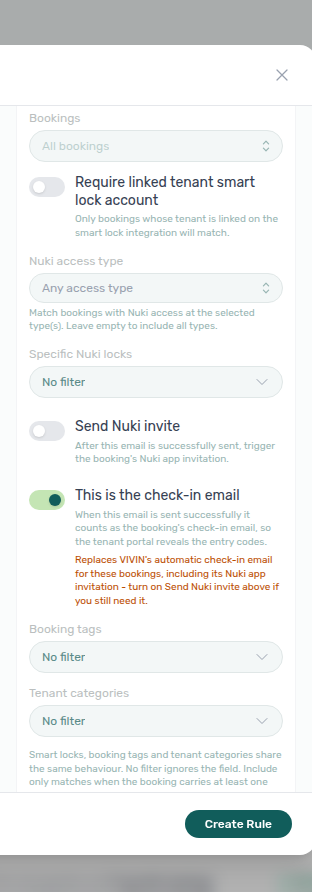
Shared filter modes — Specific Nuki locks, Booking tags, and Tenant categories use one explanation at the bottom of the Audience card (shown when at least one of those three sections is visible):
- No filter — the field does not restrict the audience.
- Include only — the booking must carry at least one of the values you selected.
- Exclude — the booking must carry none of the values you selected.
All audience filters on the card still combine with AND against the rest of the rule (properties, booking status, balance filters, and so on).
The Specific Nuki locks block appears when Nuki locks exist on the account or when an existing rule already stores lock ids or a non-No filter mode. It is independent of the lifecycle Only for Nuki access toggle on the Booking lifecycle emails sub-tab — that toggle scopes the default check-in template; Specific Nuki locks scopes individual Communication Rules.
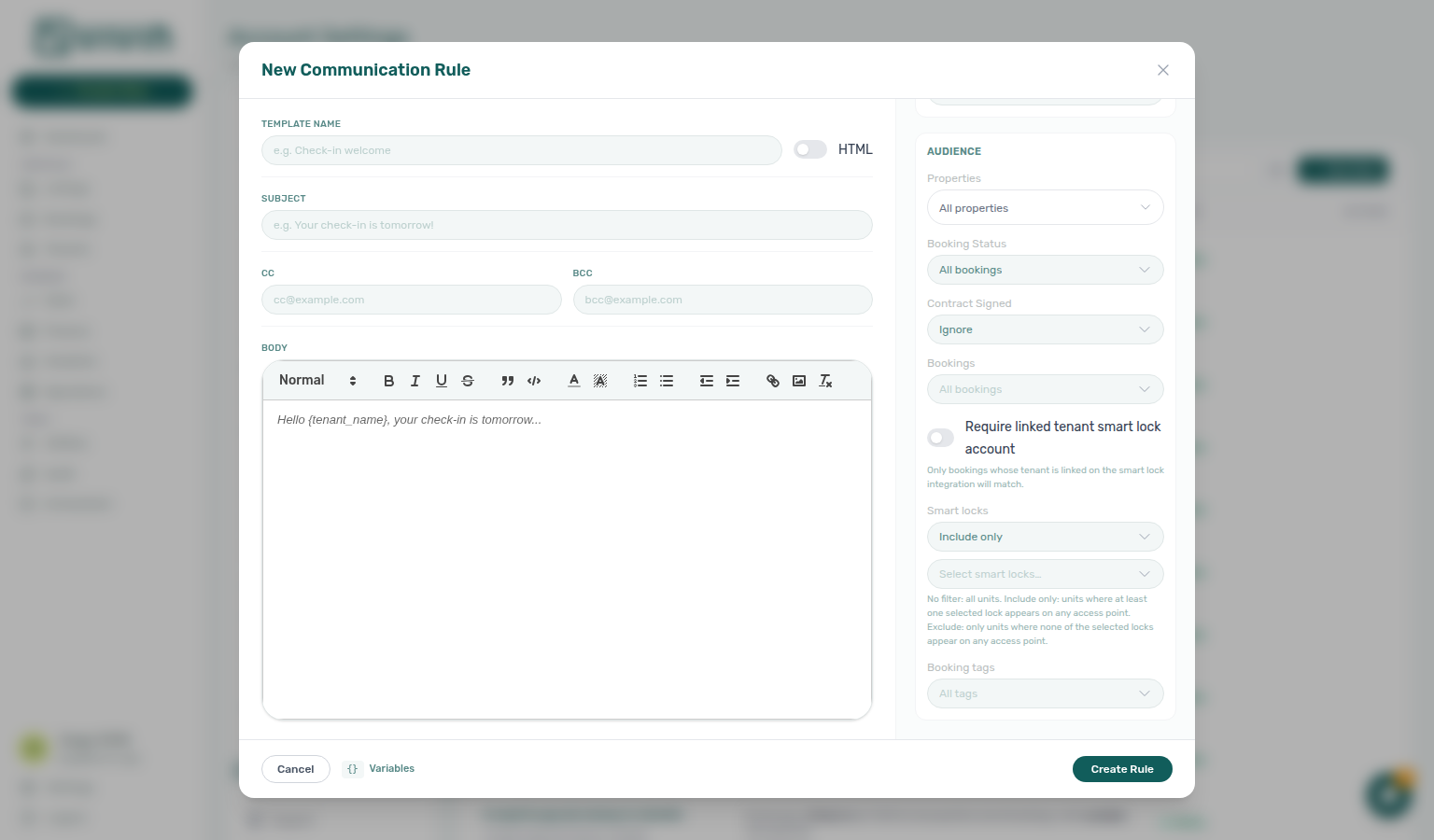
Select smart locks stays open while you pick
On Settings → Emails → Communication Rules, open New Rule or Edit, then scroll the Audience card to Specific Nuki locks. Set the mode to Include only (or Exclude) so Select smart locks… appears. Open that menu and tick a lock. The trigger still reads Select smart locks…; the menu stays open so you can tick a second lock. You do not need to open the picker again.
Use the search box in the list when the account has many devices. Tick the first lock, then a second lock. Both stay checked in the open list. Removable chips appear under the picker. Include only matches stays whose building, apartment, or room Nuki access points include any of the locks you ticked — not only stays that somehow use every selected lock. Exclude skips stays that have any of those locks. Dismiss the menu when the chips look right — click Template name or Subject, or Cancel the drawer. Same stay-open habit as Listings — Select tags.
Picking locks here only scopes who can match the rule. It does not change a lock, send mail, or save the rule. Leave the drawer with Cancel (or Escape) after you confirm the habit — do not click Create Rule or Save unless you intend to keep the audience.
The No filter / Include only / Exclude dropdown is a different control (it closes after one pick). Nuki access type (building / apartment / room) is a different menu. Require Nuki tenant ID is a toggle about whether the tenant is linked on Nuki — not which door is on the unit. Booking tags uses the same stay-open picker when its mode is Include only or Exclude. Tenant categories on this card uses the same habit for tenant segments. Lifecycle Only for Nuki access on Booking lifecycle emails is a different switch on a different sub-tab.
Booking tags stays open while you pick
On Settings → Emails → Communication Rules, open New Rule or Edit, then scroll the Audience card to Booking tags. Set the mode to Include only (or Exclude) so All tags appears. Open that menu and tick a tag. The trigger still reads All tags; the menu stays open so you can tick a second tag. You do not need to open the picker again.
Use the search box in the list when the account has many labels. Tick Corporate, then Renewal (or another pair from Categories → Bookings). Both stay checked in the open list. Removable chips appear under the picker. Include only matches stays that carry any of the tags you ticked — not only stays that carry every selected tag. Exclude skips stays that have any of those tags. Dismiss the menu when the chips look right — click Template name or Subject, or Cancel the drawer. Same stay-open habit as Select smart locks.
Picking tags here only scopes who can match the rule. It does not send mail or save the rule. Leave the drawer with Cancel (or Escape) after you confirm the habit — do not click Create Rule or Save unless you intend to keep the audience.
The No filter / Include only / Exclude dropdown is a different control (it closes after one pick). There is no No booking category row here — untagged stays stay in the audience until a named tag filter excludes them. Marketplace imports land untagged — Include only will not match those stays until an operator picks chips on Contract Info (Creating Bookings — Booking tags). If you do not see Booking tags, add tags under Settings → Categories → Bookings first (or edit a rule that already stores tag filters).
Bookings → Booking categories is a different toolbar control (it includes No booking category). Payments → Rent adjustment → Select categories and Finance → Other filters → Booking → Select categories are different list and preview filters. Tenant categories on this same Audience card is a different catalog (tenant segments). Select smart locks… is a different picker for Nuki devices.
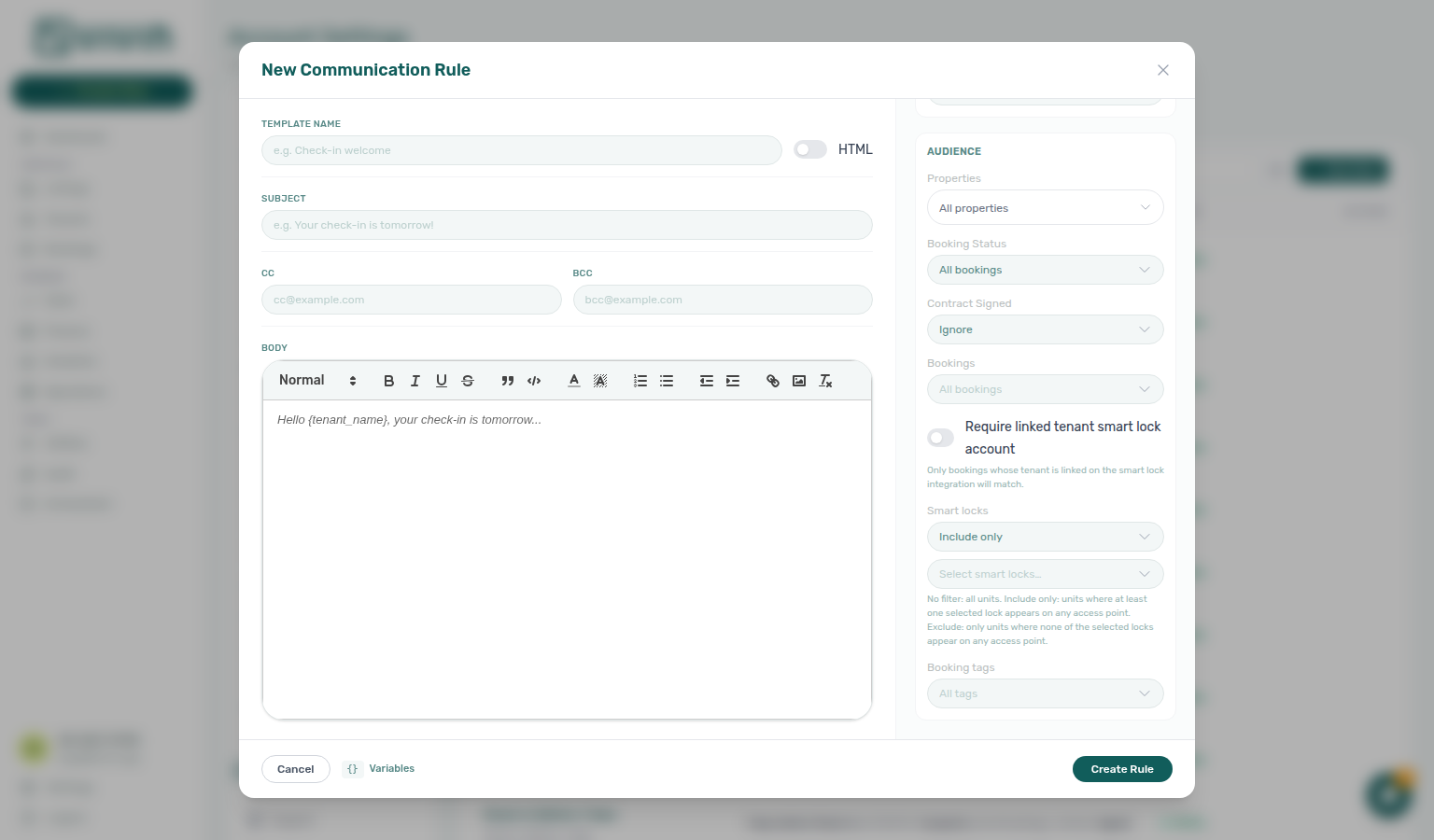
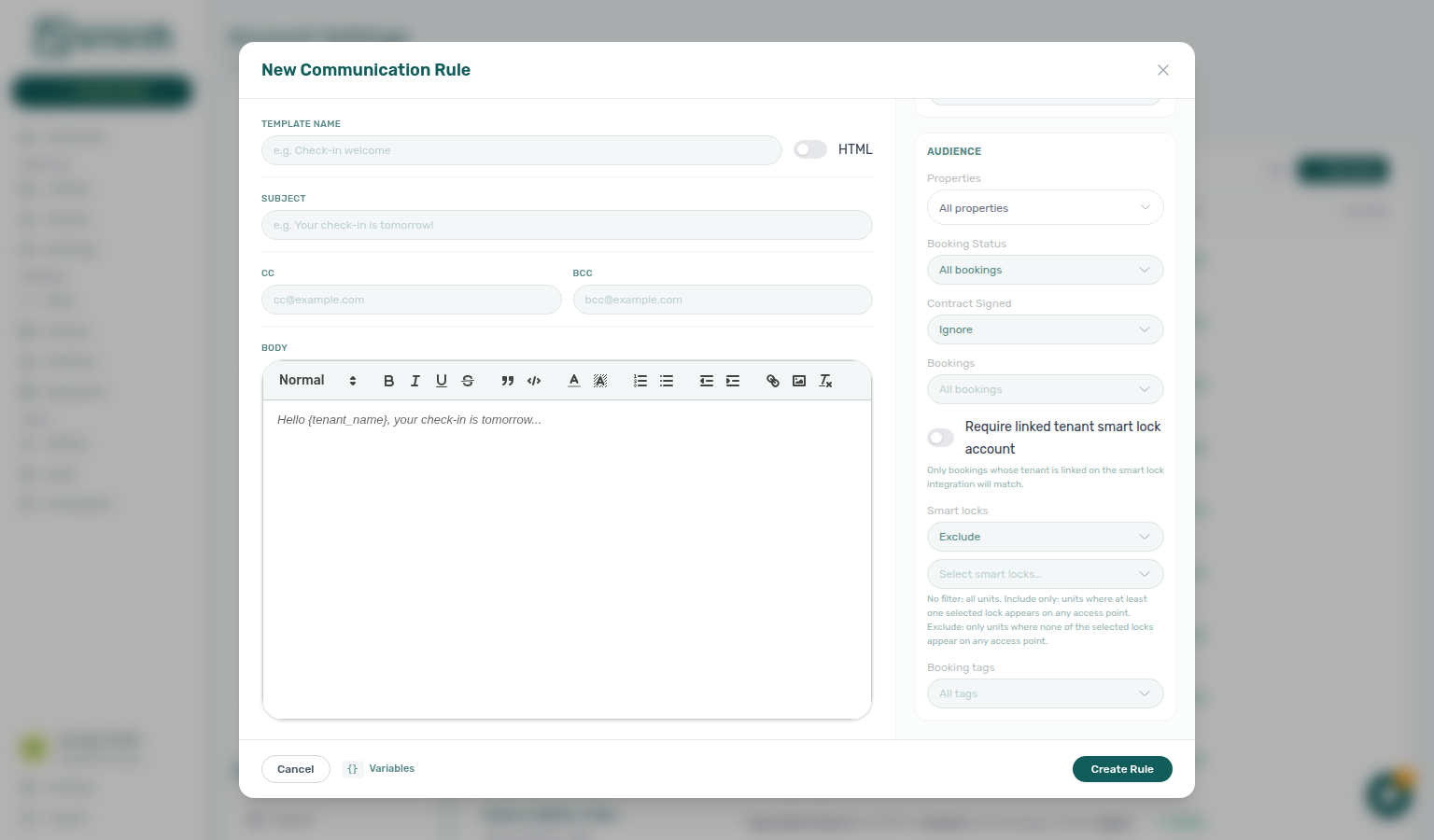
Tenant categories stays open while you pick
On Settings → Emails → Communication Rules, open New Rule or Edit, then scroll the Audience card to Tenant categories. Set the mode to Include only (or Exclude) so Select tenant categories… appears. Open that menu and tick a named segment. The trigger still reads Select tenant categories…; the menu stays open so you can tick a second segment. You do not need to open the picker again.
Use the search box in the list when the account has many segments. Tick Corporate, then a second named segment from Settings → Tenant categories. Both stay checked in the open list. Removable chips appear under the picker. Include only matches stays whose tenant profile carries any of the segments you ticked — not only tenants that somehow sit in every selected category. Exclude skips stays whose tenant is in any of those segments. Dismiss the menu when the chips look right — click Template name or Subject, or Cancel the drawer. Same stay-open habit as Booking tags.
Picking segments here only scopes who can match the rule. It does not send mail or save the rule. Leave the drawer with Cancel (or Escape) after you confirm the habit — do not click Create Rule or Save unless you intend to keep the audience.
The No filter / Include only / Exclude dropdown is a different control (it closes after one pick). There is no No tenant category or No category row here — unassigned tenants stay in the audience until a named segment filter excludes them. If you do not see Tenant categories, add segments under Settings → System → Categories → Tenants first (or edit a rule that already stores category filters), and confirm Enable tenant categories is On.
Tenants → All categories is a different directory filter (it includes No category). Bookings → Tenant categories is a different toolbar control (placeholder Tenant categories; empty-case No tenant category). Finance → Other filters → Tenant → Tenant category is a drawer filter. Booking tags on this same Audience card is a different catalog (reservation labels from Categories → Bookings). Select smart locks… is a different picker for Nuki devices.
Audience: Contract Signed
Contract Signed on the Audience card narrows a rule by the stay's contract: Ignore matches every stay, Contract signed keeps stays with a signed agreement on file, and Contract not signed keeps stays that still need one.
Contract not signed leaves out tenants whose tenant category has Tenant Portal Access or the Contract portal module turned off. Those tenants never get a contract to sign in Vivin, so a reminder to sign would not make sense. The drawer says so under the choice: Tenants whose category has no Tenant Portal or Contract are not included. They are the stays with a grey dash (Not applicable) in the Bookings Contract column.
Pending Contract not signed messages follow these changes straight away. Turning Tenant Portal Access or Contract off for a category, or moving a tenant into such a category, removes the reminders already queued for those tenants. Turning it back on, or moving the tenant out, schedules again the reminders whose send time is still ahead.
Common use cases
- Payment Due Reminder — send a reminder email 3 days before a payment is due
- Overdue Payment Notice — send a notification the day after a payment becomes overdue
- Check-in Reminder — send a reminder 7 days before move-in with final arrival details
- Contract Expiry Notice — send an alert 60 days before a contract ends
Configuring an Automated Communication
For each automated communication, you configure:
| Field | Description |
|---|---|
| Name | An internal label for this rule (not shown to tenants) |
| Trigger Event | The event that starts the countdown (e.g., "Payment Due Date," "Check-in Date," "Booking End Date") |
| Timing | How many days before or after the trigger event this email should be sent |
| Condition | Additional conditions that must be true (e.g., "Only if payment is still unpaid," "Only if contract is signed") |
| Subject and Body | Email (and optional SMS/HTML) content, with {VariableName} placeholders |
| Hide contact info | Standard (rich-text) emails only — omit the trailing Contact information block from General Information; hidden when HTML is on — see Hide contact info |
Set up at least two payment-related automations: a pre-due reminder (e.g., 3 days before) and a post-due notice (e.g., 1 day after). Many late payments are simply oversight — a timely reminder before the due date can prevent them entirely.
Best Practices for Email Content
Copy and tone here pair with General Information contact blocks, Tenant categories (Communications / Email per segment), and FAQ — automatic check-in email when lifecycle mail misfires.
Keep emails concise and action-oriented. Tenants are more likely to read and act on short, clear emails. Put the most important information (dates, amounts, action required) at the top.
Use the tenant's name. Start with Dear {TenantName} (or a short salutation you prefer) rather than generic greetings. Personalized emails have higher engagement and feel more professional.
Include a way to reach you. The standard Communication Rule template adds Contact information (company name, email, and phone from General Information) unless Hide contact info is On. If you hide that block — or author HTML — put a reply path in the body.
Be specific in check-in emails. Include the check-in time, exact address, access instructions, and who to contact if there are problems. The access codes from the Access Lockers tab are appended automatically, but additional context (e.g., "Use the side entrance on Rua da Prata") helps tenants arrive smoothly.
Test with a real booking. After customizing your templates, create a test booking with your own email address to verify the email content, variable replacement, and formatting look correct before going live.
Key Rules
Summary rules here pair with Listings — Access Lockers (automatic check-in codes), Bookings — Communication tab (WhatsApp audit distinct from Communication Rules), and Payment Allocation — Reject/revert when reminder disputes involve invoiced receipts.
-
Lifecycle emails use account-wide templates. All tenants receive the same onboarding, check-in, and check-out email templates. Property-level customization is additive — custom property text is appended to the default template, not a replacement.
-
Dynamic variables are replaced at send time. Variables are populated with the actual booking data at the moment the email is sent. If booking details change after the email is sent, the tenant will have the old values.
-
Automated reminders require conditions to be useful. A payment reminder without the "Only if payment is still unpaid" condition will be sent to every tenant — including those who have already paid. Always set appropriate conditions.
-
Access codes are appended automatically. You do not need to include access code variables in your check-in email template — any codes configured in the property's Access Lockers tab are automatically added to the check-in email.
Emails section cross-reference
Use the sections above for this settings area. Related setup pages are linked from Related below when present, or from Account Settings.
Related
Related below links this Account Settings tab to modules, workflows, concepts, and escalation paths.
Documentation map & escalation
- Account Settings hub — Tab pairing matrix across workspace configuration
- Management Frontend Deep Links — Account Settings — Legacy
/settings/emailsredirects to Communications - Glossary — Term definitions used across settings and module docs
- FAQ & Troubleshooting — Common reasons lifecycle check-in mail did not fire; Why did a tenant get several Due Date emails for one booking?; Why did my Send now rule turn Inactive after I sent it?; Does Cancel booking send the Auto-cancellation Communication Rule?; Does picking a second smart lock close the Communication Rule menu?; Does picking a second booking tag close the Communication Rule menu?; Does picking a second tenant category close the Communication Rule menu?
- Get Help & Support — Escalate when Send now or Communication Rules behave unexpectedly
Upstream & downstream workflows
- Managing a Check-in — Lifecycle check-in email triggers and access-code delivery; Auto-cancellation when Auto-cancel unpaid move-in voids the stay
- Cancelling a Booking — Manual Cancel booking does not send Auto-cancellation
- Managing a Check-out & Deposit Refund — Departure templates and scheduled reminders
- Handling a Late Payment — Step 1 — Identify overdue charges when automated payment reminders fire or a payment overdue alert row-click brought you here
- Handling a Late Payment — Step 2 — Confirm whether a Due Date reminder already sent (one row per unpaid line)
- Processing a New Booking — Confirmation email timing after new reservations land in the hub
- Notification triage — Payment-received and payment overdue in-app alerts vs automated tenant Communication Rules (Step 4)
Deeper workflow reads
See Upstream & downstream workflows above for the same guides.
Related Account Settings tabs
- Chatbot — WhatsApp bot pause rules vs operator-configured Communication Rules on this tab
- Categories — Booking tag catalog that feeds Communication Rules All tags audience filters
- Tenant categories — Segment Communications / Email toggle can suppress lifecycle mail per category; turning email off → on rebuilds schedule rows in the background — Communications / Email and schedule rebuild; Select tenant categories… stays open while you add a second named segment; validate scoped audience against Bookings, Finance, and Tenants portfolio filters
- Contract templates — Full list of dynamic variables (shared with emails)
- General Information — Company contact details in the standard Communication Rule footer (unless Hide contact info is on)
- Preferences — BCC on tenant communications and operator payment-notification emails
- Preferences — Auto-cancel unpaid move-in — The backstop that can fire Auto-cancellation
- Preferences — In-app notifications — Account-wide payment alerts distinct from tenant-facing Communication Rules
- Integrations — Nuki and smart-lock audience filters on Communication Rules
- Interface Language — Your email preferences — Per-user operator mail toggles alongside tenant Communication Rules
- Owners — Landlord identity placeholders distinct from operator General Information
- Subscription — Vivin platform billing (distinct from tenant lifecycle emails on this tab)
Operator modules & property-level overrides
- Listings — Email Customization tab — Property-specific email additions
- Listings — Access Lockers tab — Access codes appended to check-in emails
- Bookings — Communication tab — Per-booking WhatsApp/email thread audit (distinct from Communication Rules)
- Inbox module — Portfolio WhatsApp threads when Communication Rules audience filters reference chat history
- Notifications module — In-app payment alerts distinct from automated tenant Communication Rules
- Notifications — Payment overdue alerts (in-app) — Operator Payments category rows when scheduled charges are overdue
- Dashboard module — KPI snapshot when Communication Rules surface payment alerts operators triage from Settings
- Finance — Deposits — Portfolio refund queue when departure Communication Rules fire during settlement week
- Audit — Discounts tab — Cross-portfolio discount export when payment-reminder disputes involve mid-stay repricing
Deeper concept reads
- Tenant Portal — Lifecycle emails that deep-link tenants into portal payment and contract flows
- FAQ — Tenant contract signing blocked — No PDF yet, mandatory Your Details gates, category locks, or Lease purpose; portal signing vs paper upload on Contract Info
- Automation & AI — Tenant chatbot vs operator-configured Communication Rules
- Integrations & Distribution — Lifecycle emails fire for imported bookings once channel reservations land in Bookings
- Payment Allocation — Two-layer receipts and credit note reject/revert warnings after reminder disputes
- Booking Lifecycle — Computed status model for stays receiving lifecycle mail from this tab
Module documentation hubs
- Bookings — Operator UI for reservations receiving lifecycle and reminder mail
- Listings — Property wizard and per-property email customization
- Finance — Portfolio ledgers and payment reminders tied to Communication Rules
- Operations — Maintenance tickets and check-in/out coordination
- Utilities — Bills Included ceiling model and tenant overage charges
- Sales — Portfolio availability and channel manager connections
- Tenants — Tenant directory and With Debt segmentation
- Analytics — Month-range portfolio KPI charts
- AI Chat — AI Assistant for portfolio Q&A
- Audit — Portfolio-wide Manual Blocks and Discounts review
- Booking engine details — Rich marketplace payload editor via the Full integration pill
- Properties workspace — Legacy
/propertiesURL redirects into Listings
Operator habit hubs
Day-to-day operator habits (lockout catch-up, pending receipts, payment triage, handoffs, and related playbooks) live on the Common Workflows habit hub.
Deep-link anchors for habit hubs
Lockout catch-up after password recovery
Pending manual receipt approval
Reject/revert mistaken receipts
Portfolio segmentation by tenant category
Notification row-click navigation
Payment alert to receivables triage
Confirmation alert triage
Finance debt receivables triage
Handling a Late Payment collections
Finance Income status drill-down
Cash flow forecast drill-down
Key glossary terms
- Credit note (payment reject/revert) — Accounting follow-up when you reject a mistaken payment-confirmation receipt after a reminder fired; concept walkthrough: Payment Allocation — Correcting mistaken receipts; workflow hub: Common Workflows — Reject/revert mistaken receipts
- Notification row navigation — In-app payment alerts vs automated tenant Communication Rules
- Glossary — End-of-Booking cost split — Charge Time → End of Booking splits daily overage across every occupied unit; still-staying roommates stay in the denominator
- Glossary — Change history — Operator-initiated edits on Listings setup and Bookings Changelog; create-time defaults excluded
- Glossary — Archived booking ledger visibility — Delete Booking hides manual/provider_platform rows on Finance → Transactions; vIBAN and credit card stay visible
- Glossary — Finance tenant category cache refresh — Recategorizing a tenant updates
booking.tenantCategoryIdimmediately; ledger tabs reflect it on reload, while Overview can lag up to ~10 minutes - Glossary — Full term list