General Information
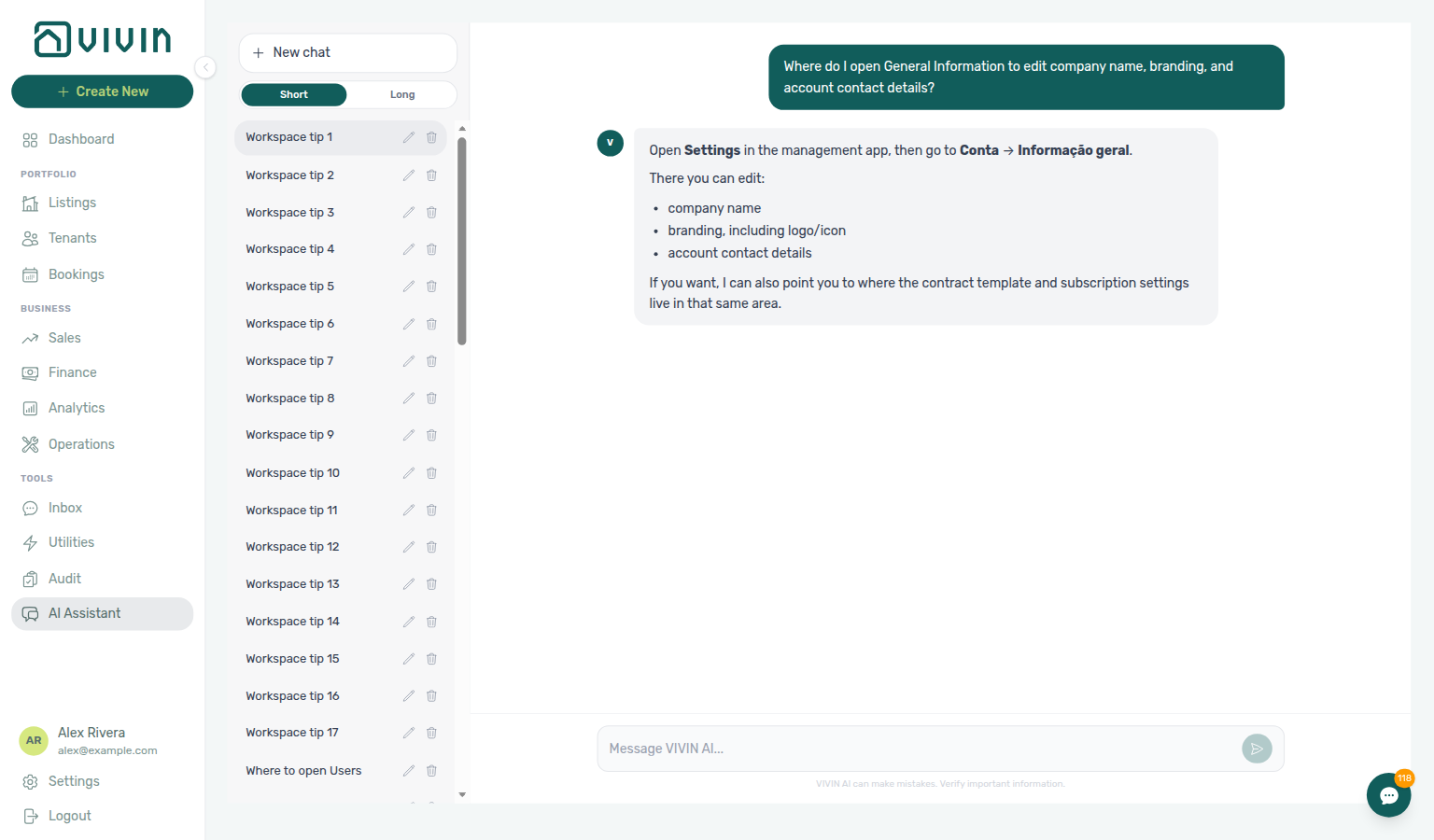
Ask AI Chat “Where do I open General Information to edit company name, branding, and account contact details?” — then open System → Global Settings and the General Information card (ai-chat-product-context-general-information-reply.png, ai-chat-product-context-general-information-flow.mp4). The assistant may still say Settings → Conta → Informação geral, Settings → Conta, or Account → General Information; follow Settings → System → Global Settings instead — that content is a card on Global Settings, not a separate sidebar tab. Same grounding external MCP clients get from get-vivin-context-platform. Distinct from Subscription (plan billing / card-on-file) and from the other Global Settings cards (booking defaults, portal gates, fees, utilities — English tab label Global Settings).
Complete Getting Started — Recommended Setup Sequence step 1 (this tab — company identity and branding) before step 2 Preferences and settings steps 3–12 — full tab map: Recommended setup order. Finish steps 13–15 in Listings, Bookings, and Tenants, then Onboarding a New Property — Step 7. Guided steps 4–12: Onboarding a New Property. Lockout catch-up: Getting Started. Workflow pairing after go-live: Account Settings — Setup sequence after go-live.
Start with General Information Section (company identity) and Branding Section; use the top-right Subscription shortcut when checkout is still required. Default check-in/out and preparation days are on Booking times and preparation (Preferences) — not on this tab. Habit-specific shortcuts live under Related below.
This tab configures your company's identity, branding, and core operational timing parameters. The values you set here appear across the entire platform — in tenant-facing communications, generated contracts, invoices, and the Tenant Portal.
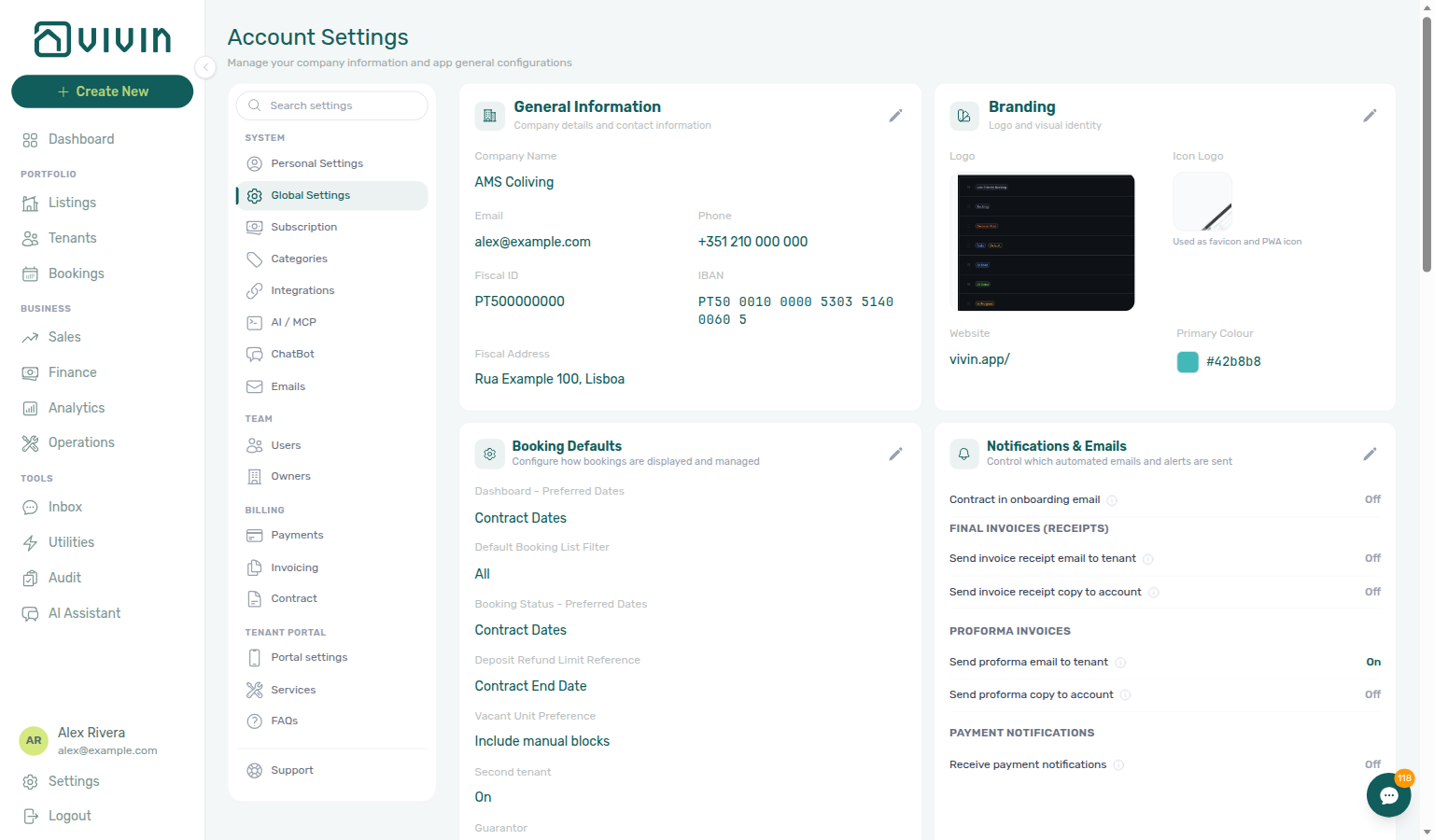
Open Account Settings → System → Global Settings at platform.vivin.app/settings (or the legacy bookmark platform.vivin.app/settings/general, which redirects here). Edit the General Information and Branding cards on that tab. See Deep Links for neighbouring routes and Account Settings — System for the sidebar map.
Before go-live, also verify the other Global Settings cards (default check-in/out times and preparation days — on the same tab) and Subscription (Vivin platform billing and card-on-file). Vivin platform subscription charges on Subscription are distinct from internal LLM spend on AI usage API (operator JWT, USD provider cost). Hub: Recommended setup order.
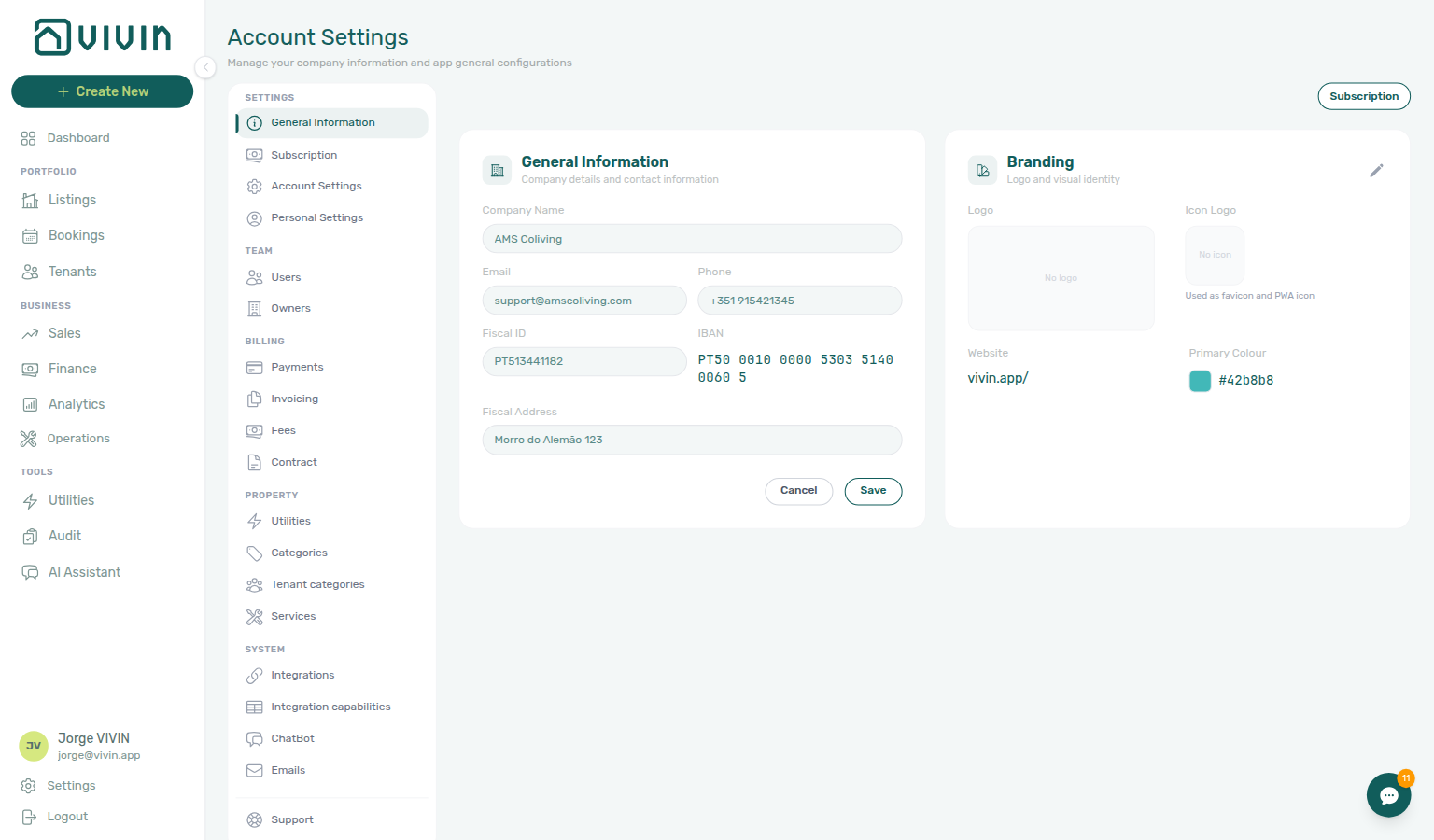
The General Information card (company contact, fiscal details, and IBAN) matches the fields in the tables below; use the card’s edit control to change values, then continue with Branding on the same Global Settings page. Default check-in/check-out times and preparation days live on neighbouring Global Settings cards — not on a separate sidebar tab.
Subscription shortcut
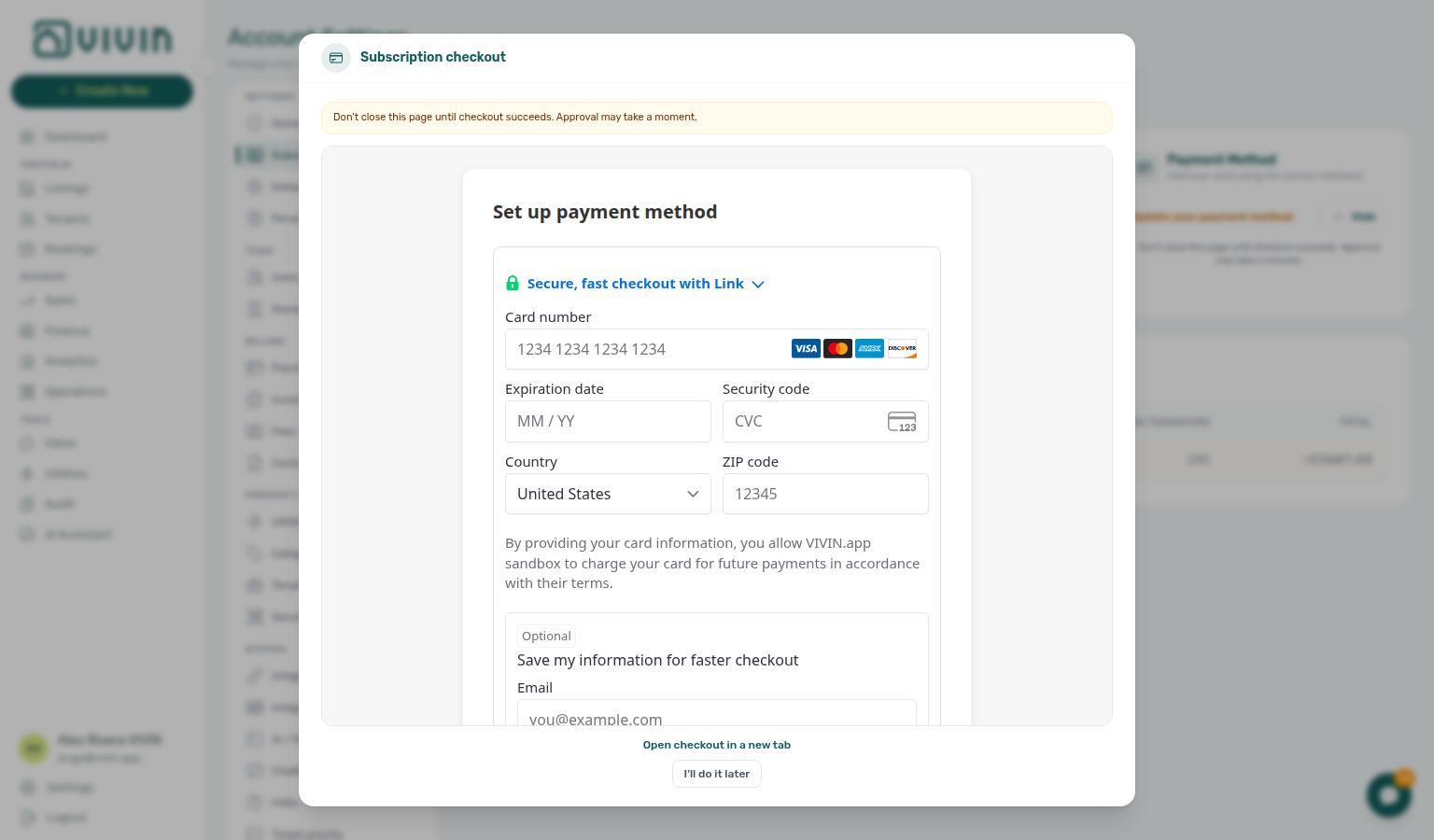
Use this control when checkout is still required — it jumps straight into hosted card capture on Subscription without hunting for Add card. If company details are incomplete, the same modal asks you to save them first (Company details before card capture).
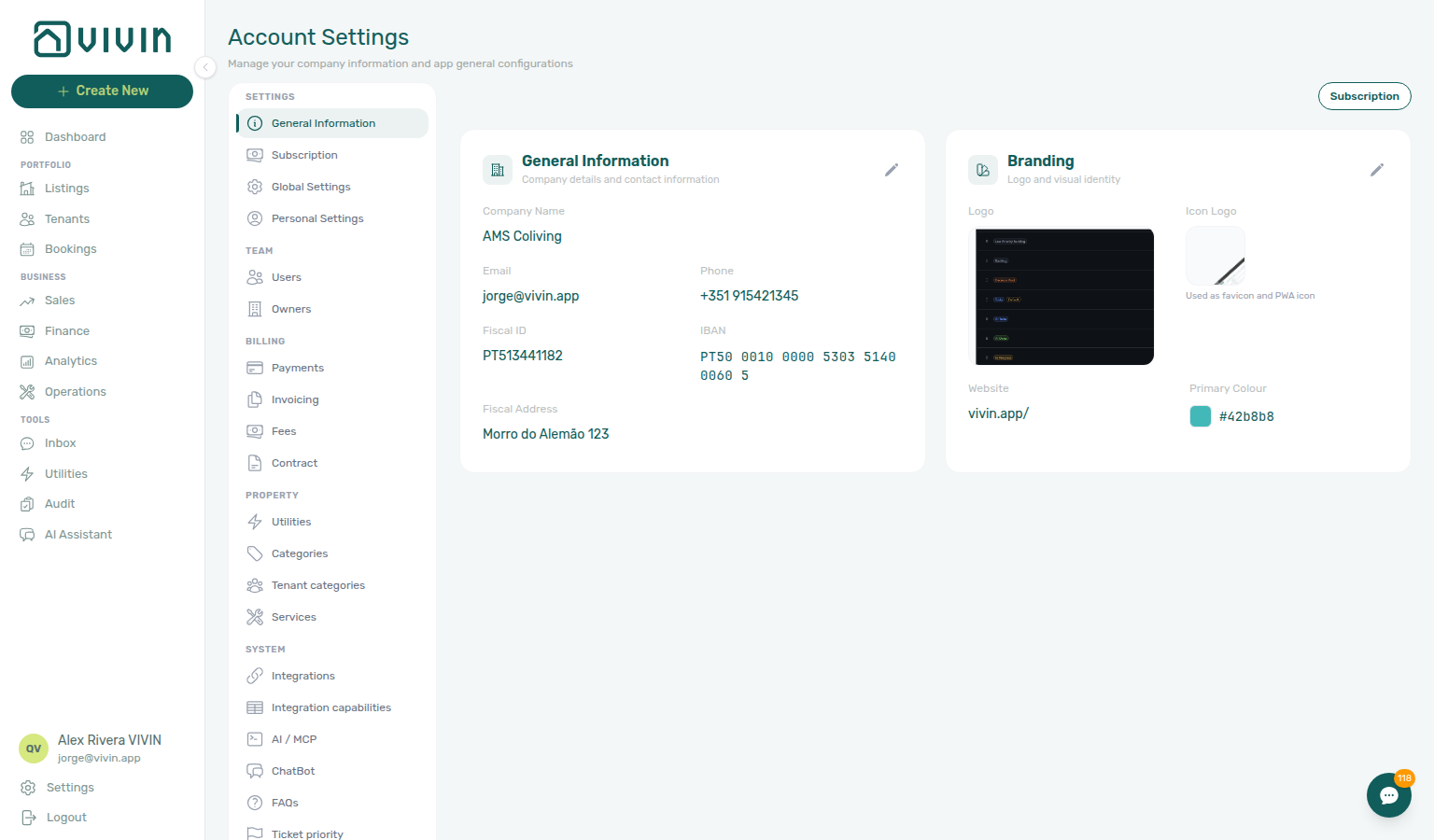
When your role can open the Subscription tab (account_settings.subscription), a Subscription outline button appears at the top right of General Information (next to the page header). Click it to:
- Refresh account / billing data in the background, then
- Navigate to
/settings/subscription?expandCheckout=1.
The Subscription tab removes the query parameter after it applies, expands Payment method hosted checkout when the workspace still needs a card (Action Required), and shows the same Subscription checkout modal as Add card (company-details step first when required, then the payment form). Dismiss with I'll do it later when the product allows — never leave card digits on a shared training account. If the amber notice says A payment method is required to keep using VIVIN, that is a card-required block: Sign out stays; I'll do it later does not.
General Information Section
Company identity fields here feed Invoicing & Payments exports, connected Integrations (Invoice-xpress fiscal identity), and the prompt-safe account identity used by AI Chat / WhatsApp Genius — complete this card before issuing first invoices or relying on assistant “which account?” answers.
| Field | Description |
|---|---|
| Company Name | Your business name as it appears in documents, emails, and the Tenant Portal — including the Home Contact us card. |
| Contact Email | The primary email address tenants and team members will see as the sender for system notifications. |
| Phone Number | Your company's contact number, included in outgoing communications where applicable — including the standard Communication Rule Contact information block unless Hide contact info is on. |
| Fiscal ID / VAT Number | Your company's tax identification number, used for invoice generation and legal documents. |
| Address | Your company's registered address, printed on contracts and invoices, and on portal Home Contact us (not the listing street). |
Use a shared team email address (e.g., [email protected]) as the Contact Email rather than a personal address. This ensures continuity if team members change and gives tenants a consistent point of contact.
Branding Section
Logo and brand colour propagate to Contract templates PDF headers, Emails lifecycle templates, and the Tenant Portal — upload branding before first onboarding send.
These settings control how the platform appears to your team and to tenants in the Tenant Portal.
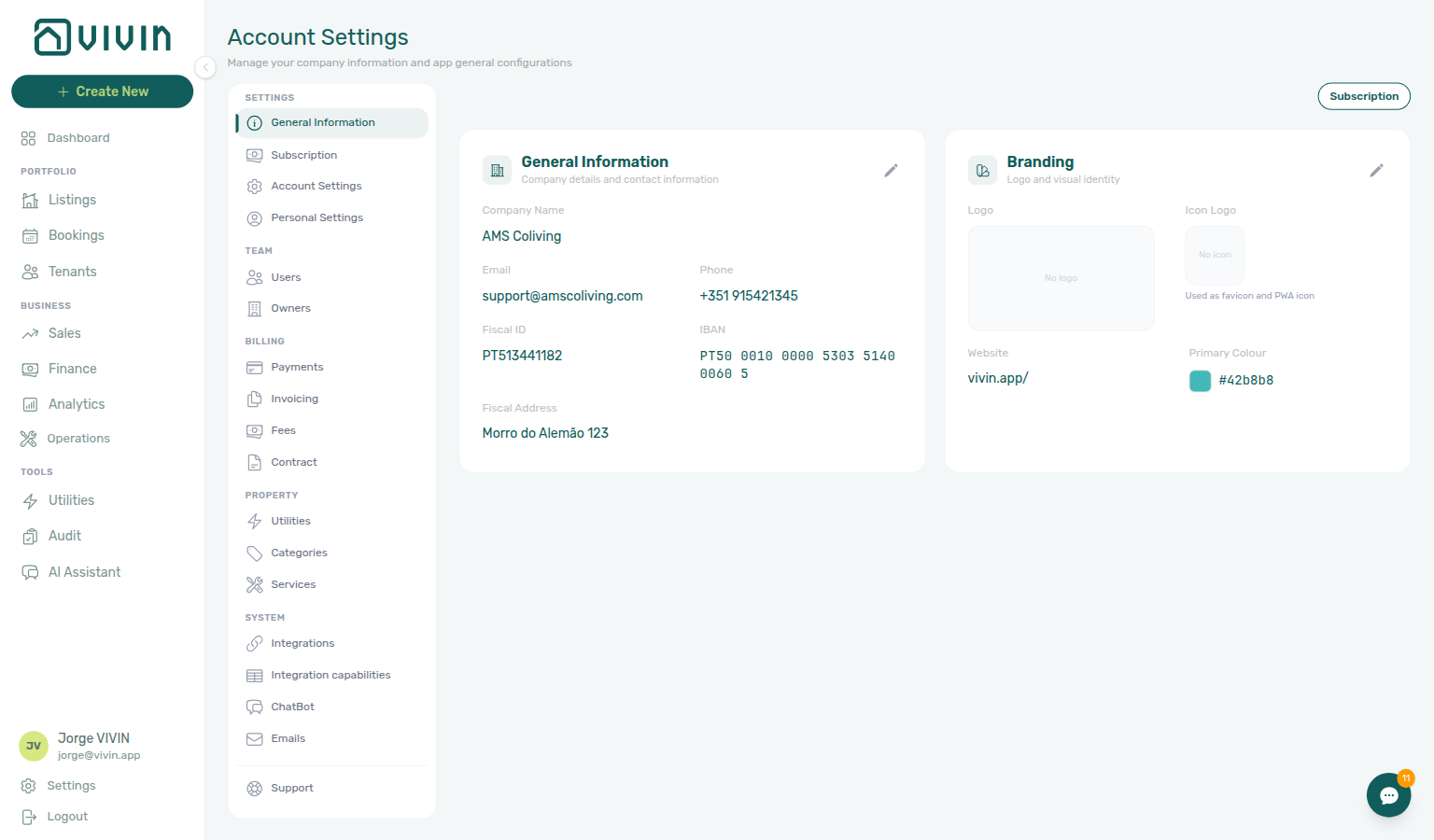
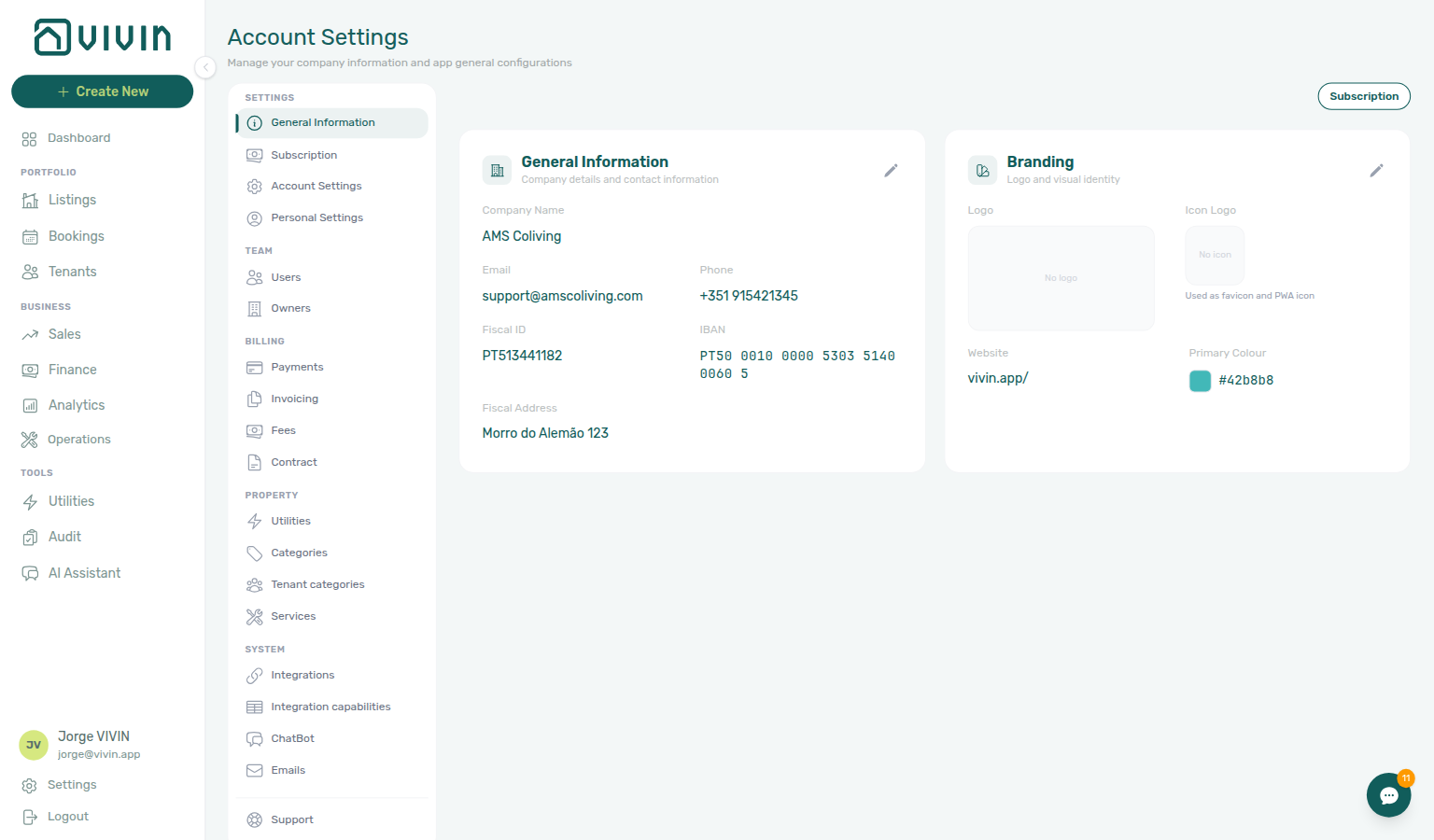
Each card uses the same pencil → edit → Save / Cancel pattern as other Account Settings tabs. The screenshots below show company details and branding in edit mode (values unchanged before Cancel).
| Field | Description |
|---|---|
| Logo | Upload your company logo (PNG or JPG). It appears in the top navigation bar and in generated PDFs (contracts, invoices). |
| Brand Color | A hex color code that sets the primary accent color in the Tenant Portal and in email headers. Use your brand's primary color for a consistent, professional look. |
| Website URL | Your company's website. Displayed in tenant-facing communications, on portal Home Contact us, and as the logo link in the portal sidebar (computer) and header (phone) when a Logo is uploaded (opens in a new tab; Vivin adds https:// when the saved value has no scheme). Distinct from portal Powered by VIVIN (always Vivin’s site). |
Where Branding Appears
Your branding settings are applied in several places across the platform:
- Tenant Portal — The logo is displayed in the portal sidebar (computer) and header (phone). When Website URL is set, that logo opens your site in a new tab. Powered by VIVIN at the bottom of the computer sidebar is separate and always opens Vivin’s site. The brand color is used as the primary accent for buttons, links, and highlights throughout the tenant-facing interface. After sign-in, Company Name is also the browser tab and home-screen name, and it titles the Install app overlay (Install plus your company name).
- Generated Contracts — The logo is embedded in the header of PDF contracts generated from your Contract template.
- Automated Emails — The logo and brand color appear in the header of all tenant-facing emails (onboarding, check-in, check-out, and payment reminders configured in Emails).
- Invoices — If connected to an invoicing provider (e.g., Invoice-xpress via Integrations), your company name, fiscal ID, and address are printed on every invoice.
When choosing a brand color, pick a color with sufficient contrast against a white background — it is used for buttons and links in the Tenant Portal. Very light colors (e.g., pale yellow) may be difficult for tenants to read or click.
Booking times and preparation (Preferences)
Preparation buffers edited on Preferences — Booking Defaults (times and preparation) shape Sales availability and channel iCal exports — coordinate changes before peak booking season.
Default check-in time, check-out time, mid-term preparation days, short-term preparation days, and advance notice are configured on Account Settings > Preferences in the Booking Defaults card (subtitle: default check-in/out times and preparation periods). They are account-wide defaults used in booking views, operational planning, and availability calculations. Marketplace POST /bookings copies the clock times from this card — Creating Bookings — Check-in times.
How preparation days affect availability
Preparation days create an automatic buffer between consecutive bookings in a unit. The system uses the values from Preferences when calculating availability in the Sales module and when validating new booking dates.
If Mid-term Prep is set to 3 and a tenant's booking ends on March 31:
- The unit is marked as unavailable from April 1 through April 3 (3 preparation days).
- The earliest a new booking can start is April 4, unless you tick Ignore unit preparation days on Add booking.
- This buffer appears automatically in Sales (Overview and Pricing) and on connected external platforms.
This prevents back-to-back bookings that leave no time for cleaning, inspection, and turnaround. Adjust the values based on your team's capacity:
- 1 day — sufficient if you have a dedicated cleaning team that can turn a unit around the same day
- 2–3 days — standard for most mid-term operations, allowing cleaning, inspection, and minor repairs
- 5+ days — use for properties that require deep cleaning or renovation between tenants
Check-in and check-out times are included in the automated emails sent to tenants. If you change these times, the new values will apply to all future emails — but tenants who already received their check-in or check-out email will have the old time. Coordinate time changes carefully with your operations team.
Key Rules
Account-wide branding and preparation defaults affect Onboarding a New Property and arrival-week Managing a Check-in — document team SOPs when contact email or prep days change mid-season.
-
Branding is account-wide. All properties, tenants, and documents use the same logo, brand color, and company information. You cannot configure different branding per property.
-
Changes affect future communications only. Updating your company name, logo, or contact email changes what new emails and documents show — but previously sent emails and generated PDFs retain the old values.
-
Preparation days prevent back-to-back bookings. The system automatically blocks the configured number of days after every check-out (values on Preferences). This applies to both manual bookings and bookings imported from external platforms. On Add booking, Ignore unit preparation days can start a manual stay in that buffer without changing the account defaults. Marketplace
POST /bookingscannot send that skip — Creating Bookings — Ignore unit preparation days. -
Check-in/check-out times are informational. These times are included in tenant emails and used for operational planning, but the system does not enforce them — a booking status can be changed at any time of day. Edit them on Preferences, not General Information.
General Information section cross-reference
Use the sections above for this settings area. Related setup pages are linked from Related below when present, or from Account Settings.
Related
Related below links this Account Settings tab to modules, workflows, concepts, and escalation paths.
Documentation map & escalation
- Account Settings hub — Tab pairing matrix across workspace configuration
- Glossary — Term definitions used across settings and module docs
- FAQ & Troubleshooting — Quick answers when branding or contact fields behave unexpectedly
- Get Help & Support — Escalate branding or contact-field bugs to Vivin
Upstream & downstream workflows
- Onboarding a New Property — Recommended setup sequence starting with company identity and branding
- Managing a Check-in — Arrival-week coordination when branding or contact details change mid-season
- Managing a Check-out & Deposit Refund — Company identity on deposit refund communications during departure week
- Portfolio KPI review — Month-end pass when occupancy dips after preparation-day changes
- Notification triage — Payment-received and payment overdue alerts after branding or contact details change (Step 4)
- Handling a Late Payment — Step 1 — Identify overdue charges when lifecycle mail or contact updates coincide with payment alerts or a payment overdue alert row-click brought you here
Deeper workflow reads
See Upstream & downstream workflows above for the same guides.
Related Account Settings tabs
- Preferences — Check-in/out times, preparation-day defaults, and advance notice (not on this tab); Ignore unit preparation days on Add booking can start a stay in that buffer
- Subscription — Vivin platform billing identity (distinct from tenant-facing branding here); top-right Subscription shortcut opens
?expandCheckout=1when checkout is still required; When a card is required when checkout cannot be dismissed - Emails — Customize the emails that include check-in/check-out times and company contact; Communication Rules can omit the standard footer with Hide contact info
- Contract templates — Generated contracts that use your logo and company details
- Owners — Register landlords before property setup (operator identity here is distinct from owner payout records)
- Tenant categories — Default segment for integration-created tenants after company identity is set
- Integrations — Marketplace sender names and channel copy that complement company contact details
- Chatbot — Tenant-facing bot branding that shares logo assets from this page
- Preferences — In-app notifications — Account-wide arrival and payment alert categories
Operator modules & tenant-facing surfaces
- Sales module — Where preparation-day buffers appear alongside bookings in availability and pricing views
- Listings module — Property wizard after company identity is configured
- Inbox module — WhatsApp sender identity when company contact details change
- Audit — Discounts tab — Payment type filter pills follow fee labels configured on Global Settings
- Properties workspace — Legacy
/propertiesbookmarks that still land on Listings - Notifications — Payment overdue alerts (in-app) — Operator Payments category rows when scheduled charges are overdue after branding or contact updates
Deeper concept reads
- Tenant Portal — How tenants experience your branding, including Home Contact us (company name, address, website), the logo website link, Powered by VIVIN (always Vivin’s site), the branded home screen, and Install app
- FAQ — Tenant contract signing blocked — No PDF yet, mandatory Your Details gates, category locks, or Lease purpose; portal signing vs paper upload on Contract Info
- Integrations & Distribution — Company branding also applies to the white-label booking engine and tenant portal
- Deep Links — Account Settings — Bookmarkable
/settings/generalafter branding or contact updates - Payment Allocation — Two-layer receipts, invoiced-floor rent edits, and credit note reject/revert warnings
- Booking Lifecycle — Computed status model for stays shaped by preparation defaults
Module documentation hubs
- Dashboard — Post-login KPI snapshot with bell notification triage
- Analytics — Month-range portfolio KPI charts
- Finance — Portfolio ledgers and invoicing exports using company fiscal details
- Bookings — Operator UI for reservations receiving lifecycle mail with your branding
- Operations — Maintenance tickets and check-in/out coordination
- Utilities — Bills Included ceiling model and tenant overage charges
- Tenants — Tenant directory and With Debt segmentation
- Notifications — Full
/notificationshistory - AI Chat — AI Assistant for portfolio Q&A
- Audit — Portfolio-wide Manual Blocks and Discounts review
- Booking engine details — Rich marketplace payload editor via the Full integration pill
Operator habit hubs
Day-to-day operator habits (lockout catch-up, pending receipts, payment triage, handoffs, and related playbooks) live on the Common Workflows habit hub.
Deep-link anchors for habit hubs
Lockout catch-up after password recovery
Pending manual receipt approval
Reject/revert mistaken receipts
Portfolio segmentation by tenant category
Notification row-click navigation
Payment alert to receivables triage
Confirmation alert triage
Finance debt receivables triage
Handling a Late Payment collections
Finance Income status drill-down
Cash flow forecast drill-down
Key glossary terms
- Same-day turnover — Preparation days and turnover coordination on shared units
- Glossary — End-of-Booking cost split — Charge Time → End of Booking splits daily overage across every occupied unit; still-staying roommates stay in the denominator
- Glossary — Change history — Operator-initiated edits on Listings setup and Bookings Changelog; create-time defaults excluded
- Glossary — Archived booking ledger visibility — Delete Booking hides manual/provider_platform rows on Finance → Transactions; vIBAN and credit card stay visible
- Glossary — Finance tenant category cache refresh — Recategorizing a tenant updates
booking.tenantCategoryIdimmediately; ledger tabs reflect it on reload, while Overview can lag up to ~10 minutes - Glossary — SIMAR water contract ID — SIMAR (Loures e Odivelas) water bills use Cód. Local in Connections — not Nº de Contador; leading zeros stripped
- Glossary — Full term list
Companion API guides
- API Reference hub — Partner HTTP contracts and integration feeds (hub)
- AI usage API — Operator JWT ledger (
GET /ai-usage/summary) when auditing internal AI cost after branding or contact-field changes coincide with chat adoption