Personal Settings
Personal Settings holds the options that apply only to you. These are your display language, how vacant units are counted in your views, which emails and in-app alerts you get, and the order of tabs and ticket columns. Nothing here changes what your teammates see. Account-wide defaults are in Global Settings.
Where to find it: click Settings at the bottom of the sidebar, then Personal Settings, the first tab under System (https://platform.vivin.app/settings/personal). Every signed-in user can open it, whatever their role. On a phone the sidebar has no Settings entry, so open the link directly.
Language
Click English, Português, Español or Italiano. The app switches straight away, and the choice is saved to your user, so it follows you to other devices and browsers.
On a phone, you can also tap the language code (for example EN) next to Logout at the bottom of the menu.
The language changes the app's labels, buttons and date formats. Anything not yet translated shows in English. Text that people typed, such as unit names, notes and messages, stays as it was written. The language tenants see is set separately in Portal settings.
Vacant Unit Preference
This option decides whether a manually blocked unit counts as vacant in your Dashboard Vacant Units list and Today tile, the Sales Available now figure and Multicalendar availability searches.
- Default: a manual block makes the unit unavailable for those dates.
- Include manual blocks: a unit that only has a manual block, with no booking, still counts as vacant.
Blocks that come from a booking or a channel calendar always count as occupied.
The card starts on the account's setting (Global Settings → Booking Defaults). Your choice saves as soon as you click it and applies to your own views only.
Your email preferences
These switches control the emails VIVIN sends to you. Each one saves as soon as you flip it. Support ticket assigned and Maintenance ticket assigned start on; the other three start off.
| Switch | You get an email when… |
|---|---|
| Payment notifications | A tenant payment is received. This switch also turns on the in-app payment alert for you. It only works when the account switch Receive payment notifications is on in Global Settings. |
| Support ticket assigned | A support ticket is assigned to you. |
| Replies on support tickets I participated in | Support replies on a ticket you wrote on, even if a colleague opened it. |
| Maintenance ticket assigned | An Operations ticket is assigned to you. |
| Survey responses | A tenant submits a satisfaction survey in the Tenant Portal. This switch also turns on the matching in-app alert for you. It starts off. |
Service subscription emails
Choose which services should email you when a tenant orders or subscribes to them from the Tenant Portal.
- Under Service subscription emails, click a service name. It fills in, shows a check mark and saves straight away.
- Click it again to stop the emails for that service.
Inactive services are listed last and marked (inactive). If the card says No services are configured on this account yet., add your services under Services first.
BCC on tenant communications
Turn on a switch to get a blind copy each time the account sends that email to a tenant. All of them start off.
- Booking lifecycle: the booking confirmation (onboarding email), check-in email and check-out email.
- Communications: the monthly statement / proforma, invoice emails, and the scheduled emails from your Emails rules (booking confirmation, check in, check out, due date, send immediately, financial balance, penalty fee, auto-cancellation and survey available).
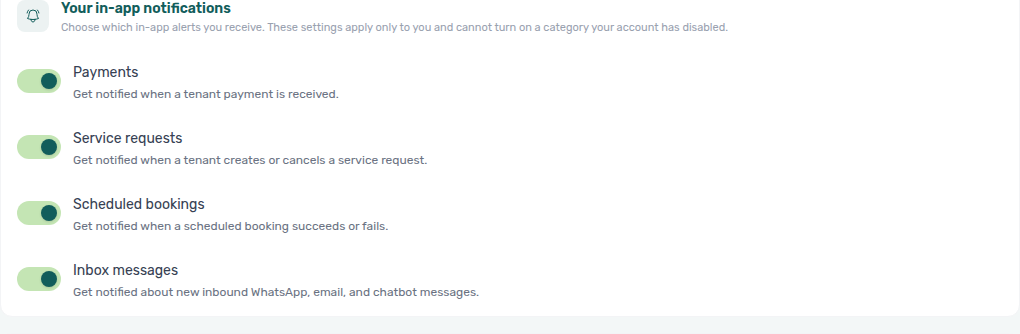
Your in-app notifications
These switches decide which alerts you see in the app. All four are on unless you turn them off, and each one saves as soon as you flip it.
- Payments: a tenant payment is received. You only get these alerts if Payment notifications (above) is also on.
- Service requests: a tenant creates or cancels a service request.
- Scheduled bookings: a scheduled booking succeeds or fails.
- Inbox messages: new inbound WhatsApp, email and chatbot messages arrive.
These switches can only hide a category for you. If the account has turned a category off under Global Settings → In-app notifications, you cannot turn it back on here.
Tab order
Set the order of the tabs in each module's tab bar. The card only lists modules you can open.
| Module | Tabs you can reorder |
|---|---|
| Bookings | List (the All bookings tab), Timeline |
| Sales | Overview, Pricing, Multicalendar, Channels (the Channel Manager tab) |
| Finance | Overview, Income, Contract values, plus Transactions, Payouts and Deposits if your role can approve payments |
| Utilities | Overview, Bills, Connections, Timeline, Allocations, Cost map |
| Operations | Overview, Tickets, Check-in / Check-out (if your role can see it), Cash flows |
| Edit unit · Setup | The sections of the unit editor: Calendar, Unit Information, Booking window, Rent pricing, Contract, Changelog, Short term, Channels |
- Drag a tab by its handle to a new position.
- Click Save order next to that module's name. The button appears once you have moved a tab, and it saves only that module.
- To go back to the standard order, click Reset to default next to the module's name. This saves straight away.
The order only changes the tab bar. A link to a specific tab still opens that tab.
Operations ticket columns
Choose which columns you see in the Operations → Tickets table, and in what order.
- Show Notes instead of Ticket: the table shows each ticket's internal note in place of its title. This switch saves as soon as you flip it.
- Tickets table: turn a column's switch off to hide it, or drag its handle to move it. The columns are ID, Ticket, Property / Unit, Assignee, Category, Status, Created, Schedule, Due and Internal note. ID and Status are marked Always visible. Internal note stays hidden until you turn it on. Click Save at the top of the card to keep your changes.
- Reset to default brings back the standard columns and order straight away.
My Profile
My Profile is where you change the name your teammates see. No menu links to it, so open https://platform.vivin.app/profile directly.
- Edit First name and Last name. Both are required.
- Click Save profile.
Your new name shows at the bottom of the sidebar and wherever the app shows your name to teammates.
- Saving needs the same permission as Settings → Users (Super Admin and Admin by default). Other roles see a message that they do not have permission. In that case, ask an admin to change your name under Settings → Users.
- Email is read-only. The app cannot change the email you sign in with, not even from Settings → Users. Contact support if it needs to change.
Tips
- Payment alerts, by email and in the app, are opt-in. You only get them after you turn on Payment notifications, and only while the account's Receive payment notifications switch is on.
- Survey response alerts are also opt-in. Turn on Survey responses to get an email and an in-app alert when a tenant answers; the four Your in-app notifications switches do not mute them. This is separate from a BCC of the tenant's Survey available email under BCC on tenant communications.
- If an alert you expect never arrives, ask an admin to check the account-wide switches in Global Settings. Personal switches cannot override them.
- Everything on this page is per user. A teammate who wants the same tab order or ticket columns sets them in their own Personal Settings.
- There is no password field here. To change your password, sign out and use Forgot password? on the sign-in page.
Related
- Global Settings: account-wide defaults and notification switches.
- Notifications: where your in-app alerts appear.
- Surveys: read tenant survey answers and turn on response alerts.
- Operations: the Tickets table and its columns.
- Users: team members, roles and permissions.