ChatBot (tenant support)
The ChatBot tab under Account Settings → System configures how Vivin’s tenant-facing automated assistant behaves on channels such as WhatsApp and email. It does not control the operator AI Assistant (/ai-chat) or external Tenant MCP tools — those are separate surfaces documented under Automation & AI.
Configure ChatBot during or after the core Getting Started — Recommended Setup Sequence steps 1–12 (optional section) — pair IF/THEN rules with step 11 Emails before tenants message you on WhatsApp. Full tab map: Recommended setup order. Finish steps 13–15 and Onboarding a New Property — Step 7. Workflow pairing after go-live: Account Settings — Setup sequence after go-live.
Set Persona tone first — including Introduce as AI on start when new threads should identify as AI — then author IF/THEN rules on Special Rules (seed with AI Examples when you want starter scenarios). Operator triage: Inbox and Dashboard bell gating and Booking detail — Communication tab. Habit-specific shortcuts live under Related below.
Open ChatBot at platform.vivin.app/settings/chatbot. Route reference: Deep Links — Account Settings.
Pair IF/THEN rules with Emails lifecycle and Communication Rules (email channel parity) and triage escalations in Inbox alongside booking Communication tabs. Draft FAQ entries on FAQs (faq_generation). Contrast tenant-facing chatbot channels with landlord AI Chat and poll AI usage API for landlord_chat / utility_bill_extraction / faq_generation spend during month-end review. Hub: Recommended setup order.
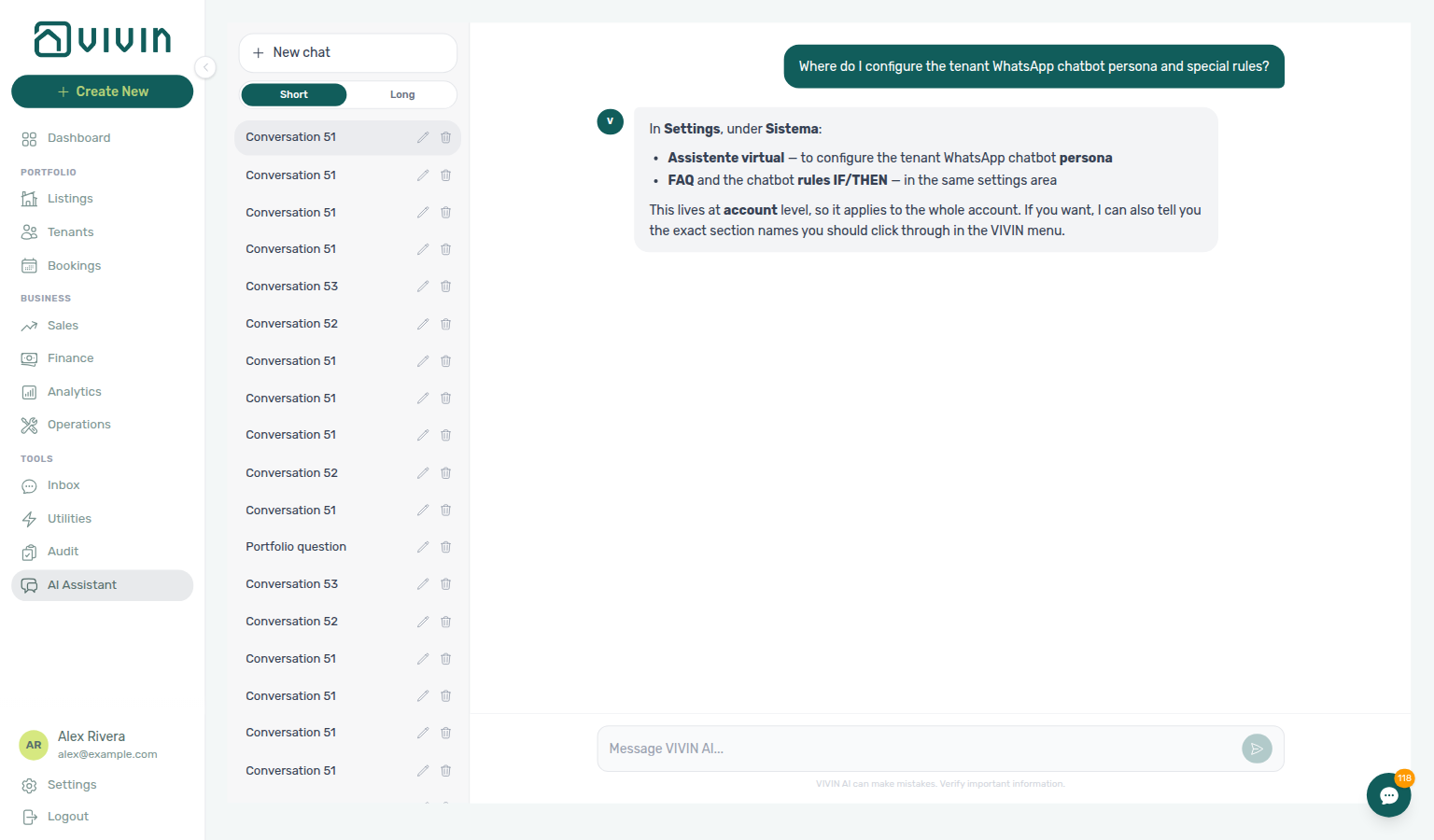
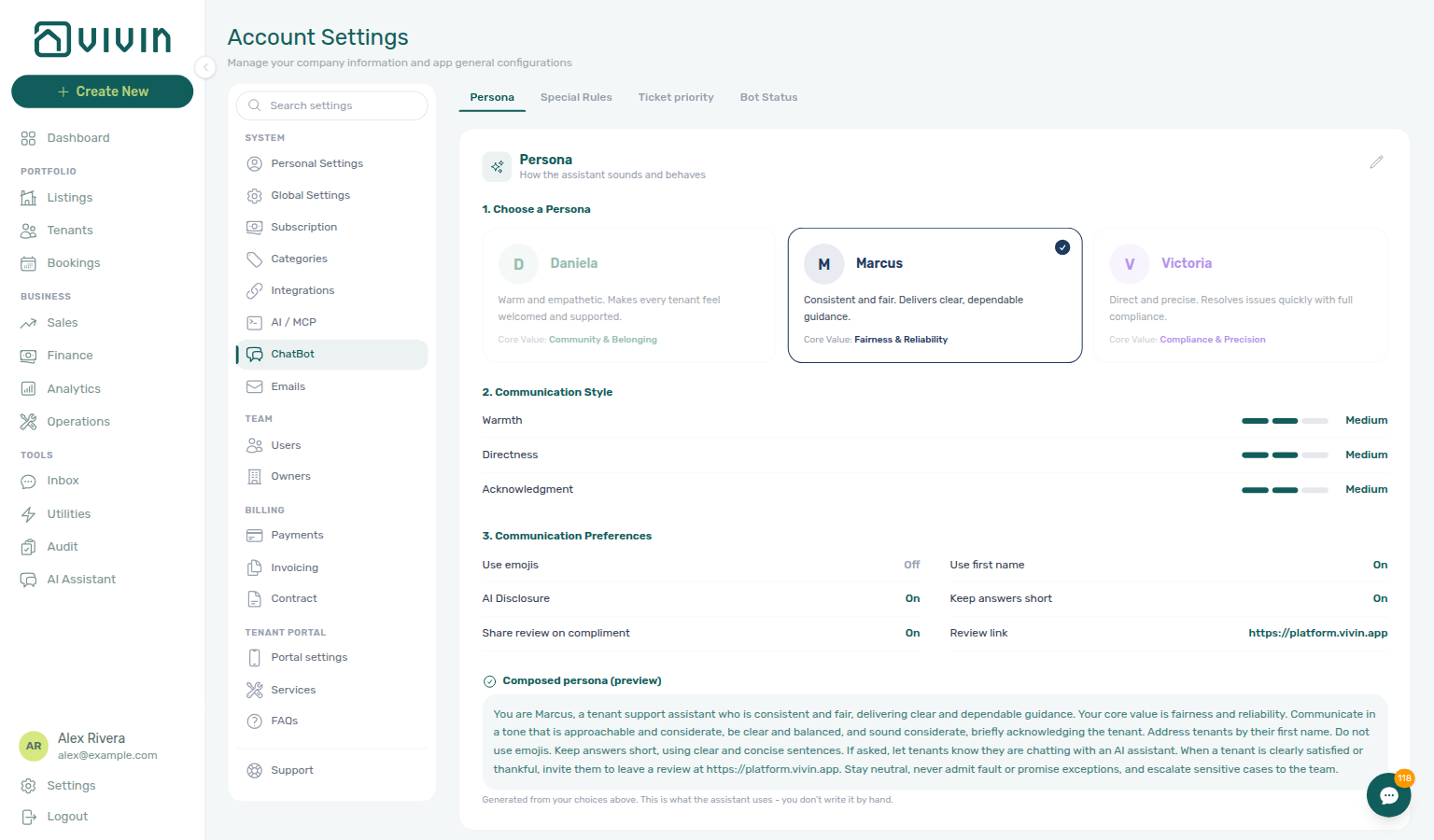
Ask AI Chat “Where do I configure the tenant WhatsApp chatbot persona and special rules?” — then open this ChatBot tab (ai-chat-product-context-chatbot-reply.png, ai-chat-product-context-chatbot-flow.mp4). The assistant typically says Settings → Sistema → Assistente virtual (localized; English UI label is ChatBot under System). Follow Settings → System → ChatBot for persona, IF/THEN special rules, ticket priority, and bot status. Same grounding external MCP clients get from get-vivin-context-ai.
Who can edit ChatBot settings
The ChatBot tab appears only when your role includes the Chatbot permission. Grant or review it in Users and roles. By default only the Super Admin role has it; a Super Admin can switch it on or off for any other role in Role Permissions. The same permission opens the FAQs page and the Ticket priority subtab. Unlike the other Account Settings rows, it does not also need Account Settings → Module: a role with Chatbot but without Module opens ChatBot, FAQs and its own Personal Settings, while every other settings tab stays unavailable to it.
The Tenant Portal does not include an in-portal chat UI today; tenants interact with this assistant through WhatsApp, email, and related workflows — not through a chat widget inside the portal.
Layout
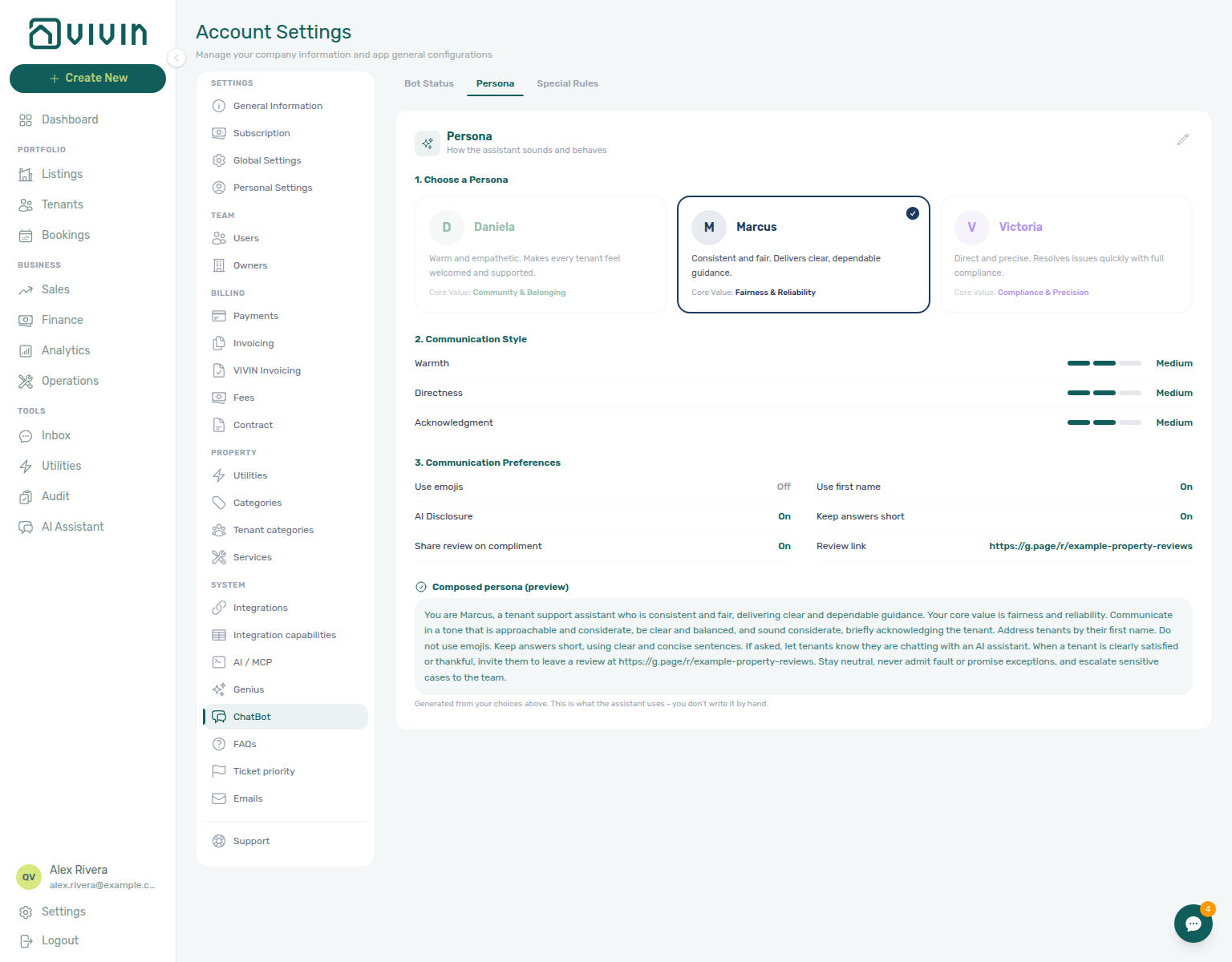
The ChatBot settings screen uses five subtabs:
| Subtab | Purpose |
|---|---|
| Persona | Structured Persona Setup — preset voice, communication style, and preferences (with a live composed preview). |
| Special Rules | Up to 20 IF/THEN rows pairing a specific If condition with a Then response directive — seed with AI Examples. |
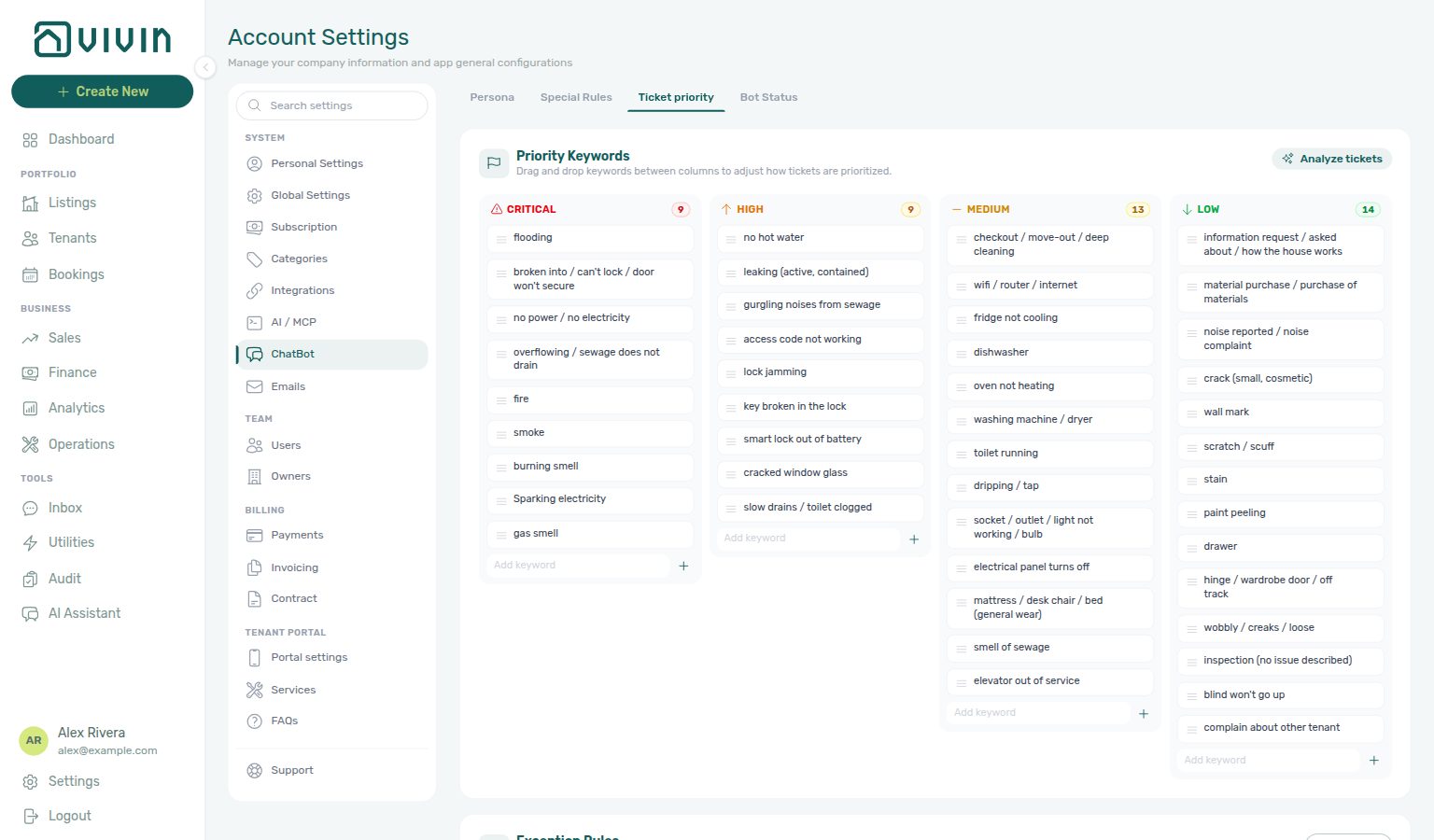
| Ticket priority | Keyword columns and Exception Rules for chatbot maintenance triage — full guide: Ticket priority. |
| General | One-off ChatBot settings without a subtab of their own — today the WhatsApp send confirmation on booking Communication composers. |
| Bot Status | Two WhatsApp instance cards — tenant support (QR pairing) and Genius (often Vivin-managed). |
Persona and Special Rules subtabs
- Persona — Structured Persona Setup (presets + style + preferences). See Persona.
- Special Rules — IF/THEN rule editors with Save / Cancel in edit mode. See IF/THEN rules.
Ticket priority subtab
Open Ticket priority next to Special Rules to manage keyword → priority cards and Exception Rules. Older bookmarks to /settings/ticketPriority land on ChatBot — then choose this subtab. Full steps: Ticket priority (keyword rules).
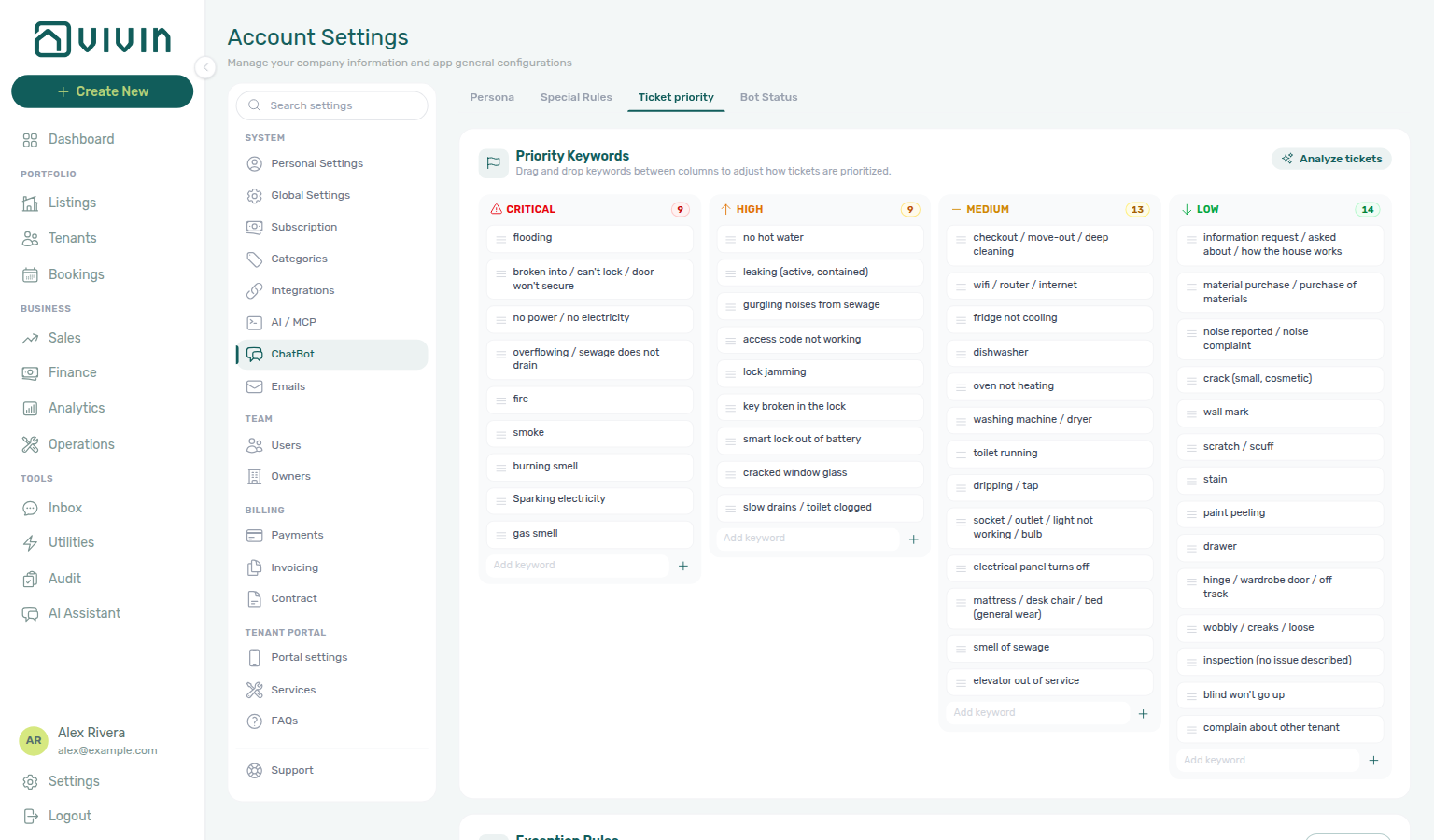
General subtab
General holds one-off ChatBot settings that do not belong to a subtab of their own. Every row saves the moment you toggle it — there is no Save button and nothing to discard.
| Setting | When on |
|---|---|
| WhatsApp send confirmation | Vivin asks you to confirm before a WhatsApp message leaves the composer on a booking Communication tab. Off by default — turn it on when agents work with internal notes beside tenant threads. |
The confirmation covers the per-booking composer only. Sending from the portfolio-wide Inbox is never interrupted.
Bot Status subtab (WhatsApp connection)
Bot Status pairs with Inbox module and booking Communication for the tenant line — both stay greyed until tenant chatbot is enabled and that session is live. The Genius card is separate — see WhatsApp Genius and Users — phone linking.
Bot Status shows two WhatsApp cards on the same screen. Each number has its own job — do not treat them as interchangeable:
| Card | Purpose |
|---|---|
| WhatsApp connection | Tenant-support business line for Inbox, booking Communication, and the tenant chatbot. Pair with Connect WhatsApp + QR when the badge is Disconnected. |
| Genius WhatsApp connection | Dedicated line for the landlord WhatsApp Genius assistant (scheduled digests, operator chat). |
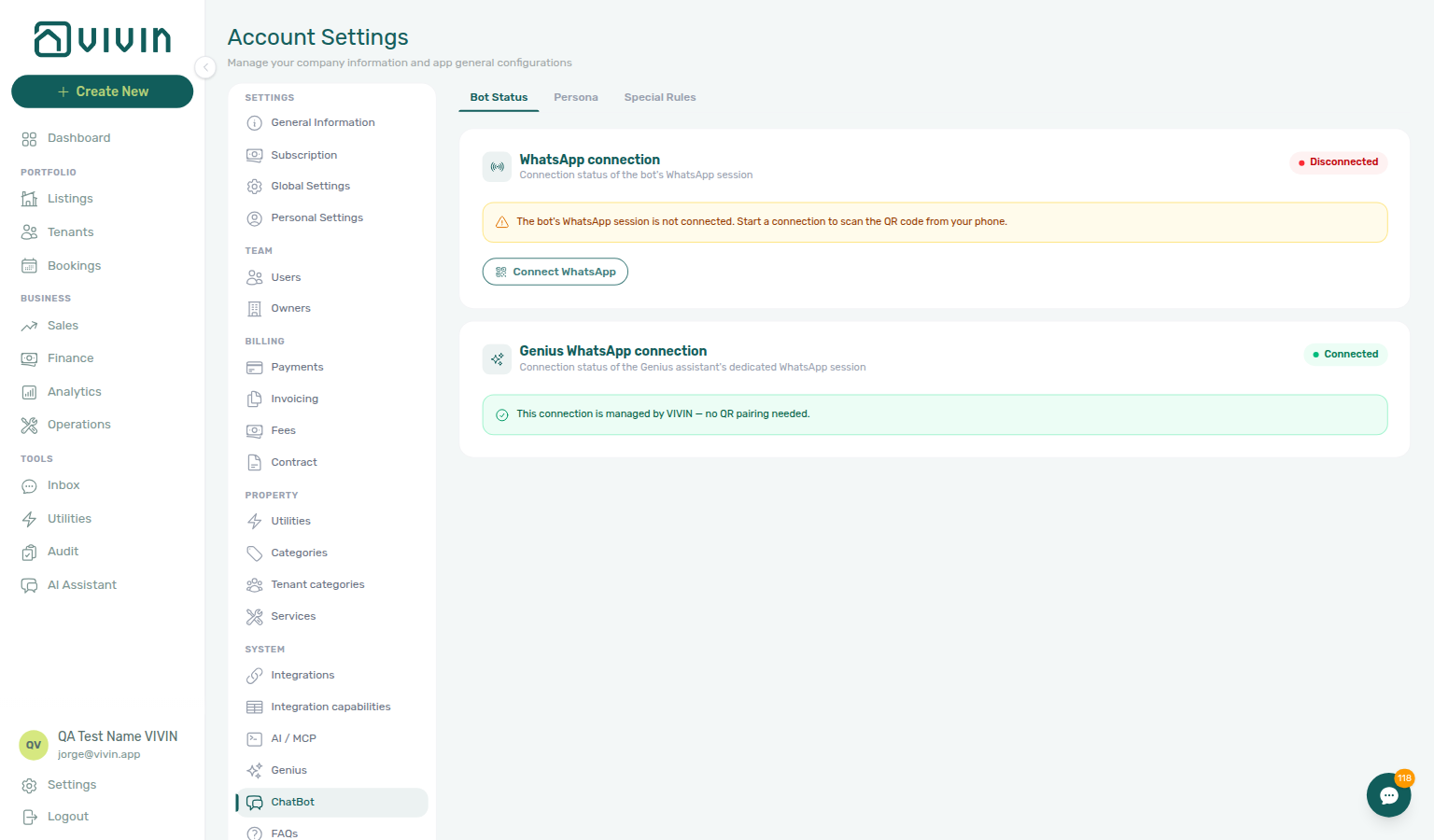
Tenant WhatsApp connection
Open the top card to see whether your tenant-support WhatsApp line is paired:
| Badge state | Meaning |
|---|---|
| Connected | Session is live; outbound WhatsApp (composer on booking Communication) can send. Connect WhatsApp stays visible but disabled until you disconnect elsewhere. |
| Disconnected | Line is configured but not paired — click Connect WhatsApp, read the pairing warning, then confirm Connect anyway (unlocks after a short countdown) to fetch a QR code (and optional numeric pair code). Scan with WhatsApp on the business phone; the UI polls every few seconds until the session connects, then clears the QR. |
| Awaiting scan | Pairing in progress after you confirmed the warning — QR is on screen until the phone scans or you Refresh QR code. |
| Not configured | Tenant WhatsApp is not provisioned for the account — contact Vivin support. |
Use Refresh QR code while a code is on screen if the first scan expired. After Connected, tenant threads and the booking Communication composer use this session.

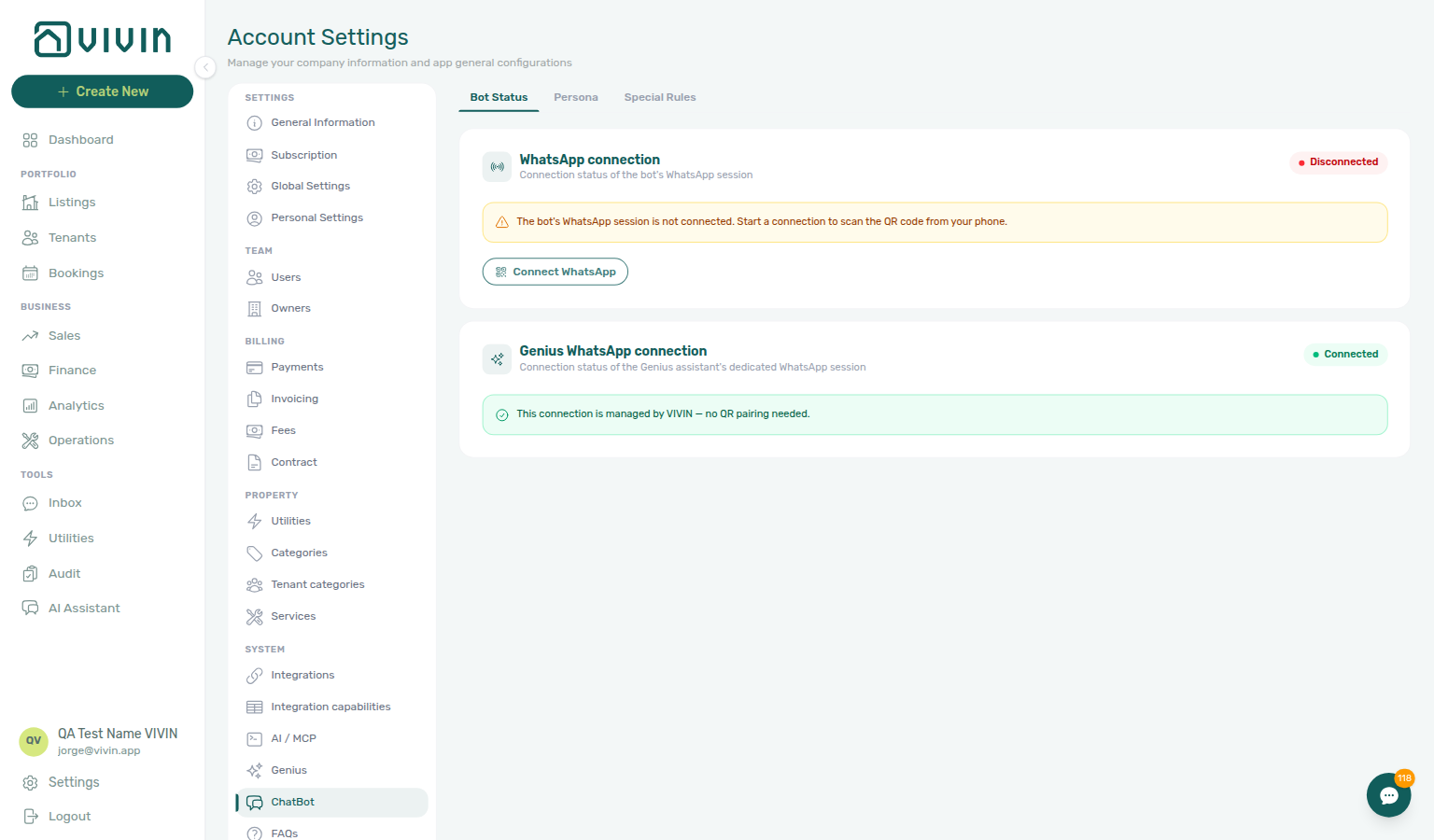

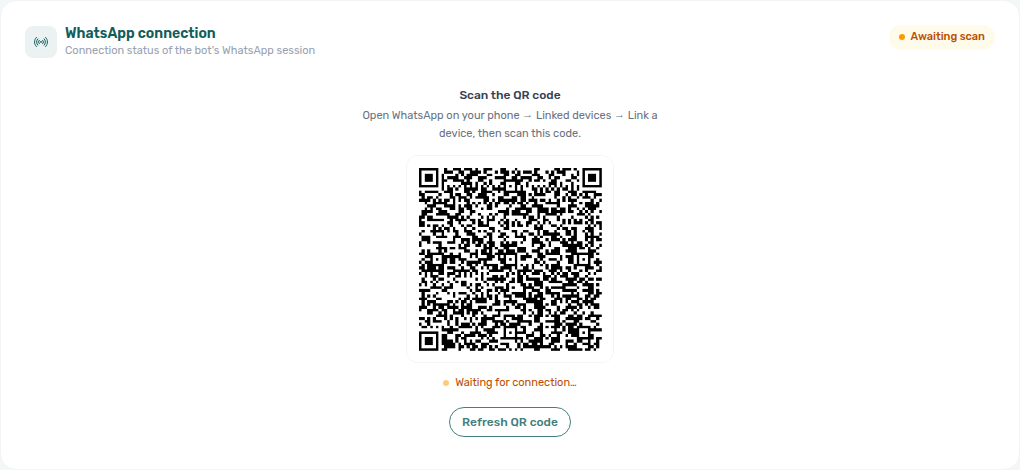
Connect WhatsApp opens a warning that pairing a brand-new or rarely-used number can trigger Meta blocks. Read the recommendation, wait for Connect anyway to unlock (~5 seconds), then scan the QR.
Genius WhatsApp connection
The second card is the Genius assistant line — not the tenant chatbot.
| What you see | Meaning |
|---|---|
| Connected + “This connection is managed by VIVIN…” | Vivin operates the Genius WhatsApp session for your account — no QR pairing and no Connect WhatsApp button on this card. |
| Not configured + “Not set up yet — contact VIVIN…” | Genius WhatsApp is not enabled yet — ask Vivin to turn it on. |
| Connected / Disconnected / Awaiting scan (QR flow) | Some accounts pair Genius with the same Connect WhatsApp + QR flow as the tenant card. Follow the on-screen button when it appears. |
Staff still link their personal phones on Users → Phone Number so Genius recognizes who is messaging. Scheduled digests: Genius / Automation & AI — Scheduled reports.

Persona
Persona Setup shapes tone across WhatsApp and email — keep preferences aligned with Emails — Communication Rules and lifecycle templates. External clients read the same composed persona via Tenant MCP (get-chatbot-persona).
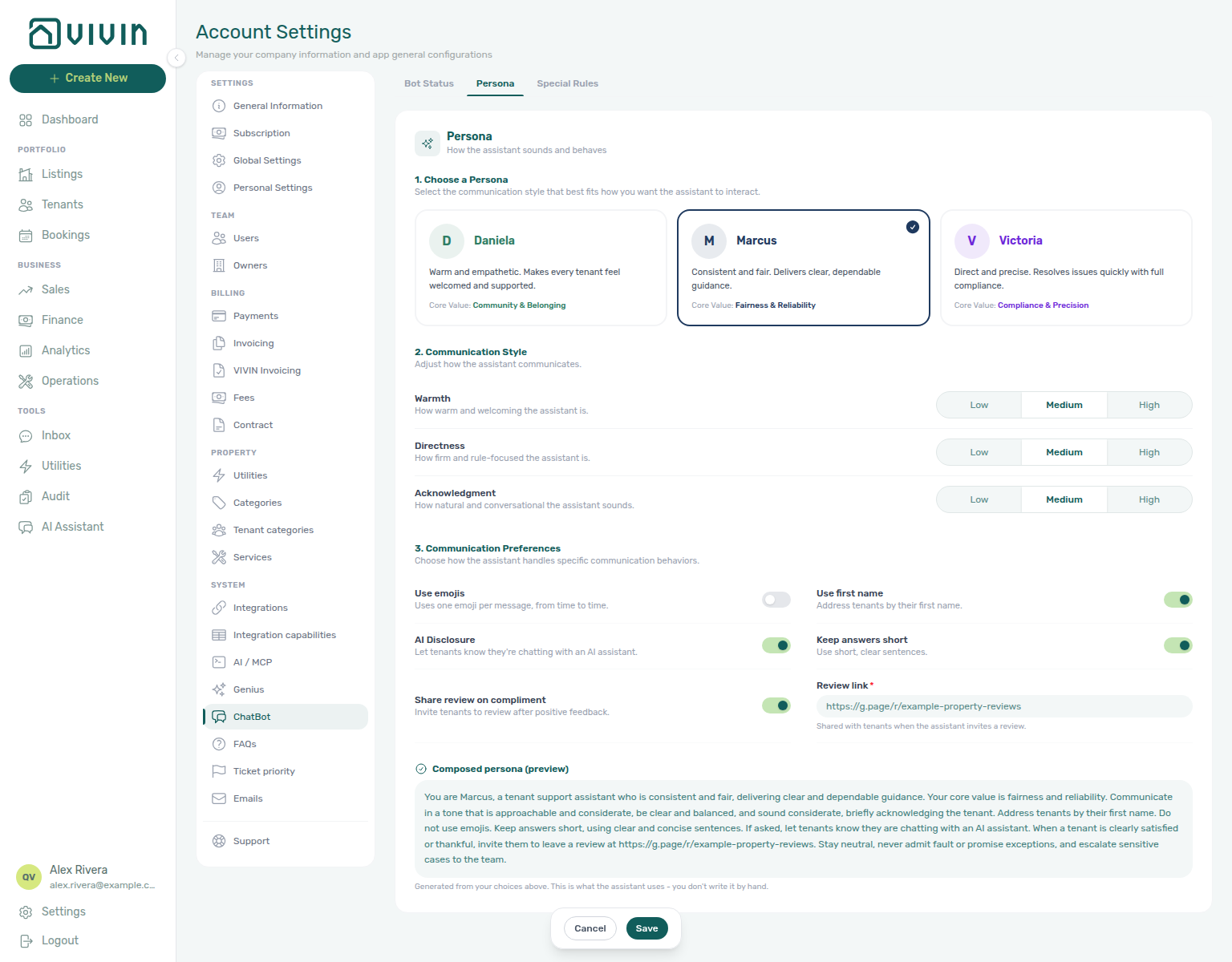
Persona is a structured Persona Setup — you do not type a free-text persona block. Choose a preset voice, adjust communication style and preferences, then Save. Vivin builds the Composed persona (preview) from your choices; that preview is what the assistant uses.
Choose a Persona
Three named presets appear as cards. The active preset shows a checkmark and accent border. A fourth Custom card appears only after you change style or preferences away from a named preset’s defaults.
| Preset | Voice | Core value |
|---|---|---|
| Daniela | Warm and empathetic — every tenant feels welcomed and supported | Community & Belonging |
| Marcus | Consistent and fair — clear, dependable guidance | Fairness & Reliability |
| Victoria | Direct and precise — quick resolution with full compliance | Compliance & Precision |
| Custom | Your edited mix of style and preferences (shown only when active) | — |
Selecting a named preset seeds the style levels and preference toggles for that voice. Your Review link (if set) is preserved when you switch presets.
Communication Style
Three Low / Medium / High controls tune how the assistant sounds:
| Control | What it changes |
|---|---|
| Warmth | How warm and welcoming replies feel |
| Directness | How firm and rule-focused the assistant is |
| Acknowledgment | How conversational and situational the reply sounds |
Changing any level after a named preset flips the selection to Custom.
Communication Preferences
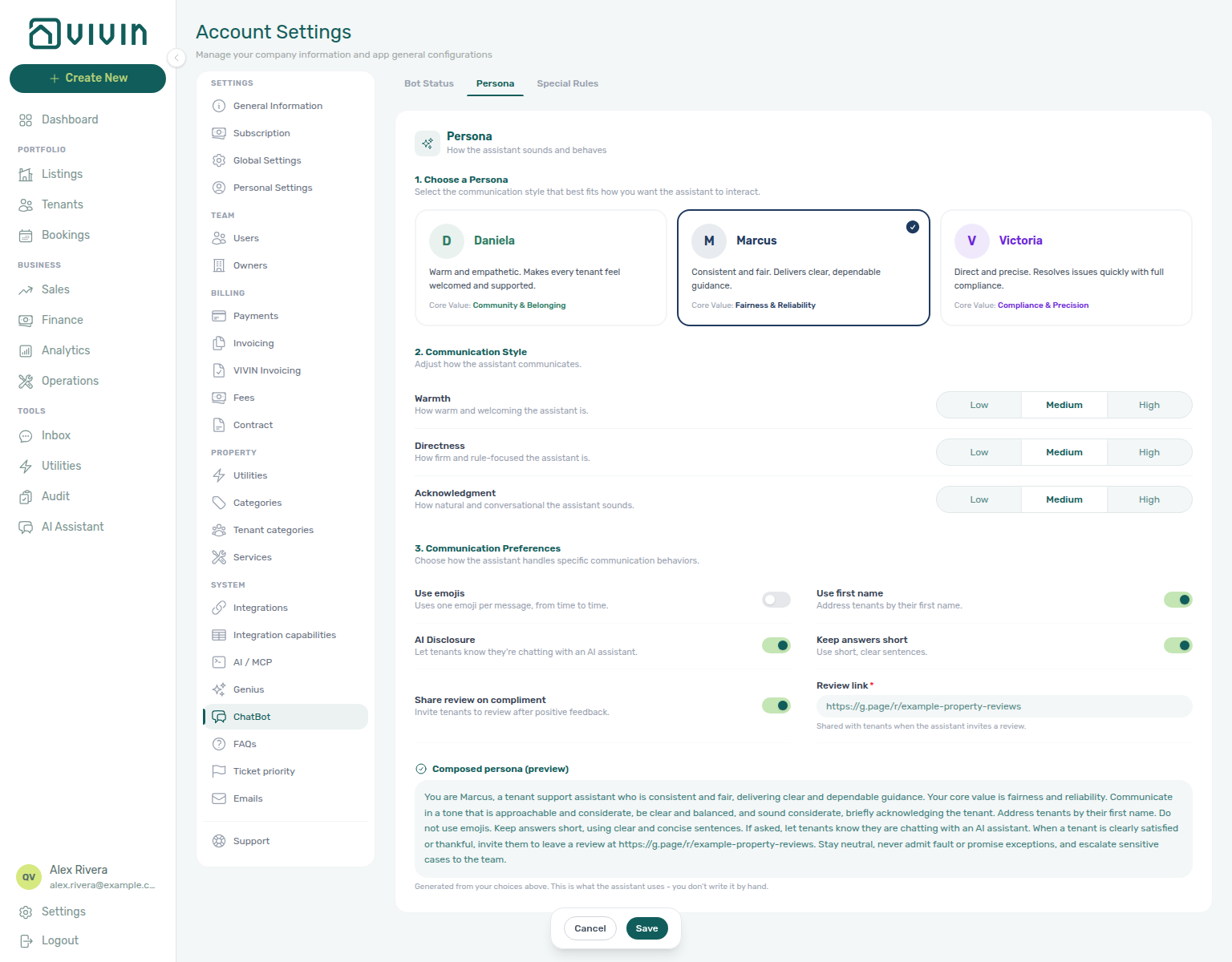
Toggle behaviours the assistant should follow on every channel:
| Preference | When on |
|---|---|
| Use emojis | Occasional single emoji in replies |
| Use first name | Address tenants by first name |
| AI Disclosure | If a tenant asks, say they are chatting with an AI assistant |
| Introduce as AI on start | Open every new conversation by identifying as an AI assistant — Off by default on all presets |
| Keep answers short | Prefer short, clear sentences |
| Share review on compliment | Invite a review after clear positive feedback — requires a Review link |
When Share review on compliment is on, enter a public Review link (for example your Google review page). Vivin accepts links with or without https:// and normalises the protocol on save. You cannot save with the toggle on and an empty or invalid link.
Introduce as AI on start
This preference sits on Communication Preferences next to AI Disclosure. Symptom: FAQ — AI Disclosure vs Introduce as AI. Term: Glossary — Introduce as AI on start.
Introduce as AI on start is Off on Daniela, Marcus, and Victoria until you turn it on. AI Disclosure (On by default on those presets) only answers when a tenant asks whether they are talking to a person. This toggle is separate: when On, the assistant identifies as AI at the start of a new conversation.
Turn it on when every new WhatsApp or email thread should open with that identification. Leave it Off if you only want the assistant to confirm when asked. You can use one, both, or neither.
In Composed persona (preview), On adds: When starting a conversation with a tenant, introduce yourself as an AI assistant. AI Disclosure still adds: If asked, let tenants know they are chatting with an AI assistant.
Turning the toggle on while a named preset is selected switches the card to Custom. Choosing a named preset again sets Introduce as AI on start back to Off.
Save on the Persona subtab so new conversations pick up the change. Threads that already started keep the tone they had.
See also FAQ — AI Disclosure vs Introduce as AI and Glossary — Introduce as AI on start.
Composed persona (preview)
At the bottom of the card, Composed persona (preview) shows the full sentence Vivin generates from your selections. Operators do not edit this text by hand — change presets, style, or preferences instead, then Save.
Unsaved changes
While editing, a floating Cancel / Save bar stays reachable. Leaving the Persona subtab with unsaved edits opens a confirm dialog — Keep editing or Discard changes. Hard refresh or close with dirty edits also prompts the browser.
IF/THEN rules
Prefer specific If phrases — broad rules fire on almost every message. Escalation paths pair with Operations — Tickets and Automation & AI. Seed common scenarios with AI Examples instead of typing every row from scratch.
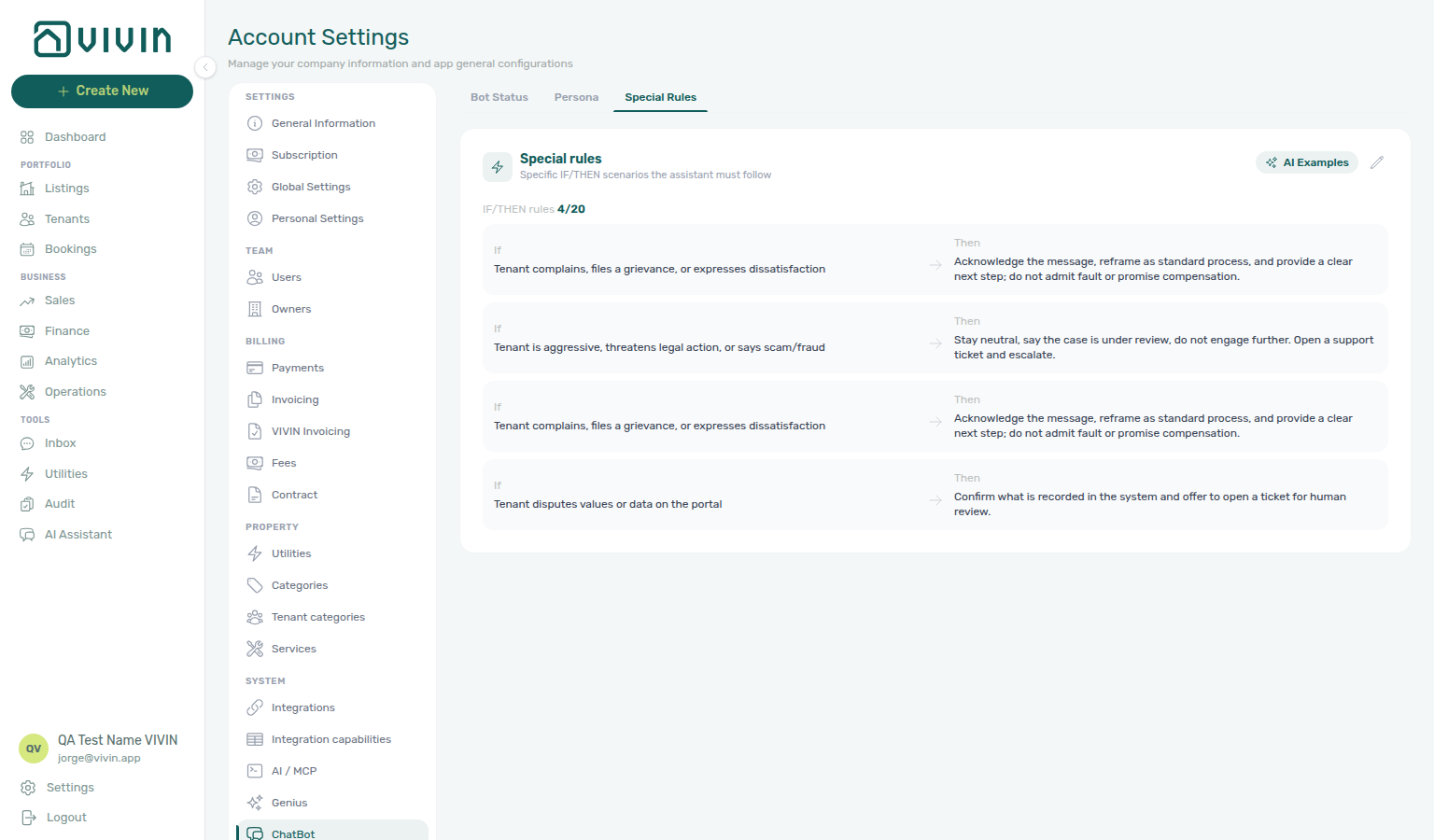
Open ChatBot → Special Rules to manage situation-specific bot behaviour. Rules follow an If → Then pattern (max 20 rows account-wide):
| Field | Limit | Guidance |
|---|---|---|
| If | 200 characters | Describe a specific tenant situation (for example “tenant asks about bedbugs” or “tenant reports a broken lock”), not broad catch-alls like “tenant has a question”. |
| Then | 200 characters | Tell the bot what to do when that situation matches — answer with a policy, escalate, or create a ticket. |
The card header shows the live count (for example IF/THEN rules 4/20). Use + Add rule for a blank row, or AI Examples to pick starter scenarios. Remove a row with the trash control.
AI Examples
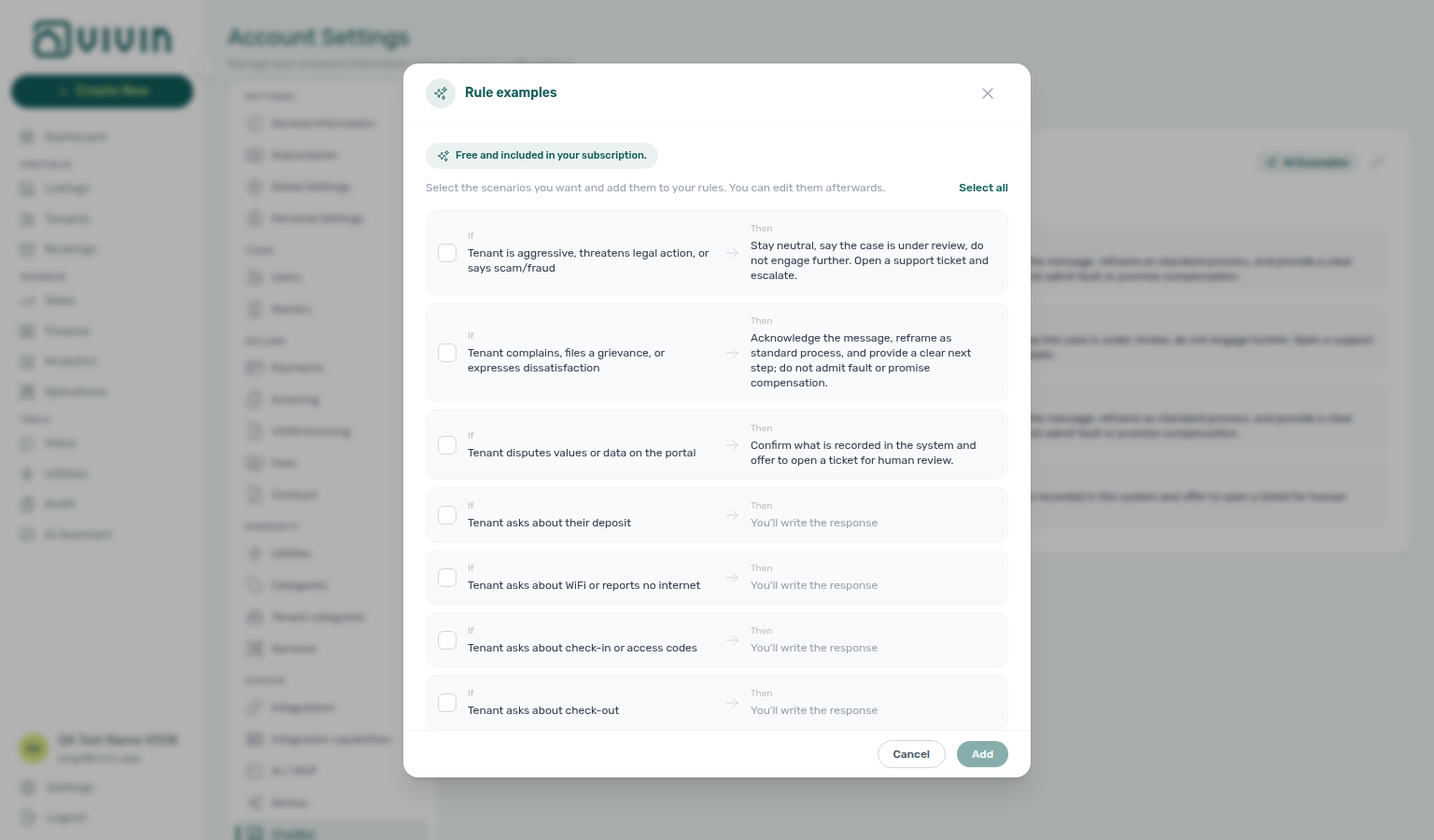
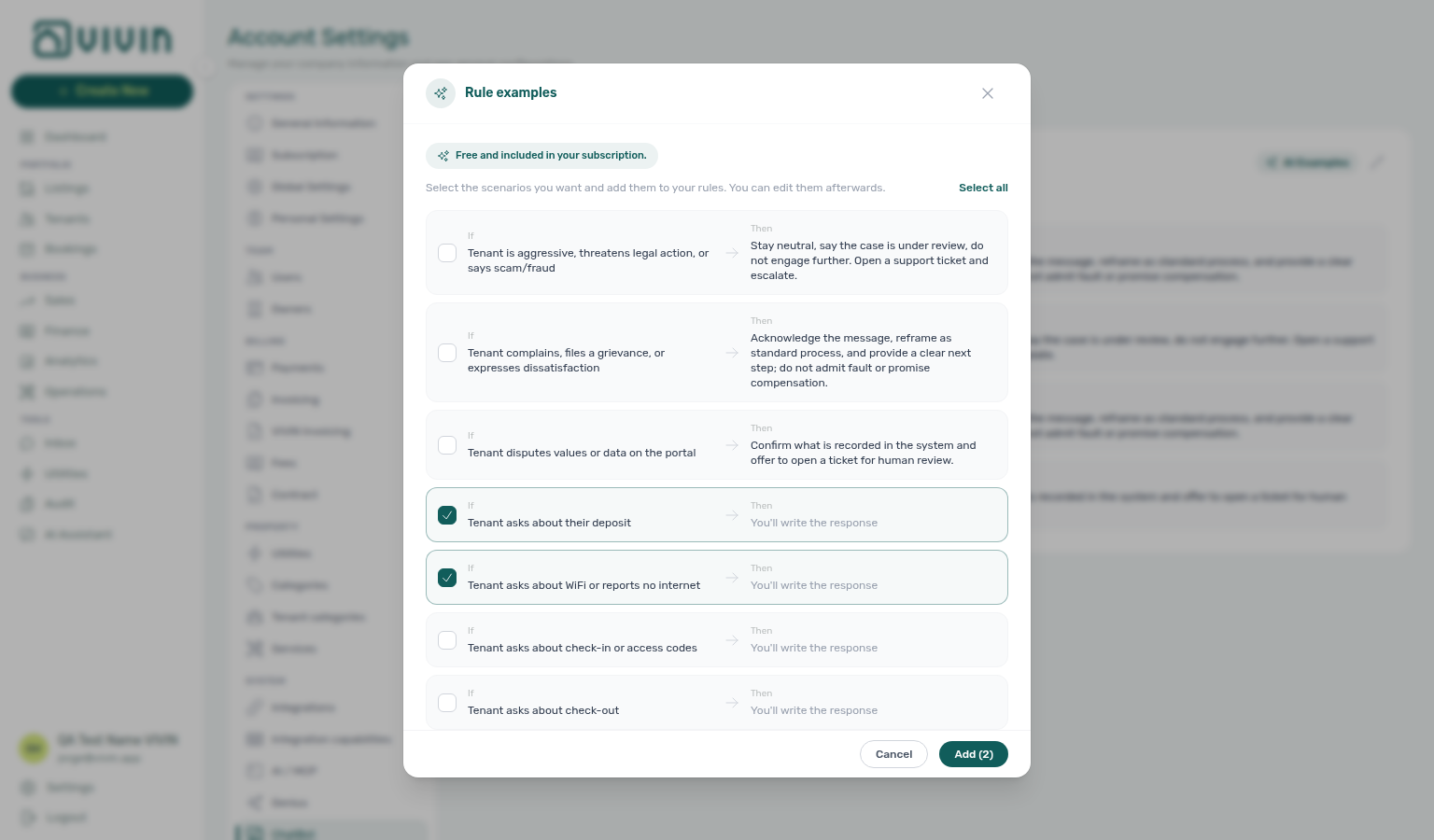
AI Examples opens the Rule examples picker — a free, subscription-included list of starter IF/THEN scenarios. Use it when you want common tenant situations ready to edit instead of drafting every If from scratch.
| Kind of starter | What you get |
|---|---|
| Policy rules (first rows) | Both If and Then are prefilled (for example grievance handling or legal-threat escalation). Review the wording, then Save. |
| Scenario starters | If is prefilled (deposit, Wi‑Fi, check-in, rent payment, …) and Then shows You'll write the response — fill your management-specific answer before Save. |
- Open Account Settings → ChatBot → Special Rules.
- Click AI Examples (sparkle control next to the pencil).
- In Rule examples, tick the scenarios you need (or Select all). The footer Add control shows the selection count (for example Add (2)).
- Click Add — Vivin appends the chosen rows and opens edit mode so you can finish blank Then fields.
- Complete every Then, then Save. Cancel discards the draft rows and restores the last saved list.
The picker respects the 20-rule cap: when few slots remain, an amber hint shows how many more you can add, and further rows stay disabled until you free space.
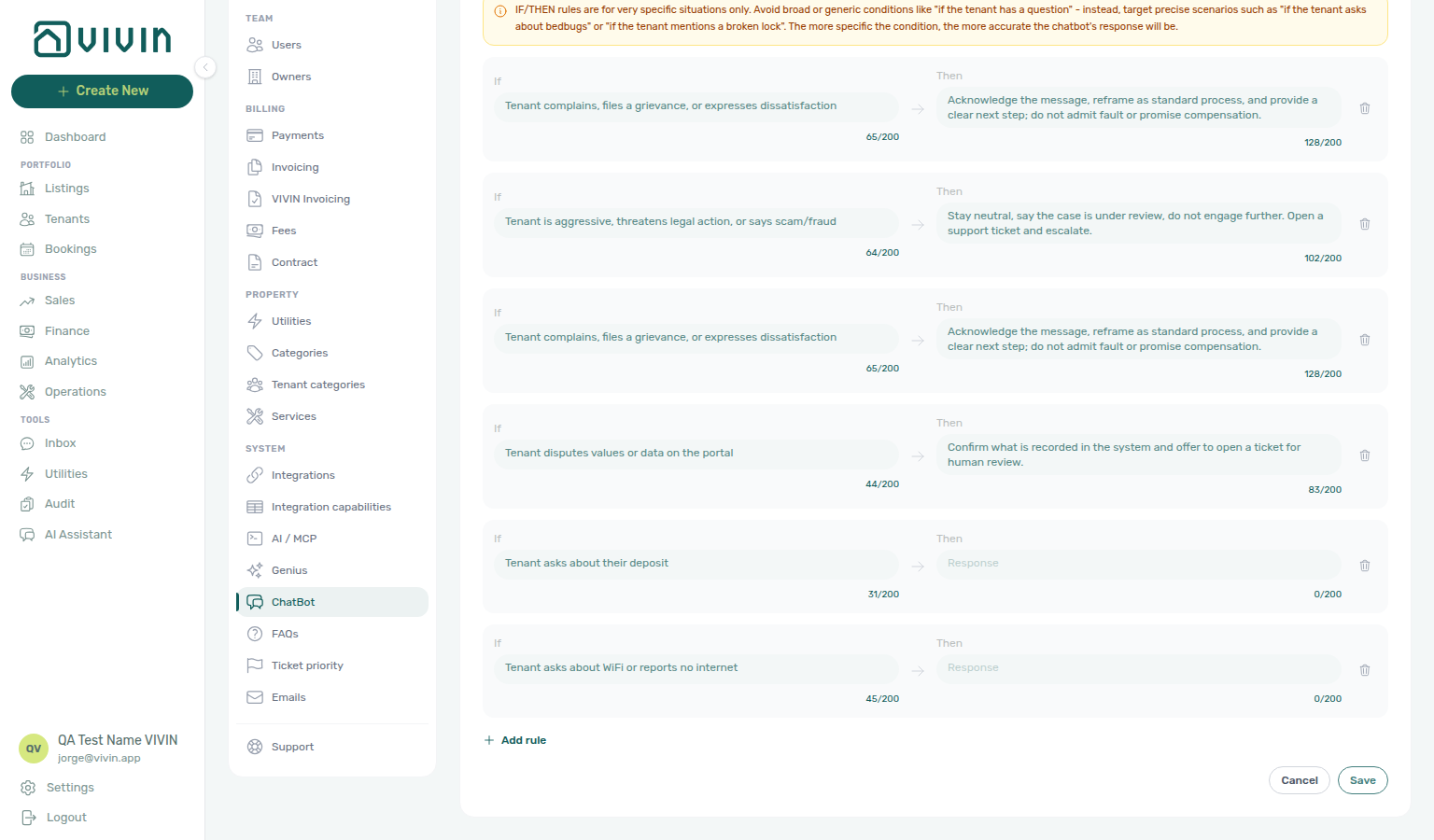
Broad If phrases cause the bot to fire on almost every message and produce generic replies. Prefer many specific rules over one vague rule. The amber hint in edit mode repeats this guidance — and incomplete rows (blank If or Then) cannot be saved.
Save and cancel
Special Rules and Persona each save on their own subtab:
- On Persona, click the pencil, adjust preset / style / preferences, then Save — or Cancel to discard. Leaving the subtab with unsaved edits asks you to keep editing or discard (see Unsaved changes).
- On Special Rules, click the pencil (or finish an AI Examples add, which already enters edit mode).
- Edit rows, + Add rule, or remove with trash.
- Click Save — a success toast confirms persistence; the card returns to read-only view. Every row must have both If and Then filled.
- Click Cancel to abandon changes and restore the last saved server values.
External automation can read the same composed persona and rules through Tenant MCP after authenticating with tenant context.
Inbox and Dashboard bell gating
isTenantChatBotEnabled gates Tools → Inbox, Dashboard bell Inbox sub-tab, and booking Communication together — pair with Preferences — In-app notifications before bulk-clearing message alerts.
The account flag isTenantChatBotEnabled controls more than the per-booking Communication tab. When it is false, Vivin blocks portfolio-wide messaging surfaces so operators are not sent to empty Inbox pages:
| Surface | Disabled behaviour |
|---|---|
Tools → Inbox (/inbox) | Greyed-out nav item with tooltip The tenant chatbot is not enabled for this account. |
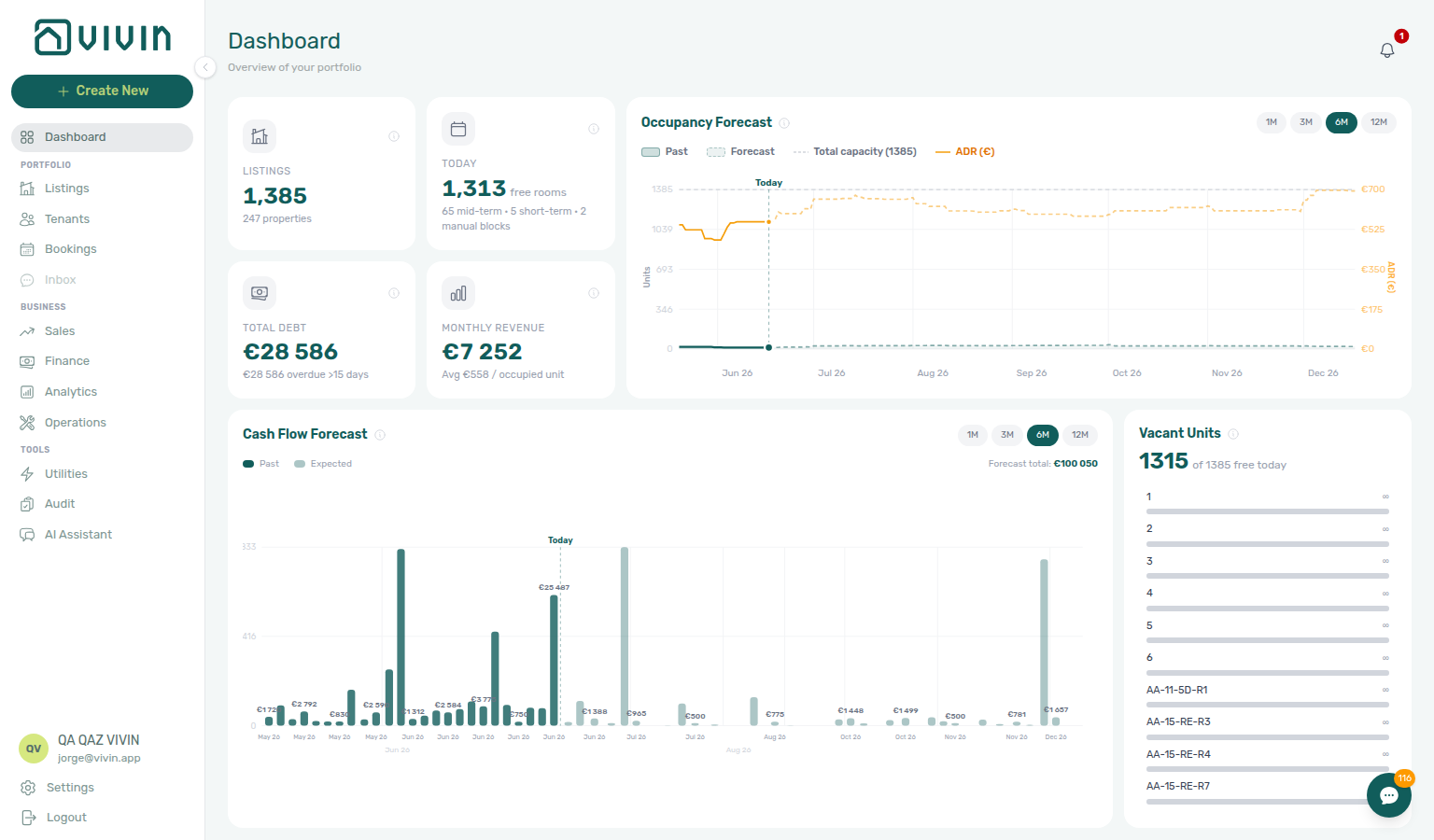
| Dashboard bell → Inbox sub-tab | Greyed-out tab with tooltip Activate the Chatbot to get tenant messages right here. General alerts are unaffected. | | Bookings → Communication | Tab opens with Unlock your communication history (see below). |
After Vivin enables the integration and you pair Status Bot, refresh the session — all three surfaces activate together. Full UI detail: Inbox module — Chatbot gating.
Booking detail — Communication tab
Live WhatsApp/email threads live here — Persona and IF/THEN rules shape future bot replies only. Pause bot per booking complements global rules — see Bookings — Communication tab. Channel-manager stays also show an Airbnb pill for the OTA guest thread (independent of this ChatBot toggle) — Airbnb guest chat.
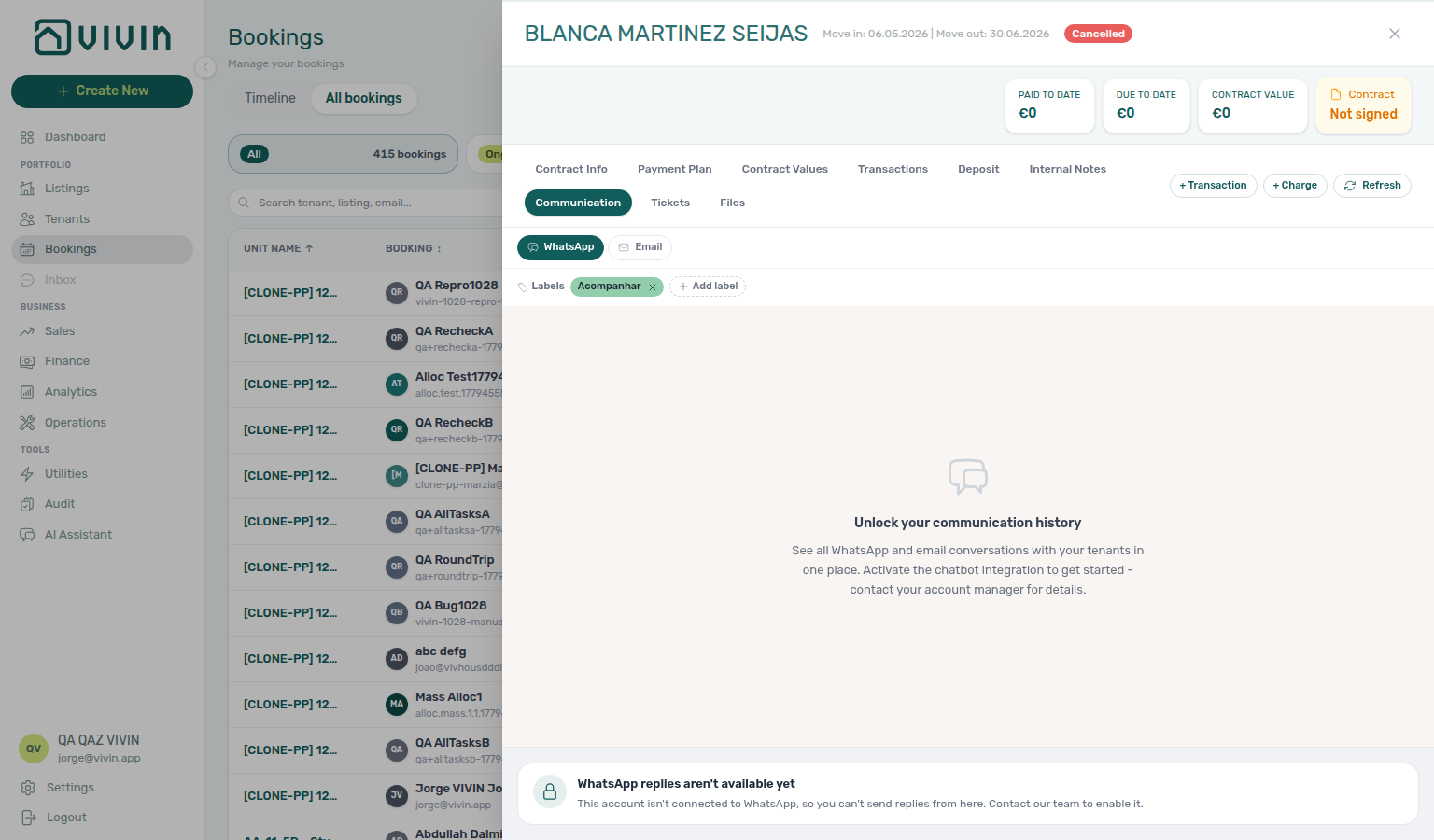
When the account-level tenant chatbot integration is off, Bookings → booking detail → Communication still opens, but the panel shows an unlock empty state until Vivin enables isTenantChatBotEnabled on your workspace. After enablement, the tab loads WhatsApp and email matched to the tenant’s email or phone on the reservation — including WhatsApp labels, the composer (when outbound WhatsApp is provisioned), and read-only email — see Bookings module — Communication tab.
Pause bot on one booking
For accounts where Vivin configured a dedicated pause label on the WhatsApp business line (chatBotPauseLabelId in internal admin), operators can stop automated bot replies for one reservation without changing global persona or IF/THEN rules:
- Open Bookings → booking detail → Communication.
- Select the WhatsApp filter.
- In the Labels row, turn Pause bot on — Vivin applies the pause label to that tenant’s conversation until you turn it off or remove the label.
The toggle appears only when the pause label exists for the account. It complements manual Add label chips for other tags. Step-by-step UI and thread behaviour are in Bookings — Communication tab and the global Inbox workspace (same Labels row and Pause bot control). If the switch shows a raw translation key instead of Pause bot in English, the pause behaviour still works — see the note under Pause bot toggle.
What the chatbot does in the product
For channel behaviour, escalation, ticket creation, and multilingual replies, see Automation & AI — AI Tenant Support Chatbot. In short:
- Answers common questions using live booking, payment, and contract data.
- Escalates or creates Operations tickets when the issue needs a human.
- Supports WhatsApp and email; use a dedicated WhatsApp number for tenant support if the same line also receives supplier messages.
Where operators read WhatsApp on a booking
Persona and IF/THEN rules on this tab shape future automated replies. They do not show live channel traffic.
When Vivin has enabled the tenant chatbot on your account (isTenantChatBotEnabled), each booking exposes a Communication tab in the detail sidebar (Bookings → open booking → Communication). Use the WhatsApp / Email pills to switch layouts: chat bubbles (tenant left; Bot mint / human outbound blue on the right — labelled You or the operator’s stored display name when Vivin recorded agent attribution on the message) with Labels, optional Reasoning expanders on Bot replies (audit why the bot sent that message), and a reply composer, or Gmail-style email rows you can expand for the full body (read-only). Use Refresh in the sidebar header while Communication is active after new traffic.
| Situation | What operators see |
|---|---|
| Chatbot off on the account | Communication opens with Unlock your communication history — enablement is account-level (contact Vivin). |
| Chatbot on, WhatsApp send not provisioned | Thread and Labels may load, but the bottom area shows WhatsApp replies aren't available yet instead of a composer — contact Vivin to wire outbound WhatsApp. |
| Chatbot on, tenant has no phone or email | No messages yet — matching requires at least one contact field on the tenant profile. | | Chatbot on, no history yet | No messages yet until the tenant has exchanged WhatsApp or email on your configured channels. |
Step-by-step UI states, channel filters, and distinction from Comments are documented in Bookings — Communication tab. FAQ: Where do I read WhatsApp and email for one booking? (also under AI & Automation).
When Vivin stored reasoning with an automated Bot reply, operators can expand Reasoning under that bubble on the WhatsApp filter to audit what the bot considered before sending — see Bookings — Bot reasoning and Glossary — Bot reasoning (audit) hub.
Bot reasoning (audit)
Thread Reasoning is read-only — edit Persona and IF/THEN on this tab after you audit a specific Bot reply on Communication.
- Glossary — Bot reasoning (audit) hub — Surface table + per-guide/module mesh reciprocal hub
- FAQ — Bot reasoning (audit) hub — Symptom table for Reasoning vs settings edits
- Common Workflows — Bot reasoning (audit) — Hub matrix (
bookings-detail-communication-tab-bot-reasoning-expanded.png,bot-reasoning-audit-expand-flow.mp4) - Bookings — Communication tab — Reasoning control on mint Bot bubbles
- Glossary — ChatBot settings hub — Persona, IF/THEN, Status Bot pairing
ChatBot settings hub mesh
This settings page is the configure surface — pair with Bot reasoning (audit) on live threads after rule edits.
- Glossary — ChatBot settings hub — Surface table + per-guide/module mesh reciprocal hub
- FAQ — ChatBot settings hub — Symptom table for pairing, persona, and IF/THEN tuning
- Common Workflows — ChatBot settings — Hub matrix (
settings-chatbot-tab-overview.png,settings-chatbot-persona-setup-flow.mp4,settings-chatbot-save-rule-flow.mp4) - Onboarding a New Property — ChatBot settings — Step 4 / Step 7 go-live pairing
- Inbox module — Chatbot gating —
isTenantChatBotEnabledgates Inbox with Status Bot
ChatBot section cross-reference
Use the sections above for this settings area. Related setup pages are linked from Related below when present, or from Account Settings.
Related
Related below links this Account Settings tab to modules, workflows, concepts, and escalation paths.
Documentation map & escalation
- Account Settings hub — Tab pairing matrix across workspace configuration
- Account Settings — System section — Where ChatBot sits beside Integrations and Emails
- FAQ — AI & Automation — Bot pairing, WhatsApp provisioning, and Communication tab states when chatbot is off
- Glossary — Term definitions used across settings and module docs
- Get Help & Support — Escalation when Status Bot pairing or outbound WhatsApp fails
Upstream & downstream workflows
- Processing a New Booking — WhatsApp enquiries the bot may answer before a reservation exists
- Notification triage — Inbox bell sub-tab vs full
/notificationswhen chatbot escalations create alerts - Handling a Late Payment — Step 1 — Identify overdue charges when bot hand-offs surface unpaid confirmation or move-in charges and a payment overdue alert row-click brought you here
- Managing a Check-out & Deposit Refund — WhatsApp context when tenants dispute deductions during departure week
- Portfolio KPI review — Month-end pass when chatbot escalations correlate with debt or occupancy KPIs
Deeper workflow reads
See Upstream & downstream workflows above for the same guides.
Related Account Settings tabs
- Emails — Communication Rules for email channel parity with WhatsApp bot IF/THEN rules
- Portal settings — Portal toggles that shape what the bot may answer about payments or services
- Preferences — In-app notifications — Account-wide Inbox messages masters before bot escalation alerts deep-link into
/inbox - Tenant categories — Portal modules the bot may reference (payments, contract, utilities) per tenant segment
- Interface Language — Operator UI locale vs bot rule copy (rules may stay English)
- Users and roles — Chatbot permission
Operator modules
- Inbox module — Portfolio-wide WhatsApp triage (same tenant WhatsApp session as booking Communication)
- Bookings — Communication tab — Per-booking WhatsApp (labels + composer) and read-only email when chatbot is enabled
- Bookings — Payment Plan tab — Charges the bot may reference during payment enquiries
- Operations — Tickets — Escalations and auto-created maintenance jobs from bot hand-offs
- Notifications — Dashboard bell Inbox sub-tab — Inbound message alerts deep-link into
/inboxor booking Communication - AI Chat module — AI Assistant (distinct from tenant ChatBot on this tab)
- Audit — Discounts tab — Cross-portfolio discount context when bot hand-offs involve mid-stay repricing
- Notifications — Payment overdue alerts (in-app) — Operator Payments category rows when scheduled charges are overdue after bot payment hand-offs
Deeper concept reads
- Automation & AI — Channel map, escalation, and operator AI Assistant vs tenant chatbot
- Tenant MCP — External automation that reads the same chatbot rules and WhatsApp state as operators
- Landlord MCP — Portfolio automation that references chatbot configuration
- Services Marketplace — Bot answers about ancillary tenant services when portal modules are enabled
- Integrations & Distribution — Tenant WhatsApp chatbot is configured separately from marketplace booking-platform integrations
- Tenant Portal — Status Bot pairs with portal onboarding; tenants may message on WhatsApp instead of opening the web portal
- FAQ — Tenant contract signing blocked — No PDF yet, mandatory Your Details gates, category locks, or Lease purpose; portal signing vs paper upload on Contract Info
- Payment Allocation — Two-layer receipts and credit note reject/revert warnings
- Booking Lifecycle — Computed status model for stays with active Communication threads
Module documentation hubs
- Bookings — Per-booking Communication tab and pause-bot controls
- Finance — Deposit disputes the bot may escalate before Finance → Deposits
- Operations — Maintenance tickets created from bot escalations
- Dashboard — Bell notification triage with Inbox sub-tab gating
- Tenants — Contact fields the bot uses to match WhatsApp and email threads
- API Reference hub — Partner HTTP contracts (distinct from tenant WhatsApp configuration)
Operator habit hubs
Day-to-day operator habits (lockout catch-up, pending receipts, payment triage, handoffs, and related playbooks) live on the Common Workflows habit hub.
Deep-link anchors for habit hubs
Lockout catch-up after password recovery
Pending manual receipt approval
Reject/revert mistaken receipts
Portfolio segmentation by tenant category
Notification row-click navigation
Payment alert to receivables triage
Confirmation alert triage
Finance debt receivables triage
Handling a Late Payment collections
Finance Income status drill-down
Cash flow forecast drill-down
Key glossary terms
- Introduce as AI on start — Persona preference that opens new tenant threads by identifying as AI (distinct from AI Disclosure)
- Bot reasoning (audit) — Expand Reasoning under automated bot bubbles on WhatsApp threads
- Glossary — End-of-Booking cost split — Charge Time → End of Booking splits daily overage across every occupied unit; still-staying roommates stay in the denominator
- Glossary — Change history — Operator-initiated edits on Listings setup and Bookings Changelog; create-time defaults excluded
- Glossary — Archived booking ledger visibility — Delete Booking hides manual/provider_platform rows on Finance → Transactions; vIBAN and credit card stay visible
- Glossary — Finance tenant category cache refresh — Recategorizing a tenant updates
booking.tenantCategoryIdimmediately; ledger tabs reflect it on reload, while Overview can lag up to ~10 minutes - Glossary — SIMAR water contract ID — SIMAR (Loures e Odivelas) water bills use Cód. Local in Connections — not Nº de Contador; leading zeros stripped
- Glossary — Full term list