VIVIN Invoicing
VIVIN Invoicing is Vivin’s built-in invoicing provider. Add the connection under Integrations, then open Configure on that card to set the issuer stamped on each document, the numbering series, the tax-rate catalogue, and the Word (.docx) templates used for Invoice, Proforma, and Credit note.
There is no Billing sidebar tab named VIVIN Invoicing. The English card subtitle is Invoice numbering, taxes and Word templates. A Configure button opens a modal with those settings. Old bookmarks to /settings/vivinInvoicing redirect to Integrations.
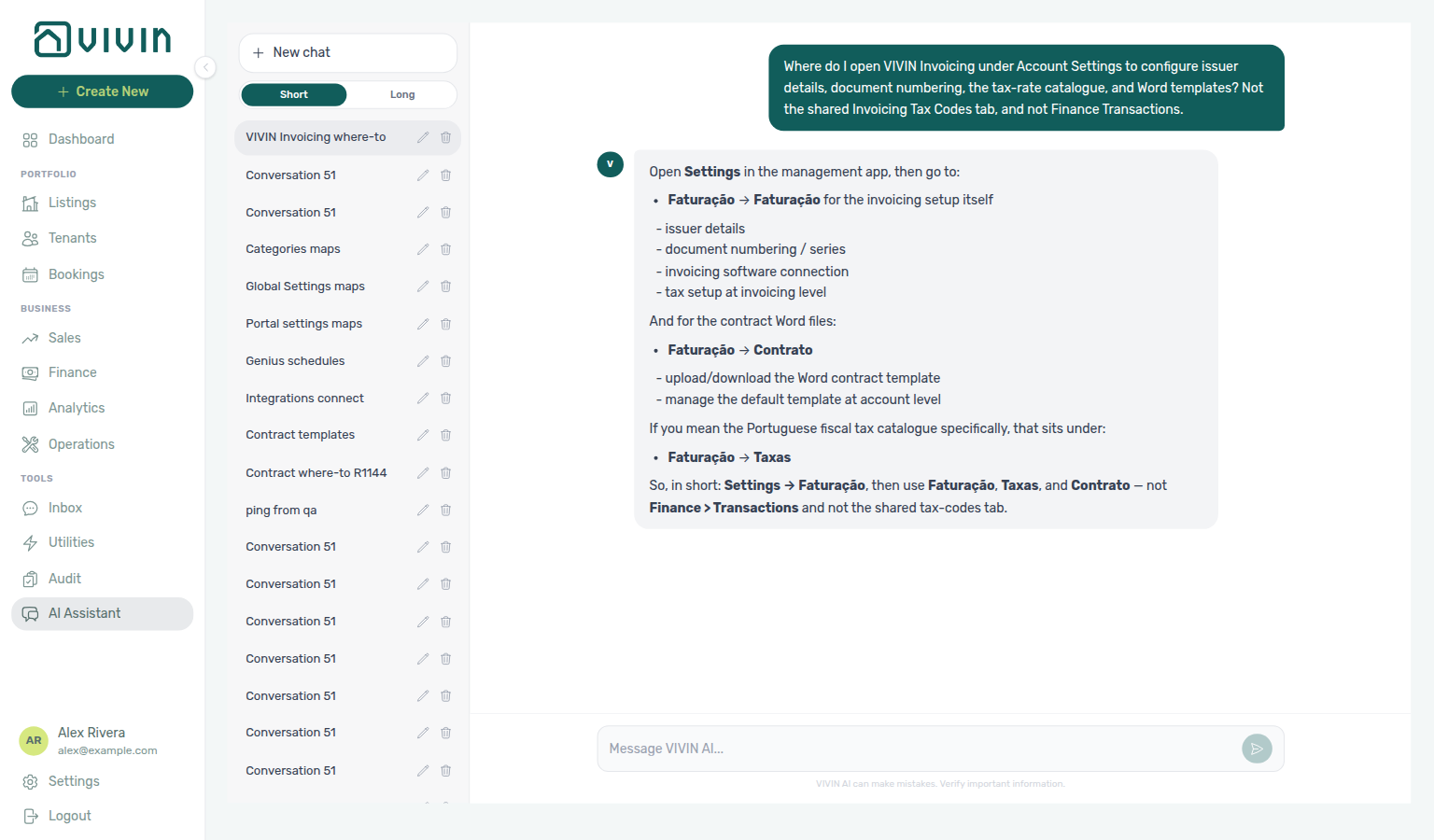
Ask AI Chat “Where do I open VIVIN Invoicing under Account Settings to configure issuer details, document numbering, the tax-rate catalogue, and Word templates? Not the shared Invoicing Tax Codes tab, and not Finance Transactions.” — then open Settings → System → Integrations and Configure on the VIVIN Invoicing card (ai-chat-product-context-vivin-invoicing-reply.png, ai-chat-product-context-vivin-invoicing-flow.mp4). Live replies often say Settings → Faturação → Faturação (and may send Word files to Contrato or tax names to Taxas). Follow Integrations → Configure instead. Same grounding external MCP clients get from get-vivin-context-finance (or get-vivin-context-platform). Distinct from line-type Tax VAT on Invoicing and from issued documents on Finance → Transactions.
It is distinct from the shared Invoicing tab (line-type Tax VAT mapping and fee labels) and from third-party providers such as Hostkit, Invoice-xpress, and NetSuite.
Add VIVIN Invoicing under Integrations (as the catch-all, or as a filtered peer beside NetSuite — see VIVIN + NetSuite dual stack), then complete Configure before your first Issue allocation on Finance → Transactions. With multiple VIVIN peers, use VIVIN connection at the top of the modal before editing issuer or templates. Pair Tax rate names here with Tax Codes on Invoicing. Hub: Recommended setup order.
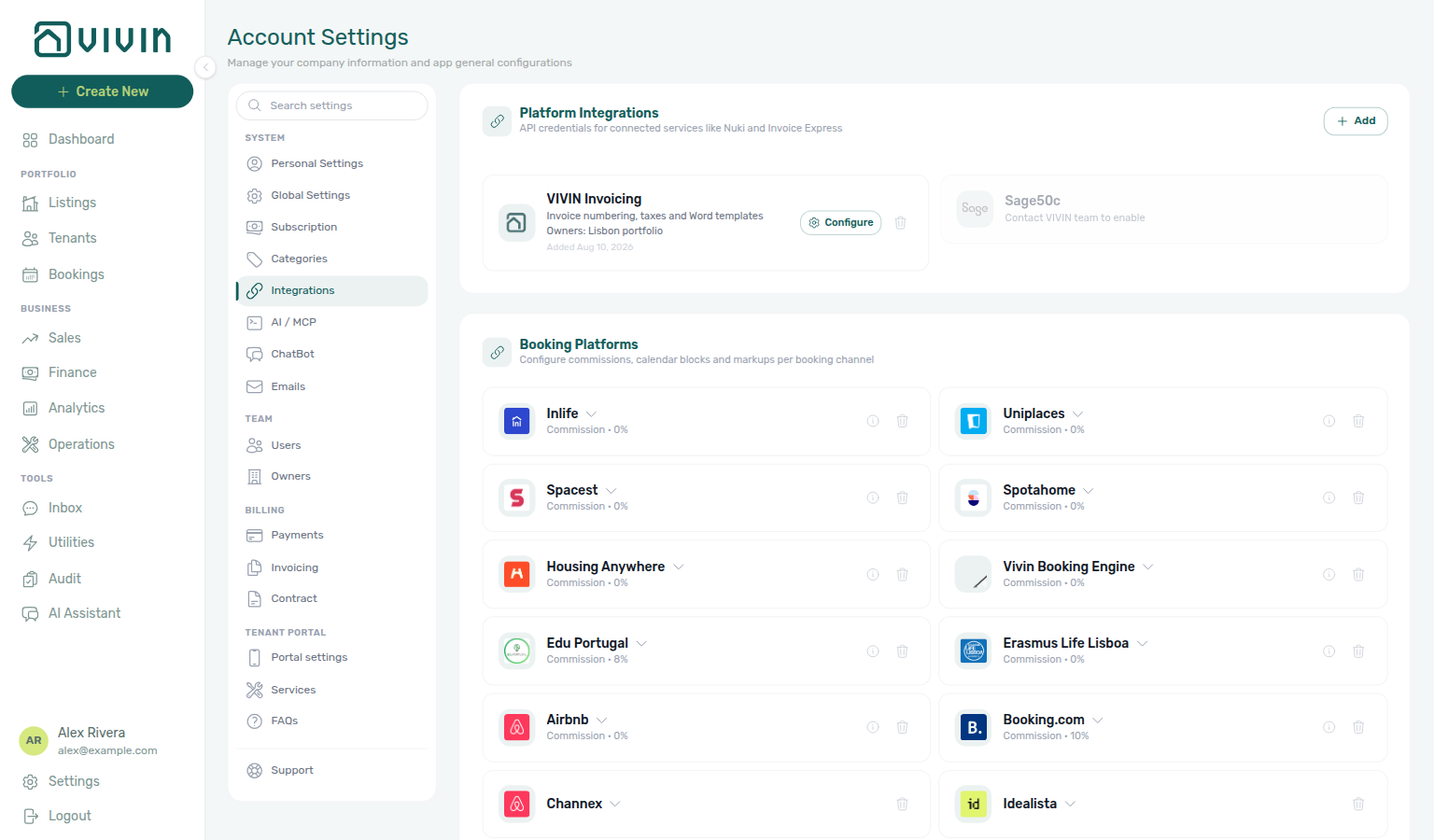
Open Account Settings → System → Integrations at platform.vivin.app/settings/integrations, then Configure on the VIVIN Invoicing card. The legacy URL platform.vivin.app/settings/vivinInvoicing lands on Integrations. Route reference: Deep Links — Account Settings.
Connect the provider on Integrations. Map each invoice line type to a Tax VAT name on Invoicing → Tax Codes using the same names you define under Tax rates here. Permission gate matches Invoicing & Payments (account_settings.invoicing_&_payments).
Who can open it
| Audience | What they see |
|---|---|
| Roles with Invoicing & Payments settings | Configure on the VIVIN Invoicing connection card when that connection is active |
| Roles without that permission | Integrations cards follow the usual settings permission state |
| Workspaces without a VIVIN connection | No VIVIN card; /settings/vivinInvoicing still opens Integrations |
Layout
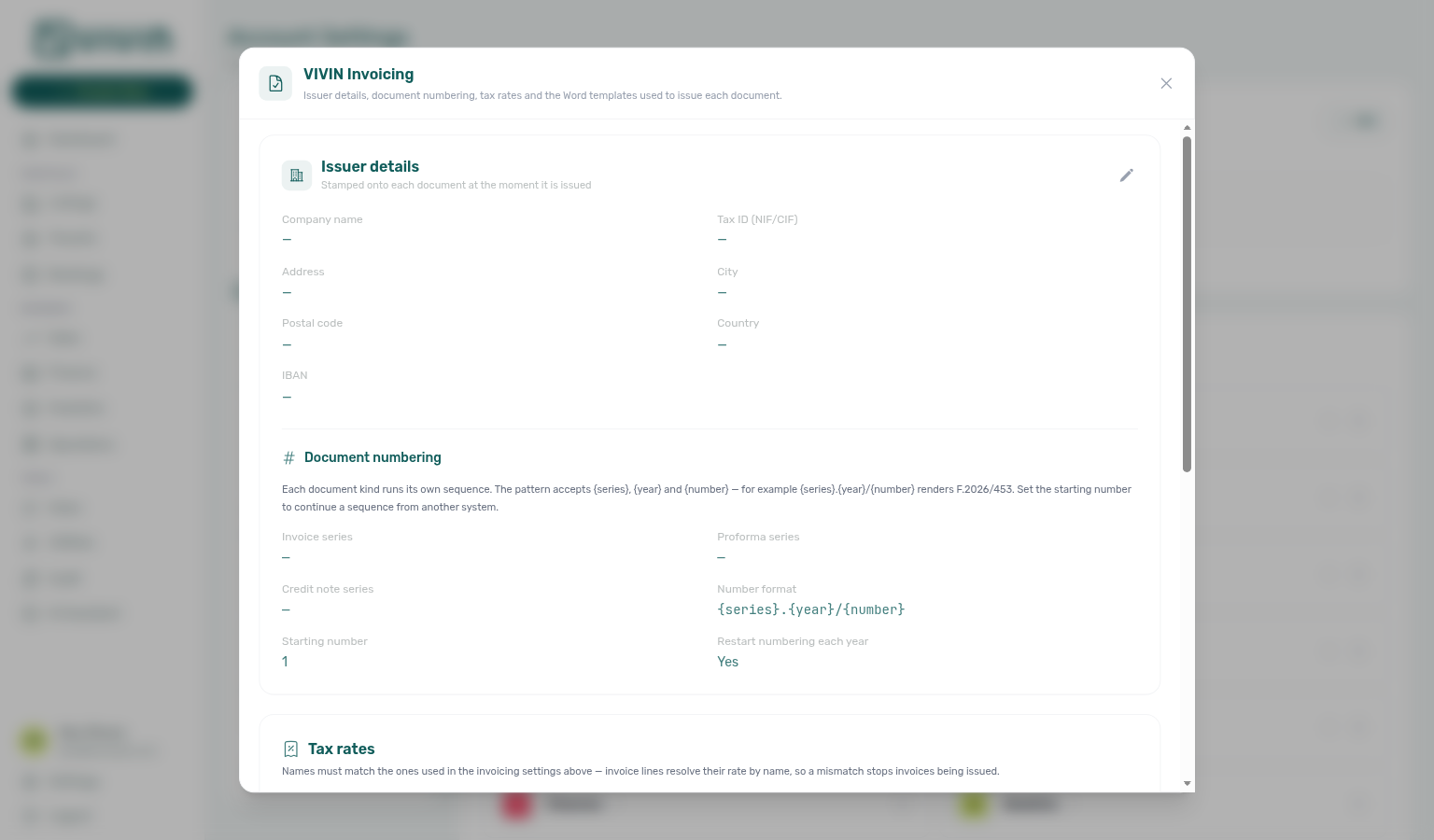
Configure opens a modal titled VIVIN Invoicing. It stacks three cards (plus an optional VIVIN connection picker when you have more than one VIVIN peer):
| Section | Purpose |
|---|---|
| VIVIN connection (when 2+ peers) | Choose which VIVIN peer’s issuer, numbering, and Word templates you are editing |
| Issuer details (includes Document numbering) | Legal issuer stamped on each document, plus series codes and number format |
| Tax rates | Account tax catalogue (name + %) used when invoice lines resolve a rate by name |
| Word templates | One .docx per document kind, with Preview and template variables |
A new or filtered peer can show empty issuer and series fields (dashes) until you edit and save.
Connect VIVIN Invoicing first
- Open Account Settings → Integrations.
- Under Platform Integrations, click + Add and choose VIVIN Invoicing.
- There are no external API credentials to paste — VIVIN Invoicing runs inside Vivin. Save to create the connection card. The add dialog may still say setup continues on a VIVIN Invoicing tab — use Configure on the card instead.
- The card subtitle reads Invoice numbering, taxes and Word templates. Click Configure to open issuer, numbering, taxes, and templates.
VIVIN Invoicing can run beside NetSuite (and you can add more than one VIVIN connection). The first invoicing connection is the unfiltered catch-all; every extra VIVIN or NetSuite peer needs Payment types and/or Owners. Hostkit, Invoice-xpress, and Sage50c stay exclusive — see Integrations — VIVIN + NetSuite dual stack. Issuer details, numbering, and Word templates are per VIVIN connection; tax rates stay account-wide. With two or more VIVIN peers, use the VIVIN connection control at the top of the Configure modal before you edit issuer or templates.
VIVIN connection picker
When your workspace has more than one VIVIN Invoicing connection (for example a catch-all beside a filtered peer, or two filtered peers for different owners / payment types), the Configure modal shows a VIVIN connection dropdown above Issuer details.
| Behaviour | What you see |
|---|---|
| One VIVIN connection | No picker — issuer, numbering, and templates edit that single peer. |
| Two or more VIVIN connections | VIVIN connection lists each peer by its connection name (or a fallback label such as Default (all payments) / payment-type · owner summary). |
| What switches with the picker | Issuer details, Document numbering, and Word templates reload for the selected peer. |
| What stays shared | Tax rates stay account-wide — the help text under the picker reminds you they are not per connection. |
- Open Account Settings → System → Integrations.
- Click Configure on any VIVIN Invoicing card.
- Choose the peer in VIVIN connection (the menu defaults to the catch-all when one exists).
- Edit Issuer details / Document numbering / Word templates for that peer, then Save.
- Switch the picker to the next peer when you need a different issuer stamp or series for another owner or payment-type slice.
Pair with Integrations — VIVIN + NetSuite dual stack when you add or remove peers, and with FAQ — VIVIN Invoicing setup for the end-to-end checklist.
Issuer details
The Issuer details card holds the company identity stamped onto every document at issue time:
| Field | Typical use |
|---|---|
| Company name | Legal name on the document header |
| Tax ID (NIF/CIF) | Fiscal identifier |
| Address / City / Postal code / Country | Issuer address block |
| IBAN | Bank account printed for remittance |
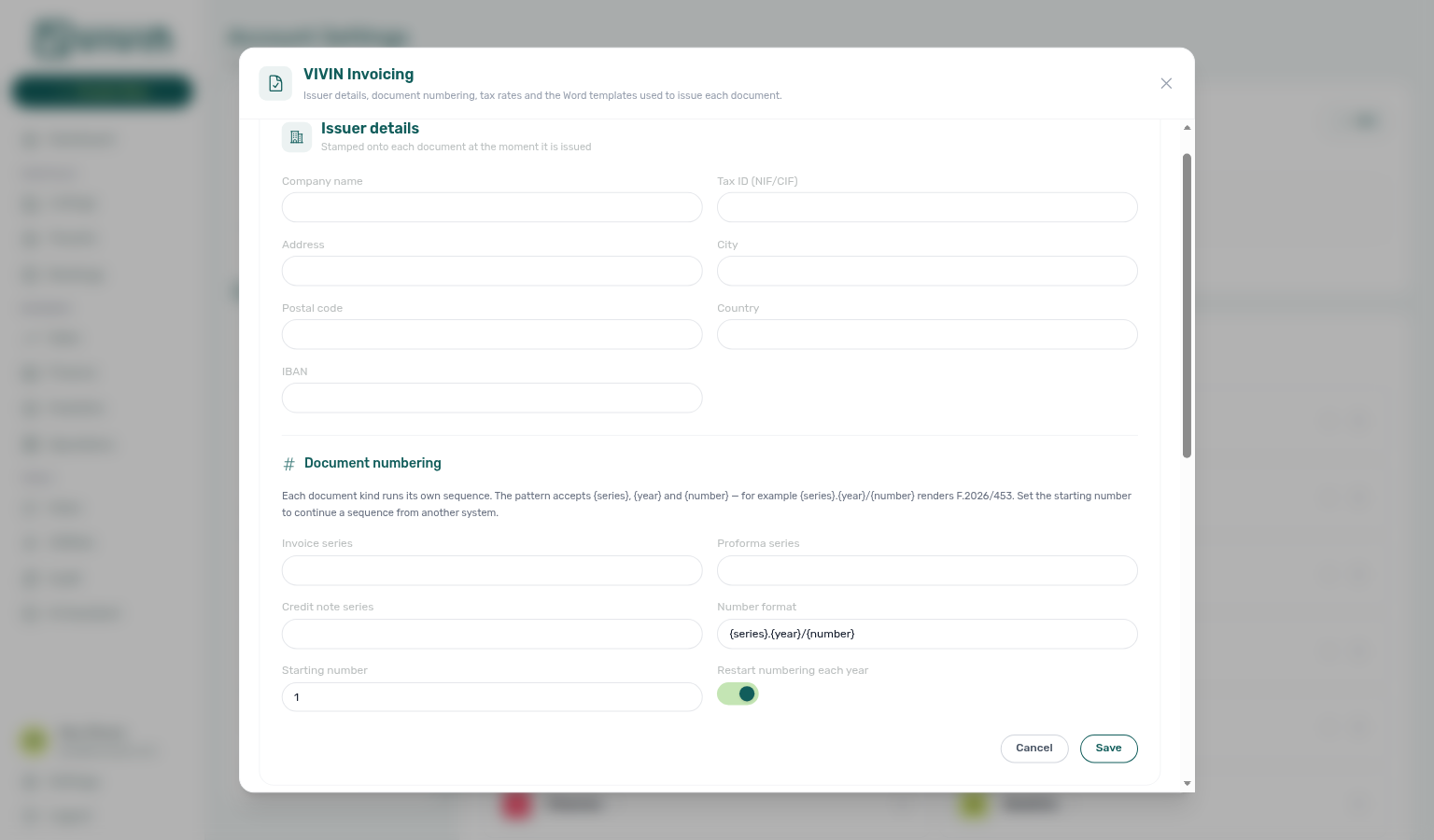
Click the pencil to edit, then Save — or Cancel to discard the draft.
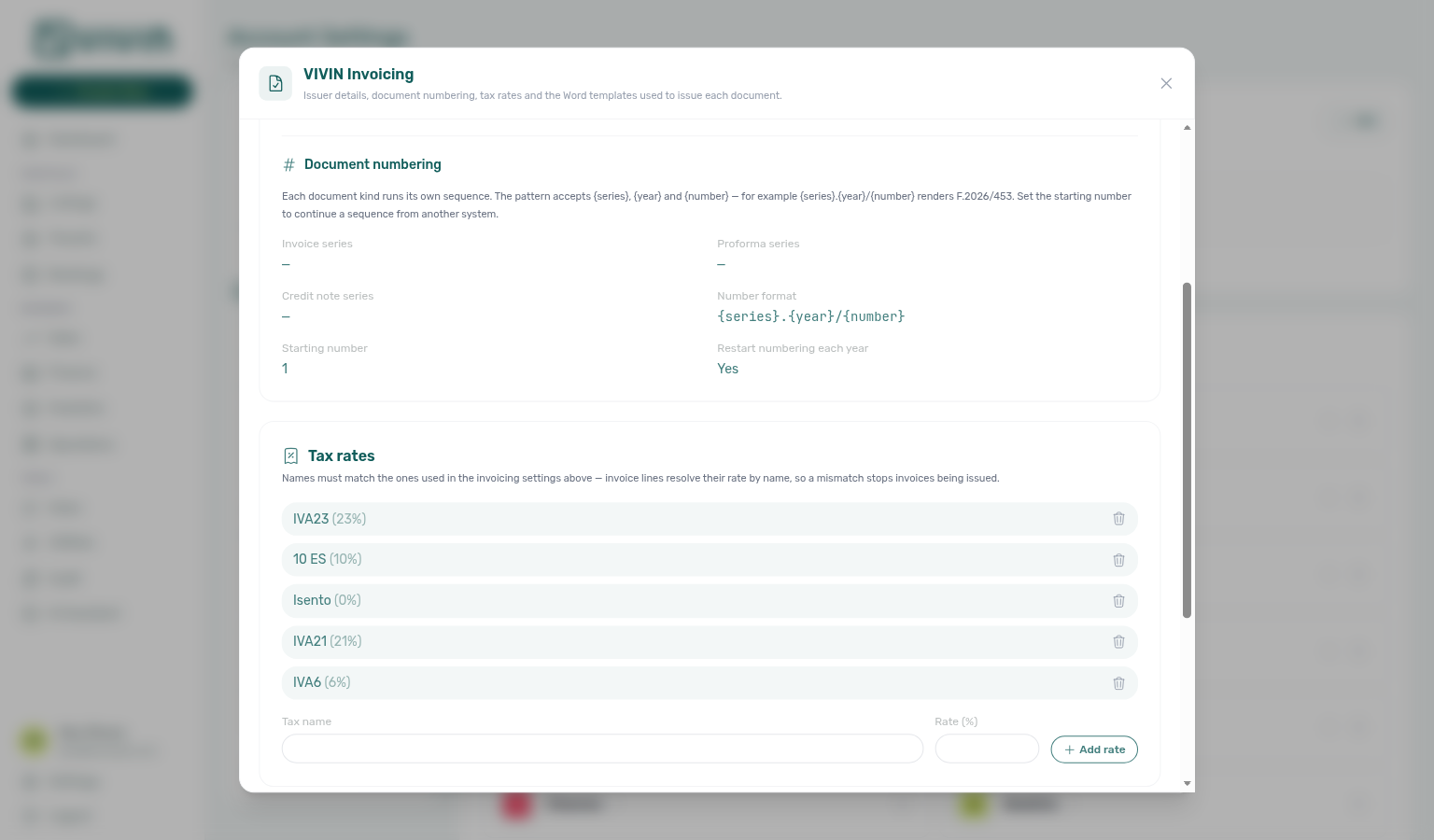
Document numbering
Inside the same card, Document numbering gives each document kind its own sequence:
| Field | Meaning |
|---|---|
| Invoice series | Series code for invoices (for example INV) |
| Proforma series | Series code for proformas |
| Credit note series | Series code for credit notes |
| Number format | Pattern with {series}, {year}, and {number} — for example {series}.{year}/{number} → INV.2026/1 |
| Starting number | First number for a series that has not issued yet (use this to continue a sequence from another system) |
| Restart numbering each year | When On, the sequence resets at year change |
Tax rates
Tax rates is your account’s rate catalogue for VIVIN Invoicing — each row is a name plus a percentage.
Invoice lines resolve their rate by name. The names you add here must match the Tax VAT names selected on Invoicing → Tax Codes and on Others Categories Taxes for each Others Items label. A mismatch prevents documents from being issued. On Tax Codes, view mode shows the catalogue name (for example IVA23); edit mode may display the same rate as VAT 23% — pick the option that matches the name you defined here (settings-invoicing-tax-codes-vivin-dropdown.png, settings-invoicing-tax-codes-vivin-flow.mp4).
- Enter a Tax name and Rate (%).
- Click Add rate.
- Use the trash control on a row to remove a rate you no longer need.
Word templates
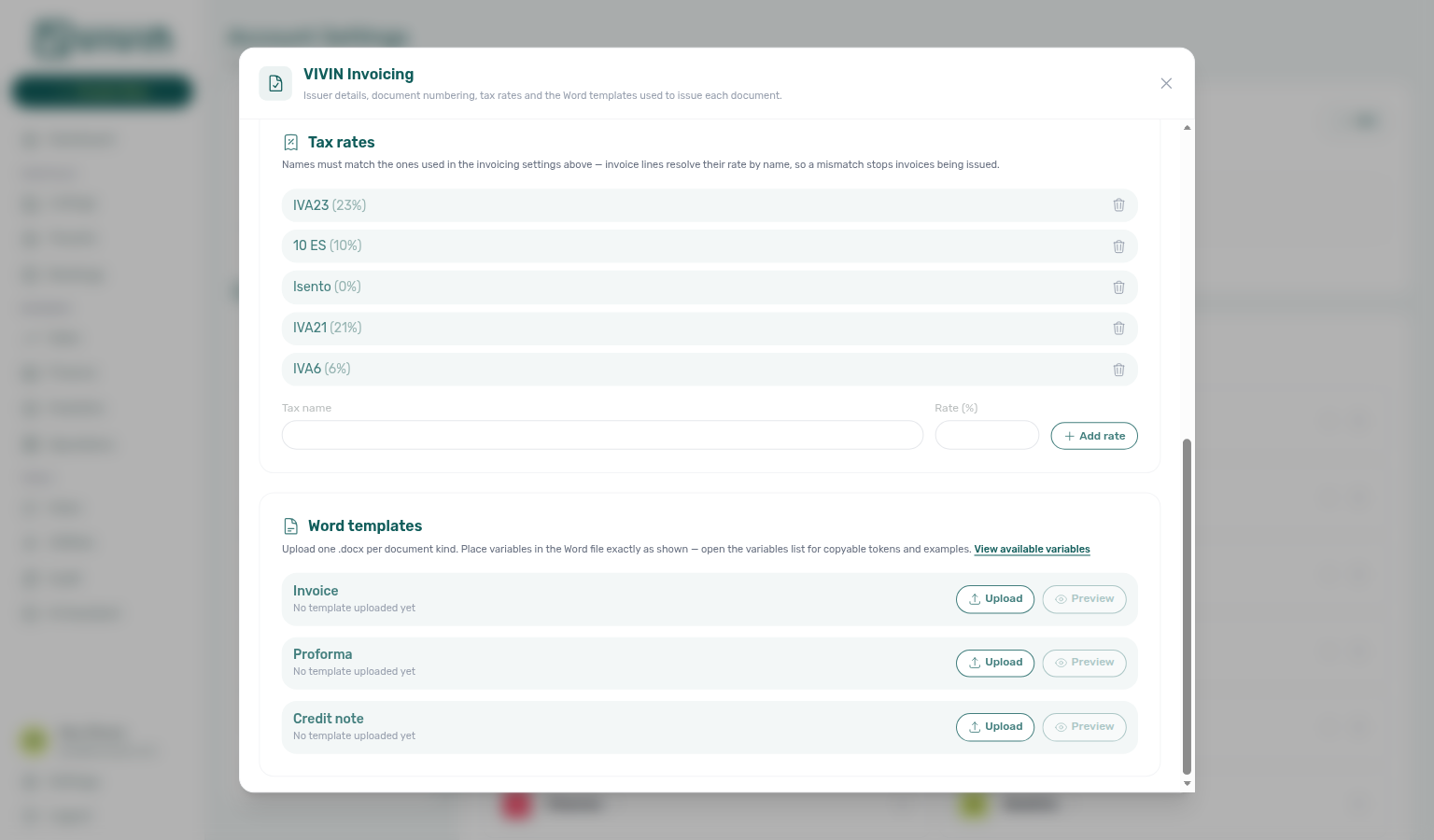
Upload one Word (.docx) file per document kind:
| Document kind | When Vivin uses it |
|---|---|
| Invoice | Final invoice documents |
| Proforma | Proforma / quote-style documents |
| Credit note | Credit notes against a prior invoice |
Each row shows whether a template is uploaded, plus Upload, Preview, and delete.
- Upload replaces the file for that kind.
- Preview is available after a file is uploaded — it renders a sample PDF with placeholder data so you can check layout before go-live.
- Prefer templates without embedded signature or logo images — if Vivin detects embedded images on upload, it still saves the file but warns that those images would appear on every document.
Template variables
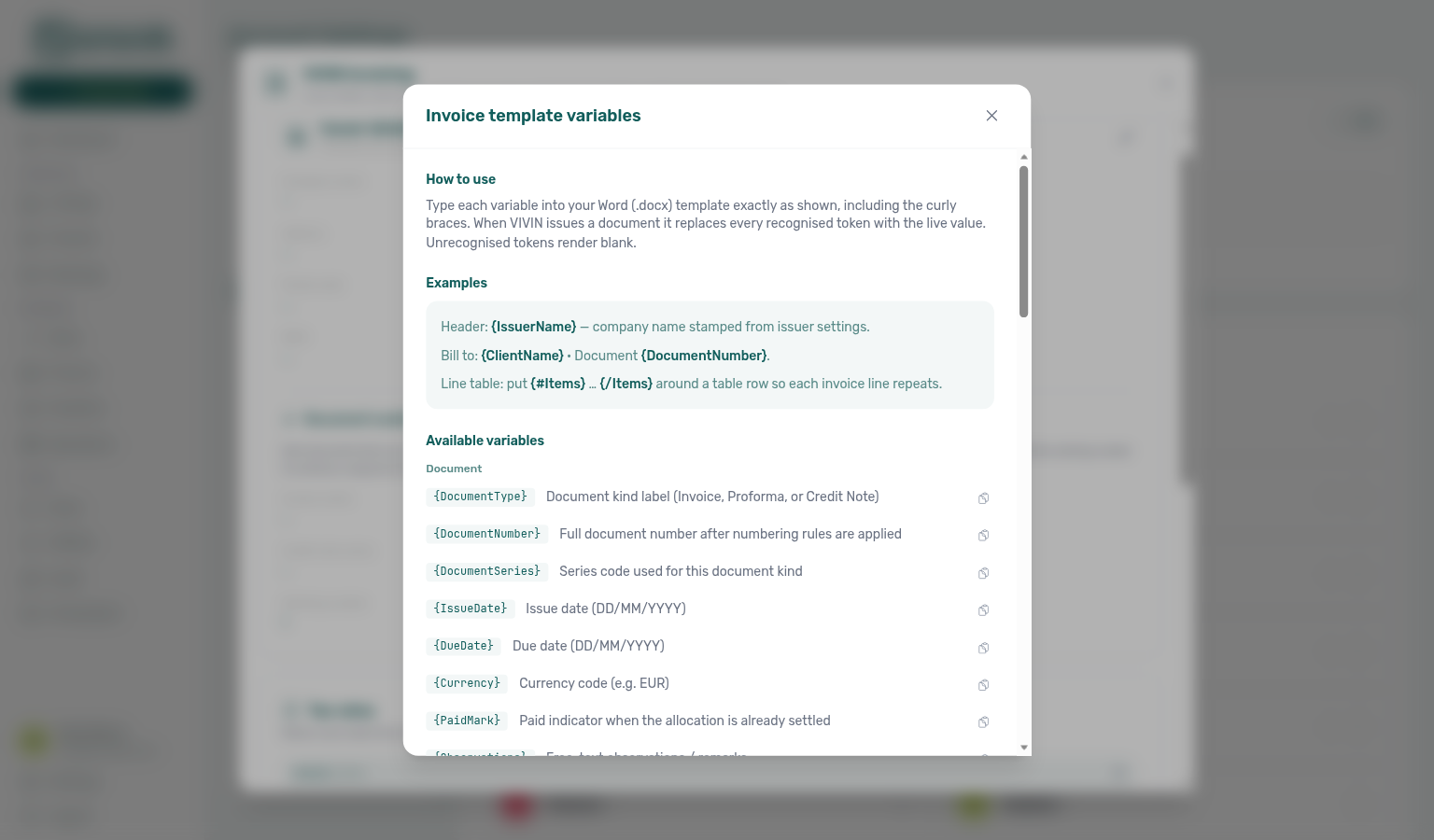
Open View available variables on the Word templates card for the copyable token catalogue (same pattern as Contract templates).
Type each token into your .docx exactly as shown, including curly braces. Unrecognised tokens render blank.
Repeating invoice lines use a loop: put {#Items} … {/Items} around a table row so each charge line repeats with {ItemDescription}, {ItemQuantity}, {ItemUnitPrice}, tax fields, and totals.
| Group | Examples |
|---|---|
| Document | {DocumentType}, {DocumentNumber}, {DocumentSeries}, {IssueDate}, {DueDate}, {Currency}, {PaidMark}, {Observations} |
| Issuer | {IssuerName}, {IssuerFiscalId}, {IssuerAddress}, {IssuerIban}, … |
| Client | {ClientName}, {ClientFiscalId}, {ClientEmail}, … |
| Booking and property | {PropertyAddress}, {ListingName}, {BookingReference}, {PeriodStart}, {PeriodEnd} |
| Invoice lines | {#Items} … {ItemDescription} … {/Items} |
| Totals | {TaxableBase}, {TaxAmount}, {Total}, {TotalInTextEn|Pt|Es|It} |
| Credit notes only | {OriginalDocumentNumber}, {OriginalDocumentDate} |
Related
- Integrations — VIVIN Invoicing — Add the connection (no external credentials) and open Configure
- Integrations — VIVIN + NetSuite dual stack — Catch-all + filtered peers; then use VIVIN connection in the Configure modal
- Invoicing — Tax Codes — Map line types to Tax VAT names that match Tax rates
- Finance — Invoice automation — Issue allocations after Configure is complete
- Contract templates — Lease Word variables (separate catalogue from invoice tokens)
- FAQ — How do I set up VIVIN Invoicing? — End-to-end checklist including the connection picker
- Users and roles — Invoicing & Payments permission gate
- Deep Links — Account Settings —
/settings/integrationsand the legacy/settings/vivinInvoicingbookmark