Ticket priority (keyword rules)
Ticket priority is a subtab on Account Settings → System → ChatBot (/settings/chatbot). It configures keyword → priority rules and exception overrides used when the tenant chatbot (and related triage) assigns a priority to a new maintenance ticket. Older /settings/ticketPriority bookmarks open ChatBot (then open the Ticket priority subtab). From any settings tab, type ticket priority in Search settings — the ChatBot tab result opens this subtab; Low / High / Medium / Critical priority rows open the SLA hours card on Global Settings.
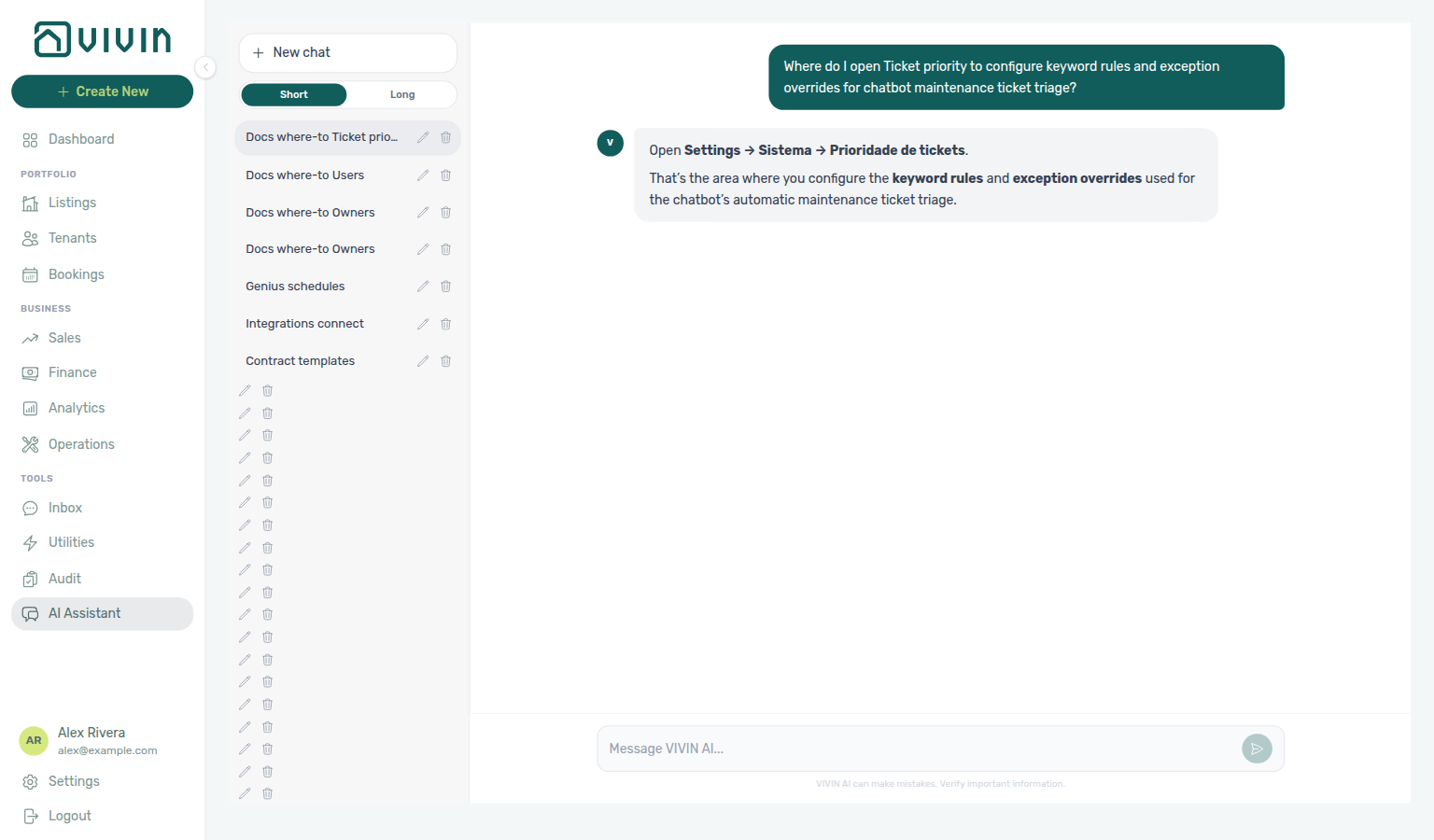
Ask AI Chat “Where do I open Ticket priority to configure keyword rules and exception overrides for chatbot maintenance ticket triage?” — then open ChatBot → Ticket priority (ai-chat-product-context-ticket-priority-reply.png, ai-chat-product-context-ticket-priority-flow.mp4). Live replies often say Settings → Sistema → Prioridade de tickets (Portuguese labels, and they may omit the ChatBot parent); follow Settings → System → ChatBot → Ticket priority. English replies may say Settings → System → Ticket priority. The English subtab label is Ticket priority. Same grounding external MCP clients get from get-vivin-context-platform. Distinct from Preferences → Ticket Priorities (SLA deadline hours) and from Operations → Tickets (the live maintenance queue).
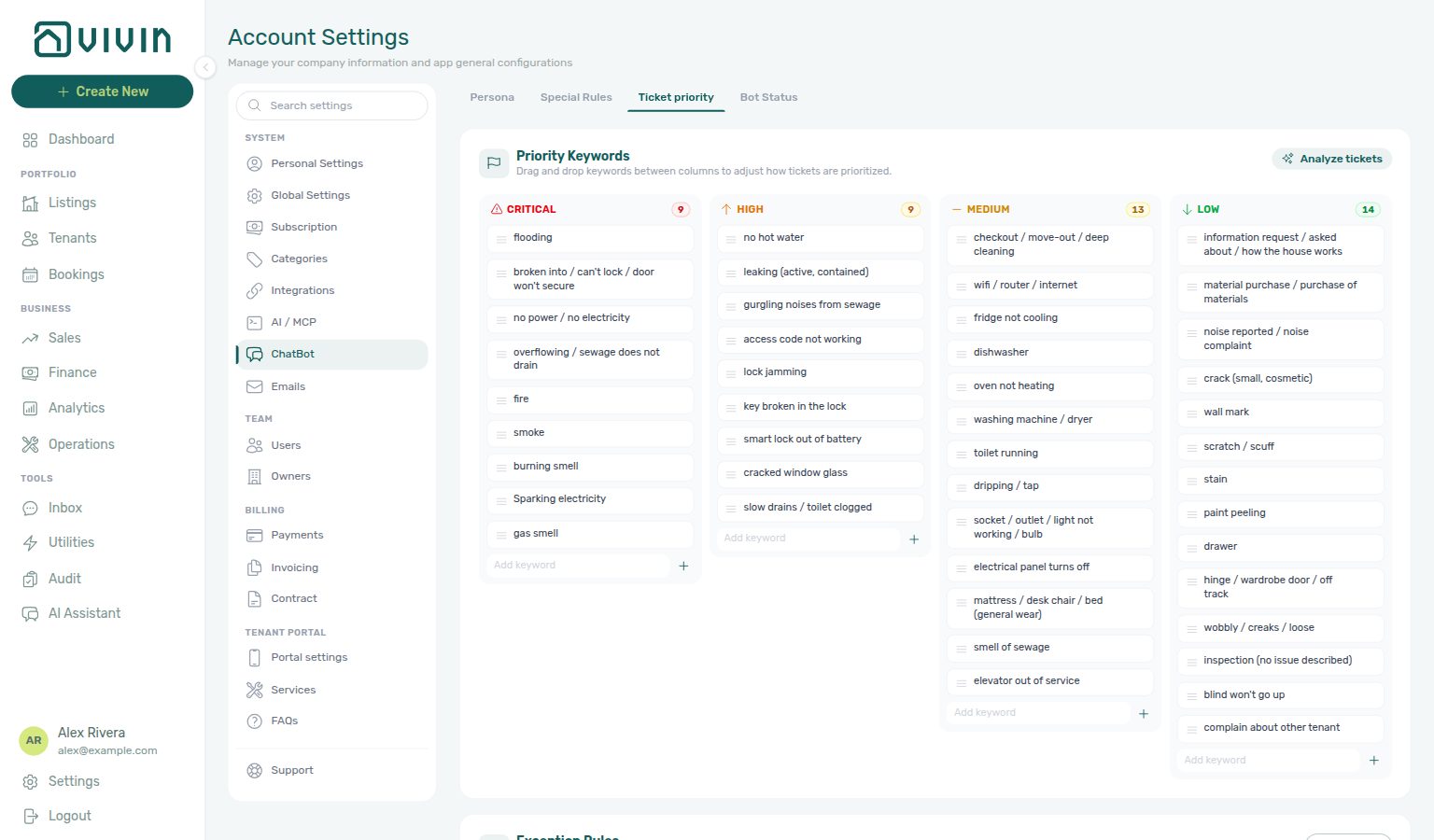
This is separate from Preferences → Ticket Priorities, which sets SLA deadline hours per priority level (Critical / High / Medium / Low).
Set deadline hours on Preferences → Ticket Priorities during core setup, then tune keyword columns here after you have past tickets to learn from. Deep link: open platform.vivin.app/settings/chatbot and choose the Ticket priority subtab (legacy platform.vivin.app/settings/ticketPriority redirects to ChatBot).
Open ChatBot at platform.vivin.app/settings/chatbot, then select Ticket priority. Route reference: Deep Links — Account Settings.
Keyword rules pair with Operations → Tickets and the other ChatBot subtabs (Persona, Special Rules, General, Bot Status). The same active catalog is what Tenant MCP reads via get-ticket-priority-rules before create-maintenance-ticket — see How the chatbot uses this catalog and Tenant MCP. AI suggestions meter as ticket_priority_analysis on AI usage API. Contrast FAQs — FAQ Generator (faq_generation) — same estimate → confirm pattern, different product surface.
Who can edit ticket priority rules
The subtab follows the same Chatbot permission as the rest of ChatBot. Operators without that permission do not see ChatBot (or Ticket priority) in the sidebar.
How the chatbot uses this catalog
The tenant WhatsApp / email assistant (and any Tenant MCP client) loads only landlord-accepted (active) rules when it opens a maintenance ticket:
- It reads the active keyword → tier map and active Exception Rules (same rows you see after Activate on this subtab).
- It matches the tenant’s description with whole words / phrases, takes the highest matching tier, then applies exceptions (exceptions only raise priority) and the life-safety floor.
- It passes that tier as
priorityoncreate-maintenance-ticket. If the catalog is empty or the text is too ambiguous, it omits priority so Vivin can apply the server default (medium) — it never invents a tier.
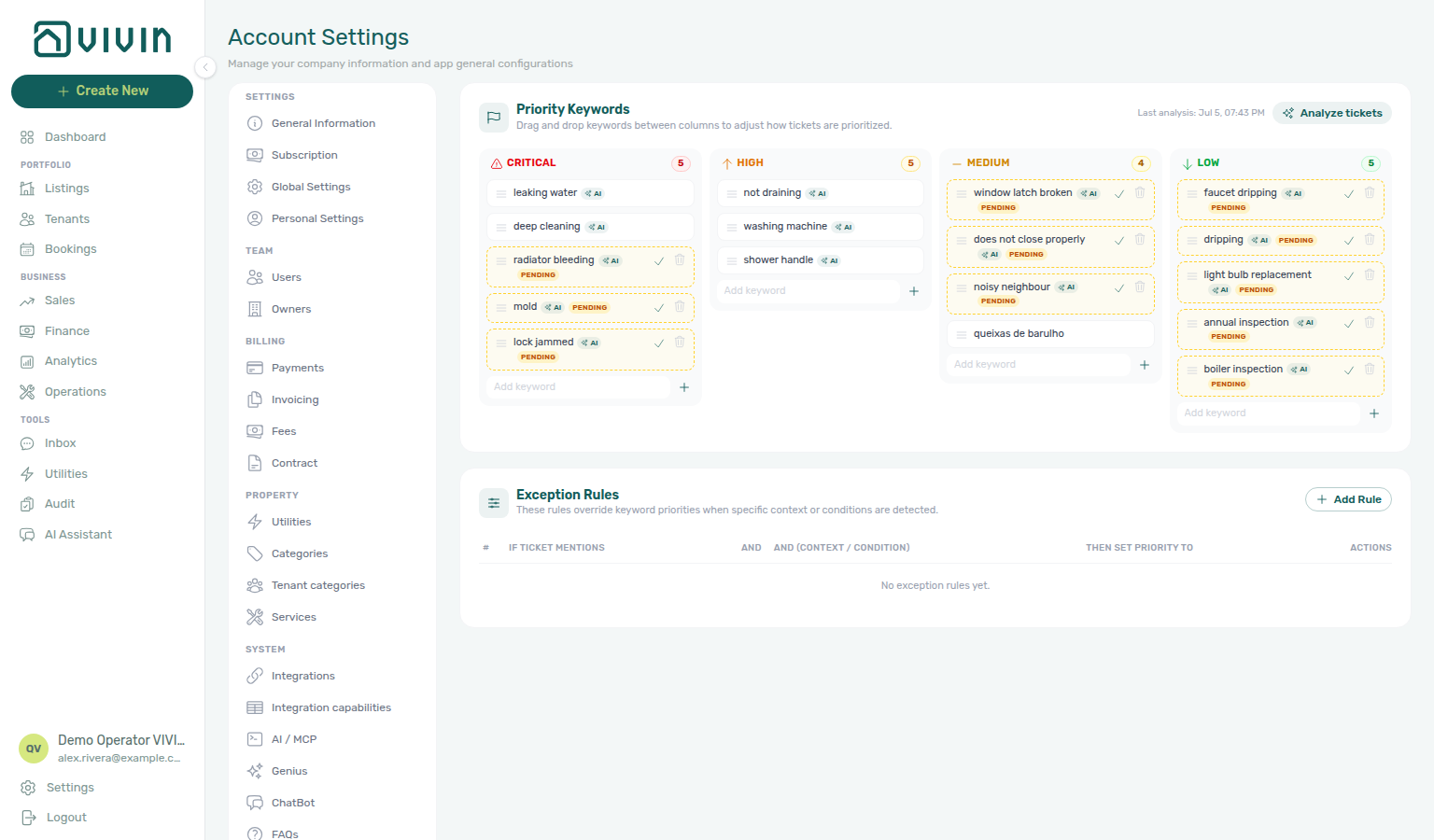
AI suggestions with a Pending badge stay out of that feed until you Activate them (check control on the card). Tune columns on this subtab first; the chatbot picks up the active set on the next ticket without a separate publish step.
How priority is decided
When the tenant chatbot (and related triage) assigns a priority to a new maintenance ticket, Vivin combines your catalog with a few fixed safety rules:
- Keyword match — whole words / phrases from the columns below (not accidental substrings inside longer words).
- Highest match wins — if several keywords fire, the ticket takes the highest tier among them (Critical, then High, then Medium, then Low).
- Exception Rules — when a keyword match also has the extra context / condition you defined (and optional season dates), the exception’s Then set priority to value applies on top.
- Life-safety floor — genuine mentions of life-safety situations (for example fire, smoke, gas, sparking, burning, flooding, or power outage) always raise the ticket to Critical, even if keywords or exceptions alone would rate it lower. Negated or routine mentions (for example a smoke detector needing a battery) do not trigger the floor.
- Needs review — when the language is unsupported or the text is too ambiguous to classify safely, Vivin leaves the ticket for a human instead of guessing a tier.
SLA deadline hours still come from Preferences → Ticket Priorities — this subtab only decides which priority label the ticket receives.
Priority Keywords
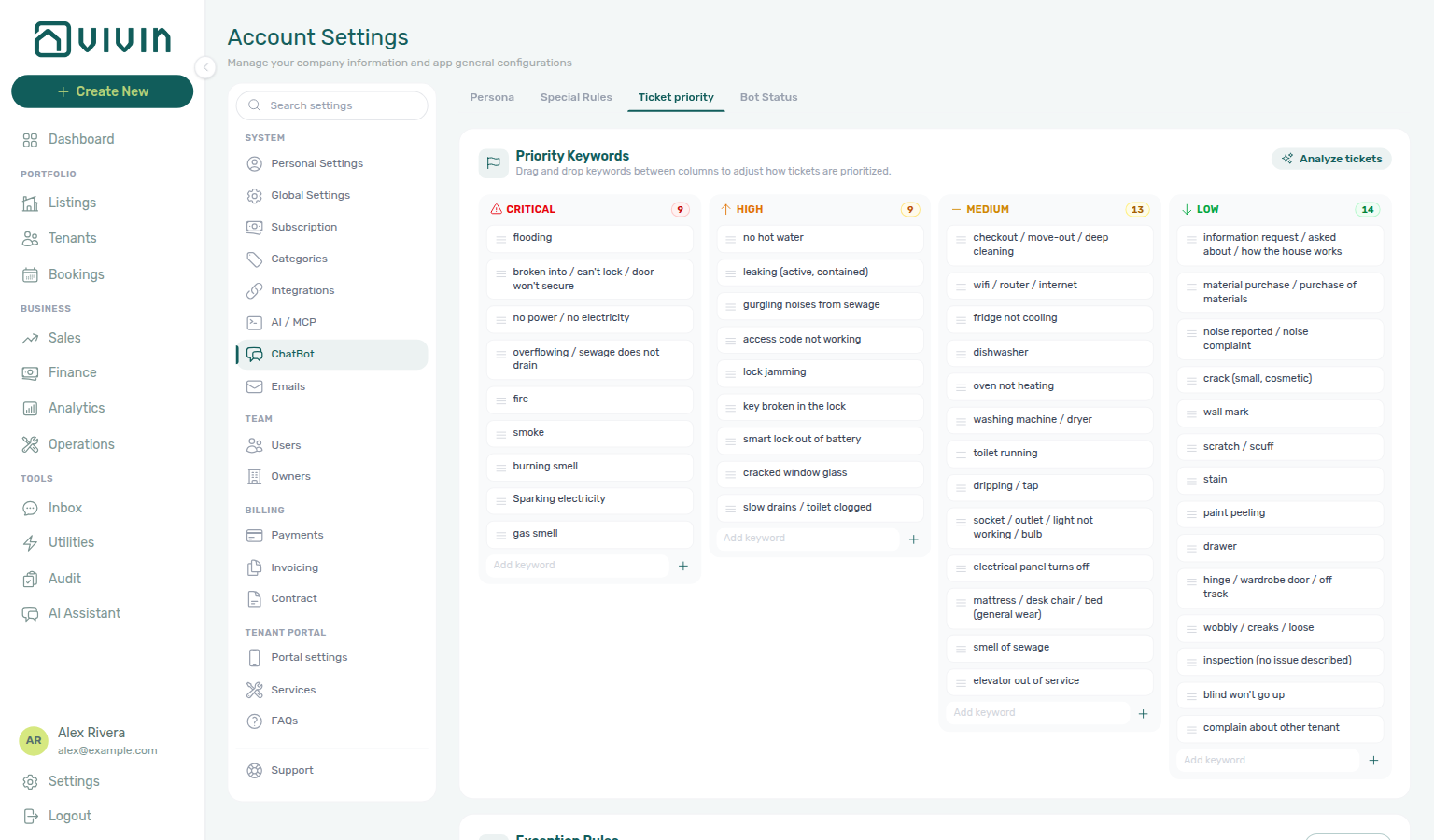
Four columns — Critical, High, Medium, Low — hold keyword / phrase cards. Drag cards between columns to change the priority a matching ticket title or description should receive. Use Add keyword at the bottom of a column for manual entries.
Typical meanings operators use when placing cards:
| Tier | Use for |
|---|---|
| Critical | Life-safety or active major property damage |
| High | Habitability or security lost (no heat in cold season, broken lock, sewage backup, no water) |
| Medium | Degraded but still habitable (appliance down, minor leak, pest) |
| Low | Cosmetic, non-urgent, or general questions |
Exception Rules
Exception Rules raise (or re-assign) priority when a ticket mentions a phrase and an extra context / condition — optionally limited to a season range (MM-DD–MM-DD). Use them for situations where the same keyword should mean different urgency depending on context (for example a leak that is spreading, or no hot water only in the cold months).
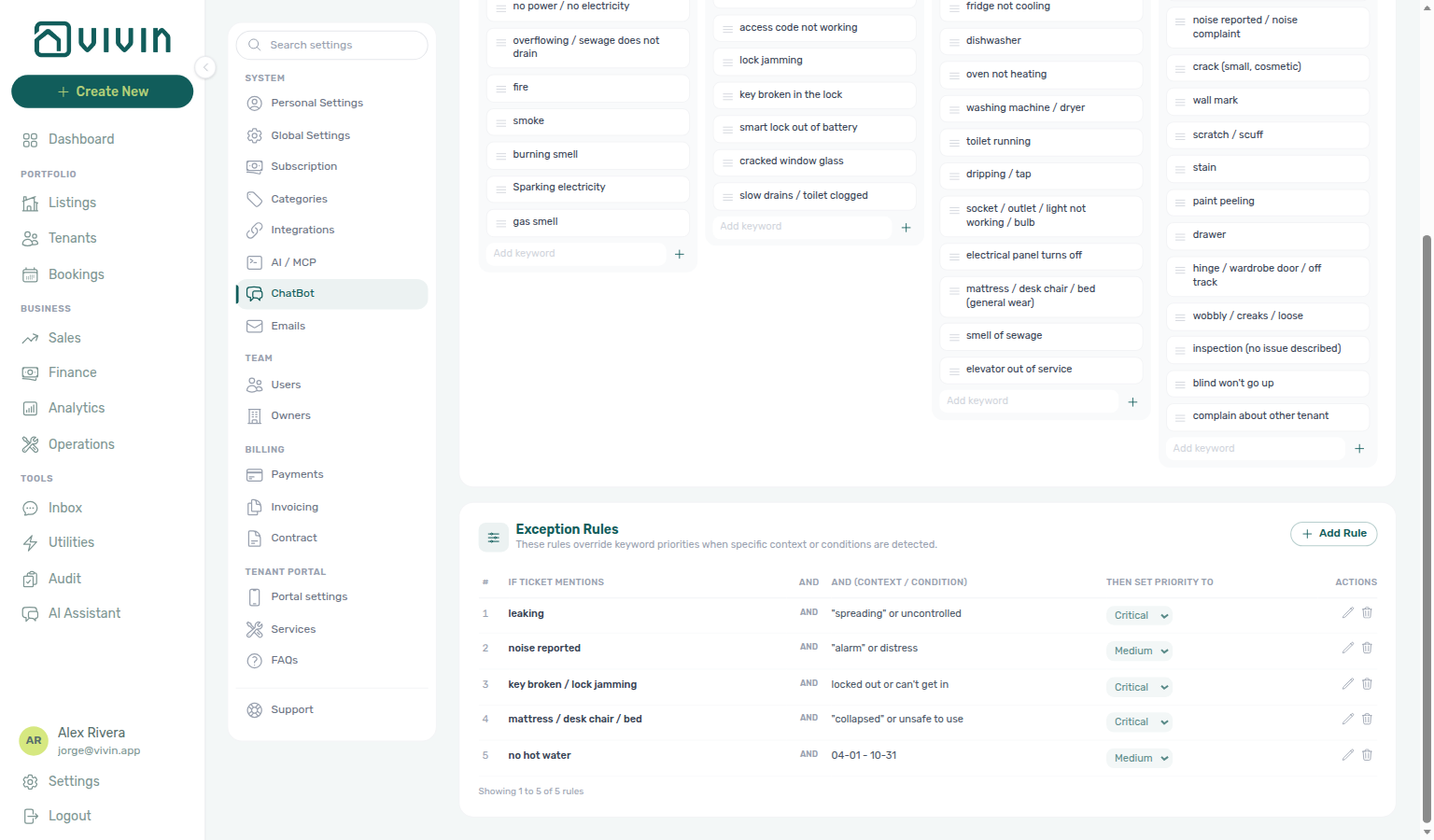
Add an exception rule
- Click + Add Rule.
- Fill If ticket mentions (phrase) and AND (context / condition).
- Optionally enable Season range and set From / To as
MM-DD(for example11-01–03-31for a heating season). - Choose Then set priority to (Critical / High / Medium / Low).
- Click Save — or Cancel to discard the draft row.
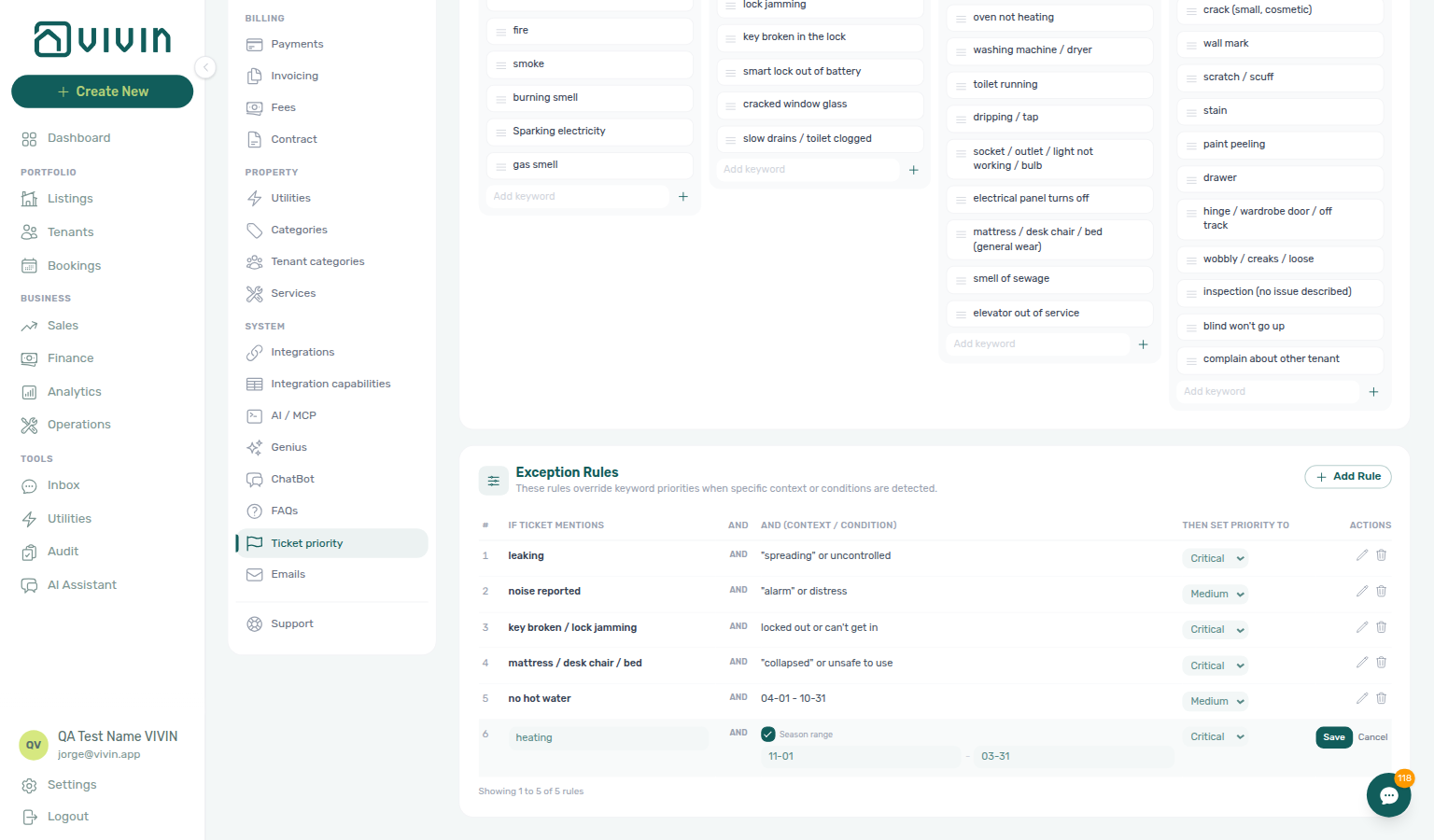
Edit or delete existing rows from the Actions column. Manual + Add Rule rows are active as soon as you Save. AI-generated suggestions never silently rewrite existing exception rows — review and Activate them yourself (see Activate AI suggestions).
Analyze past tickets
- Click Analyze tickets.
- Choose History window (1m–6m) and Model (Sonnet 4.6 or Opus 4.8).
- Read the estimate: ticket count, existing rule count, and approximate token / USD cost.
- Confirm Analyze tickets — suggestions land as Pending for review; existing rules are never changed. Or Cancel to abort.
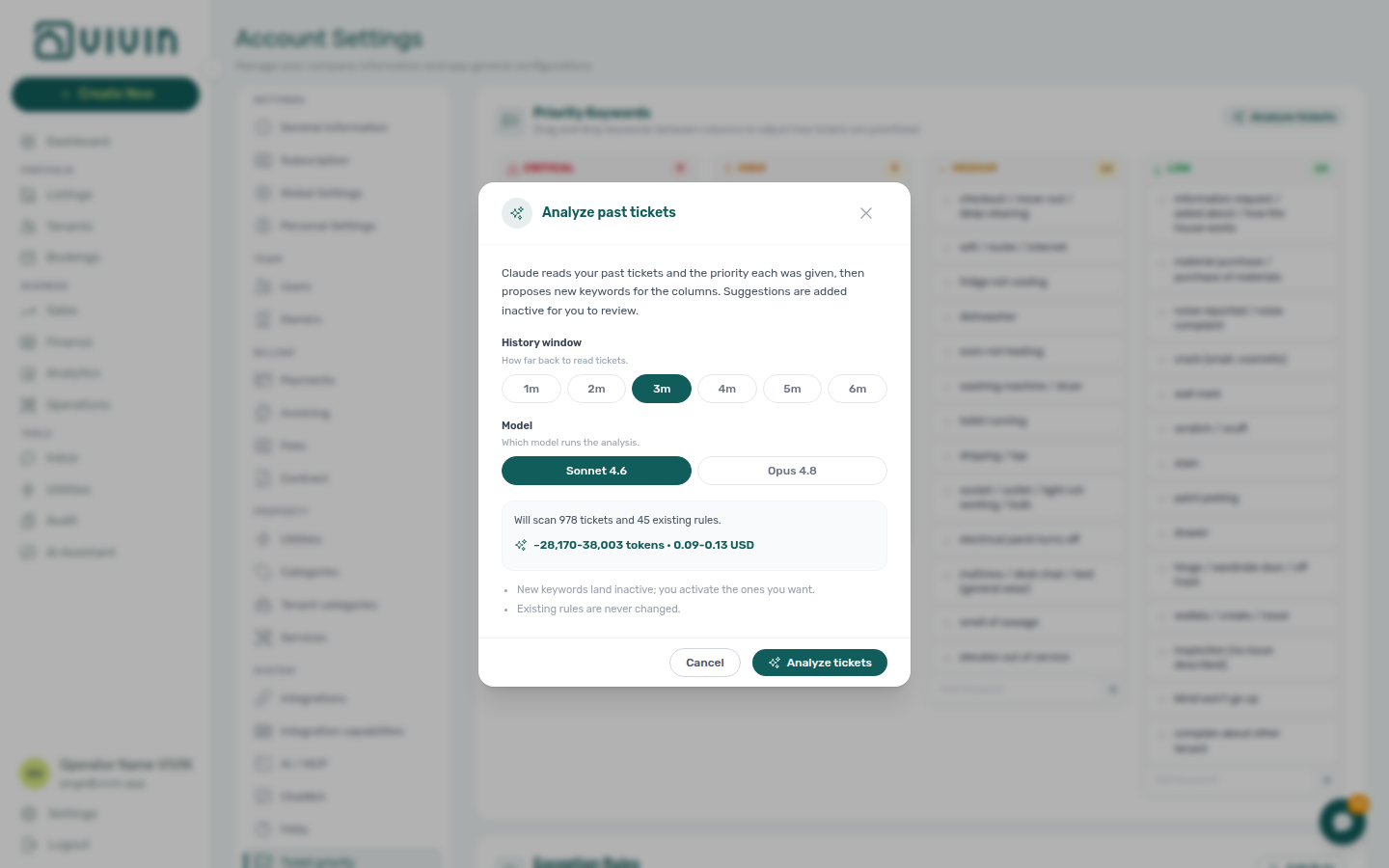
Each confirmed analysis records ticket_priority_analysis in ai_usage (internal USD). Poll GET /ai-usage/summary?feature=ticket_priority_analysis. See AI usage API — Feature values.
Activate AI suggestions
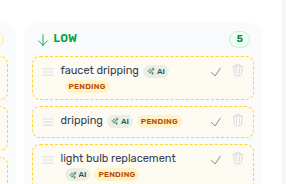
After a run, new keyword cards appear with an AI source badge and a Pending chip until you Activate (or delete) them. Drag activated cards across columns if the suggested tier needs adjustment.
Pending cards use a dashed amber border and show a check control (Activate) next to delete. Click Activate to accept the suggestion into the live catalog — the Pending chip disappears, the border becomes solid, and the chatbot can match that keyword on the next ticket. Until then, Pending rows stay out of the feed described in How the chatbot uses this catalog.
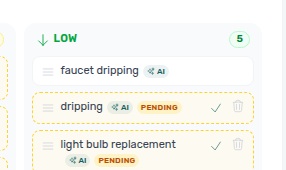
When the scan also proposes Exception Rules, those rows show the same AI badge plus a Pending chip and an Activate check control in Actions. Until you activate them, they do not feed the chatbot catalog either.
Related
- Preferences — Ticket Priorities — SLA deadline hours per tier
- Operations — Managing Ticket Priority
- ChatBot settings — Tenant assistant that applies these rules
- Tenant MCP — Chatbot configuration —
get-ticket-priority-rulesbeforecreate-maintenance-ticket - AI usage API —
ticket_priority_analysis - Glossary — AI usage ledger