Genius
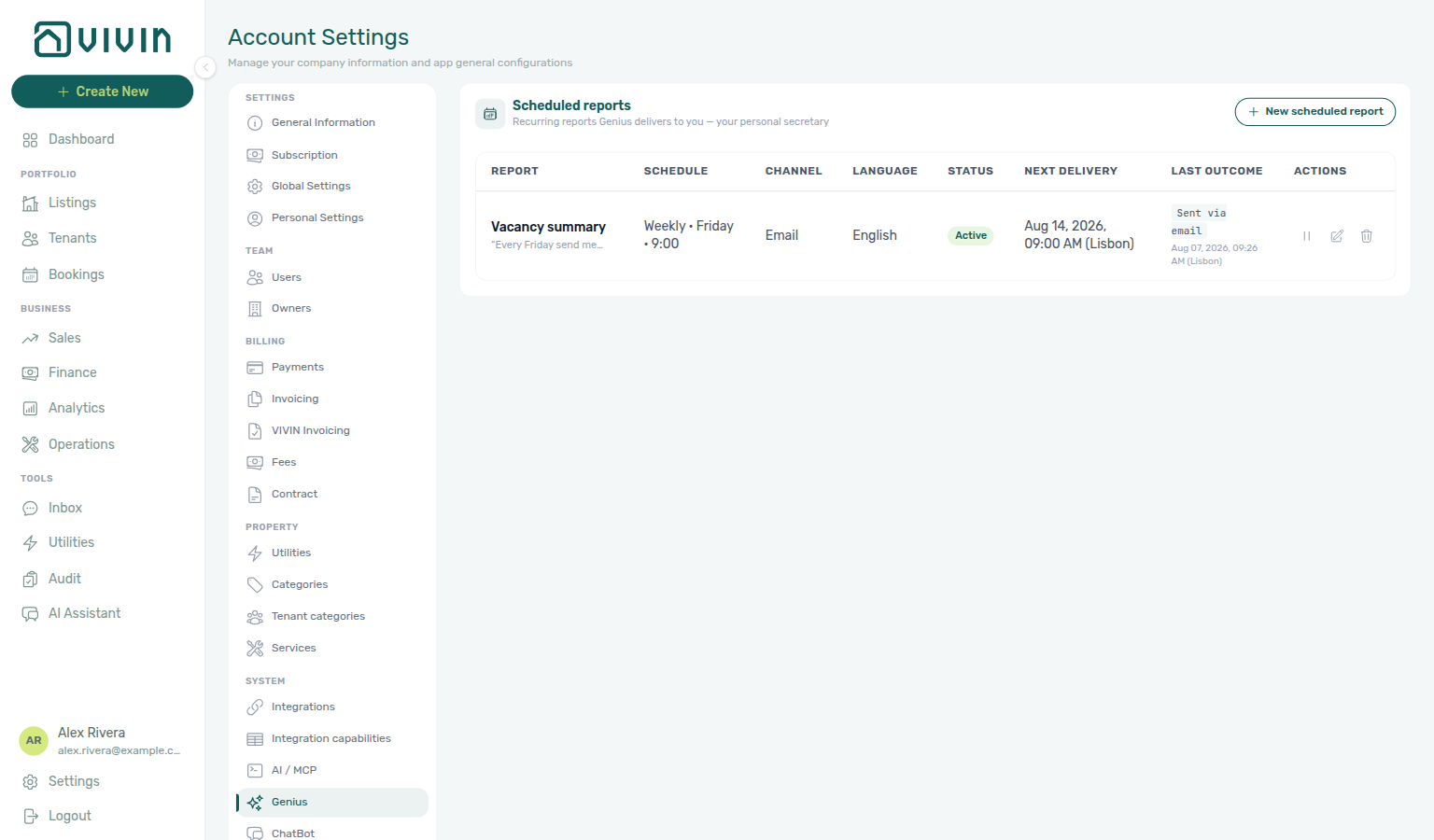
Genius scheduled reports and the Genius WhatsApp connection live on Account Settings → System → AI / MCP — the same per-user recurring digests you can create from AI Chat, WhatsApp Genius, or Landlord MCP. There is no separate Genius sidebar tab; older /settings/genius bookmarks open AI / MCP. This surface is not the tenant ChatBot.
Rows created in chat appear in the Scheduled reports table on AI / MCP, and Settings changes show up when you ask Genius to list your schedules.
Optional after core Getting Started — Recommended Setup Sequence steps 1–15. Pair with AI / MCP → Tool permissions (Scheduled reports domain) and Users — WhatsApp Genius phone linking when you want WhatsApp delivery. Hub tab map: Recommended setup order.
Skim Who can open this tab, then Scheduled reports (including Finance overview) and Last outcome (including labels and tooltips). Natural-language create/pause flows: Automation & AI — Scheduled reports and FAQ — Genius scheduled reports / Last outcome labels.
Open AI / MCP at platform.vivin.app/settings/mcp, then scroll to Genius WhatsApp connection and Scheduled reports. Legacy bookmark platform.vivin.app/settings/genius redirects here. Route reference: Deep Links — Account Settings.
Scheduled reports share policy with AI / MCP → Tool permissions (Scheduled reports domain) and the in-app AI Assistant. WhatsApp delivery needs a Phone Number on Users plus a live Genius WhatsApp connection card on AI / MCP (often managed by VIVIN — no QR). The tenant WhatsApp connection on ChatBot → Bot Status is a separate line for Inbox / Communication.
Who can open this tab
| Audience | What they see |
|---|---|
| Admin / Super Admin (the AI / MCP row in Role permissions is on for them by default) | AI / MCP opens on the manager view, including the Genius Assistant subtab with the WhatsApp connection and Scheduled reports; Tools → AI Assistant is available. |
| Other roles granted the AI / MCP row | AI / MCP opens read-only — their own My permissions and the connection card — and Tools → AI Assistant is available. The Genius cards stay on the manager view, so schedules are set up by an Admin. |
| Roles without the row | The tab is not offered — /settings/mcp (and the legacy /settings/genius redirect) return to the first available tab. Ask an Admin to switch the AI / MCP row on for your role. |
The Scheduled reports table lists your schedules only (per signed-in user). Teammates manage their own rows on the same AI / MCP tab when signed in as themselves.
Layout
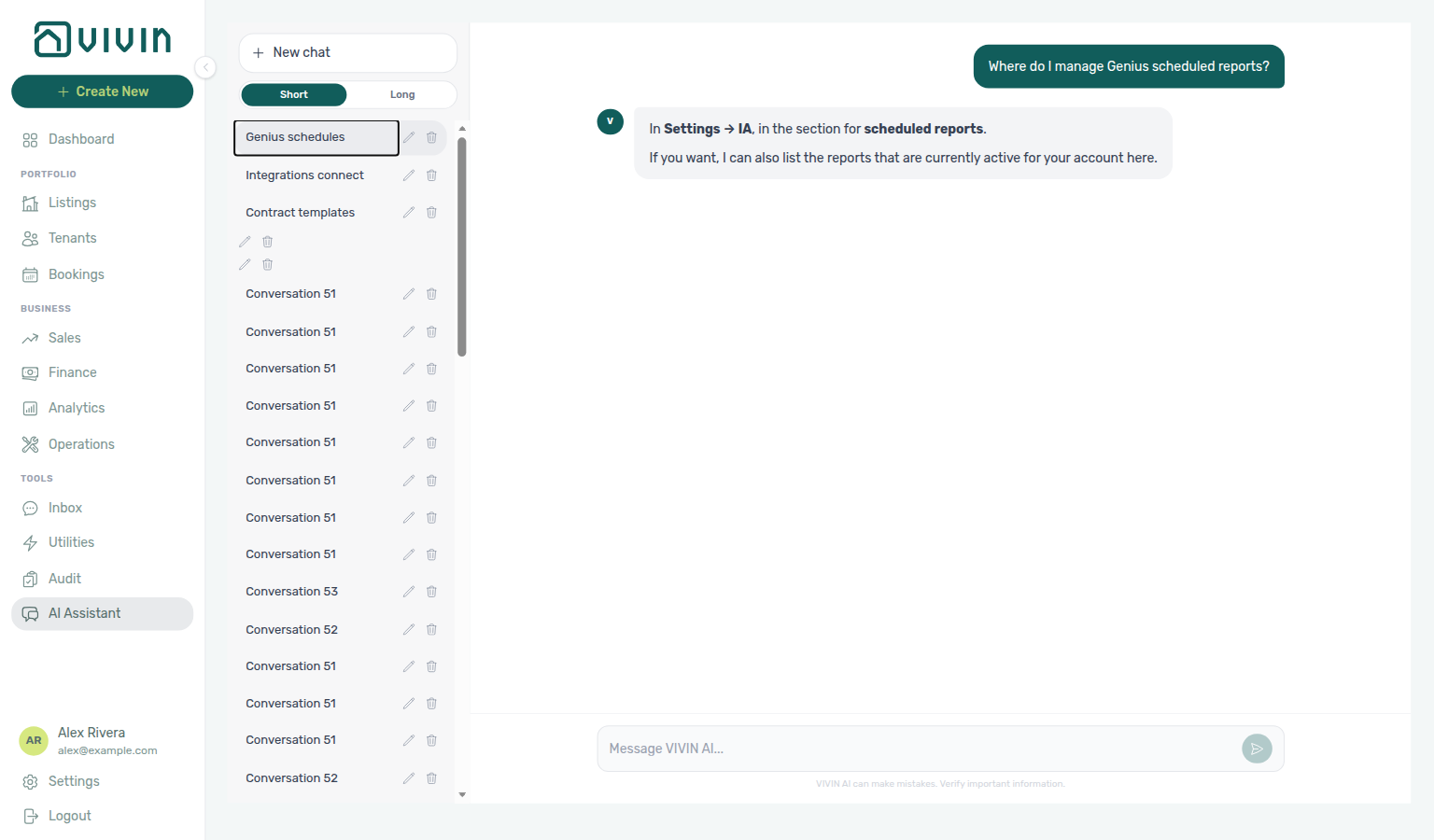
Not sure which settings tab holds your digests? Ask AI Chat “Where do I manage Genius scheduled reports?” — then open AI / MCP and scroll to Scheduled reports (ai-chat-product-context-scheduled-reports-reply.png, ai-chat-product-context-scheduled-reports-flow.mp4). The assistant may still say Settings → IA (or older Settings → System → Genius); follow Settings → System → AI / MCP instead and scroll to Scheduled reports. Tool permissions → Scheduled reports only controls whether assistants may create or pause schedules — the digest list is the Scheduled reports card on the same tab.
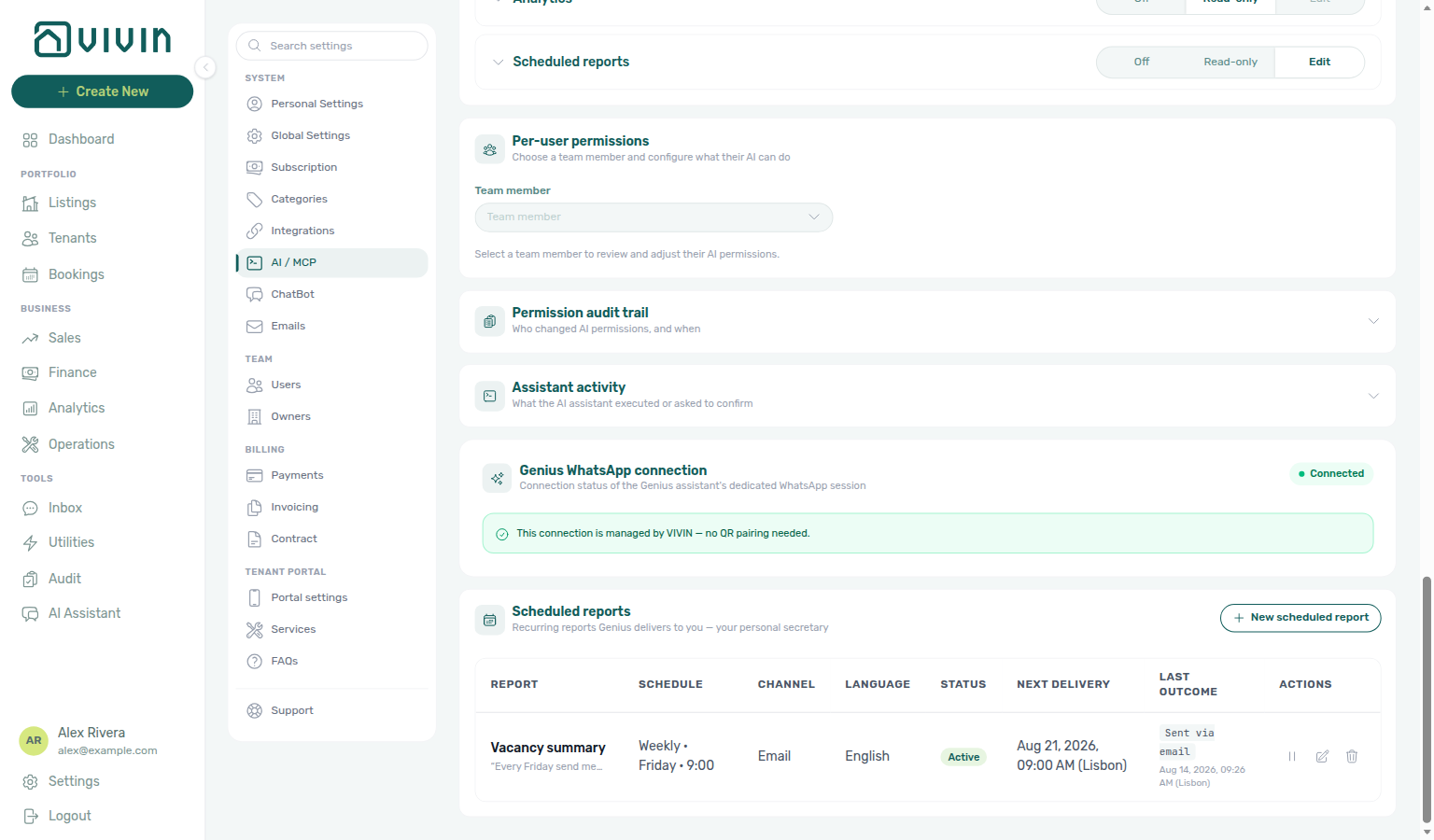
| Section | Purpose |
|---|---|
| Scheduled reports | Table of your recurring Genius digests with New scheduled report, pause, edit, and cancel. |
Scheduled reports
Scheduled reports are your personal Genius secretary digests — the same catalogue as natural-language scheduling:
| Report type | What you get |
|---|---|
| Vacancy summary | Units free to rent in the next 30 days |
| Open debt summary | Outstanding tenant debt total and how many bookings carry it |
| Upcoming check-ins | Move-ins / check-ins expected in the next 7 days |
| Finance overview | Current-month Finance → Overview cards: income expected, cash collected, invoiced, pending invoicing, total debt, overdue deposits |
| Setting | Options |
|---|---|
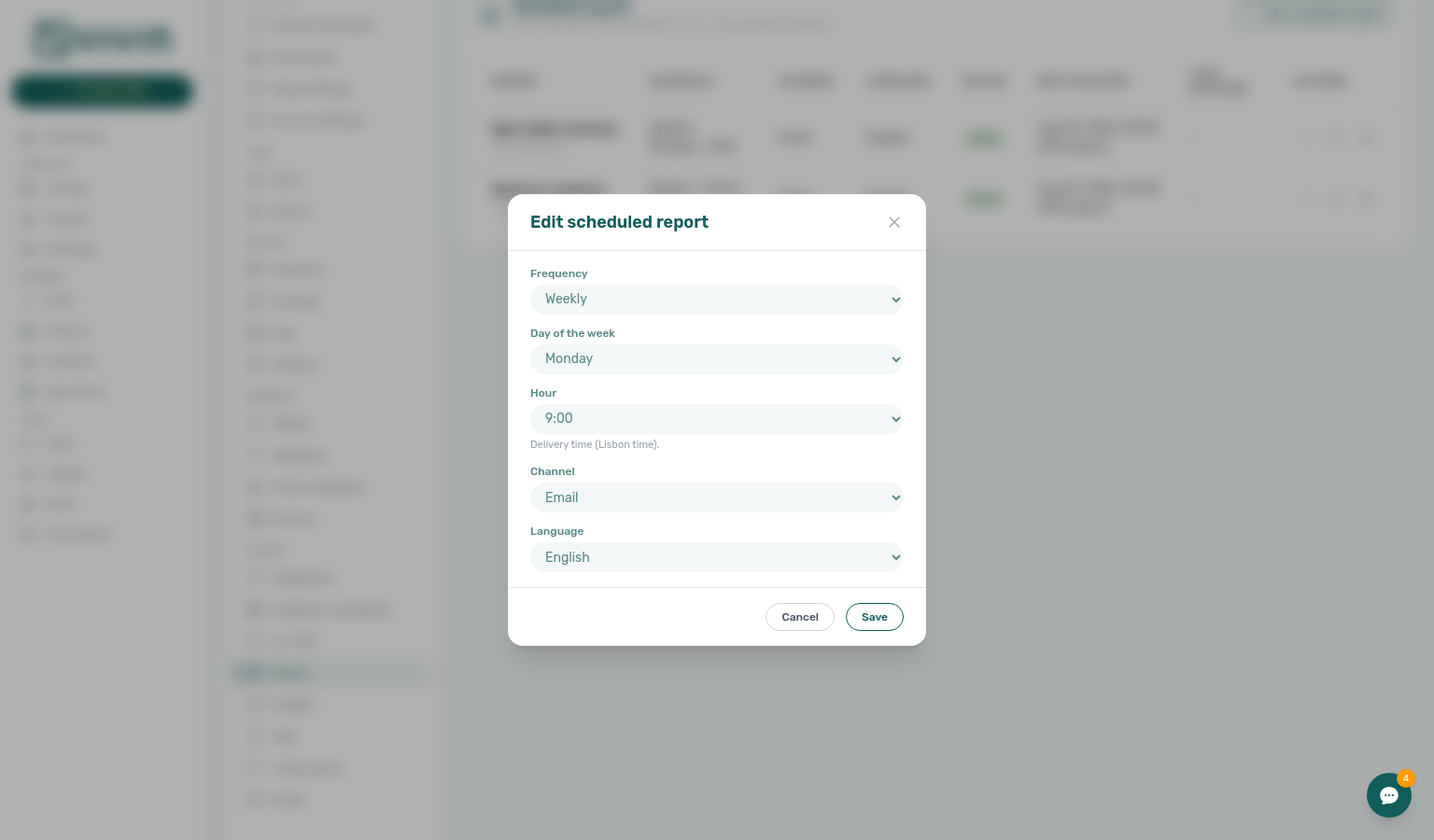
| Frequency | Daily, weekly, or monthly (minimum daily) |
| When | Weekly day of week; monthly day 1–28; hour in Europe/Lisbon (default 9) |
| Channel | WhatsApp, email, or both |
| Language | English or Portuguese |
| Cap | Up to 10 active schedules per user |
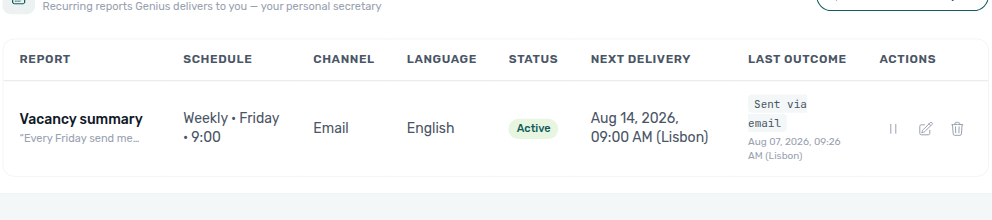
Create a schedule from Settings
- Open Account Settings → System → AI / MCP.
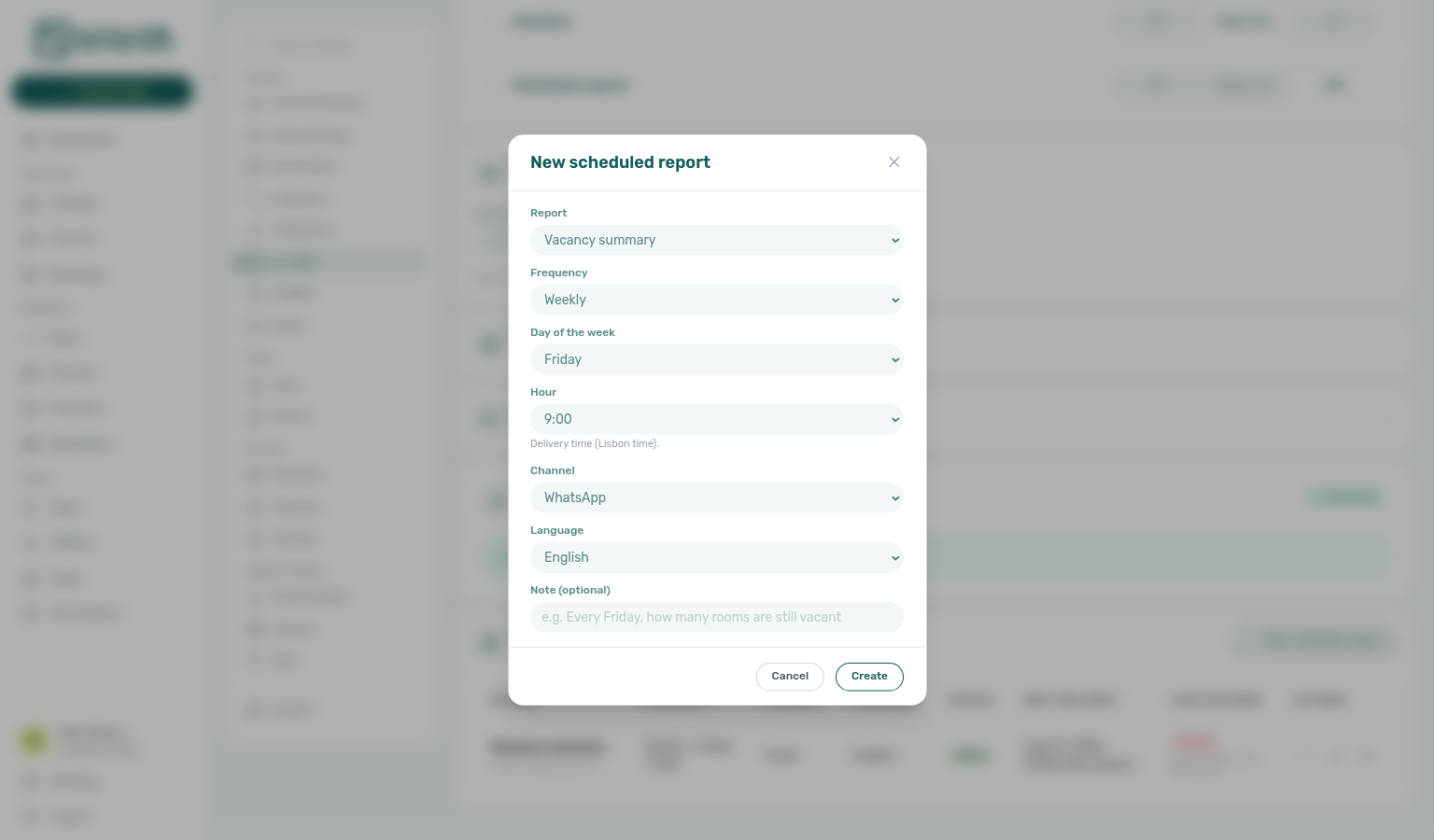
- Scroll to Scheduled reports, then click New scheduled report.
- Choose report type, frequency, day/hour, channel, and language. Optionally add a short Note (stored as the original request text). For month-end invoicing and collections, pick Finance overview.
- Click Create.
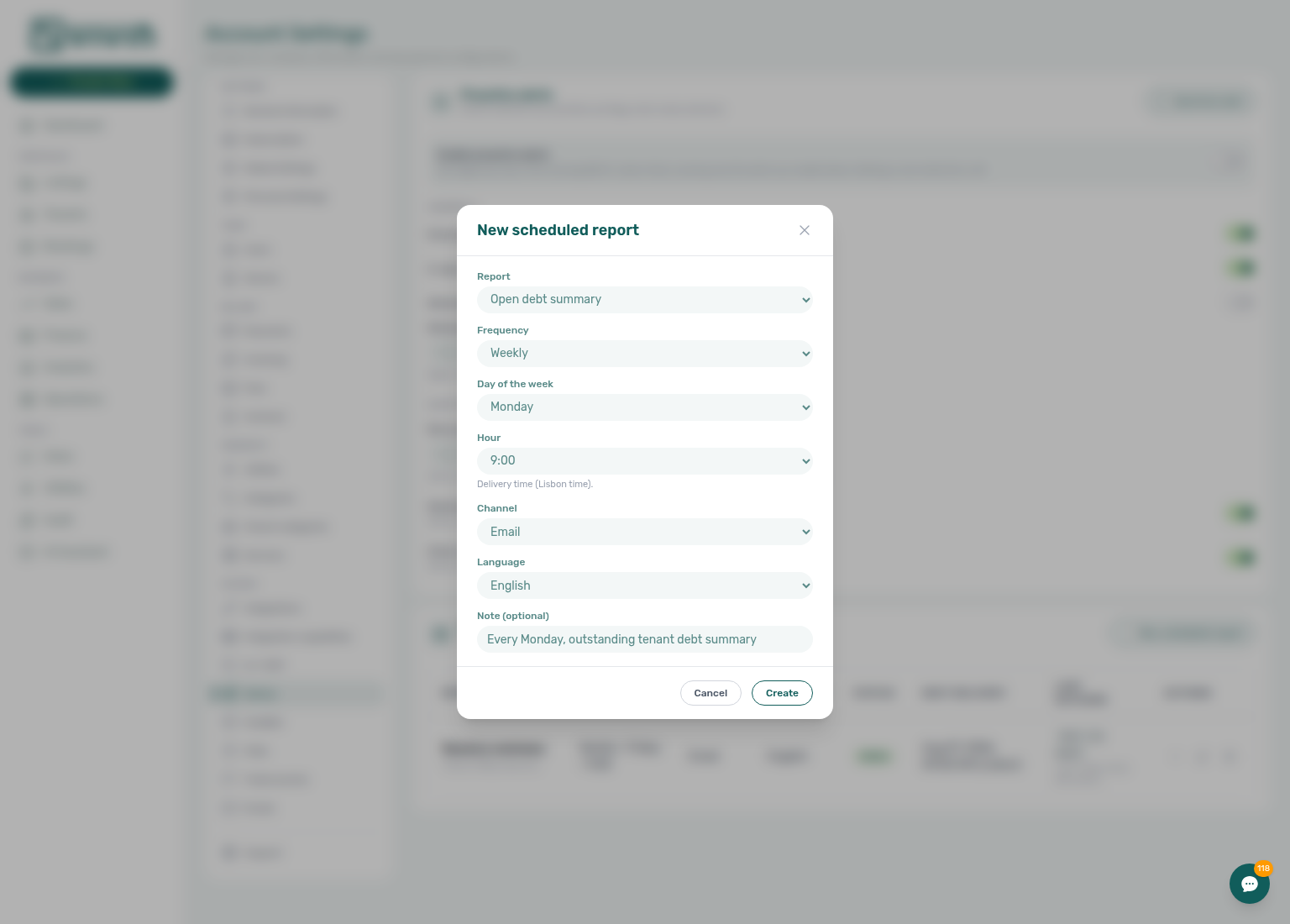
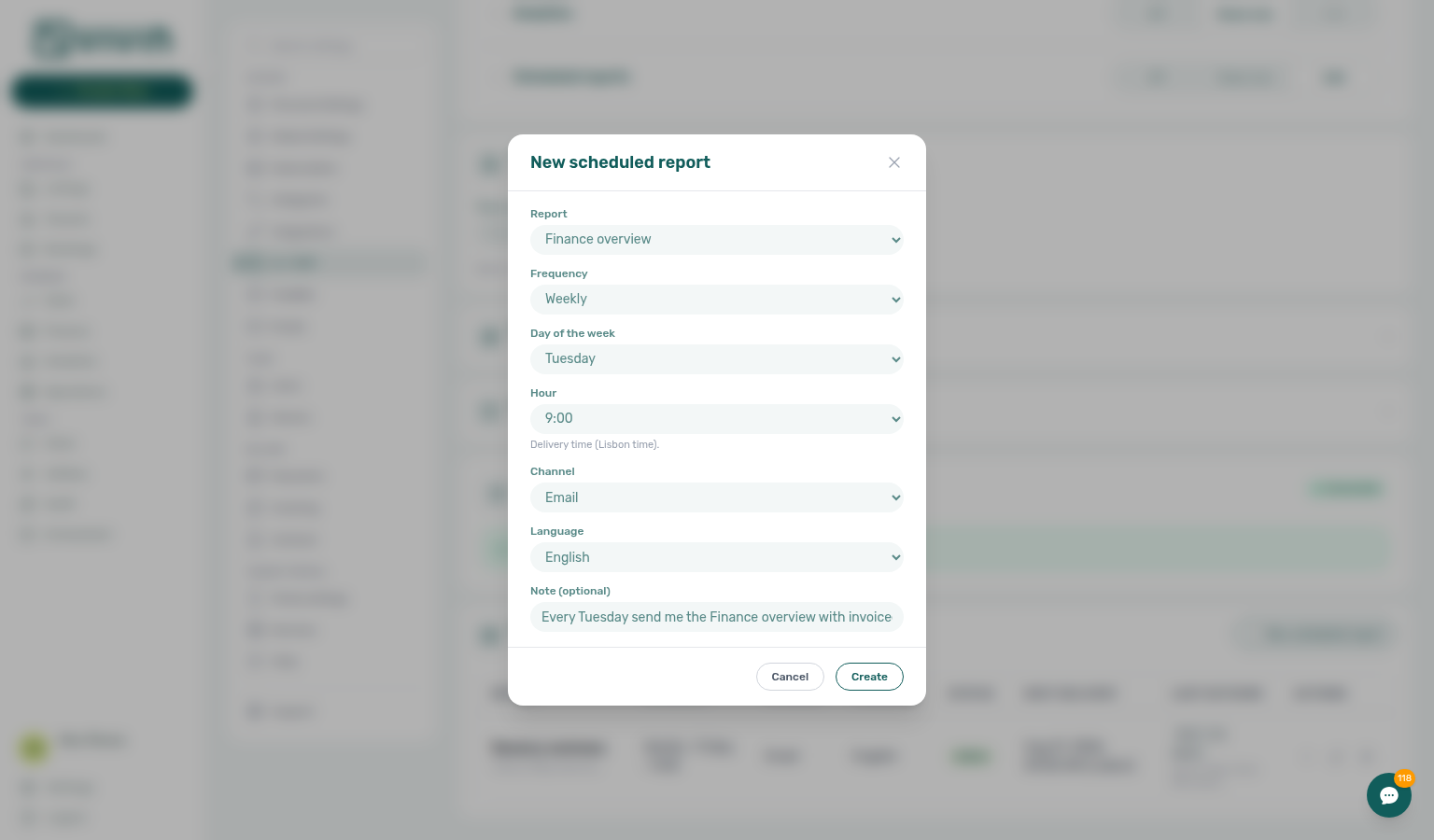
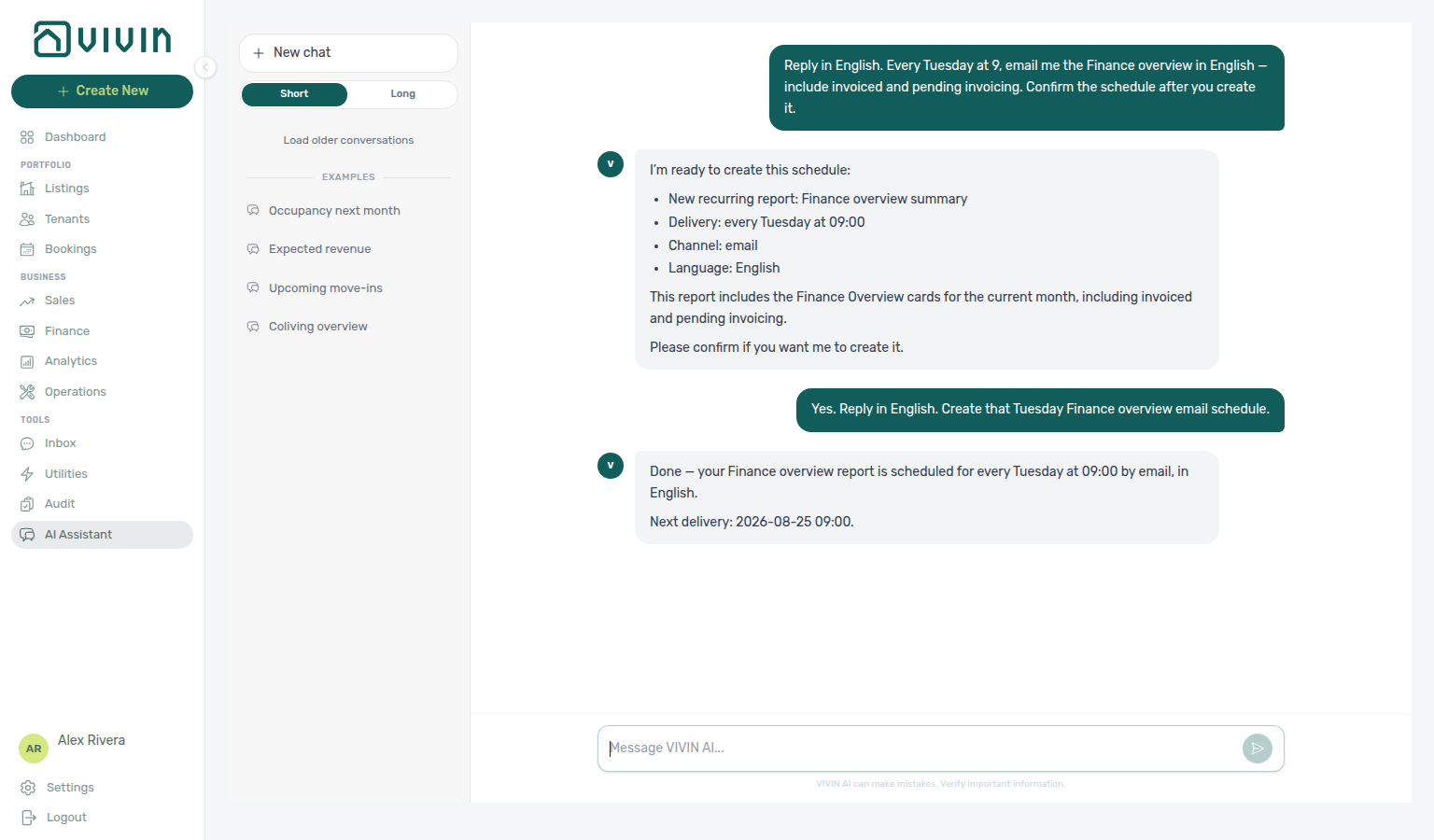
You can still create the same rows by asking AI Chat or WhatsApp Genius — see Automation & AI — Scheduled reports. Chat writes use the two-turn confirm; the Settings form creates immediately.
Finance overview digest
Finance overview is the invoicing-and-collections digest. Each run uses the current calendar month on Finance → Overview (the same cards you scan in the app) and sends plain text over the channel you chose.
| Line in the digest | What it is |
|---|---|
| Income expected | Scheduled + collected + in-debt income for the current month |
| Cash collected so far | System + manual in-payments so far this month |
| Invoiced | Amount already invoiced, with how many lines |
| Pending invoicing | Amount still waiting to be invoiced, with how many lines |
| Total tenant debt | Outstanding underpayment and how many bookings carry it |
| Overdue deposits | Security deposits past their refund due date |
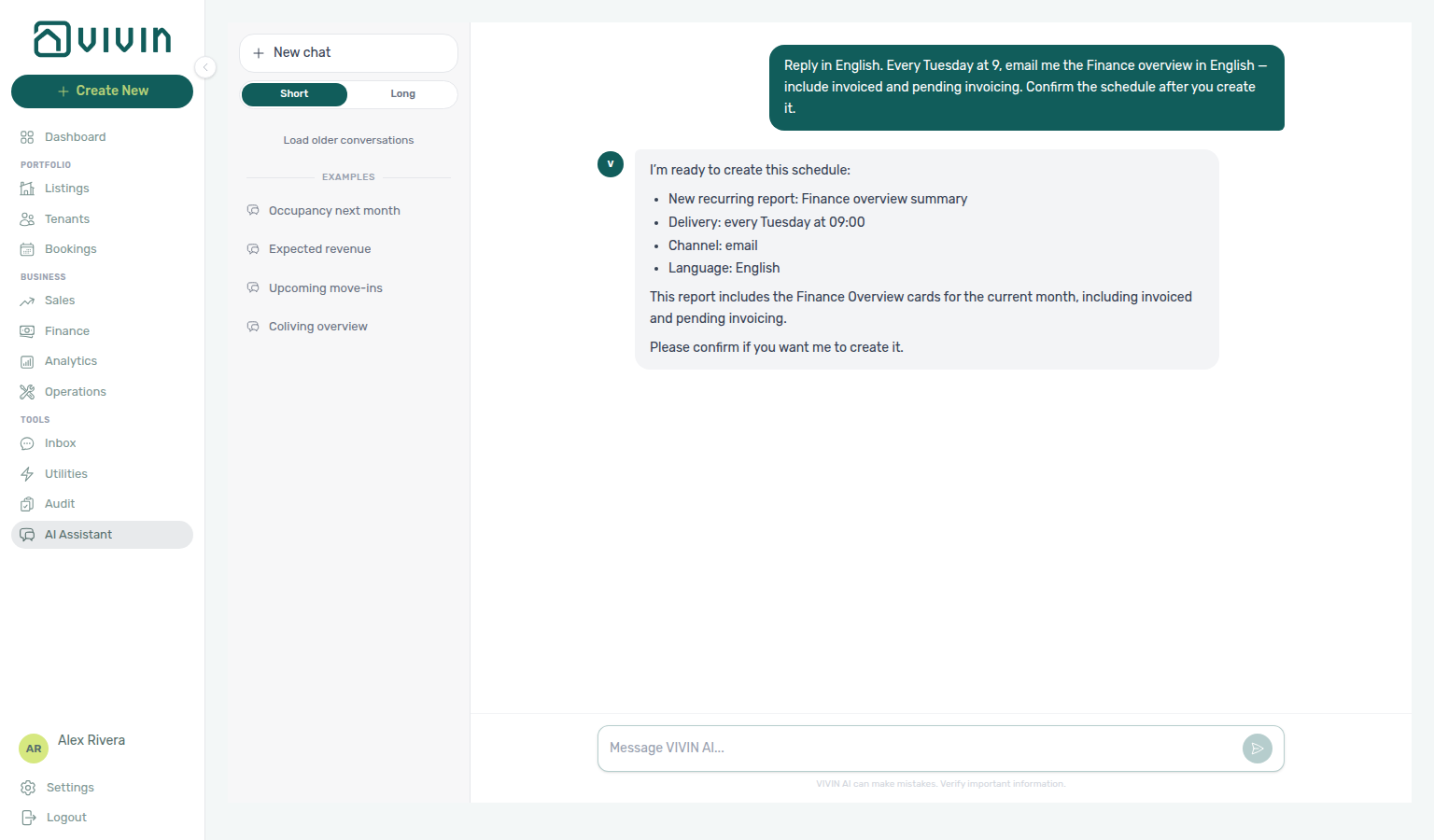
The email or WhatsApp title looks like Finance overview — Aug 2026. Ask AI Chat (or WhatsApp Genius) “every Tuesday email me the Finance overview” — including invoiced and pending invoicing if you want those lines called out — then confirm the write; or create the row from New scheduled report as above. Distinct from a one-off AI Chat question about this month’s figures — the schedule repeats without you asking again.
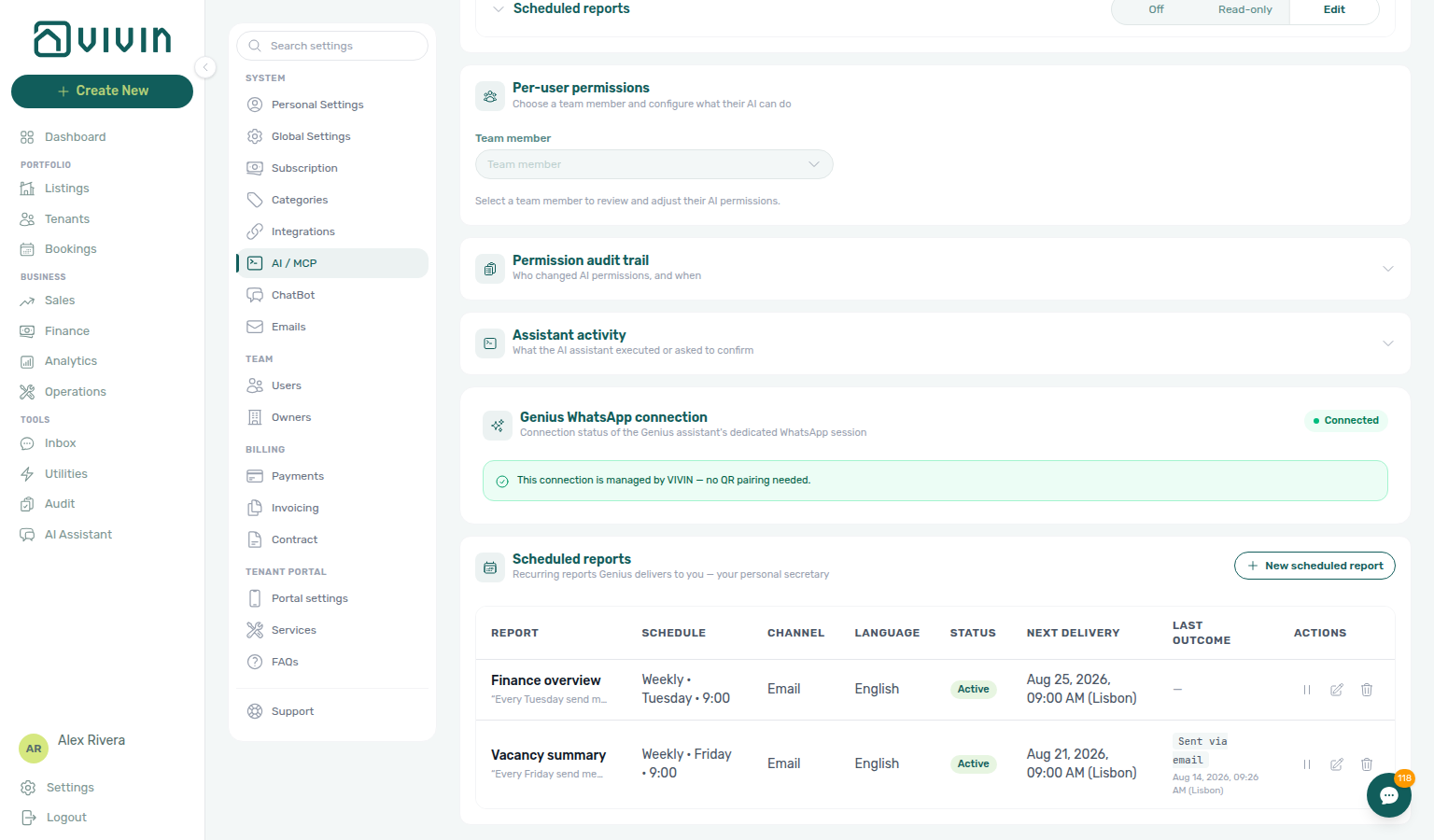
Pause, edit, or cancel
| Action | How |
|---|---|
| Pause | Pause icon on an Active row — keeps the row inactive (same as Genius “pause”). |
| Resume | Play icon on a Paused row. |
| Edit | Pencil opens the modal to change cadence, channel, or language (report type is fixed after create). |
| Cancel | Trash opens Cancel scheduled report — confirm Cancel report to remove it permanently, or Keep. |
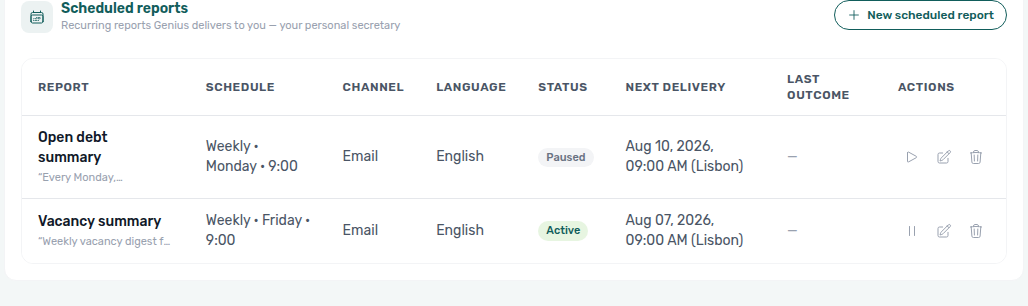
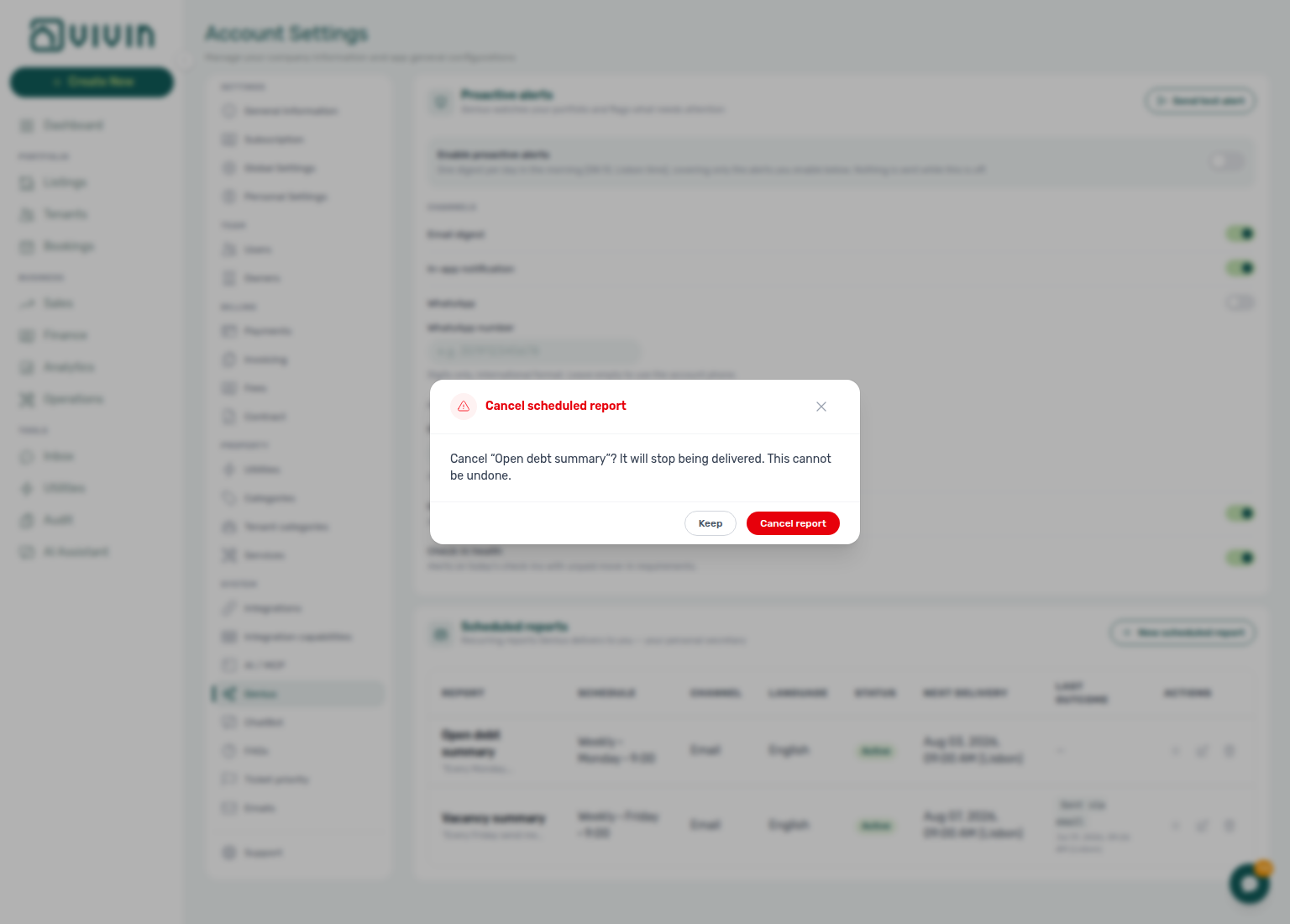
Expand the italic request quote under the report name to read the original note / chat wording.
Last outcome
The Last outcome column shows the result of the most recent delivery attempt, with the run time in Europe/Lisbon underneath when a run has happened. Before the first delivery, the cell shows an em dash (—).
| Label you may see | What it means |
|---|---|
| Sent / Sent via email / Sent via WhatsApp | The digest left Vivin on that channel. |
| Skipped (access revoked) | The run was skipped because AI / Genius access for the owner was turned off after the schedule was created — re-enable access or cancel the schedule. |
| WhatsApp delivery failed | WhatsApp could not deliver — confirm a Phone Number on Users and account WhatsApp health. |
| Email delivery failed | Email could not deliver — confirm the signed-in user’s email is valid and able to receive mail. |
| Failed | A generic delivery problem that is not mapped to a WhatsApp- or email-specific label — check channel health, then wait for the next run or contact Vivin support if it repeats. |
Outcome labels and tooltips
Every badge always shows a localized label in your interface language (English examples above). Vivin never puts raw internal exception text into the cell or the hover tip.
| Hover tip you may see | When it appears |
|---|---|
A short safe token (for example email_sent, whatsapp_sent, sent) | Vivin recognizes the outcome as a known delivery result — the tip mirrors that token for operators who want the precise channel code. |
| The same text as the badge | The outcome is not on the safe-token allowlist (including the generic Failed label) — the tip repeats the friendly label instead of any internal detail. |
When the schedule channel is both (WhatsApp and email), a successful run can still show the summary badge Sent while the hover tip lists both per-channel tokens joined by a comma (for example whatsapp_sent,email_sent). That multi-channel tip is only shown when every part is a known safe token.
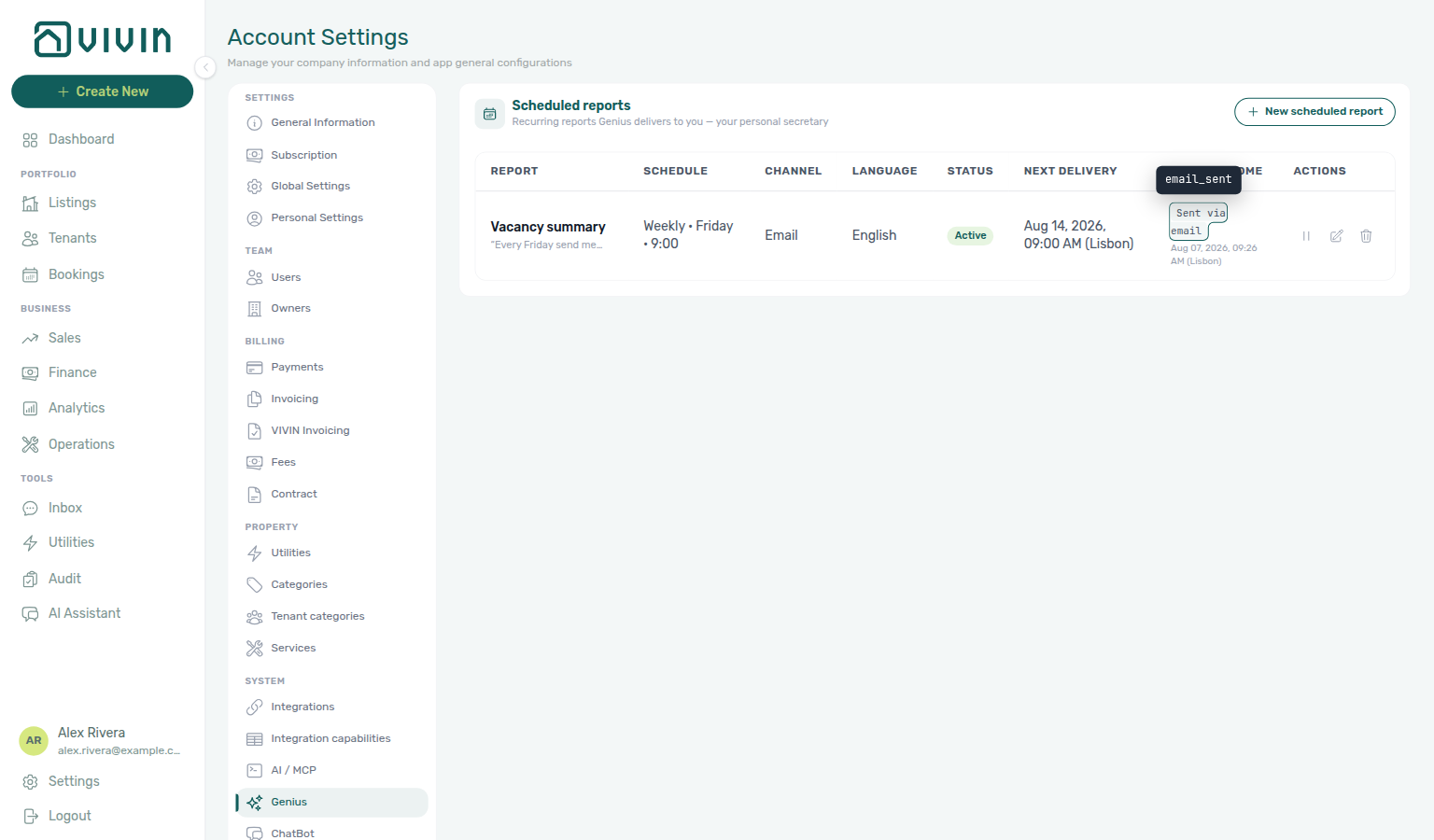
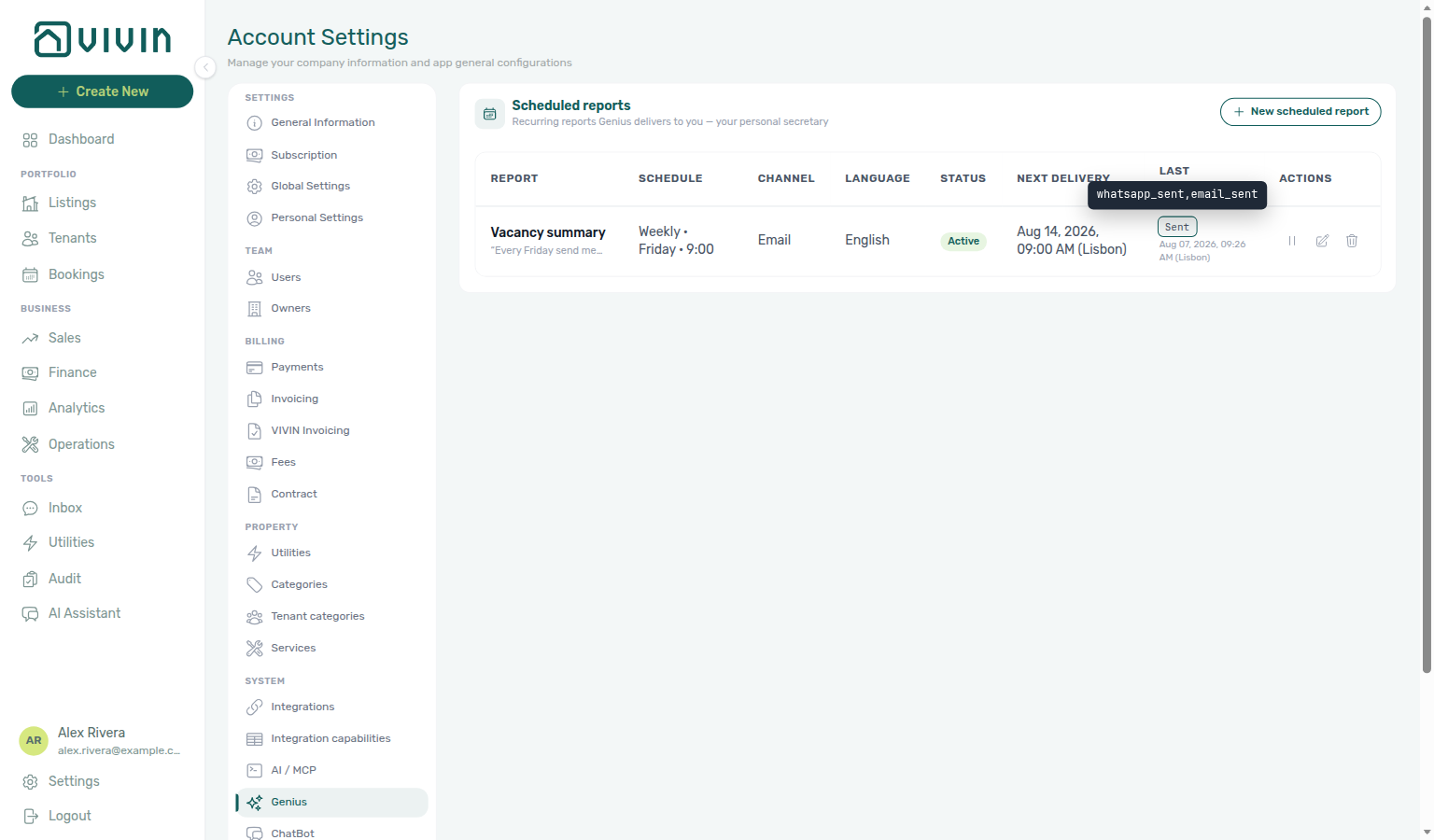
See also FAQ — Genius Last outcome labels and tooltips.
Permissions and delivery
- Enable Scheduled reports (Edit) on AI / MCP → Tool permissions when operators also manage schedules from AI Chat / MCP (
settings-ai-mcp-scheduled-reports-domain.png). - WhatsApp channel needs a linked Phone Number on Users and a healthy Genius WhatsApp connection on AI / MCP (often managed by VIVIN — no QR) — distinct from the tenant WhatsApp connection on ChatBot → Bot Status.
Related
- Automation & AI — Scheduled reports (Genius secretary) — Natural-language create / pause / resume / cancel / cadence / channel / language teaching media
- AI Chat — In-app assistant that shares the same schedule rows
- AI / MCP — Connection, API keys, tool permissions, Genius WhatsApp, and Scheduled reports on one System tab
- Landlord MCP — Scheduled reports tools
- FAQ — Genius scheduled reports
- Users — WhatsApp Genius phone linking
- ChatBot — Tenant-facing WhatsApp (WhatsApp connection on Bot Status)