Legacy /properties URLs
Ask AI Chat “Where do older /properties bookmarks go now, and where do I open Listings under Portfolio to manage properties and units (English labels — Legacy Properties URLs redirect into Listings — product navigation only, no account data)?” — then open Portfolio → Listings (ai-chat-product-context-properties-workspace-reply.png, ai-chat-product-context-properties-workspace-flow.mp4). The assistant typically says older /properties bookmarks redirect to Listings, then Portfolio → Listings. Same grounding external MCP clients get from get-vivin-context-overview (or get-vivin-context-platform). Distinct from reservation work on Bookings and from monthly rents on Sales.
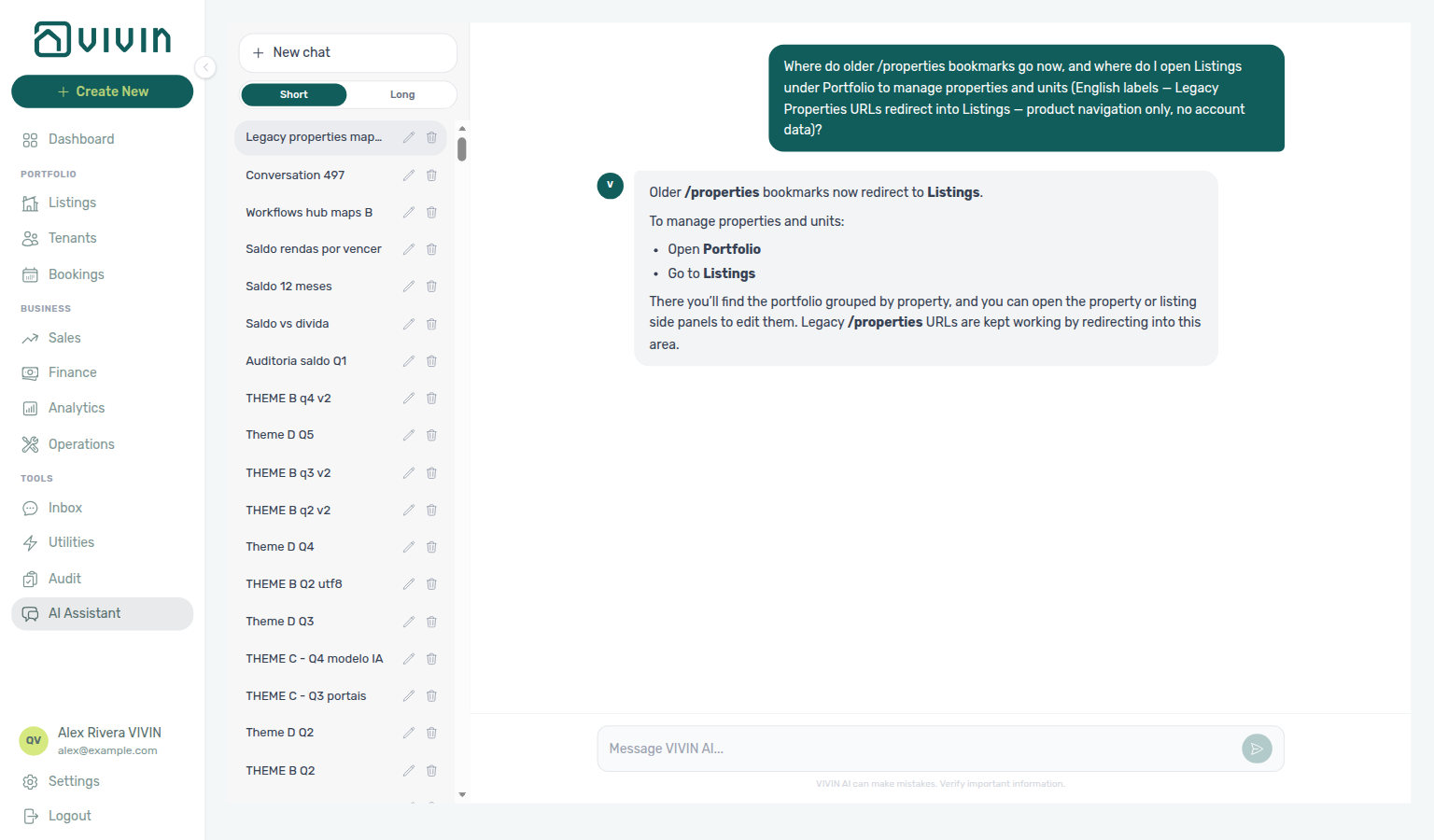
Older /properties bookmarks redirect into Listings (setup step 13). Complete Getting Started — Recommended Setup Sequence steps 1–12 before creating properties here.
Read Redirect behaviour (current product) for the URL table, then continue in Interface overview (Listings) and the full Listings guide for day-to-day inventory work. Guide subsection map: Legacy properties guide subsection index (redirect paths + Related subsections). Habit-specific shortcuts live under Related below.
Portfolio management and property-level editing (contract, payments, utilities, maintenances, access, email customization) all live in the Listings module. Older /properties paths in the browser are legacy bookmarks only: they redirect into Listings so existing links keep working.
There is no separate “properties workspace” screen anymore. Use Listings from Portfolio > Listings (or /listings) for the table view, filters, property wizard, and property/unit sidebars.
Everything described in historical docs as “Properties Workspace” — search, filters, Add Property, and the property sidebar tabs — is the same Listings experience. Follow Managing Listings (Properties & Units).
All portfolio work lives in Listings — pair Sales for channels and Bookings for reservations after setup. When a legacy /properties bookmark lands while you are triaging payment overdue alerts, row-click navigation usually opens the booking sidebar — continue with Handling a Late Payment — Step 1. When overdue rows cluster on one tenant category, scope Bookings — Tenant categories or Finance — Tenant category filter before account-wide portal or reminder changes — see Glossary — Tenant category.
Who can follow these URLs
Legacy bookmarks require listings.module permission — operators without Listings access see a permission error instead of the redirect described in Redirect behaviour.
Opening a /properties URL requires Listings module permission (listings.module), because the app resolves the route and then sends you to Listings.
Redirect behaviour (current product)
Bookmark /properties/view/:propertyId paths land on /listings/property/:propertyId/edit — update spreadsheets and runbooks to Deep Links — Listings routes.
| You open (legacy) | You land on |
|---|---|
/properties | /listings |
/properties/archived or /properties/archived/… | /listings/archived |
/properties/view/:propertyId | /listings/property/:propertyId/edit |
/properties/all/view/:propertyId, /properties/active/view/:propertyId, /properties/inactive/view/:propertyId, or /properties/archived/view/:propertyId | /listings/property/:propertyId/edit |
Paths such as /properties/active or /properties/inactive (without a view/… segment) are not mapped to separate tabs; they fall through to the default redirect (/listings). Use the Listings UI (including the Archived experience at /listings/archived when you need archived properties) instead of relying on those legacy suffixes.
Authoritative route tables for the whole app are in Deep Links. The Listings section there documents /listings paths, property sidebars, and unit sidebars.
Interface overview (Listings)
After any redirect, continue portfolio work in Listings — property sidebars, unit channels, and archived inventory match the screenshots in the subsections below.
After redirect you are on Listings: expandable property rows, + Create New for properties and units, and Edit to open the property or unit sidebar. Screenshots and step-by-step flows are maintained on the Listings page.
Root bookmark (/properties)
Opening /properties (no path suffix) sends you to the main Listings portfolio at /listings — same chrome, filters, and table as choosing Portfolio > Listings in the shell:
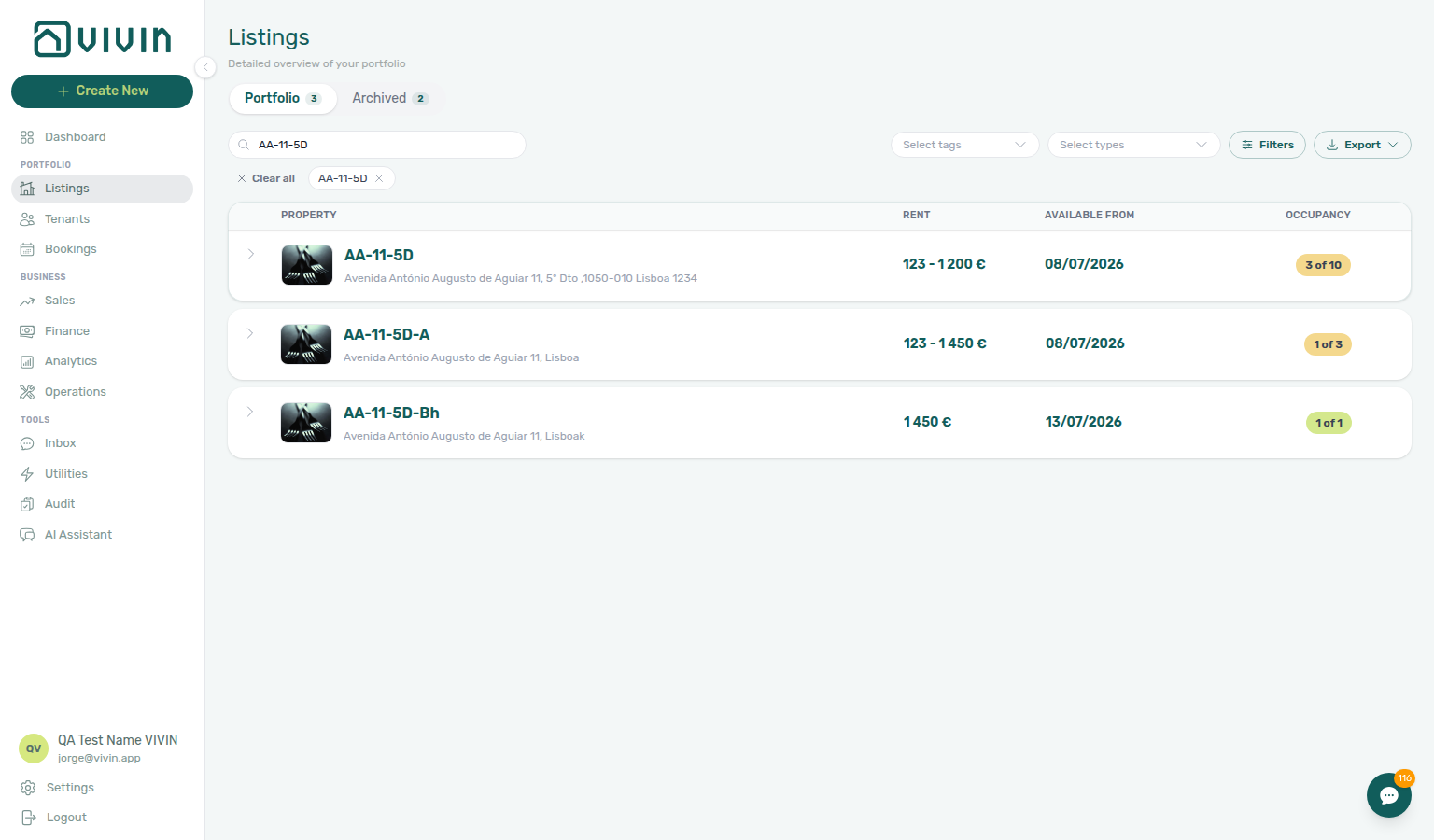
/properties bookmark in the browser; the app redirects to /listings with the same portfolio table.Property deep link (/properties/view/:propertyId)
Bookmarks that opened a property drawer under the old hub still work. Example: /properties/view/:propertyId (and the tab-prefixed variants in the table above) resolve to /listings/property/:propertyId/edit with the property editor sidebar open on General info:
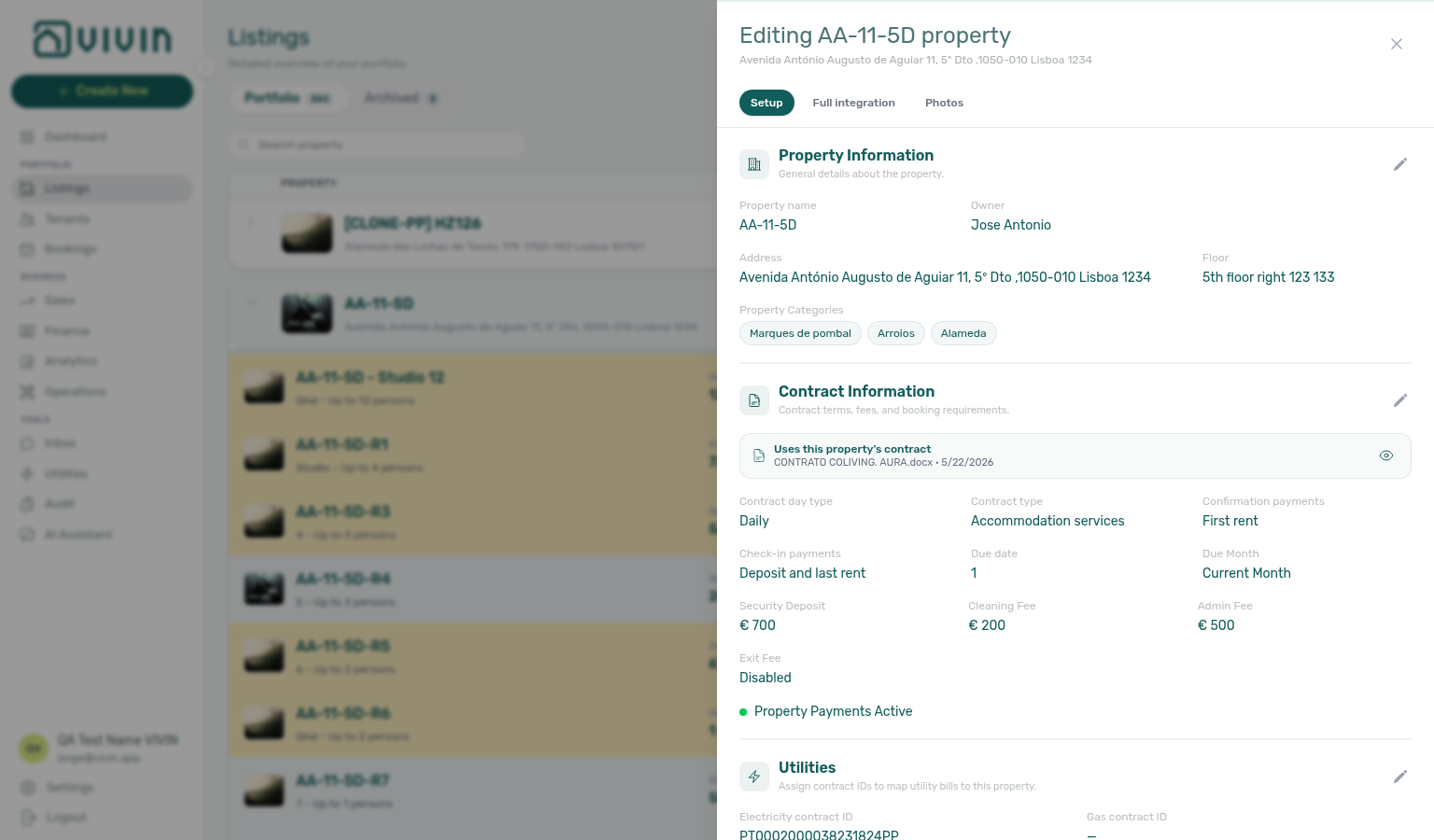
Use this path when an email or spreadsheet still links to “view property” under /properties; you do not need to find the row manually in the table first.
Archived portfolio (/properties/archived)
/properties/archived (and /properties/archived/…) redirect to /listings/archived, which is the archived-properties experience inside Listings (not a separate module):
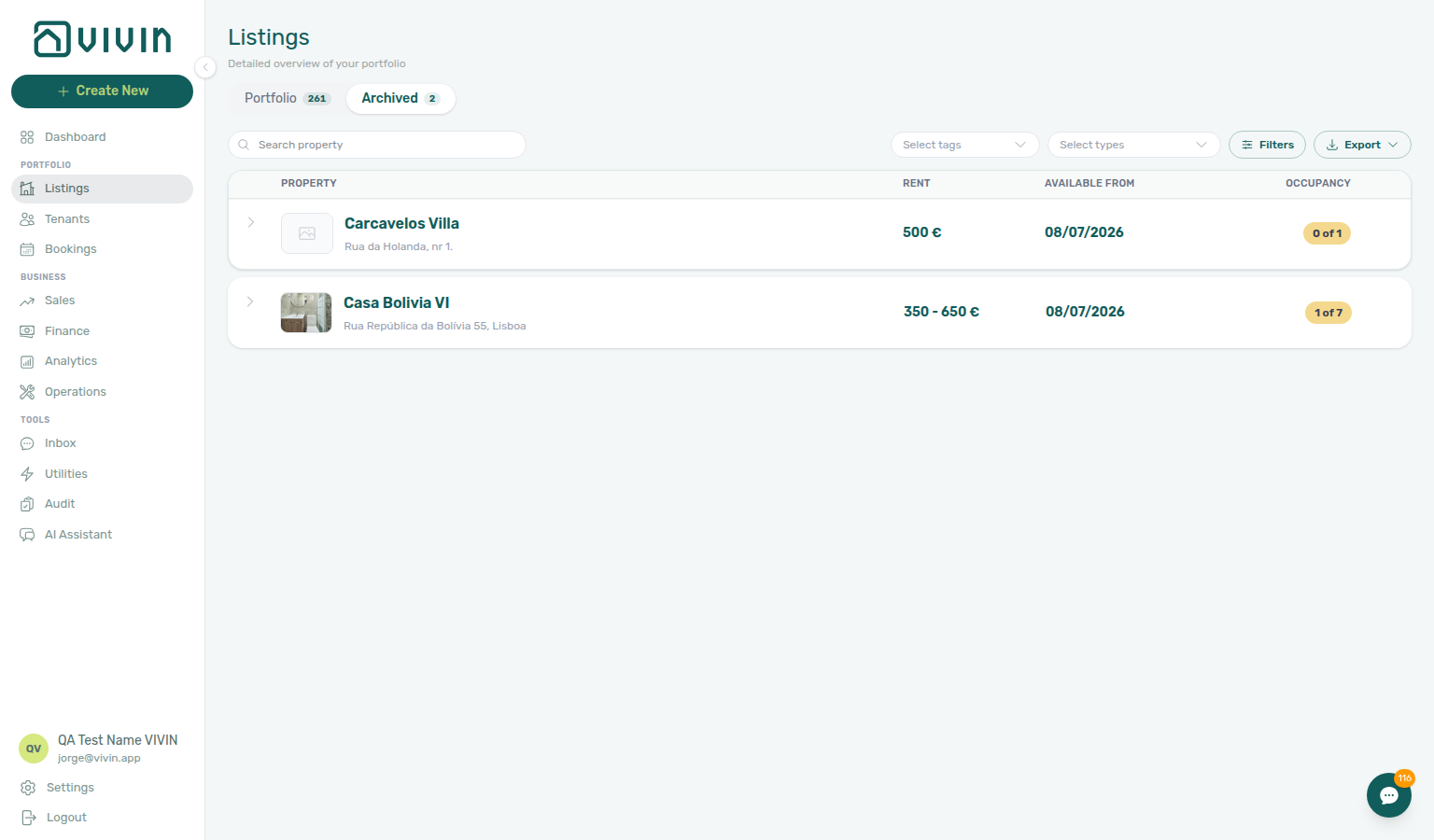
For the full archived workflow (restore, filters, permissions), see Listings — Archived properties. When the docs capture account has archived buildings, the redirect lands on the populated Archived table (listings-archived-populated-table.png in the Listings guide); empty accounts still show the empty-state copy linked from Listings — Archived properties.
Legacy properties guide subsection index
Use this short map when an old /properties bookmark lands in Listings and you need the matching redirect or habit path:
| Topic | Go to |
|---|---|
| Permission guard | Who can follow these URLs |
Path → /listings table | Redirect behaviour (current product) |
| Post-redirect chrome | Interface overview (Listings) |
| Root / property / archived bookmarks | Root bookmark · Property deep link · Archived portfolio |
| Operator habits (lockout, collections, alerts) | Common Workflows · Related |
Legacy properties section cross-reference
Use the sections above for this module. Related pages are linked from Related below when present, or from Modules.
Related
Related below links this module to settings, concepts, workflows, and escalation paths.
Documentation map & escalation
- Modules hub — Hub pairing matrix across operator workspaces
- Listings — Primary module for properties and units after redirect
- Deep Links — URL reference for
/listingspaths, property sidebars, and unit sidebars - Glossary — Term definitions used across onboarding and inventory docs
- Get Help & Support — Escalate when legacy bookmarks land on permission errors instead of Listings
Upstream & downstream workflows
- Onboarding a New Property — Recommended setup sequence after legacy
/propertiesbookmarks redirect here - Manual block hygiene — Audit pass when legacy
/propertiesbookmarks land on Listings but availability still looks blocked - Portfolio KPI review — Month-end reconciliation once properties exist under Listings
- Entering Monthly Utility Bills — Verify Connections after utility IDs are saved during onboarding
- Managing a Check-out & Deposit Refund — Legacy property URLs that still appear when triaging Finance → Deposits rows
- Handling a Late Payment — Step 1 — Identify overdue charges on bookings tied to redirected properties; upstream path from Notifications — Payment overdue alerts
- Notification triage — Clear Payments category alerts before opening legacy
/properties/view/…bookmarks; payment overdue → Handling a Late Payment — Step 1
Deeper workflow reads
See Upstream & downstream workflows above for the same guides.
Navigation & bookmarks
Bookmark routes pair with Management Frontend Deep Links and Create New menu.
- Create New Menu — Sidebar Property wizard without a dedicated deep link
- Property & listing details (booking engine) — Rich payload editor via the Full integration pill
Settings & concepts
- Settings > Owners — Property owners linked from property editor sidebars
- Settings > Tenant categories — Default segment on new direct bookings and Finance — Tenant category filter when overdue alerts cluster on one cohort at redirected properties
- Settings > Preferences — In-app notifications — Account-wide listing or integration alerts after legacy
/propertiesbookmarks land in Listings - Settings > Emails — Listings > Email Customization and lifecycle templates for check-in access codes
- Integrations (concept) — Channel linking once properties land under Listings
- Tenant Portal — Property Payments Active and access codes tenants see after properties redirect from legacy URLs into Listings
- FAQ — Tenant contract signing blocked — No PDF yet, mandatory Your Details gates, category locks, or Lease purpose; portal signing vs paper upload on Contract Info
- Payment Allocation — Credit note follow-up when rejecting mistaken receipts during property onboarding imports
- Booking Lifecycle — Computed status model for reservations on configured properties
Operator modules (pairing surfaces)
- Dashboard — Post-login KPI snapshot after legacy
/propertiesbookmarks redirect to Listings - Bookings — Timeline view — Gantt layout after legacy URLs redirect into Listings inventory
- Bookings module — Reservations after legacy URLs redirect into Listings inventory
- Bookings — Tenant categories — Segment filter when payment overdue rows cluster on one cohort at redirected properties
- Finance — Tenant category filter — Reconcile Contract Values In Debt for the same segment after legacy URL triage
- Tenants module — Tenant profiles linked from bookings on configured properties
- Tenants — Tenant category filter — Profile-count cross-check before changing portal rules account-wide
- Sales — Overview tab — Occupancy heatmap after redirecting from old property hub URLs
- Sales — Channel Manager — Link units to marketplaces after legacy URLs land in Listings
- Audit module — Manual block review when redirected inventory still looks blocked on Sales
- Audit — Discounts tab — Cross-portfolio discount review once bookings exist on redirected inventory
- Utilities — Bills and property utility context
Operator habit hubs
Day-to-day operator habits (lockout catch-up, pending receipts, payment triage, handoffs, and related playbooks) live on the Common Workflows habit hub.
Deep-link anchors for habit hubs
Lockout catch-up after password recovery
Pending manual receipt approval
Reject/revert mistaken receipts
Check-out ledger cleanup before refund
Utility overage collections
Cancellation collections before void
Check-out collections before refund
Handling a Late Payment collections
Check-out vs cancellation
Deposit missing on Finance Deposits
Notification row-click navigation
Payment alert to receivables triage
Finance debt receivables triage
Finance Income status drill-down
Cash flow forecast drill-down
Confirmation alert triage
New inventory to first booking handoff
Property setup to first arrival handoff
Confirmation to check-in handoff
Check-in to check-out handoff
Check-out final utilities handoff
Same-day turnover coordination
WhatsApp per-booking messaging
Bot reasoning (audit)
ChatBot settings
Rent reduction after invoicing
Month-end invoicing (fixed date)
Bulk Hostkit invoicing
Occupancy KPI to block hygiene handoff
Partly collected security deposit
Portfolio segmentation by tenant category
Directory list refresh
When a list needs a refresh instead of showing rows, use Retry or reload the page. Zero rows after a successful load means your filters matched nothing — widen filters or clear search.
See FAQ — Directory list refresh and Glossary — Directory list refresh.
Key glossary terms
- Glossary — End-of-Booking cost split — Charge Time → End of Booking splits daily overage across every occupied unit; still-staying roommates stay in the denominator
- Glossary — Change history — Operator-initiated edits on Listings setup and Bookings Changelog; create-time defaults excluded
- Glossary — Archived booking ledger visibility — Delete Booking hides manual/provider_platform rows on Finance → Transactions; vIBAN and credit card stay visible
- Glossary — Finance tenant category cache refresh — Recategorizing a tenant updates
booking.tenantCategoryIdimmediately; ledger tabs reflect it on reload, while Overview can lag up to ~10 minutes - Glossary — SIMAR water contract ID — SIMAR (Loures e Odivelas) water bills use Cód. Local in Connections — not Nº de Contador; leading zeros stripped
- Glossary — Per-booking maintenance ticket opt-out — Add booking checkboxes skip automatic CI/CO tickets for one reservation only; property rule unchanged
- Glossary — Full term list
API & companion guides
- API Reference — Listings & Availability — Partner
GET /listingsafterexternalIdmapping on units created here - API Reference — Property & unit mapping —
externalIdkeys operators save on Channels after legacy URLs land in Listings - API Reference — iCal feeds — Calendar retrofeed URLs copied from Sales → Channel Manager on redirected inventory
- API Reference — Full listing feeds — Rich catalogue exports partners poll after units are linked from Listings
- AI usage API — Operator JWT ledger (unrelated to partner listing pulls above)
Module documentation hubs
- Properties workspace — Hub for legacy
/propertiesURL redirects into Listings (this page) - Listings module — Property wizard, Channels tab, Archived inventory, and unit management (hub)
- Dashboard module — Post-login KPI snapshot (hub)
- Bookings module — Reservation lifecycle context (hub)
- Sales module — Portfolio availability and channel manager connections (hub)
- Finance module — Portfolio ledgers and payment approval (hub)
- Notifications module — Full
/notificationshistory with row-click navigation into Bookings (hub); Payment overdue alerts when scheduled charges are overdue on Ongoing stays at redirected properties - Audit module — Manual Blocks and Discounts review (hub)
- Utilities module — Bills Included ceiling model and tenant overage charges (hub)
- Account Settings — Workspace-wide financial policies (hub)
- API Reference hub — Partner HTTP contracts and partial vs full feeds (hub)