Entering Monthly Utility Bills
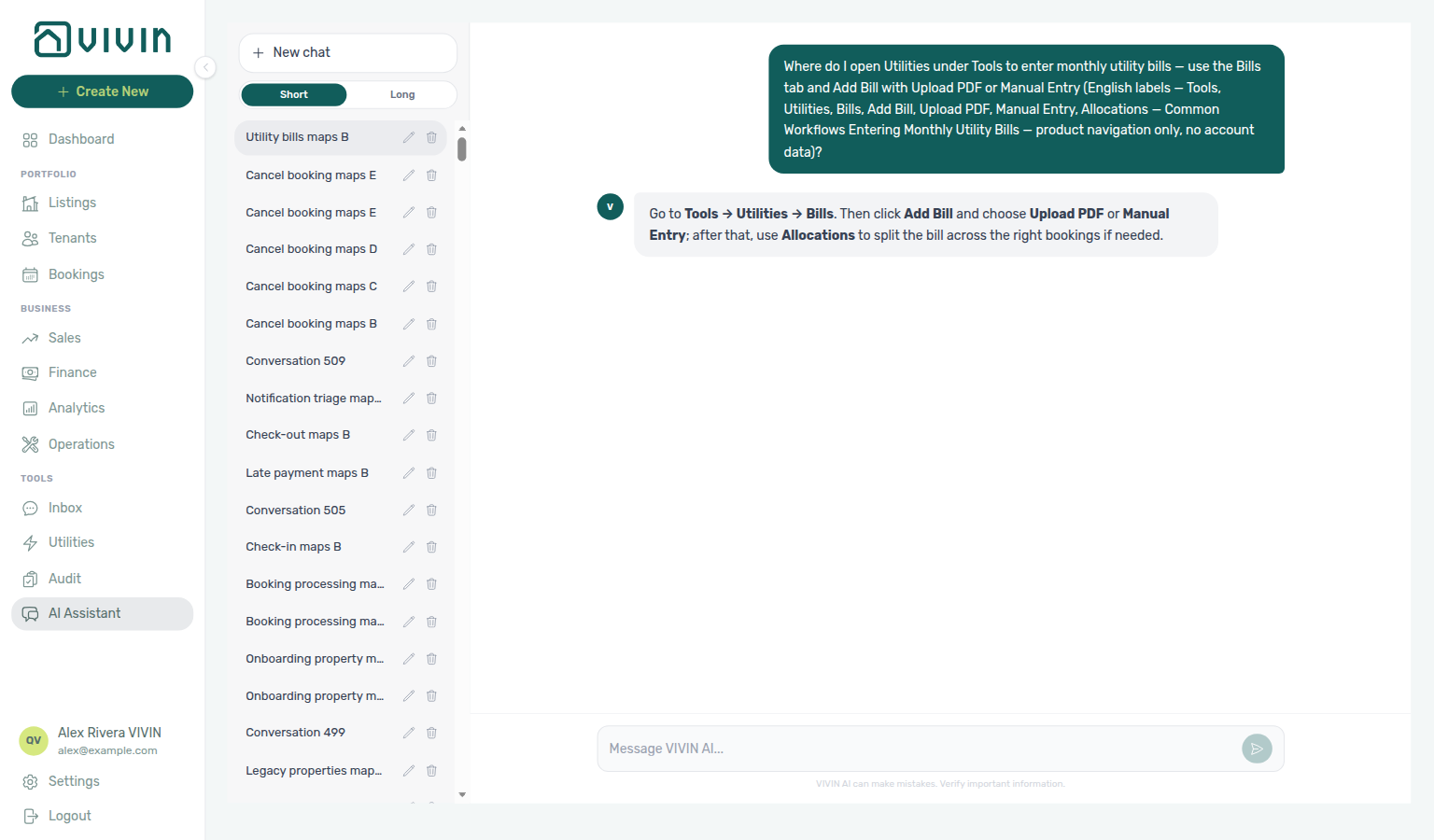
Ask AI Chat “Where do I open Utilities under Tools to enter monthly utility bills — use the Bills tab and Add Bill with Upload PDF or Manual Entry (English labels — Tools, Utilities, Bills, Add Bill, Upload PDF, Manual Entry, Allocations — Common Workflows Entering Monthly Utility Bills — product navigation only, no account data)?” — then open Tools → Utilities → Bills and Add Bill (ai-chat-product-context-monthly-utility-bills-reply.png, ai-chat-product-context-monthly-utility-bills-flow.mp4). The assistant typically says Tools → Utilities → Bills, then Add Bill with Upload PDF or Manual Entry, and points at Allocations when you need to split costs. Same grounding external MCP clients get from get-vivin-context-finance. Distinct from the broader Utilities module map (“where do I enter utility bills and review allocations…?”) and from the Common Workflows hub product maps.
Monthly bill entry needs utility account IDs from property setup Listings — Step 2 or Utilities → Connections and Bills Included ceilings from Listings — Step 3 — finish Onboarding a New Property steps 2–3 on each building before the first bill cycle. Complete Getting Started — Recommended Setup Sequence steps 1–15 and Step 7 — Verify in Listings on new inventory. Lockout catch-up: Getting Started — Lockout catch-up after password recovery.
Collect statements in Step 1; enter rows in Step 2 — Enter bills in the Utilities module. Overages: Step 3 → Step 4 — Verify tenant overage charges / Step 4b. Month-end gaps: Step 5; blocked math: Step 6. Habit-specific shortcuts live under Related below.
Entering utility bills each month is what enables accurate tenant overage calculations. Run this process at the start of each month for the previous month's bills.
When tenant overage lines on Payment plan stay unpaid, continue with Handling a Late Payment.
Before entering bills, ensure:
- Utility account IDs are linked to each property (configured during property creation Step 2 or in the Utilities > Connections tab)
- Bills Included ceilings are set on each property (property creation Step 3)
- Utility types are enabled in Settings > Utilities
Step 1 — Collect your utility statements.
Statement prep pairs with Utilities → Connections, Onboarding a New Property — Step 6, and list-bills on Landlord MCP for prior-period baseline. Downstream: Step 2 (upload or manual entry).
Gather all utility bills for all properties for the previous month (electricity, gas, water, internet).
Account-scoped Landlord MCP list-bills helps external clients confirm which properties already have Received rows for the target billing period before you upload PDFs in Step 2 — filter by period in your client and cross-check against Utilities → Connections account IDs from Onboarding a New Property — Step 6. AI Upload PDF extraction and bulk supplier filing remain management-UI-only.
Step 2 — Enter bills in the Utilities module.
Bill entry pairs with Utilities → Bills, Create New — Upload Utility Bills, create-bill on Landlord MCP (prefer UI Upload PDF for AI extraction), and AI usage API (utility_bill_extraction on GET /ai-usage/summary when you audit PDF extraction volume at month-end). Upstream: Step 1. Downstream: Step 3 and Step 5.
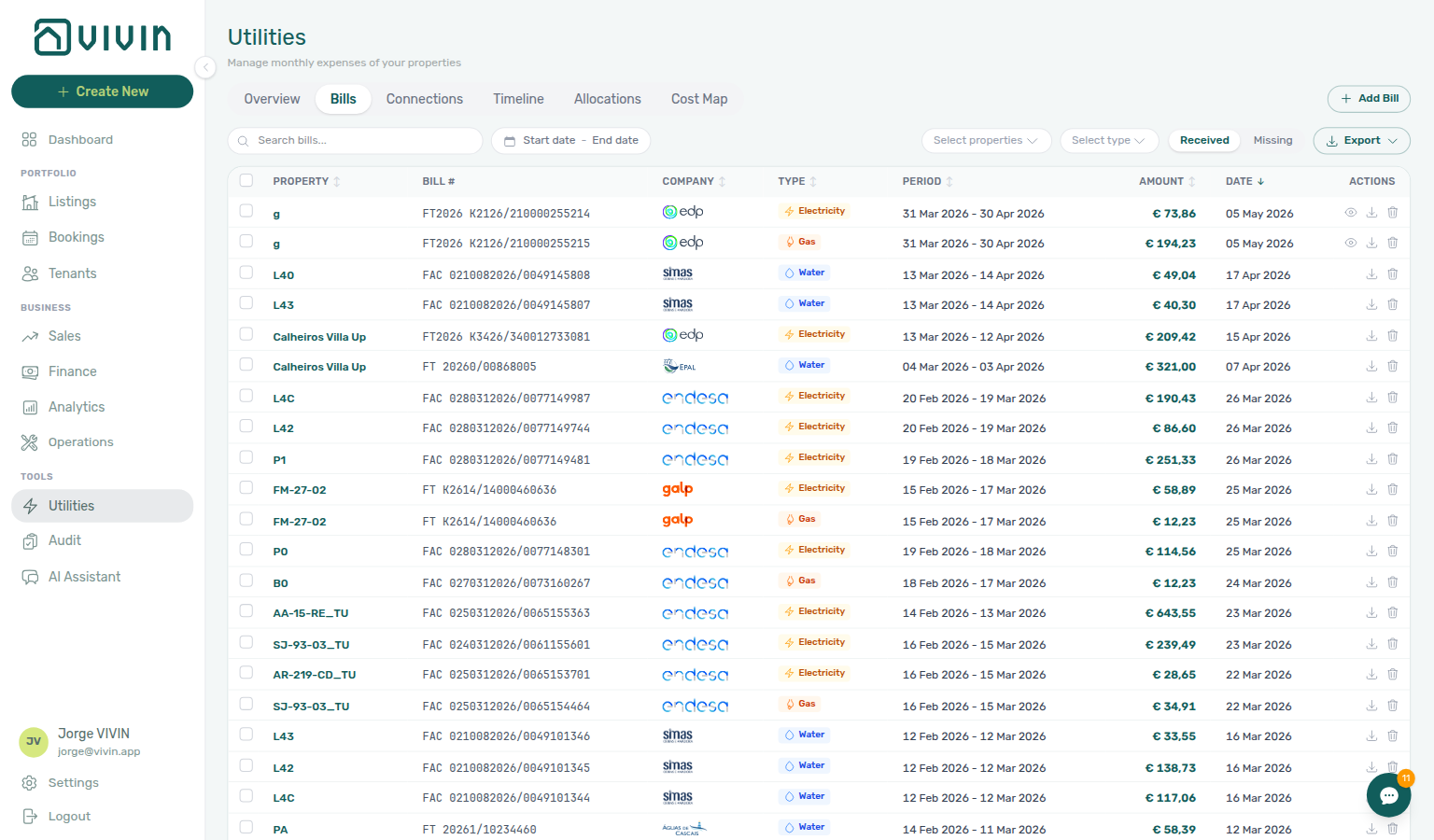
Navigate to Utilities > Bills and click + Add Bill (header shortcut on desktop, or the in-tab control).
On accounts with many buildings, use Select properties on the Bills, Overview, or Connections tab first so the ledger, missing-data charts, and export scope match the property batch you are entering this month — the control is a server-driven search picker (same paged pattern as Finance → Other filters → Property). After the building chips look right, Select type on Bills stays open while you add Water and Electricity (or another pair) — see Utilities — Select type stays open. Finish one building or region, then change chips before the next batch so Missing toggles and Days Missing Data stay actionable instead of mixing unrelated portfolios in one view.
Option A — Upload PDFs (AI invoice reader)
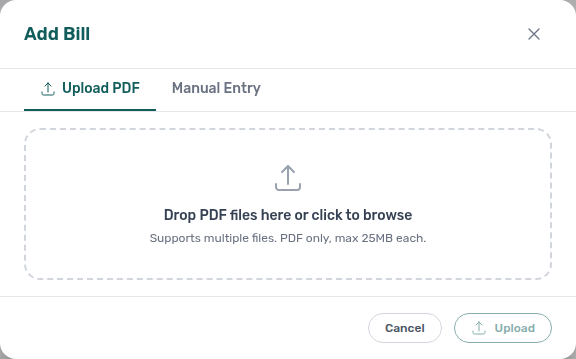
When you have supplier PDFs for the month, prefer the Upload PDF tab on Add Bill:
- Open Add Bill and stay on Upload PDF.
- Drag and drop one or more bill PDFs (or use the file picker).
- Click Upload — Vivin extracts utility type, property match, billing period, and amount using your Connections account IDs. SIMAR (Loures e Odivelas) water PDFs match on Cód. Local — not the meter number; see Glossary — SIMAR water contract ID and FAQ — SIMAR water bill property match when a SIMAR bill lands on the wrong property.
- Read the result banner, then Close. N processed successfully (and Bills created successfully on the file) means the invoice is already on Received — overage rows on Allocations can still appear a moment later. Already uploaded means that statement is already on Received — do not send the same PDF again. Unconfirmed — check the Bills list means look at Received before you upload that file again. See Utilities — After you upload. Use Manual Entry on the same modal when you need to type a statement the reader did not pick up.
Vivin internal operators can also use + Create New > Tools > Upload Utility Bills from any screen for the same batch upload dialog — see Create New Menu > Tools.
Account-scoped Landlord MCP create-bill, list-bills, and get-bill mirror Utilities → Bills manual entry and the Received ledger — prefer the management UI Upload PDF tab when you need AI invoice extraction; MCP writes send JSON payloads that must match Core API bill schemas. list-bills pages the same portfolio scope as Select properties when your automation batches entries by building.
Option B — Manual entry
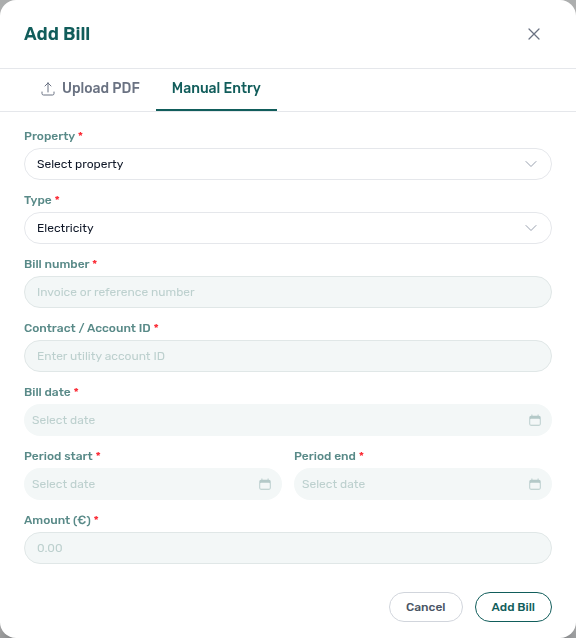
For a single statement without a PDF, or to correct AI output, switch to Manual Entry and fill in:
- Property
- Utility type (Electricity, Gas, Water, Internet)
- Billing period — the month the bill covers (not the month you received it)
- Amount and related dates
Bills must be assigned to the correct billing period. An electricity bill covering March must have March as its period — even if you enter it in April. Incorrect periods cause overages to be assigned to the wrong month and the wrong tenants.
Step 3 — Review calculated overages.
Overage review pairs with Utilities → Overview, Utilities → Cost map when daily intensity looks wrong, and list-bills / get-bill on Landlord MCP. Upstream: Step 2. Downstream: Step 4.
Open Utilities > Overview for the billing period. Confirm all bills appear and total amounts look correct.
When daily intensity on one building looks wrong, open Utilities → Cost map after Overview totals look sane. If Select properties includes only part of a portfolio that shares one physical meter (identical contract ID on the Connections grid), Vivin shows an amber Shared utility connections detected banner — sibling buildings still out of scope can skew cell colouring until you add every property on that contract (or clear the filter). With the full group in scope, Cost map counts that bill once and splits the day across occupied rooms on every building (Shared meters count once). See Glossary — Shared utility connection before you run Recalculate Allocations on Cost map or chase a single-unit outlier. While it runs, the button shows Recalculating..., then Deleted N, created M, then Cost map reloads.
When Account Settings → Utilities → Charge Time is End of Booking, a departing tenant’s overage posts only after checkout — but still-staying roommates remain in the daily split denominator until they leave. If a leaver’s allocation looks too high for a coliving house, confirm whether a roommate was still occupying another room during the bill period before you escalate in Step 6. See Glossary — End-of-Booking cost split.
Account-scoped Landlord MCP list-bills and get-bill return the same Received ledger rows you spot-check on Overview — filter by billing period in your client before you open affected bookings in Step 4. get-property exposes per-building utility account IDs and Bills Included ceilings from property setup — cross-check totals on Overview against list-bills grouped by property before you chase a single outlier unit. The management UI Utilities → Cost map (GET /bills/cost-map) has no MCP equivalent; when daily intensity looks wrong for one listing, open Cost map after list-bills confirms the Received period amounts. External clients cannot read Cost map matrices from MCP. Booking-scoped Tenant MCP tools are the wrong surface for portfolio bill totals — reserve request-contract-data for per-tenant Bills Included context in Step 4. Surface-choice contrast: Automation & AI — Workflow pairing for surface choice.
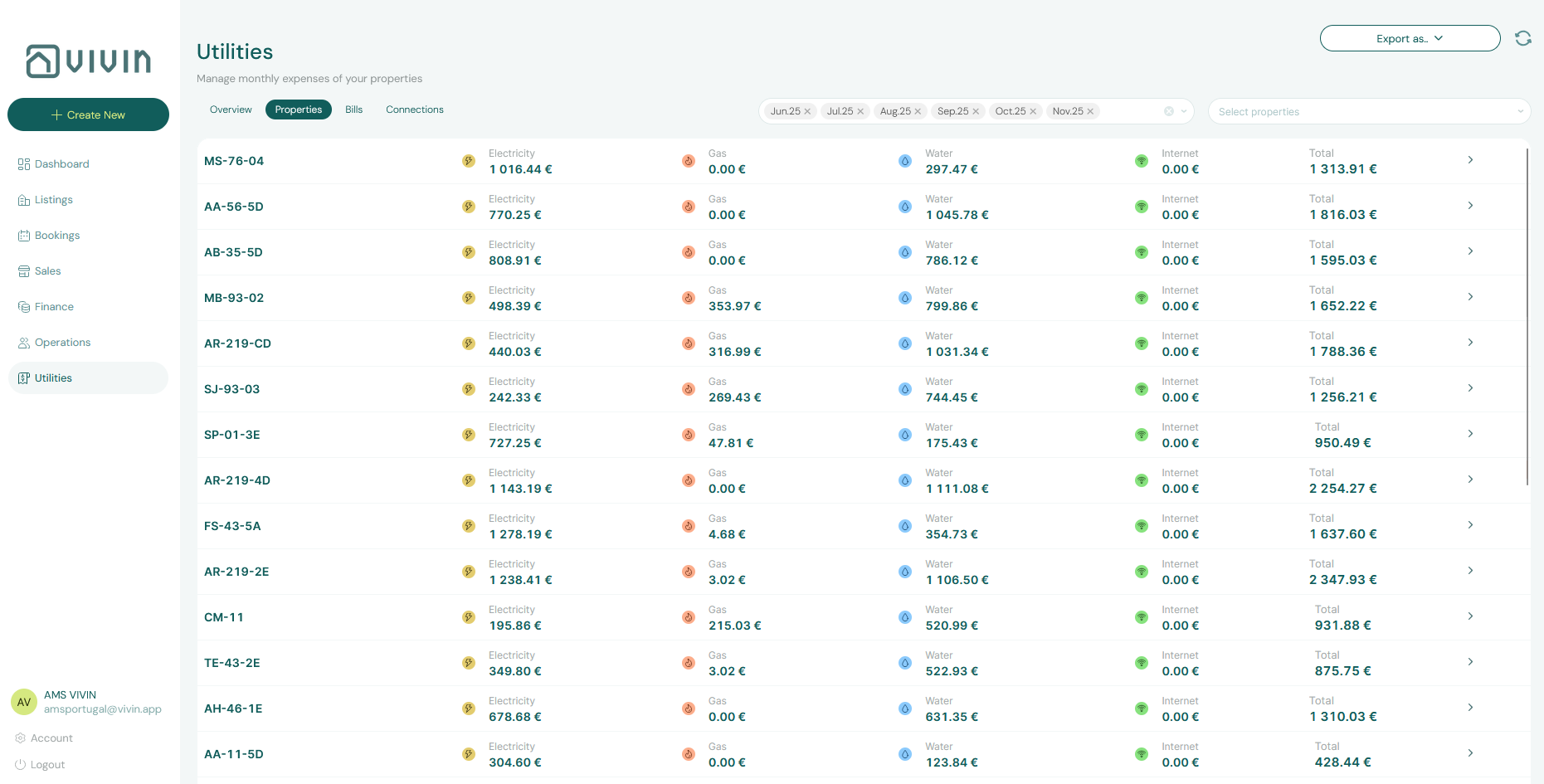
Step 4 — Verify tenant overage charges were created.
Overage verification pairs with Common Workflows — Check-out final utilities handoff (downstream Managing a Check-out — Step 6 / Step 5 before deposit release; Step 7 when End of Booking charge time defers posting — utilities-allocations-review-flow.mp4), FAQ — Entering Monthly Utility Bills hub, FAQ — Managing a Check-out hub, Bookings — Payment Plan, Tenant Portal — Utilities (Impersonate Tenant spot-check), and Handling a Late Payment — Step 1 when lines stay unpaid. Upstream: Step 3. Downstream: Step 4b when receipts stay pending.
For any bills that exceeded the property's Bills Included ceiling, the system automatically creates overage charges on affected tenants' payment schedules. Open one or two affected bookings and confirm the charge appears in their Payment Plan tab.
Before you chase individual bookings, open Utilities → Allocations. Click Covered first when a stay has Extra to charge € 0,00 — that period was calculated and the tenant owes nothing (not a missing bill). See Utilities — Covered periods. A calendar block on the same unit is a separate Absorbed row — it does not remove the Covered stay (Calendar blocks do not replace Covered). Then open Pending, narrow to the property (or booking), and use Approve selected / Reject selected on the floating bar when several overage rows are ready — see Utilities — Bulk actions (utilities-allocations-approve-selected-bar.png, utilities-allocations-approve-selected-toast.png, utilities-allocations-approve-selected-flow.mp4). For one stay, you can also Approve allocation or Reject allocation on that booking’s Contract Values tab (or the tenant sidebar) without opening Allocations. Booking status stays open while you add Ongoing and Upcoming (or Ended) in the same view — see Utilities — Booking status stays open. On stays whose security deposit is already refunded, Approve stays disabled — filter Deposit status → Refunded and Reject the leftover row (or record a manual payment if money is still owed) instead of charging again. See Utilities — Deposit already refunded (utilities-allocations-deposit-status-refunded-filter.png, utilities-allocations-deposit-refunded-approve-tooltip.png, utilities-allocations-deposit-refunded-flow.mp4).
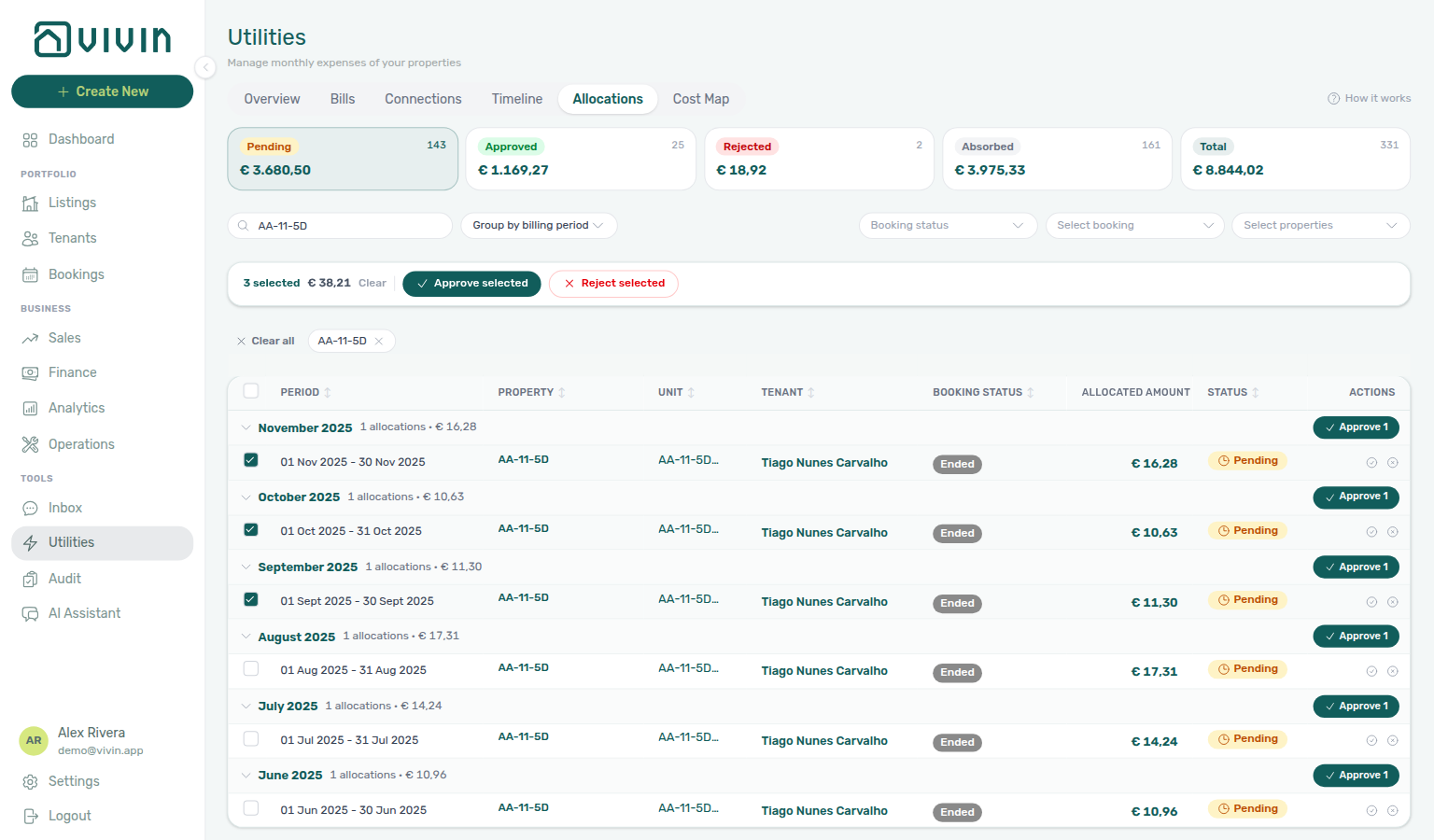
When Tenant Portal utilities access is enabled for the tenant's segment, they can also review consumption and overage context in the portal — spot-check one booking with Impersonate Tenant (under Contract Info → Method of payments) so operator-facing payment-plan rows match what the tenant sees before you chase arrears.
Account-scoped Landlord MCP get-booking returns payment-schedule context when an external client spot-checks overage lines without opening the booking sidebar — pair with list-bills / get-bill from Step 3 when you already know the affected booking id, or with list-bookings when several tenants on one property received overage lines the same billing period. list-payments / get-payment surface Pending overage receipts after you record Add Payment in Step 4b; external clients cannot approve from MCP.
Booking-scoped Tenant MCP get-payment-info surfaces the same overage lines tenants see on Tenant Portal — Utilities — pair with Impersonate Tenant spot-checks above when portal utilities access is enabled for the segment. notify-landlord alerts your team when a guest asks about a bill before you record Add Payment in Step 4b; it does not post bills or approve receipts. list-bookings-by-email resolves the booking id when a WhatsApp or email thread only shows the guest address after an overage line posts — pair with Notification triage — Step 4 when Inbox preceded the question. request-contract-data helps external assistants explain Bills Included ceilings when the tenant disputes the overage math — portfolio-wide bill entry stays on Landlord MCP list-bills / create-bill. For Vivin product defects (permissions, AI extraction failures, or MCP credential scope), file Using in-app support instead of routing tenant automation here. Surface-choice contrast: Automation & AI — Workflow pairing for surface choice.
When a tenant's overage line is still Unpaid or Overdue after the due date, triage it the same way as rent arrears — hub matrix: Common Workflows — Utility overage collections (Step 4 / Step 4b → Handling a Late Payment — Steps 1–4; utilities-allocations-row-breakdown-expanded.png, bookings-detail-transactions-approve-payment-modal.png, utilities-allocations-review-flow.mp4). Start from Finance > Contract Values with In Debt filtered (scope Property in Other filters when the portfolio is large, then add Tenant → Tenant category when overages cluster on one segment — see Finance — Tenant category filter; mirror the same segment on Bookings → Tenant categories or Tenants — Tenant category filter when Finance Overview still shows the old segment — see Glossary — Tenant category and FAQ — Finance tenant category filter parity), or paste the unit internal name in Bookings toolbar Search. See Handling a Late Payment.
When you record a tenant’s overage payment with Finance → Add Payment (or the booking Transactions tab), the receipt may stay pending until someone with Approve payments confirms it — until then, Payment Plan and In debt lines can still show unpaid. See Finance — Pending manual payments.
Step 4b — Approve overage receipts (when required)
Overage approval pairs with Finance → Transactions, Payment Allocation — Correcting mistaken receipts, and Portfolio KPI review — Step 7 at month-end. Upstream: Step 4. Downstream: Step 5 once Payment Plan shows Paid.
Account-scoped Landlord MCP list-payments / get-payment surface the same Pending ledger rows you approve below — external clients cannot Approve payment or Reject selected from MCP; operators finish on Finance → Transactions or the booking Transactions tab. Booking-scoped Tenant MCP get-payment-info helps tenant-facing assistants explain why a recorded overage payment still shows Unpaid until approval completes.
After you save Add Payment for an overage line but Payment Plan still shows Unpaid or Overdue:
- Open Finance → Transactions (widen the date range if needed) or the booking Transactions tab and confirm Pending rows exist when you expect a manual approval queue.
- On the ledger, click the amber Pending chip on the All type-summary card (or use the Pending status filter) — see Finance — Pending manual payments (
finance-transactions-pending-pill.png). - Locate the manual row in the filtered table.
- Click Approve payment (per-row check icon) or tick several rows and use Approve selected from the floating bar. For a mistaken duplicate on the ledger, use Reject selected (bulk-only on Finance — no per-row reject icon there). Reject selected shows the same red credit note warning as booking Transactions when accounting may already have invoiced the charge — see Finance — Reject payment and Bookings — Transactions row actions.
- Re-open Payment Plan — the overage line should reflect Paid once allocations apply before you mark the month closed.
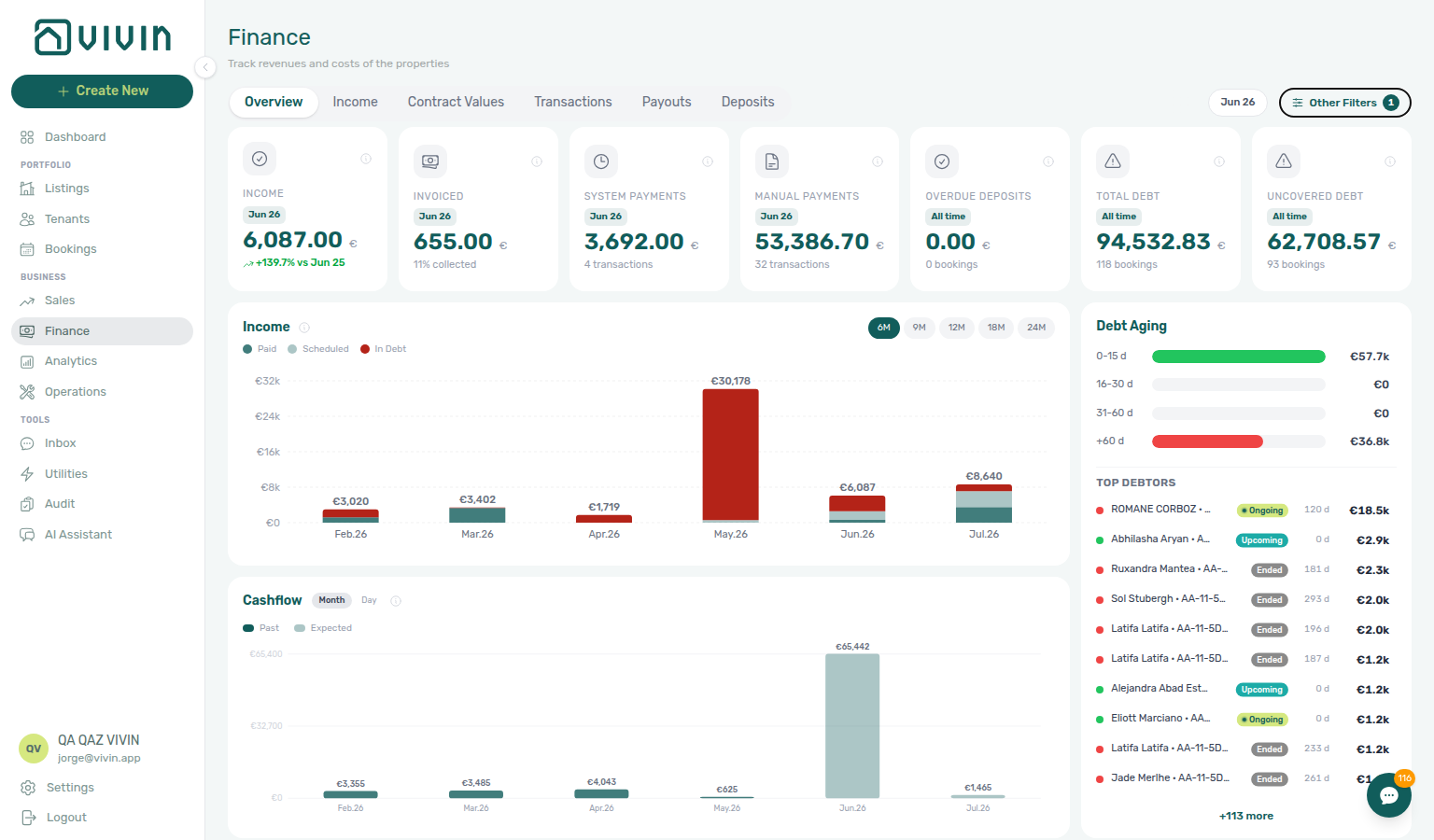
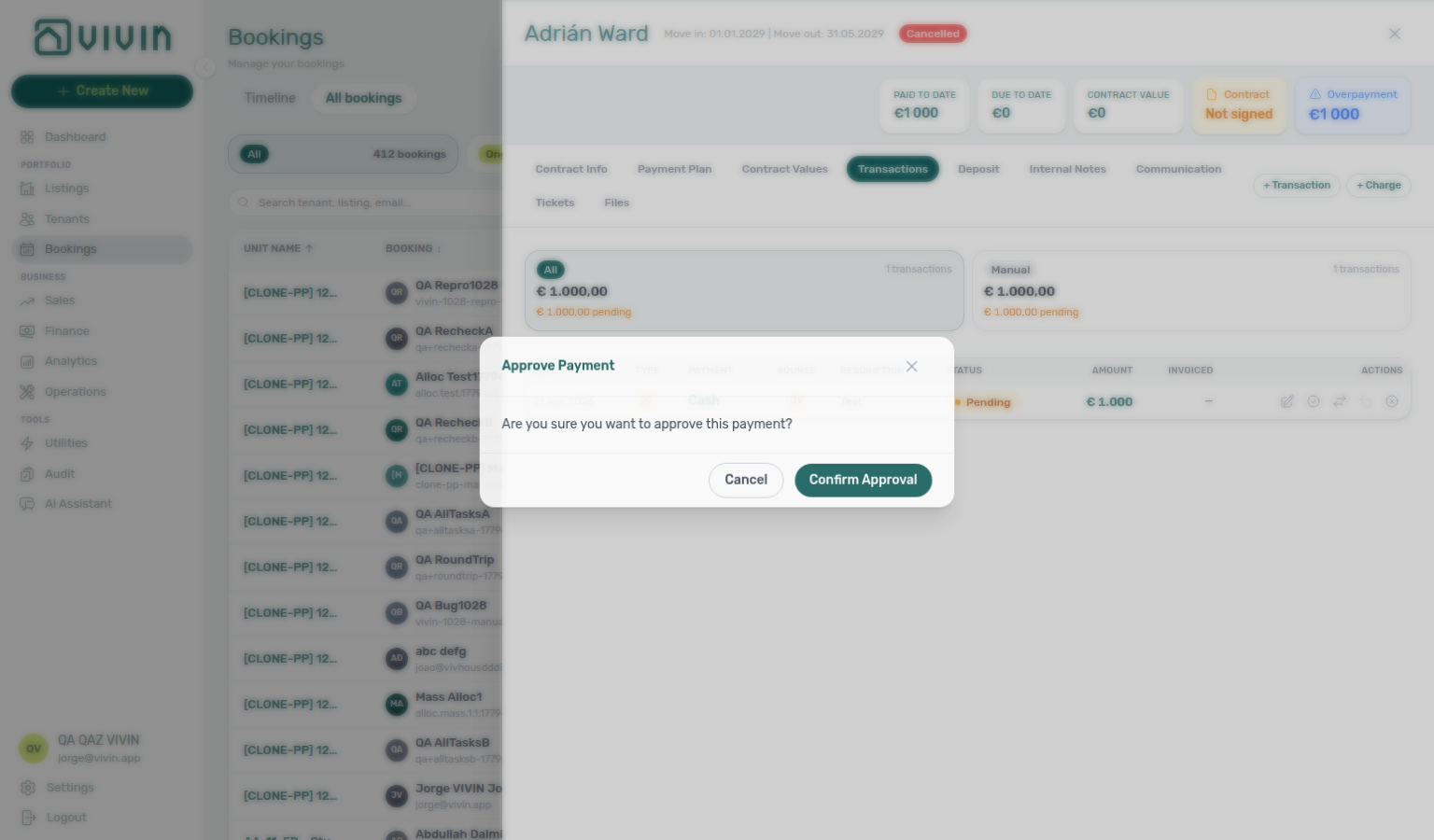

For a detailed explanation of how overages are calculated, see How Tenant Overage Charges Are Created.
Step 5 — Check for missing data.
Missing-data chase pairs with Dashboard — Days Missing Data, Utilities → Bills Missing toggle, and Portfolio KPI review — Step 7 before month-end sign-off. Upstream: Steps 2–4. Downstream: Step 6 when gaps persist.
Review the Days Missing Data chart in the Utilities Overview. Any bars indicate utility types or months with no bill entered.
Account-scoped Landlord MCP list-bills helps external clients chase Missing gaps — compare returned periods against Connections account IDs on each property before you re-run Step 2. Pair get-property when you need the same utility account IDs the Connections tab shows per building, and get-bill when you already know a bill id from a prior list-bills page and want to confirm supplier metadata before re-uploading. The Dashboard — Days Missing Data chart and Utilities → Bills Missing toggle remain operator UI — MCP has no Cost map or chart equivalent. AI Upload PDF extraction remains management-UI-only; MCP create-bill is manual-schema entry.
For a row-level chase list, open Utilities > Bills, switch the Received / Missing toggle to Missing, and work through gaps before overage math drifts.
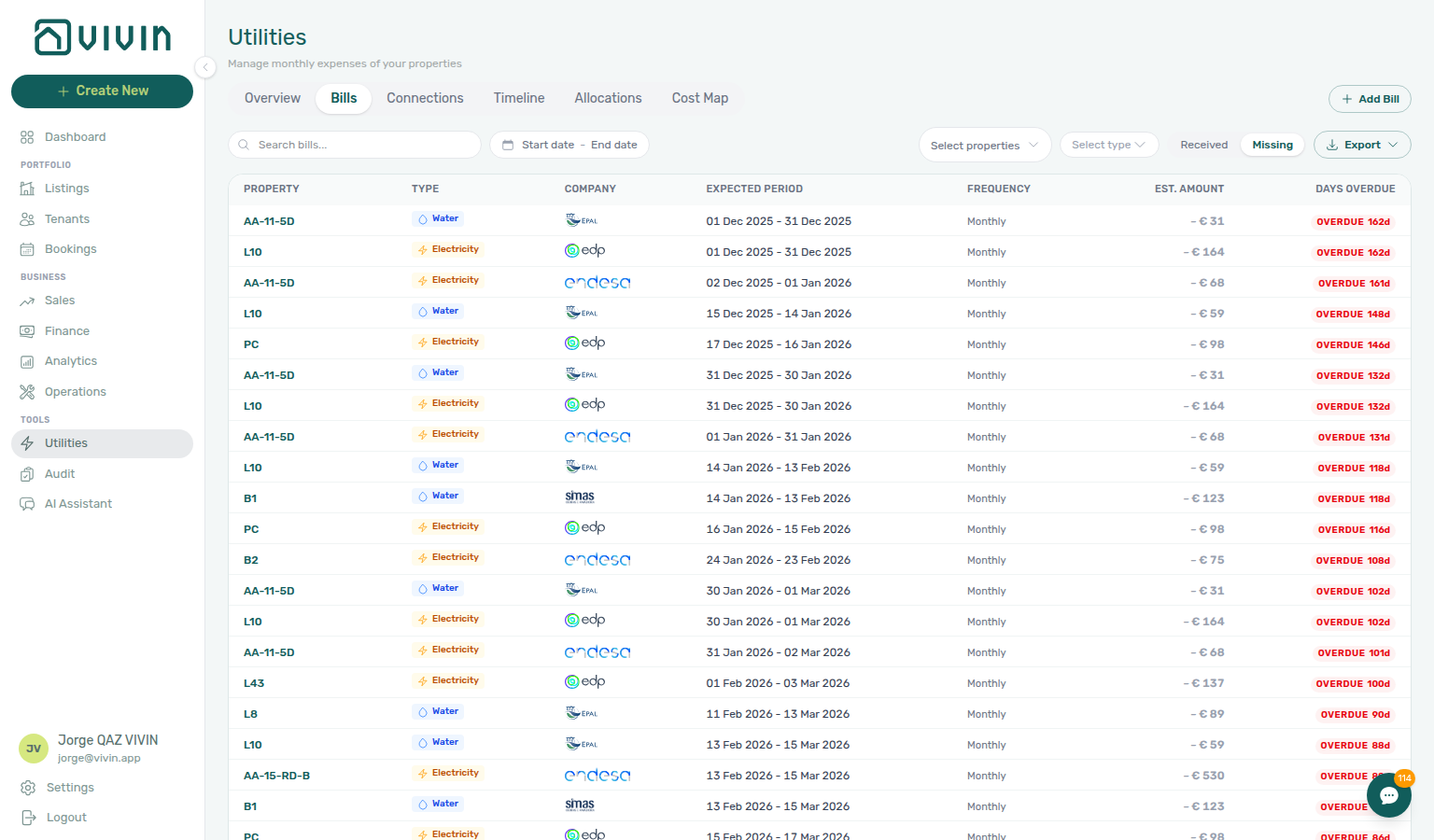
Fill in any gaps to maintain complete records.
Optional — Archive or download supplier PDFs in bulk. After the month’s bills are on the Received ledger, you can use row checkboxes (or the header checkbox for every row currently loaded) to select multiple entries and act from the floating bar at the bottom of the workspace:
| Action | When to use it |
|---|---|
| Download selected | Pull stored supplier PDFs for owner packs, audits, or offline filing — rows without an attached file are skipped. |
| Delete selected | Remove duplicate or mistaken uploads (confirmation required; cannot be undone). Prefer narrowing Property and the date range first so you do not delete unrelated bills. |
See Utilities > Bills — Bulk selection for screenshots and a short walkthrough. Bulk actions apply to the Received ledger only — not the Missing gap list.
Set a monthly calendar reminder to run this process at the start of each month. Missing bill data means missing overage charges — use the Days Missing Data chart on Overview or the Missing toggle on Bills to catch gaps.
Step 6 — Escalate when bill entry or overage math is blocked (when needed)
Bill-entry escalation pairs with Using in-app support, Onboarding a New Property — Step 6 (Connections IDs), and Cancelling a Booking — Step 6b for utility overage on Canceled stays. Finish Step 4b and Step 5 self-serve first.
When Upload PDF extraction, Connections property matching, or tenant overage lines on Payment plan still look wrong after Steps 1–5, document the billing period, property, and supplier PDF before you escalate.
Self-serve first:
- AI extraction missed a field → switch to Manual Entry on the same Add Bill modal and correct the row — see Step 2.
- Missing gaps on Bills → re-run Step 5 with Select properties scoped to one building.
- Overage lines missing on Payment plan → confirm the bill period matches the stay and Bills Included ceilings on the property — see How Tenant Overage Charges Are Created.
- Cost map daily intensity looks wrong for one listing → open Utilities → Cost map after
list-billsconfirms Received amounts — Cost map has no MCP equivalent. - Utility overage lines on Canceled stays still blocking alert cleanup → Cancelling a Booking — Step 6b and Step 4 before you file support
- Overage receipts still pending at month-end → follow Step 4b and Portfolio KPI review — Step 7 before you file support — same Pending pill habit as Processing a New Booking — Step 6b, Handling a Late Payment — Step 6b, Managing a Check-in — Step 6b, Managing a Check-out — Step 6b, and Cancelling a Booking — Step 6b.
- Unpaid utility overage lines on Payment plan after Steps 4–4b → continue collections in Handling a Late Payment — Step 1 before you escalate bill-entry defects — segment-wide arrears in Handling a Late Payment — Step 6 when overages cluster on one tenant category; mirror the same segment on Portfolio KPI review — Step 6 before you change Communication Rules audience account-wide.
- Connections account IDs missing or mismatched on new buildings → re-run Onboarding a New Property — Step 6 before you file a support ticket — bill entry cannot match supplier PDFs without valid Utilities → Connections rows. For SIMAR water, confirm Cód. Local — not Nº de Contador — see FAQ — SIMAR water bill property match.
- Utility overage Payment received or balance alerts after bill posting → row-click from Notification triage — Step 4 before you approve receipts in Step 4b; clear remaining unread rows in Notification triage — Step 5 after overage math settles.
- Final utility overages blocking Finance → Deposits release at month-end → Managing a Check-out — Step 6 and Managing a Check-out — Step 7 before you escalate bill-entry defects — overage lines must match departure-week settlement; lifecycle pill states (Ready to Refund, Refunded) in Glossary — Deposit lifecycle status.
- Utility-related payment overdue rows still unread after overage math settles → Notification triage — Step 5; file Notification triage — Step 6 when row-click or read-state APIs fail.
- Management lockout left the monthly bill cycle or overage approvals stale after you regained access → Resetting a Management User Password — Step 3, then rerun Step 5 and Step 4b before you file support — pair Notification triage — Step 5 when utility overage alerts piled up during lockout, and Portfolio KPI review — Step 7 when Missing bills or Pending overage receipts block month-end sign-off.
File Using in-app support when product behaviour blocks monthly bill entry despite correct operator steps:
- Upload PDF consistently fails for readable supplier invoices on properties with valid Connections account IDs — attach one redacted PDF and the property id on the New Support Ticket modal (Utilities module).
- Overage charges never post when Received bills exceed Bills Included and affected bookings are active for the billing period — attach the bill id, property id, and a sample booking id.
- Landlord MCP
create-billorlist-billsreturns persistent 403 / schema errors after you refreshed the management JWT — see Using in-app support — When to use in-app support, Landlord MCP — Permissions and safety, and Resetting a Management User Password — Troubleshooting.
Use the Help & Support drawer from Utilities when screenshots should include the Bills ledger context — Deep Links — Support. If a management lockout delayed monthly bill entry, recover access with Resetting a Management User Password (Step 3) before you rerun Steps 2–5 and Step 4b — refresh Landlord MCP Bearer JWT after Step 3 there; catch up utility overage alerts in Notification triage — Step 5 and month-end Missing / Pending habits in Portfolio KPI review — Step 7.
Account-scoped Landlord MCP list-bills, get-bill, and get-property help external clients attach structured context before you file a support ticket — include billing period, utility type, and Connections account IDs from get-property. get-booking and list-bookings confirm which reservations should have received overage lines when math looks wrong on one unit. AI Upload PDF extraction and Cost map GET /bills/cost-map remain management-UI-only; MCP create-bill is manual-schema entry. External clients cannot approve overage receipts — operators finish on Finance → Transactions in Step 4b.
Booking-scoped Tenant MCP notify-landlord alerts your team when tenants dispute a posted overage through a chatbot — it does not replace operator bill entry in Steps 1–5 or a Vivin support ticket when AI extraction or overage posting fails account-wide. request-contract-data and get-payment-info remain the right tenant-scoped reads for one reservation's Bills Included context. Surface-choice contrast: Automation & AI — Workflow pairing for surface choice.
Entering Monthly Utility Bills section cross-reference
Use the steps above for the main path. For related guides, open Related below, or return to Common Workflows.
Related
Related below links this workflow to modules, concepts, settings, and escalation paths.
Documentation map & escalation
- Common Workflows — Hub pairing matrix across all operator guides
- Getting Started — Management shell before you run this workflow
- Glossary — Term definitions referenced in the steps above
- FAQ & Troubleshooting — Quick answers when overage math does not match expectations
- Get Help & Support — Escalate when AI bill upload or Connections matching fails
Upstream & downstream workflows
- Onboarding a New Property — Utility account IDs and Bills Included ceilings during setup
- Handling a Late Payment — Step 1 — Escalate unpaid overage lines on tenant payment plans (Step 4b)
- Notifications — Payment overdue alerts — Operator Payments category rows when utility overages are overdue (Step 4)
- Managing a Check-out & Deposit Refund — Final utility overages before deposit release
- Managing a Check-out — Step 6 / Step 7 — Deposit release after final overage settlement at month-end (Step 6)
- Portfolio KPI review — Month-end pass that should include Days Missing Data gaps
- Notification triage — Clear payment or utility-related alerts after bills post; Step 4 row-click for utility overage alerts; Step 5 after overage math settles; Step 6 when row-click or read-state APIs fail
- Handling a Late Payment — Step 1 — Collections path for unpaid utility overage lines on Payment plan (Step 6)
- Handling a Late Payment — Step 6 — Segment-wide overage collections when utility arrears cluster on one tenant category (Step 6)
- Handling a Late Payment — Step 6b — Collections Pending receipts on the same month-end ledger queue (Step 6)
- Portfolio KPI review — Step 6 — Segment filters when overage collections cluster before account-wide Communication Rule changes (Step 6)
- Onboarding a New Property — Step 6 — Connections account IDs when AI extraction cannot match supplier PDFs (Step 6)
- Cancelling a Booking — Step 6b — Utility overage on Canceled stays before month-end alert cleanup (Step 6)
- Resetting a Management User Password — Recover access when a lockout delayed monthly bill entry (Step 3 catch-up with Step 5 and Step 4b) (Step 6)
Navigation & bookmarks
Bookmark routes pair with Management Frontend Deep Links and Create New menu.
- Create New — Upload Utility Bills — Same AI upload dialog from any screen (Step 2)
- Management Frontend Deep Links — Utilities — Bookmarkable Utilities module routes
Concepts & settings that shape this workflow
- Automation & AI — AI invoice reader on Upload PDF (Step 2); Landlord vs Tenant MCP surface choice when utility overage lines post (Step 4); Vivin support vs self-serve when extraction or overage posting fails (Step 6)
- Using in-app support — Vivin product tickets when AI extraction, overage posting, or MCP auth block monthly bill entry (Step 6)
- Landlord MCP — Account-scoped
list-billsfor prior-period baseline (Step 1);create-bill,list-bills, andget-billfor bill entry and ledger review (Step 2–3, 5);get-propertyfor Bills Included ceilings and Connections utility account IDs when Overview totals look off (Step 3) or when you chase Missing gaps (Step 5; Cost map matrix and Days Missing Data chart remain operator UI);get-bookingandlist-bookingswhen external clients spot-check overage lines on Payment plan (Step 4);list-payments/get-paymentwhile overage receipts stay pending (Step 4b; approval remains operator UI); prefer UI Upload PDF for AI extraction - Integrations & Distribution — Overage lines post on live bookings regardless of channel source
- Services Marketplace — Distinct from utility overages; ancillary charges use a separate catalogue
- Settings > Utilities — Enable utility types account-wide
- Settings > Owners — Landlord utility contracts when Connections links supplier IDs
- Settings > Emails — Utility overage reminder Communication Rules (Step 4b collections)
Utilities & listings surfaces
- Utilities module — Bills Included ceiling model, Connections, AI bill upload
- Utilities — Connections tab — Supplier account IDs before Bills ingestion
- Listings — Step 3: Extra Payments — Per-property Bills Included ceilings (Step 2)
- How Tenant Overage Charges Are Created — Calculation rules behind Step 4
Finance, bookings & collections surfaces
- Bookings — Payment Plan tab — Confirm overage charges landed on the right booking
- Finance — Tenant category filter — Portfolio In Debt triage by tenant segment when overages cluster (Step 4)
- Bookings — Tenant categories mirror when Finance Overview still shows the old segment (Step 4)
- Tenants — Tenant category filter — Profile-count cross-check before changing communication rules account-wide (Step 4)
- Finance — Pending manual payments — Approve manual overage receipts before month-end close (Step 4b)
- Payment Allocation — Correcting mistaken receipts — Approve, reject, and revert reference (Step 4b)
- Portfolio KPI review — Step 7 — Month-end Pending pill habit pairs with utility overage receipts (Step 4b)
- Processing a New Booking — Step 5b — Same approval habit for confirmation receipts
- Handling a Late Payment — Step 4b — Same approval habit for collections receipts
- Managing a Check-in — Step 3b — Same approval habit for move-in receipts
- Cancelling a Booking — Step 2a — Same approval habit for settlement receipts
- Tenant Portal — Tenant-facing utility consumption when portal access allows
- FAQ — Tenant contract signing blocked — No PDF yet, mandatory Your Details gates, category locks, or Lease purpose; portal signing vs paper upload on Contract Info
- Tenant MCP — Booking-scoped
request-contract-datafor Bills Included ceiling context (Step 4);get-payment-info(parity with Tenant Portal — Utilities) andlist-bookings-by-emailwhen Inbox threads preceded overage questions (Step 4);notify-landlordwhen external assistants surface utility overage context (Step 4–4b);get-payment-infowhile overage receipts stay pending (Step 4b)
Deeper workflow reads
See Upstream & downstream workflows above for the same guides.
Deeper API reads
- Management session authentication — Operator JWT routes for scripted supplier-ledger and overage reconciliation
- Error Handling — Retry when AI bill upload or overage line creation returns recoverable errors
- Webhooks & Notifications — Payment-related events after overage receipts post to Payment plan
Operator habit hubs
Day-to-day operator habits (lockout catch-up, pending receipts, payment triage, handoffs, and related playbooks) live on the Common Workflows habit hub.
Deep-link anchors for habit hubs
Check-out vs cancellation
Lockout catch-up after password recovery
Pending manual receipt approval
Notification row-click navigation
WhatsApp per-booking messaging
Bot reasoning (audit)
ChatBot settings
Rent reduction after invoicing
Payment notification (operator)
Payment alert to receivables triage
Finance debt receivables triage
Handling a Late Payment collections
Finance Income status drill-down
Cash flow forecast drill-down
Reject/revert mistaken receipts
Month-end invoicing (fixed date)
Bulk Hostkit invoicing
Utility overage collections
Check-out final utilities handoff
Check-in to check-out handoff
Check-out collections before refund
Check-out ledger cleanup before refund
Cancellation collections before void
Same-day turnover coordination
Occupancy KPI to block hygiene handoff
Deposit missing on Finance Deposits
Deposit lifecycle status
Partly collected security deposit
Wrong tenant on a booking
Cancel Booking vs Delete Booking
Portfolio retirement decisions
Provider platform Delete Booking guard
Archived booking ledger visibility
Archive property (building-level)
Confirmation to check-in handoff
Confirmation alert triage
Portfolio segmentation by tenant category
Dashboard Total Debt subtitle
Utility overage lines posted on Step 4 feed ongoing receivables — re-read Total Debt headline vs >15 days subtitle after month-end bill entry.
- FAQ — Dashboard Total Debt subtitle — Headline vs >15 days subtitle (
dashboard-kpi-total-debt-tooltip.png) - Step 4 — Verify tenant overage charges — Overage rows on Payment Plan
- Step 4b — Approve overage receipts — Pending before Dashboard trust
- Utility overage collections — Collections mesh after bill approve
- Portfolio KPI review — Step 7 — Month-end utility debt on
/
Uncovered Debt KPI
Utility overage on Step 4 adds receivables — when Uncovered Debt tracks Total Debt after month-end posting, prioritize Top debtors with thin deposit coverage.
- FAQ — Uncovered Debt KPI — Deposit coverage vs Total Debt (
finance-overview-kpi-cards.png) - Glossary — Uncovered Debt — Overage rows with thin deposit offsets
- Utility overage collections — Collections after bill approve
- Finance debt receivables triage — Debt Aging on utility-type In Debt
- Dashboard Total Debt subtitle — Ongoing-only
/vs Finance strip
Directory list refresh
When a directory such as Bookings, Notifications, or Listings needs a refresh during this workflow, use Retry on the alert, or reload the page. Zero rows after a successful load means your filters matched nothing — widen filters or clear search.
See FAQ — Directory list refresh and Common Workflows — Directory list refresh.
Booking sidebar tab refresh
Inside an open booking, Communication and Tickets load independently — use header Refresh (Communication) or banner Retry (Tickets). Other sidebar tabs stay usable. Whole-module list refresh is Directory list refresh.
See FAQ — Communication or Tickets won't open and Common Workflows — Booking sidebar tab refresh.
Key glossary terms
- Glossary — End-of-Booking cost split — Charge Time → End of Booking splits daily overage across every occupied unit; still-staying roommates stay in the denominator
- Glossary — Change history — Operator-initiated edits on Listings setup and Bookings Changelog; create-time defaults excluded
- Glossary — Archived booking ledger visibility — Delete Booking hides manual/provider_platform rows on Finance → Transactions; vIBAN and credit card stay visible
- Glossary — Finance tenant category cache refresh — Recategorizing a tenant updates
booking.tenantCategoryIdimmediately; ledger tabs reflect it on reload, while Overview can lag up to ~10 minutes - Glossary — SIMAR water contract ID — SIMAR (Loures e Odivelas) water bills use Cód. Local in Connections — not Nº de Contador; leading zeros stripped
- Glossary — Per-booking maintenance ticket opt-out — Add booking checkboxes skip automatic CI/CO tickets for one reservation only; property rule unchanged
- Glossary — Full term list
Module documentation hubs
- Utilities module — Bills Included ceiling model, Connections, AI bill upload, and tenant overage charges
- Dashboard module — Days Missing Data chart on the post-login snapshot
- Operations module — Maintenance tickets when utility damage follow-ups arise
- Analytics module — Maintenance tab trends
- Finance module — Portfolio ledgers and payment approval
- Bookings module — Reservation Payment plan context
- Audit module — Discounts review during month-end reconciliation
- Notifications module — Full
/notificationshistory - Inbox module — Portfolio-wide WhatsApp workspace
- AI Chat module — AI Assistant
- Account Settings — Workspace-wide financial policies
- API Reference hub — Listings & availability
billsIncludedMaxValueceilings