Payment Allocation
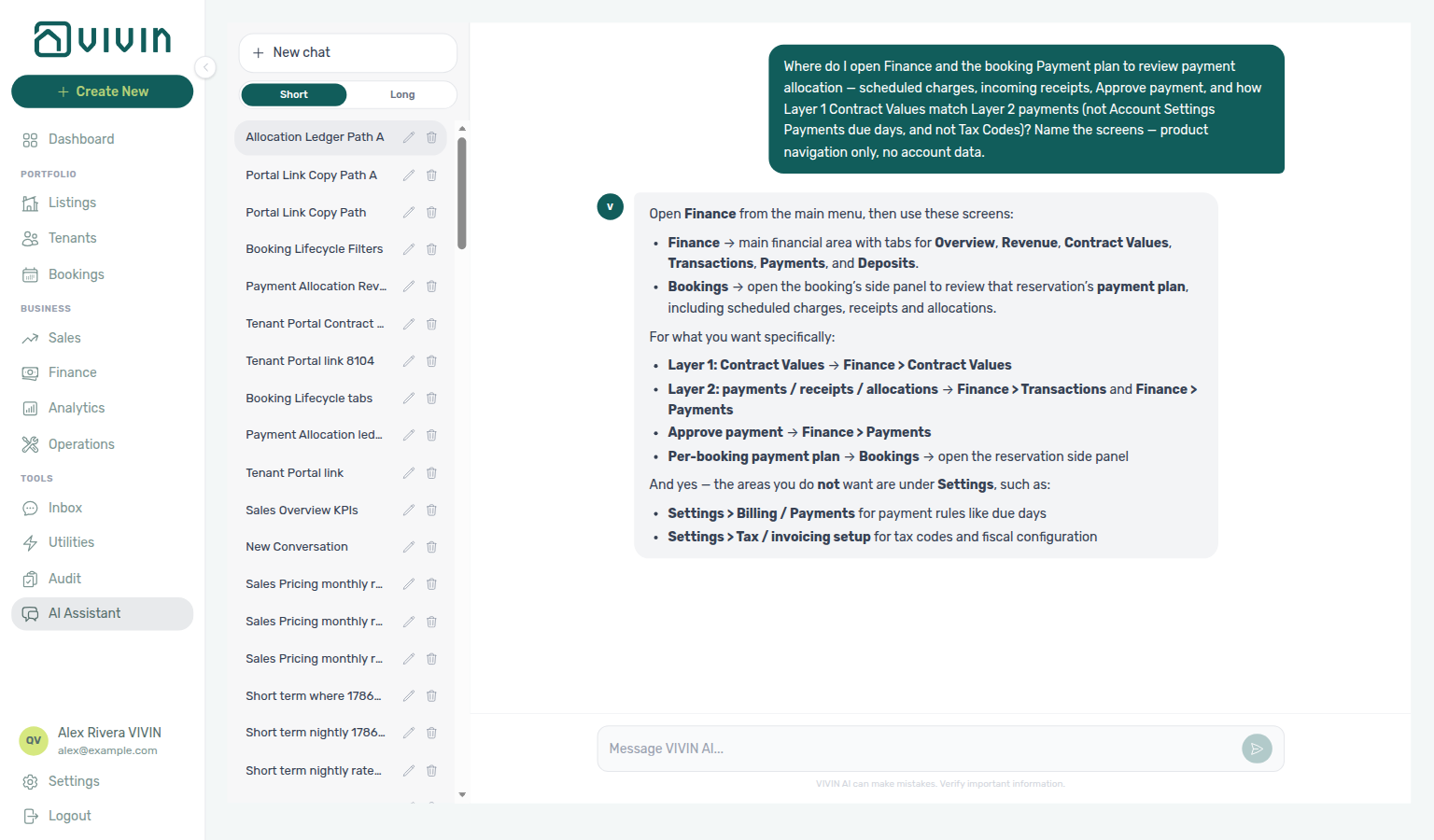
Ask AI Chat “Where do I open Finance and the booking Payment plan to review payment allocation — scheduled charges, incoming receipts, Approve payment, and how Layer 1 Contract Values match Layer 2 payments (not Account Settings Payments due days, and not Tax Codes)? Name the screens — product navigation only, no account data.” — then open Business → Finance and the booking Payment plan (ai-chat-product-context-payment-allocation-reply.png, ai-chat-product-context-payment-allocation-flow.mp4). The assistant typically points at Finance tabs (Overview, Contract Values, Transactions, Payments, Deposits) plus Bookings → Payment plan for the per-reservation schedule. Same grounding external MCP clients get from get-vivin-context-finance. Distinct from due-day rules on Settings → Payments and from Tax Codes.
Read this concept after Getting Started — Recommended Setup Sequence step 5 Invoicing & Payments and your first confirmation receipt in step 14 Bookings. Lifecycle context: Booking Lifecycle. Concept pairing: Concepts — Setup sequence after go-live.
Understand The Two Layers first, then How Allocation Works and Payment Statuses. Corrections: Correcting mistaken receipts (reject and revert). Habit-specific shortcuts live under Related below.
Vivin uses a two-layer payment model to track what tenants owe and what they have paid. Understanding how these layers interact is essential for financial management.
List status filters and Timeline behaviour follow Booking Lifecycle; tenant-initiated payments pair with Tenant Portal (including Portal access by tenant category) and booking-scoped automation in Tenant MCP (get-payment-info); add-on catalogue charges pair with Services Marketplace. Month-end reconciliation pairs with Portfolio KPI review — Step 7 and optional AI usage API (utility_bill_extraction + landlord_chat).
The Two Layers
Layer 1: Scheduled Payments (Contract Values)
When a booking is created, the system automatically generates a payment schedule — the complete list of charges the tenant is expected to pay throughout their stay. This includes:
- Security Deposit — due at confirmation or check-in
- First Month Rent — due at confirmation or check-in
- Last Month Rent — due at confirmation or check-in (if configured)
- Monthly Rent — recurring charges for each month of the stay
- Admin Fee — one-time administrative charge
- Cleaning Fee — Every Month (one line per contract month) or a one-time line at booking confirmation or move-in (depending on property settings or the booking's Cleaning Fees requirement on Contract Info)
Each scheduled payment has a type, amount, due date, and status (Pending, Paid, or Overdue).
The payment schedule is fixed at booking creation based on the property's contract settings at that moment. Changing property settings afterward does not affect existing bookings.
Confirmation vs move-in due dates
Layer 1 lines are not all due on the same calendar day. Each booking stores two requirement fields (copied from the property at create time, overridable per booking on Contract Info → Booking information):
| Requirement field | Payment-plan flag | Due date rule |
|---|---|---|
| Confirmation payments | Booking confirmation | min(booking created, check-in date) — late-created reservations do not post confirmation charges after move-in. |
| Check-in payments | Move-in | The booking’s check-in date (deposit, first rent, last rent, and combinations). |
Typical English UI options include Deposit, First rent, Last rent, Deposit and first rent, and Deposit and last rent. The product disables overlapping options across the two dropdowns (for example deposit cannot appear in both buckets).
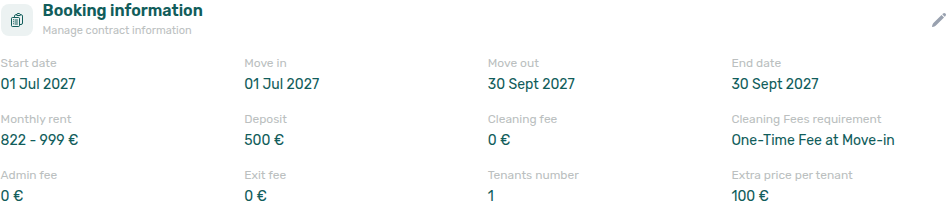
When you change either requirement on an existing booking, Vivin recomputes due dates on flagged lines and may regenerate split rent rows if first or last rent moves between buckets. After Update, open Payment plan and Contract Info → Timeline to confirm due dates and audit log lines. Change unit stays disabled while confirmation payments are still outstanding.
Property defaults are set in Listings — Contract Details. Per-booking overrides and guards are documented in Bookings — Confirmation payments and check-in payments. Bucket pairing matrix: Payment Allocation section cross-reference.
Dual pricing rent split
When a booking is created with dual pricing / local rent cap active, Layer 1 still generates the usual Rent rows, then Vivin splits each primary rent line:
- Rent — amount is reduced to min(local rent cap, full rent) for that month.
- Others — a companion line for full rent − capped rent, using the Others category configured in Account Settings at booking create.
The split is stored on the booking (useDualPricingRentSplit, localRentCap, dualPricingOthersCategory) and is part of the frozen schedule — it is not recalculated when account settings change later. Operators may update Local Rent Cap on an eligible booking from Contract Info; the API regenerates matching Rent and Others rows. Partner listing JSON does not include the cap — advertised rent is the full monthly amount — Listings & Availability — Local rent cap.
Allocation and payment priority treat Rent and Others as separate charge types, so partial payments can clear the capped rent portion before the services portion (or vice versa, depending on your priority list).
Layer 2: Incoming Payments (Transactions)
When a tenant actually pays, the payment is recorded as an incoming payment — the real money received. Each incoming payment includes:
- Amount received
- Payment date
- Payment method
- Notes (optional)
Incoming payments are recorded in the Finance module or from the booking's Transactions tab.
Adjustments on scheduled lines
Discounts, impairment loss, and (for roles with bookings.add_return_of_value) return of value change the net on Layer 1 lines without replacing the payment schedule. Apply discounts and return of value from the booking Contract Values tab; impairment loss is recorded in product data and appears on Payment plan breakdowns. Return of value only reverses not-invoiced cash — invoiced / manual / draft parents are disabled in the modal; use a credit note for those. The Payment plan tab reflects updated balances after saves. See Bookings > Contract Values for filters, permissions, and invoicing guards (bookings-detail-contract-values-manage-return-of-value-protected.png, bookings-detail-contract-values-manage-return-of-value-draft-caption.png, bookings-detail-contract-values-return-of-value-flow.mp4, bookings-detail-contract-values-return-of-value-draft-caption-flow.mp4).
Where each layer appears
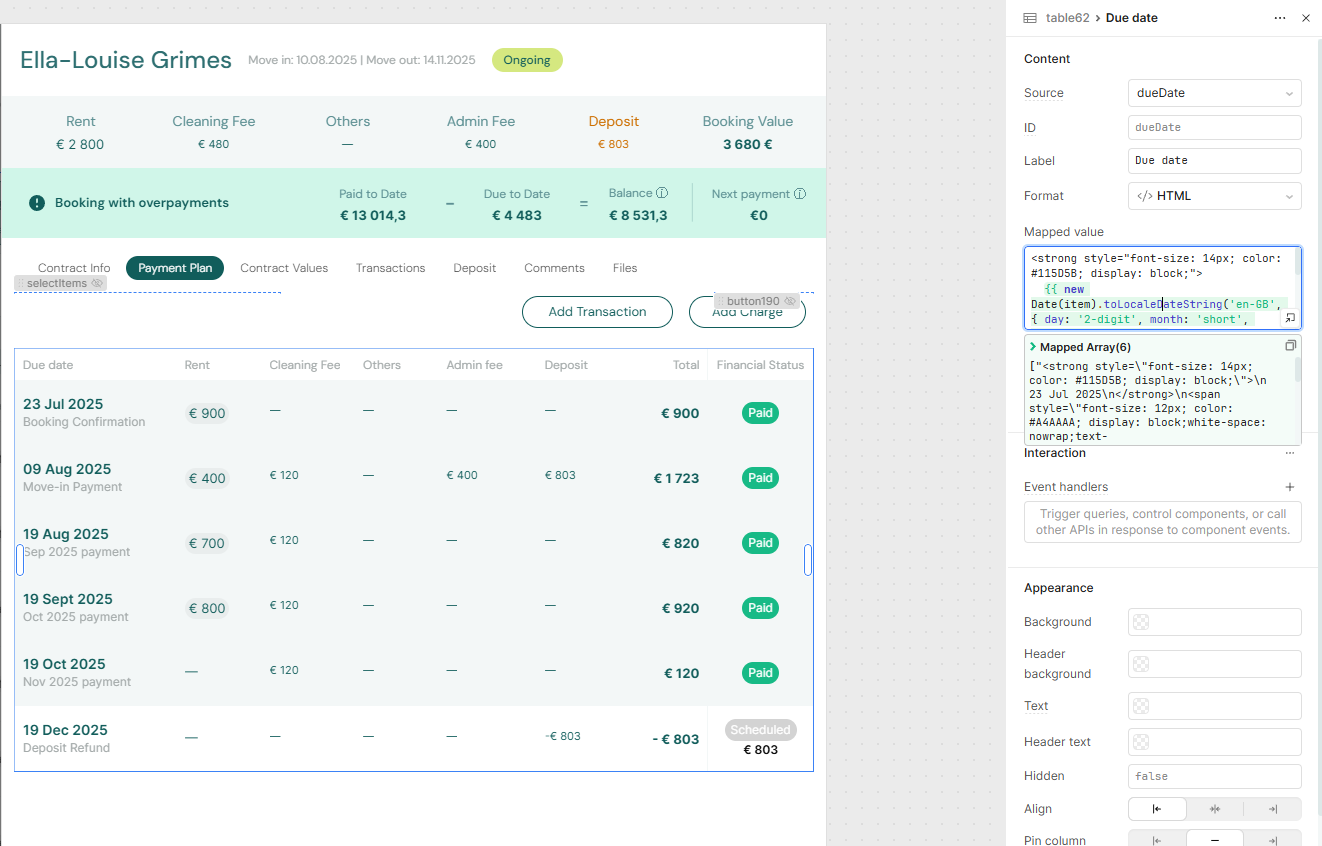
Scheduled charges (Layer 1) — open a booking and use the Payment plan tab for the schedule view, or Contract Values for the full line ledger (filters, discounts, due-date edits, and invoiced totals). Both reflect the same underlying charges; Contract Values is where operators adjust individual lines.
The Payment plan grid groups charges by due date (one row per date). Rent, Deposit, Others, Total, and Paid are always visible; Cleaning, Admin, and Exit columns appear only when the fee is enabled in Settings → Fees or the booking already stores a non-zero amount for that fee. Total adds only the columns you see plus Deposit — see Schedule table columns and fee visibility.
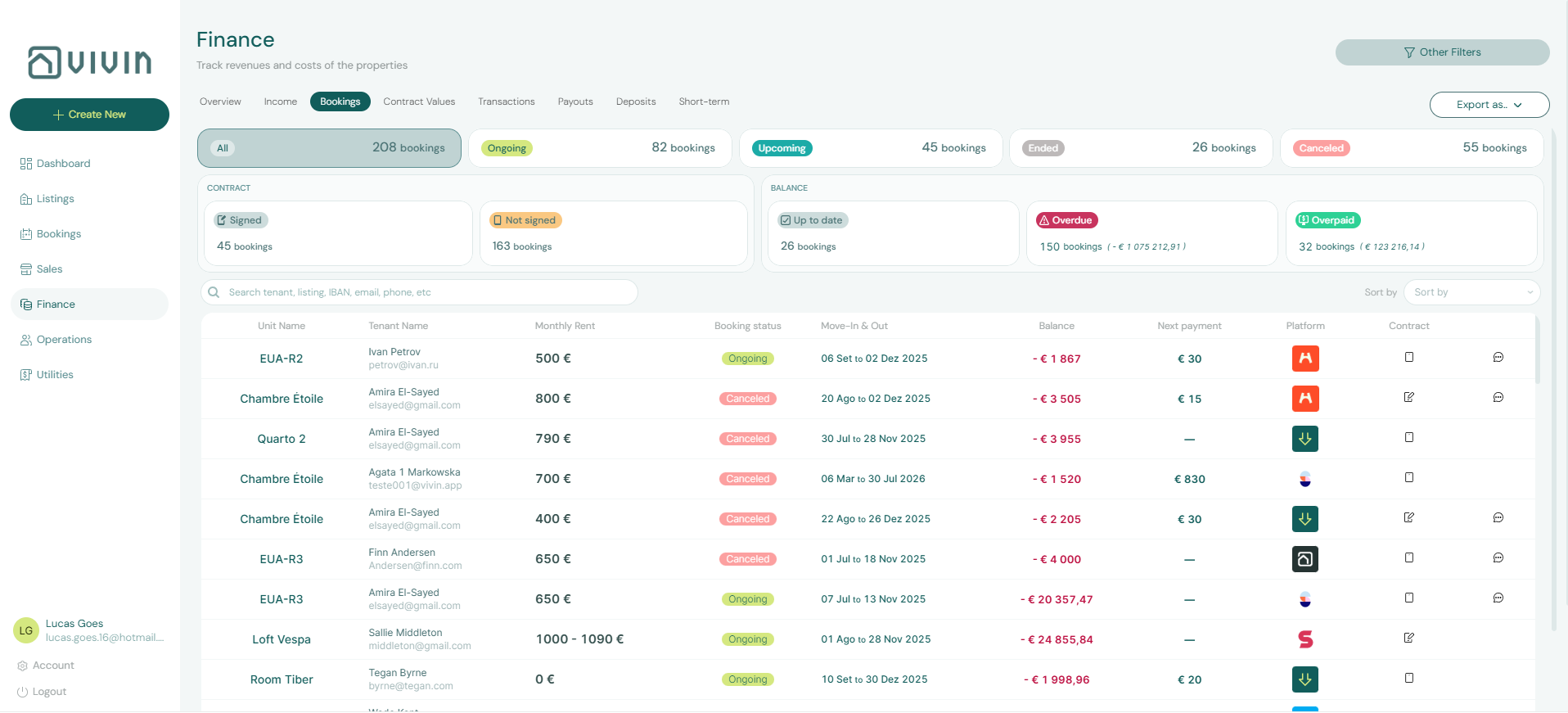
Incoming payments (Layer 2) — the same booking’s Transactions tab lists money received and how it was allocated, plus negative return of value rows so money handed back is visible next to receipts. You can also add or adjust payments from Finance.
Recording an incoming payment
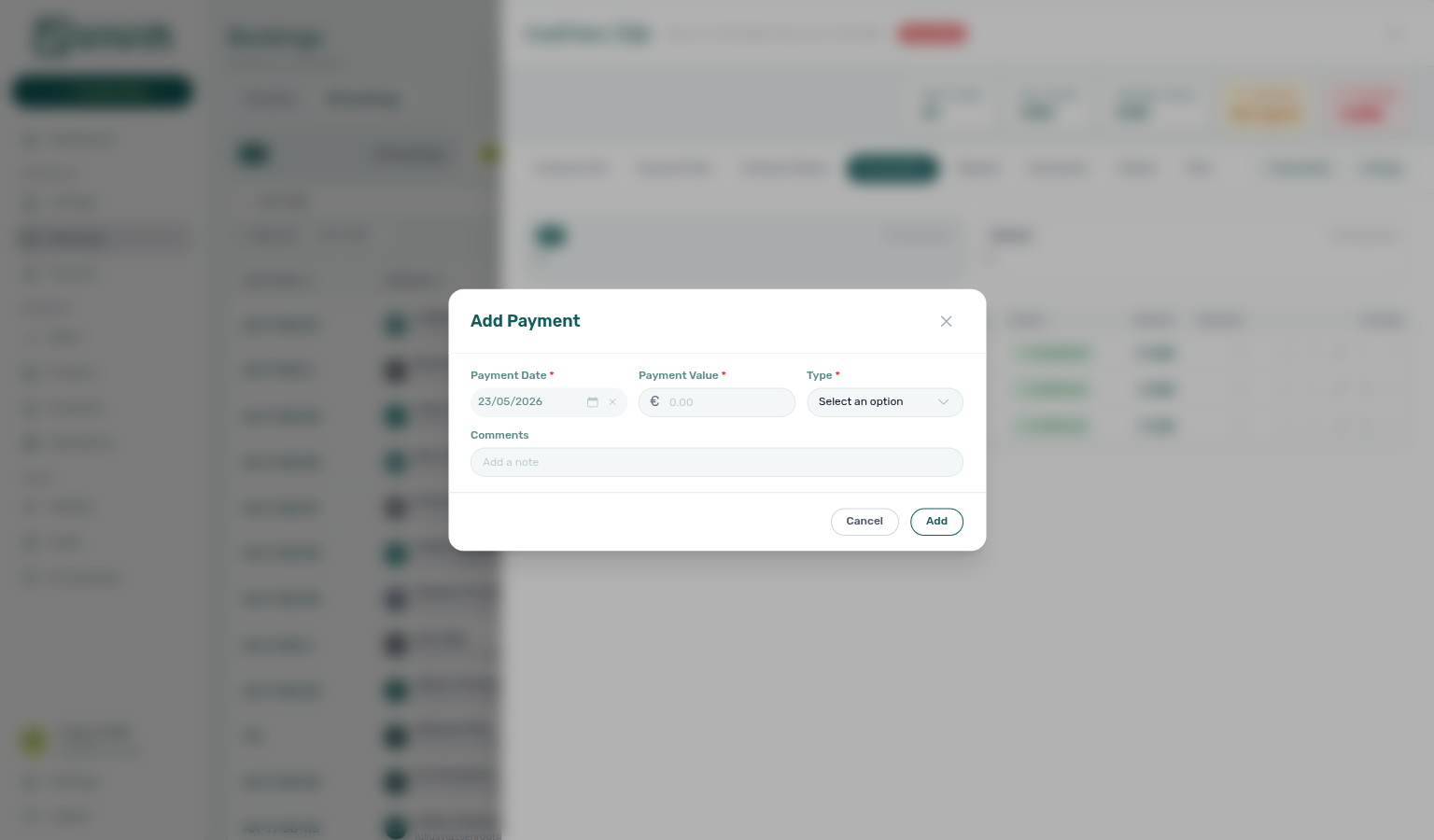
From a booking’s Transactions tab, use + Transaction to open Add Payment. Enter the payment date, amount, method, and optional notes, then Submit — the platform allocates the amount to scheduled charges using your payment priority order (see How Allocation Works below). The same modal is available from Create New → Transfer and from Finance.
How Allocation Works
When an incoming payment is recorded, the system allocates it to one or more scheduled payments. This is the process of matching real money received to expected charges.
Allocation Priority
The system allocates payments based on the payment priority order configured in Settings > Payments. A typical priority order might be:
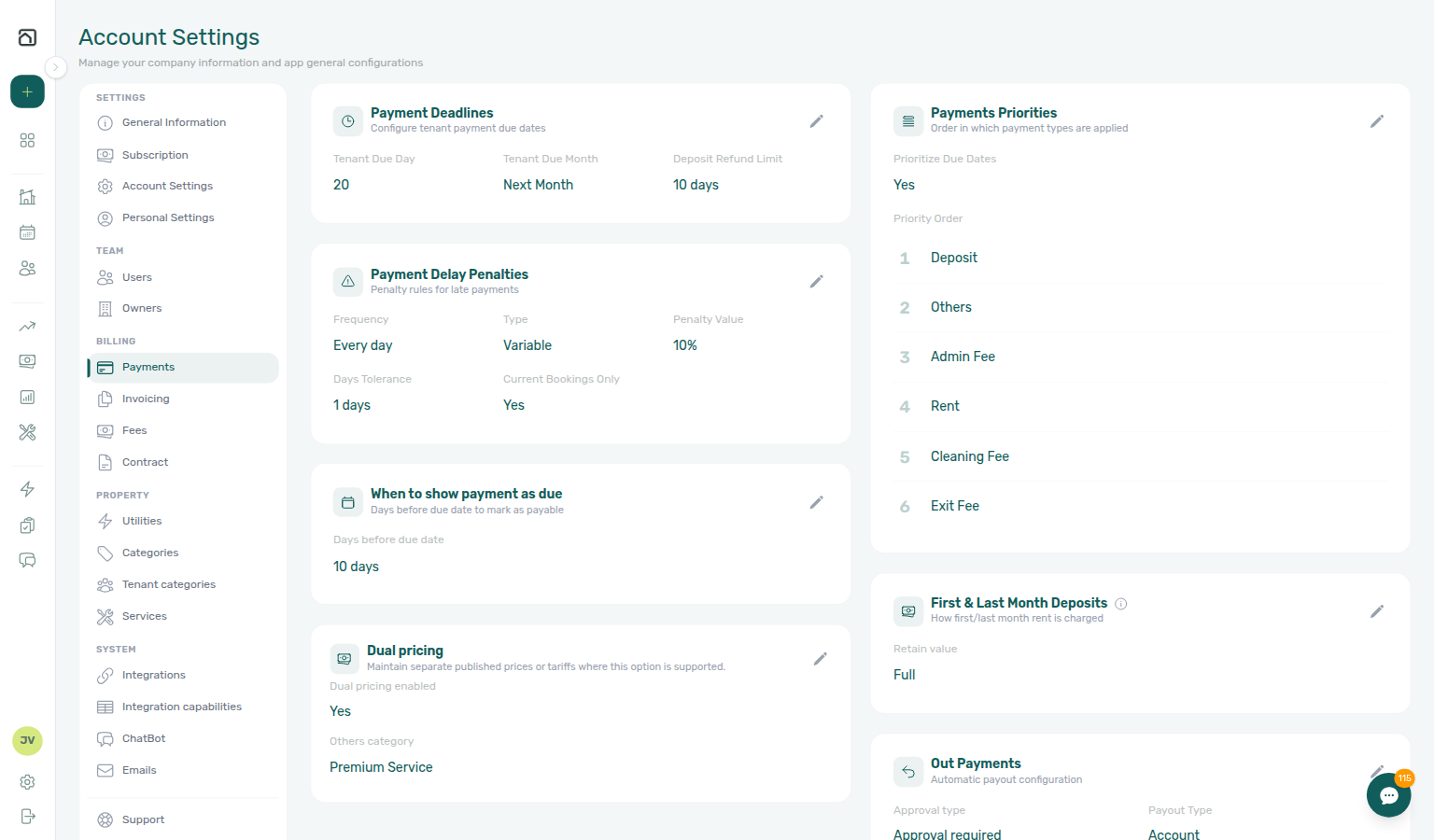
- Security Deposit (highest priority)
- First Month Rent
- Admin Fee
- Monthly Rent
- Cleaning Fee
- Other Charges
When a payment arrives, the system applies it to the highest-priority outstanding charge first, then moves down the list.
A tenant owes: €500 deposit + €400 rent + €100 admin fee = €1,000 total.
The tenant pays €600.
With the priority order above, the system allocates:
- €500 → Security Deposit (fully paid)
- €100 → First Month Rent (partially paid, €300 remaining)
- €0 → Admin Fee (still outstanding)
When the deposit line itself is only partly covered, the booking Deposit tab shows an amber Partially paid badge with a remaining helper (Partial Paid on depositStatus — see Glossary — Deposit lifecycle status). Portfolio triage: Finance → Deposits — Partial paid lifecycle card. Hub matrix: Common Workflows — Partly collected security deposit. Step-by-step: FAQ — Partly collected security deposit (finance-deposits-lifecycle-partial-paid-card.png, finance-deposits-partial-collection-walkthrough.mp4). Distinct from Partial Paid rent rows on Payment Plan — see Handling a Late Payment — Step 1.
Overpayment Handling
If a tenant pays more than the total outstanding amount, the excess is recorded as a credit. This credit is automatically applied to the next charge that becomes due.
A tenant's next scheduled charge is €400 rent. They pay €500.
- €400 is allocated to the current month's rent (fully paid)
- €100 remains as a credit, applied to the next month's rent when it becomes due
Payment Statuses
Each scheduled payment has one of these statuses:
| Status | Meaning |
|---|---|
| Pending | Charge exists but is not yet due or has not been paid |
| Paid | An incoming payment has been allocated to this charge |
| Overdue | The due date has passed and the charge has not been fully paid |
Reconciliation
To verify that payments are correctly tracked:
- Finance > Overview tab — seven KPI cards for the selected month, stacked Income chart (Paid / Scheduled / In debt), and Debt Aging for receivables triage
- Finance > Contract Values tab — lists all scheduled charges and their payment status
- Finance > Transactions tab — shows every individual payment received, useful for cross-checking against bank records
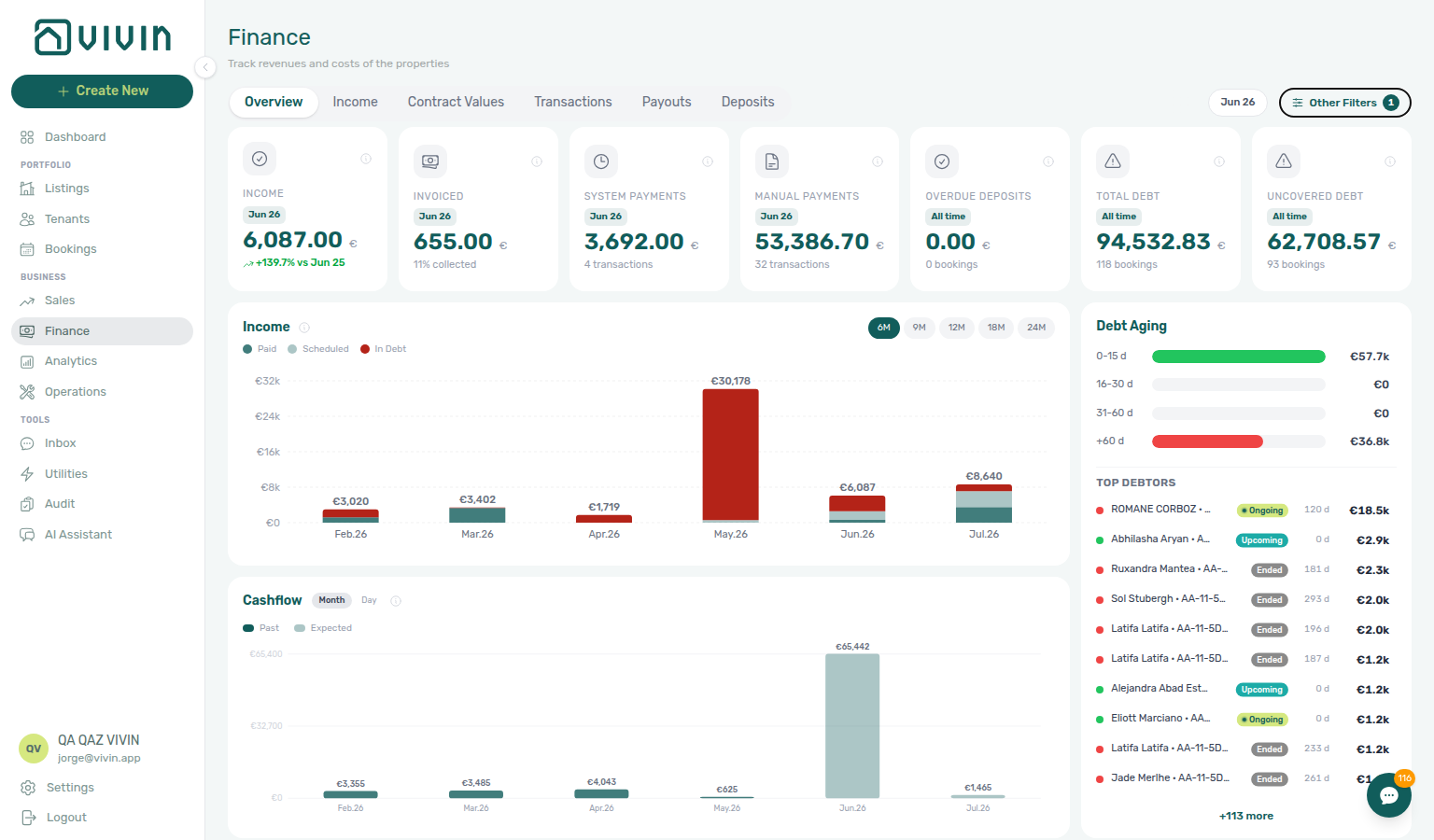
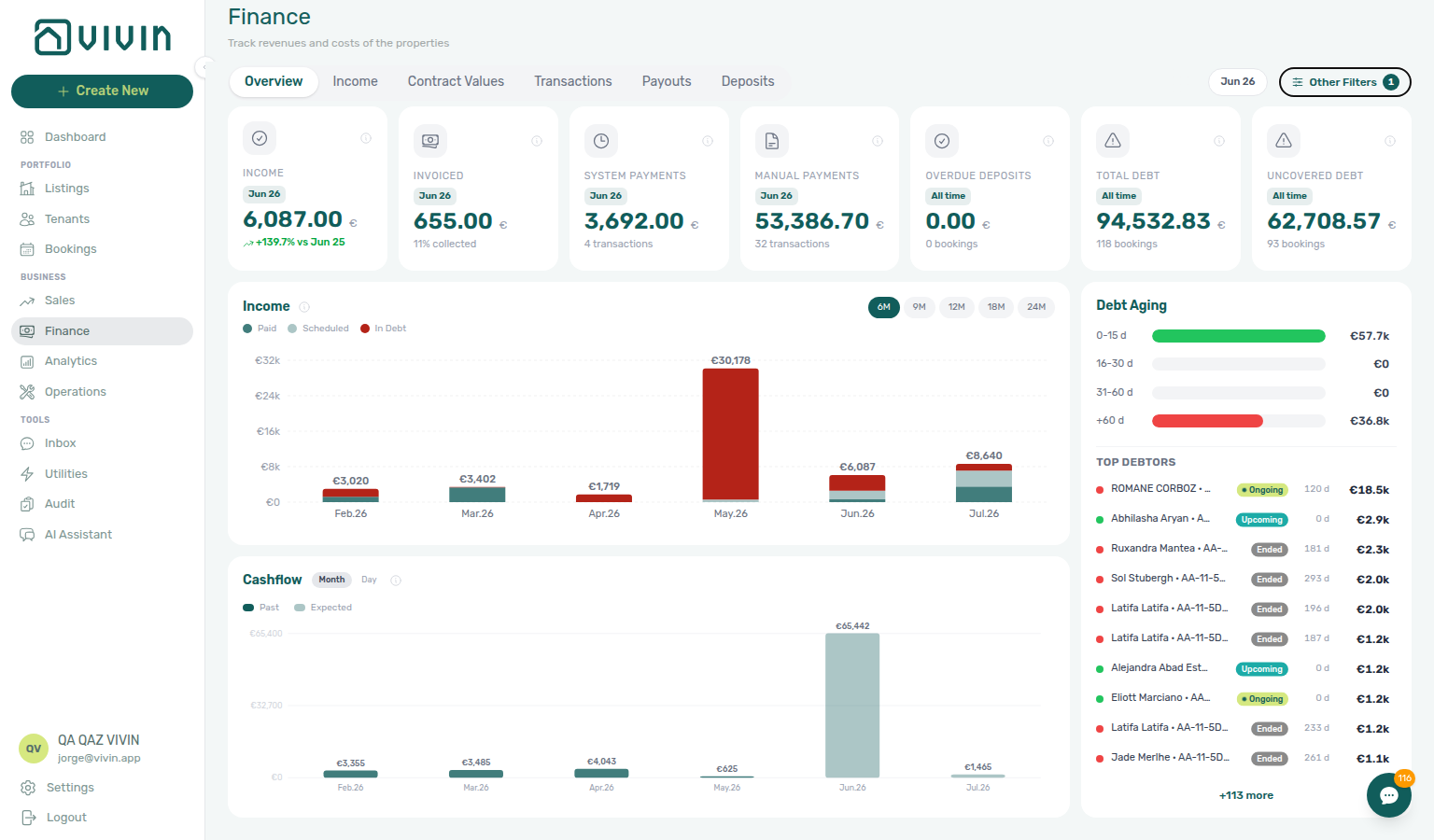
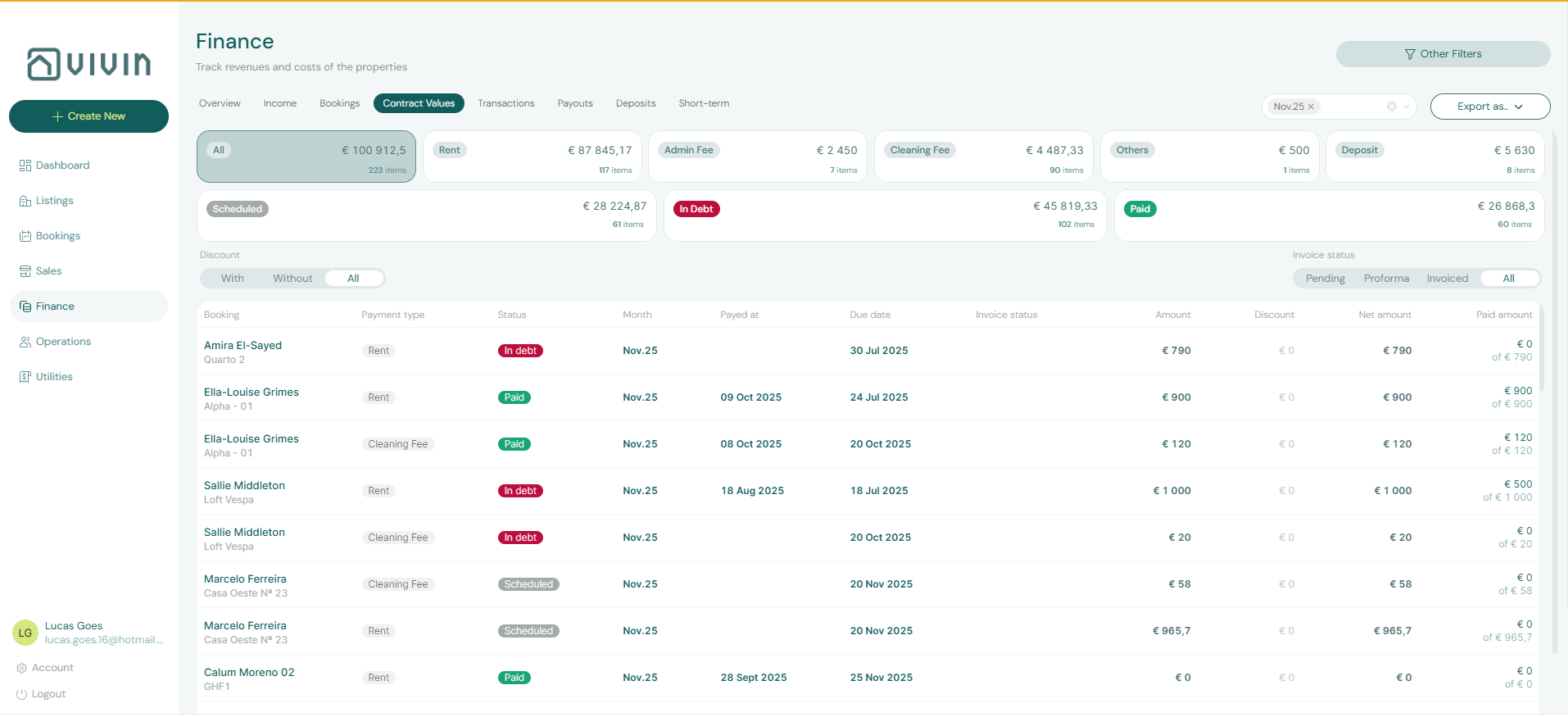
If a charge appears in Contract Values but has no matching transaction, the payment has not been received. Month-end drill-down: Portfolio KPI review Step 7 and Payment Allocation section cross-reference.
Key Rules
-
Payments are allocated automatically based on the priority order in Settings. You can adjust the allocation if needed.
-
Overpayments become credits applied to the next outstanding charge.
-
Partial payments are applied starting from the highest-priority charge. A charge can be partially paid.
-
Contract values are fixed at booking creation. The schedule reflects the terms in place when the booking was created.
-
A charge is only "Paid" once allocated. Recording an incoming payment alone is not enough — it must be allocated to a specific scheduled charge.
Correcting mistaken receipts (reject and revert)
Hub matrix: Common Workflows — Reject/revert mistaken receipts. Pair Rent reduction after invoicing when invoiced floor blocks rent cuts — external credit notes then Common Workflows — Bulk Hostkit invoicing Issue credit notes (N) (bookings-rent-reduction-invoiced-floor-flow.mp4). Distinct from duplicate receipt cleanup on Transactions.
Operator-recorded in-payments may stay pending until a user with Approve payments confirms them on Finance → Transactions or the booking Transactions tab. The Overview Manual Payments KPI totals every non-rejected manual receipt in the month — including pending rows — so triage from Finance — Pending manual payments (amber Pending chip on the All type-summary card) or booking Transactions, not the KPI alone. See Glossary — Pending manual in-payment (Finance), FAQ — Manual receipt still pending, and FAQ — Pending manual in-payment on /notifications when the alert persists after row-click triage. When a receipt was entered twice, against the wrong booking, or with the wrong amount (typo on a real transfer vs a duplicate):
| Symptom | Likely cause | Fix |
|---|---|---|
| Duplicate never approved | Still pending | Reject — Pending manual receipt approval |
| Typed the wrong €, still pending | Real transfer; amount typo | Edit payment amount then Approve — Bookings — Edit payment amount |
| Duplicate after Approve | Wrong booking or amount | Revert payment |
| Delete payment disabled | vIBAN / invoiced allocation | Revert or Issue credit notes |
| Red / blue modal | Charge invoiced | Not issued credit note → Issue credit notes (N) |
| Action | When it applies | Effect in Vivin |
|---|---|---|
| Approve payment / Approve selected | Row status pending (or processing) | Confirms the receipt and applies allocations per your payment priority order. |
| Edit payment amount | Pending manual in-payment (not vIBAN / card); Approve payments | Updates the received € before Approve. Booking sidebar: Edit Payment Amount modal. Finance ledger: inline Amount cell (Enter / blur save; Escape cancel). Distinct from Contract Values → Edit amount. |
| Reject payment / Reject selected | Same pending states | Removes the in-payment from the booking and ledger. On Finance → Transactions, Reject is bulk-only — tick rows and use Reject selected (no per-row reject icon on the ledger). |
| Revert payment | Status confirmed or rejected | Rolls allocations and booking balances back to the pre-receipt state. |
When Finance has already invoiced the charge through your accounting integration, Reject and Revert modals include accounting follow-up copy — a red banner on reject (credit note and invoice follow-up) and a blue info banner on revert. Vivin updates allocations in-product and creates credit-note reversal rows on affected allocations. For integrated invoicing (Hostkit, Invoice-xpress), clear the Not issued credit note queue on Finance → Transactions — filter pill → bulk Issue credit notes (N) or transaction-detail Issue credit note to provider / Set manual — rather than tracking reversals only in a spreadsheet. When accounting runs outside Vivin, you still need manual nota de crédito adjustments; see Glossary — Credit note (payment reject/revert). Reject is also the supported path to clear a provider platform in-payment before Delete Booking on integration reservations — see FAQ — Delete Booking on integration reservation. Do not use Delete Booking on the reservation to fix receipt mistakes — that soft-archives the stay and changes ledger visibility; see FAQ — Cancel Booking vs Delete Booking. After reject/revert, triage not issued credit-note reversals on Finance → Transactions — filter Not issued credit note, then Issue credit notes from the bulk bar or Issue credit note to provider on each allocation in transaction detail. The same invoicing boundary applies when you try to lower rent on Layer 1: invoiced floor (rent) blocks net edits below already-exported totals on Change monthly rent and Contract Values → Edit amount. See Bookings > Transactions row actions, Finance > Row actions, FAQ — Reject or revert an incoming payment, and FAQ — Lower rent below invoiced.
- Glossary — Fixed invoice date — Account-wide Invoice date before bulk Issue allocation / Invoice selected; amber banner on Finance → Transactions until you turn Use today as invoice date back on
- FAQ — Month-end invoicing (fixed date) hub — Symptom table + toggle reset after batch
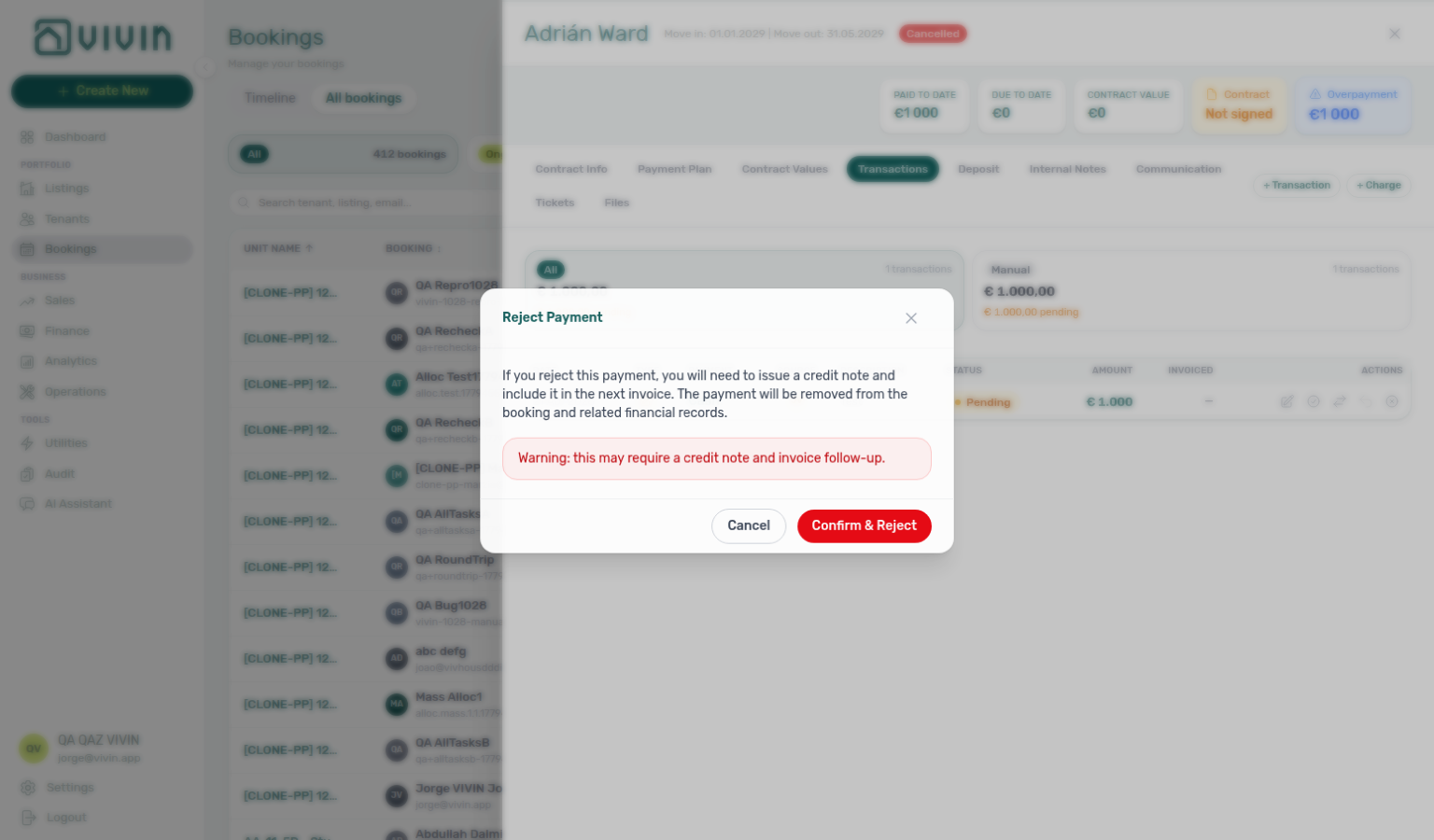
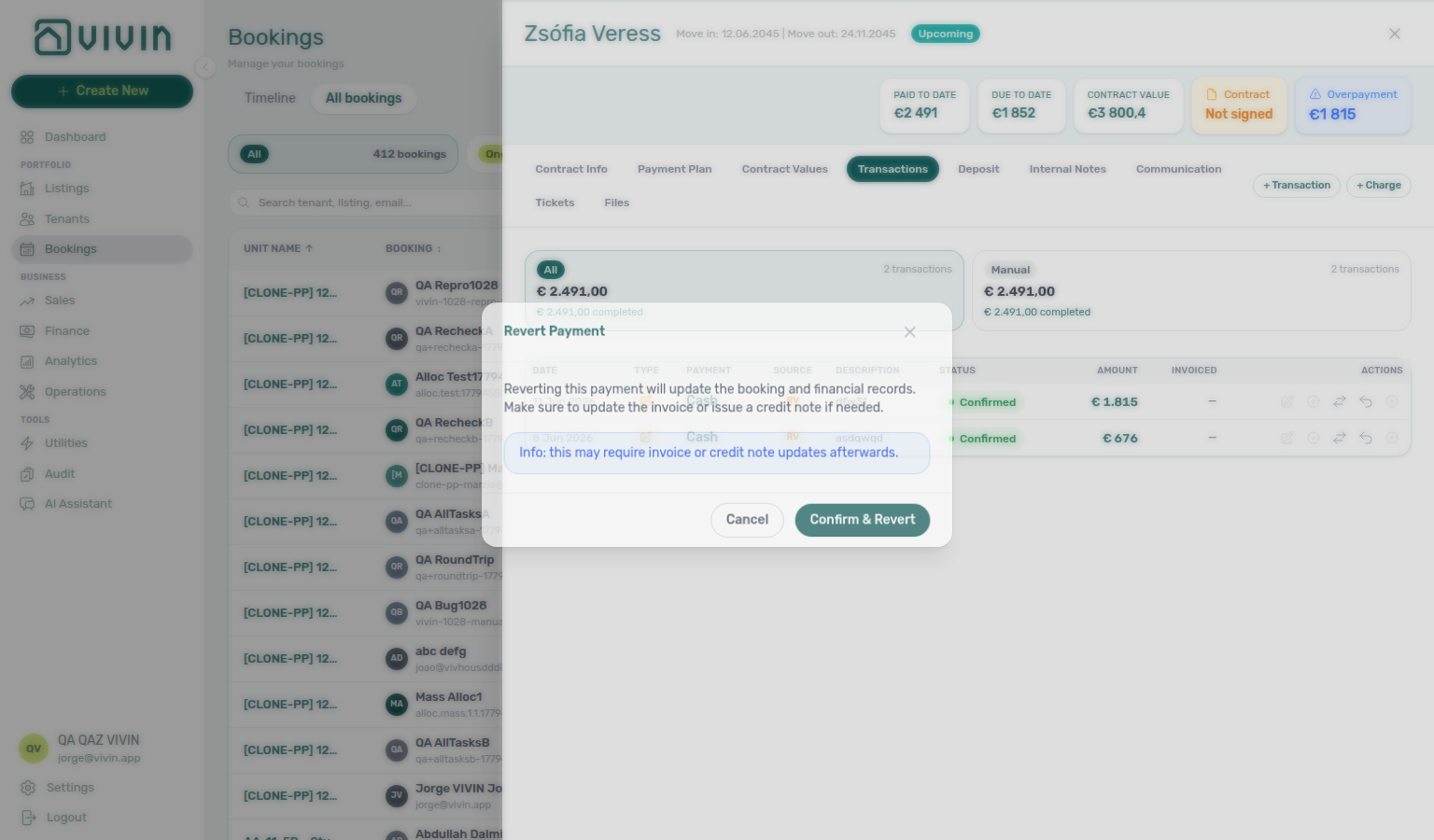

Reject/revert hub matrix: Common Workflows — Reject/revert mistaken receipts.

Workflows that routinely approve or reject receipts: Processing a New Booking, Managing a Check-in, Handling a Late Payment, Managing a Check-out — Step 6b, Portfolio KPI review — Step 7, Entering Monthly Utility Bills, and Cancelling a Booking. Reject/revert pairing matrix: Payment Allocation section cross-reference.
Payment Allocation section cross-reference
Use the sections above for this concept. Related module and workflow pages are linked inline where they help the next step.
Related
Related below links this concept to modules, workflows, settings, and escalation paths.
Documentation map & escalation
- Introduction — Platform overview and how documentation sections connect
- Getting Started — Recommended setup sequence including payment priorities and deposit rules
- Concepts — Underlying models behind Layer 1 schedules and Layer 2 receipts
- Modules — Operator workspaces for Bookings, Finance, and Tenants
- Common Workflows — Procedures that record, approve, and reconcile payments
- Account Settings — Workspace-wide financial policies, templates, and integrations
- API Reference — Partner imports that create the same schedule operators see in the UI
- Glossary — Term definitions used across payment docs
- FAQ & Troubleshooting — Quick answers when allocations disagree with bank records
- Get Help & Support — Escalation when payment behaviour is blocked by account state
- Using in-app support — Vivin product tickets distinct from tenant payment disputes
Navigation & bookmarks
Bookmark routes pair with Management Frontend Deep Links and Concepts hub — Navigation & bookmarks.
- Management Frontend Deep Links — Finance — Bookmark
/finance/transactionsand/finance/depositsfor ledger triage - Deep Links — Bookings —
/bookings/list/:bookingIdsidebar tabs for Payment plan and Transactions - Settings > Invoicing & Payments —
/settings/invoicingAndPaymentspayment priorities and deposit rules - Settings > Interface language — Operator UI locale before you walk finance staff through reject/revert modals
Layer 1 schedule and property defaults
- Bookings > Payment Plan tab — Due-date grid grouped by charge type
- Bookings > Contract Values tab — Full line ledger, discounts, and invoiced totals
- Bookings > Confirmation payments and check-in payments — Per-booking requirement overrides on Contract Info
- Bookings > Discounts and payment adjustments — How reductions affect net due and allocations
- Listings — Contract Details — Property defaults frozen at booking create
- Listings — Payments tab — Property Payments Active gate for tenant pay-in
- Audit — Discounts tab — Cross-portfolio export of every discounted contract value
- API Reference — Creating bookings — Integration
POST /bookingscreates the same schedule - Booking Lifecycle — Computed stay status while charges move through the schedule
- Utilities module — Bills Included overage lines on Payment plan
Operator habit hubs
Day-to-day operator habits (lockout catch-up, pending receipts, payment triage, handoffs, and related playbooks) live on the Common Workflows habit hub.
Deep-link anchors for habit hubs
Layer 2 receipts, approval, and corrections
Lockout catch-up after password recovery
Pending manual receipt approval
Reject/revert mistaken receipts
Deposit missing on Finance Deposits
Partly collected security deposit
Portfolio segmentation by tenant category
Notification row-click navigation
Payment alert to receivables triage
Confirmation alert triage
Finance debt receivables triage
Finance Income status drill-down
Cash flow forecast drill-down
Collections and month-end workflows
- Onboarding a New Property — Property defaults frozen at booking create before the first confirmation receipt
- Processing a New Booking — Record confirmation payments after reservation creation
- Managing a Check-in — Approve move-in receipts when required
- Handling a Late Payment — Step 1 — Collections when scheduled lines stay overdue after Layer 1 due dates pass
- Notifications — Payment overdue alerts — Operator Payments category rows when scheduled charges are overdue
- Entering Monthly Utility Bills — Overage receipts on Payment plan
- Managing a Check-out — Deposit refund and deposit dispute during departure week; Step 6b before Ready To Refund
- Cancelling a Booking — Settlement receipts after void
- Portfolio KPI review — Step 7 Finance reconciliation for duplicate or invoiced receipts
- Notification triage — Step 4 — Alert-driven entry: row-click from
/notificationsinto booking Transactions before Approve (pairs with Pending manual approval cross-ref row) - Tenants — With Debt — Collections view when allocations leave unpaid balances
Deeper workflow reads
Common Workflows — Reject/revert mistaken receipts. Each workflow sub-guide reciprocates with [Deeper workflow reads](../concepts/payment-allocation.md#deeper-workflow-reads) anchors on Payment Allocation bullets —
- Processing a New Booking — Record confirmation payments after reservation creation
- Managing a Check-in — Approve move-in receipts when required
- Handling a Late Payment — Collections when scheduled lines stay overdue after Layer 1 due dates pass
- Managing a Check-out & Deposit Refund — Deposit refund and deposit dispute during departure week
- Cancelling a Booking — Settlement receipts after void
- Entering Monthly Utility Bills — Overage receipts on Payment plan
- Portfolio KPI review — Step 7 Finance reconciliation for duplicate or invoiced receipts
- Notification triage — Step 4 — Alert-driven entry into booking Transactions before Approve
Deeper concept reads
- Booking Lifecycle — Computed status tabs on unpaid rows and Timeline context for scheduled charges
- Tenant Portal — Tenant-initiated card and vIBAN pay-in that creates Layer 2 receipts
- Services Marketplace — Add-on charges posted to Layer 1 Payment plan lines
- Integrations & Distribution — Channel imports that create the same Layer 1 schedules operators reconcile in Finance
Deeper API reads
- Creating Bookings — Integration enqueue creates Layer 1 schedules operators reconcile in Finance
- Booking Lifecycle & Validations — Availability and business-rule gates before schedules are generated
- Booking Engine API — White-label reservations share the same payment-schedule pipeline
- Error Handling —
409/422responses on enqueue and receipt-related business rules - AI usage API — Operator JWT ledger when month-end receipt reconciliation used AI Chat or Utilities — AI Invoice Reader
Key glossary terms
- Credit note (payment reject/revert) — Accounting follow-up when rejecting or reverting invoiced in-payments
- Invoiced floor (rent) — Rent edits clamped below already-exported invoice totals
- Deposit dispute — Freeze Refund on booking Deposit and Finance → Deposits during contested retention
- Glossary — End-of-Booking cost split — Charge Time → End of Booking splits daily overage across every occupied unit; still-staying roommates stay in the denominator
- Glossary — Change history — Operator-initiated edits on Listings setup and Bookings Changelog; create-time defaults excluded
- Glossary — Archived booking ledger visibility — Delete Booking hides manual/provider_platform rows on Finance → Transactions; vIBAN and credit card stay visible
- Glossary — Full term list
Module documentation hubs
- Finance module — Portfolio ledgers (Overview, Income, Contract Values, Transactions, Payouts, Deposits) with payment approval and deposit settlement (hub)
- Bookings module — Payment plan, Contract Values, Transactions, and Deposit tabs on one reservation (hub)
- Tenants module — Tenant directory, With Debt segmentation, and profile Transactions (hub)
- Utilities module — Bills Included ceiling model and tenant overage charges on payment plans (hub)
- Operations module — Ticket linked cash flows that may post contractor receipts (hub)
- Dashboard module — Total debt KPI snapshot with bell notification triage (hub)
- Analytics module — Month-range Revenue charts for receivables context (hub)
- Listings module — Property wizard defaults that freeze Layer 1 at booking create (hub)
- Sales module — Pricing monthly rent grid distinct from per-booking Contract Values (hub)
- Inbox module — WhatsApp triage when tenants dispute charges outside Finance (hub)
- Notifications module — Full
/notificationshistory with payment alert row-click navigation (hub) - Notifications — Payment overdue alerts — Operator Payments category rows when Layer 1 lines pass due date without full allocation (hub)
- AI Chat module — AI Assistant for portfolio payment Q&A (hub)
- Audit module — Portfolio-wide Discounts contract-value review (hub)
- Account Settings — Workspace-wide financial policies, templates, integrations, and operational defaults (hub)
- API Reference hub — Partner HTTP contracts, Swagger onboarding, and partial vs full feeds (hub)