Managing a Check-out & Deposit Refund
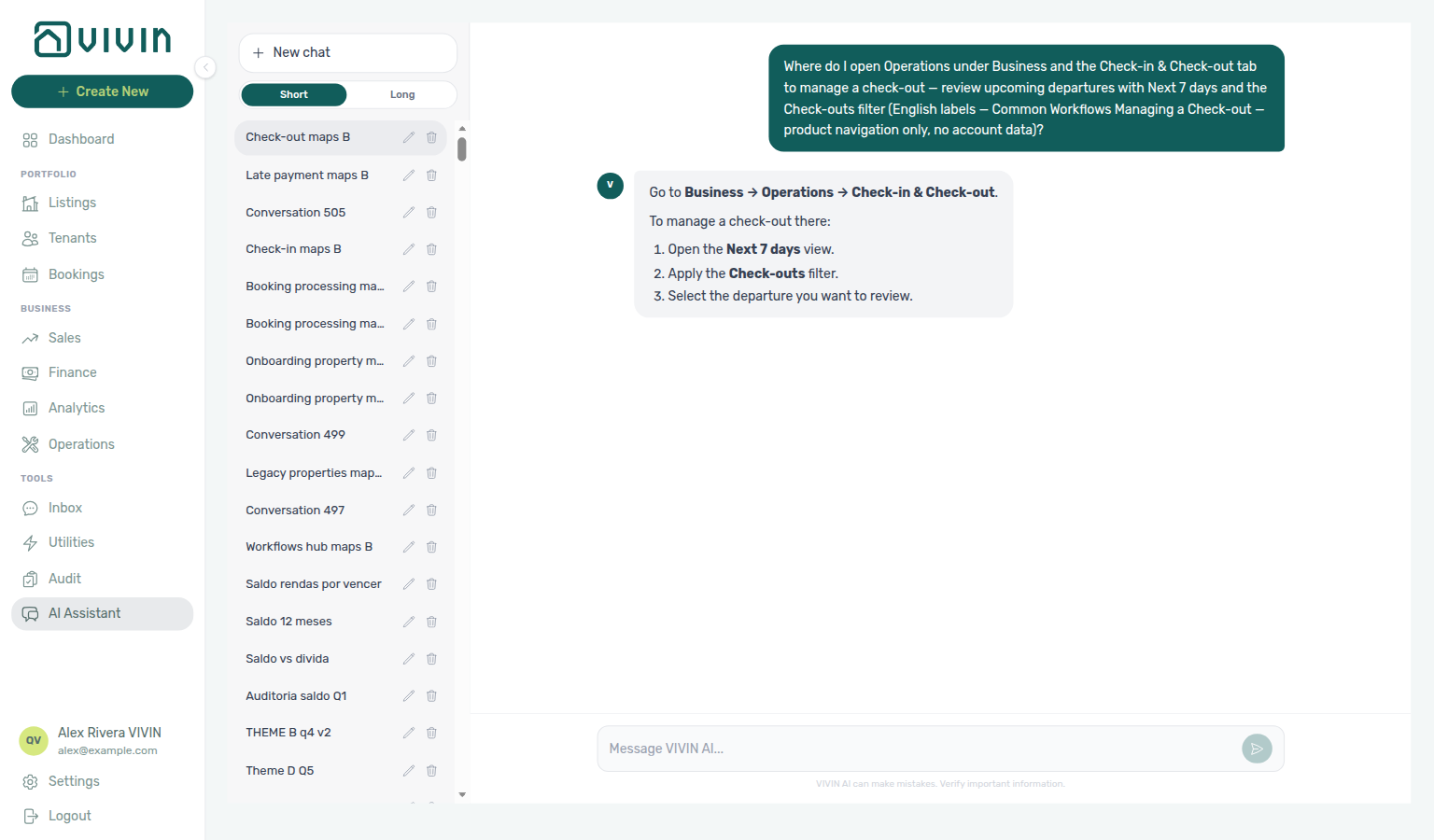
Ask AI Chat “Where do I open Operations under Business and the Check-in & Check-out tab to manage a check-out — review upcoming departures with Next 7 days and the Check-outs filter (English labels — Common Workflows Managing a Check-out — product navigation only, no account data)?” — then open Business → Operations → Check-in & Check-out (ai-chat-product-context-check-out-reply.png, ai-chat-product-context-check-out-flow.mp4). The assistant typically says Business → Operations → Check-in & Check-out, then use Next 7 days and the Check-outs filter for upcoming departures. Same grounding external MCP clients get from get-vivin-context-overview (or get-vivin-context-operations). Distinct from arrival planning on Managing a Check-in and from the broader Common Workflows hub product maps.
Use this workflow when an Ongoing or departure-week booking exists — deposit refund rules come from Settings → Payments, Invoicing & Utilities (setup step 8). Finish Getting Started — Recommended Setup Sequence steps 1–15 and Onboarding a New Property — Step 7 before the first departure on new inventory. Lockout catch-up: Getting Started — Lockout catch-up after password recovery.
Plan one week ahead with Step 1 — Review upcoming departures; inspection and deposit: Step 3 → Step 5 — Mark ready and process the deposit refund. Settlement mesh: Step 6 — Verify all charges are settled / Step 6b; closure: Step 7 — Verify the booking has ended. Habit-specific shortcuts live under Related below.
Route early termination under policy via Common Workflows — Check-out vs cancellation (Cancelling a Booking — Step 4 / Canceled — not Step 7; workflows-cancel-booking-refund-modal-flow.mp4, bookings-list-canceled-tab.png). Clear departure-week rent and fee arrears via Common Workflows — Check-out collections before refund (Step 6 → Handling a Late Payment — Steps 1–4 before Step 5; workflows-check-out-coordination-flow.mp4, bookings-detail-payment-plan-tab-schedule.png) and Handling a Late Payment; capture final meter reads via Entering Monthly Utility Bills when utilities apply — hub: Check-out final utilities handoff. During month-end Step 6b, poll AI usage API (utility_bill_extraction + landlord_chat) alongside Portfolio KPI review — Step 7 when departure-week work used Utilities — AI Invoice Reader or AI Chat.
Before managing a check-out, ensure:
- The booking is not canceled and is in an active occupancy/checkout window for your configured status date basis
- You know your deposit refund deadline (configured in Settings > Payments)
Step 1 — Review upcoming departures (7 days before)
Departure planning pairs with Common Workflows — Same-day turnover coordination (Step 2 before incoming Managing a Check-in — Step 4 on shared units), Common Workflows — Check-in to check-out handoff (upstream Managing a Check-in — Step 4 keys handed over), FAQ — Managing a Check-out hub, Operations → Check-in & Check-out (Check-outs pill), Bookings → Timeline (same-day turnover), and get-dates-and-schedule on Tenant MCP. Downstream: Step 2 (cleaning tickets).
Open Operations > Check-in & Check-out and identify all departures in the coming week. Note any same-day turnovers (a check-out and a new check-in on the same calendar day for one unit) — see FAQ — Same-day turnovers and Glossary — Same-day turnover. For a visual overlap check on one unit, open Bookings → Timeline (/bookings/timeline) or Sales → Multicalendar (/sales/multicalendar), paste the unit internal name in toolbar Search, and use Week or Month scale to see departure and arrival bars on the same row — same pattern as Processing a New Booking — Visual overlap check.
Use Next 7 days (or Custom), switch the pill to Check-outs when you only want departures, and use Search / Responsible / Filters the same way as for check-ins. Responsible stays open while you add a second teammate — see Operations — Responsible stays open. Export (CSV or Excel) downloads the filtered slice for offline handoff to owners or cleaners.
Check-in & Check-out ranks unit / listing name hits above tenant name when your search matches multiple fields — paste the internal room code to jump to that unit’s departure row first. See Operations — Check-in & Check-out toolbar search.
If departure paperwork lists a fiscal ID (NIF) instead of a room code, open Tenants and paste that value in toolbar Search — open the tenant profile and jump to the linked booking from there. See Tenants — Interface overview.
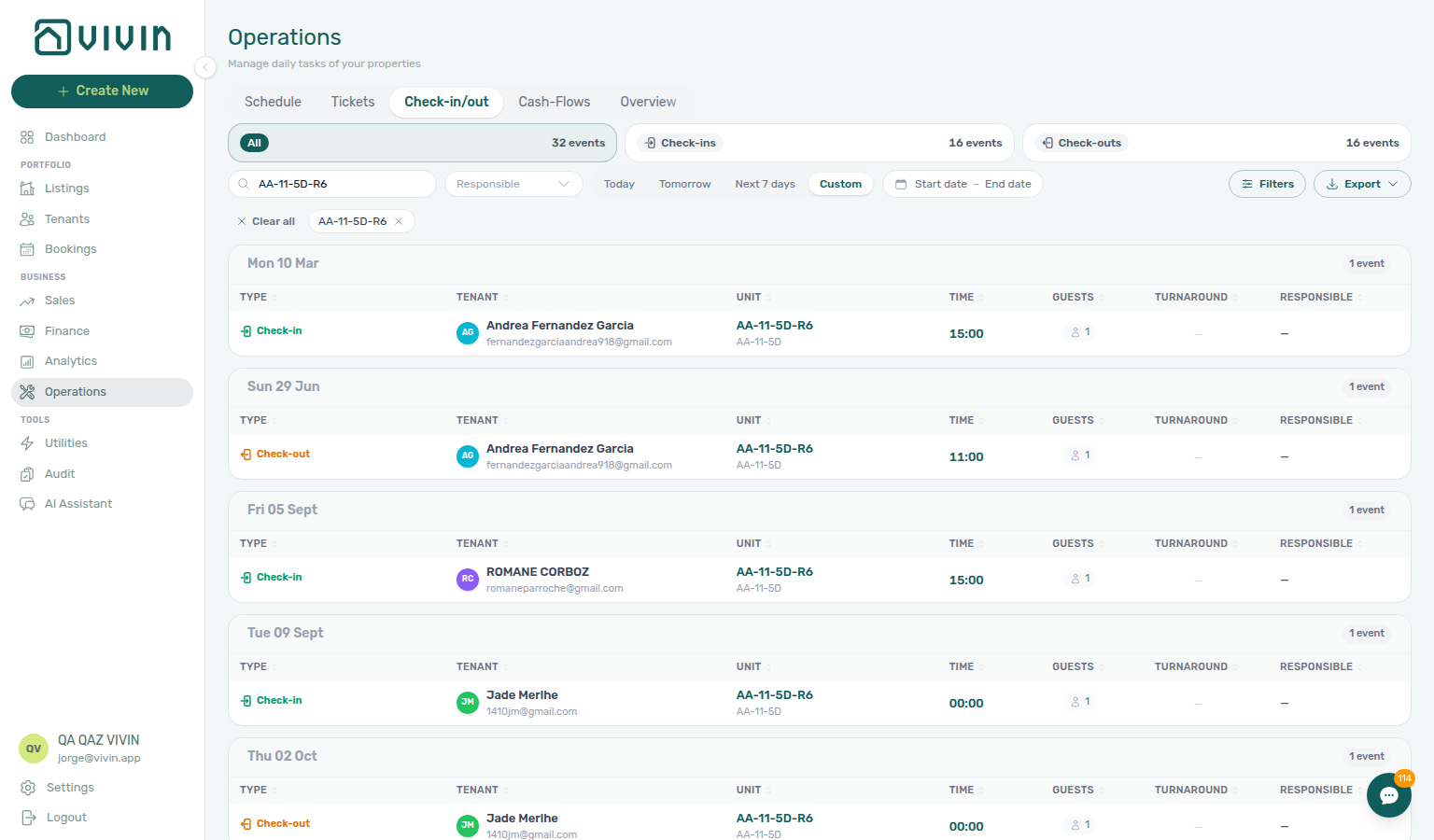
Select the Check-outs pill, then Next 7 days (or Custom for your planning window) to list departures only.
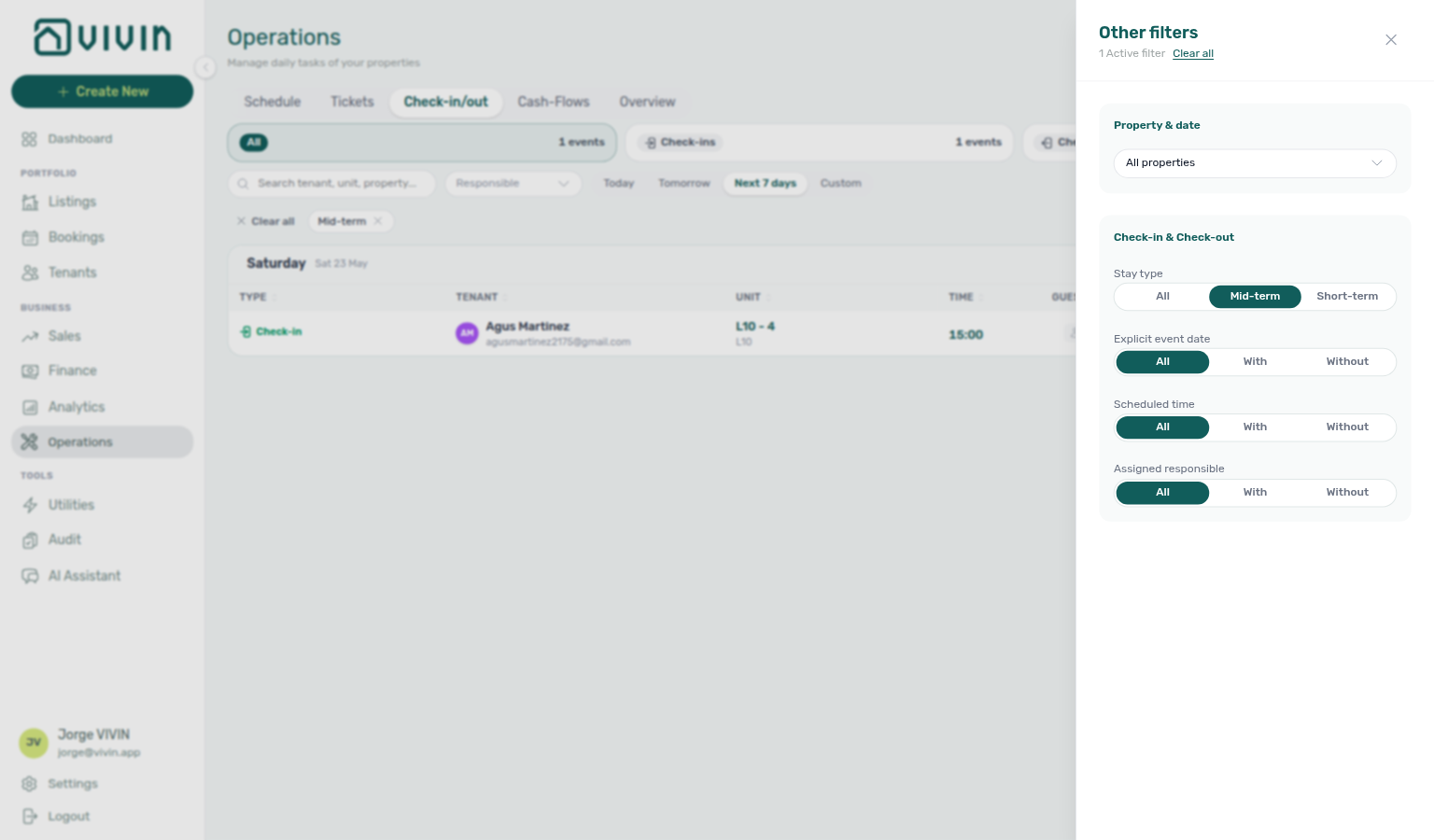
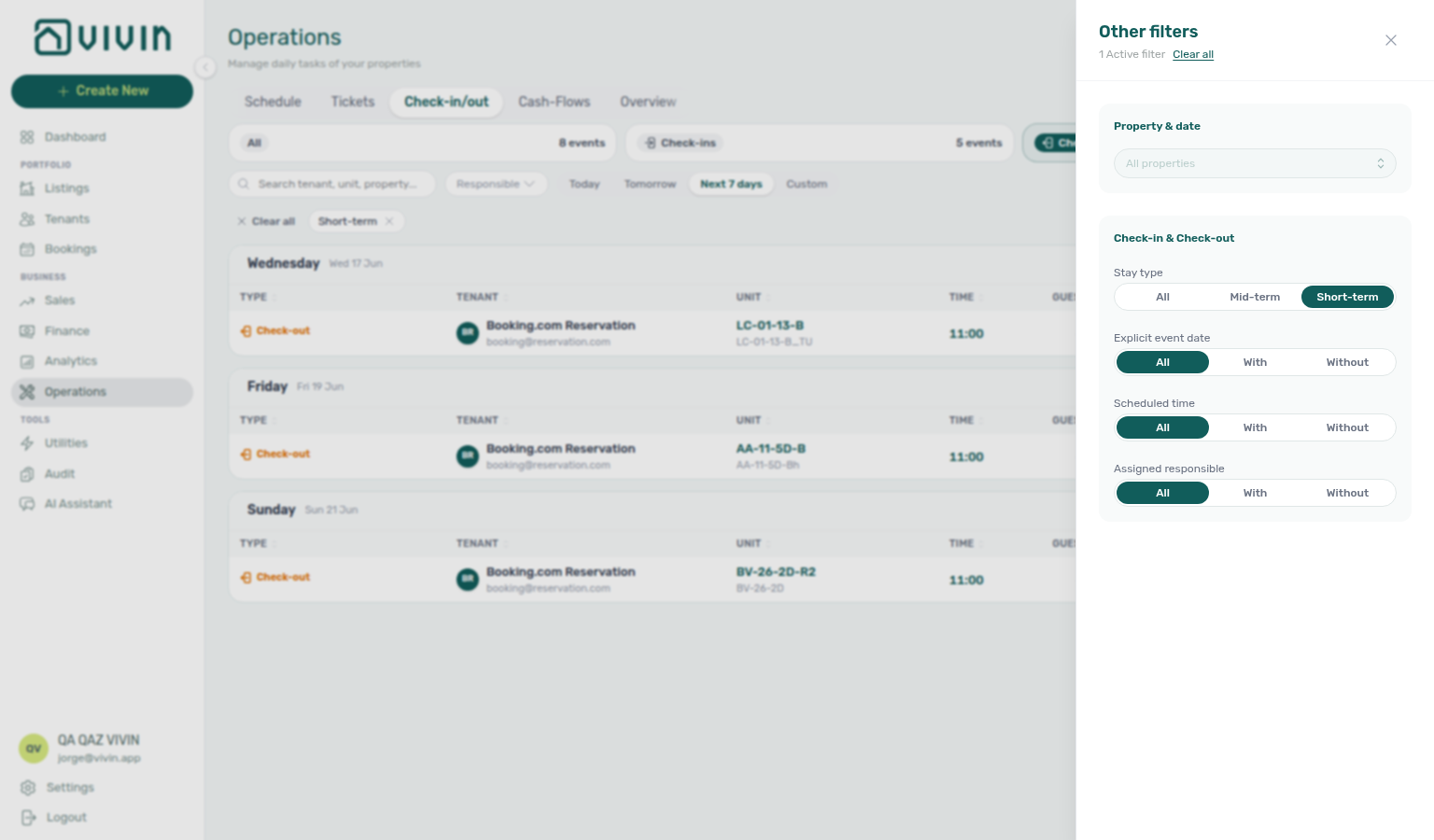
An empty table usually means no departures fall in that window, not that the tab is broken. Open Custom and extend the range (for example through month-end), or temporarily switch to Check-ins on the same units to spot same-day turnovers. Short-term iCal imports can still surface pseudo Booking.com Reservation (or similar) departure rows even when no mid-term booking check-out exists in the window — use Filters → Stay type → Mid-term when you only want long-stay handovers. See Operations — Check-in & Check-out tab and Glossary — Short-term iCal pseudo check-in/out.
Open Filters on the Check-in & Check-out toolbar, then Stay type, to separate mid-term handovers from channel-only pseudo departures:
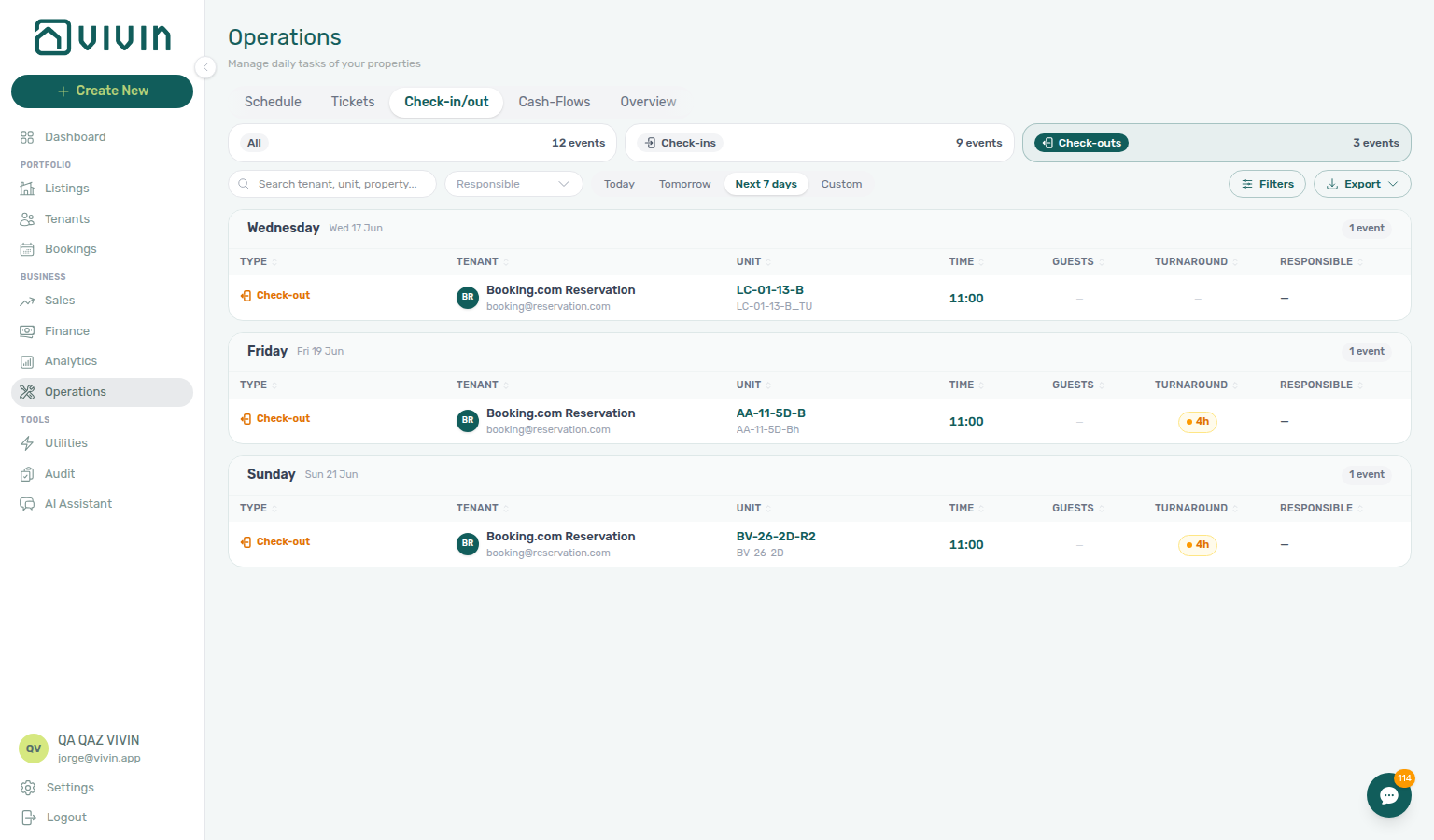
For Check-ins + Next 7 days (arrival planning), see the same framing in Managing a Check-in — workflows-operations-check-in-out-planning-view.png.
Account-scoped Landlord MCP clients can surface the same departure queue you filter on Operations → Check-in & Check-out — list-bookings when several tenants depart from the same property, get-booking when a notification row-click already supplied the reservation id, and get-booking-summary for portfolio-level active/upcoming counts before you open individual rows.
Booking-scoped Tenant MCP get-dates-and-schedule surfaces move-out timing and schedule fields the same way Operations → Check-in & Check-out lists departures — pair with list-bookings-by-email when channel paperwork only shows a guest email. get-security-deposit-info answers deposit-term questions tenants ask during departure week before operators toggle Ready To Refund (Step 5).
Step 2 — Prepare the turnover
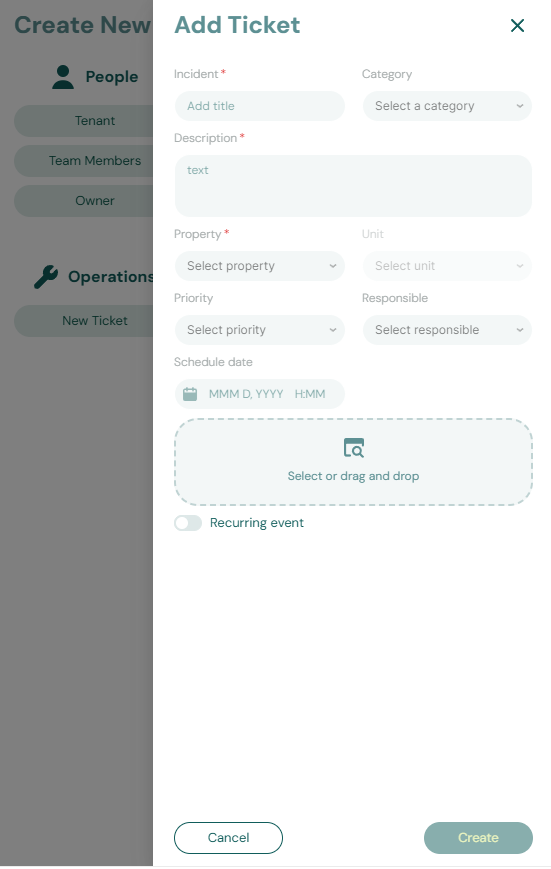
Turnover prep pairs with Common Workflows — Same-day turnover coordination (cleaning ticket due date before incoming Managing a Check-in — Step 4; operations-add-ticket-modal.png, bookings-timeline-day-week-month-and-sidebar.mp4), Operations → Tickets, Operations → Planning (people × day dispatch), Listings — Maintenances tab, and create-ticket on Landlord MCP. Upstream: Step 1. Downstream: Step 3 (inspection day) and incoming arrival on Managing a Check-in — Step 4.
Create a cleaning and inspection ticket for the unit (or verify an automatic ticket was created if you configured it in the property's Maintenances tab). When you add a one-off reservation later, you can opt out of automatic check-in/out tickets for that booking only on the rent step — see Bookings — Creating a New Booking and FAQ — Skip automatic check-in/out tickets for one booking. Assign turnover tickets with a deadline before the next check-in.
When the turnover is more than 30 days out, the ticket may show a Draft badge on Operations → Tickets until the schedule date nears — use the Draft KPI card to review long-lead jobs without mixing them into today's Unassigned queue. See Glossary — Draft ticket (display status).
From Operations → Tickets, click Add ticket, pick the property and unit, set category, priority, and due date, then save — or use + Create New → Ticket from the global menu.
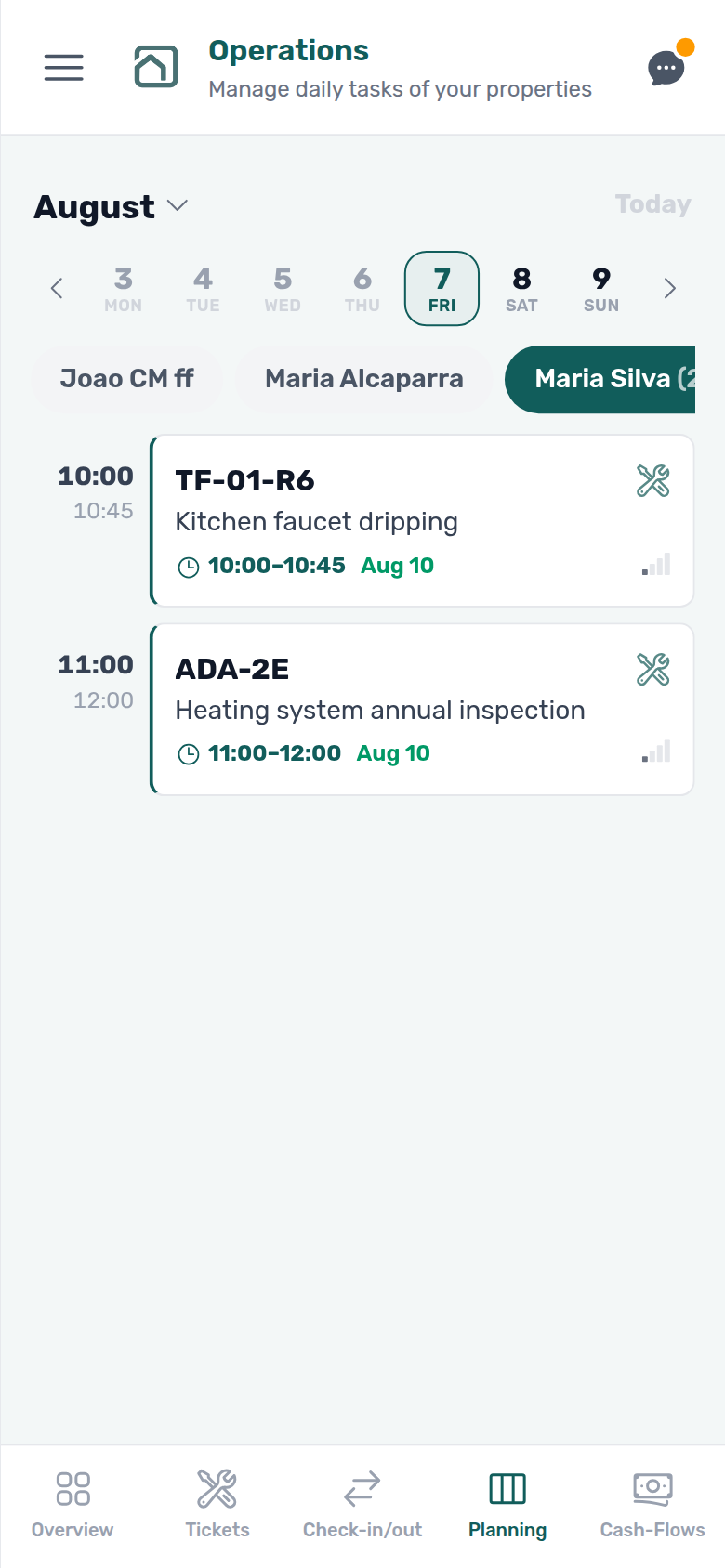
After tickets exist, supervisors with Planning (schedule board) open Operations → Planning to place cleaning and inspection cards on a person and time for departure morning — drag from Unscheduled or To replan, or drop onto the Tasks strip when the job is all-day. On phones, Planning shows that person’s timed list (drag-and-drop stays desktop-first). See FAQ — Where is the Planning dispatch board? and Glossary — Planning (Operations).
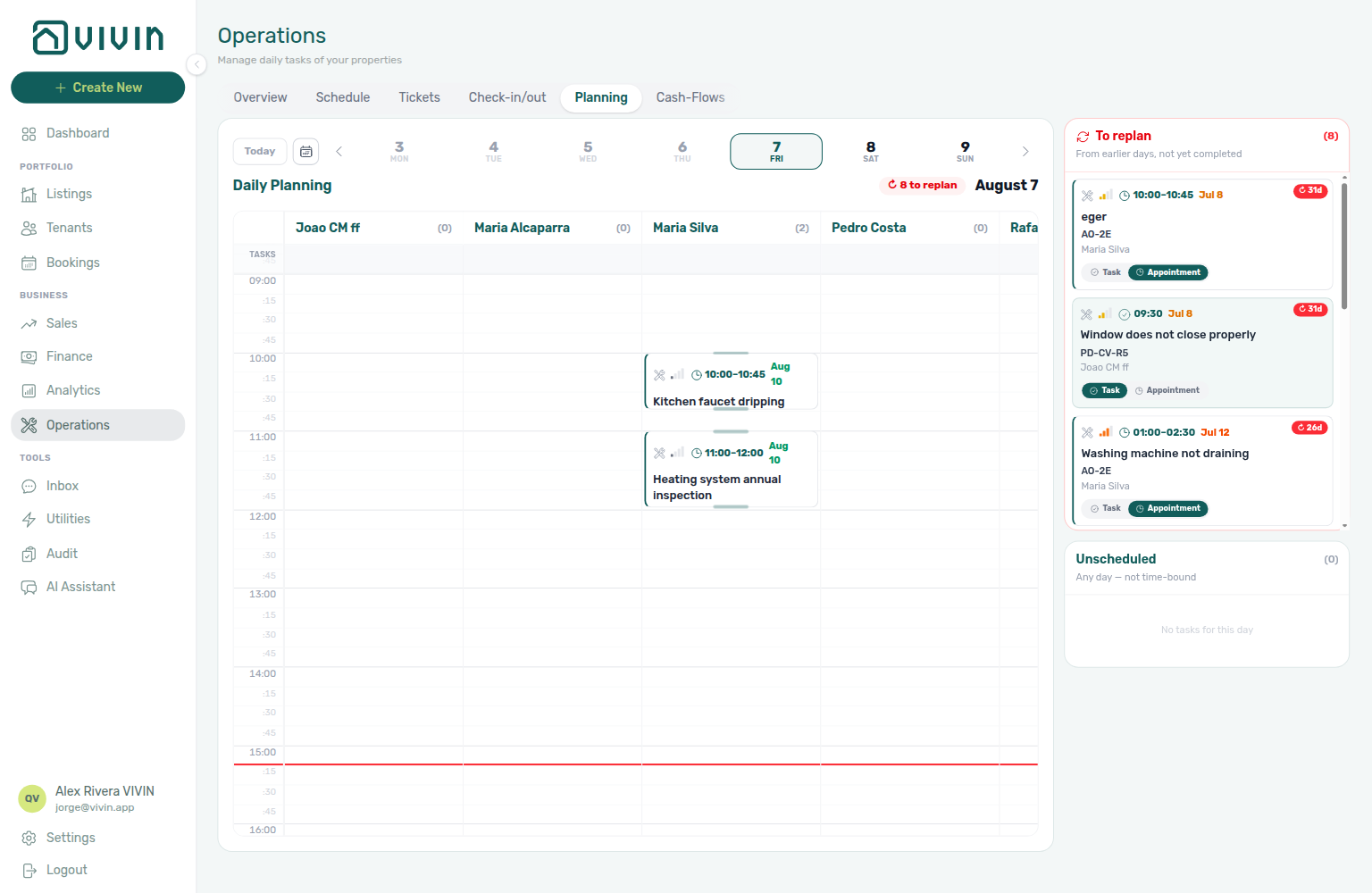
To confirm an automatic turnover ticket already exists, paste the unit internal name in the Tickets toolbar Search — unit hits rank above title or property-only matches. Assignee stays open while you add a second teammate so two cleaners stay in one view. See Operations — Tickets toolbar search, Operations — Assignee stays open, and Glossary — Directory search ranking.
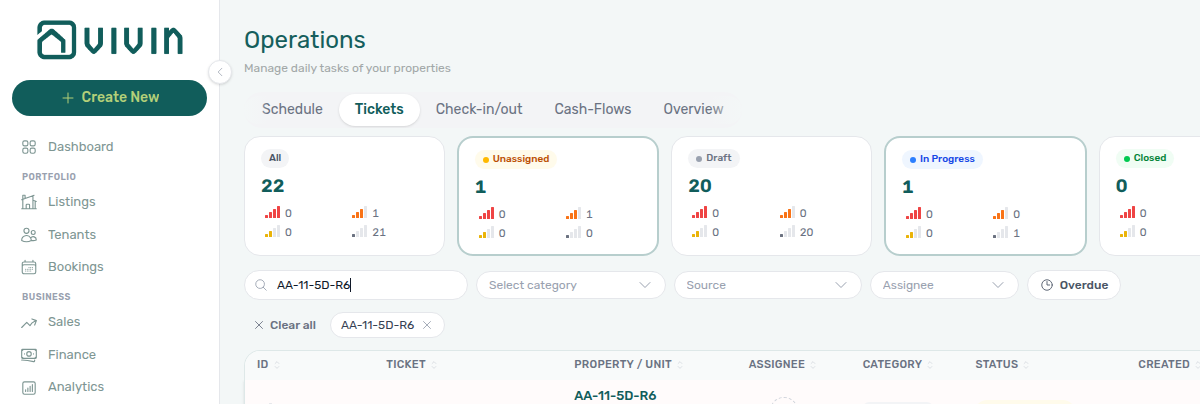
Account-scoped Landlord MCP create-ticket, list-tickets, get-ticket, update-ticket, and add-ticket-comment open or verify the same Operations → Tickets cleaning and inspection jobs you assign in Step 2 — pair update-ticket when assignees or due dates change before the next check-in, and add-ticket-comment when cleaners need status notes without opening the sidebar. External clients cannot link Cost allocation cash flows from MCP; operators finish contractor invoice ties on Operations → Cash Flows when turnover tickets include paid supplier work (Glossary — Ticket — linked cash flows). Booking-scoped Tenant MCP get-maintenance-tickets lists prep work for the tenant's unit; create-maintenance-ticket opens the same Operations → Tickets row your team tracks before the next arrival — external clients cannot toggle Ready To Refund or Mark refunded; operators continue on Finance → Deposits and the booking Deposit tab (Steps 5–6).
Step 3 — Conduct the inspection (day of check-out)
Inspection day pairs with Operations → Tickets closure, Step 2 prep jobs, and add-ticket-comment on Landlord MCP for photo evidence. Downstream: Step 4 when damage is found; Step 5 when the unit is clean.
Inspect the unit for damages, missing items, or cleaning issues. Compare its condition against the check-in record. Document any issues with photos.
Account-scoped Landlord MCP list-tickets, get-ticket, update-ticket, and add-ticket-comment let external clients confirm turnover prep jobs from Step 2 are closed or document inspection findings on the same Operations → Tickets row — pair update-ticket when you reassign a follow-up cleaner and add-ticket-comment when photo evidence should live on the ticket without opening the sidebar. External clients cannot link Cost allocation cash flows from MCP; operators finish contractor invoice ties on Operations → Cash Flows when inspection finds paid supplier work (Glossary — Ticket — linked cash flows). Booking-scoped Tenant MCP get-maintenance-tickets lets tenant-facing assistants confirm whether prep tickets are still open before you sign off the walkthrough — pair with create-maintenance-ticket when the tenant reports a new issue during handover that needs an Operations → Tickets row.
Step 4 — Handle damages and deductions (if any)
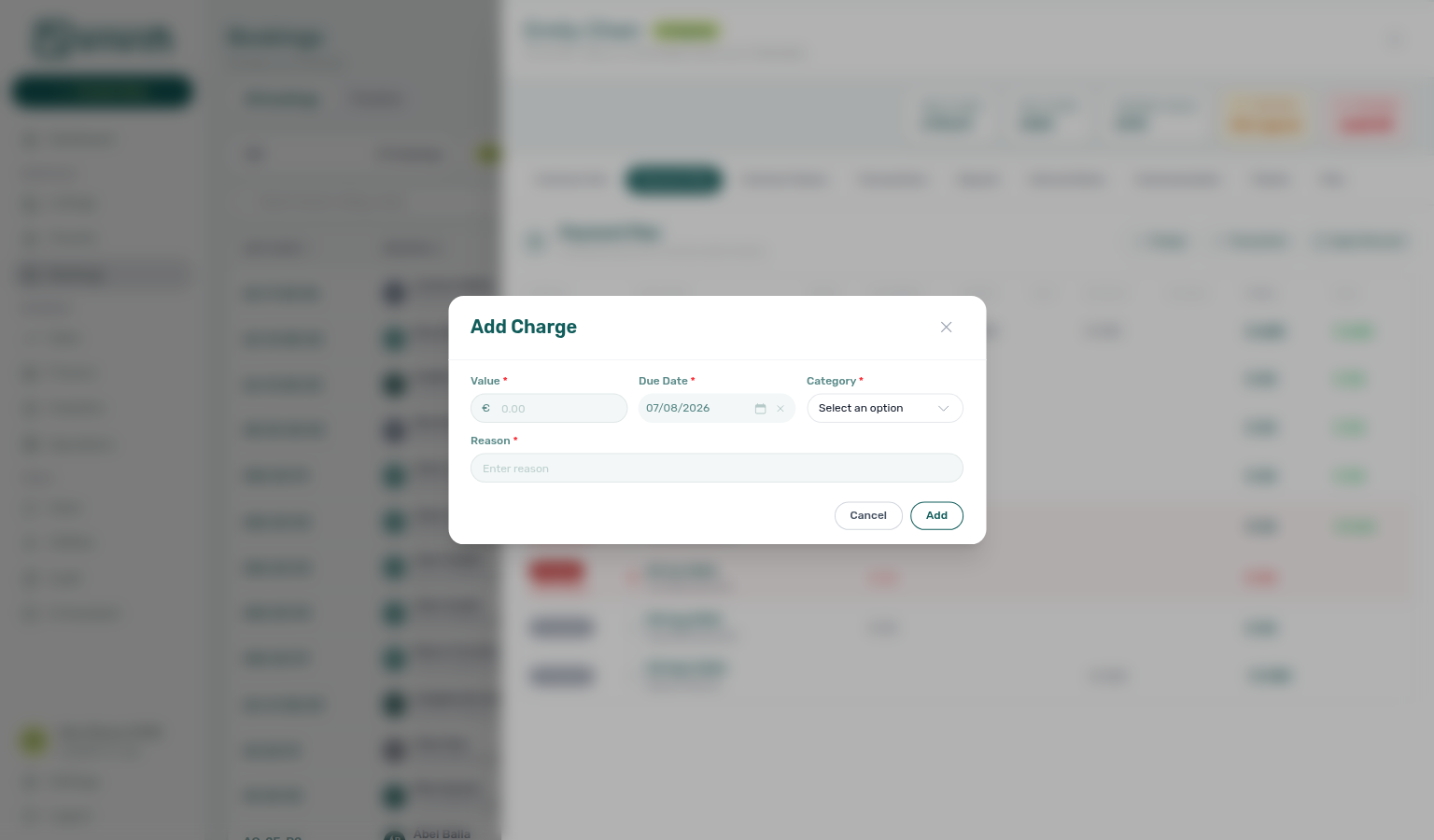
Damage deductions pair with Bookings — Add Charge, Operations — Cost allocation, and get-payment-info on Tenant MCP for tenant-facing balance questions. Downstream: Step 5 (Est. Refund net of charges).
For each damage found:
- Open the booking → Payment Plan (or Contract Values) and click + Charge (see Adding Extra Charges)
- Select "Damages" as the Category
- Enter the Value and a Reason (e.g., "Broken window replacement — €150")
- Set the Due Date
- Inform the tenant in writing of the deductions before processing the deposit
When you paid a contractor separately, record the supplier invoice on Operations → Cash Flows and link it to the maintenance ticket from the ticket sidebar Cost allocation panel — the signed € total should match what you recover from the deposit. See Glossary — Ticket — linked cash flows.
Account-scoped Landlord MCP get-booking, list-payments, and get-payment surface the same Payment Plan rows you verify after operator Add Charge — external clients cannot post damage charges from MCP; operators finish on the booking sidebar (Adding Extra Charges). list-tickets, get-ticket, update-ticket, and add-ticket-comment document contractor damage work on Operations → Tickets when paid supplier invoices tie to inspection findings — external clients cannot link Cost allocation cash flows from MCP; operators finish on Operations → Cash Flows (Glossary — Ticket — linked cash flows). Booking-scoped Tenant MCP get-payment-info surfaces the same schedule rows for tenant-facing balance questions while you draft the written deduction notice. notify-landlord escalates contested retention to your team on the booking record when tenants dispute deductions through a chatbot before you toggle Ready To Refund (Step 5).
Step 5 — Mark ready and process the deposit refund
Deposit refund pairs with Common Workflows — Check-out collections before refund (upstream Handling a Late Payment — Step 1 when Payment Plan rows stay unpaid), Finance → Deposits, booking Deposit tab, get-security-deposit-info on Tenant MCP, and Step 6b when ledger rows stay pending. Upstream: Step 4 (net Est. Refund) and Step 6 (no In Debt before toggle). Downstream: external bank transfer after Mark refunded.
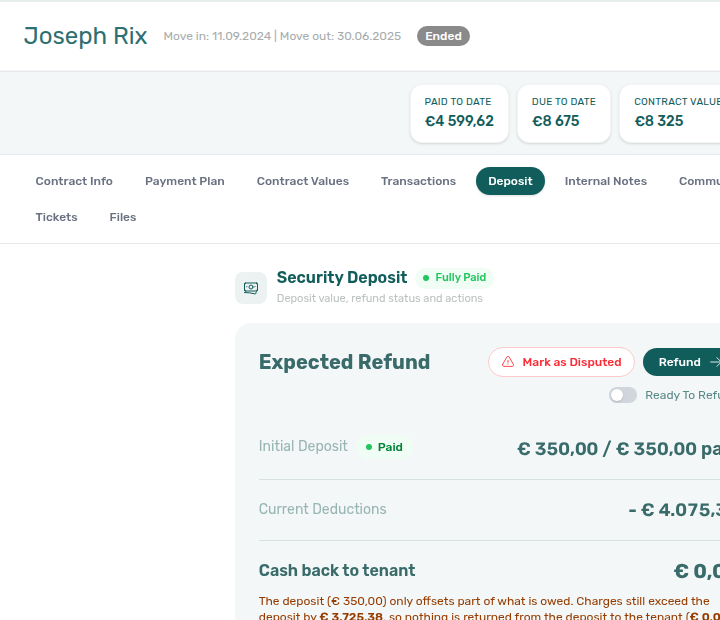
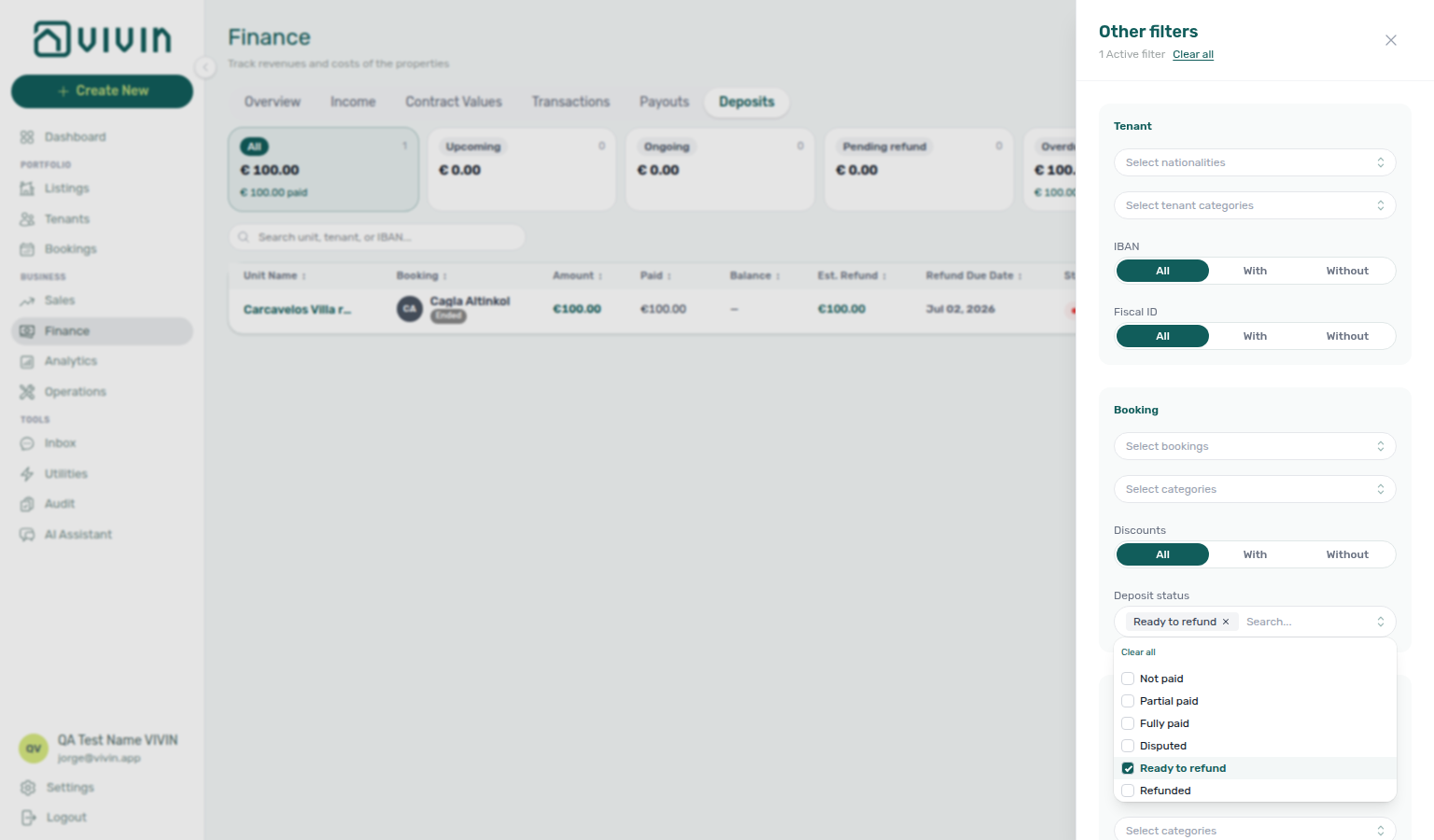
When inspection and any damage charges are settled, open the booking Deposit tab and turn on Ready To Refund so finance can filter the portfolio queue (Finance Other filters → Deposit status → Ready to refund). The lifecycle pill tracks depositStatus through Fully Paid, Ready to Refund, Disputed, and Refunded — see Glossary — Deposit lifecycle status. Skip the toggle when Require "Ready to Refund" step is Off on the account.
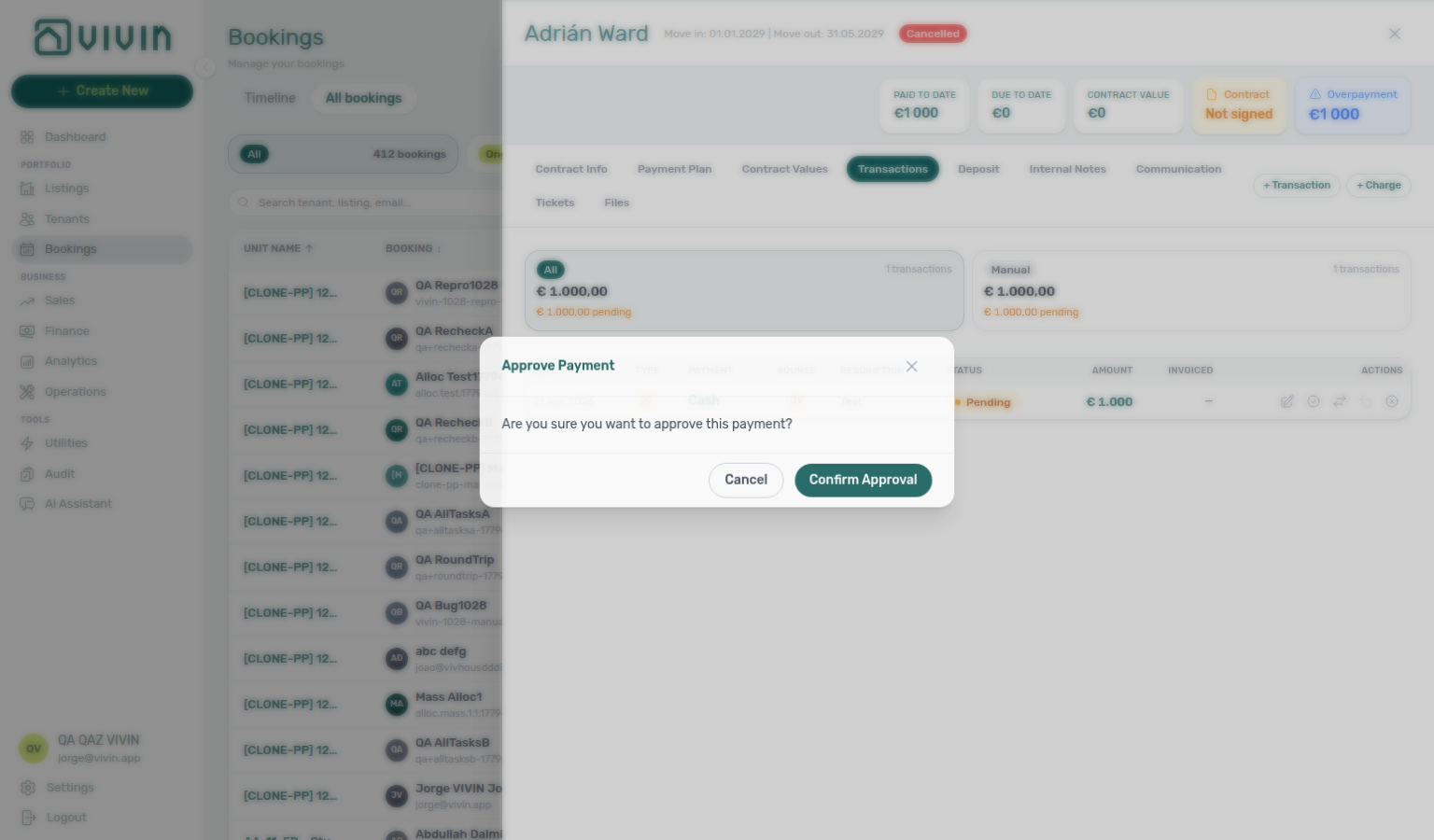
Manual receipts recorded during departure-week settlement may stay pending until Approve payments acts on Finance → Transactions or the booking Transactions tab. Until approval, Payment Plan pills, Est. Refund, and In Debt contract lines can still reflect the old balance — triage Pending on the ledger before you toggle Ready To Refund or Mark refunded. See Finance — Pending manual payments and Step 6b.
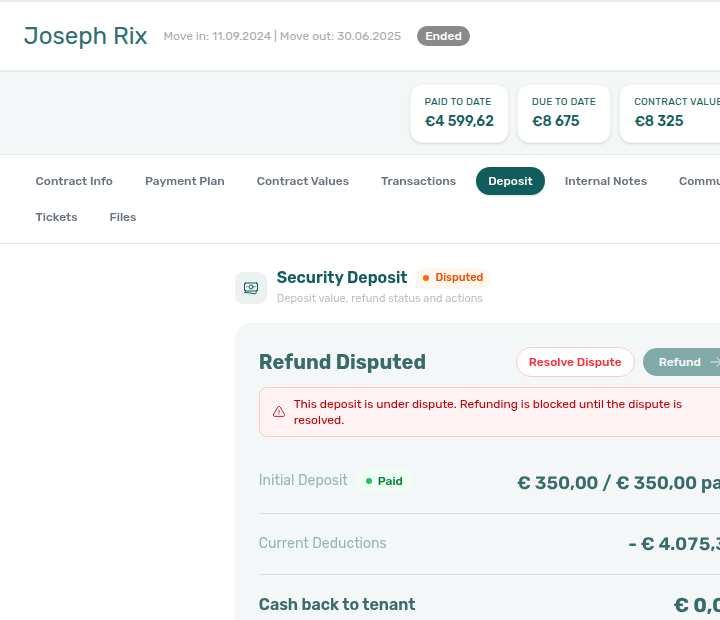
If the tenant disputes deductions before you refund, and Enable deposit disputes is On, use Mark as Disputed on the Deposit tab (or Mark disputed on Finance → Deposits) so Refund / Mark refunded stays frozen until support finishes review. On Finance → Deposits, clear or widen the date range when the move-out is older than the default three-month window. Click Resolve Dispute when you are ready to continue the return workflow below.

When Tickets or Communication needs a refresh while you work in Deposit or Payment Plan, use Retry or Refresh on that tab — see Glossary — Booking detail sidebar tab refresh.
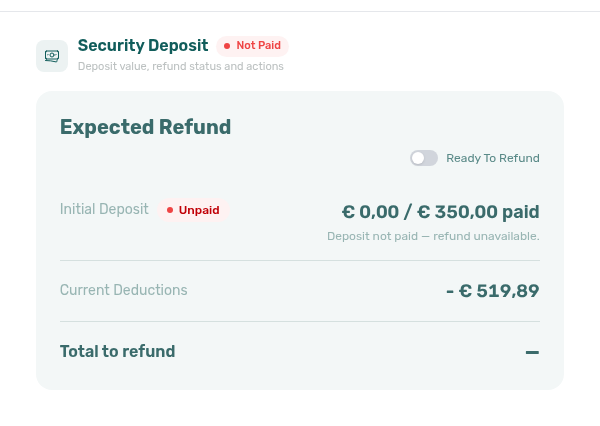
After you turn on Ready To Refund, All bookings with Filters → Deposit status → Fully paid already drops the row — switch that filter to Ready to refund if you are still on Bookings. See Bookings — Deposit status filter updates while you work. Navigate to Finance > Deposits and find this booking's deposit entry (or open Other filters → Deposit status → Ready to refund on the Deposits tab). Confirm Refund Due Date matches the booking’s effective Deposit Refund Limit (account Deposit Refund Deadline unless Contract Info overrides it). If the stay ended more than a few months ago, clear or widen the Deposits toolbar date range first — the tab defaults to roughly the last three months (FAQ — Deposit missing on Finance Deposits).
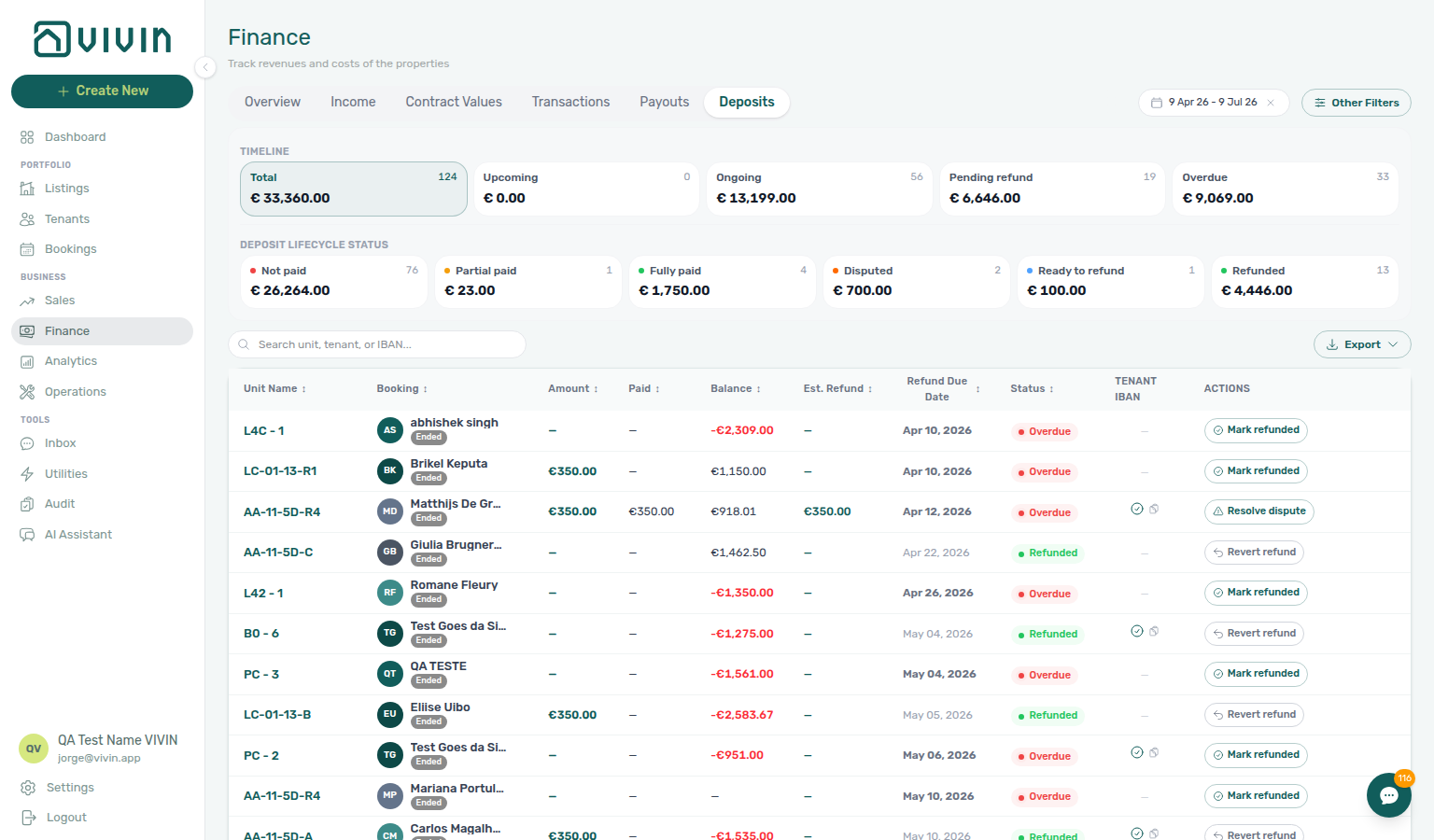
- No deductions: Confirm Balance and Est. Refund on the Deposits row (or review Total to refund on the booking Deposit tab). After the external bank transfer, click Mark refunded — the row status becomes Refunded. On Payment Plan, the Deposit Refund due-date row also shows green Refunded (not Overdue), even when fees shared that day. On the Tenant Portal — Payments tab, the tenant then sees the net deposit return (with a breakdown when charges were deducted) — not the gross contract deposit. Payments → Transaction History shows Deposit Refund as plain text (no logo).
- Partial deductions: With Step 4 charges on the booking, verify Est. Refund / Total to refund reflects the net return. Transfer the net amount externally, then Mark refunded. Tenants open the Deposit Refund row on Payments to see gross − applied charges (
tenant-portal-payments-deposit-refund-net.png). - Full retention (e.g., unpaid rent, major damages): When nothing is returned, the row may show Not Refunded — document the reason in ticket or booking notes. Do not click Mark refunded when no bank return occurs. When operators do mark a fully applied refund, the portal detail shows €0 with a “fully applied to outstanding charges” note (
tenant-portal-payments-deposit-refund-fully-applied.png).
You can also record the refund from the booking Deposit tab (same permission: bookings.refund). Use that tab when the stay has no configured deposit but the tenant still overpaid — Finance → Deposits does not list those bookings. See Bookings — Refund an overpayment when there is no deposit. After you confirm Mark refunded there, Finance → Deposits already drops the row from Ready to refund — you do not reload that tab. See Bookings — Finance Deposits updates from this tab. After Vivin posts the refund, open Payment plan on the same booking — the schedule shows a Deposit Refund due-date row with a minus-prefixed deposit amount, plus a teal credit note and/or return of value subtitle on the deposit collection line when Vivin reversed the deposit fiscally (see Payment plan — Deposit refund lines and Deposit refund fiscal reversal). Filter Finance → Transactions → Deposit Refund to reconcile the cash ledger line with your bank out-payment. When the deposit had been invoiced, also clear Finance → Transactions → Not issued credit note with Issue credit notes so the provider document matches the refund.
The Finance Deposits tab is better for portfolio-wide queues — use Timeline cards (Pending refund, Overdue) and Deposit lifecycle status cards (Partial paid, Ready to refund, Refunded) in the Deposits overview panel. Click Partial paid to narrow rows where Paid is above zero but still below Amount — open a row to see the matching Partially paid badge on the booking Deposit tab. See Finance → Deposits — Deposit lifecycle status cards, FAQ — Partly collected security deposit, and Glossary — Deposit lifecycle status.
Account-scoped Landlord MCP get-booking surfaces the same deposit charge split and move-out timing you verify before Ready To Refund — pair with list-payments / get-payment when a bank transfer may still show pending until Step 6b. Booking-scoped Tenant MCP get-security-deposit-info returns the same deposit terms and amounts tenants see on the portal Payments tab during departure week — external clients cannot Mark refunded, freeze deposit disputes, or toggle Ready To Refund from MCP; operators finish on Finance → Deposits and the booking Deposit tab.
Vivin records the deposit decision — the actual bank transfer to the tenant happens outside the platform. Transfer the refund amount via bank transfer after updating the status.
Step 6 — Verify all charges are settled
Settlement verification pairs with Common Workflows — Check-out collections before refund (downstream Handling a Late Payment — Steps 1–4 when rent/fee arrears block refund; workflows-check-out-coordination-flow.mp4, bookings-detail-payment-plan-tab-schedule.png), Common Workflows — Check-out final utilities handoff (upstream Entering Monthly Utility Bills — Steps 2–4 / Step 4b before refund; utilities-allocations-review-flow.mp4, utilities-allocations-row-breakdown-expanded.png), Common Workflows — Check-out ledger cleanup before refund (duplicate departure transfers → Reject/revert mistaken receipts before refund), Finance → Contract Values (In Debt), FAQ — Handling a Late Payment hub, and Notification triage — Step 4. Upstream: Step 4 (damage charges net of deposit). Downstream: Step 5, Step 6b, and Step 7.
When Account Settings → Utilities → Charge Time is End of Booking, final utility overage lines may not appear until Step 7 — hub matrix: Common Workflows — Check-out final utilities handoff · Glossary — End-of-Booking cost split. Otherwise post final supplier bills via Entering Monthly Utility Bills — Steps 2–4 before you toggle Ready To Refund in Step 5.
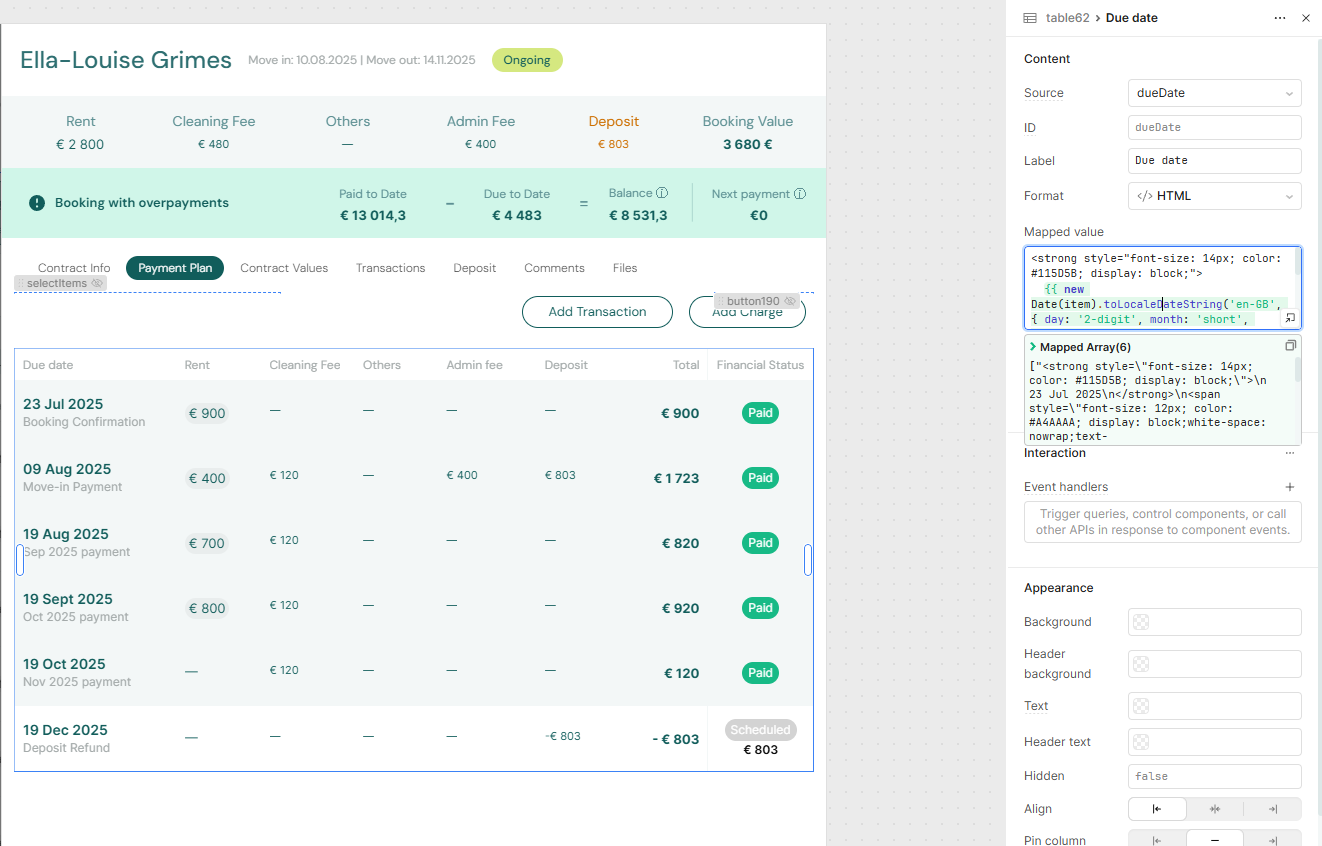
In the booking's Payment Plan tab, confirm there are no unpaid charges beyond the agreed deductions. Compare each due-date row's Total with Paid (and status pills such as Partial Paid or Overdue) — see Schedule table columns. Escalate any outstanding balance before marking the booking as ended. See Handling a Late Payment if needed.
At portfolio scope, triage remaining balances on Finance > Contract Values with In Debt filtered — use Other filters to scope Property (and Deposit status → Ready to refund when finance is queuing deposit returns after check-out), then add Tenant → Tenant category when departure balances cluster on one segment — see Finance — Tenant category filter and Finance — Deposit status filter. Mirror the same segment on Bookings → Tenant categories or Tenants — Tenant category filter when Finance Overview still shows the old segment — see Glossary — Tenant category and FAQ — Finance tenant category filter parity. When several departures in the same segment underperform during month-end, continue Portfolio KPI review — Step 6 before you change Settings > Tenant categories portal rules account-wide.
If someone recorded a duplicate final payment by mistake during settlement, open booking Transactions and Reject payment, or tick rows on Finance → Transactions and use Reject selected (ledger reject is bulk-only). Reject and Revert modals warn about credit notes when Finance already invoiced the charge — after confirm, filter Not issued credit note on the ledger and use Issue credit notes or transaction-detail Issue credit note to provider when your integration is connected. See Payment Allocation — Correcting mistaken receipts.
Account-scoped Landlord MCP get-booking-summary gives active/upcoming counts before you open wide Finance → Contract Values In Debt slices — pair list-bookings when several departures from the same property still owe, then list-payments / get-payment after you resolve booking ids. When departure paperwork lists a fiscal ID instead of a booking id, list-tenants, get-tenant, and get-tenant-bookings resolve the profile and linked reservations before you open Contract Values — same habit as Handling a Late Payment — Step 6. get-booking returns reservation context when a payment overdue alert already supplied the id from Notification triage — Step 4. External clients cannot Reject selected, Issue credit notes, or approve Pending rows from MCP — operators finish mistaken-receipt cleanup and Step 6b on Finance → Transactions. Booking-scoped Tenant MCP get-payment-info returns the same due-date rows you verify on Payment Plan — external assistants can answer balance questions before you toggle Ready To Refund. notify-landlord escalates unpaid departure-week charges when tenants ask through a chatbot during settlement — pair with Handling a Late Payment — Step 1 when arrears block refund.
Finish Step 6b and mistaken-receipt Reject selected cleanup above before you open a Vivin support ticket — Contract Values In Debt triage and credit note warnings are operator workflows when balances are correct. File Using in-app support when Approve payment is missing for your role, Pending rows persist after approval, or Landlord MCP / Tenant MCP clients return persistent 403 after you refreshed the management JWT — see Resetting a Management User Password — Troubleshooting. Use the Help & Support drawer from Finance when screenshots should include Contract Values or Payment Plan — Deep Links — Support. If a management lockout delayed departure-week settlement, recover access with Resetting a Management User Password (Step 3) before you rerun this step — pair with Managing a Check-in — Step 6b and Portfolio KPI review — Step 7 on the same Pending queue; continue Notification triage — Step 6 when row-click navigation fails after you regain access.
Step 6b — Approve departure-week receipts (when required)
Departure-week approval pairs with Finance → Transactions, Portfolio KPI review — Step 7, and the Pending mesh across Managing a Check-in — Step 6b, Processing a New Booking — Step 6b, and Handling a Late Payment — Step 6b. Upstream: Step 6. Downstream: Step 7.
Account-scoped Landlord MCP list-payments / get-payment surface the same Pending ledger rows you approve below — external clients cannot Approve payment or Reject selected from MCP; operators finish on Finance → Transactions or the booking Transactions tab. Booking-scoped Tenant MCP get-payment-info helps tenant-facing assistants explain why a recorded transfer still shows unpaid until approval completes.
When you recorded a final payment during departure week but Payment Plan, Est. Refund, or In Debt on Finance → Contract Values still show the old balance — or a Payment received alert from Notification triage — Step 4 still shows a stale balance — follow the same approval habit as Processing a New Booking — Step 5b, Processing a New Booking — Step 6b, Managing a Check-in — Step 3b, Managing a Check-in — Step 6b, Handling a Late Payment — Step 4b, Entering Monthly Utility Bills — Step 4b, Cancelling a Booking — Step 2a, and Cancelling a Booking — Step 6b. During month-end, the same queue appears in Portfolio KPI review — Step 7 when Manual Payments or Total Debt still look high:
- Open Finance → Transactions (widen the date range if needed) or the booking Transactions tab and confirm Pending rows exist when you expect a manual approval queue.
- On the ledger, click the amber Pending chip on the All type-summary card (or use the Pending status filter) — see Finance — Pending manual payments (
finance-transactions-pending-pill.png). - Locate the manual row in the filtered table.
- Click Approve payment (per-row check icon) or tick several rows and use Approve selected from the floating bar. For a mistaken duplicate on the ledger, use Reject selected (bulk-only on Finance — no per-row reject icon there). Reject selected shows the same red credit note warning as booking Transactions when accounting may already have invoiced the charge — see Finance — Reject payment and Bookings — Transactions row actions.
- Re-open Payment Plan and Finance → Deposits — requirement pills and Est. Refund should update once allocations apply before you toggle Ready To Refund (Step 5).
Approve payments and ledger Reject selected are operator workflows — finish Step 6 before you open a Vivin support ticket. File Using in-app support when Approve payment is missing for your role, Pending rows persist after approval, or Landlord MCP / Tenant MCP clients return persistent 403 after you refreshed the management JWT — see Resetting a Management User Password — Troubleshooting. If a management lockout delayed month-end departure approval, recover access with Resetting a Management User Password (Step 3) before you rerun this step.


Step 7 — Verify the booking has ended
Post-departure closure pairs with Common Workflows — Check-out vs cancellation (when Ended fails but the stay was Canceled → Cancelling a Booking — Step 6; check-out-vs-cancellation-ended-closure-flow.mp4, bookings-list-canceled-tab.png, workflows-cancel-booking-refund-modal-flow.mp4), Bookings Ended status, Booking lifecycle, get-booking-status on Tenant MCP, and Manual block hygiene when calendar bars persist. Upstream: Steps 6–6b. Downstream: Entering Monthly Utility Bills when utilities apply.
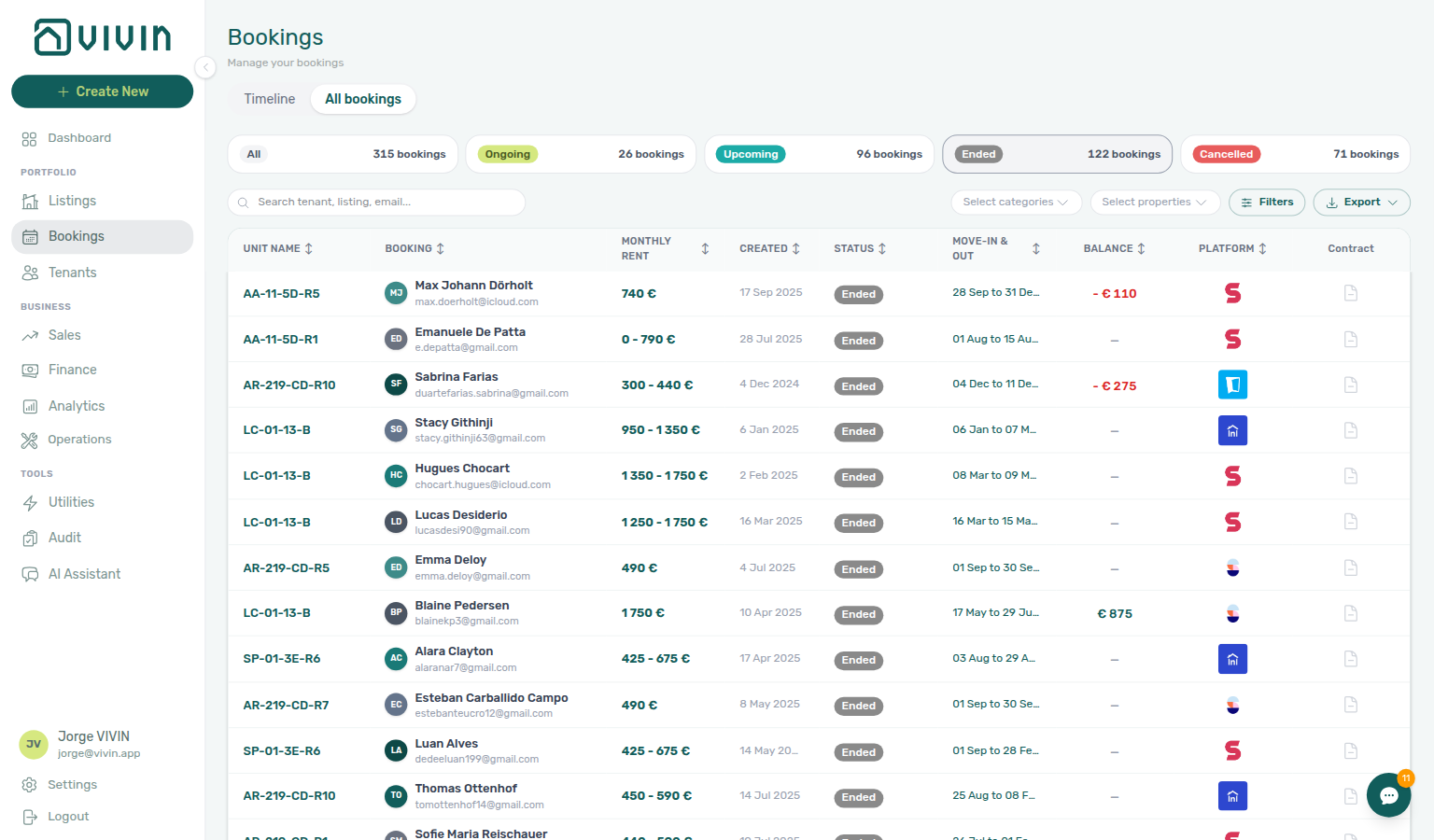
After the relevant end date passes (check-out date or contract end date, based on your status date basis setting), confirm the booking status is Ended (ended). This status is computed automatically — filter Bookings → Ended or search the tenant name if the row left your departure window. See Booking lifecycle and the Ended list capture on that page (bookings-list-ended-tab.png).
Booking-scoped Tenant MCP get-booking-status confirms Ongoing vs Ended (ended) the same way the booking sidebar does after check-out day — pair with get-property-and-location when tenants ask which unit they should vacate or where to return keys. list-bookings-by-email resolves the ended reservation when channel paperwork or a chatbot thread only shows the guest address. get-payment-info remains useful for post-departure balance questions until allocations from Step 6b apply — see Payment Allocation — Pending manual approval.
Finish Step 6 and Step 6b before you open a Vivin support ticket — Ended status and deposit Mark refunded are operator workflows when balances are settled. File Using in-app support when product behaviour blocks departure closure despite correct operator steps:
- Booking status stays Ongoing after check-out day while Payment Plan shows no unpaid rows — attach the booking id and check-out date (Bookings module).
- Resolve Dispute or Mark refunded missing for your role when Enable deposit disputes is On — attach your user email and the deposit row id (Finance module).
- Landlord MCP or Tenant MCP external clients return persistent 403 / auth errors after you refreshed the management JWT — see Using in-app support — When to use in-app support, Landlord MCP — Permissions and safety, and Resetting a Management User Password — Troubleshooting.
Use the Help & Support drawer from Finance or Bookings when screenshots should include Deposit or Payment Plan — Deep Links — Support. Pair with Managing a Check-in — Step 6 when arrival-week blockers from the same reservation need separate triage, and Portfolio KPI review — Step 7 when month-end Pending receipts or Total Debt still lag after Step 6b. When payment alerts persist on /notifications after settlement, clear unread rows in Notification triage — Step 5 before you file support — continue Notification triage — Step 6 when row-click navigation fails. Final utility overages on Payment plan before Ready To Refund → Entering Monthly Utility Bills — Step 4 and Step 4b; file Step 6 when AI extraction blocks month-end bill entry. Same-day turnover with an incoming Upcoming import still blocked on Bookings → Timeline after Ended → Processing a New Booking — Step 1 and Manual block hygiene — Step 4 before you escalate status computation; confirm portal gates for the incoming tenant in Processing a New Booking — Step 6. Sales → Multicalendar still shows departure bars after Ended → Manual block hygiene — Step 6 and Cancelling a Booking — Step 6 when the stay was canceled instead of a normal check-out.
Booking-scoped Tenant MCP get-booking-status confirms Ended (ended) the same way the sidebar does — notify-landlord escalates contested retention through a chatbot before operators toggle Ready To Refund; it does not replace a Vivin support ticket when status computation or dispute toggles fail despite correct operator steps. Account-scoped Landlord MCP get-booking and list-payments attach ledger context before you file support. Surface-choice contrast: Automation & AI — Workflow pairing for surface choice.
Managing a Check-out section cross-reference
Use the steps above for the main path. For related guides, open Related below, or return to Common Workflows.
Related
Related below links this workflow to modules, concepts, settings, and escalation paths.
Documentation map & escalation
- Common Workflows — Hub pairing matrix across all operator guides
- Using in-app support — Escalate contested retention when Resolve dispute is blocked; Ended status or dispute toggles when departure closure fails (Step 7)
- Glossary — Term definitions referenced in the steps above
- FAQ & Troubleshooting — Quick answers when deposit or departure steps do not match live product behaviour
Upstream & downstream workflows
- Managing a Check-in — Upstream arrival workflow on the same reservation
- Handling a Late Payment — Step 1 — Clear final balances before Ready To Refund; upstream path when a payment overdue alert row-click brought you here (Step 6)
- Entering Monthly Utility Bills — Final meter reads when utilities apply
- Common Workflows — Check-out vs cancellation — Hub matrix (
workflows-cancel-booking-refund-modal-flow.mp4,bookings-cancel-booking-modal-refund-types.png,bookings-list-canceled-tab.png,bookings-detail-deposit-tab-ready-to-refund-toggle.png) - Cancelling a Booking — When departure is a cancellation rather than a normal check-out; Step 6 when Ended status fails but the stay was canceled (Step 7)
- Manual block hygiene — Step 4 — Stale manual holds before the next Upcoming import on same-day turnover units (Step 7)
- Manual block hygiene — Step 6 — Multicalendar still blocked after Ended (Step 7)
- Processing a New Booking — Step 1 — Incoming import overlap after departure closure (Step 7)
- Processing a New Booking — Step 6 — Portal gates for incoming turnover tenant after Ended (Step 7)
- Entering Monthly Utility Bills — Step 4 / Step 4b / Step 6 — Final utility overages before deposit release (Step 7)
- Notification triage — Clear payment or booking alerts after settlement
- Notifications — Payment overdue alerts — Operator Payments category rows when departure-week charges are overdue (Step 6)
- Resetting a Management User Password — Recover access when a lockout delayed departure settlement (Step 6, Step 6b) or Ended verification (Step 7)
- Portfolio KPI review — Finance → Deposits when rows fall outside the default date range
Concepts & settings that shape this workflow
- Payment Allocation — Layer 1 Payment plan rows and pending manual receipts before Ended status (Steps 6–6b)
- Booking Lifecycle — Normal check-out transitions to Ended (
ended) - Tenant Portal — Tenants review payment schedule during departure week
- FAQ — Tenant contract signing blocked — No PDF yet, mandatory Your Details gates, category locks, or Lease purpose; portal signing vs paper upload on Contract Info
- Landlord MCP — Account-scoped
list-bookings,get-booking,get-booking-summary,create-ticket,list-tickets,get-ticket,update-ticket, andadd-ticket-commentduring departure planning, turnover prep (Step 2), inspection sign-off (Step 3), and contractor damage documentation (Step 4; Cost allocation remains operator UI);get-booking,list-payments, andget-paymentto verify damage charge rows after operator Add Charge (Step 4) and during deposit triage (Steps 5–6b; hub);get-booking-summary,list-bookings,list-tenants,get-tenant, andget-tenant-bookingsfor portfolio In Debt triage before Ready To Refund (Step 6; reject/credit-note and approval remain operator UI) - Tenant MCP — Booking-scoped
get-dates-and-scheduleandlist-bookings-by-emailduring departure planning (Step 1);get-security-deposit-infofor deposit-term questions (Step 1, Step 5);get-maintenance-tickets/create-maintenance-ticketfor turnover prep and inspection-day issues (Steps 2–3);get-payment-infoandnotify-landlordfor damage charges and departure-week balances (Steps 4, 6, 6b);get-booking-statusandget-property-and-locationafter move-out (Step 7) - Automation & AI — Landlord vs Tenant MCP surface choice during departure-week settlement (Steps 1–6b) and departure closure escalation (Step 7)
- Integrations & Distribution — Check-out releases availability on connected channels
- Services Marketplace — Outstanding ancillary charges on Payment plan
- Settings > Preferences — Enable deposit disputes — Account toggle before Mark as Disputed
- Settings > Invoicing & Payments — Payment deadlines — Account Deposit Refund Deadline; per-booking override on Bookings — Deposit Refund Limit
- Settings > Emails — Communication Rules — Departure reminders and Communication schedule audit
- Settings > Tenant categories — Portal modules tenants use during balance review
Finance, operations & bookings surfaces
- Finance > Deposits — Portfolio deposit refund queue and status cards
- Bookings — Deposit tab — Ready To Refund toggle and per-booking refund context
- Finance — Pending manual payments — Approve departure-week receipts before Ready To Refund (Step 6b)
- Finance — Transactions tab — Ledger Reject selected when departure-week receipts were recorded in error (Steps 6–6b)
- Processing a New Booking — Step 5b — Same approval habit for confirmation receipts (Step 6b)
- Processing a New Booking — Step 6b — Month-end lingering confirmation receipts (Step 6b)
- Managing a Check-in — Step 3b — Same approval habit for move-in receipts (Step 6b)
- Managing a Check-in — Step 6b — Month-end lingering move-in receipts (Step 6b)
- Handling a Late Payment — Step 4b — Same approval habit for collections receipts (Step 6b)
- Entering Monthly Utility Bills — Step 4b — Same approval habit for utility overage receipts (Step 6b)
- Cancelling a Booking — Step 2a — Same approval habit for pre-cancel settlement (Step 6b)
- Cancelling a Booking — Step 6b — Lingering settlement receipts at month-end (Step 6b)
- Portfolio KPI review — Step 6 — Segment-wide In Debt when departure balances cluster (Step 6)
- Portfolio KPI review — Step 7 — Month-end Pending pill triage when departure receipts lag (Step 6b, Step 7)
- Bookings — Payment Plan tab — Remaining charges before closure (Steps 6–6b)
- Finance — Contract Values — Portfolio In Debt / Deposit status (Step 5)
- Finance — Tenant category filter — Other filters → Tenant → Tenant category when departure balances cluster on one segment (Step 6)
- Bookings — Tenant categories mirror when Finance Overview still shows the old segment (Step 6)
- Tenants — Tenant category filter — Profile-count cross-check before changing portal rules account-wide (Step 6)
- Operations — Linking cash flows to a ticket — Contractor invoices tied to damage deductions
- Bookings — Timeline view — Gantt overlap check for same-day turnovers
- Sales — Multicalendar — Sales-scoped Gantt without rent cells
- Inbox module — WhatsApp context when tenants dispute deductions
- Audit — Discounts tab — Cross-portfolio discount rows during goodwill credits
Deeper workflow reads
See Upstream & downstream workflows above for the same guides.
Deeper API reads
- Booking Lifecycle & Validations — Computed Ongoing → Ended transitions and deposit settlement guards
- Webhooks & Notifications — Outbound
booking.*events after departure-week closure - Management session authentication — Operator JWT routes for scripted deposit and receipt reconciliation
- Error Handling — Retry when deposit or receipt mutations return
422business-rule responses
Operator habit hubs
Day-to-day operator habits (lockout catch-up, pending receipts, payment triage, handoffs, and related playbooks) live on the Common Workflows habit hub.
Deep-link anchors for habit hubs
Lockout catch-up after password recovery
Pending manual receipt approval
WhatsApp per-booking messaging
Bot reasoning (audit)
ChatBot settings
Notification row-click navigation
Payment notification (operator)
Payment alert to receivables triage
Finance debt receivables triage
Handling a Late Payment collections
Finance Income status drill-down
Cash flow forecast drill-down
Reject/revert mistaken receipts
Month-end invoicing (fixed date)
Bulk Hostkit invoicing
Utility overage collections
Check-out final utilities handoff
Check-in to check-out handoff
Check-out collections before refund
Check-out ledger cleanup before refund
Check-out vs cancellation
Cancellation collections before void
Rent reduction after invoicing
Same-day turnover coordination
Occupancy KPI to block hygiene handoff
Deposit missing on Finance Deposits
Deposit lifecycle status
Partly collected security deposit
Wrong tenant on a booking
Cancel Booking vs Delete Booking
Portfolio retirement decisions
Provider platform Delete Booking guard
Archived booking ledger visibility
Archive property (building-level)
Confirmation to check-in handoff
Confirmation alert triage
Portfolio segmentation by tenant category
Dashboard Total Debt subtitle
- FAQ — Dashboard Total Debt subtitle — Ongoing-only headline (
dashboard-kpi-total-debt-tooltip.png) - Step 6 — Verify all charges are settled — Rent arrears vs Ready To Refund
- Step 6b — Approve departure-week receipts — Headline lag until Approve payments
- Check-out collections before refund — Collections before deposit refund
- Finance debt receivables triage — Debt Aging when headline still high after Step 6
Uncovered Debt KPI
- FAQ — Uncovered Debt KPI — Deposit coverage vs Total Debt (
finance-overview-kpi-cards.png) - Glossary — Uncovered Debt — Thin offsets before deposit refund
- Check-out collections before refund — Arrears vs Ready To Refund
- Finance debt receivables triage — Top debtors when strip figures align
- Dashboard Total Debt subtitle — Ended-booking receivables on Finance strip only
Directory list refresh
When a directory such as Bookings, Notifications, or Listings needs a refresh during this workflow, use Retry on the alert, or reload the page. Zero rows after a successful load means your filters matched nothing — widen filters or clear search.
See FAQ — Directory list refresh and Common Workflows — Directory list refresh.
Booking sidebar tab refresh
Inside an open booking, Communication and Tickets load independently — use header Refresh (Communication) or banner Retry (Tickets). Other sidebar tabs stay usable. Whole-module list refresh is Directory list refresh.
See FAQ — Communication or Tickets won't open and Common Workflows — Booking sidebar tab refresh.
Key glossary terms
- Glossary — End-of-Booking cost split — Charge Time → End of Booking splits daily overage across every occupied unit; still-staying roommates stay in the denominator
- Glossary — Change history — Operator-initiated edits on Listings setup and Bookings Changelog; create-time defaults excluded
- Glossary — Archived booking ledger visibility — Delete Booking hides manual/provider_platform rows on Finance → Transactions; vIBAN and credit card stay visible
- Glossary — Finance tenant category cache refresh — Recategorizing a tenant updates
booking.tenantCategoryIdimmediately; ledger tabs reflect it on reload, while Overview can lag up to ~10 minutes - Glossary — SIMAR water contract ID — SIMAR (Loures e Odivelas) water bills use Cód. Local in Connections — not Nº de Contador; leading zeros stripped
- Glossary — Per-booking maintenance ticket opt-out — Add booking checkboxes skip automatic CI/CO tickets for one reservation only; property rule unchanged
- Glossary — Full term list
Module documentation hubs
- Finance module — Portfolio ledgers with deposit settlement
- Operations module — Damage tickets, linked cash flows, and check-in/out coordination
- Utilities module — Bills Included ceiling model and tenant overage charges
- Dashboard module — Post-login KPI snapshot and bell notification triage
- Analytics module — Month-range portfolio KPI charts
- Listings module — Property wizard and unit management
- Tenants module — Tenant directory and With Debt segmentation
- Sales module — Portfolio availability and channel connections
- Notifications module — Full
/notificationshistory - AI Chat module — AI Assistant
- Audit module — Portfolio-wide Manual Blocks and Discounts review
- Account Settings — Workspace-wide financial policies
- API Reference hub — Partner HTTP contracts and webhooks