Tenant Portal
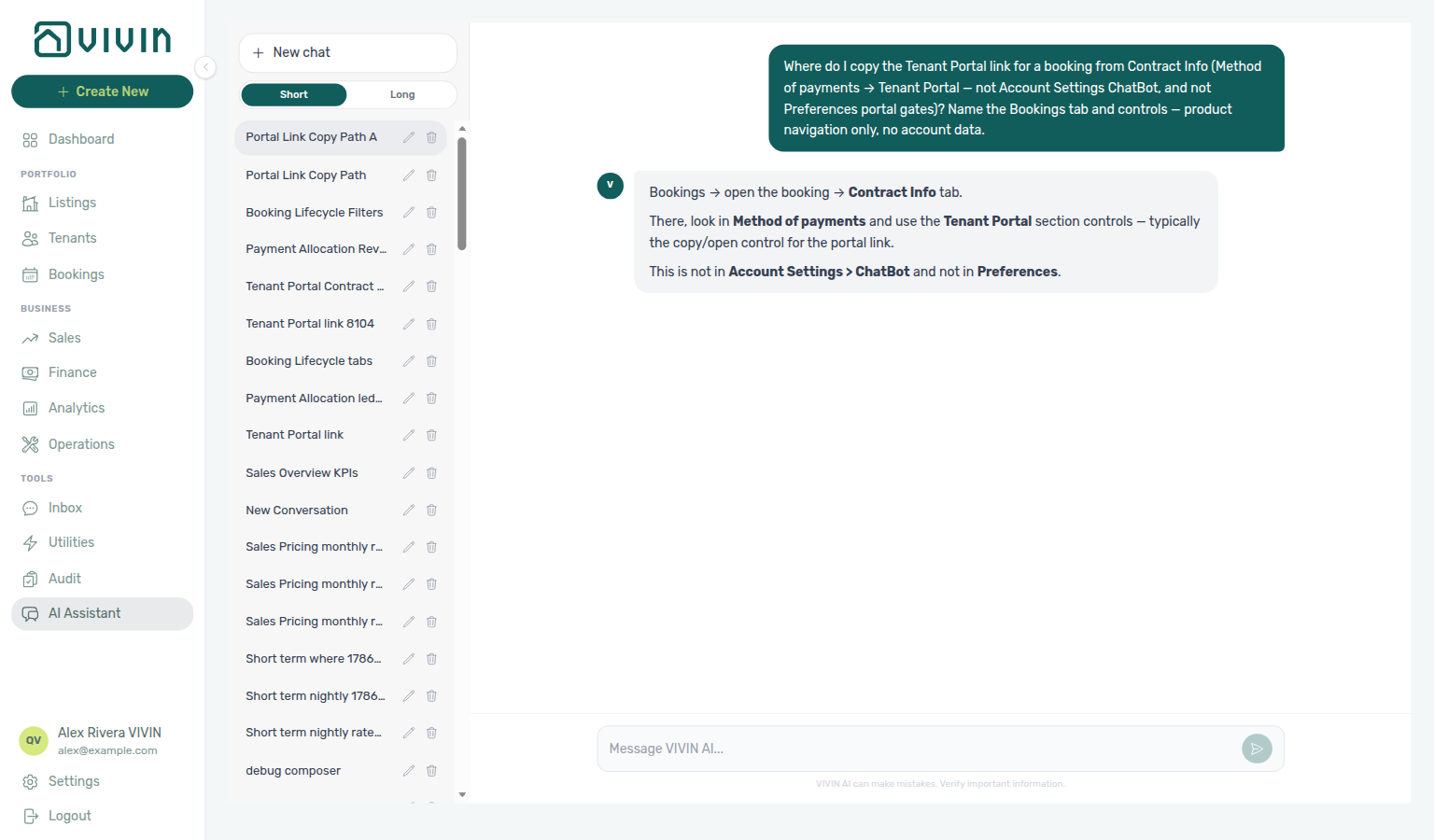
Ask AI Chat “Where do I copy the Tenant Portal link for a booking from Contract Info (Method of payments → Tenant Portal — not Account Settings ChatBot, and not Portal settings gates)? Name the Bookings tab and controls — product navigation only, no account data.” — then open Portfolio → Bookings, open the booking side panel, and use Contract Info → Method of payments → Tenant Portal (ai-chat-product-context-tenant-portal-reply.png, ai-chat-product-context-tenant-portal-flow.mp4). The assistant typically says Bookings → Contract Info → Method of payments → Tenant Portal. Same grounding external MCP clients get from get-vivin-context-bookings-tenants. Distinct from tenant-facing ChatBot persona settings and from Portal settings account-wide gates.
Read this concept after setup steps 10–11 (Tenant categories + Emails) and before your first tenant moves in during step 14 Bookings. Optional portal add-ons: Services Marketplace (setup Services tab). Concept pairing: Concepts — Setup sequence after go-live.
Start with How Tenants Access the Portal, Sign out, and Language switcher, then Greeting and listing address / Surveys Home prompt on Home, Branded home screen / Logo website / Install app, Entry codes (Show code), Payments tab (View transactions, Payment details, Others breakdown, Same-month installment titles, TODAY far-due date, TODAY compact tick at the end, Overdue days past due, Pending installment, Pending N days remaining, Paid installment, Discounted installment, Scheduled Due in N days, Upcoming, Transaction History search, Transaction History sort, Transaction History pagination, Platform payment label, Cash type label, Bank Transfer type label, Viban type label, Credit Card type label, Automatic Adjustment type label, Overpayment Return type label, Cancelation With Refund type label, Cancelation With Partial Refund type label, Deposit Refund type label, Export CSV, Receipt column, Virtual IBAN processing notice), Make payment (Paywall) (Select an amount, Make payment Back, Payment Due Soon, Copy virtual IBAN), Utilities (Daily Breakdown, Your Property Bills), Requests (What do you need?, FAQ accordion), Services catalogue (Show more, Confirm request, Order History), and Digital contract signing (Read to the end to sign, Download contract). Self-service: Tenant Self-Service. Habit-specific shortcuts live under Related below.
Vivin provides tenants with a web-based Tenant Portal — separate from the management platform used by your team. It gives tenants full visibility into their contract, payments, and property information while enabling self-service features that reduce the workload on your operations team.
Portal payments and receipt allocation follow Payment Allocation; tenant add-on purchases pair with Services Marketplace; WhatsApp chatbot escalation contrasts with portal self-service in Automation & AI.
How Tenants Access the Portal
The Tenant Portal supports two complementary entry paths:
- Email access-link request (default screen) On first load, tenants enter their email address and click Send access link. If a matching booking is found for that email, Vivin sends a secure portal link.
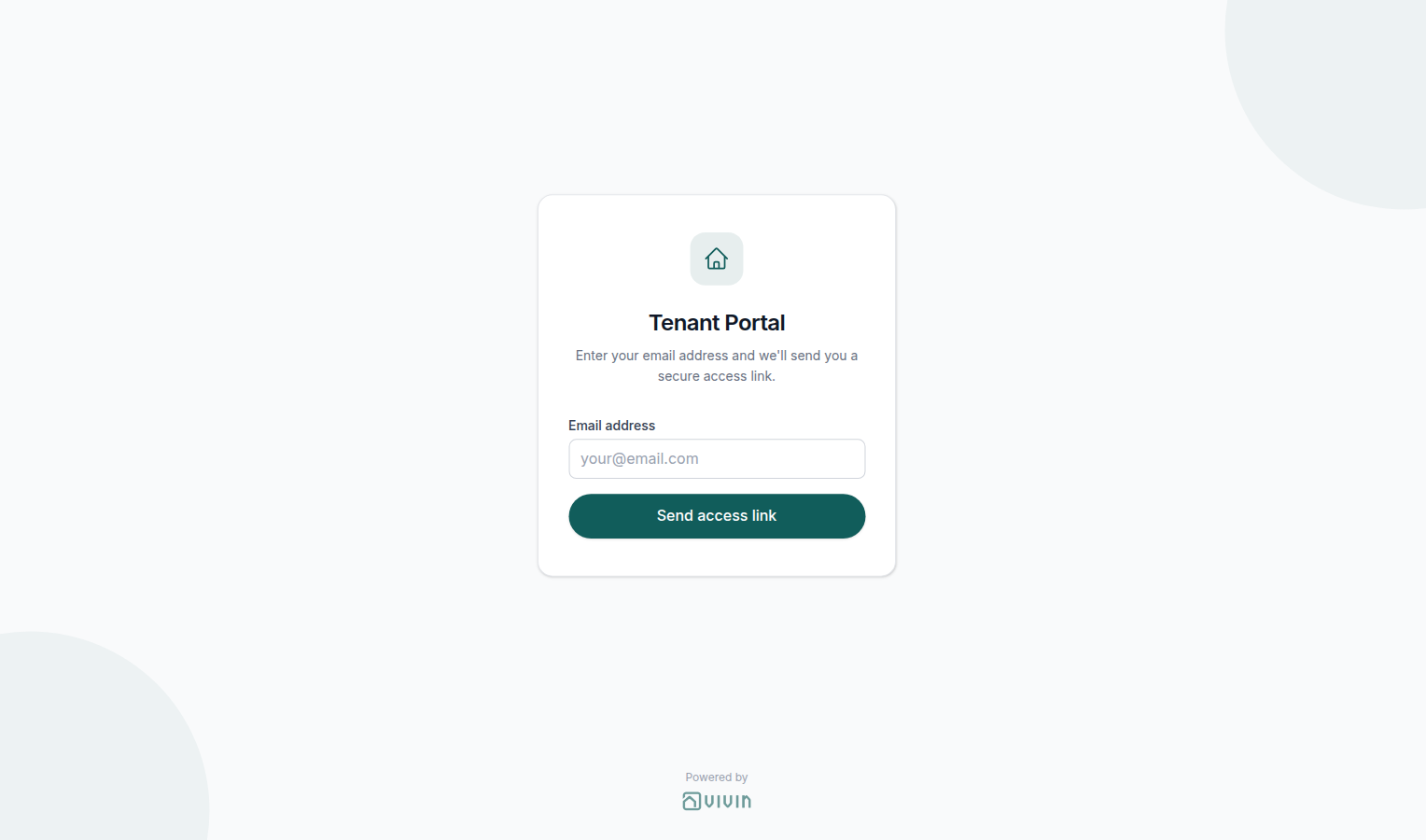
- Direct portal link with booking credentials Onboarding/check-in emails can include a direct portal URL that already contains:
- Booking ID (
id) — the reservation identifier - Access Code (
code, when configured) — the booking-specific portal credential
Operators can also copy or preview that same booking-scoped URL from the booking Contract Info tab (Method of payments → Tenant Portal); see Bookings > Contract Info — Tenant Portal link.
Both paths resolve to the same booking-scoped authentication model.
These access links are typically included in onboarding/check-in emails configured in Settings > Emails. The email access-link screen also shows Powered by VIVIN under Send access link.
Invalid or expired links
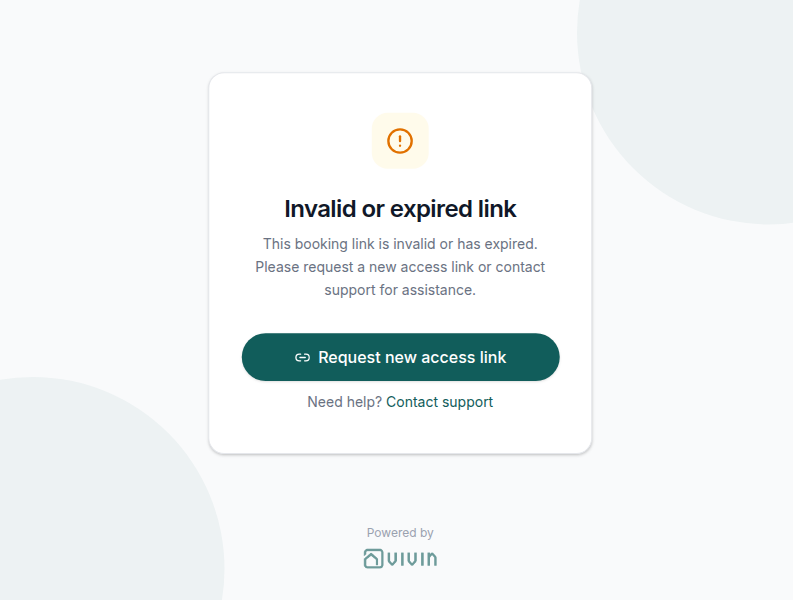
Booking links can stop working when a code has rotated, the link was revoked, or the URL was copied incorrectly. In that case the portal shows a clear recovery screen instead of the booking home — tenants can request a fresh email link or follow your support path.
flowchart LR
 subgraph paths[Tenant entry paths]
 A[Email + Send access link] -->|Matching booking| B[Secure link in inbox]
 C[Direct URL with id / code] --> D[Same booking-scoped session]
 end
 B --> E[Tenant Portal home]
 D --> E
The diagram is conceptual: the product may show different intermediate screens (for example an access-code field), but both paths authenticate the tenant to one booking at a time.
The Tenant Portal does not use email/password accounts. Access is booking-based: secure links carry booking credentials, and this browser can reopen the same booking until the tenant uses Sign out.
Sign out
Sign out pairs with How Tenants Access the Portal (the email form tenants see afterwards), Language switcher (same desktop top bar), More (mobile) (phone overflow, including the same Sign out card), Account tab (desktop name and avatar open Account, not Sign out), and FAQ — How do tenants sign out of the Tenant Portal?. Distinct from management Logout (your team’s workspace session).
Tenants end the portal session on this device with Sign out. There is no Portal settings hide toggle — the control is always there after a valid access link. Sign out does not rotate or revoke the booking access code. The same onboarding link or Send access link email still works.
On a computer, Sign out sits in the top bar (logout icon plus the label Sign out). The tenant name and avatar beside it open Account — they are not a menu for signing out.

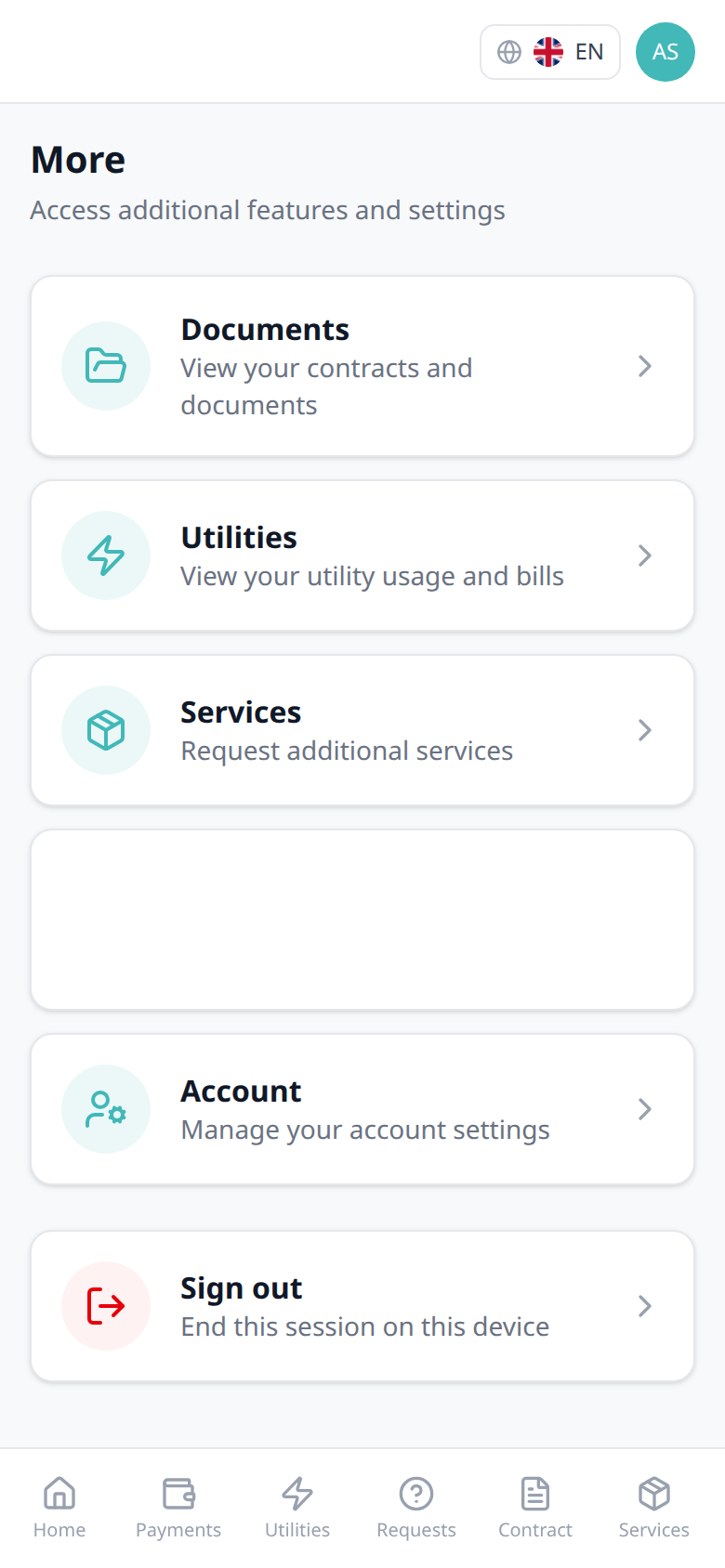
On a phone, tenants open More in the bottom bar and tap the last card:
Sign out — End this session on this device
After Sign out, Vivin clears the booking credentials from this browser and from the address bar. Tenants land on the email access-link request screen (Tenant Portal / Enter your email address and we'll send you a secure access link.). They can request a new email or paste the same booking link again.
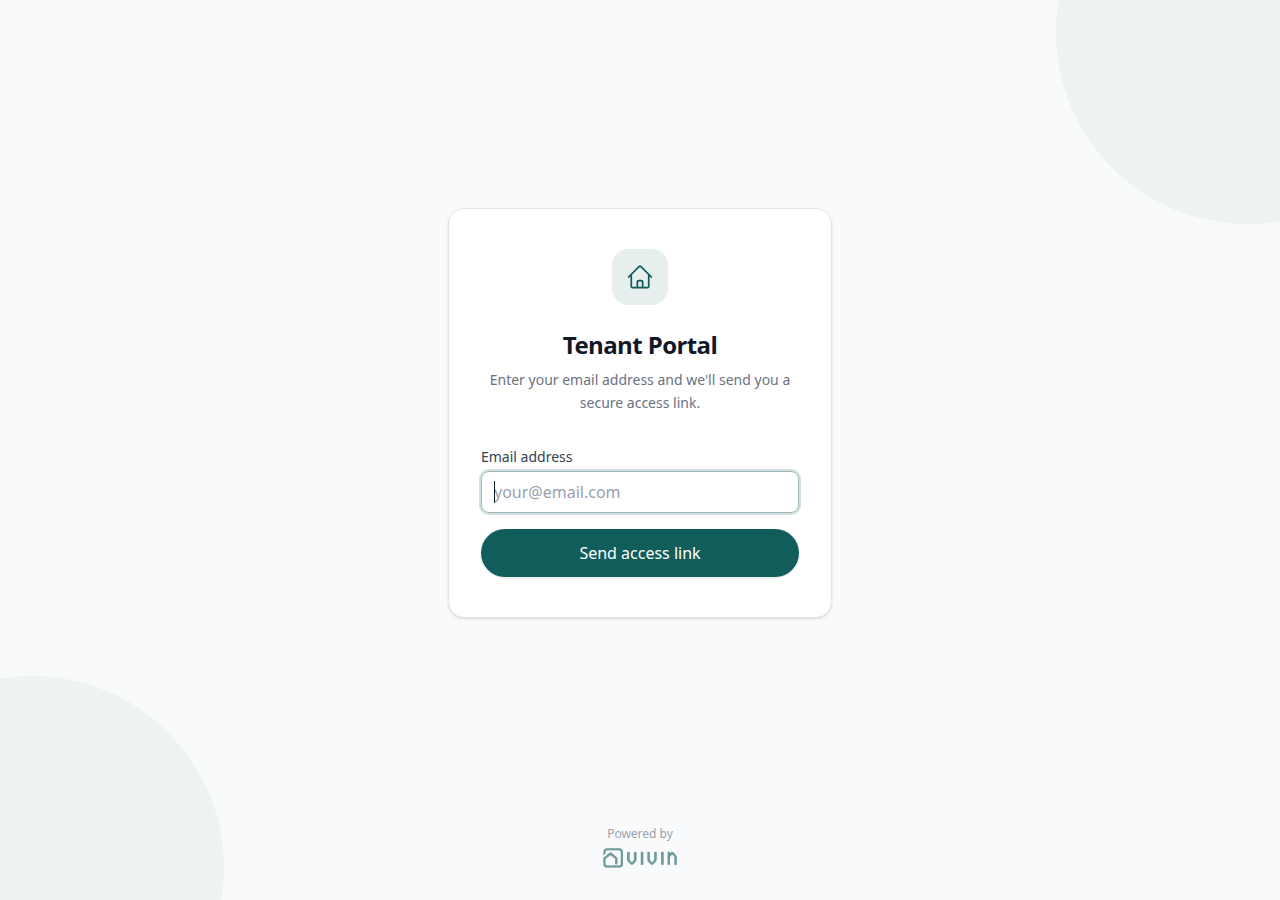
This is not management Logout. Signing out a tenant does not end your workspace session, and Logout in the management sidebar does not sign tenants out of the portal.
Marketplace POST /bookings cannot send this control.
Who can change it
- Tenants — Sign out on the desktop top bar or on More. They cannot hide the control.
- Operators — there is no toggle. Copy or preview the booking link from Contract Info → Method of payments → Tenant Portal when a tenant needs to return. See FAQ — How do tenants sign out of the Tenant Portal?.
- Marketplace —
POST /bookingscannot send Sign out.
More (mobile)
More pairs with Sign out, Language switcher (phone top bar — not a More card), Documents tab, Utilities tab, Services catalogue, Surveys Home prompt, Account tab, Portal settings — Portal modules (Allow to see utilities / Allow to see services), and FAQ — How do tenants open More on the Tenant Portal phone?. Distinct from the desktop left sidebar (those items appear there instead of More).
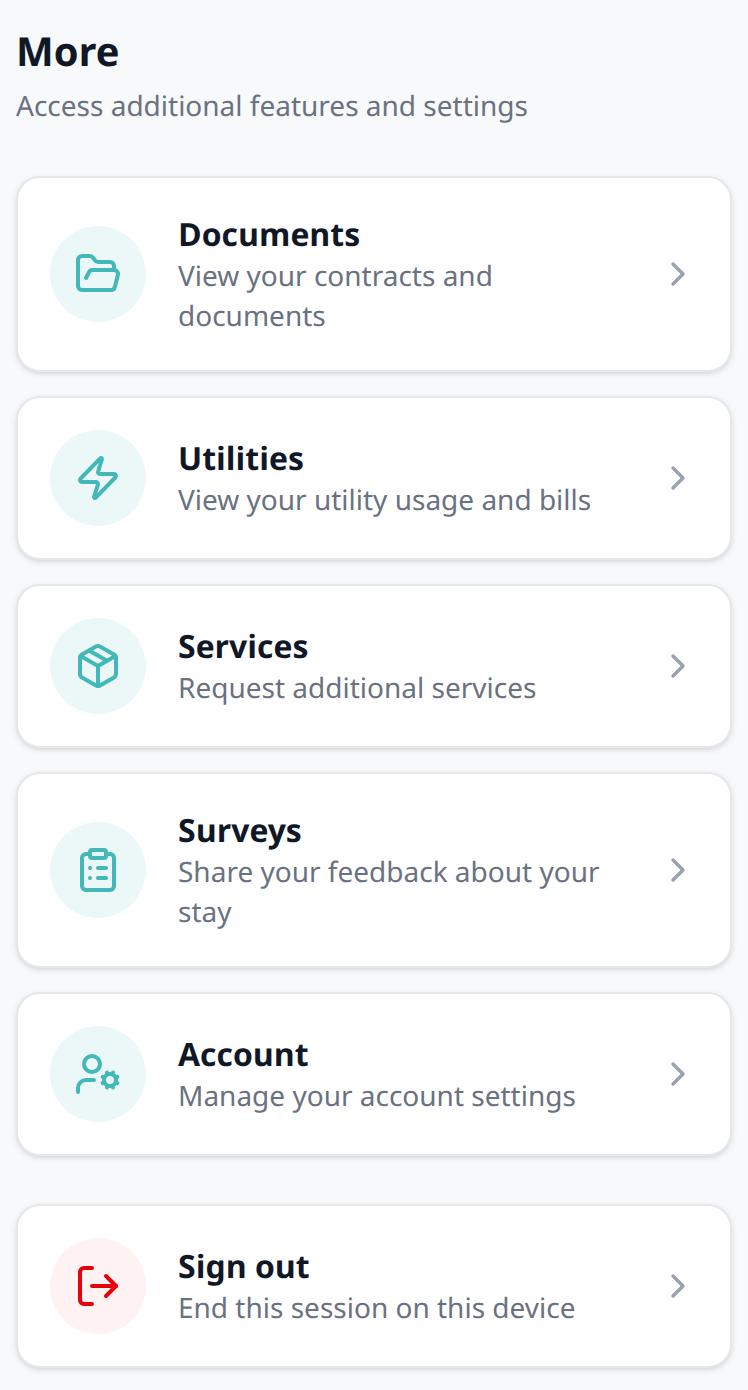
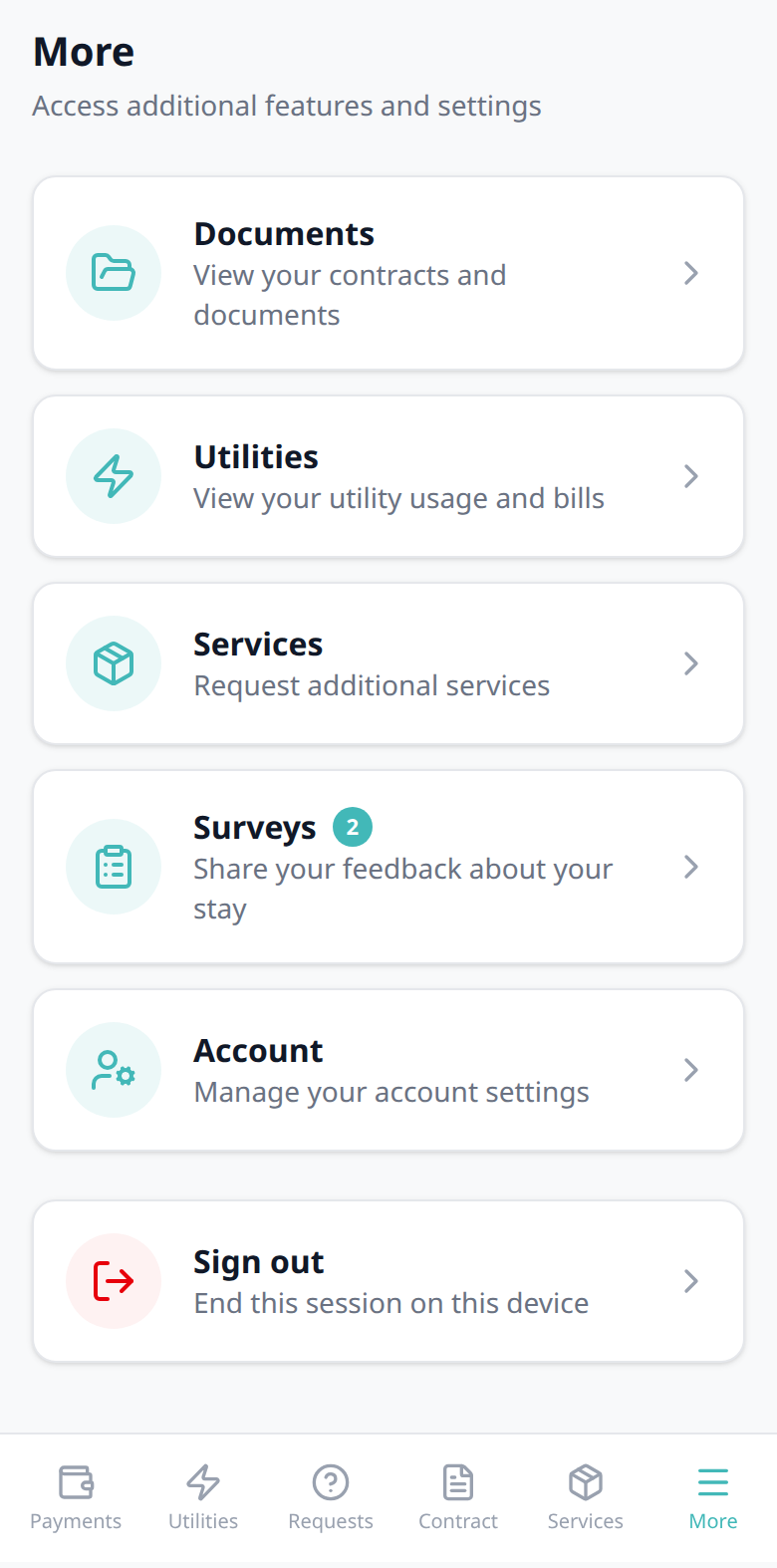
On a phone, the bottom bar includes More (menu icon). When many modules are on, swipe the bottom bar sideways to bring More into view. That page is the overflow for items that are not primary tabs. Heading More, subtitle Access additional features and settings.
| Card | Subtitle | When it appears |
|---|---|---|
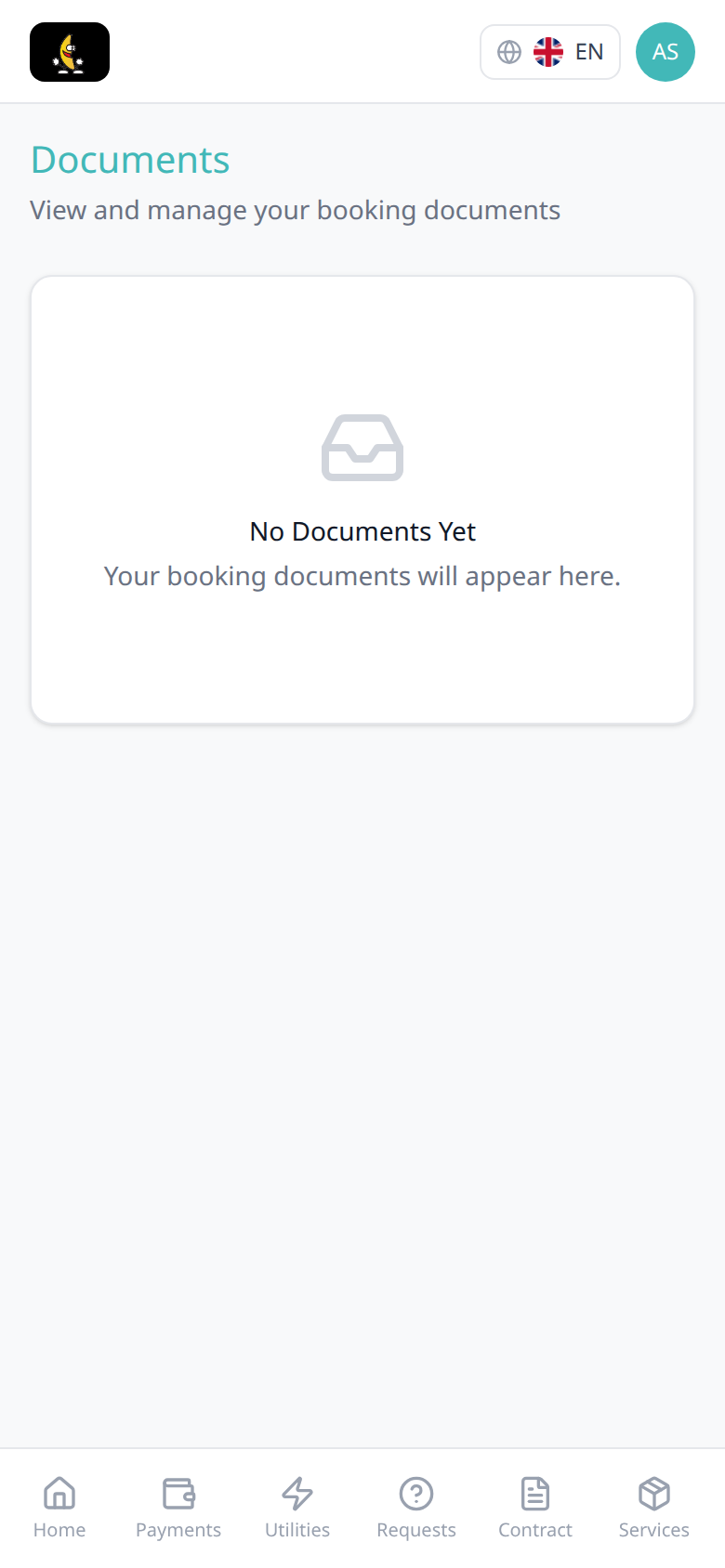
| Documents | View your contracts and documents | Always on More |
| Utilities | View your utility usage and bills | Allow to see utilities is On and the booking is not refunded — opens Your Property Bills |
| Services | Request additional services | Allow to see services is On — opens the catalogue (Show more, Confirm request) plus Order History |
| Surveys | Share your feedback about your stay | When surveys are available for this stay — opens Surveys (same list as Surveys Home prompt). A count badge appears while surveys are pending |
| Account | Manage your account settings | Always on More |
| Sign out | End this session on this device | Always on More |
Each card (except the action of Sign out) opens that portal page. Home, Payments, Requests, and Contract stay in the phone bottom bar. Documents, Account, and Sign out live on More. Utilities and Services appear in the bottom bar when those modules are on, and they are also listed on More. Surveys appears on More (and in the desktop sidebar) only while surveys are available for the stay. On a computer, tenants use the left sidebar for Documents, Account, and Surveys; More is a phone-only tab.

Who can change it
- Tenants — open the cards; they cannot reorder More.
- Operators — Allow to see utilities and Allow to see services on Portal settings (and the matching tenant-category module rules) hide Utilities / Services on More. Sign out, Documents, and Account stay on More. Surveys follows whether surveys are assigned for the stay — same rules as Surveys Home prompt. The desktop sidebar Documents item follows tenant-category Documents / invoices — Documents tab.
- Marketplace —
POST /bookingscannot send More.
Language switcher
Language switcher pairs with Sign out (same desktop top bar), How Tenants Access the Portal, Portal settings — Default language (account fallback), Tenants — Portal language (operator override), Settings > Interface language (your team’s workspace locale — not this control), and FAQ — How do tenants change the Tenant Portal language?. Distinct from phone More (the switcher stays in the top bar).
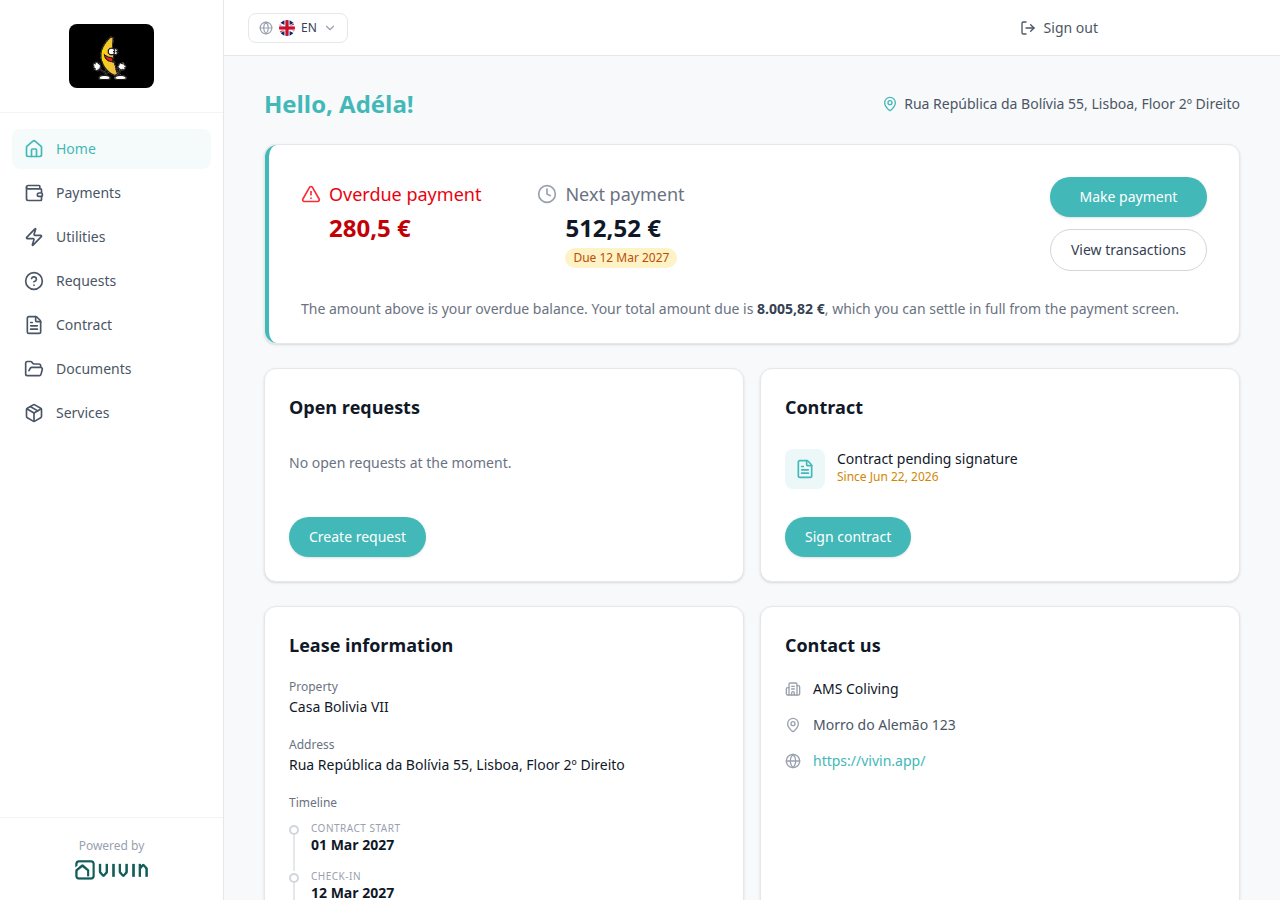
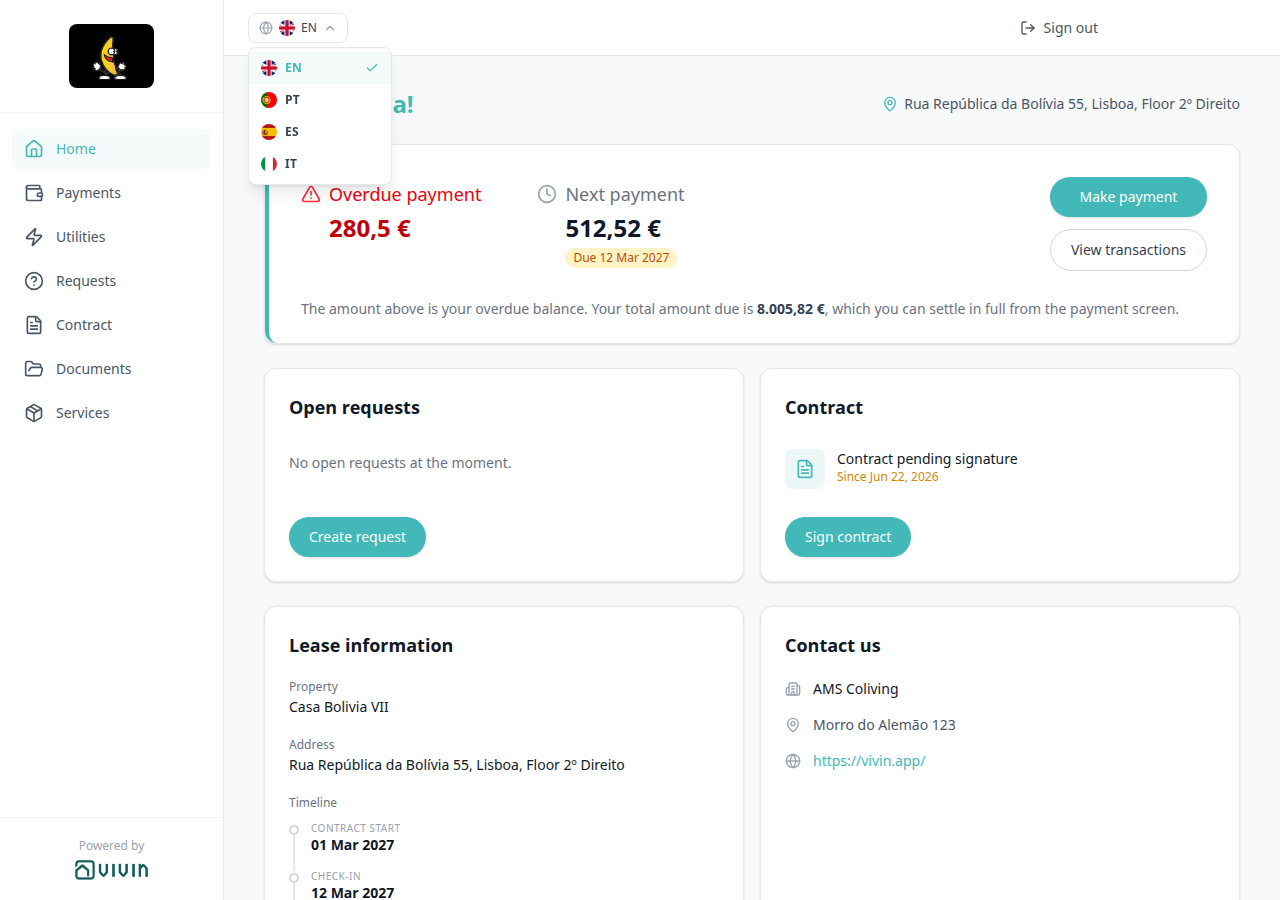
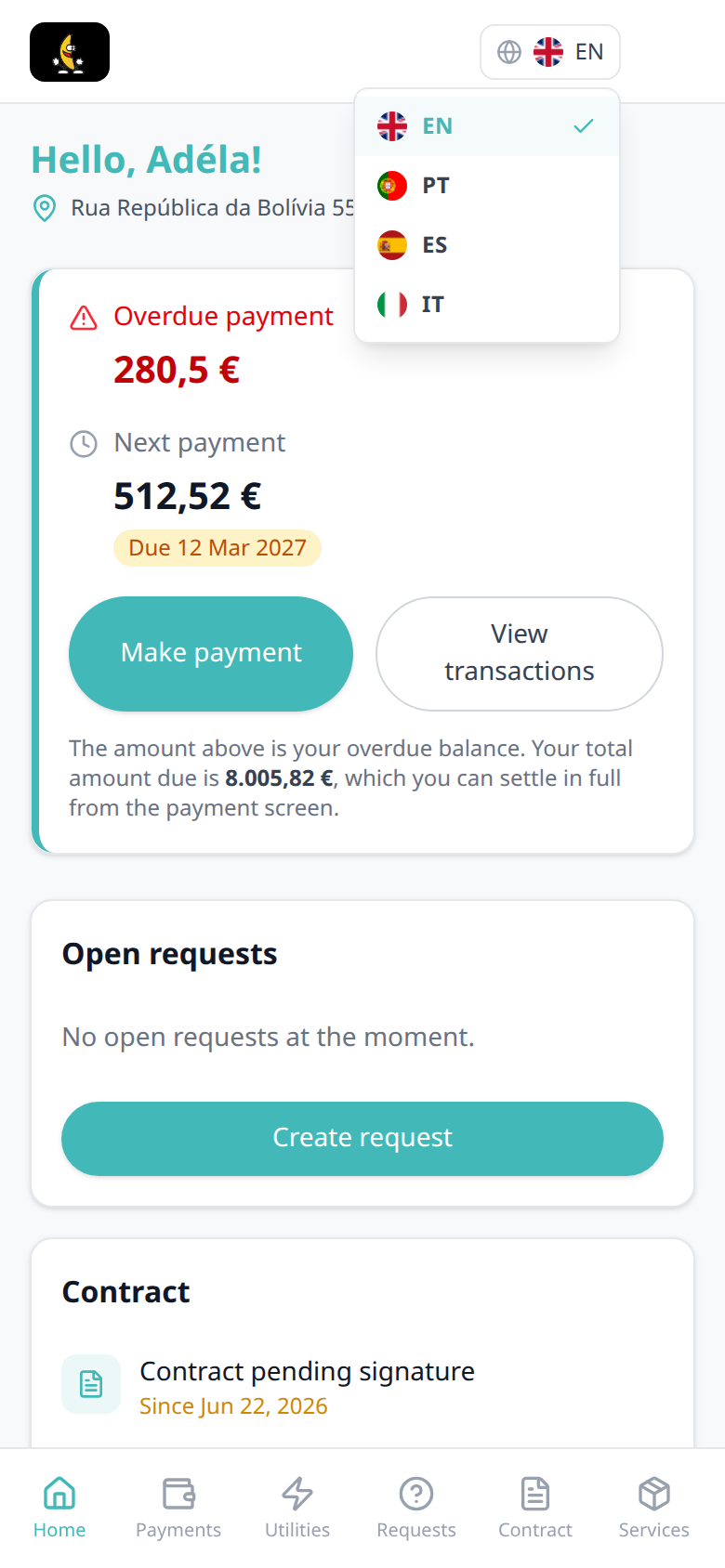
Tenants pick the language of the portal from a globe + flag + two-letter code. The menu lists EN, PT, ES, and IT (English, Portuguese, Spanish, Italian). Each row shows that language’s flag and code — not the full name. A checkmark marks the language in use. Screen readers still hear the full name (English, Português, Español, Italiano).
On a computer, the control sits at the left of the top bar (globe, flag, code, and a caret). Sign out stays on the right of the same bar.
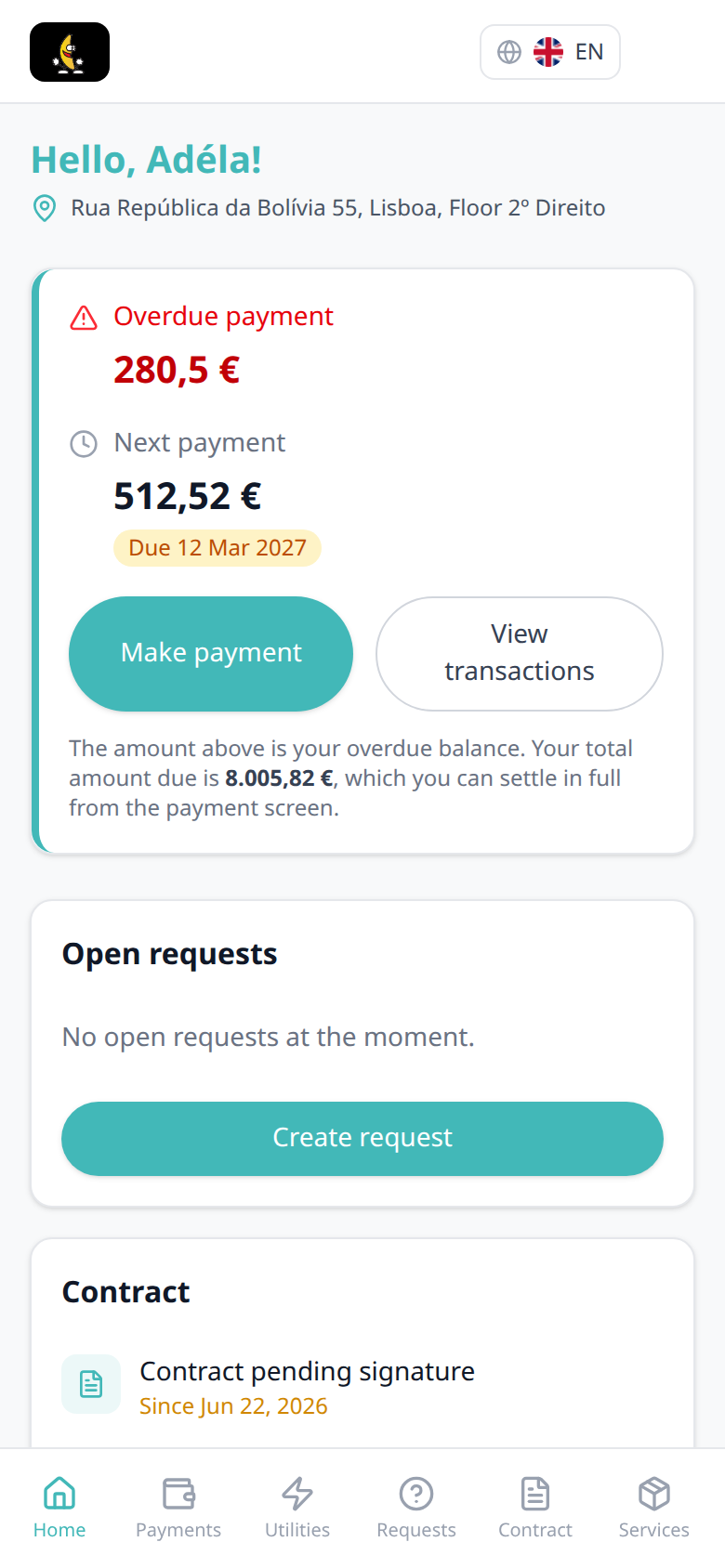
On a phone, a compact control (no caret) sits in the top bar, to the right of your logo. It is not a card on More.
The choice is stored on the tenant, not on one booking — someone with several stays picks once. The next visit, on this device or another, opens in that language. Until a tenant picks, Vivin uses your account Default language; if that is Not set (English), the portal opens in English.
There is no Portal settings hide toggle — the switcher is always there after a valid access link. Tenant-category portal-off still lets the tenant read the “portal unavailable” screen in their language.
This is not management Interface language. Changing the portal language does not change your workspace, and Personal Settings does not change what tenants see.
Marketplace POST /bookings cannot send this control.


Who can change it
- Tenants — pick EN, PT, ES, or IT. They cannot hide the control.
- Operators — set the account fallback under Portal settings — Default language, or set one tenant under Tenants — Portal language (Account default or a specific language). See FAQ — How do tenants change the Tenant Portal language?.
- Marketplace —
POST /bookingscannot send the language switcher.
Signed-in home
Home cards pair with Bookings > Contract Info (portal link copy), Settings > Emails (onboarding links), Sign out / More (mobile), Greeting and listing address, Surveys Home prompt, Balance card / All payments up to date, Open requests, Contract card, Lease information, Contact us, Entry codes, WiFi, Cleaning, Documents tab, and FAQ — Tenant Portal.
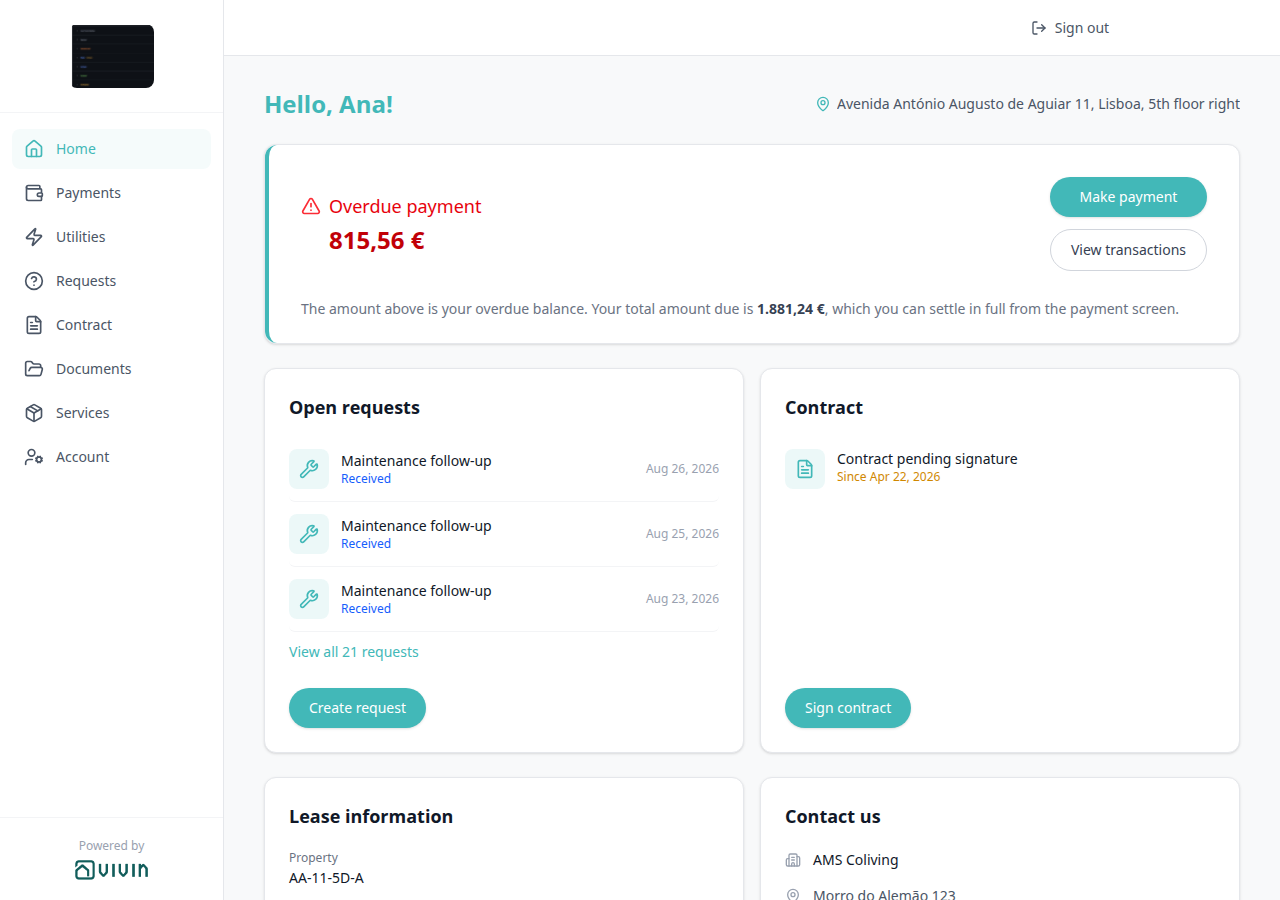
After a valid access link or email flow, tenants land on the Home screen: branded header, primary navigation (Payments, Utilities, Requests, Contract, Documents, Services, Surveys when feedback is waiting, Account), Sign out in the desktop top bar (on a phone, More), Hello, First name! plus the listing pin when an address is stored, the Surveys Home prompt when at least one survey is still pending, the balance card (Overdue payment / Outstanding payment / Next payment), open requests, and contract status. Lease information and Contact us always appear on Home after those cards — they are not gated by the check-in email. Cleaning appears whenever property common-area days or unit room days are set — also not gated by the check-in email. After the check-in email is sent, Home can also show Entry codes and WiFi when those details are stored on the property. The browser tab and (on a phone) the Install app overlay use your company name — not Vivin.
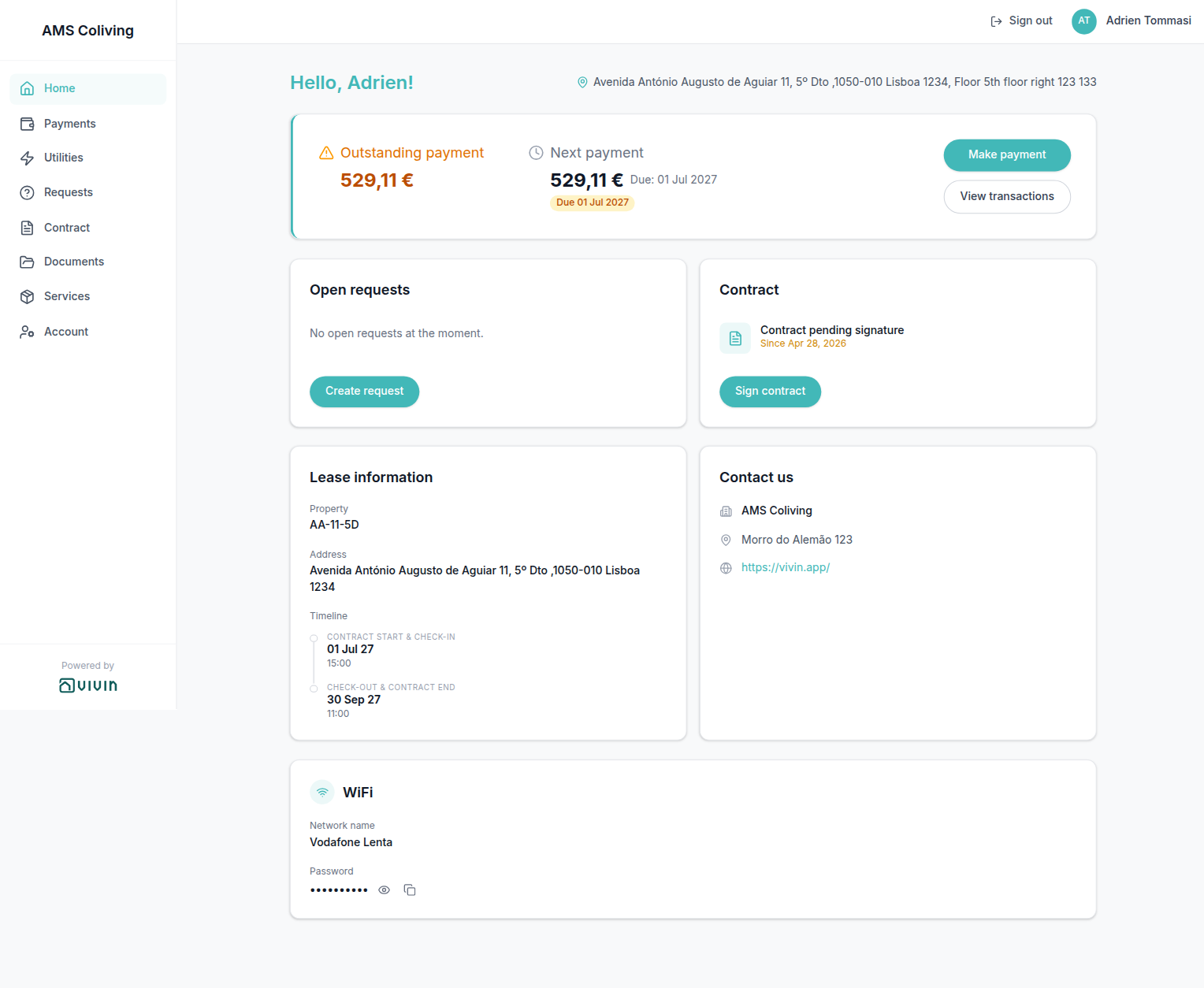
Greeting and listing address
The Home greeting and listing pin pair with First name and last name (the first name feeds Hello, …!), Lease information (the same street and floor on the Address row), Listings — Step 1: Property Details (operators set Address and Floor), Portal settings (no hide toggle), and FAQ — How do tenants see the greeting and listing address on portal Home?. Distinct from Contact us (company address), Account Home address, and Balance card (amounts due).
After sign-in, Home always opens with a greeting. When a first name is on file, tenants see Hello, First name! — Vivin uses the first word of the tenant name. When the name is empty, they see Hello! so the line never reads Hello, !. This greeting does not wait for the check-in email, and there is no Portal settings toggle to hide it.
On the same row (stacked under the greeting on a phone), a map pin shows the listing street from Listings → Property Details → Address. When a Floor is stored, Vivin appends it with the same wording as Lease information — 3 becomes , Floor 3; a value that already includes “floor” is kept as written. If the listing has no street, the pin is omitted; the greeting still shows.
Tenants cannot edit the pin on Home. They change the greeting by saving First name on Account (or during Sign contract → Your Details). Operators set the street and floor on the listing, and the tenant’s first name on Tenants → Tenant Info.
Marketplace POST /bookings must send firstName and lastName (that feeds the greeting). It cannot send the listing pin — address and floor come from the listing property, not the booking payload.


Who can change it
- Tenants — First name on Account (greeting). They cannot edit the listing pin. There is no Portal settings hide toggle.
- Operators — Listings → Property Details Address and Floor; Tenants → Tenant Info First Name.
- Marketplace —
POST /bookingssendsfirstName/lastName. It cannot send the listing pin. See FAQ — How do tenants see the greeting and listing address on portal Home?.
Surveys Home prompt
Surveys Home prompt pairs with Signed-in home (the card sits under the greeting), Balance card (money below it), Language switcher (prompt copy follows the portal language), Greeting and listing address, More (mobile) (phone Surveys card with the same list), and FAQ — How do tenants see surveys to answer on portal Home?. Distinct from Open requests (maintenance tickets) and from Services catalogue (add-ons).
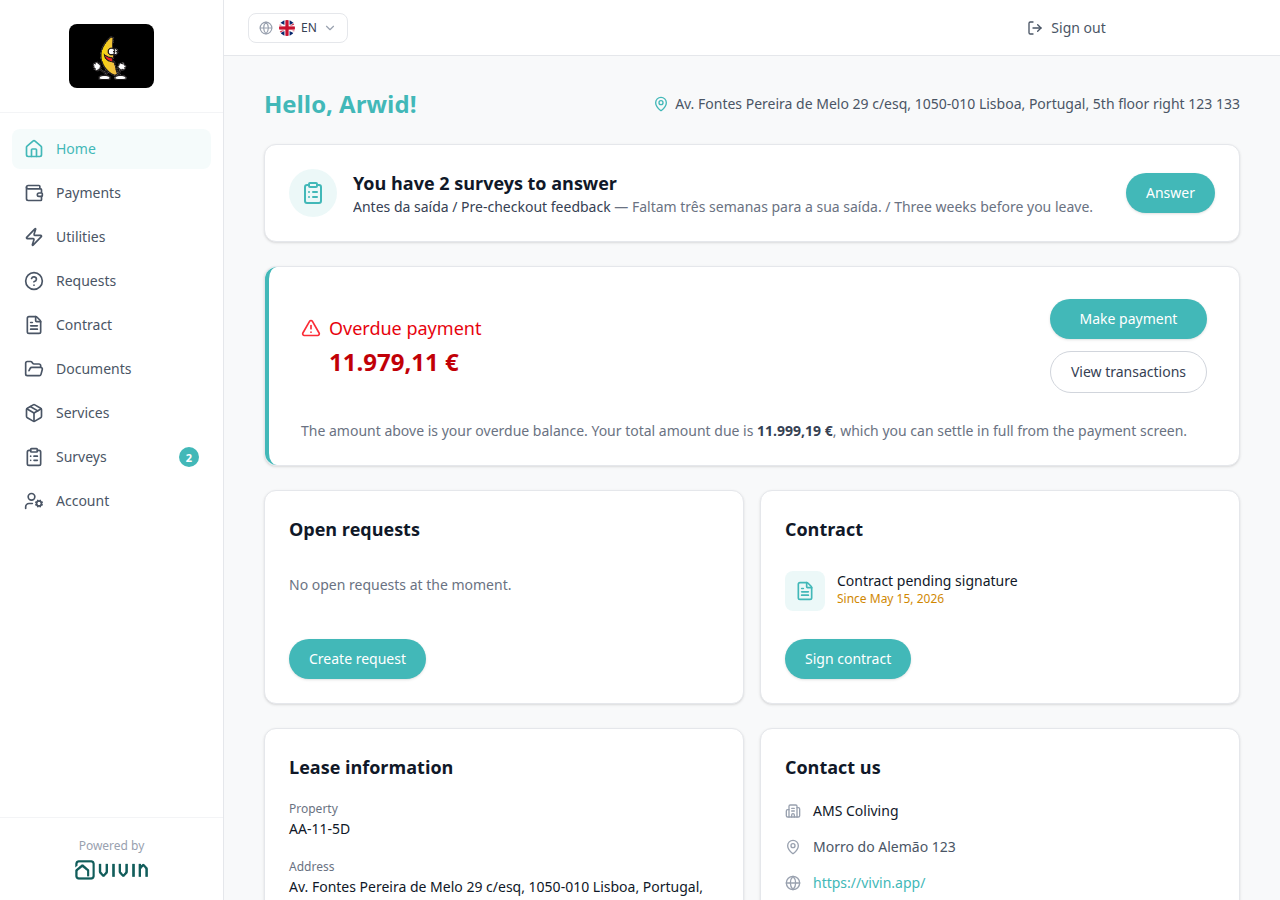
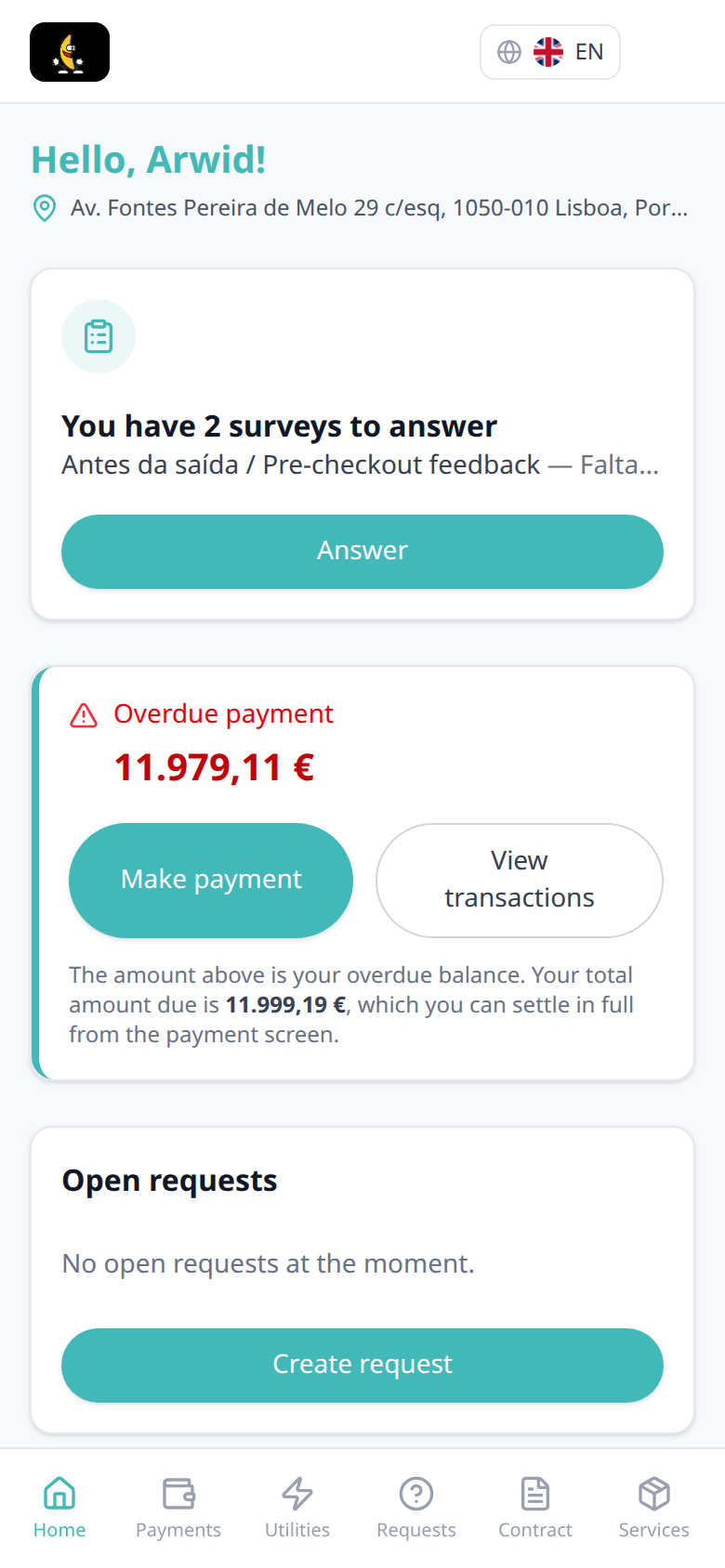
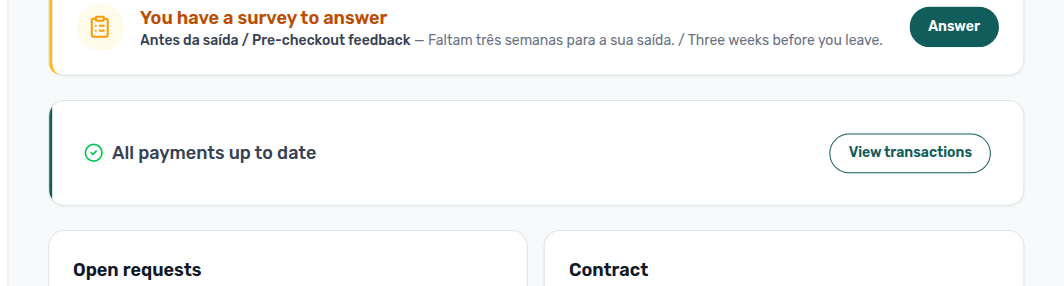
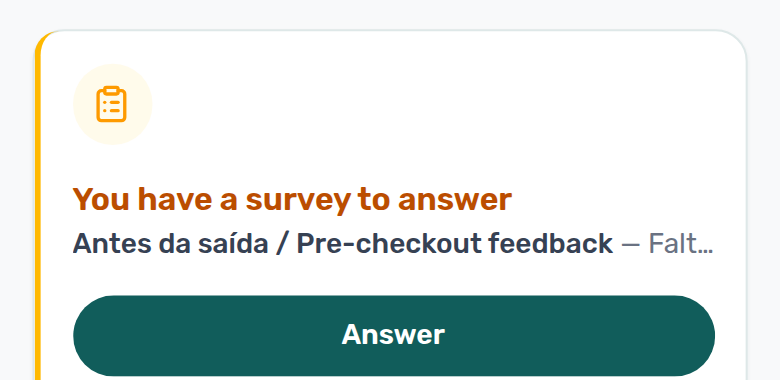
When at least one satisfaction survey is still pending for this booking, Home shows a prompt card under the greeting and above the balance card. Tenants who never open the invitation email still see it here.
- One pending survey → You have a survey to answer
- Two or more → You have N surveys to answer
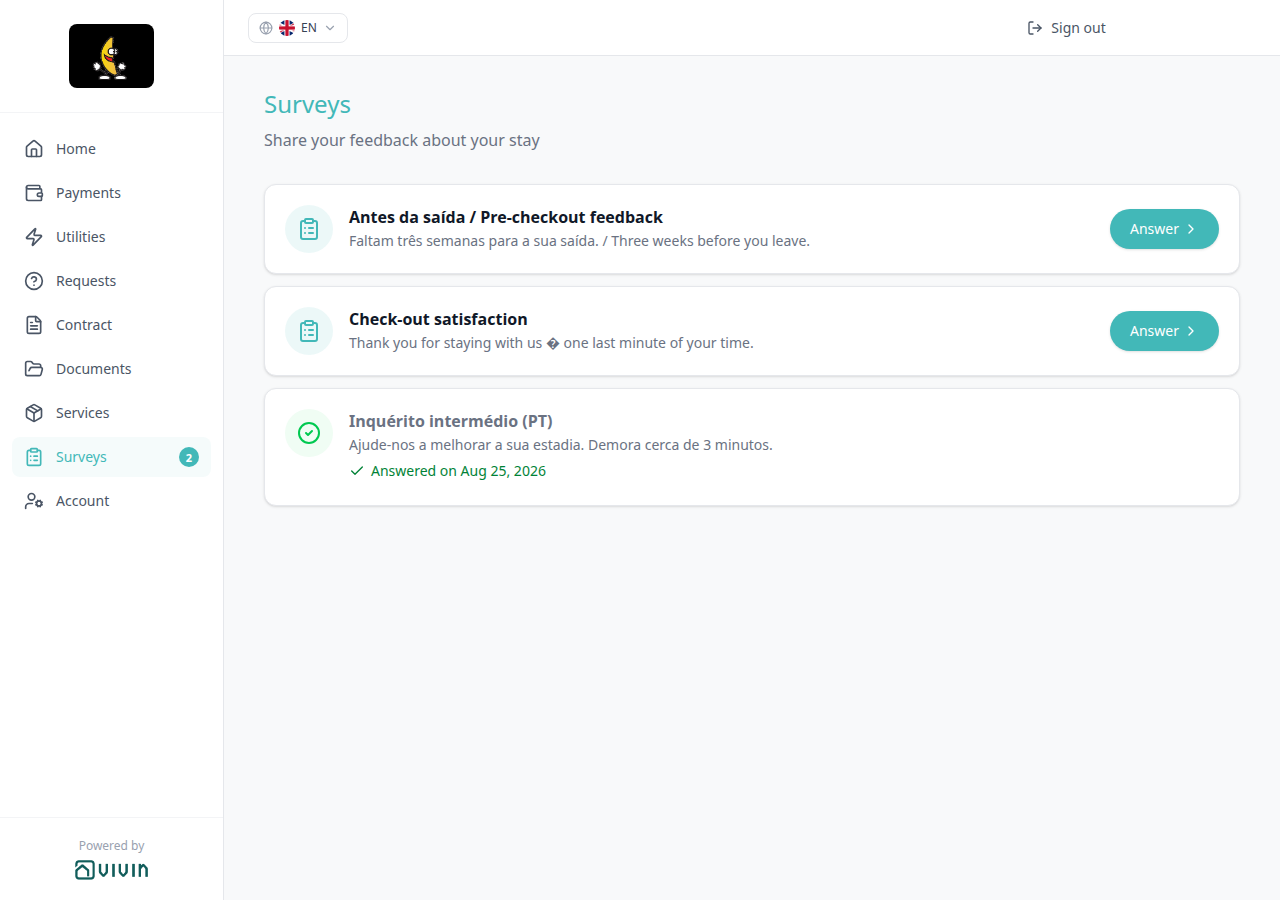
The card shows a clipboard icon, the title above, the first pending survey’s name (and description when one exists), and Answer. Answer opens Surveys (heading Surveys, subtitle Share your feedback about your stay) with every assignment for this stay — pending rows keep Answer; already answered rows show Answered on …. On a computer, the left sidebar also lists Surveys with a count badge and the line N surveys to answer while anything is pending. On a phone, More lists a Surveys card (Share your feedback about your stay) with the same count badge while surveys are waiting. The prompt and the Surveys nav item disappear when nothing is left to answer.
There is no Portal settings hide toggle for this prompt. It appears only while a survey is waiting for this booking. Opening Answer does not submit answers — tenants still complete the form on Surveys.


Who can change it
- Tenants — tap Answer to open Surveys and complete a form. They cannot hide the prompt while a survey is pending.
- Operators — turn on Preferences → Enable satisfaction surveys first so Tools → Surveys appears, then publish and assign satisfaction surveys so a booking gets pending rows (then the prompt appears). There is no Portal settings hide toggle.
- Marketplace —
POST /bookingscannot send this prompt or survey answers. See FAQ — How do tenants see surveys to answer on portal Home?.
Balance card
The Home balance card pairs with View transactions (outline button → Payments → Transaction History), Payments tab (including Export CSV), TODAY far-due date (the same 60-day calendar chip on Payment Timeline), Make payment (Paywall) (Make payment), Listings > Payments — Property Payments Active, Tenant categories — VIVIN payments, Handling a Late Payment — Step 1, Notifications — Payment overdue alerts, and FAQ — How do tenants see their balance on portal Home?. Distinct from Open requests / Contract card (the cards below it) and from Lease information (stay dates, not money).
When the booking’s payment module is on, Home shows a balance card under the greeting (and under the Surveys Home prompt when one is showing) — after sign-in, and not gated by the check-in email. There is no Portal settings hide toggle. Hide it by turning off VIVIN payments on the tenant category, by turning off Property Payments Active on the listing, or when the account payment module is not provisioned.
The left side is a status (and optionally Next payment). The right side is Make payment (when online pay-in is available and something is payable) and View transactions (opens Payments → Transaction History).
| Status | When tenants see it | Colour |
|---|---|---|
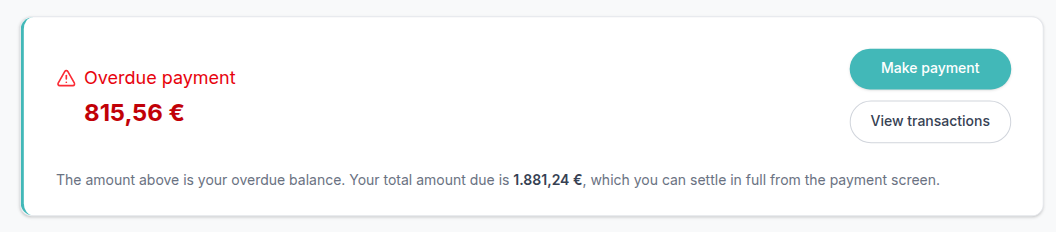
| Overdue payment | At least one schedule row is already past due | Red |
| Outstanding payment | A charge is in its due window but not yet overdue — never All payments up to date while this exists | Amber |
| All payments up to date | The booking has a payment schedule and nothing is overdue or outstanding | Green |
| No payments scheduled yet | The payment module is on but the schedule has no rows — not a success state | Neutral |
Overdue payment wins over Outstanding payment when both exist. Next payment can sit beside the status with the amount, Due: DD MMM YYYY when the date is within 60 days (chip Today or N day(s) remaining), or a Due DD MMM YYYY chip (no extra Due: line) when the date is 60 days or further out.
When the headline (overdue or outstanding) is more than €1 below the full amount due, the card adds: The amount above is your overdue balance. Your total amount due is …, which you can settle in full from the payment screen. (or outstanding balance). That sentence matches Pay entire balance on Make payment.
Tenants cannot edit amounts here. Make payment does not appear when the booking is refunded, when online pay-in is off, or when nothing is payable. View transactions still appears while the payment module is on.
Marketplace POST /bookings cannot send this card — it follows the payment plan operators (or the import) already created.
Who can change it
- Tenants — Make payment and View transactions only. Amounts come from the booking payment plan.
- Operators — edit the payment plan and receipts on the booking; Property Payments Active on the listing; tenant category VIVIN payments; account payment module (Vivin provisioning).
- Marketplace —
POST /bookingscan create schedule lines that feed this card; it cannot turn the card on or off by itself. See FAQ — How do tenants see their balance on portal Home?.
For the green success headline when nothing is owed, see All payments up to date.
All payments up to date
All payments up to date pairs with Balance card (this is one status on that card), View transactions (outline button stays on the card), Paid installment (timeline cards can still show Paid while Home reads this headline), Overdue days past due / Pending installment (those statuses replace this headline when debt exists), Make payment (Paywall) (Make payment is usually hidden when nothing is payable), Tenant categories (VIVIN payments), and FAQ — When does portal Home show All payments up to date?. Distinct from Outstanding payment (amber due-window debt), from Overdue payment (red past-due debt), and from No payments scheduled yet (empty schedule).
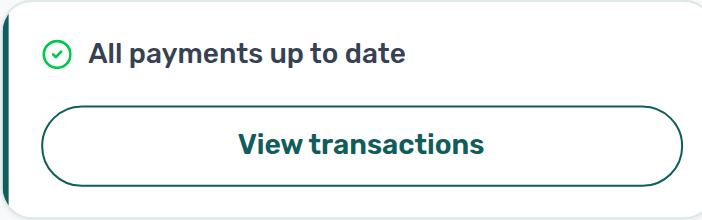
On portal Home, when the booking has a payment schedule and nothing is overdue or outstanding, the balance card shows a green check and All payments up to date.
Make payment is usually hidden here (nothing is payable online). Outline View transactions still opens Payments → Transaction History. Next payment can still appear beside the status when a future installment is on the plan.
This headline needs a schedule that exists. If the payment module is on but the plan has no rows, tenants see No payments scheduled yet instead — not this green success copy.
There is no Portal settings hide toggle for this status. Hide the whole card by turning off VIVIN payments on the tenant category, by turning off Property Payments Active on the listing, or when the account payment module is not provisioned.
Who can change it
- Tenants — read the status; use View transactions. They cannot rename it.
- Operators — keep the payment plan and receipts current so overdue and outstanding amounts stay at zero. Distinct from marking a single installment Paid on the timeline.
- Marketplace —
POST /bookingscannot send this status. See FAQ — When does portal Home show All payments up to date?.


View transactions
View transactions pairs with Balance card (the outline button on Home), Payments tab (Transaction History), Transaction History search, Transaction History sort, Export CSV, Receipt column, Platform payment label, Cash type label, Bank Transfer type label, Make payment (Paywall) (Make payment on the same card), Tenant categories (VIVIN payments), and FAQ — How do tenants open Transaction History from portal Home?. Distinct from Payment details (tap a Payment Timeline card) and from operator Finance → Transactions.
On Home, the outline View transactions button on the balance card opens Payments scrolled to Transaction History.
The button is there whenever the booking’s payment module is on — including when Make payment is hidden (refunded stay, online pay-in off, or nothing payable). There is no Portal settings hide toggle for this button. Hide the whole Payments path (and this button with it) by turning off VIVIN payments on the tenant category, by turning off Property Payments Active on the listing, or when the account payment module is not provisioned.

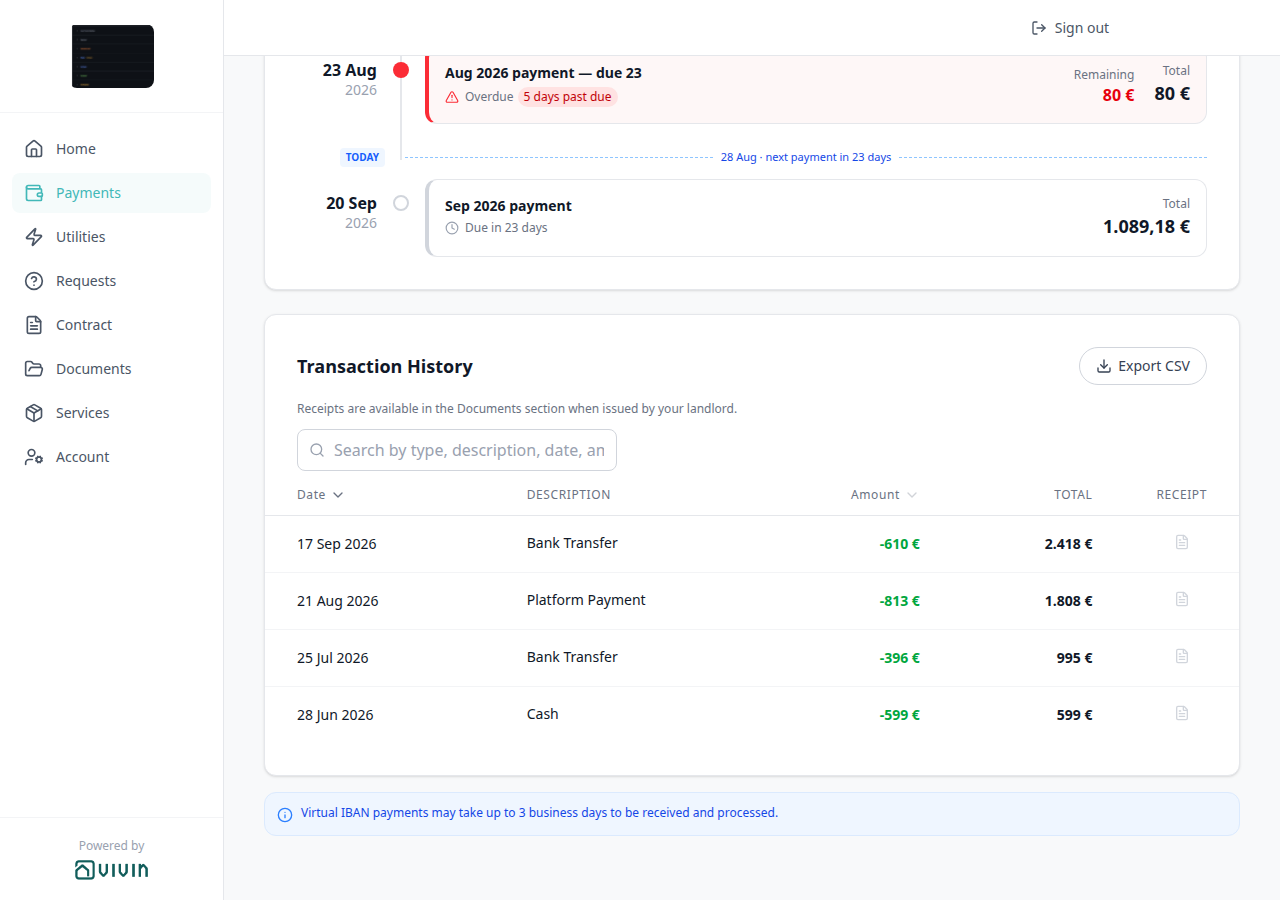
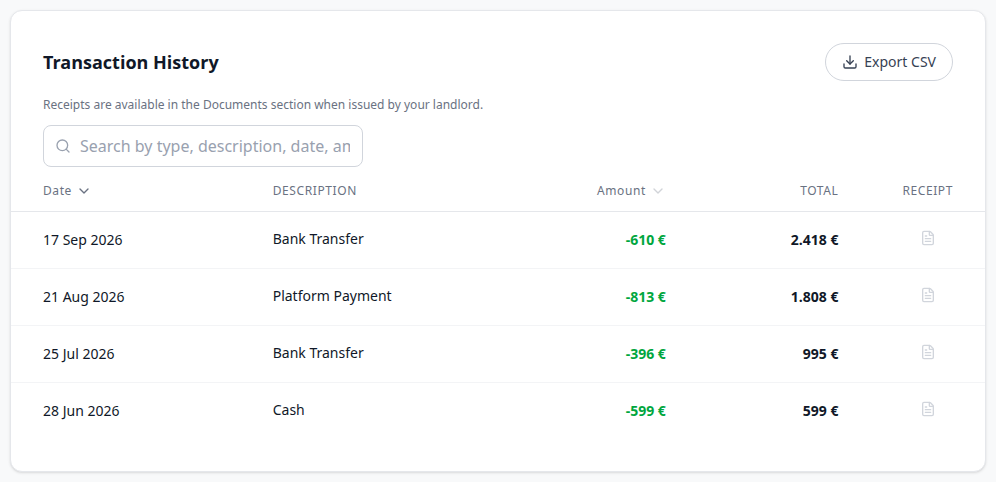
Transaction History lists inbound and outbound ledger rows (date, description, amount, running total, Receipt). From there tenants can search, sort, and Export CSV. Tapping a Payment Timeline card above the table opens Payment details — that is not this button.
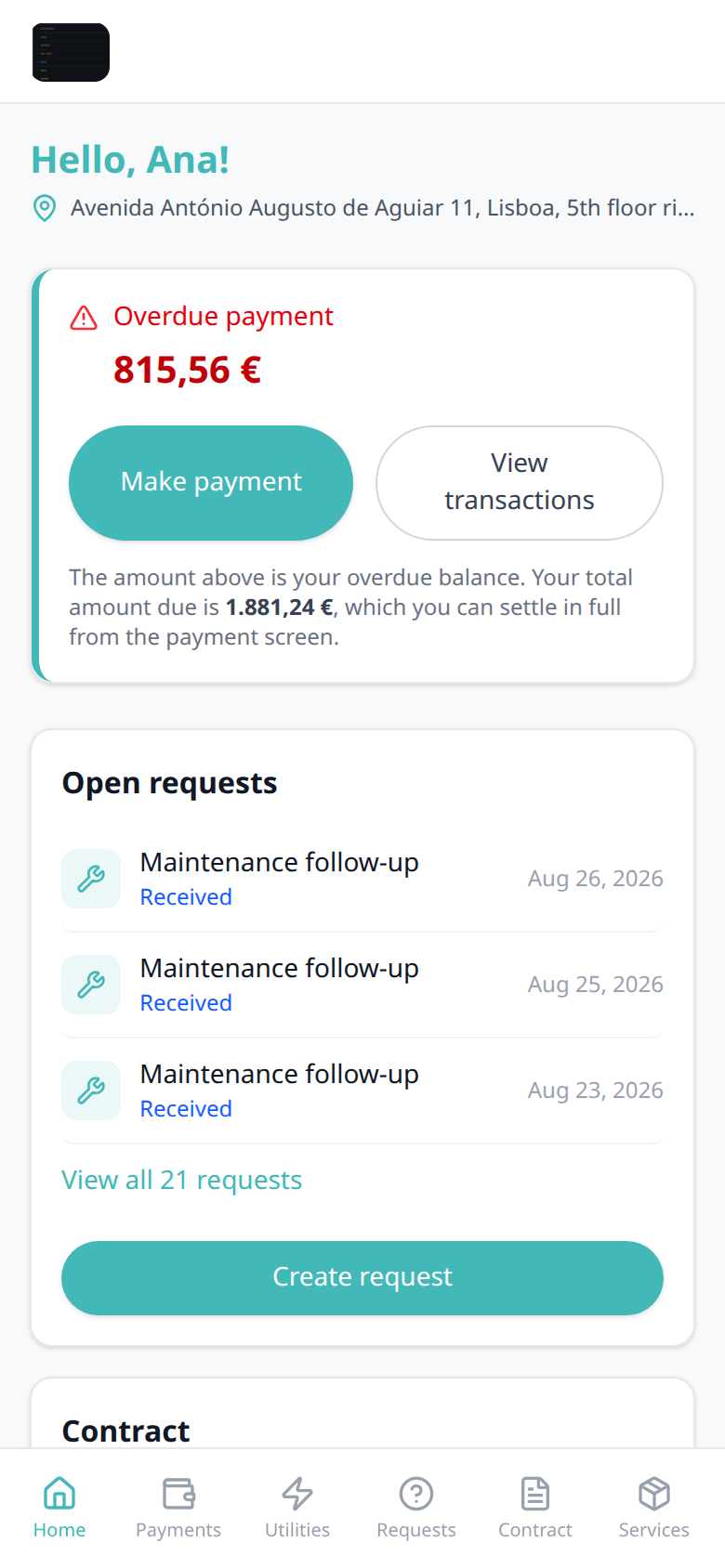
On a phone, View transactions sits under Make payment on the same card.
Marketplace POST /bookings cannot send this button.
Who can change it
- Tenants — tap View transactions to open history. They cannot hide the button.
- Operators — Property Payments Active on the listing; tenant category VIVIN payments; account payment module (Vivin provisioning).
- Marketplace —
POST /bookingscannot send this button. See FAQ — How do tenants open Transaction History from portal Home?.
Open requests
Open requests pairs with Requests tab (What do you need? / History), Received status (Home and History use the same status words), Portal settings — Allow to create tickets, Operations module (tickets your team works), Balance card (the card above it), Contract card (the neighbouring Home card), and FAQ — How do tenants open requests and the contract from portal Home?. Distinct from Balance card (money, not tickets), Lease information / Contact us (always-on Home cards) and from Vivin in-app support (your product tickets, not tenant maintenance).
When Allow to create tickets is On, Home shows an Open requests card beside Contract — after the balance card and before Lease information. It is not gated by the check-in email. The card is hidden when tickets are off for the booking (account toggle or tenant category).
The list shows up to three open tickets (Received, Pending, or In Progress). Each row opens Requests → History on that ticket. View all N requests appears when more than three are open and opens History for the full list. Create request opens Requests on New Request.
When nothing is open, the card still shows with No open requests at the moment. and Create request. Tenants cannot edit tickets from Home — they open Requests to add a new one or read History.

Contract card
The Home Contract card pairs with Digital contract signing (the wizard after Sign), Read to the end to sign (Sign contract opens the Contract tab first), Open requests (the neighbouring Home card), Balance card (money on the same Home), Bookings > Contract Info (generate the PDF so Sign contract can appear), Portal settings — Mandatory for contract signing, and FAQ — How do tenants open requests and the contract from portal Home?. Distinct from Balance card (amounts due), Lease information (stay timeline), and Lease Purpose (why they are renting).
Home always includes a Contract card (it does not wait for the check-in email, and there is no Portal settings hide toggle).
| Status | What tenants see | Button |
|---|---|---|
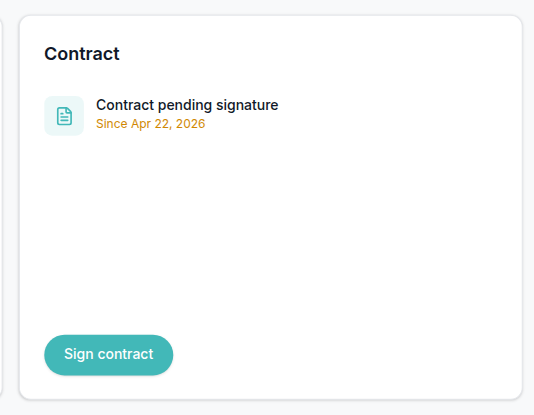
| Unsigned, PDF ready | Contract pending signature, Since date | Sign contract — opens the Contract tab. Tenants read to the end to unlock Sign, which starts the wizard |
| Signed | Contract signed, Signed on date | View contract — opens the Contract tab |
| PDF not ready yet | Contract pending signature | Contract status — opens the Contract tab so they can retry later |
Since on an unsigned card is the booking’s creation date — not the first payment-plan due date — so a backfilled Booking Confirmation installment cannot make “pending since” appear before the booking existed. Signed on is the day the portal signature (or uploaded signed file) was recorded.
Generate the unsigned PDF on Contract Info so Sign contract appears instead of Contract status. Tenants cannot upload a signed PDF from this card.

Payments tab
Ledger and pay-in pair with View transactions (Home outline button → this tab’s Transaction History), Balance card, Payment details (tap a Payment Timeline card), Same-month installment titles (two regular cards in one calendar month), TODAY far-due date (calendar due date when the next installment is 60+ days away), TODAY compact tick at the end (compact TODAY after the last card when nothing is still ahead), Overdue days past due (Overdue plus N days past due on a late card), Pending installment (amber Pending with Remaining on a due-window card), Pending N days remaining (1–59 day chip on that Pending card), Paid installment (green check Paid and green Total on a settled card), Discounted installment (Paid plus a struck-through original under Total), Scheduled Due in N days (grey clock Due in N days on a future card), Upcoming (grey clock Upcoming when that due date is today or already past), Transaction History sort, Platform payment label (channel name and logo on a platform-collected row), Cash type label (Cash as plain text on a cash receipt), Bank Transfer type label (Bank Transfer as plain text on a bank receipt), Viban type label (Viban as plain text on a virtual-IBAN receipt), Credit Card type label (Credit Card as plain text on a card receipt), Automatic Adjustment type label (Automatic Adjustment as plain text on a system adjustment), Overpayment Return type label (Overpayment Return as plain text on a returned overpayment), Cancelation With Refund type label (Cancelation With Refund as plain text on a With refund cancel), Cancelation With Partial Refund type label, Deposit Refund type label (Cancelation With Partial Refund as plain text on a Partial refund cancel), Export CSV, Receipt column, Virtual IBAN processing notice, Payment Allocation, Finance module, Handling a Late Payment — Step 1, Make payment (Paywall) below, FAQ — How do tenants open payment details in the portal?, FAQ — How do tenants sort payment history in the portal?, FAQ — How do tenants see which platform paid in the portal?, FAQ — How do tenants see a cash payment in the portal?, FAQ — How do tenants see a bank transfer in the portal?, FAQ — How do tenants see a Viban payment in the portal?, FAQ — How do tenants see a credit card payment in the portal?, FAQ — How do tenants see an automatic adjustment in the portal?, FAQ — How do tenants see an overpayment return in the portal?, FAQ — How do tenants see a cancelation with refund in the portal?, FAQ — How do tenants see a cancelation with partial refund in the portal?, FAQ — How do tenants see a deposit refund in payment history?, FAQ — How do tenants export payment history from the portal?, FAQ — How do tenants open a receipt from portal payment history?, FAQ — How do tenants see Due in N days on the portal timeline?, FAQ — How do tenants see Upcoming on the portal timeline?, and FAQ — How long do virtual IBAN payments take in the Tenant Portal?. Distinct from operator list CSV downloads on Bookings, Finance, and Tenants.
The Payments tab (/payments) is the tenant’s ledger view — not the same screen as Make payment (/paywall), which is the checkout flow documented under Make payment (Paywall).
When the account payment module is active for the booking, the tab shows:
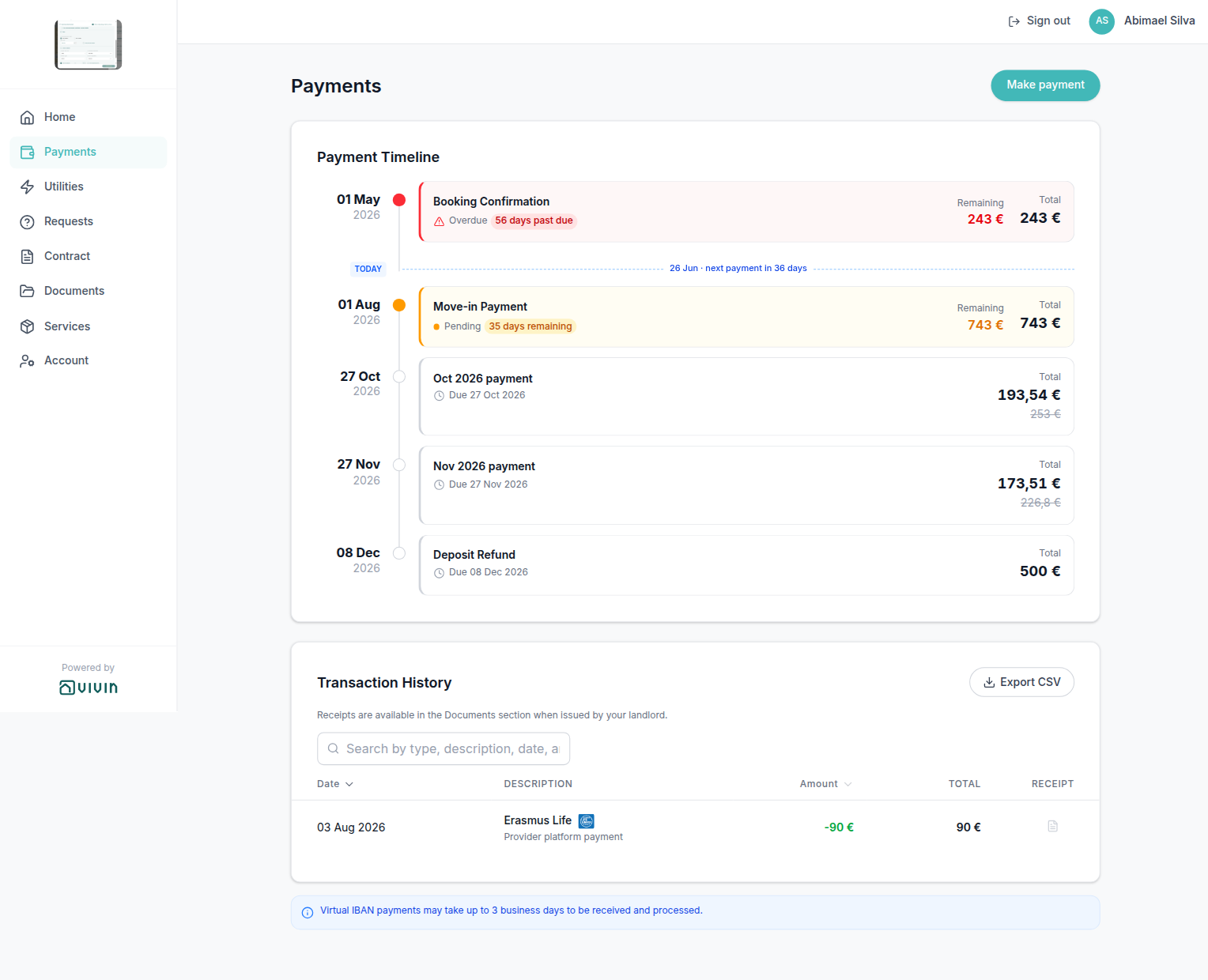
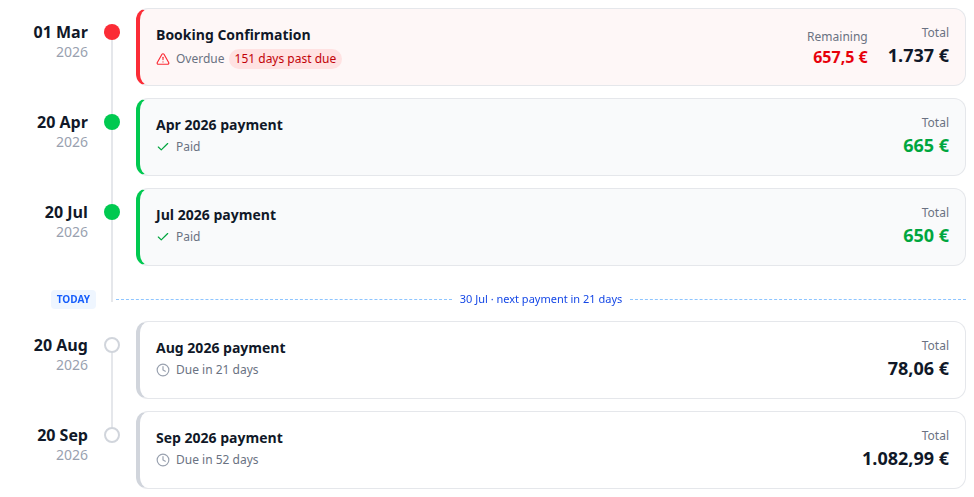
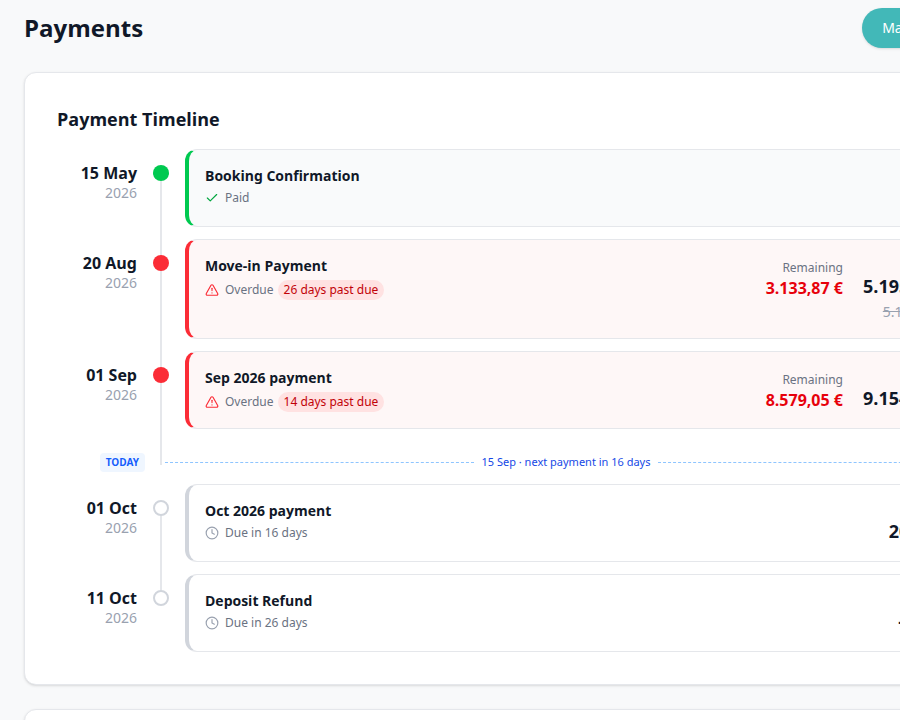
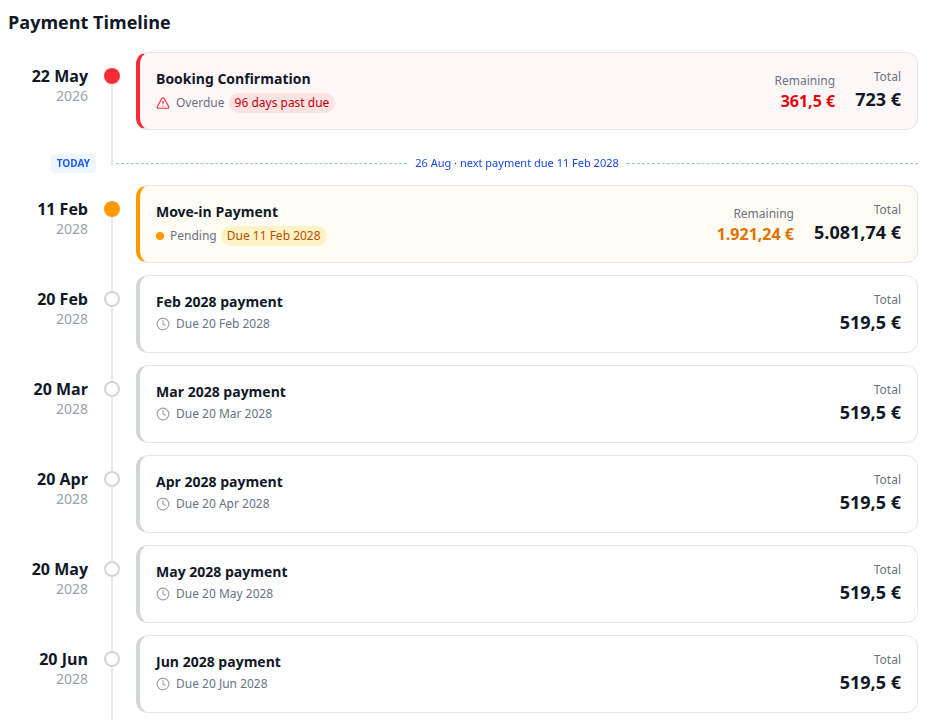
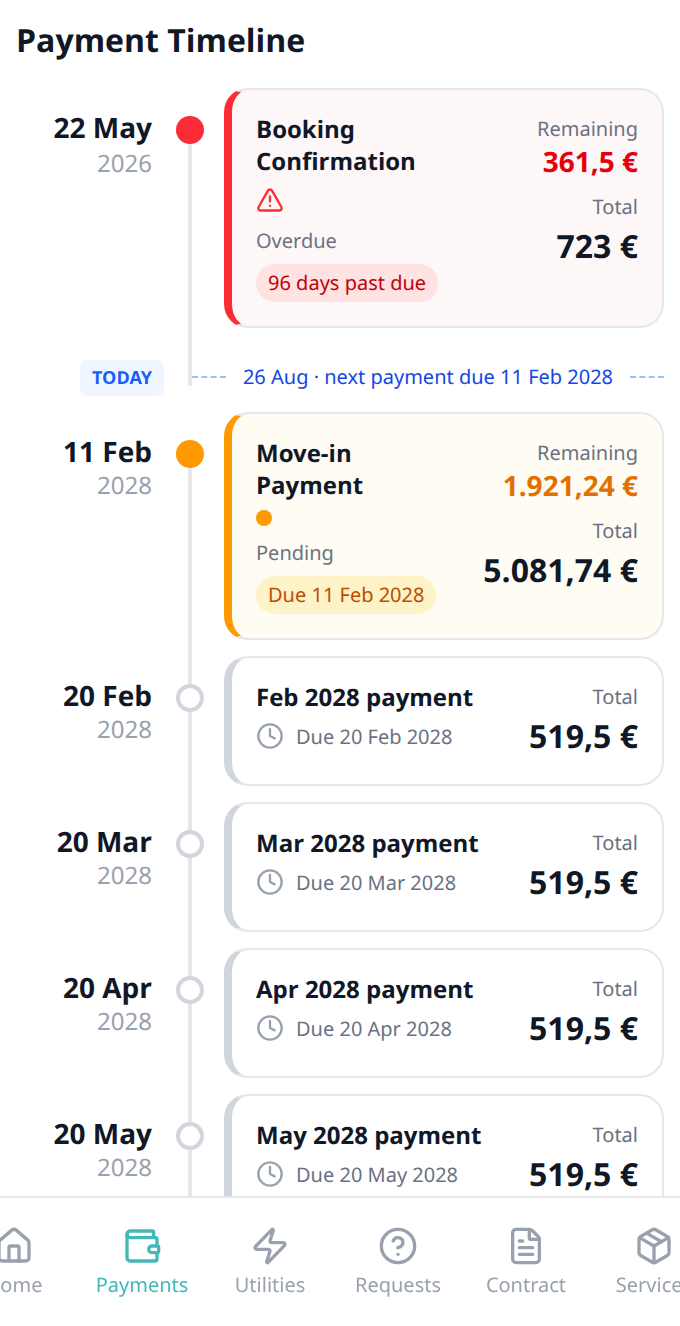
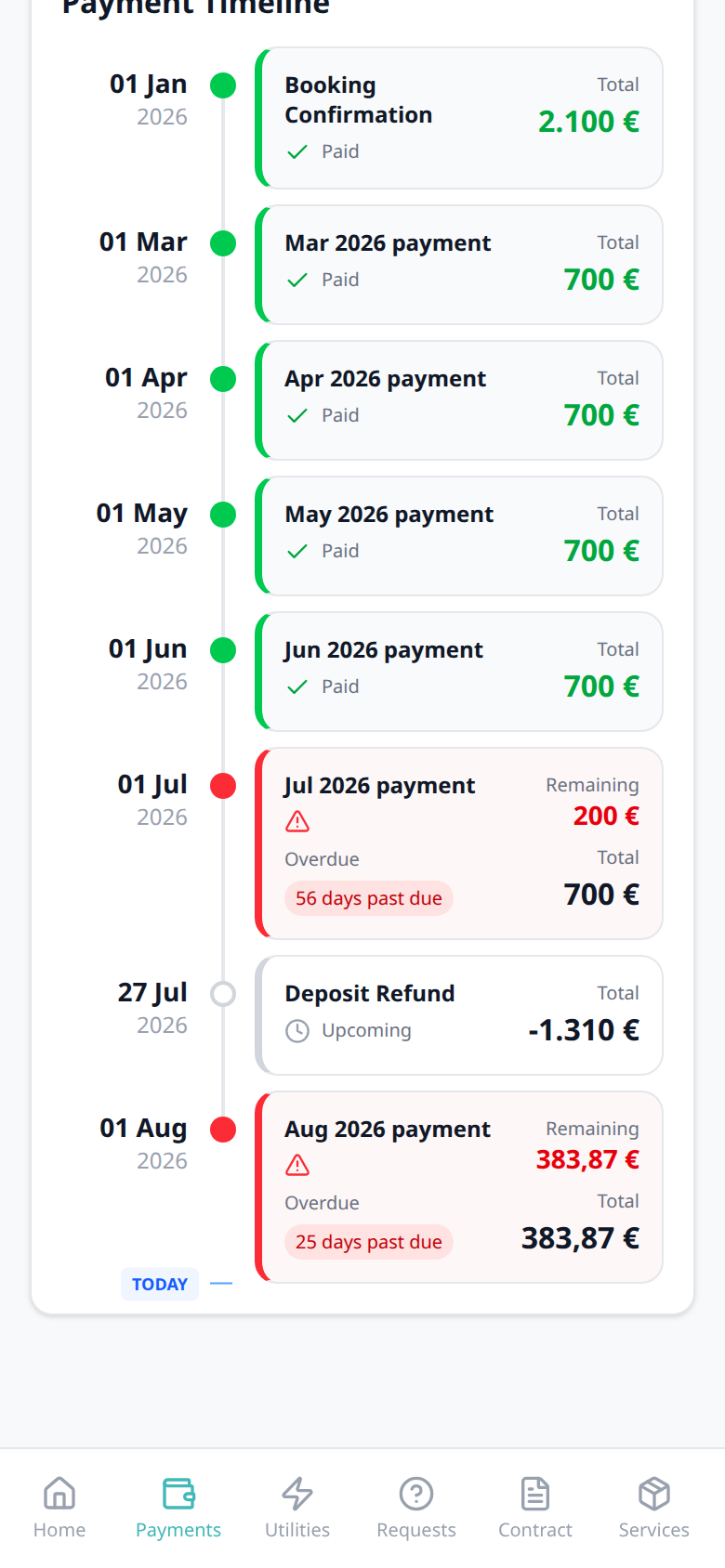
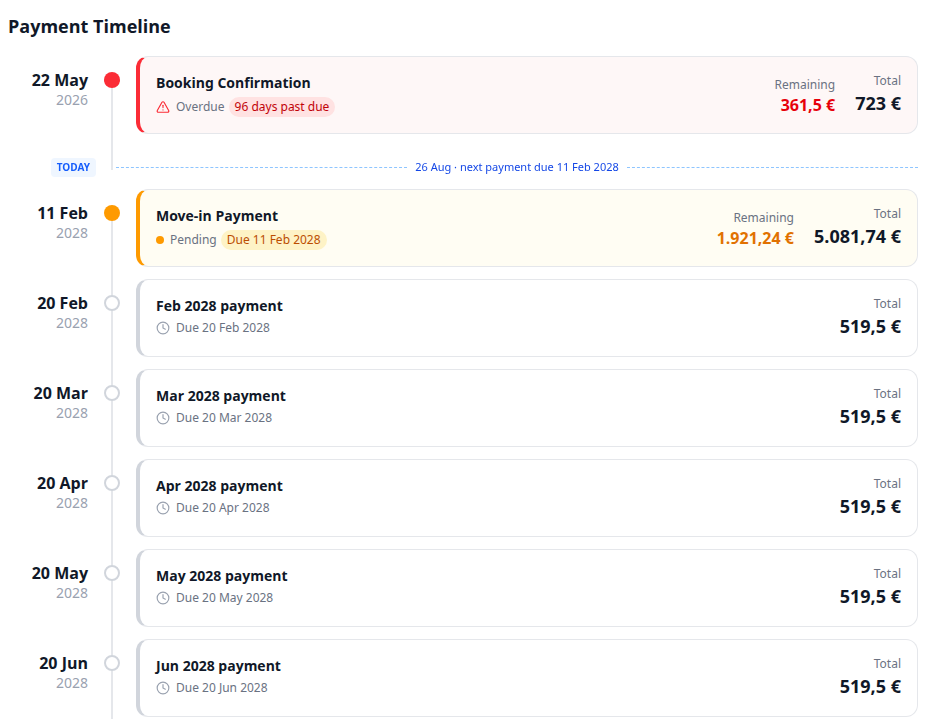
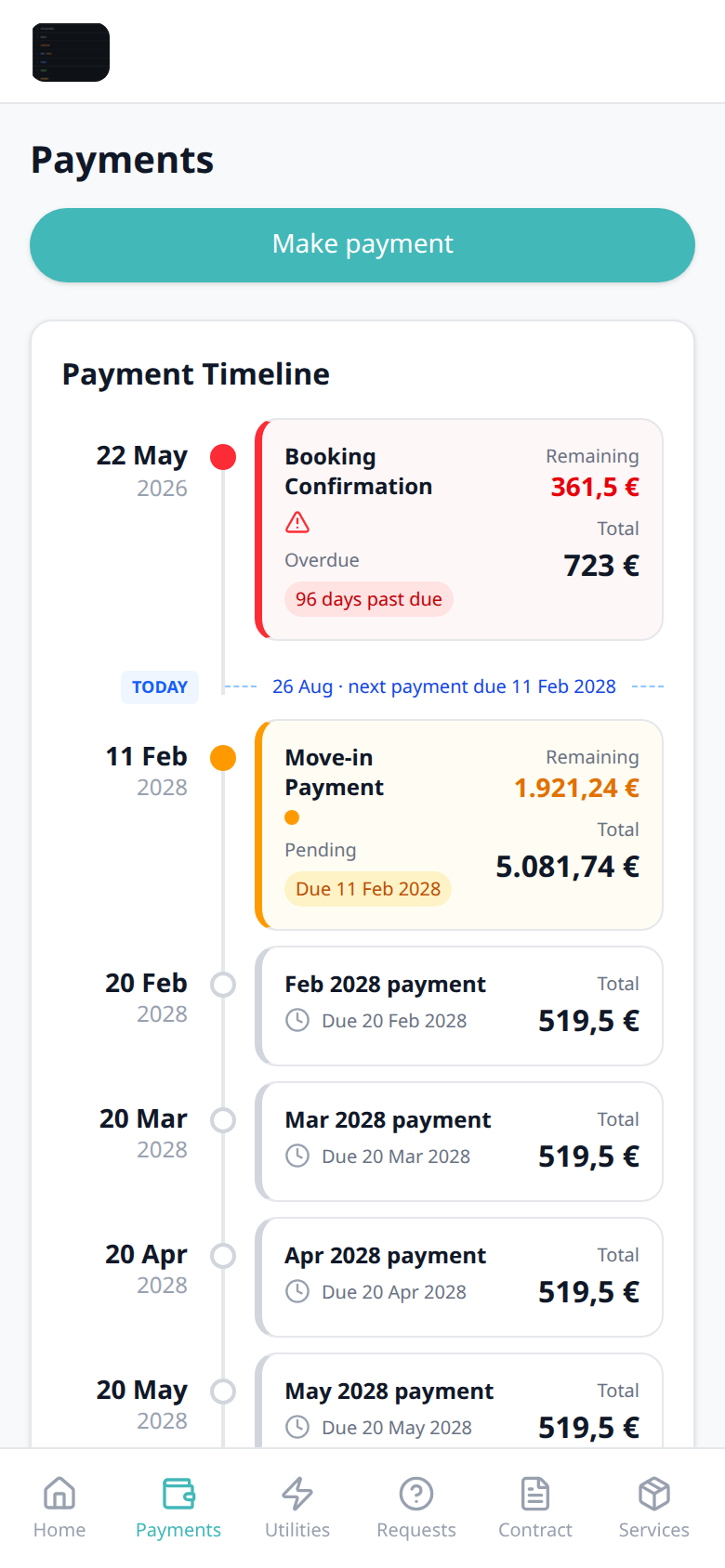
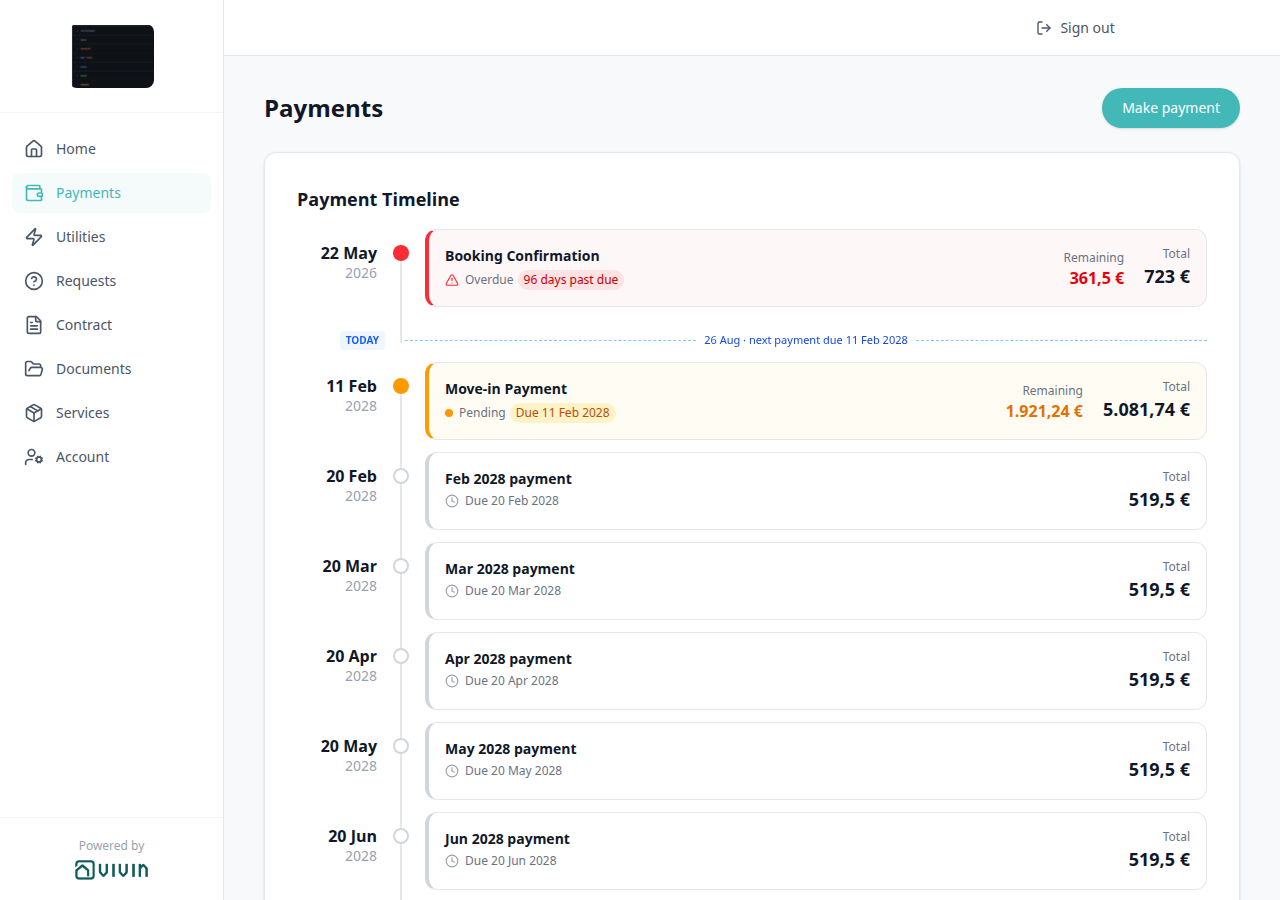
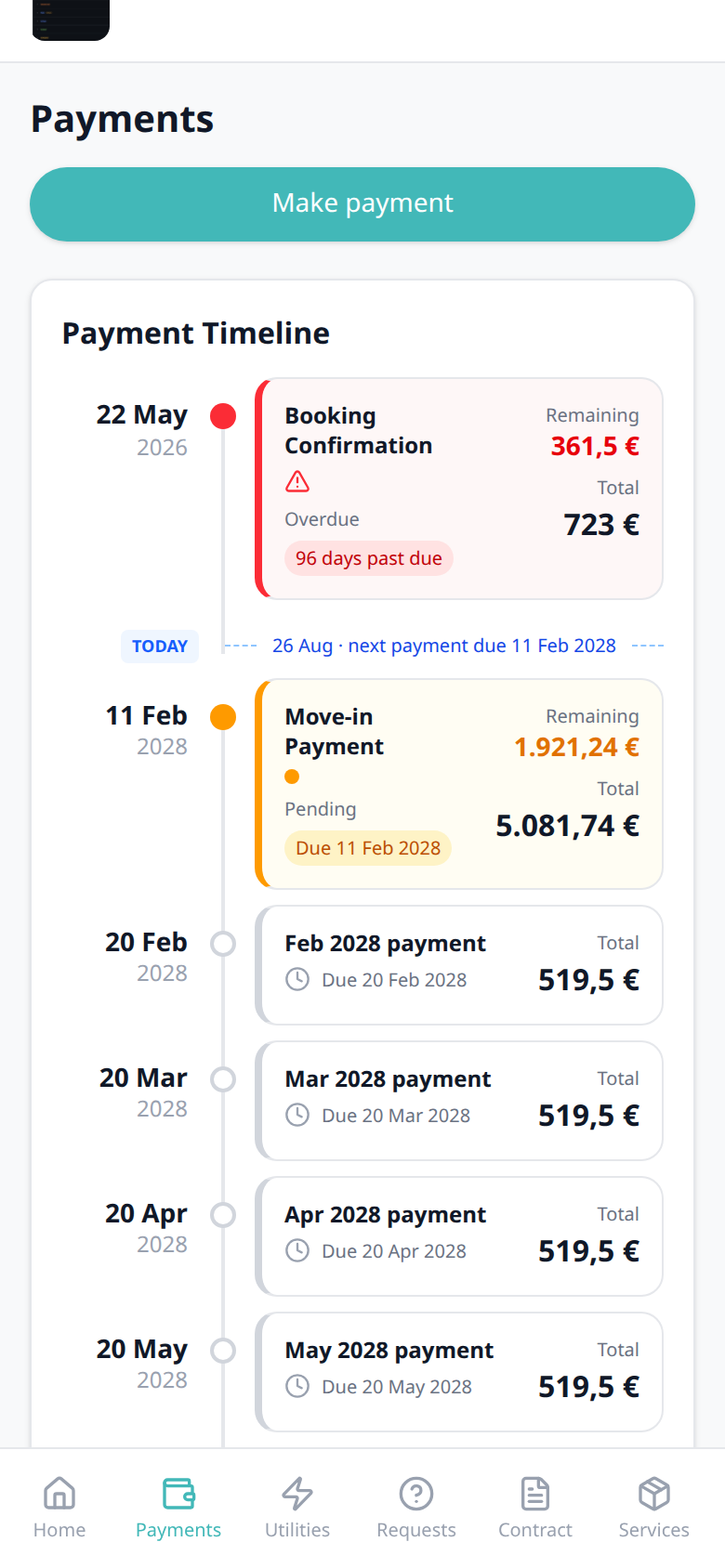
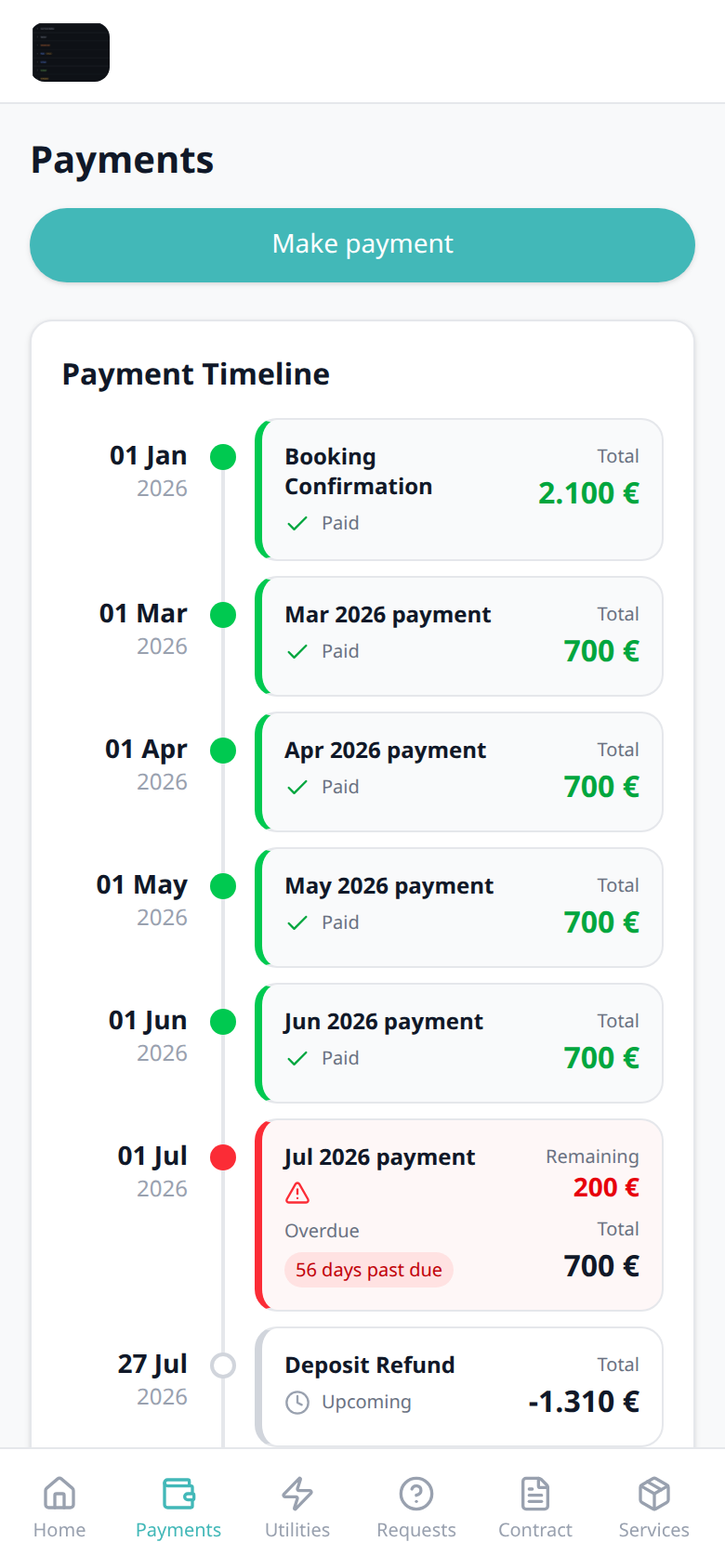
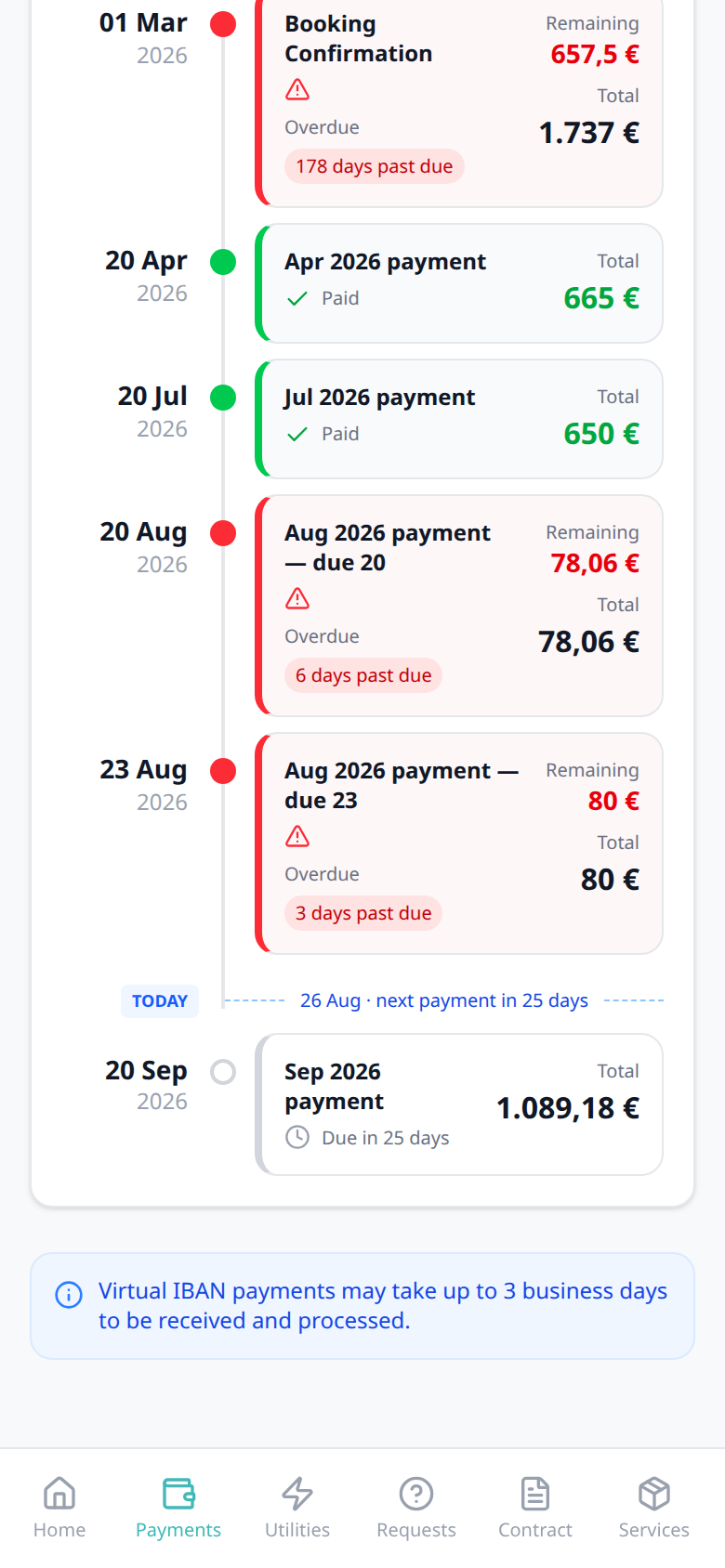
- Payment schedule — the same timeline tenants see on Home, listing scheduled charges with amounts, due dates, and status badges. Tap a card to open Payment details (due date, status, Total, Breakdown). When two regular installments share a calendar month, card titles add — due D so tenants can tell them apart. This mirrors the Payment Plan tab in the management platform. Day-count copy uses calendar days everywhere. When the next installment is 60 or more calendar days away, the blue TODAY divider and the installment chip both switch to a calendar due date instead of N days (for example 26 Aug · next payment due 11 Feb 2028 and Due 11 Feb 2028). Closer than 60 days, the divider (“next payment in N days”) and the Scheduled chip (“Due in N days”) still share the same N (for example 26 Aug · next payment in 25 days and Due in 25 days). An unpaid card whose due date is already past shows Overdue plus N days past due (for example 96 days past due). An unpaid card still in its due window (not yet overdue) shows Pending with amber Remaining (for example Move-in Payment Due 11 Feb 2028). When that due date is 1–59 calendar days away, the chip is N days remaining instead (for example Sep 2026 payment 4 days remaining Remaining 459 €). A fully settled card shows Paid with a green check and a green Total (for example Booking Confirmation 2.100 €) and no Remaining. When Total is below the original scheduled amount, that original stays struck through under Total (for example Dec 2025 payment 380 € with 760 € crossed out). A Scheduled card whose due date is today or already past shows Upcoming (for example Deposit Refund −1.310 €) instead of Due in N days. When no installment is still in the future, the compact TODAY tick sits after the last card instead of a full divider.
- Transaction history — inbound and outbound ledger rows with search, Date / Amount sort, pagination (10 rows per page), and Export CSV for the matching rows (not only the current page). Search matches the labels and signed amounts shown in the table: type a payment method label (for example
Bankor Roomless), a description fragment, a short date, or a leading-minus amount such as-5.400to find an inbound payment that displays as-5.400 €. Bare digits without a minus still match the absolute amount. Empty search shows every row. A row collected on a listing platform shows that platform name and logo instead of a generic Platform Payment label. A cash receipt shows Cash as plain text (no logo). A bank receipt shows Bank Transfer as plain text (no logo) — not the Make payment → Bank Transfer (IBAN) checkout tile. A virtual-IBAN receipt shows Viban as plain text (no logo) — not the words Virtual IBAN on the processing notice. A card receipt shows Credit Card as plain text (no logo) — not the Make payment → Credit Card checkout tile, and not operator Card (recorded manually). A system ledger adjustment shows Automatic Adjustment as plain text (no logo) — not operator Adjustment on booking Transactions (Approve / Reject while pending). Money returned because the tenant paid more than the plan required shows Overpayment Return as plain text (no logo) — not the Deposit Refund card on Payment Timeline. Money returned when you cancel With refund shows Cancelation With Refund as plain text (no logo). Money returned when you cancel Partial refund shows Cancelation With Partial Refund as plain text (no logo). Money returned after Mark refunded shows Deposit Refund as plain text (no logo) — not only the Deposit Refund card on Payment Timeline. - Receipt column — every history row shows a Receipt control. A grey icon means no file is matched yet; the line under the heading points tenants to Documents. When you attach Invoice / receipt files on Bookings → Files, inbound rows get a downloadable icon. See Receipt column.
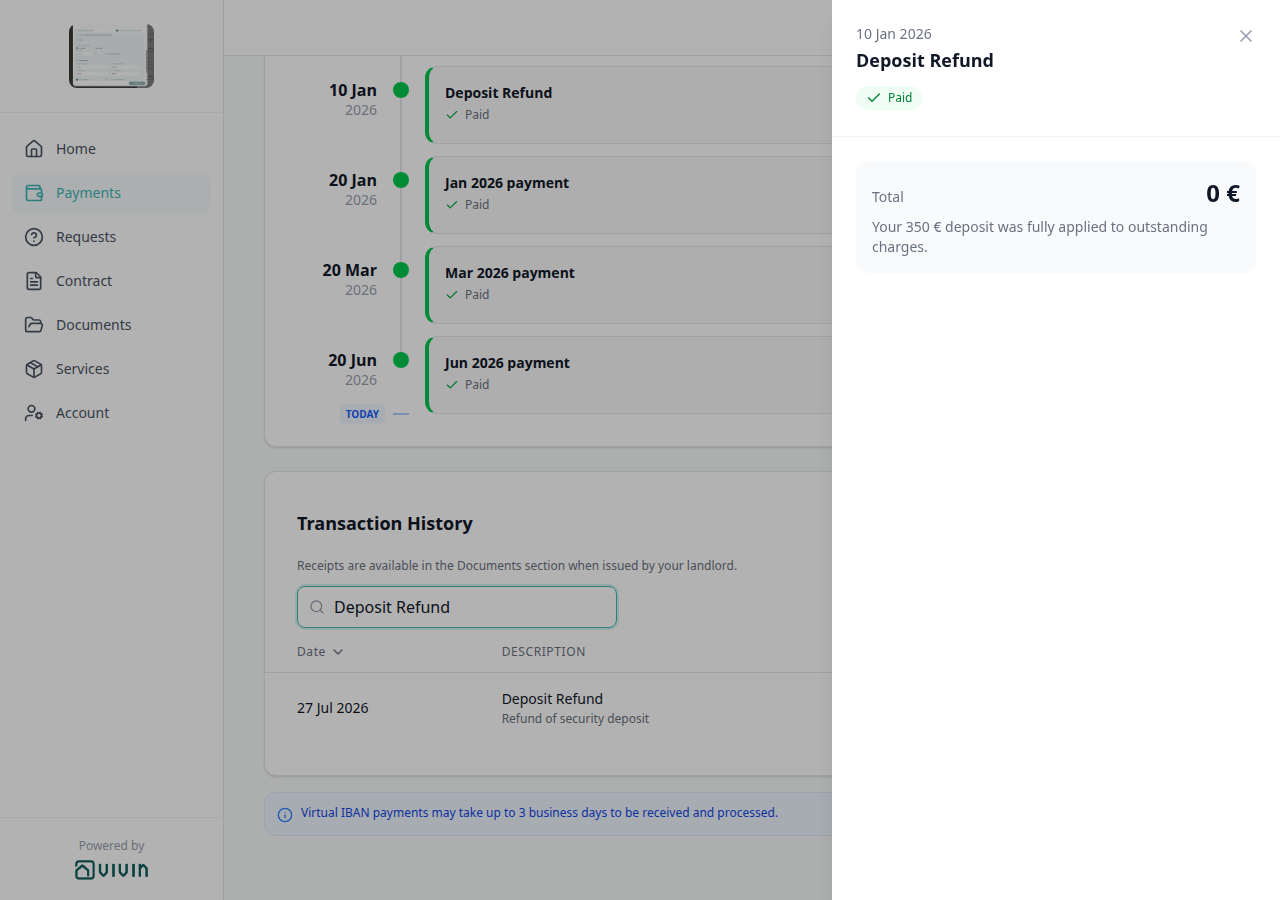
- Processed deposit refund — after operators click Mark refunded, the Deposit Refund row shows the net cash returned to the tenant (minus prefix), not the full contract deposit. Open the timeline row to see the Breakdown panel: gross Deposit plus any applied charges/adjustments that yield the net Total (or “fully applied to outstanding charges” with €0 when nothing is returned). Transferred refunds (balance moved to another booking) show
transferredstatus with €0 net to this tenant. Until abooking_deposit_refundrow exists, the portal still shows the forecast/pending state — see Managing a Check-out — Step 5 and Glossary — Deposit refund summary (tenant-facing). - Virtual IBAN processing notice — when history has at least one row, a blue notice under the table says bank transfers can take up to 3 business days. Hidden when the ledger is empty. See Virtual IBAN processing notice.
The page header includes Make payment when online pay-in is enabled and the booking has an outstanding or upcoming balance.
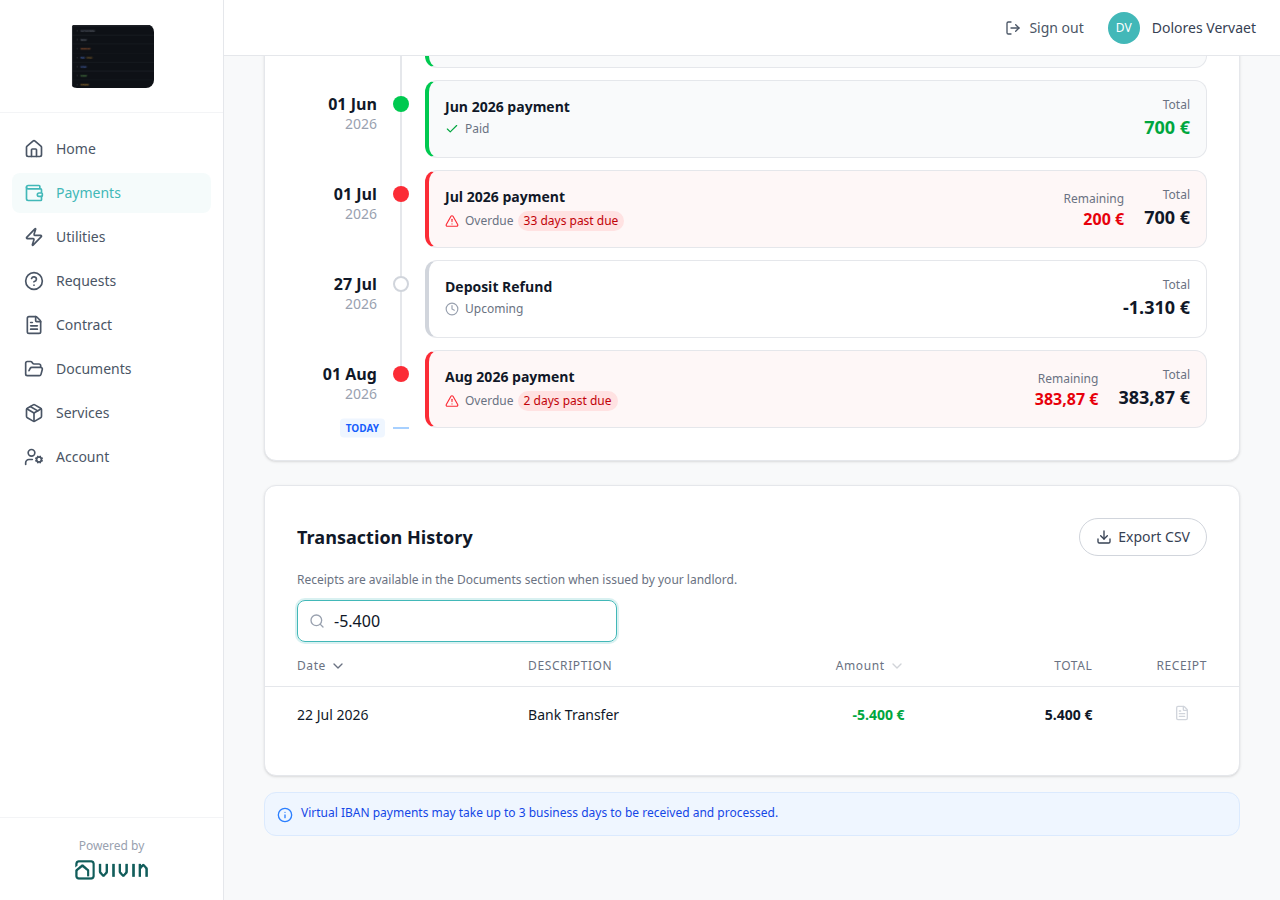
-5.400), and confirm the table keeps the matching inbound Bank Transfer.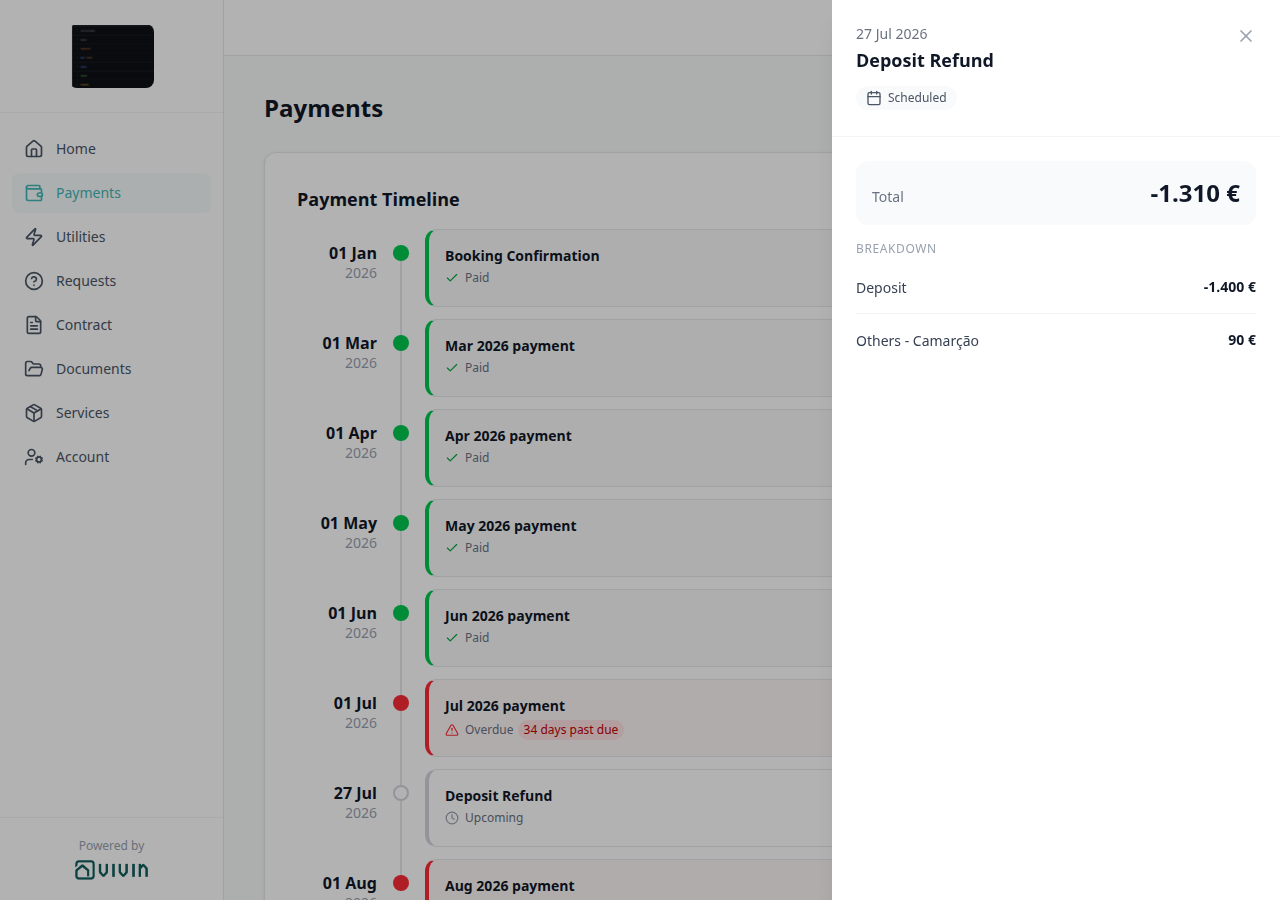
If the payment module is not provisioned for the account, the Payments nav item is hidden and tenants are redirected to Home when they open /payments.
Payment details
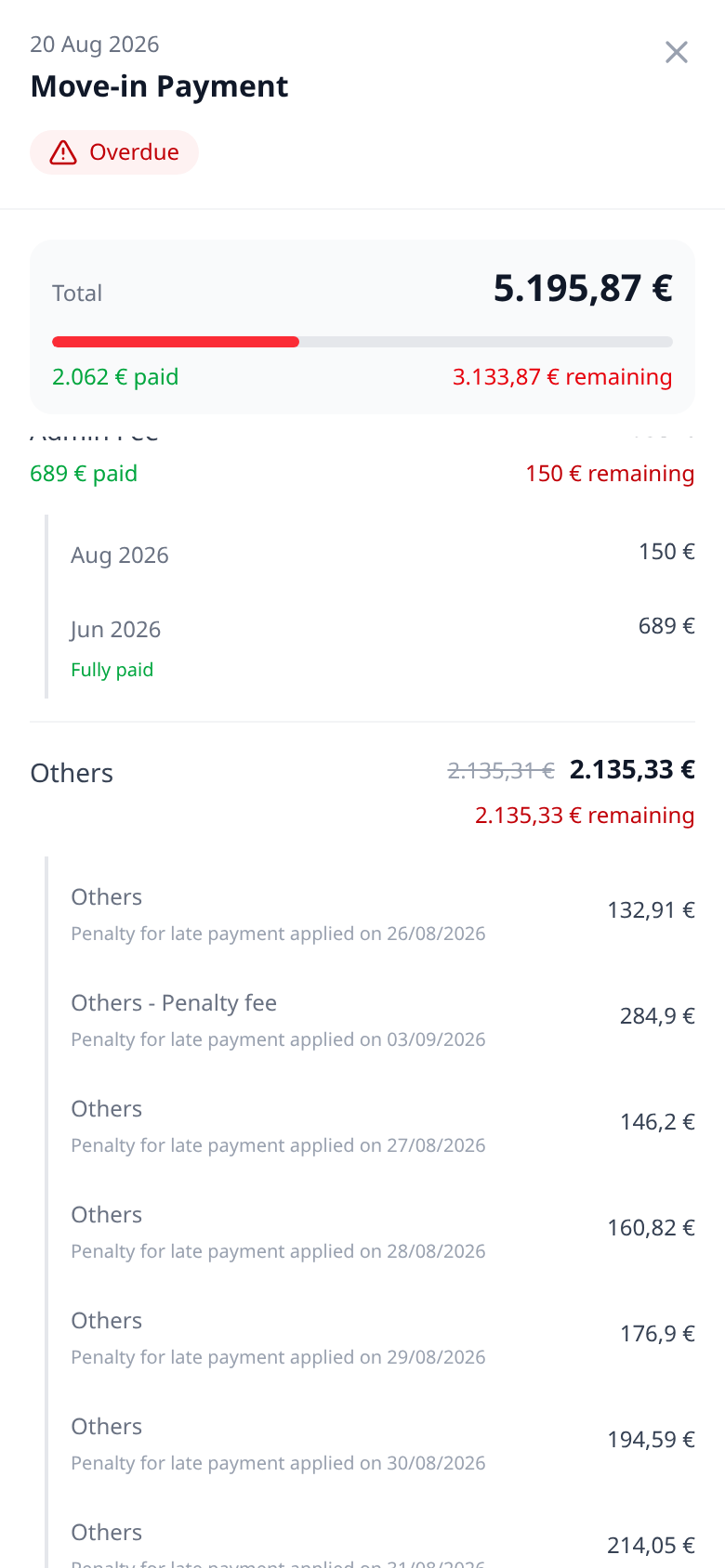
Payment details pairs with Payments tab (Payment Timeline), Same-month installment titles (timeline cards can add — due D), TODAY far-due date (timeline chips can say Due DD MMM YYYY), Overdue days past due (timeline cards can say N days past due), Pending installment (timeline Pending with amber Remaining), Paid installment (timeline Paid with a green Total), Discounted installment (same Paid card plus a struck-through original), Scheduled Due in N days (timeline Due in N days; this panel still says Scheduled), Upcoming (timeline Upcoming; this panel still says Scheduled), Balance card (the same schedule on Home), Make payment (Paywall) (checkout is a different screen), Bookings — Payment Plan (the operator schedule this panel mirrors), Tenant categories (VIVIN payments), and Others breakdown (Others / Others - Penalty fee lines under BREAKDOWN), FAQ — How do tenants open payment details in the portal?, and FAQ — How do tenants see Others charges on portal payment details?. Distinct from Transaction History (the ledger under the timeline), from Receipt column on that table, and from the timeline Paid card (this panel is what opens when tenants tap that card).
On Payments, each Payment Timeline card is tappable. Tenants open payment details to see why an installment totals what it does — not to change amounts. There is no Portal settings hide toggle.
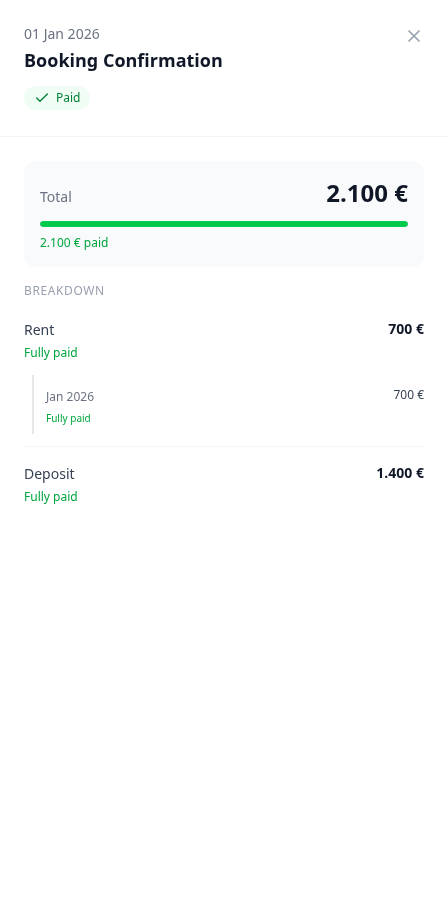
The panel (full height on the right on a computer; full screen on a phone) shows:
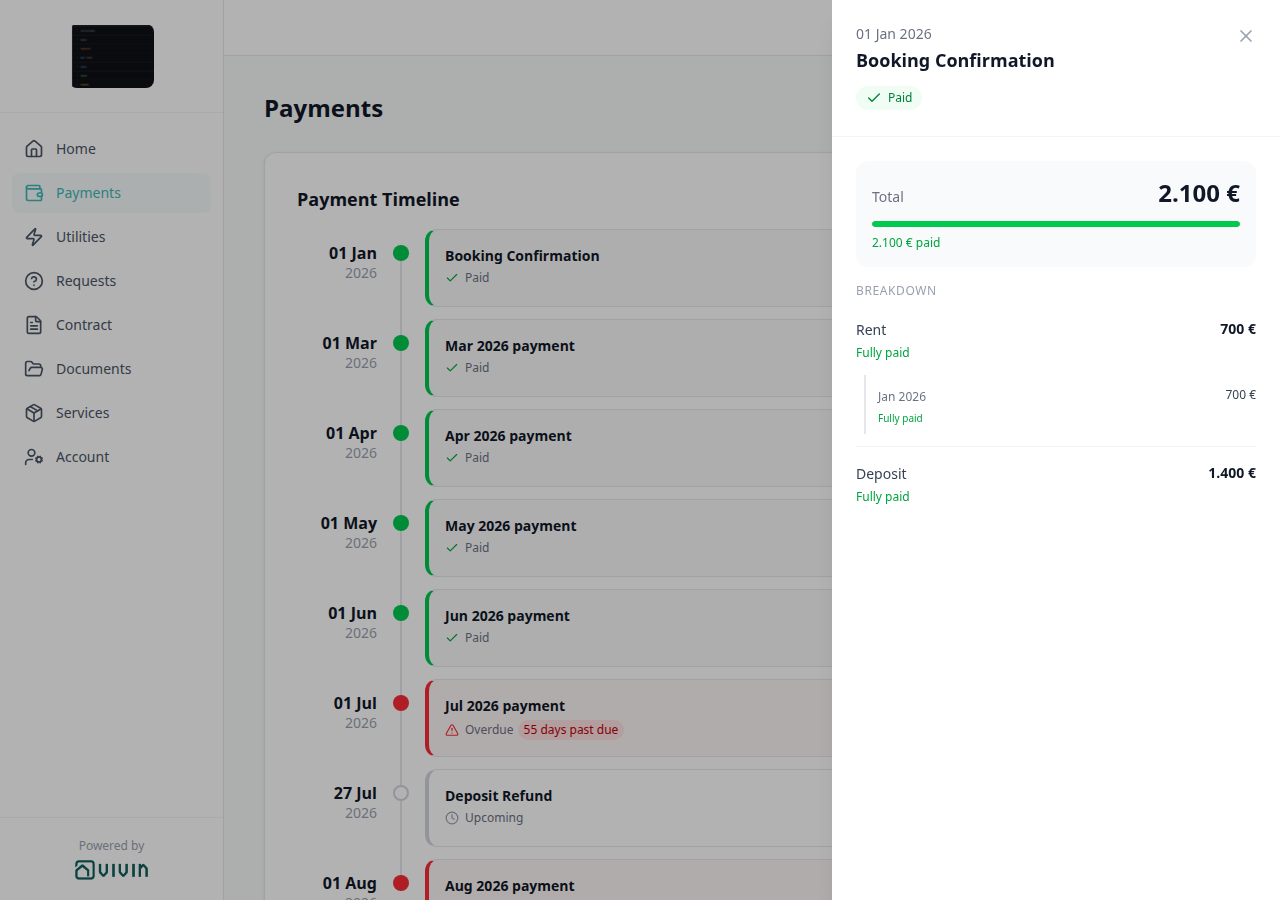
| Area | What tenants see |
|---|---|
| Header | Due date, installment title (Booking Confirmation, Move-in Payment, MMM YYYY payment, or Deposit Refund), status badge, and Close (X). Timeline cards can add — due D; this panel keeps the month title because the due date is already in the header |
| Total | The installment total, with a paid/remaining progress bar when the row is not still Scheduled and is not a Deposit Refund |
| Breakdown | Rent, Deposit, and fee lines that have amounts (Cleaning Fee, Admin Fee, Exit Fee, Others). Custom labels from your account fees apply here too. Extra charges (including late-payment penalties) list under Others — see Others breakdown |
Status badges in the panel are Paid, Pending, Overdue, or Scheduled. Timeline chips for the same unpaid row can say Due in N days or Upcoming — the panel still shows Scheduled. Fully paid under a breakdown line means that slice is settled. Close with X, the dimmed backdrop, or Escape. Tenants do not edit the plan from this panel.
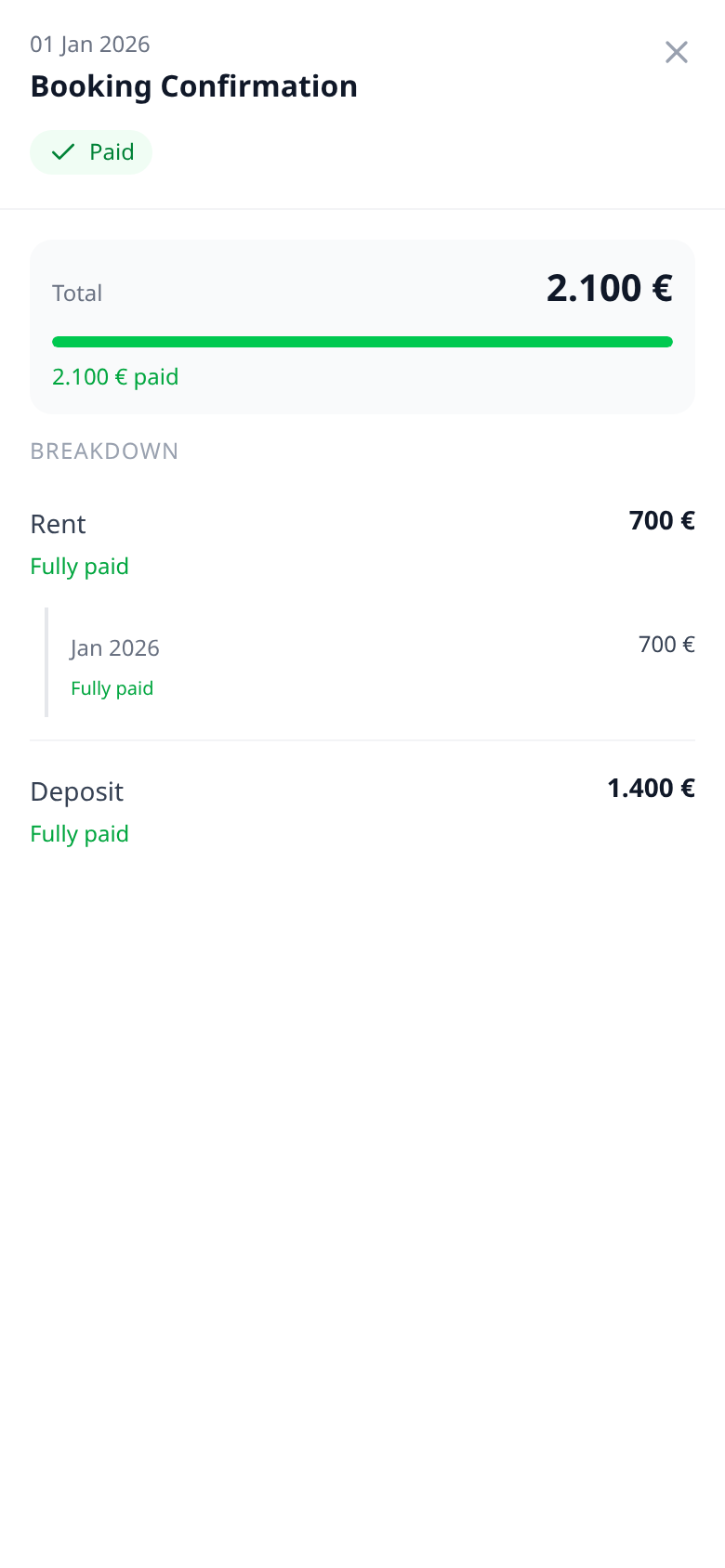
Deposit Refund uses the same panel: Breakdown shows gross Deposit plus adjustments that yield the net Total (or €0 when the deposit was fully applied). That refund teaching lives with the processed-refund stills above — this section is the habit of opening any timeline card, including a paid Booking Confirmation that splits Rent and Deposit.
Who can change it
- Tenants — open and close the panel. They cannot hide it or edit amounts here.
- Operators — the booking payment module and tenant-category VIVIN payments show or hide the whole Payments tab (and this panel with it). Edit the payment plan on the booking so Breakdown matches what tenants owe.
- Marketplace —
POST /bookingscannot send this panel. Schedule lines it creates still open here. See FAQ — How do tenants open payment details in the portal?.
Others breakdown
Others breakdown pairs with Payment details (tap a Payment Timeline card — BREAKDOWN lists these lines), Payments tab (Payment Timeline), Overdue days past due (late cards that include Others still show Overdue on the timeline), Bookings — Payment Plan / booking extras operators add, Handling a Late Payment (penalty policy on the operator side), Tenant categories (VIVIN payments), and FAQ — How do tenants see Others charges on portal payment details?. Distinct from Transaction History type labels (Cash, Bank Transfer, Manual Card, and similar) — those are ledger methods, not BREAKDOWN lines — and from Rent / Deposit / fee rows on the same panel.
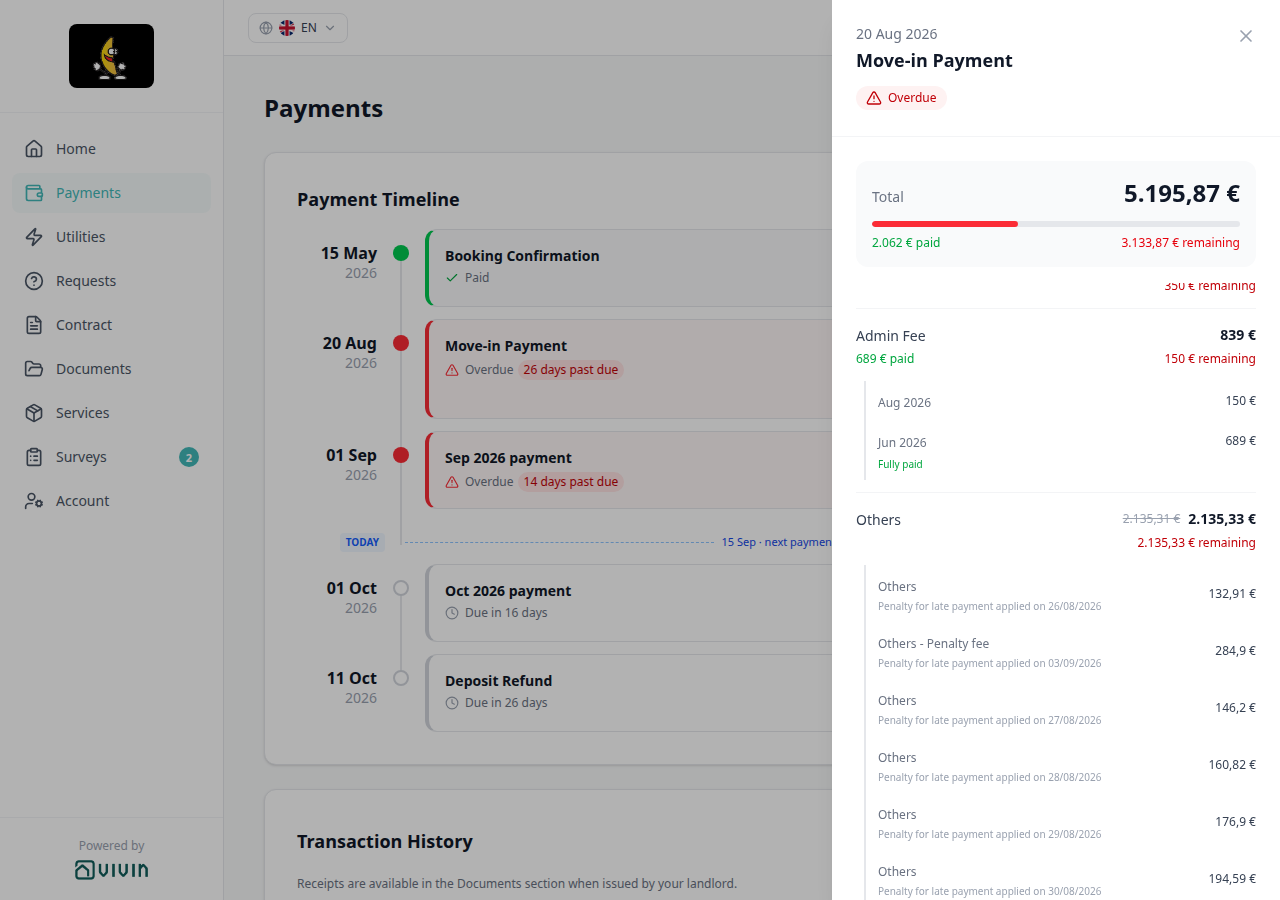
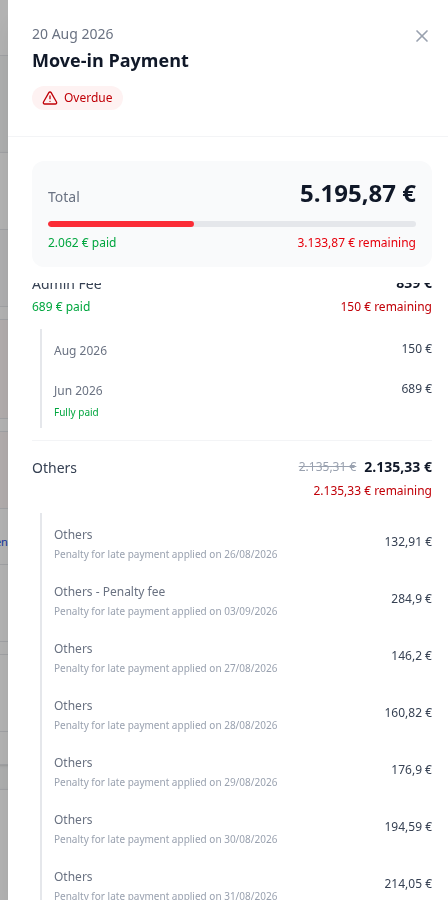
On Payments, tap a Payment Timeline card (for example Move-in Payment or MMM YYYY payment) to open payment details. Under BREAKDOWN, non-rent extras that belong on that installment appear in the Others group.
| What tenants see | Meaning |
|---|---|
| Others | An uncategorized extra on this installment |
| Others - Category | The same group with your category label — for example Others - Penalty fee |
| Grey subtitle | The reason operators stored on the charge — for late-payment penalties often Penalty for late payment applied on DD/MM/YYYY |
The installment card on Payment Timeline keeps its normal title (Move-in Payment, Sep 2026 payment, and so on). Tenants open the card to read Others lines — the timeline does not rename the card to Others. Paid / remaining totals on the panel include those lines. There is no Portal settings hide toggle for this group.
Who can change it
- Tenants — open payment details and read Others / Others - Category. They cannot rename lines or hide the group.
- Operators — add extras and late-payment penalties on the booking payment plan (and your account penalty rules). Tenant-category VIVIN payments (or an unprovisioned payment module) hides the whole Payments tab (and this breakdown with it).
- Marketplace —
POST /bookingscannot send this breakdown. Schedule lines it creates still open here when extras exist. See FAQ — How do tenants see Others charges on portal payment details?.
Same-month installment titles
Same-month installment titles pair with Payments tab (Payment Timeline), Payment details (tap a card; the panel title stays the month label), Bookings — Payment Plan (two due dates in the same calendar month), Tenant categories (VIVIN payments), and FAQ — How do tenants tell two payments in the same month apart?. Distinct from Transaction History (the ledger under the timeline).
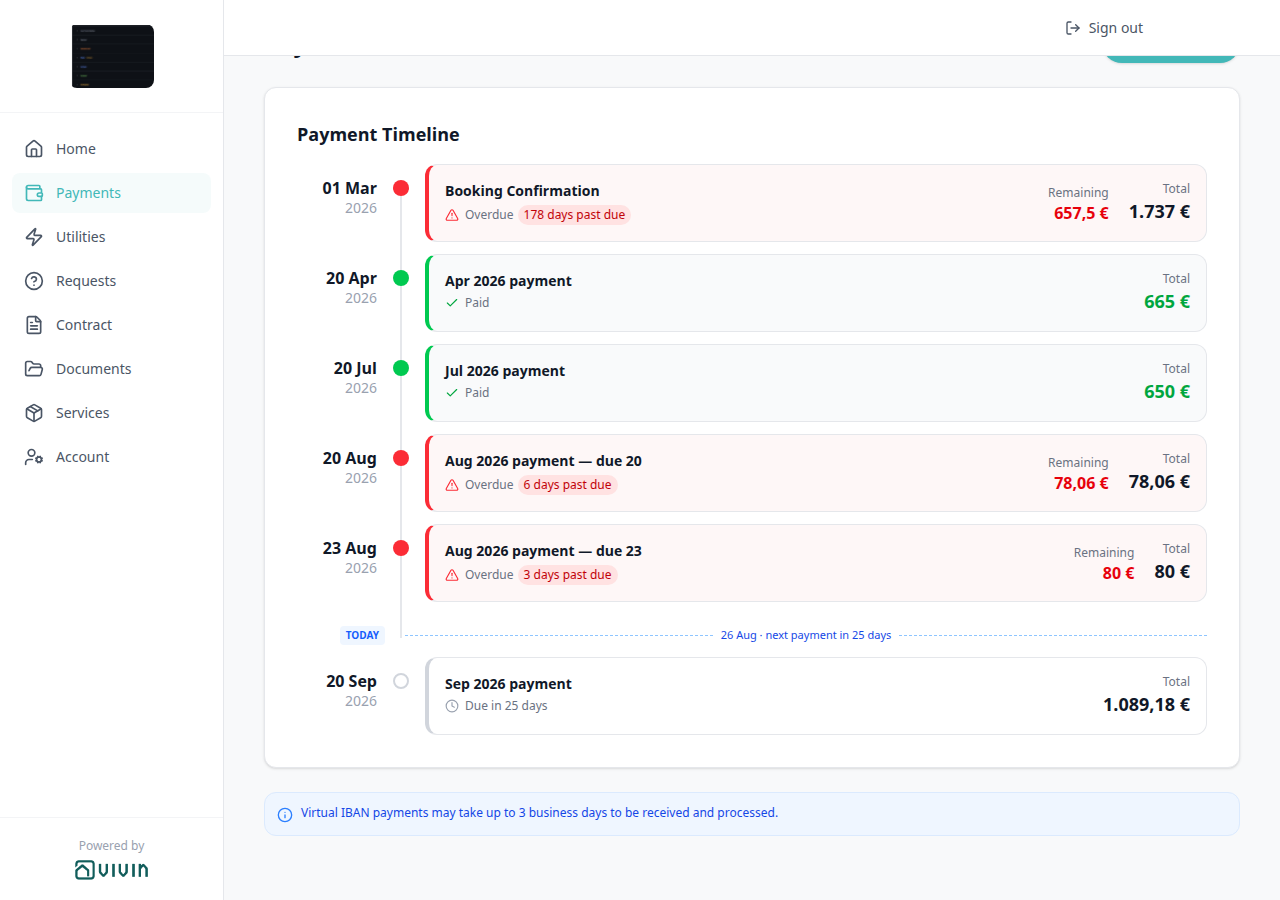
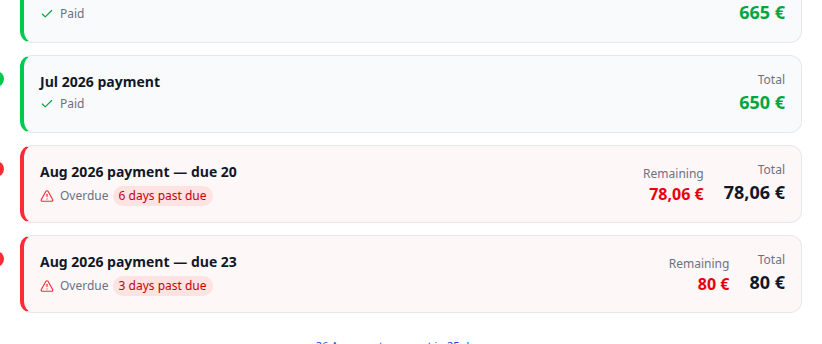
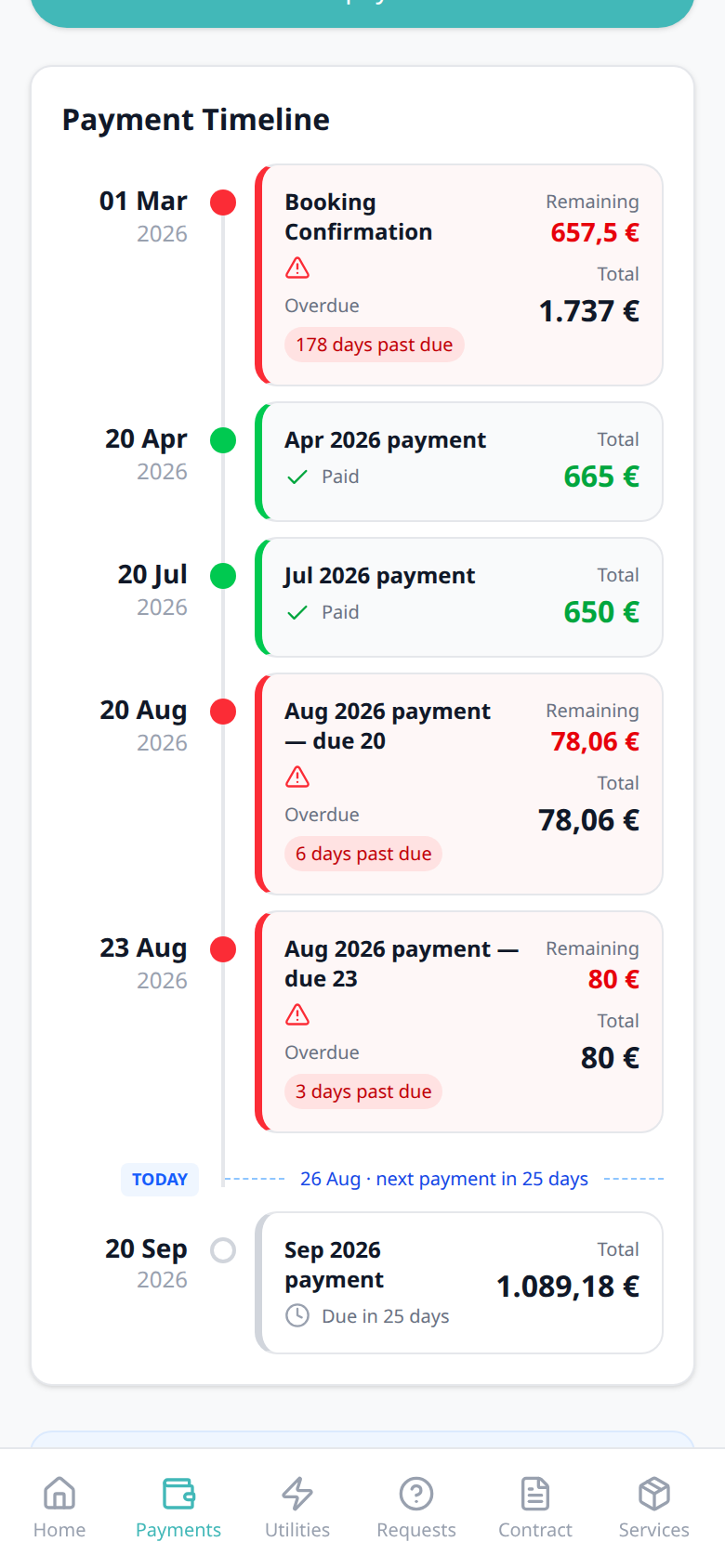
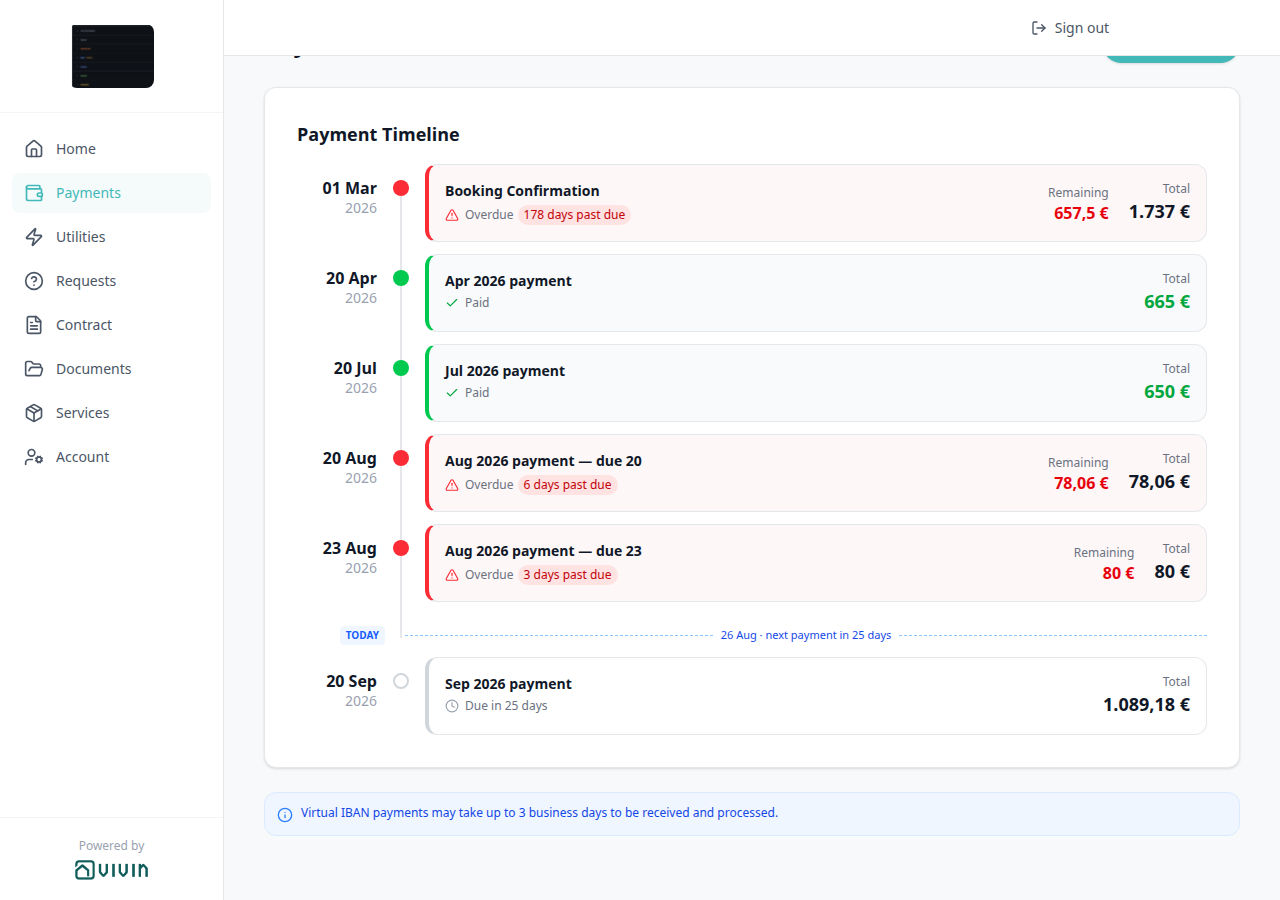
On Payments → Payment Timeline, regular installment titles are MMM YYYY payment (the calendar month of the due date). When two or more regular installments share that month, each card adds — due D so tenants can tell them apart — for example Aug 2026 payment — due 20 next to Aug 2026 payment — due 23. A month with only one regular installment stays Aug 2026 payment.
Booking Confirmation, Move-in Payment, and Deposit Refund keep those names. They do not count as a second installment for this suffix, so a regular August rent next to Deposit Refund in August still reads Aug 2026 payment.
The payment details panel title stays MMM YYYY payment. The due date is already in the panel header. There is no Portal settings hide toggle.
Who can change it
- Tenants — read the suffixed titles on Payment Timeline. They cannot turn the suffix off.
- Operators — put two due dates in the same calendar month on the booking Payment Plan. Tenant-category VIVIN payments (or an unprovisioned payment module) hides the whole Payments tab (and these titles with it).
- Marketplace —
POST /bookingscannot send this label. Schedule lines it creates still use it on Payment Timeline. See FAQ — How do tenants tell two payments in the same month apart?.
TODAY far-due date
TODAY far-due date pairs with Payments tab (Payment Timeline), Payment details (tap a card), Same-month installment titles (card titles), Scheduled Due in N days (the near-term Due in N days chip), Balance card (the same 60-day calendar chip on Home), Bookings — Payment Plan (the operator schedule), Tenant categories (VIVIN payments), FAQ — When does the portal TODAY divider show a calendar date?, and FAQ — Where does TODAY sit when every portal payment is already due?. Distinct from the near-term TODAY day count (next payment in N days), from TODAY compact tick at the end (the same compact tick after the last card when nothing is still ahead), from Scheduled Due in N days on a future card, from Upcoming (grey clock when that Scheduled due date is today or already past), from Overdue days past due on a late card, and from Transaction History under the timeline.
On Payments → Payment Timeline, a blue TODAY marker shows where today sits on the schedule. Counts use calendar days from start-of-day — the same helper as the installment chips and the Home balance card.
| Next installment | What tenants see |
|---|---|
| 14 days or fewer | A compact TODAY tick on the line (not a full row), above that next card |
| 15–59 days | A full divider: D MMM · next payment in N days |
| 60 days or more | The same divider with the calendar due date instead of N days — for example 26 Aug · next payment due 11 Feb 2028 |
| None still in the future | The same compact tick after the last card — see TODAY compact tick at the end |
The next unpaid card follows the same 60-day rule. Pending shows Due DD MMM YYYY instead of N days remaining. Scheduled shows Due DD MMM YYYY instead of Due in N days. Within 60 days, those chips keep the day count, and N matches the divider.
There is no Portal settings hide toggle.
Who can change it
- Tenants — read the divider and chips. They cannot switch back to a day count.
- Operators — the booking Payment Plan sets the next due date. Tenant-category VIVIN payments (or an unprovisioned payment module) hides the whole Payments tab (and this divider with it).
- Marketplace —
POST /bookingscannot send this label. Schedule lines it creates still use it on Payment Timeline. See FAQ — When does the portal TODAY divider show a calendar date?.


TODAY compact tick at the end
TODAY compact tick at the end pairs with Payments tab (Payment Timeline), TODAY far-due date (the 60+ day divider), Scheduled Due in N days (the 15–59 day divider), Upcoming (a Scheduled card that is already due is not this tick), Overdue days past due (late cards stay on the line above the tick), Paid installment (settled cards can also be the last row), Balance card (Home still uses the next-due chip when one exists), Bookings — Payment Plan (the operator schedule), Tenant categories (VIVIN payments), and FAQ — Where does TODAY sit when every portal payment is already due?. Distinct from the full TODAY divider (next payment in N days / next payment due DD MMM YYYY) and from the compact tick that sits above a near-term future card.
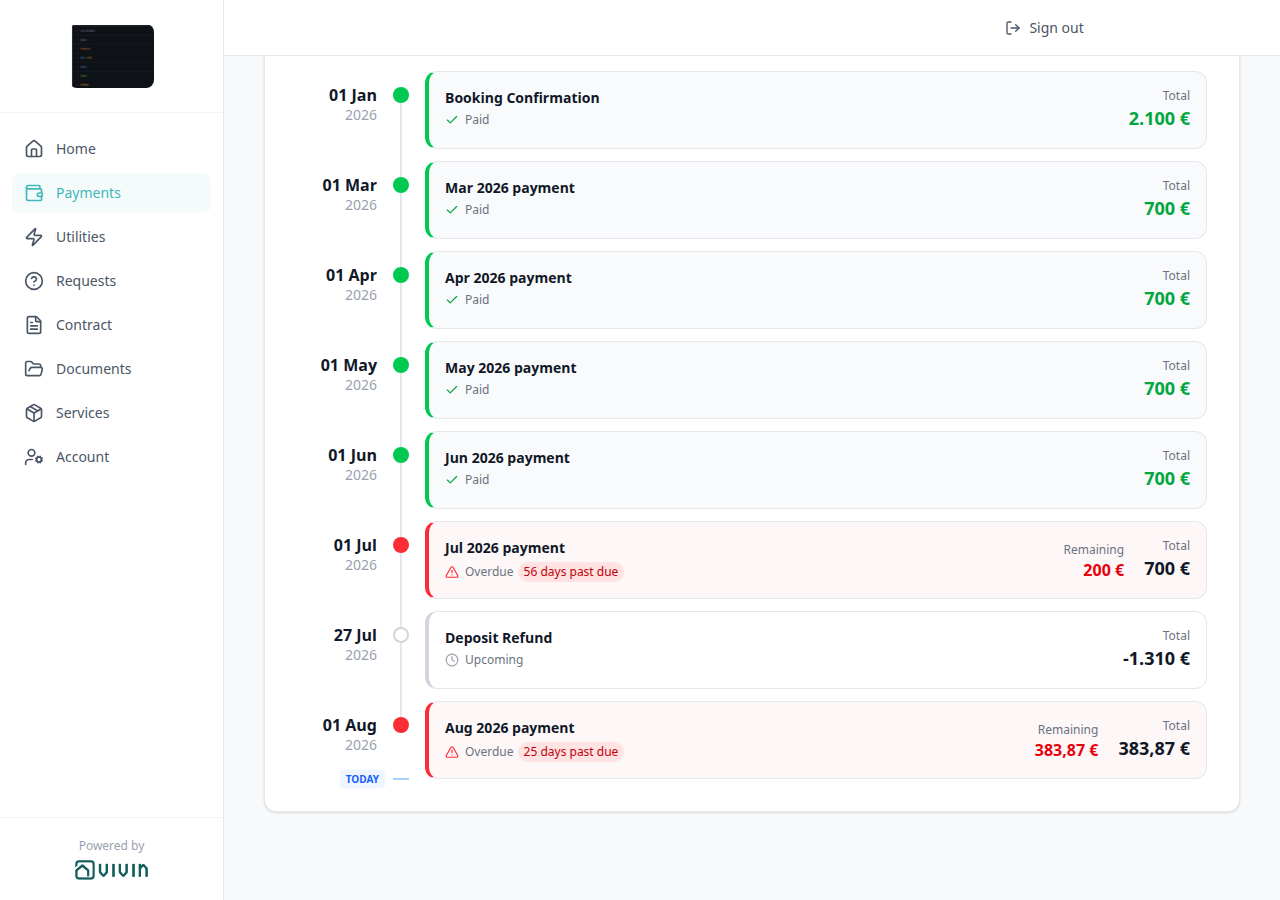
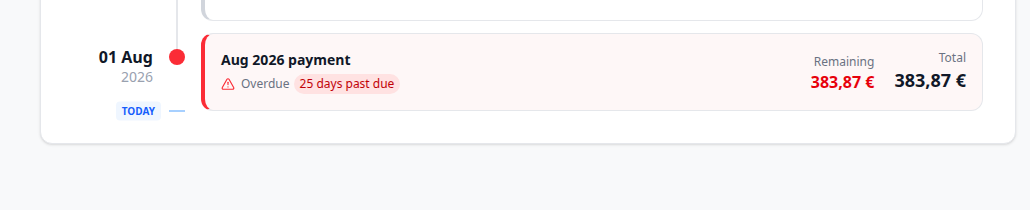
On Payments → Payment Timeline, TODAY is a compact blue tick — a small TODAY chip plus a short blue dash — not a full divider row. When no installment is still in the future, that tick sits after the last card. It does not say next payment in N days or next payment due DD MMM YYYY.
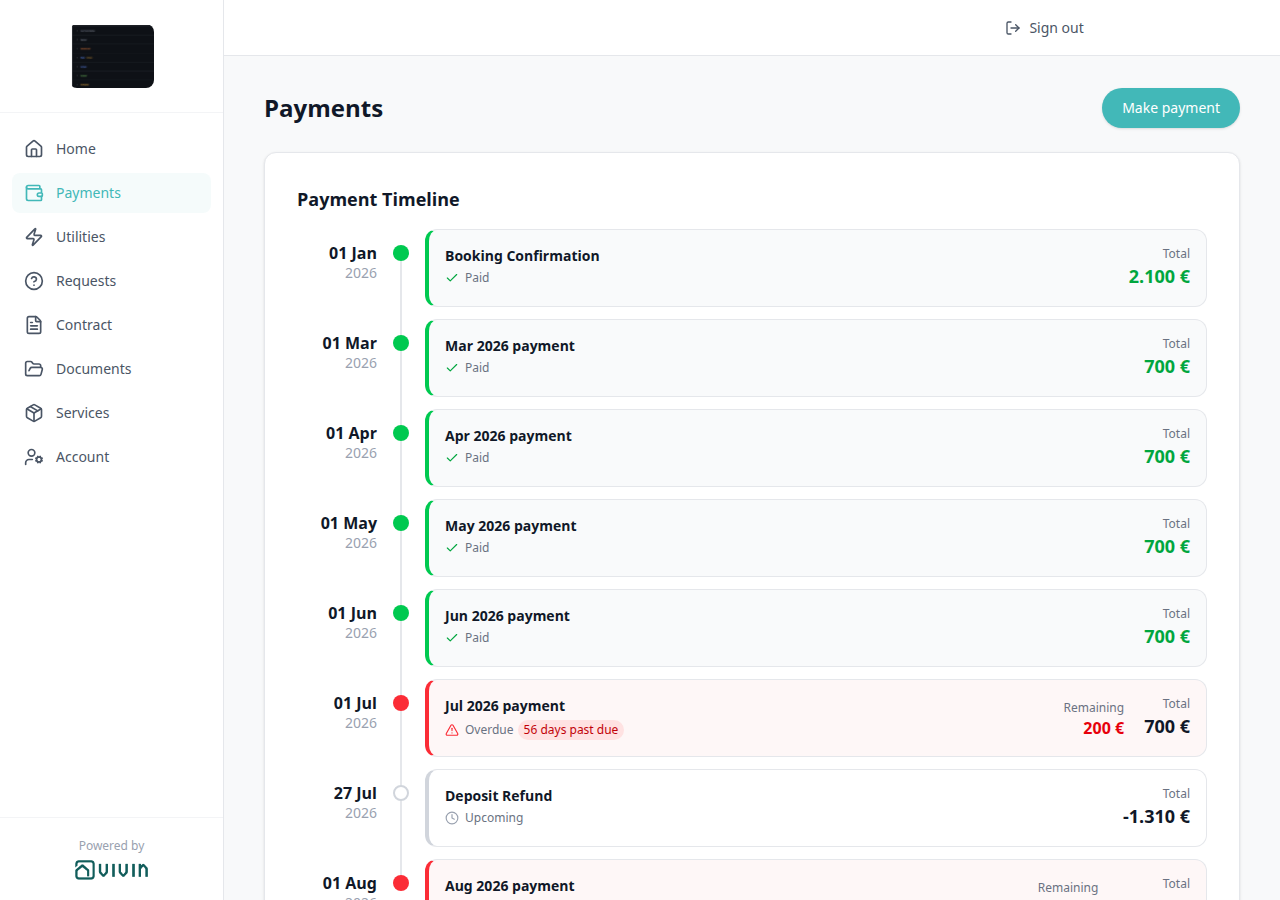
The same compact tick appears above the next card when that due date is 14 days or fewer away. This section is the end-of-timeline case: every due date is today or already past (paid, Overdue, or Upcoming), so TODAY is the last mark on the line. For example the tick can sit under Aug 2026 payment after Deposit Refund Upcoming.
There is no Portal settings hide toggle.
Who can change it
- Tenants — read the tick. They cannot hide it or move it.
- Operators — the booking Payment Plan sets due dates. A later future installment turns this end tick back into a divider or a tick above that card. Tenant-category VIVIN payments (or an unprovisioned payment module) hides the whole Payments tab (and this tick with it).
- Marketplace —
POST /bookingscannot send this label. Schedule lines it creates still use it on Payment Timeline. See FAQ — Where does TODAY sit when every portal payment is already due?.

Overdue days past due
Overdue days past due pairs with Payments tab (Payment Timeline), TODAY far-due date (the same calendar-day helper, for future due dates), Scheduled Due in N days (future cards use Due in N days, not this chip), Upcoming (Scheduled leftover when the due date is today or already past — not Overdue), Payment details (tap the card), Balance card (Home Overdue payment sums every late row), Make payment (Paywall) (Pay overdue debt), Bookings — Payment Plan (the operator schedule), Tenant categories (VIVIN payments), Handling a Late Payment — Step 1, and FAQ — How do tenants see how many days a portal payment is overdue?. Distinct from the Home Overdue payment headline (a booking total, not this per-card chip), from Pending installment (amber Remaining), from Scheduled Due in N days, from Upcoming, and from Paid installment (green check, no Remaining).
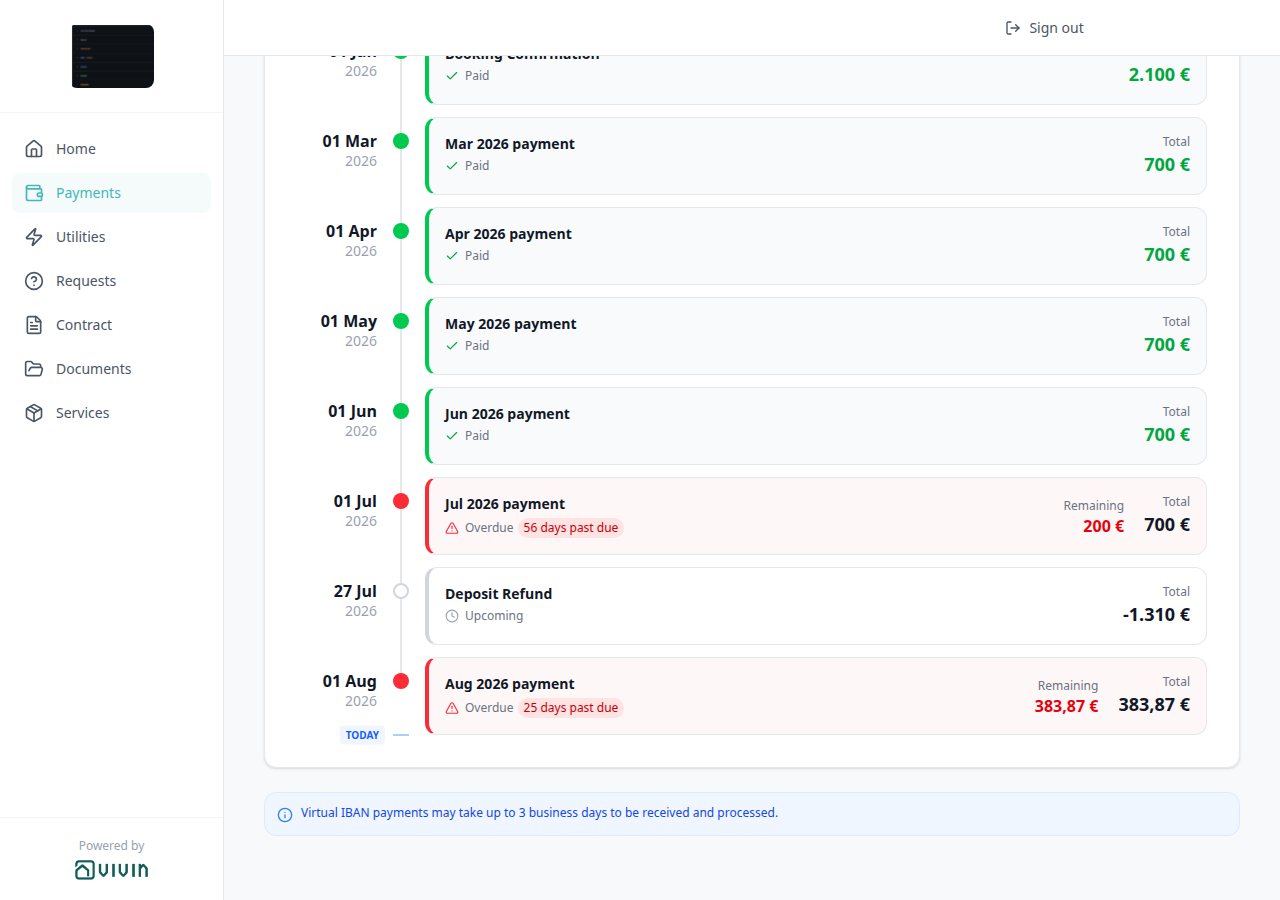
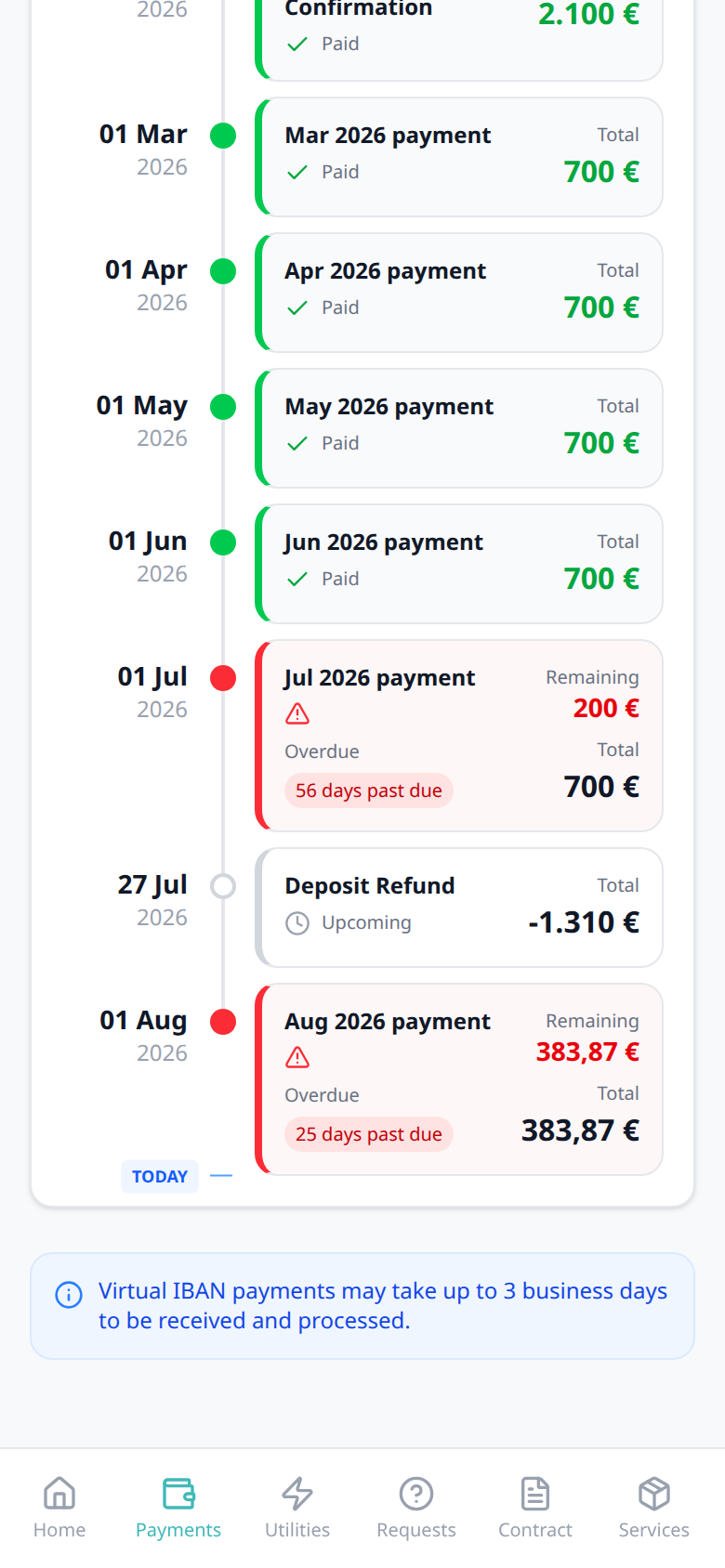
On Payments → Payment Timeline, an unpaid installment whose due date is already in the past shows Overdue plus a red chip N days past due (or 1 day past due). Counts use calendar days from start-of-day — the same helper as the TODAY far-due date and the Home balance card. On the due date itself (0 days), the card still reads Overdue without a day-count chip.
The card also shows Remaining (amount still owed) in red next to Total. The due date stays on the left of the timeline (for example 22 May 2026). This chip is per installment. Home Overdue payment is the booking total of every late row — not a second copy of this N.
There is no Portal settings hide toggle.
Who can change it
- Tenants — read the chip. They cannot hide it. Make payment settles the overdue amount.
- Operators — the booking Payment Plan sets the due date and receipts. Tenant-category VIVIN payments (or an unprovisioned payment module) hides the whole Payments tab (and this chip with it).
- Marketplace —
POST /bookingscannot send this label. Schedule lines it creates still use it on Payment Timeline. See FAQ — How do tenants see how many days a portal payment is overdue?.


Pending installment
Pending installment pairs with Payments tab (Payment Timeline), Overdue days past due (late cards use red Remaining and N days past due), Paid installment (settled cards use a green check, not this amber status), Scheduled Due in N days (future unpaid cards that are not yet in the due window use a grey clock), Upcoming (the leftover Scheduled label when that due date is today or already past), TODAY far-due date (the same 60-day helper: this chip can say Due DD MMM YYYY), Payment details (tap the card — the sidebar also shows Pending), Balance card (Home Outstanding payment is the booking headline when nothing is overdue; Overdue payment still wins when a late row exists), Make payment (Paywall), Bookings — Payment Plan (the operator schedule), Tenant categories (VIVIN payments), and FAQ — How do tenants see a pending installment on the portal timeline?, and FAQ — How do tenants see N days remaining on a pending installment?. Distinct from Pending N days remaining (the 1–59 day chip on this same Pending card), from Overdue Remaining, from Home Outstanding payment (a booking total), from Due in N days (grey clock, no Remaining), and from Paid (no Remaining).
On Payments → Payment Timeline, an unpaid installment that is already in its due window — but not yet overdue — shows Pending with an amber dot. The card also shows amber Remaining (amount still owed) next to Total. Remaining only appears on Overdue (red) or Pending (amber) cards that still have a balance.
The chip next to Pending follows the same calendar-day helper as the TODAY far-due date and the Home balance card:
| Due date | What tenants see next to Pending |
|---|---|
| 60 or more calendar days away | Amber chip Due DD MMM YYYY (for example Due 11 Feb 2028) |
| 1–59 days away | Amber chip N days remaining (or 1 day remaining) |
| Today or already past (still not overdue) | The word Pending only — no day-count chip |
For example Move-in Payment can read Pending with Due 11 Feb 2028, amber Remaining 1.921,24 €, and Total 5.081,74 €. The due date stays on the left of the timeline (for example 11 Feb 2028).
This status is per installment. Home Outstanding payment is the booking total of every due-window row — and Overdue payment still wins when any late row exists, so Home can stay red while a later card is Pending. Tenants do not need to open the card to see Pending; tapping it opens payment details, which repeats the Pending badge with Total and Breakdown.
There is no Portal settings hide toggle.
Who can change it
- Tenants — read the card. They cannot hide Pending. Make payment settles the remaining amount.
- Operators — the booking Payment Plan sets the due date, due window, and receipts. Tenant-category VIVIN payments (or an unprovisioned payment module) hides the whole Payments tab (and this card with it).
- Marketplace —
POST /bookingscannot send this label. Schedule lines it creates still use it on Payment Timeline. See FAQ — How do tenants see a pending installment on the portal timeline?.


Pending N days remaining
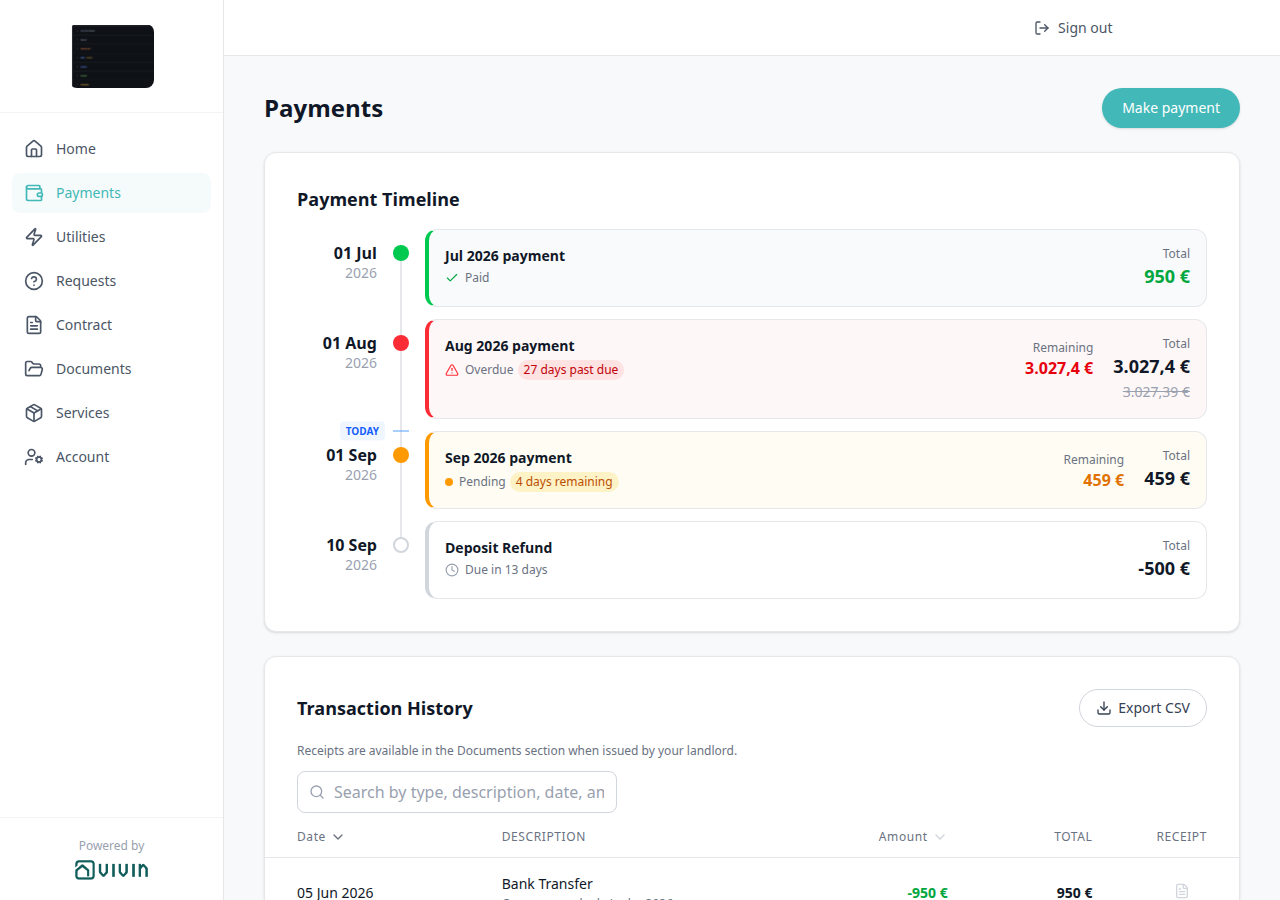
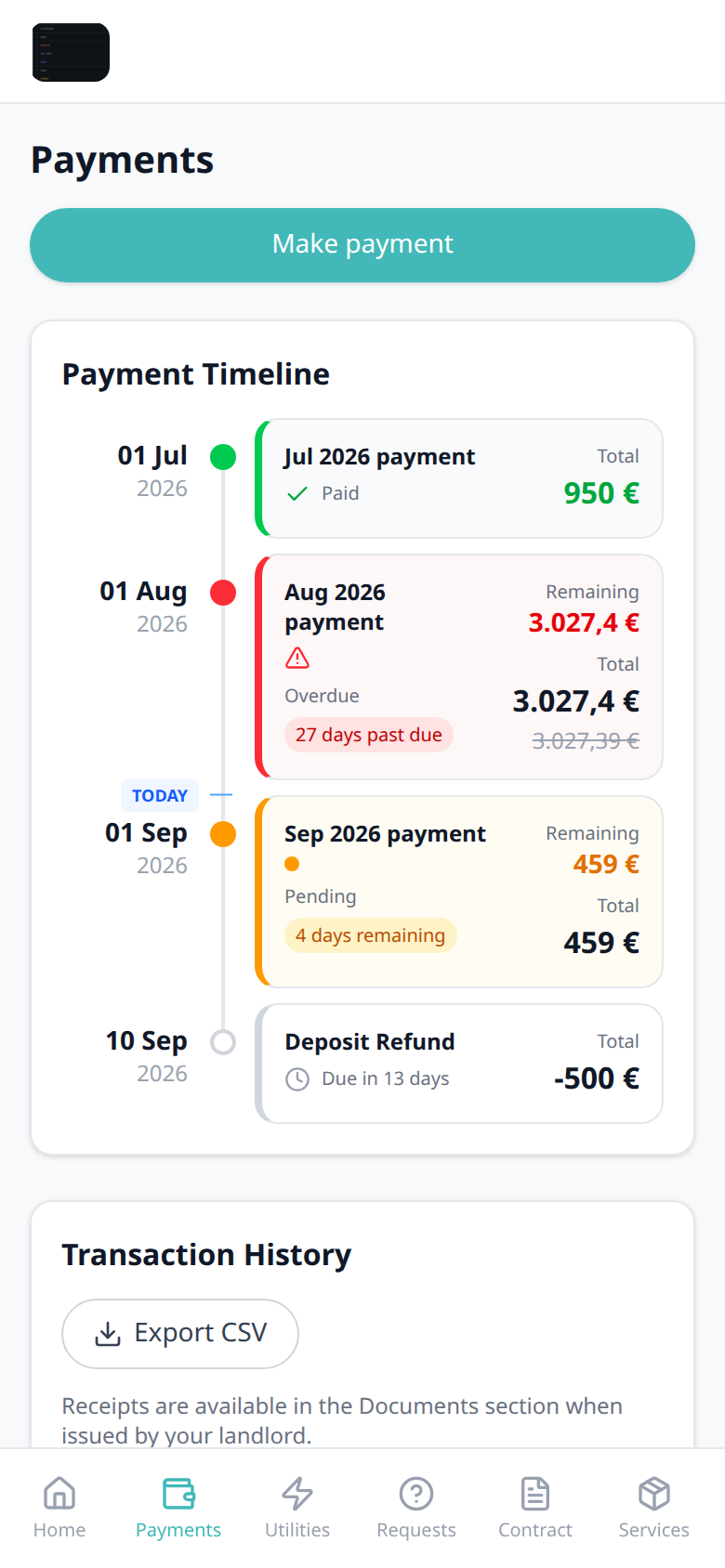
Pending N days remaining pairs with Pending installment (same amber Pending card; 60+ days uses Due DD MMM YYYY instead), Payments tab (Payment Timeline), TODAY far-due date (the same 60-day helper), Scheduled Due in N days (grey clock Due in N days on a Scheduled card — not this amber chip), Overdue days past due (late cards use N days past due), Paid installment, Upcoming (grey clock on a leftover Scheduled row), Payment details (tap the card — the sidebar also shows Pending), Balance card (Home Overdue payment still wins when a late row exists), Make payment (Paywall), Bookings — Payment Plan (the operator schedule), Tenant categories (VIVIN payments), and FAQ — How do tenants see N days remaining on a pending installment?. Distinct from Pending installment Due DD MMM YYYY (60+ days), from Due in N days (grey clock, no Remaining), and from Overdue N days past due.
On Payments → Payment Timeline, when a Pending installment is 1–59 calendar days from its due date, the chip next to Pending is N days remaining (or 1 day remaining) — not Due DD MMM YYYY. The card still shows amber Remaining next to Total. Counts use calendar days from start-of-day — the same helper as the TODAY far-due date.
For example Sep 2026 payment can read Pending with 4 days remaining, amber Remaining 459 €, and Total 459 €. The due date stays on the left of the timeline (for example 01 Sep 2026). A blue TODAY tick can sit just above that date when this installment is the next one still ahead.
This chip is per installment. Home Overdue payment still wins when any late row exists, so Home can stay red while a later card is Pending with N days remaining. Tenants do not need to open the card to see the chip; tapping it opens payment details, which repeats the Pending badge.
When the due date is 60 or more calendar days away, the same Pending card uses Due DD MMM YYYY instead — see Pending installment. When the count is already 0 (today or past) and the row is still not overdue, the word Pending appears with no day-count chip.
There is no Portal settings hide toggle.
Who can change it
- Tenants — read the chip. They cannot hide N days remaining. Make payment settles the remaining amount.
- Operators — the booking Payment Plan sets the due date, due window, and receipts. Tenant-category VIVIN payments (or an unprovisioned payment module) hides the whole Payments tab (and this chip with it).
- Marketplace —
POST /bookingscannot send this label. Schedule lines it creates still use it on Payment Timeline. See FAQ — How do tenants see N days remaining on a pending installment?.


Paid installment
Paid installment pairs with Payments tab (Payment Timeline), Payment details (tap the card — the sidebar also shows Paid), Overdue days past due (late cards keep red Remaining), Pending installment (due-window cards keep amber Remaining), Scheduled Due in N days (future cards show a grey clock, not Paid), Upcoming (the same grey clock when that due date is today or already past), Balance card (Home All payments up to date is the booking headline), Bookings — Payment Plan (the operator schedule), Tenant categories (VIVIN payments), and FAQ — How do tenants see a paid installment on the portal timeline?. Distinct from the payment details sidebar Paid badge, from Home All payments up to date, from Pending installment (amber Remaining on a due-window card), from Discounted installment (same Paid card plus a struck-through original), from Upcoming (grey clock, not Paid), and from Overdue Remaining.
On Payments → Payment Timeline, a fully settled installment shows Paid with a green check. Total is green. There is no Remaining line — Remaining only appears on Overdue (red) or Pending (amber) cards that still have a balance. For example Booking Confirmation can read Paid with Total 2.100 €.
This status is per installment. Home All payments up to date is the booking headline when nothing is overdue or outstanding — the same timeline can still list Paid cards above later Overdue rows. Tenants do not need to open the card to see Paid; tapping it opens payment details, which repeats the Paid badge with Total and Breakdown.
There is no Portal settings hide toggle.
Who can change it
- Tenants — read the card. They cannot hide Paid. Make payment is for unpaid rows.
- Operators — receipts on the booking Payment Plan settle the row. Tenant-category VIVIN payments (or an unprovisioned payment module) hides the whole Payments tab (and these cards with it).
- Marketplace —
POST /bookingscannot send this label. Schedule lines it creates still use it on Payment Timeline. See FAQ — How do tenants see a paid installment on the portal timeline?.


Discounted installment
Discounted installment pairs with Paid installment (the same green Paid card, plus a struck-through original), Payments tab (Payment Timeline), Payment details (tap the card — Breakdown shows the net lines; this section does not open that panel), Overdue days past due (late cards use red Remaining, not a strikethrough), Bookings — Discounts and payment adjustments (operators add the reduction), Tenant categories (VIVIN payments), and FAQ — How do tenants see a discounted installment on the portal timeline?. Distinct from Paid installment without a strikethrough, from Upcoming minus Total on a refund, and from operator Discount (booking) on Contract Values.
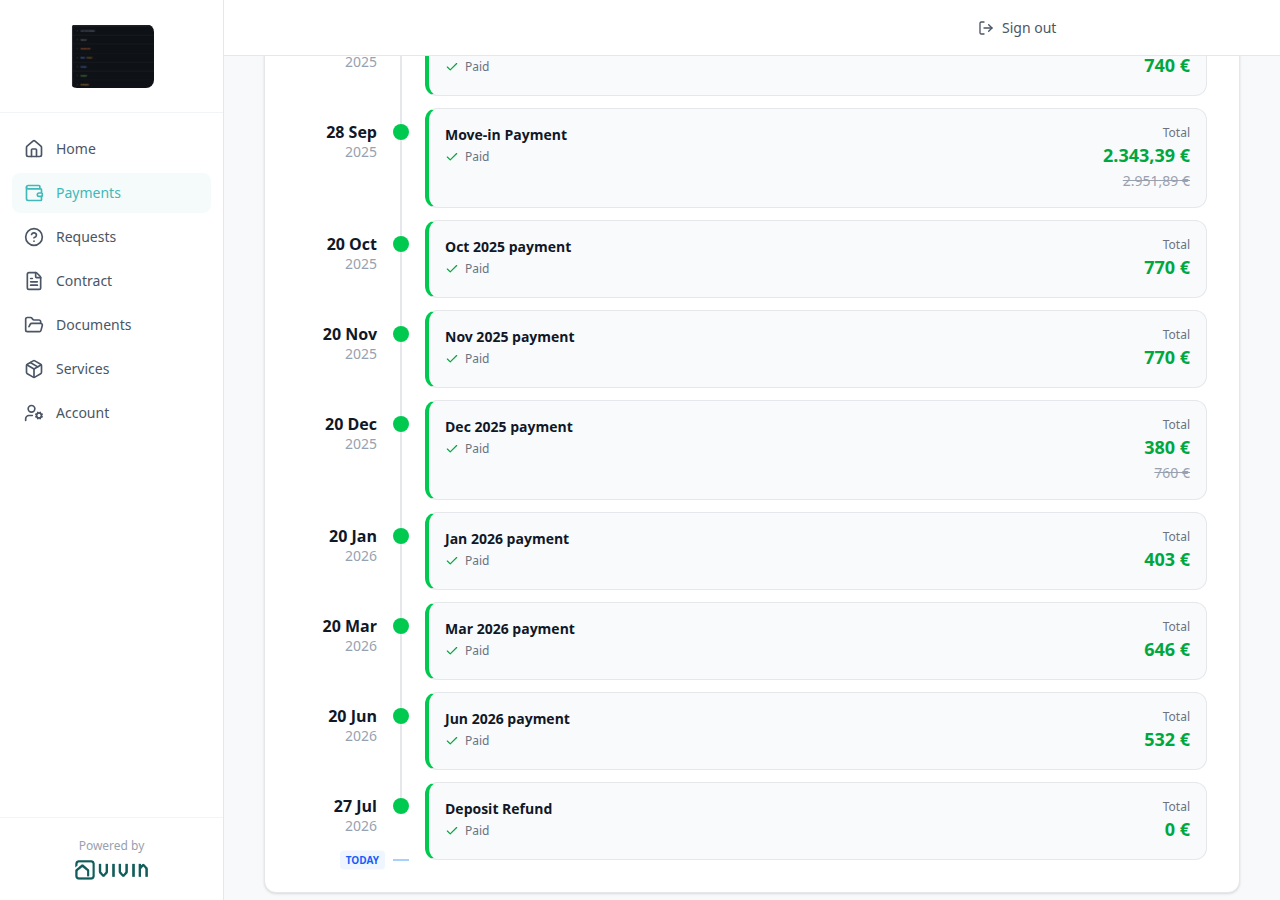
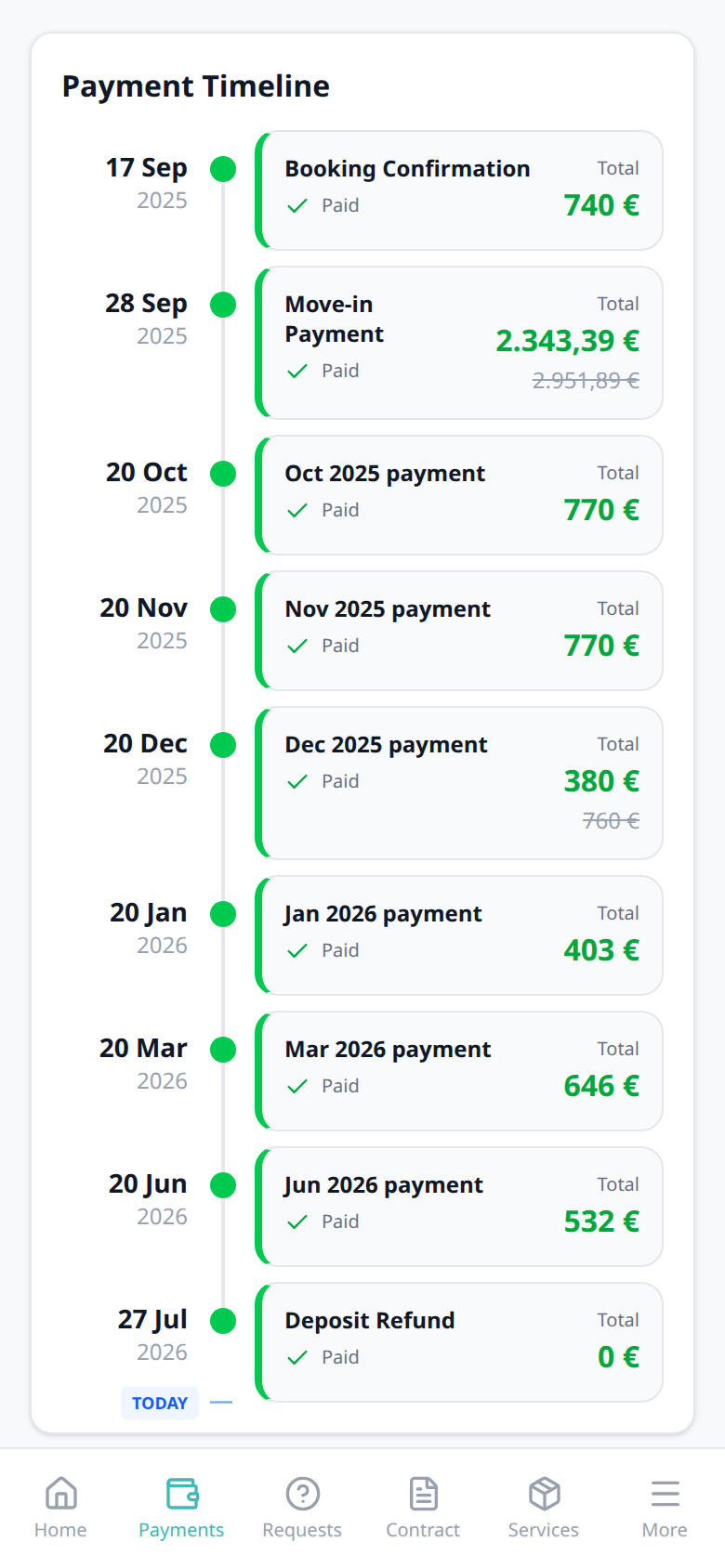
On Payments → Payment Timeline, when an installment’s Total is lower than the original scheduled amount, the card shows the original amount struck through under Total. Paid cards keep the green check and green Total. For example Dec 2025 payment can read Paid with Total 380 € and 760 € crossed out. The due date stays on the left (for example 20 Dec 2025).
The strikethrough is the original sum of rent, deposit, and fees on that installment. Operators apply the reduction on the booking Payment Plan / Discounts. Tenants do not add or remove a discount from the portal.
There is no Portal settings hide toggle.
Who can change it
- Tenants — read the struck-through original next to Total. They cannot hide it or change the amount here.
- Operators — add or remove the discount on the booking Contract Values. Tenant-category VIVIN payments (or an unprovisioned payment module) hides the whole Payments tab (and this strikethrough with it).
- Marketplace —
POST /bookingscannot send this label. Schedule lines it creates still use it on Payment Timeline. See FAQ — How do tenants see a discounted installment on the portal timeline?.


Scheduled Due in N days
Scheduled Due in N days pairs with Payments tab (Payment Timeline), TODAY far-due date (the same calendar-day helper; 60+ days uses Due DD MMM YYYY instead), Upcoming (the same grey clock when the due date is today or already past), Overdue days past due (late cards use N days past due), Paid installment (settled cards use a green check, not this clock), Payment details (tap the card — the sidebar still says Scheduled), Balance card (Home uses the same N on next payment in N days), Bookings — Payment Plan (the operator schedule), Tenant categories (VIVIN payments), and FAQ — How do tenants see Due in N days on the portal timeline?. Distinct from Pending installment (N days remaining or Due DD MMM YYYY), from Upcoming (FAQ — How do tenants see Upcoming on the portal timeline?), from TODAY far-due date Due DD MMM YYYY, and from Overdue Remaining.
On Payments → Payment Timeline, an unpaid installment that is not yet in the due window is Scheduled. The card shows a grey clock plus Due in N days (or Due in 1 day). Counts use calendar days from start-of-day — the same helper as the TODAY far-due date and the Home balance card. For example Sep 2026 payment can read Due in 25 days with Total 1.089,18 €. When the next installment is 15–59 days away, the blue TODAY divider uses the same N (26 Aug · next payment in 25 days).
When the due date is 60 or more calendar days away, this chip switches to Due DD MMM YYYY instead of the day count — see TODAY far-due date. When the count is already 0 or fewer days, the chip says Upcoming. Payment details still shows Scheduled for that row.
There is no Remaining on a Scheduled card. Remaining only appears on Overdue (red) or Pending (amber) cards that still have a balance.
There is no Portal settings hide toggle.
Who can change it
- Tenants — read the chip. They cannot hide it. Make payment is for unpaid rows.
- Operators — the booking Payment Plan sets the due date. Tenant-category VIVIN payments (or an unprovisioned payment module) hides the whole Payments tab (and this chip with it).
- Marketplace —
POST /bookingscannot send this label. Schedule lines it creates still use it on Payment Timeline. See FAQ — How do tenants see Due in N days on the portal timeline?.


Upcoming
Upcoming pairs with Payments tab (Payment Timeline), Scheduled Due in N days (the same grey clock while the due date is still in the future), TODAY far-due date (60+ days uses Due DD MMM YYYY instead), Overdue days past due (unpaid rent that is late uses Overdue, not this chip), Pending installment (due-window rent uses amber Remaining, not this leftover Scheduled label), Paid installment (settled cards use a green check), Payment details (tap the card — the sidebar still says Scheduled), Bookings — Payment Plan (the operator schedule), Managing a Check-out — Step 5 (operators pay out a Deposit Refund), Tenant categories (VIVIN payments), and FAQ — How do tenants see Upcoming on the portal timeline?. Distinct from Due in N days, from Pending installment (N days remaining or Due DD MMM YYYY), and from Overdue.
On Payments → Payment Timeline, an unpaid installment that is still Scheduled shows a grey clock. While the due date is in the future, that clock reads Due in N days. When the count is 0 or fewer calendar days (today or already past) and the row has not become Pending or Overdue, the same clock reads Upcoming.
Unpaid rent usually becomes Pending (due window) or Overdue when the date arrives. Upcoming is the leftover Scheduled label. A live example is a Deposit Refund that is not yet paid out: the card stays Scheduled, shows Upcoming, and Total uses a minus (money back to the tenant) — for example Deposit Refund Upcoming Total -1.310 €. That refund does not become Overdue. After operators record the payout on the booking Deposit tab, the same row can show Paid.
Payment details still shows Scheduled. There is no Remaining on a Scheduled / Upcoming card.
There is no Portal settings hide toggle.
Who can change it
- Tenants — read the chip. They cannot hide it. They cannot mark a refund paid out from the portal.
- Operators — the booking Payment Plan sets the due date. For a Deposit Refund, Mark refunded on the booking Deposit tab. Tenant-category VIVIN payments (or an unprovisioned payment module) hides the whole Payments tab (and this chip with it).
- Marketplace —
POST /bookingscannot send this label. Schedule lines it creates still use it on Payment Timeline. See FAQ — How do tenants see Upcoming on the portal timeline?.


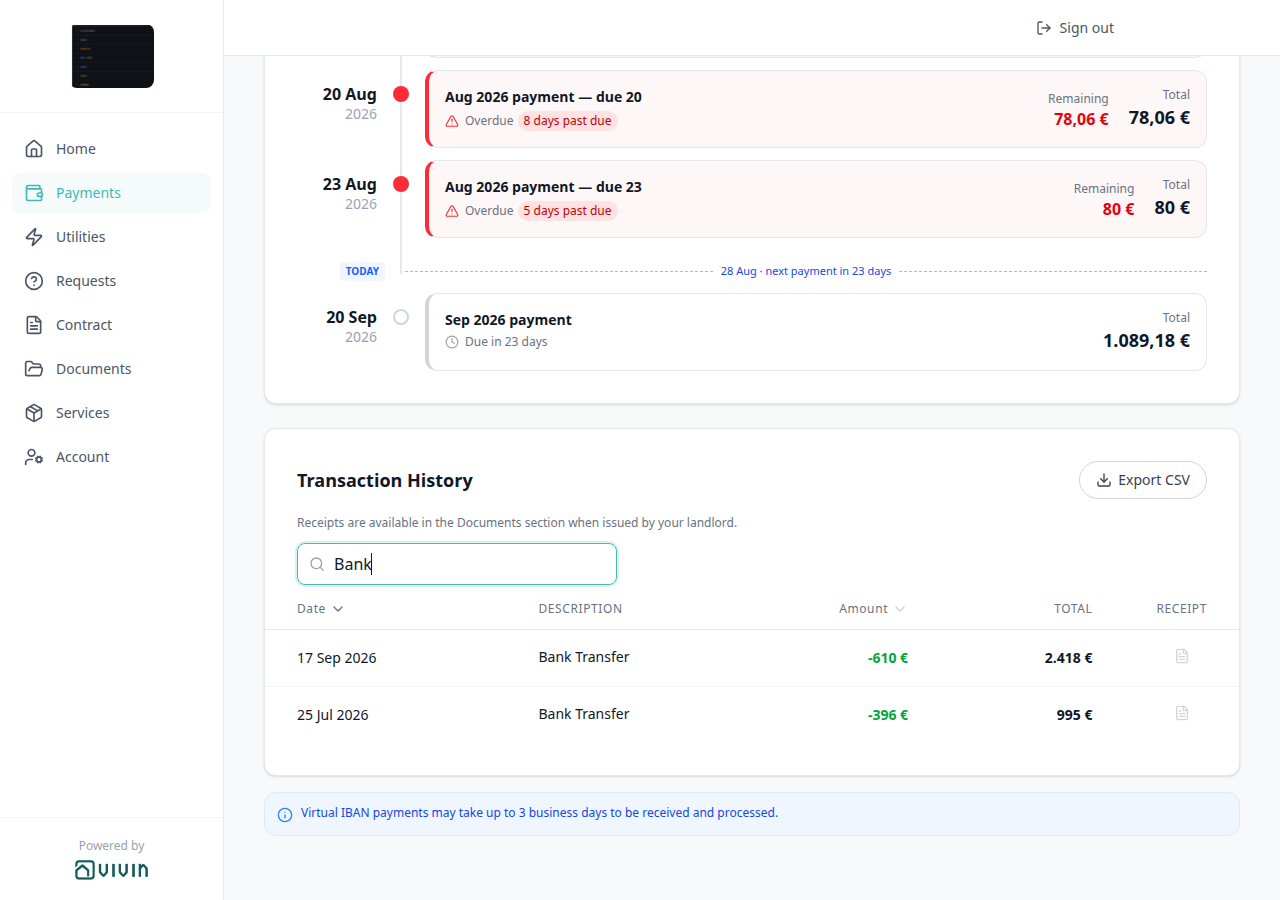
Transaction History search
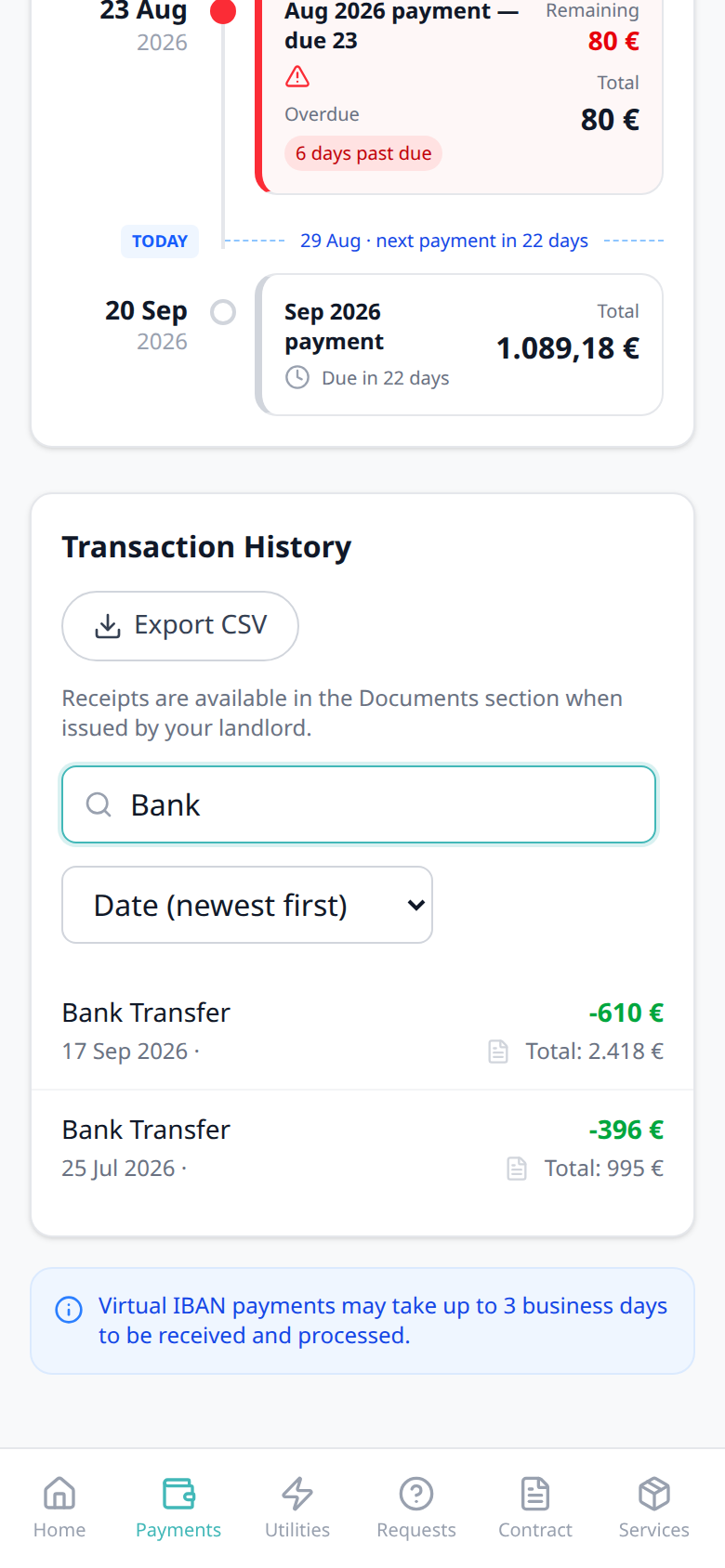
Transaction History search pairs with Payments tab (the field sits under Transaction History), Transaction History sort (sort still applies to matching rows), Transaction History pagination (typing returns to page 1), Export CSV (the spreadsheet follows the same query), Platform payment label (type a channel name such as Roomless), Cash type label (type Cash), Bank Transfer type label (type Bank), Viban type label (type Viban), Credit Card type label (type Credit), Automatic Adjustment type label (type Automatic), Overpayment Return type label (type Overpayment), Cancelation With Refund type label (type Cancelation), Cancelation With Partial Refund type label (type Partial), Deposit Refund type label (type Deposit), Receipt column, Virtual IBAN processing notice, View transactions (Home outline button that opens this table), Balance card, Tenant categories (VIVIN payments), and FAQ — How do tenants search payment history in the portal?. Distinct from Transaction History sort (column order, not which rows stay) and from operator search on Finance → Transactions.
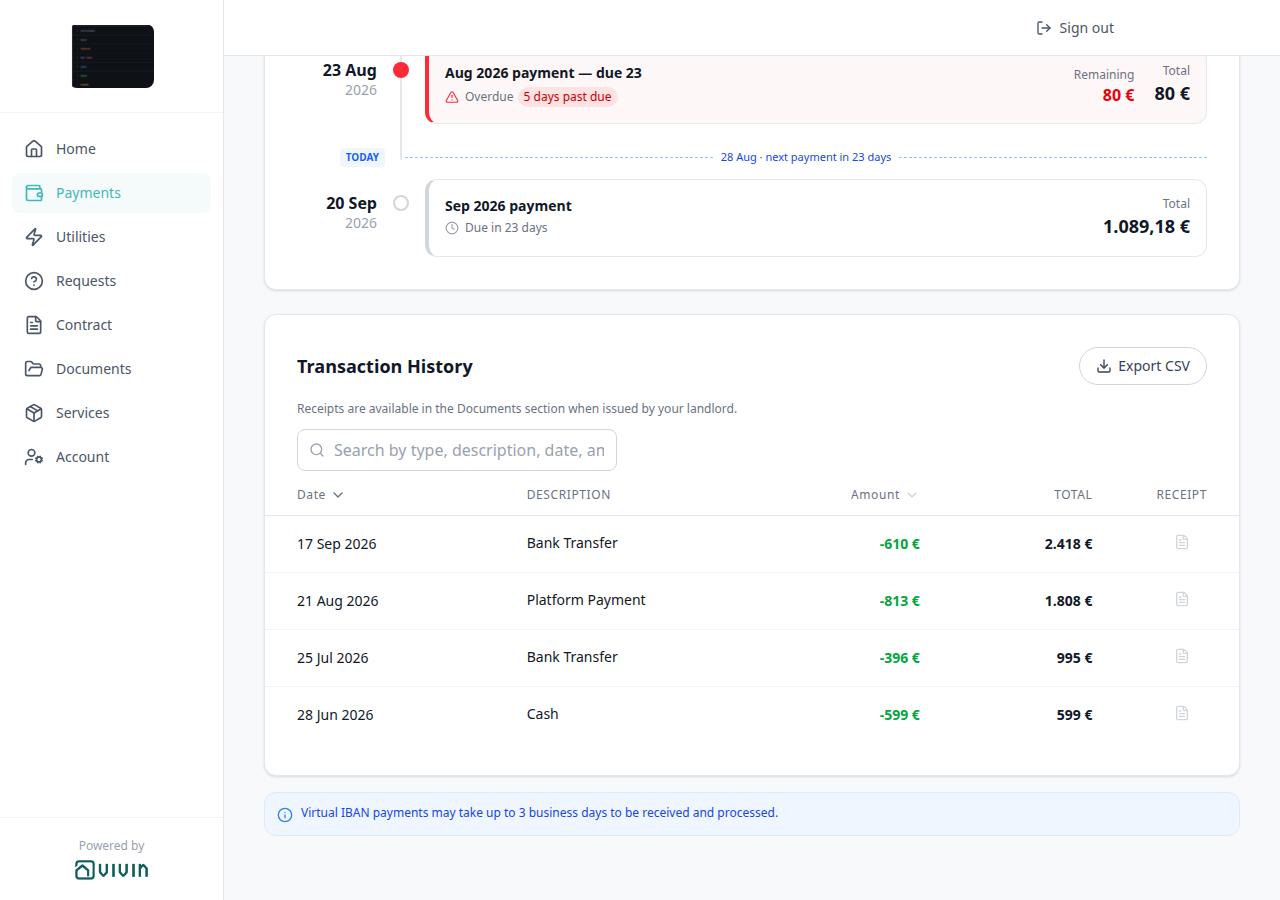
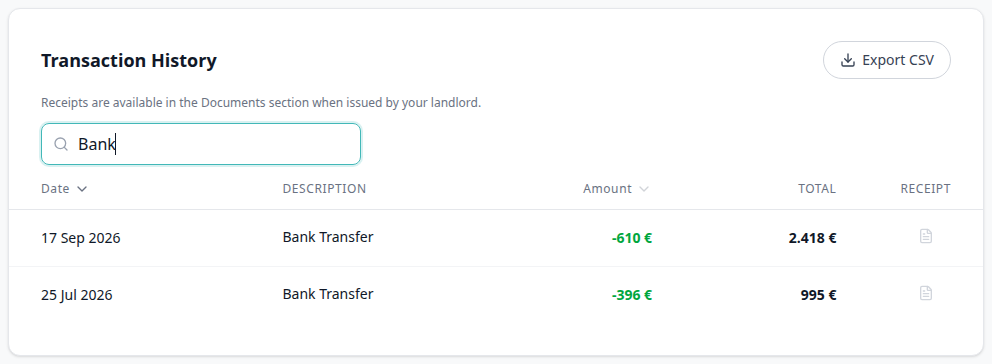
On Payments → Transaction History, tenants type in Search by type, description, date, amount... to keep matching rows. There is no Portal settings hide toggle.
Empty search shows every row. The field matches what the table shows, not internal payment codes:
| What tenants type | What stays in the table |
|---|---|
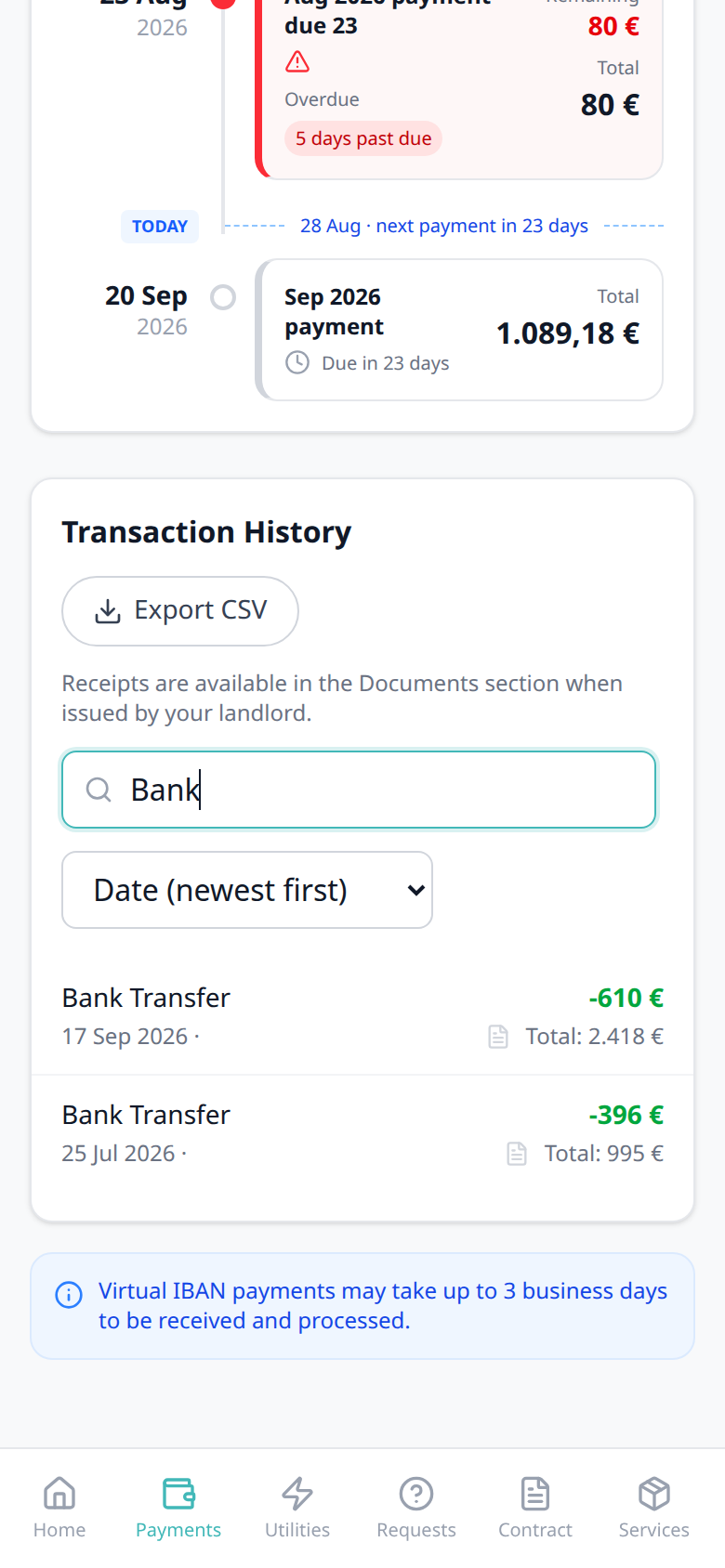
| A type label fragment (Bank, Cash, Credit, Automatic, Overpayment, Cancelation, Partial, Roomless) | Rows whose Description uses that label (for example Bank keeps Bank Transfer, Credit keeps Credit Card, Automatic keeps Automatic Adjustment, Overpayment keeps Overpayment Return, Cancelation keeps Cancelation With Refund, Partial keeps Cancelation With Partial Refund) |
| A description fragment | The grey subtitle under the type, when one exists |
| A short date | The Date column (for example 17 Sep 2026) |
A signed amount (-610 or 610) | The Amount as shown, including the inbound minus. See FAQ — signed amounts |
When nothing matches, the table reads No transactions match your search. Clear the field to see every row again.
Typing in search returns to page 1 (10 rows per page). Export CSV uses the same query — the file includes every matching row, not only the current page. Date / Amount sort still applies to whatever remains.
On a phone, the same search field sits above the Sort menu.

Who can change it
- Tenants — type, clear, or change the query. They cannot hide the field.
- Operators — the booking payment module and tenant-category VIVIN payments show or hide the whole Payments tab (and this search with it). There is no separate search toggle.
- Marketplace —
POST /bookingscannot send this search. See FAQ — How do tenants search payment history in the portal?.
Transaction History sort
Transaction History sort pairs with Payments tab (search and pagination on the same table), Platform payment label (channel name and logo in Description), Cash type label (Cash as plain text in Description), Bank Transfer type label (Bank Transfer as plain text in Description), Credit Card type label, Automatic Adjustment type label, Overpayment Return type label, Cancelation With Refund type label, Cancelation With Partial Refund type label, Deposit Refund type label, Export CSV (the spreadsheet follows the same Date / Amount order), Receipt column (the last column on the same table), Virtual IBAN processing notice (the notice under the same table), View transactions (Home outline button that opens this table), Balance card, Tenant categories (VIVIN payments), and FAQ — How do tenants sort payment history in the portal?. Distinct from operator column sort on Finance → Transactions.
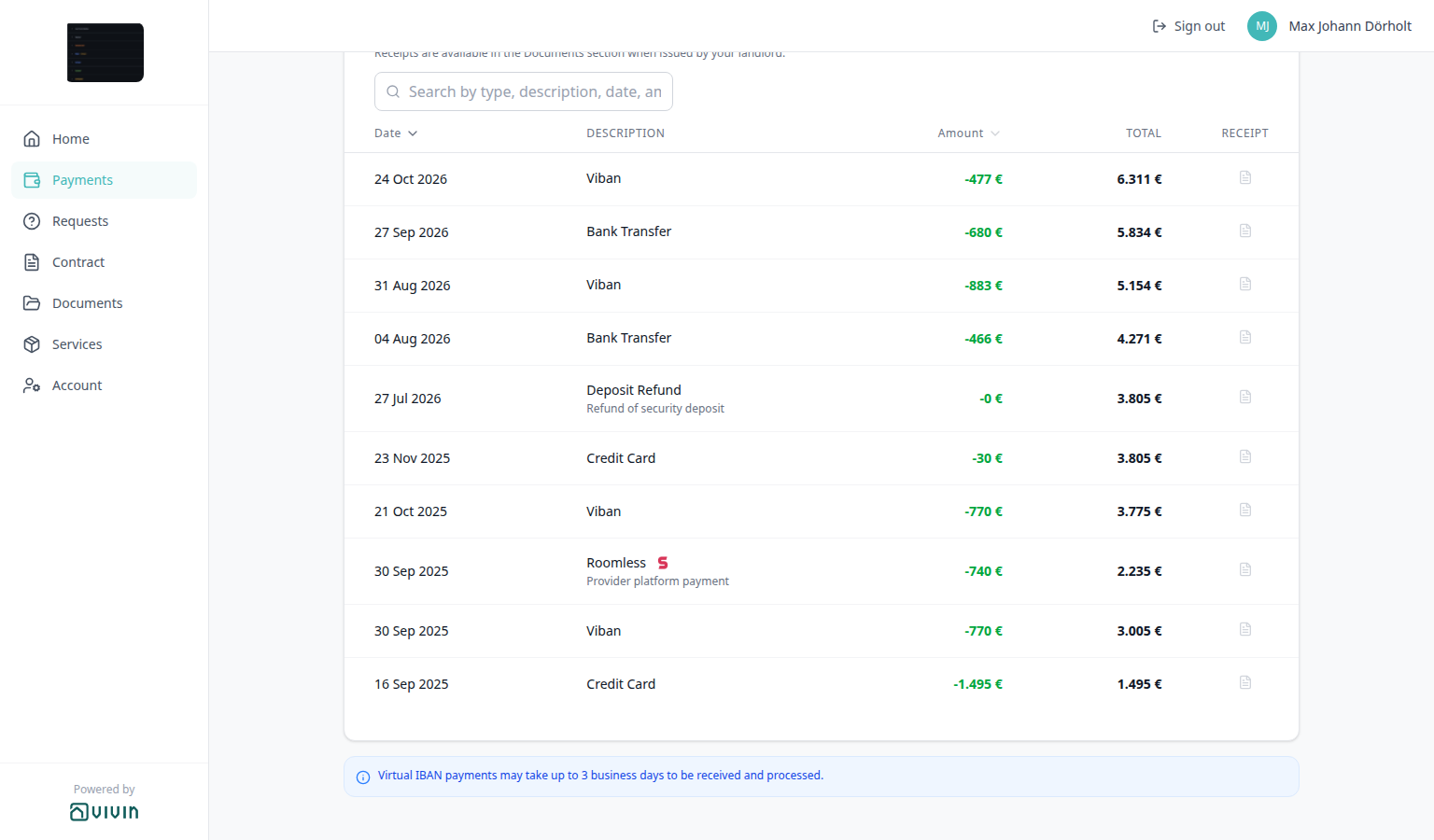
On Payments → Transaction History, tenants choose how rows are listed. Default is Date, newest first. There is no Portal settings hide toggle.
On a computer, click the Date or Amount column header. An arrow on the active column shows the direction. The first click on Amount sorts low to high (the most negative inbound amount first). Click the same header again to reverse it. Click Date to return to newest-first (or oldest-first on the second click).
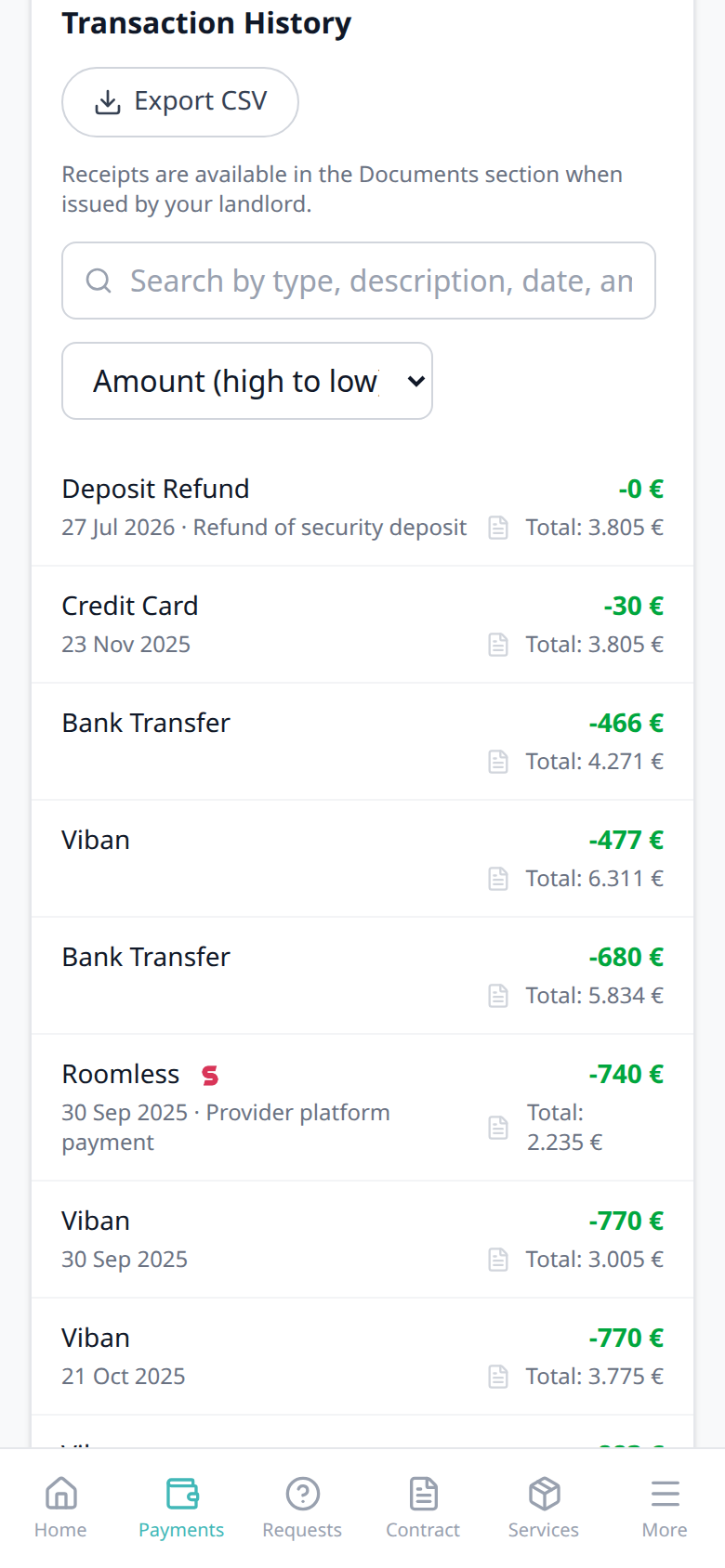
On a phone, a menu under the search field lists four orders:
| Menu label | What tenants see |
|---|---|
| Date (newest first) | Latest rows at the top (default) |
| Date (oldest first) | Earliest rows at the top |
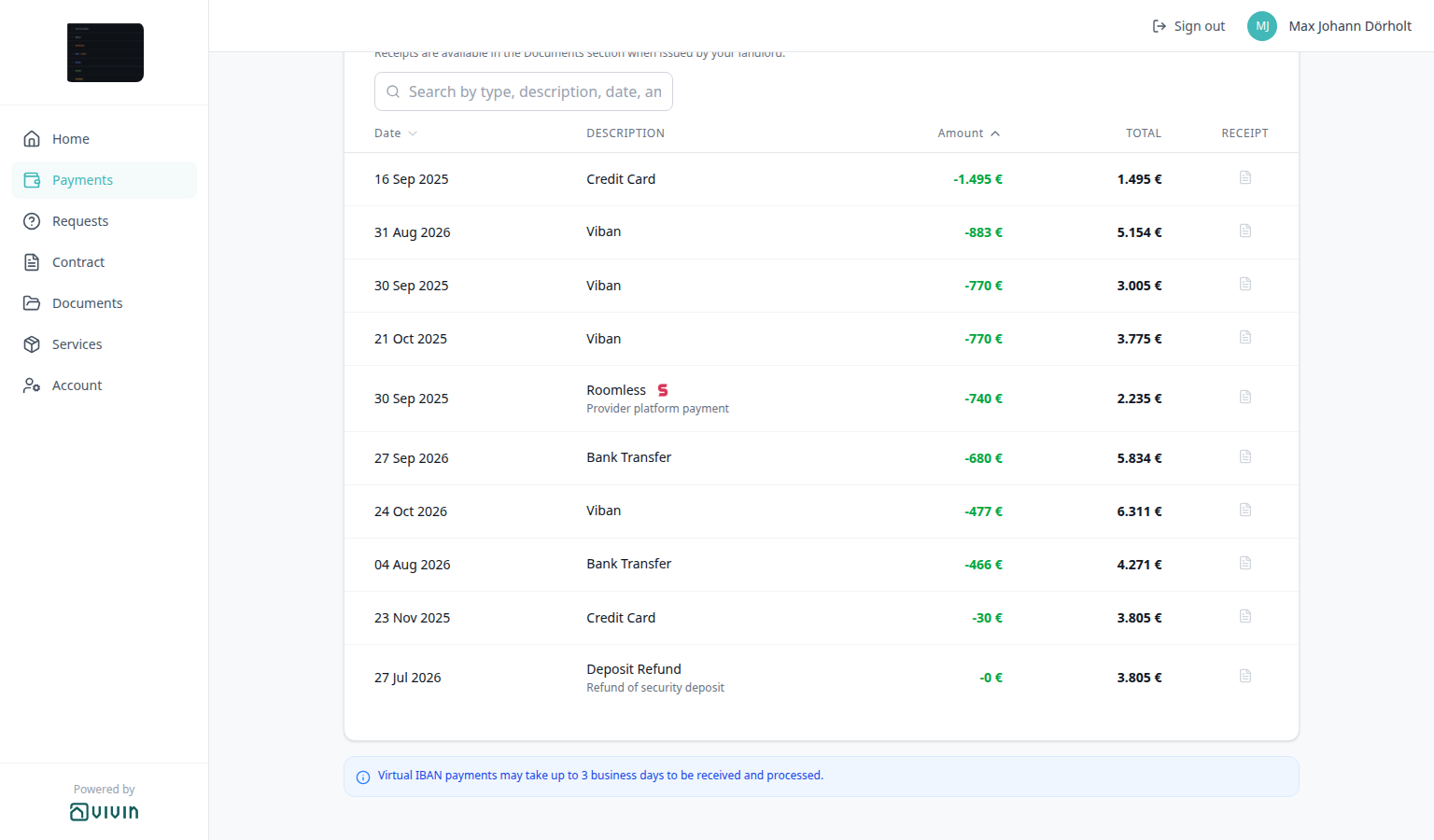
| Amount (high to low) | Largest signed amount first (for example -0 € above -30 €) |
| Amount (low to high) | Smallest signed amount first |
The Total column is still a running balance in date order. Sorting by Amount does not rebuild Total for the new order — hover Total on a computer when Amount is active to read Chronological running total (balance after each transaction in date order). Search still applies. Changing sort returns to page 1 (10 rows per page).
Export CSV uses the same search and sort. Pagination does not — the file includes every matching row.
Who can change it
- Tenants — pick Date or Amount (or the phone menu). They cannot hide the controls.
- Operators — the booking payment module and tenant-category VIVIN payments show or hide the whole Payments tab (and this sort with it). There is no separate sort toggle.
- Marketplace —
POST /bookingscannot send this sort. See FAQ — How do tenants sort payment history in the portal?.
Transaction History pagination
Transaction History pagination pairs with Payments tab (the footer sits under the table), Transaction History search (typing returns to page 1), Transaction History sort (changing sort returns to page 1), Export CSV (the spreadsheet includes every matching row, not only this page), Receipt column, Platform payment label, Cash type label, Bank Transfer type label, Credit Card type label, Automatic Adjustment type label, Overpayment Return type label, Cancelation With Refund type label, Cancelation With Partial Refund type label, Deposit Refund type label, Virtual IBAN processing notice (the notice stays under the table on every page), View transactions (Home outline button that opens this table), Balance card, Tenant categories (VIVIN payments), and FAQ — How do tenants page through payment history in the portal?. Distinct from Transaction History search (which rows stay) and from operator infinite-scroll lists on Finance → Transactions.
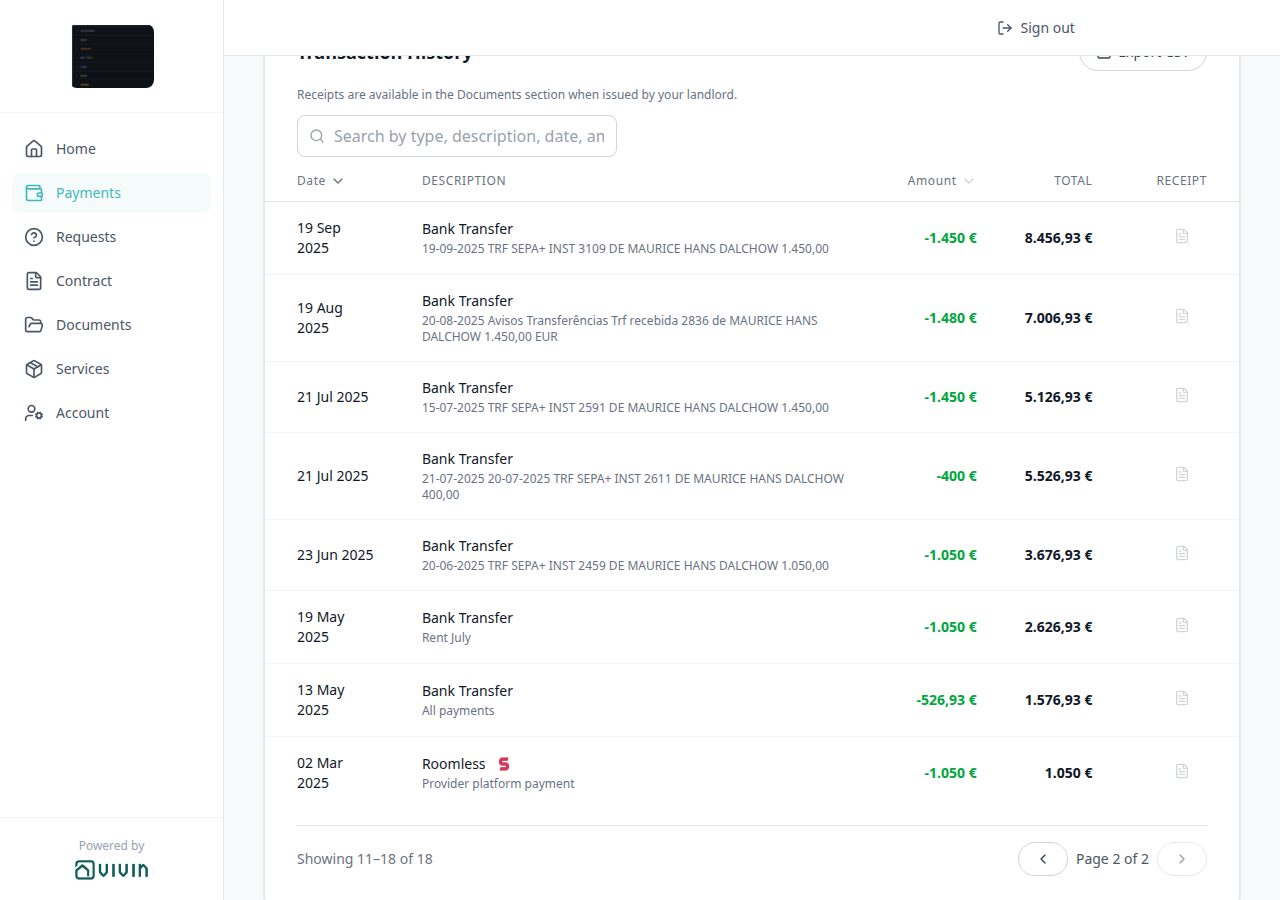
On Payments → Transaction History, when more than 10 matching rows exist, a footer under the table pages the list. There is no Portal settings hide toggle.
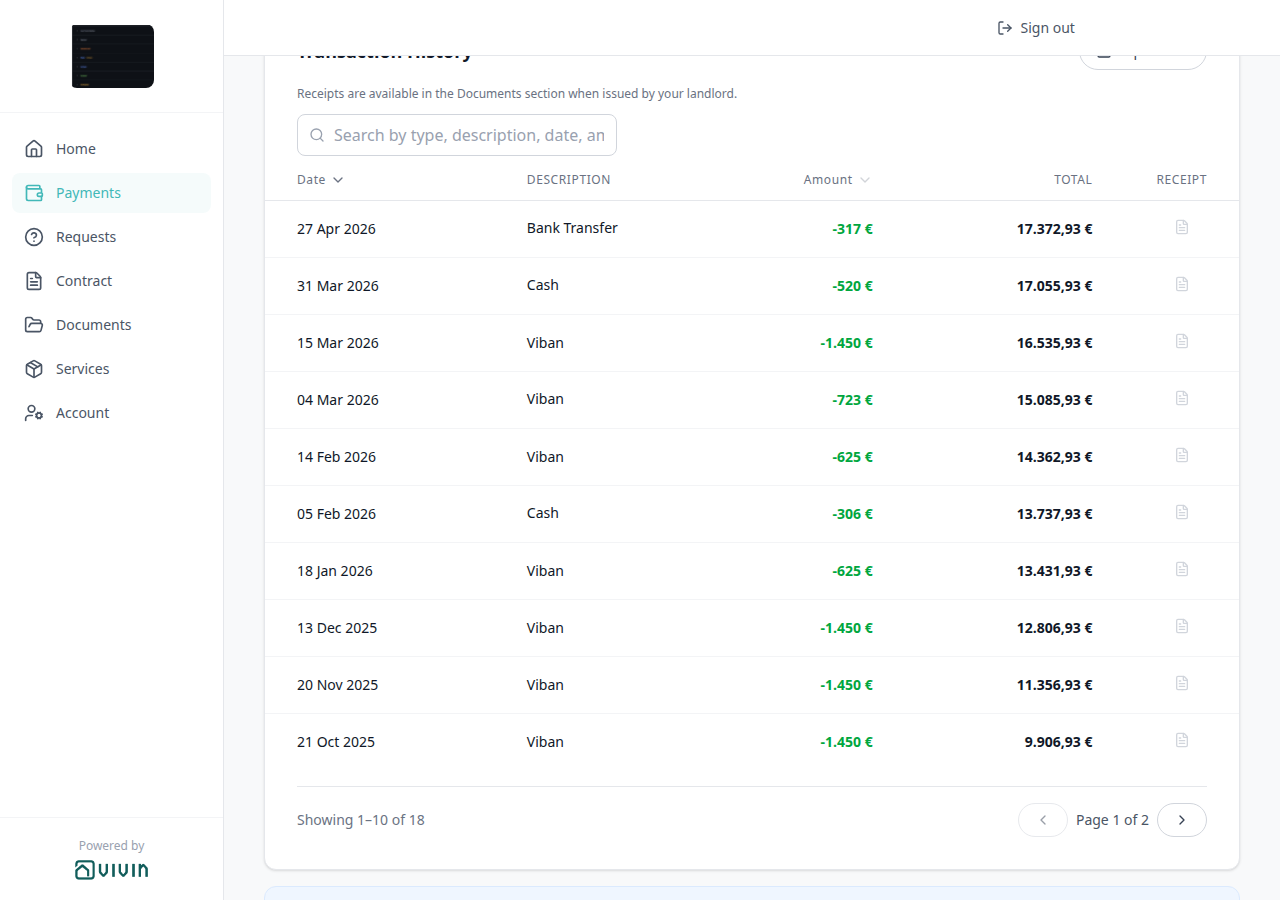
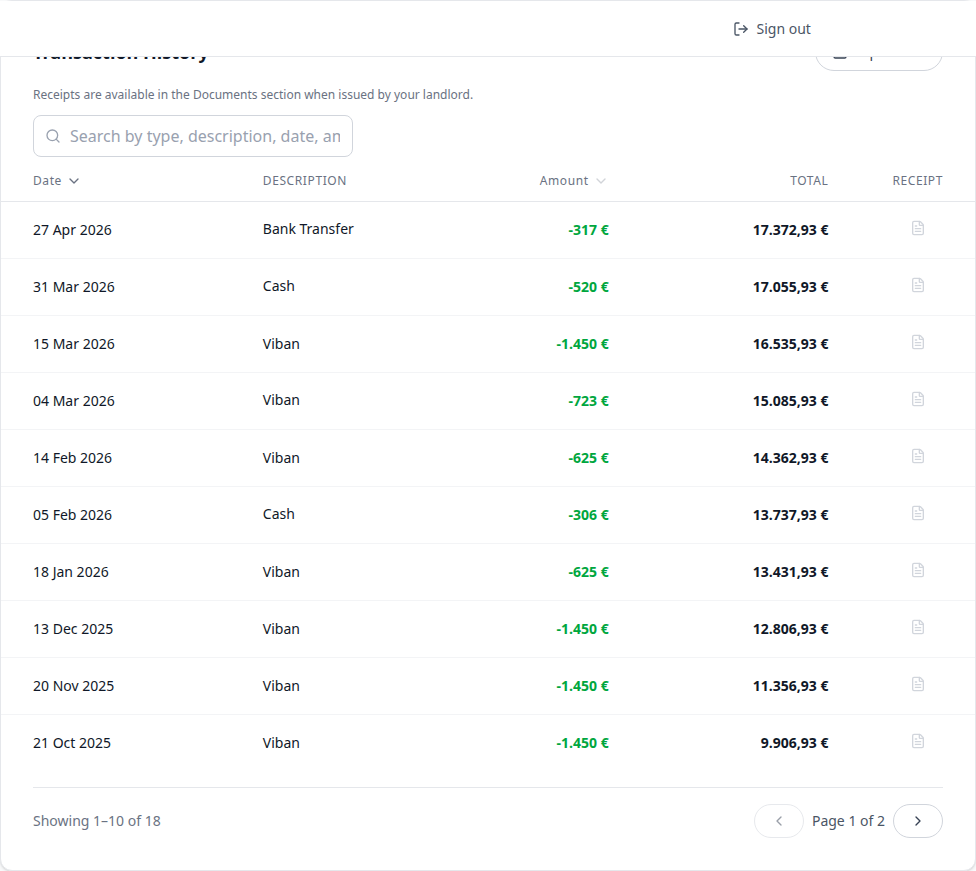
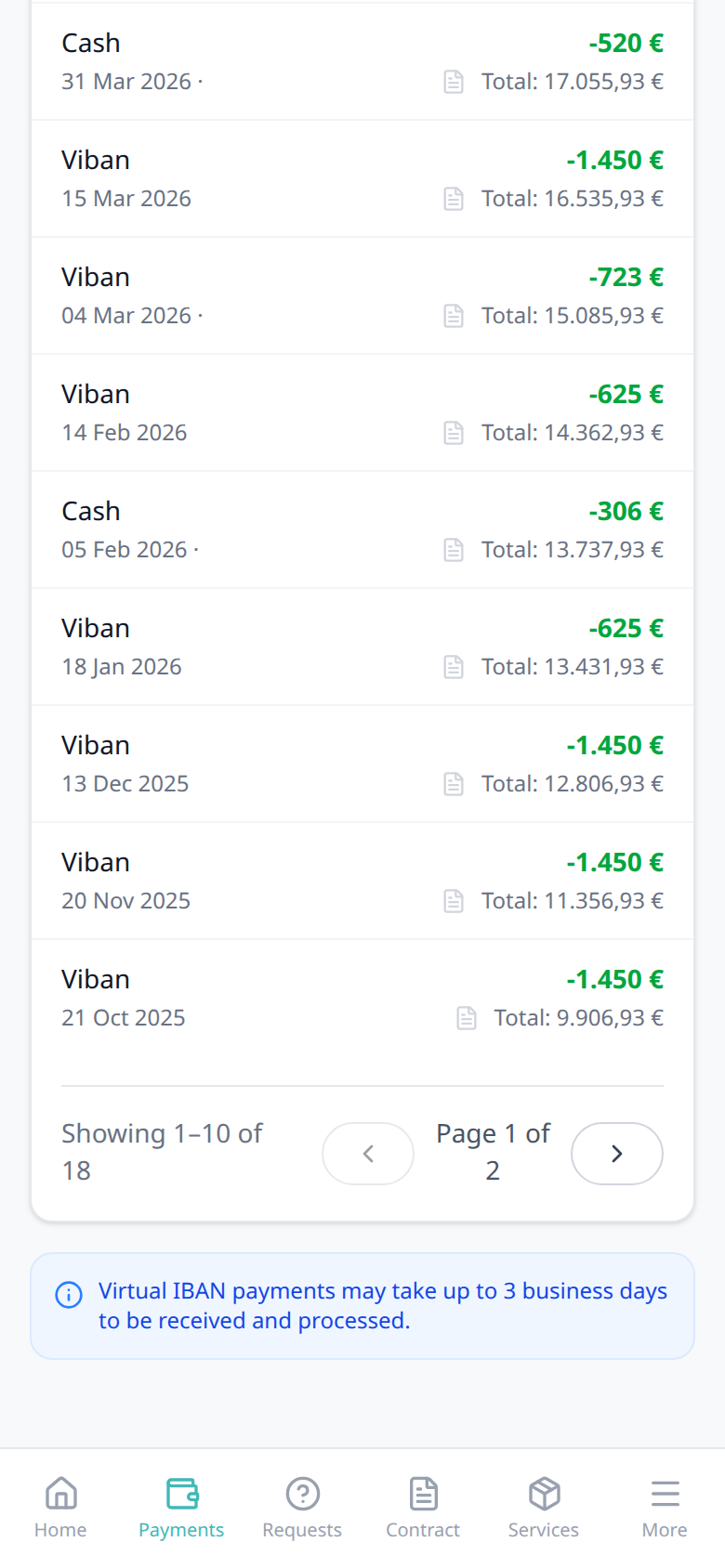
The footer reads Showing X–Y of Z on the left and Page N of M between previous / next chevrons on the right. Each page holds 10 rows. Tenants tap next to see the following ten (for example Showing 1–10 of 18 Page 1 of 2, then Showing 11–18 of 18 Page 2 of 2). Previous is unavailable on page 1; next is unavailable on the last page.
The footer is omitted when 10 or fewer rows match — empty search on a short history, or a query that leaves 10 or fewer rows. Search and Date / Amount sort both return to page 1. Export CSV still downloads every matching row, not only the page on screen.
On a phone, the same footer sits under the history cards (above the Virtual IBAN notice).

Who can change it
- Tenants — tap previous / next. They cannot change the page size or hide the footer.
- Operators — the booking payment module and tenant-category VIVIN payments show or hide the whole Payments tab (and this footer with it). Record receipts on the booking so history has more than 10 rows.
- Marketplace —
POST /bookingscannot send this pagination. See FAQ — How do tenants page through payment history in the portal?.
Platform payment label
Platform payment label pairs with Payments tab (Transaction History), Transaction History search (type the channel name), Transaction History sort, Export CSV (the spreadsheet uses the same name), Receipt column, Bookings — Provider platform payment (the operator channel amount on Contract Info), Tenant categories (VIVIN payments), and FAQ — How do tenants see which platform paid in the portal?. Distinct from Cash type label (plain-text Cash, no logo), from Bank Transfer type label (plain-text Bank Transfer, no logo), from Virtual IBAN / Credit Card type label / Automatic Adjustment type label / Overpayment Return type label, Cancelation With Refund type label rows on the same table, and from operator Finance → Transactions type cards.
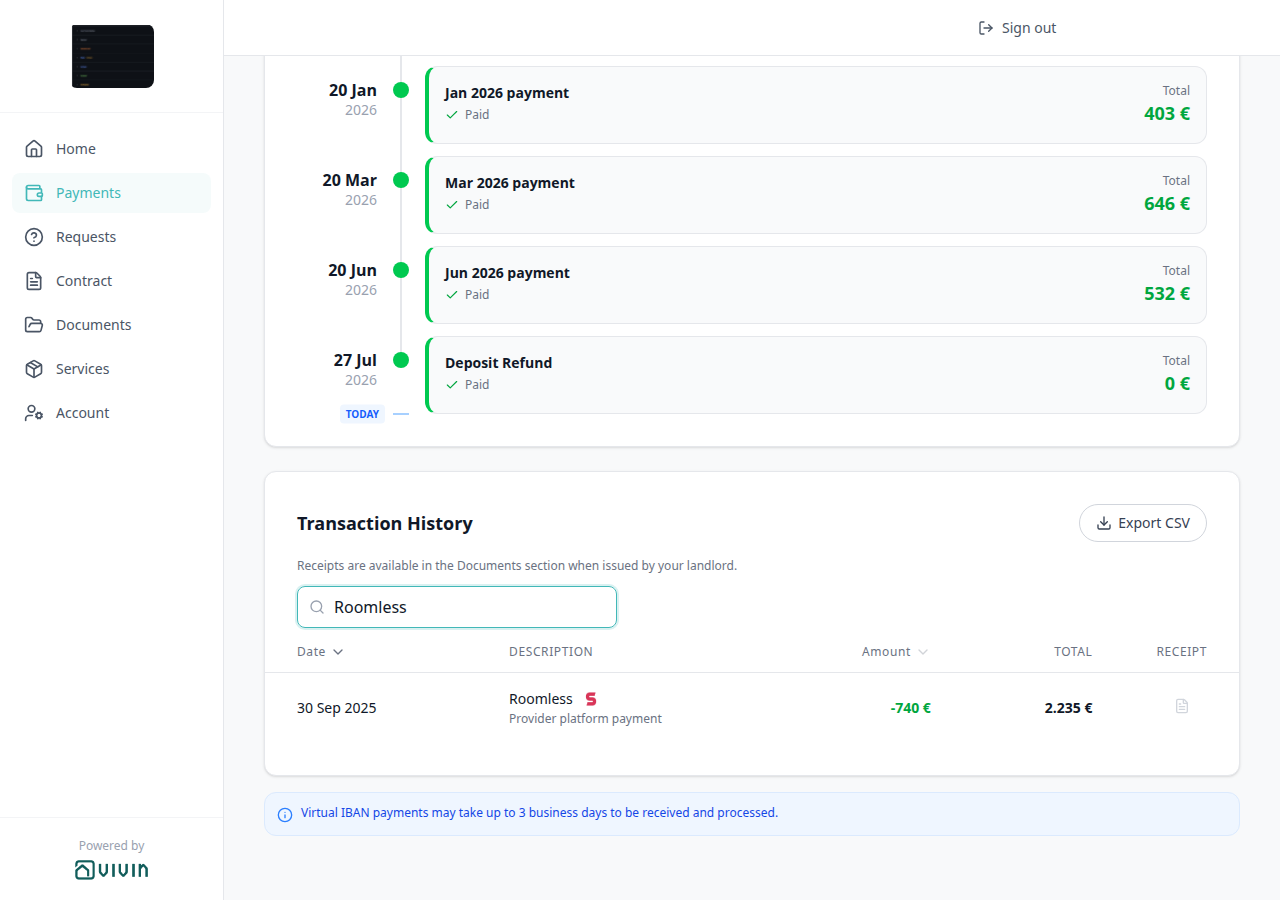
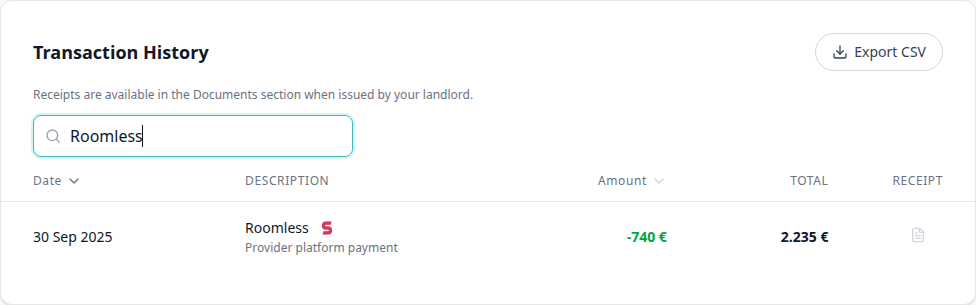
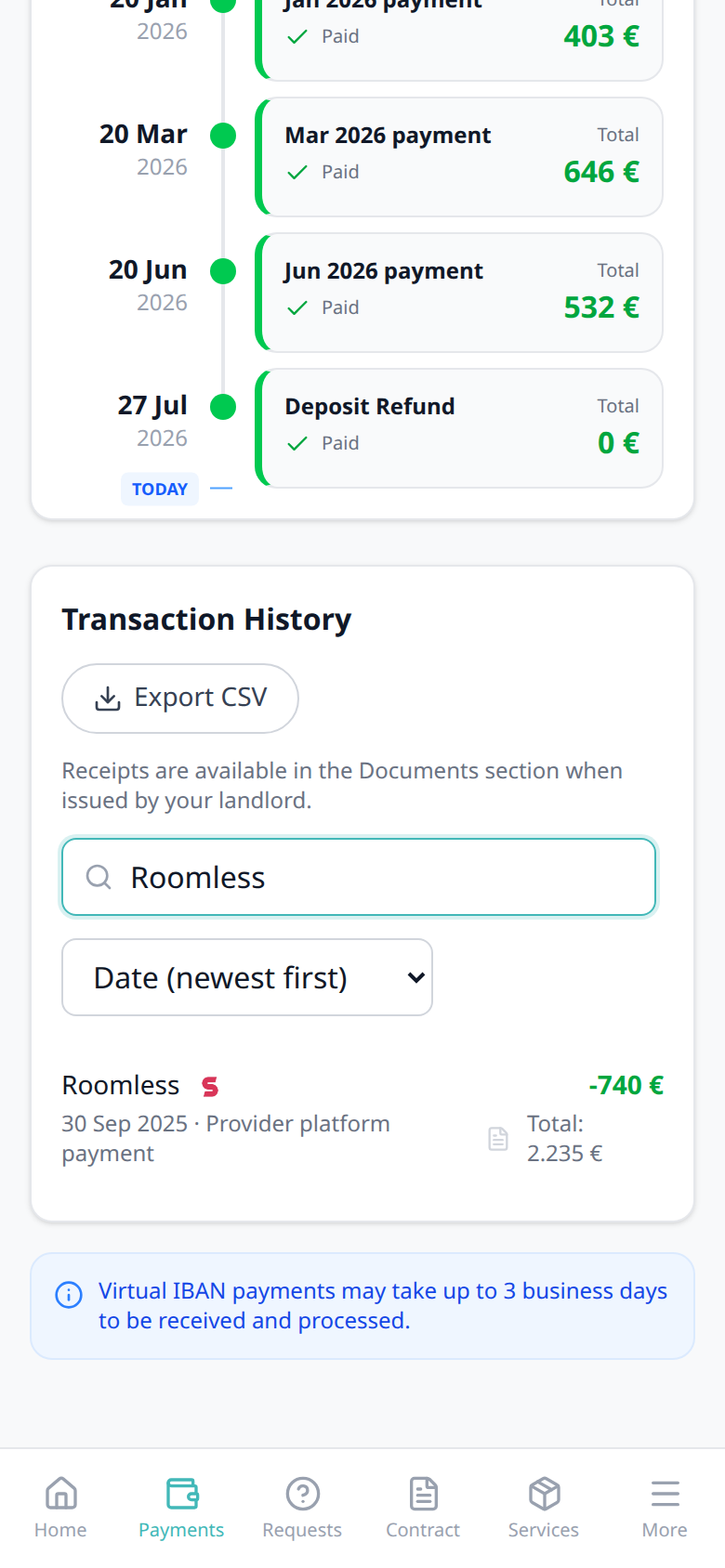
On Payments → Transaction History, a payment collected on a listing platform shows that platform’s name and logo, not a generic Platform Payment label. Search matches the name tenants see — type Roomless, Airbnb, or another listed name to keep only those rows.
Known names include Airbnb, Booking.com, Housing Anywhere, Inlife, Roomless, Spotahome, Uniplaces, EduPortugal, Erasmus Life, and VIVIN. When the booking has no known platform, the row stays Platform Payment and has no logo.
The grey subtitle under the name (for example Provider platform payment) is the ledger note. Export CSV writes the same name in Description. There is no Portal settings hide toggle.
Who can change it
- Tenants — read the name and logo; search by that name. They cannot rename the row.
- Operators — the booking’s listing channel sets the name. Tenant-category VIVIN payments (or an unprovisioned payment module) hides the whole Payments tab (and this label with it). Reconcile the euro amount on Contract Info — Provider platform payment.
- Marketplace —
POST /bookingscannot send this label. A platform-collected in-payment still shows the channel name on Transaction History. See FAQ — How do tenants see which platform paid in the portal?.

Cash type label
Cash type label pairs with Payments tab (Transaction History), Transaction History search (type Cash), Transaction History sort, Export CSV (the spreadsheet uses Cash in Description), Receipt column, Platform payment label (channel name and logo on a platform-collected row), Tenant categories (VIVIN payments), and FAQ — How do tenants see a cash payment in the portal?. Distinct from Platform payment label (logo rows), from Bank Transfer type label / Credit Card type label / Viban / Automatic Adjustment type label / Overpayment Return type label, Cancelation With Refund type label on the same table, from operator Card (recorded manually), and from operator Cash Flow (building expenses, not a booking receipt).
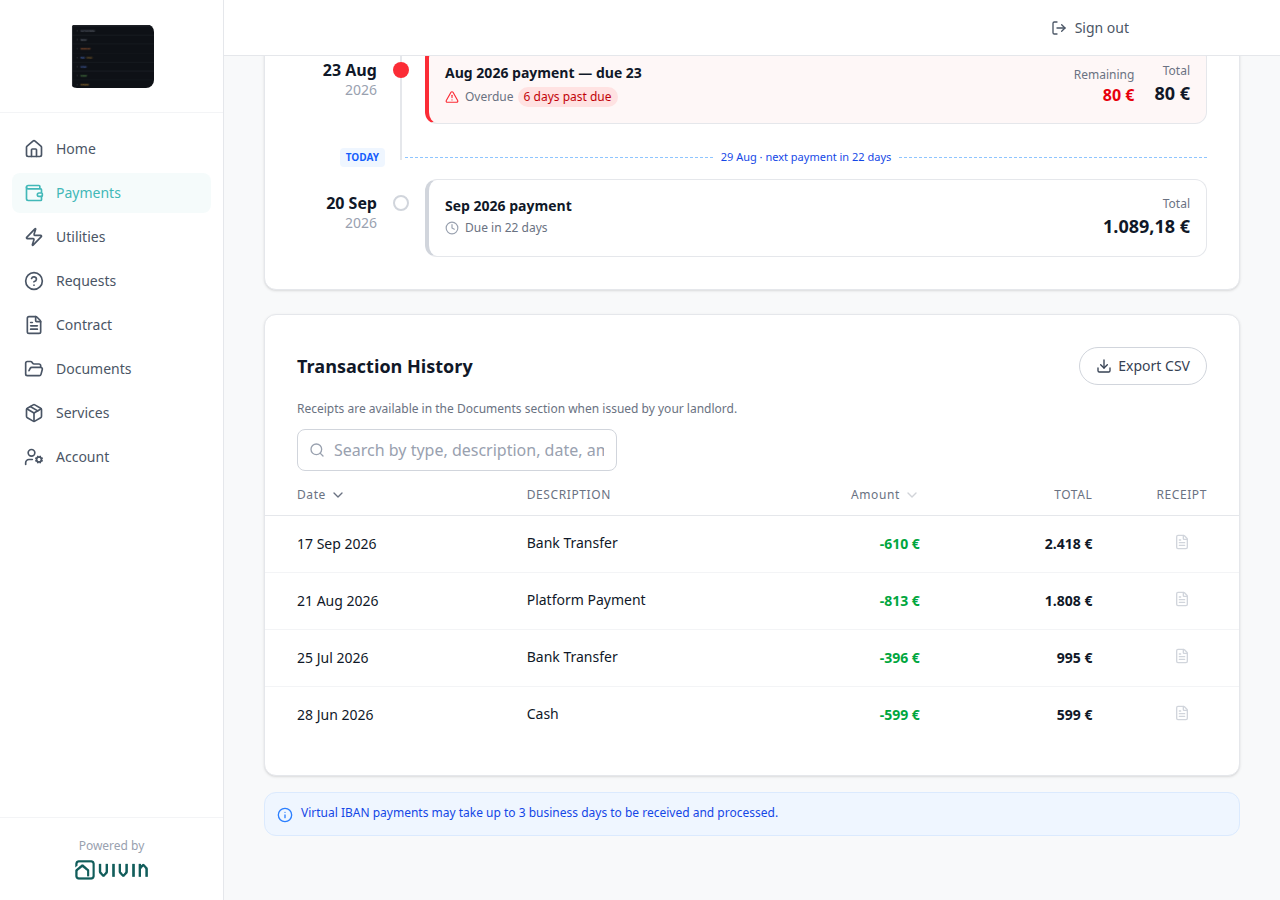
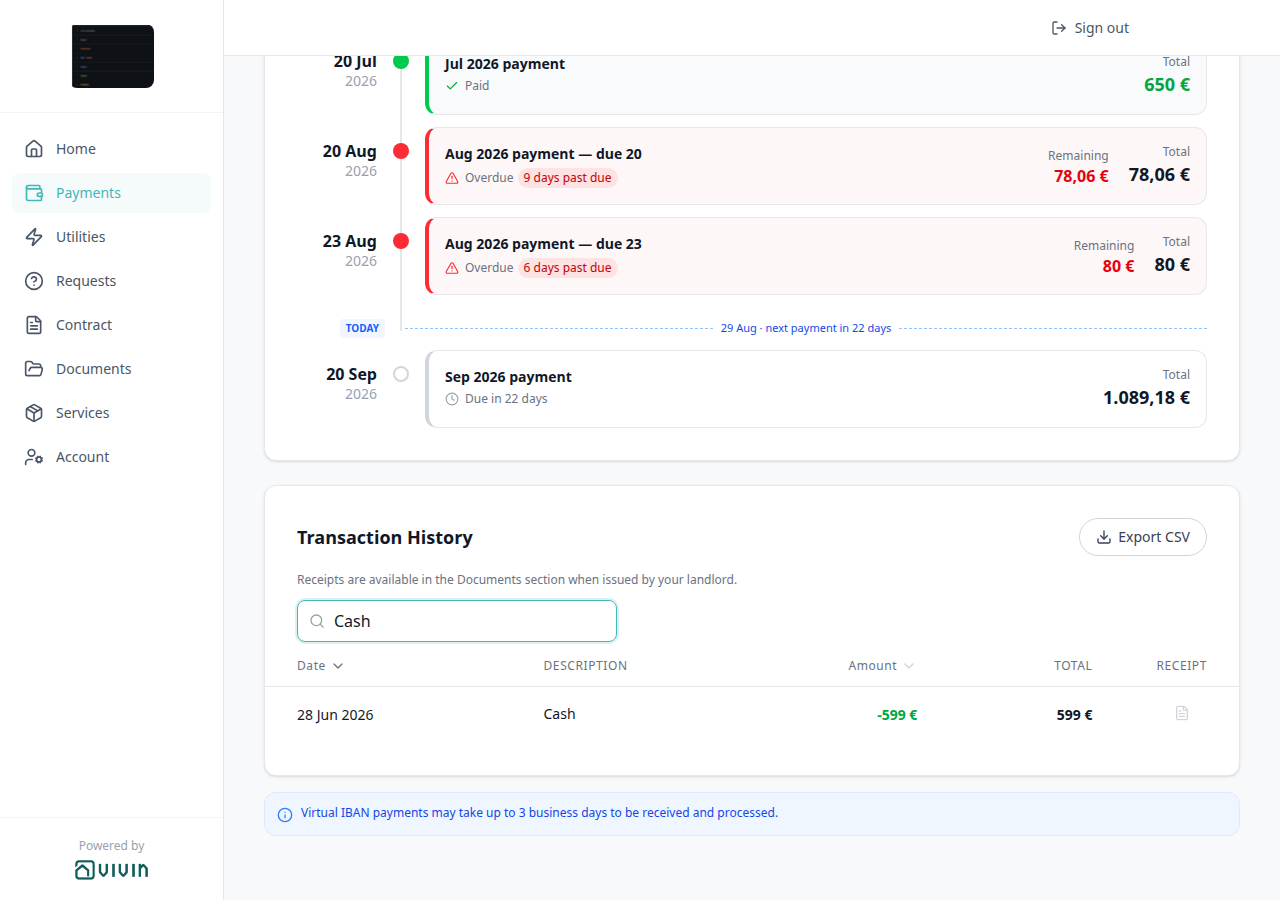
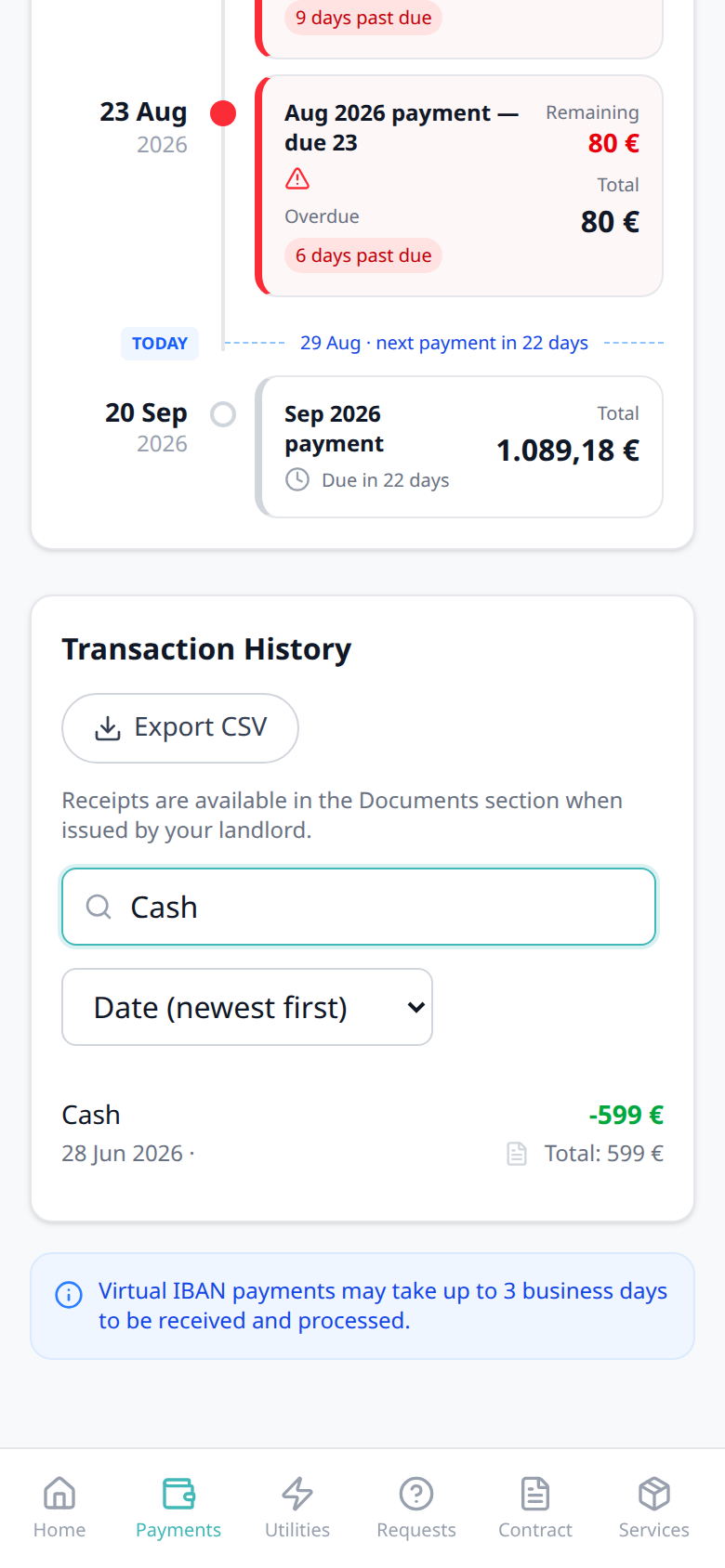
On Payments → Transaction History, a payment recorded as cash shows Cash as plain text in Description — no platform logo. Search matches that label: type Cash to keep only those rows.
Other method labels on the same table (for example Bank Transfer, Credit Card, Viban, Automatic Adjustment, Overpayment Return, MB WAY) stay their own rows. This section is the Cash label only. Export CSV writes Cash in Description. There is no Portal settings hide toggle.
Who can change it
- Tenants — read Cash; search by that word. They cannot rename the row.
- Operators — record the cash receipt on the booking. Tenant-category VIVIN payments (or an unprovisioned payment module) hides the whole Payments tab (and this label with it). Distinct from Card (recorded manually) on the booking transaction form.
- Marketplace —
POST /bookingscannot send this label. A cash in-payment still shows Cash on Transaction History. See FAQ — How do tenants see a cash payment in the portal?.

Bank Transfer type label
Bank Transfer type label pairs with Payments tab (Transaction History), Transaction History search (type Bank), Transaction History sort, Export CSV (the spreadsheet uses Bank Transfer in Description), Receipt column, Cash type label (plain-text Cash, no logo), Platform payment label (channel name and logo), Make payment (Paywall) (Bank Transfer (IBAN) checkout is a different screen), Copy virtual IBAN, Virtual IBAN processing notice, Tenant categories (VIVIN payments), and FAQ — How do tenants see a bank transfer in the portal?. Distinct from Cash type label, from Platform payment label, from Automatic Adjustment type label / Overpayment Return type label, Cancelation With Refund type label on the same table, from Make payment → Bank Transfer (IBAN) (the receiving-account tile), and from operator Card (recorded manually).
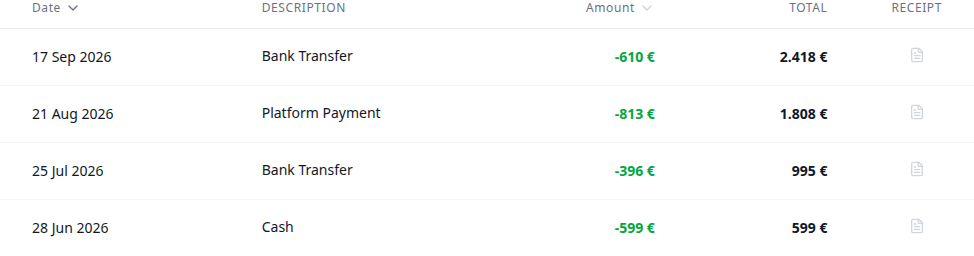
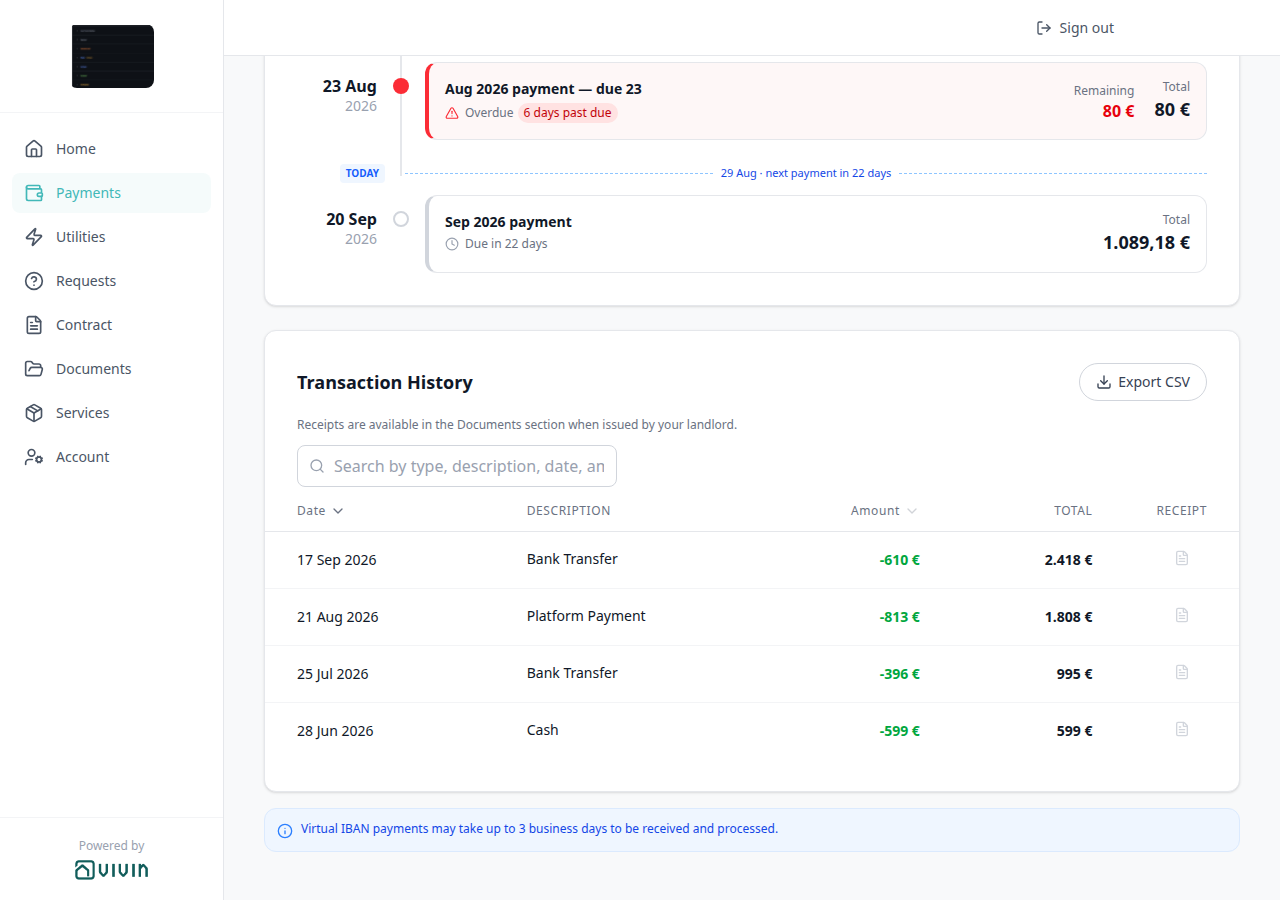
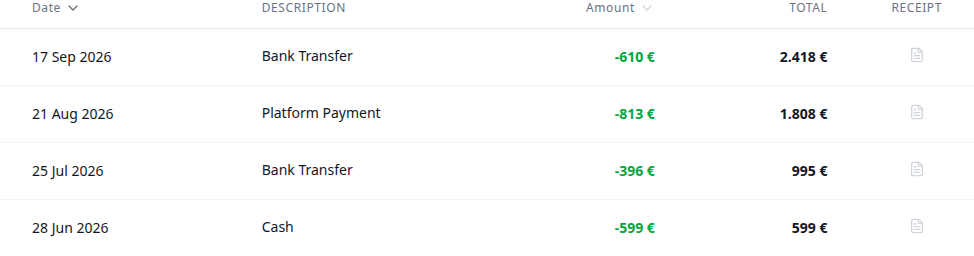
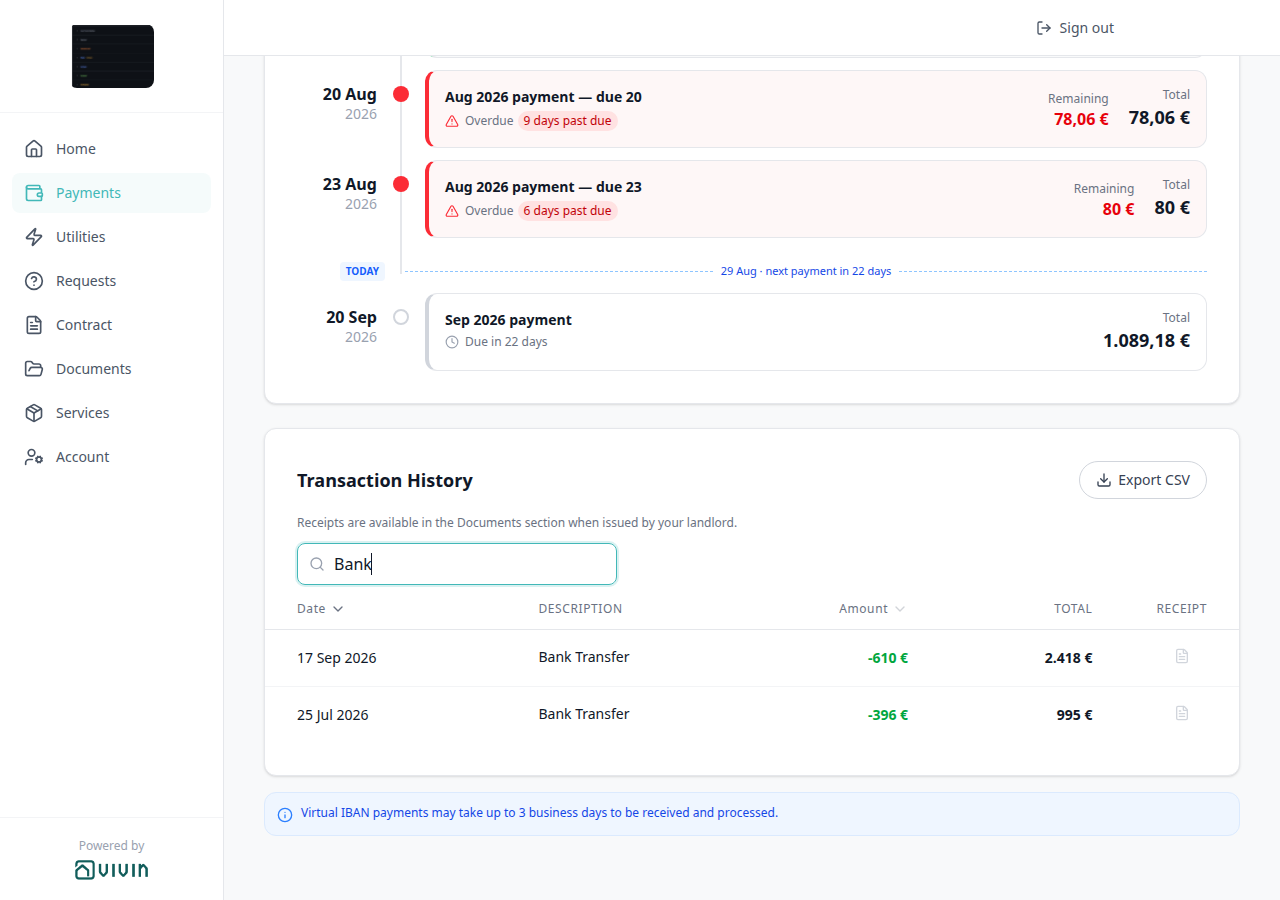
On Payments → Transaction History, a payment recorded as a bank transfer shows Bank Transfer as plain text in Description — no platform logo. Search matches that label: type Bank to keep only those rows.
Other method labels on the same table (for example Cash, Viban, Credit Card, Automatic Adjustment, Overpayment Return, Roomless) stay their own rows. This section is the Bank Transfer history label only — not the Make payment → Bank Transfer (IBAN) checkout tile. Export CSV writes Bank Transfer in Description. There is no Portal settings hide toggle.
Who can change it
- Tenants — read Bank Transfer; search by Bank. They cannot rename the row.
- Operators — record the bank-transfer receipt on the booking. Tenant-category VIVIN payments (or an unprovisioned payment module) hides the whole Payments tab (and this label with it). Distinct from Card (recorded manually) on the booking transaction form.
- Marketplace —
POST /bookingscannot send this label. A bank-transfer in-payment still shows Bank Transfer on Transaction History. See FAQ — How do tenants see a bank transfer in the portal?.

Viban type label
Viban type label pairs with Payments tab (Transaction History), Transaction History search (type Viban), Transaction History sort, Export CSV (the spreadsheet uses Viban in Description), Receipt column, Bank Transfer type label (plain-text Bank Transfer, no logo), Cash type label, Credit Card type label, Automatic Adjustment type label, Overpayment Return type label, Cancelation With Refund type label, Platform payment label (channel name and logo), Virtual IBAN processing notice (the blue 3-business-days copy under the table), Copy virtual IBAN / Make payment (Paywall) (Bank Transfer (IBAN) checkout is a different screen), Tenant categories (VIVIN payments), and FAQ — How do tenants see a Viban payment in the portal?. Distinct from Bank Transfer type label, from Make payment → Bank Transfer (IBAN), from the Virtual IBAN processing notice, from Credit Card type label, from Automatic Adjustment type label, from Overpayment Return type label, Cancelation With Refund type label, and from Platform payment label.
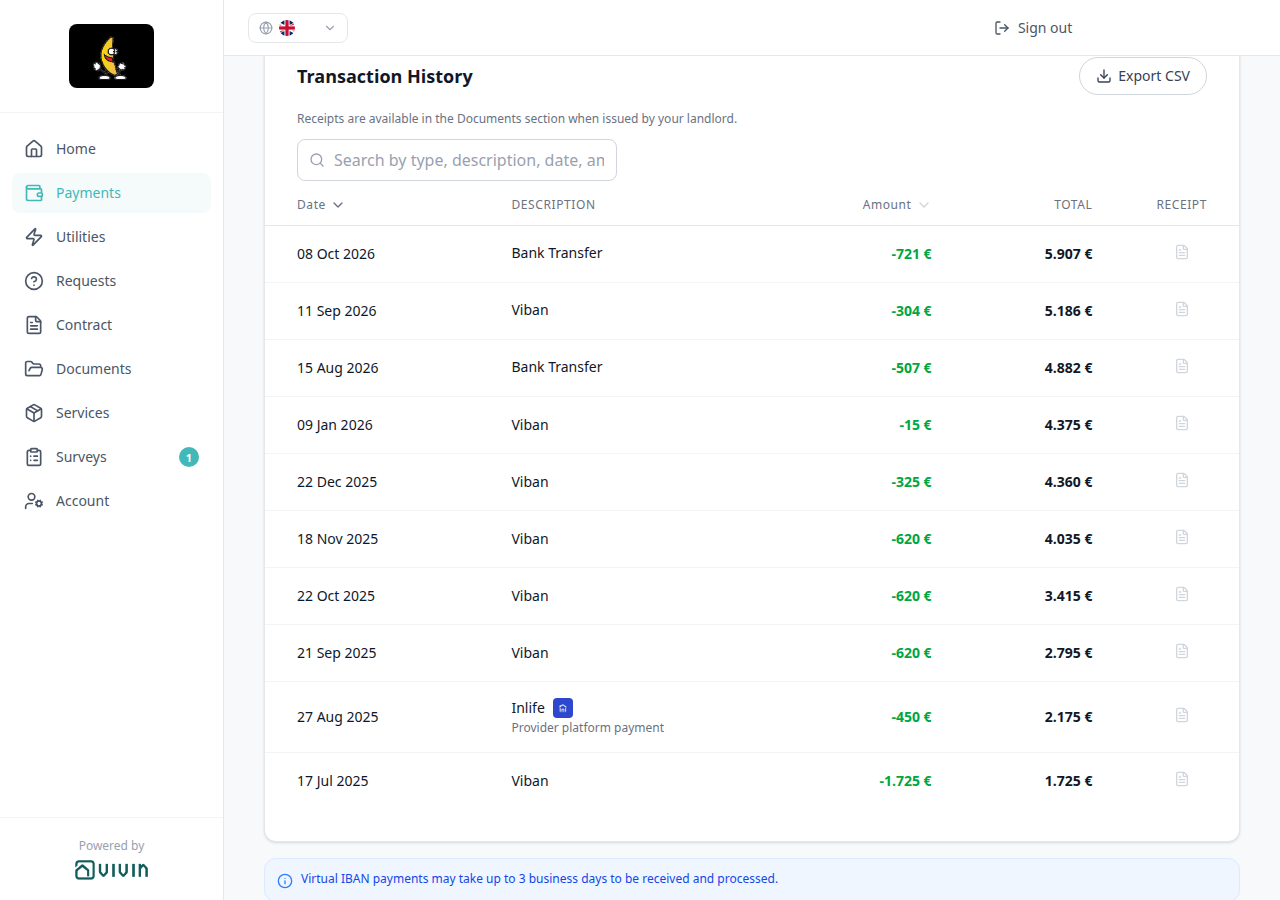
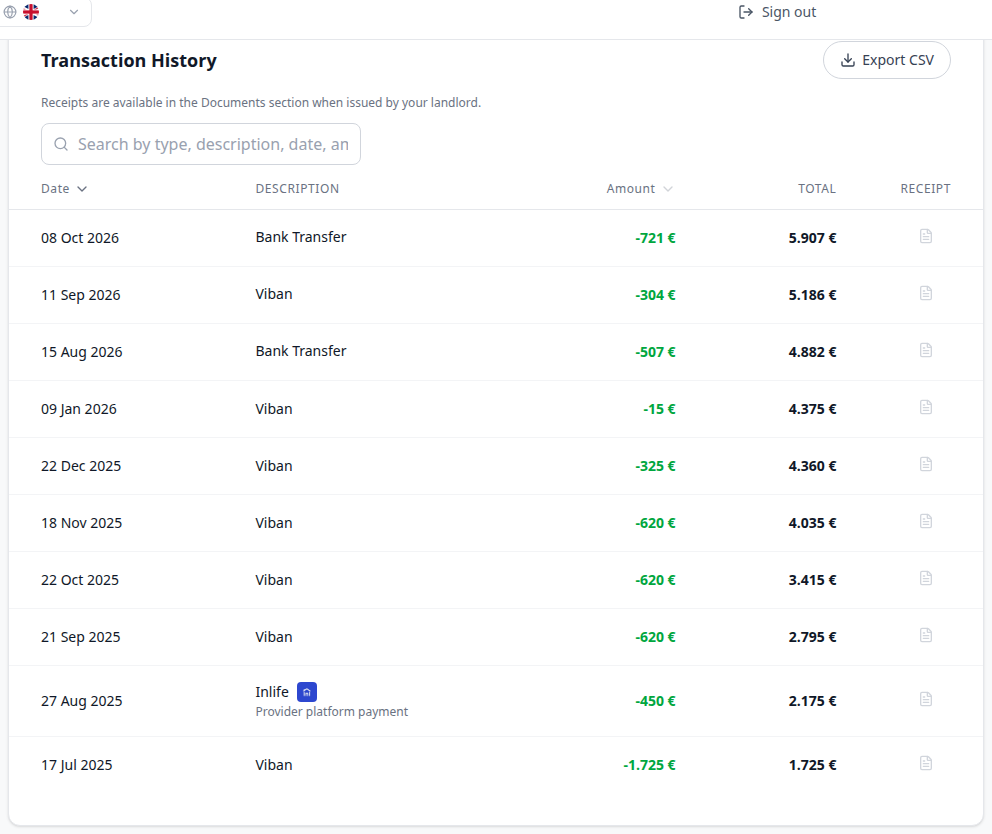
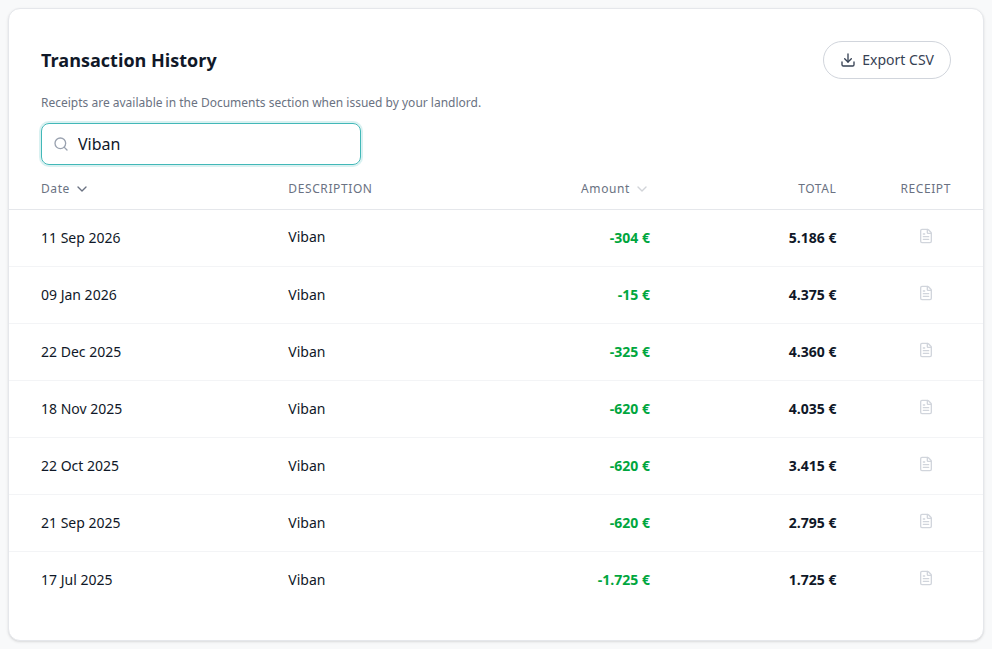
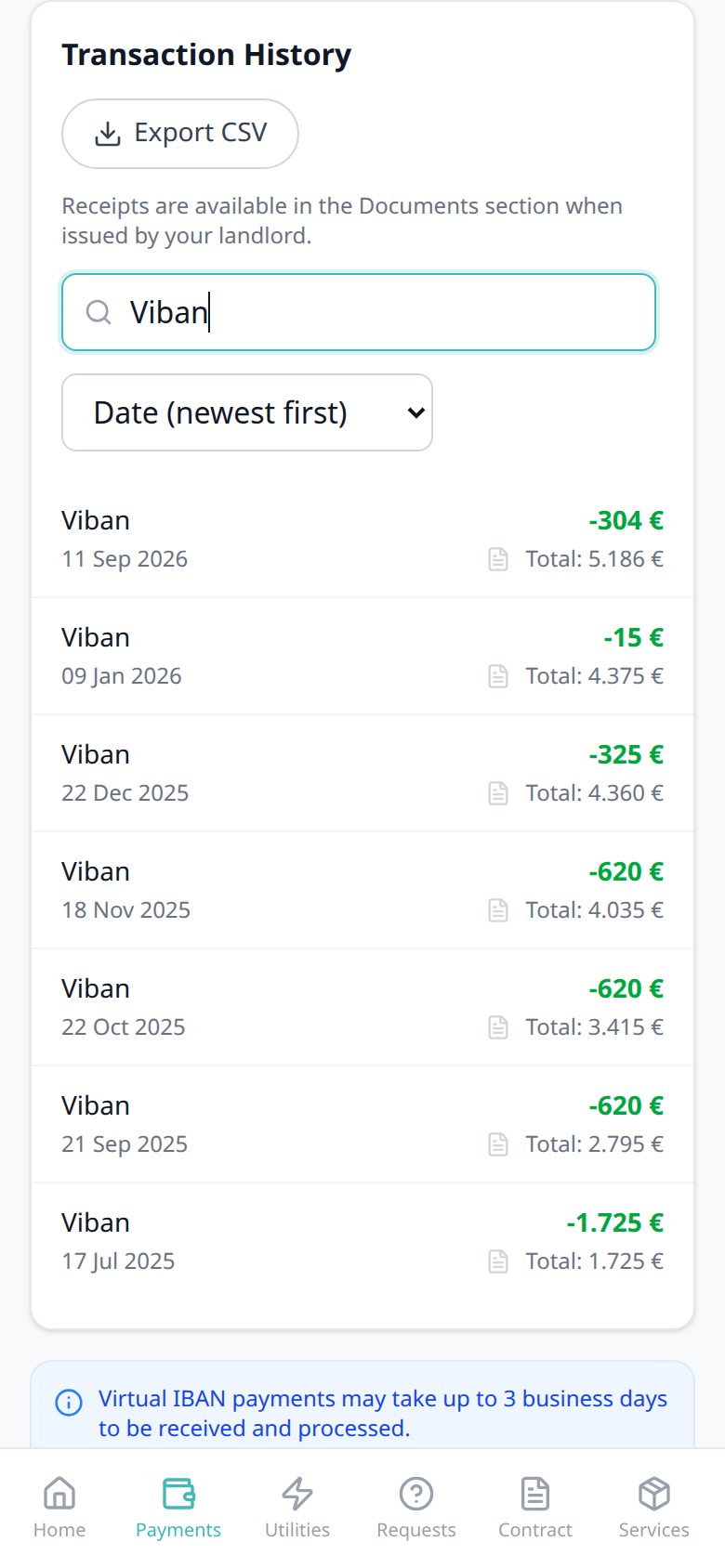
On Payments → Transaction History, a payment matched through the booking virtual IBAN shows Viban as plain text in Description — no platform logo. Search matches that label: type Viban to keep only those rows.
This is the history label, not the words Virtual IBAN. Export CSV writes Viban in Description. The blue notice under the table still says Virtual IBAN payments may take up to 3 business days… — that copy is Virtual IBAN processing notice, not this row label. There is no Portal settings hide toggle.
Who can change it
- Tenants — read Viban; search by that word. They cannot rename the row.
- Operators — virtual IBAN receipts post to the booking automatically. Tenant-category VIVIN payments (or an unprovisioned payment module) hides the whole Payments tab (and this label with it). Distinct from recording a Bank Transfer by hand.
- Marketplace —
POST /bookingscannot send this label. A virtual-IBAN in-payment still shows Viban on Transaction History. See FAQ — How do tenants see a Viban payment in the portal?.

Credit Card type label
Credit Card type label pairs with Payments tab (Transaction History), Transaction History search (type Credit), Transaction History sort, Export CSV (the spreadsheet uses Credit Card in Description), Receipt column, Bank Transfer type label (plain-text Bank Transfer, no logo), Cash type label, Viban type label, Automatic Adjustment type label, Overpayment Return type label, Cancelation With Refund type label, Platform payment label (channel name and logo), Make payment (Paywall) (Credit Card checkout is a different screen), Tenant categories (VIVIN payments), and FAQ — How do tenants see a credit card payment in the portal?. Distinct from Cash type label, from Bank Transfer type label, from Viban type label, from Automatic Adjustment type label, from Overpayment Return type label, Cancelation With Refund type label, from Make payment → Credit Card (the checkout tile), and from operator Card (recorded manually).
On Payments → Transaction History, a payment collected by card shows Credit Card as plain text in Description — no platform logo. Search matches that label: type Credit to keep only those rows.
This is the history label, not the Make payment → Credit Card checkout tile. Export CSV writes Credit Card in Description. There is no Portal settings hide toggle.
Who can change it
- Tenants — read Credit Card; search by Credit. They cannot rename the row.
- Operators — portal card checkout posts this label automatically. Tenant-category VIVIN payments (or an unprovisioned payment module) hides the whole Payments tab (and this label with it). Distinct from Manual Card after Card (recorded manually) on the booking transaction form.
- Marketplace —
POST /bookingscannot send this label. A card in-payment still shows Credit Card on Transaction History. See FAQ — How do tenants see a credit card payment in the portal?.
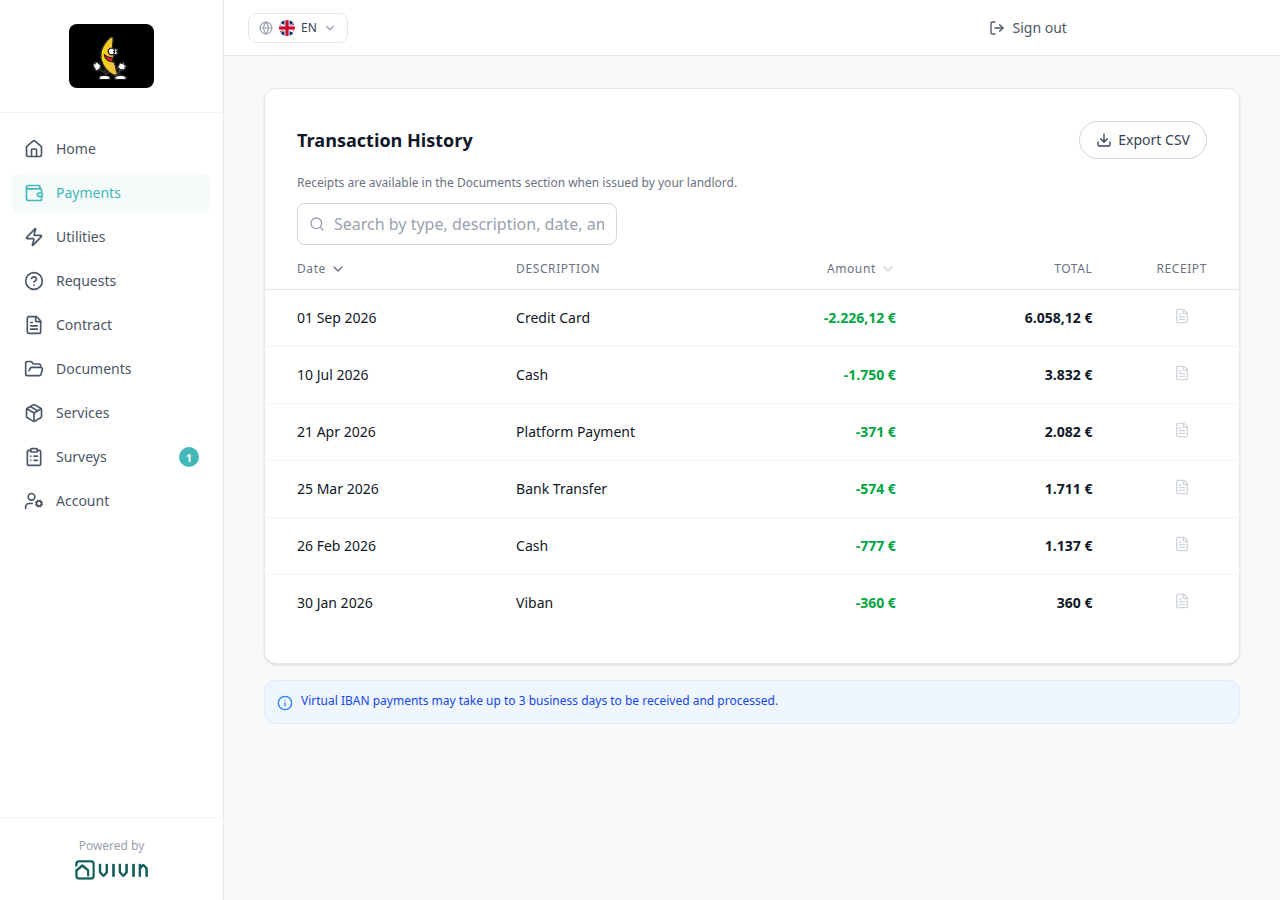
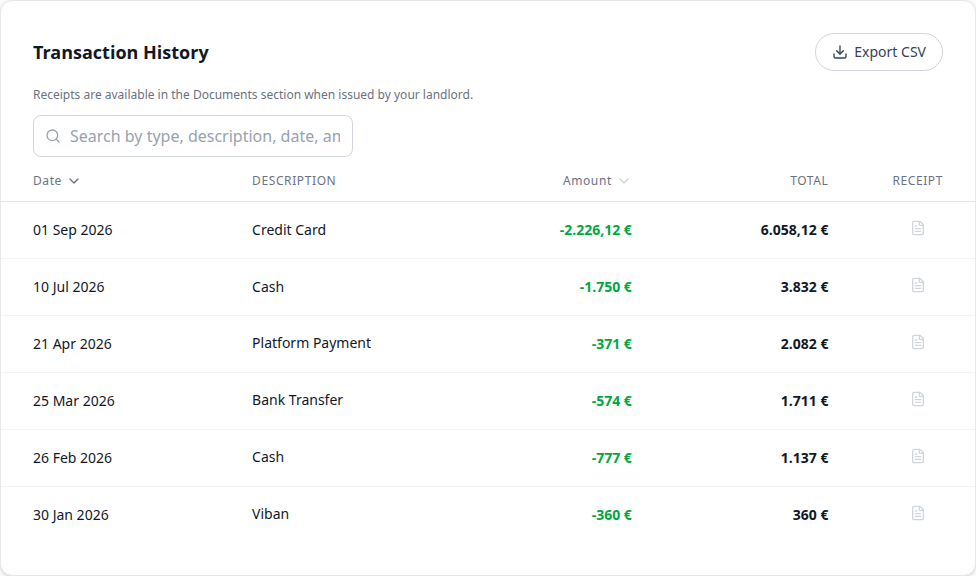

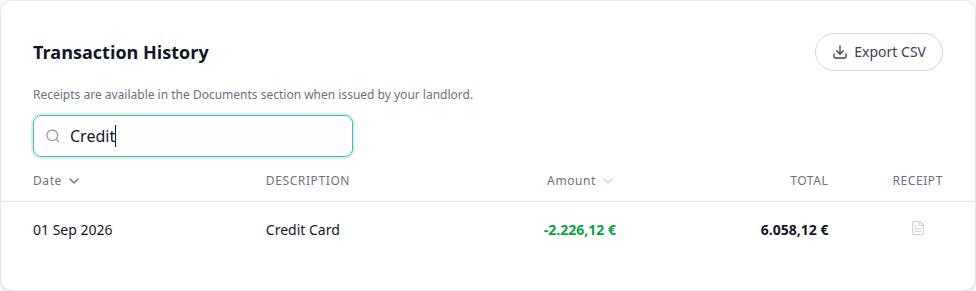
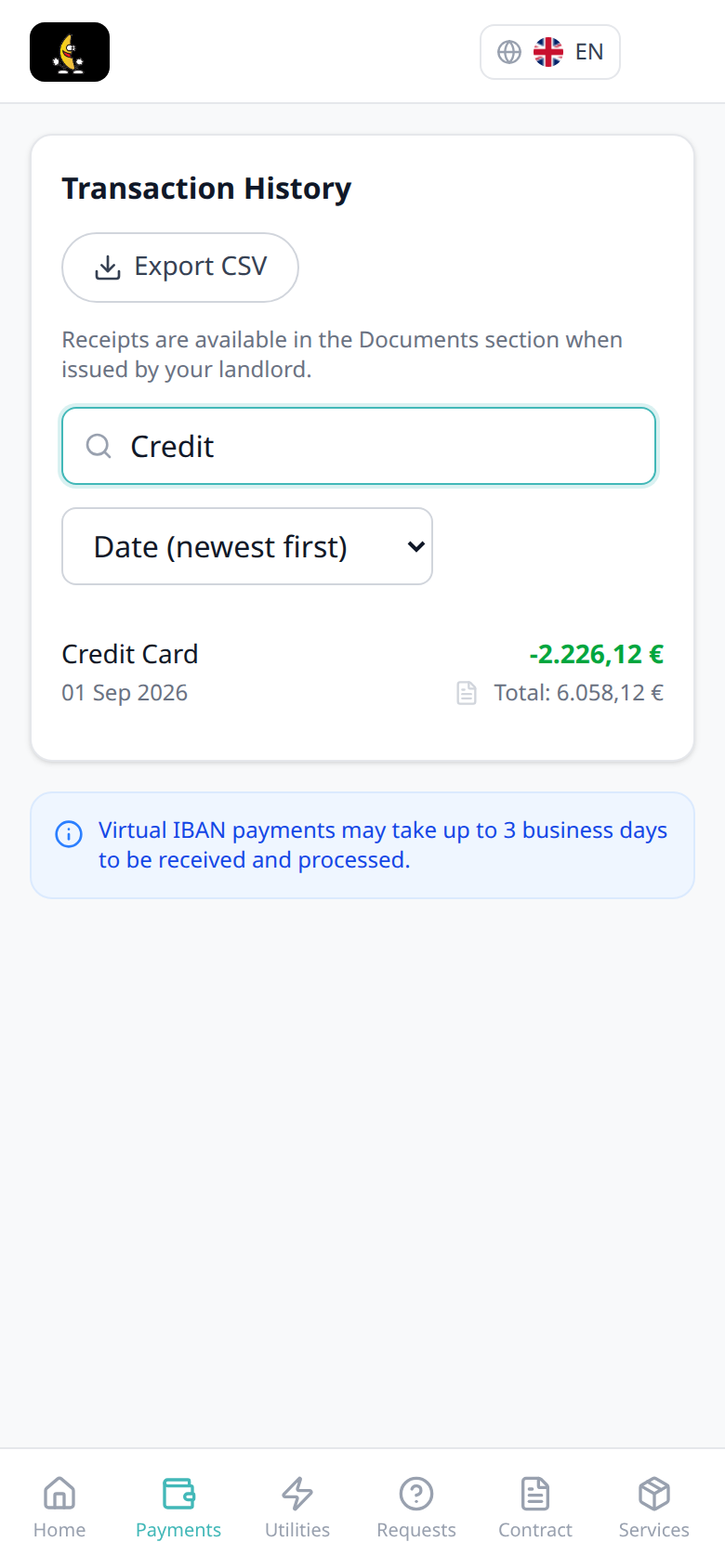
Automatic Adjustment type label
Automatic Adjustment type label pairs with Payments tab (Transaction History), Transaction History search (type Automatic), Transaction History sort, Export CSV (the spreadsheet uses Automatic Adjustment in Description), Receipt column, Bank Transfer type label (plain-text Bank Transfer, no logo), Cash type label, Viban type label, Credit Card type label, Overpayment Return type label, Cancelation With Refund type label, Platform payment label (channel name and logo), Tenant categories (VIVIN payments), Bookings — Transactions (operator Adjustment with Approve / Reject while pending), and FAQ — How do tenants see an automatic adjustment in the portal?. Distinct from Cash type label, from Bank Transfer type label, from Viban type label, from Credit Card type label, from Overpayment Return type label, Cancelation With Refund type label, from Platform payment label, from Make payment checkout tiles, and from operator Adjustment on booking Transactions.
On Payments → Transaction History, a system ledger adjustment shows Automatic Adjustment as plain text in Description — no platform logo. The grey subtitle is the ledger note Automatic adjustment. Search matches that label: type Automatic to keep only those rows.
This is the history label tenants see after the adjustment is on the booking. Operators confirm pending automatic adjustments on booking Transactions (Adjustment, Approve / Reject). Export CSV writes Automatic Adjustment in Description. There is no Portal settings hide toggle.
Who can change it
- Tenants — read Automatic Adjustment; search by Automatic. They cannot rename the row or approve it.
- Operators — pending automatic adjustments are confirmed on the booking Transactions tab. Tenant-category VIVIN payments (or an unprovisioned payment module) hides the whole Payments tab (and this label with it). Distinct from Cash, Bank Transfer, Viban, Credit Card, Overpayment Return, and platform logo rows.
- Marketplace —
POST /bookingscannot send this label. An automatic adjustment in-payment still shows Automatic Adjustment on Transaction History. See FAQ — How do tenants see an automatic adjustment in the portal?.
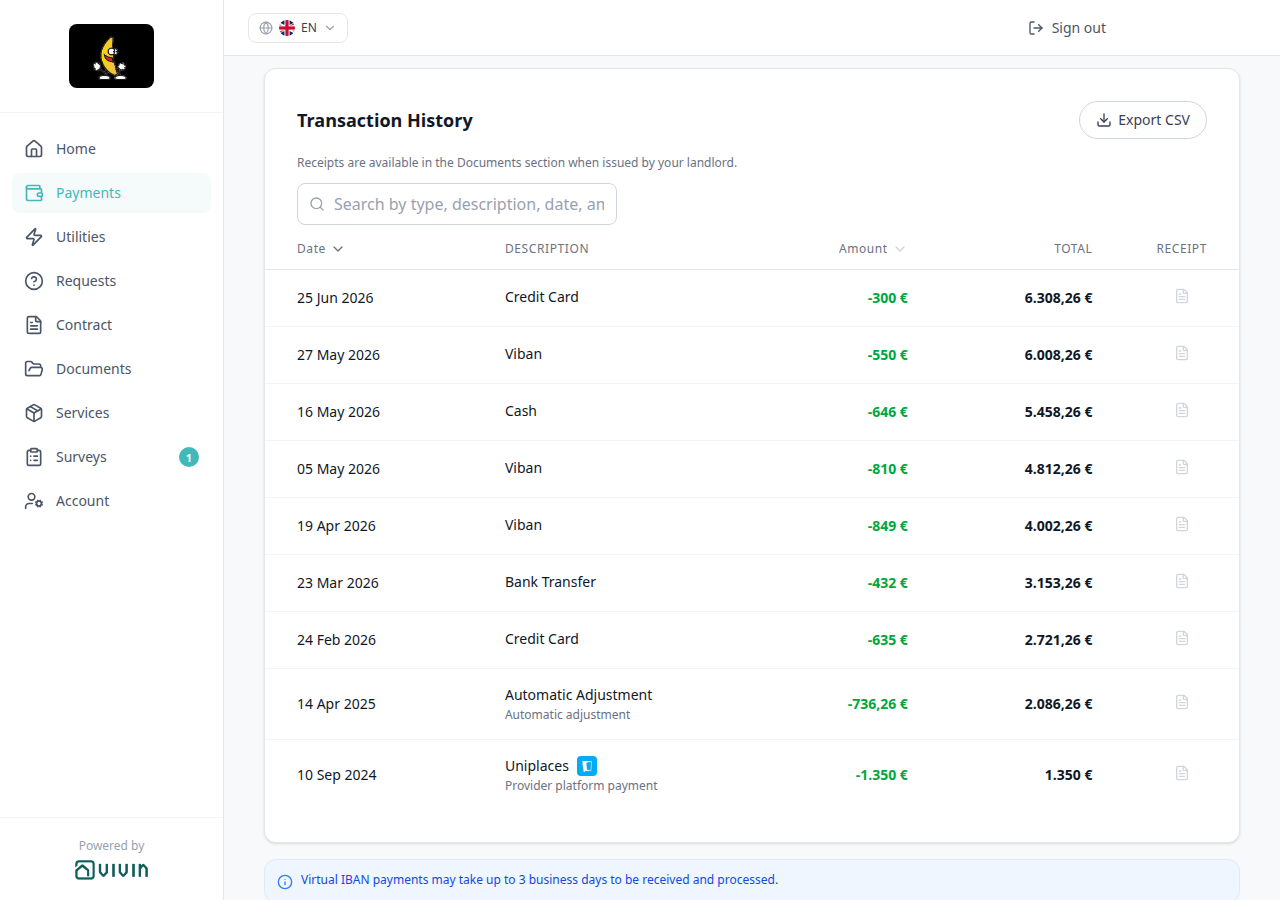
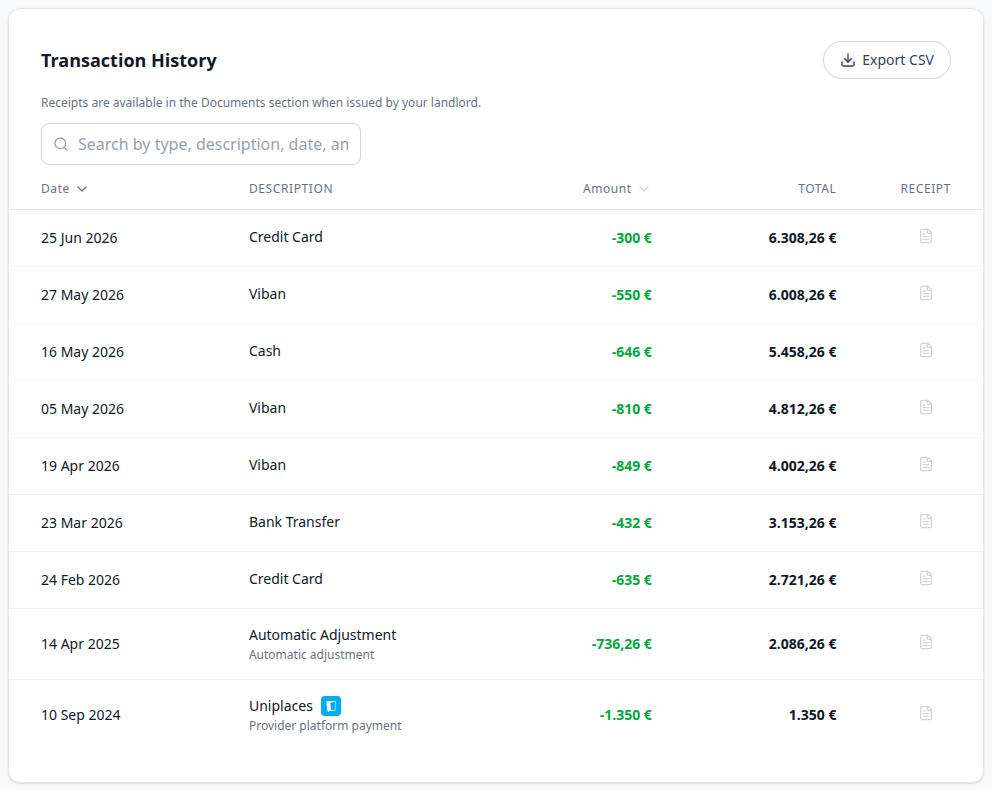

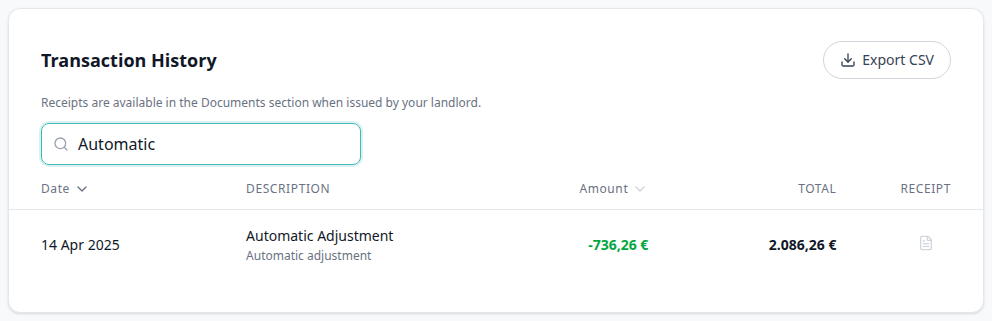
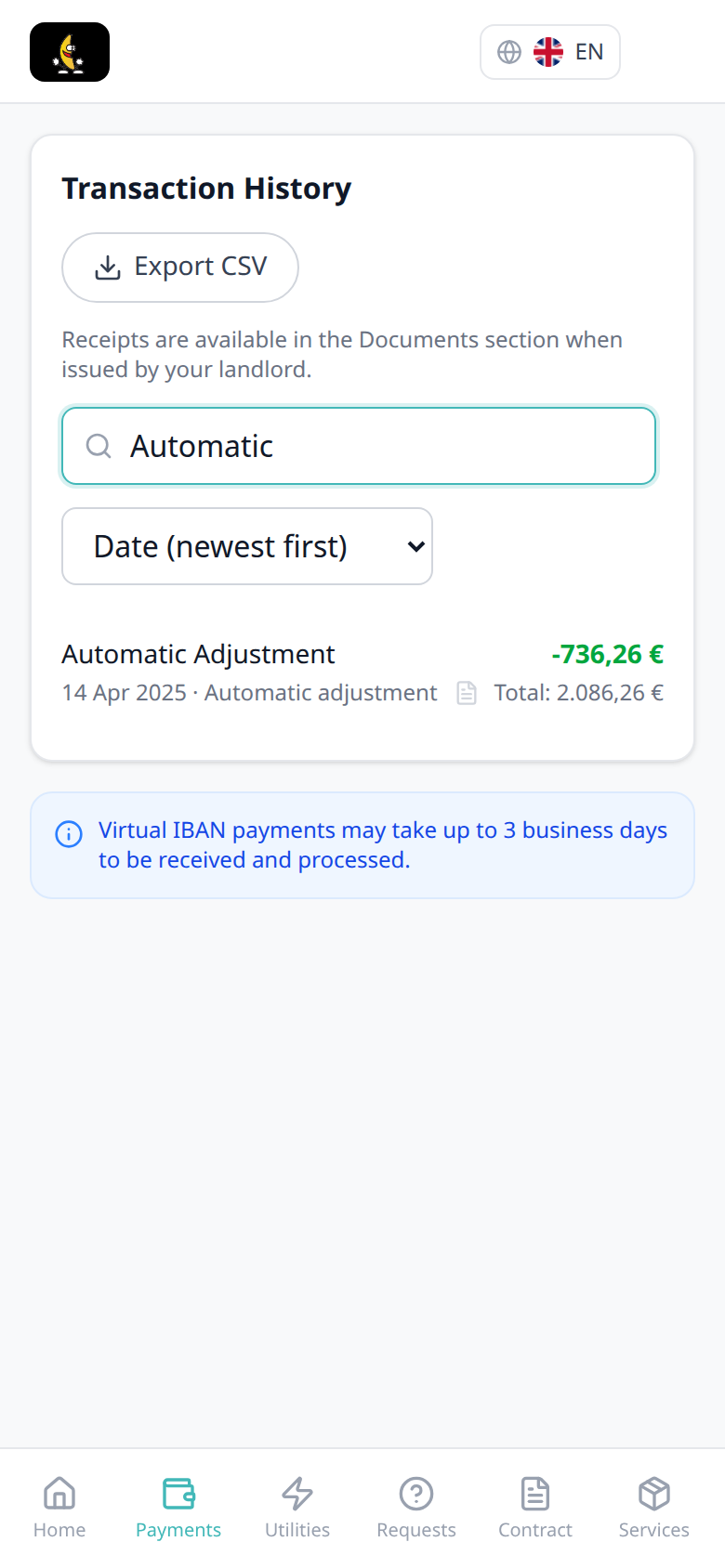
Overpayment Return type label
Overpayment Return type label pairs with Payments tab (Transaction History), Transaction History search (type Overpayment), Transaction History sort, Export CSV (the spreadsheet uses Overpayment Return in Description), Receipt column, Cash type label, Bank Transfer type label, Viban type label, Credit Card type label, Automatic Adjustment type label, Cancelation With Refund type label, Platform payment label (channel name and logo), Upcoming (timeline Deposit Refund is a different row), Bookings — Refund an overpayment when there is no deposit, Tenant categories (VIVIN payments), and FAQ — How do tenants see an overpayment return in the portal?. Distinct from Cash type label, from Bank Transfer type label, from Viban type label, from Credit Card type label, from Automatic Adjustment type label, from Cancelation With Refund type label, from Platform payment label, from timeline Deposit Refund, and from operator Deposit Refund on Finance → Transactions.
On Payments → Transaction History, money returned because the tenant paid more than the plan required shows Overpayment Return as plain text in Description — no platform logo. The grey subtitle is the ledger note Refund of tenant overpayments. Search matches that label: type Overpayment to keep only those rows.
This is the history label after you Mark refunded an overpayment (including when the booking has no deposit). It is not the Deposit Refund card on Payment Timeline. Export CSV writes Overpayment Return in Description. There is no Portal settings hide toggle.
Who can change it
- Tenants — read Overpayment Return; search by Overpayment. They cannot rename the row.
- Operators — Mark refunded on the booking Deposit tab posts this label when the return is an overpayment (including no deposit). Tenant-category VIVIN payments (or an unprovisioned payment module) hides the whole Payments tab (and this label with it). Distinct from Deposit Refund (collected security deposit) and from Automatic Adjustment.
- Marketplace —
POST /bookingscannot send this label. An overpayment-return in-payment still shows Overpayment Return on Transaction History. See FAQ — How do tenants see an overpayment return in the portal?.
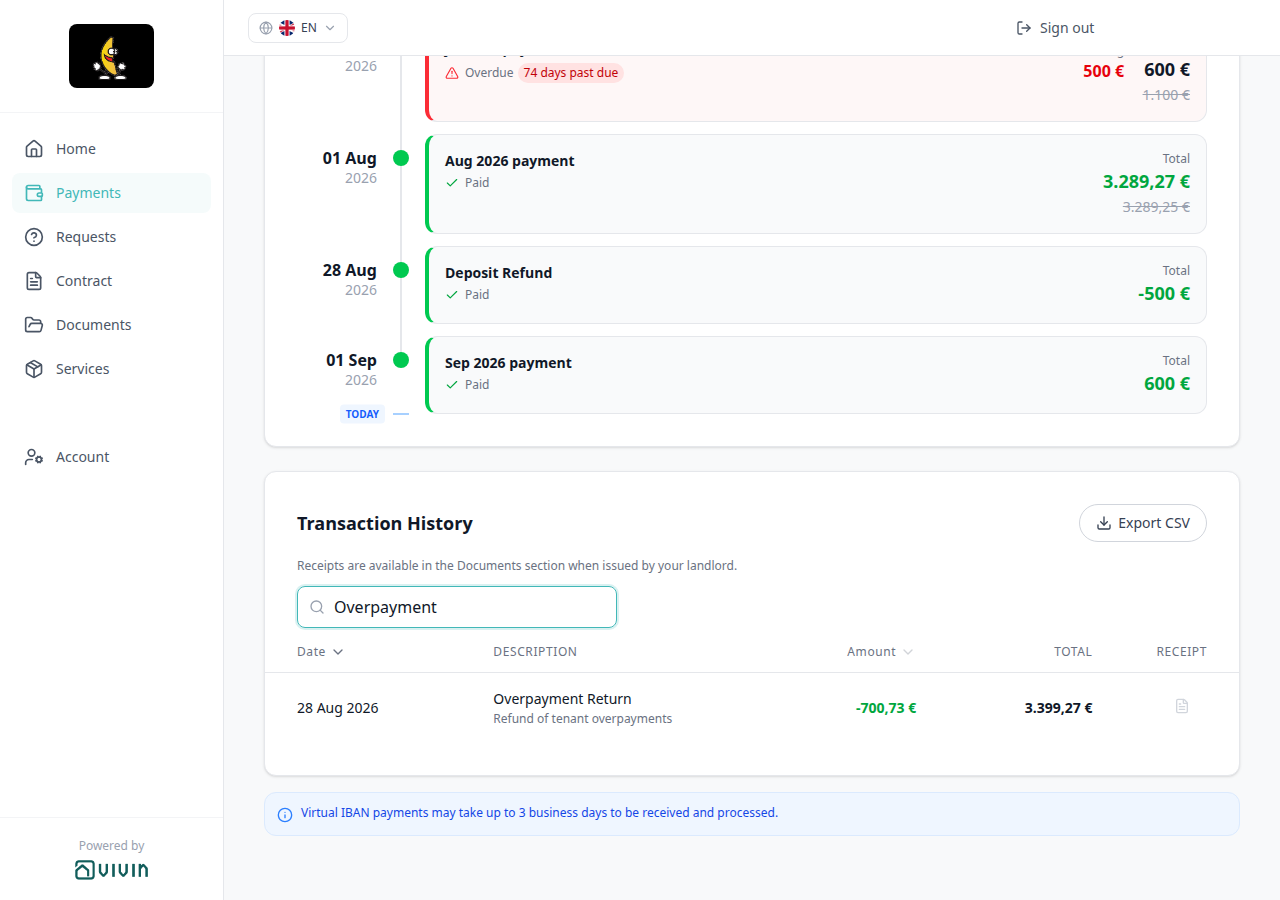
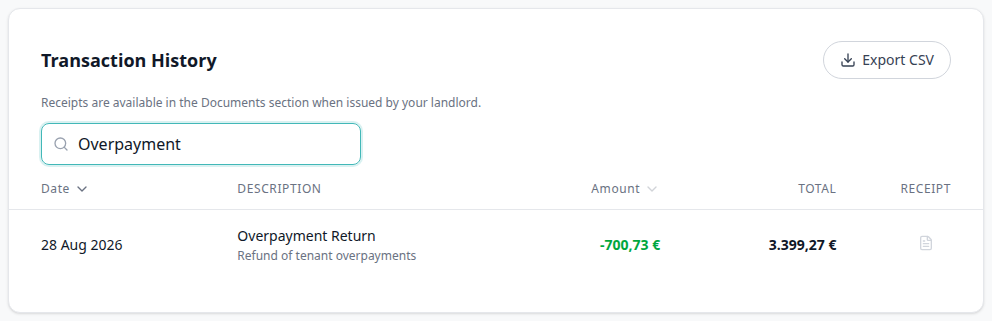

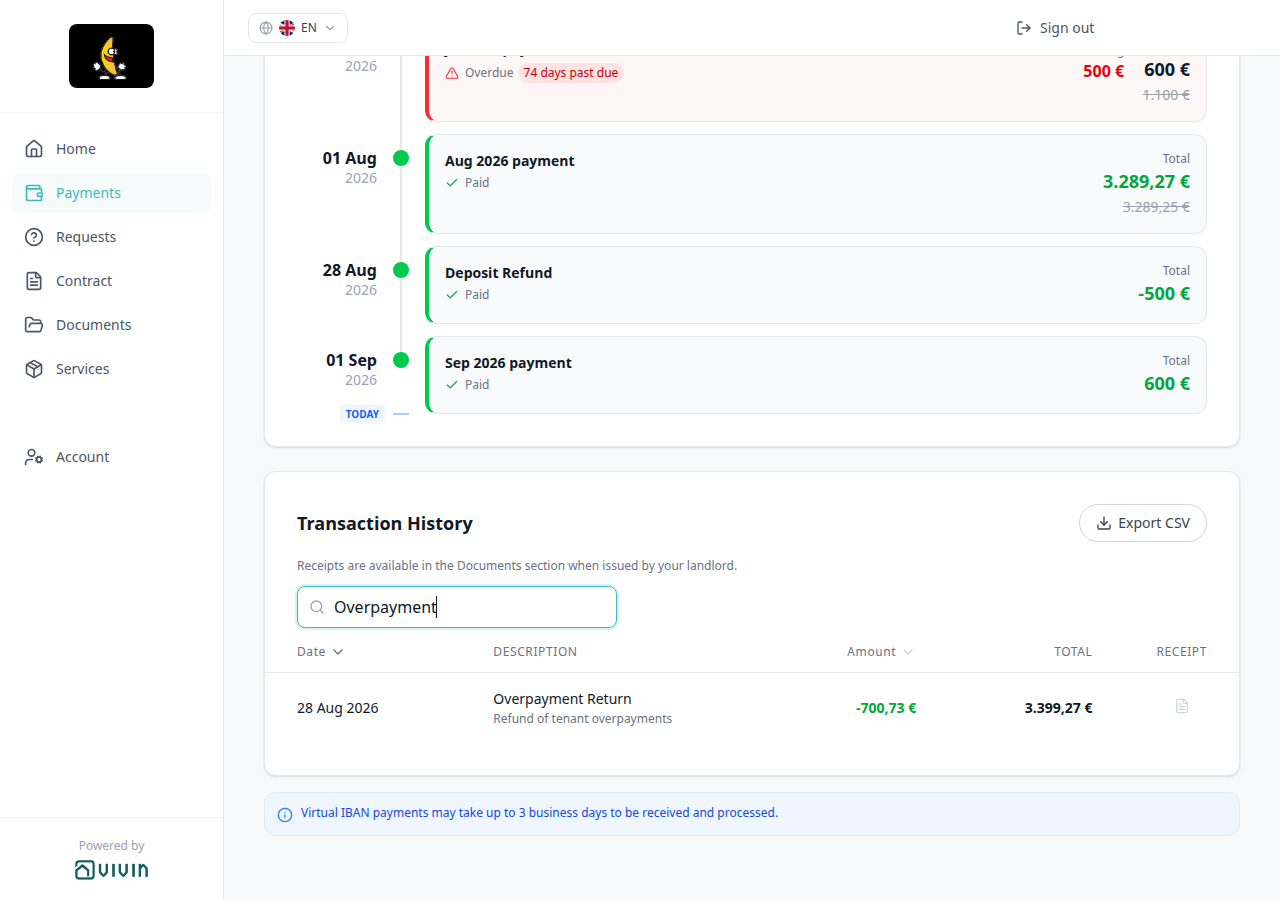
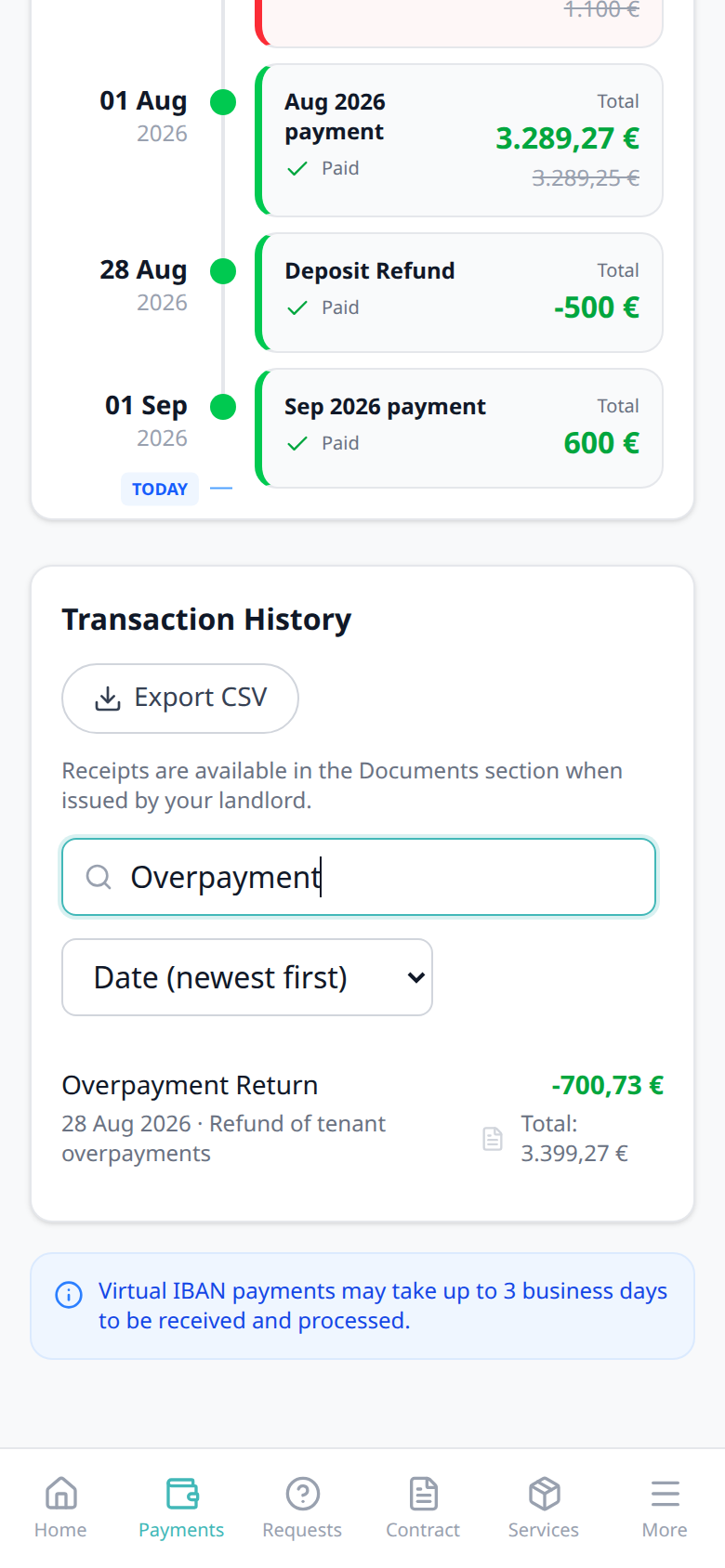
Cancelation With Refund type label
Cancelation With Refund type label pairs with Payments tab (Transaction History), Transaction History search (type Cancelation), Transaction History sort, Export CSV (the spreadsheet uses Cancelation With Refund in Description), Receipt column, Cash type label, Bank Transfer type label, Viban type label, Credit Card type label, Automatic Adjustment type label, Overpayment Return type label, Platform payment label (channel name and logo), Cancelling a Booking — Step 4 (With refund), Bookings — Cancellations and Refunds, Tenant categories (VIVIN payments), and FAQ — How do tenants see a cancelation with refund in the portal?. Distinct from Cash type label, from Bank Transfer type label, from Viban type label, from Credit Card type label, from Automatic Adjustment type label, from Overpayment Return type label, from Platform payment label, from timeline Deposit Refund, and from operator Cancelation with refund on Finance → Transactions (sentence case Type).
On Payments → Transaction History, money returned when you cancel With refund shows Cancelation With Refund as plain text in Description — no platform logo. The grey subtitle is the ledger note Cancelation with refund. Search matches that label: type Cancelation to keep only those rows.
This is the history label after a With refund cancel posts to the booking. It is not the Deposit Refund card on Payment Timeline, and not a Cancelation With Partial Refund row. Export CSV writes Cancelation With Refund in Description. There is no Portal settings hide toggle.
Who can change it
- Tenants — read Cancelation With Refund; search by Cancelation. They cannot rename the row.
- Operators — Cancel booking → With refund posts this label. Tenant-category VIVIN payments (or an unprovisioned payment module) hides the whole Payments tab (and this label with it). Distinct from Overpayment Return and from Automatic Adjustment.
- Marketplace —
POST /bookingscannot send this label. A cancelation-with-refund in-payment still shows Cancelation With Refund on Transaction History. See FAQ — How do tenants see a cancelation with refund in the portal?.
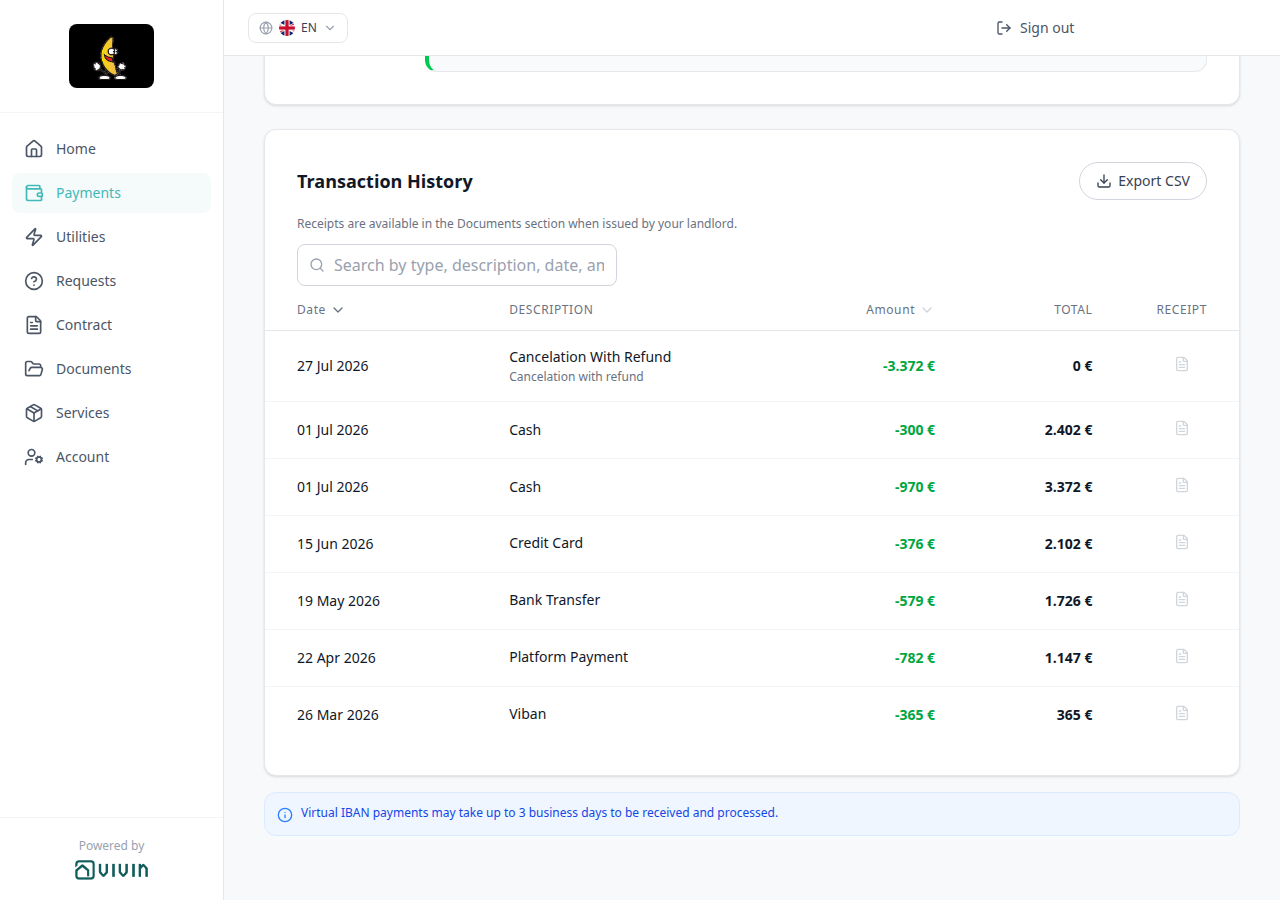
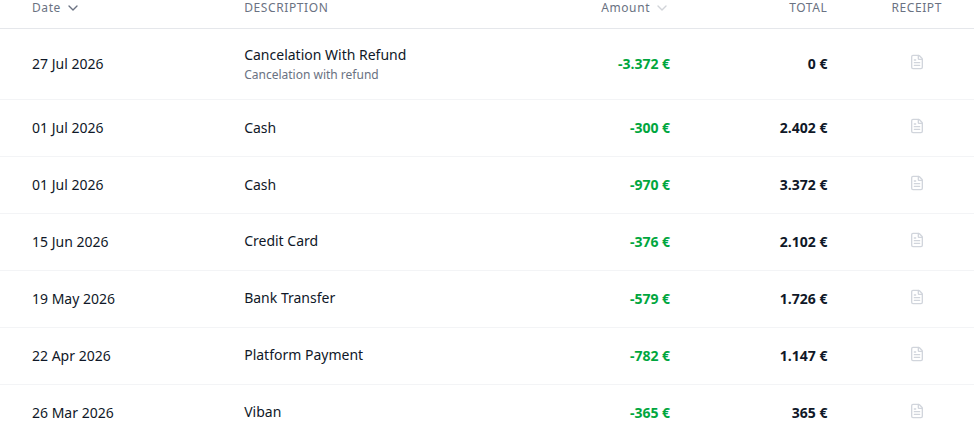

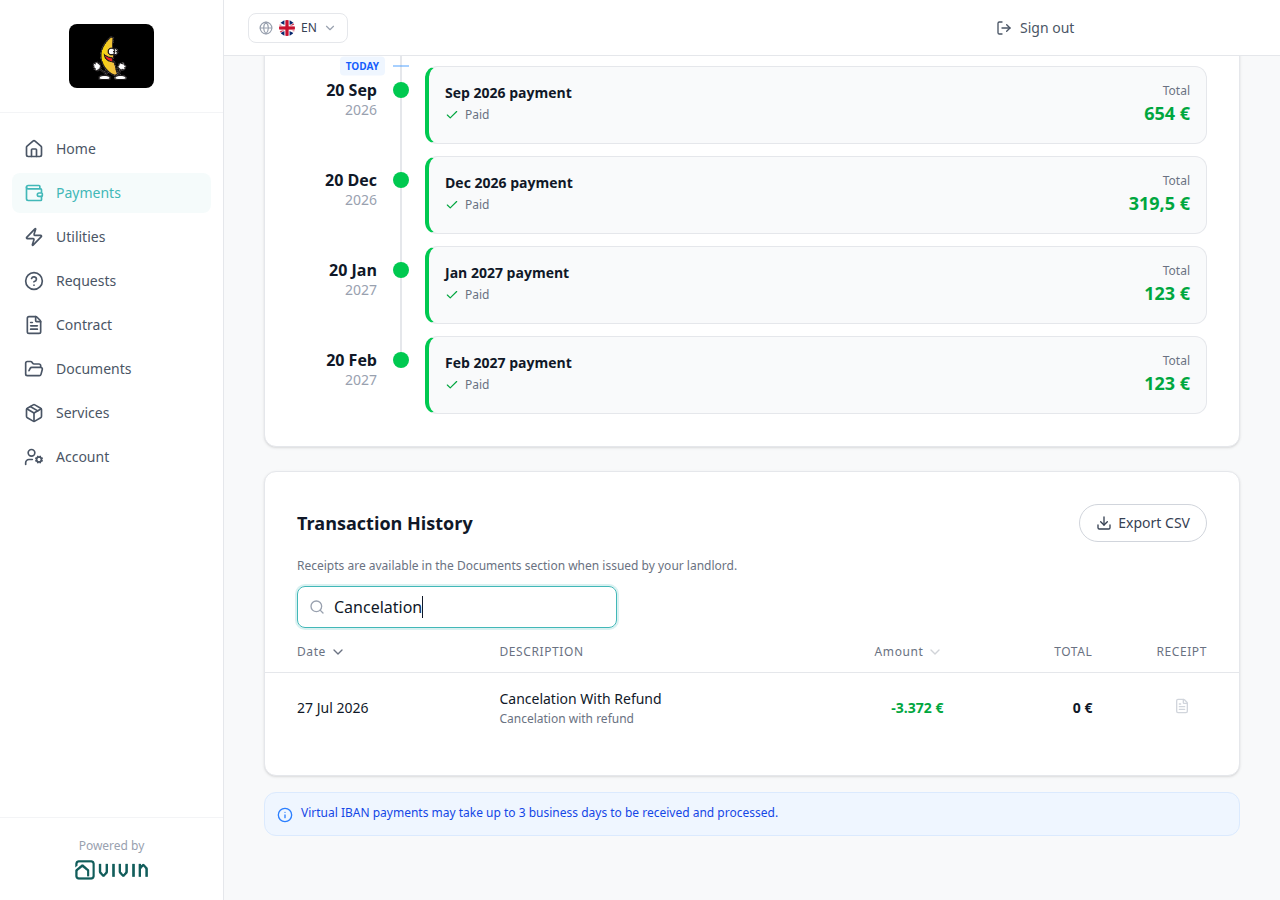
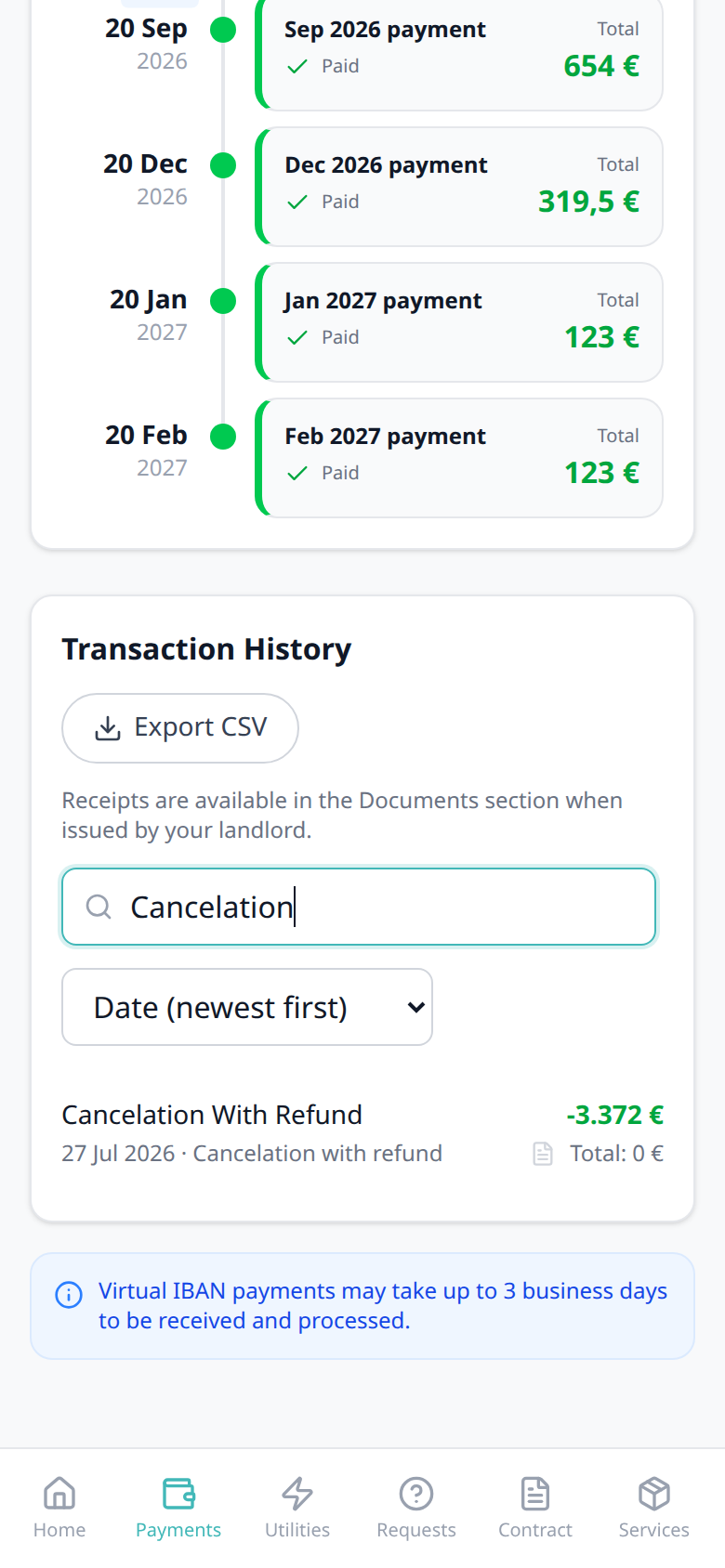
Cancelation With Partial Refund type label
Cancelation With Partial Refund type label pairs with Payments tab (Transaction History), Transaction History search (type Partial), Transaction History sort, Export CSV (the spreadsheet uses Cancelation With Partial Refund in Description), Receipt column, Cash type label, Bank Transfer type label, Viban type label, Credit Card type label, Automatic Adjustment type label, Overpayment Return type label, Cancelation With Refund type label, Platform payment label (channel name and logo), Cancelling a Booking — Step 4 (Partial refund), Bookings — Cancellations and Refunds, Tenant categories (VIVIN payments), and FAQ — How do tenants see a cancelation with partial refund in the portal?. Distinct from Cash type label, from Bank Transfer type label, from Viban type label, from Credit Card type label, from Automatic Adjustment type label, from Overpayment Return type label, from Cancelation With Refund type label, from Platform payment label, from timeline Deposit Refund, from Deposit Refund type label on Transaction History, and from operator Cancelation with partial refund on Finance → Transactions (sentence case Type).
On Payments → Transaction History, money returned when you cancel Partial refund shows Cancelation With Partial Refund as plain text in Description — no platform logo. The grey subtitle is the ledger note Cancelation with partial refund. Search matches that label: type Partial to keep only those rows.
This is the history label after a Partial refund cancel posts to the booking. It is not the Deposit Refund card on Payment Timeline, and not a Cancelation With Refund row. Export CSV writes Cancelation With Partial Refund in Description. There is no Portal settings hide toggle.
Who can change it
- Tenants — read Cancelation With Partial Refund; search by Partial. They cannot rename the row.
- Operators — Cancel booking → Partial refund posts this label. Tenant-category VIVIN payments (or an unprovisioned payment module) hides the whole Payments tab (and this label with it). Distinct from Cancelation With Refund, from Overpayment Return, and from Automatic Adjustment.
- Marketplace —
POST /bookingscannot send this label. A cancelation-with-partial-refund in-payment still shows Cancelation With Partial Refund on Transaction History. See FAQ — How do tenants see a cancelation with partial refund in the portal?.
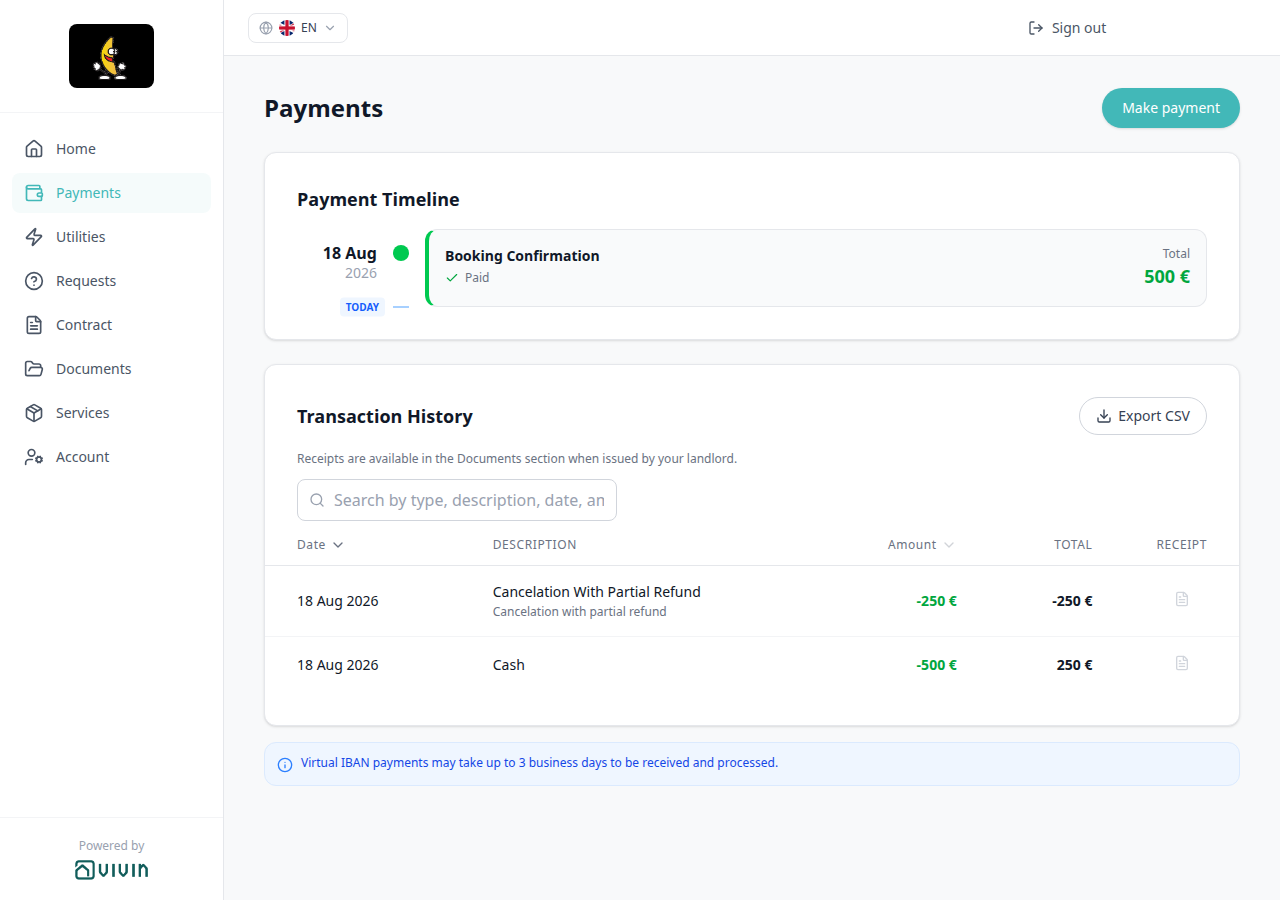


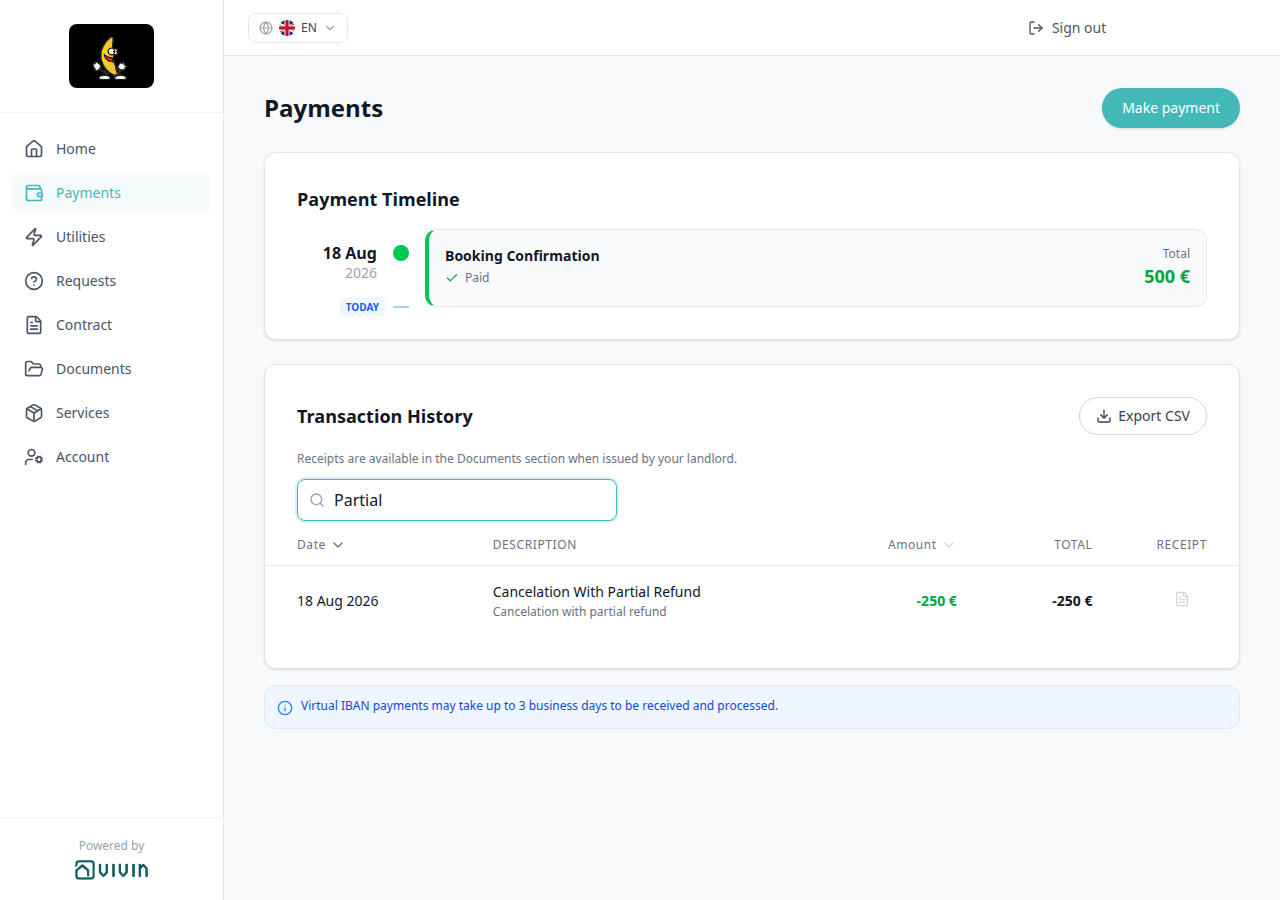
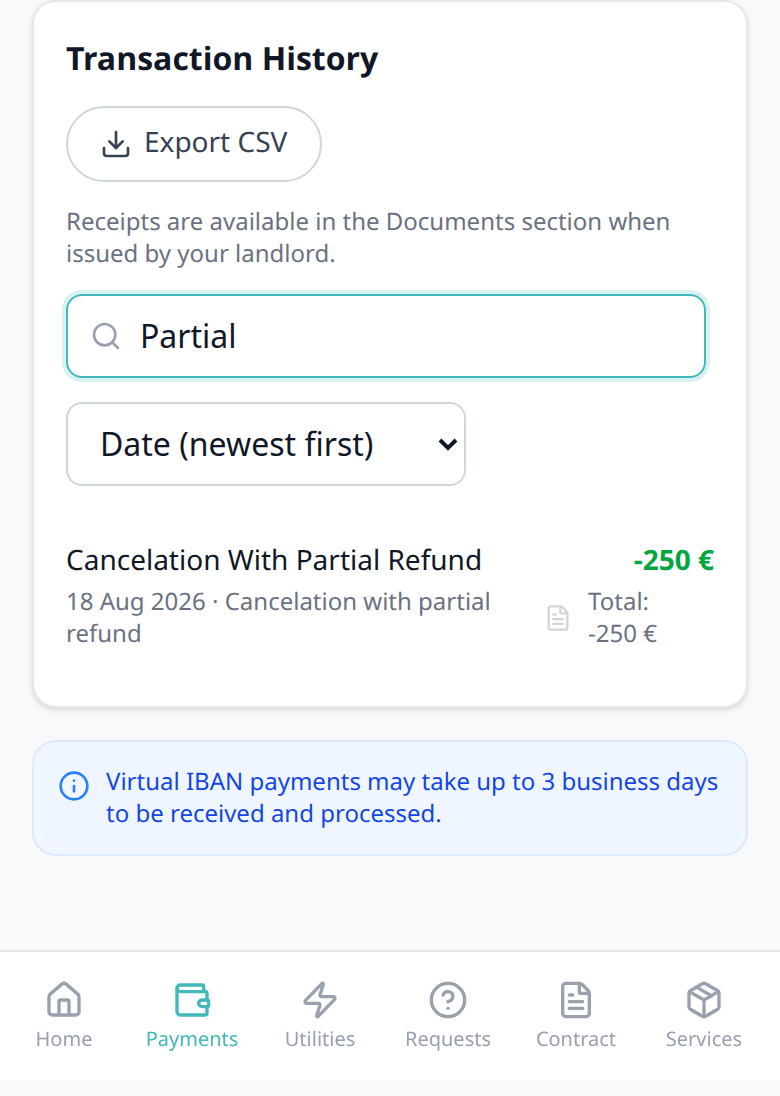
Deposit Refund type label
Deposit Refund type label pairs with Payments tab (Transaction History), Transaction History search (type Deposit), Transaction History sort, Export CSV (the spreadsheet uses Deposit Refund in Description), Receipt column, Cash type label, Bank Transfer type label, Viban type label, Credit Card type label, Automatic Adjustment type label, Overpayment Return type label, Cancelation With Refund type label, Cancelation With Partial Refund type label, Platform payment label (channel name and logo), Managing a Check-out — Step 5 (Mark refunded), Glossary — Deposit refund summary (tenant-facing), Tenant categories (VIVIN payments), and FAQ — How do tenants see a deposit refund in payment history?. Distinct from the Deposit Refund card on Payment Timeline (net return and Breakdown), from Overpayment Return, from Cancelation With Refund, and from Cancelation With Partial Refund.
On Payments → Transaction History, money returned after operators Mark refunded shows Deposit Refund as plain text in Description — no platform logo. The grey subtitle is the ledger note Refund of security deposit. Search matches that label: type Deposit to keep only those rows.
This is the history label after Mark refunded. It is not the Deposit Refund card on Payment Timeline (that card still shows the net return and Breakdown). It is not an Overpayment Return row, and not a cancelation refund. Export CSV writes Deposit Refund in Description. There is no Portal settings hide toggle.
Who can change it
- Tenants — read Deposit Refund; search by Deposit. They cannot rename the row.
- Operators — Mark refunded posts this label. Tenant-category VIVIN payments (or an unprovisioned payment module) hides the whole Payments tab (and this label with it). Distinct from Overpayment Return, from cancelation refunds, and from the timeline Deposit Refund card.
- Marketplace —
POST /bookingscannot send this label. A deposit-refund in-payment still shows Deposit Refund on Transaction History. See FAQ — How do tenants see a deposit refund in payment history?.
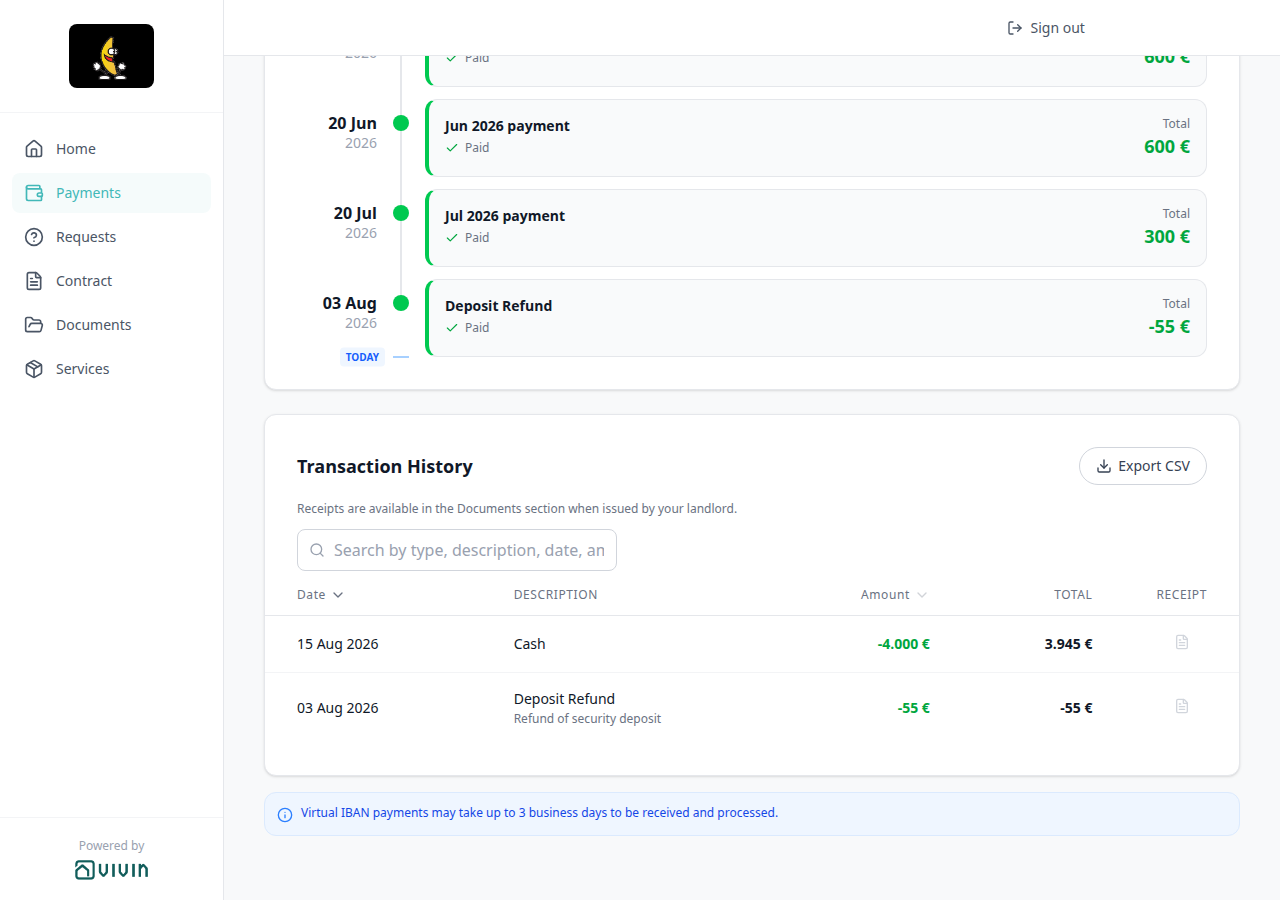
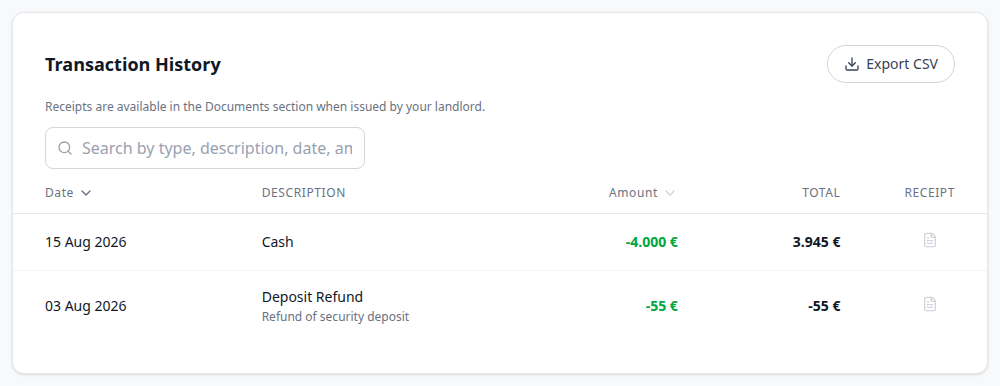

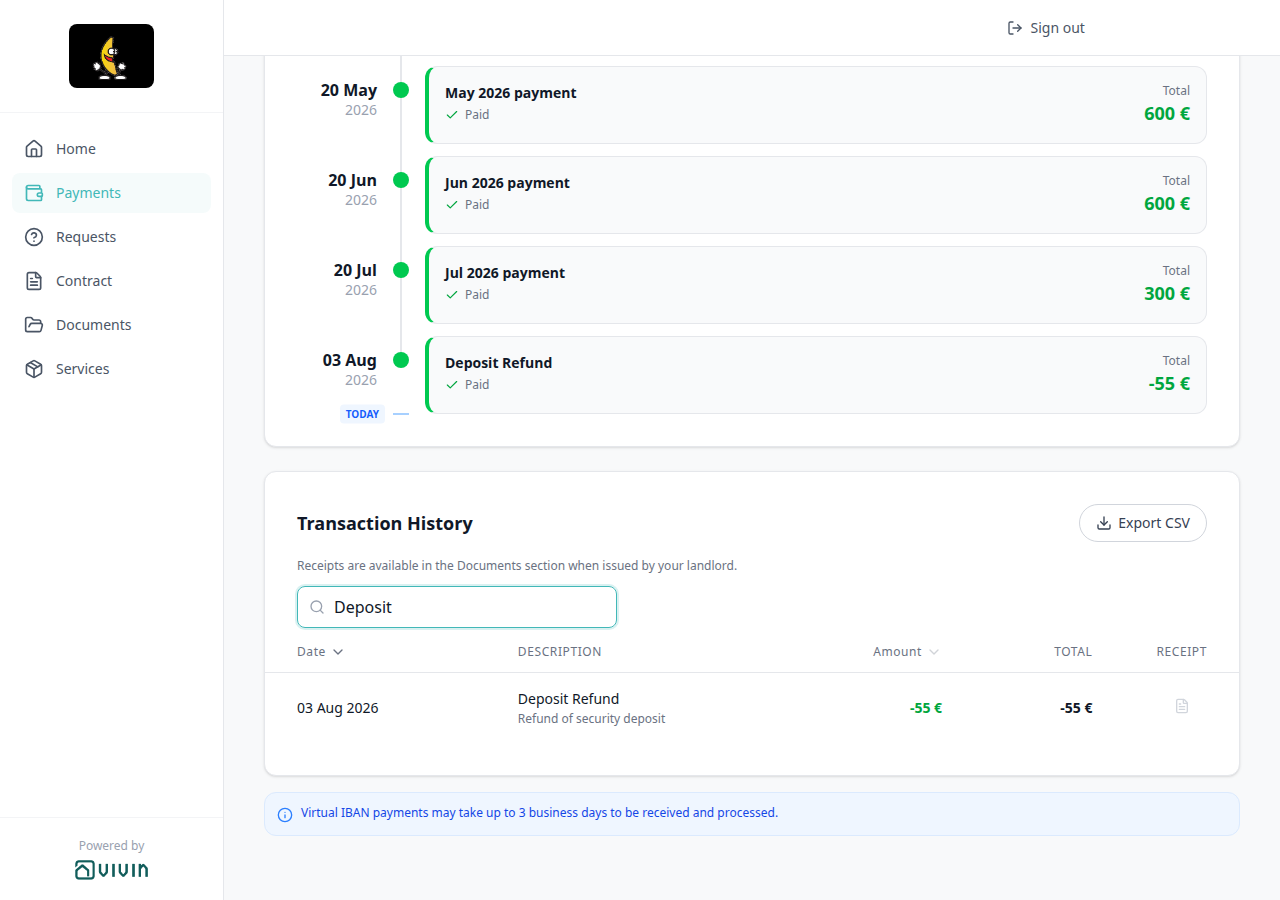
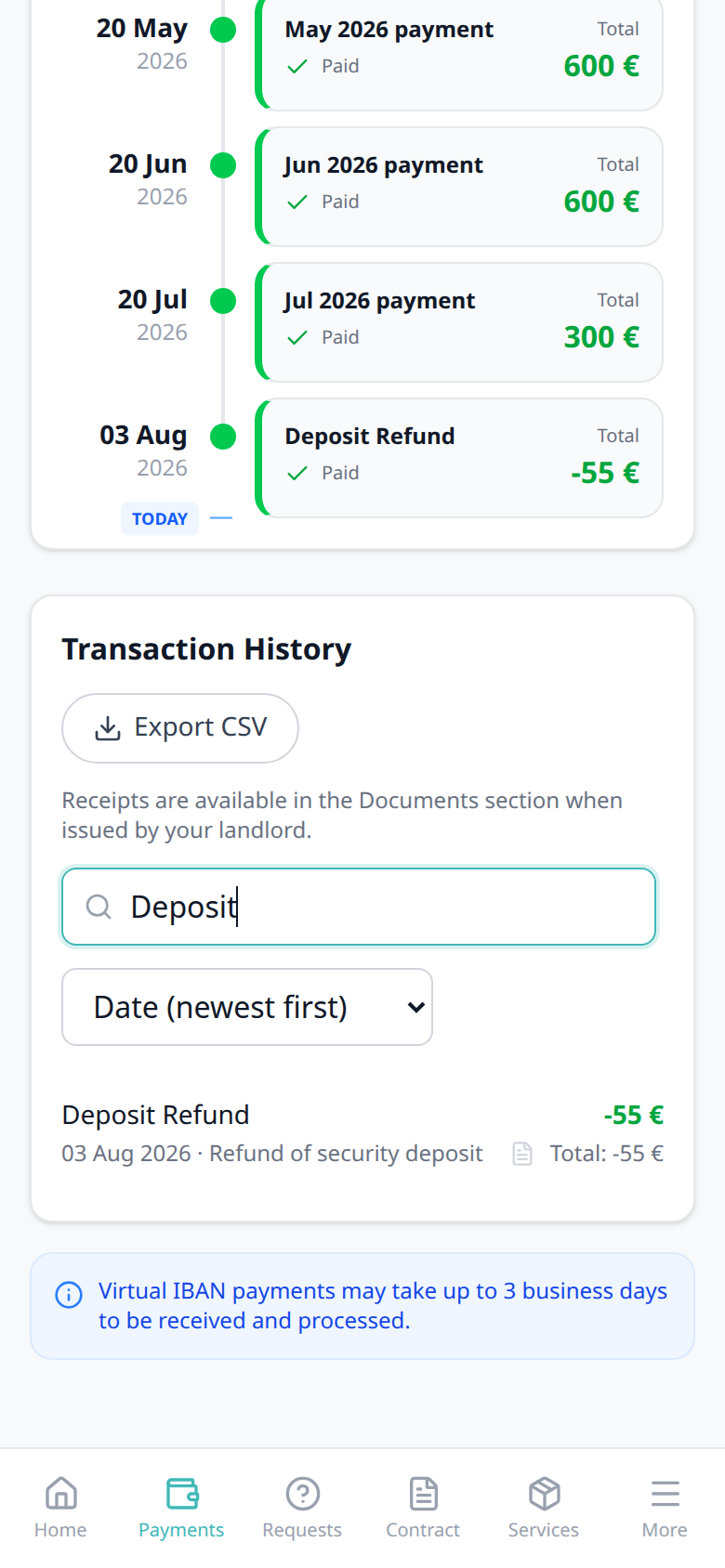
Manual Card type label
Manual Card type label pairs with Payments tab (Transaction History), Transaction History search (type Manual), Transaction History sort, Export CSV (the spreadsheet uses Manual Card in Description), Receipt column, Cash type label, Bank Transfer type label, Viban type label, Credit Card type label (portal checkout card rail — a different label), Automatic Adjustment type label, Overpayment Return type label, Cancelation With Refund type label, Cancelation With Partial Refund type label, Deposit Refund type label, Platform payment label (channel name and logo), Bookings — Card (recorded manually) (operator + Transaction type), Tenant categories (VIVIN payments), and FAQ — How do tenants see a manual card payment in the portal?. Distinct from Credit Card type label (VIVIN card checkout), from logo platform payment rows, and from Cash / Bank Transfer / Viban.
On Payments → Transaction History, a card payment operators recorded by hand (desk terminal, POS, or any card machine that is not Tenant Portal checkout) shows Manual Card as plain text in Description — no platform logo. Search matches that label: type Manual to keep only those rows.
This is the history label after you add Card (recorded manually) on the booking and the row is confirmed. It is not the Credit Card label from portal Make payment → Credit Card checkout. Export CSV writes Manual Card in Description. There is no Portal settings hide toggle.
Who can change it
- Tenants — read Manual Card; search by Manual. They cannot rename the row.
- Operators — + Transaction → Card (recorded manually) posts this label after the payment is confirmed. Tenant-category VIVIN payments (or an unprovisioned payment module) hides the whole Payments tab (and this label with it). Distinct from Credit Card (VIVIN card rail) on the same table.
- Marketplace —
POST /bookingscannot send this label. A manual-card in-payment still shows Manual Card on Transaction History. See FAQ — How do tenants see a manual card payment in the portal?.
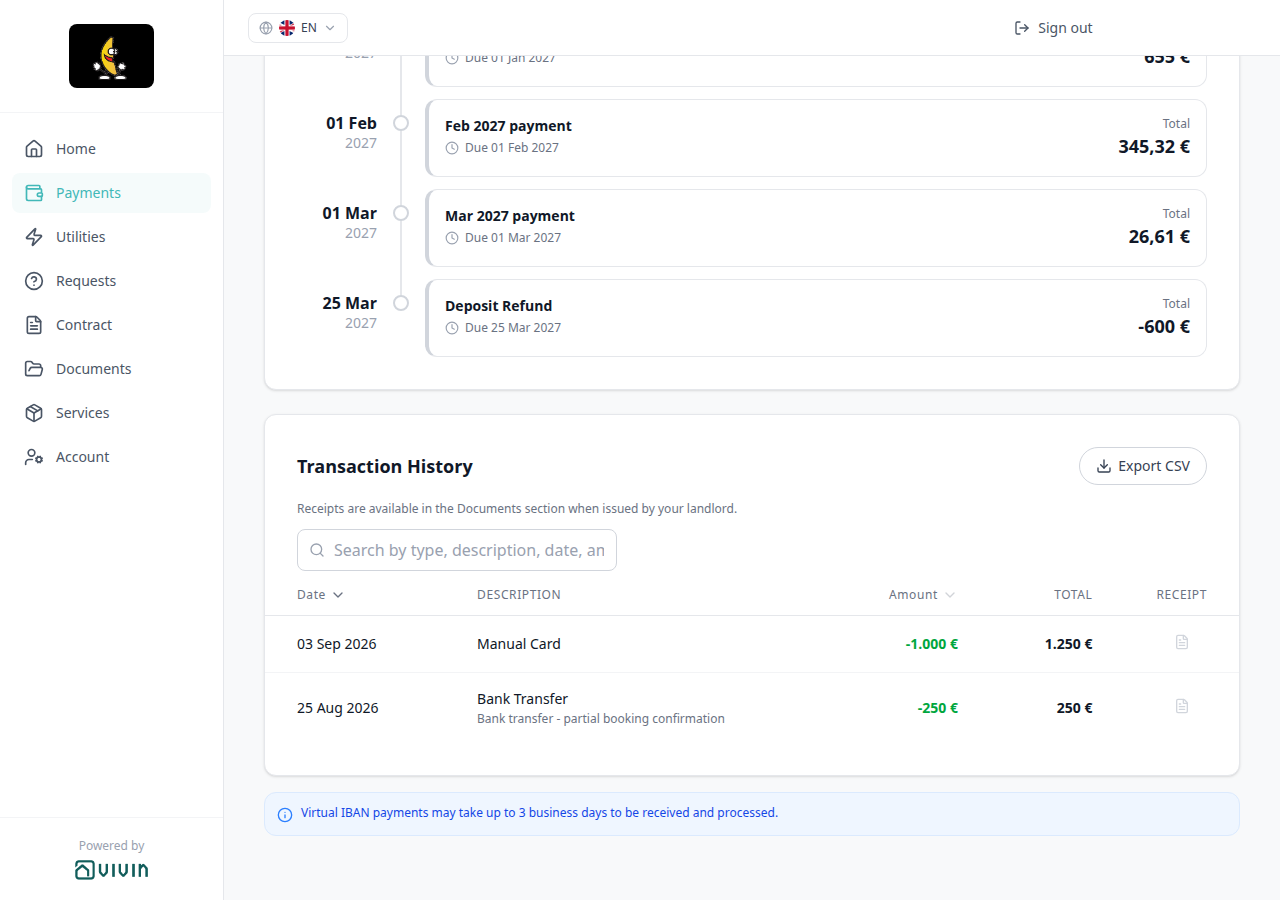


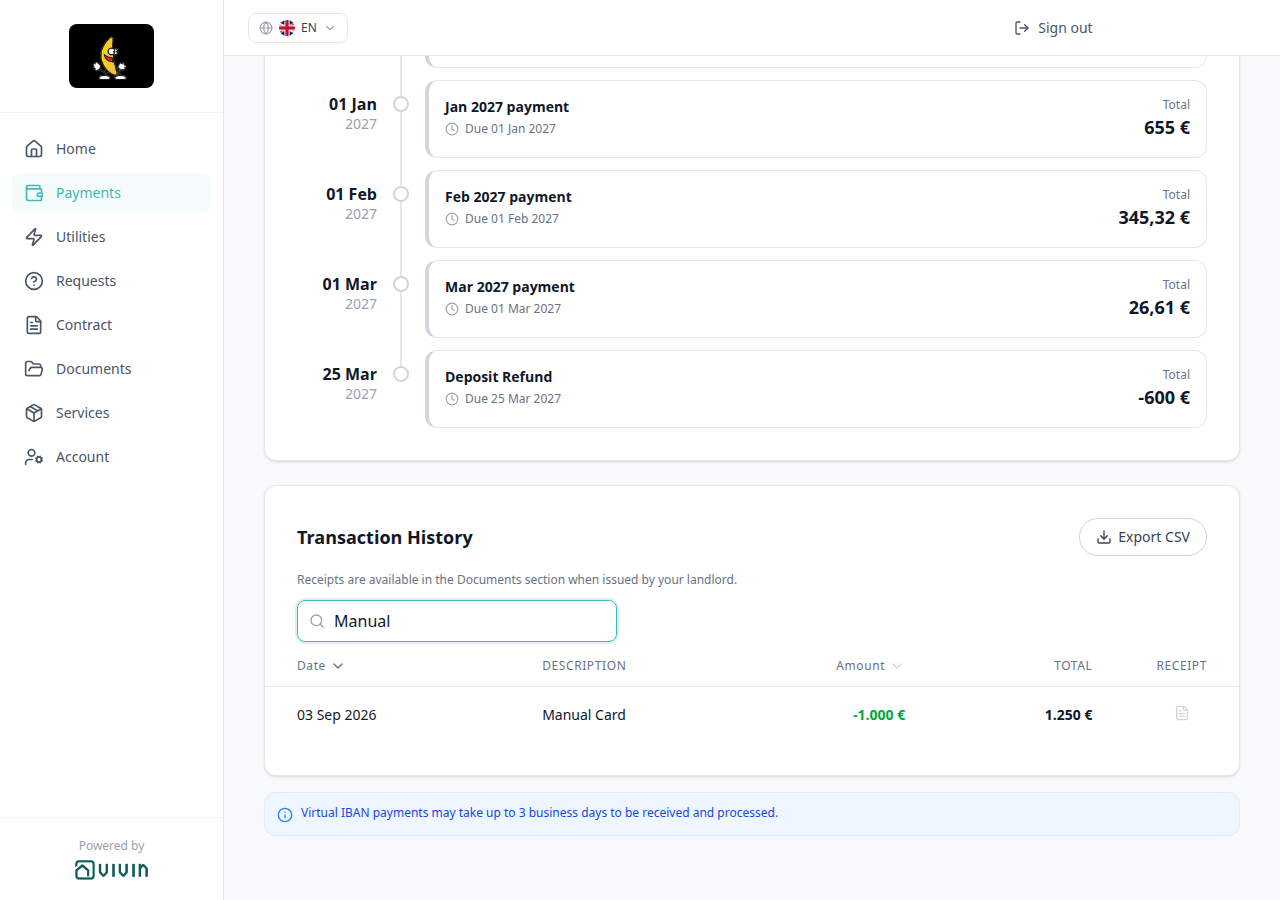
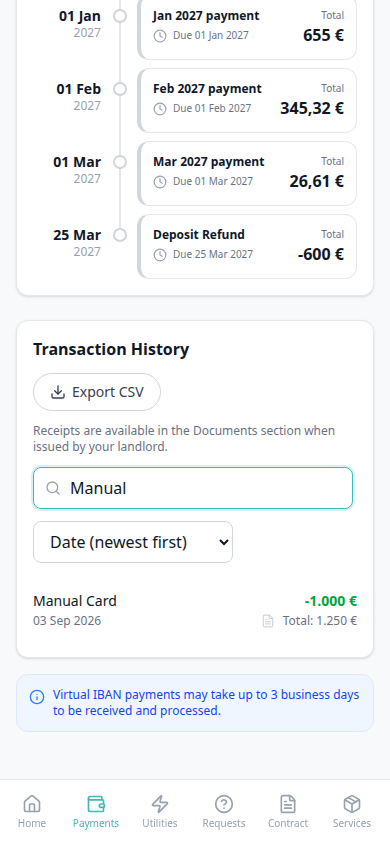
Export CSV
Export CSV pairs with Payments tab (Transaction History), Transaction History search, Transaction History sort, Transaction History pagination (the file includes every matching row, not only this page), Platform payment label (the same channel name in Description), Cash type label (Cash in Description), Bank Transfer type label (Bank Transfer in Description), Viban type label (Viban in Description), Credit Card type label (Credit Card in Description), Automatic Adjustment type label (Automatic Adjustment in Description), Overpayment Return type label (Overpayment Return in Description), Cancelation With Refund type label (Cancelation With Refund in Description), Cancelation With Partial Refund type label, Deposit Refund type label (Cancelation With Partial Refund in Description), Receipt column (PDF receipts stay on the table, not in the spreadsheet), Virtual IBAN processing notice, Balance card (View transactions), Documents tab, Tenant categories (VIVIN payments), and FAQ — How do tenants export payment history from the portal?. Distinct from operator CSV downloads on Bookings, Finance, Listings, and Tenants.
On Payments → Transaction History, tenants download the ledger with Export CSV (download icon). On a computer, the control sits beside the Transaction History heading. On a phone, Export CSV sits under that heading (above the receipts line and search). It appears when this booking has at least one history row. There is no Portal settings hide toggle.
The file is named transaction-history-YYYY-MM-DD.csv (today’s date). It opens in Excel and other spreadsheet apps. Columns:
| Column | What it contains |
|---|---|
| Date | The same short date as the table (for example 03 Aug 2026) |
| Description | The type label (for example Bank Transfer, Cash, Viban, Credit Card, Automatic Adjustment, Overpayment Return, Cancelation With Refund, Cancelation With Partial Refund, Deposit Refund, Manual Card, or Roomless), then a dash and the description when one exists |
| Amount | Two decimal places, no euro sign. Inbound payments use a minus, matching the green minus amounts in the table |
| Total | Running total after that row, two decimal places |
Search and Date / Amount sort apply to the download. Pagination does not — tenants get every matching row, not only the 10 on the current page. Empty search exports the full history. Receipt files stay on the table (and on Documents); they are not columns in the CSV.


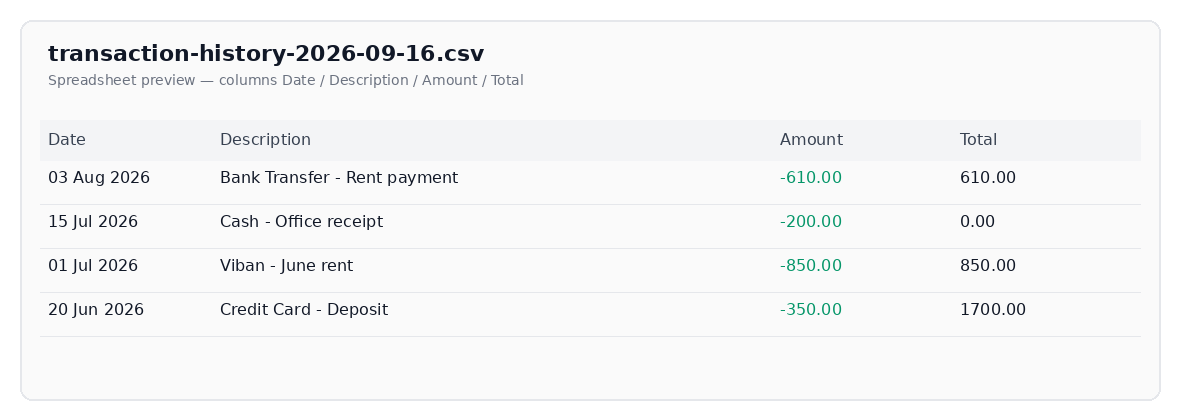
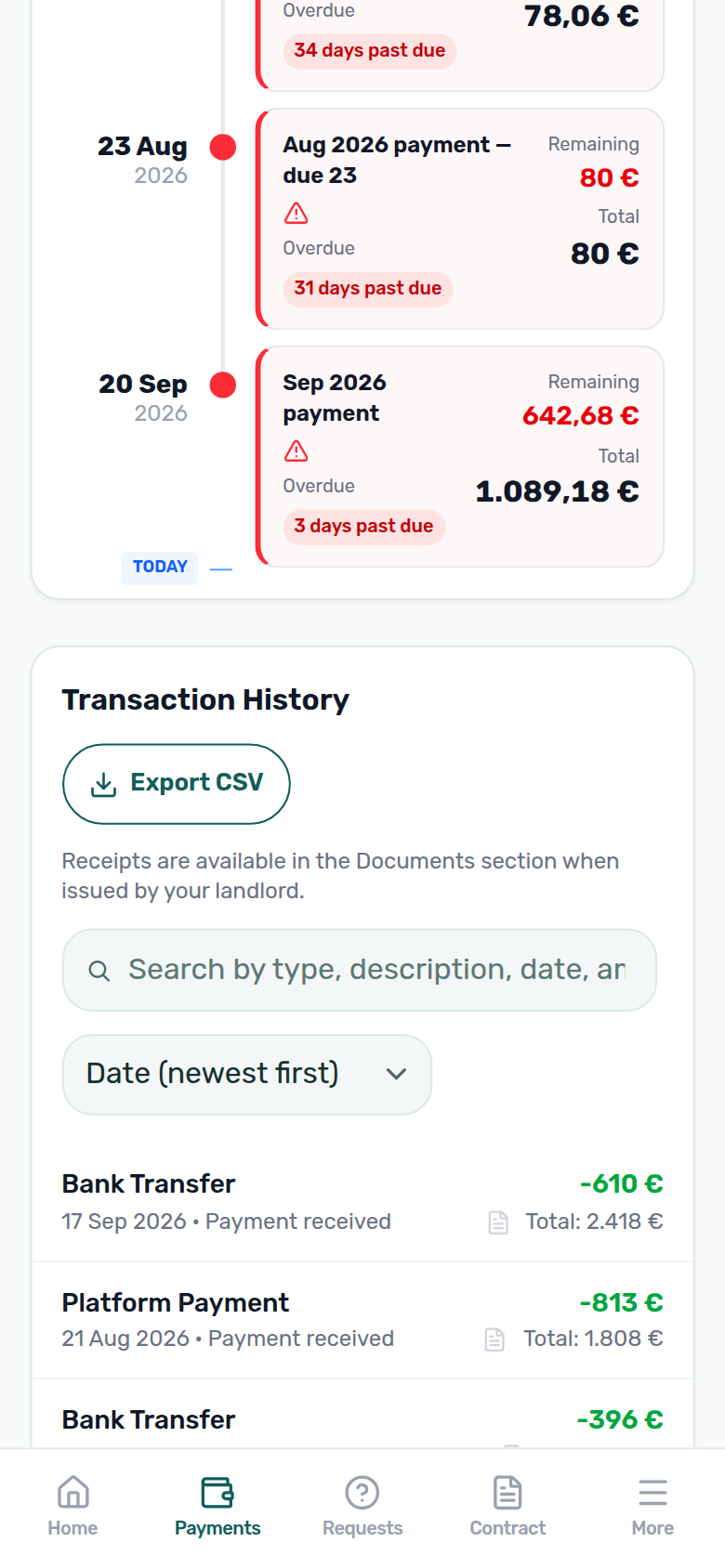
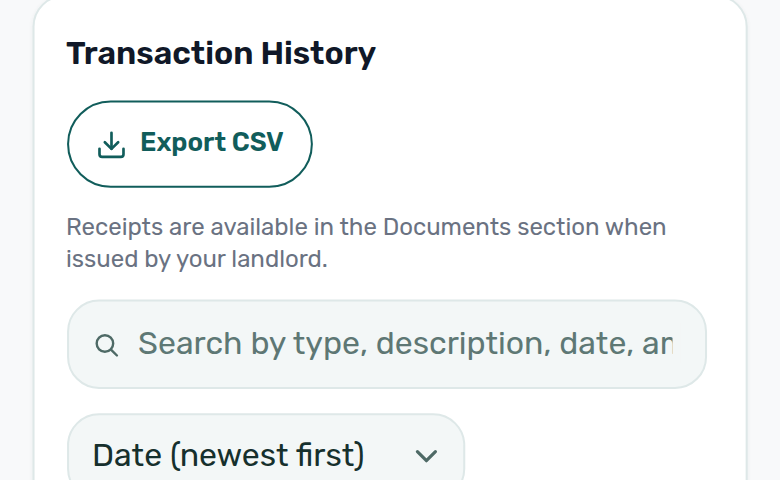
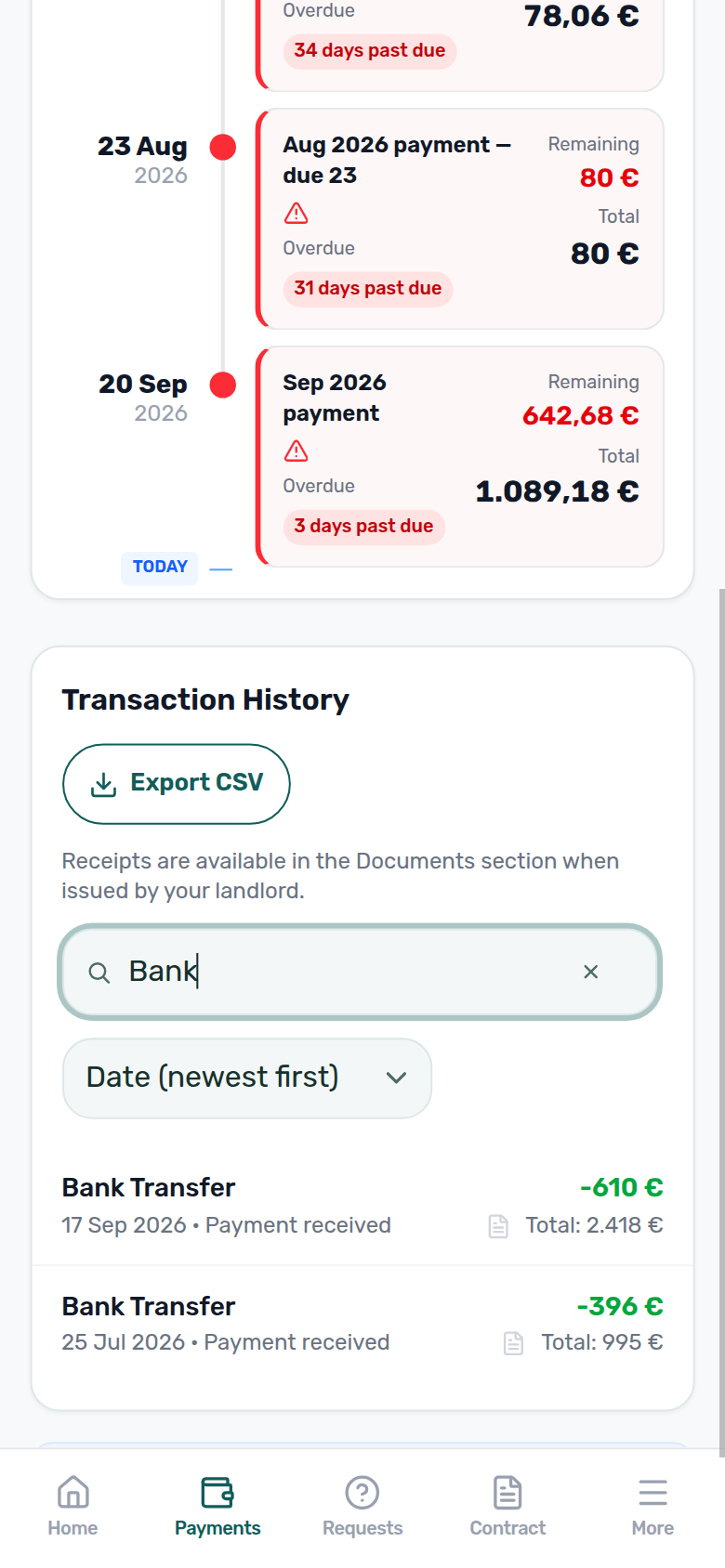
Who can change it
- Tenants — click Export CSV. They cannot hide the button.
- Operators — the booking payment module and tenant-category VIVIN payments show or hide the whole Payments tab (and this download with it). Record receipts on the booking so history rows exist.
- Marketplace —
POST /bookingscannot send Export CSV. See FAQ — How do tenants export payment history from the portal?.
Receipt column
Receipt column pairs with Payments tab (the last column on Transaction History), Documents tab (the fallback when no file is matched), Export CSV (receipts are not spreadsheet columns), Transaction History search, Transaction History sort, Bookings — Files (operator Invoice / receipt uploads), Tenant categories (VIVIN payments), and FAQ — How do tenants open a receipt from portal payment history?. Distinct from Virtual IBAN processing notice (the blue bank-transfer reminder under the same table) and from Download contract on Contract.
On Payments → Transaction History, every row includes a Receipt control. There is no Portal settings hide toggle.
When no receipt file is matched (the usual state until you share an Invoice / receipt on Bookings → Files):
- A line under the heading reads Receipts are available in the Documents section when issued by your landlord.
- On a computer, the last column is labelled Receipt. The icon is grey.
- On a phone, the same grey document icon sits next to Total on the history card.
Tenants can still open issued invoices on Documents. The grey icon does not mean the payment failed — it means this row has no matched file yet.
When you attach Invoice / receipt files on the booking Files tab, inbound (money-in) rows can show a darker Receipt icon that opens the matched document. Filename chips can also appear next to Export CSV. Outbound charges stay grey — receipts pair to inbound payments, not to rent lines.
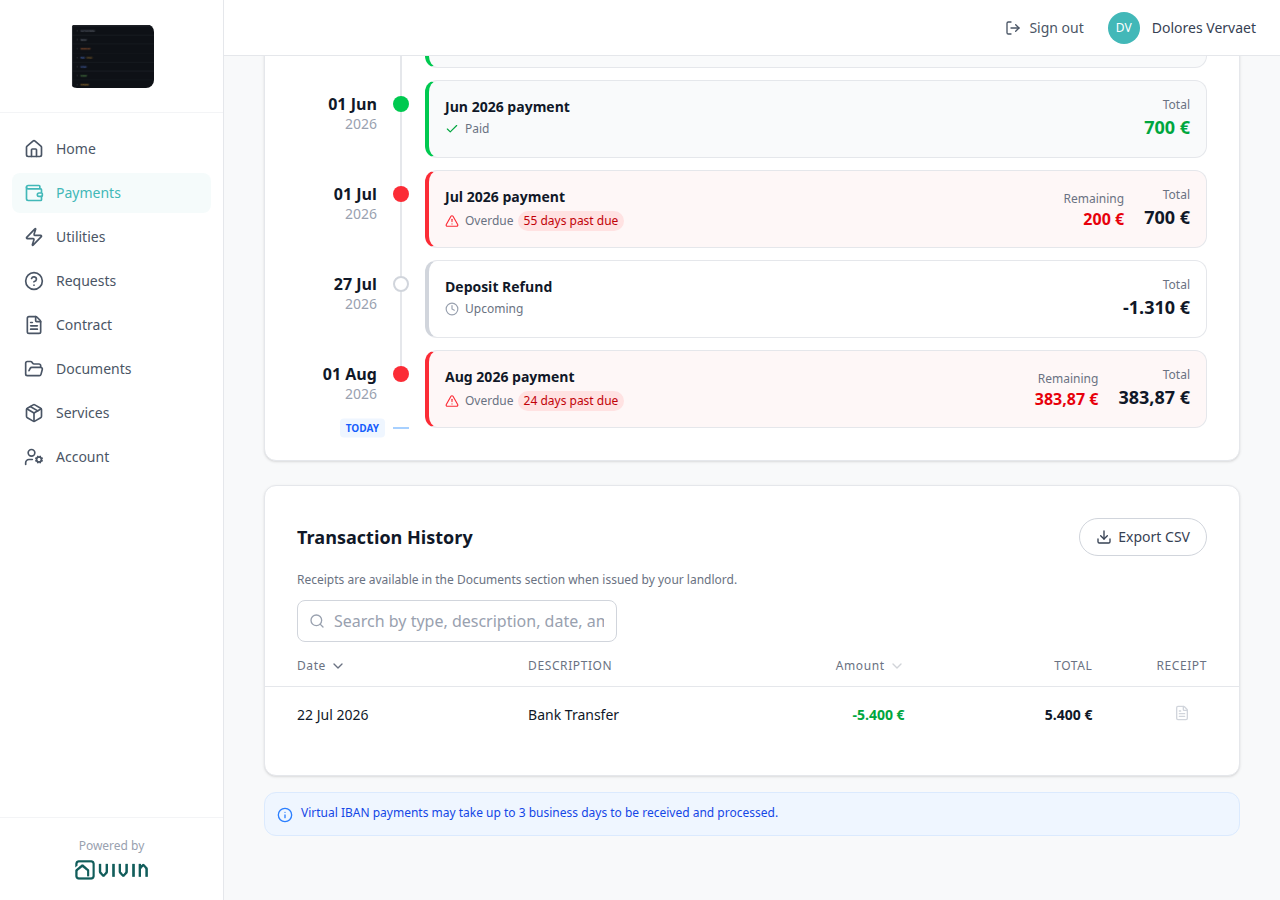
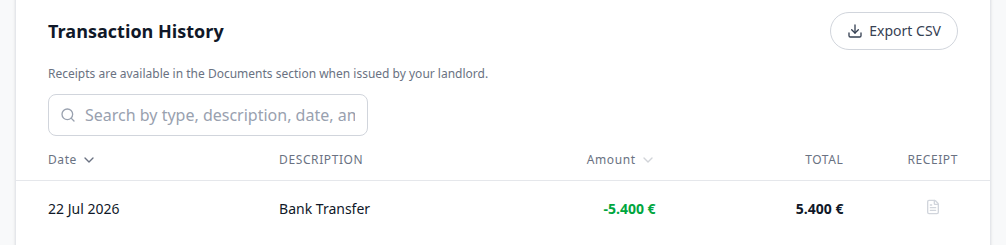
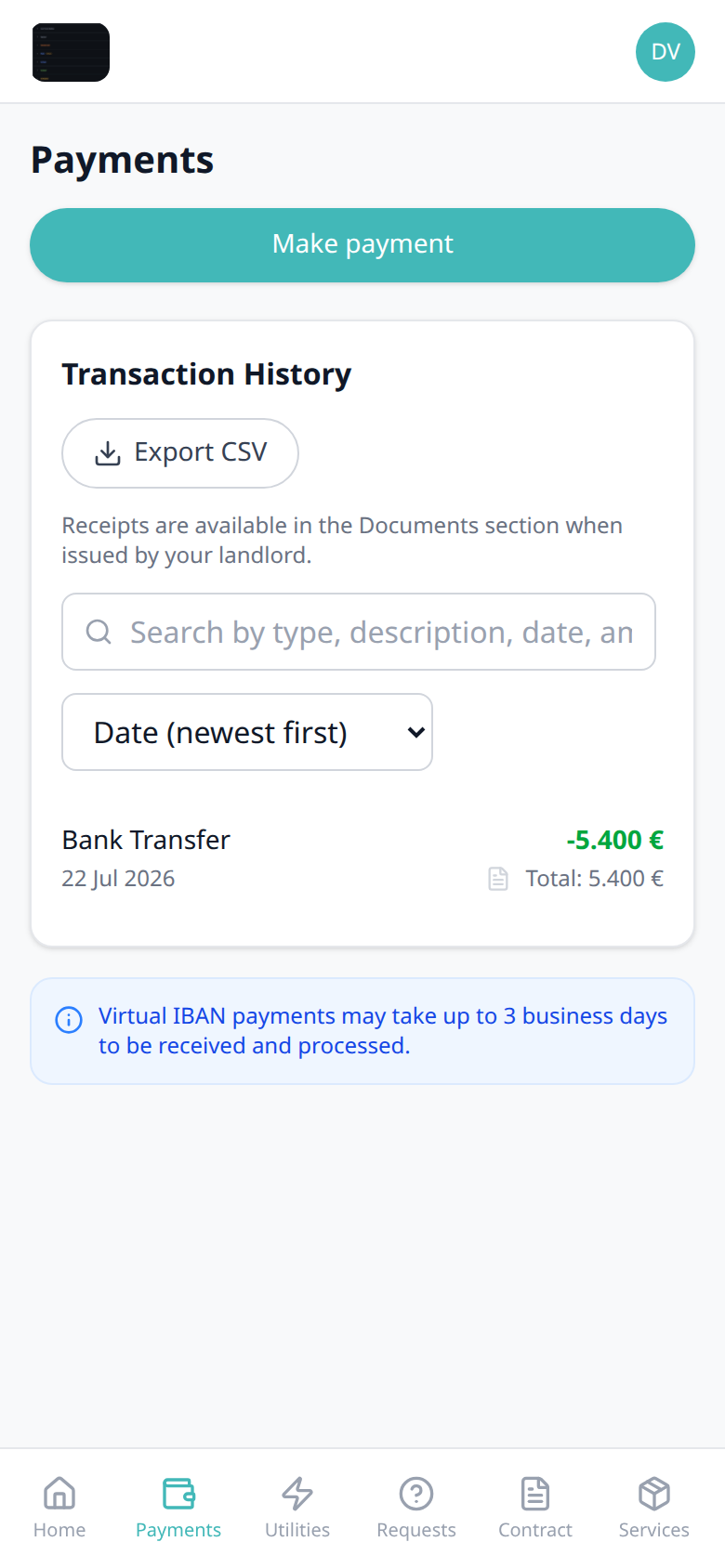
Who can change it
- Tenants — open a matched file from the icon. They cannot hide the column.
- Operators — the booking payment module and tenant-category VIVIN payments show or hide the whole Payments tab (and this column with it). Attach Invoice / receipt files on Bookings → Files so inbound rows can download. Issued invoices also appear on portal Documents.
- Marketplace —
POST /bookingscannot send this column. See FAQ — How do tenants open a receipt from portal payment history?.
Virtual IBAN processing notice
The Virtual IBAN processing notice pairs with Payments tab (it sits under Transaction History), Make payment (Paywall) (Bank Transfer checkout copy uses 48 hours to match), Copy virtual IBAN (tap the receiving IBAN on checkout), Export CSV, Receipt column, Transaction History sort, Finance module (operators match the same bank receipts), and FAQ — How long do virtual IBAN payments take in the Tenant Portal?. Distinct from the tenant’s personal IBAN (deposit refunds) and from Receipt files on the table. Distinct from Viban type label (Viban as the Transaction History row label), from Credit Card type label, and from Automatic Adjustment type label, from Overpayment Return type label, Cancelation With Refund type label.
On Payments, when Transaction History has at least one row, a blue notice under the table reads Virtual IBAN payments may take up to 3 business days to be received and processed. It is informational — not a status for one in-flight transfer. An empty ledger hides the notice, so tenants do not read it as a pending bank payment.
Make payment → Bank Transfer still says transfers can take up to 48 hours to match. That is the checkout reminder. The Payments notice is the processing window tenants see after history exists. There is no Portal settings hide toggle.
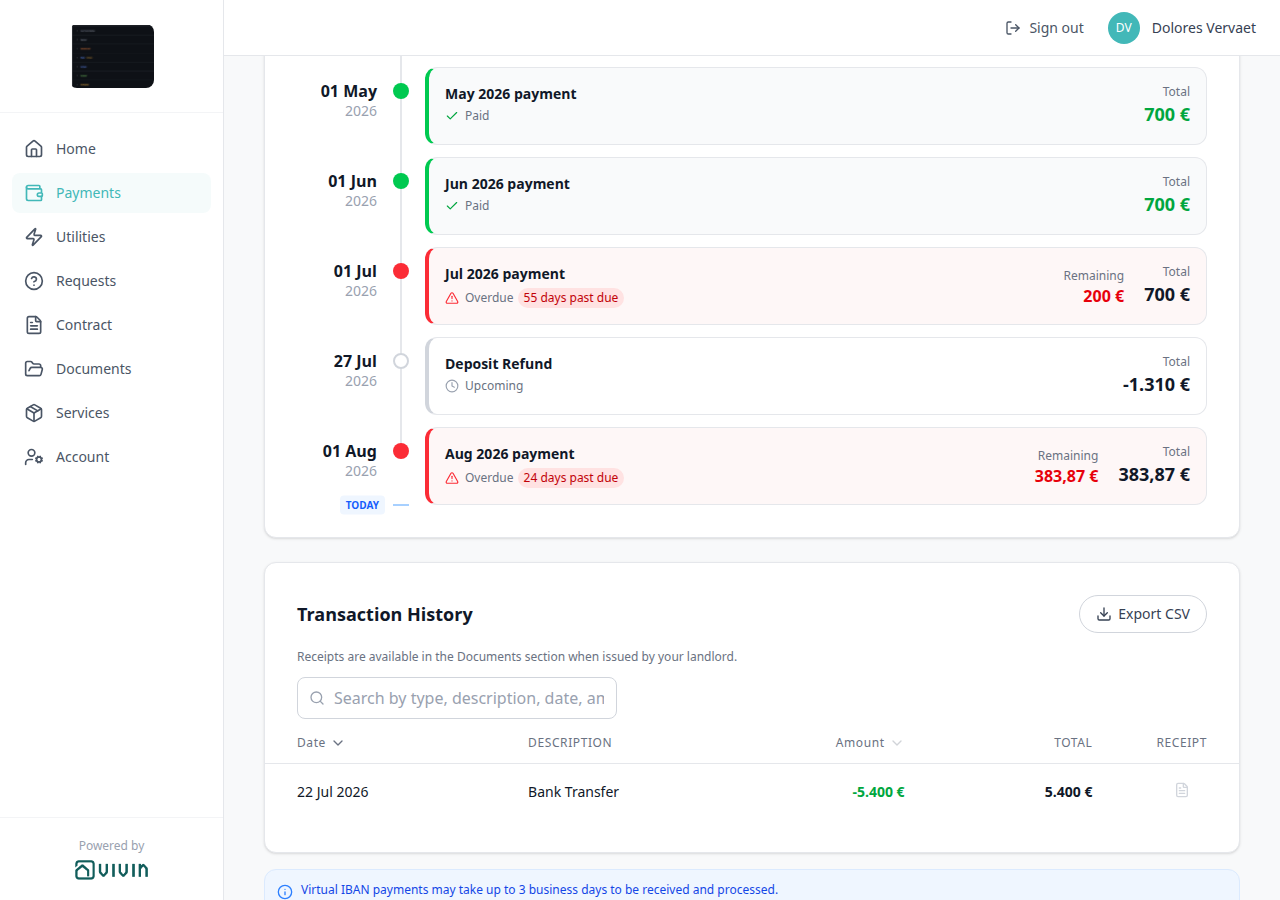

Who can change it
- Tenants — read the notice. They cannot hide it.
- Operators — the booking payment module and tenant-category VIVIN payments show or hide the whole Payments tab (and this notice with it). Match incoming bank transfers on Finance → Transactions.
- Marketplace —
POST /bookingscannot send this notice. See FAQ — How long do virtual IBAN payments take in the Tenant Portal?.
What Tenants Can See
Once logged in, tenants have access to:
Payment Schedule
The tenant can view their complete payment schedule — all scheduled charges with amounts, due dates, and payment status. On Home this appears as the payment timeline card; the full list lives on the Payments tab. This mirrors the Payment Plan tab in the management platform. Countdown labels (TODAY divider, installment chips, and Home balance “days remaining”) all use the same calendar-day helper so they never disagree by one day depending on the clock time. When the next installment is 60 or more calendar days away, those labels use a calendar due date instead of N days. On Payments → Payment Timeline, an unpaid card whose due date is already past shows Overdue plus N days past due. An unpaid card still in its due window shows Pending with amber Remaining. A fully settled card shows Paid with a green check and a green Total. When Total is below the original scheduled amount, that original stays struck through under Total. A future Scheduled card shows Due in N days (for example Sep 2026 payment Due in 25 days). A Scheduled card whose due date is today or already past shows Upcoming with a grey clock (for example Deposit Refund Upcoming). When no installment is still in the future, the compact TODAY tick sits after the last card.
Payment History
When the payment module is active for the booking, tenants can review scheduled charges and payment-related activity on the Payments tab (tap a timeline card for Payment details; same-month installment titles when two regular cards share a calendar month; a TODAY far-due date when the next installment is 60+ days away; an Overdue days past due chip when a card is already late; a Pending installment when the row is in its due window; a Paid installment when the row is fully settled; a Discounted installment when Total is below the original scheduled amount; a Scheduled Due in N days chip on a future unpaid card; an Upcoming chip when that Scheduled due date is today or already past; a TODAY compact tick at the end when no installment is still ahead; transaction history with search, sort, Export CSV, the Receipt column, and the Virtual IBAN processing notice). There is no separate “show payment history” preference in Settings > Preferences; visibility follows payment-module and portal configuration.
Contract Details
Full contract information including unit details, rental period, pricing, and terms.
Digital contract signing
Signing gates pair with Read to the end to sign (the Contract banner that unlocks Sign), Download contract (the same viewer’s page count and download icon), Settings > Portal settings — Mandatory fields (settings-sidebar-tenant-portal-portal-settings.png), Settings > Contract templates (PDF must exist before Sign contract), Tenant categories, FAQ — Tenant contract signing blocked (operator troubleshooting), Processing a New Booking — Step 4, and Settings > Emails (portal signing vs paper upload).
When Vivin has generated a contract PDF for the booking, tenants can sign digitally from Home (Sign contract) or the Contract tab. Signing runs in a full-screen wizard. Most bookings use four steps; when the booking has a guarantor on file (identity captured under management Contract Info → Guarantor), Vivin adds a fifth Guarantor step after the tenant signs:
| Step | What the tenant does |
|---|---|
| Your Details | Confirms or fills profile fields (first name and last name, phone, nationality, ID document details, fiscal number and home address, IBAN, and related fields). The same European bank account toggle as Account is here — Off reveals SWIFT/BIC and bank address fields. When Lease Purpose is enabled on the account, tenants pick an allowed value here (Select lease purpose) — not on Account, and not on Review. Fields your account marks as Mandatory for contract signing show an asterisk and block Next until filled. Tenant categories can further lock fields the tenant may not edit. See First name and last name, Phone, Nationality, Fiscal number and home address, Lease Purpose, IBAN, and European bank account. |
| Billing | Reviews or completes invoice details. The same Use company details switch as Account is here (Company billing / Use company details for invoices). On reveals Company name and Company Fiscal ID; address labels switch to Company Address. See Use company billing. |
| Review | Reads a summary of personal, ID, fiscal, billing, and Lease Purpose values with Edit shortcuts back to earlier steps. The Lease Purpose picker is on Your Details, not here — Lease Purpose. Marketplace imports do not pre-fill this field — Creating Bookings — Lease purpose. |
| Sign | Draws the tenant signature on the canvas and ticks I agree to sign this contract, then continues. On bookings without a guarantor, this step ends with Finish & Sign. Escape / Cancel closes the wizard without saving. |
| Guarantor (when the booking has a guarantor name) | Shows who guarantees the stay, asks for the guarantor’s drawn signature and I agree to act as guarantor for this contract, then Finish & Sign. The guarantor mark fills {%GuarantorSignature} on the contract PDF — see Contract templates — Guarantor variables. Bookings with no guarantor skip this step entirely (the stepper shows four steps). |
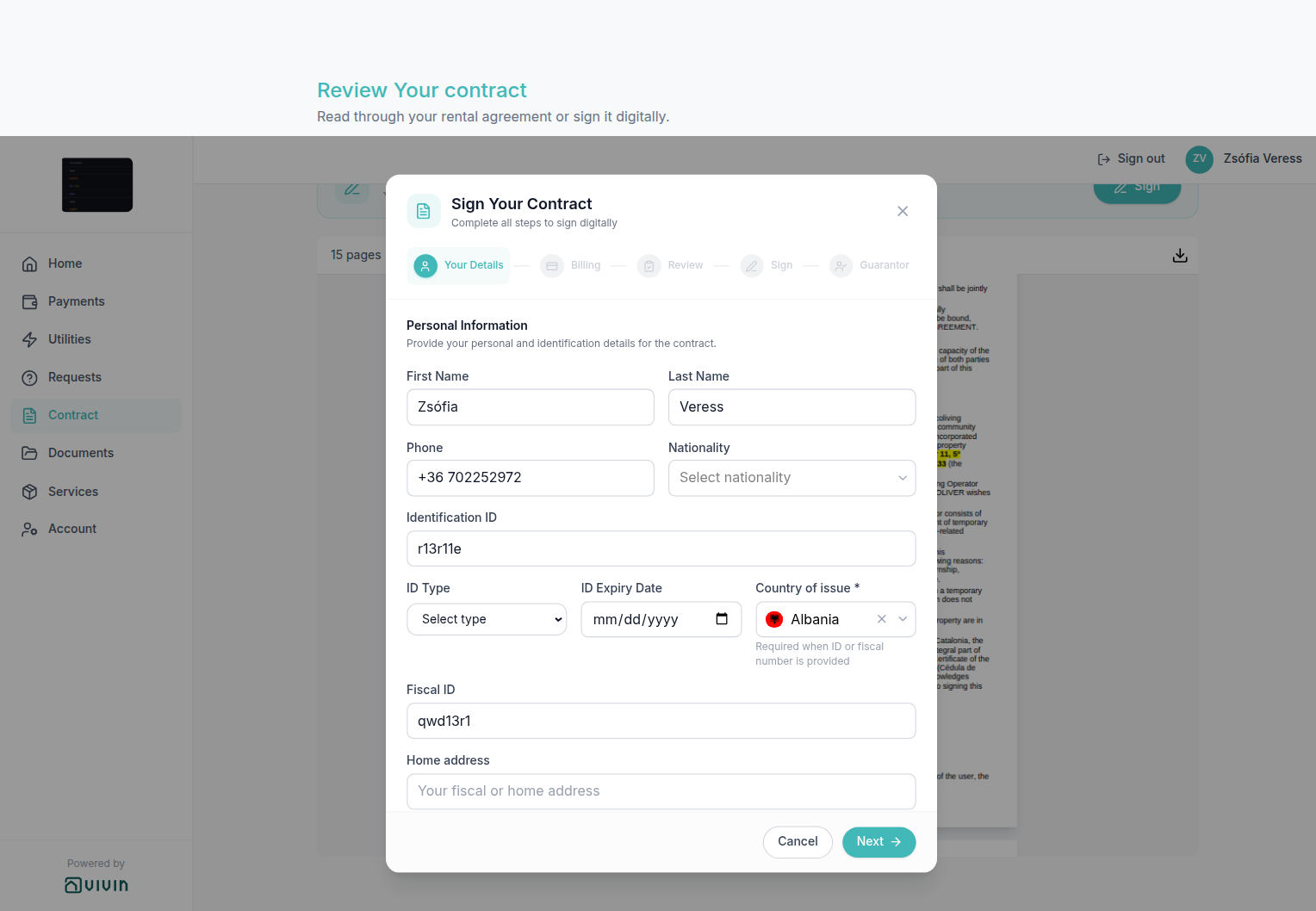
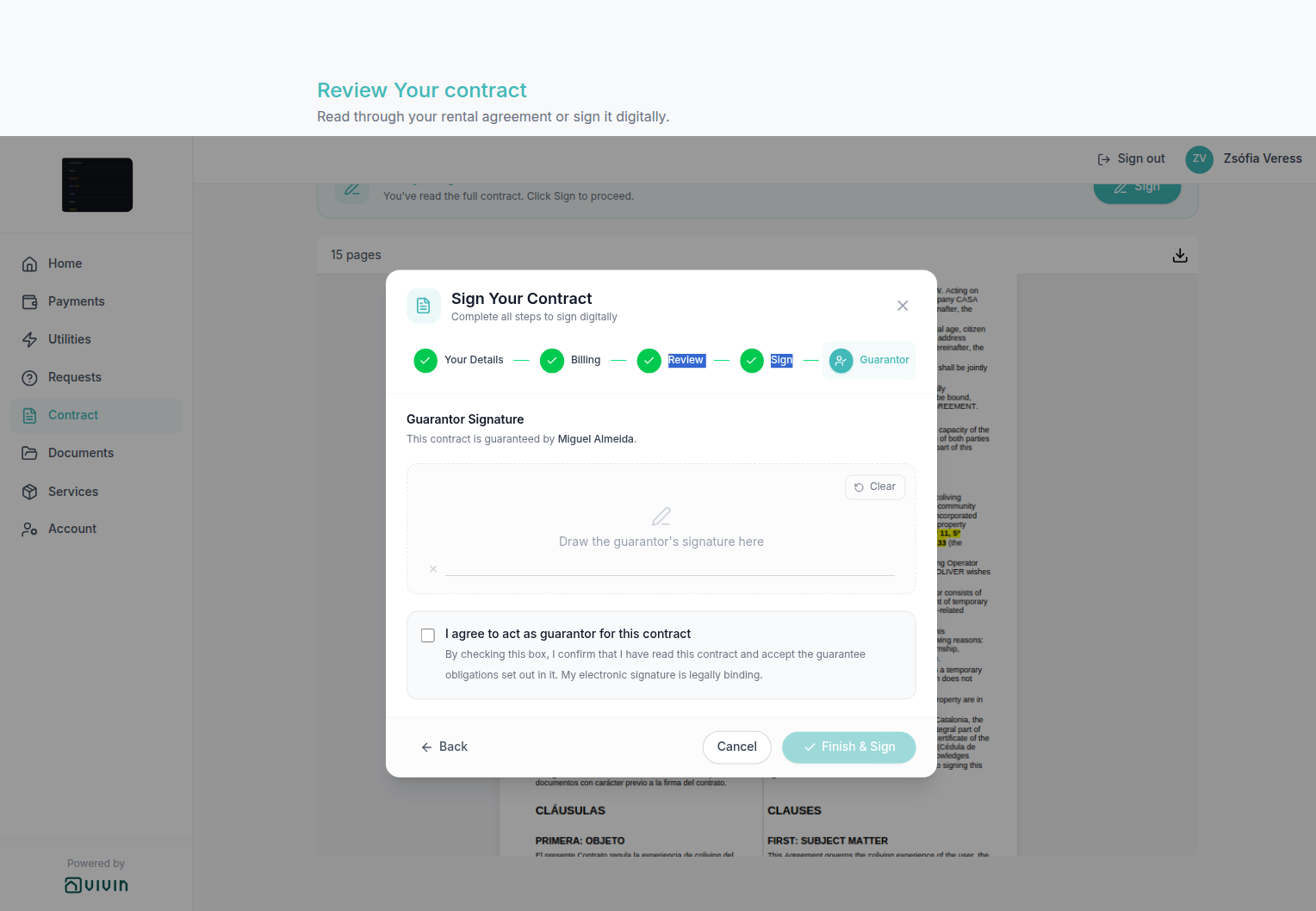
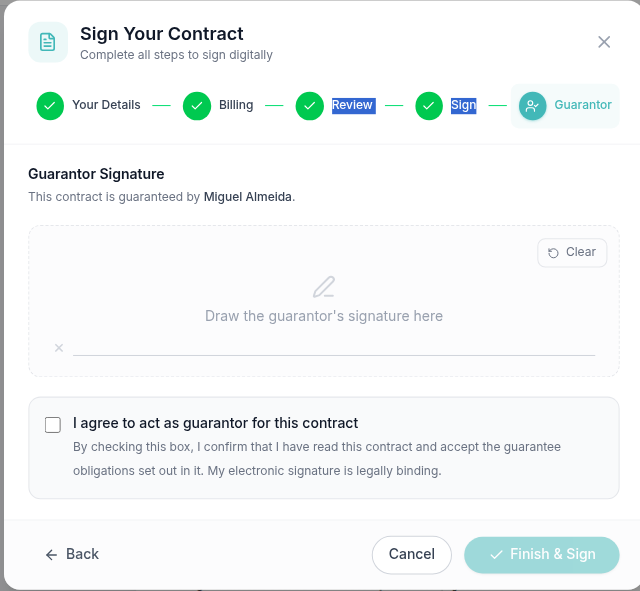
After a successful portal signature (tenant, and guarantor when required), Vivin stores signedContractPath on the booking — that satisfies After contract signed (and combined paid+signed) lifecycle check-in triggers. Uploading a signed PDF on management Contract Info does not run the same trigger evaluation; use Send Check-in email on Contract Info → Check-in & Check-out after a paper upload when requirements are met (bookings-detail-contract-check-in-out-emails.png). When tenants report missing arrival mail, see FAQ — automatic check-in email; when they cannot reach Sign, see FAQ — Tenant contract signing blocked.
If no contract PDF exists yet, Home and Contract guide the tenant to contact you or retry later instead of opening an empty sign flow — confirm Contract Info in management and your contract template workflow first (FAQ — Tenant contract signing blocked). Account Mandatory for contract signing toggles (illustrated on Portal settings) map to asterisk gates on the Your Details step below.
On Contract, tenants read to the end before Sign unlocks. Download contract is available as soon as the PDF is on screen — they do not wait for that scroll.
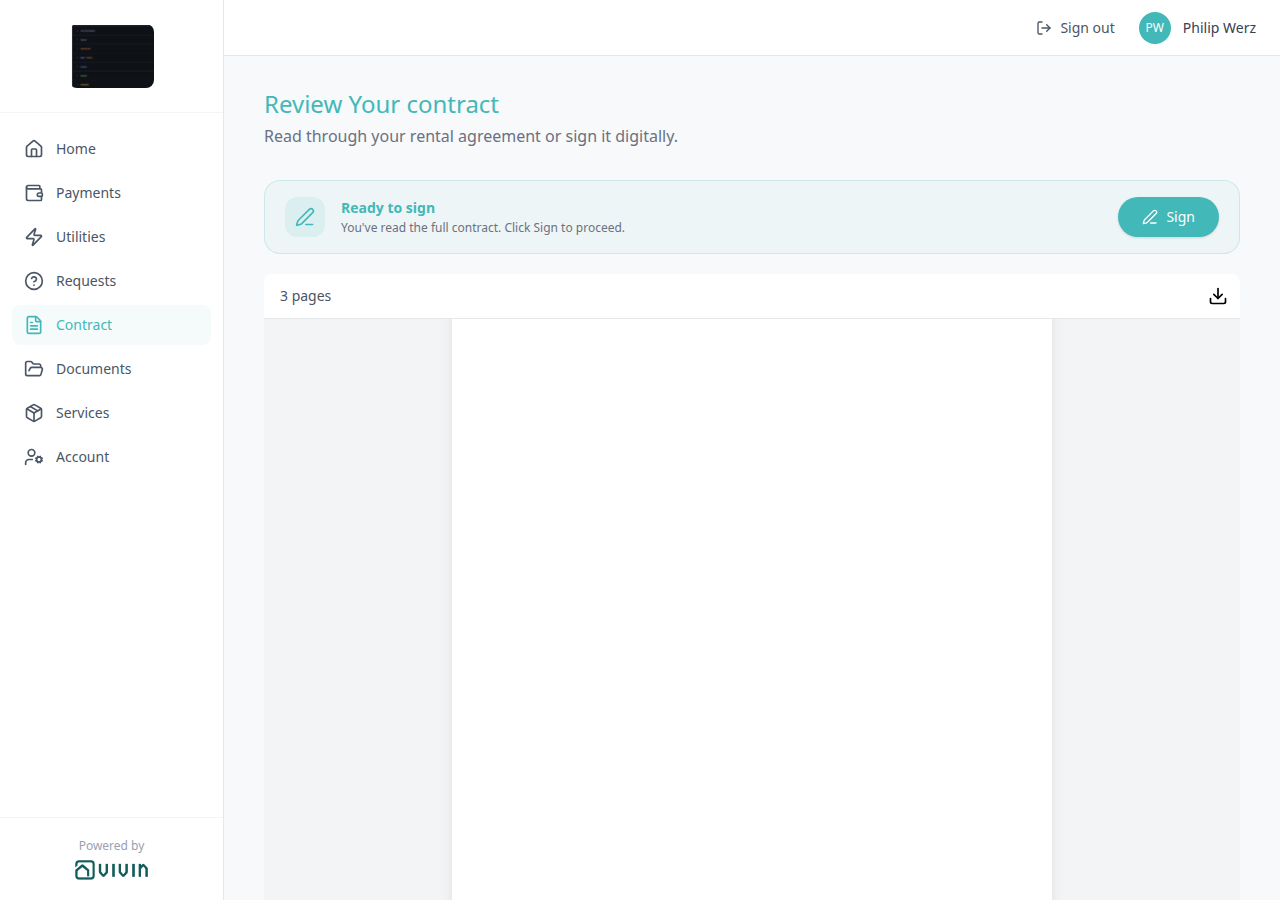
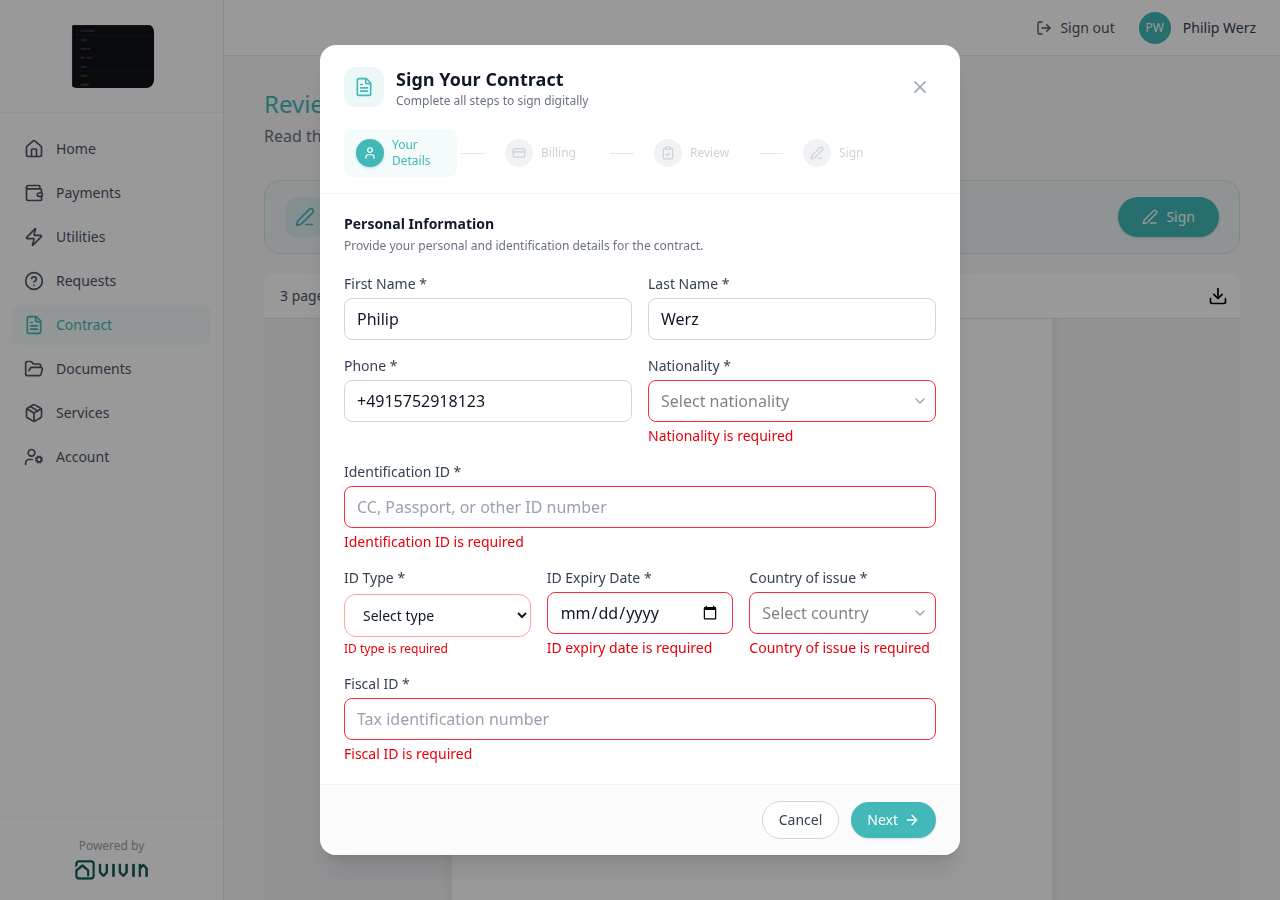
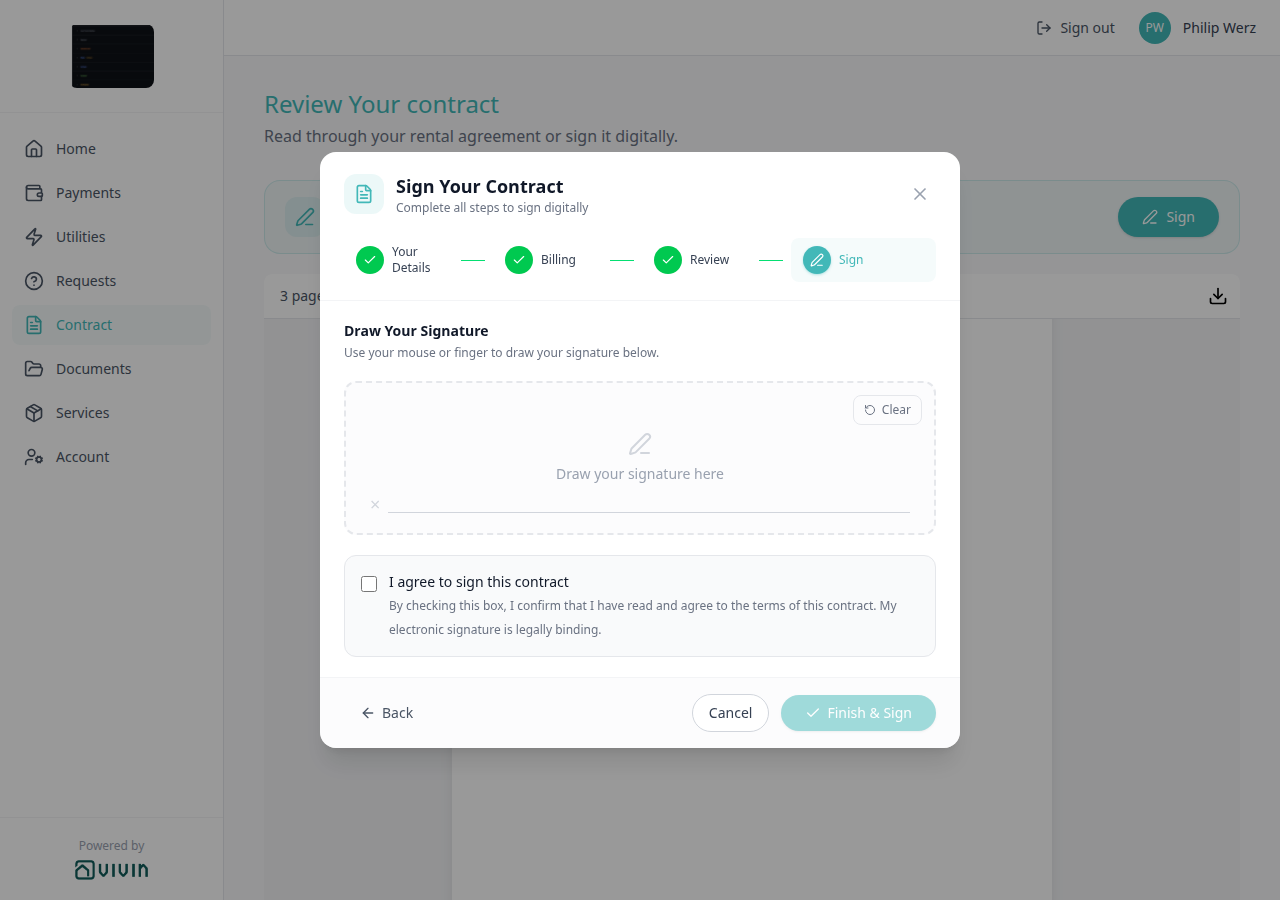
Read to the end to sign
Read to the end to sign pairs with Digital contract signing (the wizard that Sign opens), Download contract (available before this scroll), Home Contract card (Sign contract opens this tab), Portal settings — Mandatory fields (asterisks on Your Details after Sign), and FAQ — How do tenants unlock Sign on the Contract tab?. Distinct from Download contract (saves contract.pdf without unlocking Sign) and from Home Sign contract (that button only opens this tab).
On Contract, Sign stays hidden until the tenant has read the PDF. The banner above the viewer starts as:
Read to the end to sign — Scroll through the full contract below — the Sign button will unlock once you reach the end.
A down-arrow icon sits on the left. The viewer shows a scrollbar when the agreement is longer than the window (for example 3 pages).
After the tenant scrolls to the bottom — or when a short PDF already fits without a scrollbar — the banner switches to:
Ready to sign — You've read the full contract. Click Sign to proceed.
A teal Sign button appears on the right of that banner and opens the signing wizard. Escape / Cancel in the wizard closes it without saving.
There is no Portal settings hide toggle for this banner. Tenant-category Contract Off hides the Contract tab (and this unlock with it). Download contract still works while the banner says Read to the end to sign.
Home Sign contract does not skip this step — it opens Contract, then the tenant scrolls here.
Who can change it
- Tenants — scroll the PDF (or wait if it already fits). They cannot hide the banner or skip the read for a long contract.
- Operators — generate the PDF on Contract Info. There is no toggle that unlocks Sign without the read. Tenant-category Contract Off hides the tab.
- Marketplace —
POST /bookingscannot send this banner. See FAQ — How do tenants unlock Sign on the Contract tab?.
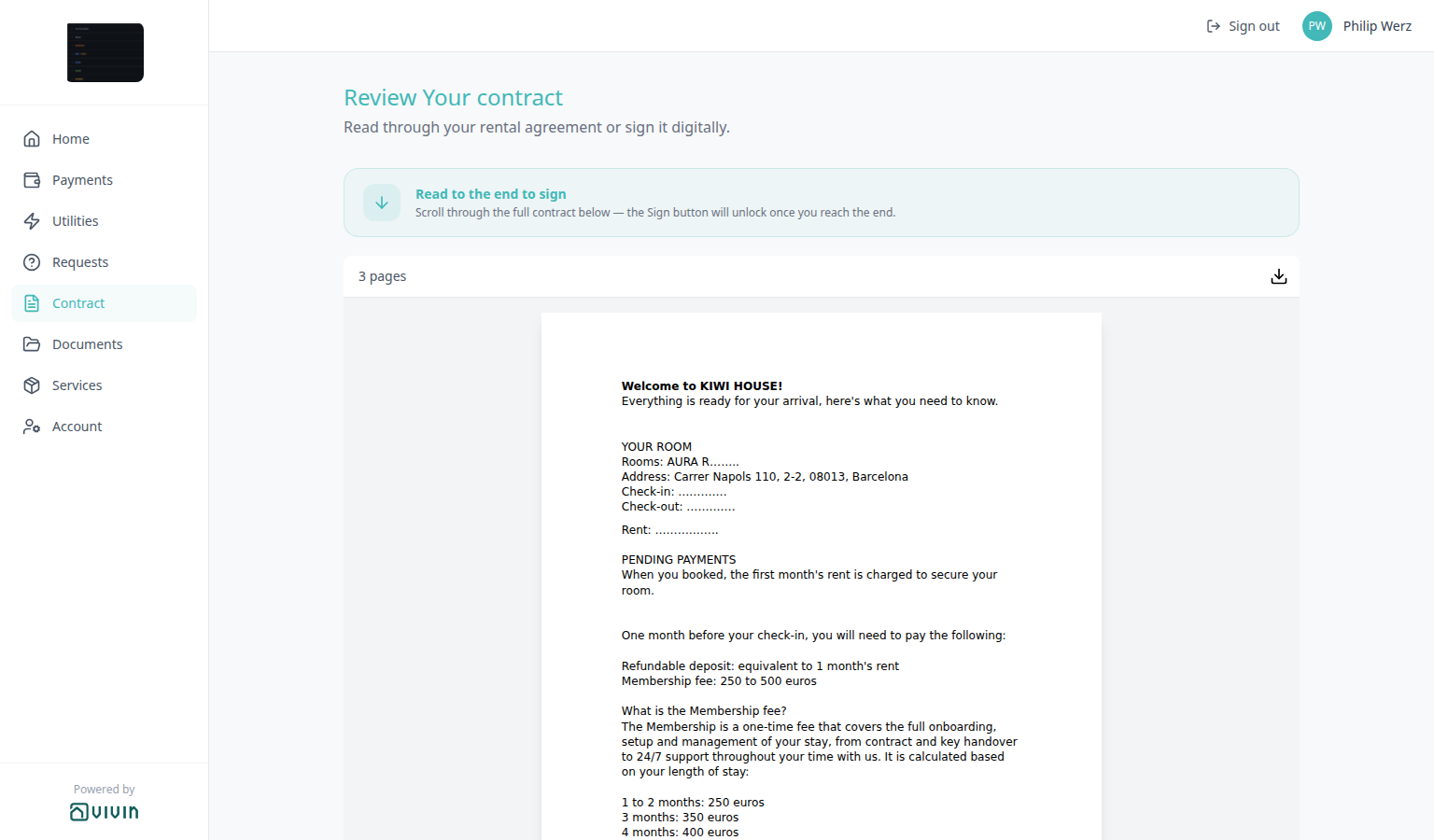

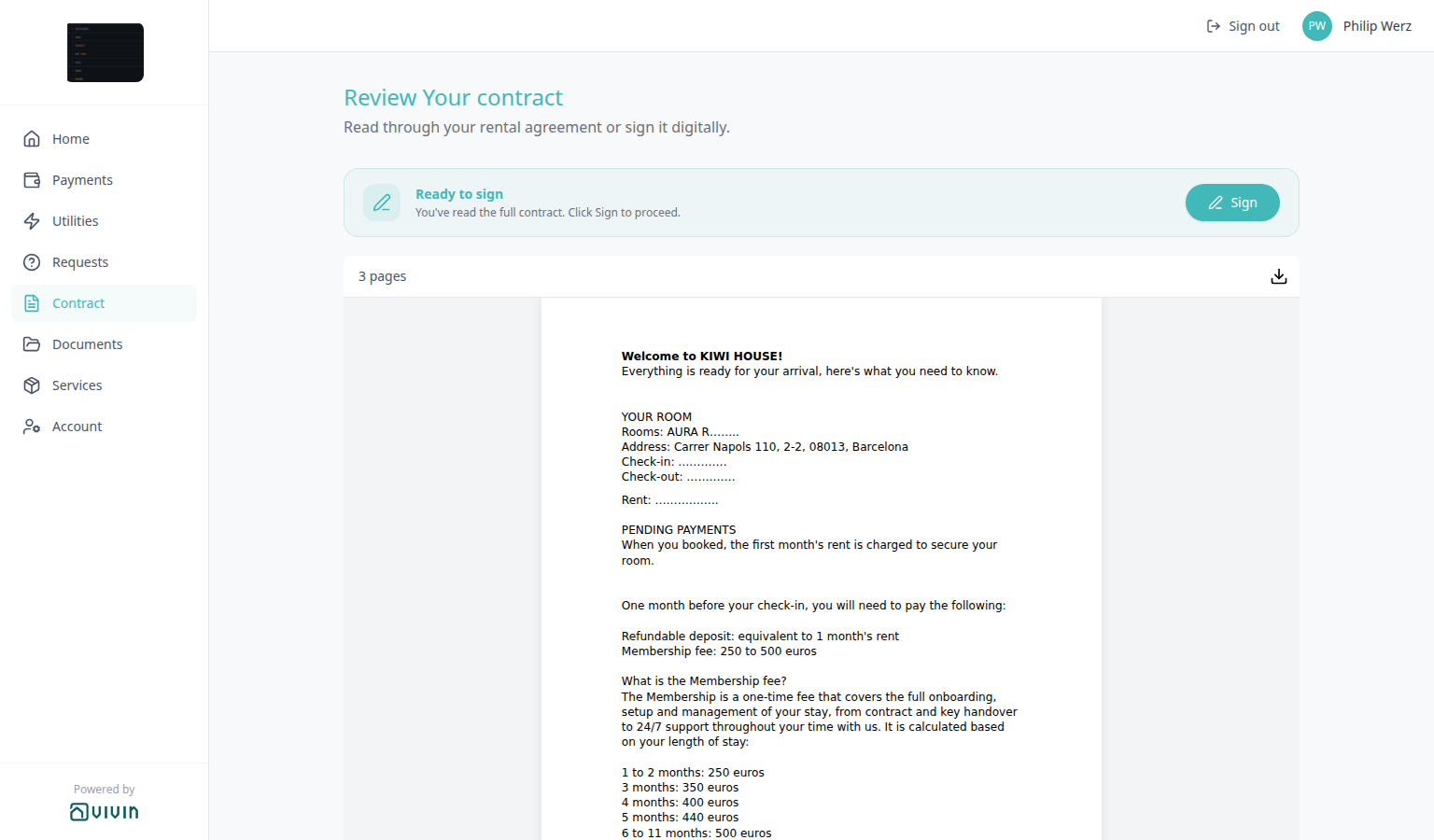

Download contract
Download contract pairs with Read to the end to sign (the same Contract viewer — download does not wait for this scroll), Digital contract signing, Home Contract card (View contract / Sign contract open this tab), Documents tab (other booking files), Bookings > Contract Info (generate the PDF), Settings > Contract templates, and FAQ — How do tenants download the contract from the portal?. Distinct from Documents Download, from Export CSV on Payments, and from Your Property Bills Preview.
On Contract, the PDF viewer header shows the page count on the left (for example 3 pages) and a download icon on the right. Hover the icon for Download contract. The saved file is always named contract.pdf.
Tenants can download as soon as the PDF is on screen. They do not need to scroll to the end first — Read to the end to sign only unlocks Sign. There is no Portal settings hide toggle for this icon.
Before the tenant signs, the download is the unsigned agreement you generated on Contract Info. After a portal signature (or when a signed copy is already on file), the same icon saves the signed PDF — still named contract.pdf.
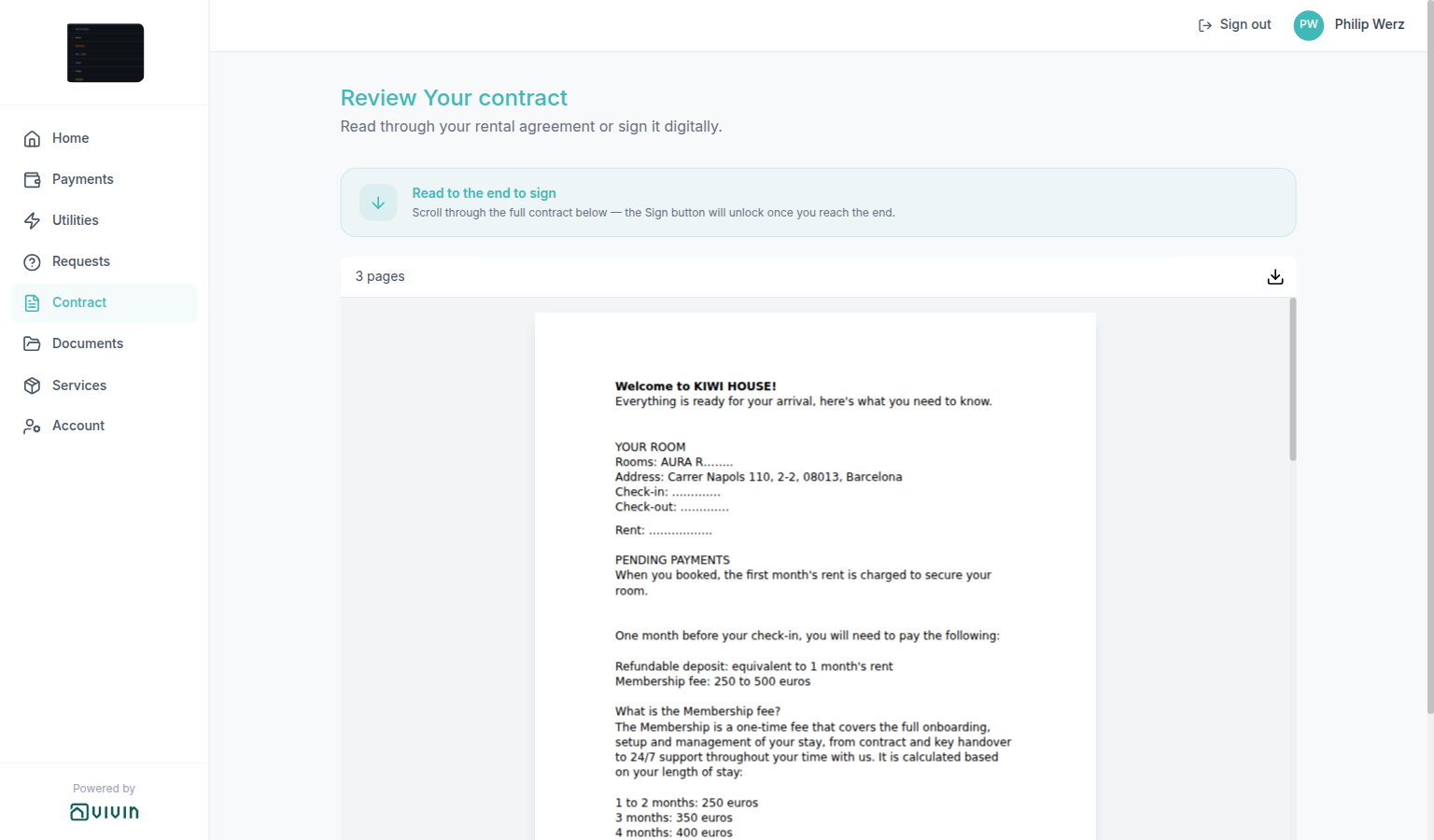

contract.pdf. Demo does not click Sign.Who can change it
- Tenants — click the download icon. They cannot hide it.
- Operators — generate or regenerate the PDF on Contract Info. Tenant-category Contract Off hides the Contract tab (and this download with it).
- Marketplace —
POST /bookingscannot send Download contract. See FAQ — How do tenants download the contract from the portal?.
Lease information
Lease information pairs with Listings — Step 1: Property Details (property name, address, floor), Bookings > Contract Info (contract and check-in/out dates), Greeting and listing address (the same street on the Home pin), Contact us, Managing a Check-in — Step 4, and FAQ — How do tenants see lease dates and landlord contact on portal Home?. Distinct from Open requests, Contract card, Entry codes, WiFi, Account Home address, and Lease Purpose.
On Home, after the balance and quick-action cards, tenants see a Lease information card. It is read-only — tenants cannot change these values in the portal. There is no Portal settings toggle to hide it, and it does not wait for the check-in email (unlike WiFi and Entry codes).
| Field | What tenants see |
|---|---|
| Property | The property name from Listings (the same name you use internally). |
| Address | The listing street address. When a Floor is stored, Vivin appends it after the street — for example 3 becomes , Floor 3. If the stored value already includes the word “floor” (for example 2nd floor), that wording is kept. |
| Timeline | A vertical stay timeline when at least two different calendar days exist after grouping same-day milestones. |
Timeline milestones, in date order:
| Milestone | Source |
|---|---|
| Contract start | Booking contract start date |
| Check-in | Check-in date, with check-in time (HH:mm) when stored |
| Check-out | Check-out date, with check-out time when stored |
| Contract end | Booking contract end date |
Milestones that fall on the same calendar day merge into one row (for example CONTRACT START & CHECK-IN). Dates use a four-digit year (01 Mar 2026, not a two-digit year). Past dots and connectors fill with your brand teal; future dots stay hollow grey. If every milestone collapses to a single day — or fewer than two dates exist — the timeline is omitted; Property and Address still show.
The Home greeting and listing pin repeats the same street and floor next to Hello, First name!.
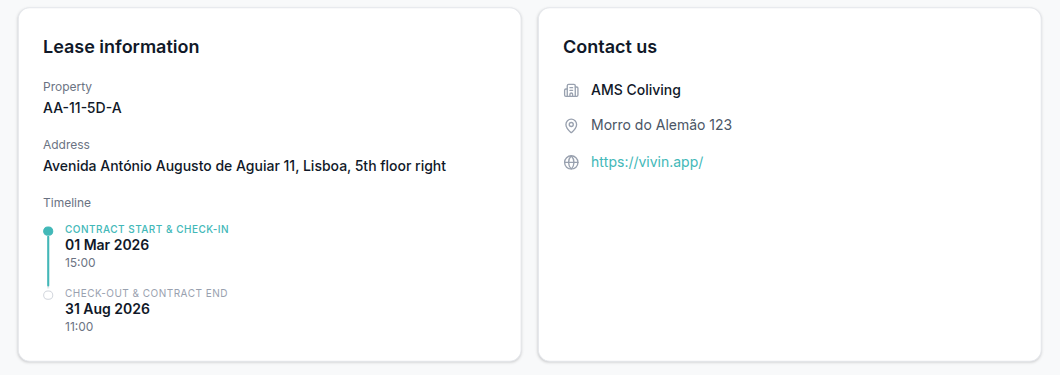
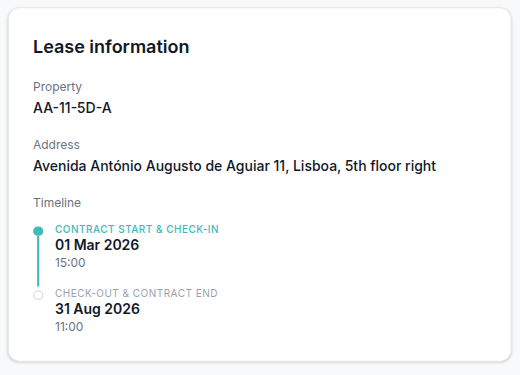
Contact us
Contact us pairs with Settings → General Information (Company Name, Address, Website URL), Logo website (the same Website URL on the sidebar / header logo), Powered by VIVIN (always Vivin’s site — not this Website row), Lease information, Portal settings (no hide toggle), and FAQ — How do tenants see lease dates and landlord contact on portal Home?. Distinct from Open requests, Contract card, listing WiFi, entry codes, and the tenant’s own Home address on Account.
The neighbouring Contact us card shows how tenants should reach you:
| Field | Source |
|---|---|
| Company name | General Information → Company Name |
| Address | General Information → Address (your registered company address — not the listing street) |
| Website | General Information → Branding → Website URL. Vivin adds https:// when the saved value has no scheme. The link opens in a new browser tab. |
Empty fields are omitted (no placeholder dashes). The Contact us title still appears. Tenants cannot edit this card. Marketplace POST /bookings cannot send these values; they are not taken from listing JSON.
The same Website URL also wraps the account logo in the sidebar (computer) and header (phone) when a logo is uploaded. Contact us is the labelled website row on Home — not the logo, and not Powered by VIVIN.
There is no Portal settings toggle to hide Contact us.
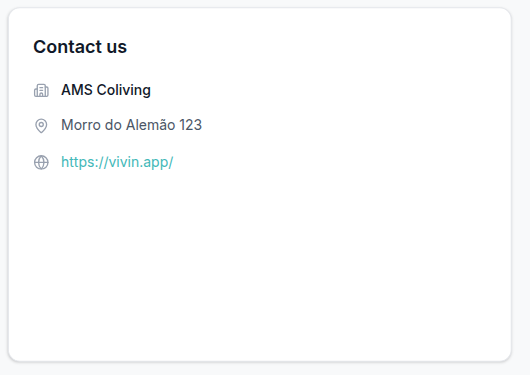
The same walkthrough as Lease information covers both cards (tenant-portal-home-lease-and-contact-flow.mp4).
Entry codes
The Entry codes card pairs with Listings — Access Lockers (where operators store tenant-facing codes and hints), Show code and Copy code (eye and copy on this card), Portal settings (Allow to see entry codes), WiFi (a different Home card — network name plus password), Managing a Check-in — Step 4, and FAQ — How do tenants show and copy entry codes on portal Home?. Distinct from Internal code / Internal hint (staff only), from Copy virtual IBAN on Make payment, and from marketplace POST /bookings (partners cannot send entry codes).
When enabled, tenants see an Entry codes card on Home with building, property, and unit access codes configured in the property's Access Lockers tab. Each level that has a code appears as a row:
| Row | When it appears |
|---|---|
| Building access | The listing has a building (entrance) code. |
| Property access | The listing has a property-level code. |
| Unit access | The listing has a unit (room / apartment) code. |
Empty levels are omitted. Codes start masked. Tenants use Show code (eye) to reveal a row and Copy code (overlapping squares) to copy it — including while it is still masked. After copy, that row’s copy control turns into a green check briefly. Hide code (slashed eye) masks the row again. If the listing has a hint for that level, a Hint: line appears under the row.
The card appears only when all of the following are true:
| Requirement | Detail |
|---|---|
| Account toggle | Allow to see entry codes is On under Settings → Portal settings (defaults On). |
| Check-in email sent | Vivin has sent the booking's check-in email (checkInEmailSentAt is set) — same gate as other arrival content. |
| Active stay window | Current time is before the physical checkout instant (check-out date + time). |
| Not canceled | The reservation is not in a canceled state. |
| Configured codes | At least one of building, property, or unit access codes is non-empty on the listing/property. |
When any requirement fails, the Entry codes card is hidden entirely (no empty placeholder).
The check-in email always includes access codes from Access Lockers when that lifecycle email sends — independent of Allow to see entry codes. The Preferences toggle gates only the portal Home card. Operators who disable portal entry codes should still expect codes in check-in mail unless they change lifecycle email content separately.
Operator setup: configure codes on Listings → Access Lockers, confirm Managing a Check-in — Step 4 (check-in email + portal), and audit the toggle on Portal settings. When tenants report missing codes on Home but received check-in mail, see FAQ — Entry codes in the portal. When the card is visible and tenants need the Show / Copy path, see FAQ — How do tenants show and copy entry codes on portal Home?.
WiFi is a different Home card: it uses the property network name and password, has no Portal settings hide toggle, and does not appear in the check-in email automatically. Lease information and Contact us are also different Home cards — they stay on Home without a check-in-email gate.
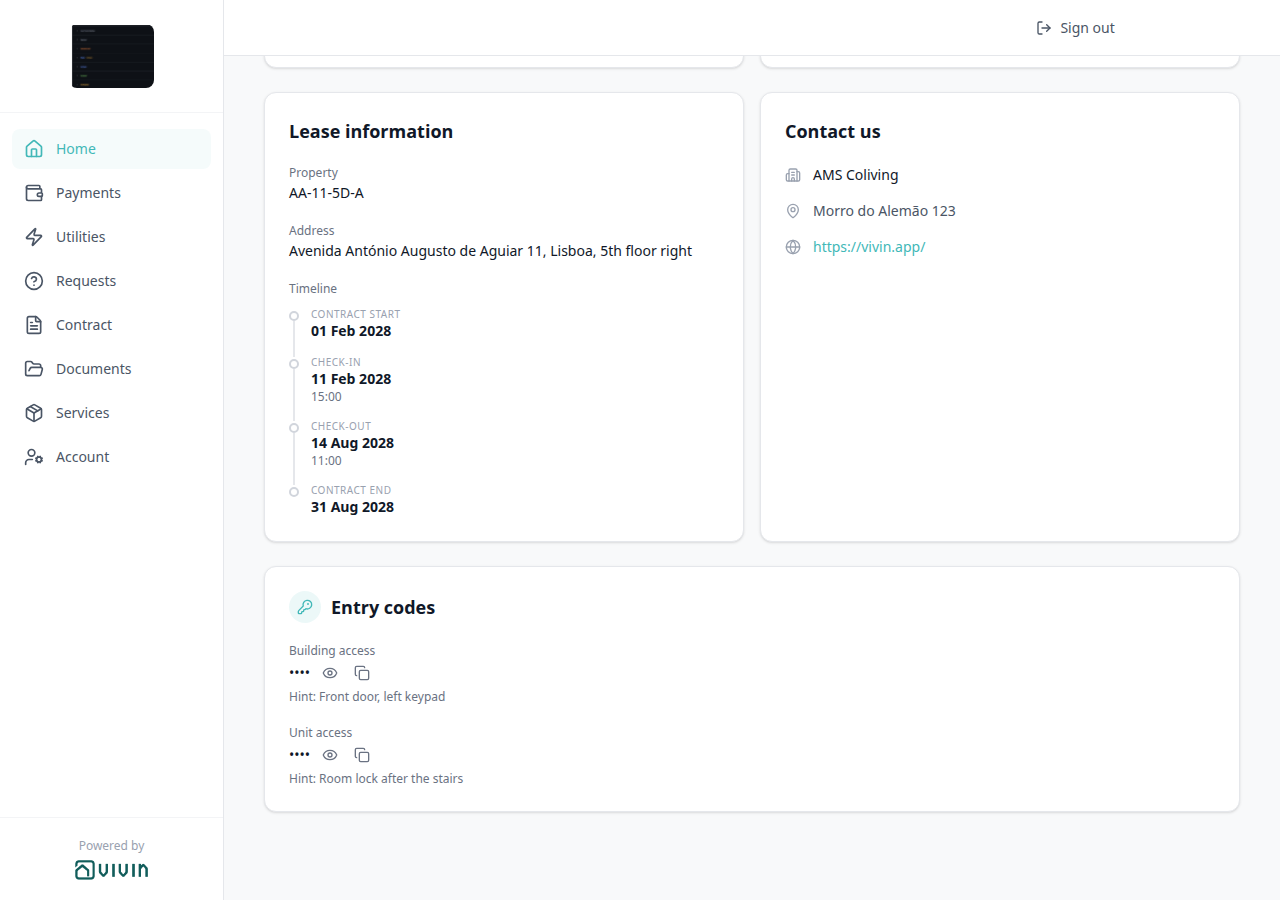
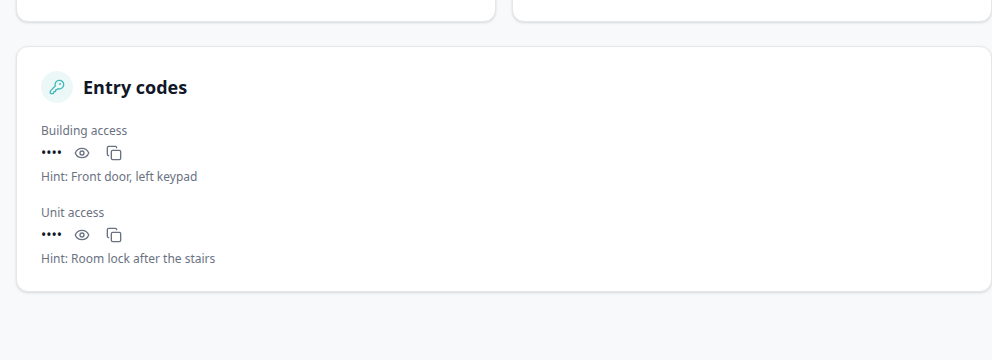
Show code and Copy code
Show code and Copy code pair with Entry codes (this Home card), Listings — Access Lockers (where operators store the values), Copy virtual IBAN (a different copy control on Make payment), and FAQ — How do tenants show and copy entry codes on portal Home?. Distinct from WiFi Show password and from Account bank details.
Each filled row starts with a masked code (dots instead of digits). Tenants tap the eye (Show code) to read that row, then Hide code (slashed eye) to mask it again. Copy code (overlapping-squares icon) puts the real code on the clipboard even while it is still masked. A green check replaces that row’s copy icon for about a second and a half — that is the confirmation. A Hint: line under the row, when present, is always visible — it is not masked. Tenants cannot edit codes or hints in the portal.
On a phone, the same card sits on Home above the bottom bar. Show code, Hide code, and Copy code work the same way.
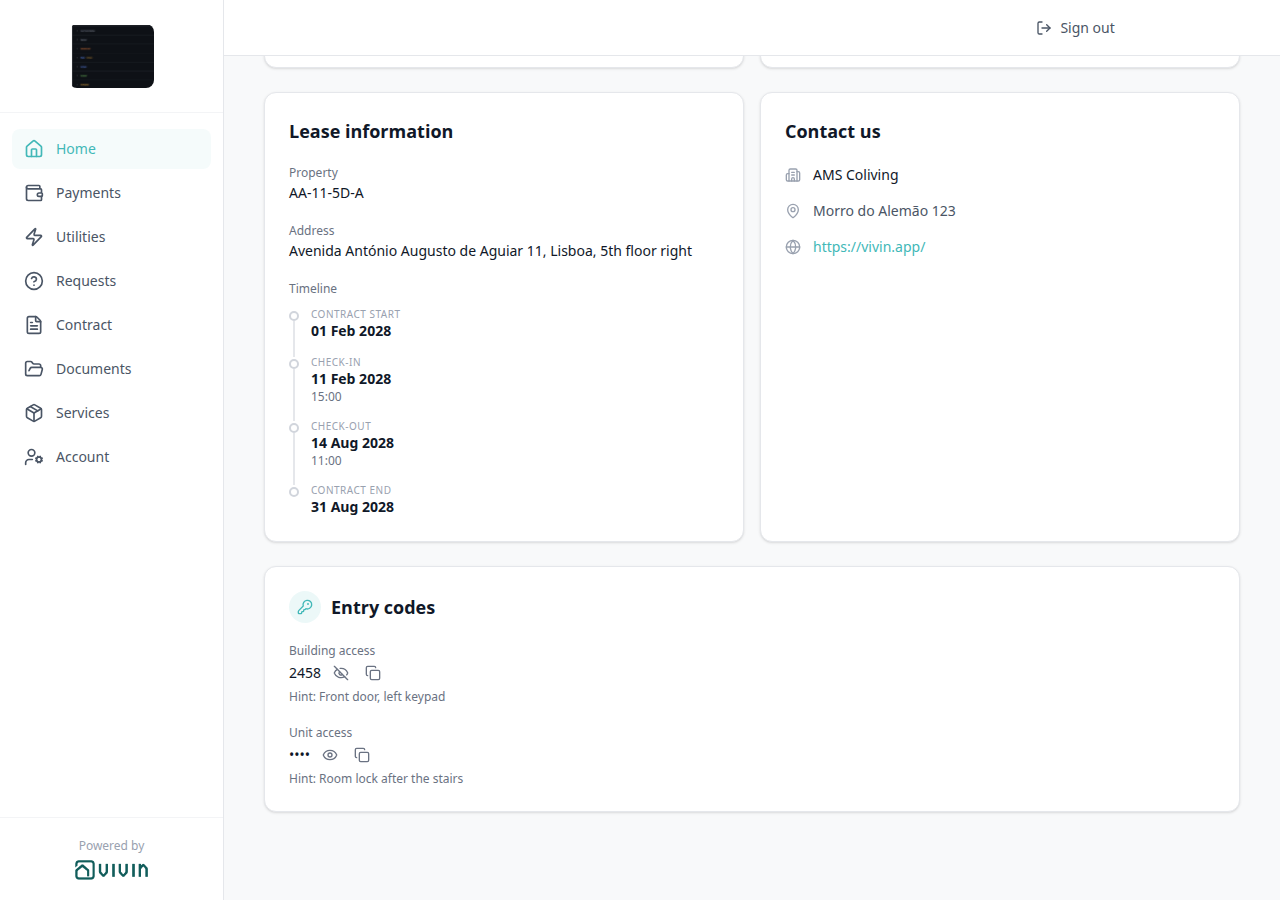
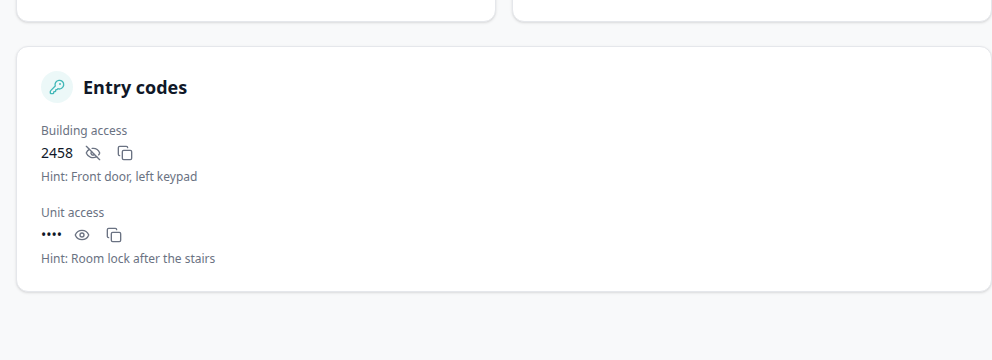
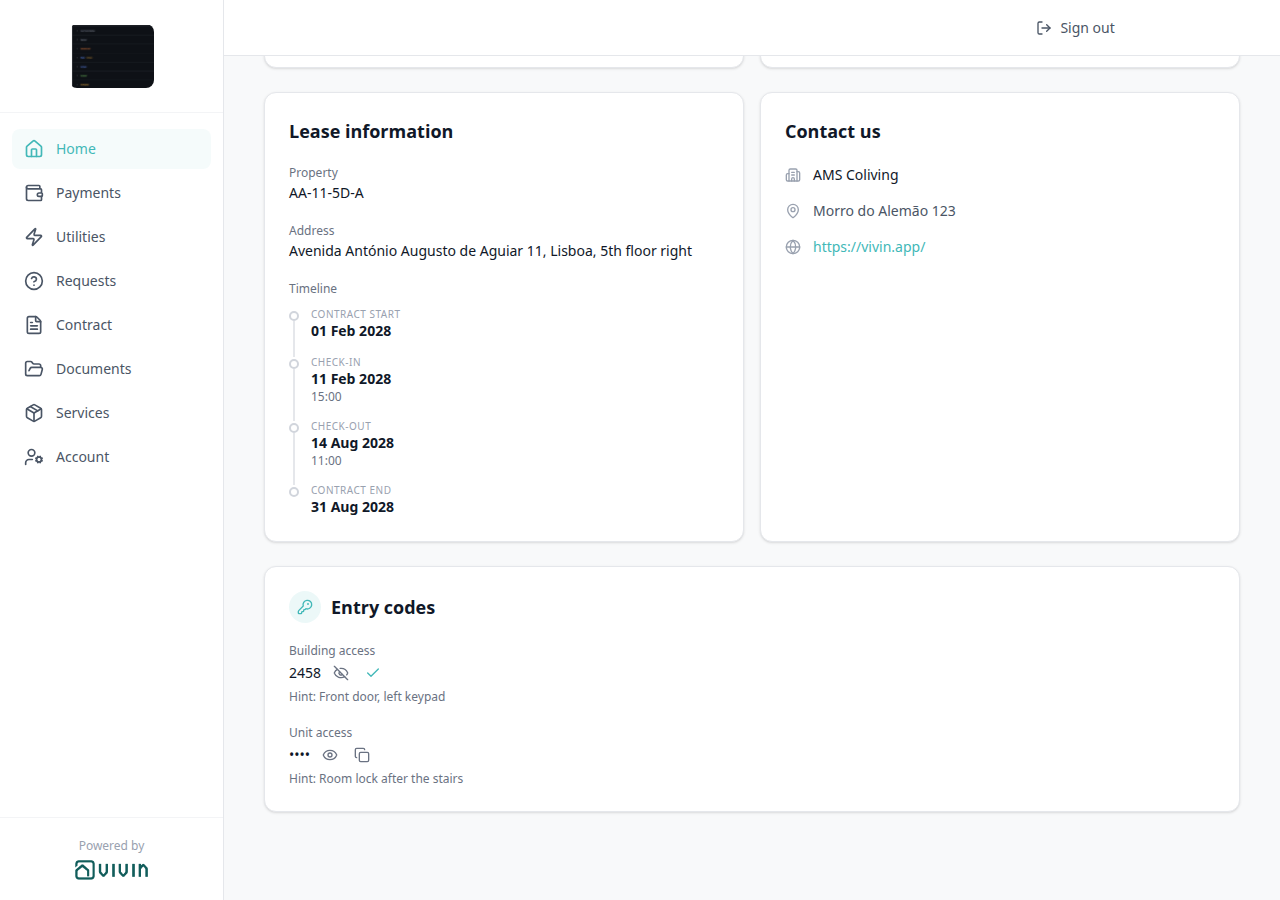
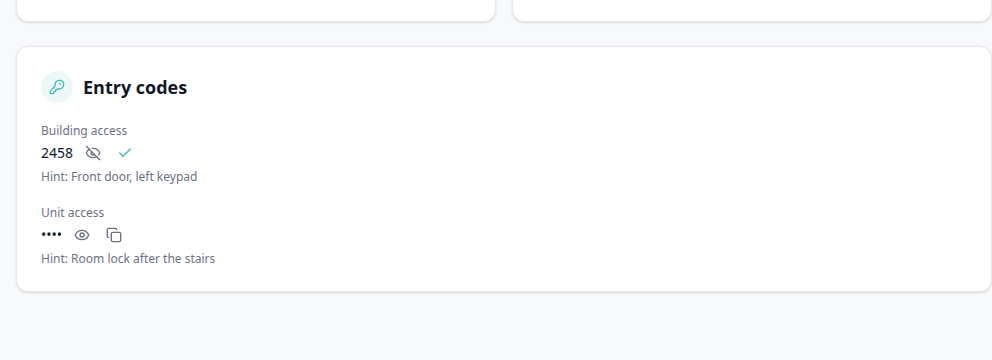
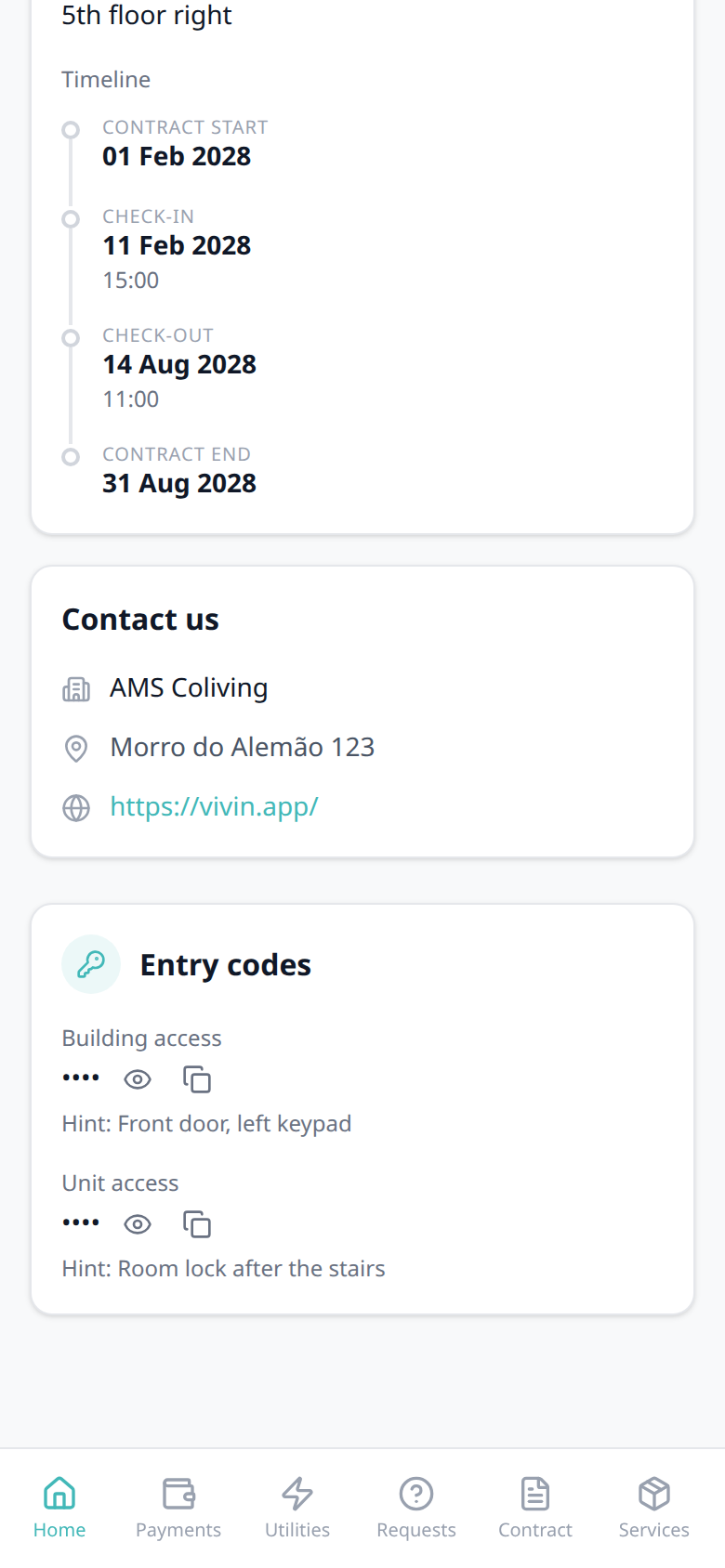
Who can change it
- Tenants — they can show, hide, and copy a code. They cannot edit codes or hints in the portal.
- Operators — Listings → Access Lockers (building, property, and unit). Internal code / Internal hint stay in management only. Marketplace
POST /bookingscannot send entry codes. See FAQ — How do tenants show and copy entry codes on portal Home?.
Cleaning
The Cleaning card pairs with Listings — Cleaning (common areas) (property weekday chips), Listings — Room cleaning days (unit weekday chips), WiFi / Entry codes (different Home cards — those two wait for the check-in email), Lease information / Contact us (always-on cards), and FAQ — How do tenants see cleaning days on portal Home?. Distinct from the monetary Cleaning fee on the payment plan and from short-term Airbnb cleaning amounts.
On Home, tenants can see a Cleaning card with the weekly housekeeping schedule for their stay:
| Row | Source | Example |
|---|---|---|
| Common areas | Property Common areas cleaning days | Monday, Thursday |
| Your room | Unit Room cleaning days | Tuesday |
The card appears when at least one row has days set. Empty rows are omitted (no dash). Days use the tenant’s portal language (long weekday names, Monday-first order). There is no Portal settings toggle. The card does not wait for the check-in email and is not limited to the stay window — clear the Listings fields to hide it.
Marketplace POST /bookings cannot send cleaning days. Partner listing JSON does not publish them.
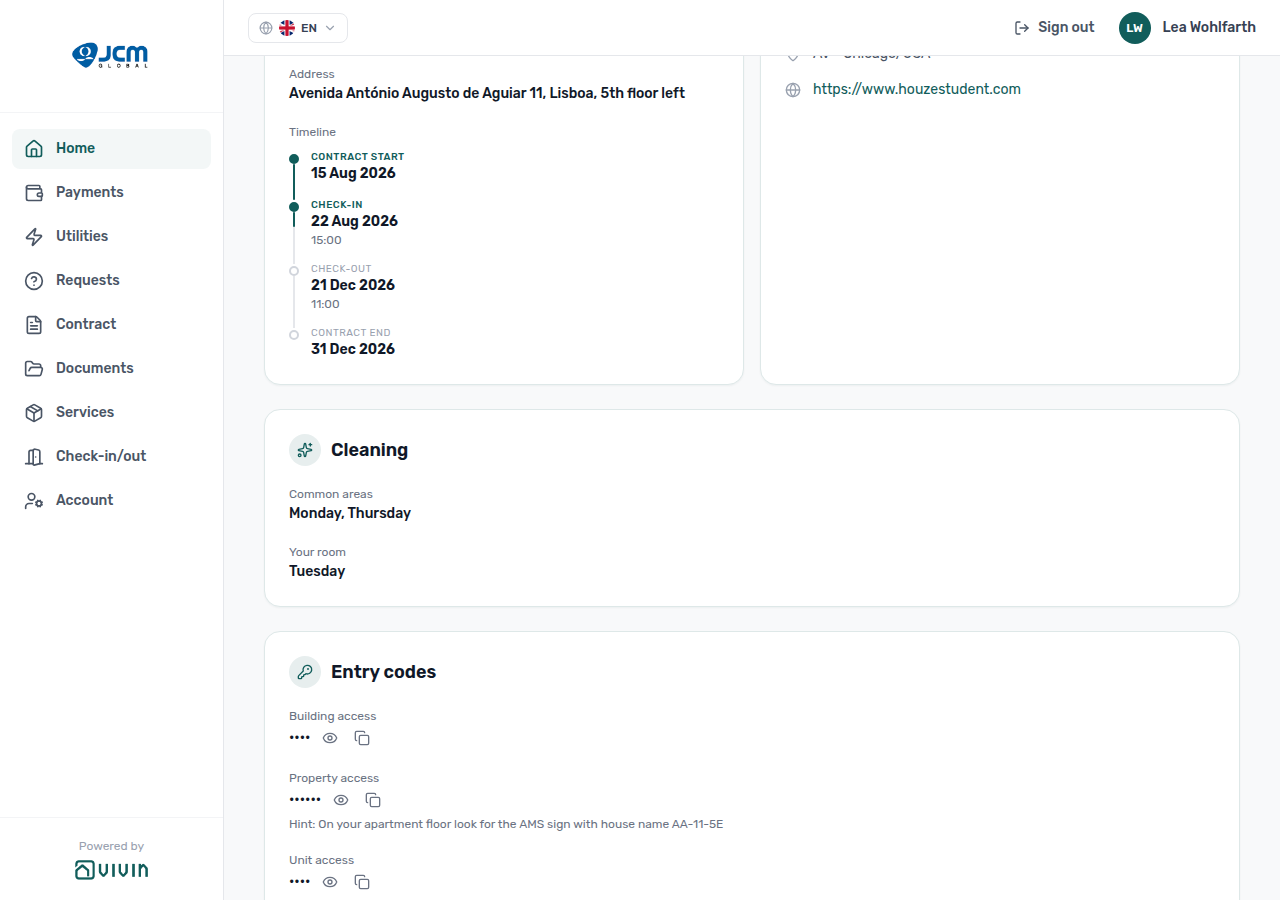
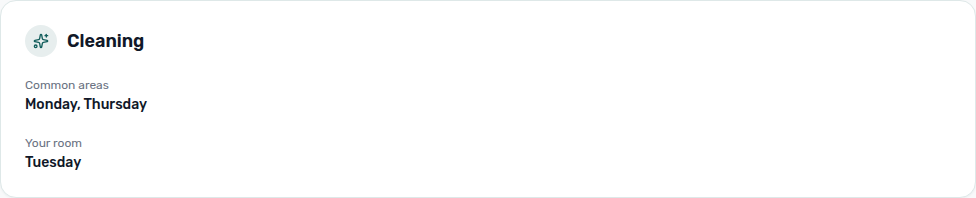
- Tenants — they read the schedule on Home. They cannot edit cleaning days in the portal.
- Operators — Listings → property Cleaning and unit Room cleaning days. See FAQ — How do tenants see cleaning days on portal Home?.
WiFi
The WiFi card pairs with Listings — WiFi (where operators store the network name and password), Show password and Copy password (eye and copy on this card), Entry codes (a different Home card with its own stay-window and Portal settings gates — including Show code), Lease information / Contact us (always-on Home cards, not check-in gated), Managing a Check-in — Step 4, and FAQ — How do tenants see WiFi on portal Home?. Distinct from unit Access Lockers codes, from Copy virtual IBAN (Make payment), and from partner listing JSON (the password is never published).
On Home, tenants can see a WiFi card with the building’s network name and password. Operators store those values once on the property — Listings — WiFi — not per unit.
| Field | What tenants see |
|---|---|
| Network name | The SSID (for example Vodafone Lenta) |
| Password | Masked with dots until the tenant taps Show password; Copy password puts the real value on the clipboard |
The card appears only when both of the following are true:
| Requirement | Detail |
|---|---|
| Check-in email sent | Vivin has sent the booking’s check-in email — confirm Last sent on Contract Info → Check-in & Check-out, or send it from that card when the account check-in trigger is not No trigger. |
| Credentials stored | At least one of Network name or Password is filled on the property WiFi section. If only one is stored, the other field is omitted (not a dash). |
When either requirement fails, the WiFi card is hidden entirely (no empty placeholder). There is no Allow to see WiFi toggle on Portal settings — unlike Entry codes.
Unlike Entry codes, this card is not limited to the stay window and is not hidden for a canceled booking. After checkout, tenants can still open Home and copy the network password if the check-in email already went out. Hide it by clearing the property WiFi fields.
The check-in email does not insert these credentials automatically (access codes from Access Lockers do). To mention WiFi in arrival mail, add it to the property Email Customization check-in body, or tell tenants to open Home.
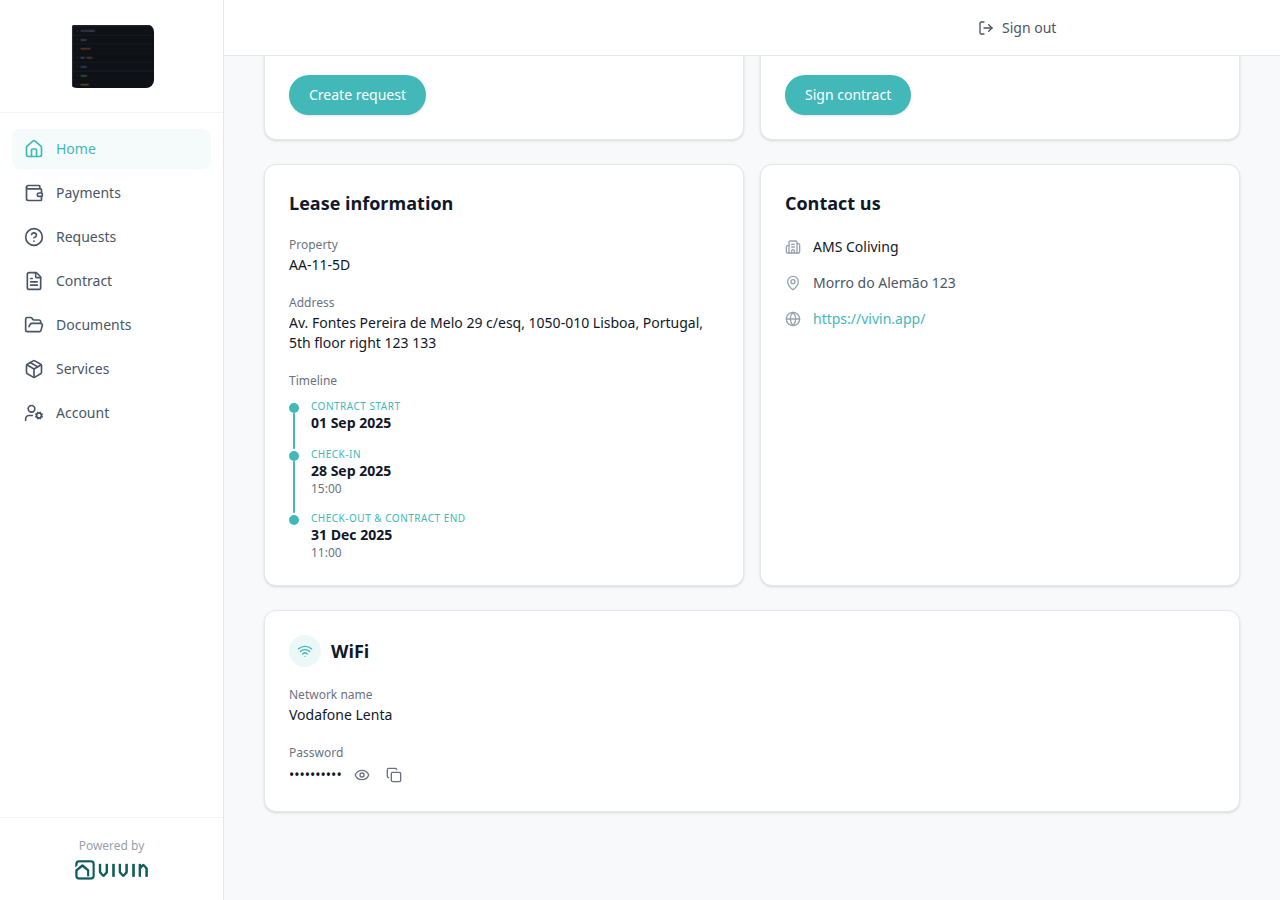

Show password and Copy password
Show password and Copy password pair with WiFi (this Home card), Listings — WiFi (where operators store the values), Copy virtual IBAN (a different copy control on Make payment), and FAQ — How do tenants see WiFi on portal Home?. Distinct from Entry codes Show code and from Account bank details.
The password starts masked (dots). Tenants tap the eye (Show password) to read the real value, then Hide password (slashed eye) to mask it again. Copy password (overlapping-squares icon) puts the real password on the clipboard even while it is still masked. A green check replaces the copy icon for a couple of seconds — that is the confirmation. Tenants cannot edit either field in the portal.
On a phone, the same card sits under Lease information and Contact us; the eye and copy icons stay next to Password.
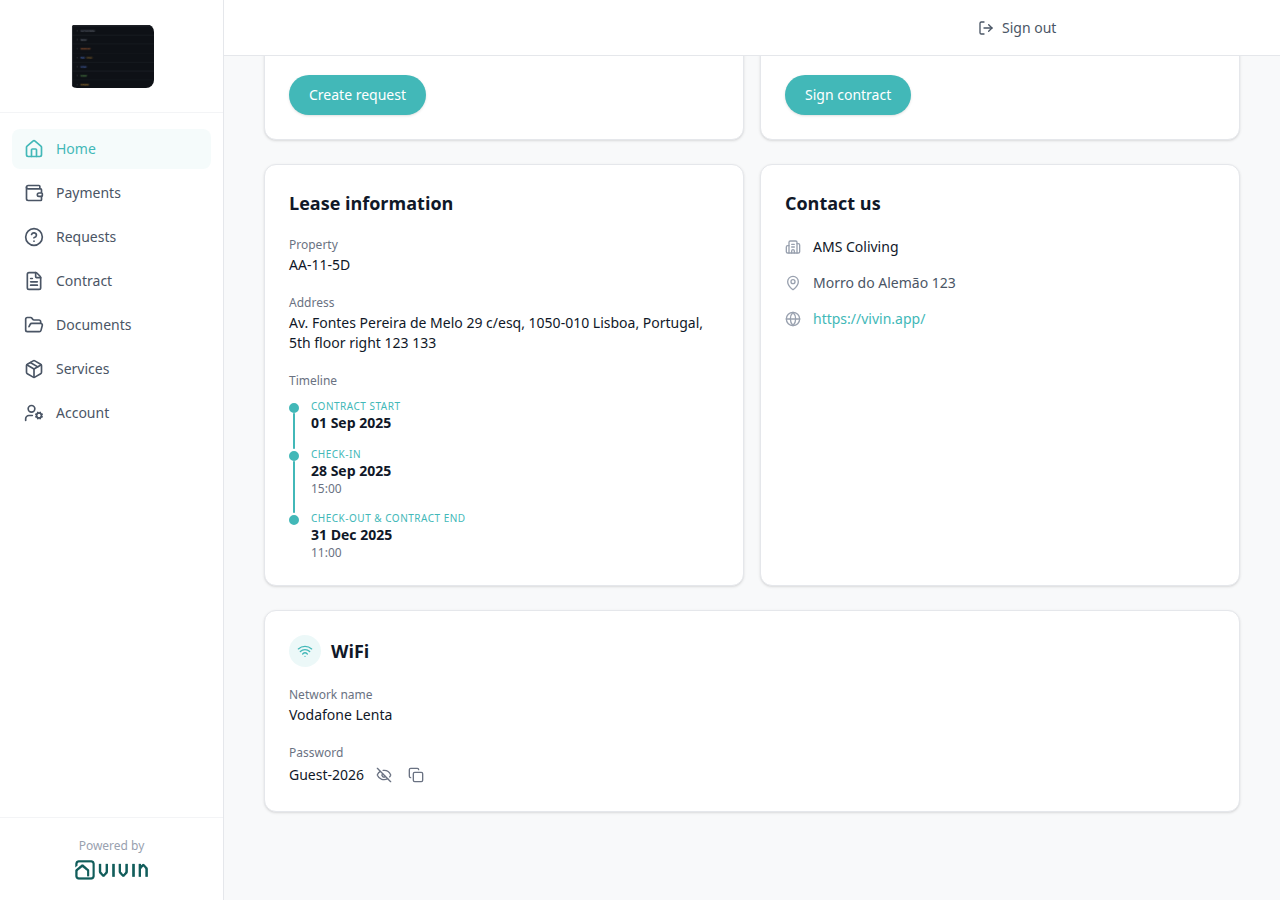

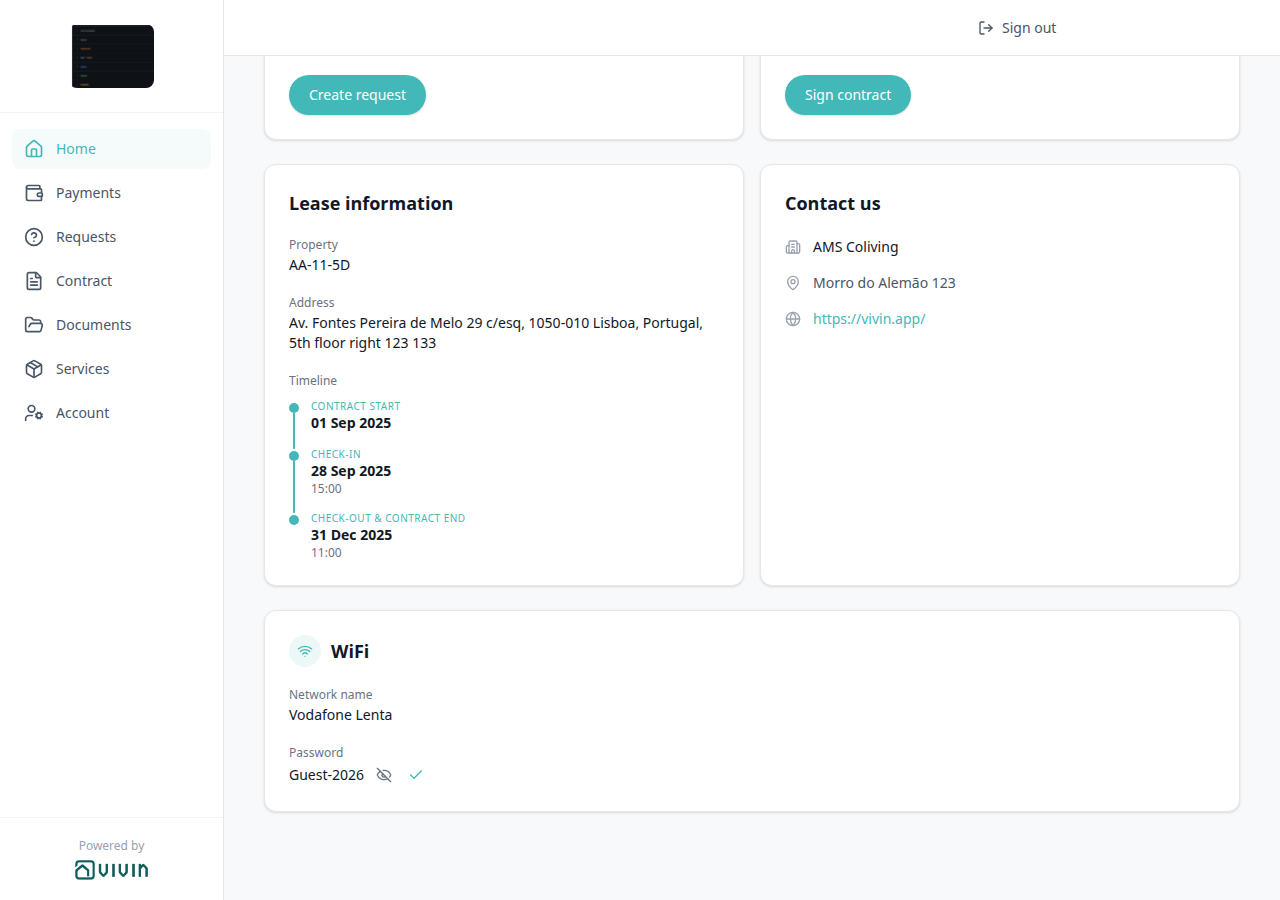

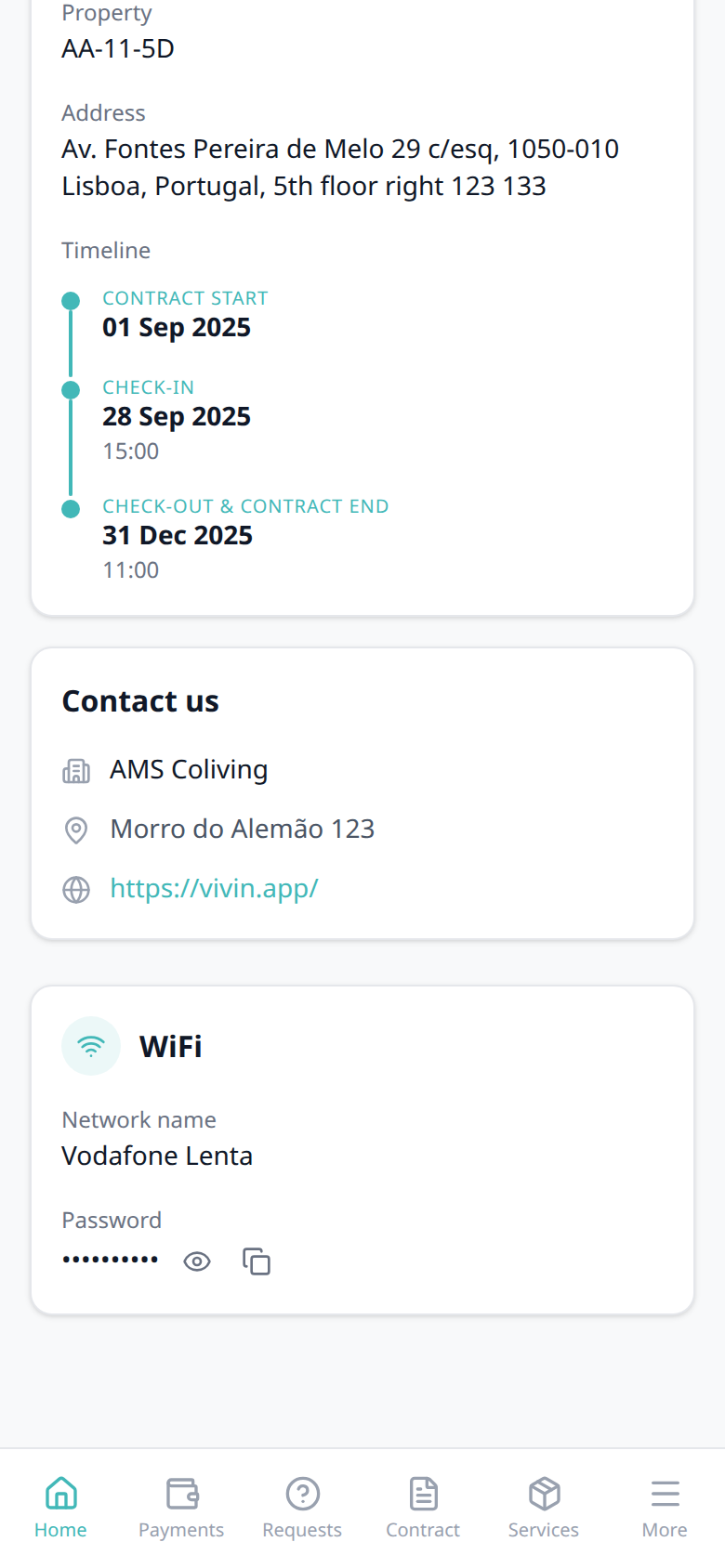
Who can change it
- Tenants — they can show, hide, and copy the password. They cannot edit the network name or password in the portal.
- Operators — Listings → property sidebar WiFi (pencil). Values are property-scoped: every booking in that building shares them. Marketplace
POST /bookingscannot send WiFi, and partner listing JSON never includes the password — Listings & Availability — Catalogue fields. See FAQ — How do tenants see WiFi on portal Home?.
Key Features
- White-labelled — the portal carries your brand colours, logo, and identity, presenting a professional experience under your company name.
- Automated tenant support (external channels) — AI-assisted responses are available through channels such as WhatsApp and email where configured (see Automation & AI). The Tenant Portal web UI does not include an in-portal chat screen today.
- Secure access — tenants use booking-specific secure links/credentials, with no password management needed.
Portal access by tenant category
What each tenant can open in the portal (modules such as Contract, Payments, Utilities, and Services, plus which profile fields are editable) follows the tenant category assigned on their profile. Operators configure segments under Account Settings → Tenant categories; integration-created tenants can inherit a default for integrations category when none is set manually. To audit how many live bookings or receivables belong to a segment before you change portal modules account-wide, use the same category on Bookings — Other filters, Finance — Tenant category filter, or Tenants — Tenant category filter — see Portfolio KPI review — Step 6.
Utilities tab
Portal Utilities pairs with Daily Breakdown (the day-by-day grid), Your Property Bills (the bill list and Preview), More (mobile) (phone overflow), Portal settings — Allow to see utilities, Utilities module (operator bill upload), Entering Monthly Utility Bills, FAQ — How do tenants see daily utility consumption?, and FAQ — How do tenants see property utility bills?. Distinct from Documents (booking files and invoices) and from Payments (rent schedule).
When Allow to see utilities is enabled in Settings > Portal settings and the booking is not in a refunded state, tenants open Utilities (/utilities) to review consumption and landlord bills for the property. Heading Utilities, subtitle View your utility bills and consumption breakdown. On a phone, Utilities is also on More (subtitle View your utility usage and bills).
| Area | What tenants see |
|---|---|
| Daily Breakdown | Day-by-day consumption grid — Daily Breakdown. The tenant’s unit is underlined with (you). Today has a red outline. Hover a cell for the date and euro amount. Scroll sideways across months. Empty copy: No cost data available for your booking period. |
| Your Property Bills | Landlord supplier bills for this stay — Your Property Bills. Empty copy: No utility bills for your booking period yet. |
If utilities are disabled for the booking or category, the tab shows a short message that utility billing is not enabled. Refunded bookings do not show Utilities.
When no cost map and no bills are stored yet, both cards show those empty messages:
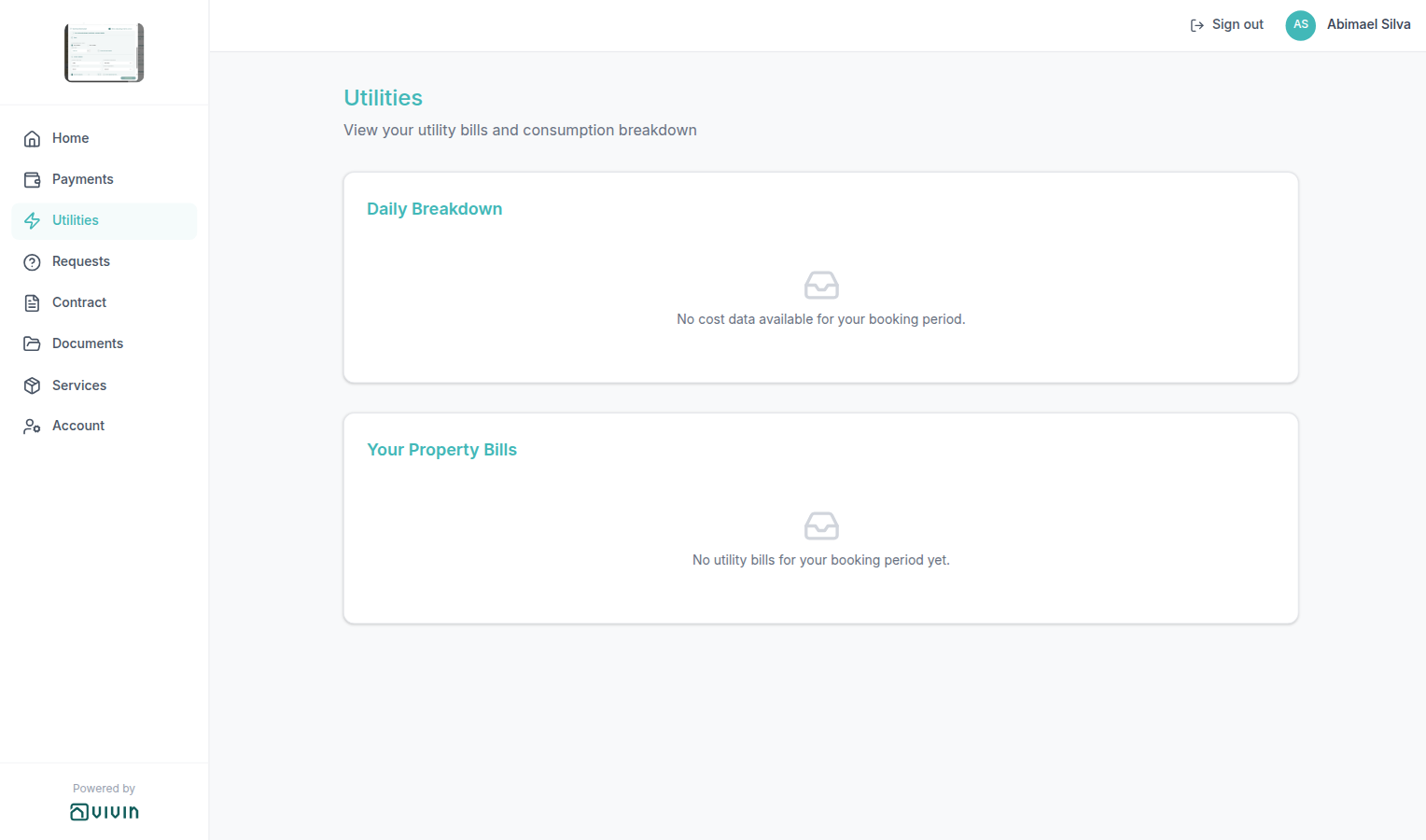
Operator setup: Utilities module (Connections, AI bill upload, Bills Included ceiling) and the per-booking utilities toggle in Preferences / tenant categories. External assistants surface the same overage context with booking-scoped Tenant MCP get-payment-info — see Entering Monthly Utility Bills — Step 4.
Daily Breakdown
Daily Breakdown pairs with Utilities tab (the page heading), Your Property Bills (supplier statements under the grid), Portal settings — Allow to see utilities, Utilities module (how operators map costs), Entering Monthly Utility Bills, and FAQ — How do tenants see daily utility consumption?. Distinct from Your Property Bills (PDF statements) and from Payments overage lines on the rent schedule.
The first card on Utilities is Daily Breakdown — a day-by-day consumption grid for the stay. Month names sit above the days. Each day column shows the date number and a weekday letter (S M T W T F S). Weekend headers are slightly muted. Scroll the grid sideways to move across months. The grid opens near today.
When more than one property is on the map, a Property column groups the unit rows. Unit lists each room. The tenant’s listing is underlined, with (you) after the name.
| Look on the grid | What it means |
|---|---|
| Underlined unit + (you) | This booking’s listing. |
| Blue cells | Days this tenant occupied, with a euro amount when a share of the bill is mapped. |
| Grey cells with a euro amount | Other occupied units on the same property that day. |
| Pale or empty cells | No occupancy or no cost mapped for that day. |
| Red outline | Today. |
| Total row | Sum of mapped costs across units for that day. |
| Hover (black tooltip) | Calendar date and euro amount (for example 2026-03-01 - €3.37). |
Empty copy when nothing is mapped yet: No cost data available for your booking period.
There is no separate Portal settings toggle for this card. Turn Allow to see utilities Off (or turn utilities off on the tenant’s category) to hide Utilities — and this grid with it. Refunded bookings do not show Utilities.
Who can change it
- Tenants — read the grid, scroll months, and hover cells. They cannot edit costs or hide other units.
- Operators — map consumption in Utilities / Entering Monthly Utility Bills. Allow to see utilities shows or hides the page.
- Marketplace —
POST /bookingscannot send this grid. See FAQ — How do tenants see daily utility consumption?.
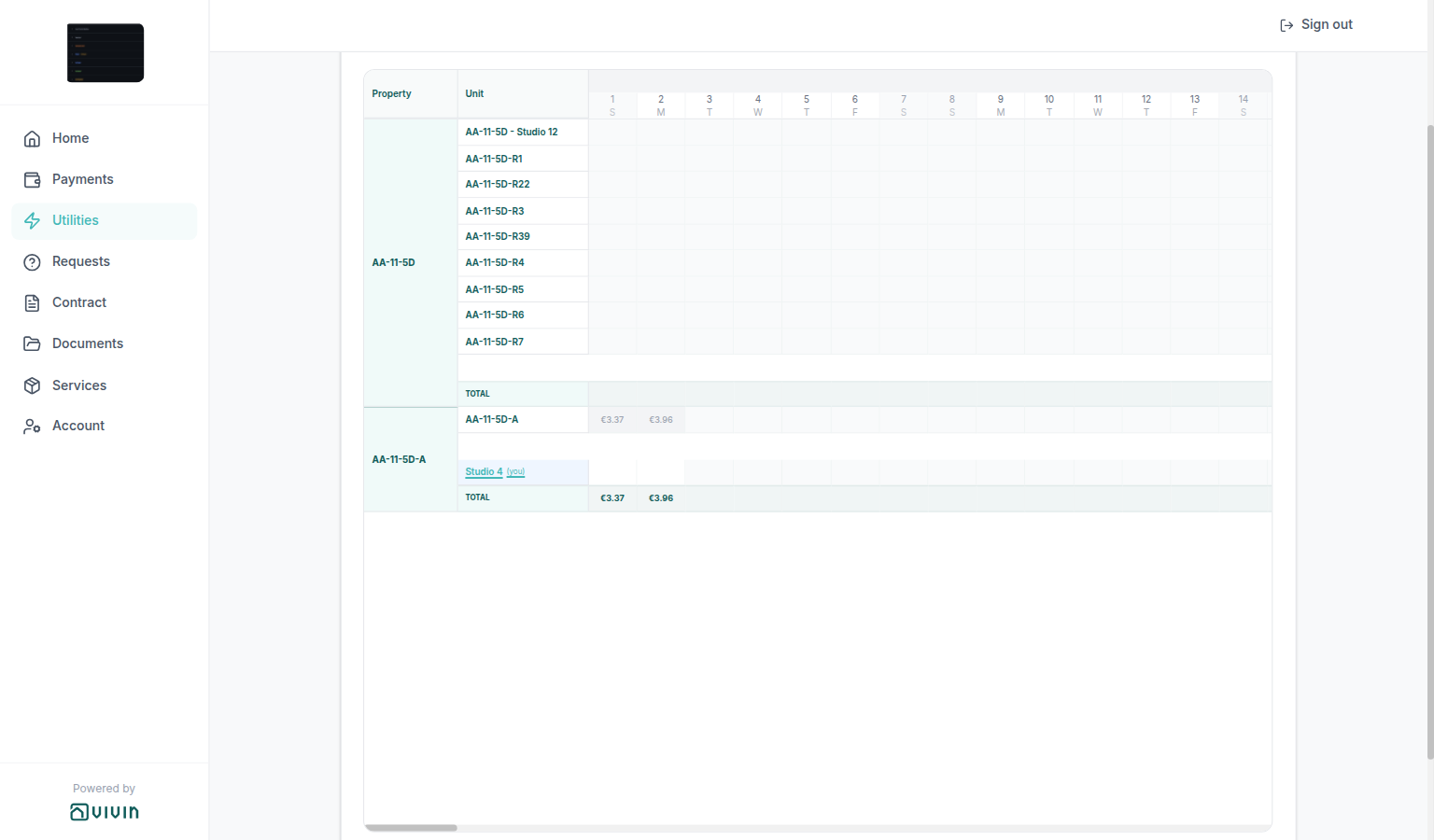
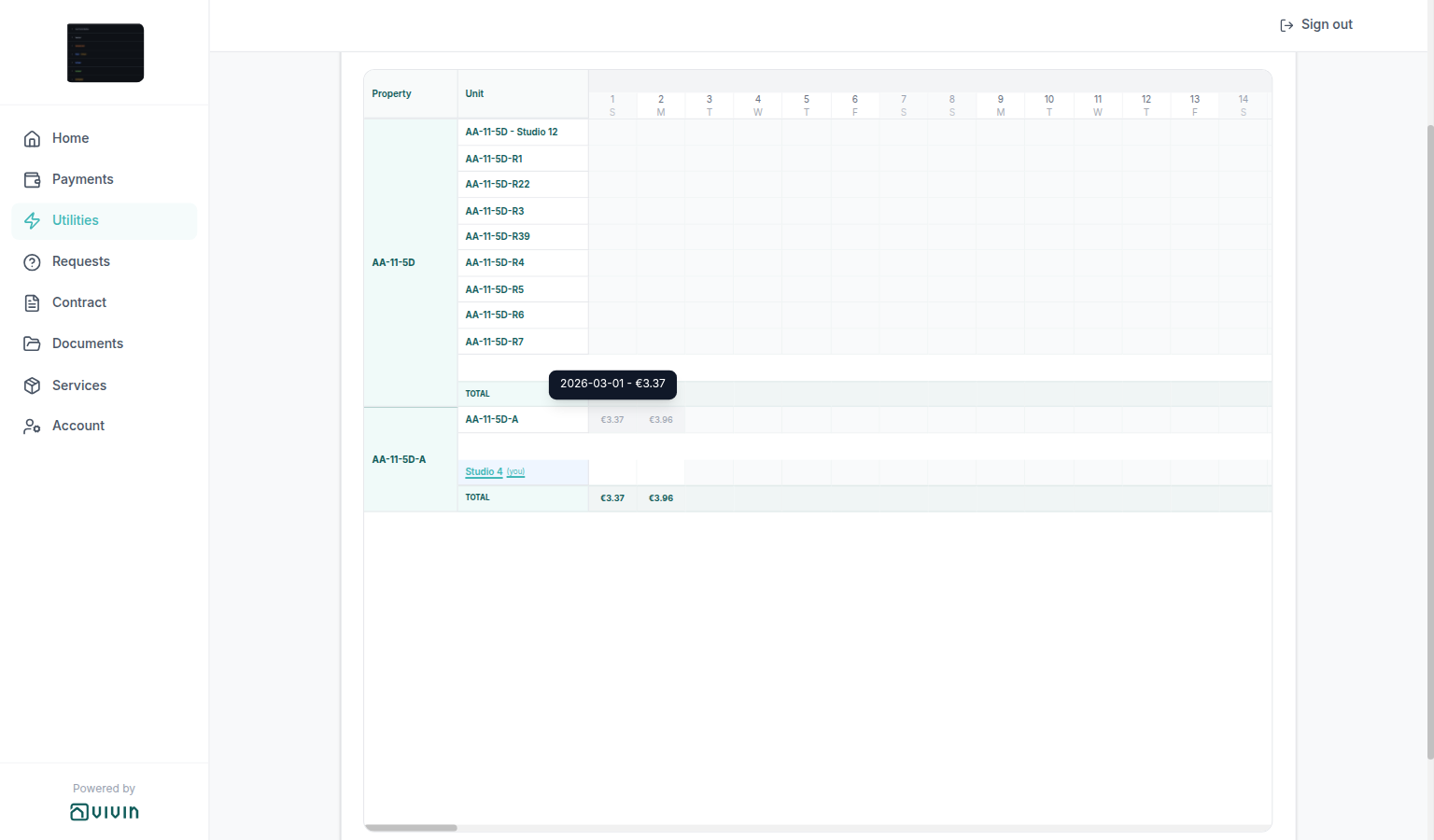
Your Property Bills
Your Property Bills pairs with Utilities tab (Daily Breakdown above the list), Documents (booking files — not these supplier PDFs), Portal settings — Allow to see utilities, Entering Monthly Utility Bills (how operators add the statements), and FAQ — How do tenants see property utility bills?. Distinct from Payments overage lines on the rent schedule.
The second card on Utilities is Your Property Bills — not a heading called Cost allocation. Total (top right) is the sum of the amounts on this list.
| Column | What tenants see |
|---|---|
| Type | Utility kind with an icon — for example Water or Electricity. |
| Provider | Supplier logo when Vivin recognises the name (for example EPAL, Endesa, EDP); otherwise the short name. |
| Bill | Bill number from the statement. |
| Period | Billing window (for example Feb 03 - Mar 02). |
| Amount | Statement total. |
| (eye / dash) | Preview (eye) when a file is stored; a dash when there is no file to open. |
Preview opens Bill Preview in the portal (lightbox). Escape, the X control, or a click outside closes it. Tenants cannot upload or delete these bills. Rows without a file still show Type, Provider, Bill, Period, and Amount.
There is no separate Portal settings toggle for this card. Turn Allow to see utilities Off (or turn utilities off on the tenant’s category) to hide Utilities — and this list with it.
Who can change it
- Tenants — read the list and Preview stored files. They cannot add or remove bills.
- Operators — upload statements in Utilities / Entering Monthly Utility Bills. Allow to see utilities shows or hides the page.
- Marketplace —
POST /bookingscannot send these bills. See FAQ — How do tenants see property utility bills?.
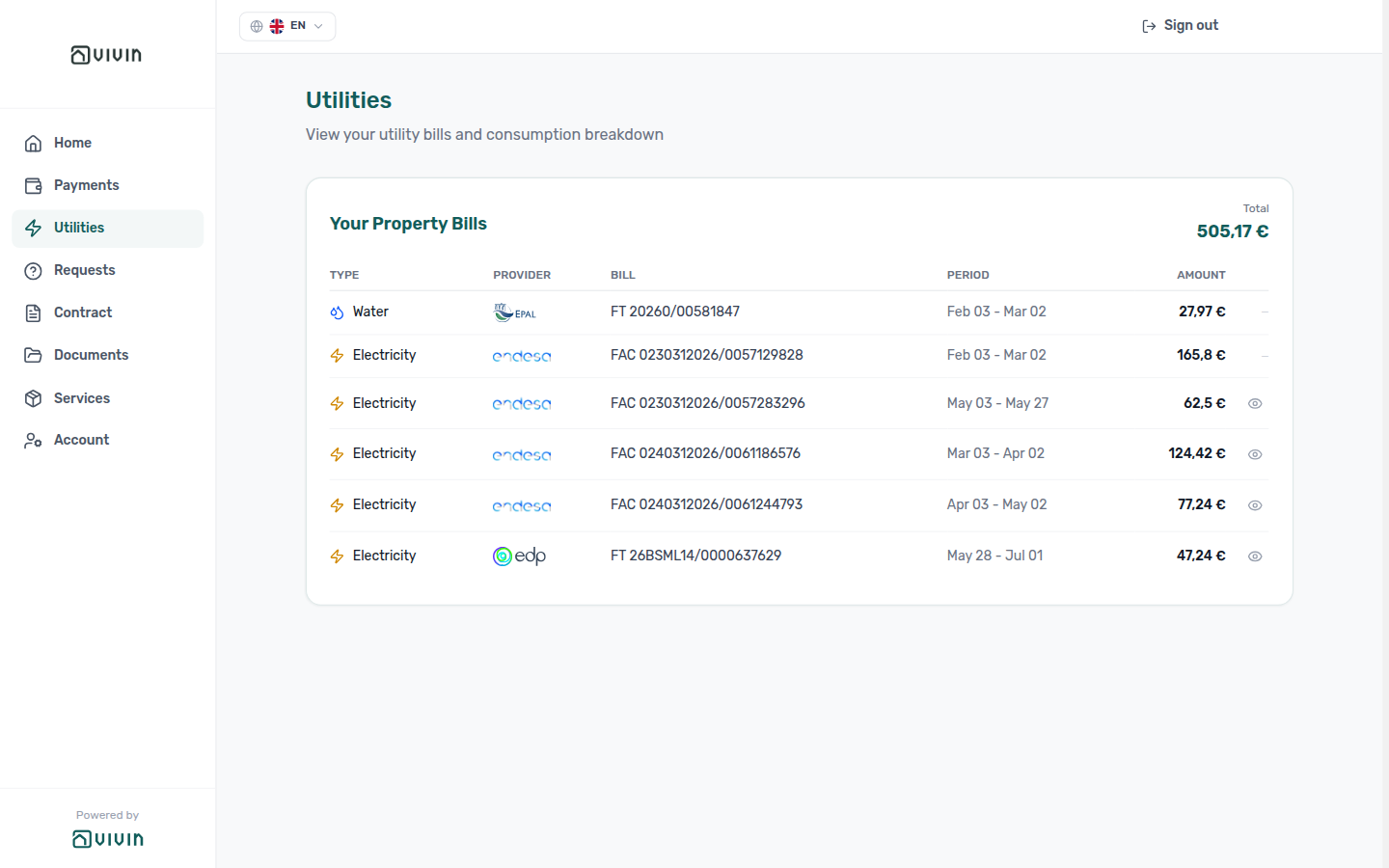
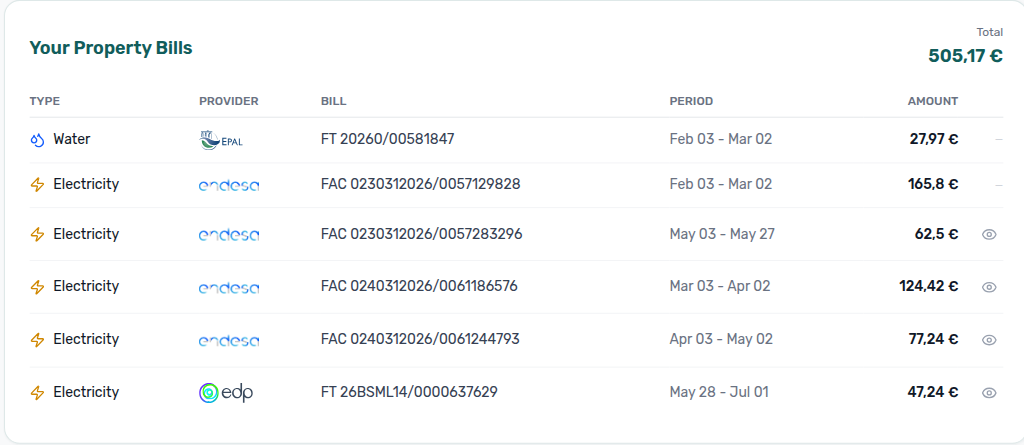
Tap the eye on a row that has a file to open Bill Preview. The header shows Bill Preview and Close (X). Escape or a click outside also closes it. Unlike Documents, this lightbox has no Download control — tenants read the statement in place.


Online Payments
Pay-in requires account payment module + Listings > Payments tab Property Payments Active — distinct from Preferences profile toggles. Home entry: Balance card. Card and vIBAN flows: Make payment (Paywall).
Tenants can make payments directly through the portal. Multiple payment methods are supported:
- Bank transfer — each booking can use a unique virtual IBAN as the transfer destination (shown to operators on the booking Contract tab and in contract templates via
{{vIBAN}}). This is a dedicated receiving reference for rent — not the tenant's personal IBAN. It enables zero-commission bank transfers and automatic matching when the payment module is active. - Credit card — optional credit card payments where the commission is charged to the tenant only, at no cost to the operator.
Online payments require both of the following:
- Tenant payment module active on the account — pay-in features (for example card or bank flows shown to tenants) are provisioned per account. If tenants never see payment options, confirm with Vivin support that the payment module is enabled for your organisation.
- Property Payments Active — a per-property toggle in the Payments tab of each property.
Account Settings > Preferences controls account-wide tenant edit defaults (fiscal data, IBAN, tickets, services, utilities, and related defaults). Tenant categories can further restrict portal modules and fields per segment. Neither replaces the two requirements above for taking a payment online.
Make payment (Paywall)
When the booking has an outstanding or upcoming balance and online pay-in is enabled, tenants open Make payment from Home (balance card) or Payments (/paywall with the same booking id + code query parameters). The screen is a two-step flow:
- Select an amount — radio options depend on what is owed: Pay overdue debt, Pay next payment, Pay overdue + next payment (when both apply), and Pay entire balance. When nothing is due, the amount section shows You have nothing to pay right now. Your payments are up to date. and Select a payment method is hidden. Operators chasing the same balance see matching payment overdue rows on
/notifications— row-click opens the booking sidebar for Handling a Late Payment — Step 1. - Select a payment method — Bank Transfer (IBAN) and/or Credit Card when the account has card pay-in provisioned. Expanding Bank Transfer can open Payment Due Soon when a charge is due soon.
The left chevron next to Make payment leaves checkout without paying and returns to Home or Payments.
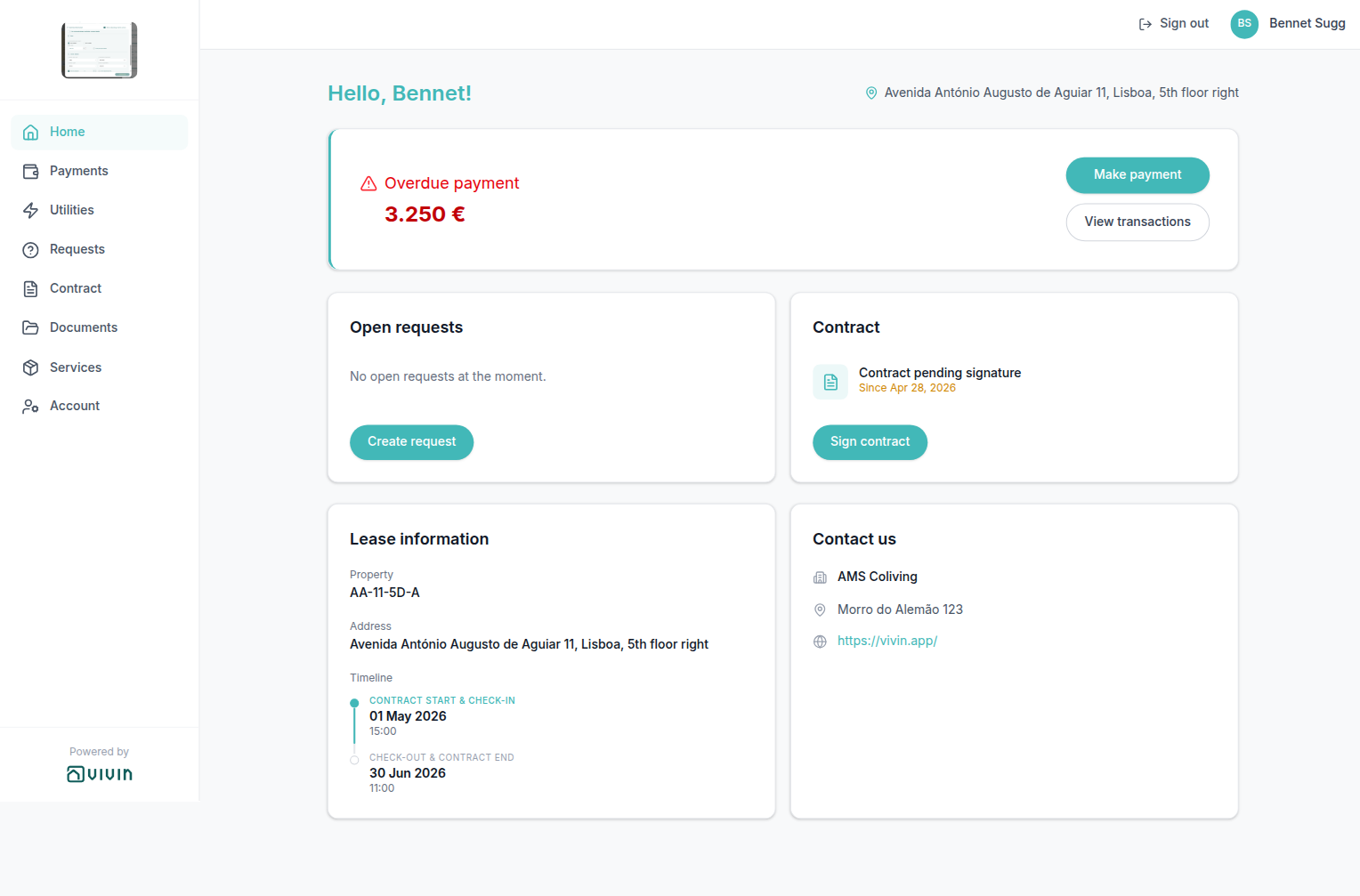
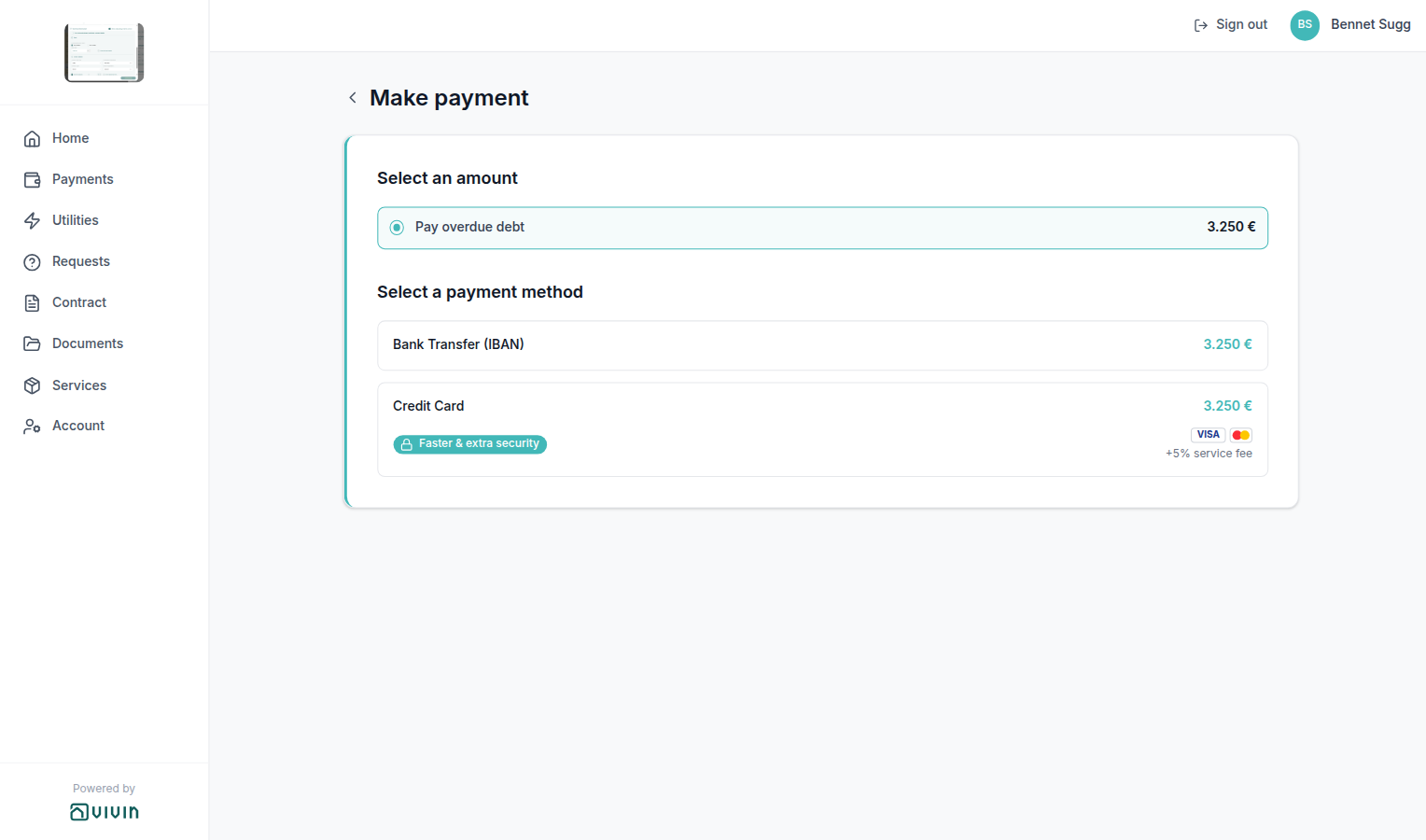
Make payment Back
Make payment Back pairs with Make payment (Paywall) (the checkout screen), Balance card (Home Make payment), Payments tab (Payments Make payment), Select an amount (how much to pay if they stay), and FAQ — How do tenants leave Make payment without paying?. Distinct from Sign out (ends the portal session) and from Payment details (the Payments timeline sidebar).
On Make payment, the left chevron next to the Make payment heading leaves checkout without paying. Nothing is sent. Radios and method tiles stay as they were until the tenant opens Make payment again.
Where they land depends on how they opened checkout:
| Opened from | After Back |
|---|---|
| Home (Make payment on the balance card) | Home |
| Payments (header Make payment) | Payments |
| A direct Make payment link | Home |
There is no Portal settings hide toggle for the chevron. Hide the whole pay-in path by turning VIVIN payments Off on the tenant’s category, or by leaving the payment module unprovisioned / Property Payments Active Off.
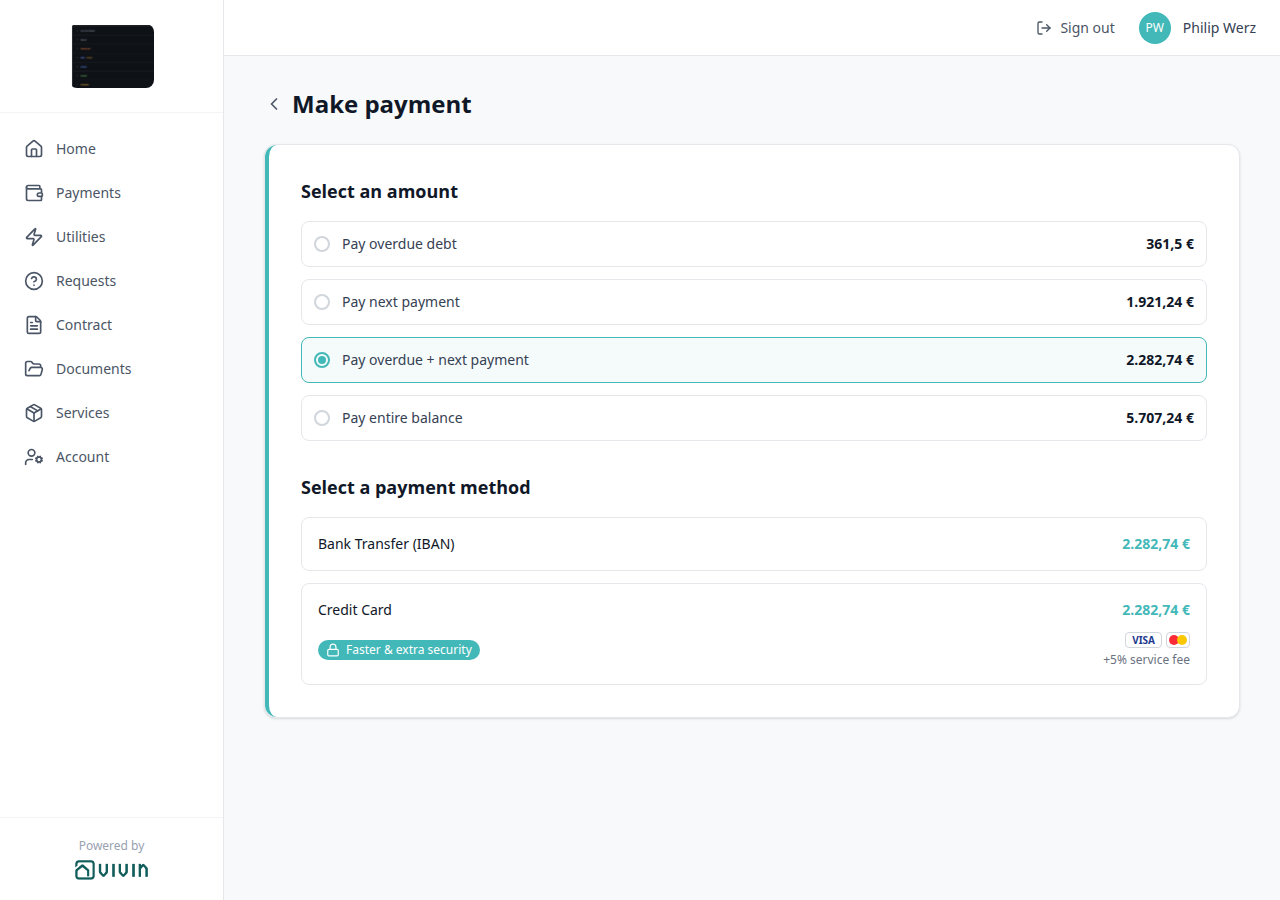

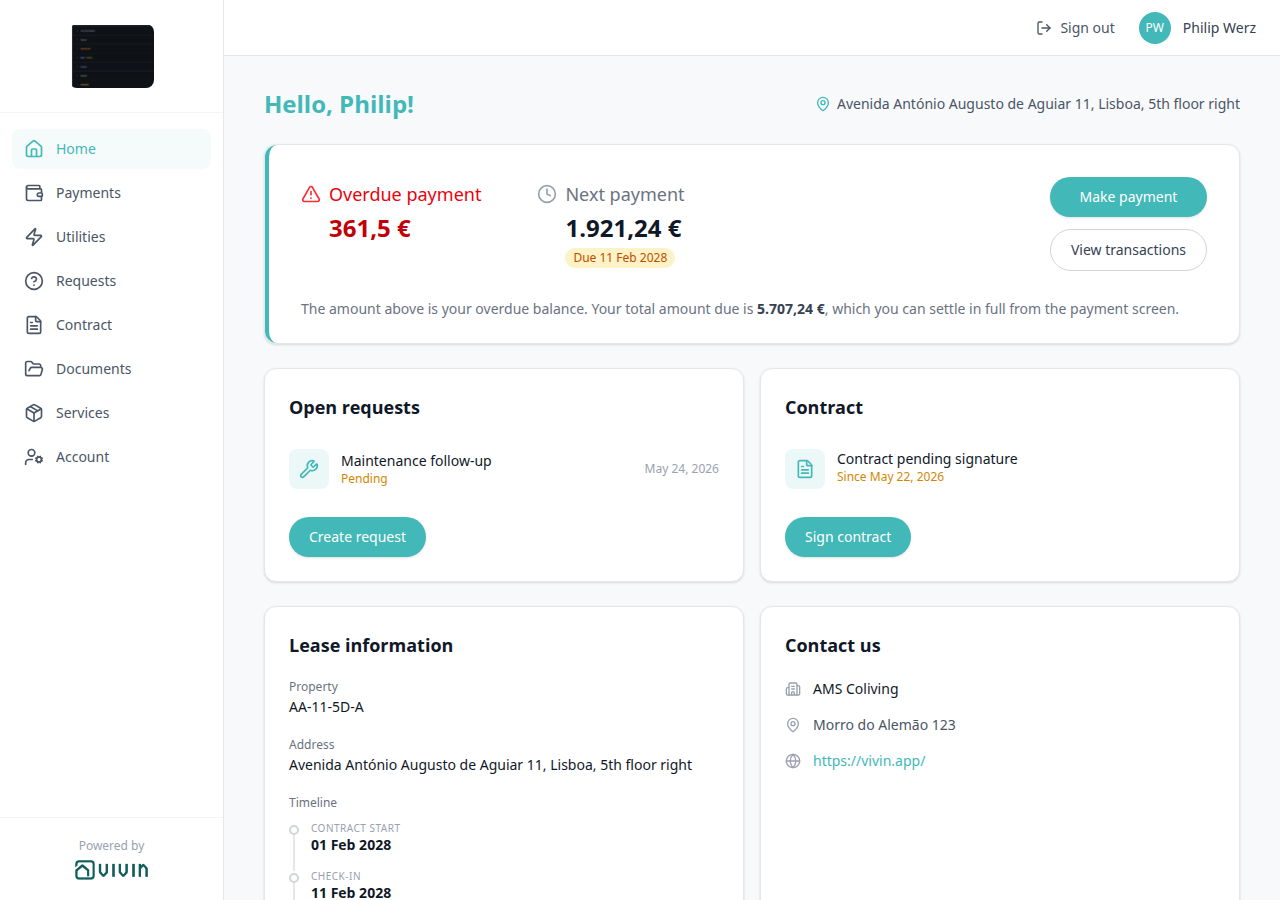
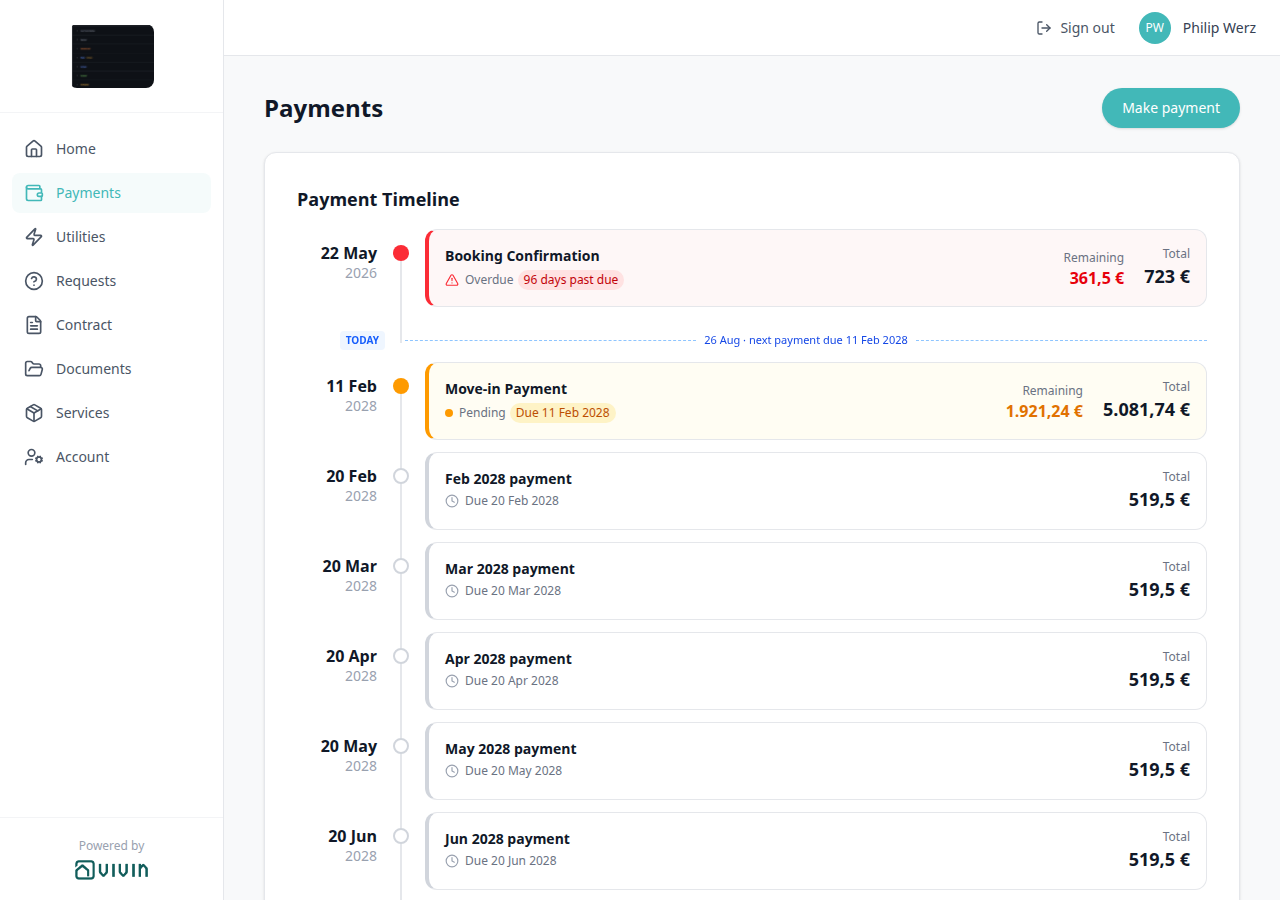
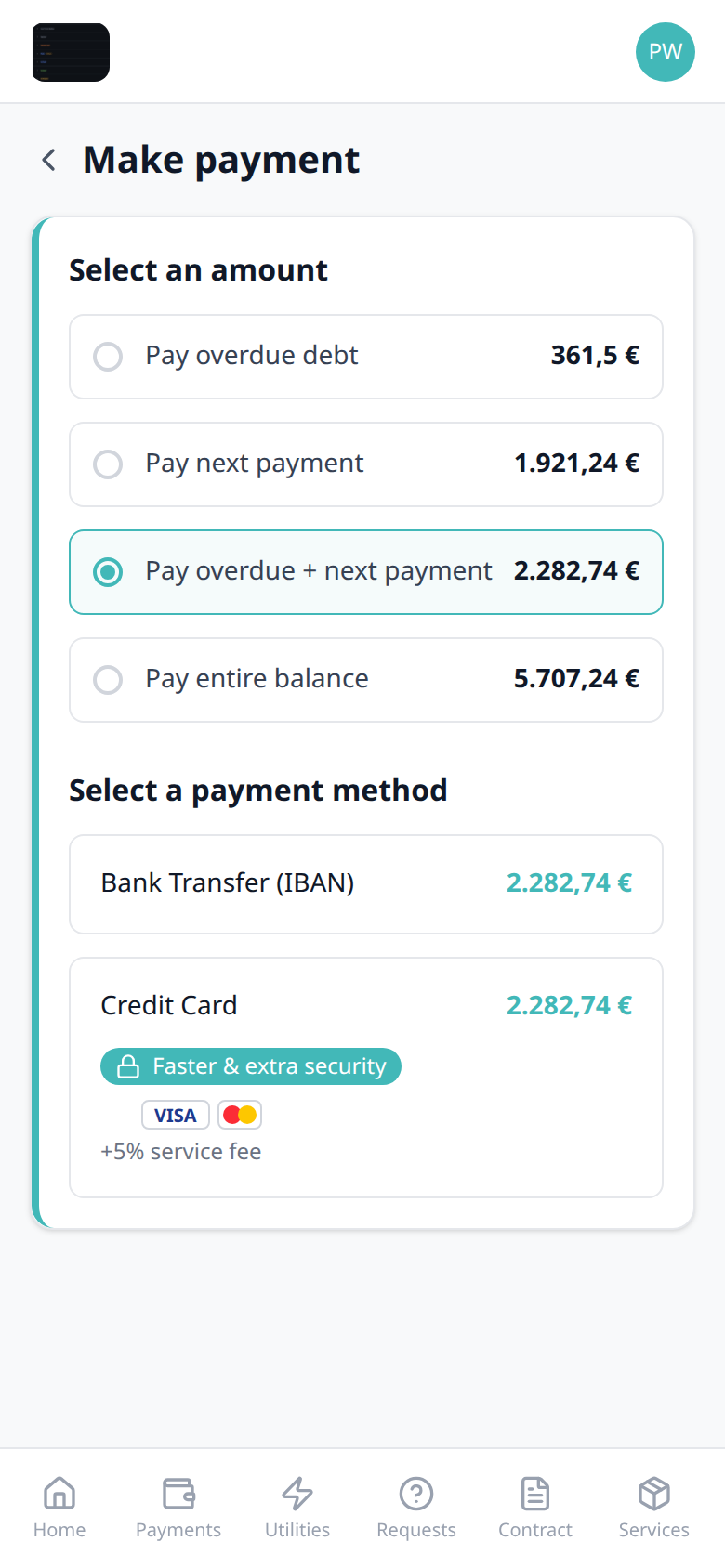
Who can change it
- Tenants — tap the chevron (or the Make payment heading) to leave. They cannot hide it on this screen.
- Operators — the booking payment module, Property Payments Active, and tenant-category VIVIN payments show or hide Make payment (and this Back control with it).
- Marketplace —
POST /bookingscannot send this control. See FAQ — How do tenants leave Make payment without paying?.
Select an amount
Select an amount pairs with Make payment (Paywall) (step 1 of checkout), Make payment Back (leave without paying), Balance card (Home Make payment), Payment Due Soon (Bank Transfer warning after the amount), Copy virtual IBAN (Bank Transfer after the amount), Credit card (embedded checkout) (card checkout uses the same amount), Handling a Late Payment — Step 1, and FAQ — How do tenants select an amount in the Tenant Portal?. Distinct from Payment details (the Payments timeline sidebar) and from IBAN (the tenant’s personal refund account).
On Make payment, tenants pick how much to pay before they pick a method. Each radio shows a euro amount on the right. Radios appear only when that slice is owed:
| Radio | When it appears | What it covers |
|---|---|---|
| Pay overdue debt | There is overdue balance | Past-due amount only |
| Pay next payment | A next installment exists | The next scheduled charge |
| Pay overdue + next payment | Both overdue and next apply | Overdue plus the next installment |
| Pay entire balance | There is an outstanding balance | The full remaining balance on the booking |
When both overdue and next apply, Pay overdue + next payment is selected first. The amount on Bank Transfer (IBAN) and Credit Card updates to match the radio. Tenants cannot type a custom amount.
When nothing is due, the section shows You have nothing to pay right now. Your payments are up to date. and Select a payment method is hidden — tenants are not offered a € 0 checkout.
There is no Portal settings hide toggle for the radios. Hide the whole pay-in path by turning VIVIN payments Off on the tenant’s category, or by leaving the payment module unprovisioned / Property Payments Active Off.
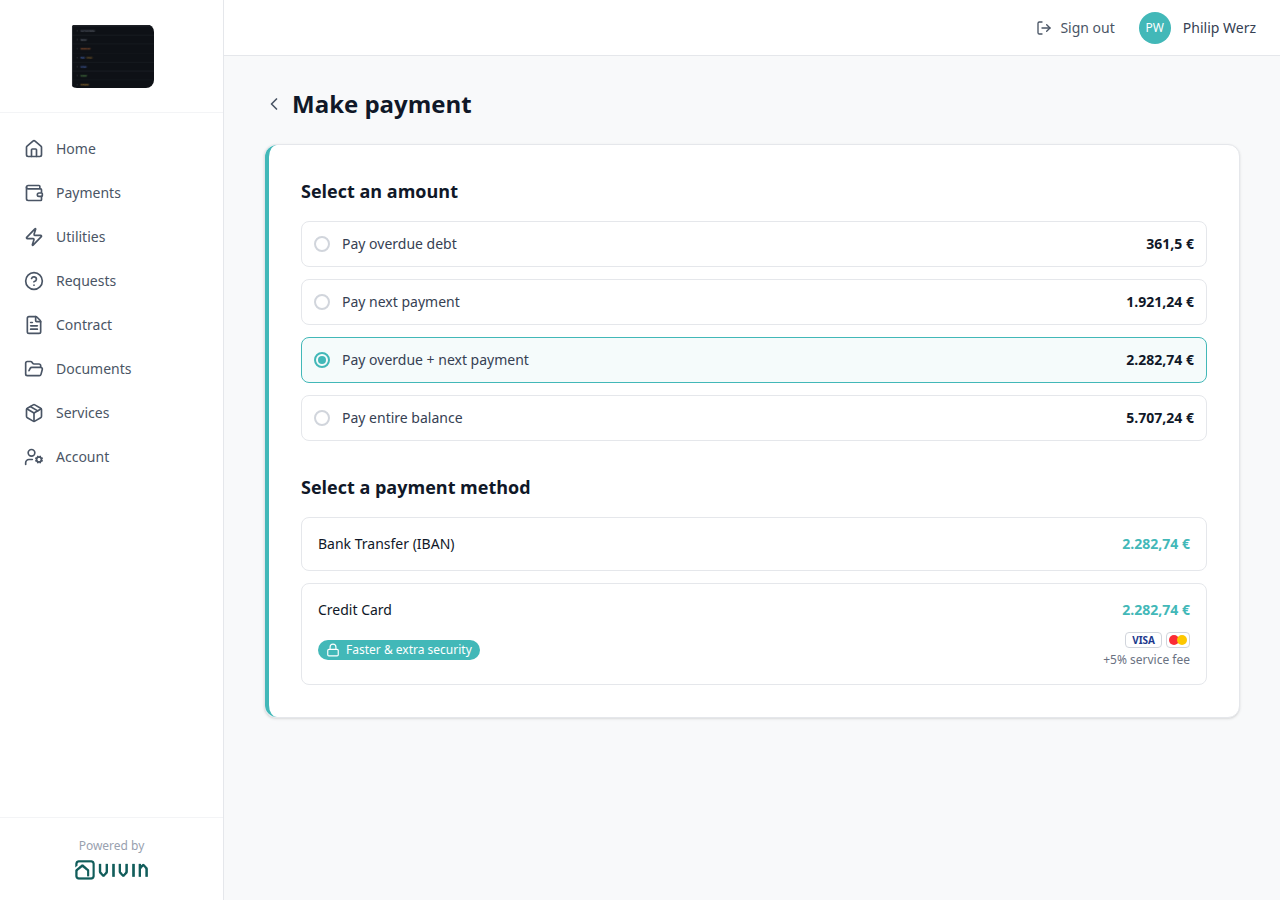
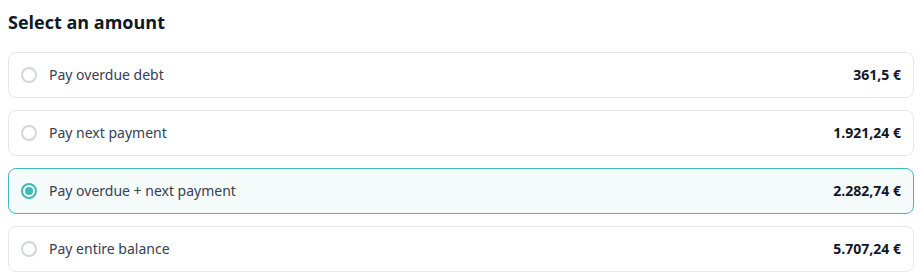
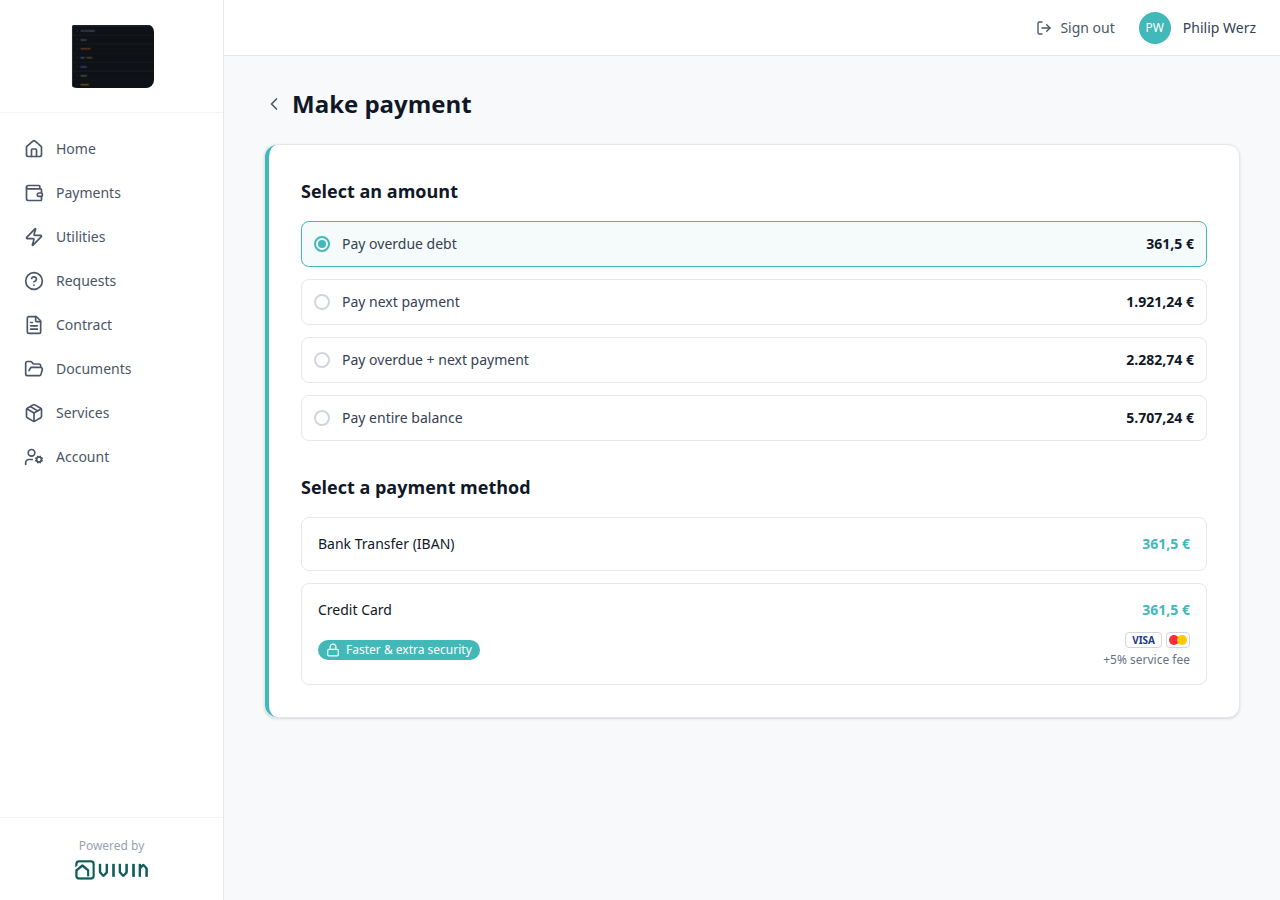
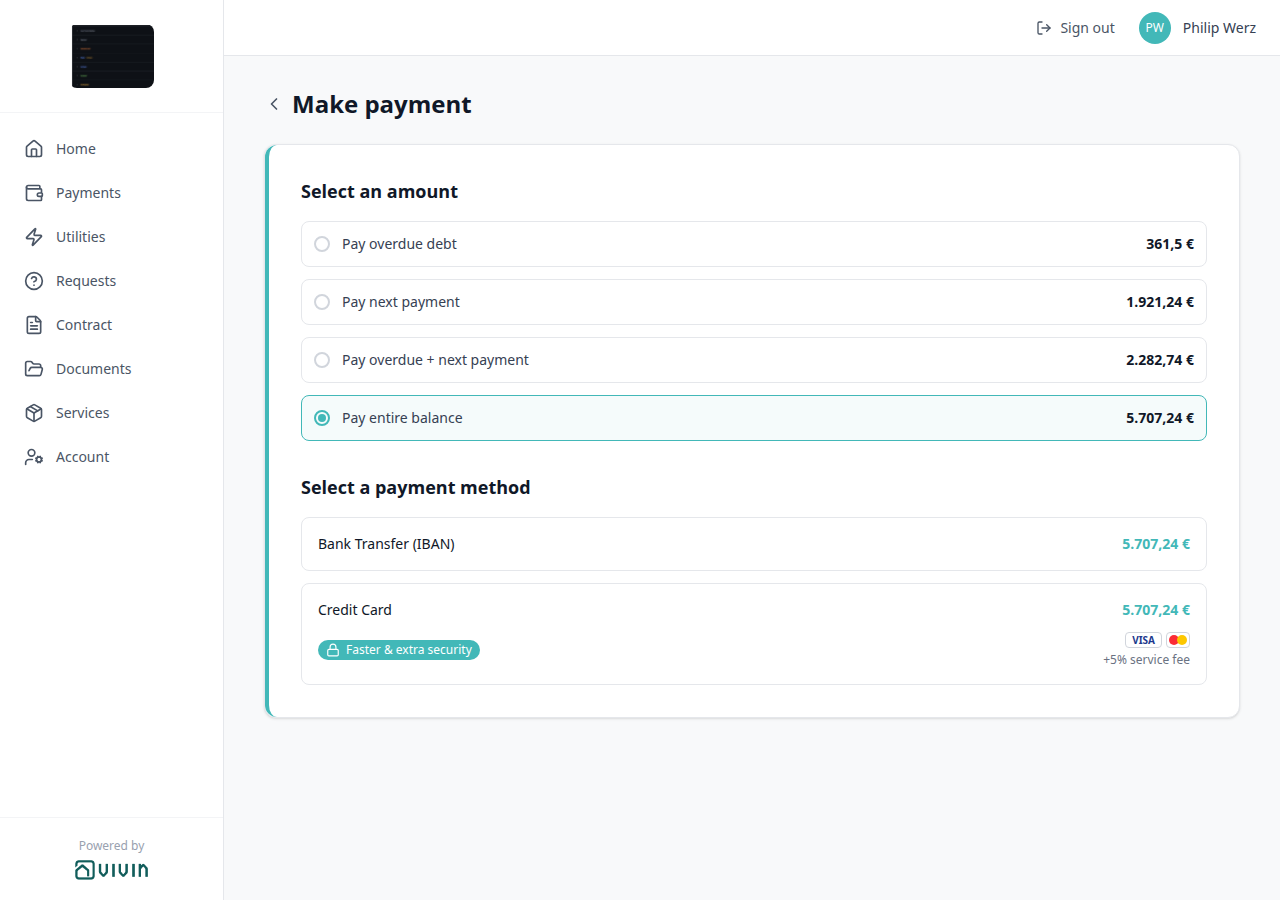
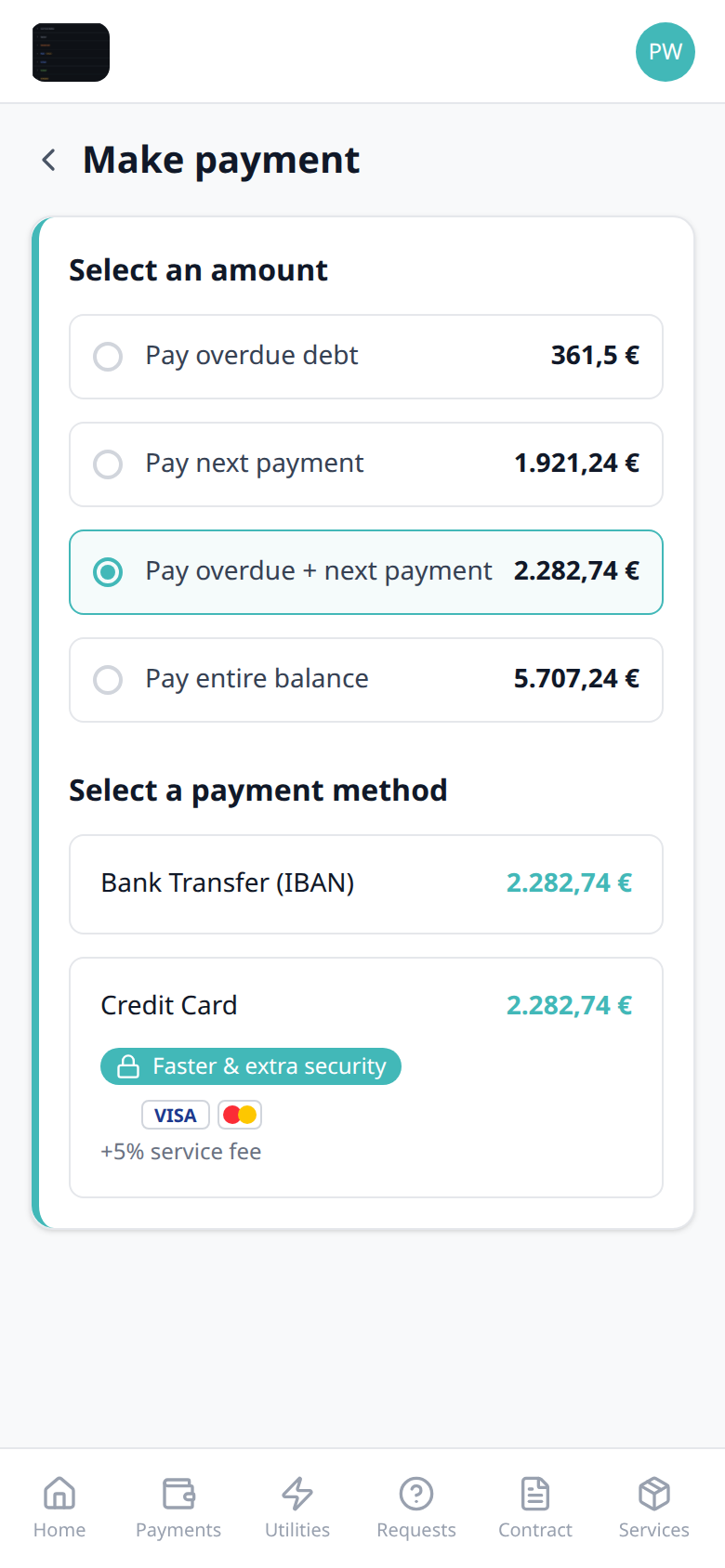
Who can change it
- Tenants — pick a radio. They cannot type a custom amount or hide the radios on this screen.
- Operators — the booking payment module, Property Payments Active, and tenant-category VIVIN payments show or hide Make payment (and these radios with it). The amounts come from the booking payment plan (overdue, next installment, remaining balance).
- Marketplace —
POST /bookingscannot send this control. See FAQ — How do tenants select an amount in the Tenant Portal?.
Bank transfer (virtual IBAN)
Expanding Bank Transfer (IBAN) shows the booking’s virtual IBAN (same receiving reference operators see on Contract Info), a copy control, Easypay institution details, and a note that bank transfers can take up to 48 hours to match. Tenants with at least one Transaction History row also see the 3-business-days processing notice on Payments. Tenants must include the correct reference so Vivin can auto-allocate the in-payment.
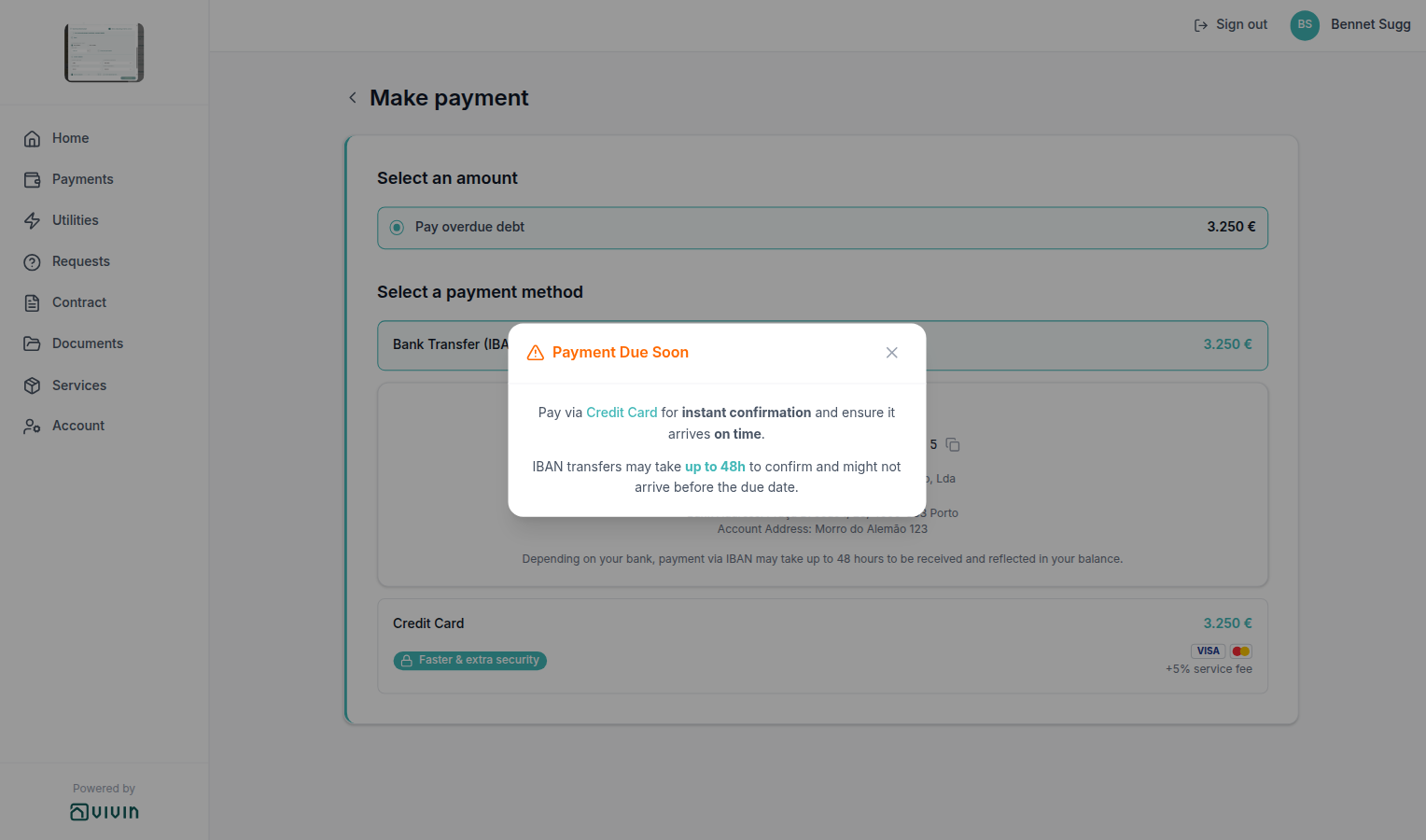
When a charge is due soon, expanding Bank Transfer can open Payment Due Soon before the IBAN panel is used. Dismiss it, then copy the virtual IBAN or choose Credit Card.
Payment Due Soon
Payment Due Soon pairs with Make payment (Paywall) (the checkout screen), Select an amount (pick how much first), Copy virtual IBAN (Bank Transfer after dismiss), Credit card (embedded checkout) (faster settlement), Virtual IBAN processing notice (Payments uses 3 business days; this dialog uses 48h), Handling a Late Payment — Step 3, and FAQ — What does Payment Due Soon mean in the Tenant Portal?. Distinct from Payment details (the Payments timeline sidebar) and from operator Card (recorded manually).
On Make payment, expanding Bank Transfer (IBAN) can open Payment Due Soon when an unpaid charge is due within about three days, or when a bank transfer (up to 48 hours) might not arrive before the due date. The dialog recommends Credit Card for instant confirmation so the payment can arrive on time, and explains that IBAN transfers may take up to 48h.
Escape, the X control, or the dimmed backdrop dismisses the dialog. Focus returns to Bank Transfer. Dismissing does not start a card checkout and does not copy the IBAN. Tenants who still want bank transfer then copy the virtual IBAN. Tenants who want card tap the Credit Card tile after dismiss — not the teal Credit Card words in the dialog.
The dialog is a timing nudge, not an error. It does not block bank transfer. It does not appear when nothing is due, or when every unpaid charge is far enough away that a bank transfer can still arrive on time.
There is no Portal settings hide toggle for Payment Due Soon. Hide the whole pay-in path by turning VIVIN payments Off on the tenant’s category, or by leaving the payment module unprovisioned / Property Payments Active Off.
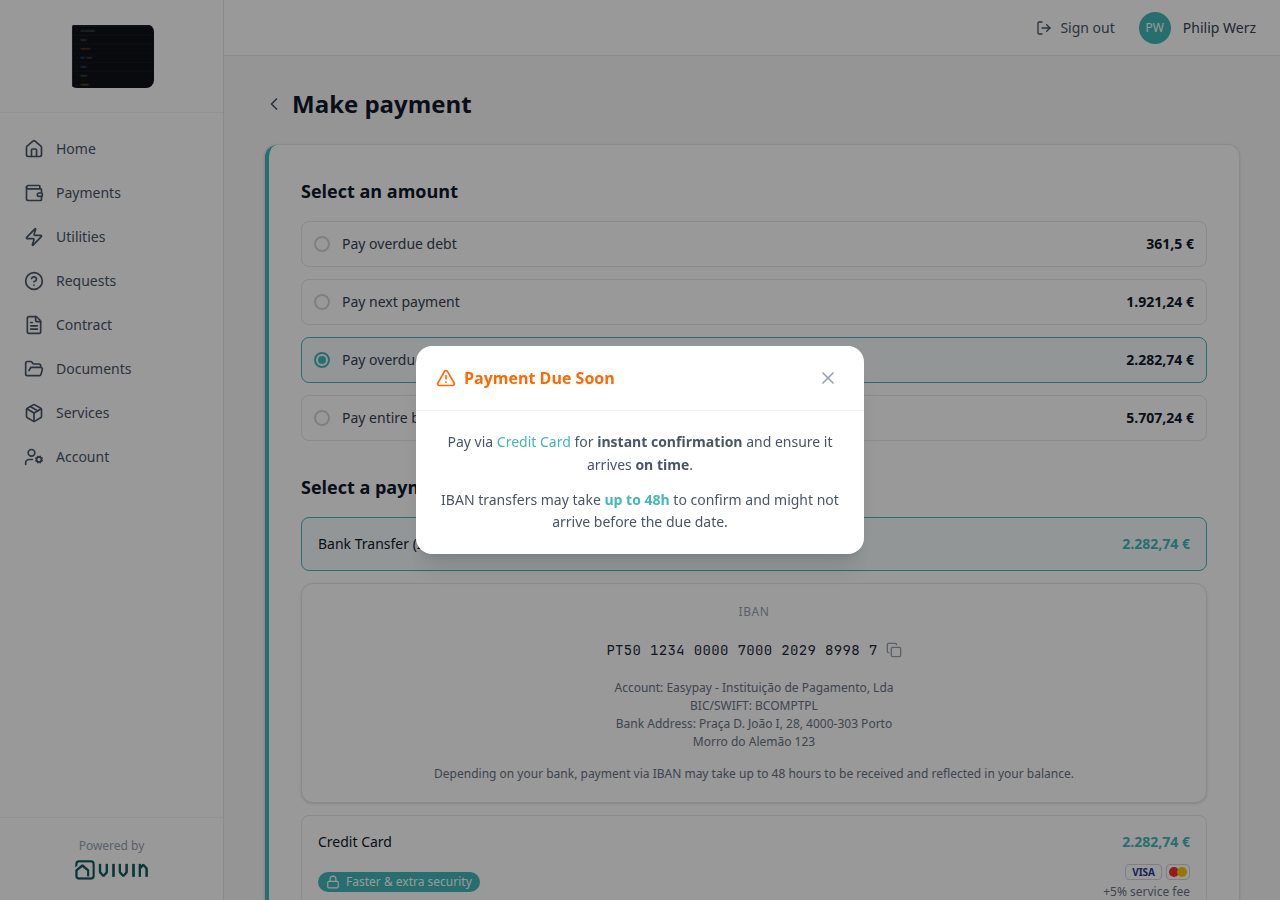
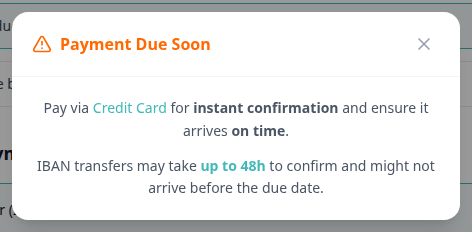
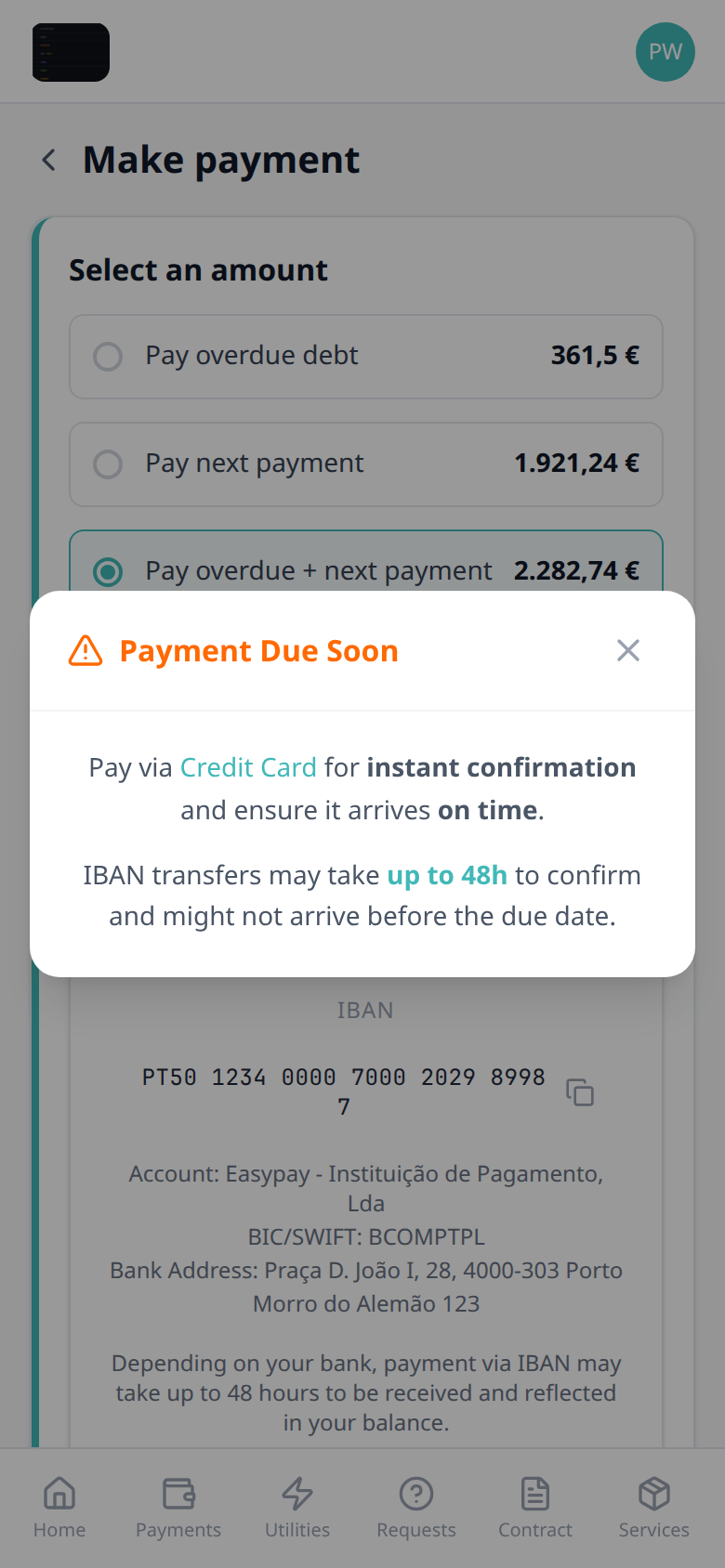
Who can change it
- Tenants — dismiss the dialog, then continue with Bank Transfer or Credit Card. They cannot hide it on this screen.
- Operators — the booking payment module, Property Payments Active, and tenant-category VIVIN payments show or hide Make payment (and this dialog with it). Whether it opens depends on unpaid due dates versus bank-transfer timing — not a Portal settings switch.
- Marketplace —
POST /bookingscannot send this control. See FAQ — What does Payment Due Soon mean in the Tenant Portal?.
Copy virtual IBAN
Copy virtual IBAN pairs with Make payment (Paywall) (the checkout screen), Select an amount (pick how much before expanding Bank Transfer), Payment Due Soon (dismiss this dialog first when it opens), Virtual IBAN processing notice (Payments uses 3 business days; this panel uses 48 hours), IBAN (the tenant’s personal refund account on Account), Bookings — Virtual IBAN (operators Switch IBAN on Contract Info), and FAQ — How do tenants copy the virtual IBAN in the Tenant Portal?. Distinct from Credit card (embedded checkout) and from Copy password on WiFi.
On Make payment, tenants expand Bank Transfer (IBAN) and tap the formatted virtual IBAN. The grey copy icon becomes a green check for a couple of seconds — that is the confirmation the number is on the clipboard. Tap again if they need a fresh copy. The panel also lists Easypay account, BIC/SWIFT, bank address, and (when stored) the landlord account address. Tenants do not type this IBAN on Account — IBAN there is the personal account for deposit refunds.
If Payment Due Soon opens on the first expand, dismiss it with Escape, X, or the backdrop, then tap the IBAN. Do not tap Credit Card unless the tenant intends to start a card checkout.
There is no Portal settings hide toggle for the copy control. Hide the whole pay-in path by turning VIVIN payments Off on the tenant’s category, or by leaving the payment module unprovisioned / Property Payments Active Off.
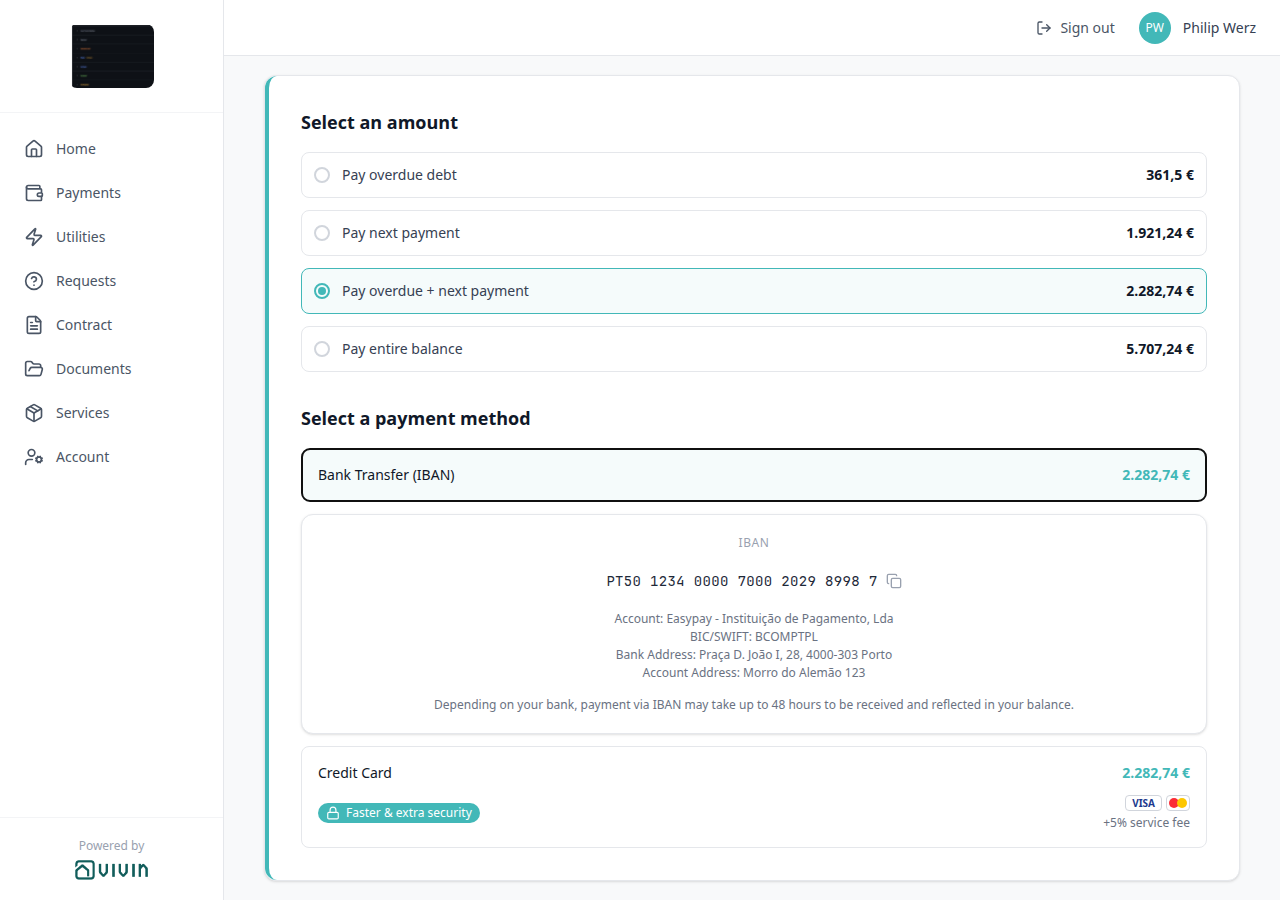
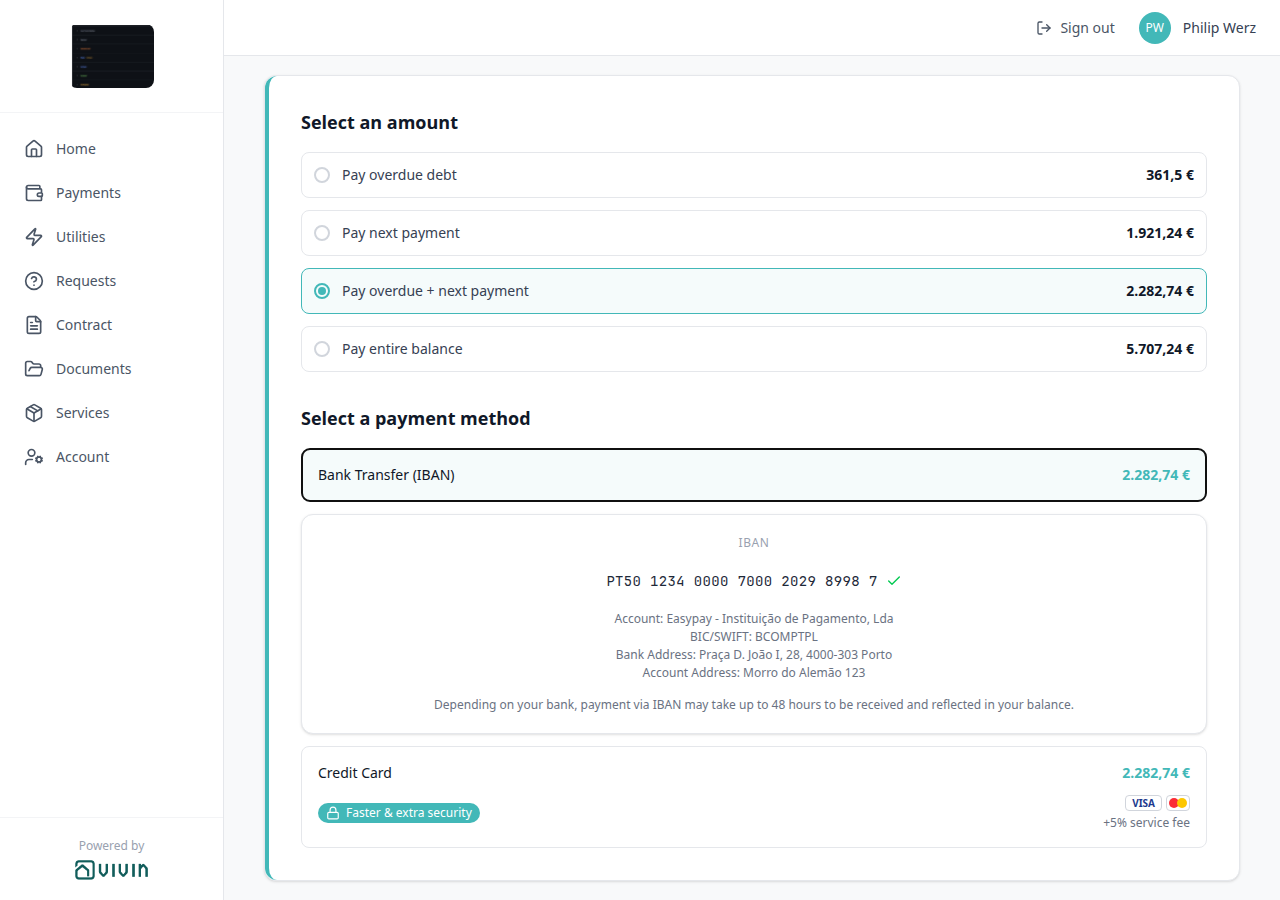
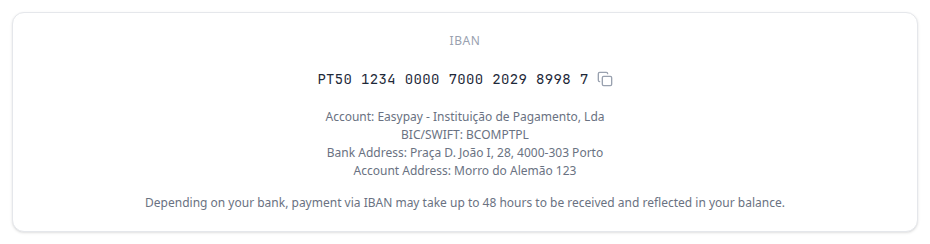
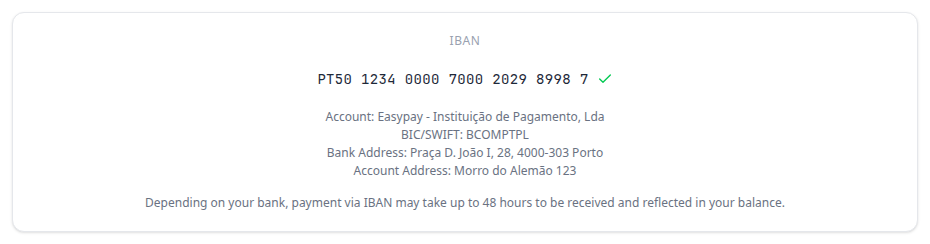
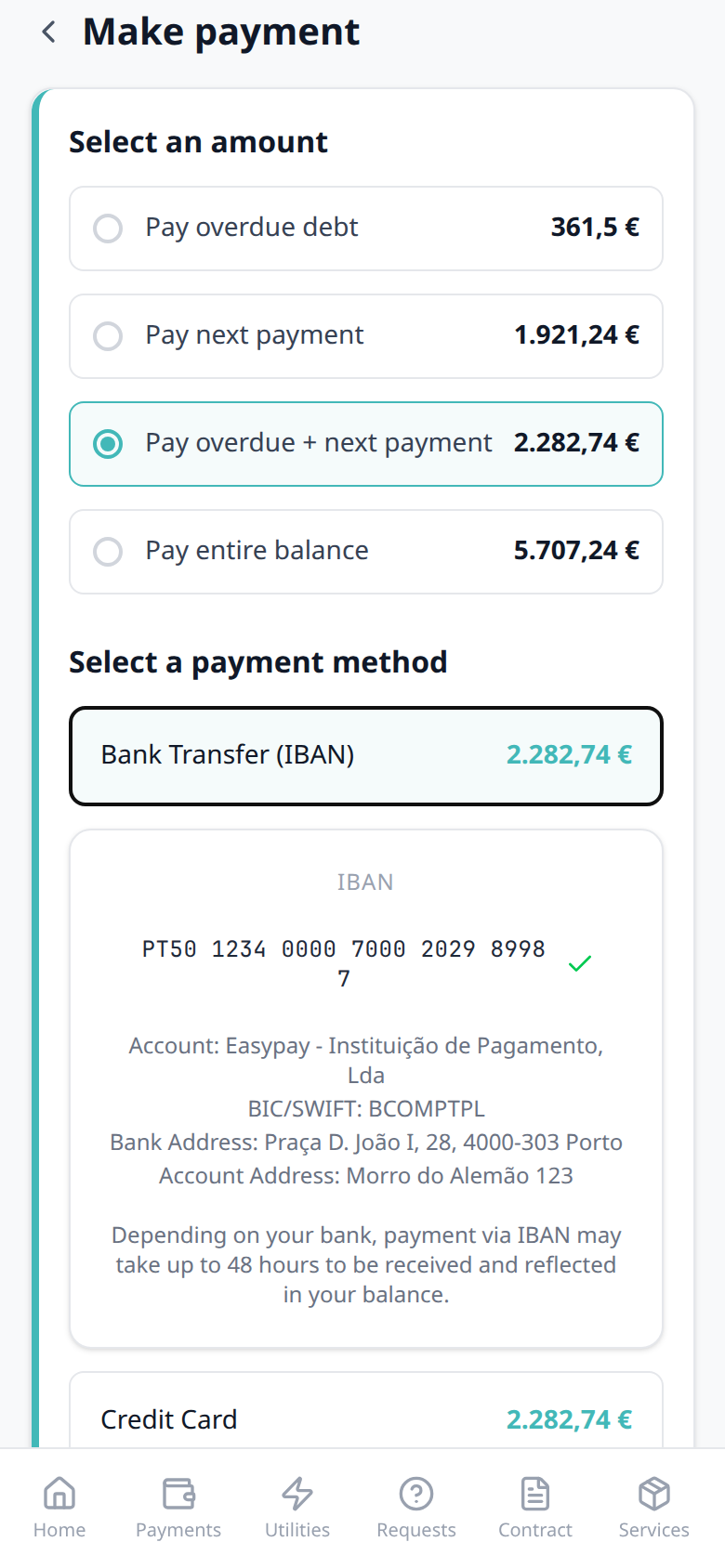
Who can change it
- Tenants — copy the receiving IBAN. They cannot edit or hide it on this screen.
- Operators — the booking payment module, Property Payments Active, and tenant-category VIVIN payments show or hide Make payment (and this copy control with it). Change which virtual IBAN the booking uses on Contract Info → Switch IBAN.
- Marketplace —
POST /bookingscannot send this control. See FAQ — How do tenants copy the virtual IBAN in the Tenant Portal?.
Credit card (embedded checkout)
Credit Card creates a hosted checkout session for the selected amount, then embeds the provider page in an iframe on the same screen (no separate browser tab). The tile shows Faster & extra security, accepted card brands, and a +5% service fee note charged to the tenant. Payment Due Soon can recommend this tile when a charge is due soon — dismiss that dialog, then tap Credit Card to start checkout. While the session is created, the UI shows Initializing payment…; on failure, a red panel shows the error with Retry.
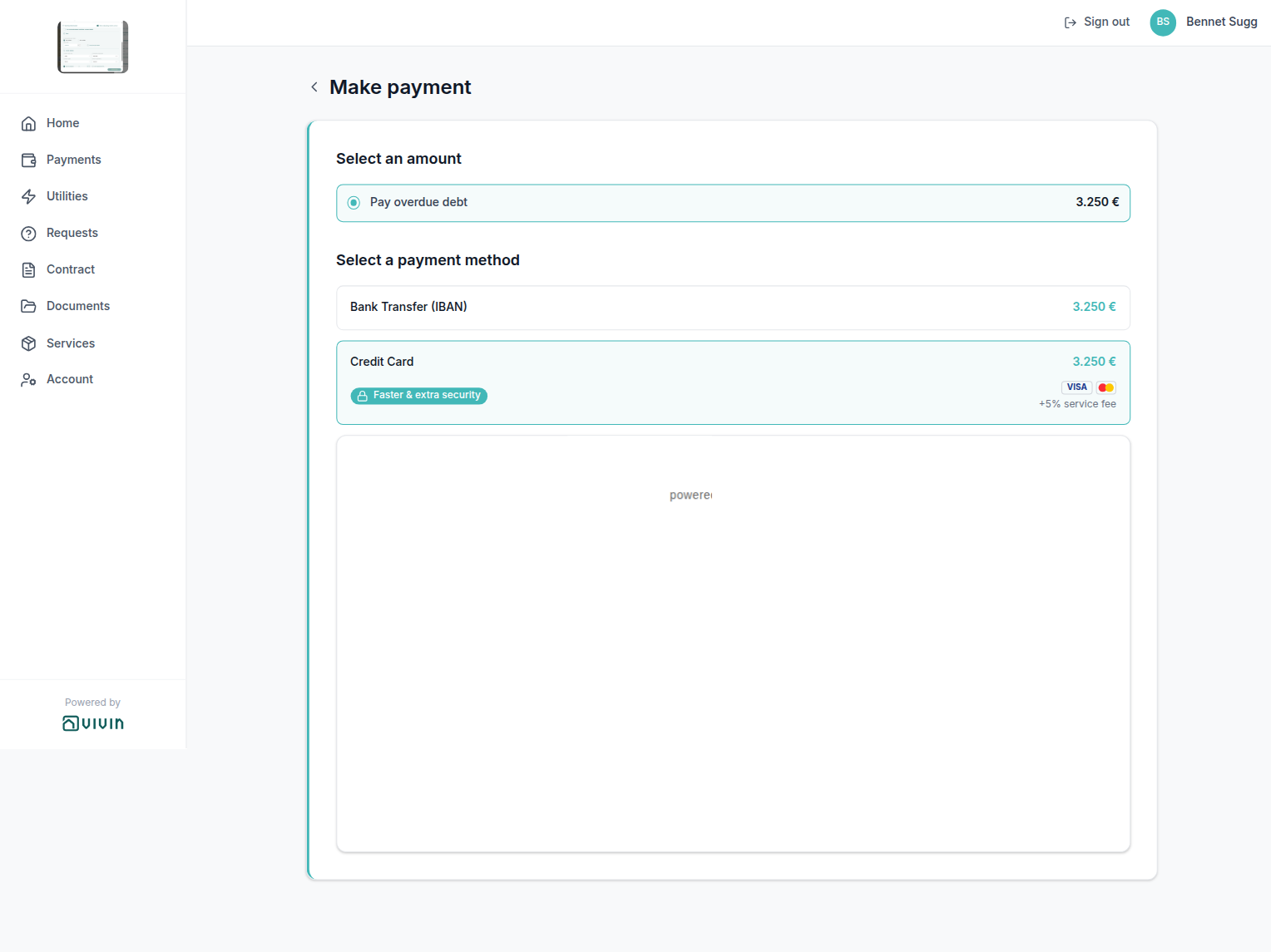
Successful card capture posts a webhook back to Vivin; the payment schedule and Home balance refresh on the next load. Operators reconcile the same in-payment on Finance → Transactions and the booking Transactions tab like any other card receipt.
If tenants report a blank or blocked credit-card area after Initializing payment…, the hosted checkout page may not be embeddable in their browser (for example strict X-Frame-Options or content blockers). Vivin serves checkout HTML with a scoped Content-Security-Policy: frame-ancestors allowlist so only Vivin tenant-portal origins can embed the form — card sessions should complete in-portal on *.vivin.app. Ask the tenant to retry on a desktop browser, disable frame-blocking extensions for the portal domain, and confirm the booking still has Property Payments Active and an active payment module. Persistent failures after a successful session create belong in support with the booking id and approximate time.
Maintenance & Support (Requests tab)
Portal Requests pair with Open requests (Home shortcut), Received status (Home and History share the same status words), What do you need? (Report an Issue vs General Inquiry), FAQ accordion (published Q&A below the form), Settings → FAQs (publish toggles), Operations module, Portal settings — Allow to create tickets, and Bookings > Tickets tab.
The sidebar label is Requests; the route is /help and the page heading is Maintenance & Support. Tenants use this area when Allow to create tickets is On in Portal settings. Home → Open requests → Create request opens New Request; View all N requests (or a listed ticket) opens History. Published catalogue answers sit in the FAQ accordion under those two columns.
New Request — What do you need?
What do you need? pairs with Requests tab (History beside the form), FAQ accordion (published answers under the form), Open requests (Home Create request), Portal settings — Allow to create tickets, Operations (where the ticket lands), and FAQ — Report an Issue vs General Inquiry. Distinct from Services (catalogue orders, not this form) and from ChatBot WhatsApp tickets.
New Request does not open on title and photos. The first required choice is What do you need? — two tiles. The rest of the form appears only after the tenant picks a path.
| Tile | Subtitle on the tile | What appears next | Attachments | Operations category |
|---|---|---|---|---|
| Report an Issue | Maintenance, broken items, hygiene… | Where is the issue? — Common Area (kitchen, bathroom, hall) or My Room (private space), then title, description, and files | Required (asterisk on the upload) | Common Area or Room, from Where is the issue? |
| General Inquiry | Rent payments, contract renewal, support… | Title, description, and files — no location tiles | Optional (same upload, no asterisk) | Common Area (there is no separate Inquiry category on the ticket) |
Title placeholder changes with the path: e.g., Leaking faucet in the kitchen on Report an Issue, e.g., Question about my rent payment on General Inquiry. Description stays Describe the problem (required). Submit Request creates the Operations ticket. Switching tiles clears a previous location choice.
On a computer, New Request is the left column. On a phone, tenants use the New Request chip (the History chip is the other column).
Who can change it
- Tenants — pick a tile, fill the form, and submit. They cannot add a third type.
- Operators — turn Allow to create tickets On so Requests (and this form) is visible. There is no Portal settings toggle for Issue vs Inquiry. Work the resulting ticket in Operations.
- Marketplace —
POST /bookingscannot send this choice. See FAQ — Report an Issue vs General Inquiry.

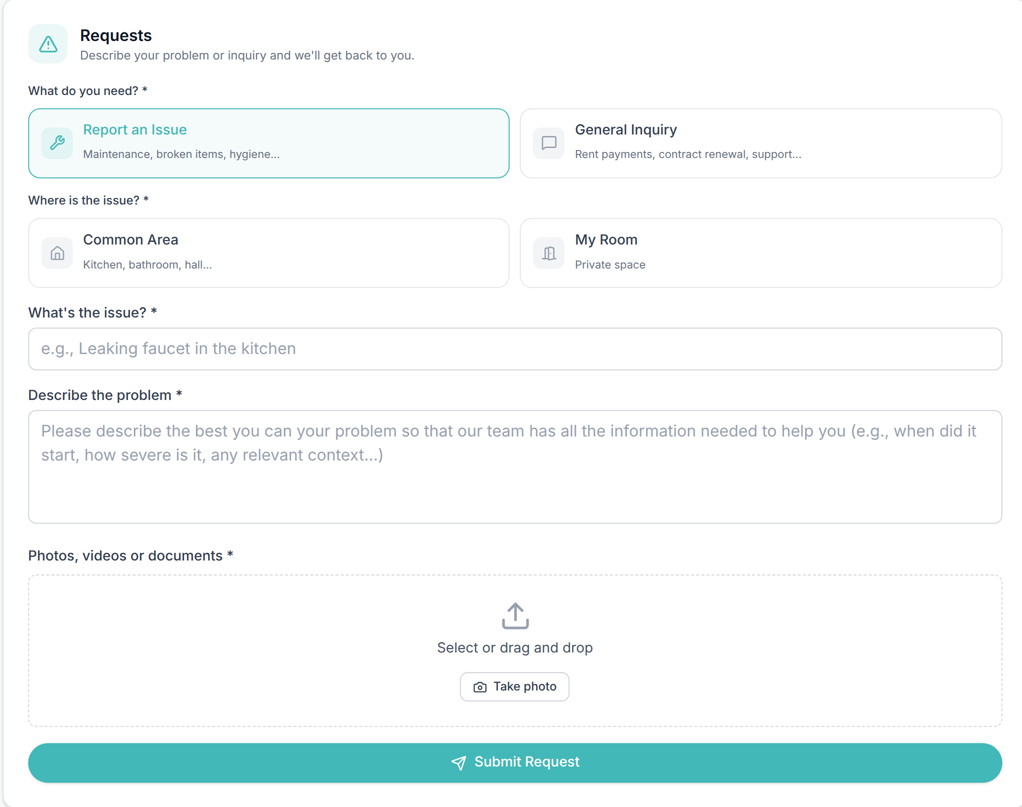
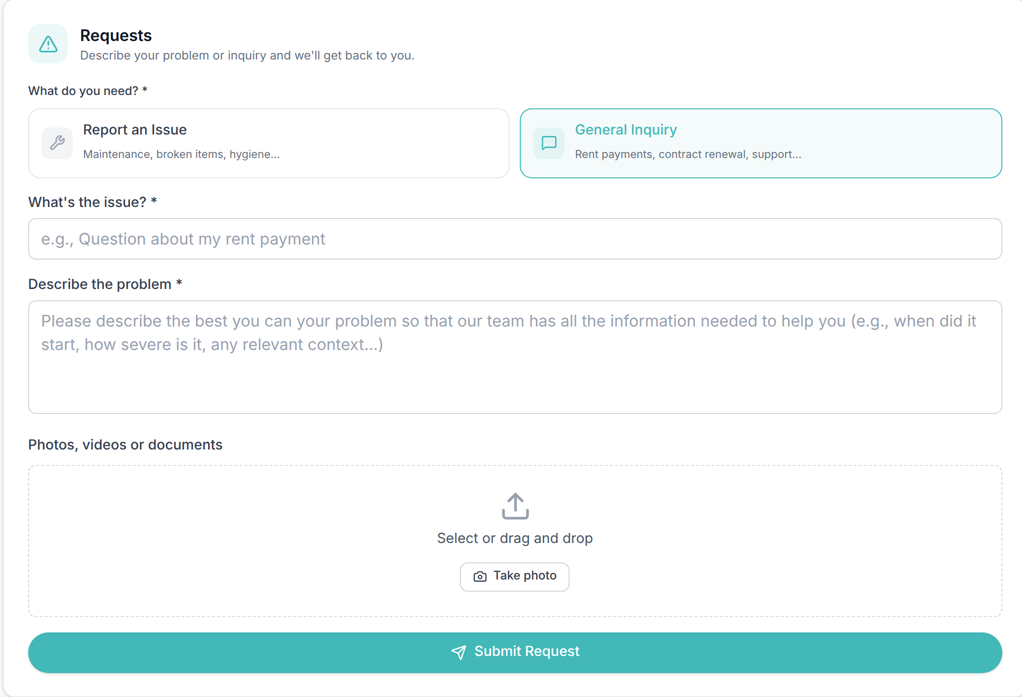
History
The History sub-tab lists submitted maintenance rows with status, dates, and Staff Notes when your team fills Tenant note on the Operations ticket. Deep links ?tab=history and ?focusRequestId=<ticketId> open History directly — Home uses these when a tenant taps View all N requests or follows a notification link. Status words match Home → Open requests — an unassigned ticket reads Received on both surfaces (not Pending on Home and Received in History).
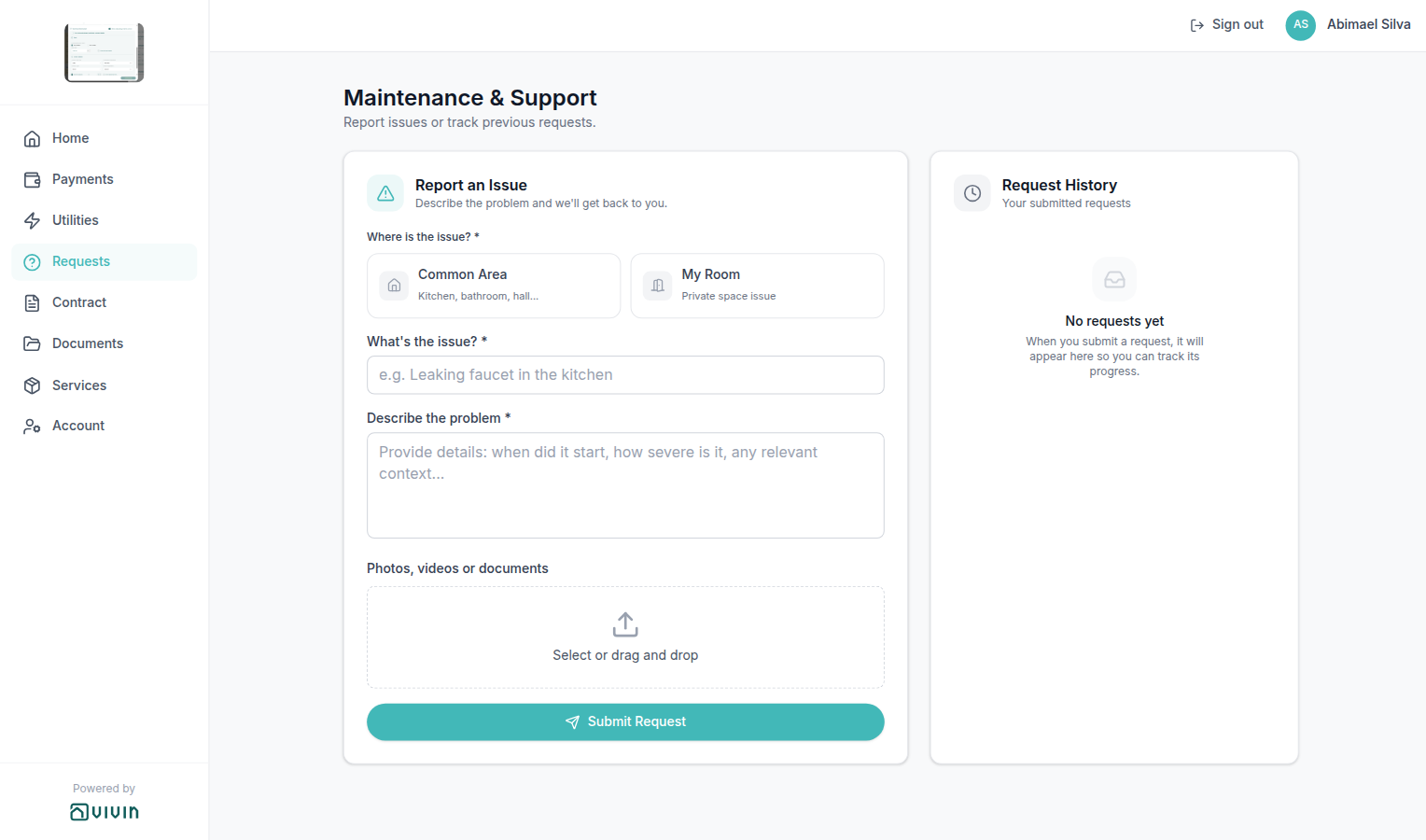
Received status
Received pairs with Open requests (Home list), History (Request History chip), Requests tab, What do you need? (how the ticket was created), Operations — Status (your team sees Unassigned for the same ticket), Portal settings — Allow to create tickets, and FAQ — How do tenants see Received on a portal request?. Distinct from Pending installment (a payment-timeline word, not a ticket status) and from Vivin in-app support.
Home → Open requests and Requests → Request History use the same status words for the same ticket. When nobody is assigned yet, both surfaces say Received — blue text on Home, a blue Received chip on History (for example #T31 Maintenance follow-up). Tenants can tell you already have the request; they do not need a different word on each screen.
| Portal word | Where tenants see it | What it means for them |
|---|---|---|
| Received | Home row and History chip | You have the request; nobody is assigned yet |
| In Progress | Home row and History chip | Someone on your team is working it |
| Pending | Home row and History chip | The ticket is still open, waiting on a next step |
| Resolved | History only (not on Open requests) | The ticket is closed |
| Cancelled | History only | The ticket will not be worked |
| Duplicate | History only | The report was merged with another ticket |
Open requests lists Received, Pending, and In Progress only (up to three rows). Closed work stays on History.
On Operations → Tickets, the matching workflow value for Received is Unassigned. Resolved on the portal is Closed on the list (Completed in the ticket Status menu). Do not tell tenants to look for Unassigned in the portal.
There is no Portal settings hide toggle for these labels. Turn Allow to create tickets Off (or turn tickets off on the tenant’s category) to hide Requests, Open requests, and therefore Received.
Who can change it
- Tenants — read the word. They cannot rename statuses or assign the ticket.
- Operators — assign and move the ticket in Operations. Assigning someone typically moves Received to In Progress.
- Marketplace —
POST /bookingscannot send this label. See FAQ — How do tenants see Received on a portal request?.
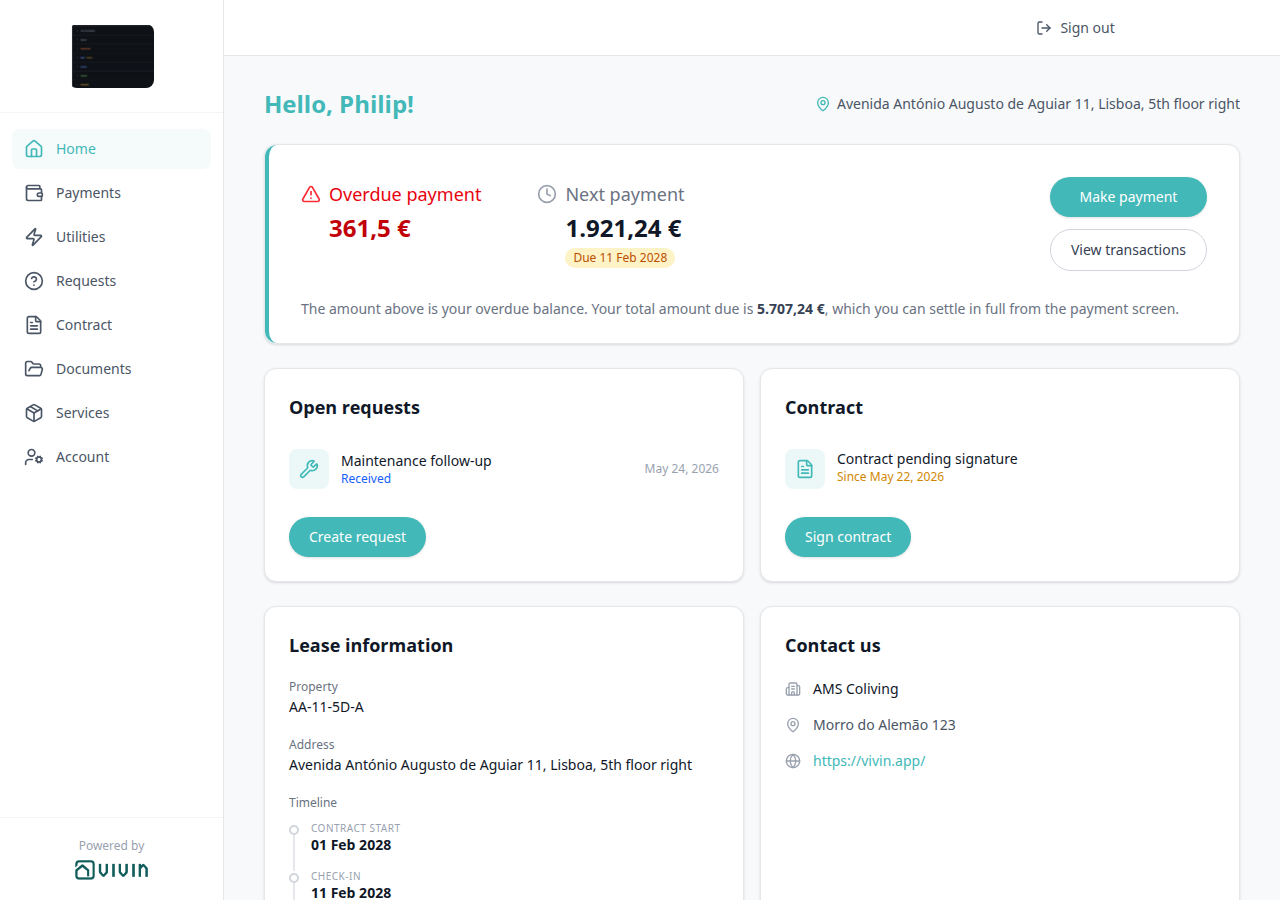
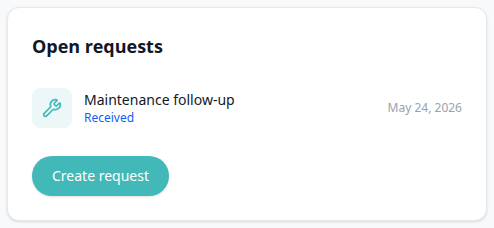

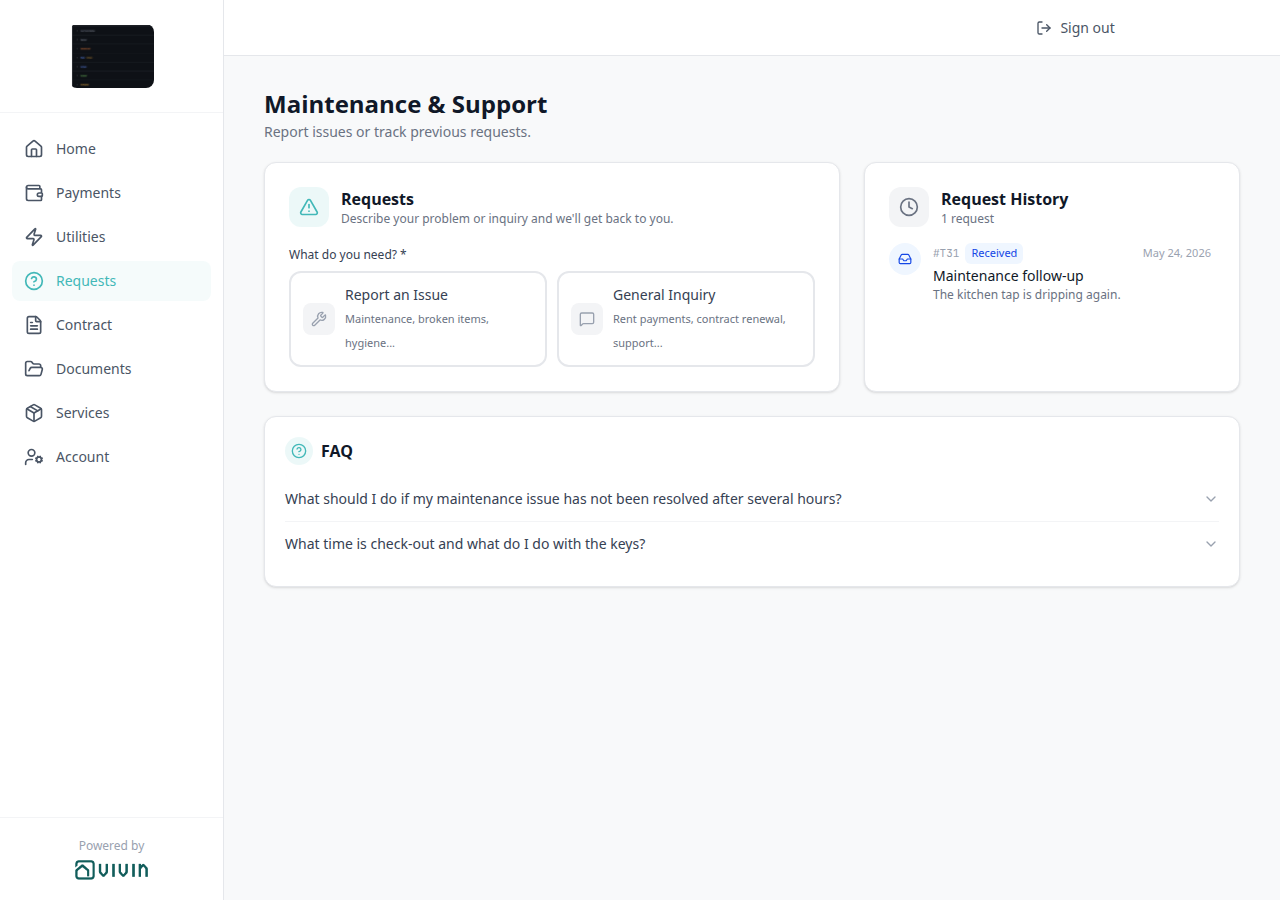
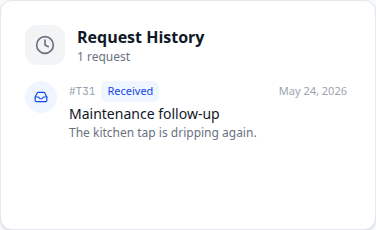

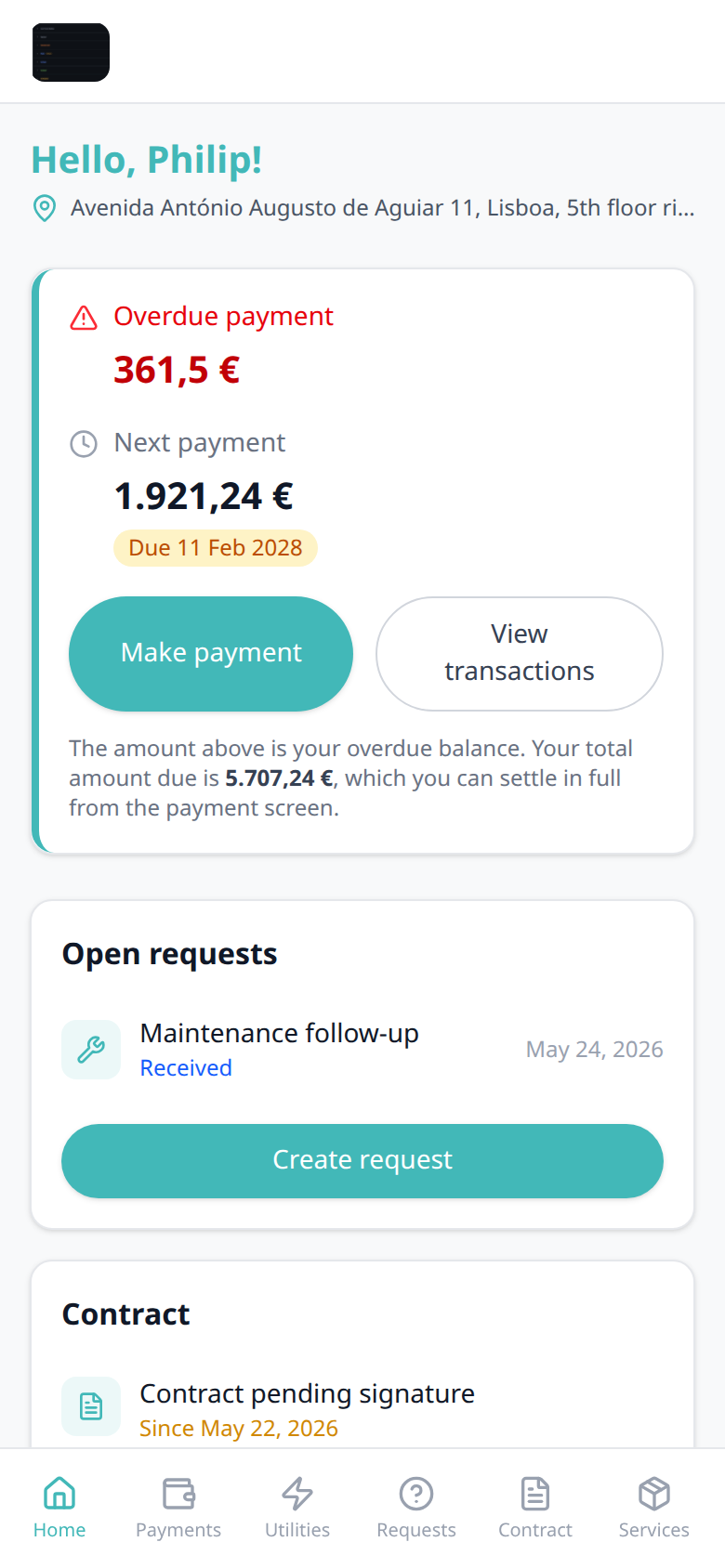
FAQ accordion
The FAQ accordion pairs with Settings → FAQs (draft, edit, and publish), What do you need? / History (the same Requests page), Received status (ticket words on Home and History), Open requests (Home shortcut onto this page), Portal settings — Allow to create tickets (the page that holds the accordion), and FAQ — Where do tenants see published FAQs?. Distinct from ChatBot persona / IF/THEN rules (under System) and from operator AI Chat.
When at least one catalogue entry is published, Requests shows an FAQ card under New Request and History. Heading FAQ, with a question-mark icon. Each row is a question; tenants tap to read the answer. Opening one question closes the previous (single-open). Unpublished drafts never appear. When nothing is published, the card is omitted — tenants do not see an empty FAQ heading.
There is no Portal settings hide toggle for this card. Hide Requests (and therefore the accordion) by turning Allow to create tickets Off, or by turning off tickets on the tenant’s category. Publishing more answers does not create a new sidebar item.
Who can change it
- Tenants — expand and collapse questions. They cannot add, edit, or hide entries.
- Operators — Settings → Tenant Portal → FAQs: write or generate drafts, then flip the row toggle to publish. The Chatbot permission is required to open that tab.
- Marketplace —
POST /bookingscannot send FAQ entries. See FAQ — Where do tenants see published FAQs?.


Maintenance Requests
Tenants can submit maintenance requests from the portal:
- Choose a path on What do you need? — Report an Issue (location + required files) or General Inquiry (no location; files optional)
- Describe the issue with a title and description, then Submit Request
- Track the status of their request from submission through to resolution — Received means you have it and nobody is assigned yet (the same word on Home and History)
- Read staff updates — when your team fills in Tenant note on the Operations ticket, the portal shows it on the request card as Staff Notes (teal highlight). Resolution description on the ticket is never shown in the portal; it is for internal closure notes only.
- Requests automatically create tickets in the Operations module for your team to manage
This self-service capability reduces phone calls and emails to your team while ensuring physical issues arrive with photographic evidence.
When a page does not complete
If Home, Payments, or another portal screen does not finish loading, use refresh or open the portal link again from the booking email. For card checkout that stays blank, confirm the booking credentials and that payments are enabled for the property, then retry from Payments.
Documents tab
Shared files pair with Bookings > Files tab (operator uploads and Hostkit invoice tiles), Finance — Hostkit invoice links, Tenant categories (Documents / invoices), More (mobile), and FAQ — How do tenants see files and invoices on portal Documents?. Distinct from Contract / Download contract (the rental PDF on Contract), from Payments Receipt column on transaction rows, and from Export CSV (the Transaction History spreadsheet).
Documents (/files) is the tenant’s file shelf for this booking. Heading Documents, subtitle View and manage your booking documents. Tenants preview and download files operators share — they cannot upload or delete.
On a computer, Documents is in the left sidebar. On a phone, it lives on More (subtitle View your contracts and documents). There is no Portal settings toggle to hide Documents. Tenant-category Documents / invoices Off hides the desktop sidebar item (and the matching mobile Documents tab). More still lists Documents.
The list refreshes on each visit, so a new upload on Bookings → Files appears without re-sending the portal link. When two files share the same display name, tenants see the newest one.
Preview and download
Each tile shows a type badge, the filename, and a Download control:
| Badge | Typical files | Tap / click |
|---|---|---|
| Contracts, invoices, letters | Opens an in-portal preview (filename, Download, Close). Escape closes it. | |
| IMG | Photos and scans (PNG, JPG, GIF, WebP) | Same in-portal preview. |
| DOC | Word files | Opens in a new browser tab (no lightbox). |
| FILE | Other types | Opens in a new browser tab. |
On a computer, tiles sit in a thumbnail grid. On a phone, the same files appear as a compact list (type icon, name, badge, download).
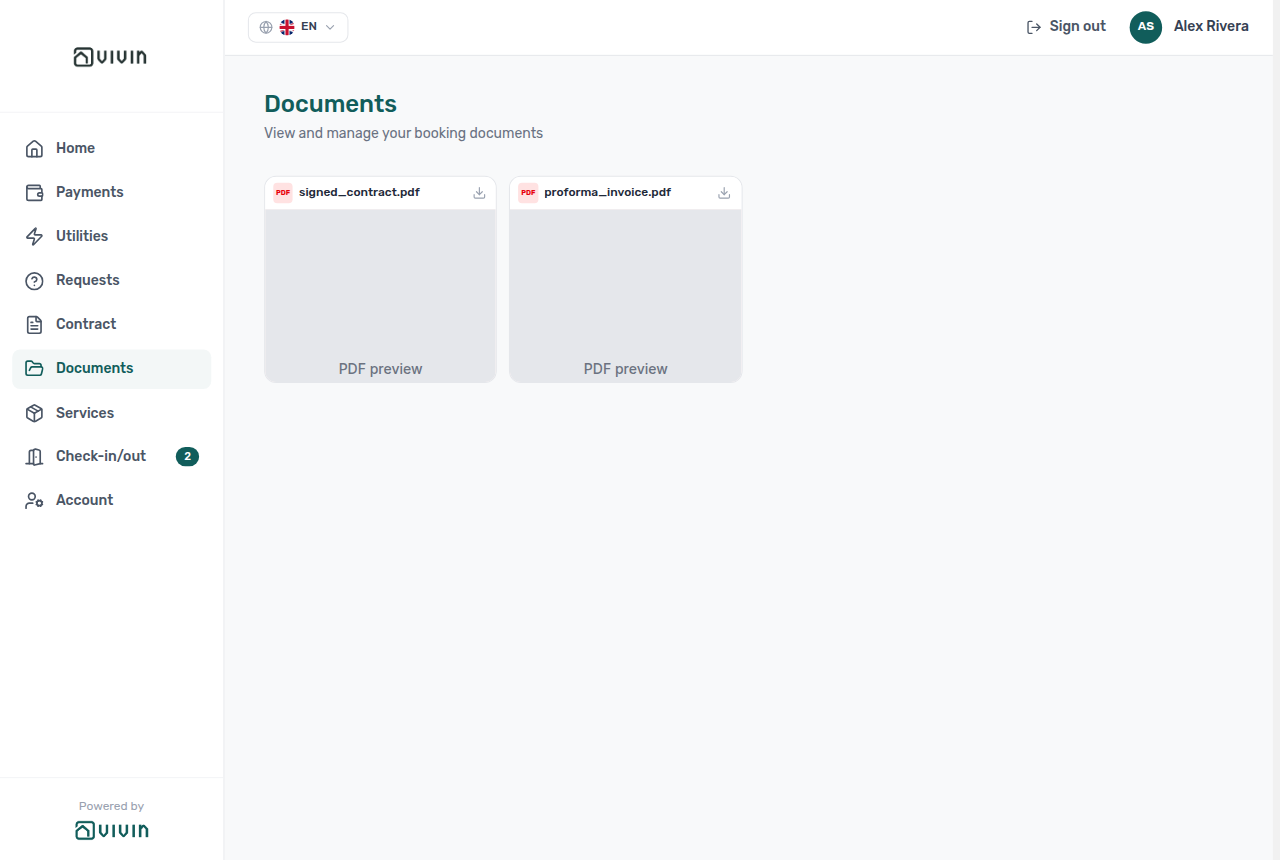

Tap a PDF or IMG tile to open the in-portal preview. The header shows the type badge, filename, Download, and Close (X). Escape also closes the preview. Download in the header (or on the tile) saves the file without leaving the portal.


Hostkit invoices on Documents
When Hostkit is your invoicing provider and chargeable payments have been invoiced, the same Invoice_<ref>.pdf tiles operators see on Bookings → Files also appear here (one tile per distinct Hostkit invoice, for example Invoice_2025/42.pdf). Tapping the tile opens Hostkit in a new browser tab — Hostkit’s public link does not preview inside the portal. Download still works.
Those tiles are not files tenants (or operators) uploaded. They disappear from Documents if you upload a real invoice-receipt file on the booking Files tab. Invoice-xpress (and other stored PDFs) preview in the lightbox like any other PDF. See Bookings — Files and Finance — Hostkit invoice links.
When no files are shared yet (and Hostkit has no invoice tiles), tenants see No Documents Yet / Your booking documents will appear here.
Who can change it
- Tenants — preview and download. They cannot upload or delete.
- Operators — Bookings → Files (upload / delete stored files); Documents / invoices on Tenant categories; Hostkit invoicing for
Invoice_<ref>.pdftiles. - Marketplace —
POST /bookingscannot send portal files. See FAQ — How do tenants see files and invoices on portal Documents?.
Account tab
Editable profile fields pair with Tenant categories (field locks), Tenants module (operator-side profile), and mandatory-for-signing gates in Portal settings.
Account (/account) is where tenants update profile and billing fields your Portal settings and tenant categories allow. On a phone, open Account from More (subtitle Manage your account settings). On a computer, the sidebar Account item and the top-bar name/avatar open the same page — Sign out is a separate control.
| Section | Typical fields |
|---|---|
| Personal information | First name and last name (Email on the same row is read-only), Phone, Nationality, ID document details (Identification ID, ID Type, ID Expiry Date, Country of issue), Fiscal number and home address, Lease Purpose (disabled; Set during contract signature) |
| Bank account | IBAN (personal account for deposit refunds), Account type / European bank account toggle, and (when Off) SWIFT/BIC plus bank address fields — European bank account. When portal settings lock bank editing, an amber locked bank banner appears and the fields stay visible but disabled. |
| Billing information | Billing type / Use company details toggle, company name and fiscal number (when On), billing address (Billing address, City, Postal code, Country) — Use company billing. When billing editing is locked, an amber locked billing banner appears and the fields stay visible but disabled. |
Locked fields show read-only values or hide entirely per category portal access rules. Account-level bank and billing locks are different: they keep the fields on the card and show the amber notices in Locked bank and billing banners. The page refetches booking data on each visit so changes made by operators in management appear without a full browser reload.
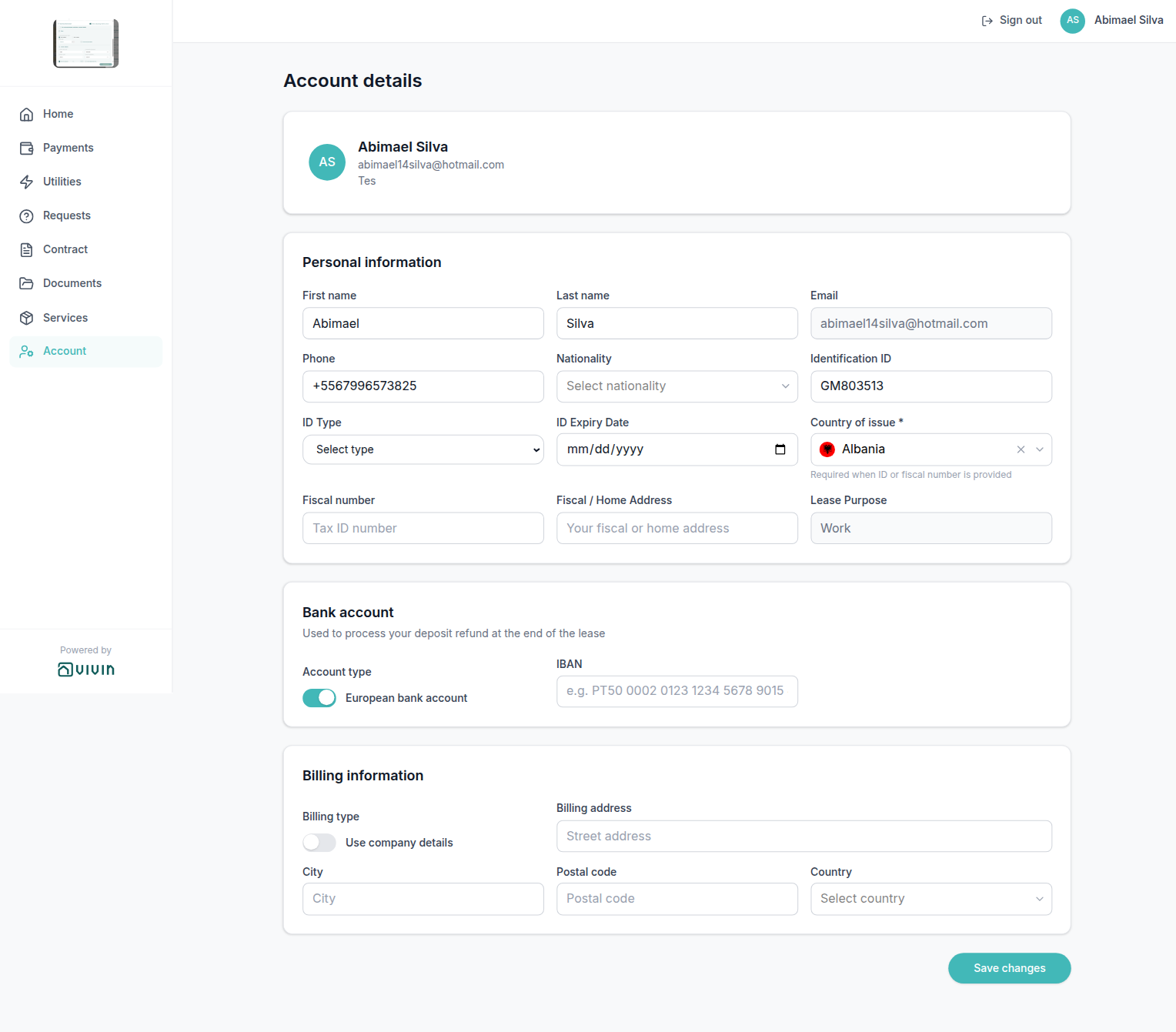
After tenants edit any unlocked fields, they finish with Save changes at the bottom of Account. A green Details updated successfully! notice confirms the portal stored the values.
Mandatory-for-signing fields configured under Portal settings are enforced here and in the contract signing wizard — not only on Account.
Save changes success
The save confirmation pairs with First name and last name (Save changes still needs both names when those fields are editable), Locked bank and billing banners (save still works for unlocked cards), Portal settings — Tenant can edit, and Tenants — Tenant Info (operators save on that sidebar — they do not see this portal notice). Distinct from Digital contract signing (Next / Finish & Sign), read-only Email, and disabled Lease Purpose on Account.
On Account, tenants scroll to the bottom of the form and click Save changes. While the portal stores the values, the button shows a spinner and stays disabled. When the save completes, a green notice with a check icon appears above the button:


The page stays on Account. The form reloads the stored values, so what tenants see matches what operators see on Tenants → Tenant Info. The green notice is polite live text (screen readers announce it) and the page scrolls it into view. It disappears after a few seconds. It is not a corner toast and not an email.
Home does not have Edit details. Profile and billing edits live on Account. Sign contract still shows locked-bank and locked-billing notices when those cards are locked.
Save changes still works when bank or billing cards are locked — unlocked sections (for example Personal information) save, and locked fields keep the server values. Fill required fields first (both names when they are editable; Country of issue / billing Country when a fiscal or ID number is on file). The green notice appears only after the portal accepts the save.
This confirmation is not Digital contract signing (that wizard uses Next and Finish & Sign), not the amber locked bank and billing banners, not read-only Email, and not the operator save control on Tenants → Tenant Info.
Who can change it
- Tenants — click Save changes on Account. There is no setting that hides this notice after a successful save.
- Operators — they do not see Details updated successfully! in management. They save profile fields on Tenants → Tenant Info. Marketplace
POST /bookingscan send profile values at create time; it does not show this portal notice. See FAQ — How do tenants know Account changes saved?.
First name and last name
First name and last name pair with Greeting and listing address (Home Hello, First name! uses the first word), Portal settings — Mandatory for contract signing (Require First Name, Require Last Name), Tenant categories (fields First name and Last name), Tenants — Tenant Info → Personal Information (operator First Name / Last Name), and Creating Bookings — Tenant Fields (partner POST must send firstName and lastName). Distinct from read-only Email on the same row, Phone, Nationality, ID document details, and Fiscal number and home address.
On Account → Personal information, the first row is First name, Last name, and Email. Tenants edit the two name fields (placeholders First name and Last name). Email on that row is always read-only — tenants change their name here, not the login email. Operators change email on Tenants → Tenant Info. After a successful save, portal Home shows Hello, First name! using the first word of that name (or Hello! when the name is empty) — see Greeting and listing address.
Save changes needs both names when those fields are editable. Vivin trims spaces, so a blank or spaces-only value does not save. That Account rule applies even when Require First Name / Require Last Name is Off — those toggles only add asterisks on Sign contract → Your Details. After a successful save, tenants see Details updated successfully! above the button.
The same values appear on Sign contract → Your Details as First Name and Last Name (placeholders Your first name / Your last name). When Portal settings Require First Name or Require Last Name is On, that label shows an asterisk and the tenant must fill it before Next.
These fields are not Email, not Phone, not Nationality, not ID document details (Identification ID), not Fiscal number and home address, not the European bank account switch, and not Use company billing.


Who can change it
- Tenants — there is no account-level Allow edit first name toggle. Tenants can edit First name and Last name on Account and Your Details unless a tenant category hides or locks the fields First name / Last name.
- Tenant categories — the fields First name and Last name can hide or lock the matching controls per segment.
- Operators — Tenants → Tenant Info → Personal Information uses First Name and Last Name. Marketplace
POST /bookingsmust sendfirstNameandlastName(minimum two characters). See FAQ — How do tenants enter first and last name?.
Phone number
Phone pairs with Portal settings — Mandatory for contract signing (Require Phone), Tenant categories (field Phone), Tenants — Tenant Info → Personal Information (operator Phone), and Creating Bookings — Tenant Fields (partner POST can send phone). Distinct from Nationality, ID document details, European bank account, and Use company billing.
On Account → Personal information, tenants enter Phone next to Nationality and Identification ID. Email on the same card is read-only — tenants change Phone, not the login email.
Type a contact number with an optional leading + and 7–15 digits. Spaces, parentheses, and hyphens are removed when the tenant saves, so +351 912 345 678 and +(351)912-345678 store as +351912345678. Leave Phone empty when you do not have a number yet, unless the account requires it for signing.
The same field appears on Sign contract → Your Details (placeholder Phone number). When Portal settings Require Phone is On, the label shows an asterisk and the tenant must fill it before Next.
This field is not ID document details (Identification ID / Country of issue), not Nationality, not Fiscal number and home address, not the European bank account switch, and not Use company billing.
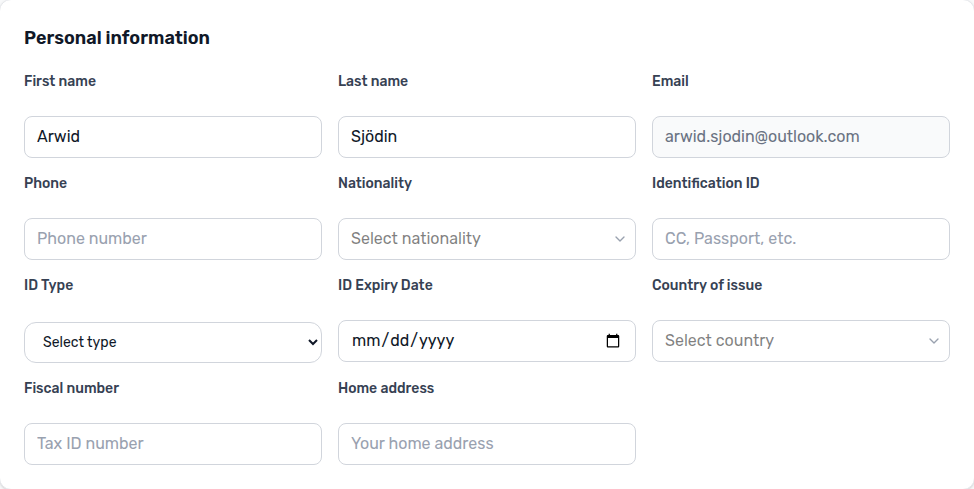
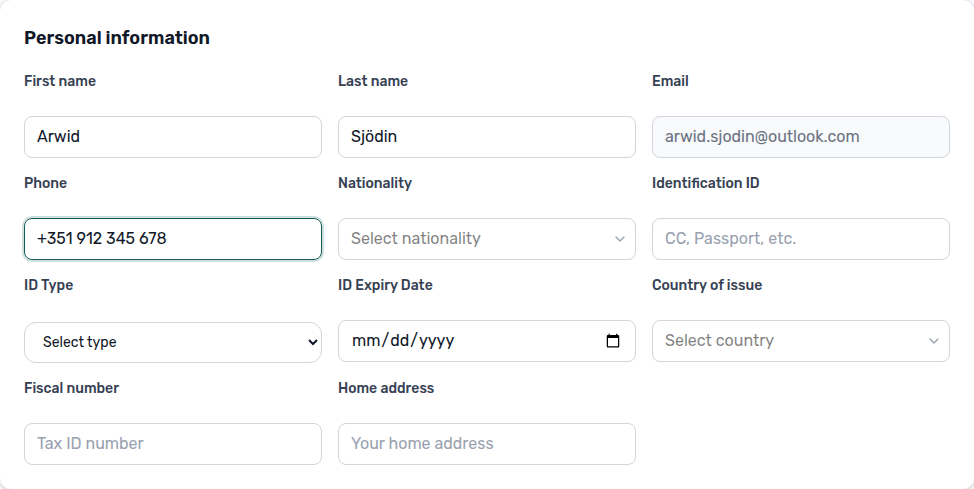
Who can change it
- Tenants — there is no account-level Allow edit phone toggle. Tenants can edit Phone on Account and Your Details unless a tenant category hides or locks the field Phone.
- Tenant categories — the field Phone can hide or lock the control per segment.
- Operators — Tenants → Tenant Info → Personal Information uses Phone. Marketplace
POST /bookingscan sendphone. See FAQ — How do tenants enter a phone number?.
Nationality
Nationality pairs with Portal settings — Mandatory for contract signing (Require Nationality), Tenant categories (field Nationality), Tenants — Tenant Info → Personal Information (operator Nationality), Bookings — Other filters (All Nationalities / No Nationality), and Creating Bookings — Tenant Fields (partner POST can send nationality). Distinct from ID document details (Country of issue), billing Country, and Phone.
On Account → Personal information, tenants pick Nationality between Phone and Identification ID. Email on the same card is read-only — tenants change Nationality, not the login email.
Open Select nationality and choose from a searchable list of nationality words with flags (for example Spanish, Portuguese, Brazilian) — not country names such as Spain or Portugal. Type a few letters to narrow the list. Use the X control to clear the value. Leave it empty when you do not know the nationality yet, unless the account requires it for signing.
Country of issue on the row below is a different field: it stores the country that issued the ID document (for example Portugal) and is required when ID or a fiscal number is on file. Billing Country on Billing information is a third country picker for invoices.
The same Nationality control appears on Sign contract → Your Details (placeholder Select nationality). When Portal settings Require Nationality is On, the label shows an asterisk and the tenant must pick a value before Next.
This field is not ID document details (Country of issue), not billing Country, not Phone, not Fiscal number and home address, not the European bank account switch, and not Use company billing.

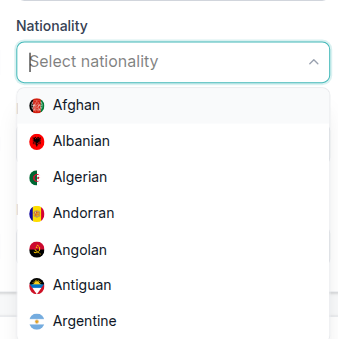
Who can change it
- Tenants — there is no account-level Allow edit nationality toggle. Tenants can edit Nationality on Account and Your Details unless a tenant category hides or locks the field Nationality.
- Tenant categories — the field Nationality can hide or lock the control per segment.
- Operators — Tenants → Tenant Info → Personal Information and Bookings → Contract Info use Nationality. Bookings → Other filters can include All Nationalities and No Nationality. Marketplace
POST /bookingscan sendnationalityas a two-letter country code (for exampleES,PT). See FAQ — How do tenants enter nationality?.
ID document details
ID document fields pair with Portal settings — Mandatory for contract signing (Require Identification ID, Require ID Type, Require ID Expiry Date, Require Country of issue), Portal settings — Tenant can edit (identification vs fiscal edit), Tenant categories (fields ID number, ID document type, ID expiry, ID document country), Tenants — Tenant Info → Personal Information (operator labels ID Number, ID Document Type, ID Document Country, ID Expiry Date), and Creating Bookings — Tenant Fields (partner POST can send these values). Distinct from Phone, Nationality, European bank account, Use company billing, and billing Country.
On Account → Personal information, tenants enter the identity document that matches their stay — not their tax number and not the billing address country.
| Field | What tenants enter |
|---|---|
| Identification ID | Document number (placeholder CC, Passport, etc.) |
| ID Type | CC, Passport, ID, or Residence Permit (placeholder Select type) |
| ID Expiry Date | Expiry on the document |
| Country of issue | Country that issued the document — not billing Country and not Nationality |
Country of issue shows an asterisk and the hint Required when ID or fiscal number is provided when the tenant has filled Identification ID, ID Type, or ID Expiry Date, or has a fiscal/tax number on file. Fill it before Save changes in those cases. The same four fields appear on Sign contract → Your Details; account toggles under Portal settings — Mandatory for contract signing can also require them before the signature step unlocks.
These fields are not Phone, not Nationality, not Fiscal number and home address (Fiscal number is the tax ID, not Identification ID), not the European bank account switch, not Use company billing, and not billing Country.
Who can change it
- Tenants — Identification ID, ID Type, and ID Expiry Date follow Portal settings Allow edit identification ID (and Allow edit identification fields after contract signature if they already signed). Country of issue follows Allow edit fiscal ID (and Allow edit fiscal fields after contract signature) — the same permission as Fiscal number and home address. When those toggles are Off, tenants contact their property manager instead of editing here.
- Tenant categories — fields ID number, ID document type, ID expiry, and ID document country can hide or lock the matching controls per segment.
- Operators — Tenants → Tenant Info → Personal Information uses ID Number, ID Document Type, ID Document Country, and ID Expiry Date. Marketplace
POST /bookingscan sendidentificationId,idDocumentType,idDocumentCountry, andidDocumentExpiryDate. See FAQ — How do tenants enter ID type, expiry, and country of issue?.
Fiscal number and home address
Fiscal fields pair with Portal settings — Mandatory for contract signing (Require Fiscal ID, Require Home address), Portal settings — Tenant can edit (Allow edit fiscal ID / Allow edit fiscal fields after contract signature), Tenant categories (fields Fiscal ID (NIF) and Home address), Tenants — Tenant Info → Personal Information (operator Fiscal ID and Home address), Bookings — Other filters (Fiscal Id All / With / Without), and Creating Bookings — Tenant Fields (partner POST can send fiscalId and fiscalAddress). Distinct from ID document details (Identification ID), Use company billing (Company fiscal number), and Billing address (invoice street).
On Account → Personal information, tenants enter their tax ID and home address on the row below Country of issue — not the identity-document number, and not the company invoice fields.
| Field | Account label | Placeholder | What tenants enter |
|---|---|---|---|
| Tax identification | Fiscal number | Tax ID number | Personal tax ID (NIF in Portugal) |
| Home / fiscal address | Home address | Your home address | The tenant’s home address for tax and contract records |
The same values appear on Sign contract → Your Details with operator-facing labels Fiscal ID (placeholder Tax identification number) and Home address (placeholder Your fiscal or home address). Review shows Fiscal ID and Home address.
When Portal settings Require Fiscal ID or Require Home address is On, those Your Details labels show an asterisk and the tenant must fill them before Next.
Filling Fiscal number also requires Country of issue (hint: Required when ID or fiscal number is provided) and billing Country (hint: Required when a fiscal/tax number is provided). Fill those pickers before Save changes — they are not the same as Nationality.
Lease Purpose on the same Account row is a different control: it stays disabled with placeholder Set during contract signature. Tenants pick an allowed value on Sign contract → Your Details, not here.
These fields are not ID document details (Identification ID), not Lease Purpose, not Billing address (invoice street on Billing information), not Use company billing (Company fiscal number), not Phone, not Nationality, and not the European bank account switch.
Who can change it
- Tenants — Fiscal number, Home address, and Country of issue follow Portal settings Allow edit fiscal ID (and Allow edit fiscal fields after contract signature if they already signed). When those toggles are Off, tenants contact their property manager instead of editing here.
- Tenant categories — fields Fiscal ID (NIF) and Home address can hide or lock the matching controls per segment.
- Operators — Tenants → Tenant Info → Personal Information uses Fiscal ID and Home address. Bookings → Other filters can include Fiscal Id All / With / Without. Marketplace
POST /bookingscan sendfiscalIdandfiscalAddress. See FAQ — How do tenants enter a fiscal number and home address?.
Lease Purpose
Lease Purpose pairs with Settings → Categories → Lease Purpose (Enable Lease Purpose field, Make Lease Purpose mandatory, allowed chips), Bookings — Lease purpose (operator Contract Info / Add booking), and Creating Bookings — Lease purpose (marketplace POST /bookings cannot send a label). Distinct from Fiscal number and home address, Nationality, ID document details (Country of issue), billing Country, Use company billing, and European bank account.
On Account → Personal information, Lease Purpose sits on the same row as Fiscal number and Home address when Settings → Categories → Lease Purpose Enable Lease Purpose field is On. The control is always disabled. Placeholder Set during contract signature. Tenants do not type or pick a value here, and Save changes does not write it.
Tenants choose an allowed value on Sign contract → Your Details: label Lease Purpose (asterisk when Make Lease Purpose mandatory is On), first option Select lease purpose, then the chips from Categories. Next stays blocked with Lease purpose is required when the field is mandatory and empty. The wizard Review step only shows the chosen Lease Purpose — it is not the picker.
This field is not Fiscal number and home address, not Nationality, not Country of issue, not billing Country, not Use company billing, and not the European bank account switch.

Who can change it
- Tenants — there is no account-level Allow edit lease purpose toggle. Account stays read-only. Tenants pick on Your Details when the field is enabled. A tenant category does not list Lease Purpose among portal fields.
- Operators — Bookings → Contract Info → Booking information and + Create New → Booking use Lease Purpose (searchable list of allowed chips). Empty stays show No lease purpose. Make Lease Purpose mandatory requires a chip before Update / create when the field is enabled.
- Marketplace —
POST /bookingscannot sendleasePurpose. Imported stays stay empty until an operator or the tenant selects a chip — Creating Bookings — Lease purpose. See FAQ — How do tenants enter lease purpose?.
IBAN
IBAN pairs with Portal settings — Tenant can edit (Allow tenant to edit IBAN / Keep IBAN editable after contract signature), Portal settings — Mandatory for contract signing (Require IBAN), Tenant categories (field IBAN), Tenants — Tenant Info → Bank Details (operator IBAN), Bookings — Other filters (IBAN All / With / Without), and Creating Bookings — Bank Details (partner POST can send tenantIBAN). Distinct from European bank account (layout toggle), the booking virtual IBAN used for rent collection — Make payment (Paywall) / Copy virtual IBAN — and Use company billing.
On Account → Bank account, tenants enter IBAN next to Account type. The card subtitle explains the purpose: Used to process your deposit refund at the end of the lease. Placeholder e.g. PT50 0002 0123 1234 5678 9015 4. This is the tenant’s personal bank account — the account you pay a deposit refund to — not the booking virtual IBAN tenants use to pay rent.
Leave IBAN empty when you do not have it yet, unless Portal settings Require IBAN is On. The same field appears on Sign contract → Your Details. When Require IBAN is On, the label shows an asterisk and Next stays blocked until the tenant fills it (IBAN is required to sign). The wizard also caps the value at 128 characters. Review shows IBAN.
European bank account on the same card is a different control: it only changes which extra bank fields appear. Leave it On to show IBAN alone. Turn it Off to also enter SWIFT/BIC and bank address. Save changes on Account does not require IBAN unless the signing gate is On.
This field is not the European bank account switch, not the booking virtual IBAN (rent collection), not Use company billing, not Fiscal number and home address, and not Phone.
Who can change it
- Tenants — when Portal settings Allow tenant to edit IBAN is On (and Keep IBAN editable after contract signature if they already signed). Locking IBAN also locks European bank account and the extra bank fields, and shows the locked bank banner. A tenant category can hide or lock the field IBAN without that banner.
- Operators — Tenants → Tenant Info → Bank Details uses IBAN. Bookings → Other filters can list stays With or Without a tenant IBAN. Marketplace
POST /bookingscan sendtenantIBAN. See FAQ — How do tenants enter an IBAN?.
European bank account
The bank-account toggle pairs with IBAN (the personal refund account on the same card), Portal settings — Allow tenant to edit IBAN, Tenant categories (field European bank account), Tenants — Tenant Info → Bank Details (operator edit, no toggle), and Creating Bookings — Bank Details (partner POST has no European-account flag). Distinct from the booking virtual IBAN used for rent collection — Make payment (Paywall).
New tenant profiles default to a European bank account (IBAN / SEPA). On Account → Bank account, tenants see Account type with the European bank account switch. Leave it On to enter IBAN only. Turn it Off to also enter Bank country, SWIFT / BIC, Interbank code, Bank name, Branch, Bank address, and Bank city, then Save changes.
The Sign contract wizard uses the same switch on Your Details (copy: IBAN-based account (SEPA zone)). Review shows Account Type as European (IBAN) or International.
This toggle is not IBAN (the personal refund account), not the booking virtual IBAN (rent collection), not Use company billing, not Phone, not ID document details, and not Fiscal number and home address.

Who can change it
- Tenants — when Portal settings Allow tenant to edit IBAN is On (and Keep IBAN editable after contract signature if they already signed). Locking IBAN also locks this toggle and the extra bank fields, and shows the locked bank banner.
- Tenant categories — the field European bank account can hide or lock the switch per segment.
- Operators — Tenants → Tenant Info → Bank Details edits IBAN, SWIFT/BIC, and bank address without this toggle. Marketplace
POST /bookingscan send IBAN and SWIFT fields but cannot set the European flag — imported tenants stay on the European/IBAN layout until someone turns the switch Off in the portal and saves. See FAQ — Non-European bank account.
Use company billing
The company-billing toggle pairs with Billing address (invoice street on the same card), Portal settings — Allow edit billing details, Tenant categories (field Company billing), Tenants — Tenant Info → Billing Information (operator Yes/No and edit toggle), and Creating Bookings — Billing Fields (partner POST useCompanyBilling). Distinct from European bank account (IBAN / SEPA) and the booking virtual IBAN used for rent collection — Make payment (Paywall).
New tenant profiles default to personal billing (Use company details Off). On Account → Billing information, tenants see Billing type with the Use company details switch. Leave it Off to keep a personal Billing address, City, Postal code, and Country. Turn it On to also enter Company name and Company fiscal number, then Save changes. Country is required when this switch is On, or when a personal fiscal/tax number is on file.
The Sign contract wizard uses the same switch on Billing (copy: Company billing / Use company details for invoices). When On, address labels switch to Company Address. Review shows Company billing or Personal billing.
This toggle is not the European bank account switch, not the booking virtual IBAN (rent collection), not Phone, not ID document details (Country of issue is the document country, not billing Country), and not Fiscal number and home address (Company fiscal number is the company tax ID when this switch is On).
Who can change it
- Tenants — when Portal settings Allow edit billing details is On (and Allow edit billing details after contract signature if they already signed). When billing is locked, the locked billing banner appears and tenants contact their property manager instead of editing here.
- Tenant categories — the field Company billing can hide or lock the switch per segment.
- Operators — Tenants → Tenant Info → Billing Information and Bookings → Contract Info include Use company details for billing (Yes/No in view; toggle in edit). Marketplace
POST /bookingscan senduseCompanyBilling— unlike the European bank flag. See FAQ — How do tenants use company billing?.
Billing address
Billing address pairs with Fiscal number and home address (Home address on Personal information), Use company billing (toggle on the same card), Portal settings — Allow edit billing details, Tenant categories (fields Billing address, Billing city, Billing postal code, Billing country), Tenants — Tenant Info → Billing Information (operator Billing address), and Creating Bookings — Billing Fields (partner POST can send these values). Distinct from Nationality, ID document details (Country of issue), and Bank address on European bank account Off.
Home address and Billing address are two different fields. Filling one does not copy into the other.
| Where tenants type it | Label | Placeholder | What it is for |
|---|---|---|---|
| Account → Personal information | Home address | Your home address | Tax and contract home / fiscal address — Fiscal number and home address |
| Account → Billing information | Billing address | Street address | Invoice street, with City, Postal code, and Country on the same card |
Leave Billing address empty when you do not have an invoice street yet. There is no Require Billing address toggle — Require Home address under Portal settings gates Home address only.
Country on this card is the invoice country — not Nationality and not Country of issue. On Account, the picker shows an asterisk and the hint Required when a fiscal/tax number is provided when a personal fiscal/tax number is on file or Use company billing is On. Fill it before Save changes.
The same street appears on Sign contract → Billing. When Use company details is On, that label switches to Company Address. Wizard Country on Billing uses the hint Required when using company details when the company switch is On. Review shows Home address under Personal Information and Address under Billing Information. The wizard caps Billing address at 512 characters (same cap as Home address).
These fields are not Home address, not Use company billing (the toggle next to the street), not Country of issue, not Nationality, and not Bank address.

Who can change it
- Tenants — when Portal settings Allow edit billing details is On (and Allow edit billing details after contract signature if they already signed). The same permission as Use company billing. When billing is locked, the locked billing banner appears and tenants contact their property manager instead of editing here.
- Tenant categories — fields Billing address, Billing city, Billing postal code, and Billing country can hide or lock the matching controls per segment.
- Operators — Tenants → Tenant Info → Billing Information uses Billing address, Postal Code, City, and Country (view). In edit, personal billing keeps those labels; company billing uses Company Address, Company City, and Company Country. Marketplace
POST /bookingscan sendbillingAddress,billingCity,billingPostalCode, andbillingCountry. See FAQ — How do tenants enter a billing address?.
Locked bank and billing banners
The lock banners pair with IBAN and European bank account (bank card), Use company billing and Billing address (billing card), Portal settings — Tenant can edit (Allow tenant to edit IBAN, Keep IBAN editable after contract signature, Allow edit billing details, Allow edit billing details after contract signature), Tenant categories (per-field hide or lock, no landlord-settings banner), and Tenants — Tenant Info (operators still edit Bank Details and Billing Information). Distinct from Require IBAN (a signing gate, not this banner), read-only Email, and disabled Lease Purpose on Account.
When the landlord turns bank or billing editing Off in Portal settings, the portal does not hide the cards. Tenants still see Account → Bank account and Account → Billing information, with the fields visible and disabled, plus an amber notice that tells them to contact their property manager.
| Card | Amber notice (English UI) |
|---|---|
| Bank account | Bank details cannot be changed here based on your landlord’s settings. Please contact your property manager if you need an update. |
| Billing information | Billing details cannot be changed here. Please contact your property manager if you need an update. |
The same notices appear in Sign contract (Bank Details and Billing). Home does not offer an Edit details path — tenants change unlocked fields on Account. Save changes still works for unlocked sections (for example Personal information) and still shows Details updated successfully! when those sections store. The portal keeps the server values for locked bank and billing fields, so a tenant cannot overwrite them from the browser.
Bank is locked when Allow tenant to edit IBAN is Off. After the tenant has signed, it also stays locked unless Keep IBAN editable after contract signature is On. New accounts leave IBAN editing Off until you turn it on — bank fields start locked. Billing is locked when Allow edit billing details is Off. After signing, it also stays locked unless Allow edit billing details after contract signature is On. Billing editing defaults On unless you turn it off.
These banners are not a tenant category hide or lock of a single field (for example IBAN or Billing address). Category rules can disable or hide one control without the landlord-settings notice. They are also not Require IBAN (that only blocks Sign contract → Next), not always-read-only Email, and not Lease Purpose on Account (that field is always disabled because tenants pick it on Your Details).
Who can change it
- Tenants — they cannot clear the banners themselves. They contact their property manager. Unlocking is an operator setting, not a portal control.
- Operators — turn Allow tenant to edit IBAN / Allow edit billing details (and the after-signature toggles when the contract is already signed) On under Portal settings. Until then, edit IBAN and billing on Tenants → Tenant Info. Marketplace
POST /bookingscan send bank and billing values at create time; it does not change these lock banners. See FAQ — How do tenants update locked bank or billing details?.
Services catalogue
Add-on purchases pair with Show more (expand a long description on the card), Confirm request (Request Service review panel), Order History (confirmed rows under the catalogue), Awaiting approval / Request history, Services Marketplace, Settings > Services, Payment Allocation (Layer 1 schedule lines), FAQ — How do tenants confirm a service request?, FAQ — How do tenants expand a long service description?, and FAQ — How do tenants see ordered services?. Distinct from Requests maintenance tickets.
When Allow to see services is enabled in Settings > Portal settings, tenants can open the Services area of the portal, browse your Services catalogue, and submit requests for one-time or monthly add-ons. Heading Services, subtitle Browse and request additional services for your stay. On a phone, Services is also on More.
- Cards — Each offering shows name, optional image, price, billing type (One-time or Monthly), and an optional description.
- Property scope — The catalogue lists only services that apply to the tenant’s property. Offerings configured with All properties in Settings > Services appear for everyone; services restricted to specific properties are hidden when the tenant’s booking is not on one of those properties.
- Description preview — If you enter a long description in Settings, the catalogue card starts with about two lines. When the rest would overflow, tenants tap Show more (then Show less) on that card. Confirm request shows the full description (scroll the panel) — it does not use the two-line clamp. Put the most important details first, or use the optional Link field in Settings to point to full terms, a booking page, or an external provider.
- Card button — Request Service opens Confirm request. After a successful order, a monthly card that is already on the stay shows Active; a one-time order shows Requested. An approval-gated card with a pending row shows Awaiting approval and stays disabled until you decide or the tenant cancels.
- Billing — For standard services, confirming a request creates a charge on the payment schedule immediately. For approval-gated offerings (configured with Requires approval in Settings > Services), no charge until a manager approves on the Requests tab. See Awaiting approval.
- Approval-gated services — Identified in management by the Approval required badge on the catalogue card. The portal blocks duplicate pending requests for the same service on one booking until the current request is approved, rejected, or cancelled.

Before confirming, tenants review the selected offering in Confirm request — price, Monthly or One-time, the full description, Total, teal Confirm request, and Cancel. Opening the panel does not charge the booking.
Show more
Show more pairs with Services catalogue (the card that overflows), Confirm request (the panel that shows the full description), Settings > Services (the Description you type), Services Marketplace, and FAQ — How do tenants expand a long service description?. Distinct from Order History (confirmed add-ons under the catalogue) and from Requests (maintenance tickets).
When a catalogue Description is longer than about two lines, that card shows a teal Show more control under the truncated preview. Tenants tap it to read the rest on the same card; the control then reads Show less and collapses the text again. Cards whose copy already fits (for example a one-line subtitle) have no Show more.
Confirm request is a different surface: it lists the full description with line breaks preserved. Tenants scroll that panel when the copy is long. There is no Show more inside Confirm request.
There is no separate Portal settings toggle for this control. Turn Allow to see services Off (or turn services off on the tenant’s category) to hide Services — and Show more with it.
On a phone, the same Show more / Show less pair sits on the stacked catalogue cards above the bottom bar.
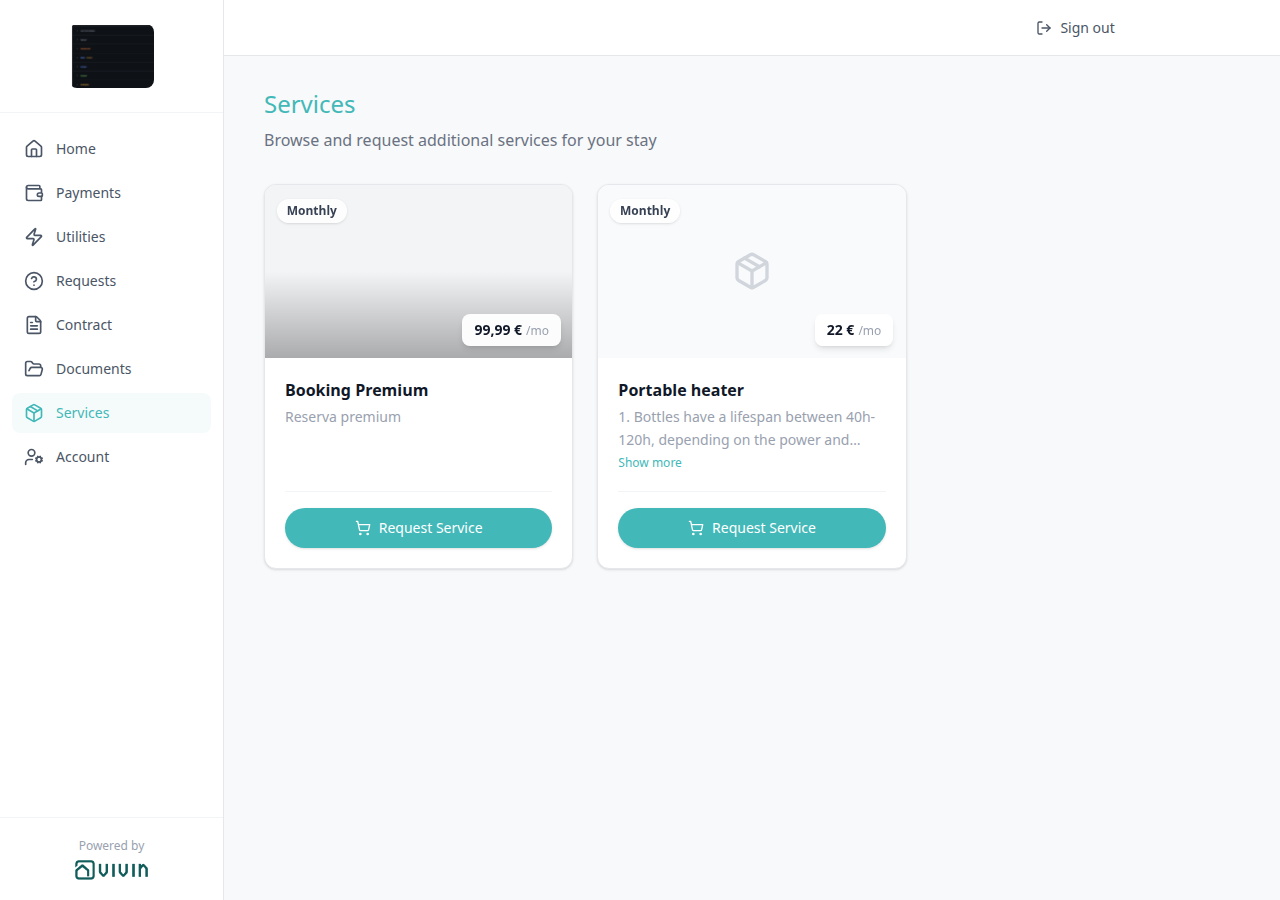
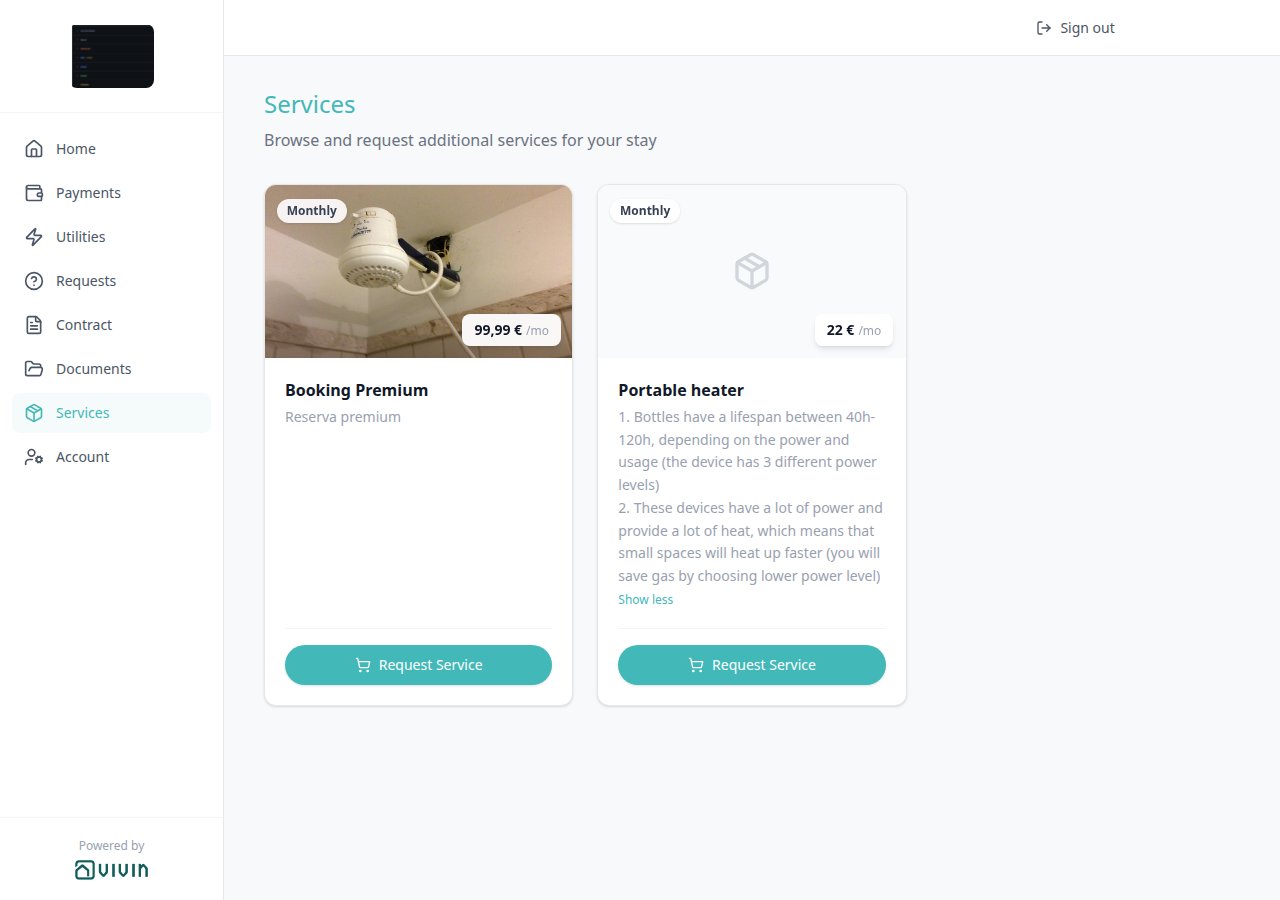
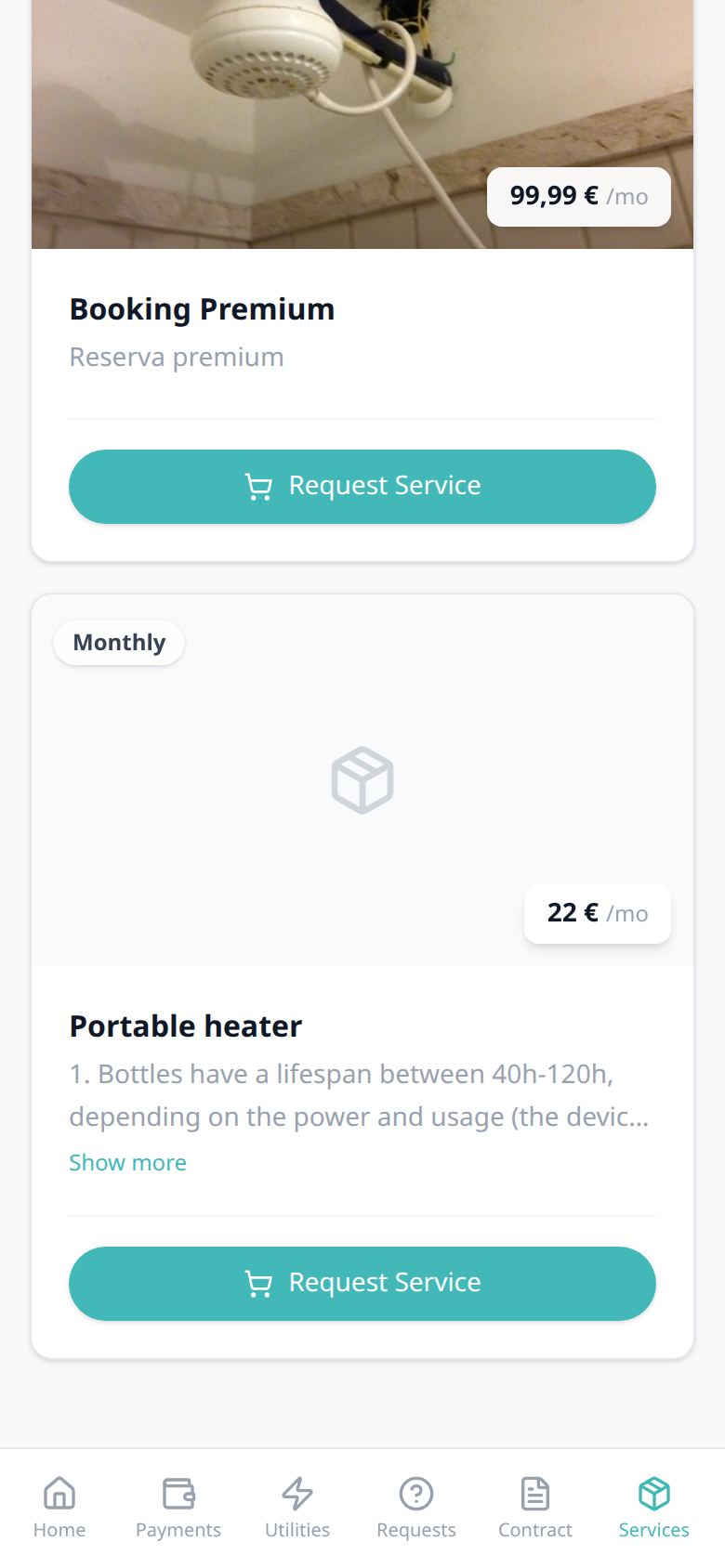
Who can change it
- Tenants — Show more / Show less on overflowing cards. They cannot edit the description in the portal.
- Operators — the Description (and optional Link) in Settings > Services. Allow to see services shows or hides the page.
- Marketplace —
POST /bookingscannot send this control. See FAQ — How do tenants expand a long service description?.
Confirm request
Confirm request pairs with Services catalogue (the Request Service button), Show more (the two-line clamp on the card — this panel always shows the full description), Order History (billed or completed rows after a successful order), Awaiting approval (approval-gated rows after confirm), Settings > Services (Type, Price, Description), Services Marketplace, and FAQ — How do tenants confirm a service request?. Distinct from Requests maintenance tickets.
Tapping Request Service on a catalogue card opens a review panel titled Confirm request. The booking is not charged until the tenant taps the teal Confirm request button.
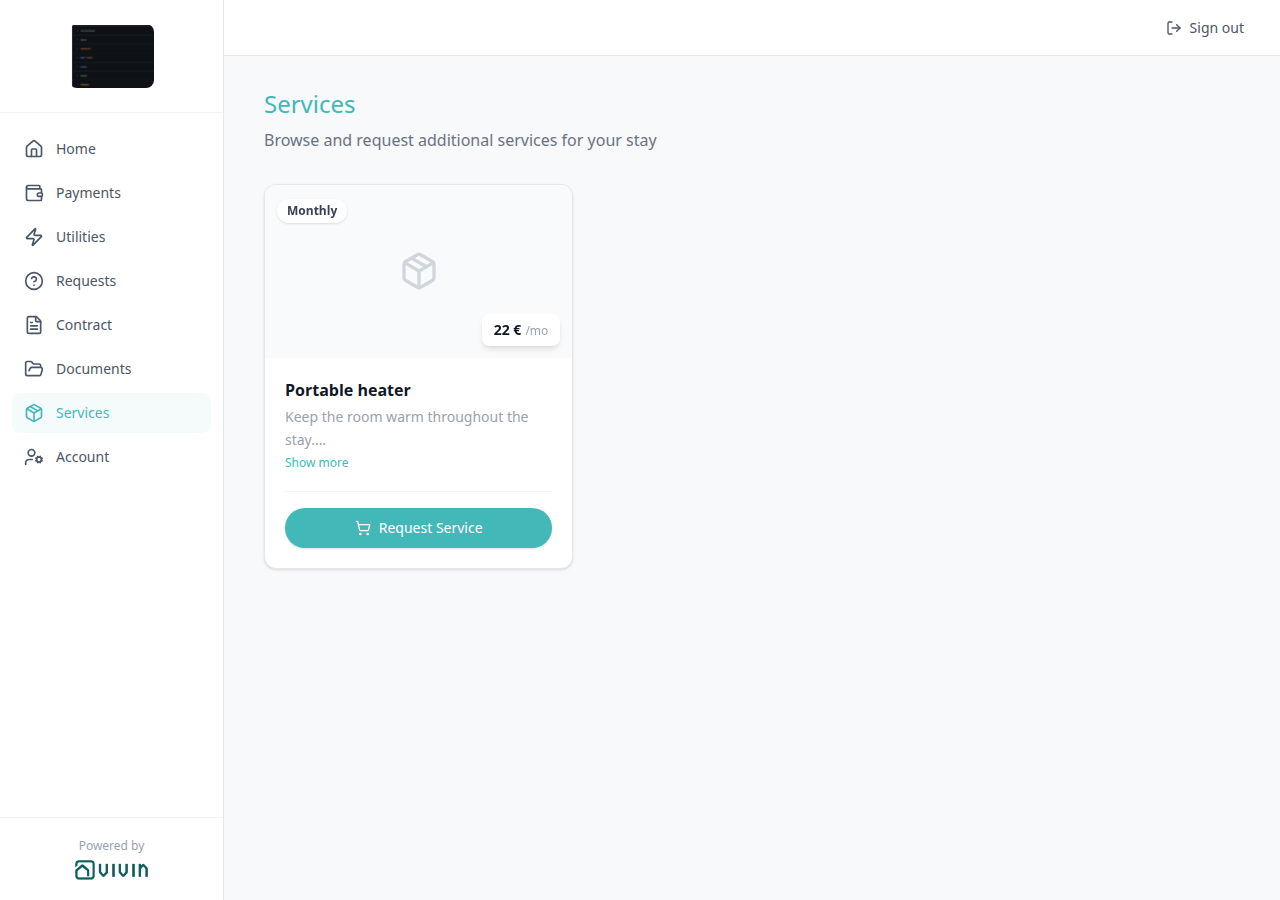
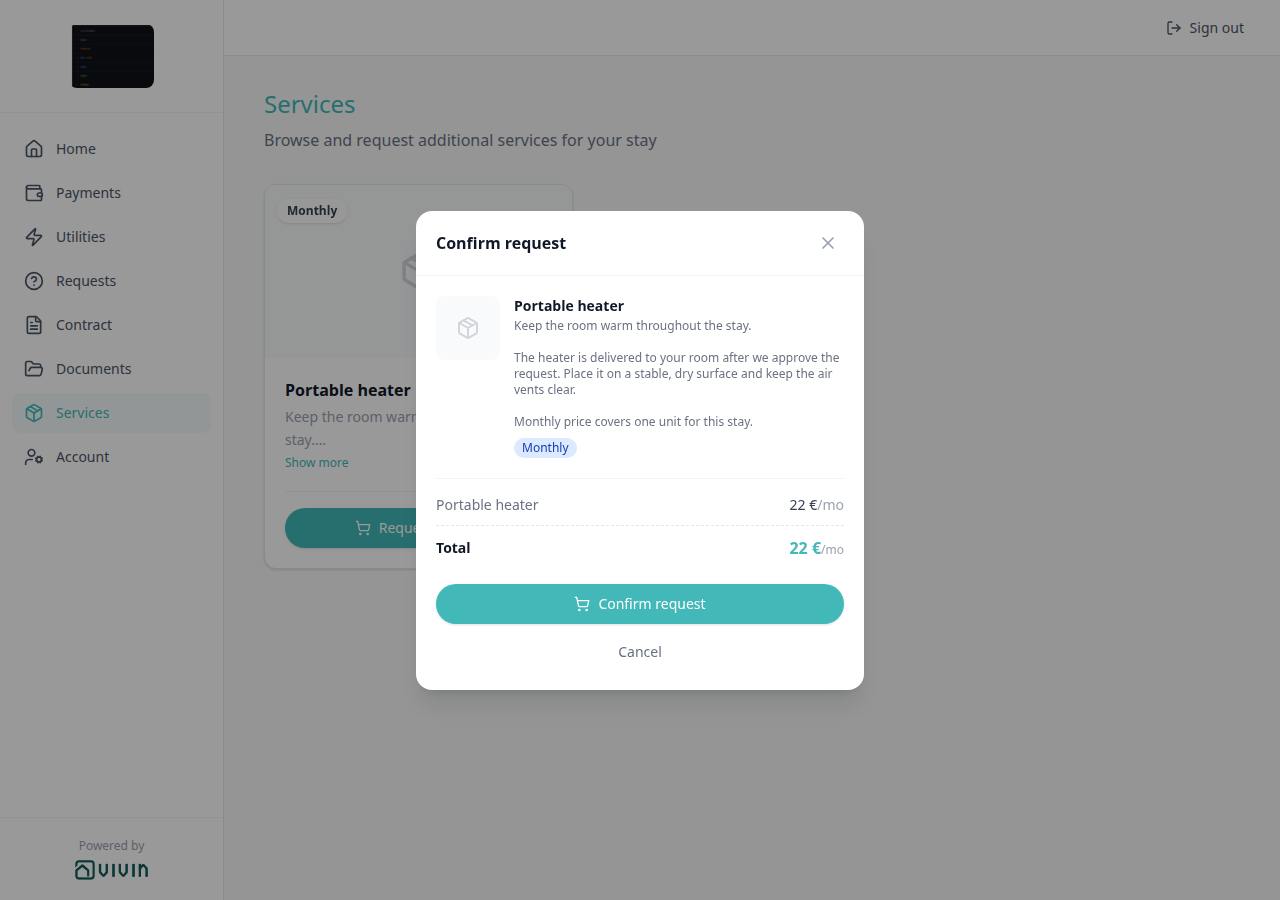
The panel repeats the same offer with more room to read:
- The full Description from Settings > Services, with line breaks preserved. There is no Show more inside this panel — tenants scroll when the copy is long.
- A Monthly or One-time badge on the same card as the title.
- The unit price (for example 22 €/mo) and a Total line that matches that price for this request.
- Teal Confirm request (submits the order) and Cancel (closes the panel with no charge). The X in the corner does the same as Cancel.
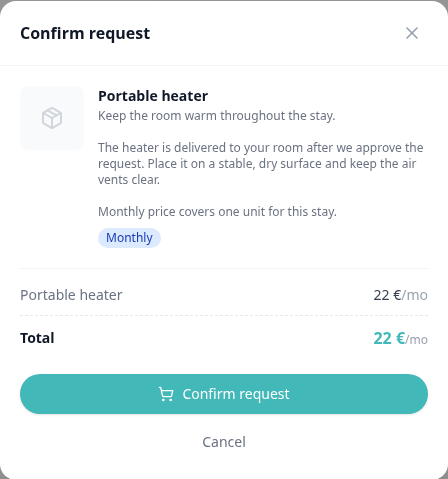
On a phone, Confirm request is a bottom sheet with a rounded top, the same description and totals, and the same two buttons stacked above the bottom bar.
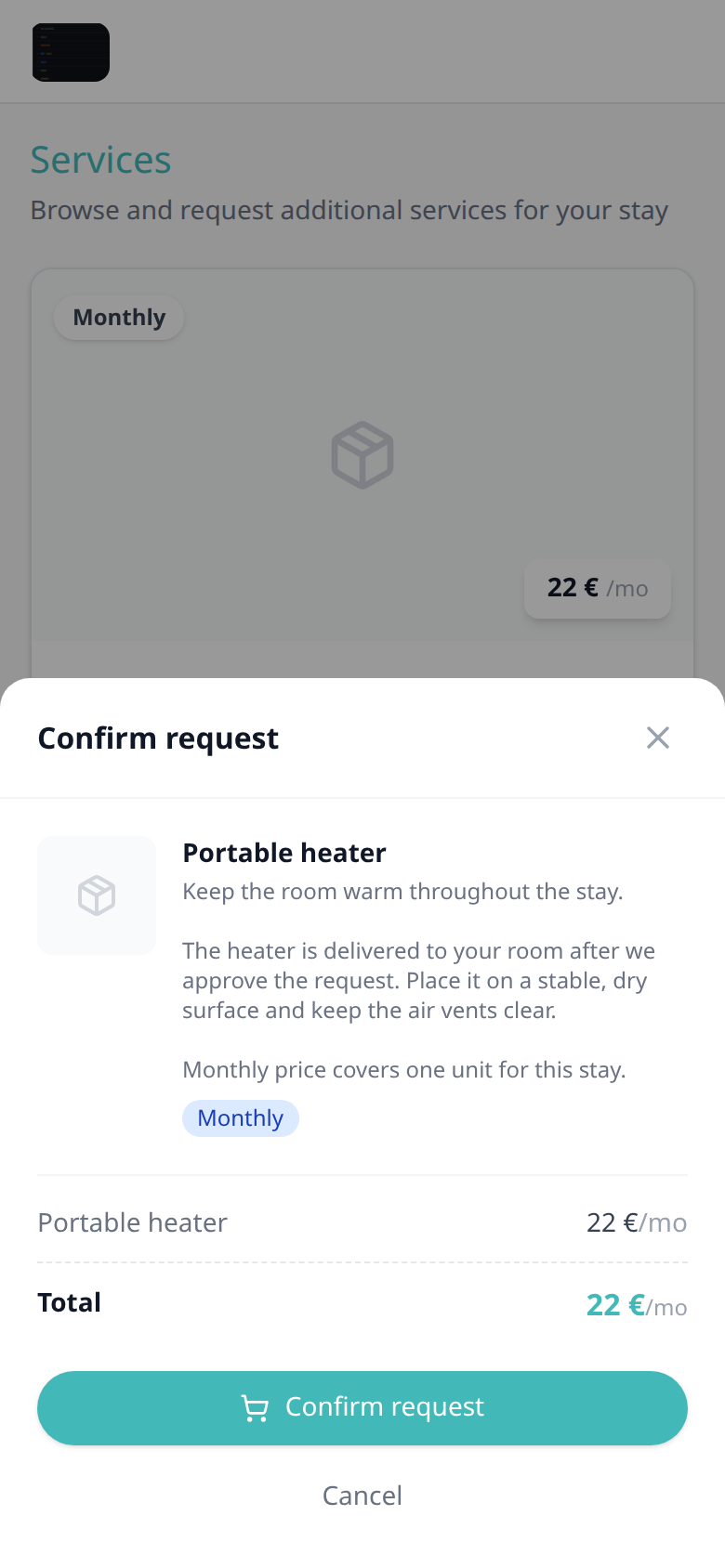
There is no separate Portal settings toggle for this panel. Turn Allow to see services Off (or turn services off on the tenant’s category) to hide Services — and Request Service with it.
Who can change it
- Tenants — open Confirm request from Request Service and can Cancel without submitting. The teal Confirm request button sends the order: standard catalogue rows can bill immediately; rows that need an operator appear under Awaiting approval.
- Operators — Type, Price, Description, and Requires approval in Settings > Services. Allow to see services shows or hides the page.
- Marketplace —
POST /bookingscannot send this panel. See FAQ — How do tenants confirm a service request?.
Order History
Order History pairs with Services catalogue (the Active / Requested buttons on the cards above), Confirm request (the review panel after Request Service), Show more (expand a long card description), Awaiting approval (pending rows are not listed here), Settings > Services, Payment Allocation, and FAQ — How do tenants see ordered services?. Distinct from Payments Transaction History and from Requests → History (maintenance tickets).
Below the catalogue, Order History lists confirmed add-ons for this stay. The heading appears only when at least one confirmed row exists.
| Billing type | Badge on the row | What tenants read |
|---|---|---|
| Monthly | Green Active | Recurring price with /mo, and the date of the last order. |
| One-time | Grey Nx ordered | How many times they ordered it, Total for those orders, and the last date. |
The matching catalogue card shows Active (monthly already on the stay) or Requested (one-time already ordered). Tenants cannot cancel an Active monthly line from Order History — there is no Cancel on these rows. Pending approval-gated requests live under Awaiting approval instead.
There is no separate Portal settings toggle for this list. Turn Allow to see services Off (or turn services off on the tenant’s category) to hide Services — and Order History with it.
Who can change it
- Tenants — read confirmed rows. They cannot remove an Active monthly from this list.
- Operators — the catalogue and charges in Settings > Services. Allow to see services shows or hides the page.
- Marketplace —
POST /bookingscannot send these rows. See FAQ — How do tenants see ordered services?.
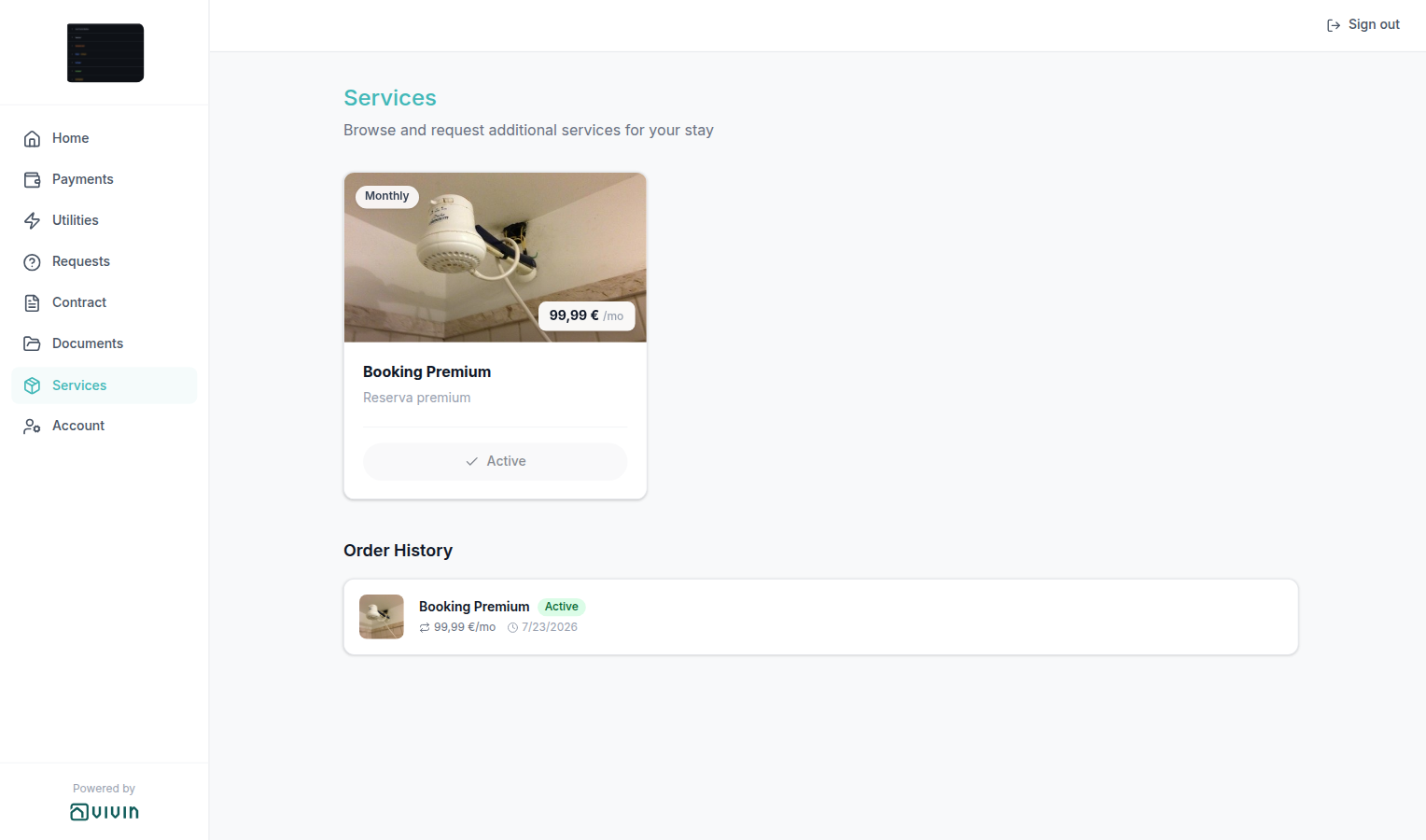
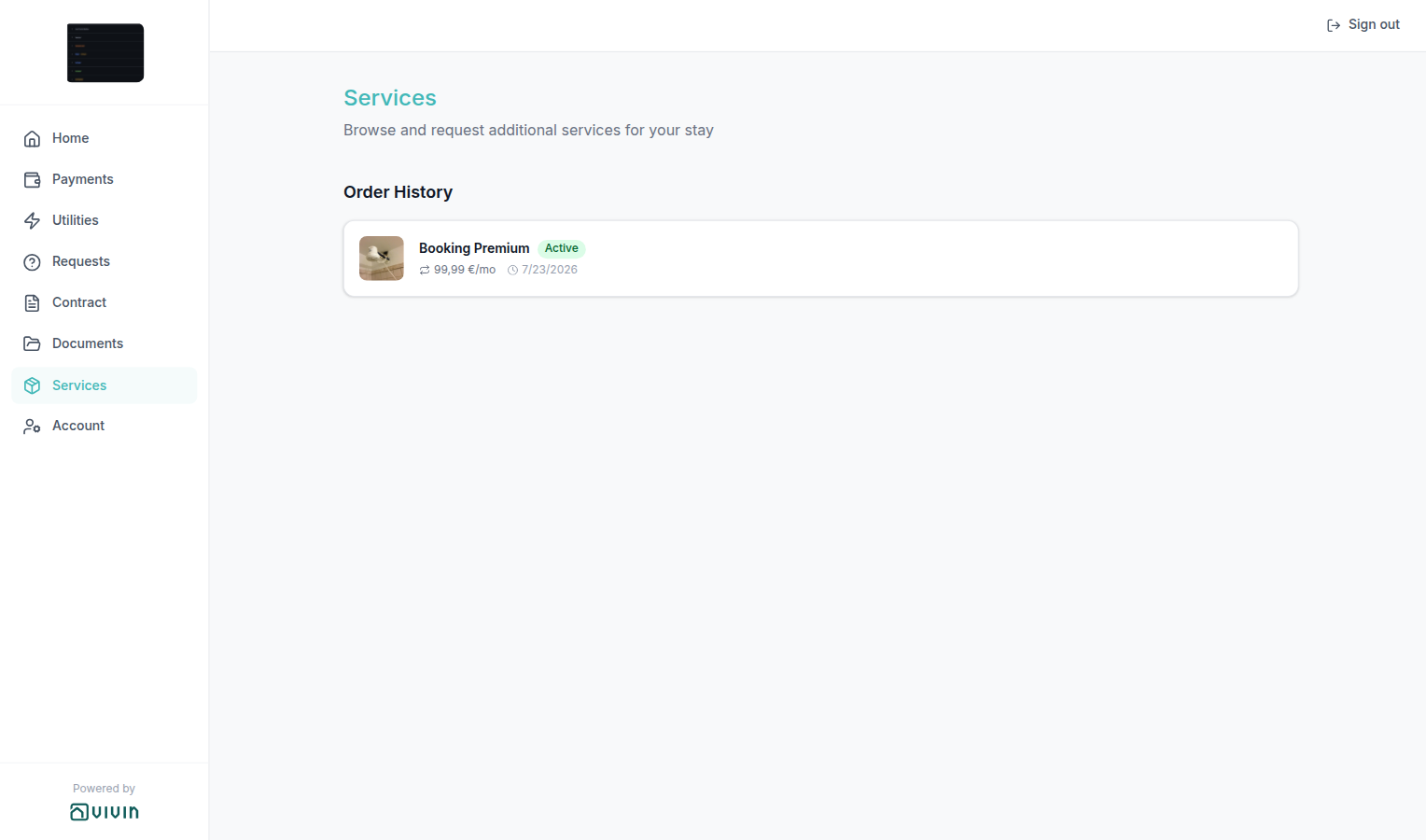
Awaiting approval
Awaiting approval pairs with Services catalogue (the card button while a request is pending), Confirm request (the review panel after Request Service), Settings > Services — Reviewing pending requests, and Order History (the row appears there only after you approve). Distinct from Requests maintenance tickets.
When a tenant confirms an offering that Requires approval, Services shows an Awaiting approval list under the catalogue — heading Awaiting approval, each row with a Pending badge, price, request date, and Cancel. The catalogue card for that offering also shows Awaiting approval and cannot be ordered again until you approve, reject, or the tenant cancels. No payment-schedule charge is created yet.
Cancel on the row withdraws the pending request. Cancelled rows move to Request history and appear as Cancelled on your Settings → Services → Requests tab. The heading is omitted when nothing is pending.
Who can change it
- Tenants — Cancel a pending row. They cannot approve it.
- Operators — Approve & charge or Reject on Settings > Services → Requests. An optional reject reason shows on Request history.
Request history
Services Request history pairs with Awaiting approval (where Cancel sends a row here), Settings > Services → Requests (Rejected / Cancelled filters), and Order History (approved or immediate orders — not this list). Distinct from Requests → History (maintenance tickets).
Request history lists approval-gated outcomes that did not become a charge: Rejected (optional Reason: from your reject modal) or Cancelled (tenant Cancel, or a cancelled pending row). The heading is omitted when there are no decided rows.
Who can change it
- Tenants — read decided rows. They cannot reopen a rejected request from this list; they can Request Service again after the pending row is gone.
- Operators — reject with an optional reason, or read Cancelled on Settings → Services → Requests.
Branding
The portal is white-labelled with your company's identity:
- Logo — displayed in the sidebar (computer) and header (phone). When Website URL is also set, the logo opens your site in a new tab (Settings > General Information)
- Brand Color — the primary accent color used throughout the interface (configured in Settings > General Information)
- Company Name — displayed in the portal and in all communications
- Powered by VIVIN — small attribution at the bottom of the computer sidebar and on the email access-link screen. Always Vivin’s site. See Powered by VIVIN
This allows each property management company to present a professional, fully branded experience to their tenants.
Logo website
Logo website pairs with Contact us (the labelled Website row on Home), Branded home screen / Install app (the same logo asset), Settings > General Information (Logo and Website URL), and FAQ — How do tenants open the company website from the portal logo?. Distinct from Powered by VIVIN at the bottom of the computer sidebar (always Vivin’s site) and from the name / avatar that open Account.
When General Information has both a Logo and a Website URL, the company logo is a link. Tenants tap it to open your site in a new browser tab. Vivin adds https:// when the saved value has no scheme. The portal stays open in the original tab.
| Where tenants tap | When it is a link |
|---|---|
| Computer — logo at the top of the left sidebar | Logo uploaded and Website URL filled |
| Phone — logo at the left of the top bar | Same |
If Website URL is empty, the logo still shows and is not tappable. If there is no logo, the sidebar / header shows Company Name as text (not a link). The Install app overlay uses the same image and is not a website link. Powered by VIVIN at the bottom of the computer sidebar is a different control and always opens Vivin’s site.
There is no Portal settings hide toggle. Change Logo and Website URL on General Information → Branding. Marketplace POST /bookings cannot send these values.
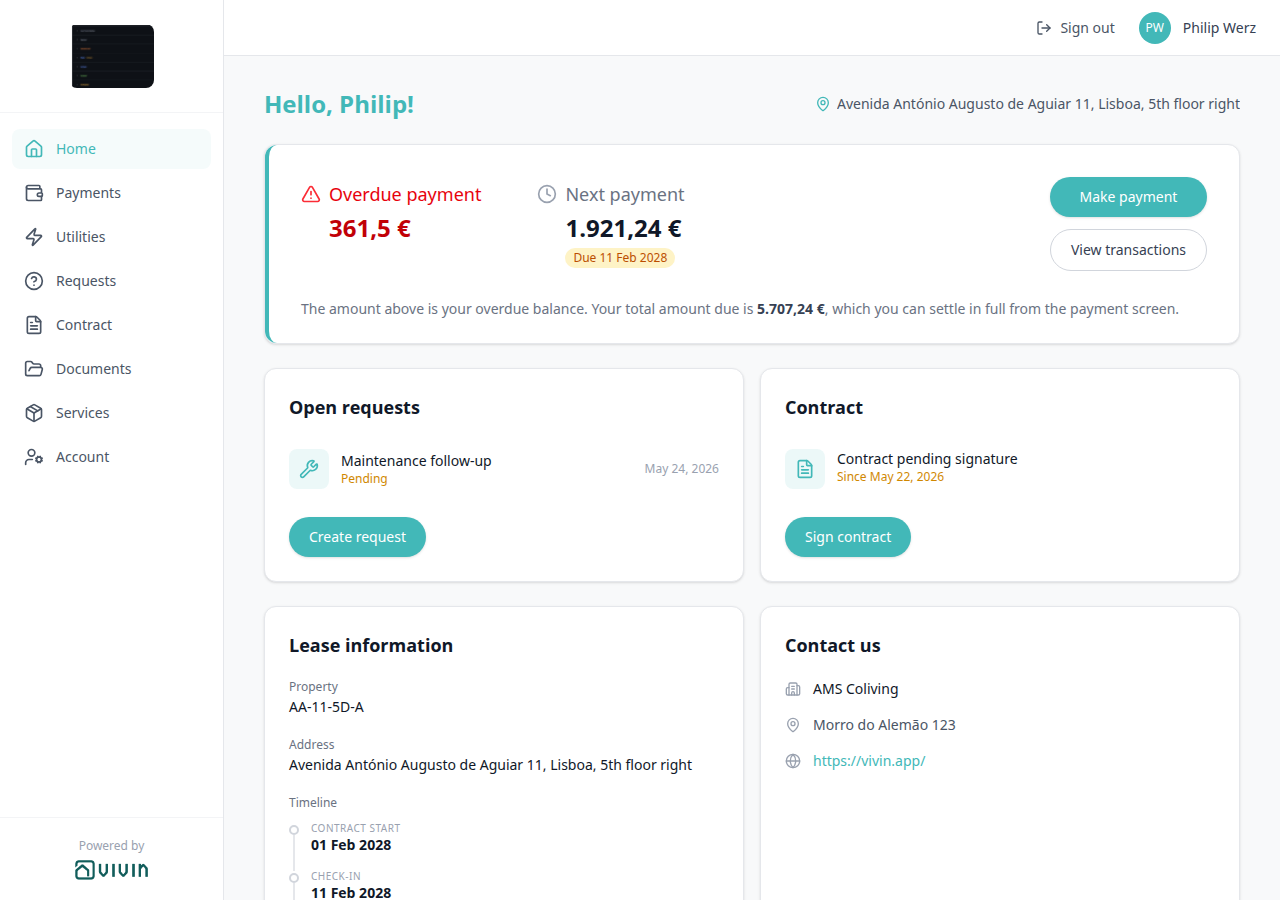

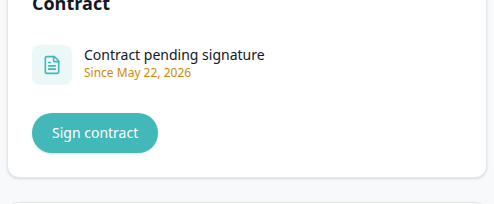
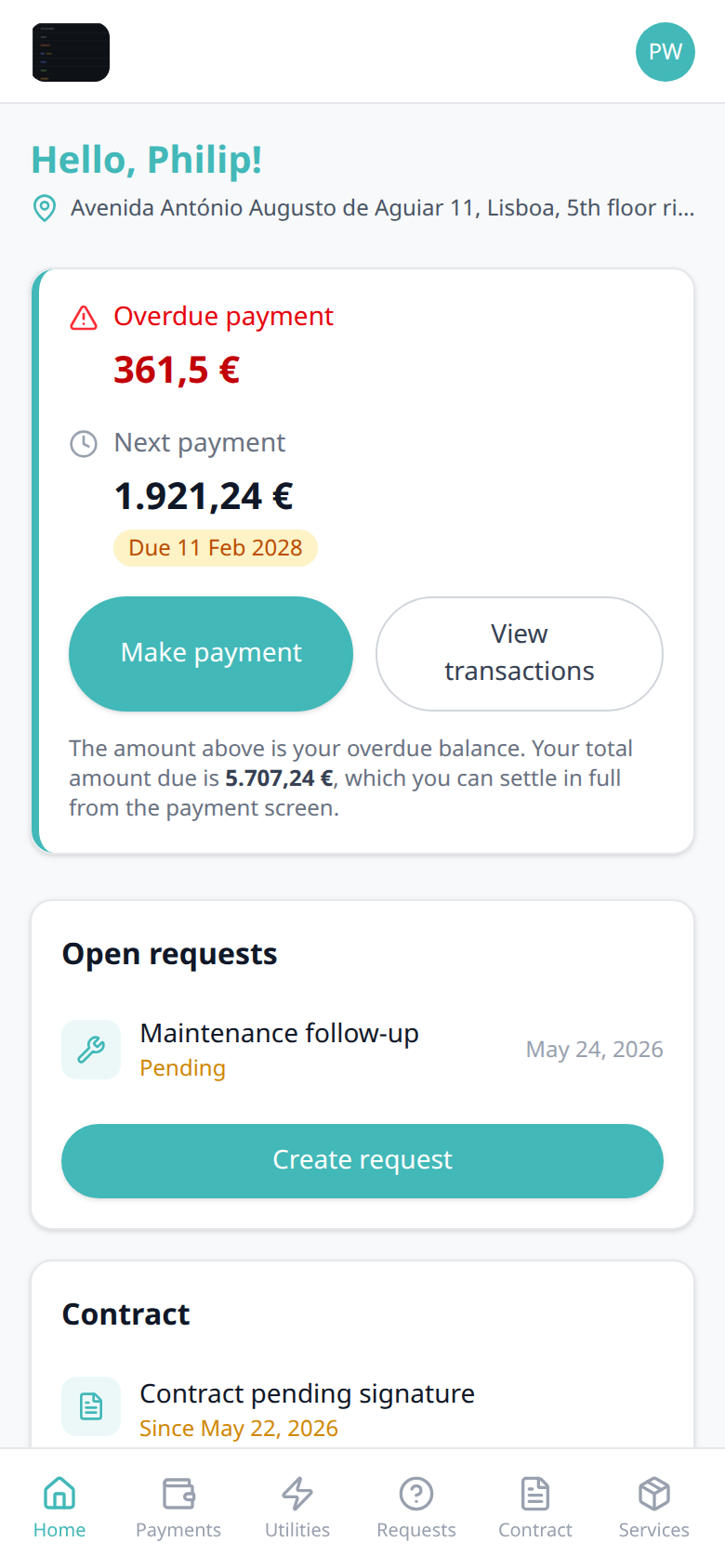

Who can change it
- Tenants — tap the logo when it is a link. They cannot change the destination in the portal.
- Operators — Logo and Website URL on General Information → Branding.
- Marketplace —
POST /bookingscannot send the logo or website. See FAQ — How do tenants open the company website from the portal logo?.
Powered by VIVIN
Powered by VIVIN pairs with Logo website (your company logo at the top of the sidebar / phone header), Contact us (the labelled Website row on Home), How Tenants Access the Portal (the same attribution on the email access-link screen), Branded home screen / Install app (your brand, not this mark), Settings > General Information, and FAQ — What does Powered by VIVIN mean in the Tenant Portal?. Distinct from the name / avatar that open Account and from Sign out.
A small Powered by line plus the VIVIN mark sits in the portal chrome. Tenants tap it to open Vivin’s site in a new browser tab. The portal stays open. Screen readers announce VIVIN, not your company name.
| Where tenants see it | What they can tap |
|---|---|
| Computer — bottom of the left sidebar, under the nav | The Powered by / VIVIN mark |
| Email access-link screen — below Send access link | The same mark (computer and phone) |
| Phone after sign-in | Not in the top bar or bottom tabs |
On a signed-in phone, the top bar is your logo and the bottom bar is the portal tabs — Powered by VIVIN is not there. Tenants on a phone still see it on the email access-link screen.
This is not your Website URL. Logo website and Home → Contact us open your site when Website URL is set. Powered by VIVIN always opens Vivin’s site, even when those two match.
There is no Portal settings hide toggle. Operators cannot replace this mark with their own logo. Marketplace POST /bookings cannot send it.
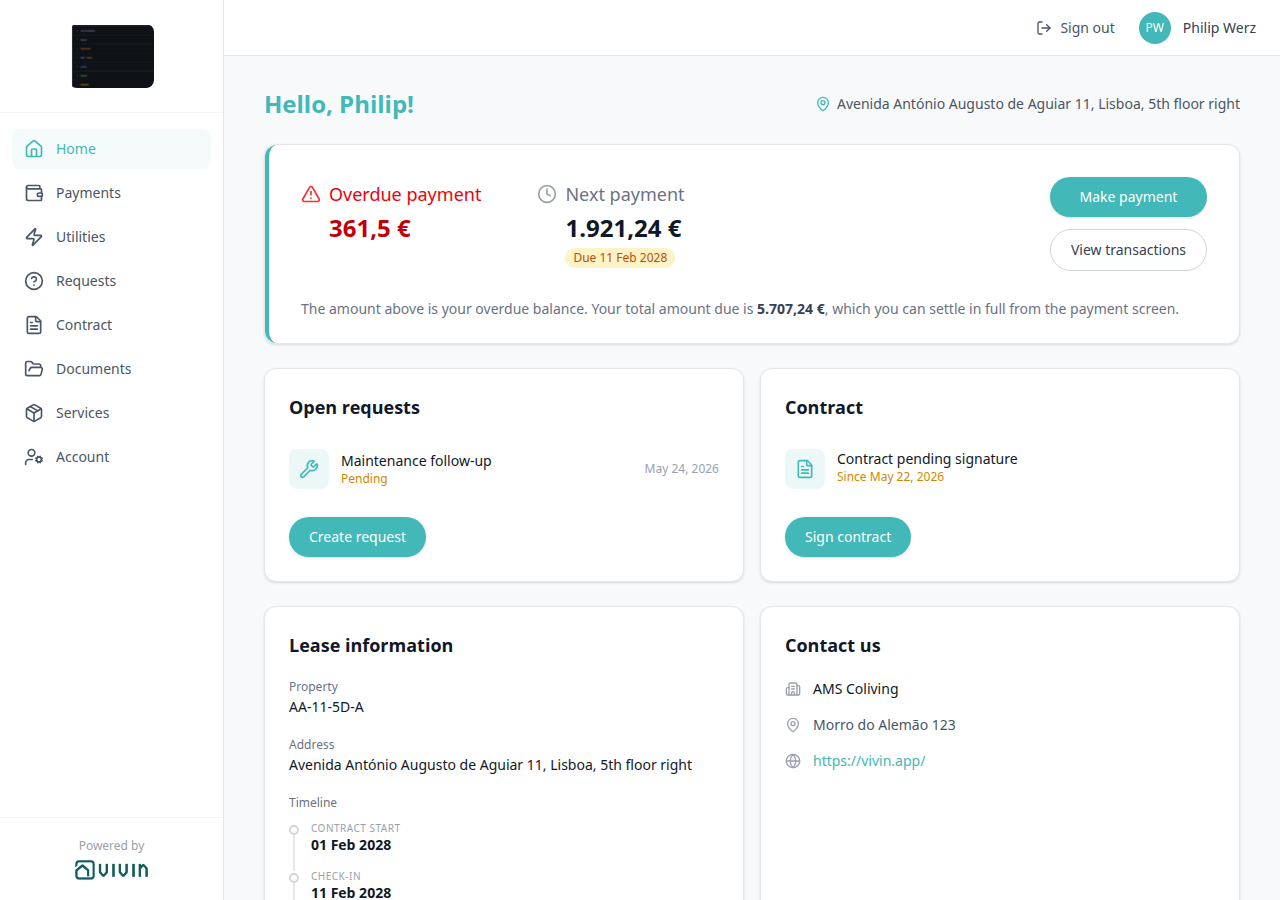

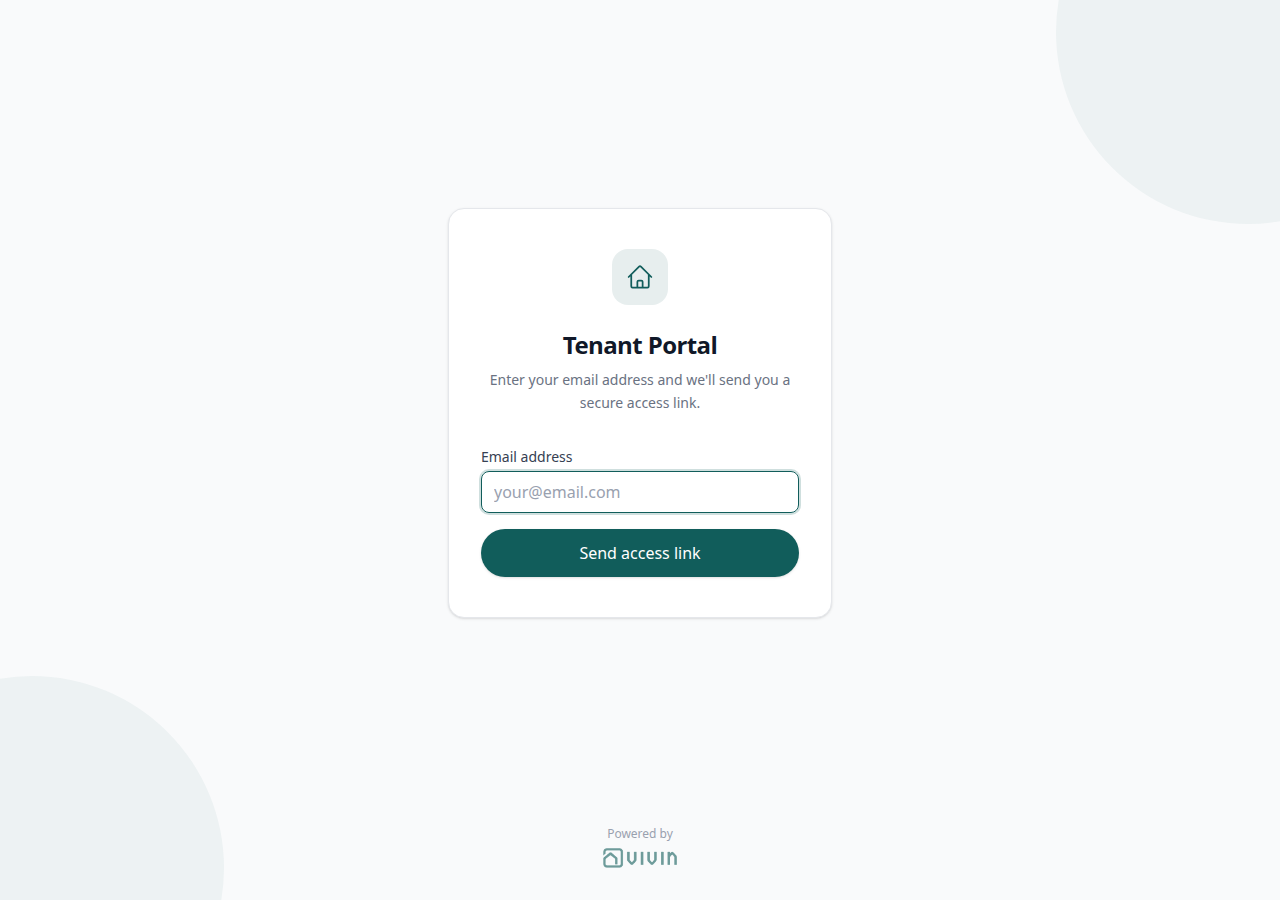
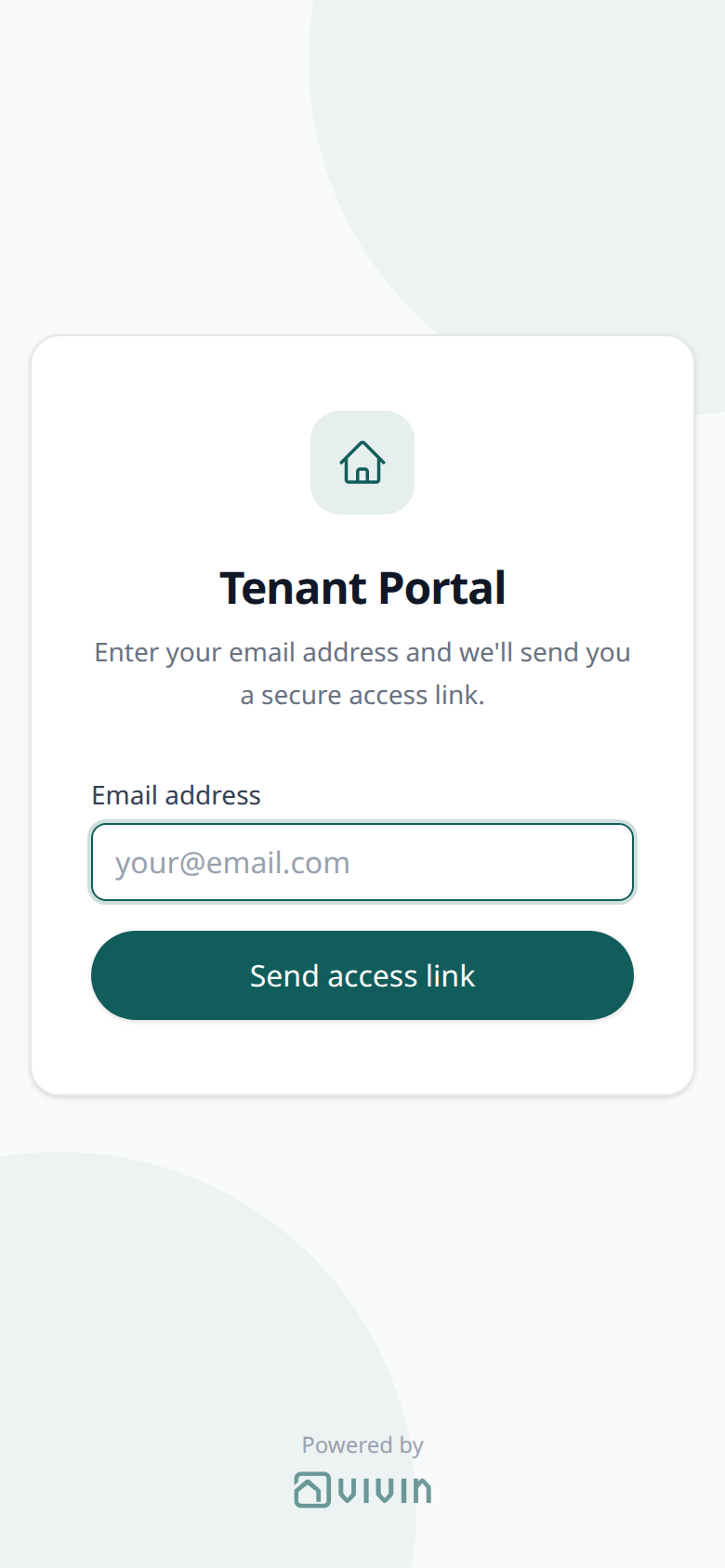
Who can change it
- Tenants — tap the mark to open Vivin’s site. They cannot hide it or change the destination.
- Operators — there is no toggle. Change Logo and Website URL on General Information → Branding for your brand; this attribution stays.
- Marketplace —
POST /bookingscannot send this control. See FAQ — What does Powered by VIVIN mean in the Tenant Portal?.
Branded home screen
The branded home screen pairs with Logo website, Powered by VIVIN (Vivin’s attribution, not your brand), Install app, Contact us (the same Company Name on Home), Settings > General Information (logo, brand colour, company name), and FAQ — How do tenants install the Tenant Portal on their phone?. Distinct from management Install app (PWA) (your team’s Vivin workspace, not the tenant-facing portal).
After a valid access link, the portal uses Company Name from General Information as the browser tab title, the home-screen name, and the favicon (your logo when one is uploaded). If no company name is stored, those labels fall back to Tenant Portal. Brand Color tints the phone status bar and the Install app overlay. There is no Portal settings hide toggle — this follows the same account-wide branding as the header and Contact us.
Tenants cannot rename the tab. Operators change Company Name, Logo, and Brand Color on General Information. Marketplace POST /bookings cannot send these labels — they come from the account, not the booking payload.
See FAQ — Is the tenant portal branded with my company? and Glossary — Install app (tenant portal).
Install app
Install app pairs with Branded home screen (the overlay title is Install plus your company name), Logo website (the same logo in the sidebar / header is a website link; this overlay is not), Powered by VIVIN (sidebar / access-link attribution, not this overlay), Settings > General Information (logo and brand colour on the card), and FAQ — How do tenants install the Tenant Portal on their phone?. Distinct from management Install app (PWA) (Install VIVIN in the management menu — not this tenant overlay).
On a phone, after sign-in, tenants may see a branded overlay so they can add your portal to the home screen — no App Store download. The headline is Install plus your company name (or Install Tenant Portal when no company name is stored), with two benefits:
| Benefit | What tenants read |
|---|---|
| Quick Access | Open with one tap from your home screen |
| Native Experience | Full screen without the browser bar |
On iPhone Safari, the overlay shows two steps instead of an install button:
1. Tap Share → 2. Add to Home Screen
Then Maybe later. The prompt appears on Safari when the portal is not already installed and the tenant has not dismissed it on this browser.
On Android (Chrome and similar), the overlay shows a teal Install App button (download icon) instead of the Share steps. Tenants tap Install App when the browser offers install, or Maybe later.
Tenants can also close the overlay with the X, by tapping outside the card, or with Escape. Dismissing it on this browser hides it until they clear site data. When the portal is already open from the home screen (full screen, no browser bar), the overlay does not show.
This is not management Install app. Installing the Tenant Portal does not install the Vivin workspace, and installing VIVIN for your team does not install the tenant-facing portal.
Marketplace POST /bookings cannot send this overlay.
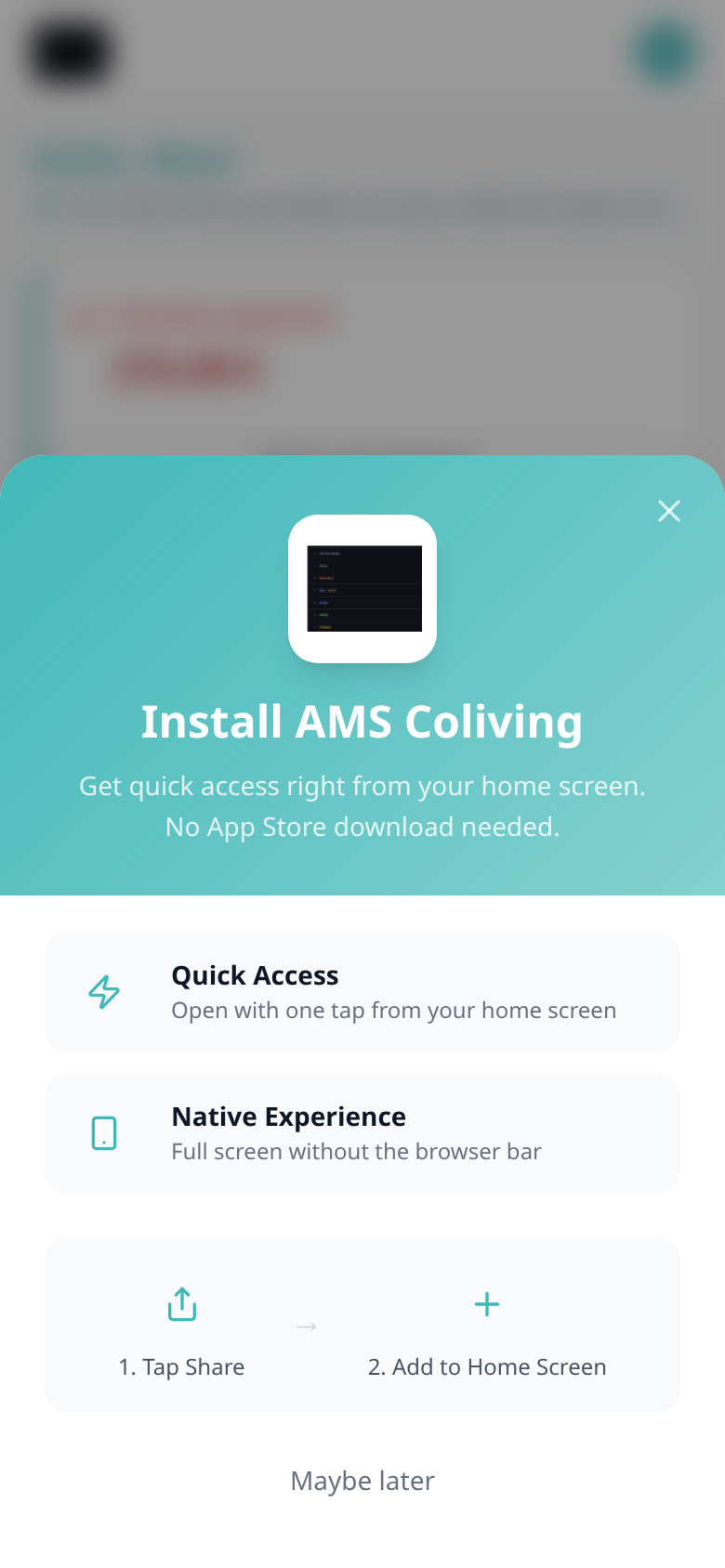

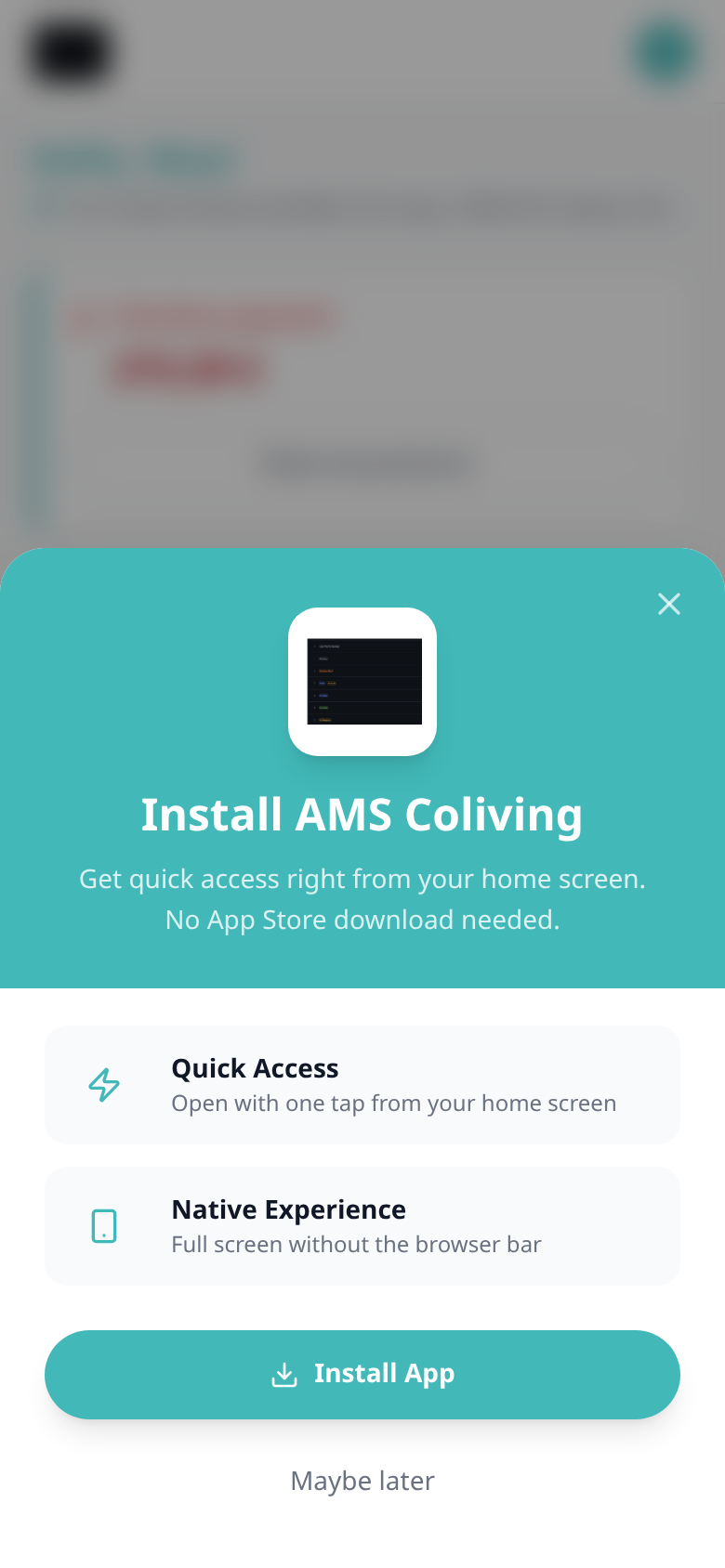
Who can change it
- Tenants — install from the overlay, or dismiss with Maybe later / X. They cannot change the company name on the card.
- Operators — Company Name, Logo, and Brand Color on General Information. There is no Portal settings hide toggle.
- Marketplace —
POST /bookingscannot send Install app. See FAQ — How do tenants install the Tenant Portal on their phone?.
Tenant Self-Service
Depending on your configuration in Settings > Preferences > Tenant Portal, tenants may be able to:
| Area (Portal settings toggles) | What the tenant can do when enabled |
|---|---|
| Fiscal / ID / billing / IBAN fields | Update the corresponding profile and bank fields before or after contract signature, per toggle. When bank or billing editing is Off, tenants see the locked bank and billing banners instead of editing those cards. |
| Allow to create tickets | Submit New Request (Report an Issue or General Inquiry) — creates Operations tickets. |
| Allow to see services | Browse the services catalogue (Show more, Confirm request), read Order History, and Cancel pending Awaiting approval rows. |
| Allow to see utilities | View utility consumption and charges. |
Contract signing gates — Under the same Tenant Portal card, Mandatory for contract signing can require any combination of Your Details fields (first name and last name, phone, nationality, ID document details, fiscal number and home address, IBAN, and related fields) to be filled before the tenant can sign. Each enabled toggle is enforced in the portal UI and on the sign API. See Portal settings — Mandatory fields before contract signing. Tenant categories can further narrow portal modules and editable fields per segment. Account → Save changes still requires both names when those fields are editable, even if the signing toggles stay Off.
Paying online follows Online Payments: account payment module + Property Payments Active, not a separate “online payments” row on Portal settings.
Key Rules
Summary rules pair with Portal access by tenant category, Bookings > Contract Info, and Settings > General Information (branding).
-
Access is per-booking. Portal links include booking credentials (typically
id+code). Email access-link requests deliver those credentials in a secure link. A tenant with multiple bookings needs separate links/credentials per booking. -
Self-service is scoped by settings and booking type. Tenants can view contract, property, and payment information. They cannot change booking dates or the core payment schedule from the portal. Depending on your Portal settings, they may update specific profile/billing fields, sign the contract digitally, and pay online when the payment module and property toggles allow it.
-
Online payments require an active payment module and a property that allows payments. The account must have tenant pay-in provisioned, and Property Payments Active must be on for that listing’s property; otherwise the portal will not complete an online payment.
-
Branding is account-wide. All tenants see the same brand colour and logo, regardless of which property they are renting.
-
The portal is white-labelled. Tenants see your company name, logo, and colours. A small Powered by VIVIN line stays at the bottom of the computer sidebar (and on the email access-link screen); it always opens Vivin’s site and cannot be hidden.
-
Maintenance requests create tickets automatically. When a tenant submits a request, it appears in the Operations module for your team to manage.
Tenant Portal section cross-reference
Use the sections above for this concept. Related module and workflow pages are linked inline where they help the next step.
Related
Related below links this concept to modules, workflows, settings, and escalation paths.
Documentation map & escalation
- Introduction — Platform overview and how documentation sections connect
- Getting Started — Recommended setup sequence including tenant portal configuration
- Modules — Operator workspaces that feed portal data (Bookings, Finance, Operations, Utilities)
- Concepts — Underlying models behind portal payments, lifecycle, and automation
- Account Settings — Workspace-wide portal toggles, branding, and tenant categories
- API Reference — Partner imports that create bookings with portal credentials (distinct from tenant-facing URLs)
- Glossary — Term definitions used across portal docs; portal-specific answers in FAQ — Tenant Portal
- FAQ & Troubleshooting — Quick answers when portal behaviour disagrees with operator expectations
- Get Help & Support — Escalation when portal access is blocked by account state or permissions
- Using in-app support — Vivin product tickets distinct from tenant maintenance Requests
Navigation & bookmarks
Bookmark routes pair with Management Frontend Deep Links and Concepts hub — Navigation & bookmarks.
- Bookings > Contract Info — Tenant Portal link — Copy or preview the booking-scoped
id+codeURL operators share with tenants - Management Frontend Deep Links — Bookmarkable management routes paired with portal setup (Account Settings, Notifications bell vs
/notifications) - Settings > Tenant categories —
/settings/tenantCategoriessegment rules that gate portal modules and editable fields - Settings > Interface language — Operator UI locale before you walk multilingual tenants through portal screens on a shared monitor
- Language switcher — Globe + EN / PT / ES / IT tenants use (not your Personal Settings locale)
- Tenant MCP — Booking-scoped automation tools (
get-portal-link, maintenance) that wrap the same Core API as the portal UI
Portal setup and tenant-facing workflows
- Getting Started — Recommended setup sequence including tenant portal configuration
- Processing a New Booking — Step 2 — Assign Category on Tenant Info before portal mail on direct bookings
- Processing a New Booking — Step 6 — When portal access becomes active (Contract Info link / impersonate)
- Managing a Check-in — Verify portal links and access codes before key handover
- Managing a Check-out — Final charges and deposit context tenants review during departure (Glossary — Deposit lifecycle status; section cross-reference; Deeper workflow reads; hub)
- Handling a Late Payment — Step 1 — Online pay-in and schedule visibility when chasing overdue balances; upstream path from Notifications — Payment overdue alerts
- Notifications — Payment overdue alerts — Operator Payments category rows when tenants still owe on Make payment options
- Entering Monthly Utility Bills — Operator bill entry; tenants see consumption on Daily Breakdown and statements on Your Property Bills when Allow to see utilities is On
- Cancelling a Booking — Tenant-visible schedule and balance changes after void
- Notification triage — Payment alerts tenants reference when messaging outside the portal; payment overdue → Handling a Late Payment — Step 1
- FAQ — Tenant Portal & Mobile App — Common tenant access and payment questions
- FAQ & Troubleshooting — Broader portal, contract, and payment troubleshooting
Settings and configuration
- Settings > Preferences — Tenant Portal toggles, mandatory signing fields, utilities/services access
- Settings > Tenant categories — Per-segment portal modules and editable fields
- Settings > General Information — Branding (logo, brand colour, website) and the company name, address, and website on portal Home Contact us; the same Logo plus Website URL on Logo website; Powered by VIVIN is separate (always Vivin’s site); the same Company Name on the branded home screen and Install app overlay
- Listings — Step 1: Property Details — Property name, address, and floor on portal Home Lease information and the greeting pin
- Settings > Emails — Onboarding/check-in emails with direct portal links
- Settings > Services — Catalogue tenants browse on Services
- Settings > FAQs — Publish Q&A that tenants read on Requests FAQ accordion
- Listings > Access Lockers — Entry codes on portal Home (Entry codes)
- Listings > WiFi — Network name and password on portal Home (WiFi)
- Listings > Cleaning — Common-area and room weekdays on portal Home (Cleaning)
- Listings > Payments tab — Property Payments Active gate for online pay-in
Concepts and operator modules
- Payment Allocation — Receipt allocation and credit note follow-up
- Booking Lifecycle — Status model behind portal lease summary cards
- Services Marketplace — Add-on revenue beyond rent
- Automation & AI — WhatsApp/email automation vs portal self-service
- Integrations & Distribution — Channel bookings that receive portal access
- Tenant MCP · Landlord MCP — External AI clients wrapping Core API tools
- Operations module — Where maintenance requests land (Draft ticket, linked cash flows)
- Utilities module — Operator bill upload and Bills Included model behind Utilities
- Finance module — Reconcile portal card and vIBAN receipts
- Inbox module — WhatsApp triage when tenants message outside the portal UI
- Bookings module — Contract Info portal link, payment plan, deposit, and Files tabs
Deeper workflow reads
Portal setup and tenant-facing workflows above. Each workflow sub-guide reciprocates with [Deeper workflow reads](../concepts/tenant-portal.md#deeper-workflow-reads) anchors on Tenant Portal bullets —
- Processing a New Booking — Assign Category on Tenant Info and confirm portal access after confirmation
- Managing a Check-in — Verify portal links and access codes before key handover
- Managing a Check-out & Deposit Refund — Final charges and deposit context tenants review during departure
- Handling a Late Payment — Step 1 — Online pay-in and schedule visibility when chasing overdue balances
- Entering Monthly Utility Bills — Operator bill entry; tenants see consumption on Daily Breakdown and statements on Your Property Bills when Allow to see utilities is On
- Cancelling a Booking — Tenant-visible schedule and balance changes after void
- Notification triage — Payment alerts tenants reference when messaging outside the portal
- Onboarding a New Property — Configure portal toggles and tenant categories before the first reservation
Deeper concept reads
- Payment Allocation — Portal payments and receipts that allocate against Layer 1 schedules
- Services Marketplace — Tenant add-on catalogue and purchase flows on Services
- Automation & AI — WhatsApp chatbot channel versus portal self-service
- Booking Lifecycle — Computed status model behind portal lease summary cards
- Tenant MCP — Booking-scoped external clients that wrap the same portal links and payment tools
- AI usage API — Tenant portal sessions are not metered on the operator
ai_usageledger
Deeper API reads
- Creating Bookings — Partner imports that provision portal credentials alongside the schedule
- Booking Engine API — White-label checkout that creates bookings tenants open in the portal
- Webhooks & Notifications — Optional push when portal onboarding or payment events need partner callbacks
- Booking Lifecycle & Validations — Computed status vocabulary partners should not conflate with webhook
eventnames
Operator habit hubs
Day-to-day operator habits (lockout catch-up, pending receipts, payment triage, handoffs, and related playbooks) live on the Common Workflows habit hub.
Deep-link anchors for habit hubs
Lockout catch-up after password recovery
Pending manual receipt approval
Reject/revert mistaken receipts
Portfolio segmentation by tenant category
Notification row-click navigation
Payment alert to receivables triage
Confirmation alert triage
Finance debt receivables triage
Finance Income status drill-down
Cash flow forecast drill-down
Key glossary terms
- First name (tenant portal) — Portal First name / Last name (Email on the same row is read-only)
- Phone number (tenant portal) — Portal Phone (optional +, 7–15 digits)
- Nationality (tenant portal) — Portal Nationality (searchable nationality words with flags)
- ID document details — Portal Identification ID, ID Type, ID Expiry Date, and Country of issue
- Fiscal number (tenant portal) — Portal Fiscal number and Home address
- Billing address (tenant portal) — Portal Billing address, City, Postal code, and Country (invoice street — not Home address)
- Locked bank and billing banners (tenant portal) — Amber notices when portal settings lock bank or billing editing
- Save changes success (tenant portal) — Green Details updated successfully! after Save changes on Account
- Select an amount (tenant portal) — Portal Make payment radios (Pay overdue debt, Pay next payment, Pay overdue + next payment, Pay entire balance)
- Make payment Back (tenant portal) — Portal Make payment left chevron (returns to Home or Payments without paying)
- Payment Due Soon (tenant portal) — Portal Make payment dialog when expanding Bank Transfer near a due date
- Copy virtual IBAN (tenant portal) — Portal Make payment → Bank Transfer tap-to-copy receiving IBAN (green check)
- Sign out (tenant portal) — Portal Sign out (desktop top bar or More — End this session on this device)
- Language switcher (tenant portal) — Portal globe + flag + EN / PT / ES / IT (desktop top bar or phone header)
- Greeting (tenant portal) — Portal Home Hello, First name! (or Hello! when the name is empty)
- Listing address (tenant portal) — Portal Home map pin (listing street plus Floor)
- More (tenant portal) — Phone More page (Documents, Utilities, Services, Account, Sign out)
- Documents (tenant portal) — Portal Documents (preview / download; Hostkit invoices open in a new tab)
- Payment details (tenant portal) — Portal Payments timeline sidebar (Paid / Pending / Overdue / Scheduled, Total, Breakdown)
- Same-month installment titles (tenant portal) — Portal Payments → Payment Timeline MMM YYYY payment — due D when two regular installments share a calendar month
- TODAY far-due date (tenant portal) — Portal Payments → Payment Timeline TODAY divider next payment due DD MMM YYYY when the next installment is 60+ days away
- TODAY compact tick at the end (tenant portal) — Portal Payments → Payment Timeline compact TODAY tick after the last card when no installment is still in the future
- Overdue days past due (tenant portal) — Portal Payments → Payment Timeline Overdue chip N days past due on a late installment
- Pending installment (tenant portal) — Portal Payments → Payment Timeline Pending card (amber Remaining, N days remaining or Due DD MMM YYYY)
- Pending N days remaining (tenant portal) — Portal Payments → Payment Timeline Pending chip N days remaining (1–59 calendar days)
- Paid installment (tenant portal) — Portal Payments → Payment Timeline Paid card (green check, green Total, no Remaining)
- Discounted installment (tenant portal) — Portal Payments → Payment Timeline Paid card whose Total is below the original scheduled amount (original struck through)
- Scheduled Due in N days (tenant portal) — Portal Payments → Payment Timeline Scheduled chip Due in N days on a future installment
- Upcoming (tenant portal) — Portal Payments → Payment Timeline Scheduled chip Upcoming when that due date is today or already past
- Platform payment label (tenant portal) — Portal Payments → Transaction History channel name and logo (Roomless, Airbnb, …) instead of Platform Payment
- Cash type label (tenant portal) — Portal Payments → Transaction History Cash (plain text, no logo)
- Bank Transfer type label (tenant portal) — Portal Payments → Transaction History Bank Transfer (plain text, no logo; not Make payment Bank Transfer)
- Viban type label (tenant portal) — Portal Payments → Transaction History Viban (plain text, no logo; not the Virtual IBAN processing notice)
- Credit Card type label (tenant portal) — Portal Payments → Transaction History Credit Card (plain text, no logo; not Make payment Credit Card)
- Automatic Adjustment type label (tenant portal) — Portal Payments → Transaction History Automatic Adjustment (plain text, no logo; not operator Adjustment)
- Overpayment Return type label (tenant portal) — Portal Payments → Transaction History Overpayment Return (plain text, no logo; not timeline Deposit Refund)
- Deposit Refund type label (tenant portal) — Portal Payments → Transaction History Deposit Refund (plain text, no logo; not the timeline Deposit Refund card)
- Manual Card type label (tenant portal) — Portal Payments → Transaction History Manual Card (plain text, no logo; desk/POS card recorded by operators, not portal Credit Card checkout)
- Others breakdown (tenant portal) — Portal Payments → payment details → BREAKDOWN Others / Others - Category (for example Others - Penalty fee) with reason subtitles
- View transactions (tenant portal) — Portal Home outline button on the balance card (Payments → Transaction History)
- Transaction History pagination (tenant portal) — Portal Payments → Transaction History footer (Showing X–Y of Z, Page N of M, 10 rows per page)
- Transaction History search (tenant portal) — Portal Payments → Transaction History search (type, description, date, signed amount)
- Transaction History sort (tenant portal) — Portal Payments → Transaction History Date / Amount sort (phone menu; Total stays chronological)
- Export CSV (tenant portal) — Portal Payments → Transaction History spreadsheet download (Date, Description, Amount, Total)
- Receipt column (tenant portal) — Portal Payments → Transaction History Receipt icon (grey until a file is matched; Documents fallback)
- Virtual IBAN processing notice (tenant portal) — Portal Payments blue 3 business days notice under Transaction History
- Entry codes (tenant portal) — Portal Home Entry codes card (building / property / unit access, Show / Copy / Hide, optional Hint:)
- WiFi (tenant portal) — Portal Home WiFi card (network name, masked password, Show / Copy / Hide)
- Cleaning days — Portal Home Cleaning card (common areas + room weekdays)
- Balance card (tenant portal) — Portal Home overdue / outstanding / next payment card (Make payment, View transactions)
- Open requests (tenant portal) — Portal Home Open requests card (View all, Create request)
- Received status (tenant portal) — Portal Received on Home and Request History (Unassigned in Operations)
- Contract card (tenant portal) — Portal Home Contract card (Sign contract / View contract)
- Download contract (tenant portal) — Portal Contract PDF viewer (N pages and the download icon; file
contract.pdf) - Read to the end to sign (tenant portal) — Portal Contract banner that unlocks Sign after the tenant scrolls the PDF
- Lease information (tenant portal) — Portal Home Lease information card (property, address, stay timeline)
- Contact us (tenant portal) — Portal Home Contact us card (company name, address, website)
- Logo website (tenant portal) — Portal sidebar / header Logo opens Website URL in a new tab
- Powered by VIVIN (tenant portal) — Portal Powered by VIVIN (computer sidebar and access-link screen; always Vivin’s site)
- Install app (tenant portal) — Portal Install app overlay (company name in the headline; iPhone Share → Add to Home Screen; Android Install App)
- FAQ accordion (tenant portal) — Portal Requests FAQ card (published catalogue answers; drafts stay hidden)
- Your Property Bills (tenant portal) — Portal Utilities bill list (Preview / Bill Preview; not Documents)
- Daily Breakdown (tenant portal) — Portal Utilities day-by-day consumption grid ((you), today outline, hover date and amount)
- Order History (tenant portal) — Portal Services confirmed add-ons (Active / Nx ordered; not Requests → History)
- Show more (tenant portal) — Portal Services catalogue Show more / Show less on a long card description
- Confirm request (tenant portal) — Portal Services review panel after Request Service (full Description, Monthly or One-time, Total, teal Confirm request, Cancel)
- IBAN (tenant portal) — Portal IBAN (personal account for deposit refunds)
- European bank account — Portal Account type toggle (IBAN/SEPA vs international bank fields)
- Use company billing — Portal Use company details toggle (personal vs company invoices)
- Mandatory for contract signing — Asterisk gates on the signature wizard Your Details step
- Credit note (payment reject/revert) — Accounting follow-up when operators reject portal card or vIBAN receipts that Finance already invoiced
- Deposit dispute — Freeze deposit refunds when tenants contest deductions visible on Home balance cards
- Glossary — End-of-Booking cost split — Charge Time → End of Booking splits daily overage across every occupied unit; still-staying roommates stay in the denominator
- Glossary — Change history — Operator-initiated edits on Listings setup and Bookings Changelog; create-time defaults excluded
- Glossary — Archived booking ledger visibility — Delete Booking hides manual/provider_platform rows on Finance → Transactions; vIBAN and credit card stay visible
- Glossary — Full term list
Module documentation hubs
- Bookings module — Reservation workspace that feeds portal schedule, contract, files, and deposit context (hub)
- Finance module — Reconcile portal payments, vIBAN receipts, and Contract Values (hub)
- Operations module — Where portal Requests land as maintenance tickets (hub)
- Utilities module — Operator bill upload behind portal Utilities when enabled (hub)
- Tenants module — Operator-side profiles and tenant category assignment (hub)
- Inbox module — WhatsApp triage when tenants message outside the portal UI (hub)
- Account Settings — Workspace-wide portal toggles, branding, emails, and services catalogue (hub)