Resetting a Management User Password
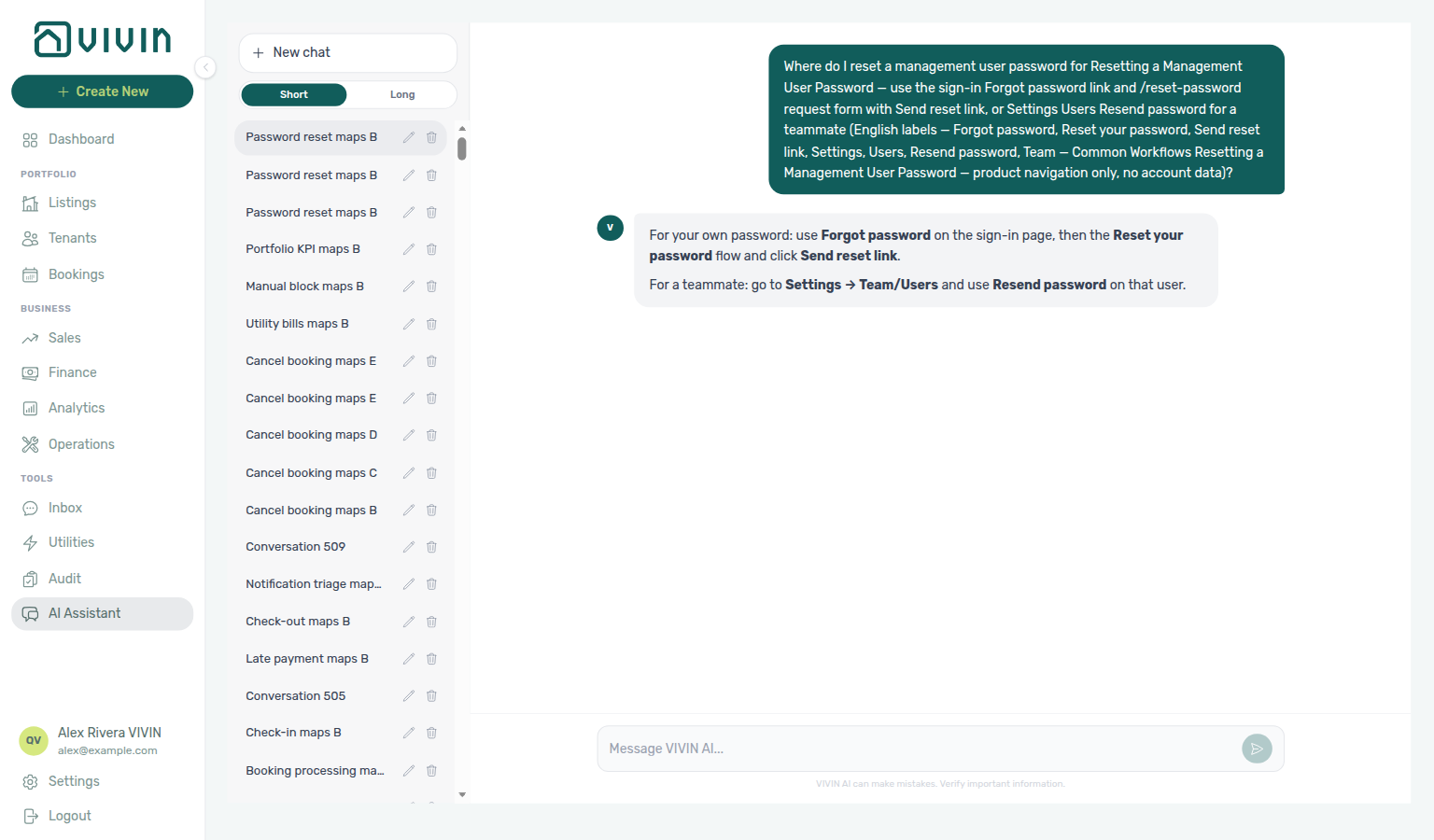
Ask AI Chat “Where do I reset a management user password for Resetting a Management User Password — use the sign-in Forgot password link and /reset-password request form with Send reset link, or Settings Users Resend password for a teammate (English labels — Forgot password, Reset your password, Send reset link, Settings, Users, Resend password, Team — Common Workflows Resetting a Management User Password — product navigation only, no account data)?” — then open Forgot password? on the sign-in page or Settings → Team → Users (ai-chat-product-context-password-reset-reply.png, ai-chat-product-context-password-reset-flow.mp4). The assistant typically says Forgot password on the sign-in page (then Reset your password / Send reset link), and Settings → Team/Users with Resend password for a teammate. Same grounding external MCP clients get from get-vivin-context-platform. Distinct from the broader Users tab map (“where do I open Users to invite team members…?”) and from the Common Workflows hub product maps.
New invites should set a password via Getting Started — Accessing the Platform after Settings → Users (setup step 3) creates the account. After recovery, run Getting Started — Lockout catch-up after password recovery to clear onboarding, alert, and month-end meshes delayed by the lockout. Refresh Landlord MCP JWT after Step 3.
Self-service path: Step 1: Request a password reset email → Step 2: Open the reset link → Step 3: Set a new password. After recovery, run Getting Started — Lockout catch-up after password recovery. Stuck flows: Troubleshooting. Habit-specific shortcuts live under Related below.
Use this guide when a management platform user cannot sign in because they forgot their password.
This workflow applies to users who log into platform.vivin.app with email + password. When the hub shows Sign in with Google, teammates whose Google email matches their Users invite can sign in that way instead of resetting a password — password recovery remains available under Forgot password? on the same screen.
New team members invited from Users and roles should complete first login per Getting Started — Accessing the Platform (password from the invite link, or Sign in with Google when shown).
This is different from tenant authentication. Tenants use Booking ID + Access Code, not email/password. See Tenant Portal.
Booking-scoped Tenant MCP uses Bearer JWT for automation bridges tied to tenant booking context — it does not reset management email/password sign-in. Tenants recover portal access with Booking ID + Access Code on Tenant Portal, not this workflow — get-portal-links and get-payment-info remain available to tenant MCP clients while operators recover management access here. After you rotate a management password, refresh external Landlord MCP client JWTs and Mcp-Session-Id sessions; tenant MCP service tokens are a separate credential surface.
Step 1: Request a password reset email
Self-service entry pairs with Deep Links — Auth routes (bookmark /reset-password), Interface Language (sign-in link wording), and Users & Roles (admin Resend password when this step is not enough). Tenant MCP uses booking-scoped Bearer JWT — tenants recover portal access on Tenant Portal with Booking ID + Access Code, not this workflow. Downstream: Step 2 (open the tokenized email link).
- Go to platform.vivin.app.
- On the sign-in page, use the Forgot password? link under the form (wording may match your interface language; some locales say Reset your password).
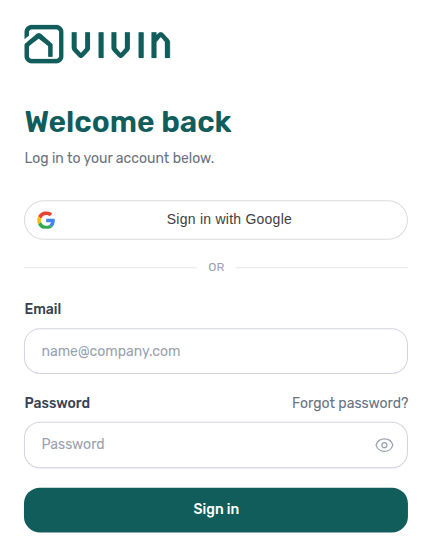
- You land on
/reset-passwordwith an email field and Send reset link (you can also open platform.vivin.app/reset-password directly).
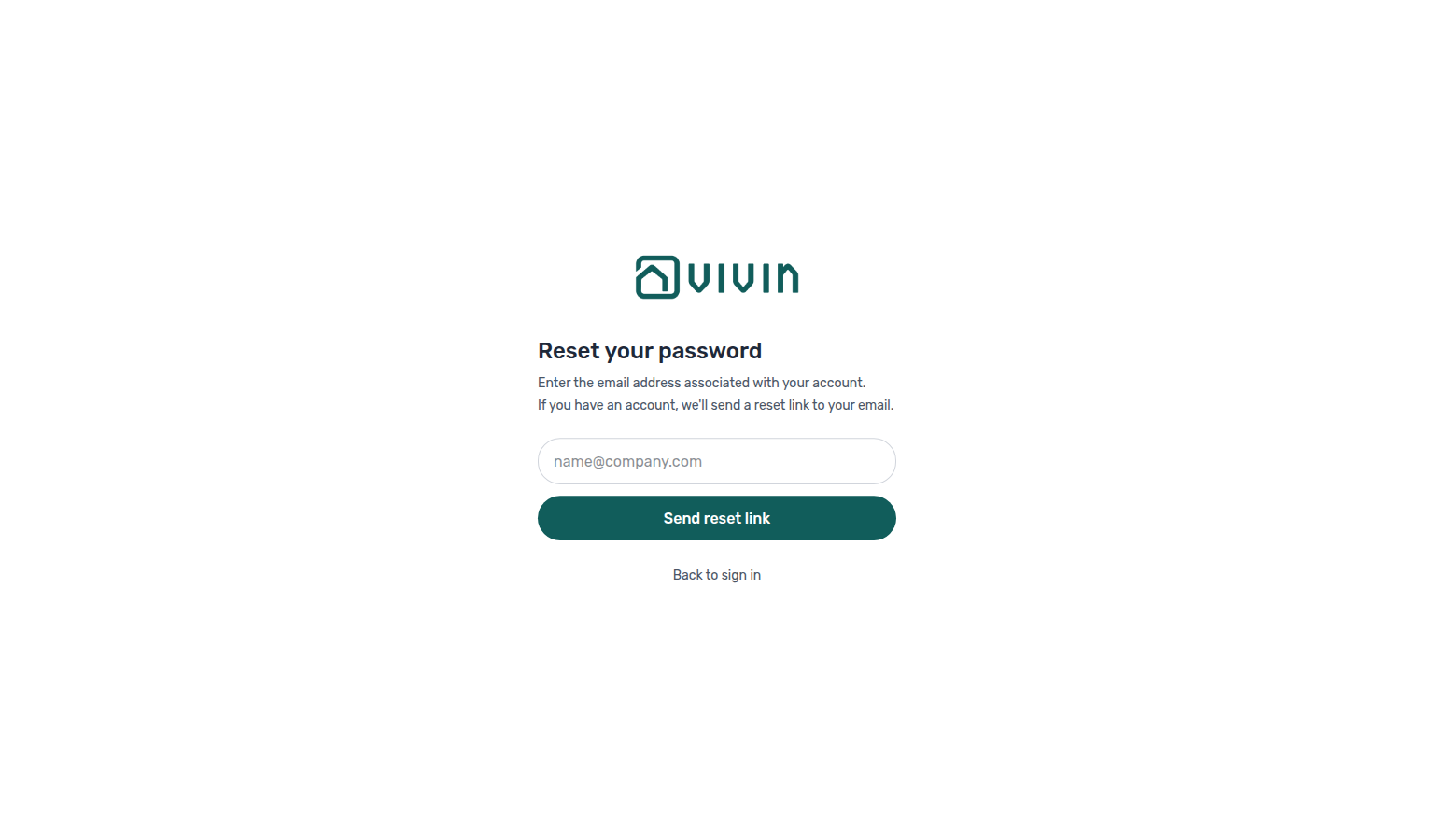
- Enter the management user's email address.
- Click Send reset link.
The form validates the email format in the app before calling the server (for example when the address is missing @ or the domain). Fix the highlighted message and submit again — you do not need to wait for a server round-trip to catch a malformed address.
The system always confirms with a generic success message ("If an account exists..."), even if the email does not match a user. This is expected behavior for account security. The same success screen also appears when the reset request fails for a server or network error (for example HTTP 5xx) — Vivin does not surface a distinct failure state on this step. If no email arrives within a few minutes during a known outage, treat the confirmation as unreliable: wait and retry Step 1, or ask an admin to use Resend password under Settings > Users & Roles.
Step 2: Open the reset link (token step)
Token validation pairs with FAQ — Management account access and Get Help & Support when the link is missing or already expired. Upstream: Step 1 (request a fresh link if the token fails). Downstream: Step 3 (set and confirm the new password).
- Open the reset email in your inbox.
- Click the password reset link from the email.
- Verify the URL includes a reset token parameter (for example:
/reset-password?token=...).
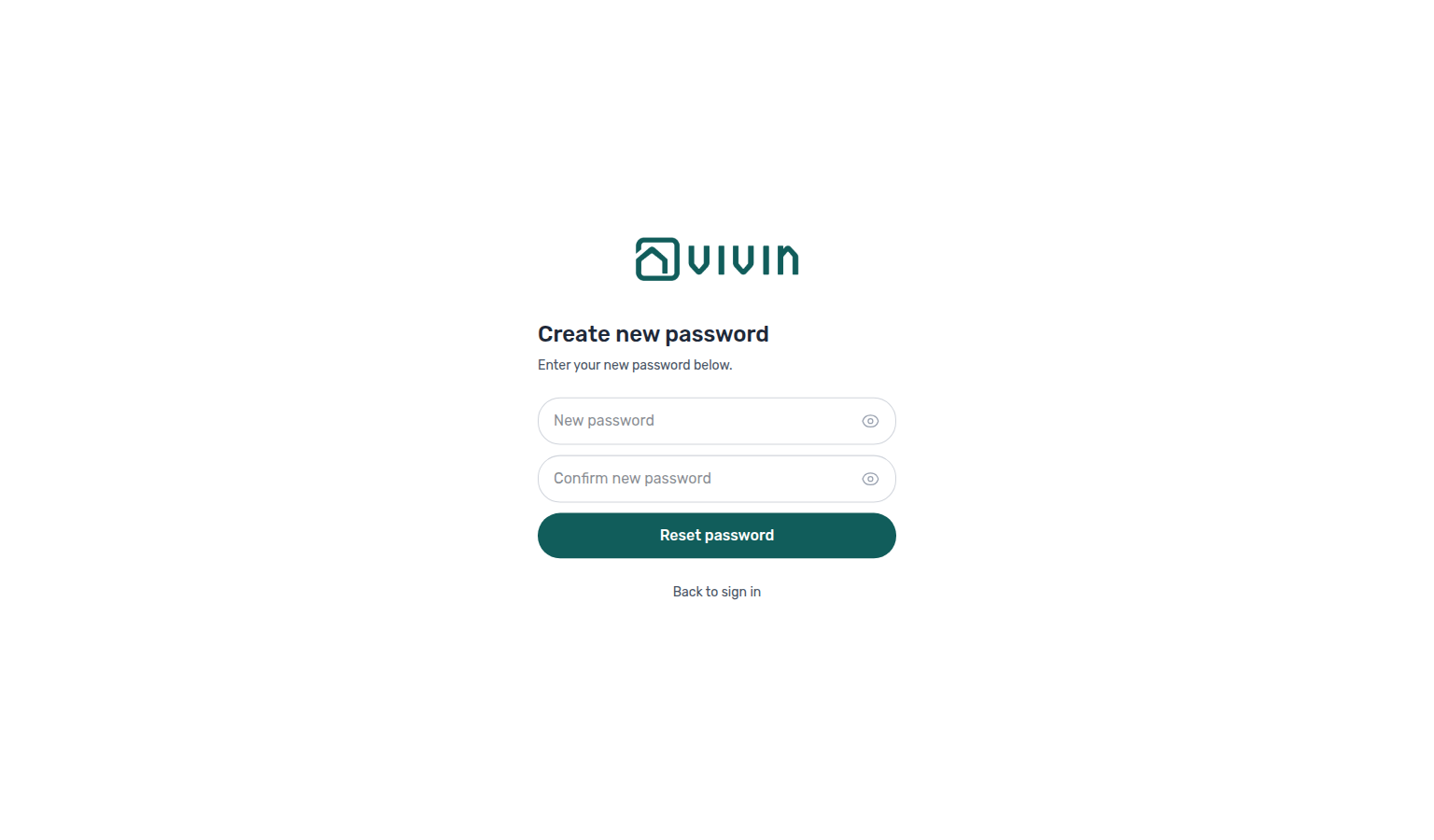
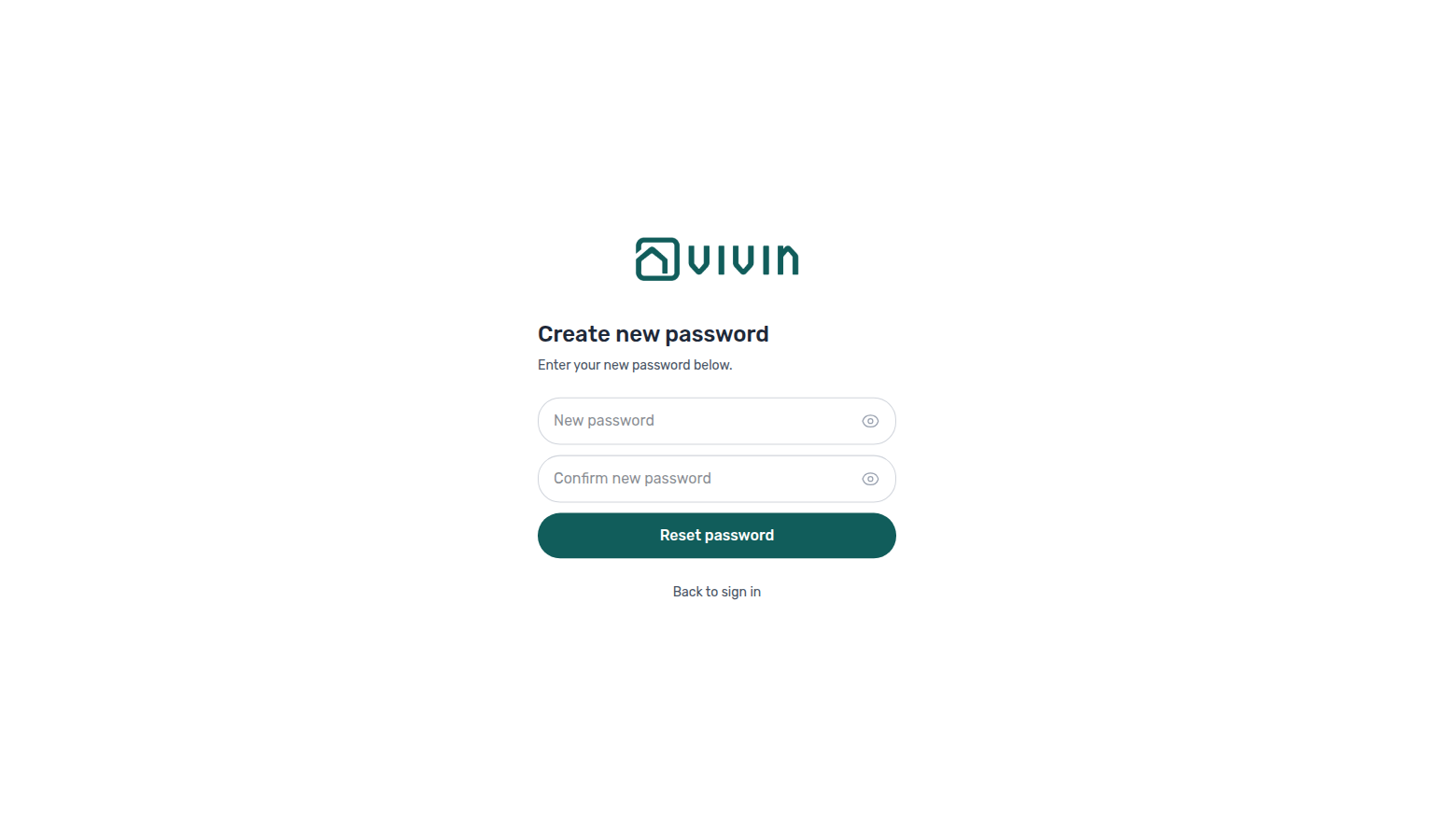
If the token is valid, the page shows Create new password with two password fields and Reset password.
Step 3: Set a new password
Successful rotation pairs with Getting Started — Accessing the Platform (first login after invite), My Profile (display name), and Getting Started — Lockout catch-up after password recovery (onboarding and month-end meshes delayed by lockout). Upstream: Step 1 / Step 2. Downstream: refresh Landlord MCP Bearer JWT (see tip below), then Notification triage — Step 4 / Step 5, Portfolio KPI review — Step 7 (poll AI usage API for landlord_chat / utility_bill_extraction after JWT refresh — there is no in-app ledger screen yet), and the Step 6b receipt mesh across bookings, check-in/out, cancellations, utilities, and collections.
- Enter a new password (minimum 6 characters).
- Confirm the same password in the second field.
- Click Reset password.
After a successful reset, you will see a confirmation message and can return to sign-in.
Management email/password sign-in issues a fresh browser session — external Landlord MCP clients must also exchange a new Bearer JWT (and recreate Mcp-Session-Id if the old session expired) before portfolio tools resume. Booking-scoped Tenant MCP service tokens are a separate credential; rotating a management password does not invalidate tenant-facing portal access (Booking ID + Access Code). When external sessions still return 401 after a fresh login, file Using in-app support with the client name and error text — not a tenant notify-landlord escalation. After you regain access, catch up delayed operational work: Notification triage (Step 4 row-click for payment alerts, then Step 5; file Step 6 when row-click or read-state APIs still fail), month-end Pending receipt triage in Portfolio KPI review — Step 7 and the Step 6b mesh (Processing a New Booking — Step 6b, Managing a Check-in — Step 6b, Managing a Check-out — Step 6b, Cancelling a Booking — Step 6b, Entering Monthly Utility Bills — Step 4b), segment collections in Handling a Late Payment — Step 6 / Step 6b, tenant-segment review in Portfolio KPI review — Step 6, stale calendar holds in Manual block hygiene, monthly bill gaps in Entering Monthly Utility Bills — Step 5 (file Step 6 when AI extraction is blocked), portal gates on new or replacement bookings in Processing a New Booking — Step 6 and first-live inventory in Onboarding a New Property — Step 7, and departure closure on Managing a Check-out — Step 7 when lockout delayed move-out sign-off.
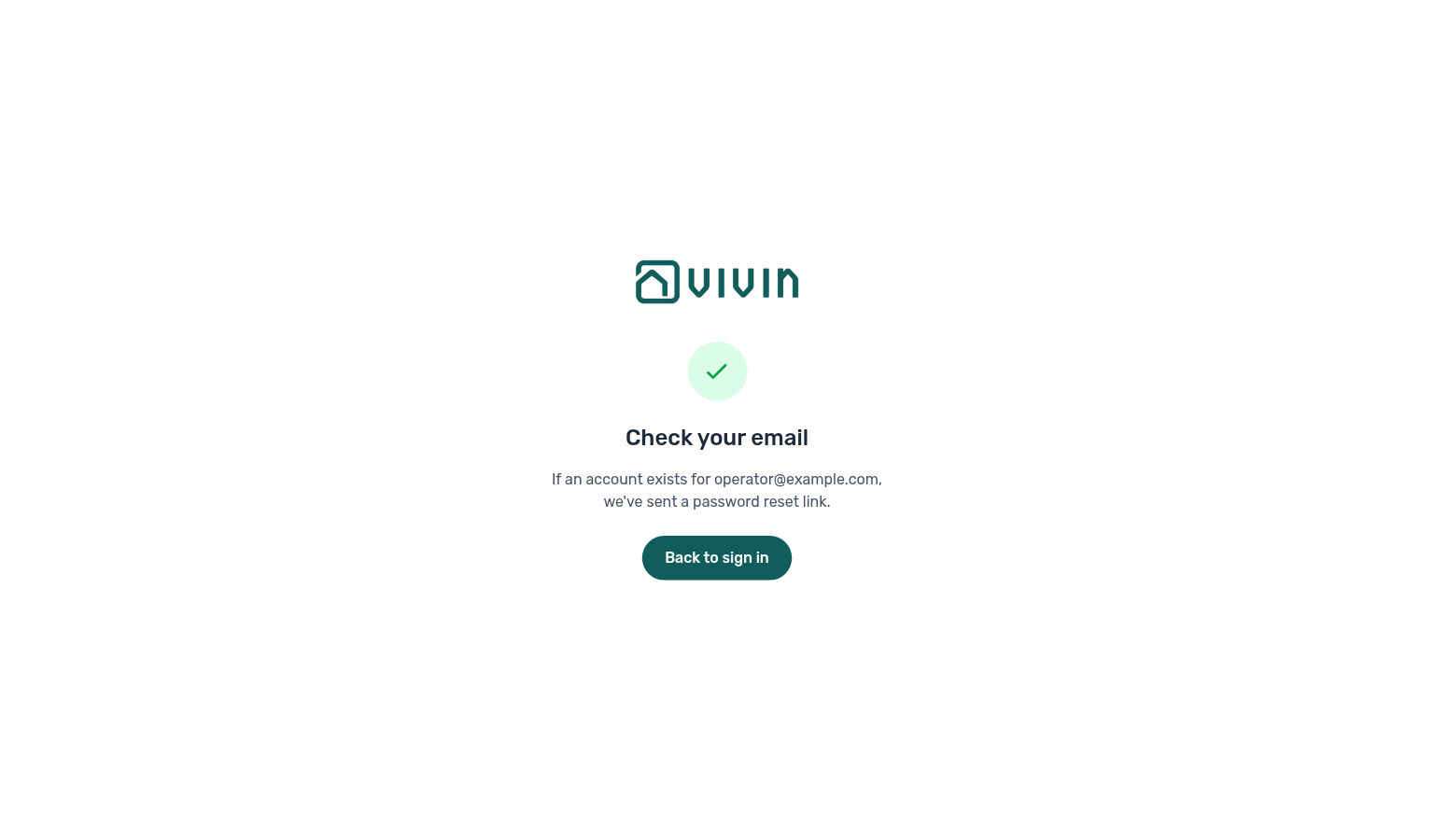
If you requested a link in Step 1, the app shows a Check your email confirmation (generic message even when the address is unknown — by design):
Troubleshooting
Troubleshooting pairs with Using in-app support when you regain browser sign-in but permissions, Finance filters, or external MCP scope still block work — distinct from tenant notify-landlord escalations. Upstream: return to Step 1 for a fresh token; complete Step 3 before external JWT refresh. Downstream catch-up: Notification triage — Step 6, Handling a Late Payment — Step 6 / Step 6b, Manual block hygiene, and Settings > Subscription when billing lockouts persist.
Invalid or expired reset link/token
Expired tokens loop back to Step 1 — use the newest email link only. Pair with FAQ — Management account access when multiple reset attempts stack in your inbox.
If you see an error indicating the reset link/token is invalid or expired:
- Go back to platform.vivin.app/reset-password.
- Request a fresh reset link.
- Use the newest email link and complete the reset flow again.
Didn't receive the reset email
Delivery delays pair with Users & Roles (admin Resend password), Settings > Emails (when Communication Rules blocked onboarding mail during lockout), and Get Help & Support when spam filters persist. Upstream: re-run Step 1 with the correct management email.
- Wait 1-2 minutes and refresh your inbox.
- Check spam/junk and quarantine folders.
- Confirm you entered the correct email address.
- If a platform outage is ongoing, remember the Check your email screen can appear even when the reset API failed — retry later rather than assuming mail was queued.
- If the user is managed by an admin, resend a reset email from Settings > Users & Roles.
Passwords do not match
If the form shows "Passwords do not match", re-enter both fields so they are identical.
External MCP clients still fail after reset
External session recovery pairs with Landlord MCP — How it connects and Landlord MCP — Permissions and safety (refresh Bearer JWT and Mcp-Session-Id after Step 3). Tenant MCP notify-landlord does not restore operator JWT scope — file Using in-app support for persistent 401/403. Downstream: Portfolio KPI review — Step 7 when MCP auth blocked month-end reconciliation during lockout.
- Sign in at platform.vivin.app and confirm the new password works in the browser.
- Re-issue the Bearer JWT your Landlord MCP bridge uses (management session bootstrap — see Landlord MCP — How it connects).
- Discard stale
Mcp-Session-Idheaders and open a new MCP session. - If tools still return 403 or unexpected scope errors, file Using in-app support — tenant MCP
notify-landlordandcreate-maintenance-ticketdo not restore operator JWT scope.
Resetting a Management User Password section cross-reference
Use the steps above for the main path. For related guides, open Related below, or return to Common Workflows.
Related
Related below links this workflow to modules, concepts, settings, and escalation paths.
Documentation map & escalation
- Common Workflows — Hub pairing matrix across all operator guides
- Getting Started — First login after invite or password reset; Lockout catch-up after password recovery (onboarding mesh parity)
- FAQ & Troubleshooting — Quick answers when reset email or token steps fail
- Get Help & Support — Email escalation when self-service reset is not enough
- Using in-app support — Structured Vivin support tickets when your role has the Support permission
Upstream & downstream workflows
- Notification triage — After you regain access, clear unread payment or booking alerts from
/notifications(Step 5); file Step 6 when row-click or read-state is still broken - Processing a New Booking — Step 6 — Portal gates on new or replacement bookings delayed by lockout
- Processing a New Booking — Step 6b — Month-end Pending confirmation receipts after regaining access
- Managing a Check-out — Step 6b — Departure-week Pending receipts after regaining access
- Cancelling a Booking — Step 6 — Operations ticket closure and rebook mesh delayed by lockout
- Cancelling a Booking — Step 6b — Cancellation settlement receipts and stale alerts after regaining access
- Entering Monthly Utility Bills — Step 4b — Utility overage Pending receipts after regaining access
- Entering Monthly Utility Bills — Step 5 / Step 6 — Monthly bill cycle delayed by lockout
- Managing a Check-out — Step 7 — Departure closure delayed by lockout
- Manual block hygiene — Stale calendar holds that suppressed occupancy during lockout
- Handling a Late Payment — Step 4b — Approve collections receipts backlog after regaining access
- Portfolio KPI review — Step 6 — Tenant-segment review when lockout delayed month-end KPI pass
- Portfolio KPI review — Step 7 — Catch-up month-end reconciliation when lockout delayed Total Debt and Finance drill-downs
- Managing a Check-in — Step 6 — Urgent access-code or Nuki tickets delayed before move-in day
- Onboarding a New Property — Step 7 — First arrivals on newly onboarded inventory before escalating Nuki defects (Step 6)
- Handling a Late Payment — Step 6b — Collections Pending mesh at month-end after arrival week (Step 6)
- Managing a Check-in — Step 6b — Month-end Pending move-in receipts after regaining access
- Handling a Late Payment — Step 6 — Collections backlog when lockout delayed segment-wide arrears triage
- Handling a Late Payment — Step 1 — Collections backlog when lockout delayed triage of payment overdue alerts
Navigation & bookmarks
Bookmark routes pair with Management Frontend Deep Links and Create New menu.
- Deep Links — Auth routes — Bookmarkable
/reset-passwordand token query parameters - Users & Roles — Admin Resend password when self-service reset is not enough
- My Profile — Update display name after regaining access (email stays read-only)
- Interface Language — Restore preferred locale from Personal Settings after sign-in
Concepts & settings that shape this workflow
- Tenant Portal — Tenant authentication contrast (Booking ID + Access Code, not email/password)
- FAQ — Tenant contract signing blocked — No PDF yet, mandatory Your Details gates, category locks, or Lease purpose; portal signing vs paper upload on Contract Info
- Tenant MCP — Booking-scoped Bearer JWT for external assistants; does not replace management password recovery (Step 1 contrast);
get-portal-linksandget-payment-inforemain tenant-scoped while operators reset management credentials;notify-landlorddoes not fix operator JWT failures after rotation - Automation & AI — MCP and in-product AI session recovery after password rotation
- Landlord MCP — Refresh Bearer JWT and
Mcp-Session-Idwhen external automation clients fail after Step 3; file Using in-app support for persistent 401/403 scope errors - Integrations & Distribution — Restore access before editing marketplace credentials under Account Settings → Integrations
- ChatBot settings — WhatsApp pairing may still show Disconnected until you sign back in
- Settings > Subscription — Billing and card-on-file when you cannot sign in to update payment method
- Settings > Emails — Resume Communication Rules configuration after lockout delayed tenant onboarding mail
- Settings > Tenant categories — Resume segment and portal-module configuration after regaining access
- Settings > Preferences — In-app notifications — Restore account-wide alert masters if a lockout delayed category changes
- Payment Allocation — Two-layer receipts, invoiced-floor rent edits, and credit note reject/revert warnings
- Booking Lifecycle — Computed Upcoming → Ongoing → Ended / Canceled status model, list filters, and Timeline
Deeper workflow reads
See Upstream & downstream workflows above for the same guides.
Deeper API reads
- Management session authentication — Operator Core API JWT refresh after Step 3 before Landlord MCP catch-up
- Authentication — Management JWT vs integration Bearer keys — tenants use portal codes, not this workflow
- Error Handling — Recoverable
401/403responses when external clients reuse stale JWTs - AI usage API — Refresh management JWT after Step 3 before polling
GET /ai-usage/summaryduring lockout catch-up (section cross-reference; Lockout catch-up after password recovery; hub)
Operator habit hubs
Day-to-day operator habits (lockout catch-up, pending receipts, payment triage, handoffs, and related playbooks) live on the Common Workflows habit hub.
Deep-link anchors for habit hubs
Check-out vs cancellation
Lockout catch-up after password recovery
Pending manual receipt approval
Utility overage collections
Check-out final utilities handoff
Check-in to check-out handoff
Check-out collections before refund
Check-out ledger cleanup before refund
Cancellation collections before void
Notification row-click navigation
Rent reduction after invoicing
Month-end invoicing (fixed date)
Bulk Hostkit invoicing
WhatsApp per-booking messaging
Bot reasoning (audit)
ChatBot settings
Payment notification (operator)
Payment alert to receivables triage
Finance debt receivables triage
Handling a Late Payment collections
Finance Income status drill-down
Cash flow forecast drill-down
Reject/revert mistaken receipts
Same-day turnover coordination
Occupancy KPI to block hygiene handoff
Deposit missing on Finance Deposits
Deposit lifecycle status
Partly collected security deposit
Wrong tenant on a booking
Cancel Booking vs Delete Booking
Portfolio retirement decisions
Provider platform Delete Booking guard
Archived booking ledger visibility
Archive property (building-level)
Confirmation to check-in handoff
Confirmation alert triage
Portfolio segmentation by tenant category
Dashboard Total Debt subtitle
Lockout catch-up on Getting Started — Lockout catch-up should clear Pending and alerts before trusting stale Total Debt on /.
- FAQ — Dashboard Total Debt subtitle — Headline vs >15 days subtitle (
dashboard-kpi-total-debt-tooltip.png) - Lockout catch-up after password recovery — Catch-up mesh after Step 3
- Pending manual receipt approval — Amber Pending before headline trust
- Portfolio KPI review — Step 7 — Month-end sign-off delayed by lockout
- Finance debt receivables triage — Debt Aging after catch-up (
dashboard-kpi-total-debt-tooltip.png)
Uncovered Debt KPI
Lockout catch-up on Step 3 should finish Pending triage before you trust Finance → Overview Uncovered Debt reads.
- FAQ — Uncovered Debt KPI — Deposit coverage vs Total Debt (
finance-overview-kpi-cards.png) - Glossary — Uncovered Debt — Strip compare after sign-in restore
- Lockout catch-up after password recovery — Catch-up before KPI trust
- Pending manual receipt approval — Amber Pending before strip read
- Dashboard Total Debt subtitle — Ongoing-only
/vs Finance strip
Directory list refresh
When a directory such as Bookings, Notifications, or Listings needs a refresh during this workflow, use Retry on the alert, or reload the page. Zero rows after a successful load means your filters matched nothing — widen filters or clear search.
See FAQ — Directory list refresh and Common Workflows — Directory list refresh.
Booking sidebar tab refresh
Inside an open booking, Communication and Tickets load independently — use header Refresh (Communication) or banner Retry (Tickets). Other sidebar tabs stay usable. Whole-module list refresh is Directory list refresh.
See FAQ — Communication or Tickets won't open and Common Workflows — Booking sidebar tab refresh.
Key glossary terms
- Glossary — End-of-Booking cost split — Charge Time → End of Booking splits daily overage across every occupied unit; still-staying roommates stay in the denominator
- Glossary — Change history — Operator-initiated edits on Listings setup and Bookings Changelog; create-time defaults excluded
- Glossary — Archived booking ledger visibility — Delete Booking hides manual/provider_platform rows on Finance → Transactions; vIBAN and credit card stay visible
- Glossary — Finance tenant category cache refresh — Recategorizing a tenant updates
booking.tenantCategoryIdimmediately; ledger tabs reflect it on reload, while Overview can lag up to ~10 minutes - Glossary — SIMAR water contract ID — SIMAR (Loures e Odivelas) water bills use Cód. Local in Connections — not Nº de Contador; leading zeros stripped
- Glossary — Per-booking maintenance ticket opt-out — Add booking checkboxes skip automatic CI/CO tickets for one reservation only; property rule unchanged
- Glossary — Full term list
Module documentation hubs
- Bookings module — Resume operational work after regaining access
- Finance module — Reconcile Transactions or deposit disputes after a lockout delayed month-end close
- Finance > Deposits — Refund queue operators return to after regaining access
- Operations module — Turnover tickets delayed when lockout blocks same-day handover work
- Inbox module — Resume WhatsApp triage after regaining access to the management shell
- Audit module — Resume cross-portfolio discount export after lockout delayed month-end reconciliation
- Utilities module — Bills Included ceiling model, Connections, AI bill upload, and tenant overage charges on payment plans
- Dashboard module — Post-login Today, Total debt, Vacant Units, and forecast KPI snapshot with bell notification triage
- Analytics module — Month-range portfolio KPI charts (Overview, Revenue, Occupancy, ADR, RevPAR, Maintenance) with rankings and heatmaps
- Listings module — Property wizard, Channels tab, Archived inventory, and unit management
- Booking engine details — Rich marketplace payload editor via the Full integration pill
- Properties workspace — Legacy
/propertiesURL redirects into Listings - Tenants module — Tenant directory, profile sidebars, With Debt segmentation, and table expand for linked bookings
- Sales module — Portfolio availability, monthly rent editing, and channel manager connections
- Notifications module — Full
/notificationshistory with search, filters, and row-click navigation; Payment overdue alerts when scheduled charges are overdue - AI Chat module — AI Assistant using Landlord MCP tools for portfolio Q&A
- Account Settings — Resume workspace configuration after access is restored
- API Reference hub — Partner integration credentials when lockout blocked
[email protected]follow-up