Cancelling a Booking
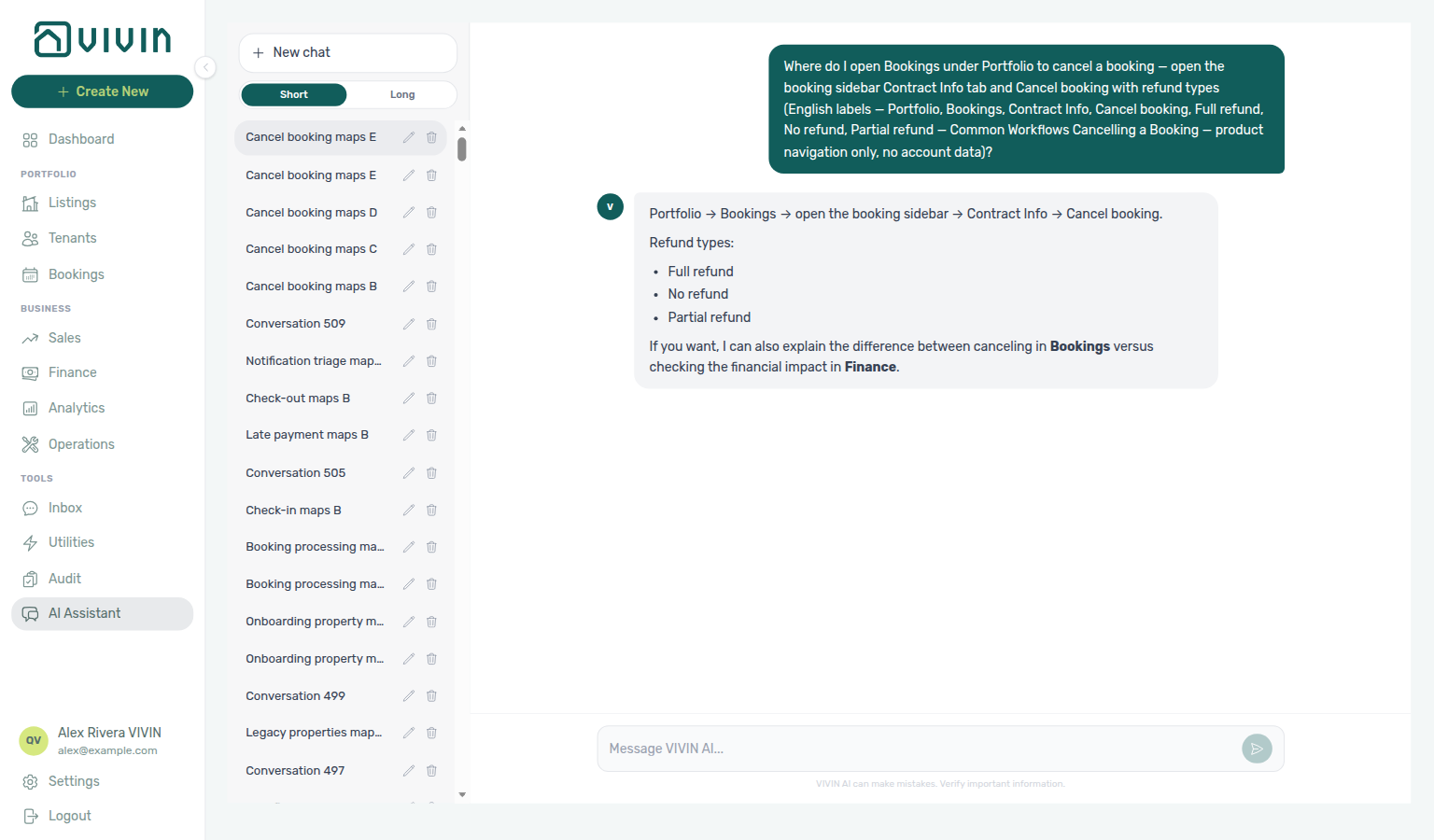
Ask AI Chat “Where do I open Bookings under Portfolio to cancel a booking — open the booking sidebar Contract Info tab and Cancel booking with refund types (English labels — Portfolio, Bookings, Contract Info, Cancel booking, Full refund, No refund, Partial refund — Common Workflows Cancelling a Booking — product navigation only, no account data)?” — then open Portfolio → Bookings, the booking sidebar Contract Info tab, and Cancel booking (ai-chat-product-context-cancelling-booking-reply.png, ai-chat-product-context-cancelling-booking-flow.mp4). The assistant typically says Portfolio → Bookings, then Contract Info → Cancel booking, and lists the three refund types. Same grounding external MCP clients get from get-vivin-context-overview (or get-vivin-context-bookings-tenants). Distinct from completed-stay closure on Managing a Check-out and from the broader Common Workflows hub product maps.
Cancel only after the booking exists in Bookings — cancellation policy and deposit rules come from Settings → Preferences and Settings → Payments, Invoicing & Utilities (setup steps 5 and 8). Complete Getting Started — Recommended Setup Sequence steps 1–15 first. Lockout catch-up: Getting Started — Lockout catch-up after password recovery.
Review policy in Step 1 — Review the cancellation terms; settle balances in Step 2 — Settle outstanding payments / Step 2a. Deposit and execution: Step 3 → Step 4 — Execute the cancellation action (read Paid, Deposit, and Refund then wizard steps 2–4 before you confirm). Cleanup: Step 5 / Step 6 / Step 6b. Habit-specific shortcuts live under Related below.
After cancellation, run Manual block hygiene when calendar holds still suppress availability. Deposit and refund steps that overlap a normal departure pair with Common Workflows — Check-out vs cancellation (workflows-cancel-booking-refund-modal-flow.mp4, bookings-list-canceled-tab.png) and Managing a Check-out (Step 5 for completed stays only — not policy void; Step 7 when mid-stay cancel still needs Ended-status cleanup). During month-end Step 6b, pair Portfolio KPI review — Step 7 with AI usage API when settlement triage leaned on AI Chat.
- Know your cancellation policy terms (what the tenant forfeits or is entitled to)
- Understand the deposit rules configured in Settings > Payments
Step 1 — Review the cancellation terms
Refund-type decisions pair with Settings → Payments, Invoicing & Utilities, Bookings — Cancellations and Refunds, and Booking Lifecycle. Downstream: Step 2 (settlement) and Step 4 (confirm the same refund type in the dialog).
Before cancelling, check the booking's contract and your cancellation policy to determine what the tenant forfeits or is entitled to (e.g., deposit retained, first month non-refundable). Determine which refund type applies:
| Refund Type (English label) | What Happens to the Payment Schedule |
|---|---|
| Full refund | All payment items are removed from the schedule. Payments already received are returned through the refund / deposit flows. |
| No refund | Only unpaid future items are removed. Already-paid items are retained. |
| Partial refund | Requires manual processing (see Step 2b below). Set return amounts on the payment lines in the cancel flow. |
Booking-scoped Tenant MCP request-contract-data and get-dates-and-schedule surface the same contract dates and policy context you review in Step 1 — get-payment-info when the tenant asks what they forfeit before you pick a refund type. Account-scoped Landlord MCP cancel-booking is a write tool; operators still confirm refund type in the booking sidebar (Step 4).
Step 2 — Settle outstanding payments
Pre-cancel settlement pairs with Common Workflows — Cancellation collections before void (hub matrix when In Debt blocks Step 4; finance-contract-values-in-debt-filter.png, bookings-detail-transactions-approve-payment-modal.png, bookings-cancel-booking-modal-refund-types.png), Finance → Contract Values, Handling a Late Payment — Steps 1–4, and Notification triage — Step 4 when payment overdue alerts brought you here. Upstream: Step 1 (refund type). Downstream: Step 2a when manual receipts stay pending; Step 3 after balances clear.
Verify all charges up to the cancellation date have been settled. Triage balances before you open the booking sidebar:
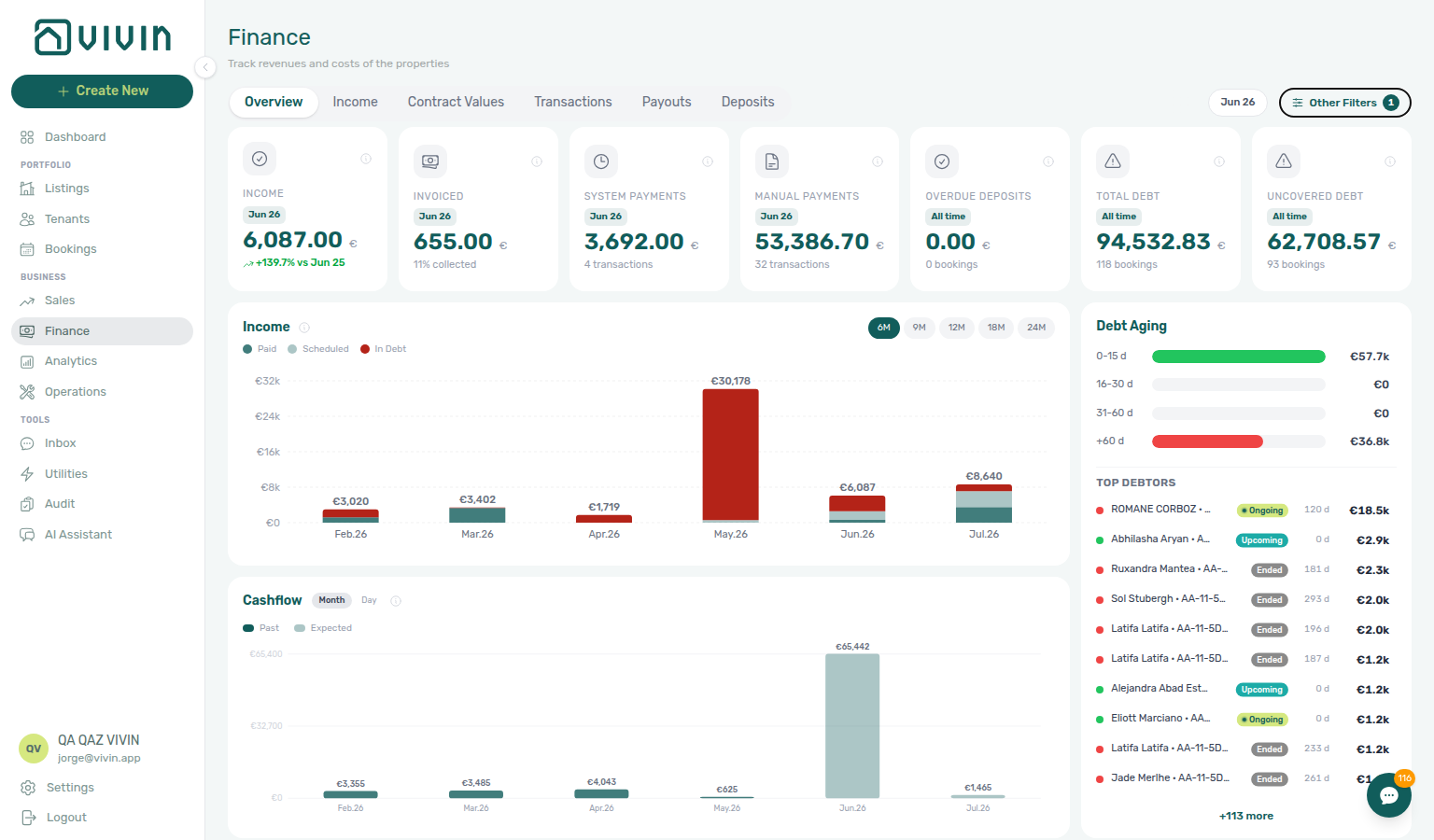
- Finance > Contract Values — filter In Debt to surface scheduled charges still unpaid or past due. On large portfolios, open Other filters first: scope with the paged Property picker (and Select owners when you reconcile one landlord), then add Booking → Select categories when you segment by booking tag, or Tenant → Tenant category when cancellations cluster on one tenant segment — see Finance — Property and listing filters, Finance — Tenant category filter, and Glossary — Booking Tag. Mirror the same segment on Bookings → Tenant categories or Tenants — Tenant category filter when Finance Overview still shows the old segment — see Glossary — Tenant category and FAQ — Finance tenant category filter parity. When balances are still disputed, run Handling a Late Payment — Step 1 before you cancel — or open the booking from a payment overdue alert on
/notificationsfirst. - Finance > Overview — when Total Debt is non-zero, use Debt Aging → Top debtors (or In debt on the Income chart) for booking-level context before you cancel individual reservations.
If the tenant owes money, record the payment in Finance > Add Payment or create a charge. If you owe the tenant a refund, process it now.
When the shortfall is a partly collected security deposit (not rent schedule lines), open the booking Deposit tab — an amber Partially paid badge means Paid is above zero but still below Amount (Partial Paid on depositStatus — see Glossary — Deposit lifecycle status). Portfolio triage: Finance → Deposits — Partial paid lifecycle card — distinct from Partial Paid rent on Payment Plan. See FAQ — Partly collected security deposit, Managing a Check-in — Step 3, and Glossary — Deposit lifecycle status.
Booking-scoped Tenant MCP get-payment-info surfaces the same In Debt schedule rows you triage on Finance → Contract Values before picking a refund type. Account-scoped Landlord MCP list-payments / get-payment and get-booking help portfolio assistants resolve booking ids from Finance → Contract Values or payment overdue alerts opened via Notification triage — Step 4.
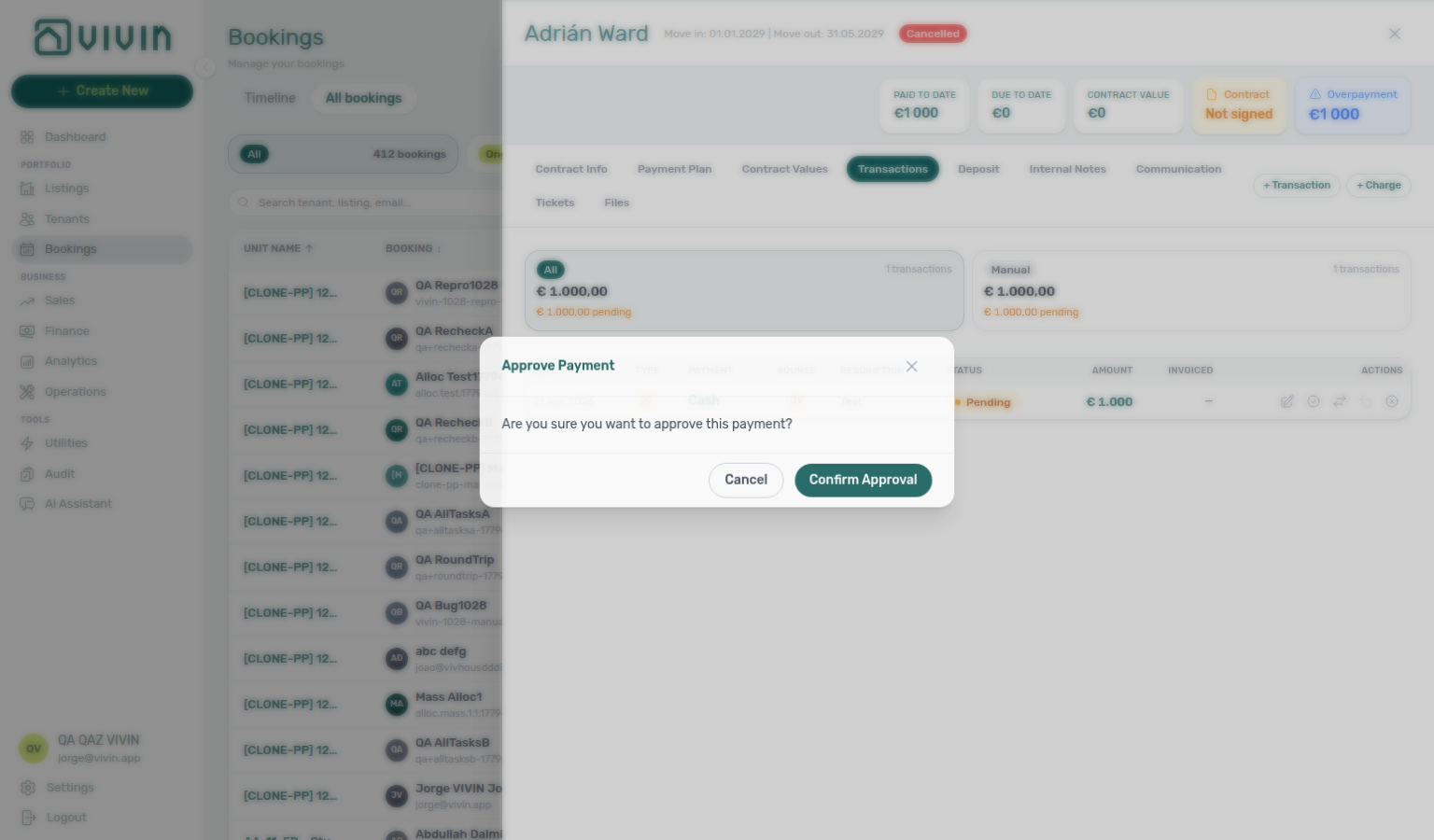
Manual receipts recorded during settlement may stay pending until Approve payments acts on Finance → Transactions or the booking Transactions tab. Until approval, In Debt contract lines and deposit math can still reflect the old balance — triage Pending on the ledger before you confirm cancellation. See Finance — Pending manual payments.
Step 2a — Approve settlement receipts (when required)
Settlement approval pairs with Finance → Transactions, Payment Allocation — Correcting mistaken receipts, and the same Pending habit in Portfolio KPI review — Step 7. Upstream: Step 2. Downstream: Step 3 and Step 4 once allocations apply.
When you recorded a final payment during Step 2 but Contract Values or In Debt still show the old balance:
- Open Finance → Transactions (widen the date range if needed) or the booking Transactions tab and confirm Pending rows exist when you expect a manual approval queue.
- Open Finance → Transactions (widen the date range if needed) or the booking Transactions tab, filter to Pending, and locate the manual row.
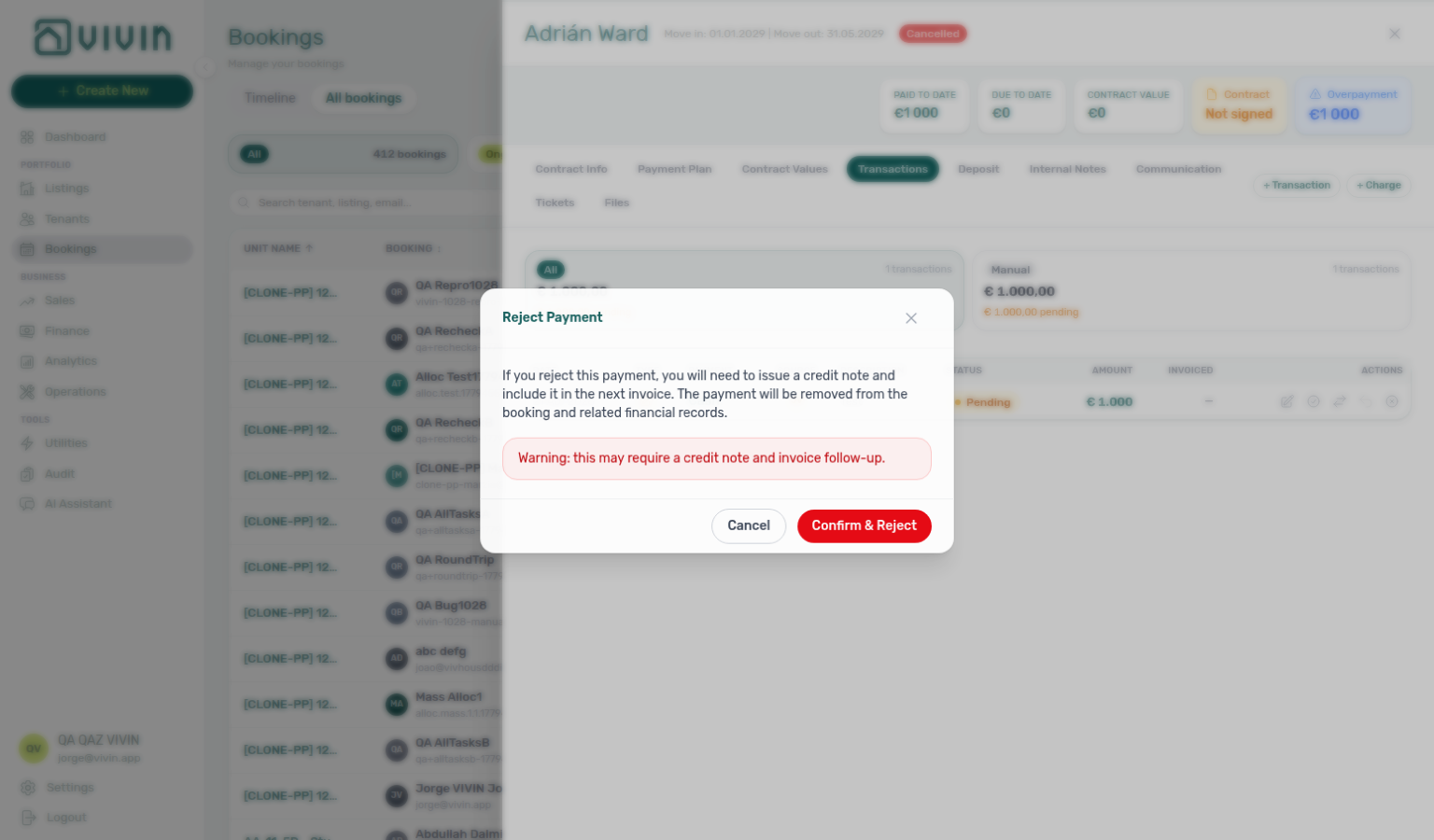
- Click Approve payment (per-row check icon) or tick several rows and use Approve selected from the floating bar. For a mistaken duplicate on the ledger, use Reject selected (bulk-only on Finance — no per-row reject icon there). Reject selected shows the same red credit note warning as booking Transactions when accounting may already have invoiced the charge — see Finance — Reject payment and Bookings — Transactions row actions.
- Re-check Contract Values and deposit math before you open Cancel booking — allocations apply only after approval.
Account-scoped Landlord MCP create-manual-payment-in records the same bank-transfer rows you enter during Step 2 — receipts may stay pending until Approve payments below. External clients cannot approve or reject from MCP; operators continue on Finance → Transactions or the booking Transactions tab.

Step 2b — Handle partial refunds (if applicable)
Partial refunds pair with Glossary — Credit note (payment reject/revert), Audit — Discounts tab, and FAQ — Lower rent below invoiced when exported rent lines block schedule edits. Upstream: Step 1 and Step 2. Downstream: Step 3 and Step 4 (pick partial refund in the dialog only after schedule math is settled).
Partial refunds are not automated because the split depends on your specific cancellation terms and negotiation with the tenant. For partial refunds:
- Calculate the refund amount based on your cancellation policy
- Manually adjust the payment schedule — remove or modify the relevant items
- Record the partial refund amount and document the agreed terms
- If charges have already been invoiced through your accounting integration, create credit notes in your accounting system (Vivin cannot auto-remove invoiced schedule lines)
Payment items that have already been invoiced through the accounting integration (e.g., Invoice-xpress) cannot be automatically removed from the payment schedule. These must be handled as credit notes or manual adjustments in your accounting system. See Glossary — Credit note (payment reject/revert) and Bookings > Transactions row actions.
Step 3 — Handle the deposit
Deposit retention pairs with Common Workflows — Check-out vs cancellation (policy void → Step 3 vs normal departure → Managing a Check-out — Step 5; bookings-cancel-booking-modal-refund-types.png, bookings-detail-deposit-tab-ready-to-refund-toggle.png), Finance → Deposits, and Bookings — Deposit tab. Upstream: Step 2 / Step 2b. Downstream: Step 4 and Step 6b at month-end.
In Finance > Deposits (or the booking Deposit tab), align the deposit with your cancellation policy. When the guest completed a normal stay instead of a policy void, switch to Managing a Check-out — Step 5 — hub: Common Workflows — Check-out vs cancellation. If the booking ended or was scheduled to end more than a few months ago, clear or widen the Deposits toolbar date range first — the tab defaults to roughly the last three months and hides older rows until check-in, check-out, or Refund Due Date intersects your filter. See Glossary — Finance Deposits date range.
When Paid on the deposit row is short but non-zero, confirm whether you are retaining the collected portion, chasing the remainder before cancel, or netting the shortfall against rent arrears from Step 2 — the booking Deposit tab shows Partially paid with a remaining helper (Partial Paid on depositStatus). See FAQ — Partly collected security deposit and Glossary — Deposit lifecycle status.
When the tenant contests how much of the deposit you retain before you send a return, and Enable deposit disputes is On, use Mark as Disputed on the Deposit tab (or Mark disputed on Finance → Deposits) so Refund / Mark refunded stays frozen until you click Resolve Dispute — same pattern as Managing a Check-out — Step 5. Portfolio triage: Other filters → Deposit status → Disputed — Finance — Deposit status filter. See Glossary — Deposit dispute.
- Full refund: Confirm Est. Refund / Total to refund, complete the external bank transfer, then click Mark refunded (status Refunded).
- Partial refund: Ensure the payment schedule and any damage charges reflect the retained amount (Step 2b), transfer the net return externally, then Mark refunded.
- No refund: Leave the deposit unreturned — the row may show Not Refunded. Document the reason; do not use Mark refunded when nothing is sent back.
Status badges (Pending refund, Overdue, Refunded, Not Refunded) are described in Finance > Deposits — status badges.
Vivin records the deposit decision — the actual bank transfer happens outside the platform. Always document the reason for any retention. Ensure the tenant has provided their IBAN before initiating a return.
Booking-scoped Tenant MCP get-security-deposit-info returns the same deposit terms and retention context tenants see on the portal Payments tab while you decide full, partial, or no refund — it does not Mark refunded, Mark as Disputed, or Resolve Dispute; those remain operator actions on Finance → Deposits or the booking Deposit tab. notify-landlord escalates contested retention to your team when external assistants surface a dispute before you use Mark as Disputed — external clients cannot toggle dispute freeze from MCP alone. get-payment-info helps tenant-facing assistants explain how retained deposit amounts relate to outstanding schedule lines during partial-refund paths (Step 2b).
Account-scoped Landlord MCP list-payments / get-payment and get-booking help portfolio assistants reconcile deposit math with Contract Values In Debt rows during Step 2 before you Mark refunded — external clients cannot record bank returns or flip Finance → Deposits status badges from MCP. list-tickets / get-ticket surface open damage jobs when retention disputes tie to Operations inspection work (Step 6). For Vivin product defects (deposit dispute toggle missing, Enable deposit disputes permissions, or MCP credential scope), file Using in-app support instead of routing tenant automation here. Surface-choice contrast: Automation & AI — Workflow pairing for surface choice.
Step 4 — Execute the cancellation action
Cancel execution pairs with Bookings — Contract Info, Tenants fiscal-ID lookup, and Processing a New Booking when you cancel a duplicate import. Upstream: Step 1 (refund type must match the dialog). Downstream: Step 5 and Step 6.
- Open Bookings and select the booking from the list (or timeline) to open the booking sidebar. When several rows match, paste the unit internal name in toolbar Search — unit hits rank above tenant name or email. See Bookings — Search bar and Glossary — Directory search ranking. If the tenant contacted you with a fiscal ID (NIF) from paperwork instead of a room code, open Tenants and paste that value in Search — the directory matches fiscal and identification IDs without re-ranking; open the tenant profile and jump to the linked booking from there.
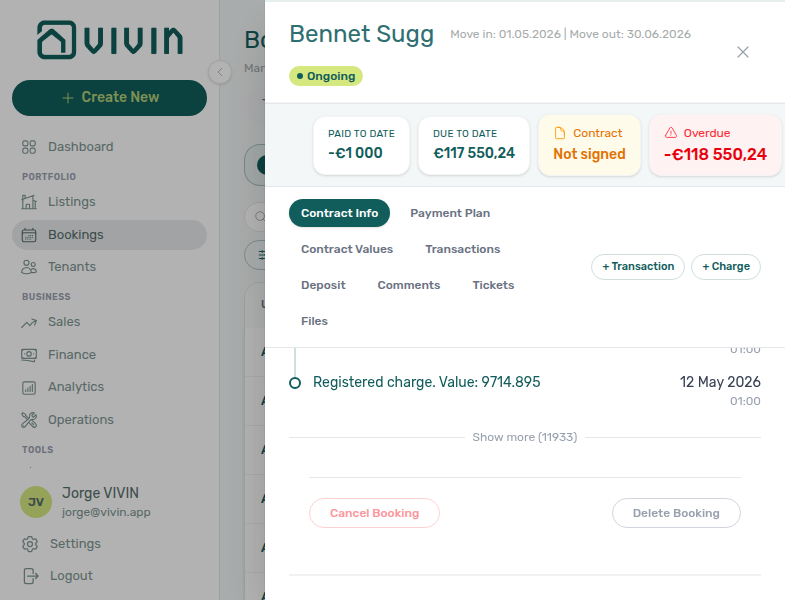
- In the sidebar, open the Contract Info tab.
- Scroll to Booking actions and choose Cancel booking (or the equivalent label in your interface language).
- In the cancellation dialog, pick the refund type that matches Step 1 — English Full refund, No refund, or Partial refund. Read Paid, Deposit, and Refund on step 1, then continue with Next through steps 2–4 only when you are ready. Use Cancel / Close (or the dialog X) if you were only checking the figures — the booking stays open until you finish the flow. After Full refund, tenants see Cancelation With Refund on Payments → Transaction History. After Partial refund, tenants see Cancelation With Partial Refund.
This workflow uses Cancel booking — not Delete Booking. Delete soft-archives mistaken or test rows and hides Manual Transactions on Finance → Transactions; it does not run cancellation policy or refund-type dialogs. On integration reservations, clear any provider platform in-payment before Delete — FAQ — Delete Booking on integration reservation . For duplicates or training rows, see FAQ — Cancel Booking vs Delete Booking (decision table + bookings-list-canceled-tab.png vs soft-archive), FAQ — Portfolio retirement decisions, and Bookings — Delete Booking (soft archive).
When Communication or Tickets needs a refresh while you work in Contract Info, use Refresh or Retry on that tab before you leave the booking — see Glossary — Booking detail sidebar tab refresh.
Account-scoped Landlord MCP cancel-booking is a write tool that can void a reservation programmatically — operators still confirm refund type in the booking sidebar dialog to match Step 1. After cancel, booking-scoped Tenant MCP get-booking-status confirms Canceled (canceled) the same way the sidebar does — pair with notify-landlord when a tenant initiated cancellation through a chatbot before you confirm in Contract Info.
Control labels follow your account language. English choices on step 1 are Full refund, No refund, and Partial refund. They map to the same platform behavior: full refund (remove schedule items / return paid amounts per product rules), no refund (remove unpaid future items only), or partial refund (set return amounts on payment lines — settle the schedule and accounting as in Step 2b before you finish). Tenant portal history still labels a full cancel return as Cancelation With Refund.
Paid, Deposit, and Refund on Cancel booking
The three amounts pair with Step 1 (which refund type to pick) and Step 3 (deposit retention). Symptom: FAQ — What do Paid, Deposit, and Refund mean on Cancel booking?. Term: Glossary — Cancel booking Paid / Deposit / Refund.
Open Contract Info → Cancel booking. Step 1 asks how the booking should be cancelled. Below Full refund, No refund, and Partial refund, three cells show the money on this reservation today, so you judge the return against the booking instead of from memory:
| Label | What it shows |
|---|---|
| Paid | Total already paid on the booking |
| Deposit | Deposit already collected |
| Refund | Amount this cancel choice would return |
Refund follows the selected English choice:
| Choice | Refund cell |
|---|---|
| Full refund | The cancel-path return for this booking (often Paid minus deposit kept for the deposit flow — read the effects list under the cells) |
| No refund | € 0 |
| Partial refund | Starts at € 0 until you set return amounts on the payment lines in the cancel flow |
The effects list under the cells always starts with Cancel this booking and free the unit, then explains the money outcome for that choice — including when deposit stays on the booking for the deposit flow, and when invoiced money needs credit notes in Finance → Transactions.
Use Cancel (or the dialog X) if you were only checking the figures. Next continues the multi-step cancel flow; the booking is not canceled until you finish those steps.
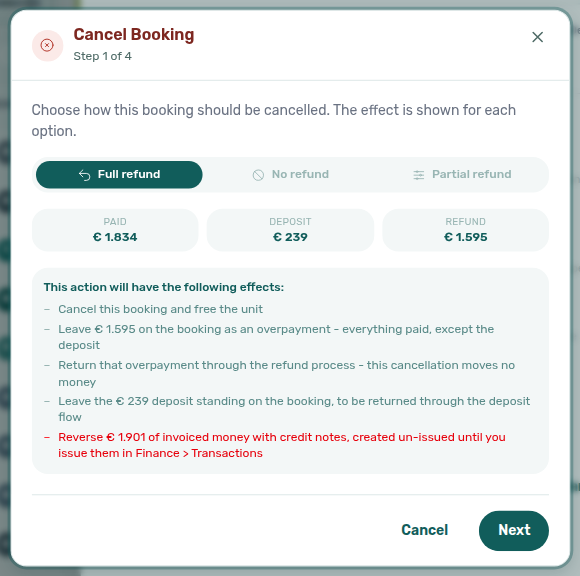
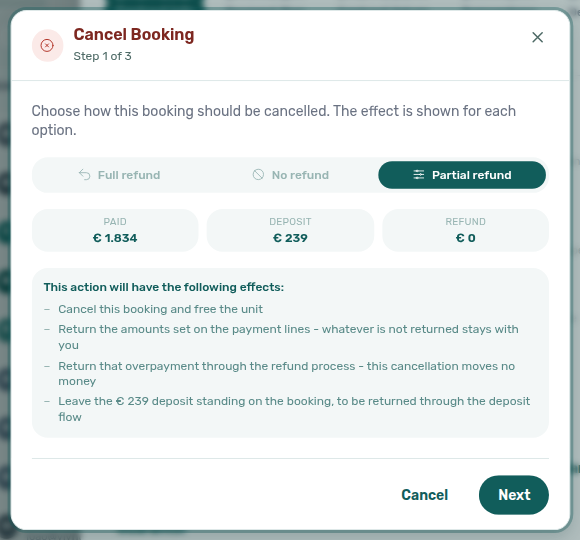
See FAQ — What do Paid, Deposit, and Refund mean on Cancel booking? and Glossary — Cancel booking Paid / Deposit / Refund.
Cancel booking wizard steps 2–4
Steps 2–4 pair with Paid, Deposit, and Refund on step 1 and Step 4 — Execute the cancellation action. Symptom: FAQ — What happens after Next on Cancel booking?. Term: Glossary — Cancel booking wizard steps 2–4.
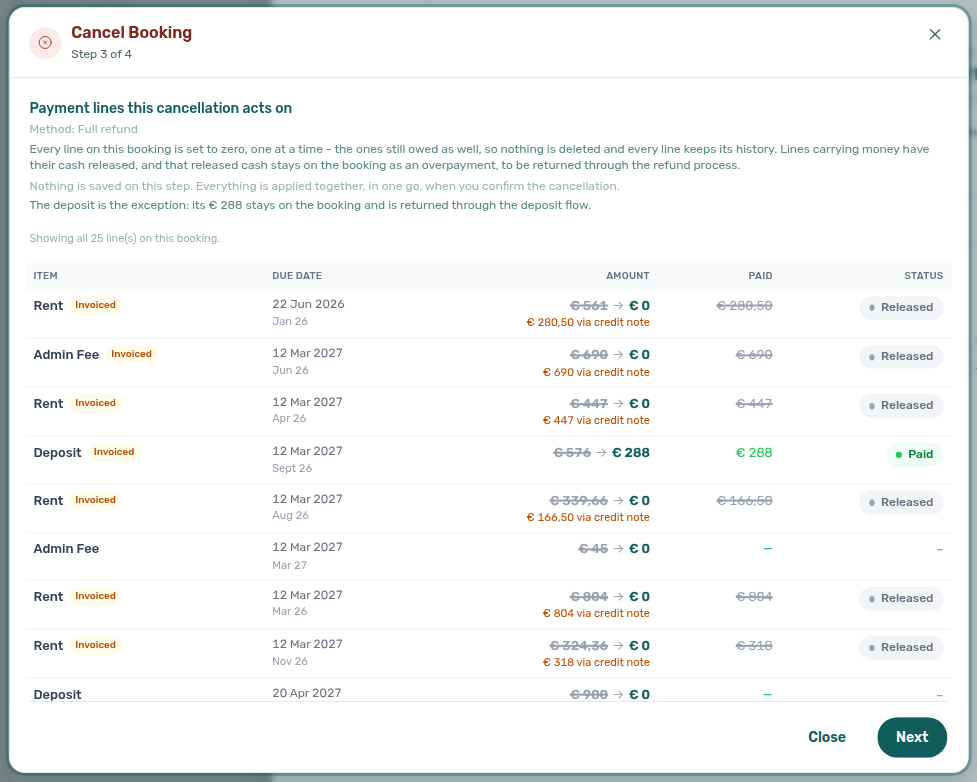
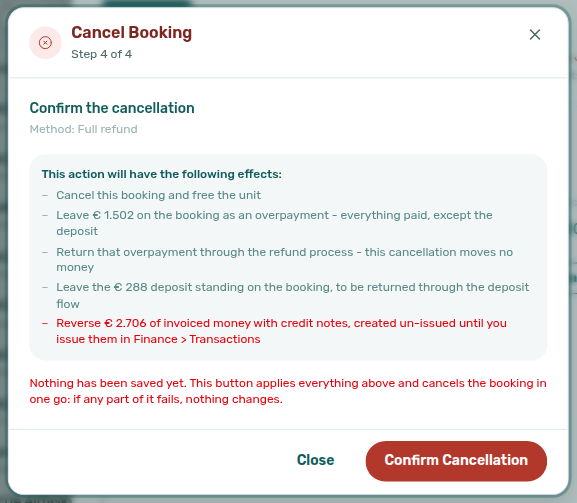
After you pick a refund type on step 1 and click Next, Cancel booking continues as a four-step wizard. Nothing is written to the booking until the final Confirm Cancellation — each earlier step is a preview. Use Close (or the dialog X) on steps 2–4 to leave without cancelling.
| Wizard step | English title | What you review |
|---|---|---|
| Step 2 of 4 | Settle the deposit before cancelling | How this method treats each deposit line (kept for the deposit flow, removed when unpaid, or reversed when No refund applies). |
| Step 3 of 4 | Payment lines this cancellation acts on | The schedule preview — amounts written down, cash released as overpayment, credit notes for invoiced money, and the deposit exception. |
| Step 4 of 4 | Confirm the cancellation | Method recap and the same effects list; Confirm Cancellation applies everything in one go. |
On Full refund, step 2 usually explains that the deposit stays for the deposit flow; step 3 lists every payment line the cancel will act on (often a wide modal). Step 4 repeats the money outcome and warns that nothing is saved until you confirm. On Partial refund, step 2 may be skipped when there is nothing to decide on the deposit — the counter then shows fewer steps.
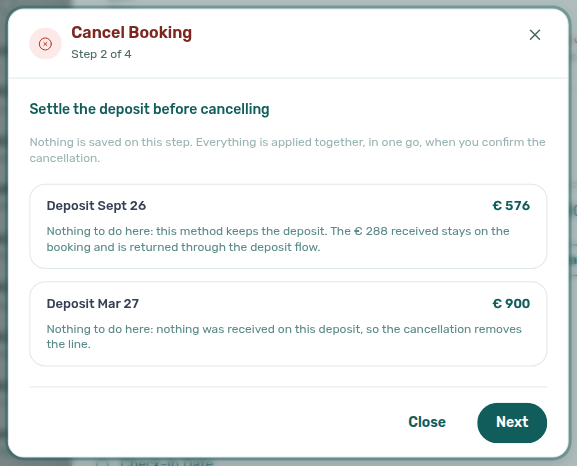
See FAQ — What happens after Next on Cancel booking? and Glossary — Cancel booking wizard steps 2–4.
When cancellation is applied, booking status becomes Canceled (canceled) and the system automatically cleans up the payment schedule based on the refund type:
- Full refund: all remaining items are removed
- No refund: only unpaid future items are removed; paid items remain
Step 5 — Verify availability is restored
Availability restore pairs with Sales → Overview, Manual block hygiene, and Audit Manual Blocks when heatmaps still look blocked. Upstream: Step 4. Downstream: Step 6 and Processing a New Booking when you rebook freed nights.
Once canceled, the unit's dates automatically become available again in Vivin and on all connected external platforms. Verify in the Sales > Sales Overview that the dates now show as free.
If the heatmap still shows blocked nights after cancellation, open Audit (Tools → Audit, /audit) and filter Manual Blocks for the unit — stale holds created outside the booking may still suppress availability until you remove or shorten them. Sort by Unit or End when you scan several rows (Manual block hygiene — Step 3). On Bookings → Timeline, clear Only bookings to see channel and manual blocks on the same unit row. After Cancel booking, the stay bar already leaves the chart — you do not reload (Stay bars update after create or delete). When Only bookings is on, a unit whose last stay in the window you cancelled also leaves the unit list (Unit list updates after create or delete). See Listings — Adding Manual Unavailability for where blocks originate.
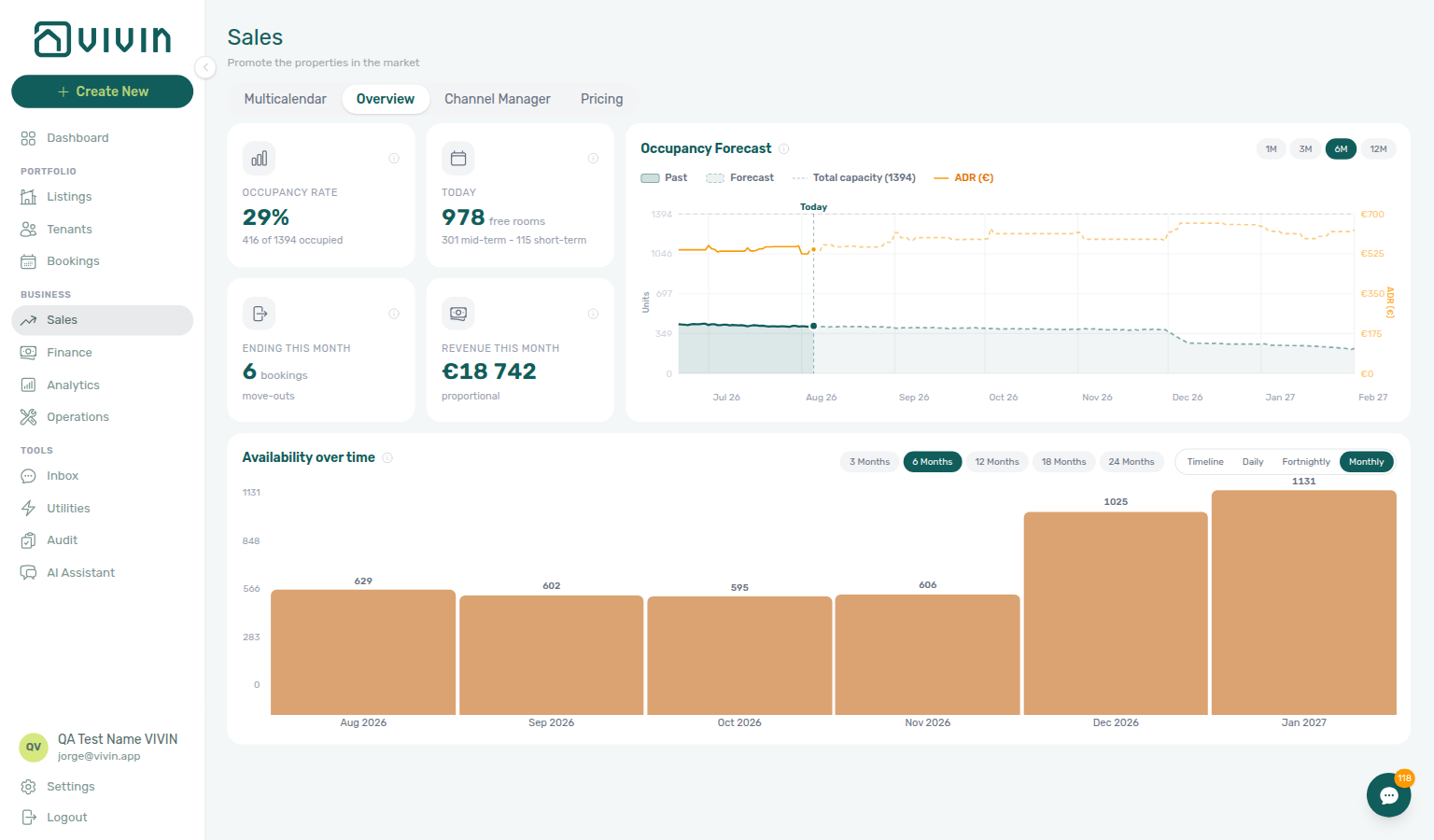
When Sales → Overview still shows blocked nights after cancel, account-scoped Landlord MCP get-listing includes unavailabilities (manual holds and channel blocks) so external clients can distinguish a canceled stay from a forgotten Audit hold — list-listings narrows the unit when several rooms share a property. get-listing-calendar and get-vacant-units-next-month mirror Sales → Overview and Multicalendar portfolio reads; external clients cannot delete manual blocks from MCP — operators finish in Manual block hygiene — Step 4. Booking-scoped Tenant MCP get-listing-calendar lets tenant-facing assistants confirm freed nights on the canceled unit — pair with get-booking-status when guests ask whether the reservation is fully voided. Surface-choice contrast: Automation & AI — Workflow pairing for surface choice.
Step 6 — Close related tickets
Post-cancel ticket closure pairs with Operations → Tickets, Glossary — Ticket — linked cash flows, and Using in-app support when Close or Cost allocation is blocked for your role. Upstream: Step 5. Downstream: Step 6b and Notification triage — Step 5.
In Operations → Tickets, close or cancel pending work associated with this booking (check-in preparation, cleaning, damage assessment, etc.) so items do not stay in Unassigned or In progress. Far-future prep jobs may still show a Draft badge until the Schedule date nears — use the Draft KPI card when you need to review long-lead tickets without mixing them into today's queue (Glossary — Draft ticket (display status)). When a damage ticket included paid contractor work, confirm Cost allocation still reflects linked cash flows before you archive the case (Glossary — Ticket — linked cash flows).
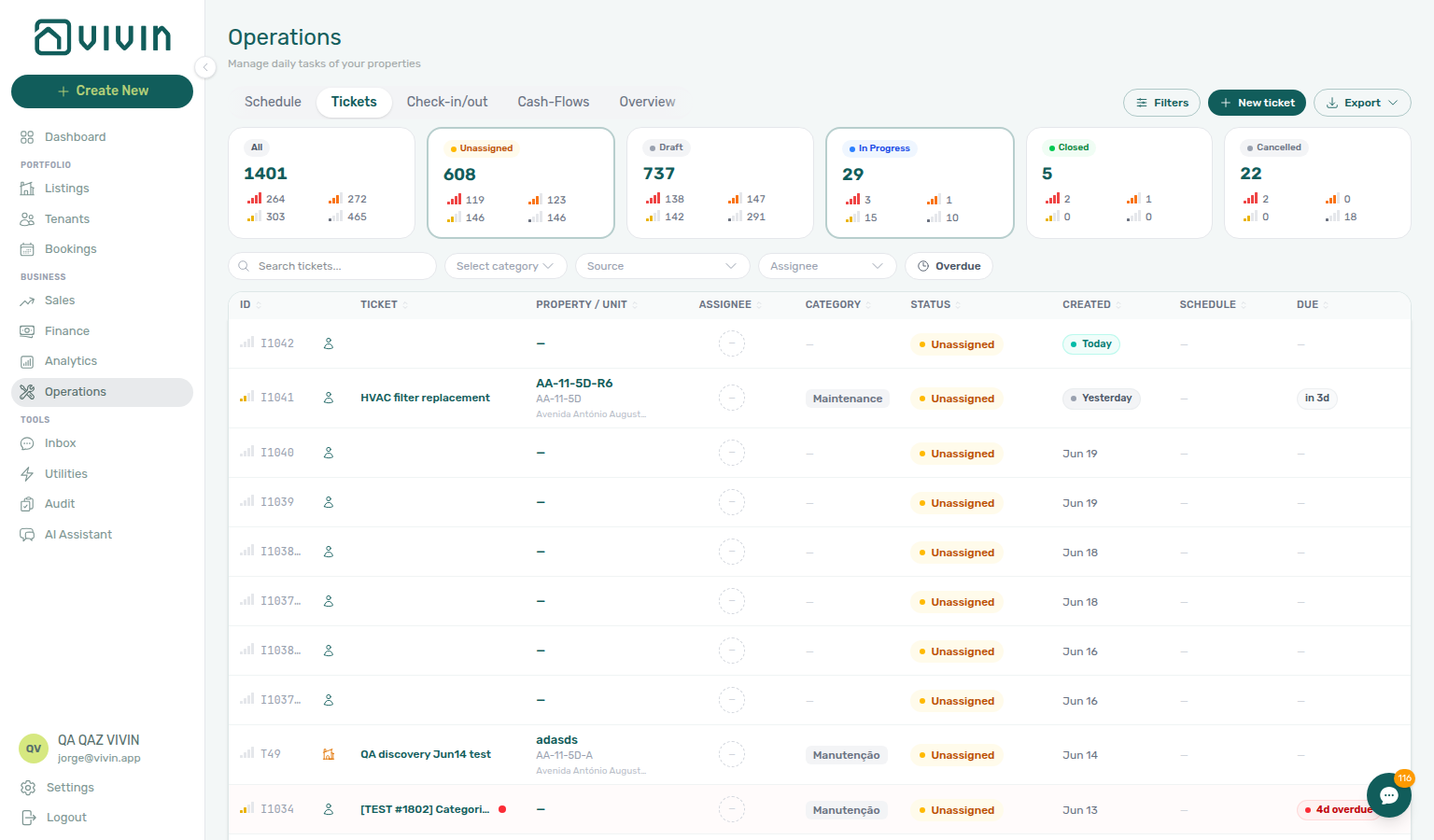
After cancellation, the unit is immediately bookable again. Check the Sales Overview calendar for any gaps that could be filled with a new booking — when you rebook freed nights, continue with Processing a New Booking and confirm portal gates in Processing a New Booking — Step 6 before you send contract mail to the replacement guest. When you canceled an Ongoing mid-stay reservation instead of a future Upcoming row, deposit and Ended-status overlap with Managing a Check-out — Step 7 may still need a separate pass after Step 3. When prep tickets for the same unit overlap arrival week on a replacement stay, pair closure with Managing a Check-in — Step 6 before you archive long-lead Draft jobs. At month-end, after ticket closure, pair lingering settlement Pending rows with Portfolio KPI review — Step 7 before you archive the last Operations prep jobs — the Step 6b mesh covers confirmation, arrival, departure, collections, and utility overage receipts on the same ledger queue. When cancellation alerts on /notifications still will not clear after Notification triage — Step 5, continue Notification triage — Step 6 before you file Vivin support from Step 6b.
Account-scoped Landlord MCP list-tickets, get-ticket, update-ticket, add-ticket-comment, and close-ticket surface, document, or close the same Operations → Tickets rows you review after cancel — paste the unit internal name in Tickets toolbar Search when several properties share a portfolio; pair close-ticket only after operator Cost allocation is reconciled when damage tickets included paid contractor work (Glossary — Ticket — linked cash flows). list-bookings and get-booking confirm the reservation is Canceled before you archive prep jobs that still reference the old stay. External clients cannot link Cost allocation cash flows from MCP. Booking-scoped Tenant MCP get-maintenance-tickets lists open prep or damage jobs for the tenant's unit when external assistants ask what work is still pending — contrast with Landlord MCP close-ticket when operators finish closure in the management UI.
Finish Step 5 and deposit settlement in Step 3 before you open a Vivin support ticket — closing Operations tickets and clearing Sales availability are operator workflows, not product defects. File Using in-app support when Vivin behaviour blocks post-cancel cleanup despite correct operator steps:
- Operations → Tickets Close or Cost allocation actions missing for your role — attach your user email and the ticket id on the New Support Ticket modal (Operations module).
- Canceled booking dates still show blocked on Sales → Overview after you removed Audit manual holds — attach the unit internal name and booking id (Sales or Bookings module).
- Landlord MCP or Tenant MCP external clients return persistent 403 / auth errors after you refreshed the management JWT — see Using in-app support — When to use in-app support, Landlord MCP — Permissions and safety, and Resetting a Management User Password — Troubleshooting.
Use the Help & Support drawer from Operations or Bookings when screenshots should include the ticket or booking sidebar — Deep Links — Support. If a management lockout delayed post-cancel ticket closure, recover access with Resetting a Management User Password (Step 3) before you rerun Step 5 and this step — refresh Landlord MCP Bearer JWT after Step 3 there; catch up stale cancellation alerts in Notification triage — Step 5.
Step 6b — Clear cancellation alerts and approve lingering settlement receipts (when required)
Month-end cancellation cleanup pairs with Notification triage — Step 5, Portfolio KPI review — Step 7, and Entering Monthly Utility Bills — Step 4 when Canceled stays still show utility overage lines. Upstream: Step 2a and Step 6.
After you close Operations tickets in Step 6, clear unread Payments or booking-status rows on /notifications that still reference the Canceled stay — see Notification triage — Step 5. When settlement bank transfers from Step 2 still show Pending at month-end, follow Step 2a and the same approval habit in Portfolio KPI review — Step 7, Processing a New Booking — Step 6b, Managing a Check-in — Step 6b, Managing a Check-out — Step 6b, Entering Monthly Utility Bills — Step 4b, Handling a Late Payment — Step 4b, and Handling a Late Payment — Step 6b — segment-wide arrears after month-end KPI review in Handling a Late Payment — Step 6. When a Canceled stay still shows utility overage lines on Payment plan, triage with Entering Monthly Utility Bills — Step 4 before you archive the last cancellation alerts — file Entering Monthly Utility Bills — Step 6 when overage math is blocked despite correct operator steps on Canceled stays.
- Open Finance → Transactions (widen the date range if needed) or the booking Transactions tab.
- Click the amber Pending chip on the All type-summary card — see Finance — Pending manual payments (
finance-transactions-pending-pill.png). - Locate settlement rows recorded during Step 2 before you confirmed Cancel booking.
- Click Approve payment or use Approve selected from the floating bar; use Reject selected only for mistaken duplicates — same credit note warning as Step 2a.
- Re-check Contract Values and deposit math on Finance → Deposits before you archive the last cancellation alerts on
/notifications.
Account-scoped Landlord MCP list-payments / get-payment and get-booking surface the same Pending settlement rows — external clients cannot approve from MCP; operators finish on Finance → Transactions. get-booking-summary helps portfolio assistants confirm Canceled counts before month-end Mark all as read on /notifications.
Approve payments and ledger Reject selected are operator workflows — finish Step 2a before you open a Vivin support ticket. File Using in-app support when Approve payment is missing for your role, Pending rows persist after approval, or Landlord MCP / Tenant MCP clients return persistent 403 after you refreshed the management JWT — see Resetting a Management User Password — Troubleshooting. If a management lockout delayed month-end cancellation settlement approval, recover access with Resetting a Management User Password (Step 3) before you rerun this step — pair with Handling a Late Payment — Step 6b and Portfolio KPI review — Step 7 on the same Pending queue.
Cancelling a Booking section cross-reference
Use the steps above for the main path. For related guides, open Related below, or return to Common Workflows.
Related
Related below links this workflow to modules, concepts, settings, and escalation paths.
Documentation map & escalation
- Common Workflows — Hub pairing matrix across all operator guides
- Getting Started — Management shell before you run this workflow
- Glossary — Term definitions referenced in the steps above
- FAQ & Troubleshooting — Quick answers when a step does not match live product behaviour
- Get Help & Support — Escalate when permissions block cancellation actions
Upstream & downstream workflows
- Processing a New Booking — Upstream when you cancel a duplicate before channel import reconciliation
- Handling a Late Payment — Collections path when the tenant still owes before you cancel (Step 2)
- Managing a Check-out & Deposit Refund — Early departures (different from cancellations)
- Manual block hygiene — Release stale manual blocks when the canceled unit still looks unavailable (Step 5)
- Manual block hygiene — Step 6 — Multicalendar still blocked after cancel and ticket closure (Step 6)
- Processing a New Booking — Rebook freed nights after cancel (Step 6)
- Processing a New Booking — Step 6 — Portal gates before replacement contract mail (Step 6)
- Managing a Check-in — Step 6 — Prep tickets overlapping arrival week on replacement stays (Step 6)
- Managing a Check-out — Step 7 — Mid-stay cancel deposit and Ended-status overlap (Step 6)
- Portfolio KPI review — Step 7 — Month-end Pending pill after ticket closure (Step 6)
- Notification triage — Step 5 — Clear cancellation and refund alerts after Canceled stays (Step 6b)
- Notification triage — Step 6 — Vivin support when row-click or read-state APIs block post-cancel alert cleanup (Step 6b)
- Handling a Late Payment — Step 6 — Segment-wide arrears when settlement balances cluster before last-resort cancel (Step 2)
- Handling a Late Payment — Step 6b — Collections Pending receipts on the same month-end ledger queue (Step 6b)
- Entering Monthly Utility Bills — Step 4 — Utility overage lines on Canceled stays before alert cleanup (Step 6b)
- Entering Monthly Utility Bills — Step 6 — Bill-entry or overage-math defects on Canceled stays (Step 6b)
- Portfolio KPI review — Step 7 — Month-end Pending pill triage for lingering settlement receipts (Step 6b)
- Resetting a Management User Password — Recover access when a lockout delayed post-cancel cleanup (Step 6, Step 6b)
Navigation & bookmarks
Bookmark routes pair with Management Frontend Deep Links and Create New menu.
- Management Frontend Deep Links — Bookings — Bookmarkable routes into list, Timeline, and booking sidebars
- Settings > Interface language — Localized Cancel booking and refund-type labels (Step 4)
Concepts & settings that shape this workflow
- Booking Lifecycle — How Canceled fits the computed status model
- Payment Allocation — Two-layer receipts during partial-refund paths (Steps 2a–2b)
- Integrations & Distribution — Cancellation releases dates on connected marketplaces and iCal channels
- Tenant Portal — Tenant-facing schedule visibility after cancellation
- FAQ — Tenant contract signing blocked — No PDF yet, mandatory Your Details gates, category locks, or Lease purpose; portal signing vs paper upload on Contract Info
- Automation & AI — Landlord vs Tenant MCP surface choice during cancellation deposit retention (Step 3) and post-cancel ticket closure (Step 6)
- Using in-app support — Vivin product tickets when Operations closure, availability restore, or MCP auth block post-cancel cleanup (Step 6)
- Tenant MCP — Booking-scoped
request-contract-data,get-dates-and-schedule, andget-payment-infowhen external assistants surface cancellation policy context (Step 1);get-security-deposit-info,get-payment-info, andnotify-landlordduring deposit retention (Step 3);get-booking-statusafter cancel (Step 4);get-listing-calendarandget-booking-statuswhen tenants ask whether freed nights are bookable (Step 5);get-maintenance-ticketsfor open prep or damage jobs (Step 6) - Landlord MCP — Account-scoped
list-payments,get-payment, andget-bookingduring pre-cancel settlement (Step 2);create-manual-payment-infor bank transfers that still need approval (Step 2a);list-payments/get-paymentwhen reconciling deposit math before Mark refunded (Step 3;Mark refundedand dispute toggles remain operator UI);cancel-bookingwrite tool (operators still confirm refund type in UI — Step 4);get-listing(unavailabilities) andlist-listingswhen Sales still shows blocked nights after cancel (Step 5);get-listing-calendarandget-vacant-units-next-monthfor portfolio availability checks (Step 5);list-tickets,get-ticket,update-ticket,add-ticket-comment, andclose-ticketwhen closing prep work (Step 6; Cost allocation remains operator UI) - Settings > Invoicing & Payments — Refund types, penalty policy, and payment priorities
- Settings > Preferences — Enable deposit disputes — Account toggle before Mark as Disputed (Step 3)
- Settings > Emails — Pause or audit departure Communication Rules after cancellation
- Settings > Emails — Auto-cancellation — Tenant email after Auto-cancel unpaid move-in; Cancel booking on Contract Info does not send it
Bookings, finance & collections surfaces
- Bookings module — Full sidebar reference for Contract Info, Deposit, and Transactions
- Bookings — Cancellations and Refunds — Detailed refund type reference (Step 1)
- Bookings — Paid, Deposit, and Refund — Three amount cells on Cancel booking (Step 4)
- Bookings — Cancel booking wizard steps 2–4 — Deposit, payment lines, and confirm screens after Next
- Finance — Contract Values — Portfolio In Debt triage before canceling (Step 2)
- Handling a Late Payment — Step 1 — Collections path before cancellation when the tenant still owes (Step 2)
- Notifications — Payment overdue alerts — Operator Payments category rows when overdue charges block settlement (Step 2)
- Finance — Tenant category filter — Other filters → Tenant → Tenant category when settlement balances cluster on one segment (Step 2)
- Bookings — Tenant categories mirror when Finance Overview still shows the old segment (Step 2)
- Tenants — Tenant category filter — Profile-count cross-check before changing portal rules account-wide (Step 2)
- Finance — Deposits tab — Deposit refund queue (Step 3)
- Finance — Pending manual payments — Approve settlement receipts before cancellation math (Step 2a)
- Finance — Transactions tab — Ledger Reject selected when settlement receipts were recorded in error (Step 2a)
- Payment Allocation — Correcting mistaken receipts — Approve, reject, and revert reference (Steps 2a–2b)
- Portfolio KPI review — Step 7 — Month-end Pending pill habit pairs with settlement receipts (Step 2a)
- Processing a New Booking — Step 5b — Same approval habit for confirmation receipts
- Handling a Late Payment — Step 4b — Same approval habit for collections receipts
- Managing a Check-in — Step 3b — Same approval habit for move-in receipts
- Entering Monthly Utility Bills — Step 4b — Same approval habit for utility overage receipts
Operations, sales & audit surfaces
- Operations module — Close or cancel prep and damage tickets (Step 6)
- Sales — Overview tab — Availability heatmap after the unit is released (Step 5)
- Audit module — Cross-portfolio manual blocks when canceled dates still look unavailable
Deeper workflow reads
See Upstream & downstream workflows above for the same guides.
Deeper API reads
- Booking Lifecycle & Validations — Cancellation validation vs computed Canceled list filters
- Webhooks & Notifications — Outbound
booking.*events after cancellation settlement - Creating Bookings — Replacement reservation enqueue when you rebook the unit (Step 6)
- Listings & Availability — Partial availability reads after calendar release (Step 5)
Operator habit hubs
Day-to-day operator habits (lockout catch-up, pending receipts, payment triage, handoffs, and related playbooks) live on the Common Workflows habit hub.
Deep-link anchors for habit hubs
Check-out vs cancellation
Lockout catch-up after password recovery
Pending manual receipt approval
WhatsApp per-booking messaging
Bot reasoning (audit)
ChatBot settings
Utility overage collections
Check-out final utilities handoff
Notification row-click navigation
Payment notification (operator)
Payment alert to receivables triage
Finance debt receivables triage
Handling a Late Payment collections
Finance Income status drill-down
Cash flow forecast drill-down
Reject/revert mistaken receipts
Month-end invoicing (fixed date)
Bulk Hostkit invoicing
Rent reduction after invoicing
Check-in to check-out handoff
Cancellation collections before void
Check-out collections before refund
Check-out ledger cleanup before refund
Same-day turnover coordination
Occupancy KPI to block hygiene handoff
Deposit missing on Finance Deposits
Deposit lifecycle status
Partly collected security deposit
Wrong tenant on a booking
Cancel Booking vs Delete Booking
Portfolio retirement decisions
Provider platform Delete Booking guard
Archived booking ledger visibility
Archive property (building-level)
Confirmation to check-in handoff
Confirmation alert triage
Portfolio segmentation by tenant category
Dashboard Total Debt subtitle
Pre-cancel settlement on Step 2 reduces ongoing underpayment on the Dashboard card — ended stays may still appear on Finance → Overview Total Debt.
- FAQ — Dashboard Total Debt subtitle — Ongoing-only headline vs Finance all-booking KPIs (
dashboard-kpi-total-debt-tooltip.png) - Step 2 — Settle outstanding payments — Clear arrears before void when In Debt blocks cancel
- Step 2a — Approve settlement receipts — Headline may lag until Approve payments
- Finance debt receivables triage — Debt Aging / Top debtors for pre-cancel triage
- Cancellation collections before void — Rent arrears vs Dashboard snapshot
Uncovered Debt KPI
Pre-cancel settlement on Step 2 should shrink Total Debt and Uncovered Debt together — when they stay close after settlement, deposit cushions are thin on remaining debtors.
- FAQ — Uncovered Debt KPI — Deposit coverage vs Total Debt (
finance-overview-kpi-cards.png) - Glossary — Uncovered Debt — Prioritize Top debtors when offsets are thin
- Step 2 — Settle outstanding payments — Clear arrears before void
- Finance debt receivables triage — Debt Aging for pre-cancel triage
- Dashboard Total Debt subtitle — Ongoing-only
/vs Finance all-booking strip
Directory list refresh
When a directory such as Bookings, Notifications, or Listings needs a refresh during this workflow, use Retry on the alert, or reload the page. Zero rows after a successful load means your filters matched nothing — widen filters or clear search.
See FAQ — Directory list refresh and Common Workflows — Directory list refresh.
Booking sidebar tab refresh
Inside an open booking, Communication and Tickets load independently — use header Refresh (Communication) or banner Retry (Tickets). Other sidebar tabs stay usable. Whole-module list refresh is Directory list refresh.
See FAQ — Communication or Tickets won't open and Common Workflows — Booking sidebar tab refresh.
Key glossary terms
- Glossary — End-of-Booking cost split — Charge Time → End of Booking splits daily overage across every occupied unit; still-staying roommates stay in the denominator
- Glossary — Change history — Operator-initiated edits on Listings setup and Bookings Changelog; create-time defaults excluded
- Glossary — Archived booking ledger visibility — Delete Booking hides manual/provider_platform rows on Finance → Transactions; vIBAN and credit card stay visible
- Glossary — Finance tenant category cache refresh — Recategorizing a tenant updates
booking.tenantCategoryIdimmediately; ledger tabs reflect it on reload, while Overview can lag up to ~10 minutes - Glossary — SIMAR water contract ID — SIMAR (Loures e Odivelas) water bills use Cód. Local in Connections — not Nº de Contador; leading zeros stripped
- Glossary — Per-booking maintenance ticket opt-out — Add booking checkboxes skip automatic CI/CO tickets for one reservation only; property rule unchanged
- Glossary — Full term list
Module documentation hubs
- Tenants module — Fiscal-ID lookup when opening the reservation to cancel
- Listings module — Manual unavailability origins for stale holds
- Utilities module — Bills Included and tenant overage context
- Dashboard module — Post-cancellation vacancy KPIs
- Analytics module — Month-range portfolio KPI charts
- Notifications module — Full
/notificationshistory - Inbox module — Portfolio-wide WhatsApp workspace
- AI Chat module — AI Assistant
- Booking engine details — Rich marketplace payload editor
- Properties workspace — Legacy
/propertiesURL redirects - Account Settings — Workspace-wide financial policies
- API Reference hub — Partner HTTP contracts and Creating Bookings